CAMEDIA E-10 - Digital Camera OLYMPUS - Free user manual and instructions
Find the device manual for free CAMEDIA E-10 OLYMPUS in PDF.


User questions about CAMEDIA E-10 OLYMPUS
0 question about this device. Answer the ones you know or ask your own.
Ask a new question about this device
Download the instructions for your Digital Camera in PDF format for free! Find your manual CAMEDIA E-10 - OLYMPUS and take your electronic device back in hand. On this page are published all the documents necessary for the use of your device. CAMEDIA E-10 by OLYMPUS.
USER MANUAL CAMEDIA E-10 OLYMPUS
San-Ei Building, 22-2, Nishi Shinjuku 1-chome, Shinjuku-ku, Tokyo, Japan.
(Customer support) Tel. 0426-42-7499
http://www.olympus.co.jp
OLYMPUS AMERICA INC.
Two Corporate Center Drive, Melville, NY 11747-3157, U.S.A. Tel. 631-844-5000
(Customer support) Tel. 1-888-553-4448
http://www.olympus.com
OLYMPUS OPTICAL CO. (EUROPA) GMBH.
(Premises/Goods delivery) Wendenstraße 14-18, 20097 Hamburg, Germany. Tel. 040-237730
(Letters) Postfach 10 49 08, 20034 Hamburg, Germany.
http://www.olympus-europa.com
CAMAEDIA E-10
Instructions
Thank you for purchasing this digital Olympus camera.
Before you use this camera, read this manual carefully.
We recommend that you spend some time taking test shots and experimenting with all of the features before you take important pictures.
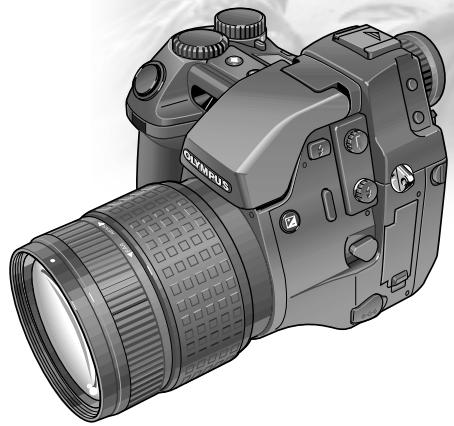
Thank you for purchasing the Camedia E-10. To ensure years of reliable and enjoyable service, please read this instruction manual carefully and use the camera safely. Store this instruction manual in a safe location where you can find it for future use.
Copyright
Copyright 2000. Olympus Optical Co., Ltd. All rights reserved.
IMPORTANTNOTICES
Legal and other notices
- The contents of this document are subject to change without prior notice.
- Although the contents of this document have been carefully checked to avoid errors, some may still occur. If you have a question about any point, or you find mistakes or omissions, please contact us.
- No part of this publication may be reproduced or reprinted except for personal use without prior written permission from Olympus.
- Olympus makes no representations or warranties regarding any damages, or benefit expected by using this unit lawfully, or any request from a third person, which are caused by the inappropriate use of this product.
- Olympus makes no representations or warranties, regarding any damages or any benefit expected by using this unit lawfully, caused by erasing picture image data.
Radio and Television Interference
Change or modifications not expressly approved by the manufacturer may void the user's authority to operate this equipment. This equipment has been tested and found to comply with the limits for Class B digital device, pursuant to Part 15 of the FCC Rules. These limits are designed to provide reasonable protection against harmful interference in a residential installation. This equipment generates, uses, and can radiate radio frequency energy and, if not installed and used in accordance with the instructions, may cause harmful interference to radio communications.
However, there is no guarantee that interference will not occur in particular installation. If this equipment does cause harmful interference to radio or television reception, which can be determined by turning the equipment off and on, the user is encouraged to try to correct the interference by one or more of the following measures:
- Reorient or relocate the receiving antenna.
- Increase the distance between the camera and receiver.
- Connect the equipment to an outlet on a circuit different from that to which the receiver is connected.
- Consult the dealer or an experienced radio/TV technician for help.
Only the included USB cable should be used to connect the camera to a personal computer.
Trademarks
- IBM is a registered trademark of International Business Machines Corporation.
- Microsoft and Windows are registered trademarks of Microsoft Corporation.
- Macintosh is a trademark of Apple Computer, Inc.
- CompactFlash and CF are trademark of San Disk Inc.
- All other company and product names are registered trademarks of their respective owners.
Declaration of Conformity
Model Number: E-10
Trade Name: OLYMPUS
Responsible Party: Olympus America Inc.
Address: 2 Corporate Center Drive, Melville, New York 11747-3157 U.S.A.
Telephone Number: 631-844-5000
This device complies with Part 15 of the FCC rules.
Operation is subject to the following two conditions:
(1)This device may not cause harmful interference, and
(2)This device must accept any interference received, including interference that may cause undesired operation.
This Class B digital apparatus meets all requirements of the Canadian Interference-Causing Equipment Regulations.
Follow these step-by-step instructions to set up the camera and take some pictures. You can start taking pictures right away, even if you are a beginner, using zoom, macro mode for close-ups, flash shooting, etc.
Getting Started
Taking Pictures
(Shooting and Viewing Basics)
Read based on the types of pictures that you want to take
Shooting Techniques: General Introduction
Taking Pictures
Distance and Focus
Read for more details about adjusting camera settings manually if the results with the automatic features are not satisfactory, or to create special artistic effects in your pictures.
Brightness (Exposure)
Using a Flash
Color and Quality
Special Features
Playing back pictures for viewing on the camera monitor or processing pictures with the camera features.
Playing Back Images for Viewing
Managing Stored Pictures
Preparing pictures for printing, transferring pictures from memory card to a computer.
Selecting Pictures for Printing
Transferring Pictures to a Computer
Monitor Menus
Having a problem?
Appendices*, Glossary, Index
Basics for Everyone
Advanced Features
CAMEDIA E-10 Features
Here is a quick summary of this camera's most exciting features for professional photographers, publishers, advertisers, or anyone experienced with an SLR camera who wants to make the transition to a digital camera.
High Quality Images
- High Quality CCD with approximately 4 million elements.
- 4x zoom with f/2.0~f/2.4 ED lens, aspherical lens, fully multi-coated lenses. Reliable reproduction of beautiful, natural color.
- Highly acclaimed balance achieved with digital ESP metering, spot metering, and center weighted averaging metering, and a dual autofocusing system to cover low light and low contrast situations.
Functionality
- Approx. 60ms shutter release timing*; sequence shooting at 3 frames/sec (up to 4 frames).
- Even in the macro close-up mode, you can zoom on an area up to 20 cm (8 inches) from the lens of the camera.
- A wide choice of 5 different battery types.
- Durable, aluminum die-cast body.
- Compatible with SmartMedia, CompactFlash. (Compatible with Type I, Type II. Micro drive cannot be used.)
- Shutter release time after focus lock and full-press on the shutter button.
Operability
- Easy to use button layout allows easy settings and adjustments.
- Viewfinder with a focusing screen which allows you to confirm focusing in real time.
- Manual focusing for fine adjustment with a focusing ring.
- Shutter speed, aperture value, other image information displayed in viewfinder.
- Monitor allows waist-level view for composing pictures.
Expandability
- Complete conversion lens system.
- Optional power battery holder kit enables prolonged uninterrupted use.
- Remote cable with 2-step release, 1st half-press and then 2nd full-press.
- Synchro socket for a non-dedicated external flash unit, hot shoe for a generic or dedicated external flash unit.
- Allows easy connectivity to a computer with a USB interface.
How to Use This Manual
The sample page below shows you how the use this manual.
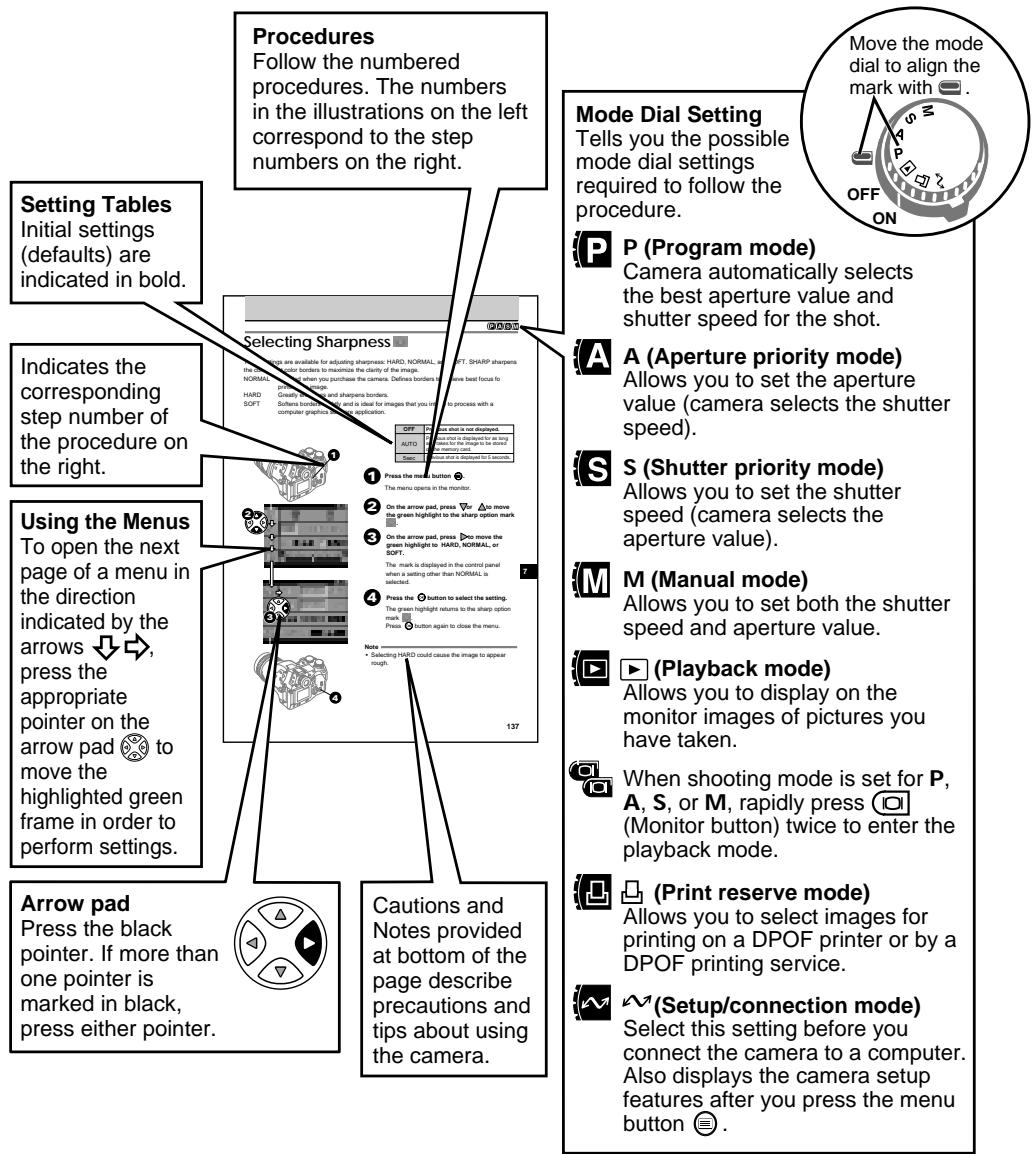
This is only a sample, not a real page. Please do not attempt to execute the procedure described on this page.
IMPORTANT SAFETY INSTRUCTIONS
Before you use this camera, read this manual and then store it in a safe location where you can find it for future use.
We recommend that you spend some time taking test shots and experimenting with all of the features before you take important photographs.

CAUTION
RISK OF ELECTRIC SHOCK DO NOT OPEN

CAUTION: TO REDUCE THE RISK OF ELECTRICAL SHOCK, DO NOT REMOVE COVER (OR BACK). NO USER-SERVICEABLE PARTS INSIDE. REFER SERVICING TO QUALIFIED OLYMPSUS SERVICE PERSONNEL.

A lighting flash with an arrowhead, enclosed in a triangle, alerts you to the presence of uninsulated voltage points inside the product which could cause a serious electrical shock.

An exclamation point enclosed in a triangle alerts you to important operating and maintenance instructions in the documentation provided with the product.
WARNING!
TO AVOID THE RISK OF FIRE OR ELECTRICAL SHOCK, NEVER EXPOSE THIS PRODUCT TO WATER OR OPERATE IN A HIGH HUMIDITY ENVIRONMENT.
- Read All Instructions - Before you use the product, read all operating instructions.
- Save These Instructions - Save all safety and operating instructions for future reference.
- HeedWarnings - Read carefully and follow all warning labels on the product and all warnings described in the instructions.
- Follow Instructions - Follow all instructions provided with this product.
- Cleaning - Always unplug this product from the wall outlet before cleaning. Use only a damp cloth for cleaning. Never use any type of liquid or aerosol cleaner, or any type of organic solvent to clean this product.
- Attachments - For your safety, and to avoid damaging the product, use only accessories recommended by Olympus.
-
Water and Moisture - Never use this product around water (near a bathtub, kitchen sink, laundry tub, wet basement, or swimming pool).
-
Location - To avoid damage to the product and to avoid personal injury, never place this product on a unstable stand, tripod, bracket, table or cart. Mount only on a stable tripod, stand, or bracket. Follow the instructions which describe how to safely mount the product, and use only the mounting devices recommended by the manufacturer.
- Power Sources - Connect this product only to the power source described on the product label. If you are not sure about the type of power supply in your home, consult your local power company. Refer to your operating instructions for information on using the product with batteries.
- Grounding, Polarization - If this product can be used with an optional AC adapter, the adapter may be equipped with a polarized alternating current line plug, a plug with one blade wider than the other. This safety feature allows the plug to fit into the power outlet only one way. If you cannot insert the plug into the wall outlet, pull it out, reverse it, and then insert it again. If the plug still fails to fit, contact an electrician and have the receptacle replaced.
- Protecting the Power Cord - The power supply cord should be routed so it will not be walked on. Never place a heavy object on the power cord and never wrap the power cord around the leg of a table or chair. Keep the areas around the power cord connection points, at the power outlet and at the product connection, free of all obstacles.
- Lightning - If a lightning storm occurs while using the optional AC adapter, unplug the adapter power cord from the wall outlet immediately. To avoid damage from unexpected power surges, always unplug the AC adapter from the power outlet and disconnect it from the camera when the camera is not in use.
-
Overloading - Never overload wall outlets, extension cords, power strip, or other power connection points with too many plugs.
-
Foreign Objects, Spillage - To avoid personal injury from fire or electrical shock from contact with internal high voltage points, never insert a metal object into the product. Avoid using the product where there is a danger of spillage.
- Servicing - Refer all servicing to qualified personnel. Attempting to remove the covers or disassemble the product could expose you to dangerous high voltage points.
- Damage Requiring Service - While using the optional AC adapter, if you notice any of the conditions described below, unplug the AC adapter from the wall outlet and refer servicing to qualified service personnel:
a) If liquid has been spilled, or any object has fallen into the product.
b) If the product has been exposed to water.
c) If the product does not operate normally while following operating instructions. Adjust only the controls described in the operating instructions as improper adjustment of other controls could damage the product, requiring extensive repair work by a qualified technician to restore the product to normal operation.
d) If the product has been dropped or damaged in any way.
e) If the product exhibits a distinct change in performance, this indicates a need for servicing.
- Replacement Parts - When replacement parts are required, make sure that the service center uses only parts recommended by the manufacturer to ensure that the replacement parts have the same characteristics as the originals. Unauthorized substitution of parts could cause a fire, electrical shock, or create other hazards.
- Safety Check - Upon completion of servicing or repairs, ask the service technician to perform safety checks to determine that the product is in good working condition.
- Heat - Never use or store this product near a heat source such as a radiator, heat register, stove, or any type of equipment or appliance which generates heat, including stereo amplifiers.
WARNING!
- Keep batteries away from children.
- If a child swallows a battery, seek medical attention immediately.
- Dispose of lithium batteries promptly and safely in compliance with local laws regarding the disposal of such items.
- To avoid causing a fire or minor burns, always handle lithium batteries carefully.
- Never attempt to charge the lithium battery, disassemble it, heat it above 212^ (100^) or incinerate it.
- To ensure good contact, wipe the battery with a clean, dry cloth before use.
- To avoid short circuiting the +/- sides of the battery, never handle a lithium battery with a metal tool, tweezers, etc.

Danger
The DANGER indication alerts you to an imminent hazard that if not avoided could result in death or serious injury.

Warning
The WARNING indication alerts you to a potential hazard that if not avoided may result in death or serious injury.

Caution
The CAUTION indication alerts you to a potential hazard that if not avoided may result in injury or in property or equipment damage.
Handling Batteries
Follow these important guidelines to prevent the batteries from leaking, overheating, burning, exploding, or causing electrical shock or burns.
DANGER
- If you use Ni-MH batteries, use only Olympus Ni-MH batteries and the recharging unit recommended for use with these batteries.
- Never load batteries with their + / - terminals reversed. Never force batteries into the battery compartment.
- To prevent causing battery leaks or damaging their terminals, carefully follow all instructions regarding the use of batteries. Never attempt to disassemble a battery or modify it in any way, with soldering, etc.
-
Take precautions when carrying or storing batteries to prevent them from coming into contact with any metal objects like jewelry, pins, fasteners, etc.
-
Never heat batteries or incinerate them.
- Never attempt to connect a battery directly to a power outlet, or to a cigarette lighter in a vehicle.
- If battery fluid gets into your eyes, flush your eyes immediately with clear, cold running water and seek medical attention immediately.
WARNING
- Keep batteries dry at all times. Never allow them to come into contact with fresh water or salt water.
-
To prevent batteries from leaking, overheating, or causing a fire or explosion:
-
Use only batteries recommended for use with this product.
- Never heat batteries, incinerate them, or attempt to disassemble them.
- Never mix batteries (old and new batteries, charged and uncharged batteries, batteries of different manufacture or capacity, etc.).
- Never attempt to charge alkaline or lithium batteries.
- Load batteries carefully as described in the operating instructions. Never reverse their polarity when loading.
- Batteries with any part of the outer seal (magnetic insulation sheath) peeling off, or any battery split along the seam, can leak, generate heat, or explode.
-
To prevent a fire or minor burns, inspect batteries carefully before loading. Never load a battery if you notice that the insulation or protective covering is damaged in any way or if the battery cover is warped, even if the batteries are new. Batteries sold at stores may have these kinds of abnormalities. Never use these batteries.
-
If Ni-MH batteries are not charged within the specified time, stop charging them and do not use them.
- Before loading, always inspect batteries carefully for leaks, discoloration, warping, or any other abnormality.
-
Always store batteries out of the reach of small children. If a child accidentally swallows a battery, seek medical attention immediately.
-
If a battery leaks fluid onto your clothing or skin, remove the clothing and flush the affected area with clean, running cold water immediately. If the fluid burns your skin, seek medical attention immediately.
- Never attempt to modify the battery compartment on the camera, and never insert anything (other than the recommended battery) into the battery compartment.
CAUTION
- Olympus Ni-MH batteries are intended for use only with Olympus digital cameras. Never use these batteries with any other device.
- Never subject batteries to strong shocks or continuous vibration.
- Always charge sets of batteries (2 or 4) together.
- Always charge Ni-MH batteries before using them for the first time, or if they have not been used for a long period.
- While the camera is not in use, always remove the batteries to prevent accidental leakage which could damage the battery compartment.
- If a battery leaks, becomes discolored or deformed, or in any other way becomes abnormal during operation, stop using the camera and consult your dealer or an authorized Olympus service center. Continued use may result in fire or electric shock.
- Never store batteries where they will be exposed to direct sunlight, or subjected to high temperatures in a hot vehicle, near a heat source, etc.
- Batteries may become hot during prolonged use. To avoid minor burns, never remove them immediately after using the camera.
Handling the Camera
WARNING
-
Use caution when taking flash pictures at close range. When you fire the flash, you must be at least 3 ft. away from the faces of your subjects, especially when taking pictures of infants and small children. Firing the flash too close to the subject's eyes could cause a momentary loss of vision.
-
To avoid damaging your eyes, never aim the camera directly into the sun, or any other extremely bright light source.
-
To avoid causing a fire or explosion, never use the camera in near flammable or explosive gases.
-
Always use and store the camera out of the reach of young children and infants to prevent the following dangerous situations which could cause serious injury:
-
Becoming entangled in the camera strap, causing strangulation.
- Accidentally swallowing a battery or small part.
-
Accidentally firing the flash into their own eyes or into the eyes of another child.
-
To avoid the hazards of fire or electrical shock, store the camera in a cool, dry location where it will not be subjected to high humidity or dust.
- To avoid minor burns, never cover the flash with your hand when it is fired. Never touch the flash unit after continuous use. The flash unit becomes very hot during continuous operation.
- If the camera is accidentally dropped in water, or if liquid is spilled into the camera, stop using the camera, allow the camera to dry, and then remove the batteries. Contact the nearest Olympus authorized service center.
CAUTION
- During operation of the camera, if you notice any unusual odors, noise, or smoke around the camera, immediately switch the camera off, disconnect the optional AC adapter (if it is connected), and allow the camera to sit idle for a few minutes to allow it time to cool. Take the camera outdoors, away from flammable objects, and carefully remove the batteries to avoid burning your hands. Contact the nearest Olympus service center immediately.
- Never attempt to disassemble the camera. The internal circuits contain high voltage points which could cause serious burns or electrical shock.
- To avoid dangerous electrical shock, never hold or operate the camera with wet hands.
- To avoid damaging the camera or causing a fire, never expose the camera to excessive heat.
Camera Care and Storage
Handling
- Never store or use the camera for long periods in locations subject to direct sunlight, high humidity, extreme variation in temperature, or strong shocks and constant vibration. Protect the camera at all times from dust and sand.
- Never store the camera near any type of appliance or equipment which generates high temperatures, low temperatures, high or low humidity, or a strong magnetic field. Never use the camera in a factory or laboratory where flammable gases are present.
- Never shake the camera or subject it to shock or strong vibration.
- To avoid damaging its precision lens, never leave the camera pointing directly into the sun.
- Before storing the camera for a long period, remove the batteries. Select a cool, dry location for storage to prevent condensation or mold from forming inside the camera. After storage, test the camera by pressing the shutter button to make sure that it is operating normally.
- When the camera is mounted on a tripod, adjust the tripod head to re-position the camera; do not twist the camera.
- Never touch the flash after it has been fired. Avoid using the flash for extended periods. Allow it to cool occasionally between shots.
- To avoid injury from electrical shock, never attempt to disassemble or modify the camera in any way.
CAUTION
Selecting batteries for your camera
- This camera can use four AA Ni-MH batteries, four AA alkaline batteries, four AA lithium batteries, four AA Ni-Cd batteries, or two CR-V3 lithium battery packs. Use of Olympus brand batteries is strongly recommended.
- Alkaline battery performance is limited, especially at low temperatures. Using Ni-MH batteries is recommended.
AA manganese batteries cannot be used with this camera. -
Always follow the battery recommendations and loading instructions. Incorrectly loading the batteries could cause the batteries to leak or overheating.
-
When using the camera on battery power at low temperatures, try to keep the camera and extra batteries as warm as possible. Batteries which run down at low temperatures may be restored after they are warmed at ambient temperature.
- Perspiration or oil from your hands on the battery contacts could prevent them from operating. Before loading batteries, wipe the terminals with a dry, clean cloth.
- Before going on a long trip, especially before traveling abroad, purchase an ample supply of extra batteries. The recommended batteries may be difficult to obtain while traveling.
- Always recharge Ni-MH or Ni-Cd batteries with a charger recommended for use with these batteries.
- Before using Ni-MH or Ni-Cd batteries, always read the instructions provided with purchase of these batteries.
- To avoid personal injury or damage to the camera, always inspect batteries before loading. If you notice leaking, damage to the battery cover or insulation, discoloration, warping or any other abnormality do not use the batteries.
- Recommended temperature ranges for Ni-MH batteries:
Operation 32^ 104^
Charge 32^ 104^
Storage -4^ - 86^
- Using, charging, or storing the batteries outside these ranges could shorten battery life or affect battery performance. Always unload the batteries from the camera before storing the camera and batteries for a long period.
- Alkaline battery performance is limited by a number of factors: manufacturer, date of manufacture, warranty period, low temperatures. Battery service could be shortened by any of these factors. Generally alkaline batteries perform poorly at low temperature.
-
Ni-MH batteries are rechargeable but chemical reactions could cause the battery capacity to deteriorate. The batteries can be recharged up to approximately 300 times, depending on operating conditions.
-
If you use Ni-Cd batteries, make sure that you always fully charge 4 batteries at a time on a recharge unit rated for use with Ni-Cd batteries. If you do not use Ni-MH batteries for about 1 month, you may not be able to restore them to full power with one full recharge. You may need to recharge them several times to restore them to full power.
Monitor and control panel light
- The fluorescent lamp of the monitor and control panel has a long but limited service life. If either display becomes dark or begins to flicker, contact an Olympus authorized service center.
- At low temperatures, the light could be slow to light and the color could be different. When using the camera in cold weather, try to keep it as warm as possible. If you notice changes, normal operation will be restored after the camera is returned to a warm location.
- The monitor of this camera is a high precision device. However, you may occasionally notice residual display of frequently displayed images, and the color and brightness of the display could change with the angle of view. These phenomena do not indicate problems, but could occur with normal operation of the monitor.
Caring for Your Camera
Lens
Purchase a standard camera lens blow brush and use it to keep the lens clean.
- To remove more difficult dust or foreign matter, use only a cleaning cloth or paper intended for use with camera lenses to prevent scratching the lens.
- When the camera is not in use, cover the lens with the lens cover to protect it from scratches or other accidental damage.
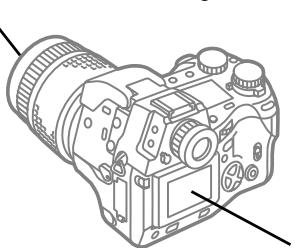
Monitor
- Use only a cleaning cloth or paper intended for LCDs to clean the monitor.
General care tips
- Always protect the surface of the camera from water.
- Never store the camera with mothballs.
- Store the camera in a clean, dry, cool location that is not subject to wide variation in temperature or humidity.
- If you store the camera for more than one month with the batteries removed, the date and time settings will return to its factory default. This means that you will need to reset the date and time the next time you use the camera.
- After prolonged storage check the camera to make sure that it is operating correctly. (The growth of mold, excessive dust, etc. could interfere with operation of the camera.)
- To prevent sand or dirt from interfering with the movements of the manual focusing ring and other moving parts, keep the camera stored in a case or bag when it is not in use. Avoid using the camera in areas exposed to sand and dust.
Contents
CAMEEDIA E-10 Features 2
How to Use This Manual 3
IMPORTANT SAFETY INSTRUCTIONS 4
Caring for Your Camera 9
Important Parts and Names 14
Getting Started 19
Box Contents: Make Sure You Have Everything 20
Attaching the Camera Strap 21
Inserting Batteries and Attaching the Optional AC Adapter 22
Taking Pictures (Shooting and Viewing Basics) 29
Inserting a Memory Card 30
Setting the Shooting Mode and Switching the Camera On 32
Checking the Battery 33
Checking the Number of Storable Pictures 34
When the Number of Storable Pictures Is Not Displayed 35
Holding the Camera 36
Pushing the Shutter Button 38
If You Cannot Take a Picture 40
Enlarging the Subject (Zoom and Macro) 42
Using the Built-in Flash 44
Viewing Pictures (Playback) 46
Protecting Pictures 50
Deleting Single Pictures 51
Switching the Camera Off 52
Shooting Techniques: General Introduction 53
Shooting Portraits (Focused Subject, Blurred Background) 54
Shooting Portraits (Shooting Backlit Subjects) 55
Shooting a Subject in Daylight Shadow (Daylight Synchro) 56
Shooting the Subject and Background Both in Focus 57
Shooting Moving Subjects 58
Shooting Close-up 59
Shooting Night Scenes 60
Shooting a Subject Against a Night Scene Background (Slow Synchronization) 61
Shooting Sunsets and Fireworks 62
Taking Pictures: Distance and Focus 63
Using Autofocus (AF) 64
Using Manual Focus (MF) 68
Taking Pictures: Brightness (Exposure) (Aperture and Shutter Speed) 69
Setting the Shooting Mode 70
Aperture Values and Shutter Speeds Selected Automatically in the P Mode 71
Setting the Aperture Value 72
Setting the Shutter Speed 74
Selecting Aperture and Shutter Speed Manually 76
Selecting the Metering Method ESP [O] [O] 78
Using Exposure Compensation 279
AE Lock AEL 80
Bracketing a Shot with Three Automatic Exposures 81
Changing the ISO Setting 83
Taking Pictures: Using a Flash 85
Selecting a Flash Mode 86
Using Flash Control Compensation 90
Using the Optional Dedicated External Flash FL-40 92
Using Other Flash Units with the Camera 94
Taking Pictures: Color and Quality 97
Achieving Natural Color (White Balance) 98
Using White Balance (WB) 100
Using Quick Reference White Balance 101
Using Preset White Balance (WB) 102
Selecting Image Quality, Resolution, and CompressionTIFF SHQ HQ SQ ... 103
Selecting Sharpness 106
Selecting the Contrast 107
Displaying the Histogram 108
Taking Pictures: Special Features 111
Taking Multiple Exposures 112
Using the Self-Timer 113
Using the Camera Remote Unit RM-1 114
Using the Remote Cable RM-CB1 (Optional) 116
Using Time-Lapse Photography 118
Selecting a Card for Storing Pictures SM CF 121
Selecting the Shutter Sound Type and Volume 122
Setting the Warning Sound 124
Setting the Rec View Time 125
Setting the Date and Time 126
Setting the Idle Time for the Sleep Mode 128
Restoring All Default Settings ⑤ + ⑥ 130
RAW Data Mode 131
Using an Optional Conversion Lens 133
Playing Back Images for Viewing 137
Displaying Image Information INFO 138
AutomaticPlayback Slide Show) 140
Displaying Images on a TV Screen 142
Adjusting Monitor Brightness 144
Managing Stored Pictures 145
Copying Images to Another Card 146
Deleting All Images 150
Formattng a Memory Card 152
Naming Image Files 154
Selecting Pictures for Printing 157
Selecting Pictures and Number of Copies for Printing 158
Selecting All Pictures on a Card for Printing 160
Setting Up Index Printing 162
Selecting Pictures for Date or Time Stamping 164
Printing with Olympus Printers 166
Transferring Pictures to a Computer 167
Transferring Images with a Computer Connection Kit 168
Optional Devices for Card Reading 172
Monitor Menu 173
Monitor Menus 174
Appendices 177
Appendix 1: Specifications 178
Appendix 2: Available Options 180
Appendix 3: Image File Compatibility 181
Appendix 4: Troubleshooting 182
Appendix 5: Camera Error Messages 189
Glossary of Selected Terms 191
Index 196
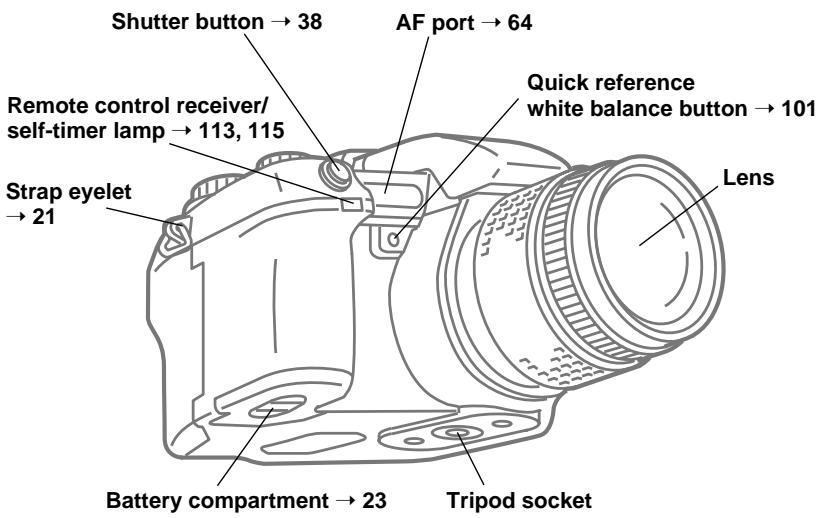
Important Parts and Names
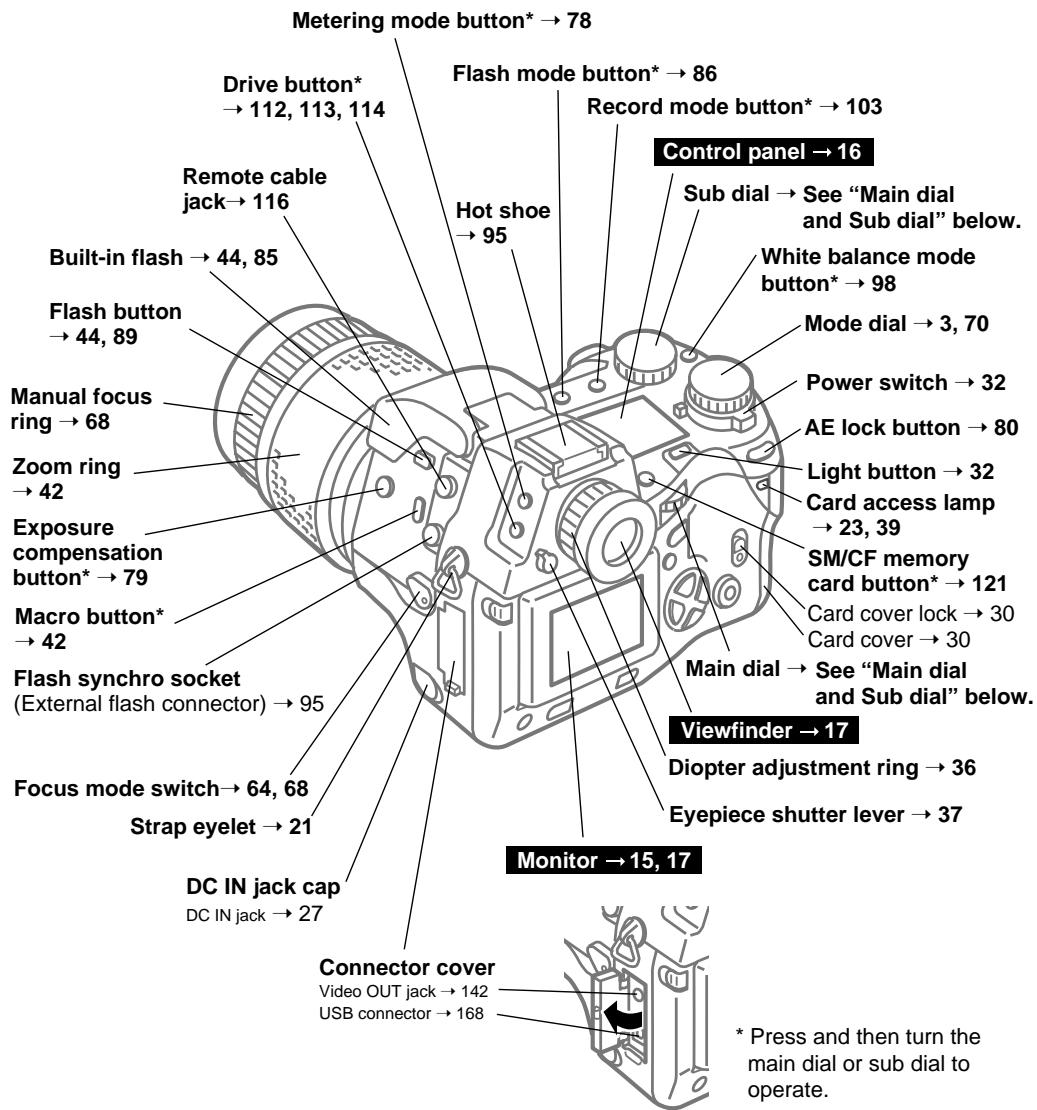
Main dial and sub dial
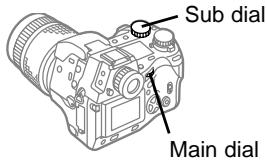
You can use either the main dial or sub dial in almost all cases to select camera settings. Use whichever is more convenient for you. However, please remember that when the mode dial is set to M (Manual mode) the main dial is used to set the aperture value and the sub dial is used to select the shutter speed.
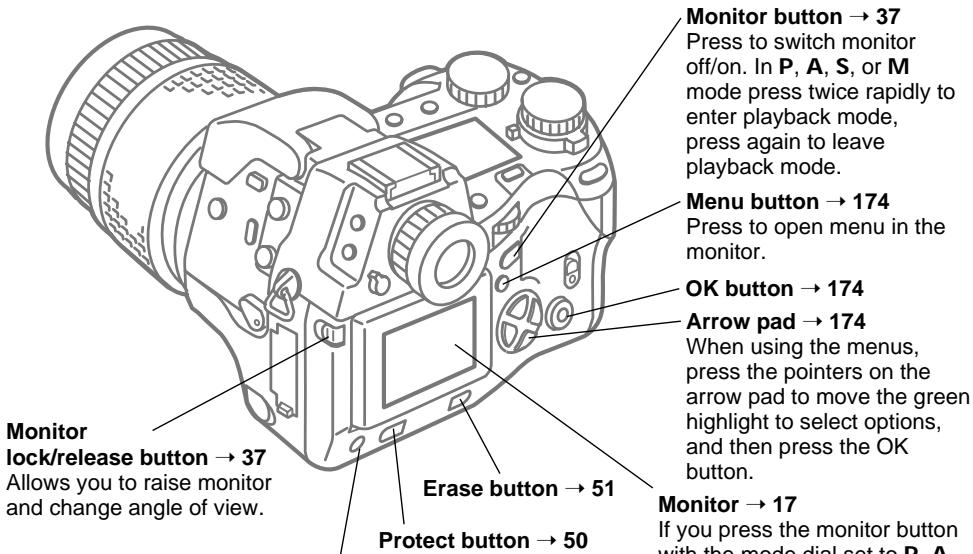
INFO button* 17,68,138
When the histogram is set to display, press to switch the histogram display on/off.
Monitor button 37
Press to switch monitor off/on. In P, A, S, or M mode press twice rapidly to enter playback mode, press again to leave playback mode.
Menu button 174
Press to open menu in the monitor.
OK button 174
Arrow pad 174
When using the menus, press the pointers on the arrow pad to move the green highlight to select options, and then press the OK button.
Monitor 17
If you press the monitor button with the mode dial set to P, A, S, or M, you can use the monitor like the viewfinder, with the mode dial set to playback you can view images of pictures that you have taken. If you press the menu button you can open and use the menus.
Control panel
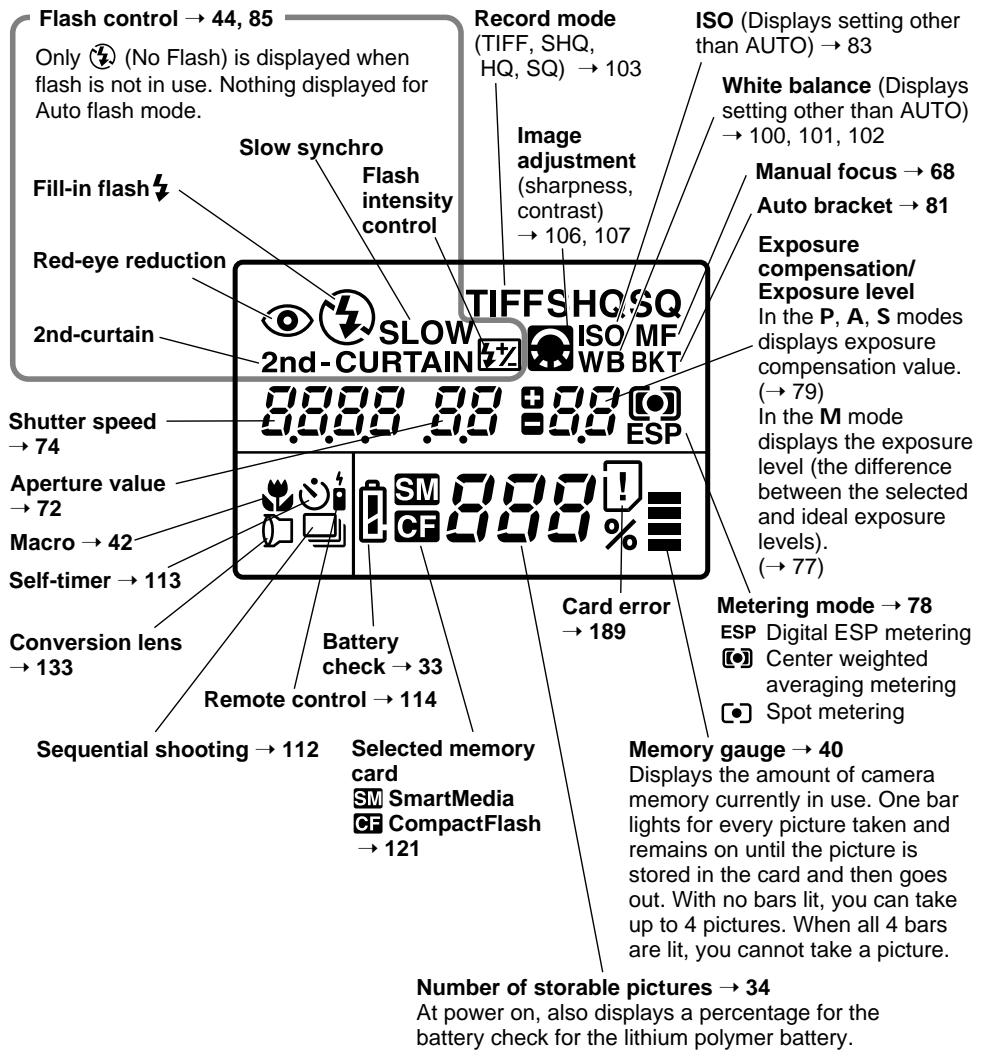
Note
- If you half-press the shutter button, the viewfinder display will light on.
- After the camera is switched on, you will see "- - " displayed for the aperture, shutter speed, and exposure level settings until you half-press the shutter button. When you release the shutter-button from half-pressing, you will see "- - " displayed again after 8 seconds.
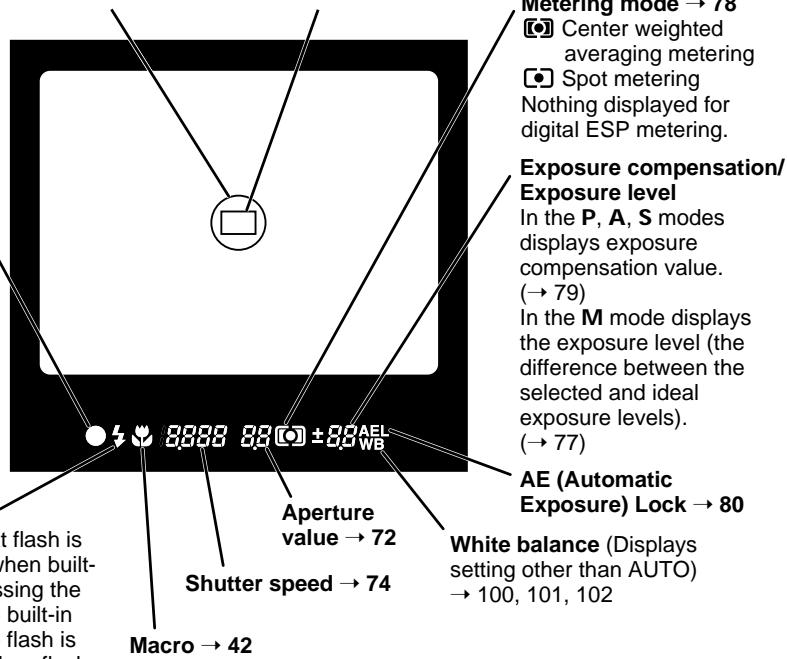
Viewfinder
Spot metering area 78
Indicates the area employed for spot metering when camera is in spot metering mode.
AF target mark 36
Position this mark on the subject that you want to focus.
AF correct mark 64
After half-pressing \shutter button, blinks until subject is in focus, and then lights when subject is in focus. Does not blink or light when camera is in manual focus mode.
Flash warning 39
Blinks to warn you that flash is required for the shot when built-in flash is closed (pressing the flash button raises the built-in flash), blinks while the flash is charging, and lights when flash is fully charged.
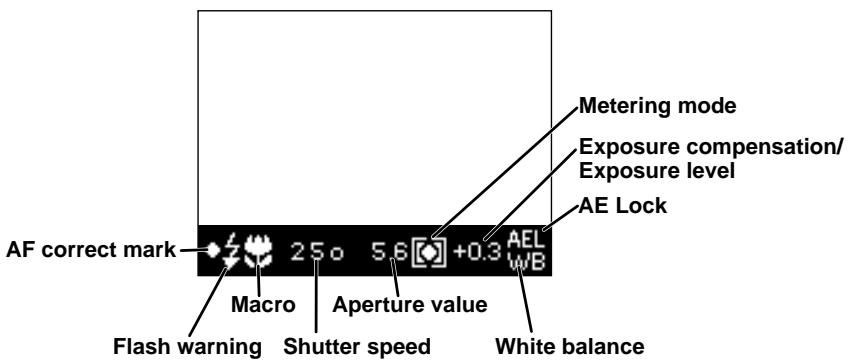
Monitor Display (During Shooting)
Pressing the INFO button repeatedly switches the information displayed at the bottom of the monitor in this order: Information Display Shooting Distance Display Display Off.
Shooting distance 68
Displaying Image Information 138
Getting Started
After you remove the camera from the box, first make sure that you have everything, then attach the camera strap and install the batteries provided with the camera.
In this chapter, you will learn how to install optional batteries not provided with the camera and how to connect and use the optional AC adapter which allows you to power the camera with house current.
How to use this manual
The following notations are used to alert you to important information to help you avoid personal injury, to prevent damage to the camera or the loss of valuable images, and to provide valuable hints and tips about using the camera.
Warning
Caution
Ignoring a warning could lead to serious injury or death.
Ignoring a caution could cause minor personal injury, damage to the equipment, or the loss of valuable data.
Note
Notes provide tips or hints about using the product more efficiently and remind you of operational limitations.
If you experience a minor problem or if you see a term in text that you do not understand, refer to the Troubleshooting or Glossary sections provided at the end of this manual.
CAMEDIA
( 12)
This notation tells you the number of the page where you can find more information about the procedure or feature described in the previous sentence or paragraph.
BEFORE YOU USE THIS CAMERA, PLEASE READ ALL THE IMPORTANT SAFETY INSTRUCTIONS DESCRIBED ON THE PREVIOUS PAGES.
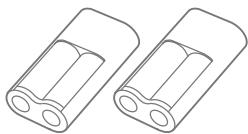
Box Contents: Make Sure You Have Everything
As you remove each item from the box, check it against the items described below to make sure that you have everything. If any item is missing or damaged, contact the dealer where you purchased the camera.
Camera

Lens cap
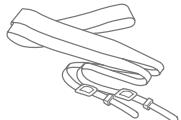
Strap
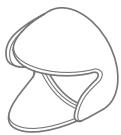
Lens hood
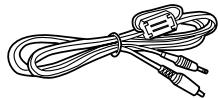
Video cable

Remote control
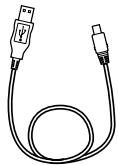
USB cable
Customer registration card Warranty card
Lithium battery packs (CR-V3)
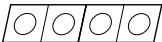
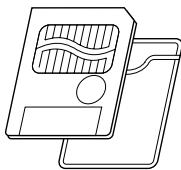
SmartMedia card (1)
SmartMedia Static-free case (1)
SmartMedia labels (2)
SmartMedia
protect seals (4)
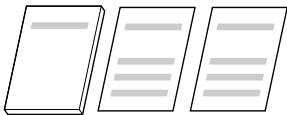
- Camera instructions
- SmartMedia instructions
Remote control instructions
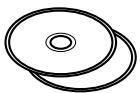
Software CD's
Windows 98 USB driver installer software CD
Attaching the Camera Strap
Attach the carrying strap to both sides of the camera.
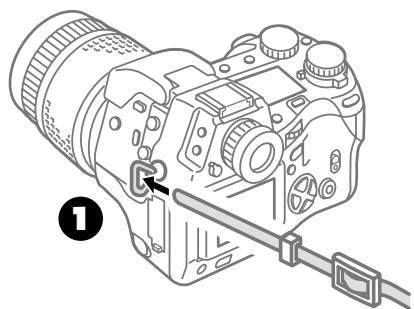
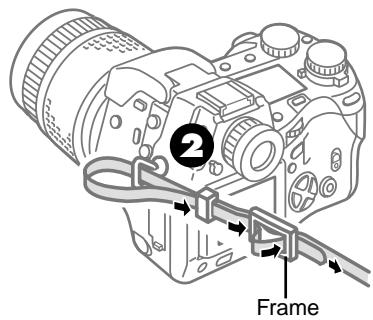
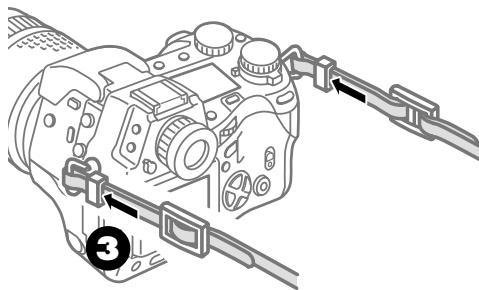
0 Slide the end of the strap through the strap eyelet on the camera.
As shown in the illustration, slide the end of the strap through the sleeve and frame on the strap.
Slide the sleeve up to the eyelet.
Pull the strap tight around the frame and make sure that it does not slip.
Repeat this procedure to attach the other end of the strap to the other side of the camera.
Caution
- Please make sure that the strap is connected securely to the camera. Not attaching the strap, or attaching it incorrectly, could cause you to drop and damage the camera. Olympus can assume absolutely no responsibility for damages resulting from incorrectly attaching or not attaching the strap to the camera.
Inserting Batteries and Attaching the Optional AC Adapter
The following five types of batteries can be used with this camera, or you can use the optional AC adapter to connect the camera to a household power outlet.
| Battery Type | Battery Set | Rechargeable |
| Lithium battery pack CR-V3 (provided with camera) | 2 | NO |
| AA Ni-MH batteries (sold separately) | 4 | YES |
| AA Alkaline batteries | 4 | NO |
| AA Ni-Cd batteries | 4 | YES |
| Lithium polymer batteries (sold separately) (battery holder required) | 1 | YES |
Caution
- To avoid damaging the camera from overheated batteries, never use AA manganese or AA lithium batteries with this camera. Always use identical batteries as a set, and never mix battery types.
- The lithium battery pack CR-V3 cannot be recharged.
- Performance of AA alkaline batteries varies considerably according to brand, battery age, and temperature. (Performance is particularly erratic at low temperatures.) In some cases these batteries may run down very quickly. We therefore recommend the use of Ni-MH batteries, lithium battery packs, or the lithium polymer battery in preference to AA alkaline batteries.
Battery service life
The service life of batteries is affected by many factors: battery type, manufacturer, how and where the camera is used, and so on. Here are some general guidelines regarding service life of batteries. These general guidelines are neither a warranty or guarantee; they are provided only for general reference.
| Battery Type | Number of Storable Pictures*1 |
| Lithium battery pack (CR-V3) | Approx. 500 |
| AA Ni-MH batteries | Approx. 200 |
Note
The following conditions listed below could cause the batteries to discharge and consequently reduce the number of pictures that can be taken, even without taking pictures:
- Repeatedly half-pressing the shutter button or turning the manual focus ring.
- Repeatedly zooming on a subject.
- Leaving the monitor on for extended periods.
- Leaving the camera connected to a computer for a long period.
*1 Test Conditions
- Repeating 2 shot multiple exposures at 10 minute intervals until batteries are dead.
- Ambient temperature: 25^ C( 70^ F)
- Flash intensity: 50%
- Zoom for each shot, 1 (no playback, no computer connection).
Inserting the lithium battery pack (CR-V3)
Two lithium battery packs are required.
Caution
- The lithium battery pack CR-V3 cannot be recharged.
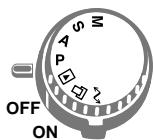
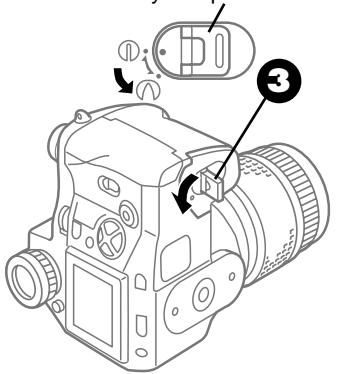
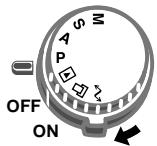
Power switch
Power is OFF.
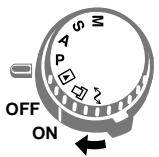
Power is ON.
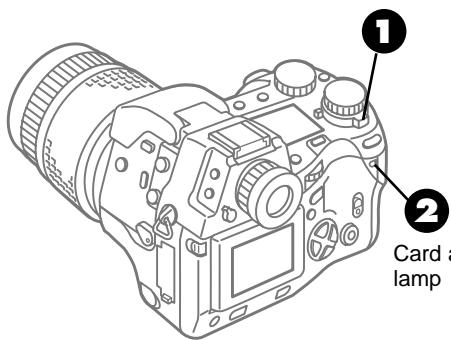
Card access lamp
Battery compartment knob

Make sure the white line on the power switch is at the OFF position.
If the power switch is set to ON, move it to the OFF position.

Make sure that the card access lamp is off.
If the card access lamp is blinking, wait for it to go off.

Raise the battery compartment knob and turn it to the open position in the direction of the arrow as shown in the illustration.
Caution
- If you remove the battery case with the camera power on, the current mode and time will be reset. The picture just taken may not be stored on the card, and images already stored on the card could be damaged. Please make sure that the power switch is set to OFF.
Power switch
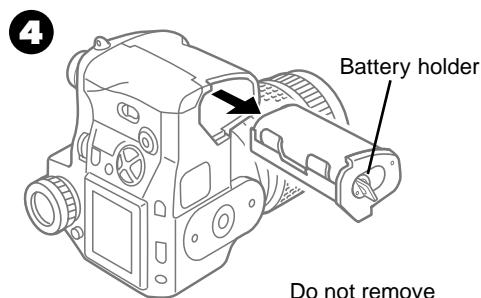
4 Remove the battery holder.
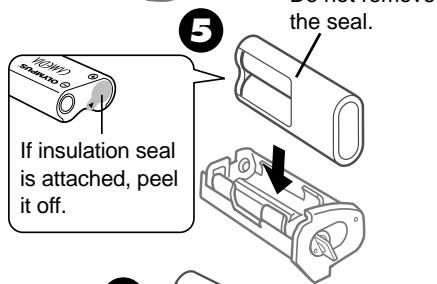
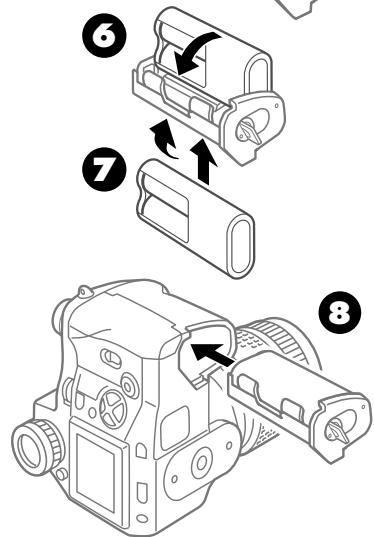
Insert a battery into the battery holder as shown in the illustration.
Gently press down on the battery in the direction of the arrow until you hear it lock in place.
If you accidentally insert the battery reversed, you will not be able to fully insert it. In this case, remove it and insert it correctly.
Using the same procedure, insert another battery in the other side of the battery holder.
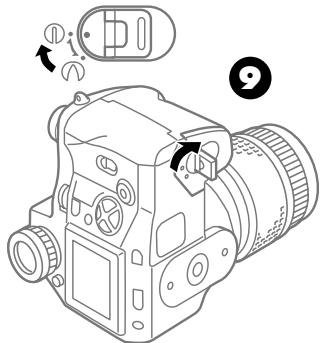
Insert the battery holder (with batteries inserted) into the bottom of the camera.
While pushing down on the battery holder, turn the battery compartment knob to the close position and push it down.
If you want to start taking pictures now, go on to the next chapter. ( 29)
Inserting AA Ni-MH (sold separately), Alkaline, or Ni-Cd
Make sure all the batteries in the set are the same type. Before inserting Ni-MH or Ni-Cd batteries, make sure that they are fully charged.
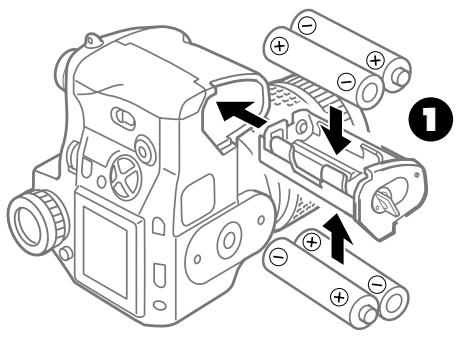
Insert the batteries as described in the previous section for lithium battery packs (CR-V3). ( 23)
Insert the batteries into the battery case with the polarity of each battery aligned correctly as shown in the illustration.
Note
- The appearance of the actual monitor menu display may be different from the illustrations.
You may notice a gap after loading the AA batteries into the holder, but this is normal. The batteries will make proper contact when the holder has been inserted into the camera.
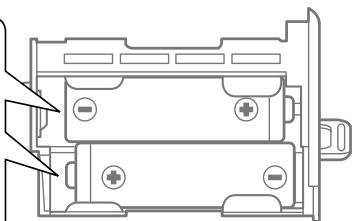
Battery holder
Before loading batteries ...
Warning
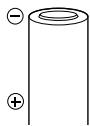
Batteries with any part of the outer seal (magnetic insulation sheath) peeling off, or any battery split along the seam, can leak, generate heat, or explode. Never use damaged batteries in the camera. Store-bought batteries occasionally may be defective, with all or part of the magnetic insulation sheath peeling off. Never use batteries in this condition.
These batteries cannot be used:
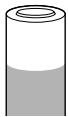
All of the seal (electrical insulation sheath) is peeled off (bare batteries). Batteries with all or part of the electrical insulation sheath peeled off.
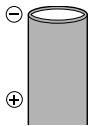
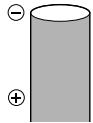
The negative electrode (minus terminal) is flat and only partially covered by the seal (electrical insulation sheath).
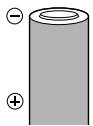
Part of the negative electrode is protruding although not covered by the seal.
The negative electrode (the minus surface) is flat and not covered by the seal.
Inserting the optional lithium polymer battery (B-10LPB)
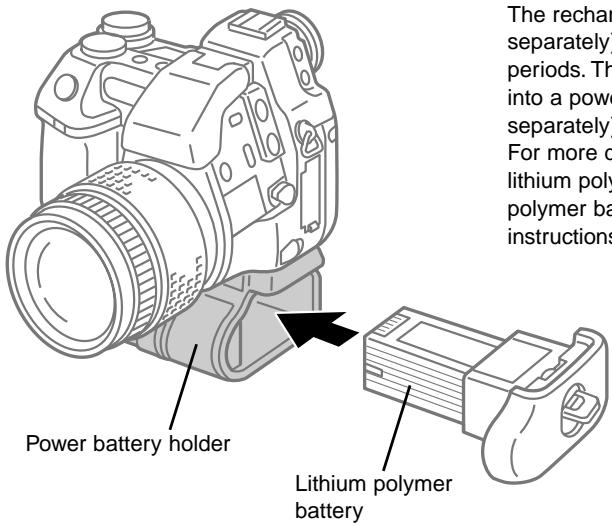
The rechargeable lithium polymer battery (sold separately) can power the camera for long periods. The lithium polymer battery is inserted into a power battery holder (B-HLD10) (sold separately) attached to the camera. For more details about installing and using the lithium polymer battery, refer to the lithium polymer battery and power battery holder instructions.
Note
Connecting the AC adapter with the battery installed
- The voltage of the dedicated AC adapter is higher than that of the batteries, so when you connect the AC adapter to the camera, power is supplied from the AC adapter and the battery power is not consumed.
- The voltage of the lithium polymer battery is higher than that of the dedicated AC adapter, so even when the AC adapter is connected to the camera, power is supplied from the lithium polymer battery. If the lithium polymer battery is installed and you want to connect the AC adapter, first remove the lithium polymer battery.
Using the AC adapter (sold separately)
The optional AC adapter allows you to power the camera from a household power outlet.
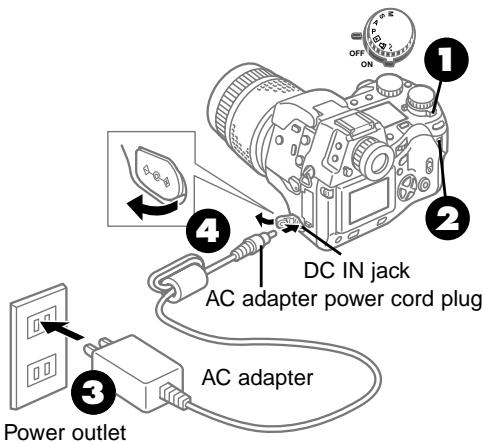
Make sure the white line on the power switch is at the OFF position.
If the power switch is set to ON, move it to the OFF position.
Make sure that the card access lamp is off.
Plug the AC adapter power cord into a power outlet.
On the lower left side of the camera, locate the cover with the mark and open it. Plug the other end of the AC adapter power cord into the DC IN jack.
Note
- The AC adapter may become slightly warm during prolonged use. This is normal and does not indicate a problem.
Warning
Follow these simple guidelines to ensure safe operation of the camera.
- Use the correct AC adapter
- Use the correct power source
To avoid damaging the camera, personal injury, or other unexpected problems, connect and use only the AC adapter recommended for use with this camera. Olympus can accept no responsibility for damage or injury caused by using an AC adapter that is not rated and approved for use with this camera.
Use only the optional AC adapter intended for use with this camera. Use the AC adapter with this camera only in the country where you purchased it. The AC adapter is not rated for use with different power sources, which could vary widely in different countries. Before travelling abroad, purchase extra batteries. If you have any questions, contact an Olympus authorized service center.
If a malfunction occurs
If you notice that the AC adapter body or power cord is extremely hot, or if you notice any unusual odors or smoke around the AC adapter, unplug the AC adapter power cord from the power source immediately. Contact your dealer or an Olympus service center for assistance.
Frequently inspect the AC adapter power cord. If you notice that the cable covering or plug is damaged in any way, immediately contact your dealer or an Olympus service center.
- Connecting and disconnecting the AC adapter
Always make sure that the camera is switched off before you connect/disconnect the AC adapter to/from the camera. Never handle the AC adapter power cord with wet hands.
When connecting the AC adapter, (1) first plug the AC adapter power cord into the power outlet, (2) connect the other end of the power cord to the DC IN jack on the camera, and then (3) switch the camera on. Make sure that the power cord is securely plugged into the power outlet.
To disconnect the AC adapter, switch the camera off, disconnect the power cord from the camera, and then unplug the power cord from the power supply. Grip the AC adapter, not the cord, when you unplug it. Never twist, bend, or pull on the power cord.
Always unplug the AC adapter from the power outlet when the camera is not in use.
Taking Pictures (Shooting and Viewing Basics)
In this chapter you will learn how to insert a memory card, take a picture, and view the picture. This chapter describes only the basic procedures for taking and viewing pictures. For more details about camera operation, refer to the later chapters.
CAMEDIA
Inserting a Memory Card
The SmartMedia and CompactFlash card store pictures that you take with the camera. Throughout these instructions, both the SmartMedia and CompactFlash card are simply referred to as cards. Both cards can be installed together, or either card one at a time. However, at least one card must be inserted in order to operate the camera.
Caution
- A memory card is a delicate, precision device. Handle it carefully. Never touch the electrical contacts on the card, and never subject a card to strong shocks or vibrations.
- Before you can use a SmartMedia or CompactFlash card purchased separately, it must be formatted in the camera. ( 152)

SmartMedia (SM) provided
You can use Olympus or any other brand 3V (3.3V) SmartMedia memory card (5V cards cannot be used).
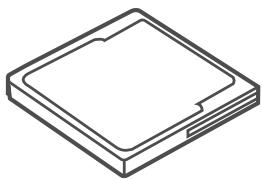
CompactFlash (CF) (sold separately)
Can be used same as SmartMedia to store images.
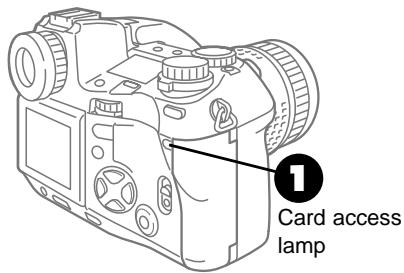
Make sure that the card access lamp is off.
If the card access lamp is blinking, wait for it to go off. If you accidentally open the card cover while the card access lamp is blinking, you could lose the image being stored on the card or possibly damage the card itself.
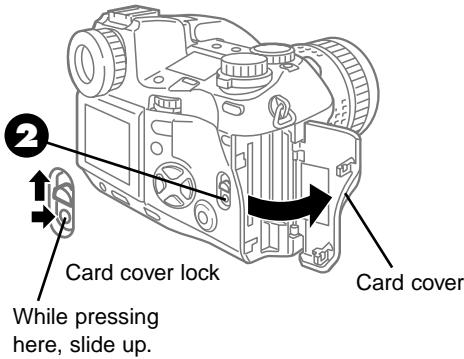
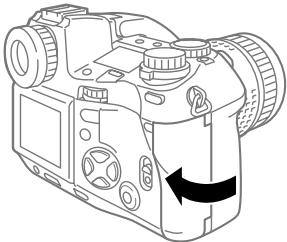
While pressing down the round release on the card cover lock, slide and raise the card cover lock.
The card cover opens.
SmartMedia
CompactFlash

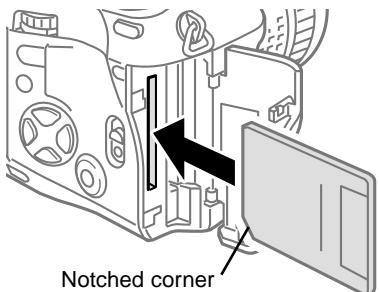
Insert the card.
- SmartMedia card
Taking care not to touch the electrical contacts, hold the SmartMedia card with the notched corner down, and then insert it into the slot closest to you. Push the card completely into the slot.
To avoid damaging the electrical contacts, make sure that you do not insert the SmartMedia card into the CompactFlash card slot.
To remove the SmartMedia card, see the instructions below.
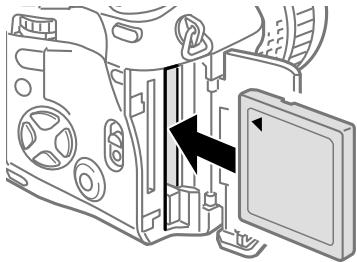
- CompactFlash card
With the arrow on the card facing you, insert the CompactFlash card into the slot farthest away from you. Push the card completely into the slot.
Insert the card straight into the slot, making sure that the side with the arrow is facing toward you. To avoid damaging the card, never force it into the slot if it cannot be inserted smoothly.
To remove the CompactFlash card, see the instructions below.

To close the card cover, press it gently until you hear it click and lock.
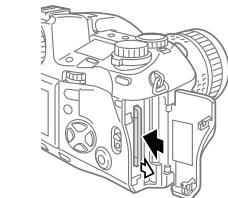
Removing a SmartMedia card
Gently push in on the installed SmartMedia card to release it, and then pull it out of the camera.
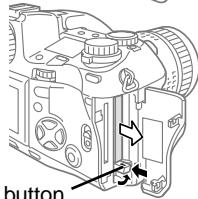
Removing a CompactFlash card
Gently press the eject button to release the CompactFlash card.
To prevent the CompactFlash card from jumping out of the camera, press the eject button with only light pressure.
Eject button
With both cards set in the camera
With both a SmartMedia and a CompactFlash card installed in the camera, you can select either card for storing pictures. ( 121)
Setting the Shooting Mode and Switching the Camera On
Switch the camera on.
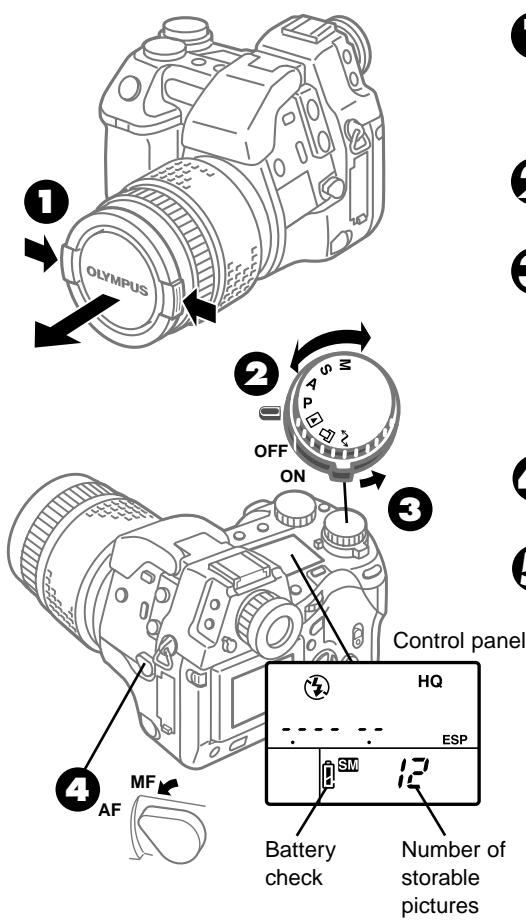
If the lens cap is attached, remove it.
Press the latches inward and pull the cap off.
Turn the mode dial to align P (Program mode) with the 一 mark.
Move the power switch and make sure the white line on the power switch is at the ON position.
When the camera is switched on, the battery check and number of storable pictures are displayed in the control panel.
4 Set the focus mode switch to AF (autofocus).
The first time that you use the camera, you should set the date and time. ( 126)
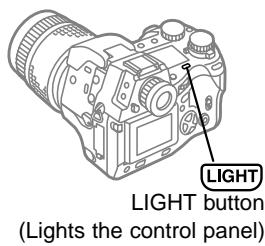
Control panel difficult to see?
Press Light. The control panel backlight lights for about 8 seconds.
Checking the Battery
Control panel
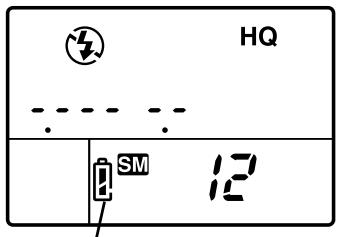
Battery check
In this section we provide a general explanation of how to read and understand the battery check display. When the battery check shows that the batteries are low, replace the batteries with fresh batteries, or recharge the Ni-MH, Ni-Cd batteries or the lithium polymer battery.
Before taking a trip, or before an important shooting session, always check the battery capacity.
| Battery Check Display | Meaning | |
| Lights for a short time after camera is switched on and then goes off automatically. | Batteries are fully charged. Camera is ready for shooting. | |
| Blinks and continues blinking. | Batteries are low. Replace batteries with fresh batteries. You may be able to shoot more pictures, but batteries could run out completely during shooting. | |
| Lights for a specified time, and the control panel goes off. | Batteries are dead. Replace batteries with fresh batteries. Shooting is not possible. | |
Camera is switched on, but the control panel is not visible?
If the camera is not used for a specified time it will switch off the control panel automatically to conserve battery power. To restore the camera to full operation, half-press the shutter button.
If the control panel remains off for one hour, the camera will power itself off automatically. To restore the camera to full operation, you must use the power switch to switch the camera off and switch it on again. You can select the time the camera remains idle before the control panel is switched off automatically. ( 128)
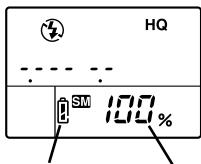
Lithium polymer battery
If you are using the optional lithium polymer battery, the amount of power remaining is also displayed as a percentage.
Note
- Low temperatures could shorten the service life of some batteries, depending on their characteristics.
Battery check
Battery capacity (%) displayed for only 3 sec. after camera is switched on.
Checking the Number of Storable Pictures
When you switch the camera on, the number of storable pictures is displayed in the control panel. If you see the number 12, for example, this means approximately 12 more pictures can be taken and stored on the memory card.
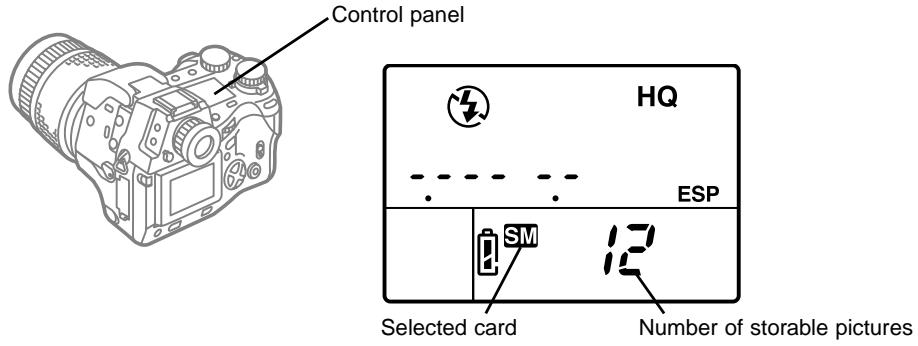
Memory card storage capacity
| Quality | Resolution (pixels) (Default settings) | Compression (Default settings) | File Size (Reference value) | Images per Card (Reference value) | |
| 8 MB | 32 MB | ||||
| TIFF | 2240 x 1680 (FULL) | 1:1 | 11.3 MB | 0 shots | 2 shots |
| SHQ | 2240 x 1680 (FULL) | 1:2.7 | 2.8 MB | 2 shots | 11 shots |
| HQ | 2240 x 1680 (FULL) | 1:8 | 1 MB | 8 shots | 32 shots |
| SQ | 1280 x 960 (SXGA) | 1:8 | 340 KB | 23 shots | 94 shots |
Note
- When you see "TIFF" blinking in the control panel, the camera is in the RAW data mode. ( 131) In this mode, one picture file is approximately 7.6 MB, and you will be able to save approximately 4 shots on a card (32 MB card).
If you intend to use the images on a computer...
Before you transfer files to a computer, you should select how the files are to be named. ( 154)
Storage capacity of a memory card other than a SmartMedia and CompactFlash card
The storage capacity of a memory card is roughly calculated based on the file sizes of the images. However, please understand that due to variables in data handling by the camera, file compression, memory management, and so on, the estimation of the number of storable picture may not always be precise.
Note
- When the number of total shots reaches 999, the number 999 is displayed in the control panel.
- The number of storable pictures displayed in the control panel changes after you select another record mode or select files for printing.
- The amount of data required to compose a picture depends on the subject, so you may be able to store more or fewer images on a card. Because of this difference in size, you may not be able to store another picture, even after you delete one image from the card with single-frame delete.
- Because of the difference in cluster size used on SmartMedia and CompactFlash cards, the same number of images may require more or less space for storage on either card. When using a CompactFlash card, the actual capacity of the card could be slightly more or less than the capacity indicated in the control panel.
When the Number of Storable Pictures Is Not Displayed
0 and blinking in the control panel?
The card is full and can no longer store pictures, so do one of the following:
- If a SmartMedia and CompactFlash card are both installed, select the other card. ( 121)
- Delete unneeded images from the full card. ( 51)
- Switching to a smaller file size. ( 103)
- Remove the full card and install a new or empty card. ( 30)
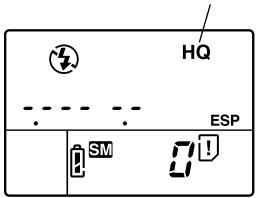
Record mode (quality setting)
Control panel
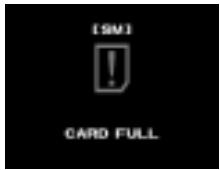
Monitor
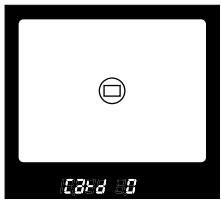
Viewfinder
-F- and blinking in the control panel?
The card has not been formatted or the card is damaged, so do one of the following:
- Format the card. Formatting a card erases all images stored on the card. To format the card, on the arrow pad press and then press the OK button. After NO PICTURE is displayed, you can continue taking pictures.
- Replace the card. ( 30)
- If a SmartMedia and CompactFlash card are both installed, select the other card. ( 121)
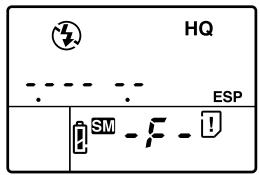
Control panel
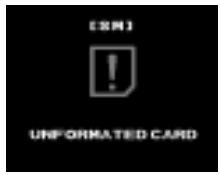
Monitor
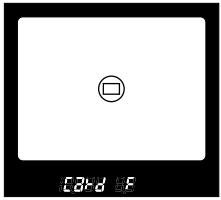
Viewfinder
blinking in other situation (not described above)?
Appendix 5: Camera Error Messages ( 189)
Holding the Camera
In this section you will learn how to hold the camera when shooting pictures.
Framing a picture with the viewfinder
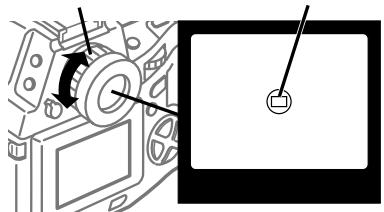
Diopter adjustment ring
AF target mark
Viewfinder
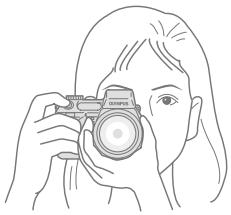
Holding the Camera
Horizontal grip
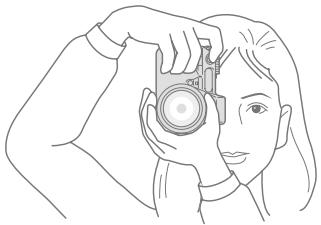
Vertical grip
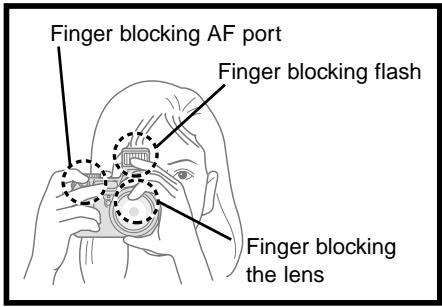
Incorrect!
Adjust the viewfinder display for your own eyesight.
Look at the AF target mark in the viewfinder. If the AF target mark is blurry or otherwise difficult to see, turn the diopter adjustment ring as shown in the illustration until the AF target mark is sharp and clear.
Grip the camera.
Grip the camera with both hands with your arms and elbows down at your sides.
Make sure that your fingers or the strap do not block the lens, built-in flash, or AF port.
Compose the picture in the viewfinder.
The picture that you take will be 5 % larger around the edges than what you see through the viewfinder. (The viewfinder displays 95 % of the composed picture.)
Cannot see through the viewfinder?
- Make sure that the lens cover has been removed.
- Check the eyepiece shutter lever on the left side of the viewfinder. If it is down, raise it. ( 14)
When the subject in the viewfinder is dark
- Check the power switch. If the power switch is at the OFF position, move it to ON. If the power is off with the power switch in the ON position, the camera may have powered itself off. Move to OFF then move to ON again.
Note
- Do not subject the lens to physical shocks.
Framing a picture with the monitor
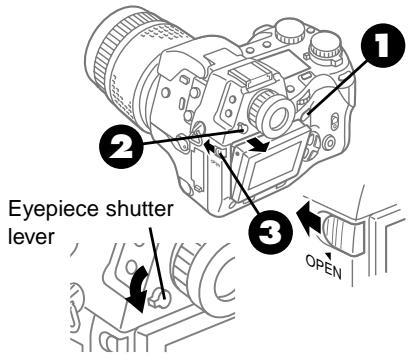
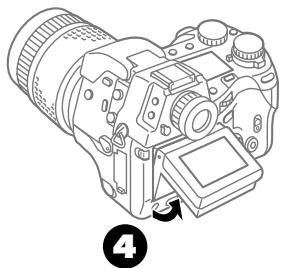
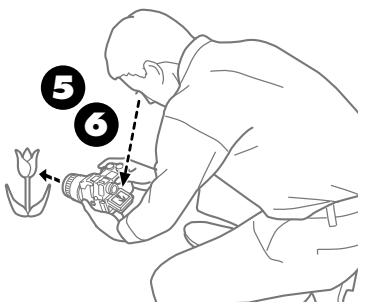
Press the monitor button.
You can see the same view in the monitor and the viewfinder. (However, framing pictures through the monitor consumes more battery power than when using the viewfinder.)
To prevent light from behind the camera entering the viewfinder, lower the eyepiece shutter lever.
Move the monitor lock/release button to the left (see illustration).
The upper part of the monitor projects about 1 cm (0.3 in.) from the camera.
If you need to raise the monitor, pull the bottom out.
Hold the camera as steady as possible.
Hold the camera carefully without blocking the lens, flash, or AF port with the camera strap, your fingers, etc.
Compose the picture in the monitor.
The picture that you take will be the same as the picture composed in the monitor. (The monitor displays 100% of the composed picture.)
You can also take a picture at Step 3 for a high-angle shot.
Cannot see through the monitor?
- Make sure that you pressed the monitor button to activate the monitor display.
- Make sure that the lens cap has been removed.
- After the camera is left idle for a specified length of time, it will enter the sleep mode. Press the shutter button lightly to restore the camera to full operation.
- Check the power switch. If the power switch is at the OFF position, move it to ON. If the power is off with the power switch in the ON position, the camera may have powered itself off. Move to OFF then move to ON again.
Mode dial set correctly? Make sure that the mode dial is set to P, A, S, or M.
Note
- When framing a picture with the monitor, lower the eyepiece shutter lever. Light entering the viewfinder from behind the camera could wash out the picture with white light.
Pushing the Shutter Button
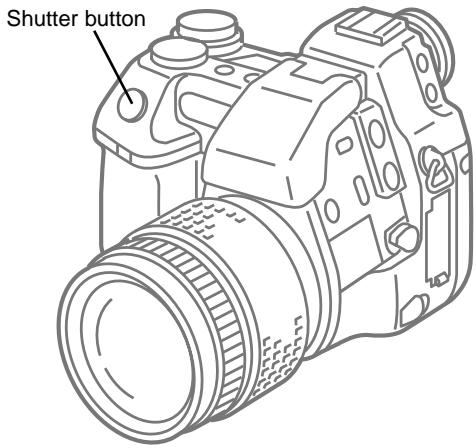
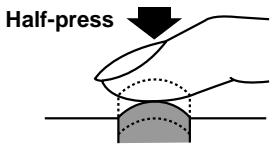
Grasp the grip on the camera firmly and use the flat of your finger (not your fingertip) to press the shutter button gently. Applying too much pressure could cause camera shake and spoil your shot by blurring the image. The shutter is released in two steps, first with a half-press and second with a full-press.
Half-press
(gently pressing the button down half-way)
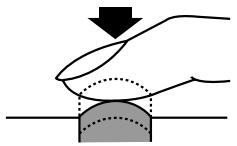
A half-press does not release the shutt
When you half-press the shutter button, automatic focusing and exposure adjustment begins. The AF correct mark in the lower left corner of the viewfinder lights when the subject is in focus. As long as you keep the shutter button depressed half way, the subject will remain in focus and the exposure will not change. This is called AF/AE lock.
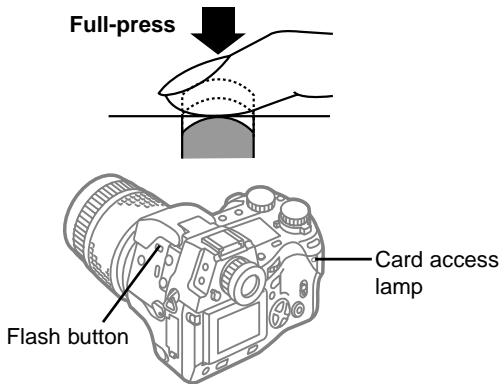
Full-press
(after half-pressing, gently press down all the way.)
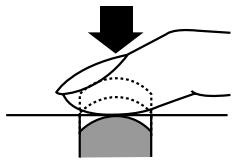
Releases the shutter to take the picture.
Time between full-press shutter release and the start of exposure
After you full press the shutter button, the shutter actually releases after 60ms. However, when the monitor is used to compose and shoot a picture, the time between a full shutter press and actual release time could vary from 60ms to 100ms.
Also, please remember that when you use the flash, shutter release will be delayed approximately 200ms for firing the pre-flash.
The camera can be set to emit a sound at shutter release. ( 122)
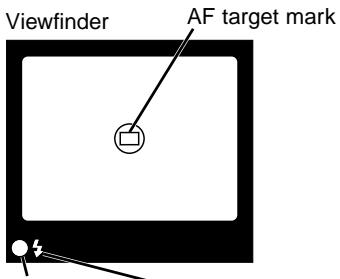
Lights and emits a small beep when subject in focus. Blinks when subject not in focus. Neither lights nor blinks when camera is in the manual focusing mode.
Low light warning. When this mark blinks, and flash is required.
Gently half-press the shutter button.
The camera emits a small beep and the AF correct mark in the lower left corner of the viewfinder lights green when the subject is completely in focus. Keep the button pressed halfway and go to Step 2. If the AF correct mark in the lower left corner of the viewfinder blinks, the subject is not completely focused. Release the shutter button, compose the picture again by centering on another part of the picture, and then repeat from Step 1. If you see the 43 mark blinking, this is the low light warning, telling you that you must use the built-in flash. Press the flash button 43 to open the built-in flash unit.
Gently full-press the shutter button.
The picture is taken and the image starts to be stored on the memory card. The card access lamp blinks while the picture is being stored on the card.
To take another picture, repeat from Step 1. While the camera is storing the previous shot on the card, you can take up to 4 exposures.
Taking pictures without half-pressing
You can take pictures without half-pressing the shutter button. In such cases, the camera starts focusing when you full-press the shutter button. Therefore it takes a few moments to take a picture, and you might miss a good picture.
Low battery warning blinks immediately after taking a shot?
Immediately after taking a shot, if you see the low battery warning blink and then light in the control panel, the picture may not have been taken correctly. Install a new battery and then play back the previous shot to confirm that it was stored correctly. ( 46,137)
If You Cannot Take a Picture
Message displayed in the viewfinder?
If you see Card 0 blinking in the viewfinder
The memory card is full and you cannot continue taking pictures with the card. In order to continue shooting with the card, you will have to remove some pictures from the card.
- Deleting Single Pictures ( 51)
- Transferring Pictures to a Computer ( 167)
- Deleting All Images ( 150)
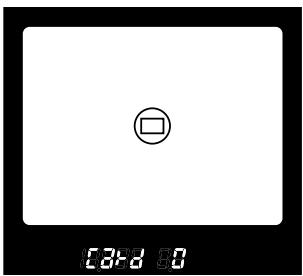
Viewfinder
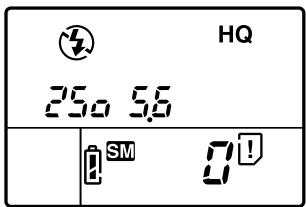
Control panel
If you see Card blinking in the viewfinder, refer to the error message summary.
Appendix 5: Camera Error Messages ( 189)
Four segments lit in the memory gauge?
If nothing displayed on the monitor after full-pressing the shutter button, you have to wait. The memory gauge is divided into 4 segments. One segment lights for every image that is waiting to be stored on the card. If all 4 segments are on, this means you cannot take another picture until at least one of the segments in the memory gauge goes off. The amount of time required to store a picture depends on the condition of the SmartMedia or CompactFlash card, and the record mode setting.
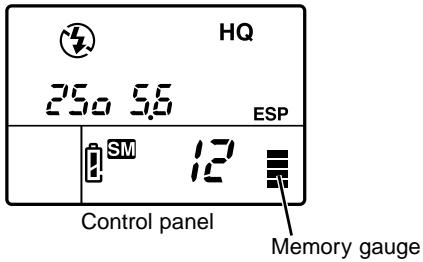
The AF correct mark in lower left corner of viewfinder is blinking, or the picture is out of focus
Make sure that the focus mode switch on the left side of the camera is set to AF, and then select a shooting mode that uses autofocus. ( 32) While the camera is set for autofocus, half-pressing the shutter button should automatically set the correct focus and exposure for the picture.
With some subjects which are difficult to focus, however, you may see the AF correct mark in the viewfinder continue to blink after you half-press the shutter button. If this occurs:
- Point the camera slightly away from the subject to shift the AF target mark in the viewfinder and half-press the shutter button again.
- Use manual focusing.
Taking Pictures: Distance and Focus ( 63) Using Manual Focus (MF) ( 68)
Enlarging the Subject (Zoom and Macro)
By moving the zoom ring you can enlarge or reduce the size of the subject in the viewfinder. Twist the zoom ring to the left to enlarge the size of the subject (T: telephoto), or turn it to the right to reduce the size of the subject (W: wide-angle).
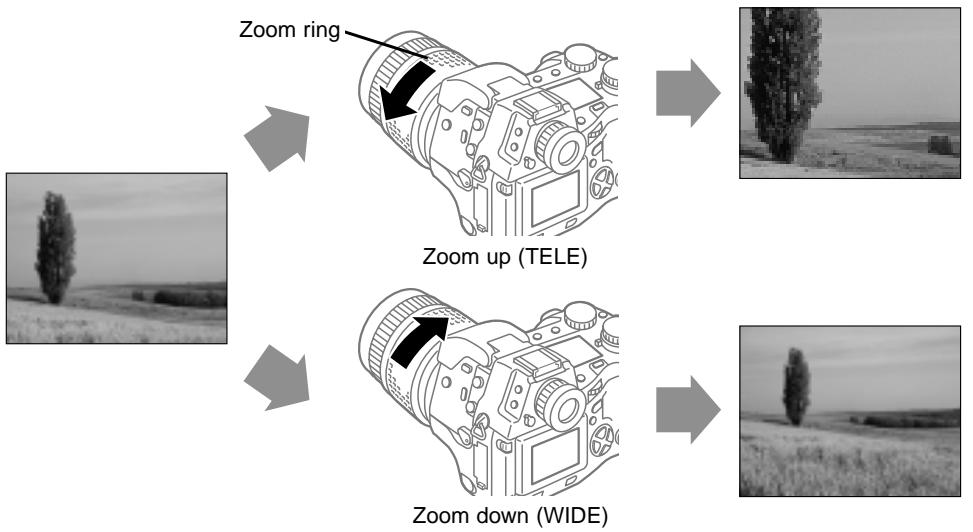
Autofocus and close-up shots (Macro)
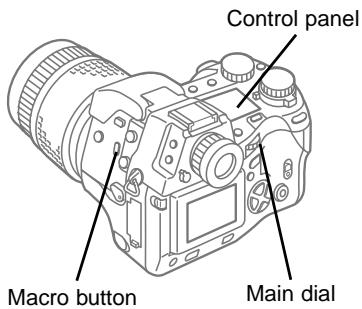
You can take close-up shots within 60 cm (approx. 23.5 in.) from the camera. While pressing the macro button 串 , turn the main dial or sub dial until you see the macro mark 串 in the control panel or the viewfinder.
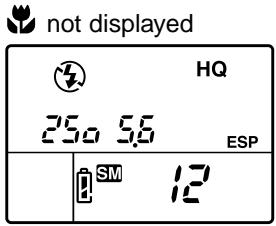
Autofocus can focus a subject in the range 60 cm (approx. 23.5 in.) from the camera.
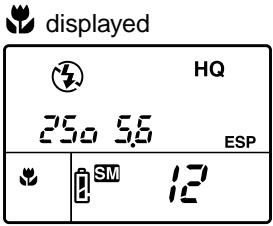
Autofocus can focus a subject in the range approx. 60~cm 20~cm (approx. 23.5 in. 8 in.) from the lens.
Shooting distance and range
With the widest angle setting, you can approach up to 20 cm (approx. 8 in.) and shoot a subject about the size of a business card (approx. 76 × 57 ~mm ) (3 x 2.3 in.).
| Zoom | Shooting Range | Shooting Area Width x Height (Reference Values) |
| WIDE Limit | 60 cm (23.5 in.) | 629 x 465 mm (25 x 18.6 in.) |
| 20 cm (8 in.) | 234 x 172 mm (9.4 x 6.9 in.) | |
| TELE Limit | 60 cm (23.5 in.) | 176 x 132 mm (7 x 5.3 in.) |
| 20 cm (8 in.) | 76 x 57 mm (3 x 2.3 in.) |
Note
- If you use the Macro Extension Lens Pro (MCON-35), you can approach up to 12 cm (approx. 4.8 in.). At this distance, when the camera is set for the TELE limit, you can shoot a picture 49 (W) x 37 (H) mm (approx. 2 (W) x 1.5 (H) in.).
Shooting distance and perceived distortion
The image may appear slightly distorted with some lenses. With the camera set for wide angle, distortion could increase as you bring the camera closer to the subject.
Using the Built-in Flash
If the incident light on the subject is too low, when you half-press the shutter button you will see the low light warning blinking intermittently in the lower left part of the viewfinder. If this occurs, press the flash button to raise the built-in flash. Now the flash will fire when you take the picture. You can also use the flash to illuminate a dark subject positioned in front of strong backlighting.
Note
- The low-light warning 4 blinks while the flash is recharging and then lights up when charging is completed. You cannot take a picture when the low-light warning is blinking while the flash recharges. Wait for the low-light warning to stop blinking and then light up before you take the next picture.
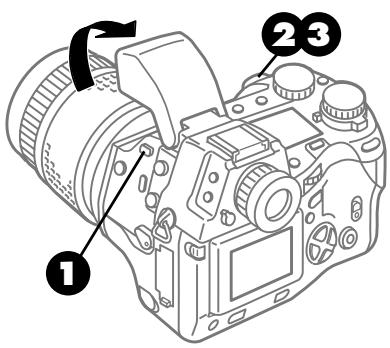

Press the flash button
The built-in flash pops up.

Half-press the shutter button.
The flash indicator 4 appears in the viewfinder. If the flash indicator is blinking, the flash is recharging. When the flash indicator lights and stops blinking the flash is charged and ready to fire.

Full-press the shutter button.
The flash fires with an intensity adjusted for the best exposure and the picture is taken.
Flash will not fire?
If the subject is exposed to brighter light after the built-in flash is raised, the flash will not fire. However, you can set the camera in the fill-in flash mode so the flash will fire even with brightly lighted subjects. ( 56,86)
Caution
- Rapid, continuous firing could cause the flash unit to overheat. To prevent damaging the flash unit, do not fire the flash more than 30 times in succession. After prolonged firing of the flash, wait at least 10 minutes for the flash unit to cool before you resume shooting. Check the flash frequently and make sure that it is clean. If it is dirty, wipe it clean with a soft dry cloth. Firing the flash with its face dirty could cause the performance of the flash unit to deteriorate.
Flash working range
| ISO | Max. WIDE (WIDE Limit) | Max. TELE (TELE Limit) |
| AUTO | 0.6 (2 ft.)~8.9 m (29.4 ft.) | 0.5 (1.7 ft.)~7.4 m (24.4 ft.) |
| 80 | 0.6 (2 ft.)~6.3 m (20.8 ft.) | 0.5 (1.7 ft.)~5.2 m (17.2 ft.) |
| 160 | 0.9*1 (3 ft.)~8.9 m (29.4 ft.) | 0.7*2 (2.3 ft.)~7.4 m (24.4 ft.) |
| 320 | 1.3*1 (4.3 ft.)~12.5 m (41.3 ft.) | 1.0*2 (3.3 ft.)~10.4 m (34.3 ft.) |
1 Range starts at 0.6 m (2 ft.) if you set the camera to the A (Aperture Priority) mode and stop the aperture size down to 6.3 or higher.
2 Range starts at 0.5 m (1.7 ft.) if you set the camera to the A (Aperture Priority) mode and stop the aperture size down to 6.3 or higher.
If you attempt to use the flash closer than the ranges described above, the entire picture may be too bright, or shadows may appear in parts of the picture. If you attempt to use the flash farther than the ranges described above, the light from the flash will not reach the subject and the subject will appear dark. You may be able to take a picture farther than these ranges by increasing the ISO value, but raising the ISO value could cause the picture to appear grainy. With ISO set for AUTO, the ISO value will be adjusted automatically within the range of 80~160. ( 83)
Caution
- Please do not use the lens hood or conversion lenses when shooting with the internal flash. These attachments will block some of the flashed light, resulting in a problem known as vignetting (loss or darkening of the corner areas of the image). The ranges in the table above assume that no such attachments are on the camera.
For more details about how to use the flash. ( 85)
Viewing Pictures (Playback)
In this section, you will learn how to view the pictures that you have taken.
You can view the pictures that you have taken one by one. You can enlarge the single-image display, or even display several images at once with the index display.
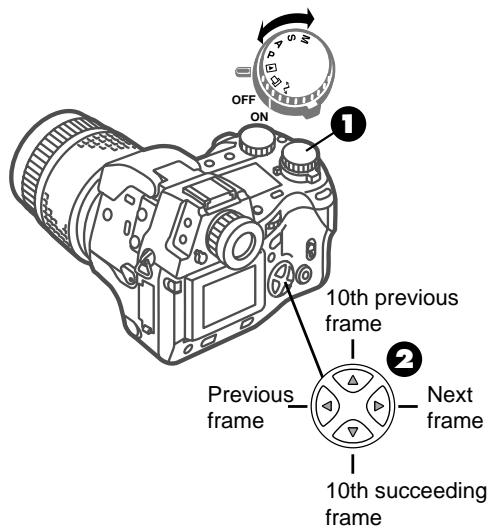
1 Set the mode dial to playback
The last picture taken is displayed on the monitor.
If you leave the mode dial set to P, A, S, or M, you can also rapidly press the monitor button twice.
Use the arrow button pointers to view other images.
Displays previous frame.
Displays next frame.
Displays 10th previous frame.
Displays 10th succeeding frame.
To return to the shooting mode
- When mode dial is set to playback .
You cannot press the shutter button to take a picture in the playback mode. In order to resume shooting, set the mode dial to P, A, S, or M.
- When mode dial is set to P , A , S , or M .
You can just press the shutter button to take a picture.
Press the monitor button l and wait for the monitor display to go off.
Cannot enter playback mode?
If the card access lamp is blinking, you cannot enter the playback mode, even after setting the mode dial to playback. When the card access lamp goes off, the camera returns to the playback mode.
Monitor blank?
The camera will automatically power itself off if it remains idle for a specified length of time. ( 128) The camera will switch on automatically after you start to use the camera again.
Caution
- To avoid damaging the monitor or interfering with the quality of its display, never touch or strike the surface of the monitor.
With the mode dial set to playback , use the main dial or sub dial to enlarge the image, or switch to the index display and display several images at one time in the monitor.

This feature is convenient when you want to browse the pictures stored on the selected card when you need to find a particular picture.
This feature is convenient when you want to confirm that a picture is correctly in focus.

16 frames

9 frames

4 frames

1 frame

1.5x

2x

2.5x

3x

4x
Enlarged display
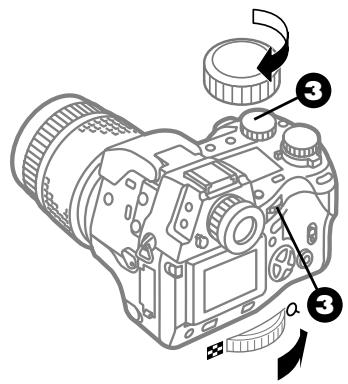
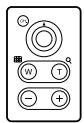
Set the mode dial to playback l , and turn the main dial to the magnifying glass mark l (or turn the sub dial clockwise) to enlarge the image in the monitor.
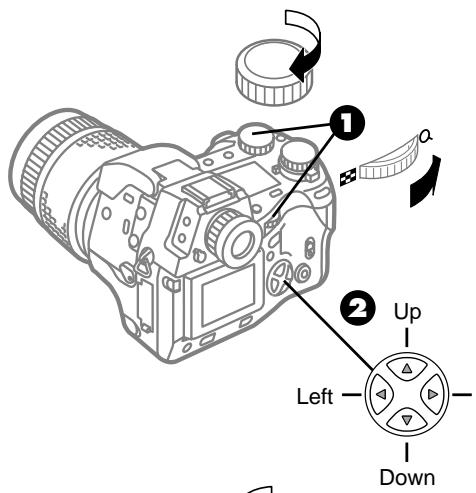
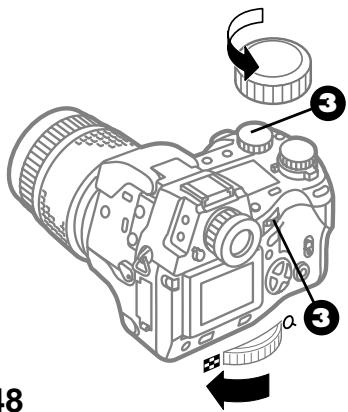

Move the main dial to the magnifying glass mark Q (or move the sub dial clockwise).
The image is magnified in the monitor. If you continue to turn either dial in the same direction, you can enlarge the image further.

With an enlarged image displayed, use the pointers on the arrow pad to scroll and view other parts of the image that you cannot see.
Scrolls up.
Scrolldown.
Scrolls left.
Scrolls right.

If you want to display another image at normal size, turn the main dial to the index mark (or sub dial counterclockwise), and then use the pointers on the arrow pad to select the next image that you want to display.
Index display
Set the mode dial to playback 口 , and then turn the main dial to the index mark 口 (or turn the sub dial counterclockwise) to display several images at one time in the monitor.
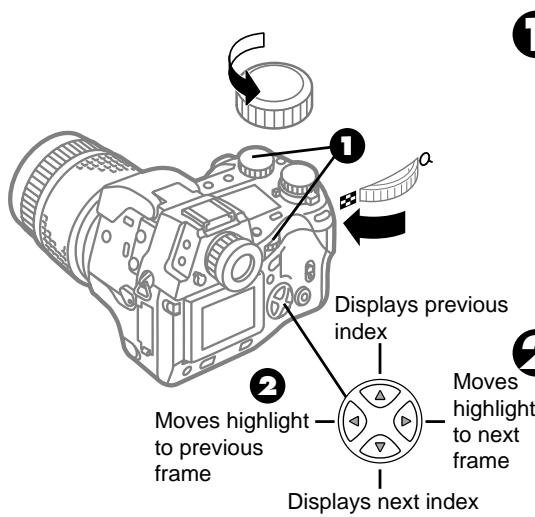
The main dial and sub dial
To perform many settings you can use either the main dial or sub dial, so use whichever is more convenient for you. However, please remember that when the mode is set to M , use the main dial to set the aperture and use the sub dial to set the shutter speed.
Using the remote control
You can use the RM-1 remote control unit to take pictures and view images in the index or enlarged displays. For details, refer to the instructions for the RM-1 remote control unit.
1 Turn the main dial to the index mark (or turn the sub dial counterclockwise).
The monitor is divided into sections and displays 4 images. The position of the green highlight shows the currently selected image. If you continue to turn either dial in the same direction, you can display 9 and then 16 frames.
Use the pointers on the arrow pad to select another image.
Displays previous index.
Displays next index.
Moves highlight to previous frame.
Moves highlight to next frame.
To display the selected image at normal size, move the main dial to the magnifying glass mark Q (or move the sub dial clockwise) to return to the single image display.
The selected image is displayed at normal size.
Protecting Pictures

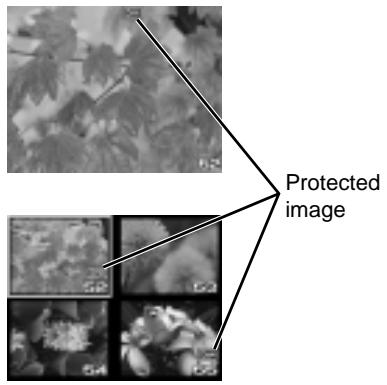
After you protect a picture, it is protected from accidental erasure from the memory card. After protected images are copied to a computer, they are stored as read-only files but are not protected from accidental erasure.
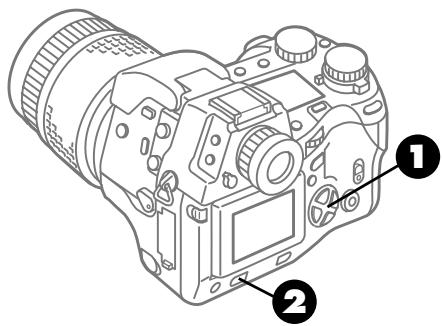
Monitor
1 Enter the playback mode and display the picture that you want to protect. ( 46)
If you are using the index display, press the pointers on the arrow pad to move the green highlight to the image that you want to protect.
Press the protect button.
Pictures that have been protected are annotated with the protect mark
To remove protection
Display the protected image on the monitor and press the protect button to remove protection.
To protect all images on a card
Attach a protect seal to a SmartMedia card in order to protect all images stored on the card from accidental erasure. For details, refer to the SmartMedia instructions. Do not reuse protect seals.
Caution
- Formatting a memory erases everything on the memory card, even images which have been protected.
Deleting Single Pictures
You can delete one by one pictures that you do not want to keep. Deleting unneeded pictures creates more space on the selected card and increases the number of pictures that you can store on the card.
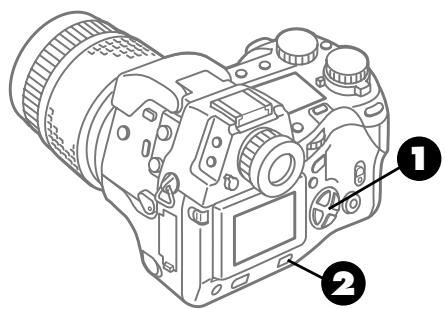
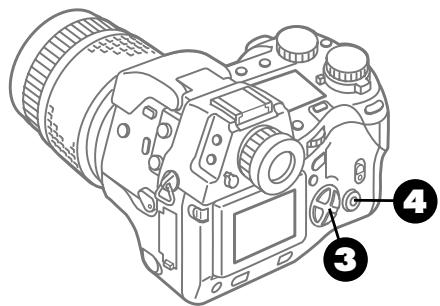
1 Enter the playback mode and display the picture that you want to delete. ( 46)
If you are using the index display, press the pointers on the arrow pad to move the green highlight to the image that you want to delete.
Press the erase button
YES and NO is displayed in the monitor.
On the arrow pad, press to move the green highlight to YES.
If you change your mind and you do not want to delete the image, with NO selected just press the OK button or press the erase button.
4 Press the OK button.
The card access lamp blinks and the selected image is deleted from the card.
Pictures which cannot be deleted
Protected pictures cannot be deleted from the memory card. Protected pictures can be deleted later, but only after releasing the protection before executing frame delete. ( 50)
Protected thumbnail files and a SmartMedia card with a protect seal attached cannot be deleted.
Reusing memory cards
After storing all the images on a card to a hard disk on a computer, you can delete all the images from the card and then re-use the card for taking and storing more pictures. ( 150) Always copy important pictures to hard disk before you delete images from a card.
Switching the Camera Off
Always switch the camera off immediately after every shooting session. If you leave the camera on while it is not being used, it will automatically enter the sleep mode and then automatically switch itself off after one hour. ( 128) Always switch the camera off before changing batteries or before storing the camera in a case or bag.
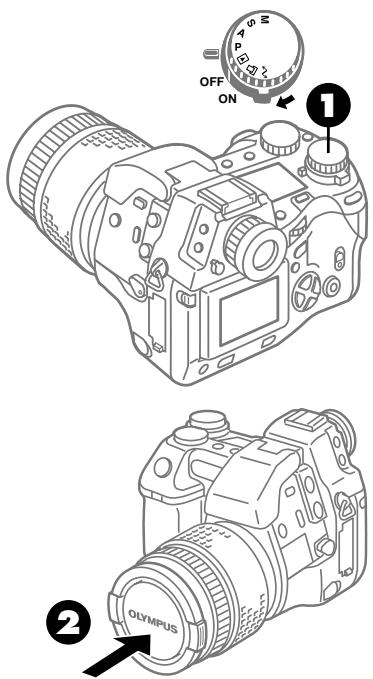
1 Move the power switch to OFF.
The camera switches off. If an image is being saved on a card (the card access lamp will be blinking), the camera will not power off until the image has been saved on the card.
2 Attach the lens cap.
Press inward on the cap's latches, fit the cap over the lens, and then release the latches. (To remove the cap: Press on the latches and pull the cap off.)
Caution
- While the card access lamp is blinking, never open the card compartment cover or unplug the AC adapter. If the power supply to the camera is interrupted while the camera is saving a picture on a card, this could cause the camera to reset all operation mode settings (date, time, etc.), could damage images already stored on the card, or could prevent other pictures from being saved on the card.
Shooting Techniques: General Introduction
This chapter briefly introduces some basic techniques you can apply to different situations and shoot beautiful professional looking pictures to achieve the effects that you want, even if you have little experience using a camera.
Portraits. You can vary the aperture setting to blur portrait background, adjust flash, and select a different metering mode to create artistic effects in portraits.
Portraits (Backlit subjects). By lighting a subject from behind with backlighting, you can soften shadows on the face and add highlight to the outlines of the subject's hair.
Subject in daylight shadow. Even with sufficient light on the subject, you can set the flash to fire and reduce daylight shadows on the subject and get beautiful results.
Subject and background both in focus. There will be occasions when you want to change the aperture value to ensure accurate focusing of background scenery, or to make sure that all subjects in a large group picture are in focus.
Moving subjects. You can set a fast shutter speed to capture fast moving subjects sharply frozen in time, or set a slow shutter speed and show them in blurred motion.
Close-up. After setting the camera in the macro mode, you can shoot subjects as close as 20cm from the lens for detailed nature shots.
CAMEDIA
Night scenes. You can use slow shutter speeds in combination with lower ISO settings to experiment with shooting night scenes or other dark subjects.
Subject against a night scene background. When you shoot a subject with a flash against a night background, you can use slow shutter speeds to achieve a variety of artistic effects.
Sunsets and fireworks. By adjusting white balance and using manual focusing, you can extend the range of creativity in your color pictures.
Shooting Portraits (Focused Subject, Blurred Background)
When you shoot a portrait, you can create the effect of the subject floating against a blurred background. In order to achieve the effect of a floating subject, open the aperture to take the picture.
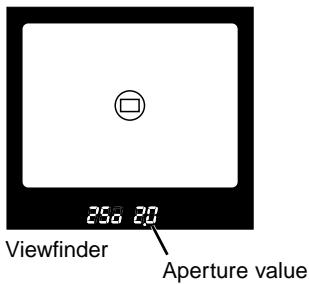
The smaller the aperture value, the shallower the depth of field which causes the background to blur. You can easily confirm the current aperture value by reading it in the viewfinder before you take a picture.
-
If you want to adjust the aperture value, set the mode dial to A (Aperture priority mode) and adjust the aperture value by turning the main dial or sub dial.
-
The aperture value can be adjusted within the following ranges.
Max. TELE F2.4~F11
Max.WIDE F2.0~F11
Setting the Aperture Value ( 72)
- You can achieve more blurring in the background with the TELE setting than the WIDE setting.
- Try to put as much distance as possible between the subject and the background.
Shooting Portraits (Shooting Backlit Subjects)
By lighting the subject from behind, you can add highlight to the hair. With this method you can take a picture of a sharply outlined subject in sparkling light. If the face of the subject appears dark, use exposure compensation and the flash to take the picture.
Position the spot meter mark on the center of the subject's face
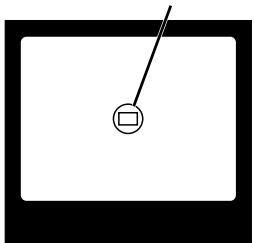
Viewfinder
The camera can be set to adjust automatically for a backlit subject in order to attain the ideal exposure for the shot. For a dark subject, you can use exposure compensation or set the camera in the spot metering mode so you can meter light on the subject's face. You can also adjust the flash control mode.
Using Exposure Compensation ( 79) Selecting the Metering Method ( 78) Shooting a Subject in Daylight Shadow (Daylight Synchro) ( 56)
Note
- We recommend attaching a lens hood to the camera to prevent the occurrence of the flare or ghost effect in your pictures.
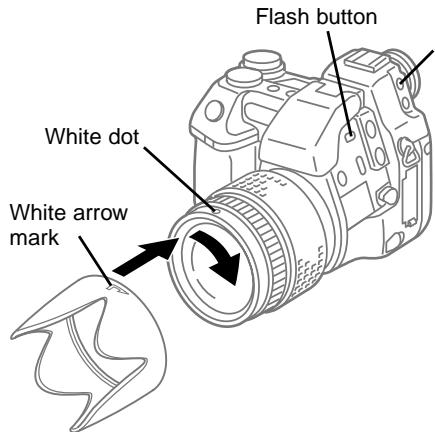
Attaching the Lens Hood
Lens hood
Align the white arrow on the lens hood with the white dot on the camera and then turn clockwise in the direction of the arrow until it stops and you hear a click.
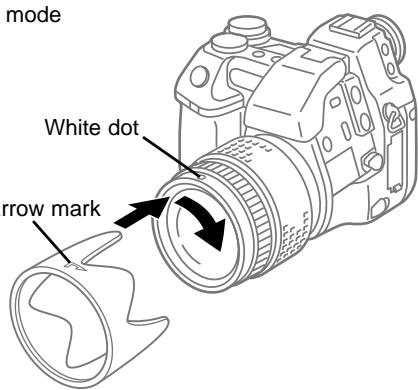
When Camera is Not Used
The lens hood can be reversed and attached to the camera when the camera is not in use. Align the arrow on the lens hood with the white dot on the camera and then turn clockwise in the direction of the arrow until it stops and you hear a click.
Shooting a Subject in Daylight Shadow (Daylight Synchro)
Even with sufficient light on the subject (when the flash warning is not blinking in the viewfinder), you can set the flash to fire and reduce daylight shadows on the subject and take a beautiful picture.
When the background is brighter than the subject, the subject could become dark or the background could wash out.
When you see shadows on your subject in strong daylight, use the fill-in flash mode to reduce the shadows. You can also use the fill-in flash on a subject which could appear too dark against a strong backlight. In such situations, if you use the fill-in flash at high noon to brighten the subject you can capture both the subject and the background clearly. In either case, you can achieve a catch light effect by the reflection of the light in the subject's eyes to enliven the appearance of your subject.
Selecting a Flash Mode ( 86)
If you use the flash, both the subject and the background can be shot with the correct exposure.
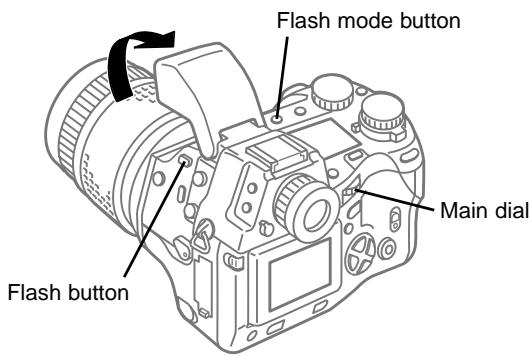
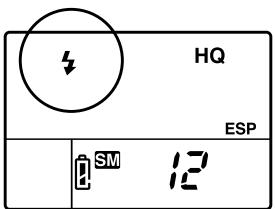
Press the flash button to raise the flash unit. Hold down the flash mode button and then turn the main dial or sub dial. When you see the mark displayed in the control panel, the camera is in the fill-in flash mode.
Shooting the Subject and Background Both in Focus
Select a large aperture value to focus your subjects and the scenery in the background.
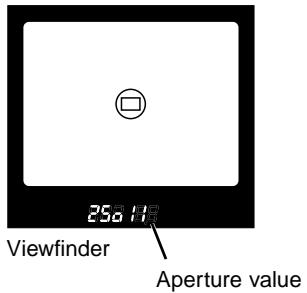
Set the mode dial to A (Aperture priority mode) and then select a large aperture value by turning the main dial.
Note
- The number for the aperture value is inversely proportional to the aperture diameter. Selecting a large number (11 for example) decreases the diameter of the aperture, lengthens the depth of field, and brings the background into focus.
Setting the Aperture Value ( 72)
However, selecting a large aperture value in low light will slow down the shutter speed, causing the picture to blur as a result of camera shake. Under these conditions, try to steady the camera as much as possible by leaning against the side of a building, a tree or a lamp post, or mount the camera on a tripod.
Subject not centered in the viewfinder ( 65)
Shooting Moving Subjects
When you shoot a moving subject like a runner or a moving vehicle, you can vary the shutter speed to achieve the desired effect.
Action shot at fast shutter speed (1/500)
Freeze action
Action shot at slow shutter speed (1/15)
Conveys flow of movement
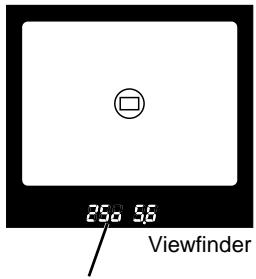
Shutter speed
$$ 2 5 0 = 1 / 2 5 0, 2 ^ {\prime \prime} = 2 $$
seconds
With a fast shutter speed, you can capture a momentary facial expression or freeze a subject in motion. Similarly, with a slow shutter speed you can achieve the effect a blurred motion. You can shoot a moving subject like a waterfall or river with a fast shutter speed to freeze the action, shoot it with a slow shutter speed to create the artistic effect of flowing water in motion.
To adjust the shutter speed manually, set the mode dial to S (Shutter priority mode), and then turn the sub dial or main dial to select the desired shutter speed.
Setting the Shutter Speed ( 74)
You can also use the sequence mode to shoot multiple exposures to capture the subject in several sequential positions.
Taking Multiple Exposures ( 112)
Shooting Close-up
For close-up shots, use the macro mode which allows you to bring the camera as close as 20~cm (8 in.) from the subject. For example, you could accurately capture the details of a flower's petals, pistils, and stamens.
Shot in macro wide-angle mode
Shot in macro TELE mode
To set the camera in the macro mode, press and hold down the macro button 空 , turn the main dial or sub dial until you see the macro mark 空 in the control panel, and then take the picture.
Note
- With the camera set for TELE, you can bring the camera as close as 20~cm (8 in.) from the subject to photograph an area about the size of a business card, or approximately 76 × 57~mm ( 3 × 2.3 in.). ( 42)
- There is a greater possibility of camera shake spoiling a picture, so try to steady the camera as much as possible, or use a tripod.
- Use as fast a shutter speed as possible to prevent the wind or other movement from causing the subject to blur.
- If you use the flash in some situations, the lens barrel could cause a shadow in the picture.
- For close up shots, you may find it convenient to pull out the monitor and compose the picture in the monitor. ( 37)
- For best results in close-up shots, you may want to use the optional Macro Extension Lens Pro (MCON-35). ( 133)
Cannot focus the shot?
Using Autofocus (AF) ( 64)
Capturing stages of a flower blooming
You can use time-lapse photography to set up shooting multiple exposures at pre-set intervals to capture the stages of a flower blooming, or other slow changes over a long period.
Using Time-Lapse Photography ( 118)
Shooting Night Scenes
When shooting night scenes or other dark subjects, mount the camera on a tripod and select a slow shutter speed (1/2 sec. or more).
Night scene shot with automatic exposure
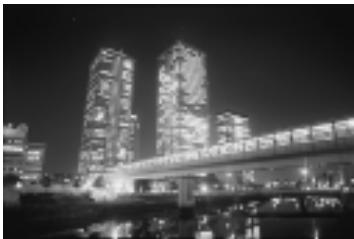
Night scene shot with slow shutter speed
If you select any mode where the exposure is set automatically (P or A) and raise the built-in flash, the shutter speed cannot be set slower than 1/30 and you cannot achieve the correct exposure of a night scene. If you want to shoot a night scene, take the picture with the flash closed. With the flash closed, the shutter speed is set for up to 2 seconds.
For an extremely dark scene, use the manual mode (M) so you can select a shutter speed of up to 8 seconds, or you can select the bulb mode so you can keep the shutter open up to approximately 30 seconds, as long as you keep the shutter button depressed.
Note
- We recommend using a tripod to avoid camera shake.
Selecting Aperture and Shutter Speed Manually ( 76)
For the metering method, select digital ESP or Center weighted averaging metering, as Spot metering will measure only the light in a very small area in the center of the picture.
Selecting the Metering Method ( 78)
You can select a higher ISO setting to brighten your pictures, but this can also cause your pictures to appear grainy. We recommend that you test a variety of settings to achieve the effect that you want.
Changing the ISO setting ( 83)
If you have difficulty in focusing the subject, use manual focusing.
Using Manual Focus (MF) ( 68)
Color not what you expect?
Set white balance (color temperature) for 5500K.
Using Preset White Balance ( 102)
Shooting a Subject Against a Night Scene Background (Slow Synchronization)
When you shoot a subject with a flash against a night background, you can use slow shutter speeds to achieve a variety of artistic effects. This technique is called slow synchronization.
With the flash mode set to Auto, the background of a night scene may not be exposed correctly.
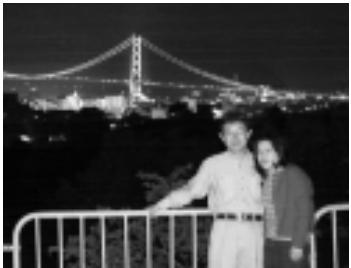
With the flash mode set for Slow Synchro, you can achieve correct exposure of both the subject and the background of a night scene.
Set the mode dial to P or A.
Press and hold down the flash mode button ④ and then turn the main dial or sub dial until you see the SLOW in the control panel.
In the slow synchronization mode, the shutter speed can be set for up to 2 seconds.
Note
- We recommend using a tripod to avoid camera shake.
- The shutter remains open even after the flash fires. Ask the subject not to move immediately after the flash has fired, and then take the picture.
- Do not touch or move the camera again until the shutter closes and the subject can be seen through the viewfinder or the card access lamp starts blinking.
Selecting a flash mode ( 86)
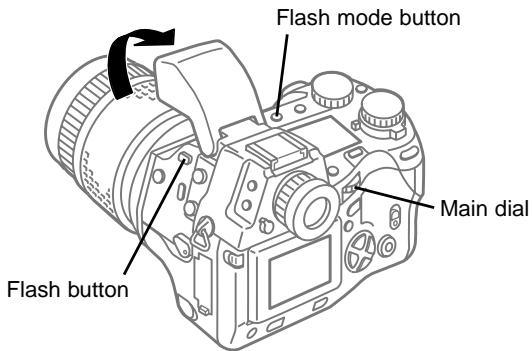
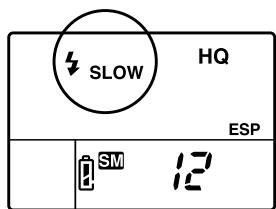
Control panel
Shooting Sunsets and Fireworks
By switching the white balance setting from Auto to a preset setting manually, you can enhance the beauty of colors in a sunset or a fireworks display.
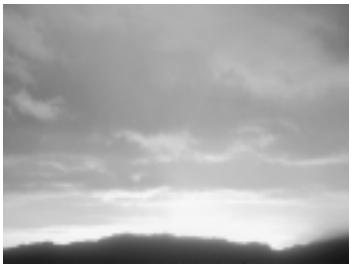
Sunset does not appear red when shot with white balance.
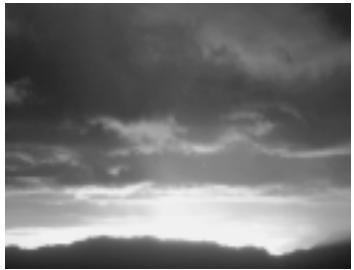
Sunset appears in more natural red when shot with preset white balance (5500).
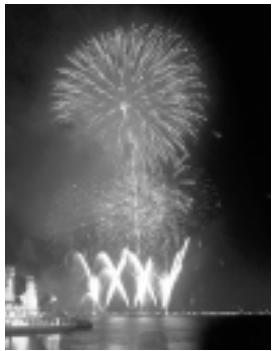
Colors of fireworks can also be adjusted with white balance.
In the Auto white balance mode, white is used as the base color for reference in reproducing the colors of sunsets and fireworks, so the colors in a sunset may not appear red and the colors in fireworks may not appear as beautiful.
To improve the accuracy of color reproduction in these cases, press and hold down the white balance mode button , turn the main dial or sub dial until you see the number 5500 (clear daylight) appear in the control panel, and then take the picture.
To increase the amount of red in the pictures, select 6500 (overcast daylight), or to reduce the amount of red, select 3700 (incandescent bulb).
You can manually select one of the seven available white balance settings to experiment and achieve the artistic color effects that you desire in your pictures.
Using Preset White Balance ( 102)
If fireworks are difficult to focus, move the focus mode switch to MF (manual focus), and then use the focus ring to focus the shots.
Using Manual Focus (MF) ( 68)
Taking Pictures: Distance and Focus
In this section you will learn how to use both focusing methods: autofocusing and manual focusing.
Using Autofocus (AF)
When autofocusing operates, the camera focuses the subject automatically. When the subject is in focus, the AF correct mark in the viewfinder lights.
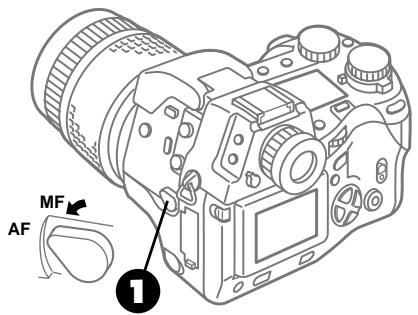
AF target mark
Focusing is conducted on the subject covered by this mark.
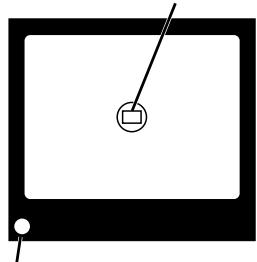
When the subject is in focus, the camera beeps and the AF correct mark lights.
How autofocus operates
Infrared light emitted from AF port is used to estimate the approximate distance from the camera to the subject. This information is used to roughly focus the image of the subject by moving the lens, and then more precise focusing is conducted by the part of the CCD that receives the light from the lens. When the subject is in focus, the AF correct mark in the viewfinder lights.
However, with some subjects, dark subjects or subjects of low contrast, the CCD may not operate accurately, so focusing is conducted only with the infrared light emitted from the AF port. In this case, the picture can be taken while the AF correct mark in the viewfinder is blinking.
With the macro mode mark or conversion lens mark displayed in the control panel, focusing is performed only with the CCD.
The infrared light emitted here meters the distance to the subject (1st stage focusing).
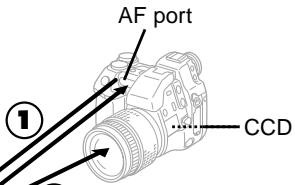
2 Move the lens to a position for focus based on the light passing through the lens (at 2nd stage, the AF correct mark in the viewfinder lights).
Focusing subjects not in the center of the viewfinder
The camera focuses on the subject covered by the AF target mark in the viewfinder. When you need to focus on a subject that is not under the AF target mark in the center of the picture, point the camera and cover the subject with the AF target mark in the viewfinder, half-press the shutter button, and then while holding down the shutter button, compose the picture again. Half-pressing and holding down the shutter button locks the focus.
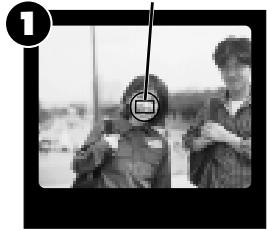
AF target mark

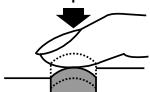
Half-press

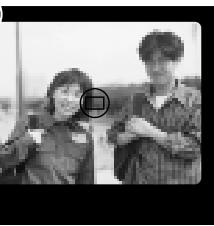

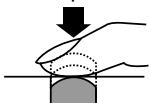
Full-press

Cover the subject with the AF target mark in the viewfinder.

Half-press the shutter button.
When the subject is in focus, the camera beeps and the AF correct mark in the lower left corner of the viewfinder lights.

With the shutter button still half-pressed, move the camera and compose the picture in the viewfinder.

Full-press the shutter button.
Note
- To prevent interfering with the accuracy and time required for focusing, never block this port with your finger.
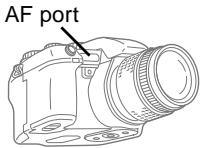
Difficult to focus subjects
The autofocus feature of this camera is effective for most subjects. However, subjects like the ones described below could be difficult to focus with the autofocus feature. If focusing with the CCD is not successful, after you half-press the shutter button, the AF correct mark in the lower left corner of the viewfinder blinks. You can still take a picture under this condition by full-pressing the shutter button.
Subject of low contrast
A subject without distinct patterns could be difficult to focus.
Subject with center glare
A subject with center glare could be difficult to focus.
For these situations, position the AF target mark in the viewfinder on an object that is at the same distance from the camera as the subject, and then half-press the shutter button to lock the focus. While keeping your finger half-pressed on the shutter button, frame the picture that you want to shoot, and then full-press the shutter button. ( 65)
You can also set the focus mode switch to the MF mark to select manual focusing, and then adjust the focus manually with the manual focus ring. ( 68)
Two objects at different distances from the camera
The camera cannot autofocus on a single subject with two objects at different distances from the camera in the viewfinder.
Subject in light from street lights and windows
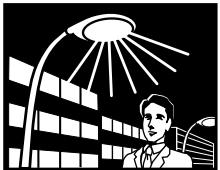
A subject at night in light from street lights or from building windows could be difficult to focus.
Subject without vertical lines
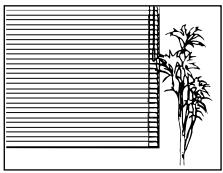
The camera cannot focus on a subject with only horizontal lines. Hold the camera vertically, half-press the shutter button, and then hold it down to lock the focus. Re-position the camera horizontally, compose the picture, and then full-press the shutter button to shoot the picture.
Moving subject
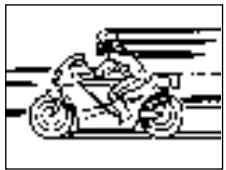
It is impossible to hold a fast moving object in the center of the viewfinder long enough for automatic focusing, so lock the focus on an object that is at the same distance from the camera as the subject you want to shoot, wait for the subject to appear, and then shoot the picture.
Taking a picture through window
When taking a picture through window, the subject could be difficult to focus. If this problem occurs, set the focus mode switch to MF (manual focus) and focus the subject manually.
Using Manual Focus (MF)
By setting the camera in the manual focus mode, you can focus the subject manually within the range 20cm to (8 in. to ) by turning the manual focus ring.
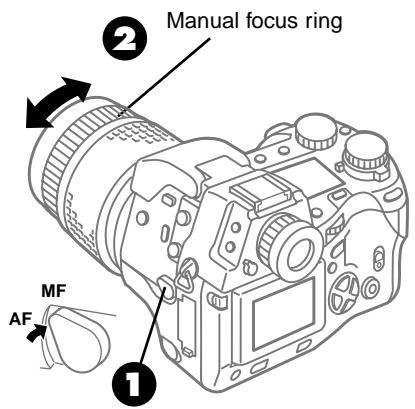
1 Set the focus mode switch to MF (manual focus), as shown by the arrow in the illustration on the left.
The manual focus mark MF appears in the upper right part of the control panel.
Turn the manual focus ring until you see the subject focused in the viewfinder or the monitor.
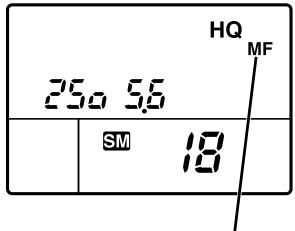
Control panel
MF (manual focus) mark
Monitor display (camera-to-subject distance less than 1 meter)
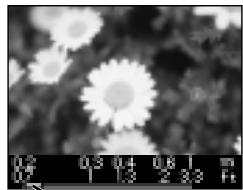
Monitor display (camera-to-subject distance more than 1 meter)
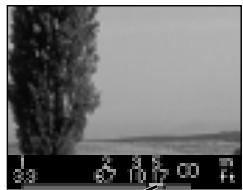
Camera-to-subject distance (distance for current focus) Repeatedly pressing the INFO button switches the display on and off.
Using the focus ring design
The manual focus mechanism of this camera reads the direction and distance the manual focus ring is moved and drives the focusing lens with a small motor. Even when the camera-to-subject distance displayed in the monitor is 20cm (8 in.) or , the focus ring can be turned farther, but stops at 20cm (8 in.) or .
Note
- When the camera is set in the macro mode, if you set the focus mode switch to the MF position, the camera is automatically released from the macro mode.
Taking Pictures: Brightness (Exposure) (Aperture and Shutter Speed)
In this section we will show you how to adjust aperture and shutter speed to achieve the best exposure in your pictures for normal or special effects.
The camera uses the aperture value and shutter speed to determine the brightness (exposure) of an image. The shutter speed determines the length of time that the shutter remains open. With a large aperture the image becomes brighter (a greater area of the lens is used to increase the amount of light), but the depth of field becomes shorter, causing objects closer and farther away from the camera to be out of focus. Slower shutter speeds create brighter images but increase the possibility of blurring the image as a result of subject movement or camera shake.
Setting the Shooting Mode
Select and set one of the four available shooting modes for the prevailing conditions or the effect that you want to create in your pictures.
P (Program mode)
The camera automatically selects the best aperture value and shutter speed according to the brightness of the subject. You can get great results by just pressing the shutter button.
A (Aperture priority mode)
You can set the aperture while the camera automatically selects the correct shutter speed according to the brightness of the subject. You can blur the background of a shot by decreasing the aperture value. On the other hand, you can increase the aperture value to ensure that subjects in the foreground and background are both focused.
$ (Shutter priority mode)
You can set the shutter speed while the camera automatically selects the correct aperture value according to the brightness of the subject. For a fast moving subject select a fast shutter speed to freeze the subject for a sharp picture, or select a slow shutter speed to create the effect of blurred movement.
M (Manual mode)
You can set the aperture and shutter speed manually to vary the appearance of the picture as you desire to achieve special effects in your pictures. The exposure indicator display in the viewfinder allows you to view and confirm the current exposure setting. In the M mode you can also set the camera in the bulb mode for long exposures.
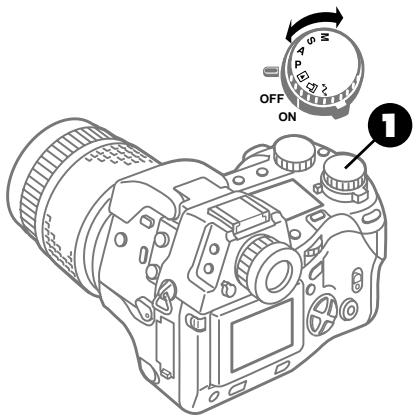

Set the mode dial to the appropriate mark to select the shooting mode.
Aperture Values and Shutter Speeds Selected Automatically in the P Mode
When the mode dial is set to P (Program mode) the camera automatically selects the aperture value and shutter speed according to the brightness of the subject so you can take the picture without adjusting the exposure.
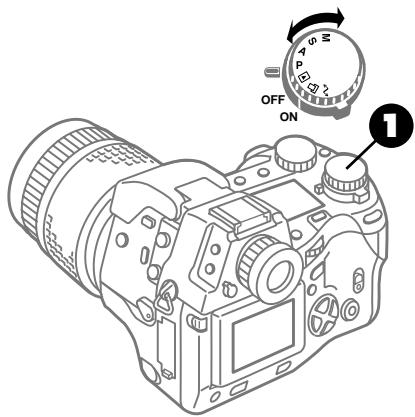
1 Set the mode dial to P (Program mode).
Take the picture.
P (Program mode) aperture values and shutter speeds
With the camera set in the Program mode, a program automatically adjusts the aperture value and shutter speed according to the brightness of the subject.
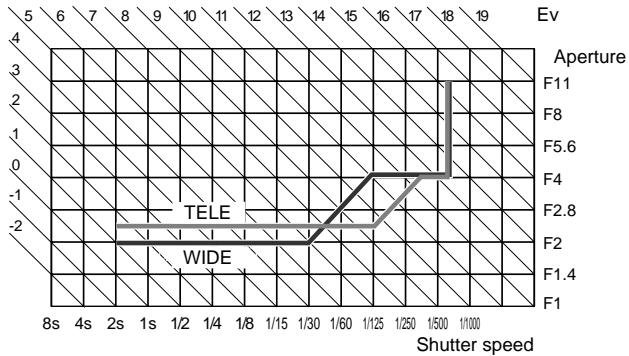
Adjusting the exposure
With the mode dial set to P (Program mode) the camera automatically selects the optimum exposure, but if you want to make the picture brighter or darker, press exposure compensation button to use the exposure compensation feature.
Using Exposure Compensation ( 79)
Setting the Aperture Value
With the mode dial set to A (Aperture priority mode), you can select the aperture value for your shots. Because adjusting the physical size of the aperture determines the amount of light allowed to enter the camera through the lens, the aperture setting expresses the actual size of the aperture. It is important to remember, however, that the smaller the value of the aperture setting, the larger the diameter of the aperture, and conversely, the larger the value of the aperture setting, the smaller the diameter of the aperture.
Opening the aperture not only allows more light into the lens to compensate for low light conditions but shortens the depth of field as well. Use a large aperture to focus only the subject and blur the background when you want to shoot a portrait. On the other hand, use a small aperture to focus both the subject and the background.
Large Aperture
To focus the subject and blur the background, select a small aperture value for a large aperture.
Small Aperture
To focus the subject and the background, select a large aperture value for a small aperture.
Fine adjustment of aperture and shutter speed
If the brightness is adjusted with fine adjustment of the aperture value, in some cases it may appear that the shutter speed drive is not adjusting shutter speed. The displayed aperture value is the value of the optical aperture, and the shutter speed is calculated based on the CCD's sensitivity to the brightness of the light to determine the optimum exposure. In order to achieve this, the aperture value and shutter speed may occasionally appear not to be adjusting in fine increments and does not indicate a malfunction of the camera.
Bright spots in the picture?
If you see extremely bright spots in your images caused by sunlight or reflected sunlight, this is a phenomenon called "smear" which occasionally occurs with digital cameras that employ CCDs. To avoid this problem, compose the picture again and try to eliminate the bright light, use a smaller aperture, or use a Neutral Density filter.
Large aperture
Small aperture
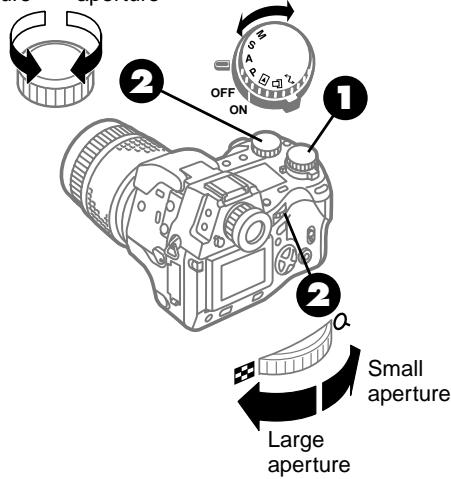
Viewfinder
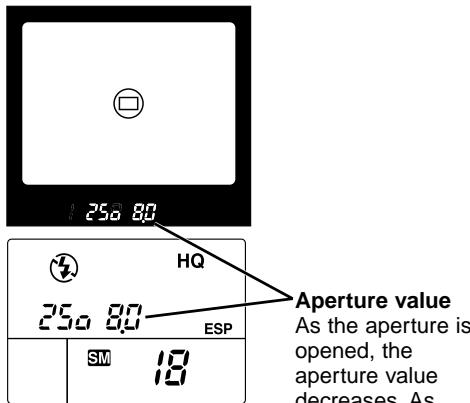
Control panel
Aperture value
As the aperture is opened, the aperture value decreases. As the aperture is closed, the aperture value increases.
1 Set the mode dial to A (Aperture priority mode).

Turn the main dial or sub dial as shown in the illustration to change the aperture value.
Turn the dial to adjust the aperture value in 1/3 steps.
The aperture value you select is displayed in the viewfinder and the control panel.
The range of aperture values available of selection is determined by the current zoom setting.
| Aperture Range | |
| Max.WIDE | 2.0~11 |
| Max.TELE | 2.4~11 |
The shutter-speed indication blinks if the camera cannot set the correct shutter speed.
Shutter speed indication is blinking, and the indicated speed is fast?
The scene is too bright—the camera cannot set the shutter speed fast enough to expose the shot correctly. Correct the problem by reducing the aperture size (increasing the aperture value). If the indication continues to blink, reduce the ISO setting or use a Neutral Density filter.
Shutter speed indication is blinking, and the indicated speed is slow?
The scene is too dark—the camera cannot set the shutter speed slow enough to expose the shot. Correct the problem by widening the aperture (reducing the aperture value). If the indication continues to blink, raise the ISO setting or use the flash.

Take the picture.
Note
- If you set the aperture value manually, that setting will remain in effect even after you switch to another shooting or switch the camera off and on. If you set the camera in the shooting mode again, the camera will return to the same aperture value. However, the camera does not retain automatically selected aperture settings.
Setting the Shutter Speed
With the mode dial set to S (Shutter priority mode), you can set the shutter speed for the movement of the subject and take a picture. For example, if you take a picture of an athlete in motion you can freeze the subject for a sharp picture or show the subject moving through an arc of blurred movement for artistic effect.
With a slow shutter speed you can also point the camera at a moving subject and move the camera to achieve the effect of blurred motion.
Fast shutter speed
A fast shutter speed can stop and freeze the action of a moving subject.
Slow shutter speed
A slow shutter speed can show the flow of the action of a moving subject.
To prevent camera shake
Use a monopod or tripod to prevent camera shake. The possibility of camera shake spoiling a picture increases greatly when you zoom in on a subject.
Caution
- The flash may not be effective with shutter speeds of 1/250 or faster.
- The shutter speed that you select manually remains set, even after you change to another shooting mode or switch the camera off and on again. Even after changing the shooting mode and switching back to the S mode, the previously selected shutter speed remains set. However, the camera does not remember shutter speeds selected automatically.
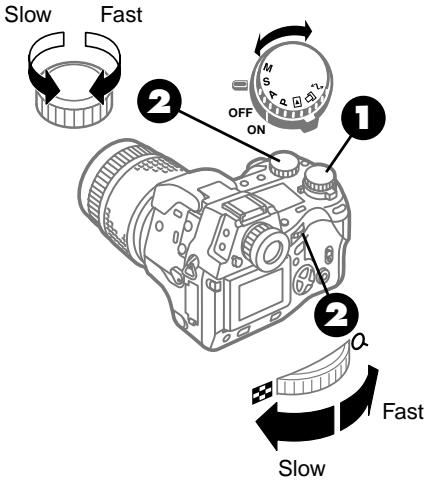
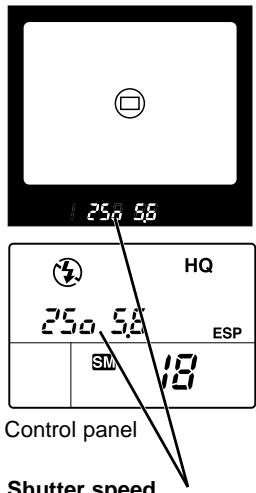
Viewfinder
Shutter speed
Shutter speeds of less than 1 second are displayed only with the denominator of the speed setting. For example, the 1/200 sec. selection is displayed as 200. Shutter speeds of more than 1 second are displayed with a double-quote mark ". For example, the 2 sec. selection is displayed as 2".
1 Set the mode dial to S (Shutter priority mode).
Turn the main dial or sub dial as shown in the illustration to select a shutter speed.
For every movement of the dial, the shutter speed is changed in 1/3 step increments. You can select a shutter speed within the range 1/640~2 sec. The selected shutter speed is displayed in the viewfinder and control panel.
The aperture value blinks if the camera cannot set the required aperture size.
Aperture value is blinking, and the value is at the maximum?
The scene is too bright—the camera cannot make the aperture small enough to expose the shot. Correct the problem by setting a faster shutter speed. If the indication continues to blink, reduce the ISO setting or use a neutral density filter.
Aperture value is blinking, and the value is at the minimum?
The scene is too dark—the camera cannot open the aperture wide enough to expose the shot. Correct the problem by selecting a slower shutter speed. If the indication continues to blink, raise the ISO setting or use the flash.
Take the picture.
Selecting Aperture and Shutter Speed Manually
With the mode dial set to M (Manual mode), you can manually select both the aperture and the shutter speed. In this shooting mode, you can also set the camera in the bulb mode for long exposures. However, please remember that bulb shutter release is limited to 30 seconds. Exposure will end and the shutter will release after 30 seconds if you hold down the shutter button longer than 30 seconds.
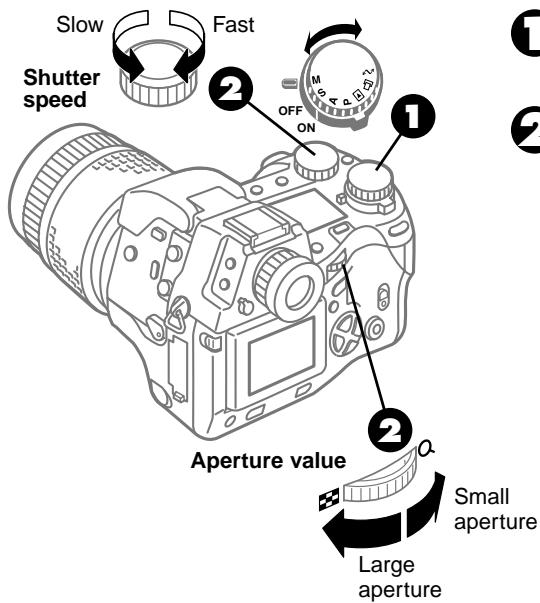
1 Set the mode dial to M (Manual mode).
Turn the main dial to select the aperture value, and turn the sub dial to select the shutter speed.
Every movement of the dial changes the aperture value and shutter speed in 1/3 steps.
You can select the shutter speed within the range 1/640-8 seconds (or select "bulb"). If you select "bulb" then the shutter will remain open for as long as you keep the shutter button pressed down (to a maximum of 30 seconds). This is called the bulb shooting mode.
Note
- If you set the aperture value and shutter speed manually, that setting will remain in effect even after you switch to another shooting mode or switch the camera off and on. If you set the camera in the shooting mode again, the camera will return to the same aperture value and shutter speed.
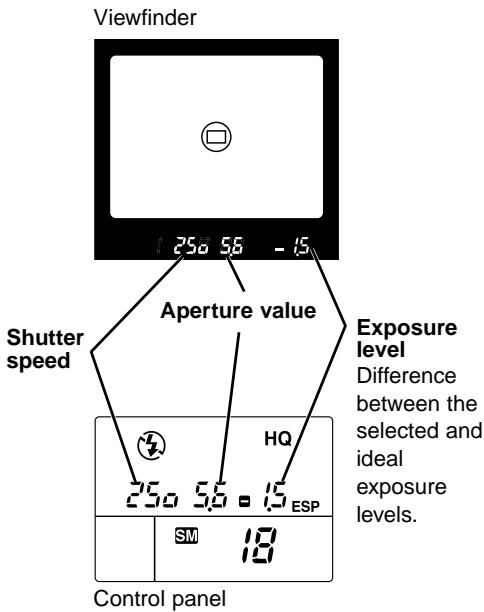
Exposure level
Turning the main dial to the right increases the size of the aperture and moving it to the left decreases the size of the aperture. The selected exposure is displayed in the exposure indicator in the viewfinder and the control panel. A plus mark (+) means the picture is overexposed, a minus mark (-) means the picture is underexposed, and ± 0 means the picture is correctly exposed.
When the picture is overexposed by more than 3 steps, + blinks, or when the picture is underexposed by more than 3 steps, - blinks.

Selecting the Metering Method ESP [O] [O]
Select the method to meter the brightness of the subject. Three metering methods are available: digital ESP metering, center weighted averaging metering, and spot metering. The camera is set for digital ESP metering when you purchased the camera.
![OLYMPUS CAMEDIA E-10 - Selecting the Metering Method ESP [O] [O] - 1](/content/2025/01/84649/images/b5ea956c4915fe0322360031a70087bd7f3125620d6e4fee86aefb09562b56f6.jpg)
![OLYMPUS CAMEDIA E-10 - Selecting the Metering Method ESP [O] [O] - 2](/content/2025/01/84649/images/769a4901b119111c10b926aa4e6b1cd8ef773b2c2fd41dc043ceaf0278a6a9f0.jpg)
While holding down the metering mode button on the top, left side of the camera, turn the main dial or sub dial until you see the desired metering setting displayed in the viewfinder or monitor.
| Viewfinder display | Control panel | |
| Digital ESP metering | — | ESP |
| Center weighted averaging metering | [●] | [●] |
| Spot metering | [●] | [●] |
Take the picutre.
Brightness of center and surrounding area different?
When there is a great difference in the level of brightness between the center of the picture and the surrounding area, or when there is an object in the background brightly lit, digital ESP metering may not be able to meter the scene correctly. In such a situation, switch to center weighted averaging metering or spot metering, cover the subject with the metering mark and adjust the exposure compensation and other settings to determine the correct exposure. For a dark subject in strong backlighting, you can also use the flash.
Using Exposure Compensation
With the mode dial set to P (Program mode), A (Aperture priority mode), or S (Shutter priority mode), you can press the exposure compensation button to manually increase or decrease the exposure automatically selected by the camera in order to create a darker or brighter image. If you want to shoot a white subject and make it bright, you can also use exposure compensation to capture the image just as it appears. Exposure compensation can be adjusted in the range of ± 3EV in 1/3EV steps.
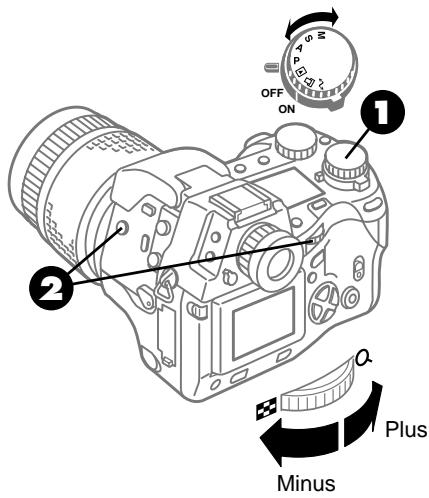
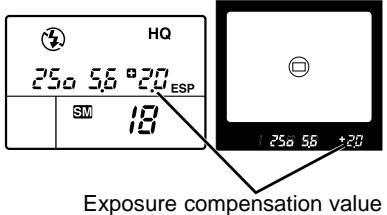
Control panel
Viewfinder
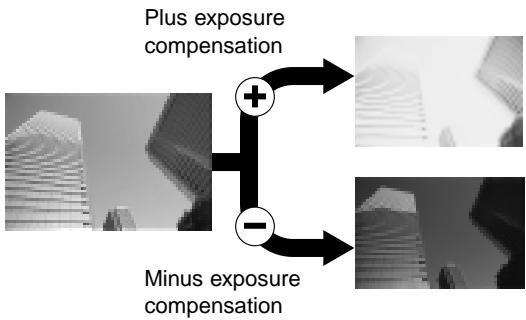
1 Set the mode dial to P, A, or S.
While pressing down the exposure compensation button, turn the main dial or sub dial as shown in the illustration.
The exposure compensation value is displayed in the viewfinder and the control panel.
Take the picture.
Note
- The exposure compensation setting remains selected even after the camera is switched off and on again. After you adjust exposure compensation for a shooting session, you must remember to set exposure compensation to 0 again when you are finished.
Adjusting the flash intensity
The flash intensity cannot be adjusted automatically, but it can be adjusted manually. ( 90)
AE Lock AEL
Normally the camera automatically meters the focus and the exposure when you half-press the shutter button and locks the AF (automatic focus) and AE (automatic exposure) at the same time. However, you can lock the exposure by pressing the AEL button before pressing the shutter button.
If you press the shutter button with the AEL button depressed, only AF is performed and the exposure does not change.
Conversely, if you press the AEL button with the shutter button half-pressed, the focus is fixed and you can adjust the exposure.
The exposure is held only as long as the AEL button is depressed and released as soon as the button is released.
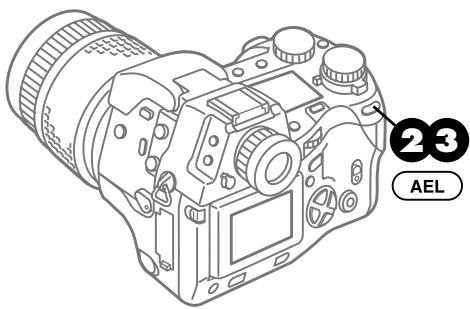
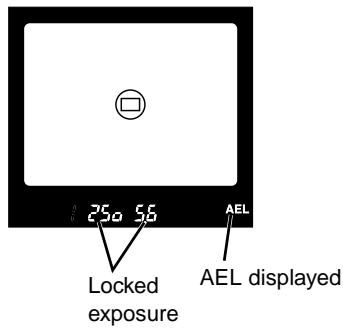
Viewfinder
Point the camera at the subject for which you want to set the exposure.
Press the AEL button.
Keep the button pressed down. While the button depressed, the exposure setting will not change. When the exposure is locked, the AEL mark appears in the viewfinder. If you half-press the shutter button while holding down the (AEL) button, automatic focus also operates.
With the AEL button still pressed down, take the picture.
You can continue to take other pictures at the same exposure, as long as you keep the AEL button pressed down.
When the shutter button is half-pressed
When you press the AEL button, the exposure setting selected by half-pressing the shutter button is canceled and the exposure selected with the AEL button press is used. On the other hand, if the AEL button is released, then exposure changes as metered automatically with a half-press on the shutter button.
Bracketing a Shot with Three Automatic
Exposures

With the mode dial set to P (Program mode), A (Aperture priority mode), or S (Shutter priority mode), if you switch on autobracking in the menu you can take three rapid multiple exposures of the same picture with different (bracketed) exposure settings. One shot will be taken at normal exposure, one shot at a lower exposure setting for a darker picture, and one shot at a higher setting for a brighter picture.
Normal exposure picture
Lower exposure setting for a darker picture
Higher setting for a brighter picture
You can set up bracketing shots in 1/3EV, 2/3EV or 1EV full exposure step.
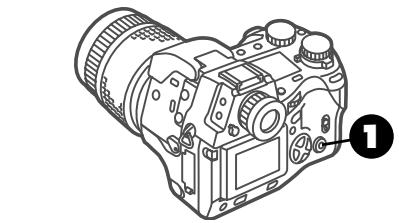
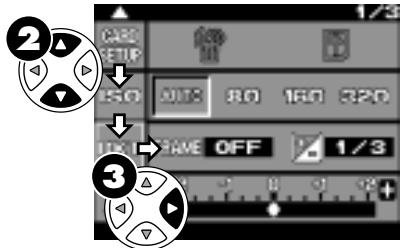
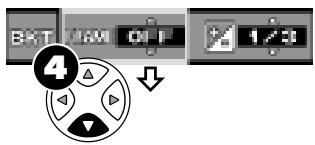
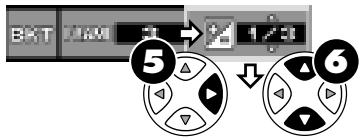
Press the menu button.
The menu opens in the monitor.
On the arrow pad, press or to move the green highlight to the mark.
On the arrow pad, press to move the green highlight to FRAME.
On the arrow pad, press and select 3 to replace OFF.
Selecting the number of shots enables autobracking, and selecting OFF disables autobracking.
On the arrow pad, press to move the green highlight to the mark.
On the arrow pad, press or repeatedly to select the step setting for adjusting the three autobracketing exposures.
Exposure can be adjusted in three steps: 1/3EV, 2/3EV, 1EV.
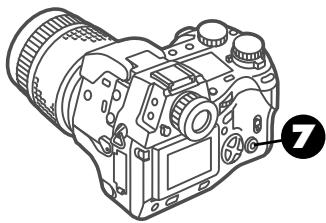
Control panel
HQ Autobracket setting mark 25o 5.6 ESP sequential mode Sequential mode selected automatically when autobracking is selected.

Press the OK button.
This completes setting the camera for autobracking. In the control panel, you will see BKT and the sequential mode mark displayed. This confirms that the camera is set for both autobracking and shooting multiple exposures. (When shooting in the single-frame mode, hold down the drive button and turn the main dial or sub dial until you do not see the sequential mode mark displayed in the control panel.) Press the OK button again to close the menu.

Take the picture.
When the camera is set in the sequential mode, press the shutter button once to shoot three rapid pictures with the exposure setting varied automatically for each shot.
When the camera is set in the single-frame shooting mode, you must press the button once to take each picture with the exposure setting varied automatically for each shot.
Note
-
The autobracketing setting is disabled and cannot be used in the following cases:
-
When the mode dial is set to M (Manual mode)
-
When the flash button is pressed and the built-in flash is raised.
-
The mode dial setting determines which features are changed during autbracketing.
P Program mode. Shutter speed and aperture value adjusted.
A Aperture priority mode. Shutter speed adjusted.
S Shutter priority mode. Apeture adjusted.
- The shutter speed and aperture value display the adjusted exposure.
- If autobracketing ( 81) and exposure compensation ( 79) are selected together, then values are calculated for both during shooting with autobracketing.
- If the camera is switched off suddenly during autbracket shooting, the camera will finish the autbracketing shooting sequence after the camera is switched on again.
- Autobracketing will halt as soon as you release your finger from the shutter button and resume shooting the remaining pictures after you press the shutter button again.
- With the camera set in autobracking, you cannot select the self-timer mark , or the remote control mark. To select these marks, release the camera from autobracking with the menu.
- If you select autobracketing while the self-timer mode or the remote control mode is set, both modes will be automatically released.
Changing the ISO Setting
The sensitivity can be adjusted with the ISO setting. This ISO setting is the equivalent of the ISO settings performed with traditional SLR cameras which employ film. Three ISO settings are available with this camera: 80, 160, and 320. Although you can increase the sensitivity by raising the ISO setting to take pictures of dark subjects, this could cause the pictures to appear grainy. To prevent poor exposure, we recommend leaving the ISO setting set for AUTO or 80. With AUTO selected the camera can adjust the ISO setting automatically only when the intensity of the flash is insufficient. (For most situations, AUTO selects 80 for the ISO.)
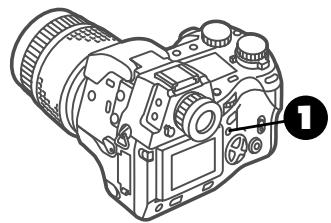
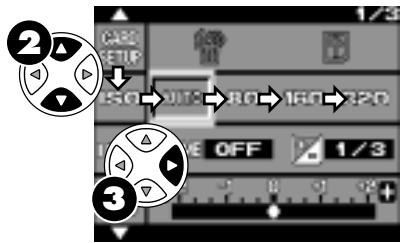
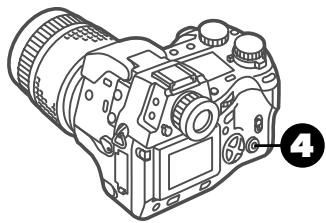
Press the menu button.
The menu opens in the monitor.
On the arrow pad, press or to move the green highlight to the mark.
On the arrow pad, press to move the green highlight to AUTO, 80, 160, or 320.
4 Press the OK button to select the setting.
The green highlight returns to the ISO mark
Press OK button again to close the menu. ISO is displayed in the control panel only when any setting other than AUTO is selected.
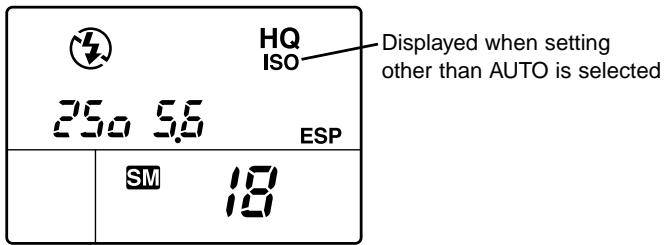
Control panel
Taking Pictures: Using a Flash
In this section you will learn how to use the built-in flash and external dedicated flash FL-40. The built-in and external flash can be used separately or together. We also describe the limitations on using other external flash units not designed exclusively for this camera.
Use the built-in flash to take pictures of subjects in low incident light or dark subjects in strong backlight. To use the flash, you must first press the flash button to raise the built-in flash unit.
When you see the flash mark blinking in the viewfinder, the flash is charging. Wait for the mark to stop flashing before firing the flash again. To prevent the deterioration of the flash unit from overheating, do not fire the flash more than 30 times in succession, and allow the flash to cool for 10 minutes or more after a long session. Keep the flash unit clean. Continuously firing the flash with the flash unit unclean, could cause the flash unit to deteriorate.
Selecting a Flash Mode
The flash mode selection determines how the flash is fired to achieve various effects.
Flash mode selections and features
Auto Flash
The camera automatically fires the flash at the appropriate intensity when shooting in dark conditions or against strong backlighting. In dark environments, the camera fires the flash as necessary to keep the shutter speed to 1/30 sec. or less (since exposures longer than 1/30 sec. are likely to be spoiled by camera shake). When shooting against a backlight, the camera fires the flash as necessary to adjust the brightness of the subject.
Slow Synchronization SLOW 2nd-CURTAIN
When shooting a subject against an illuminated night scene with the flash, you may only capture the subject and the background may turn out black. To capture the background as well in this situation, you can select slow synchro for the flash control setting and adjust the shutter speed up to 2 seconds (for ISO 80) for the darkness of the background. However, if you use a slower shutter speed we recommend that you mount the camera on a tripod and ask the subject to remain still until the picture is taken. (At slow shutter speeds the picture could easily blur as a result of camera shake or if the subject moves while the shutter is still open.) The camera is in the 1st-curtain mode when 2nd-CURTAIN is not displayed, and the flash fires at the beginning of a slow shutter release.
The camera is in the 2nd-curtain mode when 2nd-CURTAIN is
displayed, and the flash fires at the end of a slow shutter release. In the slow synchronization mode with 1st-curtain selected, for example, if you were to photograph a moving car at night, the flash would fire at the beginning of the slow shutter release and capture the image of the car. In the picture you would see the headlights of the car appearing to flow ahead of the car in the direction of travel as only the headlights were captured for the remainder of the shutter release. If you were to select 2nd-curtain for the same picture, the flash would fire at the end of the slow shutter release and you would see the tail lights trailing behind the car because the vehicle was captured by the flash at the end of the slow shutter release. In order to use slow shutter release effectively, first set the mode dial to S (Shutter priority mode) and select a slow shutter speed.
Moving vehicle photographed in 2nd-Curtain mode, showing lights trailing behind
Fill-in Flash
Use fill-in flash when you want the flash always to fire, regardless of the light conditions. For example, if the subject's face appears dark in front of strong backlighting, if a tree or other large object is casting a shadow on the subject's face, or when shooting under fluorescent or other artificial lighting to achieve the best color reproduction, you should use the fill-in flash mode. However, the flash could lose its effect when shooting a subject in extremely bright light. Use exposure compensation or use spot metering to meter the light only on the part of the subject that you want to shoot. ( 78)
Red-eye Reduction
To prevent the occurrence of the red-eye phenomenon in the eyes of photographed subjects, the camera fires 10 short burst flashes to contract the pupils of the eyes before the main flash fires. When you use this flash mode, there is a 1 second delay before the flash fires after full-pressing the shutter button, so make sure that the camera is steady. Red-eye reduction may not always be completely effective for the following reasons:
- The subject was not looking directly at the camera when the flash fired.
- The subject was not looking at the camera when the preliminary flashes fired.
- The subject was too far from the camera.
- Differences among subjects in their physical reactions to the preliminary flashes.
Example of the red-eye
To select the flash mode, press and hold down the flash mode button ① and turn the main dial or sub dial. Turn the main dial or sub dial to the right to display the available settings in the order indicated by the arrow in the table below. (Turning either dial to the left displays the settings opposite the direction of the arrow in the table.)
Flash control modes for the P (Program), A (Aperture priority) modes
| Control Panel Display | Flash mode | Red-eye Reduction | Flash Timimg | Fires automatically in dark light, backlighted subject | Always fires |
| (None) | Auto flash | NO | 1st-curtain | YES | NO |
| SLOW | Auto flash (Red-eye Reduction) | YES | 1st-curtain | YES | NO |
| Slow synchro (Red-eye Reduction) | YES | 1st-curtain | YES | NO | |
| SLOW | Slow synchro | NO | 1st-curtain | YES | NO |
| 2nd-CURTAIN | Slow synchro (2nd Curtain) | NO | 2nd-curtain | YES | NO |
| Fill-in flash | NO | 1st-curtain | NO | YES |
Flash control modes for the S (Shutter priority), M (Manual) modes
| Control Panel Display | Flash mode | Red-eye Reduction | Flash Timimg | Fires automatically in dark light, backlighted subject | Always fires |
| ○ 2nd-CURTAIN | Fill-in flash (Red-eye Reduction) | YES | 1st-curtain | NO | YES |
| Fill-in flash (2nd Curtain) | NO | 2nd-curtain | NO | YES | |
| Fill-in flash | NO | 1st-curtain | NO | YES |
Note
-
If the flash mode is set in the P or A shooting mode and then the mode dial is reset to S or M, the flash mode settings change as shown below.
-
If the flash mode is set in the S or M shooting mode and then the mode dial is reset to P or A, the flash mode settings change as shown below.
| Original Setting | Changes To: |
| AUTO | Fill-in |
| Slow Synchro | Fill-in |
| Slow Synchro (2nd Curtain) | Fill-in (2nd Curtain) |
| AUTO (Red-eye Reduction) | Fill-in (Red-eye Reduction) |
| Slow Synchro (Red-eye Reduction) | Fill-in (Red-eye Reduction) |
| Fill-in | Fill-in |
| Original Setting | Changes To: |
| Fill-in | Fill-in |
| Fill-in (2nd Curtain) | Slow Synchro (2nd Curtain) |
| Fill-in (Red-eye Reduction) | AUTO (Red-eye Reduction) |
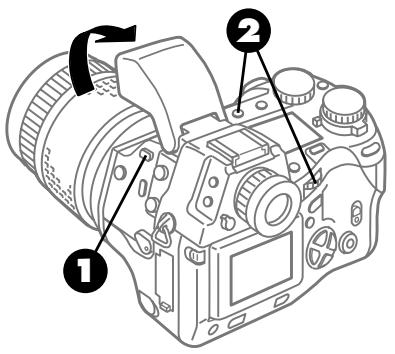
Press the flash button .
The built-in flash opens. If the built-in flash is not raised, the flash mode remains set at OFF and cannot be changed.
Press and hold down the flash mode button ① ,and then turn the main dial or the sub dial. Continue to turn the dial until you see the desired combination of flash control setting marks, and then stop turning the dial.
Take the picture.
When the flash is not required
When you do not want to use the flash, for example when photographing subjects as a sunset or night scene, shooting a subject that the flash will not reach, or shooting a subject in a location where flash photography is not allowed (such as in a museum), just press down the built-in flash to close it. If an external flash unit is connected to the camera, switch it off or remove it. (Some external flash units may require removal and others may not; you can just switch them off.)
Using Flash Control Compensation

The camera can automatically adjust the flash intensity according to the brightness of the subject, light reflected from the subject, and the camera-to-subject distance, and because of this the image of a subject could appear too bright or too dark. In such cases you can use flash control compensation to capture images that are not too bright or too dark. Flash control may not have enough effect when using a high shutter speed.
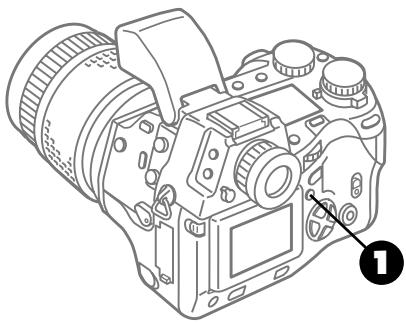
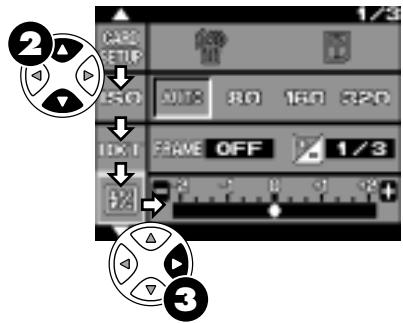
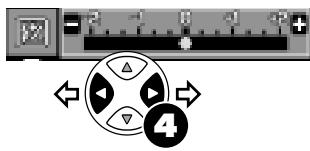
Press the menu button.
The menu opens in the monitor.
On the arrow pad, press or to move the green highlight to the mark.
On the arrow pad, press to move the green highlight to the scale to the right of the flash control mark.
To increase or decrease the flash intensity, press or .
Every time you press or , the flash compensation value changes in 1/3EV steps through a range of -2EV to +2EV.
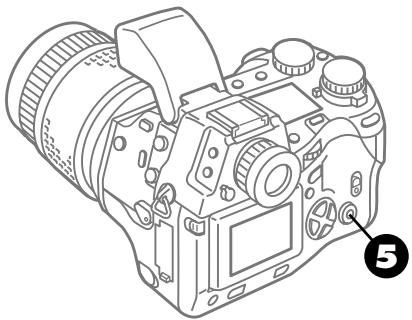
Displayed only when an exposure value other than 0 is selected.
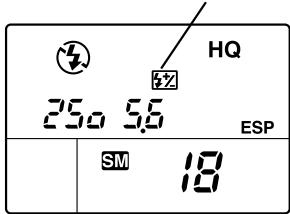
Control panel

Press the OK button.
The green highlight returns to the flash control mark E and the setting is stored. When any value other than zero (0) is selected, the flash control mark +2 is displayed in the control panel. Please remember that this setting is retained even after the camera is switched off and switched on again.
To release this setting, reset the value for zero.
Press the OK button again to close the menu.

Take the picture.
To use the dedicated external flash and built-in flash together
When the dedicated external flash is mounted on the camera, the camera automatically sets the flash for TTL-AUTO. With this setting, the camera can adjust the intensity of the flash fired from the dedicated flash, just as it automatically adjusts the flash intensity for the built-in flash. If you set the dedicated flash for MANUAL, this disables automatic adjustment of the flash intensity only for the dedicated external flash; the intensity of the built-in flash will continue to be controlled by the camera.
Using the Optional Dedicated External Flash FL-40
The dedicated external flash FL-40 increases the amount of light and can illuminate subjects which are beyond the range of the built-in flash. You can also use the dedicated external flash to bounce light onto the subject from another direction, allowing more variety in the use of lighting. The dedicated external flash can be mounted on the hot shoe on top of the camera or mounted on the optional flash bracket attachment. With the dedicated external flash, you can use flash control compensation and select the flash mode, just like you can with the built-in flash. ( 90)
To use only the dedicated external flash
If you want to use only the dedicated external flash, just push down the built-in flash.
To use the dedicated external flash and built-in flash together
With the built-in flash you can also use the dedicated external flash to bounce light onto the subject to create a catch-light effect to light the eyes of the subject more naturally. When the built-in flash and external flash are used together, the built-in flash provides about half of the light emitted from the dedicated external flash. When you use the external flash to bounce light onto a subject, in some cases the intensity of the external flash could be insufficient, even with the range for flash shooting, please remember that you may not be able to achieve the correct exposure.
To set the flash mode for the FL-40
When the dedicated external flash is mounted on the camera, the camera automatically sets the flash for TTL-AUTO, and the intensity of the dedicated external flash can be controlled from the camera. With the mode dial set to M (Manual mode), you can select MANUAL on the dedicated external flash. This allows you to set the guide number on the dedicated external flash, and select the aperture on the camera for taking a picture.
| Shooting Mode | Dedicated External Flash Mode |
| P | TTL-AUTO only |
| A | |
| S | |
| M | TTL-AUTO, MANUAL |
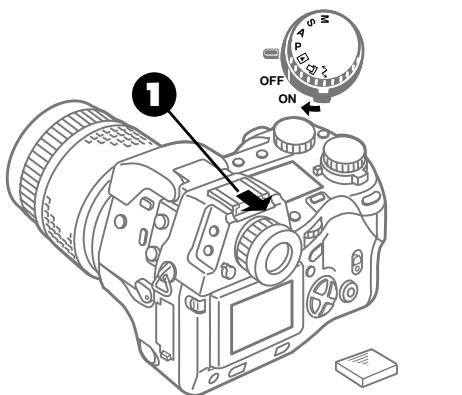
Hot shoe cover
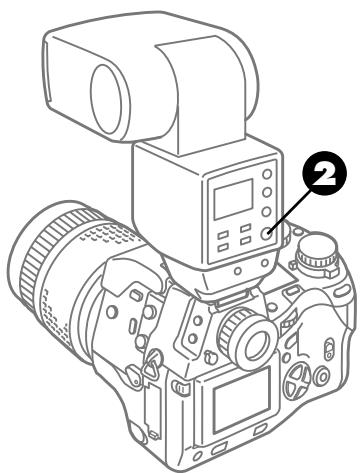
Back of FL-40 dedicated external flash unit
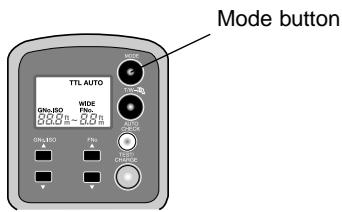
1 Remove the hot shoe cover from the camera and attach the FL-40 external flash unit.
Slide the hot shoe cover toward the back of the camera. Attach the dedicated external flash unit to the hot shoe. For details about attachment, refer to the dedicated external flash FL-40 instructions. Store the hot shoe cover in a safe location where you will not lose it, so you can re-attach it later after removing the external flash unit.
Warning
- The dedicated external flash unit could fire accidentally when it is connected with the camera or dedicated external flash unit switched on.
Switch on the dedicated external flash unit.
If you intend to use the external dedicated flash with the built-in flash, press the flash button to raise the built-in flash. When you do not want to use the built-in flash, just press it down to close it.
Select the flash mode. ( 86)
Take the picture.
Using the flash with close-up photography
Shooting a subject 1.5 meters (approx. 4.9 ft.) from the camera or closer, could cause the pictures to be too bright or cause dark shadows. If you experience these problems with the external flash, adjust flash intensity on the external flash unit, or use only the built-in flash.
Preventing the dedicated external flash from firing
To prevent the dedicated external flash from firing, just switch it off.
Using Other Flash Units with the Camera
An external flash unit not designed for this camera can be connected to either the hot shoe or the synchro socket on the left side of the camera and used, provided that it meets the conditions described below. However, please remember that a generic external flash unit, unlike the dedicated FL-40 flash unit, cannot be used to control the intensity of the flash.
Requirements for other flash units used with this camera
- Use a flash unit with an angle of illumination wider than the range of the camera.
The focal length of this camera is 35mm 140mm (1.3 in.~5.6 in.), calculated based on 35mm film, and requires that the angle of illumination be wider than the focal length used. In order to use the full focal length area, over 35mm is required. In order to bring into use the remaining portion of the illumination area, use an external flash with a wide adapter. - When using full flash, set the flash timing shorter than 5ms.
With a ring flash, or other flash unit with long flash duration, the shutter may close during the flash and part of the light might not be used in the exposure. - Do not attempt to any flash unit (other than the FL-40) which employs electronic flash control between the flash unit and the camera.
Setting a non-dedicated flash unit
- Using auto flash (controlled by the external flash)
The intensity of the flash must be adjusted with the controls on the flash unit. The f/stop and ISO settings on the flash unit must match these settings on the camera. Depending on the shooting conditions, you may not be able to achieve satisfactory exposure. In this case, you will have to adjust the aperture values and ISO settings on both the camera and the external flash unit. Flash control settings performed on the camera are ignored by the flash unit. - If you want to set the guide number on the external flash, calculate the aperture value from the guide number, camera-to-subject distance, and the ISO setting.
Cautions about using external flash units other than the FL-40
Even when is displayed, an external flash not designed for this camera may fire for every shot. If you do not want the flash to fire, switch it off. If the flash continues to fire after the flash is switched off, disconnect the flash from the camera. Further, the intensity of such a flash must be controlled by adjustments on the external flash unit. The results in your pictures could differ, depending on the shooting conditions, type of external flash unit used, and the camera settings. Please understand that we cannot guarantee the performance of the camera and picture quality when a flash unit not designed for this camera is used.
Using a non-dedicated flash unit
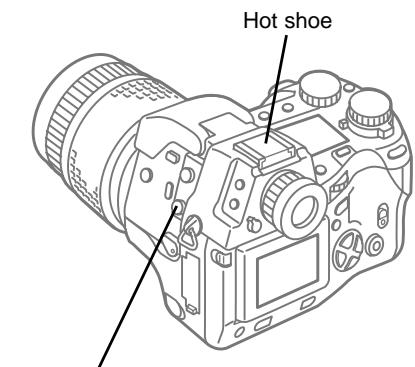
Flash synchro socket
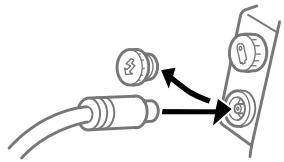
An external flash can be attached to the camera at the hot shoe or at the flash synchro socket.
Set the mode dial to M (Manual mode).
Select the shutter speed and aperture value. Selecting a slow shutter speed increases the possibility of camera shake.
On the flash unit select AUTO, and then set the same aperture and ISO settings selected on the camera.
For some shots you may not be able to achieve the correct exposure. If this occurs, then you can experiment with different aperture and ISO settings on the external flash unit. (In this situation, the flash control mode setting on the camera is disabled.)
Taking Pictures: Color and Quality
In this section we will show you how to set up white balance, select the record mode for images saved on the memory card, and how to use the sharpness, contrast, and histogram options to enhance your captured images.
There can be great differences in the way the camera reproduces color in images taken in natural or artificial light, especially under fluorescent lights. In such cases, you may need to adjust the white balance setting of the camera in order to achieve the best natural color reproduction in pictures taken indoors under incandescent or fluorescent lighting.
You can select a record mode best suited for your purpose. You can select a high quality setting to produce the best quality image possible, resulting in a larger file size but reducing the number of images that you can save on a card. If your aim is to store more images on a card, or to store as many images as possible on a card, you can select a lower quality setting which will compress the images into smaller file sizes, allowing you to store more images on a single card.
You can use the sharpness, contrast, and histogram options to enhance the appearance of your images as they are taken.
CAMEDIA
Achieving Natural Color (White Balance) (WB)
The source of incident light on the subject affects color. For example, the same sheet of white paper held under sunlight may appear tinged with red when held under an incandescent light. Because the human eye adapts to the colors of source light, it perceives the sheet as white in both cases. White balance adjustment attempts to reproduce colors naturally so images are not affected by surrounding light. With a camera that uses film, you could purchase film suited for reproducing color under different light sources and adapt to shooting conditions by using filters. Similarly, with a digital camera you have the option of adjusting the white balance.
There are three ways to adjust white balance with this camera.
Auto white balance
The camera automatically determines the amount of white light and adjusts the color balance. Auto white balancing is sufficient for most conditions, but if there is no near white color in the picture, colors that are not originally white may appear white in the image and the white balance of the image may not be correct. In such a case, use a white surface and quick reference white balance to achieve the correct white balance, or use preset white balance to select a color temperature for the incident light to achieve the correct white balance.
Quick reference white balance
You select an object like a white wall or a piece of white paper to be used as the white base to balance color in your picture before shooting. Just point the camera at a sheet of white paper and press the white balance mode button to set the white base for balancing color in the picture. The setting that you capture is saved as a "preset" white balance setting and recorded in the camera's color temperature selections.
Preset white balance
You select a color temperature setting appropriate for the light source. For example, use preset white balancing when you want to reproduce more red in a picture of a sunset, or capture a warmer artistic effect under artificial lighting. By experimenting with different preset white balancing settings, you can achieve a variety of pleasing color effects in your pictures.
Preset white balance settings and color temperature
The spectral balance of different white light sources is rated numerically by color temperature—a concept of physics that, with incandescent lighting, corresponds roughly to the absolute filament temperature of an incandescent lamp, expressed on the Kelvin (K) temperature scale. The higher the color temperature, the richer the light in bluish and the poorer in reddish; the lower the color temperature, the richer the light in reddish and the poorer in bluish. It follows then that the color temperatures of fluorescent lights are unsuitable artificial light sources. There are gaps in the hues from the color temperatures of fluorescent light. If these differences in hue are small, they can be calculated with color temperature and this is called correlative color temperature. The 4000K and 4500K preset settings in this camera are correlative color temperature, and should not be considered strictly as color temperature values. Use for shooting sessions under fluorescent lights.
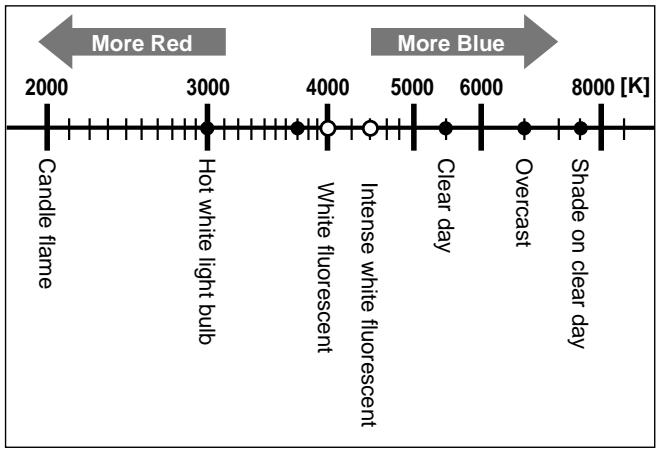
White balance with a flash
We recommend using the auto white balancing with the flash. If you intend to use preset white balancing, select 6500K for the color temperature.
When shooting with the flash, always play back your pictures and check the results. Various conditions can affect color temperature and how color is reproduced in your pictures.
Monitor display
The specified white balance setting is applied to the image displayed in the monitor.
Note
- The scale indicates the approximate color temperature for each light source. (One can only say that actual sunlight is about 5500K, and fluorescent lights about 4000K.)
Using White Balance (WB)
With the camera in the auto white balance mode, the camera automatically registers the whitest part of the subject framed in the viewfinder and uses this as a base to balance other colors in the picture.
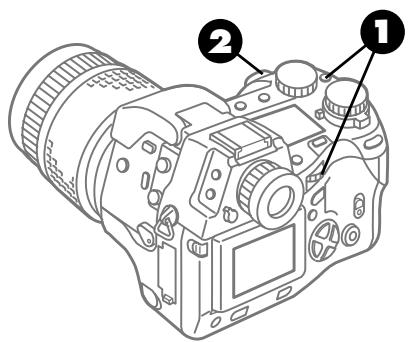
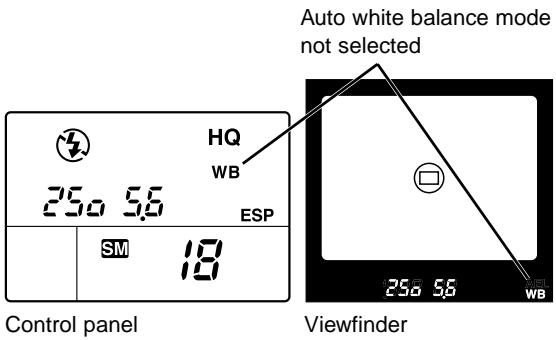
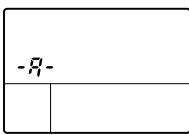
Control panel
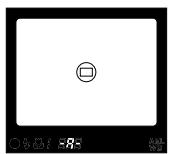
Viewfinder
Monitor

Press and hold down the white balance mode button (WB), and then turn the main dial or sub dial. When you see -A- in the viewfinder and control panel, or AUTO WB in the monitor, stop turning the main dial or sub dial.

Take the picture.
When the white balance button is released
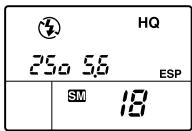
Control panel
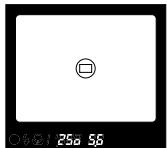
Viewfinder
Using Quick Reference White Balance
Before you take a picture, point the camera at a white sheet of paper or other white surface, and then register and lock the white balance reference at the touch of a button.
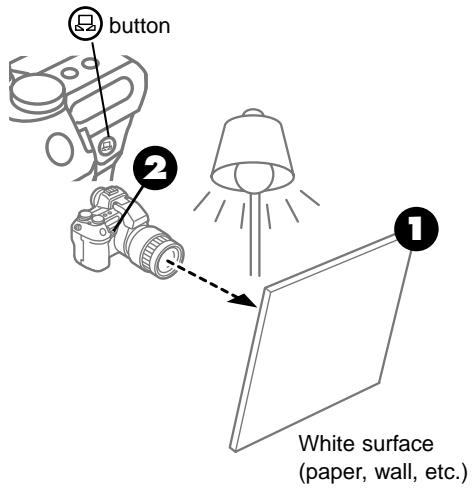
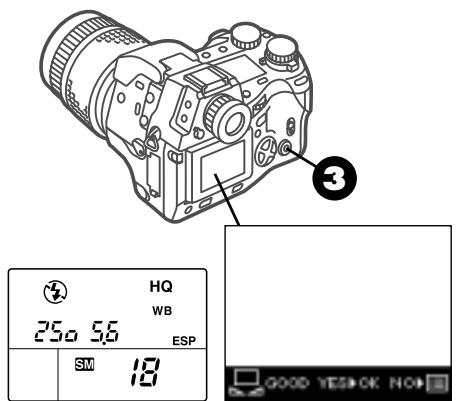
Control panel
Monitor
Under the same light source where you intend to take the picture, point the camera at a flat sheet of paper.
Fill the viewfinder with the white surface. Position the white surface facing the light source to eliminate all shadows.
Press the quick reference white balance button.
If the camera can successfully register the surface of the sheet as white balance reference, you will see GOOD displayed in the monitor with the image of the sheet. If you see NO GOOD, this means not enough white surface was available, the white surface reflected too much light, the surface was too dark, or color around the borders of the sheet interfered with the registration.
Press the OK button if the colors in the monitor appear natural.
After you press the OK button, the white balance reference is registered. If you want to cancel registration, press the menu button or press the monitor button and repeat from step 1.
Point and shoot the picture.
Note
- The white balance setting that you have just captured writes over the previous setting and is saved as one of the preset white balance settings. The new setting is recorded and retained even after the camera is switched off and switched on again.
Using Preset White Balance (WB)
Use preset white balance to select the color temperature (measured on the Kelvin temperature scale "K") for the light source. ( 99)
| Color Temperature | Control Panel Display | Monitor | Display Comment |
| AUTO,-A- | -R- | AUTOWB | The camera selects the whitest portion of the picture framed in the viewfinder. Used for most scenes. |
| 3000K | 3000WB | Select to shoot under incandescent light. | |
| 3700K | 3700WB | Select to shoot under incandescent light to preserve the mood of the lighting. | |
| 4000K | 4000WB | Select to shoot under white fluorescent lighting. | |
| 4500K | 4500WB | Select to shoot in daylight with white fluorescent lighting. | |
| 5500K | 5500WB | Select to shoot outdoors on a clear day, to shoot sunsets in red, or to shoot fireworks displays. | |
| 6500K | 6500WB | Select to shoot outdoors on a cloudy day. | |
| 7500K | 7500WB | Select to shoot outdoors in the shadows on a clear day. | |
| Quick reference white balance default setting: 5500K | -WB | (→101) |
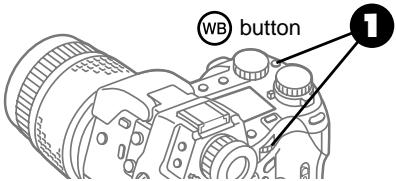
Color "--" displayed for correlative Color temperature color temperature temperature
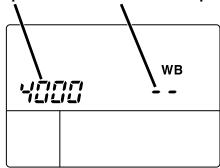
Control panel
Monitor
Displayed for white balance settings other than AUTO
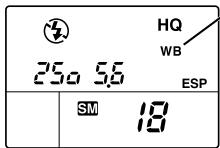
Control panel
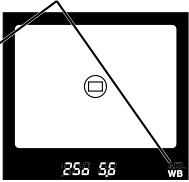
Viewfinder

Press and hold down the white balance mode button (WID), and then turn the main dial or the sub dial.
The setting is displayed in the shutter speed display area of the control panel and viewfinder. The image adjusted with the displayed color temperature appears in the monitor.

When you see the color temperature setting you desire in the control panel or viewfinder, stop turning the dial.
The WB mark appears in the control panel and the viewfinder.

Take the picture.
Selecting Image Quality, Resolution, and Compression ©TIFF SHQ HQ SQ
You can set the record mode which determines the quality of the images of the pictures that you take.
Quality (Record mode)
Four image quality settings are available, and in ascending order of quality, they are: SQ (Standard Quality), HQ (High Quality), SHQ (Super High Quality), and TIFF (Tagged Image File Format). (See Table below.) The higher the quality, the larger the file size, and fewer pictures can be stored on the memory card. The lower the quality, the smaller the file size, and more pictures can be stored on the memory card. ( 34) You can also adjust the resolution and compression settings for each quality setting. ( 104)
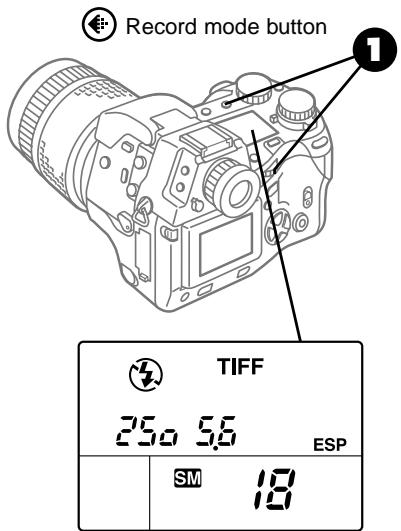
Control panel
Press and hold down the record mode button , and then turn the main dial or sub dial until you see the desired quality setting in the control panel.
| Quality | Resolution | Compression |
| TIFF | 2240 x 1680 pixels | Approx. 1:1 |
| SHQ | 2240 x 1680 pixels | Approx. 1:2.7 |
| HQ | 2240 x 1680 pixels | Approx. 1:8 |
| SQ | 1280 x 960 pixels | Approx. 1:8 |
Quality settings
The abbreviations for the quality settings translate as follows:TIFF (Tagged Image File Format), SHQ (Super High Quality), HQ (High Quality), and SQ (Standard Quality).
Setting resolution and compression
You can change the resolution and compressions settings for each of the four quality settings. The resolution and compression settings for each quality setting can be adjusted within the following ranges.
| Quality | Resolution | Compression |
| TIFF | 2240 x 1680 pixels (FULL) (non-adjustable) | 1:1 (non-compressed) (non-adjustable) |
| SHQ | 2240 x 1680 pixels (FULL) 1600 x 1200 pixels (HALF) | Approx. 1:2.7 |
| HQ | 1280 x 960 pixels (SXGA) | Approx. 1:4 |
| SQ | 1024 x 768 pixels (XGA) | Approx. 1:8 |
| 640 x 480 pixels (VGA) |
Resolution
Images created from pictures taken with a digital camera are composed of vertical and horizontal colored dots called pixels. In the notation 2240 × 1680 , for example, 2240 is the number of horizontal pixels and 1680 is the number of vertical pixels. The greater the number of pixels in an image, the finer the quality and the larger the file size. Please remember that high quality images require more storage space on a memory card, thus reducing the number of images that can be stored on the card. Select as high a resolution as possible if you intend to trim the image, or enlarge the image larger than standard service size for printing.
Compression
The compression rate denotes the amount of JPEG compression. The higher the compression rate, the smaller the file size. However, the higher the compression rate, the more the image could deteriorate. With compression rates below 1:8 the amount of image deterioration is not noticeable, but if you are concerned about image quality then select a smaller compression rate like 1:4 or 1:2.7. The effect of the selected rate of compression could vary with the content of the image. These numbers provide only a general scale for reference and are not precise measurements.
The table below describes the relationship between resolution, compression and approximate file size.
| Compression Resolution | 1:1 | 1:2.7 | 1:4 | 1:8 |
| 2240 x 1680 | 11.3MB* | 2.8MB | 2MB | 1MB |
| 1600 x 1200 | - | 1.5MB | 1MB | 510KB |
| 1280 x 960 (SXGA) | - | 940KB | 650KB | 340KB |
| 1024 x 768 (XGA) | - | 610KB | 420KB | 230KB |
| 640 x 480 (VGA) | - | 260KB | 180KB | 110KB |
- All MB/KB file sizes are approximate estimations.
Note
- Less time is required to store smaller files on a memory card, with the exception of the 640 × 480 (VGA) selection which could require more time for compression as the file is saved.
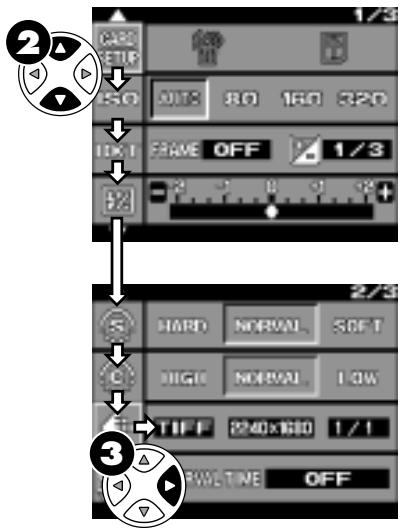
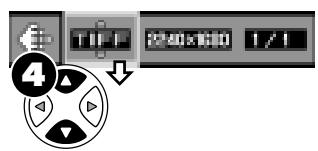
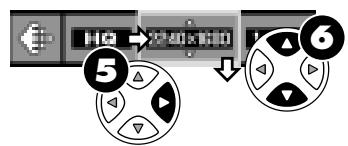
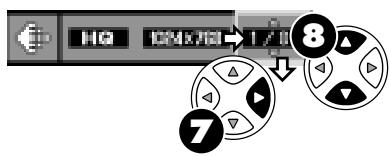
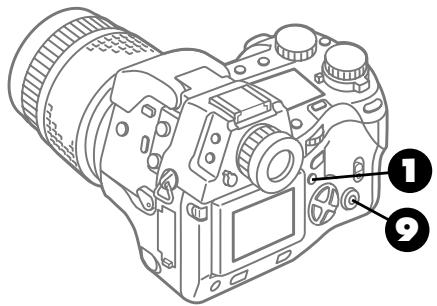
Press the menu button.
The menu opens in the monitor.
On the arrow pad, press or to move the green highlight to the quality mark.
On the arrow pad, press to move the green highlight to the quality name.
On the arrow pad, press or until you see the name of the desired quality setting displayed.
On the arrow pad, press to move the green highlight to the resolution.
On the arrow pad, press or to select the desired resolution setting.
On the arrow pad, press to move the green highlight to the compression setting.
If you do not want to change the compression setting, go to Step 9.
On the arrow pad, press or to select the compression setting.
Press the OK button to select the setting.
The green highlight returns to the quality mark. Press OK button again to close the menu.
Selecting Sharpness

Three settings are available for adjusting sharpness: HARD, NORMAL, and SOFT. HARD sharpens the contrast at color borders to maximize the clarity of the image.
NORMAL
Enabled when you purchase the camera. Defines borders to achieve best focus for printing the image.
HARD
Greatly enhances and sharpens borders.
SOFT
Softens borders slightly and is ideal for images that you intend to process with a computer graphics software application.
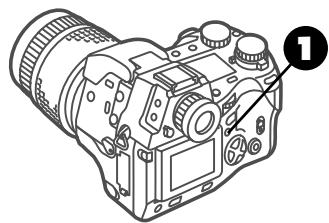
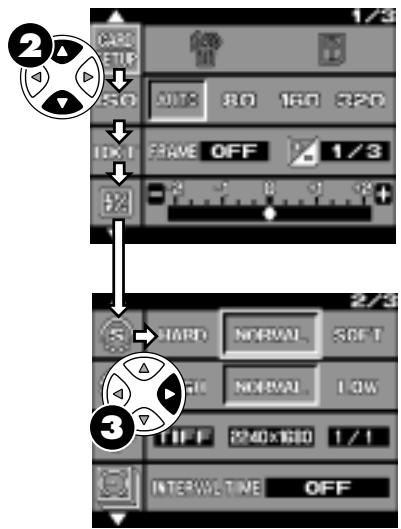
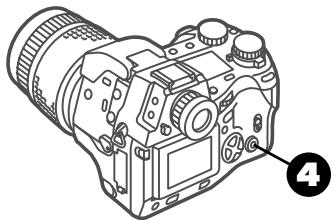

Press the menu button 念
The menu opens in the monitor.

On the arrow pad, press or to move the green highlight to the sharp option mark.

On the arrow pad, press to move the green highlight to HARD, NORMAL, or SOFT.
The mark is displayed in the control panel when a setting other than NORMAL is selected.

Press the OK button to select the setting.
The green highlight returns to the sharp option mark.
Press OK button again to close the menu.
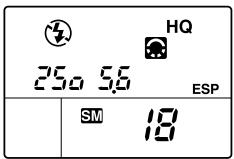
Control panel
Note
- Selecting HARD could cause the image to appear rough.
Selecting the Contrast

The contrast option allows you to adjust the amount of gradation between areas of different brightness in the image. Three settings are available: HIGH, NORMAL, and LOW.
HIGH
Creates a starkly contrasted image. Light areas may wash out white and darker areas may turn black, creating a reverse film (slide film) effect. (However, bright areas could easily wash out or dark areas turn black.)
NORMAL
Achieves medium gradation for a natural appearance. Best selection for most pictures.
LOW
Achieves low contrast, ideal for images that you intend to process with a graphics software application on a computer.
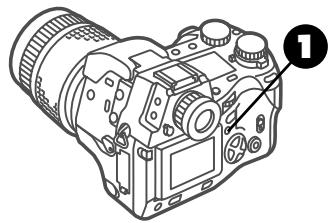
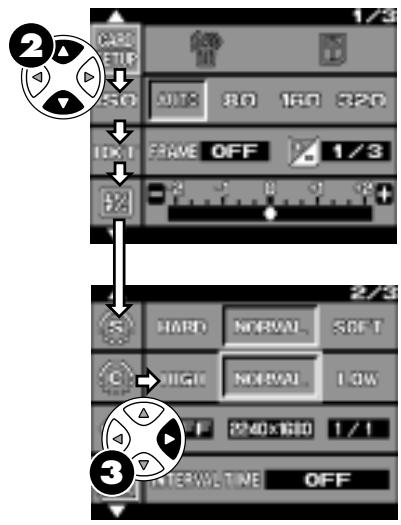
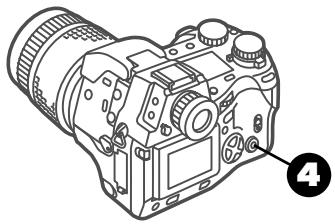

Press the menu button 電
The menu opens in the monitor.

On the arrow pad, press or to move the green highlight to the contrast mark .

On the arrow pad, press to move the green highlight to HIGH, NORMAL, or LOW.
The mark is displayed in the control panel when a setting other than NORMAL is selected.

Press the OK button to select the setting.
The green highlight returns to the contrast mark. Press OK button again to close the menu.
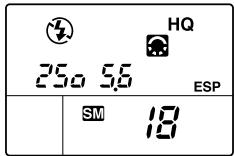
Control panel
Displaying the Histogram

A histogram can display the distribution of brightness of the image displayed for playback. The histogram feature is switched on with a menu selection.
Switching the histogram display on and off
Follow this procedure to switch the histogram display on or off.
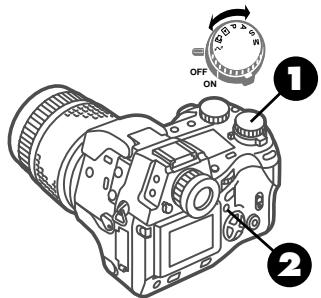
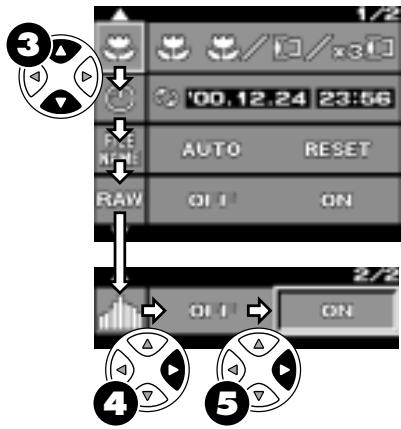
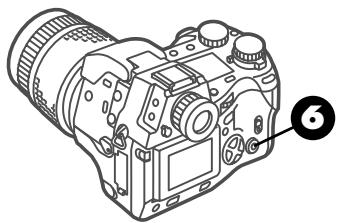
1 Set the mode dial to the setup/ connection mode mark
Press the menu button.
The menu opens in the monitor.
On the arrow pad, press or to move the green highlight to the histogram mark.
On the arrow pad, press to move the green highlight to the right.
On the arrow pad, press to move the green highlight to ON.
If you want to switch off the histogram, just leave OFF selected.
Press the OK button to select the setting.
The green highlight returns to the histogram mark
Press OK button again to close the menu.
Note
- If the camera is connected to a computer with a USB cable, the menu is not displayed.
Disconnect the USB cable from the camera.
To display the histogram during playback
During playback you can display a histogram, a bar graph which illustrates the brightness of the displayed image so you can determine how to adjust exposure compensation. The horizontal axis of the histogram represents the brightness of the image, on a scale of 0~255 (reading from left to right), and the vertical axis measures the number of pixels for each bar. If the graph shows brightness heavily weighted on the right side of the scale (portions of the image could wash out), set exposure compensation to a minus value for a darker image. If darkness is heavily weighted on the left side of the scale (portions of the image could turn black), set exposure compensation to positive value for a brighter image.
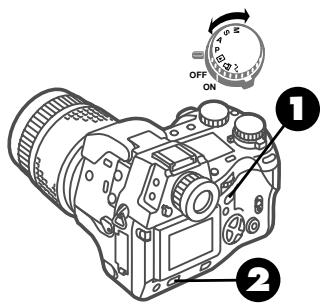
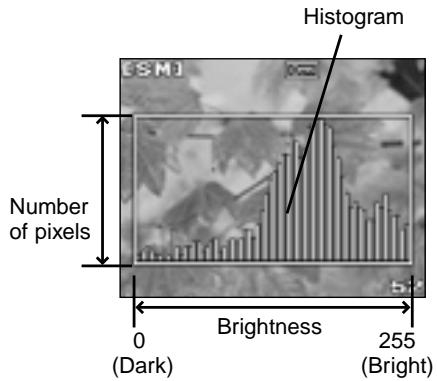
1 Set the mode dial to the playback mode.
The image of the most recent picture and the histogram are displayed in the monitor. If the histogram option is switched off in the menu, the histogram does not appear. With the mode dial set to P, A, S, or M, you can also enter the playback mode by rapidly pressing the monitor button twice.
Press the INFO button (INFO) repeatedly to switch the histogram off and on.
The histogram cannot be displayed with the image information. Continuously pressing the INFO button alternately switches the histogram display on and off.
To adjust exposure compensation while viewing the histogram
The exposure (exposure compensation, aperture, shutter speed) cannot be adjusted with the camera in the playback mode.
- With the mode dial set to P , A , S , or M , press the monitor button to set the camera in the shooting mode. With the camera in the shooting mode, you can adjust exposure compensation, aperture, and shutter speed.
- If the mode dial is set to playback · , reset it to P, A, S, or M.
Note
- The histogram cannot be displayed during the index display or for an image as it is stored immediately after it is taken. Please note that the histogram for an enlarged image illustrates the brightness of the entire image, not of the currently displayed part.
Taking Pictures: Special Features
In this section we will describe some other important camera features.
- Taking multiple exposures. With one press on the shutter button, you can shoot up to 4 rapid exposures in the sequential mode.
- Self-timer. In order to delay the shutter release, you can set the self-timer so the camera fires 12 seconds after pressing the shutter button so you can include yourself in the picture.
- Remote shutter release. You can use the electronic remote unit RM-1 to release the shutter from in front of the camera, or use the remote cable RM-CB1 attached to the camera to release the shutter without manually pressing the shutter release and avoid camera shake during a slow shutter release.
- Time-lapse photography. With the camera in the time-lapse mode, you can set the camera to take pictures at any specified interval from 1 minute up to 24 hours in units of 1 minute.
- Memory card selection. With a SmartMedia and CompactFlash card installed in the camera, you can select either card for storing images. After one card fills up, just select the other card so you can continue shooting.
- Shutter release sound. You can set the camera to emit a sound at shutter release, or switch this feature off.
- Warning beep. You can set the camera to emit a beep to alert you that a task has been completed (autofocus, exposure compensation lock, etc.) or you can switch this feature off.
CAMEDIA
- Image display time. You can set the amount of time each picture is displayed on the monitor while it is being saved on the memory card.
- Setting the date and time. You can set the current date and time for images taken.
- Sleep mode. You can set the amount of time the camera remains idle before it powers down and enters the sleep mode. If the camera remains in the sleep mode for over one hour, it will power itself off automatically. These features are designed to conserve battery power.
- Reset. With a simple procedure, you can restore most camera settings to their factory default settings. (The defaults are the camera settings in effect when you purchased the camera.)
- RAW mode. Stores images on the card as raw data which is neither compressed nor enhanced by any camera feature such as sharpness, contrast, etc.
- Conversion lens setting. Shows you how to set up camera operation with an optional conversion lens mounted over the camera lens. For details about optional conversion lenses available for this camera, see Appendix 2: Available Options.
Taking Multiple Exposures
With the camera in the sequential mode, press and hold down the shutter button to take four rapid shots.
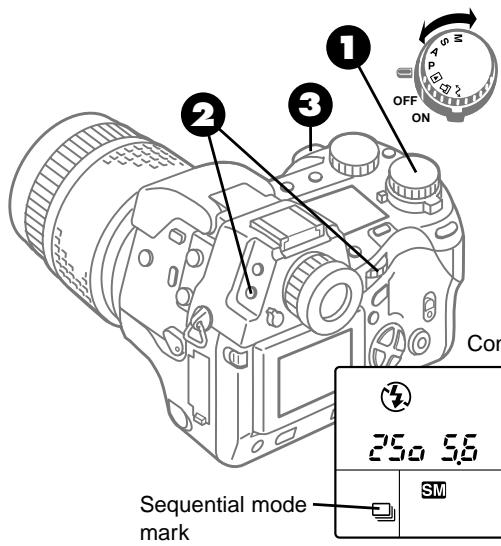
1 Set the mode dial to P A,S,or M.
Press and hold down the drive button 1[3]2 , and then turn the main dial or sub dial until you see the sequential mode mark appear in the control panel.
Take the picture.
The camera will continue to shoot exposures as long as you hold down the shutter button. The camera will stop shooting if you lift your finger from the shutter button. The number of multiple exposures is displayed in the control panel.
Number of storable pictures
Number of multiple exposures (Gauge shows 3 exposures)
Camera will not shoot after pressing shutter button?
4 blinking in the viewfinder?
If this mark is blinking, the built-in flash is charging. Wait for the mark to stop flashing. After the flash is charged, the flash mark will light and remain on.
and number of storable pictures blinking?
If the card error and the number of storable pictures is blinking, this means the memory card is full. Replace the full card with another card, or delete pictures from the full card that are no longer needed.
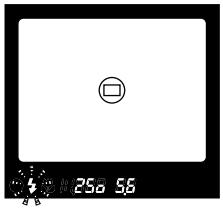
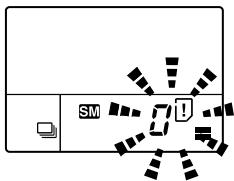
Using the Self-Timer
With the self-timer set, the shutter release will be delayed for 12 seconds after you press the shutter button.
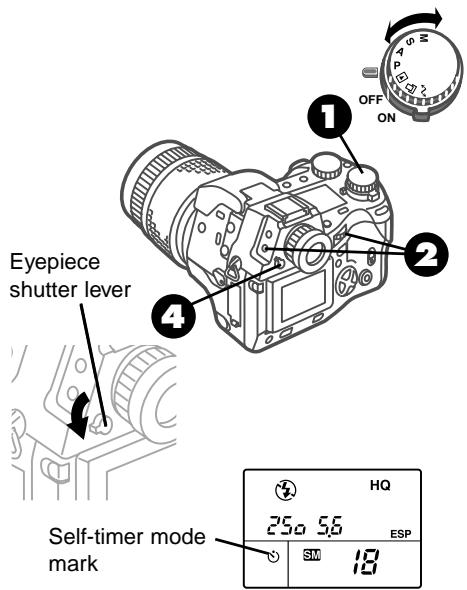
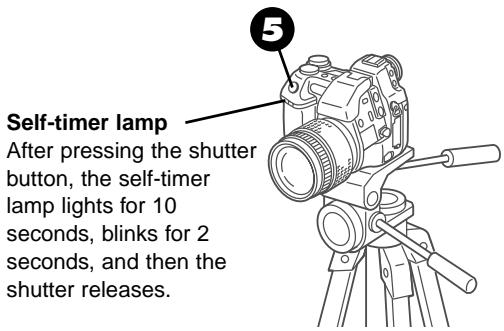
1 Set the mode dial to P,A,S, or M.
Press and hold down the drive button 12 , and then turn the main dial or the sub dial until you see the self-timer mark appear in the control panel.
Attach the camera securely to a tripod, adjust the focus, and compose the picture in the viewfinder.
Half-press the shutter button to focus the shot. If the subject is not yet composed in the center of the viewfinder, you can use focus lock. ( 65)
Pull down the eyepiece shutter lever to prevent light entering the viewfinder from behind the camera.
Pull down the eyepiece shutter lever on the left of the viewfinder.
Light entering the viewfinder from behind the camera could wash out the picture with white light.
5 Full-press the shutter button.
The remote control receiver/self-timer lamp on the front of the camera lights for 10 seconds, blinks for 2 seconds, and then the shutter releases.
After you take the picture, the camera remains in the self-timer mode. To release the camera from the self-timer mode, switch the camera off and switch it on again.
To cancel self-timer mode
If you want to cancel the shot, press the drive button before the shutter releases. If you want to cancel the self-timer mode, select any mark other than the self-timer mark, or just switch the camera off and on again.
Note
- Remember that the camera performs autofocusing when you press the shutter button, so to avoid ruining the focus of the picture never stand in front of the camera when you half-press and then full-press the shutter button.
Using the Camera Remote Unit RM-1
With the camera in the remote mode, you can release the shutter with the electronic remote unit RM-1 while standing in front of the camera. The shutter will release 2 seconds after pressing the transmit button on the remote unit.
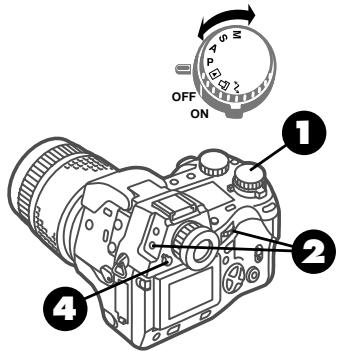
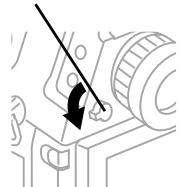
Eyepiece shutter lever
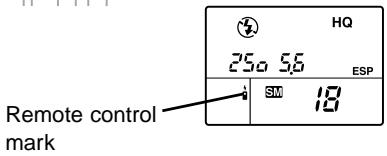
1 Set the mode dial to P, A, S, or M.
Press and hold down the drive button 1DRIVE and then turn the main dial or the sub dial until you see the remote control mark appear in the control panel.
Mount the camera on a tripod and compose the picture.
If the subject is not yet composed in the center of the viewfinder, you can use focus lock. ( 65) If you are going to include yourself in the picture, focus on the area where you intend to appear in the picture.
Pull down the eyepiece shutter lever to prevent light entering the viewfinder from behind the camera.
Pull down the eyepiece shutter lever on the left of the viewfinder.
Light entering the viewfinder from behind the camera could wash out the picture with white light.
Working range of the remote unit
Use the remote in front of the camera within the range of distances and angles shown below. The following elements could narrow the working range of the remote/self-timer sensor: direct sunlight or any other strong light source, fluorescent light, or any device emitting electrical or radio waves.
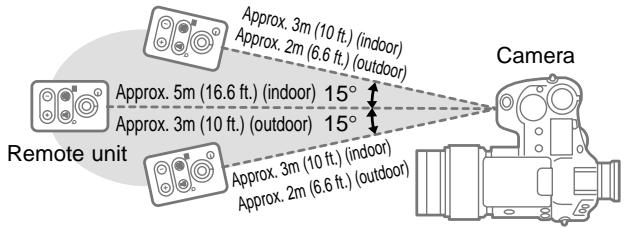
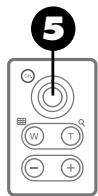
Remote control receiver/self-timer lamp
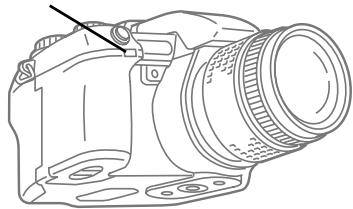
Point the remote unit at the front of the camera and press the transmit button on the remote unit.
The remote control receiver on the front of the camera blinks for 2 seconds and then the shutter releases.
To take more pictures, just press the transmit button on the remote unit.
After pressing remote transmit button shutter did not release?
- Remote batteries low?
The remote batteries have a service life of about 5 years, although this could be shorter depending on how and where the remote is used. - Are you using the remote within its working range?
- Is strong light striking the remote control receiver/self-timer lamp on the front of the camera?
- Remote channel correct?
For details, refer to the remote unit instructions.
To take a picture with the shutter button
You can take a picture by pressing the shutter button even with the remote control mark displayed in the control panel.
Remote mode focusing
There may be occasions when you need know whether or not the shutter has released with the remote under bright light conditions. In such a case, raise the built-in flash, select fill-in flash for the flash control setting, and fire the flash to take the picture.
To cancel remote mode
Press and hold down the driver button 12 and then turn the main dial or sub dial to switch off the remote control mark by selecting any other setting. You can also cancel the remote control mode by just switching the camera off and on again.
Warning
Store the remote unit in a safe location away from small children. If a child accidentally swallows the remote unit, seek medial assistance immediately. Never attempt to disassemble the remote, subject it to heat, or attempt to incinerate it.
Using the Remote Cable RM-CB1 (Optional)
When you are shooting in the macro, TELE, or bulb mode with a slow shutter speed, you can mount the camera on a tripod and use the optional Remote Cable RM-CB1 to prevent camera shake caused by pressing the shutter button with your finger. The remote cable is connected to the remote cable jack on the camera. You can also half-press the shutter button and lock the exposure and then release the shutter button with the remote cable, or execute a slow shutter release in the bulb mode.
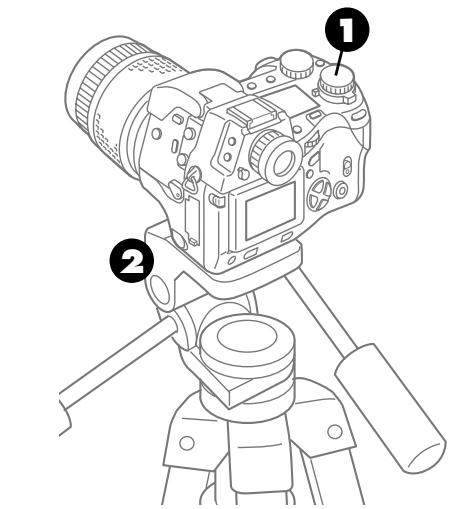
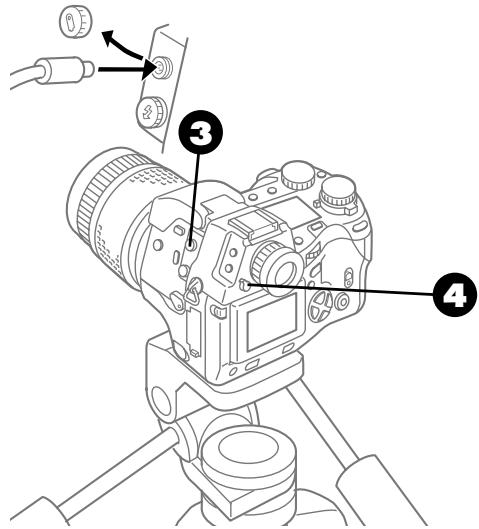
1 Set the mode dial to P, A, S, or M.
Attach the camera securely to a tripod and compose the picture in the viewfinder.
Remove the cap from the remote cable jack on the camera, and then insert the jack of the remote cable into the camera.
Keep the cap in a safe place where you can find it. The remote cable is equipped with a small screw so you can attach the cap to the cable.
4 If you are not going to use the viewfinder to take the picture, pull down the eyepiece shutter lever to prevent light entering the viewfinder from behind the camera.
Light entering the viewfinder from behind the camera could wash out the picture with white light.
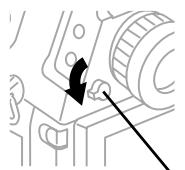
Eyepiece shutter lever
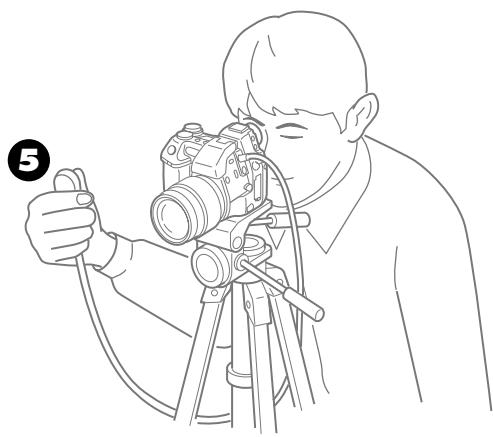
To take the picture, press the shutter button at the end of the remote cable.
Even with the remote cable connected to the camera you can still release the shutter by pressing the shutter button.
Note
- The remote cable jack on the camera can only be used with the Remote Cable RM-CB1.
Using Time-Lapse Photography

You can use the menu to switch on the time lapse mode and select the timer interval between automatic exposures. For example, if you set the time interval for 5 minutes, you can capture each stage of a flower opening in the morning. You can set the time interval in minutes for the shooting session within the range 1 minute up to 24 hours. The actual time between shots may differ slightly from the time interval setting. (See "Actual time interval" on page 120.) The camera will continue to take pictures in the time lapse mode until the batteries discharge or until the memory card fills up. To cancel time lapse photography, just switch the camera off and on.
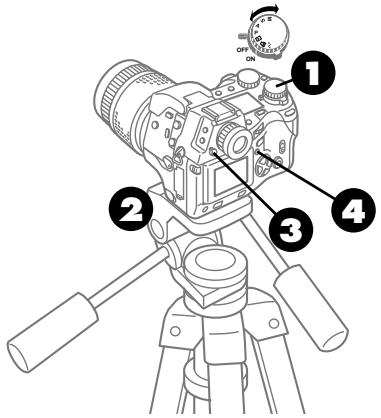
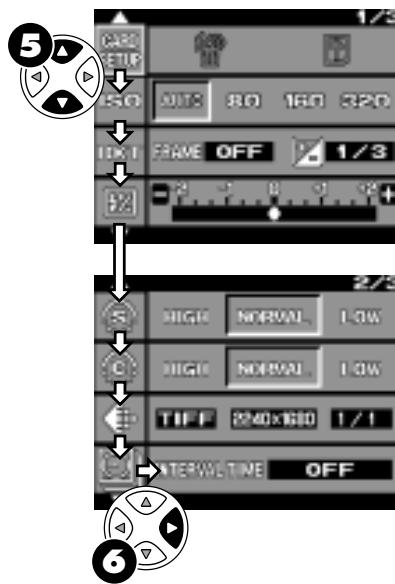
1 Set the mode dial to P,A,S, or M.
2 Attach the camera securely to a tripod, and then compose the picture in the viewfinder.
Open the built-in flash, set the zoom, set up the exposure compensation, adjust the focus or any other features required for the pictures that you want to take.
Pull down the eyepiece shutter lever to prevent light entering the viewfinder from behind the camera.
4 Press the menu button 日
The menu opens in the monitor.
On the arrow pad, press or to move the green highlight to the time interval mark
On the arrow pad, press move the green highlight to the right.
The previously selected time interval is displayed.
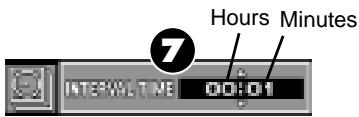
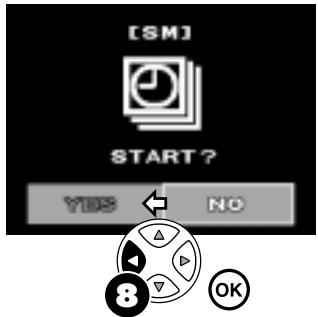
Time-lapse photography mode display
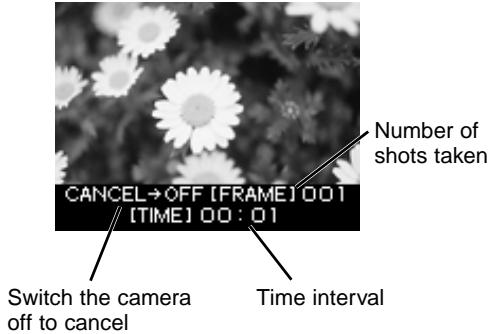
Select the hour or minute setting that you want to change, and then press or to raise or lower the number.
Hours
With the setting you want displayed, press the OK button to shift to the Minutes setting.
- Minutes
With the setting you want displayed, press the OK button.
You will be prompted to start time lapse photography (YES/NO).
On the arrow pad, press to move the green highlight to YES and then press the OK button.
The camera starts taking pictures at the selected time interval. The time interval setting and the number of shots taken are displayed in the monitor for about 5 seconds. Before the next picture is taken, the camera enters the sleep mode and all the displays are switched off to conserve battery power. To cancel at any time, switch the camera off.
Actual time interval
The time interval set in the menu is the time when the next picture will be taken after the camera enters the sleep mode, so there is some additional time lapse until the camera enters the sleep mode before the time interval actually takes effect. The actual time is calculated with the following operation times:
- Exposure time (determined by the shutter speed)
- Time required to save the picture on the card (determined by the record mode. A few ~ some ten seconds)
- Time to display the time lapse information (about 5 seconds)
- Time to recharge the flash (when flash is used. About 7 seconds)
(The time interval between first shot and the second shot is significantly longer. However, after the second shot, the length of the time intervals conform with the description above.)
Viewing pictures during time lapse photography
If you need to view pictures taken in the time lapse mode, release the camera from the time lapse mode temporarily.
Note
- Changing a setting while the camera is in the time lapse mode could release the camera from the time lapse mode, and some settings cannot be changed with the camera in the time lapse mode. (If you need to change a setting, temporarily release the camera from the time lapse mode.)
- Time-lapse operation stops if batteries go dead. We recommend that you connect the optional AC adapter or use the optional lithium polymer battery during time-lapse sessions.
- Set up the camera indoors where it will not be exposed to direct sunlight for a long period, and use a tripod to fix it in position. If the camera is exposed to direct sunlight for a long period, the light striking the lens could damage the internal CCD.
- Avoid setting up the camera to shoot for 24 hours or so under adverse conditions.
- Keep in mind that the CCD may be damaged if the sun moves into a position where it shines directly into the lens for a long time. If you are setting up a lengthy outdoor time-lapse sequence, be very sure that you position the camera so that the sun will not enter the scene.
- Setting up a long shooting session with short time intervals between shots could cause the flash unit to deteriorate, and such damage to the camera may not be covered by the warranty, so use the camera carefully.
Selecting a Card for Storing Pictures SM CF
The pictures that you take are stored on the selected memory card. The SM (SmartMedia) or CF (CompactFlash) mark tells you which card is currently selected for storing images. The SM mark selects the SmartMedia card and the CF mark selects the CompactFlash card. You can easily select either card for storing images.
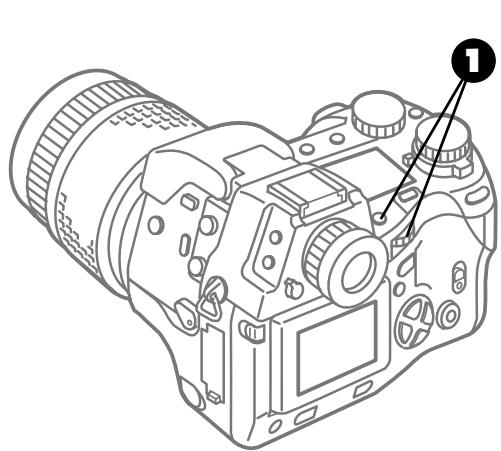
Press and hold down the SM/CF memory card button, and then slowly turn the main dial or sub dial to switch the display alternately between the SM or CF mark in the control panel.
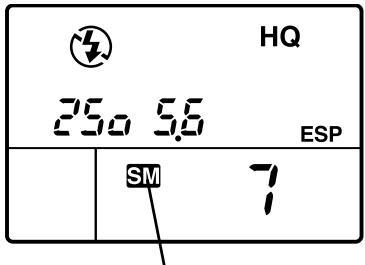
Control panel
SmartMedia card
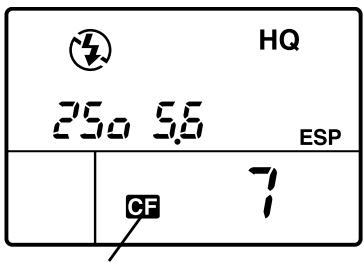
CompactFlash card
When you switch the camera on
The card where the last picture was stored is automatically selected. If only one card is installed in the camera (either the SmartMedia or CompactFlash card), then the installed card is selected automatically.
blinking in the control panel?
The selected card is not present. Insert the card.
Selecting the Shutter Sound Type and Volume
You can use the menu to select the type and volume of the sound emitted by the camera when the shutter is released, or you can switch off the sound. For the sound type, you can select the camera or camera mark. You can also adjust the volume between two levels, or shut the sound off.
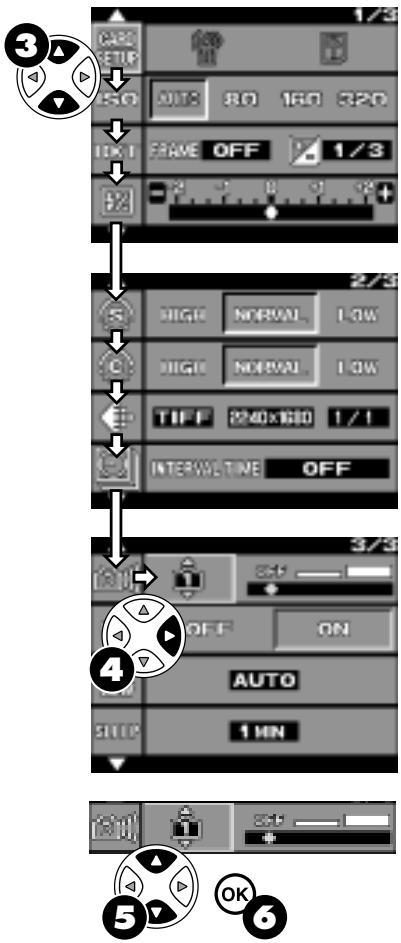
1 Set the mode dial to P, A, S, or M.
Press the menu button.
The menu opens in the monitor.
On the arrow pad, press or to move the green highlight to the shutter sound mark
On the arrow pad, press to move the green highlight to the right.
On the arrow pad, press to select the camera mark or
Press the OK button to select the setting.
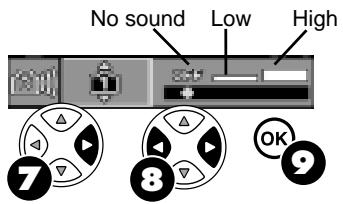
On the arrow pad, press to move the green highlight to the volume setting bar.
On the arrow pad, press or to select the desired setting.
Press the OK button.
The type and volume of the sound are selected and the green highlight returns to the shutter sound mark
Press the OK button again to close the menu.
Note
- The shutter sound tells the subject to pose for the next shot, or tells you when the shutter has released if you are using the remote unit or the remote cable to release the shutter.
Setting the Warning Sound

The camera issues beeps to let you know that it has focused your shot and to alert you to various other conditions. If you do not wish to hear these beeps, you can use the following procedure to switch the beep function off.
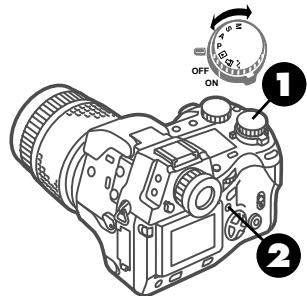
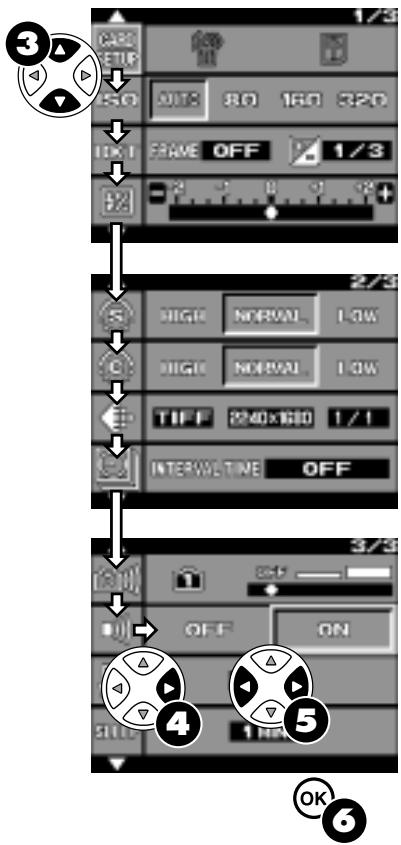
1 Set the mode dial to P, A, S, or M.
Press the menu button.
The menu opens in the monitor.
On the arrow pad, press or to move the green highlight to the camera beep mark.
On the arrow pad, press to move the green highlight to the right.
On the arrow pad, press or to move the green highlight to ON (or OFF) to switch the warning sound on (or off).
Press the OK button to select the setting.
The green highlight returns to the camera beep mark
Press OK button again to close the menu.
Setting the Rec View Time

You can set the length of time that the picture is displayed on the monitor immediately after it is taken. Three settings are available for viewing the shot immediately after it is taken.
| OFF | Previous shot is not displayed. |
| AUTO | Previous shot is displayed for as long as it takes for the image to be stored on the memory card. |
| 5sec | Previous shot is displayed for 5 seconds. |
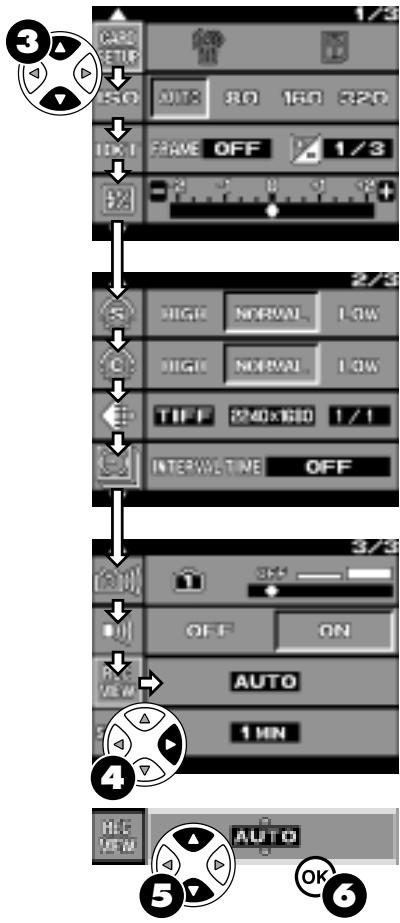
1 Set the mode dial to P,A,S, or M.
Press the menu button.
The menu opens in the monitor.
On the arrow pad, press or to move the green highlight to the rec view mark
On the arrow pad, press to move the highlight to the right.
On the arrow pad, press or to select the desired setting.
Press the OK button to select the setting.
The green highlight returns to the rec view mark. Press OK button again to close the menu.
Setting the Date and Time

Follow this procedure to set the camera clock. When you take a picture, the current date and time are recorded with the image.
You can select one of the following date formats.
| -Y-M-D | Year, Month, Day |
| -M-D-Y | Month, Day, Year |
| -D-M-Y | Day, Month, Year |
If you set to print the date with print reserve selection, the image will be printed with the date format selected here.
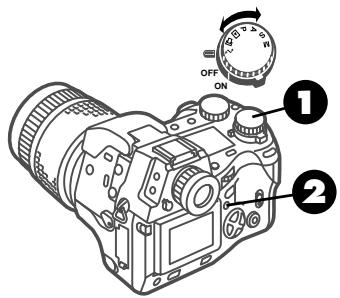
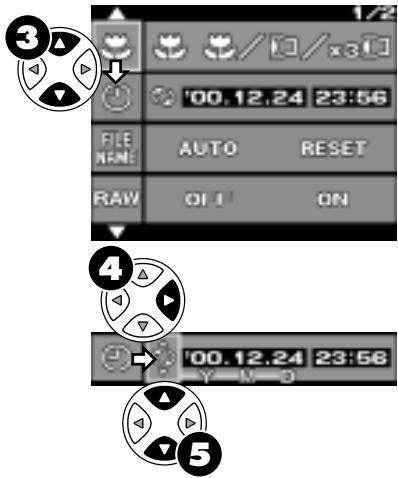
1 Set the mode dial to the setup/ connection mode
Press the menu button.
The menu opens in the monitor.
On the arrow pad, press or to move the green highlight to the date and time setting mark
On the arrow pad, press to move the green highlight to the mark.
Below the date, the date format, -Y-M-D for example, where Y, M, D stand for the Year, Month, Day, is displayed.
Press or to display the date format that you want to set.
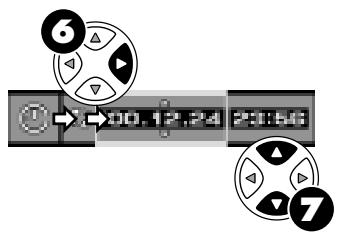
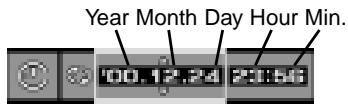
On the arrow pad press to move the green highlight to the date display.
Two pointers appear above and below the first setting.
7 Set the year, month, day, hours, and minutes with 2-digit numbers.
On the arrow pad, press or to increase or decrease the number, and then press the OK button with the desired number displayed. The pointers move to the next position. When you press OK with the two pointers on the Minute setting, the date format, date, and time are set and the green highlight moves to the date and time setting mark
If you want to cancel setting the date and time, press the menu button 電
Press the OK button again to close the menu.
Note
- When the image is processed with a graphic software application on a computer, the information of image that contains the date setting is erased, and when you save the image after processing, you must be careful not to write over files of the same name. However, if you use CAMEDIA Master 2.5, this information is not lost after you save the image.
Setting the Idle Time for the Sleep Mode

When the camera is set in the P, A, S, or M shooting mode, if it remains idle for a specified length of time, it will enter the sleep mode automatically and switch off the monitor, control panel, and viewfinder displays to conserve the batteries. To restore the camera to full operation, just half-press the shutter button or any other button. If the camera remains idle in the sleep mode for 1 hour, then the camera will switch itself off. If the camera remains idle with the mode dial set to Playback or Print Reserve, the camera will switch itself off after a specified length of time has elapsed.
| Shooting Mode (P, A, S, M) | Playback▶, Print Reserve Mode | Setup/ Connection Mode | |
| OFF | Camera never enters sleep mode. Camera neither enters sleep mode, nor switches itself off. | Camera neither enters sleep mode, nor switches itself off. | |
| 1MIN | Camera enters sleep mode if it remains idle for 1 minute. | Power switches off after 1 minute. | |
| 2MIN | Camera enters sleep mode if it remains idle for 2 minutes. | Power switches off after 2 minutes. | |
| 5MIN | Camera enters sleep mode if it remains idle for 5 minutes. | Power switches off after 5 minutes. | |
| 10MIN | Camera enters sleep mode if it remains idle for 10 minutes. | Power switches off after 10 minutes. | |
Once the camera has switched itself off, you must switch it off and on again to restore full operation.
Note
- After the camera enters the sleep mode, monitor and control panel go off. If the mode dial is set to setup/connection mode mark or with the AC adapter connected, the camera will ignore the sleep mode setting and not switch itself off, regardless of how long it remains idle.

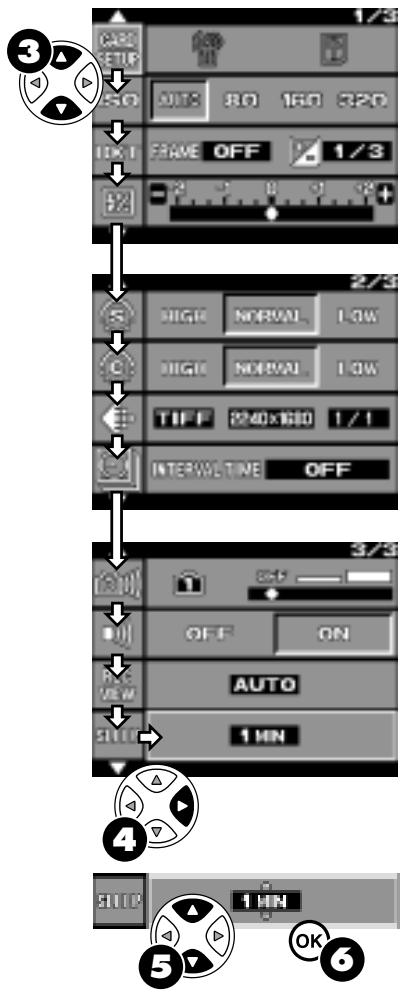
1 Set the mode dial to P, A, S, or M.
Press the menu button.
The menu opens in the monitor.
On the arrow pad, press or to move the green highlight to the sleep mode mark.
On the arrow pad, press to move the highlight to the right.
On the arrow pad, press or to select the desired setting.
Select OFF, 1MIN, 2MIN, 5MIN, or 10MIN.
Press the OK button to select the setting.
The green highlight returns to the sleep mode mark
Press OK button again to close the menu.
Restoring All Default Settings ⑤ + 4
Pressing and holding down the flash mode and record mode buttons together releases selected settings and restores their factory default settings.
This procedure restores the following factory default settings.
| Drive mode | Single-frame mode (not ☐ , ☑ , ’) |
| Metering mode | Digital ESP |
| White balance mode | Auto |
| Exposure compensation | ±0 |
| Flash mode | Auto |
| Record mode | HQ |
| Monitor menu settings | See page 173. |
Resetting the camera has no effect on the following settings:
- Battery selection
Memory card selection
Time/date and date format setting - Zoom
Mode dial selection - Focusing mode (AF/MF)
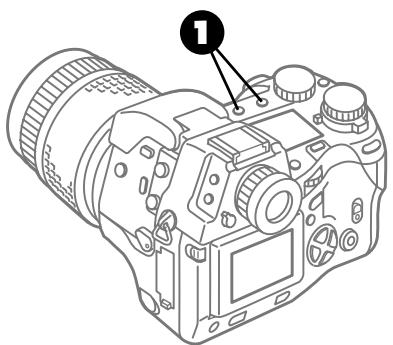

Press and hold down the flash mode 串 and record mode 串 buttons together.
The camera settings are restored to their factory default settings.
RAW Data Mode

The RAW data mode records images as 10bit/channel data from the CCD. RAW data files are automatically assigned a file extension, a period and three letters (.orf) after the file name. This RAW data mode is intended primarily for images to be processed later with CAMEDIA Master 2.5.
CAMEDIA Master 2.5 restores RAW data images to displayable form using the same type of processing that the camera uses.
The size of each file will be approximately 7.6MB.
Note
- Pictures taken in the RAW mode are stored without compression, resulting in extremely large file sizes which limit the number of images that can be stored on a memory card.
- After the camera is set in the RAW data mode, it will remain in this mode even after the camera is switched off and on again. When you no longer intend to store images as RAW data, you must use the menu to switch this feature off.
- When taking pictures in the RAW data mode, a compressed image is displayed as a thumbnail in the monitor. If you have no special reason for using the RAW data mode, then switch it off.
- If you have taken pictures in RAW data mode by mistake, you can view the images using CAMEDIA Master 2.5.
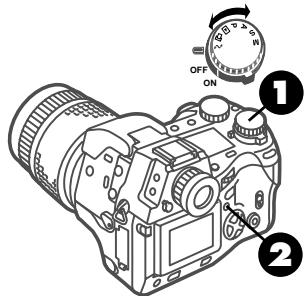
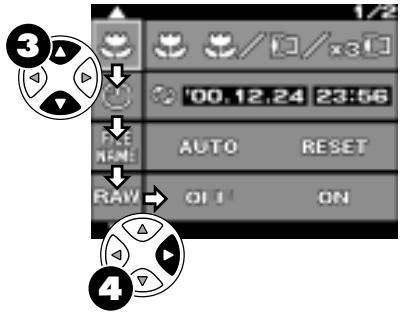
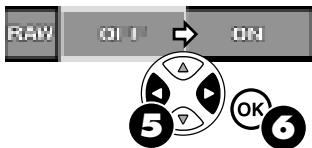
The TIFF mark blinks after you select RAW for shooting and storing images.
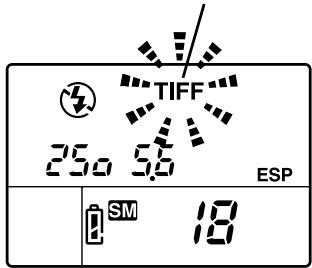
1 Set the mode dial to the setup/ connection mode
Press the menu button.
The menu opens in the monitor.
On the arrow pad, press or to move the green highlight to the RAW mark
On the arrow pad, press to move the green highlight to the right.
On the arrow pad, press to move the green highlight to ON.
If you want to switch the RAW data mode off, select OFF.
Press the OK button to select the setting.
The green highlight returns to the RAW mark. You will see TIFF blinking in the control panel. Press OK button again to close the menu.
7 Set the mode dial to P, A, S, or M and take the picture.
Using an Optional Conversion Lens
The conversion lenses listed below can be attached to this camera. When you use a conversion lens, set the zoom setting (TELE or WIDE) on the camera and make sure that the mark is displayed in the control panel. With the mark displayed, the camera can use the correct methods to set the focus and exposure for the conversion lens. If you attempt to use a conversion lens with the camera without the mark displayed, the camera may not be able to set the correct focus and exposure.
The following conversion lenses can be used with this camera.
| Conversion Lens | Zoom Setting | Control Panel Display | |
| Type | Attachment Method | ||
| 3x Extension Lens Tele 300 Pro TCON-300 F2.8 f=420mm equivalent Filter diameter 49mm Complete Multi-Coat | Support arm | TELE | flashing |
| 1.45x Tele Extension Lens Pro TCON-14B F2.4 f=200mm equivalent Filter diameter 86mm Complete Multi-Coat | Screw | TELE | |
| 0.8x Wide Extension Lens Pro WCON-08B F2 f=28mm equivalent Filter diameter 105mm Complete Multi-Coat | Screw | WIDE | |
| Macro Extension Lens Pro MCON-35 F2~F2.4 Possible to shoot area up to size of a business card Filter diameter 72mm Complete Multi-Coat | Screw | WIDE~TELE | |
Note
- Using the built-in flash could cause shadows in the image and should not be used.
- If you use a thick filter, such as a PL filter, or combinations of filters, the areas around the circumference of the image could become dark. Filters can be attached to the camera, but the results of shooting with a filter cannot be guaranteed.
Using the macro button to select close up photography with a conversion lens.
With the factory mode settings, the camera cannot be set in the conversion lens mode by holding down the macro button l and rotating the main dial, so follow the procedure below to set the camera for taking close-up pictures with a conversion lens.
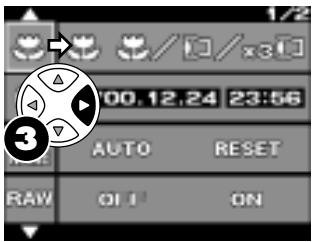
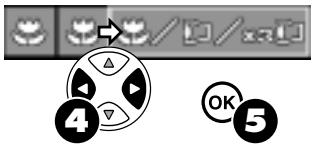
1 Set the mode dial to the setup/ connection mode
Press the menu button. The menu opens in the monitor.
On the arrow pad, press to move the green highlight to the right.
On the arrow pad, press to move the highlight to the macro mode/conversion lens mark
If you are not using a conversion lens, press to move the highlight to the macro mark
Press the OK button to select the setting.
The green highlight returns to the macromark. Press OK button again to close the menu.
Selecting conversion lens mode with conversion lens attached
When a conversion lens is attached to the camera, switch on the conversion lens mark in the control panel.
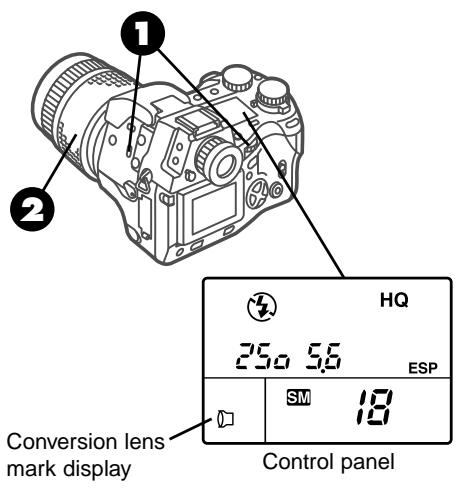
Press and hold down the macro button , and then turn the main dial or sub dial until you see the conversion lens mark in the control panel.
The display is set as follows.
| Conversion Lens | Control Panel Display |
| 3x Extension Lens Tele 300 Pro TCON-300 | blinks |
| Other conversion lenses | lights |
Set the zoom position according to the type of conversion lens that you are using. ( 133)
Note
- The composite F number after the conversion lens is attached to the camera is the same as the F number on the camera, and changes to F2.8 only after the 3x Extension Lens Tele 300 Pro is attached. Please use F2.8 or higher.
- When the camera is in the conversion lens mode, AF (automatic focus) is conducted only by the CCD. For more details about the shooting distances and ranges for conversion lenses used with this camera, please refer to the Olympus web site.
Playing Back Images for Viewing
This chapter describes how to play back and view images, play back images automatically in a slide show, adjust the monitor brightness, and how to play images on a TV screen connected to the camera.
With the mode dial set for playback 口 , you can play back and view the pictures in the monitor that you have taken and stored as images on a memory card. You can also play back images in the same way with the mode dial set to P, A, S, or M by rapidly pressing the monitor button twice.
You can scroll the view display frame by frame, enlarge the display, or view several images at one time in an index display. ( 46)
CAMEDIA
Displaying Image Information INFO
While viewing images you can select one of four methods to display information about the settings used to take the pictures (record mode, date and time, shutter speed, aperture setting, etc.) in the monitor.
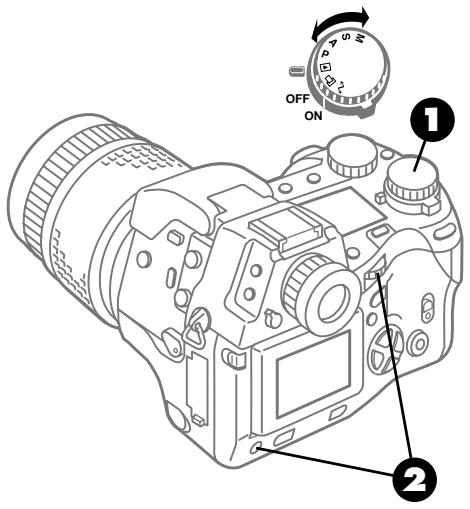
1 Set the mode dial to playback l . If you leave the mode dial set to P, A, S, or M, you can also rapidly press the monitor button twice.
Press and hold down the INFO button (INFO), and then turn the main dial or sub dial to change the information display format as shown on the next page.
The format that you select for displaying the information is saved and used again after the camera is switched off and on again.
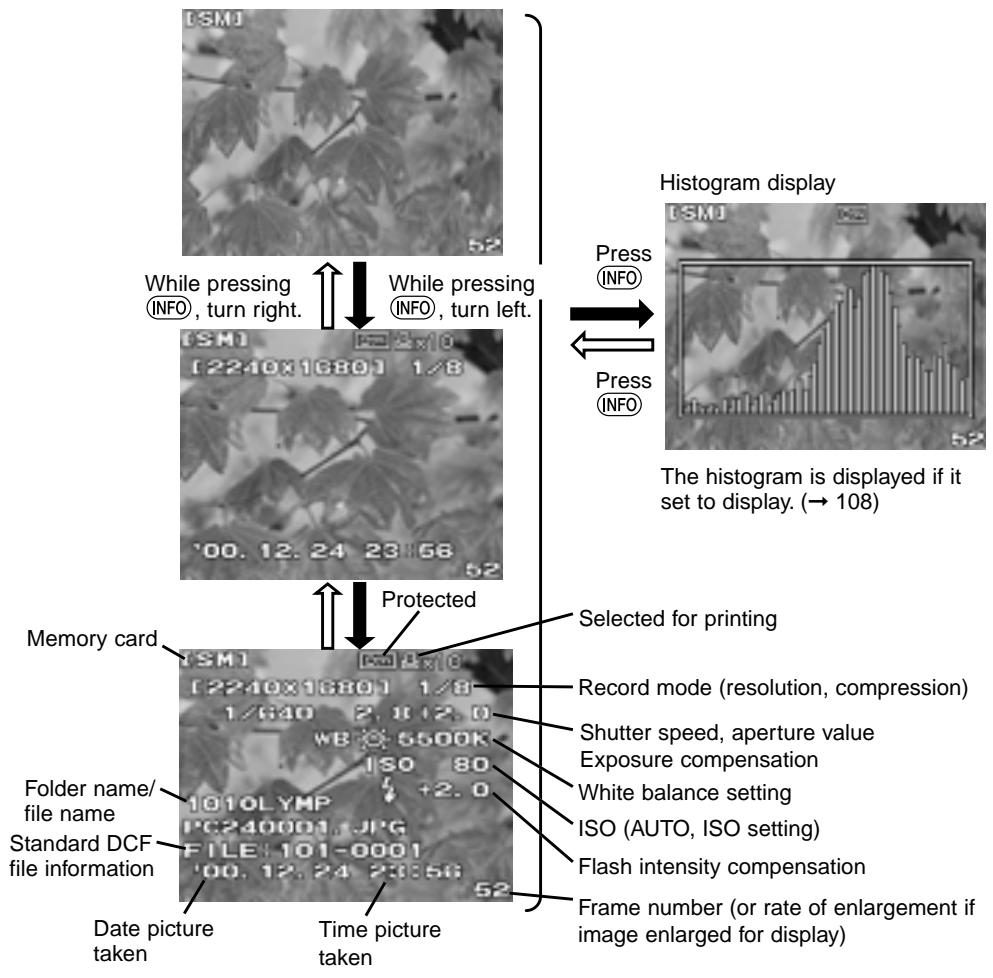
Note
- When the image is processed with a graphic software application on a computer, the information of image (including the data setting) is erased. When you save the image after processing, you must be careful not to write over files of the same name.
However, if you use CAMEDIA Master 2.5, this information is not lost after you save the image.
- The name of the quality (record mode) (SQ, SHQ, etc.) cannot be displayed.
- The name of the currently selected memory card and frame numbers are always displayed.
AutomaticPlayback (Slide Show)

You can play back in order all the images stored on a memory card as a continuous slide show. Starting from the currently selected image, each succeeding image is displayed for 5 seconds. After the last image is displayed, the automatic slide show will start again from the first image stored on the card and continue to show all the pictures until you switch this feature off.
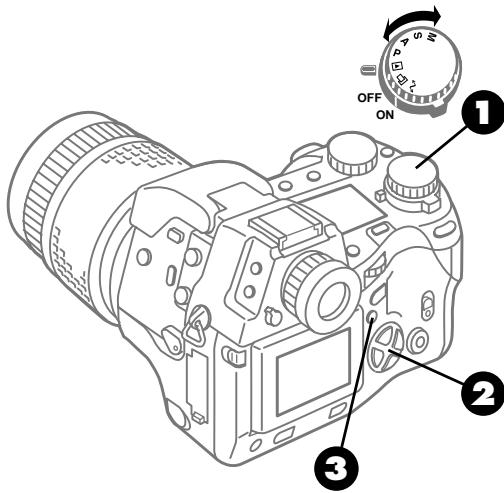

Set the mode dial to playback

Use the arrow pad to display the image where you want to start.
(If you have switched on the enlarged display, then one image will be in the slide show.)

Press the menu button.
The menu opens in the monitor, and the slide show mark is highlighted green.
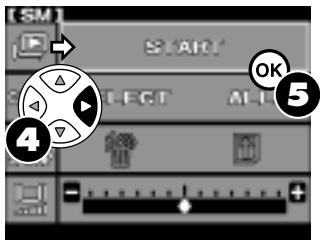
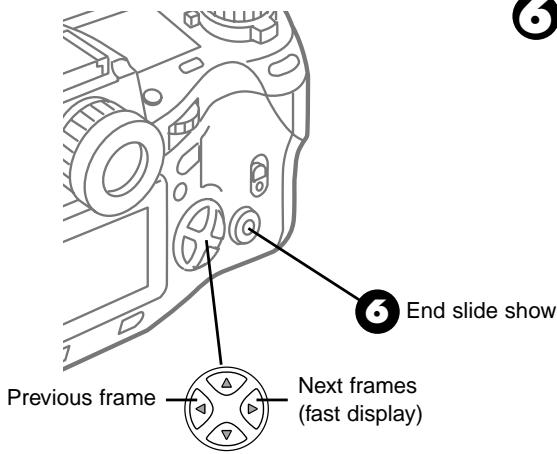
On the arrow pad, press to move the green highlight to START.
Press the OK button.
The slide show begins. If you want to skip to the next image before the 5 second display for the current image ends, on the arrow pad press . If you want to display the previous image again, press .
To end the slide show, press the OK button or the menu button.
Slide shows in the index display
If you want to set up a slide show in the index display, first use the main dial or sub dial to switch on the index display.
Displaying Images on a TV Screen
After connecting the camera to a television with the provided video cable, you can use the TV screen to display images of pictures taken with the camera. To conserve battery power, we recommend connecting the optional AC adapter to the camera when the camera is connected to a TV.
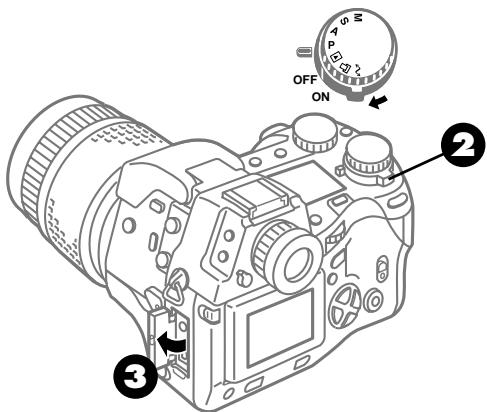
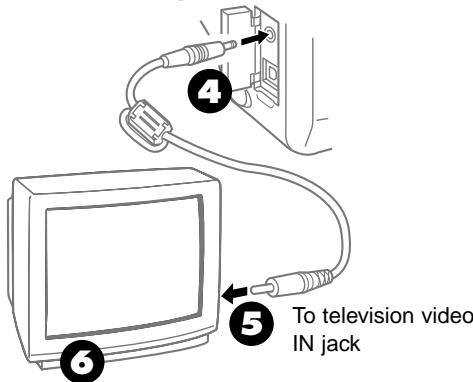
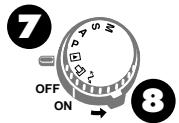
Switch off the television.
Make sure that the camera power switch is at the OFF position.
If the power switch is set to ON, move it to OFF.
Open the camera connector cover.
4 Insert one end of the video cable to the video OUT jack on the camera.
Insert the other end of the video cable to the video IN jack of the television.
Switch on the television, and select the Video IN channel.
7 Set the camera mode dial to playback .
On the camera, move the power switch to the ON position.
The image of the last picture taken is displayed on the TV screen. While images are displayed on the TV screen, nothing is displayed in the monitor.
Images off-center on the TV screen?
With some TV sets, the images could appear slightly off center.
Images appear with black frame?
With some TV sets, the images could display with black frames. These frames could appear in printouts sent from the television directly to a video printer.
Viewing pictures, index display, enlarged display ( 46)
Note
- The brightness of the image displayed on a TV screen cannot be adjusted with controls on the camera.
- This camera can only be connected to video equipment that supports NTSC signal.
Adjusting Monitor Brightness

The brightness of the monitor can be adjusted.
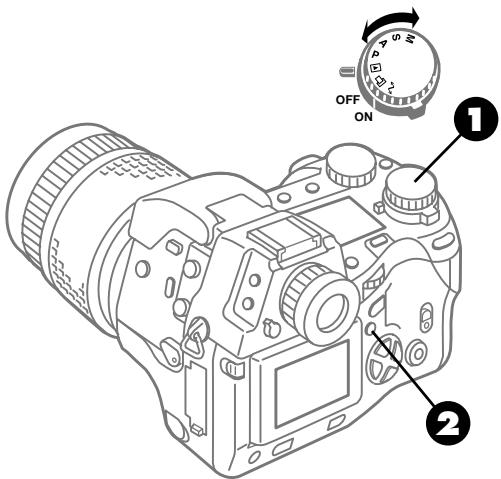
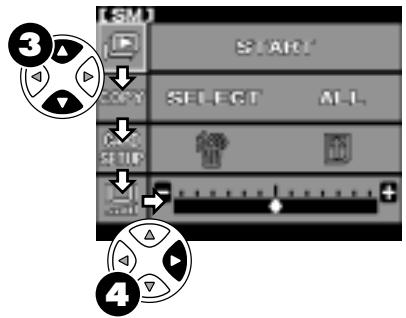
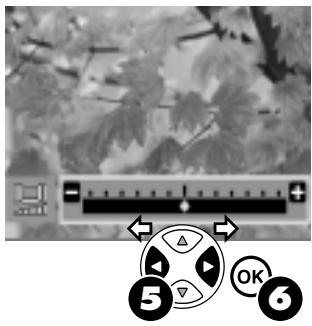
1 Set the mode dial to playback
Press the menu button.
The menu opens in the monitor.
On the arrow pad, press or to move the green highlight to the monitor mark.
On the arrow pad, press
The image is displayed and the camera enters the brightness adjustment mode. If no image is displayed, then you can still adjust the brightness with only the menu displayed. However, we recommend that you adjust the monitor brightness by reviewing an image stored on a card.
On the arrow pad, press or to brighten or darken the monitor display to attain the desired brightness.
Press the OK button.
The monitor mark and scale go off.
Managing Stored Pictures
In this chapter we describe copying and deleting images, and formatting a memory card.
Copying images to another card. You can copy all or selected images from one memory card to another in the camera to create backup copies of important pictures that you do not want to lose.
Deleting images. You can delete images stored on a memory card one at a time or all at one time to create more storage space on a memory card.
Formatting a card. Some memory cards may require formatting in the camera before they can be used. Formatting is also a quick way to delete all images from a card.
File and folder naming. When pictures are taken, they are automatically named to prevent them from writing over other files on the card which could possibly have the same names.
CAMEDIA
Copying Images to Another Card
With a SmartMedia and CompactFlash card installed in the camera at the same time, you can copy images from one card to the other. The copied images are not deleted from the original card after copying is completed.
Copying all images to another card
You can copy all images from a source card, provided the target card has sufficient space to store the copied images.
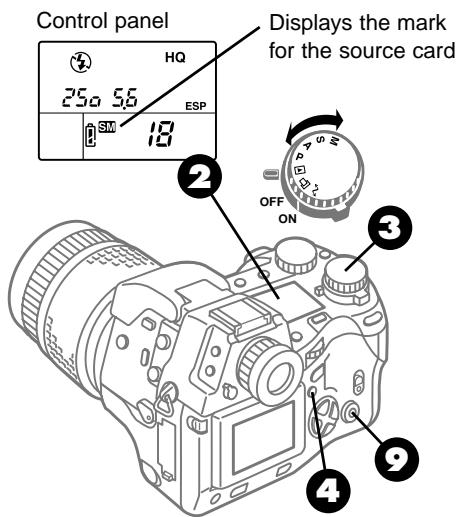
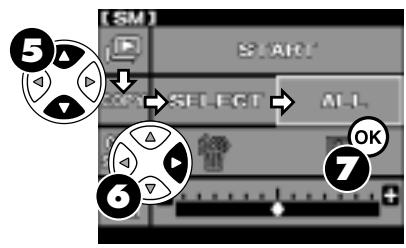
Insert the copy source and target cards in the camera. ( 30)
Check the control panel display and make sure that the mark for the source card, SmartMedia SM or CompactFlash CF , is displayed.
If the mark is not displayed, press and hold down the SM/CF memory card button, and then turn the main dial or sub dial until it is displayed.
Set the mode dial to playback. The last picture taken is displayed.
4 Press the menu button 念
The menu opens in the monitor.
On the arrow pad, press or to move the green highlight to the copy mark
On the arrow pad, press to move the green highlight to ALL.
Copying from a SmartMedia to a CompactFlash card
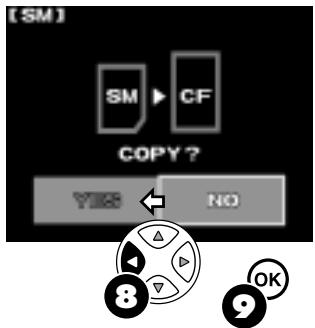
During copying
Press the OK button.
COPY? is displayed.
Check the display and make sure that the source and target selections are correct. If the selections are reversed, with NO selected press the OK button, and then start again from Step 2.
On the arrow pad, press to move the green highlight to YES.
Press the OK button.
A progress bar is displayed as the images are copied. After copying is completed, the first displayed image appears.
Cannot copy?
- NO CARD displayed?
The destination card is not inserted in the camera. Insert the destination card.
- CARD FULL displayed?
Storage space on the destination card is insufficient. Create more space on the destination card by deleting images. You can also copy fewer images by selecting only the images that you want to copy. ( 148)
- WRITE PROTECT displayed?
The card selected to store the copied image is protected with a protect seal. Replace the card, select the other card, or remove the protect seal.
Folder and file names of copied pictures
Copied images are assigned new file names and stored in a new folder. The date and time the images were created (time stamp) retain the original creation date and time stored with the images.
Copying images not taken with this camera
All pictures taken with this camera are stored in DCF (Design rule for Camera File system) format. Pictures taken and stored with another camera can be copied if they are in DCF format. Pictures not in DCF format cannot be copied to a memory card in this camera.
Caution
- To avoid interrupting the copy operation, while images are being copied from one card to another, never switch the camera off, never reset the mode dial, and never open the memory card cover. If you interrupt the copy operation in progress, the copying will be canceled and cannot be restarted.
Copying only selected images
Images can be copied one by one between the two types of memory cards installed in the camera.
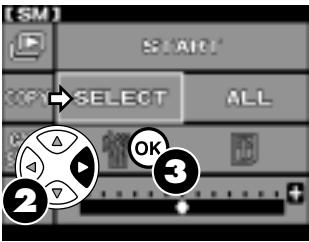
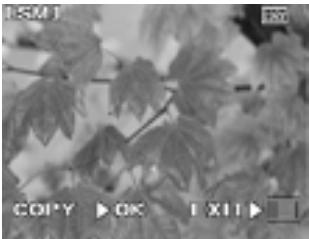
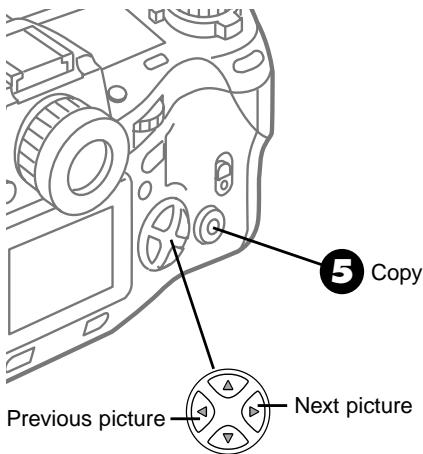
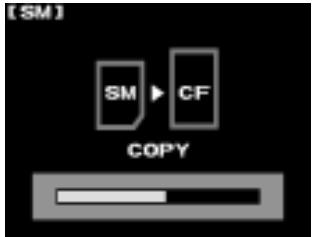
During copying
Follow Steps 1~5 for copying all images. ( 146)
The copy mark is highlighted green.
On the arrow pad, press to move the green highlight to SELECT.
Press the OK button.
The image is displayed.
On the arrow pad, press the or to select the image that you want to copy.
Press the OK button.
A progress bar is displayed as the image is copied. After copying is completed, the first displayed image appears.
To end the copy operation, press the menu button 圆
Cannot copy?
- NO CARD displayed?
The destination card is not inserted in the camera. Insert the destination card.
- CARD FULL displayed?
Storage space on the destination card is insufficient. Create more space on the destination card by deleting images.
WRITE PROTECT displayed?
The destination card is protected. Remove the protect seal from the card.
Folder and file names of copied pictures
Copied images are assigned new file names and stored in a new folder. If a folder does not exist, a new folder is created. The date and time the images were created (time stamp) retain the original creation date and time stored with the images.
Copying images not taken with this camera
All pictures taken with this camera are stored in DCF (Design rule for Camera File system) format. Pictures taken and stored with another camera can be copied if they are in DCF format. Pictures not in DCF format cannot be copied to a memory card in this camera.
Caution
- To avoid interrupting the copy operation, while images are being copied from one card to another, never switch the camera off, never reset the mode dial, and never open the memory card cover. If you interrupt the copy operation in progress, the copying will be canceled and cannot be restarted.
Deleting All Images

With one procedure you can quickly delete all images stored on a SmartMedia or CompactFlash memory card.
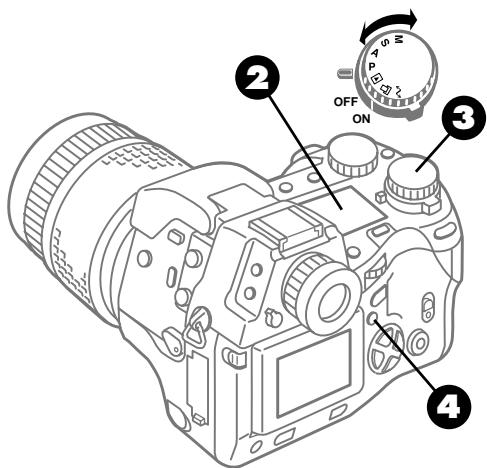
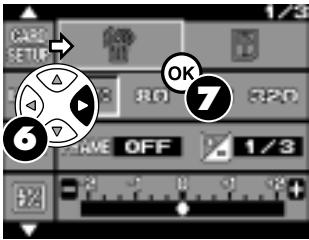
Mode dial set to P,A,S ,or ±bM
Mode dial set to
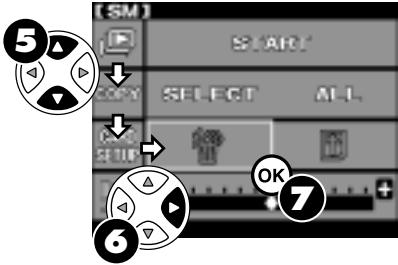
Make sure that the card with the pictures that you want to delete is inserted in the camera. ( 30)
Make sure that the card selection mark for the card with the pictures to be deleted, SM for the SmartMedia card or CF for the CompactFlash card, is displayed in the control panel.
If the mark is not displayed, press and hold down the SM/CF memory card button, and then turn the main dial or sub dial until it is displayed.
Set the mode dial to P, A, S, M or to playback.
4 Press the menu button.
The menu opens in the monitor.
If you set the mode dial to playback l , on the arrow pad press or to move the green highlight to card setup
On the arrow pad, press to move the green highlight to the card erase option.
7 Press the OK button. DELETE ALL? is displayed.
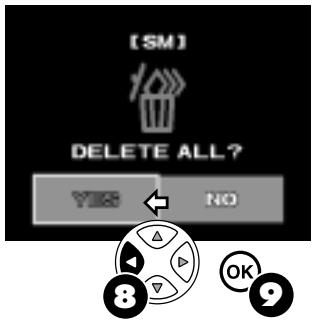
Display while deleting
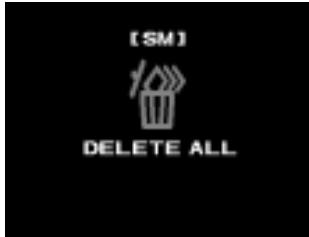
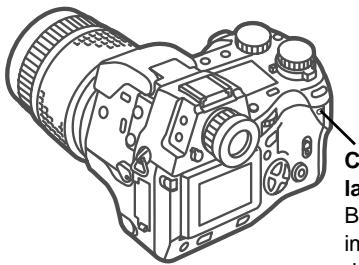
Card access lamp
Blinks as images are deleted, goes off after all images deleted.

On the arrow pad, press to move the green highlight to YES.

Press the OK button.
The delete icon and message are displayed on the monitor while the images are being deleted. Images which have been protected are not deleted. The card access lamp blinks while the images are being deleted and then goes off after all the images have been deleted.
Pictures which cannot be deleted
Protected pictures cannot be deleted. To delete protected pictures, you must first release them from protection or format the card. ( 50,152) Images that are not stored in DCF format ( 192) cannot be deleted all at once. In order to delete images that are not in DCF format, you can delete them one by one or format the card. ( 51,152)
You can also delete images one by one. ( 51)
Note
- Deleting 500 images requires a few seconds. While the card access lamp is blinking, never switch the camera off, never reset the modal dial, and never open the memory card cover.
Formatting a Memory Car

Memory cards which have been formatted on a computer or other external device, or cards of another manufacturer, may have a different format. Such cards should be formatted before they are used with the camera. Formatting a used card deletes all the images stored on the card, so you should frequently copy images to a computer where they can be stored safely. A SmartMedia card protected by an attached protect seal cannot be formatted.
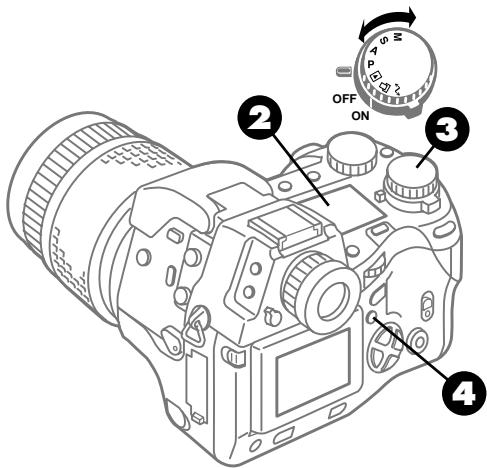
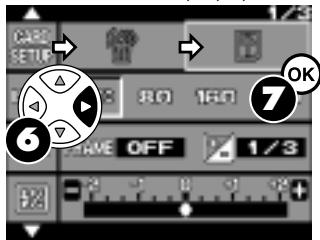
Mode dial set to P, A, S, or M
Mode dial set to playback
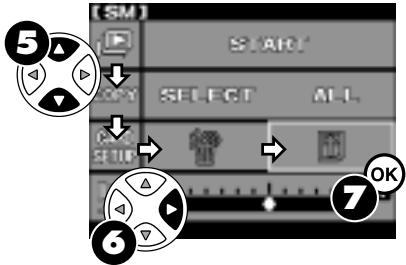
Insert the card that you want to format into the camera. ( 30)
Check the control panel display and make sure that the mark for the card that you want to format, SmartMedia SM or CompactFlash CF, is displayed.
If the mark is not displayed, press and hold down the SM/CF memory card button, and then turn the main dial or sub dial until it is displayed.
Set the mode dial to P, A, S, M, or to playback.
4 Press the menu button.
The menu opens in the monitor.
If you set the mode dial to playback , on the arrow pad press or to move the green highlight to card setup
On the arrow pad, press to move the green highlight to the format mark
Press the OK button.
FORMAT? is displayed.
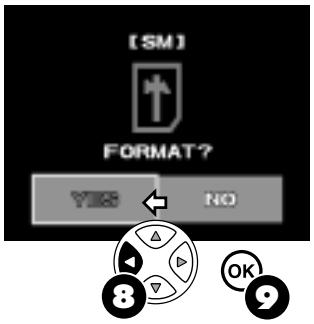
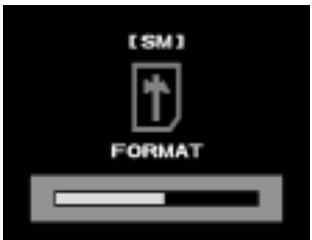
During formatting
On the arrow pad, press to move the green highlight to YES.
Press the OK button.
The format icon and message are displayed on the monitor while the selected card is being formatted. All images, including images which have been protected, are deleted from the card. The card access lamp blinks while the card is formatting and then goes off after formatting has been completed.
Note
- Formatting a card requires a few seconds. While the card access lamp is blinking, never switch the camera off, never reset the modal dial, and never open the memory card cover.
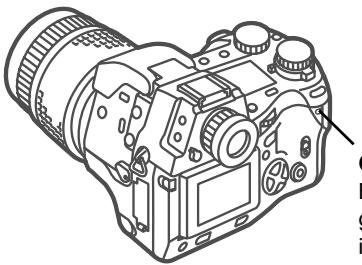
Card access lamp
Blinks during formatting, goes off after formatting is completed.
Naming Image Files

When you take a picture, the camera assigns it a unique file name and saves it in a folder. The folder and file name can later be used for file handling on a computer. File names are assigned as shown in the illustration below.
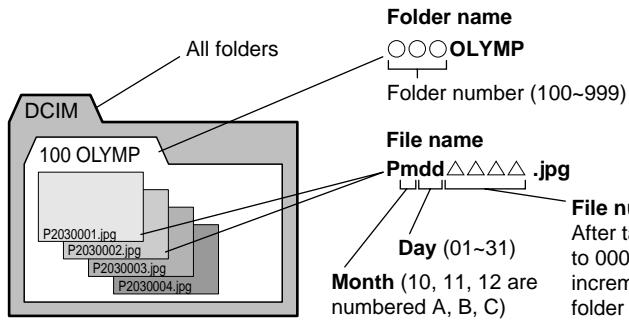
File number (0001~9999) After taking 9999 pictures, the counter is reset to 0001 for the next picture, the folder number increments by 1 to name and create a new folder where the next image (file) is stored.
You can select RESET or AUTO to determine how numbering is restarted every time you change a memory card. When you purchase the camera, the AUTO method is already selected for you.
With RESET selected, a new image is automatically assigned the next available number. If there are no files on the card, the image is assigned 0001 as the file number.
With AUTO selected, the camera remembers the number of the last picture taken, increments the number by 1, and assigns this number to the next picture taken on the next memory card. Therefore, no matter how many times you change memory cards, the file names cannot be duplicated. On the card where you try to store the image, if there is an image file with a number higher than the last image stored on the card, then the camera uses the highest number to continue numbering, assigns the number to the new image and stores it with that number.
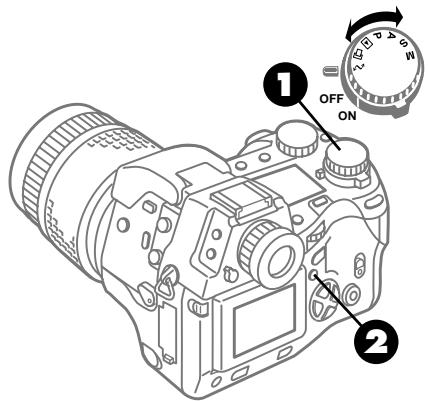
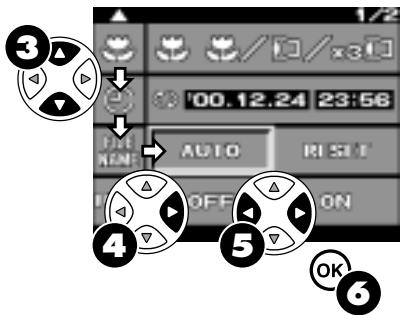
1 Set the mode dial to the setup/ connection mode
Press the menu button.
The menu opens in the monitor.
On the arrow pad, press or to move the green highlight to the FILE NAME mark
On the arrow pad, press to move the green highlight to the right.
On the arrow pad, press or to move the green highlight to the AUTO or RESET.
Press the OK button to select the setting.
The green highlight returns to the FILE NAME mark
Press OK button again to close the menu.
Note
- If there is no OLYMP folder on the memory card, a new folder is created and the image is stored in the new folder.
- Once the folder numbering reaches 999 or file numbering reaches 9999, you will not be able to continue storing images on the card. You will need to replace the card. ( 30)
Selecting Pictures for Printing
This chapter describes how to select pictures for printing on a DPOF (Data Print Order Format) printer or by a DPOF printing service. To print the pictures taken with this camera, you can remove the memory card with the stored pictures from the camera and print them on a DPOF printer, or have them printed by a DPOF printing service. You can also transfer the pictures to a computer and then print them on a printer connected to the computer.
Pictures cannot be printed on an Olympus Digital Printer P-300 or other digital printer connected directly to the camera. If an Olympus Digital Printer P-330 is connected to the video OUT connector of the camera for printing, the printed images may appear slightly grainy. The following limitations apply to printing images on a SmartMedia card on a P-330.
(1) Only the first 256 images stored on a SmartMedia card can be printed. The remaining images will not be recognized.
(2) Setting index printing or date and time stamping, and selecting more than two images for printing will be disabled.
CAMEDIA
Selecting Pictures and Number of Copies for Printing
You can select all or single pictures for printing and specify the number of copies for printing. With the memory card in the camera, you can select one or more pictures for printing and specify the number of copies for each print. This information is stored on the card with each selected image so you can print the pictures with your own DPOF compatible printer or deliver the card to a print service which can provide DPOF printing. You can select up to 998 images on the same card for printing, and you can specify 1~10 copies for each selected picture.
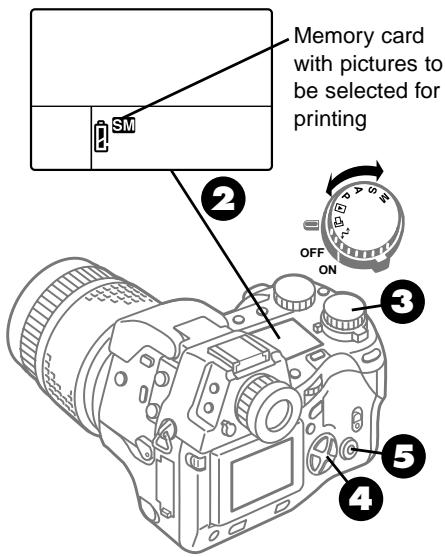
Insert the memory card that contains the pictures that you want to select for printing. ( 30)
Check the control panel display and make sure that the mark for the source card, SmartMedia SM or CompactFlash CF, is displayed.
If the mark is not displayed, press and hold down the SM/CF memory card button, and then turn the main dial or sub dial until it is displayed.
Set the mode dial to print reserve
The last picture taken is displayed in the monitor.
Display the picture that you want to select for printing.
With several pictures displayed together in the index display, on the arrow pad press to highlight the image that you want to select for printing. ( 49)
Press the OK button.
Numbers 0~10 are displayed.
Specifying the number of copies
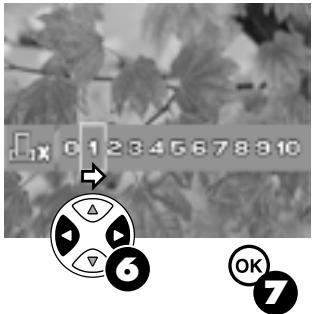
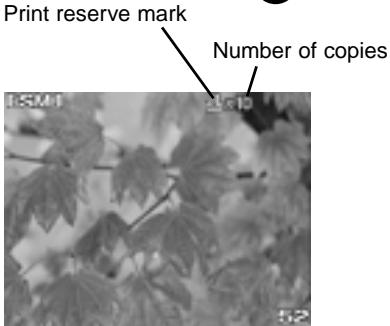

On the arrow pad, press or to move the green highlight to the number of copies that you want to print for the selected picture.

Press the OK button.
The picture selected for printing is marked with the print reserve mark followed by a "x" and the number of copies set for printing that image.
If you want to select more pictures for printing, repeat this procedure from Step 4.
Changing the number of copies
If you need single prints of nearly all the pictures stored on the card, first select all the pictures for printing. ( 160) Second, select each image one by one and then set the number of copies that you need if more copies are needed.
To cancel print selection
Follow the procedure to select pictures for printing, but set the number of copies to 0 to cancel print selection.
You can also cancel all pictures selected for printing. ( 161)
Note
- Images that have been stored in the RAW data format cannot be selected for printing.
- The level of DPOF compatibility is different for some printers and you could experience some problems in printing pictures selected for printing with the print reserve features on the camera. ( 166)
Selecting All Pictures on a Card for
Printing

You can select all pictures stored on a card to print one by one.
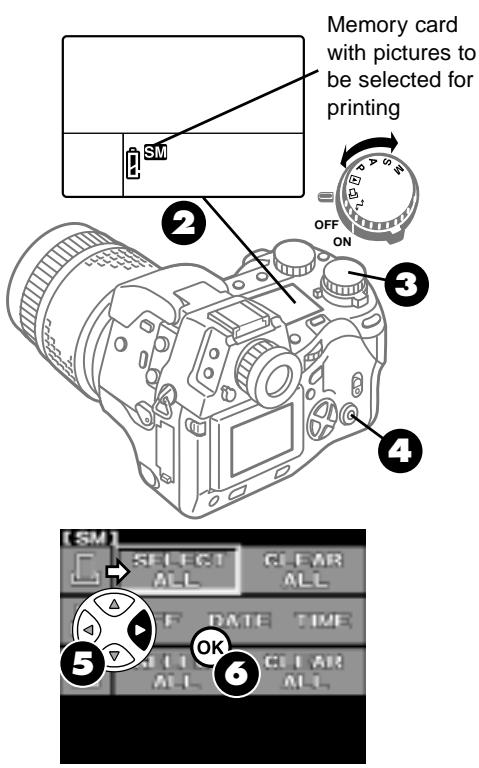
Insert the memory card that contains the pictures that you want to select for printing. ( 30)
Check the control panel display and make sure that the mark for the source card, SmartMedia SM or CompactFlash CF , is displayed.
If the mark is not displayed, press and hold down the SM/CF memory card button, and then turn the main dial or sub dial until it is displayed.
Set the mode dial to print reserve
The last picture taken is displayed in the monitor.
4 Press the menu button 值
The menu opens in the monitor.
On the arrow pad, press to move the green highlight to the SELECT ALL.
Press the OK button.
SELECT ALL? is displayed.
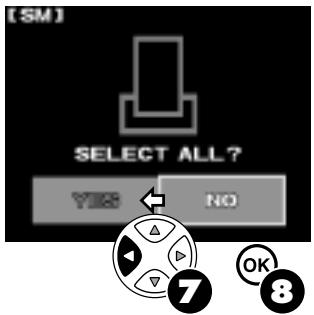
On the arrow pad, press to move the green highlight to YES.
Press the OK button.
The print reserve icon and message are displayed on the monitor while the images are being selected for printing. When the print reserve selection is completed, the first displayed image appears.
Before using print reserve to select all images for printing
Please remember that selecting all images for printing with print reserve disables any previous print reserve settings on the card. For example, if you have selected any images for printing more than one copy, these settings will be released and only one copy of each image will be printed after you select all images for printing.
Pictures shot after reserving all frames for printing
After you have selected all pictures on a card for printing, if you shoot and store pictures on the same card, the new pictures will not be selected for printing. If you need to select added pictures for printing, just repeat the procedure above to select all the pictures on the card again. If you execute print reserve selection for all images again, then all the images on the card are selected, not just the images that were not previously selected.
To cancel all pictures selected for printing
At Step 5, on the arrow pad press twice to select CLEAR ALL. Then follow the remaining steps to complete the procedure.
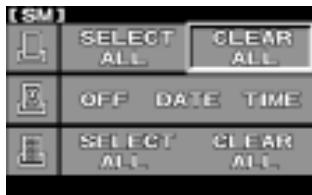
Note
- Selecting a large number of pictures for printing could take a long time. Before you start selecting a large batch of pictures for printing, check the battery check in the viewfinder and make sure sufficient battery power is available, or if possible, connect the optional AC adapter. While selecting pictures for printing, never switch the camera off or open the memory card cover. If you are interrupted during picture selection for printing, you will have to start again.
- Images stored as RAW data cannot be selected for printing. ( 131)
- The level of DPOF compatibility is different for some printers and you could experience some problems in printing pictures selected for printing with the print reserve features on the camera. ( 166)
Setting Up Index Printing

You can select all pictures stored on card for index printing.
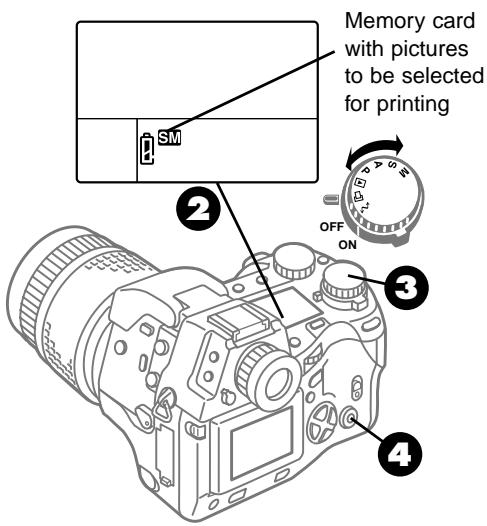
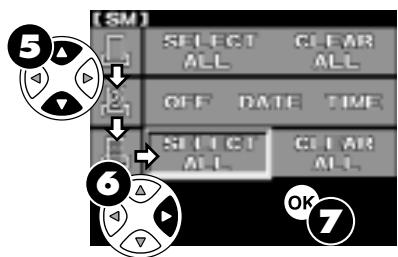
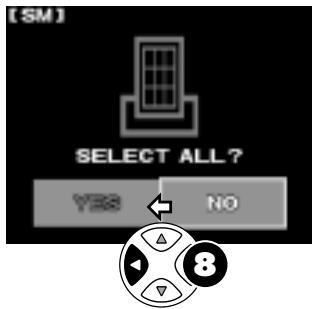
Insert the memory card that contains the pictures that you want to select for printing. ( 30)
Check the control panel display and make sure that the mark for the source card, SmartMedia SM or CompactFlash CF , is displayed.
If the mark is not displayed, press and hold down the SM/CF memory card button, and then turn the main dial or sub dial until it is displayed.
Set the mode dial to print reserve
The last picture taken is displayed in the monitor.
4 Press the menu button 念
The menu opens in the monitor.
On the arrow pad, press or to move the green highlight to the index all mark.
On the arrow pad, press to move the green highlight to SELECT ALL.
Press the OK button.
SELECT ALL? is displayed.
On the arrow pad, press to move the green highlight to YES.
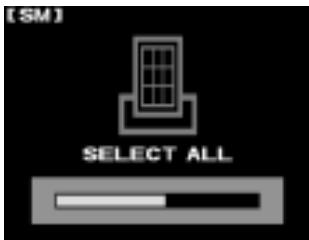


Press the OK button.
The print reserve icon and message are displayed on the monitor while the images are being selected for printing. When the print reserve selection is completed, the first displayed image appears.
Taking a picture after selecting index printing
If you take more pictures after selecting all the pictures on a card for index printing, the exclamation mark will appear to warn you that not all pictures on the card are selected for index printing. Repeat the procedure above to ensure that all pictures on the card are selected for index printing.

Cancelling all pictures selected for index printing
At Step 6 above, on the arrow pad press to move the green highlight to CLEAR ALL. Then follow the remaining steps to complete the procedure.
Index Printing
Index printing prints several images arranged as shown. The number of images printed on a sheet is determined by the printer in use.
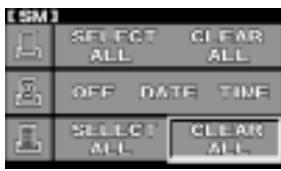
Note
- Selecting a large number of pictures for printing could take a long time. Before you start selecting a large batch of pictures for printing, check the battery check in the viewfinder and make sure sufficient battery power is available, or if possible, connect the optional AC adapter. While selecting pictures for printing, never switch the camera off or open the memory card cover. If you are interrupted during picture selection for printing, you will have to start again.
- Images stored as RAW data cannot be selected for printing. ( 131)
- The level of DPOF compatibility is different for some printers and you could experience some problems in printing pictures selected for printing with the print reserve features on the camera. ( 166)
Selecting Pictures for Date or Time Stamping
You can set images selected for printing to be stamped with the date or time (not both) when they are printed. When this setting is applied, it applies to all pictures selected for printing.
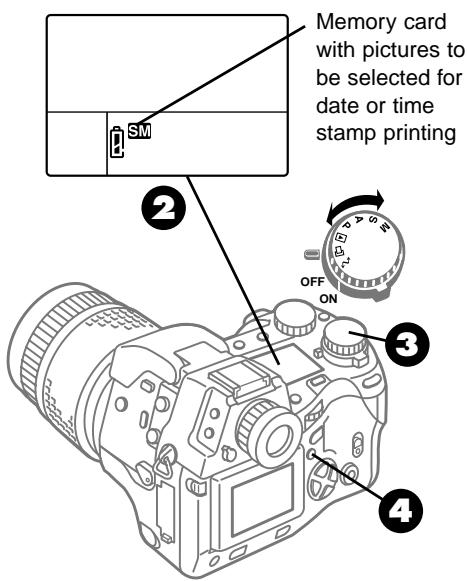
Insert the memory card that contains the pictures that you want to select for date or time stamp printing. ( 30)
Check the control panel display and make sure that the mark for the source card, SmartMedia SM or CompactFlash CF, is displayed.
If the mark is not displayed, press and hold down the SM/CF memory card button, and then turn the main dial or sub dial until it is displayed.
Set the mode dial to print reserve
4 Press the menu button.
The menu opens in the monitor.
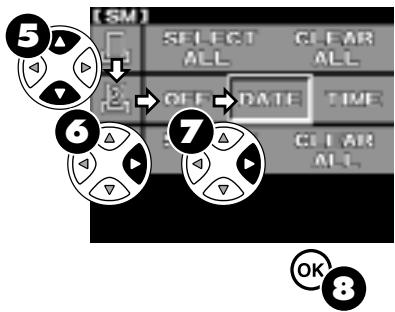
On the arrow pad, press or to move the green highlight to the date/time stamp mark.
On the arrow pad, press to move the green highlight to the right.
On the arrow pad, press to move the green highlight to DATE or TIME.
To cancel date or time stamp printing, press to move the green highlight to OFF.
Press the OK button to select the setting.
Press the OK button again to close the menu. The last picture taken is displayed.
Note
- The DPOF standard permits printing either the date or time stamp (not both). You must select either the date or time for stamping your prints.
- Selecting a large number of pictures for printing could take a long time. Before you start selecting the a large batch of pictures for printing, check the battery check in the viewfinder and make sure sufficient battery power is available, or if possible, connect the optional AC adapter. While selecting pictures for printing, never switch the camera off or open the memory card cover.
If you are interrupted during picture selection for printing, you will have to start again.
- The level of DPOF compatibility is different for some printers and you could experience some problems in printing pictures selected for printing with the print reserve features on the camera. ( 166)
- If you use index printing, you cannot stamp the prints with the date or the time.
Printing with Olympus Printers
The table below describes to what extent Olympus printers are compatible with the DPOF format.
Olympus Printers and DPOF Compatibility
| Printer Name | 1 Frame Select | Multiple Frame Select | Trimming | Rotation | Date | Index Printing |
| P-330*1 | YES | NO | NO*3 | NO*3 | NO*4 | NO*4 |
| P-330N*2 | YES | YES | YES*3 | YES*3 | NO*4 | NO*4 |
| P-400 | YES | YES | YES*3 | NO*3 | NO*4 | NO*4 |
| P-150 | No DPOF compatibility. | |||||
| P-300 | No DPOF compatibility. | |||||
1 You can print JPEG files up to 1MB in size.
If you are printing via the video OUT connection, printed images will appear grainy.
If you are printing from a SmartMedia card, you can print up to 256 images on the SmartMedia card. More than 256 images cannot be recognized. Also, if you selected index printing, date or time stamping, or printing more than 2 copies, these settings are disabled.
2 You can print TIFF files up to 20MB in size, and JPEG files up to 10MB in size.
If you are printing from a SmartMedia card, you can print up to 999 images on the SmartMedia card. More than 999 images cannot be recognized.
3 Some printer features may allow you to rotate and trim images, but these functions are not available on this camera.
4 If you select date stamping or index printing, these settings are disabled but you can set these features with the printer.
Transferring Pictures to a Computer
This chapter describes what you need to transfer images from a memory card to an IBM compatible computer or Macintosh.
Setting up computer connection. An included computer connection kit can be used to connect the camera directly to your computer.
Options for reading images from memory cards. A variety of optional devices allow you alternate methods for reading images from memory cards and transferring them to a computer.
Transferring Images with a Computer Connection Kit
The camera can be connected to a computer equipped with a USB connector, using a dedicated USB cable. You can read images from either card in the camera with the computer.
- An IBM compatible PC/AT with Windows 2000 installed.
- An Apple Macintosh with Mac OS 9 installed.
A dedicated USB cable required.
- An IBM compatible PC/AT with Windows 98 or Windows 98 Second Edition installed.
A USB driver and dedicated USB cable required.
A USB driver is provided with CAMEDIA Master 2.5, or you can download the most recently updated drivers and software from the Olympus Web Site at
www.olympus.com
- An Apple Macintosh with Mac OS 8.6 installed.
A dedicated USB cable required.
USB Mass Storage Support 1.3.5 required. For more details about USB Mass Storage
Support, contact Apple Computer.
Connecting the camera to a computer for the first time
The first time you connect the camera to a computer, the computer starts to read the USB driver.
Versions of Windows, other than Windows 2000, will request that you insert the installer disk for the USB driver. For details, read the USB driver instructions.
Note
- We cannot guarantee performance of the camera connected to a computer where the following operating systems are installed, even if the computer is equipped with a USB connector:
Windows 95 upgraded to Windows 98
Windows 95, Windows NT 4.0
- Make sure that your computer is guaranteed to support operation of USB. For more details about your computer environment, contact your computer manufacturer.
- Please understand that performance is not guaranteed for Mass Storage Support upgrade versions for the Mac OS.
- You could encounter difficulty transferring images if you connect the USB cable to a hub connected to the computer. If you encounter problems, disconnect the cable from the hub and connect it directly to the computer.
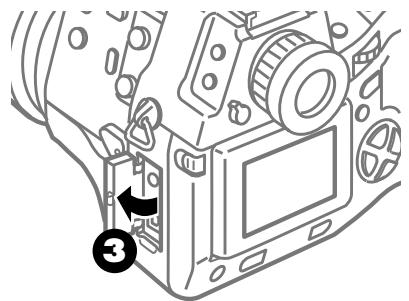
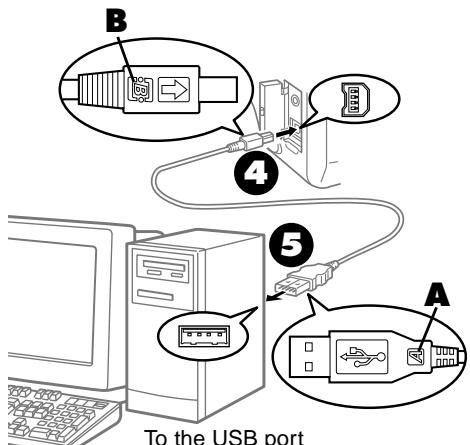
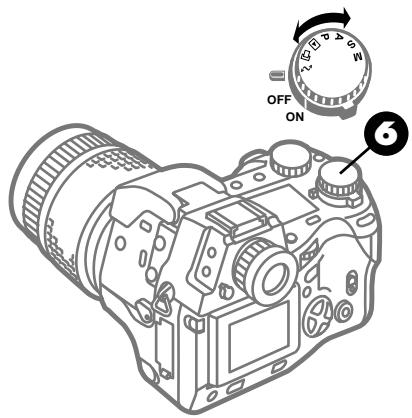
of the computer
If you are using an IBM compatible PC/AT without Windows 2000 installed, you must first install the USB driver.
For more details about how to install the USB driver, refer to the instructions that you received with the CAMEDIA Master.
2 Select the memory card that holds the images you want to read with the computer. ( 121)
Note that you cannot change the card selection once the camera is connected the computer. If you wish to change the card selection, you must first disconnect the USB cable. ( 171)
Open the connector cover on the camera.
4 Connect the B connector of the USB cable (the large connector) to the camera connection point.
Connect the A connector of the USB cable (the flat connector) to the computer.
Note
- If your computer has two USB ports, you can use either port.
Set the mode dial to (setup/ connection mode).
Note
- The computer recognizes the card selected in the camera as an external disk drive. Normally, the device is displayed as a "Removable Disk". The images on the card can be handled as files with Windows Explorer.
While copying or moving image files, never disconnect the USB cable from the camera or computer.
Switching the card
After changing the card inserted in the camera, make sure that the drive that names the card displays the correct information. To confirm that the display is correct, in Windows Explorer from the View menu select Refresh.
Removing a card while the camera is connected to a computer
Improperly removing a card while the camera is connected to the computer may cause the computer to operate incorrectly. Always follow the procedure below to remove a card. (To recover from a computer problem, you may need to reconnect the USB cable or restart the computer.)
Windows 98, Windows 2000
Double-click the My Computer icon, right-click the drive icon for the camera (marked Removable Disk), and then select Eject in the pop-up menu. Make sure the card access lamp on the camera is off, and then open the card cover and remove the card.
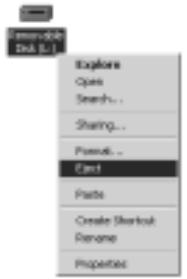
Mac OS
On the desktop drag and drop the drive icon on the Trash icon, or select Eject from the Special menu. Make sure that the card access lamp on the camera is off, and then open the card cover and remove the card.
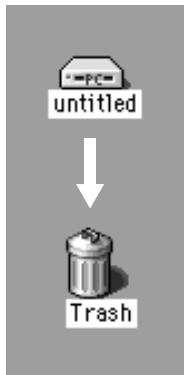
Disconnecting the USB cable
Windows 98, Mac OS
Make sure that the card access lamp on the camera is off, and then disconnect the USB cable as follows.
Windows 2000
Follow one of the procedures below.
(1) Single-clicking the icon on the Taskbar.
1 Click the Unplug or Eject Hardware icon on the Taskbar in the lower right corner of the desktop. (See illustration below.)
2 When the message to halt the drive appears, click this message.
3 When the Unplug Hardware message tells you that the device can be removed safely, click the OK button.
4 Disconnect the cable.
(2) Double-clicking the icon on the Taskbar.
1 Double-click the Unplug or Eject Hardware icon on the Taskbar in the lower right corner of the desktop.
2 When the Unplug Hardware dialog box opens, click the name of the camera in the hardware device list, and then click the Stop button.
3 When the Unplug Hardware message tells you that the device can be removed safely, click the OK button.
4 Disconnect the cable.
Note
- To avoid problems, never change the camera's mode or switch the camera off and on while the camera is connected to the computer, especially when images are being transferred from the camera to the computer.
- The camera does not enter sleep mode or automatically switch off the power while operating in setup/connection mode. If you intend to leave the camera connected to the computer for a long time, we recommend connecting the optional AC adapter to avoid draining of the batteries.
Optional Devices for Card Reading
You can use one of the following optional devices to read images from a card with a computer. You can use these devices (with the exceptions of the SmartMedia Reader/ Writer MAUSB-1) to read images from memory cards if you are using a computer that is not equipped with a USB port, or is not fully guaranteed for USB operation. For more details and the most recent information about these devices, contact an Olympus authorized service center.
| Card Type | Device | What you need on the computer |
| Smart Media | Floppy Disk Adapter FlashPath MAFP-2N | 3.5-inch floppy drive required. |
| PC Card Adapter MA-2 | PCMCIA card slot required. | |
| SmartMedia Reader/ Writer MAUSB-1 | USB connector required. | |
| Compact Flash | PC Card Adapter | PCMCIA card slot required. |
Note
- Before you purchase and try to use any of these devices, make sure that they compatible with your computer environment and can handle the data stored on a SmartMedia card.
- Make sure that you read all the instructions provided with these optional devices.
Monitor Menus
Use the monitor menu to set up camera operation and perform important functions like formatting a memory card.
CAMEDIA
Monitor Menus
Use the monitor menus to set up camera operation and perform important functions like formatting a memory card. Four different menus are available, with the menu display determined by the setting of the mode dial:
- Shooting mode menu (P, A, S, or M)
- Playback mode menu (▶)
- Print reserve mode menu (□)
- Setup/connection mode menu ()
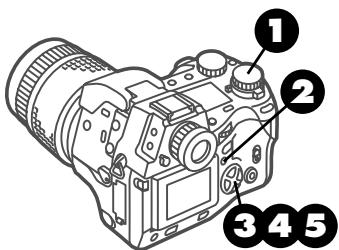
Shooting mode menu (1st menu page)
Green highlight (Moved by pressing arrow pad pointers)
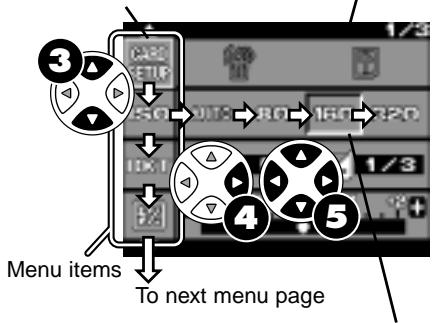
Selected option marked in relief.
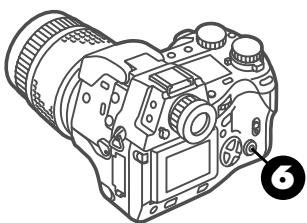
1 Set the mode dial to the desired setting.
Press the menu button.
The menu opens in the monitor.
On the arrow pad, press to move the green highlight down the menu.
Press to move the green highlight up the menu.
On the arrow pad, press to move the green highlight to the right.
Use the arrow pad to select menu options and settings.
To cancel making menu settings, press the menu button. In the shooting mode (mode dial set to P, A, S, or M) you can shoot a picture with the menu displayed in the monitor. When you shoot a picture the menu extinguishes, but you can restore it immediately by pressing the menu button. This is convenient for checking and changing settings while shooting.
Press the OK button.
If you have selected a setting, the selected option is marked in relief and the green highlight returns to the left.
Press the OK button again to close the menu.
Shooting mode menus for P (Program mode), A (Aperture priority mode), S (Shutter priority mode), M (Manual mode)
| Default Setting after ① and ⑥ pressed at the same time | Page |
| - | → 150 → 152 |
| AUTO | → 83 |
| OFF | → 81 |
| ±0EV | → 90 |
| NORMAL | → 106 |
| NORMAL | → 107 |
| See ① table, page 103. | → 103 |
| OFF | → 118 |
| OFF | → 122 |
| ON | → 124 |
| OFF | → 125 |
| 1MIN | → 128 |
| 1/3 | Delete all images from selected SmartMedia or CompactFlash card, and format a card. | - | → 150 → 152 |
| SETUP | ISO (sensitivity) setting. | AUTO | → 83 |
| ISO | Bracket same subject with 3 rapid shots with different exposures. | OFF | → 81 |
| IDX | Flash intensity control. | ±0EV | → 90 |
| 2/3 | Sharpness. | NORMAL | → 106 |
| SHARP | Overall image contrast. | NORMAL | → 107 |
| NORMAL | See ① table, page 103. | → 103 | |
| TIDE | Set interval time (specify time interval between shots during automatic time lapse photography). | OFF | → 118 |
| INTERVIEW OFF | |||
| 3/3 | Shutter sound setting (high, low, OFF). | OFF | → 122 |
| OFF | ON | → 124 | |
| ERROR | Image display after shooting. | OFF | → 125 |
| SLEEP | Sleep mode timer setting. | 1MIN | → 128 |
| Playback mode menu | Default Setting after ① and ④ pressed at the same time | Page | |
| (SM) | Slide show (Automatic playback). | - | →140 |
| Copy images card-to-card. | - | →146 | |
| XPY | Delete all images from card, format card. | - | →150 →152 |
| Monitor brightness. | ±0 | →144 | |
Print reserve mode menu
| [SM] | SELECT ALL | CLEAR ALL | Select or cancel all pictures for printing. | - | →160 |
| OFF DATE TIME | Set date or time stamping on prints. | OFF | →164 | ||
| SELECT ALL | CLEAR ALL | ||||
| Select or cancel all pictures for index printing. | - | →162 | |||
Setup/connection mode menu
| 1/2 | Determines whether conversion lens is selected when macro button is pressed. | Macro selected without conversion lens. | → 133 |
| 1/2 | Set year/month/day format. | Year/month/day | → 126 |
| 1/2 | Set current date and time. | (unchanged even by pressing and) | |
| 1/2 | After you replace a memory card, you can restart file numbering (RESET) or continue sequential file numbering (AUTO). | AUTO | → 154 |
| 1/2 | Pictures stored as RAW (unprocessed, uncompressed) data. | OFF | → 131 |
| 2/2 | Switches histogram on and off. | OFF | → 108 |
Appendices
These appendices provide some reference materials that summarize menus, important specifications, additional options available for the camera, some important details about files, and how to troubleshoot minor problems.
- Specifications
- Available Options
- Image File Compatibility
- Troubleshooting
Troubleshooting camera operation
Troubleshooting image problems
- Camera Error Messages
CAMEDIA
Appendix 1: Specifications
| Product type | SLR digital camera (recording, playback) |
| Recording system | Digital recording, JPEG, in accordance with Design rule for Camera File (DCF), TIFF (non-compressed), DPOF compatible. |
| Memory | 3V (3.3V) SmartMedia: 4MB, 8MB, 16MB, 32MB, 64MB; CompactFlash (Compatible with Type I and II. Micro drive cannot be used.) |
| Storable pictures | Approx. 8 frames (HQ/8MB) |
| Erase | Single frame, All frame erase |
| Image pickup element | 2/3 in. primary color filter |
| 4 million pixels (picture elements) | |
| Image recording | 2240 x 1680 pixels |
| 1600 x 1200 pixels | |
| 1280 x 960 pixels | |
| 1024 x 768 pixels | |
| 640 x 480 pixels | |
| White balance | Auto (full TTL), Preset (7 steps), Quick Reference (one-touch) |
| Lens | Olympus 9~36 mm, f/2.0~f/2.4, 14 elements in 11 groups (equivalent to 35~140 mm lens on standard SLR 35 mm camera) |
| Filter diameter | 62 mm |
| Metering system | Digital ESP (Electro Selective Pattern) metering, Center weighted averaging metering, Spot metering |
| Exposure control | P (Program mode), A (Aperture priority), S (Shutter priority), M (Manual mode) |
| Aperture | WIDE : F2.0~11, |
| TELE : F2.4~11 | |
| Shutter | 2~1/640 |
| Manual mode: bulb (Limit: 30 sec.), 8~1/640 | |
| Exposure compensation | ±3EV (1/3EV Steps) |
| Working range (from lens) | Standard: 0.6 m~∞ (2 ft..∞) |
| Macro: 0.2 m~0.6 m (0.7~2 ft.) | |
| Viewfinder | SLR |
| Finder view field 95%, Wide x 0.42, Tele x 1.60 | |
| Monitor | 1.8 in. TFT color liquid crystal display |
| Operation : Used to compose pictures, just like the viewfinder. | |
| Playback : Image display (single-frame, multi-frame index display, enlarged display) | |
| Monitor resolution | Approx. 118,000 pixels |
| Flash recharge time | Approx. 7 sec. at normal temperature with new batteries (CR-V3) |
| Flash working range (from lens surface) | (ISO 80) WIDE 0.6 m~6.3 m (2~20.8 ft.) |
| TELE 0.5 m~5.2 m (1.7~17.2 ft.) | |
| Flash modes | Auto (auto activated in low light, backlight) |
| Red-eye reduction | |
| Fill-in flash (disabled if built-in flash closed), Slow synchronization, 2nd-CURTAIN Off (no flash) | |
| Autofocus | Dual autofocus |
| Detection system | Contrast detection system/active AF method |
| Focusing range | Normal shooting mode: 0.6 m~∞ (2 ft..∞), Macro: 0.2 m~0.6 m (0.7~2 ft.) |
| Self-timer | Operation time: 12 sec. |
| External connectors | DC IN jack, USB connector, video OUT jack |
| Date, time | Recorded with image file information For camera information display, or date or time stamp for printing possible |
| Automatic calendar | Auto correction up to year 2030 |
| Print reserve selection | DPOF standard (setting number of copies, index printing, date or time stamping) |
| RAW data output feature | 10-bit AD output data (ORF file format), ICC profile not attached |
| Interval time for time-lapse shooting | 1 min. to 24 hours |
| Calendar power supply | Non-removable manganese-lithium |
| Operating environment | |
| Temperature | Operation: 0~40°C (32~104°F) |
| Storage: -20~60°C (-4~104°F) | |
| Humidity | Operation: 30~90% |
| Storage: 10~90% without condensation | |
| Power supply | 3V lithium battery pack CR-V3 x 2 |
| AA Nickel-Metal Hydride batteries x 4 | |
| AA Ni-Cd batteries x 4 | |
| AA Alkaline batteries x 4 | |
| AA Lithium polymer battery | |
| AC Adapter | |
Note: Never use AA Manganese or AA Lithium batteries. They could overheat and damage the camera.
Dimensions 128.5 W x 103.5 H x 161 L mm (protuberances not included) 5.1 W x 4.1 H x 6.8 L in.
Weight 1050 g (without cards, batteries, and lens cap)
Specifications are subject to change without prior notice or obligation.
Appendix 2: Available Options
Dedicated External Flash (FL-40)
Dedicated Flash Bracket (FL-BK01)
Dedicated Bracket Cable (FL-CB01~04)
Conversion Lenses
0.8x Wide Extension Lens Pro (WCON-08B)
Macro Extension Lens Pro (MCON-35)
1.45x Tele Extension Lens Pro (TCON-14B)
3x Extension Lens Tele 300 Pro (TCON-300)
Support Arm 2 (TCON-SA2)
Remote Cable (RM-CB1)
Camera Case (Semi-Hard Case)
AC Adapter
AA Ni-MH (Nickel-Metal Hydride) battery
Dedicated Recharge Device
Lithium Polymer Battery (B-10LPB)
Power Battery Holder (B-HLD10)
Lithium Polymer Battery Recharger (B-20LPC)
SmartMedia (8MB, 16MB, 32MB, or 64MB)
PC Card Adapter MA-2
Compatible up to 64MB SmartMedia
Floppy Disk Adapter FlashPath MAFP-2N
Compatible up to 64MB SmartMedia
SmartMedia Reader/Writer MAUSB-1
Printer P-400/P-330N
August 2000
For more details and the most recent information about these devices, contact an Olympus authorized service center or visit our Web Page at http://www.olympus.com
Appendix 3: Image File Compatibility
Please note the following limitations on using another Olympus digital camera to play back and print images taken with the CAMEDIA E-10, or playing back images taken with another Olympus digital camera on the CAMEDIA E-10.
Printing, playing back images taken with CAMEDIA E-10 on other Olympus digital cameras
| Feature | Type Name |
| Monitor playback possible*1 | C-3030ZOOM, C-3000ZOOM, C-2500L, C-2100 Ultra Zoom, C-960ZOOM, C-860L*2, C-990ZOOM |
| Monitor playback, direct printing possible*3 (P-300/P-150 connected) | C-2020ZOOM, C-2000ZOOM, C-920ZOOM, C-21 |
| Not compatible | C-1400XL, C-1400L, C-1000L, C-900ZOOM, C-840L, C-830L, C-820L, C-420L |
1 Only thumbnails can be displayed for some images, depending on their size.
2 TIFF images cannot be played back.
*3 Direct printing is available only for images that can be correctly displayed full size (1 frame display) on the camera monitor.
Playing back images taken with other Olympus digital cameras on the CAMEDIA E-10
| Feature | Type Name |
| Monitor playback possible only for still pictures*1 (no playback for movies). | C-3030ZOOM, C-3000ZOOM, C-2500L, C-2020ZOOM, C-2100 Ultra Zoom, C-2000ZOOM, C-1400XL, C-1400L, C-1000L, C-960ZOOM, C-920ZOOM, C-900ZOOM, C-860L, C-840L, C-830L, C-820L, C-420L, C-21, C-990ZOOM |
*1 Playback not available for some image sizes.
Appendix 4: Troubleshooting
Operational problems
Cannot operate the camera, monitor and control panel blank.
| Problem | Solution | Page |
| White mark on the power switch at the ON position? | Move the power switch toward you and position it at the ON position. | → 32 |
| Has the camera been left idle for over 1 hour with the power on? | If the camera remains in the sleep mode for over 1 hour, it will power off automatically. Move the power switch to the OFF position and then move it back to the ON position to switch the camera on. | → 128 |
| Have the batteries been inserted correctly? | Remove the batteries and make sure that their polarities have not been reversed. Re-insert the batteries correctly. | → 22 |
| Are the batteries dead? | Insert fresh batteries. If you are using the lithium polymer battery or Ni-MH battery, recharge it. | → 22 |
| Have you been using the camera in cold weather? | Using the camera at low temperature could temporarily diminish the capacity of the batteries. Warm some new batteries in your pocket and insert them in the camera. | — |
Camera does not operate when you press the shutter button?
| Problem | Solution | Page |
| Is "0" and the 1 mark blinking in the control panel? | The card is full. Replace the card with a fresh card, or you can delete unneeded images on the card to create more storage space on the card, or you can transfer all the images to a computer, and then delete all the images, or format the card. If folder numbering has reached 999, or if file numbering has reached 9999, you will not be able to continue shooting pictures with the card, even if it is not full. Transfer all images to a computer, and then delete all images from the card. | →35 |
| Is the battery check mark 2 blinking in the control panel? | Replace the batteries. Check the card access lamp. If the card access lamp is blinking, wait for it to stop blinking before you remove the batteries. | →33 |
| Is the memory gauge full? | If you are shooting multiple exposures and the memory gauge is full, you will not be able to continue shooting until the pictures have been stored on the memory card. Wait until at least one bar on the memory gauge goes off before you resume shooting. | →40 |
| Is the flash mark 3 blinking in the viewfinder? | The built-in flash is recharging. Wait for the flash mark to light and then remain on before you resume shooting with the flash. | →44 |
| Is the mode dial set for playback ▶ , print reserve mode □ , or setup/connection mode 4? | Set the mode dial to P, A, S, or M. | →70 |
| Is a card inserted in the camera? | Insert a card in the camera. | →30 |
| Is a protect seal attached to the card? | Remove the card and then remove the protect seal, or insert a new card. | →30 |
The monitor and viewfinder displays are different.
| Problem | Solution | Page |
| Did you press the monitor button ☐? | Press the monitor button ☐ to switch on the monitor. | →37 |
| Is the mode dial set for playback▶, print reserve mode □, or setup/connection mode ▼? | Set the mode dial to P, A, S, or M. | →70 |
| Did you put the camera in playback mode by pressing the monitor button ☐ twice? | In the playback mode, the played back image is displayed for viewing. Press the monitor button ☐ to restore the camera to the shooting mode. | →46 |
| Something other than lines displayed in the control panel? Cannot operate the camera? | See “Cannot operate the camera, monitor and control panel blank.” | →182 |
Cannot play back images on the monitor.
| Problem | Solution | Page |
| “NO CARD” is displayed in the monitor? | No card is installed in the camera. Insert a card. | →30 |
| “NO PICTURE” is displayed in the monitor? | There are no pictures stored on the card. Make sure that a card that contains images is inserted, or take a picture. | →189 |
| Mode dial set to playback ➔? Or with mode dial set to P, A, S, or M, did you rapidly press the monitor button ➔ twice? | Set the mode dial to playback ➔, or after setting the mode dial to P, A, S, or M rapidly press the monitor button ➔ twice. | →46 |
| Something other than lines displayed in the control panel? Cannot operate the camera? | See “Cannot operate the camera, monitor and control panel blank.” | →182 |
Built-in flash does not fire.
| Problem | Solution | Page |
| Is the built-in flash raised? | Press the flash button ⓷ to raise the flash unit. | → 44 |
| Is the subject brightly lit? | If there is sufficient incident light, the flash will not fire. If you must use the flash, use the fill-in flash mode. | → 86 |
Monitor difficult to see.
| Problem | Solution | Page |
| Monitor dark? | Adjust the monitor brightness. | → 144 |
| Sunlight striking the monitor? | Use your hand to block the glare from sunlight so you can see the monitor. | - |
Cannot transfer data to computer.
| Problem | Solution | Page |
| Is the cable connected securely? | Check the connection at the camera and computer and make sure the connections are tight. | → 168 |
| Something other than lines displayed in the control panel? Cannot operate the camera? | See “Cannot operate the camera, monitor and control panel blank.” | → 182 |
| Is the USB driver correctly installed? | Install the USB driver in accordance with the installation instructions, and confirm that the driver recognizes the camera. | → 168 |
Pictures unsatisfactory
Pictures blurred, out of focus, not sharp.
| Problem | Solution | Page |
| Subject difficult to focus? | Autofocus may not operate correctly for some subjects. Follow the suggestions described in “Difficult to focus subjects”. | → 66 |
| Did you release the shutter button and move the camera? | If you move the camera while pressing down the shutter button, the picture may be blurred. This is called camera shake. Hold the camera steady with both hands with your elbows at your side and make sure your fingers are down and grasping the camera. Practice holding the camera correctly. | → 38 |
| Is the subject you want to shoot off center from the AF target mark? | For autofocusing to work correctly you must use the AF target mark. Position the subject you want to focus in the center of the viewfinder, or use auto lock focus. | → 38→ 65 |
| Is the lens dirty? | Always store the camera in its case when it is not in use. Clean the lens. | → 9 |
| Is the macro setting correct? | If you are within 20~60 cm (0.7~2 ft.) from the subject, the macro mark should be displayed in the control panel. If you are farther than 60 cm (2 ft.) from the subject neither the macro mark nor the conversion lens mark should be displayed. If the conversion lens is attached to the camera, only the conversion lens mark should be displayed. | → 42→ 133 |
| Did you stand in front of the camera when you pressed the shutter button with the camera in the self-timer mode? | If you stand in front of the camera and press the shutter button, the camera will focus on you. Compose the picture by looking through the viewfinder and then press the shutter button. | → 113 |
| Is the flash mark flashing in the viewfinder? | This is the flash warning telling you that there is not enough light on the subject to shoot the picture without the flash. Use the flash. | → 44 |
Pictures are too bright.
| Problem | Solution | Page |
| Is the flash mark displayed in the control panel? | When the flash mark is displayed, the flash will fire if the camera is in the fill-in flash mode, even on a well lighted subject. Switch off the flash mark, or close the built-in flash. | → 86 |
| Is there strong light in the picture? | Adjust the exposure compensation or remove the source of light from the picture. | → 79 |
| Was there something dark in the center of the picture? | If the center of the picture was dark, the overall picture may appear too bright whatever metering method you use. Try switching to ESP or center weighted averaging metering [0], or you could use spot metering [0] by centering the subject under the spot metering mark and then using AE lock to achieve the correct exposure and then take the shot. | → 78 → 80 |
Picture is too dark.
| Problem | Solution | Page |
| Is the flash mark blinking in the viewfinder? | If the flash mark is blinking, this is a warning that the subject is too dark and you should use the flash. Use the flash. | → 44 |
| Was the center of the subject very bright? | If the center of the picture was very bright, the overall picture may appear too dark whatever metering method you use. Try switching to ESP or center weighted averaging metering [●] , or you could use spot metering [●] by centering the subject under the spot metering mark and then using AE lock to achieve the correct exposure and then take the shot. | → 78 → 80 |
Part of the picture is missing.
| Problem | Solution | Page |
| Was part of the strap or one of your fingers blocking the lens? | Make sure nothing blocks the lens when you compose the picture. | → 36 |
Colors are odd.
| Problem | Solution | Page |
| Color from the light source? | Open the built-in flash, and set the camera in the fill-in flash mode ( displayed in the control panel) and then take the picture with the flash. | → 86 |
| Was the white balance setting correct? | Set the white balance setting appropriate for the subject and then take the picture again. | → 102 |
Date incorrect.
| Problem | Solution | Page |
| Did you set the date and time? | After you purchase the camera, you should set the date and time. | → 126 |
| Has more than 1 month passed with dead batteries in the camera? | If dead batteries are left in the camera longer than 1 month, the date and time settings could become disabled. Reset the date and time. | → 126 |
You have forgotten what settings you selected in the menus.
| Problem | Solution | Page |
| Have you reviewed the current settings? | Open the menus one by one and review the selected settings. Current settings are marked in relief in the menus. | → 174 |
| Do you want to restore all default settings? | Press the flash mode button Ⓒ and the record mode button Ⓞ together. | → 130 |
Eyes of subjects reflect red points of light.
| Problem | Solution | Page |
| When shooting a picture of people or animals with the flash in a dark location, the blood vessels in the retinas of their eyes cause their eyes to appear red. | The reaction of the eye differs among people and animals and is also affected by the surrounding brightness of incident light. Set the flash mode for red-eye reduction ➀ to reduce the red-eye phenomenon. | → 86 |
Appendix 5: Camera Error Messages
If a problem occurs with a memory card, a message will be displayed in the control panel and the monitor. When a memory card error message is displayed, first remove the card and then insert it again. If the error message occurs again, refer to the table below to solve the problem.
| Viewfinder | Control Panel | Monitor | Explanation | Solution | ||
| C36D oP | -∅- | CARD COVER OPEN | Card compartment cover is open. | Insert the card and lock the card compartment cover. | ||
| C36E | -F- | CARD ERROR | You cannot store pictures, play back images, or delete images from the card. | Remove the card, wipe clean the electrical contacts, insert the card, and then try again. If the message is displayed again, the card can no longer be used. You may be able to use the card again if you format it. However, formatting the card will erase all images stored on the card. | ||
| C36B -F | - - - | NO CARD | Card is not present. | Insert the card in the camera. | ||
| C36B F | -F- | UNFORMATED CARD | Card is not formatted or is damaged. | Format the card. Formatting the card will erase all images stored on the card. On the arrow pad, press to select YES, and then press the OK button to format the card. | ||
| C36B P | -P- | WRITE PROTECT | The card is protected with an adhesive seal, or a folder on the card has been designated "read-only". The card has been selected only for playback, so it cannot be used for taking pictures, images cannot be deleted, and it cannot be initialized. | If the card is protected with an adhesive seal, remove the seal, or if the card has been selected for playback only, cancel the playback-only selection. If this does not solve the problem, the card is operating abnormally. Try to transfer the images to a computer, or try to copy the images to another card installed in the camera. After copying the images, try to format the card again. | ||
| No display | ∅∅ | NO PICTURE | Playback cannot be executed because there are no pictures stored on the card. | Make sure that a card that contains images is inserted, or take a picture. | ||
| Viewfinder | Control Panel | Monitor | Explanation | Solution | ||
| C368 0 | O D (No more images can be stored on the card.) | CARD FULL (Card is full. No space for storing more pictures.) *1 | During Shooting | Card is full and you cannot continue shooting. | Replace the card with a fresh card, or delete images that you do not need, or transfer the images to a computer, and then delete all the images from the card. | |
| Folder numbering has reached 999, or file numbering has reached 9999, so you cannot continue shooting. | Replace the card with a fresh card, or transfer the images to a computer, and then delete all the images from the card. | |||||
| No display | O | CARD FULL | During Print selection | Card is full so you cannot continue selecting or cancelling pictures for printing. (Selecting pictures for printing stores data on the card.) | Replace the card with a fresh card, or delete images that you do not need, or transfer the images to a computer, and then delete all images from the card. | |
| No display | -H- | No display | Camera interior has overheated. | Switch the camera off and allow it to cool, and then switch the camera on again. | ||
| No display | No display | PICTURE ERROR | The selected picture cannot be displayed for playback, but be used for other processing. | Remove the card, wipe clean the electrical contacts, insert the card and then try again. If the message is displayed again, the card can no longer be used. You may be able to use the card again if you format it. However, formatting the card will erase all images stored on the card. | ||
| No display | No display | CANNOT OPEN FILE | Picture shot with this camera with another camera | The selected picture cannot be displayed for playback, but be used for other processing. | ||
| Picture shot with another camera | The picture cannot be displayed for playback with this camera. | Select and display the picture on the camera used to take the picture. | ||||
*1
The sizes of the clusters are different on a SmartMedia and CompactFlash card, so you may not be able to store exactly the same number of images on either card. For this reason, you may not be able to copy all the images from a full card to the other card, even if it is completely empty. (You will see the CARD FULL message before copying is completed.) In this case, you should delete some images that you do not need, or for the target card use a higher capacity card.
Glossary of Selected Terms
A mode
Denotes Aperture priority mode. In the A mode you choose the aperture for the effect you want to create in the picture, and the camera selects the shutter speed.
AC adapter
The alternate power source for the camera. Connect the AC adapter to the DC IN jack on the camera, and then plug the adapter into a common household wall outlet. When you use the AC adapter, the camera does not use battery power. Use the AC adapter whenever possible to save the batteries.
AE
Denotes Automatic Exposure. The built-in exposure meter automatically sets the exposure. This camera has three automatic exposure modes: (1) P mode determines both aperture value and shutter speed, (2) A mode determines shutter speed automatically based on the aperture value you select manually, (3) S mode determines the aperture value based on the shutter speed you select manually. When you use the M mode, you set both the aperture value and the shutter speed manually and the automatic exposure feature is not used.
AF target mark
The AF target mark operates and allows autofocusing to operate correctly even in darkness.
aperture
The adjustable opening behind the lens which controls the amount of light that enters the camera. The larger the aperture, the shorter the depth of field and the fuzzier the background. The smaller the aperture, the greater the depth of field and the sharper the background. Aperture is measured in f/stops. Larger aperture values indicate smaller apertures, smaller aperture values indicate larger apertures.
autofocus
With automatic focusing, you can concentrate more on the framing and composition of the picture. Half-press the shutter button to engage autofocus and keep your finger on the shutter button. After the subject is sharp, wait for the expression or action you want, and then full-press the shutter button to take the picture. The AF target mark is in the center of the viewfinder, so autofocusing may not be possible with an off-center subject. In this case, cover the subject with the AF target mark in the viewfinder and half-press the shutter button. With the shutter button still half-pressed, move the camera and compose the picture in the viewfinder. Then, full-press the shutter button.
bracketing
A technique commonly used to explore more than one possible exposure to ensure achieving the desired effect. In order to bracket, you can manually (1) vary the f/stop from the one indicated, (2) vary shutter speed at the same f/stop (3) change the ISO setting or (4) You can set this camera for automatic bracketing. Using automatic bracketing, the camera will take several exposures while automatically varying the exposure plus and minus.
CAMEDIA Master
A software application provided for downloading images from the camera to a computer. Other useful features are provided for viewing and enhancing images.
CCD (Charge-coupled device)
A solid-state array of picture elements. The camera lens focuses incoming light onto the CCD, and the CCD converts the light quantity at each pixel into a corresponding electronic signal.
center weighted averaging metering
A light metering mode or technique that uses an average of the center and periphery of the image area but is biased toward the information at the center of the image area. This method is best used when the brightness of the center and periphery of the image area does not vary greatly. See also digital ESP metering and spot metering.
close-up
Taking pictures with the camera very close to the subject. With this camera you can take pictures within the range 20 - 60cm (8 inches-23.5 inches) in the macro mode. When shooting close-ups with long exposures, make sure that the subject is still and that the camera is steady to avoid camera shake.
color temperature
The spectral balance of different white light sources is rated numerically by color temperature—a concept of theoretical physics that, with incandescent lighting, corresponds roughly to the absolute lamp filament temperature, expressed on the Kelvin (K) temperature scale. The higher the color temperature, the richer the light in bluish and the poorer in reddish; the lower the color temperature, the richer the light in reddish and the poorer in bluish. You may encounter difficulties with color reproduction when shooting indoors under fluorescent lighting, or where sunlight and fluorescent lighting are both present. Your camera is provided with a white balance adjustment feature that you can use to compensate for the odd effects of color combinations of color you may occasionally see in your pictures.
CompactFlash
A memory card which can be inserted in the camera for storing images. The number of images that you can store on one card depends on the size of the images which is determined by the record mode setting (quality, resolution, compression) when the pictures are taken.
CompactFlash memory card adapter
A device which enables a computer to read images from the memory card. The memory card is removed from the camera and inserted into the memory card adapter, then the memory card adapter with the memory card inserted are loaded in the card slot of the computer.
DCF
Denotes Design rule for Camera Files. A camera file system standard employed with this camera and other digital cameras.
difficult subjects
These are subjects which are difficult to focus with the autofocus and autoexposure features. Generally, you may find it difficult to use autofocus with (1) subjects of low contrast, (2) subjects immersed in very bright light, (3) subjects without vertical lines, (4) subjects at different distances from the camera, (4) and fast moving subjects.
Digital ESP metering
ESP denotes Electro Selective Pattern. The picture composed in the viewfinder is divided into several equal sections and then the metered readings of these sections are averaged. A sunset or sunrise is ideal for this method of metering because each section of the picture is metered separately and then averaged so the sun does not disrupt the reading.
diopter adjustment
Allows eyeglass wearers to focus the AF target mark in the viewfinder. If you wear eyeglasses and the AF target mark is difficult to see in the viewfinder, adjust the view with the diopter adjustment ring. Turn the diopter adjustment ring until you see the AF target mark come into sharp focus.
DPOF
Means Digital Print Order Format. A format standard used by DPOF-compatible printers employed by printing services which allow you to get more reliable photofinishing services using memory cards. You can specify which pictures that you want printed, whether to stamp the prints with the time or date, the number of copies to print, and whether prints are to be single or multiple (index printing).
EV
An abbreviation for Exposure Value. EV=0 with the aperture stopped at f/1 and shutter speed is set for 1 second with ISO at 100. The EV value increases by 1 as the aperture is stopped up by 1 stop, or if shutter speed is increased by 1 step. Conversely, the EV value decreases by 1 for every aperture stop below 1, or if shutter speed is decreased 1 step. If the ISO is adjusted, EV increases by one if the ISO setting is doubled, and decreases by 1 if the ISO setting is halved.
exposure
Generally the amount of light used to create an image. The amount of light is controlled by the shutter speed and the size of the aperture when the picture is taken.
exposure compensation
Manually increasing or decreasing the exposure which has been set by AE (automatic exposure). When exposure is increased, this is called plus compensation, and when decreased, this is called minus compensation.
file format
Usually refers to the file structure of images and documents. This camera can handle images in three formats: TIFF, JPEG, and RAW. The TIFF and JPEG formats are standard computer graphic file formats and can be used with most graphic software applications.
Fill-In flash
Fires flash regardless of the metered light reading. Use to shoot dark subjects in front of strong backlight.
FlashPath Floppy Disk Adapter
A small device which holds a SmartMedia card and is then inserted into the floppy disk drive of the computer in order to copy images from the SmartMedia card to the computer.
fluorescent light
Commonly used in offices and factories, fluorescent lights can produce unnatural color balance in pictures. Also, different types of fluorescent lights can produce different color effects. Also see "white balance".
focal length
The distance of the point of focus from the surface of the lens inside the camera. The shorter the focal length of a lens, the greater the angle of view. The longer the focal length of a lens, the narrower the angle of view.
focus
Bringing the subject of a picture into sharp, clear definition. With a SLR type camera, when the image in the viewfinder is clearly focused, the photographer is also assured that the lens is also correctly focused on the subject.
focus locking
Half-pressing the shutter button while aiming at a subject that is different from the intended subject, but at the same distance as the subject that is difficult to autofocus on. When focus is locked, you then recompose on the intended subject while keeping the shutter button at half press and then full pressing the shutter button to take the picture.
formatting a memory card
Formatting also refers to initializing a SmartMedia or CompactFlash memory card after you buy it so it can be used with the camera or formatting the card to erase all images stored on the card.
histogram
A simple graphic which displays the distribution of bright and dark pixels in the viewed image.
ICC Profile Format
A file format provided by the International Color Consortium (ICC), formed in the early 1990's. The profile format is used to convert color data between native device color spaces and device independent color spaces in order to achieve better color management of data created on input, display, and output devices.
incident light
The amount of light falling on the subject.
ISO
Refers to the sensitivity of 35mm film, commonly referred to as film speed. The scale of sensitivity, standardized by the International Standards Organization (ISO), assigns numbers in ascending order to reflect the increasing sensitivity of the film. The higher the ISO number, the greater the sensitivity, with ISO 100 considered normal. This same concept is also applied to your digital camera to reflect the sensitivity of the image capture device (CCD). Even though the camera does not use film. ISO is the internationally accepted rating system for film speeds, replacing ASA and DIN.
JPEG
Denotes Joint Photographic Experts Group. The compression standard used for compressing color images. The image data from pictures taken with your camera are stored on the memory cards in JPEG format when SHQ, HQ, or SQ is selected for the record mode. Most computer software applications and Internet browsers can read and view images in JPEG format. JPEG format is convenient for storing and handling files due to its small file size. However, if you intend to enhance an image with a graphics software application, we recommend that you save the image in TIFF or other format because the quality of JPEG images tend to degrade as they are repeatedly opened and closed for processing.
M mode
Denotes Manual mode. Allows you to set the aperture and shutter speed manually without using automatic exposure.
macro
Use the macro mode for close-up photography of objects within 20 cm~60 cm (8 inches~23.5 inches) from the camera lens.
manual focusing
Allows you to focus on a subject manually with the manual focus ring.
memory card
The camera uses two types of memory cards: SmartMedia and CompactFlash. One of each type can be inserted in the camera at the same time.
metering mode
Measures the brightness of the subject before the picture is taken. With this camera there are three metering modes: (1) Digital ESP, (2) Center weighted averaging, (3) Spot.
Monitor
The LCD Monitor on the camera can display recorded pictures; be used as a viewfinder, and provide informational displays about shooting modes or picture information of recorded pictures.
P mode
Denotes Program mode. With the automatic exposure feature, the camera selects what it considers to be the correct combination of shutter and aperture for the picture currently composed in the viewfinder.
PC card adapter
A device which allows you to read a SmartMedia or CompactFlash card with a personal computer. The memory card is inserted into the adapter, then the adapter is inserted into the card slot of the computer.
playback
Refers to viewing images stored on the memory cards.
protect
Marking images files on a memory card so they cannot be accidentally erased. Marking an image for protection does not protect it from erasure if the card is reformatted. To protect a memory card, attach an adhesive protect seal to the card. Individual image files can also be protected using the camera's controls.
Quality
The quality of the image is based on the number of pixels used to construct the image file. With your camera four settings are possible, and these settings are (in ascending order of better quality): SQ (standard quality), HQ (high quality), SHQ (super high quality), and TIFF (tagged image file format). You should remember that the better the quality, the larger the size of the file and the larger the file the more space required for storing the file on the memory card. For example, the file size of a picture taken at SHQ will be much larger than a picture taken at HQ.
quick reference white balancing
In this mode, the camera memorizes a white light source as a reference for balancing white against overall color of the image.
RAW
Refers to raw data, data which has not been enhanced with a camera option like white balance, sharpness, contrast, etc. This file format has been developed by Olympus for viewing and processing with our own software. You may not be able to open or process these files with other graphics software applications, and these files cannot be selected for DPOF printing. RAW files are assigned an orf file extension (.orf).
record mode
The record mode refers to the three settings that will affect the captured image: Quality, Resolution, and Compression.
red-eye
Red-eye occurs when the flash is directly in line with the eyes of people or animals during flash photography. The flash is reflected from the red blood vessels on the retina at the back of the eye, causing a red glow in the eyes of the subjects in the picture. To avoid the red-eye effect, set the camera in the red-eye reduction flash mode before taking a flash picture. The red-eye effect does not occur when the flash is used on brightly lit subjects, or when using an external flash unit which can be used to change the angle of the flash.
remote control
Allows you to trigger shutter release from a distance so you can include yourself in the picture. With this camera you can use an electronic remote unit or a remote cable attached to the camera.
Smode
Denotes Shutter priority mode. You choose the shutter speed for the effect you want to create in the picture, and the camera automatically selects the aperture with the autoexposure feature.
self-timer
Delays shutter release for 12 seconds after you full-press the shutter button so you have enough time to include yourself in the picture.
sharpness
The degree of clarity or definition of the boundaries in an image. With your camera, the overall sharpness can be set for NORMAL, SOFT, and HARD.
shooting mode
The camera has different operating modes from which you can choose: Program (P), Aperture priority (A), Shutter priority (S), and Manual (M).
shutter speed
The shutter controls the effect of movement by the subject in the picture. It can either freeze the action with a fast shutter speed, or give the impression of blurred movement with a slow shutter speed. The shutter speed selected will also affect overall exposure of the image.
SmartMedia
A media card just 0.76 mm thick, but capable of storing up 4~64 MB of image data. 3.3 V and 5 V SmartMedia memory cards are available; your camera employs only the 3.3 V type.
spot metering
The meter reading is taken from a very small area around the center of the subject, defined by the spot metering area mark in the viewfinder. Spot metering is ideal for use in difficult light conditions, or when the important element of the picture (subject's face) is small. Use spot metering for backlit subjects, or sports and stage performers. See also digital ESP metering and center weighted averaging metering.
storable pictures
The number of pictures which can be stored on the memory card. The number of pictures that you can store on one card is first determined by the capacity of the card. The number of storable pictures greatly varies with the record mode (quality, resolution, and compression) setting that you select before taking pictures.
subject
The person or object that you want to shoot. Normally, you cover the subject with the AF target mark in the viewfinder, half-press the shutter button to focus the subject automatically, and then full-press the shutter button to take the picture. See also difficult subjects.
TIFF
Denotes Tagged Image File Format. A format for storing non-compressed image data in black and white, grayscale, or color. This format is commonly used by scanner and graphics software applications. Your camera can store images in color TIFF format but the size of TIFF files are much larger than files compressed in the JPEG format.
TTL flash metering
A sensor in the camera measures the amount of light at the moment of exposure and determines the amount of flash output while taking into account the amount of existing light. TTL means through the lens.
viewfinder
The viewer that you look through to frame and compose a picture.
white balance
Allows you to change color tone in pictures. By setting the white balance, images are not affected by surrounding light, something you should always consider when taking pictures under fluorescent lighting. You can use automatic, quick reference, or preset white balancing. Use preset white balancing when colors do not come out right with automatic or quick reference white balancing.
zoom ring
Move the zoom ring towards T to zoom in on the subject and enlarge it in the viewfinder, or move it towards W to zoom out and make it smaller in the viewfinder.
Index

2nd-curtain
mark in control panel 16

A mode
Aperture priority mode 70
setting aperture manually 73
AA Ni-Cd
inserting 25
AA Ni-MH
inserting 25
AC adapter
connecting 27
connecting/disconnecting 27
safety guidelines 27
using 27
AE lock
mark in viewfinder 17
AE lock button
location 14
AEL
automatic exposure lock 80
AF
see "autofocus" 64
AF correct
warning 41
AF correct mark
mark in viewfinder 17
AF target mark
mark in viewfinder 17
aperture
allowed for TELE 73
allowed for WIDE 73
blurred background 72
described 72
displaying current setting 139
setting 72, 73
settingmanually 76
sharp background 72
shooting modes 70
Aperture priority mode
setting aperture manually. 73
aperture value
automatically selected in P mode .. 71
background focus 57
mark in control panel 16
mark in viewfinder 17
portraits 54
arrow pad
location 15
AUTO
file/folder naming 154
naming image files 154
selecting for file/folder naming .. 155
auto bracket
mark in control panel 16
auto flash mode
selecting 86
auto white balance
described 98
autofocus
difficult subjects 66
half-press 38, 39
how it works 64
mark in viewfinder 17
subject not centered in viewfinder..57
substitute focusing 57, 65
using 64
withshutterbutton 38,39

background focus
aperture value 57
batteries
before loading 22
cautions 22
checking power 33
handling 22
inserting AA Ni-Cd 25
inserting AA Ni-MH 25
inserting lithium battery CR-V3 .. 23, 24
inserting lithium polymer batteries.. 26
listed 22
low battery warning 39
safety guidelines 22
service life 22
storing 22
battery check
mark in control panel 16
monitoring battery power 33
battery compartment
location 15
box contents
check list 20
bracketing
automatic 81
defined 81
multiple exposures 81
brightness
metering 78
built-in flash
location 14

camera
available options for 180
box contents 20
caring for 9
cleaning 9
compatible conversions lenses available . 133
connecting to a computer 168
connecting to TV screen 142
holding 36
important features 2
parts names 14, 15
setting date and time 126
setting operation warning sound ... 124
setting shutter release sound ... 122
setting sleep mode 128
specifications 178, 179
switching off 52
switching on 32
card
CompactFlash 30
copying images to another card . 146
deleting all images from 150
formatting 152
full warning 35
inserting 30
naming files on 154
naming folders on 154
not formatted warning 35
number of storable pictures 34
protecting 50
reading devices for 172
removing 31
selecting all images for printing .. 160
selecting for picture storage .... 121
selecting individual pictures for printing .. 158
SmartMedia 30
storage capacity 34
card access lamp
blinking during save 52
card cover lock
location 14
card error
mark in control panel 16
CARD FULL
monitor message 147, 149
CD-ROM installer, software
provided with camera 20
center weighted averaging
metering
defined 78
mark in control panel 16
mark in viewfinder 17
CF
CompactFlash card 121
cleaning
camera body 9
lens 9
close-up
range 43
using macro mode 42
close-up photography
macro mode 59
with conversion lens 134
color
natural color 98
white balance 98
color temperature
Kelvin scale 99
selecting for white balance 102
setting scale 99
white balance 99
CompactFlash card
control panel (CF) 121
formatting card 152
inserting 31
PC Card Adapter 172
removing 31
selecting 121
compression
image 103
quality, resolution 103
recording mode 103
reference table 104
selecting 105
setting 104
storage capacity 34
connector cover
location 14
contrast
function 107
monitor display 107
selecting 107
control panel
2nd-curtain 16
aperture 73
aperture value 16
auto bracket 16
automatic power off 33
battery check 16
brightness adjustment 32
card error 16
center weighted averaging metering .. 16
CF: CompactFlash card 121
conversion lens 16
digital ESP metering 16
fill-in flash 16
flash intensity control 16
image adjustment (sharpness, contrast) .. 16
ISO 16
ISO setting 83
location 14
macro 16
manual focus 16
memory gauge 16
metering mode 16
number of storable pictures 16
quality 16
red-eye reduction 16
remote control 16
selected memory card. 16
self-timer 16
sequential mode mark 112
sequential shooting 16
shutter speed 16, 75, 76
slow synchro 16
SM:SmartMedia card 121
spot metering 16
summary 16
white balance 16, 102
conversion lens
close-up photography 134
conversion lenses available .... 133
mark in control panel 16
selecting conversion lens mode.. 135
copy selected
displaying current setting 139
copying
all images to another card 146
cancelling 149
DCF format 147, 149
images taken with other cameras
147, 149
selected images 148
selecting images for 148
CR-V3
inserting 23, 24
D
date
date stamping for prints 164
setting date and time 126
setting format 126
viewing current date setting .... 126
DC IN jack
location 14
DCF file information
displaying current setting 139
DCF format
copying images in 147, 149
deleting non-DCF format images .. 151
default settings
restoring 130
deleting
all images 150
all pictures from card. 51
images that cannot be deleted .. 151
non-DCF format images 151
selected pictures from card 51
difficult subject
autofocus 66
center glare 66
fast moving subject 67
low contrast 66
no vertical lines 67
two objects at different distances.. 66
digital ESP metering
defined 78
mark in control panel 16
mark in viewfinder 17
diopter adjustment ring
adjusting 36
location 14
display time
image during recording 125
setting 125
distance
distance and range 43
distortion 43
distance meter
location 15
drive button
location 14
E
enlarged display
playback 48
erase button
deleting pictures 51
location 15
error messages
problems and solutions .... 189, 190
summary table 189, 190
exposure
adjusting 79
bracketing 81
compensation 79
locking 80
exposure compensation
displaying current setting 139
setting 79
exposure compensation button
location 14
exposure compensation setting
mark in viewfinder 17
external flash
cautions for non-dedicated flash units .. 94
dedicated external flash 92
FL-40 92,93
non-dedicated flash units .... 94, 95
restrictions on non-dedicated flash units .. 94
using with built-in flash 91, 92
external flash connector
location 14
eyepiece shutter lever
function 113
location 14
using with remote cable 116
using with remote shutter release .. 114
using with self-timer 113
using with time-lapse photography .. 118
F
file name
displaying current setting 139
files
AUTO naming 154
compatibility with other cameras .. 181
naming 154
RESET naming 154
selecting AUTO naming 155
selecting RESET naming 155
fill-in flash
function 87
mark in control panel 16
flash
Auto Flash 88
auto flash mode 86
built-in and external flash together .. 91
control modes 86
displaying current setting 139
external flash 91, 92, 93
fill-in flash 87, 88
flash control compensation 90
modes 86
raising flash unit 44
red-eye reduction 87, 88
shutting off 89
slow synchronization 88
slow synchronization mode 86
using built-in flash 44
when cannot be used 89
with time-lapse photography .... 119
working range of built-in flash .... 45
flash button
location 14
raising built-in flash 44
flash control
mark in control panel 16
flash control compensation
controlling flash intensity 90
selecting 90
flash control mode
auto flash 86
fill-in flash 88
red-eye reduction 88
slow synchronization 86
flash mode button
location 14
flash warning
mark in viewfinder 17
focus
center glare 66
difficult subjects 66
fast moving subject 67
low contrast 66
manual focusing 68
no vertical lines 67
objects at different distances 66
subject not in center of viewfinder..65
substitute focusing 65
focus mode
selecting 68
focus mode switch
location 14
setting 68
folder name
displaying current setting 139
folders
AUTO naming 154
naming 154
RESET naming 154
selecting AUTO naming 155
selecting RESET naming 155
format
setting date format 126
formatting
card 152
frame number
displaying current setting 139

group pictures
subjects, background both in focus .. 57

half-press
locking exposure 80
histogram
displaying during playback .... 109
function 108
switching on/off 108
taking pictures with 108
hot shoe
location 14
HQ
compression 103
high quality 103
resolution 103
storage capacity 34

image
compression 103, 104
display time during recording ... 125
histogram 108
quality 103
record mode 103
resolution 103, 104
selecting card for storage 121
sharpness 106
image adjustment (sharpness, contrast)
mark in control panel 16
image information
displaying on monitor 138
images
deleting all from card. 150
naming 154
naming files for 154
naming folders for 154
selecting copies for printing .... 158
selecting for copying 148
selecting for printing 158
transferring to a computer 168
index display
playback 48, 49
selecting images for copying .... 148
index printing
cancelling 163
setting up 162
taking a picture after selecting .. 163
INFO button
displaying image information....138
location 15
inserting
card 30
CompactFlash 30
SmartMedia 30
ISO
control panel 83
displaying current setting 139
mark in control panel 16
setting 83
ISO setting
night scenes 60

lens
cleaning 9
location 15
lens cap
provided with camera 20
lens hood
provided with camera 20
light button
control panel brightness 32
location 14
lithium batteries
provided with camera 20
lithium polymer batteries
inserting batteries 26
low battery warning
described 39
low-light warning
flashing in viewfinder 44
shutter does not release 45

M mode
Manual mode 70
setting aperture manually. 73
setting aperture value 76
settingshutter speed 76
macro
mark in control panel 16
macro button
close-up 42
location 14
mark in viewfinder 17
macro mode
close-up photography 59
with conversion lens 134
main dial
function 14, 49
manual focus
manual focus ring 68
mark in control panel 16
night scenes 60
releases macro mode 68
sundsets, fireworks 62
using 68
manual focus ring
location 14
using with manual focus 68
memory gauge
described 40
full 40
mark in control panel 16
menu button
location 15
#
Playback mode menu summary . 176
displaying 174, 175
Print reserve mode menu summary.. 176
setup/connection mode menu summary. 176
shooting mode menu (P,A,S,M
modes) summaries. 175
summary 174, 175
messages
CARD FULL 147
NO CARD 147
WRITE PROTECT 147
metering
brightness 78
center weighted averaging 78
digital ESP 78
methods 78
selecting method 78
spot 78
metering mode
mark in control panel 16
mark in viewfinder 17
metering mode button
location 14
mode dial
location 14
selecting shooting mode 70
monitor
adjusting brightness 144
displaying image information.... 138
enlarged display 48
framing a picture 37
index display 48
location 14, 15
meteringmark 78
multiple playback 48
white balance 99, 102
monitor button
location 15
monitor lock/release button
location 15
multiple exposures
setting camera for 112
multiple-exposure
with time-lapse photography .... 119

night scenes
ISO setting 60
manual focus 60
shooting 60, 61
shutter speed 60
NO CARD
monitor message 147, 149
number of storable pictures
mark in control panel 16

options
available for camera 180

P mode
aperture value selected 71
Program mode 70
shutter speed selected 71
P,A,S,M
shooting mode 70
pictures
deleting all pictures from card .... 51
deleting from card 51
deleting selected pictures from card ..51
number storable on card 34
playback
displaying image information....138
enlarged display 48
index display 48
multiple picture display 48
Playback mode menu summary .. 176
single picture display 46
slide show 140
time-lapse photography 119
viewing pictures 46
with histogram 109
portraits
aperture value 54
shooting 54
power
auto power off after 1 hour..... 128
switching camera off 52
switching on camera 32
power switch
location 14
switching camera off 52
switching on camera 32
preset white balance
described 98
mark in viewfinder 17
procedure 102
Print reserve mode menu
menu summary 176
print selected
displaying current setting 139
printing
cancelling index printing 163
cancelling printing all images ... 161
cancelling selections for 159
changing number of copies..... 159
date stamping 164
primer options available 166
printers you can use 166
selecting all images on card .... 160
selecting all pictures for 160
selecting individual pictures for .. 158
selecting number of copies 158
setting up index printing 162
time stamping 164
problems
Card 0 blinking in viewfinder ....40
AF correct warning 41
bright spots in pictures 72
card error 112
CARD FULL 147, 149
flash will not fire 45
focusing fast moving subjects .... 67
focusing low contrast subject .... 66
focusing two objects at different distances.. 66
focusing with center glare 66
focusing without vertical lines 67
NO CARD 147, 149
remote unit 115
shutter does not release 45
subject out of focus 66
TV screen image black frame .. 143
TV screen images off center .... 143
WRITE PROTECT 147, 149
protect
displaying current setting 139
formatting a card 50
pictures on card 50
removing from pictures 50
setting for card 50
setting for pictures 50
protect button
location 15
Q
quality
HQ 103
image 103
mark in control panel 16
recording mode 103
selecting 105
SHQ 103
SQ 103
storage capacity 34
TIFF 103
quick reference white balance
described 98
mark in viewfinder 17
procedure 101
R
range
distance and range 43
distortion 43
RAW
function 131
releases quality settings 131
selecting RAW mode 131
record mode
compression 103, 104
displaying current setting 139
quality 103
resolution 103, 104
setting 105
storage capacity 34
record mode button
location 14
red-eye reduction
function 87
mark in control panel 16
remote cable
function 116
shutter release 117
using 116
remote cable jack
location 14
remote control
mark in control panel 16
provided with camera 20
remote control instructions
provided with camera 20
remote unit
cancelling 115
using 114
working range 114
remote/self-timer lamp
location 15
removing
CompactFlash 31
SmartMedia 31
RESET
file/folder naming 154
naming image files 154
selecting for file/folder naming . 155
resolution
image 103
quality, compression 103
recording mode 103
reference table 104
selecting 105
setting 104
storage capacity 34
S
Smode
settingshutter speed 75
Shutter priority mode 70
selected memory card
mark in control panel 16
self-timer
cancelling 113
function 113
mark in control panel 16
setting 113
sequential mode
selecting 112
sequential shooting
mark in control panel 16
setup/connection mode menu
menu summary 176
sharpness
function 106
monitor display 106
selecting 106
settings 106
shooting a picture
backlit subjects 55
close-up 59
daylight shadow 56
daylight synchro 56
moving subjects 58
night scenes 60
portraits 54
subject against night scene background .. 61
subject and background focus ... 57
sundsets 62
through monitor 37
throughviewfinder 36
shooting mode
aperture 70
aperture priority mode 70
manual mode 70
multiple exposures 112
program mode 70
remote 115
selecting 32
self-timer 113
sequence (multiple exposures) .. 112
shutter priority mode 70
shutter speed 70
shooting mode menu
summary 175
shooting techniques
backlit subjects 55
close-up 59
daylight shadow 56
daylight synchro 56
fireworks 62
moving subjects 58
night scenes 60
portraits 54
subject against night scene background .. 61
subject and background focus ... 57
SHQ
compression 103
resolution 103
storage capacity 34
super high quality 103
shutter button
autofocus 38, 39
full-press 38, 39
half-press 38, 39
location 15
operation 38, 39
Shutter priority mode
settingshutter speed. 75
shutter release
operation 38, 39
sound emitted on release 122
shutter sound
setting 122
shutter speed
automatically selected in P mode .. 71
control panel. 75, 76
described 74
displaying current setting 139
fast 58
mark in control panel 16
mark in viewfinder 17
moving subjects 58
night scenes 60
setting 75
settingmanually 76
shooting modes 70
shooting moving subjects 74
slow 58
slow with time-lapse photography .. 119
viewfinder 75, 76
sleep mode
auto power off after 1 hour..... 128
function 128
setting timer. 128
slide show
starting 140
slow synchro
mark in control panel 16
slow synchronization mode
flash 86
SM
SmartMedia card. 121
SM/CF memory card button
location 14
SmartMedia card
control panel (SM) 121
Floppy Disk Adapter FlashPath MAFP-2N. 172
formatting card 152
inserting 30
PC Card Adapter MA-2 172
provided with camera 20
Reader/Writer MAUSB-1 172
removing 31
selecting 121
SmartMedia labels
provided with camera 20
SmartMedia protect seals
provided with camera 20
SmartMedia static-free case
provided with camera 20
software CD-ROM
provided with camera 20
specifications
camera 178, 179
spot metering
defined 78
mark in control panel 16
mark in viewfinder 17
spot metering area
mark in viewfinder 17
SQ
compression 103
resolution 103
standard quality 103
storage capacity 34
storage capacity
table 34
wrap
attaching to camera 21
provided with camera 20
wrap eyelet
location 14, 15
sub dial
function 14, 49
location 14
subject
blurred movement 74
freezing 74
moving 58, 74
not centered in viewfinder 57
not in center of viewfinder 65
subjects difficult to focus 66
substitute focusing 57
substitute focusing
focusing difficult subjects 66
procedure 65
T
taking pictures
shutter release 38, 39
without half-press 39
TIFF
compression 103
resolution 103
storage capacity 34
time
displaying time picture taken .... 139
setting date and time 126
time stamping for prints 164
viewing current time setting 126
time-lapse photography
setting eyepiece shutter lever .. 118
setting timer interval 118
setting up 118
slow shutter speed 119
using flash 119
viewing pictures already taken .. 119
transferring
images to a computer 168
USB driver 169
what you need 168
tripod socket
location 15
troubleshooting
camera will not operate 182
colors are odd 188
control panel blank 182
date incorrect 188
cannot transfer data to computer .. 185
flash will not fire 185
monitor difficult to see 185
pictures blurred 186
pictures not complete 187
pictures out of focus 186
pictures too bright 187
pictures too dark 187
playback will not execute 184
red-eye 188
shutter will not release 183
viewfinder, monitor displays different .. 184
TV screen
connecting to camera 142
displaying images on 142
U
USB cable
provided with camera 20
USB connector
location 14
USB driver
required for image transfer 169
V
video cable
provided with camera 20
video OUT jack
location 14
viewfinder
adjusting 36
AE lock 17
AF correct mark 17
AF correct warning 41
AF target mark 17
aperture 73
aperture value 17
center weighted averaging metering .. 17
composing a picture 36
digital ESP metering 17
exposure compensation setting .. 17
flash warning 17
location 14
low-light warning 44
macro 17
meteringmark. 78
metering mode 17
preset white balance 17
quick reference white balance.... 17
shutter speed 17, 75, 76
spot metering 17
spot metering area 17
summary 17
white balance 102
viewing pictures
see "playback" 46
W
warning sound
setting 124
white balance
auto 98,100
color temperature 99
control panel 102
described 98
displaying current setting 139
mark in control panel 16
monitor 99, 102
preset 98,102
quick reference 98, 101
selecting color temperature manually .. 102
setting auto white balance . 100
setting manually 102
setting with quick reference..... 101
sundsets, fireworks 62
using 100
viewfinder 102
with flash 99
white balance mode button
location 14
Windows 98 USB driver
provided with camera 20
WRITE PROTECT
monitor message. 147, 149
Z
zoom
using 42
zoom ring
location 14
using 42