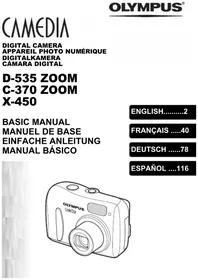
VH-410 - Digital Camera OLYMPUS - Free user manual and instructions
Find the device manual for free VH-410 OLYMPUS in PDF.


| Product type | Digital camera |
| Brand | Olympus |
| Model | VH-410 |
| Effective pixels | 16 million |
| Sensor | CCD 1/2.3" |
| Lens | Olympus 4.7-23.5 mm (equiv. 26-130 mm), f/2.8-6.5 |
| Screen | LCD TFT 3.0", 460,800 dots |
| Viewfinder | No (screen only) |
| Image stabilization | Yes (sensor shift) |
| Built-in flash | Yes (Auto, Red-eye reduction, Forced, Off) |
| ISO sensitivity | Auto, 100-1600 |
| Shutter speed | 4 to 1/2000 sec |
| Shooting modes | P, iAUTO, Beauty, Scene, Magic, Panorama |
| Video | AVI Motion JPEG up to 1280x720 at 30 fps |
| Storage media | Internal memory + SD/SDHC/SDXC/Eye-Fi card |
| Power | Lithium-ion battery LI-50B (3.7 V, 925 mAh) |
| Dimensions (W x H x D) | 101.3 x 60.0 x 20.8 mm |
| Weight (with battery and card) | 152 g |
| Connections | Multi-connector (USB, AV) |
| Supplied accessories | LI-50B battery, USB mains adapter F-2AC, USB cable, strap, stylus, CD-ROM |
| Cleaning | Gently with a soft cloth; blower for the lens |
| Warranty | 1 year (depending on region) |
Frequently Asked Questions - VH-410 OLYMPUS
User questions about VH-410 OLYMPUS
0 question about this device. Answer the ones you know or ask your own.
Ask a new question about this device
Download the instructions for your Digital Camera in PDF format for free! Find your manual VH-410 - OLYMPUS and take your electronic device back in hand. On this page are published all the documents necessary for the use of your device. VH-410 by OLYMPUS.
USER MANUAL VH-410 OLYMPUS
natural_image
Line drawing of a Olympus digital camera with lens and hexagonal button (no text or symbols on body)- Thank you for purchasing an Olympus digital camera. Before you start to use your new camera, please read these instructions carefully to enjoy optimum performance and a longer service life. Keep this manual in a safe place for future reference.
- We recommend that you take test shots to get accustomed to your camera before taking important photographs.
- In the interest of continually improving products, Olympus reserves the right to update or modify information contained in this manual.
Checking the contents of the box
Digital camera

Strap

Stylus pen

Lithium Ion Battery (LI-50B)

or

USB-AC adapter (F-2AC)

USB cable (CB-USB7)

OLYMPUS Setup
CD-ROM
Other accessories not shown: Warranty card
Contents may vary depending on purchase location.
Names of Parts
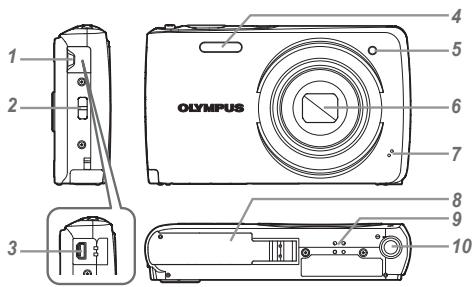
1 Connector cover
2 Strap eyelet
3 Multi-connector
4 Flash
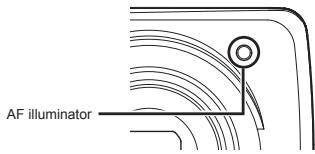
5 Self-timer lamp/AF illuminator
6 Lens
7 Microphone
8 Battery/card cover
9 Speaker
10 Tripod socket
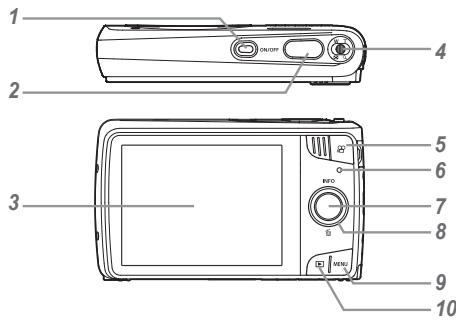
1 ON/OFF button
2 Shutter button
3 Monitor
4 Zoom lever
5 Movie record button
6 Indicator lamp
7 Ⓞ button (OK)
8 Arrow pad
INFO (changing information display)
(erase)
9 MENU button
10▶ button (switching between shooting and playback)
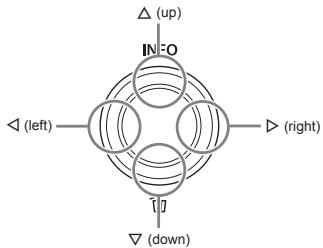
Arrow pad
flowchart
graph TD
    A["△ (up)"] --> B["INEO"]
    C["◀ (left)"] --> B
    D["▽ (down)"] --> B
    E["1"] --> B
    F["▶ (right)"] --> B
! △▽◀▷ instruct to press the up/down/left/right arrow pad.
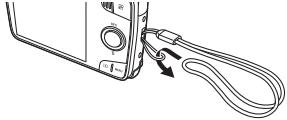
Attaching the camera strap
natural_image
Diagram of a cable being inserted into a device (no text or symbols visible)! Pull the strap tight so that it does not come loose.
Inserting and removing the battery and card
1 Follow Steps ① and ② to open the battery/card cover.
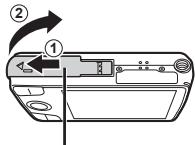
Battery/card cover
Turn off the camera before opening the battery/card cover.
2 Insert the battery while sliding the battery lock knob in the direction of the arrow.

Battery lock knob
Insert the battery as illustrated with the ⚡ mark toward the battery lock knob.
Damage to the battery exterior (scratches, etc.) may produce heat or an explosion.
! Slide the battery lock knob in the direction of the arrow to unlock, and then remove the battery.
3 Insert the card straight until it clicks into place.
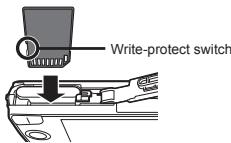
Always use SD/SDHC/SDXC cards or Eye-Fi card with this camera. Do not insert other types of memory cards. "Using the card" (p. 55)
Do not touch the metallic parts of the card directly.
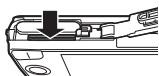
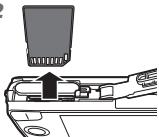
To remove the card
1
natural_image
Cross-sectional diagram of a mechanical component with an arrow indicating a specific part (no text or symbols present)2
natural_image
Diagram of a mechanical component with a downward arrow indicating a process or assembly (no text or symbols present)Press the card in until it clicks and comes out slightly, then remove the card.
4 Follow Steps ① and ② to close the battery/ card cover.
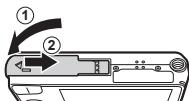
When using the camera, be sure to close the battery/card cover.
Charging the battery
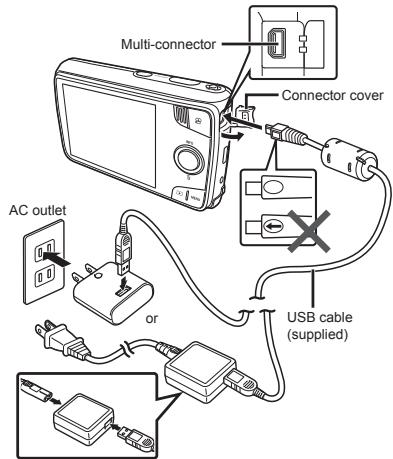
Connect the USB cable and USB-AC adapter to the camera and charge the battery.

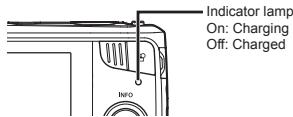
The battery is not fully charged at shipment. Before use, be sure to charge the battery until the indicator lamp turns off (up to 4 hours).
Connecting the camera
Indicator lamp
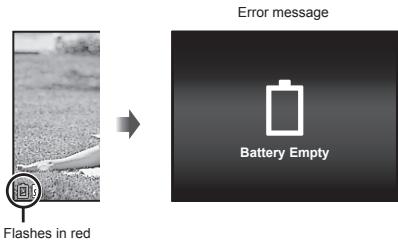
When to charge the batteries
Charge the battery when the error message shown below appears.

The included F-2AC USB-AC adapter (hereafter referred to as USB-AC adapter) differs depending on the region where you purchased the camera. If you received a plug-in type USB-AC adapter, plug it directly into AC outlet.
The included USB-AC adapter has been designed to be used for charging and playback. Do not take pictures while the USB-AC adapter is connected to the camera.
Be sure to unplug the power plug of the USB-AC adapter from the wall outlet when the charging is complete or the playback ends.
For details on the battery, see “Battery Handling Precautions” (p. 59). For details on the USB-AC adapter, see “USB-AC adapter” (p. 60).
If the indicator lamp does not light, check the USB cable and USB-AC adapter connections.
The battery can be charged while the camera is connected to the computer via USB. The charging time varies depending on the performance of the computer. (There may be cases in which it takes approx. 10 hours.)
Turning on the camera and making the initial settings
When you turn on the camera for the first time, a screen appears enabling to set the language for the menus and messages displayed in the monitor, and the date and time.
1 Press the ON/OFF button to turn on the camera, press △▽◀▷ of the arrow pad to select your language and press the ⏻ button.
2 Press of the arrow pad to select the year for [Y].
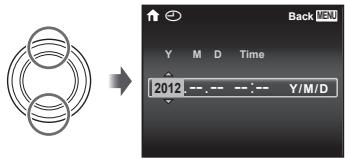
Date and time setting screen
3 Press ▷ of the arrow pad to save the setting for [Y].
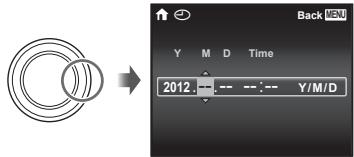
4 As in Steps 2 and 3, press △▽◀▷ of the arrow pad to set [M] (month), [D] (day), [Time] (hours and minutes), and [Y/M/D] (date order), and then press the Ⓞ button.
For precise time setting, press the Ⓞ button as the time signal strikes 00 seconds.
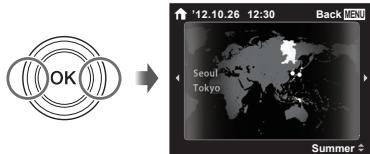
5 Press ◀ of the arrow pad to select the [↑] time zone and then press the Ⓞ button.
- Use to turn daylight saving time ([Summer]) on or off.
Learning how to use the camera
- Press the ON/OFF button to turn on the camera and enter the standby mode. (Press the ON/OFF button again to turn off the camera.)
- Select the shooting mode, and press the shutter button to shoot a still image.
- To shoot a movie, press the 🔧 button.
- Set the shooting functions using the function menu or the setup menu.
- To view images, press the ▶ button to switch to playback mode.
- Set the playback functions using the setup menu.
- To return to standby mode, press the ▶ button again, or press the shutter button halfway down and then release it.
- Press and hold the ▶ button while the camera is turned off to start up the camera in the playback mode.
- In this case, pressing the ▶ button again sets the camera to the standby mode.
Using the Touch Panel
Use the touch panel by touching the screen with your finger.

- The touch panel can be used for operations marked with 📋 in this manual.
- Using a screen protector or gloves may cause poor operability.
- Use a stylus pen (supplied) when it is difficult to operate with your finger.
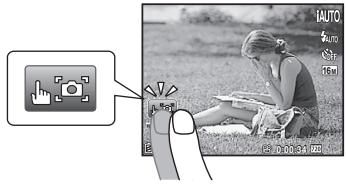
Using for the shooting mode
By touching the screen, the subject to be focused on can be set or the picture can be taken.
Every time 🔍 is touched, the operation is changed.
- 📄: The subject that is touched is focused on and the picture is taken automatically.
- The subject that is touched is AF locked. Press the shutter button to take the picture. Touch Lock On to release the AF lock. Focus lock ends when the shutter is released.
Using for the playback mode
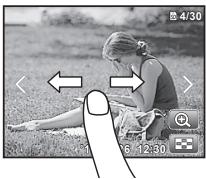
The displayed image can be changed or enlarged.
Advancing and rewinding one frame at a time:
Drag the screen to left to advance one frame, and drag the screen to right to rewind one frame.
natural_image
Black-and-white photo of a person sitting on grass, holding an object, with no visible text or symbols.Zoom:
Touch 🔒 to enlarge the image.
- When the enlarged image is dragged, the displayed image is also moved.
Index:
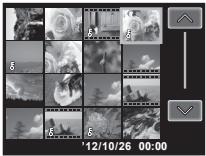
Touch ☐ to play back the image in index view.
- Touch the image to play back the image in single-image view.
natural_image
Grid of grayscale images showing various scenes including roses, clouds, stars, and a star, displayed on a white background with no visible text or symbols.Playback (movie, sound recorded with an image):
Touch ▶.
- Touch 📋 to expand the grouped images.

Shooting still images
1 Press the ON/OFF button to turn on the camera.
2 Select the shooting mode. (p. 12)
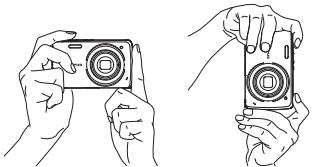
3 Hold the camera and compose the shot.
natural_image
Line drawings of two hands holding a digital camera (no text or symbols present)When holding the camera, take care not to cover the flash, microphone or other important parts with your fingers, etc.
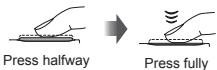
4 Press the shutter button halfway down to focus.
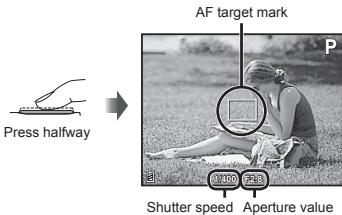
The camera was unable to focus if the AF target mark flashes red. Try focusing again.
5 To take the picture, gently press the shutter button all the way down while being careful not to shake the camera.
Using the zoom
Pressing the zoom lever adjusts the shooting range.
W side T side
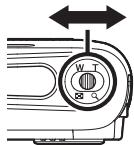
natural_image
Diagram of a mechanical component with directional arrow and circular dial (no text or symbols)| Image size | Zoom bar |
| 16M | Optical zoom |
| Other | *1 |
*1 Due to increased processing of the pixel counts, the image quality will not degrade. The magnification ratio changes depending on the image size setting.
The zoom position is locked when [✗]s Super Macro] (p. 20) is selected.
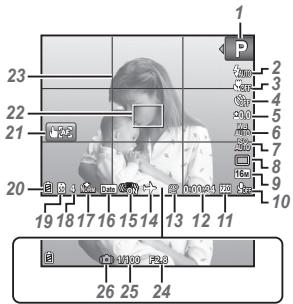
When the shutter button is pressed halfway down
| No. | Name | Normal | Detailed | No info. |
| 1 | Shooting mode | √ | √ | - |
| 2 | Flash | √ | √ | - |
| 3 | Macro | √ | √ | - |
| 4 | Self-timer | √ | √ | √ |
| 5 | Exposure compensation | √ | √ | - |
| 6 | White balance | √ | √ | - |
| 7 | ISO sensitivity | √ | √ | - |
| 8 | Drive | √ | √ | - |
| 9 | Image size (still images) | √ | √ | - |
| 10 | Recording with sound | √ | √ | - |
| 11 | Image size (movies) | √ | √ | - |
| 12 | Movie recording length | √ | √ | - |
| 13 | Movie recording icon | √ | √ | - |
| 14 | World time | - | √ | - |
| 15 | Image stabilization | - | √ | - |
| 16 | Date stamp | √ | √ | - |
| 17 | Compression | √ | √ | - |
| 18 | Number of storable still pictures | √ | √ | - |
| 19 | Current memory | √ | √ | - |
| 20 | Battery check | √ | √ | - |
| 21 | Touch shutter | √ | √ | √ |
| 22 | AF target mark | √ | √ | √ |
| 23 | Grid Guide | - | √ | - |
| 24 | Aperture value | √ | √ | √ |
| 25 | Shutter speed | √ | √ | √ |
| 26 | Camera shake warning | √ | √ | √ |
Switching the displays
The displays change in the order of Normal → Detailed → No info. each time (INFO) is pressed.
Selecting the shooting mode

The default settings of the function are highlighted in ____.
| Shooting mode | Submode |
| P (P mode) | - |
| IAUTO (IAUTO mode) | - |
| BEAUTY (BEAUTY mode) | Recommended/Set 1/Set 2/Set 3 |
| SCN (SCN mode) | Portrait/Landscape/Night Scene/Night+Portrait/Sport/Indoor/Candle/Self Portrait/Sunset/Fireworks/Cuisine/Documents/Beach & Snow/Pet |
| MAGIC (MAGIC mode) | Pop Art/Pin Hole/Fish Eye/Drawing/Soft Focus/Punk/Sparkle/Watercolor/Reflection/Miniature |
| Panorama mode) | - |

"List of settings available in each shooting mode" (p. 50), "List of SCN settings" (p. 51), "List of MAGIC settings" (p. 53)

Use ◀▷ of the arrow pad on standby mode screen to select the shooting mode.
To select the BEAUTY, SCN and MAGIC submodes, display submodes by using ▽ first. Then use ◀ to select the desired submode and press the ⏻ button.
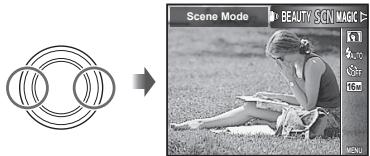
To select a submode
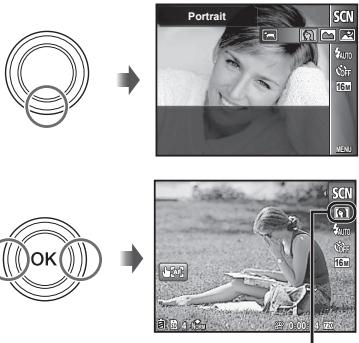
Icon indicating the submode that is set
Learning about the shooting modes
P (P mode)
The camera will select the appropriate aperture value and shutter speed for the subject. Changes can also be made to various shooting settings, such as exposure compensation, as needed.
iAUTO (iAUTO mode)
The camera will automatically select the optimal shooting mode for the scene. The shooting condition is decided by the camera and settings cannot be changed, excepting some functions.
BEAUTY (BEAUTY mode)
You can shoot with Beauty Fix effects.
1 Point the camera toward the subject. Check the frame appearing around the face detected by the camera, and then press the shutter button to take the picture.
2 To save the image, select [OK] on the review screen and press the Ⓞ button. To retouch the image additionally, select [Beauty Fix].
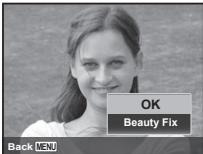
Beauty Fix
① Use △▽◀▷ to select a retouching item, and press the Ⓞk button.
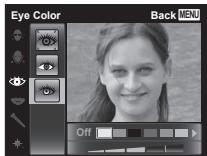
② Check the retouched effects on the review screen, then press the Ⓞ button to start the retouch process and save.
- Settings for Beauty Fix can be registered.
Depending on the picture, the editing may not be effective.
SCN (SCN mode)
You can shoot with the best mode for the subject and shooting scene. The best shooting settings for various scenes are pre-programmed as submodes. Note that functions may be limited in some modes.
Refer to the descriptions displayed on the submode selection screen, and select the desired submode.
MAGIC (MAGIC mode)
You can shoot with special effects.
Refer to the sample images displayed on the submode selection screen, and select the desired submode.
The best shooting settings for each effect are pre-programmed, so some function settings cannot be changed.
Note that some effects may not be applied to movies.
(Panorama mode)
You can shoot and combine multiple images to create an image with a wide angle of view (panoramic image).
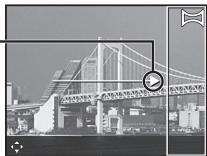
① Use △▽◀▷ to specify at which edge the next picture is to be connected, and then press the Ⓞ button.
Direction for combining frames
natural_image
Black-and-white photo of a large suspension bridge over water with no visible text or symbols② Press the shutter button to take the first frame. The edge of the first frame is displayed faintly on the screen.
③ Compose the next shot so that the edge of the first frame displayed faintly on the screen overlaps the subject of the second frame, and press the shutter button.
④ Repeat step ③ until the desired number of frames are taken, and then press the Ⓞ button or MENU button when finished.
Panorama shooting is possible for up to 10 frames.
The shot images are combined into a single panorama image by the PC software.
For details on installing the PC software, refer to (p. 38). In addition, refer to the PC software help guide for details on how to make panorama images.
1 Press the ▶ button.
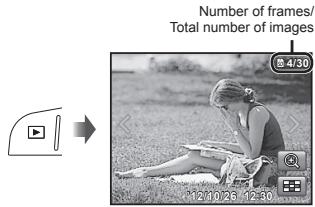
Playback image
Pictures taken using BEAUTY mode are displayed as a group. Press the zoom lever to the T side to play back the image in the group.
2 Use ◀▷ to select an image.
Displays previous image

natural_image
Abstract geometric pattern with concentric circles and overlapping rings (no text or symbols)Displays next image
Hold ▷ to fast forward and hold ◀ to reverse.
! Press the ▶ button again to return to the shooting screen.
Index view and close-up view
Index view enables quick selection of a desired image. Close-up view (up to 10× magnification) allows checking of image details.
1 Press the zoom lever.

Single-image view
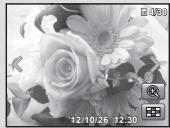
natural_image
Black and white close-up of a rose with floral patterns (no text or symbols visible)W T
Close-up view
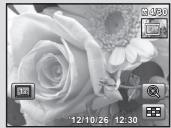
natural_image
Black and white photo of a rose with flower petals, no visible text or symbols
Index view
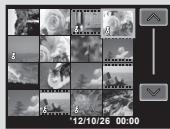
natural_image
Grid of grayscale flower images with no visible text or symbols, displayed in a photo editing interface (no readable document content)To select an image in index view
Use △▽◀▷ to select an image, and press the Ⓞ button to display the selected image in single-image view.
To scroll an image in close-up view
Use to move the viewing area.
Playback mode display
- Normal
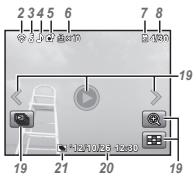
Still image
- Detailed
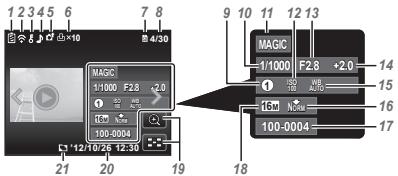
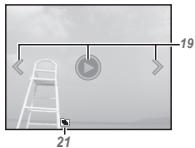
- No information
natural_image
Diagram showing a ladder and play button with numbered labels (19, 21) and an arrow, no readable text or symbols present.| No. | Name | Normal | Detailed | No info. |
| 1 | Battery check | - | √ | - |
| 2 | Eye-Fi transfer data | √ | √ | - |
| 3 | Protect | √ | √ | - |
| 4 | Adding sound | √ | √ | - |
| 5 | Upload order | √ | √ | - |
| 6 | Print reservation/number of prints | √ | √ | - |
| 7 | Current memory | √ | √ | - |
| 8 | Frame number/total number of images | √ | √ | - |
| 9 | MAGIC mode | - | √ | - |
| 10 | Shutter speed | - | √ | - |
| 11 | Shooting mode | - | √ | - |
| 12 | ISO sensitivity | - | √ | - |
| 13 | Aperture value | - | √ | - |
| 14 | Exposure compensation | - | √ | - |
| 15 | White balance | - | √ | - |
| 16 | Compression | - | √ | - |
| 17 | File name | - | √ | - |
| 18 | Image size | - | √ | - |
| 19 | Touch screen mode | √ | √ | √ |
| 20 | Recording date and time | √ | √ | - |
| 21 | Grouped image | √ | √ | √ |
Switching the displays
The displays change in the order of Normal → Detailed → No info. each time △ (INFO) is pressed.
Erasing images during playback
(Single image erase)
1 Display the image you want to erase and press (☐).
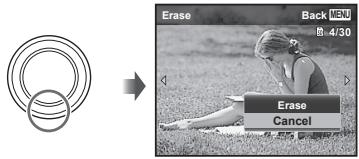
2 Press △▽ to select [Erase], and press the Ⓞ button.
! Grouped images are erased as a group.
! Multiple images or all images can be erased at a time (p. 30).
Shooting movies
1 Press the 🔗 button to start recording.
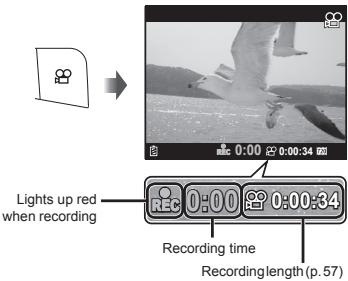
The movie is shot in the set shooting mode. Note that the shooting mode effects may not be obtained for some shooting modes.
! Sound is also recorded.
2 Press the 🔗 button again to stop recording.
Playing back movies
Select a movie, and press the Ⓞ button.
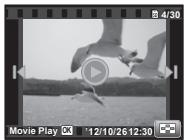
natural_image
Black-and-white photo of a bird in flight with wings, captured in a video player interface (no text or symbols on the image itself)Movie
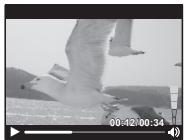
natural_image
Black-and-white photo of a bird in flight over a field, captured with a video player interface (no readable text or symbols)During playback
| Pausing and restarting playback | Press the ⏻ button to pause playback. During pause, fast forward or reverse, press the ⏻ button to restart playback. |
| Fast forward | Press ▷ to fast forward. Press ▷ again to increase the fast forward speed. |
| Rewind | Press ◀ to rewind. Press ◀ again to increase the rewind speed. |
| Adjusting the volume | Use △▽ to adjust the volume. |
Operations while playback is paused
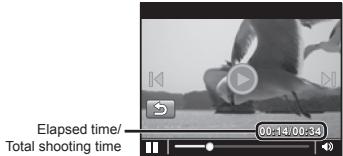
During pause
| Cueing | Use to display the first frame and press to display the last frame. |
| Advancing and rewinding one frame at a time | Press or to advance or rewind one frame at a time. Hold or pressed for continuous advance or rewind. |
| Resuming playback | Press the Ⓧ button to resume playback. |
To stop movie playback
Press the MENU button.
To play back movies on the computer, the included PC software is recommended. For the first use of the PC software, connect the camera to the computer, then launch the software (p. 37).
Some shooting menu functions cannot be set in certain shooting modes.
For details, refer to "List of settings available in each shooting mode" (p. 50).
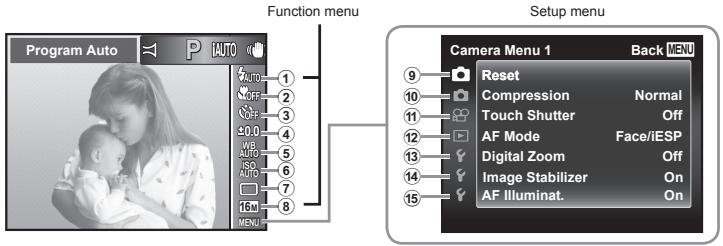
Function menu (p. 20)
| 1 Flash | 3 Self-timer | 5 White balance | 7 Drive |
| 2 Macro | 4 Exposure compensation | 6 ISO sensitivity | 8 Image Size |
Setup menu
| 9 | Camera Menu 1 | p. 24 |
| Reset | ||
| Compression | ||
| Touch Shutter | ||
| AF Mode | ||
| Digital Zoom | ||
| Image Stabilizer (Still images) | ||
| AF Illuminat. | ||
| 10 | Camera Menu 2 | p. 26 |
| Icon Guide | ||
| Date Stamp | ||
| 11 | Movie Menu | p. 27 |
| Image Size | ||
| Frame Rate | ||
| IS Movie Mode | ||
| (Video sound recording) |
| 12 | Playback Menu | p. 27 |
| Slideshow | ||
| Edit | ||
| Erase | ||
| Print Order | ||
| 5 (Protect) | ||
| Upload Order | ||
| 13 | Settings Menu 1 | p. 31 |
| Memory Format/Format | ||
| Backup | ||
| Eye-Fi | ||
| USB Connection | ||
| ▶ Power On | ||
| Keep Settings | ||
| Sound Settings |
| 14 Settings Menu 2 | p. 33 |
| Pixel Mapping | |
| ☐ (Monitor) | |
| NTSC / PAL | |
| Power Save | |
| ☐ (Language) | |
| ☐ (Date/time) | |
| World Time | |
| 15 Settings Menu 3 | p. 36 |
| Beauty Settings | |
| Touch Calibration |
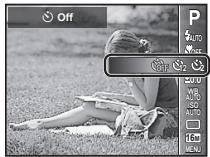
1 Use ◀ of the arrow pad to display the function menu.
2 Use of the arrow pad to select the function to be set.
3 Use ◀▷ of the arrow pad to select the setting value, and then press the Ⓞ button to enter the setting.
Example: Self-timer
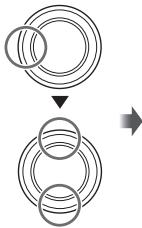
flowchart
graph TD
    A["Two overlapping circles"] --> B["Two overlapping circles"]
    B --> C["Final merged structure"]
natural_image
Black-and-white photo of a person lying on grass, no visible text or symbols| Flash ^1,2 | Sets the flash firing method. | |
| AUTO | Flash Auto | The flash fires automatically in low-light or backlight conditions. |
| Redeye | Pre-flashes are emitted to reduce the occurrence of red eye in your photos. | |
| Fill In | The flash fires regardless of the available light. | |
| Flash Off | The flash does not fire. | |
| Macro | Sets the function for shooting subjects at close distances. | |
| Off | Macro mode is deactivated. | |
| Macro | You can shoot the image at a range as close as 20 cm/7.9 in. (W) to 60 cm/23.6 in. (T). | |
| Super Macro | This enables shooting as close as 5 cm (2 in.) to the subject. | |
| Self-timer | Sets the time after the shutter button is pressed until the picture is taken. | |
| Off | The self-timer is deactivated. | |
| 12 sec | The self-timer lamp turns on for approx. 10 seconds, then blinks for approx. 2 seconds, and then the picture is taken. | |
| 2 sec | The self-timer lamp blinks for approx. 2 seconds, then the picture is taken. | |
| Exposure compensation | Compensates the brightness (appropriate exposure) adjusted by the camera. | |
| -2 to +2 Value | Set a larger negative (-) value to adjust darker, or a larger positive (+) value to adjust brighter. | |
| White balance | Sets an appropriate color scheme for the light of the shooting scene. | |
| WB AUTO | WB Auto | The camera automatically adjusts the white balance. |
| Sunny | Suitable for shooting outdoors under a clear sky. | |
| Cloudy | Suitable for shooting outdoors under a cloudy sky. | |
| Incandescent | Suitable for shooting under tungsten lighting. | |
| Fluorescent | Suitable for shooting under white fluorescent lighting. | |
| 21 | One Touch 1 | For manually adjusting the white balance according to the light when shooting. Set a piece of white paper or other white object so that it fills the entire screen, and press the MENU button to set the white balance. |
| 22 | One Touch 2 | |
| ISO sensitivity ^3 | Sets the ISO sensitivity. | |
| ISO AUTO | ISO Auto | The camera automatically sets the sensitivity with priority on image quality. |
| ISO HIGH | High ISO Auto | The camera automatically sets the sensitivity with priority on minimizing blur caused by a moving subject or by camera shake. |
| ISO 100 to 1600 Value | Set a smaller value to reduce noise in the picture, or a larger value to reduce blur. | |
| Drive | Sets the sequential shooting function. | |
| Single | One frame is shot each time the shutter button is pressed. | |
| Sequential | The images are taken sequentially while holding down the shutter for up to 200 frames. | |
| High-Speed1 | The camera takes sequential shots at approximately 1.5 frames/sec. | |
| High-Speed2 | The camera takes sequential shots at approximately 15 frames/sec. | |
| Image size*4 | Sets the number of recording pixels. | |
| 16M | 4608×3456 | Suitable for printing pictures over A3 (11×17 in.). |
| 3M | 3264×2448 | Suitable for printing pictures up to A3 (11×17 in.). |
| 5M | 2560×1920 | Suitable for printing pictures up to A3 (11×17 in.). |
| 3M | 2048×1536 | Suitable for printing pictures up to A4 size (8.5×11 in.). |
| 2M | 1600×1200 | Suitable for printing pictures at A5 (5×7 in.). |
| 1M | 1280×960 | Suitable for printing pictures at postcard size. |
| VGA | 640×480 | Suitable for using pictures on emails. |
| 15.9S | 1920×1080 | Suitable for playing pictures on a TV (widescreen TV) and for printing on A5 (5×7 in.). |
*1 Flash option is limited to [⚡ Flash Off] when macro option is set to [Ms Super Macro].
^2 Flash option is limited to [AUTO Flash Auto], [Fill In] or [Flash Off] when drive setting is set to [Sequential], or to [Flash Off] when drive setting is set to [High-Speed1] or [High-Speed2].
^3 ISO sensitivity is limited to [ISO_AUTO ISO Auto] when drive setting is set to [HI1] High-Speed1] or [HI2] High-Speed2].
*4 [Image Size] is limited to [3_M] or lower when drive setting is set to [Hi 1] High-Speed1] or [Hi 2] High-Speed2].
Registering one touch white balance
Select [●21 One Touch 1] or [●22 One Touch 2], face the camera toward a piece of white paper or other white object, and press the MENU button.
- The camera releases the shutter and the white balance is registered. When the white balance was previously registered, the registered data is updated.
- The registered white balance data will not be cleared by turning off the power.
- Perform this procedure under the light where the pictures will be actually taken.
- When the camera settings are changed, the white balance must be registered again.

When the white balance cannot be registered, check that the white paper fills the screen, and then perform the procedure again.
Using the setup menu
Press the MENU button during shooting or playback to display the setup menu.
The setup menu provides access to a variety of camera settings, such as shooting and playback functions, time and date settings, and display options.
1 Press the MENU button.
- The setup menu is displayed.
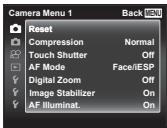
2 Press ◀ to select the page tabs. Use △▽ to select the desired page tab and press ▷.
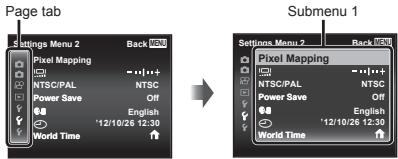
3 Use △▽ to select the desired submenu 1 and then press the Ⓞ button.
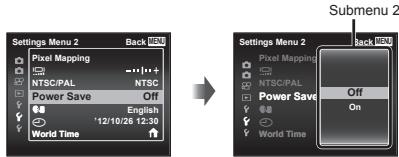
4 Use △▽ to select the desired submenu 2 and then press the Ⓞ button.
- Once a setting is selected, the display returns to the Submenu 1.
There may be additional operations.
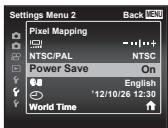
5 Press the MENU button to complete the setting.
The default settings of the function are highlighted in
For the operation method, refer to "Using the setup menu" (p. 23).
Camera Menu 1
Restoring the shooting functions to the default settings [Reset]
| Submenu 2 | Application |
| Yes | Restores the following menu functions to the default settings.Shooting modeFlashMacroSelf-timerExposure compensationWhite balanceISO sensitivityDriveImage Size (still images)Camera Menu 1, Camera Menu 2 and Movie Menu Functions |
| No | The settings will not be changed. |
Selecting the image quality for still images [Compression]
| Submenu 2 | Application |
| Fine | Shooting at high quality. |
| Normal | Shooting at normal quality. |
“Number of storable pictures (still images)/Recording length (movies) in the internal memory and cards” (p. 56, 57)
Setting the Touch Shutter function
[Touch Shutter]
| Submenu 2 | Application |
| On | The subject that is touched is focused on and the picture is taken automatically. |
| Off | The subject that is touched is AF locked. (Press the shutter button manually.) |
This setting can also be changed by touching the panel. "Using for the shooting mode" (p. 8)
Selecting the focusing area
[AF Mode]
| Submenu 2 | Application |
| Face/iESP | The camera focuses automatically. (If a face is detected, it is shown by a white frame ^1 ; when the shutter button is pressed halfway and the camera focuses, the frame turns to green ^2 . If no face is detected, the camera chooses a subject in the frame and focuses automatically.) |
| Spot | The camera focuses on the subject located within the AF target mark. |
| AF Tracking | The camera tracks the subject movement automatically to focus on it continuously. |
*1 For some subjects, the frame may not appear or may take some time to appear.
^*2 If the frame blinks in red, the camera cannot focus. Try refocusing on the subject.
To focus on a moving subject continuously (AF Tracking)
① Hold the camera to align the AF target mark on the subject and press the Ⓞ button.
② When the camera recognizes the subject, the AF target mark automatically tracks the subject movement to focus on it continuously.
③ To cancel the tracking, press the Ⓞ button.
Depending on the subjects or the shooting conditions, the camera may be unable to lock the focus or fail to track the subject movement.
When the camera fails to track the subject movement, the AF target mark changes to red.
Shooting at higher magnifications than optical zoom [Digital Zoom]
| Submenu 2 | Application |
| Off | Disable digital zoom. |
| On | Enable digital zoom. |
[Digital Zoom] is not available when [Is Super Macro] (p. 20) is selected.
[On] selected for [Digital Zoom]:
| Image size | Zoom bar |
| 16M | 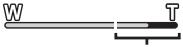 Digital zoom range Digital zoom range |
| Other | 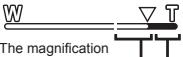 ratio changes depending on the image size setting. ^*1 Digital zoom range ratio changes depending on the image size setting. ^*1 Digital zoom range |
*1 Due to increased processing of the pixel counts, the image quality will not degrade. The magnifi cation ratio changes depending on the image size setting.
Photographs taken with the zoom bar displayed in red may appear “grainy.”
Reducing the blur caused by the camera shake when shooting [Image Stabilizer]
| Submenu 2 | Application |
| Off | The image stabilizer is deactivated. This is recommended for shooting when the camera is fixed in place on a tripod or other stable surface. |
| On | The image stabilizer is activated. |
There may be a noise coming from inside the camera when the shutter button is pressed with [Image Stabilizer] set to [On].
! Images may not be stabilized if camera shake is too severe.
When the shutter speed is extremely slow, such as when taking pictures at night, [Image Stabilizer] may not be as effective.
Using the assist lamp for shooting a dark subject [AF Illuminat.]
| Submenu 2 | Application |
| Off | The AF illuminator is not used. |
| On | When the shutter button is pressed halfway down, the AF illuminator turns on to aid focusing. |
Camera Menu 2
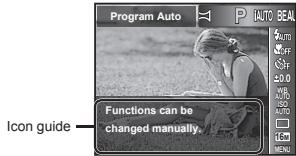
Displaying icon guides [Icon Guide]
| Submenu 2 | Application |
| Off | No icon guide is displayed. |
| On | The explanation of the selected icon will be displayed when a shooting mode or function menu icon is selected (position the cursor on the icon for a while to display the explanation). |
Imprinting the date of recording [Date Stamp]
| Submenu 2 | Application |
| Off | Do not imprint the date. |
| On | Stamp new photographs with the date of recording. |
When the date and time are not set, [Date Stamp] cannot be set. "Turning on the camera and making the initial settings" (p. 7)
The date stamp can not be deleted.
When drive settings are set to other than [☐], [Date Stamp] cannot be set.
Selecting the image size for movies 📊 [Image Size/Frame Rate]
| Submenu 1 | Submenu 2 | Application |
| Image Size | 720P (1280×720)/ VGA (640×480)/ QVGA (320×240) | Select the image quality based on the image size and frame rate. Higher frame rates provide smoother movie images. |
| Frame Rate | 30fps*1/ 15fps*1 |
*1 frames per second
“Number of storable pictures (still images)/Recording length (movies) in the internal memory and cards” (p. 56, 57)
Reducing the blur caused by the camera shake when shooting ☐ [IS Movie Mode]
| Submenu 2 | Application |
| Off | The image stabilizer is deactivated. This is recommended for shooting when the camera is fixed in place on a tripod or other stable surface. |
| On | The image stabilizer is activated. |
! Images may not be stabilized if camera shake is too severe.
Recording sound when shooting movies 🎨 [ψ]
| Submenu 2 | Application |
| Off | No sound is recorded. |
| On | Sound is recorded. |
When set to [On], only the digital zoom can be used during movie recording. To record the movie with the optical zoom, set [↓] (movies) to [Off].
▶ Playback Menu
Playing back pictures automatically ▶ [Slideshow]
| Submenu 2 | Submenu 3 | Application |
| BGM | Off | No background music is played. |
| On | Background music is played. | |
| Type | Normal/Fader/Zoom | Selects the type of transition effect used between slides. |
| Start | — | Starts the slideshow. |
During a slideshow, press ▷ to advance one frame, ◀ to go back one frame.
Changing the image size ▶ [√]
This saves a high-resolution image as a separate image with a smaller size for use in e-mail attachments and other applications.
| Submenu 1 | Submenu 2 | Submenu 3 |
| Edit | (0-25) | VGA 640×480 |
| QVGA 320×240 |
① Use ◀▶ to select an image.
② Use to select an image size and press the OK button.
- The resized image is saved as a separate image.
Cropping image ▶ [☐]
| Submenu 1 | Submenu 2 |
| Edit | ### |
① Use ◀▶ to select an image, and press the Ⓞ button.
② Use the zoom lever to select the size of the cropping frame, and use to move the frame.
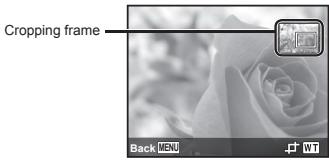
③ Press the Ⓞ button after you have selected the area to trim.
- The edited image is saved as a separate image.
Adding sound to still images ▶ [ψ]
| Submenu 1 | Submenu 2 |
| Edit |
① Use ◀▶ to select an image.
② Aim the microphone toward the sound source.
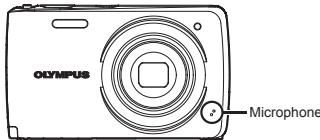
③ Press the Ⓞ button.
- Recording starts.
- The camera adds (records) sound for approx. 4 seconds while playing back the image.
Retouching faces on still images ▶ [Beauty Fix]
| Submenu 1 | Submenu 2 |
| Edit | Beauty Fix |
Depending on the picture, the editing may not be effective.
① Use ◀▶ to select an image, and press the Ⓞ button.
② Use to select a retouching item, and press the Ⓞ button.
③ To save the image, select [OK] on the review screen and press the OK button. To retouch the image additionally, select [Beauty Fix].
- The retouched image is saved as a separate image.
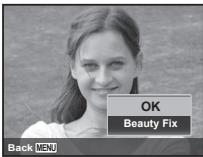
The [Image Size] of the retouched image is limited to [5_M] or lower.
Beauty Fix
① Select a retouching item, and press the Ⓞ button.
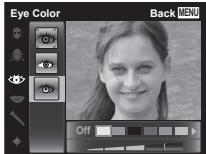
② Press the Ⓞk button on the review screen.
Brightening areas that are dark due to backlight or other reasons
[Shadow Adj]
| Submenu 1 | Submenu 2 |
| Edit | Shadow Adj |
① Use ◀▶ to select an image, and press the Ⓞ button.
- The edited image is saved as a separate image.
Depending on the picture, the editing may not be effective.
The retouching process may lower the image resolution.
Retouching red eyes in flash shooting
[Redeye Fix]
| Submenu 1 | Submenu 2 |
| Edit | Redeye Fix |
① Use ◀▶ to select an image, and press the Ⓞ button.
• The edited image is saved as a separate image.
Depending on the picture, the editing may not be effective.
The retouching process may lower the image resolution.
Rotating images ▶ [☐]
| Submenu 1 | Submenu 2 |
| Edit |
① Use ◀▷ to select an image.
② Press the Ⓞ button to rotate the image.
③ If necessary, repeat Steps ① and ② to make settings for other images, and press the MENU button.
The new picture orientations will be saved even after the power is turned off.
Erasing images ▶ [Erase]
| Submenu 2 | Application |
| All Erase | All images in the internal memory or card will be erased. |
| Sel. Image | Images are individually selected and erased. |
| Erase | Deletes the image displayed. |
When erasing pictures in the internal memory, do not insert the card into the camera.
! Protected images cannot be erased.
To individually select and erase images [Sel. Image]
① Use to select [Sel. Image], and press the Ⓞ button.
② Use △▽◀▷ to select the image to be erased, and press the Ⓞ button to add a √ mark to the image.
- Press to the T end to return to the single frame display.
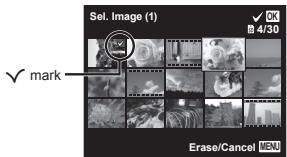
③ Repeat Step ② to select the images to be erased, and then press the MENU button to erase the selected images.
④ Use to select [Yes], and press the ☐ button.
- The images with a √ mark are erased.
To erase all images [All Erase]
① Use to select [All Erase], and press the OK button.
② Use to select [Yes], and press the ☉ button.
Saving print settings to the image data ▶ [Print Order]
"Print Reservations" (p. 43)
! Print reservation can be set only for still images that are recorded to the card.
Protecting images ▶ [5]
Protected images cannot be erased by [Erase] (p. 17, 30), [Sel. Image] (p. 30), or [All Erase] (p. 30), but all images are erased by [Memory Format]/[Format] (p. 31).
① Use ◀▶ to select an image.
- Press the zoom lever to the W end to display an index view. Images can be quickly selected using the buttons.
② Press the Ⓞ button.
- Press the Ⓞ button again to cancel the settings.
③ If necessary, repeat Steps ① and ② to protect other images, and press the MENU button.
Setting images to upload to Internet using OLYMPUS Viewer 2
▶ [Upload Order]
① Use ◀▶ to select an image.
- Press the zoom lever to the W end to display an index view. Images can be quickly selected using the △▽◀▷ buttons.
② Press the Ⓞ button.
- Press the Ⓞ button again to cancel the settings.
③ If necessary, repeat Steps ① and ② to make settings for other images, and press the MENU button.
! Only JPEG files can be ordered.
For details on OLYMPUS Viewer 2, refer to "Installing the PC software and registering user" (p. 38).
For details on uploading images, refer to OLYMPUS Viewer 2 "Help".
Settings Menu 1
Erasing data completely [Memory Format]/ [Format]
Before formatting, check that no important data is left in the internal memory or card.
Cards must be formatted with this camera before first use or after being used with other cameras or computers.
! Be sure to remove the card before formatting the internal memory.
| Submenu 2 | Application |
| Yes | Completely erases the image data in the internal memory or card (including protected images). |
| No | Cancels formatting. |
Copying images in the internal memory to the card ƒ [Backup]
| Submenu 2 | Application |
| Yes | Backs up image data in the internal memory to the card. |
| No | Cancels the backup. |
Using an Eye-Fi card ♂ [Eye-Fi]
| Submenu 2 | Application |
| All | Transfers all images. |
| Sel. Image | Transfers only selected image. |
| Off | Disable Eye-Fi communication. |
When using an Eye-Fi card, read the Eye-Fi card instruction manual carefully, and comply with the instructions.
Use the Eye-Fi card in compliance with the laws and regulations of the country where the camera is used.
In locations such as on an airplane, where the Eye-Fi communication is prohibited, remove the Eye-Fi card from the camera, or set [Eye-Fi] to [Off].
This camera does not support the Eye-Fi card's Endless mode.
Selecting a method for connecting the camera to other devices [USB Connection]
| Submenu 2 | Application |
| Auto | Set to select the connection method each time the camera is connected to another device. |
| Storage | Connect as a card reader. |
| MTP | As a portable device, connect to PC loaded with Windows Vista or Windows7. |
| Select when connecting to a PictBridge-compatible printer. |
Select [Storage] to use the supplied software.
Refer to “Connecting with a computer” (p. 37) for the connection method with a computer.
Turning on the camera with the ▶ button ♂ [▶ Power On]
| Submenu 2 | Application |
| No | The camera is not turned on. To turn on the camera, press the ON/OFF button. |
| Yes | Press and hold the ▶ button to turn the camera on in the playback mode. |
Saving the mode when the camera is turned off ♂ [Keep 📋 Settings]
| Submenu 2 | Application |
| Yes | The shooting mode is saved when the camera is turned off and is reactivated the next time the camera is turned on. |
| On | The shooting mode is set to P mode when the camera is turned on. |
Selecting the camera sound and its volume [Sound Settings]
| Submenu 2 | Submenu 3 | Application |
| Sound Type | 1/2/3 | Selects the camera sounds (operation sounds and shutter sound). |
| Volume | 0/1/2/3/4/5 | Selects the operation volume of camera buttons. |
| Volume | 0/1/2/3/4/5 | Selects the image playback volume. |
Camera Menu 2
Adjusting the image processing function [Pixel Mapping]
This function has already been adjusted at factory shipping, and no adjustment is needed right after purchase. Approximately once a year is recommended.
For best results, wait at least one minute after taking or viewing pictures before performing pixel mapping. If the camera is turned off during pixel mapping, be sure to perform it again.
To adjust the image processing function
Press the Ⓞ button when [Start] (Submenu 2) is displayed.
- The check and adjustment of the image processing function starts.
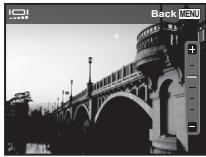
Adjusting the brightness of the monitor [☐]
To adjust the monitor brightness
① Use to adjust the brightness while viewing the screen, and then press the OK button.
natural_image
Black-and-white exterior view of a historic arched bridge with a circular archway, no visible text or symbols.Playing back images on a TV ♂ [NTSC/PAL]
The TV video signal system varies depending on the countries and regions. Before viewing camera images on your TV, select the video output according to your TV's video signal type.
| Submenu 2 | Submenu 3 | Application |
| NTSC/PAL | NTSC | Connecting the camera to a TV in North America, Taiwan, Korea, Japan, and so on. |
| PAL | Connecting the camera to a TV in European countries, China, and so on. |
The factory default settings differ according to the region where the camera is sold.
To play back camera images on a TV
- Connection via AV cable
① Use the camera to select the same video signal system as the one of connected TV ([NTSC]/[PAL]).
② Connect the TV and camera.
③ Turn on the TV, and change "INPUT" to "VIDEO (an input jack connected to the camera)".
④ Turn on the camera, and use to select the image for playback.
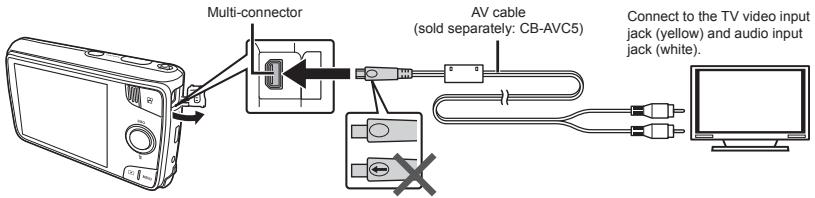
For details on changing the input source of the TV, refer to the TV's instruction manual.
Depending on the TV's settings, the displayed images and information may become cropped.
Saving battery power between shots ƒ [Power Save]
| Submenu 2 | Application |
| Off | Cancels [Power Save]. |
| On | When the camera is not being used for approx. 10 seconds, the monitor automatically turns off to save battery power. |
To resume standby mode
Press any button.
Changing the display language ƒ [☐]
| Submenu 2 | Application |
| Languages | The language for the menus and error messages displayed on the monitor is selected. |
Setting the date and time [-]
① Press the Arrow pad to to select the year for [Y].
② Press the Arrow pad to ▷ to save the setting for [Y].
③ As in Steps ① and ②, press the Arrow pad to △▽◀▷ to set [M] (month), [D] (day), [Time] (hours and minutes), and [Y/M/D] (date order), and then press the Ⓞ button.
For precise time setting, press the Ⓞ button as the time signal strikes 00 seconds.
Choosing home and alternate time zones ♂ [World Time]
You will not be able to select a time zone using [World Time] if the camera clock has not first been set using [💡].
| Submenu 2 | Submenu 3 | Application |
| Home/Alternate | The time in the home time zone (the time zone selected for in submenu 2). | |
| The time in the travel destination time zone (the time zone selected for in submenu 2). | ||
| ^-1 | — | Select the home time zone ( ). |
| ^-1,2 | — | Select the travel destination time zone ( ). |
^*1 In areas where daylight saving time is in effect, use to turn daylight saving time ([Summer]) on.
*2 When you select a time zone, the camera automatically calculates the time difference between the selected zone and the home time zone (↑) to display the time in the travel destination time zone (→).
Registering the settings for Beauty Fix ƒ [Beauty Settings]
Depending on the picture, the editing may not be effective.
① Use to select a retouching setting, and press the Ⓞ button.
② Press the shutter button to take a portrait picture.
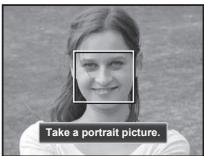
! The image is not saved.
③ Select a retouching item, and press the Ⓞ button.
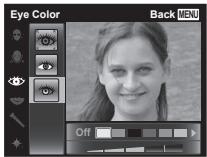
④ Press the Ⓞ button on the review screen to save the image.
- Registration is complete.
Calibrating the touch panel † [Touch Calibration.]
! Touch the panel following the instructions on the screen.
Connecting with a computer
Set [USB Connection] in the setup menu of the camera beforehand. (p. 32)
Connecting the camera
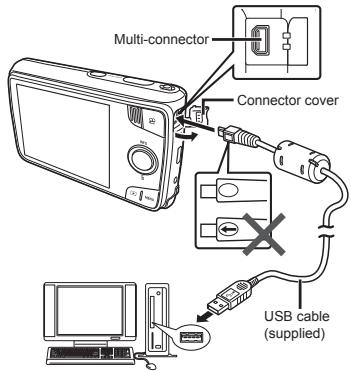
When [USB Connection] is set to [Auto], connect the camera and the computer, select [Storage] or [MTP] at the screen for selecting the connection method, and then press the Ⓞ button.
System requirements
Windows : Windows XP Home Edition/Professional (SP1 or later)/Windows Vista/Windows 7
Macintosh : Mac OS X v10.3 or later
When using another system other than Windows XP (SP2 or later)/Windows Vista/Windows 7, set to [Storage].
Even if a computer has USB ports, proper operation is not guaranteed in the following cases:
- Computers with USB ports installed using an expansion card, etc.
- Computers without a factory-installed OS and home-built computers
When the computer does not support SDXC cards, a message may appear urging to format the internal memory or card. (Formatting will completely erase all images, so do not format.)
Installing the PC software and registering user
Windows
1 Insert the supplied CD in a CD-ROM drive.
Windows XP
- A "Setup" dialog will be displayed.
Windows Vista/Windows 7
- An Autorun dialog will be displayed. Click “OLYMPUS Setup” to display the “Setup” dialog.
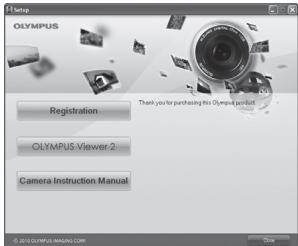
! If the "Setup" dialog is not displayed, select "My Computer" (Windows XP) or "Computer" (Windows Vista/Windows 7) from the start menu. Double-click the CD-ROM (OLYMPUS Setup) icon to open the "OLYMPUS Setup" window and then double-click "Launcher.exe".
If a "User Account Control" dialog is displayed, click "Yes" or "Continue".
2 Register your Olympus product.
- Click the "Registration" button and follow the on-screen instructions.
To register the camera must be connected to the computer. "Connecting the camera" (p. 37)
If nothing is displayed on the camera screen even after connecting the camera to the computer, the battery may be exhausted. Charge the battery and then connect the camera again.
3 Install OLYMPUS Viewer 2.
- Check the system requirements before beginning installation.
- Click the "OLYMPUS Viewer 2" button and follow the on-screen instructions to install the software.
OLYMPUS Viewer 2
| Operating System | Windows XP (Service Pack 2 or later)/ Windows Vista/Windows 7 |
| Processor | Pentium 4 1.3 GHz or better (Core 2 Duo 2.13 GHz or better required for movies) |
| RAM | 1 GB or more (2 GB or more recommended) |
| Free Hard Drive Space | 1 GB or more |
| Monitor Settings | 1024 × 768 pixels or more Minimum 65,536 colors (16,770,000 colors recommended) |
! See online help for information on using the software.
4 Install the camera manual.
- Click the "Camera Instruction Manual" button and follow the on-screen instructions.
Macintosh
1 Insert the supplied CD in a CD-ROM drive.
- Double-click the CD (OLYMPUS Setup) icon on the desktop.
- Double-click the "Setup" icon to display the "Setup" dialog.
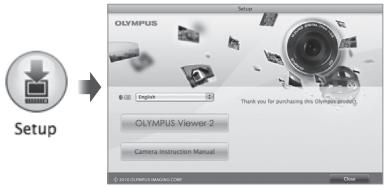
2 Install OLYMPUS Viewer 2.
- Check the system requirements before beginning installation.
- Click the "OLYMPUS Viewer 2" button and follow the on-screen instructions to install the software.
You can register via "Registration" in OLYMPUS Viewer 2 "Help".
OLYMPUS Viewer 2
| Operating System | Mac OS X v10.4.11-v10.7 |
| Processor | Intel Core Solo/Duo 1.5 GHz or better |
| RAM | 1 GB or more (2 GB or more recommended) |
| Free Hard Drive Space | 1 GB or more |
| Monitor Settings | 1024 × 768 pixels or moreMinimum 32,000 colors (16,770,000 colors recommended) |
Other languages can be selected from the language combo box. For information on using the software, see online help.
3 Copy the camera manual.
- Click the "Camera Instruction Manual" button to open the folder containing the camera manuals. Copy the manual for your language to the computer.
By connecting the camera to a PictBridge-compatible printer, you can print images directly without using a computer.
To find out if your printer supports PictBridge, refer to the printer's instruction manual.
The printing modes, paper sizes, and other parameters that can be set with the camera vary depending on the printer that is used. For details, refer to the printer's instruction manual.
For details on the available paper types, loading paper, and installing ink cassettes, refer to the printer's instruction manual.
In the setup menu, set [USB Connection] to [Print]. [USB Connection] (p. 32)
Printing images at the printer's standard settings [Easy Print]
1 Display the image to be printed on the monitor.
! "Viewing images" (p. 15)
2 Turn on the printer, and then connect the printer and camera.
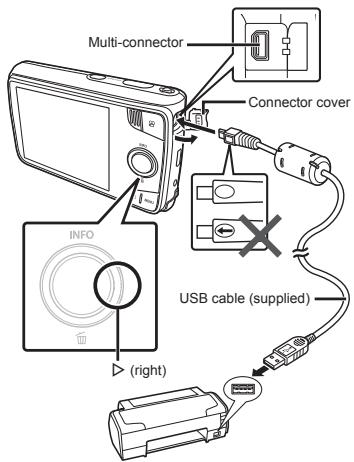
3 Press ▷ to start printing.
4 To print another image, use ◀▶ to select an image, and press the Ⓞ button.
To exit printing
After a selected image is displayed on the screen, disconnect the USB cable from the camera and printer.
Changing the printer's settings for printing [Custom Print]
1 Display the image to be printed on the monitor.
! "Viewing images" (p. 15)
2 Turn on the printer, and then connect the printer and camera.
3 Press the Ⓞ button.
4 Use △▽ to select the print mode, and press the Ⓞ button.
| Submenu 2 | Application |
| This prints the image selected in Step 8. | |
| All Print | This prints all images stored in the internal memory or card. |
| Multi Print | This prints one image in a multiple layout format. |
| All Index | This prints an index of all images stored in the internal memory or card. |
| Print Order ^1 | This prints images based on the print reservation data on the card. |
^*1 [Print Order] is available only when print reservations have been made. “Print Reservations” (p. 43)
5 Use to select [Size] (Submenu 3), and press .
If the [Printpaper] screen is not displayed, the [Size], [Borderless], and [Pics/Sheet] are set to the printer's standard.
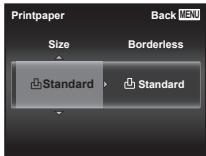
6 Use △▽ to select the [Borderless] or [Pics/ Sheet] settings, and press the Ⓞ button.
| Submenu 4 | Application |
| Off/On ^-1 | The image is printed with a border around it ([Off]).The image is printed to fill the entire paper ([On]). |
| (The number of images per sheet varies depending on the printer.) | The number of images per sheet ([Pics/Sheet]) is selectable only when [Multi Print] is selected in Step 4. |
*1 The available settings for [Borderless] vary depending on the printer.
If [Standard] is selected in Steps 5 and 6, the image is printed at the printer's standard settings.
7 Use ◀▶ to select an image.
8 Press to make a print reservation for the current image. Press to make the detailed printer settings for the current image.
To make the detailed printer settings
① Use △▽◀▷ to select the setting, and press the Ⓞ button.
| Submenu 5 | Submenu 6 | Application |
| 0 to 10 | This selects the number of prints. | |
| Date | With/Without | Selecting [With] prints the images with the date.Selecting [Without] prints the images without the date. |
| File Name | With/Without | Selecting [With] prints the file name on the image.Selecting [Without] does not print any file name on the image. |
| (Proceeds to the setting screen.) | This selects a portion of the image for printing. |
To crop an image [☐]
① Use the zoom lever to select the size of the cropping frame, use △▽◀▷ to move the frame, and then press the Ⓞ button.
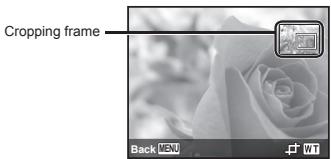
② Use to select [OK], and press the ☉ button.
9 If necessary, repeat Steps 7 and 8 to select the image to be printed, make the detailed settings, and set [Single Print].
10 Press the Ⓞk button.
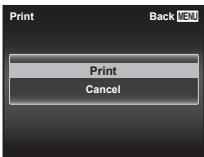
11 Use △▽ to select [Print], and press the Ⓞ button.
- Printing starts.
- When [Option Set] is selected in [All Print] mode, [Print Info] screen is displayed.
- When printing is finished, the [Print Mode Select] screen is displayed.
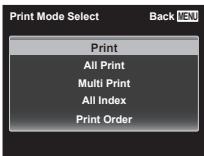
To cancel printing
① Press the MENU button while [Do Not Remove USB Cable] is displayed.
② Select [Cancel] using and then press the Ⓞ button.
12 Press the MENU button.
13 When the message [Remove USB Cable] is displayed, disconnect the USB cable from the camera and printer.
Print Reservations
In print reservations, the number of prints and date imprint option are saved in the image on the card. This enables easy printing at a printer or print shop supporting DPOF by using only the print reservations on the card without a computer or a camera.
! Print reservations can be set only for the images stored on the card.
DPOF reservations set by another DPOF device cannot be changed by this camera. Make changes using the original device. Making new DPOF reservations with this camera will erase the reservations made by the other device.
DPOF print reservations can be made for up to 999 images per card.
Single-frame print reservations [☐]
1 Display the setup menu.
"Using the setup menu" (p. 23)
2 From the playback menu ▶, select [Print Order] and then press the OK button.
3 Use △▽ to select [☐], and press the Ⓞ button.
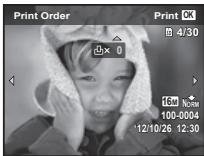
4 Use ◀▶ to select the image for print reservation. Use △▽ to select the quantity. Press the Ⓞ button.
5 Use △▽ to select the [◀] (date print) screen option, and press the Ⓞ button.
| Submenu 2 | Application |
| No | This prints the image only. |
| Date | This prints the image with the shooting date. |
| Time | This prints the image with the shooting time. |
6 Use △▽ to select [Set], and press the Ⓞ button.
Reserving one print each of all images on the card [ALL]
1 Follow Steps 1 and 2 in [☐] (p. 43).
2 Use △▽ to select [ALL], and press the OK button.
3 Follow Steps 5 and 6 in [☐].
Resetting all print reservation data
1 Follow Steps 1 and 2 in [☐] (p. 43).
2 Select either [☐] or [☐], and press the OK button.
3 Use to select [Reset], and press the OK button.
Resetting the print reservation data for selected images
1 Follow Steps 1 and 2 in [☐] (p. 43).
2 Use △▽ to select [☐], and press the Ⓞ button.
3 Use △▽ to select [Keep] and press the Ⓞ button.
4 Use ◀ to select the image with the print reservation you want to cancel. Use △▽ to set the print quantity to "0".
5 If necessary, repeat Step 4, and then press the Ⓞ button when finished.
6 Use △▽ to select the [◀] (date print) screen option, and press the Ⓞ button.
- The settings are applied to the remaining images with the print reservation data.
7 Use △▽ to select [Set], and press the OK button.
Usage Tips
If the camera does not work as intended, or if an error message is displayed on the screen, and you are unsure of what to do, refer to the information below to fix the problem(s).
Troubleshooting
Battery
"The camera does not work even when batteries are installed".
- Insert recharged batteries in the correct direction. "Inserting and removing the battery and card" (p. 4), "Charging the battery" (p. 5)
- Battery performance may have been reduced temporarily due to low temperature. Take the batteries out of the camera, and warm them by putting them in your pocket for a while.
Card/Internal memory
"An error message is displayed".
"Error message" (p. 46)
Shutter button
"No picture is taken when the shutter button is pressed".
-
Cancel sleep mode.
To save battery power, the camera automatically goes into sleep mode and the monitor turns off if there is no operation for 3 minutes when the camera is turned on. No picture is taken even if the shutter button is fully pressed in this mode. Operate the zoom lever or other buttons to restore the camera from sleep mode before taking a picture. If the camera is left for another 12 minutes, it automatically turns off. Press the ON/OFF button to turn the camera on. -
Press the ▶ button to switch to the shooting mode.
- Wait until ↓(flash charge) stops blinking before taking pictures.
Monitor
"Difficult to see".
- Condensation may have occurred. Turn off the power, and wait for the camera body to become acclimated to the surrounding temperature and dry out before taking pictures.
"Vertical lines appear on the monitor".
- This condition may occur when the camera is pointed at an extremely bright subject under a clear sky and so on.
The lines may appear on the recorded picture or movie with sequential shots.
"The light is caught in the picture".
- Shooting with flash in dark situations results in an image with many flash reflections on dust in the air.
Date and time function
"Date and time settings return to the default setting".
- If the batteries are removed and left out of the camera for about 1 days ^1 , the date and time settings return to the default setting, and must be reset. ^*1 The time until the date and time settings return to the default setting varies depending on how long the batteries have been loaded.
"Turning on the camera and making the initial settings" (p. 7)
Miscellaneous
"The camera makes a noise when taking pictures".
- The camera may activate the lens and make a noise even if no operation is performed. This is because the camera automatically performs actions of auto focus as far as it is ready to shoot.
Error message

When one of the messages below is displayed on the monitor, check the corrective action.
| Error message | Corrective action |
| Card Error | Card problemInsert a new card. |
| Write Protect | Card problemThe card write-protect switch is set to the “LOCK” side. Release the switch. |
| Memory Full | Internal memory problem• Insert a card.• Erase unwanted images. ^1 |
| Card Full | Card problem• Replace the card.• Erase unwanted images. ^1 |
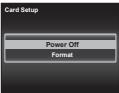 | Card problemUse to select [Format], and press the button. Next, use to select [Yes], and press the button. ^2 |
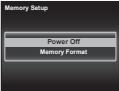 | Internal memory problemUse to select [Memory Format], and press the button. Next, use to select [Yes], and press the button. ^2 |
| No Picture | Internal memory/Card problemTake pictures before viewing them. |
| Picture Error | Problem with selected imageUse photo retouch software, etc. to view the image on a computer.If the image still cannot be viewed, the image file is corrupted. |
| Error message | Corrective action |
| (ZY3A)The Image Cannot Be Edited | Problem with selected imageUse photo retouch software, etc. to edit the image on a computer. |
| (BY4A)Battery Empty | Battery problemCharge the battery. |
| (BY5A)No Connection | Connection problemConnect the camera and computer or printer correctly. |
| (BY6A)No Paper | Printer problemLoad paper into the printer. |
| (BY7A)No Ink | Printer problemRefill the ink in the printer. |
| (BY8A)Jammed | Printer problemRemove the jammed paper. |
| (BY9A) | Printer problemReturn to the status where the printer can be used. |
| (BY10A)Print Error | Printer problemTurn off the camera and printer, check the printer for any problems, and then turn the power on again. |
| (BY11A)Cannot Print*4 | Problem with selected imageUse a computer to print. |
*1 Before erasing important images, download them to a computer.
^*2 All data will be erased.
*3 This is displayed, for instance, when the printer's paper tray has been removed. Do not operate the printer while making the print settings on the camera.
*4 This camera may be unable to print images taken by other cameras.
Shooting tips
When you are unsure of how to take a picture that you envision, refer to the information below.
Focusing

"Focusing on the subject"
- Taking a picture of a subject not in the center of the monitor
After focusing on an object at the same distance as the subject, compose the shot, and take the picture.
Pressing the shutter button halfway (p. 10)
- Set [AF Mode] (p. 24) to [Face/iESP]
• Taking a picture in [AF Tracking] mode (p. 24)
The camera tracks the subject movement automatically to focus on it continuously.
• Taking a picture of a shadowy subject
Using the AF illuminator makes focusing easier. [AF Illuminat.] (p. 26)
- Taking a picture of subjects where autofocus is difficult
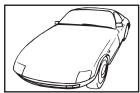
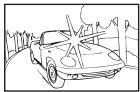
In the following cases, after focusing on an object (by pressing the shutter button halfway down) with high contrast at the same distance as the subject, compose the shot, and take the picture.
Subjects with low contrast
natural_image
Line drawing of a car (no text or symbols)When extremely bright objects appear in the center of the monitor
natural_image
Line drawing of a car parked on a roadside with a starburst effect (no text or symbols)Object with no vertical lines ^4
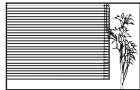
natural_image
Illustration of a window with horizontal slats and a decorative plant beside it (no text or symbols)^*1 It is also effective to compose the shot by holding the camera vertically to focus, and then returning to the horizontal position to take the picture.
When objects are at different distances
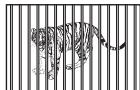
natural_image
Silhouette of a tiger inside a cage (no text or symbols)Fast-moving object
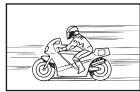
natural_image
Line drawing of a motorcyclist riding a scooter with motion blur (no text or symbols)The subject is not in the center of the frame
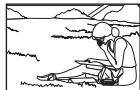
natural_image
Line drawing of two people sitting on grass near a lake with mountains in the background (no text or symbols)"Taking pictures without camera shake"
- Taking pictures using [Image Stabilizer] (p. 26)
The image pickup device ^1 shifts to correct for camera shake even if the ISO sensitivity is not increased. This function is also effective when taking pictures at a high zoom magnification.
^*1 A device that takes light received through the lens and converts it into electric signals.
- Shooting movies using [IS Movie Mode] (p. 27)
- Select [ Sport] in the scene mode (p. 12)
The [ Sport] mode uses a fast shutter speed and can reduce the blur incurred by a moving subject.
- Taking pictures at a high ISO sensitivity
If a high ISO sensitivity is selected, pictures can be taken at a high shutter speed even at locations where a flash cannot be used.
"ISO sensitivity" (p. 21)
Exposure (brightness)

"Taking pictures with the right brightness"
• Taking pictures using [Face/iESP] (p. 24)
Appropriate exposure is obtained for a face against backlight, and the face is brightened.
- Taking pictures using [Fill In] (p. 20) flash
A subject against backlight is brightened.
- Taking pictures of a white beach or snow scene
Select [Beach & Snow] in the scene mode (p. 12).
- Taking pictures using exposure compensation (p. 21)
Adjust the brightness while viewing the screen for taking the picture. Normally, taking pictures of white subjects (such as snow) results in images that are darker than the actual subject. Use the exposure compensation to adjust in the positive (+) direction to express whites as they appear. When taking pictures of black subjects, on the other hand, it is effective to adjust in the negative (-) direction.
Color hue

"Taking pictures with colors at the same shade as they appear"
- Taking pictures by selecting white balance (p. 21)
Best results in most environments can normally be obtained with the [WB Auto] setting, but for some subjects, you should try experimenting with different settings. (This is especially true for sunshade under a clear sky, mixed natural and artificial light settings, and so on.)
Image quality

"Taking sharper pictures"
• Taking pictures with the optical zoom
Avoid using digital zoom (p. 25) to take pictures.
• Taking pictures at a low ISO sensitivity
If the picture is taken with a high ISO sensitivity, noise (small colored spots and color unevenness that were not in the original image) can occur, and the image can appear grainy.
"ISO sensitivity" (p. 21)
Batteries

"Making batteries last longer"
- Set [Power Save] (p. 35) to [On]
Playback/Editing tips
Playback

"Playing images in the internal memory and card"
- Remove the card and display the images in internal memory
- "Inserting and removing the battery and card" (p. 4)
Editing

"Erasing the sound recorded to a still image"
- Record over the sound with silence when playing back the image
"Adding sound to still images ▶ [ψ]" (p. 28)
For details on SCN, refer to "List of SCN settings" (p. 51).
For details on shaded areas, refer to "List of MAGIC settings" (p. 53).
| P | IAUTO | BEAUTY | MAGIC | ☒ | |
| Zoom | √ | √ | √ | √ | √ |
| Flash | √ | *1 | *2 | √ | - |
| Macro | √ | - | √ | √ | √ |
| Self-timer | √ | √ | √ | √ | √ |
| Exposure compensation | √ | - | - | √ | |
| White balance | √ | - | - | √ | |
| ISO sensitivity | √ | - | - | - | - |
| Drive | √ | - | - | - | - |
| Image Size | √ | √ | *3 | *4 | |
| Reset | √ | √ | √ | √ | √ |
| Compression | √ | √ | √ | √ | √ |
| AF Mode | √ | - | - | - | *5 |
| Touch shutter | √ | √ | √ | √ | √ |
| Digital Zoom | √ | - | √ | - | - |
| Image Stabilizer | √ | √ | √ | √ | √ |
| AF Illuminat. | √ | √ | √ | √ | √ |
| Icon Guide | √ | √ | √ | √ | √ |
| Date Stamp | √ | √ | √ | √ | - |
*1 [○ Redeye] and [↓ Fill In] cannot be set.
*2 [↓ Fill In] cannot be set.
*3 The [Image Size] of the retouched image is limited to [5M] or lower.
*4 [16:9S] is changed to [2M].
*5 [AF Tracking] cannot be set.
List of SCN settings
| Ω | ∅ | ∅ | ∅ | ∅ | ∅ | ∅ | ∅ | ∅ | |
| Zoom | √ | √ | √ | √ | √ | √ | √ | - | √ |
| Flash | *1 | - | - | *2 | *3 | *3 | - | *1 | - |
| Macro | - | - | - | - | - | - | - | - | - |
| Self-timer | √ | √ | √ | √ | √ | √ | √ | √ | √ |
| Exposure compensation | - | - | - | - | - | - | - | - | - |
| White balance | - | - | - | - | - | - | - | - | - |
| ISO sensitivity | - | - | - | - | - | - | - | - | - |
| Drive | - | - | - | - | - | - | - | - | - |
| Image Size | √ | √ | √ | √ | √ | √ | √ | √ | √ |
| Reset | √ | √ | √ | √ | √ | √ | √ | √ | √ |
| Compression | √ | √ | √ | √ | √ | √ | √ | √ | √ |
| AF Mode | √ | √ | √ | √ | √ | √ | √ | - | √ |
| Touch shutter | √ | √ | √ | √ | √ | √ | √ | √ | √ |
| Digital Zoom | √ | √ | √ | √ | √ | √ | - | - | √ |
| Image Stabilizer | √ | √ | √ | √ | √ | √ | √ | √ | √ |
| AF Illuminat. | √ | √ | √ | √ | √ | √ | √ | √ | √ |
| Icon Guide | √ | √ | √ | √ | √ | √ | √ | √ | √ |
| Date Stamp | √ | √ | √ | √ | √ | √ | √ | √ | √ |
*1 [↓ Fill In] cannot be set.
*2 [AUTO Flash Auto] and [↓ Fill In] cannot be set.
*3 [○ Redeye] and [↓ Fill In] cannot be set.
| ☒ | ☐ | ☒ | ☒ | ☒ | |
| Zoom | √ | √ | √ | √ | √ |
| Flash | - | *3 | - | *3 | - |
| Macro | - | - | - | - | - |
| Self-timer | √ | √ | √ | √ | √ |
| Exposure compensation | - | - | - | - | - |
| White balance | - | - | - | - | - |
| ISO sensitivity | - | - | - | - | - |
| Drive | - | - | - | - | - |
| Image Size | √ | √ | √ | √ | √ |
| Reset | √ | √ | √ | √ | √ |
| Compression | √ | √ | √ | √ | √ |
| AF Mode | - | √ | √ | √ | - |
| Touch shutter | √ | √ | √ | √ | √ |
| Digital Zoom | √ | √ | √ | √ | √ |
| Image Stabilizer | √ | √ | √ | √ | √ |
| AF Illuminat. | √ | √ | √ | √ | √ |
| Icon Guide | √ | √ | √ | √ | √ |
| Date Stamp | √ | √ | √ | √ | √ |
*3 [◎ Redeye] and [↓ Fill In] cannot be set.
List of MAGIC settings
| Pop Art | Pin Hole | Fish Eye | Drawing | Soft Focus | Punk | |
| Exposure compensation | √ | √ | - | - | √ | √ |
| White balance | √ | √ | - | - | √ | - |
| Image Size | √ | √ | √ | *1 | √ | √ |
| Sparkle | Watercolor | Reflection | Miniature | |
| Exposure compensation | √ | √ | √ | √ |
| White balance | √ | √ | √ | √ |
| Image Size | *1 | *1 | √ | √ |
*1 [Image Size] is fixed to [5M] or lower.
Camera care
Exterior
- Wipe gently with a soft cloth. If the camera is very dirty, soak the cloth in mild soapy water and wring well. Wipe the camera with the damp cloth and then dry it with a dry cloth. If you have used the camera at the beach, use a cloth soaked in clean water and wrung well.
Monitor
- Wipe gently with a soft cloth.
Lens
- Blow dust off the lens with a commercial blower, then wipe gently with a lens cleaner.
Do not use strong solvents such as benzene or alcohol, or chemically treated cloth.
! Mold may form on the lens surface if the lens is left dirty.
Battery/USB-AC adapter
- Wipe gently with a soft, dry cloth.
Storage
- When storing the camera for extended periods, remove the battery, USB-AC adapter and card, and keep in a cool, dry place that is well ventilated.
- Periodically insert the battery and test the camera functions.
Avoid leaving the camera in places where chemical products are handled since this may result in corrosion.
Using a separately sold USB-AC adapter
The USB-AC adapter F-3AC (sold separately) can be used with this camera. Do not use any USB-AC adapter other than the dedicated one. When using F-3AC, be sure to use the USB cable included with this camera. Do not use any other USB-AC adapter with this camera. Shooting is not available when using the F-3AC.
Using a separately sold charger
A charger (UC-50: sold separately) can be used to charge the battery.
Using your charger and USB-AC adapter abroad
- The charger and USB-AC adapter can be used in most home electrical sources within the range of 100 V to 240 V AC (50/60Hz) around the world. However, depending on the country or area you are in, the AC wall outlet may be shaped differently and the charger and USB-AC adapter may require a plug adapter to match the wall outlet. For details, ask at your local electrical shop or travel agent.
- Do not use travel voltage converters as they could damage your charger and USB-AC adapter.
Cards compatible with this camera
SD/SDHC/SDXC/Eye-Fi card (commercially available) (for compatibility card details, visit the Olympus website.)


This camera can be used without a card by storing images in its internal memory.
Eye-Fi card
- The Eye-Fi card may become hot during use.
- When using an Eye-Fi card, the battery may run out faster.
- When using an Eye-Fi card, the camera may function more slowly.
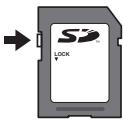
SD/SDHC/SDXC card write-protect switch
The SD/SDHC/SDXC card body has a write-protect switch.
If you set the switch to the "LOCK" side, you will not be able to write to the card, delete data or format. Return the switch to enable writing.
Format
Cards must be formatted with this camera before first use or after being used with other cameras or computers.
Checking the image saving location
The memory indicator shows whether the internal memory or card is being used during shooting and playback.
Current memory indicator
IN: Internal memory is being used
SD: Card is being used

Even if [Memory Format]/[Format], [Erase], [Sel. Image], or [All Erase] is performed, the data in the card is not completely erased. When disposing of the card, damage the card to prevent the disclosure of personal data.
Readout/recording process of the card
During shooting, the current memory indicator lights up in red while the camera is writing data. Never open the battery/card cover or unplug the USB cable. This can not only damage the image data but also render the internal memory or card unusable.
Number of storable pictures (still images)/Recording length (movies) in the internal memory and cards

The figures for the number of storable still pictures and recording length are approximate. The actual capacity varies with shooting conditions and the card used.
Still pictures
| Image Size | Compression | Number of storable pictures | |
| Internal memory | SD/SDHC/SDXC card (4GB) | ||
| 16M 4608×3456 | FINE | 4 | 438 |
| NORM | 8 | 867 | |
| 8M 3264×2448 | FINE | 8 | 867 |
| NORM | 16 | 1,700 | |
| 5M 2560×1920 | FINE | 13 | 1,394 |
| NORM | 26 | 2,697 | |
| 3M 2048×1536 | FINE | 21 | 2,216 |
| NORM | 43 | 4,432 | |
| 2M 1600×1200 | FINE | 35 | 3,649 |
| NORM | 71 | 7,299 | |
| 1M 1280×960 | FINE | 55 | 5,640 |
| NORM | 110 | 11,280 | |
| VGA 640×480 | FINE | 220 | 20,677 |
| NORM | 403 | 41,341 | |
| 169S 1920×1080 | FINE | 33 | 3,354 |
| NORM | 65 | 6,531 | |
Movies
| Image Size | Frame Rate | Continuous recording length | |||
| Internal memory | SD/SDHC/SDXC card (4 GB) | ||||
| With sound | Without sound | With sound | Without sound | ||
| 1280×720 | 30fps | 11 sec. | 11 sec. | 18 min. 53 sec. | 19 min. 22 sec. |
| 15fps | 21 sec. | 22 sec. | 36 min. 52 sec. | 38 min. 44 sec. | |
| 640×480 | 30fps | 19 sec. | 20 sec. | 33 min. 40 sec. | 35 min. 13 sec. |
| 15fps | 37 sec. | 41 sec. | 64 min. 30 sec. | 70 min. 26 sec. | |
| 320×240 | 30fps | 51 sec. | 57 sec. | 87 min. 21 sec. | 98 min. 37 sec. |
| 15fps | 1 min. 31 sec. | 1 min. 55 sec. | 156 min. 48 sec. | 197 min. 14 sec. | |
The maximum file size of a single movie is 2 GB, regardless of the capacity of the card.
Increasing the number of pictures that can be taken
Either erase unwanted images, or connect the camera to a computer or other device to save the images, and then erase the images in the internal memory or card.
[Erase] (p. 17, 30), [Sel. Image] (p. 30), [All Erase] (p. 30), [Memory Format]/[Format] (p. 31)

CAUTION
RISK OF ELECTRIC SHOCK DO NOT OPEN

CAUTION: TO REDUCE THE RISK OF ELECTRICAL SHOCK, DO NOT REMOVE COVER (OR BACK). NO USER-SERVICEABLE PARTS INSIDE. REFER SERVICING TO QUALIFIED OLYMPUS SERVICE PERSONNEL.

An exclamation mark enclosed in a triangle alerts you to important operating and maintenance instructions in the documentation provided with the product.

DANGER
If the product is used without observing the information given under this symbol, serious injury or death may result.

WARNING
If the product is used without observing the information given under this symbol, injury or death may result.

CAUTION
If the product is used without observing the information given under this symbol, minor personal injury, damage to the equipment, or loss of valuable data may result.
WARNING!
TO AVOID THE RISK OF FIRE OR ELECTRICAL SHOCK, NEVER DISASSEMBLE, EXPOSE THIS PRODUCT TO WATER OR OPERATE IN A HIGH HUMIDITY ENVIRONMENT.
General Precautions
Read All Instructions — Before you use the product, read all operating instructions. Save all manuals and documentation for future reference.
Cleaning — Always unplug this product from the wall outlet before cleaning. Use only a damp cloth for cleaning. Never use any type of liquid or aerosol cleaner, or any type of organic solvent to clean this product.
Attachments — For your safety, and to avoid damaging the product, use only accessories recommended by Olympus.
Water and Moisture — For precautions on products with weatherproof designs, read the weatherproofing sections.
Location — To avoid damage to the product, mount the product securely on a stable tripod, stand, or bracket.
Power Source — Connect this product only to the power source described on the product label.
Lightning — If a lightning storm occurs while using a USB-AC adapter, remove it from the wall outlet immediately.
Foreign Objects — To avoid personal injury, never insert a metal object into the product.
Heat — Never use or store this product near any heat source such as a radiator, heat register, stove, or any type of equipment or appliance that generates heat, including stereo amplifiers.
Handling the Camera

WARNING
- Do not use the camera near flammable or explosive gases.
- Do not use the flash and LED (including AF illuminator) on people (infants, small children, etc.) at close range.
- You must be at least 1 m (3 ft.) away from the faces of your subjects. Firing the flash too close to the subject's eyes could cause a momentary loss of vision.
- Keep young children and infants away from the camera.
• Always use and store the camera out of the reach of young children and infants to prevent the following dangerous situations which could cause serious injury:
- Becoming entangled in the camera strap, causing strangulation.
- Accidentally swallowing the battery, cards or other small parts.
- Accidentally firing the flash into their own eyes or those of another child.
-
Accidentally being injured by the moving parts of the camera.
-
Do not look at the sun or strong lights with the camera.
- Do not use or store the camera in dusty or humid places.
- Do not cover the flash with a hand while firing.
- Use SD/SDHC/SDXC memory cards or Eye-Fi cards only. Never use other types of cards.
If you accidentally insert another type of card into the camera, contact an authorized distributor or service center. Do not try to remove the card by force.
- If you find that the USB-AC adapter is extremely hot or notice any unusual odors, noise, or smoke around it, unplug the power plug from wall outlet immediately and stop using it. Then, contact an authorized distributor or service center.

CAUTION
- Stop using the camera immediately if you notice any unusual odors, noise, or smoke around it.
- Never remove the batteries with bare hands, which may cause a fire or burn your hands.
- Never hold or operate the camera with wet hands.
- Do not leave the camera in places where it may be subject to extremely high temperatures.
- Doing so may cause parts to deteriorate and, in some circumstances, cause the camera to catch fire. Do not use the charger or USB-AC adapter if it is covered (such as a blanket). This could cause overheating, resulting in fire.
- Handle the camera with care to avoid getting a low-temperature burn.
- When the camera contains metal parts, overheating can result in a low-temperature burn. Pay attention to the following:
- When used for a long period, the camera will get hot. If you hold on to the camera in this state, a low-temperature burn may be caused.
- In places subject to extremely cold temperatures, the temperature of the camera's body may be lower than the environmental temperature. If possible, wear gloves when handling the camera in cold temperatures.
- Be careful with the strap.
- Be careful with the strap when you carry the camera. It could easily catch on stray objects and cause serious damage.
- To protect the high-precision technology contained in this product, never leave the camera in the places listed below, no matter if in use or storage:
- Places where temperatures and/or humidity are high or go through extreme changes. Direct sunlight, beaches, locked cars, or near other heat sources (stove, radiator, etc.) or humidifiers.
• In sandy or dusty environments.
- Near flammable items or explosives.
- In wet places, such as bathrooms or in the rain. When using products with weatherproof designs, read their manuals as well.
• In places prone to strong vibrations.
- Never drop the camera or subject it to severe shocks or vibrations.
- When attaching the camera to or removing it from a tripod, rotate the tripod screw, not the camera.
- Before transporting the camera, remove a tripod and all other non-OLYMPUS accessories.
- Do not touch electric contacts on cameras.
- Do not leave the camera pointed directly at the sun. This may cause lens or shutter curtain damage, color failure, ghosting on the image pickup device, or may possibly cause fires.
- Do not push or pull severely on the lens.
- Before storing the camera for a long period, remove the batteries. Select a cool, dry location for storage to prevent condensation or mold from forming inside the camera. After storage, test the camera by turning it on and pressing the shutter button to make sure that it is operating normally.
- The camera may malfunction if it is used in a location where it is subject to a magnetic/electromagnetic field, radio waves, or high voltage, such as near a TV set, microwave, video game, loud speakers, large monitor unit, TV/radio tower, or transmission towers. In such cases, turn the camera off and on again before further operation.
- Always observe the operating environment restrictions described in the camera's manual.
Battery Handling Precautions
Follow these important guidelines to prevent batteries from leaking, overheating, burning, exploding, or causing electrical shocks or burns.

DANGER
- The camera uses a lithium ion battery specified by Olympus. Charge the battery with the specified USB-AC adapter or charger. Do not use any other USB-AC adapters or chargers.
- Never heat or incinerate batteries.
• Take precautions when carrying or storing batteries to prevent them from coming into contact with any metal objects such as jewelry, pins, fasteners, etc. - Never store batteries where they will be exposed to direct sunlight, or subjected to high temperatures in a hot vehicle, near a heat source, etc.
-
To prevent causing battery leaks or damaging their terminals, carefully follow all instructions regarding the use of batteries. Never attempt to disassemble a battery or modify it in any way, solder, etc.
-
If battery fluid gets into your eyes, flush your eyes immediately with clear, cold running water and seek medical attention immediately.
- Always store batteries out of the reach of small children. If a child accidentally swallows a battery, seek medical attention immediately.
- If you cannot remove the battery from the camera, contact an authorized distributor or service center. Do not try to remove the battery by force.
Damage to the battery exterior (scratches, etc.) may produce heat or an explosion.
WARNING
- Keep batteries dry at all times.
- To prevent batteries from leaking, overheating, or causing a fire or explosion, use only batteries recommended for use with this product.
- Insert the battery carefully as described in the operating instructions.
- If rechargeable batteries have not been recharged within the specified time, stop charging them and do not use them.
- Do not use a battery if it is cracked or broken.
- If a battery leaks, becomes discolored or deformed, or becomes abnormal in any other way during operation, stop using the camera.
- If a battery leaks fluid onto your clothing or skin, remove the clothing and flush the affected area with clean, running cold water immediately. If the fluid burns your skin, seek medical attention immediately.
- Never subject batteries to strong shocks or continuous vibration.
CAUTION
- Before loading, always inspect the battery carefully for leaks, discoloration, warping, or any other abnormality.
- The battery may become hot during prolonged use. To avoid minor burns, do not remove it immediately after using the camera.
- Always unload the battery from the camera before storing the camera for a long period.
- This camera uses one Olympus lithium ion battery (LI-50B). No other type of batteries can be used. There is a risk of explosion if the battery is replaced with the incorrect battery type.
-
Power consumption by the camera varies depending on which functions are used.
-
During the conditions described below, power is consumed continuously and the battery becomes exhausted quickly.
• The zoom is used repeatedly. - The shutter button is pressed halfway repeatedly in shooting mode, activating the auto focus.
- A picture is displayed on the monitor for an extended period of time.
- The camera is connected to a printer.
- Using an exhausted battery may cause the camera to turn off without displaying the battery level warning.
- The Olympus lithium ion battery is designed to be used only for the Olympus digital camera.
Do not use the battery to other devices. - If the battery's terminals get wet or greasy, camera contact failure may result. Wipe the battery well with a dry cloth before use.
- Always charge a battery when using it for the first time, or if it has not been used for a long period.
- When operating the camera with battery power at low temperatures, try to keep the camera and spare battery as warm as possible. A battery that has run down at low temperatures may be restored after it is warmed at room temperature.
- Before going on a long trip, and especially before traveling abroad, purchase extra batteries. A recommended battery may be difficult to obtain while traveling.
- When storing the battery for a long period, select a cool location for storage.
- Please recycle batteries to help save our planet's resources. When you throw away dead batteries, be sure to cover their terminals and always observe local laws and regulations.
USB-AC adapter
- The included USB-AC adapter F-2AC is designed to be used only with this camera. Other cameras cannot be charged with this USB-AC adapter.
- Do not connect the included USB-AC adapter F-2AC to equipment other than this camera.
- For plug-in type USB-AC adapter: The included USB-AC adapter F-2AC is intended to be correctly orientated in a vertical or floor mount position.
Use Only Dedicated Rechargeable Battery, Battery Charger and USB-AC adapter
We strongly recommend that you use only the genuine Olympus dedicated rechargeable battery, battery charger and USB-AC adapter with this camera. Using a non-genuine rechargeable battery, battery charger and/or USB-AC adapter may result in fire or personal injury due to leakage, heating, ignition or damage to the battery. Olympus does not assume any liability for accidents or damage that may result from the use of a battery, battery charger and/or USB-AC adapter that are not genuine Olympus accessories.
Monitor
- Do not push the monitor forcibly; otherwise the image may become vague, resulting in a playback mode failure or damage to the monitor.
- A strip of light may appear on the top/bottom of the monitor, but this is not a malfunction.
- When a subject is viewed diagonally in the camera, the edges may appear zigzagged on the monitor. This is not a malfunction; it will be less noticeable in playback mode.
- In places subject to low temperatures, the monitor may take a long time to turn on or its color may change temporarily. When using the camera in extremely cold places, it is a good idea to occasionally place it in a warm place. The monitor exhibiting poor performance due to low temperatures will recover in normal temperatures.
- The monitor of this product is manufactured with high-quality accuracy, however, there may be a stuck or dead pixel on the monitor. These pixels do not have any influence on the image to be saved. Because of the characteristics, the unevenness of the color or brightness may also be found depending on the angle, but this is due to the structure of the monitor. This is not a malfunction.
Legal and Other Notices
- Olympus makes no representations or warranties regarding any damages, or benefit expected by using this unit lawfully, or any request from a third person, which are caused by the inappropriate use of this product.
- Olympus makes no representations or warranties regarding any damages or any benefit expected by using this unit lawfully which are caused by erasing picture data.
Disclaimer of Warranty
• Olympus makes no representations or warranties, either expressed or implied, by or concerning any content of these written materials or software, and in no event shall be liable for any implied warranty of merchantability or fitness for any particular purpose or for any consequential, incidental or indirect damages (including but not limited to damages for loss of business profits, business interruption and loss of business information) arising from the use or inability to use these written materials or software or equipment. Some countries do not allow the exclusion or limitation of liability for consequential or incidental damages or of the implied warranty, so the above limitations may not apply to you.
- Olympus reserves all rights to this manual.
Warning
Unauthorized photographing or use of copyrighted material may violate applicable copyright laws. Olympus assumes no responsibility for unauthorized photographing, use or other acts that infringe upon the rights of copyright owners.
Copyright Notice
All rights reserved. No part of these written materials or this software may be reproduced or used in any form or by any means, electronic or mechanical, including photocopying and recording or the use of any type of information storage and retrieval system, without the prior written permission of Olympus. No liability is assumed with respect to the use of the information contained in these written materials or software, or for damages resulting from the use of the information contained therein. Olympus reserves the right to alter the features and contents of this publication or software without obligation or advance notice.
FCC Notice
• Radio and Television Interference
- Changes or modifications not expressly approved by the manufacturer may void the user's authority to operate this equipment. This equipment has been tested and found to comply with the limits for a Class B digital device, pursuant to Part 15 of the FCC Rules. These limits are designed to provide reasonable protection against harmful interference in a residential installation.
- This equipment generates, uses, and can radiate radio frequency energy and, if not installed and used in accordance with the instructions, may cause harmful interference to radio communications.
• However, there is no guarantee that interference will not occur in a particular installation. If this equipment does cause harmful interference to radio or television reception, which can be determined by turning the equipment off and on, the user is encouraged to try to correct the interference by one or more of the following measures:
- Adjust or relocate the receiving antenna.
- Increase the distance between the camera and receiver.
- Connect the equipment to an outlet on a circuit different from that to which the receiver is connected.
- Consult your dealer or an experienced radio/TV technician for help. Only the OLYMPUS-supplied USB cable should be used to connect the camera to USB enabled personal computers (PC).
Any unauthorized changes or modifications to this equipment would void the user's authority to operate it.
For customers in North and South America
For customers in USA
Declaration of Conformity
Model Number: VH-410
Trade Name: OLYMPUS
Responsible Party:
OLYMPUS IMAGING AMERICA INC.
Address: 3500 Corporate Parkway, P.O. Box 610, Center Valley, PA 18034-0610, U.S.A.
Telephone Number: 484-896-5000
Tested To Comply With FCC Standards FOR HOME OR OFFICE USE
This device complies with Part 15 of the FCC rules. Operation is subject to the following two conditions:
(1) This device may not cause harmful interference.
(2) This device must accept any interference received, including interference that may cause undesired operation.
For customers in CANADA
This Class B digital apparatus complies with Canadian ICES-003.
OLYMPUS WORLDWIDE LIMITED WARRANTY - IMAGING PRODUCTS
Olympus warrants that the enclosed Olympus® imaging product(s) and related Olympus® accessories (individually a “Product” and collectively the “Products”) will be free from defects in materials and workmanship under normal use and service for a period of one (1) year from the date of purchase. If any Product proves to be defective within the one-year warranty period, the customer must return the defective Product to any of Olympus Service Centers, following the procedure set forth below (See “WHAT TO DO WHEN SERVICE IS NEEDED”).
Olympus, at its sole discretion, will repair, replace, or adjust the defective Product, provided that Olympus investigation and factory inspection disclose that (a) such defect developed under normal and proper use and (b) the Product is covered under this limited warranty.
Repair, replacement, or adjustment of defective Products shall be Olympus's sole obligation and the customer's sole remedy hereunder.
The customer is liable and shall pay for shipment of the Products to the Olympus Service Center.
Olympus shall not be obligated to perform preventive maintenance, installation, deinstallation, or maintenance.
Olympus reserves the right to (i) use reconditioned, refurbished, and/or serviceable used parts (that meet Olympus's quality assurance standards) for warranty or any other repairs and (ii) make any internal or external design and/or feature changes on or to its products without any liability to incorporate such changes on or to the Products.
WHAT IS NOT COVERED BY THIS LIMITED WARRANTY
Excluded from this limited warranty and not warranted by Olympus in any fashion, either express, implied, or by statute, are:
(a) products and accessories not manufactured by Olympus and/or not bearing the “OLYMPUS” brand label (the warranty coverage for products and accessories of other manufacturers, which may be distributed by Olympus, is the responsibility of the manufacturers of such products and accessories in accordance with the terms and duration of such manufacturers’ warranties);
(b) any Product which has been disassembled, repaired, tampered with, altered, changed, or modified by persons other than Olympus's own authorized service personnel unless repair by others is made with the written consent of Olympus;
(c) defects or damage to the Products resulting from wear, tear, misuse, abuse, negligence, sand, liquids, impact, improper storage, nonperformance of scheduled operator and maintenance items, battery leakage, use of non-“OLYMPUS” brand accessories, consumables, or supplies, or use of the Products in combination with non-compatible devices;
(d) software programs;
(e) supplies and consumables (including but not limited to lamps, ink, paper, film, prints, negatives, cables and batteries); and/or
(f) Products which do not contain a validly placed and recorded Olympus serial number, unless they are a model on which Olympus does not place and record serial numbers.
EXCEPT FOR THE LIMITED WARRANTY SET FORTH ABOVE, OLYMPUS MAKES NO AND DISCLAIMS ALL OTHER REPRESENTATIONS, GUARANTIES, CONDITIONS, AND WARRANTIES CONCERNING THE PRODUCTS, WHETHER DIRECT OR INDIRECT, EXPRESS OR IMPLIED, OR ARISING UNDER ANY STATUTE, ORDINANCE, COMMERCIAL USAGE OR OTHERWISE, INCLUDING BUT NOT LIMITED TO ANY WARRANTY OR REPRESENTATION AS TO THE SUITABILITY, DURABILITY, DESIGN, OPERATION, OR CONDITION OF THE PRODUCTS (OR ANY PART THEREOF) OR THE MERCHANTABILITY OF THE PRODUCTS OR THEIR FITNESS FOR A PARTICULAR PURPOSE, OR RELATING TO THE INFRINGEMENT OF ANY PATENT, COPYRIGHT, OR OTHER PROPRIETARY RIGHT USED OR INCLUDED THEREIN.
IF ANY IMPLIED WARRANTIES APPLY AS A MATTER OF LAW, THEY ARE LIMITED IN DURATION TO THE LENGTH OF THIS LIMITED WARRANTY.
SOME STATES MAY NOT RECOGNIZE A DISCLAIMER OR LIMITATION OF WARRANTIES AND/OR LIMITATION OF LIABILITY SO THE ABOVE DISCLAIMERS AND EXCLUSIONS MAY NOT APPLY.
THE CUSTOMER MAY ALSO HAVE DIFFERENT AND/OR ADDITIONAL RIGHTS AND REMEDIES THAT VARY FROM STATE TO STATE.
THE CUSTOMER ACKNOWLEDGES AND AGREES THAT OLYMPUS SHALL NOT BE RESPONSIBLE FOR ANY DAMAGES THAT THE CUSTOMER MAY INCUR FROM DELAYED SHIPMENT, PRODUCT FAILURE, PRODUCT DESIGN, SELECTION, OR PRODUCTION, IMAGE OR DATA LOSS OR IMPAIRMENT OR FROM ANY OTHER CAUSE, WHETHER LIABILITY IS ASSERTED IN CONTRACT, TORT (INCLUDING NEGLIGENCE AND STRICT PRODUCT LIABILITY) OR OTHERWISE. IN NO EVENT SHALL OLYMPUS BE LIABLE FOR ANY INDIRECT, INCIDENTAL, CONSEQUENTIAL OR SPECIAL DAMAGES OF ANY KIND (INCLUDING WITHOUT LIMITATION LOSS OF PROFITS OR LOSS OF USE), WHETHER OR NOT OLYMPUS SHALL BE OR SHOULD BE AWARE OF THE POSSIBILITY OF SUCH POTENTIAL LOSS OR DAMAGE.
Representations and warranties made by any person, including but not limited to dealers, representatives, salespersons, or agents of Olympus, which are inconsistent or in conflict with or in addition to the terms of this limited warranty, shall not be binding upon Olympus unless reduced to writing and approved by an expressly authorized officer of Olympus.
This limited warranty is the complete and exclusive statement of warranty which Olympus agrees to provide with respect to the Products and it shall supersede all prior and contemporaneous oral or written agreements, understandings, proposals, and communications pertaining to the subject matter hereof.
This limited warranty is exclusively for the benefit of the original customer and cannot be transferred or assigned.
WHAT TO DO WHEN SERVICE IS NEEDED
The customer must transfer any image or other data saved on a Product to another image or data storage medium and/or remove any film from the Product prior to sending the Product to Olympus for service.
IN NO EVENT SHALL OLYMPUS BE RESPONSIBLE FOR SAVING, KEEPING OR MAINTAINING ANY IMAGE OR DATA SAVED ON A PRODUCT RECEIVED BY IT FOR SERVICE, OR ON ANY FILM CONTAINED WITHIN A PRODUCT RECEIVED BY IT FOR SERVICE, NOR SHALL OLYMPUS BE RESPONSIBLE FOR ANY DAMAGES IN THE EVENT ANY IMAGE OR DATA IS LOST OR IMPAIRED WHILE SERVICE IS BEING PERFORMED (INCLUDING, WITHOUT LIMITATION, DIRECT, INDIRECT, INCIDENTAL, CONSEQUENTIAL OR SPECIAL DAMAGES, LOSS OF PROFITS OR LOSS OF USE), WHETHER OR NOT OLYMPUS SHALL BE OR SHOULD BE AWARE OF THE POSSIBILITY OF SUCH POTENTIAL LOSS OR IMPAIRMENT.
Package the Product carefully using ample padding material to prevent damage in transit and either deliver it to the Authorized Olympus Dealer that sold you the Product or ship it postage prepaid and insured to any of our Olympus Service Centers. When returning Products for service, your package should include the following:
1 Sales receipt showing date and place of purchase.
2 Copy of this limited warranty bearing the Product serial number corresponding to the serial number on the Product (unless it is a model on which Olympus does not place and record serial numbers).
3 A detailed description of the problem.
4 Sample prints, negatives, digital prints (or files on disk) if available and related to the problem.
When service is completed, the Product will be returned to you postage prepaid.
WHERE TO SEND PRODUCT FOR SERVICE
See "WORLDWIDE WARRANTY" for the nearest service center.
INTERNATIONAL WARRANTY SERVICE
International warranty service is available under this warranty.
For customers in Europe

“CE” mark indicates that this product complies with the European requirements for safety, health, environment and customer protection. “CE” mark cameras are intended for sales in Europe.

This symbol [crossed-out wheeled bin WEEE Annex IV] indicates separate collection of waste electrical and electronic equipment in the EU countries.
Please do not throw the equipment into the domestic refuse.
Please use the return and collection systems available in your country for the disposal of this product.

This symbol [crossed-out wheeled bin Directive 2006/66/EC Annex II] indicates separate collection of waste batteries in the EU countries.
Please do not throw the batteries into the domestic refuse. Please use the return and collection systems available in your country for the disposal of the waste batteries.
Provisions of warranty
1 If this product proves to be defective, although it has been used properly (in accordance with the written Handling Care and Operating instructions supplied with it), during the applicable national warranty period and has been purchased from an authorized Olympus distributor within the business area of Olympus Europa Holding GmbH as stipulated on the website: http://www.olympus.com this product will be repaired, or at Olympus's option replaced, free of charge. To claim under this warranty the customer must take the product before the end of the applicable national warranty period to the dealer where the product was purchased or any other Olympus service station within the business area of Olympus Europa Holding GmbH as stipulated on the website: http://www.olympus.com. During the one year period of the World Wide Guarantee the customer may turn the product in at any Olympus service station. Please notice that not in all countries such Olympus service station exists.
2 The customer shall transport the product to the dealer or Olympus authorized service station at his own risk and shall be responsible for any costs incurred in transporting the product.
Provisions of Guarantee
1 "OLYMPUS IMAGING CORP., Shinjuku Monolith, 2-3-1 Nishi-Shinjuku, Shinjuku-ku, Tokyo 163-0914, Japan grants a one year World Wide Guarantee. This worldwide Guarantee must be presented at an Olympus authorized repair service station before any repair can be made under conditions of this Guarantee. This Guarantee is valid only if the Guarantee Certificate and proof of purchase are presented at the Olympus repair service station. Please note that this Guarantee is in addition to and does not affect the customer's legal warranty rights under the applicable national legislation governing the sale of consumer goods mentioned above.
2 This Guarantee does not cover the following and the customer will be required to pay repair charge, even for defects occurring within the Guarantee period referred to above.
a. Any defect that occurs due to mishandling (such as an operation performed that is not mentioned in the Handling Care or other sections of the instructions, etc.)
b. Any defect that occurs due to repair, modification, cleaning, etc. performed by anyone other than Olympus or an Olympus authorized service station.
c. Any defect or damage that occurs due to transport, a fall, shock, etc. after purchase of the product.
d. Any defect or damage that occurs due to fire, earthquake, flood damage, thunderbolt, other natural disasters, environmental pollution and irregular voltage sources.
e. Any defect that occurs due to careless or improper storage (such as keeping the product under conditions of high temperature and humidity, near insect repellents such as naphthalene or harmful drugs, etc.), improper maintenance, etc.
f. Any defect that occurs due to exhausted batteries, etc.
g. Any defect that occurs due to sand, mud, etc. entering the inside of the product casing.
h. When the Guarantee Certificate is not returned with the product.
i. When any alterations whatsoever are made to the Guarantee Certificate regarding the year, month and date of purchase, the customer's name, the dealer's name, and the serial number.
j. When proof of purchase is not presented with this Guarantee Certificate.
3 This Guarantee applies to the product only; the Guarantee does not apply to any other accessory equipment, such as the case, strap, lens cap and batteries.
4 Olympus's sole liability under this Guarantee shall be limited to repairing or replacing the product. Any liability under the Guarantee for indirect or consequential loss or damage of any kind incurred or suffered by the customer due to a defect of the product, and in particular any loss or damage caused to any lenses, films, other equipment or accessories used with the product or for any loss resulting from a delay in repair or loss of data, is excluded. Compelling regulations by law remain unaffected by this.
Notes regarding Guarantee maintenance
1 This Guarantee will only be valid if the Guarantee Certificate is duly completed by Olympus or an authorized dealer or other documents contain sufficient proof. Therefore, please make sure that your name, the name of the dealer, the serial number and the year, month and date of purchase are all completed or the original invoice or the sales receipt (indicating the dealer's name, the date of purchase and product type) is attached to this Guarantee Certificate. Olympus reserves the right to refuse free-of-charge service if neither Guarantee Certificate is completed nor the above document is attached or if the information contained in it is incomplete or illegible.
2 Since this Guarantee Certificate will not be re-issued, keep it in a safe place.
* Please refer to the list on the web site: http://www.olympus.com for the authorized international Olympus service network.
For customers in Asia
Provisions of warranty
1 If this product proves to be defective, although it has been used properly (in accordance with the written Handling Care and Operating instructions supplied with it), during a period of up to one year from the date of purchase this product will be repaired, or at Olympus's option replaced, free of charge. To claim under warranty the customer must take the product and this Warranty certificate before the end of the one year warranty period to the dealer where the product was purchased or any Olympus authorized service station listed in the instructions and request the necessary repairs.
2 The customer shall transport the product to the dealer or Olympus authorized service station at his own risk and shall be responsible for any costs incurred in transporting the product.
3 This warranty does not cover the following and the customer will be required to pay repair charge, even for defects occurring within the one year period referred to above.
a. Any defect that occurs due to mishandling (such as an operation performed that is not mentioned in the Handling Care or other sections of the instructions, etc.)
b. Any defect that occurs due to repair, modification, cleaning, etc. performed by anyone other than Olympus or an Olympus authorized service station.
c. Any defect or damage that occurs due to transport, a fall, shock, etc. after purchase of the product.
d. Any defect or damage that occurs due to fire, earthquake, flood damage, thunderbolt, other natural disasters, environmental pollution and irregular voltage sources.
e. Any defect that occurs due to careless or improper storage (such as keeping the product under conditions of high temperature and humidity, near insect repellents such as naphthalene or harmful drugs, etc.), improper maintenance, etc.
f. Any defect that occurs due to exhausted batteries, etc.
g. Any defect that occurs due to sand, mud, etc. entering the inside of the product casing.
h. When this Warranty Certificate is not returned with the product.
i. When any alterations whatsoever are made to the Warranty Certificate regarding the year, month and date of purchase, the customer's name, the dealer's name, and the serial number.
j. When proof of purchase is not presented with this Warranty Certificate.
4 This Warranty applies to the product only; the Warranty does not apply to any other accessory equipment, such as the case, strap, lens cap and batteries.
5 Olympus' sole liability under this warranty shall be limited to repairing or replacing the product and any liability for indirect or consequential loss or damage of any kind incurred or suffered by the customer due to a defect in the product, and in particular any loss or damage caused to any film or lenses or other equipment or accessories used with the product or for any loss resulting from delay in repair, is excluded.
Notes;
1 This Warranty is in addition to and does not affect the customer's statutory right.
2 If you have any queries regarding this Warranty, call any of the Olympus authorized service stations listed in the instructions.
Notes regarding warranty maintenance
1 This Warranty will only be valid if the Warranty Certificate is duly completed by Olympus or the dealer. Make sure that your name, the name of the dealer, the serial number and the year, month and date of purchase are all completed.
2 Since this Warranty Certificate will not be re-issued, keep it in a safe place.
3 Any request for repair by a customer in same country where the product was purchased shall be subject to the terms of the warranty issued by the Olympus distributor in that country. Where the local Olympus distributor does not issue a separate warranty or where the customer is not in the country where the product was purchased the terms of this worldwide warranty shall apply.
4 Where applicable, this Warranty is valid worldwide. The Olympus authorized service stations listed in this Warranty will gladly honor it.
* Please refer to the appended list for the authorized international Olympus service network.
Disclaimer of Warranty
Olympus makes no representations or warranties, either expressed or implied, by or concerning any content if these written materials or software, and in no event shall be liable for any implied warranty of merchantability or fitness for any particular purpose or for any consequential, incidental or indirect damages (including but not limited to damages for loss of business profits, business interruption and loss of business information) arising from the use of inability to use these written materials or software. Some states do not allow the exclusion or limitation of liability for consequential or incidental damages, so the above limitations may not apply to you.
Trademarks
- Microsoft and Windows are registered trademarks of Microsoft Corporation.
• Macintosh is a trademark of Apple Inc.
• SDXC Logo is a trademark of SD-3C, LLC. - Eye-Fi is a registered trademark of Eye-Fi, Inc.
- Powered by ARCSOFT.
- All other company and product names are registered trademarks and/or trademarks of their respective owners.
The software in this camera may include third party software. Any third party software is subject to the terms and conditions, imposed by the owners or licensors of that software, under which software is provided to you.
Those terms and other third party software notices, if any, may be found in the software notice PDF file stored within the accompanying CD-ROM or at http://www.olympus.co.jp/en/support/imsg/digicamera/download/notice/notice.cfm
- The standards for camera file systems referred to in this manual are the “Design rule for Camera File system/DCF” standards stipulated by the Japan Electronics and Information Technology Industries Association (JEITA).
Camera
| Product type | : Digital camera (for shooting and displaying) | |
| Recording system | ||
| Still pictures | : Digital recording, JPEG (in accordance with Design rule for Camera File system (DCF)) | |
| Applicable standards | : Exif 2.3, Digital Print Order Format (DPOF), PRINT Image Matching III, PictBridge | |
| Sound with still pictures | : Wave format | |
| Movie | : AVI Motion JPEG | |
| Memory | : Internal memory, SD/SDHC/SDXC/Eye-Fi card | |
| No. of effective pixels | : 16,000,000 pixels | |
| Image pickup device | : 1/2.3" CCD (primary color filter) | |
| Lens | : Olympus lens 4.7 to 23.5 mm, f2.8 to 6.5(Equivalent to 26 to 130.0 mm on a 35 mm film) | |
| Photometric system | : Digital ESP metering, spot metering system | |
| Shutter speed | : 4 to 1/2000 sec. | |
| Shooting range | ||
| Normal | : 0.2 m (0.7 ft.) to (W), 0.6 m (2.0 ft.) to (T) | |
| Macro mode | : 0.2 m (0.7 ft.) to (W), 0.6 m (2.0 ft.) to (T) | |
| Super macro mode | : 0.05 m (0.2 ft.) to (f=8.3 mm (fixed)) | |
| Monitor | : 3.0" TFT color LCD display, 460,800 dots | |
| Connector | : Multi-connector (USB connector, A/V OUT jack) | |
| Automatic calendar system | : 2000 up to 2099 | |
Operating environment
| Temperature | : 0 °C to 40 °C (32 °F to 104 °F) (operation)/-20 °C to 60 °C (-4 °F to 140 °F) (storage) |
| Humidity | : 30 % to 90 % (operation)/10 % to 90 % (storage) |
| Power supply | : One Olympus lithium ion battery (LI-50B) |
| Dimensions | : 101.3 mm (W) × 60.0 mm (H) × 20.8 mm (D)(4.0 × 2.4 × 0.8 in.) (excluding protrusions) |
| Weight | : 152 g (5.4 oz) (including battery and card) |
Lithium ion battery (LI-50B)
| Product type | : Lithium ion rechargeable battery |
| Model No. | : LI-50BA/LI-50BB |
| Standard voltage | : DC 3.7 V |
| Standard capacity | : 925 mAh |
| Battery life | : Approx. 300 full charges (varies on usage) |
| Operating environment | |
| Temperature | : 0 °C to 40 °C (32 °F to 104 °F) (charging) |
USB-AC adapter (F-2AC)
| Model No. | : F-2AC-2B/F-2AC-1C/F-2AC-3C/F-2AC-4C/F-2AC-5C/F-2AC-1D/F-2AC-3D/F-2AC-4D/F-2AC-5D/F-2AC-6D |
| Power requirements | : AC 100 to 240 V (50/60 Hz) |
| Output | : F-2AC-2B: DC 5 V, 500 mAF-2AC-1C/F-2AC-3C/F-2AC-4C/F-2AC-5C/F-2AC-1D/F-2AC-3D/F-2AC-4D/F-2AC-5D/F-2AC-6D: DC5 V, 550 mA |
| Operating environment | |
| Temperature | : 0 °C to 40 °C (32 °F to 104 °F) (operation)/-20 °C to 60 °C (-4 °F to 140 °F) (storage) |
Design and specifications subject to change without notice.
Suite 3A-6, Level 3A, Wisma Great Eastern
No.25, Lebuh Light, 10200 Penang
Tel:+604 262 2832/ Fax:+604 262 5832
KUCHING OFFICE
Level 6-5A, 6th Floor Menara MAA,
Lot 86, Section 53,
Jalan Central Timur,
93300 Kuching, Sarawak
Tel:+6082 253 885/ Fax:+6082 256 885
http://www.olympus.com.my
OLYMPUS
http://www.olympus.com/
OLYMPUS IMAGING CORP.
Shinjuku Monolith, 3-1 Nishi-Shinjuku 2-chome, Shinjuku-ku, Tokyo, Japan
OLYMPUS IMAGING AMERICA INC.
3500 Corporate Parkway, P.O. Box 610, Center Valley, PA 18034-0610, U.S.A. Tel. 484-896-5000
Technical Support (USA)
24/7 online automated help:
http://www.olympusamerica.com/support
Phone customer support: Tel. 1-888-553-4448 (Toll-free)
Our phone customer support is available from 9 am to 9 pm (Monday to Friday) ET
http://olympusamerica.com/contactus
Olympus software updates can be obtained at:
http://www.olympusamerica.com/digital
OLYMPUS EUROPA HOLDING GMBH
Premises: Wendenstrasse 14-18, 20097 Hamburg, Germany
Tel: +49 40-23 77 3-0 / Fax: +49 40-23 07 61
Goods delivery: Modul H, Willi-Bleicher Str. 36, 52353 Düren, Germany
Letters: Postfach 10 49 08, 20034 Hamburg, Germany
European Technical Customer Support:
Please visit our homepage http://www.olympus-europa.com or call our TOLL FREE NUMBER*: 00800 - 67 10 83 00
for Austria, Belgium, Denmark, Finland, France, Germany, Italy, Luxemburg, Netherlands, Norway, Portugal, Spain, Sweden, Switzerland, United Kingdom
* Please note some (mobile) phone services providers do not permit access or request an additional prefix to +800 numbers.
For all European Countries not listed and in case that you can't get connected to the above mentioned number, please make use of the following
CHARGED NUMBERS: +49 180 5 - 67 10 83 or +49 40 - 237 73 4899
Our Technical Customer Support is available from 9 am to 6 pm MET (Monday to Friday)
Customer Service Center:
A8F, Ping An International Financial Center, No. 1-3,
Xinyuan South Road, Chaoyang District, Beijing
Tel: +86-10-58199199 Fax: +86-10-59761360 Zip: 100027
A,32F Shanghai Industrial Investment Building 18
Cao Xi Road(N), Xuhui District, Shanghai
Tel: +86-21-60823500 Fax: +86-21-60823100 Zip: 200030
Rm.1605-1608, Guangzhou International Electronic tower, No403,
Huan Shi East Road, Guang Zhou
Tel: +86-20-61227111 Fax: +86-20-61227120 Zip: 510095
16F Huamin Hanzun Internation Plaza, No.1, Fuxing Street,
Chengdu
Tel: +86-28-86703531 Fax: +86-28-86703532 Zip: 610016
OLYMPUS HONG KONG AND CHINA LIMITED
Digital Camera Repair Centre
L4207, Office Tower, Langham Place, 8 Argyle Street, Mongkok, Kowloon, Hong Kong
Customer Hotline: +852-2376-2150 Fax: +852-2375-0630
http://www.olympus.com.hk