
SFP 5661 HELLO KITTY - Mp3 player SENCOR - Free user manual and instructions
Find the device manual for free SFP 5661 HELLO KITTY SENCOR in PDF.


| Type | MP3 Player |
| Brand | Sencor |
| Model | SFP 5661 HELLO KITTY |
| Display | 1.8-inch TFT, 65K colors, 160x128 pixels |
| Dimensions | 88 × 40 × 9.0 mm (W×H×D) |
| Weight | Approx. 30 g |
| Storage | 4 GB internal flash memory; Micro SD card slot |
| Audio Formats | MP3 (8–320 kbps), WMA (32–320 kbps), WAV (64/256 kbps) |
| Video Format | AVI (converted via included software) |
| Photo Format | JPEG |
| FM Radio | Yes, with manual/auto scan and presets (requires earphone as antenna) |
| Voice Recording | Built-in microphone, adjustable quality and volume |
| E-book Reader | TXT files with bookmark function |
| Equalizer | Normal, 3D, Rock, Pop, Classic, Bass, Jazz, User EQ (5-band) |
| Power Supply | Built-in 3.7 V Li-ion battery |
| Battery Life | Video: 5 h; Music: 12 h (power save mode) |
| Charging Time | Approx. 3 hours (first two charges: 8 hours) |
| Connectivity | USB 2.0 high speed |
| Languages | English, Czech, Slovak, Hungarian, Polish |
| Operating Systems | Windows 98SE/2000/XP, Mac OS 10.3+, Linux Redhat 8.0+ |
| Firmware | Upgradeable via included software |
| Accessories Included | User manual, earphones, USB cable, installation CD |
Frequently Asked Questions - SFP 5661 HELLO KITTY SENCOR
User questions about SFP 5661 HELLO KITTY SENCOR
0 question about this device. Answer the ones you know or ask your own.
Ask a new question about this device
Download the instructions for your Mp3 player in PDF format for free! Find your manual SFP 5661 HELLO KITTY - SENCOR and take your electronic device back in hand. On this page are published all the documents necessary for the use of your device. SFP 5661 HELLO KITTY by SENCOR.
USER MANUAL SFP 5661 HELLO KITTY SENCOR
Characteristics....3
Player description....4
Touch key function description: 4
Forward / backward under movie playing status:....5
Finger Touch operation: 5
Main Menu 6
Basic Operation....6
Power On/Off 6
Hold On/Off....6
Power Reset 7
Battery 7
Music....7
Video 8
FM 8
Photo 9
Text....10
Record....11
Navigation 12
Settings....12
Music Setup: 13
FM radio setup:....14
Record setup: 14
Auto Browse: 14
Display setup: 14
System setup 14
Languages: 15
Connecting with computer....15
USB Display Mode 15
Charging Battery Mode....16
Download operation of WMA music with DRM protection to
MP3-Player 17
Convert and Play Video File....25
Upgrade Player Driver 28
Troubleshooting 30
Specifications: 31
Precautions
This manual contains important safe measurements and correct operational information, so please read all the information carefully before you use the device in order to avoid any unexpected accidents.
- Do not put the player in high temperature, humidity or dust place (over 40°C), especially not in the cars with window closed in summer.
- Do not knock or hit the player, especially do not shake TFT screen in order to avoid TFT being damaged or displayed abnormally.
- Select suitable volume, turn down or stop use when you feel tingle in ears.
- Battery service lift may be various from different using conditions, manufacturer and manufacturing time.
- Do not disconnect the player abruptly during the formatting or uploading and downloading, otherwise, it will cause the program error.
- We will not be responsible for any obligation for any memory loss caused by product damage, repair or other reasons. Please operate correctly as per the manual.
- The player, no matter is powered on or not, once connected with the USB port of started computer, can be charged.
- Do not dismantle the player personally or use alcohol, thinner or benzene to clean the surface of the player.
- Do not use the player in the electronics-prohibited area, such as in the plane.
- Do not use the player when driving or walking in order to avoid traffic accidents.
- Before charging, please turn off the MP3 player, otherwise it will cause MP3 player abnormal working;
- Please charge in the following conditions:
A. Battery electricity icon displays no electricity.
B. When the system show power used up warning,
C. No response with the pressing keys.
D. The player show "SENCOR" automatically.
※ Our Company reserves the right for the improvement of the product. It is subject to any change on the specifications and designs without further notice!
Characteristics
• 1.8-inch full-color TFT display (160X128)
- Slim design with Micro SD card slot
- Multi music formats as MP3, WMA and WAV, good timber and real audio frequency display
• Movie function, full-screen play display
• High-definition JPEG picture browse function
- Microphone record
• Energy-saving setting, brightness adjustable
• Good timber, support 3D EQ surrounding effect, customized EQ
• Support multi languages
- USB2.0 high speed
• E-book function with bookmark function
- Firmware Upgradeable
Player description
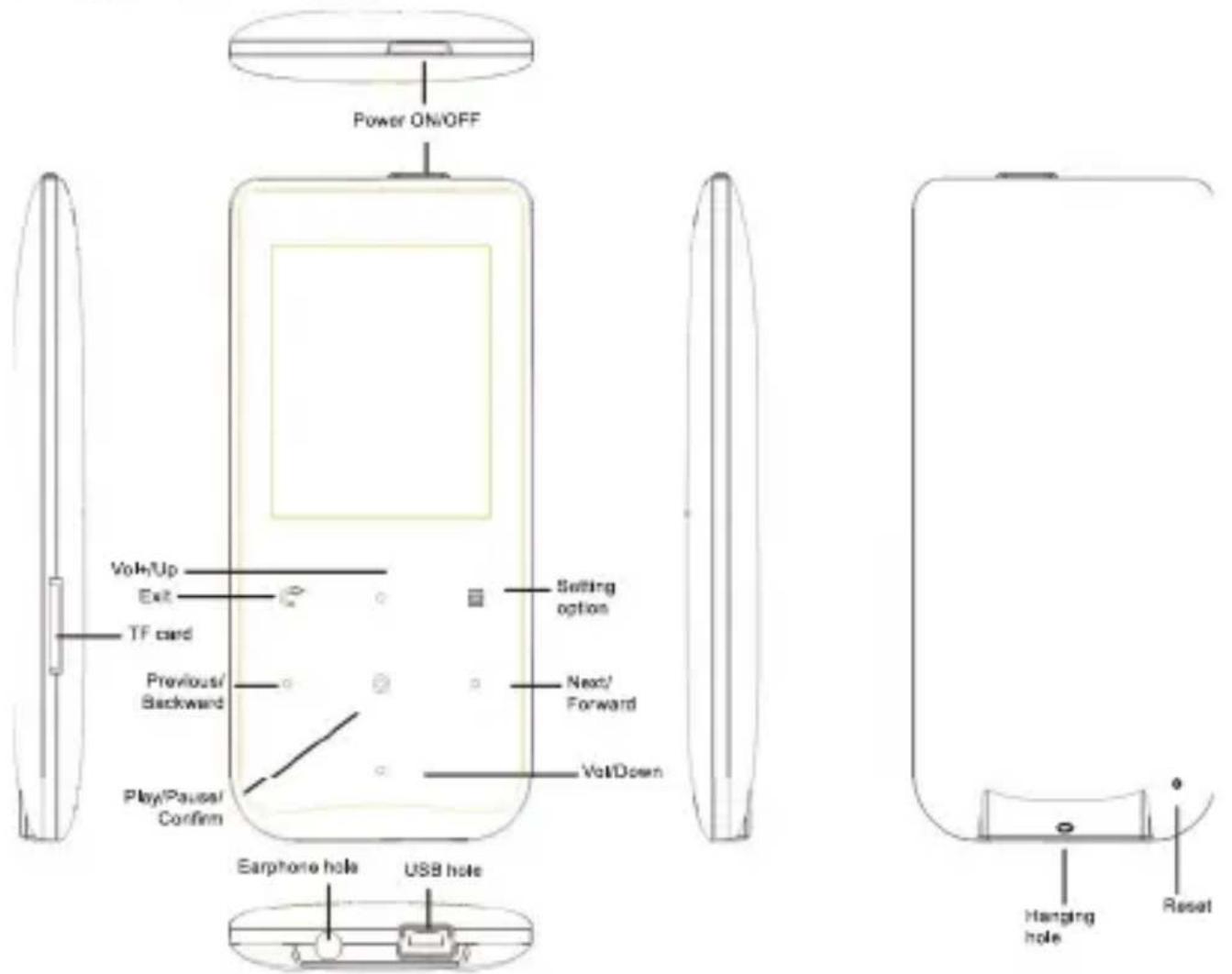
Touch key function description:
"vol+/up": Volume + and moving up
"vol-/down": Volume + and moving down
„O“: Confirm / Enter into submenu, play and pause
„C“: Short touch: Exit to superior menu / Back
„≡“: Setting options under different functions, music, movie etc.
"Next/Forward": Next
Long touch "Next/Forward": Fast forward playing
"Prev/backward": Previous
Long touch "Prev/backward": Fast backward playing
Forward / backward under movie playing status:
Because the touch keys are very sensitive and in order to avoid wrong operation, please pause the movie playing first if you want to forward or backward playing, then keep touching "Next/Forward" or "Prev/backward" to get it.
! Important Note:
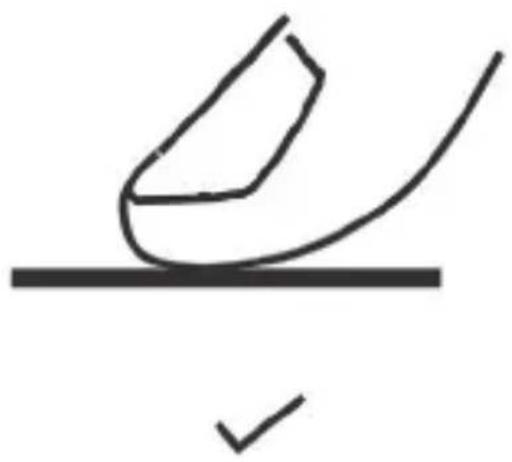
Because touch pad keys of MP3 player is very sensitive, during using, if your fingers don't touch the keys on the correct position, sometime touch keys can't work normally. So please put your finger correctly on the keys, especially do not touch the position between any two or three keys. Static electric will also affect the touch key working, but it won't damage MP3 player. Try to touch keys more times, it will resume to work
Finger Touch operation:
Because the touch keypad is sensitive, it is very important for user to touch the keys in a correct way, please follow the operation as below:
Correct
Wrong
natural_image
Simple line drawing of a shoe with a checkmark mark below (no text or symbols)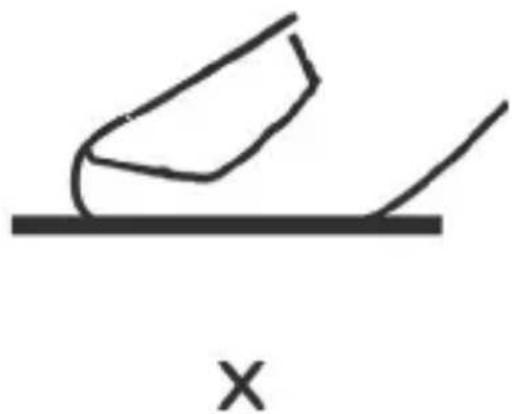
natural_image
Simple line drawing of a block on an inclined plane with a cross symbol below (no text or labels)Main Menu
flowchart
graph TD
    A["Main menu"] --> B["Music"]
    A --> C["Video"]
    A --> D["FM"]
    A --> E["Photo"]
    A --> F["Text"]
    A --> G["Record"]
    A --> H["Navigation"]
    A --> I["Settings"]
Basic Operation
Power On/Off
natural_image
Simple line drawing of a horizontal cylindrical object with a vertical line below, resembling a cross-section of a mechanical part (no text or symbols)Power ON/OFF
Long pressing the power keys for three seconds, the MP4 player will be powered on.
Long pressing the power keys for three seconds when MP4 player is on, the player will be powered off.
* Important: If your MP3 player is blocked or doesn't work, please Reset it and after two seconds, restart it again.
Hold On/Off
Hold On: Touch the "setting option" and keep touching key for 2 second, the lock icon will show on the screen.
Hold Off: Touch the "setting option" and keep touching key for 2 second, the lock icon will disappear from the screen.
Power Reset
If your player is blocked during using, you can use a tiny pin to press the RESET key at the bottom of MP4 player and restart the player.
Battery
This player adopts built-in lithium batteries of high capacity.

The usable time of battery electricity may be various according to different volume, type of playing file and pressing operation. The player can save battery as per the set [Customized Power Off Time] or [Display Setting].
Music
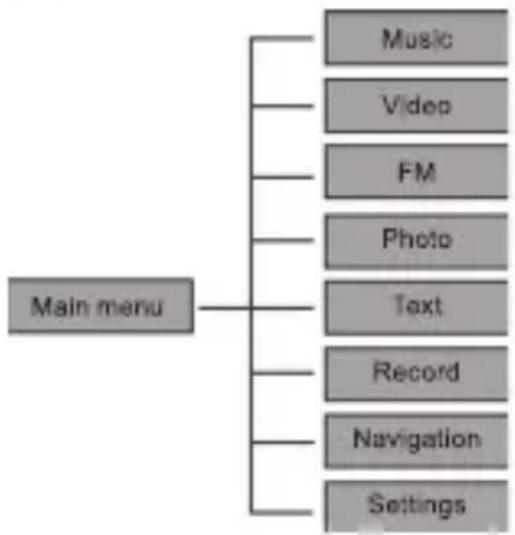
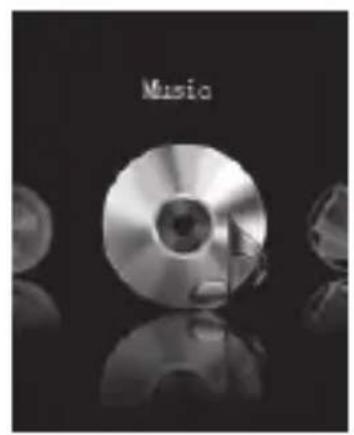
Select "Music display" in main menu and touch "O" to enter into music playback status.
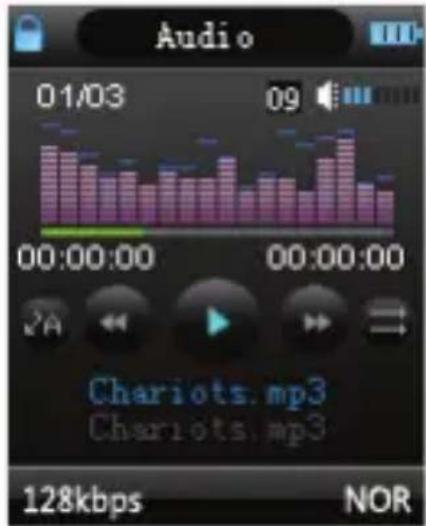
Touch "C" key to exit to main menu.
Video
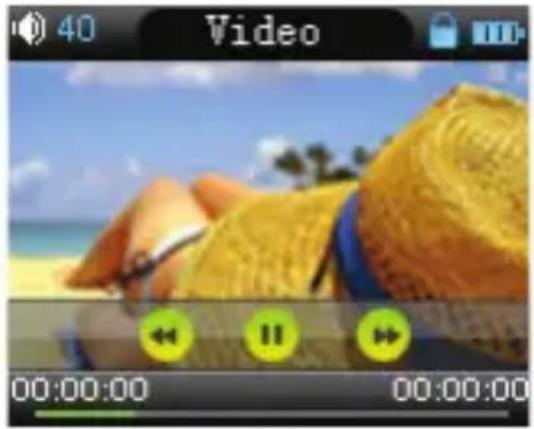
Select "Video" in main menu and touch "O" to enter into Video playback status.
natural_image
Video player interface showing a beach scene with golden straw hats and blue sky background (no readable text or symbols)Touch "C" key to exit to main menu.
FM
Select "FM" in main menu and touch "O" to enter into FM radio status. Then touch "O" again, It will enter into FM submenu automatically first. (FM submenu includes: Manual, Auto, Mem, Preset, Del)
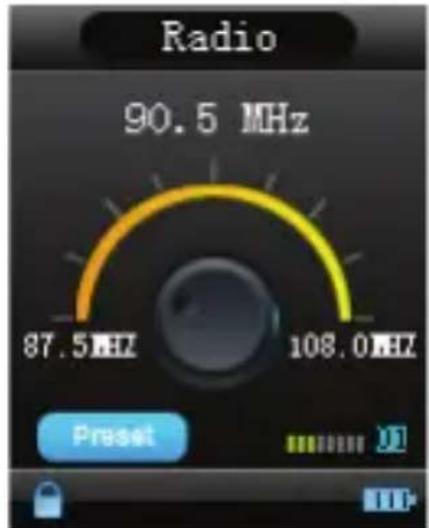
Touch "O" key to select: Manu, Auto, Memo, Pres, Del and enter into FM program.
Manual:
Select the "Manu", then you can scan the frequency manually station by touching the "Next/Forward" and "Prev/backward" icon.
Auto:
Select the "Auto scan", it will scan FM channel and save them automatically. After auto scan complete, touch the "Next/Forward" or "Prev/backward" to select channel,
Memory:
If you want to save FM channel, touch "O" to exit to FM submenu and select "Mem" and touch play key to choose channel to save the FM channel.
Preset:
Touch "O" to enter into "Pres", you will see the FM channel you preset or saved before, touch "Next/Forward" and "Prev/backward" to choose the channel you prefer.
Del:
Delete the saved channel. There will be a window popped up to ask for confirmation of "Yes" or "No", touch "O" to confirm your choice.
Note:
In FM mode, the earphone is used as antenna, so please keeping the earphone is connected well.
Photo
In main menu, select "Photo" and touch "O" icon to enter into photo browser, touch "Next/Forward" / "Prev/backward" to see next / previous photos.
Text
Download TXT File
Download the file and save the file as TXT format into your MP3 player.
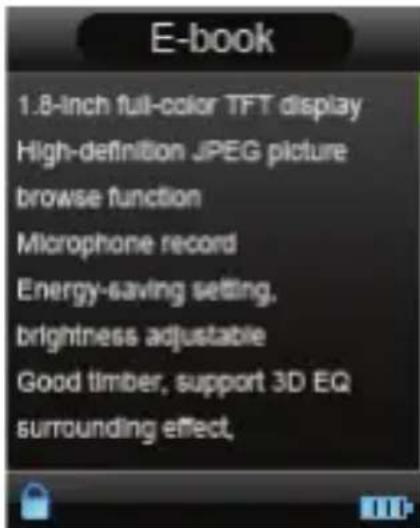
Read File
Touch "O" to enter into Text files, then short press "O" key to read. Scroll pages by touching "vol+/up" or "vol-/up" keys.
Store Bookmark
When you are reading the book, touch "O" to save the bookmark, there are total three bookmarks can be saved. Touch "O" to confirm and save bookmark in the current page. Short touch "C" to exit saving.
Touch "Prev/backward" to save bookmark, use "vol+/up" or "vol-/up" to select the bookmark, and then touch "O" to confirm. Touch "Next/Forward" to load saved bookmark.
Record
After enter into "Record" status, you will see the interface as following:
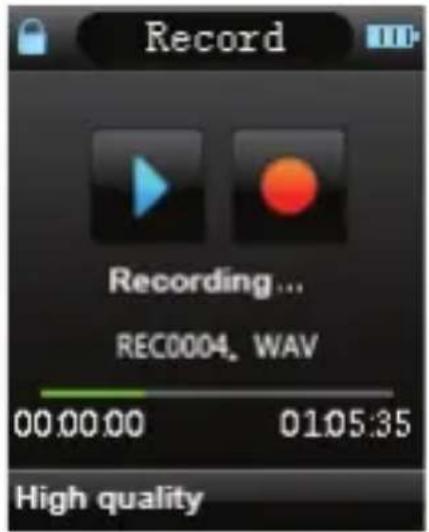
Touch "O" to start recording and touch "C" to complete recording and save the recorded file. After saving, it will prepare next recording again.
REC Setup
In Stop state of REC mode, long press [MENU] key to exit the Main interface, and enter "Setting" option, and select "record" adjust the settings among [REC Quality]/[REC Volume].
-
REC Quality: High quality, general quality (the first one has larger REC file and better effect; the second one is in the opposite)
-
REC Volume: Five options of +1, +2, +3, +4 and +5. The higher level, the larger recorded volume.
* When recording, please disconnect earphone to improve the recording effect;
* The recorded voice files can be found in Music Play menu and play to try the effect.
* If the screen displays "Full Space", it indicates that there is no space for new recorded file, please delete other files to release more space.
Navigation
Navigation is a resources manager which can help you to know all files in MP3 player for convenient management. You can select the music, movie or text file to enjoy it directly.
For example:
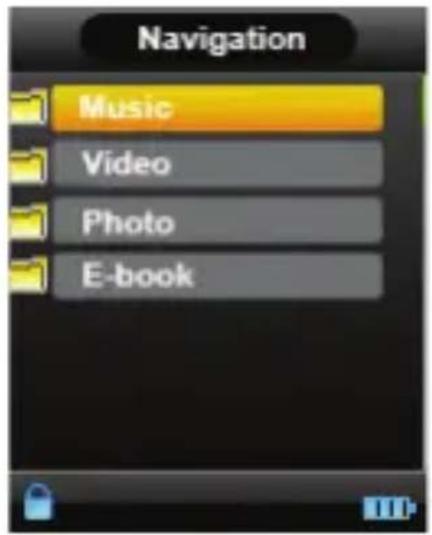
Settings
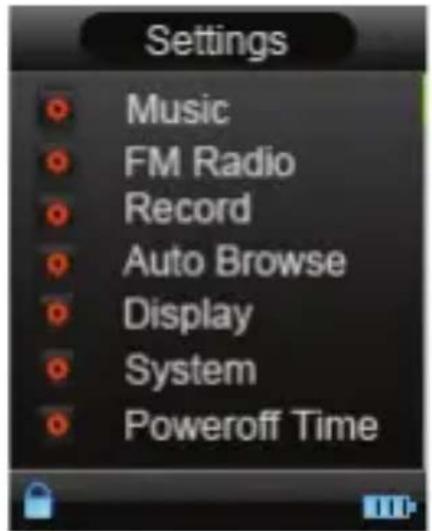
Note: Under different functions such as music playback, movie playback etc., you can touch “≡” to enter related setting options as well.
Music Setup:
1) Repeat mode:
Once: Stop when every one song is played over
Repeat 1: Repeat a single song
Folder once: Stop after finishing playing songs in one subfolders
Folder Repeat: Repeat songs in subfolders
All Once: Stop after playing all songs
All Repeat: Repeat all songs continuously
Intro: Play the first 10 seconds of songs in the current folder.
Under Folder once and Folder Repeat mode, the MP3 player will recognize the songs in root folders first and default play them once or repeat them continuously. If you want to play songs in other subfolders, please enter into from "Navigation" first and select songs in other subfolders and play it, then MP3 will play all songs in this folder.
2) Play mode:
Order: Play music or movie one by one in order
Shuffle: Play music or movie randomly
3) EQ select: Normal, 3D, Rock, Pop, Classic, Bass, Jazz, User EQ.
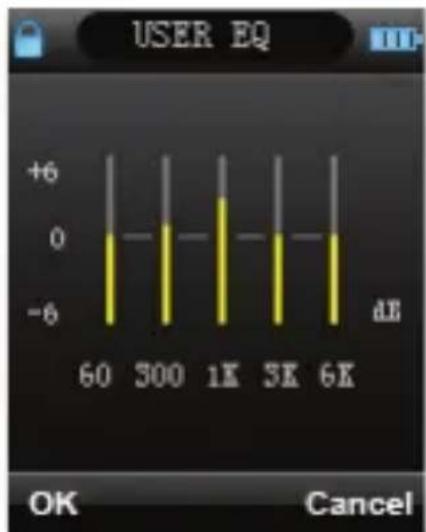
User EQ operation:
bar
| Power Level | Value (dB) | | :--- | :--- | | 60 | -8 | | 300 | -7 | | 1K | +4 | | 3K | -2 | | 6K | -1 |EN - 13
After choosing User EQ, touch "Next/Forward" "Prev/backward" key to shift to the frequency one by one (60Hz / 300Hz / 1KHz / 3KHz / 6KHZ) you want to adjust and adjust dB by "vol+/up" or "v" key, touch "Prev/backward" "Next/Forward" to shift to "Yes" or "No", then touch "O" to confirm or cancel.
FM radio setup:
1) Stereo SW: Turn on or off the Stereo effect
2) FM Region: Choose your country or area to get better FM frequency
Record setup:
(please see page12 to know detailed description)
Auto Browse:
Including Text auto browse and Photo auto browse, there are 1 second to 5 second optional for time staying.
Display setup:
1) Blight Time: Setup the backlight time of TFT screen except movie and charging status.
2) Lum: Setup the brightness level. There are 1 to 5 level to choose. The higher level, the brighter it is.
3) Backlight mode: two options of Normal and Electricity-saving modes.
System setup
1) About: It shows the information of Firmware version, Date and Memory capacity.
2) Firmware Upgrading
Touch "O" to see the window as following:
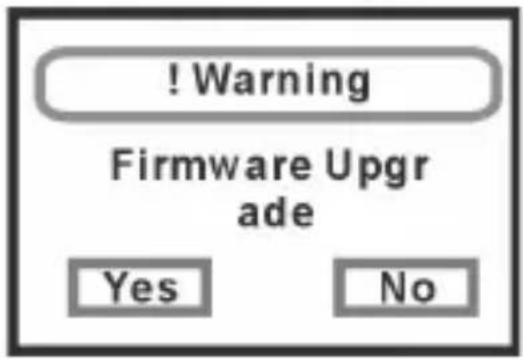
it reminds you whether to upgrade the firmware, it will exit if no firmware upgrading.
3) Defaulted Set
Reset your MP3 player back to defaulted setting. Touch "O" to pop up the window as following:
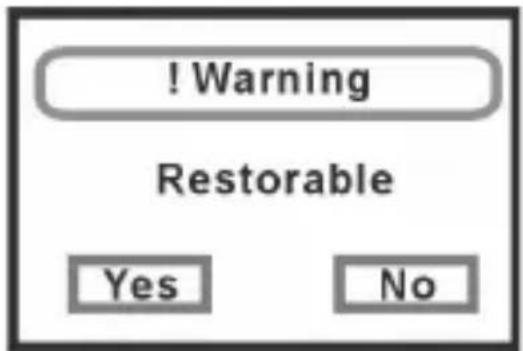
Choose "Yes" or "No" and touch "O" to confirm.
Languages:
Setup your languages of interface, there are 5 languages including: English, Czech, Slovak, Hungarian, Polish
Connecting with computer
USB Display Mode
The player has a high-speed USB2.0 port, supports the systems including Windows98 (it needs to install the driver), over Windows2K (it's unnecessary to install the driver), Mac OS 10.3 and over, Linux Redhat 8.0 and over. It supports USB power supply and can be
played without battery. After connecting to the PC (several seconds later), the player will display the connecting mode as following:
Charging Battery Mode
If the battery is too low, the display will shows "Low battery to power off". Please turn it off and you can use USB CABLE to charge the battery from computer. During charging, the battery icon will display as following. After the charging, the battery electricity will shows full grids (Fig.). It requires 3 hours to charge fully the battery (note: for the first two times using, please make sure to charge for 8 hours).
natural_image
Blue neon-style battery icon with reflective surface against black background (no text or symbols)! Warning:
- Before charging, please turn off mp4 player, otherwise it will cause player abnormal working;
- If you want MP4 working during charging when connecting computer, please remove the USB disk function first from your computer
Download operation of WMA music with DRM protection to MP3-Player
On Window 98SE/ Window ME / Windows 2000/ Windows XP, WMA music with DRM should be transferred by Windows Media Player 9.0 and 10.0 version (10.0 version for Windows XP only) to MP3-Player Other download operation probably will cause MP3-Player can not read the WMA music with DRM file.
Operation introduction:
On Window 98SE/ Window ME / Windows 2000/ Windows XP, user should upgrade Windows Media Player to 9.0 or 10.0 version (10.0 version only for Windows XP).
A) On Windows Media Player 9.0 version : (Window 98SE/ Window ME / Windows 2000/ Windows XP)
1) Connect your MP3.Player to PC
2) Open Windows Media Player 9.0
3) In Windows Media Player 9.0, open the desired WMA music with DRM
System maybe request to download the license in case if user does not download the WMA music with DRM properly from the website. In this case, user need download the license from music publisher as instruction of Microsoft Website.
4) In operation windows, click "File" → "Copy" → "Copy to Portable Device"
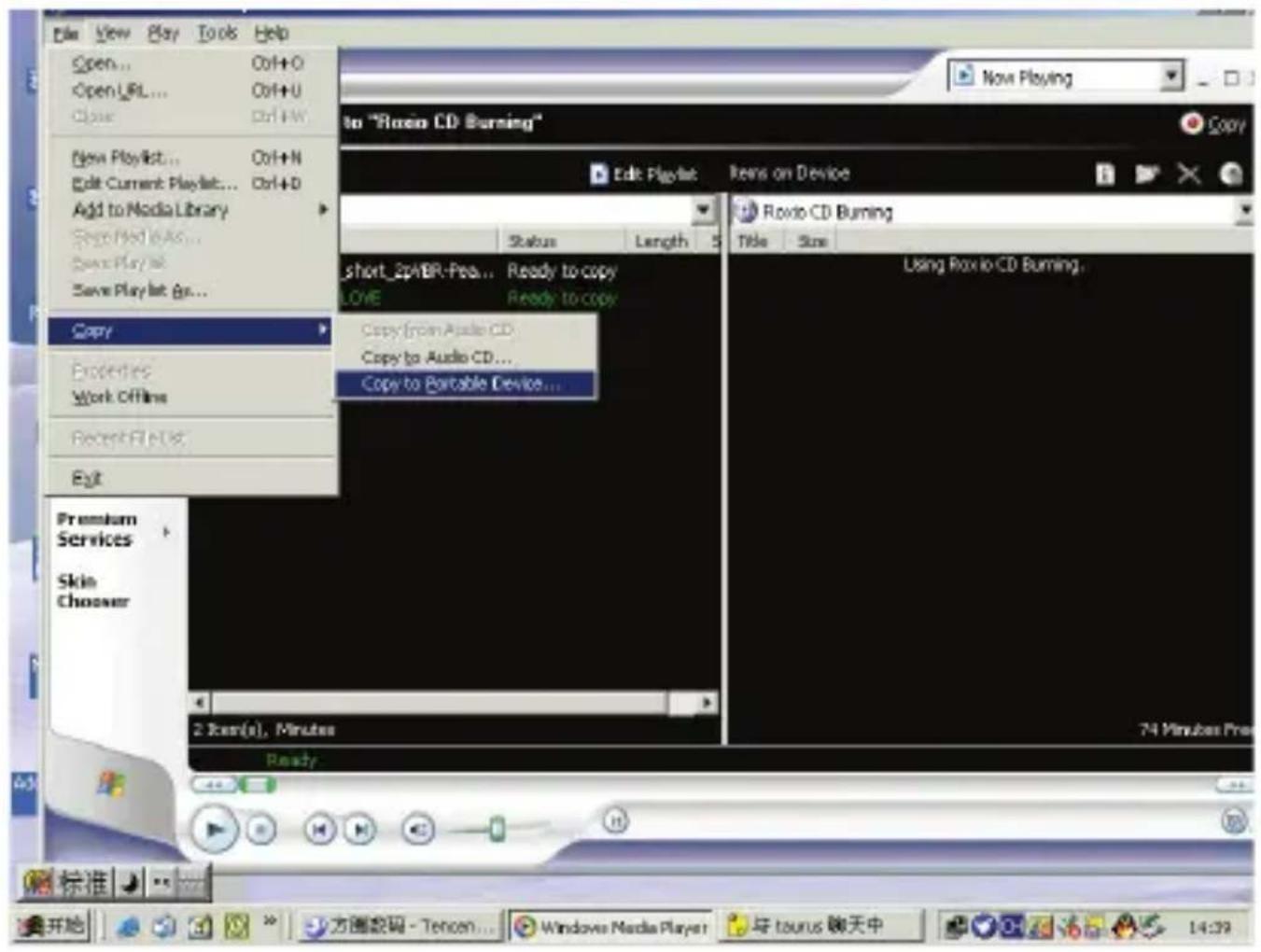
5) In the opening windows, choose the desired WMA music with DRM as step 2)
And choose "Removable Disk"
![Copy "Playfic4" to "Removable [G-1]" Items to Copy Edit Play kit Items on Device Copy selected items to device Now Playing Media Guide Copy from CD Media Library Radio Tuner Copy to CD or Device Premium Services Skin Chooser Title Status Length Size THE POWER OF LOVE Ready to copy 3.84MB THE POWER OF LOVE[2] Ready to copy 3.84MB 2 items(0), 7.69MB REMOVABLE (G1) Title Size VOICE 0 bytes / 122.84MB (122.84MB free space) Ready 标准](/content/2026/05/844512/images/eb0bf1954540a8a33a42ec2c2dc63d3596b04758b78f81bb7afbe02f0bf22a63.jpg)
6) Then click Icon "Copy" to transfer the WMA music with DRM to your MP3-Player
![我的文档 2006日E5.rar Monthly Rep... sample retail 月出投统计 New Playing Copy "Playlist2" to "Removable [G:]" × Stop Copy Items to Copy Edit Playlist Items on Device Now Playing Title Status Length Size ■THE POWER OF LOVE Copying (32%) 4.09 3.84MB ■THE POWER OF LOVE Ready to copy 4.09 3.84MB ■ROMOVABLE (G:) Title Size ■VOICE ■THE POWER OF LOVE.wms 2 item(s), Total Time: 8:18, 7.69MB 0 bytes / 122.84MB (118.95MB free space) Ready 标准 开始 方向数码 - Tencent Tray... Windows Media Player 14:25](/content/2026/05/844512/images/d1fc336ae490272946d47d848b274f5d23e85830ce06c5832e4eac52b7236c10.jpg)
7) Safely remove your MP3-Player from PC
B) On Windows Media Player 10.0 version (Windows XP only)
1) Connect your MP3-Player to PC
2) Choose the desired WMA music with DRM
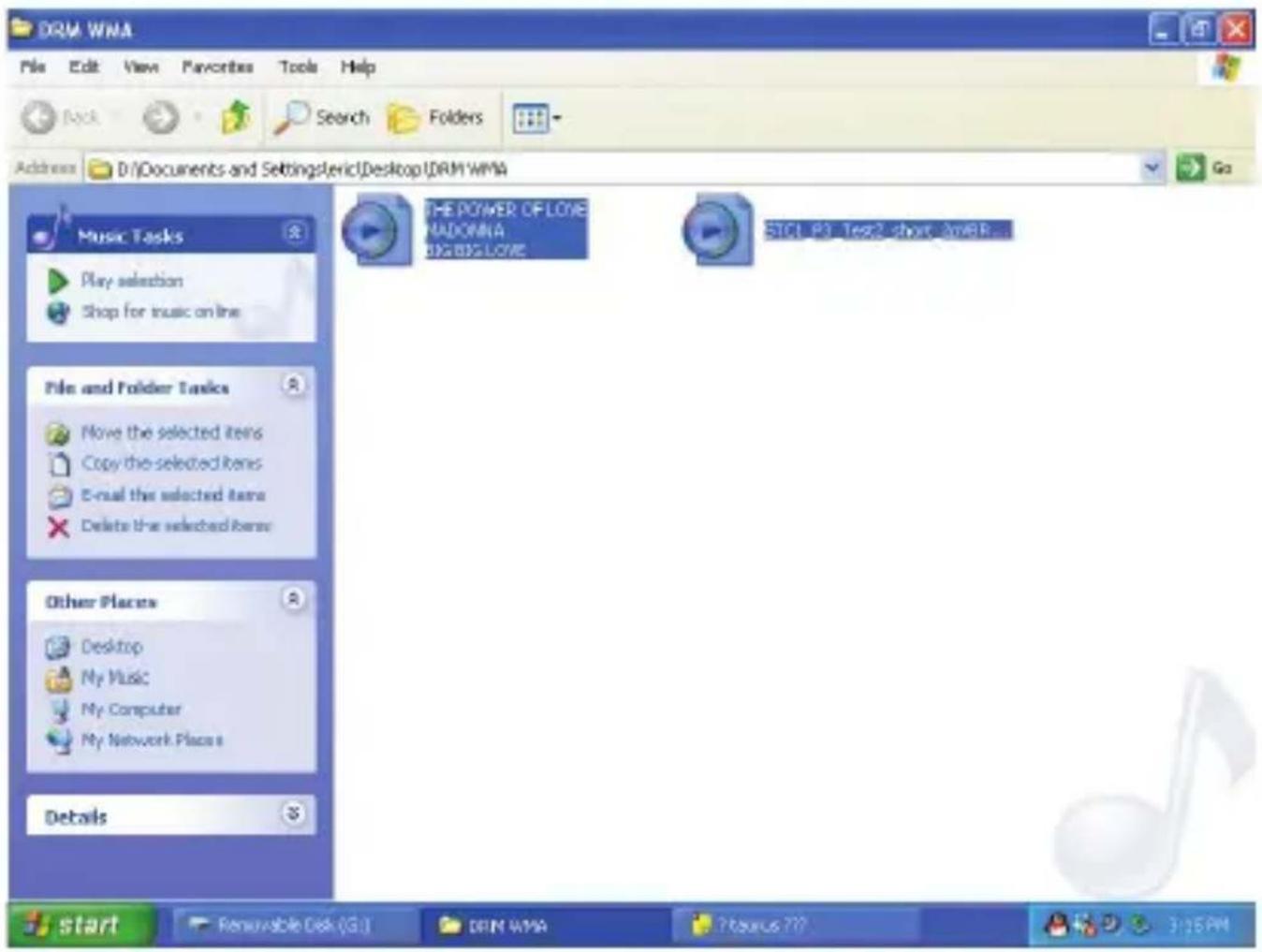
3) Click Right button of mouse and choose "Add to Sync list"
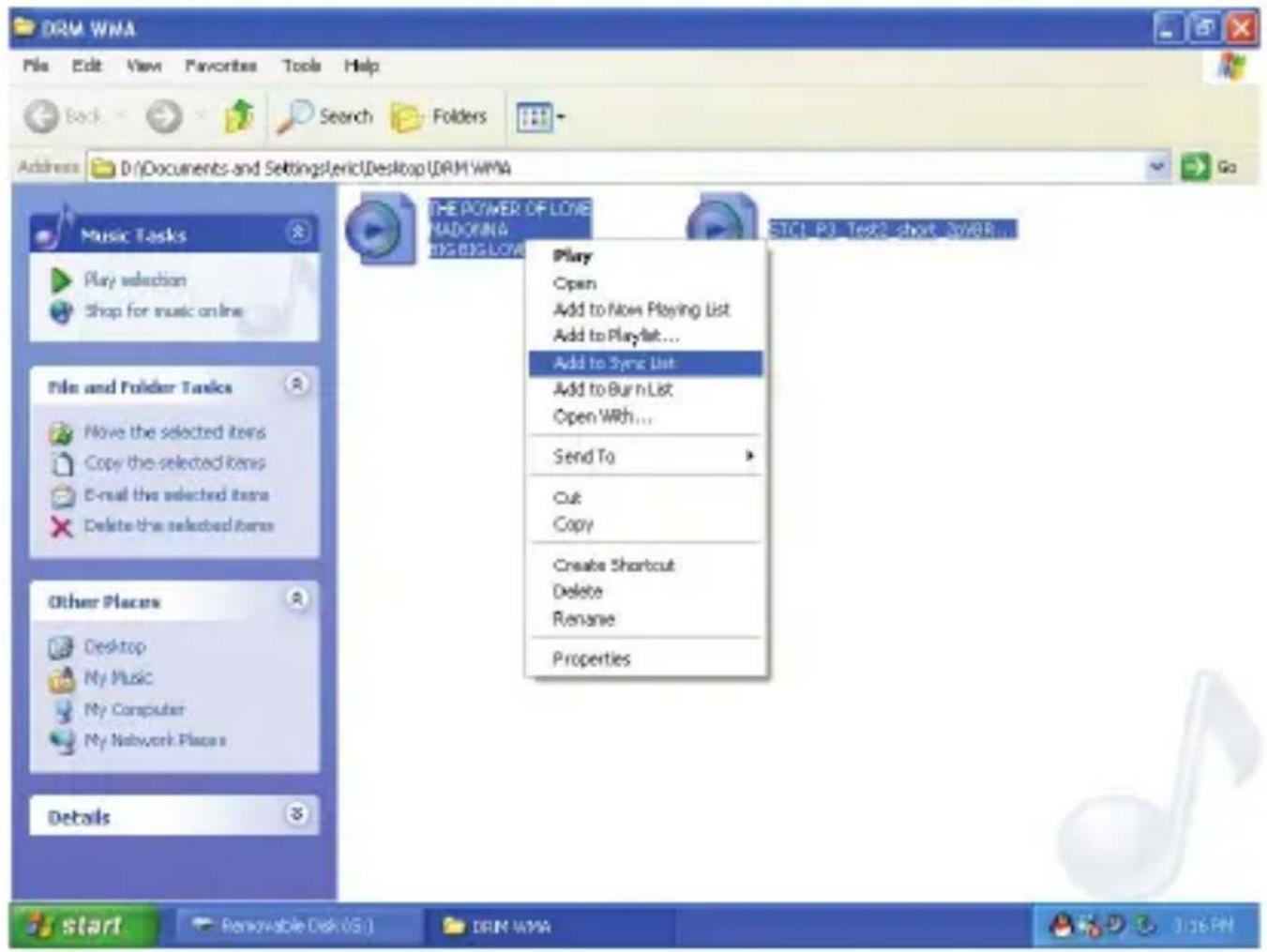
4) On the open windows, choose "Sync" option
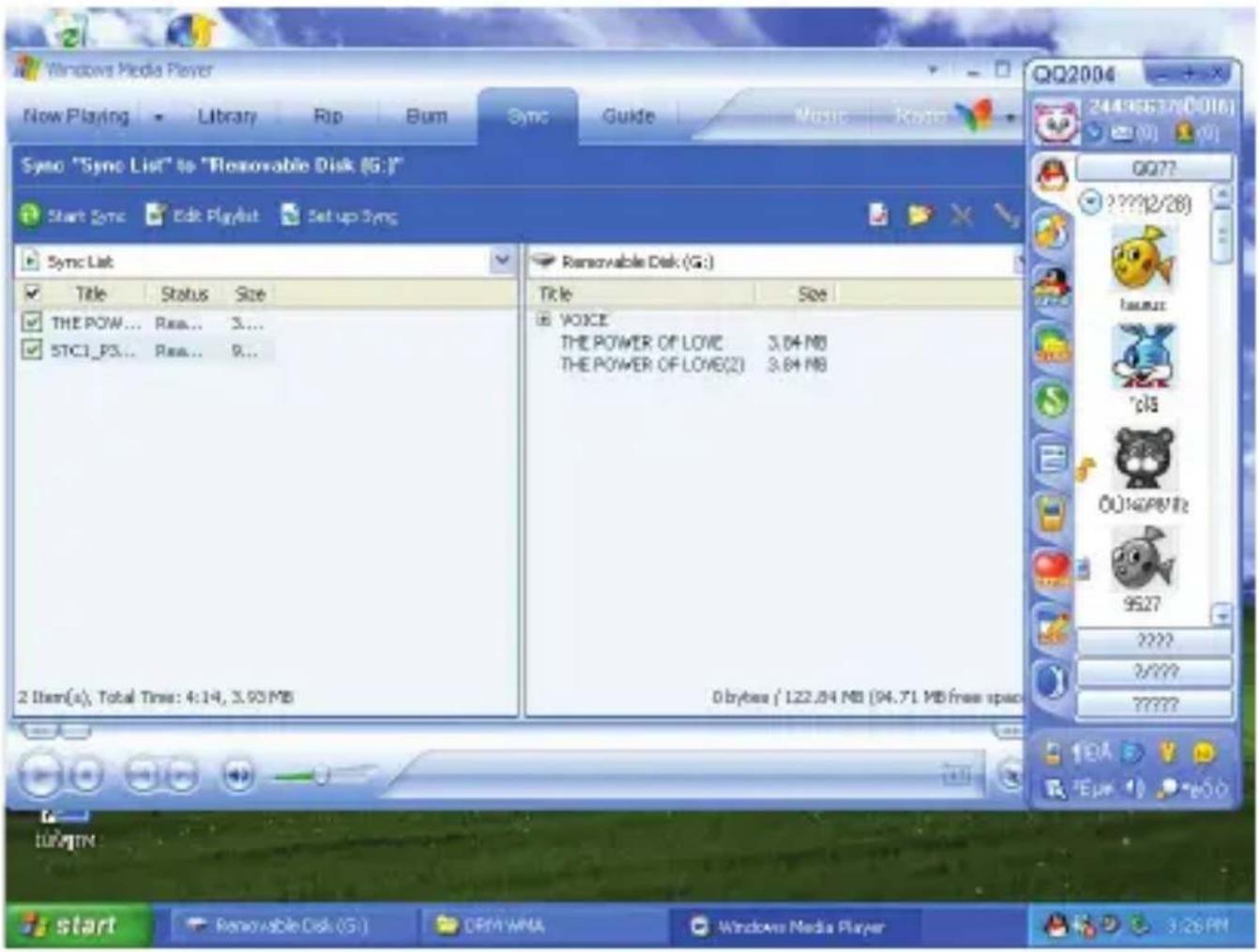
5) On "Sync" window, choose the desired WMA music with DRM as step 2)
And choose "Removable Disk"
6) Click "start Sync" to transfer the WMA music with DRM to your MP3-Player
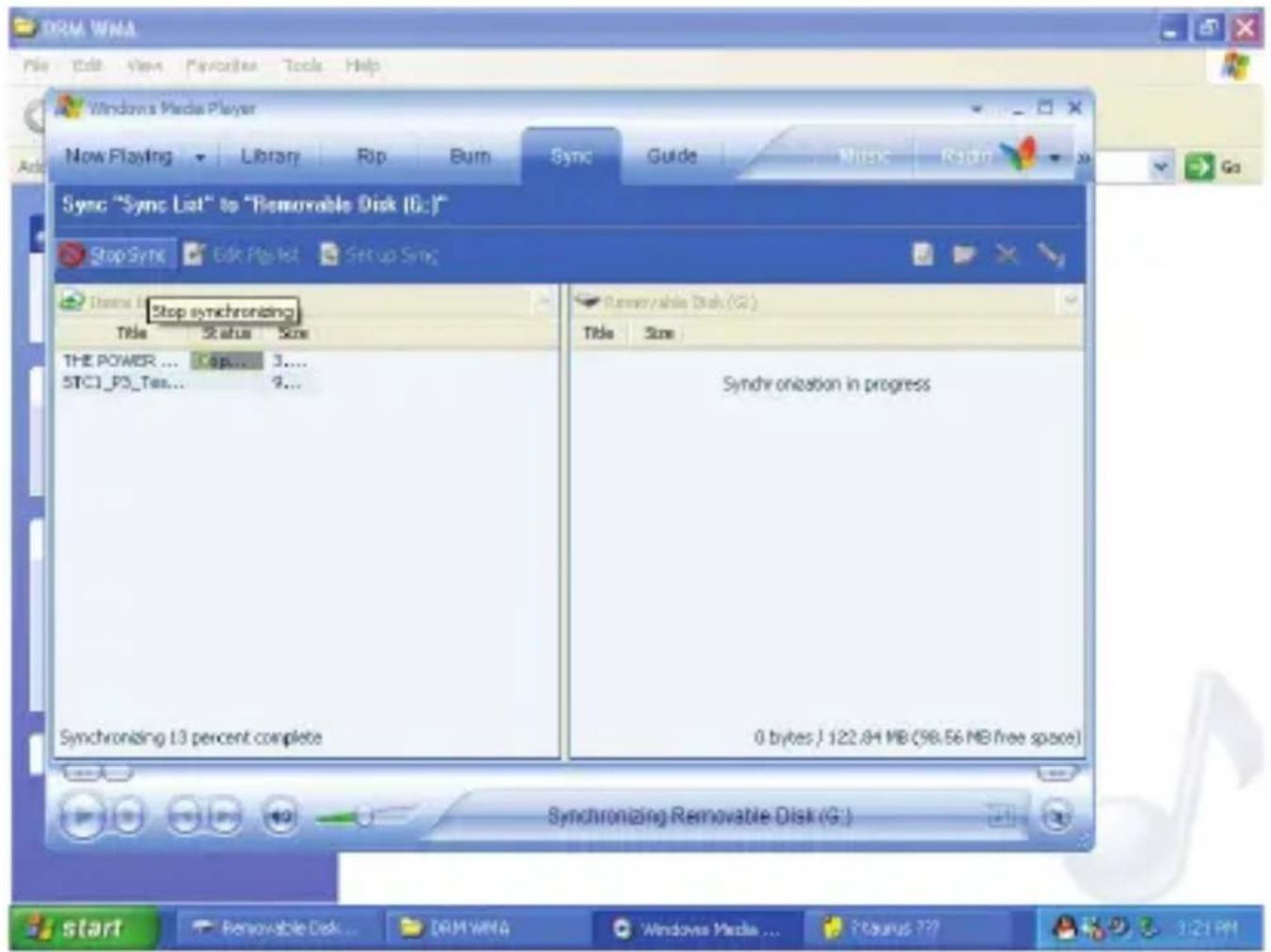
7) Safely remove your MP3-Player from PC.
Convert and Play Video File
This player can convert the WMV, RM, AVI, VOB or DAT into AVI video format via the attached video convert software in CD driver.
- Click and run the program of "AV Converter.exe", shown as follows:
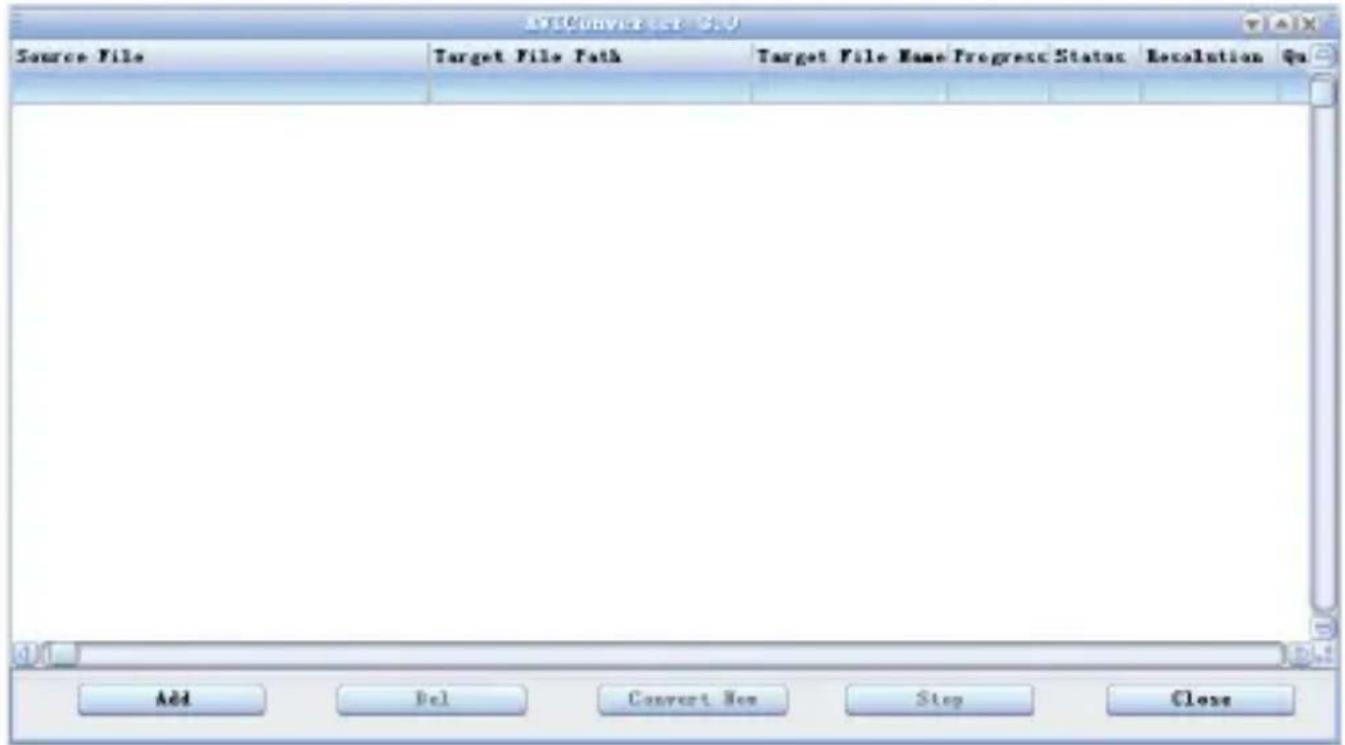
2. click "add", show dialog as follows:
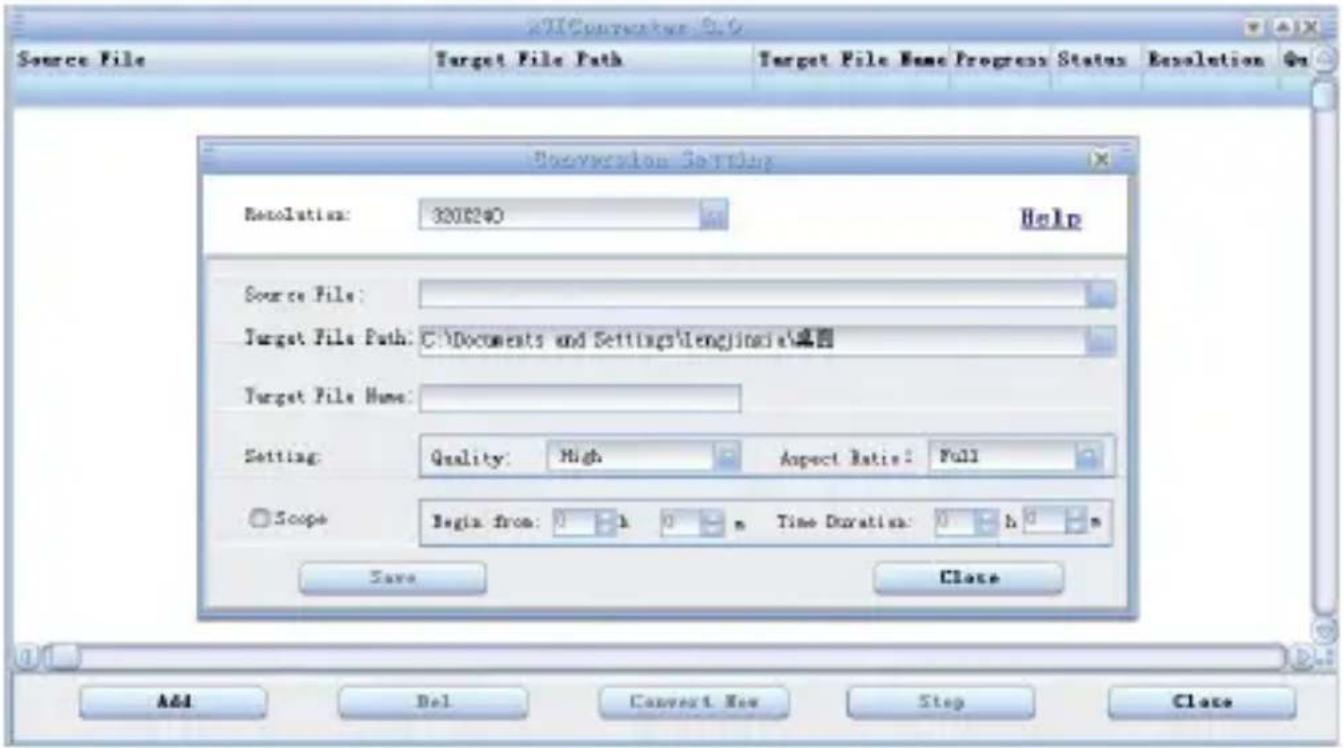
- Select and set your desired parameters, select your desired video/audio file and AVI video file routine to be generated, save it and close the window. Then click [Start to Convert] button, it begins to convert to AVI file.
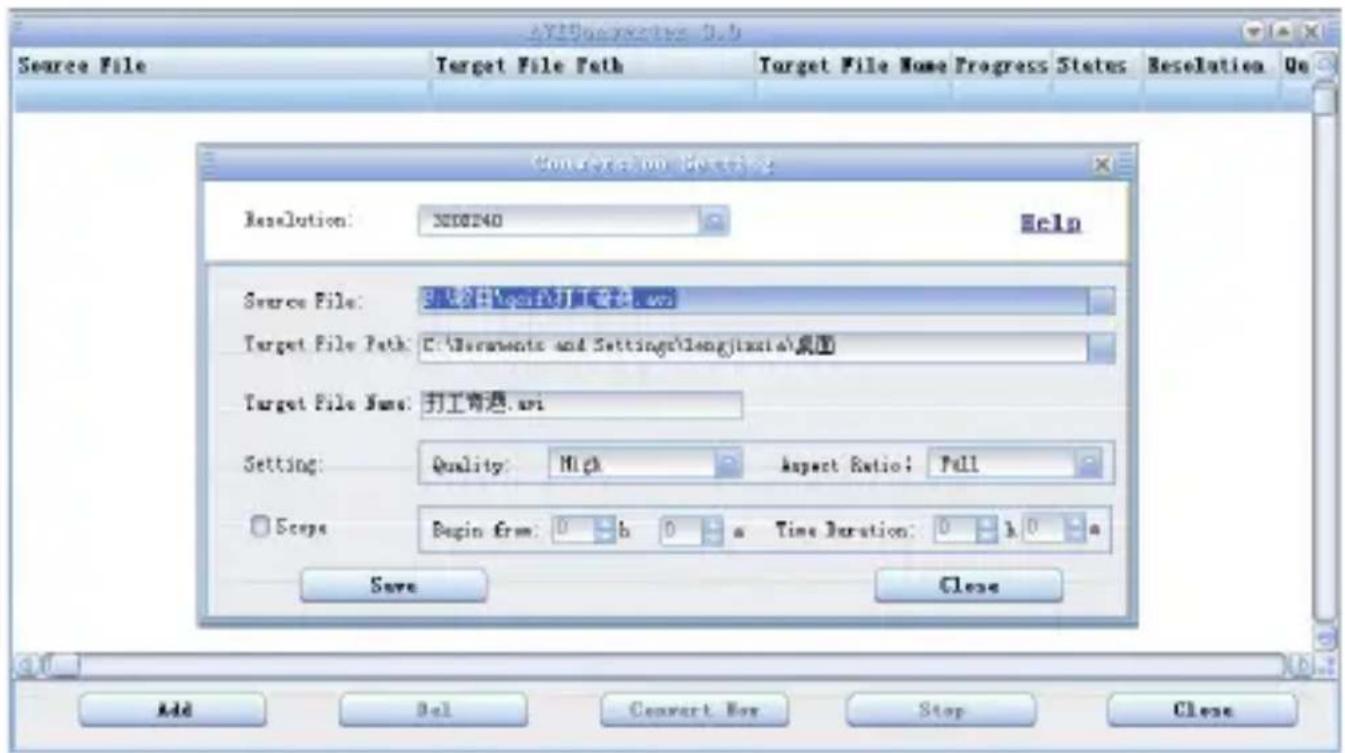
- The successfully converted AVI video file can be played in MP3 player.
Upgrade Player Driver
The player can be upgraded or resume the damaged player driver via the firmware software in the attached CD.
- Run the Setup.exe in the folder named "Update tool" in the CD driver, just follow the dialogue to finish installation.
- Then click the "Start" of windows operation system, in "All programs" submenu, you will find a program named "Consumer update", choose it and run the file "Firmware update", the window will pop out as following:
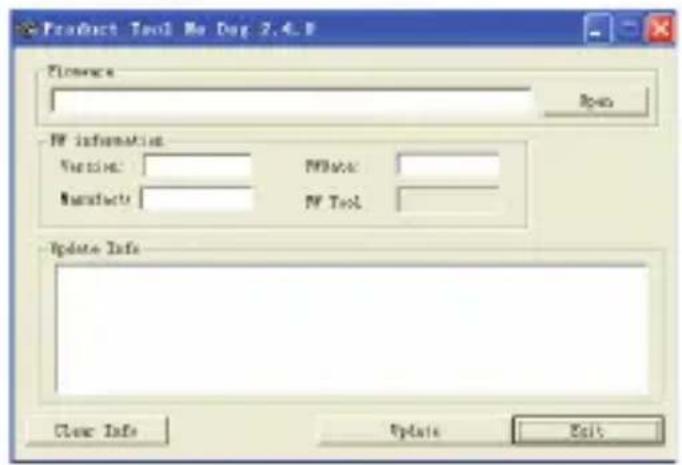
then click "Open" and select "Firmware.rfw" file in the CD (the Interface is as follows)
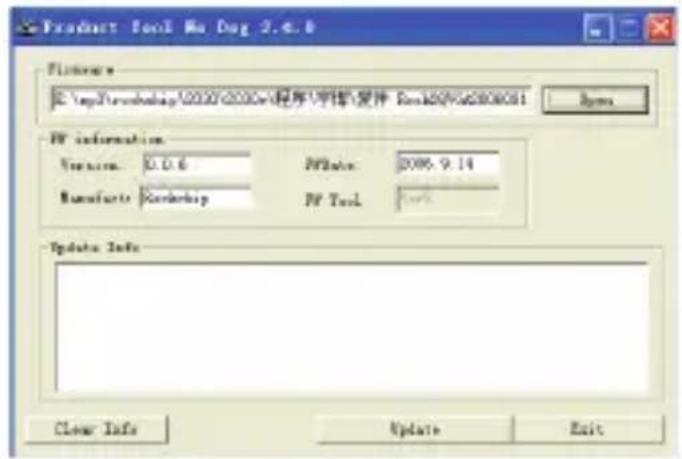
- Power on your MP3 player enter into "Settings" and select "System", choose "Upgrade" item, you will be asked "Firmware upgrade?", choose "Yes", then connect the player to PC via USB cable. After 3 seconds, click [Update] till the Auto Upgrading is achieved.
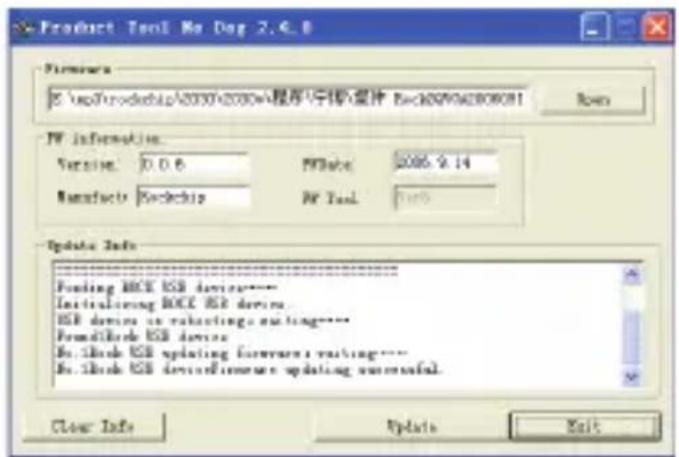
- After upgrading is completed, disconnect your MP3 with computer, re-power on it, you will see "System Init...", that means MP3 player start to initialize the system. After it is completed, you will see MP3 player's main menu again.
- Now connect MP3 player with computer again, click this removable disk, you will see the window that asking you to format removable disk, click "Yes" and start formatting, after formatting is completed, you can download files and use it again.
Note: Firmware upgrade is to improve and optimize the performance of the player. The normal work of the player would not be affected even if the firmware isn't upgraded. The wrong operation of upgrading firmware would cause the device not to work normally! The firmware upgrade software of this player is not applied to other series of players.
Troubleshooting
If the player can not be played normally, please check as follows:
| Troubles | Causes |
| It cannot be turned on | Check whether the player is powered on or not and whether the machine program is damaged or not |
| The player is blocked | Push the power switch to restart the player |
| It can not be played | Check whether the machine is powered on or notConfirm the volume is not in "0" level, check the earphone is connected well and keep the earphone cleanFormat the disk again |
| It can not upload/download the file or the disk can not be found in computer | Insert USB cable totally well after the Power on. Correctly install the driver again. |
| It can not be recorded | Check the enough memory and the electricity |
| Words on display are deformed | Make sure that you have selected the correct language |
| It can not be used normally after upgrading | Upgrade again in Windows 2000 |
Specifications:
| Items | Specifications |
| Dimensions | 88 × 40 × 9.0mm (W × H × D) |
| TFT colored display | 1.8inch TFT; 65K real color display, Diagram (160 x 128) |
| Language support | Multiple languages |
| Data transmission speed | High speed USB2.0Read: 4Mbps, Write: 1Mbps |
| Supportable file format | Music:MP3: 8K bps – 320K bpsWMA: 32K bps – 320K bpsWAV: 64kbps / 256kbpsPicture: JPEG |
| Supportable video format | .AVI (All formats should be converted to .AVI format by afforded firmware) |
| S/N | 85 dB |
| Frequency response | 20Hz-- 20KHz |
| Max. output power | 10mW + 10mW |
| Flash memory | 4GB |
| Power supply | 3.7V li-ion battery |
| Usable time of battery | Video play: 5 hoursMP3 play: 12 hours (power save mode) |
| Working temperature | 5 °C to 40 °C |
| Supporting operating system | WIN2K/XP, Mac OS 10.4.6 |
| Weight | About 30g |
| Accessories | User's Manual, earphone, USB cable, installation CD disk |
INSTRUCTIONS AND INFORMATION REGARDING THE DISPOSAL OF USED PACKAGING MATERIALS
Dispose of packaging material at a public waste disposal site. DISPOSAL OF USED ELECTRICAL AND ELECTRONIC APPLIANCES
natural_image
Symbol of a trash bin with crossed lines indicating no waste or discharge, and a solid black rectangle below (no text or labels)The meaning of the symbol on the product, its accessory or packaging indicates that this product shall not be treated as household waste. Please, dispose of this product at your applicable collection point for the recycling of electrical & electronic equipment waste. Alternatively in some states of the European Union or other European states you may return your products to your local retailer when buying an equivalent new product. The correct disposal of this product will help save valuable natural resources and help in preventing the potential negative impact on the environment and human health, which could be caused as a result of improper liquidation of waste. Please ask your local authorities or the nearest waste collection centre for further details. The improper disposal of this type of waste may fall subject to national regulations for fines.
For business entities in the European Union
If you wish to dispose of an electrical or electronic device, request the necessary information from your seller or supplier.
Disposal in other countries outside the European Union If you wish to dispose of this product, request the necessary information about the correct disposal method from local government departments or from your seller.
Changes to the text, design and technical specifications may occur without prior notice and we reserve the right to make these changes.



- Precautions
- Characteristics
- Touch key function description:
- Forward / backward under movie playing status:
- ! Important Note:
- Finger Touch operation:
- Main Menu
- Basic Operation
- Power On/Off
- Hold On/Off
- Power Reset
- Battery
- Music
- Video
- FM
- Manual:
- Auto:
- Memory:
- Preset:
- Del:
- Note:
- Photo
- Text
- Read File
- Store Bookmark
- Record
- REC Setup
- Navigation
- Settings
- Music Setup:
- FM radio setup:
- Record setup:
- Auto Browse:
- Display setup:
- System setup
- 2) Firmware Upgrading
- 3) Defaulted Set
- Languages:
- Connecting with computer
- USB Display Mode
- Charging Battery Mode
- ! Warning:
- Download operation of WMA music with DRM protection to MP3-Player
- Operation introduction:
- Convert and Play Video File
- click "add", show dialog as follows:
- Upgrade Player Driver
- Troubleshooting
- INSTRUCTIONS AND INFORMATION REGARDING THE DISPOSAL OF USED PACKAGING MATERIALS
- For business entities in the European Union
Brand : SENCOR
Model : SFP 5661 HELLO KITTY
Category : Mp3 player