
SFP 5970 - Mp3 player SENCOR - Free user manual and instructions
Find the device manual for free SFP 5970 SENCOR in PDF.


| Product Type | MP4 Player / MP3 Player |
| Brand | Sencor |
| Model | SFP 5970 |
| Display | 1.5-inch TFT color display, 65K colors, 128x128 resolution |
| Memory Capacity | 8 GB flash memory |
| Audio Formats | MP3, WMA, WAV, FLAC, APE |
| Video Formats | AVI (128x128 resolution) |
| Additional Functions | FM Radio, Voice Recording, E-book (TXT), Photo Viewer (JPG), Lyric Display |
| Dimensions (W x H x D) | 43 x 43 x 12 mm |
| Weight | Approximately 21 g |
| Power Supply | 3.7 V Li-polymer battery |
| Battery Life (Music) | Up to 16 hours (power save mode) |
| Battery Life (Video) | Up to 6 hours |
| Frequency Response | 20 Hz – 20 kHz |
| Signal-to-Noise Ratio | 85 dB |
| Max Output Power | 10 mW + 10 mW |
| Data Transfer | High-speed USB 2.0 (Read: 4 Mbps, Write: 1 Mbps) |
| Supported Operating Systems | Windows 2000/XP, Mac OS 10.4.6 |
| Accessories Included | Earphones, USB cable, User manual |
| Equalizer Modes | Normal, MS PlayFX, Rock, Pop, Classic, Bass, Jazz, User EQ |
| Playback Modes | Order, Shuffle, Repeat (once, one, folder, all), Intro |
Frequently Asked Questions - SFP 5970 SENCOR
User questions about SFP 5970 SENCOR
0 question about this device. Answer the ones you know or ask your own.
Ask a new question about this device
Download the instructions for your Mp3 player in PDF format for free! Find your manual SFP 5970 - SENCOR and take your electronic device back in hand. On this page are published all the documents necessary for the use of your device. SFP 5970 by SENCOR.
USER MANUAL SFP 5970 SENCOR
natural_image
Line drawing of a rectangular electronic device with 'SENCOR' branding on the front face (no other text or symbols)USER'S MANUAL
NÁVOD K OBSLUZE
NÁVOD NA OBSLUHU
FELHASZNÁLÓI KÉZIKÖNYV
INSTRUKCJA OBSŁUGI
SQUARE MP4 Player
• 1.5 inch TFT screen
• Support MP3, WMA, FLAC, APE formats audio
• Support MPEG-4 (AVI) format video
• Support FM Radio
• Lyric display synchronously
• Multi EQ modes and repeat modes
• Support JPG format picture view
• Built-in microphone for long time recording
• Support txt E-book reading
• Multi-Languages OSD menu
2. Player Layout
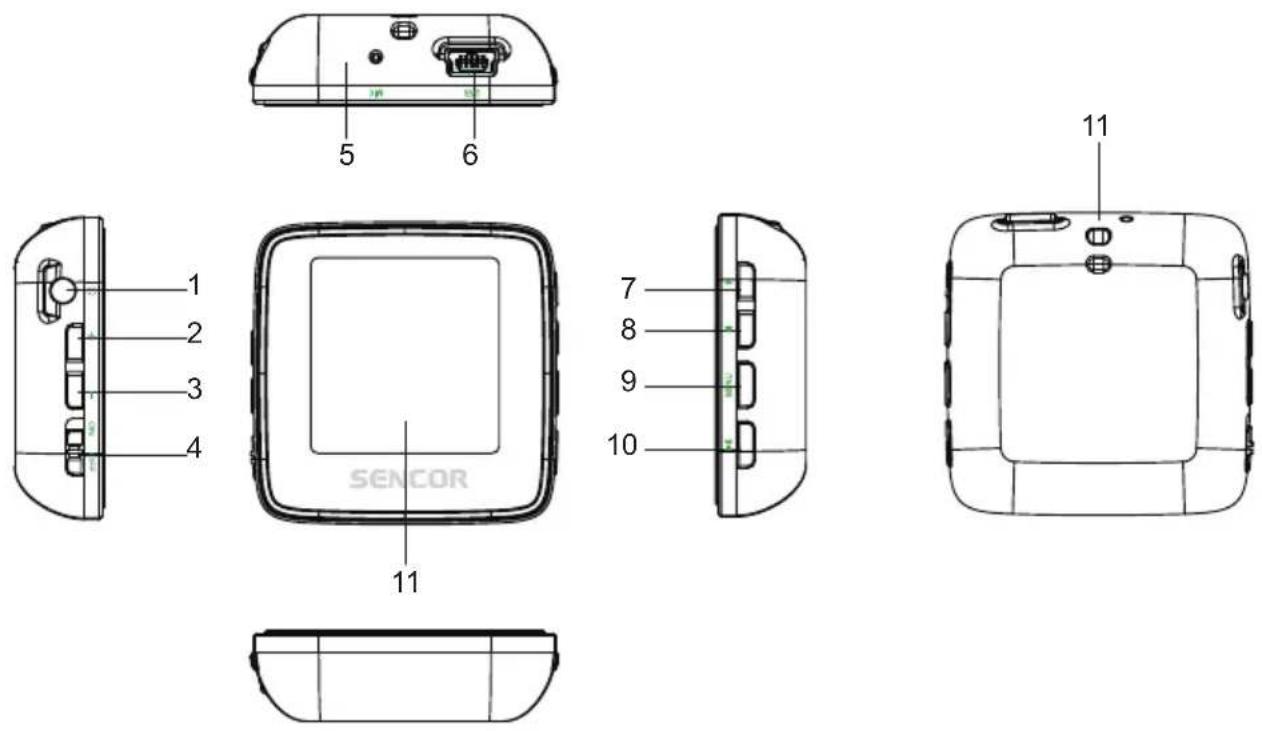
- earphone port
- volume +
- volume -
- power on/off
- microphone
- usb port
- last/fast backward
- next/fast forward
- menu
- play/pause
- neck strap
- display
3. Operation instruction
- Power On/Off
In the status of power off, push power button to on, then long press ▶II to turn on the player In the status of power on, long press ▶II to turn off, then push power button to off.
- Lock/Hold:
Press MENU and ▶II at the same time to lock the player, press them again to unlock the player.
- Basic Operation
In main menu interface, press ◀/▶ or +/- to select option, press ▶II to enter. Long press MENU to get back to main menu interface.
3.1 Music
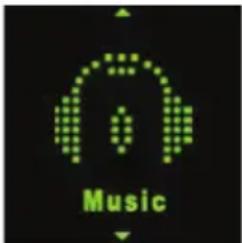
In Main interface, short press ◀/▶ or +/- to select Music menu, then short press ▶II to enter music play interface.
Play/Pause: short press ▶II to play or pause the music playing.
Last/next: short press ◀ or ▶ to get to last music or next music.
Fast backword/Fast forward: long press ◀ or ▶ to fast backwards or forwards the music.
Volume: press + or - to adjust volume up or down.
A-B repeat: long press volume + button to set repeat start point A, long press again to set repeat end point B. Then player will repeat the segment. The third time long press will cancel A-B repeat and resume normal playback.
Lyric show: To show the lyric, the lyric file (eg. Abcde.lrc) should be in same name as music file (eg. Abcde.mp3) and both fi les should be in the same folder.
Music file list: in playback interface, press MENU button to get to folder/file list. Press ◀/▶ to select music file, press ▶II button to play it.
Set EQ: please get to Settings > Music to set EQ. (reference to 3.8.1)
Set Play/Repeat mode: please get to Settings > Music to set Play mode. (reference to 3.8.1)
Remark: the player support audio formats of .mp3, .wma, .wav, .flac, .ape.
3.2 Video
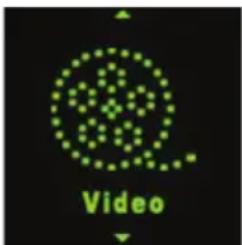
In Main interface, short press ◀/▶ or +/- to select Video menu, then short press ▶II to enter video file list. Press ◀/▶ to select video file, press ▶II button to enter video playback interface.
Play/Pause: short press ▶II to play or pause the video playing.
Last/next: short press ◀ or ▶ to get last or next video.
Fast backword/Fast forward: long press ◀ or ▶ to fast backwards or forwards the video.
Volume: press + or - to adjust volume up or down.
Video file list: in playback interface, press MENU button to get to folder/file list. Press ◀/▶ to select video file, press ▶II button to play it.
Remark: the player support video formats of .avi. Resolution should be 128x128. Please use the video conversion tool found in the memory of the player to convert videos into a format supported by this player (see chapter 5).
3.3 FM Radio
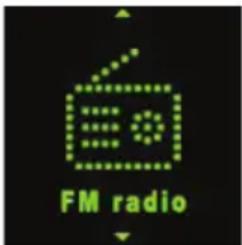
In Main interface, short press ◀/▶ or +/- to select FM Radio menu, then short press ▶II to enter FM radio interface.
Manual Scan: press MENU to show options, press ◀/▶ to select Manual then press ▶II button. Short press ◀ or ▶ to select frequency manually. Long press ◀ or ▶ player will auto scan and stop till it find channel.
Auto Scan: press MENU to show options, press ◀/▶ to select Auto then press ▶II button. Then the player will scan channels and set the found channels to Preset one by one. After auto scan, it'll get to the first preset channel. Press ◀ or ▶ to get to preset channels one by one.
Save Channel: press MENU to show options, short press ◀/▶ to select Memory then press ▶II button. Then press ◀/▶ to select position to save. Press ▶II will pop a warning, select Yes and press ▶II to confirm saving channel, or select No and press ▶II to cancel saving channel.
Preset: press MENU to show options, short press ◀/▶ to select Preset then press ▶II button. Press ◀/▶ to get to preset channel one by one.
Delete Channel: press MENU to show options, short press ◀/▶ to select Delete then press ▶II button. Then press ◀/▶ to select to be deleted channel. Press ▶II will pop up a warning, select Yes and press ▶II to confirm deleting channel, or select No and press ▶II to cancel deleting channel.
Volume: press + or - to adjust volume up or down.
Remark: Earphone should connect to player as an antenna. Otherwise the player can not receive channels.
3.4 Photo
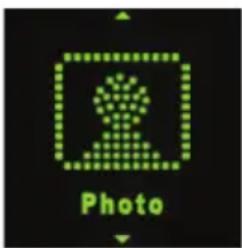
In Main interface, short press ◀/▶ or +/- to select Photo menu, then short press ▶II button to enter picture list. Press ◀/▶ to select picture file, press ▶II button to view the picture.
Last/next: short press ◀ or ▶ to display last or next picture.
Auto Browse: short press ▶II an arrow symbol shows on corner of display, the play will display pictures one by one automatically. (Auto Browse gap time setting reference to point 3.8.5)
Photo file list: in photo display interface, press MENU button to get to folder/file list. Press ◀/▶ to select photo file, press ▶▶ button to display it.
3.5 Record
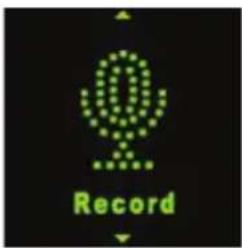
In Main interface, short press ◀/▶ or +/- to select Record menu, then short press ▶II button to enter recording interface.
Record/Pause: short press ▶II to record or pause.
Stop: long press MENU to save file and get to main interface, or long press ▶II button to save file and turn off the player. File of recorded voice are saved in folder of VOICE.
3.6 Text
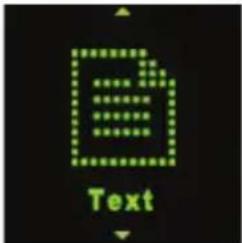
In Main interface, short press ◀/▶ or +/- to select Text menu, then short press ▶■ button to enter E-book file list. Press ◀/▶ to select E-book file, press ▶■ button to view the text.
Manual Browse: short press ◀/▶ or +/- to browse up or down page by page.
Auto Browse: short press ▶II to browse page by page automatically. (Auto Browse gap time setting reference to point 3.8.3).
Text file list: in text browse interface, press MENU button to get to folder/file list. Press ◀/▶ to select text file, press ▶II button to browse it.
3.7 Navigation
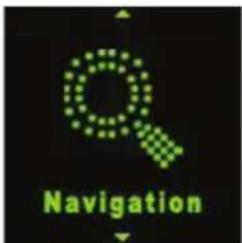
In Main interface, short press ◀/▶ or +/- to select Navigation menu, then short press ▶II button to list folders/fi les in memory.
Play/Open file: press ◀/▶ to select file/folder, press ▶II to play or open it. If the file is not supported by this player, it can not play or open.
Delete file: in file list, press ◀/▶ to select file then press volume - button, there will be a warning, select Yes to delete file, or select No to cancel deleting.
3.8 Settings
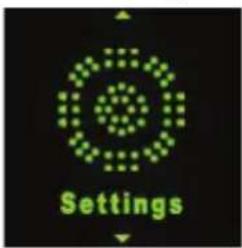
In Main interface, short press ◀/▶ or +/- to select Settings menu, then short press ▶II button to enter setting options. (In submenu, press MENU to get to upper menu.)
3.8.1 Music:
- Repeat mode
Once: play one music one time.
Repeat one: repeat current music again and again.
Folder once: play all music in current folder one time.
Folder repeat: repeat all music in current folder.
All once: play all the music in memory one time.
All repeat: repeat all the music in memory.
Intro: play the first 10 seconds of each music.
- Play mode
Order: play music in order.
Shuffle: play music in random.
- EQ Select
Normal, MS PlayFX, Rock, Pop, Classic, Bass, Jazz, User EQ
- MS PlayFX Set
3D HeadPhone, Pure Bass
- User EQ Set
Set EQ by user. Press ◀/▶ to select, press +/- to adjust the frequency, press MENU confirm and get back.
3.8.2 Record:
- Record Quality
Set high or normal record quality.
- Record Volume
Set record volume level.
3.8.3 Text:
• Auto play SW:
Turn on/off for text auto page.
• Auto play time:
Set gap time for text auto page
3.8.4 FM Radio:
- Stereo SW
Set FM stereo on or off.
- FM Region
Set FM receiving region. Four options: China, Europe, Japan, USA.
3.8.5 Photo:
- Auto play SW:
Turn on/off for photo auto scroll. - Auto play time:
Set gap time for photo auto scroll.
3.8.6 Display:
- Backlight Time
Set the time if no operation on play, the backlight will turn off. - Lum/Brightness
Set the display brightness level. - Backlight Mode
If set to Normal, the backlight will be semi dark; if set to Power Save, the backlight will be all dark when backlight time is due.
3.8.7 Power Off Time:
Set auto power off time.
3.8.8 Language:
Set player menu language.
3.8.9 System:
- About
View the player information of firmware version, date and memory status. - Upgrade
Upgrade fi rmware setting. (Reference to point 4) - Default Set
Set the system to original.
3.8.10 Exit:
Exit settings.
4. Firmware upgrade
Note: Within the scope of technical innovation, a CD is no longer included with the product and all documentation can be found in the memory of the player. Prior to updating or upgrading, backup all the data contained on the player to prevent its accidental deletion.
If the player doesn't work or works sub normally, find the firmware upgrade tool and firmware in gift CD to upgrade the player. Processes as bellow:
Note before updating: a. Don't upgrade firmware if playing properly. b. Backup files to other storage before upgrade.
A. Find the software file RKnanoTool.exe from folder of Upgrade Tool in gift CD. Click it to show below dialog box:
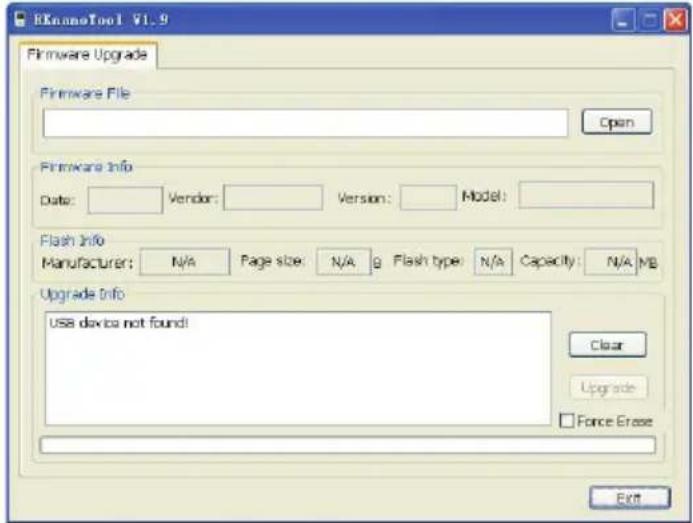
B. Set the player to Settings>System>Upgrade, click it show warning of Firmware upgrade; select Yes and then connect the player to PC using USB cable. (In case if player can't turn on, push power button to off then hold MENU button and connect player to PC using USB cable at the same time, till PC find the player storage.). If connect successful, the dialog box will show "UsbBoot download successfully!" and show flash information, then do as below point c. If connection failed, the dialog box will show "USB device not found!", then connect again.
C. After connecting successfully, do as below
- Select firmware. (firmware file is in gift CD, named with extension .BIN).
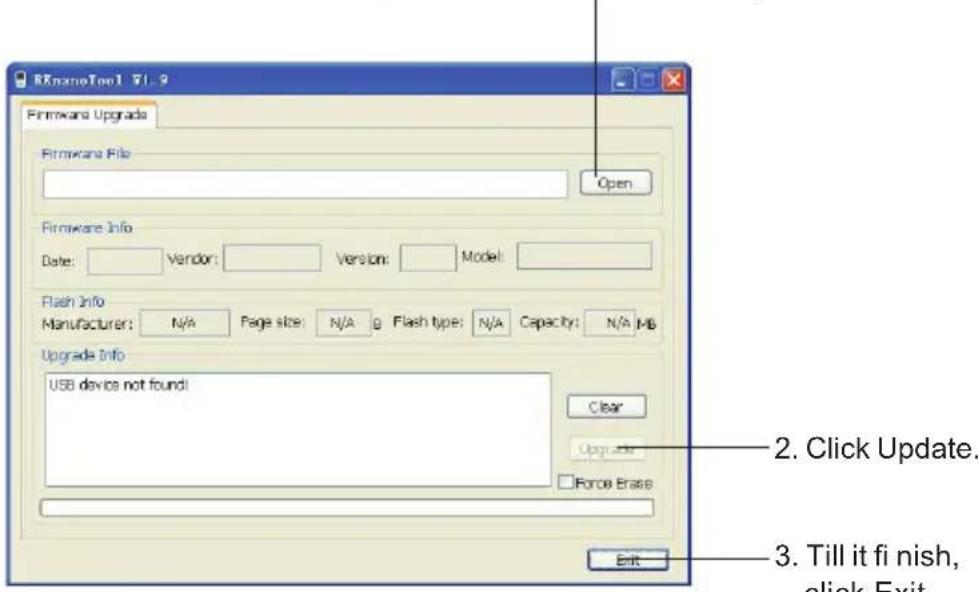
D. Disconnect the player from PC, start the player again. The player will work properly.
5. Video Convert
Note: Within the scope of technical innovation, a CD is no longer included with the product and all documentation can be found in the memory of the player.
The player support video of AVI format in resolution of 128x128. Please use the software in gift CD to convert the video. The AVIConverter supports multi kind of video formats (AVI, RM, RMVB, MPG, MPG4, ASF, DAT, WMV, etc) convert to AVI format.
5.1 AVI Converter Tool Setup
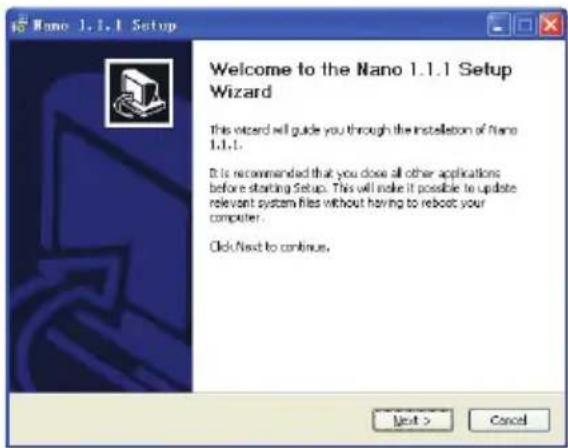
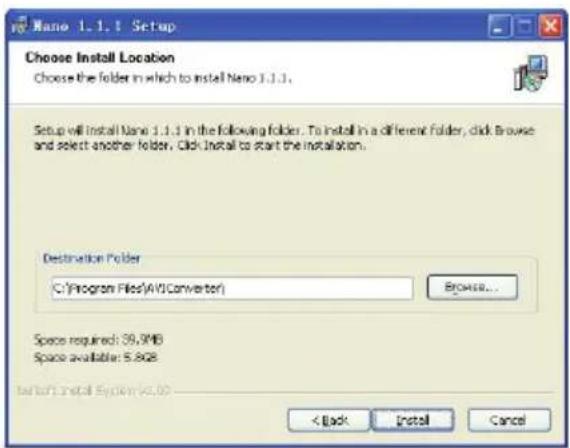
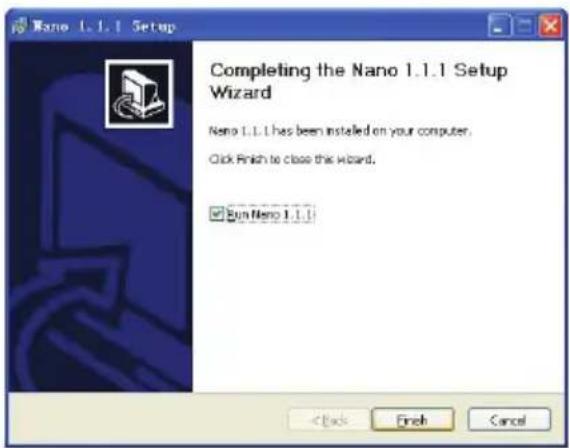
Click software Nano_Video_convert.exe in gift CD; then follow the steps to setup the AVI Converter tool to PC.
![Name 1.1.1 Setup Installing Please wait while Name 1.1.1 is being installed. Create shortcuts: C:\Documents and Settings\acer\ [开始] 菜单\程序\AVIConverter\Uninstz Slipped: cookG260.dll Slipped: CLRVDDC.DLL Slipped: endb.dll Slipped: avrash.dll Slipped: arcG260.dll Slipped: afrec1.acm Slipped: af2cd.acm Slipped: arelpdec.ac Slipped: AVIConverter.exe Slipped: Converter.ini Slipped: Help.doc Create shortcut (C:\Documents and Settings\acer\ [开始] 菜单\程序\AVIConverter... < Back Next > Cancel](/content/2026/06/1166358/images/d2524a3941d28a06ab46c0f266e838af28008f6c326d6e24a9ff835436bb1577.jpg)
5.2 Convert Video to AVI format
From PC>Program to run AVIConverter as below picture and steps for converting:
- Select Resolution: 128x128 2. Select original input vido
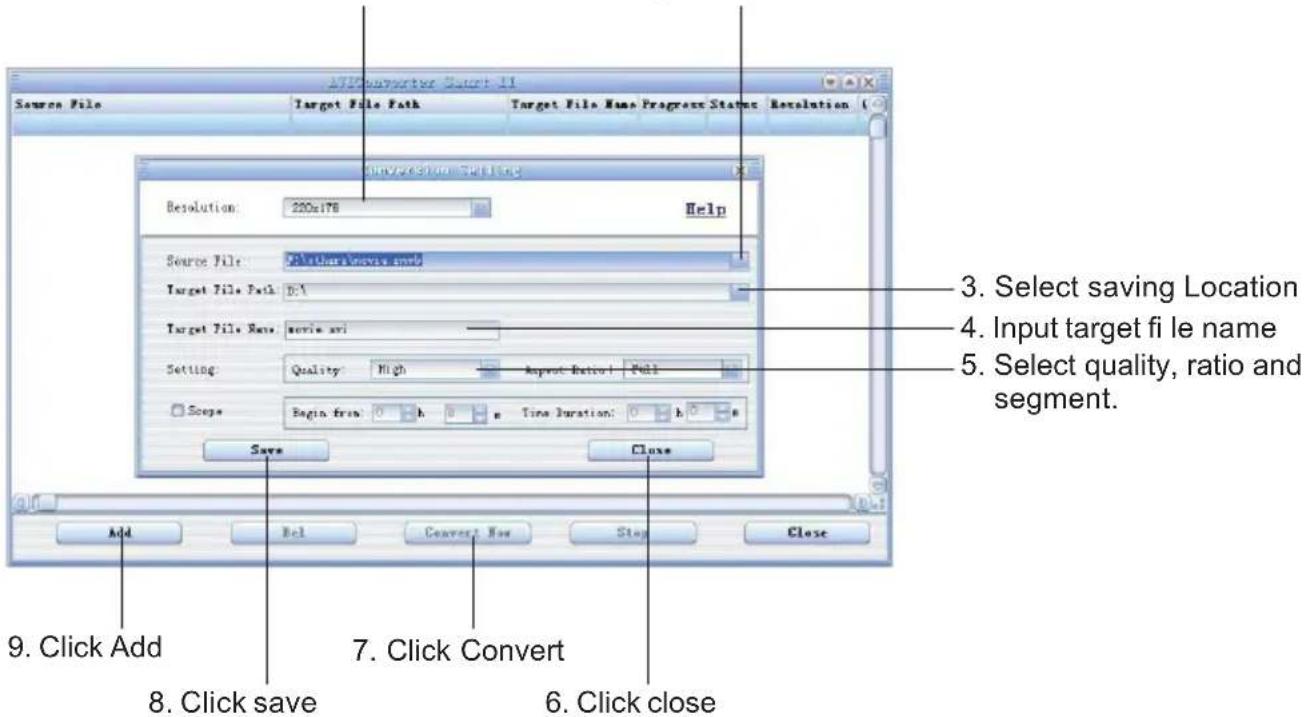
After converting, copy the converted video file to the player, then enjoy it through player.
6. Accessories
Earphone 1 piece; USB cable 1 piece; user manual 1 piece.
Specifications
| Items | SFP 5970 |
| Dimensions 43×43×12mm (W*H*D) | |
| TFT colored display 1.5inch TFT; 65K real color display, Diagram (128 x 128) | |
| Language support Multiple languages (EN, CZ, SK, HU, PL) | |
| Data transmission speed | High speed USB2.0Read: 4Mbps, Write: 1Mbps |
| Supportable file format | Music:MP3: 8K bps – 320K bpsWMA: 32K bps – 320K bpsWAV; 64kbps / 256kbpsPicture: JPEG |
| Supportable video format | .AVI (All formats should be converted to .AVI format by afforded fi rmware) |
| Text For letters with diacritics use UNICODE | |
| S/N 85dB | |
| Frequency response 20Hz-- 20KHz | |
| Max. output power 10mW + 10mW | |
| Flash memory | 8GB |
| Power supply 3.7V li-polymer battery | |
| Usable time of battery | Video play: 6 hoursMP3 play: 16 hours (power save mode) |
| Working temperature 5°C to 40°C | |
| Supporting operating system WIN2K/XP, Mac OS 10.4.6 | |
| Weight | About 21g |
| Accessories | User's Manual, earphone, USB cable |
INSTRUCTIONS AND INFORMATION REGARDING THE DISPOSAL OF USED PACKAGING MATERIALS
Dispose of packaging material at a public waste disposal site.
DISPOSAL OF USED ELECTRICAL AND ELECTRONIC APPLIANCES
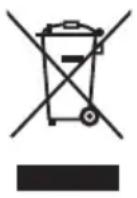
The meaning of the symbol on the product, its accessory or packaging indicates that this product shall not be treated as household waste. Please, dispose of this product at your applicable collection point for the recycling of electrical & electronic equipment waste. Alternatively in some states of the European Union or other European states you may return your products to your local retailer when buying an equivalent new product. The correct disposal of this product will help save valuable natural resources and help in preventing the potential negative impact on the environment and human health, which could be caused as a result of improper liquidation of waste. Please ask your local authorities or the nearest waste collection centre for further details. The improper disposal of this type of waste may fall subject to national regulations for fines.
For business entities in the European Union
If you wish to dispose of an electrical or electronic device, request the necessary information from your seller or supplier.
Disposal in other countries outside the European Union
If you wish to dispose of this product, request the necessary information about the correct disposal method from local government departments or from your seller.
CE
This product meets all the basic EU regulation requirements that relate to it.
Changes to the text, design and technical specifications may occur without prior notice and we reserve the right to make these changes.


- Player Layout
- Operation instruction
- - Power On/Off
- - Lock/Hold:
- - Basic Operation
- Music
- Video
- FM Radio
- Photo
- Record
- Text
- Navigation
- Settings
- Music:
- - Repeat mode
- - Play mode
- - EQ Select
- - MS PlayFX Set
- - User EQ Set
- Record:
- - Record Quality
- - Record Volume
- Text:
- • Auto play SW:
- • Auto play time:
- FM Radio:
- - Stereo SW
- - FM Region
- Photo:
- Display:
- Power Off Time:
- Language:
- System:
- Exit:
- Firmware upgrade
- Video Convert
- AVI Converter Tool Setup
- Convert Video to AVI format
- Accessories
- INSTRUCTIONS AND INFORMATION REGARDING THE DISPOSAL OF USED PACKAGING MATERIALS
- DISPOSAL OF USED ELECTRICAL AND ELECTRONIC APPLIANCES
- For business entities in the European Union
- Disposal in other countries outside the European Union
- CE
Brand : SENCOR
Model : SFP 5970
Category : Mp3 player