
DS-30 - Digital voice recorder OLYMPUS - Free user manual and instructions
Find the device manual for free DS-30 OLYMPUS in PDF.


| Product type | Digital voice recorder |
| Brand | OLYMPUS |
| Model | DS-30 |
| Dimensions (L x W x H) | 108 x 38 x 14 mm |
| Weight (with battery) | 55 g |
| Power supply | 1 AAA battery (1.5 V) |
| Internal memory capacity | 2 GB |
| Recording format | WMA (Windows Media Audio) |
| Maximum recording time | Approx. 88 hours (LP mode) |
| Built-in speaker | Yes |
| Built-in microphone | Yes |
| External microphone jack | Yes (3.5 mm jack) |
| Headphone jack | Yes (3.5 mm jack) |
| Noise reduction function | Yes |
| Silence detection function | Yes (VCVA) |
| Variable playback | Yes (adjustable speed) |
| Interface | USB 2.0 |
| Display | Backlit LCD screen |
| Main functions | Recording, playback, stop, pause, index, A/B folder |
| Box contents | Voice recorder, AAA battery, USB cable, pouch, earphones, manual |
| Care and cleaning | Clean with a soft, dry cloth. Avoid moisture and abrasive products. |
| Safety | Do not expose to extreme temperatures (outside 0-40°C). Do not disassemble. |
| Spare parts and repairability | Standard AAA battery replaceable. Standard USB cable. Repair possible by authorized service. |
Frequently Asked Questions - DS-30 OLYMPUS
User questions about DS-30 OLYMPUS
0 question about this device. Answer the ones you know or ask your own.
Ask a new question about this device
Download the instructions for your Digital voice recorder in PDF format for free! Find your manual DS-30 - OLYMPUS and take your electronic device back in hand. On this page are published all the documents necessary for the use of your device. DS-30 by OLYMPUS.
USER MANUAL DS-30 OLYMPUS
Thank you for purchasing an Olympus Digital Voice Recorder.
Please read these instructions for information about using the product correctly and safely. Keep the instructions handy for future reference.
To ensure successful recordings, we recommend that you test the record function and volume before use.
- The contents of this document may be changed in the future without advanced notice. Contact our Customer Support Center for the latest information relating to product names and model numbers.
- The utmost care has been taken to ensure the integrity of the contents of this document. In the unlikely event that a questionable item, error, or omission is found, please contact our Customer Support Center.
- Any liability for passive damages or damage of any kind occurred due to data loss incurred by a defect of the product, repair performed by the third party other than Olympus or an Olympus authorized service station, or any other reasons is excluded from the Olympus's liability.

Trademarks
IBM and PC/AT are the trademarks or registered trademarks of International Business Machines Corporation.
Microsoft, Windows and Windows Media are registered trademarks of Microsoft Corporation. MPEG Layer-3 audio coding technology licensed from Fraunhofer IIS and Thomson.
The product was developed based on noise-canceling technology under license from NEC Corporation.
IBM ViaVoice and Dragon Naturally Speaking are the trademarks or registered trademarks of Nuance Communications Inc.
Other product and brand names mentioned herein may be the trademarks or registered trademarks of their respective owners.

text_image
Plays Medium Media™INDEX
text_image
STEREO OLYMPUS FOLDER/ A-BC. LIST/ INDEX DISPLAY/ Podcast OK MENU ERASE ERASE VOLUME DIGITAL VOICE RECORDER DS-50| Table of Contents | P4 |
| Safe and Proper Usage | P6 |
| Getting Started | P9 |
| About Recording | P23 |
| About Playback | P34 |
| Erase and other functions | P47 |
| Display and Sound Functions | P55 |
| Menu Setting | P60 |
| Using the Recorder on Your PC | P65 |
| Managing Files on Your PC | P76 |
| DSS Player Expanded Functions | P77 |
| Importing Content for Listening on the Recorder | P79 |
| Other Practical Use Methods | P80 |
| Other Information | P81 |
Introduction 2
INDEX 3
Table of Contents 4
Safe and Proper Usage 6
General Precautions 7
1 Getting Started
Main Features 9
Identification of Parts 11
Inserting Batteries 13
Using the AC Adapter 14
Power Supply 15
HOLD 16
Setting Time/Date (Time&Date) 17
Notes on the Folders 19
2 About Recording
Before recording 23
Recording 25
Using the Variable Control Voice Actuator (VCVA) 28
Recording Modes (Rec Mode) 30
Microphone Sensitivity 31
Set the Low Cut Filter (LowCut Filter) ..... 32
3 About Playback
Playing 34
Select Play Mode (Play Mode) 39
How to begin segment repeat playback .. 41
Noise Cancel Function (Noise Cancel) ... 43
Set the Voice Filter (Voice Filter) 45
4 Erase and other functions
Erasing 47
Index Marks and Temp Marks 50
Formatting the Recorder (Format) ..... 52
5 Display and Sound Functions
LCD Display Information 55
Guidance (Voice Guide) 57
6 Menu Setting
Menu Setting Method 60
Menu List 62
7 Using the Recorder on Your PC
Saving Files in Your PC 65
Using DSS Player Software 67
Installing Software 69
Using Online Help 72
Connecting to Your PC 73
Running DSS Player 75
8 Managing Files on Your PC
Copying Voice Guide Data 76
9 DSS Player Expanded Functions
Upgrade Function 77
10 Importing Content for Listening on the Recorder
Importing Content for Listening on the Recorder 79
11 Other Practical Use Methods
Using as External Memory of the Computer 80
12 Other Information
Alarm Message List 81
Troubleshooting 82
Accessories (optional) 84
Specifications 85
Technical Assistance and Support 86
Before using your new recorder, read this manual carefully to ensure that you know how to operate it safely and correctly. Keep this manual in an easily accessible location for future reference.
- The warning symbols indicate important safety related information. To protect yourself and others from personal injury or damage to property, it is essential that you always read the warnings and information provided.
Using the Online Manual
When you install the DSS Player on your PC from the CD-ROM, you can use an online expanded version of this instruction manual, allowing you to learn more about the digital voice recorder.
If the DSS Player is installed, click on the [Start] button, select [All Programs], then [OLYMPUS DSS Player], then click on [DS-50/40/30 ONLINE INSTRUCTIONS]. You can read more about the items listed below.
Recording from External Microphone or Other Devices 34
Timer Recording (Timer Rec) 36
Set Skip Space (Skip Space) 46
Changing the Playback Speed (Play Speed) .... 48
Alarm Playback Function (Alarm) 59
Locking Files (Lock) 68
Changing Folder Names (Folder Name) ...... 70
Rearranging files (File Move) 72
Changing the USB Class (USB Class) ..... 77
Changing Power Save (Power Save) ..... 78
Changing External Input Setting (Ext. Input) ... 79
Viewing system information (System Info.) .... 81
Backlight (Backlight) 84
LED(LED) 85
LCD Contrast Adjustment (Contrast) 86
System Sounds (Beep) 90
Uninstalling Software 103
Window Names (DSS Player) 108
Download Voice Files from the Recorder .. 109
Upload Voice Files to the Recorder ..... 112
Send Voice Files with E-mail 114
Changing User ID 114
Changing a Folder Name 115
Editing File Comments 115
Editing a Template 116
USB Microphone/USB Speaker ...... 118
Using Voice Recognition Software ..... 122
Joining Files 130
Splitting Files 132
Menu Setting of this Recorder 134
Using Windows Media Player ...... 136
Window Names (Windows Media Player) ...... 137
Copying Music from CD 138
Transferring Music File to the Recorder .... 139
Importing Podcast Content 142
Loading Audible Content 146
Transferring Audible Content 149
Enjoy Audible Content with the Recorder ... 151
- Do not leave the recorder in hot, humid locations such as inside a closed automobile under direct sunlight or on the beach in the summer.
- Do not store the recorder in places exposed to excessive moisture or dust.
- Do not use organic solvents such as alcohol and lacquer thinner to clean the unit.
- Do not place the recorder on top of or near electric appliances such as TVs or refrigerators.
● Avoid recording or playing back near cellular phones or other wireless equipment, as they may cause interference and noise. If you experience noise, move to another place, or move the recorder further away from such equipment.
● Avoid sand or dirt. These can cause irreparable damage.
● Avoid strong vibrations or shocks. -
Do not disassemble, repair or modify the unit yourself.
-
Do not operate the unit while operating a vehicle (such as a bicycle, motorcycle, or go-cart).
- Keep the unit out of the reach of children.
Recorded content in memory may be destroyed or erased by operating mistakes, unit malfunction, or during repair work.
It is recommended to back up and save important content to other media such as a computer hard disk.
Any liability for passive damages or damage of any kind occurred due to data loss incurred by a defect of the product, repair performed by the third party other than Olympus or an Olympus authorized service station, or any other reasons is excluded from the Olympus's liability.
Batteries
Warning
- Batteries should never be exposed to flame, heated, short-circuited or disassembled.
- Do not attempt to recharge alkaline, lithium or any other non-rechargeable batteries.
- Never use any battery with a torn or cracked outer cover.
- Keep batteries out of the reach of children.
- If you notice anything unusual when using this product such as abnormal noise, heat, smoke, or a burning odor:
① remove the batteries immediately while being careful not to burn yourself, and;
② call your dealer or local Olympus representative for service.
AC Adapter
Warning
- Do not attempt to disassemble, repair or modify the AC adapter in any way.
- Keep foreign objects including water, metal, or flammable substances from getting inside the product.
- Do not moisten the AC adapter or touch it with a wet hand.
- Do not use the AC adapter in the vicinity of flammable gas (including gasoline, benzine and lacquer thinner).
In case
- ... the internal parts of the AC adapter are exposed because it has been dropped or otherwise damaged:
- ... the AC adapter is dropped in water, or if water, metal flammable substances or other foreign objects get inside it:
- ... you notice anything unusual when using the AC adapter such as abnormal noise, heat, smoke, or a burning odor:
① do not touch any of the exposed parts;
② immediately disconnect the power supply plug from the power outlet, and;
③ call your dealer or local Olympus representative for servicing. Continued use of the AC adapter under these circumstances could result in electric shock, fire or injury.
Plus
The “DSS Player” can be upgraded to “DSS Player Plus”, which is equipped with enhanced functionality (paid option). (P77)
Main Features
This product is equipped with the following features.
- This “IC recorder” is optimally suited for playing back audio recordings, such as conferences or business scenes, language studies, Podcasts, and other audible content. The recorder stores highly compressed WMA (Windows Media Audio) format voice messages in integrated flash memory. (P79)
It can also play back WMA and MP3 (MPEG-1/MPEG-2 Audio Layer-3) format files. (P34, 65)
- A exclusive remote control (supplied with the DS-50 only) can be attached to the recorder to control recording and stop operations. (P24)
- It uses a removable stereo microphone. (P23)
- The stereo microphone can be removed when it is not necessary during playback, offering excellent portability.
- If the stereo microphone is removed and attached to the exclusive remote control, it can be used as a remotely controlled stereo microphone.
- Even if the stereo microphone is removed, the unit uses a built-in monaural microphone for recording.
Several recording modes can be selected including stereo recording modes ST XQ (Stereo Extra High Quality Sound Recording) or ST HQ (Stereo High Quality Recording), and three types of monaural recording modes including HQ (High Quality), SP (Standard Recording), and LP (Long-term Recording). (P30)
Recording time
| DS-50 (1GB) | |
| ST XQ mode: | 17hours30minutes |
| ST HQ mode: | 35hours10minutes |
| HQ mode: | 70hours20minutes |
| SP mode: | 138hours30minutes |
| LP mode: | 275hours20minutes |
DS-40 (512MB)
| ST XQ mode: | 8hours40minutes |
| ST HQ mode: | 17hours20minutes |
| HQ mode: | 34hours45minutes |
| SP mode: | 68hours30minutes |
| LP mode: | 136hours15minutes |
DS-30 (256MB)
| ST XQ mode: | 4hours10minutes |
| ST HQ mode: | 8hours30minutes |
| HQ mode: | 17hours00minutes |
| SP mode: | 33hours30minutes |
| LP mode: | 66hours40minutes |
Available recording time may be shorter if many short recordings are made. (The displayed available recording time and recorded time are approximate indications.)
Maximum recording time per file
| ST XQ mode: | 26hours40minutes |
| ST HQ mode: | 26hours40minutes |
| HQ mode: | 26hours40minutes |
| SP mode: | 53hours40minutes |
| LP mode: | 148hours40minutes |
A maximum recording time per file is set for each mode. Even if the recorder's memory is not used up, recording cannot be continued beyond the limit.
- This recorder is compatible with USB 2.0, enabling fast data transfer to a computer.
- This USB storage class support recorder can be utilized as external memory to read and save the data. (P80)
- By connecting the computer with the USB, pictures, text data, etc. can be saved, and utilized to carry data.
- It uses a high-contrast monochrome LCD (liquid crystal display) panel with a backlight with a background color whiter than conventional Olympus models.
The guidance feature (in English and other languages) gives audio notification of operating conditions. It ensures seamless operation of various complex functions. (P57) - You may assign your own names to folders.
- It has a built-in Variable Control Voice Actuator (VCVA) function.(P28)
- Timer Rec and Alarm features enable automatic recording and playing at a set time.
- The LowCut Filter minimizes air conditioner noise and other similar noises while recording.(P32)
- Index mark and temp mark features allow you to quickly find desired locations. (P50)
- The playback speed can be controlled as preferred.
- It features various repeat functions. (P39,41)
● A Noise Cancel Function (P43) and a Voice Filter Function (P45) cut noise and enable clear audio playback.
- Fast forward and rewind are possible at set intervals.
- Comes with DSS Player software.(← P65)
- If you transfer voice files recorded with the recorder to a PC, you can easily play back, organize, and edit the files.
- If you connect the recorder to a computer, you can use it as a USB microphone or USB speaker.
- The “DSS Player” can be upgraded to a “DSS Player Plus”, which is equipped with a enhanced functionality (Option). (P77)
- If a commercial voice recognition software is utilized, the recorded voice file can be converted to characters automatically.
- In addition to the “DSS Player” functions, joining and splitting of the files and configuring the menu settings of this recorder, etc. can be performed.
- It is compatible with Podcasting.
- If favorite Internet radio-station URLs are registered in the DSS Player, the latest broadcasting content will be received automatically. Press the Podcast button on the recorder to quickly listen to the program (file) transferred from the DSS Player to the recorder.
- Compatible with Audible broadcasting.
text_image
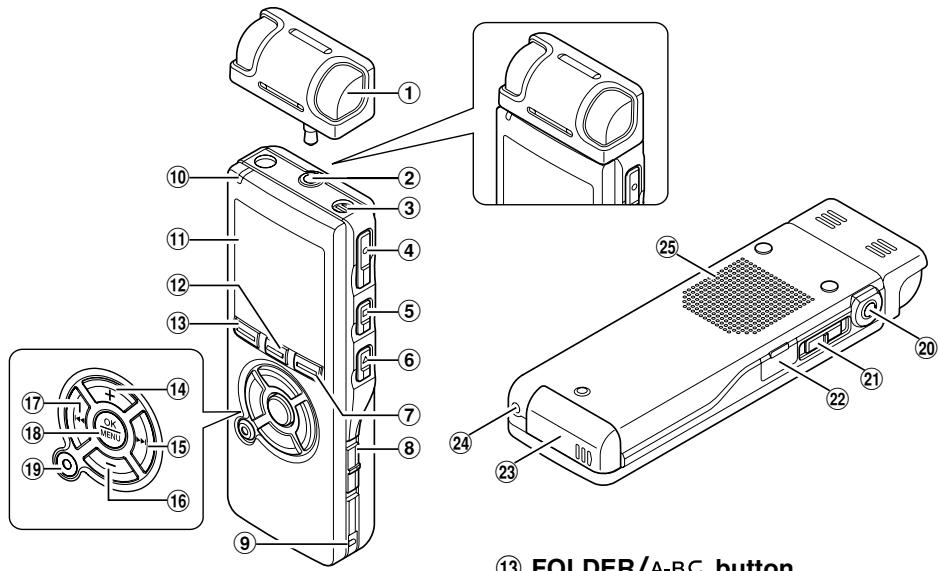
⑬ FOLDER/A-BC button① Exclusive stereo microphone (ME53S)
② MIC (Microphone) / REMOTE jack
③ Built-in monaural microphone
④ REC (Record) button
⑤ STOP button
⑥ PLAY button
⑦ DISPLAY/Podcast button
⑧ POWER/HOLD switch
⑨ Strap hole
⑩ Record/Play indicator light (LED)
⑪ Display (LCD panel)
⑫ LIST/INDEX button
⑬ FOLDER/A-BC button
⑭ VOLUME (+) button
⑮ ▶▶▶I(Fast Forward) button
⑯ VOLUME (—) button
⑰ ◀◀◀(Rewind) button
⑱ OK/MENU button
⑲ ERASE button
⑳ EAR (Earphone) jack
②1 MIC SENSE(Microphone Sensitivity) switch
⑳ PC (USB) terminal
⑳ Battery cover
⑳ Power jack
⑲ Built-in speaker
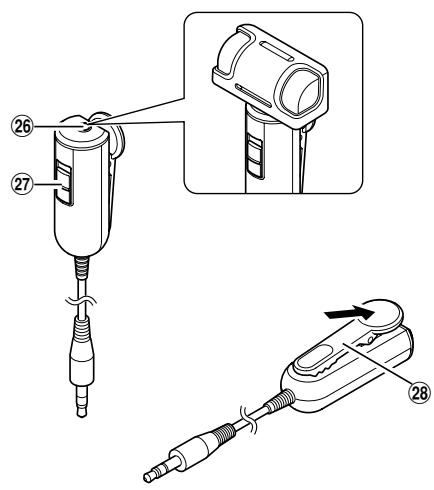
Remote Controller (RS29 supplied with the DS-50 only)
Recording and stop operations can be performed by connecting the remote controller to the recorder. The remote controller can also be used as a remote controlled stereo microphone by connecting it to the exclusive stereo microphone (ME53S).
text_image
Technical diagram showing a device with labeled parts and an inset close-up of the device's internal structure.⑳ MIC (Microphone) jack
⑳ REC/STOP switch
⑳ Clip
Display (LCD Panel)
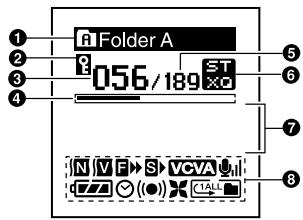
text_image
F Folder A 056/189 N V F S VCGA #ZI (●) C1ALL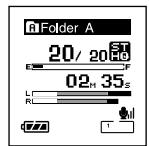
text_image
Folder A 20/ 20 FT F 02 M 35 S L R 1Display in the stereo recording mode
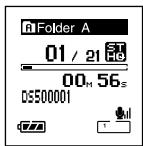
text_image
Folder A 01 / 21 ST 00 M 56 s DS500001Display in the playback mode
① Folder name indicator
② Erase lock indicator
③ Current file number
④ Play position bar indicator
⑤ Total number of recorded files in the folder
⑥ Record mode indicator
⑦ Character information display
8 Icon display
N Noise Cancel indicator
Voice Filter indicator
F F. Play indicator
S▶ S. Play indicator
VCVA VCVA (Variable Control Voice Actuator) indicator
Microphone sensitivity indicator
Battery indicator
Timer indicator
((●)) Alarm indicator
Low Cut Filter indicator
Play Mode indicator
natural_image
Line drawing of a device casing with ports and a directional arrow indicating movement (no text or symbols)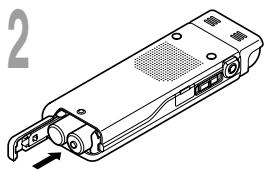
natural_image
Line drawing of a device casing with internal components and an arrow indicating direction (no text or symbols)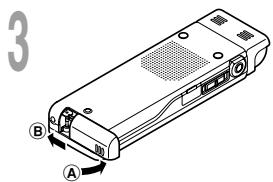
text_image
3 A B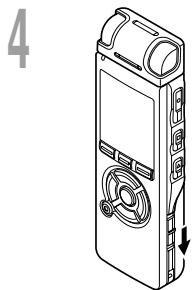
natural_image
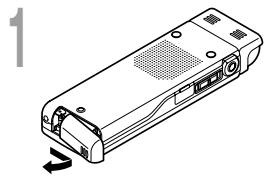
Line drawing of a portable electronic device with ports and a scroll wheel (no text or symbols)Lightly press down on the arrow and slide the battery cover open.
2 Insert two AAA alkaline batteries, observing the correct polarity.
3 Close the battery cover completely by pressing to the direction Ⓐ, then sliding to the direction Ⓑ.
4 Slide the POWER/HOLD switch in the direction indicated by the arrow, and turn the power on.
If the “hour” indicator flashes in the display, see “Setting Time/Date (Time&Date)” (P17).
Replacing batteries
The battery indicator on the display changes as the batteries lose power.

When appears on the display, replace the batteries as soon as possible.
When the battery is too weak, “Battery Low” appears on the display and the recorder shuts down. When changing batteries, AAA alkaline batteries or Olympus Ni-MH batteries (P14) are recommended.
Ni-MH Rechargeable Battery
Optional Ni-MH rechargeable batteries from Olympus can be used in the recorder. Use them with the BU-400 Olympus Ni-MH Rechargeable Battery Charger (Europe only). (P84)
Notes
- Be sure to stop the recorder before replacing the batteries. Unloading the batteries while the recorder is in use may corrupt the file. If you are recording into a file and the batteries run out, you will lose your currently recorded file because the file header will not be able to close. It is crucial to change the batteries once you see only one Hash mark in the battery icon.
- If it takes longer than 1 minute to replace dead batteries, you may have to reset the time when you load fresh batteries (P17).
- Remove the batteries if you are not going to use the recorder for an extended period of time.
Using the AC Adapter
Plug the optional AC adapter (Olympus Model A321 or A322) into a household power outlet and connect the power plug to the recorder's power connector (DC 3V). Always turn the recorder's power off or stop recording before connecting. If the AC adapter is plugged in while recording using batteries, it may not be possible to play back the voice data being recorded.
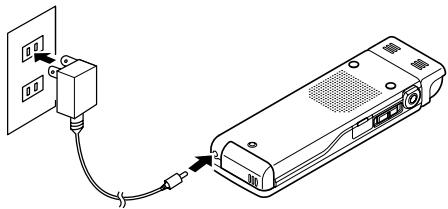
natural_image
Diagram showing a cable being inserted into a device with two outlets (no text or symbols present)
Warning
• Always stop recording before connection or disconnection.
- When the AC adapter is not in use, disconnect the power supply plug from the power outlet.
- Use only the correct power supply voltage as indicated on the adapter.
- Do not use the AC adapter when connecting the recorder to the USB port.
When the recorder is not being used, turn the power off to reduce battery consumption to a minimum. Even if the power is turned off, existing data, mode settings, and clock settings will be maintained.

text_image
POWER I HOLDTurning On the Power
While the recorder's power is off, slide the POWER/HOLD switch in the direction indicated by the arrow.
The display will turn on, and, after “System Check” appears, the power will be turned on. The resume function will bring the recorder back to the stop position in memory before power was turned off.
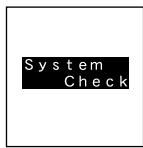
text_image
System CheckTurning Off the Power
Slide the POWER/HOLD switch in the direction indicated by the arrow for 0.5 seconds or longer.
The display shuts off and the power will be turned off. The resume function remembers the stop position before the power is turned off.
Power save mode
If the recorder is on and stops for 10 minutes or longer (default), the display shuts off and it goes into power save mode. You can set the time to enter power save mode from among “5 min,” “10 min,” “30 min,” “1 hour,” and “Off.” To exit power save, press any button.
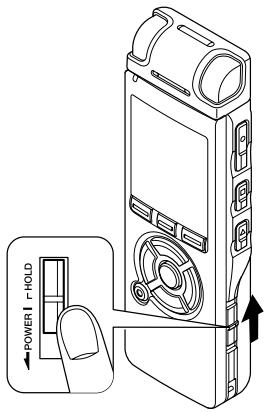
text_image
POWER I - HOLDIf you bring the POWER/HOLD switch to the HOLD position, the current conditions will be preserved, and all buttons and switches will be disabled. This feature is useful when the recorder has to be carried in a bag or pocket.
Set the recorder to HOLD mode
Slide the POWER/HOLD switch to the HOLD position.
After "Hold" appears on the display, the recorder is set to HOLD mode.
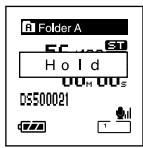
text_image
Folder A EC 4.00 ST Hold 00H 00S DS500021 770 1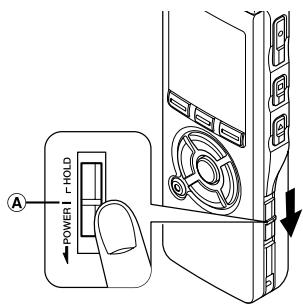
text_image
POWER | - HOLD AExit HOLD mode
Slide the POWER/HOLD switch to the Ⓐ position.
Notes
- If you press any button in HOLD mode, the clock display flashes for 2 seconds, but it will not operate the recorder.
- If HOLD is applied during playback (recording), operation is disabled with the playback (recording) state unchanged. (When playback has ended and the recording has ended due to the remaining memory being used up, it will stop.)
- Even if the recorder is in HOLD mode, operations using the remote control are still available.
Setting Time/Date (Time&Date)
If you set the date and time beforehand, the information when the file is recorded is automatically stored for each file. Setting the date and time beforehand enables easier file management.
When you use the recorder for the first time after purchasing it, or turn the power on after having removed the batteries for one minute or longer to change them or for other purposes, the “Set Time & Date” message may appear. If the “Hour” indicator flashes, follow the steps below to set it.
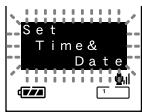
text_image
Set Time & Date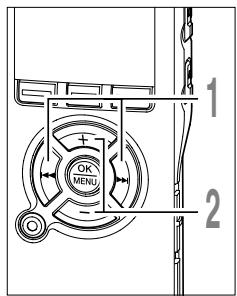
text_image
OK MENU 1 21 Press the ▶▶▶ or ◀◀◀ button to select the item to set.
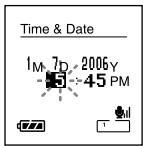
Select the item from “hour”, “minute”, “year” “month” and “day” with a flashing point.
text_image
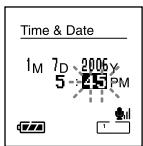
Time & Date 1M 7D 2006Y -5 45 PM2 Press the + or - button to set. Follow the same steps by pressing the
Follow the same steps by pressing the ▶▶▶▶▶▶▶▶▶▶▶▶▶▶▶▶▶▶▶▶▶▶▶▶▶▶▶▶▶▶▶▶▶▶▶▶▶▶▶▶▶▶▶▶▶▶▶▶▶▶▶▶▶▶▶▶▶▶▶▶▶▶▶▶▶▶▶▶▶▶▶▶▶▶▶▶▶▶▶▶▶▶▶▶▶▶▶▶▶▶▶▶▶▶▶▶▶▶▶▶▶>
text_image
Time & Date 1M 7D 2006 5 PM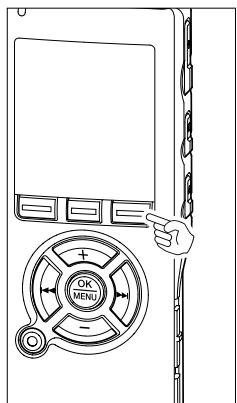
text_image
OK MENU- You can choose between 12 and 24 hour display by pressing the DISPLAY button while setting the hour and minute.
Example: 5:45 P.M.
5:45 PM 17:45
(Initial setting)
- You can choose the order of the year, month, day by pressing the DISPLAY button while setting them.
Example: January 14, 2006

flowchart
graph LR
    A["1M 14D 2006Y (Initial setting)"] --> B["14D 1M 2006Y"]
    B --> C["2006Y 1M 14D"]
text_image
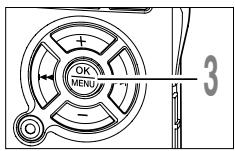
OK MENU 33 Press the OK button to complete the setup screen. The clock will start from the set date and time. Press the OK button according to the time signal.
Notes
- If you press the OK button during the setup operation, the recorder will save the items that were set to that point.
- After setup, a message will sound saying that If the guidance is not required, select "Off", and the screen goes into "Voice Guide" setup ( P57). If you don't want the guidance feature, select "Off".
Changing the Time/Date
Press the STOP button while the recorder has stopped recording to check “Time & Date” and “Remain”. If the “Time & Date” is not correct, set it using the procedure below.
text_image
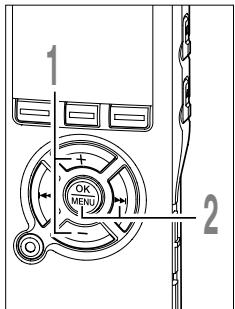
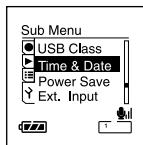
1 OK MEN 21 Press the + or - button in the menu screen, and select the "Time&Date". See P60, 62 regarding the menu.
2 Press the OK or ▶▶▶I button.
The Time/Date screen appears. The hour indicator flashes, indicating the start of the Time/Date setup process. The following steps are the same as Step 1 through Step 3 of "Setting Time/Date (Time&Date)". (P17)
3 Press the STOP button to close the menu.
text_image
Sub Menu USB Class Time & Date Power Save Ext. Input
text_image
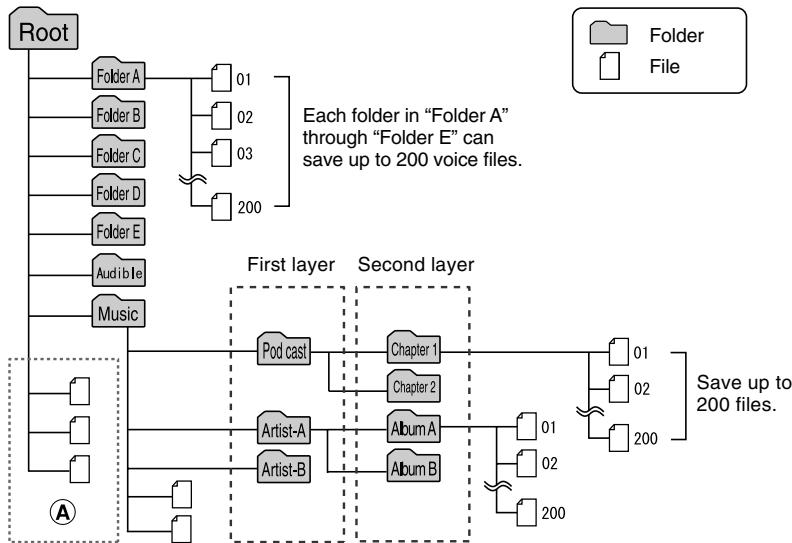
3There are a total of eight folders in the recorder that are in a tree format. Under the “Root” folder are “Folder A” through “Folder E”, “Audible” and “Music” folders, and recorded or transferred language and music data from a computer can be saved as “files”. “Folder A” through “Folder E” are voice-recording folders, so choose one of these five folders when recording on this recorder.
Up to 200 files can be saved in each folder, and up to two layers can be created within the “Music” folders.
“Audible” folder can be purchased from an Audible web site by using the “Audible Manager”, and files transferred to the recorder are saved in this folder (in ACELP/MP3 format).
A “Podcast” folder, for saving files distributed by Podcasting, is prepared in advance inside the “Music” folder.
flowchart
graph TD
    A["Root"] --> B["Folder A"]
    A --> C["Folder B"]
    A --> D["Folder C"]
    A --> E["Folder D"]
    A --> F["Folder E"]
    A --> G["Audible"]
    A --> H["Music"]
    B --> I["01"]
    C --> J["02"]
    D --> K["03"]
    E --> L["200"]
    F --> M["First layer"]
    G --> N["Second layer"]
    H --> O["Pod cast"]
    H --> P["Artist-A"]
    H --> Q["Artist-B"]
    I --> R["Chapter 1"]
    I --> S["Chapter 2"]
    R --> T["01"]
    S --> U["02"]
    T --> V["200"]
    U --> W["Save up to 200 files."]
Notes
- Up to 128 folders can be created under the “Music” folder including “Music” and “Podcast”.
- When using Windows Media Player 10, click [Start Sync] instead of setting the synchronization options. All the files will be transferred to the part Ⓐ above.
- It is not possible to create a folder in the “Audible” folder.
Selecting the Folders and Files
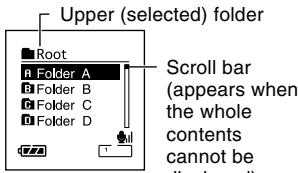
List display
The folders and files recorded in this recorder are displayed.
text_image
Upper (selected) folder ■ Root □ Folder A □ Folder B □ Folder C □ Folder D Scroll bar (appears when the whole contents cannot beFile display
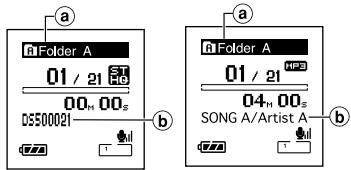
Information of the selected file is displayed. Enters in playback standby mode.
text_image
a Folder A 01 / 21 ST He 00H 00s D5500021 T b a Folder A 01 / 21 HPB 04H 00s SONG A/Artist A T bFiles with tag data
Ⓐ Upper (selected) folder
⑥Name of the file
text_image
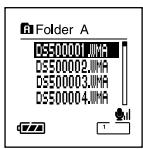
OK MENUPress the FOLDER button to switch folders
Press the FOLDER button while the recorder is stopped.
Every time the Folder button is pressed, it cycles through "Folder A" through "Folder E" and the "Audible" "Music" folder, and it shows a list of files and folders recorded within each folder.
When the “Audible” folder is opened, the recorder enters the Audible mode.
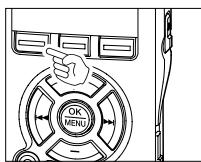
text_image
Diagram showing a hand pointing to a control panel with 'OK MENU' and directional arrows, likely illustrating a menu or navigation interface.Open the "Podcast" folder
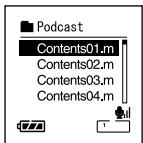
While the recorder is stopped, press the Podcast button for one second or longer.
If the "Podcast" folder under the "Music" folder is opened, a list of files and folders within the folder will appear. For "Podcast" please see Online manual.
text_image
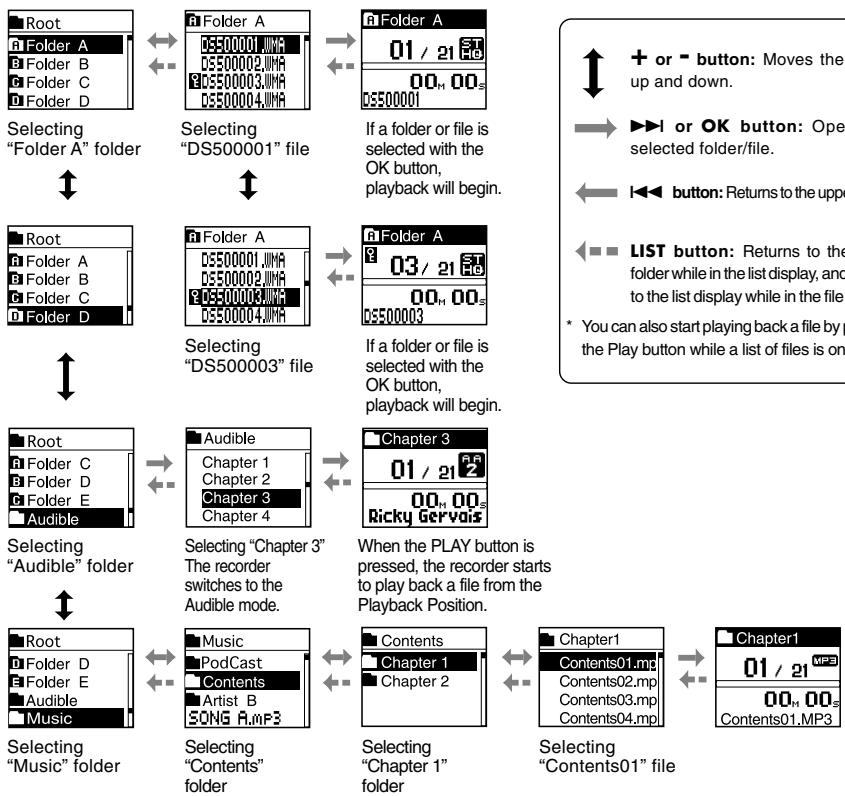
Podcast Contents01.m Contents02.m Contents03.m Contents04.mHow to select a folder and file
You can select a desired folder and file even without using the Folder button or the Podcast button.
flowchart
graph TD
    A["Root"] --> B["Selecting "Folder A" folder"]
    B --> C["Selecting "DS500001" file"]
    C --> D["If a folder or file is selected with the OK button, playback will begin."]
    D --> E["Root"]
    E --> F["Selecting "DS500003" file"]
    F --> G["If a folder or file is selected with the OK button, playback will begin."]
    G --> H["Root"]
    H --> I["Selecting "Audible" folder"]
    I --> J["Selecting "Chapter 3" The recorder switches to the Audible mode."]
    J --> K["When the PLAY button is pressed, the recorder starts to play back a file from the Playback Position."]
    K --> L["Root"]
    L --> M["Selecting "Music" folder"]
    M --> N["Selecting "Contents" folder"]
    N --> O["Selecting "Chapter 1" folder"]
    O --> P["Selecting "Contents01.mp3" file"]
    P --> Q["Chapter1"]
    Q --> R["Selecting "Contents01.mp3" file"]
File names will be automatically created for files recorded by this recorder.
DS50 0001.WMA
Extension
File number : A serial number automatically assigned by a Digital Voice Recorder.
User ID : The name that has been set on the Digital Voice Recorder. The default name on the Digital Voice Recorder is "DS-50", "DS-40" or "DS-30". The user ID can be modified with DSS Player.
Before recording
This recorder offers a wide range of recording options by using the exclusive stereo microphone, built-in monaural microphone, and exclusive remote control (provided with the DS-50 only). Choose a recording method according to your need.
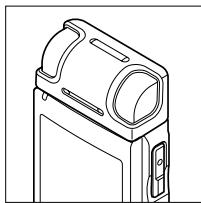
natural_image
Line drawing of a vintage digital camera with lens and screen (no text or symbols)Stereo recording using the exclusive stereo microphone
Plug the exclusive stereo microphone into the recorder's MIC/REMOTE jack for stereo recording in ST XQ and ST HQ modes and monaural recording in HQ, SP, and LP modes.
Connect the exclusive stereo microphone to the recorder's MIC/REMOTE jack.
natural_image
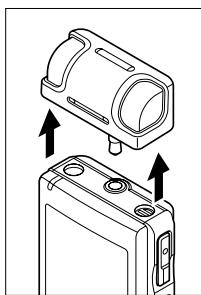
Technical illustration of a mechanical device with two views showing internal components (no text or symbols)Monaural recording with the built-in microphone
Even if the exclusive stereo microphone is unplugged, recordings can be still made using the recorder's built-in microphone.
Unplug the exclusive stereo microphone from the recorder.
Notes
- If a recording is made in ST XQ and ST HQ modes while the exclusive stereo microphone is unplugged, it will be a monaural recording through the built-in microphone, and same audio will be recorded on both Left channel (Lch) and Right channel (Rch).
- Stop the recorder before plugging in or unplugging a microphone.
natural_image
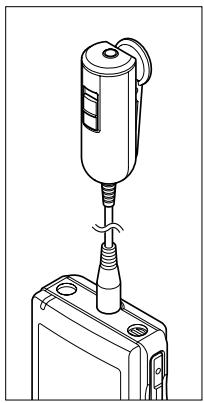
Line drawing of a mechanical device with a cylindrical component inserted into a base, no text or symbols present.Use the remote control for operation
Plug the exclusive remote control into the recorder's MIC/REMOTE jack to use the remote control to operate the recorder.
Connect the exclusive remote control to the recorder's MIC/REMOTE jack.
Use the REC/STOP switch on the exclusive remote control to start and stop recording with the recorder's built-in microphone (P25).
Notes
- Even when the exclusive remote control is plugged in, the recorder's buttons are still usable.
- Even when the recorder is in Hold mode (P16), the exclusive remote control's REC/STOP switch is still usable.
- When the switch of the exclusive remote control is set to STOP and the REC button on the recorder is pressed, the recorder starts recording with the microphone that has been connected to the exclusive remote control. Recording will not be made if a microphone is not connected to the exclusive remote control.
natural_image
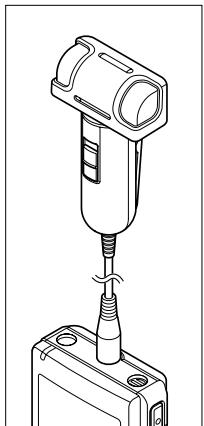
Technical line drawing of a handheld device with a screw and base mount (no text or symbols)Use it as a remotely controlled stereo microphone
If the exclusive stereo microphone is removed from the recorder and plugged into the exclusive remote control's Mic jack, it can be used as a remotely controlled stereo microphone.
Connect the exclusive stereo microphone to the exclusive remote control's Mic jack.
Use the REC/STOP switch on the exclusive remote control to start and stop recording on the recorder (P25).
Notes
- Even when the exclusive remote control is plugged in, the recorder's buttons are still usable.
- Turn the exclusive remote control's switch to Stop and press the recorder's REC button to start and stop recording using the remote-control stereo microphone.
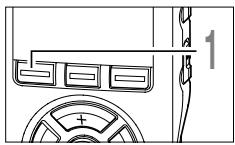
Before starting recording, select a folder between Folder A to Folder E. These five folders can be selectively used to distinguish the kind of recording; for example, Folder A might be used to store private information, while Folder B might be dedicated to holding business information. Newly recorded audio will be saved as the last file in the selected folder.
natural_image
Technical line drawing of a mechanical component with no visible text or symbols1 Press the FOLDER button to choose a folder in which to make a recording.
Every time the FOLDER button is pressed, folders will switch (P20).
text_image
Technical diagram of a handheld device with labeled parts 2 and 3, showing internal components and wiring.2 Press the REC button to start recording.
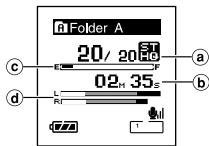
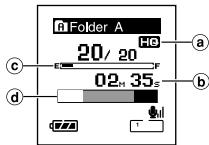
The record/play indicator light glows red. Turn the microphone in the direction of the source to be recorded. The display changes depending on the recording mode (P30). When the exclusive remote control is connected, the remote control's REC/STOP switch will work the same as the recorder's REC and STOP buttons.
① Current recording mode
⑥ Recording elapsed time
© Memory remaining indicator (E/F bar)
(The bar indicates remaining memory)
(d) Level meter (varies according to the sound volume being recorded)
Every time the Display button is pressed while recording, “Recording elapsed time” and “Remaining recording time” cycles in the location indicated by ⓑ.
text_image
Folder A 20/ 20 ST Hg 02m 35s L R1 a b c dDisplay in the stereo recording mode
text_image
Folder A 20/20 02 m 35 s a b c dDisplay in the monaural recording mode
3 Press the STOP button to stop recording.
Notes
- If you select a folder other than A through E and press the REC button, an “Illegal Folder” message will flash. Select a folder from A through E and start recording again.
- To ensure recording from the beginning, start speaking after you see the red record/play indicator light on.
- A beep will sound when remaining recording time reaches 60 seconds, 30 seconds, and 10 seconds while recording.
- When remaining recording time is less than 60 seconds, the record/play indicator light starts flashing in red. When the recording time is decreasing to 30 or 10 seconds, the light flashes faster.
- “Memory Full” or “Folder Full” will be displayed when the memory or folder capacity is full. Delete any unnecessary files before recording any further (P.47).
natural_image
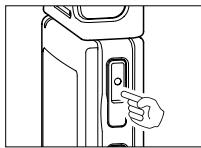
Line drawing of a hand pressing a button on a device (no text or symbols)Pause
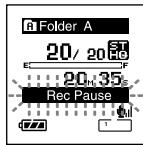
Press the REC button while recording.
→ "Rec Pause" will flash on the display.
- The recorder will time out after 2 hours when left in "Rec Pause".
text_image
Folder A 20/ 20 ST E F 20 35 s Rec PauseResume Recording
natural_image
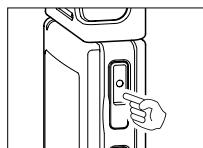
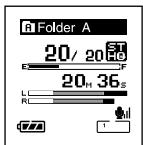
Line drawing of a hand pressing a button on a device (no text or symbols)Press the REC button again.
Recording will resume at the point of interruption.
text_image
Folder A 20/ 20 ST H0 F 20 M 36 S L R1 7/74 1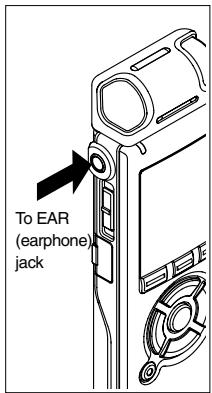
text_image
To EAR (earphone) jackListening While Audio is Recorded
If you start recording after inserting the earphone into the EAR jack on the recorder, you can hear the sound being recorded. The sound volume on the recording monitor can be adjusted by pressing the VOLUME (+) or VOLUME (−) button.
Connect the earphone to the EAR jack on the recorder.
After recording has started, you can hear the sound being recorded through the earphone. If the earphone is connected, no sound will come from the speaker.
Notes
- Recording level cannot be controlled using the volume button.
- When using the earphones, do NOT set the volume too high. Listening at very high volume may lead to hearing loss.
- Do not place earphones near a microphone as this may cause feedback.
Using the Variable Control Voice Actuator (VCVA)
When the microphone senses that sounds have reached a preset threshold volume level, the built-in Variable Control Voice Actuator (VCVA) starts recording automatically, and stops when the volume drops below the threshold level.
The VCVA feature extends recording time and conserves memory by stopping recording during silent periods, which helps the playback to be more efficient.
text_image
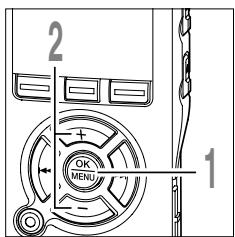
2 OK MENU 11 While the recorder is stopped or during recording, press the MENU button for 1 second or longer.
The menu opens. (P60, 62)
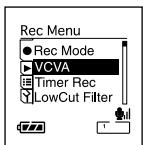
2 Press the + or - button to choose "VCVA".
text_image
Rec Menu ● Rec Mode VCVA Timer Rec LowCut Filter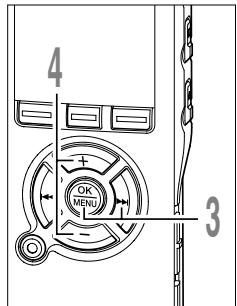
text_image
4 OK MENU 33 Press the OK or ▶▶I button. The VCVA setup process begins.
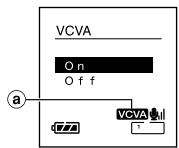
4 Press the + or - button to choose between "On" and "Off".
On: Will start recording in VCVA mode.
Off: Will resume recording in normal mode.
When “On” is selected, a VCVA indication will be displayed on the screen.
① VCVA (Variable Control Voice Actuator) indicator
text_image
VCVA On Off a VCVA 1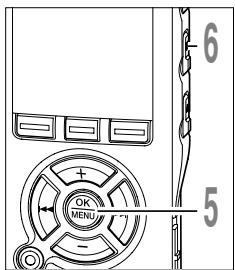
text_image
6 5 OK MENU5 Press the OK button to complete the setup screen.
If the ◀◀ button is pressed, the setting will be canceled and it will return to the menu.
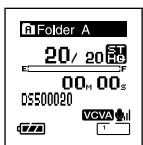
6 Press the STOP button to close the menu.
If it returns to the menu screen during recording, press the ◀◀◀ button to close the menu screen.
text_image
Folder A 20/ 20 FT E F 00 M 00 S DS500020 VCVA 1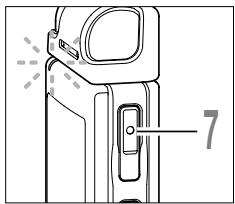
text_image
77 Press the REC button to start recording.
When the sound volume is lower than the preset threshold sound level, recording automatically stops after 1 sec approximately, and “Standby” flashes on the display. The record/play indicator light glows red when recording starts and flashes when recording pauses.

text_image
Folder A 21/21 ST Hg Standby VCVA 7/7 1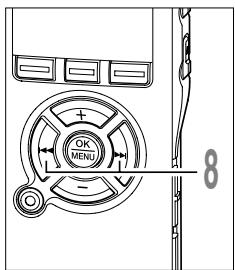
text_image
OK MENU 88 Press the ▶▶▶ or ◀◀◀ button adjust the pause sound level.
The VCVA level can be set to any of 15 different values. The higher the value, the more sensitive the recorder to sounds. At the highest value, even the faintest sound will activate recording.
The VCVA pause sound level can be adjusted according to the ambient (background) noise.
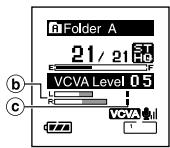
text_image
Folder A 21/21 ST VCVA Level 05 VCVA 1⑥ Level meter (varies according to the sound volume being recorded)
© Start level (moves to the right/left according to the set level)
Notes
- The start/stop actuation level also varies depending on the selected microphone sensitivity mode (v ^58 P31).
- If the surrounding noise is loud, the starting sensitivity of the VCVA can be adjusted according to the recording situation.
- To ensure successful recordings, prior testing and adjustment of the start/stop actuation level is recommended.
Recording Modes (Rec Mode)
The recording mode can be chosen from ST XQ (stereo extra high quality sound recording), ST HQ (stereo high quality sound recording), HQ (high quality sound recording), SP (standard recording), and LP (long-term recording).
text_image
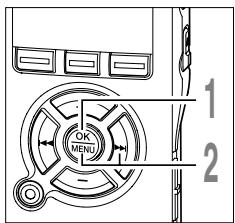
OK MENU 1 2While the recorder is stopped, press the MENU button for 1 second or longer.
"Rec Mode" will be displayed on the screen. (P60, 62)
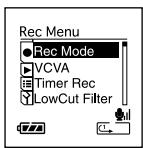
text_image
Rec Menu Rec Mode VCVA Timer Rec LowCut Filter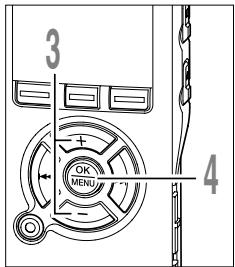
text_image
3 + OK MENU - 4Press the OK or ▶▶▶I button.
The recording mode setup process begins.
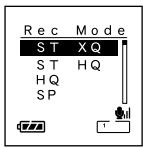
3 Press the + or - button to choose from "ST XQ", "ST HQ", "HQ", "SP" and "LP".
text_image
Rec Mode ST XQ ST HQ HQ SP4 Press the OK button to complete the setup screen.
If the ◀◀◀ button is pressed, the setting will be canceled and it will return to the menu.
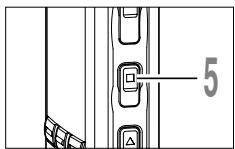
text_image
55 Press the STOP button to close the menu.
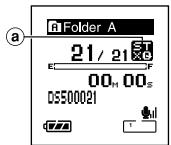
a Record mode indicator
Press the STOP button while the recorder is stopped to check “Remaining Memory” and “Remaining Recording Time” in the selected recording mode.
text_image
a Folder A 21/21 ST E F 00M 00s DS500021 T77 TMicrophone sensitivity is adjustable to meet recording needs.
text_image
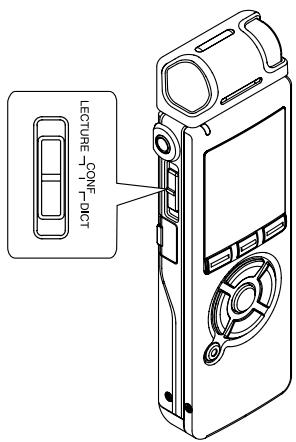
LECTURE CONF-DICTWhile the recorder is stopped or during recording, slide the Mic Sense switch and select a microphone sensitivity among "LECTURE", "CONF", and "DICT".
Every time the setting is switched, it cycles through the display's microphone sensitivities.
LECTURE(1): Highest recording sensitivity suitable for conferences with large crowds and recording audio at a distance or low volume.
CONF(☐): Suitable for recording meetings and seminars with a small number of people.
DICT(☐): Lowest recording sensitivity suitable for dictation.
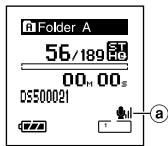
(a) Microphone sensitivity display
text_image
Folder A 56/189 00m 00s DS500021 aNotes
- When the speaker's voice is to be recorded clearly, set it to DICT (dictation) mode. If breath directly hits the microphone it will be noisy, so keep the microphone a little lower than the speaker's mouth (5 to 10cm/2 to 4 inches) while recording.
- If the ambient (background) noise is too loud to get a clear recording even in DICT (dictation) mode, we recommend that you use an ME12 Noise-Cancellation monaural microphone. (sold separately. P84)
Set the Low Cut Filter (LowCut Filter)
The recorder has a Low Cut Filter function to minimize low-frequency sounds and record voices more clearly. This function can reduce noise from air conditioners, projectors and other similar noises.
text_image
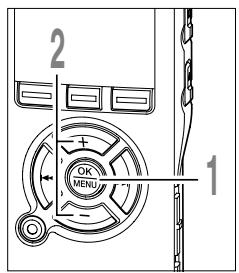
2 + OK MENU 11 While the recorder is stopped or during recording, press the MENU button for 1 second or longer.
The menu opens. (P60, 62)
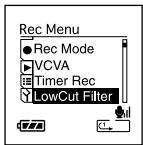
2 Press the + or - button to choose "LowCut Filter".
text_image
Rec Menu ● Rec Mode VCVA Timer Rec LowCut Filter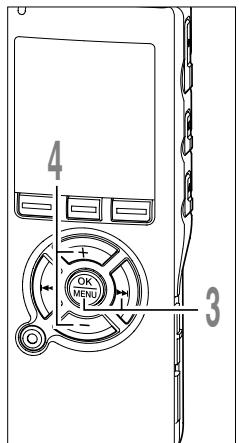
text_image
4 OK MEN 33 Press the OK or ▶▶▶I button. The Low Cut Filter setup process begins.
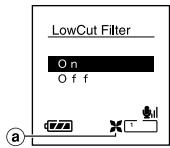
4 Press the + or - button to choose between "On" and "Off".
On: Low Cut Filter will be turned on.
Off: Low Cut Filter will be cancelled.
If it goes to the menu screen during recording, move the cursor and the Low Cut Filter will be turned On/Off according to the movement so you can check the effect with the recording monitor. (P27)
If it is set to "On", ✗ will appear on the display.
(a) Low Cut Filter indicator
text_image
LowCut Filter On Off a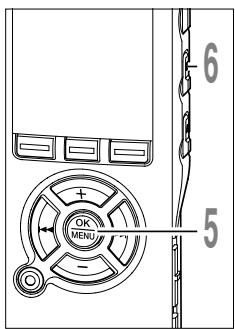
text_image
6 5 OK MENU5 Press the OK button to complete the setup screen.
If the ◀◀◀ button is pressed, the setting will be canceled and it will return to the menu.
text_image
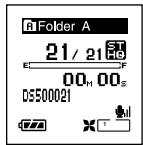
Folder A 21/21 E 00M 00S DS5000216 Press the STOP button to close the menu.
If it returns to the menu screen during recording, press the ◀◀◀ button to close the menu screen.
Recommended settings by recording condition
| Recording condition | Recommended settings | |||
| Microphone | Recoding Modes | Microphone Sensitivity | Low Cut Filter | |
| Conferences with large crowds and lectures in large rooms | Exclusive stereo microphone (ME53S) | STXQ | LECTURE | On |
| Meetings and business negotiations with a small number of people | STXQ, STHQ | CONF | ||
| Dictation with a lot of background noise | STXQ, STHQ, HQ | DICT | ||
| Music playing, wild birds singing, and railway sounds | STXQ | Microphone Sensitivity ^-1 | Off | |
| Dictation in a quiet environment | There is no particular recommendation. Choose a setting for recording. | |||
*1: Set the microphone sensitivity according to the volume being recorded.
Playing
The recorder can play back WMA and MP3 format files. To play back a file recorded with other machines, you need to transfer (copy) it from a computer.
Files saved in the Audible folder can play back in the Audible mode. For operation methods in the Audible mode, see Online manual.
natural_image
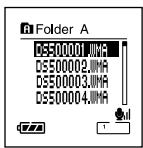
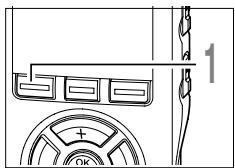
Technical line drawing of a mechanical component with no visible text or symbols1 Press the FOLDER button to choose a folder.
Every time the FOLDER button is pressed, it cycles through folders and the List display will appear. (P20)
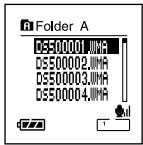
2 Press the + or - button to choose the file that you want to play.
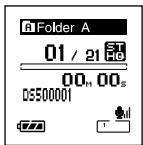
If the ▶▶▶ button is pressed, the File display will open.
In the File display, press the ▶▶▶ or ◀◀◀ button to select a file.
If you want to return from the File display to the List display, or go back from the List display to a higher-level List display, press the LIST button.
text_image
Folder A 01 / 21 00m 00s DS500001File display
text_image
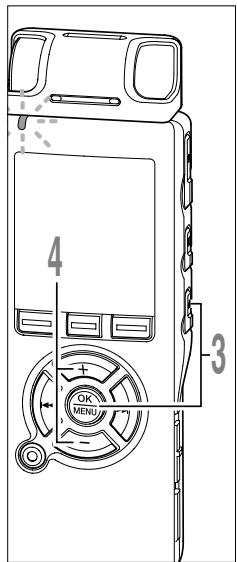
4 3 OK MENU3 Press the PLAY or OK button to start playback.
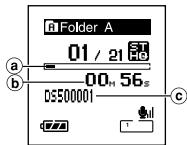
The record/play indicator light glows green. For files created using machines other than this recorder, the file format will appear on the display.
MP3 ....MP3 files
WMA ....WMA files
Ⓐ Play position bar indicator
⑥ Current playback time
© File name
(d) File format indicator
4 Press the + or - button to select the proper sound volume.
The display shows the volume level. You can choose between 0 and 30.
(e) Volume level meter
text_image
Folder A 01 / 21 00, 56s DS500001 a b c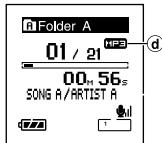
text_image
Folder A 01 / 21 HP3 00m 56s SONG A/ARTIST A d 771 1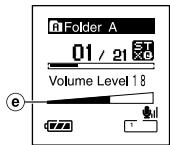
text_image
Folder A 01 / 21 ST Volume Level 18 e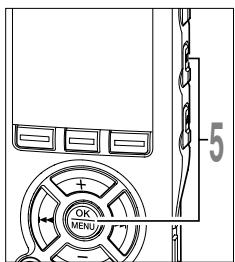
text_image
OK MENU 55 Press the STOP or OK button at any point you want to stop the playback.
Stop a file play back at any point. Press the PLAY or OK button to start playing back from where it was stopped.
You can change the display patterns (P55). The displays indicated in this manual are default.
text_image
OK MENU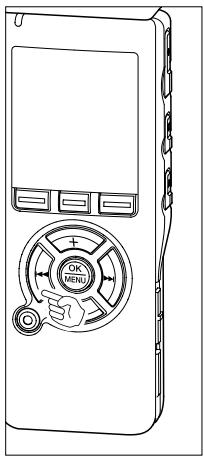
natural_image
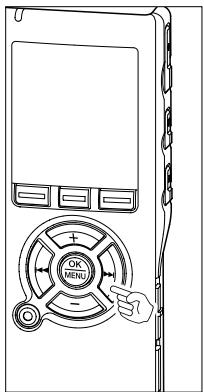
Line drawing of a door panel with control knob and indicator lights (no text or symbols)Forwarding
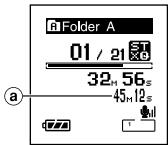
Press and hold the ▶▶I button while the recorder is stopped.
If you release the button, it will stop. Press the PLAY or OK button to start playing back from where it was stopped.
a File length
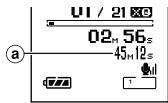
text_image
UT / 21 02 M 56 s 45 M 12 s a 1Press and hold the ▶▶I button while playing a file.
When you release the ▶▶I button the recorder will resume normal playback.
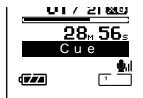
- If there is an index mark or temp mark (P50) in the middle of the file, the recorder will stop at that location.
- The recorder stops when it reaches the end of the file. Continue pressing the ▶▶▶ button to proceed with the cue from the beginning of the next file.
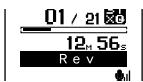
Rewinding
Press and hold the ◀◀◀ button while the recorder is stopped.
If you release the button, it will stop. Press the PLAY or OK button to start playing back from where it was stopped.
a File length
text_image
Folder A 01 / 21 ST 32 M 56 s 45 M 12 s a 777 1Press and hold the ◀◀◀ button while playing a file.
When you release the ◀◀◀ button the recorder will resume normal playback.
- If there is an index mark or temp mark (P50) in the middle of the file, the recorder will stop at that location.
- The recorder stops when it reaches the beginning of the file. Continue pressing the ◀◀◀ button to proceed with the review from the end of the previous file.
- If the ◀◀◀ button is kept pressed while the recorder is stopped at the start of the top file, the recorder will fast rewind starting from the end of the last file.
text_image
OK MENULocating the Beginning of the File
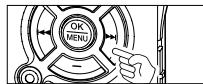
Press the ▶▶I button during playback, slow playback, or fast playback.
The next file is cued and playback starts at the previously set speed.
text_image
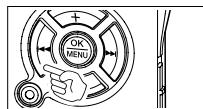
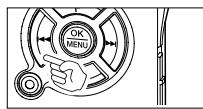
OK MENUPress the ◀◀◀ button during playback, slow playback, or fast playback.
The file being played is cued and playback starts at the previously set speed.*
text_image
OK MENUPress the ◀◀◀ button 2 times during playback, slow playback or fast playback.
The previous file is cued and playback starts at the previously set speed.*
- If there is an index mark or temp mark (P50) in the middle of the file, the recorder will stop at that location.
* If the skip space is set at other than file skip, the recorder will F. Skip (forward skip) or R. Skip (reverse skip) for a set time before playback.
natural_image
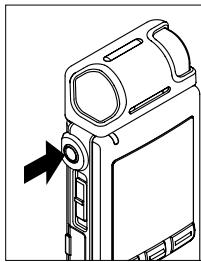
Line drawing of a digital camera module with an arrow pointing to the screen (no text or symbols present)Playback Through Earphone
An earphone can be connected to the EAR jack of the recorder for listening.
When the earphone is used, the recorder speaker will be switched-off.
Notes
- To avoid irritation to the ear, insert the earphone after turning down the volume level.
- When you listen with the earphone during playback, do not raise the volume too much. It may cause hearing impairment and decrease in hearing ability.
Select Play Mode (Play Mode)
There are six play modes. You can choose whether to play by file or folder, or all files stored in the recorder.
text_image
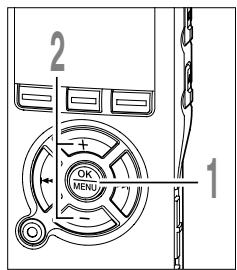
2 OK MENU 1While the recorder is stopped or during playback, press the MENU button for 1 second or longer.
The menu opens. (P60, 62)
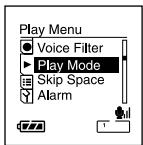
2 Press the + or - button to choose "Play Mode".
text_image
Play Menu Voice Filter Play Mode Skip Space Alarm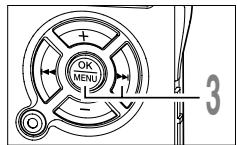
text_image
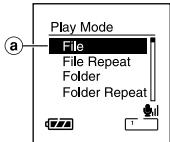
OK MENU 33 Press the OK or ▶▶I button. Start setting a play mode.
(a) Current play mode
text_image
Play Mode File File Repeat Folder Folder Repeat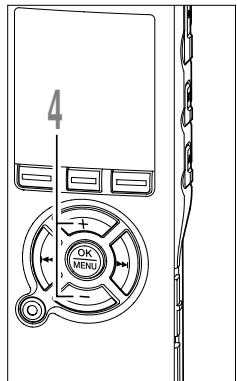
text_image
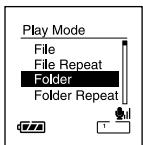
4 OK MENU4 Press the + or - button to select a desired play mode.
File (1): Stop after playing back the current file.
File Repeat (☐): Play the current file repeatedly.
Folder (☐): Play files continuously in the current folder until the last file and stop.
Folder Repeat (☐): Play all files in the current folder continuously.
All (ALL): Play all files in the recorder continuously and stop.
All Repeat (CALL): Play all files in the recorder continuously and repeatedly.
text_image
Play Mode File File Repeat Folder Folder Repeat
text_image
OK MENU 6 55 Press the OK button to complete the setup screen.
If the ◀◀◀ button is pressed, the setting will be canceled and it will return to the menu.
6 Press the STOP button to close the menu.
If the recorder goes to the menu screen during playback, press the ◀◀◀ button to close the menu screen.
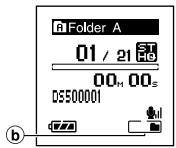
An icon will appear on the display according to the setting.
⑥ Selected play mode
text_image
Folder A 01 / 21 00H 00s DS500001 (b)Notes
- In "File" mode, when the recorder comes to the end of the last file in the folder, "End" flashes for two seconds on the display and the recorder stops at the start of the last file.
- In "Folder" mode, when the recorder comes to the end of the last file in the folder, "End" flashes for two seconds on the display and the recorder stops at the start of the first file in the folder.
- In “All” mode, after playing the last file in the folder, the recorder will start playing from the first file in the next folder. When it comes to the end of the last file in the recorder, “End” flashes for two seconds on the display and the recorder stops at the start of the first file in the recorder.
This function enables repeated playback of part of the file being played.
text_image
1 OK MENU1 Choose a file that contains a segment you want to play back repeatedly, and press the PLAY or OK button.
File playback begins.
text_image
Folder A 01 / 21 00 M 56 s DS500001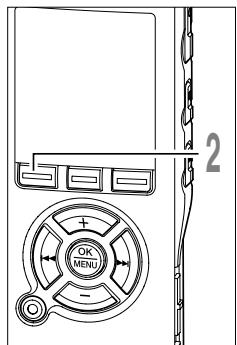
text_image
2 OK MENU2 Press the A-BC button at the point you want to start segment repeat playback.
"End?" will flash on the display.
Even while “◀End?” is flashing, changing the playback speed, fast forward and rewind (◀P36) can be executed the same as during normal playback, and it can be advanced quickly to the end position. When it reaches to the end of the file while “◀End?” is flashing, the point will become the end position, and repeat playback will start.

text_image
Folder A 01 / 21 ST 01 M 50s End?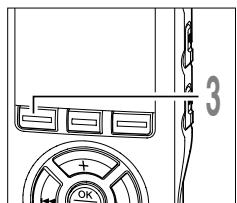
text_image
3 +3 Press the A-BC button again at the position where you want to end segment repeat playback.
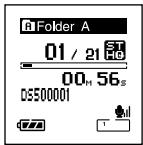
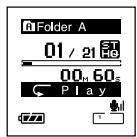
The “◀ Play” message appears, and repeat playback will start. The recorder repeatedly plays back the segment until the segment repeat playback is canceled.
text_image
Folder A 01 / 21 SE 00 M 60 s PlayAs in regular play mode, playback speed can be changed during segment repeat playback as well. If an index mark and temp mark (P50) are inserted or eliminated during segment repeat playback, segment repeat playback will be canceled and it will return to regular play mode.
Cancel the Segment Repeat Playback Function
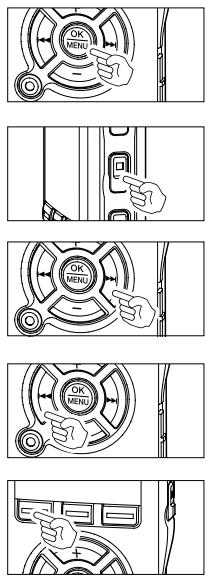
Press the OK button.
→ Pressing the OK button will release segment repeat playback and stop playback.
Press the STOP button.
→ Pressing the STOP button will release segment repeat playback and stop playback.
Press the ▶▶I button.
Pressing the ▶▶▶I button will release segment repeat playback and fast forward and cue to the beginning of the next file.
Press the ◀◀ button.
Pressing the ◀◀◀ button will release segment repeat playback and rewind and reverse to the beginning of the current file.
Press the A-BC button.
The segment repeat playback is released and playback continues without repeating.
Noise Cancel Function (Noise Cancel)
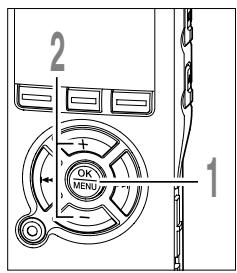
If recorded audio is difficult to understand because of noisy surroundings, adjust the Noise Cancel setting level. Noise will be reduced in the file when it's played back for better sound quality.
text_image
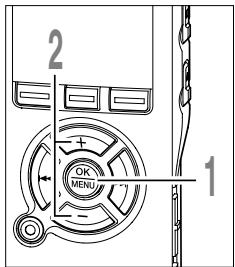
2 ± OK MENU 1While the recorder is stopped or during playback, press the MENU button for 1 second or longer.
The menu opens. (P60, 62)
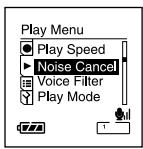
2 Press the + or - button to choose "Noise Cancel".
text_image
Play Menu ● Play Speed ► Noise Cancel ● Voice Filter ● Play Mode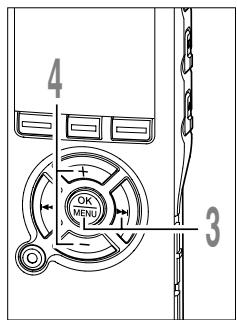
text_image
4 OK MENU 3Press the OK or ▶▶▶I button.
The noise cancel setup process begins.
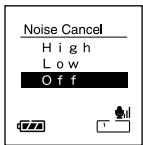
4 Press the + or - button to choose between "High" "Low" and "Off".
The levels switch in the following rotation, "High" "Low" "Off". If the recorder goes to the menu screen during playback, move the cursor to change playback sound accordingly.
text_image
Noise Cancel High Low Off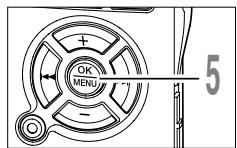
text_image
OK MENU 55 Press the OK button to complete the setup screen.
If the ◀◀◀ button is pressed, the setting will be canceled and it will return to the menu.
text_image
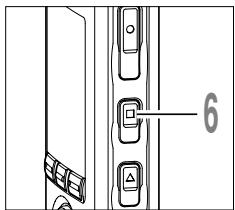
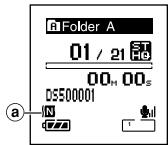
66 Press the STOP button to close the menu. If the recorder goes to the menu screen during playback, press the I◀◀ button to close the menu screen.
The ⌘N will appear on the display.
① Noise Cancel indicator
text_image
a Folder A 01 / 21 FT 00M 00s DS500001 N 77A TNotes
- If you set Noise Cancel to "Low" or "High", the setting remains valid until it's set to "Off".
- Noise cancel cannot be used during fast playback/slow playback.
- Noise Cancel is not available while the Voice Filter (P45) is set.
Set the Voice Filter (Voice Filter)
The recorder has a Voice Filter Function to cut low and high frequency tones during normal, fast, or slow playback, and enable clear audio playback.
text_image
2 + OK MENI 1While the recorder is stopped or during playback, press the MENU button for 1 second or longer.
The menu opens. (P60, 62)
2 Press the + or - button to choose "Voice Filter".
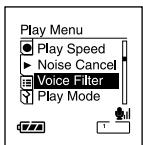
text_image
Play Menu ● Play Speed ▶ Noise Cancel ● Voice Filter ● Play Mode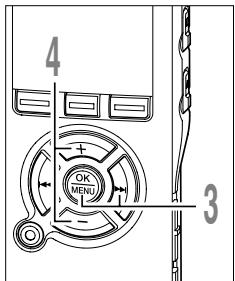
text_image
4 OK MENU 33 Press the OK or ▶▶▶I button. The voice filter setup process begins
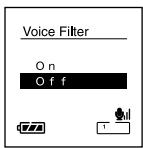
4 Press the + or - button to choose between "On" and "Off".
On: Voice Filter will be turned on.
Off: Voice Filter will be canceled.
If the recorder goes to the menu screen during playback, move the cursor to change playback sound accordingly.
text_image
Voice Filter On Off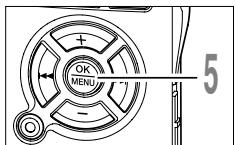
text_image
OK MENU 55 Press the OK button to complete the setup screen.
If the ◀◀◀ button is pressed, the setting will be canceled and it will return to the menu.
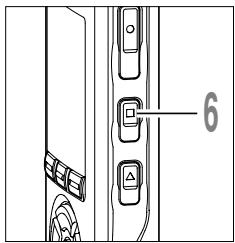
text_image
66 Press the STOP button to close the menu.
If the recorder goes to the menu screen during playback, press the ◀◀ button to close the menu screen.
If it is set to "On", will appear on the display.
a Voice Filter indicator
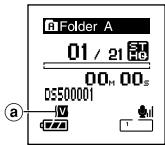
text_image
aFolder A 01 / 21 ST 00H 00s DS500001 V 777 1Note
- Voice Filter is not available while Noise Cancel is set.
Erasing
Erasing One File at a Time
A selected file can be erased from a folder.
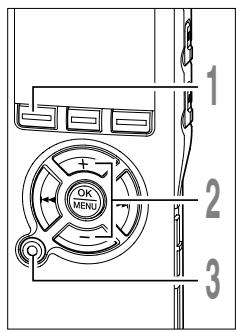
text_image
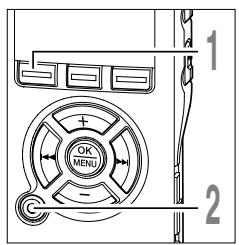
1 2 31 Press the FOLDER button to choose a folder.
Every time the FOLDER button is pressed, it cycles through folders and the List display will appear (P20).
2 Press the + or - button to choose the file you want to erase.
Press the ERASE button.
The "Cancel" indicator flashes.
4 Press the + button to choose "Erase".
Press the OK button.
The display changes to "File Erase!" and erasing will start.
"Erase Done" is displayed when the file is erased. File numbers will be reassigned automatically.
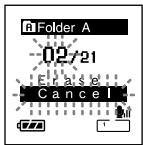
text_image
Folder A 02/21 Erase Cancel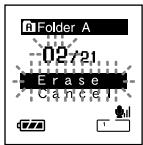
text_image
Folder A 02/21 Erase Cancel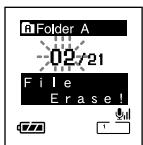
text_image
Folder A 02/21 File Erase!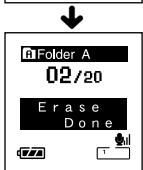
text_image
Folder A 02/20 Erase DoneErase All Files from a Folder
All files in a folder can be erased simultaneously.
The locked files and the files set to read-only on the PC will not be erased.
text_image
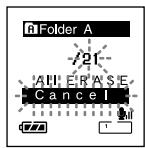
1 21 Press the FOLDER button to select the folder in which you want to erase all files.
2 Press the ERASE button twice.
The “Cancel” indicator flashes.
3 Press the + button to choose "All Erase".
4 Press the OK button.
The display changes to "All Erase!" and erasing will start.
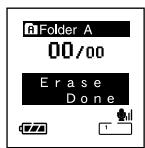
“Erase Done” is displayed when the files are erased. The locked files and read-only files are reassigned the file numbers in ascending order, starting from “1”.
text_image
Folder A /21 All ErASE Cancel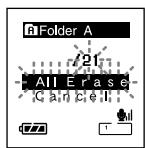
text_image
Folder A 21 All Erase Cancel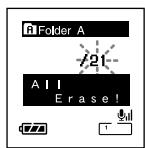
text_image
Folder A 721 A I I Erase!
text_image
Folder A 00/00 Erase DoneNotes
- An erased file cannot be restored.
- The locked files and the files that are set to read-only will not be erased.
- If an action is not selected within eight seconds on the “Cancel”, “Erase”, or “All Erase” screens, the recorder will return to stop status.
- It may take over 10 seconds to complete erasing. Never turn the power off or remove batteries during this time because data may be corrupted.
Index Marks and Temp Marks
If index marks and temp marks are placed, you can quickly find a location you want to listen to in fast forward and fast rewind (P36) and when cuing a file (P37). Index marks cannot be placed on files created on machines other than Olympus IC recorders, but temp marks can be placed instead to temporarily remember desired locations.
Setting an Index Mark or a Temp Mark
text_image
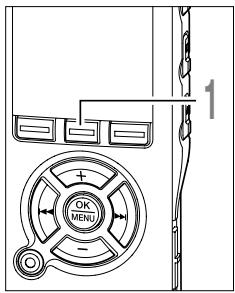
1 OK MENJ1 Press the INDEX button during recording or playing to set an index mark or temp mark.
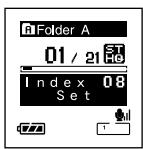
A number appears on the display and an index mark or temp mark will be placed. Even after an index or temp mark is placed, recording or playback will continue so you can place index or temp marks in other locations in a similar manner.
text_image
Folder A 01 / 21 ST He Index 08 Set 777 1Clearing an Index Mark or a Temp Mark
Follow the procedures below to erase index or temp marks.
text_image
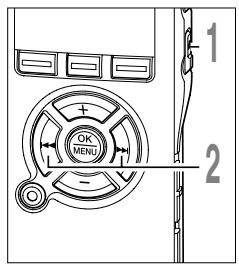
1 2 OK MENC1 Locate the index or temp mark you want to clear.

text_image
Folder A 01 / 21 ST 00m 56s DS500001 7/70 12 Press the ▶▶▶ or ◀◀◀ button to select an index or temp mark to erase.
text_image
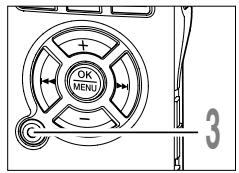
OK MENU + - 33 Press the ERASE button while the index or temp number appears for approximately 2 seconds on the display.
The index or temp mark is erased.
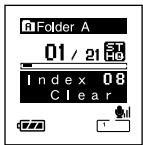
text_image
Folder A 01 / 21 ST Hg Index 08 Clear 774 1Index or temp numbers after the erased index or temp number will automatically move up.
Temp marks are temporary markings, so if you move to another file, switch to the list screen, or connect the recorder to a computer, they will be automatically erased.
Notes
- Up to 16 index and temp marks can be set in a file. If you try to place more than 16 index or temp marks, the “Index Full” message will appear for index marks, and “Temp Full” for temp marks.
- Index or temp marks cannot be set or erased in a locked file.
Formatting the Recorder (Format)
If you format the recorder, all files will be removed and all function settings will return to defaults except date and time settings. Transfer any important files to a computer before formatting the recorder.
If the recorder is formatted, data for guidance (P57), alarm playback, and starting/closing tune when the power is turned On/Off (P15) will also be erased and these features will not be available in the future. If you erase data by mistake, connect the recorder to a computer and use DSS Player to copy it to the recorder (P76).
text_image
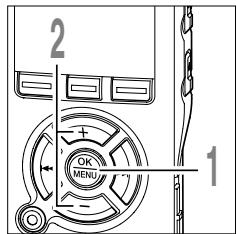
2 OK MENU 1While the recorder is stopped, press the MENU button for 1 second or longer.
The menu opens. (P60, 62)
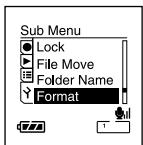
2 Press the + or - button to choose "Format".
text_image
Sub Menu Lock File Move Folder Name Format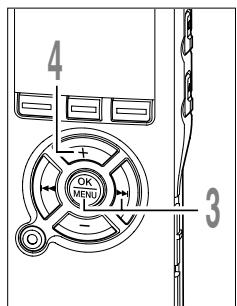
text_image
4 OK MENU 33 Press the OK or ▶▶I button. The "Cancel" indicator flashes.
4 Press the + button to choose "Start".
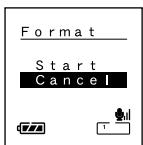
text_image
Format Start Cancel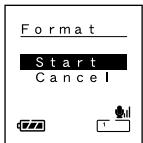
text_image
Format Start Cancel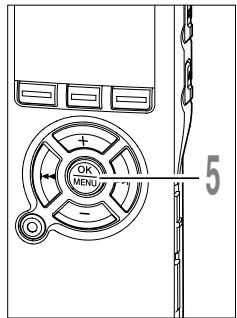
text_image
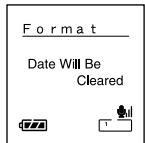
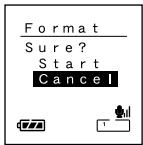
OK MENU 5Press the OK button.
After the “Data Will Be Cleared” message is on for two seconds, “Cancel” will turn on.
text_image
Format Date Will Be Cleared
text_image
Format Sure? Start Cancel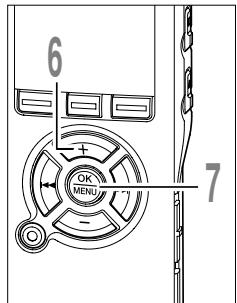
text_image
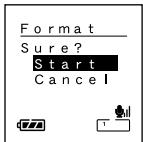
6 OK MENU 76 Press the + button again to choose "Start".
7 Press the OK button.
Formatting begins and an indicator flashes on the display.
text_image
Format Sure? Start Cancel
text_image
Format Format!
text_image
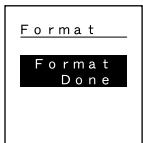
Format Format Done"Format Done" displays when formatting ends.
Notes
- Never turn the power off or remove batteries during formatting because data may be corrupted. It may take over 10 seconds to complete erasing.
- Never format the recorder from a PC.
• After formatting, recorded audio file names may start from 0001. - Once the recorder is formatted, the music files with DRM may not be transferred to the recorder again.
- When the recorder is formatted, all the saved data, including locked files and read-only files, are erased.
5 Display and Sound Functions
LCD Display Information
The LCD screen on the recorder can display 3 different format of information by pressing the DISPLAY button. This help review and confirm different recorder settings and file information.
text_image
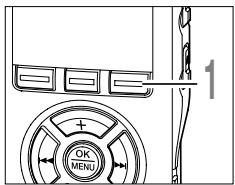
1 OK MENUPress the DISPLAY button.
The LCD display views will switch every time the DISPLAY button is pressed in the File Display screen.
While in stop or playback mode
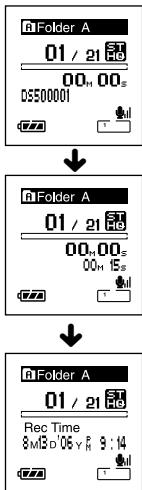
When pressing Display, the recorder will cycle through ① to ③.
text_image
R1Folder A 01 / 21 ST Hg 00m 00s DS500001 T ↓ R1Folder A 01 / 21 ST Hg 00m 00s 00m 15s T ↓ R1Folder A 01 / 21 ST Hg Rec Time 8M/3D 06 Y R 9:14 T① Playback elapsed time / File name\*
The elapsed time for the file being played and its file name (artist name/song title for a music file) will appear.
② Playback elapsed time / File length
The elapsed time for the file being played and its file length will appear.
③ Time stamp
Shows the month, date, year, hour and minute that the file was recorded.
*If there is a long file name, scroll to the side to show all of it.
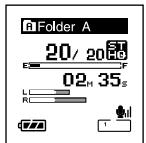
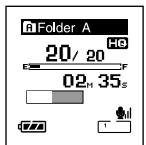
While in record mode
Displays ① and ② alternately.
text_image
Folder A 20/ 20 F 02 M 35 s L R1 7/7 1Display in the stereo recording mode
text_image
Folder A 20/20 02 H 35 sDisplay in the monaural recording
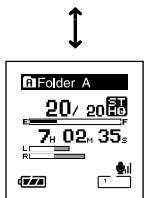
text_image
Folder A 20/20ST E F 7H 0.2M 35s L RL TDisplay in the stereo recording mode
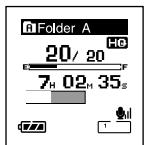
text_image
Folder A 20/ 20 7H 02H 35sDisplay in the monaural recording
① Remaining memory bars/recording time/Recording level meter
Current elapsed recording time is displayed in incremental figures, whereas the remaining memory and audio input levels are displayed with graphic images.
The audio input level display varies depending on a stereo recording or the monaural recording.
② Remaining memory bars/Remaining recording time/Recording level meter
The remaining time is displayed in decremental figures, whereas the remaining memory bar and audio input levels are displayed with graphic images.
While recording in VCVA mode
Displays ① and ② alternately.
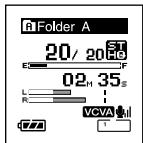
text_image
Folder A 20/20Hz E F 02.5m 35s L R VCVA 1Display in the stereo recording mode
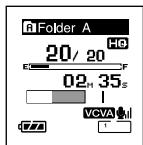
text_image
Folder A 20/20 HΩ E F 02 H 35 S VCGVA 1Display in the monaural recording

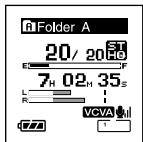
text_image
Folder A 20/ 20 HC 7 H 02 M 35 S L R VCVA 1Display in the stereo recording mode
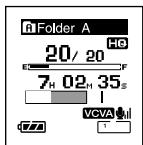
text_image
Folder A 20/20 7 H 02 M 35 S VCVA 1Display in the monaural recording
① Remaining memory bars/recording time/VCVA recording level meter
The current elapsed recording time is displayed in incremental figures, whereas the remaining memory bar, audio input levels, and start levels are displayed with graphic images ("Waiting" is displayed when the VCVA trigger level has not been reached).
The audio input level display varies, depending on a stereo recording or a monaural recording.
② Remaining memory bars/ Remaining recording time/VCVA recording level meter
The remaining time is displayed in decremental figures, whereas the remaining memory bar, audio input levels, and start levels are displayed with graphic images (“Waiting” is displayed when the VCVA trigger level has not been reached).
This feature gives audio announcements of recorder operating conditions. Adjust the speed and the volume of guidance announcements.
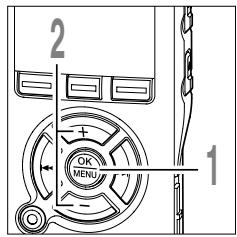
text_image
2 + OK MENU 1While the recorder is stopped, press the MENU button for 1 second or longer.
The menu opens. (P.60, 62)
2 Press the + or - button to choose "Voice Guide".
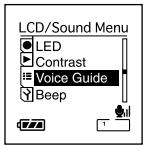
text_image
LCD/Sound Menu LED Contrast Voice Guide Beep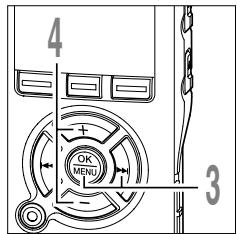
text_image
4 OK MENU 33 Press the OK or ▶▶▶ button. The voice guide setup process begins.
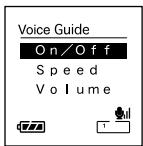
4 Press the + or - button to select the item to set.
Select items you want to set from among "On/Off", "Speed" and "Volume".
text_image
Voice Guide On/Off Speed Volume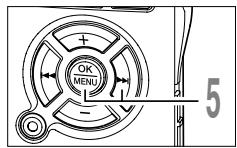
text_image
OK MENU 55 Press the OK or ▶▶I button to move to the respective setting.
For procedures for each setting, please see P58.
text_image
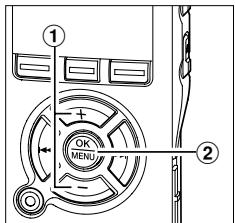
① OK MEN ②"On/Off" setting
① Press the + or - button to choose between "On" and "Off".
On: Guidance will be provided.
Off: Guidance will be canceled.
② Press the OK button to exit "On/Off" selection.
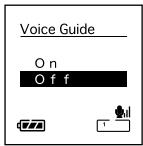
text_image
Voice Guide On Off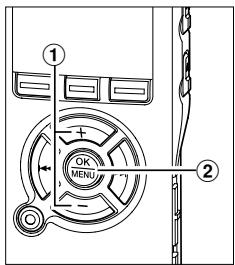
text_image
① OK MENU ②"Speed" setting
① Press the + or - button to choose from "Fast", "Normal", and "Slow".
Fast: Announcements at 1.5 times as fast.
Normal: Announcements at normal speed.
Slow: Announcements at 0.75 times as fast.
② Press the OK button to exit "Speed" selection.
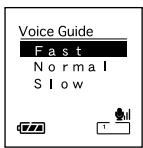
text_image
Voice Guide Fast Normal Slow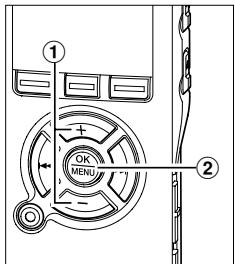
text_image
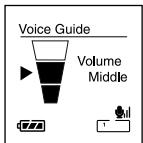
① OK MENI ②"Volume" setting
① Press the + or — button to choose from “Volume High” “Volume Middle” and “Volume Low”.
Volume High: Increases guidance volume.
Volume Middle: Normal guidance volume.
Volume Low: Reduces guidance volume.
③ Press the OK button to exit "Volume" selection.
text_image
Voice Guide Volume Middle 1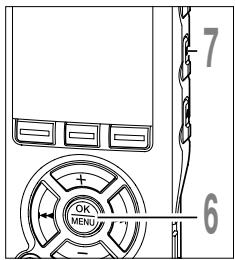
text_image
7 6 OK MENPress the OK button to complete the setup screen.
If the ◀◀ button is pressed, the setting will be canceled and it will return to the menu.
7 Press the STOP button to close the menu.
Notes
- The starting tune/closing tune when the power is turned On/Off (P15) can be canceled if you set the guidance to Off.
- If the recorder is formatted (P52), guidance data will also be erased and the feature will not be available in the future (P76).
- Set the starting tune/closing tune at the guidance "Volume" setting.
Menu Setting Method
Items in menus are categorized by tabs, so select a tab first and move to a desired item to quickly set it. You can set each menu item as follows.
text_image
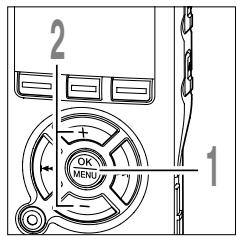
2 + OK MENU 1While the recorder is stopped, press the MENU button for 1 second or longer.
The menu opens. (P62)
Menu items can be set during a recording or playback. (P64)
2 Press the + or - button to move to the item to be set.
text_image
Technical diagram of a device control panel with labeled parts including OK, MENU, and directional arrowsSetup using a tab
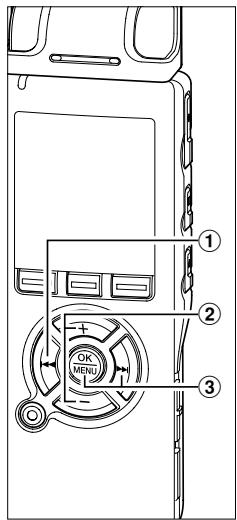
① Press the ◀◀◀ button for each item to move to a tab.
a Selected tab
② Press the + or - button to move to the tab that contains the item you want to set.
③ Press the OK or ▶▶▶I button to move to the item you want to set.
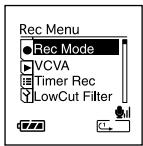
text_image
Rec Menu Rec Mode VCVA Timer Rec LowCut Filter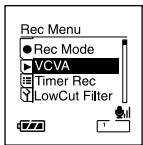
text_image
Rec Menu ● Rec Mode VCVA Timer Rec LowCut Filter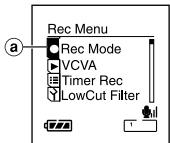
text_image
Rec Menu Rec Mode VCVA Timer Rec LowCut Filter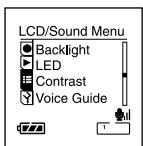
text_image
LCD/Sound Menu Backlight LED Contrast Voice Guide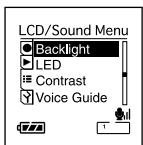
text_image
LCD/Sound Menu Backlight LED Contrast Voice Guide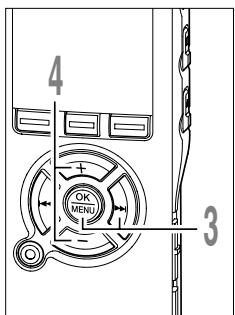
text_image
4 OK MENU 3Press the OK or ▶▶▶I button.
Moves to the setting of the selected item.
4 Press the + or - button to change the setting.
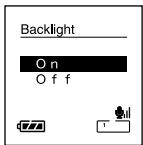
text_image
Backlight On Off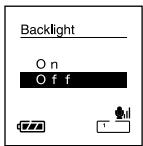
text_image
Backlight On Off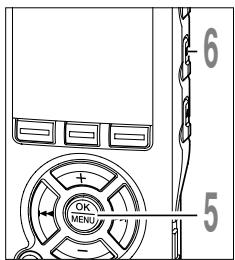
text_image
6 5 OK MENI5 Press the OK button to complete the setup screen.
If the ◀◀◀ button is pressed, the setting will be canceled and it will return to the menu.
6 Press the STOP button to close the menu.
- Menu Setting (While the recorder is stopped, press and the hold the MENU button for 1 second or longer)
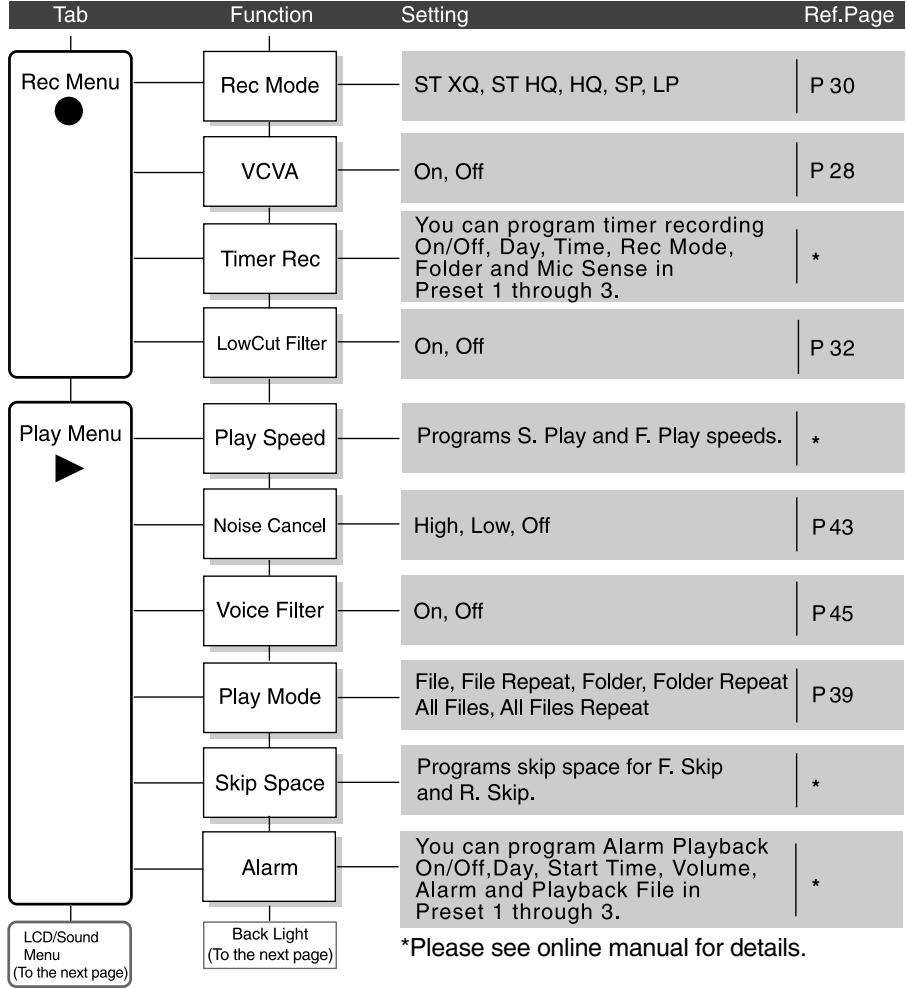
flowchart
graph TD
    A["Rec Menu"] --> B["Rec Mode"]
    B --> C["ST XQ, ST HQ, HQ, SP, LP"]
    A --> D["VCVA"]
    D --> E["On, Off"]
    A --> F["Timer Rec"]
    F --> G["You can program timer recording On/Off, Day, Time, Rec Mode, Folder and Mic Sense in Preset 1 through 3."]
    A --> H["LowCut Filter"]
    H --> I["On, Off"]
    A --> J["Play Speed"]
    J --> K["Programs S. Play and F. Play speeds."]
    A --> L["Noise Cancel"]
    L --> M["High, Low, Off"]
    A --> N["Voice Filter"]
    N --> O["On, Off"]
    A --> P["Play Mode"]
    P --> Q["File, File Repeat, Folder, Folder Repeat All Files, All Files Repeat"]
    P --> R["Programs skip space for F. Skip and R. Skip."]
    A --> S["Skip Space"]
    S --> T["*"]
    A --> U["Alarm"]
    U --> V["You can program Alarm Playback On/Off, Day, Start Time, Volume, Alarm and Playback File in Preset 1 through 3."]
    U --> W["*"]
    A --> X["Back Light (To the next page)"]
    X --> Y["*Please see online manual for details."]
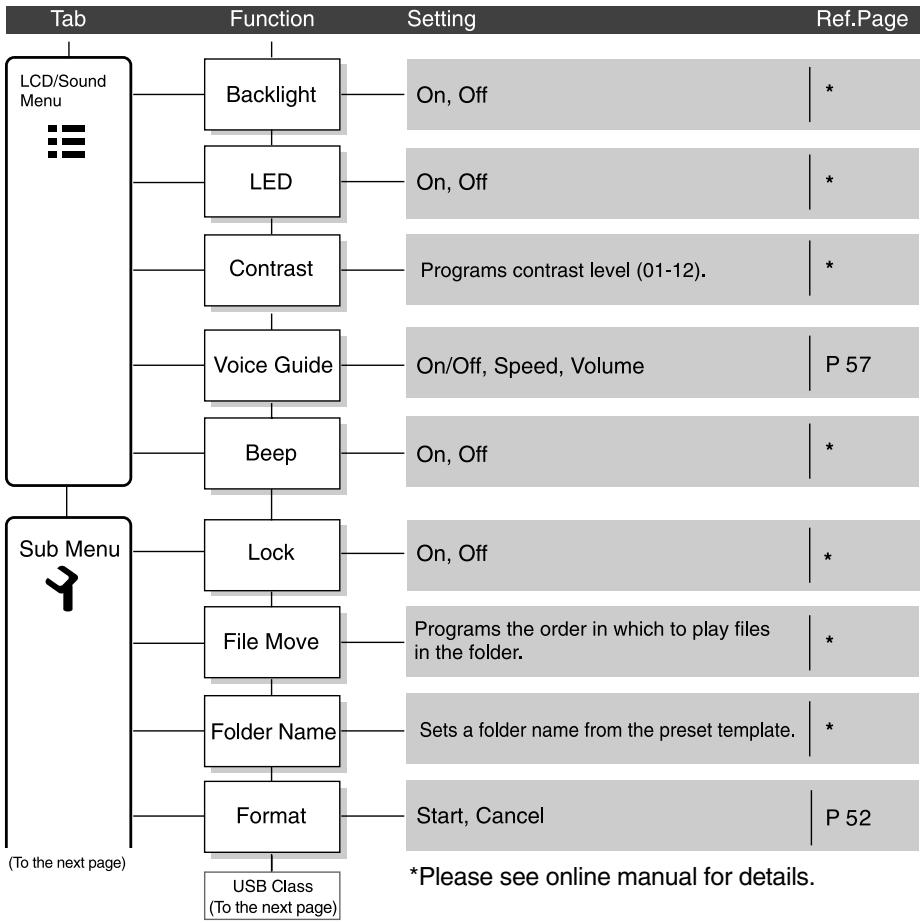
flowchart
graph TD
    A["LCD/Sound Menu"] --> B["Backlight"]
    A --> C["LED"]
    A --> D["Contrast"]
    A --> E["Voice Guide"]
    A --> F["Beep"]
    G["Sub Menu"] --> H["Lock"]
    G --> I["File Move"]
    G --> J["Folder Name"]
    G --> K["Format"]
    L["USB Class (To the next page)"] --> M["Form"]
    N["Settings"] --> O["On, Off: *"]
    N --> P["On, Off: *"]
    Q["Programs contrast level (01-12)."] --> R["*"]
    S["On/Off, Speed, Volume"] --> T["P 57"]
    U["On, Off"] --> V["*"]
    W["Programs the order in which to play files in the folder."] --> X["*"]
    Y["Sets a folder name from the preset template."] --> Z["*"]
    AA["Start, Cancel"] --> AB["P 52"]
    AC["*Please see online manual for details."] --> AD
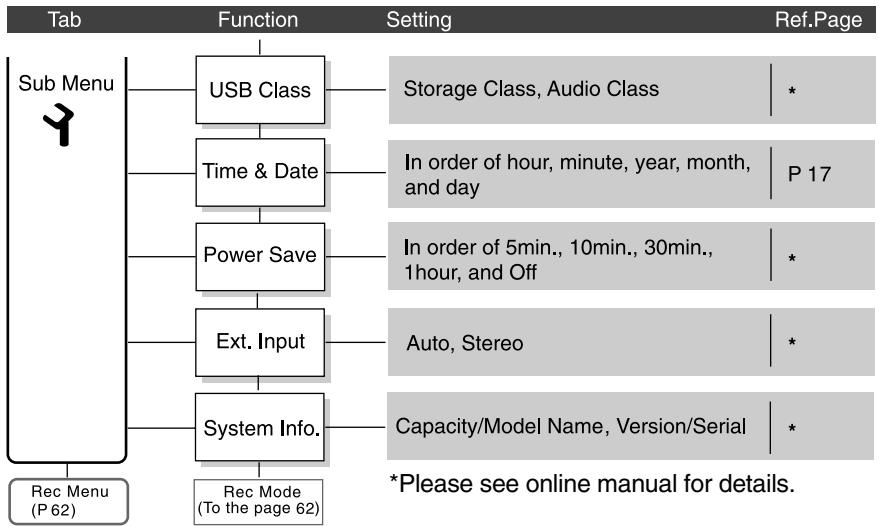
flowchart
graph TD
    A["Sub Menu"] --> B["USB Class"]
    A --> C["Time & Date"]
    A --> D["Power Save"]
    A --> E["Ext. Input"]
    A --> F["System Info."]
    B --> G["Storage Class, Audio Class"] & H["P 17"]
    C --> I["In order of hour, minute, year, month, and day"] & J["*"]
    D --> K["In order of 5min., 10min., 30min., 1hour, and Off"] & L["*"]
    E --> M["Auto, Stereo"] & N["*"]
    F --> O["Capacity/Model Name, Version/Serial"] & P["*"]
    B --> Q["Rec Mode (To the page 62)"]
    C --> Q
    D --> Q
    E --> Q
    F --> Q
    Q --> R["*Please see online manual for details."]
- Setting menu during recording
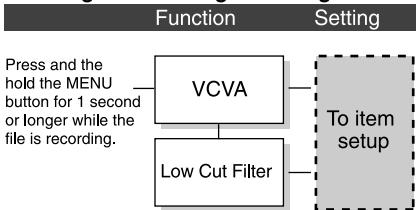
flowchart
graph TD
    A["Press and the hold the MENU button for 1 second or longer while the file is recording."] --> B["VCVA"]
    B --> C["To item setup"]
    B --> D["Low Cut Filter"]
- Setting menu during playback
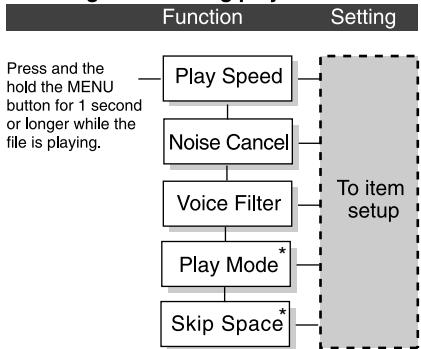
flowchart
graph TD
    A["Press and the hold the MENU button for 1 second or longer while the file is playing."] --> B["Play Speed"]
    B --> C["Noise Cancel"]
    C --> D["Voice Filter"]
    D --> E["Play Mode *"]
    E --> F["Skip Space *"]
    F --> G["To item setup"]
*“Play Mode” and “Skip Space” cannot be set in the Audible mode.
Saving Files in Your PC
By being connected to a PC, the recorder enables you to do the following:
- Playback voice files on your PC.
Audio files recorded using the recorder can be played using the DSS Player software included on the provided CD-ROM or Windows Media Player. - Playback voice files on your PC and on the recorder when connected via USB. Download files from the recorder to the PC or upload files from the PC to the recorder.
- Using the Windows Media Player, the stored WMA or MP3 files on your PC can be transferred and played back on this recorder.
- If an upgrade (Option) to DSS Player Plus is executed, various additional functions can be utilized (P77).
Precautions on using the recorder connected to a PC
- When you are downloading a file from the recorder or uploading a file to the recorder, do not remove the USB cable even if the screen is indicating you can. Data is still being transferred while the record/play indicator light is blinking. When removing the USB cable, be sure to follow the description in P74. If the USB cable is removed before the drive is stopped, data may not be successfully transferred.
- On a PC, do not format the drive of the recorder. Initialization is not successfully achieved on a PC. For initialization, follow the instructions in the main menu screen of the recorder (P60, 62).
- Folder (directory) names displayed by file management tools such as Explorer attached to Microsoft Windows is different from the folder names that can be set with the recorder or DSS player.
- If folders or files stored on the recorder are moved or renamed by using a file management tool such as Explorer, the order of files may be changed or files may become unrecognizable.
● Data can be written or uploaded to the recorder even though the attribute of the recorder drive is shown as Read-only by the operating system of the PC.
- As the noise may cause adverse effects on electronics devices nearby the recorder, unplug the earphone when you connect the recorder to a PC.
Basic Operating Environment of DSS Player
| PC: | IBM PC/AT compatible PC |
| Operating System: | Microsoft Windows 2000 Professional/XPProfessional,Home Edition |
| CPU: | Intel Pentium II class 333 MHz processor or more(If recording to a hard disk directly with the WMA format, please use in the range of 500 MHz or more) |
| RAM: | 128 MB or more (256MB or more is recommended) |
| Hard drive space: | 50 MB or more |
| Drive: | 2x or faster CD-ROM, CD-R, CD-RW, DVD-ROM drive |
| Sound card: | Creative Labs Sound Blaster 16 or 100% compatible sound card |
| Browser: | Microsoft Internet Explorer 4.01 SP2 or later |
| Display: | 800 x 600 pixels or more, 256 colors or more |
| USB port: | One free port |
| Audio I/O terminals: | Earphone output or speakers |
| Others: | The mouse or similar to a pointing device.Environment where the Internet can be utilized. |
Notes
- The support service will not cover if your PC has been updated from Windows 95/98/Me to Windows 2000/XP.
- Any failure on a self-modified PC will not be covered under the operational warranty.
Before you connect the recorder to your PC and use it, you must first install the DSS player software from the included Software CD.
Applications included with "DSS Player"
- DSS Player: Recorded voice files can be downloaded to the PC for complete file management and playback solution.
Be sure to confirm the following before installation:
- Exit all running applications.
- Eject the floppy disk if you are using one.
- You need to log on as an Administrator.
1 Insert DSS Player into the CD-ROM drive.
The installation program will start automatically. Once the program starts, jump to step 4. If it does not, follow the procedures in steps 2 and 3.
2 Click the [start] button and select [Run].
3 Enter "D:\setup.exe" in the [Open] field and click [OK].
This is assuming the CD-ROM drive is D.
4 The installation Language Selection dialog box opens.
Click the desired language to select it.
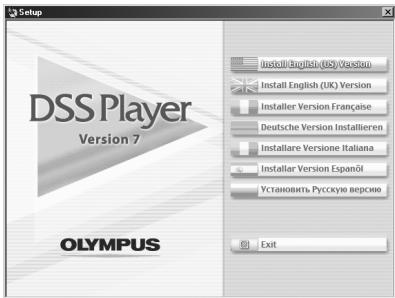
text_image
Setup DSS Player Version 7 OLYMPUS Install English (US) Version Install English (UK) Version Installer Version Française Deutsche Version Installieren Installare Versione Italiana Installer Version Espanöl Установить Русскую версии ExitInstalling DSS Player
5 Register user information.
Enter your name, company name and serial number. For the serial number, see the label attached to the CD-ROM package provided with DSS Player. When entered, click [Next]. When the confirmation dialog appears, click [Yes].
6 Confirm your acceptance of the terms of the Licensing Agreement.
You must accept the terms of the Licensing Agreement to install DSS Player. If you accept them, click [Yes].
7 Select where to install DSS Player.
This lets you specify the folder in which to install DSS Player. Click [Browse] to find the desired installation folder. To accept the default folder, click [Next].
Note
If the installation folder does not exist, a confirmation dialog box opens to get your permission to create a folder for this purpose. Click [Yes].
0 Select a program menu folder.
You may change the program menu folder to another one, such as [Start Up]. To accept the default folder, click [Next].
9 Authorizing the start of file copying.
Confirm all "Current Settings". To accept them, click [Next].
Note
To change the program menu folder or installation folder, click [Back].
10 Copy files.
Wait until DSS Player is installed on your PC, then click [Finish].
The screen returns to the opening screen automatically.
Installing the Device Driver
11 Connect the recorder to your PC, referring to "Connecting to Your PC" (P73).
When you connect the recorder to your PC for the first time after installing DSS Player, the recorder's driver will be installed automatically. If the driver is installed properly, DSS Player will start automatically.
(For details about operation for DSS Player see pages from P75)
text_image
Found New Hardware Your new hardware is installed and ready to use.To open Online Help, you have the following options.
- Click the [start] button, select [All Programs], then [Olympus DSS Player], then click [Help].
- While DSS Player is running, choose [Contents] from the [Olympus DSS Player Help] menu.
- While DSS Player is running, press [F1] on the keyboard.
Search by Contents
1 Once the Online Help screen appears, click the Contents tab.
2 Double-click the 🔊 icon of the desired topic heading.
The title of the topic is displayed.
Double-click the ? icon of the desired topic.
An explanation of the topic is displayed.
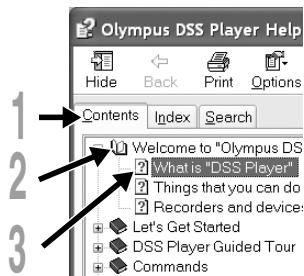
text_image
Olympus DSS Player Help Hide Back Print Options Contents Index Search 1 2 3 Welcome to "Olympus DS ? What is "DSS Player" Things that you can do ? Recorders and device: Let's Get Started DSS Player Guided Tour CommandsSearch by Key word
Once the Online Help screen appears, click the Index tab.
2 Enter text.
Matching keywords are located automatically.
3 Choose a topic, then click [Display]. An explanation of the topic is displayed.
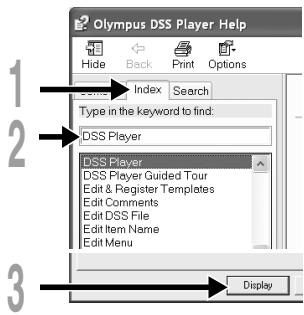
text_image
Olympus DSS Player Help Hide Back Print Options Index Search Type in the keyword to find: DSS Player DSS Player DSS Player Guided Tour Edit & Register Templates Edit Comments Edit DSS File Edit Item Name Edit Menu DisplayNote
- For more information on menus and operations, refer to Online Help. You will be able to use Online Help after DSS Player is installed.
Be sure to finish installing DSS Player before connecting the recorder (P69).
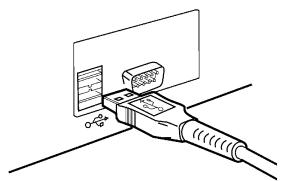
natural_image
Line drawing of a plug inserted into a device (no text or symbols present)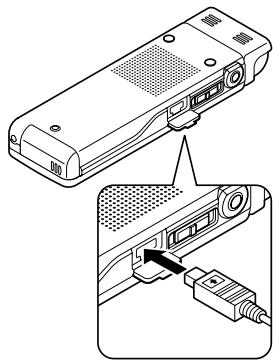
natural_image
Diagram showing a device with ports and an attached cable, no text or symbols presentConnecting to your PC using the USB cable
1 Turn the recorder's power ON.
2 Connect the USB connection cable to the USB port or the USB hub of the PC.
3 Confirm that the recorder has stopped and connect a USB cable to the connection port on the side of recorder.
"Remote (Storage)" is displayed on recorder if the USB cable is connected.
text_image
Remote (Storage)When the recorder is connected and "My Computer" is opened, a removable disk drive is displayed.
Notes
- When connecting this recorder with the PC and utilize DSS Player, in the menu setting of this recorder set the USB class to the “Storage Class”. If connected by “Audio Class”, this recorder will not be recognized as a removable disk drive.
- Be sure to use the attached dedicated cable for the USB connecting cable. If any other company's cable is used, it will be the cause trouble. Also, please do not connect this dedicated cable to any other company's product.
Disconnecting from Your PC
1 Click the 📋 on the task bar located at the lower-right corner of the screen. Click [Safely Remove Hardware].
The drive letter will differ depending on the PC being used.
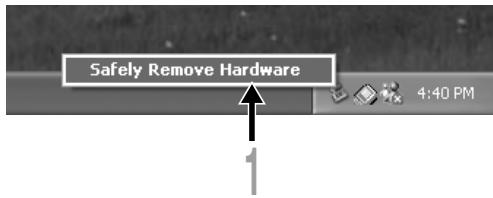
text_image
Safely Remove Hardware 1 4:40 PM2 Disconnect the USB cable.
Notes
- NEVER disconnect the USB while the record/play indicator light is flashing. If you do, the data will be destroyed.
- When the recorder is connected to a PC, the power will be supplied from the USB cable.
- Refer to the user's manual for your PC regarding the USB port or USB hub on your PC.
- Be sure that you connect the USB cable either directly to the USB port on your PC or the self-power (AC adapter connection) USB hub.
- Be sure to push the cable connector all the way in. Otherwise, the recorder may not operate properly.
- Cancel Hold mode.
By connecting the recorder to your PC, you can automatically start the application.
Disabling automatic start
1 Right click on the ☐ of the taskbar on the lower right of the screen, and select [Setting].
The application which enables setting will be displayed by dialog.
Click the √ of the [DSS Player Version 7].
The check mark on [DSS Player Version 7] disappears. For automatic start, select and click DSS Player to reinstate again.
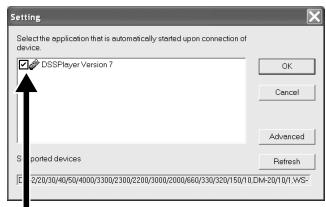
text_image
Select the application that is automatically started upon connection of device: DSSPlayer Version 7 OK Cancel Advanced Supported devices Refresh2
Manual start
1 Start Windows.
2 Click the [start] button, select [All Programs], then [Olympus DSS Player].
3 Click [Olympus DSS Player].
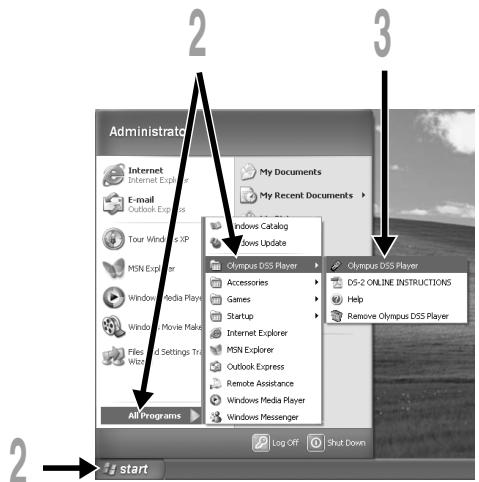
text_image
2 3 Administrator Internet Internet Explorer E-mail Outlook Express Tour Windows XP MSN Explorer Windows Media Player Windows Movie Make Files and Settings Tru Wipro All Programs My Documents My Recent Documents Windows Catalog Iowa Update Olympus DSS Player Accessories Games Startup Internet Explorer MSN Explorer Outlook Express Remote Assistance Windows Media Player Windows Messenger Olympus DSS Player DS-2 ONLINE INSTRUCTIONS Help Remove Olympus DSS Player Log Off Shut Down startNote
- You cannot run more than one DSS Player program or multiple copies of the same program simultaneously.
Copying Voice Guide Data
If you format the recorder and erase data by mistake, you can copy the voice guide data from DSS Player to the recorder.
Make sure that the recorder's voice guide is set to "On".
If the recorder's voice guide is set to "Off" the voice guide data cannot be copied.
Connect the recorder to a PC.
For how to connect to a computer, see “Connecting to your PC using the USB cable” (P.73).
Start DSS Player.
If the recorder does not have voice guide data, the [File Transfer] dialog will appear.
4 Copy voice guide data.
If you click the [Yes] button in the [File Transfer] dialog, it will start copying voice guide data, and a window indicating copying progress will appear.
5 Copying of the voice guide data will be completed.
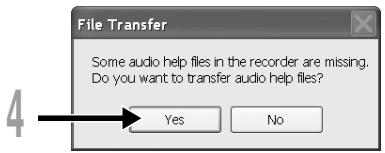
text_image
File Transfer Some audio help files in the recorder are missing. Do you want to transfer audio help files? Yes No
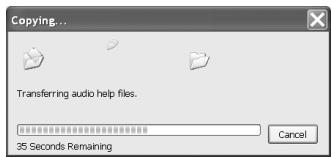
text_image
Copying... Transferring audio help files. 35 Seconds Remaining CancelNotes
- The alarm sound, the Starting tune that plays when the recorder is starting up, and the Closing tune that plays when the recorder is turning off ( ^25 P15), will be copied together with the guidance data.
- NEVER disconnect the USB while the record/play indicator light is flashing. If you do, the data will be destroyed.
Plus
Upgrade Function
The “DSS Player” enables upgrades (Options) to the “DSS Player Plus” which is equipped with more functions. In addition to the DSS Player functions, voice recognition using voice recognition software, joining of files, sharing of files and the menu setting of this recorder can be utilized.
Purchase and Upgrade
To purchase “DSS Player Plus” and upgrading from “DSS Player” is operated in the following procedures.
1 Start the DSS Player.
Please see P75 for the starting method.
2 Click the Plus button or select [Purchase a new license for DSS Player Plus] in the [Help] menu.
The web browser will start and the purchase site of the DSS Player Plus will be displayed. Please operate according to guidance on the screen.
When the purchase procedure is completed, the license number will be issued by mail.
![OLYMPUS DS-30 - Click the Plus button or select [Purchase a new license for DSS Player Plus] in the [Help] menu. - 1](/content/2025/01/84056/images/dd9628438a7139d9bbd2ab6df59548c04b592b4d2ff9c72ab1ca2681f7150488.jpg)
text_image
100% Plus 23 Select [Upgrade to DSS Player Plus] from the [Help] menu.
The “Upgrade to DSS Player Plus” dialog will be displayed.
![OLYMPUS DS-30 - Select [Upgrade to DSS Player Plus] from the [Help] menu. - 1](/content/2025/01/84056/images/7c20281ec59d1e49506119cbe8ec66734f7b41e3abb3e90b97e70b823b747d27.jpg)
text_image
Download TrayFolder A\DS400001.DSS Tools Download Help Contents F1 Purchase DSS Player Plus Upgrade to DSS Player Plus About DSS Player 0.05 Folder File Name Created Date3
4 In the [Upgrade to DSS Player Plus] dialog, enter the license number of your purchase, and click the [OK] button.
When starting the application next time, DSS Player will be upgraded to DSS Player Plus.
![OLYMPUS DS-30 - In the [Upgrade to DSS Player Plus] dialog, enter the license number of your purchase, and click the [OK] button. - 1](/content/2025/01/84056/images/d21698ce1ea0c1648083a9126e9fa84aceb7f85fbcd97a578ba090f29f48d0a8.jpg)
text_image
Upgrade to DSS Player Plus Enter license number. License number : OK CancelUpgrading to DSS Player Plus
When upgraded, the title of the main menu changes to [DSS Player Plus]. Also, you can confirm the upgrade by selecting [About DSS Player] from the [Help] menu on the tool bar. In the [About DSS Player] window, the [DSS Player Plus] should be displayed.
Notes
- To purchase the license number, it requires an environment where the Internet can be utilized.
- Please see the details in the website regarding the purchase of the license number.
Importing Content for Listening on the Recorder
You can transfer language content and music files imported from language CDs and the Internet using Windows Media Player for playing on the recorder.
You can also use DSS Player to import and enjoy Podcast content found on the Internet.
The recorder is compatible with WMA and MP3 language content.
In addition, recorder is compatible with the Audible content of the ACELP and MP3 formats when recorder is in the Audible mode.
Import files using Windows Media Player
- Copy music files and language content from CDs to a computer.
Please see "Copying Music from CD" (ONLINE INSTRUCTIONS P138) for details.
- Transfer copied music files and language content from the computer to the recorder.
Please see "Transferring Music File to the Recorder"(ONLINE INSTRUCTIONS P139) for details.
Import files using DSS Player
- Import Podcast content from the Internet to a computer.
Please see "Importing Podcast Content"(ONLINE INSTRUCTIONS P142) for details.
Download Audible content using the Audible Manager
- Download Audible content available from the Audible web site for a fee to a computer.
See "Loading Audible Content" (ONLINE INSTRUCTIONS P146) for details.
Directly record files to the Recorder
- Connect the recorder to another device to record directly to the recorder.
Please see "Recording the Sound of Other Devices with This Recorder"(ONLINE INSTRUCTIONS P35) for details.
11 Other Practical Use Methods
Using as External Memory of the Computer
With the recorder connected to your PC, you can download data from the memory to your PC and upload data stored on your PC to the memory.
Example: Copying Data from PC to Recorder using Explorer
1 Start Windows.
Connecting the recorder to your PC.
For the connection procedure, refer to "Connecting to Your PC using the USB cable" (P73).
Open the Explorer window.
The product's name is displayed.
Copy the data.
While the data are being written or copied, the record/play indicator light on the recorder will flash.
5 Unplug the recorder from a computer.
For how to unplug the recorder, please see "Disconnecting from your PC" (P74).
Notes
- NEVER disconnect the USB while the record/play indicator light is flashing. If you do, the data will be destroyed.
- Make sure that the computer setting is storage class. If it is audio class, it won't recognize the recorder as a removable disk (P.73).
Alarm Message List
| Message | Meaning | Explanation | Action |
| Battery Low | Low battery power | Battery power is getting low. | Replace with new batteries (P13). |
| File Protected | Erase-locked | Tried to delete a locked file. | Unlock the file. |
| Index Full | Index full | The file is full of index marks (maximum of 16 marks). | Erase index marks that are no longer required (P51). |
| Temp Full | Tempmark full | The file is full of Tempmarks (maximum of 16 marks). | Erase Tempmarks that are no longer required (P51). |
| Illegal Folder | Not an audio-recording folder. | Recording has been attempted with a folder other than “Folder A” through to “Folder E”. | Select a folder from “Folder A” through to “Folder E” and try recording again (P25). |
| Folder Full | Folder full | The folder is full of files (maximum of 200 files). | Erase unnecessary files (P47). |
| Memory Error | Error in the internal memory | Error in the internal memory. | This is a malfunction, so go to the store where you purchased the recorder or an Olympus service station for repair. |
| Licence Mismatch | Illegally copied file | The music files copied illegally. | Delete the file (P47). |
| Memory Full | Zero remaining memory | No remaining internal memory. | Erase unnecessary files (P47). |
| No File | No file | No files were found in the folder. | Select another folder. |
| Format Error | Formatting error | There was an error while formatting the recorder's memory. | Reformat the memory (P52). |
| Can't Make The System File.Connect To PC And Delete Unnecessary File | The management file cannot be created. | The file for management cannot be created due to a shortage of capacity for remaining flash memory. | Connect the recorder to a computer and delete any unnecessary files. |
Troubleshooting
| Symptom | Probable cause | Action |
| Nothing appears on the display | The batteries are not loaded properly. | Verify polarity is correct. |
| The batteries are dead. | Replace with new batteries (P13). | |
| The power is off. | Turn the power on (P15). | |
| Won't start | The power is off. | Turn the power on (P15). |
| The recorder is in HOLD mode. | Release the recorder from HOLD (P16). | |
| The batteries are dead. | Replace with new batteries (P13). | |
| Unable to record | Low remaining internal memory. | Erase unnecessary files (P47). |
| The maximum number of files has been reached. | Check another folder. | |
| No playback tone heard | The earphone is connected. | Unplug the earphones to use the internal speaker. |
| The VOLUME button is set to 0. | Adjust the VOLUME button (P35). | |
| Unable to erase | The file is locked. | Unlock the file. |
| The file is read-only. | Cancel the read-only setting of the file on the PC. | |
| Noise heard during playback | The recorder was shaken during recording. | — |
| The recorder was placed near a cell phone or fluorescent lamp while recording or during playback. | Move the recorder. | |
| Recording level too low | The microphone sensitivity is too low. | Set the microphone sensitivity to LECTURE or CONF mode and try again (P31). |
| Unable to set index marks, tempmarks | The maximum number of marks has been reached. | Erase unnecessary marks (P51). |
| The file is locked. | Unlock the file. | |
| The file is read-only. | Cancel the read-only setting of the file on the PC. | |
| Cannot find the recorded voice | Wrong folder. | Switch to the right folder. |
| The recorder does not start at the set time with “Timer Rec” or “Alarm” | The clock has not been set properly. | Verify the “Current Time” to reset the date and time if they are not properly set (P18). |
| The Alarm, Starting tune and Closing tune, and guidance are not available | The data has been deleted by the formatting. | Copy the data to the recorder using the DSS Player (P76).When copy the guidance data, the Alarm, Starting tune and Closing tune are also copied together. |
Stereo microphone: ME53S
This is a stereo microphone dedicated to the DS-30, DS-40 and DS-50 models. Three types are available, the ME53SH which is the same color as the DS-30 model, the ME53SS which is the same color as the DS-40 model, and the ME53SA which is the same color as the DS-50 model.
Stereo microphone: ME51SW
The high fidelity of the recording, which only stereo can perform. Furthermore, it gives clear sound quality with less noise.
Highly sensitive noise-cancellation monaural microphone: ME52
This microphone is used to record sound at a distance while minimizing surrounding noise.
Noise-Cancellation monaural microphone: ME12
(Dictation microphone)
Used to get crisp recordings of your own voice by reducing the effects of ambient noise.
Tie clip microphone: ME15
(Monaural)
Small concealing microphone with a tie-clip.
Telephone pickup: TP7
Earphone type microphone can be plugged into your ear while phoning. The voice or conversation over the phone can be clearly recorded.
AC adapter: A321 (US and Canada) or A322
(Europe except U.K.)
Ni-MH rechargeable battery and charger set: BC400 (Europe only)
BC400 comes with an Ni-MH rechargeable battery charger (BU-400) and 4 Ni-MH rechargeable batteries (BR401) as a pack. This charger can quick charge Olympus AA or AAA Ni-MH rechargeable batteries.
Ni-MH rechargeable battery: BR401
High-efficiency rechargeable long life batteries.
Connecting cord: KA333
Connecting cord which has stereo mini-plugs ( 3.5 ) with resistance at both ends. Use to connect from the earphone jack output of the recorder to the microphone input jack when recording.
Converting plug adapters (PA331/PA231) which convert to the monaural mini plug ( 3.5) or monaural mini plug ( 2.5) are also enclosed.
Exclusive remote control: RS29
(supplied for the DS-50 only)
Special remote control for the DS-30, DS-40, and DS-50.
Remotely controls the recorder's recording/stop functions.
If the supplied stereo microphone (ME53S) is plugged in, it can be used as a remote control stereo microphone.
Exclusive case: CS113
(supplied for the DS-50 only)
Special case for the DS-30, DS-40, and DS-50.
Protects the recorder from shocks and dirt.
Belt loop on the back of the case.
Magnet hook for smooth opening and closing.
Recording format
WMA (Windows Media Audio)
Input level
-70 dBv
Sampling frequency
STEREO XQ mode: 44.1 kHz
STEREO HQ mode: 44.1 kHz
HQ mode: 44.1 kHz
SP mode: 22 kHz
LP mode: 8 kHz
Overall frequency response
STEREO XQ mode: 50 to 19,000 Hz
STEREO HQ mode: 50 to 16,000 Hz
HQ mode: 50 to 13,000 Hz
SP mode: 100 to 8,000 Hz
LP mode: 100 to 3,000 Hz
Recording time
DS-50: 1 GB
STEREO XQ mode: 17 hours 30 minutes
STEREO HQ mode: 35 hours 10 minutes
HQ mode: 70 hours 20 minutes
SP mode: 138 hours 30 minutes
LP mode: 275 hours 20 minutes
DS-40: 512 MB
STEREO XQ mode: 8 hours 40 minutes
STEREO HQ mode: 17 hours 20 minutes
HQ mode: 34 hours 45 minutes
SP mode: 68 hours 30 minutes
LP mode: 136 hours 15 minutes
DS-30: 256 MB
STEREO XQ mode: 4 hours 10 minutes
STEREO HQ mode: 8 hours 30 minutes
HQ mode: 17 hours 00 minutes
SP mode: 33 hours 30 minutes
LP mode: 66 hours 40 minutes
Alkaline battery life
Recording:
STEREO XQ mode: Approx. 20 hours
STEREO HQ mode: Approx. 22 hours
HQ mode: Approx. 24 hours
SP mode: Approx. 28 hours
LP mode: Approx. 32 hours
Playback: (All mode)
Speaker playback: Approx. 12 hours
Earphone playback: Approx. 26 hours
Ni-MH Rechargeable Battery (BR-401) life
Recording:
STEREO XQ mode: Approx. 15 hours
STEREO HQ mode: Approx. 16 hours
HQ mode: Approx. 18 hours
SP mode: Approx. 21 hours
LP mode: Approx. 22 hours
Playback: (All mode)
Speaker playback: Approx. 9 hours
Earphone playback: Approx. 20 hours
Recording medium
Built-in flash memory
DS-50: 1 GB
DS-40: 512 MB
DS-30: 256 MB
Speaker
Built-in ø23 mm round dynamic speaker
MIC jack
ø3.5 mm mini-jack, impedance 680Ω
EAR jack
ø3.5 mm mini-jack, impedance 8Ω or more
Maximum working output (3 V DC)
250 mW or more (8 Ω speaker)
Maximum headphone output
5 mW + 5 mW (at load of 22 Ω)
Clock accuracy
Monthly deviance less than 120 seconds.
Input power requirement
Rated voltage: 3 V
Batteries: Two AAA batteries (LR03,R03 or ZR03) or Two Ni-MH rechargeable batteries
External power supply: AC adapter
External dimensions
Recorder: 96 x 37.5 x 16 mm (without protrusions)
Microphone(ME53S)+Recorder:
111 x 37.5 x 16 mm (without protrusions)
Weight
Recorder:73 g
(including alkaline batteries)
Microphone(ME53S)+Recorder:80g
(including alkaline batteries)
* Specifications and design are subject to change without notice.
* Battery life is measured by Olympus. It varies greatly according to the type of batteries used and the conditions of use.
Technical Assistance and Support
The following are contact information for technical support for Olympus recorders and software only.
◆ Technical Hotline Number in the U.S. and Canada 1-888-553-4448
◆ User Support E-mail address in the U.S. and Canada distec@olympus.com
◆ Technical Hotline Number in Europe
Toll free number
00800 67 10 83 00
available for Austria, Belgium, Denmark, Finland, France, Germany, Italy, Luxemburg, Netherlands, Norway, Portugal, Spain, Sweden, Switzerland, United Kingdom
Charged numbers for the Rest of Europe +49 180 567 1083 +49 40 23773 899
◆ User Support E-mail address in Europe dss.support@olympus-europa.com
OLYMPUS®
OLYMPUS IMAGING CORP.
Shinjuku Monolith, 3-1 Nishi-Shinjuku 2-chome, Shinjuku-ku, Tokyo 163-0914, Japan. Tel. 03-3340-2111
OLYMPUS IMAGING AMERICA INC.
3500 Corporate Parkway, P.O.Box 610, Center Valley, PA 18034-0610, U.S.A. Tel. 1-888-553-4448
OLYMPUS IMAGING EUROPA GMBH
(Premises/Goods delivery) Wendenstrasse 14-18, 20097 Hamburg, Germany. Tel. 040-237730
(Letters) Postfach 10 49 08. 20034 Hamburg, Germany.
OLYMPUS UK LTD.
2-8 Honduras Street, London EC1Y 0TX, United Kingdom, Tel.020-7253-2772
http://www.olympus.com/