Press the reset button on the unit. This restores factory settings. Use it if the unit does not work properly or after disconnecting the battery.
How to activate the security code?
Put the unit in standby, enter the menu by holding down the B.BOOST button, select CODE SET, then follow the instructions to set a 4-digit code. Confirm by entering it again.
What to do if the CD does not play?
Check that the CD is clean and inserted correctly (label side up). Non-circular CDs or unfinalized CD-R/RW are incompatible. If the problem persists, clean the lens or consult a Kenwood dealer.
How to set the clock?
In menu mode, select CLK ADJ (or CLCK). Press and hold the center of the control knob, then adjust the hours with the up/down part and the minutes with the left/right part. Exit with B.BOOST.
Can I connect my phone to the car stereo?
Yes, via the auxiliary input (3.5 mm jack socket). During a call, the volume is automatically muted and 'CALL' is displayed. For Bluetooth hands-free, the model requires an optional KCA-BT100 adapter.
How to clean the faceplate?
Use a dry soft cloth (silicone type). For stubborn stains, a cloth slightly moistened with mild detergent. Never use solvents, alcohol, or rough cloths that could scratch the surface.
Which audio formats are playable?
The unit plays CD Audio, as well as MP3 and WMA files burned on CD-R/RW/ROM. Other formats are not supported. Ensure files comply with ISO 9660 Level 1/2 or Joliet standards.
Why does the display show 'PROTECT'?
This message indicates a short circuit on a speaker cable or contact with vehicle ground. Check and insulate the cables, then press the reset button. If the problem persists, consult a professional.
How to memorize radio stations?
Tune to the desired station, then press and hold one of the [1] to [6] buttons for at least 2 seconds. The station is stored. To recall, briefly press the corresponding button.
What is the maximum output power?
The maximum output power is 50 W × 4 (4 channels). Full bandwidth power (THD < 1%) is 22 W × 4. Recommended speaker impedance is 4 to 8 Ω.
User questions about KDC-MP208 KENWOOD
1 question about this device. Answer the ones you know or ask your own.
Ask a new question about this device
How to disable demonstration mode on the KENWOOD KDC-MP208?
Frequently Asked Questions -24/05/2026
Response Notice-Facile
To disable demonstration mode on your KENWOOD KDC-MP208, follow these steps:
Press the [B.BOOST] button for at least 1 second to access the menu mode. The display shows "MENU".
Press the top or bottom of the control knob to select the "DEMO" option.
Press the center of the control knob for at least 2 seconds. With each press of 2 seconds or more, the demonstration mode toggles between "DEMO ON" (enabled) and "DEMO OFF" (disabled).
Continue pressing until the display shows "DEMO OFF" to exit demonstration mode and switch to normal mode.
Press the [B.BOOST] button to exit the menu and confirm the change.
Once demonstration mode is disabled, your car radio operates in normal mode and no longer displays automatic presentations. It is recommended to disable this mode immediately after the first use of the device.
Respond (be the first)
Download the instructions for your Car stereo in PDF format for free! Find your manual KDC-MP208 -
KENWOOD and take your electronic device back in hand. On this page are published all the documents necessary for the use of your device. KDC-MP208 by KENWOOD.
USER MANUAL KDC-MP208 KENWOOD
Take the time to read through this instruction manual.
Familiarity with installation and operation procedures will help you obtain the best performance from your new CD-receiver.
For your records
Record the serial number, found on the back of the unit, in the spaces designated on the warranty card, and in the space provided below. Refer to the model and serial numbers whenever you call upon your Kenwood dealer for information or service on the product.
Model KDC-MP238/CR/MP208/138/CR Serial number
US Residence Only
Register Online
Register your Kenwood product at
www.Kenwoodusa.com
Contents
Before use 3
Basic Operation 4
General functions
Tuner functions
Disc play functions
General Operation 6
Audio Control
Audio Setup
Speaker Setting
Switching Display
Tuner Operation 8
Frequency Step Setting
Music disc/Audio file Operation 9
Direct Music Search
Direct Disc Search
Folder Select
Menu Operation 10
Menu System
Activating Security Code
Deactivating Security Code
Manual Clock Adjustment
Auxiliary Input Display Setting
Receive mode Setting
Demonstration mode Setting
Basic Operations of remote control 13
Appendix 14
Accessories/ Installation Procedure 15
Connecting Wires to Terminals 16
Installation 17
Troubleshooting Guide 18
Specifications 19
WARNING
To prevent injury or fire, take the following precautions:
To prevent a short circuit, never put or leave any metallic objects (such as coins or metal tools) inside the unit.
Before using this unit for the first time
This unit is initially set on the Demonstration mode. When using this unit for the first time, cancel the (page 12).
How to reset your unit
If the unit fails to operate properly, press the Reset button. The unit returns to factory settings when the Reset button is pressed.
Press the reset button if the disc auto changer fail to operate correctly. Normal operation should be restored.
Reset button
Cleaning the Unit
If the faceplate of this unit is stained, wipe it with a dry soft cloth such as a silicon cloth. If the faceplate is stained badly, wipe the stain off with a cloth moistened with neutral cleaner, then wipe it again with a clean soft dry cloth.
Applying spray cleaner directly to the unit may affect its mechanical parts. Wiping the faceplate with a hard cloth or using a volatile liquid such as thinner or alcohol may scratch the surface or erases characters.
Cleaning the Faceplate Terminals
If the terminals on the unit or faceplate get dirty, wipe them with a clean soft dry cloth.
Lens Fogging
When you turn on the car heater in cold weather, dew or condensation may form on the lens in the CD player of the unit. Called lens fogging, this condensation on the lens may not allow CDs to play. In such a situation, remove the disc and wait for the condensation to evaporate. If the unit still does not operate normally after a while, consult your Kenwood dealer.
If you experience problems during installation, consult your Kenwood dealer.
When you purchase optional accessories, check with your Kenwood dealer to make sure that they work with your model and in your area.
The characters which can be displayed by this unit are A-Z 0-9 @"` % & * + - =, / \ < > [ ] ( ) ;; ∧-{} | ~. (KDC-MP238/KDC-MP238CR/KDC-MP208)
The illustrations of the display and the panel appearing in this manual are examples used to explain more clearly how the controls are used. Therefore, what appears on the display in the illustrations may differ from what appears on the display on the actual equipment, and some of the illustrations on the display may be inapplicable.
Handling CDs
Do not touch the recording surface of the CD.
Do not stick tape etc. on the CD, or use a CD with tape stuck on it.
Do not use disc type accessories.
Clean from the center of the disc and move outward.
When removing CDs from this unit, pull them out horizontally.
If the CD center hole or outside rim has burrs, use the CD only after removing the burrs with a ballpoint pen etc.
CDs that cannot be used
CDs that are not round cannot be used.
CDs with coloring on the recording surface or CDs that are dirty cannot be used.
This unit can only play the CDs with This unit may not correctly play discs which do not have the mark.
You cannot play a CD-R or CD-RW that has not been finalized. (For the finalization process refer to your CD-R/CD-RW writing software, and your CD-R/CD-RW recorder instruction manual.)
Basic Operation
General functions
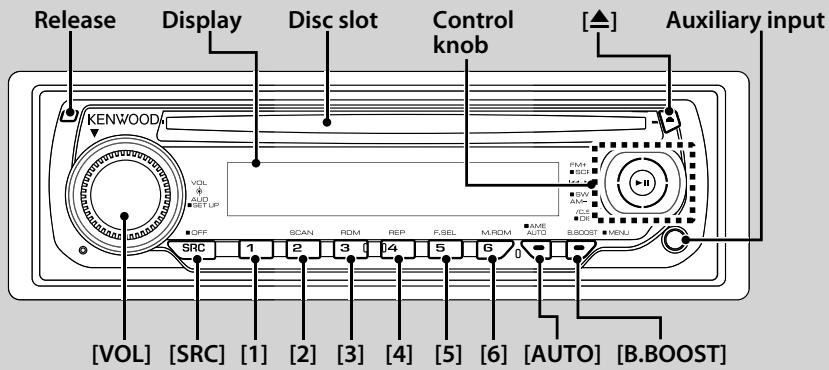
Power/Source Select button
[SRC]
Turns on the power.
When the power is on, the source switches between Tuner ("TUNER"/"TUnE"), CD ("CD"), Auxiliary input ("AUX"/"AUH"), and Standby ("STANDBY"/"STBy") each time this button is pressed.
Press at least 1 second to turn off the power.
When an optional accessory is connected, the source name for each device appears (KDC-MP238 only).
Volume control
[VOL]
Bass boost
[B.BOOST]
Switches between Boost 1 ("BB-L L1"/"L1 BB-L"), Boost 2 ("BB-L L2"/"L2 BB-L"), and Boost off ("BB-L OFF"/"OFF BB-L") each time this button is pressed.
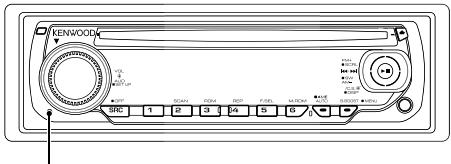
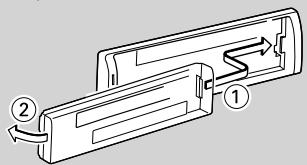
Faceplate release
Release
Releases the faceplate lock so that it can be removed. Refer to the following diagram when reattaching the faceplate.
The faceplate is a precision piece of equipment and can be damaged by shocks or jolts.
Keep the faceplate in its faceplate case while detached. (KDC-MP238/KDC-238CR/KDC-138CR)
Do not place the faceplate (and the faceplate case) in areas
exposed to direct sunlight, excessive heat or humidity. Also avoid places with too much dust or the possibility of water splashing.
- To prevent deterioration, do not touch the terminals of the unit or faceplate with your fingers.
Auxiliary input
Auxiliary input
Connect a portable audio device with mini-plug cable (3.5).
Use the mini-plug cable which is stereo type and does not have any resistance.
Muting volume upon reception of phone call
When there is a call, "CALL" is displayed and the audio system is paused.
When the call ends, "CALL" disappears and the audio system comes back on.
The audio system comes back on when [SRC] is pressed during a call.
Subwoofer output (KDC-MP238/KDC-MP238CR/
KDC-MP208/KDC-138) Control knob
Switches between ON ("SW ON"/ "On SUB") and OFF ("SW OFF"/ "OFF SUB") each time the bottom side is pressed for at least 2 seconds.
Clock display (KDC-138/KDC-138CR)
Control knob
Switches between ON and OFF each time the center is pressed at least one second.
Tuner functions
Band select
Control knob
Switches between FM1, FM2, and FM3 each time the top side is pressed.
Switches to AM when the bottom side is pressed.
Tuning
Control knob
Changes the frequency when the left or right side is pressed.
During reception of stereo stations the "ST" indicator is ON.
Tuning mode select
[AUTO]
Switches as follows each time this button is pressed.
Tuning mode
Display
Operation
Auto seek
"AUTO 1"
Automatic search for a station.
Preset station seek
"AUTO 2"
Search in order of the stations in the Preset memory.
Manual
"MANUAL"/"MANU"
Normal manual tuning control.
Preset memory
[1] - [6]
Memorize the station selected when pressing for at least 2 seconds.
Auto memory entry
[AUTO]
Memorizes six stations with good reception automatically when pressed for at least 2 seconds.
Preset tuning
[1] - [6]
Recalls the memorized station.
Disc play functions
Disc play
Disc slot
Starts playing when a disc is inserted. When a CD is inserted, the "IN" indicator is ON.
3 inch CD cannot be used. Attempt to insert using an adapter can cause malfunction.
Refer to (page 14) for the Audio file by models you can play.
Pause and play
Control knob
Switches between pause and play each time the center is pressed.
Disc ejection
[△]
You can eject the disc for 10 minutes after switching off the engine.
Music search
Control knob
Changes the music when the left or right side is pressed.
Fast reverses or forwards the music while pressing the left or right side.
Folder/Disc search (KDC-MP238/KDC-MP238CR/
KDC-MP208)
Control knob
Switches the folder containing the audio file or the disc in the disc changer when pressing the top or bottom side.
Track/ File/ Disc/ Folder repeat play [4]
Switches between Track Repeat ("TRAC REP"/"REP"), Disc Repeat ("DISC REP") (In Disc Changer), and OFF ("REP OFF") when pressed while playing a CD. Switches between File Repeat ("FILE REP"), Folder Repeat ("FOLD REP"), and OFF ("REP OFF") when pressed while playing an audio file.
Scan play
[2]
Successively plays the intro of the music in the disc or folder.
"TRAC SCN"/ "FILE SCN"/ "SCN" is displayed during Scan Play.
Random play
[3]
Randomly plays the music in the disc or folder.
"DISC RDM"/ "FOLD RDM"/ "RDM" is displayed during Random Play.
Magazine random play (KDC-MP238)
[6]
Randomly plays the music in the disc changer.
"MGZN RDM" is displayed during Magazine Random Play.
Text/Title scroll (KDC-MP238/KDC-MP238CR/
KDC-MP208)
Control knob
Scrolls the CD and audio file text display when pressing the top side for at least 2 seconds.
Audio Control
1 Select the source to adjust Press the [SRC] button.
2 Enter Audio Control mode Press the [VOL] knob.
3 Select the Audio item to adjust Press the [VOL] knob.
"USER": This appears when Bass level, Middle level, and Treble level are adjusted. When "USER" is selected, these levels are recalled.
4 Adjust the Audio item Turn the [VOL] knob.
5 Exit Audio Control mode Press any button. Press a button other than the [VOL] knob.
Audio Setup
Setting the Sound system.
1 Select the source to adjust Press the [SRC] button.
2 Enter Audio Setup mode Press the [VOL] knob for at least 1 second.
3 Select the Audio Setup item to adjust Press the [VOL] knob.
Adjustment Item
Display
Range
Low Pass Filter*
“LPF”
80/120/160/Through(OFF) Hz
Volume offset
“V-OFF”/“V-OF”
-8 — ±0 (AUX:-8 — +8)
*Function of KDC-MP238/MP238CR/MP208/138.
Volume offset: Sets each source's volume as a difference from the basic volume.
4 Adjust the Audio setup item
Turn the [VOL] knob.
5 Exit Audio Setup mode Press the [VOL] knob for at least 1 second.
Speaker Setting
Fine-tuning so that the System Q value is optimal when setting the speaker type.
1 Enter Standby Press the [SRC] butt
Select the "STANDBY"/"STBy" display.
2 Enter Speaker Setting mode Press the [VOL] knob.
3 Select the Speaker type Turn the [VOL] knob.
Speaker type
Display
OFF
"SP OFF"/"SP-F"
For 5 & 4 in. speaker
"SP 5/4"/"SP-5"
For 6 & 6x9 in. speaker
"SP 6*9/6"/"SP-6"
For the OEM speaker
"SP OEM"/"SP-O"
4 Exit Speaker Setting mode Press the [VOL] knob.
Function of KDC-MP238/KDC-MP238CR/KDC-MP208
Switching Display
Changing the information displayed.
1 Enter Switching Display mode Press the center of the Control knob for at least 1 second. "DISP SEL" is displayed.
2 Select the Display item Press the right or left side of the Control knob.
In Tuner source
Information
Display
Frequency
“FREQ”
Clock
“CLOCK”
In CD & External disc source
Information
Display
Disc title
“D-TITLE”
Track title
“T-TITLE”
Play time & Track number
“P-TIME”
Clock
“CLOCK”
In Audio file source
Information
Display
Music title & Artist name
“TITLE”
Album name & Artist name
“ALBUM”
Folder name
“FOLDER”
File name
“FILE”
Play time & Music number
“P-TIME”
Clock
“CLOCK”
In HD Radio source (KDC-MP238)
Information
Display
Station name
"ST NAME"
Music title/ Artist name/ Album name/ Genre
"TITLE"
Frequency
"FREQ"
Clock
"CLOCK"
In Standby/Auxiliary input source
Information
Display
Source name
“SRC NAME”
Clock
“CLOCK”
3 Exit Switching Display mode
Press the center of the Control knob.
When you select the clock display, the display setting of each source will be changed to the clock display.
Album name cannot be displayed in WMA file.
If the selected display item does not have any information, alternative information is displayed.
Function of KDC-MP238CR/KDC-MP138CR
Frequency Step Setting
Changing the tuning frequency step.
The original setting is FM band 50kHz
1 Turn the power OFF
Press the [SRC] button for at least 1 second.
2 Switch the frequency step
While pressing the [1] and [5] buttons, press the [SRC] button.
Release your fingers from the button after the display appears.
The frequency step changes to FM band 200kHz
When the same operation is repeated, the frequency step returns to the original setting.
When the frequency step is changed, the frequencies in the memory are deleted.
Music disc/Audio file Operation
Function of KDC-MP238/KDC-MP238CR/KDC-MP208 Function of remote control
Direct Music Search
Doing Music Search by entering the music number.
1 Enter the music number
Press the number buttons on the remote control.
2 Do music Search
Press the [I<or [ ] button.
Cancelling Direct Music Search
Press the [▶II] button.
Function of KDC-MP238
Function of disc changers with remote control
Direct Disc Search
Doing Disc Search by entering the disc number.
1 Enter the disc number
Press the number buttons on the remote control.
2 Do Disc Search
Press the [+ or [-] button.
Cancelling Direct Disc Search
Press the [▶II] button.
Input "0" to select disc 10.
Function of KDC-MP238/KDC-MP238CR/KDC-MP208 Function of Audio file
Folder Select
Quickly selecting the folder you want to hear.
1 Enter Folder Select mode Press the [5] button.
"FLD SEL" is displayed.
Displays the current folder name.
2 Select the folder
Operation type
Operation
Movement between folders
Press the right or left side of the Control knob.
Selection of folder
Press the top side of the Control knob.
Return to previous folder
Press the bottom side of the Control knob.
Return to root folder
Press the [3] button.
3 Decide the folder to play
Press the center of the Control knob.
Cancelling the Folder Select mode
Press the [5] button.
Menu System
Setting various functions.
1 Enter Menu mode
Press the [B.BOOST] button for at least 1 second.
"MENU"/"MEnU" is displayed.
2 Select the menu item
Press the top or bottom side of the Control knob.
KDC-MP238/MP238CR/MP208
Display
Setting
Setting overview
Source
“CODE SET”/“CODE CLR”
Refer to page 10/11
Sets/Resets security code.(Function of KDC-MP238)
SB
“CLK ADJ”
Refer to page 11
Sets the clock.
SB
“DIM”
ON/OFF*
Adjusts the brightness of the display according to the surrounding illumination.
“SWPRE”
R*/ SW
Sets the preout output.
SB
“SPRM”
ON*/OFF
Turns ON/OFF the Supreme function.
AF
“CRSC”
OFF/ON*
Switches to Monaural to decrease noise when reception is poor.
FM
“NAME SET”
Refer to page 12
Sets the display when switched to AUX source.
AUX
“SCL”
AUTO*/ MANU
Specifies whether the text is scrolled automatically.
“HDR MODE”
Refer to page 12
Sets the receive mode of HR radio.(Function of KDC-MP238)
HDR
“AUX”
OFF/ON1*/ON2
Sets whether to display AUX during source selection.
SB
“CD READ”
1*/2
Sets the CD read mode.
SB
“DEMO”
Refer to page 12
Specifies whether to enable demonstration.
SB
KDC-138/138CR
Display
Setting
Setting overview
Source
"CLK"
Refer to page 11
Sets the clock.
SB
"REAR"/"SUB"
REAR*/SUB
Sets the preout output.(Function of KDC-138)
SB
"CRSC"
On*/OFF
Switches to Monaural to decrease noise when reception is poor.
FM
"AUH"
OFF/On*
Sets whether to display AUX during source selection.
SB
*Factory setting
SB : Can be set in standby state.
AF : Can be set while Audio file source.
FM : Can be set during FM reception.
AUX : Can be set while accessing AUX source.
HDR : Can be set while HD Radio source.
Refer to the respective page for information on how to set the items with reference page number.
Refer to the (page 14) for the details of the menu items.
3 Set the menu item
Press the right or left side of the Control knob.
4 Exit Menu mode
Press the [B.BOOST] button.
Function of KDC-MP238
Activating Security Code
When Security Code is set, possibility of theft is reduced because input of Security Code is prompted to turn on the unit once it is turned off.
You can set the Security Code with a 4 digit number of your choice.
The Security Code cannot be displayed or referenced. Make a note of the Security Code and treasure it up.
1 Enter Standby
Press the [SRC] button.
Select the "STANDBY" display.
2 Enter Menu mode
Press the [B.BOOST] button for at least 1 second.
When "MENU" is displayed, "CODE SET" is also displayed.
3 Enter Security Code mode
Press the center of the control knob for at least 1 second.
When "ENTER" is displayed, "CODE" is also displayed.
4 Select the digits to enter
Press the right or left side of the Control knob.
5 Select the Security Code numbers
Press the top or bottom side of the Control knob.
6 Repeat steps 4 and 5, and complete the Security Code.
7 Confirm the Security Code
Press the center of the Control knob for at least
3 seconds.
When "RE-ENTER" is displayed, "CODE" is also displayed.
8 Do the step 4 through 7 operation, and reenter the Security Code.
"APPROVED" is displayed.
The Security Code function activates.
If you enter the wrong Code in steps 4 through 6, repeat from step 4.
9 Exit Security Code mode
Press the [B.BOOST] button.
Resetting the Security Code function when the audio unit is first used after removed from the battery power source or the Reset button is pressed
1 Turn the power ON.
2 Do the step 4 through 7 operation, and enter the Security Code.
"APPROVED" is displayed.
Now, you can use the unit.
When the Security Code function is activated, "CODE SET" changes to "CODE CLR".
To deactivate the Security Code function, see the next section .
Function of KDC-MP238
Deactivating Security Code
To deactivate the Security Code function.
1 Select Security Code mode
Press the top or bottom side of the Control knob.
Select the "CODE CLR" display.
2 Enter Security Code mode
Press the center of the Control knob for at least 1 second.
When "ENTER" is displayed, "CODE CLR" is also displayed.
3 Select the digits to enter
Press the right or left side of the Control knob.
4 Select the Security Code numbers
Press the top or bottom side of the Control knob.
5 Repeat steps 3 and 4, and complete the Security Code.
6 Press the center of the Control knob for at least 3 seconds.
"CLEAR" is displayed.
The Security Code function deactivates.
7 Exit Security Code mode
Press the [B.BOOST] button.
If a wrong security code is entered, "ERROR" is displayed.
Enter a correct security code.
Manual Clock Adjustment
1 Select Clock Adjustment mode
Press the top or bottom side of the Control knob.
Select the "CLK ADJ" / "CLCK" display.
2 Enter Clock Adjust mode
Press the center of the Control knob for at least 1 second.
The clock display blinks.
3 Adjust the hours
Press the top or bottom side of the Control knob.
Adjust the minutes
Press the right or left side of the Control knob.
4 Exit Clock adjustment mode
Press the [B.BOOST] button.
Function of KDC-MP238/KDC-MP238CR/KDC-MP208
Auxiliary Input Display Setting
Selecting the display when changing to Auxiliary input source.
1 Select Auxiliary input source Press the [SRC] button.
Select the "AUX" display.
2 Enter Menu mode
Press the [B.BOOST] button for at least 1 second.
"MENU" is displayed.
3 Select Auxiliary input display setting mode Press the top or bottom side of the Control knob.
Select the "NAME SET" display.
4 Enter Auxiliary input display setting mode Press the center of the Control knob for at least 1 second.
The presently selected Auxiliary input display is displayed.
5 Select the Auxiliary input display
Press the right or left side of the Control knob.
Each time you push the knob, the display alternates as listed below.
When operation stops for 10 seconds, the name at that time is registered, and the Auxiliary input display setting mode closes.
The Auxiliary input display can be set only when the built-in auxiliary input or the auxiliary input of optional KCA-S220A is used.
Function of KDC-MP238
Receive mode Setting
Setting the receiver mode.
1 Select the Receive mode
Press the top or bottom side of the Control knob.
Select the "HDR MODE" display.
2 Enter Receive mode
Press the center of the Control knob for at least 1 second.
3 Set the Receive mode
Press the top or bottom side of the Control knob.
Receive mode
Display
Operation
Auto mode
“AUTO”
Automatically tunes to analog broadcast when there is no digital broadcast.
Digital
“DIGITAL”
Digital broadcasts only.
Analog
“ANALOG”
Analog broadcasts only.
4 Exit Receive mode
Press the [B.BOOST] button.
Function of KDC-MP238/KDC-MP238CR/KDC-MP208
Demonstration mode Setting
Sets the demonstration mode.
1 Select the Demonstration mode
Press the top or bottom side of the Control knob.
Select the "DEMO" display.
2 Set the Demonstration mode
Press the center of the Control knob for at least 2 seconds.
Each time you press the knob at least 2 seconds, the Demonstration mode alternates between the settings shown in the table below.
Display
Setting
“DEMO ON”
The Demonstration mode function is ON.
“DEMO OFF”
Exit Demonstration mode (Normal mode).
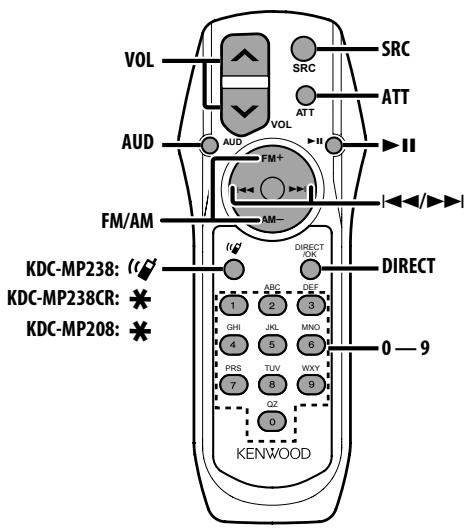
General control
Volume control
[VOL]
Source select
[SRC]
Volume reduce
[ATT]
When the button is pressed again, the volume returns to the previous level.
In Audio control
Audio item select
[AUD]
Adjusts the Audio item
[VOL]
Refer to
In Tuner/HD Radio source
Band select
[FM]/[AM]
Station select
[14]/[▶→]
Recall preset stations
In Disc source
Music select
[14]/[▶→]
Folder/Disc select
[FM]/[AM]
Pause/Play
[II]
In Satellite Radio tuner source
Preset band select
[FM]
Channel select
[←]/[▶]
Recall preset channels
[1]—[6]
About [ ] (KDC-MP238)
This button is used when Bluetooth HANDS FREE BOX is connected. For more information, refer to the instruction manual of Bluetooth HANDS FREE BOX.
About [ * ] (KDC-MP238CR/KDC-MP208)
Not used.
About [DIRECT]
Not used.
Do not set the remote control in hot places such as on the dashboard.
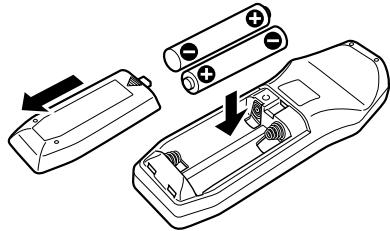
Loading and Replacing the battery
Use two "AA"/"R6"-size batteries.
Slide the cover while pressing downwards to remove it as illustrated.
Insert the batteries with the + and - poles aligned properly, following the illustration inside the case.
About Audio file
Playable Model
KDC-MP238, KDC-MP238CR, KDC-MP208
Playable Audio file
MP3 (.mp3), WMA (.wma)
Playable disc media
CD-R/RW/ROM
Playable disc file format
ISO 9660 Level 1/2, Joliet, Romeo, Long file name. Although the audio files are complied with the standards listed above, the play maybe impossible depending on the types or conditions of media or device.
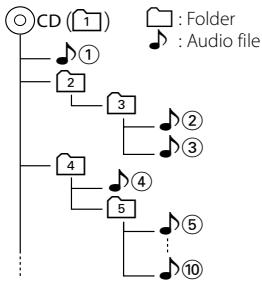
- Playing order of the Audio file
In the example of folder/file tree shown below, the files are played in the order from ① to ⑩.
An online manual about audio files is put on the site, www.kenwood.com/audiofile/. On this online manual, detailed information and notes which are not written in this manual are provided. Make sure to read through the online manual as well.
About Satellite Radio tuner
This unit supports Satellite Radio tuners which are released by SIRIUS and XM.
Refer to the instruction manual of Satellite radio tuner.
About HD Radio
When you connect an HD Radio, Tuner features of the unit are disabled and changed to HD Radio tuner features.
With the HD Radio tuner, you can use the similar functions of Tuner features. Refer to Tuner features for how to use the functions.
For operating KCA-BT100
To control KCA-BT100, operate as follows;
To make setting for , select
Menu Glossary
SWPRE (Switching Preout)
Switches the preout between rear output ("R"/"REAR") and subwoofer output ("SW"/"SUB").
SPRM (Supreme)
Technology to extrapolate and supplement with proprietary algorithm, the high-frequency range that is cut off when encoding at low bit rate.
Supplementing is optimized by compression format (MP3 or WMA) and processed according to bit rate.
The effect is negligible with music that is encoded at high bit rate, variable bit rate or has minimal high frequency range.
CD READ
Sets the method for reading CD.
When unable to play special format CD, set this function to "2" to force playing. Note that some music CD may be unplayable even when set to "2". In addition, audio files cannot be played when set to "2". Normally, keep this set to "1".
1: Automatically distinguishes between audio file disc and music CD when playing disc.
2: Forces playing as music CD.
AUX
When this is set to ON, AUX source can be selected.
ON1: Outputs the sound of external unit connected to the AUX terminal when switched to AUX source.
ON2: Activates the attenuator function when switched to AUX source.
Turn off the attenuator function when listening to output from external unit. This prevents the noise when no external unit is connected to AUX terminal.
OFF: Disables the selection of AUX source.
Set to OFF when not using the AUX terminal.
Accessories/ Installation Procedure
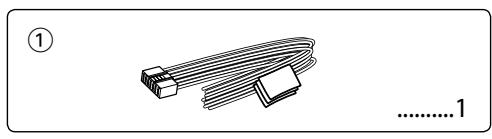
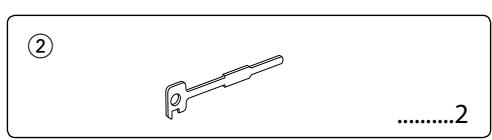
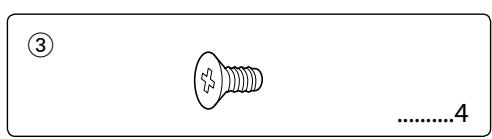
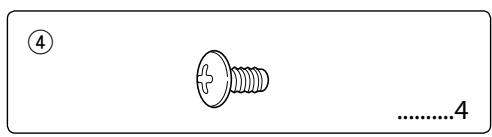
Accessories
Installation Procedure
To prevent a short circuit, remove the key from the ignition and disconnect the battery.
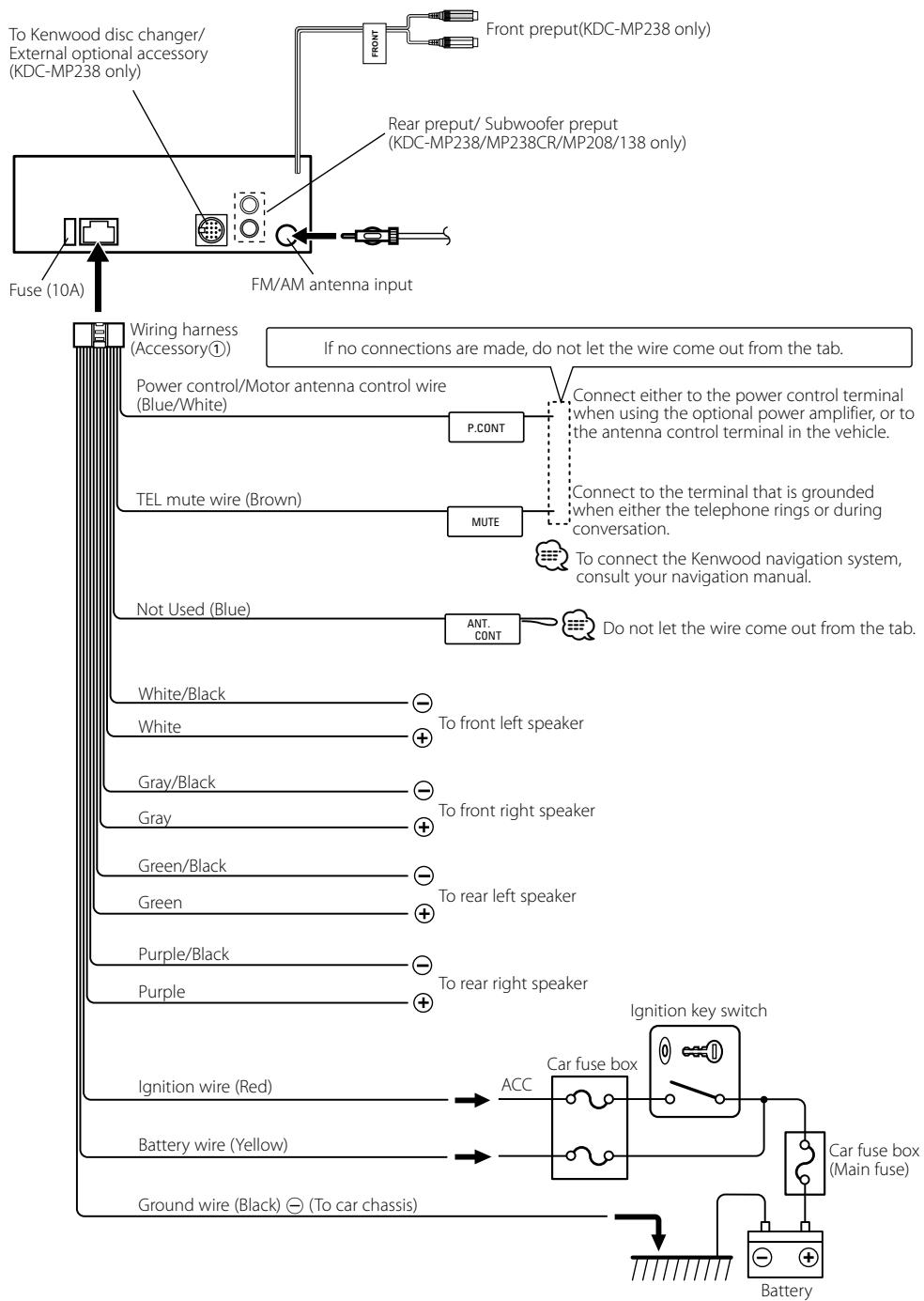
Make the proper input and output wire connections for each unit.
Connect the speaker wires of the wiring harness.
Connect the wiring harness wires in the following order: ground, battery, ignition.
Connect the wiring harness connector to the unit.
Install the unit in your car.
Reconnect the battery.
Press the reset button.
WARNING
If you connect the ignition wire (red) and the battery wire (yellow) to the car chassis (ground), you may cause a short circuit, that in turn may start a fire. Always connect those wires to the power source running through the fuse box.
Mounting and wiring this product requires skills and experience. For safety's sake, leave the mounting and wiring work to professionals.
Make sure to ground the unit to a negative 12V DC power supply.
Do not install the unit in a spot exposed to direct sunlight or excessive heat or humidity. Also avoid places with too much dust or the possibility of water splashing.
Do not use your own screws. Use only the screws provided.
If you use the wrong screws, you could damage the unit.
If the power is not turned ON ("PROTECT"/"DCER" is displayed), the speaker wire may have a short-circuit or touched the chassis of the vehicle and the protection function may have been activated. Therefore, the speaker wire should be checked.
If your car's ignition does not have an ACC position, connect the ignition wires to a power source that can be turned on and off with the ignition key. If you connect the ignition wire to a power source with a constant voltage supply, as with battery wires, the battery may die.
If the console has a lid, make sure to install the unit so that the faceplate will not hit the lid when closing and opening.
If the fuse blows, first make sure the wires aren't touching to cause a short circuit, then replace the old fuse with one with the same rating.
Insulate unconnected wires with vinyl tape or other similar material. To prevent a short circuit, do not remove the caps on the ends of the unconnected wires or the terminals.
Connect the speaker wires correctly to the terminals to which they correspond. The unit may be damaged or fail to work if you share the wires or ground them to any metal part in the car.
When only two speakers are being connected to the system, connect the connectors either to both the front output terminals or to both the rear output terminals (do not mix front and rear). For example, if you connect the connector of the left speaker to a front output terminal, do not connect the connector to a rear output terminal.
After the unit is installed, check whether the brake lamps, blinkers, wipers, etc. on the car are working properly.
Mount the unit so that the mounting angle is 30^ or less.
About CD players/disc changers connected to this unit
Kenwood disc changers/ CD players released in 1998 or later can be connected to this unit.
Refer to the catalog or consult your Kenwood dealer for connectable models of disc changers/ CD players. Note that any Kenwood disc changers/ CD players released in 1997 or earlier and disc changers made by other makers cannot be connected to this unit.
Connecting unsupported disc changers/CD players to this unit may result in damage.
Set the "O-N" Switch to the "N" position for the applicable Kenwood disc changers/ CD players.
The functions you can use and the information that can be displayed may differ depending on the models being connected.
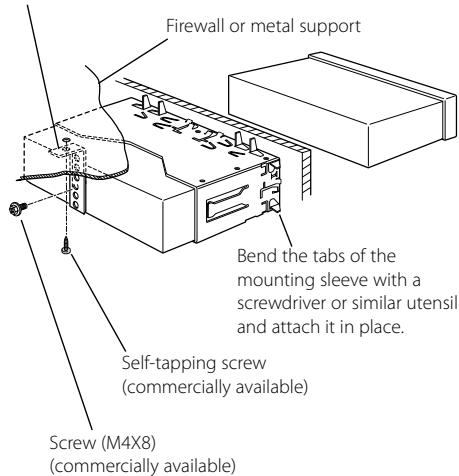
Connecting Wires to Terminals
non-Japanese cars
Metal mounting strap (commercially available)
Make sure that the unit is installed securely in place. If the unit is unstable, it may malfunction (for example, the sound may skip).
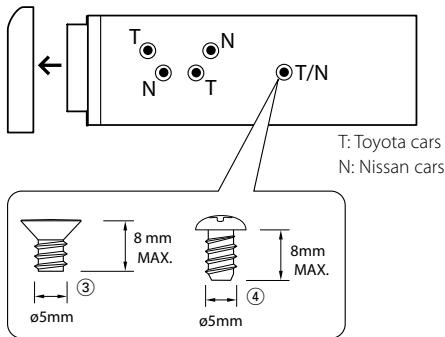
Japanese cars
1 Refer to the section and then remove the hard rubber frame.
2 Align the holes in the unit (two locations on each side) with the vehicle mounting bracket and secure the unit with the accessory screws.
Accessory ③ .for Nissan car Accessory ④ .for Toyota car
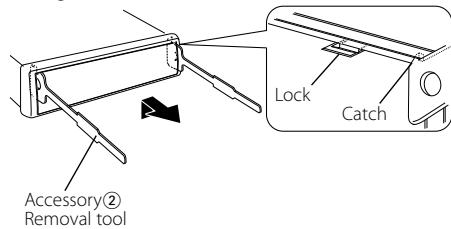
Removing the hard rubber frame
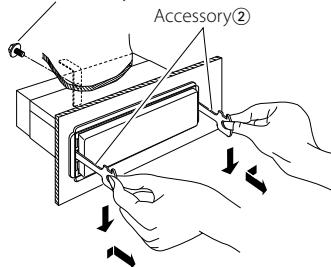
1 Engage the catch pins on the removal tool and remove the two locks on the upper level. Upper the frame and pull it forward as shown in the figure.
2 When the upper level is removed, remove the lower two locations.
The frame can be removed from the bottom side in the same manner.
Removing the Unit
1 Refer to the section and then remove the hard rubber frame.
2 Remove the screw (M4× 8) on the back panel.
3 Insert the two removal tools deeply into the slots on each side, as shown.
4 Lower the removal tool toward the bottom, and pull out the unit halfway while pressing towards the inside.
Screw (M4X8) (commercially available)
Be careful to avoid injury from the catch pins on the removal tool.
5 Pull the unit all the way out with your hands, being careful not to drop it.
Troubleshooting Guide
Some functions of this unit may be disabled by some settings made on this unit.
Cannot display the user of System Q.
Cannot set up the subwoofer.
No output from the subwoofer.
Cannot set up the low pass filter.
Preout is not set to subwoofer.
Cannot register a security code.
Cannot set up Display.
(page 12) is not turned off.
Cannot play audio files.
“CD READ” is set to “2.”
Reinsert the CD. If the CD cannot be ejected or the display continues to flash even when the CD has been properly reinserted, please switch off the power and consult your nearest service center.
PROTECT/DCER: The speaker wire has a short-circuit or touches the chassis of the vehicle, and then the protection function is activated.
Wire or insulate the speaker cable properly and press the reset button. If the "PROTECT"/"DCER" code does not disappear, consult your nearest service center.
NA FILE: An Audio file is played with a format that this unit can't support.
COPY PRO: A copy-protected file is played.
Specifications
FM tuner section
Frequency range
200 kHz space
:87.9 MHz - 107.9 MHz
50 kHz space (KDC-MP238CR/138CR)
: 87.5 MHz - 108.0 MHz
Usable sensitivity (S / N = 30dB)
:9.3dBf (0.8 V / 75)
Quieting Sensitivity (S / N = 50dB)
: 15.2dBf (1.6 μV/75 Ω)
Frequency response (± 3dB)
: 30 Hz - 15 kHz
Signal to Noise ratio (MONO)
:70dB
Selectivity (± 400kHz)
:≥80dB
Stereo separation (1 kHz)
:40dB
AM tuner section
Frequency range (10 kHz space)
: 530 kHz - 1700 kHz
Usable sensitivity (S / N = 20dB)
: 28 dBμ (25 μV)
CD player section
Laser diode
:GaAlAs
Digital filter (D/A)
: 8 Times Over Sampling
D/A Converter
:1Bit
Spindle speed
: 500 - 200 rpm (CLV)
Wow & Flutter
: Below Measurable Limit
Frequency response (± 1 dB)
: 20 Hz - 20 kHz
Total harmonic distortion (1 kHz)
:0.01%
Signal to Noise ratio (1 kHz)
KDC-MP238/CR/MP208:105 dB
KDC-138/CR:93dB
Dynamic range
:93dB
MP3 decode (KDC-MP238/CR/MP208)
: Compliant with MPEG-1/2 Audio Layer-3
WMA decode (KDC-MP238/CR/MP208)
: Compliant with Windows Media Audio
Audio section
Maximum output power
:50W×4
Full Bandwidth Power (at less than 1% THD)
:22W×4
Speaker Impedance
:4-8Ω
Tone action
Bass:100Hz±8dB
Middle:1kHz±8dB
Treble:10kHz±8dB
Preout level / Load (CD)
: 2000 mV/10 kΩ
Preout impedance
≤ 600
Auxiliary input
Frequency response (± 3dB)
: 20 Hz - 20 kHz
Input Maximum Voltage
: 1200 mV
Input Impedance
: 100 kΩ
General
Operating voltage (11 - 16V allowable)
:14.4V
Current consumption
:10A
Installation Size (W x H x D)
: 182 x 53 x 155 mm
7-3/16 x 2-1/16 x 6-1/8 inch
Weight
: 2.9 lbs (1.30 kg)
Table des matieres
:87,5 MHz - 108,0 MHz
Section Disque Compact
Diodes laser
:GaAlAs
KDC-MP238/CR/MP208:105 dB
KDC-MP138/CR:93dB
Gamme dynamique
:93dB
"AUX"
"DVD"
"PORTABLE"
"GAME"
"VIDEO"
"TV"
:87,5 MHz - 108,0 MHz
Sensibilidadutil (Relacion senal/ruido = 30dB
: 9,3dBf (0,8 μV/75 Ω)
KDC-MP238/CR/MP208:105 dB
KDC-MP138/CR:93dB
Gama dinamica
:93dB
This equipment may generate or use radio frequency energy. Changes or modifications to this equipment may cause harmful interference unless the modifications are expressly approved in the instruction manual. The user could lose the authority to operate this equipment if an unauthorized change or modification is made.
NOTE
This equipment has been tested and found to comply with the limits for a Class B digital device, pursuant to Part 15 of the FCC Rules. These limits are designed to provide reasonable protection against harmful interference in a residential installation. This equipment may cause harmful interference to radio communications, if it is not installed and used in accordance with the instructions. However, there is no guarantee that interference will not occur in a particular installation. If this equipment does cause harmful interference to radio or television reception, which can be determined by turning the equipment off and on, the user is encouraged to try to correct the interference by one or more of the following measures:
Reorient or relocate the receiving antenna.
Increase the separation between the equipment and receiver.
Connect the equipment into an outlet on a circuit different from that to which the receiver is connected.
Consult the dealer or an experienced radio/TV technician for help.
CAUTION
Use of controls or adjustments or performance of procedures other than those specified herein may result in hazardous radiation exposure. In compliance with Federal Regulations, following are reproductions of labels on, or inside the product relating to laser product safety.
Kenwood Corporation
2967-3, ISHIKAWA-MACHI,
HACHIOJI-SHI
TOKYO, JAPAN
KENWOOD CORP. CERTIFIES THIS EQUIPMENT
CONFORMS TO DHHS REGULATIONS N0.21 CFR
10, CHAPTER 1, SUBCHAPTER J.
Other manuals KENWOOD
Discover other manuals and user guides for the brand KENWOOD
💬 Hi! I'm your manual assistant.I know your KENWOOD KDC-MP208.
How can I help you? (use, settings, error codes, maintenance, explaining a step from the manual, etc.)💡 Examples :
• How do I use it ?
• Error code E3 ?
• How do I clean it ?






![KENWOOD KDC-MP208 - [SRC] - 1](/content/2024/12/83852/images/11174564aaa0ec14a29bfd8c6c6aed82f01b7bb359d410e0c104e3d38c3773da.jpg)




![KENWOOD KDC-MP208 - [△] - 1](/content/2024/12/83852/images/8d6f5b071c649c50d60e0d99bde07d17c6a04f6679f026e23370836b353464c9.jpg)