 ManualGo.com
KDC-BT858U - Bluetooth Car Stereo KENWOOD - Free user manual and instructions
Find the device manual for free KDC-BT858U KENWOOD in PDF.


Download the instructions for your Bluetooth Car Stereo in PDF format for free! Find your manual KDC-BT858U - KENWOOD and take your electronic device back in hand. On this page are published all the documents necessary for the use of your device. KDC-BT858U by KENWOOD.
USER MANUAL KDC-BT858U KENWOOD
KENWOOD KDC-X998 KDC-BT958HD KDC-X898 KDC-BT858U CD-RECEIVER INSTRUCTION MANUAL JVCKENWOOD Corporation ‘Take the time to read through this instruction manual. Familiarity with installation and operation procedures will help you obtain the best performance from your new CD-receiver. For your records Register your Kenwood product at www.Kenwoodusa.com © 2013 JVC KENWOOD Corporation IM381_Ref_K_en_00
4. Audio adjustments (KDC-X898, KDC- 85. Calling a number in the content
10-9. About the USB device 6-1. Models of iPods/iPhones that can be connected to this unit Playing music Music search Alphabet search Direct search Skip search
18-1. Registering the PIN code 18-2. Downloading the phone book 18-3. Deleting the phone book 18-4. Displaying the firmware version 18-5. Switching between two connected cell- phones 18-6. Bluetooth detail setting
20. Basic operation of remote control 94
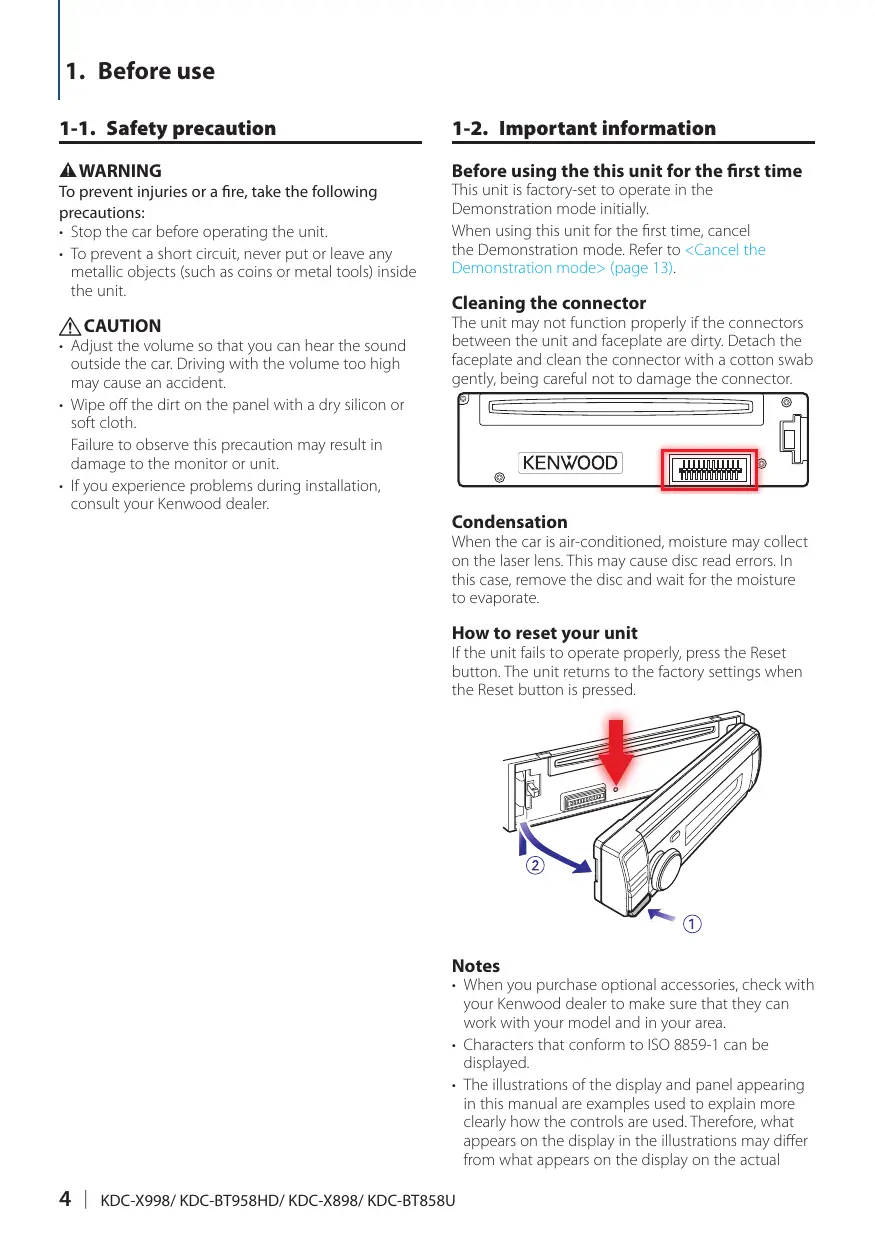
1-1. Safety precaution 1-2. Important information À WARNING To prevent injuries or a fire, take the following precautions: + Stop the car before operating the unit + To prevent a short circuit, never put or leave any metallic objects (such as coins or metal tools) inside the unit. A CAUTION + Adjust the volume so that you can hear the sound outside the car. Driving with the volume too high may cause an accident. + Wipe off the dirt on the panel with a dry silicon or soft cloth Failure to observe this precaution may result in damage to the monitor or unit + IFyou experience problems during installation, consult your Kenwood dealer. Before using the this unit for the first time This unit is factory-set to operate in the Demonstration mode initially When using this unit for the fist time, cancel the Demonstration mode. Refer to <Cancel the Demonstration mode> (page 13). Cleaning the connector The unit may not function properly ifthe connectors between the unit and faceplate are dirty. Detach the faceplate and clean the connector with a cotton swab gently, being careful not to damage the connector. KENWOOD Condensation When the car is air-conditioned, moisture may collect on the laser lens. This may cause disc read errors. In this case, remove the disc and wait for the moisture to evaporate. How to reset your unit Ithe unit fails to operate properly, press the Reset button, The unit returs to the factory settings when the Reset button is pressed Notes + When you purchase optional accessories, check with your Kenwood dealer to make sure that they can work with your model and in your area + Characters that conform to ISO 8859-1 can be displayed + The illustrations of the display and panel appearing in this manual are examples used to explain more clearly how the controls are used. Therefore, what appears on the display in the illustrations may differ from what appears on the display on the actual
4 | KDC-X998/ KDC-BT958HD/ KDC-X898/ KDC-BT858U
equipment, and some ofthe images on the display may be inapplicable. English | 5
Before use 1-3. Regulatory Compliance ACAUTION Use of controls or adjustments or performance of procedures other than those specified herein may result in hazardous radiation exposure In compliance with Federal Regulations, following re reproductions of labels on, or inside the product relating to laser product safety. JVC KENWOOD Corporation 2967-3, ISHIKAWA-MACHI,
21 CFR SUBCHAPTER J IN EFFECT AT DATE OF MANUFACTURE. Location : Top plate FCC WARNING This equipment may generate or use radio frequency energy. Changes or modifications to this equipment may cause harmful interference unless the modifications are expressy approved in the instruction manual. The user could lose the authority to operate this equipment if an unauthorized change or modification is made. FCC NOTE This equipment has been tested and found to comply with the limits for à Class B digital device, pursuant to Part 15 ofthe FCC Rules. These limits are designed to provide reasonable protection against harmful interference in a residential installation. This equipment may cause harmful interference to radio communications, ifit is not installed and used in accordance with the instructions. However, there is no guarantee that interference will not occur in a particular installation. If this equipment does cause harmful interference to radio or television reception, which can be determined by tuning the equipment off and on, the user is encouraged to try to correct the interference by one or more of the following measures: Reorient or relocate the receiving antenna Increase the separation between the equipment and receiver. Connect the equipment into an outlet on a circuit different from that to which the receiver is connected Consult the dealer or an experienced radio/TV technician for help. IC (Industry Canada) Notice Operation is subject to the following two conditions: (This device may not cause interference, and (this device must accept any interference, including interference that may cause undesired operation of the device. The term “IC: " before the certification/ registration number only signifies that the Industry Canada technical spécification were met. ACAUTION This equipment complies with FCC/C radiation exposure limits set forth for an uncontrolled environment and meets the FCC radio frequency (RF) Exposure Guidelines in Supplement C to OËT65 and RSS-102 of the IC radio frequency (RF) Exposure rules. This equipment has very low levels of RF energy that it deemed to comply without maximum permissive exposure evaluation (MPE). But it is desirable that it should be installed and operated keeping the radiator at least 20cm or more away from persons body &exdluding extremities: hands, wrists, feet and ankles) Under Industry Canada regulations, this radio transmitter may only operate using an antenna of a type and maximum (or lesser) gain approved for the transmitter by Industry Canada. To reduce potential radio interference to other users, the antenna type and its gain should be 0 chosen that the equivalent isotropically radiated power (ec) is not more than that necessary for successful communication + Contains Transmitter Module
2-1. Specifications CD player section FM tuner section Frequency range (200 kHz step)
Usable sensitivity (S/N = 30d8) S.3d8f (0.8 uV/75 Q) Quieting Sensitivity (S/N = 46dB) 102 dBf (1.13 uV/75 Q) Frequency response (+3 dB) 30 Hz- 15 kHz Signal to Noise ratio 75 dB (MONO) Stereo separation 45 dB (1 kHz) Digital FM tuner section (KDC-X998/ KDC-BT958HD) Frequency range (200 kHz step)
Frequency response (+3 dB) 20 Hz- 20 kHz Signal to Noise ratio (STEREO) 75 dB AM tuner section Frequency range (10 kHz step) 530 kHz - 1700 kHz Usable sensitivity (S/N = 20d8) 28 dB (25 pV) Digital AM tuner section (KDC-X998/ KDC-BT958HD) Frequency range (10 kHz step) 530 kHz — 1700 kHz Frequency response (+3 dB) 40 Hz = 15 kHz Signal to Noise ratio (STEREO) 70 d8 Laser diode GaAlAs Digital filter (D/A) 8 Times Over Sampling D/A Converter 24 Bit Spindle speed (Audio files) 500 — 200 rpm (CLV) Wow & Flutter Below Measurable Limit Frequency response (+1 dB) 10 Hz- 20 kHz Total harmonic distortion (1 kHz)
0010 % Signal to Noise ratio (1 kHz) 110 dB
KDC-BT958HD [KDC-BT85BU
105 dB Dynamic range MP3 decode Compliant with MPEG-1/2 Audio Layer-3 WMA decode Compliant with Windows Media Audio AAC decode AAC-LC "maa" files USB interface USB Standard USB1.1/ 2.0 (Full speed) File System FATI2/16/ 32 Maximum Supply current DCSVæ= 1 A Decode
Appendix 2-2. Trademarks @ Bluetooth + The Bluetooth word mark and logos are owned by the Bluetooth SIG, Inc. and any use of such marks by JVC KENWOOD Corporation is under license. Other trademarks and trade names are those of their respective owners + “Made for iPod” and“Made for iPhone” mean that an electronic accessory has been designed to connect specifically to iPod or iPhone, respectively, and has been certified by the developer to meet Apple performance standards. Apple is not responsible for he operation of this device or its compliance with safety and regulatory standards. Please note that the use of this accessory with iPod or iPhone may affect wireless performance. + iPhone, iPod, iPod classic, iPod nano, and iPod touch are trademarks of Apple Inc, registered in the US. and other countries. + iTunes and Safari are trademark of Apple Inc. ((Siriusxmi)) + Sirius, XM and all related marks and logos are trademarks of Sirius XM Radio Inc. Al rights reserved. H)) Radio: + HD Radio Technology manufactured under license from iBiquity Digital Corporation. US. and Foreign Patents. HD Radio" and the HD, HD Radio, and'Arc' logos are proprietary trademarks of iBiquity Digital Corp. + PANDORA, the PANDORA logo, and the Pandora trade dress are trademarks or registered trademarks of Pandora Media, Inc, used with permission. @] aha + aha, the Aha logo, and the Aha trade dress are trademarks or registered trademarks of HARMAN International Industries, used with permission: iHeart RADIO + iHeartRadio® is a registered mark of Clear Channel Broadcasting, Inc. in the United States and other countries. Such marks are used under license + Android and Chrome are trademark of Google Inc. + BlackBerry”, RIM, Research In Motion® and related trademarks, names and logos are the property of Research In Motion Limited and are registered and/or used in the US. and countries around the world. Used under license from Research In Motion Limited. ened for + Internet Explorer and Windows Media are registered trademark of Microsoft Corporation in the United States and other countries.
+ The AAC" logo is a trademark of Dolby Laboratories.
3-1. Component names [L) Q G) (4) Q (7) É — AS | (12) (11) (10 (9) (8) () [@/#)] button When listening to the iPod, audio file, CD, or radio, press this button to enter the search mode In each of the selected modes, press the button to return to the previous item. @) [SRC] button Press this button to enter source select mode. Refer to <Source selection> (page 14). (3) [Control] knob (Volume knob) In the normal mode, turn the knob to adjust the volume or press the knob to enter the Function setting mode. In the Function mode, turn the knob to select an item or press the knob to determine the selection. (4) [ay/ [w] button Press the button to select an audio file folder or use it as a Likes/ Dislikes button on Aha etc. The [A] button can be used to select broadcast band as well
Press the button to eject the disc. (6) Disc slot cover When this cover opens upward, the disc insertion slot appears O7) USB terminal (inside of the cover) Connect an iPod or USB device. (8). Auxiliary input (inside of the cover) Connect the output of an external device using a stereo mini-jack () REAR USB indicator When a USB device or iPod is connected to the USB terminal of the rear, this indicator stays lit. During playback of the connected device, this indicator blinks. (10) [ed/ il button Press the button to select a song or station (11) Release button Press the button to detach the faceplate. (12) [e*] button Press the button to make, answer, or disconnect à hands-free call.
12 | KDC-X998/ KDC-BT958HD/ KDC-X898/ KDC-BT858U
3-2. Preparations 3-3. How to select the item Cancel the Demonstration mode Cancel the Demonstration mode when you use the unit for the first time after installation. Press [Control] knob to cancel the Demonstration mode when the message “To cancel DEMO Press the volume knob” appears (approx. 15 seconds). 2 Turn [Control] knob to select the “YES', and then press [Control] knob. The Demonstration mode can also be canceled in the Function Setting mode. Refer to <14-4. Demonstration mode setting> (page 65). Detaching/ Attaching the faceplate Remove the faceplate at once after pressing the Release button; otherwise it can fall down due to vibration. + The faceplate is a precision component of the unit and can be damaged by shocks or jolts + Keep the faceplate in its case while detached. + Do not place the faceplate (and case) in areas exposed to direct sunlight, excessive heat or humidity. Also avoid places with too much dust or the possibility of water splashing, For how to select setting items such as a function setting item, see the following example: Example: Setting the Date format of the display 1 Press [Control] knob. “Function” appears and enters the Function setting mode 2 Select the Date Mode function item DISP&ILLUMI Narne Set Settings : Clock&Date | Date Adjust Initial Settings Date Mode Seek Mode E cicck Adjust Turn [Control] knob to select “Settings”, and then press [Control] knob. Next, turn [Control] knob to select “Clock&Date', and then press [Control] knob. Finally, turn [Control] knob to select “Date Mode’, and then press [Control] knob. To cancel and return to the previous item, press (as) 3 Turn [Control] knob to select a format (7 types), and then press [Control] knob. Returns to the previous item: 4 Press and hold [Q/#]. Exits the Function setting mode About the description in this manual + In this manual operations performed in steps 2 and 3 are described as fol
Basic operations 3-4. Adjusting the clock 3-5. General operations 1 Press [Control] knob. Enters the Function setting mode. 2 Select “Settings” >“Clock&Date” >“Clock Adjust” using [Control] knob. For how to use [Control] knob, refer to <3-3, How to select the item> (page 13). 3 Set the hour using [Control] knob. 4 Set the minute using [Control] knob. Exiting from the Function setting mode Press and hold [A/4]. Power Press [SRC] to turn the power ON. Press and hold [SRC] to turn the power OFF. Source selection 1 Press [SRC]. The currentiy selected source is displayed and enters the Source selection mode. 2 Select a source using [Control] knob. Source Display Standby PSTANDEV Sirius Copional accesson 1] FSiusNt HD Radiol2] FHD RADIO Tuner] FTUNER" USB device connected to front USE terminal ['USB(FROND USB device connected to rear USE terminal SB(REART" iPod connected to font USB terminal[1] odlFRONT iPod connected to rear USB terminal[ 1] FPodtREAR Pandora® ofiPod connected t front USB terminal[1] FPandora(FRONT) Pandora® ofiPod connected to rear USB terminal[1] FPandora(REAR)" Pandora® of device connected via Bluetooth[1] | Pandora” THeartRadio ofiPod connected to front USB |'HeartRADIO (FRONT) terminal [1] iHeartRadioofiPod connected torear US |[eartRADIO (REARI" terminal [1] iHeartRadio of device connected via FiearRADIO" Bluetooth[1] ha iPod connected to rot USB PahalFRONT" terminal[1] ha of iPod connected to ear USB Paha(RERR)" terminal[1] ha of device connected va Bluetooth{1] [ane Bluetooth audio AUDIO @n] FCO Audliar Input LUS 1] This source can be selected only when it can be played 2] Function of KDC-X998/ KDC-BT958HD. 1] Function of KDC-X898/ KDC-BT858U Setting the source switching + Source switching can be set so that pressing [SRC] switches among sources. For more details, refer to <14-5. Initial settings> (page 66) + Source switching can be set so that"Pandora’ ‘HeartRADIO", “aha and”AUX" sources can not be selected when not in use. For more details, refer to <14-5. Initial settings> (page 66).
14 | KDC-X998/ KDC-BT958HD/ KDC-X898/ KDC-BT858U
Volume Turn [Control] knob. USB terminal A USB device or iPod can be connected. The CA-UTEX (Max. 500mA) (optional accessorÿ) is recommended to connect a USB device. The KCA-P102 (optional accessory) is recommended to connect a iPod! When connecting devices featuring the Lightning connector, KCP-P102 (optional accessory) and Apple Lightning to 30-pin Adapter are necessary. Do not keep Apple Lightning to 30-pin Adapter in your car to avoid the damage by heat. Auxiliary input A portable audio device can be connected with a stereo mini-plug (3.5 mm 0). English | 15
4-2. Audio preset 4-3. Audio preset recall You can register the values set the Audio control items. 1 Set the audio control items Refer to <4-1. Audio control> (page 16). 2 Select “Audio Control” >“Detailed Settings” >“Audio Preset” >“Memory" using [Control] knob. For how to use [Control] knob, refer to <3-3. How to select the item> (page 13) 3 Select“YES” using [Control] knob. “Memory Completed' appears Exiting from the Function setting mode Press and hold [A/4]. Number of Audio preset memories that can be stored + Register a pair of Audio preset memaries, You cannot register them by source. When reset + When you press the Reset button, audio control values of all sources will be set to the values registered here. Audio control items that can be registered + The following Audio control items can be registered. Bass Center FRQ", "Bass Level! "Bass Q Factor”, "Bass EXT, Middle Center FRQ", "Middle Level! "Middle Q Factor”, “Tieble Center FRQ”,‘Treble Level! "SubWoofer Level! "HPF: “LPF Subloofer!SubWaofer Phase” *KDC-X898 only You can recall the Audio control items registered to the <4-2. Audio preset> (page 17). 1 Press [SRC] and select a recall source using [Control] knob. Refer to <Source selection> (page 14). 2 Press [Control] knob. Enters the Function setting mode. 3 Select “Audio Control” >“Detailed Settings” > “Audio Preset” >“Recall” using [Control] knob. For how to use [Control] knob, refer to <3-3, How to select the item> (page 13). 4 Select “YES” using [Control] knob. "Recall Complete” appears. Exiting from the Function setting mode Press and hold [Q/4]. English | 17
5-2. Manual equalizer control 5-3. Car type selection You can adjust the equalizer curve manually. Î Press [SRC] and select a source other than Standby (“STANDBY") using [Control] knob. Refer to <Source selection> (page 14). 2 Press [Control] knob. Enters the Function setting mode. 3 Select “Audio Control” >“Manual Equalizer” using [Control] knob. For how to use [Control] knob, refer to <3-3. How to select the item> (page 13) 4 Select a equalizer control item using [Control] knob. You can compensate the delay of the sound arrival time by selecting your environment from the car types. 1 Press [SRC] and select a source other than Standby (*STANDBY”) using [Control] knob. Refer to <Source selection> (page 14). 2 Press [Control] knob. Enters the Function setting mode: 3 Select “Audio Control” >“Pro Setup” >“Car Type” using [Control] knob. For how to use [Control] knob, refer to <3-3. How to select the item> (page 13) Display [Descüption ange 4 Select a car type using [Control] knob. “Gain FAgustthe gain ofeach band. [90 +9d8 Display Grtype Qactor"T] Ajust Q of each band 1357 1.507 2.00 OF" Not compensating ser | POFF TON" Compact” Compact ar {Cored text: Factory setting) Full Se Gr ul se car fi] Function of KDC-X998. “iagorr Station wagon. When ‘Bass EXT" and "Q Factor” are selected, skip Minivan Minivan step 5. sv” Sport-uiiy vehide 5 Select a Band using [Control] knob. Minan (Long JLongiinian *BAND1"; 62.5 Hz, ‘BAND2"; 100 Hz, *BAND3"; 160 Hz, 'BAND4"; 250 Hz, *BAND5"; 400 Hz, *BAND"; 630 Hz, *BAND7"; 1 kHz, "BANDES"; 1.6 kHz, *BAND9"; 2.5 kHz, "BAND10"; 4 kHz, *BAND11"; 6.3 kHz, ‘BAND12"; 10 kHz, 16kHz *BAND1"; 62.5 Hz, ‘BAND2"; 160 Hz, *BAND3"; 400 Hz, *BANDA"; 1 kHz, *BAND5"; 2.5 kHz, BANDE"; 6.3 kHz, *BAND7"; 16 kHz 6 Select a value using [Control] knob. Exiting from the Function setting mode Press and hold [A/4]. When the “Manual Equalizer” item is not displayed + This function is not available when “Pod”is selected for “Preset Equalizer! Exiting from the Function setting mode Press and hold [Q/45]. To set the delay time finely + You can compensate the distances in more details by using <5-7. Delay time control> (page 22) function English | 19
DSP settings (KDC-X998, KDC-BT958HD) 5-4. Speaker setting 5-5. X'Over setting The speaker X' Over is automatically set when the position and size of each speaker are selected from the following items. Î Press [SRC] and select a source other than Standby (“STANDBY") using [Control] knob. Refer to <Source selection> (page 14). 2 Press [Control] knob. Enters the Function setting mode. 3 Select “Audio Control” >“Pro Setup” > “Speaker Setting” using [Control] knob. For how to use [Control] knob, refer to <3-3. How to select the item> (page 13) 4 Select a speaker type using [Control] knob. Fine adjusting the following setting values corresponding to the X'Over values set in the section <5-4. Speaker setting> (page 20). 1 Press [SRC] and select a source other than Standby (*STANDBY”) using [Control] knob. Refer to <Source selection> (page 14). 2 Press [Control] knob. ers the Function setting mode 3 Select “Audio Control” >“Pro Setup” > -X'Over” using [Control] knob. For how to use [Control] knob, refer to <3-3. How to select the item> (page 13) 4 Select a speaker type using [Control] knob. Speaker type [setting item [setting value Speaker type [Setting item |Setting value “ont” Front speaker |"Door, “On Dash’, "Under Dash” location EE" Front speaker sie 4x6, "5x7, "6x8", "6x9", "7x10" ‘Small, “Medium", “Large” FT Te
Small’ "Medium", "Large" Front FC Front high pass filter Through, 30, 40, 50, 60, 70, 80, 90, 100, 120, 150, 180, 220, 250 Hz Through, 40, 60, 70, 80, 100, 120, 150, 180, 220 Hz P'SLOPE"C1]L2] Front high pass slope -6,-12,-18, -24 dB/Oct FGAIT Front gain None! L8.-7, 6,5, -4,-3,-2, 1,0 dB Rear” Rear speaker |"Door,"Rear Deck” ea FC Rear high pass ter location L'2nd Row’,"3rd Row”{1]) PSE" Rear spealer sue Through, 30, 40, 50,60, 70, 80, 90, F'None”"O.E.M!, "3 1/2in°."4in’ B3/4in°,"5in’, "6 1/2in',*6 3/4in', l'7in", "4x6", "5x7", "6x8", "6x9", 710" l'None’"Small, "Medium", “Large” “SubWoofer" ['SIZE" Speaker Size Subwoofer l'None”."6 1/2inch° "&inch”, “10inch","12inch"."15inch Over” l'None”."Small” "Large" {Colored text Factory setting) 11] Value set when “Minivan” or"Minivan (Long}"is selected as described in <5-3. Car type selection> (page 19) item using [Control] knob. g value using [Control] knob. Exiting from the Function setting mode Press and hold [A/4]. 100, 120, 150, 180, 220, 250 Hz Through, 40, 60, 70, 80, 100, 120, 150, 180, 220 Hz PSLOPE"[1L2] |Rear high pass slope -6,-12,-18, -24 dB/Oct FGAIN Rear Gain L8,-7,-6,-5, -4, -3, -2,-1,0 dB SubWoofer” ['FC" Subwoofer low pass filter 130, 40, 50, 60, 70, 80, 90, 100, 120, 150, 180, 220, 250, Through Hz 40, 60, 70, 80, 100, 120, 150, 180, 1220, Through Hz M'SLOPE"[1][2] [Subwoofer slope 6, -12,-18, -24 dB/Oct FGAIT Subwoofer gain L8.:7,-6,-5,-4,-3, 2, -1, 0 dB FPHASE [Subwoofer phase L'REV" (180°)/"NML'" (0°) 20 | KDC-x998/ KDC-BT958HD/ KDC-X898/ KDC-BT858U
“ieeter [2] FC Shebing filter
1.1.6, 25, 4, 5,63,8, 10, 12.5 kHz
Volume Tireete volume (8,7, -6, -5, 4, -3, -2, 1,0 dB {Colored text Factory setting) [1] Displayed only when ‘FC'is set "Through" 1 Function of KDC-X998. a value other than item using [Control] knob. g value using [Control] knob. Exiting from the Function setting mode Press and hold [A/4]. 5-6. Listening po: n setting You can adjust sound localization according to the listening position. 1 Press [SRC] and select a source other than Standby (*STANDBY”) using [Control] knob. Refer to <Source selection> (page 14). 2 Press [Control] knob. Enters the Function setting mode
Select “Audio Control” >“Pro Setup” >“DTA Settings” >“Preset Position” using [Control] knob. For how to use [Control] knob, refer to <3-3. How to select the item> (page 13) 4 Select a listening position using [Control] knob. Display [Compensation seat Au Not compensating, Front Front Right seat Front” Front Let seat Front AI Front seat Exiting from the Function setting mode Press and hold [Q/45]. English | 21
DSP settings (KDC-X998, KDC-BT958HD) 5-7. Delay time control 4 Select a speaker using [Control] knob. Adjusting fine tuning of the speaker position compensation value specified at <5-3. Car type selection> (page 19). Preparation for setting + Ifyou specify the distance from the center ofthe currently set listening position to every speaker, the delay time will be automatically computed and set
1. Determine the center of the currently set listening
position as the reference paint {ein the illustration shown below)
2. Measure the distances from the reference point ta the
3. Calculate the differences between the distance of the
furthest speaker and other speakers.
4. Input the differences calculated in step 3 for individual
5. Adjust gain for individual speakers. À sound image will be
shifted to the speaker with increased gain. Example: When ‘Front”is selected as the listening position (<5-6. Listening position setting> (page 21) Î Press [SRC] and select a source other than Standby (*STANDBY”) using [Control] knob. Refer to <Source selection> (page 14). 2 Press [Control] knob. Enters the Function setting mode. 3 Select “Audio Control” >“Pro Setup” >“DTA Settings” >“DTA" using [Control] knob. For how to use [Control] knob, refer to <3-3. How to select the item> (page 13). Speaker Display Range Front Lef speaker |'Font” 0 = 20.01 feet Front Right speaker ['FrontR® 020.01 feet Fear Left speaker [Real D 20.01 feet Fear Right speaker |"Rearf” D 20.01 feet Subnooferlet [SW D 20.01 feet Subnoofer ge [WA D 20.01 feet {Galoredtext: Factory setting) 5 Select a value using [Control] knob. Exiting from the Function setting mode Press and hold [Q/#)]. 22 | KDC-x998/ KDC-BT958HD/ KDC-X898/ KDC-BT858U
5-8. Channel level fine adjustments 5-9. Resetting of DTA Settings After DTA compensation, you can finely adjust the unsatisfactory speaker volume of respective speaker. Î Press [SRC] and select a source other than Standby (“STANDBY") using [Control] knob. Refer to <Source selection> (page 14). 2 Press [Control] knob. Enters the Function setting mode. 3 Select “Audio Control” >“Pro Setup” >“DTA Settings” >“Channel Level” using [Control] knob. For how to use [Control] knob, refer to <3-3. How to select the item> (page 13) 4 Select a speaker using [Control] knob. Speaker Display ange Font Left speaker Hront”"L" [8 — 0 dB Front Right speaker Front"R" [8 — 0 dB Rear Left speaker Rear"L' [8 — 0 dB Rear Right speaker RearR" [-8 — 0 dB Subwoofer Le SW [-8 — 0 dB Subwoofer Right Sy [8 — 0 dB {Golored text Factory setting) 5 Select a value using [Control] knob. Exiting from the Function setting mode Press and hold [A/4]. You can reset the DTA-compensated values to the factory settings. 1 Press [SRC] and select a source other than Standby (*STANDBY”) using [Control] knob. Refer to <Source selection> (page 14). 2 Press [Control] knob. Enters the Function setting mode
Select “Audio Control” >“Pro Setup” >“DTA Settings” >“Reset DTA Setting” using [Control] knob. For how to use [Control] knob, refer to <3-3. How to select the item> (page 13) 4 Select “YES” using [Control] knob. Exiting from the Function setting mode Press and hold [Q/45]. English | 23
Select “Audio Control” >“Pro Setup” >“Audio Preset” >“Memory” using [Control] knob. For how to use [Control] knob, refer to <3-3. How to select the item> (page 13) 4 Select a memory number (“Memory 1” or “Memory 2”) using [Control] knob. 5 Select“YES” using [Control] knob. “Memory Completed' appears Exiting from the Function setting mode Press and hold (Q/4)]. When reset + When this uni is reset, al setting values stored in‘Memnory l'are applied to the source. You can recall the DSP control items registered to the <5-10. DSP preset> (page 24). 1 Press [SRC] and select a recall source using [Control] knob. Refer to <Source selection> (page 14). 2 Press [Control] knob. Enters the Function setting mode 3 Select “Audio Control” >“Pro Setup” >“Audio Preset” >“Recall’ using [Control] knob. how to use [Control] knob, refer to <3-3. How to select the item> (page 13) 4 Select a recall memory number (“Recall 1” or “Recall 2”) using [Control] knob. 5 Select “YES” using [Control] knob. “Recall Completed” appears. Exiting from the Function setting mode Press and hold [Q/45].
6-1. Models of iPods/iPhones that can be connected to this unit Made for + iPod nano + iPod nano + iPod nano + iPod nano (th generation) (6th generation) th generation)
(4th generation) + iPod nano (3rd generation + iPod nano (2nd generation) + iPod nano (1st generation) + iPod with video + iPod classic + iPod touch (Sth generation) + iPod touch (Ath generation) + iPod touch (3rd generation)
+ iPod touch (2nd generation) : iPod touch (1st generation) + iPhone 5 + iPhone 45 + iPhone 4 + iPhone 3GS + iPhone 3G + iPhone + For information on the compatibility with iPod/ iPhone software, visit wwwkenwood.com/cs/ce/ ipod/. + Types of available control vary depending on the type of connected iPod. Visit www.kenwoodcom/ <s/ce/ipod/ for further details. + The word'iPod”appearing in this manual indicates the iPod or the iPhone connected with the iPod connection cable (optional accessory). + Refer to the web site for connectable iPods and iPod connection cables, wmwkenwood.com/cs/ce/ipod/ + When connecting devices featuring the Lightning connector, KCP-iP102 (optional accessoryÿ) and Apple Lightning to 30-pin Adapter are necessary. + Do not keep Apple Lightning to 30-pin Adapter in your car to avoid the damage by heat Notes + Hfyou start playback after connecting the iPod, the music that was playing on the iPod is played first. In this case,RESUMING" appears without displaying a folder name, etc. Changing the brousse itern will display a correct title, etc. + You cannot operate the iPod if KENWOOD" or"/" appears on the iPod 6-2. Playing music Playing a iPod Connect the iPod to the USB terminal using the KCA-iP102 (optional accessory). 1] Front USB terminal [2] Rear USB terminal You can connect the iPod to either one ofthe USB terminals provided at the front and rear of this unit. If you connect a device to the USB terminal provided at the rear, the “REAR USB'indicator stays lit. When it is connected, the source is switched automatically and playback starts Selecting a song Press [4-4] or [æ»1] button. Fast-forwarding or fast-backwarding a song Press and hold [#4] or [»-»>1]. Pause and play a song Press and hold [Q/45]. Removing iPod Switch the source to a device other than iPod, Pandora, Aha Radio, and iHeartRadio, and then remove the iPod. Data contained in the iPod may be damaged if you remove it when it is used as the active source. When playback of iPod touch or iPhone does not start + Ifan unsupported application has started when connecting iPod touch or Phane, "APP & iPod Mode” appears and sometimes playback does not starts. In this case, APP & iPod Mode is set to "OFF" Refer to <6-9. App & iPod mode setting search> (page 30). 26 | KDC-x998/ KDC-BT958HD/ KDC-X898/ KDC-BT858U
6-3. Music search 6-4. Alphabet search You can search for the song you want to play. 1 Press [A/S]. “MUSICSEARCH" appears and enters the Music search mode. 2 Search for a song Operation type Operation Movement between tems_ [Turn [Control] knob. Selection offtem Press Control] knob. Retro prenons tem [Pres [2] Return to Top menu Press and hold [4 Exiting from the Music search mode Press and hold [Q/#]. Undisplayable titles + 1fno characters included in a song name can be displayed, the browse item name and digits are displayed. Tems Display Playlists F'PLISTÉ**" Artists PART" Albums P'ALBE" Songs L'PRGM***" Podcasts l'PDCT*** Genres J'GEN*** Composers l'COM***" You can select an alphabetic character from the list in the browse item (artist, album, etc.) currently selected. 1 Press [A/S]. “MUSICSEARCH" appears and enters the Music search mode 2 Press and hold [Control] knob. Enter the Search select mode 3 Select “Alphabet Search” using [Control] knob. 4 Select a character using [Control] knob. Return to the Music search mode Exiting from the Alphabet search mode Press and hold [Q/#)]. Notes on alphabet search + Turing [Control] knob fast in the Music search mode allows you to enter the alphabet search mode + The time of Alphabet search may become long depending on the number of items (songs) in iPod. + To search for a character other than À to Z and 1, enter ‘aan + Ifthe fist character string begins with an article or“the"in the alphabet search mode, it is searched for in defance of the article. English | 27
Listen to the iPod 6-5. Direct search 6-6. Skip search You can search for music by selecting a browse item and an alphabetic character(s). 1 Press [A/S]. “MUSICSEARCH" appears and enters the Music search mode. 2 Press and hold [Control] knob. Enter the Search select mode 3 Select “Direct Search” using [Control] knob. 4 Select browse item using [Control] knob. Display Browseitem “PLAYLISTS" [Playlists ARTISTS" Artists “ALBUMS" Albums SONGS" [Songs PODCASTS" Podcasts GENRES" [Genres “COMPOSERS" IComposers 5 Select select a character(s) using [Control] knob. You can select up to three characters. 6 Select “DONE” using [Control] knob. A search result list is displayed 7 Select music using [Control] knob. Exiting from the Music search mode Press and hold [Q/#]. You can search for a song by skipping songs at the set skip search ratio (the ratio of the number of songs to skip to the total number of songs in the selected list) 1 Press [A/S]. “MUSICSEARCH" appears and enters the Music search mode 2 Select browse item using [Control] knob. 3 Press and hold [Control] knob. Enter the Search select mode 4 Select “Skip Search” using [Control] knob. 5 Search for music Operation type Operation Movement between items um [Control] knob. Skip Search Press [A or [#1 Selection oftem Sting of skip search ratio Press Control] Hnob. Press [1] or Le, Exiting from the Music search mode Press and hold [Q/#)]. Skip search ratio setting + You can also set the skip search ratio in the Function setting mode. Refer to <6-7. Skip search ratio setting> (page 29). 28 | KDC-x998/ KDC-BT958HD/ KDC-X898/ KDC-BT858U
6-7. Skip search ratio setting 6-8. Playback mode You can change the ratio of skip performed as mentioned in <6-6. Skip search> (page 28). 1 Press [SRC] and select an iPod (“iPod”) source using [Control] knob. Refer to <Source selection> (page 14). 2 Press [Control] knob. Enters the Function setting mode. 3 Select “Settings” >“Skip Search” using [Control] knob. For how to use [Control] knob, refer to <3-3. How to select the item> (page 13) 4 Select a ratio using [Control] knob. Returns to the previous item. Exiting from the Function setting mode Press and hold [A/4]. You can select a playback mode, such as Random play and Repeat play. 1 Press [SRC] and select an iPod (“iPod”) source using [Control] knob. Refer to <Source selection> (page 14). 2 Press [Control] knob. Enters the Function setting mode
Select “Play Mode” using [Control] knob. For how to use [Control] knob), refer to <3-3. How to select the item> (page 13) 4 Select a playback mode function using [Control] knob. Display Description Folder Random” [When set to ON, plays te songs in the flder random. (Music on) 2 (ON) / C3 (OFF) Random [Whensetto ON, pays allsongsinthe Pod random. (Music on) 2 (ON) / C3 (OFF) File Repeat” en setto "ON, plays the song repeatedh, [82 (ON) / C1 (OFF) 5 Press [Control] knob. The setting is changed. Exiting from the Function setting mode Press and hold [Q/45]. English | 29
Listen to the iPod 6-9. App & iPod mode setting search You can select a music from iPod when App & iPod mode is set to ON. Press [SRC] and select an iPod (“iPod'”) source using [Control] knob. Refer to <Source selection> (page 14).
Press [Control] knob. Enters the Function setting mode. Select “APP & iPod Mode” using [Control] knob. For how to use [Control] knob, refer to <3-3. How to select the item> (page 13) Selecting"APP & iPod Mode’ item each time switching between On and Off.
Exiting from the Function setting mode Press and hold [Q/#]. Operation performed when "APP & iPod Mode’ is set to "ON" + When ‘APP & iPod Mode” “ON this unit can control only the “Pause and play:"Selecting a song’ and”Fast Forward or Fast Backward of the Song' functions. 30 | KDC-x998/ KDC-BT958HD/ KDC-X898/ KDC-BT858U
7-1. Requirements Pandora® 7-2. _Listei g to Pandora® Requirements for listening to Pandora® are as follows iPhone or iPod touch + Use an Apple iPhone or iPod touch running under iOS3 or later. + Search for‘Pandora' in the Apple iTunes App Store to find and install the most current version of the Pandora® application on your device. + iPhone/ iPod touch connected to this unit with a KCA-P102 (optional accessorÿ) Android” - Visit the Google Play and search for Pandora to install + Bluetooth must be buil in and the following profiles must be supported. - SPP (Serial Port Profile) - A2DP (Advanced Audio Distribution Profile) BlackBerry® + Visit wwwepandora.com from the built in browser to download the Pandora application. + Bluetooth must be buil in and the following profiles must be supported. - SPP (Serial Port Profile) - A2DP (Advanced Audio Distribution Profile) Notes + Inthe application on your device, log in and create an account with Pandora {you are not already a registered user, an account can also be created at wwwpandora.com) Internet connection by LTE, 3G, EDGE, or WiFi. Pandora® is only available in the United States, Australia, and New Zealand. Because Pandora® is a third-party service, the specifications are subject to change without prior notice. Accordingly, compatibility may be impaired or some or all of the services may become unavailable. Some functions of Pandora? cannot be operated from this unit For issues using the application, please contact Pandora? at pandora-support@pandora.com Android or BlackBerry + You need to register your cell phone before using it with this unit. See <15-2. Registering a Bluetooth device> (page 68). + Disconnect the iPhone or iPod touch 1 Connect the Android/BlackBerry smartphone via Bluetooth. 2 Open the Pandora? application on your device. 3 Press [SRC] and select a Pandora (“Pandora”) source using [Control] knob. Refer to <Source selection> (page 14). iPhone or iPod touch 1 Open the Pandora? application on your device. 2 Connect the iPod to the USB terminal using the KCA-iP102 (optional accessory). The source switches, and broadcasting starts automatically from your current station. KCA:iP102 1] Front USB terminal [2] Rear USB terminal 3 Press [SRC] and select an Pandora (“Pandora(FRONT)” or “Pandora(REAR)") source using [Control] knob. Refer to <Source selection> (page 14). 32 | KDC-x998/ KDC-BT958HD/ KDC-X898/ KDC-BT858U
7-3. Basic operation 7-4. Station search Thumbs up Press [A]. Thumbs down Press [w]. Song skip Press [wi]. Pause and play a song Press and hold [A/4]. You can select the station you want to listen to from your station list. 1 Press [A/S]. “Station List appears and enter the Station List mode. 2 Select a sort type using [Control] knob. “AZ: Stations are displayed in alphabetical order. “By Date”: Stations are displayed in date order. 3 Select a station using [Control] knob. d indicator + The D ind to. or is displayed for the station you are listening English | 33
Pandora® 7-5. Bookmark re 7-6. New Station Creation You can register the current track information or artist information in Bookmark. Press [Control] knob. Enters the Function setting mode.
Select “Bookmarks” using [Control] knob. For how to use [Control] knob, refer to <3-3. How to select the item> (page 13) 3 Select a information type using [Control] knob. = “Bookmark Track” To register track information. = “Bookmark Artist”: To register artist information. “Adding bookmark’ appears. The information about the song you are listening to now is added to the bookmark Exiting from the Function setting mode Press and hold [A/4]. Synchronization with your Pandora® account + This unit allows you to bookmark tracks and/or artists in your personalized Pandora? account. The bookmarks will not be available for review on the unit but will be available in your Pandora? account. You can create a new station based on a favorite artist, track, or genre, or from what is currently playing. 1 Press and hold [Control] knob. “New Station’ appears and enter the New station registration. 2 Select a search method using [Control] knob. - “My Station”: Create a station based on an artist or track you enter. Track”: Create a station based on the currently playing track - ‘Artist’: Create a station based on the currently playing artist. - “Genre”: Create a station from the genre list When you select “Track” or Artist! a new station name is created.The subsequent steps need not be executed.
Specify a search condition. When“My Station’ is selected (Operation type [Operation Selection of characters Flurn [Control] knob. Determination ofthe Press [Control] knob. selected characters. Select the column Station search starts Press [1e] or 1-1] SelectDONE" using [Control knob, Up to 5 characters can be entered When “Genre” is selected Select genre using [Control] knob. 4 Select a station using [Control] knob. The broadcast from the selected station is received and the station is registered in the station list. 34 | KDC-x998/ KDC-BT958HD/ KDC-X898/ KDC-BT858U
7-7. Deletion of station 7-8. Pandora source control You can delete registered station information from your station list. 1 Press [Control] knob. Enters the Function setting mode. 2 Select “Station Delete” using [Control] knob. For how to use [Control] knob, refer to <3-3. How to select the item> (page 13) 3 Select a sort type using [Control] knob. “A-Z": Stations are displayed in alphabetical order. By Date”: Stations are displayed in date order. 4 Select a station using [Control] knob. 5 Select“YES” using [Control] knob. “Completed” appears Exiting from the Function setting mode Press and hold [A/4]. You can turn on/off the Pandora source. 1 Press [SRC] and select a Standby (“STANDBY”) using [Control] knob. Refer to <Source selection> (page 14). 2 Press [Control] knob. Enters the Function setting mode 3 Select “Initial Settings” > “Pandora Source” using [Control] knob. For how to use [Control] knob, refer to <3-3. How to select the item> (page 13) 4 Select a Pandora source control method using [Control] knob. “ON”: Turns on the Pandora source. “OFF”: Turns off the Pandora source. Exiting from the Function setting mode Press and hold [Q/45]. English | 35
8-1. Requirements Aha°”" 8-2. Listening to the Aha Radio Requirements for listening to the Aha” are as follows: iPhone or iPod touch + Use an Apple iPhone or iPod touch running i0$4 or later. + Search for“aha' in the Apple iTunes App Store to find and install the most current version ofthe Ana" application on your device + iPhone/ iPod touch connected to this unit with a KCA-P102 (optional accessorÿ) Android” + Use Android OS 22 or later. + Download the Aha”* application to your smartphone from the Google Play. + Bluetooth must be buil in and the following profiles must be supported. - SPP (Serial Port Profile) - A2DP (Advanced Audio Distribution Profile) Notes + Inthe application on your device, log in and create a free account with Aha Internet connection by LTE, 3G, EDGE, or WiFi. Because Aha” is a third-party service, the specifications are subject to change without prior notice. Accordingly, compatibility may be impaired or some or all of the services may become unavailable. Some Aha” functionality cannot be operated from this unit. Android + You need to register your cell phone before using it with this unit. See <15-2. Registering a Bluetooth device> (page 68). + Disconnect the iPhane or iPod touch 1 Connect the Android smartphone via Bluetooth. 2 Open the Aha Radio appli device. 3 Press [SRC] and select an Aha Radio (*aha”) source using [Control] knob. Refer to <Source selection> (page 14). iPhone or iPod touch ion on your 1 Open the Aha Radio application on your device. 2 Connect the iPod to the USB terminal using the KCA-iP102 (optional accessory). [1] Front USB terminal [2] Rear USB terminal 3 Press [SRC] and select an Aha Radio (‘aha(FRONT)" or “aha(REAR)") source using [Control] knob. Refer to <Source selection> (page 14). 36 | KDC-x998/ KDC-BT958HD/ KDC-X898/ KDC-BT858U
8-3. Ba: operations 8-4. Station search Pause and play a content Press and hold [Q/#]. Selecting a content Press [#4] or [»»-] button. Forward 30 seconds a content Press and hold [pi]. Backward 15 seconds a content Press and hold [44]. “Likes” current content Press [A] button. To unvote, press the button again. “Dislikes” current content Press [w] button. To unvote, press the button again. Notes + You can not perform the above operations depending on the selected station. You can select the station you want to listen to from your station list. 1 Press [A/S]. “Station List appears and enter the Station List mode. 2 Select a station using [Control] knob. For how to use [Control] knob, refer to <3-3. How to select the item> (page 13) 3 Select a content using [Control] knob. English | 37
Aha Radio 8-5. Calling a number in the content 8-6. Aha source control You can call the phone number obtained from the content from a smartphone connected to this unit via Bluetooth. 1 Press and hold [Control] knob. “Make a call' appears 2 Press [Control] knob. Makes a call Canceling the call Press [Q/#)]. Notes + You can n form the above operations depending on the selected station. You can turn on/off the aha source. 1 Press [SRC] and select a Standby (“STANDBY”) using [Control] knob. Refer to <Source selection> (page 14). 2 Press [Control] knob. Enters the Function setting mode
Select “Initial Settings” > “aha Source” using [Control] knob. For how to use [Control] knob, refer to <3-3. How to select the item> (page 13) 4 Select a aha source control method using [Control] knob. “ON”: Turns on the aha source. “OFF”: Turns off the aha source. Exiting from the Function setting mode Press and hold [Q/45]. 38 | KDC-x998/ KDC-BT958HD/ KDC-X898/ KDC-BT858U
9-1. Requirements iHeartRadio"”" 9-2. Listening to the iHeartRadio Requirements for listening to the iHeartRadio"" are as follows: + Download the iHeart Link for KENWOOD application from the iTunes App Store or Google play. + In the application on your device, log in and create a free account with iHeartRadio. + Internet connection by LTE, 3G, EDGE, or WiFi. iPhone or iPod touch + Search for‘iHeart Link”in the Apple iTunes App Store to find and install the most current version of the iHeart Link for application on your device + iPhone/ iPod touch connected to this unit with a KCA-P102 (optional accessorÿ) Android” + Download the iHeart Link application to your smartphone from the Google Play. + Bluetooth must be buil in and the following profiles must be supported - SPP (Serial Port Profile) - A2DP (Advanced Audio Distribution Profile) Notes + Because iHeartRadio®"is a third-party service, the specifcations are subject to change without prior notice: Accordingh, compatibility may be impaired or some or all ofthe services may become unavailable + Some iHeartRadio” functionality cannot be operated from this unit Android + You need to register your cell phone before using it with this unit. See <15-2. Registering a Bluetooth device> (page 68). + Disconnect the iPhane or iPod touch 1 Connect the Android smartphone via Bluetooth. 2 Open the iHeart Link application on your device. 3 Press [SRC] and select an ieartRadio (‘iHeartRADIO”) source using [Control] knob. Refer to <Source selection> (page 14). iPhone or iPod touch 1 Open the iHeart Link application on your device. 2 Connect the iPod to the USB terminal using the KCA-iP102 (optional accessory). [1] Front USB terminal [2] Rear USB terminal 3 Press [SRC] and select an ieartRadio (‘iHeartRADIO(FRONT)" or “iHeartRADIO(REAR)") source using [Control] knob. Refer to <Source selection> (page 14).
40 | KDC-X998/ KDC-BT958HD/ KDC-X898/ KDC-BT858U
9-3. Basic operations 9-4. Station search Stop/Pause and play a song Press and hold [Q/#]. Skip track (Custom station) Press [>]. Thumbs up (Custom station) Press [A] button. Thumbs down (Custom station) Press [w] button. Adding to favorite stations (Live station) Press and hold [A]. Creating a custom station name Press and hold [Control] knob. A custom station name is created according to the current song information You can select the station you want to listen to from your station list. 1 Press [Q/#)]. “Station List appears and enter the Station List mode. 2 Select a category and station using [Control] knob. Select the desired file from the list (My Station, Local, Genres, Cities). When a city list is displayed, you can skip stations n alphabetical order. Press and hold [Control] knob, and then select a station using [Control] knob. When a custom station is selected, the "CUSTOM ndicator stays lit. English | 41
iHeartRadio 9-5. Station scan 9-6. Favorite station delete You can switch among stations at random. 1 Press [SRC] and select an iHeartRadio source using [Control] knob. Refer to <Source selection> (page 14). 2 Press [Control] knob. Enters the Function setting mode. 3 Select “Station Scan” using [Control] knob. For how to use [Control] knob, refer to <3-3. How to select the item> (page 13) Stations are selected and received at random. Exiting from the Function setting mode Press and hold (Q/4)]. Note + The Station scan function can be used only while listening toalie s ion. You can delete a favorite station. 1 Press [SRC] and select an ieartRadio source using [Control] knob. Refer to <Source selection> (page 14). 2 Press [Control] knob. Enters the Function setting mode 3 Select “Station Delete” using [Control] knob. For how to use [Control] knob, refer to <3-3. How to select the item> (page 13) 4 Select a category (“Live” or “Custom”) using [Control] knob. 5 Select a station using [Control] knob. 6 Select “YES” using [Control] knob. “Station Delete Completed' appears. Exiting from the Function setting mode Press and hold [Q/45].
42 | KDC-X998/ KDC-BT958HD/ KDC-X898/ KDC-BT858U
9-7. iHeartRadio source control You can turn on/off the iHeartRadio source. 1 Press [SRC] and select a Standby (“STANDBY”) using [Control] knob. Refer to <Source selection> (page 14). 2 Press [Control] knob. Enters the Function setting mode. 3 Select “Initial Settings” >“iHeartRADIO Source” using [Control] knob. For how to use [Control] knob, refer to <3-3. How to select the item> (page 13) 4 Select a iHeartRadio source control method using [Control] knob. “ON Turns on the iHeartRadio source. “OFF: Turns off the iHeartRadio source. Exiting from the Function setting mode Press and hold [A/4]. English
10. Listen to the CD/ Audio file
10-1. Playing music Removing USB device Press [SRC] to switch the source to a device Playing a disc other than USB, and then remove the USB Open the Disc slot cover upward. device. Insert a disc in the Disc slot. Data contained in the USB device may be damaged if you remove it when it is used as the active source. When it is inserted, the source is switched automatically and playback starts Close the Disc slot cover. Playing a USB device Connect a USB device to the USB terminal. Hi] Front USB terminal E2] Rear USB terminal BJ optional You can connect the iPod or USB device to either one of the USB terminals provided at the front and rear of this unit. When it is connected, the source is switched automatically and playback starts. Selecting an audio file folder Press [A] or [w] button. Selecting a song (track or file) Press [-@-4] or [b-p>1]. Fast-forwarding or fast-backwarding a song (track or file) Press and hold [4] or [»-»1]. Pause and play a song (track or file) Press and hold [A/4]. Removing disc Open the Disc slot cover upward. Press [A].
44 | KDC-X998/ KDC-BT958HD/ KDC-X898/ KDC-BT858U
10-2. Music search 10-3. Skip search You can select the music you want to listen to from the device or media being played now. 1 Press [A/S]. “MUSICSEARCH" appears, and the Music search mode is selected. 2 Search for music Audio file Operation type Movement between olders/fles Automate srlng Operation um IContro knob, Press and hold [A J/[W]. ro cancel pres [A [1 Press Contro] Fc. Press [Q/S] Press and hold [1-4] Press and hold [A/S]. Selection ofolder/le Return to previous folder Return Lo root falder Cancellation of Music search mode D indicator: Audio file {Music Editor media 10-10. About "KENWOOD Music Editor Light” and'KENWOOD Music Control"> (page 48) You can search for a song by skipping songs at the set skip search ratio (the ratio of the number of songs to skip to the total number of songs in the selected list). 1 Press [Q/#] “MUSICSEARCH" mode is selected ppears, and the Music search 2 Select browse item using [Control] knob. 3 Press and hold [Control] knob. Enter the Search select mode 4 Select “Skip Search” using [Control] knob. 5 Search for music indicator: Folder (Operation type [Operation Movement between tes ur IControÏ] knob. CD source Skip search Press [A] or [w] Operation type Operation Selection ofitem Press Control] Hnob. Movement between track Fur [Control] knob. Setting of skip search ratio Press [1-4] or LB] Selection ofrad Press Con] Fc. Return to is race Cancellation of Music search mode Press and hold [1-4] Prss[Q/#] When two USB memories are connected + When two USB memories are connected, you can search for a song in both USB memaries. When database information is added using KENWOOD Music Editor (<10-10. About “KENWOOD Music Editor Light” and”KENWOOD Music Control”> (page 48) you can search a song in only one USB memory. Exiting from the Music search mode Press and hold [Q/#)]. Skip search ratio setting + You can also set the skip search ratio in the Function setting mode. Refer to <10-4. Skip search ratio setting> (page 46). English | 45
Listen to the CD/ Audio file 10-4. Skip search ratio setting 10-5. Playback mode (Music Editor media <10-10. About KENWOOD Music Editor Light” and'KENWOOD Music Control"> (page 48) You can change the ratio of skip performed as mentioned in <10-3. Skip search> (page 45). 1 Press [SRC] and select a USB (“USB”) source using [Control] knob. Refer to <Source selection> (page 14). 2 Press [Control] knob. Enters the Function setting mode. 3 Select “Settings” >“Skip Search” using [Control] knob. For how to use [Control] knob, refer to <3-3. How to select the item> (page 13) 4 Select a ratio using [Control] knob. Returns to the previous item. Exiting from the Function setting mode Press and hold [A/4]. You can select a playback mode, such as Random play and Repeat play. 1 Press [SRC] and select a CD/ USB (“CD”/“USB”) source using [Control] knob. Refer to <Source selection> (page 14). 2 Press [Control] knob. Enters the Function setting mode
Select “Play Mode” using [Control] knob. For how to use [Control] knob), refer to <3-3. How to select the item> (page 13) 4 Select a playback mode function using [Control] knob. Display Description Disc Random (€D)/ “Folder Random” (Audio le) en set to "ON plays te songs in te CDfolder randomh (82 (ON) / D (OFF) Random Audio le) [Whensetto"ON, plays allsongsin the disc/USB randomb (82 (ON) / D (OFF) Track Repeat CONFIE Repeat (Audio le) en set to "ON plays te selected song repested. (82 (ON) / (OFF) Folder Repeat [Audio fle[ 1) [When setto"ON, plays the songs in te folder repezted [52 (ON) / (OFF) 1] Except the Music Editor media 5 Press [Control] knob. The setting is changed. Exiting from the Function setting mode Press and hold [Q/45].
46 | KDC-X998/ KDC-BT958HD/ KDC-X898/ KDC-BT858U
10-6. Direct music search 10-8. About the Audio file (Function of remote control) You can search for music by entering the track number. 1 Press [DIRECT] on the remote control. — —" appears and enter the Direct Music search mode. 2 Press the number buttons on the remote control to enter the music number. 3 Press [ENT] on the remote control. Exiting the Direct music search mode Press [#] on the remote control. This function cannot be used for a Music Editor media. + This fui annot be used for media for which database information is added using KENWOOD Music Editor (< 10.
10. About"KENWOOD Music Editor Light" and”KENWOOD
Music Control" > (page 48). 10-7. Drive change When a smartphone (Mass Storage Class) is connected to the USB input terminal, you can select its internal memory or external memory (such as an SD card) to playback the stored songs. Press [SRC] and select a USB (“USB”) source using [Control] knob. Refer to <Source selection> (page 14)
Select “Settings” > “Drive Change” using [Control] knob. For how to use [Control] knob, refer to <3-3, How to select the item> (page 13) When you press [Control] knob while “Drive Change"is displayed, the storage is changed and the Function setting mode is canceled Exiting from the Function setting mode Press and hold [A/4]. + Playable Audio files AAC-LC (m4a), MP3 (mp3), WMA (wma), WAV (wav) of USB device + Playable disc media
+ Playable disc file formats ISO 9660 Level 1/2, Joliet, Long file name. + Playable USB devices USB mass storage class + Playable USB device file systems
Even ifthe audio files comply with the standards listed above, playback may be impossible depending on the type or condition of the medium or device. + Playback order of the Audio files In the example of folder/file tree shown below, files are played in the order of number from (1) to (6) CD/USB(C])
BC] C3:folder D: Audio file For the online manual describing audio files, visit wwawkenwoodcom/cs/ce/audiofle/. In this online manual, detailed information and notes which are not provided in this manual are provided. Make sure to read through the online manual as well What is a USB device? + In this manual, the termUSB device’ indicates a flash memory or digital audio player which has à USB terminal. English | 47
Listen to the CD/ Audio file 10-9. About the USB device + When the USB device is connected to this unit its charged when this unit is powered - Install the USB device in the place where it will not prevent you from driving your vehicle properl. + You cannot connect a USB device via à USB hub. + Save backups of the audio files used with this unit. The files can be erased depending on the operating condition of the USB device. We shall not be liable for any damage arising out of erasure of the stored data + No USB device comes with this unit. You need to purchase à commercially available USB device. + When connecting the USB device, use of the CA-UIEX (optional accessory) is recommended. + Normal playback is not guaranteed when à cable other than the USB compatible cable is used Connecting a cable whose total length is longer than 4 m can result in abnormal playback 10-10. About “KENWOOD Music Editor Light” and “KENWOOD Music Control” 2 This unit supports the PC application "KENWOOD Music Editor Light" (hereinafter*KME-Light'), and Android" application "KENWOOD Music Control” (hereinafter*KMC') + When you use the audio file with database information added by the"KENWOOD Music Editor Light" or"KENWOOD Music Control’ you can search for a file by title, album or artist name using Music Search + “KENWOOD Music Editor Light" and'KENWOOD Music Control" are available from the following web site: wwwkenwood.com/cs/ce/
48 | KDC-X998/ KDC-BT958HD/ KDC-X898/ KDC-BT858U
10-11. About the discs used unit + This unit can only play the CDs with gr ES (ES + The following dises cannot be used: - A discs that is not round - A discs with coloring on the recording surface or a disc that is dirty - Arecordable/rewritable disc that has not been finalized (For the finalization process, refer to the instruction manual that came with your disc writing software or your disc recorder) - An 8 cm (3 inch) disc (An attempt to insert using an adapter can cause malfunction.) 10-12. Hand g discs Do not touch the recording surface of the disc. Do not stick tape etc. on the disc, or use a disc with tape stuck on it. Do not use any accessories for the disc. Do not use any solvents to clean discs. Use à dry silicon or soft cloth Clean the disc by moving the cloth outward from the center of the disc. When removing a disc from this unit, pull it out horizontally. Ifthe center hole or outside rim of a disc has burrs, remove them. before inserting à disc. English | 49
11-1. Listening to the radio 11-2. Station preset memory Selecting a tuner source 1 Press [SRC]. Enters the Source selection mode. 2 Select a Tuner (“TUNER”) source using [Control] knob. Refer to <Source selection> (page 14). Selecting a band (FM or AM) Press [A]. Selecting a station Press [-@-4] or [b-p>1]. The seek mode can be changed. Refer to <Selecting a Seek mode> (refer to below), <11-
5. Tuner setting> (page 52).
Selecting a Seek mode Press [v1. Display [Operation Auto" Automatic search for a station. FAuto2—_|Searchin order ofthe stations in the preset memory. “Manual” [Normal manual tuning, You can store a station in the memory. À Press [#4] or [>>] to select the stat 2 Press [Q/#)]. Enter the Preset mode. 3 Turn [Control] knob to select a memory number (FM:“1"-#18" AM:“1"-"6"). 4 Press and hold [Control] knob. Exiting from the Preset memory mode Press and hold [Q/45]. About the Mix Station preset mode + Ifyou press [A/#] twice in step 2, the Mix Station preset mode is selected with"Mixed Preset List” displayed. n this mode, different bands and tuner sources (FM, AM SiriusXM etc) can be saved in the same preset layer, which allows you to recall the desired station without switching between bands or tuner sources. A maximum of six stations can be preset in the Mix Station preset mode Once the Mix Station preset mode is set, you can enter the same mode by just pressing [A/#] once in step 2. Pressing [A/4] twice allows you to return to the normal on preset mode.
50 | KDC-X998/ KDC-BT958HD/ KDC-X898/ KDC-BT858U
11-3. Auto memory 11-4. Recall preset station You can register 18 (FM)/ 6 (AM) stations with good reception automatically. Press [SRC] and select a Tuner (“TUNER”) source using [Control] knob. Refer to <Source selection> (page 14) 2 Press [A] to select a band. 3 Press [Control] knob. Enters the Function setting mode. 4 Select “Settings” >“Auto Memory” using [Control] knob. For how to use [Control] knob, refer to <3-3. How to select the item> (page 13) 5 Select“YES” using [Control] knob. When 18 (FM)/ 6 (AM) stations that can be received are stored in the memory, the process in this mode is completed Exiting from the Function setting mode Press and hold [A/4]. Recall the stations in the memory. 1 Press [A] to select a band. 2 Press [Q/#]. Enter the Preset mode. 3 Select a memory number (FM:“1"-“18", AM: “1"-“6") using [Control] knob. English | 51
Listen to the tuner (KDC-X898, KDC-BT858U) 11-5. Tuner setting 11-6. Direct access tuning You can set up the tuner. 1 Press [SRC] and select a Tuner (“TUNER”) source using [Control] knob. Refer to <Source selection> (page 14). 2 Press [Control] knob. Enters the Function setting mode. 3 Select “Settings” using [Control] knob. For how to use [Control] knob, refer to <3-3. How to select the item> (page 13) 4 Select a Tuner setting item using [Control] knob. {Function of remote control) You can search for a station directly by entering frequency. 1 Press [DIRECT] on the remote control. “appears and enter the Direct access tuning mode 2 Press the number buttons on the remote control to enter the frequency. Exemple: Desired frequency [Press the following buttons
92.1 MHz (EM) 91, (21, (1)
STD kHz (AM) 8], [1], [0] Display [Desaiption Seek Mode” |Sets te seek mode. l'Auto1": Automatic search for à station. M'Auto2”: Search in order of the stations in the preset memory Manual’: Normal manual tuning “hu Memorzes 18 (FN or 6 (AM) stations with good Memory” reception automatic: Refer to <11-3. Auto memary> (page 51). MONO" [Nou can reduce the naise when stereo broadcast are Meceved as monaurl ON"/"OFF" oi Select the Program pe and searches for a station. Search) |Referto <11-7.PIY (Program pe)> (page 53). "PU aff buletn start. L'OFF" Switches to the trafic information automatic when {Colored text Factory setting) [1] Displayed only when FM broadcast is received 5 Select a setting using [Control] knob. Returns to the previous item. Exiting from the Function setting mode Press and hold [A/4].
Press [ENT] on the remote control. Exiting from the Direct access tuning mode Press [#5] on the remote control. 52 | KDC-x998/ KDC-BT958HD/ KDC-X898/ KDC-BT858U
11-7. PTY (Program Type) You can search for a station by selecting a Program Type. 1 Press [Control] knob. Enters the Function setting mode. 2 Select “Settings” >"PTY Search” using [Control] knob. For how to use [Control] knob, refer to <3-3. How to select the item> (page 13) 3 Select a Program Type using [Control] knob. Program Type Speech Music News Information Sports Talk Rod Rod CassicRodk Us Rod” du His Rd Hi SoftRodk PSoftRae Top40 Papa" County County Oldies lOides Soft ES Nostalgie PNostalga”
SRRES Language Religious Music Religious Talk Personality Public College Spanish Talk PHabl Esp" Spanish Muse Muse Esp Hip-Hop Hip hop" Weather ['Weather” Speech and music include the following types of programs. Speech: Program type indicated by colored letters Music: Program type indicated by black letters 4 Press [#4] or [æ»i] to select a station. Exiting from the PTY mode. Press [Q/#]. “NO PT” display + When the selected Program Type is not found, "No PTY* appears. Select another Program Type. Case where this function cannot be used + This function cannot be used during reception ofa traffic bulletin or AM broadcast. English | 53
12-1. About HD Radio" Technology 12-2. istening to the HD Radio tuner H)) Radio’ This HD Radio receiver enables: PSD) HD2/HD3 ) Digital Sound iTunes Tagging ) PSD) + Program Service Data provides song name, artist, station ID, and other relevant data streams HD2/HD3 ) + Adjacent to traditional main stations are HD2/HD3 Channels, providing new original formats on the FM dial Digital Sound ) + HD Radio broadcasts deliver crystal clear, CD-ike digital audio quality to consumers iTunes Tagging ) + iTunes Tagging provides users the means to “tag broadcast radio content for later review and purchase from the iTunes Store + HD Radio Technology manufactured under license from iBiquity Digital Corporation. US. and Foreign Patents. HD Radio" and the HD, HD Radio, and”Arc logos are proprietary trademarks of iBiquity Digital Corp. Selecting a HD Radio source Press [SRC]. Enters the Source selection mode. 2 Select a HD Radio (“HD RADIO”) source using [Control] knob. Selecting a band (FM or AM) Press [A]. Selecting a station Press [4-4] or [»-»-1]. The seek mode can be changed. Refer to <Selecting a Seek mode (refer to below), <12-
Selecting a Seek mode Press [V]. Display [Operation Auot” Automate search fra station AutoZ [Search in order ofthe stations in he preset emo, Manu [Normal manual turing 54 | KDC-x998/ KDC-BT958HD/ KDC-X898/ KDC-BT858U
12-3. Station preset memory 12-4. Auto memory You can store a station in the memory. 1 Press [44] or [wi] to select the channel. 2 Press [Q/#)]. Enter the Preset memory mode. 3 Turn [Control] knob to select a memory number (FM:“1"-#18" AM:“1"-“6"). 4 Press and hold [Control] knob. Exiting from the Preset memory mode Press and hold [A/4]. About the Mix Station preset mode + you press [Q/#] twice in step 2, the Mix Station preset mode is selected with "Mixed Preset List” displayed In this mode, different bands and tuner sources (FM, AM, SiriusXM, HD Radio tuner etc) can be saved in the same preset layer, which allows you to recall the desired station without swsitching between bands or tuner sources. A maximum of six stations can be preset in the Mix S: preset mode. Once the Mix Station preset mode is set, you can enter the same mode by just pressing [A/45] once in step 2 Pressing [@/45] twice allows you to return to the normal Station preset mode tion You can automatically store 18 (FM)/ 6 (AM) stations with good reception in the memory. 1 Press [SRC] and select an HD Radio (“HD RADIO”) source using [Control] knob. Refer to <Source selection> (page 14). 2 Press [Control] knob. Enters the Function setting mode: 3 Select “Settings” >“Auto Memory” using [Control] knob. For how to use [Control] knob, refer to <3-3. How to select the item> (page 13) 4 Select “YES” using [Control] knob. When 18 (FM)/ 6 (AM) stations that can be received are stored in the memory, the process in the Auto memory is completed English | 55
Listen to the HD Radio"" tuner (KDC-X998, KDC-BT958HD) 12-5. Recall preset sta 12-6. iTunes tagging Recall the stations in the memory. 1 Press [A] to select a band. 2 Press [Q/#)]. Enter the Preset memory mode. 3 Select a memory number (FM:“1”-“18", AM: “1-“6") using [Control] knob. You can stores the tag of the information about the song being received, and send it to the connected iPod. You can easily find the song on the iTunes Store according to the tag sent to the iPod. Press and hold [A]. “TAG' will be indicated on the display when song information can be registered TAG Storing”is indicated on the display while à tag is being stored in this unit. "TAG Stored"is indicated on the display after the tag has been stored When your iPod is connected to this unit, “TAG Transferred'is indicated on the display and the tag is sent to the iPod. How to use tags + The song corresponding to the tag sent to the iPod is indicated in the playlist of the synchronized iTunes or iPod By clicking your desired song in the playlist, you can easily find it on the iTunes Store and buy it from the iTunes Store. While "TAG Storing”is displayed + Do not switch the source or remove the iPod while "TAG Storing'is indicated. TAG will not be saved and cause a communication error in this unit Number of tags that can be stored + A total of ffty song information tags can be stored in this unit including the song information tags stored by the SiriusXM tuner function mentioned in <19-8. unes tagging> (page 87). When a tag has been sent to the iPod, the tag stored in this unit is cleared ines tagging setting Select'ON"for"Tagging'as mentioned in <12-8, HD Radio tuner setting> (page 57) when using this function. + The memory usage can be checked by selecting the "TAG Memory" setting mentioned in <12-8. HD Radio tuner setting> (page 57) + When two iPods are connected, tags are sent to the iPod connected to the front USB terminal. To send tags to the iPod connected to the rear USB terminal, change the setting according to <12-8. HD Radio tuner setting> (page 57). 56 | KDC-x998/ KDC-BT958HD/ KDC-X898/ KDC-BT858U
12-7. Direct access tuning 12-8. HD Radio tuner setting (Function of remote control) You can tune to a station directly by entering its frequency or channel. Press [DIRECT] on the remote control.
- appears and enter the Direct access tuning
Press [DIRECT] on the remote control to Select a direct access tuning method. Tuning method Frequency Channel D Etting Drect Acces Tuning = Display
Press the number buttons on the remote control to enter the frequency or channel. Example of frequency input Desired frequency Press button
92.1 MHz (FM) 19.121,11)
BIO KHz (AM) T8]. F1), 10] 4 Press [ENT] on the remote control. Exiting Direct access tuning mode Press [#] on the remote control. You can set the HD Radio tuner-related items. 1 Press [Control] knob. Enters the Function setting mode: 2 Select “Settings” using [Control] knob. 3 Select a HD Radio tuner setting item using [Control] knob. Display Description 1FBand” Auto: ncreases the tuner selecivity to reduce interfrence naiss from adjacent stations, Stereo effect may be lost) Wide: Subjects to iterference naises om accent stations, but sound quality wi not be degraded and the stereo ffec will remain. Seëk Mode” Serstne HD Radio seek mode. JAutoT: Automatic search fo station. JAuto2: Search in order ft stations nthe reset memory. Manual: Normal manual tuning control. Auto Memory” Memorizs 6 stations with good reception automatically Reer to <12-4. Auto memory > (page 55) Sets the HD Radio receive mode. Auto: Automatical tunes to an analog brosdcast when there is no digital broadcast Digital: Digital broadcast nb \Analog: Analog broadcast an. Displys the tag memory usage ofthe HD Radio tuner and SiriusXM tuner. Up to 50 tags an be registered in this unit Turn ON / OFF the unes tag memory function ofHD Radio tuner ON"/"OFF" (Colored text: Factory setting) Receive Mode” TAG Memory” Taging” 4 Select a setting using [Control] knob. Returns to the previous item: Exiting from the Function setting mode Press and hold [Q/45]. English | 57
13-3. Illumination color selection You can select the illumination color of the panel. Press [Control] knob. Enters the Function setting mode. Select “DISP&ILLUMI" > “Color Select” using [Control] knob. For how to use [Control] knob, refer to <3-3, How to select the item> (page 13)
3 Select a illumination part using [Control] knob. Display Part “Color SEL AIT AT “Color SEL Display Dispray “Color SEL Key” Butor 4 Select a color (“Variable Scan”/“Color1” — “Color24"/“User”) using [Control] knob. Exiting from the Function setting mode Press and hold [A/4]. 13-4. Adjusting the Illumination color You can adjust the illumination color of the panel. Select the illumination color you want to adjust. Select from among “Colorl"to “Color24"or “User” with reference to <13-3. [Ilumination color selection> (page 59). 2 Press and hold [Control] knob. The RGB value of the selected illumination color is displayed and enters the Details color adjustment mode 3 Setthe color. Operation type [Operation lo select the color ta adjust (Red, Green, or Blue) Press [aa] or [=>] lo adjus color ange: 0 9) |lum [Control Hnob Determination ofthe adjusted color. |Press [Control] knob. The color you created can be called by selecting “User Exiting from the Function setting mode Press and hold [Q/45]. English | 59
On Bluetooth audio source Information Display Play time Pme Songe” Songe” Abu name bu Name” Artist name” ris Name allows text display. Refer to <13-1, Selecting a display type> (page 58). + Some items cannot be selected depending on the display type and row. + Ifyou select "Folder name”while playing music on the iPod, names will be displayed depending on the currenthy selected browsing iterns. Song ie and Art name” Peas + you select the APP & iPod Control made while playing Album name and Artist name** l'Album/Artist" music on the iPod, ‘APP & iPod Mode” appears. Spectrum anayss and Clock 1] FSpeana/Gock + fall characters cannot be displayed while music is played Clock2] Fo on the iPod, the file number in the list is displayed Date Date” Information Display Blank Blank” Music tie TE barvi Folder name FD On Auxiliary input source Home Ter Information IDisplay + Text display cannot be switched during aha source. Source name Source Name Spectrum ana and Cod) PSpeana/Gode Ciock[2] l'Cloc Date l'Date" Blank [Hank On Standby Information Display Source name Source Name God Fa Date l'Date" Blank [Blank On SiriusXM (Optional accessory) source Information Display Channel number Channel Number” Channel name FChannel Name rit name* rs Name Songtite* Songe Content information” [Content Info' Artist name/Song tle/Content formation" _|'A/Song/iné Gegory name Category Name Spectrum ana and Co] lSpeana/Coke Ciock[2] l'Clock" Date l'Date" Blank Bla 1] Function of KDC-X998/ KDC-BT958HD. L2] Function of KDC-X898/ KDC-BT858U. *Display type À only Display type B only Exiting from the Function setting mode Press and hold [A/4]. Notes on text display + Ifthe selected display item does not have any information, alternative information is displayed. + Setting is available when the display type is À or B which English | 61
Synchronizes this unit dock with the radio data system tation time dat: ON" "OFF" Time Synchronzed” Date Adjust just the date Refer to <14-1. Adjusting the date> (page (64). Date Mode” Sets te date display mode [7 types {Colored text: Factory setting) 4 Select a setting using [Control] knob. Returns to the previous item. Exiting from the Function setting mode Press and hold [Q/45].
64 | KDC-X998/ KDC-BT958HD/ KDC-X898/ KDC-BT858U
14-3. Auxiliary input display setting 14-4. Demonstration mode setting You can set the display when switched the AUX source. 1 Press [SRC] and select an Auxiliary Input (“AUX”) source using [Control] knob. Refer to <Source selection> (page 14). 2 Press [Control] knob. Enters the Function setting mode. 3 Select “Settings” >“AUX Name Set” using [Control] knob. For how to use [Control] knob, refer to <3-3. How to select the item> (page 13) 4 Select a display (“AUX" “DVD” “PORTABLE”, GAME" “VIDEO”, or “TV") using [Control] knob. Exiting from the Function setting mode Press and hold [A/4]. You can turn on/off the demonstration mode. 1 Press [Control] knob. Enters the Function setting mode 2 Select “DEMO Mode” using [Control] knob. For how to use [Control] knob, refer to <3-3. How to select the item> (page 13) 3 Select a setting (“ON” or “OFF”) using [Control] knob. Returns to the previous item. Exiting from the Function setting mode Press and hold [Q/#]. English | 65
General settings 14-5. I settings You can configure initial settings of this unit. 1 Press [SRC] and select a Standby (“STANDBY”) using [Control] knob. Refer to <Source selection> (page 14). 2 Press [Control] knob. Enters the Function setting mode. 3 Select “Initial Settings” using [Control] knob. For how to use [Control] knob, refer to <3-3. How to select the item> (page 13). 4 Select an Initial setting item using [Control] knob. Display Description "SRCSeecr" Se source selection method 1": The source switches each time [SAC] is pressed. 2": Press RC, Turn [Control knob to select he sauce, andthen press {Control knob to determine it Fey Beep Seting he operation check sound [beep sound) ON/OFF. ON" /'OFF" Function Language” [Changes he display language oftems Gisplyed in the Function seting mode. English /"Français”/'Español" “Pandora Source" [Sets whetherto display Pandor during source election ON" /"OFF" HeanRADIO Source" |Sets whether to display eartRadio during Source selection ON" "OFF" Faha Source” Ses whether to display ha during source election ON" /"OFF" Buena Ses whether to display AUX during source election ON" /OFF" FCO Read" Sersthe method orreading Men unable to play a special format CD, set his setting to"2"to force playing. Note that ame must CDs may be unplayable even when set to "2 In addition audio fles cannot be played when setto*2' Normal keep his set t°1. Fi: Automatical disnguishes betneen the audio le disc and music CD wen playing A disc 2: Forces playing as a music CD. TAG anse Setup” [Wen iPods ar connected to both he front and rear USB terminals, select the iPod to which the tag stored through iTunes tagging is a be transfered. 'RONT"/'REAR" Bu ANP Select OFF tu offre Du ample urning afthe butin amplifier improves the ty ofthe sound fom Preout. L'OFF" Speaker Select"[1] [Sets the speaker type so that the System Q value optimal OFF": OFF PS/Ainch" For S & 4 in. speaker éx9/6inch”. For 6 & 619 in. speaker M'OLE.M"": For the OEM speaker FA Update” Lpgrades the firmware. Selecting*YES"and then presing (Control) knob stats upgrading the frmver. Far how to update the firmware, access our website. funravkenwood com/cs/ce/ {Caloredtext: Factory setting) 1] Function of KDC-X898/ KDC-BT858U 5 Select a setting using [Control] knob. Returns to the previous item. Exiting from the Function setting mode Press and hold [Q/45].
15-1. About the Bluetooth module 15-2. Registering a Bluetooth device This unit conforms to the following Bluetooth specifications: Version + Bluetooth Ver. 2.1+EDR Certified Profile + HFP (Hands Free Profile) + SPP (Serial Port Profile) + PBAP (Phonebook Access Profile) + OPP (Object Push Profile) + A2DP (Advanced Audio Distribution Profile) + AVRCP (AudioWideo Remote Control Profile) For the cell phones verified for compatibility, access the following URL wwwkenwood.com/cs/ce/bt/ Notes + The units supporting the Bluetooth function have been certiied for conformity with the Bluetooth Standard following the procedure prescribed by Bluetooth SIG. However, it may be impossible for such units to communicate with your cell phone depending on its type. + HFP is a profile used to make a hands-free call + OPP is a profile used to transfer data such as a phone book between units. You can register your Bluetooth device in this unit. 1 Start registering a unit by operating the Bluetooth device. Operate the Bluetooth device to request this unit for connection. The name of this unit (‘KDC-####") is displayed on the Bluetooth device. When ‘Paring Press the volume knob' appears on this unit, operate step2. 2 Press [Control] knob. Pairing starts. When pairing is completed,‘Pairing Success' appears Some Bluetooth device requests you to enter a PIN code. The PIN code is set to "0000" as default. Bluetooth module that can be used with this unit + For details on the Bluetooth cell phone with the hands-free function, see <15-1, About the Bluetooth module> (page 68). Registration of IPod touch or iPhone + This unit is compatible with an Apple Auto Pairing function. Connecting the iPod touch or iPhone to this unit with a Dock Connector to USB cable will automatically register it as a Bluetooth device. f you do not register it, select"OFF" for “Auto Pairing' according to <18-6, Bluetooth detail setting> (page 83). When registration is impossible + Ifthere are 5 Bluetooth devices registered, you cannot register a new Bluetooth device. + When any error code is displayed while the pairing is in progress, refer to <21-3, Error messages> (page 97) When SMS is received + When the connected Bluetooth device receives SMS,"SMS Received” appears on this unit.
68 | KDC-X998/ KDC-BT958HD/ KDC-X898/ KDC-BT858U
15-3. Selecting the Bluetooth device you wish to connect 15-4. Deleting a registered Bluetooth device When two or more Bluetooth devices have already been registered, you need to select the Bluetooth device you wish to use. 1 Press [67]. "BT MODE" appears and enter the Bluetooth mode 2 Select “Settings” >“Pairing” >“Phone Selection” (to select the cell phone) or “Audio Selection” (to select the audio player) using [Control] knob. For how to use [Control] knob, refer to <3-3. How to select the item> (page 13). “(name)' appears 3 Select a Bluetooth device using [Control] knob. #name)'or‘(name)'is displayed #": The selected Bluetooth device is busy. The selected Bluetooth device is on standby. (blank): The Bluetooth device is deselected. Exiting from the Bluetooth mode Press [e°]. When no device can be selected + Ifa cell phone is already selected, deselect it, and then select a different one. + Ifyou cannot select a device using the audio player, connect the device with the audio player. You can delete a registered Bluetooth device. 1 Press [e71. *BT MOI appears and enter the Bluetooth mode. 2 Select “Settings” >“Pairing” > “Device Delete” using [Control] knob. For how to use [Control] knob, refer to <3-3. How to select the item> (page 13) “(name)" appears 3 Select a Bluetooth device using [Control] knob. 4 Select “YES” using [Control] knob. “Completed' appears Exiting from the Bluetooth mode Press [é°]. When a registered device is deleted + When a registered cell phone is deleted, its phone Book and log are also deleted English | 69
Registering a Bluetooth 15-5. Bluetooth device registration test You can check whether a Bluetooth device can be registered by operating this unit. 1 Press [67]. *BT MODE" appears and enter the Bluetooth mode. 2 Select “BT Test Mode” using [Control] knob. For how to use [Control] knob, refer to <3-3. How to select the item> (page 13) 3 Start registering a unit by operating the Bluetooth device. “Please paring your phone" appears. Operate the Bluetooth device to request this unit for connection. The name of this unit (KDC-####") is displayed on the Bluetooth device. Some Bluetooth device requests you to enter à PIN code. The PIN code is set to 0000" as default. 4 Press [Control] knob. When pairing is completed successfully, a connection test starts automatically. When the connection test is completed, test results are displayed on a function basis (OK: Enabled: “NG": Disabled) Display Description “Paring" Registration in this unit HF Come” Hands-re phoning “AUD Connea Audio playback *PB Download Phone Book downioading
16-1. Rec: g a call You can answer a phone call Press [e°]. Either ofthe following operations will disconnect the line. + Inserting a CD. + Connecting a USB device. Rejecting an incoming call Press [SRC]. 16-2. Calling a number in the phone book 1 Press [e71. *BT MOI appears and enter the Bluetooth mode. 2 Select “Phone Book” using [Control] knob. For how to use [Control] knob, refer to <3-3. How to select the item> (page 13) 3 Turn [Control] knob to select a name, and then press [Control] knob. 4 Turn [Control] knob to select a phone number. 5 Press [é°]. Makes a call When there is no phone book + Ifthe phone book has not yet been downloaded automatically, download it according to <18-2. Downloading the phone book> (page 80) Display of phone book + During search, a non-accent character such as"u”is searched for instead of an accent character such as"ü" 72 | KDC-x998/ KDC-BT958HD/ KDC-X898/ KDC-BT858U
16-3. Dialing a number 16-4. Calling a number in the call log 1 Press [67]. *BT MODE" appears and enter the Bluetooth mode. 2 Select “Number Dial” using [Control] knob. For how to use [Control] knob, refer to <3-3. How to select the item> (page 13) 3 Enter a phone number. Operation type [Operation Selection ofnumber Turn [Control] nob Selection of cigit Press [1] or 1] 4 Press [6°]. Makes a call Number of digits that can be input + You can input a maximum of 32 digits. 1 Press [e71. *BT MODE" appears and enter the Bluetooth mode. 2 Select “Call History” using [Control] knob. For how to use [Control] knob), refer to <3-3. How to select the item> (page 13) 3 Turn [Control] knob to select a name and phone number. =: Incoming calls 4: Outgoing calls V7 : Missed calls Pressing [Control] knob toggles between the name ist and detailed display. 4 Press [é°]. Makes à call. English | 73
Hands-free phoning 16-5. Speed dialing (Preset dial) 1 Press [67]. *BT MODE" appears and enter the Bluetooth mode. 2 Select “Preset Call” using [Control] knob. For how to use [Control] knob, refer to <3-3. How to select the item> (page 13) 3 Turn [Control] knob to select a recall number (“P1"-“P6"). 4 Press [6°]. Makes a call Registration of dial number + You need to register the preset dial number Refer to <16.6 Registering in the preset dial number list> (page 74). 16-6. Registering in the preset dial number list 1 Press [e71. *BT MOI appears and enter the Bluetooth mode. 2 Enter the phone number you wish to register Enter the phone number with reference to the following <16-3. Dialing a number> (page 73) <16-4, Calling a number in the call log> (page 73) <16-2. Calling à number in the phone book> (page 72) 3 Press and hold [Control] knob. 4 Turn [Control] knob to select a memory number (“P1"-"P6"). 5 Press and hold [Control] knob. Exiting from the Bluetooth mode Press [é7].
74 | KDC-X998/ KDC-BT958HD/ KDC-X898/ KDC-BT858U
16-7. Du: g a call Disconnecting a call Press [e°]. Switching to the Private mode Press [-@-4] or [b-p>1]. Pressing this knob each time switches between the private talk mode (*PRIVATE") and hands-free talk mode. When the previous source is restored in the Private mode + Depending on the type of your cell phone, switching to the private talk mode may select the source that was used before commencing the hands-free connection. If this happens, the source cannot be switched back to the hands: free talk mode by operating this unit. Operate your cell phone to return ta the hands-free talk mode. Adjusting the voice volume during a call Turn [Control] knob. 16-8. Clearing the message 1 Press [67]. HF Disconnect' disappears English | 75
Hands-free phoning 16-9. Voice Control This unit can access the voice recognition function of the connected cell phone. You can search the phone book by voice. (The function depends on the cell phone) 1 Press and hold [6°]. “Voice Control” appears and enter the Voice control mode. 2 Start speaking. Speak a voice tag, etc. registered in the cell phone: 16-10. Display of phone number types (categories) The category items in the phone book are displayed as follows: Display Information General one DE] Office Mobile" /FSE Mobile Other /PaŸ Other
17-1. Before use 17-2. Basic operations + You need to register your Bluetooth audio player before using it with this unit, For more details, see <15-2. Registering a Bluetooth device> (page 68). + You need to select the Bluetooth audio player you wish to connect. Refer to <15-3. Selecting the Bluetooth device you wish to connect> (page 69). Selecting a Bluetooth audio source 1 Press [SRC]. Enters the Source selection mode. 2 Select a Bluetooth audio (*BT AUDIO”) source using [Control] knob. Refer to <Source selection> (page 14). Pause and play a song Press and hold [Q/45]. Selecting a song Press [4-4] or [æ»1] button. Fast-forwarding or fast-backwarding a song Press and hold [#4] or [»-»>1]. Selecting an audio file folder Press [A] or [w] button. Preparation for using the Bluetooth audio player + All or some of the operations above cannot be performed if the Bluetooth audio player is not ready for remote control. + Switching between Bluetooth audio sources does not start or stop playback automatically. Perform the operation for starting or stopping playback Some audio players cannot be controlled remotely or reconnected after Bluetooth disconnection. Operate the main unit of the audio player to connect a Bluetooth device
78 | KDC-X998/ KDC-BT958HD/ KDC-X898/ KDC-BT858U
17-3. Playback mode You can select a playback mode, such as Random play and Repeat play. 1 Press [SRC] and select a Bluetooth audio (*BT AUDIO") source using [Control] knob. Refer to <Source selection> (page 14). 2 Press [Control] knob. Enters the Function setting mode. 3 Select “Play Mode” using [Control] knob. For how to use [Control] knob, refer to <3-3. How to select the item> (page 13) 4 Select a playback mode function using [Control] knob. Display [Description “Random” [Whenset1o"ON, pays te songs rendomhy (ON) / C2 (OFF) FAI Random” [When setto"ON, plays te all songs random. 2 (ON) C2 (0FF) File Repeat” When setto ON, plays te select songs repeatedy (ON) / C2 (0FF) FAITRepeat” When serto ON, pays te all songs repeatedhy (ON) / 01 (0FF) 5 Press [Control] knob. The setting is changed! Exiting from the Function setting mode Press and hold [Q/#]. Available functions + The available playback functions differ depending on the type ofthe connected Bluetooth audio player. English | 79
18-1. Registering the PIN code 18-2. Downloading the phone book By operating the Bluetooth device, specify the PIN code necessary for registering this unit. 1 Press [67]. *BT MODE" appears and enter the Bluetooth mode. 2 Select “Settings” >“Detailed Settings” > “PIN Code Edit” using [Control] knob. For how to use [Control] knob, refer to <3-3, How to select the item> (page 13) 3 Input the PIN code Operation type [Operation Selection of numbers un LContri] knoë. Movement to the net gt Press Dep) Deletion ofthe last ciit Press [rl Transmission ofPIN code Press [Control Knob, I'Completed" appears and registration is complete. Exiting from the Bluetooth mode Press [e°]. Notes on PIN code input + By default, "0000"is specified. + APIN code can be specified with up to eight digits. Ithe phone book is not downloaded automatically to this unit to which a cell phone — which is not compatible with PBAP — is connected, download it in the following manner: 1 Press [e71. *BT MODE" appears and enter the Bluetooth mode. 2 Select “Settings” >“Transfer Phonebook” using [Control] knob. For how to use [Control] knob, refer to <3-3. How to select the item> (page 13) When downloading starts,Downloading ## appears. When downloading is completed "Completed" appears. Exiting from the Bluetooth mode Press [e7]. Maximum number of phone numbers that can be registered + Of all registered mobile phones, a total of 400 phones number can be registered. + Up to 32 digits can be registered for each phone number along with up to 32* characters representing a name. 32: Number of alphabetical characters. Fewer characters can be input depending on the type of characters) Cancellation of downloading + To cancel downloading of the phone book data, operate the cell phone. 80 | KDC-x998/ KDC-BT958HD/ KDC-X898/ KDC-BT858U
18-3. Deleting the phone book You can delete the phone book stored in this unit to which a cell phone — which is not compatible with PBAP — is connected. 1 Press [67]. *BT MODE" appears and enter the Bluetooth mode. 2 Select “Phone Book” using [Control] knob. For how to use [Control] knob, refer to <3-3. How to select the item> (page 13) 3 Turn [Control] knob to select the name to be deleted. 4 Press and hold [Control] knob. 5 Select the item to be deleted using [Control] knob. Display Item to be deleted “Delete Name” [All phone numbers registered for the selected name are deleted. “Delete Number” [One ofthe phone numbers registered for the selected name is deleted FDelet AP |Alphone numbers registered nthe phone book re deleted When you selected *Delete Number, next select the number you want to delete using [Control] knob, 6 Select “YES” using [Control] knob. “Completed” appears. Exiting from the Bluetooth mode Press [e°]. English | 81
Bluetooth settings 18-4. Displaying the firmware version You can view the version of the firmware of this unit. 1 Press [67]. *BT MODE" appears and enter the Bluetooth mode. 2 Select “Settings” >“Detailed Settings” >“BT F/W Update” using [Control] knob. For how to use [Control] knob, refer to <3-3. How to select the item> (page 13) The firmware version appears. Exiting from the Bluetooth mode Press [e°]. How to update + For how to update t wwwkenwoo re, access our web site. 18-5. Switching between two connected cell-phones When two Bluetooth devices are connected, you can assign the Bluetooth device to be used in priority to the other Bluetooth device. 1 Press [e71. *BT MODE" appears and enter the Bluetooth mode. 2 Select “Device Priority” using [Control] knob. For how to use [Control] knob, refer to <3-3. How to select the item> (page 13) 3 Select a “Sub -###-” using [Control] knob. “Main': Device used normall. “Sub”: Device used only for call reception 4 Press [Control] knob. Exiting from the Bluetooth mode Press [e7].
82 | KDC-X998/ KDC-BT958HD/ KDC-X898/ KDC-BT858U
18-6. Bluetooth detail setting You can configure the initial settings of this unit. 1 Press [67]. *BT MODE” appears and enter the Bluetooth mode 2 Select “Settings” >“Detailed Settings” using [Control] knob. For how to use [Control] knob, refer to <3-3. How to select the item> (page 13).
Select a Bluetooth detail setting item using [Control] knob. Display Description “PIN EdE Sets te PIN code fre paiing with the Bluetooth device Referto <18-1. Registeing the PIN code> page 80). Fo Ansue—— [Automatal answers a call after tapse ofthe preset time intenval M'OFF': Does not answer the phone call automatically answers the phone call after lapse of 1 — 99 seconds. Fu Reconnect [When set 10 "ON stats re-paiing with te registered Bluetooth device automaticalywen it becomes unpaired. l'ON" /'OFF" “Au Paring Men se to" ON: the Apple Auto Paing function is tumed on to automatically register he iPod touch or Phone connected to this uni l'ON" /'OFF" Fluetooth HF/Audio”|Species te output speakers forhands-free Voice communication and Bluetooth audio sound Front": Outputs sound om the front speakers. AI": Outputs sound from the font and rer speakers Cl Beep Ses whether to output a beep rom he speaker en a call comes in ON": Outputs a heep. OFF": Does not output a bep. FBTEN Update" [Display te version ofthe Bluetooth mare ofthis unit Referto <:18-4, Displaying the fimvre Version> (page 82). FMI Gain” djusts the senstwiy ofthe microphone for elephone cl or acjusts the voice ofthe call. 20" "0" "#8" Echo CGncel Level” [Sets the echo canceletion leve! TRES {Golored text Factory setting) 4 Select a setting using [Control] knob. Returns to the previous item. Exiting from the Bluetooth mode Press [e7]. English | 83
19. SiriusXM° Satellite Radio (optional tuner and service required)
19-1. Before use + SiriusXM Satellite Radio operation requires the connection of the optional SiriusXM-Connect Vehicle Tuner. To activate the SiriusXM Vehicle Connect tuner, you will need the Radio ID. Make a note of your Radio ID For each SiriusXM Vehicle Connect tuner, a unique Radio ID is assigned. To confirm your Radio ID, tune to channel 0. The letters , ©, and F are not used in any Radio ID. The Radio ID is also located on the label of the SiriusXM Connect Vehicle Tuner. How to activate your SiriusXM Service Go to wwwsiriusxm.com/activatenow or call 1-866- 635-2349 to activate your SiriusXM Vehicle Connect Tuner. To activate SiriusXM Canada service go to www. xmradio.ca and click on"ACTIVATE RADIO" in the top right corner, or call 1-877-438-9677 19-2. Listening to the SiriusXM° Satellite Radio Selecting a tuner source 1 Press [SRC]. Enters the Source selection mode. 2 Select a SiriusXM (“SiriusXM”) source using [Control] knob. Selecting a channel Press [4-4] or [»-»-1]. The seek mode can be changed. Refer to <Selecting a Seek mode> (refer to below). Selecting a Seek mode Press [w]. Display Operation Channel [Normal manual seëking “Preset® [Searches in order ofthe channels in the reset memory Station preset memory T Press [4-4] or [»>-»1] to select the station. 2 Press [Q/#] twice. 3 Turn [Control] knob to select a memory number (“1"-#24"). 4 Press and hold [Control] knob. Recalling the stations in the memory 1 Press [Q/#]twice.. 2 Select a preset number “1”-“24") using [Control] knob. 84 | KDC-x998/ KDC-BT958HD/ KDC-X898/ KDC-BT858U
19-3. Category and channel search 19-4. Channel preset memory You can select the channel and category you want to receive. 1 Press [Q/#]. ategory Search" appears and enter the Category and Channel search mode. 2 Select a category using [Control] knob. For how to use [Control] knob, refer to <3-3. How to select the item> (page 13) 3 Select a channel using [Control] knob. Exiting the Category and Channel search mode Press and hold [Q/4]. Until channel selection is enabled + You cannot search for a channel until the category information is acquired You can store a channel in the memory. À Press [44] or [1] to select the channel. 2 Press [Q/#] twice. Enter the Preset memory mode. 3 Turn [Control] knob to select a memory number (“1"-#24"). 4 Press and hold [Control] knob. Exiting from the Preset memory mode Press and hold [Q/45]. About the Mix Station preset mode + you press [A/#] three times in step 2, the Mix Station preset mode is selected with “Mixed Preset List” displayed n this mode, different bands and tuner sources (FM, AM SiriusXM, HD Radio tuner etc) can be saved in the same preset layer which allows you ta recall the desired station without switching between bands or tuner sources. A maximum of six stations can be preset in the Mix Station preset mode. English | 85
SiriusXM° Satellite Radio (optional tuner and service required) 19-5. Preset tuning 19-6. Smart Favorites, Tune Start” Recalling a channel from the memory. 1 Press [Q/4#]twice. Enter the Preset memory mode. 2 Select a memory number (“1”-“24”) using [Control] knob. Enter the Preset memory mode. Exiting from the Preset memory mode Press and hold [A/4]. Station memory number 1 though 6 are Smart Favorite channels. SiriusXM Vehicle Tuner automatically buffered the broadcast audio content of the Smart Favorites channels in the background. You can rewind and replay up to 30 minutes of any ofthe missed news, talk, sports or music content when you tune to a Smart Favorite channel. (refer <19-17. SiriusXM° Replay> (page 92)) When tuning Smart Favorites channels, songs will play from the beginning of each track (Tune Start). You can enable/disable Tune Start. (refer to "Tune Start of <19-20. SiriusXM tuner setting> (page 93) Note + Tune Start may take a few minutes to operate after a power cycle. + Compatible with SXV200 or later SiriusXM tuner models When tuner module that Smart Favorites is not supported connected, the “Tune Start’items do not appear on the SiriusXM tuner setting, 86 | KDC-x998/ KDC-BT958HD/ KDC-X898/ KDC-BT858U
19-7. Direct access tuning 19-8. iTunes tagging (Function of remote control) You can search for a channel directly by entering its number. 1 Press [DIRECT] on the remote control. 2 Press the number buttons on the remote control to enter the frequency. 3 Press [ENT] on the remote control. Exiting from the Direct access tuning mode Press [#] on the remote control. Automatic cancellation + Ifyou operate no button far 10 seconds, the Direct Access Tuning mode is automatically canceled You can store the tag of the information about the song being received, and send it to the connected iPod. You can easily find the song on the iTunes Store according to the tag sent to the iPod. Press and hold [A]. “TAG' will be indicated on the display when song information can be registered TAG Storing”is indicated on the display while à tag is being stored in this unit. "TAG Stored"is indicated on the display after a tag is stored. When your iPod is connected to this unit, “TAG Transferred"is shown on the display and a tag is sent to the iPod! Effective use of iTunes + The song corresponding to the tag sent to the iPod is indicated in the playlist ("Tagged") of the synchronized iTunes. By clicking your desired song in the playlist, you can easily find it on the iTunes Store and buy it from the iTunes Store. While "TAG Storing”is displayed + Do not switch the source or remove the iPod while "TAG Storing'is indicated. TAG will not be saved and cause a communication error in this unit Number of tags that can be stored + Atotal of ffty song information tags can be stored in this unit including the song information tags stored by the function of the HD Radio tuner function mentioned in < 12
6. iTunes tagging> (page 56)
When a tag has been sent to the iPod, the tag stored in this unit is cleared + The memory usage can be checked by selecting the "TAG Memory” setting mentioned in < 19-20, SiriusXM tuner setting> (page 93). Preparation for iTunes tagging + Select'ON"for"Tagging'as mentioned in < 19-20. SiriusXM tuner setting> (page 93) when using this function. English | 87
SiriusXM° Satellite Radio (optional tuner and service required) 19-9. Parental Lock setting You can turn on/off Parental Lock for each channel. 1 Press [SRC] and select a SiriusXM (“SiriusXM”) source using [Control] knob. Refer to <Source selection> (page 14). 2 Press [Control] knob. Enters the Function setting mode. 3 Select “Settings” >“Parental Lock” using [Control] knob. For how to use [Control] knob, refer to <3-3. How to select the item> (page 13) 4 Enter the pass code. Operation type Operation Selection of numbers. um [Control] knob. Determination ofthe selected numbers [Press [Control] knob. Selection of column Pres |] or [D Deletion ofal numbers Press and hold [4-4] 5 Select “Lock CH Edit” using [Control] knob. A category list is displayed: 6 Select the category of the channel subject using [Control] knob. The list ofthe channels in the selected category is displayed 7 Select a channel using [Control] knob. Parental Lock for the selected channel is tumed on and off alterately each time you press [Control] knob. EX is indicated for the selected channel Exiting from the Function setting mode Press and hold [A/4]. Pass code setting + The pass code is set t0"0000"as default For how to change the pass code, refer to <19-12. Parental Lock pass code setting> (page 89). When the “Lock CH Edit” item is not displayed + The mature content setting may be turned ON. Refer to <19-11, Setting Parental Lock for Mature content> (page 89). Listening to the channel for which Parental Lock is turned
Ia channel for which Parental Lock is tumed on is selected a pas channel can be received only when the input pass code is correct. de input screen appears. Programs on the selected 19-10. Clearing the Parental Lock setting You can clear the Parent Lock setting for each channel. 1 Press [SRC] and select a SiriusXM (“SiriusXM”) source using [Control] knob. Refer to <Source selection> (page 14). 2 Press [Control] knob. Enters the Function setting mode: 3 Select “Settings” >“Parental Lock” using [Control] knob. For how to use [Control] knob, refer to <3-3. How to select the item> (page 13) 4 Enter the pass code [Operation type [Operation Selection ofnumbers. Turn [Control] knob. Determination ofthe selected numbers. [Press [Contro] knob. Selection of column Press [Ha] or 1-1] Deletion ofal numbers Press and hold [+44] 5 Select “Lock CH AI Clear” using [Control] knob. 6 Select “Yes” using [Control] knob. “Completed' appears Exiting from the Function setting mode Press and hold [Q/45]. Pass code setting + The pass code is set to "0000" as default When the “Lock CH Edit” item is not displayed + The mature content setting may be tumed ON. Refer to <19-11. Setting Parental Lock for Mature content> (page 89). 88 | KDC-x998/ KDC-BT958HD/ KDC-X898/ KDC-BT858U
19-11. Setting Parental Lock for Mature content 19-12. Parental Lock pass code setting You can turn on/off Parental Lock for the adult channels assigned by SiriusXM. 1 Press [SRC] and select a SiriusXM (“SiriusXM”) source using [Control] knob. Refer to <Source selection> (page 14). 2 Press [Control] knob. Enters the Function setting mode. 3 Select “Settings” >“Parental Lock” using [Control] knob. For how to use [Control] knob, refer to <3-3. How to select the item> (page 13) 4 Enter the pass code You can set a new pass code for Parental Lock setting. 1 Press [SRC] and select a SiriusXM (“SiriusXM”) source using [Control] knob. Refer to <Source selection> (page 14). 2 Press [Control] knob. Enters the Function setting mode 3 Select “Settings” >“Parental Lock” using [Control] knob. For how to use [Control] knob, refer to <3-3. How to select the item> (page 13) 4 Enter the pass code Operation type [operation [Operation type [Operation Selection of numbers. ur [Control knob. Selection ofnumbers. Turn [Control] knob. Determination ofthe selected numbers |Press [Control knob. Determination of the selected numbers. [Press Control] knob. Selection of column Pres 1H] où Do] Selection of column Press [aa] or [pl Deletion ofal numbers Press and hold [1-4] Deletion ofal numbers Press and hold [1-4 5 Select “Mature Set” using [Control] knob. 6 Select “ON” using [Control] knob. Selecting'OFF" will turn offthe Mature setting Exiting from the Function setting mode Press and hold [A/4]. Pass code setting + The pass code is set to“0000"as default. Listening to the channel for which Parental Lock is turned
+ Ifa Mature channel is selected with the Mature setting turned on, the pass code input screen appears. Programs on the selected channel can be received only when the pass code is correct: 5 Select “Passcode Set” using [Control] knob. “Enter new code" appears. 6 Enter a new pass code in the same manner as in step 4. 7 Enter the same pass code as that entered in step 6. The old pass code is changed to the new one and “Completed” appears. Exiting from the Function setting mode Press and hold [Q/45]. Pass code setting + The pass code is set to "0000" as default English | 89
SiriusXM° Satellite Radio (optional tuner and service required) 19-13. Setting the Song and Artist Alerts When the broadcast of the song by the registered artist or the broadcast of the registered song starts, a message appears to allow you to switch the current source to the desired channel, even though the receiving source is other than SiriusXM Satellite Radio. Registering content 1 Receive the content you wish to register. 2 Press and hold [Control] knob. 3 Select a content type using [Control] knob. “Store Artist?“ Store artist information Store Song'?: Store song information. “Artist Stored”or “Song Stored" appears. Number of content alerts that can be stored + You can register a total of 50 types of content including both artists and songs. When a Song or Artist Alerts occurs 1 A content alert message is displayed. When multiple content alerts occur, a content name is displayed one after another. The previous content name can be displayed and selected by the operation in step 3 A content alert message is displayed for five seconds from the last content alert. The following switching operation to your desired content can be performed while the message is being displayed 2 Press [Control] knob. 3 Select the content using [Control] knob. The current source switches to the channel that is broadcasting the selected content. When the Song or Artist is not displayed + The Content Alert message is not displayed, when operating in various modes: Bluetooth mode (<16-1 Receiving a call> (page 72)}, Audio Control mode (<4-1 Audio contral> (page 16), <5-1. Audio control> (page 18), Function setting mode (<19-20. SiriusXM tuner setting> (page 93) etc. A Content Alert occurred can be selected from “My Music” category <19-3. Category and channel search> (page 85) Exiting Content Alert mode Press [Q/4)]. 19-14. Song or Artist setting You can turn on/off the content alert function. 1 Press [SRC] and select a SiriusXM (“SiriusXM”) source using [Control] knob. Refer to <Source selection> (page 14). 2 Press [Control] knob. Enters the Function setting mode
Select “Settings” > “Content Alert” >“Alert Set” using [Control] knob. For how to use [Control] knob, refer to <3-3. How to select the item> (page 13). 4 Select “ON” or “OFF” using [Control] knob. Exiting from the Function setting mode Press and hold [Q/45].
90 | KDC-X998/ KDC-BT958HD/ KDC-X898/ KDC-BT858U
19-15. Editing a Song or Artist item 19-16. Delete a Song or Artist item You can enable or disable the registered content alert item individually. 1 Press [SRC] and select a SiriusXM (“SiriusXM”) source using [Control] knob. Refer to <Source selection> (page 14). 2 Press [Control] knob. Enters the Function setting mode. 3 Select “Settings” >“Content Alert” >“Alert Item Edit” using [Control] knob. For how to use [Control] knob, refer to <3-3. How to select the item> (page 13) 4 Select a content type using [Control] knob. Artists”: Set artist information. "Songs": Set song information 5 Select a setting using [Control] knob. The selected Content Alert item is selected and deselected alternately each time you press [Control] knob. is indicated for the selected item name. Exiting from the Function setting mode Press and hold [A/4]. You can delete the registered Content Alert item. usXM”) 1 Press [SRC] and select a SiriusXM (“: source using [Control] knob. Refer to <Source selection> (page 14). 2 Press [Control] knob. Enters the Function setting mode
Select “Settings” > “Content Alert” > “Alert Item Delete” using [Control] knob. For how to use [Control] knob, refer to <3-3. How to select the item> (page 13). 4 Select a content type using [Control] knob. “Song Delete” Delete song information. “Artist Delete”: Delete artist information “All Delete”: Delete all Content Alert items. Proceed to step 6. 5 Select the Content Alert item using [Control] knob. 6 Select “Yes” using [Control] knob. “Completed' appears Exiting from the Function setting mode Press and hold [Q/45]. English | 91
SiriusXM° Satellite Radio (optional tuner and service required) 19-17. SiriusXM° Replay 19-18. Channel skip setting You can replay up to the last 60 minutes broadcasting of current channel. 1 Press[A] Enter the Replay mode. The"REP'"indicator stays lit during Replay mode. Search for the position to replay by the following operation: Operation type [Operation Pause and play Press and hold [Q/4>1 Music search Press [aa] or 1-1] Fast forward or Fast backward_ [Press and hold [Ha] or [21 Returns to the ie play poston._ [Press [w] Exiting from the Replay mode. Press [A] The"REP'indicator disappears. When the reception channel is changed + The stored content of the current channel is erased upon receiving another channel You can register the channel you wish to skip. 1 Press [SRC] and select a SiriusXM (“: source using [Control] knob. Refer to <Source selection> (page 14). 2 Press [Control] knob. Enters the Function setting mode usXM”)
Select “Settings” > “Channel Skip” >“Skip CH Edit” using [Control] knob. For how to use [Control] knob, refer to <3-3. How to select the item> (page 13). 4 Select the category of the channel using [Control] knob. 5 Select the channel using [Control] knob. The selected channel skip setting is turned on and off alternately each time you press [Control] knob. “*'is indicated for the selected item name. Exiting from the Function setting mode Press and hold [Q/45].
92 | KDC-X998/ KDC-BT958HD/ KDC-X898/ KDC-BT858U
19-19. Clearing the channel skip setting You can clear the skip setting for all the selected channels together. 1 Press [SRC] and select a SiriusXM (“SiriusXM”) source using [Control] knob. Refer to <Source selection> (page 14). 2 Press [Control] knob. Enters the Function setting mode. 3 Select “Settings” >"Channel Skip” >“CH AII Clear” using [Control] knob. For how to use [Control] knob, refer to <3-3. How to select the item> (page 13) 4 Select “Yes” using [Control] knob. “Completed” appears. Exiting from the Function setting mode Press and hold [A/4]. 19-20. SiriusXM tuner setting You can set the SiriusXM tuner related items. 1 Press [Control] knob. Enters the Function setting mode 2 Select “Settings” using [Control] knob. For how to use [Control] knob, refer to <3-3. How to select the item> (page 13) 3 Select an SiriusXM tuner setting item using [Control] knob. Display Description Seëk Mode” Sets the seek mode. (Channel: Normal manual seing Preset Searches in rderoftre channels in the preset memory. Tune Start” Turns onfoff the Tune Star function. Refr to L<19-6. Smart Favorites Tune Sart*> (page 186). l'ON"/'OFF" Signal Level” Displys the recered signal sength oFthe Sirius tuner Replay Eufer Displys the memory usage forte function Mmentioned in < 19-17. SirusXM® Replaÿ> page 92). lo" "100%" TAG Memory” Displys the tag memory usage ofthe HD Radio tuner and SiriusXM tuner. Up to 50 tags an be registered in this unit Taging” Turs on/off the unes tag memory function of Srusk tuner. l'ON"/"OFF" {Caloredtext: Factory setting) 4 Select a setting using [Control] knob. Returns to the previous item. Exiting from the Function setting mode Press and hold [Q/45]. English | 93
20. Basic operation of remote control
20-1. Before using remote control 20-2. Basic opreation Preparing the remote control unit Pull the battery sheet out from the remote control unit in the direction of the arrow. Changing the battery of the remote control unit Use a commercially available button battery (CR2025) Insert the battery with the + side facing upward, following the illustration inside the case. (1) Keep on sliding €) Pull out. À CAUTION + Keep battery out of reach of children and in original package until ready to use. Dispose of used batteries promptly. If swallowed contact physician immediately. + Do not leave the battery near fire or under direct sunlight. À fire, explosion or excessive heat generation may result. + Do not set the remote control in hot places such as on the dashboard. + The Lithium battery is in danger of explosion if replaced incorrectly. Replace only with the same or equivalent type. DIRECT/OK ne SC) Fu General control + Volume control: [VOL] + Source selection: [SRC] Press and hold the button to turn off the power. + Volume reduction: [ATT] When the button is pressed again, the volume returns to the previous level. + Return to previous item: [#] + Selection of item: [A]/[V] + Determination: [ENT] + Enter Audio Control mode: [AUD] About power on + The remote control cannot be used to turn the power on. Press [SRC] on the main unit. On Tuner source + Band selection: [FMJ/[AM] + Station selection: [-4-4]/[»->1] + Recall preset stations: [0] - [9] -> [ENT] On HD Radio tuner source + Band selection: [FMJ/[AM] + Station selection: [-@-4]/[»-»>1] + Recall preset stations: [0] - [9] [ENT] On CD/Audio file source + Music selection: [-4-4]/[»-»1] + Folder selection: [FMJ/[AM] + Pause/Play: [ENT] + Enter the Music search mode: [A]/[V]
94 | KDC-X998/ KDC-BT958HD/ KDC-X898/ KDC-BT858U
+ Movement between folders/files during Music search mode: [AJ/[w] + Return to previous folder: [45] On iPod source + Enter Music search mode: [AJ/[v] + Movement between items during Music search mode: [AJ/[v] + Return to previous item: [#5] + Pause/Play: [ENT] On Pandora source + Music selection: [bp] + Pause/Play: [ENT] + Enter the station list mode: [A]/[w] Select item: [A]/[w] Exit the station list mode: [#5] On Aha source + Selecting a content: [-@-«]/[»-»1] + Pause/Play: [ENT] + Enter the station search mode: [A]/[w] Select item: [A]/[w] Exit the station search mode: [4 On iHeartRadio source + Skip track (Custom station): [bp] + Stop or Pause/Play: [ENT] + Enter the station search mode: [A]/[w] Select item: [A]/[w] Exit the station search mode: [#) On SiriusXM Satellite Radio source + Channel selection: [-4-4]/[»-»1] + Recall preset stations: [0] - [9] + [ENT] + Enter the Category and Channel search mode: LAUIVI Hands-free phone control Making a call + Enter Bluetooth mode: [&] + Select a dialing method: [A]/[w] + [ENT] + Number dial input: Input a digit: [0] - [9] Input +": [mme] Input #: [FM] Input**: [AM] Clear the entered phone number: [€] + Make a call: [ENT] Receiving a call + Answer the call: [67] Call waiting + Answer another incoming call with the current call suspended: [7] During a call + End the call: [#] English | 95
21-1. Setting error 21-2. Operation/wiring error Some functions of this unit may be disabled by some settings made on this unit. © Cannot set up display. Q The demonstration mode is not turned off as mentioned in <14-4. Demonstration mode setting> (page 65). © Cannot set the “Text Select” “Side Select”, or “Status” setting for the “Display Select” item. Q A display type is not selected as mentioned in <13-1 Selecting à display type> (page 58) © Cannot set up the equalizer. annot set up the Drive Equalizer. © Cannot set up the Bass Boost. © Cannot set up the Sound Enhancements. © Cannot set up the Position control. © Cannot set up the Loudness. Q The DSP function is disabled. # “DSP Set’of <5-1. Audio control> (page 18) What might seem to be a malfunction in your unit may just be the result of a slight operation error or a wiring error. Before calling for service, first check the following table for possible problems. General © The key beep does not sound Q The Preout jack is in use. # The key beep cannot be output from the Preout jack. © Sound cannot be heard. © The unit does not turn on. Information shown on the display i Q The connectors are dirty # Clean the connectors. Refer to <Before using the this unit for the first time> (page 4). incorrect. Tuner source © Radio reception is poor. Q The car antenna is not extended. # Pull the antenna out all the way. c source © The specified plays instead. Q The specified CD is quite dirty. # Clean the CD with reference to <10-12. Handling discs> (page 49). Q The disc is severely scratched. #æ Try another disc instead. c does not play, but another one Audio file source © The sound skips when an Audio file is being played. Q The media is scratched or dirty # Clean the CD with reference to <10-12. Handling discs> (page 49). Q The recording condition is bad! # Play the media again or use another media iHeartRadio source © Station cannot be selected. Q f'Explicit Content”in [Account Settings] is checked in the web version of IHeartRadio, some stations become unavailable:
96 | KDC-X998/ KDC-BT958HD/ KDC-X898/ KDC-BT858U
21-3. Error messages The messages shown below indicates your system condition. © “TOC Error’ Q The CD is quite dirty. The CD is upside-down. The CD is scratched a lot Q The disc is unreadable. © “IN” (blink) Q The CD player section is not operating properly. # Reinsert the CD. If the CD cannot be ejected or the display continues to blink even when the CD has been property reinserted, please switch off the power and consult your nearest service center. © “Protect” (blink) Q The speaker wire has short-circuited or touched the chassis of the vehicle, and then the protection function has been activated. # Lay or insulate the speaker cable property and press the Reset button. If-Protect" does not disappear, consult your nearest service center © “NA File” Q An Audio file is played in à format that is not supported by this unit © “Copy PRO” Q À copy-protected file is played @ “Read Error” Q The file system of the connected USB device is broken. # Copy the files and folders for the USB device again. F'Read Error” is still displayed, initialize the USB device or use another USB device. © “No Device” Q AUSB device is selected as a source although no USB device is connected # Change the source to any source other than the USB device. Connect a USB device, and change the source to the USB device again. © “N/A Device” Q An unsupported USB device is connected. Q Connection to the iPod has failed # Check that the connected iPod is supported. See <10-8. About the Audio file> (page 47) for information on supported iPods. © “No Music Data” Q The connected USB device contains no playable audio file Q À medium that does not have playable data has been played © “Please Eject” Q The unit is malfunctioning for some reason a Press and hold [A a Press the reset button on the unit. Ifthe “Please Eject” code does not disappear, consult your nearest service center. @ “iPod Error Q Connection ta the iPad has failed. æ_ Remove the iPod and then reconnect it. = Reset iPod/ iPhone. © “No Number” Q The calling party does not notify à caller ID. Q There is no phone number data © “No Da Q There is no outgoing call list Q There is no incoming call list Q There is no missed call list Q There is no phone book list © “No Entry” Q The cell phone has not been registered (pairing). © “HF Disconnect” Q The unit cannot communicate with the cell phone. © “AUD Disconnect” Q The unit cannot communicate with the Bluetooth audio player. © “HF Error 68” Q The unit cannot communicate with the cell phone. #æ Cycle the power switch. Ifthis message stil appears, press the Reset button on the control unit. ror 89" Q Update of the firmware has failed. æ Retry update of the firmware. @ “Device Full” Q 5 Bluetooth device have already been registered. No more Bluetooth devices are registered © “Pairing Failed” Q Paiing error. © “N/A Voice Tag” Q No voice tags are registered in your cell phone. © “No Phonebook” Q Data is not contained in the phone book. © “No Support” Q The connected Bluetooth device does not support a voice recagnition function. © “No Active Device” Q Any Bluetooth device supporting a voice recognition function is not connected. © “Memory Full” Q The tag memory of HD Radio tuner and SiriusXM tuner is FULL @ “iPod Full” Q The iPod memory is FULL © “No TAG Function” Q An iPod which does not support the tag memory has been connected English | 97
Troubleshooting guide Pandora Messages © “Already bookmarked” Q Already registered as bookmark. © “Bookmark failed” Q Registration in Bookmark has failed. © “Station DEL ERR" Q Deletion of the station has failed. © “Station add ERR" Q Registration of the station has failed @ “Station Q The number of registered stations has reached the upper limit. Retry after deleting an unnecessary station © “Rating failed” Q Registration of Thumbs Up/Doun has failed. © “Station SRCH ERR" Q Keyword search has failed. © “No Stations” Q There is no receivable station. © “No skips remai Q No more skips are allowed now. Retry after a while. © “Check Device Q Any device ready for Pandora reception is not connected to this unit. © “Upgrade App” Q Upgrade the Pandora application to the latest version. © “Station no exist” Q No station exists. © “Connectivity ERR” Q Check the connection to the device. © “Licensing Error” Q A licensing error has occurred. iHeartRadio Messages © “Disconnect" Q Check the connection to the device. © “Not Connected” Q Link to the application is impossible. © “iHeartLink update required” Q Upgrade the iHeartLink application to the latest version. © “Please Login” Q Log in to iHeartRadio. © “Time Out” Q The request has resulted in time-out © “Station Not Selected” Q No station is selected @ “Station not available” Q Broadcast from the station is over. © “Stream Error Q Streaming cannot be continued. @ “Station Saved” Q The favorite station has been stored @ “Cannot Save” Q Storage of the favorite station has failed. @ “Station Created” Q Creation of the station is completed @ “Cannot Create” Q Creation of the station has failed @ “Delete Error” Q Deletion of the stored station has failed. © “No skips remaining” Q The number of skips allowed time has reached the limit. within a predetermined © “Thumb Failed” Q Reception ofthe thumbs up/doun request has failed @ “No Stations Q The station list has no station. aha Messages @ “Disconnect” Q Check the connection to the device © “Check Device” Q Set aha application active. © “Loading” Q Log in to aha © “Login Failed” Q Logging in to aha has failed © “Aha App Update Required” Q Upgrade the aha application to the latest version © “Aha Unavailable” 1 Maintenance of Aha Radio Server is in progress. © “Network Unavailable” Q Connection ta Aha Radio Server is impossible. © “Poor GPS” Q GPS reception is impossible. © “Connect Phone” Q Connect the cell phone. @ “Action NA” Q The pressed key is invalid. @ “Select Station” Q Select a station.
© “Check Tuner” Q A SiriusXM tuner is not connected to this unit. æ Check the connection to the SiriusXM tuner. usXM Advisory Messages © “Subscription Updated - Press Enter to Cont Q The SiriusXM subscription has been renewed # Pressing the Control knob will clear the error message. © “Ch Unavailable” Q The currently selected channel is unavailable. © “Chan Unsub” Q The currently selected channel is not subscribed to. © “incorrect Code” Q The entered pass code is incorrect. © “Check Antenna Q No antenna is connected ta the SiriusXM tuner. = Check that an antenna is connected to the SiriusXM tuner. © “No Signal” Q No SiriusXM Satellite Radio signal is received. © “Alert Memory Full” Q The number of Alert content has reached the upper limit # Retry after deleting unnecessary Alert content. © “Song Stored” Q The song you attempted to register as Alert content has already been registered @ “Artist Stored” Q The artist you attempted to register as Alert content has already been registered @ “Art/Sng Unavail” Q The content currently being received cannot be registered as a content alert item regardless of whether its artist ar song name is stored. English | 99