
KDC-BT952HD - Car stereo KENWOOD - Free user manual and instructions
Find the device manual for free KDC-BT952HD KENWOOD in PDF.


User questions about KDC-BT952HD KENWOOD
0 question about this device. Answer the ones you know or ask your own.
Ask a new question about this device
Download the instructions for your Car stereo in PDF format for free! Find your manual KDC-BT952HD - KENWOOD and take your electronic device back in hand. On this page are published all the documents necessary for the use of your device. KDC-BT952HD by KENWOOD.
USER MANUAL KDC-BT952HD KENWOOD
Before reading this manual, click the button below to check the latest edition and the modified pages.
http://manual.kenwood.com/edition/im350/

Bluetooth®

AAC

Designed for
Windows
Media™
Made for



READY
works with
PANDORA®
internet radio

Radio®
This HD Radio receiver enables:




Take the time to read through this instruction manual.
Familiarity with installation and operation procedures will help you obtain the best performance from
your new CD-receiver.
For your records
Record the serial number, found on the back of the unit, in the spaces designated on the warranty card, and in the space provided below. Refer to the model and serial numbers whenever you call upon your Kenwood dealer for information or service on the product.
Model KDC-X996/ KDC-BT952HD Serial number ____
US Residents Only
Register Online
Register your Kenwood product at www.Kenwoodusa.com
Contents
Before use 5
Component names and functions 7
General operation 8
Before Using
Common Operation
Menu List Operation
iPod/iPhone Operation 9
Basic operations
Selecting a song by browsing iPod
Play Mode
iPod Setting
Selecting the Search mode
Direct Search
Related Search
Alphabet Search
Skip Search
Pandora® Operation 15
Basic operations
Station Search
Bookmark Registration
Search and New Station Registration
Deletion of Station
USB device Operation 17
Basic operations
File Search
Play Mode
USB Setting
Skip Search
Direct Music Search
Music CD/ Audio file Operation 21
Basic operations
Music Search
Play Mode
Direct Music Search
HD Radio™ Tuner Operation 23
Basic operations
Station Preset Memory
Auto Memory Entry
Preset Tuning
HD Radio™ Setting
Direct Access Tuning
iTunes Tagging
Getting Started of Bluetooth 27
Easy pairing function
Registering from Bluetooth devices (Pairing)
Bluetooth Audio Operation 29
Basic operations
Play mode
Operation of hands-free phoning 31
Receiving a Call
During a Call
Call Waiting
Other Functions
Making a Call
Speed Dialing (Preset Dial)
Calling a Number in the Phone Book
Calling a Number in the Call log
Dial a Number
Making a call by voice dialing
Registering to the Preset Dial Number List
Display of Phone Number type (category)
Display Settings 35
Basic operations
Display Setting
Customization of 5-line Display Mode & 3-line
Display Mode & iPod-like Display Mode
Customization of Spectrum Analyzer Display Mode
Customization of Clock Display Mode
Illumination Color Selection
Auxiliary Input Display Setting
Clock and Other Functions 41
Clock & Date display type setting
Clock Adjustment
Date Adjustment
Dual clock city setting
Initial Settings
Demonstration mode Setting
Theft Deterrent Faceplate
Audio Adjustments 45
Audio Control
Preset Equalizer curve Select
Manual Equalizer Control
Dual Zone System
DSP Setup 49
Car Type Selection
Speaker Setting
X'Over Setting
Listening Position Selection
Listening Position Fine Adjustments
Channel Level Fine Adjustments
Resetting of DTA Settings
Audio Preset Memory
Audio Preset Recall
Bluetooth Setup 55
Bluetooth Setting
Registering Bluetooth Device (Pairing)
Registering PIN Code
Selecting the Bluetooth device You Wish to Connect
Deleting a Registered Bluetooth device
Downloading the Phone Book
Bluetooth device registration test
SMS (Short Message Service) 61
Downloading the SMS
SMS (Short Message Service)
SMS reply setting
Return message setting
Creating an original message
SMS manual reply
SiriusXM Vehicle Connect Tuner Control (optional tuner and service required) 65
Before use
Basic operations
Satellite Radio Setting
Category and Channel Search
Preset Memory
Preset Tuning
Channel Scan
Direct Access Tuning
Content alert
Content alert setting
Editing a Content alert item
Delete a Content alert item
Channel skip setting
Clearing the channel skip setting
Parental Lock setting
Clearing the Parental Lock setting
Setting Parental Lock for Mature contents
Parental Lock pass code setting
Instant Replay
iTunes tagging
Basic operations of remote control 73
Appendix 75
About Audio file
iPod/iPhone that can be connected to this unit
About USB device
About Pandora® internet radio
About "KENWOOD Music Editor"
About the Cell-Phone/ Bluetooth Audio player
About the SiriusXM tuner (Optional)
Menu List
City list
Accessories/ Installation Procedure 82
Connecting Wires to Terminals 83
Installing/Removing the unit 84
Troubleshooting Guide 86
Specifications 89
WARNING
To prevent injury or fire, take the following precautions:
To prevent a short circuit, never put or leave any metallic objects (such as coins or metal tools) inside the unit.
Do not use this unit before canceling Demonstration mode!
This unit is initially set on the Demonstration mode. When using this unit for the first time, cancel the Demonstration mode. Refer to
How to reset your unit
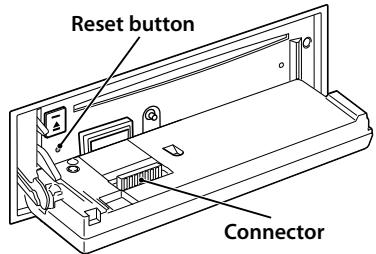
If this unit or the connected unit fails to operate properly, press the Reset button. The unit returns to factory settings when the Reset button is pressed.
text_image
Reset button ConnectorCleaning the connector
The unit may not function properly if the connectors between the unit and faceplate are dirty. Detach the faceplate and clean the connector with a cotton swab gently, being careful not to damage the connector.
Cleaning the Unit
If the faceplate of this unit is stained, wipe it with a dry soft cloth such as a silicon cloth.
If the faceplate is stained badly, wipe the stain off with a cloth moistened with neutral cleaner, then wipe it again with a clean soft dry cloth.

- Applying spray cleaner directly to the unit may affect its mechanical parts. Wiping the faceplate with a hard cloth or using a volatile liquid such as thinner or alcohol may scratch the surface or erases characters.
Lens Fogging
When you turn on the car heater in cold weather, dew or condensation may form on the lens in the CD player of the unit. Called lens fogging, this condensation on the lens may not allow CDs to play. In such a situation, remove the disc and wait for the condensation to evaporate. If the unit still does not operate normally after a while, consult your Kenwood dealer.
Notes
- If you experience problems during installation, consult your Kenwood dealer.
- When you purchase optional accessories, check with your Kenwood dealer to make sure that they work with your model and in your area.
- Characters that conform to ISO 8859-1 can be displayed.
- The Radio Data System feature won't work where the service is not supported by any broadcasting station.
- In this document, the description indicator will light means a status is displayed. Refer to
(page 35) for the details of the status display. - The illustrations of the display and the panel appearing in this manual are examples used to explain more clearly how the controls are used. Therefore, what appears on the display in the illustrations may differ from what appears on the display on the actual equipment, and some of the illustrations on the display may be inapplicable.
Handling CDs
- Do not touch the recording surface of the CD.
- Do not stick tape etc. on the CD, or use a CD with tape stuck on it.
- Do not use disc type accessories.
- Clean from the center of the disc and move outward.
- When removing CDs from this unit, pull them out horizontally.
- If the CD center hole or outside rim has burrs, use the CD only after removing the burrs with a ballpoint pen etc.
CDs that cannot be used
• CDs that are not round cannot be used.

• CDs with coloring on the recording surface or CDs that are dirty cannot be used.
- This unit can only play the CDs with
This unit may not correctly play discs which do not have the mark.
- You cannot play a CD-R or CD-RW that has not been finalized. (For the finalization process refer to your CD-R/CD-RW writing software, and your CD-R/CD-RW recorder instruction manual.)
- 3 inch CD cannot be used. Attempt to insert using an adapter can cause malfunction.

Component names and functions
text_image
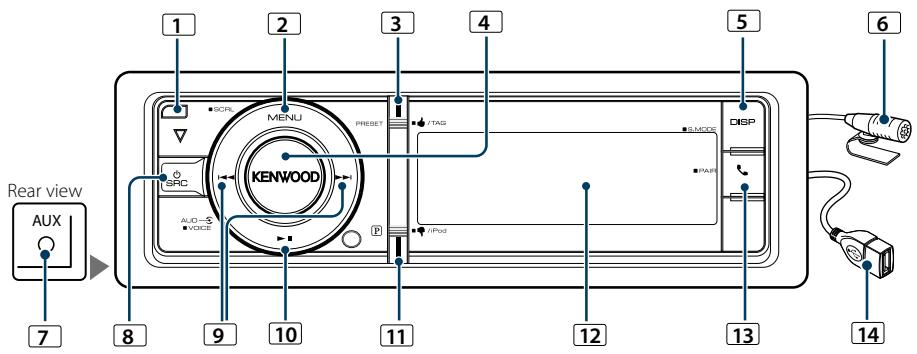
Rear view AUX 7 8 9 10 11 12 13 14 1 2 3 4 5 6 SCR MENU PRESSET TAG DISP GRC KENWOOD AVIO-S Veer iPod BLMOS PAIR1 Release button
To drop the faceplate down to open and CD can be inserted or ejected (press the button).
2 [MENU] button
To select a song or set functions. See
- The SRC Select mode can be set in "SRC Select" of
(page 43). - Auxiliary input source is initially set to "OFF". Set "Built in AUX" described in
(page 43) to "ON". - When an optional accessory is connected, the source name for each device appears.
- When connection of the iPod is recognized, the source display changes from "USB" to "iPod".
Volume
Turning the [VOL] knob adjusts the sound volume.
Menu List Operation
The basic operating procedure for using this function is described below. The individual function items are covered in the operating procedures.
1 Select the source
Pressing the [SRC] button repeatedly switches source.
Function items vary from source to source. For a list of the function items. Refer to
- Characters that can be entered are alphabetical characters (A to Z), numerical characters(0 to 9), and “*”.
- “*” indicates characters other than alphabetical and numerical characters. You cannot enter any more characters when entering “*” in the first character position.
- If the first character string begins with an article "a", "an", or "the" in the Direct Search mode, it is searched for in defiance of the article.
Related Search
Searches for music of the same artist or genre as the one being played.
1 Play the music in iPod
2 Press the [DISP] button for at least 1 second.
3 Enter Related Search mode
Turn the [VOL] knob and press it when the desired item is displayed.
Select "Related Search".
4 Select the Search item
Turn the [VOL] knob and press it when the desired Search item is selected.
| Display | Searches music |
| “Search Artist” | Displays the album of the same artist. |
| “Search Album” | Displays music in the album in which the one being played is included. |
| “Search Genre” | Displays the artist of the same genre. |
| “Search Composer” | Displays the album including music created by the same Composer. |
After this step, you need to browse. See step 4 of
Cancelling the Related Search
Press the [DISP] button for at least 1 second.

- Related search cannot be performed while playing the Podcast.
- When the music being played has no information on browsing items or no music was found, "Not Found" is displayed.
Alphabet Search
You can select a song by alphabet. This function searches songs whose name contain the specified character(s) in the list of the selected Search item (artist, album, etc).
1 Select iPod source
2 Enter browsing mode
Press the [MENU] button.
Turn the [VOL] knob and press it when the desired item is displayed.
Select "Music" > item.
3 Enter Alphabet Search mode
Turn the [VOL] knob fast. Or, press the [DISP] button for at least 1 second and turn the [VOL] knob to select "Alphabet Search".
4 Search for item
| Operation type | Operation |
| Select the character | Press the [PRESET] or [P] button./Turn the [VOL] knob. |
| Select an item | Press the [VOL] knob. |
| Return to previous item | Press the [MENU] button. |
After this step, you need to browse. See step 4 of
Cancelling the Alphabet Search
Press the [MENU] button.

- The time of search by alphabet may become long depending on the number of songs or items in iPod
- If the first character string begins with an article "a", "an", or "the" in the Alphabet Search mode, it is searched for in defiance of the article.
iPod/iPhone Operation
Skip Search
You can scroll up or down according to the number of the selected Search items so that you can quickly switch the display position.
1 Select iPod source
2 Enter browsing mode
Press the [MENU] button.
Turn the [VOL] knob and press it when the desired item is displayed.
Select "Music" > item.
3 Press the [DISP] button for at least 1 second.
4 Enter Skip Search mode
Turn the [VOL] knob and press it when the desired item is displayed.
Select "Skip Search".
5 Search for item
| Operation type | Operation |
| Move between items | Turn the [VOL] knob. |
| Select an item | Press the [VOL] knob. |
| Skip Search | Press the [PRESET] or [P] button.Keep pressing the button for 1 second or longer skips songs at 10% irrespective of the setting. |
| Sets the ratio of skip performed | Press the [◀◀] or [▶▶I] button. |
| Return to previous item | Press the [MENU] button. |
After this step, you need to browse. See step 4 of
Cancelling the Skip Search
Press the [DISP] button for at least 1 second.

- Set the ratio with "Skip Search" in
text_image
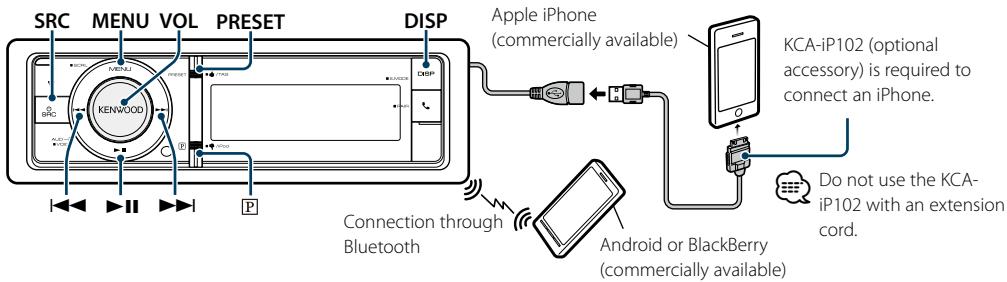
SRC MENU VOL PRESET DISP KENWOOD Apple iPhone (commercially available) KCA-iP102 (optional accessory) is required to connect an iPhone. Do not use the KCA- iP102 with an extension cord. Connection through Bluetooth Android or BlackBerry (commercially available)Basic operations

- To use the Pandora source, set "Pandora Source" in
(page 43) to "ON". - If no station, broadcasting does not start.
Listening to Pandora® with Android or BlackBerry
1 Open the Pandora® application on your device.
2 Select Pandora source
Press the [P] or [SRC] button.
Select the "PANDORA" display.
SRC Select mode 2: Press the [SRC] button and then turn the [VOL] knob. To determine the selected source, press the [VOL] knob.

- You need to register your cell-phone before using it with this unit.
(page 27) - Disconnect the iPhone or iPod touch.
- Speakers from which audio is output change depending on the Bluetooth setting "Bluetooth HF/Audio". The default is Front. Refer to
(page 55)
Listening to Pandora® with iPhone or iPod touch
- Connect an iPhone
Connecting the iPod with the Pandora application running will switch the source automatically to start broadcasting from the registered station.
- Select Pandora source
Press the [P] or [SRC] button.
Select the "PANDORA" display.
SRC Select mode 2: Press the [SRC] button and then turn the [VOL] knob. To determine the selected source, press the [VOL] knob.
Make sure that the home screen is displayed on the iPhone.
Make sure that the Pandora internet radio application has started on the Bluetooth device.
If the Pandora application is not running, "Check Device" is displayed.

- If the version of the OS of the connected iPhone is earlier than 4.0, start the Pandora internet radio application before selecting the Pandora source.
Pause and Play
Press the [▶II] button to pause or resume playback.
Thumbs up
Press the [PRESET] button for at least 1 second.
" " is displayed.
Thumbs down
Press the [P] button for at least 1 second.
“ ” is displayed.
Song skip
Press the [▶▶] button.
If the skip count limit specified by Pandora is exceeded, "No skips remaining" is displayed.
Remove iPhone
Select a source other than Pandora and iPod, and the iPod can be removed safely.
Station Search
You can select the station you want to listen to from your station list.
1 Select Pandora source
2 Enter Menu List mode Press the [MENU] button.
3 Turn the [VOL] knob and press it when the desired item is displayed.
Select "Stations" > "A-Z" (Stations are displayed in alphabetical order) or "By Date" (Stations are displayed in date order).
A station list is displayed.
4 Select a station
Turn the [VOL] knob and press it when the desired item is displayed.
5 Exit Menu List mode
Press the [MENU] button for at least 1 second, and then press it again briefly.
Bookmark Registration
You can register the current song information or artist information in Bookmark.
1 Select Pandora source
2 Enter Menu List mode Press the [MENU] button.
3 Turn the [VOL] knob and press it when the desired item is displayed.
Select "Bookmarks" > "Bookmark Song" (to register song information) or "Bookmark Artist" (to register artist information).

- This unit allows you to bookmark songs and/or artists in your personalized Pandora® account. The bookmarks will not be available for review on the unit but will be available in your Pandora® account.
Search and New Station Registration
You can search for the desired station by specifying its character. You can register the displayed station as a new station.
1 Select Pandora source
2 Enter Menu List mode Press the [MENU] button.
3 Turn the [VOL] knob and press it when the desired item is displayed.
Select "New Stations".
4 Select the character to be searched for
| Operation type | Operation |
| Move between items | Turn the [VOL] knob. |
| Select an item | Press the [VOL] knob. |
| Move to the next column | Press the [◀◀] or [▶▶] button. |
| Return to previous item | Press the [MENU] button. |
Up to 5 characters can be entered.
5 Determine the selected character Turn the [VOL] knob and press it when the desired item is displayed. Select "DONE".
Start search.
After this step, you need to Search. See step 4 of
Cancelling Menu List mode
Press the [MENU] button for at least 1 second, and then press it again briefly.

- Characters that can be entered are alphabetical characters (A to Z), numerical characters(0 to 9), and other symbols (" & ", " . ", " ", " - ", " # ", " + ", " ! ", "\$ , " "").
Deletion of Station
You can delete registered station information.
1 Select Pandora source
2 Enter Menu List mode Press the [MENU] button.
3 Turn the [VOL] knob and press it when the desired item is displayed.
Select "Station Delete" > "A-Z" (Stations are displayed in alphabetical order) or "By Date" (Stations are displayed in date order).
4 Turn the [VOL] knob and press it when the desired item is displayed.
Select the station you want to delete.
5 Turn the [VOL] knob and press it when the desired item is displayed.
Select "YES".
"Completed" is displayed.
Cancelling the Menu List mode
Press the [MENU] button for at least 1 second, and then press it again briefly.
text_image
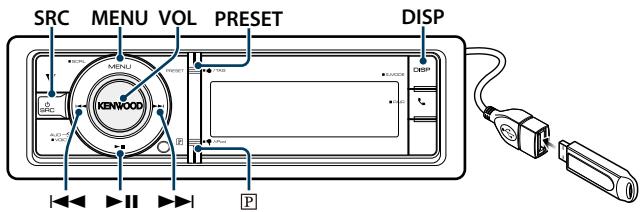
SRC MENU VOL PRESET DISP KENWOOD PBasic operations
Playing USB device
- Connect a USB device
When connected, the source is switched automatically and a song starts playing.
- Select USB source
Press the [SRC] button.
Select the "USB" display.
SRC Select mode 2: Press the [SRC] button and then turn the [VOL] knob. To determine the selected source, press the [VOL] knob.
Moving to the next folder
Press the [DISP] button for at least 1 second.
Song Select
Press the [◀◀] or [▶▶] button.
Fast Forwards or Fast Backwards
Hold down the [◀◀] or [▶▶] button.

- No sound is output while playing audio file.
Pause and Play
Press the [▶II] button to pause or resume playback.
Remove USB device
Select a source other than the USB, and the USB device can be removed safely.
File Search
Selecting the file you want to listen to from the device being played now.
USB device
| Display | Items |
| “Music” | Folder or file name list. |
Music Editor media
| Display | Items |
| “Music” | |
| “Playlists” | Playlists |
| “Artists” | Artists |
| “Albums” | Albums |
| “Songs” | Songs |
| “Genres” | Genres |
1 Select USB source
2 Enter Menu List mode
Press the [MENU] button.
3 Turn the [VOL] knob and press it when the desired item is displayed.
Select "Music".
4 Select a file
| Operation type | Operation |
| Move between items | Turn the [VOL] knob. |
| Select an item | Press the [VOL] knob. |
| High Speed Search | Press the [PRESET] or [P] button to scroll up or down by a page.Press the [PRESET] or [P] button for at least 1 second to continuously scroll up or down at high speed. Press the button again to stop scrolling. |
| Return to previous item | Press the [MENU] button. |
| Return to Top menu | Press the [MENU] button for at least 1 second. |
For example: Searching for ♪②.
Turn the [VOL] knob and press it when the desired item is displayed.
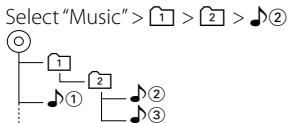
Cancelling Menu List mode
Press the [MENU] button for at least 1 second, and then press it again briefly.

- When you search a song in the File Search mode, the unit memorizes the position of the song being played after the search. To set a different Menu item after searching a song, press the [MENU] button for at least 1 second to move to the first hierarchy.
Play Mode
You can select a Play Mode, such as Random play and Repeat play.
1 Select USB source
2 Enter Menu List mode
Press the [MENU] button.
3 Turn the [VOL] knob and press it when the desired item is displayed.
Select "Play Mode".
4 Select the Play Mode
Turn the [VOL] knob.
| Display | Overview |
| “File Scan” | When set to “ON”, plays the intro of the music in the folder successively.“ON”/“OFF” |
| “Folder Random” | When set to “ON”, plays the music in the folder randomly.“ON”/“OFF” |
| “All Random” | When set to “ON”, plays all songs in the USB device randomly.“ON”/“OFF” |
| “File Repeat” | When set to “ON”, plays the music repeatedly.“ON”/“OFF” |
| “Folder Repeat” | When set to “ON”, plays the music in the folder repeatedly.“ON”/“OFF” |
( _ : Factory setting)
5 Make a setting
Press the [VOL] knob.
6 Exit Play Mode
Press the [MENU] button.
USB Setting
You can select following USB Setting items.
1 Select USB source
2 Enter Menu List mode
Press the [MENU] button.
3 Turn the [VOL] knob and press it when the desired item is displayed.
Select "Settings".
4 Select the setting item
Turn the [VOL] knob and press it when the desired item is displayed.
| Display | Overview |
| "Settings" | |
| "Skip Search" | Sets the ratio of skip performed with(page 19).“0.5%”/ “1%”/ “5%”/ “10%” |
( _ : Factory setting)
5 Make a setting
Turn the [VOL] knob to select a setting value, and then press the [VOL] knob.
6 Exit Menu List mode
Press the [MENU] button for at least 1 second, and then press it again briefly.

- The setting of "Skip Search" in
(page 10) and that in (page 18) are always the same. Changing the setting of one reflects the other. - This operation is effective only for the files registered in the database created with KENWOOD Music Editor.
USB device Operation
Skip Search
You can scroll up or down according to the number of the selected Search items so that you can quickly switch the display position.
1 Select USB source
2 Enter File Search mode
Press the [MENU] button.
Turn the [VOL] knob and press it when the desired item is displayed.
Select "Music" > item.
3 Enter Skip Search mode
Press the [DISP] button for at least 1 second.
4 Search for music
| Operation type | Operation |
| Move between items | Turn the [VOL] knob. |
| Select an item | Press the [VOL] knob. |
| Skip Search | Press the [PRESET] or [P] button.Keep pressing the button for 1 second or longer skips songs at 10% irrespective of the setting. |
| Sets the ratio of skip performed | Press the [◀◀] or [▶▶] button. |
| Return to previous item | Press the [MENU] button. |
After this step, see step 4 of
Cancelling the Skip Search
Press the [DISP] button for at least 1 second.

- This operation is effective only for the files registered in the database created with KENWOOD Music Editor.
- Set the ratio with "Skip Search" in
(page 18).
Function of remote control
Direct Music Search
Searching the music by entering the file number.
1 Enter Direct Music Search mode
Press the [DIRECT] button on the remote control.
2 Enter the music number
Press the number buttons on the remote control.
3 Search the music
Press the [i◀◀] or [▶▶] button.
Cancelling Direct Music Search
Press the [DIRECT] button.

- Direct Music Search cannot be performed during playing of "Music Editor" media, Random play, or scan play.
Music CD/ Audio file Operation
text_image
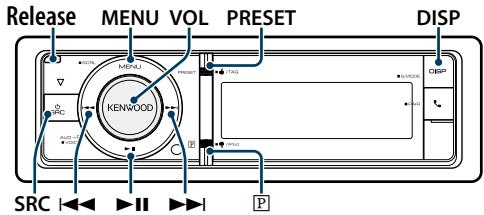
Release MENU VOL PRESET DISP KENWOOD SRC P P SRC I II PBasic operations
Drop open the faceplate
Press the Release button.

- Push the faceplate on the left side, and return it to its former position.
Disc play
- A disc inserted.
When inserted, the source is switched automatically and a song is starts playing. When a CD is inserted, the "CD-IN" indicator is ON.
natural_image
Technical line drawing of a CD or DVD disc assembly (no text or symbols)- Select CD source
Press the [SRC] button.
Select the "CD" display.
SRC Select mode 2: Press the [SRC] button and then turn the [VOL] knob. To determine the selected source, press the [VOL] knob.
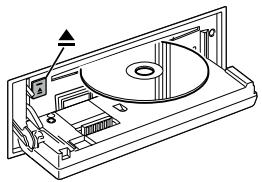
Disc ejection
Press the [▲] button.
Moving to the next folder
Press the [DISP] button for at least 1 second.

- This operation can be performed only for the Audio file.
Song Select
Press the [◀◀◀] or [▶▶▶] button.
Fast Forwards or Fast Backwards
Hold down the [◀◀] or [▶▶] button.

- No sound is output while playing audio file.
Pause and Play
Press the [▶II] button to pause or resume playback.
Music Search
Selecting the music you want to listen to from the disc being played now.
| Display | Overview |
| "Music" | Track list (Music CD) / Folder or file name list (Audio file) |
1 Select CD source
2 Enter Menu List mode
Press the [MENU] button.
3 Turn the [VOL] knob and press it when the desired item is displayed.
Select "Music".
4 Search for music
| Operation type | Operation |
| Move between items | Turn the [VOL] knob. |
| Select an item | Press the [VOL] knob. |
| High Speed Search | Press the [PRESET] or [P] button to scroll up or down by a page.Press the [PRESET] or [P] button for at least 1 second to continuously scroll up or down at high speed. Press the button again to stop scrolling. |
| Return to previous item | Press the [MENU] button. |
| Return to Top menu | Press the [MENU] button for at least 1 second. |
Cancelling Menu List mode
Press the [MENU] button for at least 1 second, and then press it again briefly.
Play Mode
You can select a Play Mode, such as Random play and Repeat play.
1 Select CD source
2 Enter Menu List mode
Press the [MENU] button.
3 Turn the [VOL] knob and press it when the desired item is displayed.
Select "Play Mode".
4 Select the Play Mode
Turn the [VOL] knob.
Music CD source
| Display | Overview |
| “Track Scan” | When set to “ON”, plays the intro of the music on the disc successively.“ON”/ “OFF” |
| “Disc Random” | When set to “ON”, plays the music on the disc randomly.“ON”/ “OFF” |
| “Track Repeat” | When set to “ON”, plays the music repeatedly.“ON”/ “OFF” |
( _ : Factory setting)
Audio file source
| Display | Overview |
| “File Scan” | When set to “ON”, plays the intro of the music in the folder successively.“ON”/“OFF” |
| “Folder Random” | When set to “ON”, plays the music in the folder randomly.“ON”/“OFF” |
| “All Random” | When set to “ON”, plays all songs in the disc randomly.“ON”/“OFF” |
| “File Repeat” | When set to “ON”, plays the music repeatedly.“ON”/“OFF” |
| “Folder Repeat” | When set to “ON”, plays the music in the folder repeatedly.“ON”/“OFF” |
( _ : Factory setting)
5 Make a setting
Press the [VOL] knob.
6 Exit Play Mode
Press the [MENU] button.
Function of remote control
Direct Music Search
Searching the music by entering the track number.
1 Enter Direct Music Search mode
Press the [DIRECT] button on the remote control.
2 Enter the music number
Press the number buttons on the remote control.
3 Search the music
Press the [◀◀] or [▶▶] button.
Cancelling Direct Music Search
Press the [DIRECT] button.

- Direct Music Search cannot be performed during playing of Random play or scan play.
text_image
SRC MENU VOL PRESET KENWOOD
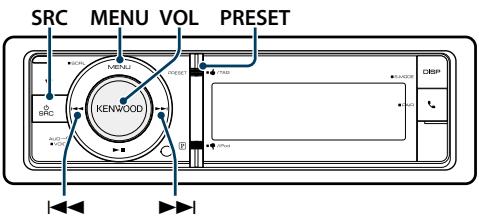
This HD Radio receiver enables:
PSD
HD2/HD3
Digital Sound
iTunes® Tagging
PSD
■ Program Service Data: Contributes to the superior user experience of HD Radio Technology. Presents song name, artist, station IDs, HD2/HD3 Channel Guide, and other relevant data streams.
HD2/HD3
■ Adjacent to traditional main stations are extra local FM channels. These HD2/HD3 Channels provide new, original music as well as deep cuts into traditional genre.
Digital Sound
Digital, CD-quality sound. HD Radio Technology enables local radio stations to broadcast a clean digital signal. AM sounds like today's FM and FM sounds like a CD.
iTunes® Tagging
■ iTunes® Tagging provides you the opportunity to discover a wide range of content and the means to "tag" that content for later review and purchase from the iTunes® Store.
Basic operations
Selecting HD Radio source
Press the [SRC] button.
Select the "HD RADIO" display.
SRC Select mode 2: Press the [SRC] button and then turn the [VOL] knob. To determine the selected source, press the [VOL] knob.
Selecting the Receiving Band
-
Enter Menu List mode Press the [MENU] butt
-
Turn the [VOL] knob and press it when the desired item is displayed. Select "FM" or "AM".
Selecting the Receiving station or channel
Press the [◀◀] or [▶▶] button.
During reception of stereo stations the "ST" indicator is light up.
Details of the station selecting in operation are set in the "Seek Mode" of
Station Preset Memory
Putting a station in the memory.
1 Select the radio band and tune in a desired radio station you wish to store in the preset memory
2 Enter the Preset Memory mode Press the [PRESET] button.
The "Preset List", "Mixed Preset List", and normal display are displayed in order each time you press this button.
3 Select the number to put in the memory Turn the [VOL] knob and press [VOL] knob for at least 2 seconds when the desired item is displayed.
Select a preset number.
| Display | Overview |
| “-01”/“01” | Preset number 1. (FM/ AM/ Mixed) |
| “-02”/“02” | Preset number 2. (FM/ AM/ Mixed) |
| “-06”/“06” | Preset number 6. (FM/ AM/ Mixed) |
| “-18” | Preset number 18. (FM) |

- You can register up to 18 FM stations and 6 AM stations. Selecting "Mixed Preset List" allows you to register up to six stations including FM, AM, and another the SiriusXM tuner regardless of the selected source.
Cancelling the Preset Memory mode
Press the [MENU] button.
Auto Memory Entry
Putting stations with good reception in the memory automatically.
1 Select the radio band you wish to store in the preset memory
2 Enter Menu List mode Press the [MENU] button.
3 Enter Auto Memory Entry mode
Turn the [VOL] knob and press it when the desired item is displayed.
Select "Settings" > "Auto Memory".
4 Open Auto Memory Entry
Turn the [VOL] knob and press it when the desired item is displayed.
Select "YES".
When 18 stations (FM) or 6 stations (AM) that can be received are put in the memory, auto memory entry closes.
Preset Tuning
Recalling the stations in the memory.
1 Select the radio band
2 Enter the Preset Memory mode Press the [PRESET] button.
The "Preset List", "Mixed Preset List", and normal display are displayed in order each time you press this button.
3 Select a desired station in the memory Turn the [VOL] knob and press it when the desired item is displayed.
HD Radio™ Setting
You can select following HD Radio Setting items.
1 Select the HD Radio source
2 Enter Menu List mode Press the [MENU] button.
3 Turn the [VOL] knob and press it when the desired item is displayed.
Select "Settings".
4 Select the setting item to adjust
Turn the [VOL] knob and press it when the desired item is displayed.
| Display | Overview |
| "Settings" | |
| "Seek Mode" | Selects the HD Radio tuning mode. "Auto1": Automatic search for a station. "Auto2": Search in order of the stations in the Preset memory. "Manual": Normal manual tuning control. |
| "Auto Memory" | Memorizes 18 stations (FM) or 6 stations (AM) with good reception automatically. Refer to(page 24). |
| "Receive Mode" | Sets the HD Radio receive mode. "Auto": Automatically tunes to analog broadcast when there is no digital broadcast. "Digital": Digital broadcasts only. "Analog": Analog broadcasts only. |
| "TAG Memory" | Displays the tag memory usage of the HD Radio receiver and the SiriusXM tuner. Up to 50 tags can be registered to this unit. "0"/"50" |
| "Tagging" | Turns ON / OFF the tag memory function of the HD Radio receiver and the SiriusXM tuner. "OFF"/"ON" |
( _ : Factory setting)
5 Make a setting
Turn the [VOL] knob to select a setting value, and then press the [VOL] knob.
6 Exit Menu List mode
Press the [MENU] button for at least 1 second, and then press it again briefly.
HD Radio™ Tuner Operation
Function of remote control
Direct Access Tuning
Tuning in a desired radio station by entering the frequency.
1 Select the radio band
2 Enter Direct Access Tuning mode Press the [DIRECT] button.
“- - - -” is displayed.
3 Select Tuning item Press the [DIRECT] button.
Pressing the [DIRECT] button each time switches the following tuning items as follows.
| Items | Display |
| Frequency | “— — — —” |
| Channel (FM only) | “HD —” |
| Cancelling Direct Access Tuning | — |
4 Enter the frequency or Channel Press the number buttons.
Example of frequency input:
| Desired frequency | Press button |
| 92.1 MHz (FM) | [9], [2], [1] |
| 810 kHz (AM) | [8], [1], [0] |
5 Tune in to the entered frequency or Channel Press the [|◀◀] or [▶▶] button.
iTunes Tagging
You can stores the tag of the information about the song being received, and send it to the connected iPod. You can easily find the song on the iTunes Store according to the tag sent to the iPod.
1 Store the song information tag
Press the [PRESET] button for at least 1 second.
"TAG" will be indicated on the display when song information can be registered.
"TAG Storing" is indicated on the display while a tag is being stored in this unit. "TAG Stored" is indicated on the display after the tag has been stored.
When your iPod is connected to this unit, "TAG Transferred" is indicated on the display and the tag is sent to the iPod.

- The song corresponding to the tag sent to the iPod is indicated in the playlist of the synchronized iTunes.
- By clicking your desired song in the playlist, you can easily find it on the iTunes Store and buy it from the iTunes Store.
- A total of fifty song information tags can be stored in this unit including the song information tags stored by the SiriusXM tuner function mentioned in
(page 72). When a tag has been sent to the iPod, the tag stored in this unit is cleared. - Select "ON" for "Tagging" as mentioned in
(page 24) when using this function. - The memory usage can be checked by selecting the "TAG Memory" setting mentioned in
(page 24).
Getting Started of Bluetooth
text_image
SRC VOL KENWOOD BRC MENA2 PRESER FLUER BLUER DBIP AUTO-OPEN CLOCKEasy pairing function
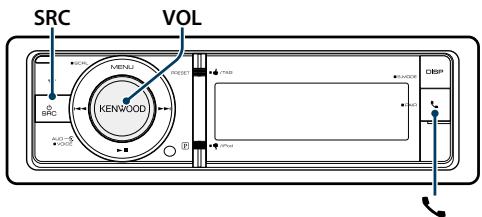
1 Enter easy pairing mode
Press the [ ] button for at least 1 second.
Any of the following is displayed depending on Bluetooth device registration condition:
- "Searching": When registering a Bluetooth device for the first time.
- “(Bluetooth device name)”: When a Bluetooth device has already been registered.
- "Device Full": When maximum of five Bluetooth devices have already been registered.
When registering a Bluetooth device for the first time (Registering a Bluetooth device)
2 "Searching" is displayed.
Search for the Bluetooth device. When search is completed, "Finished" is displayed.
3 Select a Bluetooth device name
Turn the [VOL] knob and press it when the desired item is displayed.
4 "Confirm Device" is displayed.
If "Pairing Success" is displayed, proceed to step 7. If "PIN code is displayed, proceed to steps 5. If "*** NG" is displayed, press the volume knob. Proceed to steps 4.
5 Input the PIN code
- Turn the [VOL] knob and press it when the desired item is displayed.
Select the digit. - Turn the [VOL] knob to select the numbers, and then press the [VOL] knob.
6 Transmit the PIN code
Press the [VOL] knob for at least 1 second.
If "Pairing Success" is displayed, registration is completed.
When "Confirm Device" is displayed, confirm connection with a Bluetooth device operation.
7 The receiver is connected to a Bluetooth device, with "HF CONNECT" or "AUDIO CONNECT" displayed, and exits the easy pairing mode.

- If an error code is displayed during paring, see
When a Bluetooth device has already been registered, or maximum of five Bluetooth devices have already been registered/ selecting a Bluetooth device
2 “(Bluetooth device name)” or “Device Full” is displayed.
3 Select a Bluetooth device name Turn the [VOL] knob.
To register a new Bluetooth device, select "Device Search", then go to
4 Press the [VOL] knob.
5 Select the profile for the device to connect Turn the [VOL] knob.
☐ "HF" (HFP), "AUD" (A2DP), or "H&A" (HFP and A2DP) indicates the corresponding profile.
6 Set up the Bluetooth device name Press the [VOL] knob.
"*H*A (device name)": The selected Bluetooth device is busy.
"-H-A (device name)": The selected Bluetooth device is on standby.
“” (blank) (device name): The Bluetooth device is deselected.
If a Bluetooth device is already selected, deselect it, and then select a different one.
“H” (HFP) or “A” (A2DP) indicates the corresponding profile.
7 Exit easy pairing mode Press the [ ] button.
Deleting the registered Bluetooth device
2 “(Bluetooth device name)” or “Device Full” is displayed.
3 Select a Bluetooth device name Turn the [VOL] knob.
4 Delete the selected Bluetooth device Press the [VOL] knob for at least 2 seconds.
5 Turn the [VOL] knob and press it when the desired item is displayed. Select "YES".
Registering from Bluetooth devices (Pairing)
To make your Bluetooth device (cell-phone) usable with this unit, you need to register it (pairing). You can register up to 5 Bluetooth devices to this unit.
1 Turn on this unit Press the [SRC] button.
2 Start registering this unit by operating the Bluetooth device.
By operating the Bluetooth device, register the hands-free unit or audio unit (pairing). Select "KENWOOD BT CD/R-6P1" from the list of found units.
3 Enter a PIN code Input the PIN code ("0000") in the Bluetooth device.
Check that registration is complete on the Bluetooth device.
PIN code is set to "0000" as the default. You can change this code. Refer to
4 By operating the Bluetooth device, start hands-free connection.

- If there are 5 or more Bluetooth devices registered, you cannot register a new Bluetooth device.
Bluetooth Audio Operation
text_image
SRC MENU VOL KENWOODBasic operations
Selecting Bluetooth Audio source
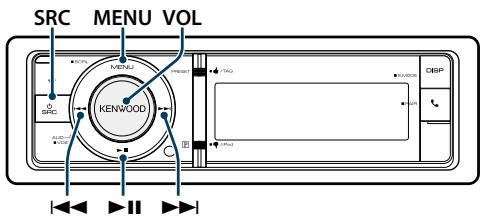
Press the [SRC] button.
Select the "BT AUDIO" display.
SRC Select mode 2: Press the [SRC] button and then turn the [VOL] knob. To determine the selected source, press the [VOL] knob.
Pause and play
Press the [▶II] button.
Music Search
Press the [◀◀] or [▶▶] button.
Fast Forward or Fast Backward of the Song
Hold down the [◀◀] or [▶▶] button.
Active device Switching
Press the [▶II] button for at least 1 second.

- All or some of the operations above cannot be performed if the Bluetooth audio player is not ready for remote control.
- Switching to the Bluetooth audio source does not start or stop playback automatically. Perform the operation for starting or stopping playback.
- Some audio players cannot be controlled remotely or reconnected after Bluetooth disconnection. Operate the main unit of the audio player to connect Bluetooth.
- Two audio devices can be connected simultaneously.
- Speakers from which audio is output change depending on the Bluetooth setting "Bluetooth HF/Audio". The default is Front. Refer to
(page 55)
Play mode
You can select a Play Mode, such as Random play and Repeat play.
1 Select Bluetooth audio source
2 Enter Menu List mode Press the [MENU] button.
3 Turn the [VOL] knob and press it when the desired item is displayed.
Select "Play Mode".
4 Select the Play Mode
Turn the [VOL] knob.
| Display | Overview |
| “File Repeat” | When set to “ON”, plays the music repeatedly. “ON” / “OFF” |
| “Random” | When set to “ON”, plays the music in the folder randomly. “ON” / “OFF” |
( _ : Factory setting)
5 Make a setting
Press the [VOL] knob.
6 Exit Play Mode
Press the [MENU] button.
Operation of hands-free phoning
text_image
SRC MENU VOL DISP KENWOOD USB USB USB USBReceiving a Call
Answering a Phone Call
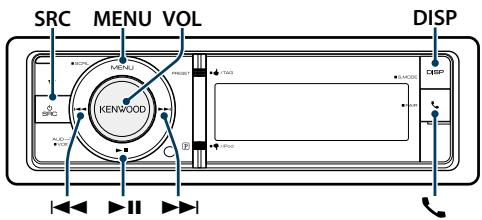
Press the [ ] button.

The following operations disconnect the line:
- Insert a CD.
- Connect a USB device.
The name of the calling party is displayed if it has already been registered in the Phone Book.
Rejecting an Incoming Call
Press the [SRC] button.
During a Call
Disconnecting a Call
Press the [ ] or [SRC] button.
Switching to the Private Mode
Press the [▶II] button.
Switches between Private talk ("PRIVATE") and Hands-free talk each time this button is pressed.

- Depending on the type of your cell-phone, switching to the private talk mode may select the source that was used before commencing the hands-free connection. If this happens, the source cannot be switched back to the hands-free talk mode by operating this unit. Operate your cell-phone to return to the hands-free talk mode.
Adjusting the Voice Volume during a Call
Turn the [VOL] knob.
Call Waiting
Answering Another Incoming Call with the Current Call Suspended
1 Press the [ ] button.
2 Turn the [VOL] knob and press it when the desired item is displayed.
Select "Answer".
Answering another Incoming Call after
Terminating the Current Call
Press the [ ] or [SRC] button.
Continuing the Current Call
1 Press the [ ] button.
2 Turn the [VOL] knob and press it when the desired item is displayed.
Select "Reject".
Answering the Waiting Call after Terminating the Current Call
Press the [ ] or [SRC] button.
Switching between the Current Call and Waiting Call
Press the [VOL] knob.
Each pressing of this knob switches the calling party.
Other Functions
Clearing the Disconnection Message
Press the [ ] button.
"HF Disconnect" disappears.
Making a Call
1 Enter Bluetooth mode Press the [ ] button.
2 Select a dialing method
Turn the [VOL] knob and press it when the desired item is displayed.
| Display | Overview |
| “Preset Call” | Calling a number in the preset. |
| “Phonebook” | Selecting the character to be searched for the phone book. |
| “Outgoing Calls” | Calling a number in the outgoing call list. |
| “Incoming Calls” | Calling a number in the incoming call list. |
| “Missed Calls” | Calling a number in the missed calls list. |
| “Number Dial” | Making a call by entering phone number. |
Operation method of each mode is described below.
3 Exit the dialing method mode Press the [ ] button.
Speed Dialing (Preset Dial)
1 Enter Bluetooth mode Press the [ ] button.
2 Select the preset dial mode
Turn the [VOL] knob and press it when the desired item is displayed.
Select "Preset call".
3 Select the number you want to recall from the memory
Turn the [VOL] knob and press it when the desired item is displayed.
Select preset number.
Phone number is displayed.
4 Make a call
Press the [VOL] knob.

- You need to register the preset dial number. Refer to
Calling a Number in the Phone Book
Dial the phone number in the phone book of your cell phone.
If the phone book has not been downloaded to this unit, operate the cell-phone to download it.
1 Enter Bluetooth mode Press the [ ] button.
2 Select the Phone Book mode
Turn the [VOL] knob and press it when the desired item is displayed.
Select "Phonebook".
3 Select the character to be searched for
| Operation type | Operation |
| Move to the next character. | Turn the [VOL] knob. |
| Determine the selected character. | Press the [VOL] knob. |
4 Select the name or phone number Turn the [VOL] knob.
Switching between Display Modes Press the [DISP] button.
Pressing this button each time switches between name and telephone number.
5 Make a call
Press the [VOL] knob.

- During search, a non-accent character such as "u" is searched for instead of an accent character such as "ü".
Operation of hands-free phoning
Calling a Number in the Call log
1 Enter Bluetooth mode Press the [ ] button.
2 Select the call log mode Turn the [VOL] knob and press it when the desired item is displayed. Select "Outgoing Calls", "Incoming Calls", or "Missed Calls".
3 Select a name or phone number Turn the [VOL] knob and press it when the desired item is displayed. Switching between Display Modes Press the [DISP] button. Pressing this button each time switches between name and telephone number.
4 Make a call Press the [VOL] knob.

- The outgoing call list and the incoming call list, and the missed call list are the lists of calls originated from and received at this unit. They are not the ones stored in the cell-phone memory.
Dial a Number
1 Enter Bluetooth mode Press the [ ] button.
2 Select the number dial mode Turn the [VOL] knob and press it when the desired item is displayed. Select "Number Dial".
3 Enter a phone number
- Turn the [VOL] knob to select the numbers, and then press the [VOL] knob. Turn the [VOL] knob and press it when the desired item is displayed. Select the digit.
- Turn the [VOL] knob and press it when the desired item is displayed. Move to the next digit.
- Press the number ([1] - [0]), #(FM)], *([AM]), or +([\blacktriangleright]') button on the remote controller. To erase the entered phone number digit by digit: Press the [◀◀] button on the remote controller.
4 Make a call
- Press the [VOL] knob. - Press the [DIRECT] button on the remote controller.

- You can input max 32 digits.
Making a call by voice dialing
You can make a voice call using the voice recognition function of the cell-phone.
1 Enter Voice tag mode Press the [VOL] button for at least 1 second. "Voice Tag" is displayed.
2 Have the cell-phone recognize your spoken word Pronounce the name registered in the cell-phone. The recognized phone number (name) is displayed
Exit the Voice tag mode
Press the [VOL] button for at least 1 second.

- If "No Support" is displayed, your cell-phone does not support the voice recognition function. - If "No Active device" is displayed, your cell-phone cannot start voice recognition. - Audio sound is not output during voice recognition.
Registering to the Preset Dial Number List
1 Select the phone number you wish to register Select the phone number with reference to the following: - Calling a Number in the Phone Book (page 32) - Calling a Number in the Call log (page 33) - Dial a Number (page 33)
2 Enter Preset Memory mode Press the [VOL] button for at least 1 second.
3 Select the preset number to put in the memory Turn the [VOL] knob. Select the preset number.
4 Determine the preset number to put in the memory Press the [VOL] knob for at least 2 seconds.
Exit the Preset Memory mode Press the [MENU] button.
Display of Phone Number type (category)
The category items in the Phone Book are displayed as follows:
| Display | Information |
| "GENERAL" / " [IMAGE]" | General |
| "HOME" / " [IMAGE]" | Home |
| "OFFICE" / " [IMAGE]" | Office |
| "MOBILE" / " [IMAGE]" | Mobile |
| "OTHER" / " [IMAGE]" | Other |
Display Settings
text_image
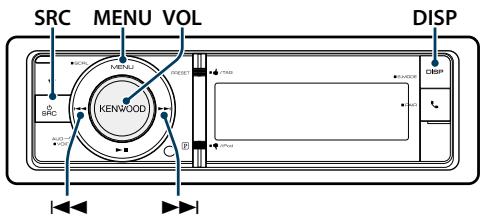
SRC MENU VOL DISP KENWOODBasic operations
Switching display
Press the [DISP] button.
| Mode | Display Type |
| 5-line display mode | Displays 4 to 5 lines of text. |
| 3-line display mode | Displays 2 to 3 lines of text. |
| iPod-like display mode | Displays like iPod. (iPod and Pandora source only) |
| Spectrum analyzer display mode | Displays a line of text and the spectrum analyzer. |
| Clock display mode | Displays the clock. |
| Display off mode | Turns off the display and illumination.. |

- When the 5-line display mode is selected, the status (ON/OFF indicator of each function) can be displayed on the first line, and the icon of the currently selected source and the text information title can be displayed on the left side by the following
& 3-line Display Mode & iPod-like Display Mode> (page 37) operation.
Status display: Select "Settings" > "DISP & ILLUMI" > "Display Select" > "Status"
Side display: Select "Settings" > "DISP & ILLUMI" > "Display Select" > "Side Select" - When "Display off mode" is selected, you can select only "Type Select" for "Display Select".
Text scroll
Press the [MENU] button for at least 1 second.
The displayed text scrolls.
Display Setting
You can select following Display Setting items.
1 Select the source
Pressing the [SRC] button repeatedly switches source.
SRC Select mode 2: Press the [SRC] button and then turn the [VOL] knob. To determine the selected source, press the [VOL] knob.
2 Enter Menu List mode
Press the [MENU] button.
3 Enter Display Setting mode
Turn the [VOL] knob and press it when the desired item is displayed.
Select "Settings" > "DISP & ILLUMI".
4 Select the setting item to adjust
Turn the [VOL] knob and press it when the desired item is displayed.
| Display | Overview | |
| "Settings" | ||
| "DISP & ILLUMI" | Making Display and Illumination settings. | |
| "Display Select" | Selecting and customizing the Display type. | |
| "Color Select" | Selecting the Illumination Color of the panel.Refer to(page 39) | |
| "DISP & ILLUMIOFF" | If this unit is not operated at least 5 seconds with "DISP" selected, the display turns off.During a setup mode, the display will not turn off even if 5 seconds lapse.Selecting "DISP & ILLUMI" turns off the illumination and display together."DISP"/"DISP & ILLUMI" | |
| "DisplayDimmer" | Reduces the display Illumination brightness."Auto": Dims the illumination in conjunction with the Light switch of the vehicle."Manual1": Dims the illumination constantly."Manual2": Dims the illumination darker than Manual1."OFF": Does not dim the illumination. | |
| "Contrast" | Adjusting the display contrast."1" - "5" - "12" | |
| "DISP N/P" | Switches the panel display between positive or negative."POSI1"/"POSI2"/"NEGA1"/"NEGA2" | |
| "Text Scroll" | Specifies whether the text is scrolled automatically."Auto"/"Once"/"OFF" | |
| "BT DVC Status" | You can display the connection status.Cell-phone/ BT Audio | |
| "ILLUMI Dimmer" | Reduces the key illumination brightness. "Auto": Dims the illumination in conjunction with the Light switch of the vehicle. "Manual1": Dims the illumination constantly. "Manual2": Dims the illumination darker than Manual1. "OFF": Does not dim the illumination. |
| "ILLUMI Effect" | Sets whether the key illumination brightness is changed in conjunction with the key operation. "OFF"/ "ON" |
| "ILLUMI MSC SYNC" | Sets whether the key illumination color is changed in conjunction with the sound volume. "OFF"/ "ON" |
( _ : Factory setting)
5 Make a setting
Turn the [VOL] knob to select a setting value, and then press the [VOL] knob.
6 Exit Menu List mode
Press the [MENU] button for at least 1 second, and then press it again briefly.
Customization of 5-line Display Mode & 3-line Display Mode & iPod-like Display Mode
You can customize the display of the 5-line display mode, 3-line display mode, and iPod-like display mode.
1 Select the source
Pressing the [SRC] button repeatedly switches source.
SRC Select mode 2: Press the [SRC] button and then turn the [VOL] knob. To determine the selected source, press the [VOL] knob.
2 Enter Menu List mode
Press the [MENU] button.
3 Enter Display Setting mode and Select the 5-line display mode, 3-line display mode or iPod-like display mode.
Turn the [VOL] knob and press it when the desired item is displayed. Select "Settings" > "DISP & ILLUMI" > "Display Select" > "Type Select" > 5-line display mode or 3-line display mode or iPod-like display mode.
4 Select the setting item to adjust
Turn the [VOL] knob and press it when the desired item is displayed.
| Display | Setting |
| "Display Select" | |
| "Type Select" | Selects from 5-line display mode, 3-line display mode, or iPod-like display mode. |
| "Side Select" | Sets the source display.Text/ Icon/ Disappear |
| "Text Select" | Sets the text display.Turn the [VOL] knob to select the text display part, and then press the [VOL] knob.The selected text display part blinks.Turn the [VOL] knob to select the text, and then press the [VOL] knob. |
| "Status" | Sets the Status display of the 5-line display mode.Appear/ Disappear |
( _ : Factory setting)
5 Make a setting
Turn the [VOL] knob to select a setting value, and then press the [VOL] knob.
6 Exit Menu List mode
Press the [MENU] button for at least 1 second, and then press it again briefly.
Text Display Selection
In HD Radio source
5-line display mode
| Frequency ("Frequency") | Spectrum analyzer & Clock ("Speana/Clock") |
| Station name ("Station Name") | |
| Song title ("Song Title") | Date ("Date") |
| Album name ("Album Name") | Blank ("Blank") |
| Artist name ("Artist Name") | |
| 3-line display mode | |
| Frequency ("Frequency") | Spectrum analyzer & Clock ("Speana/Clock") |
| Station name ("Station Name") | |
| Artist name & Song title ("Artist/Title") | Date ("Date") |
| Blank ("Blank") | |
| Artist name & Album name ("Artist/Album") | |
In USB/ iPod/ Audio file source
| 5-line display mode | |
| Song title ("Song Title") | Play time bar ("Time Bar") : iPod only |
| Album name ("Album Name") | |
| Artist name ("Artist Name") | Spectrum analyzer & Clock ("Speana/Clock") |
| Folder name ("Folder Name") | |
| File name ("File Name") | Date ("Date") |
| Play time ("P-Time") | Blank ("Blank") |
3-line display mode
| Title & Artist ("Title/ Artist") | Play time bar ("Time Bar") : iPod only |
| Album & Artist ("Album/ Artist") | |
| Folder name ("Folder Name") | Spectrum analyzer & Clock ("Speana/Clock") |
| File name ("File Name") | |
| Play time ("P-Time") | Date ("Date") |
| Blank ("Blank") |
iPod-like display mode
| Song title ("Song Title") | Artist name ("Artist Name") |
| Album name ("Album Name") | Blank ("Blank") |
In Pandora source
| 5-line display mode | |
| Song title (“Song Title”) | Spectrum analyzer & Clock (“Speana/Clock”) |
| Album name (“Album Name”) | |
| Artist name (“Artist Name”) | Date (“Date”) |
| Station name (“Station Name”) | Blank (“Blank”) |
| Play time (“P-Time”) | |
3-line display mode
| Title & Artist ("Title/ Artist") | Spectrum analyzer & Clock ("Speana/Clock") |
| Album & Artist ("Album/ Artist") | |
| Station name ("Station Name") | Date ("Date") |
| Play time ("P-Time") | Blank ("Blank") |
iPod-like display mode
| Song title ("Song Title") | Station name ("Station Name") |
| Album name ("Album Name") | Blank ("Blank") |
| Artist name ("Artist Name") |
In Bluetooth audio source
| 5-line display mode | |
| Bluetooth audio ("Source Name") | Spectrum analyzer & Clock ("Speana/Clock") |
| Song title ("Song Title") | |
| Artist name ("Artist Name") | Date ("Date") |
| Album name ("Album Name") | Blank ("Blank") |
| 3-line display mode | |
| Bluetooth audio ("Source Name") | Spectrum analyzer & Clock ("Speana/Clock") |
| Song title ("Song Title") | |
| Title & Artist ("Title/Artist") | Date ("Date") |
| Album & Artist ("Album/Artist") | Blank ("Blank") |
In Music CD source
| Disc title ("Disc Title") | Spectrum analyzer & Clock ("Speana/Clock") |
| Track title ("Track Title") | |
| Play time ("P-Time") | Date ("Date") |
| Blank ("Blank") |
In Auxiliary input source
| Source name ("Source Name") | Date ("Date") |
| Spectrum analyzer & Clock ("Speana/Clock") | Blank ("Blank") |
In Standby
| Source name ("Source Name") | Clock ("Clock") |
| Date ("Date") | Blank ("Blank") |
In SiriusXM source (Optional)
| 5-line display mode | |
| Channel number ("Channel Number") | Category name ("Category Name") |
| Channel name ("Channel Name") | Spectrum analyzer & Clock ("Speana/Clock") |
| Artist name ("Artist name") | |
| Song title ("Song Title") | Date ("Date") |
| Cocontent info ("Content Info") | Blank ("Blank") |
| 3-line display mode | |
| Channel number ("Channel Number") | Category name ("Category Name") |
| Channel name ("Channel Name") | Spectrum analyzer & Clock ("Speana/Clock") |
| Artist name & Song title & Content Info ("Art/Song/Info") | Date ("Date") |
| Blank ("Blank") | |

- If the selected display item does not have any information, alternative information is displayed.
- Some items cannot be selected depending on the display type and row.
- When selecting "Folder name" while playing with iPod, names will be displayed depending on currently selected browsing items.
- If the APP & iPod Mode is set to on while playing the iPod, "APP & iPod Mode" is displayed.
- If all characters cannot be displayed while playing with iPod, the file number in the list is displayed.
| Information | Display |
| Music title | "TITLE****" |
| Folder name | "FLD****" |
| File name | "FILE****" |
Customization of Spectrum Analyzer Display Mode
You can customize the display of the Spectrum analyzer display mode.
1 Select the source
Pressing the [SRC] button repeatedly switches source.
SRC Select mode 2: Press the [SRC] button and then turn the [VOL] knob. To determine the selected source, press the [VOL] knob.
2 Enter Menu List mode
Press the [MENU] button.
3 Enter the Display Setting mode and select the Spectrum analyzer display mode Turn the [VOL] knob and press it when the desired item is displayed. Select "Settings" > "DISP & ILLUMI" > "Display Select" > "Type Select" > Spectrum analyzer display mode.
4 Select the setting item to adjust
Turn the [VOL] knob and press it when the desired item is displayed.
| Display | Setting |
| “Display Select” | |
| “Type Select” | Selects the Spectrum analyzer display mode. |
| “Graphic Select” | Changes the display of the Spectrum analyzer display mode. |
| “Text Select” | Sets the text display. |
5 Make a setting
Turn the [VOL] knob to select a setting value, and then press the [VOL] knob.
6 Exit Menu List mode
Press the [MENU] button for at least 1 second, and then press it again briefly.
Customization of Clock Display Mode
You can customize the display of the Clock Display mode.
1 Select the source
Pressing the [SRC] button repeatedly switches source.
SRC Select mode 2: Press the [SRC] button and then turn the [VOL] knob. To determine the selected source, press the [VOL] knob.
2 Enter Menu List mode
Press the [MENU] button.
3 Enter Display Setting mode and Select the Clock Display
Turn the [VOL] knob and press it when the desired item is displayed.
Select "Settings" > "DISP & ILLUMI" > "Display Select" > "Type Select" > Clock Display mode.
4 Select the setting item to adjust
Turn the [VOL] knob and press it when the desired item is displayed.
| Display | Setting |
| “Display Select” | |
| “Type Select” | Selects the Clock Display mode. |
| “Graphic Select” | Switches between single and dual clock. |
5 Make a setting
Turn the [VOL] knob to select a setting value, and then press the [VOL] knob.
6 Exit Menu List mode
Press the [MENU] button for at least 1 second, and then press it again briefly.
Illumination Color Selection
Selecting the Illumination Color of the panel.
1 Enter Menu List mode
Press the [MENU] button.
2 Enter Illumination color selection mode
Turn the [VOL] knob and press it when the desired item is displayed.
Select "Settings" > "DISP & ILLUMI" > "Color Select".
3 Select the place where you want to set the Illumination Color
Turn the [VOL] knob and press it when the desired item is displayed.
| Display | Place |
| “All” | Display and key |
| “Display” | Display |
| “Key” | Key |
4 Select the Illumination Color
Turn the [VOL] knob and press it when the desired item is displayed.
Select the color from "Variable Scan"/"Color1"—"Color 24"/"User".
Creating "User" color
You can create your original color during the selection from "Color1" — "Color24."
The color you created can be called when you select "User".
- Press the [VOL] knob for at least 1 second. Enter the detail color adjustment mode.
- Turn the [VOL] knob and press it when the desired item is displayed.
Select the color to adjust. (red, green, or blue). - Turn the [VOL] knob to adjust color (Range: 0 - 9), and then press the [VOL] knob.
- Press the [MENU] button.
Exit the detail color adjustment mode.
5 Exit Menu List mode
Press the [MENU] button for at least 1 second, and then press it again briefly.
Auxiliary Input Display Setting
Selecting the display when changing to Auxiliary input source.
1 Select the AUX source
Pressing the [SRC] button repeatedly switches source.
Select the "AUX" display.
SRC Select mode 2: Press the [SRC] button and then turn the [VOL] knob. To determine the selected source, press the [VOL] knob.
2 Enter Menu List mode
Press the [MENU] button.
3 Enter Auxiliary input display setting mode
Turn the [VOL] knob and press it when the desired item is displayed.
Select "Settings" > "AUX Name Set".
4 Select the Auxiliary input display
Turn the [VOL] knob.
Select "AUX", "DVD", "PORTABLE", "GAME", "VIDEO", or "TV"
5 Exit Menu List mode
Press the [MENU] button for at least 1 second, and then press it again briefly.

- AUX source is initially set to "OFF". Before display setting, set "Built in AUX" described in
Clock and Other Functions
text_image
Release MENU VOL KENWOOD SRCClock & Date display type setting
Sets the display type of the clock and calendar.
1 Enter Menu List mode
Press the [MENU] button.
When "Clock display mode" is selected in the Display Setting mode, pressing the [MENU] button for at least 1 second allows you to select "Clock & Date" directly.
2 Enter the Clock & Date setting mode
Turn the [VOL] knob and press it when the desired item is displayed.
Select "Settings" > "Clock & Date".
3 Select the desired Clock & Date setting item Turn the [VOL] knob and press it when the desired item is displayed.
| Display | Overview |
| "Settings" | |
| "Clock & Date" | |
| "Clock Adjust" | Sets the clock.Refer to(page 41) |
| "City Select" | Sets the two cities to be displayed when dual clock mode is selected for "Graphic Select". Refer to(page 39),(page 42). |
| "Time Synchronized" | Synchronizing the Radio Data System station time data and this unit's clock."OFF"/ "ON" |
| "Summer Time" | Advances the clock one hour when set to ON."OFF"/ "ON" |
| "Sub Clock Adjust" | Adjusts the time difference caused by summer time."-1h"/ "0h"/ "+1h" |
| "Date Adjust" | Sets the date.Refer to(page 42) |
| "Date Mode Select" | Sets the date display mode.7 types |
( _ : Factory setting)
4 Set the Clock & Date setting items
Turn the [VOL] knob and press it when the desired item is displayed.
5 Exit Menu List mode
Press the [MENU] button for at least 1 second, and then press it again briefly.
Clock Adjustment
You can adjust the clock.
1 Enter Menu List mode
Press the [MENU] button.
2 Enter Clock adjustment mode
Turn the [VOL] knob and press it when the desired item is displayed.
Select "Settings" > "Clock & Date" > "Clock Adjust".
3 Adjusting Clock
-
Turn the [VOL] knob and press it when the desired item is displayed. Select hours or minutes.
-
Turn the [VOL] knob to select a setting value, and then press the [VOL] knob.
-
Press the [MENU] button.
4 Exit Menu List mode
Press the [MENU] button for at least 1 second, and then press it again briefly.
Date Adjustment
You can adjust the date.
1 Enter Menu List mode Press the [MENU] button.
2 Enter Clock adjustment mode
Turn the [VOL] knob and press it when the desired item is displayed.
Select "Settings" > "Clock & Date" > "Date Adjust".
3 Adjusting Date
-
Turn the [VOL] knob and press it when the desired item is displayed. Select month, day or year.
-
Turn the [VOL] knob to select a setting value, and then press the [VOL] knob.
-
Press the [MENU] button.
4 Exit Menu List mode
Press the [MENU] button for at least 1 second, and then press it again briefly.
Dual clock city setting
You can select cities for two clocks.
1 Enter Menu List mode Press the [MENU] button.
2 Enter City Select mode
Turn the [VOL] knob and press it when the desired item is displayed.
Select "Settings" > "Clock & Date" > "City Select".
3 Select the city (Home or Sub) display part Turn the [VOL] knob.
4 Set cities for Home/ Sub
Press the [VOL] knob.
5 Exit Menu List mode
Press the [MENU] button for at least 1 second, and then press it again briefly.

- To display the clocks of two cities, select dual clock mode for "Graphic Select" described in
- For adjustment of Home time, refer to
- Time of Sub City is automatically derived from Home time.
When summer time systems are different between Home and Sub cities, adjustment can be done by referring to "Sub Clock Adjust" of
Remarks
- City Select
Set a time zone for your area as "Home". When you set a time zone for different area to the "Sub", clocks for two time zones can be displayed on the clock display. See
Initial Settings
You can select following Initial Setting items.
1 Select the Standby
Pressing the [SRC] button repeatedly switches source.
Select the "STANDBY" display.
SRC Select mode 2: Press the [SRC] button and then turn the [VOL] knob. To determine the selected source, press the [VOL] knob.
2 Enter Menu List mode
Press the [MENU] button.
3 Enter Initial Setting mode
Turn the [VOL] knob and press it when the desired item is displayed. Select "Initial Settings".
4 Select the setting item to adjust Turn the [VOL] knob.
| Display | Overview |
| "Initial Settings" | |
| "SRC Select" | Sets the source selection method."Settings 1"/ "2" |
| "Beep" | Setting the operation check sound (beep sound)ON/OFF."OFF"/ "ON" |
| "Menu Language" | You can select the display language for the Menu list item."English"/ "Français"/ "Español" |
| "Pandora Source" | When this is set to ON, Pandora source can be selected."ON": Allows you to select Pandora source by connecting an iPhone, iPod touch, Android or BlackBerry (with the Pandora® internet radio application)."OFF": Disable Pandora source selection. |
| "Built in AUX" | When this is set to ON, AUX source can be selected."ON": Allows AUX source to be selected. Use this setting when the built-in AUX terminal is connected to the external equipment all the time."OFF": Disable AUX source selection. Use this setting when the built-in AUX terminal is not used. |
| "Forced CD-DA" | Sets the method for reading CD."Settings 1": Automatically distinguishes between audio file disc and music CD when playing disc."Settings 2": Forces playing as music CD. |
| "Built in AMP" | Selecting "OFF" turns off the built-in amplifier. Turning off the built-in amplifier improves the quality of the sound from Preout."OFF"/ "ON" |
| "DSI" | DSI (Disabled System Indicator) of the unit blinks when the faceplate is removed. "OFF"/ "ON" |
| "F/W Update" | Updates the firmware. The update information will be posted on the following URL as necessary. www.kenwood.com/cs/ce/ |
( _ : Factory setting)
5 Make a setting
Turn the [VOL] knob to select a setting value, and then press the [VOL] knob.
6 Exit Menu List mode
Press the [MENU] button for at least 1 second, and then press it again briefly.
Demonstration mode Setting
Turning the demonstration mode ON/OFF.
1 Enter Menu List mode Press the [MENU] button.
2 Enter Demonstration mode setting
Turn the [VOL] knob and press it when the desired item is displayed.
Select "DEMO Mode".
3 Set the Demonstration mode
Turn the [VOL] knob and press it when the desired item is displayed.
Select "ON" or "OFF".
4 Exit Menu List mode
Press the [MENU] button.
Theft Deterrent Faceplate
The faceplate of the unit can be detached and taken with you, helping to deter theft.
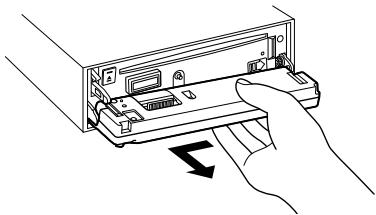
Removing the Faceplate
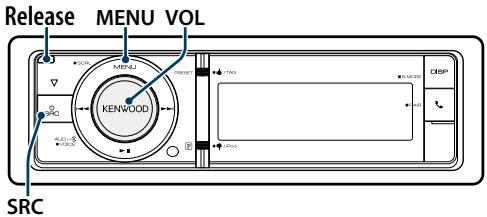
1 Press the Release button.
Drop open the faceplate.
2 Drawing the faceplate to left side pull it to forward and remove it.
natural_image
Illustration of a hand inserting a device into a rack, showing internal components and a downward arrow (no text or symbols)
- The faceplate is a precision piece of equipment and can be damaged by shocks or jolts.
- Keep the faceplate in its faceplate case while detached.
- Do not expose the faceplate (and the faceplate case) to direct sunlight or excessive heat or humidity. Also avoid places with too much dust or the possibility of water splashing.
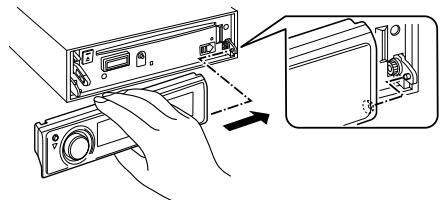
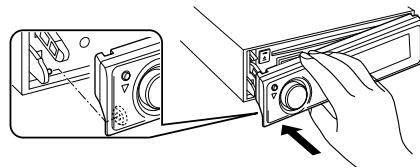
Reattaching the Faceplate
1 Align the shaft on the unit with the depression on the faceplate.
text_image
Diagram showing hands installing or adjusting a device panel with an arrow indicating direction of change.2 Push the faceplate in until it clicks.
The faceplate is locked in place, allowing you to use the unit.
natural_image
Line drawing of a hand inserting a device into a housing panel (no text or symbols)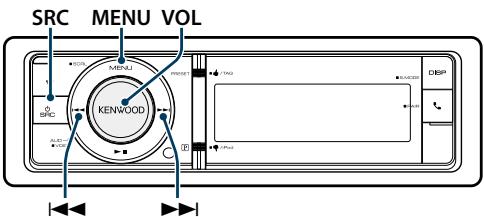
text_image
SRC MENU VOL KENWOOD SPC SPC SPC SPC SPC SPC SPC SPC SPC SPC SPC SPC SPC SPC SPC SPC SPC SPC SPC SPC SPC SPC SPC SPC SPC SPC SPC SPC SPC SPC SPC SPC SPC SPCAudio Control
You can adjust following Audio Setting items.
| Display | Overview | |
| “SubWoofer Level”*2 | You can set subwoofer level.“-15”——“0”——“+15” | |
| “Preset Equalizer”*2 | Sets the sound quality.- Preset Equalizer curve Select (page 46). | |
| “Manual Equalizer”*2 | Sets the sound quality.- Manual Equalizer Control (page 47). | |
| “Pro Setup” | ||
| “DSP Set”*2 | “Bypass”: Disables the DSP function.“Through”: Enables the DSP function. | |
| “Car Type”*2 | To get clear sound, set the sound environment according to the location and size of physically installed speakers with reference to the followings:- Car Type Selection (page 49).- Speaker Setting (page 49).- X’Over Setting (page 50).- Listening Position Selection (page 51).- Listening Position Fine Adjustments (page 51).- Channel Level Fine Adjustments (page 52). | |
| “Speaker Setting”*2 | ||
| “X’Over”*2 | ||
| “DTA Settings”*2 | ||
| “Zone Control” | Sets the Dual Zone System.- Dual Zone System (page 48). | |
| “Sound Enhancements”*2 | . | |
| “Supreme” | Turns ON/OFF the Supreme function.Can be set while Audio file source of USB/CD and iPod source.“ON”/ “OFF” | |
| “HIGWAY-SOUND” | Compensates the low volume or bass sound being lost by road noises to make vocal sound clearer.“OFF”/ “Low”/ “Middle”/ “High” | |
| “Space Enhancer”*1 | Virtually enhances the sound space using the DSP.“OFF”/ “Small”/ “Medium”/ “Large” | |
| “Sound Realizer”*1 | Virtually makes the sound more realistic using the DSP.“OFF”/ “Level1”/ “Level2”/ “Level3” | |
| “Sound Elevation”*1 | Virtually raises the sound field using the DSP.“OFF”/ “Low”/ “Middle”/ “High” | |
| “Volume offset” | Sets each source’s volume as a difference from the basic volume.“-8”—“0” (AUX: “-8”—“+8”) | |
| “SubWoofer Mute”*2 | Sets the Subwoofer Mute.“ON”/ “OFF” | |
| “Preset”*2 | Sets the audio preset.- Audio Preset Memory (page 53).- Audio Preset Recall (page 54). | |
| “Bass Boost”*2 | Sets the Bass Boost level in 3 steps.“OFF”/ “Level1”/ “Level2”/ “Level3” | |
| “Loudness”*2 | Makes the sounds at high and low frequencies louder.“OFF”/ “Low”/ “High” | |
| “Balance”/ “Fader” | Adjusts left/right and front/rear speaker balance.(Left) “L15”—“0”—“R15” (Right)(Rear) “R15”—“0”—“F15” (Front)*2 |
( _ : Factory setting)
*1 Function of KDC-X996
*2 This setting cannot be made when "2 Zone" (Dual Zone System) is set to ON.
1 Select the source
Pressing the [SRC] button repeatedly switches source.
Select a source other than "STANDBY".
SRC Select mode 2: Press the [SRC] button and then turn the [VOL] knob. To determine the selected source, press the [VOL] knob.
2 Enter Audio Control mode
Press the [VOL] knob.
3 Select the setting item to adjust
Turn the [VOL] knob and press it when the desired item is displayed.
4 Make a setting
Turn the [VOL] knob to select a setting value, and then press the [VOL] knob.
5 Exit Audio Control mode
Press the [MENU] button for at least 1 second.
Remarks
- DSP Set
When "DSP Set" is set to "Bypass", the DSP function is disabled, and the colored items can not be set.
- Highway Sound
Increases the volume of faintest sound being lost by road noises to make the sound more audible. Additionally, it accentuates bass sound being lost by road noises to make the bass sound more dynamic.
This function is not effective for the HD Radio source.
- Supreme
Natural sound can be reproduced by restoring the information lost, or the waveforms deformed, due to audio compression.
This function is effective for compressed music.
- Dual Zone System
Main source and sub source (Auxiliary input) output Front channel and Rear channel separately.
- Space Enhancer
This function is not effective for the HD Radio source.
Preset Equalizer curve Select
You can select following Equalizer curve.
| Display | Equalizer curve |
| “User” | User* |
| “Natural” | Natural |
| “Rock” | Rock |
| “Pops” | Pops |
| “Easy” | Easy |
| “Top 40” | Top 40 |
| “Jazz” | Jazz |
| “Powerful” | Powerful |
| “iPod” | iPod (During iPod source only) |
* The Equalizer curve set in the section
( _ : Factory setting)
1 Select the source
Pressing the [SRC] button repeatedly switches source.
Select a source other than "STANDBY".
SRC Select mode 2: Press the [SRC] button and then turn the [VOL] knob. To determine the selected source, press the [VOL] knob.
2 Enter Audio Control mode Press the [VOL] knob.
3 Enter Preset Equalizer mode
Turn the [VOL] knob and press it when the desired item is displayed.
Select "Preset Equalizer".
4 Select the Equalizer curve
Turn the [VOL] knob and press it when the desired item is displayed.
Select the iPod Equalizer curve
You can select from 22 Equalizer curve types for iPod when "iPod" is selected.
-
Enter iPod Equalizer mode Press the [VOL] knob.
-
Select the iPod Equalizer curve
Turn the [VOL] knob and press it when the desired item is displayed.
5 Exit Audio Control mode
Press the [MENU] button for at least 1 second.

- You can select for each source.
Manual Equalizer Control
You can adjust following Equalizer Control items.
KDC-X996
| Band | Item | Range |
| “BAND1” (62.5 Hz) | “GAIN” Band level | -9 --+9 dB |
| “B.Ex” Bass Effect | “ON”/“OFF” | |
| “BAND2” (100 Hz) | “GAIN” Band level | -9 --+9 dB |
| “BAND3” (160 Hz) | “GAIN” Band level | -9 --+9 dB |
| “BAND4” (250 Hz) | “GAIN” Band level | -9 --+9 dB |
| “BAND5” (400 Hz) | “GAIN” Band level | -9 --+9 dB |
| “BAND6” (630 Hz) | “GAIN” Band level | -9 --+9 dB |
| “BAND7” (1 kHz) | “GAIN” Band level | -9 --+9 dB |
| “BAND8” (1.6 kHz) | “GAIN” Band level | -9 --+9 dB |
| “BAND9” (2.5 kHz) | “GAIN” Band level | -9 --+9 dB |
| “BAND10” (4 kHz) | “GAIN” Band level | -9 --+9 dB |
| “BAND11” (6.3 kHz) | “GAIN” Band level | -9 --+9 dB |
| “BAND12” (10 kHz) | “GAIN” Band level | -9 --+9 dB |
| “BAND13” (16kHz) | “GAIN” Band level | -9 --+9 dB |
| “BAND1” – “BAND13” | “Q” Quality | 1.35/ 1.5/ 2.0 |
( _ : Factory setting)
KDC-BT952HD
| Band | Item | Range |
| “BAND1” (62.5 Hz) | “GAIN” Band level | -9 –+9 dB |
| “B.Ex” Bass Effect | “ON”/“OFF” | |
| “BAND2” (160 Hz) | “GAIN” Band level | -9 –+9 dB |
| “BAND3” (400 Hz) | “GAIN” Band level | -9 –+9 dB |
| “BAND4” (1 kHz) | “GAIN” Band level | -9 –+9 dB |
| “BAND5” (2.5 kHz) | “GAIN” Band level | -9 –+9 dB |
| “BAND6” (6.3 kHz) | “GAIN” Band level | -9 –+9 dB |
| “BAND7” (16 kHz) | “GAIN” Band level | -9 –+9 dB |
( _ : Factory setting)
1 Select the source
Pressing the [SRC] button repeatedly switches source.
Select a source other than "STANDBY".
SRC Select mode 2: Press the [SRC] button and then turn the [VOL] knob. To determine the selected source, press the [VOL] knob.
2 Enter Audio Control mode
Press the [VOL] knob.
3 Enter Manual Equalizer Control mode
Turn the [VOL] knob and press it when the desired item is displayed.
Select "Manual Equalizer".
4 Select the setting item to adjust
Turn the [VOL] knob and press it when the desired item is displayed.
5 Make a setting
Turn the [VOL] knob to select a setting value, and then press the [VOL] knob.
6 Exit Audio Control mode
Press the [MENU] button for at least 1 second.

- When "iPod" is selected in the section
- You can select for each source.
Dual Zone System
Main source and sub source (Auxiliary input) output Front channel and Rear channel separately.
| Display | Overview |
| “2 Zone” | Sets the Dual Zone System. “OFF”/“ON” |
| “2 Zone Rear Volume”* | Adjust the volume of Rear channel. “0”—“35” |
| “2 Zone Select”* | Specifies the destination of sub source sound when the Dual Zone function is turned on. “Rear”/“Front” |
* The Dual Zone System is set to "ON".
( _ : Factory setting)
1 Select the source
Pressing the [SRC] button repeatedly switches source.
Select a source other than "STANDBY".
SRC Select mode 2: Press the [SRC] button and then turn the [VOL] knob. To determine the selected source, press the [VOL] knob.
2 Enter Audio Control mode
Press the [VOL] knob.
3 Turn the [VOL] knob and press it when the desired item is displayed.
Select "Pro Setup" > "Zone Control".
4 Select the item you want to set
Turn the [VOL] knob and press it when the desired item is displayed.
5 Exit Audio Control mode
Press the [MENU] button for at least 1 second.

- Select Main source by [SRC] button.
- Adjust the volume of Front channel by [VOL] knob.
- The Audio Control has no effect on sub source.
- There are following limitations when Dual Zone System is enabled.
- There is no output from the subwoofer.
- "Fader", "Subwoofer Level" of
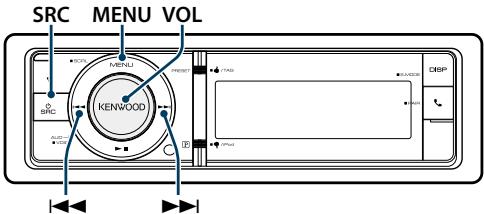
text_image
SRC MENU VOL KENPOOD DESPCar Type Selection
You can compensate the delay of the sound arrival time by selecting your environment from the following car types.
| Display | Overview |
| “OFF” | Not compensating. |
| “Compact” | Compact car |
| “Full size car” | Full size car |
| “Wagon” | Station wagon |
| “Minivan” | Minivan |
| “SUV” | Sport-utility vehicle |
| “Minivan (Long)” | Long Minivan |
( _ : Factory setting)
1 Select the source
Pressing the [SRC] button repeatedly switches source.
Select a source other than "STANDBY".
SRC Select mode 2: Press the [SRC] button and then turn the [VOL] knob. To determine the selected source, press the [VOL] knob.
2 Enter Audio Control mode Press the [VOL] knob.
3 Enter Car Type select mode
Turn the [VOL] knob and press it when the desired item is displayed.
Select "Pro Setup" > "Car Type".
4 Select the car type
Turn the [VOL] knob.
5 Set the value
Press the [VOL] button.
6 Exit Audio Control mode
Press the [MENU] button for at least 1 second.

- You can compensate the distances in more details by using
Speaker Setting
The speaker X'Over is automatically set when the position and size of each speaker are selected from the following items.
| Speaker | Item | Range |
| “Front” | “SIZE” | Speaker Size FrontKDC-X996:“0.E.M.”, “3 1/2inch”, “4inch”, “4 3/4inch”, “5inch”, “6 1/2inch”, “6 3/4inch”, “7inch”, “4x6”, “5x7”, “6x8”, “6x9”, “7x10”KDC-BT952HD:“Small”, “Medium”, “Large” |
| “LOCATION” | Speaker Location Front“Door”, “On Dash”, “Under Dash” | |
| “TWEETER” | Speaker Range Tweeter“None”, “Small”, “Middle”, “Large” | |
| “Rear” | “SIZE” | Speaker Size RearKDC-X996:“None”, “0.E.M.”, “3 1/2inch”, “4inch”, “4 3/4inch”, “5inch”, “6 1/2inch”, “6 3/4inch”, “7inch”, “4x6”, “5x7”, “6x8”, “6x9”, “7x10”KDC-BT952HD:“None”, “Small”, “Medium”, “Large” |
| “LOCATION” | Speaker Location Rear• “Door”, “Rear Deck”• “2nd Row”, “3rd Row” (Car Type: “Minivan”, “Minivan (Long)”) | |
| “SubWoofer” | “SIZE” | Speaker Size SubwooferKDC-X996:“None”, “6 1/2inch”, “8inch”, “10inch”, “12inch”, “15inch Over”KDC-BT952HD:“None”, “Small”, “Large” |
( _ : Factory setting)
1 Select the source
Pressing the [SRC] button repeatedly switches source.
Select a source other than "STANDBY".
SRC Select mode 2: Press the [SRC] button and then turn the [VOL] knob. To determine the selected source, press the [VOL] knob.
2 Enter Audio Control mode
Press the [VOL] knob.
3 Enter Speaker setting mode
Turn the [VOL] knob and press it when the desired item is displayed.
Select "Pro Setup" > "Speaker Setting".
4 Select the setting item to adjust
Turn the [VOL] knob and press it when the desired item is displayed.
5 Make a setting
Turn the [VOL] knob to select a setting value, and then press the [VOL] knob.
6 Exit Audio Control mode
Press the [MENU] button for at least 1 second.
X'Over Setting
Fine adjusting the following setting values corresponding to the X'Over values set in the section
| Display | Item | Range |
| “X’Over” | ||
| “Front” | “FC” | Front High Pass FilterThrough, 30*, 40, 50*, 60, 70, 80, 90*, 100, 120, 150, 180, 220, 250* (Hz) |
| “SLOPE”* | Front High Pass Slope-6, -12, -18, -24 dB/Oct | |
| “GAIN” | Front Gain0, -1, -2, -3, -4, -5, -6, -7, -8 dB | |
| “Rear” | “FC” | Rear High Pass FilterThrough, 30*, 40, 50*, 60, 70, 80, 90*, 100, 120, 150, 180, 220, 250* (Hz) |
| “SLOPE”* | Rear High Pass Slope-6, -12, -18, -24 dB/Oct | |
| “GAIN” | Rear Gain0, -1, -2, -3, -4, -5, -6, -7, -8 dB | |
| “SubWoofer” | “FC” | Subwoofer Low Pass Filter30*, 40, 50*, 60, 70, 80, 90*, 100, 120, 150, 180, 220, 250*, Through (Hz) |
| “SLOPE”* | Subwoofer Slope-6, -12, -18, -24 dB/Oct | |
| “GAIN” | Subwoofer Gain0, -1, -2, -3, -4, -5, -6, -7, -8 dB | |
| “PHASE” | Subwoofer PhaseReverse (180°)/ Normal (0°) | |
| “Tweeter”* | “FC” | Tweeter High Pass Filter1, 1.6, 2.5, 4, 5, 6.3, 8, 10, 12.5 (kHz) |
| “Volume” | Tweete Volume0, -1, -2, -3, -4, -5, -6, -7, -8 dB |
( _ : Factory setting)
* Function of KDC-X996
1 Select the source
Pressing the [SRC] button repeatedly switches source.
Select a source other than "STANDBY".
SRC Select mode 2: Press the [SRC] button and then turn the [VOL] knob. To determine the selected source, press the [VOL] knob.
2 Enter Audio Control mode Press the [VOL] knob.
3 Enter X'Over setting mode
Turn the [VOL] knob and press it when the desired item is displayed.
Select "Pro Setup" > "X'Over".
4 Select the speaker you want to set
Turn the [VOL] knob and press it when the desired item is displayed.
Select "Front", "Rear", "SubWoofer" or "Tweeter".
5 Select the setting item to adjust
Turn the [VOL] knob and press it when the desired item is displayed.
6 Make a setting
Turn the [VOL] knob to select a setting value, and then press the [VOL] knob.
7 Repeat steps 4 to 6 to complete the X'Over settings.
8 Exit Audio Control mode
Press the [MENU] button for at least 1 second.
Listening Position Selection
The sound environment can be compensated in accordance with the selected position. According to the listening position, select the position from the following settings.
| Display | Compensation seat |
| “ALL” | Not compensating. |
| “Front-Left” | Front-Left seat |
| “Front-Right” | Front-Right seat |
| “Front” | Front seat |
( _ : Factory setting)
1 Select the source
Pressing the [SRC] button repeatedly switches source.
Select a source other than "STANDBY".
SRC Select mode 2: Press the [SRC] button and then turn the [VOL] knob. To determine the selected source, press the [VOL] knob.
2 Enter Audio Control mode Press the [VOL] knob.
3 Enter Preset position setting mode
Turn the [VOL] knob and press it when the desired item is displayed.
Select "Pro Setup" > "DTA Settings" > "Preset Position".
4 Select the seat you want to compensate
Turn the [VOL] knob to select a setting value, and then press the [VOL] knob.
5 Exit Audio Control mode
Press the [MENU] button for at least 1 second.
Listening Position Fine Adjustments
Adjusting fine tuning of the speaker position compensation value specified at
| Display | Item | Range |
| “FRONT” | Front speaker | 0 – 20.01 feet |
| “REAR” | Rear speaker | 0 – 20.01 feet |
| “SW” | Subwoofer | 0 – 20.01 feet |
( _ : Factory setting)
1 Select the source
Pressing the [SRC] button repeatedly switches source.
Select a source other than "STANDBY".
SRC Select mode 2: Press the [SRC] button and then turn the [VOL] knob. To determine the selected source, press the [VOL] knob.
2 Enter Audio Control mode
Press the [VOL] knob.
3 Enter Manual position setting mode
Turn the [VOL] knob and press it when the desired item is displayed.
Select "Pro Setup" > "DTA Settings" > "DTA".
4 Select the speaker you want to set
Turn the [VOL] knob and press it when the desired value is displayed.
| Item | Setting overview |
| “DTA FRONT” / “L” | Front Left speaker |
| “DTA FRONT” / “R” | Front Right speaker |
| “DTA REAR” / “L” | Rear Left speaker |
| “DTA REAR” / “R” | Rear Right speaker |
| “DTA SW / “L” | Subwoofer Left |
| “DTA SW” / “R” | Subwoofer Right |
5 Set the value
Turn the [VOL] knob to select a setting value, and then press the [VOL] knob.
The settings of the delay time are automatically identified and compensated by specifying the distances of each speaker from the center of the vehicle interior.
1 Set the front and rear positions and the height of the reference point to the position of the ears of the person sitting in the front seat, and set the right and left positions to the center of the vehicle interior.
2 Measure the distances from the reference point to the speakers.
3 Calculate the distance difference in accordance
with the farthest speaker.
Reference point
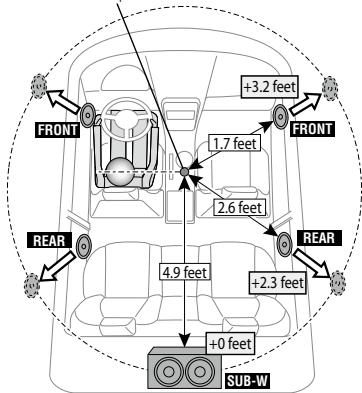
text_image
FRONT +3.2 feet FRONT 1.7 feet 2.6 feet 4.9 feet +0 feet +2.3 feet REAR REAR SUB-W6 Exit Audio Control mode
Press the [MENU] button for at least 1 second.
Channel Level Fine Adjustments
After DTA compensation, you can finely adjust the unsatisfactory speaker volume of respective speaker.
| Display | Item | Range |
| “FRONT” | Front speaker | “-8”—“0” |
| “REAR” | Rear speaker | “-8”—“0” |
| “SUBWOOFER” | Subwoofer | “-8”—“0” |
( _ : Factory setting)
1 Select the source
Pressing the [SRC] button repeatedly switches source.
Select a source other than "STANDBY".
SRC Select mode 2: Press the [SRC] button and then turn the [VOL] knob. To determine the selected source, press the [VOL] knob.
2 Enter Audio Control mode
Press the [VOL] knob.
3 Enter Channel Level setting mode
Turn the [VOL] knob and press it when the desired item is displayed.
Select "Pro Setup" > "DTA Settings" > "Channel Level.
4 Select the speaker you want to set
Turn the [VOL] knob and press it when the desired value is displayed.
| Item | Setting overview |
| "CHANNEL LEVEL. FRONT" / "L" | Front Left speaker |
| "CHANNEL LEVEL. FRONT" / "R" | Front Right speaker |
| "CHANNEL LEVEL. REAR" / "L" | Rear Left speaker |
| "CHANNEL LEVEL. REAR" / "R" | Rear Right speaker |
| "CHANNEL LEVEL. SUBWOOFER" / "L" | Subwoofer Left |
| "CHANNEL LEVEL. SUBWOOFER / "R" | Subwoofer Right |
5 Set the value
Turn the [VOL] knob to select a setting value, and then press the [VOL] knob.
6 Exit Audio Control mode
Press the [MENU] button for at least 1 second.
Resetting of DTA Settings
You can reset the DTA-compensated values to the factory settings.
1 Select the source
Pressing the [SRC] button repeatedly switches source.
Select a source other than "STANDBY".
SRC Select mode 2: Press the [SRC] button and then turn the [VOL] knob. To determine the selected source, press the [VOL] knob.
2 Enter Audio Control mode
Press the [VOL] knob.
3 Enter Reset DTA Setting mode
Turn the [VOL] knob and press it when the desired item is displayed.
Select "Pro Setup" > "DTA Settings" > "Reset DTA Setting".
4 Reset the DTA settings
Turn the [VOL] knob to select "YES", and then press the [VOL] knob.
Audio Preset Memory
Registering the value setup by Sound Control.
1 Setup Sound Control
Refer to the following operations to setup the Sound Control.
- Manual Equalizer Control (page 47)
- Car Type Selection (page 49)
- Speaker Setting (page 49)
- X'Over Setting (page 50)
- Listening Position Selection (page 51)
- Listening Position Fine Adjustments (page 51)
- Channel Level Fine Adjustments (page 52)
2 Enter Audio preset memory mode
Turn the [VOL] knob and press it when the desired item is displayed.
Select "Pro Setup" > "Preset" > "Memory".
3 Select the number to put in the memory
Turn the [VOL] knob and press it when the desired item is displayed.
Select a preset number.
4 Turn the [VOL] knob and press it when the desired item is displayed.
Select "YES".
"Memory Completed" is displayed.
5 Exit Audio Control mode
Press the [MENU] button for at least 1 second.

- Register 2 patterns of Audio Preset Memory.
- Preset number "1": When you press the Reset, all the sources will be the setting value which is registered.
- Preset number "1" and "2": The memory cannot be erased by the Reset button.
- This function cannot be registered when the iPod Equalizer set in
Audio Preset Recall
Recalling the sound setup registered by
1 Select the source
Pressing the [SRC] button repeatedly switches source.
Select a source other than "STANDBY".
SRC Select mode 2: Press the [SRC] button and then turn the [VOL] knob. To determine the selected source, press the [VOL] knob.
2 Enter Audio preset recall mode
Turn the [VOL] knob and press it when the desired item is displayed.
Select "Pro Setup" > "Preset" > "Recall".
3 Select the number to recall in the memory
Turn the [VOL] knob and press it when the desired item is displayed.
Select preset number.
4 Turn the [VOL] knob and press it when the desired item is displayed.
Select "YES".
"Recall Completed" is displayed.
5 Exit Audio Control mode
Press the [MENU] button for at least 1 second.

- The "User" of
- The Equalizer curve is changed to the value which was recalled by the selected source.
Bluetooth Setup
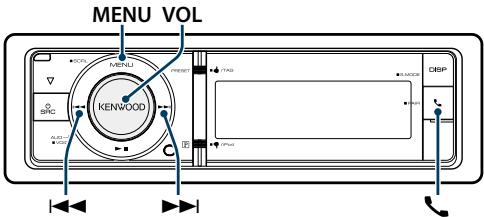
text_image
MENU VOL KENTU MENTU KENWOOD USB DBP USBBluetooth Setting
You can select following Bluetooth Setting items.
1 Enter Bluetooth mode
Press the [ ] button.
You can also select from "Settings" in Menu List mode.
2 Turn the [VOL] knob and press it when the desired item is displayed.
Select "BT Settings".
3 Select the Menu item
Turn the [VOL] knob and press it when the desired item is displayed.
| Display | Overview | |
| “SMS Inbox” | Display the received short message.Refer to(page 61). | |
| “BT Settings” | ||
| “Pairing” | ||
| “Device Regist.” | Register a Bluetooth device (pairing).Refer to(page 57). | |
| “Phone Selection” | Select a cell-phone or Bluetooth audio player connection | |
| “Audio Selection” | Refer to(page 58). | |
| “SPCL DVC Select” | Register a Bluetooth device (pairing).Refer to(page 57). | |
| “Device Delete” | Cancel registration of the Bluetooth device.Refer to(page 59). | |
| “SMS” | ||
| “SMS Download” | Download a short message.Refer to(page 61). | |
| “SMS Reply” | Select a method to reply to the received SMS.Refer to(page 62). | |
| “SMS Message” | Create an original message.Refer to(page 63). | |
| “Detailed Setup” | Move to detailed item. |
| “PIN Code Edit” | Specify the PIN code required when registering this unit using the Bluetooth device.Refer to(page 58). |
| “Auto Answer” | Answer a call automatically after lapse of the preset time interval for automatic answer.“OFF”/“0s”—“8s”—“99s” |
| “Auto Reconnect” | Automatically reconnects the selected Bluetooth device when radio wave becomes strong enough, even after it is disconnected.“ON”/“OFF”When this function is turned ON, the Bluetooth device is reconnected if it has been disconnected by selecting “Phone Selection”/“Audio Selection”. |
| “Bluetooth HF/Audio” | You can specify output speakers for hands-free voice communication and Bluetooth audio sound.“Front”: Outputs audio from the front speakers.“All”: Outputs audio from the front and rear speakers. |
| “Call Beep” | You can output a beep from the speaker when a call comes in.“ON”: Beep is heard.“OFF”: Beep is canceled. |
| “BT F/W Update” | Display the version of the firmware of this unit. |
| “Mic Gain” | Adjust the sensitivity of the microphone for a telephone call. Adjust the voice of caller. Setting to “+” increases the voice volume.“1”—“20”—“30” |
| “NR Level” | Reduce the noises generated by surrounding environment without changing the microphone volume. Adjust the voice of caller when it is not clear. Setting to “+” increases the noise reduction.“-1”—“0”—“+1” |
| “Echo Cancel Level” | Adjust the level of echo cancellation. Setting to “+” increases the echo cancel reduction.“-1”—“0”—“+1” |
( _ : Factory setting)
4 Make a setting
Turn the [VOL] knob to select a setting value, and then press the [VOL] knob.
5 Exit BT Settings mode
Press the [ ] button.
Remarks
- "Auto Answer" (Setting the Time Interval for Automatic Answer)
This function automatically answers (responds to) a call after lapse of the preset time interval for automatic answer. "OFF": Does not answer the phone call automatically. "0": Automatically answers the phone call at once. "1s" - "99s": Automatically answers the phone call after lapse of 1 - 99 seconds.

- If the time set in the cell-phone is shorter than that set in the unit, the former will be used.
• This function does not work for call waiting.
- "BT F/W Update" (Displaying the Firmware Version)
Display the version of the firmware of this unit. For how to update the firmware, access our web site. http://www.kenwood.com/cs/ce/bt/
Registering Bluetooth Device (Pairing)
To make your Bluetooth device usable with this unit, you need to register it (pairing). You can register up to 5 Bluetooth devices to this unit.
Registering from Bluetooth devices
1 Turn on this unit Press the [SRC] button.
2 Start registering this unit by operating the Bluetooth device
By operating the Bluetooth device, register the hands-free unit (pairing). Select "KENWOOD BT CD/R-6P1" from the list of connected units.
3 Enter a PIN code Input the PIN code ("0000") in the Bluetooth device.
Check that registration is complete on the Bluetooth device.
PIN code is set to "0000" as the default. You can change this code. Refer to
4 By operating the Bluetooth device, start hands-free connection.
Registering from this unit
1 Enter Bluetooth mode
Press the [ ] button.
You can also select from "Settings" in Menu List mode.
2 Enter Bluetooth device registration mode Turn the [VOL] knob and press it when the desired item is displayed.
Select "BT Settings" > "Pairing" > "Device Regist.".
Search for the Bluetooth device.
When search is completed, "Finished" is displayed.
3 Select a Bluetooth device
Turn the [VOL] knob and press it when the desired item is displayed.
4 Input the PIN code
-
Turn the [VOL] knob and press it when the desired item is displayed. Select the digit.
-
Turn the [VOL] knob to select the numbers, and then press the [VOL] knob.
5 Transmit the PIN code
Press the [VOL] knob for at least 1 second.
If "Pairing Success" is displayed, registration is completed.
If the error message appears even though the PIN code is correct, try
6 Return to the device list
Press the [MENU] button.
7 Exit BT Settings mode
Press the [ ] button.

- This unit allows up to eight digits to be input for a PIN code. If a PIN code cannot be input from this unit, it can be input from the Bluetooth device.
- If there are 5 or more Bluetooth devices registered, you cannot register a new Bluetooth device.
Registering Special Bluetooth device
Allow registration of a special device that cannot be registered normally (pairing).
-
Select Special device registration mode
Turn the [VOL] knob and press it when the desired item is displayed.
Select "BT Settings" > "Pairing" > "SPCL DVC Select". -
Enter Special device registration mode
Press the [VOL] knob.
A list is displayed.
- Select a device name
Turn the [VOL] knob and push the center when the desired device name is displayed.
If "Completed" is displayed, registration is completed.
- Go through the procedure step 3 of
and complete the registration (pairing).
Cancelling Special device registration mode
Press the [MENU] button for at least 1 second.

- If the device name is not in the list, select "Other Phones".
Registering PIN Code
By operating the Bluetooth device, specify the PIN code necessary for registering this unit.
1 Enter Bluetooth mode
Press the [ ] button.
You can also select from "Settings" in Menu List mode.
2 Enter PIN code edit mode
Turn the [VOL] knob and press it when the desired item is displayed.
Select "BT Settings" > "Detailed Setup" > "PIN Code Edit".
The current setting of PIN code is displayed.
3 Input the PIN code
- Turn the [VOL] knob and press it when the desired item is displayed. Select the digit.
- Turn the [VOL] knob to select the numbers, and then press the [VOL] knob.
4 Register a PIN code
Press the [VOL] knob for at least 1 second.
If "Completed" is displayed, registration is completed.
5 Exit BT Settings mode
Press the [ ] button.

- By default, "0000" is specified.
- A PIN code can be specified with up to eight digits.
Selecting the Bluetooth device You Wish to Connect
When two or more Bluetooth devices have already been registered, you need to select the Bluetooth device you wish to use.
1 Enter Bluetooth mode
Press the [ ] button.
You can also select from "Settings" in Menu List mode.
2 Select Bluetooth device selection mode Turn the [VOL] knob and press it when the desired item is displayed.
Cell-phone
Select "BT Settings" > "Pairing" > "Phone Selection".
Audio player
Select "BT Settings" > "Pairing" > "Audio Selection".
3 Enter Bluetooth device selection mode Press the [VOL] knob.
"(name)" is displayed.
4 Select the Bluetooth device Turn the [VOL] knob.
5 Set up the Bluetooth device Press the [VOL] knob.
"*(name)" or "- (name)" is displayed.
"*": The selected Bluetooth device is busy.
"-": The selected Bluetooth device is on standby.
“” (blank): The Bluetooth device is deselected.
6 Exit BT Settings mode
Press the [ ] button.

- If a Bluetooth device is already selected, deselect it, and then select a different one.
Deleting a Registered Bluetooth device
You can delete a registered Bluetooth device.
1 Enter Bluetooth mode
Press the [ ] button.
You can also select from "Settings" in Menu List mode.
2 Enter Bluetooth device deletion mode Turn the [VOL] knob and press it when the desired item is displayed.
Select "BT Settings" > "Pairing" > "Device Delete".
"(name)" is displayed.
3 Select the Bluetooth device Turn the [VOL] knob.
4 Delete the selected Bluetooth device Press the [VOL] knob.
5 Turn the [VOL] knob and press it when the desired item is displayed.
Select "YES".
"Delete" is displayed.
6 Exit BT Settings mode
Press the [ ] button.

- When a registered cell-phone is deleted, its Phone Book, log, and SMS are also deleted.
Downloading the Phone Book
Download the phone book data from the cell-phone to this unit so that you can use the Phone Book of this unit.
To download automatically
If the cell-phone supports a phone book synchronization function, the phone book is downloaded automatically after Bluetooth connection.

- Setting on the cell-phone may be required.
- If no phone book data is found in the unit even after the compete display, your cell-phone may not support automatic download of phone book data. In this case, try downloading manually.
To download from the cell-phone manually
1 By operating the cell-phone, end the hands-free connection.
2 By operating the cell-phone, send the phone book data to this unit
By operating the cell-phone, download the phone book data to this unit.
- During downloading: "Downloading" is displayed.
- After completion of downloading: "Completed" is displayed.
3 By operating the cell-phone, start the hands-free connection.
To clear the downloading completion message Press any button.

- Up to 500 phone numbers can be registered for each registered cell-phone.
- Up to 32 digits can be registered for each phone number along with up to 50^* characters representing a name.
(* 50: Number of alphabetic alphabetical characters.
Fewer characters can be input depending on the type of characters.) - To cancel downloading of the phone book data, operate the cell-phone.
Bluetooth device registration test
You can check whether a Bluetooth device can be registered by operating this unit.
1 Enter Bluetooth mode
Press the [ ] button for at least 1 second.
Search for a Bluetooth device starts with "Searching" displayed.
2 Select the Bluetooth device to test
Turn the [VOL] knob to select Bluetooth device name.
3 Enter BT test mode
Press the [VOL] knob for at least 1 second.
"BT Test Mode" is displayed.
4 Transmit the PIN code.
When pairing is completed successfully, a connection test starts automatically.
When the connection test is completed, test results are displayed on a function basis ("OK": Enabled; "NG": Disabled).
| Display | Description |
| "PAIRING" | Registration in this unit |
| "HFCONNECT" | Hands-free phoning |
| "AUDCONNECT" | Audio playback |
| "PB DOWNLOAD" | Phone Book downloading |
5 Exit BT test mode
Press the [VOL] knob.
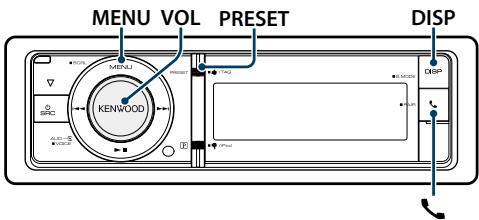
text_image
MENU VOL PRESET DISP KENWOODDownloading the SMS
Download the short message (SMS) arrived at the cell-phone so that it can be read on this unit.
1 Enter Bluetooth mode Press the [ ] button.
You can also select from "Settings" in Menu List mode.
2 Enter SMS download mode Turn the [VOL] knob and press it when the desired item is displayed. Select "BT Settings" > "SMS" > "SMS Download".
3 Start downloading Press the [VOL] knob. "Downloading" is displayed. When the downloading finishes, "Completed" is displayed.
4 Exit BT Settings mode Press the [ ] button.

- The cell-phone must be able to transmit the SMS using Bluetooth. Setting on the cell-phone may be required. If the cell-phone does not support SMS function, the SMS download item in Function Control mode is not displayed.
- When the SMS is downloaded from the cell-phone, the unopened messages in the cell-phone are opened.
- The already-read and unread short messages can be respectively downloaded up to 149.
SMS (Short Message Service)
The SMS arrived at the cell-phone is displayed on the receiver.
A newly arrived message is displayed.

- To prevent car accidents, the driver should not read the SMS while driving.
When a new message arrives
"SMS Received" is displayed.
The display disappears with any operations.
Displaying the SMS
1 Enter Bluetooth mode Press the [ ] button.
2 Enter SMS Inbox mode
Turn the [VOL] knob and press it when the desired item is displayed.
Select "SMS Inbox".
A message list appears.
3 Select a message
Turn the [VOL] knob.
Each pressing of the [DISP] button switches between telephone number or name and message reception date.
4 Display the text
Press the [VOL] knob.
Turning the [VOL] knob scrolls the message. Pressing the [VOL] knob again returns to the message list screen.
5 Exit SMS Inbox mode
Press the [MENU] button.
6 Exit BT Settings mode
Press the [ ] button.

- The unopened message is displayed at the beginning of the list. Other messages are displayed in the order of reception.
- The SMS that has arrived when the cell-phone is not linked with Bluetooth cannot be displayed. Download the SMS.
- The short message cannot be displayed during downloading the SMS.
SMS reply setting
You can select a method to reply to the received SMS.
1 Enter Bluetooth mode Press the [ ] button.
2 Enter SMS Reply mode Turn the [VOL] knob and press it when the desired item is displayed. Select "BT Settings" > "SMS" > "SMS Reply".
3 Set to the desired Reply setting
| Reply setting | Display | Operation |
| Auto | "AUTO" | Replies to the received SMS automatically. |
| Manual | "MANUAL" | Sets whether to reply to the received SMS. |
| OFF | "OFF" | Does not reply to the received SMS. |
Turn the [VOL] knob to select Reply setting, and then press the [VOL] knob.
4 Exit SMS Reply mode Press the [MENU] button.
5 Exit BT Settings mode Press the [ ] button.

- Set the reply message according to
(page 62). - When "Auto" is selected, a reply is made only to the SMS from the phone whose phone number has been registered in the phone book. If an SMS is received from the phone whose phone number has not been registered in the phone book, you can reply to it in the same manner as you selected "Manual".
- "Send Error" is displayed in case of failure in transmission of the message which is automatically returned when "Auto" is selected for Reply setting. While "SMS Resend" is still displayed on the display, selecting "YES" resends the reply. Selecting "NO" cancels the reply.
Return message setting
You can select a return message (language).
1 Enter Bluetooth mode Press the [ ] button.
2 Enter SMS Message mode
Turn the [VOL] knob and press it when the desired item is displayed.
Select "BT Settings" > "SMS" > "SMS Message".
3 Set to the desired message (language) Turn the [VOL] knob to select message (language), and then press the [VOL] knob.
4 Exit SMS Message mode Press the [MENU] button.
5 Exit BT Settings mode Press the [ ] button.

- If you select "User" from the message, the previously created original message will be sent. Refer to
Creating an original message
You can create an original return message.
1 Enter Bluetooth mode Press the [ ] button.
2 Enter SMS Message select mode
Turn the [VOL] knob and press it when the desired item is displayed.
Select "BT Settings" > "SMS" > "SMS Message".
3 Select the SMS message edit mode
Turn the [VOL] knob to select "User", and then press the [VOL] knob for at least 1 second.
4 Create a message
| Operation type | Operation |
| Select the characters | Turn the [VOL] knob and press the [VOL] knob. |
| Select the column | Turn the [VOL] knob and press the [VOL] knob. |
| Select the character type | Press the [DISP] button. |
| Delete the character | Press the [PRESET] button. |
| Delete the all characters. | Press the [PRESET] button for at least 1 second. |
5 To preview the message
Press the [VOL] knob for at least 1 second.
Pressing the [MENU] button, return to step create a message.
6 Determine the message Press the [VOL] knob.
7 Exit SMS Message select mode Press the [MENU] button.
8 Exit BT Settings mode Press the [ ] button.

- You can enter letters using the remote control. Example of entry: To enter letter "A", press the [2] button once, and then press the [▶▶] button. To enter letter "F", press the [3] button three times and then press the [▶▶] button. To switch between letter types, press the [DIRECT] button. After entering all letters, pressing the [▶▶] button allows you to preview the message. Pressing the [▶▶] button again determines the message.
SMS manual reply
You can manually reply to the received SMS.
When a new message arrives
"SMS Reply" is displayed.
1 Turn the [VOL] knob to select "YES", and then press the [VOL] knob.
Selecting "NO" cancels the SMS manual reply.
2 Select the desired message (language) Turn the [VOL] knob to select message (language), and then press the [VOL] knob.
3 Send the reply message Press the [VOL] knob.
If sensing of the reply message fails, "Send Error" is displayed. After this, selecting "YES" while "SMS Resend" is displayed will resend the reply message. Selecting "NO" will cancel the SMS manual reply.
Canceling the SMS manual reply Press the [SRC] button.
SiriusXM Vehicle Connect Tuner Control (optional tuner and service required)
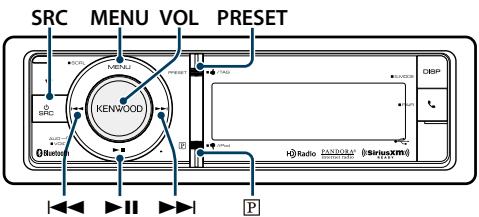
text_image
SRC MENU VOL PRESET KENPOOD 0 Bluetooth P H Radio RADIO (system) DBPBefore use
- SiriusXM Satellite Radio operation requires the connection of the optional SiriusXM-Connect Vehicle Tuner (sold separately) and service. To activate the SiriusXM Vehicle Connect tuner, you will need the Radio ID.
• Make a note of your Radio ID
For each SiriusXM Vehicle Connect tuner, peculiar Radio ID is assigned. To confirm your Radio ID, tune to channel 0. The letters I, O, S and F are not used in any Radio ID.
• How to activate your SiriusXM Service
Go to www.siriusxm.com/activatenow or call 1-866-635-2349 to activate your SiriusXM Vehicle Connect Tuner.
Basic operations
Selecting Satellite Radio source
Pressing the [SRC] button repeatedly switches source.
Select the "SiriusXM" display.

- You need to register with the service provider to receive the service by Satellite Radio. Consult the service provider if "CALL ... TO SUBSCRIBE" appears.
- The radio may take a little time to start after you select the Satellite Radio source.
- If the signal reception fails, "No Signal" appears.
- When "Subscription Updated" is displayed, press [VOL] knob to turn it off.
Selecting a channel
Press the [◀◀] or [▶▶] button.
Confirmation of Radio ID
Press the [◀◀] or [▶▶] button to tune in to 0 channel.
SiriusXM tuner Setting
You can select following Satellite Radio Setting items.
1 Select Satellite Radio source
2 Enter Menu List mode Press the [MENU] button.
3 Turn the [VOL] knob and press it when the desired item is displayed.
Select "Settings".
4 Select the setting item to adjust
Turn the [VOL] knob and press it when the desired item is displayed.
| Display | Selectable setting/item | |
| "Settings" | ||
| "Seek Mode" | Selects the tuning mode of the radio."Channel": Normal manual seeking control."Preset": Search in order of the channels in the Preset memory | |
| "Content Alert" | ||
| "Alert Set"Turns on/off the content alert function.Refer to(page 68)"OFF"/ "ON" | ||
| "Alert Item Edit"Selects or deselects the registered content alert item.Refer to(page 68). | ||
| "Alert Item Delete"Deletes the registered content alert item.Refer to(page 68). | ||
| "Channel Skip" | ||
| "Skip CH Edit"Registers the channel you want to skip.Refer to(page 69). | ||
| "CH All Clear"Clears the skip setting for all channels.Refer to(page 69). | ||
| "Parental Lock" | ||
| "Pass Code Set"Sets Parental Lock."Channel Edit"- Parental Lock passcode setting (page 71)."Lock CH All Clear"- Parental Lock setting (page 70)."Clearing the Parental Lock setting (page 70)."Mature Set"- Setting Parental Lock for Mature contents (page 71). | ||
| "Signal Level" | Displays the level of the signal received by the antenna of the satellite radio tuner.Strong ((( ))→ ( )→ ( ) Weak | |
| "Buffer Usage" | Displays the memory usage for the function mentioned in(page 72)."0%"—"100%" | |
| "TAG Memory" | Displays the tag memory usage of the HD Radio receiver and the SiriusXM tuner. Up to 50 tags can be registered to this unit. | |
| "Tagging" | Turns ON / OFF the iTunes tag memory function of the HD Radio receiver and the SiriusXM tuner. "ON" / "OFF" |
( _ : Factory setting)
5 Make a setting
Turn the [VOL] knob to select a setting value, and then press the [VOL] knob.
6 Exit Menu List mode
Press the [MENU] button for at least 1 second, and then press it again briefly.
Category and Channel Search
You can select the channel and category you want to receive.
1 Select Satellite Radio source
2 Enter Menu List mode Press the [MENU] button.
3 Enter the Category and Channel Search mode
Turn the [VOL] knob and press it when the desired item is displayed.
Select "Category Search".
4 Select a category
Turn the [VOL] knob to select a category, and then press the [VOL] knob.
5 Select a channel Turn the [VOL] knob to select a channel, and then press the [VOL] knob.
Canceling the Category and Channel Search mode
Press the [MENU] button for at least 1 second, and then press it again briefly.

- You cannot search for a channel until the category information is acquired.
Preset Memory
You can store a channel in the memory.
1 Select the channel you wish to store in the preset memory
2 Enter the Preset Memory mode Press the [PRESET] button.
The "Preset list", "Mixed preset list", and normal display are displayed in order each time you press this button.
3 Select the number to put in the memory Turn the [VOL] knob and press [VOL] knob for at least 1 second when the desired item is displayed. Select preset number.
Cancelling the Preset Memory mode Press the [MENU] button.
![KENWOOD KDC-BT952HD - Cancelling the Preset Memory mode Press the [MENU] button. - 1](/content/2025/01/83817/images/d34f076d45d12d2c7fb65c058f117ff49c15343084b03587013b76d921445ba6.jpg)
- Only the channel number is stored. Category information is not stored.
- Up to 24 channels can be registered for each preset band. Selecting "Mixed Preset List" allows you to register up to six stations including FM, AM, and another the SiriusXM tuner regardless of the selected source.
Preset Tuning
Recalling a channel from the memory.
1 Select Satellite Radio source
2 Enter the Preset Memory mode Press the [PRESET] button.
The "Preset list", "Mixed preset list", and normal display are displayed in order each time you press this button.
3 Select a desired station in the memory Turn the [VOL] knob and press it when the desired item is displayed.
Channel Scan
Every receivable Channel is checked for 10 seconds.
1 Select Satellite Radio source
2 Enter Menu List mode Press the [MENU] button.
3 Enter Channel Scan
Turn the [VOL] knob and press it when the desired item is displayed.
Select "Channel Scan".
Release it when the channel you want to listen to is received Press the [VOL] knob.
SiriusXM Vehicle Connect Tuner Control (optional tuner and service required)
Function of remote control
Direct Access Tuning
You can search for a channel directly by entering its number.
1 Select Satellite Radio source
2 Enter the Direct Access Tuning mode Press the [DIRECT] button on the remote control.
“----” is displayed.
3 Enter a channel number Press the number buttons.
4 Tune in to the entered channel
Press the [◀◀] or [▶▶] button.
Canceling the Direct access tuning mode Press the [DIRECT] button on the remote control.

- If you operate no button for 10 seconds, the Direct Access Tuning mode is automatically canceled.
Content alert
When the broadcast of the song by the registered artist or the broadcast of the registered song starts, a message appears to allow you to switch the current source to the desired channel, even though the receiving source is other than SIriusXM Radio.
Registering contents
1 Receive the contents you wish to register
2 Select the Contents registration mode Press the [P] button for at least 1 second.
3 Register the contents
Turn the [VOL] knob to select a contents type ("Store Artist?" or "Store Song?"), and then press the [VOL] knob.
"Artist Stored" or "Song Stored" is displayed.

- You can register a total of 50 types of contents including both artists and songs.
When a Content alert occurs
1 A content alert message is displayed
When multiple content alerts occur, a content name is displayed one after another. The previous content name can be displayed and selected by the operation in step 3.
A content alert message is displayed for five seconds from the last content alert.
The following switching operation to your desired content can be performed while the message is being displayed.
2 Start selecting a content Press the [VOL] knob.
3 Select your desired content of which content alerts are occurring
Turn the [VOL] knob to select the contents, and then press the [VOL] knob.
The current source switches to the channel that is broadcasting the selected content.
Canceling the Content alert mode
Press the [MENU] button.
Content alert setting
You can turn on/off the content alert function.
1 Select Satellite Radio source
2 Enter Menu List mode Press the [MENU] button.
3 Enter the Alert set mode
Turn the [VOL] knob and press it when the desired item is displayed.
Select "Settings" > "Content Alert" > "Alert Set".
4 Turn on or off the Content alert function
Turn the [VOL] knob to select "ON" or "OFF", and then press the [VOL] knob.
5 Exit Menu List mode
Press the [MENU] button for at least 1 second, and then press it again briefly.
Editing a Content alert item
You can enable or disable the registered content alert item individually.
1 Select Satellite Radio source
2 Enter Menu List mode Press the [MENU] button.
3 Enter the Content alert item edit mode
Turn the [VOL] knob and press it when the desired item is displayed.
Select "Settings" > "Content Alert" > "Alert Item Edit".
4 Select a contents type
Turn the [VOL] knob to select "Song" or "Artist", and then press the [VOL] knob.
5 Select or deselect the selected Content alert item
Turn the [VOL] knob to select Content alert item, and then press the [VOL] knob.
The selected Content alert item is selected and deselected alternately each time you press the [VOL] knob.
"*" is indicated for the selected item name.
6 Exit Menu List mode
Press the [MENU] button for at least 1 second, and then press it again briefly.
Delete a Content alert item
You can delete the registered Content alert item.
1 Select Satellite Radio source
2 Enter Menu List mode Press the [MENU] button.
3 Enter the Content alert item delete mode
Turn the [VOL] knob and press it when the desired item is displayed.
Select "Settings" > "Content Alert" > "Alert Item Delete".
4 Select a contents type
Turn the [VOL] knob to select "Song Delete", "Artist Delete" or "All Delete", and then press the [VOL] knob.
Selecting "All Delete" allows you to delete all Content alert items together. Proceed to step 6.
5 Select the Content alert item you wish to delete
Turn the [VOL] knob to select Content alert item, and then press the [VOL] knob.
6 Determine the selection
Turn the [VOL] knob to select "YES", and then press the [VOL] knob.
"Completed" is displayed.
7 Exit Menu List mode
Press the [MENU] button for at least 1 second, and then press it again briefly.
SiriusXM Vehicle Connect Tuner Control (optional tuner and service required)
Channel skip setting
You can register the channel you wish to skip.
1 Select Satellite Radio source
2 Enter Menu List mode Press the [MENU] button.
3 Enter the Channel skip setting mode
Turn the [VOL] knob and press it when the desired item is displayed.
Select "Settings" > "Channel Skip" > "Skip CH edit".
4 Select the category of the channel you wish to skip Turn the [VOL] knob to select a category, and then press the [VOL] knob.
5 Select the channel you wish to skip Turn the [VOL] knob to select a channel, and then press the [VOL] knob. The selected channel skip setting is turned on and off alternately each time you press the [VOL] knob “*” is indicated for the selected item name.
6 Exit Menu List mode Press the [MENU] button for at least 1 second, and then press it again briefly.

- Channels 0 and 1 cannot be registered to skip.
Clearing the channel skip setting
You can clear the skip setting for all the selected channels together.
1 Select Satellite Radio source
2 Enter Menu List mode Press the [MENU] button.
3 Enter the Clearing the channel skip setting mode
Turn the [VOL] knob and press it when the desired item is displayed.
Select "Settings" > "Channel Skip" > "CH AI Clear".
4 Clear the channel skip setting
Turn the [VOL] knob to select "YES", and then press the [VOL] knob.
"Completed" is displayed.
5 Exit Menu List mode
Press the [MENU] button for at least 1 second, and then press it again briefly.
Parental Lock setting
You can turn on/off Parental Lock for each channel.
1 Select Satellite Radio source
2 Enter Menu List mode Press the [MENU] button.
3 Select the Parental lock item
Turn the [VOL] knob and press it when the desired item is displayed.
Select "Settings" > "Parental Lock".
4 Enter the passcode
| Operation type | Operation |
| Selection of numbers. | Turn the [VOL] knob and press the [VOL] knob. |
| Selection of column | Turn the [VOL] knob and press the [VOL] knob. |
| Determination of passcode | Press the [VOL] button for at least 1 second. |

- The passcode is set to "0000" as default.
For how to change the passcode, refer to(page 71). - You can enter the passcode using the remote control.
5 Select the Lock channel edit item
Turn the [VOL] knob to select "Channel Edit", and then press the [VOL] knob.
A category list is displayed.
6 Select the category of the channel subject to Parent Lock setting
Turn the [VOL] knob to select a category, and then press the [VOL] knob.
The list of the channels in the selected category is displayed.
7 Set Parental Lock
Turn the [VOL] knob to select a channel, and then press the [VOL] knob.
Parental Lock for the selected channel is turned on and off alternately each time you press the [VOL] knob.
"*" is indicated for the selected channel.
8 Exit Menu List mode
Press the [MENU] button for at least 1 second, and then press it again briefly.

- If a channel for which Parental Lock is turned on is selected, a passcode input screen appears. Programs on the selected channel can be received only when the input passcode is correct.
- Parental Lock cannot be set for channels 0 and 1.
Clearing the Parental Lock setting
You can clear the Parent Lock setting for each channel.
1 Select Satellite Radio source
2 Enter Menu List mode Press the [MENU] button.
3 Select the Parental lock item
Turn the [VOL] knob and press it when the desired item is displayed.
Select "Settings" > "Parental Lock".
4 Enter the pass code
| Operation type | Operation |
| Selection of numbers. | Turn the [VOL] knob and press the [VOL] knob. |
| Selection of column | Turn the [VOL] knob and press the [VOL] knob. |
| Determination of passcode | Press the [VOL] button for at least 1 second. |

- The passcode is set to "0000" as default.
- You can enter the passcode using the remote control.
5 Select the Lock channel clear item Turn the [VOL] knob to select "Lock CH All Clear", and then press the [VOL] knob.
6 Clear the Parent Lock setting Turn the [VOL] knob to select "Yes", and then press the [VOL] knob. "Completed" is displayed.
7 Exit Menu List mode Press the [MENU] button for at least 1 second, and then press it again briefly.
SiriusXM Vehicle Connect Tuner Control (optional tuner and service required)
Setting Parental Lock for Mature contents
Your can turn on/off Parental Lock for the adult channel.
1 Select Satellite Radio source
2 Enter Menu List mode Press the [MENU] button.
3 Select the Parental lock item Turn the [VOL] knob and press it when the desired item is displayed. Select "Settings" > "Parental Lock".
4 Enter the pass code
| Operation type | Operation |
| Selection of numbers. | Turn the [VOL] knob and press the [VOL] knob. |
| Selection of column | Turn the [VOL] knob and press the [VOL] knob. |
| Determination of passcode | Press the [VOL] button for at least 1 second. |

- The passcode is set to "0000" as default.
- You can enter the passcode using the remote control.
5 Select the Mature channel setting item Turn the [VOL] knob to select "Mature Set", and then press the [VOL] knob.
6 Turn on the Mature setting
Turn the [VOL] knob to select "ON" and then press the [VOL] knob.
Selecting "OFF" and pressing the [VOL] knob will turn off the Mature setting.
7 Exit Menu List mode
Press the [MENU] button for at least 1 second, and then press it again briefly.

- If a Mature channel is selected with the Mature setting turned on, the passcode input screen appears. Programs on the selected channel can be received only when the passcode is correct.
Parental Lock passcode setting
You can set a new pass code for Parental Lock setting.
1 Select Satellite Radio source
2 Enter Menu List mode Press the [MENU] button.
3 Select the Parental lock item
Turn the [VOL] knob and press it when the desired item is displayed.
Select "Settings" > "Parental Lock".
4 Enter the pass code
| Operation type | Operation |
| Selection of numbers. | Turn the [VOL] knob and press the [VOL] knob. |
| Selection of column | Turn the [VOL] knob and press the [VOL] knob. |
| Determination of passcode | Press the [VOL] button for at least 1 second. |

- The passcode is set to "0000" as default.
- You can enter the passcode using the remote control.
5 Select the Passcode set item
Turn the [VOL] knob to select "Passcode Set", and then press the [VOL] knob.
6 Enter a new pass code (first time)
Enter a new pass code in the same manner as in step 4.
7 Enter the new pass code again (second time)
Enter the same pass code as that entered in step 6.
The old pass code is changed to the new one and "Completed" is displayed.
8 Exit Menu List mode
Press the [MENU] button for at least 1 second, and then press it again briefly.
Instant Replay
You can replay last 30 minutes of current channel.
1 Enter the Instant Replay mode Press the [▶▶] button for at least 1 second. "Instant Replay" is displayed. The "IR" indicator stays lit during instant replay.
2 Start Instant Replay Press the [▶II] button. The songs are replayed starting with the song played 30 minutes ago. During instant replay, you can perform the following operations:
| Operation type | Operation |
| Pause and play | Press the [▶III] button. |
| Music search | Press the [I◀◀] or [▶▶I] button. |
| Fast Forward or Fast Backward | Press the [I◀◀] or [▶▶I] button for at least 1 second. |
3 Exit the Instant Replay mode Press the [▶II] button for at least 1 second.
"Live" is displayed, and then the on-air song is received.

- Recorded data of the previously received channel is cleared immediately when a different channel is received.
iTunes tagging
You can store the tag of the information about the song being received, and send it to the connected iPod. You can easily find the song on the iTunes Store according to the tag sent to the iPod.
1 Store the song information tag Press the [PRESET] button for at least 1 second.
"TAG" will be indicated on the display when song information can be registered. "TAG Storing" is indicated on the display while a tag is being stored in this unit. "TAG Stored" is indicated on the display after a tag is stored. When your iPod is connected to this unit, "TAG Transferred" is shown on the display and a tag is sent to the iPod.

- The song corresponding to the tag sent to the iPod is indicated in the playlist of the synchronized iTunes.
- By clicking your desired song in the playlist, you can easily find it on the iTunes Store and buy it from the iTunes Store.
- A total of fifty song information tags can be stored in this unit including the song information tags stored by the function of the HD Radio tuner function mentioned in
(page 25). When a tag has been sent to the iPod, the tag stored in this unit is cleared. - Select "ON" for "Tagging" as mentioned in
(page 65) when using this function. - The memory usage can be checked by selecting the "TAG Memory" setting mentioned in
(page 65).
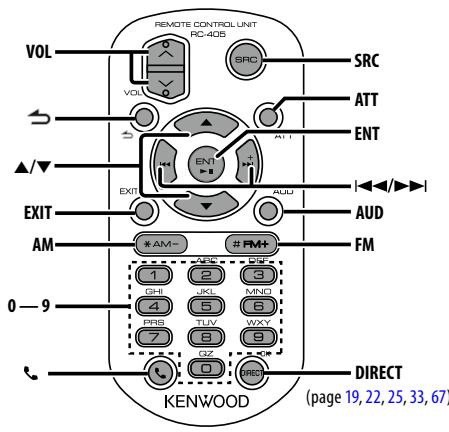
text_image
REMOTE CONTROL UNIT RC-405 VOL SRC ATT ENT ▲/▼ EXIT ADD AUD AM *AM- #FM+ FM 0—9 1 2 3 GHI JKL MNQ 4 5 6 PBS TLW WXY 7 8 9 GZ 0 KENWOOD DIRECT (page 19, 22, 25, 33, 67)General control
• Volume control: [VOL]
- Source select: [SRC]
• Volume reduce: [ATT]
When the button is pressed again, the volume returns to the previous level.
- Return to previous item in mode: [→]
- Exit from mode: [EXIT]
- Selection of item: [▲]/[▼]
• Determination: [ENT] - Enter Audio Control mode: [AUD]
In HD Radio source
• Band select: [FM]/[AM]
- Station select: [|◀◀]/[▶▶]
- Recall preset stations: [1] — [0] and [ENT]
Example:
| Desired preset number | Press button |
| 1 | [1], [ENT] |
| 6 | [6], [ENT] |
| 10 | [1], [0], [ENT] |
| 18 | [1], [8], [ENT] |
In USB/Music CD/Audio file source
• Music select: [|◀◀]/[▶▶]
- Fast Forwards or Fast Backwards: [|◀◀]/[▶▶] (Hold down the button)
- Folder select: [FM]/[AM]
- Pause/Play: [ENT]
- Enter Menu List mode: [▲]/[▼]
- Return to previous item in mode: [→]
In iPod source
- Enter Menu List mode: [▲]/[▼]
- Movement between items during Music search mode: [▲]/[▼]
- Return to previous item in mode: [→]
• Music select: [|◀◀]/[▶▶] - Fast Forwards or Fast Backwards: [|◀◀]/[▶▶] (Hold down the button)
- Pause/Play: [ENT]
In Pandora source
- Music select: [▶▶]
- Pause/Play: [ENT]
In SiriusXM tuner source
- Preset band select: [FM]/[AM]
- Channel select: [|◄◄]/[►►]
- Recall preset channels: [1] — [0] and [ENT] Example:
| Desired preset number | Press button |
| 1 | [1], [ENT] |
| 6 | [6], [ENT] |
| 10 | [1], [0], [ENT] |
| 18 | [1], [8], [ENT] |
Hands-free phone control
Making a call
- Enter Bluetooth mode: [ ]
- Select a dialing method: [▲]/[▼] → [ENT]
• Number dial input:
Input a digit: [0] - [9]
Input "+": [▶▶]
Input "#": [FM]
Input "*": [AM]
Clear the entered phone number: [◀◀◀]
- Make a call: [DIRECT]
Receiving a call
- Answer the call: [ ]
Call waiting
- Answer Another Incoming Call with the Current Call Suspended: [💡]
- Answer another Incoming Call after Terminating the Current Call: [SRC]
- Continue the Current Call: [1]
During a call
• End the call: [SRC]
- Switch between the private talk mode and the hands-free talk mode: [ENT]
Preparing the remote control unit
Pull the battery sheet out from the remote control unit to the direction of the arrow.
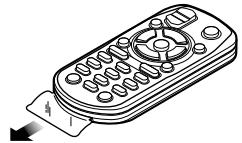
Changing the battery of the remote control unit
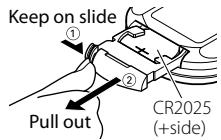
Use a commercially available button battery (CR2025). Insert the battery with the + and – poles aligned properly, following the illustration inside the case.

CAUTION
- Do not set the remote control in hot places such as on the dashboard.
- Lithium battery.
The Lithium battery is in danger of explosion if replaced incorrectly.
Replace it only with the same or equivalent type.
- The battery pack or batteries shall not be exposed to excessive heat such sunshine, fire or the like.
- Keep battery out of reach of children and in original package until ready to use. Dispose of used batteries promptly. If swallowed, contact a physician immediately.
Appendix
About Audio file
- Playable Audio file
AAC-LC (.m4a), MP3 (.mp3), WMA (.wma)
- Playable disc media
CD-R/RW/ROM
- Playable disc file format
ISO 9660 Level 1/2, Joliet, Romeo, Long file name.
- Playable USB device
USB mass storage class
- Playable USB device file system
FAT16, FAT32
Although the audio files are complied with the standards listed above, the play maybe impossible depending on the types or conditions of media or device.
- Playing order of the Audio file
In the example of folder/file tree shown below, the files are played in the order from ① to ⑩.
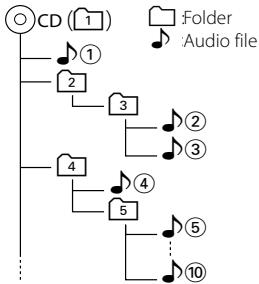
flowchart
graph TD
    A["CD (1)"] --> B["1"]
    A --> C["2"]
    A --> D["3"]
    A --> E["4"]
    A --> F["5"]
    A --> G["..."]
    B --> H["Folder"]
    C --> I["Audio file"]
    D --> J["10"]
    E --> K["10"]
    F --> L["10"]
An online manual about audio files is put on the site, www.kenwood.com/cs/ce/audiofile/. On this online manual, detailed information and notes which are not written in this manual are provided. Make sure to read through the online manual as well.

- In this manual, the word "USB device" is used for flash memories and digital audio players which have USB terminals.
iPod/iPhone that can be connected to this unit
Made for
- iPod touch (4th generation) • iPod touch (3rd generation)
- iPod touch (2nd generation) • iPod touch (1st generation)
- iPod classic
- iPod with video
- iPod nano (6th generation) • iPod nano (5th generation)
- iPod nano (4th generation) - iPod nano (3rd generation)
- iPod nano (2nd generation) - iPod nano (1st generation)
- iPhone 4S
- iPhone 4
- iPhone 3GS
- iPhone 3G
- iPhone
(As of January 2012)
- Latest compatible list of iPod/iPhone.
For details, see:
www.kenwood.com/cs/ce/ipod/
- Type of control available varies depending on the type of connected iPod. See
www.kenwood.com/cs/ce/ipod/ for further details.
- The word "iPod" appearing in this manual indicates the iPod or the iPhone connected with the iPod connection cable* (optional accessory).
* Not supported model KCA-iP500.
Refer to the web site for connectable iPod and iPod connection cable.
http://www.kenwood.com/cs/ce/ipod/

- If you start playback after connecting the iPod, the music that has been played by the iPod is played first.
In this case, "RESUMING" is displayed without displaying a folder name, etc. Changing the browse item will display a correct title, etc.
- You cannot operate iPod if "KENWOOD" or "✓" displayed on iPod.
About USB device
- When the USB device is connected to this unit, it can be charged up provided that this unit is powered.
• Install the USB device in the place where it will not prevent you from driving your vehicle properly.
- You cannot connect a USB device via a USB hub and Multi Card Reader.
• Take backups of the audio files used with this unit. The files can be erased depending on the operating conditions of the USB device.
We shall have no compensation for any damage arising out of erasure of the stored data.
- No USB device comes with this unit. You need to purchase a commercially available USB device.
- When connecting the USB device, usage of the CA-U1EX (option) is recommended. (However, maximum supply current of CA-UIEX is 500mA.)
- Normal playback is not guaranteed when a cable other than the USB compatible cable is used. Connecting a cable whose total length is longer than 4 m can result in abnormal playback.
Requirements Pandora® internet radio
The requirements for listening to Pandora® internet radio are as follows:
- In the application on your device, log in and create an account with Pandora.
(If you are not already a registered user, an account can also be created at www.pandora.com.)
- Internet connection by 3G, EDGE, or WiFi.
iPhone or iPod touch
- Use an Apple iPhone or iPod touch running under iOS3 or later.
- Search for "Pandora" in the Apple iTunes App Store to find and install the most current version of the Pandora® application on your device.
- iPhone connected to this unit with a KCA-iP102.
Android™
- Visit the Android marketplace and search for Pandora to install.
- This device supports Bluetooth and the following protocols:
SPP (Serial Port Profile)
A2DP (Advanced Audio Distribution Profile)
BlackBerry®
- Visit www.pandora.com from the built in browser to download the Pandora application.
- This device supports Bluetooth and the following protocols:
SPP (Serial Port Profile)
A2DP (Advanced Audio Distribution Profile)

- Pandora® is available only in the U.S.
- Because Pandora® internet radio is a third-party service, the specifications are subject to change without prior notice. Accordingly, compatibility may be impaired or some or all of the services may become unavailable.
- Some Pandora® functionality cannot be operated from this unit.
- For issues using the Pandora® application, please contact Pandora at pandora-support@pandora.com
About "KENWOOD Music Editor"
- This unit supports the PC application "KENWOOD Music Editor Light ver1.1" or later.
- When you use the audio file with database information added by the "KENWOOD Music Editor Light ver1.1", you can search a file by title, album or artist name using the
(page 17). - In the Instruction manual, the term "Music Editor media" is used to mean the device that contains audio files with database information added with KENWOOD Music Editor.
- "KENWOOD Music Editor Light ver1.1" is available from the following web site: www.kenwood.com/cs/ce/
- For further information on "KENWOOD Music Editor Light ver1.1", refer to the site above or the application help.
About the Cell-Phone/ Bluetooth Audio player
This unit conforms to the following Bluetooth specifications:
| Version | Bluetooth Standard Ver. 3.0 |
| Profile | HFP (Hands Free Profile)HSP (Headset Profile)SPP (Serial Port Profile)PBAP (Phone Book Access Profile)OPP (Object Push Profile)A2DP (Advanced Audio Distribution Profile)AVRCP (Audio/Video Remote Control Profile) |
For the cell-phones verified for compatibility, access the following URL:
http://www.kenwood.com/cs/ce/bt/

- The units supporting the Bluetooth function have been certified for conformity with the Bluetooth Standard following the procedure prescribed by Bluetooth SIG. However, it may be impossible for such units to communicate with your cell-phone depending on its type.
• HFP is a profile used to make a hands-free call. - OPP is a profile used to transfer data such as a phone book between units.
- A2DP is a profile designed to transfer the music from an audio player.
- AVRCP is a profile designed to control playback and selection of music by an audio player.
About the SiriusXM tuner (Optional)
This unit supports SXM Ready Vehicle Connect Tuners. Refer to the instruction manual for the SiriusXM tuner.
Menu List
Common function items
| Display | Page | |
| "Settings" | - | |
| "Clock & Date" | 41 | |
| "Clock Adjust" | ||
| "City Select" | ||
| "Time Syncronized" | ||
| "Summer Time" | ||
| "Sub Clock Adjust" | ||
| "Date Adjust" | ||
| "Date Mode Select" | ||
| "DISP & ILLUMI" | - | |
| "Display Select" | - | |
| "Type Select" | 37, 38 | |
| "Side Select" | 37 | |
| "Graphic Select" | 38 | |
| "Text Select" | 37 | |
| "Status" | ||
| "Color Select" | 39 | |
| "DISP & ILLUMI OFF" | 35 | |
| "Display Dimmer" | ||
| "Contrast" | ||
| "DISP N/P" | ||
| "Text Scroll" | ||
| "BT DVC Status" | ||
| "ILLUMI Dimmer" | ||
| "ILLUMI Effect" | ||
| "ILLUMI MSC SYNC" | ||
| "DEMO Mode" | 43 | |
Function items appearing during standby
| Display | Page | |
| "Settings" | — | |
| "Clock & Date" | — | |
| "DISP & ILLUMI" | — | |
| "Initial Settings" | — | |
| "SRC Select" | 43 | |
| "Beep" | ||
| "Menu Language" | ||
| "Pandora source" | ||
| "Built in AUX" | ||
| "Forced CD-DA" | ||
| "Built in AMP" | ||
| "DSI" | ||
| "F/W Update" | ||
Function items appearing when the iPod source is selected
| Display | Page | |
| "Music" | 9 | |
| "Playlists" | ||
| "Artists" | ||
| "Albums" | ||
| "Songs" | ||
| "Podcasts" | ||
| "Genres" | ||
| "Composers" | ||
| "Play Mode" | 10 | |
| "APP & iPod Mode" | ||
| "Folder Random" | ||
| "All Random" | ||
| "File Repeat" | ||
| "Settings" | - | |
| "Skip Search" | 10 | |
| "Clock & Date" | - | |
| "DISP & ILLUMI" | - | |
Function items appearing when the Pandora source is selected
| Display | Page | |
| "Stations" | 15 | |
| "New Stations" | 16 | |
| "Bookmarks" | 16 | |
| "Bookmark Song" | ||
| "Bookmark Artist" | ||
| "Station Delete" | 16 | |
| "Settings" | — | |
| "Detailed Setup" | — | |
| "Auto Reconnect" | 55 | |
| "Bluetooth HF/Audio" | ||
| "Clock & Date" | — | |
| "DISP & ILLUMI" | — | |
Function items appearing when the USB source is selected
| Display | Page | |
| "Music" | 17 | |
| "Play Mode" | 18 | |
| "File Scan" | ||
| "Folder Random" | ||
| "All Random" | ||
| "File Repeat" | ||
| "Folder Repeat" | ||
| "Settings" | — | |
| "Skip Search" | 18 | |
| "Clock & Date" | — | |
| "DISP & ILLUMI" | — | |
Function items appearing when the Music CD/Audio file source is selected
| Display | Page | |
| "Music" | 21 | |
| "Play Mode" | 22 | |
| "File Scan" | ||
| "Track Scan" | ||
| "Folder Random" | ||
| "Disc Random" | ||
| "All Random" | ||
| "File Repeat" | ||
| "Folder Repeat" | ||
| "Track Repeat" | ||
| "Settings" | - | |
| "Clock & Date" | - | |
| "DISP & ILLUMI" | - | |
Function items appearing when the HD Radio™ tuner source is selected
| Display | Page | |
| “FM” | 23 | |
| “AM” | ||
| “Settings” | — | |
| “Seek Mode” | 24 | |
| “Auto Memory” | 24 | |
| “Receive Mode” | 24 | |
| “TAG Memory” | ||
| “Tagging” | ||
| “Clock & Date” | — | |
| “DISP & ILLUMI” | — | |
Function items appearing when the Bluetooth Audio source is selected
| Display | Page | |
| "Play Mode" | 29 | |
| "File Repeat" | ||
| "Random" | ||
| "Settings" | — | |
| "Pairing" | — | |
| "Device Regist." | 57 | |
| "Audio Selection" | 58 | |
| "SPCL DVC Select" | 57 | |
| "Device Delete" | 59 | |
| "Detailed Setup" | — | |
| "PIN Code Edit" | 58 | |
| "Auto Reconnect" | 55 | |
| "Bluetooth HF/Audio" | ||
| "Clock & Date" | — | |
| "DISP & ILLUMI" | — | |
Function items appearing when the Hands-Free source is selected
| Display | Page | |
| “SMS Inbox” | 61 | |
| “BT Settings” | — | |
| “Pairing” | — | |
| “Device Regist.” | ||
| “Phone Selection” | ||
| “Audio Selection” | ||
| “SPCL DVC Select” | ||
| “Device Delete” | ||
| “SMS” | — | |
| “SMS Download” | ||
| “SMS Reply” | ||
| “SMS Message” | ||
| “Detailed Setup” | — | |
| “PIN Code Edit” | ||
| “Auto Answer” | ||
| “Auto Reconnect” | ||
| “Bluetooth HF/Audio” | ||
| “Call Beep” | ||
| “BT F/W Update” | ||
| “Mic Gain” | ||
| “NR Level” | ||
| “Echo Cancel Level” | ||
| “Clock & Date” | — | |
| “DISP & ILLUMI” | — | |
Function items appearing when an AUX source is selected
| Display | Page | |
| "Settings" | — | |
| "AUX Name Set" | 40 | |
| "Clock & Date" | — | |
| "DISP & ILLUMI" | — | |
Function items appearing when the SiriusXM tuner source is selected
| Display | Page | |
| "Category Search" | 66 | |
| "Channel Scan" | 66 | |
| "Settings" | - | |
| "Seek Mode" | 65 | |
| "Contents Alert" | ||
| "Channel Skip" | ||
| "Parental Lock" | ||
| "Signal Level" | ||
| "Buffer Usage" | ||
| "TAG Memory" | ||
| "Tagging" | ||
| "Clock & Date" | - | |
| "DISP & ILLUMI" | - | |
City list
| Continent | City | Time Difference |
| Area | Hawaii | -10:00 |
| Alaska | -9:00 | |
| Pacific Time | -8:00 | |
| Arizona | -7:00 | |
| Mountain Time | -7:00 | |
| Central Time | -6:00 | |
| Eastern time | -5:00 | |
| Indiana | -5:00 | |
| Atlantic Time | -4:00 | |
| Mid-Atlantic | -2:00 | |
| W.Central Africa | +1:00 | |
| City | Abu Dhabi | +4:00 |
| Adelaide | +9:30 | |
| Amman | +2:00 | |
| Amsterdam | +1:00 | |
| Anchorage | -9:00 | |
| Ankara | +2:00 | |
| Athens | +2:00 | |
| Atlanta | -5:00 | |
| Auckland | +12:00 | |
| Baghdad | +3:00 | |
| Baku | +4:00 | |
| Bangkok | +7:00 | |
| Beijing | +8:00 | |
| Beirut | +2:00 | |
| Berlin | +1:00 | |
| Bogota | -5:00 | |
| Brasilia | -3:00 | |
| Brussels | +1:00 | |
| Bucharest | +2:00 | |
| Budapest | +1:00 | |
| Buenos Aires | -3:00 | |
| Cairo | +2:00 | |
| Cape Verde Is. | -1:00 | |
| Caracas | -4:30 | |
| Chicago | -6:00 | |
| Copenhagen | +1:00 | |
| Denver | -7:00 | |
| Detroit | -5:00 | |
| Dhaka | +6:00 | |
| Ekaterinburg | +5:00 | |
| Harare | +2:00 | |
| Helsinki | +2:00 | |
| Hong Kong | +8:00 | |
| Islamabad | +5:00 | |
| Istanbul | +2:00 | |
| Jakarta | +7:00 | |
| Jerusalem | +2:00 | |
| Johannesburg | +2:00 | |
| Kabul | +4:30 |
| Continent | City | Time Difference |
| Kansas City | -6:00 | |
| Kathmandu | +5:45 | |
| Kingston | -5:00 | |
| Krasnoyarsk | +7:00 | |
| Kuala Lumpur | +8:00 | |
| Kuwait | +3:00 | |
| Kyiv | +2:00 | |
| Las Vegas | -8:00 | |
| Lima | -5:00 | |
| London | +0:00 | |
| Los Angeles | -8:00 | |
| Madrid | +1:00 | |
| Magadan | +11:00 | |
| Manila | +8:00 | |
| Mexico City | -6:00 | |
| Midway Is. | -11:00 | |
| Minsk | +2:00 | |
| Moscow | +3:00 | |
| Nairobi | +3:00 | |
| New Caledonia | +11:00 | |
| New Delhi | +5:30 | |
| New Orleans | -6:00 | |
| New York | -5:00 | |
| Newfoundland | -3:30 | |
| Novosibirsk | +6:00 | |
| Nuku'alofa | +13:00 | |
| Oslo | +1:00 | |
| Ottawa | -5:00 | |
| Panama | -5:00 | |
| Paris | +1:00 | |
| Prague | +1:00 | |
| Rome | +1:00 | |
| San Francisco | -8:00 | |
| Santiago | -4:00 | |
| Sarajevo | +1:00 | |
| Seattle | -8:00 | |
| Singapore | +8:00 | |
| St. Petersburg | +3:00 | |
| Stockholm | +1:00 | |
| Sydney | +10:00 | |
| Taipei | +8:00 | |
| Tehran | +3:30 | |
| Tokyo | +9:00 | |
| Toronto | -5:00 | |
| Tunis | +1:00 | |
| Vancouver | -8:00 | |
| Vienna | +1:00 | |
| Warsaw | +1:00 | |
| Yangon | +6:30 | |
| Zagreb | +1:00 | |
| Zurich | +1:00 |
(GMT)
▲CAUTION
Use of controls or adjustments or performance of procedures other than those specified herein may result in hazardous radiation exposure. In compliance with Federal Regulations, following are reproductions of labels on, or inside the product relating to laser product safety.
JVC KENWOOD Corporation
2967-3, ISHIKAWA-MACHI,
HACHIOJI-SHI,
TOKYO, JAPAN
THIS PRODUCT CMPLIES WITH DHHS RULES
21 CFR SUBCHAPTER J IN EFFECT DATE OF MANUFACTURE.
Location : Top Panel
FCC WARNING
This equipment may generate or use radio frequency energy. Changes or modifications to this equipment may cause harmful interference unless the modifications are expressly approved in the instruction manual. The user could lose the authority to operate this equipment if an unauthorized change or modification is made.
FCC NOTE
This equipment has been tested and found to comply with the limits for a Class B digital device, pursuant to Part 15 of the FCC Rules. These limits are designed to provide reasonable protection against harmful interference in a residential installation. This equipment may cause harmful interference to radio communications, if it is not installed and used in accordance with the instructions. However, there is no guarantee that interference will not occur in a particular installation. If this equipment does cause harmful interference to radio or television reception, which can be determined by turning the equipment off and on, the user is encouraged to try to correct the interference by one or more of the following measures:
- Reorient or relocate the receiving antenna.
- Increase the separation between the equipment and receiver.
- Connect the equipment into an outlet on a circuit different from that to which the receiver is connected.
-
Consult the dealer or an experienced radio/TV technician for help.
-
Contains Transmitter Module FCC ID : RKXFC6000S
- Contains Transmitter Module IC: 5119A-FC6000S
IC (Industry Canada) Notice
Operation is subject to the following two conditions:
(1) This device may not cause interference, and
(2) this device must accept any interference, including interference that may cause undesired operation of the device.
The term "IC:" before the certification/registration number only signifies that the Industry Canada technical specification were met.
CAUTION
This equipment complies with FCC/IC radiation exposure limits set forth for an uncontrolled environment and meets the FCC radio frequency (RF) Exposure Guidelines in Supplement C to OET65 and RSS-102 of the IC radio frequency (RF) Exposure rules. This equipment has very low levels of RF energy that it deemed to comply without maximum permissive exposure evaluation (MPE). But it is desirable that it should be installed and operated keeping the radiator at least 20cm or more away from person's body (excluding extremities: hands, wrists, feet and ankles)..
Under Industry Canada regulations, this radio transmitter may only operate using an antenna of a type and maximum (or lesser) gain approved for the transmitter by Industry Canada. To reduce potential radio interference to other users, the antenna type and its gain should be so chosen that the equivalent isotropically radiated power (e.i.r.p.) is not more than that necessary for successful communication.
CALIFORNIA, USA
This product contains a CR Coin Cell Lithium Battery which contains Perchlorate Material – special handling may apply.
See www.dtsc.ca.gov/hazardouswaste/perchlorate
Accessories
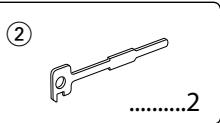
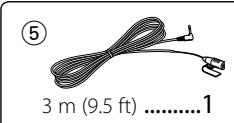
Installation Procedure
1 To prevent a short circuit, remove the key from the ignition and disconnect the battery.
2 Make the proper input and output wire connections for each unit.
3 Connect the speaker wires of the wiring harness.
4 Connect the wiring harness wires in the following order: ground, battery, ignition.
5 Connect the wiring harness connector to the unit.
6 Install the unit in your car.
7 Reconnect the battery.
8 Press the reset button.
WARNING
If you connect the ignition wire (red) and the battery wire (yellow) to the car chassis (ground), you may cause a short circuit, that in turn may start a fire. Always connect those wires to the power source running through the fuse box.

- Mounting and wiring this product requires skills and experience. For safety's sake, leave the mounting and wiring work to professionals.
- Make sure to ground the unit to a negative 12V DC power supply.
- Do not install the unit in a spot exposed to direct sunlight or excessive heat or humidity. Also avoid places with too much dust or the possibility of water splashing.
- Do not use your own screws. Use only the supplied screws. Using wrong screws, could damage the unit.
- If the power is not turned ON ("Protect" is displayed), the speaker wire may have a short-circuit or touched the chassis of the vehicle and the protection function may have been activated. Therefore, the speaker wire should be checked.
- If your car's ignition key switch does not have an ACC position, connect the ignition wires to a power source that can be turned on and off with the ignition key. If you connect the ignition wires to a constant-voltage power source, as with battery wires, the battery may die.
- If the console has a lid, make sure to install the unit so that the faceplate will not hit the lid when it is closed or opened.
- If the fuse blows, first make sure the wires are not touching other parts to cause a short circuit, and then replace the old fuse with one with a new the same rating.
- Insulate unconnected wires with vinyl tape or other similar materials. To prevent a short circuit, do not remove the caps on the ends of the unconnected wires and terminals.
- Connect the speaker wires correctly to the corresponding terminals. The unit may be damaged or fail to work if you share the wires or ground them to any metal part in the car.
- When connecting only two speakers, connect the connectors either to both of the front output terminals or to both of the rear output terminals (do not mix front and rear terminals). For example, if you connect the connector of the left speaker to a front output terminal, do not connect the connector to a rear output terminal.
• After the installing the unit, check whether the brake lamps, blinkers, wipers, etc. on the car are working properly.
- Mount the unit so that the mounting angle is 30^ or less.
- Reception may become poor if there are metal objects near the Bluetooth antenna
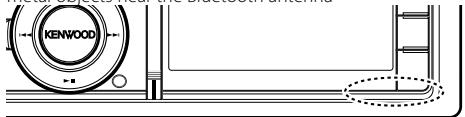
text_image
KENWOODBluetooth antenna unit
For Good Reception
To assure good reception, note the following:
- Communicate with the cell-phone within the line-of-sight distance of 10 m (30 ft). The communication range becomes shorter depending on the surrounding environment. The communication range also becomes shorter when there is an obstacle between this unit and the cell-phone. The above maximum communication range (10 m) is not always assured.
- A broadcast station or walkie-talkie located nearby can interfere with communication due to a too strong signal.
Connecting Wires to Terminals
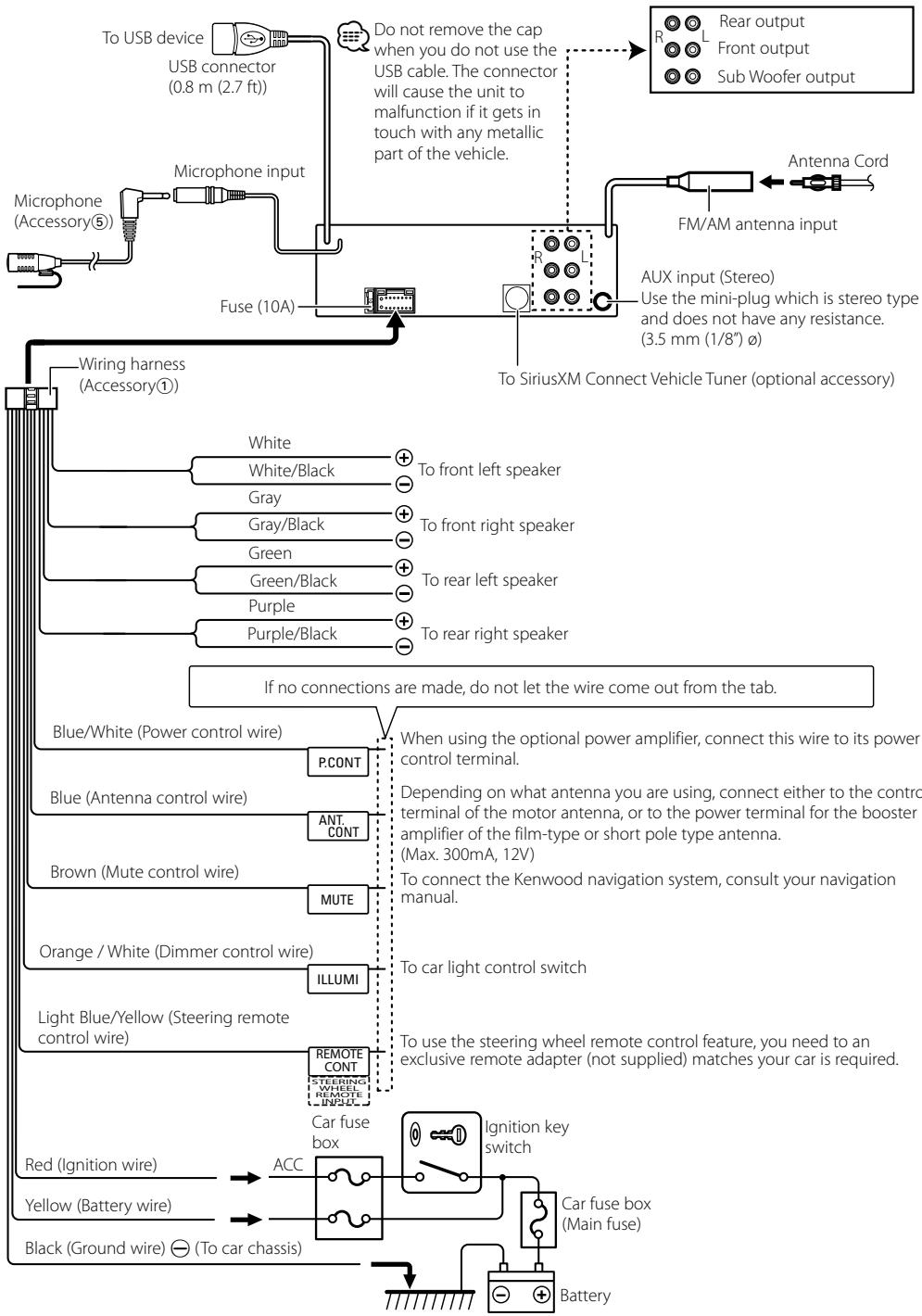
flowchart
graph TD
    A["To USB device"] --> B["USB connector (0.8 m (2.7 ft))"]
    B --> C["Do not remove the cap when you do not use the USB cable. The connector will cause the unit to malfunction if it gets in touch with any metallic part of the vehicle."]
    C --> D["Rear output"]
    C --> E["L Front output"]
    C --> F["Sub Woofer output"]
    G["Microphone (Accessory⑤)"] --> H["Microphone input"]
    H --> I["Fuse (10A)"]
    I --> J["To SiriusXM Connect Vehicle Tuner (optional accessory)"]
    K["FM/AM antenna input"] --> L["Antenna Cord"]
    M["AUX input (Stereo) Use the mini-plug which is stereo type and does not have any resistance. (3.5 mm (1/8")ø"] --> N["To SiriusXM Connect Vehicle Tuner (optional accessory)"]
    O["Wiring harness (Accessory①)"] --> P["White"]
    O --> Q["Gray"]
    O --> R["Green"]
    O --> S["Purple"]
    O --> T["Blue/White (Power control wire)"]
    U["If no connections are made, do not let the wire come out from the tab."] --> V["P.CONT"]
    W["Blue/White (Power control wire)"] --> X["PCONT"]
    Y["Blue (Antenna control wire)"] --> Z["ANT.CONT"]
    AA["Brown (Mute control wire)"] --> AB["MUTE"]
    AC["Orange / White (Dimmer control wire)"] --> AD["ILLUMI"]
    AE["Light Blue/Yellow (Steering remote control wire)"] --> AF["REMOTE CONT"]
    AG["Red (Ignition wire)"] --> AH["ACC"]
    AI["Yellow (Battery wire)"] --> AJ["Black (Ground wire) ⊖ (To car chassis)"]
    AK["Car fuse box"] --> AL["Ignition key switch"]
    AM["Car fuse box (Main fuse)"] --> AN["Battery"]
    AO["From antenna input"] --> AP["FM/AM antenna input"]
Installing/Removing the unit
non-Japanese cars
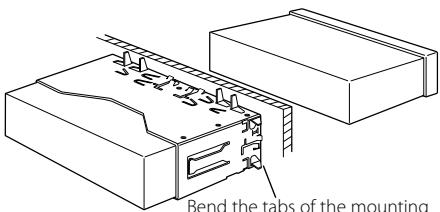
text_image
Bend the tabs of the mountingBend the tabs of the mounting sleeve with a screwdriver or the like and attach it in place.

- Make sure that the unit is installed securely in place. If the unit is unstable, it may malfunction (for example, the sound may skip).
Japanese cars
1 Remove the hard rubber frame with reference to
2 Align the holes in the unit (two locations on each side) with the vehicle mounting bracket and secure the unit with the accessory screws.
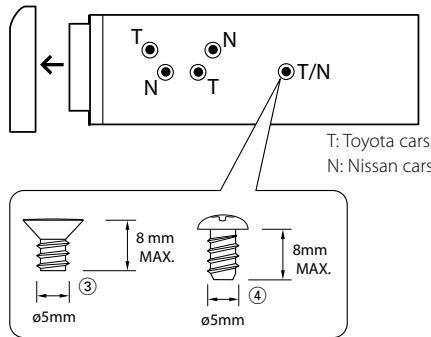
text_image
T: Toyota cars N: Nissan cars T/N 8 mm MAX. 8mm MAX. ③ ④ ø5mm ø5mmAccessory③...for Nissan car Accessory④...for Toyota car
CAUTION
Install this unit in the console of your vehicle. Do not touch the metal parts of this unit during and shortly after use of the unit. Metal parts such as the heat sink and enclosure become hot.
Removing the hard rubber frame
1 Engage the catch pins on the removal tool and release the two locks on the upper part of frame. Lift up and pull the frame forward as shown in the figure.
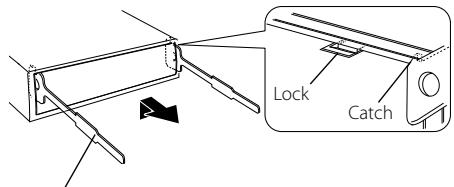
text_image
Lock CatchAccessory② Removal tool
2 When the upper part of frame is removed, remove the lower part of frame.

- The frame can be removed from the bottom side in the same manner.
Removing the Unit
1 Remove the hard rubber frame with reference to
2 Detach the faceplate.
3 Insert the two removal tools deeply into the slots on both sides as shown.
4 Lower the removal tool toward the bottom, and then pull out the unit halfway while pressing the removal tool towards the inside.
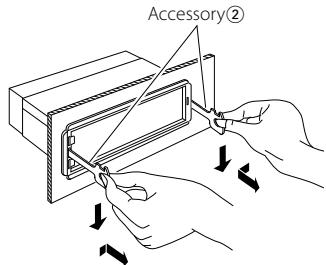
text_image
Accessory②
- Be careful to avoid injury from the catch pins on the removal tool. 5 Pull the unit all the way out with your hands, being careful not to drop it.
Installation/Removing the Unit
Installation the Microphone Unit
1 Check the installation position of the microphone (accessory ⑤).
2 Remove oil and other dirt from the installation surface.
3 Install the microphone.
4 Wire the cable up to the unit with it secured at several positions using tape or the like.
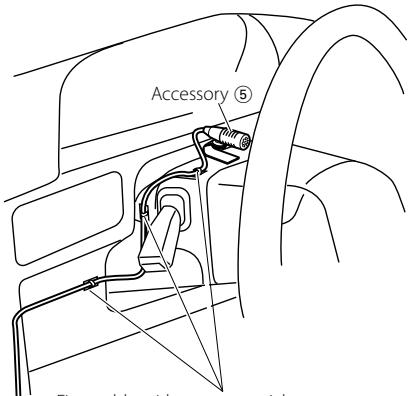
text_image
Accessory ⑤ Transl. (1) Car (2)Fix a cable with a commercial item of tape.
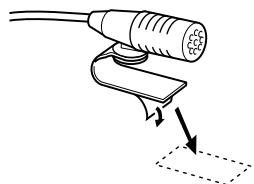
natural_image
Diagram of a connector with a cable and a switch, showing directional arrows (no text or symbols)Peel off the release coated paper of double-face adhesive tape to secure the microphone on the place shown above.
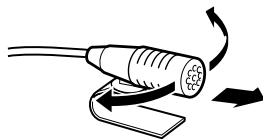
Turn the microphone toward the driver.
Troubleshooting Guide
Some functions of this unit may be disabled by some settings made on this unit.
- Cannot set up the subwoofer.
- No output from the subwoofer.
- Cannot set up the subwoofer position of Manual position setting.
- The Dual zone function is enabled. 📋
- In the speaker select option, None is selected for the subwoofer. 📋
! Cannot set up the rear speaker.
In the speaker select option, None is selected for the rear speaker. 📋
! Cannot set up the tweeter.
In the speaker select option, None is selected for the tweeter. 📋
- Cannot set up the equalizer.
- Cannot set up the Bass Boost.
- Cannot set up the Sound Enhancements.
- Cannot set up the Position control.
- The Dual zone function is enabled. 📋
- The DSP function is disabled. "DSP Set" of
- In the speaker select option, None is selected for the rear speakers. 📋
- Cannot select the output destination of the subsource in the Dual zone.
- Cannot adjust the volume of the rear speakers.
The Dual zone function is disabled. 📋
! Cannot set up Display.
▶
! The number of songs contained in "Songs" category of this unit is different from that contained in "Songs" category of iPod.
▶ Podcast files are not counted in this unit as this unit does not support the playback of podcast files.
What might seem to be a malfunction in your unit may just be the result of slight misoperation or miswiring. Before calling service, first check the following table for possible problems.
General
? The operation check sound (beep sound) does not sound.
√ The preout jack is being used.
The Touch Sensor Tone cannot be output from the preout jack.
? The illumination flashes when the knob or button is operated.
√ This is the key illumination effect.
You set this effect in "ILLUMI Effect" of
The key illumination effect brought about in conjunction with the sound volume is small.
√ The key illumination effect may be insufficient depending on the sound volume and sound quality.
Tuner source
? Radio reception is poor.
√ The car antenna is not extended.
Pull the antenna out all the way.
√ Antenna Control wire is not connected.
Connect the ANT.CONT wire.
Disc source
? The specified disc does not play, but another one plays instead.
√ The specified CD is quite dirty.
Clean the CD, referring to the CD cleaning of the section on
√ The disc is loaded in a different slot from that specified.
Eject the disc magazine and check the number for the specified disc.
√ The disc is severely scratched.
Try another disc instead.
Audio file source
? The sound skips when an Audio file is being played.
√ The media is scratched or dirty.
Clean the media, referring to the CD cleaning of the section on
√ The recording condition is bad.
Record the media again or use another media.
Hands-free
? The hands-free talk volume is low.
√ The hands-free talk volume is set at a low level.
The hands-free talk volume can be adjusted independently. Adjust it during hands-free talk. "Mic Gain" and "NR Level"
? No sound is heard from the rear speakers.
√ You are talking in the hand-free talk mode.
No sound is heard from the rear speakers in the hands-free talk mode.
No beep is heard at reception of an incoming call.
√ No beep is heard depending on the type of your cell-phone.
The "Call Beep" of
Troubleshooting Guide
? Voice is not recognized.
√ The vehicle window is open.
If the surrounding noise is large, voice cannot be recognized properly. Close the vehicle windows to reduce noise.
√ Small voice.
If voice is too small, it cannot be recognized properly. Speak into the microphone a little more loudly and naturally.
Bluetooth audio source
? The Bluetooth audio player cannot be registered (pairing).
√ The PIN code is fixed.
When a PIN code is specified in the Instruction Manual for Bluetooth Audio Player, register it with reference to
? The sound from the Bluetooth audio player is discontinuous.
√ The distance between this unit and audio player is too far.
Move the audio player nearer to this unit.
√ Another Bluetooth device is affecting the Bluetooth communication.
Turn off another Bluetooth device.
Move another Bluetooth device away from this unit.
√ Another Bluetooth device or profile is used for communication.
The downloading of the Phone book or the SMS disconnects the sound.
The messages shown below display your systems condition.
TOC Error: • The CD is quite dirty. The CD is upside-down. The CD is scratched a lot.
• The disc is unreadable.
ERROR 99/ Mecha Error:
The unit is malfunctioning for some reason.
Press the reset button on the unit. If the "ERROR 99/ Mecha Error" code does not disappear, consult your nearest service center.
CD-IN (Blink): The CD player section is not operating properly.
Reinsert the CD. If the CD cannot be ejected or the display continues to flash even when the CD has been properly reinserted, please switch off the power and consult your nearest service center.
Protect (Blink):
The speaker wire has a short-circuit or touches the chassis of the vehicle, and then the protection function is activated.
Wire or insulate the speaker cable properly and press the reset button. If the "Protect" code does not disappear, consult your nearest service center.
Unsupported File:
An Audio file is played with a format that this unit can't support.
Copy Protection:
A copy-protected file is played.
Read Error: The file system of the connected USB device is broken.
Copy the files and folders for the USB device again. If the error message is still displayed, initialize the USB device or use other USB devices.
No Device: The USB device is selected as a source although no USB device is connected.
Change the source to any source other than USB. Connect an USB device, and change the source to USB again.
No Disc: No disc is inserted in the loading slot.
N/A Device: • An unsupported USB device is connected.
- Connection to the iPod has failed.
→ Check that the connected iPod is an iPod that is supported. See
→ Disconnect the USB device or the iPod, and reconnect it.
No Music Data:
The connected USB device contains no playable audio file.
USB ERROR: Some trouble may have occurred to the connected USB device.
Remove the USB device, then cycle the power switch to ON. If the same display is repeated, use another USB device.
iPod Error: Connection to the iPod has failed.
Remove the USB device and then reconnect it.
Reset the iPod/iPhone.
No Access: The procedure preset with mixed preset memory function cannot be available.
The preset content may not be recalled depending on the selected band or source.
iPod Memory: The iPod Memory is full.
HD Radio Reception
Memory Full: The TAG Memory of HD Radio tags is full.
No Tag Function:
iPod which does not support the tag Memory is connected.
Tag Error: The unit is unable to complete transferring the tagged information to the iPod.
N/A Channels: No receivable channel and category.
Bluetooth
No Number: • The calling party does not notify a caller ID.
• There is no phone number data.
No Data: • There is no outgoing call list.
• There is no incoming call list.
• There is no missed call list.
• There is no phone book list.
No Entry: The cell-phone has not been registered (pairing).
HF Disconnect: The unit cannot communicate with the cell-phone.
AUD Disconnect:
The unit cannot communicate with the Bluetooth audio player.
HF Error 07: The memory cannot be accessed.
Turn off the power and on again. If this message still appears, press the reset button on the control unit.
HF Error 68: The unit cannot communicate with the cell-phone.
Turn off the power and on again. If this message still appears, press the reset button on the control unit.
HF Error 89: Update of the Bluetooth firmware has failed. Retry it.
Unknown: The Bluetooth device cannot be detected.
Device Full: 5 Bluetooth device have already been registered. No more Bluetooth device cannot be registered.
PIN Code NG: The PIN code is wrong.
Connect NG: The unit cannot be connected to the device.
Pairing Failed: Pairing error.
No Phonebook: Data is not contained in the phone book.
No Message: No short message in In Box.
Pandora
Pandora Error 01: Registration in Bookmark has failed..
Pandora Error 02: Deletion of the station has failed.
Pandora Error 03: Registration of the station has failed.
Pandora Error 04: The number of registerable stations has been exceeded.
Pandora Error 05: Thumb up/down operation has failed.
Pandora Error 06: Search has failed.
No Station: No station is found.
Not available: The station does not have an available song.
No skips remaining: The skip count limit has been exceeded.
Check Device: Check the Pandora application of the iPhone.
SiriusXM Advisory Messages
Subscription Updated: The SiriusXM subscription has been renewed. Pressing the [VOL] knob will clear the error message.
Check Tuner: A SiriusXM tuner is not connected to this unit. → Check that the connected SiriusXM tuner is connected.
Check Antenna: No antenna is connected to the SiriusXM tuner. Check that an antenna is connected to the SiriusXM tuner.
Channel Locked: The selected channel is being locked by Parental Lock function.
Ch Unsubscribed: The currently selected channel is unavailable.
Ch Unavailable: The currently selected channel is not subscribed to.
No Signal: No SiriusXM radio signal is received. → Check that an antenna is connected to the SiriusXM tuner.
Incorrect Code: The entered pass code is incorrect.
Alert Memory Full: The number of Alert content has reached the upper limit. Retry after deleting unnecessary Alert contents.
Song Stored: The song you attempted to register as Alert content has already been registered.
Artist Stored: The artist you attempted to register as Alert content has already been registered.
Artist and Song Unavailable: The content currently being received cannot be registered as a content alert item regardless of whether its artist or song name is stored.
Specifications
FM tuner section
Frequency range (200 kHz space) : 87.9 MHz – 107.9 MHz
Usable sensitivity (S/N = 30dB) : 9.3dBf (0.8 μV/75 Ω)
Quieting Sensitivity (S/N = 50dB) : 15.2dBf (1.6 μV/75 Ω)
Frequency response ( ±3 dB): 30 Hz – 15 kHz
Signal to Noise ratio (MONO) : 70 dB
Selectivity ( ± 400 kHz) : ≥ 80 dB
Stereo separation (1 kHz) : 40 dB
Digital FM tuner section
Frequency range (200 kHz space) : 87.9 MHz – 107.9 MHz
Frequency response ( ±3 dB) : 20 Hz – 20 kHz
Signal to Noise ratio (STEREO) : 70 dB
AM tuner section
Frequency range (10 kHz space) : 530 kHz – 1700 kHz
Usable sensitivity (S/N = 20dB) : 28 dBμ (25 μV)
Digital AM tuner section
Frequency range (10 kHz space) : 530 kHz – 1700 kHz
Frequency response ( ±3 dB): 40 Hz – 15 kHz
Signal to Noise ratio (STEREO) : 70 dB
Bluetooth section
Version
: Bluetooth Ver.3.0 Certified
Frequency range
: 2.402 - 2.480 GHz
Output Power
: +4dBm (MAX), 0dBm (AVE) Power Class 2
Maximum Communication range
: Line of sight approx.10m (32.8 ft)
Profiles
: HFP (Hands Free Profile)
: HSP (Headset Profile)
: SPP (Serial Port Profile)
: PBAP (Phone Book Access Profile)
: OPP (Object Push Profile)
: A2DP (Advanced Audio Distribution Profile)
: AVRCP (Audio/Video Remote Control Profile)
USB Interface
USB Standard
: USB1.1/ 2.0 (Full speed)
Maximum Supply current
: DC 5 V = 1 A
File System
: FAT16/ 32
MP3 decode
: Compliant with MPEG-1/2 Audio Layer-3
WMA decode
: Compliant with Windows Media Audio
AAC decode
: AAC-LC ".m4a" files
CD player section
Laser diode
: GaAlAs
Digital filter (D/A)
: 8 Times Over Sampling
D/A Converter
: 24 Bit
Spindle speed
: 500 - 200 rpm (CLV)
Wow & Flutter
: Below Measurable Limit
Frequency response (±1 dB)
: 10 Hz - 20 kHz
Total harmonic distortion (1 kHz)
KDC-X996: 0.008 %
KDC-BT952HD: 0.010 %
Signal to Noise ratio (1 kHz)
KDC-X996: 110 dB
KDC-BT952HD: 105 dB
Dynamic range
: 93 dB
MP3 decode
: Compliant with MPEG-1/2 Audio Layer-3
WMA decode
: Compliant with Windows Media Audio
AAC decode
: AAC-LC ".m4a" files
Audio section
Maximum output power
: 50 W x 4
Full Bandwidth Power (at less than 1% THD)
: 22 W x 4
Speaker Impedance
: 4 - 8 Ω
Tone action (KDC-X996)
BAND1 (62.5 Hz): ±9 dB
BAND2 (100 Hz): ±9 dB
BAND3 (160 Hz): ±9 dB
BAND4 (250 Hz): ±9 dB
BAND5 (400 Hz): ±9 dB
BAND6 (630 Hz): ±9 dB
BAND7 (1 kH): ±9 dB
BAND8 (1.6 kH): ±9 dB
BAND9 (2.5 kH): ±9 dB
BAND10 (4 kH): ±9 dB
BAND11 (6.3 kHz): ±9 dB
BAND12 (10 kHz): ±9 dB
BAND13 (16 kHz): ±9 dB
Tone action (KDC-BT952HD)
BAND1 (62.5 Hz): ±9 dB
BAND2 (160 Hz): ±9 dB
BAND3 (400 Hz): ±9 dB
BAND4 (1 kH): ±9 dB
BAND5 (2.5 kH): ±9 dB
BAND6 (6.3 kHz): ±9 dB
BAND7 (16 kHz): ±9 dB
Preout level / Load (CD)
: 4000 mV/10 kΩ
Preout impedance
: ≤ 600 Ω
Auxiliary input
Frequency response (±3 dB)
: 20 Hz - 20 kHz
Input Maximum Voltage
: 1200 mV
Input Impedance
: 10 kΩ
General
Operating voltage (10.5 - 16V allowable)
: 14.4 V
Maximum Current consumption
: 10 A
Installation Size (W x H x D)
: 182 × 53 × 157 mm
7-3/16 x 2-1/16 x 6-3/16 inch
Weight
: 2.9 lbs (1.3 kg)