 ManualGo.com
KDC-BT30 - Bluetooth Car Stereo KENWOOD - Free user manual and instructions
Find the device manual for free KDC-BT30 KENWOOD in PDF.


Download the instructions for your Bluetooth Car Stereo in PDF format for free! Find your manual KDC-BT30 - KENWOOD and take your electronic device back in hand. On this page are published all the documents necessary for the use of your device. KDC-BT30 by KENWOOD.
USER MANUAL KDC-BT30 KENWOOD
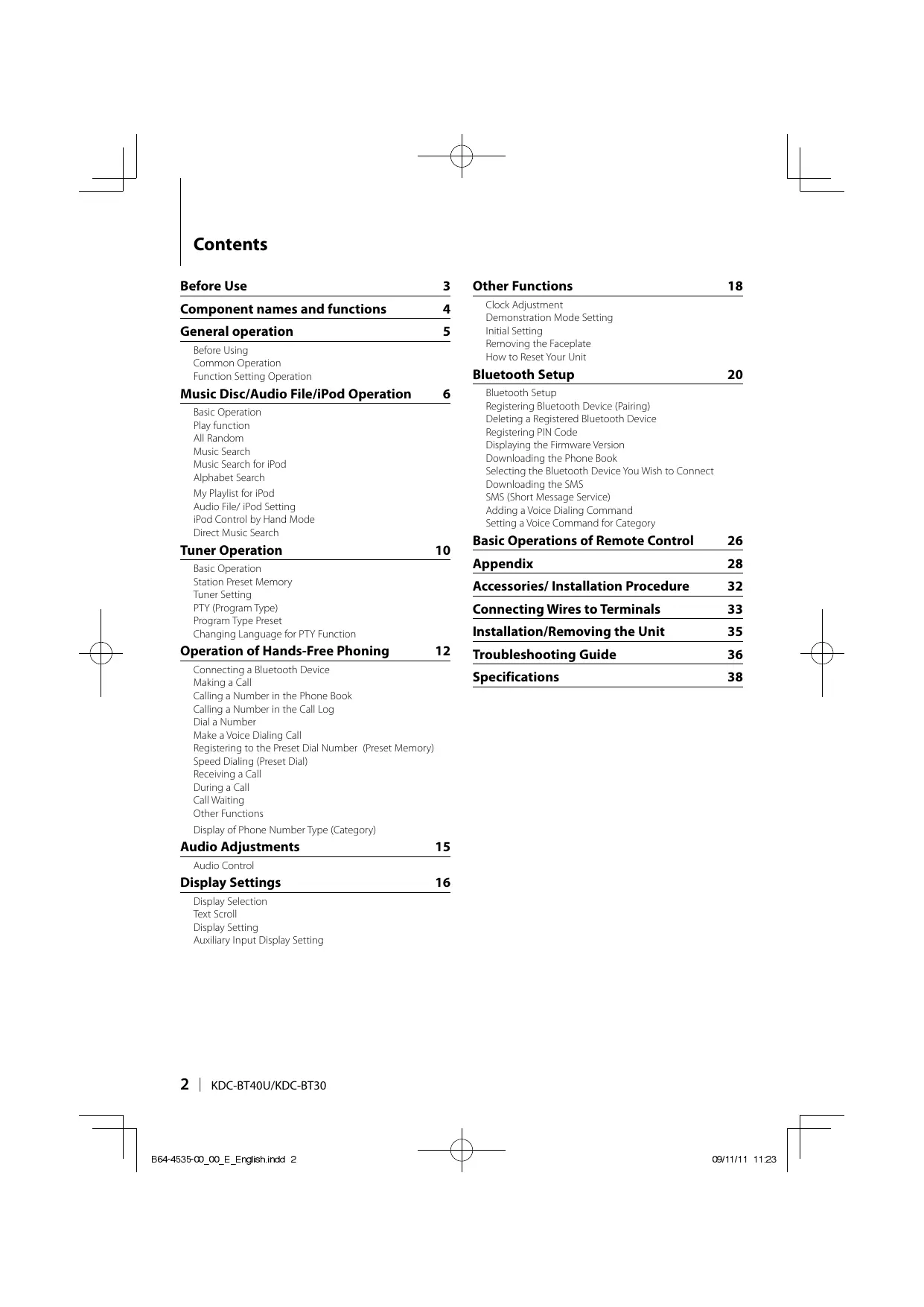
Contents œtAt 1123 Before Use 3 Other Functions 18 Component names and functions 4 Clock Adusment Demonstration Mode Setting General operation itial Setting Bear Van Removing the Faceplate c d How to Reset Your Unit ommon Operation Function Setting Operation Bluetooth Setup 20 Music Disc/Audio 6 Bluetooth Setup _ Registering Bluetooth Device (Pairing) a Preron Deleting a Registered Bluetooth Device n” Registering PIN Code Al Random nec : Muse See Displaying the Firmware Version h . Downloading the Phone Book Music Search for iPod : , , k Alphabet Gear Selecting the Bluetooth Device You Wish to Cannect (phabet Search Downloading the SMS My Playlist for Pad SMS (Short Message Service) Audio File/ iPod Setting Adding a Voice Dialing Command se cul by rene Mode Setting a Voice Command for Category irect Music Searc : : M Basic Operations of Remote Control 26 Tuner Operation 10 Basic Operation Appendix 28 Station Preset Memory Accessories/ Installation Procedure 32 Tuner Setting PTY (Program Type] Connecting Wires to Terminals 33 Program Type Preset - x Changing Language for PTY Function Installation/Removing the Unit 35 Operation of Hands-Free Phoning 12 Troubleshooting G 36 Connecting a Bluetooth Device : Making a Cal Specifications 38 Calling a Number in the Phone Book Calling a Number in the Call Log Dial a Number Make a Voice Dialing Call Registering to the Preset Dial Number (Preset Memory) Speed Dialing (Preset Dial) Receiving a Call During a Call Call Waiting Other Functions Display of Phone Number Type (Category) Audio Adjustments 15 Audio Control Display Settings 16 Display Selection Text Scroll Display Setting Auxliary Input Display Setting 2 | Koc-8T4ou/kDc-BT30 864-4535-00_00 E_Engishindd 2
Before Use A WARNING To preven precautions: To prevent à short circuit, never put or leave any metallic objects (such as coins or metal tools) inside the unit. jury or fire, take the following Before using this unit for the first time This unit is initially set on the Demonstration mode. When using this unit for the first time, cancel the Demonstration mode. Refer to <Exit ofthe Demonstration Mode> (page 5). Cleaning the Unit Ifthe faceplate of this unit is stained, wipe it with a dry soft cloth such as a silicon cloth Ifthe faceplate is stained badly, wipe the stain off with à cloth moistened with neutral cleaner, then wipe it again with a clean soft dry cloth
Applying spray cleaner directly to the unit may affect its mechanical parts. Wiping the faceplate with a hard cloth or using a volatile liquid such as thinner or alcohol may scratch the surface or erases characters. About the Terminals of the U: Faceplate + To prevent deterioration, do not touch the terminals ofthe unit and aceplate with your fingers. + Ifthe terminals on the unit or faceplate get dirty, wipe them with a clean soft dry cloth. and Lens Fogging When you turn on the car heater in cold weather, dewr or condensation may form on the lens in the CD player ofthe unit. Called lens fogging, this condensation on the lens may not allow CDs to play. In such a situation, remove the disc and wait for the condensation to evaporate. If the unit still does not operate normally after a while, consult your Kenwood dealer. B64-4535-00_00 E_Engishindd 3 Notes If you experience problems during installation, consult your Kenwood dealer. When you purchase optional accessories, check with your Kenwood dealer to make sure that they work with your model and in your area The characters which can be displayed by this unit are AZ 0-9@"""%&*+ A<>10:4-01 The RDS feature won't work where the service is not supported by any broadcasting station. The illustrations of the display and the panel appearing in this manual are examples used to explain more clearly how the controls are used. Therefore, what appears on the display in the illustrations may differ from what appears on the display on the actual equipment, and some of the illustrations on the display may be inapplicable. Handling CDs Do not touch the recording surface of the CD. Do not stick tape etc. on the CD, or use a CD with tape stuck on it. Do not use disc type accessories. Clean from the center of the disc and move outward. When removing CDs from this unit, pull them out horizontally. Ifthe CD center hole or outside rim has burrs, use the CD only after removing the burrs with à ballpoint pen etc. CDs that cannot be used CDs that are not round cannot be used. CDs with coloring on the recording surface or CDs that are dirty cannot be used This unit can only play the CDs with gps HE LES l EE This unit may not correctly play discs which do not have the mark. You cannot play a CD-R or CD-RW that has not been finalized. (For the finalization process refer to your CD-R/CD-RW writing software, and your CD-R/ CD-RW recorder instruction manual.) 3 inch CD cannot be used. Attempt to insert using an adapter can cause malfunction. English | 3 œtAt 1123
Component names and functions KDC-BT30 KENWOOD Men to [1] Release button The faceplate ofthe unit can be detached and taken with you, helping to deter theft. Refer to <Removing the Faceplate> (page 19) ISRC] button To turn on this unit and select the Source. To turn off this unit (press the button at least 1 second) isc slot When inserted a disc (label side up), the source is switched automatically and a song starts playing isplay window [A] button To eject the disc. To select the remove mode, and remove the USB device or an iPod (press the button at least 2 seconds or more) [6] USB Terminal: KDC-BT4OU only When connecting, open up the USB terminal lid. À USB device or an iPod can be connected Auxiliary Input Terminal Portable audio device can be connected with the mini-plug (3.5 mm 0) + Use the mini-plug cable which is stereo type and does not have any resistance. [11 - [6] button To recall the memorized station: Switches the play mode between music discs audio files, and iPod [8] [VOICE] button To make a voice dialing call To change text scroll. (press the button at least 1 second) 4 | KDC-BT4oU/KDC-BT30 B64-4535-00_00 E_Engishindd 4 ES D44] / Dex] button To select a station, song and setting items. Î1 Microphone The microphone for the hands free phone is built in. When your voice cannot be recognized due to the low microphone volume, noises or echo in the vehicle. Adjust the microphone settings by "MIC GAIN" “NR LEVEL and ‘EC LEVEL’ of <Bluetooth Setup> (page 20) F2 [VOLI knob To adjust volume Enters function setting mode and setting item {turn and press the knob). Refer to <Function Setting Operation> (page 5) for details. F3 [BAND] button To select the receiving band, the folder for audio file. F4 [# button To return to previous item. 55 [Q]1button To enter the music search mode. To enter the PTY and Traffic information mode. To enter the dialing mode: œtAt 1123
General operation Before Using Function Setting Operation Exit of the Demonstration Mode Turn off the demonstration mode when you use it for the first time after installation. Press the [VOL] knob to quit the demonstration mode when the messages "CANCEL DEMO" and “PRESS” “VOLUME KNOB" are displayed (approx. 15 seconds). 2 Tu the [VOL] knob to select "YES" and press the [VOL] knob. + The demonstration can be set or cancel using <Demonstration Mode Setting> (page 18) Common Operation Power and source select Turns the power ON by pressing the [SRC] button. Pressing [SRC] button each time switches between sources. Tuner (“TUNER”) + USB* or iPod* (USB" or “iPod”) + CD (‘CD') + Auxiliary input (AUX) Standby ('STANDBY") Keeping pressing the [SRC] button at least 1 second turns the power OFF. + * Function is KDC-BT4OU on. + When connection ofthe iPod is recognized, the source display changes from”USB" to "Pod" + The source"CD'and Pod” can be selected when each source is ready to play. Volume Turning the [VOL] knob adjusts the sound volume. B64-4535-00_00_E_Engishindd 5 The basic operating procedure for using this function is described below. The individual function items are covered in the operating procedures. 1 Select the source Press the [SRC] button. Function items vary from source to source. For a list of the function items. Refer to <Function Item List> (Page 30) 2 Enter Function Setting mode Press the [VOL] knob for at least 1 second. FUNCTION"is displayed. 3 Select your desired functil Turn the [VOL] knob and press it hen the desired item is displayed. Repeat the operation until your desired function item is selected. Press the [#5] button to return to the previous item. Example:
4 persos BAR Ju Fumer DISP SELECT SETINGS In this manual, the above selection is indicated as Select"AUDIO CONTROL" (‘AUDIO CTRL') > “DETAILED SET” (DETAIL SET") > “SUPREME SET". €) encloses a display appearing on the KDC-BT30. Itis shown only it differs from the one appearing on the KDC-BT4OU 4 Make a setting Turn the [VOL] knob to select a setting value, and then press the [VOL] knob. 5 Exit Function Setting mode Press the [ # ] button for at least 1 second. English | 5 œtAt 1123
ISRC] [VOL] Discslot Ce ner) Music Disc/Audio File/iPod Operation CA-UTEX + CA-UTEX (optional accessory) is required to connect a USB device. + KCAiPIOT [optional accessorÿ) is required to connect an iPod. LQISIIBAND [H<]/1>1] []—[6] USB Terminal Basic Operation Play function Playing Disc Scan play Insert a disc into the disc slot (label side up). When inserted, the source is switched automatically and a song starts playing When a disc is inserted, the “IN’indicator lights up. Playing USB device or iPod (KDC-BT4OU only) Connect a USB device or iPod to the USB terminal. When connected, the source is switched automatically and à song starts playing Pause and play Press the [6] button to pause or resume playback (track or file). Folder select Press the [BAND] button switches a folder. The iPod can be operated only when a category has been selected in the search mode. Song select Press the [-@-4] or [æ»1] button selects a song {track or file). Fast reverses or forwards the music while pressing the [+4] or [#1] button. {No sound is output while playing audio file) Ejecting Disc Press the [&] button ejects a disc. You can eject the disc for 10 minutes after switching off the engine Removing USB device or iPod Press the [A] button for at least 2 seconds can be entered to the USB Remove mode (‘USB REMOVE" is displayed) and the USB device, iPod can be removed safely. Selecting CD, USB or iPod source Press the [SRC] button. Select the*CD'/"USB" or "iPod display.
Press the [2] button. Successively plays the intro of the music in the disc or folder. When Scan Play is turned on,*TRACK SCAN'/*TRAC SCAN/‘FILE SCAN'is displayed Pressing this button again plays songs in the normal mode starting with the song being played now. + The Scan play operation cannot be performed while iPod is playing, Random play Press the [3] button. Randomly plays the music in the disc or folder. When Random Play is tumed on, “DISC RANDOM'/ “FOLDER RANDOM"/FOLD RANDOM "is displayed. Press this button again cancels the Random play. Repeat play Press the [4] button. Switches between Track Repeat (‘TRACK REPEAT"/ *TRAC REPEAT”) and OFF ('REPEAT OFF) when pressed while playing a CD. Switches between File Repeat (‘FILE REPEAT'), Folder Repeat (‘FOLDER REPEAT”/*FOLD REPEAT") and OFF ('REPEAT OFF') when pressed while playing an audio file. œtAt 1123 L
Function of KDC-BT4OU with iPod All Random All songs in iPod are played at random. Press the [3] button for at least 1 second. Pressing the button toggles the setting between All random play on (‘ALL RANDOM) and off (RANDOM OFF"). Press this button again cancels the Random play. + The time required to turn on the all random function may become longer depending on the number of songs: in iPod Turning on the all random function changes the iPod browse item to "SONGS" This browse item will not be changed even ifthe al random function is turned off. + Ifthe browse item is changed to search for music while the all random function is on, the al random function is turned off and the songs in the browse item are played at random Function of Audio file/ CD source Music Search Cancelling the Music Search mode Press the [ # ] button for at least 1 second. + Skip Search: The number of songs to be skipped is determined by the ratio of the total number of songs in the list which is selected. Set the ratio with "SKIP SEARCH” of <Audio File/ iPod Setting> (page 9). Keep pushing the {He or D» button for 3 seconds or longer skips songs at 10% regardiess of the setting. (KDC-BTAOU only) “This operation is effective only for the files registered in the database created with KENWOOD Music Editor. Function of KDC-BT4OU with iPod Music Search for iPod Searching for the song (in iPod) you want to play. 1 Enter Music Search mode Press the [ Q ] button. *SEARCH"is displayed 2 Search for music Operationtype [Operation Move between items [Tum the [VOL] inob. Selecting the music you want to listen to from the Skip Search Press the [He] or [pee] button. device or media being played now. Selecr an rem Press the [VOL Knob, Fetum to previous tem [Press he [25] button 1 Enter Music Search mode Return to Top menu Press the [BAND] button. Press the [ Q ] button. "SEARCH"is displayed Displays the current Audio file name. 2 Search for music Audio file Operationtype [Operation Move between folders/ [um the [VOL] knob. fles Skip Search* Press the [ka] or [p->1] button. Select of foie [Press the VOL) Knob. etum to previous older |Pressthe [5] button. Retum to root older [Presse BAND] button “<'or ">" beside the displayed folder name indicates that this folder is preceded or followed by another folder. CD source Operationtype [Operation Move between track Fun the [VOL] knob. Select of track [Press the [VOL] knob. Return to first track Press the [BAND] button before selecting track. B64-4535-00_00 E_Engishindd 7 Search by Alphabet |Pressthe [Q J'button. Refer to <Alphabet Search> (page 8) Cancelling the Music Search mode Press the [ # ] button for at least 1 second. + Skip Search: The number of songs to be skipped is determined by the ratio of the total number of songs in the list which is selected. Set the ratio with "SKIP SEARCH” of <Audio File/ iPod Setting> (page 9). Keep pushing the {He or D» button for 3 seconds or longer skips songs at 10% regardiess of the setting + Hfno characters included in a song name can be displayed, the browse item name and digits are displayed. Tems Display Jems Display Playlists L'PLISTE##" Podcasts l'POCT*** Artists L'ART" Genres "GEN*** Albums L'ALB*** Composers l'COM***" Songs L'PRGAL***" English | 7 œtAt 1123
Select the character to be searched for Operationtype [Operation Selectthe characters |lum the [VOL] knob. Move the cursorto the [Pressthe [4e or De Butor. enter character position You can enter up to 3 characters. 4 Determine the selected character Press the [VOL] knob. Start search. When the search is completed, the music search mode is selected again at the selected character position. Cancelling the Alphabet Search mode Press the [ # ] button for at least 1 second. + The time of Alphabet search may become long depending on the number of songs or number of playlists in iPod. To search for a character other than À to Z and 0 to 9, enter ** at the first character position. In this case, you cannot enter any character at the second and third character positions Hthe first character sting begins with an article “a "an, or”the"in the alphabet search mode, i is searched for in defiance of the article. Function of KDC-BT4OU with iPod My Playlist for iPod Allows you to register your favorite songs in the Playlist of this unit. You can register up to 10 songs in the Playlist. Registering Songs in the Playlist 1 Play the song you want to register Press the [BAND], [#4], and [»»1] button.
8 | KDC-BT4OU/KDC-BT30
B64-4535-00_00 E_Engishindd 8 You can select the song to play by referring to <Music Search for iPod> (page 7) 2 Register the song Press the [5] button for at least 2 seconds. “## STORED (Registration number)"is displayed. You can register Up to 10 songs. + Make a Playlist from the songs stored in one iPod. I you attempt to register a song stored in a different iPod, NO INFO" appears and then "MPLIST DELETE” appears. To delete the Playlist, tum the [VOL] knob to select"VES" and'then press the [VOL] knob, + The song displayed in the Music Search mode can be registered in the same manner. For how to use the music search function, refer to <Music Search for iPod> (page
you attempt to register the eleventh song, "MEMORY FULL appears and you cannot register it accordingly. To register the song, delete an unnecessary song. Do not register Podcasts. Songs you do not want to register may be registered, or playback may not be carried out correctly. Playing the Song in the Playl 1 Display the Playlist Press the [5] button. “MY PLAYLIST'is displayed. 2 Play the song in the Playlist Turn the [VOL] knob to select the song you want to play, and then press the [VOL] knob. + Tuming the power OFF stops playing the song in the Playlist + Ifa song does not end with at least 1 second of silence, the ending part ofthe song may not play out Deleting a Song from the Playlist T Turn the [VOL] knob to display the song you want to delete, and then press the [VOL] knob for at least 2 seconds. 2 Turn the [VOL] knob to select "ONE" or“ALL', and then press the [VOL] knob. Selecting"DELETE ALL'deletes all songs. 3 Turn the [VOL] knob to select "YES, and then press the [VOL] knob. *COMPLETED"is displayed + You can also delete all songs from the Playlist by selecting'MPLIST DELETE” described in <Audio File/iPod Setting> (page 9) œtAt 1123
Function of KDC-BTAOU Function of remote control (Optional Accessory) Audio File/ iPod Setting Direct Music Search You can select following setting items. Searching the music by entering the track number. 1 Enter Function Setting mode Press the [VOL] knob for at least 1 second. *FUNCTION"is displayed 1 Enter Direct Music Search mode Press the [DIRECT] button. 2 Enter the music number 2 Select the function item Press the number buttons. Turn the [VOL] knob and press it when the desired item is displayed. 3 Search the music Select “SETTINGS" > Function item. Press the [4-4] or [»æ1] button. ose Cancelling Direct Music Search SKIP SEARCH” The number of songs to be skipped is Press the [ # ] button. etermined by the ratio of the total number of songs in he ist which is selected. [Pod and KENNNDOD Music Edor ile onb) + Direct Music Search cannot be performed during playing 0.5%/196/5%6/10% ofiPod “Music Editor" media, Random play, ar scan play. FMPLISTDELETE"…— |Deletes the saved Ni Playlist. <WyPlaistor iPod>(page 8 (iPod only) NOES {Factory setting: Underined) 3 Make a setting Turn the [VOL] knob and press it when the desired item is displayed. When select “MPLIST DELETE": Turn the [VOL] knob to select “YES", and then press the [VOL] knob. Deletes the saved My Playlist. 4 Exit Function Setting mode Press the [ # ] button for at least 1 second. Function of KDC-BT4OU with iPod iPod Control by Hand Mode Allowing you to operate iPod with the control on the iPod. Press the [1] button. Pressing the button toggles the setting between iPod control by hand mode on (*HANDS ON") and off ('HANDS OFF) + Inthe iPod Control by hand mode, iPod cannot be operated using this unit. + This mode is not compatible with music information display. The display will show "iPod MODE" + iPod can be operated when it conforms to the iPod control function. English | 9 B64-4535-00_00 E_Engishindd 9 œtAt 1123
Tuner Operation ISRCI [VOL]
LQISNBAND) [/le>l [1]—16] Basic Operation Selecting Tuner source Press the [SRC] button. Select the*TUNER" display. Selecting the Receiving Band Press the [BAND] button. Each time you press the button, the receiving band alternates between the FM1, FM2, FM3 and AM. Selecting the Receiving station Press the [-@-4] or [æ#1] button. During reception of stereo stations the "ST" indicator lights up. Selecting the preset channel Press the [1] - [6] button. Traffic information Press the [ Q ] button for at least 1 second. Turns ON or OFF the Traffic Information function. When the function is set to ON, ‘Tl'indicator lights IFtraffic bulletin starts when the function is ON, “TRAFIC INFO" (TRAFFIC') is displayed and traffic information is received. Station Preset Memory Putting a station in the memory. 1 Select the frequency to put in the memory Press the [-@-4] or [æ»1] button. 2 Select the number to put in the memory Press the [1] - [6] button for at least 2 seconds. + Up to 6 stations with a different band (FM/AM) can be memorized to the [1] — [6] button according to the setting of"PRESET TYPE" of <initial Setting> (page 18) 10 | KDC-BTAOU/KDC-BT30 B64-4535-00_00 E_Engishindd 10 Tuner Setting You can select following Tuner Setting items. 1 Select the TUNER source Press the [SRC] button. Select the” TUNER" display. 2 Enter Function Setting mode Press the [VOL] knob for at least 1 second. *FUNCTION"is displayed 3 Select the function item Turn the [VOL] knob and press it when the desired item is displayed. Select "SETTINGS" > Function item. Function item [Selectable settingfitem LOCALSEER" Only stations whose reception s good ar searched in auto seektuning. (FM band only) LOFF/ON SEEX MODE" |Selects te tuning mode ofthe red. JAUTOT: Automatic search fo a station. JAUTOZ: Search in order ft stations in the Preset memory. IMANUAL: Normal manual tuning control AUTO MEMORV”* |Putting stations with good reception in the memory automatically NO/VES MONO SET |You can reduce the noise Wen stereo broadcast are received as monaural. (FM band only) JOFF/ON NEWSSET— fAutomacaly receive neue bulletin when start Set the time during which intemupt it be disabled arr strt of another news bulletin. Canging"NEWS OOM”to* NEWS SOM”tums this function ON. news bulletin stars when this function s ON,“HEVIS"i displayed and news is received. 1F°20M" has been se, reception of another nes bulletin wi not star for 20 minutes, The news butin volume ste same leve that as et for Trafic Information.
AFS en sation reception 5 poor automatically swithes ta the station that is broadcasting the same program ver the same RDS network JOFF/ON Sets whether to such to the station only inthe specic region using the*AF" control. JOFF/ON [When traffic information station reception is poor, automatically searches fra station that an be received better. JOFF/ON {Factory setting: Underined RDS REGIONAL RDS REG"
4 Make a setting Turn the [VOL] knob and press it when the desired item is displayed. When select “AUTO MEMOR Turn the [VOL] knob to select “YES", and then press the [VOL] knob. When 6 stations that can be received are put in the memory, auto memory entry closes. 5 Exit Function Setting mode Press the [ # ] button for at least 1 second. + * This setting can be made when'TYPE NORMAL (TYPE NORM') is selected for the "PRESET TYPE" of <initial Setting> (page 18) PTY (Program Type) Selecting the Program Type below and searching for a station. im Type _|Dispk Serious Classical “CLASSICS" Other Music Program Type [Display Jazz Muse La Pop Music Country Music “COUNTRY Rock Music National Music "NATION Es Listening Oiies Music “OLDIES” Music FkMse FORM Light Cassel DOCUMEN + Speech and Music include the Program type shown below Music: Items in the white letters. Speech: Items in the black letters. Enter PTY mode Press the [ Q ] button. During PTY mode the“Q'indicator is ON. {KDC-BTAOU only) 2 Select the Program Type Turn the [VOL] knob. 3 Search for the selected Program Type station Press the [-@-4] or [æ»1] button. B64-4535-00_00 E_Engishindd 11 4 Exit PTY mode Press the [ # ] button. - This function cannot be used during a traffic bulletin or AM reception. + When the selected Program Type is not found, "NO PTY" is displayed. Select another Program Type. Program Type Preset Putting the Program Type in the Preset button memory and quick recall. Presetting the Program Type 1 Select the Program Type to preset Refer to <PTY (Program Type)> (page 11). 2 Preset the Program Type Press the desired [1] — [6] button for at least 2 seconds. Recalling the preset Program Type 1 Enter PTY mode Refer to <PTY (Program Type)> (page 11). 2 Recall the Program Type Press the desired [1] — [6] button. Changing Language for PTY Function Selecting the Program Type display language as follows. Tanguage Display. English L'ENGLISH" French L'ERENCH" German L'GERMAN" 1 Enter PTY mode Refer to <PTY (Program Type)> (page 11). 2 Enter Changing Language mode Press the [ Q ] button. 3 Select the language Turn the [VOL] knob. 4 Exit Changing Language mode Press the [VOL] knob. English | 11 œtAt 1123
| Û LAIISIIBANDI I] / De» J[VOICE] [1] — [6] Connecting a Bluetooth Device Before use the Bluetooth device, you need to connect Bluetooth device to this unit, The following 3 steps procedure is necessary. EX Pairing (Registering from Bluetooth devices) To make your Bluetooth device (cell-phone) usable with this unit, you need to register it (pairing) À Turn on this unit. Press the [SRC] button. 2 Start registering this unit by operating the Bluetooth device By operating the Bluetooth device, register the hands-free unit (pairing). Select KENWOOD BT CD/R-3P1" from the list of connected units.
Enter a PIN code Input the PIN code (“0000”) in the Bluetooth device. Check that registration is complete on the Bluetooth device. PIN code is set to “0000"as the defaut. You can change this code. Refer to <Registering PIN Code> (page 22) 4 By operating the Bluetooth device, start hands- free connection. EXTFA connection If you have registered 2 or more cell-phones, you need to select one of them. For more details, see <Selecting the Bluetooth Device You Wish to Connect> (page 23). When a cel-phone is connected, the *BT”indicator lights up. EXTEA Hands-free phoning You can do hand-free phoning when the connection is made. 12 | KDC-BT4oU/KDC-8T30 B64-4535-00_00 E_Engishindd 12 Operation of Hands-Free Phoning Vhen registering from this unit. Refer to <Registering Bluetooth Device> (page 21) - For details on the Bluetooth cell-phone with the hands- free function, see <About the Cell-Phone> (page 29) Making a Call You can select following dialing method. 1 Enter Bluetooth mode Press the [VOL] knob. *8T MODE"is displayed! 2 Enter dialing method mode Press the [ Q ] button. “PHONE BOOK'is displayed 3 Select a dialing method Turn the [VOL] knob and press it when the desired item is displayed. Display [overview PHONE BOOK" |Selecing the initial to be serched or name for the phone baok OUCALE—[Caling a number in the outgoing cal ist CALE (Caling a number n he incoming cl st MISSED CALLS" |Caling a number in the mised cal st CMS-CAL) NUMBER DIRE [Making à cal by emtening phone number Operation method of each mode is described below. 4 Exit the dialing method mode Press the [ # ] button for at least 1 second. Disconnecting a Call Press the [SRC] button. Calling a Number in the Phone Book Select the Phone Book mode For how to select dialing method, refer to <Making a Call> (page 12) Select the “PHONE BOOK" display. 2 Select the initial to be searched for Operation type [Operation Move to the next character. [Turn the [VOL] knob. Move to the next row. Pres the [BAND] button. Detemmine the selected initial. [Press the [VOL] knob. œtAt 1123
3 Select the name Operation type [Operation Move t the next phone |lum the [VOL] Knob. number. Move to the next name. [Press the IH or Dep button 4 Make a call Press the [VOL] knob. + To use the Phone Book, it must be downloaded to this unit in advance. Refer to <Downloading the Phone Book> (page 22). + During search, a non-accent character such as"u"is searched for instead of an accent character such as”ü Calling a Number in the Call Log Select the call log mode For how to select dialing method, refer to <Making a Call> (page 12) Select the"OUT-CALL" (outgoing call),"IN-CALL" fincoming call), or"MISSED CALLS (*MIS-CALL*} {missed call) display. 2 Select a name or phone number Turn the [VOL] knob. 3 Make a call Press the [VOL] knob. + The outgoing call list and the incoming call ist, and the missed call list are the lists of calls originated from and received at this unit. They are not the ones stored in the cellphone memory. Dial a Number 1 Select the number dial mode For how to select dialing method, refer to <Making a Call> (page 12) Select the’NUMBER DIAL' display. 2 Enter a phone number Operation type [Operation Select the numbers ur the [VOL knob Move to the next digit Press he De buiton. Delete the astdig. Press the IH button. + Press the number ([1] - [0]), #([FMÏ), ([AMJ), or +(D-»1]) button on the remote controller. B64-4535-00_00 E_Engishindd 13 3 Make a call + Press the [VOL] knob. + Press the [OK] button on the remote controller. + You can input max 25 digits. Make a Voice Dialing Call
Enter voice recogntion mode Press the [VOICE] button. *V-RECG READY" (VR READY”) is displayed 2 Press the [VOL] knob. “PB NAME"is displayed When a beep is heard, say the name within 2 seconds 3 "PNTYPE"is displayed. When a beep is heard, say the category name within 2 seconds. 4 Make a call Press the [VOL] knob. Move to the next phone number Turn the [VOL] knob. + your voice cannot be recognized, a message is displayed. Pressing the [VOL] knob allows you to retry voice input. (page 37) + Both the name and category require registration of a voice tag. (page 24) + Audio sound is not output during voice recognition. Registering to the Preset Dial Number (Preset Memory) Enter the phone number you wish to register Enter the phone number with reference to the following: Dial a number/ Calling à number in the call log/ Calling à number in the Phone Book 2 Select the number to put in the memory Press the [1] - [6] button for at least 2 seconds. English | 13 œtAt 1123
Operation of Hands-Free Phoning Speed Dialing (Preset Dial) Call Waiting 1 Select the number you want to recall from the memory Press the [1] - [6] button. 2 Make a call Press the [VOL] knob. + You need to register the preset dial number. Receiving a Call Answering a Phone Call Press the [VOL] knob. + The following operations disconnect the line: Insert a CD. Connect a USB device + The name of the calling party is displayed if it has already been registered in the Phone Book. Rejecting an Incoming Call Press the [SRC] button. During a Call Disconnecting a Call Press the [SRC] button. Switching to the Private Mode Press the [6] button. Switches between Private talk (PRIVATE TALK") and Hands-free talk each time this button is pressed! used before commencing the hands-free connection. Hthis happens, the source cannot be switched back to the hands-free talk mode by operating this unit. Operate your cellphone to return to the hands-free talk mode. Adjusting the Voice Volume during a Call Turn the [VOL] knob. 14 | KDC-BT4oU/KDC-BT30 B64-4535-00_00 E_Engishindd 14 Ÿ Answering Another Incoming Call with the Current Call Suspended 1 Press the [VOL] knob. 2 Turn the [VOL] knob and press it when the desired item is displayed. Select “ANSWER". Answering another Incoming Call after Terminating the Current Call Press the [SRC] button. Continuing the Current Call 1 Press the [VOL] knob. 2 Turn the [VOL] knob and press it when the desired item is displayed. Select REJECT". Answering the Waiting Call after Terminating the Current Call Press the [SRC] button. Switching between the Current Call and Waiting Gall Press the [VOL] knob. Each pressing of this knob switches the calling party. Other Functions Clearing the Disconnection Message Press the [VOL] knob. “HF DISCONCT" disappears. Switching between Display Modes Press the [ Q ] button. Pressing this button each time switches between name and telephone number. Display of Phone Number Type (Category) The category items in the Phone Book are displayed as follows. Information General Other œtAt 1123
BASS BOOST" Selects bass boost setting mode. LOFF/LV1/LV2 (The indicator turns on according to the setting) SYSTEM" Switches between te following preset equalzer urves.*EQ"indicaor sig when System Qis set to an EQ mode other than NATURAL
INATURAL/USER/ROCK/POPS/EASY/TOP40/
AZZIGAME For USER: Tnis appears vihen Bass level, Middle leve and Treble level are adjusted EE Nour can set bass level or each source. 8—0— +8 FHIDLEVE Nour can set midal eve for each source. 8—0— +8 FTRELEVEL" Nou can set rebe level for each source. -8—0— +8 BALANCE" just eight speaker balance. Left) L15 — 0 — RIS (Right) FOR just rontrear speaker balance. Rear) R15 — 0 — F15 (Front) B64-4535-00_00 E_Engishindd 15 FSUPRENE SEP |fums on/ofthesupreme function. JOFF/ON VOLUME OFFSET [Sets each sources volume as à diference om CVOLOFSET) | basic volume. 8 — DHAUX: -8 — 0 — +8) {Factory setting: Underined) 4 Make a setting Turn the [VOL] knob and press it when the desired item is displayed. 5 Exit Function Setting mode Press the [ # ] button for at least 1 second. + SUPREME: Technology ta extrapolate and supplement with propretary algorithm, the high-frequency range that is cut off when encoding at low bit rate (less than 128Kbps, Sampling frequency is 44.1kHz) Supplementing is optimized by compression format (MP3, WMA and AAC) and processed according to bit rate. The effect is negligible with music that is encoded at high bit rate, variable bit rate or has minimal high frequency range. English | 15 œtAt 1123
ts IVOICE] Display Selection Changing displayed information on each source following. 1 Enter Function Setting mode Press the [VOL] knob for at least 1 second. *FUNCTION"is displayed 2 Enter Display Select mode Turn the [VOL] knob and press it when the desired item is displayed. Select “DISP SELECT". 3 Select the text Turn the [VOL] knob and press it when the desired item is displayed. In Tuner source Information Display Program Service name o Frequency FREQUENCY
Display Setting Auxiliary Input Display Setting You can select following Display Setting items. 1 Enter Function Setting mode Press the [VOL] knob for at least 1 second. *FUNCTION"is displayed 2 Select the function item Turn the [VOL] knob and press it when the desired item is displayed. Select “SETTINGS” > “DISPLAY” > Function item. Function item Selectablesetting/tem “DIMMER SET” cjusts te brighiness ofte display according to te surounding ilumination, JOFF/ON FTENT SOUL Saolingthe displayed Filename, Song te, ec. Selecting AUTO scrols tem automaticlh JAUTO/MANUAL FBTDVCSTAIUS DUC STATUS") Nou an display te connection status, Signal strength, and bater level of cll-phone HF-CON: Connection status. BATT.: Batery level of cel -phone. SIGNAL: Signal strength of cel-phone. Data are not displayed information cannot be dbtaned from the cl-phone. Since the number ofsteps ofthis units dent om that ft cel-phone, the statuses displayed on this unit may discrd from those displayed on the cel-phone. {Factory setting: Underined) 3 Make a setting Turn the [VOL] knob and press it when the desired item is displayed. 4 Exit Function Setting mode Press the [ # ] button for at least 1 second. B64-4535-00_00 E_Engishindd 17 Selecting the display when changing to Auxiliary input source. 1 Select the AUX source Press the [SRC] button. Select the‘AUX" display. Enter Function Setting mode
Press the [VOL] knob for at least 1 second. *FUNCTION "is displayed
Enter Auxiliary input display setting mode Turn the [VOL] knob and press it when the desired item is displayed. Select “SETTINGS" > “AUX NAME SET” (“AUX NAME"). The presently selected Auxiliary input display is displayed. 4 Select the Auxiliary input display Turn the [VOL] knob and press it when the desired item is displayed.
“AUX'/*DVD'/"PORTABLE"/*GAME"/"VIDEO"/*TV"
5 Exit Function Setting mode Press the [ # ] button for at least 1 second. English | 17 œtAt 1123
Other Functions Release button ISRCI [VOL] [#1 Clock Adjustment À Turn on this unit. Press the [SRC] button. 2 Enter Function Setting mode Press the [VOL] knob for at least 1 second. *FUNCTION"is displayed 3 Cancelling “TIME SYNC” mode Turn the [VOL] knob and press it when the desired item is displayed. Select "SETTINGS" >"CLOCK" > “TIME SYNC". Turn the [VOL] knob to select OFF” and then press the [VOL] knob. Display overview “CLOCK ADJUST" Sets the dock. You can do this adjustment when TIME SYNC'is set to "OFF" FTMESVNC— [Synchroniing the RDS station time data and his units clock JOFF/ON {Factory setting: Underined) 4 Enter Clock adjustment mode Turn the [VOL] knob and press it when the desired item is displayed. Select "SETTINGS" >"CLOCK" >"CLOCK ADJUST” (“CLOCK ADJ"). The hour display blinks 5 Adjusting Clock Turn the [VOL] knob to set the hours and press it when to finish the hour adjusting. The minute display blinks. Turn the [VOL] knob to set the minutes and press it when to finish the minute adjusting. 6 Exit Function Setting mode Press the [ # ] button for at least 1 second.
Demonstration Mode Setting Tuming the demonstration mode ON/OFF. 1 Enter Function Setting mode Press the [VOL] knob for at least 1 second. *FUNCTION"is displayed 2 Select Demonstration mode Turn the [VOL] knob and press it when the desired item is displayed. Select "DEMO MODE" 3 Set the Demonstration mode Turn the [VOL] knob and press it when the desired item is displayed. Select “ON or "OFF". 4 Exit Function Setting mode Press the [ # ] button for at least 1 second. You can select following Initial Setting items. 1 Select the Standby source Press the [SRC] button. Select the"STANDEY" display. 2 Enter Function Setting mode Press the [VOL] knob for at least 1 second. *FUNCTION"is displayed 3 Select the function item Turn the [VOL] knob and press it when the desired item is displayed. Select “INITIAL SET" > Function item. Function item |Selectable settingltem
PRESET TYPE" [TYPE NORMAL (TYPE NORME
1 stton can be assigned to 1 preset button in each of bands (FM, 2, FA, and AM), Le, atotl of 24 stations (6 stations x bands) can be prest. TYPE MIX A total of stations can be asigned to a total of reset buttons regardess of band (FMI, FM, FM, and AM. You can recall preset station without switching between bands. KEVBEEP Setting the operation check sound (beep sound} jon/off JOFF/ON œtAt 1123 L
FRUSSIAN SET en this is set to ON, the following character Strings are displayed in Russian. (For name/ File ame/ Song tte/ Arts name Album name) JOFF/ON PCTYOXUNdUbbb 20 PETYPAU UE b3HA Serting the ter to turn hs uni power DEF automaticaly when Srandby mode continues. Using is setting an save the vehicle battery pouer. =: Poe OFF Timer function is OFF OM: Turs the power DFE fer 20 minutes AOME: Turs the power DFE after 40 minutes J60ME: Turs the power DFE afer 60 minutes en hs set to ON, AUX source can be select) OM: Outpurs the sound afextemal unit connected tothe AUX terminal vien swtchec to AUX source JON: Actes the attenuator function ven turing on the power it AUX source selected Cancel he atenutor function tuning the volume Hnob cockuise when istening to the audio ofthe extemal equipment. OFF: Disahles the selection of AUX source. Setto OFF en not using the AUX termina. Sets the method for reading 1: Automatic disiquishes berueen audio fle dis and music CD when playing disc 2: Forces playing as music CD. Suiches the preoutbetueen rer output CREAR and subwoofer output (*SUB-W") REAR/SUB-W Fine-tuning 50 hat the System Q value 1 optimal Men seting the speaker type 3 fol;
SP 5/4: Far 5 & 4 in. speaker SP 6*9/6: For 6 & 619 in. speaker SP OEM: For te OEM speaker Display the frmvare version and update the mare. MEDIA USB; Select a US device MEDIA CD. Select CD. With the KDC-BT30, CD selected) For avr to update the firmware, acces our ie
http:/Awkenvood.com/cs/ce/ (Factory setting: Underlined) 4 Make a setting Turn the [VOL] knob and press it when the desired item is displayed. P-OFFWAIT" FBUILI-IN AU CBUILTIN AUX") FCDREAD" SWITCH PREOUT” CSWITCHPRE") FSPSELECT" FAN UP" 5 Exit Function Setting mode Press the [ # ] button for at least 1 second. B64-4535-00_00 E_Engishindd 19 Removing the Faceplate The faceplate of the unit can be detached and taken with you, helping to deter theft. Detach the faceplate Press the Release button. Reattaching the Faceplate Refer to the following diagram when reattaching the faceplate. + After pressing the Release button, detach the faceplate immediately. IFthe faceplate is left attached, it can fal due to vibration and so on. + The faceplate is a precision piece of equipment and can be damaged by shocks or joits + Keep the faceplate in its faceplate case while detached + Do not place the faceplate (and the faceplate case) in areas exposed to direct sunlight, excessive heat or humidity. Also avoid places with too much dust or the possibility of water splashing How to Reset Your Unit If the unit fails to operate properly, press the Reset button. The unit returns to factory settings when the Reset button is pressed. 1 Release the faceplate lock so that it can be removed. Refer to <Removing the Faceplate> (page 19) 2 Press the Reset button and reattaching the faceplate.
Bluetooth Setup ISRCI [VOL] FAUTO ANSWER" [Mis function automatic answers responds Mo) a cal after lapse ofthe pres time inteval far automatic answer. OFF: Does not answer the phone cal automatic 0: Automaticaly answer the phone call at once. 8-99: Automatical answer te phone cal after lapse of 1 — 99 seconds
[als] Eed/D>>1] Bluetooth Setup You can select following Bluetooth Setup items. 1 Enter Bluetooth mode Press the [VOL] knob. "BT MODE"is displayed. 2 Enter Function Setting mode Press the [VOL] knob for at least 1 second. *FUNCTION"is displayed 3 Select the function item Turn the [VOL] knob and it when the desired item is displayed. Select “SETTINGS” > Function item or select
“SETTINGS" >"DETAILED SET” (“DETAIL SET") >
Function item. Function item [Selectable setting/item “PHONE SELECT [Select cel-phone connection. Refer to {PHONE SEL) | <Seleting the Bluetooth Device You Wish to Connect> (page 23. SMS DOWNLOAD" [Download short message. Reer to SMS DL) <Dounloading the SWS> (page 23) SMS BON” Display the received short message, Reer to L<SMS (Short Message Service) > (page 24). FVOCETE Registers voice far voice recognition and voice t select the Phone number category in Phone book. Refer to <Adding a Voice Dialing Command> (page 24) and <Seting a Voice Command for Category > (page 25) FDEALEDSET [Move to detaledtem. {DETAL SET") FDEVICE REGIST” | Registes à Bluetooth denice (paing) ('DVCREGIST")__ |Reer to <Registeng Bluetooth Device> DVCSELECT” |(page 21) (S-DVCSEL) DEVICE DELETE”|Cancel registration otre Bluetooth device. Refer DVCDELETE") to <Deeting a Registered Bluetooth Device> page 21). FIN CODE EDIT |Specify te PIN code required when regsterng CPINEDIT") his unit using the Bletoath dec. Reer to <Regsterng PIN Code> (page 22) 20 | KDC-BT4oU/KDC-BT30 B64-4535-00_00 E_Engishindd 20 SPSELECT BT SP SEL) ou can specif the audio output speakers Select te speaker which further from the microphone in order to prevent howing ar echoes. SP FRONT: Ourputs audio rom the font-efand front-right speakers. SP ALL: Outputs audio from he all speakers. FCALLEEEP"— Noucan output a beep from the speaker when a call comes in JON: Beep heard. OFF: Beep is canceled PBTFAN UPDATE |Display the firmware version and update the CBI UPDATE") |frmveare Referto <Dispaying the Fimvere erion> (page 22 FMICGANF— |Adustihe senstiity ofthe butin microphone or telephone cal. Adjus the voice of caler Setting to"+" increases the voice volume. H3-0-+3 FARLEVEE — |Reduce the noises generated by surounding environment without changing the buit-in microphone volume. Adjust te voice of caller when ti not clear. Sting to" "increases the noise reduction. L3-0-+3 FECLEVEL [Adjust the lever of echo cancellation. Settng to "increases the echo cancel reduction. F2-0-+2 {Factory setting: Underlined 4 Make a setting Turn the [VOL] knob and press it when the desired item is displayed. 5 Exit Function Setting mode Press the [ # ] button for at least 1 second. œtAt 1123
Registering Bluetooth Device (Pairing) To make your Bluetooth device (cell-phone) usable With this unit, you need to register it (pairing). You can register up to 5 Bluetooth devices to this unit. Registering from this unit Select Bluetooth device registration mode For how to select setup item, refer to <Bluetooth Setup> (page 20) Select "SETTINGS" >“DETAILED SET” (“DETAIL SET") > “DEVICE REGIST” (“DVC REGIST). 2 Enter Bluetooth device registration mode Press the [VOL] knob. Search for the Bluetooth device. When search is completed,"FINISHED"is displayed. 3 Select the Bluetooth device Turn the [VOL] knob and press it when the desired Bluetooth device name is displayed. 4 Input the PIN code Operation type [Operation Select the numbers, un the [VOL] knob. Move to te nent di. Press the [>>>] button. Delete te last digt. Press the {6 button.
Transmit the PIN code Press the [VOL] knob. IFPAIRING OK'is displayed, registration is completed. Ifthe error message appears even though the PIN code is correct, try Registering Special Bluetooth device. 6 Return to the device list Press the [VOL] knob. 7 Exit Function Setting mode Press the [ # ] button for at least 1 second. This unit allows up to 8 digits to be input for a PIN code. fa PIN code cannot be input from this unit, it can be nput from the Bluetooth dev + Hfthere are 5 or more Bluetooth de: cannot register a new Bluetooth device. gistered, you Registering Special Bluetooth device Allow registration of a special device that cannot be registered normally (pairing). 1 Select Special device registration mode For how to select setup item, refer to <Bluetooth Setup> (page 20) Select "SETTINGS" >“DETAILED SET” (“DETAIL SET") >"S-DVC SELECT” (“S-DVC SEL"). B64-4535-00_00 E_Engishindd 21 2 Enter Special device registration mode Press the [VOL] knob. A list is displayed. 3 Select a device name Turn the [VOL] knob and press it when the desired device name is displayed. IFCOMPLETE"is displayed, registration is completed 4 Go through the procedure step 3 of <Registering from this unit> and complete the registration (pairing). Cancelling Special device registration mode Press the [ # ] button for at least 1 second. + Ifthe device name is not in the list, select"OTHER PHONE: Deleting a Registered Bluetooth Device You can delete a registered Bluetooth device. Select Bluetooth device deletion mode For how to select setup item, refer to <Bluetooth Setup> (page 20) Select “SETTINGS" > “DETAILED SET” (“DETAIL SET") >"DEVICE DELETE" (“DVC DELETE"). Enter Bluetooth device deletion mode Press the [VOL] knob. “name)"is displayed.
3 Select the Bluetooth device Turn the [VOL] knob. 4 Delete the selected Bluetooth device Press the [VOL] knob. “DELETE"is displayed. 5 Exit Function Setting mode Press the [ # ] button for at least 1 second. + When a registered cell-phone is deleted, its Phone Book, log, SMS, and voice tag are also deleted English | 21 œtAt 1123
Bluetooth Setup Registering PIN Code Downloading the Phone Book By operating the Bluetooth device, specify the PIN code necessary for registering this unit. Select PIN code edit mode For how to select setup item, refer to <Bluetooth Setup> (page 20) Select "SETTINGS" >“DETAILED SET” (“DETAIL SET") >“PIN CODE EDIT” (“PIN EDIT"). 2 Enter PIN code edit mode Press the [VOL] knob. The current setting of PIN code is displayed 3 Input the PIN code Operation type Operation Select the numbers Turn the [VOL] knob, Move to the next digit.__ [Press the [> button. Delete the astcign… [Pres te {He uiton. 4 Register a PIN code Press the [VOL] knob. IF*COMPLETE"is displayed, registration is completed 5 Exit Function Setting mode Press the [ # ] button for at least 1 second. + By default, "0000"is specified + APIN code can be specified with up to 8 digits. Displaying the Firmware Version Display the version of the firmware of this unit. Enter Bluetooth Firmware update mode For how to select setup item, refer to <Bluetooth Setup> (page 20). Select “SETTINGS" >"DETAILED SET” (“DETAIL SET") >"BT F/W UPDATE" (“BT UPDATE"). 2 Enter Bluetooth Firmware update mode Press the [VOL] knob. The firmware version appears 3 Exit Function Setting mode Press the [ # ] button for at least 1 second. For how to update the firmware, access our web site. http/wwwkenwood.com/cs/ce/bt/ 22 | KDC-BT4oU/KDC-BT30 B64-4535-00_00 E_Engishindd 22 Download the phone book data from the cell- phone to this unit so that you can use the Phone Book of this unit. To download automatically Ifthe cell-phone supports à phone book synchronization function, the phone book is downloaded automatically after Bluetooth connection. + Setting on the cell-phone may be required + Ifno phone book data is found in the unit even after the compete display, your cellphane may not support automatic download of phone book data. In this case, try downloading manual. To download from the cell-phone manually 1 By operating the cell-phone, end the hands-free connection. 2 By operating the cell-phone, send the phone book data to this unit By operating the cell-phone, download the phone book data to this unit + During downloading; “DOWNLOADING" is displayed: + After completion of downloading *COMPLETE" is displayed! 3 By operating the cell-phone, start the hands- free connection. + Up to 1000 person phone numbers can be registered for each registered cell-phone. + Up to 25 digits can be registered for each phone number along with up to 50° characters representing a name. € 50: Number of alphabetic alphabetical Fewer characters can be input depending on the type of characters.) + To cancel downloading of the phone book data, aperate the cell-phone œtAt 1123
Selecting the Bluetooth Device You Wish to Connect When 2 or more Bluetooth devices have already been registered, you need to select the Bluetooth device you wish to use. Select Bluetooth device selection mode For how to select setup item, refer to <Bluetooth Setup> (page 20) Select "SETTINGS" > "PHONE SELECT” (“PHONE SEL"). 2 Enter Bluetooth device selection mode Press the [VOL] knob. “(name)” is displayed 3 Select the Bluetooth device Turn the [VOL] knob. 4 Set up the Bluetooth device Press the [VOL] knob. ‘k(name)'or-(name) is displayed ‘#": The selected Bluetooth device is busy. The selected Bluetooth device is on standby. (blank): The Bluetooth device is deselected. 5 Exit Function Setting mode Press the [ # ] button for at least 1 second. “IF cell-phone is already selected, deselect it, and then select a different one. B64-4535-00_00 E_Engishindd 23 Downloading the SMS Download the short message (SMS) arrived at the cell-phone so that it can be read on this unit. Select SMS download mode For how to select setup item, refer to <Bluetooth Setup> (page 20) Select “SETTINGS" > “SMS DOWNLOAD” (“SMS DL"). Enter SMS download mode Press the [VOL] knob. *DOWNLOADING" is displayed. When the downloading finishes, *COMPLETE" is displayed.
3 Exit Function Setting mode Press the [ # ] button for at least 1 second. The celk-phone must be able to transmit the SMS using Bluetooth, Setting on the cell-phone may be required. the cell-phone does not support SMS function, the SMS download item in Function Control mode is not displayed + When the SMS is downloaded from the cell-phone, the unopened messages in the cell-phone are opened. English | 23 œtAt 1123
Bluetooth Setup SMS (Short Message Service) Adding a Voice Dialing Command The SMS arrived at the cell-phone is displayed on the receiver. A newly arrived message is displayed.
+ To prevent car accidents, the driver should not read the SMS while driving When a new message arrives "SMS RECEIVED" (NEW SMS”) is displayed. The display disappears with any operations. Displaying the SMS 1 Select SMS Inbox mode For how to select setup item, refer to <Bluetooth Setup> (page 20) Select >"SETTINGS" > “SMS INBOX". 2 Enter SMS Inbox mode Press the [VOL] knob. À message list appears. 3 Select a message Turn the [VOL] knob. Each pushing of the [ Q ] button switches between telephone number or name and message reception date. 4 Display the text Press the [VOL] knob. Turning the [VOL] knob scrolls the message. Pressing the [VOL] knob again returns to the message list screen. 5 Exit Function Setting mode Press the [ # ] button for at least 1 second. + The unopened message is displayed at the beginning ofthe list. Other messages are displayed in the order of reception. + The SMS that has arrived when the cell-phone is not nked with Bluetooth cannot be displayed. Download the SMS. + The short message cannot be displayed during downloading the SMS. + Unread messages are prefixed with an asterisk (*)
24 | KDC-BT4OU/KDC-BT30
B64-4535-00_00 E_Engishindd 24 Add a voice tag to the phone book for voice dialing. You can register up to 35 voice tags. 1 Select Phone book name edit mode For how to select setup item, refer to <Bluetooth Setup> (page 20) Select “SETTINGS" > “VOICE TAG”. 2 Enter Voice Tag edit mode Press the [VOL] knob. 3 Enter Phone book name edit mode Turn the [VOL] knob to select “PB NAME EDIT” (‘PB NAME EDT”), and then press the [VOL] knob. 4 Search for the name to register Select the name to register with reference to 3 in <Calling a Number in the Phone Book> (page 12). Ia voice tag has already been registered for a name, *"is displayed before the name 5 Select a mode Turn the [VOL] knob. Display [Operation PB NAME REG" Register a vice tag PE NAME CHR Pay a voice tag PE NAMEDEE® Delete a voice tag RETURN Retum to step
- Displayed only when a name for which a voice tag has been registered is selected. Select “PB NAME REG” (Register) 6 Register a voice tag (first) Press the [VOL] knob. “ENTERT"is displayed When a beep is heard, say a voice tag within 2 seconds 7 Confirm the voice tag (second) Press the [VOL] knob. “ENTER 2'is displayed. When a beep is heard, say the same voice tag as that you said in step 5 within 2 seconds. *COMPLETE"is displayed 8 End registration Press the [VOL] knob. Return to step 3. You can register another voice tag continuously. œtAt 1123
+ Ifyour voi not be recognized, a message is displayed. Pressing the [VOL] knob allows you to retry voice input. (page 37) Select “PB NAME CHK” (Play) 6 Press the [VOL] knob. Play the registered voice and return to step 3 Select “PB NAME DEL” (Delete) 6 Delete a voice tag Press the [VOL] knob. Exit Phone book name edit mode Press the [ # ] button for at least 1 second. + Audio sound is not output during voice tag registration Setting a Voice Command for Category Add a voice tag to the phone number category (type) for voice calling. 1 Select Phone Number type edit mode For how to select setup item, refer to <Bluetooth Setup> (page 20). Select “SETTINGS" > “VOICE TAG". 2 Enter Voice Tag edit mode Press the [VOL] knob. 3 Enter Phone Number type edit mode Turn the [VOL] knob to select “PN TYPE EDIT" CPN TYPE EDT"), and then press the [VOL] knob. 4 Select the category (type) you wish to set Turn the [VOL] knob and press it when the desired category name is displayed.
*GENERAL'/"HOME"/*OFFICE"/"MOBILE"/"OTHER"
5 Select a mode Turn the [VOL] knob. Display Operation PA TYPE RE Register a vice tag RETURN etum to step 3 6 Register the category (type) by performing steps 6 to 8 of select “PB NAME REG” (Register) in <Adding a Voice Dialing Command> (page 24). 7 Exit Function Setting mode Press the [ # ] button for at least 1 second. B64-4535-00_00_E_Engishindd 25 + Set the voice tag for all the regories. the voice tag is not registered for all the categories, the Phone book may not be recalled by voice command. English | 25 œtAt 1123
Optional Accessory (KCA-RC405) Basic Operations of Remote Control iPod/CD/Audio file Source VOL sRC Music select [-4-4]/[w»1] button 1é C; | Folder/Disc select | [FM+]/AM-] button ATT Pause/Play [»11] button 719 ©, € LL evr Enter Music search mode _ [AJ/[v] button Cf) | il Movement between folders/files in Music search PPT mode [AJ/[vIbutton | C TT : ILES L_ ao Return to previous folder [4] button e: Hands-Free Phone Control @: Making a call (»} Enter Bluetooth mode _[&, ]button S—- DIRECT/OK Enter the dialing method selection mode AOC 3,1) KENWOOD (pages, LAI/LVI] button Select a dialing method _ [ENTIbutton Number dial input General Control Operation type [Operation Volume control [VOL] button Input digit. 0] [9] buttons Source select [SRCI button Inpur + Ip] button À Volume reduce _ [ATTI button Jrpur# LFM+] button È “ATT“ indicator is blinks when the attenuator function Jp JAM] button is on. (KDC-BT4OU only). When the button is pressed Certhe enter phone number._ 4 button again, the volume returns to the previous level Make a call [OK] button Enter Audio Control mode [AUD] button Receiving a call + Refer to <Audio Control> (page 15) for the operation Answerthe call [R,]button method, such as the procedures for Audio control and others operations. Switch between the private talk mode and the hands-free talkmode [»11] button Return to previousitem [#]button Exit from mode _ [EXIT] button Selection ofitem [AJ/[Y] button Call waiting Determination _ [ENT] button Answer Another Incoming Call with the Current Call Suspended [& ]button Answer another Incoming Call after Terminating In Tuner Source the Current Call [SRC] button Continue the Current Call [1]button Bandselect [FM+J/[AM-] button Station select [-@<]/[>>1] button During a call Recall preset stations [1]— [6] button Endthe call [SRC] button Adjust the voice volume [VOL] button 26 | KDC-BT4oU/KDC-BT30 I B64-4535-00_00 E_Engishindd 26 Ne œtAt 1123 L
Preparing the remote control unit Pull the battery sheet out from the remote control unit to the direction of the arrow. Changing the battery of the remote control unit Use a commercially available button battery (CR2025). À insert something narrow like a paperclip into the hole and pull out the battery tray. @Press
&Pull out 2 Insert the battery with the + and - poles aligned properly following the illustration inside the case. CR2025(+side) À CAUTION + Do not set the remote control in hot places such 35 on the dashboard - Lithium battery. Danger of explosion ifthe battery is incorrectiy replaced Replace only with the same or equivalent type - The battery pack or batteries shall not be exposed to excessive heat such sunshine, fire or the like. + Keep battery out of reach of children and in original package until ready to use. Dispose of used batteries prompt. I swwallowed contact physician immediately. English | 27 B64-4535-00_00 E_Engishindd 27 œtAt 1123
Playable disc file format 1$0 9660 Level 1/2, Joliet, Romeo, Long file name. Playable USB device (KDC-BTAOU only) USB mass storage class Playable USB device file system FATI6, FAT32 Although the audio files are complied with the standards listed above, the play maybe impossible depending on the types or conditions of media or device. + Playing order of the Audio file In the example of folder/file tree shown below, the files are played in the order from @ to cp(() (Folder J® Ÿ Audofie
An online manual about audio filles is put on the site, wwwkenwood.com/cs/ce/audiofile/. On this online manual, detailed information and notes which are not written in this manual are provided. Make sure to read through the online manual as well About USB device : In this manual, the word ‘USB device”is used for flash memories and digital audio players which have USB terminals + When the USB device is connected to this unit, it can be charged up provided that this unit is powered + Install the USB device in the place where it will not prevent you from driving your vehicle properly. + You cannot connect a USB device via a USB hub and Muki Card Reader. - Take backups of the audio files used with this unit. The files can be erased depending on the operating conditions of the USB device We shall have no compensation for any damage arising out of erasure of the stored data + No USB device comes with this unit. You need to purchase à commercially available USB device. 28 | KDC-BT4oU/KDC-BT30 B64-4535-00_00 E_Engishindd 28 + When connecting the USB device, usage of the CA-UIEX (option) is recommended. Normal playback is not guaranteed when a cable other than the USB compatible cable is used Connecting a cable whose total length is longer than 5 m can result in abnormal playback iPod/iPhone that can be connected to this unit (KDC-BTAOU only) Made for + iPod nano (1st generation) - iPod nano (2nd generation) iPod nano (3rd generation) + iPod nano (Ath generation) + iPod nano (Sth generation) iPod with video iPod classic : iPod touch (1st generation) « IPod touch (2nd generation) Works with + iPhone “iPhone3G -iPhone 3GS iPhone iPhone 3G iPhone 365 4GB 8GB 16GB 8GB 16GB 16GB 3268 + Update iPod/iPhone software to the latest version. + Type of control available varies depending on the type of connected iPod. See www.kenwood.com/ cs/ce/ipod for further details. + The word"iPod" appearing in this manual indicates the iPod or the iPhone connected with the iPod connection cable*. À KCA-P101 is required (optional accessory)
- Not supported model KCA-iP500. Refer to the web site for connectable iPod and iPod connection cable. www.kenwood.com/cs/ce/ipod/ + Ifyou start playback after connecting the iPod, the music that has been played by the iPod is played first. In this case *RESUMING" is displayed without displaying a folder name, etc. Changing the browse item will display a correct title, etc. + You cannot operate iPod if KENWOOD”or"/" displayed on iPod œtAt 1123
About the Cell-Phone This unit conforms ta the following Bluetooth specifications: Version Bluetooth Standard Ver. 2.0 Profile HFP (Hands Free Profile) OPP (Dbject Push Profle) PBAP (Phone book Access Profile) SYNC (Synchronization Profile) For the cell-phones verified for compatibility, access the following URL http://www.kenwood.com/cs/ce/bt/ + The units supporting the Bluetooth function have been certiied for conformity with the Bluetooth Standard following the procedure prescribed by Bluetooth SIG. However, it may be impossible for such units to communicate with your cell-phone depending on its type + HFPis a profile used to make a hands-free cal + OPP is a profile used to transfer data such as a phone book between units. About “KENWOOD Music Editor” {KDC-BTA4OU only) 2 This unit supports the PC application "KENWOOD Music Editor Lite ver1.0"or later. + When you use the audio file with database information added by the"KENWOOD Music Editor Lite verl.0' you can search a file by title, album or artist name using the <Music Search> (page 7) + Inthe Instruction manual, the term "Music Editor media" is used to mean the device that contains audio files with database information added with KENWOOD Music Editor. + “KENWOOD Music Editor Lite ver1.0"is available from the following web site: wuwkenwood.com/cs/ce/ + For further information on "KENWOOD Music Editor Lite verl.0' refer to the site above or the application help. B64-4535-00_00 E_Engishindd 29 This Product is not installed by the manufacturer of à vehicle on the production line, nor by the professional importer of a vehicle into an EU Member State Information on Disposal of Old Electrical and Electronic Equipment and Batteries (applicable for EU countries that have adopted separate waste collection systems) Products and batteries with the symbol (crossed-out wheeled bin) cannot be disposed as household waste Old electrical and electronic equipment and batteries should be recycled at a facility capable of handling these items and their waste byproducts. Contact your local authority for details in locating a recycle facility nearest to you Proper recycling and waste disposal will Pb help conserve resources whilst preventing detrimental effects on our health and the environment Notice: The sign “Pb' below the symbol for batteries indicates that this battery contains lead The marking of products using lasers CLASS 1 LASER PRODUCT The label is attached to the chassis/case and says that the component uses laser beams that have been classified as Class 1. It means that the unit is utilizing laser beams that are of a weaker class. There is no danger of hazardous radiation outside the unit. English | 29 œtAt 1123
L'BTUPDATE") F'HIC GAIN PNR LEVEL P'ECLEVE LOCK (See in standby) E DISPLAY (See in standby) 7 “DEMO MODE” 18 “KDC-BTAOU only €) encloses a display appearing on the KDC-BT30. k is shown only fit differs from the one appearing on the KDC-BTAOU. I B64-4535-00_00 E_Engishindd 31 Ne English | 31 œtAt 1123 L
Accessories Installation Procedure To prevent short circuits, remove the key from the ignition and disconnect the © terminal of the battery. Make the proper input and output wire connections for each unit. Connect the wire on the wiring harness. Take Connector B on the wiring hamess and connect it to the speaker connector in your vehicle. Take Connector À on the wiring harness and connect it to the external power connector on your vehicle. Connect the wiring harness connector to the unit. Install the unit in your car. Reconnect the © terminal ofthe battery. Press the reset button.
+ Mounting and wiring this product requires skills and experience. For safetys sake, leave the mounting and wiring work to professionals Make sure ta ground the unit to a negative 12V DC power supply. Do not install the unit in a spot exposed ta direct sunlight or excessive heat or humidity. Also avoid places with too much dust or the possibility of water splashing + Do not use your own screws. Use only the screws provided. I you use the wrang screws, you could damage the unit + Ifthe power is not tumed ON (‘PROTECT" is displayed), the speaker wire may have a short-circuit or tauched the chassis of the vehicle and the protection function may have been activated, Therefare, the speaker wire should be checked + Make sure that all wire connections are securely made by inserting jacks until they lock completely. I your vehicles ignition does not have an ACC position, or ifthe ignition wire is connected to à power source with constant voltage such as a battery wire, the power will not 32 | KDC-BT4oU/KDC-BT30 8 w peu B64-4535-00_00 E_Engishindd 32 Accessories/ Installation Procedure be linked with the ignition (Le, it will not turn on and off along with the ignition). If you want to link the units power with the ignition, connect the ignition wire to a power source that can be tumed on and off with the ignition key. Use a commercially available conversion connector ifthe connector does not fi in the vehicle connector. + Insulate unconnected wires with vinyl tape or other similar material. To prevent a short circuit, do not remove the caps on the ends of the unconnected wires or the terminal. Ithe console has a lid, make sure to install the unit so that the faceplate will not hit the lid when closing and opening, + Ifthe fuse blows, first make sure the wires aren't touching to cause a short circuit, then replace the old fuse with one with the same rating. + Connect the speaker wires correctly to the terminals to which they correspond. The unit may be damaged or fail to work if you share the © wires or ground them to any metal part in the car. After the unit is installed, check whether the brake lamps, blinkers, wipers, etc. on the car are working properly. Mount the unit so that the mounting angle is 30° or less. + Reception may drop if there are metal objects near the Bluetooth antenna
Bluetooth antenna unit For Good Reception To assure good reception, note the following + Communicate with the cell-phone within the line- ofssight distance of 10 m (30 ft). The communication range becomes shorter depending on the surounding environment. The communication range also becomes shorter when there is an obstacle between this unit and the cell-phone. The above maximum communication range (10 m) is not always assured. A broadcast station or walkie-talkie located nearby can interfere with communication due to too strong signal œHAt 1124
Connecting Wires to Terminals
AUX input (Stereo) Use the mini-plug cable which is stereo type and does not have any resistance. USB connector ASS Antenna Cord FM/AM antenna input (JASO) Rear output/Sub Woofer output Switches the preout between rear output (‘REAR) and subwoofer t output (SUB-W"). Refer to "SWITCH PREOUT"/" SWITCH PRE") of Fuse (104) <initial Setting> (page 18) Wiring hamess (Accessory@) no connections are made, do not let the wire come out from the tab. Mute control wire (Brown) fo connect the Kenwood navigation system, consult your avigation manual Steering remote control (Light Blue/Yellows) Ent + À T° use the steering wheel remote control feature, you ed to an exclusive remote adapter (not supplied) atches your car is required HE, 1 genoreneu Power cantral/Motor antenna control wire (Blue/White) onnect either ta the power control terminal when using the optional pawser amplifier, or to the antenna control ANELCONT | terminal in the vehicle. PCONT Battery wire (Yellow) Ignition wire (Red) See next page + + A-7 Pin (Red) A-4 Pin (Vellow) Connector A Connector 8 English | 33 B64-4535-00_00 E_Engishindd 33 œHAt 1124
Connecting Wires to Terminals Connector Function Guide A WARNING Pin Numbers for [Cable Colour |Functions Connecting the ISO Connector ISO Connectors The pin arrangement for the ISO connectors depends on External Power the type of vehicle you drive. Make sure to make the proper Connector connections to prevent damage to the unit. jar P'ellowr Battery The default connection for the wiring hamess is described in pas Blue/White Power Control [D below. the ISO connector pins are set as described in [2], A7 Red Ignition (ACC) make the connection as illustrated. A8 Black Earth (Ground) Please be sure to reconnect the cable as shown [2] below to Connection install this unit to the Volkswagen vehicles etc. Speaker Connector )efault setting) The A-7 pin (red) of the vehicles Bi pupe Rest Right (4) ISO connector is linked with the ignition, and B2 Purple/Black Rear Right (-) the A-4 pin (yellow) is connected to the constant B3 Gray Front Right +) pawer suppl. B4 (Gray/Black Front Right) Ignition cable (Red) A7 Pin (Red) B.s nite Front Left (+) + B6 \White/Slack Front Left (-) Unit Vehicle B7 Green Rear Left (4) ——<S + me — a Cnenslack (Rantete) Battery cable (Yellow) A4 Pin (Yelou he A-7 pin (red) of the vehicle's ISO connector is connected to the constant power supply, and the A4 pin (yellow) is linked to the ignition Ignition cable (Red) A:7 Pin (Red) Unit Vehicle Battery cable (Yellow) A4 Pin (Yellow)
Installation/Removing the Unit Installa Removing the Hard Rubber Frame Bend the tabs of the mounting sleeve with a screwdriver or similar utensil and attach it in place. + Make sure that the unit is installed securely in place. Ifthe unit is unstable, it may malfunction (for example, the sound may skip) À CAUTION Install this unit in the console of your vehicle. Do not touch the metal part of this unit during and shortiy after the use of the unit. Metal part such as the heat sink and enclosure become hot. B64-4535-00_00_E_Engishindd 35 À Engage the catch pins on the removal tool and remove the two locks on the upper level Upper the frame and pull it forward as shown in the figure. Accessory@) Removal tool 2 When the upper level is removed, remove the lower two locations. + The frame can be removed from the bottom side in the same manner. Removing the Unit À Refer to the section <Removing the Hard Rubber Frame> and then remove the hard rubber frame. 2 Detach the faceplate. 3 Insert the two removal tools deeply into the slots on each side, as shown: 4 Lower the removal tool toward the bottom, and pull out the unit halfway while pressing towards the inside Accessory® + Be careful to avoid injury from the catch pins on the removal tool 5 Pull the unit all the way out with your hands, being careful not to drop it. English | 35 œHAt 1124
Troubleshooting Guide Some functions of this unit may be disabled by Au file source some settings made on this unit. HE the sound skips when an Audio file is being played. EX : cannot set up the subwoofer. W The media is scratched or dirty. + Cannot set up the low pass filter. &_ Clean the media, referring to the CD cleaning of + No output from the subwoofer. the section on <Handling CDS> (page 3) D "SUBWOOFER SET'/('SUB-W SET') of <Audio W" The recording condition is bad." Contral> (page 15) is not set ta ON “_ Record the media again or use another media : Preout is not set to subwoofer. : 1x "SWITCH PREOUT" /(SWITCH PRE) of <initial Hands-free phoning Setting> (page 18). - H the hands-free talk volume is low. EX cannot set up the subwoofer phas W The hands free talk volume is set at à low level. D The Low Pass Fier is set to" THROUGH: ere Fe rome cn pradined en 2 PF SUBWOOFER CLPE SUB AV) Of ZAUdI independentiy. Adjust it during hands-free Control> (page 15) ( 297 she talk. “MIC GAIN: "NR LEVEL and'EC LEVEL of ? - <Bluetooth Setup> (page 20) EX Power OFF Timer does not function. HE no sound is heard from the rear speakers. D <Exit of the Demonstration Mode> (page 5) is not W You are talking in the hand-free talk mode: tumed off #_ No sound is heard from the rear speakers in the hands-free talk mode. EX re number of songs contained in “SONGS” icomi category of this u is different from that E no beep is heard at reception of an incoming call. contained in “SONGS” category of iPod. #_ No beep is heard depending on the type of your cellphone D Podcast files are not counted in this unit as this unit or : s ) does not support the playback of podcast files 1x CAL BEEP of <Bluetooth Setup> (page 20) is set _ È 10 ON H voice is not recognized. W The vehicle window is open: What might seem to be a malfunction in your unit «æ_Ifthe surrounding noise is large, voice cannot be may just be the result of slight miss operation or recognized properiy. Close the vehicle windows ce ni miss wiring. Before calling service, first check the following table for possible problems. #æ_Ifvoice is too small, it cannot be recognized General properly. Speak into the microphone a little more _loudiy and naturally._ HE rte operation check sound (beep sound) does not "The person saying te voice tag 5 not the one who sound. registered the it W The preout jack is being used. # Only the voice of the person who registered the &x "The operation check sound (beep sound) cannot voice tag can be recognized bi hi Tuner source H radio reception is poor. #7 The car antenna is not extended. x Pull the antenna out all the way. Disc source H rte specified disc does not play, but another one plays instead. # The specified CD is quite dirty. 1x Clean the CD, referring to the CD cleaning of the = n.<Handling CDsz (page 3). V7 TRE disc is severely scratched æ T
The messages shown below display your systems condition. NO MUSIC DATA/ERROR 15: + The connected USB device contains no playable audio il. TOC ERROR: No disc has been loaded in the disc + Media was played that does not have data magazine. recorded that the unit can play. -The CDiis quite dirty. The CD is upside- ‘down. The CD is scratched a lot. USB ERROR: Some trouble may have occurred ta the connected USB device. ERROR 05: The disc is unreadable. <> Remove the USB device, then cycle the power switch to ON. the same display is ERROR 77: The unit is mafunctioning for some reason. repeated, use another USB device. + Press the reset button on the unit. Ithe *ERROR 77" code does not disappear, iPod ERROR: Connection to the iPod has failed. consult your nearest service center. “ Remove the USB device and then reconnect it. IN (link The CD player section is not operating < Confirm that the software for the (Pod is proper. “ Reinsert the CD. Ifthe CD cannot be ejected or the display continues to flash even when the CD has been properly reinserted, please switch off the power and consult your nearest service center. the latest version. USB REMOVE (Blink}: The Remove mode has been selected for the USB device/iPod. You can remove the USB device/Pod safely. PROTECT (Blink NO NUMBER. - The calling party does not notfy a caller I. The speaker wire has a shart-circuit or + There is no phane number data touches the chassis of the vehicle, and then the protection function is activated NO DATA: -Thereis no outgoing call ist «> Wire or insulate the speaker cable + There is no incoming call list. properly and press the reset button. If There is no missed call ist the “PROTECT" code does not disappear, + There is no phane book list. consult your nearest service center. NO ENTRY. The cell-phone has not been registered NA FILE: An Audio file is played with a format that this (pairing) unit can support: HF DISCONCT: The unit cannot communicate with the cell COPYPRO: A copy-protected file is played phone READ ERROR. The file system of the connected USB device HF ERROR 07: The memory cannot be accessed. is broken, «2 Turn of the power and on again. If this # Copy the files and folders for the USB message still appears, press the reset device again. the error message is st button on the control unit. displayed, initialize the USB device or use HF ERROR 68: The unit cannot communicate with the cell- other USB devices. phone. NO DEVICE: The USB device is selected as a source 5 Tum offthe power and'on again. If this akthough no USB device is connected message still appears, press the reset < Change the source to any source other button on the control unit. net Lance and UNKNOWN: The Bluetooth device cannot be detected change the source to USB again. DEVICE FULL: _ 5 Bluetooth device have already been N/A DEVICE: - An unsupported USB device is connected. registered. No more Bluetooth device cannot - Connection to the iPod has failed. be registered. < Check that the connected iPod is an iPod that is supported. See <About Audio flle> PIN CODE NG: The PIN code is wrong. page 28) for information on supported iPods. CONNECT NG:_ The unit cannot be connected to the device. PARING NG: Pairing error. English | 37 B64-4535-00_00 E_Engishindd 37 œHAt 1124
Troubleshooting Guide NO MATCHING: The voice tag is wrong. Voice cannot be recognized because of an unregistered voice tag, etc. TOO SORT: Voice is too small and cannot be recognized. TOO LOUD: Voice is too large to be recognized TOO LONG: The word or utterance is too long to be recognized. NO PHONEBOOK (NO PB}: Data is not contained in the phone book. NO MESSAGE: No short message in In Box NO RECORD: The voice tag is not registered in the phone book. MEMORY FULL: The number of voice tags reaches the maximum number to be registered in the phone book NO ACCESS: The procedure preset with mixed preset memory function cannot be available The preset content may not be recalled depending on the selected band NOVOICE. Nocall 38 | KDC-BT4oU/KDC-BT30 B64-4535-00_00 E_Engishindd 38 Specifications FM Tuner Section Frequency Range (50 kHz Space)
Usable Sensitivity (S/N = 26dB)
Quieting Sensitivity (DIN S/N = 46dB)
USB Interface (KDC-BT4OU) General USB Standard USB1.1/ 2.0 (Full Speed) File System FAT16/ 32 MP3 Decode Compliant with MPEG-1/2 Audio Layer-3 WMA Decode Compliant with Windows Media Audio AAC Decode AAC-LC “maa files Maximum Supply Current 500 mA Bluetooth Section Version Bluetooth Ver. 2.0 Certified Frequency Range
Output Power +4dBm (MAX), OdBm (AVE) Power Class 2 Maximum Communication Range Line of sight approx.10m (328 ft) Profile HFP (Hands Free Profile) HSP (Headset Profile) SPP (Serial Port Profile) PBAP (Phonebook Access Profile) OPP (Object Push Profile) SYNC (Synchronization Profile) Audio Section Operating Voltage 144V (105 — 16V allowable) Maximum Current Consumption 10 À Installation Size (W x H x D) 182 x 53 x 155 mm Weight 13 kg Specifications subject to change without notice. Maximum Output Power 50 W x 4 Output Power (DIN 45324, +B=144V) 30 W x 4 Speaker Impedance 4-80 Tone Action Bass : 100 Hz +8 dB Middle : 1 kHz +8 dB Treble : 10 kHz +8 d& Preout Level / Load (CD) 2000 m/10 kQ Preout Impedance < 600 Q Auxiliary Input Frequency Response (+3 dB) 20 Hz- 20 kHz Input Maximum Voltage 1200 mV Input Impedance 10 kO B64-4535-00_00 E_Engishindd 39 + The*AAC" logo is a trademark of Dolby Laboratories. + _ The Bluetooth word mark and logos are owned by the Bluetooth SIG, Inc. and any use of such marks by Kenwood Corporation is under license. Other trademarks and trade names are those of their respective owners. iTunes is a trademark of Apple Inc. iPod is a trademark of Apple Inc, registered in the US. and other countries. iPhone is a trademark of Apple Inc. “Made for iPod” means that an electronic accessory has been designed to connect specifically to iPod and has been certified by the developer to meet Apple performance standards. “Works with iPhone means that an electronic accessory has been designed to connect specifically to iPhone and has been certified by the developer to meet Apple performance standards. Apple is not responsible for the operation of this device or its compliance with safety and regulatory standards: English | 39 œHAt 1124
This symbol mark indicates that Kenwood manufactured this product 50 as to decrease harmful influence on the environment. ess œHAt 1124