 ManualGo.com
DNX9280BT - Autoradio multimédia KENWOOD - Free user manual and instructions
Find the device manual for free DNX9280BT KENWOOD in PDF.



Download the instructions for your Autoradio multimédia in PDF format for free! Find your manual DNX9280BT - KENWOOD and take your electronic device back in hand. On this page are published all the documents necessary for the use of your device. DNX9280BT by KENWOOD.
USER MANUAL DNX9280BT KENWOOD
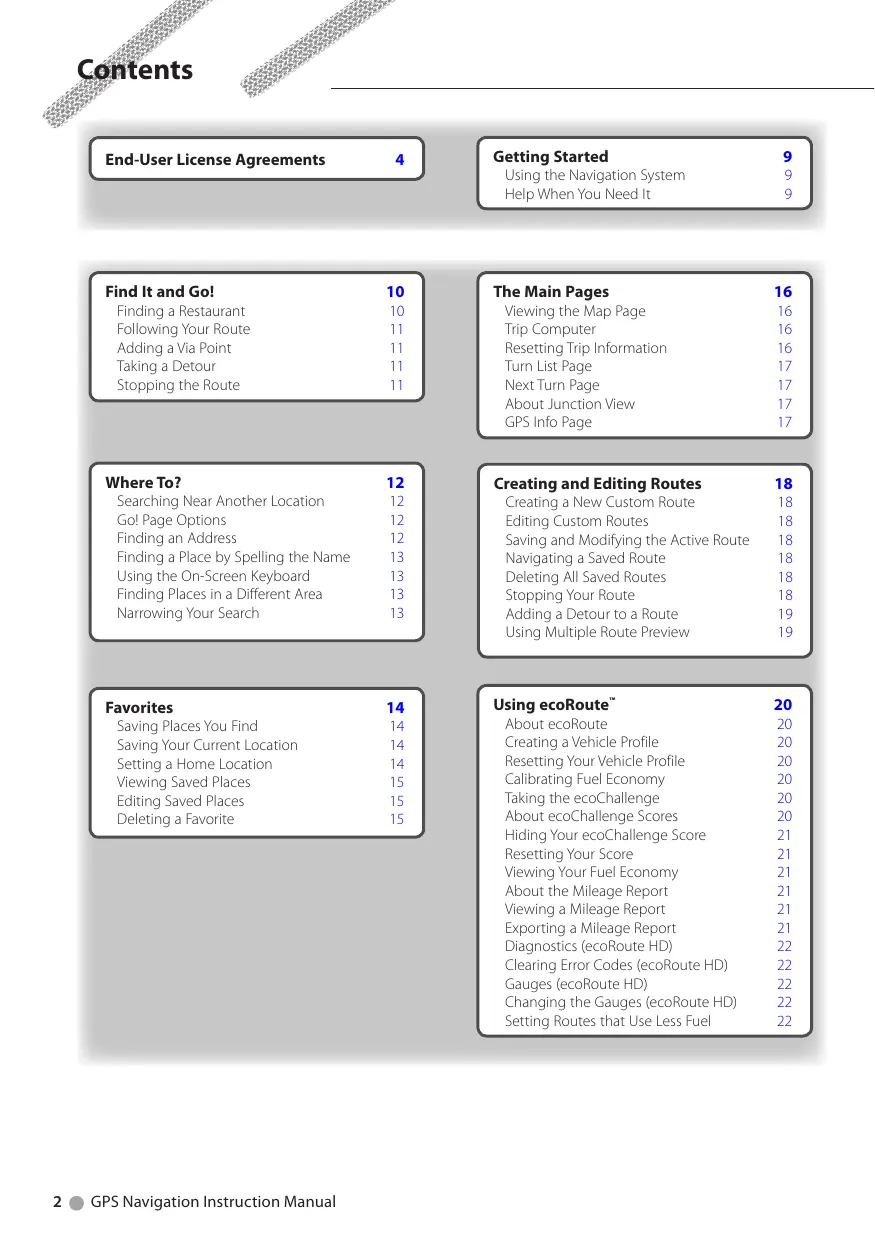
Viewing the Map Page Trip Computer Resetting Trip Information Turn List Page Next Turn Page About Junction View GPS Info Page Searching Near Another Location Go! Page Options Finding an Address Finding a Place by Spelling the Name Using the On-Screen Keyboard Finding Places in a Different Area Narrowing Your Search Favorites Saving Places You Find Saving Your Current Location Setting a Home Location Viewing Saved Places Editing Saved Places Deleting a Favorite
Creating and Editing Routes
Finding a Restaurant Following Your Route Adding a Via Point Taking a Detour Stopping the Route Using the Navigation System Help When You Need It
End-User License Agreements Creating a New Custom Route Editing Custom Routes Saving and Modifying the Active Route Navigating a Saved Route Deleting All Saved Routes Stopping Your Route Adding a Detour to a Route Using Multiple Route Preview About ecoRoute Creating a Vehicle Profile Resetting Your Vehicle Profile Calibrating Fuel Economy Taking the ecoChallenge About ecoChallenge Scores Hiding Your ecoChallenge Score Resetting Your Score Viewing Your Fuel Economy About the Mileage Report Viewing a Mileage Report Exporting a Mileage Report Diagnostics (ecoRoute HD) Clearing Error Codes (ecoRoute HD) Gauges (ecoRoute HD) Changing the Gauges (ecoRoute HD) Setting Routes that Use Less Fuel
Using Speech Recognition (DNX9280BT)
Voice Commands Search Methods Speaking Text on the Screen Speaking Shortcut Commands Find Nearest Shortcut Command Speaking the Name of a Popular Place Speaking an Address Understanding FM TMC Traffic Traffic in Your Area Traffic on Your Route Viewing the Traffic Map Viewing Traffic Delays
Customizing the Settings
Customizing the Navigation System Changing the System Settings Changing the Map Settings Changing the Navigation Settings Adjusting the Display Settings Route Preferences Updating the Time Settings Setting the Languages Adding Security
Updating the Software Updating the Map Data Custom POIs (Points of Interest) Finding Custom POIs Deleting Custom POIs Saving Trip Logs
Icons Used in This Manual Important precautions are described to prevent injuries and potentially dangerous situations. Special instructions, supplementary explanations, limitations, and reference pages are described. Manual Conventions When you are instructed to “touch” something, use your finger to touch an item on the screen. The small arrows (>) used in the text indicate that you should touch a series of items. For example, if you see “touch Where To? > Favorites” you should touch Where To?, and then touch Favorites. English
End-User License Agreements Software License Agreement BY USING THE DNX9280BT / DNX7280BT / DNX5280BT / DNX4280BT, YOU AGREE TO BE BOUND BY THE TERMS AND CONDITIONS OF THE FOLLOWING SOFTWARE LICENSE AGREEMENT. PLEASE READ THIS AGREEMENT CAREFULLY. Garmin grants you a limited license to use the software embedded in this device (the “Software”) in binary executable form in the normal operation of the product. Title, ownership rights, and intellectual property rights in and to the Software remain in Garmin. You acknowledge that the Software is the property of Garmin and is protected under the United States of America copyright laws and international copyright treaties. You further acknowledge that the structure, organization, and code of the Software are valuable trade secrets of Garmin and that the Software in source code form remains a valuable trade secret of Garmin. You agree not to decompile, disassemble, modify, reverse assemble, reverse engineer, or reduce to human readable form the Software or any part thereof or create any derivative works based on the Software. You agree not to export or re-export the Software to any country in violation of the export control laws of the United States of America. NAVTEQ® End-user License Agreement The software embedded in your Garmin product (the “Software”) is owned by Garmin Ltd. or its subsidiaries (“Garmin”). The third-party map data embedded in or accompanying your Garmin product (the “Data”) is owned by NAVTEQ North America LLC and is licensed to Garmin. Both the Software and Data are protected under copyright laws and international copyright treaties. The Software and Data are licensed, not sold. The Software and Data are provided under the following license and are subject to the following terms and conditions which are agreed to by End User (“you” or “your”), on the one hand, and Garmin and its licensors (including their licensors and suppliers) and affiliated companies on the other hand.
IMPORTANT: CAREFULLY READ THIS LICENSE
BEFORE USING THIS PRODUCT. INSTALLING,
COPYING, OR OTHERWISE USING THIS PRODUCT
THIS PRODUCT; (2) Garmin INTERNATIONAL, INC. CUSTOMER SERVICE, 1200 EAST 151st STREET, OLATHE, KS 66062, USA; (3) Garmin (EUROPE) LTD., LIBERTY HOUSE, HOUNSDOWN BUSINESS PARK,
SOUTHAMPTON, SO40 9LR, UNITED KINGDOM; OR
(4) Garmin CORPORATION CUSTOMER SERVICE, No. 68, JANGSHU 2nd ROAD, SIJHIH, TAIPEI COUNTY, TAIWAN. License Terms and Conditions Garmin (“we” or “us”) provides you with storage media containing the computer Software (the “Software”) and the embedded or accompanying digital map Data, including any “online” or electronic documentation and printed materials (together called the “Product” for purposes of this License Agreement), and grants you a limited, non-exclusive license to use the Product in accordance with the terms of this Agreement. You agree to use this Data together with the Garmin product for solely personal, or if applicable, for use in your business’ internal operations, and not for service bureau, time-sharing, resale or other similar purposes. Accordingly, but subject to the restrictions set forth in the following paragraphs, you may copy this Data only as necessary for your use to (i) view it, and (ii) save it, provided that you do not remove any copyright notices that appear and do not modify the Software or Data in any way. You agree not to otherwise reproduce, copy, modify, decompile, disassemble, reverse engineer or create derivative works of any portion of the Product, and may not transfer or distribute it in any form, for any purpose, except to the extent permitted by mandatory laws. Restrictions. Except where you have been specifically licensed to do so by Garmin, and without limiting the preceding paragraph, you may not use this Data with any products, systems, or applications installed or otherwise connected to or in communication with vehicles, and which are capable of dispatch, fleet management or similar applications where the Data is used by a central control center in dispatching a fleet of vehicles. In addition, you are prohibited from renting or leasing the Data or the Garmin products containing the Data to any other person or third party. Only those rental car companies that are specifically authorized by Garmin in writing to rent Garmin products containing the Data to their rental customers are permitted to rent out such products. No Warranty. This Product (including the Data) is provided to you “as is,” and you agree to use it at your own risk. Garmin and its licensors (and their licensors and suppliers) make no guarantees, representations or warranties of any kind, express or implied, arising by law or otherwise, including but not limited to, content, quality, accuracy, completeness, effectiveness, reliability, merchantability, fitness for a particular purpose, usefulness, use or results to be obtained from the Product, or that the Data or server will be uninterrupted or error-free. Disclaimer of Warranty. Garmin AND ITS
LICENSORS (INCLUDING THEIR LICENSORS AND
SUPPLIERS) DISCLAIM ANY WARRANTIES, EXPRESS
WRITTEN ADVICE OR INFORMATION PROVIDED BY
Garmin OR ITS SUPPLIERS AND LICENSORS SHALL CREATE A WARRANTY, AND YOU ARE NOT ENTITLED TO RELY ON ANY SUCH ADVICE OR INFORMATION. THIS DISCLAIMER OF WARRANTIES IS AN ESSENTIAL CONDITION OF THIS AGREEMENT. Some States, Territories and Countries do not allow certain warranty exclusions, so to that extent the above exclusion may not apply to you. Disclaimer of Liability. Garmin AND ITS
LICENSORS (INCLUDING THEIR LICENSORS AND
SUPPLIERS) SHALL NOT BE LIABLE TO YOU: IN RESPECT OF ANY CLAIM, DEMAND OR ACTION, IRRESPECTIVE OF THE NATURE OF THE CAUSE OF THE CLAIM, DEMAND OR ACTION ALLEGING ANY LOSS, INJURY OR DAMAGES, DIRECT OR INDIRECT, WHICH MAY RESULT FROM THE USE OR POSSESSION OF THE INFORMATION; OR FOR
DAMAGES ARISING OUT OF YOUR USE OF OR INABILITY TO USE THIS INFORMATION, ANY DEFECT IN THE DATA OR INFORMATION, OR THE BREACH OF THESE TERMS OR CONDITIONS, WHETHER IN AN ACTION IN CONTRACT OR TORT OR BASED ON A WARRANTY, EVEN IF Garmin OR ITS LICENSORS HAVE BEEN ADVISED OF THE POSSIBILITY OF SUCH DAMAGES. Garmin’S AND ITS LICENSORS’
TOTAL AGGREGATE LIABILITY WITH RESPECT
TO ITS OBLIGATIONS UNDER THIS AGREEMENT
OR OTHERWISE WITH RESPECT TO THE Garmin PRODUCT OR THE DATA SHALL NOT EXCEED $1.00. Some States, Territories and Countries do not allow certain liability exclusions or damages limitations, so to that extent the above may not apply to you. Disclaimer of Endorsement. Reference to any products, services, processes, hypertext links to third parties or other Data by trade name, trademark, manufacturer, supplier or otherwise does not necessarily constitute or imply its endorsement, sponsorship or recommendation by Garmin or its licensors. Product and service information are the sole responsibility of each individual vendor. The NAVTEQ name and logo, the NAVTEQ and NAVTEQ ON BOARD trademarks and logos, and other trademarks and trade names owned by NAVTEQ North America LLC may not be used in any commercial manner without the prior written consent of NAVTEQ. Export Control. You agree not to export from anywhere any part of the Data provided to you or any direct product thereof except in compliance with, and with all licenses and approvals required under, applicable export laws, rules and regulations. Indemnity. You agree to indemnify, defend and hold Garmin and its licensors (including their respective licensors, suppliers, assignees, subsidiaries, affiliated companies, and the respective officers, directors, employees, shareholders, agents and representatives of each of them) free and harmless from and against any liability, loss, injury (including injuries resulting in death), demand, action, cost, expense, or claim of any kind or character, including but not limited to attorney’s fees, arising out of or in connection with any use or possession by you of the Product (including the Data). Entire Agreement. These terms and conditions constitute the entire agreement between Garmin (and its licensors, including their licensors and suppliers) and you pertaining to the subject matter hereof, and supersedes in their entirety any and all written or oral agreements previously existing between us with respect to such subject matter. Governing Law. (a) For European Union NAVTEQ Data The above terms and conditions shall be governed by the laws of the Netherlands, without giving effect to (i) its conflict of laws provisions, or (ii) the United Nations Convention for Contracts for the International Sale of Goods, which is explicitly excluded. You agree to submit to the jurisdiction of the Netherlands for any and all disputes, claims and actions arising from or in connection with the Data provided to you hereunder. (b) For North American NAVTEQ Data and other non-European Union NAVTEQ Data The above terms and conditions shall be governed by the laws of Illinois, without giving effect to (i) its conflict of laws provisions, or (ii) the United Nations Convention for Contracts for the International Sale of Goods, which is explicitly excluded. You agree English
End-User License Agreements to submit to the jurisdiction of Illinois for any and all disputes, claims and actions arising from or in connection with the Data provided to you hereunder. Government End Users. If End User is an agency, department, or other entity of the United States Government, or funded in whole or in part by the U.S. Government, then use, duplication, reproduction, release, modification, disclosure or transfer of the Product and accompanying documentation is subject to restrictions as set forth in DFARS 252.227-7014(a)(1) (JUN 1995) (DOD commercial computer software definition), DFARS 27.7202-1 (DOD policy on commercial computer software), FAR 52.227-19 (JUN 1987) (commercial computer software clause for civilian agencies), DFARS 252.227-7015 (NOV 1995) (DOD technical data – commercial items clause); FAR 52.227-14 Alternates I, II, and III (JUN 1987) (civilian agency technical data and noncommercial computer software clause); and/or FAR 12.211 and FAR 12.212 (commercial item acquisitions), as applicable. In case of conflict between any of the FAR and DFARS provisions listed herein and this License, the construction that provides greater limitations on the Government’s rights shall control. The contractor/manufacturer is Garmin International, Inc., 1200 East 151st Street, Olathe, KS 66062, USA and NAVTEQ North America LLC, 222 Merchandise Mart Plaza, Suite 900, Chicago, Illinois 60654.
GPS Navigation Instruction Manual DMTI Spatial, Inc. End User License Agreement The software embedded in your Garmin product is owned by Garmin Ltd. or its subsidiaries (“Garmin”). The third-party postal code data (the “Licensed Product”) embedded in or accompanying your Garmin product is owned by DMTI Spatial, Inc. and is licensed to Garmin. Both the software and Licensed Product are protected under copyright laws and international copyright treaties. THIS is a legal Agreement between you, the end user, and DMTI Spatial, Inc. BY LOADING THE PRODUCT(S) WITH THIS AGREEMENT YOU ARE AGREEING TO BE BOUND BY THE TERMS OF THIS AGREEMENT. IF YOU DO NOT AGREE TO THE TERMS OF THIS AGREEMENT, PROMPTLY (within 7 days of purchase) RETURN THE PRODUCTS AND ANY ACCOMPANYING ITEMS (including written materials) TO Garmin INTERNATIONAL, INC. CUSTOMER SERVICE, 1200 EAST 151ST STREET, OLATHE, KANSAS 66062, FOR A REFUND. DMTI Spatial hereby grants to you a non-exclusive, non-transferable license to use the data contained on the media in this package (the “Licensed Product”) solely for personal non-commercial use or internal use in your business, on a single computer, Pocket PC, or Palm device in conjunction with Garmin software, and with compatible Garmin products that you personally own. Your use of the data is subject to the following terms and conditions: You acknowledge that the Licensed Product(s) belong to DMTI Spatial and its third party supplier, and that the Licensed Product(s) are copyrighted. Unauthorized copying of the Licensed Product(s), is expressly forbidden and you may be held legally responsible for copyright infringement which is caused or encouraged by your failure to abide by the terms of this agreement. You may make one archival copy of the Licensed Product(s), solely for your own use, subject to the following restrictions: (1) The archival copy must be treated in the same way as the original copy; (2) No copy may be used while any other copy is in use. If you make an archival copy of the Licensed Product(s), you must include on it the copyright notice that is on the original media. You may not reproduce, sell, rent, lease, loan, distribute or sublicense the Licensed Product(s) or otherwise transfer the Licensed Product(s) to any third party, use the Licensed Product for commercial purposes except for internal use in your business, decompile, disassemble, reverseengineer the Licensed Product(s), or use the Licensed Product to create any derived product for any of these prohibited purposes. You may not place the Licensed Product(s) on the Internet without a prior written agreement with DMTI Spatial. In no event shall DMTI Spatial or its third party supplier(s) be liable to you or your organization for any indirect damages including any lost profits, lost savings, interruption of business, loss of business opportunities or other incidental or consequential damages, arising out of your possession, use of, or inability to use the Licensed Product(s), even if DMTI Spatial, its third party supplier(s), or any authorized dealer, has been advised of the possibility of the damages, or for any claim by any other party. In no event shall DMTI Spatial have any liability for damage in excess of the license fee paid for the Licensed Product(s). You shall indemnify and hold DMTI Spatial, its third party supplier(s) and their officers, employees and agents, harmless from and against any claim, demand or action, irrespective of the nature of the claim, demand or action, alleging loss, costs, damages, expenses, or injury (including injury from death) resulting from your authorized or unauthorized, use, possession, modification, or alteration of the Licensed Product(s). THE LICENSED PRODUCT(S) AND THE ASSOCIATED
WRITTEN MATERIALS IN CONNECTION THEREWITH
ARE PROVIDED “AS IS” WITHOUT WARRANTY OF ANY KIND, EITHER EXPRESSED OR IMPLIED, ARISING BY LAW OR OTHERWISE, INCLUDING BUT NOT LIMITED TO WARRANTIES OF EFFECTIVENESS,
FITNESS FOR A PARTICULAR PURPOSE. THE ENTIRE RISK AS TO THE QUALITY AND PERFORMANCE OF THE LICENSED PRODUCT(S) IS WITH YOU, THE END USER. NO ORAL OR WRITTEN ADVICE GIVEN BY DMTI SPATIAL OR ITS DEALERS, DISTRIBUTORS,
OR IN NAY WAY INCREASES DMTI SPATIAL’S LIABILITY AND YOU MAY NOT RELY ON ANY SUCH INFORMATION OR ADVICE. No statement or recommendation made or assistance given by DMTI Spatial or by its representatives or employees shall constitute a waiver by DMTI Spatial or any of the provisions herein. Nor does or will DMTI Spatial warrant any services it may provide in connection with the use of the Licensed product(s), to include any assistance, training, or other consultation with you. This license is effective until terminated. This license will terminate automatically without notice from DMTI Spatial if you fail to comply with any provision of this License Agreement. Upon termination, you shall destroy or return the Licensed Product(s) including any written materials and all copies of the Licensed Product(s) and any written materials in connection therewith have been destroyed or returned to DMTI Spatial. This Agreement shall be governed by the laws of the Province of Ontario. ©2007 DMTI Spatial Inc. (except for data licensed from third parties). DMTI Spatial is an authorized user and distributor of selected Statistics Canada Computer files under Licensing Agreement 6230. © Copyright, HER MAJESTY THE QUEEN IN RIGHT OF CANADA, as represented by the Minister of Industry, Statistics Canada 1996. Digital Topographic Data produced under license from Her Majesty the Queen in Right of Canada, with permission of Natural Resources Canada. English
End-User License Agreements Traffic Service End-user Subscriber Agreement The Traffic Service Provider holds the rights to the traffic incident data and RDS/TMC network through which it is delivered. You may not modify, copy, scan, or use any other method to reproduce, duplicate, republish, transmit, or distribute in any way any portion of traffic incident data. You agree to indemnify, defend, and hold harmless the Traffic Service Provider (and its affiliates) and Garmin Ltd. (and its subsidiaries) against any and all claims, damages, costs, or other expenses that arise directly or indirectly out of (a) your unauthorized use of the traffic incident data or the RDS/TMC network, (b) your violation of this End User Subscriber Agreement and/or (c) any unauthorized or unlawful activities by you in connection herewith. The Traffic Service Data is informational only. You assume all risk of use. The Traffic Service Provider, Garmin Ltd. (and its subsidiaries), and their suppliers make no representations about content, traffic and road conditions, route usability, or speed. Garmin and its Traffic Service Provider(s) make no warranty of fitness or compatibility of the traffic data with the Garmin product and no warranty that the traffic data will operate properly as integrated and interfaced with the Garmin product. In addition, Garmin and its Traffic Service Provider(s) make no warranty with regard to the reliability, accuracy, exhaustiveness and completeness of the traffic data, which may contain inaccuracies and/or errors from time to time. To the maximum extent permitted by applicable law, any and all warranties of any kind whatsoever with regard to the traffic data are hereby expressly waived and excluded, including, but not limited to, those of merchantability, fitness for a particular purpose, accuracy or completeness of the traffic data, and/or a lack of viruses. Garmin and its Traffic Service Provider(s) disclaim all liability for any loss, injury, or damage resulting from use of or inability to use the Garmin product and traffic data as a result of weather difficulties, the destruction of transmitters and/or other broadcasting infrastructures, a natural disaster, and/ or a lack of reliability, completeness or accuracy of the traffic data. In no event shall Garmin or its Traffic Service Provider(s) be liable to you or any other party for any compensatory, indirect, incidental, special, or consequential damages (including, without limitation, indirect, direct, special, punitive, or exemplary damages for loss of business, loss of profits, business interruption, or loss of business information) arising out of the
GPS Navigation Instruction Manual use of or inability to use the Garmin product or the traffic data, even if Garmin has been advised of the possibility of such damages. If you purchase or your Garmin product is preloaded with “lifetime” or “one-time” traffic, you will receive traffic data for one (1) compatible Garmin product until your product’s useful life expires or Garmin no longer receives traffic data from its Traffic Service Provider. Your traffic subscription may not be transferred to another person or another Garmin product. Garmin may terminate this Agreement for any reason, including, but not limited to, if Garmin finds that you have violated any of the terms of this Agreement or the contract between Garmin and its Traffic Service Provider terminates. Getting Started The first time you use your Kenwood Navigation System, you need to set up your system. The Help menu provides additional information. Help When You Need It WARNING See "Safety Precautions and Important Information" in the Quick Start Guide for product warnings and other important information. Touch Tools > Help to get more information about using your navigation system. Touch a category to view information about a topic. 1 Touch Tools > Help.
- The screen shots shown in this manual may not exactly match the screens on your navigation system. The images used in this manual are intended for reference only. Using the Navigation System For complete audio system information, see the other Kenwood system manuals. DNX9280BT 2 To search the Help topics for a keyword, touch Search.
- The hands-free phone feature is only available if your mobile phone has Bluetooth® wireless technology and has been paired to the navigation system. See the other Kenwood manuals and your phone manual for setup and pairing instructions. English
Find It and Go! The Where To? page provides several different categories for you to use when searching for addresses, cities, and other locations. The detailed map loaded in your navigation system contains millions of points of interest, such as restaurants, hotels, and auto services. Finding a Restaurant 5 Select a place. 1 Touch Where To?. 6 Select Press for More to see the Review page. 2 Select a category. 7 Touch Go!. 3 Select a subcategory. 4 Select a type.
GPS Navigation Instruction Manual Following Your Route Adding a Via Point As you travel, your navigation system guides you to your destination with voice prompts, arrows on the map, and directions at the top of the map. The upper-left corner indicates the distance to your next maneuver. If you depart from the original route, your navigation system recalculates the route and provides new directions. You can add a stop (Via Point) to your route. The navigation system gives you directions to the stop and to your final destination. 1 With a route active, touch Where To?. (back icon) > 2 Search for the extra stop. 3 Touch Go!. 4 Touch Add As a Via Point to add this stop before your destination. Your route is marked with a highlighted line. If you want to add more than one stop to the route, edit the current route. See page 18. Taking a Detour If a road on your route is closed, you can take a detour. 1 With a route active, touch Follow the arrows.
2 Touch Detour. The navigation system attempts to get you back on your original route as quickly as possible. If the route you are currently taking is the only reasonable option, the navigation system might not calculate a detour. A checkered flag marks your destination. Stopping the Route 1 With a route active, touch
- 3D buildings may appear in some areas on the map (DNX9280BT only).
2 Touch Stop. English
Where To? The Where To? page provides several different categories you can use to search for locations. Searching Near Another Location
Touch to view more information about the location.
Touch to switch between a 3D (three-dimensional) map and a 2D (twodimensional) map. Touch to rotate the viewing angle in 3D view. Your navigation system automatically searches for places near your current location. 1 Touch Where To? > Near. 2 Select an option:
- Where I Am Now—search near your current location.
- A Different City—search near the city you enter.
- A Recent Destination—search near a recent destination.
- A Favorite Destination—search near a favorite destination.
- My Current Route—search along your route.
- My Destination—search near your current destination. 3 Touch OK.
Finding an Address Go! Page Options Touch an item in the search results list to view the Go! page. The steps to find an address can vary depending on the maps that are loaded on your navigation system. Not all map data provides postal-code searching. 1 Touch Where To? > Address.
Touch to call this location, if a mobile phone with Bluetooth wireless technology is connected. Touch to save this location to your Favorites. Touch to create a turn-by-turn route to this location. Touch to return to the previous page. 3 Touch Search All. Touch Spell City. Enter the city using the keyboard, and touch Done. Select the city. 4 Enter the number of the address, and touch Done. 5 Enter the street name, and touch Done. 6 Select the correct street in the list, if necessary. 7 Touch the address, if necessary.
GPS Navigation Instruction Manual Finding a Place by Spelling the Name Finding Places in a Different Area If you know the name of the location you are looking for, you can spell it using the on-screen keyboard. You can also enter letters contained in the name to narrow the search. You can search for locations in a different area, such as a different city or near your destination. 1 Touch Where To? > Points of Interest > Spell Name. 2 Using the on-screen keyboard, enter letters in the name. 3 Touch Done. 1 From the subcategories list, touch Near. 2 Select one of the search options. Narrowing Your Search To narrow your search, you can search near a different city. 1 Touch Where To? > Near. Using the On-Screen Keyboard 2 Touch A Different City. When an on-screen keyboard appears, touch a letter or a number to enter it. 3 Enter part of the name, and touch Done.
- Touch to add a space. and to move the cursor.
- Touch to delete the character, or touch and hold to
- Touch delete the entire entry. to select words you have recently typed and
- Touch Mode to change the keyboard language mode.
- Touch &?% to enter special characters. English
Favorites You can save all of your favorite places in Favorites. You can also save your home location in Favorites. Saving Places You Find 1 After you have found a place you want to save, touch Save on the Go! page. Saving Your Current Location 1 Touch View Map. 2 Touch the vehicle icon
2 Touch OK. The place is saved in Favorites. 3 Touch Save Location. Setting a Home Location You can set a Home Location for the place you return to most often. 1 Touch Where To? > Go Home. 2 Select an option.
- Enter My Address—enter an address for the location using the on-screen keyboard.
- Use My current location—set your current location as your Home Location.
- Choose from Recently Found—select a location from your recently found locations. After you set your Home Location, touch Where To? > Go Home.
GPS Navigation Instruction Manual Viewing Saved Places Deleting a Favorite 1 Touch Where To?. 1 Touch Tools > My Data. 2 Touch Favorites. 2 Touch Delete Favorite(s). 3 Touch a category. 3 Select the Favorite to delete. Editing Saved Places 4 Touch Delete. 1 Touch Where To? > Favorites. 2 Touch the location you want to edit. 3 Touch Press for More. 4 Touch Edit. 5 Touch the item you want to edit.
- Change Name—enter a new name for the location using the on-screen keyboard.
- Change Map Symbol—touch a new symbol.
- Change Phone Number—enter a phone number.
- Change Categories—create or change the category in which this location is saved. English
The Main Pages This section provides details about the Map Page, the Trip Computer, the Turn List, Lane assist, and the GPS Info Page. Viewing the Map Page Trip Computer Touch View Map to open the map. Touch an area of the map to see additional information, as shown below. The vehicle icon shows your current location. The Trip Computer displays your current speed and provides helpful statistics about your trip. To view the Trip Computer, touch the Speed field on the Map page.
Distance to the next turn. Touch to view and hear next turn details. Lane assistance also displays in this area.
While navigating a route, touch the text bar to open the Turn List. See page 17.
Touch to zoom in. Touch to zoom out. Touch to change the data field. Touch to view the Where Am I? page. Touch the Speed data field to open the Trip Computer.
- A speed limit icon may appear as you travel on major roadways. This icon displays the current speed limit of the roadway.
GPS Navigation Instruction Manual Resetting Trip Information If you want current and up-to-date trip information, reset the trip information before beginning a trip. From the Trip Computer, touch Reset to reset the information. Turn List Page About Junction View When you are navigating a route, the Turn List page displays turn-by-turn instructions for your entire route and the distance between turns. Touch the text bar on the top of the Map page to view the Turn List page. Touch a turn on the list to view the Next Turn page for that turn. Touch Show Map to view the entire route on the map. When available, the Lane Assist page may display a view of the upcoming junction and in which lane you should be driving. You must be navigating a route before you can view the junction.
Next Turn Page When you are navigating a route, the Next Turn page shows the turn on the map and the distance and time left before you reach the turn. To view an upcoming turn on the map, touch the upperleft corner of the Map page, or touch any turn on the Turn List page.
- You can also view junctions from the Turn List page.
- The Lane Assist page with Junction View is available on the DNX9280BT, DNX7280BT, and DNX5280BT. GPS Info Page From the Nav Menu page, touch in the upper-left corner to view the GPS Info page.
Sky view Satellite signal-strength bars The sky view shows the satellites you are receiving. The satellite signal-strength bars indicate the strength of each satellite you are receiving. A solid bar indicates that the GPS satellite is ready for use. English
Creating and Editing Routes This section describes how to create and customize your routes. Creating a New Custom Route Saving and Modifying the Active Route 1 Touch Where To? (or Tools) > Routes > New. 1 Touch Where To? (or Tools) > Routes. 2 Touch Add New Start Point. 2 Touch Active Route. 3 Find a location for your starting point, and touch Select. 3 Touch Add or Remove Points. 4 Add, remove, or reorder the points. 4 Touch Add New End Point. 5 Touch Next. 5 Find a location for your ending point, and touch Select. 6 Touch + to add another location to your route. Touch – to remove a location. 7 Touch Next to calculate your route and view it on the map. Touch Save to save your changes. Editing Custom Routes 1 Touch Where To? (or Tools) > Routes. 2 Select the route you want to edit. 6 Touch Save. Navigating a Saved Route 1 From the Main page, touch Where To? (or Tools) > Routes. 2 Touch the route you want to navigate, and touch Go!. Deleting All Saved Routes Touch Tools > My Data > Delete Selected Route(s) > Select All > Delete. 3 Touch Edit. 4 Touch the item to edit.
- Change Name—enter a new name.
- Add or Remove Points—add or remove points from the route.
- Manually Reorder Points—change the order of points along your route.
- Optimally Reorder Points—automatically order the points.
- Recalculate—recalculate the route.
- Delete—remove this route. Your changes are saved automatically when you exit any of the route edit pages.
GPS Navigation Instruction Manual Stopping Your Route With a route active, touch > Stop. Adding a Detour to a Route If a road on your route is closed or congested with traffic, you can take a detour. 1 With a route active on the Main Map, touch . 2 Touch Detour. The navigation system attempts to get you back on your original route as quickly as possible. If the route you are currently taking is the only reasonable option, the navigation system might not calculate a detour. Using Multiple Route Preview
- See page 26 to enable multiple route preview with Route Preferences.
- Multiple Route Preview is not available on the DNX9280BT. 1 Select a point of interest (page 10). A map appears with Faster Time, Shorter Distance, and Less Fuel routes highlighted. 2 Select a route, and touch Go!. English
Using ecoRoute™ The ecoRoute feature calculates your vehicle fuel economy, carbon footprint, and the fuel price of navigating to a destination, and offers tools for improving fuel efficiency. Using a wireless data connection, the optional ecoRoute HD accessory sends data from your vehicle to your navigation system. The DNX 4 / 5 / 7 series cannot connect with ecoRoute HD. About ecoRoute The data provided by the ecoRoute feature is only an estimate. The data is not actually read from your vehicle. To receive more-accurate fuel reports for your specific vehicle and driving habits, calibrate the fuel economy.
4 Enter the distance you have traveled since the last fill up. 5 Touch Next. Taking the ecoChallenge Creating a Vehicle Profile The ecoChallenge helps you maximize your fuel economy by scoring your driving habits. The higher your ecoChallenge scores, the more fuel you save. The ecoChallenge collects data and calculates a score whenever you are moving. The vehicle profile provides a basis for ecoRoute to calculate your vehicle fuel economy. The ecoChallenge score on the map.
- The optional ecoRoute HD accessory collects data from your vehicle. Touch Tools > ecoRoute > ecoChallenge. 1 Touch Tools > ecoRoute. 2 Enter the required information, and touch Next. 3 Touch Done. icon displays your current
- To view detailed ecoChallenge scores, touch the icon. The leaf color on the driving challenge icon changes depending on your performance in the challenge. About ecoChallenge Scores Resetting Your Vehicle Profile 1 Touch Tools > ecoRoute > Vehicle Profile. 2 Touch Reset. Calibrating Fuel Economy Use this feature when you refuel to maintain an accurate fuel economy. 1 Touch Tools > ecoRoute > At the Pump. 2 Enter the current fuel price. 3 Enter how much fuel your vehicle has used since the last fill up.
- Overall—a combination of the speed, acceleration, and braking score.
- Speed—gain points for driving at your vehicle optimal speed for conserving fuel (45–60 mph for most vehicles).
- Acceleration—gain points for smooth acceleration; lose points for rapid acceleration.
- Braking—gain points for smooth braking; lose points for hard braking.
- Fuel Economy—ecoRoute HD compares your current fuel economy with the highest fuel economy recorded for your vehicle. Gain points for driving at the optimal fuel economy for your vehicle. Hiding Your ecoChallenge Score 1 Touch Tools > ecoRoute > ecoChallenge. 2 Touch Settings > Hide. 3 Touch OK. Viewing a Mileage Report You can view the 20 most-recent mileage reports. 1 Touch Tools > ecoRoute > Mileage Report. 2 Select a report.
- To reset all report data, touch Reset. Resetting Your Score Exporting a Mileage Report You can restart your current ecoChallenge.
While viewing the current ecoChallenge details, touch Reset > Yes. Viewing Your Fuel Economy 1 Touch Tools > ecoRoute > Fuel Economy. The graph along the bottom shows your average fuel economy for a period of driving time.
- The DNX9280BT cannot save mileage reports. 1 Connect a USB mass storage device to your Kenwood unit. 2 Touch Tools > ecoRoute > Mileage Report. 3 Touch Export to export and save the reports to the USB mass storage device. 2 Touch a section of the graph to zoom in. 3 Touch Reset to clear the fuel economy data. About the Mileage Report A mileage report tracks the distance, the time, the average fuel economy, and the fuel cost of navigating to a destination. A mileage report is created for every route that you drive. If you stop a route on the device, a mileage report is created for the distance you traveled. Mileage reports are created automatically when you stop or complete routes. English
Using ecoRoute Diagnostics (ecoRoute HD) Changing the Gauges (ecoRoute HD) When your ecoRoute HD is connected, it can select diagnostic trouble codes (DTC) related to your vehicle's emissions system, if the on-board diagnostic system detects a fault. You can change the data displayed in the gauges. 1 Touch Tools > ecoRoute > Diagnostics. 2 Touch an error code to view its meaning.
2 Touch the gauge you want to change. 3 Touch a data type. Setting Routes that Use Less Fuel
- Consult your vehicle repair technician for additional details for DTC reported by the system. Clearing Error Codes (ecoRoute HD) Touch Tools > ecoRoute > Diagnostics > Reset to clear error codes noted by the system.
- Not all vehicles will allow you to reset error codes.
- Clearing error codes without repairing the source of the erro may result in a return of the check engine light. Consult your vehicle repair technician for additional details. Gauges (ecoRoute HD) View real-time information about your vehicle, such as RPM and battery voltage. Touch Tools > ecoRoute > Gauges.
- The information displayed on the gauges page is collected from your vehicle. Garmin is not responsible for the content displayed on the gauges page. The gauges that are displayed may vary by vehicle.
1 Touch Tools > ecoRoute > Gauges. GPS Navigation Instruction Manual 1 Touch Tools > Settings > Navigation > Route Preference. 2 Select Less Fuel. Using Speech Recognition (DNX9280BT) Use the speech recognition feature to speak to your navigation system to find destinations, select options, and perform other functions. Voice Commands 1 Press the Talk button on the unit. 2 Wait for the green speak icon to appear in the upper-right corner of the screen. 3 Speak a command. Shortcut Commands Cancel Route Detour Find Address Find City Find Favorite Find Place by Category Find Place by Name Find Recently Found Go Home Help Stop Listening Tools Menu Trip Computer View Map Where Am I? Where To?
- The speech recognition feature does not work for all languages in all areas. Search Methods Speech recognition uses four search methods:
Speak any text on the screen Speak shortcut commands Speak the name of a popular place Speak an address Speaking Text on the Screen 1 Speak any word on the screen. For example, from the Tools menu, you can speak Routes or Page Down. You can also say Find Nearest to search a location category. Location categories are points of interest categories contained in the navigation system. The Find Nearest command only works from the Nav Menu page, the Where To? page, and the Map page. Find Nearest Shortcut Command 1 Press the Talk button on the unit. 2 Speak Find Nearest followed by a point of interest category, such as Italian Restaurant. 2 Listen for the voice prompt before speaking your next command. Speaking Shortcut Commands 1 Speak any shortcut command from the Shortcut Commands list. You can use shortcut commands from any screen. 2 Listen for the voice prompt before speaking your next command. English
Using Speech Recognition (DNX9280BT) Speaking the Name of a Popular Place 1 Speak Find Place by Name from any screen. 4 Speak Yes to navigate to the place, or speak No to go back to the list of found places. “Yes” “Find Place by Name” 2 Listen for the voice prompt, and speak the name of the place. The navigation system repeats the name of the place as it is searching. Speaking an Address 1 Speak Find Address from any screen. 2 Respond to the prompts to speak or spell the city name, the house number, and the street. 3 Listen for the voice prompt, and speak the name of the place. The navigation system repeats the name of the place as it is searching. A list of places appears. “Starbucks” 3 A list of places appears. Speak the line number of the place you want. 4 Speak the line number of the place you want. 5 Speak Yes to navigate to the place, or speak No to go back to the list of found places. “Line 1” “Yes”
GPS Navigation Instruction Manual Traffic Information Using the built-in FM traffic receiver, the navigation system can receive and use traffic information. When a traffic message is received, you can see the event on the map and change your route to avoid the traffic incident. The DNX5280BT does not have an FM traffic receiver. Traffic information is not available in all areas. Understanding FM TMC Traffic FM TMC traffic receivers receive traffic information that is broadcast over the FM Radio Data System. The FM TMC subscription activates automatically after your navigation system acquires satellite signals while receiving traffic signals from the service provider. You can add other FM TMC subscriptions at any time. Check the Garmin Web site at www.garmin.com/kenwood for other available services. Traffic in Your Area When you are receiving traffic information, a traffic icon appears in the upper-left corner of the Map page. The traffic icon changes color to indicate the severity of traffic conditions on your route or on the road you are currently traveling. Color Description Meaning Green Low severity Traffic is flowing normally. Yellow Medium severity Traffic is slightly congested. Red High severity Traffic is heavily congested or stopped. Gray No data Traffic data has not updated. If a non-severe traffic delay occurs on your route, the traffic icon shows how much time the delay has added to your route. This time is already included in your estimated arrival time. To manually avoid traffic on your route: 1 On the Map page, touch the traffic icon. 2 Touch Traffic On Route. 3 Touch the arrows to view other traffic delays on your route, if necessary. 4 Touch Avoid to avoid the traffic delay. Viewing the Traffic Map The traffic map shows color-coded traffic flow and delays on nearby roads. 1 On the Map page, touch the traffic icon. 2 Touch Show Traffic Map to view the traffic incidents on a map.
- To return to the normal map from the traffic map, touch the traffic icon, and touch Show Normal Map. Viewing Traffic Delays 1 On the Map page, touch the traffic icon. Traffic on Your Route When calculating your route, the navigation system examines the current traffic and automatically optimizes the route for the shortest time. If a severe traffic delay occurs on your route while you are navigating, the navigation system automatically recalculates the route. You might still be routed through traffic if no better alternative routes exist. 2 Touch Traffic Search to view a list of traffic delays. 3 Touch an item in the list to view the delay on a map and details about the delay. If there is more than one delay, touch the arrows to view the additional delays. English
Customizing the Settings You can customize the settings of your GPS navigation system. Customizing the Navigation System 1 Touch Settings. 2 Touch the setting you want to change. 3 Touch the button below the setting name to change it. Changing the System Settings Touch Settings > System.
- GPS Simulator—enable the simulator to turn off the GPS mode and simulate navigation.
- Units—change the units of measure.
- Keyboard Layout—select keyboard layout.
- About—display the software version number, the unit number, and the unit ID number.
- Restore—restore the original system settings. Changing the Map Settings Touch Settings > Map.
- Map Detail—adjust the amount of detail shown on the map. More detail may cause the map to redraw slower.
- Map View—select a map perspective.
- Vehicle—touch Change to change the icon used to display your position on the map. Touch the icon you want to use, and touch OK.
- Trip Log—show or hide the log of your travels. To clear your trip log, touch Tools > My Data > Clear Trip Log. See page 29 to save trip logs.
- Map Data Layout—changes the layout of the main map.
- Map Info—view the maps loaded on your navigation system and their version. Touch a map to enable (check mark) or disable (no check mark) that map.
GPS Navigation Instruction Manual Changing the Navigation Settings Touch Settings > Navigation.
- Route Preference—select a preference for calculating your route.
- Avoidances—select the road types you want to avoid or you would prefer to use on your routes.
- Restore—restore the original navigation settings.
- Voice Prompts—turn voice prompts on or off. Adjusting the Display Settings Touch Settings > Display.
- Color Mode—select Day for a light background, Night for a dark background, or Auto to automatically switch between the two.
- Restore—restore the original display settings. Route Preferences Touch Settings > Navigation > Route Preference. The route calculation is based on road speeds and vehicle acceleration data for a given route.
- Faster Time—calculates routes that are faster to drive but can be longer in distance.
- Shorter Distance—calculates routes that are shorter in distance but can take more time to drive.
- Less Fuel—calculates routes that could use less fuel than other routes.
- Prompted—prompts you to select a route calculation mode before navigating (multiple route preview, see page 19).
- Off Road—calculates a direct line from your location to your destination. Updating the Time Settings Touch Settings > Time.
- Time Format—select a 12-hour, 24-hour, or UTC time format.
- Current Time—select Automatic to update the time automatically. When Automatic is not selected, you can adjust the time in 15-minute increments.
- Restore—restore the original time settings. Setting the Languages Touch Settings > Language.
- Voice Language—select a voice.
- Keyboard—select the keyboard for your language. You can also change the keyboard language mode from any keyboard by touching the Mode button.
- Recognition Prompt—turn speech recognition prompts on or off.
- Restore—restore the original languages. Adding Security Touch Settings > Security.
- Safe Mode—turn safe mode on or off. When your vehicle is moving, safe mode disables all functions that require significant operator attention and could become a distraction while driving.
- Restore—restore the original security settings. English
Appendix This appendix provides additional information about your navigation system, such as how to update the software and map data. Updating the Software Updating the Map Data To update the navigation system software, you must have a USB mass storage device and an Internet connection. You can purchase updated map data from Garmin or ask your Kenwood dealer or Kenwood service center for details.
- The DNX9280BT uses an SD card for data storage. 1 Go to www.garmin.com/Kenwood. 2 Select Order Map Updates for your Kenwood unit. 2 Find your model and select Software Updates > Download. 3 Follow the Web site instructions to update your map. 3 Read and accept the terms of the Software License Agreement. 4 Follow the instructions on the Web site to complete the installation of the software update.
1 Go to www.garmin.com/Kenwood. GPS Navigation Instruction Manual Custom POIs (Points of Interest) Finding Custom POIs You can manually load custom points of interest (POI) databases, available from various companies on the Internet. Some custom POI databases contain alert information for points such as safety cameras and school zones. The navigation system can notify you when you approach one of these points. You are responsible for ensuring that your use of safety camera information is lawful in your area. To view a list of the custom POIs loaded in your navigation system, touch Where To? > Extras > Custom POIs. NOTICE Garmin is not responsible for the consequences of using the safety camera database or other custom POI databases, or for the accuracy of the safety camera or other custom POI database. After downloading your POI database, use the Garmin POI Loader to install the POIs onto a USB mass storage device. Use the USB mass storage device to load the POIs. The POI Loader is available at www.garmin.com/products /poiloader. Refer to the POI Loader Help file for more information; click Help to open the Help file.
- The DNX9280BT uses an SD card for mass storage and loading custom POIs.
- Each time you load custom POIs to the navigation system, any other custom POIs already saved in the system will be overwritten. Deleting Custom POIs To delete all custom POIs from your navigation system, touch Tools > My Data > Delete Custom POI(s). Touch Yes to confirm. Saving Trip Logs Trip logs are recorded while you navigate a route.
- Trip log data is saved as a .gpx file.
- Saving trip logs is not available on the DNX9280BT. 1 Connect a USB mass storage device to your Kenwood unit. 2 Touch Tools > My Data > Manage Trip Logs. 3 Select a trip log segment, or View All Segments. 4 Select Share to export to the USB mass storage device. English
For the latest free software updates (excluding map data) throughout the life of your Garmin products, visit the Garmin Web site at www.garmin.com/Kenwood. © 2010–2011 Garmin Ltd. or its subsidiaries Garmin International, Inc. 1200 East 151st Street, Olathe, Kansas 66062, USA Garmin (Europe) Ltd. Liberty House, Hounsdown Business Park, Southampton, Hampshire, SO40 9LR, UK Garmin Corporation No. 68, Jangshu 2nd Road, Sijhih, Taipei County, Taiwan www.garmin.com Part Number 190-01308-90 Rev. B Garmin® and the Garmin logo are trademarks of Garmin Ltd. or its subsidiaries, registered in the USA and other countries. ecoRoute™ is a trademark of Garmin Ltd. or its subsidiaries. These trademarks may not be used without the express permission of Garmin. NAVTEQ® is a trademark of NAVTEQ Inc. or its affiliates and is registered in one or more countries, including the U.S. The Bluetooth® word mark and logos are owned by the Bluetooth SIG, Inc. and any use of such marks by Garmin is under license. All other company names and trademarks mentioned or referenced in this documentation are the properties of their respective owners. All rights reserved.
SYSTEME DE NAVIGATION GPS
DNX9280BT DNX7280BT DNX5280BT DNX4280BT MANUEL D'INSTRUCTIONS
RECOMMANDATION OU INFORMATION ORALE OU
RECLAMATION, DEMANDE OU ACTION FAISANT VALOIR
D'EXHAUSTIVITE, DE PRECISION, DE QUALITE MARCHANDE
OU D'ADEQUATION A UN USAGE PARTICULIER. TOUS LES RISQUES RELATIFS A LA QUALITE ET AUX PERFORMANCES DU OU DES PRODUITS SOUS LICENCE SONT DE VOTRE
RESPONSABILITE EN TANT QU'UTILISATEUR FINAL. AUCUN
CONSEIL ORAL OU ECRIT FOURNI PAR DMTI SPATIAL OU