 ManualGo.com
DDX814 - Autoradio multimédia KENWOOD - Free user manual and instructions
Find the device manual for free DDX814 KENWOOD in PDF.


Download the instructions for your Autoradio multimédia in PDF format for free! Find your manual DDX814 - KENWOOD and take your electronic device back in hand. On this page are published all the documents necessary for the use of your device. DDX814 by KENWOOD.
USER MANUAL DDX814 KENWOOD
DDX814 DDX8034BT INSTRUCTION MANUAL Kenwood Corporation DOLBY. £ ! = ŒDOY S dits VIDEO AAC PRO LOGIC II | Digital Surround # SAT : OBluetooth ESF HD Radio: Works with SRSC iPh wow] e to read through this instruction manual. y with installation and operation procedures mance from your new GPS Navig. For your records cord the serial number, US Residents Only Register Online Register your Kenwood product at www.Kenwoodusa.com © B64-4378-10/01 (KW/RW)
How to read this manual 4 Before Use 6 Notes 7 Functions of the buttons on the front panel 10 Picture in Picture Function 1 Screen Switching Function n Getting Started 12 Hour to Display the Navigation Screen 12 Hour to Select the Source 12 Hour to Set a Medium / a Device E Basic Operation 14 Hour to Display the Source Control Screen 14 Hour to Display Top Menu Screen 15 Operation on the Playback Screen of Visual Sources L Hour to Display the Easy Control Screen 17
I B64-4378-10_01_K Enindd 2 ( Initial Setup Radio Listening Source Control Screen Preset Select Auto Memory Manual Memory Set Station Name Traffic Information {North American sales area only) Search by Program Type {North American sales area only) TV Watching (DDX8034BT only) Function During TV Screen Easy Control Screen Source Control Screen Auto Memory Manual Memory Preset Select Set Station Name SIRIUS/XM Control (North American sales area only) Source Control Screen Channel Search Channel Memory Direct Channel Search HD Radio Control (North American sales area only) Source Control Screen Auto Memory Manual Memory Receive mode Direct Search iTunes Tagging (HD Radio Tagging) Bluetooth Audio Control Before Use Source Control Screen Radio Text (North American sales area only) 32
How to read thismanual
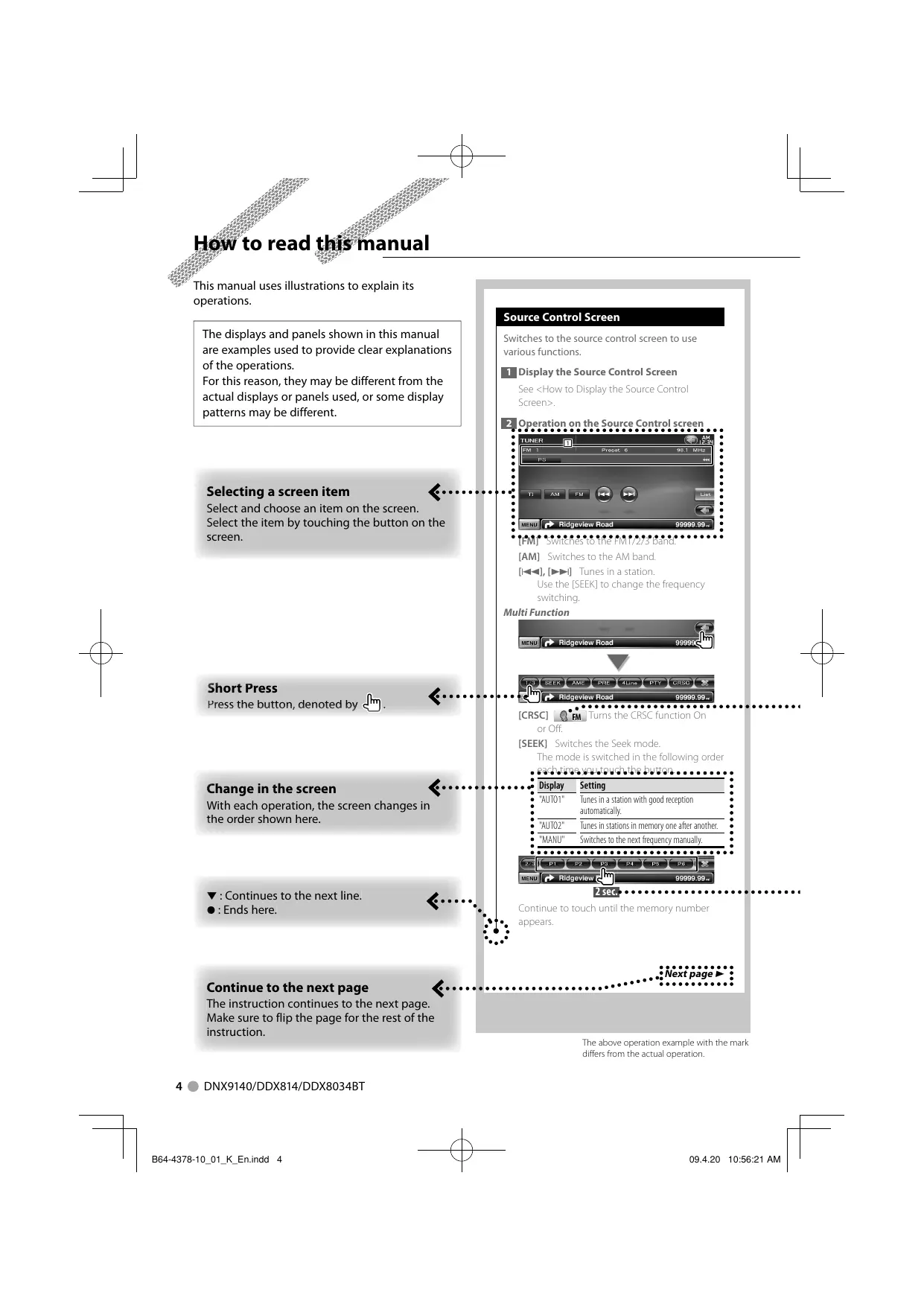
This manual uses illustrations to explain its operations. The displays and panels shown in this manual are examples used to provide clear explanations of the operations. For this reason, they may be different from the actual displays or panels used, or some display patterns may be different. Selecting a screen item Select and choose an item on the screen. Select the item by touching the button on the screen. Short Press < Press the button, denoted by JM). Change in the screen <: With each operation, the screen changes in the order shown here. Y : Continues to the next line. <-. @:Ends here. Continue to the next page The instruction continues to the next page. Make sure to flip the page for the rest ofthe instruction.
4 @ DNX9140/DDX814/DDX8034BT
I B64-4378-10_01_K Enindd 4 Source Control Screen Switches to the source control screen to use various functions. EMDisplay the Source Control Screen io he Source Control IAMI Switches to Le], Del Tunes in a stat Use the [SEEK] to change the frequenc switchir Multi Function rm Ridge ICRSC] LR or Off ISEEK] Switches Seek n he is switched in the radins = Display | Setting AUTOT" Tunes in a station with good reception automatalh. D unes insaionsin memory one ar anothes es te ex equency manual The above operation example with the mark differs from the actual operation.
Function Icon Icons representing available functions are shown below. fr: Function of DVD-VIDEO playback. Côm:Function of DVD-VR playback. Cideoco: Function of Video CD playback. €) «0.:Function of CD (CD-DA) playback. dore: Function of Audio File playback. Irc: Function of MPEG file playback. Bic: Function of DivX file playback. 6 Function of JPEG file playback. ris : Function of Disc (DVD, CD) media. 218 Function of USB device. @.m_:Function of FM reception. Bus: Function of SIRIUS source. gsm: Function of XM source. Other marks Press 2 seconds or more Important precautions are described to Press the button, denoted by À") FA for 2 prevent injuries etc. seconds or more. Indicates to press and hold down the button until operation starts or the screen changes. Special instructions, supplementary The left example indicates to press the button explanations, limitations, and reference pages for 2 seconds. are described.
General precautions and reference pages are Shown on the item. The initial value of each setup is shown. English @ 5 I B64-4378-10_01_K Enindd 5 S [7 09.420 10:56:22 AM L
” AWARNING To prevent injury or fire, take the following precautions: + To prevent à short circuit, never put or leave any metallic objects (such as coins or metal tools) inside the unit. + Do not watch or fix your eyes on the units display when you are driving for any extended period How to reset your unit Ifthe unit or the connected unit fails to operate properly, press the Reset button. The unit returns to factory settings when the Reset button is pressed Remove the USB device before pressing the Reset button. Pressing the Reset button with the USB device installed can damage the data contained in the USB device. For how to remove the USB device, see <How to Set à Medium / a Device> (page 13) + When the unit is turned on after pressing the Reset button, the Initial SETUP screen is displayed. (page 97) = FLE Ce | rENvoc Reset button Cleaning the Unit Ifthe faceplate of this unit is stained, wipe it with a dry soft cloth such as a silicon cloth Ifthe faceplate is stained badly, wipe the stain off with a cloth moistened with neutral cleaner, then wipe it again with a clean soft dry cloth.
Applying spray cleaner directly ta the unit may affect its mechanical parts. Wiping the faceplate with a hard cloth or using a volatile liquid such as thinner or alcohol may scratch the surface or erases characters. Lens Fogging When you tum on the car heater in cold weather, dew or condensation may form on the lens in the disc player ofthe unit. Called lens fogging, this condensation on the lens may not allow discs to play. In such a situation, remove the disc and wait for the condensation to evaporate. If the unit still does not operate normally after a while, consult your Kenwood dealer.
6 @ DNX9140/DDX814/DDX8034BT
I B64-4378-10_01_K Enindd 6 Handling discs + Do not touch the recording surface of the disc. + Do not stick tape etc. on the disc, or use a disc with tape stuck on it. Do not use disc type accessories. Clean from the center of the disc and move outward When removing discs from this unit, pull them out horizontally. Ifthe disc center hole or outside rim has burrs, use the disc only after removing the burrs with a ballpoint pen etc. Discs that cannot be used - Dises that are not round cannot be used + Discs with coloring on the recording surface or discs that are dirty cannot be used! 2 This unit can only play the CDs with qe dE LS This unit may not correctiy play discs which do not have the mark + You cannot play a disc that has not been finalized {For the finalization process refer to your writing software, and your recorder instruction manual) + Ifyou try to load a 3-inch-disc with its adapter into the unit, the adapter might separate from the disc and damage the unit. Other notes + Ifyou experience problems during installation, consult your Kenwood dealer. When you purchase optional accessories, check with your Kenwood dealer to make sure that they work with your model and in your area. Characters that conform to ISO 8859-1 can be displayed + The RDS or RBDS feature won't work where the service is not supported by any broadcasting station. This product includes a non-replaceable lamp that contains trace amounts of mercury. Please recycle in accordance with your local state regulations. Do not dispose of in trash. For disposal or recycling information, please contact your local authorities.
List of playable discs Disc Standard Support Remark DD DVD Video © DD Audio x DVD-R © Horcomparre vi PA.
PEG/MPEG/Divk Playback DVD Multi-border/Mulbisession/ {Playback depends on DID4R authoing conditions) GT 0 — Compatible with 8-cm (3 inch) discs DVD-R DL (Dual layer) e] DVD-+RDL Double yen — © 0 ide format DID-RAM * œ Music CD © GHEN/E-om ind) dis supported
GR © SPÉG/DNX playback Multisession supported CU Packet write not supported DIS o Video CD (WCD) o Super video CD * Photo CD x C-ETRA A Onymusi CD sesson an be played Lo) À Sound quality ofnomal Omusic Co] x Des Dualisc x Super audio D À OnptDyeranbe piyed © : Playback is possible. A : Playback is party possible: X: Playback is impossible. + When buying DRM enabled contents, check the Registration Code in the <DivX Setup> (page 67). Registration Code changes each time a file with the displayed Registration Code is played to protect against copying, Use of "DualDisc" When playing a “DualDisc" on this unit, the surface ofthe disc that is not played may be scratched while the disc is inserted or ejected. Since the music CD surface does not conform to the CD standard, playback may be impossible. {A "DualDisc" is a disc with one surface containing DVD standard signals and the other surface containing music CD signals.) I B64-4378-10_01_K Enindd 7 About Audio files + Playable Audio file AAC-LC (m4a), MP3 (mp3), WMA (wma), Linear PCM (WAV) (wav) + music of normal CD and ather playback systems are recorded in the same disc, only the playback system recorded at the fist setaut is played Acceptable media CD-R/RW/ROM, DVD2R/RW, mass-storage-class USB device, iPod with KCA-P301V Playable disc file format ISO 9660 Level 1/2, Joliet, Romeo, Long file name + Playable USB device file system FATI6, FAT32 Although the audio files are complied with the standards listed above, the play maybe impossible depending on the types or conditions of media or device. + Playing order of the Audio file In the example of folder/file tree shown below, the files are played in the order from (D) to (0. co) C:Foider J® À ‘audio file dJ® An online manual about audio files is put on the site, wwwkenwood.com/audiofile/. On this online manual, detailed information and notes which are not written in this manual are provided. Make sure to read through the online manual as well About Video files Acceptable video files MPEG1, MPEG2, DivX Exte ns mpg, mpeg, miv, m2v, divx, div, avi Acceptable media CD-R/RW/ROM, DVD+R/RW, mass-storage-class USB device, iPod with KCA-P301V Acceptable discs, disc formats, USB device file system, file and folder names and playing order are the same as those for audio fes. See <About Audio files> Next page > English @ 7
Notes About Picture files + Acceptable picture files JPEG + Extensions jpg. jpeg + Acceptable media CD-R/RW/ROM, DVD+R/RW, mass-storage-class USB device Acceptable discs, disc formats, USB device file system, file and folder names and playing order are the same as those for audio files. See <About Audio files>. iPod/iPhone that can be connected to this unit Made for «Pod nano (1st generation) «iPod nano (3rd generation) «iPod nano (2nd generation) +iPod nano (4th generation) + iPod with video »iPod classic + Pod touch (1st generation) … iPod touch (nd generation) Works with + iPhone + iPhone 3G iPhone iPhone 3G
AGB 8GB 1668 8GB 16GB
+ Update iPod/iPhone software to the latest version + You can control an iPod/iPhone from this unit by connecting an iPod/iPhone (commercial product) with Dock connector using an optional accessory iPod connection cable (KCA-iP301V). The word Pod" appearing in this manual indicates the iPod/ iPhone connected with the KCA-P301V (optional accessory) + By connecting your iPod/iPhone to this unit with an optional accessory iPod connection cable (KCA- iP301V), you can supply power to your iPod/iPhone as well as charge it while playing music. However, the power of this unit must be on. + IFyou start playback after connecting the iPod, the music that has been played by the iPod is played first. In this case, "RESUMING" is displayed without displaying a folder name, etc. Changing the browse item will display a correct title, etc. + When the iPod is connected to this unit, “KENWOOD” or" is displayed on the iPod to indicate that you cannot operate the iPod About USB device + In this manual, the word "USB device" is used for flash memories and digital audio players which
8 @ DNX9140/DDX814/DDX8034BT
I B64-4378-10_01_K Enindd 8 have USB terminal. + When the USB device is connected to this unit, it can be charged up provided that this unit is powered - Install the USB device in the place where it will not prevent you from driving your vehicle properly. + You cannot connect a USB device via a USB hub and Multi Card Reader. - Take backups of the audio files used with this unit ‘The files can be erased depending on the operating conditions of the USB device. We shall have no compensation for any damage arising out of erasure of the stored data + No USB device comes with this unit. You need to purchase à commercially available USB device. + When connecting the USB device, usage of the CA-UIEX (option) is recommended Normal playback is not guaranteed when a cable other than the USB compatible cable is used Connecting a cable whose total length is longer than 5 m can result in abnormal playback Navigation units that can be connected to this unit (DDX814/ DDX8034BT only)
+ KNA-G510*/ G431* + KNA-DV4100
+ KNA-DV3100 + KNA-DV2100
- Update the navigation software to the latest version. For how to update the software, refer to the instruction manual of the navigation unit. About Satellite Radio tuner This unit supports Satellite Radio tuners which are released by SIRIUS and XM Optional accessories below are necessary for connection. SIRIUS tuner : Conversion cable CA-SR20V XM tuner : XM interface Box KCA-XM100V Refer to the instruction manual of Satellite radio tuner. HD Radio that can be connected to this unit + KTC-HR300 + KTC-HR200 When you connect an HD Radio, Tuner features of the unit are disabled and changed to HD Radio tuner features. TV tuner that can be connected to this unit (DDX8034BT only) + KTC-V300N
Region codes in the world The DVD players are given a region code according to the country or area it is marketed, as shown in the following map DVD disc marks Symbol Description Indicats region number The discs with this mark can be played with any DVD player. Indicats the number faudio languages recorded. Up to 8 languages can be recorded in a movie. You can selecta favarte language (Oo) Indicats the number of subtited languages record Up ta 32 languages can be recorded. O0 Ia DVD disc has scenes shot from multiple angles, you LOT ansclecta favorite angle. indicates the type of screen fr te image. Te ef mark indiats tata wide image picture (169) s displayed ana standard TV set scren (43) with black band at both the top and bottom of the screen letter box). B64-4378-10_01_K Enindd 9 Operation regulatory marks With this DVD, some functions of this unit such as the play function may be restricted depending on the location where the DVD is playing. In this case, the following marks will appear on the screen. For more information, refer to the disc manual Prohibition Mark Discs with limited period of use Do not leave discs with a limited period of use in this unit. If you load an already expired disc, you may not be able to remove it from this unit English
Reset button (page 6) Sl'indicator (page 70) For DDX814/ DDX80348T EE, EE Press for more than 1 second @ Attenuation of the volume On/Off. EE Keep the tag data of the currently listening music of HD Radio. -{45) @ olume adjustment. Q@ Displays Graphic Equalizer screen.*! -[52] LEA Rear view display On/Off* © aDNX9140jssmmmann Displays the navigation screen. When the navigation screen has already been displayed, it switches to the currently selected source screen. EE Picture in Picture function On/Off. -Cin a2DX814/4DDX8034B1 Displays the Top Menu screen. [5] @ Tums the power On. Displays the Source Select screen. -£i LEA Turns the power Off.
DNX9140/DDX814/DDX8034BT
B64-4378-10_01_K Enindd 10 Ÿ Remote control sensor *The display may not switch to Graphic Equalizer screen in some conditions. “The function of the [AUD] button can be changed to the display off function. See <User Interface> (page 68)
Functions of the buttons on the front panel GO NX 40m Hands Free control screen On/Off. LE While watching the playback screen of a visual source Displays the Easy Control screen. -[17 æ While watching the navigation screen Displays the Screen Control screen. -[50) æ While watching the screen other than the above Screen Switching function On/Off. -[i1) le (8034BTk Hands Free control screen On/Off. LEA m While watching the playback screen of a visual source or the navigation screen Displays the Easy Control buttons. -[2] © Opens the panel and ejects the disc. Closes the panel. Picture in Picture Function Two screens, the navigation screen and source screen, are displayed. When Picture in Picture function is on, touching the source screen switches between the R-CAM image and source image. Screen Switching Function Switching between the navigation screen and the source control screen with one touch operation. English @ 11 I B64-4378-10_01_K Enindd 11 Ne 094.20 10:56:27 AM L
Gétting Started: How to Display the Navigation Screen How to Select the Source IX9140; The navigation screen appears. (8144DDX8034BT. Sources can be selected from the Source Select screen. Source Select screen Source Select MMS risgevewrod 5958) The navigation screen appears.
+ For how to set up and use the navigation function, see the Navigation Instruction Manual. + For DDX814/ DDX80348T, an optional navigation system needs to be connected. See <Navigation unit that can be connected ta this unit> (page 8) for connectable navigation units.
The Source Select screen appears. Touch the icon of the source. Use À or Ÿ to turn the page. For how to operate each source, see the following pages. () DVD-VIDEO/ DVD-VR/ Video CD disc = Page 18 @ © m Page 22 CE) Audio file/ Video file/ Picture file disc = Page 22 Pod m Page 27 USB mæ Page 22 @ TUNER = Page 30 20% SIRIUS/ XM = Page 39 @ Ho rapio m Page 42 Br m) Page 35 8? Bluetooth = Page 46 + For Disc media, iPod, and USB, the input is switched to the source as the media or the device is set.
How to Set a Medium / a Device M Disc media Press the [4] button to open/close the front panel. Ia disc is already inserted, it is ejected by pressing the [A] button. miPod To disconnect the iPod, stop the playback by touching the [»-H1] button on the source control screen, and then disconnect the iPod. See <Source Control Screen> (page 28). M USB device To disconnect the USB device, touch the [4] button on the source control screen, and then disconnect the USB device. See <Source Control Screen> (page 22). B64-4378-10_01_K Enindd 13
Getting Started 1 SD card (DNX9140 only) This SD card slot is used to upgrade the Navigation System. For how to upgrade the Navigation System, refer to the instruction manual of the navigation system. Press the [&] button for more than 1 second to open the front panel. Inserting the SD card Hold the SD card with the label side up and the notched section on the right, and insert it into the slot until it clicks. Removing the SD card Push the SD card until it clicks and then remove your finger from the card. The card Pops up so that you can pull it out with your fingers. Press the [&] button to close the front panel. + The playback starts automatically after setting the media or the device. English
ol Screen play the Source Co How to On the Source Control screen you can find all the control buttons for the selected source. Source Control screen M nicgeueu Ro: + For how to use each button, see the operation pages of each source. How to display the Source Control screen IX9:140; While watching the navigation screen DDX8034BT. The Source Control screen appears. ÆNX9140/DDX814/DDX8034BT à
While watching the Easy Control screen The Source Control screen appears. + The screen will return to the navigation screen by touching the same part of the Source Control screen.
14 @ DNX9140/DDX814/DDX8034BT
I B64-4378-10_01_K Enindd 14 The Source Control screen appears.
094.20 10:56:32 AM L
How to Display Top Menu Scree Top Menu screen is the entrance to all the functions. You can enter source operation screen as well as various setup menu from this screen. Top Menu screen Touch the [MENU] button on any screen.
The Top Menu screen appears.
+ For DDX814/ DDX80348T Pressing the [TOP] button on the front panel also displays the Top Menu screen. B64-4378-10_01_K Enindd 15 Basic Operation Buttons on the Top Menu screen INAVŸ] Switches to the navigation screen. ISRCÉÏA] Switches to the source control screen ofthe selected source. [TEL 91 Switches to the Hands Free Main screen. (page 52) INAV SETUP] Displays Navigation SETUP screen. {instruction manual of the Navigation part) (DNX9140 only) ISRC SETUP] Displays SETUP Menu screen. (page 66) [TEL SETUP] Displays Hands Free SETUP screen. (page 55) [&@1 Displays Audio Control Menu screen. (page 61) LH] Displays Source Select screen: LEXT SW]. Displays the EXT SW (External Switch) Control screen. (page 48) 1] Changes the screen skin each time it is pressed The buttons listed below are common for many screens. IMENU] Displays Top Menu screen. 1@1 Opens the function bar. The buttons shown below appear. IEP] Displays the currently selected source screen. [O1 Displays Audio Control Menu screen: (page 61) be] Displays SETUP Menu screen. (page 66) LEXT SW] Displays the EXT SW (External Switch) Control screen. (page 48) ŒÆD1 Closes the function bar. English
Basic Operation Operation on the Playback Screen of How to display the playback screen Visual Sources While watching visual sources, basic operation is possible by touching the screen. The screen has 4 function areas. The function of each area is different depending on the sources. (Some areas are unavailable for some sources.) Playback screen of a visual source The Source Select screen appears. Touch the icon of the source.
The Playback screen of a visual source appears. Basic operation of each area [M] Reverse search. Displays Menu control screen (DVD-VIDEO, DVD-R source), Picture control buttons (sources with picture files), or Zoom control buttons (Video CD). Switches TV band. Œ] Forward search [1 Displays/ Clears Source Information screen - Forthe function of each touching area, see the pages of each source.
- Source Information screen + The information display is cleared automatically after approximately 5 seconds.
Basic Operation How to Display the Easy Control Screen Basic operation buttons of the selected source can be displayed on the playback screen of visual sources so that you can control the source without switching the screen. Easy Control screen ECRNT | Buttons on the Easy Control screen [w1 Changes the function as follows by touching the [w] button. ISCRN] Displays Screen Control screen (page 50) [TEL] Switches to the Hands Free Main screen (page 52). [EXT SW] Switches to the EXT SW Control screen (page 48). IH, D-211, C8], [11] Buttons for source control. The buttons are different depending on the source. See the operation pages of each source. While watching the visual source The Easy control screen appears. + Easy Control screen is hidden when you touch the central part ofthe monitor English @ 17 B64-4378-10_01_K Enindd 17 094.20 10:56:35 AM
Set the remote controller mode switch to "DVD" mode before starting operation, see <Remote Controller mode switch> (page 91) Playback Screen Basic functions are available even when the playback screen is displayed. HE nisplay the Playback Screen See <Operation on the Playback Screen of Visual Sources> (page 16) FA operation on the Playback Screen [3] féfinéo Searches for a chapter. Car Searches for à chapter. Ge Selects a scene (when PBC is On) or a track (when PBC is Off). L2] ffèweo Displays the Menu Control 1 screen (page 20) La Displeys the Menu Control screen (page 21). wo Displays the Zoom Control screen (page 21). Displays/ Clears Source Information screen + The information display is cleared automatically after approximately 5 seconds: Easy Control Screen Displays the basic operation buttons on the screen. splay the Easy Control Screen See <How to Display the Easy Control buttons> (page 17). A Operation on the Easy Control Screen DE Fu n Switches to the Playback screen. Displays the Source Control screen [He], æ»1] Searches for a chapter/ scene/ track. Im] Stops playing. When touched twice, the disc is played from its beginning when you play it the next time. DH] Plays or pauses. Source Control Screen Switches to the source control screen to use various playback functions. splay the Source Control Screen See <Howr to Display the Source Control Screen> (page 14) EA operation on the Source Control Screen Couper
D] Plays or pauses. Um] Stops playing When touched twice, the disc is played from its beginning when you play it the next time. [A] Ejects a disc. Le») Fast Forwards or Fast Backwards. [el Dei] GBungo Searches for a chapter. Km Searches for a chapter. Gw® Selects a scene (when PBC is On) or a track (when PC is Off) A1, Lib] (fBdmmen, Cor Slow Forwards or Backwards. [ES] Switches to the playback screen [Information display Title display. "Title" Title Number Display "Chap" Chapter Number Display "Scene" Scene/Track Number Display ">" Play Mode Display "T'/"C"/"R"/"P" Play Time Display Use the [TIME] to change play time display. La] When appears, the text display is scrolled by touching it. I B64-4378-10_01_K Enindd 19 Ne Multi Function [1 Closes the multi function bar. Cdvwneo IREP] Switches the Repeat Play operations in the following sequence. Title Repeat, Chapter Repeat, Repeat Off [TIME] Switches the play time display in the following sequence. Chapter ("C"), Title (T'), remaining titles ('R") Door IREP] Switches the Repeat Play operations in the following sequence. Title Repeat, Repeat Off [TIME] Switches the play time display in the following sequence. Title (T') remaining titles ('R') IPLST] Switches between the original mode and Play list mode. CDideo D IREP] Switches the Repeat Play operations in the following sequence. ‘Track Repeat, Repeat Off (Available when the PBC is off) [TIME] Switches the play time display in the following sequence. Track ('P'), remaining discs ('R') (Effective only when the PBC function is off) {PBC] Turns the PBC On or Off. (only when VCD Ver 2.0 is in use) English @ 19
I B64-4378-10_01_K Enindd 20 + Touching the central part of the monitor also turns on the Highlight Control. + To cancel Highlight Control, press the [TEL] button for more than 1 second. + The Highlight Control is cleared automatically after approximately 10 seconds. EE Operation on the Menu Control 2 screen [Previous] Displays the Menu Control 1 screen. [Angle] Switches the picture angle. [SUB] Switches the subtitle language. [Audio] Switches the voice language [Zoom] Displays the Zoom Control screen. [Exit] Exits the Menu Control 2 screen. A operation on the Zoom Control screen Foto
[Zoom] Changes the zoom ratio at 4 levels (2 times, 3 times, 4 times, or off) each time you touch. [<, 1, [A1 [y] Scrolls the screen in the direction you touch. [Return] Returns to the previous screen. [Exit] Exits the Zoom Control screen. DVD-VR Menu Control Selects an option from the DVD-VR Disc Menu. El Display the playback screen See <Operation on the Playback Screen of Visual Sources> (page 16) isplay the Menu Control screen [Zoom] Displays the Zoom Control screen: [SUB] Switches the subtitle language. [Audio] Switches the voice language [Exit] Exits the Menu Control screen. EX operation on the Zoom Control screen I B64-4378-10_01_K Enindd 21 Foto [Zoom] Changes the zoom ratio at 4 levels (2 times, 3 times, 4 times, or off) each time you touch. 1, D], [AL [w] Scrolls the screen in the direction you touch. [Return] Returns to the previous screen. [Exit] Exits the Zoom Control screen Video CD Zoom Control Displays an enlarged VCD screen. EX Display the playback screen See <Operation on the Playback Screen of Visual Sources> (page 16) A isplay the Zoom Control buttons [Zoom] Changes the zoom ratio at 2 levels (2 times or off) each time you touch. 1, D], [AL [w] Scrolls the screen in the direction you touch. [Exit] Exits the Zoom Control screen English @ 21
+ See <List of playable discs> (page 7) or playable discs. You can recall various control screens during playback of CD, audio file, video file and picture file. + See <About Audio file> (page 7), <About Video flles> (page 7) or <About Picture files> (page 8) for playable files. Source Control Screen Switches to the source control screen to use various playback functions. El isplay the Source Control Screen See <How to Display the Source Control Screen> (page 14) FA Operation on the Source Control Screen TP Fidgeview Road Du] Plays or pauses. [nm] Dose Stops playing When touched twice, the disc is played from its beginning when you play it the next time. IA) (Œe Ejects the disc. us, Disables the USB device. When "No Device" is shown, the USB device can be removed safely. If you wish to play it again while the USB device is connected, touch it again. Led, D] 200. for, Move Fast Forward or Fast Backwards [He Dewi] Selects à track/ file. [Es], (Ra) Jikiorie, MPEbowe, MLPEG Selects a folder.
Re mccrewrons ss. [1/21 Switches the multi function display. [1 Closes the multi function bar. IREP] Repeats the present track. IRDM] Starts or stops Random Play (to play music in random order). [TIME] Switches the play time display between Track ('P"), and Disc Remaining Time ('R"). J'daudiorie (MmPEcoie (EP IREP] Repeats the present file or data IFREP] Repeats the music or data ofthe present folder.
IRDM] Starts or stops Random Play (to play files of the present folder in random order) [4Line]/[2Line] Switches the number of lines displayed in the Information Display. {FOLD//[Flist] Displays the folder list. [Plist] üiorie in sZ2US8, Displays the play list. [SLIDE] Jiühiorie, MMMIPEG Displays images in the folder currently being played one after another. Ifthere is no image in the folder currently being played, initial background is displayed For information on setting the image display time, see <Disc Setup> (page 86) or <USB Setup> (page 86) [INFO] Jiiofie Displays music information (such as Tag and content property) of Audio file being played. Mkowe, (BMUPEG Displays information of file being played. ILINK] Joie in WS2US8, Searches for another song of the currently selected artist. See <Link Search> (page 25). IDEVICE] us, Selects the connected USB device (or a partition). (page 24) List Select Folder list: Searches folders and Audio/ Video/ Picture files stored in media and devices according to hierarchy. Play list: Lists and searches music contained in the USB device. El Display the Source Control Screen See <Source Control Screen> (page 22). EAStart List Select GALLES + Touching [List] displays the previously used Folder list or Play list. Elselect a song Folder list (2 2#bis/USB [M Folder opens when touched, and the Audio fl is played! La] When « appears, the text display is scrolled by touching it [&mROOT] Moves to the top hierarchy level. Las UP] Moves up a hierarchy level. [#@ TOP] Zu, Moves to the top folder. LP= CUR] Displays the currently playing folder. ICTRL] Returns to the Source Control screen: \ Play list Jdhudiofile in USB MS riageview nos
[M Switches to the lower level of the category. La] When « appears, the text display is scrolled by touching it. [» ALL] Lists all the music in the selected category. [ta UP] Moves to the upper level ofthe category. [#@ TOP] Moves to the top category. LP= CUR] Displays the currently playing category. ICTRL] Returns to the Source Control screen. Next page » English @ 23
Scrolls to the selected initial
24 @ DNX9140/DDX814/DDX8034BT
B64-4378-10_01_K Enindd 24 USB device select Selects the connected USB device (or a partition). HE Display the Source Control Screen See <Source Control Screen> (page 22) FADisplay the USB Device Select Screen M ragever nos 20950 59 = Selects a device or partition. [# UP] Returns to the Device Selection screen. La] When appears, the text display is scrolled by touching it ICTRL] Returns to the Source Control screen.
Link search (Audio file in USB) Searches for another song of the currently selected artist. El isplay the Source Control Screen See <Source Control Screen> (page 22). EAStart Link search > Fidgeview Road [D Plays the touched song La] When « appears, the text display is scrolled by touching it [+@ TOP] Moves to the top category. L= CUR] Displays the currently playing category. ICTRL] Returns to the Source Control screen. Scrolls to the position of the specified initial Scrolls to the selected initial. I B64-4378-10_01_K Enindd 25 Playback Screen (Video file, Picture file) Basic functions are available even when the playback screen is displayed. HE Display the Playback Screen See <Operation on the Playback Screen of Visual Sources> (page 16) EA Operation on the Playback Screen [DE Searches for a file [2] (mirsg Displays the Picture Control screen (page 26) Abo: Displays the Menu Control screen (page 26). [Æ] Displays/ Clears Source Information screen + The information display is cleared automatically after approximately 5 seconds. Also, the information can be displayed automatically when it is updated. English @ 25
le Listening & Video File/ Picture File Watching Easy Control Screen ÆlAdjust the video display (Video file, Picture file) Displays the basic operation buttons on the screen. El Display the Easy Control Screen See <How to Display the Easy Control Screen> (page 17). A operation on the Easy Control Screen LŸ 1 Reverses the picture horizontally. CE = EE LA Rotates counter clockwise. [M1 Rotates clockwise. [Exit] Ends Picture Control Movie Menu Control Selects an option from the Movie Menu. Switches to the Playback screen. [3] Displays the Source Control screen: [H<l, Dewi] Searches for à file. 1m] De, Stops playing. When touched twice, the disc is played from | its beginning when you play it the next time. Du] Plays or pauses. Picture Control Adjusting the video display. El Display the playback screen See <Operation on the Playback Screen of Visual Sources> (page 16) isplay the Menu Control screen EX Display the Playback Screen See <Operation on the Playback Screen of Visual | KM Operation on the Menu Control screen Sources> (page 16) FAisplay the Picture Control Screen [SUB] Switches the subtitle language. [Audio] Switches the voice language [Exit] Exits the Menu Control screen.
You can control and listen to songs in your iPod by connecting an iPod to this unit with KCA-iP301V (optional accessory). You can also display video contents on this unit when connecting an iPod with video. Playback Screen Basic functions are available even when the playback screen is displayed. El Display the Playback Screen See <Operation on the Playback Screen of Visual Sources> (page 16). EAoperation on the Playback Screen [D 5) Selects the music/video 2] Not effective Le Displays/ Clears Source Information screen. + The information display is cleared automatically after approximately 5 seconds. Also, the information can be displayed automatically when it is updated. + Remove all accessories such as headphone before connecting an iPod. You may not be able to control the iPod if you connect it with accessories attached. + When you connect an iPod to this unit, playback starts from the song you were playing on the iPod itself Resume Function) + Ifthe played song is not a video content, "No Video Signal” is displayed on the video screen I B64-4378-10_01_K Enindd 27 Easy Control Screen Displays the basic operation buttons on the screen. EX Display the Easy Control Screen See <How to Display the Easy Control Screen> (page 17) [2] Operation on the Fasy Control Screen [D, 2] Switches to the Playback screen. [3] Displays the Source Control screen. [el wi] Music/Video Search: Du] Plays or pauses. English @ 27
Switches to the source control screen to use various playback functions. El isplay the Source Control Screen See <How to Display the Source Control Screen> (page 14) FA Operation on the Source Control Screen
Me nisgeview Rosa Du] Plays or pauses. El >] Fast Forwards or Fast Backwards. [He wi] Selects Music/Video. IList]_Displays the iPod list. (page 28) CS] Switches to the playback screen. Information display Selects the Title, Artist Name, Album Name or iPod Name. "HAE / #HAHE' Total number of music in the iPod and the music number display ">" Play Mode Display "P"_Play Time Display La] When « appears, the text display is scrolled by touching it. Multi Function Re résmeures ss. [1/2] Switches the multi function display. LX] Closes the multi function bar. [MUSIC] Displays the list of music category. [VIDEO] Displays the list of video category. IREP] Repeats the present file or data IRDM] Starts or stops Random play*
DNX9140/DDX814/DDX8034BT
I B64-4378-10_01_K Enindd 28 [ARDM] Starts or stops Album Random Play {plays randomly from current album) * [INFO] Displays information screen of music/ video being played. ILINK] Jämuse Searches for another song of the currently selected artist. See <Link Search> (page 29)*
- Disabled when VIDEO is being played. Lists and searches music/video contained in the iPod. El isplay the Source Control Screen See <Source Control Screen> (page 28) ÆAisplay the iPod List MMS riageven nos Categories and music are listed. Touch a category name to move to its lower level. If music title is displayed, the music is played by touching it When DM] is appeared, all the music in its category is played by touching the button: L«] When appears, the text display is scrolled by touching it Las UP] Returns to previous category. TOP] Moves to the top category. L)= CUR] Displays the currently playing category. ICTRL] Returns to the Source Control screen.
Scrolls to the position of the specified initial k search (Musi ) Searches for another song of the currently selected artist. HE Display the Source Control Screen See <Source Control Screen> (page 28) A Start Link search
Scrolls to the selected initial. EAselect a song
[Plays the touched song, La] When « appears, the text display is scrolled by touching it. [#@ TOP] Moves to the top category. LP= CUR] Displays the currently playing category. ICTRL] Returns to the Source Control screen. Scrolls to the position of the specified initial
Various control screens appear in the Tuner Source mode.
+ Set the remote controller mode switch to "AUD" mode before starting operation, see <Remote Controller mode switch> (page 91) Source Control Screen Switches to the source control screen to use various functions. El isplay the Source Control Screen See <How to Display the Source Control Screen> (page 14) FA Operation on the Source Control Screen T Fidgeview Road [FM] Switches to the FM1/2/3 band: [AM] Switches to the AM band. [TI] Turns the Traffic Information function On or Off See <Traffic Information», (page 33) [He wi] Tunes in a station. Use the [SEEK] to change the frequency. IList] Display the Tuner Preset List screen (page 31). Information display Selects the Program Service Name, Title & Artist name, Station Name, Radio Text Plus, or Radio Text. “FM'/"AM"_ Band display "Preset"_ Preset number
“MHz"/"kHz"_ Frequency display La] When « appears, the text display is scrolled by touching it. I B64-4378-10_01_K Enindd 30
DNX9140/DDX814/DDX8034BT
Multi Function F Ridgevien Rod EE EF 2 are ent mes )s msoren roue En [1/31 Switches the multi function display. [1 Closes the multi function bar. ISEEK] Switches the Seek mode. The mode is switched in the following order each time you touch the button. Display Setting FADTOT Tunes in a staon wi good reception automatic. AITOZ Tunes in stations in memory one afer another. MANU Switches to he next requency manual. [AME] Selects the Auto Memory mode. See <Auto Memory> (page 31) IPRE] Lists and selects memorized station. [4Line]/[2Line] Switches the number of lines displayed in the Information Display.*! IPTY] L@LrM, Searches station by program pes See <Search for Program Type> (page 34) ICRSC] L@urm, Turns the CRSC function On or Off. [P1]-[P6] When [P1] to [P6] buttons appear, you can recall the stations on memory. For memory of broadcasting stations, see <Auto Memory> (page 31) or <Manual Memory> (page 32). INAME] Sets à name to the station. See <Set Station Name> (page 33) [TEXT] L@.rm, Displays Radio Text screen.*! See <Radio Text> (page 32). + * North American sales area only.
Preset Select Auto Memory Lists and selects memorized station. Stores stations with good reception in memory ki automatically. ElDisplay the Source Control Screen y See <Source Control Screen> (page 30). Il Display the Source Control Screen See <Source Control Screen> (page 30) FADisplay the Tuner Preset List Screen FA Select a band you wish to store in memory EAselect a station [D Memorized stations are displayed. Touch to tune in. IDISPI @Lrm, Switches the list display name to Station name or Program Service Name.*! ICTRL] Returns to the Source Control screen. + *! North American sales area onby. Auto Memory terminates when 6 stations are stored or when all stations are tuned in. + The operation ends automaticall if you do not operate within 10 seconds. English @ 31 I B64-4378-10_01_K Enindd 31 094.20 10:56:51 AM
Radio Listening Manual Memory Radio Text (North American sales area only) Stores the current receiving station in memory. You can display the radio text. (Only when El Display the Source Control Screen receiving the FM broadcast) See <Source Control Screen> (page 30) Elselect a station IE Select a station you wish to store in See <Source Control Screen> (page 30) memory ÆADisplay the radio text
ETS niageview Continue to touch until the memory number [2 Selects the Program Service Name, Title & appears. Artist name, Station Name, Radio Text Plus, or Radio Text for text display. L«] When appears, the text display is scrolled by touching it [A] [w] Scrolls the text display.
Assigns a name to a station. Tune in to the station to name See <Source Control Screen> (page 30) EA Start Name set en on
Eenter the name See <Character Entry> (page 48) for information on how to enter a name EX End Name set 4° Lancoer EL riagevien nos I B64-4378-10_01_K Enindd 33 Traffic Information {North American sales area only) When a traffic bulletin starts, any source is switched to the traffic information and it is displayed automatically. EX Display the Source Control Screen See <Source Control Screen> (page 30) EÆAset the Traffic information mode When the traffic bulletin start: The Traffic Information screen appears automatically. Traffic Information screen rames omases \ [I (> nisgeviow Ro + Itis necessary to have Traffic Information function set to On in order to have the Traffic Information screen appear automaticalh + During the reception of traffic information the adjusted volume is automatically remembered, so that the next time it switches to traffic information the volume level is that from the previously adjusted and remembered level. English @ 33
Radio Listening Search by Program Type {North American sales area only) A program is tuned when you set its program type. (Only when receiving the FM broadcast) El Display the Source Control Screen See <Source Control Screen> (page 30) A Enter Program Type Search mode Program Type is displayed. Touch to select a Program Type. [Search] Searches for the program type: Itis displayed when the Program type is selected [User] Continue to touch more than 2 seconds. The currently receiving station is registered to the selected program type EX search a station of the selected Program Type
TV Tuner connected. Various control screens appear in the TV source mode. You can only operate TV with the optional accessory Function During TV Screen Easy Control Screen Basic functions are available even when the TV screen is displayed. isplay the TV screen See <Operation on the Playback Screen of Visual Sources> (page 16). ÆA Operation on the TV screen [D (5) Selects a channel [2] Switches to TV1 or TV2 Le Displays/ Clears Source Information screen. + The information display is cleared automatically after approximately 5 seconds. Also, the information can be displayed automatically when it is updated. I B64-4378-10_01_K Enindd 35 Displays the basic operation buttons on the screen. EX Display the Easy Control Screen See <How to Display the Easy Control Screen> (page 17) FA Operation on the Easy Control Screen [D, 2] Switches to the TV screen. [3] Displays the Source Control screen. [BAND] Switches to TV1 or TV2. [el wi] Selects a channel. Use the [SEEK] to change the channel tuning sequence. ISEEK] Switches the Seek mode. (page 36) English @ 35
TV Watching (DDX8034BT only) Multi Function Source Control Screen Switches to source control screen to use various functions. El isplay the Source Control Screen See <How to Display the Source Control Screen> (page 14)
sequence. MANU Switches to the next frequency manual IList] Display the TV Preset List screen. (page 38). [PRE] Lists and selects memorized station. LS] Switches to the TV screen. Information display Channel information display “TV"_ Band display "Preset"_ Memory Number Display “ch"_ Channel display La] When « appears, the text display is scrolled by touching it.
Stores stations with good reception in memory automatically. El isplay the Source Control Screen See <Source Control Screen> (page 36) FAselect a band you wish to store in memory [ET (> Ridgeview ro: EAselect the Auto Memory mode en on Auto Memory terminates when 6 stations are stored or when all stations are tuned in. + The operation ends automatically if you do not operate within 10 seconds. I B64-4378-10_01_K Enindd 37 Manual Memory Stores the current receiving channel in memory. A Display the Source Control Screen See <Source Control Screen> (page 36) h to store in FASelect a station you memory Continue to touch until the memory number appears English @ 37
TV Watching (DDX8034BT only) Preset Select Lists and selects memorized station. El Display the Source Control Screen See <Source Control Screen> (page 36) FA start Preset Select
Memorized stations are displayed. Touch to tune in. [Es] Switches to the TV screen. ICTRL] Returns to the Source Control screen.
Various control screens appear in the Satellite radio source mode. (only with the optional accessory Satellite radio connected. To connect the SIRIUS tuner, a conversion cable CA-SR20V (optional accessory) is necessary and to connect the XM tuner, an XM interface Box KCA-XM100V (optional accessory) is necessary.)
+ This document uses the SIRIUS display as an example. Source Control Screen Switches to control screen to use various functions. isplay the Source Control Screen See <How to Display the Source Control Screen> (page 14) EX Operation on the Source Control Screen [Me risgevien rosd [BAND] Switches the band. [é<Q, De»i] Tunes in à channel Use the [SEEK] to change the channel seek mode [List] Display the Category List screen. (page 40). [Information display Displays information concerning music being played. Émis Changes the display from Channel Name, Song Title Name, Artist Name, Composer Name, to Category Name. ÆDSm Changes the display from Channel Name, Artist Name, Song Title Name, to Category Name. Displays the ID number when Channel 0 is selected ms Displays the SIRIUS ID. 2m Displays the RADIO ID. "sR"/"XM"_ Band display "Preset"_ Preset number "CH"_ Channel display La] When appears, the text display is scrolled by touching it. I B64-4378-10_01_K Enindd 39 Multi Function RE LE idgoviou Road soso ss. Re riésorenron ms.) [1/2] Switches the multi function display. LX] Closes the multi function bar. ISEEK] Switches the Seek mode. The mode is switched in the following order each time you touch the button isplay | Setting ERT Tunes channels one fer he other. \ SEK Selects channels in memory one after the oiher.
[DIR] You can tune in by entering the desired channel number. See <Direct Channel Search> (page 41) ICATE] You can tune in by specifying the desired category. See <Channel Search> (page 40). ISCN] Stars or stops Channel Scan (that tunes channels one after the other) [INFO] Displays the program information screen. [P1]-{P6] When [P1] to [P6] buttons appear, you can recall the channel on memory. For memory of channel stations, see <Channel Memory> (page 40) English @ 39
SIRIUS/XM Control (North American sales area only) Channel Search Channel Memory Specifying the desired category and selecting a Stores the current receiving channel in memory. hannel. anne El Display the Source Control Screen EX Display the Source Control Screen See <Source Control Screen> (page 39) See <Source Control Screen> (page 39) ÆFAselect a channel you wish to store in FA isplay the Category List Screen memory Selects a category. Displays all the channels in the selected category. L«] When « appears, the text display is scrolled by touching it. [AI Channel] Displays all the channels. ICTRL] Returns to the Source Control screen. Continue to touch until the memory number appears EX Select a channel Selects a channel. Tunes in the selected channel [info Change] Æfus Switches the sequence ofthe list. Changes the display from Channel Name, Category Name, Song Title, Artist Name, to Composer Name: [ta UP] Display the category list
Direct Channel Search Tuning in by entering the desired channel number. El isplay the Source Control Screen See <Source Control Screen> (page 39) Æistart rect Channel Search [PM (> Ridgeviow Rond [MM risgevien road [D Enters the channel number. [Cancel] Cancels the direct channel search. [Clear] Clears the channel number. ÆATune in the channel English @ 41
(North American sales area only) Various control screens appear in the HD Radio Source mode. (only with the optional accessory HD Radio tuner connected) Multi Function Source Control Screen
Switches to the source control screen to use various functions. El isplay the Source Control Screen See <How to Display the Source Control Screen> (page 14) FA Operation on the Source Control Screen + a T Fidgeview Road IHD FM] Switches to the HD FM1/2/3 band [HD AM] Switches to the HD AM band [el wi] Tunes in a station. Use the [SEEK] to change the frequency switching, [CH w], [CH A] Selects a channel (program) Information display Displays the information of the currently listening station. “FM'/"AM"_ Band display "Preset"_ Preset number
“MHz"/"kHz"_ Frequency display "CH"_ Channel display “Tag"_ When song information can be registered (page 45) La] When « appears, the text display is scrolled by touching it.
DNX9140/DDX814/DDX8034BT
I B64-4378-10_01_K Enindd 42 F Ridgevien Food ETS) M) mgeren sons es | [1/21 Switches the multi function display. [1 Closes the multi function bar. ISEEK] Switches the Seek mode. The mode is switched in the following order each time you touch the button. Display Setting OO Tunes in a staton wi good reception automatic. AUTOZ Tunes in stations in memory one afer anoter. MANU Switches to he next requency manual. [AME] Selects the Auto Memory mode. See <Auto Memory> (page 43) [DIR] ou can tune in by entering the desired frequency or channel number. See <Direct Search> (page 44)* [4Line]/[2Line] Switches the number of lines displayed in the Information Display. [TTL] Displays the tuned in program information. IRCV] The Receive mode switches in the following order. (page 44) {P11-{P6] When [P1] to [P6] buttons appear, you can recall the stations on memory. For memory of broadcasting stations, see <Auto Memory> (page 43) or <Manual Memory> (page 43). + * KTC-HR300 (optional accessory) connected only.
Stores stations with good reception in memory automatically. El isplay the Source Control Screen See <Source Control Screen> (page 42). FAselect a band you wish to store in memory Auto Memory terminates when 6 stations are stored or when all stations are tuned in. + The operation ends automatically if you do not operate within 10 seconds. I B64-4378-10_01_K Enindd 43 Manual Memory Stores the current receiving station in memory. A Display the Source Control Screen See <Source Control Screen> (page 42) h to store in FASelect a station you memory Continue to touch until the memory number appears English @ 43
HD Radio Control (North American sales area only) Receive mode
FAisplay the Receï Sets the radio broadcasts receive mode. El Display the Source Control Screen See <Source Control Screen> (page 42) je mode screen [Receive Mode] The Receive mode switches in the following order. “Auto": Automatically tunes to analog broadcast when there is no digital broadcast. "Digital": Digital broadcasts only. "Analog": Analog broadcasts only.
DNX9140/DDX814/DDX8034BT
I B64-4378-10_01_K Enindd 44 Tuning in by entering the desired frequency or channel number. KTC-HR300 (optional accessory) connected only. El isplay the Source Control Screen See <Source Control Screen> (page 42) EA Start Direct Search [M (e riagevien road Enters the frequency or channel number. [Mode] Switches the search mode to Frequency or Channel [Cancel] Cancels the direct search. [Clear] Ciears the frequency or channel number. ÆATune in the frequency or channel
Tunes Tagging (HD Radio Tagging) Using an iTunes Tagging enabled HD Radio you can tag your music. When you hear a song you enjoy on your local HD Radio station, you only have to press the [ATT] button for at least 1 second. The songs information will then be saved on this unit. The saved songs will then show up in a playlist called “Purchased’in iTunes the very next time you sync your iPod to your computer. So then you just need to click and then easily buy and download the song you were tagging directly from the Apple iTunes Music Store. KTC-HR300 (optional accessory) connected only. Registers a tag The memory usage can be checked El Display the Source Control Screen See <Source Control Screen> (page 42). EAnisplay the Information Screen D Fidgeview Road 7 Fidgeview Road + Up to 50 TAGS (songs information) can be registered to this unit. When iPod is connected, the TAG information registered to this unit is transferred to the connected iPod English @ 45 I B64-4378-10_01_K Enindd 45 094.20 10:57:01 AM
You can listen to audio files stored in Bluetooth audio player and cell-phone. + You need to register your audio player and cell-phone before using it with this unit. For more details, see <Registering Bluetooth Unit> (page 75) + you have registered two or more audio players or cell phones, you need to select ane of them. For more details, see <Bluetooth Unit Connection> (page 77) Source Control Screen Switches to control screen to use various functions. El isplay the Source Control Screen See <How to Display the Source Control Screen> (page 14) A operation on the Source Control Screen [ET (> Fisgeview Rosa De] Plays. (im) Stops playing. [mn] Pauses. [He], ww] Selects à file. + Ifthe Bluetooth Audio player does not support AVRCP profile, buttons are not displayed. Operate from the Audio player.
The unit is equipped with Automatic Speech Recognition function which allows you to operate it with your voice. The supported languages are US English, UK English, French, German, Dutch, ltalian, and Spanish. For information on the recognizable voice commandés, refer to <Voice command table> (separate volume).
+ ASR on the Language Setting screen should be set to "Enabled”. See <Language Setting> (page 68). Voice Control EMEnter into the Voice control mode Press the TALK switch EM (D riagevie The screen has changed to the Tuner Control screen You will hear à beep again. MEDIA EX Control the source with voice control Repeat the same procedure as step 2 or 3 For information on the recognizable voice command, refer to <Voice command table> (separate volume). ET rigevis 9999999. The voice recognition icons will be attached to the buttons supporting the voice control I End'the voice control mode Press the TALK switch. FASpeak the command Speak the command. (Ex: Speak "Source Select") You will hear a beep. + The voice control is disabled while operating the hands free phone. The voice control is disabled when is displayed on the upper-right comer of the screen. The voice control is canceled when the screen is touched or any of the buttons, except the [VOLUME] buttan, on the front panel or the remote cantrol unit is pressed The voice control is disabled while using your cell-phane vith hands-free. The voice cor
is canceled if no operation is continued for a certain period of time. The screen has changed to the Source Control screen You will hear à beep again Tips for voice command The voice recognition icons are displayed on the operation buttons on the screen when the EÆlspeak the command voice control mode is turned on. The icons are divided into two types: the number icon (such as M) for the list buttons, and the icon @ for the operation buttons. The command name may be 4 displayed Speak the command. (Ex: Speak TUNER") You will hear a beep. English @ 47 B64-4378-10_01_K Enindd 47 09.420 10:57:02 AM
Other Character Entry Character Entry screen Enters characters. Ed, D] Shifts the cursor. [AL [v1 Scrolls up or down the character button display. IQWE}/ [ABC] Sets the key layout ofthe character buttons. ABC : Alphabetical key layout. QUE : Qwerty key layout. [Clear] Clears the character. If you erase a character, locate the cursor on it and touch this button: Iftouched more than 1 second, all the input characters are erased [Space] Enters a space. + You can enter characters only after you have applied the parking brake:
48 @ DNX9140/DDX814/DDX8034BT
B64-4378-10_01_K Enindd 48 External Device Power Supply Control Controlling the external device power supply. El Display the Source Select Screen See <Howr to Select the Source> (page 12) FADisplay the EXT SW Control screen Biu (EI Rissoview os
ET risgeview ro: You can turn on or off the external device power supply. + You must connect a commercially available relay unit in order to use this function. Connect the external device to be controlled to that relay unit + Refer to <EXT SW Setup> (page 71) for information on setting the power on or off specification.
Muting Audio Volume upon Reception of Phone Call When a telephone cal is received... The Phone Call ('CALL') screen appears, and system is paused. Phone Call ("CALL') screen Me misgevewnosd 3999000. When the call ends. Hang up the phone. The system resumes playing automatically. + To use the TEL Mute feature, you need to hook up the MUTE wire to your telephone using a commercial telephone accessory. Refer to <INSTALLATION MANUAL> + Playback of the source output at the AV OUTPUT port may not be paused even à call comes in. B64-4378-10_01_K Enindd 49 English @ 49
[Bright] Brightness Control [Tint]_Tint Control Displayed for an NTSC system image on Video, iPod, TV or Rear View Camera. [Color] Color Control Displayed on Video, iPod, TV or Rear View Camera screen only. [Contrast] Contrast Control [Black] Black Level Adjustment [Sharpness] Sharpness control Displayed on Video, iPod, USB, TV or Rear View Camera screen only. IDimmer]_ Dimmer Mode Setup "ON": The display dims. "OFF": The display doesn't dim. "SYNC": Turning the Dimmer function On or Off when the vehicle light control switch is turned On or Off. "NAV-SYNC": Turning the Dimmer function On or Off according to the Navigation Day/Night display setting. (DNX9140 only) [Mode] Selects a screen mode. You can select any of the following screen mode. "Full! Just’ "Zoom", "Normal" + The Screen Control screen is displayed only when you have applied the parking brake. + The picture quality can be set for each source + You can set image quality of screens such as menu from <Screen Adjustment> (page 75). Full picture mode ("Full")
+ You need to register your cell-phone before using it wi this unit. For more details, see <Registering Bluetooth unit> (page 75) + Ifyou have registered two or more cell-phones, you need to select one ofthem. For more details, see <Bluetooth Unit Connection> (page 77). + To use the Phone Book, it must be downloaded to this unit in advance. For details, see <Downloading the Phonebooks> (page 51). Downloading the Phonebook Downloads the phonebook data from the cell-phone to this unit so that you can use the Phonebook of this unit. By operating the cell-phone, send the phonebook data to this unit ÆAB8y operating the cell-phone, start the hands-free connection + Forthe cellphones which support auto-download of phonebook: the phonebook is not downloaded automatically for some reasons, follow the procedure above to download manual. + Forhow to operate the cell-phone, refer ta the Instruction Manual that comes with your cell-phone. + Up to 1000 phone numbers can be registered for each registered cell-phone. + Up to 32 digits can be registered for each phone number along with up to 50* characters representing a name € 50: Number of alphabetical characters. Fewer characters can be input depending on the type of characters) + Depending on the type of your cell-phone, the following restrictions are placed: The phonebook data cannot be downloaded normally. Characters in the Phanebook are garbled The phonebook data cannot be downloaded normally fi contains images. lt may take several hours to a fu day to download the phone book depending on the total image size B64-4378-10_01_K Enindd 51 + To cancel downloading of the phonebook data, operate the cell-phone. Receiving a Call pu PE [EM (> niggeviow Rond [#1 Answering a Phone Call [Le] Rejecting an Incoming Call
road 99999 55 [deb] Switches the voice output between phone and speaker. IDTMF] Outputs dial tone. See <Controlling Tone-based Services> (page 55) [æ] Disconnecting a call Adjusting the Voice Volume during a Call English @ 51
Hands Free Unit Control [EM nisgeview Rosa Answering another incoming call with the current call suspended - Switching between the current call and waiting call Each touch of this button switches the calling party. + Answering another incoming call after terminating the current call + Answering the waiting call after terminating the current call Making a Call Displaying the control screen and using various functions.
EX Display the Hands-Free Control screen Calls the displayed phone number. If you have registered a phone number in the Phonebook, the destination person name is displayed 141 Calis the displayed phone number.
52 @ DNX9140/DDX814/DDX8034BT
B64-4378-10_01_K Enindd 52 [Redial] Displays the previously called phone number. [Preset1-3] (DDX814/ DDX8034BT) [Preset1], [Preset2], [Home] (DNX9140) Displays the preset phone number. For information on how to preset a phone number, see <Phone Number Preset> (page 58). [AA Phonebook] Displays the Search for Phonebook screen. See <Calling by Phonebook> (page 53) Outgoing Calls] Display the Outgoing Cals screen. See <Making a Call Using Call Records> (page 54) LB: Incoming Calls] Displays the Incoming Calls screen. See <Making a Call Using Call Records> (page 54) [TE Missed Calls] Displays the Missed Calls screen. See <Making a Call Using Call Records> (page 54) [Direct Number] Displays the Dialing Display screen. See <Calling by Entering a Phone Number> (page 53). \ [Voice] (DDX814/ DDX80348T only) Starts voice recognition. See <Calling by Voice Recognition> (page 54). IBT SETUP] Displays the Bluetooth SETUP screen. (page 75) [TEL SETUP] Displays the Hands Free Setup screen. (page 55) + While your car is moving, some functions are disabled due to safety reasons. The buttons associated with the disabled functions become ineffective if pressed. + When the Hands-Free Control screen appears, the name of the connected cell-phone is displayed for 5 seconds. + * Since the number of steps of the control unit is different from that of the cell-phone, the statuses displayed on contral unit may discord from those displayed on the cellphone. No status is displayed if information about it cannot be obtained + Setting the cellphone in the private mode can disable the hands-free function.
CEE You can call a person using his/her phone number that you have registered in the Phonebook. El isplay the Hands-Free Control screen See <Making a call> (page 52). EFADisplay the Phonebook screen
MTS riagevien road [D Phonebook data list Display the Phonebook beginning with the name whose first character you have touched. La] When 4 appears, the text display is scrolled by touching it Elselect the phone number to call
+ To use the Phonebook, it must have been downloaded from the cell-phone. For more detail, see the instruction manual of your Bluetooth Unit and your cell-phone. + Initials including no corresponding name will not be displayed + During search, a non-accent character such as "u"is searched for instead of an accent character such as “ü" + For DNX9140 onty: Some icons and buttons will not appear. B64-4378-10_01_K Enindd 53 Calling by Entering a Phone Number Makes a call by entering a phone number. HE Display the Hands-Free Control screen See <Making a call> (page 52) A Display the number input screen
[D Enters the desired phone number using the keypad [Clear] Clears the number. EI Make a call Press the green phone icon to dial the entered phone number. + You can input up to 32 digits. English
Hands Free Unit Control Making a Call Using Call Record Calls by selecting a phone number from the outgoing, incoming, or missed calls list. EX Display the Hands-Free Control screen See <Making a call> (page 52) FA isplay the Outgoing Calls, Incoming Calls, or Missed Calls screen El Select from calls list Example : Outgoing Calls screen
Calls the selected phone number. ÆlMake a call + The Outgoing Call list screen, Incoming Calls list, or Missed Calls list screen shows the list of the calls originated from or received at this unit. They are not the ones stored in the cell-phone memory. Calling by Voice Recogni (DDX814/ DDX8034BT) Calls by recognizing the registered voice. In order to perform voice recognition, voice must be registered in the Phonebook data, See <Voice Registration> (page 56). Or, to perform voice recognition by Phone number category (Home, Office, Mobile etc} of Phonebook data, a key word voice must be registered. See <key Word Voice Registration> (page 57)
[I (> isgeviow Ro When a beep is heard, say the name within 2 seconds. When à beep is heard, say the category within 2 seconds. Ifthere are more than one phone numbers à registered under the same name, go to step 4. EXselect a Phone number category 9999990.) Selects the Phone number category. EiMake a call + A message is displayed if the voice is not recognized. Read the message for the further operation.
The Hands-Free system can be set as follows. Controlling Tone-based Services Setting Up the Hands-Free Phone Uses tone base service using DTMF (Dual Tone Multi Frequency). El Display the Talking screen See <Calling by Entering a Phone Number> (page 53) EX isplay the DTMF input screen I B64-4378-10_01_K Enindd 55 El Display the Hands-Free Control screen See <Making a call> (page 52) FADisplay the Hands Free Setup screen time to pick-up an incoming call "OFF": This function is disabled "0-99: Sets the incoming call ringing duration (in seconds) IPhone Voice] Sets the phone call voice / ringing tone output position. (À “Front AI") "Front L': Outputs the phone call voice from the front left-hand side speaker. "Front R': Outputs the phone call voice from the front right-hand side speaker. “Front All: Outputs the phone call voice from both front speakers. Next page > English @ 55
Hands Free Unit Control [Call Beep] Sets the beep of the incoming call Voice Registration (DDX814/ DDX8034B "ON" go Registers voice for voice recognition in ON": Beep is heard ! : OFF Phonebook. Up to 35 voices can be recorded in OFF: Beep is canceled one cell-phone. ISMS Receive Beep] Sets the beep ofthe incoming SMS. (4 "ON") "ON": Beep is heard Go through the procedure of <Calling by "OFF: Beep is canceled Phonebook> (page 53). [Phone Information Use] Sets whether to use cel-phone phonebook, outgoing call list, incoming cals list and missed call list. El Display the Phonebook Detail screen ÆAselect the name to register @'oN) "ON": Yes. "OFF: No. [SMS Use] Sets the SMS function. "ON: Use SMS function. "OFF: SMS not available. Me rasever non [Key Word] (DDX814/ DDX80348T only) Selects a name. fegisters Mevoie to salt phone number IRecord] Registers the voice for voice category with voice recognition- | recognition to the selected Phonebook. If See <Key Word Voice Registration> (page 57). there are already 35 voice tag registered [Use Phone Voice Recognition] (DDX814/ in the same cell-phone, [Record] button is DDX8034BT only) deactivated. Sets whether to dial using the phone voice {Play] Plays the voice registered in the selected recognition function. ({4 "ON') Phonebook data [Echo Cancel] Sets whether to disable the IDelete] Deletes the voice registered in the units echo cancelling function: selected Phonebook data ('oN) Touch to display the confirmation screen: [Microphone Level] Adjusts the sensitivity of Touch [es] to delete or [No] to cancel. the microphone for a telephone call @'6) [Noise Reduction] Turns the Noise Reduction function On or Off, which adjusts the level ofthe noise reduction and the quality of the resulting speech signal. (‘on [Restore] Restores the [Echo Cancell, [Microphone Level], or [Noise Reduction] value to the initial value. + Either the time interval for automatic answer set on this unit or the time interval set on the cell-phone, whichever mn niogevien tes is shorter, takes effect + Select the speaker which is further from the microphone Say within 2 seconds after the Beep. in order to prevent howling or echoes.
I B64-4378-10_01_K Enindd 57 EE Say the name to register (2nd try) Say within 2 seconds after the Beep. End voice registr [Me risgevien road + A message is displayed if the voice is not recognized Read the message for the further operation. + Repeat from 1st try iFthe voice is different fram the 1st tn. (DDX814/ DDX8034BT) Registers the voice to select the Phone number category by Voice Recognition. EX Display the Hands Free Setup screen See <Setting Up the Hands-Free Phone> (page 55). A nisplay the Key Word List screen
El Select the Phone number category to register [M Selects the Phone number category. "REC turns on for data with voice for voice recognition already registered. [Record] Registers voice for the selected Phone number category. [Play] Plays voice registered for the selected Phone number category. [Delete] Deletes voice registered for the selected Phone number category. Touch to display the confirmation screen. Touch [Yes] to delete or [No] to cancel. splay voice registration screen Next page » English @ 57
Hands Free Unit Control
EE say the phone category to register (1st try)
TT Fidgeview Ro Say within 2 seconds after the Beep. Say the phone category to register (2nd try) Say within 2 seconds after the Beep. A End voice registration T Fidgeview Road is not recognizedl + Amessage is displayed if the w Read the message for the further operation. + Repeat from 1sttry ifthe voice is different from the 1st ty.
DNX9140/DDX814/DDX8034BT
I B64-4378-10_01_K Enindd 58 Phone Number Preset Registers frequently used phone number to Hands Free control screen preset button. For DNX9140, register your home phone number on [Home] button, so that you can use the voice command "Call Home" to dial home. EX Display the Hands-Free Control screen See <Making a call> (page 52). ÆAselect the Preset number to register
DNX9140 + Ifno Preset number is registered, pressing this button momentarilÿ moves to the step 3. EAselect the search destination of the number to register
[AA Registers from Phonebook. Lt] Registers from outgoing calls list. LB Registers from incoming call list. Is] Registers from missed calls list [Direct Number] Registers by entering phone numbers. [Voice] (DDX814/ DDX80348T only) Registers voice for voice recognition to preset number. IMemory]_Registers the currentiy displayed phone number.
[Delete] Deletes the currently displayed phone number. Touch to display the confirmation screen. Touch [Yes] to delete or [No] to cancel. EXsearch phone number to register with each function Eregister phone number
[EU] Displays the SMS create menu screen. IE Displays received message list. IEŸ1 Displays sent message list. I] Displays the SMS Create Menu screen. The button will be active when any message has been created after power-on. [Download] Retrieves SMS messages from the cell-phone. El Select a message to display [Me riagevien road [] Calls the number in the selected message.
Hands Free Unit Control SMS Message screen character buttons. ue puiO0 T4 Eos ABC : Alphabetical key layout QUE : Qwerty key layout [Clear] Erases the entered character. Itouched more than 1 second, all the input characters are erased! [Space] Enters a space. D Fidgeuiew Fond 9999999 [SET] Saves the message and returns to the Creates a new message for the selected Create SMS Menu screen. message. Only one draft message can be saved / retained in memory at any one time Create a message ESend the message EX Enter phone number / Select contact Me rigevewmosd 300008 [RAI Select a contact from the phonebook [Direct Number] Enter the phone number. [SET] Display the Create SMS Message screen. [Send] Sends the message. [Delete] Deletes the Draft message. Touching the screen displays a confirmation message. Touch [Yes]. To cancel clearing, touch [No] FA Display the Create SMS Message screen IE Create a message TD Fidgeview Road Enters characters. [D] Moves the cursor. [AL [w1 Scrolls up or down the character button display. IQWE}/ [ABC] Sets the key layout ofthe
In this manual, the above selection is indicated
[M Adjusts the front/back and left/right balance of the volume by touching the Adjust screen. El, D] Adjusts the right and left volume balance. LA, (1 Adjusts the front and rear volume balance. [VOLOffset] Finely adjust the volume of the current source to minimize the difference in volume between different sources. + IFyou have increased the volume first, then reduced the volume using the VOL. Offset' the sound generated if you suddenly switch to another source may be extremely loud. [Subwoofer Level] Adjusts the subwoofer volume. [Stream Information] Displays the present source information. The stream (Dolby Digital, dts, Linear PCM, MPEG, MP3, WMA or AAC) is displayed. English
I B64-4378-10_01_K Enindd 62 Audio Control Equalizer Control You can set up the equalizer. EX Display the Equalizer screen Touch (@)1 > L(@] > (Equalizerl (page 61) FA set each item T Fidgeview Road [SystemQ] Selects an equalizer curve type. You can select any of the following equalizer curves. "Natural'/ "Rock'/"Pops"/"Easy"/ ‘Top40"/ “Jazz *Game‘/ ‘iPod'/ "User"
Your own Graphic equalizer curve can be created. See <Graphic Equalizer Setup> (page 62). + When "iPod" is selected, the [EQ] button is deactivated. "iPod" uses its equalizer function. IQ] Displays the Graphic Equalizer setup screen. (page 62)
DNX9140/DDX814/DDX8034BT
Graphic Equalizer Setup You can Manually set the equalizer curve. EX Display the Equalizer screen Touch [@] > L(@] > [Eaualizerl (page 61) ay the Graphic Equalizer screen + When ‘Pod”is selected in <Equalizer Controb>, the IEQI button is deactivated “iPod” uses its equalizer function. EAselect the channel to be adjusted
IF] Front speaker & IR] Rear speaker IC] Center speaker Eset the Graphic Equalizer [Me risgevien nosa Gain level can be adjusted by touching the each frequency bar. I}, De] Sets a frequency. [A1 [w] Sets a gain level [EQ init] Returns to the previous level which the gain level is acjusted
[Flat] Tone curve becomes flat. [SW LEVEL] Adjusts the subwoofer volume.
Zone Control You can set the front and rear audio source. El Display the Zone Control screen Touch (@]1 > L(@] > [Zone Control]. (page 61) EAset the Zone Control [Me riagevien road 99990159 [Single Zone] Turns off the dual zone. [Front Source] Sets the front audio source. [Rear Source] Sets the rear audio source. + When the rear speaker sound is switched, the audio source that is output at the AV OUTPUT terminal is also switched to the same source. [Rear VOL] Adjusts the volume of the rear channel. + There are following limitations when zone function is set to"ON" There is no output from the subwoofer and the center speaker <Equalizer Control> (page 62), <SRS WOW Control> (page 63), <Surround Control> (page 64), <Position> (page 65), <DSP Bypass Control> (page 80), <Speaker Setup> (page 80), <Car Type (DTA) Setup> (page 82), and <Channel Level> (page 83) are not available: I B64-4378-10_01_K Enindd 63 SRS WOW Control You can set up the SRS WOW effect. El Display the SRS WOW Control screen Touch (@)1 > L(@] > ISRS WOW]. (page 61) El set the SRS WOW Control [ET (> Ridgeview Rosa [D Sets a SRS WOW. You can select any of the following sound fields.
"OFF'/"LOW"/ "MIDDLE"/ "HIGH"/ "USER"
SRS WOW User Setup HE Display the Audio SRS Adjust screen ET (> Ridgeview Road [D Selects a speaker to be set (Front, Rear or Center speaker) [TruBass] Sets the TruBass effect level. [FOCUS] Sets the FOCUS effect level ISRS 3D] Sets the SRS 3D effect level. + FOCUS: Adjusts the vertical position of the speaker and sound image by virtual adjustment + TruBass: Assists the playback for the super bass sound. + SRS 3D: Makes a natural 3D sound field + Some items cannot be adjusted depending on the selected speaker + SRSWOW control is not available in tuner source, TV source and HD Radio source. English
I B64-4378-10_01_K Enindd 64 Audio Control Surround Control You can set up the sound field. EX Display the Surround Control screen Touch [@) > 1 {®1 > [Surround Control]. (page 61) FAset the Surround Control DERRE mi Sets a sound field: You can select any ofthe following sound fields. "Bypass'/"Bypass+Center’/ "Dolby PLII Movie"/ "Dolby PLII Music'/ "Dolby PLI Matrix" [Stream Information] Displays the present source information. The stream (Dolby Digital, dts, Linear PCM, MPEG, SDDS, AAC or MP3/W/MA), input channels (front or rear channels), and sampling frequency are displayed. + When you have selected the TV or TUNER source and when you set the Dolby PL, we recommend you to select the "Dolby PLII Matrix" mode. I you select another Dolby PLII mode, the sound is NOT output from rear speakers when you receive monaural broadcasting sounds. + Surround control can be set for each source.
DNX9140/DDX814/DDX8034BT
Dolby Pro Logic II Music Adjustment splay the Dolby Pro Logic 11 Music Adjust screen MT (> iggcvion Road [Dimension Control] Sets the surround position by adjusting the front and rear volume balance. [Center Width Control] Sets the vocal image position by adjusting the right and left vocal volume level [Panorama Mode] Turns the Panorama mode On or Off. + You cannot use the <Dolby Pro Logic 1 Music Adjustment> during playback of a Multi-channel source.
You can adjust the sound effects according to your listening position. Elisplay the Position screen Touch (@}1 > L(@] > [Position] (page 61) ÆAset the Position Control Te Ficgeview rond 2992 {P1]-{P3] Stores the present adjustment setup in memory, or call it from memory. To store your adjustment in memory: Continue to touch [P1] to [P3] more than 2 seconds, To call your adjustment from memory: Touch [P1] to {P3] of your adjustment you wish to call from memory. [<b>] Sets a listening position. You can select any of “Front R° (Right front), “Front L' (Left front) ‘Front Al (Al front), and “AIF (AI) positions. {DTA] Displays the Position DTA (Digital Time Alignment) screen. Exit Position Control + The final distance is adjusted to the total of Car Type Set Up value (page 82) and Position Setup (bath Position and Position DTA) value. + Ifyou change the Car Type Set Up value (page 82), the position is set to "AI" + Only the adjusted distance of position setup (Position and Position DTA values) is stored in memory. Therefore, the final adjustment distance changes if you change the Car Type Set Up value (page 82) I B64-4378-10_01_K Enindd 65 Position DTA Control You can fine-adjust your listening position. EX Display the Position DTA screen [1 Center speaker [] Left front speaker [] Right front speaker [] Left rear speaker [5] Right rear speaker [6] Subwoofer [D] Finely adjusts the value set with the Position function [Total DTA] Indicates setup distance. The adjusted distance (Position and Position DTA values), and the total of the distance adjusted by Car Type Set Up (page 82) and the adjustment distance for position setup are indicated ElFinely adjust the distance Finely adjust the value set with the Position function. English @ 65
You can set up various receiver parameters. How to Display SETUP Menu Screen Item Page Information] LDivk(R)] El Display the Source Select Screen (Softwar User Interace] E [Touch] Clock] ISecurty] 7 {Angle] EXT SW] SETUP Memory] 7 Displays the Setup menu to set various functions. [Bluetooth SETUP] ISIRIUS SETUP] 199995 IDVD SETUP] LiPod SETUP] IUSB SETUP] LV SETUP] TAVIN SETUP] In this manual, the above selection is indicated [Navigation] {Audi SETUP] peaker Select] rlypel {Channel Level] 83 IAV Interface] 78
[AL [Y1 Scrolls the setup menu + TAV:IN SETUPI, [Navigation] and [Audio SETUP] options can be locked. The key mark (@) is displayed in reverse video for the locked option. See <Setup Memory> (page 72)
Checks the registration code. This code is needed when making a disc which has DRM (Digital Rights Management). El isplay the DivX Setup screen Touch (@} > (Bo) > [Information] > [DivX] (page 66) Me misgevewnosd 3999000 Displays the registration code + When downloading a DivX VOD file controlled by DRM, register the code appeared on the screen such as the one above. Otherwise the file may not be able to play with this unit. Remaining number of viewing is displayed when playing a DivX VOD file with the viewing restriction. When the remaining number of viewing reached 0, a warning message appears and the file cannot be played I B64-4378-10_01_K Enindd 67 Software Information Checks the software version of this uni EX Display the Software Information screen Touch [@) > [3] > [Information] > [Software]. (page 66) Displays the software version: + For how to update the software, refer to the relevant update procedure manual which comes with the software. English @ 67
Setup Menu Language Setting You can select the display language for the User Interface You can setup user interface parameters. El Display the User Interface screen Touch (@] > (=) > (System) > [User Interface]. (page 66) FA set each item [Beep] Turns the key touch tone On or Off. ("ON") [Remote Sensor] Selects à remote control signal. ((2 "ON') When turned "OFF" the remote control of TV reception is rejected. [Language] Select the language used for the control screen and setting items. (page 68) IScroll] Allows scrolling of text display on the Source Control screen. (2) ‘Auto') "Auto": Scrolls the screen automatically. “Manual”: Allows you to scroll the screen manually. IMarker] Sets whether to display the target when touching the panel. (4 "ON") [Drawer Close] Sets whether to close the function bar automatically. (3 Auto’) [AUD Key Longer than 1 Second] Sets the function of the [AUD] button. (page 10) (@'R-CAM') "VOFF” : Press the [AUD] button for more than 1 second to turn the display off. "R-CAM" : Press the [AUD] button for more than 1 second to switch to rear view [Animation] Sets whether to display animation.
IASR] Selects whether to use the voice control function. (page 47) (4 "Enabled') (DNX9140 onby) "Enabled”: Voice control is activated "Disabled": Voice control is deactivated [Language Select] Selects a language. (l'American English") [Enter] Determines the selected language. [Cancel] Cancels the selected language. When [ASR] is set to "Disabled" (DNX9140 only) American English American Engish [GUI Language Select] Selects the display language used for the control screen and so forth. (4 "American English") [Navigation Language Select] Selects the language used for navigation ‘American English")
uch Panel Adjustment You can adjust the touch panel operations. EX Display the Touch panel Adjustment screen Touch (@] > (Be) > (System > [Touch] (page 66) FAAdjust the Touch panel Follow the instruction on the screen and touch the center of. [Cancel] Cancels the adjustment and returns to the Touch Panel Adjust screen [Reset] _Resets to the initial status. B64-4378-10_01_K Enindd 69 Clock Setup You can adjust the clock time. HE Display the Clock Setup screen Touch (@) > [3] > [System] > [Clock] (page 66) EA setup the Clock
[D Adjusts hours (21) Adjusts minutes. [Reset] Sets "00° minute. Setup examples: 3:00 — 3:29 = 3:00 3:30 — 3:59 = 4:00 [Synchronize] Sets the clock time in synchronization with the time data sent from the navigation system or the RDS station: (Æ DNX9140: "Navigation, DDX814/ DDX80348T: "OFF") "'OFF'/"RDS"*1/ "Navigation" When the synchronized mode is set, the clock cannot be adjusted manual. € North American sales area only) El aAdjust the clock time English
Setup Menu Security Setup You can set a security code to protect your receiver system against theft. + When the Security Code function is activated, the code cannot be changed and the function cannot be released. Note the Security Code can be set as the 4 digit number of your choice. El isplay the Security screen Touch (6) > =] > (System) > [Security] (page 66) A Setup the Si (Security Indicator)
[EM nisgeview Rosa [Security Code Set] Displays the Security code input screen. [SI] Turns the SI function on or off. IFturmed "ON" the SI indicator on the front panel flashes when the vehicle ignition is off. ("on El start Security Code setup + lyou have already completed the code registration, ECLAI is displayed. EX Enter a security Code
I B64-4378-10_01_K Enindd 70 EARegister your security code A Reenter the security code Reenter the same security code as that you have entered in Step 4 for confirmation. + Ifyou enter a different security code, the screen returns to Step 4 (for the first code entry) Register the security code again Now, your security code is registered If you have pressed the Reset button or if you have disconnected the Receiver from battery... ElEnter the correct security code (D nidgrvier Rond You must enter the same security code as that you have entered in Step 4. EARegister your security code Now, you can use your Receiver.
Monitor Angle Control EXT SW Setup Setting up power specification of the external You can adjust the position of the monitor. device for which the power is controlled from this ElDisplay the Angle Setup screen unit Touch [@) > [Be] > [System] > [Angle] (page 8 ” HE Display the EXT SW Setup screen Touch S EXT SW Fliset the Monitor Angle me @ > [Be] > [System] > [EXT SW] A Perform EXT SW Setup [Sets the Monitor angle [Memory] Stores the current monitor angle as the angle during power off.
[SW Name] Sets the name of the external device. See <Character Entry> (page 48) for information on how to enter the name. [Output Pattern] Sets the power signal output mode {3 EXT SWi: Pulse, EXT SW2: Level) "Pulse": Generates a single power signal pulse. “Level: Continues output of high power signal Sets to turn output on/off each time the button on the EXT SW Control screen is touched. [Pulse Set] Sets the Pulse signal output time. Outputs 500ms when ""is set. Increases by 200ms with each step. Up to 100 steps can be set. English @ 71
Setup Menu Setup Memory Audio Control, AV-IN SETUP. AV Interface, Navigation, and Audio SETUP settings can be memorized. The memorized settings can be recalled at any time. For example, even when the settings are cleared due to replacement of the battery, the settings can be restored. EX Display the SETUP Memory screen Touch [@] > [$=) > [System] > [SETUP Memory. (page 66) FA start Setup Memory [Lock] Locks the AV-IN SETUP Navigation, and Audio SETUP settings. When [Lock] is selected, you cannot change the AV-IN SETUP. Navigation, and Audio SETUP settings. [Yes] Memorizes or recalls the settings. [No] To cancel the function, touch [No]. To cancel memorization, touch [No] The SETUP Menu screen appears again. ElSelect a desired function MIS Fogvewros 2 [Recall] Recalls the memorized settings and AV Interface settings [Clear] Clears the currently memorized settings.
If settings have already been memorized, a confirmation message appears. Touch [Ves]. To cancel memorization, touch [No] When recalling the memorized settings:
Touching the screen displays a confirmation message. Touch [Yes]. To cancel recalling, touch [No] When clearing the currently memorized setting: [E(D> nragevion Touching the screen displays a confirmation message. Touch [Yes]. To cancel clearing, touch [No] A Quit memorization/recalling of settings
Entering Background Loads a image for background. I Connect the device which has the image to load FADisplay the Background screen Touch (@] > (Be) > [Display] > [Background]. (page 66) EDisplay the Background Memory screen Te Ficgeview Rond 999992 [Change] Selects a image for background [Delete] Deletes the background image. Touching the screen displays a confirmation message. Touch [Yes]. To cancel clearing, touch [No] ElSelect a medium [Me Risgevien Rosa [D Lists the files. La] When « appears, the text display is scrolled by touching it tam ROOT] Moves to the top hierarchy level [#aa UP] Moves up a hierarchy level I B64-4378-10_01_K Enindd 73 1 Fidgeview Road [D Rotates the image + See <About Picture files> (page 8) for readable image specifications. + The [Memory] button on the‘Background' screen becomes active only in STANDBY source mode. + Pressing the [Memory] button on the “Background” screen switches the AV OUT source to OFF. For resetting the AV OUT source, refer to <AV Interface Setup> section. + While loading the Background image, any other operation is prohibited. Background Change Selects a image for background. \ EX Select Background Change screen El select a image for background [Returns to the initial background EX set the image as the background English @ 73
Setup Menu Panel Color Coordinate To register your original color EE start the RGB coordinate Sets the button illumination color. El Display the Color screen Touch (@)1 > 1%) > [Display] > [Color] (page 66) ET LS niagevien ET (> Ridgeview Rosa 99999:55. Selects a preset number to register. Iinitialize]_Initilization resets the settings [Red Value] Adjusts the Red value. made using the Panel Color to the default IGreen Value] Adjusts the Green value. settings made at the factory. [Blue Value] Adjusts the Blue value. [Panel Color Scan] When set to "ON! the Select a Preset number to regist ilumination color of the screen and buttons IE Select a Preset number to register changes one after another. + When touching [SET], make sure [Panel Color Scan] is set to "OFF". Elselect a color CIE Adjusted color is registered to the selected Preset button. EX Complete the color coordination
[Me risgevien rosd Sets to the touched color. ‘ [Adjust] Sets and registers favorite color to the preset buttons ([P1] - [P3)).
[Bright] Brightness Control [Contrast] Contrast Control Black] Black Level Adjustment [Dimmer]_ Dimmer Mode Setup “ON": The display dims. "OFF": The display doesn't dim. "SYNC": Tuning the Dimmer function On or Off when the vehicle light control switch is turned On or Off. “NAVSYNC": Turning the Dimmer function On or Off according to the Navigation Day/Night display setting. (DNX9140 only) + In this Screen Adjust screen, you can perform setups for the menu screen. Setups for videos such as DVD can be performed on the <Screen Control> (page 50) Registering Bluetooth Un Registers the Bluetooth unit to be connected. A Display the Bluetooth Setup screen Touch (@)1 > =) > (Bluetooth SETUP] (page 66) e List screen isplay the Connect De:
IT (> Ridgeview Road [M Displays the registered Bluetooth units. The busy service becomes active. The available service becomes inactive. La] When « appears, the text display is scrolled by touching it. [Search] Searches for a Bluetooth unit. [SP DEV] Registers a Bluetooth unit that cannot be registered by normal register (pairing) operation. + Anew device cannot be registered if there are already 5 Bluetooth units registered. Delete unnecessary registration. See <Bluetooth Unit Connection> (page 77) Next page » English @ 75
[Me nisgeview Rosa Enters a code number using the keypad [Enter] Confirms the entered PIN code. Enter the PIN code specified for the Bluetooth unit you are registering This button will not be active until at least four PIN code digits have been entered [Cancel] Cancels registration of PIN code. [Clear] Clears the code number. + You can also register from the Bluetooth unit side. For the PIN code necessary for registration, see <Registering Bluetooth Unit PIN Code> (page 77). -_Ifthe error message appears even though the PIN code is correct, try <Registering Special Bluetooth Unit>
76 @ DNX9140/DDX814/DDX8034BT
I B64-4378-10_01_K Enindd 76 Registering Special Bluetooth Unit Registers Special Bluetooth unit, that resulted in error by normal registration method, by selecting from the listed models El isplay the Special Device List screen FAselect a model name Displays the Bluetooth unit name that can be registered. IE Confirm whether to register + Only models in Bluetooth unit name list can be registered. E1 Go through the procedure of <Registering Bluetooth Unit> and complete the registration (pairing)
Registering Bluetooth Unit PIN Code Sets the PIN code of the Bluetooth unit to enter when registering (pairing) from the cell-phone or audio player side. El isplay the Bluetooth Setup screen Touch (@1 > [Bei > (Bluetooth SETUP] (page 66) play the Receiver PIN Code screen [Te Fisgeview Rosa [ Enters a code number using the keypad. [Cancel] Cancels registration of PIN code. [Enter] Registers the entered PIN code. [Clear] Clears the code number. I B64-4378-10_01_K Enindd 77 Bluetooth Unit Connection Selects the Bluetooth unit to connect. A Display the Bluetooth Setup screen Touch (@)1 > =) > (Bluetooth SETUP] (page 66) e List screen isplay the Connect De:
[TEL (HFP)] Connects/disconnects cell-phone to use for Hands Free. [Audio (A2DP)] Connects/disconnects Audio player to use for Bluetooth Audio [Remove] Deletes registration (pairing). Touching the screen displays a confirmation message. Touch [Yes]. To cancel clearing, touch [No] English @ 77
Setup Menu AV Input Setup You can set AV input parameters. HE Display the AV-IN Setup screen Touch [D] > =) > LAV-IN SETUP]. (page 66) FA set each item > Fidgeview Road 29099 .20 IAV-IN2 Interruption] Sets an image display ofthe system that is connected via the AV INPUT2 port. (4 *OFF') OFF: When the image source is switched, an image entered via the AV INPUT2 port is displayed. "ON: When an image signal is entered via the AV INPUT2 port, this image is displayed! [On Screen AV-IN] Sets an on-screen display of the AV-IN playback screen. (4 Auto") "Auto" Information is displayed for 5 seconds when updated. “Manual” Information is displayed when you touch on the screen. liPod AV Interface Use] Sets the terminal to which the iPod is connected to. (2%) “iPod') [AV-IN1 Name], [AV-IN2 Name], [AV-IN3 Name] Sets a name to be displayed when you select a system that is connected via the AV INPUT port. (2 "VIDEO") + ÜPod AV Interface Use] This item can be set when in STANDBY source and also the iPod is unconnected. + LAVAN Name] Two AV-IN names are displayed when iPod" is selected in lPod AV Interface Use] and three are displayed when not selected.
[AV-OUT] Selects an AV source to be output at the AV OUTPUT port. (4 "AV-IN1") IR-CAM Interrupt]_ Sets a method to switch to the rear view camera video display. ("OFF "ON": Switches to the rear camera video display when "Reverse" gear is engaged "OFF": Switches to the rear camera video display when “Reverse" gear is engaged, and then pressing the [AUD] button for more than 1 second The function of the [AUD] button needs to be set to *R-CAM' beforehand. See <User Interface> (page 68) [R-CAM Mirror] _ You can flip the left and right of the rear view camera video display. Set to "ON" and the rear view will be displayed left and right in mirror image on the screen + When in DVD source, "AV-OUT" cannot be set to USB. When in USB source, "AV-OUT" cannot be set to DVD.
(@ “Front All") “Front L': Uses the front left side speaker for voice guidance. “Front R': Uses the front right side speaker for voice guidance. “Front All: Uses both front speakers for voice guidance. [NAV Voice Volume] _Adjusts the volume for voice guidance of the navigation system. {@ DNx9140: "25" DDX814/ DDX80348T. "21") [Line Mute] Mutes the volume during voice guidance of the navigation system. ("on") When turned "ON" the volume level drops for voice guidance [Navigation Input] Selects a navigation system connection. ((Æ "RGB') (DDX814/ DDX80348T only) “RGB”: Allows the Kenwood Navigation System to connect via its interface cable “AVAN": Allows a third-party navigation system to connect via the AV INPUTI port. “OFF': Must be used if no navigation system is connected. (The navigation display is cancelled when the AV source is switched) English @ 79
Setup Menu DSP Bypass Control Speaker Setup Temporarily bypassing DSP (Digital Signal You can select a speaker type and its size to get Processor) System. the best sound effects. HE isplay the Audio SETUP screen El isplay the Speaker Select screen Touch (@] > (3) > [Audio SETUP]. (page Touch [@] > (2) > (Audio SETUP] >
66) [Speaker Select]. (page 66)
ÆAset the DSP Select EASelect a speaker you wish to adjust When the speaker type and size are set, the speaker crossover network and equalizer curve are set automatically.
[Bypass] There is no effect by DSP [Through] There is an effect by DSP. MM riogevewrons 390 E) Center speaker + When the mode is set to [Bypass], DSP System cannot be adjusted. E] Front speaker 51 Rear speaker [] Subwoofer [Tweeter] You can set the tweeter when you are selecting front speakers. If you are using a tweeter together with the front speakers, set the tweeter to "ON" In the “ON” position, the Equalizer is adjusted to its best position. IX'over] Display the Speaker Crossover Setup screen You can adjust the crossover setup that was. set automatically when you selected the speaker type.
EAselect a speaker type
You can select any of the following speaker types. "Center" NONE, 2-3/4x1-9/16 inch, 2 inch, 4 inch, 5 inch, 6-1/2 inch over "Front" OEM, 4 inch, 5 inch, 6-1/2 inch, 6-3/4 inch, 7 inch, 4x6, 5x7, 6x8, 6x9, 7x10 "Rear" NONE, OEM, 4 inch, 5 inch, 6-1/2 inch, 6-3/4 inch, 7 inch, 4x6, 5x7, 6x8, 6x9, 7x10 "Subwoofer" NONE, 6 1/2 inch, 8 inch, 10 inch, 12 inch, 15 inch over + Select"NONE" if you have no speakers + Ifyou set the center speaker to "NONE" even in a short time when you are setting the Surround Control (page
64) to "Bypass#Center, the Surround Control is set to
“Bypass' automatically. + Ifyou set the center and rear speakers to "NONE" when you are setting the Surround Control (page 64) to "Dolby PL I, the Surround Control is set to "Bypass" automatically I B64-4378-10_01_K Enindd 81 Crossover Network Setup You can set a crossover frequency of speakers. EX Select the speaker to set the crossover [M Sets the High Pass Filter ofthe center speaker. [21 Sets the High Pass Filter of the front speaker. [1 Sets the High Pass Filter of the rear speaker. [1 Sets the Low Pass Filter ofthe sub woofer. FA isplay the Crossover setup screen [Phase] Sets the phase of subwoofer output The phase is reversed 180 degrees when set to "Reverse”. Sets the sub woofer phase. (Only when "Subwoofer" is set to "ON" in Audio Setup) IHPF FREQ] High Pass Filter adjustment. {When front, center or rear speaker is selected on Speaker Select screen) ILPF FREQ] Low Pass Filter adjustment. (When Subwoofer is selected on Speaker Select screen) ISlope] Sets a crossover slope. English @ 81
Setup Menu Car Type (DTA) Setup Speaker Location setup You can setup the car type and speaker network, | HNDisplay the Speaker Location Setup screen etc. A isplay the Car Type Setup screen Touch (6) > =] > Audio SETUP] > [Car Typel. (page 66) A Setup the Car Type If your car type is selected, the Digital Time Alignment and Equalizer is set automatically (for timing adjustment of sound output for each channel) to have the highest surround effects. [Front Speaker] Sets the location of the front speaker. “Door”, "On Dash, "Under Dash" Rear Speaker] Sets the location of the rear speaker. "Door, "Rear Deck" Sets up the car type you use tagether with "2nd Row” "3rd Row” (Minivan, Minivan (Long) this unit. You can choose according ta type of your car Car Type Adjust OFF, "Compact "Full Size Car, "Wagon', You can manually set the sound output timing of Minivan'", "SUV" "Minivan (Long)" each channel. [Location] Sets the locations of the speakers. [Adjust]_Displays the Car Type Adjust screen. You can adjust the digital time alignment that was set automatically when you selected the FR dr car type. E lay the Car Type Adjust screen EAselect a speaker you wish to adjust D rissovieu Rosa 999095 [1] Center speaker ©] Front speaker E] Rear speaker [I Subwoofer
EÆAset a delay time Channel Level You can set the volume at each setup position. EX Display the Car Type Setup screen Touch (@) > [3e] > [Audio SETUP] > [Channel Level]. (page 66) FA Select a speaker you wish to adjust D Hidgoviow Rond CERTES Make fine adjustment of the delay time of the speaker output specified at <Setup the Car Type> to have a more suitable environment for your vehicle. The settings of the delay time are automatically identified and compensated by specifying the distances of each speaker from the center ofthe 2 LE vehicle interior. [D Center speaker Set the front and rear positions and the height ofthe reference point to the position of the ears ofthe person sitting in the front seat, and set the right and left positions to the center of Left front speaker [1 Right front speaker [4] Left rear speaker the vehicle interior. [5] Right rear speaker 2 Measure the distances from the reference [] Subwoofer point to the speakers. [Test Tone] Starts or stops test signal tone 3 Calculate the distance difference in output for setup check accordance with the farthest speaker.
Setup Menu You can set up the DVD play. El Display the DVD Setup screen Touch (@)1 > [3] > (DVD SETUPI (page 66) FA set each item [Menu Language] Selects a disc menu language* (See <DVD Language Setup>, page 84) [Subtitle Language] Selects a subtitle language*! (See <DVD Language Setup>, page 84) [Audio Language] Selects an audio language.* (See <DVD Language Setup>, page 84) [Dynamic Range Control] Sets the dynamic range (2 "Dialog') The dynamic range is reduced by changing from ‘Wide’ to "Normal" and from “Normal” to “Dialog". "Dialog" makes the total sound volume becomes larger as compared with Wide” and "Normal’ allowing you to listen to the movie's dialog more clearly. This is effective only when you are using a Dolby Digital software The operation is available during the play stop mode [Angle Mark] Sets an angle mark display. Œ'on) Selects the screen display 6:9°) "169": Displays wide pictures. "43 LB" Displays wide pictures in the Letter Box format (having black stripes at the top and bottom of screen). "43 PS" Displays wide pictures in the Pan &
84 @ DNX9140/DDX814/DDX8034BT
I B64-4378-10_01_K Enindd 84 Scan format (showing pictures cut at the right and left ends) [Parental Level] Displays the Parental Lock screen (4 "OFF") (See <DVD Parental Level Setup>, page 85) [Disc SETUP] Makes the settings related to the disc media. (See <Disc Setup>, page 86) + *Disabled when a DVD is being played.
[Me Fiagevien nosd Enters a language code. [Cancel] Cancels the language setup and returns to the "DVD SETUP" screen. [Enter] Sets the language and returns to the "DVD SETUP" screen. (It appears after you have entered a language code.) [Original] Sets the DVD'S original language (only when setting an audio language) [Clear] Clears the language code. EX set the language you use
Selects a parental level. > | + fa disc has higher parental lock level, you need ta enter pren the code number. + The parental lock level varies depending on a loaded disc. fa disc has no parental lock, anybody can play it back even when you have set the parental lock I (> Risgeviow Ro Te Ficgeview Rond 999992 [D Enters a code number. [Cancel] Cancels the current setup and returns to the "DVD SETUP" screen. [Level] Indicates the present parental lock level. [Enter] Determines the code number and displays the Parental Level setup screen. [Clear] Clears the code number. e number you enter first is set as your code number. EÆADisplay the Parental Level SETUP screen English @ 85
Setup Menu Performs setup when using disc media. Performs setup when using USB. El Display the DVD Setup screen EX Display the USB Setup screen Touch (@] > (3) > (DVD SETUP]. (page 66) Touch [6] > (3) > (USB SETUPI. (page 66) FAisplay the Disc Setup screen FAset each item MT (© Riageview Rosa [Picture Display Time] Selects a picture display time. (2 "Long') The Display of a JPEG picture is changed CShort’ "Middle "Long') [On Screen USB] Sets an on-screen display of the USB Playback screen. (Æ "Auto" “Auto: Information is displayed for 5 seconds when updated. (Œ Fisgoview Ron 999980. Manual”: Information is displayed when you touch on the screen. [Picture Display Time] Selects a picture d display time. ((Æ "Long') The Display of a JPEG picture is changed. C'Short’ "Middle". "Long'} ICD Read] Sets a music CD playback. (4 "1") "1" Automatically recognizes and plays back an Audio file disc, a DVD or a music CD. "2": Forcibly plays back a disc as a music CD. Select "2 if you wish to play a music CD having a special format or if you cannot play à disc in the "1" position [On Screen DVD] Sets an on-screen display of the DVD Playback screen. (Æ "Manual') "Auto" Information is displayed for 5 seconds when updated. “Manual” Information is displayed when you touch on the screen. + [CD Read] Disabled when a DVD is being played You cannot play an Audio fileWCD disc in the "2" position. Also, you may not play some music CDs in the "2 position.
[AudioBook Speed] Sets the Audio book playback speed. [Wide Screen] Sets Wide Screen on or off. (a'orr) [On Screen iPod] Sets an on-screen display of the iPod Playback screen. ((Æ ‘Auto*) “Auto”: Information is displayed for 5 seconds when updated “Manual“: Information is displayed when you touch on the screen Wide Screen" cannot be set while the iPod is connected. SIRIUS Parental Code Setup Sets a SIRIUS Parental code. EX Display the SIRIUS Setup screen Touch [@) > [3] > (SIRIUS SETUP] (page 66) A Display the Parental Code screen + Hfyou have already completed the code registration, Change] is displayed + Hfyou want to clear the code which has already been registered, touch [Clear] + Pressing [Clear] for 5 seconds or longer deletes the code. EX Enter the current code number [ Enters a code number. [Cancel] Cancels the current setup and returns to the SIRIUS Setup screen [Enter] Registers the enetered code number and displays the Parental Code 1st screen [Clear] Clears the code number. + you are to register the parental code for the first time, this screen will not appear Go to Step 4 Next page » English @ 87 Ne 09.420 10:57:28 AM
T Fidgeview Road EH Confirm the code number Enter the same code number as you input in step 4. D Fidgoview Road 99699 59 SIRIUS Parental code is now set, and the display returns to SIRIUS Setup screen.
Parental Lock function is now set to on or off, and the display returns to "SIRIUS SETUP" screen. + Iyou have not registered the parental code, the code number you input in this step will be the number to register as SIRIUS Parental Code. In this case, you are requested to input the code once more.
[M] Category List When a category is selected, all the channels in the selected category are displayed [AI Channel] Displays all the channels EX set the parental lock for each channel
[D Channel list [2] Sets the Parental lock function on or off for each channel You need to input the Parental code to switch the Parental lock function on or off. [3] Displays the sort sequence Info Change] Switch the sort sequence of the channel list. (Channel! "Song title’ "Artist, "Composer and Category’) Lt UP] Moves to SIRIUS Category Select Setup screen. English @ 89
Setup Menu TV Setup The TV signal receiving areas can be set. EN Displaying TV SETUP screen Touch (@] > [=] > (TV SETUPI. (page 66) FA set each item [On Screen TV] Sets an on-screen display of the TV screen. (@ ‘Auto (only when the optional accessory TV tuner connected) “Auto”: Information is displayed for 5 seconds when updated “Manual” Information is displayed when you touch on the screen.
Put the Remote Controller in a place where it will not move during braking or other operations. À dangerous situation could resuk, ifthe Remote Controller falls down and gets wedged under the pedals while driving Do not place the battery near an open flame or heat source. This may cause the battery to explode. Do not recharge, short, break up or heat the battery or place it in an open fire. Such actions may cause the battery to leak fluid. Ifspilled fluid comes in contact with your eyes or on clothing, immediately rinse with Place the battery out of reach of children. In the unlikely event physician. at a child swallows the bat water and consult a physician. ry. immediately consult à ACAUTION Do not leave the battery near fre or under direct sunlight. A fire, explosion or excessive heat generation may result Battery installation Use two "AAA"/"R03"-size batteries. Insert the batteries with the + and poles aligned properly, following the illustration inside the case. + Ifthe Remote Controller operates anly over shorter distances or does not operate at all i is possible that the batteries are depleted. In such instances, replace the both batteries with new ones. B64-4378-10_01_K Enindd 91 Remote Controller mode switch The functions operated from the remote controller differ depending on the position of the mode switch. Switch to this mode when controlling a selected source or tuner source, etc DVD mode Switch to this mode when playing DVDs or CDs etc. with the player integrated in this unit. TV mode Switch to this mode when controlling TV. NAVI mode Switch to this mode when controlling Navigation unit. + The position of the remote control mode switch is ndicated in the title of each mode, e.g, AUD mode)" + When controlling a player that is not integrated in the unit, select "AUD" mode English @ 91
Remote Controller Common operations (AUD mode) Source switching Switches to the source to be played Volume control Adjusts the volume. Volume attenuator Press the key once to lower the volume. Press again to restore the previous volume. eeseu eoee LC ENvooD
Dual Zone Switches the Dual Zone function ON and OFF. Rear volume control Adjusts volume at rear when the Dual Zone function is ON. A2) 6 €] ê æee| V.SEL Switches to the navigation screen I B64-4378-10_01_K Enindd 92
DVD/VCD (DVD mode) VCD 1.X, VCD 2.X (PBC OFF) Track search and file search Track number Selects the track or file to be played Cancel Les 8 VCD 2.X (PBC ON) aa Q ô VCD 2:X (PBC ON) Leu ä Scene number ® o Number Play/Pause Cancel Pauses the track. Once you have switched to the direct search Press again to resume playing, feature, specify the search number from the numeric keypad, and then press @ [ENTER] key. Numeric keypad Stop Memorizes the last point where the disc stopped! When pressed again, the last point is deleted! e 5 + Specifÿ the number to search in direct search. Soe + Press D) to fast forward/backward Switches the fast forward/backward speed each time you press this key. Direct search + Press æ) © to slow forward/backward » Switches the slow playback speed each time you press this key. DVD Top Menu Returns to the DVD top menu. ÎTa Pressing this key switches the features that can be searched directly. DVD-VIDEO Title number Chapter number DVD Menu Play time Display the DVD menu. Rem number Turns the playback control on or off while playing VCD. Ko? Cancel
- You may not be able to use this function with some discs or scenes. DVD-VR Title number SUBTITLE Chapter number Switches the subtitle language. Play time: Cancel Next page > English @ 93
Remote Controller ZOOM Switches the zoom ratio each time you press this key. Picture Angle Switches the picture angle each time you press this key. AUDIO Switch Voice Language Switches the voice language each time you press this key. Music Disc/Audio (AUD mode) le/ Picture Folder search Selects the folder to be played. Track search and file search Selects the track or file to be played Play/Pause Pauses the track. Press again to resume playing, I B64-4378-10_01_K Enindd 94 N
DNX9140/DDX814/DDX8034BT
Direct search awset Pressing this key switches the features that can be searched directly. Music Disc Track number Play time Cancel Audio files in DVD/CD disc older number ile number Cancel Once you have switched to the direct search feature, specify the search number from the numeric keypad, and then press & 1»-1] key Numeric keypad Specify the number to search in direct search
I B64-4378-10_01_K Enindd 95 Radio (AUD mode) Band switching Switches to bands received by the unit. Station selection Switches to broadcast stations received by the unit. CEST
Seek mode switching Switches the Seek mode (AUTOT, AUTO2, MANU). After pressing this key, use the keypad to specify the broadcast station you wish to receive. æet Example: 92.1MHz (FM)
Numeric keypad + To use preset tuning, press the number of à programmed broadcast station. (@D) - &B) + Press the direct tuning key first then specify the frequency of the station to receive. NAVI (NAVI mode) Joystick Scrolls the map, or moves the cursor. ENTER Performs the selected function. 66e
Remote Controller ROUTE M Displays Route Option menu. VIEW Switches between 2D and 3D map displays.
VOICE MAP DIR Switches between the heading up navigation and north up navigation map displays
TV (TV mode) Switching Band/Video k switches between the station of the TV band to receive and video input = = ge Channel Selection The TV channel to receive is selected. Direct tuning {NTSCTV type only) Press this key first, and then specify the station to receive with the numeric keypad, Example: In case of Channel 6 (2-digit) ED 6 Numeric keypad + The number of the memorized station is selected. (D - €) + Press the direct tuning key first, then specify the channel of the station to receive.
094.20 10:57:37 AM L
n. so initial Setup, _ When pressing the Reset button or tuning on the unit for the first time, the Initial SETUP screen is displayed. Initial Setup End initial setup El Turns the power On ÆAset each item + The settings above can be changed in <Setup Menu> (page 66) [Language] Select the language used for the control screen and setting items. (page 68) [Angle] You can adjust the position of the monitor. (page 71) liPod AV Interface Use] Sets the terminal to which the iPod is connected to. ([Æ "iPod') IR-CAM Interrupt]_ Sets a method to switch to the rear view camera video display. (@'orr) “ON": Switches to the rear camera video display when Reverse" gear is engaged “OFF': Switches to the rear camera video display when "Reverse” gear is engaged, and then pressing the [AUD] button for more than 1 second The function of the [AUD] button needs to be set to “R-CAM' beforehand. See <User Interface> (page 68) [Color] Sets the screen and button illumination color. (page 74) [EXT SW] Setting up power specification of the external device for which the power is controlled from this unit. (page 71) English @ 97 I B64-4378-10_01_K Enindd 97 094.20 10:57:38 AM
I B64-4378-10_01_K Enindd 98 Shown below is a list of indicators displayed on the Status bar. Source Display Overview USB FO-REP'.Indicates that the Folder repeat function is ON. MOVIE” Identiies the video file MUSIC" identfies te muscle. PICTURE ldentifes te image fe. ROM indicate that e Random function ON. REP" fees that the Repet funton ON PAST indicate that ne Pay st modes selected now. SUDE" Indices that te sde show fun ON Mod MUSIC ldemiñesthemuschle VIDEO" lens the vide le ROM indicate that ne Random functions ON. Source Display Overview RON ice that te Album random Function is ON. General “AIT Indie that ie atemutor is acte. REP dites tar Repet anctonts ON DUAL Tums on the Dual zone union, Füner AUTON indicate that Seck modes et to Aro! PTE ndiates te connection stat ofthe Buetooth hands ee AUTOZ indicate that Seck mode se to Auo2 uni (Orange: Connected._ White: Not connected) CRC indices that the CRSC function: DFE. DVDICD 'FO-REP Indiates that te Folder repeat function ON TP ee el MEDA nr ES Te AD ee PS ia arte day mat PS ae Rss È he dise payer) RDS" Indices the stat oftne RDS station when the AE fünctin à ON. (Orange: RDS is being received. White: RDS MUSIC denis the must le. Era) CPICTURE" Identies the image le. SNPS" Indicres hat he st display format 5 SNPS, “ROM Indicates that he Random function is ON. ST Indicares that stereo broadcast is being recEed. FREP*_ inde hate Repeat union is ON TT india te ecepionsteofraicfomaon PSLDE" | Indiaes that the sde shom function is ON. Orange: TP eng receed, White: TP à not being DVD Video PCREP" | Indiates that te Chapter repeat function is ON recved) PT-REP' | Indiates that the Te repeat funton ON. RD Radio AUTO indicate that Seck modes et to Auto DDR PAS eme the primary secondary audio oupur of stream 1 AUTOZ" indices that Sek mode set Auto2. PTMAN denis ne primary audio oupur ofsueam MANU indicate that Sesk mode set Manual, FTSUB* | denis the secondary audio output ofsueam IS" indices whether the reception channel mai or sub FPLST Idem he Play ist mode. Orange: Sub channels beng received. White: Main FT-REP"_ Indicates that the Title repeat function is ON. channel is eng receved) VD “el idemofes heleftaudio aupur of channel 1 HANALOG” Indices that analog broadest is being received FR enoes te monaur audi cup of dant DIGITAL Indices that cigtal broadast being ec. FIGhRR'_ Identifies the right audio output of channel ST Indicates that stereo broadcast 1 being received. FT denles testre audio output of channel 1 SRUS/ “SC Indices that 1e channel scan function ON. [dentifestheleftaudio output x SEK" Indictes that Seek mode is set to 1 AU Meme the monaura audio eut SEERZ" Indices that Seëk made set 0 2 FR idees he ighraudioupur TV AUTOP indicate thatSeck modeissetto Auo! TT Mens teste au up AUTOZ" indices that Sek mode set AutoZ EC indiates that PAC HUNGION 1 ON MANU” indicate that Sesk made set to Manual, PSVCD"_ eme the Super Video CD, VERT" Indices that the Video CD versions 1 VERZ" Indes that the Video CD version 2. FREP Indiaes that he Repeat funaion ON
Some functions of this unit may be disabled by some settings made on this unit. El : Cannot set up the subwoofer. + Cannot set up subwoofer phase. + No output from the subwoofer. + Cannot set up the low pass filter. + Cannot set up the high pass filter. ® Subwoofer is not set to On. ur <Speaker Setup> (page 80) > The DSP Select is Bypass. sæ <DSP Bypass Control> (page 80) > The Dual zone function is enabled ur <Zone Control> (page 63) » The unit is set to STANDBY source. El : Cannot select the output destination of the subsource in the Dual zone. + Cannot adjust the volume of the rear speakers. > The Dual zone function is disabled 63) El Cannot play audio files. > "CD Read” of <Disc Setup> (page 86) is set to EX Cannot Folder select. > The Random play function is enabled EX Cannot perform Repeat play. > The PBC function is enabled El : Cannot set up the equalizer. + Cannot set up the crossover network. > The Dual zone function is enabled ur <Zone Control> (page 63) > The DSP Select is Bypass. sæ <DSP Bypass Control> (page 80) D The equalizer is set to "iPod". «x <Equalizer Control> (page 62) » The unit is set to STANDBY source.
100 @ DNX9140/DDX814/DDX8034BT
I B64-4378-10_01_K Enindd 100 What might seem to be a malfunction in your unit may just be the result of slight misoperation or miswiring. Before calling service, first check the following table for possible problems. General H The Touch Sensor Tone doesn't sound. #_ The preout jack is being used The Touch Sensor Tone can't be output from the preout jack. Tuner source K Radio reception is poor. # The car antenna is not extended. «Pull the antenna out all the way. #_ The antenna control wire is not connected. «Connect the wire correctiy, refering to the section on <INSTALLATION MANUAL>. Disc source E The specified disc does not play, but another one plays instead. Y_ The specified CD is quite dirty. #æ Clean the CD. W The disc is severely scratched. «Try another disc instead! Audio file source E The sound skips when an Audio file is being played. The media is scratched or dirty. «x Clean the media, referring to the CD cleaning ofthe section on <Handling discs> (page 6) The recording condition is bad! Record the media again or use another media.
When the unit fails to operate correctly, the cause of the failure appears on the display. "Protect' Protective circuit has been activated because à speaker cord has shorted or it has come in contact with the car chassis = Wire or insulate the speaker cord as appropriate and then push the Reset button: "Hot Error" : When the internal temperature of this unit rises to 60°C or more, the protection circuit is activated and you may not be able to operate the unit. At such times this message will appear. = Use the unit again after reducing the temperature inside the vehicle “Mecha Error" : The disc player is malfunctioning. = Eject the disc and try inserting it again. Contact the Kenwood dealer if this indicator continues linking or the disc cannot be ejected "Disc Error": Disc is quite dirty. = Clean the disc, referring tot he section on <Handling dises> (page 6). Disc is upside down. = Load the disc with the labeled side up. An unplayable disc is inserted "Region Code Error" : The disc you wanted to play has a region code that cannot be played with this unit. "Parental Level Error" The disc you wanted to play has a higher level than the parental level you set "No Media File" : The connected USB device contains no playable audio file. Media was played that doesn't have data recorded that the unit can play. "USB Device Errorl! The connected USB device is rated a current capacity higher than the allowable limit. = Check the USB device Some trouble may have occurred to the connected USB device. = Change the source to any source other than USB. Remove the USB device. "Not supported USB1.1 device: The connected USB device is comliant with USB 1.1 standard. This unit only supports the USB device comiliant with USB 2.0 standard — Use a USB device which this unit suppots. "Authorization Error" : Connection ta the iPod has failed. = Remove the iPod and then reconnect it. The unit does not support the iPod! = Refer to <iPod/iPhone that can be connected to this unit> (page 8) "Update your iPod": The iPod's software is an older version wihich the unit can not support. = Confirm that the software for the iPod is the latest version. Refer to <iPod/iPhone that can be connected to this unit> (page 8). "You only can connect one iPo More than one iPod are connected to this unit = Connect only one iPod to the USB terminal with iPod tag "No Device" (USB device): The USB device is selected as a source although no USB device is connected = Change the source to any source other than USB. Connect an USB device, and change the source to USB again. “Disconnected" (iPod, Bluetooth audio player): The iPod/Bluetooth audio player is selected as a source although no iPod/Bluetooth audio player is connected = Change the source to any source other than iPod/Bluetooth, Connect an iPod/Bluetooth audio player, and change the source to iPod/ Bluetooth again. I B64-4378-10_01_K Enindd 101 English @ 101
Help? Error “Check SIRIUS" : Off Air": The unit cannot recognize the connected SIRIUS Tuner The broadcast of the selected channel has finished Box. = Check the connection of the SIRIUS Tuner Box “Navigation Error. Please turn on power again later! (DNX9140 only) : The communication error has occurred due to severely "Antenna Error Something is wrong with the anntena. cold temperature. = Check the connection of the antenna = Turn on power again after warming your car interior. “Acquiring Signal": The unit cannot receive any signal. = Move the vehicle to the area where the unit can receive signal. “Updating Firmware" Updating the firmware of SIRIUS tuner. = Operation is invalid until the update is completed “Updating Channels **%6" : Updating the SIRIUS Channel Map. = Operation is invalid until the update is completed “Subscription Updated Updating the suscription information: = Operation is invalid until the update is completed "Invalid Channel The selected channel is invalid. = Select a different channel "Call 888-539-SIRIUS to Subscribe" : The selected channel is not subscribed. = Call the displayed number for subscription: "Check XM Tuner The unit cannot recognize the connected XM Tuner. = Check the connection of the XM Tuner.
The unit cannot receive any signal. = Check the connection of the antenna "Check Antenna": Something is wrong with the antenna. = Check the connection of the antenna "CH Unavailable' The selected channel is invalid. = Select a different channel "CH Unauthorized" : The selected channel is not subscribed.
Picture Size 8 inches (diagonal) wide
Navigation section (DNX9140 only) Receiver High-sensitivity GPS receiver Reception Frequency 57542 MHz (C/A code) Acquisition Times Cold : < 38 seconds Factory Reset : < 45 seconds (On average for a stationary receiver with a clear view of the sky) Accuracy Position : < 10 meters typical Velocity : 0.05 m/sec. RMS Position Method GPS Antenna External GPS antenna Maximum Power Supply Current 500 mA Operating voltage 144V (105 - 16 V allowable) Maximum Current Consumption 15A Installation Dimensions (W x H x D)
181.7 x 1112 x 163 mm
73/16x4-7/16x 6-7/16 inch Operational Temperature Range -10°C-+60 °C Storage Temperature Range -20°C-+85 °C Weight DNX9140 : 26 kg (5.7 lbs) DDX814/DDX80348T : 2.55 kg (5.6 Ibs) B64-4378-10_01_K Enindd 105 Specifications subject to cl Although the effective pixels for the liquid crystal panel is given as 99.99% ar more, 0.01% of pixels may not light or may light incorrecthy English @ 105
About DivX DivX is à popular media technology created by DivX, Inc. DivX media Files contain highly compressed video with high visual quality that maintains a relatively small file size. DivX flles can also include advanced media features Ike menus, subtities, and alternate audio tracks. Many DivX media files are available for download online, and you can create your own using your personal content and easy-to-use tools from DivX.com. About DivX Certified DivX Certified products are officially tested by the creators of DivX and guaranteed to play al versions of DivX video, including DivX 6. Certified products qualify for one of several DivX Profiles that designate the type of video the product supports, from compact portable video to high-definition video. The Bluetooth word mark and logos are owned by the Bluetooth SIG, Inc. and any use of such marks by Kenwood Corporation is under license. Other trademarks and trade names are those of their respective owners. [ The "AAC logo is a trademark of Dolby Laboratories. | Font for this product is designed by Ricoh. ] iPod is a trademark of Apple Inc, registered in the US. and other countries iPhone is a trademark of Apple Inc. iTunes is a trademark of Apple Inc. “Made for iPod” means that an electronic accessory has been designed to connect specifcally to iPod and has been certified by the developer to meet Apple performance standards. “Works with iPhone" means that an electronic accessory has been designed to connect specifically ta iPhane and has been certified by the developer to meet Apple performance standards. Apple is not responsible for the operation ofthis device or its compliance with safety and regulatory standards. DivX, DivX Certified, and associated logos are trademarks of DivX, Inc. and are used under license. | [ DVD is a trademark of DVD Format/Logo Licensing Corporation registered in the US, Japan and other countries. | This product incorporates copyright protection technology that is protected by US. patents and other intellectual property rights. Use of this copyright protection technology must be authorized by Macrovision, and is intended for home and other limited viewing uses only unless otherwise authorized by Macrovision. Reverse engineering or disassembly is prohibited Manufactured under license from Dolby Laboratories. Dolby, PraLogic and the double-D symbol are trademarks of Dolby Laboratories. Manufactured under license under US. Patent #5: 5,451,942; 5,956,674; 5,974,380; 5,978,762; 6,487,535 & other US. and worldwide patents issued & pending. DTS and DTS Digital Surround are registered trademarks and the DTS logos and Symbol are trademarks of DTS, Inc. © 1996-2008 DTS, Inc. AIl Rights Reserved. ESS is à trademark of SRS Labs, Inc. WOW technology is incorporated under license from SRS Labs, Inc. HD Radio” Technology Manufactured Under License From iBiquity Digital Corp. US. and Foreign Patents. HD Radio" and the HD Radio Ready logos are proprietary trademarks of iBiquity Digital Corp. I B64-4378-10_01_K Enindd 106 094.20 10:57:39 AM
DDX8034BT: The marking of products using lasers (Except for some areas) The label is attached to the chassis/case and says that the component CLASS 1 uses laser beams that have been classified as Class 1. t means that the unit is utilizing laser beams that are of a weaker class. There is no danger LASER PRODUCT of hazardous radiation outside the unit. DNX9140/ DDX814: ACAUTION Use of controls or adjustments or performance of procedures other than those specified herein may result in hazardous radiation exposure In compliance with Federal Regulations, following are reproductions of labels on, or inside the product relating to laser product safety. Kenwood Corporation 2967-3, ISHKAWA-MACHI HACHIOI-SHI TOKYO, JAPAN
KENWOOD CORP CERTIFIES THIS EQUIPMENT
1040. 10, CHAPTER 1, SUBCHAPTER J. Location : Bottom Panel FCC WARNING This equipment may generate or use radio frequency energy. Changes or modifications ta this equipment may cause harmful interference unless the modifications are expressly approved in the instruction manual. The user could lose the authority to operate this equipment if an unauthorized change or modification is made. This equipment has been tested and found to comply with the limits for à Class B digital device, pursuant to Part 15 ofthe FCC Rules. These limits are designed to provide reasonable protection against harmful interference in a residential installation. This equipment may cause harmful interference to radio communications, ifi is not installed and used in accordance with the instructions, However, there is no guarantee that interference will not oceur in a particular installation. Ifthis equipment does cause harmful interference to radio or television reception, which can be determined by turing the equipment off and on, the user is encouraged to try to correct the interference by one or more of the fallowing measures: - Reorient or relocate the receiving antenna. - Increase the separation between the equipment and receiver. - Connect the equipment into an outlet on a circuit different from that to which the receiver is connected. - Consult the dealer or an experienced radio/TV technician for help. IC (Industry Canada) Notice Operation is subject to the following two conditions: {1) This device may not cause interference, and (2) this device must accept any interference, including interference that may cause undesired operation of the device The term "IC:" before the certification/registration number only signifies that the Industry Canada technical specification were met. I B64-4378-10_01_K Enindd 107 09.420 10:57:39 AM