
ET-L10 - Mobile Phone CASIO - Free user manual and instructions
Find the device manual for free ET-L10 CASIO in PDF.


| Product Type | Smart Handheld Terminal |
| Brand | CASIO |
| Model | ET-L10 |
| Display | Touch panel |
| Waterproof/Dustproof | Yes (IP rating not specified, tested to CASIO standards) |
| Drop Resistance | Tested (not guaranteed, handle with care) |
| Battery | Built-in rechargeable lithium-ion, non-removable |
| Charging Methods | USB Type-C cable, USB AC adapter, optional cradle battery charger (HA-T30CHG) |
| Charging Status LED | Red: charging; Green: fully charged; Off: not connected |
| Wireless Connectivity | Bluetooth, Wi-Fi 802.11 a/b/g/n, GSM, WCDMA, LTE, NFC |
| Scanner | Laser class 2, max output <1 mW, wavelength 650 nm |
| Camera | Yes (rear) |
| Fingerprint Sensor | Yes |
| NFC | Yes |
| Operating Temperature | -10°C to 50°C (charging: 0°C to 40°C) |
| Accessories Included | Hand strap, USB Type-C cable, USB AC adapter with 4 plugs (Type A, BF, C, O), eject pin, screen protect sheet (pre-applied), user guide |
| Options | Cradle battery charger HA-T30CHG, screen protect sheet HA-T90PS10 (pack of 10) |
| Power Supply | USB AC adapter (included), input voltage not specified, use only specified adapter |
| EU Compliance | Radio equipment type ET-L10 complies with Directive 2014/53/EU |
| Safety Precautions | Read manual before use; avoid disassembly, moisture, high temperatures; laser class 2 |
| Memory Card Support | microSD/microSDHC/microSDXC (via tray, use included eject pin) |
Frequently Asked Questions - ET-L10 CASIO
User questions about ET-L10 CASIO
0 question about this device. Answer the ones you know or ask your own.
Ask a new question about this device
Download the instructions for your Mobile Phone in PDF format for free! Find your manual ET-L10 - CASIO and take your electronic device back in hand. On this page are published all the documents necessary for the use of your device. ET-L10 by CASIO.
USER MANUAL ET-L10 CASIO
Be sure to read “Safety Precautions” inside this guide before trying to use your terminal. After reading this guide, keep it in a safe place for future reference.
For product detail, refer also to
https://world.casio.com/manual/pa/
natural_image
Line drawing of a blank smartphone with control buttons at the bottom (no text or symbols on screen)登録商標・ライセンスについて

Bluetooth
Trademarks and Licenses

Bluetooth
Bluetooth is a registered trademark owned by Bluetooth SIG, Inc. and licensed to CASIO COMPUTER CO., LTD.
SD, SDHC, SDXC, microSD, microSDHC and microSDXC are trademarks of SD-3C LLC.
FeliCa is a registered trademark of Sony Corporation.
All other company or product names mentioned herein are trademarks or registered trademarks of their respective owners.
This product uses software licensed on the basis of GNU General Public License (GPL), GNU Lesser General Public License (LGPL) and other licenses. Relevant terms and conditions shall also apply to this software.
For details on licenses, see “Settings” → “About phone” → “Legal information” → “Third-party licenses”.
https://casio.jp/support/ht/warranty/

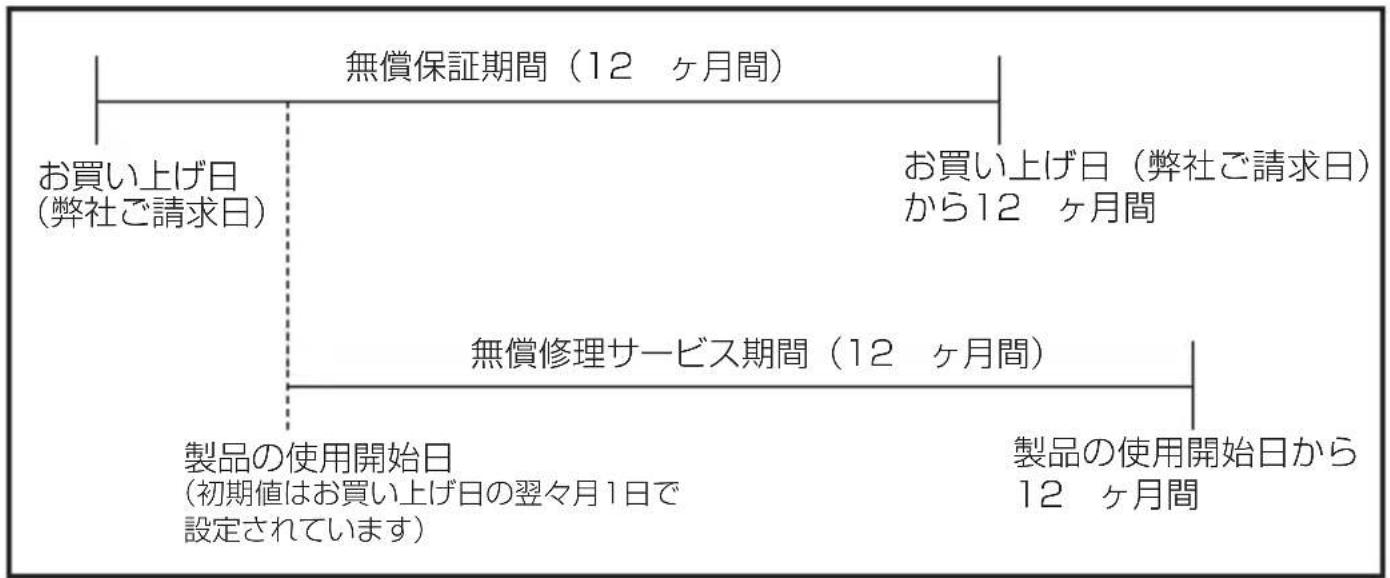
【無償保証期間と無償修理サービス期間】
natural_image
Line drawing of a smartphone with blank screen and control buttons (no text or symbols)付属品一覧
取り外し
使用上のご注意
natural_image
Technical diagram of a mechanical component with a central pin and mounting holes (no text or symbols)2
natural_image
Technical line drawing of a mechanical component with no visible text or symbols3
natural_image
Diagram showing a smartphone connected to a plug and cable, with an outlet plug inserted (no text or symbols present)ET-L10の充電状態LEDの表示
赤色点灯:充電中
綠色点灯:充電完了
natural_image
Technical line drawing of a mechanical component with a cable and connector (no text or symbols)2
natural_image
Technical line drawing of a mechanical or electrical component with internal wiring and mounting holes (no text or symbols)3
natural_image
Line drawing of a mobile phone setup with three smartphones, a power strip, and a cable (no text or symbols)ET-L10の充電状態LEDの表示
赤色点灯:充電中
綠色点灯:充電完了
natural_image
Diagram of a smartphone rear panel with a cable and labeled component (no text or symbols beyond label)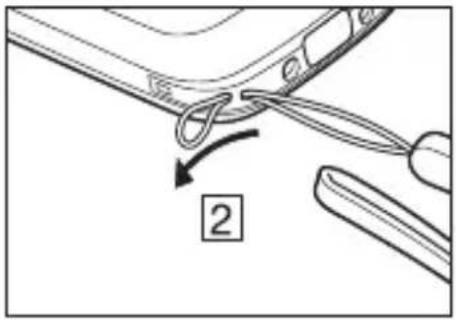
natural_image
Diagram of a car handle with a curved clip and arrow indicating direction (no text or symbols)電源 ON/OFF とスリープ
電源ON
Safety Precautions E-2
Regulatory Information ...... E-7
Operating Precautions ...... E-7
About the Waterproofi ng/Dustproofi ng E-9
Accessories and Options E-10
Part Names ...... E-11
Getting Ready to Use ...... E-13
Installing and Removing the AC Adapter ...... E-13
Charging the Terminal E-14
Attaching the Hand Strap.... E-16
Turning the Power On/Off and Sleep E-16
Built-in Battery E-16
Important
Information in this document is subject to change without advance notice. CASIO Computer Co., Ltd. makes no representations or warranties with respect to the contents or use of this manual and specifically disclaims any express or implied warranties of merchantability or fitness for any particular purpose.
After Service
- Should this product ever malfunction, contact your original retailer providing information about the product name, the date you purchased it, and details about the problem.
- To replace or remove the battery, contact your original retailer.
Warning Label
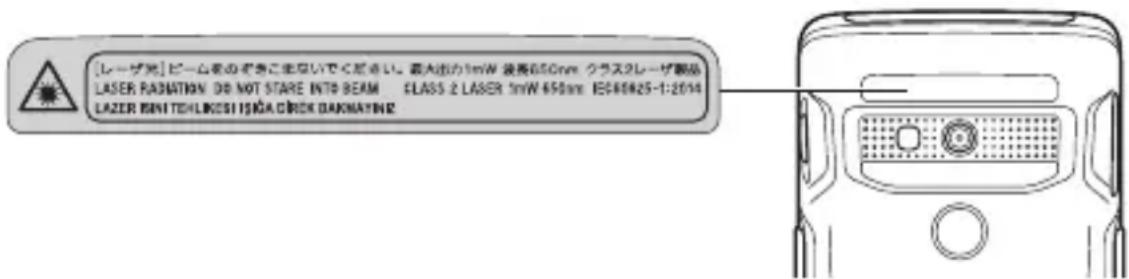
- This label is a warning and caution label for Class 2 laser products that comply with IEC60825-1:2014.
- Although Class 2 laser light is only emitted momentarily, never look directly into the beam light.
- The laser light emitted by this laser scanner has a maximum output of less than 1 mW and a wavelength of 650 nm.
- Use of controls or adjustments or performance of procedures other than those specified herein may result in hazardous radiation exposure.
- Toute manipulation a l'aide de procedures autres que celles spécifiées dans ce Mode d'emploi est dangereuse et doit être evitee.
Safety Precautions
Congratulations upon your selection of this CASIO product. Be sure to read the following Safety Precautions before trying to use it for the first time.
Your neglect or avoidance of the warning and caution statements in the subsequent pages causes the danger of fire, electric shock, malfunction and damage on the goods as well as personal injury.
Markings and Symbols
The following are the meanings of the markings and symbols used in these Safety Precautions.

Danger
This symbol indicates information that, if ignored or applied incorrectly, creates the danger of death or serious personal injury.

Warning
This symbol indicates information that, if ignored or applied incorrectly, creates the possibility of death or serious personal injury.

Caution
This symbol indicates information that, if ignored or applied incorrectly, creates the possibility of personal injury or property damage.

- A diagonal line indicates something you should not do. The symbol shown here indicates you should not try to take the unit apart.

- A black circle indicates something you should do. The symbol shown here indicates you should unplug the unit from the wall outlet.
Operating Precautions

Warning
Disassembly and Modifi cation

prohibited
Abnormal Conditions

- Should the terminal and/or its options become hot or start to emit smoke or a strange odor, immediately turn off the power and contact your dealer or distributor whom you purchased the product from, or an authorized CASIO service provider.
Foreign Objects

Prohibitions
• Take care to ensure that metals or combustible objects are not inserted into the openings of the terminal or its options, and not to allow moisture to get inside of them.
Dust and Moisture

- Though the terminal is designed to be waterproof, optional products such as the cradle-type battery charger are not and should not be exposed to moisture. Keep loose metal objects and containers filled with liquid away from your terminal and the options. Also, never handle the terminal and the options while your hands are wet.
Laser Light

Avoid contact with fi re

Prohibitions
Storage and Operation Locations
Do not store or use the product in any of the locations described below.
- Areas subjected to large amounts of moisture and dust.
- Near a heating device, on an electric carpet, in a location exposed to direct sunlight, in a car parked outside, or any other area where the product is subjected to high temperatures.
- Food preparation areas, near a humidifier, or in areas where the product is exposed to oil smoke or water vapor.
- Areas where there is strong vibration.
- Do not place the product on an unsteady platform, on a high shelf, or in any other unstable location.
Location

• Install the cradle properly on a flat and stable surface so that it cannot fall down onto floor.
Other areas where there are high or low temperatures. (Operating temperature range: -10 to 50°C, Charging temperature range: 0 to 40°C)
Do not place heavy objects on the product.
- Dropping and tipping over create the risk of personal injury.
LCD Screen

Prohibitions
- Never apply strong pressure to the screen or subject it to strong impact. Doing so can crack the LCD Screen.
Should the LCD become cracked, never touch any of the liquid inside.
- LCD liquid getting on the skin creates the risk of skin irritation.
- Should LCD liquid get into your mouth, immediately rinse your mouth out and contact your physician.
- Should LCD liquid get in your eyes or on your skin, rinse with clean water and then contact your physician.
Locations exposed to fl ammable gases

- Before entering locations where flammable gases may occur, such as a gas station, always ensure that the terminal is switched off. Failing to do so could cause the gases to ignite.
Low Temperature Burn

Prohibitions
- Avoid prolonged contact with the skin while the terminal is switched on. Some areas on the back of the terminal may become hot during use and could cause low-temperature burns.
Avoid Use While In Motion
- Do not use the product or view the monitor while operating an automobile or other vehicle, or while walking.
Caution
LED Light, Scanner and Other Light Emitting Functions

Prohibitions
- Do not fire LED light, the scanner or other light emitting functions while pointed in the direction of a person operating a motor vehicle.
Using the Wireless Data Communication Function
Warning
Interference with the Operation of Other Equipment (Using Wireless Data Communication)

- Should you notice radio interference or other problems on other devices is being caused while using this product, do not use the wireless function.
- When using the product in a medical facility or aircraft, follow the instructions of local personnel and crew concerning use of such devices.
Do not use the product in an area where use of such devices is prohibited.
- Do not use the product in the vicinity of high-precision electronic equipment or any electronic equipment that handles weak signals.
- Keep this product away from the chest area of any individual fitted with a cardiac pacemaker.
- Turn off the wireless function and the product while on a train or in any other crowded location.
- Turn off the wireless function or enter the Airplane Mode while on a train or in any other crowded location.
Built-in Battery
Danger

- Do not splash water on the terminal or otherwise bring it into contact with water or seawater. Doing so could cause the built-in battery to overheat, rupture or catch fire.
- Do not use or place the terminal in a hot location, such as close to a fire or heater. Doing so could cause the built-in battery to overheat, rupture or catch fire.
- Do not heat the terminal or throw it into a fire. Doing so could cause the built-in battery to overheat, rupture or catch fi re.
- Do not throw the terminal or subject it to strong impacts. Doing so could cause the built-in battery to overheat, rupture or catch fire.
- Do not pierce the terminal with a nail, hit it with a hammer or step on it. Doing so could cause the built-in battery to overheat, rupture or catch fire.
- Do not attempt to disassemble or modify the terminal. Doing so could cause the built-in battery to overheat, rupture or catch fi re.
- Do not put the terminal into a microwave oven or pressurized container. Doing so could cause the built-in battery to overheat, rupture or catch fi re.
- If you notice any fluid leakage, unusual odor, overheating, discoloration, deformation or other abnormality in the terminal, move it away from any exposed flame. Do not use the product in such circumstances. Doing so could cause the built-in battery to overheat, rupture or catch fire.
- Do not use or leave the terminal in a location subject to high temperatures, such as in direct sunlight or inside a vehicle in hot weather. Doing so could cause the terminal to overheat or catch fire. It could also impair the performance of the built-in battery or shorten its service life.

- Charge the terminal using the dedicated battery charger. Using another battery charger could cause the built-in battery to overheat, rupture or catch fire.
- Should fluid leaking from the terminal get into your eyes, avoid rubbing and immediately rinse it out thoroughly with clean tap water. Then consult a physician without delay.
- Should fluid leaking from the terminal get onto your skin or clothing, immediately rinse it off thoroughly with clean tap water. Fluid left on the skin could cause a rash or other problem.
| Warning | |
| ·If the time for which the product can be used becomes much shorter than previously, there may be a problem with the built-in battery and you should stop using it. Attempting to charge a faulty built-in battery could cause it to overheat, rupture or catch fire.·If charging is not completed even when the specified charging time is exceeded, stop charging. Continuing to charge the built-in battery could cause it to overheat, rupture or catch fi re. | |
| Caution | |
| ·Do not use the terminal in locations exposed to static electricity. Doing so could cause the built-in battery to overheat, rupture or catch fi re.·Do not leave the terminal in an area used by animals. If the terminal is bitten, the built-in battery could overheat, rupture or catch fi re.·Do not use the terminal if it is noticeably swollen. | |
| ·Store the terminal out of the reach of small children. | |
Power Supply / AC Adapter
| Warning | |
| Prohibitions | Do not use the terminal at a voltage other than the specified voltage. Also, do not connect the terminal to a multi-plug power strip.Never modify, sharply bend, twist, or pull on the power cord.Never use a detergent to clean AC adapter and its power cable, especially on the plug and the jack.Do not use an AC adapter with a bent connector.Do not twist or wrench the connector.When using the chargers, be sure to use the respective AC adapters. |
| Prohibitions | Never pull on the power cord when unplugging it.Never touch the plug while your hands are wet.Do not use the AC adaptor while it is wet.** Avoid water, sports drinks, seawater, animal or pet urine, and other liquid.Be sure to unplug the power cord from the wall outlet before cleaning the chargers.Unplug the power cord from the wall outlet whenever leaving the chargers unattended for a long period.Use the included power cord with this product only.Use only the specifi ed type of AC adaptor.Use only the included power cord.Insert the power plug into the outlet as far as it will go.Continued use creates the risk of fi re and electric shock.Do not place a flower vase or any other liquid container on top of the AC adaptor or power cord.Before leaving the product unattended, unplug the AC adaptor from the power outlet, and move the product to a location away from animals. |
| Caution | |
 | Check that the connector is properly oriented and then push it straight in (do not insert upside down).Do not allow fluids or foreign objects to get into the AC adapter.Choose a location where the power cord is readily accessible and can be easily plugged in and unplugged.When using the AC adapter, always use a power outlet with the specified power supply and voltage, and ensure that the power plug is inserted into the socket fully and securely. |
 Unplug from the power supply Unplug from the power supply | At least once a year, unplug the AC adapter from the wall outlet and clean any dust that builds up between the prongs of the plug.Dust built up between the prongs can lead to the danger of fi re. |
 | The housing of the AC adapter can become warm during normal use. |
 | Pay attention to electric shock. |
 Unplug from the power supply Unplug from the power supply | If you do not plan to use the product for a long time, unplug from the power outlet. |
Backup of All Important Data
| Caution | |
| Note that CASIO Computer Co., Ltd. shall not be held liable to you or any third party for any damages or loss caused by deletion or corruption of data due to use of the terminal, malfunction or repair of the terminal or its peripherals, or due to the batteries going dead.The terminal uses electronic memory to store data, which means that stored data may be lost or corrupted if the battery cannot maintain a set power supply. This can occur in situations such as the terminal being left for some time with a depleted battery. Data cannot be recovered once it is lost or corrupted. Be sure to make backup of all important data. | |
Europe
ET-L10
Options of ET-L10
Manufacturer:
CASIO COMPUTER CO., LTD.
6-2, Hon-machi 1-chome, Shibuya-ku, Tokyo 151-8543, Japan
Importer
Casio Europe GmbH
- Please keep all information for future reference.
- The full text of the EU declaration of conformity is available at the following internet address: http://doc.casio.com/
- Products are for distribution within all member states of the EU.
The options of ET-L10 are HA-T30CHG, USB Type-C cable and USB AC adapter. For Europe model is ET-L10-WC21.
Maximum radio output power
- IEEE802.11a/b/g/n: 2.4GHz≤20dBm, 5GHz≤20dBm
- Bluetooth: 2.4GHz≤12dBm
• GSM: 900MHz≤36dBm, 1800MHz≤33dBm
• WCDMA: 850/900MHz ≤25.7dBm, 1900MHz ≤25.7dBm - LTE: 850/900MHz≤25.7dBm, 1800/1900MHz≤25.7dBm, 2500MHz ≤25.7dBm
• NFC: 13.553MHz to 13.567MHz band ≤ 40dBμA/m at 10m.
Hereby, “CASIO COMPUTER CO., LTD.” declares that the radio equipment type “ET-L10” is in compliance with Directive 2014/53/EU.
Operating Precautions
Your terminal and its options are precision. Improper operation or rough handling can cause problems with data storage and other problems. Note and observe the following precautions to ensure proper operation.
- Do not continue using the battery once it is exhausted.
Doing so could result in data loss or corruption. When the battery is exhausted, replace it immediately. - Stop or avoid using the terminal and its options in areas and conditions subject to the following.
— Large amounts of static electricity
— Extreme heat or cold or humidity
— Sudden temperature change
— Large amount of dust
— After large amount of rain or water falls on the terminal
— Pressing the screen or keys with excessive force when using in the rain
• Always use the dedicated eject pin to eject the nanoSIM/microSD card tray.
- Do not use volatile chemical substances such as thinners, benzene or toiletries to clean the terminal.
When the terminal is dirty, wipe it clean with a soft, dry cloth. Rubbing with excessive force could scratch the display.
- The power-supply terminals should be cleaned periodically using an implement such as a dry cotton bud.
Soiling on the terminals may cause connection defects.
• Take care when using chemicals.
Applying thinners, gasoline, kerosene, solvents or oils, or substances such as cleaners, adhesives, paints, medications or toiletries that contain those materials, to the plastic case or cover may cause discoloration or other damage.
- LCD panel
The following are characteristics of the LCD panel and do not indicate a fault.
— The LCD panel is manufactured using high-precision technology and features a minimum of 99.99% effective pixels. There may be some pixels that fail to light or that remain permanently lit.
— If the same screen is displayed on the panel for a prolonged period, its afterimage may persist after a new screen is displayed. The afterimage will fade after a few moments.
• 802.11a/n Restrictions
— This product is for indoor use only when using channels 36, 40, 44, 48, 52, 56, 60, or 64 (5150-5350 MHz).
— To ensure compliance with local regulations, be sure to select the country in which the access point is installed.
- Built-in battery
The terminal's battery is built into the terminal and cannot be removed.
The built-in battery has a limited service life. The way the built-in battery is charged can accelerate its degradation or reduce its capacity so that it cannot be used for as long. If charging the built-in battery does not restore its full functionality, this indicates that it has reached the end of its life. If this occurs, request a replacement.
Using the correct charging procedures will maximize the service life of the built-in battery.
— You should charge the built-in battery fully the first time you use it and whenever it has not been used for a long period. Continue charging until the charging status LED lights green (fully charged).
— Frequent repeated charging will shorten the life of the battery. You should wait until the battery is low on charge before charging it.
— Charge the battery within the specified temperature range. Note that the specified temperature range varies depending on the equipment used. Refer to the User's Guide (download version). Charging outside the specified range can cause battery deterioration.
— When used in low-temperature environments, the built-in battery capacity may be lower so that it cannot be used for as long. It may also shorten the life of the built-in battery.
— Charging when the terminal is cold can cause built-in battery deterioration. After working in a cold environment, allow the terminal to warm up to room temperature (leave for roughly 1 hour) before charging.
— For long-term storage, do not store the built-in battery fully charged. The battery should be 30-50% charged for long-term storage and it should be stored at a low temperature. This will minimize battery deterioration.
Note also that even when not being used, the built-in battery will gradually discharge. If this situation continues for a long period (several months or more), the built-in battery will become overdischarged, which may impair quality and performance.
— Rechargeable batteries will deteriorate over time. Storing (or using) fully charged batteries at high temperatures in particular can lead to faster deterioration.
- Drop resistance
The drop resistance is a test value only and is not guaranteed.
Repeated or frequent shocks may still result in damage, so the terminal should be handled so as to avoid impacts.
- Water or other moisture on the power-supply terminals could cause sparking or an electric shock, and soiled contacts could block the connection and impair charging functionality.
- While the ET-L10 is waterproofed, note the following when using this product:
- If the ET-L10 is exposed to water droplets, thoroughly wipe off the moisture with a dry cloth.
- Do not use the ET-L10 for long periods in the rain.
- Securely close the connector covers when using the ET-L10.
- Do not press hard on the screen (touch panel) or keys when using the ET-L10 in the rain.
- The back of the ET-L10 may become warm during use. This is normal and does not indicate a fault.
- Weld Lines
There are seam-like markings in some locations on the terminal. These are referred to as “weld lines” in the plastic forming process and are not cracks or scratches. Weld lines do not interfere in any way with the operation of the terminal.
About the Waterproofi ng/Dustproofi ng
The ET-L10 Series models are waterproof and dustproof.
Important!
The water- and dust-proofing performance of this product is based on CASIO testing procedures. Note also that this performance applies to the product at the time of shipment (delivery to the customer) and is not guaranteed inclusive of the environment in which the product is used. The warranty does not apply to any situation where the product is immersed during use, and as with any other electrical product, great care should be taken when using this product in the rain or similar situation.
• Precautions When Using this Product
— Check that there is no dust, sand or other foreign matter on the USB port cover and its respective contact surfaces. Wipe off any foreign matter using a clean and dry soft cloth. If any soiling is found, wipe it off with a clean, soft, dry cloth. Even very small amounts of soiling trapped on the contact surfaces (a single hair or grain of sand, etc.) can cause water to leak into the device.
— Check that the waterproof seals on the USB port cover are free from cracks and other damage.
— Avoid opening and closing the USB port cover in locations near water or exposed to sea breezes, and do not open or close it with wet hands.
— Do not drop this product or leave it in locations exposed to temperatures outside the specified range. Doing so will impair its water- or dust-proofing.
- Other Precautions
— The accessories and optional products for this product (cradle-type battery charger, etc.) are not water- or dust-proof.
— Subjecting this product to a severe impact could render it no longer water- or dust-proof.
— If any water leaks into the product as a result of carelessness or inattention during product handling, CASIO cannot be held liable for compensation for any damage to internal components (built-in battery, recording media, etc.) or for the costs of recorded content or the recording thereof.
— CASIO COMPUTER CO., LTD. accepts no other liability whatsoever for any accident that occurs due to water leakage.
Accessories and Options
Handheld Terminal ET-L10 Series
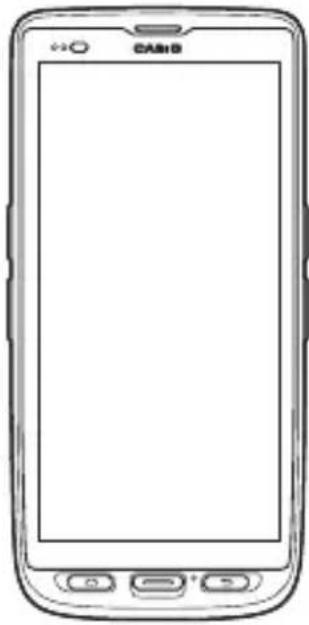
natural_image
Line drawing of a generic mobile phone with no visible text, numbers, or symbols on the screen or body.AccessoriesRugged Smart
Make sure all items listed below are included before using the terminal for the first time.
- Hand Strap
- USB Type-C cable
- Eject Pin
- USB AC adapter
• 4 USB AC Adapter Plugs (Type A, BF, C, O)
• Screen Protect Sheet (affi xed to terminal) - User's Guide (this manual)
Options
- Cradle-type Battery Charger HA-T30CHG
- Screen Protect Sheet (replacements (pack of 10)) HA-T90PS10
For the latest options list, refer to the ON-LINE manual available at https://support.casio.com/en/manual/manual.php?cid=010
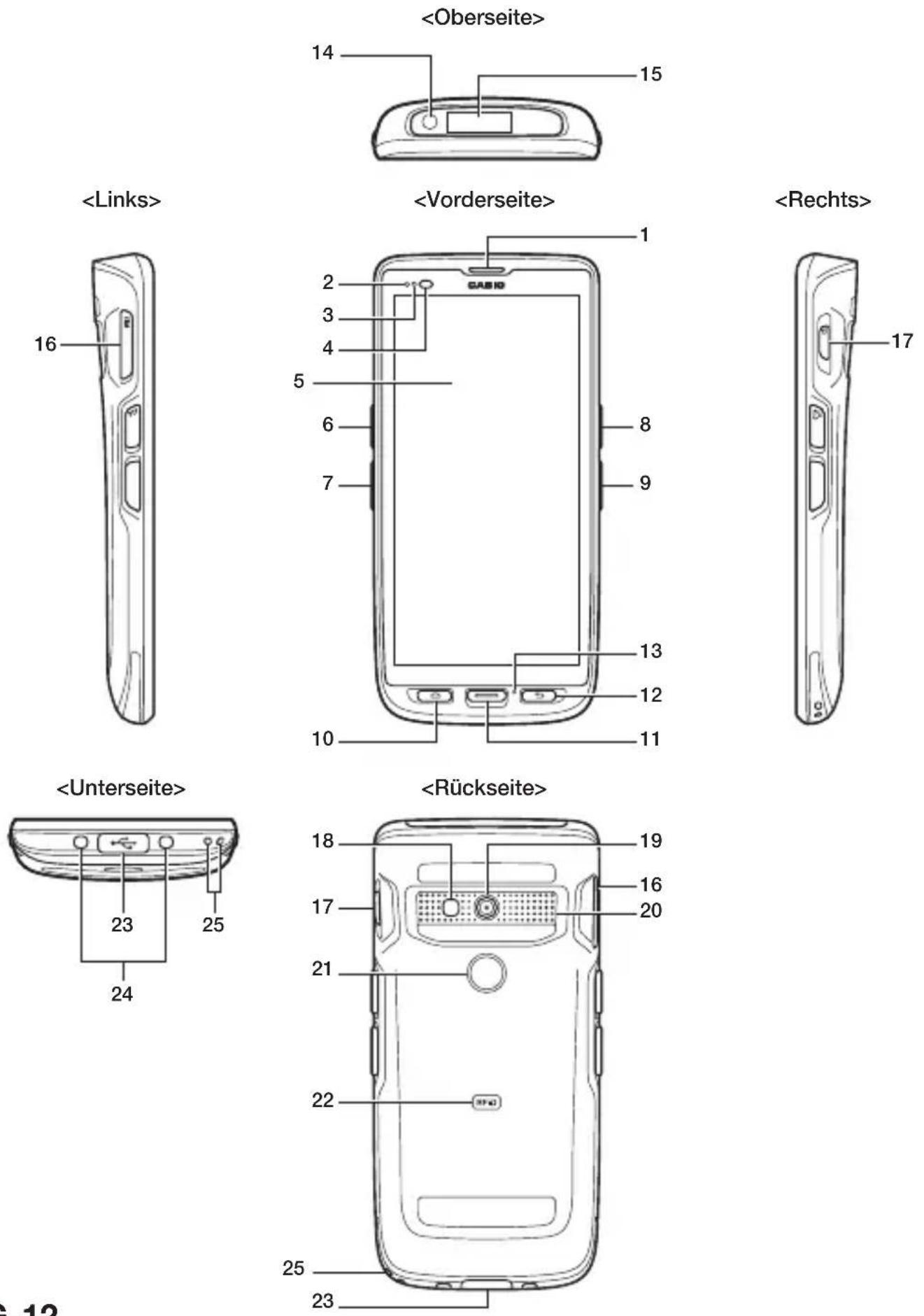
Smart Handheld Terminal (ET-L10)
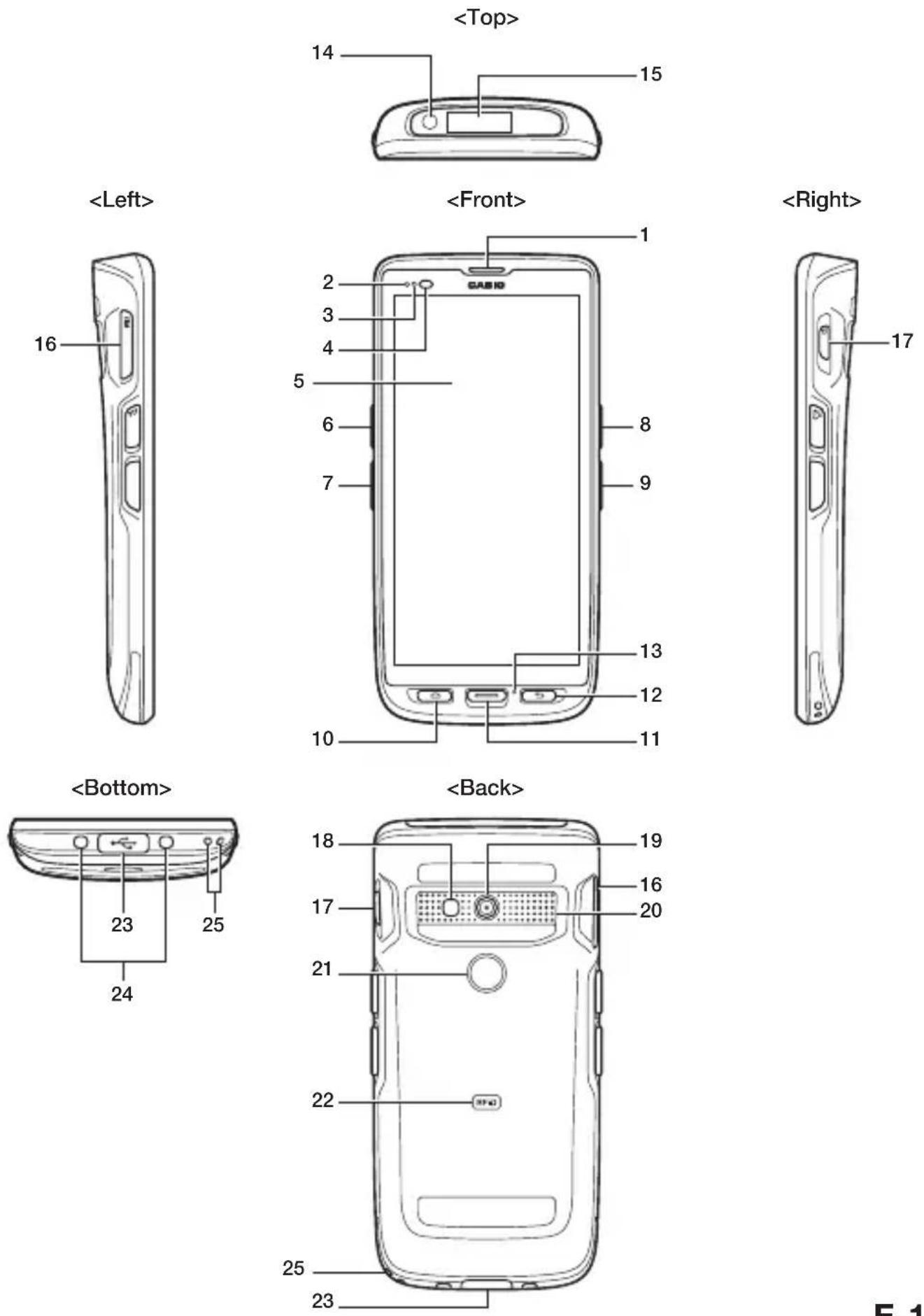
| 1 R | Receiver 10 Home Key 18 LED | Light | |||
| 2 Charging Status LED 11 Center Trigger Key 19 Camera | |||||
| 3 Notifi cation LED 12 Back Key 20 Speaker | |||||
| 4 | Illuminance / Proximity Sensor | 13 | Microphone 21 Fingerprint Sensor | ||
| 5 S | Screen (Touch Panel) 14 Flashlight 22 | NFC Reader | |||
| 6 P | TT Key 15 Scanner 23 USB Type-C | Port | |||
| 7 L | Trigger Key 16 | nanoSIM/ microSD Card Slot | 24 | Power Supply Terminal | |
| 8 F | ashlight Key 17 Power Key 25 | Strap | Hole | ||
| 9 R | Trigger Key | ||||
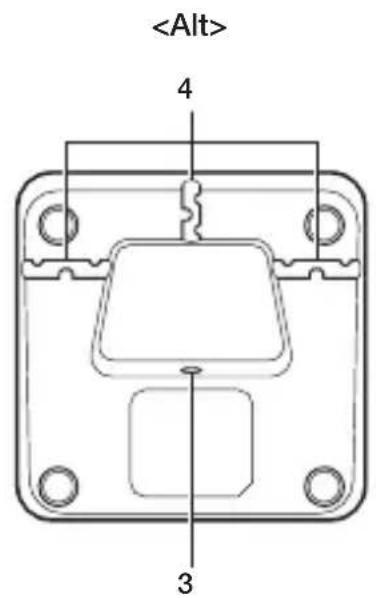
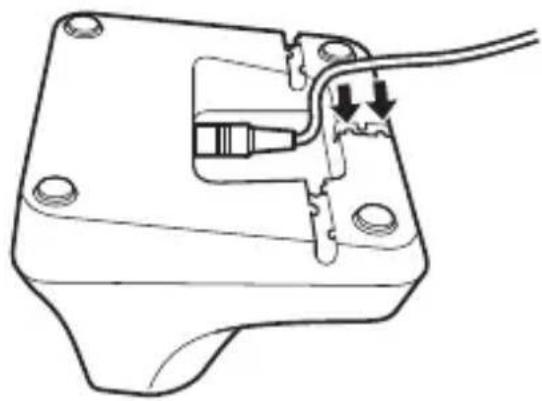
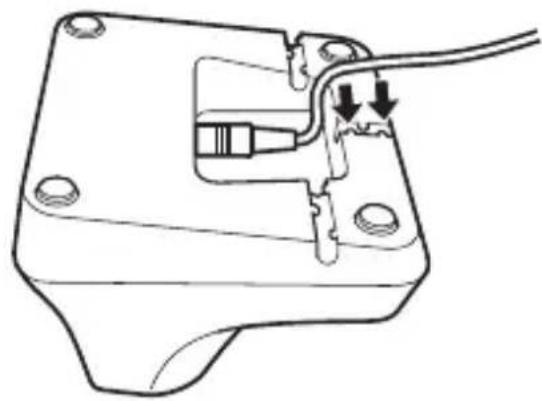
Cradle-type Battery Charger
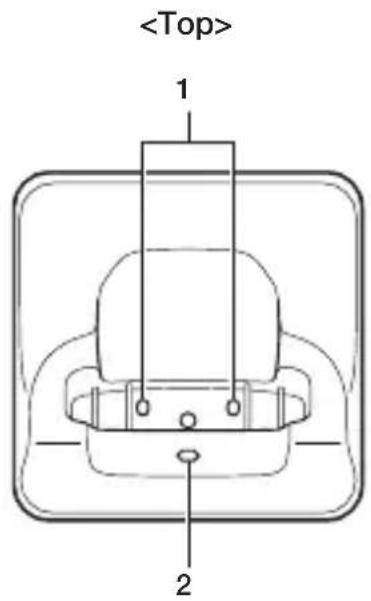
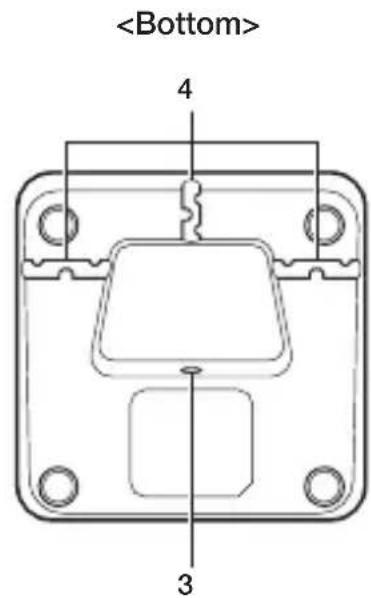
| 1 Power supply terminal | 3 AC Adapter Jack |
| 2 Power Status LED | 4 Power Cable Slit |
Getting Ready to Use
* In step 2, be sure to fully charge the terminal.
- Confirm that all the items listed on page E-10 are included in the package.
- Charge the terminal. (→E-14)
- Turn the power on. ( E-16)
Installing and Removing the AC Adapter
The AC adapter must be fitted with a suitable power plug for the region where the terminal will be used.
Installation
- Insert the protruding part of the AC adapter plug into the recess in the top of the AC adapter (☐) until the plug clicks into place (☒)
USB AC adapter
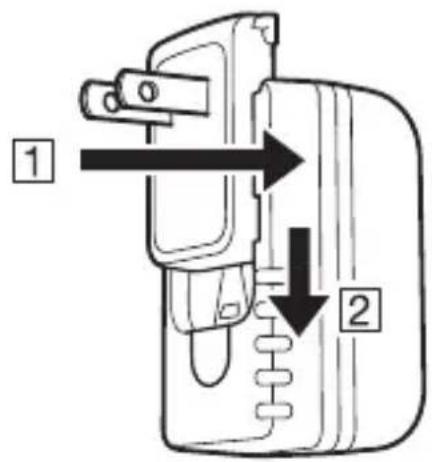
Removal
- Push the AC adapter plug release lever in the direction indicated by the arrow in the figure (1) and then pull out the AC adapter plug in the direction of the arrow (2) USB AC adapter
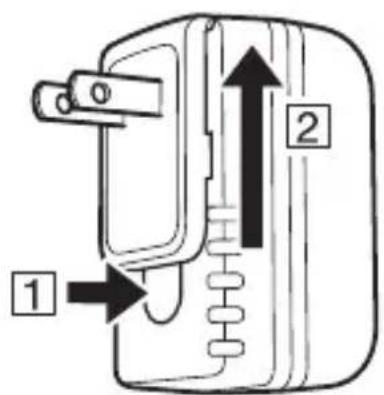
Precautions for Use
- Do not insert the plug only into the power outlet.
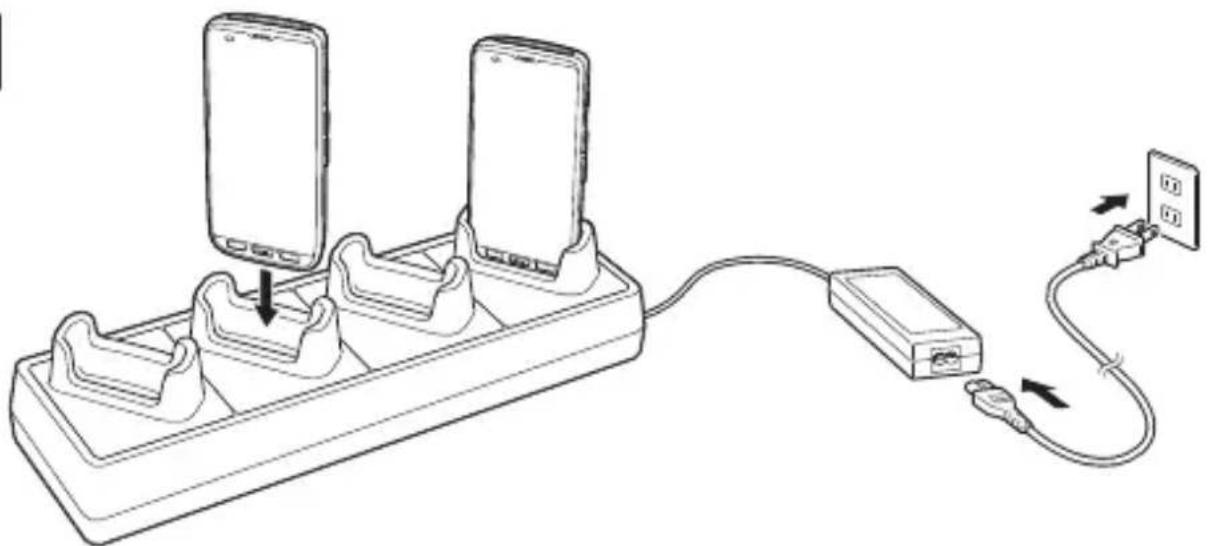
Charging the Terminal
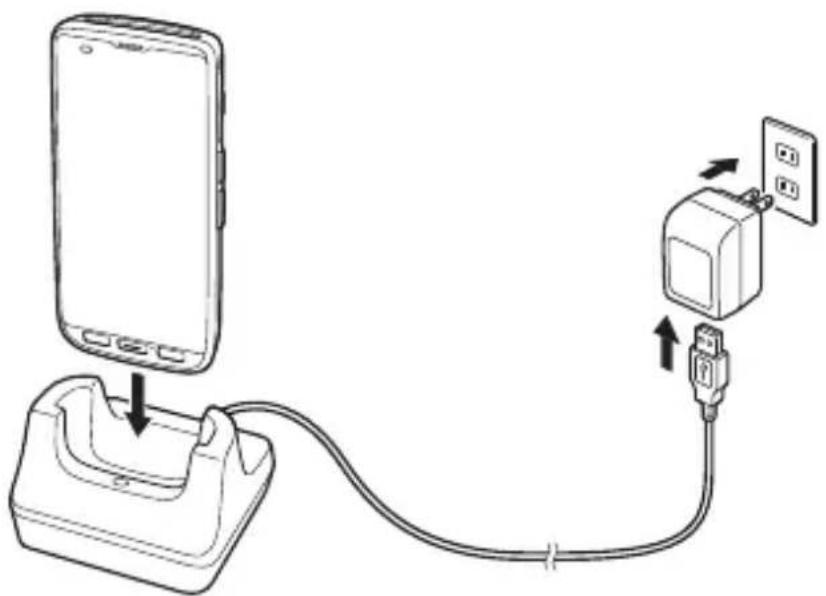
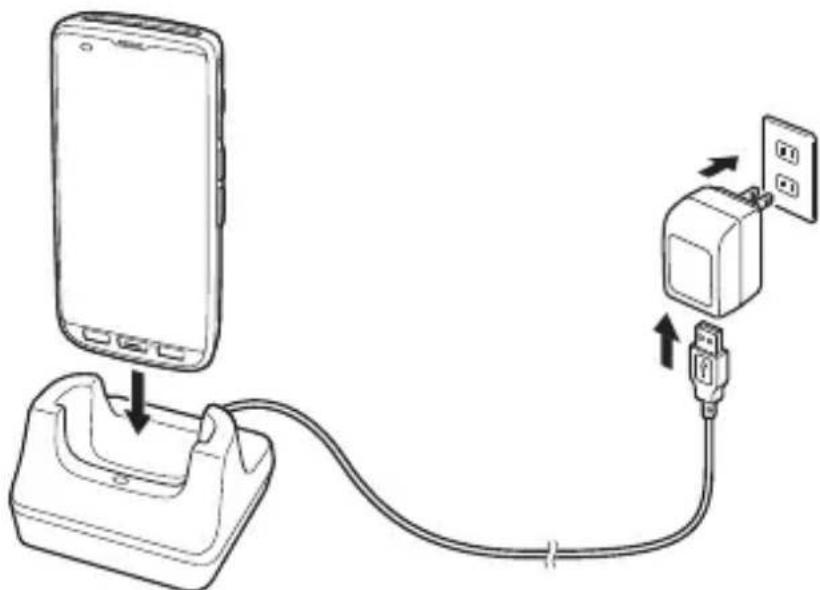
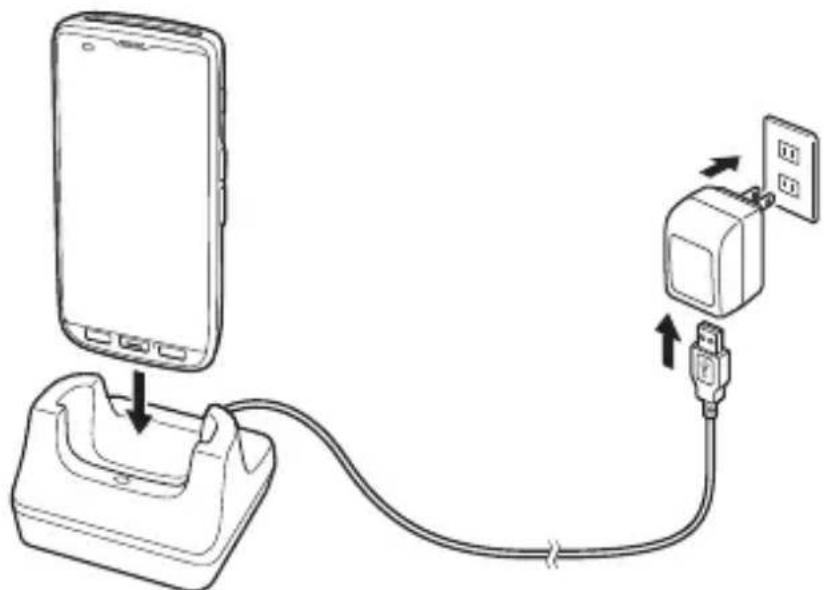
You can charge the ET-L10 using the enclosed USB Type-C cable, the USB AC adapter or the optional cradle-type battery charger. Check the charging status LED to confirm the ET-L10 charging status.
USB Type-C Cable
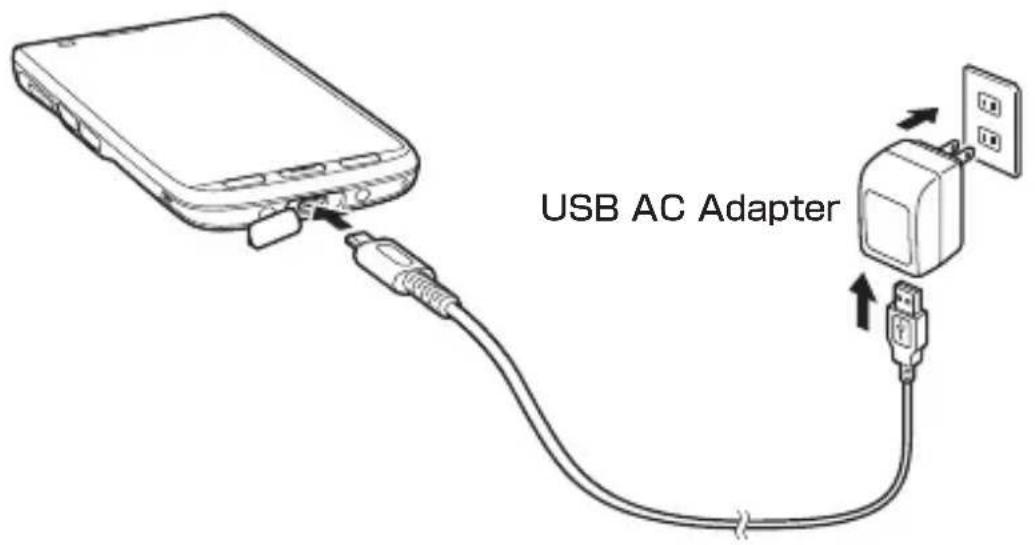
ET-L10 Charging status LED display
Red: Charging
Green: Charging complete
Off: The terminal is not connected to the USB AC adapter or battery charger.
Precautions for Use
• Take care to avoid trapping the cover between the USB cable and the USB Type-C port.
• After attaching the cable, check that the charging status LED is lit.
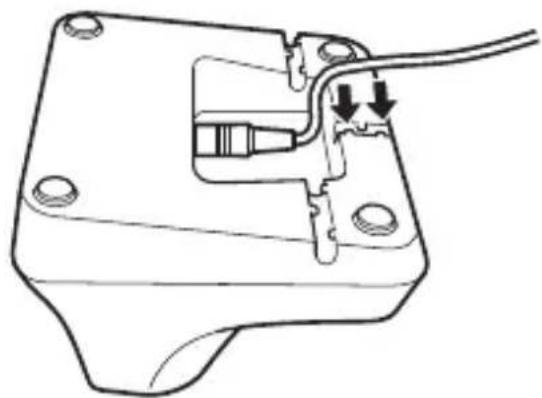
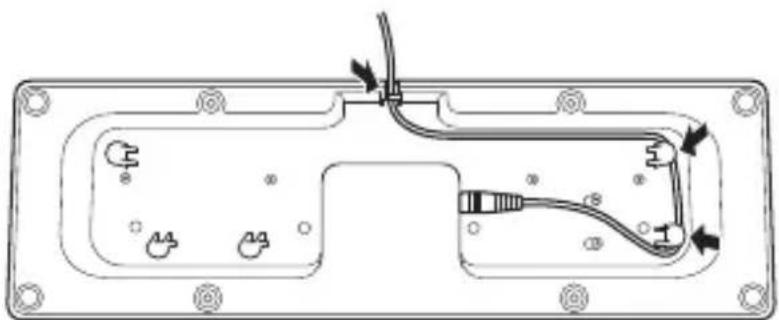
Cradle-type Battery Charger
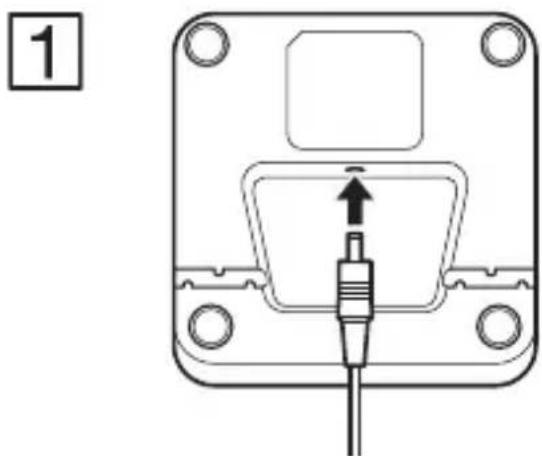
natural_image
Technical diagram of a mechanical component with a central pin and upward arrow, no text or symbols present2
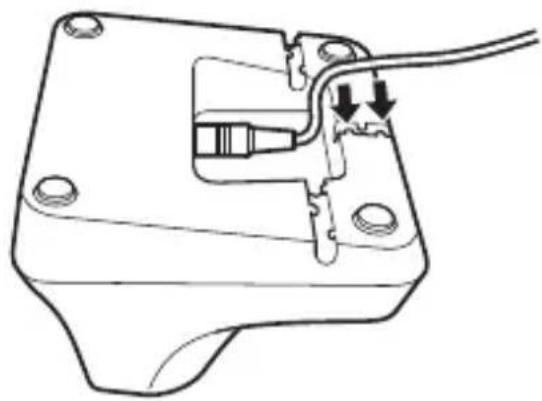
natural_image
Technical line drawing of a mechanical component with internal components and a cable (no text or symbols)3
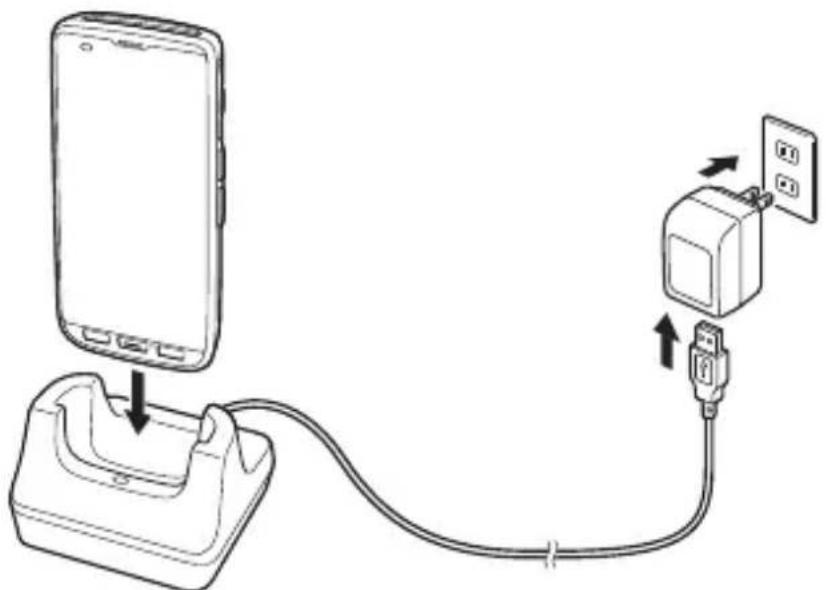
natural_image
Diagram showing a smartphone connected to a plug and cable, with an outlet switch nearby (no text or symbols)ET-L10 Charging status LED display
Red: Charging
Green: Charging complete
Off: The terminal is not connected to the USB AC adapter or battery charger.
Precautions for Use
• Take care not to trap objects such as the strap in the cradle.
- The power supply terminal should be cleaned periodically using an implement such as a dry cotton bud.
Soiling or dust buildup could cause connection problems.
• After attaching the cable, check that the charging status LED is lit.
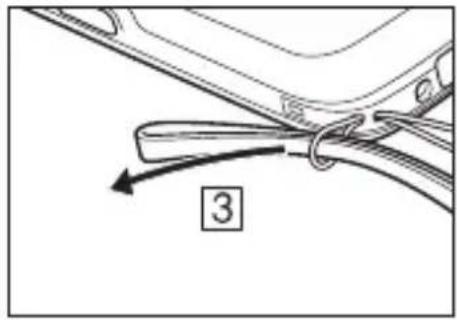
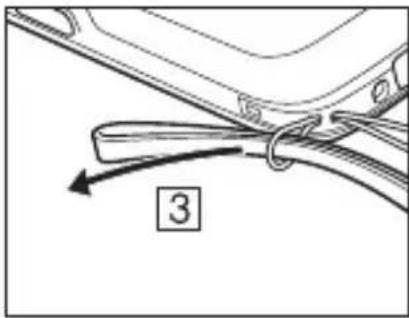
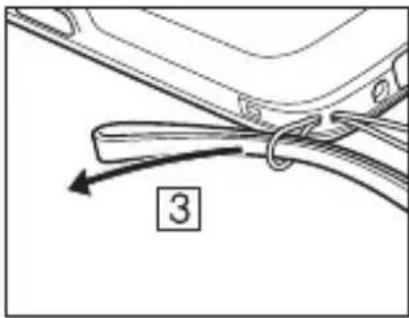
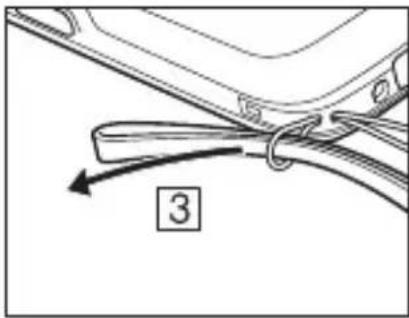
Attaching the Hand Strap
Use the procedure below to attach the hand strap to the strap holes.
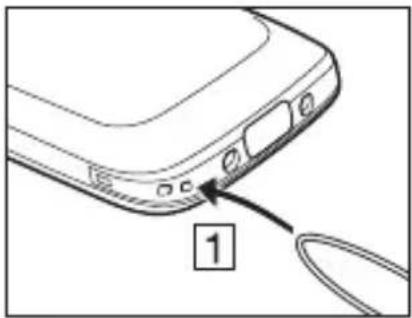
natural_image
Diagram of a device rear panel with labeled cable and port (no text or symbols beyond label)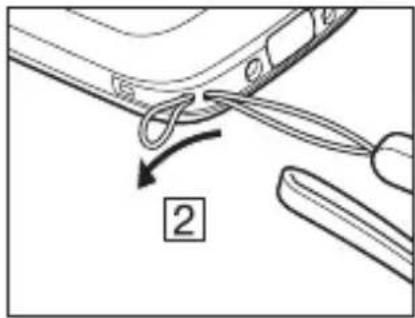
natural_image
Diagram of a car's seatbelt with a numbered label (3) and directional arrow, no readable text or symbols beyond the number.Turning the Power On/Off and Sleep
Turning the Power On
- Hold down the Power key until the terminal vibrates. • The startup screen is displayed.
Precautions for Use
- When you first purchase the ET-L10, be sure to completely charge the terminal's built-in battery before turning the power on for the first time. - If the terminal does not start up normally when you turn the power on, the level of charge in the built-in battery may be too low. Completely charge the terminal's built-in battery and then turn the power on again.
Turning the Power Off (Shutdown)
- With the screen displayed, hold down the Power key until the Power menu is displayed.
- Tap "Power off".
Sleep (Standby)
- Press the Power key with the screen displayed. • In the sleep state, the screen is turned off, but the terminal remains running. • Operating state is maintained. Press the Power key and you will be able to use the terminal immediately.
Built-in Battery
The terminal's battery is built into the terminal and cannot be removed. Charge the built-in battery promptly when it runs low on charge. See page E-14 for information on charging methods.
Precautions for Use
- The level of charge in the built-in battery may decline due to natural discharge. Always charge the battery before use. - The built-in battery has a limited service life. Depending on the way the built-in battery is charged, its degradation may accelerate or its capacity be reduced so that it cannot be used for as long. If charging the built-in battery does not restore its full functionality, the battery has reached the end of its life and must be replaced. Contact your CASIO dealer or an authorized CASIO service provider.
İçindekiler
ÖnemliTr-1
natural_image
Line drawing of a smartphone with blank screen and control buttons (no text or symbols)Aksesuarlar
Çıkarma
Kullanım Önlemleri
natural_image
Technical diagram of a mechanical component with a central pin and upward arrow, no text or symbols present2
natural_image
Technical line drawing of a mechanical component with internal components and a cable (no text or symbols)3
natural_image
Diagram showing a smartphone connected to a plug and cable, with an outlet switch nearby (no text or symbols)natural_image
Diagram of a smartphone rear panel with a cable connector, labeled with number 1 (no text or symbols beyond label)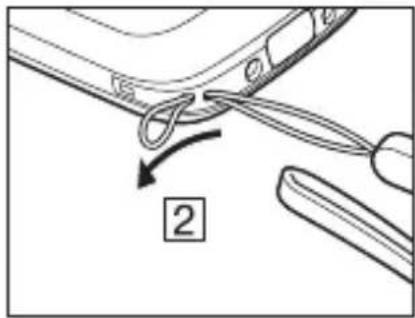
natural_image
Diagram of a car's seatbelt with a numbered arrow indicating a knot (no text or symbols present)natural_image
Line drawing of a mobile phone with blank screen and control buttons (no text or symbols)Zubehör
Smart-Handheld-Terminal (ET-L10)
Entfernen
natural_image
Technical diagram of a mechanical component with a central connector and mounting holes (no text or symbols)2
natural_image
Technical line drawing of a mechanical component with internal components and mounting holes (no text or symbols)3
natural_image
Diagram showing a smartphone connected to a plug and cable, with an attached switch and power outlet (no text or symbols)natural_image
Diagram of a device rear panel with labeled connector (no text or symbols beyond label)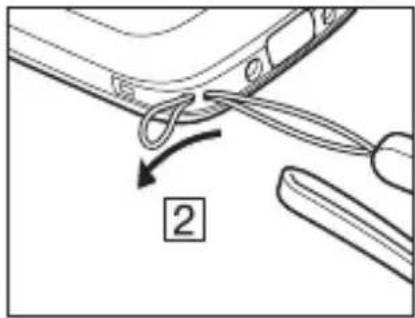
natural_image
Diagram of a car's seatbelt with a numbered arrow indicating a specific component (no text or symbols present)Disposal of Waste Electrical & Electronic Equipment of products for Household use
The symbol (crossed out wheeled-bin) on your product indicates that the product shall not be mixed or disposed with your household waste, at their end of use.
This product shall be handed over to your local community waste collection point for the recycling of the product.
For more information, please contact your Government Waste-Disposal department in your country.
Inappropriate waste handling could possibly have a negative effect on the environment and human health due to potential hazardous substances. With your cooperation in the correct disposal of this product, you contribute to reuse, recycle and recover the product and our environment will be protected.
Disposal of Waste Electrical & Electronic Equipment of products for business use
For further information regarding the disposal of products for business purposes, please contact your dealer or distributor in your country. This product shall not be mixed or disposed with commercial waste.
Deutsch
Hereby, “CASIO COMPUTER CO., LTD.” declares that the radio equipment type “ET-L10” is in compliance with Directive 2014/53/EU. The full text of the EU declaration of conformity is available at the following internet address: http://doc.casio.com/
Bulgarian
- 登録商標・ライセンスについて
- Bluetooth
- Trademarks and Licenses
- 付属品一覧
- 取り外し
- 使用上のご注意
- ET-L10の充電状態LEDの表示
- 電源 ON/OFF とスリープ
- 電源ON
- Important
- After Service
- Warning Label
- Safety Precautions
- Markings and Symbols
- Danger
- Warning
- Caution
- Operating Precautions
- Disassembly and Modifi cation
- Abnormal Conditions
- Foreign Objects
- Dust and Moisture
- Laser Light
- Avoid contact with fi re
- Storage and Operation Locations
- Location
- LCD Screen
- Locations exposed to fl ammable gases
- Low Temperature Burn
- Avoid Use While In Motion
- LED Light, Scanner and Other Light Emitting Functions
- Using the Wireless Data Communication Function
- Interference with the Operation of Other Equipment (Using Wireless Data Communication)
- Built-in Battery
- Power Supply / AC Adapter
- Backup of All Important Data
- Europe
- Maximum radio output power
- - Drop resistance
- - Weld Lines
- About the Waterproofi ng/Dustproofi ng
- Important!
- • Precautions When Using this Product
- - Other Precautions
- Accessories and Options
- AccessoriesRugged Smart
- Options
- Cradle-type Battery Charger
- Getting Ready to Use
- Installing and Removing the AC Adapter
- Installation
- Removal
- Precautions for Use
- Charging the Terminal
- ET-L10 Charging status LED display
- Attaching the Hand Strap
- Turning the Power On/Off and Sleep
- Turning the Power On
- Turning the Power Off (Shutdown)
- Sleep (Standby)
- İçindekiler
- Aksesuarlar
- Çıkarma
- Kullanım Önlemleri
- Zubehör
- Entfernen
- Disposal of Waste Electrical & Electronic Equipment of products for Household use
- Disposal of Waste Electrical & Electronic Equipment of products for business use
- Deutsch
- Bulgarian
Brand : CASIO
Model : ET-L10
Category : Mobile Phone