 ManualGo.com
KVT-526DVD - Car DVD player KENWOOD - Free user manual and instructions
Find the device manual for free KVT-526DVD KENWOOD in PDF.


Download the instructions for your Car DVD player in PDF format for free! Find your manual KVT-526DVD - KENWOOD and take your electronic device back in hand. On this page are published all the documents necessary for the use of your device. KVT-526DVD by KENWOOD.
USER MANUAL KVT-526DVD KENWOOD
I B64-4551-00_00_E enindd 2 Before Use 4 Basic Operations 10 Notes 5 How to read this manual 8 Navigation Control 16 iPod Control 33 Using the Navigation System 16 Connecting an iPod 33 Control of Other Sources While Displaying Functions When Displaying the Easy the Navigation Screen 16 Control Panel 3 | Functions While Displaying the Control Screen 34 Watching DVD/VCD 18 Functions During the Playback Screen 18 Functions When Displaying the Easy USB Device Control 36 Control Panel 19 Functions When Displaying the Easy Functions While Displaying the Control Control Panel 36 Screen 19 Functions While displaying the Control DVD Disc Menu 20 Screen 36 VCD Zoom Control 2 Folder Select 38 Music Disc & Audio File Listening 23 TV Watching 39 Functions While Displaying the Control Function During TV Screen 39 Screen 3 Functions When Displaying the Easy Control Panel 39 Functions While Displaying the Control Screen 40 [ TV Menu (only with KTC-D500E (optional Video File/Picture File Watching 25 accessonÿ) connected) ai Function During Playback Screen 25 Seek Mode a Functions When Displaying the Easy Auto Memory Control Panel 2% {only with KTC-DS0DE or KTC-V3O1E Functions While Displaying the Control (optional accessory) connected) ai Screen 26 Manual Memory Picture Control 27 {only with KTC-DSODE or KTC-V3O1E (optional accessory) connected) 42 Set Station Name 42 Radio Listening 28 Functions While Displaying the Control Bluetooth Audio Control 43 ne a Functions While Displaying the Control Screen 43 Auto Memory 30 Manual Memory 30 Radio Text El Traffic Information El Search by Program Type 3
Muting Audio Volume upon Reception of Phone call Muting Audio Volume upon Reception of Phone Call
Character Entry How To Use the Character Entry Screen
Hands Free Unit Control Control Screen Function When Received a Call Calling by Entering a Phone Number Quick Dialing Controliing Tone-based Services Calling by Phonebook Making a Call Using Call Records Calling by Voice Recognition Setting Up the Hands-Free Phone Voice Registration Key Word Voice Registration Phane Number Preset SMS (Short Message Service)
Remote Controller Battery Installation Remote Controller Mode Switch Common Operations (AUD mode) DVDACD/CD/Audio Files (DVD mode) TV (TV mode) Radio (AUD mode)
DVD Language Codes Help? Troubleshooting Help? Error Specifications
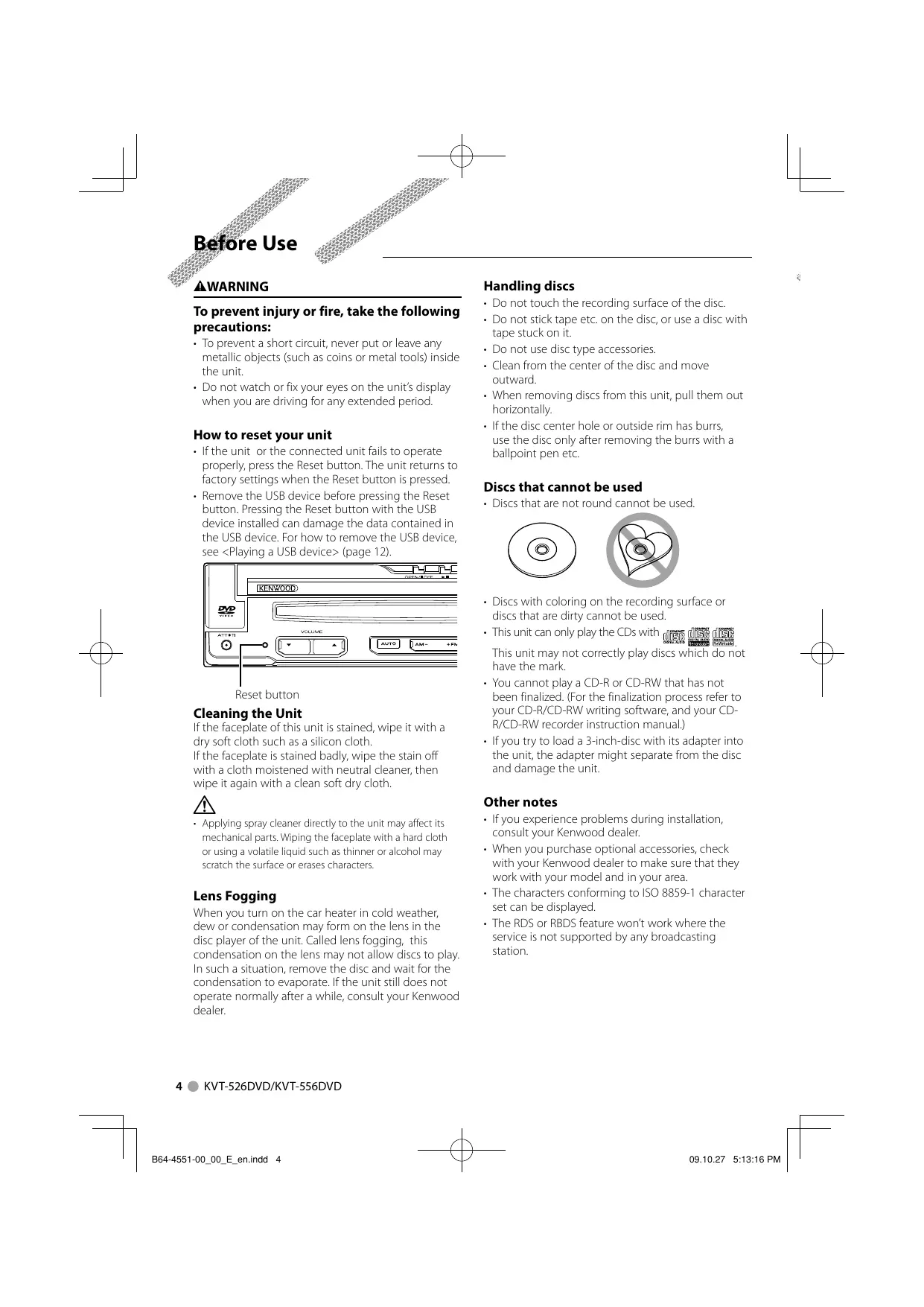
°° AWARNING To prevent injury or fire, take the following precautions: + To prevent a short circuit, never put or leave any metallic objects (such as coins or metal tools) inside the unit. + Do not watch or fix your eyes on the unit display when you are driving for any extended period How to reset your unit + Ifthe unit or the connected unit fails to operate property, press the Reset button. The unit returns to factory settings when the Reset button is pressed + Remove the USB device before pressing the Reset button. Pressing the Reset button with the USB device installed can damage the data contained in the USB device. For how to remove the USB device, see <Playing a USB device> (page 12).
ÊR— L—-Ei)D Eee Reset button Cleaning the Unit IFthe faceplate of this unit is stained, wipe it with a dry soft cloth such as a silicon cloth Ifthe faceplate is stained badly, wipe the stain off with a cloth moistened with neutral cleaner, then wipe it again with a clean soft dry cloth.
Applying spray cleaner directly ta the unit may affect its mechanical parts. Wiping the faceplate with a hard cloth or using a volatile liquid such as thinner or alcohol may scratch the surface or erases characters. Lens Fogging When you turn on the car heater in cold weather, dew or condensation may form on the lens in the disc player ofthe unit. Called lens fogging, this condensation on the lens may not allow discs to play. In such a situation, remove the disc and wait for the condensation to evaporate. If the unit still does not operate normally after a while, consult your Kenwood dealer.
4 © KVT-526DVD/KVT-556DVD
I B64-4551-00_00_E enindd 4 Handling discs + Do not touch the recording surface of the disc. + Do not stick tape etc. on the disc, or use a disc with tape stuck on it. Do not use disc type accessories. Clean from the center of the disc and move outward When removing dises from this unit, pull them out horizontally. IFthe disc center hole or outside rim has burrs, use the disc only after removing the burrs with a ballpoint pen etc. Discs that cannot be used - Dises that are not round cannot be used + Discs with coloring on the recording surface or discs that are dirty cannot be used! = This uni can only play the CDs with gr SE sel This unit may not correctiy play discs which do not have the mark + You cannot play a CD-R or CD-RW that has not been finalized. (For the finalization process refer to your CD-R/CD-RW writing software, and your CD- R/CD-RW recorder instruction manual) + Ifyou try to load à 3-inch-disc with its adapter into the unit, the adapter might separate from the disc and damage the unit. Other notes I you experience problems during installation, consult your Kenwood dealer. When you purchase optional accessories, check with your Kenwood dealer to make sure that they work with your model and in your area. + The characters conforming to ISO 8859-1 character set can be displayed. + The RDS or RBDS feature won't work where the service is not supported by any broadcasting station.
this unit + KNA-G620T Update the navigation software to the latest version. For how to update the software, refer to the instruction manual of the navigation unit. For the latest information on connectable navigation units, access wwwkenwoodcom/cs/ce/. iPod/iPhone models that can be connected to this unit Made for + iPod nano + iPod nano ‘1st generation) And generation) + iPod nano (3rd generation) + iPod nano (4th generation) + iPod nano (5th generation) + iPod with video + iPod classic + iPod touch (1st generation) + iPod touch (2nd generation) Works with Œ ec «y iPhone iPhone 3G iPhone 3GS 4GB 8GB 16GB 8GB 166B 16GB 32GB + Update iPod/Phone software to the latest version. + You can control an iPod/Phone from this unit by: connecting an iPod/iPhone (commercial product) with Dock connector using an optional accessory iPod connection cable (KCA-P301V). The word “Pod appearing in this manual indicates the iPod/ iPhone connected with the KCA-P301V (optional accessorÿ) + By connecting your iPod/iPhone to this unit with an optional accessory iPod connection cable (KCA- iP301V), you can supply power to your iPod/iPhone as well as charge it while playing music. However, the power of this unit must be on Bluetooth unit that can be connected to this unit + KCA-BT200 TV tuner that can be connected to this unit
OR © Dix playback CW © Muhisession supported Pack rte not supported. DS Q Video CD (ND) o Super video CD x Photo CD x CO-ETRA À Opus CD session can be played yo) À Sound quality ofnonmal music CO] x Dies Duaise x Siper audi CD À DniyC per canbe played O: Playback is possible. A : Playback is partiy possible. X: Playback is impossible. + When buying DRM enabled contents, check the Registration Code in the <DivX Setup> (page 62). Registration Code changes each time a ile with the displayed Registration Code is played to protect against copying. Use of "DualDisc" When playing a "DualDisc” on this unit, the surface of the disc that is not played may be scratched while the disc is inserted or ejected. Since the music CD surface does not conform to the CD standard, playback may be impossible. {A "DualDisc" is a disc with one surface containing DVD standard signals and the other surface containing music CD signals.) English @ 5
Notes About Audio files + Playable Audio file AAC-LC (m4a), MP3 (mp3), WMA (wma) + Hfmusic of normal CD and other playback systems are recorded in the same disc, only the playback system recorded at the first setout is played, Playable disc media
CD-R/RW/ROM, DVD+R/RW
Playable disc file format ISO 9660 Level 1/2, Joliet, Romeo, Long file name. Playable USB device USB mass storage class, iPod with KCA-P301V Playable USB device file system FAT16, FAT32 Although the audio files are complied with the standards listed above the play maybe impossible depending on the types or conditions of media or device. + Playing order of the Audio file In the example of folder/fle tree shown below, the flles are played in the order from (D to (0 co) (C:Folder J® À ‘Audio file (al Lis
An online manual about audio flles is put on the site, wwwkenwood.com/audiofile/. On this online manual, detailed information and notes which are not written in this manual are provided. Make sure to read through the online manual as well About Video files Acceptable video files MPEG1, MPEG2, DivX Extensions mpg, mpeg, divx, div, avi Acceptable media CD-R/RW/ROM, DVD+R/RW, VCD, mass-storage- class USB device, iPod with KCA-iP301V Acceptable discs, disc formats, USB device file system, file and folder names and playing order are the same as those for audio files. See <About Audio files>
6 © KVT-526DVD/KVT-556DVD
I B64-4551-00_00_E enindd 6 About Picture files Acceptable picture files JPEG Extensions Jp9. jpeg Acceptable media CD-R/RW/ROM, DVD£R/RW mass-storage-class USB device Acceptable discs, disc formats, USB device file system, file and folder names and playing order are the same as those for audio files. See <About Audio files>. About USB device In this manual, the word "USB device" is used for flash memories and digital audio players which have USB terminal. + When the USB device is connected to this unit, it can be charged up provided that this unit is powered - Install the USB device in the place where it wi not prevent you from driving your vehicle properly. + You cannot connect a USB device via a USB hub and Multi Card Reader. - Take backups of the audio files used with this unit ‘The files can be erased depending on the operating conditions of the USB device. We shall have no compensation for any damage arising out of erasure of the stored data. + No USB device comes with this unit. You need to purchase à commercially available USB device. + When connecting the USB device, usage of the CA- UIEX (option) is recommended Normal playback is not guaranteed when a cable other than the USB compatible cable is used Connecting a cable whose total length is longer than 5 m can result in abnormal playback
Region codes in the world The DVD players are given a region code according to the country or area it is marketed, as shown in the following map. DVD disc marks Symbol Description Indicats region number The discs with this mark can be played with any DVD player. Indicats the number of audio languages recorded. Up to 8 languages can be recorded in à movie. You can selecta favarite language.
Indicats the number of subtited languages record Up ta 32 languages can be recorded. @e. Ha DVD disc has scenes shot from multiple angles, you [9 FT ansclecta favorite angl. Indicates the type of screen fr te image. Te ef mark indiats tata wide image picture (169) s displayed ana standard TV set screen (43) with black band at both the top and bottom ofthe screen letter box). B64-4551-00_00_E enindd 7 Operation regulatory marks With this DVD, some functions of this unit such as the play function may be restricted depending on the location where the DVD is playing. In this case, the following marks will appear on the screen. For more information, refer to the disc manual Prohibition Mark
Discs with limited period of use Do not leave discs with a limited period of use in this unit. If you load an already expired disc, you may not be able to remove it from this unit English
How to read thié manual This manual uses illustrations to explain its operations. The displays nd panels shown in this manual Es Sets a station selection. are examples used to provide clear explanations of the operations. Rr For this reason, they may be different from the actual displays or panels used, or some display patterns may be different. Display Setting y : Continues to the next line. @:Ends here. Stores the current receiving station in memory, EX Select a station you wish to store in Continue to the next page The instruction continues to the next page. €... Make sure to flip the page for the rest of the instruction. The above operation example with the mark differs from the actual operation.
Short Press Press the button, denoted by JM. Change in the screen With each operation, the screen changes in the order shown here. Selecting a screen item Select and choose an item on the screen. Select the item by touching the button on the screen. Press 1 second or more Press the button, denoted by d"J65, for 1 second or more (2-3 seconds). Indicates to press and hold down the button until operation starts or the screen changes. The left example indicates to press the button for 2 seconds. Press it approximately for the seconds shown in the clock. B64-4551-00_00_E enindd 9 Other marks
Important precautions are described to prevent injuries etc. Special instructions, supplementary explanations, limitations, and reference pages are described. General precautions and reference pages are shown on the item. The initial value of each setup is shown. English
When the monitor is open Security indicator se Ô O6 When the monitor is closed [F) Disc loading slot © Q Ô Opens/Closes the monitor Press to open or close the monitor panel
+ Do not touch the moving components when you are opening or closing the monitor. Ifyou touch the moving components, you may be hurt or the equipment may be damaged + Do not try to open or close the monitor by hand + You can automatically open or close the monitor when you turn on or off the ignition key (Monitor Setup> page 70). - Ifthe monitor movement is stopped by the shift lever or another obstacle when the monitor is opened, this movement s canceled by the safety function. Ifan obstacle is pinched by the monitor when closed, the monitor movement is also canceled by the safety function. fit has occurred, remove the obstacle and press the [OPEN/CLOSE] button again.
Turns power ON/OFF Press the button to turn on the power. When the button is pressed and held down for 1 second or more, the power is turned off.
Listening Traffic Infomation Press it for more than 1 second to turn the Traffic Infomation function on or off. (page 31)
Adjusts the volume Attenuates the volume Press it to attenuate the volume. Press it again to cancel muting. Playing a disc Removing a disc Press [À] (Eject) button. When you load a disc into disc loading slot, the disc starts playing. If a menu appears, when playing a video disc, select the desired item <list of playable discs> (page 5) for a list of supported discs and formats.
Play/ Pause Press [11] button once to pause. Press again to resume playing. OE—— Stop/ play Press [it] button @ to stop playing. Press [11] button ® to resume playing from the previous interrupted position.
Selects a band/folder Press [FMI button to change to the radio bands to FM1/2/3 or next folder/disc. Press [AM] button to change the radio band to AM or previous folder/disc.
Selects a chapter/scene/track/ frequency Press [4-4] or [b-»-1] button. Selects a music or chapter, track, or frequency. English
g a USB de When connecting a USB device, playback starts automatically. Z @ + Ifthe USB source is selected when à USB device is not connected, "No Device displayed. When the playback is stopped and then restarted, the ck wil start from the point where it was stopped at the last time. Even if the USB is removed and connected again, the playback will start from the last stopped point unless the contents in the USB device is changed. + Make sure that the USB device is connected firmiy Removing the USB device Press HSE} on the USB control screen to enter the USB suspend mode, and then remove the USB device. Refer to <USB Device Control> (page 36).
+ Removing the USB device re entering the USB suspend mode may result in damaging the
Selecting a source Press it to display the source select screen. Touch the source button to select the source. Full Source Select screen [ Scrolls the source display. + The displayed source depends on the type of device connected. In addition, you cannot press the button of unavailable source. ÆAL The following buttons are always displayed on the 1 source select screen and source control screen. Press for at least 2 seconds to erase the buttons. Touch the screen to redisplay the buttons. Displays the Source Select screen: The display switches between Favorite Source Select screen and Full Source Select screen by touching the button Displays Source Control screen Display the Audio Control Menu screen. (page 80) [6] Displays the Setup Menu screen. (page 58) ï Adjusts the volume &l Clock display [8] Displays the Full Source Select screen + For how to register the frequently used source buttons to Favorite Source Select screen, see <Direct Source Button Setup> (page 67) English @ 13 864-4551-00_00_E enindd 13 09.10.27 5:13:21 PM
Screen Setup Press the button. Displays the Screen Control Screen (page 46). Switches to the Navigation system Press the button to switch the display to the navigation system screen. Switches to the Hands Free control Press it for more than 1 second to the Hands Free control screen. Press it again for more than 1 second to resume the normal display.
Turns the display OFF Press it for more than 1 second to turn the display off. Press [NAV], [SRC] or [FNC] button, or touch the screen to resume the normal display. + Funct view function. S function setting of the [NAV] button. s ofthe INAV] button can be changed to s foi
Switching the function screen The function control screen switches in the following order each time you press the button. ( Navigation screen ) (Pure cree phybac ) screen W EFObuon À W FObuon À Easy Control buttons Easy Control buttons appear. appear. Navigation screen Picture or Video playback screen Mon E710 N to Alantic Blvd-North RTS Easy Control button + Forthe functions of Easy Control buttons, see <Control of Other Sources While Displaying the Navigation Screen> (page 16) Easy Control button English @ 15
Sets and controls the navigation system function. Using the Navigation System Displays the navigation system screen and makes the navigation function available. EX Displaying the navigation screen EX setting the navigation system function Touch the navigation system button displayed on the screen. See the included NAVIGATION SYSTEM's INSTRUCTION MANUAL for information on using the navigation system. + You can set the navigation system function when nothing else is displayed on the screen. anything else, such as Easy control panel is displayed, erase it first. + An optional navigation system needs to be connected. See <Navigation units that can be connected to this. unit> (page 5) for connectable navigation units.
When "DVD" is selected: te Atlantic Bivd-North [M] Displays the Screen Control screen. See <Screen Control> (page 46). [21 Adjusts the volume. [1 During DVD play Selects a chapter. During VCD play Selects à scene (when PEC is On) or a track (when PBC is Off) During CD play Selects music. During Audio file, Video file, or Picture file play Selects a fie. [4] Stops playing. When pressed twice, the disc is played from its beginning when you play it the next time. (DVD play only) [5] Plays or pauses. [6] When touched this area, the source control screen appears.
When "USB" Cie mc [7] During iPod play Searches Music or Video. During USB play Selects a file. [8] Plays or pauses. [8] When touched this area, the source control screen appears. When "TUNER" is selected: PET ON Re DR TrE Un EQ Tunes in a station. ff] Switches the band (to AM or FM 1/2/3). F2] When touched this area, the source control screen appears. When "TV'is selected: CET UNE ve Pia | F3] Selects a channel Use the <Seek Mode> (page 41) to change the channel tuning sequence. HA] Switches to TV1 or TV2* ES Switches the Seek mode.*! EH] When touched this area, the source control screen appears. When "Bluetooth" is selected: DÉTENUS + | FA Selects a file. 8] Plays. ES Pauses. Bd When touched this area, the source control screen appears. + The Easy Control buttons are hidden when you touch the central part of the screen. + *Not available for the optional digital TV tuner KTC: D50 English @ 17 864-4551-00_00_E enindd 17 09.10.27 5:13:23 PM
: You can play DVD/VCD using various functions.
+ For the basic method of how to watch DVD/VCD, see <Basic Operations> (page 10) + Set the remote controller mode switch to "DVD” mode before starting operation, see <Remote Controller Mode Switch> (page 84) Functions During the Playback Screen Basic functions are available even when the playback screen is displayed. EX Display the playback screen
[DVD] button on the "Source Select" screen
I 864-4551-00_00_E enindd 18 [5] Backward Chapter Search Area Selects the previous chapter. [6] DVD Disc Menu Control Buttons Area Displays the Disc Menu Control buttons (page 20) [71 Information Display Button Area VCD playback screen ‘AV-OUT:AV-IN ro) CSS DVD VCD scene 31) [8] Scene/Track Number Display [8] Play time Display FO Forward Scene/Track Search Area Selects the next scene (when PBC is On) or track (when PBC is Off). FI Backward Scene/Track Search Area Selects the previous scene (when PBC is On) or track (when PBC is Off) F2 Zoom Control Button Area Displays the Zoom Control buttons (page 22) 13] Information Display Button Area + The information display is cleared automatically after approximately 5 seconds. Also, the information can be displayed automatically when it is updated,
Functions When Displaying the Easy Functions While Displaying the Control Control Panel Screen Displays the basic operation buttons on the screen. EX While the source is playing, press the [FNC] button
DUDVIDEO Tite 2 [1 Chapter Search (during DVD play) Searches for a chapter. Scene/Track Search (during VCD play) Selects a scene (when PBC is On) or a track {when PBC is Off) L2] Stops playing. When pressed twice, the disc is played from its beginning when you play it the next time. G] Plays or pauses. hhen the navigation screen is displayed, press the [NAV button to switch to the source playback screen. + The Easy Control Panel is hidden when you touch a central part ofthe monitor. Switches to the source control screen to use various playback functions. EX While the source is playing, press the [FNC] button [1] Switches to the playback screen. Title Number Display (during DVD play) Chapter/Scene/Track Number Display [4] Play Mode Display Play Time Display [6] Volume Label Display When Æ appears, the text display is scrolled by pressing it. Ejects the disc. Fast Fonwards or Fast Backwards Next page > English
Watching DVD/VCD [8] Stops playing. DVD Disc Menu Wh d twice, the disc is played En pre tute Ne CSC PRÉC TOM L'selects an option from the DVD Disc Menu. its beginning when you play it in the next time, EX Display the Disc Menu Control screen Selects à chapter a scene or a track. When the VCD is paused, touch this button DD DE O to start single-frame stepping. Plays or pauses. Slow Forwards or Backwards. (during DVD play) Switches the Repeat Play operations in the following sequence DVD: Title Repeat, Chapter Repeat, Repeat
VCD: Track Repeat, Repeat Off (Available when the PEC is off) Switches the play time display in the following sequence DVD: Chapter, Title, remaining titles VCD: Track, disc, remaining discs (Effective only when the PBC function is off) F5] Function Indicator Appears when a disc is inserted! [Cal the Menu Turns the PBC function of VCD On or Off. 1 Returns to the Disc Menu screen {only when VCD Ver 2.0 is in use) [1 Selects a menu option Appears when PBC is On. [4] Enters your menu selection: VCD version indicator [5] Returns to the previous menu screen [6] Displays the Top Menu. [2 Highlight Control [8] Clears the Disc Menu Control.
Highlight Control You can select a chapter and title for the DVD Menu screen. When you touch the screen, you can select the DVD menu. + Touching the central part of the monitor also tums on the Highlight Control. + To cancel Highlight Control, press [FNC] button EX select Disc Menu options Disc Menu [8] Calls the Menu Control. Switches the picture angle. (during program playback only) Switches the subtile language. (during program playback only) Switches the voice language. (during program playback only) Displays the Zoom Control screen. FM Clears the Disc Menu Control Zoom Control Changes the zoom ratio at 4 levels (2 times, 3 times, 4 times, or off) each time you touch Scrolls the screen in the direction you touch Returns to the Disc Menu Control screen. Clears the Disc Menu Control English @ 21
Watching DVD/VCD VCD Zoom Control Displays an enlarged VCD screen. EX nisplay the Zoom Control screen [1 Changes the zoom ratio at 2 levels (2 times or off) each time you touch. Scrolls the screen in the direction you touch. Clears the Zoom Control button:
Le] You can recall various control screens during CD/Audio file playback. + For the basic method of how to play a music disc/audio file, see <Basic Operations> (page 10) able discs. ble files. + See <List of playable dises> (page 5) for pk + See <About Audio files> (page 6) for pla Functions While Display Scre ng the Control Switches to the source control screen to use various playback functions. [1] Switches to the wallpaper. E21 Track (Music) Number Display GB] Play Mode Display [4] Play Time Display 864-4551-00_00_E enindd 23 S [5] Music information display Selects the Disc Text or Track Text. When Æ appears, the text display is scrolled by pressing it. [6] Ejects the disc. Fast Forwards or Fast Backwards Stops playing the built-in disc player. When pressed twice, the disc is played from its beginning when you play it the next time: [1 Selects a track Plays or pauses. Starts or stops Scan Play (that plays the beginning of each music one after the other) Repeats to play (the present track). Starts or stops Random Play (to play music in random order) Switches the number of lines displayed in the Information Display. Switches the play time display between Track and Disc Remaining Time. Function Indicator Appears when a disc is insertedl Next page > English
Music sc & Audio File Listening During Audio file playback mea que
en ve sm) D. mes 6Q Switches to the playback screen. If there is no playback screen, wallpaper is displayed Folder and File Number Display B0] Play Mode Display Play Time Display Music information display Selects Folder Name, File Name, Title, Artist Name, or Album Name When Æ appears, the text display is scrolled by pressing it. Ejects the disc. Fast Forwards or Fast Backwardks. (Disabled when a JPEG is being played) Stops playing. When pressed twice, the disc is played back from its beginning in the next time. RS Selects a ile. Plays or pauses. Selects a folder. Switches the button display. Bo] Starts or stops Scan Play (that plays the beginning of each music or data one after the other) Repeats to play (the preset files or data) Starts or stops Random Play (to play files of the present folder in random order) Switches the number of lines displayed in the Information Display. Function Indicator
24 @ KVT-526DVD/KVT-556DVD
I B64-4551-00_00_E enindd 24 ES MUSIC, MOVIE or PICTURE indicator B& Appears when a disc is inserted. B7 Repeats to play the music or data of the present folder. B8 Displays images in the folder currently being played one after another. Ifthere is no image in the folder currently being played, initial background is displayed. For information on setting the image display time, see <System Setup> (page 62) ES You can search for folders and Audio files through a hierarchy. HÔ Displays music information (such as Tag and content property) of Audio file being played Es V AS DVD Mi Er EH Lists folders and Audio files. Folder opens when touched, and the Audio file is played When Æ appears, the text display is scrolled by pressing it. E2 Scrolls the list. H3] Moves to the top hierarchy level. HA Moves up a hierarchy level F5 Displays the currently playing file.
You can recall various control screens during playback of video file (MPEG 1, MPEG 2 and DivX file) and picture file (JPEG file). Function During Playback Screen Basic functions are available even when the playback screen is displayed. JPEG: Picture Control Button Area (page 27) DivX Sub=Of, Audio 1/1 MPEG: Switches to the screen with subtitle language selection option and voice language selection option. [6] Information Display Button Area + The information display is cleared automatically after approximately 5 seconds. Also, the information can be displayed automatically when it is updated. EX Display the playback screen [DVD] button on the "Source Select" screen [1] Folder/File Number Display E] Play Time Display E1 Forward File Search Area Selects the next file. [4] Backward File Search Area Selects the previous file. English @ 25 I 864-4551-00_00_E enindd 25 09.10.27 5:13:29 PM
Video File/Picture File Watching Functions When Displaying the Easy Functions While Displaying the Control Control Panel Screen Displays the basic operation buttons on the screen. EX While the source is playing, press the [FNC] button [1 Selects a file. Stops playing. Plays or pauses. + When the navigation screen is displayed, press the [NAVI button to switch to the source playback screen. + The Easy Control Panel is hidden when you touch à central part of the monitor.
26 @ KVT-526DVD/KVT-556DVD
I 864-4551-00_00_E enindd 26 Switches to the source control screen to use various playback functions. EX While the source is playing, press the [FNC] button [1] Switches to the playback screen. [21 Folder and File Number Display [2 Play Mode Display [4 Play Time Display
5] Video/Picture information display Selects Folder Name, File Name, Title, Artist Name, or Album Name: When ED appears, the text display is scrolled by pressing it. [6] Ejects a disc. [71 Fast Forwards or Fast Backwards (Disabled when a JPEG is being played) [8] Stops playing. When pressed twice, the disc is played back from its beginning in the next time. El Selects a file. Ho) Plays or pauses. 1] Selects a folder. 2 Switches the button display. 3] Starts or stops Scan Play (that plays the beginning of each song or data one after the other) fa] Repeats to play (the preset files or data). H5 Starts or stops Random Play (to play files of the present folder in random order) Hé) Switches the number of lines displayed in the Information Display. FA Function Indicator Hé] PICTURE, MOVIE or MUSIC indicator H3) Appears when a disc is inserted. 0 Repeats to play the file of the present folder. Ei Displays images in the folder currently being played one after another. Ithere is no image in the folder currently being played, initial background is displayed For information on setting the image display time, see <System Setup> (page 62). L2 You can search for folders and files through a hierarchy. E3 Displays information of file being played
Lips 91 Caro) 2 Lists folders and Video flles/Picture files. Folder opens when touched, and the Video/ Picture file is played. I 864-4551-00_00_E enindd 27 Scrolls the list Moves to the top hierarchy level. Moves up a hierarchy level Displays the currently playing flle Picture Control Adjusting the video display. EX Start Picture Control [1] Reverses the picture horizontally. Rotates counter clockwise. [1 Rotates clockwise [4] Ends Picture Control English @ 27
Various control screens appear in the Tuner Source mode.
(page 84) Screen Switches to the source control screen to use various functions. [TUNER] button on the "Source Select" screen
864-4551-00_00_E enindd 28 or the basic method of receiver button operations, see <Basic Operations> (page 10) the remote controller mode switch to AUD" mode before starting operation, see <Remote Controller Mode Switch> [1 Radio station information display. Selects the Program Service Name, Title & Artist name, Station Name, Radio Text Plus 1/2, or Radio Text. [82 Switches to the FM1/2/3 band [6] Switches to the AM band. [71 Tunes in a station Use the <Seek Mode> (page 29) to change the frequency switching, [8] Switches the button display. [8] Selects the Monaural reception mode. (Only when receiving the FM broadcast) Ho Selects the Auto Memory mode. (See page 30 for the <Auto Memory>) Fi Switches the Seek mode. (See page 29 for the <Seek Mode>) F2 Switches the number of lines displayed in the Information Display. F3 Turns the Local Seek function On or Off. F4 Turns the Traffic Information function On or of. See <Traffic Information> (page 31). F5 When BRES to BE buttons appear, you can recall the stations on memory. For memory of broadcasting stations, see <Auto Memory> (page 30) or <Manual Memory> (page 30). F6] Searches station by program type. See <Search by Program Type> (page 32) FA Lists and selects memorized station. Î18) Displays Radio Text screen. See <Radio Text> (page 31) ES V AS
Seek Mod Sets a station selection. ES Memorized stations are displayed. Touch to tune in Bd Scrolls the list The mode is switched in following order each time you touch the button. Display Setting "AUOT" Tunes in à station with good reception automatlly "AUTO2" "MANU" Tunes in stations in memory one after another. Sith to the next frequency manual English @ 29 864-4551-00_00_E enindd 29
Radio Listening Stores stations with good reception in memory Stores the current receiving station in memory. automatically. EX Select a station you wish to store in EX Select a band you wish to store in memory memory Continue to touch until the memory number appears. Touch RE FN Auto Memory terminates when 6 stations are stored or when all stations are tuned in. + The operation ends automatically if you do not operate within 10 secondk.
À press or # seconds. You can display the radio text. (Only when receiving the FM broadcast) EI Select a station EX pisplay the radio text
[1] Selects the Program Service Name, Title & Artist name, Station Name, Radio Text Plus, or Radio Text for text display. When EE appears, the text display is scrolled by pressing it. [2] Scrolls the text display. G] Returns to the previous screen. 864-4551-00_00_E enindd 31 Traffic Information When a traffic bulletin starts, any source is switched to the traffic information and it is displayed automatically. EX set the Traffic information mode When the traffic bulletin starts The Traffic Information screen appears automatically. Traffic Information screen + Itis necessary to have Traffic Information function set to On in order to have the Traffic Information screen appear automaticalh During reception of traffic information the adjusted volume is automatically remembered, so that the next time it switches to traffic information the level is that from the previously adjusted and remembered level English
Radio Listening Search by Program Type A program is tuned when you set its program type. (Only when receiving the FM broadcast) Enter Program Type mode gram Ty!
[1] Program Type is displayed. Touch to select a Program Type. Scrolls the Program Type list. Searches for the program type. I is displayed when the Program type is selected Returns to the previous screen. EX Search a station of the selected Program Type DrerEr)
(optional accessory). You can also display video contents on this unit when connecting an iPod with video. Connecting an iPod Functions When Displaying the Easy Connect an iPod to this unit. Control Panel Displays the basic operation buttons on the screen. While the source is playing, press the [FNC] ing, button El Forward musichideo search area Selects the next musichideo. E2] Backward music4ideo search area [1] MusicWideo Search. Selects the previous music/ideo. Plays or pauses. 5] Information display button area The information is displayed for 5 seconds. + When the navigation screen is displayed, press the [NAV] button to switch ta the source playback screen. + The Easy Control Panel is hidden when you touch à central part ofthe monitor. + Remove all accessories such as headphone before connecting an iPod. You may not be able to control the iPod if you connect it with accessories attached. + When you connect an iPod to this unit, playback starts from the song you were playing on the iPod itself Resume Function) + Ifyou start playback after connecting the iPod, the music that has been played by the iPod is played fist In this case, "RESUMING" is displayed without displaying folder name, etc. Changing the browse item will display a correct title, ete. + When the iPod is connected to this unit, "KENWOOD" or Vis displayed on the iPod to indicate that you cannot operate the iPod. + Ifthe played song is not a video content, "No iPod Video Signal” is displayed on the video screen English @ 33 I 864-4551-00_00_E enindd 33 09.10.27 5:13:34 PM
iPod Control Functions While Displaying the Control Screen Switches to the source control screen to use various playback functions. When Video or picture is playing, press the IFNC] button.
34 @ KVT-526DVD/KVT-556DVD
I 864-4551-00_00_E enindd 34 [1] Image picture Switches to the playback screen. there is no playback screen, wallpaper is displayed [21 Total number of music in the iPod and the
in) music number display Play Mode Display Play Time Display Music/Video Information Display Selects the Title, Artist Name, Album Name or iPod Name. When Æ appears, the text display is scrolled by pressing it Fast Forwards or Fast Backwards. Selects MusicWVideo. Plays or pauses. Switches the button display. Starts or stops Scan Play (that plays the beginning of each music or video one after the other). Repeats to play (the preset files or data). Starts or stops Random play* MUSIC or VIDEO indicator Starts or stops Album Random Play (plays randomly from current album).* Displays the list of music category. Displays the list of video category. Displays the previous music/video list screen. Displays information screen of musichideo being played.
- Disabled when VIDEO is being played. ES V AS
HS Categories and music are listed. Touch a category name to move to its lower level. If music title is displayed, the music is played by touching it. When EE appears, the text display is scrolled by pressing it. When E appears, all the music in its category is played by touching the button. Lo Switches list page. LT] Returns to previous category. LA Moves to the top category. 23 Displays the currently playing category. English @ 35 I 864-4551-00_00_E enindd 35 09.10.27 5:13:36 PM
You can control and listen to songs in your USB device by simply connecting it to the USB connector of this unit.
+ For the connection of a USB device, see <Basic Operations> (page 10) Functions When Displaying the Easy Functions While displaying the Control Control Panel Screen Displays the basic operation buttons on the Switches to the source control screen to use screen. various playback functions. EX While the source is playing, press the [FNC] When Video or picture is playing, press the button IFNC] button. [ Selects a file.
Plays or pauses. + The Easy Control Panel is hidden when you touch à central part of the monitor. [USB] button on the "Source Select" screen
[1] Image picture Switches to the playback screen. Ifthere is no playback screen, wallpaper is displayed. L2] Track Number Display GB] Play Mode Display [4] Play Time Display [5] Music information display Selects the Folder Name, File Name, Title, Artist Name, or Album Name. When EE appears, the text display is scrolled by pressing it. [6] Removes the USB device. When ‘No Device" is shown, the USB device can be removed safely. If you wish to play it again while the USB device is connected, press it again. [71 Selects a folder. (Only in Folder Select Mode)* [8] Selects a file. [8] Plays or pauses. Ho] Switches the button display. [| Starts or stops Scan Play (that plays the beginning of each music one after the other). [2 Repeats to play (the present music). 3] Starts or stops Random Play (to play music in random order) 4] Switches the number of lines displayed in the Information Display. HS] MUSIC, VIDEO or PICTURE indicator I 864-4551-00_00_E enindd 37 Repeats to play the music or data ofthe present folder* (Only in Folder Select Mode) Displays images in the folder currently being played one after another* Ithere is no image in the folder currently being played, initial background is displayed For information on setting the image display time, see <System Setup> (page 62). Displays the folder list. See <Folder Select> (page 38) Displays the list of category. Displays information screen of music being played + Disabled during play list mode. (PT EF) vs, ‘The display above can also be the folder list display. See <Folder Select> (page 38) Switches to the lower level of the category. IFthe file is displayed, the music is played by touching it. Scrolls the list. Lists all the music in the selected category. Moves to the upper level of the category. Moves to the top category. Displays the currently playing category. (Only in Category Mode) English @ 37
0:00:06 [1] Lists folders and Audio files Folder opens when touched, and the Audio fil is played Scrolls the list. Moves to the top hierarchy level. Moves up a hierarchy level Moves to the top page of the list. [6] Displays the currently playing file.
#7 Various control screens appear in the TV source mode. You can only operate TV with the optional accessory TV Tuner connected. Function During TV Screen Functions When Displaying the Easy Basic functions are available even when the TV Control Panel screen is displayed. Displays the basic operation buttons on the screen. EI Display the TV screen EX While the source is playing, press the [FNC] TI Ù ga) [TV] button on the "Source Select" screen [1 Selects a channel. Use the <Seek Mode> (page 41) to change the channel tuning sequence Switches to TV1 or TV2*1 Switches the Seek mode“! [1 TV Band Number Display [2] TV Area Group Display. See <TV Setup> + When the navigation screen is displayed, press the [NAV] (page 74) button to switch to the source playback screen. E] Memory Number Display + The Easy Control Panel is hidden when you touch a [4] Channel Number Display central part of the monitor. [5] Channel Up Area + * Not available for the optional digital TV Tuner KTC: Increases the channel. DS00E. [6] Channel Down Area Decreases the channel [1 Band Switch Area Switches to TV1 or TV2. [8] Information Display Button Area + The information display is cleared automatically after approximately 5 seconds. Also, the information can be displayed automatically when it is updated. English @ 39 I 864-4551-00_00_E enindd 39 09.10.27 5:13:39 PM
TV Watching Functions While Displaying the Control Screen Switches to source control screen to use various functions. EX While the source is playing, press the [FNC] button [1 Switches to the TV screen. Band display TV Area Group Display See <TV Setup> (page 74). Memory Number Display Channel display [6] Channel information display
F5 Lists and selects memorized station. *! Group 1 DPresét 1 H6| Memorized stations are displayed. Touch to tune in*! + Not available far the optional digital TV Tuner KTC-DS00E.
TV Menu (only with KTC-D500E (optional D Auto Memory accessory) connected) {only with KTC-D500E or KTC-V301E Menu Control screen appears by touching the (optional accessory) connected) area shown below. Stores stations with good reception in memory automatically. EX Select a band you wish to store in memory TV iPreset 1
UT GT Pres [1 Shows EPG (Electric Program Guide) screen. [2] Shows Digital TV Broadcansting menu screen. G] Returns to the previous screen. [4] Executes selected menu item [5] Returns to Digital TV screen.
[6] Moves highlight in Digital TV Broadcansting Fa Group rreset 1 menu. is Seek Mode Sets a station selection. == Auto Memory terminates when 6 stations are stored or when all stations are tuned in. + The operation ends automatically if you do not operate within 10 seconds The mode is switched in following order each time you touch the button Display Setting AUOT" Tunes in a station with good reception automatic. AUTO" Tunes in stations in memory one after another MANU Switches to the next frequency manual. English @ 41 864-4551-00_00_E enindd 41 09.10.27 5:13:41 PM
I B64-4551-00_00_E enindd 42 TV Watching © pres for # seconds Manual Memory {only with KTC-D500E or KTC-V301E (optional accessory) connected) Stores the current receiving channel in memory. EX Select a station you wish to store in memory GENS iPreset 1 TUE GENS IPreset 1 Continue to touch until the memory number appears.
Assigns a name to a station. EX Select a station you wish to name EX Start Name set
‘When KCA-BT200 (optional accessory) is connected, you can listen to audio files stored in Bluetooth audio player and cell-phone. Le] +_ You need to register your audio player and cell-phone to your Bluetooth Unit beforehand. Make sure to read the instruction manual of the Bluetooth Unit as wel Functions While Displaying the Control Screen Switches to control screen to use various functions. Ti A [Bluetooth] button on the "Source Select" screen
[1] Plays. E2] Pauses. GB] Stops playing. [4] Selects a file. + Ifthe Bluetooth Audio player does not support AVRCP profil, buttons []to [4]are not displayed. Operate from the Audio player. B64-4551-00_00_E enindd 43 English @ 43
When the telephone is called, the system is paused automatically. Muting Audio Volume upon Reception of Phone Call When a telephone call is received... The Phone Call 'CALL') screen appears, and system is paused. Phone Call (*CALL") screen When the call ends... Hang up the phone. The system resumes playing automatically. te feature, you need to hook up xire to your telephone using a commercial sory. Refer to <INSTALLATION MANUAL>
How To Use the Character Entry Screen Character Entry screen En] Shifts the cursor. E2] Enters characters. G] Scrolls up or down the character button display. [4] Sets the key layout of the character buttons. abc : Alphabetical key layout. qwe : Qwerty key layout. [5] Enters a space. If you erase a character, locate the cursor on it and touch this button. [6] Clears the character. [7] Exits the Character Entry mode and returns to the previous screen. + You can enter characters only after you have applied the parking brake. English @ 45 I 864-4551-00_00_E enindd 45 09.10.27 5:13:43 PM
Setting the monitor screen. Screen Control EX Display Easy Control panel [1] Brightness Control Tint Control Displayed for an NTSC system image on TV, Video, iPod or Rear View Camera. Color Control Displayed on the TV, Video, iPod or Rear View Camera screen only. [41 Contrast Control [5] Black Level Adjustment [6] Dimmer Mode Setup “ON”: The display dims. "OFF": The display doesnit dim. "SYNC": Turning the Dimmer function On or Off when the vehicle light control switch is turned On or Off. Returns to the previous screen.
46 ® KVT-526DVD/KVT-556DVD
I 864-4551-00_00_E enindd 46 + The Screen Control screen is displayed only when you have applied the parking brake. - The picture quality can be set for each source + You can set image quality of screens such as menu from <Monitor Setup> (page 70) of the <Setup Menu>
Various functions can be used in the Hands Free control mode. (only with the optional accessory Bluetooth unit connected) Le] + You need to register your cell-phone to your Bluetooth Unit beforehand. Make sure to read the instruction manual of the Bluetooth Unit as well + To use the Phonebook, it must have been downloaded from the cell-phone. For more details, see the instruction manual of your Bluetooth Unit and your cell-phone: Control Screen Function Displaying the control screen and using various functions. Displys the called phone numbers. If you have registered a phone number in the Phonebook, the destination person name is displayed. Calls the displayed preset phone number. Displays the SMS Select screen. See <SMS (Short Message Service)> (page 57) Displays the Search for Phonebook screen. See <Calling by Phonebook> (page 50). [6] Displays the Outgoing Calls screen. See <Making a Call Using Call Records> (page 51). Displys the Incoming Calls screen. See <Making a Call Using Call Records> (page 51). Calls the preset phone number. For information on how to preset a phone number, see <Phone Number Preset> (page 56) [8] Displays the Hands-Free Set Up screen. See <Setting Up the Hands-Free Phone> (page 53). Displays the Dialing Display screen. See <Calling by Entering a Phone Number> EX Display the Hands-Free Control screen [1] Displays the various conditions. ES: Displays short message status. If a cell- phone which supports SMS function is not connected, this mark does not (page 48) Starts voice recognition. See <Calling by Voice Recognition (page 52) Returns to the previous screen. appear. There is unread short message. Em: There is no unread short message. Ex: Downloading Phonebook ET: Indicates there is a call on hold. Displays the signal strength * + While your car is moving, same functions are disabled for The more the number of bar segments, safety's sake. The buttons associated with the disabled the stronger the signal functions become ineffective if pressed Es: Displays the present Auto Answering + When the Hands-Free Control screen appears, the name status of the connected cell-phone is displayed for 5 seconds.
- Since the number of steps of the control uni is different When Auto Anserng off from that of the cell phone, the statuses displayed on the control unit may discord from those displayed on En: Displays the battery drain of the cell- the cell-phone. No status is displayed if information phone.* about it cannot be obtained The more the number of bar segments, Setting the cell-phone in the private mode can disable the higher the battery level the hands free function. Em: When Auto Answering is on English @ 47
Hands Free Unit Control When Received a Call When you receive a call, you can use the hands- free phone. EX Respond to a call When a call arrives, the Talking screen appears automatically. [1] Starts conversation with a person called. Switches the call destination if you hear a tone of call-waïting, Resumes conversation with the person on hold after completed conversation with the other party. Disconnects the phone Switches the voice output between phone and speaker. Outputs dial tone. See <Controlling Tone-based Services> (page 49)
Makes a call by entering a phone number. EX Display the number input screen [M Calls the entered phone number. \ [21 Creates an SMS for the entered phone number. See <SMS (Short Message Service}> (page 57). [31 Clears the number. [41 Returns to the previous screen. EX Make a call Press the phone icon to dial the entered phone number. EX End the call Gonnected men von 74 En M The Hand Free screen reappears + You can input max 32 digits.
Quick Dialing Controlling Tone-based Services You can register up to 6 phone numbers for quick Uses tone base service using DTMF (Dual Tone dialing. Multi Frequency). EX Display the DTMF input screen - Phone numbers must be registered in advance. See <Phone Number Preset> (page 56). Display the Talking screen. See <Calling by Entering a Phone Number> (page 48) EX Recall the phone number neneg [1] Returns to the previous screen. English @ 49 864-4551-00_00_E enindd 49 09.10.27 5:13:45 PM
Hands Free Unit Control Calling by Phonebook You can call a person using his/her phone number that you have registered in the Phonebook. EX Display the Phonebook screen E Displays the Phonebook beginning with the name whose first character you have touched EX Select the name to call The Initial Input screen appears. EX Select the Phonebook search method You can search by the initial of the Phonebook data. Initial alphabet screen [6] Phonebook data list. REC" turns on for data with voice for voice recognition already registered [1 Scrolls the Phonebook data list [8] Scrolls the name. [8] Registers the voice for voice recognition to the selected Phonebook [1] Displays the Phonebook beginning with Ifthere are already 35 voice tag registered the name whose first character you have in the same cell-phone, [Record] button is touched. deactivated Scrolls the character array display. See <Voice Registration> (page 54) Returns to the Hands-Free Control screen Hd Plays the voice registered in the selected Phonebook data: Lx. à 4 À Es I) Deletes the voice registered in the selected Phonebook data: Initial number screen Touch to display the confirmation screen. Phonabook e Touch [YES] to delete or [NO] to cancel. F2 Displays the detail of the selected Phonebook data: HS Returns to the Hands-Free Control screen. Displays a list of numbers in the Phonebook starting with the selected number. EV AZ
EX select the phone number to call Making a Call Using Call Records Call by selecting a phone number from the outgoing or incoming calls list. EX Display the Outgoing Calls or Incoming Calls screen H] Calls the selected phone number. 5] Creates an SMS for the displayed phone number. See <SMS (Short Message Service)> (page =
f6] Scrolls the phone number. [| Displays the Phonebook data list. F8] Returns to the Hands-Free Control screen Outgoing Calls Incoming Calls The Outgoing Calls or Incoming Call list screen EX Make a call appears. EX Select from calls list Example : Outgoing Calls screen (ul + To use the Phonebook, it must have been downloaded from the cell-phone. For more detail, see the instruction manual of your Bluetooth Unit and your cell-phone. + Initials including no corresponding name will not be displayed + During search, a non-accent character such as "u"is searched for instead of an accent character such as “ü" [1] Outgoing Calls list. Scrolls the list. Makes a call to the selected number. [4] Creates an SMS for the selected phone number. See <SMS (Short Message Service)> (page 57) Displays the detail of the selected phone number. [61 Returns to the Hands-Free Control screen EX Make a call + The Outgoing Call list screen or Incoming Call list screen shows the list of the calls originated from or received at this unit. They are not the ones stored in the cellphone memory. English @ 51
Hands Free Unit Control Calling by Voice Recognition If you hear another Beep sound: Gllsb ing the registered Say the key word within 2 seconds after the 275 2y rECOgNANg Me re ISEEIEE VOICE, Beep, or touch the [Phonebook List] button to select the phone number. +_In order to perform voice recognition, voice must v be registered in the Phonebook data, See <Voice Registration> (page 54). Or, to perform voice recognition Make à call by Phone number category (Home, Office, Mobile etc.) of Phonebook data, a key word voice must be registered. See <Key Word Voice Registration> (page 55). + Ifthere are more than one phone numbers registered under the same name, and the key word voice is EX Display the Voice Recognition screen registered for each phone number, you will hear another beep. For how to register key word, see <Key Word Voice Registration> (page 55). K there are more than one phone numbers registered under the same name, go to step
EX Select a Phone number category [1 Calls the displayed phone number. [4] Creates an SMS to the displayed address. See <SMS (Short Message Service)> (page 57). When a beep is heard, say the name within 2 EE Select the Phone number category seconds. [6] Scrolls the phone number. [71 Displays the Phonebook data list. [8] Returns to the Hands-Free Control screen. [1] Cancels voice recognition. v EX Make a call If the voice recognition is succeeded and there is only one phone number foun
of ms m ur va Gun On + Amessage is displayed if the voice is not recognized. Read the message for the further operation. Make a call Displays the phonebook list.
Sets whether to use cell-phone phonebook, outgoing calls list and incoming calls list Setting Up the Hands-Free Phone The Hands-Free system can be set as follows. @'oN) [EX Display the Hands Free Setup screen "ON": Yes. "OFF":No. Sets the SMS function. (4 "ON') "ON": Use SMS function. "OFF':SMS not available: [8] Registers the voice to select phone number category with voice recognition: See <Key Word Voice Registration> (page 55) Registers the phone number to Hands Free Control screen preset button. See <Phone Number Preset> (page 56) Returns to the Hands-Free Control screen. + Either the time interval for automatic answer set on this unit or the time interval set on the cell-phone, whichever is shorter, takes effect. + Select the speaker which is further from the microphone in order to prevent howling or echoes. [1] Moves to the "Hands Free Setup 2° screen. [2] Sets an automatic response time to pick-up. an incoming call. (Z "8 "Off: This function is disabled. "0-99": Sets the incoming cal ringing duration (in seconds). 5] Sets the beep of the incoming call (on) "ON": Beep is heard "OFF':Beep is canceled [4] Sets the beep of the incoming SMS. (&'oNn") "ON": Beep is heard "OFF':Beep is canceled El Returns to the Hands-Free Control screen. [6] Returns to the "Hands Free Setup 1” screen. English @ 53 I 864-4551-00_00_E enindd 53 09.10.27 5:13:47 PM
Hands Free Unit Control Voice Registration EE End voice registration Registers voice for voice recognition in Phonebook. Up to 35 voices can be recorded for one cell-phone. [EN Select the name to register Dm Go through the procedure of <Calling by Phonebook> (page 50) + A message is displayed if the voice is not recognized Read the message for the further operation. + Repeat from 1st try ifthe voice is different from the 1st
[1] Selects a name. "REC" turns on for data with voice for voice recognition already registered EX Display the voice registration screen EX Say the name to register (1st try) Phoni je Lier mem tn KENWOOD O426468111 Registers the voice. Cancels voice registration. D 4 Say within 2 seconds after the Beep. EX Say the name to register (2nd try)
Key Word Voice Registration Registers the voice to select the Phone number category by Voice Recognition. EX Display the Key Word List screen Display the "Hands Free” screen and touch [Setup]. See <Control Screen Function> (page 47). nds Free Sen Select the Phone number category to gory register [1] Selects the Phone number category. "REC" tums on for data with voice for voice recognition already registered [2] Registers voice for the selected Phone number category. E] Plays voice registered for the selected Phone number category. [4] Deletes voice registered for the selected Phone number category. Touch to display the confirmation screen. Touch [VES] to delete or [NO] to cancel [5] Returns to the Hands-Free Setup screen. EX pisplay voice registration screen I 864-4551-00_00_E enindd 55 EX say the name to register (1st try) [6] Registers the voice. Cancels voice registration. D 4 Say within 2 seconds after the Beep. EX Say the name to register (2nd try)
[M End voice registration Word List + Amessage is displayed if the voice is not recognized. Read tha message for the further operation + Repeat from 1st try ifthe voice is different from the 1st ty. English @ 55
I 864-4551-00_00_E enindd 56 Hands Free Unit Control Phone Number Preset Registers frequently used phone number to Hands Free control screen preset button. EX Display the Hands Free Preset List screen Display the "Hands Free" screen and touch [Setup]. See <Control Screen Function> (page 47). Hands Free Sa [1] Returns to the Hands-Free Set Up screen. EX Select the search destination of the number to register Registers from SMS incoming calls list. Registers from SMS outgoing calls list Registers from Phonebook. Registers from outgoing calls list. [6] Registers from incoming calls list. Registers by entering phone numbers. Registers voice for voice recognition to preset number. [8] Registers the currently displayed phone number.
KVT-526DVD/KVT-556DVD
fo] Deletes the currently displayed phone number. Î Returns to the previous screen. EX Search phone number to register with each function EE Register phone number + Press [Delete] to delete the registered phone number.
SMS (Short Message Service) SMS Message screen Uses SMS function. EX Display the SMS Select screen si Today A NES Calls the number in the selected message. Creates a new message for the selected message. Scrolls the message. Returns to the previous screen. EX create a message [] Displays received message list L2] Displays sent message list. (1 Displays the Message screen. lfthere is an unfinished message, the button will be Moves the cursor. Displays remaining number of characters allowed active. E] Retrieves SMS messages from the cell- Enters character. phone Changes keyboard character type. Sends the message Sets the key layout of the character buttons. abc : Alphabetical key layout. qwe : Qwerty key layout. Enters space. Erases the entered character. If pressed more than 1 second, all the input characters are erased Returns to the previous screen. El Returns to the Hands-Free Control screen. Select message to displa) gl y [6] Calls the number in the selected message. [7] Creates a new message for the selected message. [8] Scrolls the list E] Displays the selected message. English @ 57 I 864-4551-00_00_E enindd 57 09.10.27 5:13:49 PM
You can set up various receiver parameters. Displays the Setup menu to set various functions. EX Display the control screen of any source
Touch any source button on the "Source Select" screen EX nisplay the Setup Menu [1] The selected setup screen appears. Scrolls the setup menu + Audio Setup] and [AV Interface] options can be locked The key mark (@) is displayed in reverse video for the locked option. See <Setup Memory> (page 79)
KVT-526DVD/KVT-556DVD
864-4551-00_00_E enindd 58 Audio Setup You can setup a speaker network, etc. EX Display the Audio SETUP screen in the "Setup Menu’ screen (page 58) + TAudio Setup] cannot be selected under the following conditions: When no source is selected When dual zone function is set to on. See <Zone Control> (page 82) EX setup each item [2 Selects the speaker to set the crossover. See <Crossover Network Setup> (page 59) [21 Sets the availability of subwoofer. This can be selected only when Preout is set to "Sub' See <System Setup> (page 62) [31 Selects the type of front speakers. Standard": Setup for general diameter speakers Setup for small diameter speakers Setup for middle diameter speakers Setup for large diameter speakers [41 Switches to the crossover setup screen. See <Crossover Network Setup> (page 59). Narrow" Middle": Wide"
Crossover Network Setup You can set a crossover frequency of speakers. EX Select the speaker to set the crossover ace Sen — © om) à [1] Sets the High Pass Filter of the front speaker. [2] Sets the High Pass Filter of the rear speaker. E1 Sets the Low Pass Filter of the sub woofer. [4] Switches to the crossover setup screen EX Display the Crossover setup screen EX set the crossover ppp | [5] Sets the cross over frequency. When front speaker or rear speaker is selected in step 1 High Pass Filter adjustment When Subwoofer is selected in step 1 Low Pass Filter adjustment [6] Sets the sub woofer phase. (Only when "Subwoofer" is set to "ON" in Audio Setup and'"LPF SUB FREQ' is set to other than Through") (1 Returns to the ‘Audio Setup" screen. 864-4551-00_00_E enindd 59 DVD Setup You can set up the DVD play. EX Display the DVD Setup screen Touch RES in the "Setup Menu’ screen (page 58). EX setup each item Moves to the “DVD Setup 2° screen: Selects a disc menu language.* (See <Language Setup>, page 60) Selects a subtitle language.* (See <Language Setup>, page 60) [1 Selects an audio language *" (See <Language Setup>, page 60) Sets the dynamic range* (2 "Wide') The dynamic range is reduced by changing from ‘Wide’ to "Normal" and from “Normal” to "Dialog". "Dialog” makes the total sound volume becomes larger as compared with “Wide” and "Normal" allowing you to listen to the movie's dialog more clearly. This is effective only when you are using a Dolby Digital software The operation is available during the play stop mode UV AR Next page » English @ 59
Setup Menu Language Setup Selects a language you use for the speech and menus. EX select the language item to set See <DVD Setup> (page 59) and select [Menu Languagel, [Subtitle Language] or [Audio Language] Returns to the "DVD Setup 1" Sets an angle mark display“! Selects the screen display mode! ("169") "169" Displays wide pictures. "43 LB": Displays wide pictures in the Letter Box format (having black stripes at the top and bottom of screen) "43 PS": Displays wide pictures in the Pan & Scan format (showing pictures cut at the right and left ends). [8] Displays the Parental Lock screen.*! (@'orr) (See <Parental Level Setup>, page 61) + *Disabled when a DVD is being played. [1] Enters a language code. [2] Cancels the language setup and returns to the "DVD Setup 1" screen [2 Sets the original audio language. {lt appears during Audio Language setup.) [42 Sets the language and returns to the "DVD Setup 1" screen. {lt appears after you have entered a language code) [5] Clears the language code. EX Enter a language code See <DVD Language Codes> (page 89) and select the desired language EX set the language you use
Parental Level Setup Sets à parental level. EX Display the Parental Level code number screen See <DVD Setup> (page 59) and touch [Parental Level] EN] Enters a code number. [2] Cancels the current setup and returns to the "DVD Setup 2" screen. G] Indicates the present parental lock level. H] Determines the code number and displays the Parental Level setup screen. El Clears the code number. + The number you enter first is set as your code number. + You can clear the code number by pressing the Reset button, EX pisplay the Parental Level Setup screen EX select a parental level and complete the setup [6] Selects à parental level. Complete the parental level setup and returns to the "DVD Setup 2° screen. + fa disc has higher parental lock level, you need ta enter the code number. + The parental lock level varies depending on a loaded disc. fa disc has no parental lock, anybody can play it back even when you have set the parental lock. English @ 61
Setup Menu Checks the registration code. This code is needed when making a disc which has DRM (Digital Rights Management). EX pisplay the DivX Setup screen Touch in the "Setup Menu’ screen (pag [1] Displays the registration code. lhen downloading a DivX VOD ile controlled by DRM register the code appeared on the screen such as the one above. Otherwise the file may not be able to play with this unit. Remaining number of viewing is displayed when playing a DivX VOD file with the viewing restriction. hhen the remaining number of viewing reached 0, à waming message appears and the file cannot be played
62 @ KVT-526DVD/KVT-556DVD
864-4551-00_00_E enindd 62 System Setup You can set up the system parameters. EX Display the System Setup screen Touch ESS in the Setup Menu’ screen (page 58) [1] Moves to the "System Setup 2° screen. [21 Turns the key touch tone On or Off. ("ON 5] Allows scrolling of text display on the Source Control screen. (| ‘Auto”: Scrolls the screen automatically Manual”: Allows you to scroll the screen manuall. [ Selects a remote control signal. (2 "ON') When tured "OFF" the remote control of TV reception is rejected [5] Sets a music CD playback. (| "1": Automatically recognizes and plays back an Audio file disc, a DVD or a music CD. "2": Forcibly plays back a disc as a music CD. Select "2" if you wish to play a music CD having a special format or if you cannot play a disc in the "1 position. + You cannot play an Audio fle/VCD disc in the "2" position. Also, you may not play some music CDs in the "2" position. + Your setup is disabled when the disc is being played BV AE
864-4551-00_00_E enindd 63 [6] Returns to the "System Setup 1" screen. [7] Moves to the "System Setup 3" screen. [8] Sets the button illumination color. See <Panel Color Coordinate> (page 63). [8] When set to "ON' the illumination color of the screen and buttons changes one after another. Ed Select an illumination color of receiver buttons. ([Æ "Red') "Green: Green "Red": Red fi] Returns to the "System Setup 2" screen. F2] Moves to the "System Setup 4" screen. 3] Sets the Preout output. (Settable only when in Standby mode) "Rear' : Rear sound is output. "Sub" : Subwoofer sound is output. F4] Sets the function of the [NAV] button "V. OFF": Press the [NAV] button for more than 1 second to turn the display off. "R-CAM":_ Press the [NAV] button for more than 1 second to switch to rear view. REV AR Returns to the "System Setup 3" screen. Selects a picture display time. ong') The Display of a JPEG picture is changed (Short "Middle’, "Long'} Panel Color Coordinate Sets the screen and button illumination color. EX Display the Panel Color Coordinate screen wo rR r|| See <System Setup> (page 62) EX Select a color [1 Sets to the touched color. Sets and registers favorite color. [1 Returns to the "System Setup 2" screen. Next page > English @ 63
Setup Menu To register your original color EX Start the RGB coordinate [1] Selects a preset number to register. Adjusts the Red value Adjusts the Green value. Adjusts the Blue value Returns to the “Panel Color Coordinate" screen EX Select a Preset number to register Adjusted color is registered to the selected Preset button. EX complete the color coordination
64 @ KVT-526DVD/KVT-556DVD
B64-4551-00_00_E enindd 64 AV Interface Setup You can set audio and visual (AV) interface parameters. EX Display the AV Interface screen Touch ES in the Setup Menu’ screen (page 58) EX setup each item [M Moves to the "AV Interface 2" screen. [2] Sets a name to be displayed when you select a system that is connected via the AV INPUT port. (2 VIDEO") When using the rear view camera, set it to R-CAM" [31 Sets an image display of the system that is connected via the AV INPUT port. ((Æ "OFF') "OFF“When the image source is switched, an image entered via the AV INPUT port is displayed. "ON": When an image signal is entered via the AV INPUT port, this image is displayed. [41 Selects a navigation system connection. (Æ'RGB') "RGB": Allows the Kenwood's Navigation System to connect via the AV INPUT port. 'AV-IN* Allows a third-party navigation system to connect via the AV INPUT port. "Off: Must be used if no navigation system is connected. (The navigation display is cancelled when the AV source is switched,) BV AE
À press tr # seconds. El Returns to the "AV Interface 1" screen. [6] Moves to the "AV Interface 3" screen [7] Selects an AV source to be output at the AV OUTPUT port. (2 ‘AV-IN') + When in DVD source, "AV-OUT cannot be set to USB. Or, when in USB source, ’AV-OUT" cannot be set to DVD. + IF'AV-OUT" is set to DVD or USB, the same source video or contral screen as the front monitor is displayed in the rear monitor. - Ifthe front source is switched from DVD (or USB) to another source, the rear source is also switched to the same source as front. In this case, displaying the navigation screen in front monitor allows the rear source to return ta the DVD (or USB). Use the easy control buttons to operate the front source. [8] Sets output of operation screen such as control screen to AV-OUT. Operation screen is not output when set to "Black" Through") El Sets à method to switch to the rear view camera video display. ([Z "OFF') "ON": Switches to the rear view camera video display when "Reverse” gear is engaged "OFF';Switches to the rear view camera video display when "Reverse” gear is engaged, and then pressing the INAV] button for more than 1 second. Make sure to set the AV-IN Name "R-CAM'" to activate R-CAM Interruption function. H) You can flip the left and right oftthe rear view camera video display. Set to "ON" and the the rear view will be displayed left and right in mirror image on the screen. 864-4551-00_00_E enindd 65 Returns to the ‘AV Interface 2" screen: Selects speakers used for voice guidance of the navigation system. (2 “Front LR") Front L':__ Uses the front left side speaker for voice guidance. "Front R': _Uses the front right side speaker for voice guidance. "Front LR": Uses both front speakers for voice guidance. Adjusts the volume for voice guidance of the navigation system. (4 "23") Mutes the volume during voice guidance of the navigation system. ((# "ON') When turned "ON’ the volume level drops for voice guidance English @ 65
Setup Menu User Interface You can set up user interface parameters. EX pisplay the User Interface screen Touch RSS in the "Setup Menu’ screen (page 58) EX setup each item [1] Moves to the "User Interface 2" screen Selects the background to display. Change”: Displays images entered into this unit, See <Background Select> (page 69) Enables entering or deleting of background images into or from this unit. Press to enter the USB suspend mode, and then remove the USB device. Memory": Enables entering of background images. See <Entering Background> (page 68) Enables deleting of background image entered into this unit, See <Background Delete> (page 68). Sets whether to display the target when touching the panel Sets the display method of the unrecognized characters ON": Displays in the Russian character. OFF": Displays in the European character. Delete”. [6] Returns to the ‘User Interface 1° screen. Moves to the "User Interface 3" screen.
Setup Menu Entering Background Background Delete Loads a image for background. Deletes the background image. EX Connect the device which hasthe image to | EN Delete the image you have loaded load EX nisplay the User Interface screen Touch in the "Setup Menu’ screen (page 58) EX Display the Background Memory screen [D Returns to the "User Interface" screen. + This operation is not possible when USB/DVD is selected as the source. [1] Lists the files Scroll the list Returns to Media Select screen Returns to the previous folder. Returns to the “User Interface" screen. EX Load the image [6] Rotates the image. Returns to the Picture Select screen. + See <About Picture files> (page 6) for readable image specifications. - This operation is not possible when USB /DVD is selected as the source.
Background Select Selects a image for background. EI Select Background Change screen E] Returns to the initial background E] Returns to the original screen. EX set the image as the background + This operation is not possible when USB/DVD is selected as the source B64-4551-00_00_E enindd 69 Touch Panel Adjustment You can adjust the touch panel operations. EX Display the Touch panel Adjustment screen Touch n the "Setup Menu’ screen (page 58). EX start Touch panel setup EX Adjust the Touch panel Touch Panal Adjust
Follow the instruction on the screen and touch the center of RE Cancels the adjustment and returns to the Touch Panel Adjust screen: Resets to the initial status. English
Setup Menu You can adjust the clock time. You can adjust the position, picture quality and the screen mode of the monitor. EX Display the Clock Setup screen EX Displaying the Monitor SETUP screen Touch in the "Setup Menu’ screen (page 58) Touch in the "Setup Menu’ screen (pag EX setup the Clock EX setup each item
Hi Nsvigstion [Hiconr mnt (>=) eux mn 9) [ Clock time display Adjusts hours. [1] Moves to Angle Control" screen. Adjusts minutes. [2] Brightness Control Sets "00" minute. [2 Contrast Control Setup examples: 3:00 — 3:29 mb 3:00 [] Black Level Adjustment 3:30 — 3:59 = 400 [5] Dimmer Mode Setup Sets the clock time in synchronization with The display dims. the time data sent from the navigation The display doesn't dim. system or the RDS station Turning the Dimmer function When the synchronized mode is set, the On or Off when the vehicle light clock cannot be adjusted manual control switch is turned On or Off. + In this Screen Control screen, you can perform setups for the menu screen. Setups for videos such as DVD can be performed on the <Screen Control> (page 46). EX Adjust the clock time ___ Dsmpsen DEN [6] Returns to the "Screen Adjust" screen. [1 Moves to ‘Mode Select 1" screen. [] Monitor Angle Adjustment [8] Forward/Backward Monitor Position Adjustment fo] Monitor Open/Close Setup When turned "ON" the monitor is opened or closed automatically when you tu on or off the ignition key.
[M] Monitor Action Setup When set to "Quick", the monitor is opened quickly. F2] Returns to the ‘Angle Control" screen. H3] Moves to the "Mode Select 2° screen. 4] Selects a screen mode ofthe DVD playback screen. You can select any of the following screen mode "Full! Just’ "Zoom’, "Normal" Selects a screen mode of the iPod VIDEO playback screen. You can select any of the following screen mode "Full! Just’ "Zoom’, "Normal" 6] Selects a screen mode ofthe USB playback screen. You can select any of the following screen mode "Full! Just’ "Zoom’, "Normal"
FA Returns to the "Mode Select 1" screen. F8] Selects a screen mode of the TV screen. You can select any of the following screen mode "Full! Just’ Zoom’ "Normal" ES) Selects a screen mode of the VIDEO playback screen: You can select any of the following screen mode. "Full! Just’ Zoom’ "Normal" 864-4551-00_00_E enindd 71 Selects à screen mode ofthe rear view camera (R-CAM) screen. You can select any ofthe following screen mode. Zoom", "Normal" When you select the Menu or Navigation, the display is shoun in the full-size display mode automatically The screen mode of these displays cannot be changed The picture quality can be set for each source. Full picture mode ("Full") Zoom picture mode ("Zoom") O O o (æ) Justify picture mode (‘Just") English
Setup Menu Security Code Setup You can set a security code to protect your receiver system against theft. + When the Security Code function is activated, the code cannot be changed and the function cannot be released. Note the Security Code can be set as the 4 digit number of your choice. EX nisplay the Security Code Setup screen Touch in the "Setup Menu’ screen (page 58) [1] Displays the Security code input screen. Turns the SI function on or off. turned ON" the security indicator on the front panel fiashes when the vehicle ignition is off. "ON’) EX start Security Code setup + Hfyou have already completed the code registration, ES: dispayed. EX Enter a security Code Input four-digit number.
KVT-526DVD/KVT-556DVD
I 864-4551-00_00_E enindd 72 EX Register your security code EE Reenter the security code Reenter the same security code as that you have entered in Step 3 for confirmation. + Iyou enter a different security code, the screen returns to Step 3 (for the first code entry) EM Register the security code again Now, your security code is registered! If you press the Reset button or if you disconnect your receiver from the battery after the code registration, you need to enter the registered security code. If you have pressed the Reset button or if you have disconnected the Receiver from battery... EX Enter the correct security code You must enter the same security code as that you have entered in Step 3 EX Enter the security code Now, you can use your Receiver.
Vide Screen” cannot be set while the iPod is connected. Input by four-digit number. EX Register your security code Now your security code is cleared English @ 73 864-4551-00_00_E enindd 73 09.10.27 5:13:59 PM
Setup Menu TV Setup RDS Setup optional accessory TV Tuner connected only) EX Displaying TV Setup screen Touch in the "Setup Menu’ screen (page 58) EX setting up TV Sets the present TVI receiving area. EV AR Returns to the "TV Area Set” screen Sets the present TV2 receiving area.
74 @ KVT-526DVD/KVT-556DVD
B64-4551-00_00_E enindd 74 The TV signal receiving areas can be set. (with the You can set RDS related parameters. EX Display the RDS Setup screen Touch RESESS in the Setup Menu’ screen (page 58) EX setup each item [1] Moves to "RDS Setup 2" screen [2] Sets à news bulletin interrupt time. [3] Turns the Alternative Frequency function On or Of (42 "ON') [4] Turns the Region Restriction function On or [5] Turns the Auto TP Seek function On or Off. (on) [6] Returns to the "RDS Setup 1” screen. [7] Selects a display language for the PTY function.
Bluetooth Setup Registers and selects Bluetooth unit. EX Display the Bluetooth Setup screen Touch Menu’ screen (page 58). EX setup each item in the "Setup [1] Sets cell-phone for Hands Free and Audio player for Bluetooth Audio. E2] Sets the PIN code of Bluetooth unit to enter when registering (pairing) from the cell- phone or audio player side G3] Sets the speakers to output phone call voice/ ringing tone/ Bluetooth audio. {@ ‘Front Only") "Front Only" Outputs from the front speakers. "Al Outputs from all the speakers. B64-4551-00_00_E enindd 75 Registering Bluetooth Un Registers the Bluetooth unit to be connected. EX pisplay the Connect Device List screen AFP Cornet Devise rade | A2DP Gonnoct Device [1] Displays the registered Bluetooth unit. Displays the busy service in red. Displays the available service in gray. Le Scrolls the name of the Bluetooth unit. [1 Searches for Bluetooth unit [4] Registers a Bluetooth unit that cannot be registered by normal register (pairing) operation. [5] Returns to the previous screen. + Anew device cannot be registered ifthere are already 5 Bluetooth units registered. Delete one of the registered units. See <Deleting Bluetooth Unit> (page 78). EX Select the Bluetooth unit to register Davies Sesrohing [6] Displays the searched Bluetooth unit. Scrolls the name of the Bluetooth unit Cancels searching of Bluetooth unit. [1 Starts search Next page » English @ 75
Setup Menu Returns to the previous screen. EX Enter PIN code Enter the PIN code specified for the Bluetooth unit to register. Enters a code number using the keypad Cancels registration of PIN code. Confirms the entered PIN code. Enter the PIN code specified for the Bluetooth unit you are registering. Clears the code number. + You can also register from the Bluetooth unit side. For the PIN code necessary for registration, see <Registering Bluetooth Unit PIN Code> (page 76) - Ifthe error message appears even though the PIN code is correct, try <Registering Special Bluetooth Unit> (page
I 864-4551-00_00_E enindd 76 Registering Bluetooth Unit PIN Code Sets the PIN code of the Bluetooth unit to enter when registering (pairing) from the cell-phone or audio player side. EX Display the Receiver PIN Code screen EX Enter PIN code Recelver PIN Code Set [M Enters a code number using the keypad [2] Cancels registration of PIN code. [1 Registers the entered PIN code. [4] Clears the code number.
Registering Special Bluetooth Unit Bluetooth Unit Connection Registers Special Bluetooth unit, that resulted in error by normal registration method, by selecting from the listed models. EX Display the Special Device List screen RÉUNIE) RECDEFEAURTANOPORETONNX [1 Displays the Bluetooth unit name that can be registered. E21 Scrolls the name of the Bluetooth unit. El Scrolls [4] Returns to the previous screen. EX Confirm whether to register [5] Cancels registration. + Only models in Bluetooth unit name list can be registered EX Go through the procedure of <Registering Bluetooth Unit> (page 75) and complete the registration (pairing). 864-4551-00_00_E enindd 77 Selects the Bluetooth unit to connect. EX pisplay the Connect Device List screen AFP Connset Devise Psoal La2oe ect Device [3] Returns to the previous screen. EX Select the service to use Connecting
Craie) LES [4] Connects/disconnects cell-phone to use for Hands Free. [5] Connects/disconnects Audio player to use for Bluetooth Audio. [6] Deletes registration (pairing). Returns to the previous screen. English
Setup Menu Deleting Bluetooth Unit Software Information Deletes the registered Bluetooth unit. Checks the software version of this unit. EX Display the Connect Device List screen EX Display the Software Information screen Touch ESS in the Setup Menu’ screen (page 58) [1] Displays the software keycode. [2] Displays the software version Poaai (Connecting Connection
Setup Memory Audio Setup and AV Interface settings can be memorized. The memorized settings can be recalled at any time. For example, even when the settings are cleared due to replacement oftthe battery, the settings can be restored. EX Display the Setup Memory screen Touch SSSR in the "Setup Menu’ screen (page 58) [1] Locks the Audio Setup and AV Interface settings. When is selected, you cannot set the Audio Setup and AV Interface settings. E2] Memorizes or recalls the settings. To cancel the function, touch BEI To cancel memorization, touch SES The "Setup Menu' screen appears again. EX start Setup Memory El Recalls the memorized settings. [4] Memorizes the current Audio Set Up and AV Interface settings. [5] Clears the currently memorized settings. [6] Returns to "Setup Memory" screen. 864-4551-00_00_E enindd 79 EX Memorize or recall the settings When memorizing the Audio Setup and AV Interface settings: Ifsettings have already been memorized, a confirmation message appears. Touch To cancel memorization, touch EKESI When recalling the memorized settings: Touching the screen displays a confirmation message. Touch To cancel recalling, touch ES When clearing the currently memorized settings: Touching the screen displays a confirmation message, Touch To cancel clearing, touch ES EX Quit memorization/recalling of settings English
Audio Control Menu Audio Control Displays the Audio Control menu to set the sound | You can adjust the front/rear and right/left audio effect function of this unit. balance. EX Display the control screen of any source EX Display Audio Control screen Touch in the "Audio = Î-0- Control Menu" screen (page 80) a L EX setthe each item Touch any source button on the "Source Select" screen EX Display the Audio Control menu [D Moves to the "Audio Control 2° screen [2] Adjusts the front/back and left/right balance of the volume by touching the adjust screen. 5] Adjusts the right and left volume balance. [41 Adjusts the front and rear volume balance * [5] Turns the Loudness control function On or Of* Itumed "ON high and low tones are automatically enhanced during low volume. [6] Displays the present source information. The stream (Dolby Digital, dts, Linear PCM, MPEG, MP3, WMA or AAC) is displayed. EV AR [1 Switches to the selected Audio Control screen
[1 Returns to the ‘Audio Control 1" screen. [8] Adjusts the subwoofer volume* [8] Adjusts the volume of the present source based on the difference level of original volume. + *Settable Only when zone function is set to Off. See <Zone Control> (page 82) + Ifyou have increased the volume first, then reduced the volume using the "Vol. Offset the sound generated if you suddenly switch to another source may be extremely loud. 864-4551-00_00_E enindd 81 rol Equalizer Co: You can set up the equalizer. EX Display Equalizer Control Touch n the ‘Audio Control Menu" screen (page 80) EA nisplay the Equalizer screen Selects an equalizer curve type. You can select any ofthe following equalizer curves. + "Natural" = "Rock + “User can be selected after tone adjustment is carried out. See <Tone Setup> (page 82) Selects items to be adjusted for tone curve setup. Itumed "O tone curves Displays the Tone curve setup screen. (page 82) only Level can be setup for English
Audio Control You can set a Tone curve. EX Display the Tone screen See <Equalizer Control> (page 81) EX set the Tone [1 Tone curve becomes flat Bass adjustment items are displayed Middle adjustment items are displayed Treble adjustment items are displayed Sets the Center frequency. Sets the level Sets the Q factor. (Only Bass and Middle can be set) Bass DC Extend settings (Only when Bass is selected) Iturned "ON! it extendé the bass center frequency to the low register by approximately 20%. [8] Returns to the Equalizer screen.
82 @ KVT-526DVD/KVT-556DVD
864-4551-00_00_E enindd 82 Zone Control You can set the front and rear audio source. EX Display Zone Control Touch ESSg in the Audio Control Menu” screen (page 80). [2 Displays the current source. EX set the Zone Control [21 Turns the Zone Function (that sets different source sounds for front and rear speakers) On or Off. [31 Sets the front and rear audio source separately. {This button appears when the Zone function is On) + When the rear speaker sound is switched, the audio source that is output at the AV OUTPUT terminal is also switched to the same source. [41 Adjusts the volume of the rear channel {This button appears when the Zone function is On.)
+ There are following limitations when zone function is set to"On" There is no output from the subwoofer. <Audio Setup> (page 58) and <Equalizer Control> (page 81) are not available When "DVD" or"USB" is selected as the front source, the rear source can be selected from “Front” (same source as front), “iPod” or "WDEO" etc. When the rear source is set to "Front! "DVD" or "USB: the same source screen or control screen is displayed in the rear monitor. See <AV Interface Setup> (page 64). English @ 83 I 864-4551-00_00_E enindd 83 09.10.27 5:14:03 PM
For KVT-556DVD : This unit can be operated using the Remote Controller supplied with this unit. For KVT-526DVD : Optional Remote Controller KNA-RCDV331/ KNA-RCDV340 is designed for controlling this unit. Refer to the instruction manual that comes with KNA-RCDV331/ KNA-RCDV340. ANCAUTION « Pu tion could Remote Controller in a place where it will not move during braking or other operations. À dangerous result, ifthe Remote Controller falls down and gets wedged under the pedals while driving, Do not leave the battery near ire or under direct sunlight À fire, explosion or excessive heat generation may result. Do not recharge, short, break up or heat the battery or place it in an open fire. Such actions may cause the battery to leak Auid. I spilled fluid comes in contact with your eyes or on clothing, immediately rinse with water and consult a physician. Place the battery out of reach of children. In the unlikely event that a child swallows the battery, immediately consult a physician Battery Installation Remote Controller Mode Switch Use two "AAA'/"RO3"-size batteries. The functions operated from the remote Insert the batteries with the + and - poles aligned | controller differ depending on the position of the properly, following the illustration inside the case. | mode switch.
+ Hfthe Remote Controller operates only over shorter AUD mode distances or does not operate at ali is possible that Switch to this mode when controlling a selected the batteries are depleted.In such instances, replace the source or tuner source, etc. both batteries with new ones; d DVD mode Switch to this mode when playing DVDs or CDs etc. with the player integrated in this unit. TV mode Switch to this mode when controlling TV. + The position ofthe remote control mode switch is indicated in the title of each mode, e.g, "(AUD mode)" + When controlling à player that is not integrated in the unit, select "AUD" mode.
I 864-4551-00_00_E enindd 85 Common Operations (AUD mode) Source switching Switches to the source to be played
Volume control Adjusts the volume
Volume attenuator Press the key once to lower the volume. Press again to restore the previous volume. eeet ses Ÿ LE exoco Dual Zone Switches the Dual Zone function ON and OFF. Rear volume control Adjusts volume at rear ihen the Dual Zone function is ON. see eee
Remote Controller DVD/VCD (DVD mode) Track search and file search Selects the track or file to be played Play/Pause Pauses the track. Press again to resume playing eeee eee Stop Memorizes the last point where the disc stopped. When pressed again, the last point is deleted eeee eeee ep, = me Direct search ee ë eee Pressing this key switches the features that can be searched directly. DVD-VIDEO Tite number Chapter number Pley time Item number* Cancel
- You may not be able to use this function with some discs or scenes. DVD-VR Tite number Chapter number Pley time Cancel
VCD 1.X, VCD 2.X (PBC OFF) Track number Cancel VCD 2.X (PBC ON) Scene number Number Cancel Once you have swsitched to the direct search feature, specify the search number from the numeric keypad, and then press [ENTER] key. Numeric keypad Specify the number to search in direct search Press D) @ to fast forward/backward Switches the fast fonward/backward speed each time you press this key. Press æ) @ to slow forward/backward Switches the slow playback speed each time you press this key. DVD Top Menu Returns to the DVD top menu. DVD Menu Displays the DVD menu Turns the playback control on or off while playing vcD SUBTITLE Switches the subtitle language
ZOOM Switches the zoom ratio each time you press this key
eee eee Picture Angle Switches the picture angle each time you press this key AUDIO Switches Voice Language Switches the voice language each time you press this key. le (AUD mode) Folder search Selects the folder to be played
F1. à dde veee Track search and file search Selects the track or file to be played. Play/Pause Pauses the track Press again to resume playing, see eesee
I 864-4551-00_00_E enindd 87 Direct search Pressing this key switches the features that can be searched directly. Music Disc Track number Play time Cancel Audio files in DVD/CD disc File number Cancel Once you have switched to the direct search feature, specify the search number from the numeric keypad, and then press [b-11] key. Numeric keypad + Specify the number to search in direct search. English
Remote Controller TV (TV mode) Radio (AUD mode) Switching Band/Video Band switching It switches between the station of the TV band to Switches to bands received by the unit. receive and video input. .
dre © veee Station selection Channel Selection Switches to broadcast stations received by the unit. The TV channel to receive is selected.
e e 8 & @ Las Direct tuning After pressing this key, use the keypad to specify the broadcast station you wish to receive. © ED eee + The number ofthe memorized station is Example: 92.1MHz (F selected. (@D - D) 6D 6 æ ess ve rex runirg key first then specifÿ the Exemple: 810kz (AM) channel of the station to receive. Numeric keypad + To use preset tuning, press the number of a programmed broadcast station. (@D - 3) + Press the direct tuning key first, then specify the frequency of the station to receive
Some functions of this unit may be disabled by some settings made on this unit. EX : Cannot set up the subwoofer. + Cannot set up subwoofer phase. + No output from the subwoofer. + Cannot set up the low pass filter. + Cannot set up the high pass filter. > Subwoofer is not set to On. «= <Audio Setup> (page 58) > Preout is set to ‘Rear! 2 <System Setup> (page 62) > The Dual zone function is enabled & <Zone Control> (page 82) EX Cannot set up the subwoofer phase. > Subwoofer is not set to On. w <Audio Setup> (page 58) > Low pass filter is set to Through # <Crossover Network Setup> (page 59) El : Cannot select the output destination ofthe subsource in the Dual zone. + Cannot adjust the volume of the rear speakers. > The Dual zone function is disabled ur <Zone Control> (page 82) EX Cannot play audio files. D "CD Read” of <System Setup> (page 62) is set
EX Cannot Folder select. > The Scan play or Random play function is enabled EX Cannot perform Repeat play. > The PBC function is enabled El : Cannot set up the equalizer. + Cannot set up the crossover network. > The Dual zone function is enabled ur <Zone Control> (page 82) EX Cannot watch the source selected as AV-OUT in the rear monitor. D A source control screen is displayed in front. sr <AV Interface Setup> (page 64) D 'AV-OUT Graphic Output" of <AV Interface S to "Black
90 @ KVT-526DVD/KVT-556DVD
I 864-4551-00_00_E enindd 90 What might seem to be a malfunction in your unit may just be the result of slight misoperation or miswiring. Before calling service, first check the following table for possible problems. General H The Touch Sensor Tone doesn't sound. #_ The preout jack is being used The Touch Sensor Tone can't be output from the preout jack. Tuner source K Radio reception is poor. # The car antenna is not extended. «Pull the antenna out all the way. #_ The antenna control wire is not connected. «Connect the wire correctiy, refering to the section on <INSTALLATION MANUAL>. Disc source H The specified disc does not play, but another one plays instead. #_ The specified disc is quite dirty «Clean the disc. W The disc is severely scratched. «Try another disc instead! Audio file source E The sound skips when an Audio file is being played. The media is scratched or dirty. «x Clean the media, referring to the CD cleaning ofthe section on <Handling discs> (page 4) The recording condition is bad! #_ Record the media again or use another media.
When the unit fails to operate correctly, the cause ofthe failure appears on the display. Protec Protective circuit has been activated because à speaker cord has shorted or it has come in contact with the car chassis = Wire or insulate the speaker cord as appropriate and then push the Reset button (page 4) Hot Error: When the internal temperature of this unit rises to 60°C or more, the protection circuit is activated and you may not be able to operate the unit. At such times this message will appear. = Use the unit again after reducing the temperature inside the vehicle Hold Error : Activation of the protective circuit when the temperature inside the disc changer is higher than 60 degrees Celsius stops the disc changer from operating, AAt such times this message will appear. = Use when the temperature at the site where the disc changer has been fitted has dropped Mecha Error : The disc player is malfunctioning. = Eject the disc and try inserting it again. Contact the Kenwood dealer if this indicator continues linking or the disc cannot be ejected Disc Error : An unplayable disc is inserted Read Error : Disc is quite dirty. = Clean the disc, referring tot he section on <Handling dises> (page 4). Disc is upside down. = Load the disc with the labeled side up. Region code Error : The disc you wanted to play has a region code that cannot be played with this unit. Parental level Error: The disc you wanted to play has a higher level than the parental level you set I 864-4551-00_00_E enindd 91 Error 07-67: The unit is not operating correctly due to some reason or other. = Push the units Reset button. If the “Error 07-67" message does not disappear, see your nearest Kenwood dealer. No Device (USB device}/Disconnected (iPod): The USB device/iPod is selected as a source although no USB device/iPod is connected. = Change the source to any source other than USB/iPod. Connect an USB device/iPod, and change the source to USB/iPod again No Mu: The connected USB device contains no playable audio file. Media was played that doesn't have data recorded that the unit can play. USB Device Errorll: The connected USB device is rated a current capacity higher than the allowable limit. = Check the USB device Some trouble may have occurred to the connected USB device. = Change the source to any source other than USB. Remove the USB device. Authorization Error: Connection to the iPod has failed! = Remove the iPod and then reconnect it. The unit does not support the iPod = See <iPod/iPhone models that can be connected to this unit> (page 5). Update your iPod: The iPod's software is an older version which the unit can not support = Confirm that the software for the iPod is the latest version. See <iPod/iPhone models that can be connected to this unit> (page 5). No Navigation: This unit does not support the connected navigation unit. = The latest information on the connectable navigation unit can be obtained from http:// wwwkenwood.com/cs/ce. No navigation unit is connected. = Connect a supported navigation unit. English @ 91
Monitor section Picture Size 66 inches (diagonal) wide
87.5 MHz — 108.0 MHz
Information on Disposal of Old Electrical and Electronic Equipment and Batteries N {applicable for EU countries that have adopted separate waste collection systems) Products and batteries with the symbol (crossed-out wheeled bin) cannot be disposed as household waste. Old electrical and electronic equipment and batteries should be recycled at a facility capable of handling these items and their waste byproducts. Contact your local authority for details in locating a recycle facility nearest to you === Pb Proper recycling and waste disposal will help conserve resources whilst preventing detrimental effects on our health and the environment. Notice: The sign “Pb' below the symbol for batteries indicates that this battery contains lead This Product is not installed by the manufacturer of à vehicle on the production line, nor by the professional importer of a vehicle into an EU Member State The marking of products using lasers (Except for some areas) The label is attached to the chassis/case and says that the component CLASS 1 uses laser beams that have been classified as Class 1. It means that the unit is utiizing laser beams that are of a weaker class, There is no danger LASER PRODUCT of hazardous radiation outside the unit B64-4551-00_00_E enindd 94 09.10.27 5:14:08 PM
The "AAC logo is a trademark of Dolby Laboratories. iPod is a trademark of Apple Inc, registered in the US. and other countries iPhone is a trademark of Apple Inc. “Made for iPod” means that an electronic accessory has been designed to connect specifically to iPod and has been certified by the developer to meet Apple performance standards. “Works with iPhone" means that an electronic accessory has been designed to connect specifically ta iPhone and has been certifie by the developer to meet Apple performance standards. Apple is not responsible for the operation of this device or its compliance with safety and regulatory standards. DVD is a trademark of DVD Format/Logo Licensing Corporation registered in the US, Japan and other countries This product incorporates copyright protection technology that is protected by US. patents and other intellectual property rights. Use of this copyright protection technology must be authorized by Macrovision, and is intended for home and other limited viewing uses only unless otherwise authorized by Macrovision. Reverse engineering or disassembly is prohibited Manufactured under license from Dolby Laboratories. Dolby and the double-D symbol are trademarks of Dalby Laboratories. Manufactured under license under US. Patent #5: 5,451,942; 5,956,674; 5,974,380; 5,978,762; 6,487,535 & other US. and worldwide patents issued & pending. DTS is a registered trademark and the DTS logos, Symbol and DTS 2.0 Channel are trademarks of DTS, Inc. © 1996-2008 DTS, Inc. Al Rights Reserved ABOUT DIVX VIDEO: DivX® is à digital video format created by DivX, Inc. This is an official DivX Certified device that plays Divx video. Visit wwwidix.com for more information and software tools to convert your files into DivX video. ABOUT DIVX VIDEO-ON-DEMAND: This DivX Certified® device must be registered in order to play DivX Video-on-Demand (VOD) content. To generate the registration code, locate the DivX VOD section in <DivX Setup> (page 62). Go to voddivx.com with this code to complete the registration process and learn more about DivX VOD. DivX@ is a registered trademark of DivX, Inc, and is under license. I 864-4551-00_00_E enindd 95 09.10.27 5:14:09 PM
[> This symbol mark indicates that Kenwood manufactured this product eco soasto decrease harmful influence on the environment