
MD80347 - Mp3 player MEDION - Free user manual and instructions
Find the device manual for free MD80347 MEDION in PDF.


| Product Type | MP3 Player |
| Brand | Medion |
| Model | MD80347 |
| Internal Memory | 256 MB |
| Max Recording Time | Approximately 30 hours |
| Battery Life (Music Playback) | Approximately 10 hours |
| Supported Music Formats | MP3, WMA |
| Supported Speech Format | ADPCM |
| Headphone Output Power | 5 mW + 5 mW |
| USB Interface | USB 1.1 Full Speed |
| Dimensions (W x H x D) | 130 mm x 160 mm x 65 mm |
| Weight | Approximately 78 g |
| Power Supply | Lithium-ion battery 3.7 V (rechargeable via included adapter) |
| Charging Indicator | Red LED while charging, green LED when fully charged |
| Operating Temperature | -10°C to 50°C |
| Controls | Play/On/Off/Pause, Record/A-B, Next/Vol+, Previous/Vol-, Reset |
| Special Functions | Repeat (A-B loop), Speech recording/playback |
| System Requirements | Windows 98SE/ME/2000/XP, USB port (driver needed only for 98SE) |
| Cleaning | Wipe casing with a damp cloth; do not use solvents |
| Safety Precautions | Keep away from moisture, heat, direct sunlight; do not disassemble; keep batteries away from children |
| Warranty | 36 months |
| Repair and Service | Contact authorized service centre; no user-serviceable parts |
| Included Accessories | MP3 player, power adapter, USB cable, driver CD, warranty card, user manual |
Frequently Asked Questions - MD80347 MEDION
User questions about MD80347 MEDION
0 question about this device. Answer the ones you know or ask your own.
Ask a new question about this device
Download the instructions for your Mp3 player in PDF format for free! Find your manual MD80347 - MEDION and take your electronic device back in hand. On this page are published all the documents necessary for the use of your device. MD80347 by MEDION.
USER MANUAL MD80347 MEDION
SAFETY CAUTIONS .... 1
Data Security 1
Safe Usage Guidelines 2
Electromagnetic Compatibility 3
Cleaning 3
Battery Handling.... 3
Legal caution: 4
TECHNICAL DATA 5
WHAT'S IN THE BOX? 6
System requirements 6
PRODUCT OVERVIEW 7
GETTING STARTED 8
Charging the Battery 8
Battery status 8
Resetting the MP3 player 8
COMMANDS 9
Turning on/off the MP3 player 9
Music Mode 9
Volume control....10
Track selection....10
Repeat mode ....10
Speech mode ....11
USING WITH A COMPUTER 12
Connection to the Computer....12
Installation of the Driver....12
PC/MP3 player File Exchange....13
Memory Drive Function....13
CUSTOMER SERVICE.... 14
Solutions for Common problems ....14
Is Further Assistance Necessary? ....15
FCC Compliance Statement ......16
Warranty 17
Limitation of Warranty 17
Limits of Liability 18
Local Law 18
Making Copies of This Manual....18
We recommend that you read this chapter completely and with care and follow the instructions detailed. In doing this, the correct functioning and the long duration of the MP3 player are ensured.
Please keep these instructions somewhere safe in order to be able to hand them to a new owner in any eventual case of sale.
In case of any problems, address exclusively to your local authorised service centre.
DATA SECURITY

You must guard against the loss of your important data by making backup copies. You can backup your data onto CDR, CDRW, floppy disk, USB memory drive or other media such as ZIP drives. It depends upon how much data you want to backup. IF you do this and something happens to the hard drive in your computer, you have another copy of your data. We do not assume liability for any data loss or damage to data storage units, and no claims can be accepted for damages resulting from the loss of data or any consequential losses.
SAFE USAGE GUIDELINES
Keep the product away from damp, protect it from jolts, dust and heat and do not expose it to direct sunlight, in order to avoid any operational problems.
Do not open the product casing: this would cause the forfeit of the guarantee and the eventual damage/destruction of the product.
Do not allow children to play with electrical products without the supervision of an adult: children are not able to evaluate any possible and real dangers.
After transportation of the product, wait until there is a suitable environmental temperature before putting it into operation. In case of significant thermal variations or damp, it is possible that the forming of condensation can occur which can cause short circuits.
Use only the USB Cable supplied with the product.
The product supplied is intended to be used only with computers equipped with power surge protection. (Limited Power Source according to EN60950).
ELECTROMAGNETIC COMPATIBILITY
When you use the product, follow the directives on electromagnetic compatibility (EMV). To avoid the risk of damage and the loss of onboard data, position the device at least one meter from high frequency and magnetic sources of interference (TV, stereo loudspeakers, mobile phones, etc.)
CLEANING
Generally, the equipment does not need to be cleaned.
Caution! The product does not contain components that need to be maintained or cleaned.
Be careful that the product does not get dirty. Do not use any solvents or spray corrosive cleansers. If absolutely necessary, clean the product casing with a damp cloth.
BATTERY HANDLING
Batteries may contain combustible materials. Misusing them may cause battery leakage, heat, explosion or ignition, bringing about injury or damage to the product or YOU. Please observe strictly the following:
- KEEP CHILDREN AWAY from batteries.
▶ If by any chance, batteries are swallowed, consult a medical doctor immediately.
▶ DO NOT CHARGE batteries (except rechargeable batteries).
▶ DO NOT FORCIBLY DISCHARGE batteries.
▶ DO NOT SHORT-CIRCUIT batteries.
▶ DO NOT HEAT or DISPOSE OF IN FIRE.
▶ DO NOT DISASSEMBLE or DEFORM batteries. Your hands and fingers may be injured, or the liquid of the battery may get into your eyes or adhere to your skin. If this happens, rinse with a large quantity of water immediately and consult a medical doctor.
▶ DO NOT expose batteries to strong impacts by dropping or throwing the batteries.
▶ DO NOT reverse the positive (+) and negative (-) terminals to avoid short-circuit.
- REMOVE PROMPTLY any used battery from the device.
- REPLACE THE BATTERY with a new battery of the same type.
- INSULATE THE TERMINAL parts with tape or the like when storing or at disposal of the batteries.
DO NOT throw drained batteries in with the domestic rubbish! Respect the environment and dispose of them in the specific containers for separate collection. If necessary, turn to your reseller or to our service centre. Thank you!
LEGAL CAUTION:
The MP3 player can only be used to copy or encode music tracks of which the user owns the copyright(s) or for which he has purchased or has been given the right of use from the holder of the copyright.
Any user who violates these rights is prosecutable according to the laws and/or subject to claims from the holder of the rights.
Product
MP3
player
Internal memory 256 MB
Max. Recording Time Around 30 hours
Battery Operating Life MP3 playback:
around 10 hours
File Formats Supported Mp3
Speech
MP3, WMA
ADPCM
Headphone Output Power 5 mW + 5 mW
USB cable USB 1.1 Full Speed for PC
interface
External Dimensions 130 mm x 160 mm x 65 mm
Weight Around 78.0 g
Power Supply One lithium battery 3.7 V
Operating Temperature -10°C to 50°C
Please check the below listed parts and accessories are in the box when you first unpack your product. In the case of any missing item(s) please contact your local service centre accordingly. Any claim for missing parts will only be accepted within 7 days from date of purchase. Included in your product box is the following:
| MP3 player |
| Power adapter |
| USB connection cable |
| Driver CD-ROM for Windows® 98SE |
| Warranty card |
| This user manual |
SYSTEM REQUIREMENTS
| Connection USB-Socket (USB 1.1/2.0) | |
| Operating System | Microsoft Windows® 98SE / MEMicrosoft Windows® 2000 / XP |
| Driver | Only required for Windows® 98SE |
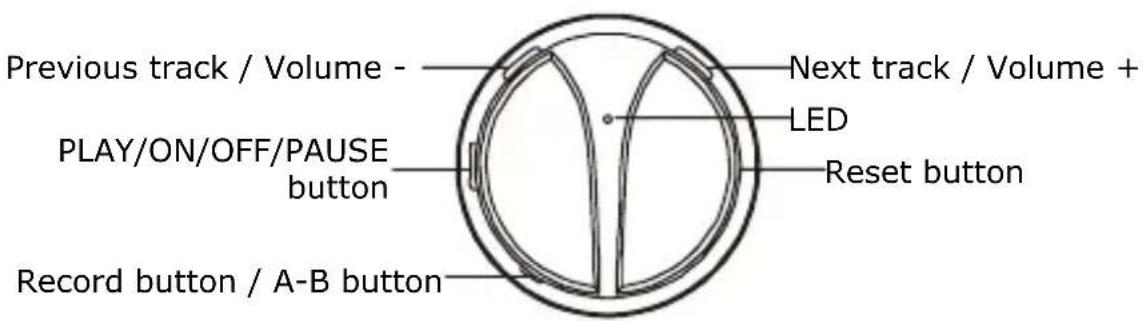
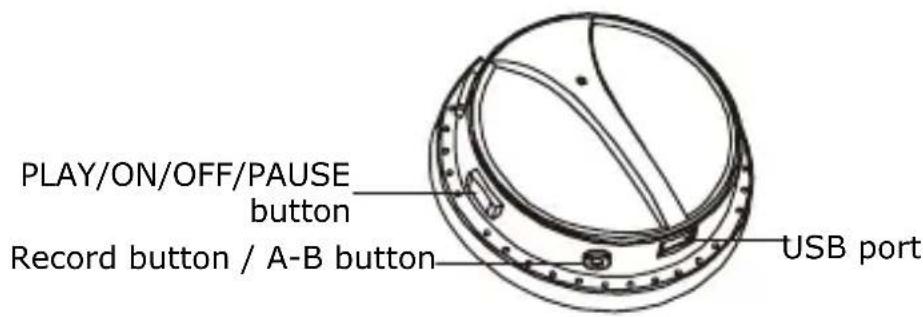
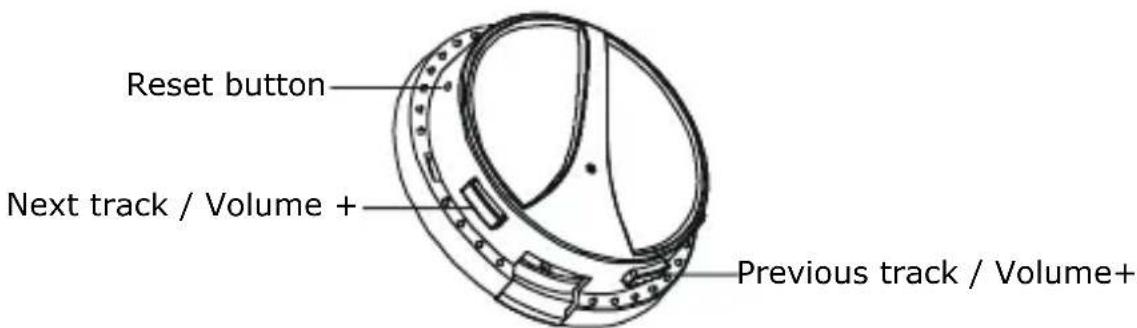
CHARGING THE BATTERY
Your MP3 player has an integrated battery which is charged via the supplied power adapter. If the power adapter is connected, it charges the battery automatically, whether the MP3 player is turned on or not.
BATTERY STATUS
The battery charge indicator lights red during the charging process. Do not interrupt the charging process before the battery is fully charged. This may take some time. The device is fully charged if the charging LED lights green.

Caution: Listening to music at a very high volume can cause permanent damage to your hearing. Before starting playback, adjust the volume to the lowest level, then start the playback and adjust the volume to the desired level.
RESETTING THE MP3 PLAYER
If the system does not respond or is not functioning correctly, press the reset button. The MP3 player will then return to its original settings.
Reset button
natural_image
Technical line drawing of a mechanical component with no visible text or symbolsPress and hold down the PLAY/PAUSE button to start the system. The MP3 player is switched on in stand-by mode. The LED lights up red without flashing.
Press the VOL+ button briefly to switch between the files. For a music file, the LED will light up red. For a speech file the LED will light up green.
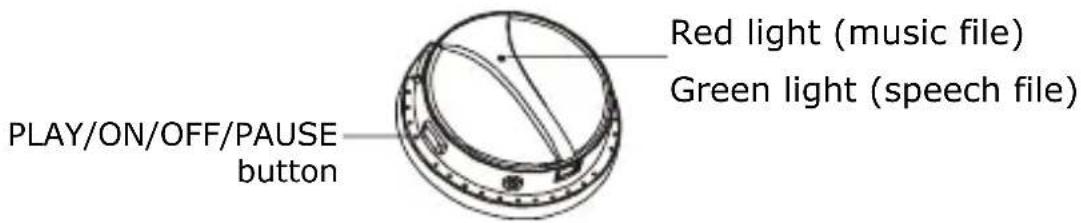
If the MP3 player is in playback or pause mode, press and hold down the PLAY/PAUSE button. The LED goes out, and the MP3 player is now turned off.
MUSIC MODE
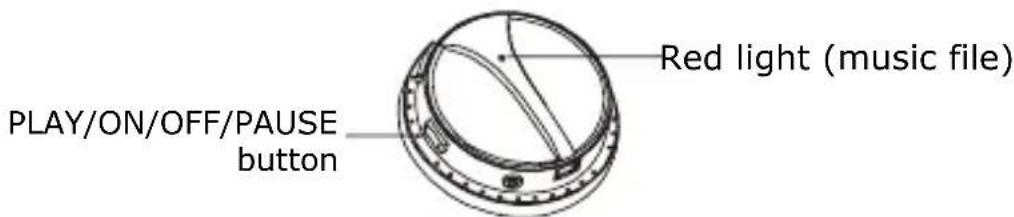
Play: With the MP3 player turned on, select the file you wish to play back and press the PLAY button briefly. When music is being played, the red light flashes quickly.
Pause: Press the PLAY button briefly. The music will stop and the LED lights up green with out flashing.
Stop: With the player in play mode, press the PLAY button for 2 seconds to stop the the player, i.e. to set it to standby mode.
VOLUME CONTROL
Press and hold down the volume button in playback mode to increase or decrease the volume.
TRACK SELECTION
Press the "Previous track" or the "Next track" button in standby or playback mode to select the desired file.
REPEAT MODE
It is possible to select some “segments” of a musical or vocal track. This segment is then played back endlessly (loop).
1. Definition of the segment start:
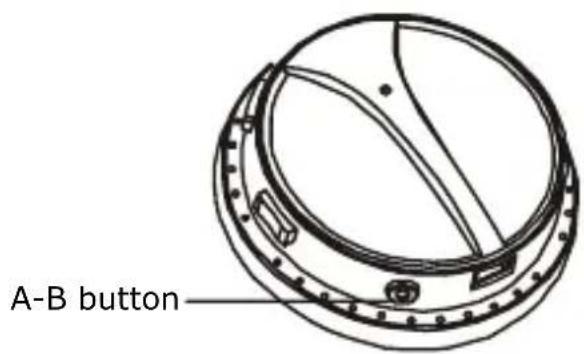
To set point A press A-B button briefly in playback mode.
2. Definition of the segment end:
To set point B press A-B button a second time.
The MP3 player will now repeat the section from point A to point B.
To deactivate this function, press the A-B button briefly. The MP3 player will return to normal playback mode.
SPEECH MODE
Press the record button in standby mode for direct recording. The LED flashes slowly green.
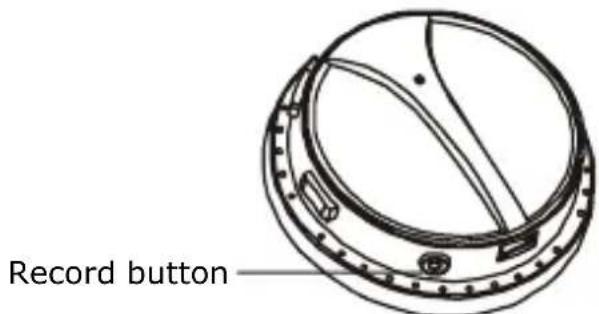
Now press the record button again to switch to speech playback mode. The LED will slowly flash green and red in alternation.
Press and hold down the volume button in playback mode to increase or decrease the volume. Press the "Previous track" or "Next track" buttons briefly to select the previous or the next recording. You can also set an A-B section to repeat by pressing down the A-B button.
CONNECTION TO THE COMPUTER
Connect the USB cable to your PC as shown in the following diagram.
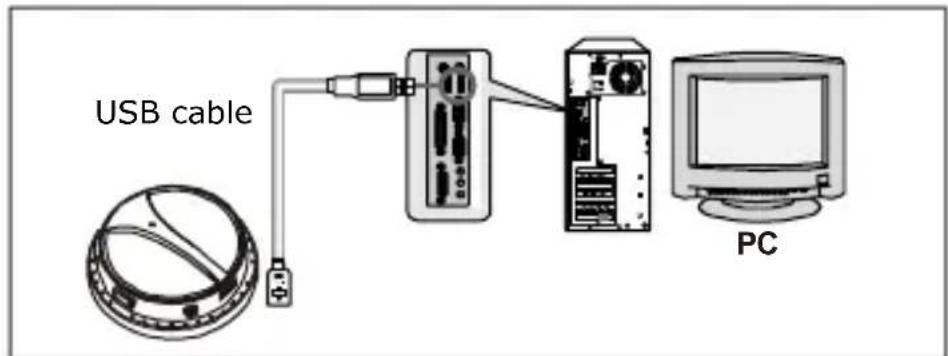
When the MP3 player is connected to your PC, the LED will light up green without flashing. When files are written or deleted, the LED flashes quickly red and green in alternation. Once the files have been loaded, the green indicator light will light up without flashing and the red light will cease to be lit.

Caution: Please test your USB port before connecting the USB cable. Use of excess force when inserting the cable can lead to damage being caused to the product or to your PC.
INSTALLATION OF THE DRIVER
(ONLY Windows 98SE – Windows ME/2000/XP does not need any additional driver)
- A request to indicate the driver location will be made to the user. Select your CD ROM drive with the inserted CD.
PC/MP3 PLAYER FILE EXCHANGE
The new driver enables file movement from PC to MP3 player, it will therefore be possible to copy your favourite tracks onto the MP3 player or transfer other files to the MP3 player and use it as portable data device. However, the MP3 player only accepts / plays music files in MP3, WAV and WMA format.
- Select (Click) in your Windows Explorer on the track you want to copy / transfer to the MP3 player.
- Drag the track to the MP3 player that has been recognised as a drive and let it drop. ('Drag & Drop')
MEMORY DRIVE FUNCTION
It is also possible to use your MP3 player as a memory drive. Simply copy the desired files onto the MP3 player. Take into account that the MP3 player only shows files with the extension *.wav, *.mp3 or *.wma.
SOLUTIONS FOR COMMON PROBLEMS
The computer does not recognise the MP3 player:
➢ Check the installation (page 12 and following. Windows 98 SE: is the driver installed?)
Is the battery loaded?
▶ Check the cable connections.
Is the MP3 player turned on?
In Windows Control Panel, check if the MP3 Player is installed correctly. Try installing the USB controller again. Remove any other USB peripherals as a test.
The MP3 Player does not execute the commands correctly:
Is the battery loaded?
Is the connection between USB and PC correct?
Reset the MP3 player (page 8)
Is Further Assistance Necessary?
If the suggestions listed above are not enough to resolve the problem, then contact us. The following information will help us to help you resolve your problem:
Configuration of the computer
▶ Any additional peripherals you may have connected
Any messages that appear on the MP3 player display
Any Windows programs that were being used when the problem arose
Solutions you have tried to resolve the problem
If you have a customer code, please have it ready before you call.
FCC COMPLIANCE STATEMENT
This equipment has been tested and found to comply with the limits for a Class B digital device, pursuant to Part 15 of FCC Rules. These limits are designed to provide reasonable protection against harmful interference in a residential installation. This equipment generates, uses, and can radiate radio frequency energy and, if not installed and used in accordance with the instructions, may cause harmful interference to radio communications. However, there is no guarantee that interference will not occur in a particular installation. If this equipment does cause harmful interference to radio or television reception, which can be determined by turning the equipment off and on, the user is encouraged to try to correct the interference by one or more of the following measures:
- Reorient or relocate the receiving antenna.
- Increase the separation between the equipment and receiver.
- Connect the equipment into an outlet on a circuit different from that to which the receiver is connected.
- Consult the dealer or an experienced technician for help.
Changes or modifications not expressly approved by the party responsible for compliance could void the user's authority to operate the equipment. Shielded interface cables, if any, must be used in order to comply with the emission limits.
WARRANTY
PLEASE READ THIS LIMITED WARRANTY CAREFULLY TO UNDERSTAND YOUR RIGHTS AND OBLIGATIONS.
The sales receipt is considered valid proof of purchase and should be kept in a safe place. This receipt will be required for receiving any warranty service. This warranty is transferable. When transferring ownership to a third party, please provide the receipt and warranty information. Our company warrants to the end user that each product, including related software, accessories, media and supplies, shall be free from defects in materials and workmanship for thirty six months from date of purchase. This warranty covers only those defects that arise as a result of normal use of the product. This warranty does not cover any other problems, including problems that arise as a result of improper maintenance or modification; software, accessories, media or supplies not provided or supported by the supplier; or operation outside the manufacturer's specifications.
Any part of this device repaired or exchanged by a valid service representative will be covered under the original warranty period. Back up all programs and data before shipping this device for repair under the warranty agreement. Do not leave any media in the disk drives. Products shipped without accessories will be returned without accessories. Any replacement product or component may be either new or like new, provided that its functionality is at least equal to that of the product being replaced.
LIMITATION OF WARRANTY
To the extent allowed by local law, no other warranties are made with respect to this personal computer or the warranty services by any person, including but not limited to our company and it's suppliers. The express warranty stated above is the only express warranty made to you and is provided in lieu of all other express or implied warranties and conditions (if any) including any created by any other documentation or packaging. For additional warranty information, please refer to the included warranty card.
LIMITS OF LIABILITY
To the extent allowed by local law, except for the obligations specifically set forth in this warranty statement, in no event shall the company or its third party suppliers be liable for direct, indirect, special, incidental, or consequential damage, whether based on contract or any other legal theory and whether advised of the possibility of such damages. This includes loss or damage of personal data on your computer.
LOCAL LAW
This warranty statement gives you legal rights. You may also have other rights that vary from jurisdiction to jurisdiction. To the extent this warranty statement is inconsistent with local law, certain disclaimers and limitations of this statement may not apply to the customer.
MAKING COPIES OF THIS MANUAL
This manual contains information protected by law. All rights are reserved. Copyright law prohibits duplicating this information in mechanical, electronic, or any other form, without the written approval of the manufacturer.
© 2005, all rights reserved.
The copyright is kept c/o the company MEDION ^® .
Trademark:
MS-DOS ^® and Windows ^® are Microsoft ^® registered trademarks.
All the other trademarks are of the property of their respective owners.
Except the rights for making technical and aesthetic modifications and any possible typing errors.
- SAFETY CAUTIONS .... 1
- TECHNICAL DATA 5
- WHAT'S IN THE BOX? 6
- PRODUCT OVERVIEW 7
- GETTING STARTED 8
- COMMANDS 9
- USING WITH A COMPUTER 12
- CUSTOMER SERVICE.... 14
- DATA SECURITY
- SAFE USAGE GUIDELINES
- ELECTROMAGNETIC COMPATIBILITY
- CLEANING
- BATTERY HANDLING
- DO NOT throw drained batteries in with the domestic rubbish! Respect the environment and dispose of them in the specific containers for separate collection. If necessary, turn to your reseller or to our service centre. Thank you!
- LEGAL CAUTION:
- Product
- MP3
- player
- CHARGING THE BATTERY
- BATTERY STATUS
- RESETTING THE MP3 PLAYER
- MUSIC MODE
- VOLUME CONTROL
- TRACK SELECTION
- REPEAT MODE
- Definition of the segment start:
- Definition of the segment end:
- SPEECH MODE
- CONNECTION TO THE COMPUTER
- INSTALLATION OF THE DRIVER
- PC/MP3 PLAYER FILE EXCHANGE
- MEMORY DRIVE FUNCTION
- SOLUTIONS FOR COMMON PROBLEMS
- The computer does not recognise the MP3 player:
- The MP3 Player does not execute the commands correctly:
- Is Further Assistance Necessary?
- FCC COMPLIANCE STATEMENT
- WARRANTY
- LIMITATION OF WARRANTY
- LIMITS OF LIABILITY
- LOCAL LAW
- MAKING COPIES OF THIS MANUAL
- Except the rights for making technical and aesthetic modifications and any possible typing errors.
Brand : MEDION
Model : MD80347
Category : Mp3 player