
MD81238 - Mp3 player MEDION - Free user manual and instructions
Find the device manual for free MD81238 MEDION in PDF.


| Product Type | MP3 Player |
| Brand | Medion |
| Model | MD81238 |
| Dimensions (approx.) | 90 x 40 x 10 mm |
| Weight (approx.) | 50 g |
| Power Source | Built-in rechargeable Li-ion battery, 3.7V 300mAh |
| Display | 1.5-inch LCD |
| Internal Memory | 4GB |
| Expandable Memory | microSD up to 32GB |
| Audio Formats Supported | MP3, WMA, WAV, APE, FLAC |
| Battery Life | Up to 10 hours of music playback |
| Charging Method | via USB 2.0 port |
| Connectivity | USB 2.0 for data transfer and charging |
| Headphone Output | 3.5mm stereo jack |
| Recording Function | Voice recording (WAV format) |
| FM Radio | Yes, with auto scan and preset storage |
| Operating System Support | Windows, Mac OS |
| Maintenance | Clean with a soft dry cloth. Avoid water and abrasive cleaners. |
| Safety Precautions | Do not expose to moisture, extreme temperatures, or drop. Keep away from magnetic fields. |
| Included Accessories | USB cable, earphones, quick start guide |
| Repairability | Not user-serviceable. Contact Medion support for repairs. |
Frequently Asked Questions - MD81238 MEDION
User questions about MD81238 MEDION
0 question about this device. Answer the ones you know or ask your own.
Ask a new question about this device
Download the instructions for your Mp3 player in PDF format for free! Find your manual MD81238 - MEDION and take your electronic device back in hand. On this page are published all the documents necessary for the use of your device. MD81238 by MEDION.
USER MANUAL MD81238 MEDION
Cleaning, Recycling and Disposal....4
Battery treatment....4
Electromagnetic Compatibility....4
Legal Information: 5
Use 5
WMA Audio Format 5
Included in the box 5
System Requirements .... 5
Overview 6
INSERTING BATTERIES AND CONNECTION 6
Battery Installation / Removal 6
Charging the Battery 6
Installing/Removing the Memory Card....7
Switching on / OFF and Mode Selection 7
Video Mode 8
Play all kinds of ASF(MPEG4) files 8
Saving video files to memory card or internal memory....8
Menu settings....8
LCD OSD display 8
Deleting a / all files 8
File lock 8
Slide show....8
Startup file setting....8
File copy 8
Photo Mode 9
Play all kinds of JPEG(Picture) files 9
Saving photo to memory card or internal memory 9
Menu settings....9
LCD OSD display 9
Deleting a / all files 9
File lock 9
Slide show....9
Startup file setting....9
File copy 9
Resize 10
Picture rotation....10
Picture printing setup.... 10
Music Mode 10
Saving Music to Memory Card or Internal Memory 10
Music Playing 10
A-B Automatic memory and repeat playing functions 10
EQ-Mode....11
Sort Songs 11
Music TAG Languages 11
Deleting a / all files 11
File lock 11
Music-Playlist.... 11
AV-In 11
AV-IN signal receiving or recording.... 11
Menu Settings 12
Video Quality 12
Audio Quality 12
TV Type Selection.... 12
Copy-protected content.... 12
Voice Recorder (Recorder)....12
Voice Recording....12
Playing Recorded Files 12
Deleting a / all files 12
File lock 13
Slide show.... 13
Startup file setting.... 13
File copy 13
External Microphone 13
FM-Radio 13
Listen to the radio.... 13
Auto & Manual search.... 13
Record current FM Radio 13
Play recorded FM Radio file 13
Menu settings.... 14
Frequently-use tunes set-up 14
Frequency selection 14
Sound quality 14
Earphone usage 14
Browser-Mode 14
Setup-Mode....14
Key sound 14
Key tone setup.... 14
Startup file setup.... 14
Language selection 14
Adjust system date 14
Adjust system time 14
Memory storage option....15
TV signal output Type.... 15
Dwelling time for slide show 15
Automatic Turn-Off time 15
Formatting memory card 15
LCD brightness tuning 15
LCD contrast tuning 15
Memory capacity status 15
Set to default values 15
System version 15
TV out display operation.... 15
Reset of the MP4-Player 15
Product Specification 16
Troubleshooting 17
Warranty 18
Limitation of Warranty 18
Limits of Liability 18
Local Law....18
Making Copies of This Manual.... 18
Please read this Chapter through carefully and follow all the information given. You will guarantee the reliable operation and an expected long useful life of your MP4 player in this way. Please contact our authorized Service Partners exclusively if you have problems with the device.
Data security
Every time you update your computer's data make back-up copies on an external storage medium, i.e. CDR disc. We cannot assume a liability for data loss or associated subsequent damage.
Operating Safety
Keep the device faraway from moisture and avoid vibrations, dust, heat and direct solar radiation, in order to avoid disruption to operation.
▶ Never open the casing. This would terminate your claim under the guarantee and possibly lead to the destruction of the device.
Do not let children play with electrical devices unsupervised. Children are not always able to perceive possible dangers correctly.
▶ Wait to operate the device until the device has reached the temperature of the surroundings following transportation. The formation of moisture, which can cause an electrical short circuit, can arise in the case of large fluctuations in the temperature or the level of moisture. Close the USB plug cover before the transportation of the device.
▶ Please only use the USB cable supplied with the device.
The device is designed for connection to computers with connection fuse protection (Limited power source in the sense of EN60950).
Cleaning, Recycling and Disposal
▶ Attention! This device does not contain any parts to be serviced or cleaned.
Pay attention that the MP3 player does not become dirty. Do not use any solvents, or corrosive or gaseous cleaning substances. Clean the casing with a damp cloth if necessary.
This device and its packaging have mostly been manufactured from materials that can be dispose of in an environmentally-friendly way and be sent to a specialist recycling facility.
The device will be taken back after use, in order to send it for reuse or the exploitation of the materials, provided that it has been given back in a state corresponding to use in accordance with regulations.
At the end of its life, the appliance must not be disposed of in household rubbish. Enquire about the options for environmentally-friendly disposal
Battery treatment
Batteries may contain combustible materials. By misuse, this may cause battery leakage, heat, explosion or ignition, bringing about injury or damage to the device.
Batteries

Do not dispose of used batteries in the household rubbish! They must be deposited at a collection point for used batteries.
Electromagnetic Compatibility
The Guidelines for electromagnetic compatibility (EMV) must be observed when making any connection. Maintain a distance of at least a metre from high frequency and
magnetic sources of disruption (TV devices, loud speakers, mobile/cell phones, etc.), in order to avoid disruptions to the functioning of the device and data loss.
Legal Information:
Only such works in the case of which you are the originator yourself or to which you have been granted the respective rights of use by the originator or the holder of rights may be copied or encoded. The danger that the individuals entitled will take legal proceedings against the possible criminal offence and will assert their claims, if you breach these rights. Please pay attention to the legal regulations in the case of the use of pieces of music in the MP3/WMA format.
Please contact the respective institutions that are responsible for the rights of artists and the sound recording industry.
Use
This MP3 player has been designed for the mobile playback of music files in the MP3 and WMA formats. You can also use this device for recording speech notes.
WMA Audio Format
Your MP3 player can also play back files in the WMA format, apart from MP3 files. Some WMA encoders can use DRM (Digital Rights Management) and thus prevent playing back on portable devices. Use the Windows Media Player from Version 7.0, because it contains a function for recording the music on portable devices. Then, it will be possible to play back the WMA files created in this way on your portable device.
Information: Music files that need an associated licence file (DRM) to be played back must be transferred by special programs (e.g. Windows Media Player 10.0 or different programs provided by MP3 providers). The MP3 player will refuse to play back the title if the licence file is not transferred (e.g. by copying by means of Explorer).
Included in the box
Please check that the contents listed below are supplied with your package and notify us within 14 days of purchase if this is not the case.
- 1 x MP4-Player
- 1 x USB-Kabel
- 1 x rechargeable battery
- 1 x earpieces
- 1 x CD with Software and Online-Manual
- 1 x A/V cable
- 1 x AC-Adapter, documentation
System Requirements
▶ Slot USB connection (USB 1.1/2.0)
▶ Operating system Microsoft Windows® 98SE/ME/2000 (SP4)/XP
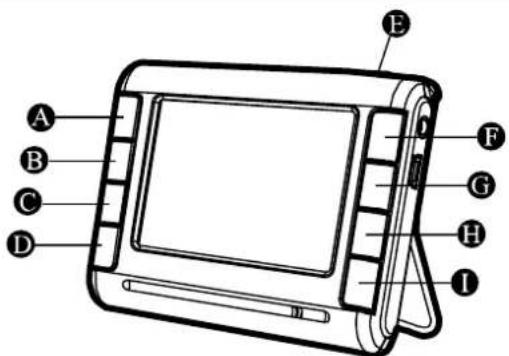
| On/Off button | ➊ | E | button lock | ||
| Record | ➊ | F | mode button | ➊ | |
| B | Menu button | ➊ | G | Entry button | ➊ |
| C | On button | ➊ | ause/Repeat | ➊ | |
| Volume + | ➊ | H | Button left (back) | ➊ | |
| D | Off button | ➊ | I | button right (further) | ➊ |
| Volume - | ➊ | ||||
INSERTING BATTERIES AND CONNECTION
The 3,5 mm Socket supports ...
... the earpieces
... recording through AV-cable
... playback through AV-cable
... an external microphone.
The USB-Socket is supposed to ...
... connect to a PC
... connect the AC-Adapter
Battery Installation / Removal
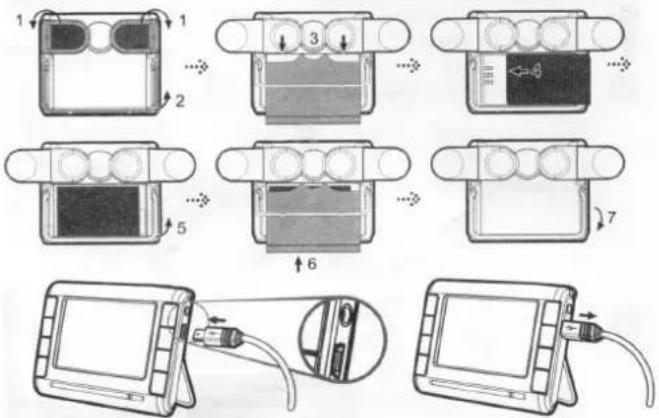
We suggest using two hand to push the battery cover and open it then install the battery. The metal contact end of the battery should face left, slide the battery into the bay with 45^ slant angle, then push the entire battery into the bay. When the battery is in the proper position, replace the cover.
Charging the Battery
Be sure to turn off the power when charging the battery. Plug the AC end of the adaptor into the socket and plug the USB end of the adaptor into the USB port of the unit. The red backlight will turn on when the battery is being charged. The property of each lithium ion battery varies slightly. To optimize battery power, this product uses state-of-the-art intelligent battery management technology to achieve maximum power supply time.
- Charging with AC-Adapter
Plug the AC end of the adaptor into the socket and plug the USB end of the adaptor into the USB port of the unit. The red backlight will turn on when the battery is being charged; it will turn off when the unit is fully charged.
2. Charging with PC/ Notebook
The battery can be charged by connecting the unit to a PC or a Notebook via the USB cable. Connect the USB end of the cable to the USB port of the computer and the mini USB end to the mini USB port of the unit. The red backlight will turn on when the battery is being charged; it will turn off when the unit is fully charged.
Note : When using a new battery for the first time, make sure to fully deplete (the product will shut down automatically if there is no power) it before recharging. This product will automatically memorize the properties of this battery and save its relevant battery power information. By following these instructions, you will obtain optimum battery usage conditions. For the first time, we suggest that you charge the battery for more than 4 hours.
Installing/Removing the Memory Card
The memory card slot is located on the side of this product. Open the memory card slot and insert the memory card. Push the memory card into the slot with the IC side facing the keys and the notch facing down. If you insert the memory card in the wrong direction, the slot cover cannot be closed properly. To remove the memory card, just open the slot cover and press the memory card to eject it automatically. In order to use Memory Cards you must create the file structure according to the MP4 player's requirement. This can be done easily, by inserting your Memory Card into the MP4-Player. Please drop all media files only into this designated folders. Other directories won't be accessed.
Basically, it is the same structure as on the MP4-Player's internal memory
Switching on / OFF and Mode Selection
Switching on: Hold button pressed down for 2 seconds.
Switching off: Hold button pressed down for 2 seconds.
- Switch the device on.
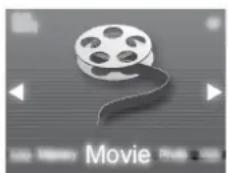
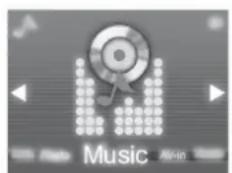
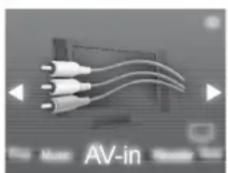
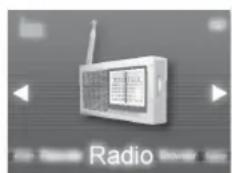
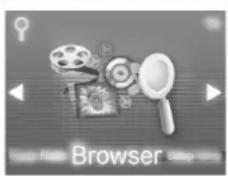
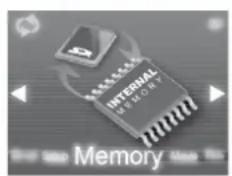
- Select the required mode with the◀/▶buttons: Radio, Browser (file administration), Set-up (settings), Memory (internal/card memory selection), Movie (films), Photo (images), Music (MP3/WMA), AV-in (audio / video recording), Recorder (microphone recording).
- Confirm your selection Sie with the ☑ button.
Press the ⏻ button, in order to change the Mode.
natural_image
Gray-scale icon of a film reel with a scroll, no text or symbols present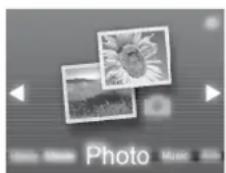
natural_image
Close-up of three white cables connected to a black box, labeled 'AV-in' at bottom (no other text or symbols visible)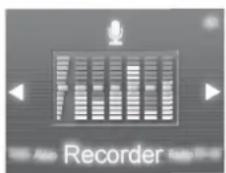
natural_image
Illustration of a browser interface with icons for film, gear, and search bar (no text or symbols on the objects)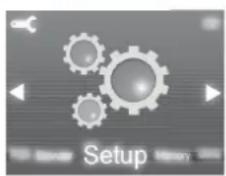
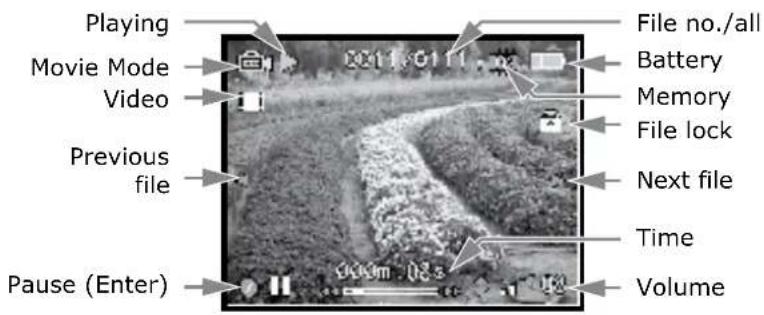
Play all kinds of ASF(MPEG4) files
Under this function, browsing of the ASF(MP4) file formats are available. Press the Left and Right button to switch between different files. To play ASF(MP4) file format, press the Enter button and press it again to pause. The CD driver provide the Media converter software, you should install first. To play ASF files, source files should converter from the Media Converter application software.
Saving video files to memory card or internal memory
Use the card reader or USB connection function to save video files into the memory card or internal memory. Please note that it should be saved in the following path directory, \ Portable Disk \ movie.
Menu settings
LCD OSD display
Use the Enter or Right button to highlight the "Yes" if desired.
4 items can be selected.
On : Turn on the LCD screen. OSD Off : Disable the OSD icon on the screen. File Info : Display file information on the screen. LCD Off : Turn off the LCD screen.
Press the Enter button to determine.
Deleting a / all files
Use the Enter or Right button to highlight the "Yes" if desired.
Press the Enter button to determine.
File lock
Press the Right or Enter button to enter the submenu. This function can lock selected files and avoid accidental deletion. To delete the file under "File Lock!", you need to remove file lock first.
Slide show
Slide function can play Video files automatically .
Video files are played one after another.
Startup file setting
Set a movie file to be a startup file when power on.
File copy
Press the Enter button to determine.
- During the copying process, do not remove the memory card since it will cause the file copy process to fail.
- The system will first determine the file size that is to be copied. If the memory space is not sufficient, the system will automatically determine that the copy can not proceed and show the error message.
- The file copy process will take several seconds, depending on the file size to be copied.
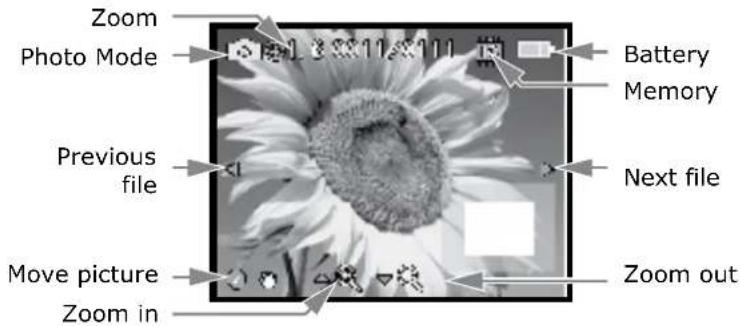
Play all kinds of JPEG(Picture) files
Under this function, browsing of the following JPEG file formats are available. Press the Left and Right button to switch between different files.
Saving photo to memory card or internal memory
Use the card reader or USB connection function to save picture files into the memory card or internal memory. Please note that it should be saved in the following path directory, \ Portable Disk \ Photo.
| Icon | Function |
| This product support standard photo file format. If not, the screen will display reject photo icon. | |
| Move picture location |
Menu settings
LCD OSD display
Use the Enter or Right button to highlight the "Yes" if desired.
4 items can be selected.
On : Turn on the LCD screen. OSD Off : Disable the OSD icon on the screen. File Info : Display file information on the screen. LCD Off : Turn off the LCD screen.
Press the Enter button to determine.
Deleting a / all files
Use the Enter or Right button to highlight the "Yes" if desired.
Press the Enter button to determine.
File lock
Press the Right or Enter button to enter the submenu. This function can lock selected files and avoid accidental deletion. To delete the file under "File Lock!", you need to remove file lock first.
Slide show
Slide function can play Video files automatically .
Video files are played one after another.
Startup file setting
Set a movie file to be a startup file when power on.
File copy
Press the Enter button to determine.
- During the copying process, do not remove the memory card since it will cause the file copy process to fail.
- The system will first determine the file size that is to be copied. If the memory space is not sufficient, the system will automatically determine that the copy can not proceed and show the error message.
- The file copy process will take several seconds, depending on the file size to be copied.
Resize
Resize the picture below the current size.
Picture rotation
This function is available for pictures taken in Photo mode. It provides 4 types of rotating angles, including : 0°, 90°, 180°, and -90°. Select picture browsing mode then press MENU button to perform this setup. The rotated picture will be automatically saved as a new picture and will not replace the original one.
Picture printing setup
This unit supports the direct printing function of DPOF (digital print order format) type printer. Press Right or Enter button to confirm "Print setup" from Menu to print with this type of printer. If you want to cancel the printing, please select No. To access this function, please enter picture browsing mode, then press Menu button to perform this setup.
Music Mode
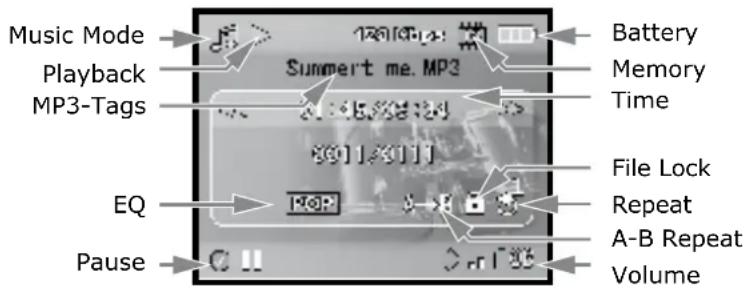
Saving Music to Memory Card or Internal Memory
Use the card reader or USB connection function to save MP3 files into the memory card or internal memory. Please note that it should be saved in the following path directory, \ Portable Disk \ MUSIC
Music Playing
- This device supports music files with the .MP3 and .WMA formats. Please respect and purchase legitimate music products in order to protect the copyright.
- A MP3 Tag is displayed on the top of the screen. The Tag will show the information of the song name, artist and album.
- If there is no MP3 or WMA file in the memory card or internal memory (depending on the current storage type.), the screen will show "NO FILE!".
- You can use the Up and Down buttons to adjust the volume.
- The system will automatically search the proper file format under the subdirectory within the memory, and will do an automatic sorting. If there is only one song, there is no response if the Left and Right button is pressed.
- After entering MP3 mode, press the Left/Right button to select songs. Press Enter button to play selected songs, press Enter button again to pause.
A-B Automatic memory and repeat playing functions
This equipment provides automatic memory and repeat playing functions as in a language learning machine. It will automatically memorize from the moment the A-B repeat button is pressed till it is
pressed again and repeat playing the memorized segment. To cancel automatic A-B repeat, press the button again and it will go back to normal playing.
Press Right or Enter button to enter the submenu. Four playing modes are available: Normal, Shuffle, Repeat One, and Repeat All.
Normal

Repeat One

Repeat All

Shuffle
EQ-Mode
Options:
Normal, Rock, Pop, Jazz, Classical, Dance, Heavy, Disco, Soft, 3D Stereo and Hall.
Press Menu button to return to MP3 main menu and complete the setting.
Sort Songs
Sort songs in the memory for convenient quick searching and listening.
Options are: Normal, Artist, Title and Album.
Music TAG Languages
Select the correct language for a song so that the music TAG can display the name of the song correctly.
Deleting a / all files
Use the Enter or Right button to highlight the "Yes" if desired.
Press the Enter button to determine.
File lock
Press the Right or Enter button to enter the submenu. This function can lock selected files and avoid accidental deletion. To delete the file under "File Lock!", you need to remove file lock first.
Music-Playlist
- Press Menu button
-
Press Right button \~ Play List
-
Press Up or Down buttons to select the desired songs and press the Enter button to play. The order in which the songs are sorted is according to the setting set in "Sort By".
The music play order is based on the "Play mode" setting.
AV-In
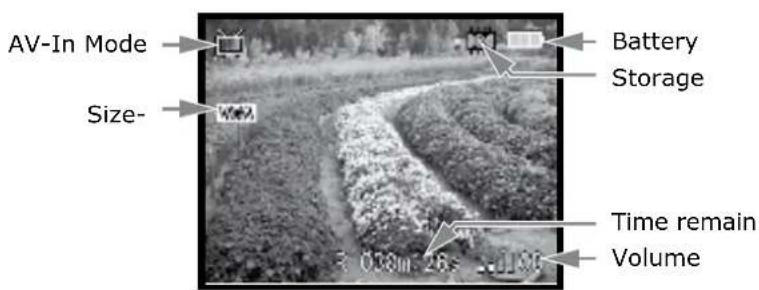
AV-IN signal receiving or recording
Receive or record external analog AV signals to display on LCD panel. And you can adjust recording audio quality, video quality and resolution as you wish.
Menu Settings
Video Quality
Press the Right or Enter button to enter the submenu. For the best recording quality, select "Best", however, doing so will significantly reduce the length of available recording time because of the limited size of memory. It is suggested that you use "Normal" or "Economic" setting if you are taking a lot of footage. Alternatively use a high capacity memory card. There are five quality settings available: Best, Fine, Normal, Basic, and Economic.
Audio Quality
Press the Right or Enter button to enter the submenu. For a better audio recording quality, select "48KHz", however, doing so will significantly reduce the length of available recording time because of the limited size of memory. It is suggested that you use "16KHz" setting if you are making a lot of recordings. Alternatively use a high capacity memory card. There are two audio quality settings available: 16KHz and 48KHz.
TV Type Selection
Press the Right or Enter button to enter the submenu. Use Up/Down button to select TV Type . Two modes can select : NTSC / PAL.
Copy-protected content
According to international copyright regulations this device needs to prevent recording of copy-protected content. Any attempt to record a copy-protected video will be blocked and the following message appears:

Voice Recorder (Recorder)
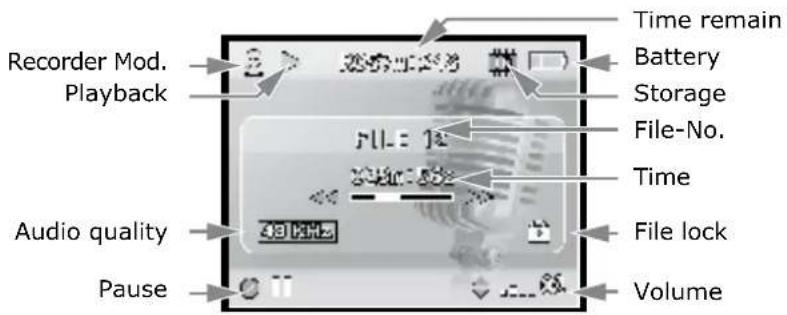
Voice Recording
After entering the Voice Recording function, the system will check automatically if any pre-recorded voice file is available. Under the Voice Recording function, press the record button to start recording, press again to stop recording.
Playing Recorded Files
- Press the Enter button to switch to playing mode, press it again to play. Press it again to pause.
- If there is no voice file in the memory card or internal memory (depending on the current storage type.), the screen will show "NO FILE!".
- You can use the Up and Down buttons to adjust the volume.
Use "16KHz" setting if you are making a lot of recordings. Alternatively use a high capacity memory card. There are two audio quality settings available: 16KHz and 48KHz.
Deleting a / all files
Use the Enter or Right button to highlight the "Yes" if desired.
Press the Enter button to determine.
File lock
Press the Right or Enter button to enter the submenu. This function can lock selected files and avoid accidental deletion. To delete the file under "File Lock!", you need to remove file lock first.
Slide show
Slide function can play Video files automatically .
Video files are played one after another.
Startup file setting
Set a movie file to be a startup file when power on.
File copy
Press the Enter button to determine.
- During the copying process, do not remove the memory card since it will cause the file copy process to fail.
- The system will first determine the file size that is to be copied. If the memory space is not sufficient, the system will automatically determine that the copy can not proceed and show the error message.
- The file copy process will take several seconds, depending on the file size to be copied.
External Microphone
Press the Right or Enter button to enter the submenu. You can set the external microphone on and off to record the voice file.
FM-Radio
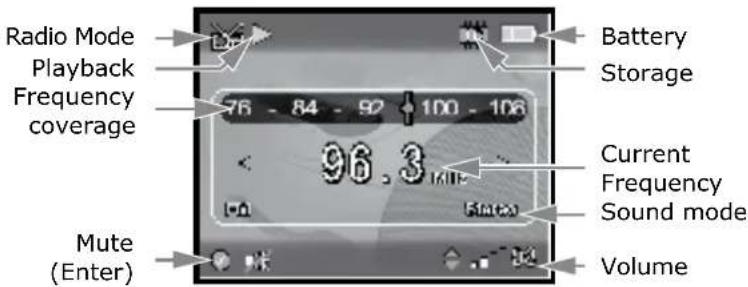
Listen to the radio
Listen to the radio by using earphone or connecting the speaker is suggested.
Auto & Manual search
Push Left or Right button for 1 sec. to search the tune automatically; push Left or Right button manually till searching the desire FM tune.
Record current FM Radio
When staying FM tune, push the Record Button for recording the current radio file, then push it again to stop the recording.
Play recorded FM Radio file
The recorded FM radio files are able to be played on Recorder and Browser mode.
Menu settings
Frequently-use tunes set-up
Press Up/Down button to save the desire tunes, then push Enter Button to finish the procedure. The menu shows "None" before setting up any tune. The new tune is able to replace the existed tune any time.
Frequency selection
Press Up/Down button to select the desire tunes.
The menu shows "None" if there is no Frequently-use tune to be set up.
Sound quality
Press the Right or Enter button to enter the submenu. 2 types of recording qualities are available: 16kHz and 48kHz.
Earphone usage
Radio Antenna : When FM radio turned on. Earphone will be set to be an antenna, the device speaker will be still working at the same time.
General earphone: For listening as normal earphone purpose.
Browser-Mode
Plays all kinds of media files
Under this integrated function, browsing of the following four file formats are available: voice files, video files, picture files and music files. Press the Left and Right button to switch between different folders and files. To play any kind of file format, press the Enter button. You can also change to a 9-files display format by pressing the Down button.
Note: Selecting Movie, Picture, Voice or Music files will show different menus for the files. For example, selecting Movie, the menu will display the function that has the Rotate, Print Set, and resize, but selecting Movie and Voice, the menu will not show these functions.
Setup-Mode
Key sound
The options include On/Off. (Default is On)
Key tone setup
Options: Normal, Alert, Champagne, Click, Beat and Fire.
Startup file setup.
The options will change according to the previously set startup file (video, image or voice).
You can turn On/Off or delete the startup video, image or voice file.
Language selection
Different language interfaces are available in this unit. Please make sure not to select a language which would prevent you to switch back to your original language. This could happen if you do not understand the language you have selected.
Adjust system date
Use Up/Down button to select your preferred date format:
dd/mm/yy, yy/mm/dd, mm/dd/yy (The default is yy/mm/dd). You can use Right button and use Up/Down button to adjust the date. Press Enter button to complete and save the setup. Or press the Left button continuously to quit from the submenu, The setup value won't be saved.
Adjust system time
Use Up/Down button to select AM or PM. Use Right button to select the hour and minutes and Up/Down button to adjust the time.
Memory storage option
The options include SD Card and internal memory.
TV signal output Type
NTSC and PAL TV outputs are available from this unit.
Dwelling time for slide show
This unit provides five choices of dwelling time for slide show: 1 sec, 2 sec, 4 sec, 10 sec and 30 sec.
Automatic Turn-Off time
This unit offers five automatic turn-off options: Off, 1 minute, 2 minutes, 3 minutes, and 5 minutes, the system default value is 3 minutes.
Formatting memory card
To ensure that your memory card or internal memory function correctly, we suggest that you format them the first time you use them. The following window will appear under the SD card or internal memory status, respectively (as shown in the figure). Simply select "Yes" to format SD card or internal memory.
LCD brightness tuning
Options are: 100%, 80%, 60%, 40% and 20%.
100% is high brightness while 20% is low brightness.
LCD contrast tuning
Options are: 100%, 80%, 60%, 40% and 20%.
Memory capacity status
It shows two memories capacity status : Internal memory and SD card .
Set to default values
If the system is in a state of disorder due to personal setup, you can use Set Default function, to restore all setup to default values.
System version
After Right or Enter button is pressed, the current software version will be displayed. This function is to provide service information for the distributor for after sale tracking.
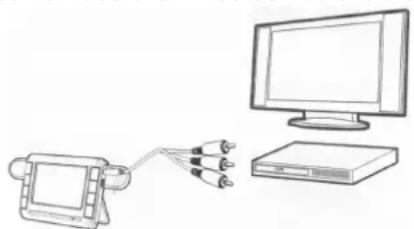
TV out display operation
When connecting this device to a TV set via AV cable, you can use the TV screen as the display to operate all the functions in the device.
natural_image
Line drawing of a device connected to a computer monitor (no text or symbols present)Reset of the MP4-Player
Because of incorrect inputs or because of an error in the data transmission, the MP4-Player does not respond to the commands. In this case, proceed as follows:
- Remove the battery and insert it again.
Product Specification
LCD Display 2.5" LTPS (Low Temperature Poly Silicon)
TFT LCD 262K pixel (508 x 240 pixel)
Interface Mini USB, Video Out, Ear Phone Jack, Speaker, Microphone
Video out TV Out (NTSC / PAL)
Print out Supports DPOF(Digital Print Order Format)
Storage Media SD/MMC Card(32MB \~ 1GB)
File Format Photo JPEG(EXIF 2.2)
Video Recording ASF(MPEG4)
Voice Recording WAV ,FM Recording : WAV
AV-In Recording ASF(MPEG4)
MP3 Playing MP3 / WMA
Power Specification
Battery Rechargeable Li-Ion NP-60 Battery (3.7V)
Charger 5V DC Charger (USB port)
Product Dimension
Weight(g) 69 g without battery
Length(mm) 82mm
Width(mm) 68mm
Height(mm) 16mm
You can troubleshoot the following problems that may occur while using this product:
Cannot turn on this product.
Make sure that the battery is fully charged and inserted properly.
Battery Charging
- When charging, the battery is fully charged when the red LED light blinks for one second and then turns off.
- If you can not charge the battery the first time you use this unit, please check whether or not you have installed the battery properly. We recommend charging the battery for at least 4 hours to make sure that the battery is fully charged.
- After you have charged the battery or used this unit continuously for 30 minutes, the machine will produce some heat, which is a normal charge or discharge phenomenon.
- If the battery icon blinks when the machine is on, it means that the battery is low. Please recharge the battery or replace with another one.
- This unit is bundled with a high-quality battery. If you purchase a new battery, we recommend buying a battery with the same quality to maintain good operations of this unit. We also do not recommend using a low-priced handset charger to charge this battery. Some electric appliances are not protected by an overload design and will shorten the battery life.
Cannot use the inserted SD/MMC card.
If you cannot use the SD/MMC card after inserting the card, please check the following:
- If the SD/MMC card is damaged, please replace with a new one. Usually it is due to a bad controller chip inside the SD card.
- If the file in the SD/MMC card is damaged, please enter into Setup mode. Select Format, and reformat the SD/MMC as FAT16.
Cannot play the created ASF (Mpeg4) on the PC.
The version of Media Player (series 8 or older) on your PC may be too old. Open your old Media Player while the PC is linked to the Internet and this software will automatically install the decoding program module that supports ASF Mpeg4. Or, download the latest version of Media Player from the Microsoft website.
Video file or picture file is blurry or unclear.
The lens may be dirty. Use a lens-cleaning cloth to wipe the lens clean. Also, ensure that you click the shutter softly to prevent your hands from shaking.
The machine gets hot while using.
When you charge the battery or use the machine continuously for 30 minutes, a slight warming is normal.
Cannot connect to the PC, cannot use USB flash disk.
Check if the USB cable is properly connected. We recommend that you use the USB cable that comes with this product. If your PC uses the Windows 98 operating system, it is necessary to install the Windows 98 driver from the CD.
What can I do if the system freezes during use?
Improper operation may cause this product to freeze. If you cannot restart or shut down, remove the battery slot cover and re-install the battery. Restart to eliminate this problem.
Cannot play the created ASF (Mpeg4) on the PC.
The version of Media Player (series 8 or older) on your PC may be too old. Open your old Media Player while the PC is linked to the Internet and this software will automatically install the decoding program module that supports ASF Mpeg4. Or, download the latest version of Media Player from the Microsoft website.
Warranty
PLEASE READ THIS LIMITED WARRANTY CAREFULLY TO UNDERSTAND YOUR RIGHTS AND OBLIGATIONS.
The sales receipt is considered valid proof of purchase and should be kept in a safe place. This receipt will be required for receiving any warranty service. This warranty is transferable. When transferring ownership to a third party, please provide the receipt and warranty information. Our company warrants to the end user that each product, including related software, accessories, media and supplies, shall be free from defects in materials and workmanship for the period stated in the warranty card starting from the date of purchase. This warranty covers only those defects that arise as a result of normal use of the product. This warranty does not cover any other problems, including problems that arise as a result of improper maintenance or modification; software, accessories, media or supplies not provided or supported by the supplier; or operation outside the manufacturer's specifications.
Any part of this device repaired or exchanged by a valid service representative will be covered under the original warranty period. Back up all programs and data before shipping this device for repair under the warranty agreement. Do not leave any media in the disk drives. Products shipped without accessories will be returned without accessories. Any replacement product or component may be either new or like new, provided that its functionality is at least equal to that of the product being replaced.
Limitation of Warranty
To the extent allowed by local law, no other warranties are made with respect to this personal computer or the warranty services by any person, including but not limited to our company and its suppliers. The express warranty stated above is the only express warranty made to you and is provided in lieu of all other express or implied warranties and conditions (if any) including any created by any other documentation or packaging. For additional warranty information, please refer to the included warranty card.
Limits of Liability
To the extent allowed by local law, except for the obligations specifically set forth in this warranty statement, in no event shall the company or its third party suppliers be liable for direct, indirect, special, incidental, or consequential damage, whether based on contract or any other legal theory and whether advised of the possibility of such damages. This includes loss or damage of personal data on your jukebox.
Local Law
This warranty statement gives you legal rights. You may also have other rights that vary from jurisdiction to jurisdiction. To the extent this warranty statement is inconsistent with local law, certain disclaimers and limitations of this statement may not apply to the customer.
Making Copies of This Manual
This manual contains information protected by law. All rights are reserved. Copyright law prohibits duplicating this information in mechanical, electronic, or any other form, without the written approval of the manufacturer.
Copyright ^® 2006, all rights reserved.
The copyright is kept c/o the company MEDION®.
Trademark:
MS-DOS ^® and Windows ^® are Microsoft ^® registered trademarks.
All the other trademarks are of the property of their respective owners.
Except the rights for making technical and aesthetical modifications and possible typing errors.
- Use 5
- Overview 6
- INSERTING BATTERIES AND CONNECTION 6
- Installing/Removing the Memory Card....7
- Switching on / OFF and Mode Selection 7
- Video Mode 8
- Menu settings....8
- Photo Mode 9
- Menu settings....9
- Data security
- Operating Safety
- Cleaning, Recycling and Disposal
- Battery treatment
- Batteries
- Electromagnetic Compatibility
- Legal Information:
- Use
- WMA Audio Format
- Included in the box
- System Requirements
- INSERTING BATTERIES AND CONNECTION
- Battery Installation / Removal
- Charging the Battery
- Charging with PC/ Notebook
- Installing/Removing the Memory Card
- Switching on / OFF and Mode Selection
- Play all kinds of ASF(MPEG4) files
- Saving video files to memory card or internal memory
- Menu settings
- LCD OSD display
- Deleting a / all files
- File lock
- Slide show
- Startup file setting
- File copy
- Play all kinds of JPEG(Picture) files
- Saving photo to memory card or internal memory
- Resize
- Picture rotation
- Picture printing setup
- Music Mode
- Saving Music to Memory Card or Internal Memory
- Music Playing
- A-B Automatic memory and repeat playing functions
- EQ-Mode
- Sort Songs
- Music TAG Languages
- Music-Playlist
- AV-In
- AV-IN signal receiving or recording
- Video Quality
- Audio Quality
- TV Type Selection
- Copy-protected content
- Voice Recorder (Recorder)
- Voice Recording
- Playing Recorded Files
- External Microphone
- FM-Radio
- Listen to the radio
- Auto & Manual search
- Record current FM Radio
- Play recorded FM Radio file
- Frequently-use tunes set-up
- Frequency selection
- Sound quality
- Earphone usage
- Browser-Mode
- Setup-Mode
- Key sound
- Key tone setup
- Startup file setup.
- Language selection
- Adjust system date
- Adjust system time
- Memory storage option
- TV signal output Type
- Dwelling time for slide show
- Automatic Turn-Off time
- Formatting memory card
- LCD brightness tuning
- LCD contrast tuning
- Memory capacity status
- Set to default values
- System version
- TV out display operation
- Reset of the MP4-Player
- Product Specification
- Cannot turn on this product.
- Battery Charging
- Cannot use the inserted SD/MMC card.
- Cannot play the created ASF (Mpeg4) on the PC.
- Video file or picture file is blurry or unclear.
- The machine gets hot while using.
- Cannot connect to the PC, cannot use USB flash disk.
- What can I do if the system freezes during use?
- Warranty
- Limitation of Warranty
- Limits of Liability
- Local Law
- Making Copies of This Manual
Brand : MEDION
Model : MD81238
Category : Mp3 player