
KW-XR610 - Car stereo JVC - Free user manual and instructions
Find the device manual for free KW-XR610 JVC in PDF.



User questions about KW-XR610 JVC
0 question about this device. Answer the ones you know or ask your own.
Ask a new question about this device
Download the instructions for your Car stereo in PDF format for free! Find your manual KW-XR610 - JVC and take your electronic device back in hand. On this page are published all the documents necessary for the use of your device. KW-XR610 by JVC.
USER MANUAL KW-XR610 JVC
Having TROUBLE with operation?
Please reset your unit
Refer to page of How to reset your unit
Still having trouble??
USA ONLY
Call 1-800-252-5722
http://www.jvc.com
We can help you!
JVC
JVE
Instructions
CD RECEIVER
JVC
KW-XR610
CD RECEIVER / RECEPTOR CON CD / RÉCEPTEUR CD

WMA
MP3

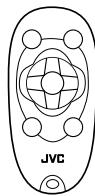
text_image
JVC
Radio®
READY


Made for iPod

Works with iPhone
For canceling the display demonstration, see page 4. / Para cancelar la demostración en pantalla, consulte la página 4. / Pour annuler la démonstration des affichages, référez-vous à la page 4.
For installation and connections, refer to the separate manual.
Enter below the Model
No. and Serial No. which
are located on the top or
bottom of the cabinet.
Retain this information
for future reference.
Model No.
Serial No.
KW-XR610
INSTRUCTIONS
MANUEL D'INSTRUCTIONS
INFORMATION (For U.S.A.)
This equipment has been tested and found to comply with the limits for a Class B digital device, pursuant to Part 15 of the FCC Rules. These limits are designed to provide reasonable protection against harmful interference in a residential installation. This equipment generates, uses, and can radiate radio frequency energy and, if not installed and used in accordance with the instructions, may cause harmful interference to radio communications. However, there is no guarantee that interference will not occur in a particular installation. If this equipment does cause harmful interference to radio or television reception, which can be determined by turning the equipment off and on, the user is encouraged to try to correct the interference by one or more of the following measures:
– Reorient or relocate the receiving antenna.
– Increase the separation between the equipment and receiver.
- Connect the equipment into an outlet on a circuit different from that to which the receiver is connected.
- Consult the dealer or an experienced radio/TV technician for help.
Caution:
Changes or modifications not approved by JVC could void the user's authority to operate the equipment.
IMPORTANT FOR LASER PRODUCTS
- CLASS 1 LASER PRODUCT
- CAUTION: Do not open the top cover. There are no user serviceable parts inside the unit; leave all servicing to qualified service personnel.
-
CAUTION: (For U.S.A.) Visible and/or invisible class II laser radiation when open. Do not stare into beam.
(For Canada) Visible and/or invisible class 1M laser radiation when open. Do not view directly with optical instruments. -
REPRODUCTION OF LABEL: CAUTION LABEL, PLACED OUTSIDE THE UNIT.
| CAUTION | ATTENTION | AVISO | VARNING | 注意 |
| VISIBLE AND/OR INVISIBLE CLASS 1M LASER DADIATION WHEN OPEN. DO NOT VIEW ON/OFFIC WITH OPTICAL INSTRUMENTS EC00825-1:2001 (ENG) | RAVONNEMENT LASER VISIBLE ET/OU INVISIBLE DE CLASSE U M ONE FOIS OUVERT, PAD RADARING DIRECTAMENTE AVE DES INSTRUMENTS OPTIQUES. (FRA) | RADIACION LASER DE CLASE 1M VISIBLE Y/O INVISIBLE CUANDO ESTA NO NIRAR DIRECTAMENTE CON INSTRUMENTAL OPTICO. (ESP) | SYNUG OCH/ELLER OSYNUS LERASSTRÄLNING, KLST 1M, N/R DENNA DE OPPNAD, SETRAKTA, SEBRALEN MED OPTISKA INSTRUMENT. (SWE) | VISIBLE AND/OR INVISIBLE CLASS II LASER DADIATION WHEN OPEN. DO NOT VIEW INTO BEAM FDA 21 CFR (ENG) |
[European Union only]
Warning:
If you need to operate the unit while driving, be sure to look around carefully or you may be involved in a traffic accident.
For safety...
- Do not raise the volume level too much, as this will block outside sounds, making driving dangerous.
- Stop the car before performing any complicated operations.
Temperature inside the car...
If you have parked the car for a long time in hot or cold weather, wait until the temperature in the car becomes normal before operating the unit.
How to read this manual
The following icons/symbols are used to indicate:

[Hold]
Press and hold the button(s) until the desired operation begins.

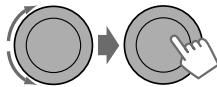
Turn the control dial.



Turn the control dial to make a selection, then press to confirm.

XX)
Reference page number
Menu setting item

Continued on the next page
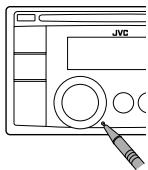
How to reset your unit
text_image
JVCYour preset adjustments will also be erased (except the registered Bluetooth device). (13, 14).
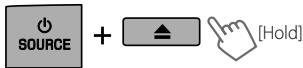
How to forcibly eject a disc
text_image
SOURCE + [Hold]- You can forcibly eject the loaded disc even if the disc is locked. To lock/unlock the disc, 10.
- Be careful not to drop the disc when it ejects.
- If this does not work, reset your unit.
Caution on volume setting:
Digital devices (CD/USB) produce very little noise compared with other sources. Lower the volume before playing these digital sources to avoid damaging the speakers by sudden increase of the output level.
Thank you for purchasing a JVC product. Please read all instructions carefully before operation, to ensure your complete understanding and to obtain the best possible performance from the unit.
CONTENTS
3 How to read this manual
3 How to reset your unit
3 How to forcibly eject a disc
4 Canceling the display demonstration
4 Setting the clock
5 Preparing the remote controller (RM-RK50)
6 Basic operations
7 Listening to the radio
10 Listening to a disc
12 Listening to the USB device
13 Using the Bluetooth® device
14 Using a Bluetooth mobile phone
16 Using a Bluetooth audio player
16 Changing the Bluetooth settings
18 Listening to the HD Radio™ Broadcast
19 Listening to the satellite radio
22 Listening to the iPod/iPhone
24 Listening to the other external components
25 Selecting a preset sound mode
26 Menu operations
31 Selecting the variable buttons and display color illumination
32 Creating your own day and night colors—USER
33 Maintenance
34 More about this unit
37 Troubleshooting
42 Specifications
Canceling the display demonstration
1 Turn on the power.

2
(Initial setting)
3

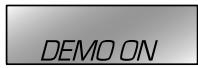
4 Select .

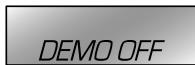
5

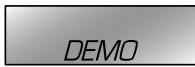
6 Finish the procedure.

Setting the clock
1 Turn on the power.

2
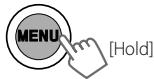
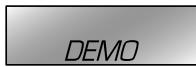
(Initial setting)
3 Select .

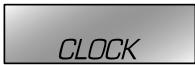


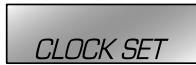
4 Select .

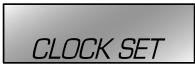


5 Adjust the hour.

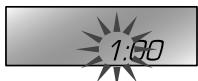
text_image
1:00

6 Adjust the minute.

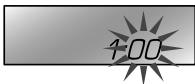
text_image
100

7 Finish the procedure.

Preparing the remote controller (RM-RK50)
When you use the remote controller for the first time, pull out the insulation sheet.
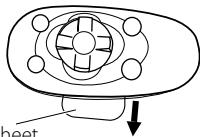
text_image
heetInsulation sheet
For USA-California Only:
This product contains a CR Coin Cell Lithium Battery which contains Perchlorate Material—special handling may apply.
See www.dtsc.ca.gov/hazardouswaste/perchlorate
If the effectiveness of the remote controller decreases, replace the battery.
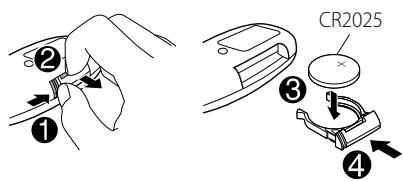
Replacing the lithium coin battery
text_image
① ② ③ ④ CR2025Caution:
- Danger of explosion if battery is incorrectly replaced. Replace only with the same or equivalent type.
- Battery shall not be exposed to excessive heat such as sunshine, fire, or the like.
Warning (to prevent accidents and damage):
- Do not install any battery other than CR2025 or its equivalent.
- Do not leave the remote controller in a place (such as dashboards) exposed to direct sunlight for a long time.
- Store the battery in a place where children cannot reach.
- Do not recharge, short, disassemble, heat the battery, or dispose of it in a fire.
- Do not leave the battery with other metallic materials.
- Do not poke the battery with tweezers or similar tools.
- Wrap the battery with tape and insulate when throwing away or saving it.
This unit is equipped with the steering wheel remote control function.
Before operating, connect an exclusive remote adapter (not supplied) which matches your car to the steering wheel remote input terminal on the rear of the unit.
- For details, refer also to the instructions supplied with the remote adapter.
text_image
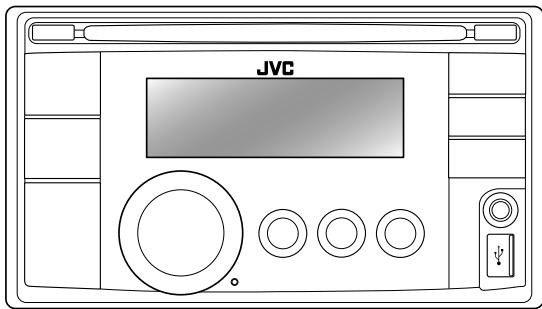
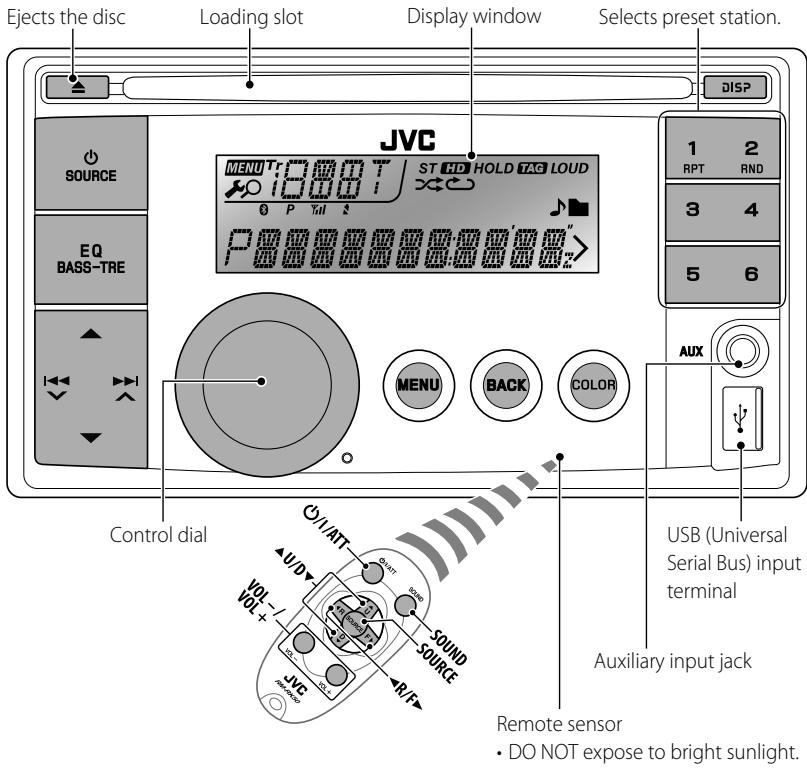
Ejects the disc Loading slot Display window Selects preset station. JVC MENU Tr 1000 T ST HD HOLD TAG LOUD 0 P Ynd S P MENU BACK COLOR 1 RPT 2 RND 3 4 5 6 AUX Control dial USB (Universal Serial Bus) input terminal Auxiliary input jack Remote sensor • DO NOT expose to bright sunlight.When you press or hold the following button(s)...
| Main unit | Remote controller | General operation |
 |  | Turns on.·When the power is on, pressing ⏻/I/ATT on the remote controller also mutes the sound or pauses. Press ⏻/I/ATT again to cancel muting or resume playback. |
| Turns off if pressed and held. | ||
 | Selects the available sources (if the power is turned on).·If the source is ready, playback also starts. | |
 |  | Adjusts the volume level. |
| — | Selects items. | |
 | — | Mutes the sound while listening to a source. If the source is “CD,” “USB,” or “USB-IPOD,” playback pauses. Press the control dial again to cancel muting or resume playback.Confirms selection. |
 | — | Enters repeat mode menu (11, 23) directly if pressed RPT.Enters random mode menu directly (11, 23) if pressed RND. |
 | [X044] | Selects the sound mode.Enters tone level adjustment directly (25) if pressed and held EQ BASS-TRE on the main unit. |
| [Q3TW] | — | Enterssetting directly (31).Enterssetting directly (32) if pressed and held. |
 | — | Returns to the previous menu.Switches the controlling terminal for iPod playback if pressed and held. (22, 30) |
 | — | Power off: Checks the current clock time.Power on: Changes the display information. |
Listening to the radio


⇒ "FM" or "AM"


"ST" lights up when receiving an FM stereo broadcast with sufficient signal strength.
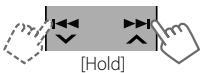
Manual search
text_image
[Hold]"M" flashes, then press the button repeatedly.

When an FM stereo broadcast is hard to receive
1
2
natural_image
Diagram showing a circular button being pushed to a square button with a hand cursor (no text or symbols)
Reception improves, but stereo effect will be lost.
To restore the stereo effect, repeat the same procedure to select
Automatic presetting (FM)—SSM (Strong-station Sequential Memory)
You can preset up to 18 stations for FM.
While listening to a station...
1
2
flowchart
graph LR
    A["Start"] --> B["Process Step"]
    B --> C["Next Step"]
“SSM” flashes and local stations with the strongest signals are searched and stored automatically.
To preset another 6 stations, repeat the above procedure by selecting one of the other 6 SSM setting ranges.
If an HD Radio tuner box is connected (18), you can also search and store 6 stations for AM by following the above operations.
Manual presetting (FM/AM)
You can preset up to 18 stations for FM and 6 stations for AM.
Ex.: Storing FM station of 92.50 MHz into preset number "04."
1
→ "92.50MHz"
2
"PRESET MODE" flashes.
3
natural_image
Diagram showing a circular button being pushed to a finger, with no text or symbols present.⇒ Selects preset number "04."
"P04" flashes and "MEMORY" appears.
- Pressing and holding the number buttons (1 – 6) can also store the current station to the selected number buttons (1 – 6).
Selecting a preset station
1

2
flowchart
graph LR
    A["Start"] --> B["Process Step"]
    B --> C["Next Step"]
    C --> D["Click"]
- Pressing the number buttons (1 – 6) can also select the preset stations (1 – 6).
Title assignment
You can assign titles up to 30 station frequencies (FM and AM) using 8 characters (maximum) for each title.
- If you try to assign titles to more than 30 station frequencies, "NAME FULL" appears. Delete unwanted titles before assignment.
- When HD Radio tuner box is connected (18), this feature will be disabled.
1
⇒ "FM" or "AM"
2
text_image
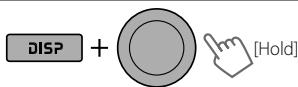
DISP + [Hold]→ Show the title entry screen.
3

⇒ Select a character (A - Z, 0 - 9, —, /, <, >) or a space.
4
→ Move to the next (or previous) character position.
Repeat steps 3 and 4 until you have finished entering the title.
5
6

To erase the entire title, press and hold DISP after step 2, then press the control dial.
Changing the display information
Station name* → Frequency
→ Clock → (back to the beginning)
* If no title is assigned to a station, "NO NAME" appears for a few seconds.
Using the remote controller

▲ U/D ▼ : Changes the preset stations
◀R/F▶ : Searches for stations
Listening to a disc
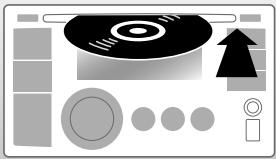
1

→ Turn on the power.
2
natural_image
Illustration of a CD/DVD interface with buttons, arrows, and control panel (no text or symbols)All tracks will be played repeatedly until you change the source or eject the disc.
Stopping playback and ejecting the disc
"NO DISC" appears.
Press ⏻ SOURCE to listen to another playback source.
Prohibiting disc ejection
text_image
+ [Hold]To cancel the prohibition, repeat the same procedure.
Selects folder of the MP3/WMA
Selects track
text_image
[Hold]Fast-forwards or reverses the track
Selecting a folder/track on the list
While listening to a disc....
1

→ Enter the list menu.
2
flowchart
graph LR
    A["Start"] --> B["Process Step"]
    B --> C["Button"]
⇒ Select your desired item. MP3/WMA: Select your desired folder, then the desired track by repeating this step.
- If the MP3/WMA disc contains many tracks, you can fast search (±10, ±100, ±1000) through the disc by turning the control dial quickly.
- To return to the previous menu, press BACK.
Selecting the playback modes
You can use only one of the following playback modes at a time.
1

- Pressing and holding the control dial will enter the playback mode menu. Turn the control dial to make a selection (REPEAT or RANDOM), then press to confirm.
2
flowchart
graph LR
    A["Start"] --> B["Process Step"]
    B --> C["Button"]
REPEAT
TRACK RPT : Repeats current track
FOLDER RPT : Repeats current folder
RANDOM
FOLDER RND : Randomly plays all tracks of current folder, then tracks of next folders
ALL RND : Randomly plays all tracks
To cancel repeat play or random play, select "RPT OFF" or "RND OFF."
Changing the display information
Disc title/Album name/performer (folder name)* → Track title (file name)* → Current track number with the elapsed playing time → Current track number with the clock time
→ (back to the beginning)
* If the current disc is an audio CD (except for CD Text), "NO NAME" appears.
If an MP3/WMA file does not have Tag information or
Using the remote controller
 | ▲U/D▼: Selects folder of the MP3/WMA |
| ◀R/F▶: Selects track | |
| ◀R/F▶: Fast-forwards or [Hold] reverses the track |
Listening to the USB device
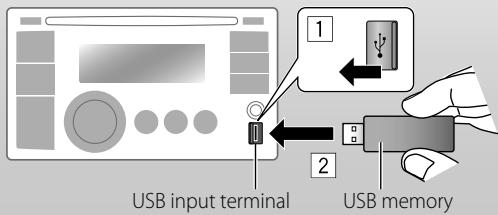
This unit can play MP3/WMA files stored on a USB mass storage class device.
You can connect a USB mass storage class device such as a USB memory, Digital Audio Player, etc. to the unit.
- You can also connect an Apple iPod/iPhone to the USB input terminal. For details of the operations, 22.


→ Turn on the power.

text_image
USB input terminal USB memoryAll tracks will be played repeatedly until you change the source or detach the USB device.
If you have turned off the power (without detaching the USB device)...
Pressing ⬇ SOURCE turns on the power and playback starts from where it has been stopped previously.
- If a different USB device is currently attached, playback starts from the beginning.
Stopping playback and detaching the USB device
Straightly pull it out from the unit.
"NO USB" appears. Press ⏻ SOURCE to listen to another playback source.
You can operate the USB device in the same way you operate the files on a disc. (10, 11)
Cautions:
- Avoid using the USB device if it might hinder your safety driving.
- Do not pull out and attach the USB device repeatedly while "READING" is shown on the display.
- Do not start the car engine if a USB device is connected.
- This unit may not be able to play the files depending on the type of USB device.
- Operation and power supply may not work as intended for some USB devices.
- You cannot connect a computer to the USB input terminal of the unit.
- Make sure all important data has been backed up to avoid losing the data.
- Do not leave a USB device in the car, expose to direct sunlight, or high temperature to avoid deformation or cause damages to the device.
- Some USB devices may not work immediately after attaching USB device or turn on the power.
- For more details about USB operations, 35, 36.
Using the Bluetooth ^® device
For Bluetooth operations, it is required to connect the Bluetooth adapter, KS-BTA200 (not supplied) to the expansion port on the rear of this unit.
- Refer to page 4 of the Installation/Connection Manual (separate volume) to check the countries where you may use the Bluetooth® function.
- For details, refer also to the instructions supplied with the Bluetooth adapter and the Bluetooth device.
To use a Bluetooth device through the unit ("BT-PHONE" and "BT-AUDIO") for the first time, you need to establish a Bluetooth wireless connection between the unit and the device.
- Once the connection is established, it is registered on the unit even if you reset your unit. Up to five devices can be registered in total.
- Only one device can be connected at a time for each source ("BT-PHONE" and "BT-AUDIO").
Registration (Pairing) methods
Use either of the following items ("OPEN" or "SEARCH") in the Bluetooth menu to register and make the unit ready to establish a new Bluetooth connection with a device.
"OPEN": Connection is established by operating the Bluetooth device.
"SEARCH": Connection is established by operating the unit.
Registering using "OPEN"
Preparation: Operate the device to turn on its Bluetooth function.
1

⇒ "BT-PHONE" or "BT-AUDIO"
2

text_image
Diagram showing hand press control buttons with left/right double and double arrow icons, ending with a dropdown button→ "NEW DEVICE" → "OPEN"
3
flowchart
graph LR
    A["Hand Click"] --> B["Button with double arrow"]
    B --> C["Arrow Up"]
    B --> D["Arrow Down"]
→ Enter a PIN (Personal Identification Number) code in to the unit.
You can enter any number you like (1-digit to 16-digit number).
[Initial: 0000]
- Some devices have their own PIN code. Enter the specified PIN code in to the unit.
4
Repeat step 3 until you have finished entering the PIN code.
5

"OPEN.." flashes.
6
Use the Bluetooth device to search and connect.
On the device to be connected, enter the same PIN code you have just entered for this unit. "CONNECTED" appears.
Now connection is established and you can use the device through the unit.
The device remains registered even after you disconnect the device. Use "CONNECT" (or activate "AUTO CNNCT") to connect the same device from next time on. (17)
Registering using "SEARCH/SPECIAL"
1

⇒ "BT-PHONE" or "BT-AUDIO"
2

text_image
Diagram showing hand press control buttons with directional arrows and dropdowns, indicating navigation or press function→ "NEW DEVICE"
3

text_image
Diagram showing hand press control buttons with double and double arrow icons, ending with a dropdown menu icon⇒ "SEARCH": To search for available devices
The unit searches and displays the list of the available devices. "UNFOUND" appears if no available device is detected.
---- or ----
⇒ "SPECIAL": To connect a special device
The unit displays the list of the preset devices.
4

text_image
Diagram showing hand press application on a device with control buttons and navigation arrows⇒ Select a device you want to connect.
5
For available devices...
→ Enter the specific PIN code of the device to the unit.
- Refer to the instructions supplied with the device to check the PIN code.
Use the Bluetooth device to connect.
Now connection is established and you can use the device through the unit.
For special device...
Use "OPEN" or "SEARCH" to connect.
Connecting/disconnecting/deleting a registered device
1
⇒ "BT-PHONE" or "BT-AUDIO"
2

text_image
Diagram showing hand press control buttons with left/right double and double arrow icons, ending with a right-click button→ Select a device you want to connect/disconnect/delete.
3

text_image
Diagram showing hand press application on a device with bidirectional and double-headed arrows indicating left/right movement→ "CONNECT" or "DISCONNECT": To connect/disconnect the selected device
---- or ----
⇒ "DELETE" ⇒ "YES": To delete the selected device
You can set the unit to connect the Bluetooth device automatically when the unit is turned on. ("AUTO CNNCT," 17)
Using a Bluetooth mobile phone

→ "BT-PHONE"
2

→ Bluetooth menu
3
Make a call or setting using the Bluetooth setting menu.
(17)
When a call comes in....
The source is automatically changed to "BT-PHONE."
- The display will flash in blue. (
When "AUTO ANSWER" is activated....
The unit answers the incoming calls automatically. (Q 17)
- When "AUTO ANSWER" is deactivated, press any button (except ⏻ SOURCE / ▲) to answer the incoming call.
- You can adjust the microphone volume level. (17)
To end the call
Hold any button (except ⏻ SOURCE / ▲).
When a text message comes in....
If the mobile phone is compatible with text message (notified through JVC Bluetooth adapter) and "MSG INFO" (message info) is set to "AUTOMATIC" (17), the unit rings to inform you of the message arrival.
- "RCV MESSAGE" (receiving message) appears and the display illuminate in blue. (
Making a call
1
→ "BT-PHONE"
2

3

text_image
Diagram showing hand press application on a device with control buttons and navigation arrows→ Select "DIAL" menu.
4

text_image
Diagram showing hand press control buttons with left/right double and double arrow icons, ending with a dropdown menu icon→ Select a calling method.
PHONE BOOK* ↔ MISSED* ↔
NUMBER ↔ VOICE DIAL ↔
REDIAL* ↔ RECEIVED* ↔ (back to the beginning)
* Displays only when your mobile phone is equipped with these functions and is compatible with this unit.
5 For REDIAL, RECEIVED, MISSED
→ Repeat step 4 to select a name (if it is acquired) or a phone number.
For PHONE BOOK
→ Repeat step 4 to select a name or a phone number.
For NUMBER
flowchart
graph TD
    A["Circle"] --> B["Rectangular Button"]
    B --> C["Arrow Left"]
    B --> D["Arrow Right"]
    B --> E["Arrow Down"]
→ Enter a phone number.
→ Confirm.
For VOICE DIAL
→ Speak the name you want to call when "SAY NAME" appears.
- If your mobile phone does not support the voice recognition system, "ERROR" appears.
- Using voice tags may be difficult in a noisy environment or during an emergency.
To return to the previous menu, press ▲.
Using the remote controller

▲U/D▼/ : Answers calls
◀R/F▶/SOURCE
▲U/D▼/
◀R/F▶/SOURCE
[Hold]
Using a Bluetooth audio player

⇒ "BT-AUDIO"
If playback does not start, operate the Bluetooth audio player to start playback. Operate the Bluetooth audio player to pause (if playback does not pause when you change the source).
Reverse skips/forward skips
Pauses/starts playback*
* Operation may be different according to the connected Bluetooth audio player.
Enter setting menu (Device list)
For connecting/disconnecting/deleting a registered device, 🔒 14.
Using the remote controller

◀R/F▶ : Reverse skips/forward skips
Changing the Bluetooth settings
1

⇒ "BT-PHONE" or "BT-AUDIO"
2
→ Bluetooth menu
3

text_image
Diagram showing hand press application on a device with double and double arrow icons, followed by a right-click button.→ "SETTINGS"
4

text_image
Diagram showing hand press application on a device with bidirectional and double-headed arrows indicating left/right movement→ Select a setting item.
AUTO CNNCT ↔ AUTO ANSWER*1
↔ MSG INFO*2 ↔ MIC SETTING*1
↔ VERSION*3 ↔ (back to the
beginning)
5

text_image
Diagram showing hand press application on a device with double and double arrow icons, followed by a right-click button.→ Change the setting accordingly. For setting menu, 🔒 17.
*1 Appears only when a Bluetooth phone is connected.
*2 Appears only when a Bluetooth phone is connected and it is compatible with text message (notified through JVC Bluetooth adapter).
*3 Bluetooth Audio: Shows only "Version."
Setting menu [Initial: Underlined]
When the unit is turned on, the connection is established automatically with...
OFF: No Bluetooth device.
LAST: The last connected Bluetooth device.
ORDER: The available registered Bluetooth device found at first.
AUTO ANSWER
Only for the device being connected for "BT-PHONE."
ON: The unit answers the incoming calls automatically.
OFF: The unit does not answer the calls automatically. Answer the calls manually.
REJECT: The unit rejects all incoming calls.
MSG INFO (message info)
Only for the device being connected for "BT-PHONE."
AUTOMATIC: The unit informs you of the arrival of a message by ringing and displaying "RCV MESSAGE" (receiving message).
- The display illuminate in blue. (
MANUAL: The unit does not inform you of the arrival of a message.
MIC SETTING (microphone setting)
Only for the device being connected for "BT-PHONE." Adjust microphone volume connected to the Bluetooth adapter, [LEVEL 01/02/03].
VERSION
The Bluetooth software and hardware versions are shown.
Warning messages
ERROR CNNCT (Error Connection)
The device is registered but the connection has failed. Use "CONNECT" to connect the device again. (14)
ERROR
Try the operation again. If "ERROR" appears again, check if the device supports the function you have tried.
UNFOUND
No available Bluetooth device is detected by "SEARCH."
LOADING\*
The unit is updating the phone book.
PLEASE WAIT
The unit is preparing to use the Bluetooth function. If the message does not disappear, turn off and turn on the unit, then connect the device again (or reset the unit).
RESET 8
Check the connection between the adapter and this unit.
* Displays only when your mobile phone is equipped with these functions and is compatible with this unit.
Bluetooth Information:
If you wish to receive more information about Bluetooth, visit the following JVC web site: http://www.jvc.co.jp/english/car/ (English website only)
Listening to the HD Radio™ Broadcast
Before operating, connect HD Radio tuner box, KT-HD300 (not supplied) to the expansion port on the rear of the unit.
- For details, refer also to the instructions supplied with the HD Radio tuner box.
What is HD Radio Technology?
HD Radio Technology can deliver high-quality digital sound—AM digital will have FM-like quality (in stereo) and FM digital will have CD-like quality—with static-free and clear reception. Furthermore, stations can offer text and data, such as artist names and song titles.
- When the HD Radio tuner box is connected, it can also receive conventional analog broadcasts.
- Many HD Radio stations also offer more than one channel of programming. This service is called multicasting.
- To find HD Radio stations in your area, visit http://www.hdradio.com/.
For basic radio operations, 7 – 9.
When receiving...
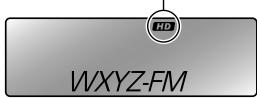
An HD Radio station
Lights up when digital audio is broadcast Flashes when analog audio is broadcast
text_image
HD WXYZ-FMStation Call Sign appears.
HD Radio multicast channels

text_image
HD WXYZ-HD1 Channel numberFirst four letters of Call Sign
Select your desired channel.
HD1 ⇌ HD2 ⇌ .... ⇌ HD8
↔ (back to the beginning)
"LINKING" appears while linking to a multicast channel.
Searching for HD Radio stations only
text_image
[Hold]"HD" flashes.
Using the remote controller

▲ U/D ▼ : Changes the preset stations
◀R/F▶ : Searches for stations
Changing HD Radio reception mode
While receiving an HD Radio broadcast, the unit receives digital or analog audio automatically due to the receiving condition.
While listening to an HD Radio station...
1
2

natural_image
Two circular buttons with arrows indicating rotation and transition, one pointing at the right (no text or symbols)
"HD" lights up when holding the digital reception or flashes when holding the analog reception.
- If no sound can be heard with
, change the setting to or . - The setting automatically changes to
if you tune in to or change to another station, or if you turn off the power. - This setting cannot take effect for the conventional FM/AM stations.
- If the radio station forces the reception mode to digital, the "HOLD" indicator flashes.
Changing the display information
Call Sign ^1 → Frequency → Title/artist/album name of the current segment ^2 → Clock → (back to the beginning)
*1 "****-FM" or "****" appears when no Call Sign is received.
*2 "NO TEXT" appears when no text is received.
Listening to the satellite radio
Before operating, connect either one of the following systems (not supplied) to the expansion port on the rear of this unit.
For listening to a SIRIUS Satellite radio:
• SC-C1 and KS-SRA100
• PnP, SC-VDOC1 and KS-SRA100
For listening to an XM Satellite radio:
• JVC Smart Digital Adapter (XMDJVC100)
• CNP2000UC and CNPJVC1
- For details, refer also to the instructions supplied with the other components.
GCI (Global Control Information) update
- If channels are updated after subscription, updating starts automatically. "UPDATING" flashes and no sound can be heard.
- Update takes a few minutes to complete.
- During update, you cannot operate your satellite radio
1

⇒ "SIRIUS" or "XM"
2
→ Select a category.
SIRIUS: If you select "ALL," you can tune in to all the channels of all categories.
3
⇒ Select a channel to listen.
Holding the button changes the channels rapidly.
While searching, invalid and unsubscribed channels are skipped.
XM: If you do not select a channel within 15 seconds, category selected in step ②
is canceled. You can select all channels of all categories now (including non-categorised channels).
Activate your SIRIUS subscription after connection
1

→ "SIRIUS"
SIRIUS Satellite radio starts updating all the SIRIUS channels. Once completed, SIRIUS Satellite radio tunes in to the preset channel, CH184.
2
Check your SIRIUS ID. (27)
3
Contact SIRIUS on the internet at http://activate.siriusradio.com/ to activate your subscription, or you can call SIRIUS toll-free at 1-888-539-SIRIUS (7474).
- "SUB UPDT PRESS ANY KEY" scrolls on the display once subscription has been completed.
Activate your XM subscription after connection
- Only Channel 0, 1, and 247 are available before activation.
1

→ "XM"
XMDirect™ Tuner Box or XMDirect2 Tuner System starts updating all the XM channels. "Channel 1" is tuned in automatically.
2
Check your XM Satellite radio ID labelled on the casing of the XMDirect™ Tuner Box or XMDirect2 Tuner System, or tune in to "Channel 0". (21)
3
Contact XM Satellite radio on the internet at http://xmradio.com/activation/ to activate your subscription, or you can call 1-800-XM-RADIO (1-800-967-2346).
- Once completed, the unit tunes in to one of the available channels (Channel 4 or higher).
Storing channels in memory
You can preset up to 18 channels for both SIRIUS and XM.
Ex.: Storing channel into preset number "04."
1 Tune in to a channel you want to store. (Steps ① – ③, 📄 20.)
2
"PRESET MODE" flashes.
3
flowchart
graph LR
    A["Start"] --> B["Process Step"]
    B --> C["Button"]
⇒ Select preset number "04." "P04" flashes.
Selecting SIRIUS/XM preset station
1

2
flowchart
graph LR
    A["Start"] --> B["Process Step"]
    B --> C["Button"]
Checking the satellite radio ID
While selecting "SIRIUS" or "XM"...
→ Select "Channel 0."
SIRIUS: SIRIUS identification number is displayed after "Channel 0" is selected.
XM: The display alternately shows "RADIO ID" and the 8-digit (alphanumeric) ID number.
To cancel the ID number display, select any channel other than "Channel 0."
Changing the display information
Category name → Channel name → Artist name → Composer name * → Song/program name/title → Clock → (back to the beginning)
* Only for SIRIUS Satellite radio.
Using the remote controller
 | ▲U/D▼: Changes the categories |
| ◀R/F▶: Changes the channels | |
| ◀R/F▶: Changes the channels rapidly [Hold] |
Listening to the iPod/iPhone
You can connect the iPod/iPhone using the USB 2.0 cable (accessory of the iPod/iPhone) to the USB input terminal on the control panel.
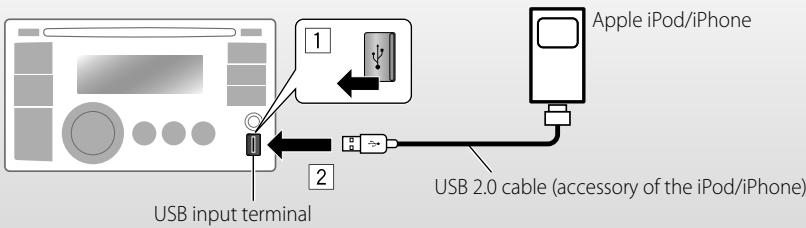
text_image
USB input terminal 1 2 Apple iPod/iPhone USB 2.0 cable (accessory of the iPod/iPhone)There are two control terminals:
- Control by this unit.
Control by the connected iPod/iPhone.
Preparation: Select the controlling terminal,
or
- Press and hold BACK button.
- Make the selection from
setting, 30.
The operations explained below are under
.
→ "USB-IPOD"
Playback starts automatically.


→ Select a song.
Caution:
- Avoid using the iPod/iPhone if it might hinder your safety while driving.
- Make sure all important data has been backed up to avoid losing the data.
- Disconnecting the iPod/iPhone will stop playback. Press Ⓧ SOURCE to listen to another playback source.
- For details, refer also to the instructions supplied with your iPod/iPhone.

Pauses or resumes playback
Selects track
text_image
[Hold]Fast-forwards or reverses the track
Selecting a track from the menu
1

2
natural_image
Diagram showing a circular button being pushed to a square button with a hand cursor (no text or symbols)→ Select the desired menu.
PLAYLISTS ↔ ARTISTS ↔ ALBUMS
↔ SONGS ↔ PODCASTS ↔
GENRES ↔ COMPOSERS ↔
AUDIOBOOKS ↔ (back to the
beginning)
3
natural_image
Diagram showing a circular button being pushed to a square button with a hand cursor (no text or symbols)→ Select the desired track.
Repeat this procedure until the desired track is selected.
- If the selected menu contains many tracks, you can fast search (±10, ±100, ±1000) through the menu by turning the control dial quickly.
- To return to the previous menu, press BACK.
Using the remote controller

◀R/F▶
Selects track
Fast-forwards or reverses the track
◀R/F▶
Notice:
When operating an iPod, some operations may not be performed correctly or as intended. In this case, visit the following JVC web site: http://www.jvc.co.jp/english/car/ (English website only)
Selecting the playback modes
1

⇒ "REPEAT" or "RANDOM"
- Pressing and holding the control dial will enter the playback mode menu. Turn the control dial to make a selection (REPEAT or RANDOM), then press to confirm.
2
natural_image
Diagram showing a circular button being pushed to a square button, with a hand cursor pointing at the button (no text or symbols present)REPEAT
ONE RPT : Functions the same as "Repeat One" of the iPod
ALL RPT : Functions the same as "Repeat All" of the iPod
ALBUM RND : Functions the same as "Shuffle Albums" of the iPod
SONG RND : Functions the same as "Shuffle Songs" of the iPod
RANDOM
- To cancel repeat play or random play, select "RPT OFF" or "RND OFF."
- "ALBUM RND" is not available for some iPod.
- To return to the previous menu, press BACK.
Changing the display information
Album name/performer → Track title → Current track number with the elapsed playing time → Current track number with the clock time → (back to the beginning)
Listening to the other external components
You can connect an external component to:
- EXT INPUT: Expansion port on the rear of this unit using the following adapters (not supplied):
-KS-U57, Line Input Adapter
-KS-U58, AUX Input Adapter
Preparation: Make sure

- AUX IN: AUX (auxiliary) input jack on the control panel.
Preparation: Make sure

For details, refer also to the instructions supplied with the adapter or external components.

→ "EXT INPUT" or "AUX IN"

Turn on the connected component and start playing the source.


→ Adjust the volume.

Adjust the sound as you want. (Q 25)
Connecting an external component to the AUX input jack
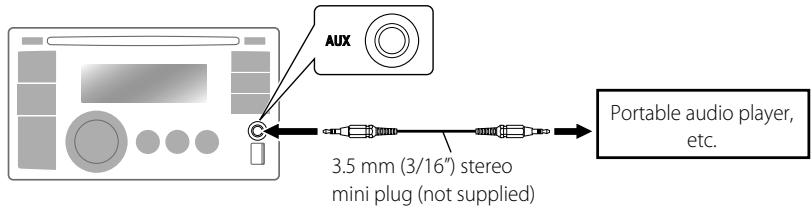
text_image
AUX 3.5 mm (3/16") stereo mini plug (not supplied) Portable audio player, etc.Selecting a preset sound mode
You can select a preset sound mode suitable for the music genre.
FLAT → NATURAL → DYNAMIC → VOCAL BOOST → BASS BOOST → USER → (back to the beginning)
While listening, you can adjust the tone level of the selected sound mode.
1
2

natural_image
Diagram showing a circular button being pushed to a circular button with a hand cursor (no text or symbols)Adjust the level (-06 to +06) of the selected tone (BASS / MID / TRE). The sound mode is automatically stored and changed to "USER."
Storing your own sound mode
You can store your own adjustments in memory.
1
2

natural_image
Diagram showing a circular button being pushed to a square button with a hand cursor (no text or symbols)
3

flowchart
graph LR
    A["Circle"] --> B["Rectangular Process"]
    style A fill:#f9f,stroke:#333
    style B fill:#bbf,stroke:#333
Adjust the sound elements of the selected tone.
Tone : BASS
Frequency : 60 Hz, 80 Hz, 100 Hz, 200 Hz
Level: -06 to +06
Q: Q1.0, Q1.25, Q1.5, Q2.0
Tone : MIDDLE
Frequency : 0.5 kHz, 1.0 kHz, 1.5 kHz, 2.5 kHz
Level: -06 to +06
Q: Q0.75, Q1.0, Q1.25
Tone : TREBLE
Frequency : 10.0 kHz, 12.5 kHz, 15.0 kHz, 17.5 kHz
Level: -06 to +06
Q: Q FIX
4
Repeat steps 2 and 3 to adjust other tones.
The adjustments made will be stored automatically in "USER."
The current sound mode changes to "USER" automatically.
Menu operations
1

2
flowchart
graph LR
    A["Start"] --> B["Process Step"]
    B --> C["Button"]
3
Repeat step 2 if necessary.
• To return to the previous menu, press BACK.
- To exit from the menu, press DISP or MENU.
| Category | Menu item | Selectable setting, [ Initial: Underlined ] | |
| DEMO Display demonstration | • DEMO ON | : Display demonstration will be activated automatically if no operation is done for about 20 seconds. | |
| • DEMO OFF | : Cancels. ( 🔒 4) | ||
| CLOCK | CLOCK SET Clock setting | —[1:00] | : Adjust the hour, then the minute. ( 🔒 4) |
| CLOCK ADJ *1Clock adjustment | • AUTO | : The built-in clock is automatically adjusted using the clock data provided via the satellite radio channel. | |
| • OFF | : Cancels. | ||
| TIME ZONE *1, *2 | EASTERN, ATLANTIC, NEWFOUND, ALASKA, PACIFIC, MOUNTAIN, CENTRAL | : Select your residential area from one of the time zones for clock adjustment. | |
| DST *1, *2Daylight savings time | • DST ON | : Activates daylight savings time if your residential area is subject to DST. | |
| • DST OFF | : Cancels. | ||
| PRO EQ | BASS | : For settings, 🔒 25. | |
| MIDDLE | |||
| TREBLE | |||
*1 Displayed only when SIRIUS Satellite radio or XM Satellite radio is connected.
*2 Displayed only when
| Category | Menu item | Selectable setting, [ Initial: Underlined ] |
| DISPLAY | DIMMER | DIMMER AUTO : Dims the display when you turn on the headlights. *3DIMMER ON : Dims the display and button illumination.DIMMER OFF : Cancels. |
| SCROLL^*4 | SCROLL ONCE : Scrolls the displayed information once.Scroll AUTO : Repeats scrolling (at 5-second intervals).SCROLL OFF : Cancels.Pressing DISP for more than one second can scroll the display regardless of the setting. | |
| TAG DISPLAY | TAG ON : Shows the Tag information while playing MP3/WMA tracks.TAG OFF : Cancels. | |
| TUNER | SSM*5Strong-station Sequential Memory | SSM 01 – 06*6 : For settings,8.SSM 07 – 12SSM 13 – 18 |
| AREATuner channel interval | AREA US : When using in North/Central/South America.AM/FM intervals are set to 10 kHz/200 kHz.AREA EU : When using in any other areas. AM/FM intervals are set to 9 kHz/50 kHz (100 kHz during auto search).AREA SA : When using in South American countries where FM interval is 100 kHz. AM interval is set to 10 kHz. | |
| MONO*5Monaural mode | MONO ON : Activate monaural mode to improve FM reception, but stereo effect will be lost. (8)MONO OFF : Restore the stereo effect. | |
| SID*7SIRIUS ID | : Your SIRIUS identification number scrolls on the display 5 seconds after “SID” is selected. (20)If no operation is done for about 60 seconds, the unit returns to playback mode. |
*3 The illumination control lead connection is required. (See "Installation/Connection Manual.") This setting may not work correctly on some vehicles (particularly on those having a control dial for dimming). In this case, change the setting to any other than
*4 Some characters or symbols will not be shown correctly (or will be blanked) on the display.
*5 Displayed only when the source is "FM" or "HD Radio."
*6 If an HD Radio tuner box is connected, you can also search and store the AM stations to
*7 Displayed only when SIRIUS Satellite radio is connected.
| Category | Menu item | Selectable setting, [ Initial: Underlined ] | |
| TUNER | BLEND HOLD*8HD Radio reception mode | AUTO | : Switch between digital and analog audio automatically. (19) |
| DIGITAL | : Tune in to digital audio only. | ||
| ANALOG | : Tune in to analog audio only. | ||
| IF BAND Intermediate frequency band | AUTO | : Increases the tuner selectivity to reduce interference noises between adjacent stations. (Stereo effect may be lost.) | |
| WIDE | : Subject to interference noises from adjacent stations, but sound quality will not be degraded and the stereo effect will remain. | ||
| COLOR | BUTTON ZONE | COLOR 01 — COLOR 29, USER | : For settings,31. [ COLOR 06 ] |
| DISP ZONE Display zone | : For settings,31. [ COLOR 01 ] | ||
| ALL ZONE | : For settings,31. [ COLOR 06 ] | ||
| COLOR SETUP | DAY COLOR | BUTTON ZONE | : For settings,32. |
| NIGHT COLOR | DISP ZONE | ||
| MENU COLOR | ON | : Changes the display and buttons (except for ▲/ DISP ) illumination during menu, list search and playback mode operations. | |
| OFF | : The display and buttons illuminate in the color that you have set. | ||
| RING COLOR*9 | ON | : When a call comes in, the display will flash in blue. | |
| : The display will change to the original color when the call is answered or the incoming call stops. | |||
| When the unit receives a text message, the display only illuminate in blue. | |||
| OFF | : Cancels. | ||
*8 Displayed only when HD Radio tuner box is connected.
*9 Displayed only when Bluetooth adapter, KS-BTA200 is connected.
| Category | Menu item | Selectable setting, [ Initial: Underlined ] | |
| AUDIO | FADER*10 | R06 - F06[00] | : Adjust the front and rear speaker output balance. |
| BALANCE*11 | L06 - R06[00] | : Adjust the left and right speaker output balance. | |
| LOUD Loudness | ·LOUD ON·LOUD OFF | : Boost low and high frequencies to produce a well-balanced sound at a low volume level. : Cancels. | |
| VOL ADJUST Volume adjust | VOL ADJ -05 — VOL ADJ +05[VOL ADJ 00] | : Preset the volume adjustment level of each source (except FM), compared to the FM volume level. The volume level will automatically increase or decrease when you change the source.· Before making an adjustment, select the source you want to adjust.· "VOL ADJ FIX" appears on the display if "FM" is selected as the source. | |
| L/O MODE Line output mode | ·SUB.W·REAR | : Select if the REAR LINE OUT terminals are used for connecting a subwoofer (through an external amplifier).: Select if the REAR LINE OUT terminals are used for connecting the speakers (through an external amplifier). | |
| SUB.W FREQ*12 Subwoofer cutoff frequency | ·LOW·MID·HIGH | : Frequencies lower than 72 Hz are sent to the subwoofer. : Frequencies lower than 111 Hz are sent to the subwoofer. : Frequencies lower than 157 Hz are sent to the subwoofer. | |
| SUB.W LEVEL*12 Subwoofer level | SUB.W 00 — SUB.W 08[SUB.W 04] | : Adjust the subwoofer output level. | |
*10 If you are using a two-speaker system, set the fader level to "00."
*11 This adjustment will not affect the subwoofer output.
*12 Displayed only when
| Category | Menu item | Selectable setting, [ Initial: Underlined ] | |
| AUDIO | BEEPKeytouch tone | ·BEEP ON·BEEP OFF | : Activates the keypress tone.: Deactivates the keypress tone. |
| AMP GAIN*13Amplifier gain control | ·LOW POWER·HIGH POWER | : VOLUME 00 – VOLUME 30 (Select if the maximum power of each speaker is less than 50 W to prevent damaging the speakers.) : VOLUME 00 – VOLUME 50 | |
| SRC SELECT | AM*14AM station | ·AM ON·AM OFF | : Enable “AM” in source selection.: Disable “AM” in source selection. |
| EXT IN*15External input | ·EXT ON·EXT OFF | : Enable “EXT IN” in source selection.: Disable “EXT IN” in source selection. | |
| AUX IN*16Auxiliary input | ·AUX ON·AUX OFF | : Enable “AUX IN” in source selection.: Disable “AUX IN” in source selection. | |
| AUDIOBOOKS*17Speed control of the Audiobooks | ·NORMAL·FASTER·SLOWER | : You can select the playback speed of the Audiobooks sound file in your iPod/iPhone.·Initial selected item depends on your iPod/ iPhone setting. | |
| IPOD SWITCH*18iPod/iPhone control | ·HEAD MODE·IPOD MODE | : Controls iPod playback through the unit.: Controls iPod playback through the iPod/ iPhone. | |
*13 The volume level automatically changes to "VOLUME 30" if you change to
*14 Displayed only when any source other than "AM" is selected.
*15 Displayed only when any source other than "EXT IN" is selected.
*16 Displayed only when any source other than "AUX IN" is selected.
*17 Displayed only when "USB-IPOD" is selected as the source, and functions only when
*18 Displayed only when "USB-IPOD" is selected as the source. Settings can be made only if
Selecting the variable buttons and display color illumination
You can select your preferred color for buttons illumination (except for ▲ / DISP) and display color separately.
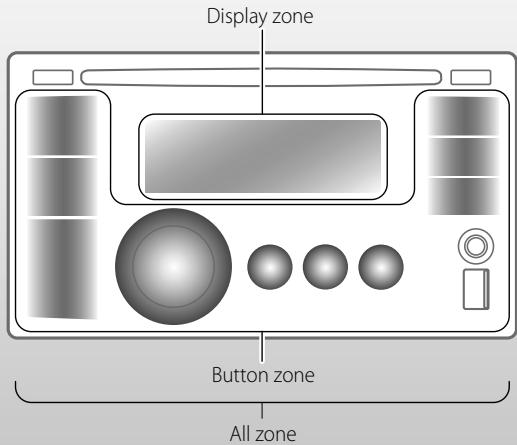
text_image
Display zone Button zone All zone1

[Hold]
or
2
flowchart
graph LR
    A["Start"] --> B["Process Step"]
    B --> C["Button"]
- Pressing COLOR in step 1 will enter zone selection menu (BUTTON ZONE / DISP ZONE / ALL ZONE) directly.
3
natural_image
Two circular buttons with arrows indicating rotation and transition, one pointing at the right (no text or symbols)⇒ Select your preferred color from one of the 29 preset colors or
4 Repeat steps 2 and 3 to select a different zone and your preferred color.
- If
5
or
→ Exit from the setting.
Creating your own day and night colors—USER
You can create your own colors for
Displayed when is set to .
•Displayed when is set to .
| Menu hierarchy | Operation | ||
| COLOR SETUP | DAY COLOR | • BUTTON ZONE | Follow example below. |
| • DISP ZONE | Press BACK after step 5, then select DISP ZONE in step 2. | ||
| NIGHT COLOR | • BUTTON ZONE | Press BACK twice after step 5, then select NIGHT COLOR in step 2. | |
| • DISP ZONE | |||
Ex.: Creating
1

text_image
MENU [Hold] or COLOR [Hold]2
flowchart
graph LR
    A["Input"] --> B["Transformation"]
    B --> C["Output"]
⇒
→
- Pressing COLOR in step 1 will enter zone selection menu (BUTTON ZONE / DISP ZONE) directly.
3
flowchart
graph LR
    A["Input"] --> B["Transformation"]
    B --> C["Output"]
→ Select a primary color.
RED ↔ GREEN ↔ BLUE ↔ (back to the beginning)
4
natural_image
Two circular buttons with arrows indicating rotation and transition, one pointing at the right (no text or symbols)→ Adjust the level of the selected primary color.
00 to 31
5
Repeat steps 3 and 4 to adjust other primary colors.
6
text_image
DISP or COLOR→ Exit from the setting.
If "00" is selected for all the primary colors (as in step 4) for
Moisture condensation
Moisture may condense on the lens inside the unit in the following cases:
• After starting the heater in the car.
• If it becomes very humid inside the car.
Should this occur, the unit may malfunction. In this case, eject the disc and leave the unit turned on for a few hours until the moisture has evaporated.
How to handle discs
When removing a disc
from its case, press down the center holder of the case and lift the disc out, holding it by the edges.
Center holder
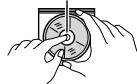
• Always hold the disc by the edges. Do not touch its recording surface.
When storing a disc in its case, gently insert the disc around the center holder (with the printed surface facing up).
- Make sure to store discs in cases after use.
To keep discs clean
A dirty disc may not play correctly. If a disc does become dirty, wipe it with a soft cloth in a straight line from center to edge.
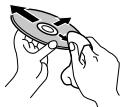
- Do not use any solvents (for example, conventional record cleaner, spray, thinner, benzine, etc.) to clean discs.
To play new discs
New discs may have some rough spots around the inner and outer edges. If such a disc is used, this unit may reject the disc.
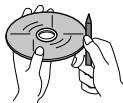
To remove these rough spots, rub the edges with a pencil or ball-point pen, etc.
Do not use the following discs:
Single CD—8 cm (3-3/16") disc | Warped disc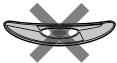 |
Sticker and sticker residue | Stick-on label |
Unusual shape | C-thru Disc (semitransparent disc) |
Transparent or semitransparent parts on its recording area |
Basic operations
General
- If you turn off the power while listening to a track, playback will start from where it had been stopped previously next time you turn on the power.
- If no operation is done for about 60 seconds after pressing MENU button, the operation will be canceled.
Tuner operations
Storing stations in memory
- During SSM search...
- All previously stored stations are erased and the stations are stored anew.
- When SSM is over, the station stored in the lowest preset number will be automatically tuned in.
- When storing a station manually, the previously preset station is erased when a new station is stored in the same preset number.
Disc/USB operations
Caution for DualDisc playback
- The Non-DVD side of a "DualDisc" does not comply with the "Compact Disc Digital Audio" standard. Therefore, the use of Non-DVD side of a DualDisc on this product may not be recommended.
General
- This unit has been designed to reproduce CDs/CD Texts, and CD-Rs (Recordable)/CD-RWs (Rewritable) in audio CD (CD-DA), MP3 and WMA formats.
- If you change the source while listening to a disc, playback stops. Next time you select "CD" as the playback source, playback will start from where it had been stopped previously.
-
When a disc is inserted upside down, "PLEASE" and "EJECT" appear alternately on the display. Press ▲ to eject the disc.
-
If the ejected disc is not removed within 15 seconds, it is automatically inserted into the loading slot again to protect it from dust. Playback starts automatically.
- MP3 and WMA "tracks" (words "file" and "track" are used interchangeably) are recorded in "folders."
- While fast-forwarding or reversing on an MP3 or WMA disc, you can only hear intermittent sounds.
Playing a CD-R or CD-RW
- Use only "finalized" CD-Rs or CD-RWs.
- This unit can only play back files of the same type as those detected first if a disc includes both audio CD (CD-DA) files and MP3/WMA files.
- This unit can play back multi-session discs; however, unclosed sessions will be skipped while playing.
- Some CD-Rs or CD-RWs may not play back on this unit because of their disc characteristics, or for the following reasons:
–Discs are dirty or scratched.
–Moisture condensation has occurred on the lens inside the unit.
–The pickup lens inside the unit is dirty.
–The files on the CD-R/CD-RW are written using the "Packet Write" method.
–There are improper recording conditions (missing data, etc.) or media conditions (stained, scratched, warped, etc.). - CD-RWs may require a longer readout time since the reflectance of CD-RWs is lower than that of regular CDs.
- Do not use the following CD-Rs or CD-RWs:
- Discs with stickers, labels, or a protective seal stuck to the surface.
- Discs on which labels can be directly printed by an ink jet printer.
Using these discs under high temperature or high humidity may cause malfunctions or damage to the unit.
Playing an MP3/WMA disc
- This unit can play back MP3/WMA files with the extension code <.mp3> or <.wma> (regardless of the letter case—upper/lower).
- This unit can show the names of albums, artists (performer), and Tag (Version 1.0, 1.1, 2.2, 2.3, or 2.4) for MP3 files and for WMA files.
- This unit can display only one-byte characters. No other characters can be correctly displayed.
- This unit can play back MP3/WMA files meeting the conditions below:
-Bit rate of MP3/WMA: 32 kbps — 320 kbps
–Sampling frequency of MP3: 32 kHz, 44.1 kHz, 48 kHz (for MPEG-1) 16 kHz, 22.05 kHz, 24 kHz (for MPEG-2)
–Sampling frequency of WMA: 22.05 kHz, 32 kHz, 44.1 kHz, 48 kHz
–Disc format: ISO 9660 Level 1/Level 2, Romeo, Joliet, Windows extension
- The maximum number of characters for file/folder names vary depending on the disc format used (includes 4 extension characters—<.mp3> or <.wma>).
–ISO 9660 Level 1: up to 12 characters
–ISO 9660 Level 2: up to 31 characters
–Romeo: up to 64 characters
–Joliet: up to 32 characters
- Windows extension: up to 64 characters
- This unit can recognize a total of 512 files, 255 folders, and 8 hierarchical levels.
- This unit can play back files recorded in VBR (variable bit rate).
Files recorded in VBR have a discrepancy in the elapsed time display, and do not show the actual elapsed time. In particular, this difference becomes noticeable after performing the search function.
- This unit cannot play back the following files:
-MP3 files encoded in MP3i and MP3 PRO format.
-MP3 files encoded in an inappropriate format.
-MP3 files encoded with Layer 1/2.
–WMA files encoded in lossless, professional, and voice format.
–WMA files which are not based upon Windows Media® Audio.
–WMA files copy-protected with DRM.
-Files which have data such as AIFF, ATRAC3, etc.
- The search function works but search speed is not constant.
Playing MP3/WMA tracks from a USB device
- While playing from a USB device, the playback order may differ from other players.
- This unit may be unable to play back some USB devices or some files due to their characteristics or recording conditions.
- Depending on the shape of the USB devices and connection ports, some USB devices may not be attached properly or the connection might be loose.
- Connect one USB mass storage class device to the unit at a time. Do not use a USB hub.
- If the connected USB device does not have the correct files, "CANNOT PLAY" appears.
- This unit can show Tag (Version 1.0, 1.1, 2.2, 2.3, or 2.4) for MP3 files and for WMA files.
- This unit can play back MP3/WMA files meeting the conditions below:
-Bit rate of MP3/WMA: 32 kbps — 320 kbps
–Sampling frequency of MP3: 32 kHz, 44.1 kHz, 48 kHz (for MPEG-1) 16 kHz, 22.05 kHz, 24 kHz (for MPEG-2)
–Sampling frequency of WMA: 22.05 kHz, 32 kHz, 44.1 kHz, 48 kHz
- This unit can play back MP3 files recorded in VBR (variable bit rate).
• The maximum number of characters for:
–Folder names : 32 characters
-File names: 32 characters
-MP3 Tag : 64 characters
-WMA Tag : 32 characters
- This unit can recognize a total of 5 000 files, 255 folders (255 files per folder including folder without unsupported files), and of 8 hierarchies.
- This unit does not support SD card reader.
- This unit cannot recognize a USB device whose rating is other than 5 V and exceeds 500 mA.
- USB devices equipped with special functions such as data security functions cannot be used with the unit.
- Do not use a USB device with 2 or more partitions.
- This unit may not recognize a USB device connected through a USB card reader.
- This unit may not play back files in a USB device properly when using a USB extension cord.
- This unit cannot play back the following files:
-MP3 files encoded in MP3i and MP3 PRO format.
-MP3 files encoded in an inappropriate format.
-MP3 files encoded with Layer 1/2.
–WMA files encoded in lossless, professional, and voice format.
–WMA files which are not based upon Windows Media® Audio.
Bluetooth operations
- While driving, do not perform complicated operation such as dialing the numbers, using phonebook, etc. When you perform these operations, stop your car in a safe place.
- Some Bluetooth devices may not be connected to this unit depending on the Bluetooth version of the device.
- This unit may not work for some Bluetooth devices.
- Connecting condition may vary depending on the circumstances around you.
- When the unit is turned off, the device is disconnected.
HD Radio reception
• HD Radio broadcasting can normally be received in the USA, and it may also be received in countries where limited broadcasting has already begun.
- During SSM search... - All stations including conventional FM/AM stations are searched and stored for the selected band.
Satellite radio
- To know more about SIRIUS Satellite radio or to sign up, visit http://www.sirius.com.
- For the latest channel listings and programming information, or to sign up for XM Satellite radio, visit http://www.xmradio.com.
iPod/iPhone operations
- You can control the following types of iPods/ iPhone:
- iPod with video (5th Generation)*
- iPod classic
- iPod nano (1st Generation)*
– iPod nano (2nd, 3rd, 4th, 5th Generation) - iPod touch
- iPod touch (2nd Generation)
- iPhone/iPhone 3G/iPhone 3GS
*
- It is not possible to browse video files on the "Videos" menu in
.- If the iPod does not play correctly, please update your iPod software to the latest version. For details about updating your iPod, visit http://www.apple.com.
- When you turn on this unit, the iPod is charged through this unit.
- iPod shuffle cannot be used with this unit.
- The song order displayed on the selection menu of this unit may differ from that of the iPod.
- The text information may not be displayed correctly (eg. accented letters).
- If the text information includes more than 11 characters, it scrolls on the display. This unit can display up to 64 characters.
JVC bears no responsibility for any loss of data in an iPod/iPhone and/or USB mass storage class device while using this System.
Troubleshooting
| Symptom | Remedy/Cause | |
| General | Sound cannot be heard from the speakers. | Adjust the volume to the optimum level.Make sure the unit is not muted/paused (6, 7).Check the cords and connections. |
| "PROTECT" appears on the display and no operations can be done. | Check to be sure the terminals of the speaker leads are covered with insulating tape properly, then reset the unit (3).If "PROTECT" does not disappear, consult your JVC car audio dealer or a company supplying kits. | |
| The unit does not work at all. | Reset the unit. (3) | |
| "EXT INPUT" or "AUX IN" cannot be selected. | Check the→setting. (30) | |
| Nothing appear on the display. | Check thecolor settings (32). | |
| FM/AM | SSM automatic presetting does not work. | Store stations manually. |
| Static noise while listening to the radio. | Connect the antenna firmly. | |
| "AM" cannot be selected. | Check the→setting. (30) | |
| Disc playback | Disc cannot be played back. | Insert the disc correctly. |
| CD-R/CD-RW cannot be played back.Tracks on the CD-R/CD-RW cannot be skipped. | Insert a finalized CD-R/CD-RW.Finalize the CD-R/CD-RW with the component which you used for recording. | |
| Disc can neither be played back nor ejected. | Unlock the disc. (10)Eject the disc forcibly. (3) | |
| Disc sound is sometimes interrupted. | Stop playback while driving on rough roads.Change the disc.Check the cords and connections. | |
| "NO DISC" appears on the display. | Insert a playable disc into the loading slot. | |
| "PLEASE" and "EJECT" appear alternately on the display. | Press▲, then insert a disc correctly. | |
| MP3/WMA playback | Disc cannot be played back. | · Use a disc with MP3/WMA tracks recorded in a format compliant with ISO 9660 Level 1, Level 2, Romeo, or Joliet.· Add the extension code <.mp3> or <.wma> to the file names. |
| Noise is generated. | Skip to another track or change the disc. (Do not add the extension code <.mp3> or <.wma> to non-MP3 or WMA tracks.) | |
| A longer readout time is required ("READING" keeps flashing on the display). | Do not use too many hierarchical levels and folders. | |
| Tracks do not play back in the order you have intended them to play. | The playback order is determined when the files are recorded. | |
| The elapsed playing time is not correct. | This sometimes occurs during playback. This is caused by how the tracks are recorded on the disc. | |
| "NO FILE" appears on the display. | Selected folder is an empty folder*1. Select another folder that contains MP3/WMA tracks. | |
| "NOT SUPPORT" appears on the display and track skips. | Skip to the next track encoded in an appropriate format or to the next non-copy-protected WMA track. | |
| The correct characters are not displayed (e.g. album name). | This unit can only display letters (upper case), numbers, and a limited number of symbols. (9) | |
| USB device playback | Noise is generated. | The track played back is not an MP3/WMA track. Skip to another file. (Do not add the extension code <.mp3> or <.wma> to non-MP3 or WMA tracks.) |
| "READING" keeps flashing on the display. | · Readout time varies depending on the USB device.· Do not use too many hierarchy or folders.· Turn off the power then on again.· Reattach the USB device again. | |
| "NO FILE" appears on the display. | Check whether the selected folder, the connected USB device, or the iPod/iPhone contains a playable file. | |
| "NOT SUPPORT" appears on the display and track skips. | Skip to the next track encoded in an appropriate format or to the next non-copy-protected WMA track. | |
| Tracks/folders are not played back in the order you have intended. | The playback order is determined by the write-in time stamp. The first track/folder written into the USB device will be the first track/folder for playback. |
*1 Folder that is physically empty or folder that contains data but does not contain valid MP3/WMA track.
| Symptom | Remedy/Cause | |
| USB device playback | “CANNOT PLAY” flashes on the display.“NO USB” appears on the display.The unit cannot detect the USB device. | Attach a USB device that contains tracks encoded in an appropriate format.Reattach the USB device again. |
| While playing a track, sound is sometimes interrupted. | The MP3/WMA tracks have not been properly copied into the USB device.Copy MP3/WMA tracks again into the USB device, and try again. | |
| Correct characters are not displayed (e.g. album name). | This unit can only display letters (upper case), numbers, and a limited number of symbols.(9) | |
| Bluetooth*2 | Bluetooth device does not detect the unit. | The unit can be connected with one Bluetooth mobile phone and one Bluetooth audio device at a time.While connecting a device, this unit cannot be detected from another device.Disconnect currently connected device and search again. |
| The unit does not detect the Bluetooth device. | Check the Bluetooth setting of the device.Search from the Bluetooth device. After the device detects the unit, select “OPEN” on the unit to connect the device.(13) | |
| The unit does not make pairing with the Bluetooth device. | Enter the same PIN code for both the unit and target device.Select the device name from “SPECIAL,” then try to connect again.(14)Try to pair/connect from the Bluetooth device. | |
| Echo or noise occurs. | Adjust the microphone unit position. | |
| Phone sound quality is poor. | Reduce the distance between the unit and the Bluetooth mobile phone.Move the car to a place where you can get a better signal reception. | |
| The connected audio device cannot be controlled. | Check whether the connected audio device supports AVRCP (Audio/Video Remote Control Profile). | |
| The sound is interrupted or skipped during playback of a Bluetooth audio device. | Reduce the distance between the unit and the Bluetooth audio device.Disconnect the device connected for “BT-PHONE.”Turn off, then turn on the unit.Connect the Bluetooth audio device again, when the sound is not yet restored. |
*2 For Bluetooth operations, refer also to the instructions supplied with the Bluetooth Adapter.
| Symptom | Remedy/Cause | |
| HD Radio reception | Sound quality changes when receiving HD Radio stations. | Fix the reception mode either toor.(19, 28) |
| No sound can be heard. | •is selected when receiving all digital broadcast of HD Radio station. Selector.(19, 28)•is selected when receiving weak digital signals or receiving conventional radio broadcast. Selector.(19, 28) | |
| “RESET 8” appears on the display. | Reconnect this unit and the HD Radio tuner box correctly, then reset the unit. | |
| Satellite Radio | “CALL 1-888-539-SIRIUS TO SUBSCRIBE” scrolls on the display while listening to the SIRIUS Satellite radio. | Starts subscribing to SIRIUS Satellite radio.(20) |
| No sound can be heard.“UPDATING” appears on the display. | The unit is updating the channel information and it takes a few minutes to complete. | |
| “ACQUIRING” or “NO SIGNAL” appears on the display. | Move to an area where signals are stronger. | |
| “NO ANTENNA” or “ANTENNA” appears on the display. | Connect the antenna firmly. | |
| “NO CHANNEL” appears on the display for about 5 seconds, then returns to the previous channel or default channel while listening to the SIRIUS Satellite radio. | No broadcast on the selected channel.Select another channel or continue listening to the previous channel or default channel. | |
| Blank display appears. | No text information for the selected channel. | |
| “CH---” or “CH UNAVAIL” appears on the display for about 2 seconds, then returns to the previous channel while listening to the XM Satellite radio. | Selected channel is no longer available or is unauthorized.Select another channel or continue listening to the previous channel. | |
| “OFF AIR” appears on the display while listening to the XM Satellite radio. | Selected channel is not broadcasting at this time.Select another channel or continue listening to the previous channel. | |
| “LOADING” appears on the display while listening to the XM Satellite radio. | The unit is loading the channel information and audio. Text information are temporarily unavailable. | |
| • “RESET 8” appears on the display.Satellite radio does not work at all. | Reconnect this unit and the satellite radio correctly and reset this unit. | |
| Symptom | Remedy/Cause | |
| iPod/iPhone | The iPod does not turn on or does not work. | Check the connecting cable and its connection.Update the firmware version of the iPod/iPhone.Charge the battery of the iPod/iPhone.Reset the iPod/iPhone.Check whethersetting is appropriate (30). |
| The sound is distorted. | Deactivate the equalizer either on this unit or the iPod/iPhone. | |
| A lot of noise is generated. | Turn off (unchecked) the "VoiceOver" feature of the iPod. For details, visit. | |
| Playback stops. | The headphones are disconnected during playback. Restart the playback operation (22). | |
| "CANNOT PLAY" appears on the display. | No tracks are stored. Import tracks to the iPod/ iPhone. | |
| "RESTRICTED" appears on the display. | Check whether the connected iPod/iPhone is compatible with this unit (36). | |
- Microsoft and Windows Media are either registered trademarks or trademarks of Microsoft Corporation in the United States and/or other countries.
- The Bluetooth word mark and logos are owned by the Bluetooth SIG, Inc. and any use of such marks by Victor Company of Japan, Limited (JVC) is under license. Other trademarks and trade names are those of their respective owners.
- HD Radio™ and the HD Radio Ready logo are proprietary trademarks of iBiquity Digital Corp.
- "SIRIUS" and the SIRIUS dog logo are registered trademarks of SIRIUS Satellite Radio Inc.
• XM and its corresponding logos are registered trademarks of XM Satellite Radio Inc. - "SAT Radio," the SAT Radio logo and all related marks are trademarks of SIRIUS Satellite Radio Inc., and XM Satellite Radio, Inc.
- "Made for iPod" means that an electronic accessory has been designed to connect specifically to iPod and has been certified by the developer to meet Apple performance standards.
- "Works with iPhone" means that an electronic accessory has been designed to connect specifically to iPhone and has been certified by the developer to meet Apple performance standards.
- Apple is not responsible for the operation of this device or its compliance with safety and regulatory standards.
- iPod is a trademark of Apple Inc., registered in the U.S. and other countries.
- iPhone is a trademark of Apple Inc.
| AUDIO AMPLIFIER SECTION | Power Output: | 20 W RMS × 4 Channels at 4 Ω and ≤ 1% THD+N |  | |
| Signal-to-Noise Ratio: | 80 dBA (reference: 1 W into 4 Ω) | |||
| Load Impedance: | 4 Ω (4 Ω to 8 Ω allowance) | |||
| Tone Control Range: | Bass: | ±12 dB (60 Hz, 80 Hz, 100 Hz, 200 Hz)Q1.0, Q1.25, Q1.5, Q2.0 | ||
| Middle: | ±12 dB (0.5 kHz, 1.0 kHz, 1.5 kHz, 2.5 kHz)Q0.75, Q1.0, Q1.25 | |||
| Treble: | ±12 dB (10.0 kHz, 12.5 kHz, 15.0 kHz, 17.5 kHz)Q (Fixed) | |||
| Frequency Response: | 40 Hz to 20 000 Hz | |||
| Line-Out Level/Impedance: | 2.5 V/20 kΩ load (full scale) | |||
| Subwoofer-Out Level/Impedance: | 2.5 V/20 kΩ load (full scale) | |||
| Output Impedance: | 1 kΩ | |||
| Other Terminal: | AUX (auxiliary) input jack, USB input terminal, Antenna input, Expansion port, Steering wheel remote input | |||
| TUNER SECTION | Frequency Range: | FM: | with channel interval set to 100 kHz or 200 kHz | 87.5 MHz to 107.9 MHz |
| with channel interval set to 50 kHz | 87.5 MHz to 108.0 MHz | |||
| AM: | with channel interval set to 10 kHz | 530 kHz to 1 710 kHz | ||
| with channel interval set to 9 kHz | 531 kHz to 1 602 kHz | |||
| FM Tuner: | Usable Sensitivity: | 9.3 dBf (0.8 μV/75 Ω) | ||
| 50 dB Quieting Sensitivity: | 16.3 dBf (1.8 μV/75 Ω) | |||
| Alternate Channel Selectivity (400 kHz): | 65 dB | |||
| Frequency Response: | 40 Hz to 15 000 Hz | |||
| Stereo Separation: | 40 dB | |||
| AM Tuner: | Sensitivity: | 20 μV | ||
| Selectivity: | 40 dB | |||
| CD PLAYER SECTION | Type: | Compact disc player | |
| Signal Detection System: | Non-contact optical pickup (semiconductor laser) | ||
| Number of Channels: | 2 channels (stereo) | ||
| Frequency Response: | 5 Hz to 20 000 Hz | ||
| Dynamic Range: | 96 dB | ||
| Signal-to-Noise Ratio: | 98 dB | ||
| Wow and Flutter: | Less than measurable limit | ||
| MP3 Decoding Format: (MPEG1/2 Audio Layer 3) | Max. Bit Rate: 320 kbps | ||
| WMA (Windows Media® Audio) Decoding Format: | Max. Bit Rate: 320 kbps | ||
| USB SECTION | USB Standard: | USB 1.1, USB 2.0 | |
| Data Transfer Rate (Full Speed): | Max. 12 Mbps | ||
| Compatible Device: | Mass storage class | ||
| Compatible File System: | FAT 32/16/12 | ||
| Playable Audio Format: | MP3/WMA | ||
| Max. Current: | DC 5 V = 500 mA | ||
| GENERAL | Power Requirement: | Operating Voltage: | DC 14.4 V (11 V to 16 V allowance) |
| Grounding System: | Negative ground | ||
| Allowable Operating Temperature: | 0°C to +40°C (32°F to 104°F) | ||
| Dimensions (W × H × D): (approx.) | Installation Size: | 182 mm × 111 mm × 160 mm (7-3/16" × 4-3/8" × 6-5/16") | |
| Panel Size: | 188 mm × 117 mm × 23 mm (7-7/16" × 4-5/8" × 5/16") | ||
| Mass: | 1.8 kg (3.9 lbs) (excluding accessories) | ||
Design and specifications are subject to change without notice.
If a kit is necessary for your car, consult your telephone directory for the nearest car audio specialty shop.
IMPORTANTE (EE.UU.)
Este equipo se ha sometido a todo tipo de pruebas y cumple con las normas establecidas para dispositivos de Clase B, de conformidad con la Parte 15 de las reglas de la FCC (Comisión Federal de Comunicaciones). Estas reglas están diseñadas para asegurar una protección razonable contra este tipo de interferencias en las instalaciones residenciales. Este equipo genera y utiliza energía de radiofrecuencia. Si no se instala y utiliza debidamente, es decir, conforme a las instrucciones, podrían producirse interferencias en radiocomunicaciones. Sin embargo, no se garantiza que estas interferencias no se produzcan en una instalación determinada. Si este equipo ocasiona interferencias en la recepción de radio o televisión, lo cual puede comprobarse mediante la conexión o desconexión del equipo, el problema podrá corregirse mediante una o una combinación de las siguientes medidas:
– Reoriente la antena receptora o cámbiela de lugar.
– Aumente la separación entre el equipo y el aparato receptor.
- Enchufe el equipo a una toma de corriente situada en un circuito distinto del aparato receptor.
- Consulte a su distribuidor o a un técnico experto en radio/televisión.
Precaución:
Los cambios o modificaciones no aprobados por JVC pueden anular la autoridad del usuario para operar el equipo.
IMPORTANTE PARA PRODUCTOS LÁSER
1.PRODUCTO LÁSER CLASE 1
2. PRECAUCIÓN: No abra la tapa superior. En el interior de la unidad no hay piezas que pueda reparar el usuario; encargue el servicio a personal técnico cualificado.
3. PRECAUCIÓN: (EE.UU.) Radiación láser de clase II visible y/o invisible, cuando está abierto. No mire fijamente el haz.
(Para Canadá) Radiación láser de clase 1M visible y/o invisible cuando ésta abierto. No mirar directamente con instrumental óptico.
- REPRODUCCIÓN DE LA ETIQUETA: ETIQUETA DE PRECAUCIÓN, COLOCADA EN EL EXTERIOR DE LA UNIDAD.
| CAUTION | ATTENTION | AVISO | VARNING | 注意 |
| VISIBLE AND/OR INVISIBLE CLASS 1M LASER RADIATION WHEN OPEN. DO NOT VIEW DIRECTLY WITH OPTICAL INSTRUMENTS:EC00825-1:2001 (ENG) | RAYONNEMENT LASER VISIBLE ET/OU INVISIBLE DE CLASSE I M UNE FOIS OUVERT, IN A PASE DESIRAGE DIRECTMENT AVE DES INSTRUMENTS OPTIQUES. (FRA) | RADIACION LASER DE CLASE 1M VISIBLE Y/O INVISIBLE CUANDO ESTA ADJORD NO MIRAR DIRECTAMENTE CON INSTRUMENTAL OPTICO. (ESP) | SYNIG OCH/ELLER OSYNIL LAGER STRÄUNG, KLAS IN, N/A DENNA PARAD, ENB. BETRAKTA EJ STRÄLEN MED OPTISKA INSTRUMENT. (SWE) | ここをよくに可見及びはさに不可視のクラム 1M レーザーが発注して非観者で直接見かないください.(JPY) |
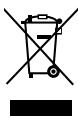
[Sólo Unión Europea]
Advertencia:
Si necesita operar la unidad mientras conduce, asegúrese de mirar atentamente a su alrededor pues de lo contrario, se podría producir un accidente de tráfico.
Para fines de seguridad...
- No aumente demasiado el nivel de volumen pues es muy peligroso conducir si no se escuchan los sonidos exteriores.
- Detenga el automóvil antes de efectuar cualquier operación complicada.
Temperatura dentro del automóvil...
Si ha dejado el automóvil estacionado durante largo tiempo en un sitio cálido o frío, no opere la unidad hasta que se normalice la temperatura del habitáculo.
Cómo leer este manual
Los siguientes iconos/símbolos se utilizan para indicar:

[Sostener]
Pulse y mantenga pulsado el(los) botón(es) hasta que se inicie la operación que desea.

Gire el control giratorio.



Gire el control giratorio para realizar una selección y, a continuación, pulse para confirmar.

XX)
Número de la página de referencia
Elemento de ajuste del menú

Continúa en la página siguiente
Cómo reposicionar su unidad
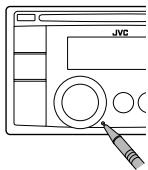
text_image
JVCTambién se borrarán los ajustes preestablecidos realizados por usted (excepto el dispositivo Bluetooth registrado). (13, 14).
Cómo expulsar el disco por la fuerza
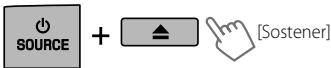
text_image
SOURCE + [Sostener]- Puede obligar a expulsar el disco cargado aunque se encuentre bloqueado. Para bloquear/desbloquear el disco, 10.
- Tenga cuidado de no dejar caer el disco al ser expulsado.
- Si esto no funciona, intente reposicionar su receptor.
Precaución sobre el ajuste de volumen:
Los dispositivos digitales (CD/USB) producen muy poco ruido al compararse con otras fuentes. Baje el volumen antes de reproducir estas fuentes digitales para evitar daños en los altavoces resultantes de un repentino aumento del nivel de salida.
Muchas gracias por la compra de un producto JVC.
Como primer paso, por favor lea detenidamente este manual para comprender a fondo todas las instrucciones y obtener un máximo disfrute de esta unidad.
CONTENIDO
3 Cómo leer este manual
3 Cómo reposicionar su unidad
3 Cómo expulsar el disco por la fuerza
4 Cancelación de las demostraciones en pantalla
4 Puesta en hora del reloj
5 Preparación del control remoto (RM-RK50)
6 Operaciones básicas
7 Para escuchar la radio
10 Escuchando un disco
12 Escuchando el dispositivo USB
13 Uso del dispositivo Bluetooth®
14 Uso de un teléfono móvil Bluetooth
16 Uso del reproductor de audio Bluetooth
16 Cambio de los ajustes de Bluetooth
18 Para escuchar la transmisión HD Radio™
19 Para escuchar la radio satelital
22 Escuchando el iPod/iPhone
24 Escuchando otros componentes externos
25 Selección de un modo de sonido preajustado
26 Operaciones de los menús
31 Selección de los colores para iluminación de los botones y de la pantalla
32 Creación de colores personalizados para día y noche—USER
33 Mantenimiento
34 Más sobre este receptor
37 Localización de averías
42 Especificaciones
Cancelación de las demostraciones en pantalla
1 Encienda la unidad.

2
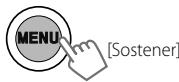
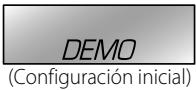
text_image
DEMO (Configuración inicial)3

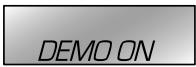
4 Seleccione .

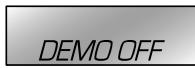
5

6 Finalice el procedimiento.

Puesta en hora del reloj
1 Encienda la unidad.

2

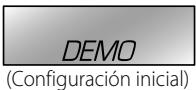
text_image
DEMO (Configuración inicial)3 Seleccione .

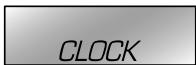



4 Seleccione .



5 Ajuste la hora.

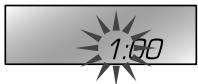
text_image
1:00

6 Ajuste los minutos.

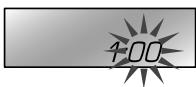
text_image
100

7 Finalice el procedimiento.

Preparación del control remoto (RM-RK50)
Retire la lámina aislante cuando utilice el control remoto por primera vez.
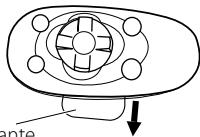
natural_image
Diagram of a mechanical component with a central hub and circular ports, showing an arrow pointing downward (no text or symbols)Lámina aislante
Sólo para EE.UU.-California:
Este producto contiene una batería de litio CR de tipo botón que contiene perclorato (puede requerirse una manipulación especial).
Visite www.dtsc.ca.gov/hazardouswaste/perchlorate
Si disminuye la efectividad de acción del control remoto, cambie la pila.
Reemplazo de la pila de litio tipo botón
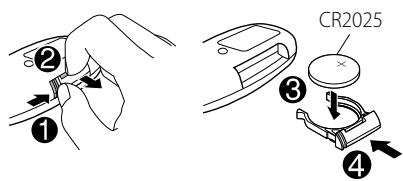
text_image
① ② ③ ④ CR2025Precaución:
- Peligro de explosión si se instala la pila de manera incorrecta. Cámbiela solamente por una del mismo tipo o de un tipo equivalente.
- No debe exponer la batería a una fuente de calor intensa como, por ejemplo, a los rayos directos del sol, al fuego, etc.
Advertencia (para evitar accidentes y daños):
- No instale ninguna otra pila distinta de CR2025 o su equivalente.
- No deje el control remoto en un lugar expuesto a la luz directa del sol (como los cubretableros) durante un tiempo prolongado.
- Guarde la pila fuera del alcance de los niños.
- Evite recargar, cortocircuitar, desarmar, calentar la pila, o arrojarla al fuego.
- No deje la pila con otros objetos metálicos.
- No toque la pila con pinzas u otras herramientas similares.
- Enrolle la pila con una cinta y aíslela antes de desecharla o guardarla.
El receptor está equipado con la función de control remoto en el volante de dirección. Antes de la operación, conecte un adaptador para control remoto exclusivo (no suministrado) adecuado para su vehículo con el terminal de entrada remota en la parte trasera de la unidad.
- Si desea más información, consulte también el manual de instrucciones entregado con el adaptador para control remoto.
Operaciones básicas
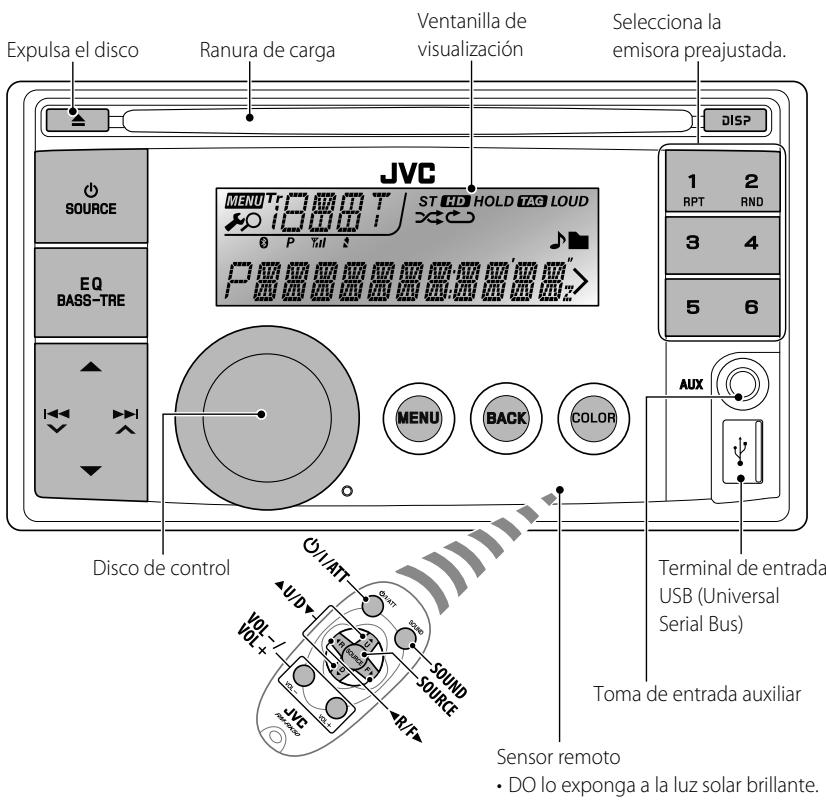
text_image
Expulsa el disco Ranura de carga Ventanilla de visualización Selecciona la emisora preajustada. JVC MENU T10000T ST HD HOLD TAG LOUD 1 RPT 2 RND EQ BASS-TRE 0 P Ytal S 3 4 5 6 DISP MENU BACK COLOR DISCO de control Terminal de entrada USB (Universal Serial Bus) Toma de entrada auxiliar Sensor remoto • DO lo exponga a la luz solar brillante.Si pulsa o mantiene pulsado(s) el(los) siguiente(s) botón(es)...
| Unidad principal | Control remoto | Operaciones generales |
 | ∅/I/ATT | Se enciende.Si pulsa ∅/I/ATT en el control remoto cuando está encendida la unidad, también se silenciará el sonido o entrará en pausa. Pulse ∅/I/ATT de nuevo para cancelar el silenciamiento o reanudar la reproducción. |
| Se apaga si lo pulsa y mantiene pulsado. | ||
 | Selecciona las fuentes disponibles (si la unidad está encendida).Si la fuente está preparada, también se iniciará la reproducción. | |
 |  | Ajusta el nivel de volumen. |
| — | Selecciona las opciones. | |
 | — | • Silencia el sonido mientras se escucha una fuente. Si la fuente es “CD”, “USB” o “USB-IPOD” la reproducción entra en pausa. Pulse de nuevo el control giratorio para cancelar el silenciamiento o reanudar la reproducción.• Confirma la selección. |
 | — | • Ingesa directamente en el menú del modo de repetición (11, 23) pulsando RPT.• Ingesa directamente en el menú del modo aleatorio (11, 23) pulsando RND. |
 |  | Selecciona el modo de sonido.• Ingesa directamente al ajuste del nivel de tono (25) si pulsa y mantiene pulsado EQ BASS-TRE en la unidad principal. |
 – – | — | • Ingesa directamente al ajuste(COLOR)(31).• Ingesa directamente al ajuste(COLOR SETUP)(32) si lo pulsa y mantiene pulsado. |
 | — | • Vuelve al menú anterior.• Cambia el terminal de control para reproducción de iPod si lo pulsa y mantiene pulsado. (22, 30) |
 | — | Apagado: Verifique la hora actual.Encendido: Cambia la información en pantalla. |
Para escuchar la radio
1
⇒ "FM" o "AM"
2
"ST" se enciende cuando se recibe una radiodifusión FM estéreo con una intensidad de señal suficiente.
Búsqueda manual
text_image
[Sostener]"M" parpadea, a continuación, pulse el botón repetidamente.

Cuando una radiodifusión en FM estéreo sea difícil de recibir
1
text_image
MENU [Sostener]2
natural_image
Diagram showing a circular button being pushed to a square button with a hand cursor (no text or symbols)
Se consigue mejorar la recepción, pero se pierde el efecto estereofónico.
Para restablecer el efecto estereofónico, repita el procedimiento para seleccionar
Preajuste automático (FM)—
SSM (Memoria secuencial de las emisoras más fuertes)
Se pueden preajustar hasta 18 emisoras para FM.
Mientras escucha una emisora...
1

2
flowchart
graph LR
    A["Start"] --> B["Process Step"]
    B --> C["Next Step"]
"SSM" parpadea y las emisoras locales con las señales más fuertes serán exploradas y guardadas automáticamente.
Para presintonizar otras 6 emisoras, repita el procedimiento anterior seleccionando uno de los otros 6 rangos de ajuste SSM.
Si el sintonizador de HD Radio está conectado

18), también puede buscar y guardar
6 emisoras AM realizando las operaciones anteriores.
Preajuste manual (FM/AM)
Es posible preajustar hasta 18 emisoras para FM y 6 emisoras para AM.
Ej.: Almacenando la emisora FM de 92,50 MHz en el número de preajuste "04".
1
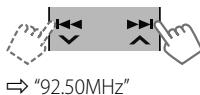
text_image
"92.50MHz"2
text_image
[Sostener]Parpadea "PRESET MODE".
3
natural_image
Two circular buttons with arrows indicating rotation and transition, one pointing at the right (no text or symbols)⇒ Seleccione el número de preajuste "04".
"P04" parpadea y aparece "MEMORY".
- También puede guardar la emisora actual en los botones numéricos seleccionados (1 – 6) pulsando y manteniendo pulsado los botones numéricos (1 – 6).
Selección de emisoras preajustadas
1

2
flowchart
graph LR
    A["Start"] --> B["Step 1: Rotation Arrow"]
    B --> C["Step 2: Click Button"]
- Las emisoras seleccionadas (1 – 6) también se pueden seleccionar pulsando los botones numéricos (1 – 6).
Asignación de título
Puede asignar títulos a un máximo de 30 frecuencias de emisoras (FM y AM) utilizando 8 caracteres (como máximo) para cada título.
- Cuando intente asignar títulos a más de 30 frecuencias de emisoras, aparecerá "NAME FULL". Antes de asignar, borre los títulos que no necesita.
- Cuando el sintonizador de HD Radio esté conectado (18), esta característica se deshabilitará.
1
→ "FM" o "AM"
2
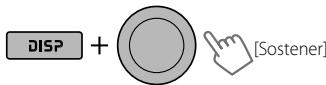
text_image
DISP + [Sostener]⇒ Muestre la pantalla de entrada de título.
3

⇒ Selecciona un carácter (A - Z, 0 - 9, -, /, <, >) o espacio.
4
⇒ Muévase a la posición del carácter siguiente (o anterior).
5
Repita los pasos 3 y 4 hasta que termine de introducir el título.
6

Para borrar el título entero, pulse y mantenga pulsado DISP después del paso 2 y, a continuación, pulse el control giratorio.
Cambio de la información en pantalla
Nombre de la emisora ^* → Frecuencias → Reloj → (vuelta al comienzo)
* Si no se le ha asignado título a la emisora, aparecerá "NO NAME" durante algunos segundos.
Uso del control remoto

▲U/D▼ : Cambia las emisoras preajustadas
◀R/F▶ : Búsqueda de emisoras
1

→ Encienda la unidad.
2
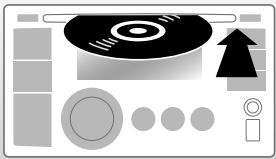
natural_image
Illustration of a CD/DVD interface with buttons and icons (no text or symbols)Todas las pistas se reproducen repetidamente hasta que usted cambie la fuente o extraiga el disco.
Para detener la reproducción y expulsar el disco
Aparece "NO DISC".
Pulse Ⓧ SOURCE para escuchar otra fuente de reproducción.
Prohibición de la expulsión del disco
text_image
+ [Sostener]Para cancelar la prohibición, repita el mismo procedimiento.
Selecciona la carpeta de MP3/WMA
Seleccionar la pista
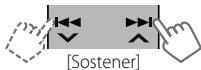
Avanzar o retroceder rápidamente la pista
Selección de una carpeta/pista de la lista
Mientras escucha un disco....
1

⇒ Se accede al menú de lista.
2
flowchart
graph LR
    A["Start"] --> B["Process Step"]
    B --> C["Next Step"]
    C --> D["Click"]
⇒ Seleccione el elemento que desea. MP3/WMA: Seleccione la carpeta deseada, después, la pista deseada repitiendo este mismo paso.
- Si el disco MP3/WMA contiene numerosas pistas, puede efectuar una búsqueda rápida (±10, ±100, ±1000) a través de los discos girando rápidamente el control giratorio.
- Para volver al menú anterior, pulse BACK.
Cómo seleccionar los modos de reproducción
Podrá utilizar solamente uno de los siguientes modos de reproducción a la vez.
1
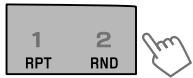
text_image
1 RPT 2 RND⇒ "REPEAT" o "RANDOM"
- Si pulsa y mantiene pulsado el control giratorio se ingresará en el menú del modo de reproducción. Gire el control giratorio para realizar una selección y (REPEAT o RANDOM), a continuación, pulse para confirmar.
2
flowchart
graph LR
    A["Start"] --> B["Process Step"]
    B --> C["Button"]
REPEAT
TRACK RPT : Repetir la pista actual
FOLDER RPT : Repita la carpeta actual
RANDOM
FOLDER RND : Reproducir
aleatoriamente todas las pistas de la carpeta actual y luego las pistas de las siguientes carpetas
ALL RND : Reproducir aleatoriamente todas las pistas
Para cancelar la reproducción repetida o aleatoria, seleccione "RPT OFF" o "RND OFF".
Cambio de la información en pantalla
Título del disco/Nombre del álbum/ejecutante (nombre de la carpeta)* → Título de la pista (nombre del archivo)* → Número de la pista actual con el tiempo de reproducción transcurrido → Número de la pista actual con la hora del reloj → (vuelta al comienzo)
* Si el disco actual es un CD de audio (salvo CD Text), aparecerá "NO NAME".
Si un archivo MP3/WMA no posee información de etiqueta o
Uso del control remoto
 | ▲U/D▼: Selecciona la carpeta de MP3/WMA |
| ◀R/F▶: Seleccionar la pista | |
| ◀R/F▶: Avanzar o retroceder [Sostener] rápidamente la pista |
Escuchando el dispositivo USB
Esta unidad puede reproducir archivos MP3/WMA almacenados en un dispositivo de clase de almacenamiento masivo USB.
Puede conectar a la unidad, un dispositivo de clase de almacenamiento masivo USB tal como una memoria USB, reproductor de audio digital, etc.
- También puede conectar un Apple iPod/iPhone al terminal de entrada USB. Para obtener detalles de las operaciones, 22.
1

→ Encienda la unidad.
2
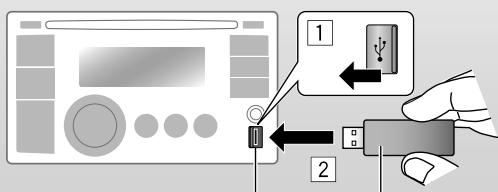
text_image
Diagram showing a device connection with labeled parts and directional arrows indicating signal or data transfer.Terminal de entrada USB Memoria USB
Todas las pistas se reproducen repetidamente hasta que usted cambie la fuente o extraiga el dispositivo USB.
Si desconectó la alimentación (sin desconectar el dispositivo USB)...
Si pulsa 📍 SOURCE la unidad se enciende y la reproducción se inicia desde el punto de detención anterior.
- Si se conecta un dispositivo USB diferente, la reproducción se iniciará desde el comienzo.
Parada de la reproducción y desconexión del dispositivo USB
Extráigalo de la unidad en sentido recto. Aparece "NO USB". Pulse Ⓧ SOURCE para escuchar otra fuente de reproducción.
Puede accionar el dispositivo USB tal como lo hace con los archivos de un disco.
(10, 11)
Precauciones:
- Evite usar el dispositivo USB si puede amenazar la seguridad de conducción.
- No extraiga ni conecte repetidamente el dispositivo USB mientras parpadea "READING" en la pantalla.
- No ponga en marcha el motor del coche si hay un dispositivo USB conectado.
- Dependiendo del tipo de dispositivo USB, puede suceder que esta unidad no pueda reproducir los archivos.
- El funcionamiento y la fuente de alimentación pueden no funcionar como es deseado con algunos dispositivos USB.
- No es posible conectar un computador al terminal de entrada USB de la unidad.
- Para evitar el borrado accidental, asegúrese de sacar copia de respaldo de todos los datos importantes.
- No deje el dispositivo USB en el coche expuesto a la luz directa del sol o a altas temperaturas pues se podrá producir deformación o daños en el dispositivo.
- Algunos dispositivos USB podrían no funcionar inmediatamente después de conectarlos o de encender la unidad.
- Si desea más información acerca de las operaciones USB, 📄 35, 36.
Uso del dispositivo Bluetooth®
Para las operaciones Bluetooth, se deberá conectar el adaptador Bluetooth KS-BTA200 (no suministrado) al puerto de expansión en la parte trasera de esta unidad.
- Consulte la página 4 del Manual de instalación/conexión (volumen separado) para comprobar en qué países puede utilizar la función Bluetooth®.
- Si desea más información, consulte también las instrucciones suministradas con el adaptador Bluetooth y el dispositivo Bluetooth.
Para utilizar por primera vez un dispositivo Bluetooth a través de la unidad ("BT-PHONE" y "BT-AUDIO"), usted deberá establecer una conexión Bluetooth inalámbrica entra la unidad y el dispositivo.
- Una vez establecida la conexión, ésta quedará registrada en la unidad aunque la reposicione. Se podrá registrar hasta un máximo de cinco dispositivos en total.
- Solamente se puede conectar un dispositivo a la vez para cada fuente ("BT-PHONE" y "BT-AUDIO").
Métodos de registro (Apareamiento)
Utilice uno de los siguientes elementos ("OPEN" o "SEARCH") en el menú Bluetooth para registrar y preparar la unidad con el fin de poder establecer una nueva conexión Bluetooth con un dispositivo.
"OPEN": La conexión se establece haciendo funcionar el dispositivo Bluetooth.
"SEARCH": La conexión se establece haciendo funcionar esta unidad.
Registrar usando "OPEN"
Preparativos: Opere el dispositivo para activar su función Bluetooth.
1

⇒ "BT-PHONE" o "BT-AUDIO"
2

text_image
Diagram showing hand press control buttons with directional arrows and dropdowns, indicating navigation or press function→ "NEW DEVICE" → "OPEN"
3
flowchart
graph LR
    A["Hand Click"] --> B["Button with double arrow and double arrow indicator"]
    B --> C["Arrow to Button"]
    C --> D["Circle with double arrow and circle indicator"]
⇒ Ingrese un código PIN (Número de identificación personal) en la unidad.
Puede introducir cualquier número que desee (número de 1 a 16 dígitos).
[Inicial: 0000]
- Algunos dispositivos tienen su propio código PIN: Introduzca el código PIN específico en la unidad.
4
Repita el paso 3 hasta que termine de ingresar el código PIN.
5

Parpadea "OPEN..".
6
Utilice el dispositivo Bluetooth para efectuar la búsqueda y conexión. En el dispositivo que se desea conectar, ingrese el mismo código PIN que el ingresado para esta unidad. Aparece "CONNECTED".
Ahora la conexión ha quedado establecida y usted puede usar el dispositivo a través de la unidad.
El dispositivo permanece registrado aún después de desconectarlo. Utilice "CONNECT" (o active "AUTO CNNCT") para conectar el mismo dispositivo a partir de la siguiente vez.
(17)

Registrar usando "SEARCH/SPECIAL"
1

⇒ "BT-PHONE" o "BT-AUDIO"
2

text_image
Diagram showing hand press control buttons with directional arrows and dropdowns, indicating navigation or press function→ "NEW DEVICE"
3

text_image
Diagram showing hand press application on a device with control buttons and navigation arrows⇒ "SEARCH": Para efectuar la búsqueda de dispositivos disponibles La unidad efectúa la búsqueda de los dispositivos disponibles y los visualiza en una lista. Aparece "UNFOUND" si no hay ningún dispositivo disponible que se pueda detectar.
0
→ "SPECIAL": Para conectar un dispositivo especial La unidad visualiza la lista de dispositivos preajustados.
4

text_image
Diagram showing hand press application with double arrow buttons and navigation arrows, indicating a button-based press operation.⇒ Seleccione el dispositivo que desea conectar.
5
Para los dispositivos disponibles...
⇒ Ingrese en la unidad el código PIN específico del dispositivo.
- Para comprobar cuál es el código PIN, consulte las instrucciones suministradas con el dispositivo. Utilice el dispositivo Bluetooth que se ha conectado. Ahora la conexión ha quedado establecida y usted puede usar el dispositivo a través de la unidad.
Para el dispositivo especial...
Utilice "OPEN" o "SEARCH" para la conexión.
Conexión/desconexión/eliminación de un dispositivo registrado
1

⇒ "BT-PHONE" o "BT-AUDIO"
2

text_image
Diagram showing hand press application on a device with bidirectional and double-headed arrows indicating left/right movement⇒ Seleccione el dispositivo desee conectar/desconectar/eliminar.
3

text_image
Diagram showing hand press application on a device with bidirectional and double-headed arrows indicating left/right movement⇒ "CONNECT" o "DISCONNECT": Para conectar/desconectar el dispositivo seleccionado
----0----
⇒ "DELETE" ⇒ "YES": Para borrar el dispositivo seleccionado
Puede configurar la unidad para que se conecte automáticamente el dispositivo Bluetooth al encender la unidad. ("AUTO CNNCT", 17)
Uso de un teléfono móvil Bluetooth
1
→ "BT-PHONE"
2

⇒ Menú Bluetooth
3
Haga una llamada o realice ajustes utilizando el menú de ajuste Bluetooth. ( 17)
Cuando entra una llamada....
La fuente será cambiada automáticamente a "BT-PHONE".
- La pantalla parpadeará en azul. (
Cuando "AUTO ANSWER" está activado....
La unidad contesta automáticamente las llamadas entrantes. (17)
- Si "AUTO ANSWER" está desactivado, pulse cualquier botón (excepto ◎ SOURCE / ▲) para contestar la llamada entrante.
- Podrá ajustar el nivel de volumen del micrófono. (17)
Para finalizar una llamada
Sostenga cualquier botón (excepto ◎ SOURCE / ▲).
Cuando entra un mensaje de texto....
Si el teléfono móvil es compatible con mensajes de texto (que se notifica a través del adaptador Bluetooth JVC), y "MSG INFO" (información sobre mensaje) está ajustado a "AUTOMATIC" (17), la unidad emite un tono audible para avisarle la llegada de un mensaje.
- Aparece "RCV MESSAGE" (recepción de mensaje) y la pantalla se ilumina en azul. (
Cómo hacer una llamada
1

→ "BT-PHONE"
2
3

text_image
Diagram showing hand press application on a device with control buttons and navigation arrows⇒ Seleccione el menú "DIAL".
4

text_image
Diagram showing hand press application with double arrow and double arrow icons, followed by a right-click button with downward arrow icon⇒ Seleccione un método de llamada.
PHONE BOOK* ↔ MISSED* ↔
NUMBER ↔ VOICE DIAL ↔
REDIAL* ↔ RECEIVED* ↔ (vuelta al comienzo)
* Se visualiza solamente cuando su teléfono móvil está equipado con estas funciones y es compatible con esta unidad.
5
Para REDIAL, RECEIVED, MISSED
⇒ Repita el paso 4 para seleccionar un nombre (si está registrado) o un número de teléfono.
Para PHONE BOOK
⇒ Repita el paso 4 para seleccionar un nombre o un número de teléfono.
Para NUMBER
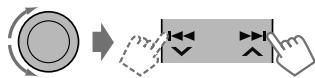
flowchart
graph LR
    A["Circle Component"] --> B["Rectangular Button with Left/Right Arrows"]
    B --> C["Arrow Down, Arrow Up, Arrow Down"]
→ Introduzca el número telefónico.
→ Confirmar.
Para VOICE DIAL
→ Diga el nombre que desea llamar cuando aparezca "SAY NAME".
- Si su teléfono móvil no es compatible con el sistema de reconocimiento de voz, aparecerá "ERROR".
- El uso de etiquetas de voz ("voice tags") puede ser difícil en un entorno ruidoso o durante una emergencia.
Para volver al menú anterior, pulse ▲.
Uso del control remoto

▲U/D▼/
: Contesta las
◀R/F▶/SOURCE
llamadas
▲U/D▼/
: Rechaza las
◀R/F▶/SOURCE
llamadas
[Sostener]
Uso del reproductor de audio Bluetooth

→ "BT-AUDIO"
Si la reproducción no se inicia, opere el reproductor de audio Bluetooth para comenzar la reproducción.
Opere el reproductor de audio Bluetooth para poner la reproducción en pausa (si no se pone en pausa al cambiar la fuente).
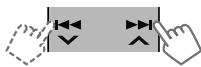
Salto hacia atrás/salto hacia adelante
Pausa/Inicia la reproducción*
* Las operaciones pueden diferir según el reproductor de audio Bluetooth conectado.

Ingrese el menú de ajustes (Lista de dispositivos)
Para la conexión/desconexión/eliminación de un dispositivo registrado, 14.
Uso del control remoto

◀R/F▶ : Salto hacia atrás/salto hacia adelante
Cambio de los ajustes de Bluetooth
1

⇒ "BT-PHONE" o "BT-AUDIO"
2
→ Menú Bluetooth
3

text_image
Diagram showing hand press icons interacting with a button, indicating navigation or press function→ "SETTINGS"
4

text_image
Diagram showing hand press application on a device with bidirectional and double-headed arrows indicating left/right movement⇒ Seleccione una opción de ajuste.
AUTO CNNCT ↔ AUTO ANSWER*1
↔ MSG INFO*2 ↔ MIC SETTING*1
↔ VERSION*3 ↔ (vuelta al
comienzo)
5

text_image
Diagram showing hand press application on a device with double and double arrow icons, followed by a right-click button.→ Cambie el ajuste de conformidad. Para el menú de ajuste, 17.
*1 Aparece sólo cuando se ha conectado un teléfono Bluetooth.
*2 Aparece solamente cuando se ha conectado un teléfono Bluetooth, y es compatible con mensajes de texto (se notifica a través del adaptador Bluetooth JVC).
*3 Bluetooth Audio: Sólo se muestra "Version".
Menú de ajustes [Inicial: Subrayado]
AUTO CNNCT (conectar)
Al encender la unidad, la conexión se establece automáticamente con...
OFF: Ningún dispositivo Bluetooth.
LAST: El dispositivo Bluetooth conectado en último término.
ORDER: El dispositivo Bluetooth registrado disponible encontrado en primer lugar.
AUTO ANSWER
Sólo para el dispositivo conectado para "BT-PHONE".
ON: La unidad contesta automáticamente las llamadas entrantes.
OFF: La unidad no contesta las llamadas automáticamente. Contesta la llamada manualmente.
REJECT: La unidad rechaza todas las llamadas entrantes.
MSG INFO (información de mensajes)
Sólo para el dispositivo conectado para "BT-PHONE".
AUTOMATIC: La unidad le informa la llegada de un mensaje emitiendo un pitido audible y visualizando "RCV MESSAGE" (recepción de mensaje).
- La pantalla se ilumina en azul. (
MANUAL: La unidad no le informa la llegada de un mensaje.
MIC SETTING (ajuste del micrófono)
Sólo para el dispositivo conectado para "BT-PHONE". Ajusta el volumen del micrófono conectado al adaptador Bluetooth, [LEVEL 01/02/03].
VERSION
Se muestra la versión del software y hardware Bluetooth.
Mensajes de advertencia
ERROR CNNCT (Error de conexión)
El dispositivo está registrado pero ha fallado la conexión. Utilice "CONNECT" para volver a conectar el dispositivo. (Q 14)
ERROR
Intente la operación otra vez. Si aparece "ERROR" otra vez, revise si el dispositivo admite la función que ha intentado realizar.
UNFOUND
No se ha detectado ningún dispositivo Bluetooth disponible mediante "SEARCH".
LOADING\*
La unidad está actualizando la guía telefónica.
PLEASE WAIT
La unidad se está preparando para usar la función Bluetooth. Si el mensaje no desaparece, apague y encienda la unidad y, a continuación, vuelva a conectar el dispositivo (o reinicialice la unidad).
RESET 8
Verifique la conexión entre el adaptador y esta unidad.
* Se visualiza solamente cuando su teléfono móvil está equipado con estas funciones y es compatible con esta unidad.
Información Bluetooth:
Si desea obtener más información sobre Bluetooth, visite el siguiente sitio web de JVC: http://www.jvc.co.jp/english/car/ (Sitio web sólo en inglés)
Para escuchar la transmisión de HD Radio™
Antes de hacer funcionar, conecte el sintonizador HD Radio KT-HD300 (no suministrado) al puerto de expansión en la parte trasera de la unidad.
- Si desea más información, consulte también las instrucciones suministradas con el sintonizador HD Radio.
¿Qué es la tecnología HD Radio?
La tecnología HD Radio puede brindar sonido digital de alta calidad—las emisiones digital AM tendrán calidad similar a las FM (en estéreo) y las digital FM poseerán calidad similar a la de un CD—con una recepción clara y libre de estática. Asimismo, las emisoras pueden ofrecer texto y datos, como nombres de artistas y títulos de canciones.
- Cuando el sintonizador HD Radio está conectado, puede recibir también transmisiones analógicas convencionales.
- Numerosas emisoras de HD Radio también ofrecen más de un canal de programación. Este servicio recibe el nombre de "multicasting".
- Para encontrar emisoras de HD Radio en su área, visitehttp://www.hdradio.com/.
Para las operaciones básicas de la radio, 7 – 9.
Cuando se reciba...
Una emisora HD Radio
Se enciende cuando es una radiodifusión de audio digital Parpadea cuando es una radiodifusión de audio analógico
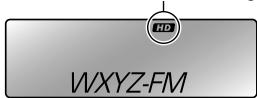
text_image
HD WXYZ-FMAparece el distintivo de llamada de la emisora.
Canales multidifusión HD Radio
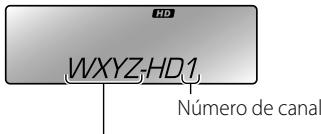
text_image
HD WXYZHD1 Número de canalPrimeras cuatro letras del distintivo de llamada
Seleccione el canal que desea.
HD1 ↔ HD2 ↔ .... ↔ HD8
↔ (vuelta al comienzo)
Aparece "LINKING" mientras se enlaza con un canal multicast.
Para buscar emisoras de HD Radio solamente
text_image
Pa [Sostener]Parpadea "HD".
Uso del control remoto

▲U/D▼ : Cambia las emisoras preajustadas
◀R/F▶ : Búsqueda de emisoras
Para cambiar el modo de recepción de HD Radio
Durante la emisión de HD Radio, la unidad recibirá automáticamente la señal digital o analógica según las condiciones de recepción.
Mientras se escucha una emisora HD Radio...
1

[Sostener]
2
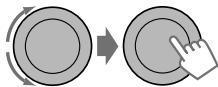
flowchart
graph LR
    A["Start"] --> B["Process Step"]
    B --> C["Button"]
"HD" se enciende cuando se retiene la recepción digital o parpadea cuando se retiene la recepción analógica.
- Si no se escucha ningún sonido con
, cambie el ajuste a o . - El ajuste cambia automáticamente a
si sintonizó o cambió a otra emisora, o si apagó la unidad. - Este ajuste no posee ningún efecto en las emisoras FM/AM convencionales.
- Si la emisora de radio fuerza el modo de recepción a digital, el indicador "HOLD" destella.
Cambio de la información en pantalla
Distintivo de llamada ^1 → Frecuencias → Título/ artista/nombre del álbum del segmento actual ^2 → Reloj → (vuelta al comienzo)
*1 El mensaje "****-FM" o "****" aparece cuando no se recibe ninguna Sigla de identificación.
*2 "NO TEXT" aparece cuando no se ha recibido texto.
Para escuchar la radio satelital
Antes de la operación, conecte cualquiera de los dos sistemas siguientes (no suministrados) al puerto de expansión de la parte trasera de esta unidad.
Para escuchar la radio satelital SIRIUS.
• SC-C1 y KS-SRA100
• PnP, SC-VDOC1 y KS-SRA100
Para escuchar la radio satelital XM:
• JVC Smart Digital Adapter (XMDJVC100)
• CNP2000UC y CNPJVC1
- Si desea más información, consulte también las instrucciones suministradas con los otros componentes.
Actualización de GCI ("Global Control Information")
- Si los canales han sido actualizados después de la suscripción, la actualización se inicia automáticamente. "UPDATING" parpadea y no se escucha ningún sonido.
- La actualización tarda algunos minutos en finalizar.
- Durante la actualización no podrá utilizar la radio satelital
1

→ "SIRIUS" o "XM"
2

⇒ Seleccione una categoría.
SIRIUS: Si selecciona "ALL", puede sintonizar todos los canales de todas las categorías.
3
⇒ Seleccione el canal de audición.
Al mantener pulsado el botón, los canales se cambian rápidamente.
Durante la búsqueda, se omiten los canales no válidos y aquellos a los que no está suscrito.
XM: Si no selecciona un canal en el lapso de 15 segundos, se cancelará la categoría seleccionada en el paso ②. Ahora podrá seleccionar todos los canales de todas las categorías (incluyendo canales no categorizados).
Active la suscripción de SIRIUS después de la conexión
1

→ "SIRIUS"
La radio satelital SIRIUS comienza a actualizar todos los canales SIRIUS. Una vez finalizada la actualización, la radio satelital SIRIUS sintoniza en un canal preajustado, CH184.
2
Verifique su SIRIUS ID. (27)
3
Póngase en contacto con SIRIUS por Internet en http://activate.siriusradio.com/ para activar su suscripción, o haga una llamada gratuita a SIRIUS marcando 1-888-539-SIRIUS (7474).
- Una vez que haya finalizado su suscripción, "SUB UPDT PRESS ANY KEY" se desplaza en la pantalla.
Active la suscripción de XM después de la conexión
- Antes de la activación sólo están disponibles los canales 0, 1 y 247.
1

→ "XM"
XMDirect™ Tuner Box o XMDirect2 Tuner System para realizar la actualización de todos los canales XM. El "Channel 1" se sintoniza automáticamente.
2
Consulte el número de identificación de la radio satelital XM que aparece en la etiqueta de la carcasa del Sintonizador XMDirect™ o sistema de sintonizador XMDirect2, o sintonice el "Channel 0".
(21)
3
Para activar su suscripción, visite el sitio web de la radio satelital XM en http://xmradio.com/activation/ o llame al 1-800-XM-RADIO (1-800-967-2346).
- Una vez que termine, la unidad sintoniza uno de los canales disponibles (Canal 4 o superior).
Cómo almacenar canales en la memoria
Se pueden preajustar hasta 18 canales para SIRIUS y XM.
Ej.: Almacenando un canal en el número de preajuste "04".
1 Sintonice el canal que desea memorizar. (Pasos ① – ③, 20.)
text_image
2 [Sostener]Parpadea "PRESET MODE".
text_image
3⇒ Seleccione el número de preajuste "04".
Parpadea "P04".
Seleccionando una emisora SIRIUS/XM preajustada
flowchart
graph LR
    A["Start"] --> B{Step 1}
    B --> C["Arrow to Right"]
    C --> D["Arrow to Left"]
Para consultar el número de identificación de la radio satelital
Mientras selecciona "SIRIUS" o "XM"...
⇒ Seleccione "Channel 0".
SIRIUS: El número de identificación SIRIUS se visualiza después de seleccionar "Channel 0".
XM: La pantalla muestra alternativamente "RADIO ID" y el número de identificación de 8 caracteres alfanuméricos.
Para cancelar la visualización del número de identificación seleccione un canal diferente al "Channel 0".
Cambio de la información en pantalla
Nombre de la categoría → Nombre del canal → Nombre del artista → Nombre del compositor* → Nombre de la canción/programa/título → Reloj → (vuelta al inicio)
* Sólo para la radio satelital SIRIUS.
Uso del control remoto

▲ U/D ▼ : Cambia las categorías
◀R/F▶ : Cambia los canales
◀R/F▶ : Cambia rápidamente [Sostener] los canales
Puede conectar el iPod/iPhone, mediante el cable USB 2.0 (accesorio del iPod/iPhone), al terminal de entrada USB en el panel de control.
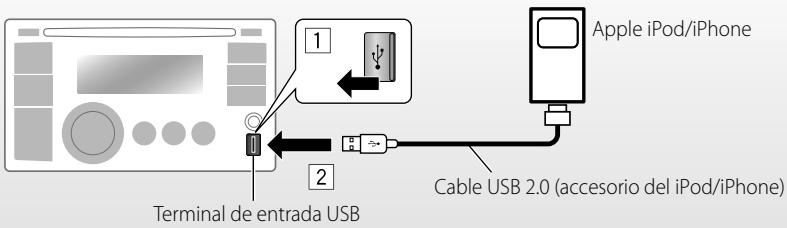
text_image
Apple iPod/iPhone Cable USB 2.0 (accesorio del iPod/iPhone) Terminal de entrada USBHay dos terminales de control:
- Control por esta unidad.
Control por el iPod/iPhone conectado.
Preparativos: Seleccione el terminal de control,
o- Pulse y mantenga pulsado el botón BACK.
- Seleccione la selección en el ajuste
, 30.
Las operaciones descritas a continuación se encuentran bajo
.
→ "USB-IPOD"
La reproducción se inicia automáticamente.


⇒ Seleccione una canción.
Precaución:
- Evite utilizar el iPod/iPhone si esto puede poner en peligro su seguridad cuando conduce.
- Para evitar el borrado accidental, asegúrese de sacar copia de respaldo de todos los datos importantes.
- Si desconecta el iPod/iPhone la reproducción se detendrá. Pulse Ⓧ SOURCE para escuchar otra fuente de reproducción.
- Si desea más información, consulte también el manual de instrucciones entregado con su iPod/iPhone.

Pausa o reanuda la reproducción
Seleccionar la pista
text_image
[Sostener]Avanzar o retroceder rápidamente la pista
Seleccionar una pista en el menú
1

2

natural_image
Diagram showing a circular button being pushed to a square button, with a hand cursor pointing at the button (no text or symbols)⇒ Seleccione el menú deseado.
PLAYLISTS ↔ ARTISTS ↔ ALBUMS
↔ SONGS ↔ PODCASTS ↔
GENRES ↔ COMPOSERS ↔
AUDIOBOOKS ↔ (vuelta al comienzo)
3
natural_image
Diagram showing a circular button being pushed to a square button with a hand cursor (no text or symbols)⇒ Seleccione la pista que desea.
Repita este procedimiento hasta que se seleccione la pista deseada.
- Si el menú seleccionado contiene numerosas pistas, puede efectuar la búsqueda rápida (±10, ±100, ±1000) a través del menú girando rápidamente el control giratorio.
- Para volver al menú anterior, pulse BACK.
Uso del control remoto

◀R/F▶ : Seleccionar la pista
◀R/F▶ : Avanzar o retroceder
[Sostener] rápidamente la pista
Nota:
Cuando opera un iPod, algunas operaciones pueden no funcionar correctamente o como se desea. En tal caso, visite el siguiente sitio web de JVC: http://www.jvc.co.jp/english/car/ (Sitio web sólo en inglés)
Cómo seleccionar los modos de reproducción
1
text_image
1 RPT 2 RND⇒ "REPEAT" o "RANDOM"
- Si pulsa y mantiene pulsado el control giratorio se ingresará en el menú del modo de reproducción. Gire el control giratorio para realizar una selección y (REPEAT o RANDOM), a continuación, pulse para confirmar.
2
flowchart
graph LR
    A["Start"] --> B["Process Step"]
    B --> C["Next Step"]
REPEAT
ONE RPT : Funciona de igual manera que "Repetir Una" del iPod
ALL RPT : Funciona de igual manera que "Repetir Todas" del iPod
RANDOM
ALBUM RND : Funciona de igual manera que "Aleatorio Álbumes" del iPod
SONG RND : Funciona de igual manera que "Aleatorio Canciones" del iPod
- Para cancelar la reproducción repetida o aleatoria, seleccione "RPT OFF" o "RND OFF".
- "ALBUM RND" no está disponible en algunos iPod.
- Para volver al menú anterior, pulse BACK.
Cambio de la información en pantalla
Nombre del álbum/ejecutante → Título de la pista → Número de la pista actual con el tiempo de reproducción transcurrido → Número de la pista actual con la hora del reloj → (vuelta al comienzo)
Escuchando otros componentes externos
Podrá conectar un componente externo a:
- EXT INPUT: Puerto de expansión de la parte trasera de esta unidad que utiliza los siguientes adaptadores (no suministrados):
-KS-U57, Adaptador de entrada de línea
-KS-U58, Adaptador de entrada AUX
Preparativos: Asegúrese de que
- AUX IN: Jack de entrada AUX (auxiliar) en el panel de control.
Preparativos: Asegúrese de que
Si desea más información, consulte también las instrucciones suministradas con el adaptador o los componentes externos.
1
⇒ "EXT INPUT" o "AUX IN"
2
Encienda el componente conectado y comience a reproducir la fuente.
3

⇒ Ajuste el volumen.
4
Ajuste el sonido según se desee. (Q 25)
Conectando un componente externo al jack de entrada AUX
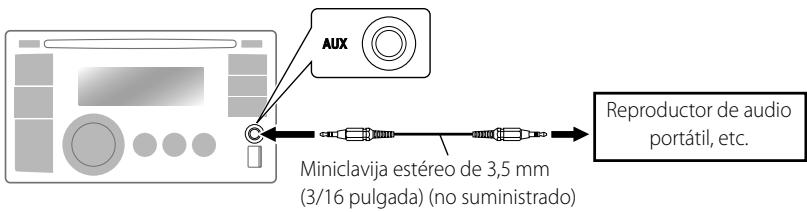
text_image
AUX Miniclavija estéreo de 3,5 mm (3/16 pulgada) (no suministrado) Reproductor de audio portátil, etc.Selección de un modo de sonido preajustado
Podrá seleccionar un modo de sonido preajustado adecuado al género musical.
FLAT → NATURAL → DYNAMIC → VOCAL BOOST → BASS BOOST → USER → (vuelta al comienzo)
Durante la audición, podrá ajustar el nivel de tono del modo de sonido seleccionado.
1
2

natural_image
Two circular icons with arrows indicating rotation and movement, one pointing at a button (no text or symbols)Ajuste el nivel (-06 a +06) del tono seleccionado (BASS / MID / TRE). El modo de sonido se guarda automáticamente y cambia a "USER".
Cómo guardar su propio modo de sonido
Es posible almacenar sus propios ajustes en la memoria.
1
text_image
MENU [Sostener]2
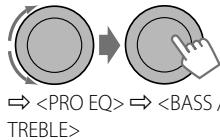
flowchart
graph LR
    A["Circle with arrow"] --> B["Arrow pointing to 'BASS / TREBLE'"]
    style A fill:#ccc,stroke:#333
    style B fill:#ccc,stroke:#333
3

flowchart
graph LR
    A["Start"] --> B["Step 1"]
    B --> C["Step 2"]
Ajuste los elementos de sonido del tono seleccionado.
Tono : BASS
Frecuencia :60 Hz, 80 Hz, 100 Hz, 200 Hz Nivel : -06 a +06 Q : Q1.0, Q1.25, Q1.5, Q2.0
Tono : MIDDLE
Frecuencia : 0.5 kHz, 1.0 kHz, 1.5 kHz, 2.5 kHz Nivel : -06 a +06 Q : Q0.75, Q1.0, Q1.25
Tono : TREBLE
Frecuencia : 10.0 kHz, 12.5 kHz, 15.0 kHz, 17.5 kHz Nivel : -06 a +06 Q : Q FIX
4
Repita los pasos 2 y 3 para ajustar otros tonos. Los ajustes realizados se guardarán automáticamente en "USER".
El modo de sonido cambia automáticamente a "USER".
Operaciones de los menús
1

text_image
MENU [Sostener]2
flowchart
graph LR
    A["Start"] --> B["Process Step"]
    B --> C["End"]
3
Repita el paso 2, si es necesario.
- Para volver al menú anterior, pulse BACK.
- Para salir del menú, pulse DISP o MENU.
| Categoría | Opción del menú | Ajuste seleccionable, [ Inicial: Subrayado ] | |
| DEMO Demostración en pantalla | • DEMO ON | : La demostración en pantalla se activará automáticamente si no se efectúa ninguna operación durante unos 20 segundos. | |
| • DEMO OFF | : Se cancela. ( 🔒 4) | ||
| CLOCK | CLOCK SET Ajuste del reloj | —[1:00] | : Ajuste la hora, y a continuación, los minutos. ( 🔒 4) |
| CLOCK ADJ *1 Ajuste del reloj | • AUTO | : El reloj incorporado se ajustará automáticamente gracias a los datos de reloj suministrados mediante el canal de radio satelital. | |
| • OFF | : Se cancela. | ||
| TIME ZONE *1, *2 | EASTERN, ATLANTIC, NEWFOUND, ALASKA, PACIFIC, MOUNTAIN, CENTRAL | : Para el ajuste del reloj, seleccione su zona residencial entre una de las zonas horarias. | |
| DST *1, *2 Hora de verano | • DST ON | : El horario de ahorro de luz diurna se activa si su zona residencial está sujeta a DST. | |
| • DST OFF | : Se cancela. | ||
| PRO EQ | BASS | : Para los ajustes, ( 🔒 25. | |
| MIDDLE | |||
| TREBLE | |||
*1 Sólo aparece cuando está conectada la radio satelital SIRIUS o XM.
*2 Se visualiza sólo cuando
| Categoría | Opción del menú | Ajuste seleccionable, [ Inicial:Subrayado] |
| DISPLAY | DIMMER | DIMMER AUTO: Al encender los faros, la pantalla se oscurece. *3DIMMER ON: La iluminación de la pantalla y de los botones se oscurece.DIMMER OFF: Se cancela. |
| SCROLL *4 | SCROLL ONCE: Desplaza una vez la información visualizada.SCROLL AUTO: El desplazamiento se repite (a intervalos de 5 segundos).SCROLL OFF: Se cancela.PulsandoDISPdurante más de 1 segundo podrá desplazar la indicación independientemente del ajuste. | |
| TAG DISPLAY | TAG ON: Muestra la información de etiqueta mientras se reproducen pistas MP3/WMA.TAG OFF: Se cancela. | |
| TUNER | SSM*5Memoria secuencial de las emisoras más fuertes | SSM 01 – 06 *6: Para los ajustes,8.SSM 07 – 12SSM 13 – 18 |
| AREAIntervalo entre canales del sintonizador | AREA US: Cuando se utiliza en América del Norte/Central/Sur. Los intervalos de AM/FM están ajustados a 10 kHz/200 kHz.AREA EU: Cuando se utiliza en cualesquier otras áreas. Los intervalos de AM/FM están ajustados a 9 kHz/50 kHz (100 kHz durante la búsqueda automática).AREA SA: Cuando se utiliza en los países de América del Sur donde el intervalo de FM es 100 kHz. El intervalo de AM está ajustado a 10 kHz. | |
| MONO *5Modomonoaural | MONO ON: Active el modo monoaural para mejorar la recepción FM, aunque se perderá el efecto estéreo. (8)MONO OFF: Restablezca el efecto estéreo. | |
| SID*7SIRIUS ID | : Su número de identificación SIRIUS se desplaza en la pantalla 5 segundos después de seleccionar “SID”. (20)Si no se efectúa ninguna operación durante aproximadamente 60 segundos, la unidad vuelve al modo de reproducción. |
*3 Se requiere la conexión del conductor de control. (Consulte el "Manual de instalación/conexión".) Este ajuste podría no funcionar correctamente en algunos vehículos (especialmente en aquellos que disponen de un dial de control). En este caso, cambie el ajuste a cualquier otra opción distinta de
*4 Algunos caracteres o símbolos no serán mostrados correctamente (o aparecerán en blanco) sobre la pantalla.
*5 Se visualiza solamente cuando la fuente sea "FM" o "HD Radio".
*6 Si el sintonizador de HD Radio está conectado, también puede buscar y guardar las emisoras AM en
*7 Se visualiza sólo cuando está conectada la radio SIRIUS.
| Categoría | Opción del menú | Ajuste seleccionable, [ Inicial: Subrayado ] | |
| TUNER | BLEND HOLD *8Modo de recepción HD Radio | AUTO | : Cambia automáticamente entre audio digital y analógico. (19) |
| DIGITAL | : Sintoniza audio digital solamente. | ||
| ANALOG | : Sintoniza audio analógico solamente. | ||
| IF BANDBanda de frecuencia intermedia | AUTO | : Aumenta la selectividad del sintonizador para reducir las interferencias entre emisoras adyacentes. (El efecto estereofónico puede perderse). | |
| WIDE | : Sujeto a interferencias de las emisoras adyacentes, pero la calidad del sonido no se degrada y se conserva el efecto estereofónico. | ||
| COLOR | BUTTON ZONE | COLOR 01 — COLOR 29, USER | : Para los ajustes, 31. [ COLOR 06 ] |
| DISP ZONEZona de visualización | : Para los ajustes, 31. [ COLOR 01 ] | ||
| ALL ZONE | : Para los ajustes, 31. [ COLOR 06 ] | ||
| COLOR SETUP | DAY COLOR | BUTTON ZONE | : Para los ajustes, 32. |
| NIGHT COLOR | DISP ZONE | ||
| MENU COLOR | ON | : Cambia la iluminación de la pantalla y de los botones (excepto ▲ / DISP) durante las operaciones de los modos de menú, búsqueda de lista y reproducción. | |
| OFF | : La pantalla y los botones se iluminan en el color ajustado por usted. | ||
| RING COLOR *9 | ON | : Cuando se reciba una llamada, la pantalla parpadeará en azul. | |
| : Al contestar la llamada o interrumpirse la llamada entrante, la pantalla cambiará al color original. | |||
| Cuando la unidad recibe un mensaje de texto, la pantalla se iluminará solamente en azul. | |||
| OFF | : Se cancela. | ||
*8 Se visualiza solamente cuando se ha conectado un sintonizador HD Radio.
*9 Se visualiza solamente cuando se ha conectado un adaptador Bluetooth, KS-BTA200.
| Categoría | Opción del menú | Ajuste seleccionable, [ Inicial:Subrayado] | |
| AUDIO | FADER*10 | R06 – F06[00] | : Ajusta el balance de salida de los altavoces delanteros y traseros. |
| BALANCE*11 | L06 – R06[00] | : Ajusta el balance de salida de los altavoces izquierdo y derecho. | |
| LOUD Sonoridad | • LOUD ON•LOUD OFF | : Refuerza las frecuencias altas y bajas para producir un sonido bien balanceado a bajos niveles de volumen.: Se cancela. | |
| VOL ADJUST Ajuste de volumen | VOL ADJ -05 —VOL ADJ +05[VOL ADJ 00] | : Preajuste el nivel de volumen de cada fuente (excepto FM), en comparación con el nivel de volumen de FM. El nivel de volumen aumenta o disminuye automáticamente al cambiar la fuente.• Antes de realizar un ajuste, seleccione la fuente que desea ajustar.• Aparece “VOL ADJ FIX” en la pantalla si se selecciona “FM” como fuente. | |
| L/O MODE Modo de salida de línea | • SUB.W•REAR | : Selecciónelo si los terminales REAR LINE OUT se utilizan para conectar un subwoofer (a través de un amplificador externo).: Selecciónelo si los terminales REAR LINE OUT se utilizan para conectar los altavoces (a través de un amplificador externo). | |
| SUB.W FREQ*12 Frecuencia de corte del subwoofer | • LOW•MID•HIGH | : Las frecuencias inferiores a 72 Hz se envían al subwoofer.: Las frecuencias inferiores a 111 Hz se envían al subwoofer.: Las frecuencias inferiores a 157 Hz se envían al subwoofer. | |
| SUB.W LEVEL*12 Nivel de subwoofer | SUB.W 00 —SUB.W 08[SUB.W 04] | : Ajusta el nivel de salida del subwoofer. | |
*10 Si está utilizando un sistema de dos altavoces, ajuste el nivel de fader a "00".
*11 El ajuste no afecta a la salida del subwoofer.
*12 Se visualiza sólo cuando
| Categoría | Opción del menú | Ajuste seleccionable, [ Inicial:Subrayado] | |
| AUDIO | BEEP Tono de pulsación de teclas | BEEP ONBEEP OFF | : El tono de pulsación de teclas se activa.El tono de pulsación de teclas se desactiva. |
| AMP GAIN *13Control de ganancia del amplificador | LOW POWERHIGH POWER | : VOLUME 00 – VOLUME 30 (Selecciónelo si la potencia máxima de cada altavoz es inferior a 50 W, con el fin de evitar posibles daños en los altavoces).VOLUME 00 – VOLUME 50 | |
| SRC SELECT | AM*14Emisora AM | AM ONAM OFF | : Se activa “AM” en la selección de fuente.Se desactiva “AM” en la selección de fuente. |
| EXT IN*15Entrada externa | EXT ONEXT OFF | : Se activa “EXT IN” en la selección de fuente.Se desactiva “EXT IN” en la selección de fuente. | |
| AUX IN*16Entrada auxiliar | AUX ONAUX OFF | : Se activa “AUX IN” en la selección de fuente.Se desactiva “AUX IN” en la selección de fuente. | |
| AUDIOBOOKS*17Control de velocidad de los “Audiobooks” | NORMALFASTERSLOWER | :Puede seleccionar la velocidad de reproducción del archivo de sonido de los Audiolibros en su iPod/iPhone.La opción seleccionada inicialmente depende del ajuste de su iPod/iPhone. | |
| IPOD SWITCH*18Control del iPod/iPhone | HEAD MODEIPOD MODE | : Controla la reproducción del iPod a través de la unidad.Controla la reproducción del iPod a través del iPod/iPhone. | |
*13 Si usted cambia a
*14 Se visualiza solamente cuando se selecciona cualquier otra fuente distinta de "AM".
*15 Se visualiza solamente cuando se selecciona cualquier otra fuente distinta de "EXT IN".
*16 Se visualiza solamente cuando se selecciona cualquier otra fuente distinta de "AUX IN".
*17 Se visualiza sólo cuando se selecciona "USB-IPOD" como fuente, y funciona solamente con
*18 Se visualiza solamente cuando se ha seleccionado "USB-IPOD" como fuente. Los ajustes sólo se pueden realizar si
Selección de los colores para iluminación de los botones y de la pantalla
Puede seleccionar individualmente su color preferido para la iluminación de los botones (excepto ▲ / DISP ) y de la pantalla.
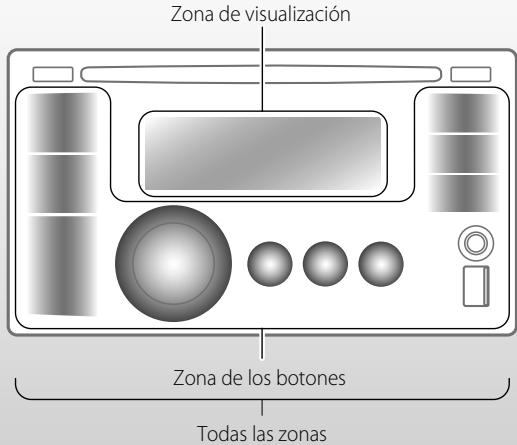
text_image
Zona de visualización Zona de los botones Todas las zonas1

text_image
MENU [Sostener] COLOR2

natural_image
Two circular buttons with curved arrows indicating rotation, one pointing at the right (no text or symbols)
- Si pulsa COLOR en el paso 1 se ingresará directamente al menú de selección de la zona (BUTTON ZONE / DISP ZONE / ALL ZONE).
3
flowchart
graph LR
    A["Start"] --> B["Process Step"]
    B --> C["Next Step"]
⇒ Seleccione su color preferido entre los 29 colores preajustados o color
4 Repita los pasos 2 y 3 para seleccionar una zona diferente y su color preferido.
- Si selecciona
5
text_image
DISP O COLOR ⇒ Salga del ajuste.Creación de colores personalizados para día y noche—USER
Puede crear sus propios colores
Se visualiza cuando se ajusta a .
•Se visualiza cuando se ajusta a .
| Jerarquía de los menús | Funcionamiento | ||
| COLOR SETUP | DAY COLOR | • BUTTON ZONE | Siga el ejemplo mencionado debajo. |
| • DISP ZONE | Pulse BACK después del paso 5 y luego seleccione DISP ZONE en el paso 2. | ||
| NIGHT COLOR | • BUTTON ZONE | Pulse BACK dos veces después del paso 5 y, a continuación, seleccione NIGHT COLOR en el paso 2. | |
| • DISP ZONE | |||
Ej.: Creación del color
1
text_image
MENU [Sostener] O COLOR [Sostener]2
flowchart
graph LR
    A["Start"] --> B["Step 1"]
    B --> C["Step 2"]
⇒
⇒
- Si pulsa COLOR en el paso 1 se ingresará directamente al menú de selección de la zona (BUTTON ZONE / DISP ZONE).
3
flowchart
graph LR
    A["Start"] --> B["Process Step"]
    B --> C["Next Step"]
⇒ Seleccione un color primario.
RED ⇌ GREEN ⇌ BLUE ⇌ (vuelta al comienzo)
4
flowchart
graph LR
    A["Circle"] --> B["Rectangular Button"]
    style A fill:#f9f,stroke:#333
    style B fill:#bbf,stroke:#333
⇒ Ajuste el nivel del color primario seleccionado.
00 a 31
5
Repita los pasos 3 y 4 para ajustar los otros colores primarios.
6
text_image
DISP O COLOR ⇒ Salga del ajuste.Si seleccionó "00" para todos los colores primarios (como en el paso 4) para
Condensación de humedad
Podría condensarse humedad en el lente del interior de la unidad, en los siguientes casos:
- Después de encender el calefactor del automóvil.
- Si hay mucha humedad en el habitáculo. Si se produce condensación, la unidad podría no funcionar correctamente. En este caso, saque el disco y deje el receptor encendido durante algunas horas hasta que se evapore la humedad.
Cómo manejar los discos
Cuando saque un disco de su estuche, presione el sujetador central del estuche y extraiga el disco hacia arriba, agarrándolo por los bordes.
Sujetador central
- Siempre sujete el disco por sus bordes. No toque la superficie de grabación.
Cuando guarde un disco en su estuche, insértelo suavemente alrededor del sujetador central (con la superficie impresa hacia arriba).
- Asegúrese de guardar los discos en sus estuches después del uso.
Para mantener los discos limpios
Un disco sucio podría no reproducirse correctamente. Si se llegara a ensuciar un disco, límpielo con un lienzo suave, en línea recta desde el centro hacia el borde.
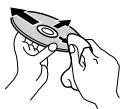
- No utilice ningún tipo de solvente (por ejemplo, limpiador de discos convencional, pulverizadores, diluyente, bencina, etc.) para limpiar los discos.
Para reproducir discos nuevos
Los discos nuevos podrían presentar ciertas irregularidades en sus bordes interior y exterior. Si intenta utilizar un disco en tales condiciones, el receptor podría rechazar el disco.
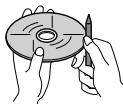
Para eliminar estos puntos ásperos, frote los bordes con un lápiz o bolígrafo, etc.
No utilice los siguientes discos:
| CD simple—disco de 8 cm (3-3/16 pulgada) | Disco alabeado |
 | 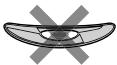 |
| Pegatinas y restos de pegatina | Rótulo autoadhesivo |
 |  |
| Forma irregular | C-thru Disc (disco semitransparente) |
 |  |
| Partes transparente o semitransparentes en el área de grabación | |
 |
Operaciones básicas
General
- Si apaga la unidad mientras está escuchando alguna pista, la próxima vez que la encienda, la reproducción comenzará desde el lugar en el cual fue apagada anteriormente.
- La operación se cancela si no se efectúa ninguna operación durante aproximadamente 60 segundos después de pulsar el botón MENU.
Operaciones del sintonizador
Cómo almacenar emisoras en la memoria
• Durante la búsqueda SSM...
–Todas las emisoras almacenadas previamente se borran y se almacenan las emisoras nuevas.
–Cuando finalice el SSM, se sintonizará automáticamente la emisora almacenada en el número de preajuste más bajo.
- Al almacenar una emisora manualmente, la emisora preajustada previamente se borra cuando se almacena una emisora nueva en el mismo número de preajuste.
Operaciones de disco/USB
Precaución sobre la reproducción de
DualDisc
- El lado no DVD de un "DualDisc" no es compatible con la norma "Compact Disc Digital Audio". Por consiguiente, no se recomienda usar el lado no DVD de un DualDisc en este producto.
General
- Este receptor ha sido diseñado para reproducir discos CDs/CD Texts, y CD-Rs (Grabables)/CD-RWs (Reescribibles) en formato de audio CD (CD-DA), MP3 y WMA.
- Si cambia la fuente de sonido mientras está escuchando un disco, se detiene la reproducción. La próxima vez que seleccione "CD" como fuente de reproducción, la reproducción comenzará desde el lugar en el que fue detenida previamente.
-
Cuando se inserta un disco al revés, "PLEASE" y "EJECT" aparecerán alternativamente en la pantalla. Pulse ▲ para sacar el disco.
-
Si no saca el disco expulsado en el lapso de 15 segundos, será reinsertado automáticamente en la ranura de carga para protegerlo contra el polvo. La reproducción se inicia automáticamente.
- Las "pistas" (los términos "archivo" y "pista" se utilizan indistintamente) MP3 y WMA se graban en "carpetas".
- Durante el avance rápido o el retroceso de un disco MP3 o WMA, podrá escuchar sólo sonidos intermitentes.
Reproducción de un CD-R o CD-RW
- Utilice sólo CD-Rs o CD-RWs "finalizados".
- Si el disco incluye tanto archivos CD de audio (CD-DA) como archivos MP3/WMA, esta unidad podrá reproducir solamente archivos del mismo tipo que los detectados en primer término.
- Este receptor puede reproducir discos multisesión; no obstante, las sesiones no cerradas serán omitidas durante la reproducción.
- Puede suceder que algunos discos CD-Rs o CD-RWs no se puedan reproducir en esta unidad debido a las características propias de los mismos, o por uno de los siguientes motivos:
–Los discos están sucios o rayados.
-Ha ocurrido condensación de humedad en la lente del interior del receptor.
-Suciedad en el lente captor del interior del receptor.
–Los archivos del CD-R/CD-RW están escritos mediante el método "Packet Write".
–Las condiciones inadecuadas de grabación (datos faltantes, etc.), o del medio (manchas, arañazos, alabeo, etc.).
- Los CD-RWs pueden requerir un tiempo de lectura mayor debido a que la reflectancia de los CD-RWs es menor que la de los CDs regulares.
- No utilice los CD-Rs o CD-RWs siguientes: - Discos con pegatinas, etiquetas o un sello de protección adheridos a la superficie. - Discos en los cuales las etiquetas pueden imprimirse directamente mediante una impresora de chorro de tinta.
El uso de estos discos a temperaturas o humedad elevadas podrá producir fallos de funcionamiento o daños a la unidad.
Reproducción de discos MP3/WMA
- Este receptor puede reproducir solamente archivos MP3/WMA con el código de extensión <.mp3> o <.wma> (sin distinción de caja—mayúsculas/minúsculas).
- Este receptor puede mostrar los nombres de los álbumes, artistas (ejecutantes), y etiqueta (Versión 1,0, 1,1, 2,2, 2,3 o 2,4) para archivos MP3 y para archivos WMA.
- Esta unidad puede manejar solamente caracteres de un byte. Otros caracteres no serán visualizados correctamente.
- Este receptor puede reproducir archivos MP3/WMA que cumplan con las siguientes condiciones:
–Velocidad de bits de MP3/WMA: 32 kbps — 320 kbps
-Frecuencia de muestreo de MP3: 32 kHz, 44,1 kHz, 48 kHz (para MPEG-1) 16 kHz, 22,05 kHz, 24 kHz (para MPEG-2)
-Frecuencia de muestreo de WMA: 22,05 kHz, 32 kHz, 44,1 kHz, 48 kHz
-Formato del disco: ISO 9660 Nivel 1/Nivel 2, Romeo, Joliet, extensión Windows
- El número máximo de caracteres para los nombres de archivo/carpeta varía según el formato de disco usado (incluye extensión de 4 caracteres—<.mp3> o <.wma>).
-ISO 9660 Nivel 1: hasta 12 caracteres
-ISO 9660 Nivel 2: hasta 31 caracteres
–Romeo: hasta 64 caracteres
–Joliet: hasta 32 caracteres
-Extensión de Windows: hasta 64 caracteres
- Esta unidad puede reconocer un total de 512 archivos, 255 carpetas, y 8 niveles de jerarquías.
- Este receptor puede reproducir archivos grabados en VBR (velocidad variable de bits). Los archivos grabados en VBR presentan una discrepancia en la visualización del tiempo transcurrido, y no muestran el tiempo transcurrido real. Especialmente, esta diferencia se hace evidente después de realizar la función de búsqueda.
- Este receptor no puede reproducir los siguientes archivos:
-Archivos MP3 codificados con formato MP3i y MP3 PRO.
-Archivos MP3 codificados en un formato inapropiado.
–Archivos MP3 codificados con Layer 1/2.
-Archivos WMA codificados con formatos sin pérdida, profesional, y de voz.
–Archivos WMA no basados en Windows Media® Audio.
-Archivos formateados WMA protegidos contra copia por DRM.
-Archivos que disponen de datos tales como AIFF, ATRAC3, etc.
- La función de búsqueda funciona pero la velocidad de búsqueda no es constante.
Reproducción de las pistas MP3/WMA de un dispositivo USB
- Mientras se reproduce desde un dispositivo USB, el orden de reproducción puede ser diferente de otros reproductores.
- Puede suceder que esta unidad no pueda reproducir algunos dispositivos USB o algunos archivos debido a sus características o a las condiciones de grabación.
- Dependiendo la forma de los dispositivos USB y de los puertos de conexión, puede suceder que algunos de ellos no puedan conectarse correctamente o que haya flojedad en la conexión.
- Conecte a la unidad un solo dispositivo de clase de almacenamiento masivo USB por vez. No utilice un hub USB.
- Si el dispositivo USB conectado no contiene archivos apropiados, aparecerá "CANNOT PLAY".
- Esta unidad puede mostrar la etiqueta (Versión 1,0, 1,1, 2,2, 2,3 o 2,4) para archivos MP3 y archivos WMA.
- Este receptor puede reproducir archivos MP3/WMA que cumplan con las siguientes condiciones:
-Velocidad de bits de MP3/WMA: 32 kbps — 320 kbps
-Frecuencia de muestreo de MP3: 32 kHz, 44,1 kHz, 48 kHz (para MPEG-1) 16 kHz, 22,05 kHz, 24 kHz (para MPEG-2)
-Frecuencia de muestreo de WMA: 22,05 kHz, 32 kHz, 44,1 kHz, 48 kHz
- Esta unidad puede reproducir archivos MP3 grabados en VBR (velocidad de bit variable).
- Número máximo de caracteres para:
–Nombres de las carpetas : 32 caracteres
–Nombres de los archivos : 32 caracteres
–Etiqueta MP3 : 64 caracteres
–Etiqueta WMA : 32 caracteres
- Esta unidad puede reconocer un total de 5 000 archivos, 255 carpetas (255 archivos por carpeta incluyendo carpeta sin archivos no compatibles) y 8 jerarquías.
- La unidad no es compatible con el lector de tarjetas SD.
- Esta unidad no puede reconocer ningún dispositivo USB que tenga un régimen distinto de 5 V y que exceda de 500 mA.
- Los dispositivos USB equipados con funciones especiales, como por ejemplo, funciones de seguridad de datos, no se pueden usar con esta unidad.
- No utilice un dispositivo USB con 2 o más particiones.
- Puede suceder que esta unidad no pueda reconocer un dispositivo USB conectado a través de un lector de tarjetas USB.
- Puede suceder que esta unidad no pueda reproducir correctamente archivos en un dispositivo USB cuando se utilice un cable prolongador USB.
- Este receptor no puede reproducir los siguientes archivos:
-Archivos MP3 codificados con formato MP3i y MP3 PRO.
-Archivos MP3 codificados en un formato inapropiado.
–Archivos MP3 codificados con Layer 1/2.
-Archivos WMA codificados con formatos sin pérdida, profesional, y de voz.
–Archivos WMA no basados en Windows Media® Audio.
Operaciones Bluetooth
- Absténgase de realizar actividades complicadas mientras conduce, como por ejemplo, marcar números, utilizar la guía telefónica, etc. Cuando tenga que realizar tales actividades, detenga el coche en un lugar seguro.
- Dependiendo de la versión de Bluetooth, puede suceder que algunos dispositivos Bluetooth no se puedan conectar a esta unidad.
- Esta unidad podría no funcionar con algunos dispositivos Bluetooth.
- Las condiciones de conexión pueden variar según las circunstancias.
- El dispositivo se desconecta al apagar la unidad.
Recepción de HD Radio
- La transmisión HD Radio puede recibirse normalmente en los EE.UU., pero también podría recibirse en aquellos países en que se ha iniciado la difusión limitada.
• Durante la búsqueda SSM...
–Todas las emisoras, incluyendo emisoras FM/AM convencionales, se buscan y almacenan en la banda seleccionada.
Radio satelital
- Para obtener más información sobre la radio satelital SIRIUS o para suscribirse, visite el sitio web http://www.sirius.com.
- Para la información más reciente sobre listados y programación de canales, o para suscribirse a la radio XM Satellite, visite http://www.xmradio.com.
Operaciones del iPod/iPhone
- Puede controlar los siguientes tipos de iPods/ iPhone:
-iPod con Vídeo (5ta. generación)*
-iPod classic
-iPod nano (1 ^a generación)*
-iPod nano (2da., 3ra., 4ta., 5ta. generación)
-iPod touch
-iPod touch (2da. generación)
-iPhone/iPhone 3G/iPhone 3GS
*
- No se puede navegar a través de archivos de video en el menú "Videos" en .
- Si el iPod no funciona correctamente, por favor actualice su software de iPod a la versión más reciente. Si desea información sobre cómo actualizar su iPod, visite http://www.apple.com.
- Al encender esta unidad, el iPod se carga a través de esta unidad.
- La reproducción aleatoria del iPod no puede utilizarse en esta unidad.
- El orden de canciones mostrado en el menú de selección de esta unidad puede diferir del que se encuentra en el iPod.
- La información de texto puede no visualizarse correctamente (por ej., letras acentuadas).
- Si la información de texto incluye más de 11 caracteres, será desplazada en la pantalla. Esta unidad puede visualizar hasta un máximo de 64 caracteres.
Localización de averías
| Síntoma | Soluciones/Causas | |
| General | No se puede escuchar el sonido a través de los altavoces. | Ajuste el volumen al nivel óptimo.Asegúrese de que la unidad no esté enmudecida/en pausa (6, 7).Inspeccione los cables y las conexiones. |
| Aparece "PROTECT" en la pantalla y no se puede realizar ninguna operación. | Asegúrese de que los terminales de los conductores de altavoz estén correctamente cubiertos con cinta aislante y luego reposicione la unidad (3).Si "PROTECT" no aparece, consulte con su concesionario de equipos de audio para automóvil JVC o con una compañía que suministra tales kits. | |
| El receptor no funciona en absoluto. | Reinicialice la unidad. (3) | |
| "EXT INPUT" o "AUX IN" no se pueden seleccionar. | Verifique el ajuste (30) | |
| No aparece nada en la pantalla. | Compruebe los ajustes de color de (32). | |
| FM/AM | El preajuste automático SSM no funciona. | Almacene manualmente las emisoras. |
| Ruidos estáticos mientras se escucha la radio. | Conecte firmemente la antena. | |
| "AM" no se puede seleccionar. | Verifique el ajuste (30) | |
| Reproducción del disco | No se puede reproducir el disco. | Inserte correctamente el disco. |
| No se puede reproducir el CD-R/CD-RW.No se pueden saltar las pistas del CD-R/CD-RW. | Inserte un CD-R/CD-RW finalizado.Finalice el CD-R/CD-RW con el componente utilizado para la grabación. | |
| No es posible reproducir ni expulsar el disco. | Desbloquee el disco. (10)Efectúe la expulsión forzada del disco. (3) | |
| Algunas veces el sonido del disco se interrumpe. | Detenga la reproducción mientras conduce por caminos accidentados.Cambie el disco.Inspeccione los cables y las conexiones. | |
| Aparece "NO DISC" en la pantalla. | Inserte un disco reproducible en la ranura de carga. | |
| "PLEASE" y "EJECT" aparecen alternativamente en la pantalla. | Pulse▲, luego inserte un disco correctamente. | |
| Reproducción de MP3/WMA | No se puede reproducir el disco. | • Utilice un disco con pistas MP3/WMA grabadas en un formato compatible con ISO 9660 Nivel 1, Nivel 2, Romeo o Joliet.• Añada el código de extensión <.mp3> o <.wma> a los nombres de archivos. |
| Se generan ruidos. | Salte a otra pista o cambie el disco. (No añada el código de extensión <.mp3> o <.wma> a pistas que no sean MP3 o WMA). | |
| Se requiere mayor tiempo de lectura ("READING" permanece parpadeando en la pantalla). | No utilice demasiados niveles de jerarquías y carpetas. | |
| Las pistas no se reproducen en el orden de reproducción intentado por usted. | Se ha determinado el orden de reproducción durante la grabación de los archivos. | |
| El tiempo de reproducción transcurrido no escorrecto. | Esto sucede a veces durante la reproducción. Esto depende de cómo fueron grabadas las pistas en el disco. | |
| Aparece "NO FILE" en la pantalla. | La carpeta seleccionada es una carpeta vacía*1. Selecciona otra carpeta que contenga pistas MP3/WMA. | |
| Aparece "NOT SUPPORT" en la pantalla y se omiten las pistas. | Vaya a la siguiente pista codificada en un formato apropiado o a la siguiente pista WMA no protegida contra la copia. | |
| No se visualizan los caracteres correctos (por ej.: nombre del álbum). | Esta unidad sólo puede visualizar letras (mayúsculas), números, y un número limitado de símbolos. (9) | |
| Reproducción de un dispositivo USB | Se generan ruidos. | La pista reproducida no es una pista MP3/WMA. Salte a otro archivo. (No añada el código de extensión <.mp3> o <.wma> a pistas que no sean MP3 o WMA). |
| "READING" permanece parpadeando en la pantalla. | • El tiempo de lectura varía según el dispositivo USB.• No utilice demasiadas jerarquías o carpetas.• Apague la unidad y vuélvala a encender.• Vuelva a conectar el dispositivo USB. | |
| Aparece "NO FILE" en la pantalla. | Compruebe que la carpeta seleccionada, el dispositivo USB conectado o el iPod/iPhone contenga un archivo reproducible. | |
| Aparece "NOT SUPPORT" en la pantalla y se omiten las pistas. | Vaya a la siguiente pista codificada en un formato apropiado o a la siguiente pista WMA no protegida contra la copia. | |
| Las pistas/carpetas no se reproducen en el orden que desea. | EL orden de reproducción está determinado por el sello de hora registrado. La primera pista o carpeta escrita en el dispositivo USB será la primera pista o carpeta que se reproduzca. |
*1 Carpeta que está físicamente vacía o que contiene datos, pero que no contiene pistas MP3/WMA válidas.
| Síntoma | Soluciones/Causas | |
| Reproducción de un dispositivo USB | “CANNOT PLAY” parpadea en la pantalla.Aparece “NO USB” en la pantalla.La unidad no puede detectar el dispositivo USB. | Conecte un dispositivo USB que contenga pistas codificadas en el formato apropiado.Vuelva a conectar el dispositivo USB. |
| El sonido se interrumpe algunas veces mientras se reproduce una pista. | Las pistas MP3/WMA no han sido correctamente copiadas al dispositivo USB.Vuelva a copiar las pistas MP3/WMA en el dispositivo USB e inténtelo nuevamente. | |
| No se visualizan los caracteres correctos (por ej.: nombre del álbum). | Esta unidad sólo puede visualizar letras (mayúsculas), números, y un número limitado de símbolos. (9) | |
| Bluetooth*2 | El dispositivo Bluetooth no detecta la unidad. | La unidad sólo se puede conectar con un teléfono móvil Bluetooth y un dispositivo de audio Bluetooth a la vez. Mientras se está conectando un dispositivo, esta unidad no puede ser detectada por otro dispositivo. Desconecte el dispositivo conectado actualmente y repita la búsqueda. |
| El dispositivo Bluetooth no es detectado por la unidad. | Verifique el ajuste Bluetooth del dispositivo.Efectúe la búsqueda desde el dispositivo Bluetooth. Después que el dispositivo detecte la unidad, seleccione “OPEN” en la unidad para conectarlo. (13) | |
| La unidad no puede realizar apareamiento con el dispositivo Bluetooth. | Ingrese el mismo código PIN para la unidad y el dispositivo objetivo.Seleccione el nombre del dispositivo en “SPECIAL” y, a continuación, intente la conexión otra vez. (14)Intente apareer/conectar desde el dispositivo Bluetooth. | |
| Hay eco o ruidos. | Ajuste la posición de la unidad del micrófono. | |
| La calidad del sonido telefónico es mala. | Reduzca la distancia entre la unidad y el teléfono móvil Bluetooth.Mueva el coche a un lugar donde pueda mejorar la recepción de la señal. | |
| No se puede controlar el dispositivo de audio conectado. | Revise si el dispositivo de audio conectado es compatible con AVRCP (Perfil de control remoto de audio/vídeo). | |
| El sonido se interrumpe u omite durante la reproducción de un dispositivo de audio Bluetooth. | Reduzca la distancia entre la unidad y el dispositivo de audio Bluetooth.Desconecte el dispositivo conectado para “BT-PHONE”.Apague la unidad y vuélvala a encender.Vuelva a conectar el dispositivo de audio Bluetooth cuando el sonido no esté todavía restaurado. |
*2 Para las operaciones Bluetooth, consulte también las instrucciones suministradas con el adaptador Bluetooth.
| Síntoma | Soluciones/Causas | |
| Recepción de HD Radio | La calidad del sonido cambia cuando se reciben emisoras HD Radio. | Fije el modo de recepción eno.(19, 28) |
| El sonido no se escucha. | Se seleccionacuando se reciben todas las transmisiones digitales de una emisora HD Radio.Selecioneoo.(19, 28)Se seleccionacuando se reciben señales digitales débiles o una emisión de radio convencional.Selecioneoo.(19, 28) | |
| Aparece “RESET 8” en la pantalla. | Vuelva a conectar esta unidad y el sintonizador HD Radio correctamente, a continuación, reajuste la unidad. | |
| Radio satelital | El texto “CALL 1-888-539-SIRIUS TO SUBSCRIBE” (llame al 1-888-539-SIRIUS para suscribirse) se desplaza por la pantalla mientras escucha la radio SIRIUS. | Se inicia la suscripción a la radio satelital SIRIUS.(20) |
| El sonido no se escucha. Aparece “UPDATING” en la pantalla. | El receptor está actualizando la información de canal y tarda algunos minutos en finalizar. | |
| Aparece “ACQUIRING” o “NO SIGNAL” en la pantalla. | Muévase hacia un área donde las señales sean más fuertes. | |
| Aparece “NO ANTENNA” o “ANTENNA” en la pantalla. | Conecte firmemente la antena. | |
| Aparece “NO CHANNEL” en la pantalla durante unos 5 segundos y, a continuación, vuelve al canal anterior o canal predeterminado mientras se escucha la radio satelital SIRIUS. | No hay transmisión en el canal seleccionado.Selecione otro canal o continúe escuchando el canal anterior o canal predeterminado. | |
| Aparece una pantalla en blanco. | No hay información de texto para el canal seleccionado. | |
| Aparece “CH---” o “CH UNAVAIL” en la pantalla por unos 2 segundos y después vuelve al canal anterior mientras escucha la radio satelital XM. | El canal seleccionado ya no está disponible o no está autorizado.Selecione otro canal o continúe escuchando el canal anterior. | |
| La señal “OFF AIR” aparece en la pantalla mientras escucha la radio satelital XM. | El canal seleccionado no está emitiendo en ese momento.Selecione otro canal o continúe escuchando el canal anterior. | |
| La señal “LOADING” aparece en la pantalla mientras escucha la radio satelital XM. | El receptor está cargando la información del canal y el audio. La información de texto no está disponible temporalmente. | |
| Aparece “RESET 8” en la pantalla.La radio satelital no funciona. | Vuelva a conectar correctamente esta unidad y la radio por satélite y, a continuación, reinicialice la unidad. | |
| iPod/iPhone | El iPod no se enciende o no funciona. | Verifique el cable de conexión y su conexión.Actualice la versión de firmware del iPod/iPhone.Cargue la pila del iPod/iPhone.Reinicialice el iPod/iPhone.Verifique si el ajustees apropiado(30). |
| El sonido está distorsionado. | Desactive el ecualizador en esta unidad o en el iPod/iPhone. | |
| Ruidos considerables. | Desactive (desmarque) la función “VoiceOver” del iPod. Para obtener más información, visite. | |
| La reproducción se detiene. | Los auriculares están desconectados durante la reproducción. Reinicie la operación de reproducción(22). | |
| Aparece “CANNOT PLAY” en la pantalla. | No hay pistas almacenadas. Importe pistas al iPod/ iPhone. | |
| Aparece “RESTRICTED” en la pantalla. | Verifique si el iPod/iPhone conectado es compatible con esta unidad(36). |
- Microsoft y Windows Media son marcas registradas o bien marcas comerciales de Microsoft Corporation en los Estados Unidos y/u otros países.
- La marca Bluetooth y sus logotipos son propiedad de Bluetooth SIG, Inc., y cualquier uso de los mismos por Victor Company of Japan, Limited (JVC) se realiza bajo licencia. Otras marcas y nombres comerciales son de sus respectivos propietarios.
- HD Radio™ y el logo HD Radio Ready son marcas comerciales propiedad de iBiquity Digital Corp.
- "SIRIUS" y el logo del perro de SIRIUS son marcas comerciales registradas de SIRIUS Satellite Radio Inc.
- XM y los logos correspondientes son marcas comerciales registradas de XM Satellite Radio Inc.
- "SAT Radio", el logo de SAT Radio y todas las demás marcas relacionadas son marcas comerciales de SIRIUS Satellite Radio Inc. y de XM Satellite Radio, Inc.
- "Made for iPod" significa que un accesorio electrónico ha sido específicamente diseñado para conectar a un iPod y ha sido certificado para cumplir con los estándares de performance de Apple.
- "Works with iPhone" significa que un accesorio electrónico ha sido específicamente diseñado para conectar a un iPhone y ha sido certificado para cumplir con los estándares de performance de Apple.
- Apple no se hace responsable por el funcionamiento de este dispositivo ni del cumplimiento con las normas de seguridad o reglamentarias.
- iPod es una marca comercial de Apple Inc., registrada en los EE.UU. y otros países.
- iPhone es una marca comercial de Apple Inc.
| SECCIÓN DEL AMPLIFICADOR DE AUDIO | Salida de potencia: | 20 W RMS × 4 canales a 4 Ω y ≤ 1% THD+N |  | ||
| Relación señal a ruido: | 80 dBA (referencia: 1 W en 4 Ω) | ||||
| Impedancia de carga: | 4 Ω (tolerancia de 4 Ω a 8 Ω) | ||||
| Gama de control de tono: | Graves: | ±12 dB (60 Hz, 80 Hz, 100 Hz, 200 Hz)Q1,0, Q1,25, Q1,5, Q2,0 | |||
| Mediana: | ±12 dB (0,5 kHz, 1,0 kHz, 1,5 kHz, 2,5 kHz)Q0,75, Q1,0, Q1,25 | ||||
| Agudos: | ±12 dB (10,0 kHz, 12,5 kHz, 15,0 kHz, 17,5 kHz)Q (Fijo) | ||||
| Respuesta de frecuencias: | 40 Hz a 20 000 Hz | ||||
| Nivel/impedancia salida línea: | 2,5 V/20 kΩ de carga (plena escala) | ||||
| Nivel/impedancia salida subwoofer: | 2,5 V/20 kΩ de carga (plena escala) | ||||
| Impedancia de salida: | 1 kΩ | ||||
| Otro terminal: | Toma de entrada AUX (auxiliar), Terminal de entrada USB, Entrada de antena, Puerto de expansión, Entrada remota en el volante de dirección | ||||
| SECCIÓN DEL SINTONIZADOR | Gama de frecuencias: | FM: | con el intervalo entre canales ajustado a 100 kHz o 200 kHz | 87,5 MHz a 107,9 MHz | |
| con el intervalo entre canales ajustado a 50 kHz | 87,5 MHz a 108,0 MHz | ||||
| AM: | con el intervalo entre canales ajustado a 10 kHz | 530 kHz a 1 710 kHz | |||
| con el intervalo entre canales ajustado a 9 kHz | 531 kHz a 1 602 kHz | ||||
| Sintonizador de FM: | Sensibilidad útil: | 9,3 dBf (0,8 μV/75 Ω) | |||
| 50 dB sensibilidad de silenciamiento: | 16,3 dBf (1,8 μV/75 Ω) | ||||
| Selectividad de canal alternativo (400 kHz): | 65 dB | ||||
| Respuesta de frecuencias: | 40 Hz a 15 000 Hz | ||||
| Separación estereofónica: | 40 dB | ||||
| Sintonizador de AM: | Sensibilidad: | 20 μV | |||
| Selectividad: | 40 dB | ||||
| SECCIÓN DEL REPRODUCTOR DE CD | Tipo: | Reproductor de discos compactos | |||
| Sistema de detección de señal: | Captor óptico sin contacto (láser semiconductor) | ||||
| Número de canales: | 2 canales (estereofónicos) | ||||
| Respuesta de frecuencias: | 5 Hz a 20 000 Hz | ||||
| Gama dinámica: | 96 dB | ||||
| Relación señal a ruido: | 98 dB | ||||
| Lloro y trémolo: | Inferior al límite medible | ||||
| Formato de decodificación MP3: (MPEG1/2 Audio Layer 3) | Máx. velocidad de bits: 320 kbps | ||||
| Formato de decodificación WMA (Windows Media® Audio): | Máx. velocidad de bits: 320 kbps | ||||
| SECCIÓN USB | Norma USB: | USB 1.1, USB 2.0 | |||
| Velocidad de transferencia de datos (Velocidad máxima): | Máx. 12 Mbps | ||||
| Dispositivo compatible: | Clase de almacenamiento masivo | ||||
| Sistema de archivo compatible: | FAT 32/16/12 | ||||
| Formato de audio reproducible: | MP3/WMA | ||||
| Corriente máx.: | 5 V CC = 500 mA | ||||
| GENERAL | Requisitos de potencia: | Voltaje de funcionamiento: | 14,4 V CC (tolerancia de 11 V a 16 V) | ||
| Sistema de puesta a tierra: | Negativo a masa | ||||
| Temperatura de funcionamiento admisible: | 0°C a +40°C (32°F a 104°F) | ||||
| Dimensiones (An × Al × Pr): (aprox.) | Tamaño de instalación: | 182 mm × 111 mm × 160 mm (7-3/16 pulgada × 4-3/8 pulgada × 6-5/16 pulgada) | |||
| Tamaño del panel: | 188 mm × 117 mm × 23 mm (7-7/16 pulgada × 4-5/8 pulgada × 5/16 pulgada) | ||||
| Peso: | 1,8 kg (3,9 lbs) (excluyendo accesorios) | ||||
El diseño y las especificaciones se encuentran sujetos a cambios sin previo aviso.
Si necesita un kit para su automóvil, consulte su directorio telefónico para buscar la tienda especializada en car audio más cercana.
Attention:
Tout changement ou modification non approuvé par JVC peut annuler l'autorité de l'utilisateur d'utiliser l'appareil.
IMPORTANT POUR PRODUITS LASER
- PRODUIT LASER CLASSE 1
- ATTENTION: N'ouvrez pas le couvercle supérieur. Il n'y a aucune pièce réparable par l'utilisateur à l'intérieur de l'appareil; confiez toute réparation à un personnel qualifié.
- ATTENTION: (Pour les Etats-Unis) Radiation laser de classe II visibles et/ou invisible si l'appareil est ouvert. Ne regardez pas le rayon.
(Pour le Canada)
Rayonnement laser visible et/ou invisible de classe 1M une fois ouvert. Ne pas regarder directement avec des instruments optiques.
- REPRODUCTION DE L'ÉTIQUETTE: ÉTIQUETTE DE PRÉCAUTION PLACÉE À L'EXTÉRIEUR DE L'APPAREIL.
| CAUTION | |||||
| VISIBLE AND/OR INVISIBLE CLASS 1M LASER RADIATION WHEN OPEN. DO NOT DIRECTOR WITH OPTICAL INSTRUMENTS:EC00825-1:2001(ENG) | ATTENTIONRAYONNEMENT LASER VISIBLE ET/OU INVISIBLE DE CLASSE I M UNE FOIS OUVERT, A DESPARSARDIER DIRECTMENT AVED DES INSTRUMENTS OPTIQUES.(FRA) | AVISO RADIACION LASER DE CLASE 1M VISIBLE Y/O INVISIBLE CUANDO ESTA ASSEMBEN NO MIRAR DIRECTAMENTE CON INSTRUMENTAL OPTICO.(ESP) | VARNING SYNUG OCH/ELLER OSYNILG LASKERSTRAWLING KLASB 1M, NÄR DENNA LEAVEN, MEDEUR BERTAKTAJ ESTRÄLEN MED OPTISKA INSTRUMENT.(SWE) | 注意二ことをよくと可視されにはと不可視のクラム 1Mレージー 改望が、注意で可能被成像見かないでください。(JPN) | CAUTIONVISIBLE AND/ORINVISIBLE CLASS II LASER RADIATION WHEN OPEN. DO NOT SHARE INTO BEAM. FDA 21 CFR |
[Union européenne seulement]
Avertissement:
Si vous souhaitez opérer l'appareil pendant que vous conduisez, assurez-vous de bien regarder autour de vous afin de ne pas causer un accident de la circulation.
Pour sécurité...
- N'augmentez pas trop le volume car cela bloquerait les sons de l'extérieur rendant la conduite dangereuse.
- Arrêtez la voiture avant de réaliser toute opération compliquée.
Température à l'intérieur de la voiture...
Si votre voiture est restée garée pendant longtemps dans un climat chaud ou froid, attendez que la température à l'intérieur de la voiture redevienne normale avant d'utiliser l'appareil.
Comment lire ce manuel
Les icônes/symboles suivants sont utilisés pour indiquer:

[Maintenez pressée]
Maintenez pressées ces touches jusqu'à ce que l'opération souhaitée démarre.

Tournez la molette de commande.



Tournez la molette de commande pour faire votre choix, puis appuyez dessus pour valider.

XX)
Numéro de page de référence
Élément de réglage de menu

Suite à la page suivante
Comment réinitialiser votre appareil
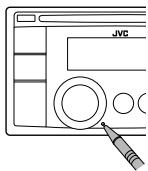
text_image
JVCVous ajustements préréglés sont aussi effacés (sauf le périphérique Bluetooth enregistré). (13, 14).
Comment forcer l'éjection d'un disque

text_image
SOURCE + [Maintenez pressée]- Vous pouvez éjecter de force le disque en place même quand le disque est verrouillé. Pour verrouillé/déverrouillé le disque, 10.
- Faites attention de ne pas faire tomber le disque quand il est éjecté.
- Si cela ne fonctionne pas, essayez de réinitialiser l'autoradio.
Précautions sur le réglage du volume:
Les appareils numériques (CD/USB) produisent très peut de bruit par rapport aux autres sources. Réduisez le volume avant de reproduire ces sources numériques afin d'éviter d'endommager les enceintes par la soudaine augmentation du niveau de sortie.
Merci pour avoir acheté un produit JVC.
Veuillez lire attentivement toutes les instructions avant d'utiliser l'appareil afin de bien comprendre son fonctionnement et obtenir les meilleures performances possibles.
TABLE DES MATIERES
3 Comment lire ce manuel
3 Comment réinitialiser votre appareil
3 Comment forcer l'éjection d'un disque
4 Annulation des démonstrations des affichages
4 Réglage de l'horloge
5 Préparation de la télécommande (RM-RK50)
6 Opérations de base
7 Écoute de la radio
10 Écoute d'un disque
12 Écoute du périphérique USB
13 Utilisation d'un périphérique Bluetooth®
14 Utilisation d'un téléphone portable Bluetooth
16 Utilisation d'un lecteur audio Bluetooth
16 Modification des réglages Bluetooth
18 Écoute d'une émission HD Radio™
19 Écoute de la radio satellite
22 Écoute de iPod/iPhone
24 Écoute d'un autre appareil extérieur
25 Sélection d'un mode sonore préréglé
26 Utilisation des menus
31 Sélection d'une couleur variable pour l'éclairage des touches et de l'affichage
32 Création de votre propre couleur de jour et de nuit—USER
33 Entretien
34 Pour en savoir plus à propos de cet autoradio
37 Guide de dépannage
42 Spécifications
Annulation des démonstrations des affichages
1 Mise sous tension de l'appareil.

2

[Maintenez pressée]
(Réglage initial)
3

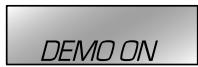
4 Choisissez .

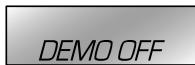
5

6 Terminez la procédure.

Réglage de l'horloge
1 Mise sous tension de l'appareil.

2

[Maintenez pressée]
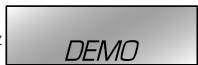
(Réglage initial)
3 Choisissez .

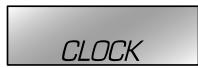



4 Choisissez .

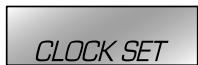


5 Ajustez les heures.

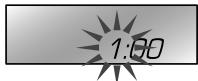
text_image
1:00

6 Ajustez les minutes.

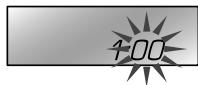
text_image
100

7 Terminez la procédure.

Préparation de la télécommande (RM-RK50)
Lorsque vous utilisez la télécommande pour la première fois, tirez sur la feuille isolante pour la retirer.
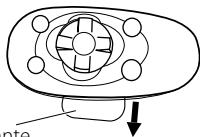
natural_image
Diagram of a mechanical component with a central hub and circular ports, showing an arrow pointing downward (no text or symbols)Feuille isolante
Pour Californie des États-Unis seulement: Cet appareil contient une pile-bouton CR au lithium qui contient du perchlorate—une manipulation spéciale peut être requise. Voir www.dtsc.ca.gov/hazardouswaste/perchlorate
Si la télécommande perd de son efficacité, remplacez la pile.
Remplacement de la pile-bouton au lithium
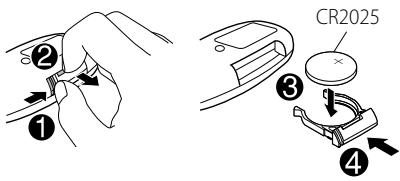
text_image
① ② ③ CR2025 ④Attention:
- Danger d'explosion si la pile est remplacée de façon incorrecte. Remplacez-la uniquement avec le même type de pile ou un type équivalent.
- Les piles ne doivent en aucun cas être exposées à une chaleur excessive (lumière du soleil, feu, etc.).
Avertissement (pour éviter tout accident et tout dommage):
- N'installez pas une autre pile qu'une CR2025 ou son équivalent.
- Ne laissez pas la télécommande dans un endroit (tel que le tableau de bord) exposé à la lumière directe du soleil pendant longtemps.
- Rangez la pile dans un endroit hors d'atteinte des enfants.
- Ne rechargez pas, ne court-circuitez pas, ne chauffez pas la pile ni ne la jeter dans un feu.
- Ne laissez pas la pile avec d'autres objets métalliques.
- Ne piquez pas la pile avec des ciseaux ou d'autres objets similaires.
- Enveloppez la pile de ruban isolant avant de la mettre au rebut ou de la ranger.
L'autoradio est muni d'une fonction de télécommande de volant.
Avant de commencer, connecter un adaptateur de télécommande (non fourni), correspondant à votre voiture, à la prise d'entrée de la télécommande de volant à l'arrière de l'appareil.
- Pour plus d'informations, référez-vous aussi aux instructions fournies avec l'adaptateur de télécommande.
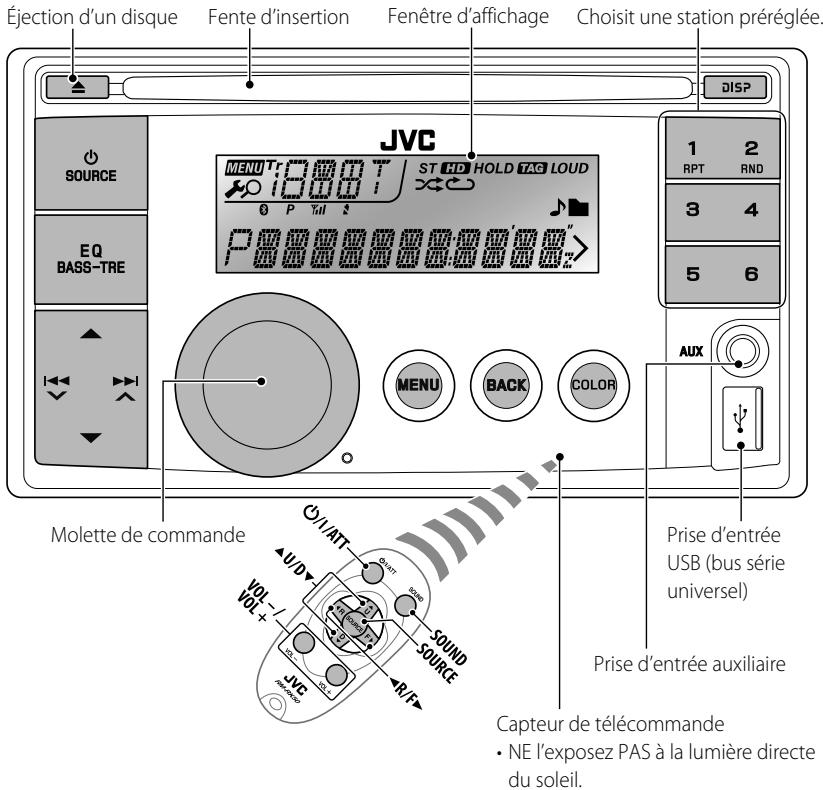
text_image
Éjection d'un disque Fente d'insertion Fenêtre d'affichage Choisit une station préréglée. JVC MENU Tr 1000 T ST HD HOLD TAG LOUD 0 P Tal # P MENU BACK COLOR 1 RPT 2 RND 3 4 5 6 AUX Molette de commande Prise d'entrée USB (bus série universel) Prise d'entrée auxiliaire Capteur de télécommande • NE l'exposez PAS à la lumière directe du soleil.Quand vous appuyez ou maintenez pressées les touches suivantes...
| Appareil principal | Télécommande | Opérations générales |
 | ∅/I/ATT | Met l'appareil sous tension.Quand l'appareil est sous tension, appuyer sur ∅/I/ATTSur la télécommande coupe aussi la sortie du son ou met l'appareil en pause. Appuyez de nouveau sur ∅/I/ATT pour annuler la sourdine ou reprendre la lecture. |
| Maintenez cette touche pressée pour mettre l'appareil hors tension. | ||
 — — | Choisit les sources disponibles (si l'appareil est sous tension).Si la source est prête, la lecture démarre aussi.Ajuste le niveau de volume. | |
 | ||
| — | Choisissez les éléments. | |
 | — | Coupe le son pendant l'écoute d'une source. Si la source est "CD", "USB" ou "USB-IPOD", la lecture se met en pause. Appuyez sur la molette de commande pour rétablir le son ou reprendre la lecture. Valide la sélection. |
 | — | Le menu du mode de répétition (11, 23) s'affiche directement si vous appuyez sur RPT.Le menu du mode de lecture aléatoire (11, 23) s'affiche directement si vous appuyez sur RND. |
 |  | Choisit les modes sonores préréglés.Maintenez pressée EQ BASS-TRE sur l'appareil principal pour entrer directement en mode d'ajustement du niveau de tonalité (25). |
 | — | Entre en mode de réglagedirectement (31).Maintenez cette touche pressée pour entrer directement en mode de réglage (32). |
 | — | Retourne au menu précédent.Maintenez cette touche pressée pour commuter sur la prise de commande pour la lecture iPod. (22, 30) |
 | — | Mise hors tension: Vérifiez l'heure actuelle.Mise sous tension: Change l'information sur l'affichage. |
Écoute de la radio
1

→ "FM" ou "AM"
2
"ST" s'allume lors de la réception d'une émission FM stéréo avec un signal suffisamment fort.
Recherche manuelle
[Maintenez pressée]
"M" clignote, puis appuyez sur la touche répétitivement.

Quand une émission FM stéréo est difficile à recevoir
1

[Maintenez pressée]
2
flowchart
graph LR
    A["Start"] --> B["Process Step"]
    B --> C["Button"]
La réception est améliorée, mais l'effet stéréo est perdu.
Pour rétablir l'effet stéréo, répétez la même procédure et choisissez
Préréglage automatique (FM)—
SSM (Mémorisation automatique séquentielle des stations puissantes)
Vous pouvez prérégler un maximum de 18 stations pour FM.
Pendant l'écoute d'une station...
1

[Maintenez pressée]
2
natural_image
Diagram showing a circular button being pushed to a square button with a hand cursor (no text or symbols)
<SSM 01 - 06 / SSM 07 - 12 /
SSM 13 - 18>
"SSM" clignote et les stations locales avec les signaux les plus forts sont recherchées et mémorisées automatiquement.
Pour prérégler 6 autres stations, répétez la procédure ci-dessus en choisissant une des 6 autres plages de réglage SSM.
Si un tuner HD Radio est connecté (18), vous pouvez aussi rechercher et mémoriser 6 stations AM en suivant les opérations ci-dessus.
Préglage manuel (FM/AM)
Vous pouvez prérégler un maximum de 18 stations pour FM et de 6 stations pour AM.
Ex.: Mémorisation de la station FM de fréquence 92,50 MHz sur le numéro de préréglage "04".
1
→ "92.50MHz"
2
[Maintenez pressée]
"PRESET MODE" clignote.
3
natural_image
Two circular buttons with arrows indicating rotation and transition, one pointing at the right (no text or symbols)⇒ Choisissez le numéro de préréglage "04".
"P04" clignote et "MEMORY" apparaît.
- Maintenir pressées les touches numériques (1 – 6) permet aussi de mémoriser la station actuelle sur les touches numériques (1 – 6) choisies.
Sélection d'une station préréglée
ou

2
flowchart
graph LR
    A["Start"] --> B["Process Step"]
    B --> C["Next Step"]
- Appuyer sur les touches numériques (1 – 6) permet aussi de choisir les stations préréglées (1 – 6).
Affectation d'un titre
Vous pouvez affecter un titre à 30 fréquences de station (FM et AM) maximum et 8 caractères (maximum) pour chaque titre.
- Si vous essayer d'affecter des titres à plus de 30 fréquences de station, "NAME FULL" apparaît. Effacez les titres inutiles avant de faire une autre affectation.
- Quand le tuner HD Radio est connecté (18), cette fonctionnalité n'est pas disponible.
1

→ "FM" ou "AM"
2
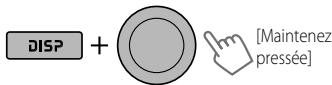
text_image
DISP + [Maintenez pressée]⇒ Affiche l'écran d'entrée de titre.
3

⇒ Permet de choisir un caractère (A - Z, 0 - 9, —, /, <, >) ou espace.
4
→ Déplacez-vous à la position de caractère suivante (ou précédente).
Répétez les étapes 3 et 4 jusqu'à ce que vous terminiez d'entrer le titre.
5
6

Pour effacer tout le titre, maintenez pressée DISP après l'étape 2, puis appuyez sur la molette de commande.
Changement des informations sur l'affichage
Nom de la station ^* → Fréquence → Horloge → (retour au début)
* Si aucun titre n'est affecté à une station, "NO NAME" apparaît pendant quelques secondes.
Utilisation de la télécommande

▲U/D▼ : Change les stations préréglées
◀R/F▶ : Recherchez des stations
Écoute d'un disque
1

⇒ Mise sous tension de l'appareil.
2
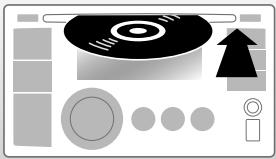
natural_image
Illustration of a CD/DVD interface with buttons, arrows, and control panel (no text or symbols)Toutes les plages sont reproduites répétitivement jusqu'à ce que vous changiez la source ou éjectiez le disque.
Arrête de la lecture et éjection du disque
"NO DISC" apparaît.
Appuyez sur Ⓧ SOURCE pour écouter une autre source de lecture.
Interdiction de l'éjection du disque
text_image
+ [Maintenez pressée]Pour annuler l'interdiction, répétez la même procédure.
Choisit un dossier d'un disque MP3/WMA

Sélection d'une plage
text_image
[Maintenez pressée]Avance ou recule rapidement la plage
Sélection d'un dossier/plage sur la liste.
Pendant l'écoute d'un disque....
1

⇒ Affichez la liste.
2
natural_image
Diagram showing a circular button being pushed to a square button with a hand cursor (no text or symbols)→ Choisissez l'élément souhaité. MP3/WMA : Choisissez le dossier souhaité, puis la plages souhaitée en répétant cette étape.
- Si le disque MP3/WMA contient beaucoup de plages, vous pouvez effectuer une recherche rapide (±10, ±100, ±1000) sur le disque en tournant rapidement la molette de commande.
- Pour revenir au menu précédent, appuyez sur BACK.
Sélection des modes de lecture
Vous pouvez utiliser un des modes de lecture suivants à la fois.
1
text_image
1 RPT 2 RND⇒ "REPEAT" ou "RANDOM"
- Maintenir pressée la molette de commande permet d'afficher le menu du mode de lecture. Tournez la molette de commande pour faire votre choix (REPEAT ou RANDOM), puis appuyez dessus pour valider.
2
natural_image
Two circular buttons with arrows indicating rotation and movement, one pointing at the right (no text or symbols)REPEAT
TRACK RPT : Répète la plage actuelle
FOLDER RPT : Répète le dossier actuel
RANDOM
FOLDER RND : Reproduit aléatoirement toutes les plages du dossier actuel, puis toutes les plages des dossiers suivants
ALL RND : Reproduit aléatoirement toutes les plages
Pour annuler la lecture répétée ou la lecture aléatoire, choisissez "RPT OFF" ou "RND OFF".
Changement des informations sur l'affichage
Le titre du disque/Nom de l'album/interprète (nom du dossier)* → Titre de la plage (nom de fichier)* → Numéro de la plage actuelle avec la durée de lecture écoulée → Numéro de la plage actuelle avec l'horloge → (retour au début)
* Si le disque actuel est un CD audio (sauf pour les CD Text), "NO NAME" apparaît.
Si un fichier MP3/WMA n'a pas de balise d'information ou si
Utilisation de la télécommande
 | ▲U/D▼ : Choisit un dossier d’un disque MP3/WMA |
| ◀R/F▶ : Sélection d’une plage | |
| ◀R/F▶ : Avance ou recule [Maintenez pressée] rapidement la plage |
Écoute du périphérique USB
Cet appareil peut reproduire les fichiers MP3/WMA mémorisés sur un périphérique USB à mémoire de grande capacité.
Vous pouvez connecter un périphérique USB à mémoire de grande capacité tel qu'une mémoire USB, un lecteur audio numérique, etc. à cet appareil.
- Vous pouvez aussi connecter un iPod/iPhone Apple à la prise d'entrée USB. Pour en savoir plus, 22.
1
→ Mise sous tension de l'appareil.
2
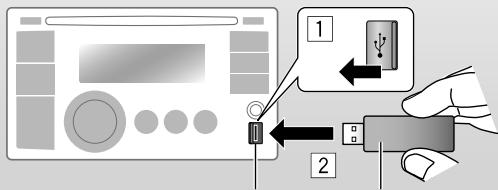
text_image
Diagram showing a device connection with labeled parts and directional arrows indicating process stepsPrise d'entrée USB
Mémoire USB
Toutes les plages sont reproduites répétitivement jusqu'à ce que vous changiez la source ou détachiez le périphérique USB.
Si vous avez mis l'appareil hors tension (sans détacher le périphérique USB)...
Appuyer sur Ⓧ SOURCE met l'appareil sous tension et la lecture démarre alors à partir de l'endroit où elle a été interrompue précédemment.
- Si un périphérique USB différent est actuellement connecté à l'appareil, la lecture démarre à partir du début.
Arrêt de la lecture et débranchement du périphérique USB
Tirez en ligne droite pour le détacher le périphérique.
"NO USB" apparaît. Appuyez sur ⏻ SOURCE pour écouter une autre source de lecture.
Vous pouvez commander le périphérique USB de la même façon que les fichiers sur un disque. (10, 11)
Attention:
- Éviter d'utiliser le périphérique USB s'il peut gêner une conduite une conduite en toute sécurité.
- Ne déconnectez puis ne reconnectez pas le périphérique USB répétitivement pendant que "READING" apparaît sur l'affichage.
- Ne démarrez pas le moteur de la voiture si un périphérique USB est connecté.
- Il se peut que cet appareil ne puisse pas lire des fichiers en fonction du type de périphérique USB.
- Le fonctionnement et l'alimentation peuvent ne pas fonctionner comme prévu pour certains périphériques USB.
- Vous ne pouvez pas connecter un ordinateur à la prise d'entrée USB de l'appareil.
- Assurez-vous que toutes les données importantes ont été sauvegardées pour éviter toute perte de données.
- Ne laissez pas un périphérique USB dans la voiture, exposé aux rayons directs du soleil ou aux hautes températures pour éviter toute déformation ou tout dommage du périphérique.
- Certains périphériques USB peuvent ne pas fonctionner immédiatement après la connexion du périphérique ou sa mise sous tension.
- Pour en savoir plus sur les opérations USB, 35, 36.
Utilisation d'un périphérique Bluetooth®
Pour les opérations Bluetooth, il faut connecter l'adaptateur Bluetooth, KS-BTA200 (non fournis) au port d'extension à l'arrière de cet appareil.
- Référez-vous à la page 4 du Manuel d'installation/raccordement (volume séparé) pour vérifier les pays où vous pouvez utiliser la fonction Bluetooth®.
- Pour en savoir plus, référez-vous aussi aux instructions fournies avec l'adaptateur Bluetooth et le périphérique Bluetooth.
Pour utiliser un appareil Bluetooth à travers cet appareil ("BT-PHONE" et "BT-AUDIO") pour la première fois, vous devez établir la connexion sans fil Bluetooth entre l'appareil Bluetooth et cet appareil.
- Une fois que la connexion est établie, le périphérique reste enregistré dans cet appareil même si vous réinitialisez l'appareil. Un maximum de cinq appareils peuvent être enregistrés en tout.
- Un seul périphérique peut être connecté en même temps pour chaque source ("BT-PHONE" et "BT-AUDIO").
Méthodes d'enregistrement (pairage)
Utilisez un des éléments suivants ("OPEN" ou "SEARCH") dans le menu Bluetooth pour enregistrer et préparer l'appareil pour qu'il puisse établir une nouvelle connexion Bluetooth avec un périphérique.
"OPEN": La connexion est établie à partir du périphérique Bluetooth.
"SEARCH": La connexion est établie à partir de cet appareil.
Enregistrement en utilisant "OPEN"
Préparation: Réglez le périphérique pour mettre en service la fonction Bluetooth.
1

⇒ "BT-PHONE" ou "BT-AUDIO"
2

text_image
Diagram showing hand press application on a device with bidirectional and double arrow icons, followed by navigation buttons⇒ "NEW DEVICE" ⇒ "OPEN"
3
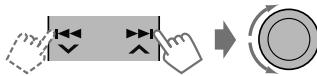
flowchart
graph TD
    A["Hand press"] --> B["Button with double arrow"]
    B --> C["Arrow pointing right"]
    C --> D["Circle button with bidirectional arrow"]
→ Entrez un code PIN (Numéro d'identification personnel) dans l'appareil.
Vous pouvez entrer n'importe quel nombre (entre 1 et 16 chiffres). [Réglage initial: 0000]
- Certains périphériques ont leur propre code PIN. Entrez le code PIN spécifié sur l'appareil.
4
Répétez l'étape 3 jusqu'à ce que vous ayez fin d'entrer le code PIN.
5
"OPEN.." clignote.
6
Utilisez le périphérique Bluetooth pour faire la recherche et réaliser la connexion.
Sur le périphérique à connecter, entrez le même code PIN que vous venez juste d'entrer sur cet appareil. "CONNECTED" apparaît.
Maintenant la connexion est établie et vous pouvez utiliser le périphérique à travers cet appareil.
Le périphérique reste enregistré même après que vous le déconnectez. Utilisez "CONNECT" (ou mettez en service "AUTO CNNCT") pour connecter le même périphérique la prochaine fois. (17)
Enregistrement en utilisant "SEARCH/SPECIAL"
1

⇒ "BT-PHONE" ou "BT-AUDIO"
2

text_image
Diagram showing hand press control buttons with double and double arrow icons, ending with a dropdown button→ "NEW DEVICE"
3

text_image
Diagram showing hand press control buttons with directional arrows and dropdowns, indicating navigation or press function⇒ "SEARCH": Pour rechercher les périphériques disponibles
L'appareil recherche et affiche la liste des périphériques disponibles.
"UNFOUND" apparaît si aucun périphérique n'est détecté.
----OU----
⇒ "SPECIAL": Pour connecter un périphérique spécial
L'appareil affiche la liste des périphériques préréglés.
4

text_image
Diagram showing hand press control buttons with directional arrows and navigation icons→ Choisissez le périphérique que vous souhaitez connecter.
5
Pour les périphériques disponibles...
→ Entrez le code PIN spécifique du périphérique sur cet appareil.
- Référez-vous aux instructions fournies avec le périphérique pour vérifier le code PIN.
Utilisez le périphérique Bluetooth pour réaliser la connexion.
Maintenant la connexion est établie et vous pouvez utiliser le périphérique à travers cet appareil.
Pour les périphériques spéciaux...
Utilisez "OPEN" ou "SEARCH" pour réaliser la connexion.
Connexion/déconnexion/ suppression d'un périphérique enregistré
1

⇒ "BT-PHONE" ou "BT-AUDIO"
2

text_image
Diagram showing hand press control buttons with left/right double and double arrow icons, ending with a right-click button→ Choisissez un appareil que vous souhaitez connecter/déconnecter/supprimer.
3

text_image
Diagram showing hand press control buttons with left/right double and double arrow icons, ending with a right-click button⇒ "CONNECT" ou "DISCONNECT": Pour connecter/déconnecter le périphérique choisi
----ou----
⇒ "DELETE" ⇒ "YES": Pour supprimer un périphérique choisi
Vous régler l'appareil pour vous connecter automatiquement au périphérique Bluetooth quand l'autoradio est mis sous tension. ("AUTO CNNCT", 17)
Utilisation d'un téléphone portable Bluetooth
1

→ "BT-PHONE"
2

→ Menu Bluetooth
3
Faites un appel ou des réglages en utilisant le menu de réglage Bluetooth.
(17)
Quand un appel arrive....
La source change automatiquement sur "BT-PHONE".
- L'affichage clignote en bleu. (
Quand "AUTO ANSWER" est en service....
L'appareil répond automatiquement aux appels entrant. (17)
- Quand "AUTO ANSWER" est hors service, appuyez sur n'importe quelle touche (sauf ◎ SOURCE / ▲) pour répondre à un appel entrant.
- Vous pouvez ajuster le niveau de volume du microphone. (17)
Pour terminer un appel
Maintenez pressée n'importe quelle touche (sauf ⏻ SOURCE / ▲).
Quand un message textuel arrive....
Si le téléphone portable est compatible avec les messages textuels (notifiés par l'adaptateur Bluetooth JVC) et que "MSG-INFO" (info messages) est réglé sur "AUTOMATIC" (17), l'appareil sonne pour vous informer de l'arrivée d'un message.
- "RCV MESSAGE" (message en cours de réception) apparaît et l'affichage s'allume en bleu. (
Pour faire un appel
1

→ "BT-PHONE"
2

3

text_image
Diagram showing hand press and navigation buttons with directional arrows and play icons→ Choisissez le menu "DIAL".
4

text_image
Diagram showing hand press application with double arrow and double arrow icons, followed by a button with downward arrow icon→ Choisissez une méthode d'appel.
PHONE BOOK* ↔ MISSED* ↔
NUMBER ↔ VOICE DIAL ↔
REDIAL* ↔ RECEIVED* ↔ (retour au début)
* Apparaît uniquement quand votre téléphone portable est muni de ces fonctions et qu'il est compatible avec cet appareil.
5 Pour les REDIAL, RECEIVED, MISSED
⇒ Répétez l'étape 4 pour choisir un nom (s'il a été obtenu) ou un numéro de téléphone.
Pour les PHONE BOOK
⇒ Répétez l'étape 4 pour choisir un nom ou un numéro de téléphone.
Pour les NUMBER
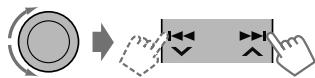
flowchart
graph LR
    A["Circle with arrow"] --> B["Arrow pointing inward"]
    B --> C["Arrow pointing right"]
    C --> D["Arrow pointing down"]
→ Entrez le numéro de téléphone.
→ Validation.
Pour les VOICE DIAL
⇒ Dîtes le nom que vous souhaitez appeler quand "SAY NAME" apparaît.
- Si votre téléphone portable ne prend pas en charge le système de reconnaissance vocale, "ERROR" apparaît. - Utiliser une balise vocale peut être difficile dans un environnement bruyant ou en cas d'urgence.
Pour revenir au menu précédent, appuyez sur

Utilisation de la télécommande

▲U/D▼/
: Répond aux
◀R/F▶/SOURCE
appels
▲U/D▼/
: Refuse les
◀R/F▶/SOURCE
appels
[Maintenez
pressée]
Utilisation d'un lecteur audio Bluetooth

⇒ "BT-AUDIO"
Si la lecture ne démarre pas, utilisez le lecture audio Bluetooth pour démarrer la lecture. Utilisez le lecteur audio Bluetooth pour mettre la lecture en pause (si la lecture ne se met pas en pause quand vous changez la source).
Saut vers l'arrière/saut vers l'avant
Arrête momentanément (pause)/démarre la lecture*
* L'opération peut différer en fonction du lecteur audio Bluetooth connecté.

Affichez le menu de réglage (liste des périphériques)
Pour connecter/déconnecter/supprimer un périphérique enregistré, 14.
Utilisation de la télécommande

◀R/F▶ : Saut vers l'arrière/saut vers l'avant
Modification des réglages Bluetooth
1

⇒ "BT-PHONE" ou "BT-AUDIO"
2
→ Menu Bluetooth
3

text_image
Diagram showing hand-drawn buttons with directional arrows and a right-pointing arrow, indicating a process or navigation step.→ "SETTINGS"
4

text_image
Diagram showing hand press application on a device with double and double arrow icons, followed by a right-click button with downward arrow icon.→ Choisissez une option de réglage.
AUTO CNNCT ↔ AUTO ANSWER*1
↔ MSG INFO*2 ↔ MIC SETTING*1
↔ VERSION*3 ↔ (retour au début)
5

text_image
Diagram showing hand press application on a device with bidirectional and double-headed arrows indicating left/right movement→ Changez le réglage souhaité. Pour le menu de réglage, 🔒 17.
*1 Apparaît uniquement quand un téléphone Bluetooth est connecté.
*2 Apparaît uniquement quand un téléphone Bluetooth est connecté et qu'il est compatible avec les messages textuels (notifiés par l'adaptateur Bluetooth JVC).
*3 Bluetooth Audio: Affiche uniquement "Version".
Menu de réglage [Réglage initial: Souligné]
AUTO CNNCT (connexion automatique)
Quand l'appareil est sous tension, la connexion est établie automatiquement avec...
OFF: Aucun appareil Bluetooth.
LAST: Le dernier appareil Bluetooth connecté.
ORDER: L'appareil Bluetooth enregistré trouvé en premier.
AUTO ANSWER
Uniquement pour l'appareil connecté pour "BT-PHONE".
ON: L'appareil répond automatiquement aux appels entrant.
OFF: L'appareil ne répond pas automatiquement aux appels entrant. Répondez aux appels manuellement.
REJECT: L'appareil refuse tous les appels entrants.
MSG INFO (info messages)
Uniquement pour l'appareil connecté pour "BT-PHONE".
AUTOMATIC: L'appareil vous informe de l'arrivée d'un message par une sonnerie et en affichant "RCV MESSAGE" (réception d'un message).
• L'affichage s'allume en bleu. (
MANUAL: L'appareil ne vous informe pas de l'arrivée d'un message.
MIC SETTING (réglage du microphone)
Uniquement pour l'appareil connecté pour "BT-PHONE". Ajustez le volume du microphone connecté à l'adaptateur Bluetooth, [LEVEL 01/02/03].
VERSION
Les versions du logiciel et du matériel Bluetooth sont affichées.
Messages d'avertissement
ERROR CNNCT (Erreur de connexion)
Le périphérique est enregistré mais la connexion a échouée. Utilisez "CONNECT" pour connecter de nouveau le périphérique. (14)
ERROR
Essayez de nouveau l'opération. Si "ERROR" apparaît de nouveau, vérifiez si l'appareil extérieur prend en charge la fonction que vous avez essayée.
UNFOUND
Aucun périphérique Bluetooth disponible n'est détecté avec "SEARCH".
LOADING\*
Ce appareil met à jour le répertoire téléphonique.
PLEASE WAIT
L'appareil se prépare pour utiliser la fonction Bluetooth. Si le message ne disparaît pas, mettez l'appareil hors tension puis sous tension, puis connecter de nouveau le périphérique (ou réinitialisez l'appareil).
RESET 8
Vérifiez la connexion entre l'adaptateur et cet appareil.
* Apparaît uniquement quand votre téléphone portable est muni de ces fonctions et qu'il est compatible avec cet appareil.
Informations sur le système Bluetooth: Si vous souhaitez recevoir plus d'informations sur le système Bluetooth, consultez le site web de JVC suivant: http://www.jvc.co.jp/english/car/ (Site web en anglais uniquement)
Écoute d'une émission HD Radio™
Avant de commencer, connectez le tuner HD Radio, KT-HD300 (non fourni) au port d'extension à l'arrière de l'appareil.
- Pour en savoir plus, référez-vous aussi aux instructions fournies avec le tuner HD Radio.
Qu'est-ce que la technologie HD Radio?
La technologie HD Radio permet de diffuser un son numérique de grande qualité—la bande AM numérique a une qualité équivalente à la bande FM (en stéréo) et la bande FM numérique a une qualité équivalente aux CD—sans bruits statiques et avec une réception claire. De plus, les stations peuvent offrir des textes et des données, tels que les noms des artistes et les titres des morceaux.
- Quand le tuner HD Radio est connecté, il peut aussi recevoir les émissions analogiques conventionnelles.
- Beaucoup de stations HD Radio offrent aussi plus d'un canal de programmes. Ce service est appelé multiplex.
- Pour en savoir plus sur les stations HD Radio dans votre région, consultez le site http://www.hdradio.com/.
Pour les opérations radio de base, 7 – 9.
Lors de la réception...
Une station HD Radio
S'allume quand un signal numérique est diffusé Clignote quand un son analogique est diffusé
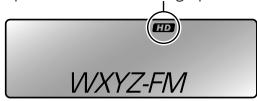
text_image
HD WXYZ-FMLe signe d'appel de la station apparaît.
Canaux multiplex HD Radio
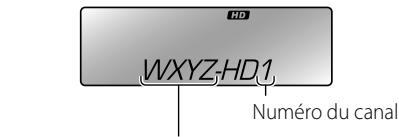
text_image
HD WXYZ,HD1, Numéro du canalLes quatre premières lettre du signe d'appel
Choisissez le canal souhaité.
HD1 ↔ HD2 ↔ .... ↔ HD8
↔ (retour au début)
"LINKING" apparaît pendant la liaison à un canal multiplex.
Recherche de station HD Radio uniquement
"HD" clignote.
[Maintenez pressée]
Utilisation de la télécommande

▲ U/D ▼ : Change les stations préréglées
◀R/F▶ : Recherchez des stations
Changement du mode de réception HD Radio
Lors de la réception d'une émission HD Radio, l'appareil reçoit un signal numérique ou analogique automatiquement en fonction des conditions de réception.
Lors de l'écoute d'une station HD Radio...
1

[Maintenez pressée]
2
natural_image
Diagram showing a circular button being pushed to a square button with a hand cursor (no text or symbols)
"HD" s'allument quand la réception numérique est maintenue ou clignote quand la réception analogique est maintenue.
- Si aucune son ne peut être entendu avec le réglage
, changez le réglage sur ou . - Le réglage change automatiquement sur
si vous accordez une autre station ou changez de station, ou si vous mettez l'appareil hors tension. - Ce réglage n'a pas d'effet pour les stations FM/AM conventionnelles.
- Si la station radio force le mode de réception sur numérique, l'indicateur "HOLD" clignote.
Changement des informations sur l'affichage
Signe d'appel ^1 → Fréquence → Titre/artiste/nom d'album du segment actuel ^2 → Horloge → (retour au début)
*1 "****-FM" ou "****" apparaît quand aucun signe d'appel est reçu.
*2 "NO TEXT" apparaît quand aucun texte n'est reçu.
Écoute de la radio satellite
Avant de commencer, connectez un des systèmes suivants (non fournis) au port d'extension à l'arrière de l'appareil.
Pour l'écoute d'une radio satellite SIRIUS:
• SC-C1 et KS-SRA100
• PnP, SC-VDOC1 et KS-SRA100
Pour l'écoute d'une radio satellite XM:
• Adaptateur JVC Smart Digital (XMDJVC100)
• CNP2000UC et CNPJVC1
- Pour plus d'informations, référez-vous aussi aux instructions fournies avec les autres appareils.
Mise à jour des informations GCI (Informations de commande globale)
- Si les canaux ont été mis à jour après la suscription, la mise à jour démarre automatiquement. "UPDATING" clignote et aucun son n'est entendu.
• La mise à jour dure plusieurs minutes. - Pendant la mise à jour, vous ne pouvez pas utiliser votre radio satellite
1

⇒ "SIRIUS" ou "XM"
2
→ Choisissez une catégorie.
SIRIUS: Si vous choisissez "ALL", vous pouvez accorder tous les canaux de toutes les catégories.
3
→ Choisissez un canal à écouter.
Maintenir la touche pressée permet de changer les canaux rapidement.
Pendant la recherche, les canaux invalides et ceux auxquels vous n'avez pas souscrits sont sautés.
XM: Si vous ne choisissez pas de canal avant 15 secondes, la catégorie choisie à l'étape ② est annulée. Vous pouvez choisir tous les canaux de toutes les catégories maintenant (y compris les canaux sans catégorie).
Activez votre suscription SIRIUS après la connexion
1

→ "SIRIUS"
La radio satellite SIRIUS commence à mettre à jour tous les canaux SIRIUS. Une fois terminé, la radio satellite SIRIUS accorde le canal préréglé CH184.
2 Vérifiez votre numéro d'identification SIRIUS (SIRIUS ID). (27)
3 Contactez SIRIUS sur Internet à http://activate.siriusradio.com/ pour activer votre suscription ou appelez le numéro vert SIRIUS au 1-888-539-SIRIUS (7474).
- "SUB UPDT PRESS ANY KEY" défile sur l'affichage une fois la suscription est terminée.
Activez votre suscription XM après la connexion
- Seuls les canaux 0, 1 et 247 sont disponibles avant l'activation.
1

→ "XM"
XMDirect™ Tuner Box ou XMDirect2 Tuner System pour démarrer la mise à jour de tous les canaux XM. "Channel 1" est accordé automatiquement.
2 Vérifiez le numéro d'identification de votre radio satellite XM sur le boîte de XMDirect™ Tuner Box ou de XMDirect2 Tuner System, ou accordez le "Channel 0". (21)
3 Contactez la radio satellite XM sur Internet à l'adresse http://xmradio.com/activation/ pour activer votre suscription ou appelez le 1-800-XM-RADIO (1-800-967-2346).
- Une fois cette procédure terminée, l'appareil accorde un des canaux disponibles (Canal 4 ou supérieur).
Mémorisation des canaux
Vous pouvez prérégler un maximum de 18 canaux pour SIRIUS et XM.
Ex.: Mémorisation d'un canal sur le numéro de préréglage "04".
1 Accordez le canal que vous souhaitez mémoriser. (Étapes ① – ③, 📄 20.)
2

[Maintenez pressée]
"PRESET MODE" clignote.
3
flowchart
graph LR
    A["Start"] --> B["Process Step"]
    B --> C["Next Step"]
→ Choisissez le numéro de préréglage "04".
"P04" clignote.
Sélection d'une station préréglée SIRIUS/XM
1

2
flowchart
graph LR
    A["Start"] --> B["Process Step"]
    B --> C["Next Step"]
Vérification du numéro d'identification de la radio satellite
Lors de la sélection de "SIRIUS" ou "XM"...
→ Choisissez "Channel 0".
SIRIUS: Le numéro d'identification SIRIUS est affiché après que le "Canal 0" a été choisi.
XM: "RADIO ID" et le numéro d'identification à 8 chiffres (alphanumérique) apparaissent alternativement sur l'affichage.
Pour annuler l'affichage du numéro d'identification, choisissez un autre canal que le "Channel 0".
Changement des informations sur l'affichage
Nom de la catégorie → Nom du canal → Nom de l'artiste → Nom du compositeur* → Nom de la chanson/programme/ titre → Horloge → (retour au début)
* Uniquement pour la radio satellite SIRIUS.
Utilisation de la télécommande
 | ▲U/D▼: Change les catégories |
| ◀R/F▶: Permet de changer les canaux | |
| ◀R/F▶: Permet de changer les [Maintenez pressée] canaux rapidement |
Écoute de iPod/iPhone
Vous pouvez connecter l'iPod/iPhone en utilisant le câble USB 2.0 (fourni avec l'iPod/iPhone) à la prise d'entrée USB sur le panneau de commande.
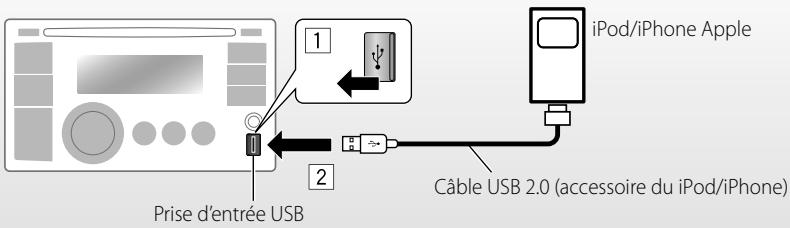
text_image
iPod/iPhone Apple Prise d'entrée USB Câble USB 2.0 (accessoire du iPod/iPhone)Il y a deux prises de commande:
- Commande par cet appareil.
Commande par le iPod/iPhone connecté.
Préparation: Choisissez la borne commandée,
ou- Maintenez pressée la touche BACK.
- Réalisez la sélection à partir du réglage
, 30.
Les opérations expliquées ci-dessous sont en mode
.
→ "USB-IPOD"
La lecture démarre automatiquement.


⇒ Sélection d'un morceau.
Attention:
- Éviter d'utiliser iPod/iPhone s'il peut gêner une conduite en toute sécurité.
- Assurez-vous que toutes les données importantes ont été sauvegardées pour éviter toute perte de données.
- Déconnecter le iPod/iPhone arrête la lecture. Appuyez sur 📍 SOURCE pour écouter une autre source de lecture.
- Pour plus d'information, référez-vous aussi aux instructions fournies avec votre iPod/iPhone.

Arrête provisoirement (pause) ou reprend la lecture
Sélection d'une plage
Avance ou recule rapidement la plage
Sélection d'une plage à partir du menu
1

2

natural_image
Two circular icons with arrows indicating rotation and movement, one pointing at a button (no text or symbols)→ Choisissez le menu souhaité.
PLAYLISTS ↔ ARTISTS ↔ ALBUMS
↔ SONGS ↔ PODCASTS ↔
GENRES ↔ COMPOSERS ↔
AUDIOBOOKS ↔ (retour au début)
3
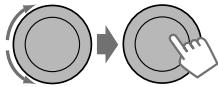
flowchart
graph LR
    A["Start"] --> B["Process Step"]
    B --> C["Next Step"]
→ Choisissez la plage souhaitée.
Répétez cette procédure jusqu'à ce que la plage souhaitée soit choisie.
- Si le menu choisi contient beaucoup de plages, vous pouvez effectuer une recherche rapide (±10, ±100, ±1000) sur le menu en tournant rapidement la molette de commande.
- Pour revenir au menu précédent, appuyez sur BACK.
Utilisation de la télécommande

◀R/F▶ : Sélection d'une plage
◀R/F▶ : Avance ou recule
[Maintenez rapidement la plage
Notification:
Lors de l'utilisation de iPod, certaines opérations peuvent ne pas être réalisées correctement ou comme prévues. Dans ce cas, consultez le site Web JVC suivant: http://www.jvc.co.jp/english/car/ (Site web en anglais uniquement)
Sélection des modes de lecture
1

⇒ "REPEAT" ou "RANDOM"
- Maintenir pressée la molette de commande permet d'afficher le menu du mode de lecture. Tournez la molette de commande pour faire votre choix (REPEAT ou RANDOM), puis appuyez dessus pour valider.
2
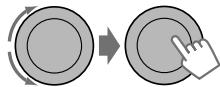
flowchart
graph LR
    A["Start"] --> B["Process Step"]
    B --> C["Next Step"]
REPEAT
ONE RPT : Fonctionne de la même façon que la fonction "Répéter Un" pour iPod
ALL RPT : Fonctionne de la même façon que la fonction "Répéter Tous" pour iPod
RANDOM
ALBUM RND : Fonctionne de la même façon que la fonction "Aléatoire Albums" pour iPod
SONG RND : Fonctionne de la même façon que la fonction "Aléatoire Morceaux" pour iPod
- Pour annuler la lecture répétée ou la lecture aléatoire, choisissez "RPT OFF" ou "RND OFF".
- "ALBUM RND" ne peut pas être utilisé pour certains iPod.
- Pour revenir au menu précédent, appuyez sur BACK.
Changement des informations sur l'affichage
Nom de l'album/interprète → Titre de la plage → Numéro de la plage actuelle avec la durée de lecture écoulée → Numéro de la plage actuelle avec l'horloge → (retour au début)
Écoute d'un autre appareil extérieur
Vous pouvez connecter un appareil extérieur à:
- EXT INPUT: Port d'extension à l'arrière de cet appareil en utilisant les adaptateurs suivants (non fournis):
-Adaptateur d'entrée de ligne, KS-U57
- Adaptateur d'entrée auxiliaire, KS-U58
Préparation: Assurez-vous que
- AUX IN: Prise d'entrée AUX (auxiliaire) sur le panneau de commande.
Préparation: Assurez-vous que
Pour en savoir plus, référez-vous aussi aux instructions fournies avec l'adaptateur ou les appareils extérieurs.
1

⇒ "EXT INPUT" ou "AUX IN"
2
Mettez l'appareil connecté sous tension et démarrez la lecture de la source.
3

⇒ Ajuste le volume.
4
Ajustez le son comme vous le souhaitez. ( 25)
Connexion d'un appareil extérieur à la prise d'entrée AUX
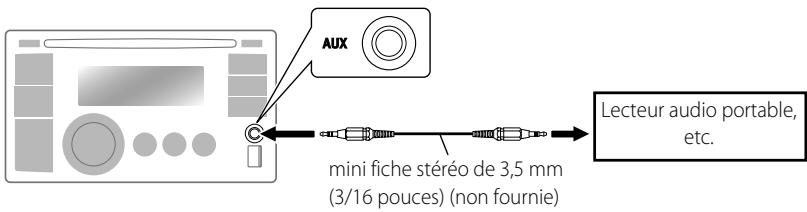
text_image
AUX mini fiche stéréo de 3,5 mm (3/16 pouces) (non fournie) Lecteur audio portable, etc.Sélection d'un mode sonore préréglé
Vous pouvez sélectionner un mode sonore préréglé adapté à votre genre de musique.
FLAT → NATURAL → DYNAMIC → VOCAL BOOST → BASS BOOST → USER → (retour au début)
Pendant l'écoute, vous pouvez ajuster le niveau de tonalité du mode sonore choisi.
1
[Maintenez pressée]
2
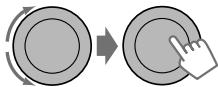
flowchart
graph LR
    A["Start"] --> B["Process Step"]
    B --> C["Next Step"]
Ajustez le niveau (-06 à +06) de la tonalité choisie (BASS / MID / TRE). Le mode sonore est mémorisé automatiquement et changé sur "USER".
Mémorisation de votre propre mode sonore
Vous pouvez mémoriser vos propres ajustements en mémoire.
1

[Maintenez pressée]
2

flowchart
graph LR
    A["Circle"] --> B["Rectangular Button"]
    style A fill:#f9f,stroke:#333
    style B fill:#bbf,stroke:#333
3
flowchart
graph LR
    A["Start"] --> B["Process Step"]
    B --> C["Next Step"]
Ajustez les éléments sonores de la tonalité choisie.
Tonalité : BASS
Fréquence : 60 Hz, 80 Hz, 100 Hz, 200 Hz Niveau : -06 à +06 Q : Q1.0, Q1.25, Q1.5, Q2.0
Tonalité : MIDDLE
Fréquence : 0.5 kHz, 1.0 kHz, 1.5 kHz, 2.5 kHz
Niveau : -06 à +06
Q: Q0.75, Q1.0, Q1.25
Tonalité : TREBLE
Fréquence : 10.0 kHz, 12.5 kHz, 15.0 kHz, 17.5 kHz
Niveau : -06 à +06
Q: Q FIX
4
Répétez les étapes 2 et 3 pour ajuster les autres tonalités.
Les ajustements réalisés sont mémorisés automatiquement dans "USER".
Le mode sonore actuel change automatiquement sur "USER".
Utilisation des menus
1 [Maintenez pressée] [Maintenez pressée] | 2 | 3 Répéter l'étape 2 si nécessaire.Pour revenir au menu précédent, appuyez sur BACK.Pour quitter le menu, appuyez sur DISP ou MENU. |
| Catégorie | Article de menu | Réglages pouvant être choisis, [ Réglage initial: Souligné ] | |
| DEMO Démonstration des affichages | • DEMO ON : La démonstration des affichages entre en service si aucune opération n'est réalisée pendant environ 20 secondes. • DEMO OFF : Annulation. ( 4) | ||
| CLOCK | CLOCK SET Réglage de l'horloge | — [1:00] | : Ajustez les heures, puis les minutes. ( 4) |
| CLOCK ADJ *1 Ajustement de l'horloge | • AUTO : L'horloge intégrée est ajustée automatiquement en utilisant les données d'horloge fournies par le cana de la radio satellite. • OFF : Annulation. | ||
| TIME ZONE *1, *2 | EASTERN, ATLANTIC, NEWFOUND, ALASKA, PACIFIC, MOUNTAIN, CENTRAL | : Choisissez votre zone d'habitation parmi les fuseaux horaires pour l'ajustement de l'horloge. | |
| DST *1, *2 Heure d'été | • DST ON : Mettez en service l'heure d'été si votre zone d'habitation y est soumise. • DST OFF : Annulation. | ||
| PRO EQ | BASS | : Pour les réglages, 25. | |
| MIDDLE | |||
| TREBLE | |||
*1 Est affiché uniquement quand la radio satellite SIRIUS ou XM est connectée.
*2 Est affiché uniquement quand
| Catégorie | Article de menu | Réglages pouvant être choisis, [ Réglage initial: Souligné ] |
| DISPLAY | DIMMER | DIMMER AUTO : Assombrit l'affichage quand vous allumez les feux de la voiture. *3DIMMER ON : Assombrit l'éclairage de l'affichage de des touches.DIMMER OFF : Annulation. |
| SCROLL *4 | SCROLL ONCE : Fait défiler une fois les informations affichées.SCROLL AUTO : Répète le défilement (à 5 secondes d'intervalle).SCROLL OFF : Annulation.Appuyer sur DISP pendant plus d'une seconde peut faire défiler l'affichage quelque que soit le réglage utilisé. | |
| TAG DISPLAY | TAG ON : Affiche les informations des balises lors de la lecture d'une plage MP3/WMA.TAG OFF : Annulation. | |
| TUNER | SSM*5Mémorisation automatique séquentielle des stations puissantes | SSM 01 – 06 *6 : Pour les réglages, 8.SSM 07 – 12SSM 13 – 18 |
| AREA Intervalle des canaux du tuner | AREA US : Lors de l'utilisation de l'appareil en Amérique du Nord/Centrale/du Sud. L'intervalle de fréquences AM/FM est réglé sur 10 kHz/200 kHz.AREA EU : Lors de l'utilisation de l'appareil dans les autres régions. L'intervalle des fréquences AM/FM est réglé sur 9 kHz/50 kHz (100 kHz pendant la recherche automatique).AREA SA : Lors de l'utilisation de l'appareil dans les pays d'Amérique du Sud ou l'intervalle FM est de 100 kHz. L'intervalle AM est réglé sur 10 kHz. | |
| MONO *5Mode monaural | MONO ON : Met en service le mode monophonique pour améliorer la réception FM, mais l'effet stéréo est perdu. (8)MONO OFF : Rétablit l'effet stéréo. | |
| SID *7SIRIUS ID | : Votre chiffre d'identification SIRIUS défilent sur l'affichage pendant 5 secondes après que "SID" soit choisi. (20)Si aucune opération n'est réalisée pendant environ 60 secondes, l'appareil retourne en mode de lecture. |
*3 La connexion du fil de commande de l'éclairage est requise. (Référez-vous au "Manuel d'installation/raccordement"). Ce réglage peut ne pas fonctionner correctement sur certains véhicules (en particulier sur ceux qui possèdent une bague de commander de gradation). Dans ce cas, changez le réglage sur autre chose que
*4 Certains caractères ou symboles n'apparaissent pas correctement (ou un blanc apparaît à leur place) sur l'affichage.
*5 S'affiche uniquement quand la source est FM" ou "HD Radio".
*6 Si un tuner HD Radio est connecté, vous pouvez aussi rechercher et mémoriser les stations AM sur
*7 Est affiché uniquement quand la radio satellite SIRIUS est connectée.
| Catégorie | Article de menu | Réglages pouvant être choisis, [ Réglage initial: Souligné ] | |
| TUNER | BLEND HOLD *8Mode de réception HD Radio | AUTO | Commute automatiquement entre les signaux numériques et analogiques. (19) |
| DIGITAL | Accord des signaux numériques uniquement. | ||
| ANALOG | Accord des signaux analogiques uniquement. | ||
| IF BANDBande de la fréquence intermédiaire | AUTO | Augmente la sélectivité du tuner pour réduire les interférences entre les stations adjacentes. (L'effet stéréo peut être perdu.) | |
| WIDE | Il y a des interférences des stations adjacentes, mais la qualité du son n'est pas dégradée et l'effet stéréo est conservé. | ||
| COLOR | BUTTON ZONE | COLOR 01 — COLOR 29, USER | Pour les réglages,31. [ COLOR 06 ] |
| DISP ZONEZone d'affichage | Pour les réglages,31. [ COLOR 01 ] | ||
| ALL ZONE | Pour les réglages,31. [ COLOR 06 ] | ||
| COLOR SETUP | DAY COLOR | BUTTON ZONE | Pour les réglages,32. |
| NIGHT COLOR | DISP ZONE | ||
| MENU COLOR | ON | Change l'éclairage de l'affichage et des touches (sauf ▲ / DISP ) pendant le menu, la recherche de liste et les opérations sur le mode de lecture. | |
| OFF | L'affichage et les touches s'éclairent dans la couleur que vous avez réglée. | ||
| RING COLOR *9 | ON | Quand un appel est reçu, l'affichage clignote en bleu.L'affichage change sur la couleur d'origine si vous répondez à l'appel ou l'appel entrant est coupé.Quand l'appareil reçoit un message textuel, l'affichage s'allume uniquement en bleu. | |
| OFF | Annulation. | ||
*8 S'affiche uniquement quand un tuner HD Radio est connecté.
*9 S'affiche uniquement quand l'adaptateur Bluetooth KS-BTA200 est connecté.
| Catégorie | Article de menu | Réglages pouvant être choisis, [ Réglage initial: Souligné ] | |
| AUDIO | FADER*10 | R06 - F06[ 00 ] | : Ajustez la balance de sortie avant-arrière des enceintes. |
| BALANCE*11 | L06 - R06[ 00 ] | : Ajustez la balance de sortie gauche-droite des enceintes. | |
| LOUD Loudness | • LOUD ON• LOUD OFF | : Accentue les basses et hautes fréquences pour produire un son plus équilibré aux faibles niveaux de volume.: Annulation. | |
| VOL ADJUST Ajustement du volume | VOL ADJ -05 — VOL ADJ +05[ VOL ADJ 00 ] | : Préréglez le niveau d'ajustement du volume de chaque source (sauf FM), en comparaison avec le niveau de volume FM. Le niveau de volume augmente ou diminue automatiquement quand vous changez la source.• Avant de réaliser un ajustement, choisissez la source que vous souhaitez ajuster.• "VOL ADJ FIX" apparaît sur l'affichage si "FM" est choisit comme source. | |
| L/O MODE Mode de sortie de ligne | • SUB.W• REAR | : Choisissez ce réglage si les prises REAR LINE OUT sont utilisées pour connecter un caisson de grave (à travers un amplificateur).: Choisissez ce réglage si les prises REAR LINE OUT sont utilisées pour connecter les enceintes (à travers un amplificateur). | |
| SUB.W FREQ*12 Fréquence de coupure du caisson de grave | • LOW• MID• HIGH | : Les fréquences inférieures à 72 Hz sont envoyées sur le caisson de grave.: Les fréquences inférieures à 111 Hz sont envoyées sur le caisson de grave.: Les fréquences inférieures à 157 Hz sont envoyées sur le caisson de grave. | |
| SUB.W LEVEL*12 Niveau du caisson de grave | SUB.W 00 — SUB.W 08[ SUB.W 04 ] | : Ajuste le niveau de sortie du caisson de grave. | |
*10 Si vous utilisez un système à deux enceintes, réglez le niveau du fader sur "00".
*11 L'ajustement ne peut pas affecter la sortie du caisson de grave.
*12 Est affiché uniquement quand
| Catégorie | Article de menu | Réglages pouvant être choisis, [ Réglage initial: Souligné ] | |
| AUDIO | BEEP Tonalité sonore des touches | • BEEP ON • BEEP OFF | : Met en service la tonalité des touches. : Met hors service la tonalité des touches. |
| AMP GAIN*13 Commande du gain de l'amplificateur | • LOW POWER • HIGH POWER | : VOLUME 00 – VOLUME 30 (Choisissez ce réglage si la puissance maximum de chaque enceinte est inférieure à 50 W pour éviter tout dommage des enceintes.) : VOLUME 00 – VOLUME 50 | |
| SRC SELECT | AM*14 Station AM | • AM ON • AM OFF | : Met en service “AM” dans la sélection de la source. : Met hors service “AM” dans la sélection de la source. |
| EXT IN*15 Entrée extérieure | • EXT ON • EXT OFF | : Met en service “EXT IN” dans la sélection de la source. : Met hors service “EXT IN” dans la sélection de la source. | |
| AUX IN*16 Entrée auxiliaire | • AUX ON • AUX OFF | : Met en service “AUX IN” dans la sélection de la source. : Met hors service “AUX IN” dans la sélection de la source. | |
| AUDIOBOOKS*17 Commande de vitesse des livres audio | • NORMAL • FASTER • SLOWER | : Vous pouvez choisir la vitesse de lecture du fichier sonore des livres audio dans votre iPod/ iPhone. • L'article sélectionné initialement dépend de votre réglage iPod/iPhone. | |
| IPOD SWITCH*18 Commande du iPod/iPhone | • HEAD MODE • IPOD MODE | : Commande la lecture du iPod à travers cet appareil. : Commande la lecture du iPod à travers le iPod/iPhone. | |
*13 Le niveau de volume change automatiquement sur "VOLUME 30" si vous réglez sur
*14 S'affiche uniquement quand n'importe quelle autre source que "AM" est choisie.
*15 S'affiche uniquement quand n'importe quelle autre source que "EXT IN" est choisie.
*16 S'affiche uniquement quand n'importe quelle autre source que "AUX IN" est choisie.
*17 Affiché uniquement quand "USB-IPOD" est choisi comme source, et fonctionne uniquement quand
*18 Est affiché uniquement quand "USB-IPOD" est choisi comme source. Les réglages peuvent être fait uniquement si
Sélection d'une couleur variable pour l'éclairage des touches et de l'affichage
Vous pouvez choisir une couleur séparée pour l'éclairage des touches (sauf pour ▲ / DISP ) et de l'affichage.

text_image
Zone d'affichage Zone des touches Toutes les zones1

[Maintenez ou pressée]
2
flowchart
graph LR
    A["Circle Process"] --> B["Rectangular Process"]
    style A fill:#f9f,stroke:#333
    style B fill:#bbf,stroke:#333
- Appuyer sur COLOR à l'étape 1 vous permet d'entrer directement dans le menu de sélection de zone (BUTTON ZONE / DISP ZONE / ALL ZONE).
3

natural_image
Diagram showing a circular button being pushed to a finger, with no text or symbols present.→ Choisissez votre couleur préférée parmi les 29 couleurs préréglées ou la couleur
4
Répétez les étapes 2 et 3 pour choisir une zone différente et votre couleur préférée.
- Si
5
ou
→ Quittez le réglage.
Création de votre propre couleur de jour et de nuit—USER
Vous pouvez créer vos propres couleurs pour
Affiché quand est réglé sur .
•Affiché quand est réglé sur .
| Hiérarchie des menus | Opérations | ||
| COLOR SETUP | DAY COLOR | • BUTTON ZONE | Suivez l'exemple ci-dessous. |
| • DISP ZONE | Appuyez sur BACK après l'étape 5, puis choisissez DISP ZONE à l'étape 2. | ||
| NIGHT COLOR | • BUTTON ZONE | Appuyez deux fois sur BACK après l'étape 5, puis choisissez NIGHT COLOR à l'étape 2. | |
| • DISP ZONE | |||
Ex.: Création de la couleur
1

[Maintenez pressée]
[Maintenez pressée]
2
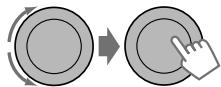
flowchart
graph LR
    A["Start"] --> B["Process Step"]
    B --> C["Next Step"]
⇒
→
- Appuyer sur COLOR à l'étape 1 vous permet d'entrer directement dans le menu de sélection de zone (BUTTON ZONE / DISP ZONE).
3
flowchart
graph LR
    A["Start"] --> B["Process Step"]
    B --> C["Next Step"]
→ Choisissez une couleur primaire.
RED ↔ GREEN ↔ BLUE ↔ (retour au début)
4
natural_image
Two circular buttons with arrows indicating rotation and transition, one pointing at the right (no text or symbols)⇒ Ajustez le niveau de la couleur primaire choisie.
00 à 31
5
Répétez les étapes 3 et 4 pour ajuster les autres couleurs primaires.
6
text_image
DISP ou COLOR→ Quittez le réglage.
Si "00" est choisi pour toutes les couleurs primaires (comme à l'étape 4) pour
Condensation d'humidité
De la condensation peut se produire sur la lentille à l'intérieur de l'appareil dans les cas suivants:
- Après le démarrage du chauffage dans la voiture.
- Si l'intérieur de la voiture devient très humide. Si cela se produit, l'appareil risque de ne pas fonctionner correctement. Dans ce cas, éjectez le disque et laissez l'autoradio sous tension pendant quelques heures jusqu'à ce que l'humidité se soit évaporée.
Comment manipuler les disques
Pour retirer un disque de
sa boîte, faites pression vers le centre du boîtier et soulevez légèrement le disque en el tenant par ses bords.
Support central
- Tenez toujours le disque par ses bords. Ne touchez pas la surface enregistrée.
Pour remettre un disque dans sa boîte, insérez-le délicatement sur le support central (avec la surface imprimée dirigée vers le haut).
- Conservez les disques dans leur boîte quand vous ne les utilisez pas.
Pour garder les disques propres
Si le disque est sale, sa lecture risque d'être déformée. Si un disque est sale, essuyez-le avec un chiffon doux, en ligne droite du centre vers les bords.
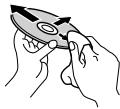
- N'utilisez pas de solvant (par exemple, un nettoyant conventionnel pour disque vinyle, un vaporisateur, un diluant, du benzène, etc.) pour nettoyer les disques.
Pour reproduire un disque neuf
Les disques neufs ont parfois des ebarbures sur le bord intérieur et extérieur. Si un tel disque est utilisé, cet autoradio risque de le rejeter.
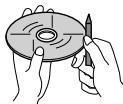
Pour retirer ces ebarbures, frotter les bords avec un crayon, un stylo, etc.
N'utilisez pas les disques suivants:
| CD Single—disque de 8 cm (3-3/16 pouces) | Disque gondolé 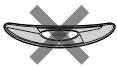 |
Autocollant et restes d'autocollant  | Étiquette autocollante  |
Forme inhabituelle  | Disque transparent (disque semi-transparent)  |
Pièces transparentes ou semi-transparentes sur sa zone d'enregistrement.  |
Pour en savoir plus à propos de cet autoradio
Opérations de base
Généralités
- Si vous mettez l'appareil hors tension pendant l'écoute d'une plage, la lecture reprendra à partir du point où elle a été interrompue la prochaine fois que vous mettez l'appareil sous tension.
- Si aucune opération n'est effectuée pendant environ 60 secondes après avoir appuyé sur la touche MENU, l'opération est annulée.
Fonctionnement du tuner
Mémorisation des stations
- Pendant la recherche SSM...
–Toutes les stations précédemment mémorisées sont effacées et remplacées par des nouvelles.
–Quand la recherche SSM est terminée, la station mémorisée sur le numéro de préréglage le plus petit est accordée automatiquement. - Lors de la mémorisation manuelle d'une station, la station précédemment mémorisée est effacée quand une nouvelle station est mémorisée sur le même numéro de préréglage.
Opérations des disques/USB
Précautions pour la lecture de disques à double face
- La face non DVD d'un disque à "DualDisc" n'est pas compatible avec le standard "Compact Disc Digital Audio". Par conséquent, l'utilisation de la face non DVD d'un disque à double face sur cet appareil n'est pas recommandée.
Généralités
- Cet autoradio est conçu pour reproduire les CD/CD Text et les CD-R (enregistrables)/CD-RW (réinscriptibles) au format CD audio (CD-DA), MP3 et WMA.
- Si vous changez la source pendant l'écoute d'un disque, la lecture s'arrête. La prochaine fois que vous choisissez "CD" comme source de lecture, la lecture reprend à partir de l'endroit où elle a été interrompue.
-
Si un disque est inséré à l'envers, "PLEASE" et "EJECT" apparaissent alternativement sur l'affichage. Appuyez sur ▲ pour éjecter le disque.
-
Si le disque éjecté n'est pas retiré avant 15 secondes, il est réinséré automatiquement dans la fente d'insertion pour le protéger de la poussière. La lecture démarre automatiquement.
- Les "plages" MP3 et WMA (les termes "fichier" et "plage" sont utilisés de façon interchangeable) sont enregistrées dans des "dossiers".
- Lors de l'avance ou du retour rapide d'un disque MP3 ou WMA, vous ne pouvez entendre que des sons intermittents.
Lecture d'un CD-R ou CD-RW
- Utilisez uniquement des CD-R ou CD-RW "finalisés".
- Cet appareil peut uniquement reproduire les fichiers du même type que ceux du premier fichier détecté sur le disque si un disque comprend à la fois des fichiers CD audio (CD-DA) et des fichiers MP3/WMA.
- Cet autoradio peut reproduire les disques multi-session; mais les sessions non fermée sont sautées lors de la lecture.
- Certains CD-R ou CD-RW ne peuvent pas être reproduits sur cet appareil à cause de leurs caractéristiques ou des raisons suivantes:
–Les disques sont sales ou rayés.
– De l'humidité s'est condensée sur la lentille à l'intérieur de l'autoradio.
–La lentille du capteur à l'intérieur de l'autoradio est sale.
–Les fichiers sur les CD-R/CD-RW ont été gravés en utilisant la méthode d'écriture par paquet.
–Les conditions de l'enregistrement (données manquantes, etc.) ou du support (tâche, rayure, gondolage) sont incorrectes. - Les CD-RW nécessite un temps d'initialisation plus long à cause de leur indice de réflexion plus faible que celui des CD ordinaires.
- N'utilisez pas les CD-R ou CD-RW suivants:
- Disques avec des autocollants, des étiquettes ou un sceau protecteur collés à leur surface.
- Disques sur lesquels une étiquette peut être imprimée directement avec une imprimante à jet d'encre.
Utiliser de tels disques par haute température ou humidité peut entraîner un mauvais fonctionnement ou endommager l'appareil.
Lecture d'un disque MP3/WMA
- Cet autoradio peut reproduire les fichiers MP3/WMA portant le code d'extension <.mp3> ou <.wma> (quel que soit la casse des lettres—majuscules/minuscules).
- Cet autoradio peut afficher le nom de l'album, l'artiste (interprète) et les balises (version 1,0, 1,1, 2,2, 2,3, ou 2,4) pour les fichiers MP3 et pour les fichiers WMA.
- Cet autoradio peut afficher uniquement les caractères d'un octet. Les autres caractères ne peuvent pas être affichés correctement.
- Cet autoradio peut reproduire les fichiers MP3/WMA respectant les conditions suivantes:
–Débit binaire pour MP3/WMA: 32 kbps à 320 kbps
-Fréquence d'échantillonnage pour MP3: 32 kHz, 44,1 kHz, 48 kHz (pour MPEG-1) 16 kHz, 22,05 kHz, 24 kHz (pour MPEG-2)
-Fréquence d'échantillonnage pour WMA: 22,05 kHz, 32 kHz, 44,1 kHz, 48 kHz
-Format du disque: ISO 9660 Niveau 1/ Niveau 2, Romeo, Joliet, Windows extension - Le nombre maximum de caractères pour les noms de fichier/dossier varie en fonction du format du disque utilisé (et inclus les 4 caractères de l'extension—<.mp3> ou <.wma>).
–ISO 9660 Niveau 1: 12 caractères maximum
–ISO 9660 Niveau 2: 31 caractères maximum
–Romeo: 64 caractères maximum
–Joliet: 32 caractères maximum
-Windows extension: 64 caractères maximum - Cet autoradio peut reconnaître un maximum de 512 fichiers, 255 dossiers et 8 niveaux de hiérarchie.
- Cet autoradio peut reproduire les fichiers enregistrés au mode VBR (débit binaire variable).
Les fichiers enregistrés au mode VBR affichent une durée écoulée différente et ne montrent pas la durée écoulée actuelle correcte.
Cette différence devient particulièrement importante après avoir réalisé une recherche. - Cet autoradio ne peut pas reproduire les fichiers suivants:
–Fichiers MP3 codés au format MP3i et MP3 PRO.
–Fichiers MP3 codés dans un format inapproprié.
–Fichiers MP3 codés avec Layer 1/2.
–Fichiers WMA codés sans perte, professionnels et formats vocaux.
–Fichiers WMA qui ne sont pas basés sur Windows Media® Audio.
–Fichiers au format WMA protégés contre la copie avec DRM.
–Fichiers qui contiennent des données telles que AIFF, ATRAC3, etc.
- La fonction de recherche fonctionne mais la vitesse de recherche n'est pas constante.
Lecteur de plages MP3/WMA à partir d'un périphérique USB
- Lors de la lecture à partir d'un périphérique USB, l'ordre de lecture peut différer de celui d'autres lecteurs.
- Cet appareil peut ne pas être capable de reproduire certains périphériques USB ou certains fichiers à causes de leurs caractéristiques ou des conditions d'enregistrement.
- En fonction de la forme du périphérique USB et du port de connexion, il se peut que certains périphériques USB ne puissent pas être connectés correctement ou que la connexion soit lâche.
- Connectez un périphérique USB à mémoire de grande capacité à la fois à cet appareil. N'utilisez pas de nœud de raccordement USB.
- Si le périphérique USB connecté ne contient pas de fichiers corrects, "CANNOT PLAY" apparaît.
- Cet appareil peut afficher les balises (Version 1,0, 1,1, 2,2, 2,3 ou 2,4) des fichiers MP3 et WMA.
- Cet autoradio peut reproduire les fichiers MP3/WMA respectant les conditions suivantes:
–Débit binaire pour MP3/WMA: 32 kbps à 320 kbps
-Fréquence d'échantillonnage pour MP3: 32 kHz, 44,1 kHz, 48 kHz (pour MPEG-1) 16 kHz, 22,05 kHz, 24 kHz (pour MPEG-2)
-Fréquence d'échantillonnage pour WMA: 22,05 kHz, 32 kHz, 44,1 kHz, 48 kHz
- Cet appareil peut reproduire les fichiers MP3 enregistrés au mode VBR (débit binaire variable).
- Nombre maximum de caractère pour:
–Noms de dossier : 32 caractères
–Noms de fichier : 32 caractères
-Balises MP3 : 64 caractères
-Balises WMA : 32 caractères
- Cet autoradio peut reconnaître un maximum de 5 000 fichiers, 255 dossiers (255 fichiers par dossier y compris les dossiers sans fichier) et 8 hiérarchies.
- Cet appareil ne prend pas en charge les lecteurs de carte SD.
- Cet appareil ne peut pas reconnaître les périphériques USB dont l'alimentation n'est pas de 5 V et dépasse 500 mA.
- Les périphériques USB munis de fonctions spéciales telles que des fonctions de protection des données ne peuvent pas être utilisés avec cet appareil.
- N'utilisez pas un périphérique USB avec 2 partitions ou plus.
- Il se peut que cet appareil ne reconnaisse pas un périphérique USB connecté à travers un lecteur de carte USB.
- Il se peut que cet appareil ne puisse pas reproduire correctement des fichiers d'un périphérique USB quand celui-ci est connecté à l'aide d'un cordon prolongateur.
- Cet autoradio ne peut pas reproduire les fichiers suivants:
–Fichiers MP3 codés au format MP3i et MP3 PRO.
–Fichiers MP3 codés dans un format inapproprié.
–Fichiers MP3 codés avec Layer 1/2.
–Fichiers WMA codés sans perte, professionnels et formats vocaux.
–Fichiers WMA qui ne sont pas basés sur Windows Media® Audio.
Opérations Bluetooth
- Pendant que vous conduisez, ne réalisez pas d'opérations compliquées telles que la composition d'un numéro, l'utilisation du répertoire téléphonique, etc. Pour réaliser ces opérations, arrêtez votre voiture dans un endroit sûr.
- Il se peut que certains périphériques Bluetooth ne puissent pas être connectés à cet appareil en fonction de la version Bluetooth du périphérique.
- Cet appareil peut ne pas fonctionner avec certains périphériques Bluetooth.
- Les conditions de connexion peuvent varier en fonction des circonstances autour de vous.
- Quand cet appareil est mis hors tension, l'appareil extérieur est déconnecté.
Réception HD Radio
- Les émissions HD Radio peuvent normalement être reçues aux États-Unis et elles peuvent aussi être reçues dans les pays où une diffusion limitée a déjà commencée.
- Pendant la recherche SSM...
– Toutes les stations y compris les FM/AM conventionnelles sont recherchées et mémorisées pour la bande choisie.
Radio satellite
- Pour en savoir plus sur la radio satellite SIRIUS ou pour faire une suscription, visitez le site web http://www.sirius.com.
- Pour consultez la liste des canaux les plus récents et les informations sur les programmes ou pour faire uns suscription pour la radio satellite XM, visitez le site web http://www.xmradio.com.
Opérations du iPod/iPhone
- Vous pouvez commander les types d'iPod/iPhone suivants:
- iPod avec vidéo (5e Génération)*
- iPod classic
- iPod nano (1e génération)*
- iPod nano (2e, 3e, 4e, 5e Génération)
- iPod touch
- iPod touch (2e Génération)
- iPhone/iPhone 3G/iPhone 3GS
*
- Il n'est pas possible de parcourir les fichiers vidéo sur le menu "Videos" en mode .
- Si la lecture avec l'iPod ne fonctionne pas correctement, veuillez mettre à jour votre logiciel iPod avec la dernière version. Pour en savoir plus sur la mise à jour de votre iPod, consultez le site http://www.apple.com.
- Quand vous mettez cet appareil sous tension, iPod est chargé à travers cet appareil.
- iPod shuffle ne peut pas être utilisé avec cet appareil.
- L'ordre des morceaux affichés sur le menu de sélection de cet appareil peut être différent de celui de iPod.
- Le texte d'information peut ne pas être affiché correctement (par ex. les lettres accentuées).
- Si le texte d'information contient plus de 11 caractères, il défile sur l'affichage. Cet appareil peut afficher un maximum de 64 caractères.
JVC ne peut être tenu responsable pour toute perte de données dans un iPod/iPhone et/ou un périphérique USB à mémoire de grande capacité lors de l'utilisation de ce système.
Guide de dépannage
| Symptôme | Remède/Cause | |
| Généralités | Aucun son n'est entendu des enceintes. | Ajustez le volume sur le niveau optimum.Assurez-vous que le son de l'appareil n'est pas coupé et qu'il n'est pas en pause (6, 7).Vérifiez les cordons et les connexions. |
| "PROTECT" apparaît sur l'affichage et aucune opération ne peut être réalisée. | Assurez-vous que les prises des fils d'enceintes sont recouvertes correctement de ruban isolant, puis réinitialisez l'appareil (3).Si "PROTECT" ne disparaît, consultez votre revendeur d'autoradio JVC ou la société qui fabrique les kits. | |
| Cet autoradio ne fonctionne pas du tout. | Réinitialisez l'appareil. (3) | |
| "EXT INPUT" ou "AUX IN" ne peuvent pas être choisis. | Cochez le réglage→.(30) | |
| Rien n'apparaît sur l'affichage. | Vérifiez les réglages de couleur de (32). | |
| FM/AM | Le préréglage automatique SSM ne fonctionne pas. | Mémorises les stations manuellement. |
| Bruit statique pendant l'écoute de la radio. | Connectez l'antenne solidement. | |
| Vous ne pouvez pas choisir "AM". | Cochez le réglage→.(30) | |
| Lecture de disque | Le disque ne peut pas être reproduit. | Insérez le disque correctement. |
| Le CD-R/CD-RW ne peut pas être reproduit.Les plages sur les le CD-R/CD-RW ne peuvent pas être sautées. | Insérez un CD-R/CD-RW finalisé.Finalisez le CD-R/CD-RW avec l'appareil que vous avez utilisé pour l'enregistrement. | |
| Le disque ne peut pas être reproduit ni éjecté. | Déverrouillez le disque. (10)Éjecter le disque de force. (3) | |
| Le son du disque est parfois interrompu. | Arrêtez la lecture lorsque vous conduisez sur une route accidentée.Changez le disque.Vérifiez les cordons et les connexions. | |
| "NO DISC" apparaît sur l'affichage. | Insèrez un disque reproductible dans la fente d'insertion. | |
| "PLEASE" et "EJECT" apparaissent alternativement sur l'affichage. | Appuyez sur ▲, puis insérez un disque correctement. | |
| Lecture MP3/WMA | Le disque ne peut pas être reproduit. | • Utilisez un disque avec des plages MP3/WMA enregistrées dans un format compatible avec ISO 9660 Niveau 1, Niveau 2, Romeo ou Joliet.• Ajoutez le code d'extension <.mp3> ou <.wma> aux noms de fichier. |
| Du bruit est produit. | Sautez à une autre plage ou changez le disque. (N'ajoutez pas le code d'extension <.mp3> ou <.wma> à des plages non-MP3 ou WMA). | |
| Un temps d'initialisation plus long est requis ("READING" continue de clignoter sur l'affichage). | N'utilisez pas trop de niveaux de hiérarchie et de dossiers. | |
| Les plages ne sont par reproduites dans l'ordre dans lequel vous vouliez les reproduire. | L'ordre de lecture est déterminé quand les fichiers sont enregistrés. | |
| La durée de lecture écoulée n'est pascorrecte. | Cela se produit quelque fois pendant la lecture. C'est causé par la façon don't les plages ont été enregistrées sur le disque. | |
| "NO FILE" apparaît sur l'affichage. | Le dossier choisi est un dossier vide*1. Choisissez un autre dossier contenant des plages MP3/WMA. | |
| "NOT SUPPORT" apparaît sur l'affichage et la plage est sautée. | Saute à la plage codée suivante dans le format approprié ou à la plage WMA suivante non protégée contre la copie. | |
| Les caractères corrects ne sont pas affichés (ex.: nom de l'album). | Cet appareil peut uniquement afficher les lettres (majuscules), les chiffres et un nombre limité de symboles. (9) | |
| Lecture du périphérique USB | Du bruit est produit. | La plage reproduite n'est pas une plage MP3/WMA. Passez à un autre fichier. (N'ajoutez pas le code d'extension <.mp3> ou <.wma> à des plages non MP3 ou WMA). |
| "READING" continue de clignoter sur l'affichage. | • La durée d'initialisation varie en fonction du périphérique USB.• N'utilisez pas trop de hiérarchies ni de dossiers.• Mettez l'appareil hors tension puis de nouveau sous tension.• Réattachez le périphérique USB. | |
| "NO FILE" apparaît sur l'affichage. | Vérifiez si le dossier choisi, le périphérique USB connecté ou le iPod/iPhone contient un fichier reproducible. | |
| "NOT SUPPORT" apparaît sur l'affichage et la plage est sautée. | Saute à la plage codée suivante dans le format approprié ou à la plage WMA suivante non protégée contre la copie. | |
| Les plages/dossiers ne sont pas reproduites dans l'ordre prévu. | L'ordre de lecture est déterminé par l'estampille temporelle d'écriture. La première plage/dossier écrit dans le périphérique USB sera la première plage/dossier pour la lecture. |
*1 Dossier qui est vide physiquement ou qui contient des données mais ne contient pas de plage MP3/WMA valide.
| Symptôme | Remède/Cause | |
| Lecture du périphérique USB | “CANNOT PLAY” clignote sur l'affichage.“NO USB” apparaît sur l'affichage.L'appareil ne peut pas détecter le périphérique USB. | Connectez un périphérique USB qui contient des plages codées dans un format approprié.Réattachez le périphérique USB. |
| Lors de la lecture d'une plage, le son tes parfois interrompu. | Les plages MP3/WMA n'ont pas été copiées correctement sur le périphérique USB.Copiez de nouveau les plages MP3/WMA sur le périphérique USB et essayez à nouveau. | |
| Les caractères corrects ne sont pas affichés (ex.: nom de l'album). | Cet appareil peut uniquement afficher les lettres (majuscules), les chiffres et un nombre limité de symboles. (9) | |
| Bluetooth*2 | Le périphérique Bluetooth ne détecte pas l'appareil. | Cet appareil peut être connecté à un téléphone portable Bluetooth et à un périphérique audio Bluetooth en même temps.Pendant la connexion à un périphérique, cet appareil ne peut pas être détecté par un autre périphérique.Déconnectez l'appareil actuellement connecté et refaites une recherche. |
| L'appareil ne détecte pas le périphérique Bluetooth. | Vérifiez le réglage Bluetooth du périphérique.Recherche à partir du périphérique Bluetooth. Après que le périphérique Bluetooth a détecté cet appareil, choisissez “OPEN” sur cet appareil pour connecter le périphérique. (13) | |
| L'appareil ne réalise pas le pairage avec le périphérique Bluetooth. | Entrez le même code PIN pour cet appareil et le périphérique cible.Choisissez le nom du périphérique à partir de “SPECIAL”, puis essayez de nouveau la connexion. (14)Essayez de réaliser le pairage/connexion à partir du périphérique Bluetooth. | |
| Il y a un écho ou du bruit. | Ajustez la position du microphone. | |
| Le son du téléphone est de mauvaise qualité. | Réduisez la distance entre cet appareil et le téléphone portable Bluetooth.Déplacez la voiture dans un endroit où vous pouvez obtenir un meilleur signal de réception. | |
| Le périphérique audio connecté ne peut pas être commandé. | Vérifiez si le périphérique audio connecté prend en charge AVRCP (Audio/Video Remote Control Profile). | |
| Le son est interrompu ou saute pendant la lecture d'un périphérique audio Bluetooth. | Réduisez la distance entre cet appareil et le périphérique audio Bluetooth.Déconnectez le périphérique connecté pour “BT-PHONE”.Mettez l'appareil hors tension, puis de nouveau sous tension.Connectez de nouveau le périphérique audio Bluetooth, si le son n'est toujours pas rétabli. |
*2 Pour les opérations Bluetooth, référez-vous aux instructions fournies avec l'adaptateur Bluetooth.
| Symptôme | Remède/Cause | |
| Réception HD Radio | La qualité du son change lors de la réception de stations HD Radio. | Fixez le mode de réception surou.(19, 28) |
| Aucun son n'est entendu. | • est choisi lors de la réception d'une station HD Radio entièrement numérique. Choisissez ou. (19, 28)• est choisi lors de la réception de signaux numériques faibles ou de la réception d'émissions de radio conventionnelles. Choisissez ou. (19, 28) | |
| "RESET 8" apparaît sur l'affichage. | Reconnectez cet appareil et le tuner HD Radio correctement, puis réinitialisez l'appareil. | |
| Radio satellite | "CALL 1-888-539-SIRIUS TO SUBSCRIBE" défile sur l'affichage lors de l'écoute de la radio satellite SIRIUS. | Démarrez la suscription pour la radio satellite SIRIUS. (20) |
| Aucun son n'est entendu. "UPDATING" apparaît sur l'affichage. | L'autoradio est en train de mettre à jour les informations des canaux et cela prend plusieurs minutes. | |
| "ACQUIRING" ou "NO SIGNAL" apparaît sur l'affichage. | Déplacez-vous dans un endroit où les signaux sont plus forts. | |
| "NO ANTENNA" ou "ANTENNA" apparaît sur l'affichage. | Connectez l'antenne solidement. | |
| "NO CHANNEL" apparaît sur l'affichage pendant environ 5 secondes, puis retourne sur le canal précédent ou le canal par défaut pendant l'écoute de la radio satellite SIRIUS. | Aucune émission sur le canal choisi. Choisissez un autre canal ou continuez d'écouter le canal précédent ou le canal par défaut. | |
| L'affichage est vide. | Il n'y a pas de texte d'information pour le canal choisi. | |
| "CH---" ou "CH UNAVAIL" apparaît sur l'affichage pendant environ 2 secondes, puis l'affichage retourne au canal précédent pendant l'écoute de la radio satellite XM. | Le canal choisi n'est plus disponible ou autorisé. Choisissez un autre canal ou continuez d'écouter le canal précédent. | |
| "OFF AIR" apparaît sur l'affichage lors de l'écoute de la radio satellite XM. | Le canal choisi n'est pas diffusé actuellement. Choisissez un autre canal ou continuez d'écouter le canal précédent. | |
| "LOADING" apparaît sur l'affichage lors de l'écoute de la radio satellite XM. | L'appareil est en train de changer les informations du canal et audio. Le texte d'information est temporairement indisponible. | |
| • "RESET 8" apparaît sur l'affichage. • La radio satellite ne fonctionne pas du tout. | Reconnectez cet appareil et la radio satellite correctement, puis réinitialisez cet appareil. | |
| iPod/iPhone | iPod ne peut pas être mis sous tension ou ne fonctionne pas. | • Vérifiez le câble de connexion et le raccordement.• Mettez à jour la version du micrologiciel du iPod/ iPhone.• Chargez la batterie du iPod/iPhone.• Réinitialisez le iPod/iPhone.• Vérifiez si le réglage <IPOD SWITCH> est correct (30). |
| Le son est déformé. | Mettez hors service l'égaliseur sur cet appareil ou sur le iPod/iPhone. | |
| Beaucoup de bruit est généré. | Mettez hors service (décochez) la fonction "VoiceOver" de l'iPod. Pour en savoir plus, consultez le site. | |
| La lecture s'arrête. | Le casque d'écoute a été déconnecté pendant la lecture. Redémarrer l'opération de lecture (22). | |
| "CANNOT PLAY" apparaît sur l'affichage. | Aucune plage ne se trouve dans l'appareil. Importez des plages sur le iPod/iPhone. | |
| "RESTRICTED" apparaît sur l'affichage. | Vérifiez si le iPod/iPhone connecté est compatible avec cet appareil (36). |
- Microsoft et Windows Media est une marque déposée ou une marque de commerce de Microsoft Corporation aux États-Unis et/ou dans les autres pays.
- La marque du mot et les logos Bluetooth sont la propriété de Bluetooth SIG, Inc. et toute utilisation de ces marques par Victor Company of Japan, Limited (JVC) est faite sous licence. Les autres marques et noms de commerce sont la propriété de leur propriétaire respectif.
- HD Radio™ et le logo HD Radio Ready sont des marques déposées de iBiquity Digital Corp.
- "SIRIUS" et le logo du chien SIRIUS sont des marques déposées de SIRIUS Satellite Radio Inc.
- XM et ses logos correspondant sont des marques déposées de XM Satellite Radio Inc.
- "SAT Radio", le logo SAT Radio et les marques associées sont des marques de commerce de SIRIUS Satellite Radio Inc. et de XM Satellite Radio, Inc.
- "Made for iPod" signifie qu'un accessoire électronique a été conçu pour être connecté spécifiquement à un iPod et qu'il a été certifié par les concepteur de respecter les standards de performance de Apple.
- "Works with iPhone" signifie qu'un accessoire électronique a été conçu pour être connecté spécifiquement à un iPhone et qu'il a été certifié par les concepteur de respecter les standards de performance de Apple.
- Apple ne peut être tenu responsable pour le fonctionnement de cet appareil ou sa compatibilité avec les standards de sécurité et réglementaires.
- iPod est une marque de commerce d'Apple Inc., enregistrée aux États-Unis et dans les autres pays.
- iPhone est une marque de commerce de Apple Inc.
| SECTION DE L'AMPLIFICATEUR AUDIO | Puissance de sortie: | 20 W RMS × 4 canaux à 4 Ω et avec ≤ 1% THD+N |  | ||
| Rapport signal sur bruit: | 80 dBA (référence: 1 W pour 4 Ω) | ||||
| Impédance de charge: | 4 Ω (4 Ω à 8 Ω admissible) | ||||
| Plage de commande de tonalité: | Graves: | ±12 dB (60 Hz, 80 Hz, 100 Hz, 200 Hz)Q1,0, Q1,25, Q1,5, Q2,0 | |||
| Médiums: | ±12 dB (0,5 kHz, 1,0 kHz, 1,5 kHz, 2,5 kHz)Q0,75, Q1,0, Q1,25 | ||||
| Aigus: | ±12 dB (10,0 kHz, 12,5 kHz, 15,0 kHz, 17,5 kHz)Q (fixé) | ||||
| Réponse en fréquence: | 40 Hz à 20 000 Hz | ||||
| Niveau de sortie de ligne/Impédance: | 2,5 V/20 kΩ en charge (pleine échelle) | ||||
| Niveau de sortie du caisson de grave/ Impédance: | 2,5 V/20 kΩ en charge (pleine échelle) | ||||
| Impédance de sortie: | 1 kΩ | ||||
| Autre prise: | Prise d'entrée AUX (auxiliaire), Prise d'entrée USB, Entrée d'antenne, Port d'extension, Entrée pour la télécommande de volant | ||||
| SECTION DU TUNER | Plage de fréquences: | FM: | avec l'intervalle des canaux réglé sur 100 kHz ou 200 kHz | 87,5 MHz à 107,9 MHz | |
| avec l'intervalle des canaux réglé sur 50 kHz | 87,5 MHz à 108,0 MHz | ||||
| AM: | avec l'intervalle des canaux réglé sur 10 kHz | 530 kHz à 1 710 kHz | |||
| avec l'intervalle des canaux réglé sur 9 kHz | 531 kHz à 1 602 kHz | ||||
| Tuner FM: | Sensibilité utile: | 9,3 dBf (0,8 μV/75 Ω) | |||
| Sensibilité utile à 50 dB: | 16,3 dBf (1,8 μV/75 Ω) | ||||
| Sélectivité de canal alterné (400 kHz): | 65 dB | ||||
| Réponse en fréquence: | 40 Hz à 15 000 Hz | ||||
| Séparation stéréo: | 40 dB | ||||
| Tuner AM: | Sensibilité: | 20 μV | |||
| Sélectivité: | 40 dB | ||||
| SECTION DU LECTEUR CD | Type: | Lecteur de disque compact | |||
| Système de détection du signal: | Capteur optique sans contact (laser semi-conducteur) | ||||
| Nombre de canaux: | 2 canaux (stéréo) | ||||
| Réponse en fréquence: | 5 Hz à 20 000 Hz | ||||
| Plage dynamique: | 96 dB | ||||
| Rapport signal sur bruit: | 98 dB | ||||
| Pleurage et scintillement: | Inférieur à la limite mesurable | ||||
| Format de décodage MP3: (MPEG1/2 Audio Layer 3) | Débit binaire maximum: 320 kbps | ||||
| Format de décodage WMA (Windows Media® Audio): | Débit binaire maximum: 320 kbps | ||||
| SECTION USB | Standard USB: | USB 1.1, USB 2.0 | |||
| Vitesse de transfert de données (Full Speed): | Max. 12 Mbps | ||||
| Périphériques compatibles: | À mémoire de grande capacité | ||||
| Système de fichiers compatible: | FAT 32/16/12 | ||||
| Format audio compatible: | MP3/WMA | ||||
| Courant maximum: | CC 5 V === 500 mA | ||||
| GÉNÉRALITÉS | Alimentation: | Tension de fonctionnement: | CC 14,4 V (11 V à 16 V admissibles) | ||
| Système de mise à la masse: | Masse négative | ||||
| Températures de fonctionnement admissibles: | 0°C à +40°C (32°F à 104°F) | ||||
| Dimensions (L × H × P): (approx.) | Taille d'installation: | 182 mm × 111 mm × 160 mm (7-3/16 pouces × 4-3/8 pouces × 6-5/16 pouces) | |||
| Taille du panneau: | 188 mm × 117 mm × 23 mm (7-7/16 pouces × 4-5/8 pouces × 5/16 pouces) | ||||
| Masse: | 1,8 kg (3,9 livres) (sans les accessoires) | ||||
La conception et les spécifications sont sujettes à changement sans notification.
Si un kit est nécessaire pour votre voiture, consultez votre annuaire téléphonique pour trouver le magasin spécialisé autoradio le plus proche.