
IP 12s - Security Camera Maginon - Free user manual and instructions
Find the device manual for free IP 12s Maginon in PDF.


| Product Type | Indoor Security Camera |
| Model | Maginon IP 12s |
| Image Sensor | 2 MP, 1/3" CMOS |
| Effective Pixels | 1920 x 1080 |
| Field of View | 100° diagonal |
| Night Vision | Up to 10 m (IR LEDs) |
| Network | 802.11 b/g/n 2.4 GHz WiFi |
| Storage | microSD up to 64 GB (Class 10) or Cloud |
| Power Input | 5 V = 1 A via micro-USB |
| Power Supply | 100–240 V ~ 50/60 Hz, 0.3 A output 5 V = 1 A |
| Dimensions | 8.9 x 6.2 x 6.1 cm |
| Weight | 60 g |
| Working Temperature | -20°C to 50°C |
| Mounting | Double-sided adhesive dot (included) |
| Compatibility | Google Assistant, Amazon Alexa |
| App | Smart Life (iOS & Android) |
| Audio | Built-in microphone and speaker (two-way audio) |
| Motion Detection | High / Middle / Low / Off levels |
| Video Compression | H.264 |
| Care & Cleaning | Protect from moisture; clean with dry cloth. Do not use liquids. |
| Safety | Indoor use only; keep away from children; do not cover; use only supplied power adapter. |
| Spare Parts & Repairs | No spare parts listed; repairs only by authorized service center. |
| General Information | Intended for private use; EU conformity; firmware updates via app or microSD. |
Frequently Asked Questions - IP 12s Maginon
User questions about IP 12s Maginon
0 question about this device. Answer the ones you know or ask your own.
Ask a new question about this device
Download the instructions for your Security Camera in PDF format for free! Find your manual IP 12s - Maginon and take your electronic device back in hand. On this page are published all the documents necessary for the use of your device. IP 12s by Maginon.
USER MANUAL IP 12s Maginon
Quality products for Life.


natural_image
White desktop camera with lens and base mount (no visible text or symbols)Read and Keep the Manual.... 26
Important Note! 27
Explanation of Symbols 28
What's in the Box 28
Components....29
Quick Start Guide ....30
Setting Up the Security Camera.... 30
Placing and Assembling the Security Camera .....30
Coverage of the Monitoring Area 31
Quick Start Guide App 32
Setting Up the App 32
Operation of the App 38
Technical Data 41
Safety Instructions 42
Precautions 43
Possible Infringements....44
Security 46
Disposal 47
Conformity 47
Vorwort
natural_image
Line drawings of electronic devices including a power supply unit, a circular device with grid pattern, and a labeled case (no text or symbols on main objects)A
Bestandteile
natural_image
Line drawing of a desk lamp with a small electronic device and a cord, no text or symbols presentnatural_image
Two technical line drawings of a mechanical component: a circular cross-section with a shaded section and a ring-like structure with two base supports (no text or symbols)natural_image
Simple line drawing of a mechanical device with a downward arrow indicating motion or force (no text or symbols)
natural_image
Simple line drawing of a mechanical device with a cylindrical component and an upward arrow, no text or symbols present.
Erhältlich im
App Store


JETZT BEI
Google Play
congratulations on your purchase of a high-quality Maginon product. You have chosen a modern security camera with good technical features and corresponding accessories, which is particularly easy to operate.
Read and Keep the Manual
These operating instructions belong to the security camera "Maginon Indoor Camera IP 12s". It is an integral part of the product and contains important information on commissioning, handling and disposal. Read the operating instructions carefully, particularly the safety instructions, carefully before using the security camera. Non-compliance with these operating instructions may result in damage to the security camera. The operating instructions are based on the standards and regulations applicable in the European Union. In foreign countries, also observe country-specific guidelines and laws. Keep the operating instructions for further use. If you pass the security camera on to third parties, it is essential to include this operating manual.
Imprint
Published by:
Note that security cameras have worldwide access via data connections (Internet, mobile data).
To protect your privacy and prevent unauthorized persons from accessing your security camera, it is essential to protect your account with an individual password during the initial setup.
Keep this in mind when assigning passwords for the security camera (e.g. when creating user accounts).
For more information on creating a secure password, refer to the German Federal Office for Information Security (BSI) at
www.bsi-fuer-buerger.de.
Passwords should never be given to third parties!
Furthermore, we would like to point out that before passing on your security camera to a third party (e.g. by selling it), you must reset the security camera to its factory settings using the reset button (see the note in the manual).
This is the only way to ensure that all your personal data has been irrevocably deleted.
If you have any questions, do not hesitate to contact our technical support.
Explanation of Symbols
The following symbols are used in this manual, on the security camera or on the packaging.

Products marked with this symbol comply with all relevant community regulations of the European Economic Area.
Products marked with this symbol are operated with direct current.

Products marked with this symbol are operated with alternating current.

Products with this symbol operate with safety extra-low voltage (SELV) or protective extra-low voltage (PELV) and comply with protection class III.
For indoor use only. Devices with this symbol may only be operated indoors (dry environment).
What's in the Box
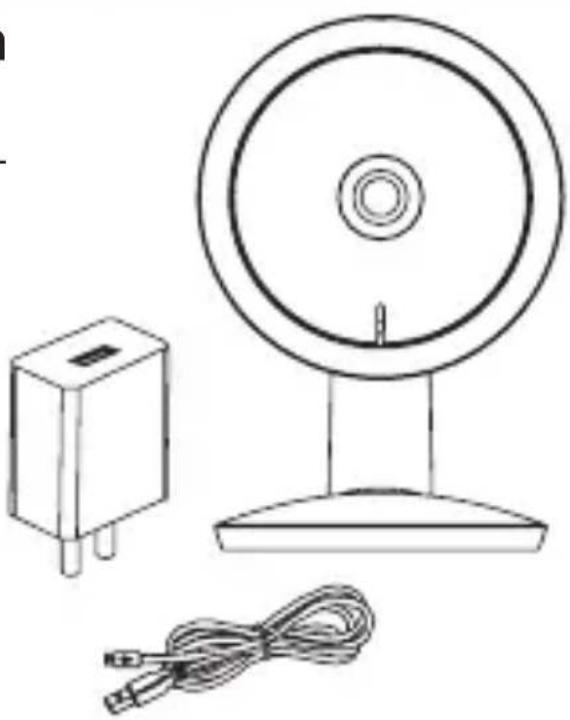
- Security camera
- Power supply unit
- Micro-USB cable
- Reset pin
- Double-sided adhesive dot
- User manual

natural_image
Line drawings of electronic devices including a power supply unit, a circular device with grid pattern, and a labeled case (MARINON) with cable and switch.A
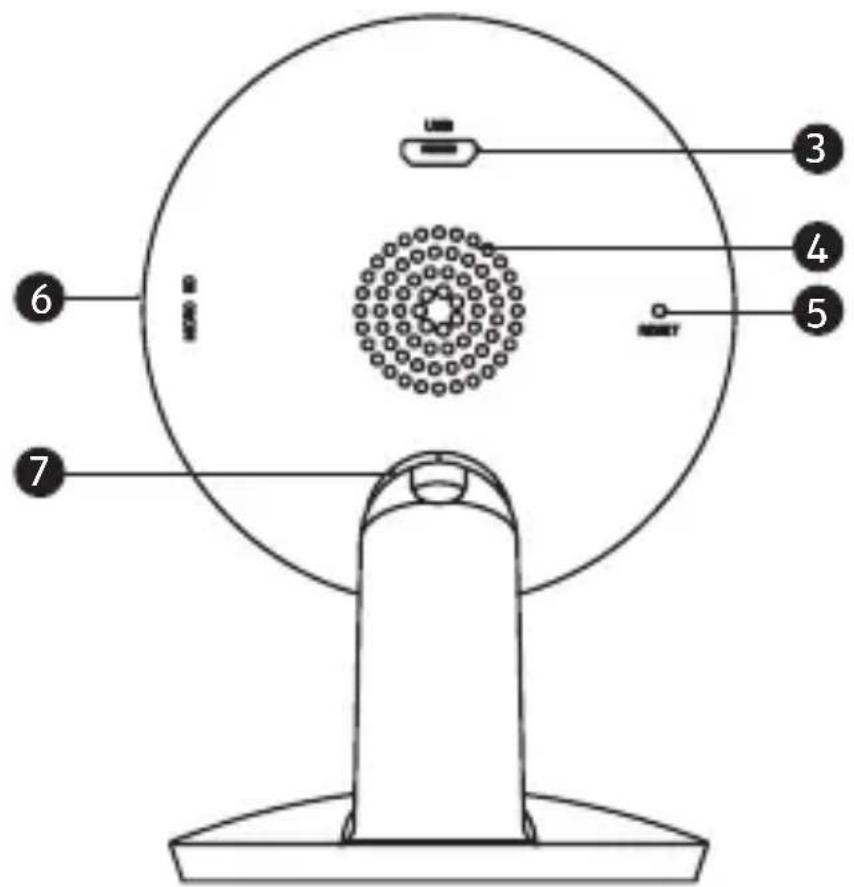
Components
1 Lens
2 Status LED
3 Micro-USB port
4 Speaker
5 Reset button
6 microSD card slot
7 Flexible ball joint
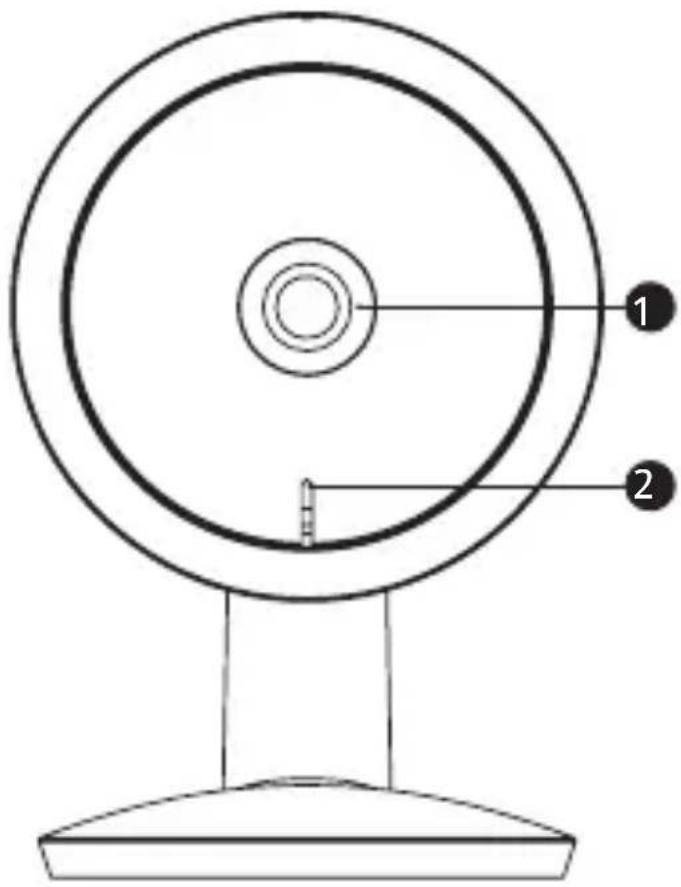
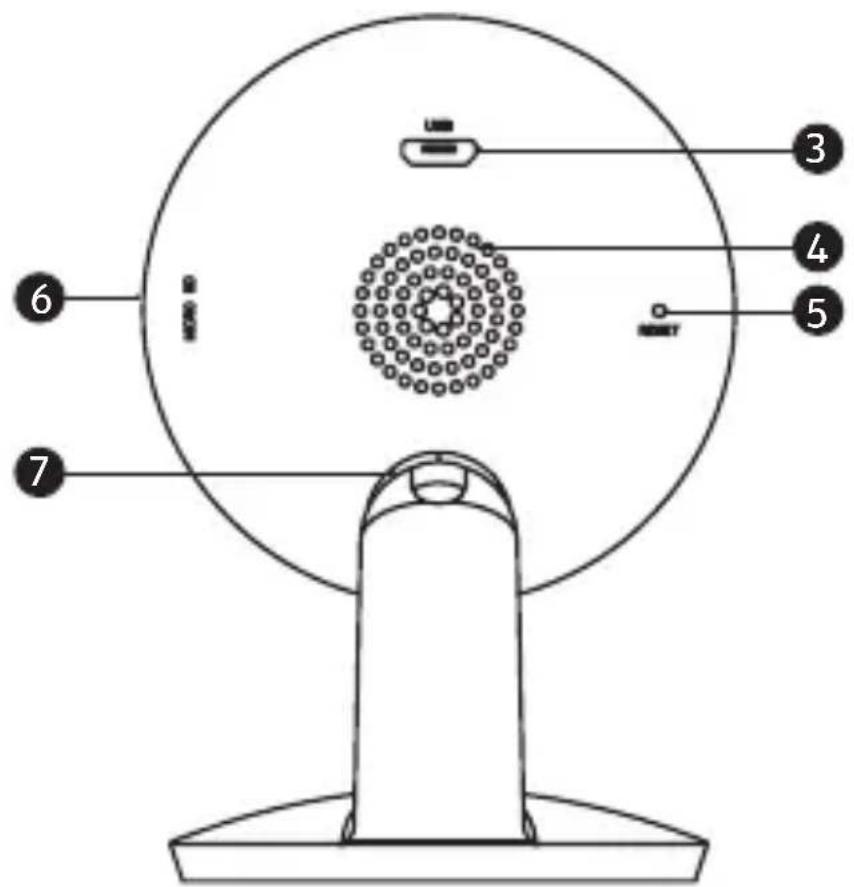
Setting Up the Security Camera
- Connect the security camera to the micro-USB cable, and connect the micro-USB cable to the power supply unit.
- Connect the power supply unit to a suitable power source.
- Insert a microSD memory card (optional, not included) into the microSD card slot.
- RESET: Press and hold the reset button until you hear a prompt from the speaker.
natural_image
Line drawing of a desktop computer with a CD, a small electronic device, and a cord (no text or symbols)Placing and Assembling the Security Camera
- Choose a location with a clear field of view and a good WiFi signal.
Note: The WiFi range can be impaired by walls or objects, or by interference from other WiFi networks. Select the installation location for the security camera that no sunlight falls on the lens.
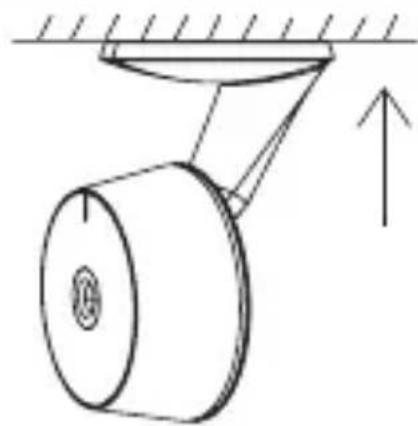
- Attach the security camera to a suitable wall using the double-sided adhesive dot on a flat surface or approx. 2.1 meters above the floor and approx. 3 – 5 meters away from an expected movement.
natural_image
Simple geometric diagram showing a shaded sector inside an oval (no text or labels)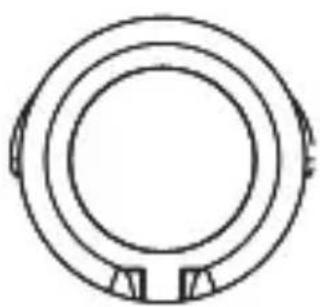
natural_image
Simple line drawing of a circular ring with two small protrusions at the bottom (no text or symbols)- Align the security camera according to your needs using the flexible ball joint.
natural_image
Simple line drawing of a mechanical device with a cylindrical component and an upward arrow, no text or symbols present.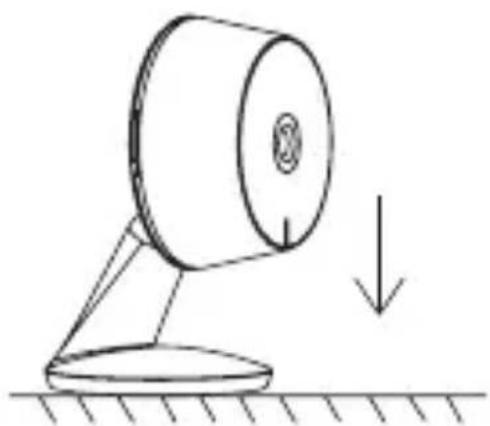
natural_image
Simple line drawing of a mechanical device with a downward arrow indicating motion or force (no text or symbols)Coverage of the Monitoring Area

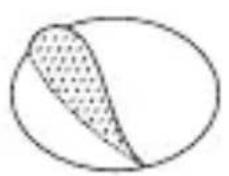
- When installing the camera, the motion detection sensor should not be aligned vertically with the moving object as it may not detect motion.
- It is recommended that the camera is oriented at an angle of more than 10 degrees in order to detect any movement.
Setting Up the App
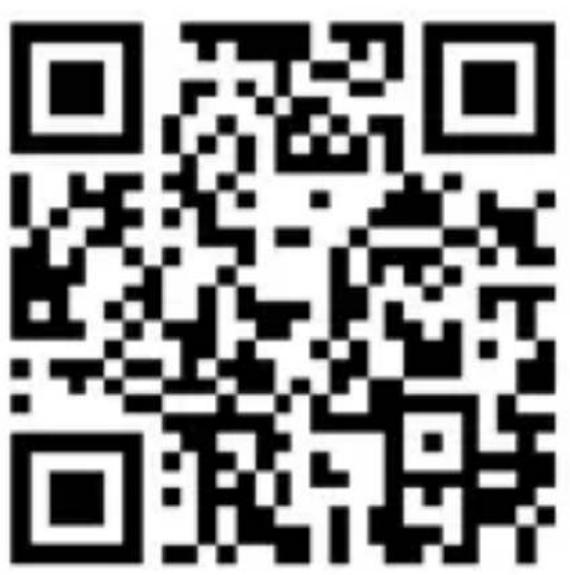
Download the free app "Smart Life" by scanning the QR code or searching for "Smart Life" in the App Store or Google Play Store.

Download on the
App Store


GET IT ON
Google Play
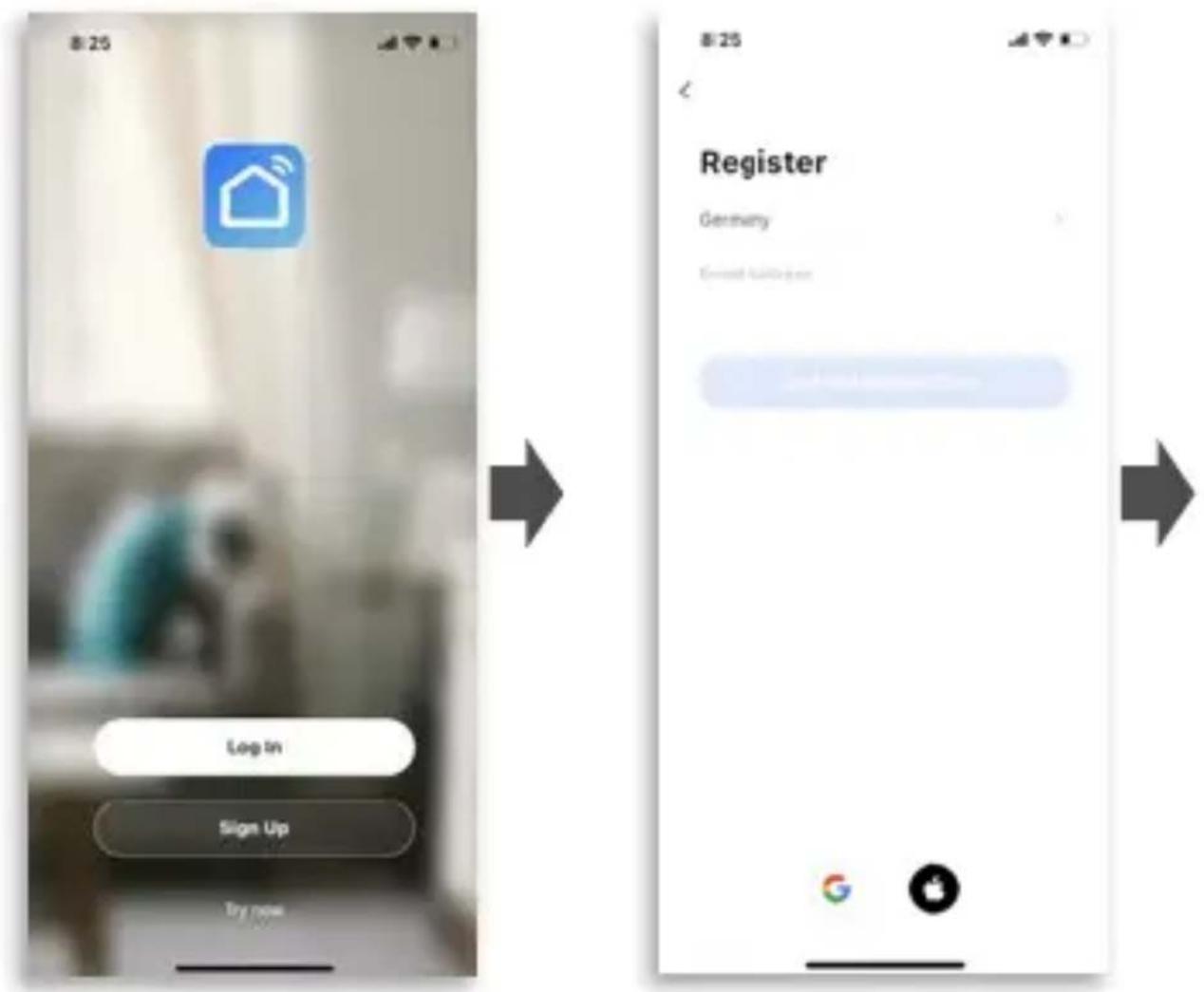
Start the app on your phone and click the "Register" button. Follow the on-screen instructions. Or login in with an existing "Smart Life" account.
Setting Up the App
Click the "Add Device" button. From the category "Security &
Video Surveillance", select the category "Smart Camera (Wi-Fi)".

Follow the instructions in the app and reset the device first.
RESET: Press and hold the reset button until you hear a prompt from the speaker.
Select your 2.4 GHz WiFi network and enter your password.

Setting Up the App
Scan the QR code with the security camera. After the successful scan, you will hear again a prompt. Then press the "I Heard a Prompt" button.
The device is added automatically.
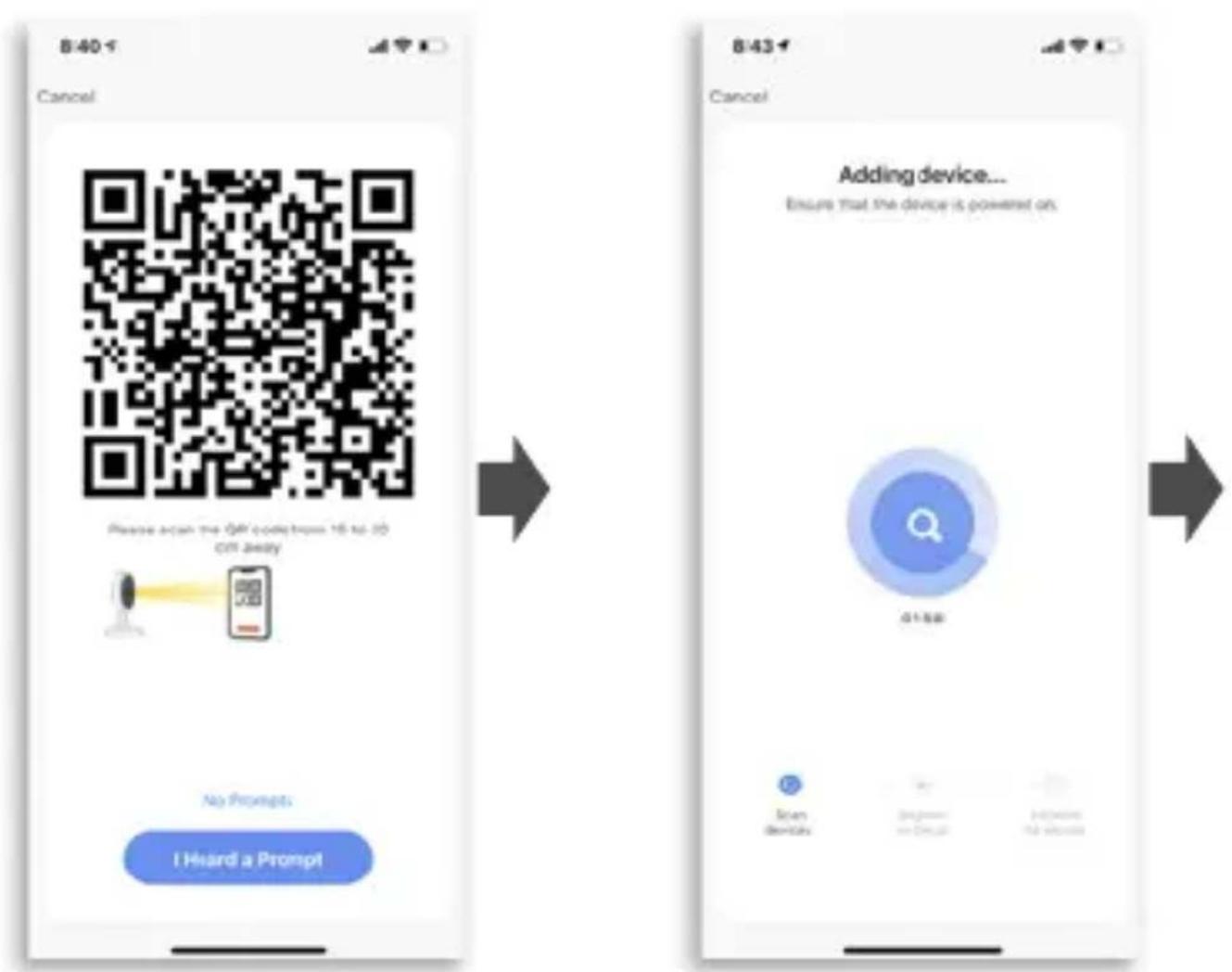
The device is added, you can now make the room settings.
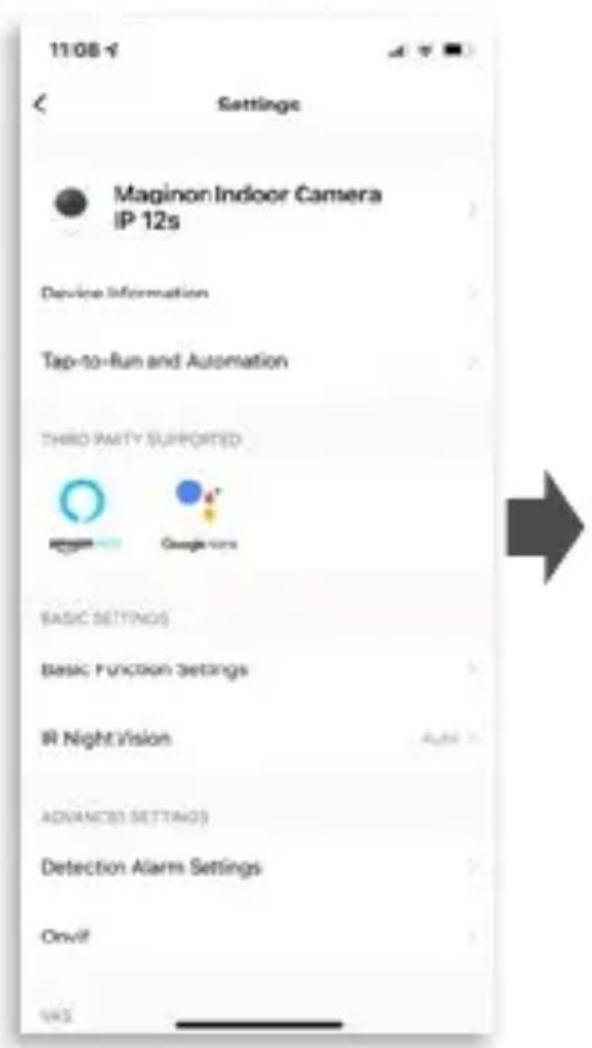
Click on the "Maginon Indoor Camera IP 12s" button.

Operation of the App
Main Menu
1 Resolution
2 Battery level
3 Further settings
4 Screen format
5 Sound playback
6 Full screen
7 Photo recording
8 Intercom system
9 Video recording
10 Menu fold in and out
11 App optics settings
12 Anti-flicker settings
13 Playback
14 Gallery (recordings saved in the app)
15 Motion detection settings
16 Menu settings
17 Messages
18 Tuya Cloud
19 Features
$$ (H D = H i g h D e f i n i t i o n) $$
$$ (S D = \text { Standard Definition }) $$
$$ (\text {recordings saved in} $$
$$ \mathrm{microSDmemorycard)} $$

Further Settings
Here you can make additional settings, e.g. the setup with Amazon Alexa or Google Home, basic function settings and motion detection settings.
Basic Function Settings


1 Status display
2 Rotate screen by 180°
3 Time watermarks
Operation of the App
Movement Detection Settings
1 Motion detection on / off
2 Motion detection sensitivity
3 Motion detection activity area
4 Sound detection on / off
5 Sound detection sensitivity
6 Schedule

Technical Data
| Image sensor 2 MP, 1/3" CMOS sensor | |
| Effective pixels 1920 x 1080 | |
| Field of view 100° diagonal | |
| Infrared LEDs 1 | |
| Night vision distance Up to 10 m | |
| Network 802.11 b/g/n 2.4 GHz WiFi | |
| Storage microSD memory cards with memory class 10 up to 64 GB | Cloud storage | |
| Video record Motion detection | manual recording via app | |
| Upgrade Via "Smart Life" app or firmware update via microSD memory card | |
| Microphone Built in, -42 dB 6027 | |
| Speaker Built in, 8Ω / 1w speaker | |
| Frequency range 2.412 – 2.480 GHz for IEEE 802.11 b/g/n | |
| Max. transmission power 17 dBm | |
| Video compression H.264 | |
| Motion detection levels High / Middle / Low / Off | |
| Power | Power supply unit and micro-USB cable |
| Input | Security camera: 5 V = 1 APower supply unit: 100 – 240 V ~ 50 / 60 Hz, 0.3 A |
| Output | Power supply unit: 5 V = 1 A, 5 W |
| Working temperature | -20 – 50°C |
| Mounting | Double-sided adhesive dot |
| Compatibility Google Assistant, Amazon Alexa | |
| Dimensions | Weight | 8.9 x 6.2 x 6.1 cm | 60 g |
| What's in the box | Security camera, power supply unit, micro-USB cable, double-sided adhesive dot, reset pin, user manual |
Technical data are subject to change without notice.
Safety Instructions
- Only connect the device if the mains voltage of the USB input or USB power supply matches the specifications on the type plate on the back of the device.
- Do not use the device if it is visibly damaged or if the cable is defective.
- Use only the power supply unit with 5 V 1A and the micro-USB cable supplied with the device.
- If the device or accessories are damaged, they must be replaced or repaired by the manufacturer, its customer service or a similarly qualified person in order to prevent hazards.
- Repairs may only be carried out by a specialist. Contact a specialist workshop for this purpose. Any liability and all warranty claims are excluded in the event of repairs by the user, improper connection or incorrect operation.
- Do not insert any objects into the device.
- Protect the device from moisture. Do not immerse it in water or other liquids.
- Never touch the device with wet hands.
- The device must not be exposed to dripping or splashing water and no objects filled with liquids, e.g. vases, may be placed next to the device.
- The device must not be operated with an external timer or separate remote control system.
- Never pull the power supply unit out of the socket by the cable, but always grasp the power supply unit.
- Never use the cable as a carrying handle.
- Keep the device away from open flames and hot surfaces.
- Do not place objects with naked flames, such as candles, on the device.
- Use the device only in moderate climates.
- Do not use or store the device at high temperatures or in closed rooms with direct sunlight. The device should not be used at ambient temperatures more than 50 °C.
- Do not use the device near flammable gases or liquids, as this can lead to explosions.
- The device is not a toy. Keep the device, accessories and packaging materials away from children and animals to prevent accidents and suffocation.
- Provide adequate ventilation during operation. Never cover the device.
- If you sell the device to another person, also pass this user manual to that person.
Precautions
- If the device is used in too cold or too hot ambient temperatures, the device switches off automatically.
- Have the device checked by an authorized service center if a problem occurs. You are not permitted to disassemble the device in case of malfunction. Otherwise, your guarantee will be void.
Possible Infringements
When using the security camera, you should be aware of the following:
Copyright
In principle, every person has the right to their own image. According to the Copyright law, images may only be published without the consent of the persons concerned if the persons appear merely as an accessory next to a landscape or other localities.
The answer to the question of whether a person is merely an accessory depends on the circumstances of the individual case. For reasons of legal certainty, information should be provided via the security camera in all cases where recordings with identifiable personal references are possible (see also the section on "Duty to inform").
Protection of Privacy
The privacy of others must not be violated by the images shown. Do not point your security camera into your garden or at the front door of your neighbor's house, even if these places are visible from your own home or from public places. This does not entitle you to publish these views.
Note that before handing over the camera for repair or to a third party, use the camera's reset function to delete all personal data from the camera's memory.
Personal Identifiability
A person can be identified if it can be determined that a particular person was at a particular place at a particular time. Identification can also be made using a personal license plate, such as a vehicle license plate. It is absolutely necessary to avoid the possibility of identifying persons.
Security Cameras at the Workplace
Monitoring in the workplace is subject to particularly strict regulations in Germany. Employers should completely dispense with security cameras in the workplace as long as a possible violation of the law cannot be completely ruled out.
Security Cameras in Road Traffic
In the case of security cameras with a view of road traffic, it is recommended that the location of the security cameras and the image section is configured in such a way that the road users cannot be determined by the car number though the recordings. Vehicle markings can also lead to the identification of road users.
Duty to Inform
If personal identification of persons cannot be ruled out, a notice on the security camera must be placed in a clearly visible position at all access routes to the recording area. The passer-by must also be informed that by entering the recording area, he or she gives his or her consent to the recording of the images and that, if his or her consent is denied, he or she can avoid the recording by not entering the area. In this context, attention must be paid to the declaration of conformity – voluntary nature of the declaration. If the photo trap is located in a place that the person concerned must pass in order to reach his or her destination (e.g. entrance from a tourist attraction), no effective consent is given due to lack of voluntariness.
Security
Intended Use
The security camera is designed exclusively as a security camera. It is intended exclusively for private use and is not suitable for commercial use. Only use the security camera only as described in this user manual. Any other use is considered improper and may result in property damage or data loss.
The manufacturer or dealer assumes no liability for damage caused by improper or incorrect use.
If you want to connect your camera to your router in a European country, after selecting your router, set the region from North America (channel 1 – 11) to Europe (channel 1 – 13).
The minimum distance between the camera and the user is 25 cm for normal use.
WLAN is the abbreviation for "Wireless Local Area Network". WLAN can be used when data transmission via cable would not be possible or only possible with great effort.
Disposal

Dispose of the packaging according to its type. Use the local possibilities for collecting paper, cardboard and other materials. (Applicable in the European Union and other European countries with systems for the separate collection of recyclable materials.)

Devices marked with this symbol must not be disposed of with household waste! You are legally obliged to dispose of old devices separately from to dispose of household waste. Information on collection points that accept old appliances free of charge can be obtained from your local authority or town council.
Conformity
supra Foto-Elektronik-Vertriebs-GmbH hereby declares that this radio system type "Maginon Indoor Camera IP 12s" is in conformity with Directive 2014/53/EU.
The full text of the EU Declaration of Conformity is available at the following Internet address: downloads.maginon.com/download/indoor-camera-IP-12s

- Vorwort
- A
- Bestandteile
- Read and Keep the Manual
- Imprint
- Explanation of Symbols
- What's in the Box
- Components
- Setting Up the Security Camera
- Placing and Assembling the Security Camera
- Coverage of the Monitoring Area
- Setting Up the App
- Operation of the App
- Main Menu
- Further Settings
- Basic Function Settings
- Movement Detection Settings
- Safety Instructions
- Precautions
- Possible Infringements
- Copyright
- Protection of Privacy
- Personal Identifiability
- Security Cameras at the Workplace
- Security Cameras in Road Traffic
- Duty to Inform
- Security
- Intended Use
- Disposal
- Conformity
Brand : Maginon
Model : IP 12s
Category : Security Camera