
IP 126 - Security Camera Maginon - Free user manual and instructions
Find the device manual for free IP 126 Maginon in PDF.


| Product Type | Indoor IP Security Camera |
| Brand | Maginon |
| Model | IP 126 |
| Image Sensor | 2MP 1/2.9" CMOS Sensor |
| Effective Pixels | 1920 (H) x 1080 (V) |
| Field of View | 122° Diagonal |
| Night Vision | 6 IR LEDs, Range 3–5 m |
| Connectivity | Wi-Fi 802.11 b/g/n 2.4 GHz |
| Storage | microSD up to 128 GB (Class 10) or Cloud |
| Video Compression | H.264 / MJPEG |
| Motion Detection | Yes, via app settings |
| Audio | Built-in Mic and Speaker |
| Smart Assistant | Google Assistant, Amazon Alexa |
| Power Input | DC 5V / 1A (USB) |
| Dimensions (W x D x H) | 50 x 46 x 89.68 mm |
| Weight | 63 g |
| Installation | Wall, ceiling, or tabletop |
| Operating Temperature | -10°C to 50°C |
| Operating Humidity | 10%–95% |
| Box Contents | Camera, bracket, adhesive strap, USB cable, power adapter, manual |
Frequently Asked Questions - IP 126 Maginon
User questions about IP 126 Maginon
0 question about this device. Answer the ones you know or ask your own.
Ask a new question about this device
Download the instructions for your Security Camera in PDF format for free! Find your manual IP 126 - Maginon and take your electronic device back in hand. On this page are published all the documents necessary for the use of your device. IP 126 by Maginon.
USER MANUAL IP 126 Maginon
Quality products for Life.
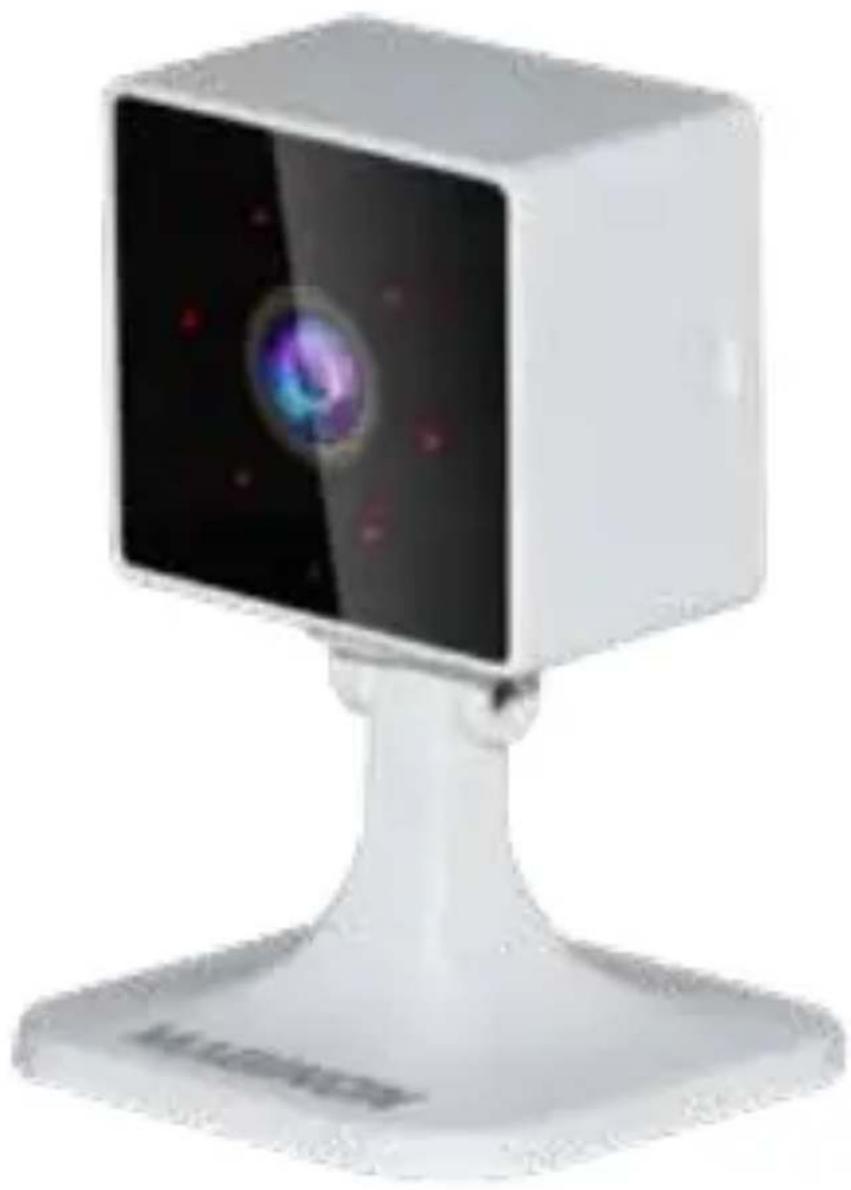
Indoor Kamera
IP 126
natural_image
White square digital camera with a glowing screen and base mount (no visible text or symbols)Powered By

Intelligence Inside

Erhältlich im
App Store

JETZT BEI
Google Play

Erhältlich im
App Store


JETZT BEI
Google Play
Smartphone-App starten




Das Hauptmenü
(HD = High Definition |
SD = Standard Definition)
natural_image
Hand holding a white electronic component with a grid pattern, no visible text or symbols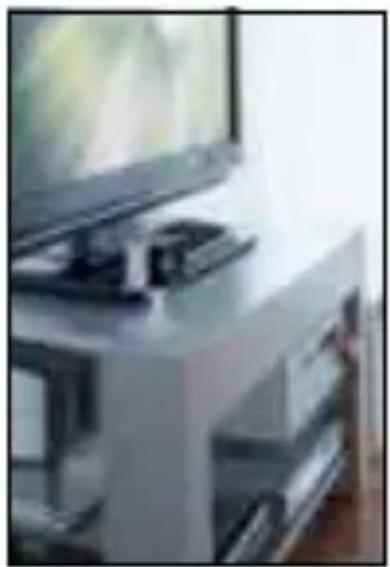
natural_image
Interior view of a modern office or lab setting with a monitor and equipment (no visible text or symbols)
natural_image
Exterior view of a room corner with a wall-mounted security camera and a wooden cabinet (no visible text or symbols)IR-LED 6 Stück IR-LEDs
Scope of delivery / parts
1 Status LED
2 Lens
3 Infrared LED lights
4 Microphone
5 Reset button
6 microSD card slot
7 Speaker
8 stand foot
9 Micro-USB connector (rear)
Introduction
Dear customer,
congratulations on the purchase of a high quality MAGINON product.
You have chosen a modern surveillance camera with good technical equipment and corresponding accessories that is particularly easy to operate.
You have a two-year warranty on the surveillance camera. If the surveillance camera should ever be defective, you will need the enclosed warranty card and your receipt. Please keep these together carefully.
Read and keep the manual
This Quick Start Guide is included with this IP Security Camera. It contains important information on commissioning and handling.
Read the operating instructions, especially the safety instructions, carefully before using the IP-Surveillance Camera. Non-observance of this instruction manual may result in damage to the Security Camera.
Imprint
Publisher:
supra
please note that IP cameras have worldwide access via data connections (Internet, mobile data).
To protect your privacy and prevent unauthorized persons from accessing your IP camera, it is essential to protect your account with an individual password during the initial setup.
Please keep this in mind when assigning passwords for the IP Camera (e.g. when creating user accounts).
For more information on creating a secure password, please refer to the German Federal Office for Information Security (BSI) at www.bsi-fuer-buerger.de – Recommendations – Passwords.
Passwords should never be given to third parties!
Furthermore, we would like to point out that before passing on your camera to a third party (e.g. by selling it), you must reset the camera to its factory settings using the reset button (see the note in the manual).
This is the only way to ensure that all your personal data has been irrevocably deleted.
If you have any questions, please do not hesitate to contact our technical support.
Download Smartphone App
Download the free "Smart Life" app for your smartphone by scanning the QR code or searching for the Smart Life in the App Store.


Download on the
App Store

GET IT ON
Google Play
Launch Smartphone App
Start the app on your phone and click the "Register" button. Follow the on-screen instructions. Or login in with an existing "Smart Life" account.



Click the "Add Device" button. Select the "Security camera" device from the "Video surveillance" category.
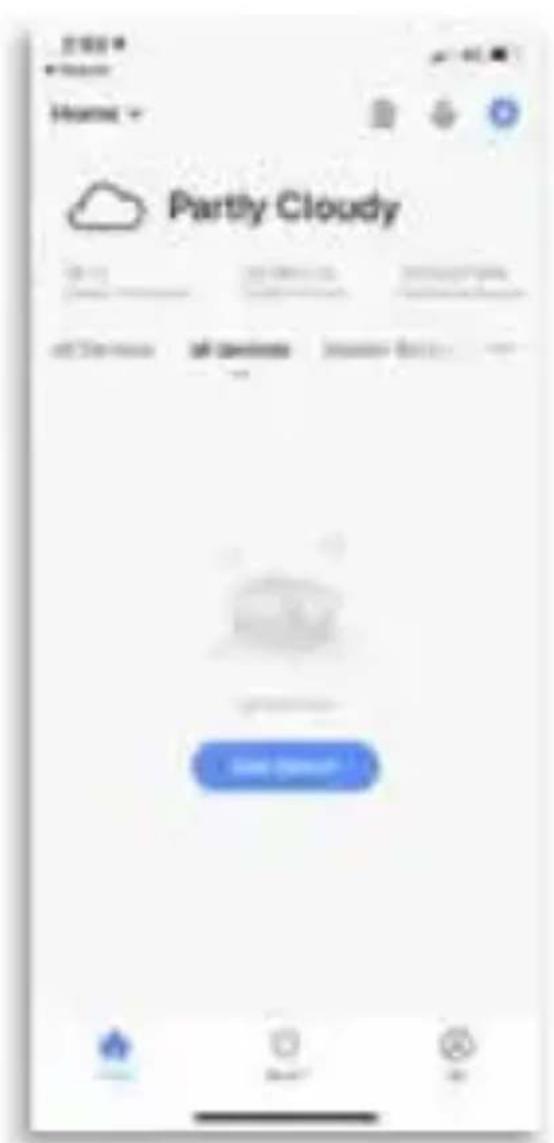

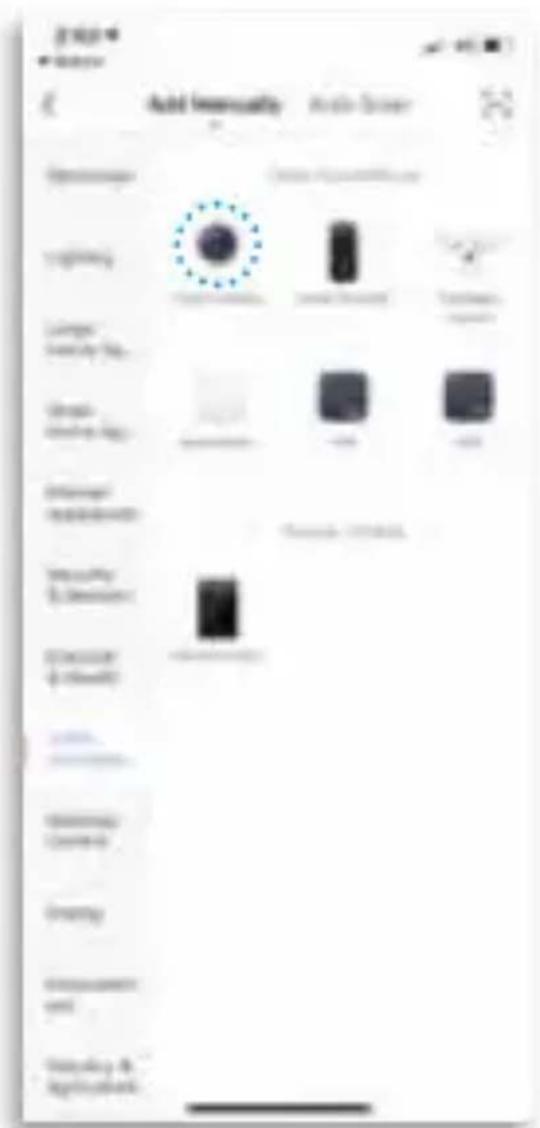

Follow the instructions in the app and reset the device first.
RESET: Press and hold the reset button (5) until you hear the "System Reset" prompt from the camera speaker.
Select your 2.4 GHz WLAN network and enter your password.


Device is added automatically.Scan th
camera.
After the successful scan, you will hear a beep.
Then press the "I Heard a Prompt" button.
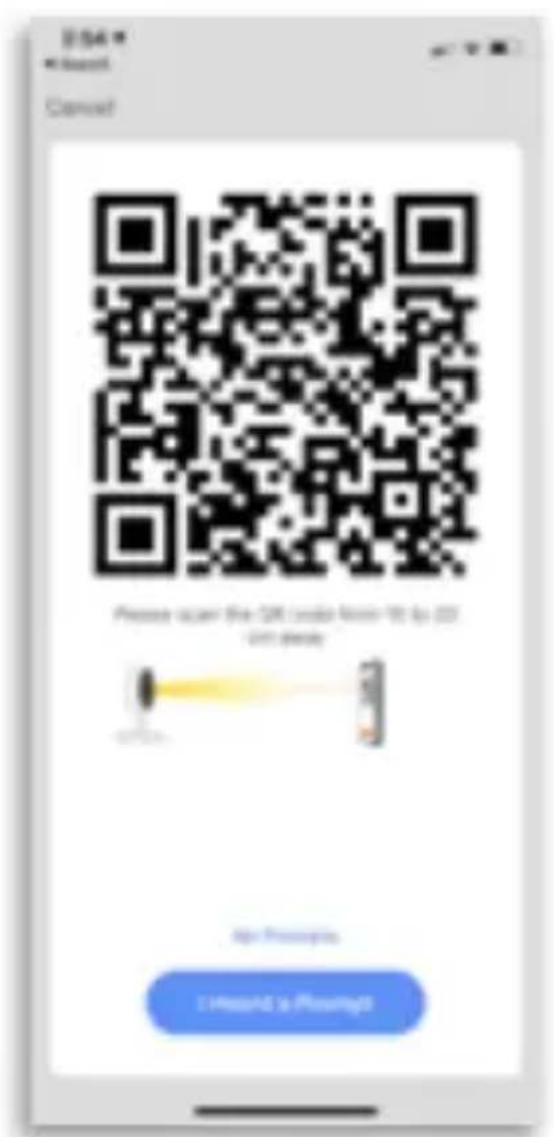


The device is added, you can now make the room settings.
Click on the „Maginon IP 126 Indoor Kamera“ button.

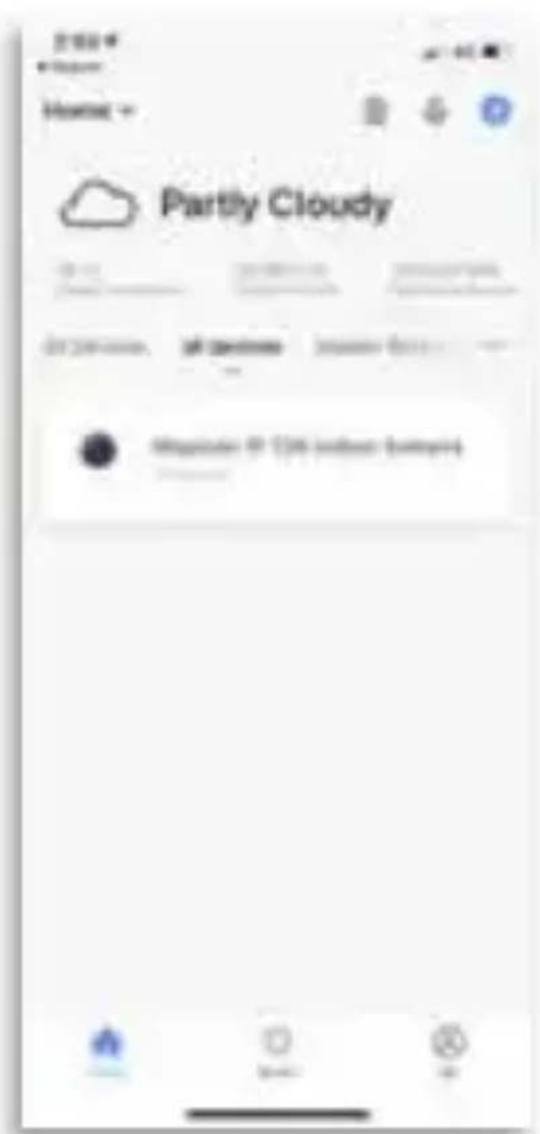

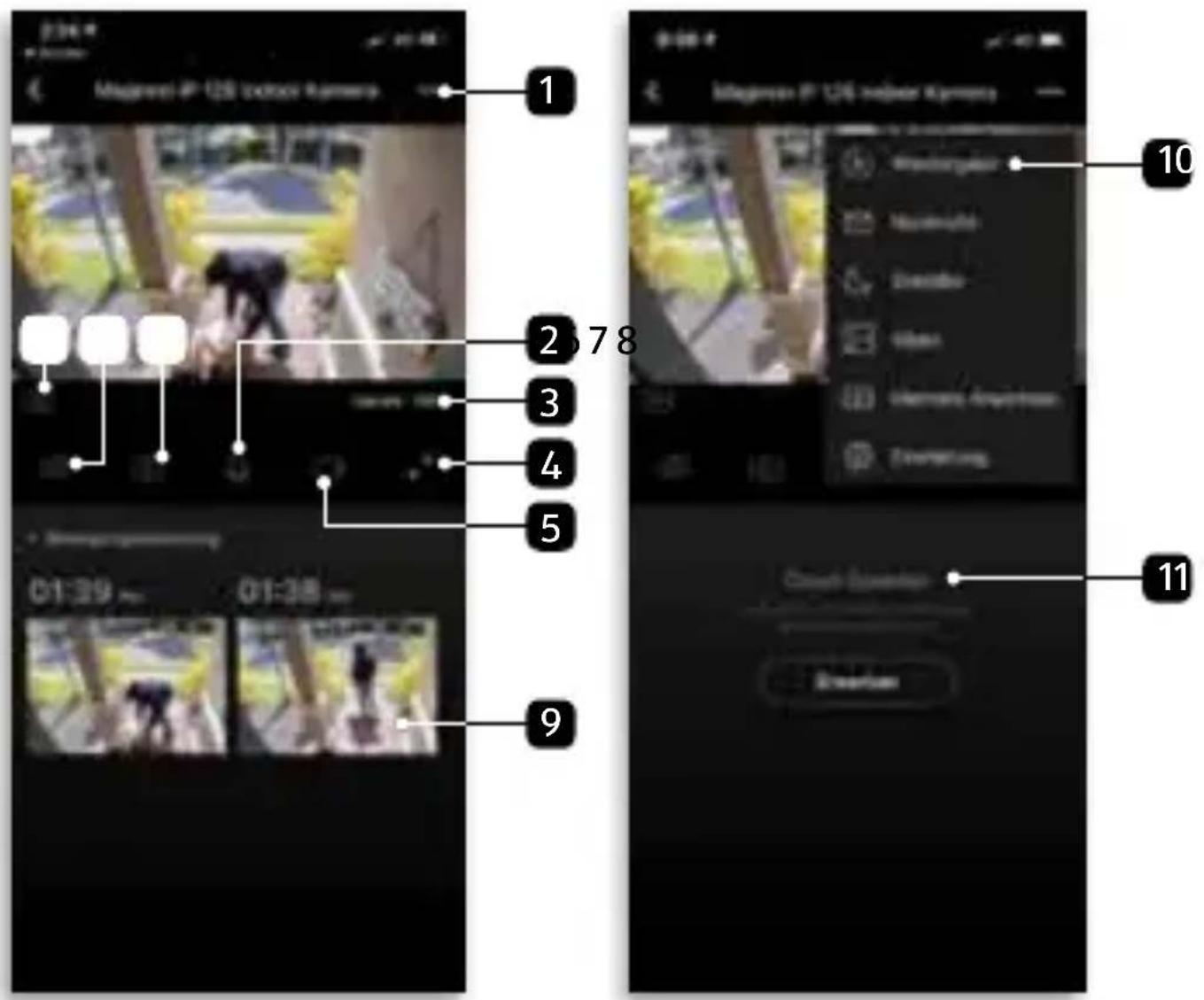
The Main Menu
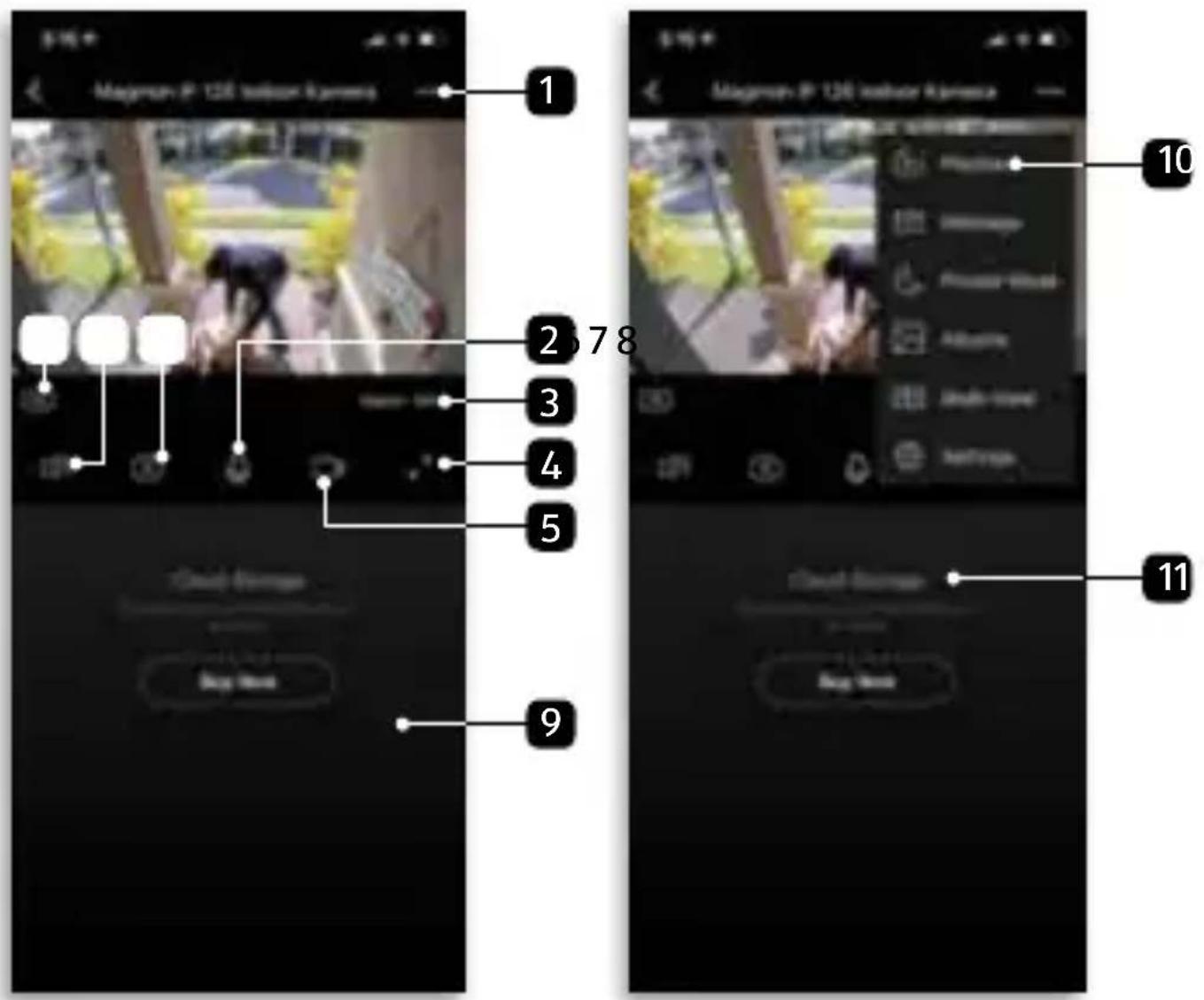
1 Setting
2 Intercom system
3 WIFI signal strength
4 Full screen
5 Video recording
6 Resolution
(HD = High Definition |
SD = Standard Definition)
7 Sound playback
8 Photo recording
9 Stored photos and Videos (Tuya Cloud needed)
10 Playback (automatic stored videos)
11 Tuya Cloud (optional subscription)
Settings
Here you can make additional settings – e.g. setup Amazon Alexa or motion detection.
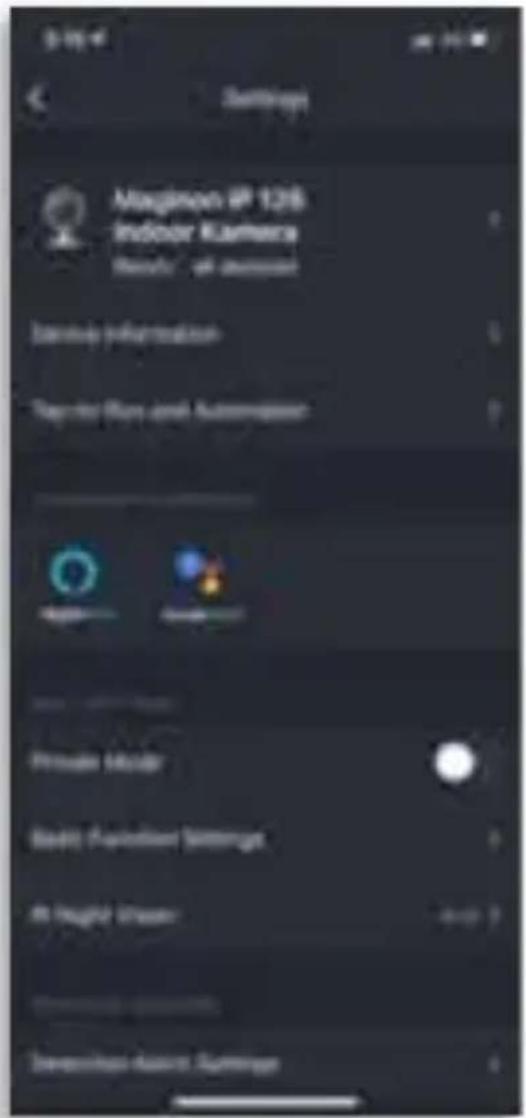
Setting up cameras
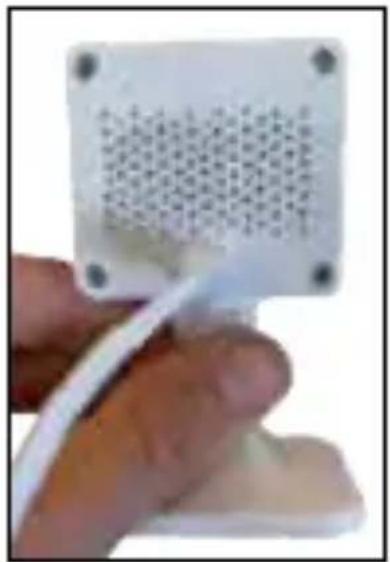
- Then insert a microSD memory card (optional) into the memory slot.
- Connect the camera to the USB power supply and plug the power cord into an easily accessible power outlet.
- RESET: Press and hold the reset button until the beep sound is heard from the Listen to the camera speakers.
- Note: You can also operate the camera with a power bank.
natural_image
Hand holding a white electronic component with a grid pattern, no visible text or symbolsPlacing cameras or assemble
You can place your camera on a flat surface or mount it on the wall. Choose a location with a clear field of view and a good wireless signal.
Note: The WLAN range can be extended by walls or objects, or by interference from other WLAN networks.
Select the installation location for the surveillance camera so that no sunlight falls on the lens.

natural_image
Interior view of a modern office or lab setting with a monitor and equipment (no visible text or symbols)
natural_image
Exterior view of a room corner with a wooden cabinet and a small black object on the wall (no visible text or symbols)The coverage of the monitoring area

When installing the camera, the PIR sensor should not be aligned vertically with the moving object as it may not detect motion.
It is recommended that the camera be oriented at an angle of more than 10 degrees in order to detect any movement.
Technical Data
Image Sensor 2MP 1/2.9"CMOS sensor
Effective Pixels 1920 (H) x 1080 (V)
Field of view 122° diagonal
IR LED 6 pcs IR LEDs
Night Vision Distance 3 - 5 m
Network 802.11 b/g/n 2.4 GHz Wi-Fi
WIFI Distance More than 70 m visual contact
Storage Class 10 microSD memory cards up to
128 GB / Cloud storage
Frequency range 2400 - 2483.5 MHz for IEEE 802.11 b/g/n/HT20
Frequency band ≤ 20 MHz
Max. power level ≤ 18.5 dBm
Video Record Motion detection / manual recording via app
Day & Night Switching IR Cut
Mic / Speaker Built in
Video Compression H.264 / MJPEG
Motion Detection Support
Working Temperature -10 \~ 50°C
Working Humidity 10 - 95%
Installation Wall/ceiling/lay on the table
Power Input DC 5 V / 1 A
Stream Media Google Assistant, Amazon Alexa
Size | Weight 50 x 46 x 89.68 mm | 63 g
Box Content 1x IP Kamera 126, moveable bracket, adhesive strap, USB cable, power adapter and manual
In the course of product improvements we reserve the right to make technical and optical changes to the article.
Possible infringements
When using the IP-Surveillance Camera, you should observe the following instructions:
Copyright
In principle, every person has the right to his or her own image. According to copyright law, pictures may only be published without the consent of the persons concerned if the persons appear merely as an accessory next to a landscape or other localities.
The answer to the question of whether a person is merely an accessory depends on the circumstances of the individual case. For reasons of legal certainty, information should be provided via the IP-Surveillance Camera in all cases where recordings with identifiable personal references are possible (see also the section entitled "Duty to Inform").
Protection of privacy
The privacy of others must not be violated by the pictures shown. Do not point your camera into the garden or the front door of your neighbor's house, even if these places are visible from your own home or public places. This does not entitle you to publish these views.
Please note that before handing over the camera for repair or to a third party, please use the camera's reset function (page 29) to delete all personal data from the camera's memory.
Personal identifiability
A person can be identified if it can be determined that a particular person was at a particular place at a particular time. Identification can also be made using a personal license plate, such as the vehicle license plate. It is absolutely necessary to avoid the possibility of identifying persons.
Surveillance cameras at the workplace
Monitoring in the workplace is subject to particularly strict regulations in Germany. Employers should completely dispense with surveillance cameras in the workplace as long as a possible violation of the law cannot be completely ruled out.
Surveillance cameras in road traffic
In the case of surveillance cameras with a view of the road traffic, it is recommended that the location of the surveillance cameras and the image section be configured in such a way that the road users cannot be determined by the car number through the recordings. Vehicle markings can also lead to the identification of road users.
Duty to inform
If personal identification of persons cannot be ruled out, a notice on the surveillance camera must be placed in a clearly visible position at all access routes to the recording area. The passer-by must also be informed that by entering the recording area he/she gives his/her consent to the recording of the images and that, if his/her consent is denied, he/she can avoid the recording by not entering the area. In this context, attention must be paid to the declaration of conformity – voluntary nature of the declaration. If the photo trap is located in a place that the person concerned must pass in order to reach his or her destination (e.g. entrance from a tourist attraction), no effective consent is given due to the lack of voluntariness.
Security
Intended use
The surveillance camera is designed exclusively as an IP surveillance camera. It is intended exclusively for private use and is not suitable for commercial use.
Use the Security Camera only as described in this manual. Any other use is considered improper and may result in damage to property or loss of data.
The manufacturer or dealer assumes no liability for damage caused by improper or incorrect use.
If you want to connect your camera to your router in a European country, after selecting your router, please set the region from North America (channels 1–11) to Europe (Channel 1–13).
The minimum distance between the camera and the user is 25 cm for normal use.
WLAN is the abbreviation for "Wireless Local Area Network". It is a wireless local area network. WLAN can be used if data transmission via cable is not possible or only possible with great effort.
Safety Instructions
- Do not operate the surveillance camera if it shows visible damage.
- The Security Camera must not be operated with an external timer or separate remote control system.
- Do not immerse the Security Camera or USB cable in water or other liquids.
- Keep the Security Camera away from open fire and hot surfaces.
- Do not place objects with naked flames, such as candles, on the unit.
Safety Instructions
- Use the unit only in moderate climate.
- Use only the recommended adapter, with maximum 5 V / 1 A.
- Only connect the surveillance camera to a nearby and easily accessible power outlet so that you can quickly disconnect it from the mains in the event of a fault.
- Do not operate the Security Camera if it shows visible damage or if the power cable or power plug is defective.
- If the power cord of the Security Camera is damaged, it must be replaced by the manufacturer or their service department or a similarly qualified person.
- Do not open the housing, but leave the repair to qualified personnel. Contact a specialist workshop for this. Liability and warranty claims are excluded in the event of repairs carried out by yourself, improper connection or incorrect operation.
- The surveillance camera must not be operated with an external timer or separate remote control system.
- Only use the supplied adapter.
Disposal

Disposal of packaging: Dispose of the packaging according to its type. Add cardboard and cartons to the waste paper, foils to the recyclables collection.

Disposal of old electrical and electronic equipment and/or batteries/accumulators by consumers in private households within the European Union. This symbol on the product or on the packaging indicates that it must not be disposed of with household waste. You must hand over your old appliance and/or batteries/accumulators to appropriate collection points for recycling electrical and electronic appliances and/or batteries/accumulators. For more information about recycling this device and/or batteries, contact your local city council, the shop where you purchased the device, or your waste management company. Recycling of materials helps conserve natural resources and ensures a safe method of recycling for human health and the environment.
Conformity
Herewith supra Foto-Elektronik-Vertriebs-GmbH declares that the radio system type „Maginon IP 126 Indoor Kamera“ complies with the directive 2014/53/EU:
2011/65/EU RoHS Directive 2014/53/EU RED Directive 2009/125/EC ErP Directive

The full text of the EU Declaration of Conformity is available at the following Internet address: https://downloads.maginon.com/download/ip-126-indoor-kamera
MAGINON
- Indoor Kamera
- Smartphone-App starten
- Scope of delivery / parts
- Introduction
- Read and keep the manual
- Imprint
- supra
- Passwords should never be given to third parties!
- Download Smartphone App
- Launch Smartphone App
- Settings
- Setting up cameras
- Placing cameras or assemble
- The coverage of the monitoring area
- Technical Data
- Possible infringements
- Copyright
- Protection of privacy
- Personal identifiability
- Surveillance cameras at the workplace
- Surveillance cameras in road traffic
- Duty to inform
- Security
- Intended use
- Safety Instructions
- Disposal
- Conformity
- MAGINON
Brand : Maginon
Model : IP 126
Category : Security Camera