HS850 - Uncategorized MOTOROLA - Free user manual and instructions
Find the device manual for free HS850 MOTOROLA in PDF.


| Product Type | Bluetooth Headset |
| Brand | Motorola |
| Model | HS850 |
| Bluetooth Version | Bluetooth 2.0+EDR |
| Profiles Supported | Handsfree Profile (HFP), Headset Profile (HSP) |
| Talk Time | Up to 8 hours |
| Standby Time | Up to 200 hours (boom open) |
| Charging Time | Approximately 2 hours |
| Battery Type | Rechargeable Lithium-Ion |
| Dimensions (approx) | 2.5 x 1.5 x 0.8 in (64 x 38 x 20 mm) |
| Weight (approx) | 0.7 oz (20 g) |
| Color | Black / Silver |
| Wearing Style | Over-the-ear with adjustable earhook |
| Microphone | Built-in with boom |
| Speaker | Built-in with removable shroud |
| Controls | Multifunction button, Volume up/down buttons |
| Indicator LED | Pairs, standby, call status |
| Pairing Capability | Up to 8 devices |
| Call Features | Answer/end call, voice dial, redial, reject, call waiting, 3-way calling |
| Volume Orientation | Reversible for left/right ear |
| Noise Reduction | Not specified |
| Cleaning | Wipe with dry cloth; do not use liquids |
| Safety Compliance | FCC Part 15, Industry Canada RSS-210 |
| Accessories Included | Charger, earhook, removable speaker shroud |
Frequently Asked Questions - HS850 MOTOROLA
User questions about HS850 MOTOROLA
0 question about this device. Answer the ones you know or ask your own.
Ask a new question about this device
Download the instructions for your Uncategorized in PDF format for free! Find your manual HS850 - MOTOROLA and take your electronic device back in hand. On this page are published all the documents necessary for the use of your device. HS850 by MOTOROLA.
USER MANUAL HS850 MOTOROLA
natural_image
Abstract line drawing of a swirling, spiral-like shape with no text or symbols
natural_image
Close-up grayscale photo of a human eye with eyelashes and eyebrow (no text or symbols)Bluetooth Headset/Hands Free/HS850
User's Guide
Welcome Welcome
The Motorola Wireless Headset HS850 makes connectivity invisible and reliable. It is astonishingly advanced and simple to use.
Motorola is actively creating Bluetooth solutions for work, for play, for home, for life-everywhere around the globe.
Thank you for choosing the Motorola Wireless Headset HS850 with Bluetooth® technology!
6809489A97-O
欢迎
Safety and General Information......1
Introduction......5
Headset Features....5
Using Your Headset....7
Wearing Your Headset....10
Pairing Your Headset and Phone....12
Controlling Headset Volume....15
Making and Receiving Calls....17
Using Your Headset Indicator LED....19
目录
安全与性能安全与性能....22
简介....26
耳机图解....26
使用方法使用方法……28
耳机佩戴....31
耳机与手机配对....34
调节耳机音量....37
耳机指示灯....40
提示音....41
目錄
簡介....48
耳機圖解....48
使用方法使用方法 49
耳機佩戴....52
耳機與手機配對....55
調節耳機音量....58
耳機指示燈....61
提示音....62
Safety and General Safety and Gener Information
IMPORTANT INFORMATION ON SAFE AND EFFICIENT OPERATION. READ THIS INFORMATION BEFORE USING YOUR DEVICE.
Users are not permitted to make changes or modify the device in any way. Changes or modifications not expressly approved by the party responsible for compliance could void the user's authority to operate the equipment. See 47 CFR Sec. 15.21.
This device complies with part 15 of the FCC Rules.
Operation is subject to the following two conditions: (1) This device may not cause harmful interference, and (2) this device must accept any interference received, including interference that may cause undesired operation. See 47 CFR Sec. 15.19(3).
Electromagnetic Interference/Compatibility
Note: Nearly every electronic device is susceptible to electromagnetic interference (EMI) if inadequately shielded, designed, or otherwise configured for electromagnetic compatibility.
Facilities
To avoid electromagnetic interference and/or compatibility conflicts, turn off your device in any facility where posted notices instruct you to do so. Hospitals or health care facilities may be using equipment that is sensitive to external RF energy.
Aircraft
When instructed to do so, turn off your device when on board an aircraft. Any use of a device must be in accordance with applicable regulations per airline crew instructions.
Medical Devices
Hearing Aids
Some devices may interfere with some hearing aids. In the event of such interference, you may want to consult with your hearing aid manufacturer to discuss alternatives.
Other Medical Devices
If you use any other personal medical device, consult the manufacturer of your device to determine if it is adequately shielded from RF energy. Your physician may be able to assist you in obtaining this information.
Industry Canada Notice to Users
Operation is subject to the following two conditions: (1) This device may not cause interference and (2) This device must accept any interference, including interference that may cause undesired operation of the device Ref IC RSS 210 Sec. 5.11. The term “IC:” before the certification/registration number only signifies that registration was performed based on a Declaration of Conformity indicating that Industry Canada technical specifications were met. It does not imply that Industry Canada approved the equipment. See Ref IC Self-Marking 6(f) and RSP-100 Sec. 4.
FCC Notice to Users
This equipment has been tested and found to comply with the limits for a Class B digital device, pursuant to part 15 of the FCC Rules. These limits are designed to provide reasonable protection against harmful interference in a residential installation. This equipment generates, uses and can radiate radio frequency energy and, if not installed and used in accordance with the instructions, may cause harmful interference to radio communications. However, there is no guarantee that interference will not occur in a particular installation. If this equipment does cause harmful interference to radio or television reception, which can be determined by turning the equipment off and on, the user is encouraged to try to correct the interference by one or more of the following measures:
- Reorient or relocate the receiving antenna.
- Increase the separation between the equipment and the receiver.
- Connect the equipment to an outlet on a circuit different from that to which the receiver is connected.
- Consult the dealer or an experienced radio/TV technician for help.
Introduction Introduction
Headset Features
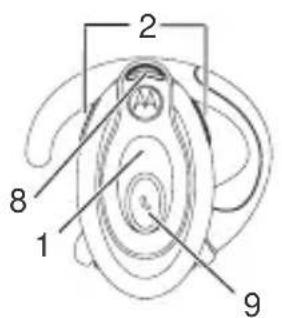
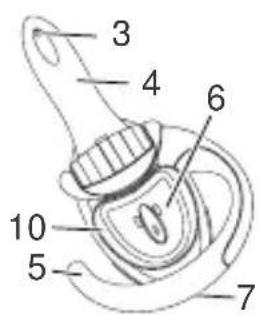
1 Headset Indicator LED— Provides visual cue about headset status.
2 Volume Control Buttons—Adjusts speaker (receive) volume up and down.
3 Microphone— Picks up your voice input.
4 Boom—Contains microphone and controls power (On/Off) status of headset.
5 Earhook—Attaches headset to ear.
6 Speaker— Plays the sound you receive on the call.
7 Charging Port— Receives the plug for your battery charger.
8 Lanyard Loop—Lets you attach a lanyard to the headset, so you can wear the headset around your neck and always keep it near.
9 Multifunction Button E— Controls several headset functions.
10 Removable Speaker Shroud—Helps channel sound to the ear. Shroud may be removed if it causes discomfort.
Using UsingHeadsetour Headset
Charging Your Headset
First-Time Use— Before you can use your headset, you need to charge its self-contained battery for two hours.
Recharging— When you hear five rapid high tones through the headset speaker, repeated at 20-second intervals, the headset battery needs to be recharged.
Over extended periods of time, batteries gradually wear down and require longer charging times. This is normal. The more you talk on the phone with the headset, the less standby time your battery has.

The rechargeable batteries that power this product must be disposed of properly and may need to be recycled. Contact your local recycling center for proper disposal methods. Never dispose of batteries in a fire because they may explode.
How to Charge
Step
1 Plug the Motorola charger into the headset, with the charger's release tab facing down and the headset facing up.
2 Plug the other end of the charger into an electrical outlet. While charging, the headset indicator turns on and remains
on until charging is complete. The headset will not function while charging. Your headset fully charges in approximately two hours.
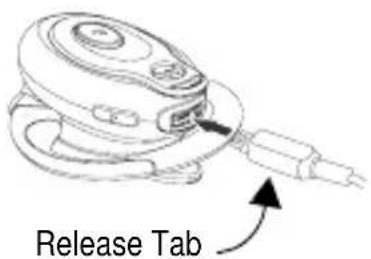
Release Tab Facing Down
3 When charging is complete (indicators off), remove the charger from the electrical outlet, press the release tab, and detach the charger cord from the headset.
Note: You can also use a Motorola Original Vehicle Power Adapter to charge the headset while in your vehicle.
A fully charged headset battery provides approximately:
- talk time–8 hours
- standby time (boom open)–200 hours
Wearing Your Headset
When packaged, the headset is configured for wear on the right ear.
Step
1 Open the boom then open the earhook (45° from the headset).
2 Loop the earhook over your ear.
3 Press the headset to your ear.
4 Point the boom toward your mouth.
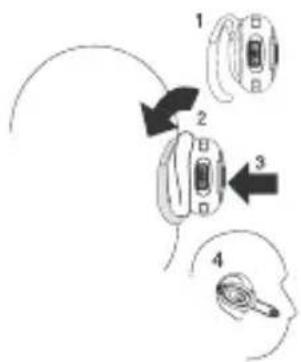
flowchart
graph TD
    A["1: Earplasia"] --> B["2: Head"]
    B --> C["3: Head"]
    C --> D["4: Human Head"]
Wearing on the Left Ear
When packaged, the headset is configured for wear on the right ear. To change it for wear on your left ear:
Step
1 Open the boom, then open the earhook (90° from the headset).
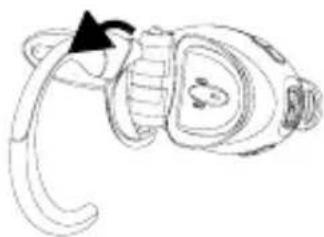
2 Gently lift and pull the top of the earhook up and off the upper hinge pin. Then pull it away to remove it.
3 Flip the headset over.
4 Hook the bottom of the earhook onto the lower hinge pin, then lift and pull the top of the earhook over the upper hinge pin.
5 To change the volume button orientation, see "Controlling Headset Volume" on page 15.
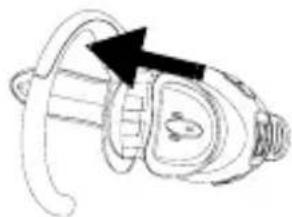
natural_image
Line drawing of a mechanical device with an arrow indicating direction (no text or symbols)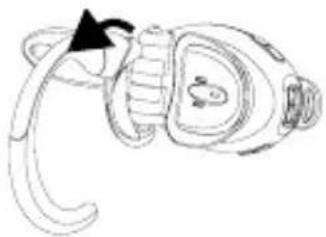
natural_image
Line drawing of an insect head with a black arrow pointing to the tail (no text or symbols)Pairing Your Headset and Phone
Note: You must pair your headset and phone before you can make a call.
"Pairing" creates a link between devices with Bluetooth wireless technology, and allows the phone to remember the headset's unique ID. Once your headset and phone are paired, your headset automatically connects to your phone any time you open the boom.
Pairing
With the headset and phone in close proximity:
| Step | Result |
| 1 Put the headset into pairingmode. | the headset indicator turns on |
a With the headset's boom closed, press and hold the
| Step | Result |
| Multifunction ButtonE until the headset indicator turns on (about 3 seconds). | The indicator remains lit. |
| b Release them button, then open the headset boom. | |
| 2 Perform a device discovery from the phone.For details on device discovery for your phone, refer to the user's guide for the phone. | When the scan is complete, the phone displays the devices found. |
3 Select the Motorola HS850 from the discovered devices list and confirm following
| Step | Result |
| the on screen prompts. | |
| 4 When prompted by the phone, enter the passkey 0000 and confirm to pair the headset with the phone. | The device ID is now stored in the phone's memory. Pairing is successful when the headsetindicator flashes 10 times rapidly. |
Link to Additional Devices
Your headset can store pairing information for up to eight different devices equipped with Bluetooth wireless technology. Devices are stored in a “Paired Device List” in memory in chronological order. When an attempt to pair to more than eight devices is made, the oldest paired device is removed from the list.
Any of the eight paired devices can initiate a paired connection to the headset.
The headset will only automatically initiate a paired connection (via opening the boom) with the last device it was connected to. If you want to connect the headset to another device in the paired device list, you must initiate the connection from that device. Whichever of the eight devices initiates a connection to the headset afterwards, that device then becomes the “last connected” device.
Controlling Headset Volume
Increasing and Decreasing Volume
To increase speaker volume, press the top volume button repeatedly until you reach the desired volume level.
To decrease speaker volume, press the bottom volume button repeatedly until you reach the desired volume level.
Volume Orientation
To change the volume button orientation for left or right ear:
| Step | Result |
| 1 | With the headset's boom closed, press and hold the Multifunction E button until the headset indicator turns on (about 3 seconds). |
| 2 | Press the volume button that you want to use as the volume up. The headset indicator will flash several times to indicate success. |
Repeat the above steps anytime to change the volume button orientation.
Making and Receiving Calls
Your headset supports both Handsfree and Headset Profiles. Accessing call functions depends on which profile your phone supports.
Note: Some phones do not support all features listed. Please consult your phone user's guide.
You can activate call functions for both according to the following table:
| Device Status | Action | ||
| Function | Phone | Headset | HandsfreeProfile |
| Enter On Off Press & hold E until Pairing (boom LED remains lit. (Configura closed) Release E -tion) Mode openboom. | |||
| Make a Voi-ce Dial Call name, phone dials call | On Short press E , speak | ||
| Dial a On-user On N/A Number dials number | |||
| Device Status | Action | |||
| Function | Phone | Headset | Handsfree | Profile |
| Redial a Number | On- ing turned on or off | Voice dial- On- | (Idle) Long | press E |
| End a Call | On-in call | On | Short | press E |
| Put Active Call On Hold | On-in call | On | Long | press E |
| Receive a Call | On-phone rings is answered | On | Short | press E (call |
| Reject a Call On- phone rings | On Long | press E | ||
| Answer 2nd On-in incoming call 2nd | call, On long call coming in answers | press E places 1st call on | hold, | |
| Toggle between On two active calls | on-in call,2nd call on hold | ers incoming | call | |
| Transfer call On- from phone to Headset | in call | On | Long | press E, (call transferred to headset) |
Note: If the link abnormally disconnected (e.g., out of range) the headset tries to reestablish the link.
Using Your Headset Indicator LED
With charger attached:
| Headset Indicator Status |
| OFF power off |
| ON (steady) pairing mode |
With no charger attached:
| Headset Indicator Status |
| OFF power off |
| ON (steady) pairing mode |
| 10 rapid flashes pairing successful |
| Flashes at a 3-second interval standby (not on a call)(.1 seconds ON 2.9 seconds OFF) |
| Pulses at an 8-second interval connected (on a call)(2.0 seconds ON,6.0 seconds OFF) |
Note: When the wireless headset is paired to the phone and there is no activity for 5 minutes, the blue flashing LED turns off. Any button press on the headset will reawaken the headset and the flashing resumes. If you press the up and down volume buttons simultaneously during a call, the pulsing LED turns off for the duration of that call.
Audio Tones
| Audio Tone Headset Status | |
| Single high tone when volume maximum or pressing volume button minimum reached | |
| Five rapid high tones, low battery repeated every 20 seconds | |
| No audio indications; out of range deteriorating audio quality | |
| Series of 4 tones, low to high audio link open (Headset mode), active call (Hands Free mode) | |
| Ring tone incoming call | |
| Single high tone pairing confirmation | |
| Single low tone initiate voice activation | |
| Dual high/low tone voice tag not recognized | |
| Single high tone end call | |
| Series of 4 tones, high to low audio link closed (Headset mode), call ended (Hands Free mode) | |
| Fast high/low tone every no network/service5 seconds (max. & min.volume confirm beep) | |
| no tone power ON/OFF |
安全与性能
flowchart
graph TD
    A["1"] --> B["2"]
    B --> C["3"]
    C --> D["4"]
左耳佩戴模式
natural_image
Line drawing of a mechanical component with an arrow indicating direction (no text or symbols)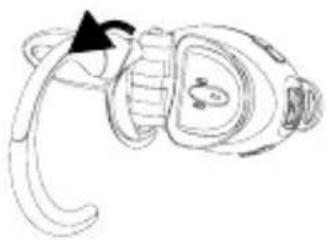
natural_image
Line drawing of a stylized insect head with a curved tail and segmented body (no text or symbols)flowchart
graph TD
    A["1"] --> B["2"]
    B --> C["3"]
    C --> D["4"]
左耳佩戴模式
natural_image
Line drawing of a mechanical component with an arrow indicating direction (no text or symbols)