
RoboVac 11c Pet Edition - Robot vacuum eufy - Free user manual and instructions
Find the device manual for free RoboVac 11c Pet Edition eufy in PDF.


| Product Type | Robot Vacuum Cleaner |
| Model | RoboVac 11c Pet Edition |
| Brand | Eufy |
| Dimensions (D x H) | 12.8 x 3.0 inches (325 x 76 mm) |
| Weight | 5.7 lbs (2.6 kg) |
| Power Supply | DC 14.4V, 2600mAh Li-ion battery |
| Charging Time | Approx. 4-5 hours |
| Run Time | Up to 100 minutes on standard mode |
| Dust Capacity | 0.6 L |
| Suction Power | 1300 Pa (max) |
| Cleaning Modes | Auto, Spot, Edge, and Manual |
| Pet Hair Features | Enhanced suction and tangle-free brush |
| Navigation System | Drop and collision sensors, random navigation |
| Filter Type | High-performance filter (washable) |
| Remote Control | Included (IR remote) |
| Smart Home | Compatible with Amazon Alexa and Google Assistant |
| Noise Level | Approx. 55 dB |
| Scheduled Cleaning | Yes (via remote or app) |
| Barrier Strips | Included magnetic boundary strips |
| Spare Parts | Extra filters, brushes, and charging dock available |
| Repairability | Replaceable battery, brushes, and filter |
| Safety Features | Auto-docking, cliff sensors, overload protection |
| Warranty | 1 year limited warranty |
Frequently Asked Questions - RoboVac 11c Pet Edition eufy
User questions about RoboVac 11c Pet Edition eufy
0 question about this device. Answer the ones you know or ask your own.
Ask a new question about this device
Download the instructions for your Robot vacuum in PDF format for free! Find your manual RoboVac 11c Pet Edition - eufy and take your electronic device back in hand. On this page are published all the documents necessary for the use of your device. RoboVac 11c Pet Edition by eufy.
USER MANUAL RoboVac 11c Pet Edition eufy
For FAQs and more information, please visit:
www.eufylife.com
Owner's Manual
RoboVac 11c Pet Edition (T2111)
Table of Contents
02 About Your RoboVac
What's in the Box
RoboVac Anatomy
06 Using Your RoboVac
Important Tips Before Use
Install the Charging Base
Charge Your RoboVac
Start / Stop Cleaning
Select a Cleaning Mode
Schedule Cleaning
Use Your RoboVac with the EufyHome App
Use Your RoboVac with Amazon Alexa / the Google
Assistant (Optional)
Use the Boundary Strips
17 Cleaning and Maintenance
Clean the Dust Collector and Filters
Clean the Rolling Brush
Clean the Sensors and Charging Pins
Clean the Side Brushes
Replace the Side Brushes
21 Troubleshooting
Wi-Fi Connection
25 Specifications
25 Customer Service
About Your RoboVac
What's in the Box
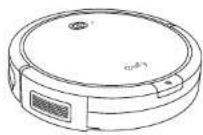
RoboVac 11c Pet Edition
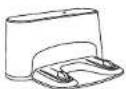
Charging Base
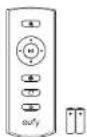
Remote Control (AAA Battery ×2)
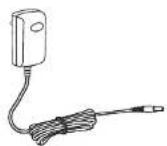
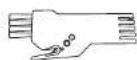
Power Adapter Cleaning Tool

Boundary Strips (6.6 ft/2 m length)
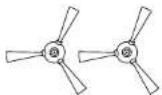
Additional Side Brushes (×2)
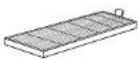
Additional
High-Performance
Filter
Additional Foam Filter
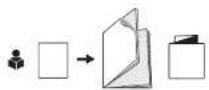
Safety Owner's Manual
Leaflet Quick Start Guide
RoboVac Anatomy
Top & Side
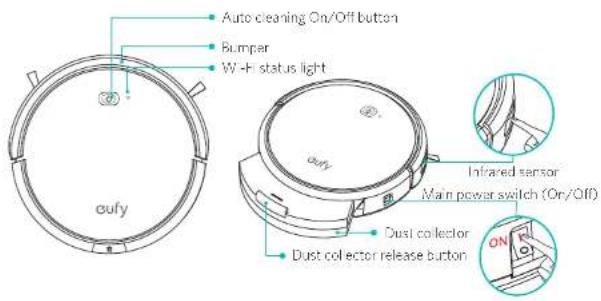
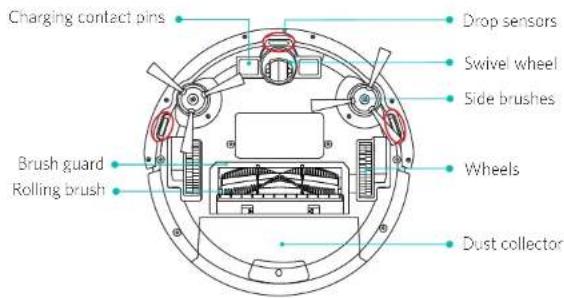
Bottom
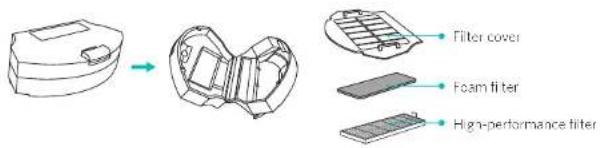
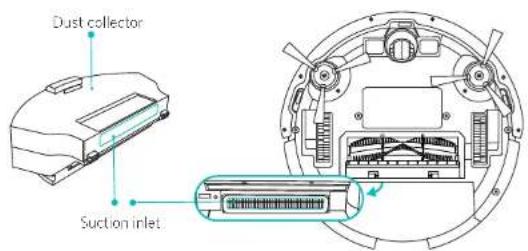
Dust Collector
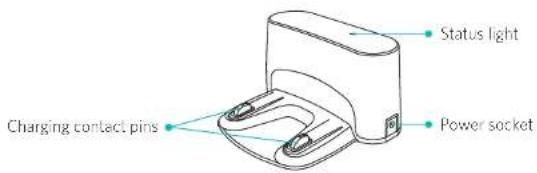
Charging Base
Suction Inlet
Remote Control
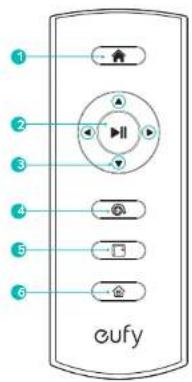
1 Return RoboVac to Charging Base
2 Start/Stop Auto cleaning
3 Control clearing direction manually Adjust the hour and minute
4 Start Spot cleaning
5 Start Edge cleaning
6 Start Single Room cleaning

Install Z AAA batteries before using the remote control for the first time. Make sure the positive and negative ends of facing the correct polarity direction as marked in the battery compartment.
Using Your RoboVac
Important Tips Before Use
a
b
e
d
e
f
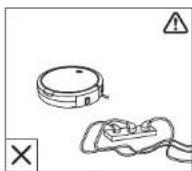
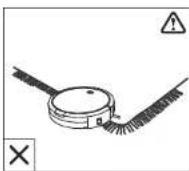
Remove power cords and small objects from the floor that may entangle RoboVac.
b Remove rugs that are thicker than 0.87 in/22 mm as RoboVac may get trapped. Fold tasseled edges of area rugs underneath to prevent tangling RoboVac. Do not use RoboVac on high-pile carpeting.
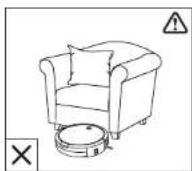
Avoid cleaning spaces lower than 3.9 in/100 mm to prevent RoboVac from getting stuck.
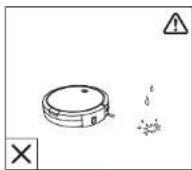
d Keep RoboVac away from wet areas.
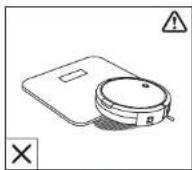
RoboVac may climb on top of objects less than 0.67 in/17 mm in height. Remove these objects if possible.
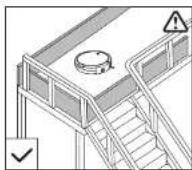
Anti-drop sensors prevent RoboVac from tumbling down stairs and steep drops. They may work less effectively when they are dirty, or on reflective/dark-colored floors. Although the Boundary Strips can be applied to block off the areas you do not want RoboVac to clean, they should not be solely relied upon to avoid a potentially dangerous situation. In such cases, it is recommended to place a physical barrier to block off problem areas where the device may fall.
Install the Charging Base
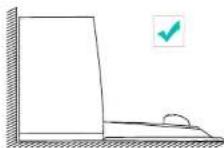
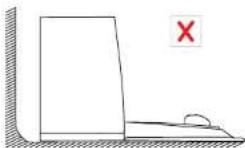
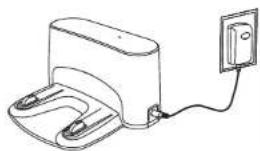
1 Place the Charging Base on a hard, level surface and against a wall.
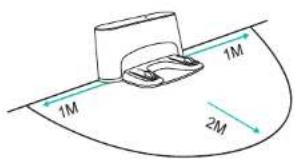
2 Remove objects within 3 ft/1 m of the left and right side and within 6 ft/2 m of the front of the Charging Base.
3 Connect the round connector of the adapter into the power socket on the Charging Base and the other end into a wall outlet.
natural_image
Line drawing of a medical device connected to an electrical outlet (no text or symbols)
Install the Charging Base in a location that RoboVac can easily access.
Always keep the Charging Base plugged in, otherwise RoboVac will not automatically return to it
- The LED indicator on the Charging Base is SOLID GREEN when RoboVac is NOT docked. - The LED indicator on the Charging Base is OFF when RoboVac is docked.
Charge Your RoboVac
• RoboVac has a pre-installed rechargeable battery that has to be fully charged before use.
- RoboVac returns to the Charging Base at the end of a cleaning cycle or when its battery is running low.
• Make sure the main power switch on the side of RoboVac is turned on before charging.
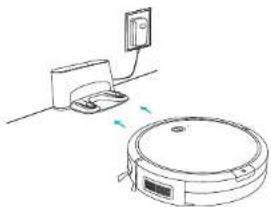
Method 1: Attach RoboVac to the Charging Base by aligning its charging pins with the charging pins on the base.
natural_image
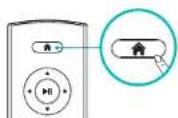
Line drawing of a robotic vacuum cleaner with a mounted device and power outlet (no text or symbols)Method 2: Press in the remote control to return RoboVac to the Charging Base.
| Status | |
| Breaching blue Charging | |
| Solid blue Standby / Clearing. / | Returning to Charging Base |
| Solid purplish-rec Low power and returning to Charging Base | |
| Flashing / Solid red + Beeping | RoboVac has an error |
| Off | RoboVac is off. |
| To conserve power, the light automatically turns off: | |
| When RoboVac is not docked to the Charging Base and has been inactive for 10 minutes; | |
| After RoboVac is docked to the Charging Base and has been fully charged for 10 minutes. | |

When charging RoboVac, press and hold 📍 on RoboVac for 20 seconds and when you hear two beeps, indicating that RoboVac has entered Reduced Power Standby mode. Wi-Fi is disabled in this mode. Press 🔒 to exit Reduced Power Standby mode. Turn off the power switch if RoboVac will not be used for a long period of time. To preserve the battery's lifespan, recharge at least once every 3 months.
Start / Stop Cleaning
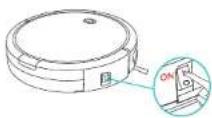
1. Turn on the main power supply
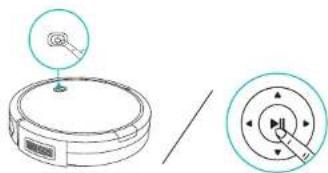
Press the main power switch on the side of RoboVac to turn on the main power supply.
2. Start cleaning
Press On RoboVac or ▶ the remote control to start cleaning in Auto Mode
natural_image
Diagram showing a circular device with a sensor icon and a separate circular dial with directional arrows (no text or symbols)3. Stop cleaning
Press On RoboVac or ▶ the remote control to stop cleaning.
Select a Cleaning Mode
1. Auto cleaning
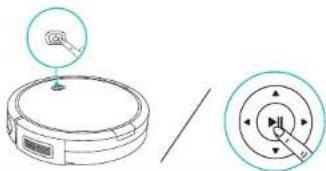
RoboVac automatically cleans in a back-and-forth, straight-line pattern. This is the most commonly used cleaning mode.
Press On RoboVac or ▶ the remote control to start cleaning in Auto Mode
natural_image
Diagram showing a circular device with a cursor pointing to its top panel and a separate circular dial with directional arrows (no text or symbols)
RoboVac will return to the Charging Base automatically when the power level becomes low or when RoboVac finishes cleaning.
By default, RoboVac starts in Auto cleaning mode when it is turned on
Power Boost Feature
When the Power Boost feature is enabled, RoboVac will automatically increase the suction power if it detects stronger power is needed to ensure the best clean. Power Boost is ideal for cleaning thicker carpets and hard-to-sweep messes, which will reduce the total cleaning time, but increase the noise level. If the vacuuming noise caused by Power Boost disturbs you, you can disable this feature. This feature only works in Auto cleaning mode.
To adjust the default suction power in Auto Cleaning mode, simultaneously press and hold the hand buttons for 2 seconds, you will hear a series of beeps that correspond to the suction power selected. Repeat to adjust the suction power level.
| Sound Power Boost Suction Power Level | |
| One beep Off Standard power | |
| Two beeps On | Automatically switches between Standard and Enhanced power (default) |
| Three beeps Off Maximum power |

When RoboVac starts Auto cleaning the next time, it will clean according to the suction power level you previously selected.
2. Spot cleaning
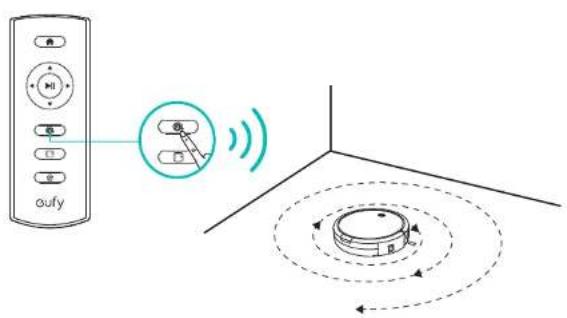
RoboVac intensively cleans a specific area in a spiral pattern. Useful if there is a concentrated area of dust or debris. In Spot mode, RoboVac will stop clearing after 2 minutes.
Press 📄 on the remote control to start clearing in Spot mode.
3. Edge cleaning
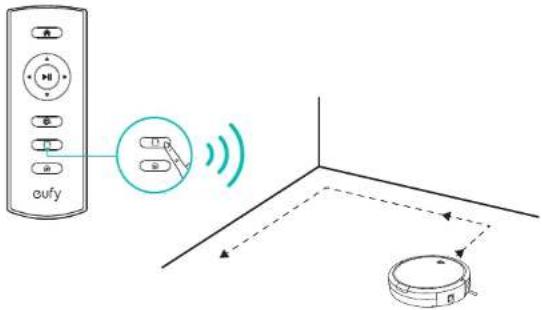
RoboVac reduces its speed when it detects a wall and then follows the wall to ensure the edge is cleaned thoroughly. In Edge mode, RoboVac will clean for 20 minutes and return to the Charging Base.
Press □ on the remote control to start cleaning in Edge mode.
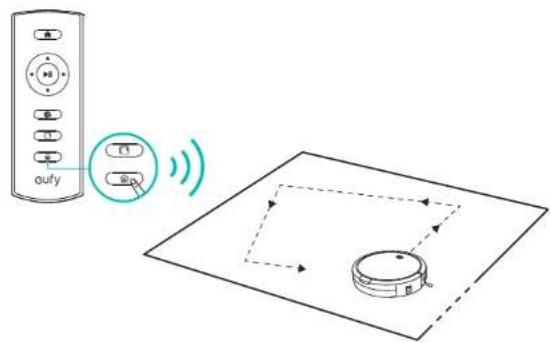
4. Single Room cleaning
RoboVac intensively cleans one single room and stops after 30 minutes. Select this mode only when one specific room needs to be cleaned. Make sure to confine RoboVac to the room by closing the door.
Press in the remote control to start cleaning in Single Room Mode.
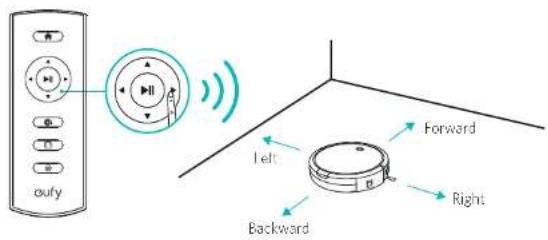
5. Manual cleaning
You can direct RoboVac to clean a particular area by using the directional buttons on the remote control.
Schedule Cleaning
With the EufyHome app, you can schedule RoboVac to start cleaning at a specific time.

You can set the time and customize the cleaning schedules from Sunday to Saturday in the EufyHome app. Cleaning schedules can only be set using the EufyHome app.
Use Your RoboVac with the EufyHome App
To enjoy all available features, it is recommended to control your RoboVac via the EufyHome app.
Before you start, make sure that:
- Your smartphone or tablet is connected to a Wi-Fi network
- Your smartphone or tablet is running iOS 8.0 (or above) or Android 4.3 (or above).
- Your Wi-Fi router supports the 2.4GHz and 802.11b/g/n bands; the 5GHz band is not supported
- RoboVac is attached to the Charging Base to ensure it has enough power during setup.
- Your smartphone is running iOS 8.0 (or above) or Android 4.3 (or above).
• The Wi-Fi status light on RoboVac is slowly flashing blue.


1 Download the EufyHome app from the App Store (OS devices) or Google Play (Android devices).
2 Open the app and create a user account.
3 Tap the "+" icon in the top right corner to add RoboVac to your EufyHome account.
4 Follow the instructions in the app to set up the Wi-Fi connection.
- After connecting successfully, you can control RoboVac via the app.
With the app, you can select a cleaning mode, set the time, schedule a cleaning, view the system status, receive notifications and access additional features.
| Wi-Fi Status Light | |
| Slowly flashing blue Waiting for connection | |
| Rapidly flashing blue Connecting with your wireless router | |
| Solid blue Connected with your wireless router | |

If you have any problem with Wi-Fi setup, refer to the "Troubleshooting > Wi-Fi Connection" section in this manual.
If RoboVac gets stuck in any space, tap Find My Robot in the app to find the machine. This function is available in the app only.
Reset the Wi-Fi Connection
Press and hold On RoboVac for 10 seconds to reset the Wi-Fi connection if necessary.
- You will near a beep when the Wi-Fi connection has been reset and the Wi-Fi status light will slowly flash blue. Now you can follow the Wi-Fi instructions in the EutyHome app to set up the Wi-Fi connection.
Use Your RoboVac with Amazon Alexa / the Google Assistant (Optional)
Amazon Alexa or the Google Assistant is a smart voice control device that enables you to control RoboVac with your voice.
Before you start, make sure that:
• RoboVac is attached to the Charging Base to ensure there is enough power.
• RoboVac is connected with the EufyHome app.
- You have an Alexa-enabled device (i.e. Eufy Genie, Amazon Echo, Echo Dot and Amazon Tap) or a device enabled with the Google Assistant (i.e. Google Home). These devices are sold separately.
- The Amazon Alexa app or Google Home app is already installed on your smart device, and you have created an account.
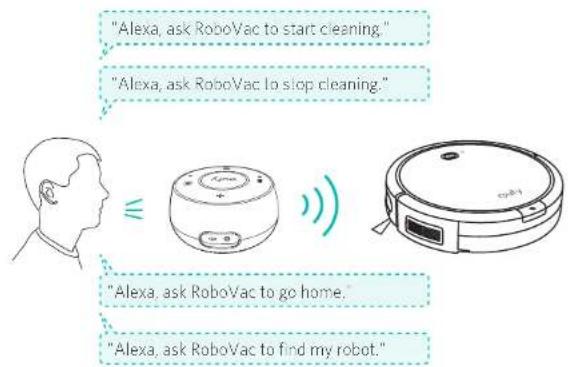
To control RoboVac with Amazon Alexa:
1 Open the Amazon Alexa app and select "Skills" from the menu.
2 On the Skills screen, search for "EutyHome - RoboVac".
3 Once you have found the "EufyHome - RoboVac" skill, lap Enable.
4 Login with your EutyHome account so that Alexa can control your RoboVac.
5 Say simple commands to Alexa:
To control RoboVac with the Google Assistant:
RoboVac now works with the Google Assistant on devices like the Google Home.
1 Open the Google Home app.
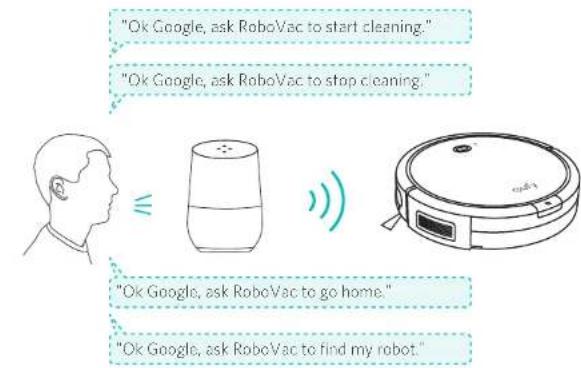
2 Say "Ok Google, talk to RoboVac" to the Google Assistant-enabled device to initiate the Google action for RoboVac.
3 Follow the instructions in the Google Home app to authorize the Google Assistant with your EufyHome account.
4 To control RoboVac with your voice, say simple commands to Google Assistant.
1 Open the Google Home app.
2 Say "Ok Google, talk to RoboVac" to the Google Assistant-enabled device to initiate the Google action for RoboVac.
3 Follow the instructions in the Google Home app to authorize the Google Assistant with your EuryiHome account.
4 To control RoboVac with your voice, say simple commands to Google Assistant.
1 Open the Google Home app.
2 Say "Ok Google, talk to RoboVac" to the Google Assistant-enabled device to initiate the Google action for RoboVac.
3 Follow the instructions in the Google Home app to authorize the Google Assistant with your EuryiHome account.
4 To control RoboVac with your voice, say simple commands to Google Assistant.
1 Open the Google Home app.
2 Say "Ok Google, talk to RoboVac" to the Google Assistant-enabled device to initiate the Google action for RoboVac.
3 Follow the instructions in the Google Home app to authorize the Google Assistant with your EuryiHome account.
4 To control RoboVac with your voice, say simple commands to Google Assistant.
1 Open the Google Home app.
2 Say "Ok Google, talk to RoboVac" to the Google Assistant-enabled device to initiate the Google action for RoboVac.
3 Follow the instructions in the Google Home app to authorize the Google Assistant with your EuryiHome account.
4 To control RoboVac with your voice, say simple commands to Google Assistant.

Use the Boundary Strips
With the Boundary Strips, you can keep RoboVac away from any area or item you do not want RoboVac to clean. RoboVac will recognize the Boundary Strips and not cross into the blocked-off area.
1 Identify the area or item you do not want RoboVac to clean.
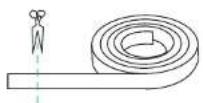
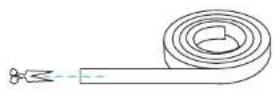
2 If necessary, use scissors to cut the Boundary Strips to a shorter length. Be sure to correctly measure the length before cutting.
√
X
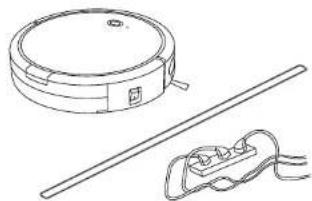
3 Apply an adhesive tape to lay the boundary strips flat on the floor. Make sure the strips are placed FLAT on the floor.
natural_image
Line drawing of a vacuum cleaner and a handheld electrical plug (no text or symbols)
- If the Boundary Strips are rolled up, remove and then re-apply on the floor with an adhesive tape. Otherwise the Boundary Strips may not work well.
Be careful not to damage the floor when using adhesive tape. It is not recommended for use on carpets.
Keep the Boundary Strips away from objects that emit excessive heat.
Cleaning and Maintenance
Clean the Dust Collector and Filters
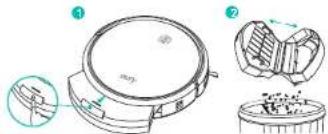
1 Press the dust collector release button to pull the dust collector out.
2 Open and empty the dust collector.
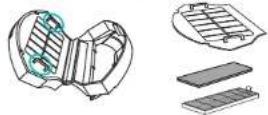
3 Separate the filter cover by pulling the hooks as shown.
4 Take out the foam filter and high-performance filter
3
4
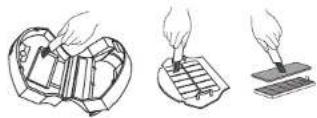
5 Clean the dust collector and filters with a vacuum cleaner or a cleaning brush.
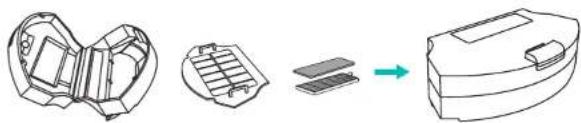
6 Put the filters and filter cover back together in the dust collector.
natural_image
Diagram showing a 3D mechanical component with internal parts, connected to a final assembled device (no text or symbols present)7 Push the dust collector back into the main unit.

- it is recommended to empty the dust collector and clean the filter after every use. - You can wash the dust collector, filter cover and foam filter with water. Be sure to air-dry them thoroughly before reassembling. Do not wash the high-performance filter with water, as it may damage the filter and reduce the suction power.
Clean the Rolling Brush
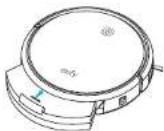
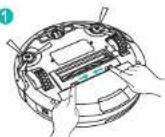
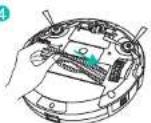
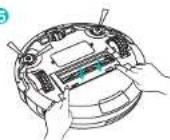
1 Pull on release tabs to unlock the brush guard as shown,
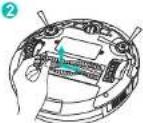
2 Lift the rolling brush to remove.
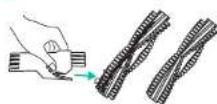
3 Clean the rolling brush with the provided cleaning tool or a vacuum cleaner.
4 Reinstall the rolling brush by inserting the fixed protruding end first, then clicking into place.
5 Press down to snap the brush guard into place.
1
2
③
4
5
Clean the Sensors and Charging Pins
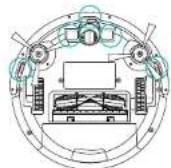
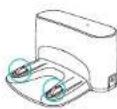
To maintain best performance, clean the drop sensors and charging pins regularly.
- Dust off the drop sensors and charging contact pins using a cloth or cleaning brush.
Clean the Side Brushes
Foreign substances, such as hair, can easily get tangled in the side brushes, and dirt may adhere to them. Be sure to clean them regularly.
1 Carefully unwind and pull off any hair or string that is wrapped between the main unit and the side brushes.
2 Use a cloth dampened with warm water to remove dust from the brushes or to gently reshape them.
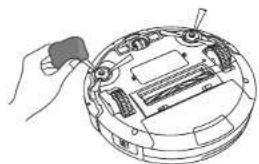
natural_image
Line drawing of a hand holding a tool interacting with an open circular device (no text or symbols visible)
Use the side brushes only when they are completely dry.
Replace the Side Brushes
The side brushes may become bent or damaged after being used for a period of time. Follow the instructions below to replace them.
1 Use a Phillips screwdriver to unscrew the screws on the side brushes.
2 Pull off the old side brushes and snap the new ones into place.
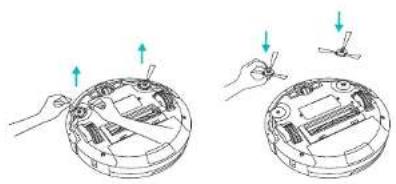
natural_image
Two-step diagram showing hands installing or adjusting a device on a circular base (no text or symbols present)3 Screw down the screws to fasten the side brushes.
Troubleshooting
| Problem Solutions | |
| RoboVac cannot be activated. | Make sure the main power switch is in the ON position.Make sure the battery is fully charged.Replace the batteries (2 AAA) in the remote control.Make sure the remote control is within range (less than 6 ft/3 m from RoboVac).If you still have trouble, turn off the main power switch and then turn it on. |
| The remote control does not work. | Replace the batteries in the remote control.Make sure RoboVac is turned on and fully charged.If RoboVac works properly but does not respond to the remote control's commands, it may be because the remote control has not been paired with RoboVac.In this case, do not dock RoboVac to the Charging Base. Turn off the main power switch and then:(1) press and hold▶In the remote control for 3 seconds:(2) turn on the main power switchYou will hear three beeps after successful pairing. |
| RoboVac stops working suddenly. | Check if RoboVac is trapped or stuck on an obstacle.Check if the power level is too low.If you still have trouble, turn off the main power switch and then turn it on. |
| You cannot schedule cleanings. | You can set the time and scheduled cleaning time via the EuflyHome app.Make sure the scheduled time has been set correctly.Check if RoboVac's power is too low to start cleaning. |
| Suction power is weak. | Check if any obstructions are blocking the suction inlet.Empty the dust collector.Clean the filler with a vacuum cleaner or a cleaning brush |
| RoboVac cannot be charged. | Check if the Charging Base is plugged into the outlet.Dust off the charging contact pins with a dry cloth. |
| RoboVac cannot return to the Charging Base. | Remove objects within 3 ft/1 m of the left and right side and within 6 ft/2 m of the front of the Charging Base.When RoboVac is in the vicinity of the Charging Base, it will return more quickly. However, if the Charging Base is located far away, RoboVac will need more time to return. Please be patient as it works its way back.Clean the charging contact pins. |
| The rolling brush does not rotate. | Clean the rolling brush.Check if the rolling brush has been installed properly. |
| RoboVac's movements or travel path are abnormal. | Clean the sensors carefully with a dry cloth.Restart RoboVac by turning the power switch off and on. |
| RoboVac cannot connect to a Wi-Fi network. | Make sure your Wi-Fi router supports the 2.4GHz and 8021lb/g/n bands; the 5GHz band is not supported. For more details, refer to the "Troubleshooting > Wi-Fi connection" section in this manual. |
| You cannot control RoboVac with Amazon Alexa. | Check if there are any Internet connection problems.Check whether you have installed the Amazon Alexa app onto your smart device and enabled "EuryHome - RoboVac" Skill in the Amazon Alexa app. For details, refer to this section "Use Your RoboVac with Amazon Alexa / the Google Assistant (Optional)".Make sure you have an EuryHome account.Make sure you are using correct Alexa voice-commands.The "EuryHome - RoboVac" Skill for Alexa is currently only available in English. |
| You cannot control RoboVac with the Google Assistant. | Check if there are any Internet connection problems.Check if you have installed the Google Home app onto your smart device and initiated the "EuryHome" action in the Google Home app. For details, refer to this section "Use Your RoboVac with Amazon Alexa / the Google Assistant (Optional)".Check if you are using the proper commands when talking to the Google Assistant. When making your request, first say the wake words "Ok Google".Repeat your question. Speak clearly to the Google Assistant. |
Error Tone
When RoboVac is in trouble, it will emit a series of short or long beeps and the red indicator on RoboVac will be solid or flashing.
Flashing red indicator light
| Error Tone | Cause Solution | |
| One beep | RoboVac's drop sensors are dirty. | Clean the drop sensors gently with a dry cloth. |
| Two beeps | RoboVac's power level is too low. | Charge RoboVac for at least 5 hours. |
| Three beeps | RoboVac is hanging over a ledge or is trapped. | Turn off RoboVac and restart in a new location. |
| Four beeps | RoboVac's suction fan is stuck. | Turn off RoboVac, then remove and empty the dust collector.Make sure the suction inlet is not blocked by any hair or debris. |
| Five beeps | RoboVac's infrared sensor on the bumper is dirty. | Clean the infrared sensor gently with a dry cloth |
Solid red indicator light
| Error Tone | Cause Solution | |
| One beep | RoboVac's left/right wheel is stuck. | Turn off RoboVac and remove any hair or debris from the left/right wheel. |
| Two beeps | RoboVac's side brush is stuck. | Turn off RoboVac and remove any hair or debris from the side brush. |
| Three beeps | RoboVac's rolling brush is stuck. | Turn off RoboVac and remove any hair or debris from the rolling brush. |
| Four beeps | RoboVac's bumper is stuck. | Tap RoboVac's bumper several times to dislodge any debris that may be trapped underneath. |
Wi-Fi Connection
Before Wi-Fi setup, make sure ReboVac and your Wi-Fi network meet the following requirements.
Wi-Fi Setup Requirements
1 RoboVac:
- RoboVac is fully charged and the main power switch on the side of RoboVac is turned on.
• Wi-Fi status light flashes blue slowly.
2 Wi-Fi network:
• Use the correct password for your network.
• Do not use a VPN (Virtual Private Network) or Proxy Server.
- Your Wi-Fi router supports 802.11b/g/n and IPv4 protocol.
- You are using a 2.4GHz router or a dual-band router that is configured to support a 2.4GHz frequency band. RoboVac does not support 5GHz frequency band
- If RoboVac cannot connect to the Wi-Fi network and you are using a 2.4/5GHz mixed network, switch to a 2.4GHz network for Wi-Fi setup. You can switch back once your setup is complete.
- When connecting to a hidden network, make sure you enter the correct network name, SSID (case sensitive), and connecting to a 2.4GHz wireless network
- When using a network extender/repeater, make sure the network name (SSID) and password are the same as your primary network.
- The firewall and port settings of your Wi-Fi router allow RoboVac to connect with the Eufy servers.
• Network Security Requirement
- WPA and WPA2 using TKIP, PSK, AES/CCMP encryption.
- WFP FAP (Enterprise Authentication Protocol) is not supported.
• Wi-Fi Channels
- The FCC requires all wireless devices in the United States are operated on wireless spectrum channels 1-11.
- Some countries outside North America can use spectrum channels above channel 11. Refer to your local regulatory agency to determine which channels are accessible.
- A future software release will support access to channels above 11 for users outside North America. Until then, use channels 1-11.
If you cannot control RoboVac with your smartphone, find the solutions below to solve the problem. If the problem persists, contact the Eufy service center for help.
| Wi-Fi Status Light | Cause Solution | |
| Solid blue | RoboVac has connected to your router, but cannot access the Internet. | Check if your router is connected to the Internet.Check with your Internet provider to see if there is any Internet connection problem. |
| Rapidly flashing blue | RoboVac cannot connect to your wireless router. | Check if you have modified your network name and password.Reset the Wi-Fi connection if necessary. Refer to this section "Use Your RoboVac with the EufyHome App > Reset the Wi-Fi connection" |
| Slowly flashing blue | Wi-Fi connection is reset or has not been set up before. | Set up Wi-Fi connection with RoboVac. Refer to this section "Use Your RoboVac with the EufyHome App".Reset Wi-Fi connection if necessary. Refer to the section "Use Your RoboVac with the EufyHome App > Reset the Wi-Fi connection". |
| Off | RoboVac is turned offRoboVac's power level is low.RoboVac is in Sleep mode. | Charge RoboVac by attaching it to the charging base. Make sure the main power switch on the side of RoboVac is turned on. |
Specifications
| Product Model 1211 | ||
| Input | 19 V=56 A | |
| Battery Voltage | DC 14.4 V | |
| Power Consumption 30 W | ||
| Battery Type | DC 14.4 VLi-ion 2500 mAh | |
| Dust Collector Capacity | 0.55 L | |
| Cleaning Time Max. 100 mins | ||
| Charging Time 300 - 360 mins | ||
 | Input | 19 V=56 A |
| Output | 19 V=56 A | |
Customer Service
12-Month Limited Warranty
Lifetime Technical Support
support@eufylife.com
(US) +1 (800) 988 7973 Mon-Fri 9:00 - 17:00 (PT)
(UK) +44 (0) 1604 936200 Mon-Fri 6:00 - 11:00 (GMT)
(DE) +49 (0) 69 9579 7960 Mon-Fri 6:00 - 11:00
(日本) +81 03 4455 7823 月-金 9:00 - 17:00
(中国) +86 400 0550 036 周一至周五 9:00 - 17:30
@EufyOfficial
@EufyOfficial@EufyOfficial
@EufyOfficial
Anker Innovations Limited
Room 1318-19, Hollywood Plaza, 610 Nathan Road, Mongkok, Kowloon, HongKong