
MiniStation Safe (HD-PGF) - External hard drive BUFFALO - Free user manual and instructions
Find the device manual for free MiniStation Safe (HD-PGF) BUFFALO in PDF.


| Product Type | External hard drive |
| Brand | BUFFALO |
| Model | MiniStation Safe (HD-PGF) |
| Available Capacities | 1 TB, 2 TB, 4 TB and larger (check website) |
| Interface | USB 3.2 (Gen 1) / 3.1 (Gen 1) / 3.0 / 2.0 |
| Connector Type | Micro-B |
| Dimensions (1 TB) | 79.5 x 13.5 x 119 mm (3.13 x 0.53 x 4.69 in) |
| Dimensions (2 TB) | 79.5 x 16 x 119 mm (3.13 x 0.63 x 4.69 in) |
| Dimensions (4 TB and up) | 79.5 x 21.5 x 119 mm (3.13 x 0.85 x 4.69 in) |
| Power Supply | 5 V ± 5% via USB bus power |
| Compatible Operating Systems | Windows 10, 8.1, 7; macOS 10.12 or later |
| LED Indicators | Power/Info LED (white: on, slow blink: access, amber: failure prediction) |
| Security Feature | Lock and Go (password protection) |
| S.M.A.R.T. Monitoring | Yes (drive failure prediction) |
| Hot-Plug Support | Yes |
| Max Transfer Rate | Up to 5 Gbps (USB 3.2 Gen 1) |
| Package Contents | Drive, USB cable, quick setup guide, warranty statement |
| Cable Usage | Use only included cables; do not use cables longer than 3 m |
| Boot from Drive | Not supported |
| Virtual Memory | Do not configure as destination for virtual memory |
Frequently Asked Questions - MiniStation Safe (HD-PGF) BUFFALO
User questions about MiniStation Safe (HD-PGF) BUFFALO
0 question about this device. Answer the ones you know or ask your own.
Ask a new question about this device
Download the instructions for your External hard drive in PDF format for free! Find your manual MiniStation Safe (HD-PGF) - BUFFALO and take your electronic device back in hand. On this page are published all the documents necessary for the use of your device. MiniStation Safe (HD-PGF) by BUFFALO.
USER MANUAL MiniStation Safe (HD-PGF) BUFFALO
natural_image
Line drawing of a rectangular electronic device with a central port and two side ports (no text or symbols)Please make sure to read this manual before using and follow the procedures. If you have any inquiries about the product, contact the number on the warranty statement or the packing box. Do not discard the included documents, the warranty statement, or the packing box.
www.buffalo-technology.com
35022030-01
May 2020
Table Of Contents
Diagrams 2
Specifications....3
Notes......4
Dismounting the Drive....5
Troubleshooting....6
Diagrams
natural_image
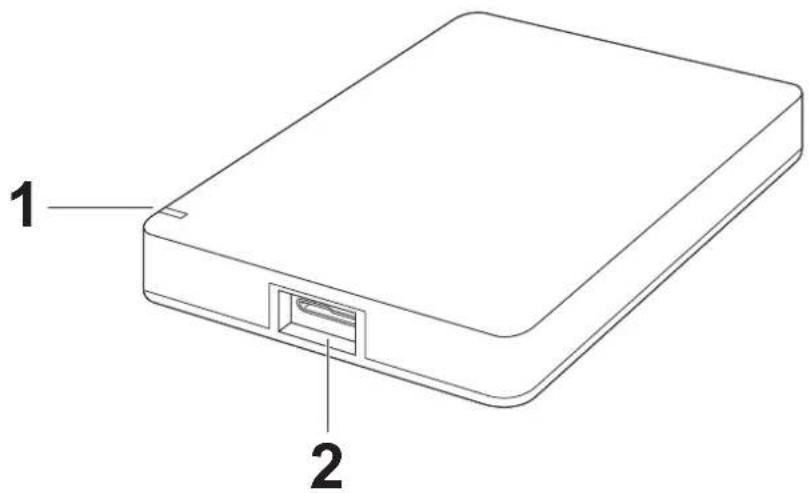
Line drawing of a rectangular electronic device with labeled parts 1 and 2 (no text or symbols beyond labels)1 Power/Info LED
The LED glows white when the drive is on, and blinks white slowly when the drive is accessed. If Lock and Go is enabled, the LED blinks white once every two seconds when the drive is locked. When Lock and Go Setup is initializing the drive, the LED blinks white twice per second.
Note: This drive has a function to predict an impending drive failure using its S.M.A.R.T information, and informs you of that using the power/info LED. If the drive detects that drive failure may soon occur, the LED will glow or blink amber instead of white. To avoid losing data due to drive failure, we recommend always backing up data on the drive to another device.
2 USB Connector
Specifications
Check the Buffalo website for the latest product information and specifications.
| Interface USB 3.2 (Gen 1)/3.1 (Gen 1)/3.0/2.0 | |
| Connector Micro-B | |
| Dimensions (W × H × D, excluding protruding parts) | 4 TB and more: 79.5 × 21.5 × 119 mm; 3.13 × 0.85 × 4.69 in.2 TB: 79.5 × 16 × 119 mm; 3.13 × 0.63 × 4.69 in.1 TB: 79.5 × 13.5 × 119 mm; 3.13 × 0.53 × 4.69 in. |
| Power 5 V ± 5% | |
| Compatible OS | Windows 10 (32-bit, 64-bit)*Windows 8.1 (32-bit, 64-bit)Windows 7 (32-bit, 64-bit)macOS 10.12 or later** |
*Lock and Go Setup and DiskFormatter2 may not work with Windows 10 S mode. To format the drive, use the Disk Management utility on the Windows device.
**Lock and Go Setup can work with this operating system, but DiskFormatter2 may not.
Notes
- Before using this drive with a Mac, reformat it with Mac OS Extended using Disk Utility of the macOS device.
-
To avoid damage to data, never do any of the following operations while data is being accessed:
-
Unplug the cable connected to the drive.
- Turn off your computer.
-
Put your computer into standby, hibernate, or sleep mode.
-
Never put anything on top of the drive. It may cause the drive to malfunction.
- If Windows displays a message that a high-speed USB device is connected to a non high-speed USB hub, move the drive to a USB 3.2 (Gen 1)/3.1 (Gen 1)/3.0 port for best performance, or click the close button of the message window to continue.
- Never configure this drive as a destination for virtual memory.
- Some computers may not recognize this drive. If this happens, unplug the USB cable, then plug it in again after a few seconds.
- This drive supports hot-plugging. You can plug or unplug the USB cable when the drive and your computer are on. However, never unplug the cable while data is being accessed. If you unplug the drive while data is being accessed, your data may be damaged or lost.
- Do not boot your operating system from this drive.
- The first time you connect this drive, it may take up to 20 seconds before the power/info LED turns on.
- If you use this drive with multiple partitions, format each partition before use.
- If your Windows computer will not boot when this drive is connected, connect the drive to your computer after Windows boots instead. The computer's BIOS may have been changed so that it tries to boot from an external drive. In such a case, change the computer's BIOS setting so that it only boots from an internal drive. For more details about how to change your computer's BIOS setting, refer to its manual.
- Some computers may display a delayed write failed error message when they return from an energy-saving state. If this happens, unplug the drive before putting your computer into the energy-saving mode.
- This drive may become hot during use. This is not a malfunction. This drive is designed to release heat through its case. The surface of the case may become quite hot in normal use. Even when the drive is off, the case may still be warm from standby current.
- If the power/info LED does not turn off when you turn off your computer, unplug the USB cable from the drive.
- Some computers do not support power saving mode.
- Use only the cables and accessories that are included in the package. Don't use other accessories or cables unless specifically instructed to in the documentation. Also, do not use USB cables that are 3 meters or longer to connect USB devices.
Dismounting the Drive
If your computer is turned on, please follow the procedure below to dismount the drive before unplugging it. If your computer is turned off, then it is always safe to unplug the drive. Unplugging the drive incorrectly can corrupt data. Please be careful.
Windows
1 From the system tray, click the 📋 or icon.
2 When the menu opens, click the device name.
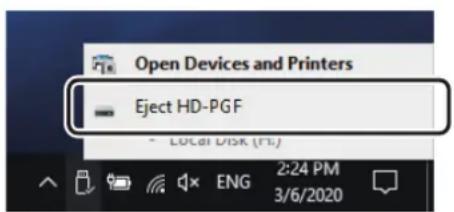
3 A message that indicates you can safely remove the drive will appear.
macOS
1 Drag this drive's icon to the trash to dismount the drive. Or, click the dismount icon from the sidebar of the Finder to dismount the drive.
2 It's now safe to unplug the drive from your Mac.
Troubleshooting
MiniStation Cannot Be Found on Your Computer
(1) Unplug the USB cable, then plug it in again after a few seconds.
(2) Connect the USB cable to another connector of the computer.
(3) Verify that the power/info LED is on. If it is not, check the USB cable that is connecting the drive to your computer. Check that both ends are properly plugged in.
(4) The drive may not be getting enough power from the power supply. Try the following operations:
- If using a USB hub, connect the USB cable directory to the computer.
- If using a bus-powered USB hub, replace it with a self-powered USB hub.
(5) If using Windows, refresh File Explorer.
(6) If the drive is formatted with Mac OS Extended, it will not appear on File Explorer in Windows. In that case, the drive requires formatting. For more details about formatting, please refer to the "Formatting Guide" document that is available from the download page on the Buffalo website, accessible from http://d.buffalo.jp/HD-PGF/.
Cannot Read or Write to the MiniStation
The drive may require formatting. For more details about formatting, please refer to the "Formatting Guide" document that is available from the download page on the Buffalo website, accessible from http://d.buffalo.jp/HD-PGF/.
The Power/Info LED Glows White and Amber Alternately
The drive may not be getting enough power from the power supply. Refer to the "MiniStation Cannot Be Found on Your Computer" item above and try option (4). If it does't work, contact Buffalo technical support.
The Power/Info LED Glows or Blinks Amber
Drive failure may soon occur. To avoid losing data due to drive failure, we recommend always backing up data on the drive to another device.

- Table Of Contents
- Diagrams
- Power/Info LED
- USB Connector
- Specifications
- Notes
- Dismounting the Drive
- Windows
- macOS
- Troubleshooting
- MiniStation Cannot Be Found on Your Computer
- Cannot Read or Write to the MiniStation
- The Power/Info LED Glows White and Amber Alternately
- The Power/Info LED Glows or Blinks Amber
Brand : BUFFALO
Model : MiniStation Safe (HD-PGF)
Category : External hard drive