
Alarm Security Kit - Security Camera RING - Free user manual and instructions
Find the device manual for free Alarm Security Kit RING in PDF.


| Product Type | Home Security System Kit |
| Brand | Ring |
| Model | Alarm Security Kit |
| Connectivity | Wi-Fi (2.4 GHz), Ethernet, Cellular backup (for alarm signals) |
| Power Source | Base Station: AC adapter with battery backup (up to 24 hours); Keypad: USB-powered; Motion Detector: battery (CR123); Contact Sensor: battery (CR123); Range Extender: plug-in |
| Security Modes | Disarmed, Home, Away |
| Sensors Included | 1 Contact Sensor, 1 Motion Detector, 1 Range Extender, 1 Keypad, 1 Base Station |
| Monitoring | Self-monitored or professional monitoring with Ring Protect Plus |
| Cellular Backup | Yes (sends alarm signals if internet is down) |
| Compliance | FCC Part 15, IC RSS |
| Operating Temperature | 0°C to 40°C (estimated) |
| Dimensions (Base Station) | Approx. 6.5 x 6.5 x 1.5 in (16.5 x 16.5 x 3.8 cm) |
| Weight (Base Station) | Approx. 1.1 lbs (0.5 kg) |
| Battery Backup Life | Base Station: up to 24 hours; Contact Sensor and Motion Detector: typical battery life 1-2 years |
| Range Extender | Plugs into outlet, extends Wi-Fi range to distant devices |
| Siren | Yes, on base station (loud audible alarm) |
| Panic Button | Yes, on keypad (press and hold ✓ and X simultaneously) |
| App Control | Ring app for iOS and Android |
| Warranty | See www.ring.com/warranty |
| Maintenance & Cleaning | Clean with a soft, dry cloth. Do not use water or cleaning agents. Avoid direct sunlight and humidity. |
| Safety Warnings | Do not open device; no user-serviceable parts. Keep at least 20 cm from persons (RF exposure). Replace battery with same type only. |
Frequently Asked Questions - Alarm Security Kit RING
User questions about Alarm Security Kit RING
0 question about this device. Answer the ones you know or ask your own.
Ask a new question about this device
Download the instructions for your Security Camera in PDF format for free! Find your manual Alarm Security Kit - RING and take your electronic device back in hand. On this page are published all the documents necessary for the use of your device. Alarm Security Kit by RING.
USER MANUAL Alarm Security Kit RING
What's in your Ring Alarm Kit

natural_image
White electronic device with a circular grid pattern and a blue 'O' icon, labeled 'ring' at the bottom (no other text or symbols)Ring Base Station

Ring Motion Detector

Ring Range Extender
ring

Ring Keypad

Contents
- Connect base station
- Set up devices
- Start with Security
- Explore
- Troubleshooting
1. Connect your base station.
Download the Ring app
The Ring app will walk you through setting up and managing your Ring Alarm Kit.
Search for "Ring" in one of the app stores below, or visit: ring.com/app.

Download on the
App Store
GET IT ON
Google play
Create your account
If you already have a Ring account, log in to the Ring app with it.
If not, the Ring app will guide you through creating your account.
Grab your Wi-Fi password
It's required for the in-app setup. Write it down below so it's handy when you need it:

Your Wi-Fi password
natural_image
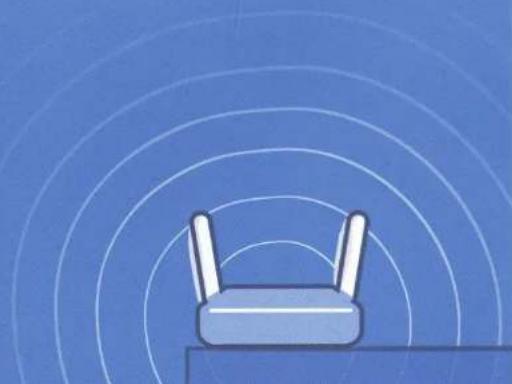
Illustration of a router with two white antennas against a blue background with concentric circular lines (no text or symbols)Add a base station
Once you've confirmed your account, tap Ring Base Station to begin adding it.
The in-app instructions will guide you.

natural_image
Circular grid pattern with a blue circular shape at center (no text or symbols)Create your Location
The first step to add your base station is to create a Location, which will enable some Ring Alarm security features.

Connect your base station to the internet
Then, use your phone to find your base station.

Ring LED patterns (pairing)

Blue Spinning
Ready to pair

Blue Solid
Pairing successful

Blue flashing
Pairing failed
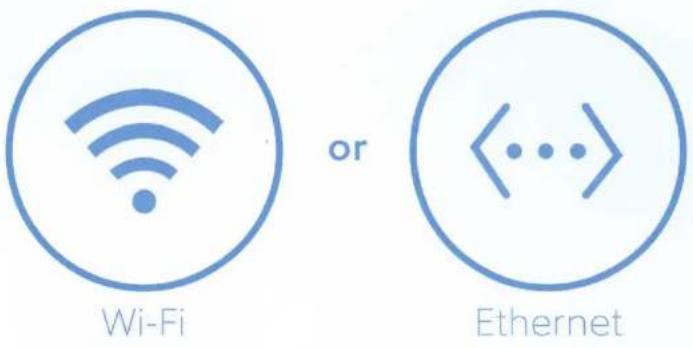
Select Wi-Fi or Ethernet
Once you've found your base station, connect it to the internet. You can connect to your Wi-Fi network or use an Ethernet cable.
or
Ring LED patterns (connecting to internet)
White Climbing
Connecting to Wi-Fi network
White Solid
White Solid
Connected to Wi-Fi or Ethernet network
White Flashing
White flashing
Wi-Fi network connection failed
Sign up for professional security monitoring
With professional security monitoring from Ring Protect, your home is always protected.
Monitoring permits
Depending on where you live, you may have to obtain a permit before you can use Ring Alarm. We've emailed you details, but you can contact your local law enforcement agency to learn more.

- Connect your devices and place them around your home.
(This is the fun part.)
Connect your devices
Turn on your devices and watch your base station find them. There's no complicated setup here.
Contact Sensor

natural_image
Line drawing of a hand holding a smartphone with a QR code and keyhole (no text or symbols)Pull the tab on the back of the contact sensor.
Motion Detector

natural_image
Line drawing of a hand holding a smartphone with a small rectangular button and a QR code sticker (no text or symbols on the device itself)Pull the tab on the back of the motion detector.
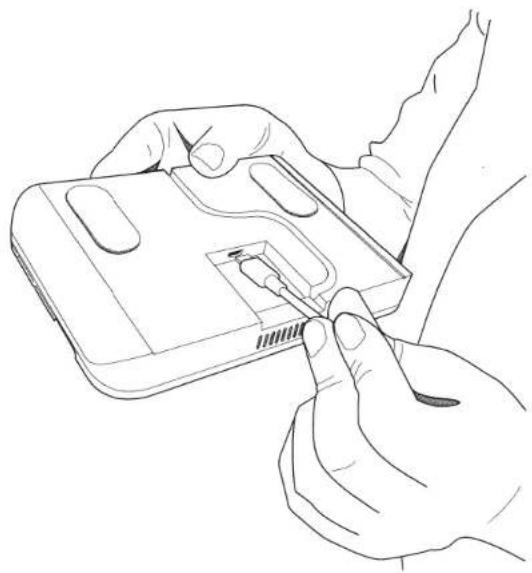
Keypad
natural_image
Line drawing of hands inserting a small electronic device into a device (no text or symbols)Plug the power cable into bottom of the keypad.
Range Extender
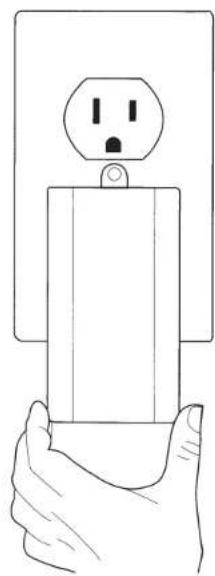
natural_image
Line drawing of a hand holding a wall-mounted electrical socket (no text or symbols)Plug the range extender into an outlet.
Place your devices around your home
Move each of your devices where you'd like to use them, then follow the instructions in the app to make sure they work properly.
Contact Sensor

natural_image
Line drawing of hands installing a ring component into a wooden frame (no text or symbols)Use adhesive or screws to attach the sensor's bracket, then place the sensor on its bracket.
The sensor can be mounted on a door or window.
Motion Detector
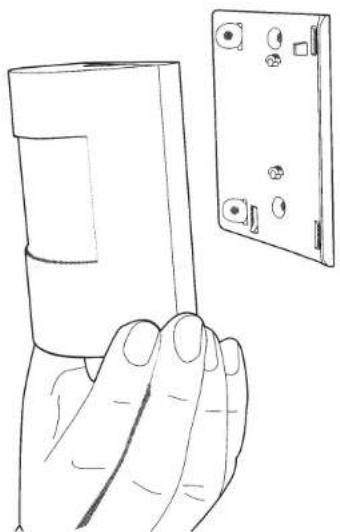
natural_image
Line drawing of a hand holding a small electronic device next to a rectangular device (no text or symbols)The motion detector attaches the same way the contact sensor does.
It can be mounted in a corner or flush on a wall.
Keypad

The keypad can be placed on a table or mounted on the wall using the reversible bracket.
Range Extender

natural_image
Line drawing of a hand holding a wall-mounted electrical socket with a square outlet (no text or symbols)Plug the range extender into an outlet. Not sure which outlet to plug it into? Check out page 19.
3. Get started with your security
Create a security PIN code
You'll need this four-digit code to arm or disarm your Ring Alarm on the keypad.
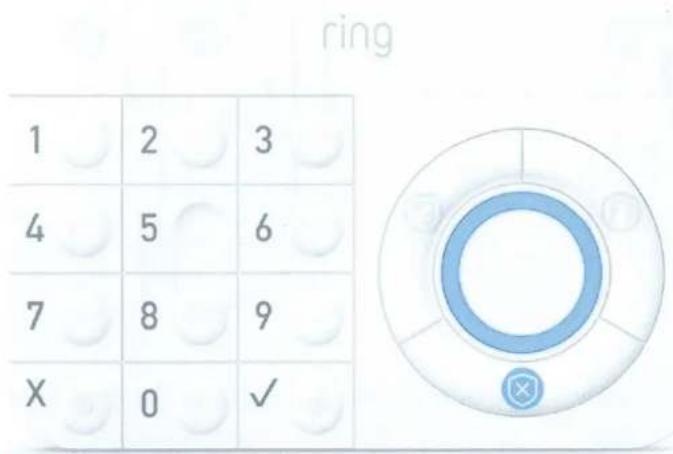

PIN and Modes.
Security that moves with you
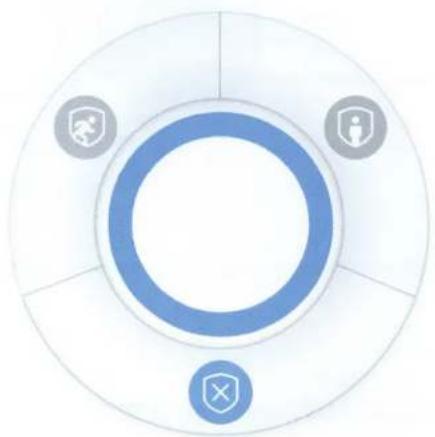
Ring Alarm has three security modes to match whatever you're doing.

Disarmed
No sensors are monitored. Move freely through the house.

Away
All sensors are monitored. Secure your whole house.

Home
Some sensors are monitored. Freedom and security, mixed.
natural_image
Circular diagram with three icons: a security symbol, a person silhouette, and a shield, arranged symmetrically around a central circle (no text or labels)4. Explore Ring Alarm.
Ring Base Station

Ring Motion Detector

Ring Range Extender

flowchart
graph LR
    A["Pairing button"] --> B["Ethernet port"]
    B --> C["USB"]
    C --> D["Power cable"]
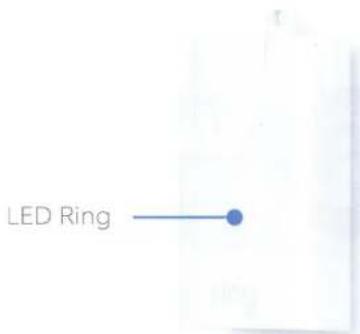
    D --> E["Wi-Fi LED"]
    E --> F["Factory Reset"]
    F --> G["Power LED"]
Ring Keypad

Ring Contact Sensor

5. Having trouble? Here are some answers...
Is there anything I need to complete setup that isn't in the box?
Nope! Everything you need to get started with Ring Alarm is included in your kit.
Do I need two accounts for my Ring camera and Ring Alarm?
No, you don't need separate accounts for your Ring cameras and Ring Alarm. Your current account will work for both.
If I have a Ring Protect subscription, are all my Locations covered?
No. You will need a Ring Protect Plan for each Location if you want advanced features such as professional security monitoring.
Do I need a monthly plan if I want professional security monitoring?
Yes. The monthly plan includes professional security monitoring and cloud video storage. If you want to be monitored, that's the plan you should choose.
I see more than one base station. Which one is mine?
When the base stations appear in the list, the last four digits of the base station's MAC address will appear underneath their name. Find the one that matches yours.
I don't see my Wi-Fi in the list.
If you don't see your Wi-Fi network in the list, you can still connect to it. Tap Add Hidden Network, then enter your Network Name and password.
Can I change my Wi-Fi later?
Yes, you can change your base station's Wi-Fi network at any time.
Where should I place my range extender?
Plug the range extender into an outlet between the base station and the farthest device. This allows your base station to talk to the device more easily.
Should I place my motion detector in a corner or a wall?
Place it where it will have the best view of the area you want to cover. The motion detector should have a clear, unobstructed view of the area. Many people prefer a corner, but don't be afraid to place it on a wall.
How high off the ground should I place my motion detector?
The detector should be about 7' above ground level. This keeps it out of the way of pets, kids, and accidental bumps.
I skipped Monitoring setup. Can I finish the setup later?
Yes, you can come back to the Monitoring setup later. To access the Monitoring setup, open the menu, then tap Settings.
What does the base station's cellular radio do?
The cellular radio allows your base station to send alarm signals to the monitoring center if the usual internet connection isn't working. Hopefully you won't need it, but it's there if you do.
What happens if the power goes out?
Your base station comes with a battery backup that will last up to 24 hours depending on usage. When your base station is running on battery, only a limited set of features will be available, but your home will still be monitored.
Can I add more devices to my Ring Alarm?
Yes! You can find a list of all the devices we support by tapping Add (+) on the Device List. Follow the instructions to add a device.
Do I ever need to remove the base station's battery?
No. The base station's battery does not need to be removed at any time.
My base station isn't working. Can I reset it and try again?
Yes. Use a pin to press the Reset button on the base station for twenty seconds. This will factory reset your base station.
Got a question we didn't answer?
Check out our help center at support.ring.com for answers, videos, user manuals, and more.
natural_image
Interior view of a minimalist room with a window and wooden table, no visible text or symbols
ring
Alarm Kit
Security Basics


Welcome to Ring Alarm.
Table of contents
Welcome 2
What is monitoring? 4
Permits 6
Practice Mode 7
Modes, How to arm & disarm on the Keypad 8
Bypass....10
Entry/Exit Delay....11
Including sensors in Modes 12
Entry Delay settings 13
Where to place your devices....14
Ring Contact Sensor....14
Ring Motion Detector....16
Ring Keypad 17
Ring Range Extender, Ring Base Station....18
Preventing false alarms....19
When something goes wrong....20
Emergency contacts 21
Verbal password 22
Panic 23
Users 24
Notifications 25
FAQs 26
Family exit plans....28
What is Professional Monitoring?
Professional security monitoring monitors your home and alerts authorities in the event of an emergency. To enable professional monitoring for Ring Alarm, subscribe to Ring Protect Plus at ring.com/protect-plans.
Professional monitoring consists of two systems working together:

natural_image
Product photo of a white home security device with keypad, front panel, and digital display (no visible text or symbols)The Alarm System
This is your Ring Alarm system. The Ring Alarm Base Station is always watching the sensors in your home to see if something is wrong. If one of the sensors reports that something is wrong while the system is armed (see page 8), the Base Station alarm begins sounding, and an alarm signal is sent to the central monitoring station.

The Central Monitoring Station
This is a team of people who watch over homes with Ring Alarm systems. When your Base Station sends an alarm signal, a support agent calls you to see if everything is OK. If there's an emergency, they can dispatch authorities to come check on you and your home.

natural_image
Simple line drawing of a grid with a warning symbol inside a circle (no text or labels)Faulted Sensors are shown in red.

natural_image
Simple geometric diagram with a square grid inside a circle (no text or symbols)Cleared Sensors are shown in blue.
Sensors: Faulted or Cleared
The sensors in your Ring Alarm kit are always in one of two states. Contact Sensors can be opened or closed. Motion Detectors can be detecting motion or not detecting motion.
If we're talking about a single type of sensor, we'll say that it's in one of those states. But if we're talking about multiple types of sensors, we use the terms "faulted" and "cleared." A faulted sensor is one that will set off the alarm if your system is armed. A cleared sensor indicates that all is well.
If a Contact Sensor is open or a Motion Detector is detecting motion, they are faulted. If the Contact Sensor is closed or a Motion Detector is not detecting motion, they are cleared.
Permits
(Ring Protect Plus subscribers only)
When you sign up for professional monitoring with Ring Alarm, you may need to obtain a permit for your system. Permit requirements vary depending on where you live and generally fall into one of the three categories:
You obtain the permit
In this case, you need to apply for a permit yourself. We'll email you the names of the agencies to contact, and a link to your permit application and the alarm ordinance (if available) if a permit is required at the time you set up your Alarm system.
Ring obtains the permit
In this case, Ring submits the first permit application for you. We'll email you with details about permit costs and any details we need to confirm. Once we have received your information and permit fee, we'll guide you through the rest of the process.
Permit not required
In this case, no permit is required at the time you set up your Alarm system. We'll email you to let you know that no further action is needed on your part.
We're working hard to make sure you always have the most current information about your local permit requirements, but please be aware that local jurisdictions change their ordinances and applications frequently. It is always best to reach out to your local police department directly to ensure you have the most current information.
Once you have your permits...
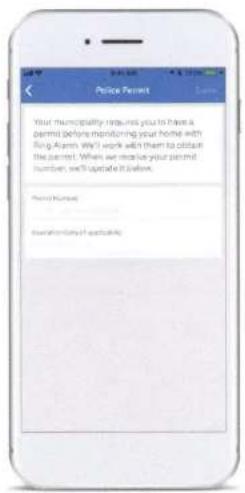
Be sure to add your permit numbers and expiration dates to your account in the Ring App. Until you do, emergency responders may not be dispatched to your home in the event of an emergency.
To do this:
- Open the side menu in the Ring app.
- Tap Location Settings.
- Tap Monitoring.
- Tap Permits.
- Tap the permit type you want to enter.
- Enter your permit number and expiration date in the provided fields. When you're finished, tap Save.
Practice Mode
(Ring Protect Plus subscribers only)
When you sign up for professional security monitoring through Ring Alarm, you'll be placed in a seven-day Practice Mode. While you're in Practice Mode, your system works normally, but emergency responders are not dispatched to you if an alarm occurs. This gives you time to make sure your system is working well before it becomes fully active.
You'll also want to obtain your alarm permits (and add them to your account) before the practice period ends.
Here are a few things you should test during Practice Mode:
- Do your sensors become faulted at the right times? If a sensor is incorrectly installed or set to detect too little motion, your system may not work properly.
- Can the sensors talk to the Base Station? If your sensors are too far from your Base Station, they won't be able to report if anything is wrong.
- Does your Base Station sound its alarm when a sensor becomes faulted? For example, If your Ring Alarm is set to Away or Home and a door opens, does the alarm sound (or go into Entry Delay)?
By the end of your practice period, you want to be confident that your system functions properly.
Security Modes
Your Ring Alarm can be set to one of three security modes: Away, Home, and Disarmed.

Away Mode
All sensors in your home are monitored. This is useful when you're going out and want to be notified if anything happens to your home.

Home Mode
All exterior and perimeter sensors are monitored, but interior sensors are not monitored. This is useful if you're at home but want to be alerted if anyone tries to break in through a door or window.

Disarmed Mode
No sensors in your home are monitored. This is useful when you're at home and want the freedom to go in and out easily.
How to Arm & Disarm using the Keypad
When Ring Alarm is set to Away or Home, your system is "armed." When Ring Alarm is set to Disarmed, your system is "disarmed."
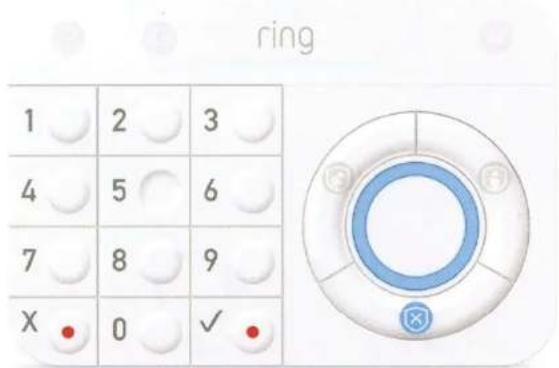
To arm your system via the Keypad, simply enter your access code, and then press the Away or Home Mode button.
To disarm your system with the Keypad, simply enter your access code, and then press the Disarmed Mode button.
You can also arm and disarm your system in the Ring app by tapping the mode of your choice

Sensor Bypass
When Ring Alarm is in Away or Home Mode, it's monitoring your home for security issues. If a monitored sensor becomes faulted while your system is in Away or Home Mode, the alarm begins to sound.
When you switch to Away or Home Mode, your system quickly checks for any faulted sensors. You won't be able to switch to an armed mode until you clear the faulted sensor or bypass it.
Bypassing lets you arm Ring Alarm when a sensor is in an insecure state. For example, bypassing would let you put your system into Home Mode with a window left open, to catch a breeze. Once you bypass that window sensor, Ring Alarm becomes armed, but doesn't monitor that sensor.
When you enter an armed mode, you can bypass any faulted sensors using the Ring app, or by pressing the "✓" button on the Keypad.
Bypassing temporarily weakens your ring of security, but it can be useful in some situations.

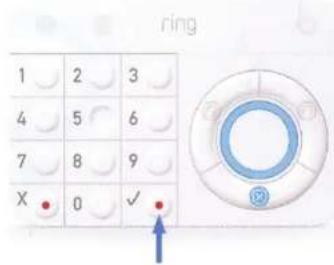
Entry/Exit Delay
Entry Delay and Exit Delay are countdowns that allow you to enter and leave your home easily without causing the alarm to sound.

Away mode in 45 seconds.

Alarm will sound in 45 seconds.
Exit Delay
Exit Delay allows you to leave your home once you've armed Ring Alarm. When you place Ring Alarm into Away or Home Mode, it makes a series of chirps to let you know that it is preparing to arm. Once the Exit Delay period ends, Ring Alarm is armed.
Give yourself enough time to exit your home before the countdown ends. You can set the countdown as short as 30 seconds or as long as two minutes.
Entry Delay
Entry Delay allows you to enter your home and disarm your system while Ring Alarm is in Away Mode. When you enter your home while Ring Alarm is in Away Mode, your Base Station and Keypad makes a series of chirps to let you know that you have a short time until your alarm goes off. When you hear this, you should disarm your system as soon as possible. You can set the countdown as short as 30sec or as long as 2min.
Including sensors in Modes

Each Ring Alarm security mode monitors specific groups of sensors. By default, Away monitors all sensors and Home monitors only exterior and perimeter sensors. However, you can customize which sensors are monitored in each mode. If you want to monitor an interior sensor during Home Mode, you can adjust this using the Modes Settings.
To choose which sensors are monitored in a mode:
- Open the menu.
- Tap Location Settings.
- Tap Modes.
- Tap the specific mode you'd like to edit.
- Under "Monitored In This Mode," tap Sensors.
- Tap a sensor to toggle it between monitored or not monitored.
Entry Delay settings
Ring Alarm includes an Entry Delay setting so you can enter your home and disarm the system before the alarm sounds. This is a setting on each mode that applies to the entire system.
Perimeter sensors (such as Contact Sensors) default to Set Delay mode, but can be set to No Delay, if desired.
Motion Detectors default to Auto Delay mode, but can be set to Set Delay or No Delay, if desired.
No Delay is useful if you have a Motion Detector monitoring a door or window and want the alarm to sound instantly if motion is detected in Home Mode.
To change the Entry Delay settings for a sensor:
- In the Device List, tap the sensor that you want to change.
- Tap Location Settings.
- Tap the mode you'd like to change.
- Make sure that the sensor is included in the mode.
-
Choose the delay that you want for the sensor.
-
Set Delay follows the delay time specified in the settings for the current mode.
- No Delay allows no time for Entry Delay. If the sensor is faulted, the alarm sounds.
- Auto Delay is a special mode just for Motion Detectors. If the Motion Detector is the first to be faulted, the alarm sounds immediately. If another sensor is faulted first, that sensor's Entry Delay setting remains in effect.
Where to place your devices
Ring Base Station
The Ring Base Station communicates with all your Ring Alarm devices and with the central monitoring station. The Base Station works best when it's in a central location in your home. This allows it to easily communicate with your devices and ensures that the siren can be heard by everyone.
To install your Ring Base Station:
- Find an outlet in a central location in your home.
- Plug your Base Station into the outlet.
If you find that the Base Station is having trouble communicating with a distant Ring Alarm device, you can add a Range Extender to bridge that gap.
Ring Range Extender
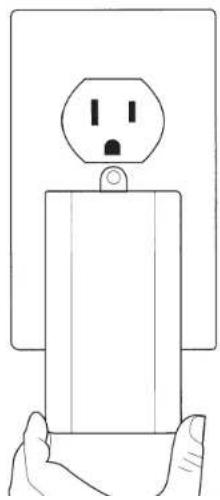
Ring Range Extenders expand your Ring Alarm network and make sure your devices are communicating well with the Base Station. The extender works best when it's strengthening the communication with a device that's far from your Base Station.
To install your Ring Range Extender:
- Plug the extender into an outlet between your Base Station and device.
natural_image
Line drawing of a hand holding a small electrical component with a surprised face on top (no text or symbols)Ring Motion Detector
Ring Motion Detectors can be installed flat on a wall, or in a corner. A Motion Detector should ideally be placed around 7' above the floor, and it needs an unobstructed view of the area you want to cover. Ideally, it should monitor a high-traffic area that an intruder would be likely to cross.
If possible, avoid pointing the Motion Detector at a heat source such as a stove, fireplace, or windows that get direct sun.
Anything that moves in a room with a Motion Detector may trigger an alarm if the system is in Away Mode. Here are a few common household items that can trigger your Motion Detector.
- Unsupervised pets
- Balloons
• Curtains, banners, or plants caught in a draft
• Stacked Items that have the potential to fall
To install the Ring Motion Detector:
- Remove the bracket from the back of the detector.
- Mount the bracket using the included tape or screws.
- Place the sensor onto its bracket. It should snap into place.

natural_image
Line drawing of a hand holding a cylindrical device next to a separate rectangular device with four circular buttons (no text or symbols)Ring Contact Sensor
Ring Contact Sensors can be installed on any door or a window. They need to be perfectly aligned and no more than 1/4" apart when the door or window is closed. It doesn't matter what direction you install them or whether the sensor or magnet goes on the trim.
To install the Contact Sensor:
- Remove the brackets from the back of the sensor and magnet.
- Mount the brackets using the included tape or screws.
- Place the sensor and magnet onto their brackets. They should snap into place.

natural_image
Illustration of hands using a screwdriver to adjust a component with a ring (no text or symbols present)
natural_image
Close-up of a white ring sensor mounted on a vertical panel, with blurred green foliage background (no text or symbols visible)
natural_image
Line drawing of hands installing a wall-mounted component labeled 'ring' (no text or symbols beyond the label)Once you've installed your sensors, it's good to give them a descriptive name. In an emergency, the name you choose may be sent to emergency responders so they know the location where the alarm signal was activated.
• Over time doors and windows can warp causing a misalignment of the sensors, which can activate the alarm.
• Make sure that every door and window where you have a Ring Contact Sensor installed is closed before you arm your system.
Ring Keypad
- Ring Keypads can be mounted flush on a wall or propped up on a table using the reversible bracket. The Keypad is usually placed near a door or in the hallway, although some people prefer to place it in their bedroom.
To install the Ring Keypad on a wall:
- Slide the bracket off the Keypad.
- Place the mounting bracket on the wall, then use the wall anchors from your kit to fasten the bracket to the wall. You may need to pre-drill holes for the anchors.
- Slide the Keypad onto the bracket.

To install the Ring Keypad on a table:
- Slide the bracket off the Keypad.
- Flip the bracket over, then slide it back onto the Keypad.
Preventing false alarms
What is a false alarm?
A "false alarm" is when an alarm system goes into an emergency state when no emergency is occurring. If your system is self-monitored, this is annoying, but generally harmless.
However, If your system is professionally monitored, a false alarm can cause an emergency signal to be sent to the monitoring station. This could result in an unnecessary dispatch request being sent to your Police or Fire Department.
False alarms can divert emergency responders from true emergencies and often result in the owner of the alarm system paying a fine.
It's important to make sure that you understand and implement some simple steps to help you reduce or eliminate the chance of a false alarm.
Some suggestions to reduce false alarms
- Make sure that you and others who will use Ring Alarm are fully trained on how to use the system and have access to a disarm passcode. This includes anyone who has a key to your house and is allowed to be there when you aren't home.
- If someone has access to your home, you can give them a personal access code. Personal access codes allow you to keep track of who is using your system.
- If you need to change the batteries in any of your Contact Sensors or Motion Detectors, disarm Ring Alarm before replacing them.
- Be sure that your doors and windows close tightly. Adjust any hinges and strike plates so that the door moves no more than 14 inch when pushed.
When something goes wrong
(Ring Protect Plus subscribers only)
When something goes wrong and your Alarm begins to sound, a few things occur:
-
The central monitoring station calls you. If they can't reach you, they call your emergency contact.
-
The central monitoring station asks you for your verbal security password. If you provide the wrong password, they dispatch the authorities.
-
The central monitoring station asks you if everything is OK, or if you want to have emergency responders dispatched to your home.
-
Emergency responders arrive at your home. When they arrive, they make sure you and your family are OK, and then check the premises. Emergency responders always check the premises before leaving.
Emergency contacts
(Ring Protect Plus subscribers only)
If you're not available when an alarm occurs, the central monitoring station calls your emergency contact. This person can be a family member, friend, or neighbor whom you trust to act responsibly in your stead if an emergency occurs.
If an emergency happens, the monitoring station calls you to see if things are OK. You should add the monitoring station phone number (shown below) to your contacts so you'll recognize it when they call.
When you're choosing your emergency contact, make sure they are willing and able to do the following things:
• They must answer the phone and provide your verbal passcode.
• They must be available to go to your address within 60 minutes if requested by the Police or Fire Department.
• They must have a key or be otherwise able to give the Police or Fire Department access to your home.
• They must be knowledgeable about how to operate and disarm your alarm system if directed to do so by the Police or Fire Department.
Add our monitoring center to your contacts:
833-209-2159
Verbal Security Password
(Ring Protect Plus subscribers only)
When the central monitoring station calls you or your emergency contact, they ask for the verbal security password. This is a single word that affirms that you are authorized to make decisions for your home's security.
Everyone who is authorized to be in your home and use your alarm system should know the verbal passcode. If you or anyone else need to cancel an alarm, Ring will need your verbal passcode.
Panic
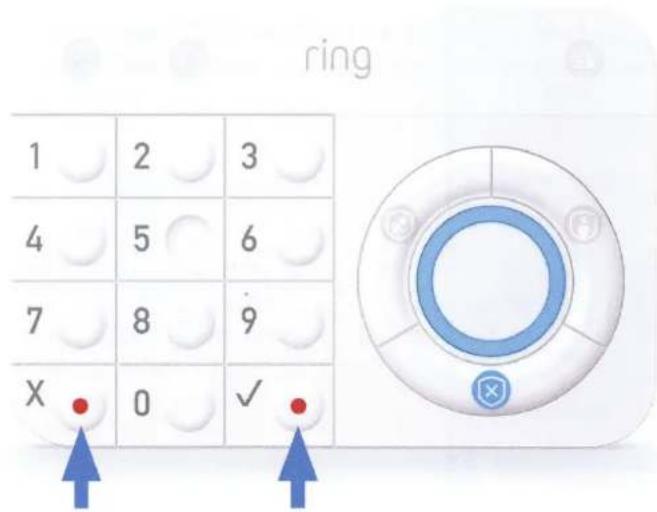
Ring Alarm features a panic mode. To trigger it, press and hold the "√" and "X" buttons on the Keypad simultaneously.
If your system is self-monitored, the alarm sounds in your Base Station and Keypad.
If your system is professionally monitored, triggering the panic alarm sends a signal to the monitoring station.
The causes the alarm to sound and police to be dispatched.
Users & Roles
A User is someone with access to Ring devices at a Location. Each user has a role, which determines how much access they have to Ring devices and features. There are two roles: Owner and Shared User.
Owner
The owner of the system has full control. They can control all devices, view video from all Cameras and Doorbells, receive and control notifications, create and manage Shared Users, and change all system settings.
Shared User
Shared Users have access to the system but don't have full control. They can control and view video from the Cameras and Doorbells they have access to, receive and control notifications, and use their personal access code on Keypads.
Notifications
Your Ring Alarm system can notify you when a device goes offline, when the alarm begins to sound, and a variety of other events.
To adjust which events you're notified for:
- Open the side menu, then tap Settings.
- Tap Alerts.
- Tap to toggle notifications on and off for the alert types of your choice.

FAQS
My door/window trim makes it hard to place my Ring Contact Sensor. Can I adjust the sensor so it fits?
Yes. The Contact Sensor can be mounted in any direction. For the sensor to work properly, the lines on the sensor and magnet must be aligned and the sensor and magnet must be no more than 1/2" apart. If your molding is angled, the Contact Sensor can still work while tilted. Be sure to verify that the sensor works properly once you've installed it on molding.
How should I test my system during Practice Mode?
(Ring Protect Plus subscribers only)
You should test your sensors and make sure you can arm and disarm your system. Make sure that the sensors become faulted appropriately and only report when something is wrong. Try arming and disarming your system on the Keypad and the Ring app. When the system is armed, fault a sensor and let the alarm sound. During the 7-day Practice Mode, when you set off your alarm, the monitoring station does not call you or dispatch emergency responders. This makes Practice Mode a great time to learn about what happens when your system alarms. Once your Professional Monitoring is activated, they will reach out to you and dispatch emergency responders if they are needed.
How long does it take for the monitoring station to call me after an alarm happens?
(Ring Protect Plus subscribers only)
The monitoring station calls you once the alarm has been active for thirty seconds. If you disarm the system before the alarm is active for thirty seconds, the monitoring station does not call you or dispatch emergency responders.
Also, entry delay affects this window. If a mode has a thirty second entry delay, Ring Alarm waits thirty seconds before sounding its alarm, and the monitoring station waits an additional thirty seconds before calling you.
Does the central monitoring station have access to my Ring cameras?
No. They only receive information about your Ring Alarm.
What happens if an alarm occurs when my power is out?
Ring Alarm includes battery and cellular backup for this reason. If the power goes out, your Base Station remains powered for up to 24 hours and continues to monitor your sensors. If your system is professionally monitored, and an alarm occurs when internet is down, cellular backup sends the signal to the monitoring center.
Family exit plan
When an emergency occurs, your first responsibility is to make sure your family is safe. One important part of this is to implement a family exit plan. Your family needs to know what to do if something happens.
A good family exit plan should cover the following information:
• How to leave the home
• Where to meet once you've left the home
- If you're not at home, how to contact with each other
• Who should be notified next
Got a question we didn't answer?
Check out our help center at ring.com/help for answers, videos, user manuals, and more.
To review your warranty coverage, please visit www.ring.com/warranty. Patents: www.ring.com/patents
© 2018 Ring LLC or its affiliates. RING, ALWAYS HOME, and all related logos are trademarks of Ring LLC or its affiliates. Last updated: 05/04/18
How to mount your Ring Base Station on a wall (optional)
You can mount the Ring Base Station on a wall using two wall anchors, two screws, and the mounting slots located on the unit. The Base Station can be horizontally mounted.
Before you begin
Before you begin, choose an appropriate mounting place. The wall can be made of cement, wood, or drywall. The mounting location should be free of obstructions on all sides, and the cables should be able to easily reach the Base Station without strain. Leave sufficient clearance between the bottom of the Base Station and any flooring or shelving underneath to allow access to cabling. In addition, leave enough slack in all cables so that the Base Station can be removed for any required maintenance without disconnecting the cables. Also, you will need the following items:
- Two wall anchors for #8 x 1-inch screws
- Two #8 x 1-inch pan head screws
- Drill with a 3/16-in. wood or masonry bit, as appropriate for the wall composition
• A copy of the wall-mounting illustrations shown in figure 2 (at right). - Mount the Base Station as shown in figure 1 (at right)
Location and dimensions of the wall-mounting slots
The following illustration shows the location and dimensions of the wall-mounting slots on the bottom of the Base Station. Use the information in figure 2 (at right) as a guide for mounting your Base Station to the wall.
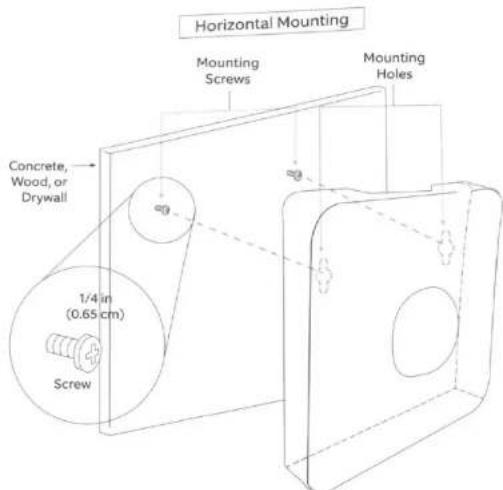
Fig. 1: Horizontal Mounting

Fig. 2: Wall Mount

1523 26th St. Santa Monica, CA 90404
This device complies with Part 15 of the FCC Rules. Operation is subject to the following two conditions: (1) This device may not cause harmful interference, and (2) this device must accept any interference received, including interference that may cause undesired operation.
This device complies with Industry Canada's license-exempt RSSs. Operation is subject to the following two conditions: (1) This device may not cause interference; and (2) This device must accept any interference, including interference that may cause undesired operation of the device.
NOTE: This equipment has been tested and found to comply with the limits for a Class B digital device, pursuant to Part 15 of the FCC Rules. These limits are designed to provide reasonable protection against harmful interference in a residential installation. This equipment generates, uses, and can radiate radio frequency energy and, if not installed and used in accordance with the instructions, may cause harmful interference to radio communications.
However, there is no guarantee that interference will not occur in a particular installation. If this equipment does cause harmful interference to radio or television reception, which can be determined by turning the equipment off and on, the user is encouraged to try to correct the interference by one or more of the following measures:
• Reorient or relocate the receiving antenna.
- Increase the separation between the equipment and receiver.
- Connect the equipment into an outlet on a circuit different from that to which the receiver is connected.
- Consult the dealer or an experienced radio/TV technician for help.
CAUTION: To reduce the risk of electrical shock, DO NOT open the unit. There are no user serviceable parts inside the unit. Refer to customer support for any repairs.
CAUTION: Danger of explosion if battery is incorrectly replaced. Replace only with the same of equivalent type recommended by the manufacturer. Dispose of the used batteries according to the manufacturer's instructions.
WARNING: Changes or modifications to this unit not expressly approved by the party responsible for compliance could void the user's authority to operate the equipment.
WARNING: RF Exposure Compliance
The antenna(s) used for this transmitter must be installed to provide a separation distance of at least 20 cm from all persons and must not be co-located or operating in conjunction with any other product antenna or transmitter.
Protect the device from direct sunlight. Install the device at dry locations, and protect it against rain and humidity. The device may not get in contact to salt water or other conductive liquids. The device must be charged only within a building in a dry state.
This device may not be disassembled and used for any other purpose. This unit, and all the components are configured for the sole purpose of providing a security system. They are not approved for individual cellular use, battery use or other mishandling.
This device is not portable and must be used as a fixed device at a dedicated location in the house and operated with a power cord plugged into the wall. A mobile app must be used to set up the device. This device is not an Access point or Hotspot and should not be used as one.
The battery in the device is only for backup purposes. When the device is running on battery backup, it operates with a limited set of features.
To review your warranty coverage, please visit www.ring.com/warranty.
Protected by
ring
Audio/Video Surveillance
800.656.1918
ring.com
At Ring, our mission is to reduce crime in neighborhoods.
Let every visitor know your home is protected by Ring with this sticker.
Connect with us and share pictures of where you stick it at:
facebook.com/ring
twitter.com/ring
instagram.com/ring





- What's in your Ring Alarm Kit
- Contents
- Connect your base station.
- Download the Ring app
- Create your account
- Grab your Wi-Fi password
- Add a base station
- Create your Location
- Connect your base station to the internet
- Blue Spinning
- Blue Solid
- Blue flashing
- Select Wi-Fi or Ethernet
- Ring LED patterns (connecting to internet)
- White Climbing
- White Solid
- White flashing
- Sign up for professional security monitoring
- Monitoring permits
- Connect your devices
- Place your devices around your home
- Get started with your security
- Create a security PIN code
- PIN and Modes.
- Disarmed
- Away
- Home
- Explore Ring Alarm.
- Having trouble? Here are some answers...
- Got a question we didn't answer?
- ring
- Table of contents
- What is Professional Monitoring?
- The Alarm System
- The Central Monitoring Station
- Sensors: Faulted or Cleared
- Permits
- You obtain the permit
- Ring obtains the permit
- Permit not required
- Once you have your permits...
- Practice Mode
- Here are a few things you should test during Practice Mode:
- Security Modes
- Away Mode
- Home Mode
- Disarmed Mode
- How to Arm & Disarm using the Keypad
- Sensor Bypass
- Entry/Exit Delay
- Exit Delay
- Entry Delay
- Including sensors in Modes
- To choose which sensors are monitored in a mode:
- Entry Delay settings
- To change the Entry Delay settings for a sensor:
- Where to place your devices
- Ring Base Station
- To install your Ring Base Station:
- Ring Range Extender
- To install your Ring Range Extender:
- Ring Motion Detector
- To install the Ring Motion Detector:
- Ring Contact Sensor
- To install the Contact Sensor:
- Ring Keypad
- To install the Ring Keypad on a wall:
- To install the Ring Keypad on a table:
- Preventing false alarms
- What is a false alarm?
- Some suggestions to reduce false alarms
- When something goes wrong
- Emergency contacts
- Verbal Security Password
- Panic
- Users & Roles
- Owner
- Shared User
- Notifications
- FAQS
- Family exit plan
- A good family exit plan should cover the following information:
- How to mount your Ring Base Station on a wall (optional)
- Before you begin
- Location and dimensions of the wall-mounting slots
- Protected by
Brand : RING
Model : Alarm Security Kit
Category : Security Camera