
FINEPIX S - Digital Camera FUJIFILM - Free user manual and instructions
Find the device manual for free FINEPIX S FUJIFILM in PDF.

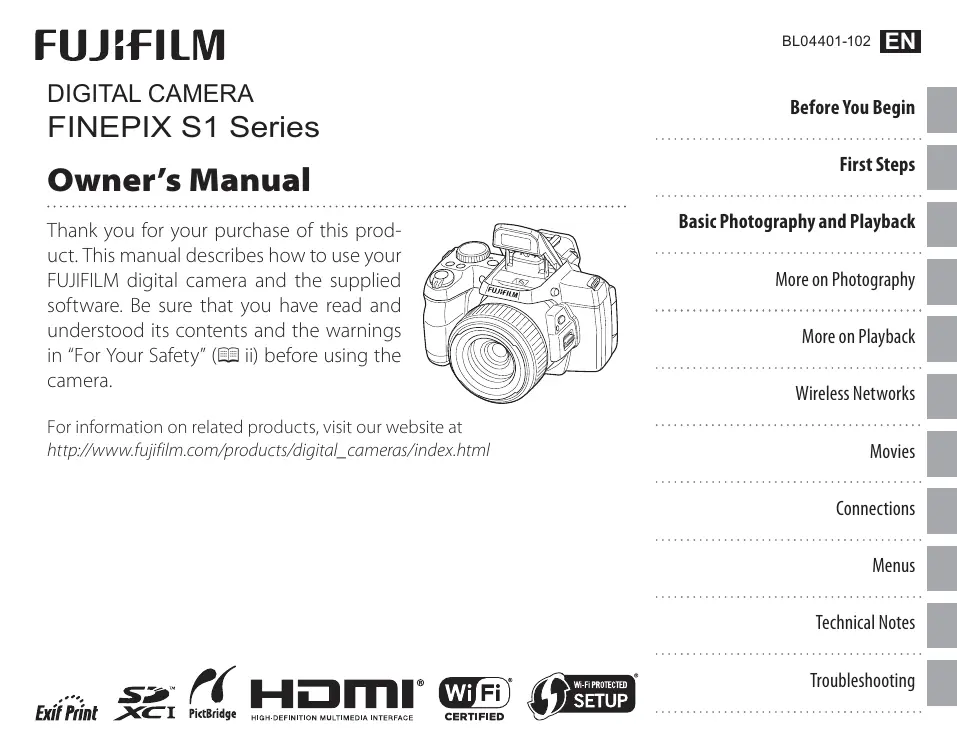

| Product type | Digital camera |
| Brand | FUJIFILM |
| Model | FinePix S (S1 Series) |
| Effective resolution | 16.4 million pixels |
| Sensor | 1/2.3-inch CMOS with primary color filter |
| Lens | Fujinon 50x optical zoom, f/2.8 (wide-angle) - f/5.6 (telephoto) |
| 35 mm equivalent focal length | 24 mm - 1200 mm |
| Image stabilization | Optical lens shift |
| LCD screen | 3.0-inch (7.6 cm), 920,000 dots, tilting |
| Electronic viewfinder | 0.2-inch (0.5 cm), 920,000 dots |
| Shutter speed | P, S, A: 4 s - 1/2000 s; M: 30 s - 1/2000 s; others: 1/4 s - 1/2000 s |
| ISO sensitivity | Auto (400, 800, 1600, 3200); manual 100 - 12800 |
| Image formats | JPEG (DCF, Exif 2.3), RAW (RAF), RAW+JPEG |
| Video recording | Full HD 1920×1080 at 60 fps, HD 1280×720 at 60 fps, VGA 640×480 at 30 fps, slow motion |
| Power supply | Rechargeable Li-ion battery NP-85 (3.7 V, 1700 mAh); AC power adapter |
| Storage media | Internal memory 37 MB; SD / SDHC / SDXC memory cards |
| Connections | Hi-Speed USB 2.0, Mini HDMI, Wi-Fi IEEE 802.11b/g/n |
| Dimensions (W × H × D) | 133.1 × 90.9 × 110.3 mm (without protrusions) |
| Weight (with battery and card) | Approx. 680 g |
| Maintenance and cleaning | Clean the exterior with a soft dry cloth. Do not use liquid or aerosol cleaners. |
| Safety instructions | Do not expose to water or humidity. Do not disassemble. Use only recommended accessories. |
| Spare parts and repairability | NP-85 battery, AC adapter, USB cable, strap, lens cap. Contact an authorized dealer for any repairs. |
Frequently Asked Questions - FINEPIX S FUJIFILM
User questions about FINEPIX S FUJIFILM
0 question about this device. Answer the ones you know or ask your own.
Ask a new question about this device
Download the instructions for your Digital Camera in PDF format for free! Find your manual FINEPIX S - FUJIFILM and take your electronic device back in hand. On this page are published all the documents necessary for the use of your device. FINEPIX S by FUJIFILM.
USER MANUAL FINEPIX S FUJIFILM
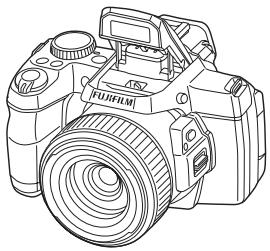
Thank you for your purchase of this product. This manual describes how to use your FUJIFILM digital camera and the supplied software. Be sure that you have read and understood its contents and the warnings in "For Your Safety" (ii) before using the camera.
For information on related products, visit our website at
http://www.fujifilm.com/products/digital Cameras/index.html
Before You Begin
First Steps
Basic Photography and Playback
More on Photography
More on Playback
Wireless Networks
Movies
Connections
Technical Notes
Troubleshooting
IMPORTANT SAFETY INSTRUCTIONS
- Read Instructions: All the safety and operating instructions should be read before the appliance is operated.
- Retain Instructions: The safety and operating instructions should be retained for future reference.
- Heed Warnings: All warnings on the appliance and in the operating instructions should be adhered to.
- Follow Instructions: All operating and use instructions should be followed.
Installation
Power Sources: This video product should be operated only from the type of power source indicated on the marking label. If you are not sure of the type of power supply to your home, consult your appliance dealer or local power company. For video products intended to operate from battery power, or other sources, refer to the operating instructions.
Grounding or Polarization: This video product is equipped with a polarized alternating-current line plug (a plug having one blade wider than the other). This plug will fit into the power outlet only one way. This is a safety feature. If you are unable to insert the plug fully into the outlet, try reversing the plug. If the plug should still fail to fit, contact your electrician to replace your obsolete outlet. Do
not defeat the safety purpose of the polarized plug.
AlternateWarnings: This video product is equipped with a 3-wire grounding-type plug, a plug having a third (grounding) pin. This plug will only fit into a grounding-type power outlet. This is a safety feature. If you are unable to insert the plug into the outlet, contact your electrician to replace your obsolete outlet. Do not defeat the safety purpose of the grounding-type plug.
Overloading: Do not overload wall outlets and extension cords as this can result in a risk of fire or electric shock.
Ventilation: Slots and openings in the cabinet are provided for ventilation and to ensure reliable operation of the video product and to protect it from overheating, and these openings must not be blocked or covered.
The openings should never be blocked by placing the video product on a bed, sofa, rug, or other similar surface.
This video product should not be placed in a built-in installation such as a bookcase or rack unless proper ventilation is provided or the manufacturer's instructions have been adhered to.
This video product should never be placed near or over a radiator or heat register.
Attachments: Do not use attachments not recommended by the video product manufacturer as they may cause hazards.
Water and Moisture: Do not use this video product near water - for example, near a bath tub, wash bowl, kitchen sink, or laundry tub, in a wet basement, or near a swimming pool, and the like.
Power-Cord Protection: Power-Supply cords should be routed so that they are not likely to be walked on or pinched by items placed upon or against them, paying particular attention to cords at plugs, convenience receptacles, and the point where they exit from the appliance.
Accessories: Do not place this video product on an unstable cart, stand, tripod, bracket, or table. The video product may fall, causing serious injury to a child or adult, and serious damage to the appliance. Use only with a cart, stand, tripod, bracket, or table recommended by the manufacturer, or sold with the video product. Any mounting of the appliance should follow the manufacturer's instructions, and should use a mounting accessory recommended by the manufacturer.
An appliance and cart combination should be moved with care. Quick stops, excessive force, and uneven sur
faces may cause the appliance and cart combination to overturn.

Antennas
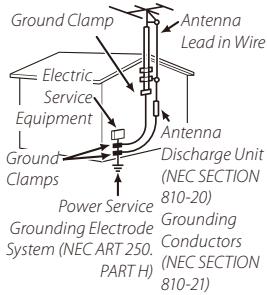
Outdoor Antenna Grounding: If an outside antenna or cable system is connected to the video product, be sure the antenna or cable system is grounded so as to provide some protection against voltage surges and built-up static charges. Section 810 of the National Electrical Code, ANSI/NFPA No. 70, provides information with respect to proper grounding of the mast and supporting structure, grounding of the lead-in wire to an antenna-discharge unit, size of grounding conductors, location of antenna-discharge unit, connection to grounding electrodes, and requirements for the grounding electrode.
Power Lines: An outside antenna system should not be located in the vicinity of overhead power lines or other electric light or power circuits, or where it can fall into such power lines or circuits. When installing an outside antenna system, extreme care should be taken to keep from touching such power lines or circuits as contact with them might be fatal.
EXAMPLE OF ANTENNA GROUNDING AS PER NATIONAL ELECTRICAL CODE
Use
Cleaning: Unplug this video product from the wall outlet before cleaning. Do not use liquid cleaners or aerosol cleaners. Use a damp cloth for cleaning.
Object and Liquid Entry: Never push objects of any kind into this video product through openings as they may touch dangerous voltage points or short out parts that could result in a fire or electric shock. Never spill liquid of any kind on the video product.
Lightning: For added protection for this video product receiver during a lightning storm, or when it is left unattended and unused for long periods of time, unplug it from the wall outlet and disconnect the antenna or cable system. This will prevent damage to the video product due to lightning and power-line surges.
Service
Servicing: Do not attempt to service this video product yourself as opening or removing covers may expose you to dangerous voltage or other hazards. Refer all servicing to qualified service personnel.
Damage Requiring Service: Unplug this video product from the wall outlet and refer servicing to qualified service personnel under the following conditions:
When the power-supply cord or plug is damaged.
If liquid has been spilled, or objects have fallen into the video product.
If the video product has been exposed to rain or water.
If the video product has been dropped or the cabinet has been damaged.
If the video product does not operate normally, it is likely to be replaced by a more appropriate operating instructions. Adjust only those controls that are covered by the operating instructions as an improper adjustment of other controls may result in damage and will often require extensive work by a qualified technician to restore the video product to its normal operation.
When the video product exhibits a distinct change in performance - this indicates a need for service.
Replacement Parts: When replacement parts are required, be sure the service technician has used replacement parts specified by the manufacturer or have the same characteristics as the original part. Unauthorized substitutions may result in fire, electric shock or other hazards.
Safety Check: Upon completion of any service or repairs to this video product, ask the service technician to perform safety checks to determine that the video product is in proper operating condition.
Be sure to read this notes before using
Safety Notes
- Make sure that you use your camera correctly. Read these Safety Notes and your Owner's Manual carefully before use.
After reading these Safety Notes, store them in a safe place.
About the Icons
The icons shown below are used in this document to indicate the severity of the injury or damage that can result if the information indicated by the icon is ignored and the product is used incorrectly as a result.

WARNING
This icon indicates that death or serious injury can result if the information is ignored.

CAUTION
This icon indicates that personal injury or material damage can result if the information is ignored.
The icons shown below are used to indicate the nature of the information which is to be observed.

Triangular icons tell you that this information requires attention ("important").

Circular icons with a diagonal bar tell you that the action indicated is prohibited ("Prohibited").

Filled circles with an exclamation mark tell you an action that must be performed ("Required").

WARNING

Unplug from power socket.
If a problem arises, turn the camera off, remove the battery, disconnect and unplug the AC power adapter.
Continued use of the camera when it is emitting smoke, is emitting any unusual odor, or is in any other abnormal state can cause a fire or electric shock.
- Contact your FUJIFILM dealer.

WARNING
Do not allow water or foreign objects to enter the camera.

If water or foreign objects get inside the camera, turn the camera off, remove the battery and disconnect and unplug the AC power adapter.
Continued use of the camera can cause a fire or electric shock.
- Contact your FUJIFILM dealer.

Do not use the camera in the bathroom or shower.
Do not use in the bathroom or shower.
This can cause a fire or electric shock.

Never attempt to disassemble or modify (never open the case).
Do not disassemble
Failure to observe this precaution can cause fire or electric shock.

Should the case break open as the result of a fall or other accident, do not touch the exposed parts.
Do not touch internal parts
Failure to observe this precaution could result in electric shock or in injury from touching the damaged parts. Remove the battery immediately, taking care to avoid injury or electric shock, and take the product to the point of purchase for consultation.

Do not change, heat or unduly twist or pull the connection cord and do not place heavy objects on the connection cord.
These actions could damage the cord and cause a fire or electric shock.
- If the cord is damaged, contact your FUJIFILM dealer.

Do not place the camera on an unstable surface.
This can cause the camera to fall or tip over and cause injury.

Never attempt to take pictures while in motion.
Do not use the camera while you are walking or driving a vehicle. This can result in you falling down or being involved in a traffic accident.

Do not touch any metal parts of the camera during a thunderstorm.
This can cause an electric shock due to induced current from the lightning discharge.

Do not use the battery except as specified.
Load the battery as aligned with the indicator.
| WARNING | |
| Do not heat, change or take apart the battery. Do not drop or subject the battery to impacts. Do not store the battery with metallic products. Do not use chargers other than the specified model to charge the battery. Any of these actions can cause the battery to burst or leak and cause fire or injury as a result. | |
| Use only the battery or AC power adapters specified for use with this camera. Do not use voltages other than the power supply voltage shown. The use of other power sources can cause a fire. | |
| If the battery leaks and fluid gets in contact with your eyes, skin or clothing. Flush the affected area with clean water and seek medical attention or call an emergency number right away. | |
| Danger of explosion if battery is incorrectly replaced. Replace only with the same or equivalent type. | |
| Do not use in the presence of flammable objects, explosive gases, or dust. | |
| When carrying the battery, install it in a digital camera or keep it in the hard case. When storing the battery, keep it in the hard case. When discarding, cover the battery terminals with insulation tape. Contact with other metallic objects or battery could cause the battery to ignite or burst. | |
| Keep Memory Cards out of the reach of small children. Because Memory Cards are small, they can be swallowed by children. Be sure to store Memory Cards out of the reach of small children. If a child swallows a Memory Card, seek medical attention or call an emergency number. | |
| Turn the camera off in crowds. The camera emits radio-frequency radiation that may interfere with pacemakers. | |
| Turn the camera off in the vicinity of automatic doors, public address systems, and other automatically controlled devices. The camera emits radio-frequency radiation that may cause these devices to malfunction. | |
| Keep the camera at least 22 cm (0.7 ft.) away from people wearing pacemakers. The camera emits radio-frequency radiation that may interfere with pacemakers. | |
| Hot shoe cover Keep out of the reach of small children. | |
| CAUTION | |
| Do not use this camera in locations affected by oil fumes, steam, humidity or dust. This can cause a fire or electric shock. | Do not leave this camera in places subject to extremely high temperatures. Do not leave the camera in locations such as a sealed vehicle or in direct sunlight. This can cause a fire. |
| Keep out of the reach of small children. This product could cause injury in the hands of a child. | Do not place heavy objects on the camera. This can cause the heavy object to tip over or fall and cause injury. |
| Do not move the camera while the AC power adapter is still connected. Do not pull on the connection cord to disconnect the AC power adapter. This can damage the power cord or cables and cause a fire or electric shock. | Do not move the camera while the AC power adapter is still connected. Do not pull on the connection cord to disconnect the AC power adapter. This can damage the power cord or cables and cause a fire or electric shock. |
| Do not use the AC power adapter when the plug is damaged or the plug socket connection is loose. This could cause a fire or electric shock. | Do not use the AC power adapter when the plug is damaged or the plug socket connection is loose. This could cause a fire or electric shock. |
| Do not cover or wrap the camera or the AC power adapter in a cloth or blanket. This can cause heat to build up and distort the casing or cause a fire. | When you are cleaning the camera or you do not plan to use the camera for an extended period, remove the battery and disconnect and unplug the AC power adapter. Failure to do so can cause a fire or electric shock. |
| When charging ends, unplug the charger from the power socket. Leaving the charger plugged into the power socket can cause a fire. | Using a flash too close to a person's eyes may temporarily affect the eyesight. Take particular care when photographing infants and young chil-dren. |
| When a memory card is removed, the card could come out of the slot too quick-ly. Use your finger to hold it and gently release the card. | Request regular internal testing and cleaning for your camera. Build-up of dust in your camera can cause a fire or electric shock. • Contact your FUJIFILM dealer to request internal cleaning every 2 years. • Please note this is not a free of charge service. |
| CAUTION | |
| Remove your fingers from the flash window before the flash fires. Failure to observe this precaution could result in burns. | |
| Keep the flash window clean and do not use the flash if the window is obstructed. Failure to observe these precautions could cause smoke or discoloration. |
Power Supply and Battery
- Confirm your battery type before reading the following descriptions.
The following explains proper use of batteries and how to prolong their life. Incorrect use of batteries can cause shorter battery life, as well as leakage, excessive heat, fire or explosion.
1 Camera uses the Rechargeable Lithium-ion Battery
- When shipped, the battery is not fully charged. Always charge the battery before using it.
- When carrying the battery, install it in a digital camera or keep it in the soft case.
Battery Features
- The battery gradually loses its charge even when not used. Use a battery that has been charged recently (in the last day or two) to take pictures.
To maximize the life of the battery, turn the camera off as quickly as possible when it is not being used. - The number of available frames will be lower in cold locations or at low temperatures. Take along a spare fully charged battery. You can also increase the amount of power produced by putting the battery in your pocket or another warm place to heat it and then loading it into the camera just before you take a picture.
If you are using a heating pad, take care not to place the battery directly against the pad. The camera may not operate if you use a depleted battery in cold conditions.
Charging the Battery
The battery can be charged at ambient temperatures between 0^ and +40^ (+32^ and +104^) Refer to the Owner's Manual for the time of charging battery.
- You should charge the battery at an ambient temperature between +10^ and +35^ (+50^ and +95^) . If you charge the battery at a temperature outside this range, charging takes longer because the performance of the battery is impaired.
- You cannot charge the battery at temperatures of 0^ + 32^ or below.
- The Rechargeable Lithium-ion Battery does not need to be fully discharged or exhausted flat before being charged.
- The battery may feel warm after it has been charged or immediately after being used. This is perfectly normal.
- Do not recharge a fully charged battery.
Battery Life
At normal temperatures, the battery can be used at least 300 times. If the time for which the battery provides power shortens markedly,
this indicates that the battery has reached the end of its effective life and should be replaced.
Notes on storage
- If a battery is stored for long periods while charged, the performance of the battery can be impaired. If the battery will not be used for some time, run the battery out before storing it.
- If you do not intend to use the camera for a long period of time, remove the battery from the camera.
-
Store the battery in a cool place.
-
The battery should be stored in a dry location with an ambient temperature between +15^ and +25^ (+59^ and +77^)
- Do not leave the battery in hot or extremely cold places.
Handling the Battery Cautions for Your Safety:
- Do not carry or store battery with metal objects such as necklaces or hairpins.
- Do not heat the battery or throw it into a fire.
- Do not attempt to take apart or change the battery.
- Do not recharge the battery with chargers other those specified.
- Dispose of used battery promptly.
- Do not drop the battery or otherwise subject it to strong impacts.
- Do not expose the battery to water.
Always keep the battery terminals clean.
- Do not store batteries in hot places. Also, if you use the battery for a long period, the camera body and the battery itself will become warm. This is normal.
Camera uses AA Alkaline, Rechargeable Ni-MH (nickel-metal hydride) or AA lithium batteries
- For details on the batteries that you can use, refer to the Owner's Manual of your camera.
Cautions for Using Battery
- Do not heat the batteries or throw them into a fire.
- Do not carry or store batteries with metal objects such as necklaces or hairpins.
- Do not expose the batteries to water, and keep batteries from getting wet or stored in moist locations.
- Do not attempt to take apart or change the batteries, including battery casings.
- Do not subject the batteries to strong impacts.
- Do not use batteries that are leaking, deformed, discolored.
- Do not store batteries in warm or humid places.
- Keep the batteries out of reach of babies and small children.
-
Make sure that the battery polarity ( and ) is correct.
-
Do not use new with used batteries. Do not use charged and discharged batteries together.
- Do not use different types or brands of batteries at the same time.
- If you do not intend to use the camera for a long period of time, remove the batteries from the camera. Note if the camera is left with the batteries removed, the time and date settings are cleared.
- The batteries feel warm right after being used. Before removing the batteries, turn the camera off and wait for the batteries to cool down.
- Since batteries do not work well in cold weather or locations, warm the batteries by placing them inside your garments before use. Batteries do not work well when cold. They will work again when the temperature returns to normal.
- Soil (such as fingerprints) on the battery terminals makes the batteries charge less reducing the number of images. Carefully wipe the battery terminals with a soft dry cloth before loading.

If any liquid at all leaks from the batteries, wipe the battery compartment thoroughly and then load new batteries.
If any battery fluid comes into contact with your hands or clothing, flush the area thoroughly with water. Note that battery fluid can cause loss of eyesight if it gets into your eyes. If this occurs, do not rub your eyes. Flush the fluid out with clean water and contact your physician for treatment.
Using the AA-size Ni-MH batteries correctly
Ni-MH batteries left unused in storage for long periods can become "deactivated". Also, repeatedly charging Ni-MH batteries that are only partially discharged can cause them to suffer from the "memory effect". Ni-MH batteries that are "deactivated" or affected by "memory" suffer from the problem of only providing power for a short time after being charged. To prevent this problem, discharge and recharge them several times using the camera's "Discharging rechargeable batteries" function. Deactivation and memory are specific to Ni-MH batteries and are not in fact battery faults.
See Owner's Manual for the procedure for "Discharging rechargeable batteries".
CAUTION
Do not use the "Discharging rechargeable batteries" function when alkaline batteries being used.
- To charge Ni-MH batteries, use the quick battery charger (sold separately). Refer to the instructions supplied with the charger to make sure that the charger is used correctly.
- Do not use the battery charger to charge other batteries.
Note that the batteries feel warm after being charged. - Due to the way the camera is constructed, a small amount of current is used even when the camera is turned off. Note in particular that leaving Ni-MH batteries in the camera for a long period will over-discharge the batteries and may render them unusable even after recharging.
- Ni-MH batteries will self-discharge even when not used, and the time for which they can be used may be shortened as a result.
-
Ni-MH batteries will deteriorate rapidly if over-discharged (e.g. by discharging the batteries in a flashlight). Use the "Discharging rechargeable batteries" function provided in the camera to discharge the batteries.
-
Ni-MH batteries have a limited service life. If a battery can only be used for a short time even after repeated discharge-charge cycles, it may have reached the end of its service life.
Disposing of Batteries
- When disposing of batteries, do so in accordance with your local waste disposal regulations.
Notes on both models (1, 2)
AC Power Adapter
Always use the AC Power Adapter with the camera. The use of an AC Power adapter other than FUJIFILM AC Power Adapter can be damaged to your digital camera.
For details on the AC power adapter, refer to the Owner's Manual of your camera.
- Use the AC power adapter for indoor use only.
- Plug the connection cord plug securely into the DC input terminal.
- Turn off the FUJIFLM Digital camera before disconnecting the cord from the DC input terminal. To disconnect, pull out the plug gently. Do not pull on the cord.
- Do not use the AC power adapter with any device other than your camera.
-
During use, the AC power adapter will become hot to the touch. This is normal.
-
Do not take apart the AC power adapter. Doing so could be dangerous.
- Do not use the AC power adapter in a hot and humid place.
- Do not subject the AC power adapter to strong shocks.
- The AC power adapter may emit a humming. This is normal.
- If used near a radio, the AC power adapter may cause static. If this happens, move the camera away from the radio.
Before Using the Camera
Do not aim the camera at extremely bright light sources, such as the sun in a cloudless sky. Failure to observe this precaution could damage the camera image sensor.
Test Shots Prior to Photography
For important photographs (such as weddings and overseas trips), always take a test shot and view the image to make sure that the camera is working normally.
- FUJIFILM Corporation cannot accept liability for any incidental losses (such as the costs of photography or the loss of income from photography) incurred as a result of faults with this product.
Notes on Copyright
Images recorded using your digital camera system cannot be used in ways that infringe copyright laws without the consent of the owner,
unless intended only for personal use. Note that some restrictions apply to the photographing of stage performances, entertainments and exhibits, even when intended purely for personal use. Users are also asked to note that the transfer of Memory Card containing images or data protected under copyright laws is only permissible within the restrictions imposed by those copyright laws.
■ Handling Your Digital Camera
To ensure that images are recorded correctly, do not subject the camera to impact or shock while an image is being recorded.
Liquid Crystal
If the LCD monitor is damaged, take particular care with the liquid crystal in the monitor. If any of the following situations arise, take the urgent action indicated.
- If liquid crystal comes in contact with your skin: Wipe the area with a cloth and then wash thoroughly with soap and running water.
- If liquid crystal gets into your eye: Flush the affected eye with clean water for at least 15 minutes and then seek medical assistance.
- If liquid crystal is swallowed: Flush your mouth thoroughly with water. Drink large quantities of water and induce vomiting. Then seek medical assistance.
Although the LCD panel is produced with highly sophisticated technologies, there may be black spots or permanently lit spots. This is not a malfunction, and does not affect recorded images.
Trademark Information
xD-Picture Card and 2 are trademarks of FUJIFILM Corporation. The typefaces included herein are solely developed by DynaComware Taiwan Inc. Macintosh, QuickTime, and Mac OS are trademarks of Apple Inc. in the U.S.A. and other countries. Windows 8, Windows 7, Windows Vista, and the Windows logo are trademarks of the Microsoft group of companies. Wi-Fi and Wi-Fi Protected Setup® are registered trademarks of the Wi-Fi Alliance. Adobe and Adobe Reader are either trademarks or registered trademarks of Adobe Systems Incorporated in the U.S.A. and/or other countries. The SDHC and SDXC logos are trademarks of SD-3C, LLC. The HDMI logo is a trademark. YouTube is a trademark of Google Inc. Facebook is a trademark of Facebook, Inc. All other trade names mentioned in this manual are the trademarks or registered trademarks of their respective owners.
Notes on Electrical Interference
If the camera is to be used in hospitals or aircrafts, please note that this camera may cause interference to other equipment in the hospital or aircraft. For details, please check with the applicable regulations.
Explanation of Color Television System
NTSC: National Television System Committee, color television telecasting specifications adopted mainly in the U.S.A., Canada and Japan.
PAL: Phase Alternation by Line, a color television system adopted mainly by European countries and China.
Exif Print (Exif ver. 2.3)
Exif Print Format is a newly revised digital camera file format that contains a variety of shooting information for optimal printing.
IMPORTANT NOTICE: Read Before Using the Software
Direct or indirect export, in whole or in part, of licensed software without the permission of the applicable governing bodies is prohibited.
This product, which contains encryption function developed in the United States, is controlled by the United States Export Administration Regulations and may not be exported or re-exported to any country to which the United States embargoes goods.
- Use only as part of a wireless network. FUJILM does not accept liability for damages resulting from unauthorized use. Do not use in applications requiring a high degree of reliability, for example in medical devices or other systems that may directly or indirectly impact human life. When using the device in computer and other systems that demand a greater degree of reliability than wireless networks, be sure to take all necessary precautions to ensure safety and prevent malfunction.
- Use only in the country in which the device was purchased. This device conforms to regulations governing wireless network devices in the country in which it was purchased. Observe all location regulations when using the device. FUJIFILM does not accept liability for problems arising from use in other jurisdictions.
- Wireless data (images) may be intercepted by third parties. The security of data transmitted over wireless networks is not guaranteed.
- Do not use the device in locations subject to magnetic fields, static electricity, or radio interference. Do not use the transmitter in the vicinity of microwave ovens or in other locations subject to magnetic fields, static electricity, or radio interference that may prevent reception of wireless signals. Mutual interference may occur when the transmitter is used in the vicinity of other wireless devices operating in the 2.4 GHz band.
- The wireless transmitter operates in the 2.4 GHz band using DSSS and OFDM modulation.
Wireless Network Devices: Cautions
- This device operates on the same frequency as commercial, educational, and medical devices and wireless transmitters. It also operates on the same frequency as licensed transmitters and special unlicensed low-voltage transmitters used in RFID tracking systems for assembly lines and in other similar applications.
To prevent interference with the above devices, observe the following precautions. Confirm that the RFID transmitter is not in operation before using this device. Should you observe that the device causes interference in licensed transmitters used for RFID tracking, immediately choose a new operating frequency for this device to prevent additional interference. If you notice that this device causes interference in low-voltage RFID tracing systems, contact a FUJIFILM representative.
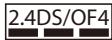
This sticker indicates that this device operates in the 2.4GHz band using DSSS and OFDM modulation and may cause interference at distances of up to 40m .
About This Manual
Before using the camera, read this manual and the warnings on pages ii-x. For information on specific topics, consult the sources below.
√ Table of Contents xii
The "Table of Contents" gives an overview of the entire manual. The principal camera operations are listed here.
Troubleshooting 114
Having a specific problem with the camera? Find the answer here.
Warning Messages and Displays 122
Find out what's behind that flashing icon or error message in the display.
Memory Cards
Pictures can be stored in an optional SD, SDHC, and SDXC memory cards (11), referred to in this manual as "memory cards".
Temperature Warning
The camera will turn off automatically before its temperature or the temperature of the battery rise above safe limits. Pictures taken when a temperature warning is displayed may exhibit higher levels of "noise" (mottling). Turn the camera off and wait for it to cool before turning it on again.
Table of Contents
For Your Safety .
IMPORTANT SAFETY INSTRUCTIONS..
Safety Notes.. iv
About This Manual. xi
Before You Begin
Introduction 1
Symbols and Conventions 1
Supplied Accessories 1
Parts of the Camera 2
Camera Displays 4
The monitor. 6
First Steps
Attaching Accessories 8
The Strand. 8
The Lens Cap. 8
The Lens Hood (Optional Accessory) 8
Inserting the Battery. 9
Inserting a Memory Card 11
Charging the Battery 14
Turning the Camera On and Off. 16
Shooting Mode 16
Playback Mode 16
Basic Setup 17
Basic Photography and Playback
Taking Pictures in SRAUTO (Scene Recognition) Mode...18
Viewing Pictures 23
More on Photography
Shooting Mode 24
The Mode Dial 24
SRAUTO SCENE RECOGNITION. 25
AUTO 25
Adv. ADVANCED 25
SPSCENEPosition 29
MOTION PANorama 360. 30
P: PROGRAM AE. 32
S: SHUTTER PRIORITY AE. 33
A: APERTURE PRIORITY AE. 33
M:MANUAL 34
C: CUSTOM MODE 35
Intelligent Face Detection 36
Focus Lock 38
Macro and Super Macro Modes (Close-ups) 40
Using the Flash (Intelligent Flash) 41
Using the Self-Timer 43
Interval shooting. 44
The Fn Button 45
Continuous Shooting (Burst Mode) 46
Exposure Compensation 49
W WHITE BALANCE 51
Focus Mode 52
Focus Frame Selection 54
More onPlayback
Playback Options 55
Continuous Shooting 55
Playback Zoom. 55
Favorites: Rating Pictures 56
Multi-Frame Playback 57
Viewing Panoramas. 58
PhotoBook Assist 59
Creating a PhotoBook 59
Viewing PhotoBooks 60
Editing and Deleting PhotoBooks 60
Image Search 61
删除 Pictures 62
Wireless Networks
Using Wireless Networks 63
Connecting with smartphones.. 63
Saving Pictures to a Computer 63
Movies
Recording Movies 64
Movie Frame Size 66
Viewing Movies 67
Connections
Viewing Pictures on TV 68
Connecting the Camera to High Definition (HD) TVs.....68
Printing Pictures via USB 69
Connecting the Camera 69
Printing Selected Pictures 69
Printing the DPOF Print Order. 70
Creating a DPOF Print Order. 72
Viewing Pictures on a Computer 75
Windows: Installing MyFinePix Studio. 75
Macintosh: Installing RAW FILE CONVERTER 77
Importing pictures or movies to Mac (Macintosh)............78
Connecting the Camera 78
Menu
Using the Menus: Shooting Mode 80
Using the Shooting Menu. 80
Shooting Menu Options. 81
ISO ISO 83
IMAGE SIZE. 83
IMAGE QUALITY 84
FINEPIX COLOR 85
PHOTOMETRY 85
MOVIE AF MODE 86
AE BKT EV STEPS. 86
FLASH. 86
EXTERNAL FLASH 87
Using the Menus:Playback Mode. 88
Using the Playback Menu. 88
Playback Menu Options. 88
MOVIEEDIT. 90
MARK FOR DOWNLOAD 91
SLIDE SHOW 93
RED EYE REMOVAL. 94
PROTECT 95
CROP. 96
RESIZE 97
IMAGE ROTATE. 98
COPY 99
DISP.ASPECT 99
The Setup Menu 100
Using the Setup Menu. 100
Setup Menu Options. 101
TIME DIFFERENCE 104
FORMAT. 105
2 IMAGE DISP. 105
FRAME NO. 106
PLAYBACK VOLUME 106
LCD BRIGHTNESS 106
LCD POWER SAVE 106
AUTO POWER OFF. 107
QUICK START MODE. 107
DIGITAL IMAGE STABILIZER 107
INTELLIGENT DIGITAL ZOOM 108
DATE DATE STAMP 108
Technical Notes
Optional Accessories 109
Accessories from FUJIFILM 110
Caring for the Camera 112
Troubleshooting
Troubleshooting 114
Warning Messages and Displays 122
Appendix
Memory Card Capacity 126
Photographs. 126
■Movies. 126
Specifications. 127
Symbols and Conventions
The following symbols are used in this manual:
V : This information should be read before use to ensure correct operation.
4: Points to note when using the camera.
Additional information that may be helpful when using the camera.
: Other pages in this manual on which related information may be found.
Menu and other text in the camera monitor are shown in bold. In the illustrations in this manual, the monitor display may be simplified for explanatory purposes.
Supplied Accessories
The following items are included with the camera:
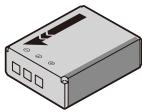
NP-85 rechargeable battery
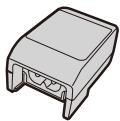
AC power adapter

Plug adapter*
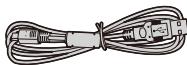
USB cable
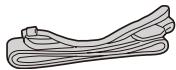
Strap
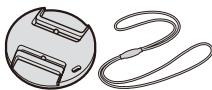
Lens cap

CD-ROM
Basic Manual
- Hot shoe cover (to protect the ports, attached to camera)
- Shape of adapter varies with region of sale.
Parts of the Camera
For more information, refer to the page listed to the right of each item.
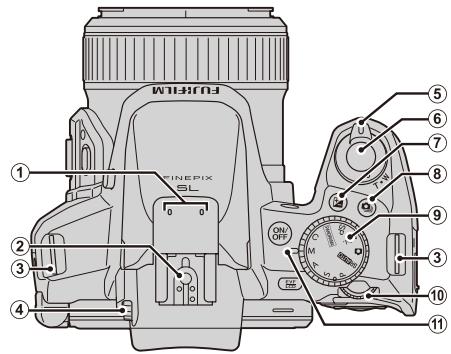
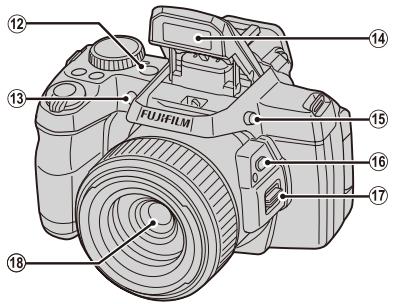
1 Microphone. 64
2 Hot shoe. 87, 111
3 Strap eyelet. 8
4 Diopter adjustment control 7
5 Zoom control. 19, 55, 57
6 Shutter button. 21
7 (exposure compensation) button.....49
8 (burst mode) button. 46
9 Mode dial. 24
10 Command dial. 32, 34
11 Indicator lamp. 22
12 ON/OFF button. 16
13 AF-assist illuminator 39
Self-timer lamp. 43
14 Flash. 41
15 Flash pop-up button. 41
16 Zoom out button. 20
17 Side lever. 19
18 Lens. 16
- Illustrations in this manual may be simplified for explanatory purposes.
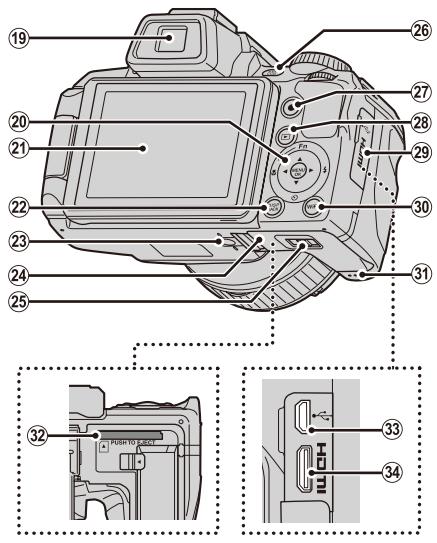
19 Electronic viewfinder. 7
20 Selector button (see below)
21 Monitor. 4
22 DISP(display)/BACK button
5,55
23 Tripod mount
24 Battery-chamber cover. 9
25 Battery-chamber latch. 9
26 EVF/LCD (display selection) button....7
27 (movie recording) button 64
28 (playback) button 23,55
29 Terminal cover. 68, 69, 78
30 WiFi button. 63
31 Speaker. 67
32 Memory card slot. 11
33 USB multi-connector..69,78
34 HDMI Mini Connector. 68
Camera Displays
The following indicators may appear during shooting and playback. The indicators displayed vary with camera settings.
Shooting
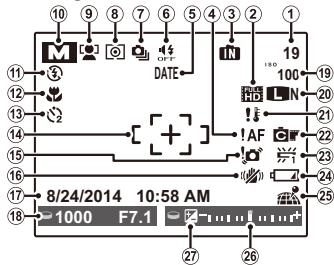
- IN: indicates that no memory card is inserted and that pictures will be stored in the camera's internal memory.
1 Number of available frames. 126
2 Movie mode. 66
3 Internal memory indicator *
4 Focus warning. 21
5 Date stamp. 108
6 Silent mode 101
7 Burst mode. 46
8 Metering. 85
9 Intelligent Face Detection indicator. 36
10 Shooting mode. 24
11 Flash mode. 41
12 Macro (close-ups) mode. 40
13 Self-timer indicator. 43
14 Focus frame. 38
15 Blur warning. 41, 117, 122
16 IS mode 20
17 Date and time. 17
18 Shutter speed and aperture. 32
19 Sensitivity. 83
20 Image size/quality. 83, 84
21 Temperature warning.
22 FinePix color. 85
23 White balance 51
24 Battery level. 19
25 Location data download status.....63
26 Exposure indicator 49
27 Exposure compensation indicator. 49
■Playback
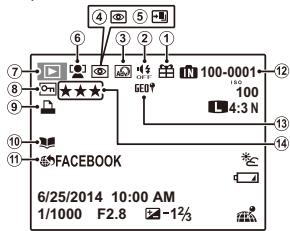
1 Gift Image. 55
2 Silent mode 101
3 Advanced Filter. 26
4 Red-eye removal indicator. 94
5 Pro low-light mode. 27
6 Intelligent Face Detection indicator. 36
7Playback mode indicator.23,55
8 Protected image. 95
9 DPOF print indicator. 72
10 Photobook assist indicator 59
11 Mark for upload to. 91
12 Frame number. 106
13 Location data. 63
14 Rating. 56

Hiding and Viewing Indicators
Press DISP/BACK to cycle through shooting and playback indicators as follows:
- Shooting: Indicators displayed/indicators hidden/best framing/HD framing/histogram
- Playback: Indicators displayed/indicators hidden/ favorites (国56)/photo info

Histograms
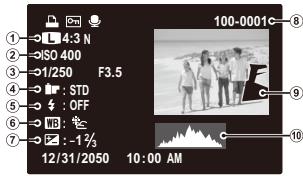
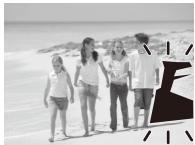
① Image quality and size, ② Sensitivity, ③ Shutter speed/aperture, ④ FinePix color, ⑤ Flash mode, ⑥ White balance, ⑦ Exposure compensation, ⑧ Frame number, ⑨ Picture (overexposed areas blink on and off), ⑩ Histogram
Overexposed areas blink on and off.
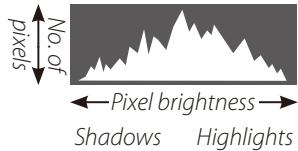
Histograms show the distribution of tones in the image. Brightness is shown by the horizontal axis, the number of pixels by the vertical axis.
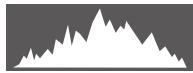
Optimal exposure: Pixels are distributed in an even curve throughout the tone range.
Overexposed: Pixels are clustered at the right side of the graph.
Underexposed: Pixels are clustered at the left side of the graph.


The monitor
The monitor can be rotated and angled to suit your needs, such as self-portraits, low-angle shots, or high-angle shots.
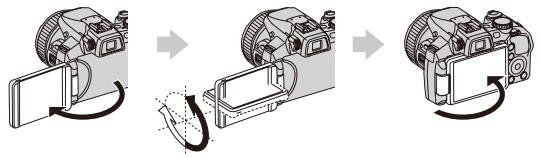

- For normal use, fold the monitor facing out.
- When carrying the camera, fold the monitor facing inward to prevent dirt and scratches.

Rotating the monitor
Rotate the monitor gently. Do not apply excessive force. Failure to observe these precautions may damage the connection between the monitor and the camera body. Note that when a cable is connected to the camera, the cable may be caught.

Reverse Display
When REVERSE DISPLAY is set to ON from the shooting menu, the image is flipped horizontally and displayed on the LCD monitor. This allows you to take self portraits while looking in a mirror.
The Electronic Viewfinder (EVF)
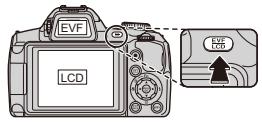
The electronic viewfinder provides the same information as the monitor, and can be used when bright lighting conditions make the display in the monitor difficult to see. Press EVF/LCD button to select from the monitor or electric view finder mode.
Bright Ambient Lighting
Reflections and glare caused by bright ambient lighting may make it hard to see the display in the monitor, particularly when the camera is used outdoors. This can be addressed by holding the EVF/LCD button to trigger outdoor mode. Outdoor mode can also be enabled using the MONITOR SUNLIGHT MODE option in the setup menu (101).
Diopter adjustment control
The camera is equipped with diopter adjustment to accommodate individual differences in vision. Slide the diopter adjustment control up and down until the viewfinder display is in sharp focus.
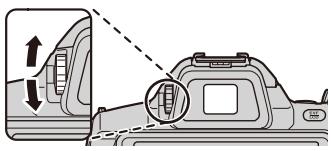

Strong sunlight focused through the viewfinder may damage the panel of electronic viewfinder (EVF). Do not aim the electronic viewfinder at the sun.
Attaching Accessories
The Strap
Attach the strap to the two strap eyelets as shown below.
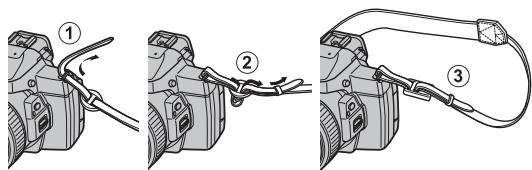
To avoid dropping the camera, be sure the strap is correctly secured.
The Lens Cap
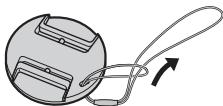
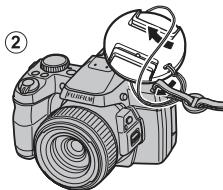
Attach the lens cap as shown.
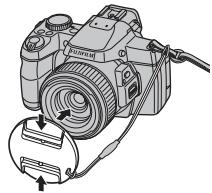
To avoid losing the lens cap, pass the supplied string through the eyelet (①) and secure the lens cap to the strap (②).
①
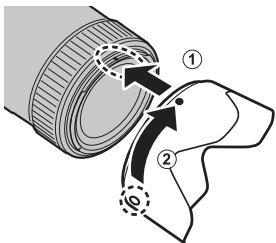
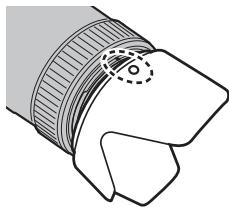
The Lens Hood (Optional Accessory)
Rotate the lens hood in the direction shown until it clicks into place.
Insert the batteries in the camera as described below.
1 Open the battery-chamber cover.
Slide the battery-chamber latch in the direction shown and open the battery-chamber cover.
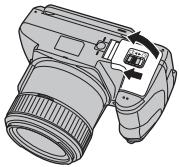

Be sure the camera is off before opening the battery-chamber cover.

- Do not open the battery-chamber cover when the camera is on. Failure to observe this precaution could result in damage to image files or memory cards.
- Do not use excessive force when handling the battery-chamber cover.
2 Insert the battery.
Insert the battery as shown in the illustration inside the battery chamber, using the battery to keep the latch pressed to one side.
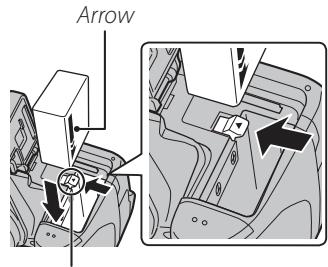
Battery latch

Insert the battery in the correct orientation. Do not use force or attempt to insert the battery upside down or backwards. The battery will slide in easily in the correct orientation.
3 Close the battery-chamber cover.
Press the cover down until it clicks into place.
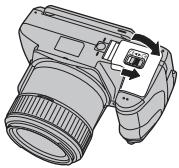

Removing the Battery
Before removing the battery, turn the camera off and open the battery-chamber cover. To remove the battery, press the battery latch to the side, and slide the battery out of the camera as shown.

Battery latch
Batteries
- Remove dirt from the battery terminals with a clean, dry cloth. Failure to observe this precaution could prevent the battery from charging.
- Do not affix stickers or other objects to the battery. Failure to observe this precaution could make it impossible to remove the battery from the camera.
- Do not short the battery terminals. The battery could overheat.
- Read the cautions in "Power Supply and Battery" (图 vii).
- Use only battery chargers designated for use with the battery. Failure to observe this precaution could result in product malfunction.
- Do not remove the labels from the battery or attempt to split or peel the outer casing.
- The battery gradually loses its charge when not in use. Charge the battery one or two days before use.
Inserting a Memory Card
Although the camera can store pictures in internal memory, optional SD, SDHC and SDXC memory cards (sold separately) can be used to store additional pictures.
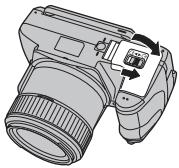
1 Open the battery-chamber cover.
Slide the battery-chamber latch in the direction shown and open the battery-chamber cover.
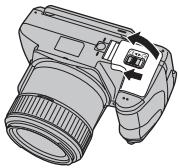
2 Insert the memory card.
Holding the memory card in the orientation shown below, slide it in until it clicks into place at the back of the slot.
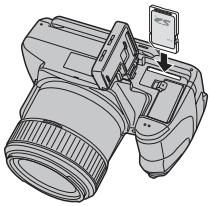
#
-
Be sure card is in the correct orientation; do not insert at an angle or use force. If the memory card is not correctly inserted or no memory card is inserted, it will appear in the LCD monitor and internal memory will be used for recording and playback.
-
SD/SDHC/SDXC memory cards can be locked, making it impossible to format the card or to record or delete images. Before inserting an SD/SDHC/SDXC memory card, slide the write-protect switch to the unlocked position.
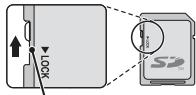
Write-protect switch
3 Close the battery-chamber cover.
Press the cover down until it clicks into place.
Removing Memory Cards
After confirming that the camera is off, press the card in and then release it slowly. The card can now be removed by hand.
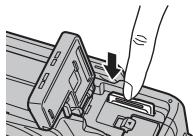

- The memory card may spring out if you remove your finger immediately after pushing the card in.
- Memory cards may be warm to the touch after being removed from the camera. This is normal and does not indicate a malfunction.
Compatible Memory Cards
FUJIFILM and SanDisk SD, SDHC, and SDXC memory cards have been approved for use in the camera. A complete list of approved memory cards is available at http://www.fujifilm.com/support/digital Cameras/compatibility/. Operation is not guaranteed with other cards. The camera can not be used with xD-Picture Cards or MultiMediaCard (MMC) devices.
Memory Cards
- Do not turn the camera off or remove the memory card while the memory card is being formatted or data are being recorded to or deleted from the card. Failure to observe this precaution could damage the card.
- Format SD/SDHC/SDXC memory cards before first use, and be sure to reformat all memory cards after using them in a computer or other device. For more information on formatting memory cards, see
“FORMAT"(105).
-
Memory cards are small and can be swallowed; keep out of reach of children. If a child swallows a memory card, seek medical assistance immediately.
-
miniSD or microSD adapters that are larger or smaller than the standard dimensions of an SD/SDHC/SDXC card may not eject normally; if the card does not eject, take the camera to an authorized service representative. Do not forcibly remove the card.
- Do not affix labels to memory cards. Peeling labels can cause camera malfunction.
- Use a CLASS card or better when shooting full HD movies.
- Movie recording may be interrupted with some types of SD/SDHC/SDXC memory card. Use a CLASS® card or better when shooting HD or high-speed movies.
- The data in internal memory may be erased or corrupted when the camera is repaired. Please note that the repairer will be able to view pictures in internal memory.
- Formatting a memory card or internal memory in the camera creates a folder in which pictures are stored. Do not rename or delete this folder or use a computer or other device to edit, delete, or rename image files. Always use the camera to delete pictures from memory cards and internal memory; before editing or renaming files, copy them to a computer and edit or rename the copies, not the originals.
Charging the Battery
The battery is not charged at shipment. Charge the battery before use. The camera charges the battery internally.
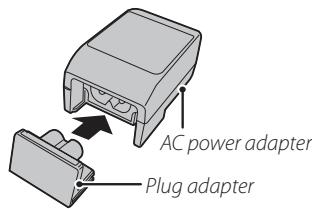
1 Attach the plug adapter to the AC power adapter.
Attach the plug adapter as shown, making sure that it is fully inserted and clicks into place on the AC power adapter terminals.
The plug adapter is exclusively for use with the supplied AC power adapter. Do not use it with other devices.
Charge the battery.
Connect the camera to the supplied AC power adapter using the supplied USB cable. Then plug the AC power adapter into an indoor power outlet.
Be sure the connectors are in the correct orientation and then insert them fully.
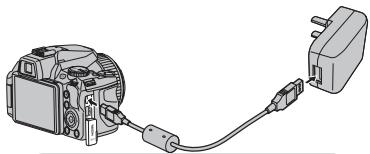
The camera uses an NP-85 rechargeable battery.
When a USB cable is connected to charge the camera, you cannot shoot photos or movies.

Charge status
The indicator lamp shows battery charge status.
| Indicator lamp | Battery status | Action |
| On | Battery charging. | — |
| Off | Charging complete. | — |
| Blinks | Battery fault. | See page 114 |

Charging via a computer
The battery can be charged by connecting the camera to a computer.
Connect the supplied USB cable as shown, making sure the connectors are fully inserted. Connect the camera directly to the computer; do not use a USB hub or keyboard.
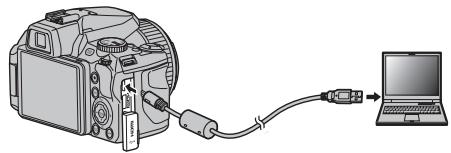

- If the computer goes into sleep mode while charging, charging will stop. To continue charging, disable sleep mode on the computer, and disconnect and connect the USB cable.
- Charging may be impossible depending on computer specifications, settings or conditions.
Turning the Camera On and Off
Shooting Mode
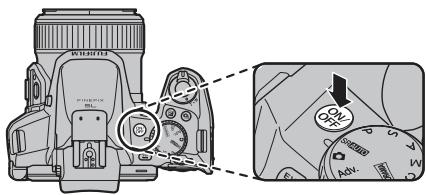
Press the ON/OFF button to turn the camera on. The lens will extend automatically.
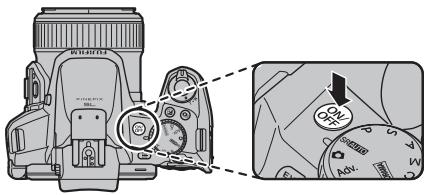
Press ON/OFF again to turn the camera off.
Switching toPlaybackMode
Press the button to start playback. Press the shutter button halfway to return to shooting mode.
- Be sure that the lens cap is removed before turning the camera on.
- Forcibly preventing the lens from extending could cause damage or product malfunction.
- Pictures can be affected by fingerprints and other marks on the lens. Keep the lens clean.
- The ON/OFF button does not completely disconnect the camera from its power supply.
Playback Mode
To turn the camera on and begin playback, press the button for about a second.
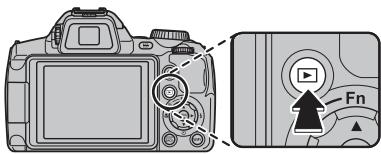
Press the button again or press the ON/OFF button to turn the camera off.
Switching to Shooting Mode
To exit to shooting mode, press the shutter button halfway. Press the l button to return to playback.
Auto Power Off
The camera will turn off automatically if no operations are performed for the length of time selected in the
AUTO POWER OFF menu (see page 107). To turn the camera on, press the ON/OFF button or the button
for about a second.
Basic Setup
A language-selection dialog is displayed the first time the camera is turned on. Set up the camera as described below (for information on resetting the clock or changing languages, see page 101).
1 Choose a language.
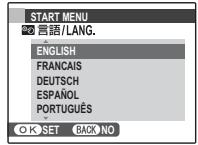
1.1 Press the selector up or down to highlight a language.
1.2 Press MENU/OK.
2 Set the date and time.
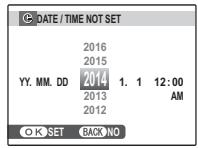
2.1 Press the selector left or right to highlight the year, month, day, hour, or minute and press up or down to change. To change the order in which the year, month, and day are displayed, highlight the date format and press the selector up or down.
2.2 Press MENU/OK.


The Camera Clock
If the batteries are removed for an extended period, the camera clock will be reset and the language-selection dialog will be displayed when the camera is turned on. If the batteries are left in the camera for about 10 hours, the battery can be removed for about 24 hours without resetting the clock, language, or battery type.
Taking Pictures in SRAUTO (Scene Recognition) Mode
This section describes how to take pictures in SRAUTO mode.
1 Turn the camera on.
Press the ON/OFF button to turn the camera on.
2 Select SRAUTO mode.
Rotate the mode dial to SRAUTO.
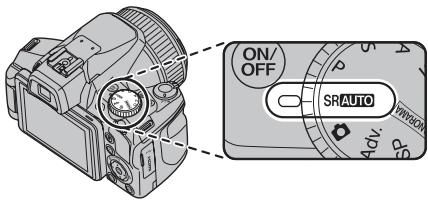
SRAUTO
In this mode, the camera automatically analyzes the composition and selects a scene according to shooting conditions and the type of subject (the scenes in brackets are selected if the camera detects that the subject is moving):
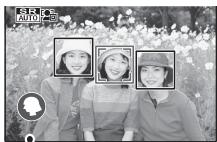
Selected scene
- O(O) (PORTRAIT): Human portrait subject.
- (O) (LANDSCAPE): Man-made or natural landscape.
- C (O) C) (NIGHT): Poorly-lit landscape.
- (OgOg) (MACRO): Subject close to camera.
- ( ) (NIGHT PORTAIT): Poorly-lit portrait subject.
- (B) (BACKLIT PORTAIT): Back-lit portrait subject.
(ATO) is selected if none of the above are detected.
3 Check the battery level.
Check the battery level in the display.
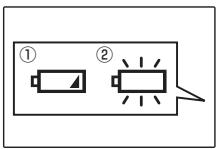
| Indicator | Description |
| (white) | Battery partially discharged. |
| (white) | Battery more than half discharged. |
| (red) | Low battery. Charge as soon as possible. |
| (blinks red) | Battery exhausted. Turn camera off and charge battery. |

A battery warning may not be displayed before the camera turns off, particularly if batteries are reused after having once been exhausted. Power consumption varies greatly from mode to mode; the low battery warning (4) may not be displayed or may be displayed only briefly before the camera turns off in some modes or when switching from shooting to playback mode.
4 Frame the picture.
Use the zoom control or side lever to frame the picture in the display.
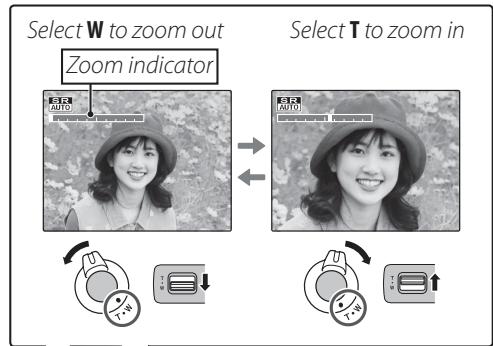
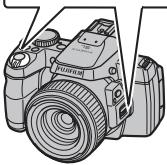

- When setting the side lever to H, the side lever can zoom faster. In the same way when setting the side lever to L, the side lever can zoom slower.
- When using the zoom control and side lever simultaneously, the zoom control is activated.

Focus Lock
Use focus lock (38) to focus on subjects that are not in the focus frame.

Zoom out button
By holding down the zoom out button, you can switch from zoomed in to zoomed out. It makes it easy to find the lost subject when zooming in.

Holding the Camera
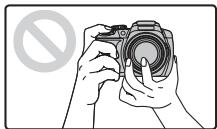
Hold the camera steady with both hands and brace your elbows against your sides. Shaking or unsteady hands can blur your shots.
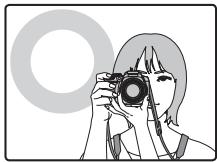
To prevent pictures that are out of focus or too dark (underexposed), keep your fingers and other objects away from the lens and flash.

Avoiding Blurred Pictures
If the subject is poorly lit, blurring caused by camera shake can be reduced using the IS MODE option in the setup menu (102). In mode, blur caused by subject movement is also reduced.
Note that blurring may still occur depending on the scene.
5 Focus.
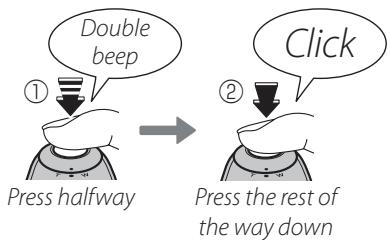
Press the shutter button halfway to focus.
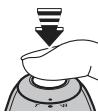

The lens may make a noise when the camera focuses; this is normal. In SRAUTO mode, the camera continuously adjusts focus and searches for faces, increasing the drain on the battery.
If the camera is able to focus, it will beep twice and the indicator lamp will glow green.
If the camera is unable to focus, the focus frame will turn red, !AF will be displayed, and the indicator lamp will blink green. Change the composition or use focus lock (38).
6 Shoot.
Smoothly press the shutter button the rest of the way down to take the picture.
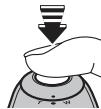
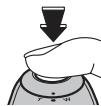
The Shutter Button
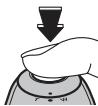
The shutter button has two positions. Pressing the shutter button halfway (①) sets focus and exposure; to shoot, press the shutter button the rest of the way down (②).

If the subject is poorly lit, the AF-assist illuminator may light to assist focus (39). For information on using the flash when lighting is poor, see page 41.

The Indicator Lamp
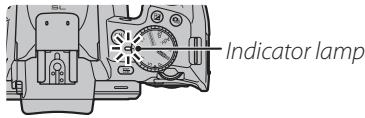
The indicator lamp shows camera status as follows:
| Indicator lamp | Camera status |
| Glows green | Focus locked. |
| Blinks green | Blur, focus, or exposure warning. Picture can be taken. |
| Blinks green and orange | Recording pictures. Additional pictures can be taken. |
| Glows orange | Recording pictures. No additional pictures can be taken at this time. |
| Blinks orange | Flash charging; flash will not fire when picture is taken. |
| Blinks red | Lens or memory error (memory card full or not formatted, format error, or other memory error). |
| WarningsDetailed warnings appear in the display. See pages 122–125 for more information. | |
Viewing Pictures
Pictures can be viewed in the monitor. When taking important photographs, take a test shot and check the results.
1 Press the button.
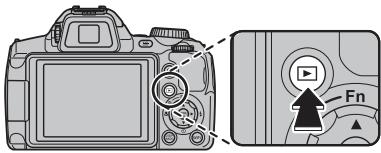
The most recent picture will be displayed in the monitor.
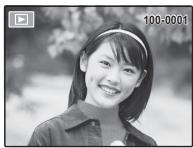
2 View additional pictures.
Press the selector right to view pictures in the order recorded, left to view pictures in reverse order.

Press the shutter button to exit to shooting mode.
Deleting Pictures
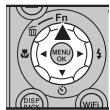
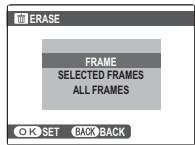
To delete the picture currently displayed in the monitor, press the selector up (面). The following dialog will be displayed.
- Select FRAME and press MENU/OK.
To delete the picture, press MENU/OK.
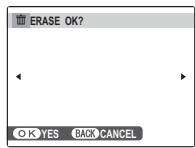
To exit without deleting the picture, press DISP/BACK.
The Playback Menu
Pictures can also be deleted from the playback menu (88).
Shooting Mode
Choose a shooting mode according to the scene or type of subject.
The Mode Dial
To select a shooting mode, align the mode icon with the mark next to the mode dial.
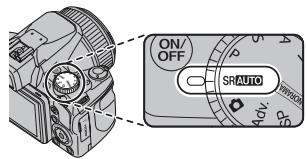
SRAUTO (SCENE RECOGNITION): A "point-and-shoot" mode in which the camera automatically adjusts settings to suit the scene (图18).
(AUTO): A simple "point-and-shoot" mode recommended for first-time users of digital cameras (图25).
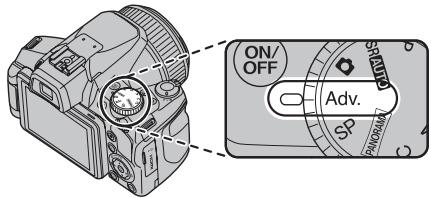
Adv. (ADVANCED): Sophisticated techniques made easy (25).
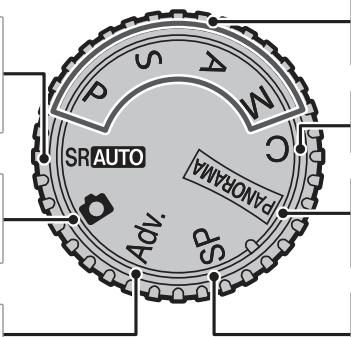
P,S,A,M: Select for full control over camera settings, including aperture (M and A) and/or shutter speed (M and S) (32).
C (CUSTOM): Recall stored settings for modes P,S,A and M 35.
PANorama (MOTION PANorama): Take a series of photographs and combine them to form a panorama (30).
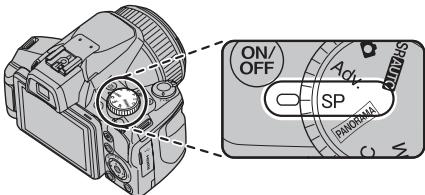
SP (SCENE POSITION): Choose a scene suited to the subject or shooting conditions and let the camera do the rest (29).
SRAUTO SCENE RECOGNITION
The camera automatically analyzes the composition and selects the appropriate scene mode according to the subject and shooting conditions (18).

AUTO
Choose for crisp, clear snapshots. This mode is recommended in most situations.
Adv. ADVANCED
This mode combines "point-and-shoot" simplicity with sophisticated photographic techniques. The Adv. MODE option in the shooting menu can be used to choose from the following advanced modes:
| Adv. MODE | |
| ADVANCED FILTER | 26 |
| PRO LOW-LIGHT | 27 |
| HDR | 27 |
| Natural & | 28 |
| Zoom Bracketing | 28 |
ADVANCED FILTER
Take photos with filter effects. Select a filter effect and press MENU/OK.

Depending on the subject and camera settings, images may in some cases be grainy or vary in brightness and hue.
| Filter | Description |
| TOY CAMERA*1 | Choose for a retro toy camera effect. |
| MINIATURE*2 | The tops and bottoms of pictures are blurred for a diorama effect. |
| POP COLOR*1 | Create high-contrast images with saturated colors. |
| HIGH-KEY*1 | Create bright, low-contrast images. |
| LOW-KEY*1 | Create uniformly dark tones with few areas of emphasized highlights. |
| DYNAMIC TONE*1 | Dynamic tone expression is used for a fantasy effect. |
| FISH-EYE*1*3 | Create a distorting effect of a fisheye lens. |
| SOFT FOCUS*1 | Create a look that is evenly soft throughout the whole image. |
| CROSS SCREEN*2 | Create a star pattern where lines radiate out from bright objects. |
| PARTIAL COLOR (RED)*1 | Areas of the image that are the selected color are recorded in that color. All others areas of the image are recorded in black-and-white. |
| PARTIAL COLOR (ORANGE)*1 | |
| PARTIAL COLOR (YELLOW)*1 | |
| PARTIAL COLOR (GREEN)*1 | |
| PARTIAL COLOR (BLUE)*1 | |
| PARTIAL COLOR (PURPLE)*1 |
1 You can also shoot movies.
2 Check the effect on the images after shooting.
*3 You cannot shoot movies with 1920 × 1080 . MOVIE MODE is automatically changed to 1280 × 720 if 1920 × 1080 is selected.
PRO LOW-LIGHT
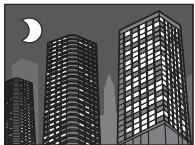
Each time the shutter button is pressed, the camera makes four exposures and combines them into a single photograph. Use to reduce noise and blur
when photographing poorly lit subjects or static subjects at high zoom ratios.

A single combined photograph may not be created with some scenes or if the subject or camera moves during shooting. Do not move the camera until shooting is complete.
#
- Keep the camera steady during shooting.
- Frame coverage is reduced.
HDR
Each time the shutter button is pressed, the camera takes a series of shots, each with different exposure. These are combined into a single image, preserving detail in highlights and shadows. Choose for high-contrast scenes.

A single combined photograph may not be created with some scenes or if the subject or camera moves during shooting. Do not move the camera until shooting is complete.
#
- Keep the camera steady during shooting.
- Frame coverage is reduced.
Natural&
This mode helps ensure good results with backlit subjects and in other situations with difficult lighting. Before shooting, raise the flash; pictures can only be taken when the flash is raised. Each time the shutter button is pressed, the camera takes two shots: one shot without the flash to preserve natural lighting, followed immediately by a second shot with the flash. Do not move the camera until shooting is complete.

- Do not use where flash photography is prohibited.
- Only available if memory remains for two pictures.
- Burst mode is not available.
ZOOM: Zoom Bracketing
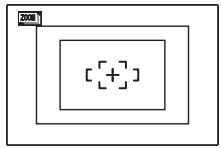
Each time the shutter button is pressed, the camera takes three pictures: one at the current zoom ratio with an image size of L, a second zoomed in 1.4× and cropped to M, and a third zoomed in 2× and cropped to S (pictures will only be taken if there is enough memory for three images). Two frames are displayed to show the areas that will be included in the second and third pictures; the outer frame shows the area that will be recorded at 1.4× zoom, the inner frame the area that will be recorded at 2× zoom.

- Digital zoom can not be used. If digital zoom is active when mode is selected, zoom will be set to the maximum optical zoom position.
- Burst shooting options can not be used.
SP SCENE POSITION
The camera offers a choice of "scenes," each adapted to particular shooting conditions or a specific type of subject. Use the SCENE POSITION option in the shooting menu to choose the scene assigned to the SP position on the mode dial.
| Scene | Description |
| PORTRAIT | Choose this mode for soft-toned portraits with natural skin tones. |
| LANDSCAPE | Choose this mode for crisp, clear daylight shots of buildings and landscapes. |
| SPORT | Choose this mode when photographing moving subjects. Priority is given to faster shutter speeds. |
| NIGHT | Choose this mode for poorly lit twilight or night scenes. Sensitivity is automatically raised to reduce blur caused by camera shake. |
| NIGHT (TRIPOD) | Choose this mode for slow shutter speeds when shooting at night. Use a tripod to prevent blur. |
| FIREWORKS | Slow shutter speeds are used to capture the expanding burst of light from a firework. Choose a shutter speed with the command dial. |
| SUNSET | Choose this mode to record the vivid colors in sunrises and sunsets. |
| SNOW | Choose for crisp, clear shots that capture the brightness of scenes dominated by shining white snow. |
| BEACH | Choose for crisp, clear shots that capture the brightness of sunlit beaches. |
| PARTY | Capture indoor background lighting under low-light conditions. |
| FLOWER | Choose for vivid close-ups of flowers. The camera focuses in the macro range. |
| TEXT | Take clear pictures of text or drawings in print. The camera focuses in the macro range. |

MOTION PANorama 360
Follow an on-screen guide to take photos that will automatically be joined to form a panorama. The camera zooms all the way out and remains fixed at the widest angle until shooting is complete.
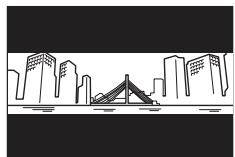
1 To select the angle through which you will pan the camera while shooting, press the selector down. Press the selector left or right to highlight an angle and press MENU/OK.
2 Press the selector right to view a choice of pan directions. Press the selector left or right to highlight a pan direction and press MENU/OK.
3 Press the shutter button all the way down to start recording. There is no need to keep the shutter button pressed during recording.
4 Pan the camera in the direction shown by the arrow. Shooting ends automatically when the progress bar is full and the panorama is complete.
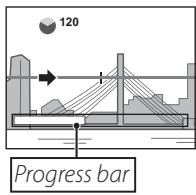

Shooting ends if the shutter button is pressed all the way down during shooting. No panorama will be recorded if the shutter button is pressed before the camera has been panned through 120^ .
#
- Panoramas are created from multiple frames. The camera may in some cases record a greater or lesser angle than selected or be unable to stitch the frames together perfectly. The last part of the panorama may not be recorded if shooting ends before the panorama is complete.
- Shooting may be interrupted if the camera is panned too quickly or too slowly. Panning the camera in a direction other than that shown cancels shooting.
- The desired results may not be achieved with moving subjects, subjects close to the camera, unvarying subjects such as the sky or a field of grass, subjects that are in constant motion, such as waves and waterfalls, or subjects that undergo marked changes in brightness. Panoramas may be blurred if the subject is poorly lit.

For Best Results
For best results, move the camera in a small circle at a steady speed, keeping the camera horizontal and being careful only to pan in the direction shown by the guides. If the desired results are not achieved, try panning at a different speed.
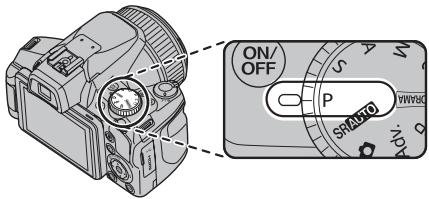
P:PROGRAM AE
In this mode, the camera sets exposure automatically. If desired, you can choose different combinations of shutter speed and aperture that will produce the same exposure (program shift).

If the subject is outside the metering range of the camera, the shutter speed and aperture displays will show "---". Press the shutter button halfway to measure exposure again.

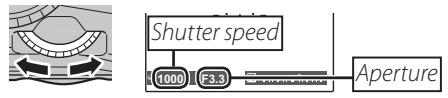
Program Shift
Rotate the command dial to choose the desired combination of shutter speed and aperture. The default values can be restored by raising the flash or turning the camera off. Program shift is only available if the flash is off and an option other than AUTO is selected for ISO ISO.
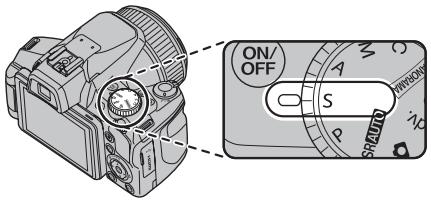
S: SHUTTER PRIORITY AE
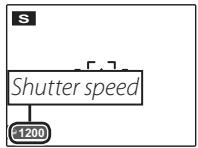
Choose the shutter speed using the command dial, while the camera adjusts aperture for optimal exposure.
#
- If the correct exposure can not be achieved at the selected shutter speed, aperture will be displayed in red. Adjust shutter speed until the correct exposure is achieved. If the subject is outside the metering range of the camera, the aperture display will show "F---". Press the shutter button halfway to measure exposure again.
- The shutter speed is restricted depending on the ISO setting.
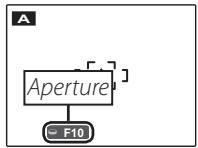
A: APERTURE PRIORITY AE
Choose the aperture using the command dial, while the camera adjusts shutter speed for optimal exposure.

#
If the correct exposure can not be achieved at the selected aperture, shutter speed will be displayed in red. Adjust aperture until the correct exposure is achieved. If the subject is outside the metering range of the camera, the shutter speed display will show "---". Press the shutter button halfway to measure exposure again.
M:MANUAL
In this mode, you choose both shutter speed and aperture. If desired, exposure can be altered from the value suggested by the camera.
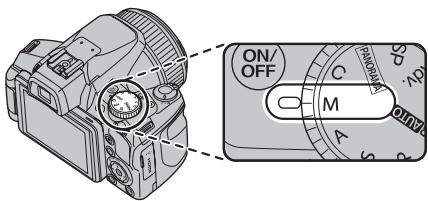
Press the button to choose between shutter speed and aperture and rotate the command dial to adjust the selected setting.
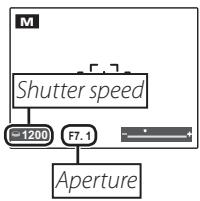

- Noise in the form of randomly-spaced bright pixels may occur in long exposures.
- The shutter speed is restricted depending on the ISO setting.
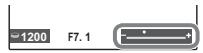
The Exposure Indicator
The amount the picture will be under- or over-exposed at current settings is shown by the exposure indicator.
C: CUSTOM MODE
In P, S, A and M modes, the CUSTOM SET option in the shooting menu (82) can be used to save current camera and menu settings. These settings are recalled whenever the mode dial is rotated to C (custom mode).
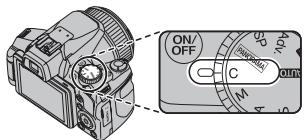
| Menu/setting | Settings saved |
| Shooting menu | ISO, IMAGE SIZE, FINEPIX COLOR, IMAGE QUALITY, PHOTOMETRY, WHITE BALANCE, FOCUS MODE, FLASH, AE BKT EV STEPS, FACE DETECTION |
| Setup menu | IMAGE DISP, IS MODE, SIDE ZOOM LEVER, AF ILLUMINATOR, INTELLIGENT DIGITAL ZOOM |
| Other | Shooting mode (P, S, A, or M), continuous shooting mode, macro mode, exposure compensation, flash mode, shutter speed, aperture, indicators/best framing |
Intelligent Face Detection
Intelligent Face Detection allows the camera to automatically detect human faces and set focus and exposure for a face anywhere in the frame for shots that emphasize portrait subjects. Choose for group portraits (in horizontal or vertical orientations) to prevent the camera from focusing on the background.
1 Turn Intelligent Face Detection on.
To use Intelligent Face Detection, press MENU/OK to display the shooting menu and select ON for FACE DETECTION.
2 Frame the picture.
If a face is detected, it will be indicated by a green border. If there is more than one face in the frame, the camera will select the face closest to the center; other f white borders.
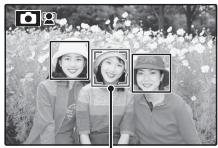
Green border
3 Focus.
Press the shutter button halfway to set focus and exposure for the subject in the green border.
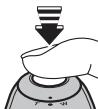

If no face is detected when the shutter button is pressed halfway (116), the camera will focus on the subject at the center of the display and red-eye will not be removed.
4 Shoot.
Press the shutter button all the way down to shoot.
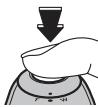

If the subject moves as the shutter button is pressed, their face may not be in the area indicated by the green border when the picture is taken. If the number of faces is large, additional time may be required for processing.

Intelligent Face Detection
Intelligent Face Detection is recommended when using the self-timer for group- or self-portraits (43).
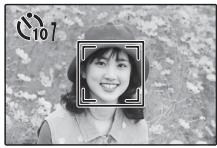
When a picture taken with Intelligent Face Detection is displayed, the camera can automatically select faces for red-eye removal (94), playback zoom (55), slide shows (93), image search (61), image disp. (105), and cropping (96).
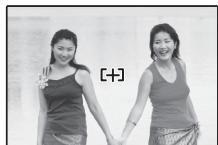
Focus Lock
To compose photographs with off-center subjects:
1 Position the subject in the focus frame.
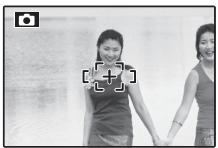
2 Focus.
Press the shutter button halfway to set focus and exposure. Focus and exposure will remain locked while the shutter button is pressed halfway (AF/AE lock).
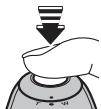
Press halfway
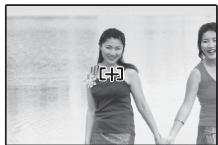
Repeat steps 1 and 2 as desired to refocus before taking the picture.
3 Recompose the picture.
Keeping the shutter button pressed halfway, recompose the picture.
4 Shoot.
Press the shutter-release button the rest of the way down to take the picture.
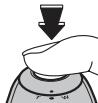
Press the rest of the way down

Autofocus
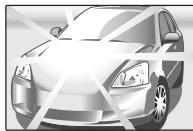
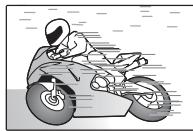
Although the camera boasts a high-precision autofocus system, it may be unable to focus on the subjects listed below. If the camera is unable to focus using autofocus, use focus lock (38) to focus on another subject at the same distance and then recompose the photograph.
-
Very shiny subjects such as mirrors or car bodies.
-
Fast-moving subjects.
- Subjects photographed through a window or other reflective object.
- Dark subjects and subjects that absorb rather than reflect light, such as hair or fur.
- Insubstantial subjects, such as smoke or flame.
- Subjects that show little contrast with the background (for example, subjects in clothing that is the same color as the background).
- Subjects positioned in front of or behind a high-contrast object that is also in the focus frame (for example, a subject photographed against a backdrop of highly contrasting elements).

The AF-Assist Illuminator
If the subject is poorly lit, the AF-assist illuminator will light to assist the focus operation when the shutter button is pressed halfway.

- Avoid shining the AF-assist illuminator directly into your subject's eyes.
- The camera may be unable to focus using the AF-assist illuminator in some cases. If the camera is unable to focus in macro mode (40), try increasing the distance to the subject.
Macro and Super Macro Modes (Close-ups)
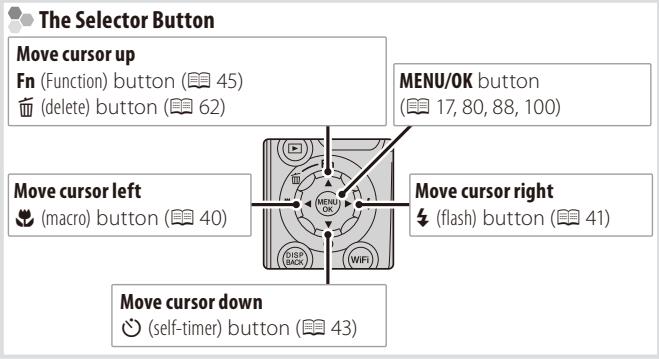
For close-ups, press the selector left ( ) to choose from the macro options shown below.
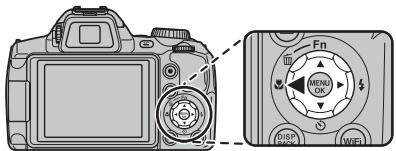
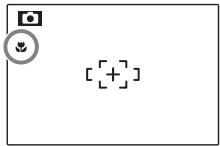
Choose from (macro mode), (super macro mode), or OFF (macro mode off)
When macro mode is in effect, the camera focuses on subjects near the center of the frame. Use the zoom control to compose pictures. In super macro mode, optical zoom can not be adjusted and the flash can not be used.

- Use of a tripod is recommended to prevent blur caused by camera shake.
- Flash compensation may be required when using the flash (图86).
- Using the flash at close range may cast a lens shadow. Zoom a little or have more distance from the subject.
4 Using the Flash (Intelligent Flash)
When the flash is used, the camera's Intelligent Flash system instantly analyzes the scene based on such factors as the brightness of the subject, its position in the frame, and its distance from the camera. Flash output and sensitivity are adjusted to ensure that the main subject is correctly exposed while preserving the effects of ambient background lighting, even in dimly-lit indoor scenes. Use the flash when lighting is poor, for example when shooting at night or indoors under low light.
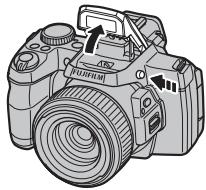
1 Raise the flash.
Press the flash pop-up button to raise the flash.

Turning the Flash Off
Lower the flash where flash photography is prohibited or to capture natural lighting under dim light. At slow shutter speeds, will be displayed to warn that pictures may be blurred; use of a tripod is recommended.
2 Choose a flash mode.
Press the selector right (4). The flash mode changes each time the selector is pressed.
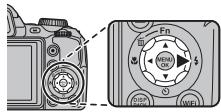
| Mode | Description |
| AUTO/ AUTO (AUTO FLASH) | The flash fires when required. Recommended in most situations. |
| 4/44 (FORCED FLASH) | The flash fires whenever a picture is taken. Use for backlit subjects or for natural coloration when shooting in bright light. |
| $4/8 (SLOW SYNCHRO) | Capture both the main subject and the background under low light (note that brightly lit scenes may be overexposed). |
3 Focus.
Press the shutter button halfway to focus. If the flash will fire, will be displayed when the shutter button is pressed halfway. At slow shutter speeds, will appear in the display to warn that pictures may be blurred; use of a tripod is recommended.
4 Shoot.
Press the shutter button the rest of the way down to shoot.
The flash may fire several times with each shot. Do not move the camera until shooting is complete.

The peripheral part of an image may be dark when using the flash.

Red-Eye Removal
When Intelligent Face Detection is active (36), and ON is selected for RED EYE REMOVAL in the setup menu (102), red-eye removal is available when face detection is performed in AUTO, and
Red-eye removal minimizes "red-eye" caused when light from the flash is reflected from the subject's retinas as shown in the illustration at right.
To use the self-timer, press the selector down (O) and choose from the following options:
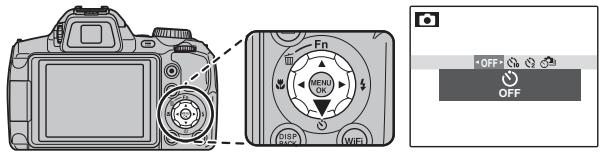
| Option | Description |
| OFF (OFF) | Self-timer off. |
| (10 SEC) | The shutter is released ten seconds after the shutter button is pressed. Use for self-portraits. The self-timer lamp on the front of the camera lights when the timer starts and begins to blink shortly before the photo is taken. |
| (2 SEC) | The shutter is released two seconds after the shutter button is pressed. Use to reduce blur caused by the camera moving when the shutter button is pressed. The self-timer lamp will blink as the timer counts down. |
| (INTERVAL SHOOTING) | Shoots photos automatically at fixed intervals. |

Intelligent Face Detection
Because it ensures that the faces of portrait subjects will be in focus, Intelligent Face Detection (36) is recommended when using the self-timer for group portraits or self-portraits. To use the self-timer with Intelligent Face Detection, select 10SEC or 2SEC in the self-timer menu and then press the shutter button all the way down to start the timer. The camera will detect faces while the timer is counting down and adjust focus and exposure immediately before the shutter is released. Be careful not to move until the picture has been recorded.

The self-timer turns off automatically when the picture is taken, a different shooting mode is selected, playback mode is selected, or the camera is turned off.
Interval shooting
You can automatically shoot at fixed intervals.
- Press (▼), and then select INTERVAL SHOOTING.

- Press MENU/OK to display the Interval Shooting settings screen.

- Set the interval and the shooting duration. Select the items by pressing or , and then set the time by pressing or .
INTERVAL:
Set the interval time. SHOOTING DURATION: Set the time to stop shooting.
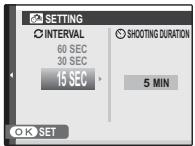
- Press MENU/OK.
Interval shooting is set. - Focus and shoot.
Press the shutter button the rest of the way down to start interval shooting. A photo is automatically taken at the interval time, and interval shooting finishes when the camera reaches the set shooting duration time.

- If you press the shutter button before shooting ends, interval shooting stops.
- The LCD monitor turns off and the indicator lamp flashes during interval shooting. The LCD monitor turns on three seconds before shooting starts.
- Only the first frame is displayed when playing back photos taken by interval shooting (图55).

- Interval shooting may end suddenly if the battery runs out. Check the amount of battery remaining.
- Interval shooting may end suddenly if there is not enough free space on the memory card. Check the amount of free space on the memory card.
- Depending on shooting settings or status, settings may not be applied or interval shooting may not be possible.
- You can only use the ON/OFF button, mode dial, l button, DISP/BACK button, and shutter button during interval shooting.
The Fn Button
The role played by the Fn button can be selected using the Fn Fn BUTTON option in the setup menu (图 102).
The following options are available:
ISO (83)/IMAGE SIZE (83)/IMAGE QUALITY (84)/RAW (temporary RAW
settings) (84)/WHITE BALANCE (51)/FINEPIX COLOR (85)/PHOTOMETRY
(85)/FOCUS MODE (52)/FACE DETECTION (36)/MOVIE MODE (82)

The Fn Fn BUTTON menu can also be displayed by pressing and holding the Fn button.
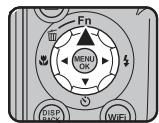
Fn button
Capture motion or automatically vary selected settings over a series of pictures.
Press the button and choose from the following options:
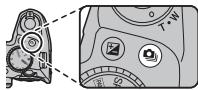
OFF: OFF


CONTINUOUS

CONTINUOUS

CONTINUOUS

BEST FRAME CAPTURE

AE BKT

- Focus and exposure are determined by the first frame in each series. The flash turns off automatically; the previously-selected flash mode is restored when continuous shooting is turned off.
- Frame rate varies with shutter speed, shooting conditions, and the number of pictures in each burst.
- The number of pictures that can be taken in a single burst varies with the scene and camera settings. The number of pictures that can be recorded depends on the memory available.

CONTINUOUS/CONTINUOUS/CONTINUOUS
The camera takes photographs while the shutter button is pressed.
BEST FRAME CAPTURE
The camera takes a series of pictures, starting before and ending after the shutter button is pressed. To choose the frame rate and number of shots:
1 Press the selector right when the camera is in shooting mode.
2 Highlight the current frame rate and press the selector right, then press selector up or down to choose a new value and press MENU/OK to select.


#
Some frame rates may reduce the number of shots available in Step 3.
3 Highlight the number of shots and press the selector right. Press the selector up or down to choose the number of shots in each burst and left or right to choose their distribution (the number on the left is taken before and the number on the right after the shutter button is pressed). Press MENU/OK when settings are complete.
4 Press DISP/BACK to return to shooting mode.
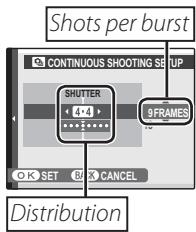


Take photographs. The camera begins recording while the shutter button is pressed halfway, and completes the burst when the shutter button is pressed all the way down. The illustration shows a burst of eight shots, three before the shutter button is pressed and four after.
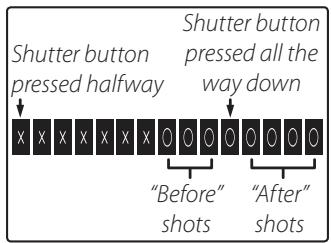

- If the shutter button is pressed all the way down before the number of frames selected for the "before" portion is recorded, the remaining frames will be taken after the shutter button is pressed all the way down.
- If the shutter button is pressed halfway for an extended period, the camera may record the burst before the shutter button is pressed all the way down.

AE BKT
Each time the shutter button is pressed, the camera takes three shots: one using the metered value for exposure, the second overexposed by the amount selected for AE BKT EV STEPS in the shooting menu (86), and the third underexposed by the same amount (the camera may not be able to use the selected bracketing increment if the amount of over- or under- exposure exceeds the limits of the exposure metering system).
Exposure Compensation
Use exposure compensation when photographing very bright, very dark, or high-contrast subjects.
1 Press the 2 button.
The exposure indicator will be displayed.
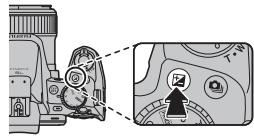
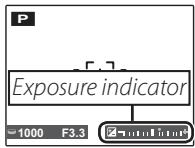
Choose a value.
Rotate the command dial. The effect is visible in the display.
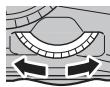
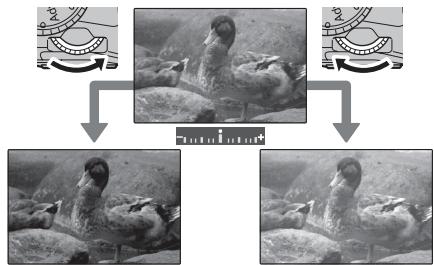
Choose negative values to reduce exposure ("-" sign turns yellow)
Choose positive values to increase exposure ("+ sign turns yellow)
3 Return to shooting mode.
Press the + button to return to shooting mode.
4 Take pictures.

A icon and exposure indicator are displayed at settings other than ± 0 Exposure compensation is not reset when the camera is turned off; to restore normal exposure control, choose a value of ± 0

Choosing an Exposure Compensation Value
- Backlit subjects: choose values from +213 EV to +113 EV
- Highly reflective subjects or very bright scenes (e.g., snowfields): +1 EV
- Scenes that are mostly sky: +1 EV
- Spotlit subjects (particularly if photographed against dark backgrounds): -2 / 3 EV
- Subjects with low reflectivity (pine trees or dark-colored foliage): -2/3 EV
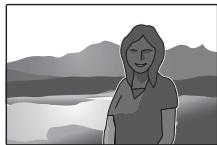
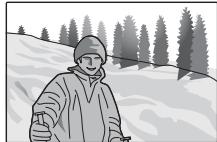
For natural colors, select WB WHITE BALANCE in the shooting menu and choose a setting that matches the light source.
| Option | Description |
| AUTO | White balance adjusted automatically. |
| ☐ | Measure a value for white balance. |
| ※ | For subjects in direct sunlight. |
| ☆ | For subjects in the shade. |
| 畔 | Use under "daylight" fluorescent lights. |
| 畔 | Use under "warm white" fluorescent lights. |
| 畔 | Use under "cool white" fluorescent lights. |
| ☆ | Use under incandescent lighting. |
If AUTO does not produce the desired results (for example, when taking close-ups), select and measure a value for white balance or choose the option that matches the light source.

- At settings other than auto white balance is used with the flash. Lower the flash (41) to take pictures at other settings.
- Results vary with shooting conditions. Play pictures back after shooting to check colors in the monitor.
:Custom White Balance
Choose to adjust white balance for unusual lighting conditions. White balance measurement options will be displayed; frame a white object so that it fills the monitor and press the shutter button all the way down to measure white balance.
If "COMPLETED!" is displayed, press MENU/OK to set white balance to the measured value. This value can be reselected by pressing MENU/OK when custom white balance options are displayed.
If "UNDER" is displayed, raise exposure compensation (49) and try again.
If "OVER" is displayed, lower exposure compensation and try again.

To give a deliberate color cast to your photographs, measure a value for custom white balance using a colored instead of a white object.
Focus Mode
Use FOCUS MODE from the shooting menu to change how the camera focuses.
1 Select FOCUS MODE from the shooting menu. The Focus Mode settings screen is displayed.
2 Select the focus mode.
| Mode | Description | ||
| MF MANUAL | Focus manually using the command dial. Rotate the dial left to reduce the focus distance, right to increase. Choose for manual control of focus or in situations in which the camera is unable to focus using autofocus (39). Intelligent Face Detection turns off automatically. | ||
| Reduce focus distance | Increase focus distance | Manual focus mode icon | |
| CENTER | The camera focuses on the subject in the center of the frame. | ||
| + MULTI | When the shutter button is pressed halfway, the camera detects high-contrast subjects near the center of the frame and selects the focus area automatically. | ||
| AREA | Choose the focus area manually (54). | ||
| CONTINUOUS | The camera continually adjusts focus to reflect changes in the distance to the subject even when the shutter button is not pressed halfway (note that this increases the drain on the batteries). Choose for moving subjects. | ||
| TRACKING | Position the subject in the center focus area and press the selector left. Focus will track the subject as it moves through the frame. | ||
M (MANUAL FOCUS)
- Use of a tripod is recommended. Focus may be affected if the camera moves.
- The camera will not focus when the focus ring is rotated all the way to the right. To focus at infinity, focus on a distant object.
Focus check
- If ON is selected for MF FOCUS CHECK in the setup menu (102), rotating the command dial magnifies the view.
- The outlines with the most contrast at the current focus distance can be viewed by selecting FOCUS PEAK HIGHLIGHT for MF MF ASSIST (81). To switch between FOCUS PEAK HIGHLIGHT and STANDARD, select MF ASSIST from the shooting menu.
Focus Frame Selection
When AREA is selected for FOCUS MODE in the shooting menu, the camera offers a choice of focus points. To position the focus frame, press the selector up, down, left, or right. Press MENU/OK to put the setting into effect.
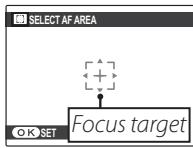

Disable intelligent face detection (37) when using manual focus frame selection.
Playback Options
To view the most recent picture in the monitor, press the button.
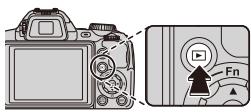
Press the selector right to view pictures in the order recorded, left to view pictures in reverse order. Keep the selector pressed to scroll rapidly to the desired frame.


Pictures taken using other cameras are indicated by a ("gift image") icon during playback.
Continuous Shooting
In the case of pictures taken in continuous shooting mode, only the first frame of each series will be displayed. Press the selector down to view the other pictures in the series.

Pictures taken in continuous shooting mode have file names that start with "S". (e.g. S0010001.JPG)
Playback Zoom
Select T to zoom in on pictures displayed in single-frame playback; select W to zoom out. When the picture is zoomed in, the selector can be used to view areas of the image not currently visible in the display.
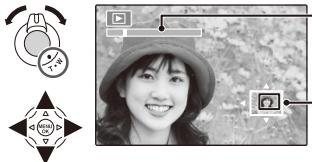
Zoom indicator
Navigation window shows portion of image currently displayed in monitor
Press DISP/BACK to exit zoom.

The maximum zoom ratio varies with image size. Playback zoom is not available with copies resized or cropped to a size of 640 or smaller.

Intelligent Face Detection
Pictures taken with Intelligent Face Detection (36) are indicated by a icon. Press the button to zoom in on the subject selected with Intelligent Face Detection. You
can then use the zoom control to zoom in and out.
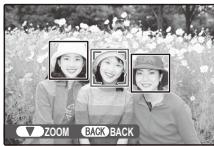

Favorites: Rating Pictures
To rate the picture currently displayed in full-frame playback, press DISP/BACK and press the selector up and down to select from zero to five stars.

Favorites
Ratings can be used for image search (图61).
Multi-Frame Playback
To change the number of images displayed during playback, select W.


Select W to increase the number of pictures displayed to, two, nine, or a hundred.
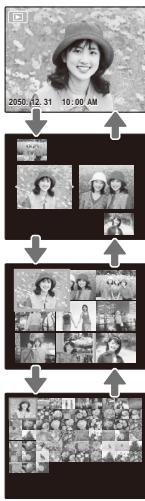
Select T to reduce the number of images displayed.
Use the selector to highlight images and press MENU/OK to view the highlighted image full frame. In the nine- and hundred-frame displays, press the selector up or down to view more pictures.
Two-Frame Display
Two-frame display can be used to compare pictures taken in mode.
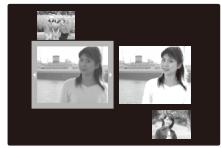
Viewing Panoramas
If you press the selector down when a panorama is displayed full frame, the camera will play back the picture from left to right or from bottom to top.
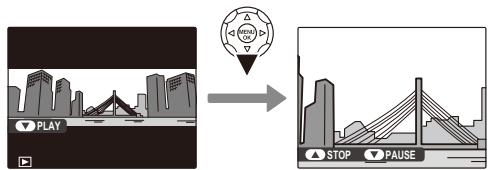
The following operations can be performed during playback:
| Operation | Button | Description |
| Start/pause playback | Press the selector down to start playback. Press again to pause. | |
| End playback | Press the selector up to end playback. |
Create books from your favorite photos.
Creating a PhotoBook
1 Select PHOTOBOOK ASSIST in the playback menu.
2 Highlight NEW BOOK.
3 Press MENU/OK to display the new book dialog.
4 Choose pictures for the new book.
- SELECT FROM ALL: Choose from all the pictures available.
- SELECT BY IMAGE SEARCH: Choose from pictures matching selected search conditions (图61).

Neither photographs 640 or smaller nor movies can be selected for photobooks.


5 Scroll through the images and press the selector up to select or deselect the current image for inclusion in the book. To display the current image on the cover, press the selector down.
The first picture selected automatically becomes the cover image. Press the selector down to select a different picture for the cover.
6 Press MENU/OK to exit when the book is complete.
7 Highlight COMPLETE PHOTOBOOK.


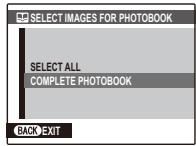

Choose SELECT ALL to select all photos, or all photos matching the specified search conditions, for the book.
Press MENU/OK. The new book will be added to the list in the photobook assist menu.


- Photobooks can contain up to 300 pictures.
- Books that contain no photos are automatically deleted.

PhotoBooks
Photobooks can be copied to a computer using the supplied MyFinePix Studio software.
Viewing PhotoBooks
Highlight a book in the photobook assist menu and press MENU/OK to display the book, then press the selector left and right to scroll through the pictures. Press DISP/BACK to return to the photobook assist menu.
Editing and Deleting PhotoBooks
1 Display the photobook and press MENU/OK to view book edit options.

2 Choose from the following options:
- EDIT: Edit the book as described in "Creating a PhotoBook" on page 59.
- ERASE: Delete the current photobook.
3 Follow the on-screen instructions.
Search for pictures by date, subject, scene, file type, and rating.
1 Select IMAGE SEARCH in the playback menu.
2 Highlight one of the following options and press MENU/OK:


| Option | Description |
| BY DATE | Find all pictures taken on a selected date. |
| BY FACE | Find all pictures containing faces. |
| BY ★ FAVORITES | Find all pictures with a specified rating (☑ 56). |
| BY TYPE OF DATA | Find all still pictures or all movies. |
| BY DOWNLOAD MARK | Find all pictures selected for upload to a specified destination (☑ 91). |
3 Select a search condition. Only pictures that match the search condition will be displayed. To delete or protect selected pictures or to view the selected pictures in a slide show, press MENU/OK and choose from the following options:


| Option | See page |
| ERASE | 62 |
| PROTECT | 95 |
| SLIDE SHOW | 93 |
4 To end the search, select EXIT SEARCH.
To delete individual pictures, multiple selected pictures, or all pictures, press the selector up (窗口), and choose from the options below. Note that deleted pictures can not be recovered. Copy important pictures to a computer or other storage device before proceeding.


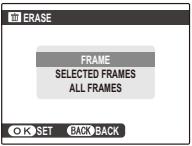
| Option | Description |
| FRAME | Press the selector left or right to scroll through pictures and press MENU/OK to delete the current picture (a confirmation dialog is not displayed). |
| SELECTED FRAMES | Highlight pictures and press MENU/OK to select or deselect (pictures that are protected or in a print order are shown by ☑). When the operation is complete, press DISP/BACK to display a confirmation dialog, then highlight OK and press MENU/OK to delete the selected pictures. |
| ALL FRAMES | A confirmation dialog will be displayed; highlight OK and press MENU/OK to delete all unprotected pictures. Pressing DISP/BACK cancels deletion; note that any pictures deleted before the button was pressed can not be recovered. |

- Protected pictures can not be deleted. Remove protection from any pictures you wish to delete (95).
- Pictures can also be deleted by ERASE from playback menu.
- If a message appears stating that the selected images are part of a DPOF print order, press MENU/OK to delete the pictures.
Using Wireless Networks
You can connect the camera with a smartphone or a PC. For information on using wireless networks, http://fujifilm-dsc.com/wifi/.
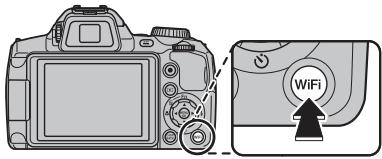
Connecting with smartphones
Press the WiFi button to connect to smartphones via a wireless network.
When connecting to smartphones, you can use the following functions:
- Taking pictures using smartphones
- Uploading pictures to smartphones
- Browsing and downloading the pictures on the camera using smartphones
- Downloading location data from smartphones
Before proceeding, download the free FUJIFILM Camera Remote app and install it on your smartphone.

This option can also be enabled by WIRELESS COMMUNICATION from shooting or playback menu.
Saving Pictures to a Computer
Press and hold the WiFi button during playback to save pictures to a computer over a wireless network. Before proceeding, install the free FUJIFILM PC AutoSave application to the destination computer and adjust settings as desired.

This option can also be enabled by PC AUTO SAVE from playback menu.
Recording Movies
Press to shoot a movie. During recording, the following indicators will be displayed and sound will be recorded via the built-in microphone (be careful not to cover the microphone during recording).
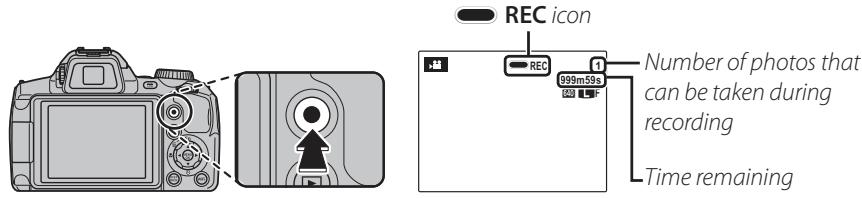
To end recording, press the button again. Recording ends automatically when the movie reaches maximum length or memory is full.

- Exposure and white balance are adjusted automatically throughout recording. The color and brightness of the image may vary from that displayed before recording begins.
- Sounds made by the camera may be recorded.

Taking Photographs during Recording
Press the shutter button to take a photograph during recording.

The photo is saved separately from the movie and does not appear as part of the movie.

- Photos can not be taken while a high-speed movie is being recorded.
- The number of photos that can be taken is limited.
Super Macro Movies
Select Super Macro as the macro mode to shoot movies.

Optical zoom can not be adjusted when shooting movies in super macro.
DIGITAL IMAGE STABILIZER
You can correct camera vibrations that occur when shooting movies to shoot images with only minor vibrations using the DIGITAL IMAGE STABILIZER in the setup menu.
#
- The indicator lamp lights while movies are being recorded. Do not open the battery chamber during shooting or while the indicator lamp is lit. Failure to observe this precaution could prevent the movie from being played back.
- Vertical or horizontal streaks may appear in movies containing very bright subjects. This is normal and does not indicate a malfunction.
- The temperature of the camera may rise if it is used to record movies for an extended period or if the ambient temperature is high. This is normal and does not indicate a malfunction.
Movie Frame Size
Before recording, select a frame size using the Movie MODE option in the shooting menu (82).
| Option | Description |
| HS 1920×1080 | Full HD (High Definition). |
| HD 1280×720 | High Definition. |
| 640 640×480 | Standard definition. |
| HS 640×480 (120fps) | High speed movie. Sound is not recorded, and focus, exposure, and white balance are not adjusted automatically. |
| HS 320×240 (240fps) | |
| HS 240×180 (480fps) |

Automatic Scene Selection
In mode, the camera selects the scene according to shooting conditions and the type of subject: (portraits), (poorly-lit landscapes), (poorly-lit portraits), (landscapes), (close-ups), or (other subjects).

Scene icon
Viewing Movies
During playback (55), movies are displayed in the monitor as shown at right. The following operations can be performed while a movie is displayed:
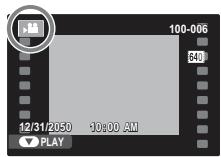
| Operation | Description |
| Start/pause playback | Press the selector down to start playback. Press again to pause. |
| End playback/ delete | Press the selector up to end playback. If playback is not in progress, pressing the selector up will delete the current movie. |
| Advance/ rewind | Press the selector left or right to adjust play-back speed. Speed is shown by the number of arrows (► or ◆). |
| Adjust volume | Press MENU/OK to pause playback and display volume controls. Press the selector up or down to adjust the volume; press MENU/OK again to set the volume. |
Progress is shown in the monitor during playback.
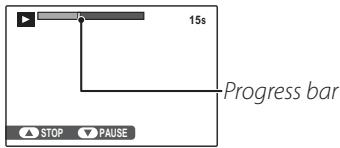
Viewing Movies on a Computer
Copy movies to the computer before viewing.

Do not cover the speaker during playback.
Connecting the Camera to High Definition (HD) TVs
When an HDMI cable (available from third-party suppliers) is connected, pictures and sound are played back on the TV.
1 Turn the camera off and connect an HDMI cable available from third party suppliers.
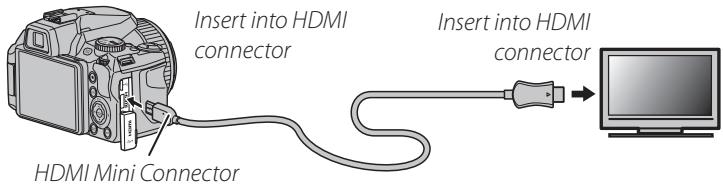

- Use an HDMI cable no more than 1.5m (4.9 ft.) long.
- The USB cable can not be used while an HDMI cable is connected.
2 Tune the television to the video or HDMI input channel. See the documentation supplied with the television for details.
Press the button for about a second to turn the camera on. The camera monitor turns off and pictures and movies are played back on the TV. Note that the camera volume controls have no effect on sounds played on the TV; use the television volume controls to adjust the volume.

When connecting the cable, be sure the connectors are fully inserted.
Printing Pictures via USB
If the printer supports PictBridge, the camera can be connected directly to the printer and pictures can be printed without first being copied to a computer. Note that depending on the printer, not all the functions described below may be supported.

Connecting the Camera
1 Connect the supplied USB cable as shown and turn the printer on.
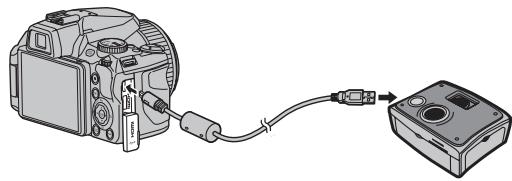
Press the button for about a second to turn the camera on. USB will be displayed in the monitor, followed by the PictBridge display shown below at right.
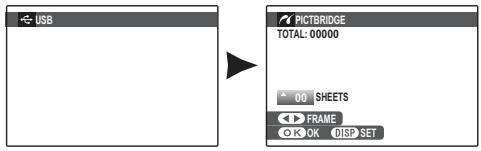
Printing Selected Pictures
Press the selector left or right to display a picture you wish to print.
2 Press the selector up or down to choose the number of copies (up to 99).
3 Repeat steps 1-2 to select additional pictures. Press MENU/OK to display a confirmation dialog when settings are complete.
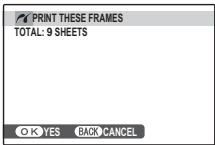
4 Press MENU/OK to start printing.


图 Printing the Date of Recording
To print the date of recording on pictures, press DISP/ BACK in steps 1-2 to display the PictBridge menu (see "Printing the DPOF Print Order," below). Press the selector up or down to highlight PRINT WITH DATE and press MENU/OK to return to the PictBridge display (to print pictures without the date of recording, select PRINT WITHOUT DATE).

If no pictures are selected when the MENU/OK button is pressed, the camera will print one copy of the current picture.
Printing the DPOF Print Order
To print the print order created with PRINT ORDER (DPOF) in the playback menu (图72).
1 In the PictBridge display, press DISP/ BACK to open the PictBridge menu.

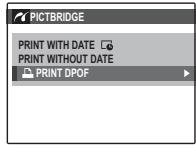
2 Press the selector up or down to highlight PRINT DPOF.

3 Press MENU/OK to display a confirmation dialog.

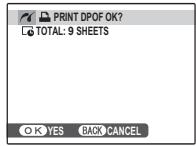
4 Press MENU/OK to start printing.


During Printing
The message shown at right is displayed during printing. Press DISP/BACK to cancel before all pictures are printed (depending on the printer, printing may end before the current picture has printed).
If printing is interrupted, press to turn the camera off and then on again.

Disconnecting the Camera
Confirm that "PRINTING" is not displayed in the monitor and turn the camera off. Disconnect the USB cable.
- Print pictures from a memory card that has been formatted in the camera.
- If the printer does not support date printing, the PRINT WITH DATE option will not be available in the PictBridge menu and the date will not be printed on the pictures in the DPOF print order.
- When pictures are printed via direct USB connection, page size, print quality, and border selections are made using the printer.
Creating a DPOF Print Order
The PRINT ORDER (DPOF) option in the playback menu can be used to create a digital "print order" for PictBridge-compatible printers (109) or devices that support DPOF.

DPOF
DPOF (Digital Print Order Format) is standard that allows pictures to be printed from "print orders" stored on a memory card. The information in the order includes the pictures to be printed, date imprint, and the number of copies of each picture.
WITH DATE /WITHOUT DATE
To modify the DPOF print order, select PRINT ORDER (DPOF) in the playback menu and press the selector up or down to highlight WITH DATE or WITHOUT DATE.
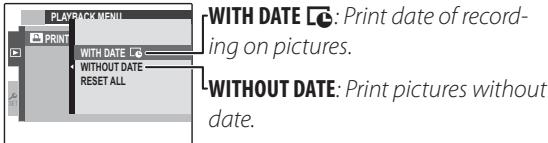
Press MENU/OK and follow the steps below.
Press the selector left or right to display a picture you wish to include in or remove from the print order.

2 Press the selector up or down to choose the number of copies (up to 99). To remove a picture from the order, press the selector down until the number of copies is 0.

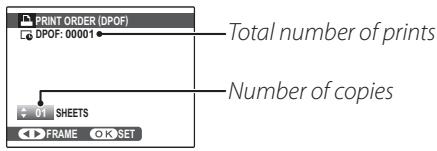

When pictures are printed via direct USB connection, page size, print quality, and border selections are made using the printer.
3 Repeat steps 1-2 to complete the print order. Press MENU/OK to save the print order when settings are complete, or DISP/BACK to exit without changing the print order.
4 The total number of prints is displayed in the monitor. Press MENU/OK to exit.


The pictures in the current print order are indicated by a icon during playback.

- Print orders can contain a maximum of 999 pictures.
- If a memory card is inserted containing a print order created by another camera, the message shown at right will be displayed. Pressing MENU/OK cancels the print order; a new print order must be created as described above.
RESETALL
To cancel the current print order, select RESET ALL in the PRINT ORDER (DPOF) menu. The confirmation shown at right will be displayed; press MENU/OK t from the order.
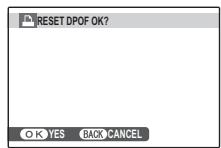
Viewing Pictures on a Computer
The supplied software can be used to copy pictures to a computer, where they can be stored, viewed, organized, and printed. Before proceeding, install the software as described below. Do NOT connect the camera to the computer until installation is complete.
Windows: Installing MyFinePix Studio
1 Confirm that the computer meets the following system requirements:
| Windows 8/Windows 7 (SP 1)/Windows Vista (SP 2)1 | Windows XP (SP 3)1 | |
| CPU | 3 GHz Pentium 4 or better(2.4 GHz Core 2 Duo or better)2 | 2 GHz Pentium 4 or better(2.4 GHz Core 2 Duo or better)2 |
| RAM | 1 GB or more | 512 MB or more(1 GB or more)2 |
| Free disk space | 2 GB or more | |
| GPU | Supports DirectX 9 or later(recommended) | Supports DirectX 7 or later(required; performance not guaranteed with other GPUs) |
| Video | 1,024×768 pixels or more with 24-bit color or better | |
| Other | • Built-in USB port recommended. Operation is not guaranteed with other USB ports. • Internet connection (broadband recommended) required to install .NET Framework (if necessary), to use auto update feature, and when performing such tasks as sharing pictures on-line or via e-mail. • Installation of .Net Framework 3.5 SP1 required to use upload picture feature and MapViewer. | |
1 Other versions of Windows are not supported. Only pre-installed operating systems are supported; operation is not guaranteed on home-built computers or computers that have been upgraded from earlier versions of Windows.
2 Recommended when displaying HD movies.
2 Start the computer. Log in to an account with administrator privileges before proceeding.
3 Exit any applications that may be running and insert the installer CD in a CD-ROM drive.

Windows 8/Windows 7/Windows Vista
If an AutoPlay dialog is displayed, click SETUP. EXE. A "User Account Control" dialog will then be displayed; click Yes (Windows 8/Windows 7) or Allow (Windows Vista).
The installer will start automatically; click Install MyFinePix Studio and follow the on-screen instructions to install MyFinePix Studio and RAW FILE CONVERTER.

If the Installer Does Not Start Automatically (Windows 7/Windows Vista/Windows XP)
If the installer does not start automatically, select Computer or My Computer from the Start menu, then double-click the FINEPIX CD icon to open the FINEPIX CD window and double-click setup or SETUP.EXE.

If the Installer Does Not Start Automatically (Windows 8)
1 Select Desktop on the Start screen.
2 Select File Explorer on the taskbar.
3 Select Computer in the navigation pane.
4 Double-click the drive icon inserting the FINEPIX CD and follow the on-screen instructions to install.
4 If prompted to install Windows Media Player or DirectX, follow the on-screen instructions to complete installation.
5 Remove the installer CD from the CD-ROM drive when installation is complete. Store the installer CD in a dry location out of direct sunlight in case you need to re-install the software. The version number is printed at the top of the CD label for reference when updating the software or contacting customer support.
Installation is now complete. Proceed to "Connecting the Camera" on page 78.
Macintosh: Installing RAW FILE CONVERTER
RAW FILE CONVERTER is used to view RAW images on your computer.
1 Confirm that the computer meets the following system requirements:
| CPU | Intel (Core 2 Duo or better) |
| OS | Pre-installed versions of Mac OS X version 10.6–10.9 .visit http://www.fujifilm.com/support/digital Cameras/compatibility/ for more information) |
| RAM | 1 GB or more |
| Free disk space | A minimum of 200 MB required for installation with 400 MB available when RAW FILE CONVERTER is running |
| Video | 1,024 × 768 pixels or more with 24-bit color or better |
2 After starting the computer and quitting any applications that may be running, insert the installer CD in a CD-ROM drive and double-click SILKYRFCEXInstaller.
3 Enter an administrator name and password when prompted and click OK, then follow the on-screen instructions to install. Click Exit to quit the installer when installation is complete.
4 Remove the installer CD from the CD-ROM drive. Note that you may be unable to remove the CD if Safari is running; if necessary, quit Safari before removing the CD. Store the installer CD in a dry location out of direct sunlight in case you need to re-install the software.
Installation is now complete. Proceed to "Connecting the Camera" on page 78.
Importing pictures or movies to Mac (Macintosh)
Use a standard application in Mac OS such as Image Capture to import pictures or movies to Mac.
Connecting the Camera
1 If the pictures you wish to copy are stored on a memory card, insert the card into the camera (图 11).

Windows users may require the Windows CD when starting the software for the first time.

Loss of power during transfer could result in loss of data or damage to the memory card. Charge the battery before connecting the camera.
2 Turn the camera off and connect the supplied USB cable as shown, making sure the connectors are fully inserted. Connect the camera directly to the computer; do not use a USB hub or keyboard.
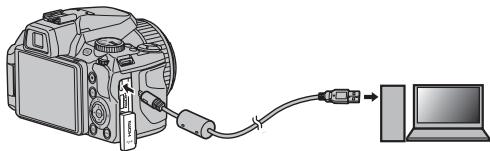
Press the button for about a second to turn the camera on. After starting MyFinePix Studio, follow the on-screen instructions to copy pictures to the computer. To exit without copying pictures, click Cancel.
For more information on using the supplied software, start the application and select the appropriate option from the Help menu.
#
- If a memory card containing a large number of images is inserted, there may be a delay before the software starts and you may be unable to import or save images. Use a memory card reader to transfer pictures.
- Make sure that the computer does not display a message stating that copying is in progress and that the indicator lamp is out before turning the camera off or disconnecting the USB cable (if the number of images copied is very large, the indicator lamp may remain lit after the message has cleared from the computer display). Failure to observe this precaution could result in loss of data or damage to the memory card.
- Disconnect the camera before inserting or removing memory cards.
- In some cases, it may not be possible to access pictures saved to a network server using the supplied software in the same way as on a standalone computer.
- The user bears all applicable fees charged by the phone company or Internet service provider when using services that require an Internet connection.

Disconnecting the Camera
After confirming that the indicator lamp is out, follow the on-screen instructions to turn the camera off and disconnect the USB cable.

Uninstalling the Supplied Software
Only uninstall the supplied software when it is no longer required or before beginning reinstallation. After quitting the software and disconnecting the camera, open the control panel and use "Programs and Features" (Windows 8/Windows 7/Windows Vista) or "Add or Remove Programs" (Windows XP) to uninstall MyFinePix Studio. Under Windows, one or more confirmation dialogs may be displayed; read the contents carefully before clicking OK.
Using the Menu: Shooting Mode
Using the Shooting Menu
1 Press MENU/OK to display the shooting menu.
2 Press the selector up or down to highlight the desired menu item.
3 Press the selector right to display options for the highlighted item.


4 Press the selector up or down to highlight the desired option.
5 Press MENU/OK to select the highlighted option.
6 Press DISP/BACK to exit from the menu.


Shooting Menu Options
| Menu item | Description | Options | Default | |
| SCENE POSITION | Choose a scene for SP mode (☑ 29). | /▲/▲/▲/▲/▲/▲/▲/▲/▲/▲/▲/▲/▲/▲/▲/▲/▲/▲/▲/▲/▲/▲/▲/▲/▲/▲/▲/▲/▲/▲/▲/▲/▲/▲/▲/▲/▲/▲/▲/▲/▲/▲/▲/▲/▲/▲/▲/▲/▲/▲/■/▲/▲/▲/▲/▲/▲/▲/▲/▲/▲/▲/▲/▲/▲/▲/▲/▲/▲/▲/▲/▲/▲/▲/▲/▲/▲/▲/▲/▲/▲/▲/▲/▲/▲/▲/▲/▲/▲/▲/▲/▲/▲/▲/▲/▲/▲/▲/▲/▲/▼/▲/▲/▲/▲/▲/▲/▲/▲/▲/▲/▲/▲/▲/▲/▲/▲/▲/▲/▲/▲/▲/▲/▲/▲/▲/▲/▲/▲/▲/▲/▲/▲/▲/▲/▲/▲/▲/▲/▲/▲/▲/▲/▲/▲/▲/▲/▲/▲/▲/###/▲/▲/▲/▲/▲/▲/▲/▲/▲/▲/▲/▲/▲/▲/▲/▲/▲/▲/▲/▲/▲/▲/▲/▲/▲/▲/▲/▲/▲/▲/▲/▲/▲/▲/▲/▲/▲/▲/▲/▲/▲/▲/▲/▲/▲/▲/▲/▲/▲/1:1/1:1/1:1/1:1/1:1/1:1/1:1/1:1/1:1/1:1/1:1/1:1/1:1/1:1/1:1/1:1/1:1/1:1/1:1/1:1/1:1/1:1/1:1/1:1/1:1/1:3/1:3/2/16:9/11:1/M 4:3/M 3:2/M 16:9/M 1:1/M 4:3/M 3:2/M 16:9/M 1:1/S 4:3/S 3:2/S 16:9/S 1:1 | ||
| Adv. MODE | Choose an advanced shooting mode (☑ 25). | /▲/▲/▲/▲/▲/▲/▲/▲/▲/▲/▲/▲/▲/▲/▲/▲/▲/▲/▲/▲/▲/▲/▲/▲/▲/▲/▲/▲/▲/▲/▲/▲/▲/▲/▲/▲/▲/▲/▲/▲/▲/▲/▲/▲/▲/▲/▲/▲/###/###/###/###/###/###/###/###/###/###/###/###/###/###/###/###/###/###/###/###/###/###/###/###/###/###/###/###/###/###/###/###/###/###/###/###/###/###/###/###/###/###/###/###/###/###/###/###/###/###/▲/▲/▲/▲/▲/▲/▲/▲/▲/▲/▲/▲/▲/▲/▲/▲/▲/▲/▲/▲/▲/▲/▲/▲/▲/▲/▲/▲/▲/▲/▲/▲/▲/▲/▲/▲/▲/▲/▲/▲/▲/▲/▲/▲/▲/▲/▲/▲/###/### ###/###/###/###/###/###/###/###/###/###/###/###/###/###/###/###/###/###/###/###/###/###/###/###/###/###/###/###/###/###/###/###/###/###/###/###/###/###/###/###/###/###/###/###/###/###/###/###/###/###/ <|im_start|>assistant ISO ISO | AUTO (3200)/AUTO (1600)/AUTO (800)/AUTO (400)/12800/6400/3200/1600/800/400/200/100 | AUTO (800) |
| IMAGE SIZE | Choose image size and aspect ratio (☑ 83). | L 4:3/L 3:2/L 16:9/L 1:1/M 4:3/M 3:2/M 16:9/M 1:1/S 4:3/S 3:2/S 16:9/S 1:1 | L 4:3 | |
| IMAGE QUALITY | Choose image quality (☑ 84). | FINE/NORMAL/FINE+RAW/NORMAL+RAW | NORMAL | |
| FINEPIX COLOR | Shoot pictures in standard or saturated color or in black-and white (☑ 85). | ###/###/###/### | ### | |
| WHITE BALANCE | Adjust color for different light sources (☑ 51). | AUTO/☐/☐/☐/☐/☐/☐/☐/☐/☐/☐/☐/☐/☐/☐/☐/☐/☐/☐/☐/☐/☐/☐/☐/☐/☐/☐/☐/☐/☐/☐/☐/☐/☐/☐/☐/☐/☐/☐/☐/☐/☐/☐/☐/☐/☐/☐/☐/☐/☐/☐/ ☐ | AUTO | |
| FACE DETECTION | Choose whether the camera automatically detects and sets focus and exposure for human portrait subjects (☑ 36). | ON/OFF | OFF | |
| PHOTOMETRY | Choose how the camera meters exposure (☑ 85). | [☑] [☑] [☑] | ☑ | |
| FOCUS MODE | Choose how the camera selects a focus area (☑ 52). | [☑] [☑] [☑] [☑] | ☑ | |
| MF ASSIST | Choose how focus is displayed in manual focus mode (☑ 53). | STANDARD/FOCUS PEAK HIGH-LIGHT | FOCUS PEAK HIGHLIGHT | |
| MOVIE AF MODE | This option controls how the camera selects the focus area for movies (☑ 86). | [☑] [☑] | ☑ |
| Menu item | Description | Options | Default |
| MOVIE MODE | Choose a frame size for movies (☐ 66). | ☐ 1920 × 1080/☐ 1280 × 720/☐ 640 × 480/☐ 320 × 240/☐ 240 × 180 | ☐ 1920 × 1080 |
| WIRELESS COMMUNICATION | When connecting to smartphones, you can use the following functions: • Taking pictures using smartphones • Uploading pictures to smartphones • Browsing and downloading the pictures on the camera using smartphones • Downloading location data from smartphones For information on using wireless networks, visit http://fujifilm-dsc.com/wifi/. | — | — |
| AE BKT EV STEPS | Choose the size of the bracketing increment when ☐ is selected in continuous shooting mode (☐ 86). | ±½EV/±½EV/±1EV | ±½EV |
| FLASH | Adjust flash brightness (☐ 86). | -¾EV- +¾EVin steps of ¼EV | 0 |
| EXTERNAL FLASH | Enable an optional flash unit from third party suppliers (☐ 87). | ON/OFF | OFF |
| CUSTOM SET | Save settings for P, S, A, and M modes (☐ 35). | — | — |
| REVERSE DISPLAY | The image is flipped horizontally and displayed on the LCD monitor. | ON/OFF | OFF |
ISO ISO
Control the camera's sensitivity to light. Higher values can be used to reduce blur when lighting is poor; note, however, that mottling may appear in pictures taken at high sensitivities. If AUTO, AUTO (800), or AUTO (400) is selected, the camera will adjust sensitivity automatically in response to shooting conditions. The maximum values that will be selected by the camera at settings of AUTO (800) and AUTO (400) are 800 and 400 respectively. Settings other than AUTO are shown by an icon in the display.

Sensitivity is not reset when the camera is turned off or another shooting mode is selected.
IMAGE SIZE
Choose the size and aspect ratio at which still pictures are recorded. Large pictures can be printed at large sizes with no drop in quality; small pictures require less memory, allowing more pictures to be recorded.
The number of pictures that can be taken at the selected setting is shown in the display (126).
| Size Versus Aspect Ratio | |
| Size | |
| Option | Prints at sizes up to |
| L | 34×25 cm (13.5×10 in.) |
| M | 24×18 cm (9.5×7 in.) |
| S | 17×13 cm (7×5 in.) |
| Aspect ratio | |
| 4:3: Pictures have the same proportions as the camera display. | |
| 3:2: Pictures have the same proportions as a frame of 35 mm film. | |
| 16:9: Suited for display on High Definition (HD) devices. | |
| 1:1: Pictures are square. | |

Image size is not reset when the camera is turned off or another shooting mode is selected.
IMAGE QUALITY
Choose a file format and compression ratio. Select FINE or NORMAL to record JPEG images, RAW to record RAW images, or FINE+RAW or NORMAL+RAW to record both JPEG and RAW images. FINE and FINE+RAW use lower JPEG compression ratios for higher-quality JPEG images, while NORMAL and NORMAL+RAW user higher JPEG compression ratios to increase the number of images that can be stored.

RAW images record raw, unprocessed data from the camera image sensor.

- RAW pictures cannot be recorded to internal memory. Insert a memory card.
- Crop, resize, and red-eye removal options are not available with RAW images during playback, while the maximum available zoom ratio is restricted.
FINEPIX COLOR
Enhance contrast and color saturation or take pictures in black and white.
| Option | Description |
| STANDARD | Standard contrast and saturation. Recommended in most situations. |
| CHROME | Vivid contrast and color. Choose for vivid shots of flowers or en- hanced greens and blues in land- scapes. |
| B&W | Take pictures in black and white. |
| SEPIA | Take pictures in sepia. |
Settings other than STANDARD are shown by an icon in the display.

- FINEPIX COLOR is not reset when the camera is turned off or another shooting mode is selected.
- The effects of CHROME vary from scene to scene and may be difficult to discern with some subjects. Depending on the subject, the effects of CHROME may not be visible in the display.
PHOTOMETRY
Choose how the camera meters exposure when Intelligent Face Detection is off.
- MULTI: Automatic scene recognition is used to adjust exposure for a wide range of shooting conditions.
- [ ] SPOT: The camera meters lighting conditions at the center of the frame. Recommended when the background is much brighter or darker than the main subject. Can be used with focus lock (图38) to meter off-center subjects.
- [ ] AVERAGE: Exposure is set to the average for the entire frame. Provides consistent exposure across multiple shots with the same lighting, and is particularly effective for landscapes and portraits of subjects dressed in black or white.
MOVIE AF MODE
This option controls how the camera selects the focus area for movies.
| Option | Description |
| CENTER | The camera focuses on the subject in the center of the frame. |
| CONTINUOUS | The camera continuously adjusts focus to reflect changes in the distance to subjects near the center of the frame. |

Note that in mode, the camera focuses continuously, increasing the drain on the battery, and that the sound of the camera focusing may be audible.

AE BKT EV STEPS
Choose the size of the exposure bracketing increment used when (AE bracketing) is selected in continuous shooting mode (46).
Choose from increments of ± 1/3EV , ± 3/3EV , and ± 1EV .
FLASH
Adjust flash brightness. Choose from values between +2/3 EV and -2/3 EV. The default setting is ± 0 . Note that the desired results may not be achieved depending on shooting conditions and the distance to the subject.
EXTERNAL FLASH
Choose ON when using an optional flash unit (except Fujifilm products) mounted on the camera hot shoe.
- The flash may not fully light the subject at speeds faster than 1/1000 s.
- Use auto or custom white balance (51).
- If the built-in flash is raised when ON is selected for EXTERNAL FLASH, the built-in flash will fire once to provide a signal for the optional flash unit to fire.
- Fujilm external flash units do not require this setting.
- The camera can be used with flash units that provide aperture adjustment, external metering, and sensitivity control. Some flash units that are designed specifically for other cameras can not be used.
- For information on Fujifilm external flash units, see Accessories from FUJIFILM (图111).
Using the Playback Menu
1 Press the button to enter playback mode.
2 Press MENU/OK to display the playback menu.
3 Press the selector up or down to highlight the desired menu item.
4 Press the selector right to display options for the highlighted item.
5 Press the selector up or down to highlight the desired option.
6 Press MENU/OK to select the highlighted option.


Playback Menu Options
The following options are available:
| Option | Description |
| WIRELESS COM-MUNICATION | When connecting to smartphones, you can use the following functions: · Taking pictures using smartphones · Uploading pictures to smartphones · Browsing and downloading the pic-tures on the camera using smart-phones · Downloading location data from smartphones For information on using wireless net-works, visit http://fujifilm-dsc.com/wifi/. |
| PC AUTO SAVE | Upload pictures to a computer over a wireless network. For information on using wireless net-works, visit http://fujifilm-dsc.com/wifi/. |
| IMAGE SEARCH | Search for pictures by date, subject, scene, file type, or rating (☑ 61). |
| ERASE | Delete all or selected pictures (☑ 62). |
| MOVIE EDIT | Edit movies (☑ 90). |
| MARK FOR DOWNLOAD | Select pictures for upload to YouTube or FACEBOOK (☑ 91). |
| SLIDE SHOW | View pictures in a slide show (☑ 93). |
| RED EYE REMOVAL | Create copies with reduced red eye (☑ 94). |
| ON PROTECT | Protect pictures from accidental deletion (95). |
| CROP | Create cropped copies of pictures (96). |
| RESIZE | Create small copies of pictures (97). |
| IMAGE ROTATE | Rotate pictures (98). |
| COPY | Copy pictures from internal memory to a memory card (99). |
| PHOTOBOOK ASSIST | Create books from your favorite photos (59). |
| PRINT ORDER (DPOF) | Select pictures for printing on DPOF- and PictBridge-compatible devices (72). |
| DISP. ASPECT | Choose how High Definition (HD) devices display pictures (99). |
MOVIEEDIT
Edit movies.
MOVIE TRIMMING
Remove opening or ending footage to create an edited copy of the current movie.
1 Display the desired movie.
2 Select Movie EDIT in the playback menu, then select Movie TRIMMING. To remove footage from the start of the copy, proceed to Step 3; otherwise, proceed to Step 4.
3 Press the selector down to begin playback and press it down again when the new opening frame is reached.
4 Press MENU/OK. To remove footage from the end of the copy, proceed to Step 5; otherwise, proceed to Step 6.
Press the selector down to begin playback and press it down again when the new closing frame is reached.
6 Press MENU/OK to save the copy.
MOVIE JOIN
Add existing footage to the end of the current movie to create an edited copy.
1 Display the desired movie.
2 Select Movie EDIT in the playback menu, then select Movie JOIN.
3 Press the selector left or right to highlight a movie.
4 Press MENU/OK to add the highlighted footage to the end of the current movie and save the resulting copy, or press DISP/BACK to exit without creating a copy.
Both movies must have been recorded at the same frame size and frame rate.
MARK FOR UPLOAD
You can select images and movies to be queued for upload to YouTube, Facebook and MyFinePix.com. Select MARK FOR DOWNLOAD in the playback menu.
Add/Remove Items in the Upload Queue
1 Select an upload destination.
2 Press MENU/OK.
3 Select items to be added to, or removed from, the upload queue.
4 Press MENU/OK to confirm.
- Items not in the upload queue will be added to the queue when you select them and press MENU/OK.
- Items in the upload queue will be removed from the queue when you select them and press MENU/OK.


5 Repeat steps 3 and 4 as necessary and add or remove items.
When finished, press DISP/BACK to save the settings.


- YouTube, Facebook or MyFinePix.com is displayed to indicate items queued for upload.
- Only movies can be selected for upload to YouTube.
- Only photos can be selected for upload to MyFinePix. com.
- During playback, selected pictures are indicated by YouTube, Facebook or MyFinePix.com icons.
Removing All Items From the Upload Queue
You can remove all items from the upload queue.
1 Select RESET ALL.
The screen for removing all items from the upload queue is displayed.

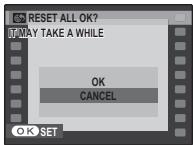
2 Select OK.

3 Press MENU/OK.
All items are removed from the upload queue.


If there are many items in the upload queue when you select to remove all items from the queue, it may take some time to remove them. To cancel, press DISP/BACK.
■ Upload Items
Items added to the upload queue using the camera can be easily uploaded from a computer by using the MyFinePix Studio. Install MyFinePix Studio (75).
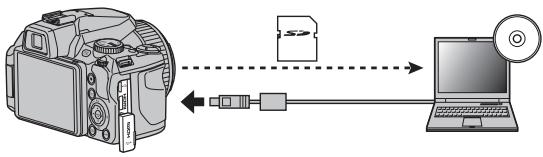

This feature is available only when using a computer running Windows.
SLIDE SHOW
View pictures in an automated slide show. Choose the type of show and press MENU/OK to start. Press DISP/BACK at any time during the show to view on-screen help. When a movie is displayed, movie playback will begin automatically, and the slide show will continue when the movie ends. The show can be ended at any time by pressing MENU/OK.
| Option | Displayed in |
| NORMAL | Press selector left or right to go back or skip ahead one frame. Select FADE-IN for fade transitions between frames. |
| FADE-IN | |
| NORMAL | As above, except that camera automatically zooms in on faces selected with Intelligent Face detection. |
| FADE-IN |

The camera will not turn off automatically while a slide show is in progress.
RED EYE REMOVAL
If the current picture is marked with a icon to indicate that it was taken with Intelligent Face Detection, this option can be used to remove red-eye. The camera will analyze the image; if red-eye is detected, the image will be processed to create a copy with reduced red-eye.
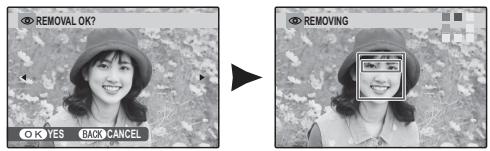

- Red eye may not be removed if the camera is unable to detect a face or the face is in profile. Results may differ depending on the scene. Red eye can not be removed from pictures that have already been processed using red-eye removal or pictures created with other devices.
- The amount of time needed to process the image varies with the number of faces detected.
- Copies created with RED EYE REMOVAL are indicated by a icon during playback.
PROTECT
Protect pictures from accidental deletion. The following options are available.
FRAME
Protect selected pictures.
1 Press the selector left or right to display the desired picture.

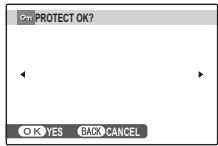
Picture not protected
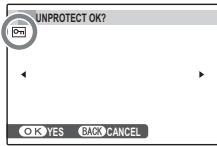
Protected picture
2 Press MENU/OK to protect the picture. If the picture is already protected, pressing MENU/OK will remove protection from the image.
3 Repeat steps 1-2 to protect additional images. Press DISP/BACK to exit when the operation is complete.


SETALL
Press MENU/OK to protect all pictures, or press DISP/BACK to exit without changing picture status.
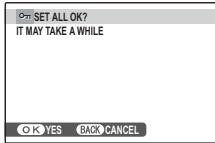
RESETALL
Press MENU/OK to remove protection from all pictures, or press DISP/BACK to exit without changing picture status.
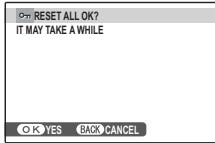
If the number of pictures affected is very large, a message will be displayed while the operation is in progress. Press DISP/BACK to exit before the operation is complete.
#
Protected pictures will be deleted when the memory card is formatted (105).
CROP
To create a cropped copy of a picture, play the picture back and select CROP in the playback menu (88).
1 Use the zoom control to zoom in and out and use the selector to scroll the picture until the desired portion is displayed (to exit to single-frame playback without creating a cropped copy, press DISP/BACK).
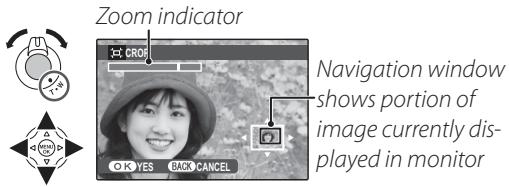
If the size of the final copy will be 640, YES will be displayed in yellow.
Intelligent Face Detection
If the picture was shot with Intelligent Face Detection (36), will be displayed in the monitor. Press the button to zoom in on the selected face.
2 Press MENU/OK to view the copy size. Larger crops produce larger copies.
3 Press MENU/OK to save the cropped copy to a separate file.


Pictures taken with other cameras can not be cropped.

RESIZE
To create a small copy of a picture, play the picture back and select RESIZE in the playback menu (88).
1 Press the selector up or down to highlight the size.

2 Press MENU/OK to select the highlighted option.
3 Press MENU/OK to copy the picture at the selected size.


IMAGE ROTATE
By default, pictures taken in tall orientation are displayed in wide orientation. Use this option to display pictures in the correct orientation in the monitor. It has no effect on pictures displayed on a computer or other device.

- Protected pictures can not be rotated. Remove protection before rotating pictures (图95).
- The camera may not be able to rotate pictures created with other devices.
To rotate a picture, play the picture back and select IMAGE ROTATE in the playback menu (88).
1 Press the selector down to rotate the picture 90^ clockwise, up to rotate the picture 90^ counterclockwise.

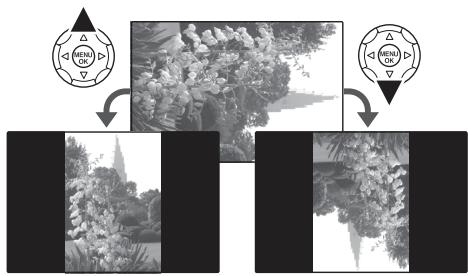
2 Press MENU/OK to confirm the operation (to exit without rotating the picture, press DISP/BACK).

The next time the picture is played back, it will automatically be rotated.
COPY COPY
Copy pictures from internal memory to a memory card.
1 Select COPY COPY in the playback menu.
2 Highlight one of the following options and press the selector right:
- IN INTERNAL MEMORY 50 CARD: Copy pictures from internal memory to a memory card.
- CARD IN INTERNAL MEMORY: Copy pictures from a memory card to internal memory.
3 Highlight one of the following options and press MENU/OK:
- FRAME: Copy selected pictures. Press the selector left or right to view pictures and press MENU/OK to copy the current picture.
- ALL FRAMES: Copy all pictures.

- Copying ends when the destination is full.
DPOF print information is not copied (图72).
DISP.ASPECT
Choose how High Definition (HD) devices display pictures with an aspect ratio of 4:3 (this option is available only when an HDMI cable is connected). Select 16:9 to display the image so that it fills the screen with its top and bottom cropped out, 4:3 to display the entire image with black bands at either side.
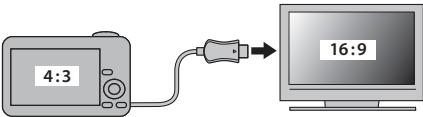
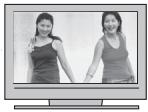
16:9
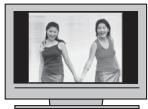
4:3

Photographs with an aspect ratio of 16:9 are displayed full screen, those with an aspect ratio of 3:2 in a black frame.
Using the Setup Menu
1 Display the setup menu.
1.1 Press MENU/OK to display the menu for the current mode.
1.2 Press the selector left to highlight a left tab.
1.3 Press the selector up or down to select The setup menu appears.
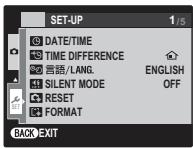


2 Adjust settings.
2.1 Press the selector right to activate the setup menu.
2.2 Press the selector up or down to highlight a menu item.
2.3 Press the selector right to display options for the highlighted item.
2.4 Press the selector up or down to highlight an option.
2.5 Press MENU/OK to select the highlighted option.
2.6 Press DISP/BACK to exit from the menu.


Setup Menu Options
| Menu item | Description | Options | Default |
| DATE/TIME | Set the camera clock (◎17). | — | — |
| TIME DIFFERENCE | Set the clock to local time (◎104). | △/△ | △ |
| 言語/LANG. | Choose a language (◎17). | — | ENGLISH |
| SILENT MODE | Disables the AF-assist illuminator (except for the ◎4 shooting mode), operation sounds, shutter sound, and movie playback sound. | ON/OFF | OFF |
| RESET | Reset all settings except ◎ DATE/TIME, ◎ TIME DIFFERENCE, and ◎BACKGROUND COLOR to default values. A confirmation dialog will be displayed, press the selector up or down to highlight OK and press MENU/OK. | — | — |
| FORMAT | Format memory cards (◎105). | — | — |
| IMAGE DISP. | Choose how long pictures are displayed after shooting (◎105). | 1.5 SEC/0.5 SEC/ZOOM/OFF | 0.5 SEC |
| FRAME NO. | Choose how files are named (◎106). | CONT./RENEW | CONT. |
| OPERATION VOL. | Adjust the volume of camera controls. | (high) / (low) / (mid) / (low) / (mute) | (1) |
| SHUTTER VOLUME | Adjust the volume of the shutter sound. | ||
| SHUTTER SOUND | Choose the sound made by the shutter. | 1/2 | 1/1 |
| PLAYBACK VOLUME | Adjust the volume for movie playback (◎106). | — | 7 |
| LCD BRIGHTNESS | Control the brightness of the display (◎106). | AUTO/MANUAL | AUTO |
| MONITOR SUNLIGHT MODE | Select ON to make the display in the monitor easier to read in bright light. | ON/OFF | OFF |
| LCD POWER SAVE | Choose whether to save power to increase battery life (106). | POWER SAVE ON / POWER SAVE OFF | POWER SAVE ON |
| AUTO POWER OFF | Choose the auto power off delay (107). | 2 MIN / 5 MIN / OFF | 2 MIN |
| QUICK START MODE | Allow the camera to restart in a fast manner after turned off (ON/OFF) (107). | 24MIN/10 MIN/OFF | 10 MIN |
| Fn BUTTON | Choose the role played by the Fn button (45). | ISO / 3 / 4 / RAW / WB / 10 / 10 / 10 / 10 | ISO |
| IS MODE | Enable image stabilization during shooting (←), CONTINUOUS) or only when the shutter button is pressed halfway (→) SHOOTING ONLY. OFF turns image stabilization off. Choose this option when using a tripod (10 20). | (←)1 / (→)2 / OFF | (←)1 |
| DIGITAL IMAGE STABI-LIZER | Set whether or not to correct camera vibrations when shoot-ing movies. | ON/OFF | ON |
| RED EYE REMOVAL | Remove "red-eye" effects caused by the flash. | ON/OFF | ON |
| INTELLIGENT DIGITAL ZOOM | Enable or disable intelligent digital zoom (108). | ON/OFF | OFF |
| MOVIE ZOOM TYPE | Choose the zoom type when recording movies (10 64). | D1 / D2 | Opt |
| SIDE ZOOM LEVER | Choose the setting of the side lever (19). | H/L | H |
| AF ILLUMINATOR | Turn the AF-assist illuminator on or off (10 39). | ON/OFF | ON |
| FOCUS CHECK | If ON is selected, the image will be magnified in the display to assist focus when the command dial is rotated in manual focus mode (10 53). | ON/OFF | ON |
| SAVE ORG IMAGE | Choose ON to save unprocessed copies of seamless pan-oramas or pictures taken using RED EYE REMOVAL PRO LOW-LIGHT MODE, or PRO FOCUS MODE. | ON/OFF | OFF |
| AUTOROTATE PB | Choose ON to automatically rotate "tall" (portrait-orientation) pictures during playback. | ON/OFF | ON |
| BACKGROUND COLOR | Choose a color scheme. | — | — |
| WIND FILTER | Choose ON to reduce the noise of the wind when shooting movies. | ON/OFF | ON |
| CUSTOM RESET | Reset all settings for mode C. A confirmation dialog will be displayed, press the selector up or down to highlight OK and press MENU/OK. | — | — |
| WIRELESS SETTING | Adjust settings for connection to a wireless network. For information on using wireless networks, visit http://fujifilm-dsc.com/wifi/. | — | — |
| PC AUTO SAVE SETTING | Choose a destination for images uploaded using PC AUTO SAVE. For information on using wireless networks, http://fujifilm-dsc.com/wifi/. | — | — |
| GEOTAGGING SET-UP | Access location data options. For information on using wireless networks, visit http://fujifilm-dsc.com/wifi/. | — | — |
| DATE STAMP | Choose whether to add shooting date and time to the pic-tures. | 31 + 4 / 31 / OFF | OFF |
TIME DIFFERENCE
When travelling, use this option to switch the camera clock instantly from your home time zone to the local time at your destination.
1 Specify the difference between local time and your home time zone.
1.1 Press the selector up or down to highlight LOCAL.
1.2 Press the selector right to display the time difference.
1.3 Press the selector left or right to highlight + , - , hours, or minutes; press up or down to edit.
1.4 Press MENU/OK when settings are complete.


2 Switch between local time and your home time zone.
To switch between local time and your home time zone, highlight LOCAL or HOME and press MENU/OK.
- HOME: Switch to the time currently selected for DATE/TIME (17).
- LOCAL: Switch to local time. If this option is selected, + and the time and date will be displayed in yellow for three seconds each time the camera is turned on.
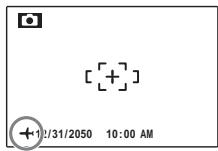
After changing time zones, check that the date and time are correct.
FORMAT
Format a memory card. Highlight OK and press MENU/OK to begin formatting.
#
- All data—including protected pictures—will be deleted. Be sure important files have been copied to a computer or other storage device.
- Do not open the battery cover during formatting.
2 IMAGE DISP.
Choose an option other than OFF to display pictures in the monitor after shooting. Pictures can be displayed for 1.5 s (1.5 SEC), 0.5 s (0.5 SEC), or until the MENU/OK button is pressed (ZOOM (CONTINUOUS)). If ZOOM (CONTINUOUS) is selected, photos can be zoomed in to check focus and other fine details (see page 55). Note that ZOOM (CONTINUOUS) is disabled in continuous shooting mode (46), and that the colors displayed at settings of 1.5 SEC and 0.5 SEC may differ from those in the final picture.
When the picture is zoomed in, the selector can be used to view areas of the image not currently visible in the display.
When the picture was taken with FACE DETECTION turned on, detected face is zoomed. When more than one face was detected, you can move to the next face by pressing .
ZOOM (CONTINUOUS) is disabled in the following case:
- 12000 is selected in the shooting mode.
- An option other than OFF is selected for CONTINUOUS.
FRAME NO.
New pictures are stored in image files named using a four-digit file number assigned by adding one to the last file number used. The file number is displayed dur
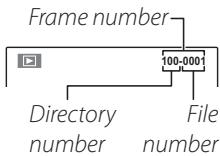
ing playback as shown at right. FRAME NO. controls whether file numbering is reset to 0001 when a new memory card is inserted or the current memory card is formatted.
- CONTINUOUS: Numbering continues from the last file number used or the first available file number, whichever is higher. Choose this option to reduce the number of pictures with duplicate file names.
- RENEW: Numbering is reset to 0001 after formatting or when a new memory card is inserted.

- If the frame number reaches 999-9999, the shutter release will be disabled (124).
- Selecting RESET (101) resets FRAME NO. to CONTINUOUS but does not reset frame numbering.
- Frame numbers for pictures taken with other cameras may differ.
PLAYBACK VOLUME
Press the selector up or down to choose volume for movie playback and press MENU/OK to select.
LCD BRIGHTNESS
Press the selector up or down to choose display brightness and press MENU/OK to select.
LCD POWER SAVE
Choose whether to save power to increase battery life. This option does not take effect during playback or recording movies.
| Option | Description |
| POWER SAVE ON | The display dims to save power if no operations are performed for a few seconds. Normal brightness can be restored by pressing the shutter button halfway. |
| POWER SAVE OFF | Automatic dimming off. |
AUTO POWER OFF
Choose the length of time before the camera turns off automatically when no operations are performed. Shorter times increase battery life; if OFF is selected, the camera must be turned off manually. Note that regardless of the option selected, the camera will not turn off automatically when connected to a printer (69) or computer (78) or when a slide show is in progress (93).
Reactivating the Camera
To reactivate the camera after it has turned off automatically, press the ON/OFF button or the 口 button for about a second (16).
ON QUICK START MODE
Allow the camera to restart in a fast manner after turned off (24MIN/10 MIN/OFF). After specified time has passed, the camera will discontinue this option.

This option will increase drain on the battery.
DIGITAL IMAGE STABILIZER
If ON is selected, camera vibrations that occur when shooting movies are corrected, allowing you to shoot images with only minor vibrations.

Digital image stabilizer is unavailable when shooting still images.
INTELLIGENT DIGITAL ZOOM
If ON is selected, selecting T at the maximum optical zoom position triggers intelligent digital zoom, further magnifying the image while processing it for sharp, high-resolution results.

- Intelligent digital zoom may end when another mode is selected.
- Intelligent digital zoom may sometimes produce lower quality images than optical zoom.
- The time needed to record images increases.
- Intelligent digital zoom is not available in continuous mode or during movie recording.
Zoom indicator, INTELLIGENT DIGITAL ZOOM off
Zoom indicator, INTELLIGENT DIGITAL ZOOM on (except for super macro mode)
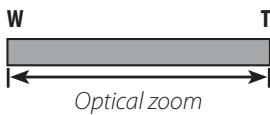
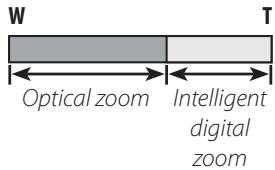
DATE DATE STAMP
To add shooting date and time, choose 31 + ①. To add only shooting date, choose 31. When OFF is selected, no information will be added to the pictures.

- Added shooting date and time can not be deleted from the pictures. To take pictures without date and time, select OFF for DATE DATE STAMP.
- When the camera clock is not set, setting dialog will be displayed. Set the date and time (17).
- When using DATE DATE STAMP, selecting WITHOUT DATE for PRINT ORDER (DPOF) is recommended (72).
- Date and time can not be added to the movies and the panoramas.
Optional Accessories
The camera supports a wide range of accessories from FUJIFILM and other manufacturers.
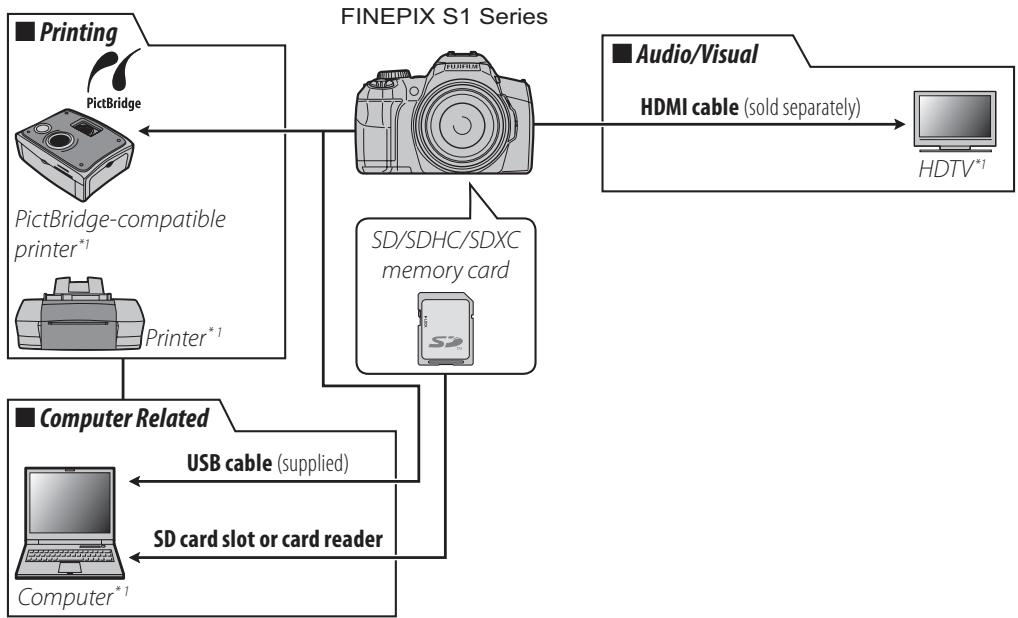
1 Available separately.
2 SDXC memory card is not supported.
Accessories from FUJIFILM
The following optional accessories are available from FUJIFILM. For the latest information on the accessories available in your region, check with your local FUJIFILM representative or visit http://www.fujifilm.com/products/digital Cameras/index.html.
| Rechargeable Li-ion batteries | NP-85 | Additional large-capacity NP-85 rechargeable batteries can be purchased as required. | |
| Battery chargers | BC-85A | Replacement battery chargers can be purchased as required. The BC-85A charges an NP-85 battery in about 180 minutes at +20 °C (+68 °F). | |
| Remote releases | RR-90 | Use to reduce camera shake or keep the shutter open during a time exposure. | |
| Lens hoods | LH-S1 | Protect the lens and prevent glare and lens flare. | |
| Shoe-mounted flash units | EF-20 | This hot-shoe clip-on flash unit has a guide number of 20 (ISO 100), supports i-TTL, can be angled up to 90° for bounce-flash photography, and takes two AA 1.5 V batteries. | |
| EF-42 | This hot-shoe clip-on flash unit has a guide number of 42 (ISO 100), features 24–105 mm auto zoom, supports i-TTL, can be angled up to 90° for bounce-flash photography, and takes four AA 1.5 V batteries. | ||
| EF-X20 | This clip-on flash unit has a guide number of 20 (ISO 100, m/ft.), supports i-TTL, manual exposure and slave flash, and takes two AA 1.5 V batteries. | ||
| Adapter ring | AR-S1 | It is used when attaching the PRF-72 protector filter or φ72 mm filters available from third-party suppliers. | |
| Protector Filter | PRF-72 | Protect the lens from scratches caused by sand, dust, and other foreign objects when shooting outdoors. The AR-S1 adapter ring is required when attaching the filter. |
Caring for the Camera
To ensure continued enjoyment of the product, observe the following precautions.
Storage and Use
If the camera will not be used for an extended period, remove the battery and memory card. Avoid using the camera for extended periods or storing it in locations that are:
exposed to steam or smoke
- very humid or extremely dusty
- exposed to direct sunlight or very high temperatures, such as in a closed vehicle on a sunny day
extremely cold
- subject to strong vibration
exposed to strong magnetic fields, such as near a broadcasting antenna, power line, radar emitter, motor, transformer, or magnet
- in contact with volatile chemicals such as pesticides
- next to rubber or vinyl products
Water and Sand
This camera cannot be used under water. Keep the camera against penetration of garbage, mud, sand, dust, water, harmful gas, salt, and so on. Do not place the camera on a wet surface. Make sure the covers (caps) for the battery, card slot and ports are securely closed before use. If the camera is exposed to rain, droplets of water, and so on, dry it thoroughly.
Condensation
Sudden increases in temperature, such as occur when entering a heated building on a cold day, can cause condensation inside the camera. If this occurs, turn the camera off and wait an hour before turning it on again. If condensation forms on the memory card, remove the card and wait for the condensation to dissipate.
Cleaning
Use a blower to remove dust from the lens and monitor, then gently wipe with a soft, dry cloth. Any remaining stains can be removed by wiping gently with a piece of FUJIFILM lens-cleaning paper to which a small amount of lens-cleaning fluid has been applied. Care should be taken to avoid scratching the lens or monitor. The camera body can be cleaned with a soft, dry cloth. Do not use alcohol, thinner, or other volatile chemicals.
Traveling
Keep the camera in your carry-on baggage. Checked baggage may suffer violent shocks that could damage the camera.
Troubleshooting
Power and Battery
| Problem | Possible cause | Solution | Page | |
| Power supply | The camera does not turn on. | The batteries are exhausted. | Insert fresh or fully-charged spare batteries. | 9 |
| The batteries are not in the correct orientation. | Re-insert the batteries in the correct orientation. | 9 | ||
| The battery-chamber cover is not latched. | Latch the battery-chamber cover. | 10 | ||
| The batteries run down quickly. | The batteries are cold. | Warm the batteries by placing them in a pocket or other warm place and re-insert them in the camera immediately before taking a picture. | vii | |
| There is dirt on the battery terminals. | Clean the terminals with a soft, dry cloth. | — | ||
| ON is selected for MONITOR SUNLIGHT MODE. | Select OFF to reduce the drain on the battery. | 7 | ||
| The camera is in SRAUTO mode. | Select another shooting mode. | 24 | ||
| CONTINUOUS is selected for FO-CUS MODE. | Select a different focusing option. | 52 | ||
| The camera turns off suddenly. | The batteries are exhausted. | Insert fresh or fully-charged spare batteries. | 9 | |
| Charging does not start. | — | Reinsert the battery in the correct orientation and make sure that the power connection is made. | 14 | |
| Charging is slow. | — | Charge the battery at room temperature. | — | |
| The indicator lamp flashes and the battery does not charge. | There is dirt on the battery terminals. | Clean the terminals with a soft, dry cloth. | — | |
| The battery has been charged many times. | The battery has reached the end of its charging life. Purchase a new battery. If the battery still fails to charge, contact your FUJIFILM dealer. | — | ||
| The battery is too hot or too cold. | Wait for the battery temperature to stabilize. | 14 | ||
Menu and Displays
| Problem | Possible cause | Solution | Page |
| Menu and displays are not in English. | English is not selected for the 20 言語/LANG. option in the setup menu. | Select ENGLISH. | 17, 101 |
Shooting
| Problem | Possible cause | Solution | Page | |
| Taking pictures | No picture is taken when the shutter button is pressed. | Memory is full. | Insert a new memory card or delete pictures. | 11, 62 |
| Memory is not formatted. | Format the memory card. | 105 | ||
| There is dirt on the memory card contacts. | Clean the contacts with a soft, dry cloth. | — | ||
| The memory card is damaged. | Insert a new memory card. | 11 | ||
| The batteries are exhausted. | Insert fresh or fully-charged spare batteries. | 9 | ||
| The camera has turned off automatically. | Turn the camera on. | 16 | ||
| The monitor goes dark after shooting. | The flash has fired. | The monitor may darken while the flash charges. Wait for the flash to charge. | 41 | |
| Focus | The camera does not focus. | The subject is close to the camera. | Select macro mode. | 40 |
| The subject is far away from the camera. | Cancel macro mode. | |||
| The subject is not suited to autofocus. | Use focus lock. | 38 | ||
| Intelligent Face Detection | Face detection not available. | Intelligent Face Detection is not available in the current shooting mode. | Choose a different shooting mode. | 24 |
| No face is detected. | The subject's face is obscured by sunglasses, a hat, long hair, or other objects. | Remove the obstructions. | 36 | |
| The subject's face occupies only a small area of the frame. | Change the composition so that the subject's face occupies a larger area of the frame. | |||
| The subject's head is tilted or horizontal. | Ask the subject to hold their head straight. | |||
| The camera is tilted. | Hold the camera straight. | 20 | ||
| The subject's face is poorly lit. | Shoot in bright light. | — | ||
| Wrong subject selected. | The selected subject is closer to the center of the frame than the main subject. | Recompose the picture or turn face detection off and frame the picture using focus lock. | 38, 81 | |
| Close-ups | Macro mode is not available. | Macro mode is not available in the current shooting mode. | Choose a different shooting mode. | 24, 40 |
| Flash | The flash does not fire. | The flash is lowered. | Raise the flash. | 41 |
| The flash is charging. | Wait for the flash to charge. | 41 | ||
| The flash is not available in the current shooting mode. | Choose a different shooting mode. | 24 | ||
| The batteries are exhausted. | Insert fresh or fully-charged spare batteries. | 9 | ||
| The camera is in super macro or continuous shooting mode. | Turn super macro and continuous shooting modes off. | 40, 46 | ||
| Flash mode not available. | The desired flash mode is not available in the current shooting mode. | Choose a different shooting mode. | 24 | |
| The flash does not fully light the subject. | The subject is not in range of the flash. | Position the subject in range of the flash. | 127 | |
| The flash window is obstructed. | Hold the camera correctly. | 20 | ||
| Fast shutter speed selected. | Choose a slower shutter speed. | 33, 34 | ||
| Problem images | Pictures are blurred. | The lens is dirty. | Clean the lens. | 112 |
| The lens is blocked. | Keep objects away from the lens. | 20 | ||
| !AF is displayed during shooting and the focus frame is displayed in red. | Check focus before shooting. | 122 | ||
| !OF is displayed during shooting. | Use the flash or a tripod. | 41 | ||
| Pictures are mottled. | The ambient temperature is high and the subject is poorly lit. | This is normal and does not indicate a mal-function. | — | |
| The camera has been used continuously at high temperatures or a temperature warning is displayed. | Turn the camera off and wait for it to cool down. | — | ||
| Vertical lines appear in pictures. | The camera has been used continuously at high temperatures. | Turn the camera off and wait for it to cool down. | — | |
| Location data | Location data are incorrect. | The camera has been moved since location data were last updated. | — | — |
Playback
| Problem | Possible cause | Solution | Page | |
| Pictures | Pictures are grainy. | The pictures were taken with a different make or model of camera. | — | — |
| Playback zoom unavailable. | The picture has been resized or cropped to 640 / 820 or is from another make or model of camera. | — | 55 | |
| Audio | No sound in movie play-back. | The camera is in silent mode. | Turn silent mode off. | 101 |
| Playback volume is too low. | Adjust playback volume. | 106 | ||
| The microphone was obstructed. | Hold the camera correctly during recording. | 64 | ||
| The speaker is obstructed. | Hold the camera correctly during playback. | 67 | ||
| Deletion | Selected pictures not deleted. | Some of the pictures selected for deletion are protected. | Remove protection using the device with which it was originally applied. | 95 |
| Frame no. | File numbering is unexpectedly reset. | The battery-chamber cover was opened while the camera was on. | Turn the camera off before opening the battery-chamber cover. | 16 |
Connections
| Problem | Possible cause | Solution | Page | |
| TV | Monitor is off. | The camera is connected to a TV. | View pictures on the TV. | 68 |
| No picture or sound. | The camera is not properly connected. | Connect the camera correctly. | 68 | |
| Input on the television is set to "TV". | Set the TV input correctly. | — | ||
| The volume on the television is too low. | Adjust the volume. | — | ||
| Computer | The computer does not recognize the camera. | The camera is not properly connected. | Connect the camera correctly. | 78 |
| Can not transfer RAW or JPEG fiji les to computer. | — | Use the bundled software to transfer pic-tures. | 75 | |
| PictBridge | Pictures can not be printed. | The camera is not properly connected. | Connect the camera correctly. | 69 |
| The printer is off. | Turn the printer on. | — | ||
| Only one copy is printed. | The printer is not PictBridge-compatible. | — | — | |
| The date is not printed. | ||||
Wireless Networks
| Problem | Possible cause | Solution | Page |
| Problem connecting or uploading pictures to smartphone. Can not shoot photos using a smartphone. | The smartphone is too far away. | Move the devices closer. | — |
| Nearby devices are causing radio interference. | Move the camera and smartphone away from microwave ovens or cordless phones. | — | |
| The smartphone is connected to another device. | The smartphone and camera can connect to only one device at a time. End the connection and try again. | — | |
| There are several smartphones in the vicinity. | Try connecting again. The presence of multiple smartphones can make connection difficult. | — | |
| — | The current image was created on another device and can not be uploaded to a smartphone. | — | |
| Smartphone will not display pictures. | — | Select ON for WIRELESS SETTING > RESIZE IMAGE FOR SMARTPHONE 4. Se- lecting OFF increases upload times for larger images; in addition, some phones may not display images over a certain size. | — |
Miscellaneous
| Problem | Possible cause | Solution | Page |
| Nothing happens when the shutter button is pressed. | Temporary camera malfunction. | Remove and reinsert the battery. | 9 |
| The batteries are exhausted. | Insert fresh or fully-charged spare batteries. | 9 | |
| The camera does not function as expected. | Temporary camera malfunction. | Remove and reinsert the battery. If the problem persists, contact your FUJIFILM dealer. | 9 |
| No sound. | — | Turn silent mode off. | 101 |
| Hue or content of display changes unexpectedly. | ON is selected for MONITOR SUNLIGHT MODE. | Choose OFF for MONITOR SUNLIGHT MODE. | 7 |
| Date and time added by DATE STAMP are not correct. | The camera clock is not correctly set. | Reset the date and time. | 17 |
| Date and time are added to the pictures. | 31 + ② or 31 is selected for DATE STAMP option. | Added shooting date and time can not be deleted from the pictures. To take pictures without date and time, select OFF for DATE STAMP. | 108 |
Warning Messages and Displays
The following warnings are displayed in the monitor:
| Warning | Description | Solution |
| (red) | Batteries are low. | Insert fresh or fully-charged spare batteries. |
| (blinks red) | Batteries are exhausted. | |
| Slow shutter speed. Picture may be blurred. | Use the flash or mount the camera on a tripod. | |
| AF (displayed in red with red focus frame) | The camera can not focus. | • Use focus lock to focus on another subject at the same distance, then recompose the picture (38). • Use macro mode to focus when taking close-ups. |
| Aperture or shutter speed shown in red | The subject is too bright or too dark. The picture will be over- or under-exposed. | If the subject is dark, use the flash. |
| FOCUS ERROR | Camera malfunction. | |
| LENS CONTROL ERROR | Turn the camera off and then on again, taking care not to touch the lens. If the message persists, contact a FUJIFILM dealer. | |
| TURN THE CAMERA OFF, REMOVE LENS CAP OR OBSTRUCTION AND TURN THE CAMERA ON | ||
| The camera has been used continuously at high temperatures. If no action is taken, the camera will turn off automatically. | Turn the camera off and wait for it to cool. | |
| CARD NOT INITIALIZED | The memory card is not formatted or the memory card was formatted in a computer or other device. | Format the memory card using the FORMAT option in the camera setup menu (105). |
| The memory card contacts require cleaning. | Clean the contacts with a soft, dry cloth. If the message is repeated, format the memory card (105). If the message persists, replace the memory card. | |
| Camera malfunction. | Contact a FUJIFILM dealer. | |
| PROTECTED CARD | The memory card is locked. | Unlock the memory card (11). |
| BUSY | The memory card is incorrectly formatted. | Use the camera to format the memory card (105). |
| CARD ERROR | The memory card is not formatted for use in the camera. | Format the memory card (105). |
| The memory card contacts require cleaning or the memory card is damaged. | Clean the contacts with a soft, dry cloth. If the message is repeated, format the memory card (105). If the message persists, replace the memory card. | |
| Incompatible memory card. | Use a compatible memory card. | |
| Camera malfunction. | Contact a FUJIFILM dealer. | |
| MEMORY FULL | The memory card is full; pictures can not be recorded. | Delete pictures or insert a memory card with more free space. |
| WRITE ERROR | Memory card error or connection error. | Re-insert the memory card or turn the camera off and then on again. If the message persists, contact a FUJIFILM dealer. |
| Not enough memory remaining to record additional pictures. | Delete pictures or insert a memory card with more free space. | |
| The memory card is not formatted. | Format the memory card (105). | |
| READ ERROR | The file is corrupt or was not created with the camera. | The file can not be played back. |
| The memory card contacts require cleaning. | Clean the contacts with a soft, dry cloth. If the message is repeated, format the memory card (105). If the message persists, replace the memory card. | |
| Camera malfunction. | Contact a FUJIFILM dealer. | |
| FRAME NO. FULL | The camera has run out of frame numbers (current frame number is 999-9999). | Format the memory card and select RENEW for the FRAME NO. option in the SET-UP menu. Take a picture to reset frame numbering to 100-0001, then return to the FRAME NO. menu and select CON-TINUOUS. |
| TOO MANY FRAMES | An attempt was made to search more than 30,000 images. | The maximum number of images on which searches can be performed is 30,000. |
| 640 CAN NOT CROP | An attempt was made to crop a 640 picture. | These pictures can not be cropped. |
| CAN NOT CROP | The picture selected for cropping is damaged or was not created with the camera. | |
| 640 CANNOT EXECUTE | An attempt was made to resize a 640 picture. | 640 and 620 images can not be resized. |
| 620 CANNOT EXECUTE | An attempt was made to resize a 620 picture. | |
| DPOF FILE ERROR | The DPOF print order on the current memory card contains more than 999 images. | The maximum number of images to which DPOF print order can be tagged is 999 per memory card. |
| CAN NOT SET DPOF | The picture can not be printed using DPOF. | — |
| CAN NOT SET DPOF | Movies can not be printed using DPOF. | — |
| CAN NOT ROTATE | The picture is protected. | Remove protection before rotating pictures. |
| CAN NOT ROTATE | Movies can not be rotated. | — |
| COMMUNICATION ERROR | A connection error occurred while pictures were being printed or copied to a computer or other device. | Confirm that the device is turned on and that the USB cable is connected. |
| PRINTER ERROR | Printer out of paper or ink, or other printer error. | Check printer (see printer manual for details). To resume printing, turn the printer off and then turn it back on. |
| PRINTER ERROR RESUME? | Check printer (see printer manual for details). If printing does not resume automatically, press MENU/OK to resume. | |
| CAN NOT BE PRINTED | An attempt was made to print a movie, a picture not created with the camera, or a picture in a format not supported by the printer. | Movies and some pictures created with other devices can not be printed. If the picture was created with the camera, check the printer manual to confirm that the printer supports the JFIF-JPEG or Exif-JPEG format. If it does not, the pictures can not be printed. |
Memory Card Capacity
The following table shows the recording time or number of pictures available at different image sizes. All figures are approximate; file size varies with the scene recorded, producing wide variations in the number of files that can be stored. The number of exposures or length remaining may not diminish at an even rate.
Photographs
| L | M | S | |||||||||||
| 4:3 | 3:2 | 16:9 | 1:1 | 4:3 | 3:2 | 16:9 | 1:1 | 4:3 | 3:2 | 16:9 | 1:1 | ||
| 4GB | FINE | 500 | 560 | 670 | 670 | 1000 | 1110 | 1320 | 1340 | 1960 | 2210 | 3640 | 2580 |
| NORMAL | 1000 | 1120 | 1330 | 1330 | 1950 | 2210 | 2580 | 2640 | 3760 | 4270 | 6890 | 4960 | |
| 8GB | FINE | 1010 | 1140 | 1350 | 1350 | 2000 | 2240 | 2640 | 2700 | 3950 | 4440 | 7320 | 5180 |
| NORMAL | 2000 | 2260 | 2670 | 2670 | 3950 | 4440 | 5180 | 5290 | 7540 | 8580 | 13830 | 9960 | |
Movies
| HS 1920 × 1080 (60 fps)1 | HD 1280 × 720 (60 fps)2 | HS 640 × 480 (30 fps) | HS 640 × 480 (120 fps) | HS 320 × 240 (240 fps) | HS 240 × 180 (480 fps) | |
| 4GB | 14 min. | 22 min. | 79 min. | 29 min. | 41 min. | 27 min. |
| 8GB | 27 min. | 44 min. | 155 min. | 57 min. | 80 min. | 53 min. |
1 Individual movies can not exceed 15 minutes in length.
2 Individual movies can not exceed 24 minutes in length.
3 Use a CLASS or better when shooting full HD movies.
4 Use a CLASS card or better.
| System | |||
| Model | Digital Camera FinePix S1 Series | ||
| Effective pixels | 16.4 million | ||
| Image sensor | 1/2.3-in., square-pixel CMOS with primary color filter | ||
| Storage media | · Internal memory (approx. 37 MB) · SD/SDHC/SDXC memory cards | ||
| File format | · Still pictures: Compliant with Design Rule for Camera File System (DCF) Compressed: Compliant with Exif 2.3 JPEG, and Digital Print Order Format (DPOF) Uncompressedd: RAW (original RAF format, special-purpose software required); RAW+JPEG available | ||
| · Movies: MOV (H.264) sound | · Audio: Linear PCM/stereo sound | ||
| Image size (pixels) | · 4:3:4,608×3,456 · 3:2:4,608×3,072 · 16:9:4,608×2,592 · 1:1:3,456×3,456 · 4:3:3,264×2,448 · 3:2:3,264×2,176 · 16:9:3,264×1,840 · 1:1:2,432×2,432 · 4:3:2,304×1,728 · 3:2:2,304×1,536 · 16:9:1,920×1,080 · 1:1:1,728×1,728 | ||
| · MOTION PANorama 1:624×11,520 (tall)/11,520×1,080 (wide) · MOTION PANorama 1:624×5,760 (tall)/5,760×1,080 (wide) · MOTION PANorama 1:624×3,840 (tall)/3,840×1,080 (wide) | |||
| Lens | Fujinon 50×optical zoom lens, F/2.8 (wide angle)-5.6 (telephoto) | ||
| Focal length | f=4.3 mm-215.0 mm (35-mm format equivalent: 24 mm-1200 mm) | ||
| Digital zoom | · Intelligent digital zoom: approx. 2.0× (up to 100×) | ||
| Aperture | F2.8-F11, F5.6-F11 | ||
| Focus range (distance from front of lens) | Approx. 40 cm (1.3 ft.)–infinity (wide angle); approx.1.5 m (4.9 ft.)–infinity (telephoto) · Macro: approx. 5 cm-3.0 m/2.0 in.-9.8 ft. (wide angle); approx. 1.3 m-5.0 m/4.3 ft.-16.4 ft. (telephoto) · Super macro: approx. 1 cm-100 cm/0.3 in.-3.2 ft. (wide angle) | ||
| Sensitivity | Standard output sensitivity equivalent to ISO 100, 200, 400, 800, 1600, 3200, 6400 (image size M S), 12800 (image size S); AUTO (400), AUTO (800), AUTO (1600), AUTO (3200) | ||
| Metering | 256-segment through-the-lens (TTL) metering; MULTI, SPOT, AVERAGE | ||
| Exposure control | Programmed AE, shutter-priority AE, aperture-priority AE, and manual exposure | ||
| System | |||
| Exposure compensation | -2 EV-+2 EV in increments of 1/3 EV (P, S, and A modes) | ||
| Picture stabilization | Optical stabilization, lens shift | ||
| Shutter speed (combined mechanical and electronic shutter) | · P, S, A: 4s - 1/2,000 s · M: 30s - 1/2,000 s · Other modes: 1/4s - 1/2,000 s | ||
| Continuous | Approx. frame rate (fps) | Continuous frames | |
| 3.0 | 9 | ||
| 5.0 | 9 | ||
| 10.0 | 9 | ||
| 3.0, 5.0, 10.0 | 9 | ||
| 10.0 | 3 frames (selected exposure, overexposure, underexposure) | ||
| Bracketing | ±1/3 EV, ±3/3 EV, ±1 EV | ||
| Focus | · Mode: CENTER/MULTI/AREA/CONTINUOUS/TRACKING · Autofocus system: Contrast-detect TTL AF | ||
| White balance | Automatic scene detection; six manual preset modes for direct sunlight, shade, daylight fluorescent, warm white fluorescent, cool white fluorescent, and incandescent lighting; custom white balance | ||
| Self-timer | Off, 2 sec, 10 sec, INTERVAL SHOOTING | ||
| Flash | Manual pop-up flash with CMOS-metered auto flash control (using monitor pre-flashes); effective range when sensitivity is set to ISO AUTO is approx. 45 cm-8.0 m/1.4 ft.-26.2 ft. (wide angle) or 3.5 m-4.0 m/11.4 ft.-13.1 ft. (telephoto); effective range in macro mode is approx. 30 cm-3.0 m/0.9 ft.-9.8 ft. (wide angle) or 2.0 m-4.0 m/6.5 ft.-13.1 ft. (telephoto) | ||
| Flash modes | Auto, forced flash, off, slow synchro (red-eye removal off); auto with red-eye removal, forced flash with red-eye removal, off, slow sync with red-eye removal (red-eye removal on) | ||
| Electronic viewfinder (EVF) | 0.2-in. (0.5 cm), 920k-dot color LCD viewfinder | ||
| Frame coverage | Approx. 97% (shooting), 100% (playback) | ||
| System | ||
| Monitor | 3.0-in. (7.6 cm), 920k-dot color LCD monitor | |
| Frame coverage | Approx. 97% (shooting), 100% (playback) | |
| Movie frame rate | • HD 1920 × 1080: 1080p, 60 fps | • HD 1280 × 720: 720p, 60 fps |
| • 640 640 × 480: VGA, 30 fps | • HS 640 × 480: 120 fps | |
| • HS 320 × 240: 240 fps | • HS 240 × 180: 480 fps | |
| Input/output terminals | |
| HDMI output | HDMI Mini Connector |
| Digital input/output | USB 2.0 High Speed |
| Power supply/other | ||
| Power sources | · NP-85 rechargeable battery | |
| Battery life (approximate number of frames that can be charged in a fixed time) | Battery type | Approximate number of frames |
| NP-85 (type supplied with camera) | 350 | |
be taken with fresh or fully CIPA standard, measured in (auto) mode using battery supplied with camera and SD memory card. charged batteries) Note: Number of shots that can be taken with battery varies with battery charge level and will decline at low temperatures.
| Camera dimensions | 133.1 mm × 90.9 mm × 110.3 mm/5.2 in. × 3.6 in. × 4.3 in. (W×H×D), excluding projections |
| Shooting weight | Approx. 680 g/24.0 oz., including batteries and memory card |
| Camera weight | Approx. 640 g/22.6 oz., excluding batteries, accessories, and memory cards |
| Operating conditions | • Temperature: 0°C – +40°C/+32°F – +104°F • Humidity: 10% – 80% (no condensation) |
| Wireless transmitter | |
| Standards | IEEE 802.11b/g/n (standard wireless protocol) |
| Operating frequency | ·U.S.A., Canada, Taiwan: 2,412 MHz–2,462 MHz (11 channels) ·Other countries: 2,412 MHz–2,472 MHz (13 channels) |
| Access protocols | Infrastructure |
| NP-85 rechargeable battery | |
| Nominal voltage | DC 3.7V |
| Nominal capacity | 1700 mAh |
| Operating temperature | 0°C – +40°C/+32°F – +104°F |
| Dimensions (W×H×D) | 43 mm×32 mm×13.5 mm/1.6 in.×1.2 in.×0.5 in. |
| Weight | Approx. 38g/1.3 oz. |
| AC power adapter | |
| Rated input | 100V-240V AC, 50/60 Hz |
| Input capacity | · 100 V: 11.6 VA · 240 V: 15.5 VA |
| Rated output | 5.0 V DC, 1000 mA |
| Operating temperature | 0°C – +40°C/+32°F – +104°F |
| Weight | Approx. 32 g/1.1 oz. |
Weight and dimensions vary with the country or region of sale.
Color Television Systems
NTSC (National Television System Committee) is a color television telecasting specification adopted mainly in the U.S.A., Canada, and Japan. PAL (Phase Alternation by Line) is a color television system adopted mainly in European countries and China.
Notices
- Specifications subject to change without notice. FUJIFILM shall not be held liable for damages resulting from errors in this manual.
- Although the monitor is manufactured using advanced high-precision technology, small bright points and anomalous colors (particularly in the vicinity of text) may appear. This is normal for this type of monitor and does not indicate a malfunction; images recorded with the camera are unaffected.
- Digital cameras may malfunction when exposed to strong radio interference (e.g., electric fields, static electricity, or line noise).
- Due to the type of lens used, some distortion may occur at the periphery of images. This is normal.
Memo
Memo
FUJIFILM
FUJIFILM Corporation
7-3,AKASAKA 9-CHOME,MINATO-KU,TOKYO 107-0052,JAPAN
http://www.fujifilm.com/products/digital Cameras/index.html
Please contact your local distributor for repairs and technical support. (see Worldwide
Network list)
Shooting Mode and Camera Settings
The options available in each shooting mode are listed below.
| Option | Shooting mode | ||||||||||||||||||||||||||||||||
| SP AUTO | Adv. | SP | |||||||||||||||||||||||||||||||
| Δθ | Δφ | Δθ | Δφ | Δθ | Δφ | Δθ | Δφ | Δφ | Δφ | Δφ | Δφ | Δφ | Δφ | Δφ | Δφ | Δφ | Δφ | Δφ | Δφ | Δφ | Δφ | Δφ | Δφ | Δφ | Δφ | Δφ | Δφ | Δφ | |||||
| OFF | OFF | ✓ | ✓ | ✓ | ✓ | ✓ | ✓ | ✓ | ✓ | ✓ | ✓ | ✓ | ✓ | ✓ | ✓ | ✓ | ✓ | ✓ | ✓ | ✓ | ✓ | ✓ | ✓ | ✓ | ✓ | ✓ | ✓ | ✓ | ✓ | ✓ | |||
| OFF | ✓ | ✓ | ✓ | ✓ | ✓ | ✓ | ✓ | ✓ | ✓ | ✓ | ✓ | ✓ | ✓ | ✓ | ✓ | ||||||||||||||||||
| OFF | ✓ | ✓ | ✓ | ✓ | ✓ | ✓ | ✓ | ✓ | ✓ | ✓ | ✓ | ✓ | |||||||||||||||||||||
| OFF2 | OFF | AUTO | ✓ | ✓ | ✓ | ✓ | ✓ | ✓ | ✓ | ✓ | ✓ | ✓ | ✓ | ✓ | |||||||||||||||||||
| 4 | ✓ | ✓ | ✓ | ✓ | ✓ | ✓ | ✓ | ✓ | ✓ | ✓ | ✓ | ✓ | ✓ | ✓ | ✓ | ✓ | ✓ | ||||||||||||||||
| S4 | ✓ | ✓ | ✓ | ✓ | ✓ | ✓ | ✓ | ||||||||||||||||||||||||||
| 33 | ✓ | ✓ | ✓ | ✓ | ✓ | ✓ | ✓ | ✓ | ✓ | ✓ | |||||||||||||||||||||||
| ON | AUTO | ✓ | ✓ | ✓ | ✓ | ✓ | ✓ | ✓ | ✓ | ✓ | ✓ | ||||||||||||||||||||||
| 44 | ✓ | ✓ | ✓ | ✓ | ✓ | ✓ | ✓ | ✓ | ✓ | ✓ | ✓ | ✓ | ✓ | ||||||||||||||||||||
| SLOW | ✓ | ✓ | ✓ | ✓ | ✓ | ✓ | ✓ | ✓ | ✓ | ||||||||||||||||||||||||
| 33 | ✓ | ✓ | ✓ | ||||||||||||||||||||||||||||||
| 4 | ✓ | ✓ | ✓ | ✓ | |||||||||||||||||||||||||||||
| ON | OFF | ✓ | ✓ | ✓ | ✓ | ||||||||||||||||||||||||||||
| 44 | ✓ | ✓ | ✓ | ✓ | ✓ | ✓ | ✓ | ||||||||||||||||||||||||||
| SLOW | ✓ | ✓ | ✓ | ✓ | |||||||||||||||||||||||||||||
| 33 | ✓ | ✓ | ✓ | ✓ | |||||||||||||||||||||||||||||
| OFF | ✓ | ✓ | ✓ | ✓ | ✓ | ✓ | ✓ | ✓ | ✓ | ✓ | ✓ | ✓ | ✓ | ✓ | ✓ | ✓ | ✓ | ✓ | ✓ | ||||||||||||||
| 33/42 | ✓ | ✓ | ✓ | ✓ | ✓ | ✓ | ✓ | ✓ | ✓ | ✓ | ✓ | ✓ | ✓ | ✓ | ✓ | ✓ | ✓ | ✓ | ✓ | ✓ | ✓ | ✓ | ✓ | ✓ | ✓ | ✓ | ✓ | ✓ | |||||
| 44 | ✓ | ✓ | ✓ | ✓ | ✓ | ✓ | ✓ | ✓ | ✓ | ✓ | ✓ | ✓ | ✓ | ✓ | ✓ | ✓ | ✓ | ✓ | ✓ | ✓ | ✓ | ✓ | |||||||||||
| Option | Shooting mode | |||||||||||||||||||||||||||||||
| SPHUTO | Adv. | SP | ||||||||||||||||||||||||||||||
| 10 | AUTO (3200) | ✓ | ✓ | ✓ | ||||||||||||||||||||||||||||
| AUTO (1600) | ✓ | ✓ | ✓ | |||||||||||||||||||||||||||||
| AUTO (800) | ✓ | ✓ | ✓ | |||||||||||||||||||||||||||||
| AUTO (400) | ✓ | ✓ | ✓ | |||||||||||||||||||||||||||||
| 12800° | ✓ | ✓ | ✓ | ✓ | ||||||||||||||||||||||||||||
| 6400° | ✓ | ✓ | ✓ | ✓ | ||||||||||||||||||||||||||||
| 3200 | ✓ | ✓ | ✓ | ✓ | ||||||||||||||||||||||||||||
| 1600 | ✓ | ✓ | ✓ | ✓ | ||||||||||||||||||||||||||||
| 800 | ✓ | ✓ | ✓ | ✓ | ||||||||||||||||||||||||||||
| 400 | ✓ | ✓ | ✓ | ✓ | ||||||||||||||||||||||||||||
| 200 | ✓ | ✓ | ✓ | ✓ | ||||||||||||||||||||||||||||
| 100 | ✓ | ✓ | ✓ | ✓ | ||||||||||||||||||||||||||||
| K | L 4:3 | ✓ | ✓ | ✓ | ✓ | ✓ | ✓ | ✓ | ✓ | ✓ | ✓ | ✓ | ✓ | ✓ | ✓ | ✓ | ✓ | ✓ | ✓ | ✓ | ✓ | ✓ | ✓ | ✓ | ✓ | ✓ | ✓ | ✓ | ✓ | |||
| L 3:2 | ✓ | ✓ | ✓ | ✓ | ✓ | ✓ | ✓ | ✓ | ✓ | ✓ | ✓ | ✓ | ✓ | ✓ | ✓ | ✓ | ✓ | ✓ | ✓ | ✓ | ✓ | ✓ | ✓ | ✓ | ✓ | ✓ | ✓ | ✓ | ||||
| L 16:9 | ✓ | ✓ | ✓ | ✓ | ✓ | ✓ | ✓ | ✓ | ✓ | ✓ | ✓ | ✓ | ✓ | ✓ | ✓ | ✓ | ✓ | ✓ | ✓ | ✓ | ✓ | ✓ | ✓ | ✓ | ✓ | ✓ | ✓ | ✓ | ||||
| L 1:1 | ✓ | ✓ | ✓ | ✓ | ✓ | ✓ | ✓ | ✓ | ✓ | ✓ | ✓ | ✓ | ✓ | ✓ | ✓ | ✓ | ✓ | ✓ | ✓ | ✓ | ✓ | ✓ | ✓ | ✓ | ✓ | ✓ | ✓ | ✓ | ||||
| M 4:3 | ✓ | ✓ | ✓ | ✓ | ✓ | ✓ | ✓ | ✓ | ✓ | ✓ | ✓ | ✓ | ✓ | ✓ | ✓ | ✓ | ✓ | ✓ | ✓ | ✓ | ✓ | ✓ | ✓ | ✓ | ✓ | ✓ | ||||||
| M 3:2 | ✓ | ✓ | ✓ | ✓ | ✓ | ✓ | ✓ | ✓ | ✓ | ✓ | ✓ | ✓ | ✓ | ✓ | ✓ | ✓ | ✓ | ✓ | ✓ | ✓ | ✓ | ✓ | ✓ | ✓ | ✓ | ✓ | ||||||
| M 16:9 | ✓ | ✓ | ✓ | ✓ | ✓ | ✓ | ✓ | ✓ | ✓ | ✓ | ✓ | ✓ | ✓ | ✓ | ✓ | ✓ | ✓ | ✓ | ✓ | ✓ | ✓ | ✓ | ✓ | ✓ | ✓ | ✓ | ||||||
| M 1:1 | ✓ | ✓ | ✓ | ✓ | ✓ | ✓ | ✓ | ✓ | ✓ | ✓ | ✓ | ✓ | ✓ | ✓ | ✓ | ✓ | ✓ | ✓ | ✓ | ✓ | ✓ | ✓ | ✓ | ✓ | ✓ | ✓ | ||||||
| S 4:3 | ✓ | ✓ | ✓ | ✓ | ✓ | ✓ | ✓ | ✓ | ✓ | ✓ | ✓ | ✓ | ✓ | ✓ | ✓ | ✓ | ✓ | ✓ | ✓ | ✓ | ✓ | ✓ | ✓ | ✓ | ✓ | ✓ | ||||||
| S 3:2 | ✓ | ✓ | ✓ | ✓ | ✓ | ✓ | ✓ | ✓ | ✓ | ✓ | ✓ | ✓ | ✓ | ✓ | ✓ | ✓ | ✓ | ✓ | ✓ | ✓ | ✓ | ✓ | ✓ | ✓ | ✓ | ✓ | ||||||
| S 16:9 | ✓ | ✓ | ✓ | ✓ | ✓ | ✓ | ✓ | ✓ | ✓ | ✓ | ✓ | ✓ | ✓ | ✓ | ✓ | ✓ | ✓ | ✓ | ✓ | ✓ | ✓ | ✓ | ✓ | ✓ | ✓ | ✓ | ||||||
| S 1:1 | ✓ | ✓ | ✓ | ✓ | ✓ | ✓ | ✓ | ✓ | ✓ | ✓ | ✓ | ✓ | ✓ | ✓ | ✓ | ✓ | ✓ | ✓ | ✓ | ✓ | ✓ | ✓ | ✓ | ✓ | ✓ | ✓ | ||||||
| Option | Shooting mode | ||||||||||||||||||||||||||||||||
| SP100 | Adv. | SP | |||||||||||||||||||||||||||||||
| A | B | C | D | E | F | G | H | I | J | K | L | M | N | O | P | Q | R | S | T | U | V | W | X | Y | Z | XX | P | S | A | M | |||
| F1 | FINE | ✓ | ✓ | ✓ | ✓ | ✓ | ✓ | ✓ | ✓ | ✓ | ✓ | ✓ | ✓ | ✓ | ✓ | ✓ | ✓ | ✓ | ✓ | ✓ | ✓ | ✓ | ✓ | ✓ | ✓ | ✓ | ✓ | ✓ | ✓ | ✓ | ✓ | ✓ | |
| NORMAL | ✓ | ✓ | ✓ | ✓ | ✓ | ✓ | ✓ | ✓ | ✓ | ✓ | ✓ | ✓ | ✓ | ✓ | ✓ | ✓ | ✓ | ✓ | ✓ | ✓ | ✓ | ✓ | ✓ | ✓ | ✓ | ✓ | ✓ | ✓ | ✓ | ✓ | ✓ | ||
| FINE+RAW | ✓ | ✓ | ✓ | ✓ | ✓ | ✓ | ✓ | ✓ | ✓ | ✓ | ✓ | ✓ | ✓ | ✓ | ✓ | ✓ | ✓ | ✓ | ✓ | ✓ | ✓ | ✓ | ✓ | ||||||||||
| NORMAL+RAW | ✓ | ✓ | ✓ | ✓ | ✓ | ✓ | ✓ | ✓ | ✓ | ✓ | ✓ | ✓ | ✓ | ✓ | ✓ | ✓ | ✓ | ✓ | ✓ | ✓ | ✓ | ✓ | ✓ | ||||||||||
| RAW | ✓ | ✓ | ✓ | ✓ | ✓ | ✓ | ✓ | ✓ | ✓ | ✓ | ✓ | ✓ | ✓ | ✓ | ✓ | ✓ | ✓ | ✓ | ✓ | ✓ | ✓ | ✓ | ✓ | ||||||||||
| F2 | F1 | ✓ | ✓ | ✓ | ✓ | ✓ | ✓ | ✓ | ✓ | ✓ | ✓ | ✓ | ✓ | ✓ | ✓ | ✓ | ✓ | ✓ | ✓ | ✓ | ✓ | ✓ | ✓ | ✓ | ✓ | ✓ | ✓ | ✓ | ✓ | ✓ | |||
| F3 | ✓ | ✓ | ✓ | ✓ | ✓ | ✓ | ✓ | ✓ | ✓ | ✓ | ✓ | ✓ | |||||||||||||||||||||
| F4 | ✓ | ✓ | ✓ | ✓ | ✓ | ✓ | ✓ | ✓ | ✓ | ✓ | ✓ | ✓ | ✓ | ✓ | ✓ | ✓ | ✓ | ✓ | ✓ | ✓ | ✓ | ✓ | ✓ | ✓ | ✓ | ✓ | ✓ | ✓ | ✓ | ||||
| F5 | ✓ | ✓ | ✓ | ✓ | ✓ | ✓ | ✓ | ✓ | ✓ | ✓ | ✓ | ✓ | ✓ | ✓ | ✓ | ✓ | ✓ | ✓ | ✓ | ✓ | ✓ | ✓ | ✓ | ✓ | ✓ | ✓ | ✓ | ✓ | ✓ | ||||
| F6 | ✓ | ✓ | ✓ | ✓ | ✓ | ||||||||||||||||||||||||||||
| F7 | OFF | ✓ | ✓ | ✓ | ✓ | ✓ | ✓ | ✓ | ✓ | ✓ | ✓ | ✓ | ✓ | ✓ | ✓ | ✓ | ✓ | ✓ | ✓ | ✓ | ✓ | ✓ | ✓ | ✓ | ✓ | ✓ | ✓ | ✓ | ✓ | ✓ | |||
| ON | ✓ | ✓ | ✓ | ✓ | ✓ | ✓ | ✓ | ✓ | ✓ | ✓ | ✓ | ✓ | ✓ | ✓ | ✓ | ✓ | ✓ | ✓ | ✓ | ||||||||||||||
| F8 | ✓ | ✓ | ✓ | ✓ | ✓ | ||||||||||||||||||||||||||||
| F9 | ✓ | ✓ | ✓ | ✓ | ✓ | ✓ | |||||||||||||||||||||||||||
| F10(△) | ✓ | ✓ | ✓ | ✓ | ✓ | ✓ | ✓ | ✓ | ✓ | ✓ | ✓ | ✓ | ✓ | ✓ | ✓ | ✓ | ✓ | ✓ | ✓ | ✓ | ✓ | ✓ | ✓ | ✓ | ✓ | ✓ | ✓ | ✓ | ✓ | ✓ | |||
| F11 | F10 1920×1080 | ✓ | ✓ | ✓ | ✓ | ✓ | ✓ | ✓ | ✓ | ✓ | ✓ | ✓ | ✓ | ✓ | ✓ | ✓ | ✓ | ✓ | ✓ | ✓ | ✓ | ✓ | ✓ | ✓ | ✓ | ✓ | ✓ | ✓ | ✓ | ✓ | ✓ | ||
| F10 1280×720 | ✓ | ✓ | ✓ | ✓ | ✓ | ✓ | ✓ | ✓ | ✓ | ✓ | ✓ | ✓ | ✓ | ✓ | ✓ | ✓ | ✓ | ✓ | ✓ | ✓ | ✓ | ✓ | ✓ | ✓ | ✓ | ✓ | ✓ | ✓ | ✓ | ✓ | |||
| F10 | ✓ | ✓ | ✓ | ✓ | ✓ | ✓ | ✓ | ✓ | ✓ | ✓ | ✓ | ✓ | ✓ | ✓ | ✓ | ✓ | ✓ | ✓ | ✓ | ✓ | ✓ | ✓ | ✓ | ✓ | ✓ | ✓ | ✓ | ✓ | ✓ | ✓ | |||
| F10 640×480 | ✓ | ✓ | ✓ | ✓ | ✓ | ✓ | ✓ | ✓ | ✓ | ✓ | ✓ | ✓ | ✓ | ✓ | ✓ | ✓ | ✓ | ✓ | ✓ | ✓ | ✓ | ✓ | ✓ | ✓ | ✓ | ✓ | ✓ | ✓ | ✓ | ✓ | |||
| F10 320×240 | ✓ | ✓ | ✓ | ✓ | ✓ | ✓ | ✓ | ✓ | ✓ | ✓ | ✓ | ✓ | ✓ | ✓ | ✓ | ✓ | ✓ | ✓ | ✓ | ✓ | ✓ | ✓ | ✓ | ✓ | ✓ | ✓ | ✓ | ✓ | ✓ | ✓ | |||
| F10 240×180 | ✓ | ✓ | ✓ | ✓ | ✓ | ✓ | ✓ | ✓ | ✓ | ✓ | ✓ | ✓ | ✓ | ✓ | ✓ | ✓ | ✓ | ✓ | ✓ | ✓ | ✓ | ✓ | ✓ | ✓ | ✓ | ✓ | ✓ | ✓ | ✓ | ✓ | |||
| F12 | ✓ | ✓ | ✓ | ✓ | ✓ | ||||||||||||||||||||||||||||
| F13 | ✓ | ✓ | ✓ | ✓ | ✓ | ||||||||||||||||||||||||||||
| F14 | ✓ | ✓ | ✓ | ✓ | ✓ | ||||||||||||||||||||||||||||
| F15 | ✓ | ✓ | ✓ | ✓ | ✓ | ✓ | ✓ | ✓ | ✓ | ✓ | ✓ | ✓ | ✓ | ✓ | ✓ | ✓ | ✓ | ✓ | ✓ | ✓ | ✓ | ✓ | ✓ | ✓ | ✓ | ✓ | ✓ | ✓ | ✓ | ✓ | |||
| ✓ | ✓ | ✓ | ✓ | ✓ | ✓ | ✓ | ✓ | ✓ | ✓ | ✓ | ✓ | ✓ | ✓ | ✓ | ✓ | ✓ | ✓ | ✓ | ✓ | ✓ | ✓ | ✓ | ✓ | ✓ | ✓ | ✓ | ✓ | ✓ | ✓ | ||||
| ✓ | ✓ | ✓ | ✓ | ✓ | ✓ | ✓ | ✓ | ✓ | ✓ | ✓ | ✓ | ✓ | ✓ | ✓ | ✓ | ✓ | ✘ | ✓ | ✓ | ✓ | ✓ | ✓ | ✓ | ✓ | ✓ | ✓ | ✓ | ||||||
| ✓ | ✓ | ||||||||||||||||||||||||||||||||
| Option | Shooting mode | ||||||||||||||||||||||||||||||||
| SP100 | Adv. | SP | |||||||||||||||||||||||||||||||
1 Automatically optimized for selected shooting mode.
2 Flash turns off automatically in super macro mode (R).
3 Lower flash to select ③ in modes other than N.
4 Disabled if flash fires when set to AUTO or or if flash is set to or and subject is poorly lit.
5 Image sizes over are set to .
6 Image sizes over M are set to M .
7 Fixed at when Intelligent Face Detection is on.
- IMPORTANT SAFETY INSTRUCTIONS
- Installation
- Antennas
- Use
- Service
- Be sure to read this notes before using
- Safety Notes
- About the Icons
- WARNING
- Power Supply and Battery
- Camera uses the Rechargeable Lithium-ion Battery
- Battery Features
- Charging the Battery
- Battery Life
- Notes on storage
- Handling the Battery Cautions for Your Safety:
- Camera uses AA Alkaline, Rechargeable Ni-MH (nickel-metal hydride) or AA lithium batteries
- Cautions for Using Battery
- Using the AA-size Ni-MH batteries correctly
- CAUTION
- Disposing of Batteries
- Notes on both models (1, 2)
- AC Power Adapter
- Before Using the Camera
- Test Shots Prior to Photography
- Notes on Copyright
- ■ Handling Your Digital Camera
- Liquid Crystal
- Trademark Information
- Notes on Electrical Interference
- Explanation of Color Television System
- Exif Print (Exif ver. 2.3)
- IMPORTANT NOTICE: Read Before Using the Software
- Wireless Network Devices: Cautions
- About This Manual
- √ Table of Contents xii
- Troubleshooting 114
- Warning Messages and Displays 122
- Memory Cards
- Temperature Warning
- Table of Contents
- Before You Begin
- First Steps
- Basic Photography and Playback
- More on Photography
- More onPlayback
- Wireless Networks
- Movies
- Connections
- Menu
- The Setup Menu 100
- Technical Notes
- Troubleshooting
- Appendix
- Specifications. 127
- Symbols and Conventions
- Supplied Accessories
- Parts of the Camera
- Camera Displays
- Shooting
- ■Playback
- Hiding and Viewing Indicators
- Histograms
- The monitor
- Rotating the monitor
- Reverse Display
- The Electronic Viewfinder (EVF)
- Bright Ambient Lighting
- Diopter adjustment control
- Attaching Accessories
- The Strap
- The Lens Cap
- The Lens Hood (Optional Accessory)
- Open the battery-chamber cover.
- Insert the battery.
- Close the battery-chamber cover.
- Removing the Battery
- Batteries
- Inserting a Memory Card
- Insert the memory card.
- #
- Removing Memory Cards
- Compatible Memory Cards
- Attach the plug adapter to the AC power adapter.
- Charge the battery.
- Charge status
- Charging via a computer
- Turning the Camera On and Off
- Shooting Mode
- Switching toPlaybackMode
- Playback Mode
- Switching to Shooting Mode
- Auto Power Off
- Basic Setup
- Choose a language.
- Set the date and time.
- The Camera Clock
- Taking Pictures in SRAUTO (Scene Recognition) Mode
- Turn the camera on.
- Select SRAUTO mode.
- SRAUTO
- Check the battery level.
- Frame the picture.
- Focus Lock
- Zoom out button
- Holding the Camera
- Avoiding Blurred Pictures
- Focus.
- Shoot.
- The Shutter Button
- The Indicator Lamp
- Viewing Pictures
- Press the button.
- View additional pictures.
- Deleting Pictures
- The Playback Menu
- The Mode Dial
- SRAUTO SCENE RECOGNITION
- AUTO
- Adv. ADVANCED
- ADVANCED FILTER
- PRO LOW-LIGHT
- HDR
- Natural&
- ZOOM: Zoom Bracketing
- SP SCENE POSITION
- MOTION PANorama 360
- For Best Results
- P:PROGRAM AE
- Program Shift
- S: SHUTTER PRIORITY AE
- A: APERTURE PRIORITY AE
- M:MANUAL
- The Exposure Indicator
- C: CUSTOM MODE
- Intelligent Face Detection
- Turn Intelligent Face Detection on.
- Frame the picture.
- Focus.
- Shoot.
- Position the subject in the focus frame.
- Focus.
- Recompose the picture.
- Autofocus
- The AF-Assist Illuminator
- Macro and Super Macro Modes (Close-ups)
- Using the Flash (Intelligent Flash)
- Raise the flash.
- Turning the Flash Off
- Choose a flash mode.
- Red-Eye Removal
- Interval shooting
- INTERVAL:
- The Fn Button
- BEST FRAME CAPTURE
- AE BKT
- Exposure Compensation
- Press the 2 button.
- Choose a value.
- Return to shooting mode.
- Take pictures.
- Choosing an Exposure Compensation Value
- :Custom White Balance
- Focus Mode
- M (MANUAL FOCUS)
- Focus check
- Focus Frame Selection
- Playback Options
- Continuous Shooting
- Playback Zoom
- Favorites: Rating Pictures
- Favorites
- Multi-Frame Playback
- Two-Frame Display
- Viewing Panoramas
- Creating a PhotoBook
- PhotoBooks
- Viewing PhotoBooks
- Editing and Deleting PhotoBooks
- Using Wireless Networks
- Connecting with smartphones
- Saving Pictures to a Computer
- Recording Movies
- Taking Photographs during Recording
- Super Macro Movies
- DIGITAL IMAGE STABILIZER
- Movie Frame Size
- Automatic Scene Selection
- Viewing Movies
- Viewing Movies on a Computer
- Connecting the Camera to High Definition (HD) TVs
- Printing Pictures via USB
- Connecting the Camera
- Printing Selected Pictures
- 图 Printing the Date of Recording
- Printing the DPOF Print Order
- During Printing
- Disconnecting the Camera
- Creating a DPOF Print Order
- DPOF
- WITH DATE /WITHOUT DATE
- RESETALL
- Viewing Pictures on a Computer
- Windows: Installing MyFinePix Studio
- Windows 8/Windows 7/Windows Vista
- If the Installer Does Not Start Automatically (Windows 7/Windows Vista/Windows XP)
- If the Installer Does Not Start Automatically (Windows 8)
- Macintosh: Installing RAW FILE CONVERTER
- Importing pictures or movies to Mac (Macintosh)
- Uninstalling the Supplied Software
- Using the Menu: Shooting Mode
- Using the Shooting Menu
- ISO ISO
- IMAGE SIZE
- IMAGE QUALITY
- FINEPIX COLOR
- PHOTOMETRY
- MOVIE AF MODE
- AE BKT EV STEPS
- FLASH
- EXTERNAL FLASH
- Using the Playback Menu
- Playback Menu Options
- MOVIEEDIT
- MOVIE TRIMMING
- MOVIE JOIN
- MARK FOR UPLOAD
- Add/Remove Items in the Upload Queue
- Removing All Items From the Upload Queue
- Select RESET ALL.
- Select OK.
- Press MENU/OK.
- ■ Upload Items
- SLIDE SHOW
- RED EYE REMOVAL
- PROTECT
- FRAME
- SETALL
- CROP
- RESIZE
- IMAGE ROTATE
- COPY COPY
- DISP.ASPECT
- Using the Setup Menu
- Display the setup menu.
- Adjust settings.
- TIME DIFFERENCE
- Specify the difference between local time and your home time zone.
- Switch between local time and your home time zone.
- FORMAT
- IMAGE DISP.
- FRAME NO.
- PLAYBACK VOLUME
- LCD BRIGHTNESS
- LCD POWER SAVE
- Reactivating the Camera
- ON QUICK START MODE
- INTELLIGENT DIGITAL ZOOM
- DATE DATE STAMP
- Optional Accessories
- Accessories from FUJIFILM
- Caring for the Camera
- Storage and Use
- Water and Sand
- Condensation
- Cleaning
- Traveling
- Warning Messages and Displays
- Memory Card Capacity
- Color Television Systems
- Notices
- Memo
- FUJIFILM
- FUJIFILM Corporation
- Shooting Mode and Camera Settings
Brand : FUJIFILM
Model : FINEPIX S
Category : Digital Camera