USER MANUAL SGM 4 A1 SILVERCREST
GAMING-MOUSE GAMING MOUSE SOURIS DE GAMING SGM 4 A1
DE AT CH
GAMING-MOUSE
Operation and safety notes
FR BE
SOURIS DE GAMING
GB/IE Operation and safety notes Page 28
Warnings and symbols used .... Page 30
Trademark notices.... Page 30
Scope of delivery ...... Page 31
Safety instructions.... Page 31
Description of parts ...... Page 34
Technical data Page 35
Before use.... Page 35
Software installation ...... Page 35
Storage when not in use ...... Page 49
Cleaning Page 50
Troubleshooting Page 50
Disposal...... Page 51
Simplified EU declaration of conformity ...... Page 51
GAMING MOUSE
Introduction
We congratulate you on the purchase of your new product. You have chosen a high quality product. The instructions for use are part of the product. They contain important information concerning safety, use and disposal. Before using the product, please familiarise yourself with all of the safety information and instructions for use. Only use the product as described and for the specified applications. If you pass the product on to anyone else, please ensure that you also pass on all the documentation with it.
Intended use
This product is an information technology device and is designed as an input device for computers. This product must not be used outside of closed rooms. This product is not intended for use in companies or for other commercial uses (e.g. office productivity applications). Use this product only in the home for private purposes. Any other use is considered improper. Any claims resulting from improper use or due to unauthorised modification of the product will be considered un-warranted. Any such use is at your own risk.

Warnings and symbols used
These instructions for use contain the following warnings:

DANGER!
This symbol with the signal word indicates a hazard with a high level of risk which, if not avoided, will result in serious injury or death.

WARNING!
This symbol with the signal word indicates a hazard with a medium level of risk which, if not avoided, could result in serious injury or death.

CAUTION!
This symbol with the signal word indicates a hazard with a low level of risk which, if not avoided, could result in minor or moderate injury.

This icon alerts about a strong light source.

NOTE:
A note provides additional information to improve product use.

Trademark notices
■ USB registered trademark of USB Implementers Forum, Inc.
Wind® is registered trademark of Microsoft Corporation in the United States and other countries. All trademarks are the property of their respective owners and all rights are acknowledged. The SilverCrest trademark and trade name is the property of their respective owners. ■ Any other names and products may be trademarks or registered trademarks of their respective owners.
- Scope of delivery
1 Gaming mouse 1 Setup disc 1 Instructions for use

Safety instructions
Before using the product, please familiarize yourself with all of the safety instructions and instructions for use! When passing this product on to others, please also include all the documents!
⚠ WARNING! DANGER TO LIFE AND RISK OF ACCIDENT FOR INFANTS AND CHILDREN!
⚠️ DANGER! RISK OF SUFFOCATION! Never leave children unsupervised with the packaging material. The packaging material poses a suffocation hazard. Children frequently underestimate the dangers. The packaging material is not a toy.
This product may be used by children aged 8 years and above, as well as by persons with reduced physical, sensory, or mental capabilities, or lacking experience and/or knowledge, provided they are supervised or instructed in the safe use of the product and understand the associated risks. Do not allow children to play with the product. Cleaning and user maintenance should not be performed by children without supervision. The product is not a toy.
RISK OF PROPERTY DAMAGE
This product does not contain any parts that can be serviced by the user. - Do not place burning candles or other open flames on or next to the product. - Check the product before every use! Discontinue use if any damage to the product is detected! ■ Sudden temperature changes may cause condensation inside the product. In this case, allow the product to acclimate for some time before using it again to prevent short circuits! - Do not operate the product near heat sources, e.g., radiators or other devices emitting heat! - Do not throw the product into fire and do not expose it to high temperatures. - Do not try to open the product! It has no internal parts requiring maintenance.

WARNING!
■ Ensure that no direct heat sources (e.g., heating) can affect the product.
■ Make sure that any contact with splashed and dripping water and corrosive liquids is avoided, and the product is not operated in the vicinity of water. In particular, the product should never be submerged in liquid; do not place any vessels filled with liquid, for example, vases or drinks, on or near the product.
The product should not be used in the immediate vicinity of magnetic fields (e.g., speakers).
■ Ensure that no fire sources (e.g., burning candles) are placed on or near the product.
The product should never be subjected to extreme temperature fluctuations as this could result in condensation and electrical short circuits. If the product were subjected to extreme temperature fluctuations, however, wait (approx. 2 hours) until the product has reached ambient temperature before use.
■ Make sure that the product is never subjected to excessive shocks and vibrations.
■ Ensure that no objects are placed on a connected cable and cables are not connected over sharp edges because they could be damaged otherwise.

Avoid damage to your eyes! Do not look into the laser rays.
Description of parts

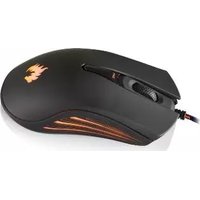
1 Right button 2 Scroll wheel 3 DPI button
4 Left button 5 Setup disc 6 Instructions for use
Technical data
Operating voltage: 5 V

Operating systems: Microsoft
Windows 7 / 8 / 10,
macOS
Resolution: 800/1200/1600/2400 dpi
(by default)
3200/4800 dpi (by software)
Dimensions (L x W x H): 132 x 69 x 39 mm
Weight (with cable): approx. 148 g
Hardware: 1 available USB port
CD-ROM drive for gaming software
installation
The specification and design may be changed without notification.
Before use
NOTES:
All parts have to be unpacked and the packaging material has to be removed completely. Before use, verify the package contents are complete and undamaged!
● Software installation
- Insert the provided setup disc into the computer's CD-ROM.
- It will auto run the setup software, otherwise choose
SilverCrest SGM 4 A1 gaming mouse EN.exe from your CD-ROM drive.
- Follow the installation instruction to complete the whole installation process.
NOTE:
The software is not compatible with MAC OS.
General functions
Choose SilverCrest SGM 4 A1 gaming mouse EN.exe from the CD drive to start the software.

- Setting options (Base Setting / Advanced Setting / LED Setting)
- Select profile Cfg1, Cfg2, Cfg3, Media, Game
- Import configuration profile (Cfg)
- Export configuration (Cfg)
- Restore to default setting
- Minimize the software
- Wheel function setting
- DPI setting
- Apply and save the current setting
- Cancel setting
NOTE:
■ Selecting Cfg1, Cfg2, Cfg3, Media, Game profiles will load all designed settings of your choice.
Base setting
Select Base Setting from the user interface:

■ Change the mouse button into desired functions from the Function List.
- At least 1 mouse button must remain as the primary button (left click).
2. Wheel function
- Scroll function setting or volume function setting.
3. DPI setting
Sensitivity (DPI) pertains to how much effort is needed to move the mouse pointer in any direction. The higher the DPI, the faster the mouse movement.
- You can select 1 DPI from 5 DPI values at each selection bar.
- Click the dot before the selection bar and click the "Apply" button to set the relative DPI.
- Click "DPI" button (button 4): DPI selection bar will jump to next selection bar.
■ Active status DPI selection bar is working. If not shown, it does not work.
4. Profiles
The end user can select from a total of 5 profiles (Cfg1, Cfg2, Cfg3, Media, Game) to modify the current profile. - Import cfg: End user can import your saved configuration. - Export cfg: End user can export your amended configuration.
- Reset: Press the "Reset" button. The 5 profiles will be reset to default setting.

Advanced settings
Select Advanced Setting from the user interface:
![SILVERCREST® GAMING MOUSE Base Setting Advanced Setting LED Setting Pointer precision Wheel Speed Fire Speed Report Rate 125Hz 250Hz 500Hz 1000Hz Name Double Click New Delete Record Save Copy List [6]L-KEY Jams. IT3L-KEY Name List Double Click New Delete Record Save [+]1 [+]1 Run till Release Repeat…](/content/2026/05/790619/images/dc7e1de81a2a312a2a64b098d9241e51ebd1e914a7aef0d9232e7a15d15d4585.jpg)
- Pointer Precision setting
- Adjust the speed of your mouse pointer.
- Wheel Speed setting
Adjust the wheel speed.
- Fire Speed setting
Adjust the fire speed.
- Report Rate setting
The higher the report rate, the more often the computer receives information about the status of your mouse, thus increasing the mouse pointer's reaction time.
You can select 125 Hz, 250 Hz, 500 Hz, or 1000 Hz.
5. Keyboard record function

- Input "Double Click" (= default setting) or a game's name under the table "Name".
![Key List Name Import New Name Export Name List Double Click New Name Delete Record Save [↓]1 [↑]1 Run till Release Repeat On Re-Times 2 Apply Cancel](/content/2026/05/790619/images/953b3c161d002a39b5c11c2cff47c61845e7ee7b63152622954329d8f88f1fa8.jpg)
- Press the "New" button. The new name will appear in the "Name" list.
![Key List Name Import Double Click Export Name List Double Click New Delete RECORD [↓]0 [↑]0 Save Run till Release Repeat On Re-Times 1 Apply Cancel](/content/2026/05/790619/images/34f39426e4cddf380d400453924ae464b8d25bf95df6bad719a986de967e1e55.jpg)
- Press the "Record" button.
![Key List Name Import New name Export Name List Double Click New name New Delete Stop [↓]0 [↑]0 Save Run till Release Repeat On Re-Times 1 Apply Cancel](/content/2026/05/790619/images/b470b16acb496e33aa96a4f0b10ac596308d2eb932401e3d401e1497edb852c3.jpg)
The "Record" button will change to "Stop" button automatically.
![Key List [ ↓ ]E 63ms [ ↑ ]E 625ms [ ↓ ]D 62ms Name List [ ↑ ]D Double Click New Delete Stop [ ↓ ]2 [ ↑ ]2 Run till Release Repeat On Save Re-Times 1 Apply Cancel](/content/2026/05/790619/images/6335946117b39403ffe2e0ddf03311c1bf699097b751f639d9212eaff332f623.jpg)
- Keyboard record function setting: Press "E" and "D" on the keyboard. The key list will show the "Record" button.
- Click the "Stop" button.
![Key List [↓]E 62ms Add Forward Add Backward Modify Delay Delete Name Import Double Click Export Name List Double Click New Delete Record [↓]2 [↑]2 Save Run till Release Repeat On Re-Times 1 Apply Cancel](/content/2026/05/790619/images/55c5b1f8f5287609fe01abef056f12b33e8f806ccc92f7642aac77f5c3c1308a.jpg)
- Modify Delay: Select the delay in the key list that requires modification. Click the right mouse button. Choose "Modify Delay". Then modify 63 ms to 30 ms, and modify in the same way from 625 ms to 100 ms, etc.
![Key List [↓]L-KEY 30ms [↑]L-KEY Name Import New Name| Export Name List Double Click New Delete Record Save [↓]1 [↑]1 Run till Release ✓ Repeat On Re-Times 2 Apply Cancel](/content/2026/05/790619/images/c2f6620f45fcdc7dd835d5e56feb34f11cb6c6e2ab005392ba6596ea2a916fc1.jpg)
- If you tick Repeat On ( ) and insert the number of repetitions in Re-Times, the macro will repeat for the desired number of times.
- You can insert "Left button", "Right button", "Middle button" in the key list:
![Key List [↓]F Add Forward Left Button Down Import Add Backward Right Button New Name Export [↑]B Modify Delay Mid Button Name List [↓]D 77ms Double Click New Name New [↑]D Delete Record [↓]2 [↑]2 Save Run till Release Repeat On Re-Times 1 Apply Cancel](/content/2026/05/790619/images/7380a44cf9b86aec91fe51fc394a542189af1e77ee055377328f9b58a387c329.jpg)
Add forward:
Choose [E↓] and click the right button. Choose "Add Forward".
Add backward:
Choose [E↓] and click the right button. Choose "Add Backward".
Modify delay: See Modify Delay (page 45).
Delete:
Choose the one you want to delete from the key list.
NOTE:
■ Repeat On should be shut down at the above procedure.
6. Macro setting
By assigning a macro to a mouse button, you can execute complex combinations.
- Go back to Base Setting. Choose a desired mouse button to apply the MACRO setting from the Function List (for the mouse, button 2 and button 4 is preferable). Select MACRO function from the list and click
"New Name".
The end user can export the macro setting to the computer.
When you need to use the Macro setting, you can import the macro setting from your computer.


LED setting
Select the LED setting from the user interface.
■ Switch the mouse LED on/off.

DPI Working: The current DPI setting of your mouse.
■ LED Status: Slow, Fast, Static and Off modes can be selected.

Storage when not in use
Store the appliance in a dry indoor location protected from direct sunlight, preferably in its original packaging.
Cleaning
No acid, chafing or solvent cleaning agents should be used or the product can be damaged.
Only clean the outside of the product using a soft, dry cloth!
For persistent soiling, a mild cleaning agent can be used.
It is necessary to repair the product if it has been damaged in any way, for example, if the housing is damaged, if liquid or objects have penetrated the device, or if the product has been exposed to rain or moisture.
Repair work is also required if the device is not working properly or has been dropped. If smoke is produced, or there are any unusual sounds or smells, turn the product off immediately. In such cases, the product should not be used until it has been inspected by authorized service personnel. Only have the device repaired by qualified personnel. Never open the housing of the product.
● Troubleshooting
Problem Solution
The appliance does not work properly.
■ Option 1: Make sure the USB plug is fully plugged into the USB port and the computer is on, or try to use a different USB port.
■ Option 2: Change the working surface on which the mouse is operating.
Option 3: Uninstall the software and then reboot the computer. Re-install the software.
● Disposal
The packaging is made of environmentally friendly materials, which may be disposed of through your local recycling facilities. Contact your municipality for information on how to dispose of your worn-out product.

The adjacent symbol of a crossed-out dustbin on wheels indicates this device is subject to Directive 2012/19/EU. This directive states that at the end of its life, this device must not be disposed of through regular household refuse but must be returned to special collection sites, recycling depots, or waste management companies.
This disposal is free of charge to you. Protect the environment and dispose properly.
Please contact your local waste management company or the city/municipal administration for more information.
We, OWIM GmbH & Co. KG, Stiftsbergstraße 1, DE-74167 Neckarsulm, GERMANY, hereby declare under our sole responsibility that the product: GAMING MOUSE, Model No.: HG03092, to which this declaration refers, complies with the essential requirements and other relevant provisions of the EMC Directive 2014/30/EU and the RoHS Directive 2011/65/EU.
The full text of the EU declaration of conformity is available at the following internet address:
www.owim.com

OWIM GmbH & Co. KG
Stiftsbergstraße 1
DE-74167 Neckarsulm
GERMANY
Model No.: HG03092
Version: 06/2017
IAN 293955