Strider MM219 - Mp3 player Manta - Free user manual and instructions
Find the device manual for free Strider MM219 Manta in PDF.


User questions about Strider MM219 Manta
0 question about this device. Answer the ones you know or ask your own.
Ask a new question about this device
Download the instructions for your Mp3 player in PDF format for free! Find your manual Strider MM219 - Manta and take your electronic device back in hand. On this page are published all the documents necessary for the use of your device. Strider MM219 by Manta.
USER MANUAL Strider MM219 Manta
natural_image
Silver portable electronic device with a digital display showing a cartoon character and musical notes (no readable text or symbols)MM215 - 128MB
MM216 - 256MB
MM217-512MB
MM218 - 1GB

text_image
MANTA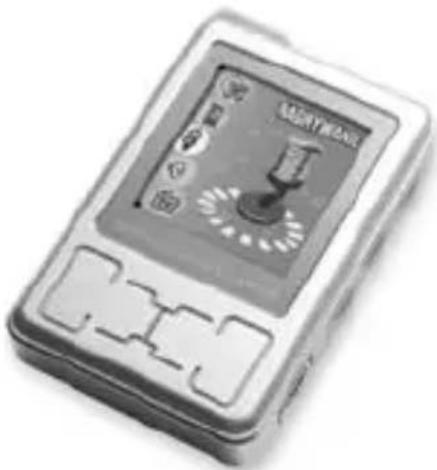
natural_image
Close-up of a handheld electronic device with a control panel and display screen (no visible text or symbols)MM219 - 128MB
MM221 - 256MB
MM223 - 512MB
MM224 - 1GB

To ensure proper use of this product please read this User's Manual carefully and keep for future reference.
DVD-011 Emperor 3
natural_image
Two electronic devices: a gray rectangular device labeled 'Laben' and a black DVD Imperial III package with visible branding (no readable text in image)Supercharger Supreme
natural_image
Black-and-white photo of three toy devices: a steering wheel, a flat-screen driver, and a box labeled 'SUBSCRCharger' (no visible text on main objects)DVD-012 Emperor Recorder
natural_image
Two electronic devices: a silver CD-ROM and a black EMEROR Recorder (no visible text or symbols on the devices themselves)natural_image
Two product boxes: one featuring a white speaker and another with a black-and-white photo of a tractor (no visible text or symbols)W odtwarzaczu MM219, MM221, MM223, MM224 ......11
Features and Specification 30
Description 31
Keys and function 32
ON/OFF/PLAY/PAUSE/STOP 32
[MENU/MODE] 32
[REC] (if this key available).... 32
[PREV] and [NEXT]. 32
VOL+ and VOL- 32
Power Switch (ON/OFF) 32
Earphone jack.... 32
Music (MP3) Play.... 33
A-B repeat.... 33
Follow up 33
How to display ID3 (Lyric display) when playing? 34
Playing video (AMV PLAY) 34
Rec Mode 35
FM Mode.... 36
Voice Mode 37
STRIDER MP4
Browsing photo (Photo Mode) 37
System Setting (Setup Mode).... 38
E-Book....39
Converting ACT REC file into WAV 40
Charge 40
Connecting to the PC USB port via a USB cable.... 40
Transferring files and formatting the player....41
Dividing the player into two devices ....41
Cautions to the user....41
Instrukcja obsługi
natural_image
Monochrome image of a MP3 audio recording device with control buttons and sound waves (no readable text or symbols)text_image
NAGRYWANIEtext_image
ODTW. GŁOSUFeatures and Specification
● Music: MP3, WMA, ASF, WAV, etc.
● FM built-in (optional) up to 40 local channels can be saved. Easy to record from FM.
- Video playing: AMV and/or MTV. Other formats can be easily transformed into AMV or MTV with software in software CD.
● Navigation function with folder content
● 7-color equalizer and multi playing modes
● Photo playing: JPG, GIF and/or BMP
- E-Book reading: *.txt Save a word file as “*.txt” and then download to your MP3 player.
● Multi languages availably built-in
● Above Windows 98, no driver needed.
● High speed USB interface
● LCD: 1.5-inch full-color display
● Power supply: Li-ion battery built-in for 10 hrs playing
● REC format: WAV (32Kbps), ACT (8Kbps)
- REC time:
35 hours (ACT, 128MB Flash)
70 hours (ACT, 256MB Flash)
140 hours (ACT, 512MB Flash)
280 hours (ACT, 1GB Flash)
● MP3 bit rate: 8Kbps-320Kbps
● FM frequency range: 76MHz-96MHz/98MHz-108MHz
SNR: 85dB
● Output frequency range: 20Hz-20KHz
Weight: 35g
STRIDER MP4
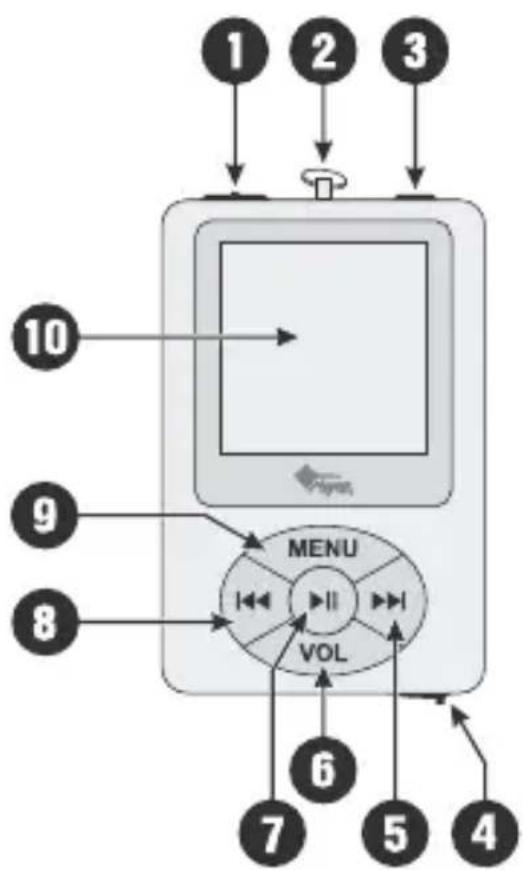
Description
- [POWER] Button
- Neck rope hole
- Standard earphone jack
- [USB] Connector
- [NEXT] Button
- [VOL] Button
- [PLAY/PAUSE]Button
- [PREV] Button
- [MENU] Button
-
Display
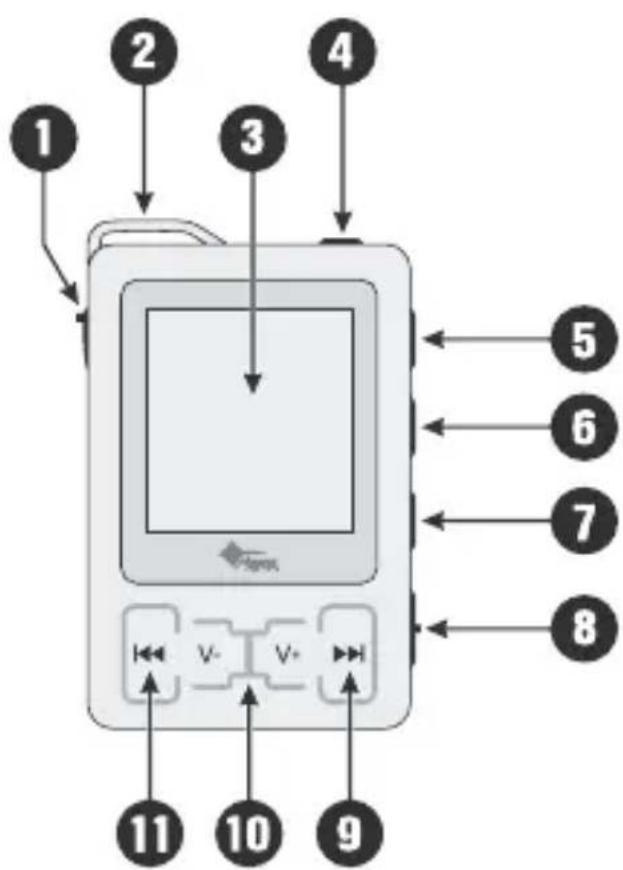
-
[USB] Connector
- Neck rope hole
- Display
- Standard earphone jack
- [PLAY/PAUSE]Button
- [MODE] Button
- [REC] Button
- [POWER] Button
- [NEXT]Button
- [VOL-/+] Buttons
- [PREV] Button
flowchart
graph TD
    1["1"] --> A["Computer"]
    2["2"] --> A
    3["3"] --> A
    10["10"] --> A
    9["9"] --> A
    8["8"] --> A
    6["6"] --> B["MENU"]
    5["5"] --> B
    4["4"] --> B
    VOL["VOL"] --> B
    VOL --> B
    VOL --> B
    VOL --> B
    VOL --> B
    VOL --> B
For: MM215, MM216, MM217, MM218
text_image
1 2 3 4 5 6 7 8 9 10 11For: MM219, MM221, MM223, MM224
Keys and function
ON/OFF/PLAY/PAUSE/STOP
Push POWER to ON/OFF, then hold[▶II] to power on the player.
After selecting an item by pressing [◀◀] and [▶,▶press [▶II] to start.
Note:
No activity of keys for a certain time, the player will power off automatically to save the power.
[MENU/MODE]
After powered on, select an item such as MP3, AMV, etc, then press MENU/MODE to a sub-menu directly. At last, press [▶] to start.
Keep pressing (Long-press) [MENU/MODE], the player will return to the main menu again.
In Voice REC state, long press [MENU/MODE] to stop recording and save the record.
REC (if this key available)
When playing, short press REC once to set a start point as A, press again to an end point as B, the player will play a segment between A and B repeatedly; press the 3rd, A-B repeat will be canceled.
In voice REC mode, press the key to start to record;
[PREV] and [NEXT].
To a previous or next song or item, or, Fast forward or fast backward.
VOL+ and VOL-
In MUSIC/VOICE/FM PLAY or STOP state, press [VOL] (VOLUME), the icon [VOL] blinks in the middle bottom of screen, then press [◀◀] and [▶▶] to decrease or increase the volume.
Power Switch (ON/OFF)
Earphone jack
Insert an earphone.
STRIDER MP4
Music (MP3) Play
text_image
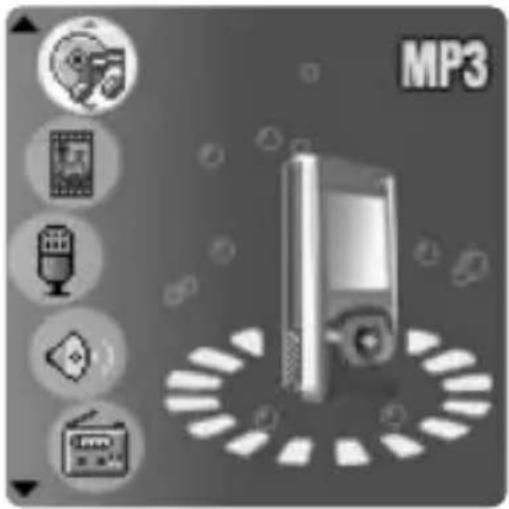
MP3Select MP3 in the main menu, press [MENU/MODE] to validate your choice, now the player enters a MUSIC STOP mode:
- Press[▶] to play (MUSIC PLAY mode).
Note:
In MUSIC PLAY mode, short press [MENU/MODE] to a sub-menu as follows:
- Repeat Mode:
● EQ Mode: NORMAL, POP, CLASSIC, SOFT, JAZZ and DBB - Tempo rate:
● Replay: to set how many times you want to replay.
A-B repeat
Press [▶▶] once to set a start A, press again to set as B; Press MENU to NORMAL.
Follow up
Keep pressing (long-press) [ ]The player starts to record for a time duration of A and B.
When over, the player goes on playing again the original sourcing sound in succession, the icon changes.
At this time, keep pressing [▶▶] to CONTRAST FUNCTION
- When the original voice finishes, the player play a recorded voice.
STRIDER MP4
Press [◀◀], the player returns to A-B Repeat.
- Repeat Times: to set the times of repeat
-
Repeat gap: to set a time duration of repeat
-
In Music Stop state, short press [MENU/MODE] to enter sub menu, at the time, the following functions will be available:
-
Local folder: to select a folder you want.
- Delete: press [MENU/MODE] to confirm, press [ ◀◀◀]/[ ▶▶▶] to select a file, then press [MENU/MODE] to validate your choice: DELECTE ONE or DELETE ALL.
- Repeat: normal, repeat one, repeat all, folder, repeat folder, random.
- Exit
How to display ID3 (Lyric display) when playing?
When playing a song, long-press [MENU/MODE], the player will display its lyric on screen if the “*.lrc” is available in the player.
Note:
The name of a song MUST be as SAME as the name of “*.lrc”.
Fox example: a song named “butterfly.Mp3”, its LRC should be “butterfly.lrc”.
Playing video (AMV PLAY)
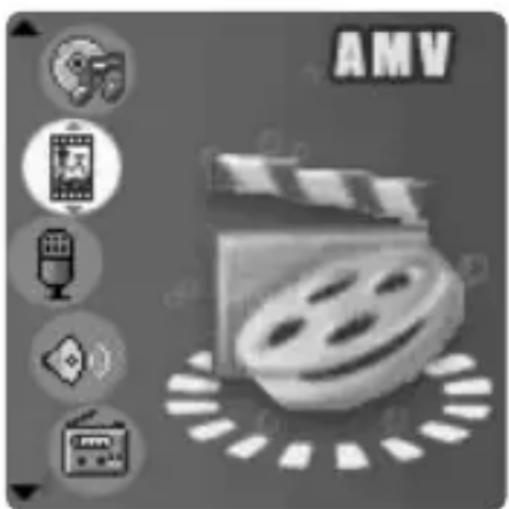
text_image
AMVSTRIDER MP4
In the main menu, move to AMW by pressing [ ◀◀◀] and [ ]▶▶ Press [MENU/MODE] again to validate your choice, the player stays in a VIDEO STOP mode,
-
Press menu, the player enters a sub menu where you can change:
-
Local folder
- Delete: press [MENU/MODE] to confirm, press [ ◀◀◀]/[ ▶▶▶] to select a file, then press [MENU/MODE] to validate your choice: DELECTE ONE or DELETE ALL.
- Repeat: normal, repeat one, repeat all, folder, repeat folder, random.
-
Exit
-
Press [▶] to play (the VIDEO PLAY mode).
Rec Mode
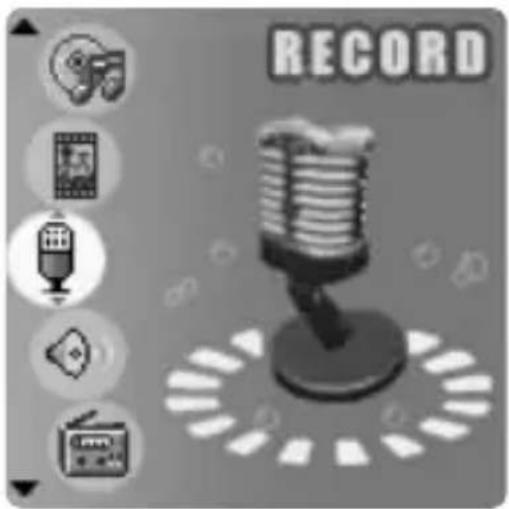
text_image
RECORDIn the main menu, move to REC/Record by pressing [◀◀] and [▶▶] Press [MENU/MODE] again to validate the choice, now the player enters a REC STOP mode,
- Press [▶] to record.
Press Play [▶] again to pause; Long -press [▶] to stop and save the record.
STRIDER MP4
-
In REC STOP mode, press [MENU/MODE] to a REC sub menu; by pressing [◀◀]/[▶] to change among the following items:
-
Local folder: press [|◀◀]/[▶▶] to select a folder where the recorded sound to be saved and stored, press [MENU/MODE] to validate the change.
● REC type: press [◀◀]/[ ] to select a proper REC style and press [MENU/MODE] to validate the change. The REC type includes:
● Fine REC (WAV format)
● Long REC (ACT format)
● Fine VOR (voice: WAV format)
● Long VOR (ACT format)
EXIT
FM Mode
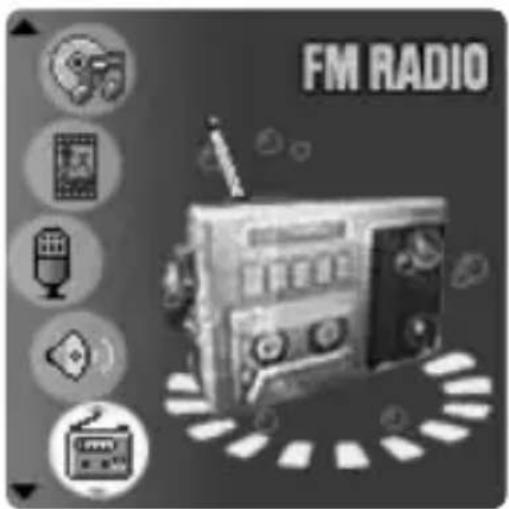
text_image
FM RADIOSelect FM in the main menu, press [MENU/MODE] to confirm your choice, then player enters a FM STOP mode.
- Press[▶] to start FM radio.
● Press [◀◀] and [▶] to search a FM radio channel manually.
- Keep pressing (long-press) [◀◀] and [▶▶] for about 2 seconds, the player will search the channel automatically. When a channel found, the searching will stop and you can press [MENU/MODE] to save.
STRIDER MP4
-
In FM STOP mode, press [MENU/MODE] to a submenu where you can do the followings:
-
Save
- Delete one
- Delete all
Normal Brand
Japan Brand
● Fine REC (WAV format)
● Long REC (ACT format) - Exit
Voice Mode
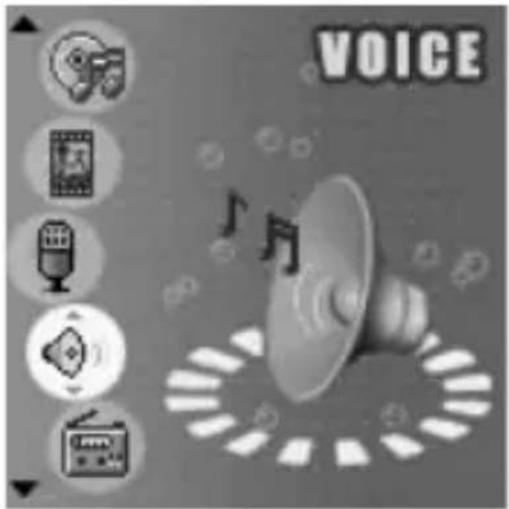
text_image
VOICEIn the main menu, press [MENU/MODE] to confirm, the player stays in a VOICE STOP mode,
- Press[▶] to play (VOICE PLAY mode).
Press [MENU/MODE] again, you can set:
REPEAT
TEMPO RATE
REPLAY
- Exit.
-
In VOICE STOP mode, press [MENU/MODE] to do
-
Local folder
Delete - Exit
STRIDER MP4
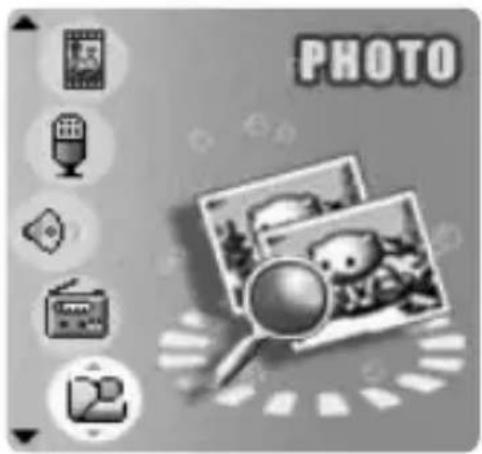
Browsing photo (Photo Mode)
text_image
PHOTOSelect PICTURE in the main menu, then press [MENU/MODE] to a PHOTO BROWSE STOP mode,
-
Press[▶] to browse, then press[◀◀] and [ ] to a next or a previous photo.
-
In PHOTO BROWSE STOP mode, press [MEMU/MODE] to adjust:
-
Local folder
- Play set
- Delete
- Exit
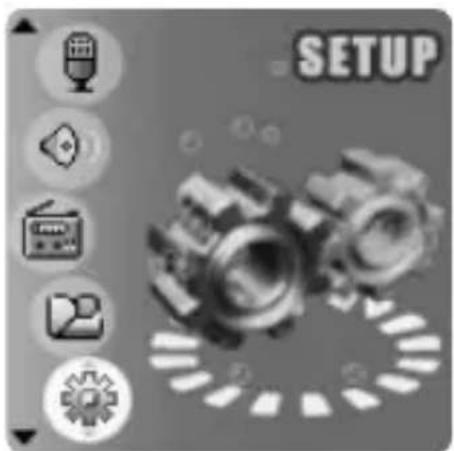
System Setting (Setup Mode)
text_image
SETUPSTRIDER MP4
The following are available for setting.
- Clock: Press [MENU/MODE] to confirm. Press [◀◀] and [ ]▶▶ to increase or decrease. Press VOL to shift among the bars.
LCD set
● Language: there are several kind of languages for your choice.
● Power Off /Energy-Save Mode/ Sleep Mode:
● Replay mode:
- Online Mode: press [MENU/MODE] to enter. Online Mode interface includes Multi-disk Online, Single Common Disk and Single Encrypt Disk. Some operating systems (Windows 2K SP4 or former) don’t support such USB disk with two disk icons, so it’s needed to select the disk to be used currently, i.e. single Common Disk or single Encrypt Disk to display the selected disk after connecting to PC, if the Divided Zone function is employed.
● Memory Info: press [MENU/MODE] to display memory Info.
● Firmware Version: the firmware version that the player uses currently.
- Firmware Upgrade: press [MENU/MODE] to this interface first if the firmware needs to be upgraded, and then press [MENU/MODE] to confirm.
- Exit
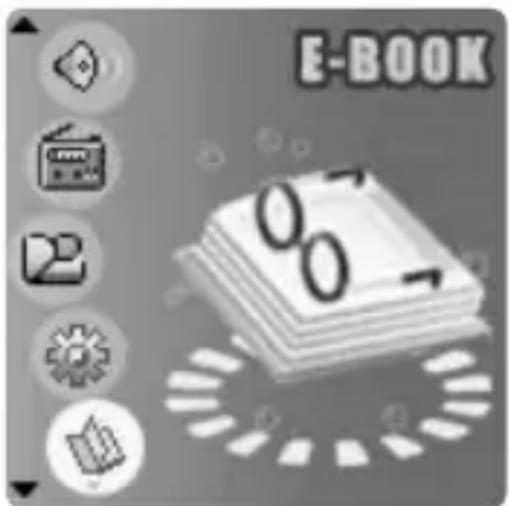
E-Book
text_image
E-BOOK 07 07STRIDER MP4
Select E-BOOK, press [MENU/MODE] to validate your choice.
- By pressing [◀◀] and [▶,▶move to.
- Folder selection: press [MENU/MODE] to confirm after you select a folder where the “*.txt” files locate.
Press [MENU/MODE] again to exit;
- Then by pressing [◀◀] and [▶▶], move to.
- File selection: press [MENU/MODE] to confirm after you select a “*.txt” file.
Press [MENU/MODE] again to exit;
- At last, by pressing [◀◀] and [ ], move to
● Text read: press [MENU/MODE] to start read.
Use [|◀◀] and [▶▶▶] to page-up or page-down when reading.
Converting ACT REC file into WAV
The file recorded as ACT format can be converted into WAV format via the software attached in the software CD.
Install the software in the attached software CD to your computer first. Then find and double click on the tool in START/PROMGES/MP3 PLAYER UTILITIES/SOUND CONVERT TOOL or in the location you installed, such as C:/PROGRAME FILES/MP3 PLAYER UTILITIES/ SOUND CONVERT/SOUNDCON.
Click on "OPEN" to select the ACT file to be converted.
Click on "CONVERT" to start.
Charge
A Li-ion battery built in the player.
Connect the player via a USB cable to your computer, the charge starts.
Connecting to the PC USB port via a USB cable
- Check the USB port of your computer.
- Push POWER to ON and Connect the player to your computer via USB line.
- After connected, a icon shall be displayed on the player, as shown in the figure below:
- Your computer will automatically display a device if your system is above WINDOWS 98.
If your system is WINDOWS 98 or when your computer can not recognize the player, please install the driver in the software CD first.
Transferring files and formatting the player
After connected successfully, the player is a portable U-disk, you can upload and/or download data or files from your computer to the player or from the player to your computer.
Also, you can format the player.
Warnings:
- Do not disconnect the player when upload/download/format goes on, otherwise the player will be damaged.
- In Windows ME/2000// XP, please uninstall the player from your computer normally. Otherwise, data may be damaged or lost.
Before formatting, select "FAT" in "File System", then format the player.
Dividing the player into two devices
Install the software in the attached software CD to your computer first. Then find and double click on the tool in START/PROMGES/MP3 PLAYER UTILITIES/MP3 PLAYER DISK TOOL or in the location you installed, such as C:/PROGRAME FILES/MP3 PLAYER UTILITIES/RDISKUTILITY/Rdiskutility
STRIDER MP4
Follow its instruction to divide or format the player.
Note:
Do not forget USER NAME and PASSWORD after input.
If you forget the USER NAME and PASSWORD, you can re-divide the player again, but all data and information will lost.
Cautions to the user
Don't use the player in extremely hot, cold, dusty, damp and dry environments.
Don't fall down the player to a hard surface, such as ground.
Battery life varies from condition in using.
Please charge the battery if the following conditions appear:
● The battery icon becomes (empty battery).
● The player powers off automatically, even if turned on again, it will power off quickly.
- Keys do not work.
● Refer to Charge section for details.
When formatting, charging, downloading or uploading, DO NOT disconnect the player from your PC USB port, or the player will be damaged.
Do not dismantle the player or repair it by yourself. If any problem occurs, please contact with our distributors.
The performances or functions of the product shall be subject to change without any further notice.
MM729 SSSnake
natural_image
Close-up of a silver computer mouse with a scroll wheel (no visible text or symbols)
text_image
S35Smint 12.000 Lunchnatural_image
Front view of a classic computer keyboard with black and silver keys (no text or symbols visible)
text_image
BOSCH KEY New Technology Scissor Green Line KeysetMM39 Bass Steel Headphone

natural_image
Black and white photo of a pair of electronic headsets with earphones (no visible text or symbols)
text_image
Product packaging image showing a branded device with visible text and labelsnatural_image
Black and white photo of a handheld electronic device with earphones (no visible text or symbols)