MP4284B - Mp3 player Manta - Free user manual and instructions
Find the device manual for free MP4284B Manta in PDF.


| Product Type | MP4 Player (MP3, WMA, AMV, JPG, BMP, Text) |
| Brand | Manta |
| Model | MP4284B |
| Dimensions (W x H x D) | 80 x 40 x 9.5 mm |
| Display | 1.8-inch TFT (128 x 160 pixels) |
| Internal Memory | 1 GB – 16 GB Flash |
| Music Formats | MP3 (8–320 kbps), WMA (5–384 kbps) |
| Video Playback | AMV format |
| Voice Recording | WAV (32, 64, 128, 256 kbps) |
| FM Radio | 76–90 MHz / 87–108 MHz; up to 40 presets |
| Photo Browsing | JPG, BMP |
| E-book Reader | TXT format with auto-scroll and bookmarks |
| Equalizer Modes | Natural, Rock, Pop, Classic, Soft, Jazz, DBB |
| Synchronized Lyrics | *.LRC files supported |
| Audio Output | 2 x 10 mW (32 Ohm) |
| Signal-to-Noise Ratio | 45 dB |
| Connectivity | USB 2.0 (micro 5-pin) |
| Operating Temperature | 5°C – 40°C |
| Supported Systems | Windows, Mac |
| Languages | Polish, English, French, German, Italian, and more |
| Battery | Rechargeable via USB (specific capacity not provided) |
| Accessories | Earphones, USB cable (estimated based on typical package) |
Frequently Asked Questions - MP4284B Manta
User questions about MP4284B Manta
0 question about this device. Answer the ones you know or ask your own.
Ask a new question about this device
Download the instructions for your Mp3 player in PDF format for free! Find your manual MP4284B - Manta and take your electronic device back in hand. On this page are published all the documents necessary for the use of your device. MP4284B by Manta.
USER MANUAL MP4284B Manta
natural_image
Abstract black-and-white circular logo with interlocking curved shapes (no text or symbols)MANTA
MP4 player
MP4284B
MP42840
MP4284S
Instrukcja obsługi
User's Manual
Opis
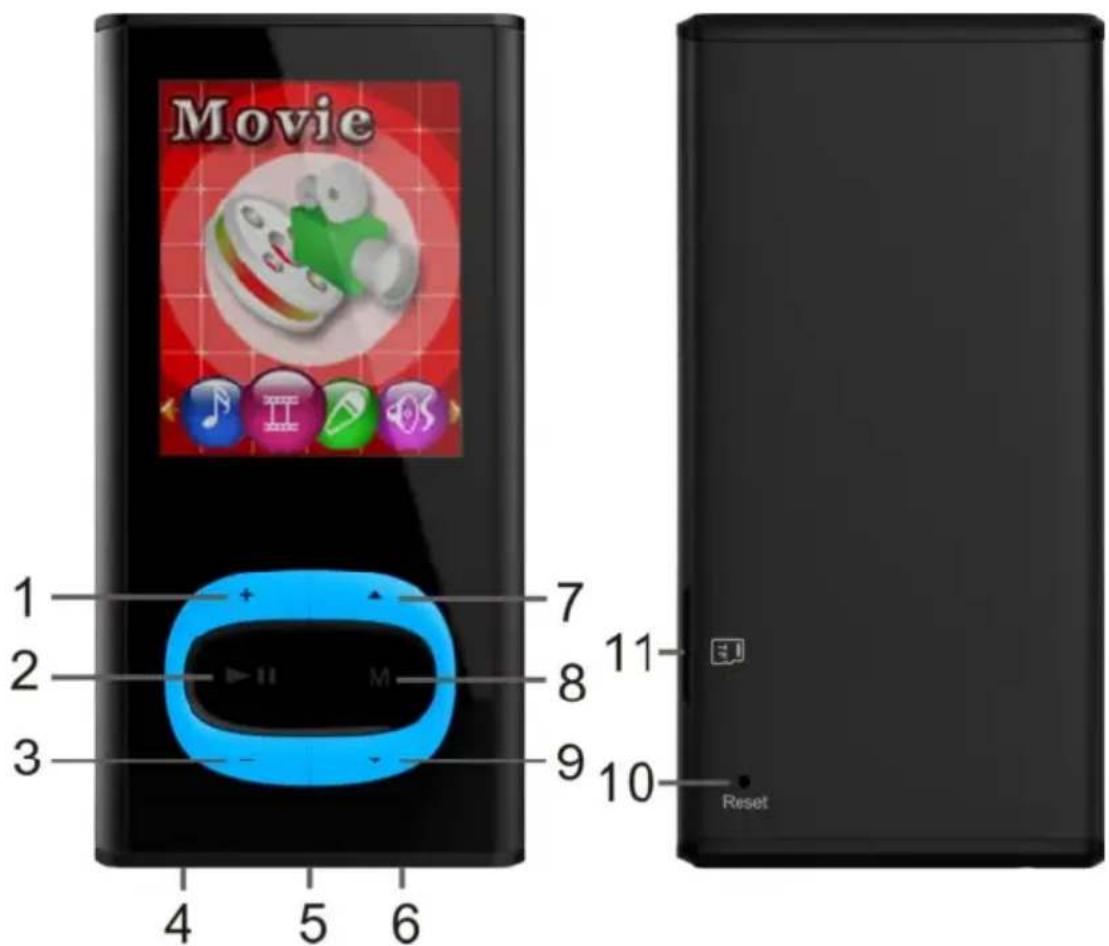
natural_image
Black-and-white landscape photo of a forested hill reflected in calm water under a cloudy sky (no text or symbols)William Blake To see a world in a grain of sand, And a heaven in a wild fllower, Hold infinity in the palm of your
- Pobierania
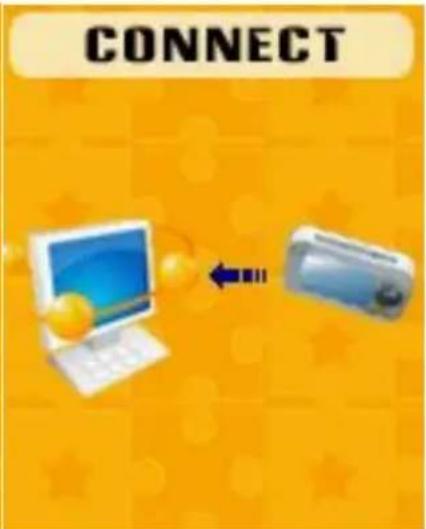
- Wysytania
10. Inne ustawienia
- Enter Music Mode and press PLAY to play music.
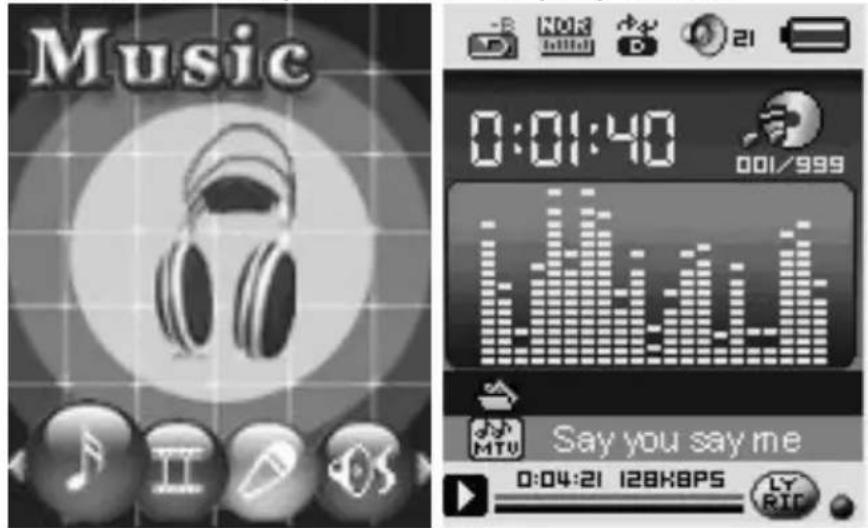
- Select a Track: LAST: Previous Track;
NEXT: Next Track.
- Equalizer Mode
- When playing music
- Press MODE to enter in submenu
- Push NEXT choosing Equalizer Mode;
- Press M O D E to entry 'Equalizer Mode' submenu.
- Detail of each equalizer (EQ):
Natural, Rock, Pop, Classic, Soft, Jazz, DBB - Push NEXT to select an EQ and press MODE to confirm.
- Synchronous Lyric Display
The player supports lyric files with *.LRC suffix, and displays synchronously.
How to use lyric files?
Please make sure the lyric has the same name as the music file.
Press MODE and hold for a few seconds.
For example:
Music file: Journey.mp3
Lyric file: Journey.Irc
2. Play Videos
-
Enter main menu, press NEXT scrolling to "Video" (Only available to AMV files)
-
Press MODE to enter:

natural_image
Black-and-white landscape photo of a forested hill reflected in calm water under a cloudy sky (no text or symbols)- Press PLAY to start video.
1). When in the interface of 'Movies stop'
2). Press MODE to enter submenu.
Local Folder, Delete file, Delete all, Repeat (Normal, repeat one, Folder, Repeat Folder, Repeat all, Random ,intro ) , Exit.
3. Record
- Recording in "Record mode"
- Enter the main menu:
- Push NEXT scroll to Record mode
- Push MODE to select Record mod, screen will display as below:

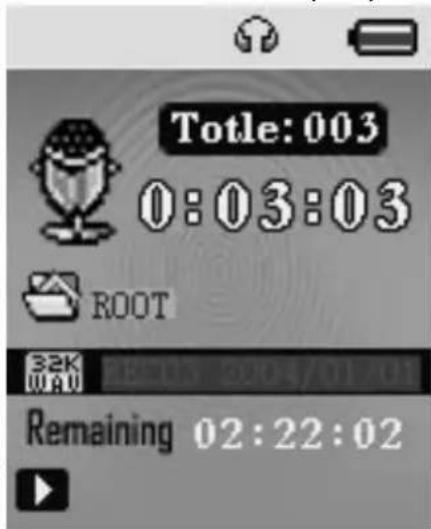
- Press PLAY to start / pause recording.
- Press MODE for a few seconds to save the recording.
- Select Record Type
MODE to enter record submenu
-
Push NEXT scrolling into 'REC type' submenu then presses MODE to select it.
-
Press NEXT to choose appropriate type and press MODE to select it
- . Press PLAY to start recording.
4. Voice
- Enter main menu
- Push NEXT to choose 'Play mode'
- Push MODE to enter playing interface
- Press PLAY again to play the file.
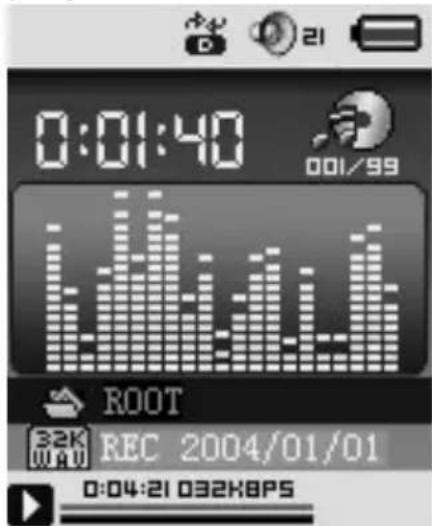
- Choose voice record files:
LAST: Select previous file;
NEXT: Select the next file; - When in the interface of 'Voice stop'
- Press MODE to enter submenu.
Local Folder, Delete file, Delete all, Exit. - When in the interface of 'Voice play'
- Press MODE to enter submenu.
Repeat, Replay mode, Exit.
5. Using FM radio
- Enter main menu;
- Push NEXT scrolling "FM Mode"
- Push MODE to enter
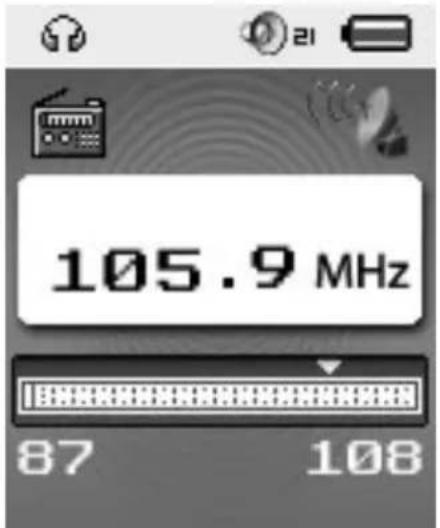
- Auto search "20 pressets maximum"
Hold LAST/NEXT 2 seconds to start the channel search in 100 KHz interval upwards or downwards. To stop tuning, push LAST/NEXT.
- Manual tuning
Push LAST: Downward 100 KHz
Push NEXT: Upward 100 KHz
- Save current channel:
Push MODE to enter FM submenu
Press MODE again to save channel.
- Listening to a saved channel:
You can press PLAY to choose a saved channel.
- Record.
A. Press PLAY to start recording.
B. Press MODE for a few seconds to save the record.
C. When in the interface of 'Record stop'
D. Press MODE to enter record submenu
6. Photo Browsing
This function is only available for JPG and BMP format.
- In the main menu, press LAST/NEXT choosing Browsing pictures.
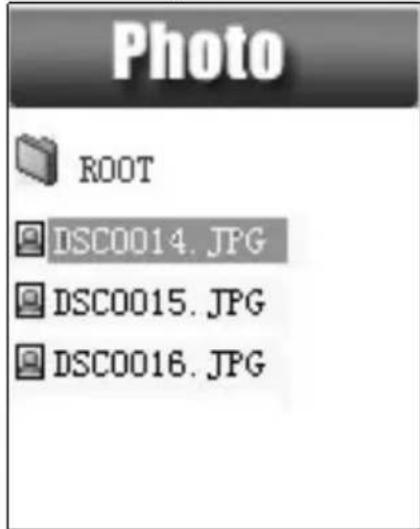
- Press MODE to enter corresponding submenu.
- Press LAST or NEXT choosing the document you want to read, then press PLAY to play it.
- In stop mode we have a submenu.
Local folder, Playback set (Manual play, autoplay), delete file, delete all, exit.
7. Setup
- Enter Settings
You can set system performances here, options may vary in different versions of the firmware.
- Entry main menu
- Push NEXT Scrolling into "Settings"
- Press MODE to entry.
- Options introduction:
| Clock Setting system | date and time |
| LCD set Screensaver | setting |
| Language Choosing different languages | |
| Power off | Setting a count down time in minutes, the player will shut off when time out. |
| Online mode | Multiply driverNormal onlyEncrypted onlyCard only |
| memory info Show memory capacity and used percentage | |
| Firmware Version Version of player's firmware | |
| Firmware upgrade Use for upgrade firmware | |
| Exit Exit from Setting interface | |
8. E-book
- On main menu, press NEXT/LAST choosing e-Document,
- Press MODE to enter corresponding submenu:
- Press NEXT or LAST choosing the document you want to read, then press PLAY to read it.
E-book
William Blake To see a world in a grain of sand, And a heaven in a wild flower, Hold infinity in the palm of your
Note: If you are in 'Manual play' you must scroll text via LAST or NEXT; texts can be scrolled automatically under 'Auto play' set. We have two menus.
4824PEN
In stop mode: Local folder, playback set, Deleted file, delete all, exit.
In play mode: Bookmark select, bookmark delete, bookmark add, exit.
9. Using USB Disk
The player is also a standard USB disk. Supported by Windows / Mac/XP.
The player supports USB power supply, can be used without using the battery when connected to a PC. To enter, when in' waiting mode' press MODE return to main menu and choose the operation you need.
When connected to PC, The player works on the three modes below:
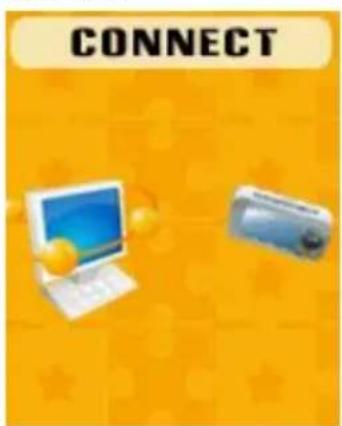
- Waiting
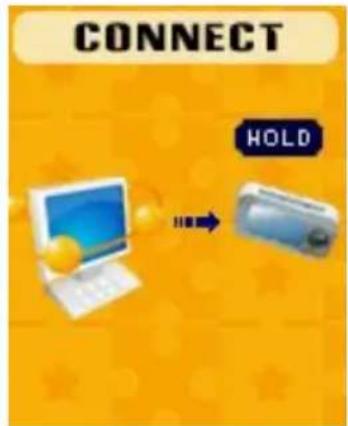
- Downloading
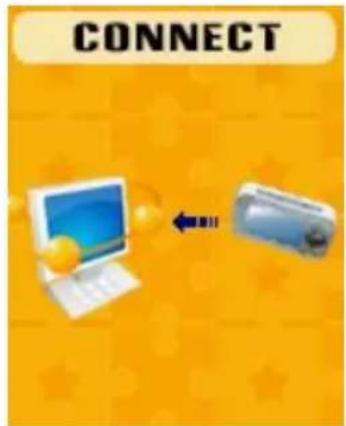
- Uploading
10. Other Settings
- Play mode (Play submenu)
You can choose different play mode (repeat, shuffle) when playing music or recorded files.
The first option on Play submenu is 'Play mode'
o REPEAT: Normal, Repeat One, Folder, Repeat Folder, Repeat All, Random, Intro.
- Replay mode (Play submenu)
Enter from Play submenu:
○ ABRept
- When play music or recorder
- Push MODE to entry play submenu
- Push NEXT scrolling into 'Repeat Mode' option
- Push MODE to enter
Repeat Mode: 'A' of Symbol flashes, waiting for starter A - Push NEXT to select 'A'
'B' of symbol flashes, waiting ender B - Push NEXT to select B. Symbol fixed and starting repeat between A-B, while playing,
you can push LAST to reset A point.
- Replay times (Play submenu)
Please consult into 'Replay mode'
Replay time determines the times of play A-B repeat until exit
11. Battery Level
The power displays full. With the increase in the use of time, the battery indicator will be reduced.
☐ When the battery is almost /completely run out. The battery icon will be completely white and the unit should be charged to through of the mini USB.
12. Troubleshooting
| No Power Make sure you | u have switched the player on |
| No Sound Make sure the | volume is not at 0 and that the earphones are connected correctly.Please make sure the earphone jack is cleanDamaged MP3 files may have background noise and may not even play. |
| Strange characters on display | Make sure you have chosen the correct language |
| FM has bad performance | Adjust place of player and earphoneSwitch off nearby power appliances.Earphone is used as antenna |
| Cannot Download Music | Check USB cable, and make sure the player is properly connected to the PCCheck if the driver has been well installedMake sure there is sufficient memory |
T
| Dimension 80mm x 4 | 0mm x 9.5mm | |
| Weight | ||
| Screen 1.8 TFT (128*160) | ||
| Connecting to PC High Speed USB2.0 (micro 5PIN) | ||
| Memory 1G - 16G Flash | ||
| Voice Recorder Form | at WAV (32K, 64K,128K,256Kbps) | |
| Music Formats MP3, WMA | ||
| MP3, WMA | Max. Output | (L) 10mW + (R)10mW(32Ohm) |
| MP3 Bit rate | 8K bps – 320K bps | |
| WMA Bit rate | 5K bps – 384K bps | |
| FM radio | Receiver frequency range | 76MHz – 90MHz / 87MHz– 108MHz |
| Storage units | 20 + 20 | |
| Maximum headphone output | (L) 10mW + (R)10mW(32Ohm) | |
| Signal to noise ratio | 45dB | |
| Photo | Format | JPG, BMP |
| Operate Temperature | 5 to 40 degree | |
| Multi-Languages Display | Polish, English, French, Germany, Italian...... | |
| Supported Systems | Windows / Mac, etc. | |
Note!
Product design and Technical parameters may be change without notice. This mainly concerns parameters technical, software and user manual present. User's Manual is a general orientation on service product. Manufacturer and distributor do not assume any responsibility as compensation for any inaccuracies errors in the descriptions appearing in this user manual.
Note about disposal
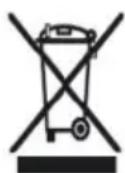
Older appliances, which display the symbol as shown in the picture, may not be discarded in household waste. You must take them to a specific disposal site (check with your local authority) or to your retailer. These sites will guarantee
disposal without harming the environment

natural_image
Abstract black-and-white circular logo with interlocking curved shapes (no text or symbols)MANTA
INFOLINIA SERWISOWA
from Monday to Friday. 9.00-17.00
The manufacturer reserves the right to make changes to product specifications without notice.
Home: www.manta.com.pl
Home support: www.manta.info.pl

Made in P.R.C.
FOR MANTA EUROPE
- MANTA
- MP4 player
- Opis
- Inne ustawienia
- - Equalizer Mode
- - Synchronous Lyric Display
- Play Videos
- Record
- - Recording in "Record mode"
- - Select Record Type
- MODE to enter record submenu
- Voice
- Using FM radio
- Photo Browsing
- Setup
- - Enter Settings
- - Options introduction:
- E-book
- E-book
- 4824PEN
- Using USB Disk
- Other Settings
- - Play mode (Play submenu)
- - Replay mode (Play submenu)
- ○ ABRept
- - Replay times (Play submenu)
- Battery Level
- Troubleshooting
- Note!
- Note about disposal
- INFOLINIA SERWISOWA
Brand : Manta
Model : MP4284B
Category : Mp3 player