
LL-T1820H/B - Monitor SHARP - Free user manual and instructions
Find the device manual for free LL-T1820H/B SHARP in PDF.



| Product type | LCD monitor |
| Brand | SHARP |
| Model | LL-T1820H/B |
| Screen size | 46 cm (18.1 inches) diagonal |
| Maximum resolution | SXGA 1280 x 1024 pixels |
| Number of colors | 16.77 million (8 bits) |
| Brightness | 220 cd/m² |
| Contrast | 400:1 |
| Viewing angle (horizontal / vertical) | 170° / 170° |
| Pixel pitch | 0.2805 mm |
| Display area (W x H) | 359 x 287.2 mm |
| Video inputs | 2 x DVI-I (29-pin) for analog and digital |
| Built-in USB hub | 1 upstream port, 2 downstream ports (USB 1.1, 500 mA per port) |
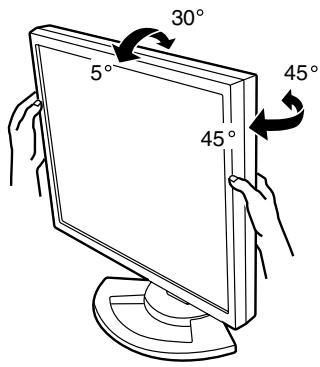
| Adjustments | Height (80 mm), tilt (30° forward, 5° backward), swivel (90°), rotate (90° left/right) |
| OSD functions | Clock, phase, position, gain, white balance, gamma, tint, saturation, color modes (STD, sRGB, VIVID), scaling, lock, OSD pivot |
| Power management | VESA DPMS and DVI DMPM; power consumption 51 W (without USB), 57 W max, 2.9 W in standby |
| Power supply | AC 100-240 V, 50/60 Hz |
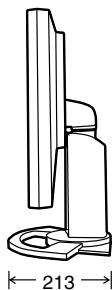
| Dimensions (width x depth x height) landscape | 395 x 213 x 427 mm |
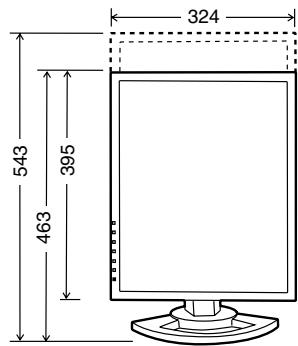
| Dimensions (portrait) | 324 x 213 x 463 mm |
| Weight (with stand) | Approx. 8.9 kg |
| Weight (screen only) | Approx. 5.7 kg |
| VESA mount | 100 x 100 mm, M4 screws (length 6-8 mm) |
| Included accessories | Analog signal cable, digital signal cable, USB cable, CD-ROM, user manual |
| Maintenance and cleaning | Use a soft dry cloth; for the chassis, a neutral detergent; avoid solvents, alcohol, glass cleaner |
| Safety | Do not expose to humidity, dust, oil; do not block ventilation openings; unplug before cleaning; have serviced by a qualified technician |
| Repairability / Spare parts | Backlight lamp replaceable only by a Sharp authorized service person; do not attempt replacement yourself |
| Operating temperature | 5 to 35 °C |
Frequently Asked Questions - LL-T1820H/B SHARP
User questions about LL-T1820H/B SHARP
0 question about this device. Answer the ones you know or ask your own.
Ask a new question about this device
Download the instructions for your Monitor in PDF format for free! Find your manual LL-T1820H/B - SHARP and take your electronic device back in hand. On this page are published all the documents necessary for the use of your device. LL-T1820H/B by SHARP.
USER MANUAL LL-T1820H/B SHARP
Table of Contents
English 3
Deutsch 35
Français 67
Italiano 99
Español 131
Table of Contents
Notice for Users in the USA 4
TCO '95/'99 5
Notice for Users in Europe 7
Notice for Users in the UK 8
Notice for Users in Australia 8
Tips and safety precautions 9
Product description .... 10
Height adjustment, angle adjustment, rotation (long height/width) 11
Connecting the monitor and turning the monitor on and off 12
Connecting the monitor to a computer 13
Connecting the monitor to a power source 14
Connecting a USB device 14
Turning the power on 15
Changing between input terminals 15
Turning the power off 16
Adjusting the screen display 17
Adjustment value reset 17
Adjustment lock function 17
Adjusting the backlight 17
Adjusting the screen display (With analog connection) 18
Automatic screen adjustment 18
Manual screen adjustment 19
Adjusting the screen display (With digital connection) 22
Monitor care and repair 24
Monitor care 24
Storage 24
Troubleshooting 24
Specifications 25
Installing set-up information and the ICC profile (For Windows) 28
Information about the ColorSync profile (For MacOS) 31
Instructions for attaching a VESA compliant arm 32
Information about the Pivot Software (Long height/width display) 33
FCC Statement
WARNING – FCC Regulations state that any unauthorized changes or modifications to this equipment not expressly approved by the manufacturer could void the user's authority to operate this equipment.
Note: This equipment has been tested and found to comply with the limits for a Class B digital device pursuant to Part 15 of the FCC Rules.
These limits are designed to provide reasonable protection against harmful interference in a residential installation. This equipment generates, uses and can radiate radio frequency energy and, if not installed and used in accordance with the instructions, may cause harmful interference to radio communications. However, there is no guarantee that interference will not occur in a particular installation. If this equipment does cause harmful interference to radio or television reception, which can be determined by turning the equipment off and on, the user is encouraged to try to correct the interference by one or more of the following measures:
- Reorient or relocate the receiving antenna.
- Increase the distance between the equipment and receiver.
- Connect the equipment into an outlet on a circuit different from that to which the receiver is connected.
- Consult the dealer or an experienced radio/TV technician for help.
Use only the included cables and AC cord to ensure compliance with FCC regulations for Class B computing equipment.
Declaration of Conformity
SHARP LCD Color Monitor LL-T1820-H/LL-T1820-B
This device complies with part 15 of the FCC rules. Operation is subject to the following conditions: (1) this device may not cause harmful interference, and (2) this device must accept any interference received, including interference that may cause undesired operation.
Responsible Party:
SHARP ELECTRONICS CORPORATION
Sharp Plaza, Mahwah, New Jersey 07430
TEL:1-800-BE-SHARP

* As an ENERGY STAR Partner, SHARP has determined that this product meets the ENERGY STAR guidelines for energy efficiency.
This product utilizes tin-lead solder, and a fluorescent lamp containing a small amount of mercury. Disposal of these materials may be regulated due to environmental considerations. For disposal or recycling information, please contact your local authorities or the Electronics Industries Alliance: www.eiae.org

LL-T1820-B

LL-T1820-H
Congratulations!
You have just purchased a TCO'95 or TCO'99 approved and labelled product! Your choice has provided you with a product developed for professional use. Your purchase has also contributed to reducing the burden on the environment and also to the further development of environmentally adapted electronics products. This product meets the requirements for the TCO'95 or TCO'99 scheme which provides for an international environmental and quality labelling of personal computers. The labelling scheme was developed as a joint effort by the TCO (The Swedish Confederation of Professional Employees), Svenska Naturskyddsforeningen (The Swedish Society for Nature Conservation), Statens Energimyndighet (The Swedish National Energy Administration) and SEMKO AB.
The requirements cover a wide range of issues: environment, ergonomics, usability, reduction of electric and magnetic fields, energy consumption and electrical safety.
Why do we have environmentally labelled computers?
In many countries, environmental labelling has become an established method for encouraging the adaptation of goods and services to the environment. The main problem, as far as computers and other electronics equipment are concerned, is that environmentally harmful substances are used both in the products and during their manufacture. Since it is not so far possible to satisfactorily recycle the majority of electronics equipment, most of these potentially damaging substances sooner or later enter nature.
There are also other characteristics of a computer, such as energy consumption levels, that are important from the viewpoints of both the work (internal) and natural (external) environments. Since all methods of electricity generation have a negative effect on the environment (e.g. acidic and climate-influencing emissions, radioactive waste), it is vital to save energy. Electronics equipment in offices is often left running continuously and thereby consumes a lot of energy.
What does the environmental labelling involve?
The environmental demands has been developed by Svenska Naturskyddsforeningen (The Swedish Society for Nature Conservation). These demands impose restrictions on the presence and use of heavy metals, brominated and chlorinated flame retardants, CFCs (freons) and chlorinated solvents, among other things. The product must be prepared for recycling and the manufacturer is obliged to have an environmental policy which must be adhered to in each country where the company implements its operational policy.
The energy requirements include a demand that the computer and/or display, after a certain period of inactivity, shall reduce its power consumption to a lower level in one or more stages. The length of time to reactivate the computer shall be reasonable for the user.
Below you will find a brief summary of the environmental requirements met by this product. The complete environmental criteria document may be ordered from:
TCO Development
SE-114 94 Stockholm, Sweden
Fax: +46 8 782 92 07
Email (Internet): development@tco.se
Current information regarding TCO'99 approved and labelled products may also be obtained via the Internet, using the address: http://www.tco-info.com/
Environmental requirements
Flame retardants
Flame retardants are present in printed circuit boards, cables, wires, casings and housings. Their purpose is to prevent, or at least to delay the spread of fire. Up to 30% of the plastic in a computer casing can consist of flame retardant substances. Most flame retardants contain bromine or chloride, and those flame retardants are chemically related to another group of environmental toxins, PCBs. Both the flame retardants containing bromine or chloride and the PCBs are suspected of giving rise to severe health effects, including reproductive damage in fish-eating birds and mammals, due to the bio-accumulative * processes. Flame retardants have been found in human blood and researchers fear that disturbances in foetus development may occur. The relevant TCO'95 and TCO'99 demand require that plastic components weighing more than 25 grams must not contain flame retardants with organically bound bromine or chlorine. Flame retardants are allowed in the printed circuit boards since no substitutes are available.
Cadmium **
Cadmium is present in rechargeable batteries and in the colour-generating layers of certain computer displays. Cadmium damages the nervous system and is toxic in high doses.
TCO'95 requirement states that batteries may not contain more than 25 ppm (parts per million) of cadmium. The colour-generating layers of display screens must not contain any cadmium.
The relevant TCO'99 requirement states that batteries, the colour-generating layers of display screens and the electrical or electronics components must not contain any cadmium.
Mercury **
Mercury is sometimes found in batteries, relays and switches. It damages the nervous system and is toxic in high doses.
TCO'95 requirement states that batteries may not contain more than 25 ppm (parts per million) of mercury. The relevant TCO'99 requirement states that batteries may not contain any mercury.
Both TCO'95 and TCO'99 also demand that mercury is not present in any of the electrical or electronics components associated with the labelled unit. There is however one exception. Mercury is, for the time being, permitted in the back light system of flat panel monitors as there today is no commercially available alternative. TCO aims on removing this exception when a mercury free alternative is available.
CFCs (freons)
The relevant TCO'95 and TCO'99 requirement state that neither CFCs nor HCFCs may be used during the manufacture and assembly of the product. CFCs (freons) are sometimes used for washing printed circuit boards. CFCs break down ozone and thereby damage the ozone layer in the stratosphere, causing increased reception on earth of ultraviolet light with e.g. increased risks of skin cancer (malignant melanoma) as a consequence.
Lead can be found in picture tubes, display screens, solders and capacitors. Lead damages the nervous system and in higher doses, causes lead poisoning. The relevant TCO'95 and TCO'99 requirements permit the inclusion of lead since no replacement has yet been developed.
* Bio-accumulative is defined as substances which accumulate within living organisms
** Lead, Cadmium and Mercury are heavy metals which are Bio-accumulative.
Notice for Users in Europe
This equipment complies with the requirements of Directives 89/336/EEC and 73/23/EEC as amended by 93/68/EEC.
Notice for Users in the UK
FOR CUSTOMERS IN U.K.
IMPORTANT
The wires in this mains lead are coloured in accordance with the following code:
GREEN-AND-YELLOW: Earth
BLUE: Neutral
BROWN: Live
As the colours of the wires in the mains lead of this apparatus may not correspond with the coloured markings identifying the terminals in your plug, proceed as follows. The wire which is coloured GREEN-AND-YELLOW must be connected to the terminal in the plug which is marked by the letter E or by the safety earth symbol, or coloured green or green-and-yellow.
The wire which is coloured BLUE must be connected to the terminal which is marked with the letter N or coloured black.
The wire which is coloured BROWN must be connected to the terminal which is marked with the letter L or coloured red.
Ensure that your equipment is connected correctly - if you are in any doubt, consult a qualified electrician.
WARNING: THIS APPARATUS MUST BE EARTHED
Notice for Users in Australia
Service Inquiries
Please contact your dealer for service if required, or contact Sharp Corporation of Australia on 1 300 13 50 22 for referral to your nearest Sharp authorized Service Center.
Tips and safety precautions
- Under certain display conditions, minute specks or spots may be noticeable. This is common for liquid crystal monitors and is not a malfunction.
- The LCD panel has been manufactured using highly elaborate technology. Properly working pixels comprise 99.99% of total pixels. However, please understand that 0.01% or less of pixels may be missing or be brighter than usual.
- Do not leave the screen displaying idly for long periods of time, as this could cause afterimage to remain.
- If the brightness is adjusted to the minimum setting, it may be difficult to see the screen.
- The quality of the computer signal may influence the quality of the display. We recommend using a computer able to emit high quality video signals.
- Never rub or tap the monitor with hard objects.
- Please understand that Sharp Corporation bears no responsibility for errors made during use by the customer or a third party, nor for any other malfunctions or damage to this product arising during use, except where indemnity liability is recognized under law.
- This monitor and its accessories may be upgraded without advance notice.
Location
- Do not use the monitor where ventilation is poor, where there is a lot of dust, where humidity is high, or where the monitor may come into contact with oil or steam, as this could lead to fire.
- Ensure that the monitor does not come into contact with water or other fluids. Ensure that no objects such as paper clips or pins enter the monitor as this could lead to fire or electric shock.
- Do not place the monitor on top of unstable objects or in unsafe places. Do not allow the monitor to come into contact with strong shocks or vibrations. Causing the monitor to fall or topple over may damage it.
- Do not use in places where the monitor will be subject to direct sunlight, near heating equipment or anywhere else where there is likelihood of high temperature, as this may lead to generation of excessive heat and outbreak of fire.
- When carrying the monitor, firmly grasp both the display and stand section. If the monitor is lifted by the display only, the stand may abruptly pop out or move, and this could lead to injury. If the monitor is inclined, the stand may move and cause injury.
- Be careful not to allow your fingers to be pinched between the display and stand. (Especially in the area of attachment.)
The Power Cord
- Do not damage the power cord nor place heavy objects on it, stretch it or overly bend it. Also, do not add extension cords. Damage to the cord may result in fire or electric shock.
- Insert the power plug directly into the AC outlet. Adding an extension cord may lead to fire as a result of overheating.
Monitor and accessory checklist
- Please check that the following items are included in the package.
- LCD monitor (1)
- Analog signal cable (1) (model name: QCNW-1051MPZZ)
- Digital signal cable (1) (model name: QCNW-1044MPZZ)
- USB cable (1) (model name: QCNW-1042MPZZ)
- CD-ROM (1)
- Operation manual (1)
Notes:
- You are advised to retain the carton in case the monitor needs to be transported.
- Sharp Corporation holds authorship rights to the Utility Disk program. Do not reproduce it without permission.
Manual Scope
- In this booklet, Microsoft Windows XP will be referred to as [WindowsXP], Microsoft Windows Millenium as [WindowsMe], Microsoft Windows 2000 as [Windows2000], Microsoft Windows 98 as [Windows98], Microsoft Windows 95 as [Windows95], and Microsoft Windows Version 3.1 as [Windows3.1]. When there is no need to distinguish between programs, the term [Windows] will be used.
- Microsoft and Windows are registered trademarks of Microsoft Corporation.
- Macintosh is a registered trademark of Apple Computer, Inc.
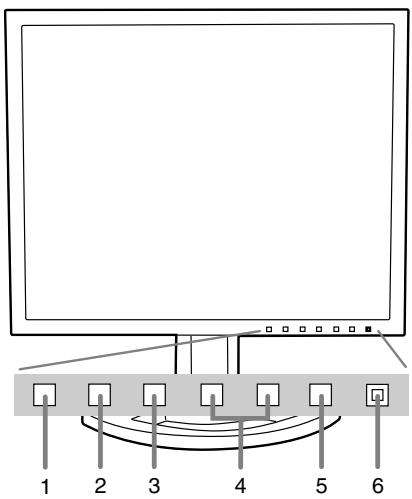

- INPUT button...... To switch between the signal's input terminals. (Input terminal 1 ↔ Input terminal 2)
- MENU button ...... This button is used to pop-up, select and close the OSD (On Screen Display) Menu.
- SELECT button .... This button is used to select menu options when the OSD Menu is displayed.
- ◀▶ buttons ...... When the OSD Menu is displayed: These buttons are used to increase or decrease the value of a selected option. When the OSD Menu is not displayed: These buttons are used to adjust backlight brightness.
- Power button
- Power LED ...... This LED is lit green when in use and orange when in power-saving mode.
- USB port (downstream: 2 ports)
- USB port (upstream: 1 port)
- DVI-I input terminal .... The computer's digital RGB output terminal or analogue RGB output terminal can be connected here.
For a digital signal input: It can be connected to a computer with a DVI-compatible output terminal (DVI-D24 pin or DVI-I29 pin) and which has SXGA output ability. Depending on the computer to be connected, correct display may or may not be possible.
- Security lock anchor .... By connecting a security lock (purchased separately) to the security lock anchor, the monitor is fixed so that it cannot be transported.
The security slot works in conjunction with Kensington Micro Saver Security Systems.
- Power terminal
- Main power switch
- Ventilation openings. Note: Never block the ventilation openings as this may lead to overheating inside the monitor and result in malfunction.
Height adjustment, angle adjustment, rotation (long height/width)
CAUTION!
- Pressure from hands on the LCD panel could cause damage.
- Be careful not to allow your fingers to be pinched.
Height adjustment
Adjust to an easy to view height.
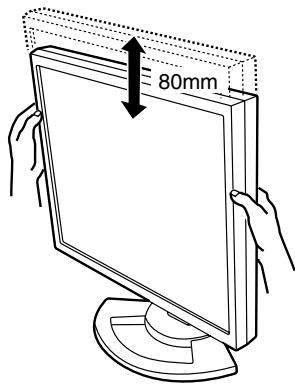
Angle adjustment
Adjust to an easy to view angle.
Rotation (long height/width)
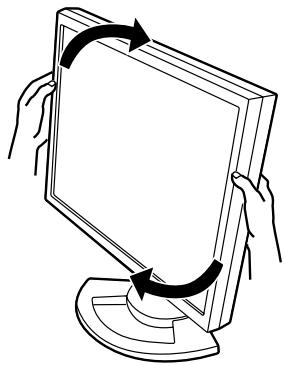
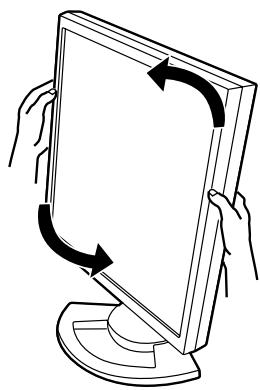
The display can be rotated for a long height or width to suit the displayed content.
- Before rotating, move the display to its uppermost position. If the display is rotated while it is set low, it will contact the stand and could lead to damage.
- The display can only be rotated through a range of 90°. Applying excessive force may cause malfunction.
- Do not apply excessive force when the cable is connected.
To set to long height
Gently turn in the clockwise direction (to 90°).
To set to long width
Gently turn in the counterclockwise direction (to 90°).
Note:
- The orientation of the display can be changed using Pivot Software. (p. 33)
Connecting the monitor and turning the monitor on and off
CAUTION!
- When connecting, ensure that both the monitor and computer are switched off.
- Be careful not to overly bend the cable or add extension cords as this could lead to a malfunction.
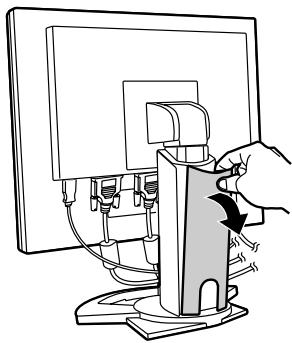
Cable storage
If necessary, excess cable can be housed in the stand.
1. Remove the cover.
Gently pull the top of the cover towards yourself.
2. Run cable along the back of the stand.
Pass cable in front of the stand, and then bring it through the back.
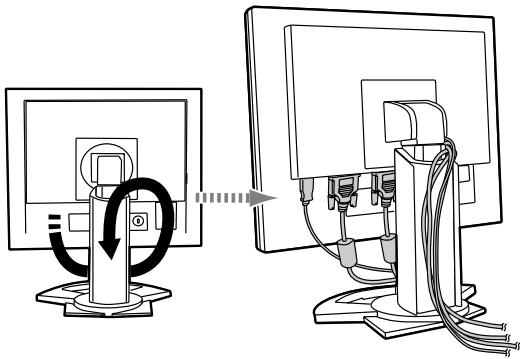
- If the display is to be rotated, first house the cables with the display in the long height position, so there is sufficient length when the display is turned.
3. Refit the cover.
Be careful not to pinch the cable.
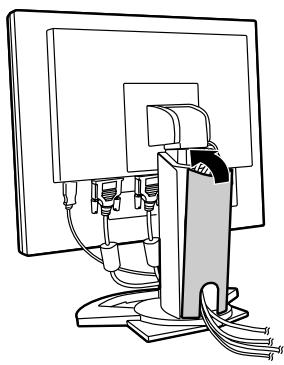
- If the cover is hard to refit, do not force it. Check whether cables are trapped.
CAUTION!
- If the display is to be rotated, first house the cable, and then check while gently turning the display. If it cannot be turned, rehouse the cable with sufficient slack. (If there is insufficient cable length, rotation will be impossible. Forcing rotation may cause cable disconnection.)
Connecting the monitor to a computer
Connecting the monitor to a computer using the accessory signal cable.
- This monitor has two input terminals to enable connection to two computers. The monitor comes with one analog signal and one digital signal cable. If both connections are analog, or both are digital, you will need another signal cable sold separately.
- Digital signal cable: model name NL-C01E
- Analog signal cable: model name NL-C02E
Analog RGB connection
Using the accessory analog signal cable, connect to the analog RGB output terminal of the computer.
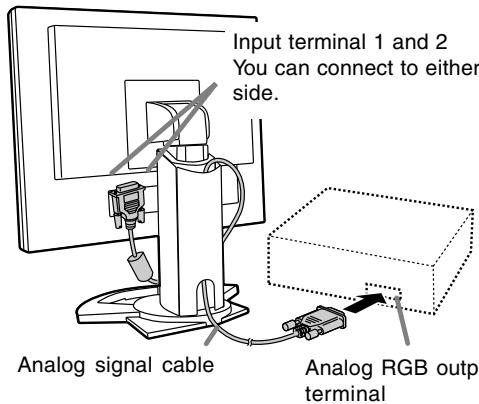
- Paying attention to connector direction, firmly insert the signal cable to terminal, and then tighten the screws at both sides.
If connecting to a D-sub 15 pin 2 row Apple Power Macintosh, attach a Macintosh conversion adapter (to be purchased separately) to the analog signal cable.
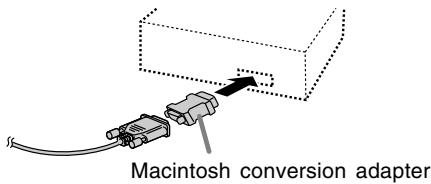
Digital RGB connection
Using the accessory digital signal cable, connect with the digital RGB output terminal of the computer.
- For digital RGB connection, the monitor has an input for connecting to a computer with a DVI-compatible output connector (DVI-D 24 pin or DVI-I 29 pin) and SXGA output capability. (Depending on the type of computer to be connected, the display may not work correctly.)
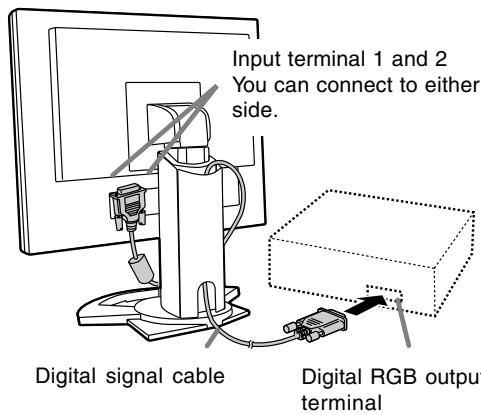
- Paying attention to connector direction, firmly insert the signal cable to terminal, and then tighten the screws at both sides.
Set the monitor as follows when establishing a digital connection with a Power Mac using an ADC-DVI adapter made by Belkin. (Operation has been checked with the Power Mac G4 M7627J/A)
- Perform settings with the Power Mac power supply off.
- After connecting the power cord, turn on the monitor's main power.
- Press the ◀ button and ▶ button simultaneously, and while doing this press the POWER button (i.e. turn the power on).
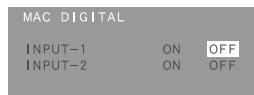
- Set the input terminal to which the Belkin ADC-DVI adapter is connected to ON.
Use the SELECT button to select [INPUT1] or [INPUT2], and use the ◀▶ buttons to select [ON] and [OFF].
- Do not set to [ON] if you are not using a Belkin ADC-DVI adapter, as this may result in incorrect display.
- Press the power button, and turn off the monitor power.
This completes setting.
Connecting the monitor to a power source
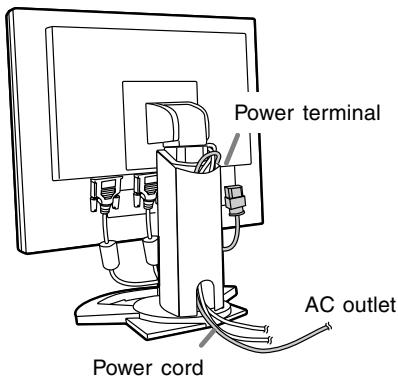
Connecting a USB device
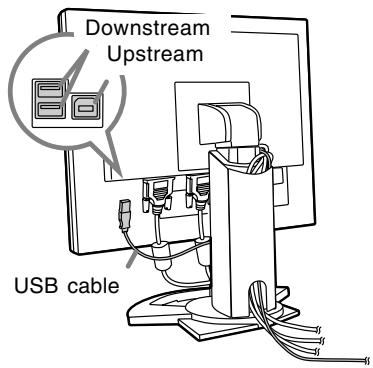
This monitor is equipped with a USB standard (Rev. 1.1) self-powered hub.
Downstream (2 ports)
Each of these ports enables connection of a USB device with working current up to 500 mA.
Upstream (1 port)
This enables connection of a USB compatible computer or USB hub.
Notes:
- If a USB cable is required, please use the one included.
- Before connecting, ensure that the shape of the USB cable connector is correct.
- For information regarding the USB function (such as set-up) please refer to the operation manual of the computer to be connected.
- Some computers, OS and other devices may not be able to be activated. To ascertain a certain device's USB compatibility, please contact the manufacturer of the device.
Turning the power on
- Turn on the main power of the monitor.
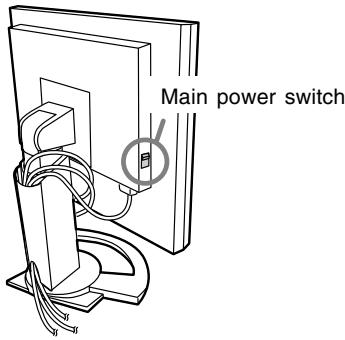
- When switching the main power switch on and off, always wait for an interval of at least 5 seconds. Rapid switching may result in malfunction.
- Press the monitor's POWER button.
The power LED will light up orange.
- Turn on the computer.
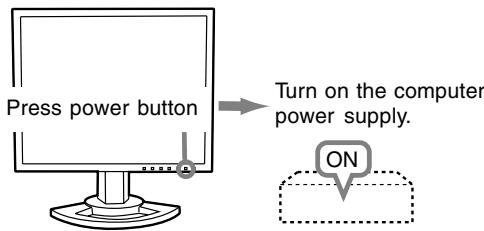
When a signal is input from the computer, the power LED lights up green, and the screen is displayed (After power is turned on, it may take a little time until the screen is displayed.)
- If the input terminal to which the computer is connected has not been selected, the screen will not be displayed. If necessary, perform input terminal switching. (right column)
Notes: (when using an analog signal)
- If using the monitor for the first time or after having changed the system settings during use, perform an automatic screen adjustment (p. 18).
- When connecting to a notebook, if the notebook computer's screen is set so that it is displaying at the same time, the MS-DOS screen may not be able to display properly. In this case, change the settings so that only the monitor is displaying.
Changing between input terminals
Use the INPUT button to switch between signal input terminals.
![graph LR A["Input terminal 1"] -->|INPUT| B["Input terminal 2"] A --> C["INPUT-1 < >"] B --> D["INPUT-2 < >"]](/content/2019/11/78808/images/889cb05e6a885d0159a975639d63ccce4acc4aa08c5c236afe7a82e6490857ab.jpg)
The input signal type (ANALOG/DIGITAL) is displayed within angle brackets < >.
Turning the power off
- Turn the computer off.
- Press the monitor's POWER button. The Power LED will disappear.
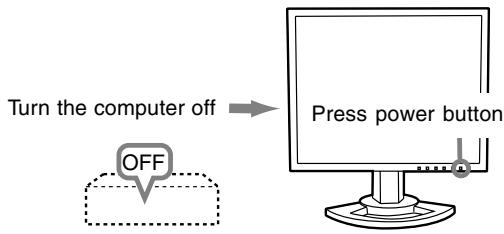
If the monitor will not be used for a long time, turn off the main power switch of the monitor, and remove the power plug from the outlet.
Adjusting the screen display
For analog signal
- First perform an automatic adjustment. (p. 18)
- Perform manual adjustment where necessary. (p. 19)
For digital signal
The monitor can generally be used without adjustment. If necessary, perform manual adjustment. (p. 22)
Note:
- All adjustments will be saved even after turning the power off.
Adjustment value reset
Resetting all adjustment values
All adjustment values can be returned to their original ex-factory values in one command.
- Turn off the monitor power.
- Press the MENU button and the SELECT button simultaneously, and while doing this press the power button (i.e., turn the power on). When [ALL RESET] appears on the screen, the reset is complete.
Note:
- While ALL RESET is displayed, the control buttons are disabled.
- It is not possible to reset values when the adjustment lock is in place. Remove the adjustment lock before attempting to operate control buttons.
ADJUSTMENT menu reset
The adjustment values of the analogue signal time's ADJUSTMENT menu can be returned to their original ex-factory values.
- Turn on the monitor power.
- Press the MENU button and the ◀ button simultaneously. When [RESET] appears on the screen, the reset is complete.
Adjustment lock function
By disabling the control buttons (i.e. setting the lock) any attempted changes to adjusted values will be voided.
- Turn off the monitor power.
- While pressing the MENU button, press the power button (i.e. turn the power on). Continue to press the button until the message appears on the screen. When the menu is unlocked: [ADJUSTMENT LOCKED] will appear on the screen, and the lock will be set. When the menu is locked: [ADJUSTMENT UNLOCKED] will appear on the screen, and the lock will be removed.
Note:
- When the lock is in place, all buttons other than the power button are disabled.
Adjusting the backlight
The backlight brightness can be adjusted. Carry out the commands without the On Screen Display (OSD) Menu displayed. If the OSD Menu is displayed, press the MENU button (several times may be required) and begin when the OSD Menu has disappeared.
- Without the OSD Menu being displayed, push the ◀ or the ▶ button. At the bottom of the screen the BRIGHT bar will appear.

- Adjust by pressing the ◀ button (darker) or ▶ button (lighter).
The BRIGHT bar automatically disappears approximately 5 seconds after the last command.
Automatic screen adjustment
Options in the ADJUSTMENT Menu can be adjusted automatically (CLOCK, PHASE, H-POS V-POS).
Note:
- When setting up this monitor for the first time or after having changed an aspect of the current system, perform an automatic screen adjustment before use.
On Screen Display for the automatic adjustment
First display an image that makes the entire screen light.
If you are using Windows, you can use the Adjustment Pattern on the accompanying CD-ROM.
Opening the Adjustment Pattern (for Windows)
This explanation is for Windows 95/98/2000/Me/XP, and assumes that the CD-ROM drive is "D drive".
- Load the accessory CD-ROM into the CD-ROM drive of the computer.
- Open [My Computer] and select CD-ROM. If using Windows 3.1, open [File Manager] and choose "D drive".
- Double click on [Adj_uty.exe] to run the Adjustment Program. The Adjustment Pattern will appear.
Adjustment pattern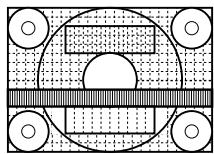
Notes:
- After completing the adjustments, press the computer's [Esc] key to exit the Adjustment Program.
- If your computer's display mode is set to 65K colors, you may see the different color levels in each color pattern or the gray scale may look colored. (This is due to the specification of the input signal and is not a malfunction.)
How to Adjust
- Press the MENU button. The ADJUSTMENT Menu will be displayed.
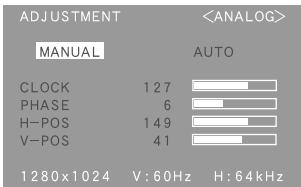
- Press the ▶ button.
The screen will become dark and [ADJUSTING] will be displayed. After a few seconds the ADJUSTMENT Menu will return. (The automatic adjustment is now complete.)
- Press the MENU button 4 times to make the OSD Menu disappear.
Notes:
- In most cases automatic adjustment is sufficient.
- If necessary due to any of the following, manual adjustments (p. 19) can be performed after the automatic adjustment.
- When further fine adjustment is needed.
- When the computer's video input signals are Composite Sync or Sync On Green. (Automatic adjustments may not be possible.)
- When [OUT OF ADJUST] is displayed. (When the screen displays an entirely dark image, the automatic screen adjustment may be disabled. When making an automatic adjustment, be sure to either use the Adjustment Pattern or try displaying an image that makes the entire screen very bright.)
Adjusting the screen display (With analog connection)
Manual screen adjustment
Adjustments can be made using the On Screen Display (OSD) Menu provided.
On Screen Display for adjustment
If you are using Windows, open the Adjustment Pattern on the accompanying CD-ROM. (p. 18)
If your system is not Windows, you cannot use the Adjustment Pattern. Therefore, display an image that makes the entire screen light and adjust it by checking visually its actual tone.
This chapter provides the procedure on how to adjust the screen by using the Adjustment Pattern (for Windows).
How to adjust
- Press the MENU button.
The ADJUSTMENT Menu will be displayed.
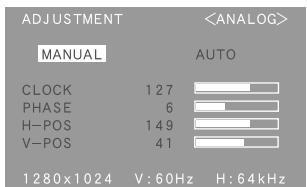
At this point, relevant menu options can be adjusted.
Each time the MENU button is pressed the next menu is selected. (ADJUSTMENT → GAIN CONTROL → COLOR CONTROL → MODE SELECT → OSD Menu disappears)
Notes:
- The OSD Menu automatically disappears approximately 30 seconds after the last command.
ADJUSTMENT Menu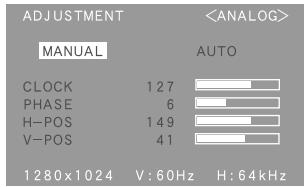
MANUAL: Individual menu options are manually adjusted.
AUTO: Every menu option is automatically adjusted.
Notes:
- Press the ▶ button to select [AUTO].
- To choose a menu option: SELECT button
- To go to the next menu: MENU button
CLOCK
The figure below demonstrates how to adjust so that vertical flicker noise is not emitted. (◀▶ buttons)
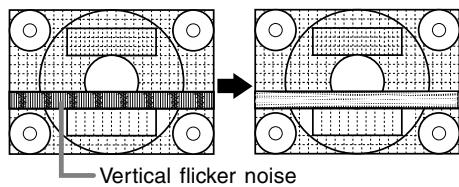
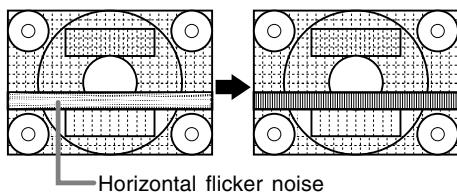
PHASE
The figure below demonstrates how to adjust so that horizontal flicker noise is not emitted. (◀▶ buttons)
Note:
- Adjustments to PHASE should be made only after CLOCK has been correctly set.
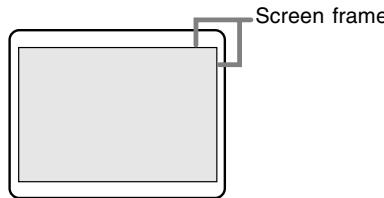
H-POS (horizontal positioning) and V-POS (vertical positioning)
To center the screen image within the boundaries of the screen, adjust the left-right (H-POS) values and the up-down (V-POS) values. (◀▶ buttons)
Adjusting the screen display (With analog connection)
GAIN CONTROL Menu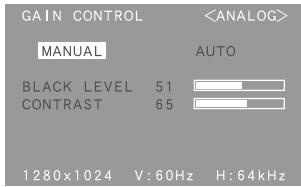
MANUAL: Individual menu options are manually adjusted.
AUTO: Every menu option is automatically adjusted using the Auto Gain Control* function.
Notes:
- Press the ▶ button to select [AUTO].
- To choose a menu option: SELECT button
- To go to the next menu: MENU button
* Auto Gain Control function
- The Auto Gain Control adjusts contrast and black level based on the brightest color of the image displayed. If you are not using the Adjustment Pattern it is necessary to have an area of 5 mm x 5 mm of white displayed, and if not adjustments may not be possible. (In such case, [OUT OF ADJUST] will appear and setting values remain unchanged.)
- If the signal coming from the computer is composite sync or sync on green, automatic adjustment cannot be performed. Please perform manual adjustment instead.
BLACK LEVEL
Total screen brightness can be adjusted while watching the color pattern. (◀▶ buttons)
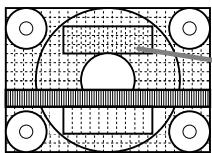
Color pattern
CONTRAST
While watching the color pattern, adjustments can be made so that all graduations appear. (◀▶ buttons)
COLOR CONTROL Menu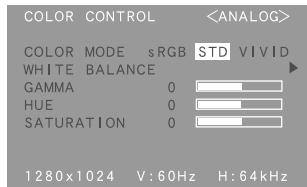
Notes:
- To choose a menu option: SELECT button
- To go to the next menu: MENU button
COLOR MODE
Color tone can be set as below.
STD ..... Displays image with the color tone results from original scheme of liquid crystal panel. sRGB ... sRGB is international standard of color representation specified by IEC (International Electrotechnical Commission). Color conversion is made in taking account of liquid crystal's characteristics and represents color tone close to it original image. VIVID ... Displays an image with dynamic and VIVID primary colors. - If [sRGB] or [VIVID] has been selected, items subsequent to [WHITE BALANCE] cannot be set.
Subsequent items can be set when the [COLOR MODE] is [STD].
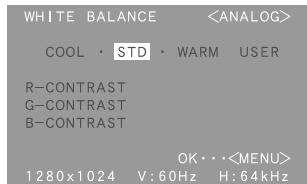
WHITE BALANCE
After selecting [WHITE BALANCE], press the ▶ button and display the adjustment menu.
Notes:
- On settings other than [STD] not all graduations can be displayed. To display all graduations, set to [STD].
- Use the ◀▶ buttons to select [COOL], [·], [STD], [·], [WARM] or [USER].
- Selecting USER will display the setting values for [R-CONTRAST], [G-CONTRAST] and [B-CONTRAST], in order to make fine adjustments.
- Use the SELECT button to select [R-CONTRAST], [G-CONTRAST] and [B-CONTRAST].
- When adjustment complete: MENU button
Adjusting the screen display (With analog connection)
COOL ... Color tone bluer than standard
• ...... Color tone slightly bluer than standard STD ..... Color tone standard setting • ...... Color tone slightly redder than standard WARM .. Color tone redder than standard USER
R-CONTRAST ....◀ button for blue-green
▶ button for red
G-CONTRAST ....◀ button for purple
▶ button for green
B-CONTRAST ....◀ button for yellow
▶ button for blue
GAMMA
Adjust so that dark and bright images are easy to see. If the screen is dark and hard to see, increase the numerical value. If it is bright and hard to see, lower the numerical value. (◀▶ buttons)
HUE
Hue can be adjusted. (◀▶ buttons)
SATURATION
Color saturation can be adjusted. (◀▶ buttons) At the minimum value, the screen is black and white.
MODE SELECT Menu
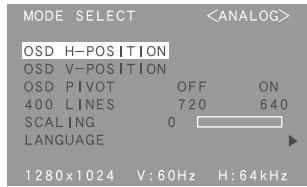
Notes:
- Depending on the resolution of the input signal, even if menu options can be selected, the display may not change.
- To choose a menu option: SELECT button
- When adjustment complete: MENU button
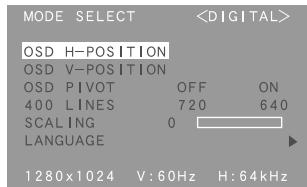
OSD H-POSITION (OSD horizontal position)
The position of the OSD display can be moved to the left and right. (◀▶ buttons)
OSD V-POSITION (OSD vertical position)
The position of the OSD display can be moved up and down. (◀▶ buttons)
OSD PIVOT
The orientation of the OSD display can be changed.
(◀▶ buttons)
ON: Orientation for long height display
OFF: Orientation for long width display
400 LINES (degree of resolution)
You can specify the horizontal resolution of a 400-line screen when using US text, etc. (◀▶ buttons)
640: 640 X 400 dot mode
720: 720 X 400 dot mode (US text etc.)
Note:
- As the resolution input for other than 400 lines is done automatically, there is no need to set it.
SCALING (Level of scaling)
Adjusts the image to optimum sharpness when Screen expansion is taken. (◀▶ buttons)
LANGUAGE
Messages displayed on the screen and OSD Menu contents can be changed to the following languages.
English, German, French, Dutch, Spanish, Italian, Swedish
- After selecting [LANGUAGE], press the ▶ button. The Language Selection Menu will be displayed on the screen.
- Select the desired language using the SELECT button.
- Press the MENU button. The Language Selection Menu disappears.
Adjusting the screen display (With digital connection)
Adjustments can be made using On Screen Display (OSD) Menu provided.
On Screen Display for adjustment
If you are using Windows, open the Adjustment Pattern on the accompanying CD-ROM. (p. 18) If your system is not Windows, you can not use the Adjustment Pattern. Therefore display an image that makes the entire screen light and adjust it through checking visually its actual tone.
How to adjust
- Press the MENU button. The COLOR CONTROL Menu will be displayed.

At this point relevant menu options can be adjusted.
Each time the MENU button is pressed the next menu is selected. (COLOR CONTROL → MODE SELECT → OSD Menu disappears)
Notes:
- The OSD Menu automatically disappears approximately 30 seconds after the last command.
COLOR CONTROL Menu
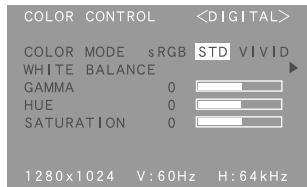
Notes:
- To choose a menu option: SELECT button
- To go to the next menu: MENU button
COLOR MODE
Color tone can be set as below.
STD ..... Displays image with the color tone results from original scheme of liquid crystal panel. sRGB ... sRGB is international standard of color representation specified by IEC (International Electrotechnical Commission). Color conversion is made in taking account of liquid crystal's characteristics and represents color tone close to it original image. VIVID ... Displays an image with dynamic and VIVID primary colors. - If [sRGB] or [VIVID] has been selected, items subsequent to [WHITE BALANCE] cannot be set.
Subsequent items can be set when the [COLOR MODE] is [STD].
WHITE BALANCE
After selecting [WHITE BALANCE], press the ▶ button and display the adjustment menu.

Notes:
- On settings other than [STD] not all graduations can be displayed. To display all graduations, set to [STD].
- Use the ◀▶ buttons to select [COOL], [·], [STD], [·], [WARM] or [USER].
- Selecting USER will display the setting values for [R-CONTRAST], [G-CONTRAST] and [B-CONTRAST], in order to make fine adjustments.
- Use the SELECT button to select [R-CONTRAST], [G-CONTRAST] and [B-CONTRAST].
- When adjustment complete: MENU button
Adjusting the screen display (With digital connection)
COOL ... Color tone bluer than standard
•..... Color tone slightly bluer than standard
STD ..... Color tone standard setting
• Color tone slightly redder than standard
WARM .. Color tone redder than standard
USER
R-CONTRAST ....◀ button for blue-green
▶ button for red
G-CONTRAST ....◀ button for purple
▶ button for green
B-CONTRAST ....◀ button for yellow
▶ button for blue
GAMMA
Adjust so that dark and bright images are easy to see. If the screen is dark and hard to see, increase the numerical value. If it is bright and hard to see, lower the numerical value. (◀▶ buttons)
HUE
Hue can be adjusted. (◀▶ buttons)
SATURATION
Color saturation can be adjusted. (◀▶ buttons)
At the minimum value, the screen is black and white.
MODE SELECT Menu
Notes:
- Depending on the resolution of the input signal, even if menu options can be selected, the display may not change.
- To choose a menu option: SELECT button
- When adjustment complete: MENU button
OSD H-POSITION (OSD horizontal position)
The position of the OSD display can be moved to the left and right. (◀▶ buttons)
OSD V-POSITION (OSD vertical position)
The position of the OSD display can be moved up and down. (◀▶ buttons)
OSD PIVOT
The orientation of the OSD display can be changed.
(◀▶ buttons)
ON: Orientation for long height display
OFF: Orientation for long width display
400 LINES (degree of resolution)
You can specify the horizontal resolution of a 400-line screen when using US text, etc. (◀▶ buttons)
640: 640 X 400 dot mode
720: 720 X 400 dot mode (US text etc.)
Note:
- As the resolution input for other than 400 lines is done automatically, there is no need to set it.
SCALING (Level of scaling)
Adjusts the image to optimum sharpness when
Screen expansion is taken. (◀▶ buttons)
LANGUAGE
Messages displayed on the screen and OSD Menu contents can be changed to the following languages.
English, German, French, Dutch, Spanish, Italian, Swedish
- After selecting [LANGUAGE], press the ▶ button. The Language Selection Menu will be displayed on the screen.
- Select the desired language using the SELECT button.
- Press the MENU button. The Language Selection Menu disappears.
Monitor care
Always remove the plug from the AC outlet when cleaning the monitor.
Cabinet and control panel section
Use a soft dry cloth to lightly wipe away any grime from the cabinet and control panel.
If they are very dirty, apply neutral detergent to a dampened soft cloth, wring it out well and wipe away grime.
LCD panel section
Use a soft dry cloth to lightly wipe away dirt and dust from the surface of the LCD panel. (A soft cloth such as gauze or that used for lens cleaning is suitable.)
CAUTION!
- Never use thinner, benzine, alcohol, glass cleaner, etc., as this could lead to color change or change in shape.
- Never scratch the monitor with anything hard or apply strong pressure as this could leave marks or result in malfunction.
Storage
If the monitor will not be used for a long period of time, be sure to remove the power plug from the AC outlet.
CAUTION!
Do not leave the monitor in contact with rubber or plastic items for long periods of time as this could lead to color change or change in shape.
Troubleshooting
If you think the monitor may be faulty, please check the following points before taking it to be repaired. If afterwards it still does not work, please contact the shop where you purchased the monitor or your nearest Sharp authorized Service Center.
The monitor's fluorescent tubes have a limited life span.
- If the screen darkens, persistently flickers or does not light up, it may be necessary to replace the fluorescent tube unit. Please inquire at the shop where you purchased the monitor or your nearest Sharp authorized Service Center. (Never attempt this replacement on your own.)
- In the initial period of use, due to the characteristics of fluorescent tubes the screen may flicker. (This is not a malfunction.) Should this happen, check by first turning off the power, then turning it on again.
No image appears on the monitor (Power LED is not lit)
- Is the power cord connected properly? (p. 14)
No image appears on the monitor (Power LED is lit)
- Is the computer connected properly? (p. 13)
- Is the computer turned on?
- Is the signal's input terminal switched to the correct one? (p. 15)
- Does the computer's signal timing correspond to monitor specifications? (p. 26)
- Is the computer in power-saving mode?
Control buttons do not work
- Is the adjustment lock on? (p. 17)
The image appears distorted
- Does the computer's signal timing correspond to monitor specifications? (p. 26)
- If you are using the analog signal, perform automatic adjustment. (p. 18)
- If you can change the frequency on the computer you are using, change the values to a low frequency count.
Product specifications
LCD display
46 cm measured diagonally
Advanced Super-V and Anti Glare Low Reflection
TFT LCD module
Resolution (max.)
SXGA 1280 x 1024 pixels
Displayable colors (max.)
16.77 million colors (8 bit)
Brightness (max.)
220cd/m²
Dot pitch
0.2805(H) 0.2805(V) mm
Contrast ratio
400:1
Angle of visibility
Left-right 170°; Up-down 170°
Screen display size
Horizontal 359 mm x Vertical 287.2 mm
Video signal
Analog: Analog RGB (0.7Vp-p) [75Ω]
Digital: DVI standard based on 1.0
Sync signal
Separate Sync (TTL level: +/-), Sync on
Green, Composite Sync (TTL level: +/-)
Expansion compensation
Digital screening (enlargement of display to correct VGA/SVGA/XGA)
[expansion (total screen surface)]
Plug & Play
VESA DDC2B compatible
Power management
VESA: based on DPMS
DVI: based on DMPM
Input signal terminal
29 pin DVI-I x 2
USB hub function
1 upstream port, 2 downstream ports
(self-powered hub based on USB standard Rev
1.1)
Height adjustment
Adjustment range: Approx. 80 mm
Screen rotation
Clockwise 0° - 90°
Screen tilt
Upward 0° -30°; downward 0° - 5°
Screen swivel
90° from left through right
Power supply
AC100 - 240V, 50/60Hz
Temperature of operating environment
5 - 35°C
Power consumption
51W (Not using USB hub)
(57W maximum, 2.9W when in power-saving
mode)
Dimensions (W x D x H) (Units: mm)
With long width screen: 395 x 213 x 427
With long heightscreen: 324 x 213 x 463
Weight
Approx. 8.9 kg
Display area only, approx. 5.7kg
Dimensions (Units: mm)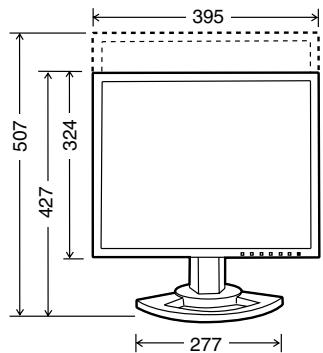
Digital signal cable:
Analogue signal cable:
USB cable:
Approx. 2.0 m
Approx. 2.0 m
Approx. 1.8 m
Specifications
Relevant signal timings (analog)
| Display mode | Hsync | Vsync | Dot frequency | |
| VESA | 640x480 | 31.5kHz | 60Hz | 25.175MHz |
| 37.9kHz | 72Hz | 31.5MHz | ||
| 37.5kHz | 75Hz | 31.5MHz | ||
| 800x600 | 35.1kHz | 56Hz | 36.0MHz | |
| 37.9kHz | 60Hz | 40.0MHz | ||
| 48.1kHz | 72Hz | 50.0MHz | ||
| 46.9kHz | 75Hz | 49.5MHz | ||
| 1024x768 | 48.4kHz | 60Hz | 65.0MHz | |
| 56.5kHz | 70Hz | 75.0MHz | ||
| 60.0kHz | 75Hz | 78.75MHz | ||
| 1152x864 | 67.5kHz | 75Hz | 108.0MHz | |
| 1280x960 | 60.0kHz | 60Hz | 108.0MHz | |
| 1280x1024 | 64.0kHz | 60Hz | 108.0MHz | |
| 80.0kHz | 75Hz | 135.0MHz | ||
| US text | 720x400 | 31.5kHz | 70Hz | 28.3MHz |
| Power Macintosh series | 640x480 | 35.0kHz | 66.7Hz | 30.2MHz |
| 832x624 | 49.7kHz | 74.6Hz | 57.3MHz | |
| 1024x768 | 60.2kHz | 75Hz | 80.0MHz | |
| 1152x870 | 68.7kHz | 75Hz | 100.0MHz | |
| 1280x1024 | 64.0kHz | 60Hz | 108.0MHz | |
| 80.0kHz | 75Hz | 135.0MHz | ||
| Sun Ultra series | 1024x768 | 48.3kHz | 60Hz | 64.13MHz |
| 53.6kHz | 66Hz | 70.4MHz | ||
| 56.6kHz | 70Hz | 74.25MHz | ||
| 1152x900 | 61.8kHz | 66Hz | 94.88MHz | |
| 71.8kHz | 76.2Hz | 108.23MHz | ||
| 1280x1024 | 71.7kHz | 67.2Hz | 117.01MHz | |
| 81.1kHz | 76Hz | 134.99MHz | ||
- Recommended resolution is 1280 x 1024.
- All are compliant only with non-interlaced.
- Frequencies for Power Macintosh and the Sun Ultra series are reference values. To connect, another adapter (purchased separately) may be required.
- If the monitor is receiving timing signals that are not compatible, [OUT OF TIMING] will appear. Follow your computer's instruction manual to set the timing so that it is compatible with the monitor.
- If the monitor is not receiving any signal (synch signal), [NO SIGNAL] will appear.
Relevant signal timings (digital)
| Display mode | Hsync | Vsync | Dot frequency | |
| VESA | 640x480 | 31.5kHz | 60Hz | 25.175MHz |
| 37.9kHz | 72Hz | 31.5MHz | ||
| 37.5kHz | 75Hz | 31.5MHz | ||
| 800x600 | 37.9kHz | 60Hz | 40.0MHz | |
| 48.1kHz | 72Hz | 50.0MHz | ||
| 46.9kHz | 75Hz | 49.5MHz | ||
| 1024x768 | 48.4kHz | 60Hz | 65.0MHz | |
| 56.5kHz | 70Hz | 75.0MHz | ||
| 60.0kHz | 75Hz | 78.75MHz | ||
| 1152x864 | 67.5kHz | 75Hz | 108.0MHz | |
| 1280x960 | 60.0kHz | 60Hz | 108.0MHz | |
| 1280x1024 | 64.0kHz | 60Hz | 108.0MHz | |
| US text | 720x400 | 31.5kHz | 70Hz | 28.3MHz |
- Recommended resolution is 1280 x 1024.
- All are compliant only with non-interlaced.
- A computer with an output terminal conforming to DVI (DVI-D24 pin or DVI-I29 pin) and with SXGA output capability can be connected here. (Depending on the type of computer to be connected, the display may not work correctly.)
- If the monitor is receiving timing signals that are not compatible, [OUT OF TIMING] will appear. Follow your computer's instruction manual to set the timing so that it is compatible with the monitor.
- If the monitor is not receiving any signal (synch signal), [NO SIGNAL] will appear.
The DVI-I input connector pin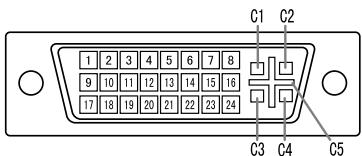
| No. | Function | No. | Function |
| 1 | TMDS data 2- | 16 | Hot plug detection |
| 2 | TMDS data 2+ | 17 | TMDS data 0- |
| 3 | TMDS data 2/4 shield | 18 | TMDS data 0+ |
| 4 | N.C. | 19 | TMDS data 0/5 shield |
| 5 | N.C. | 20 | N.C. |
| 6 | DDC clock | 21 | N.C. |
| 7 | DDC data | 22 | TMDS clock shield |
| 8 | Analogue vertically synchronised signal | 23 | TMDS clock + |
| 9 | TMDS data 1- | 24 | TMDS clock - |
| 10 | TMDS data 1+ | C1 | Analogue red image signal |
| 11 | TMDS data 1/3 shield | C2 | Analogue green image signal |
| 12 | N.C. | C3 | Analogue blue image signal |
| 13 | N.C. | C4 | Analogue horizontally synchronised signal |
| 14 | +5V | C5 | Analogue GND |
| 15 | GND |
Power management
The monitor is based on the VESA DPMS 1 and the DVI DMPM 2 standards.
To activate the monitor's Power Management function, both the video card and the computer must conform to the VESA DPMS standard and the DVI DMPM standard.
*1 DPMS: Display Power Management Signalling
| DPMS mode | Screen | Power consumption | H-sync | V-sync |
| ON | Display on | 51W* | Yes | Yes |
| STANDBY | Display off | 2.9W | No | Yes |
| SUSPEND | Yes | No | ||
| OFF | No | No |
*2 DMPM: Digital Monitor Power Management
| DMPM mode | Screen | Power consumption |
| ON | Display on | 51W* |
| OFF | Display off | 2.9W |
DDC (Plug & Play)
This monitor supports the VESA DDC (Display Data Channel) standard.
DDC is a signal standard for carrying out Plug & Play functions on the monitor or PC. It transfers information such as degree of resolution between the monitor and PC. You can use this function if your PC is DDC compliant and if it is set so that it can detect the Plug & Play monitor.
There are many varieties of DDC due to the differences between systems. This monitor works with DDC2B.
Installing set-up information and the ICC profile (For Windows)
Depending on the computer or OS, it may be necessary to use the computer to operate the installation of monitor set-up information etc. If so, follow the steps below to install the monitor set-up information. (Depending on the type of computer or OS, command names and methods may differ. Please follow the computer's own operation manual while reading this.)
About the ICC profile
An ICC (International Color Consortium) profile is a file that describes the color characteristics of the LCD monitor. By using an application that works together with an ICC profile, a high color resolution can be realized.
- Windows98/2000/Me/XP all use the ICC profile.
- When installing Windows98/2000/Me/XP set-up information (described below), the ICC profile is also installed. If you would like to install the ICC program only, please refer to Installing the ICC profile on page 30.
- When using an ICC profile, set [COLOR MODE] and [WHITE BALANCE] to [STD], and set [GAMMA], [HUE] and [SATURATION] to [0].
For Windows95
Installing monitor set-up information into Windows95. This explanation assumes that the CD-ROM drive is "D drive".
- Load the accessory CD-ROM into the CD-ROM drive of the computer.
- Click on the [Start] button. From [Settings], choose [Control Panel].
- Double click on [Display].
- Click on [Settings], [Advanced Properties], and [Monitor], then [Change].
- Click on [Have disk], confirm that [Copy manufacturer's files from:] is [D:] then click [OK].
- Confirm that the monitor details are selected, and click [OK].
- Check that the monitor details are displayed, then click [Apply].
- Click [OK], and close the window.
For Windows98
Installing monitor set-up information into Windows98, and setting the monitor's ICC profile as a predetermined value.
This explanation assumes that the CD-ROM drive is "D drive".
If the "Add new Hardware Wizard" has appeared:
- Load the accessory CD-ROM into the CD-ROM drive of the computer.
- Click [Next].
- Check [Display a list of all the drivers in a specific location, so you can select the driver you want.], then click [Next].
- When [Models] is displayed, click on [Have disk], confirm that [Copy manufacturer's files from:] is [D:], and click [OK].
- Confirm that the monitor details are selected, then click [Next], [Next], and [Finish]. If the "Add New Hardware Wizard" appears, repeat the installation commands beginning from 2 above.
If the "Add New Hardware Wizard" has not appeared:
- Load the accessory CD-ROM into the CD-ROM drive of the computer.
- Click on the [Start] button. From [Settings], choose [Control Panel].
- Double click on [Display].
- Click on [Settings], [Advanced] and [Monitor].
- In [Options], check [Automatically detect Plug & Play monitors] and click on [Change].
- Click [Next].
- Click on [Display a list of all the drivers in a specific location, so you can select the driver you want.], then click [Next].
- When [Models] is displayed, click on [Have disk], confirm that [Copy manufacturer's files from:] is [D:], and click [OK].
- Confirm that the monitor details are selected, then click [Next], [Next], and [Finish].
- Check that the monitor details are displayed, then click [Apply].
- Click [OK], and close the window.
Installing set-up information and the ICC profile (For Windows)
For Windows2000
Installing monitor set-up information into Windows2000, and setting the monitor's ICC profile as a predetermined value.
This explanation assumes that the CD-ROM drive is "D drive".
- Load the accessory CD-ROM into the CD-ROM drive of the computer.
- Click on the [Start] button. From [Settings], choose [Control Panel].
- Double click on [Display].
- Click on [Settings], [Advanced] and [Monitor].
- Click on [Properties], [Driver] and [Update Driver].
- When [Upgrade Device Driver Wizard] appears, click [Next].
- Check [Display a list of the known drivers for this device so that I can choose a specific driver] and click [Next].
- When [Models] is displayed, click on [Have disk], confirm that [Copy manufacturer's files from:] is [D:], and click [OK].
- Select the monitor from the list displayed and click [Next].
- Click [Next], confirm that the monitor's name appears on the screen, and click [Finish]. If [The Digital Signature Not Found] appears, click [Yes].
- Click on [Close].
- Click [OK], and close the window.
For WindowsMe
Installing monitor set-up information into
WindowsMe, and setting the monitor's ICC profile as a predetermined value.
This explanation assumes that the CD-ROM drive is "D drive".
If the "Add new Hardware Wizard" has appeared:
- Load the accessory CD-ROM into the CD-ROM drive of the computer.
- Check [Specify the location of the driver (Advanced)] and click [Next].
- Check [Display a list of all the drivers in a specific location, so you can select the driver you want.], then click [Next].
- When [Models] is displayed, click on [Have disk], confirm that [Copy manufacturer's files from:] is [D:], and click [OK].
- Select the monitor details from the list, then click [Next], [Next], and [Finish]. If the "Add new Hardware Wizard" appears, repeat the installation commands beginning from 2 above.
If the "Add New Hardware Wizard" has not appeared:
- Load the accessory CD-ROM into the CD-ROM drive of the computer.
- Click on the [Start] button. From [Settings], choose [Control Panel].
- Double click on [Display].
- Click on [Settings], [Advanced] and [Monitor].
- In [Options], check [Automatically detect Plug & Play monitors] and click on [Change].
- Check [Specify the location of the driver (Advanced)] and click [Next].
- Check [Display a list of all the drivers in a specific location, so you can select the driver you want.] and click [Next].
- When [Models] is displayed, click on [Have disk], confirm that [Copy manufacturer's files from:] is [D:], and click [OK].
- Select the monitor details, then click [Next], [Next], and [Finish].
- Check that the monitor details are displayed, then click [Apply].
- Click [OK], and close the window.
Installing set-up information and the ICC profile (For Windows)
For WindowsXP
Installing monitor set-up information into WindowsXP, and setting the monitor's ICC profile as a predetermined value.
This explanation assumes that the CD-ROM drive is "D drive".
- Load the accessory CD-ROM into the CD-ROM drive of the computer.
- Click on the [Start] button. Choose [Control Panel].
- Switch to Classic View.
- Double click on [Display].
- Click on [Settings], [Advanced] and [Monitor].
- Click on [Properties], [Driver] and [Update Driver].
- When [Hardware Update Wizard] appears, check [Install from a list or specific location [Advanced]] and click [Next].
- Check [Don't search. I will choose the driver to install.] and click [Next].
- Click on [Have Disk], confirm that [Copy manufacturer's files from:] is [D:], and click [OK].
- Select the monitor from the list displayed and click [Next].
- Confirm that the monitor's name appears on the screen. If [has not passed Windows Logo testing...] appears, click [Continue Anyway].
- Click on [Finish].
- Click [Close], and close the window.
Installing the ICC profile
Installing the monitor's ICC profile. (If the set-up information has already been installed, so too has the profile, and there is no need to install it.) This explanation assumes that the CD-ROM drive is "D drive".
- Load the accessory CD-ROM into the CD-ROM drive of the computer.
- Click on the [Start] button. From [Settings], choose [Control Panel].
- Double click on [Display].
- Click on [Settings] and [Advanced].
- Click on [General] and from [Compatibility] select [Apply the new display setting without restarting], then click on [Color Management].
- Click [Add], and select CD-ROM as the file location.
- Choose the color profile that you would like to install, and click on [Add].
- Choose the profile and click on [Set As Default].
- Click [OK], and close the window.
- When using an ICC profile, set [COLOR MODE] and [WHITE BALANCE] to [STD], and set [GAMMA], [HUE] and [SATURATION] to [0].
Information about the ColorSync profile (For MacOS)
About the ColorSync profile
ColorSync is the Apple Corporation's color management system and is a function that enables color resolution to be realized when used with a compatible application. A ColorSync profile describes the color characteristics of the LCD monitor.
Notes:
- This monitor's ColorSync profile works with MacOS8.5 or above.
- When using the ColorSync profile, set [COLOR MODE] and [WHITE BALANCE] to [STD], and set [GAMMA], [HUE] and [SATURATION] to [0].
Setting up the ColorSync profile
Notes:
- In addition, it is necessary to have PC Exchange or File Exchange installed in your system.
- Depending on the type of computer or OS, command names and methods may differ. Please follow the computer's own operation manual while reading this.
- Load the accessory CD-ROM into the CD-ROM drive of the computer.
- Copy the profile used by the application disk to the ColorSync profile folder in the system folder.
- Using the ColorSync on the control panel, choose the profile to be used.
Instructions for attaching a VESA compliant arm
An arm or stand based on the VESA standard (purchased separately) can be attached to the monitor.
Procurement of the arm or stand is at the customer's discretion.
Arms or stands able to be used
Attachments must satisfy the following.
- Compatible with the VESA standard
- Have a gap of 100 mm x 100 mm between the screw holes on the section to be attached
- Not be likely to fall off or break off after being attached to the monitor.
How to attach the arm or stand
- Be careful not to overly bend the cable or add extension cords as this could lead to malfunction.
- While following these instructions, please also refer to the installation instructions in the operation manual included with the arm or stand.
- Remove the cable.
- Spread out a soft cloth on a suitable horizontal surface.
- Being careful not to damage the monitor, gently lay the monitor on its display-side down.
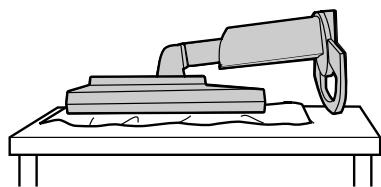

CAUTION!
Securely grasp both the display and stand, and gently tip over. When the monitor is inclined, the stand may suddenly pop out and cause injury.
- Remove the four screws and then remove the stand from the monitor.
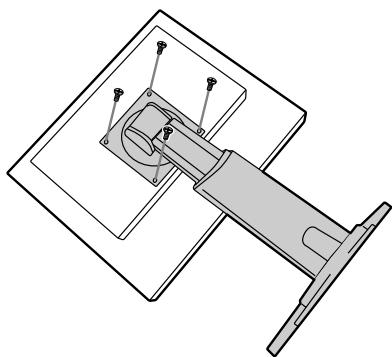
Notes:
- The stand is specially made for use with this monitor. Once having removed the stand, never attempt to attach it to another device.
- Once having removed the screws, store them together with the stand and if the stand is ever re-attached be sure to use the original screws. Using different screws could lead to a malfunction.

CAUTION!
Do not disassemble the stand. Parts may spring out and cause injury.
- Attach the arm to the monitor with the four screws.
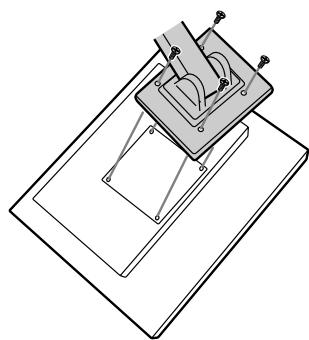
Note:
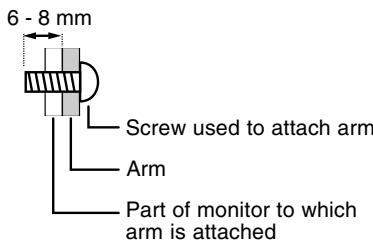
- The screws used to attach the arm should be M4 screws with a length of 6 mm \~ 8 mm protruding from the surface to be attached. Using different screws could lead to malfunction or may lead to the monitor falling off, internal damage, personal injury.
Information about the Pivot Software (Long height/width display)
When rotating the display, change the display orientation using Pivot Software.
Compatible operating systems (OS) for the Pivot Software (trial version) that comes with the monitor: Windows 98/2000/Me/XP Macintosh OS 8.x - 9.1
- Depending on the graphics accelerator, it may be impossible to use Pivot Software, even with a compatible OS.
For production information and inquiries regarding Pivot Software: Portrait Displays, Inc. (http://www.portrait.com)
Installation of Pivot Software (trial version)
For Windows
- Quit all applications being used.
- Load the accessory CD-ROM into the CD-ROM drive of the computer.
- Open the [My computer] CD-ROM.
- Double click on the [Pivot] folder.
- Double click on [SETUP.exe].
- Click [Next].
- Choose [I accept the terms in the License Agreement].
- Click [Next].
- Input your Customer information [User Name] and [Organization].
- Click [Next].
- Click on [Install]. Installation will begin.
- When the message indicating installation is finished is displayed, click [Next].
- Click on [Finish].
- Click on [Yes] and restart the computer.
For Macintosh
- Quit all applications being used.
- Load the accessory CD-ROM into the CD-ROM drive of the computer.
- Open the CD-ROM.
- Double click on the [Pivot] folder.
- Select the desired language.
- Double click on [Install MacPortrait].
- Drag the [MacPortrait Install] icon onto the desired disk. Installation will begin.
- When the message indicating installation is finished is displayed, click on [Restart].
Switching display direction
For Windows
Choose [Rotate] by right clicking the mouse, or left clicking on ☐ at the lower right of the screen.
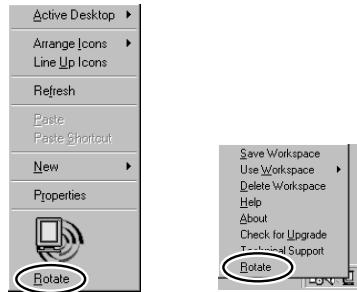
Each time [Rotate] is selected, the display direction switches.
For Macintosh
Choose [ROTATE Now] from the lower right of the screen.
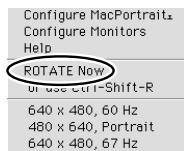
Each time [ROTATE Now] is selected, the display direction switches.
Notes:
- Rotation of the display to match the display direction is done manually. (p.11)
- The display direction on the OSD menu is switched using [OSD PIVOT] on the [MODE SELECT] menu. (p.21, 23)

This equipment complies with the requirements of Directives 89/336/EEC and 73/23/EEC as amended by 93/68/EEC.
WARNING: THIS EQUIPMENT MUST BE EARTHED.
Note:
Notes:
Digital signal cable:
approx. 2.0 m
Analog signal cable:
approx. 2.0 m
USB cable:
approx. 1.8 m
Relevant signal timings (analog)
| Anzeigemodus | Hsync | Vsync | Punktfrequenz | |
| VESA | 640x480 | 31.5kHz | 60Hz | 25.175MHz |
| 37.9kHz | 72Hz | 31.5MHz | ||
| 37.5kHz | 75Hz | 31.5MHz | ||
| 800x600 | 35.1kHz | 56Hz | 36.0MHz | |
| 37.9kHz | 60Hz | 40.0MHz | ||
| 48.1kHz | 72Hz | 50.0MHz | ||
| 46.9kHz | 75Hz | 49.5MHz | ||
| 1024x768 | 48.4kHz | 60Hz | 65.0MHz | |
| 56.5kHz | 70Hz | 75.0MHz | ||
| 60.0kHz | 75Hz | 78.75MHz | ||
| 1152x864 | 67.5kHz | 75Hz | 108.0MHz | |
| 1280x960 | 60.0kHz | 60Hz | 108.0MHz | |
| 1280x1024 | 64.0kHz | 60Hz | 108.0MHz | |
| 80.0kHz | 75Hz | 135.0MHz | ||
| US-Text | 720x400 | 31.5kHz | 70Hz | 28.3MHz |
| Power Macintosh-Serie | 640x480 | 35.0kHz | 66.7Hz | 30.2MHz |
| 832x624 | 49.7kHz | 74.6Hz | 57.3MHz | |
| 1024x768 | 60.2kHz | 75Hz | 80.0MHz | |
| 1152x870 | 68.7kHz | 75Hz | 100.0MHz | |
| 1280x1024 | 64.0kHz | 60Hz | 108.0MHz | |
| 80.0kHz | 75Hz | 135.0MHz | ||
| Sun Ultra-Serie | 1024x768 | 48.3kHz | 60Hz | 64.13MHz |
| 53.6kHz | 66Hz | 70.4MHz | ||
| 56.6kHz | 70Hz | 74.25MHz | ||
| 1152x900 | 61.8kHz | 66Hz | 94.88MHz | |
| 71.8kHz | 76.2Hz | 108.23MHz | ||
| 1280x1024 | 71.7kHz | 67.2Hz | 117.01MHz | |
| 81.1kHz | 76Hz | 134.99MHz | ||
*1 DPMS: Display Power Management Signalling
*2 DMPM: Digital Monitor Power Management

CAUTION:
Notes:
Note:
Portrait Displays, Inc.
(http://www.portrait.com)
Installation of the Pivot Software (Trial Version)
For Windows
SHARP ELECTRONICS CORPORATION
Sharp Plaza, Mahwah, New Jersey 07430
TEL: 1-800-BE-SHARP

LL-T1820-B

LL-T1820-H
Congratulations!
This equipment complies with the requirements of Directives 89/336/EEC and 73/23/EEC as amended by 93/68/EEC.
Note:
Notes:
Color model
CONTRAST
1 upstream port, 2 downstream ports (USB standard Rev.
1.1, self-powered)
*2 DMPM: Digital Monitor Power Management

Attention:
Remarks:
Remarks:
Portrait Displays, Inc.
(http://www.portrait.com)
SHARP LL-T1820-H/LL-T1820-B color LCD monitor
LL-T1820-H
Congratulations!
This equipment complies with the requirements of Directives 89/336/EEC and 73/23/EEC as amended by 93/68/EEC.
Note:
Power on
Note:
ADJUSTMENT menu (ADJUSTMENT)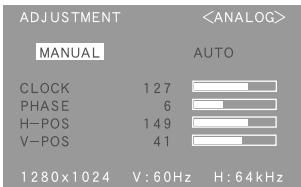
1 upstream port, 2 downstream ports
(hub powered by standard USB Rev 1.1)
*1 DPMS: Display Power Management Signalling
*2 DMPM: Digital Monitor Power Management

WARNING:
Notes:
Note:
SHARP LL-T1820-H/LL-T1820-B Color Monitor
SHARP ELECTRONICS CORPORATION
Sharp Plaza, Mahwah, New Jersey 07430
TEL: 1-800-BE-SHARP

LL-T1820-B

LL-T1820-H
Congratulations!
This equipment complies with the requirements of Directives 89/336/EEC and 73/23/EEC as amended by 93/68/EEC.
Note:
Notes:
Color chart
CONTRAST

Caution:
Notes:
Note:
Portrait Displays, Inc.
(http://www.portrait.com)
- TABLE OF CONTENTS
- FCC STATEMENT
- DECLARATION OF CONFORMITY
- SHARP LCD COLOR MONITOR LL-T1820-H/LL-T1820-B
- CONGRATULATIONS
- WHY DO WE HAVE ENVIRONMENTALLY LABELLED COMPUTERS
- WHAT DOES THE ENVIRONMENTAL LABELLING INVOLVE
- TCO DEVELOPMENT
- ENVIRONMENTAL REQUIREMENTS
- FLAME RETARDANTS
- CADMIUM
- MERCURY
- CFCS (FREONS)
- NOTICE FOR USERS IN EUROPE
- NOTICE FOR USERS IN THE UK
- FOR CUSTOMERS IN U.K
- IMPORTANT
- NOTICE FOR USERS IN AUSTRALIA
- SERVICE INQUIRIES
- TIPS AND SAFETY PRECAUTIONS
- LOCATION
- THE POWER CORD
- MONITOR AND ACCESSORY CHECKLIST
- NOTES
- MANUAL SCOPE
- HEIGHT ADJUSTMENT, ANGLE ADJUSTMENT, ROTATION (LONG HEIGHT/WIDTH)
- CAUTION
- HEIGHT ADJUSTMENT
- ANGLE ADJUSTMENT
- ROTATION (LONG HEIGHT/WIDTH)
- TO SET TO LONG HEIGHT
- TO SET TO LONG WIDTH
- NOTE
- CONNECTING THE MONITOR AND TURNING THE MONITOR ON AND OFF
- CABLE STORAGE
- REMOVE THE COVER
- RUN CABLE ALONG THE BACK OF THE STAND
- REFIT THE COVER
- CONNECTING THE MONITOR TO A COMPUTER
- ANALOG RGB CONNECTION
- DIGITAL RGB CONNECTION
- CONNECTING THE MONITOR TO A POWER SOURCE
- CONNECTING A USB DEVICE
- DOWNSTREAM (2 PORTS)
- UPSTREAM (1 PORT)
- TURNING THE POWER ON
- NOTES: (WHEN USING AN ANALOG SIGNAL)
- CHANGING BETWEEN INPUT TERMINALS
- TURNING THE POWER OFF
- ADJUSTING THE SCREEN DISPLAY
- FOR ANALOG SIGNAL
- FOR DIGITAL SIGNAL
- ADJUSTMENT VALUE RESET
- RESETTING ALL ADJUSTMENT VALUES
- ADJUSTMENT MENU RESET
- ADJUSTMENT LOCK FUNCTION
- ADJUSTING THE BACKLIGHT
- AUTOMATIC SCREEN ADJUSTMENT
- ON SCREEN DISPLAY FOR THE AUTOMATIC ADJUSTMENT
- OPENING THE ADJUSTMENT PATTERN (FOR WINDOWS)
- HOW TO ADJUST
- ADJUSTING THE SCREEN DISPLAY (WITH ANALOG CONNECTION)
- MANUAL SCREEN ADJUSTMENT
- ON SCREEN DISPLAY FOR ADJUSTMENT
- CLOCK
- PHASE
- H-POS (HORIZONTAL POSITIONING) AND V-POS (VERTICAL POSITIONING)
- BLACK LEVEL
- CONTRAST
- COLOR MODE
- WHITE BALANCE
- GAMMA
- HUE
- SATURATION
- MODE SELECT MENU
- OSD H-POSITION (OSD HORIZONTAL POSITION)
- OSD V-POSITION (OSD VERTICAL POSITION)
- OSD PIVOT
- LINES (DEGREE OF RESOLUTION)
- SCALING (LEVEL OF SCALING)
- LANGUAGE
- ADJUSTING THE SCREEN DISPLAY (WITH DIGITAL CONNECTION)
- COLOR CONTROL MENU
- MONITOR CARE
- CABINET AND CONTROL PANEL SECTION
- LCD PANEL SECTION
- STORAGE
- TROUBLESHOOTING
- PRODUCT SPECIFICATIONS
- SPECIFICATIONS
- POWER MANAGEMENT
- DDC (PLUG & PLAY)
- INSTALLING SET-UP INFORMATION AND THE ICC PROFILE (FOR WINDOWS)
- ABOUT THE ICC PROFILE
- FOR WINDOWS
- FOR WINDOWSME
- FOR WINDOWSXP
- INSTALLING THE ICC PROFILE
- INFORMATION ABOUT THE COLORSYNC PROFILE (FOR MACOS)
- ABOUT THE COLORSYNC PROFILE
- SETTING UP THE COLORSYNC PROFILE
- INSTRUCTIONS FOR ATTACHING A VESA COMPLIANT ARM
- ARMS OR STANDS ABLE TO BE USED
- HOW TO ATTACH THE ARM OR STAND
- INFORMATION ABOUT THE PIVOT SOFTWARE (LONG HEIGHT/WIDTH DISPLAY)
- INSTALLATION OF PIVOT SOFTWARE (TRIAL VERSION)
- FOR MACINTOSH
- SWITCHING DISPLAY DIRECTION
- INSTALLATION OF THE PIVOT SOFTWARE (TRIAL VERSION)
- ATTENTION
- REMARKS
- SHARP LL-T1820-H/LL-T1820-B COLOR LCD MONITOR
- POWER ON
- WARNING
- SHARP LL-T1820-H/LL-T1820-B COLOR MONITOR
Brand : SHARP
Model : LL-T1820H/B
Category : Monitor