
DV-HR300S - DVD player SHARP - Free user manual and instructions
Find the device manual for free DV-HR300S SHARP in PDF.


| Product Type | DVD Player |
| Brand | SHARP |
| Model | DV-HR300S |
| Supported Formats | DVD-Video, Audio CD, CD-R/RW, DVD-R/RW |
| Video Output | Composite, S-Video, YUV (Component) |
| Audio Output | Analog Stereo, Digital Coaxial |
| Dimensions (W x D x H) | 430 x 250 x 55 mm |
| Weight | 2.5 kg |
| Power Supply | 220-240 V AC, 50/60 Hz |
| Power Consumption | 15 W (standby < 1 W) |
| Main Functions | DVD/CD playback, search, programming, zoom, A-B repeat, parental control |
| Remote Control | Yes, included with batteries |
| Maintenance and Cleaning | Clean with a soft, dry cloth; do not use solvents |
| Safety | Do not expose to moisture; do not block ventilation slots |
| Spare Parts and Repairability | Contact a SHARP authorized service for repairs; parts available on order |
| General Information | Compliant with directives 89/336/EEC and 73/23/EEC as amended |
Frequently Asked Questions - DV-HR300S SHARP
User questions about DV-HR300S SHARP
0 question about this device. Answer the ones you know or ask your own.
Ask a new question about this device
Download the instructions for your DVD player in PDF format for free! Find your manual DV-HR300S - SHARP and take your electronic device back in hand. On this page are published all the documents necessary for the use of your device. DV-HR300S by SHARP.
USER MANUAL DV-HR300S SHARP
The region number for this recorder is 2
This equipment complies with the requirements of Directives 89/336/EEC and 73/23/EEC as amended by 93/68/EEC.
This Recorder can be used only where the power supply is AC 220V-240V, 50Hz. It cannot be used elsewhere.
CAUTION:
USE OF CONTROLS OR ADJUSTMENTS OR PERFORMANCE OF PROCEDURES OTHER THAN THOSE SPECIFIED HEREIN MAY RESULT IN HAZARDOUS RADIATION EXPOSURE.
AS THE LASER BEAM USED IN THIS RECORDER IS HARMFUL TO THE EYES, DO NOT ATTEMPT TO DISASSEMBLE THE CABINET. REFER SERVICING TO QUALIFIED PERSONNEL ONLY.
WARNING:
TO REDUCE THE RISK OF FIRE OR ELECTRIC SHOCK, DO NOT EXPOSE THIS EQUIPMENT TO RAIN OR MOISTURE.
TO REDUCE THE RISK OF FIRE OR ELECTRIC SHOCK, AND ANNOYING INTERFERENCE, USE THE RECOMMENDED ACCESSORIES ONLY.
Laser Diode Properties
Material: DVD: AlGaInP
CD: GaAlAs
Wave length: DVD: 658nm
CD: 784nm
Emission Duration: Pulse
Laser output: Max. DVD: 100mW
CD: 255mW
Power Cord Protection
To avoid any malfunctions of the Recorder, and to protect against electric shock, fire or personal injury, please observe the following.
- Hold the plug firmly when connecting or disconnecting the AC power cord.
- Keep the AC power cord away from heating appliances.
- Never put any heavy object on the AC power cord.
- Do not attempt to repair or reconstruct the AC power cord in any way.
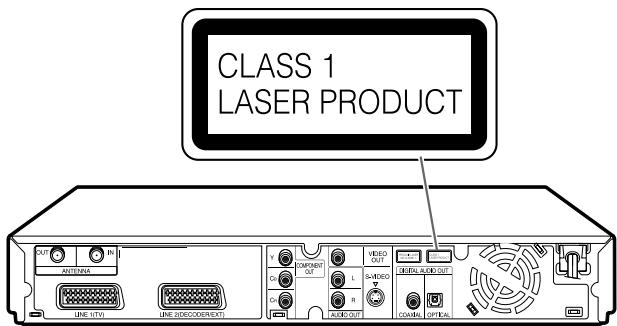
- This Recorder is classified as a CLASS 1 LASER product.
- The CLASS 1 LASER PRODUCT label is located on the rear cover.
- This product contains a low power laser device. To ensure continued safety do not remove any cover or attempt to gain access to the inside of the product. Refer all servicing to qualified personnel.
SAFETY INFORMATION 1
Features 4
Accessories 5
Precautions about Using This Product.... 6
About Hard Disc (HDD) 8
Recording Format 8
Unrecordable Material 8
Hard Disc Operation (Recording/Playback/Time Shift Recording) 8
Initialization 8
CPRM (control) Information 8
About DVD 9
Types of Discs that Can Be Used with This Recorder ... 9
Discs that Cannot Be Used with This Recorder 9
Types of Discs for Recording 10
Recording Formats 11
Recording Time 11
Disc Remaining Time 11
Using the Proper Disc 12
Unrecordable Material 12
Initialization and Finalization 13
Initialization (Formatting) 13
Allowing Discs to Be Played Back with Other DVD Players (Finalization) 13
About the Contents of the Disc 13
Title, Chapter and Track 13
Icons Used on DVD Video Disc Case 14
The Icons Used in This Operation Manual 14
Important Information 15
Disc Precautions 15
Copyright 15
Cautions Regarding Recording 15
Major Components 16
Main Unit (Front) 16
Front Panel Display 16
Main Unit (Rear) 16
Remote Control Unit 17
Loading the Batteries 18
Operating a TV Using the Remote Control (Universal Remote Control) 19
Setting the Remote Control Code 19
Basic Connection 20
Connection Using Antenna Cables and SCART Cables 20
Using Other Types of Video Output 21
Auto Installation 22
Turning the Power On 22
Using the AUTO INSTALLATION for initial setting 22
About START MENU 24
About START MENU 24
Basic START MENU Operation 24
Clock Setting 25
Clock Setting 25
Channel Setting 26
Channel Setting 26
Channel Sort 26
27
Re-naming Channels 27
Display Information 28
Content of TV Screen Display 28
Checking the Channel, Remaining Time of HDD and Number of Titles 28
Checking the Channel, Remaining Time of DVD and Number of Titles 29
Switching Front Panel Display 29
Preparation to Operate This Recorder .... 30
Time Shift Viewing/Chasing Playback 31
Time Shift Viewing 32
Chasing Playback 32
Recording to HDD 33
Direct Recording to HDD 34
Setting the Record End Time during Direct Recording (Simple Recording Timer) 34
Recording to DVD 35
Loading Disc 35
Direct Recording to DVD 35
Setting Recording Mode (HDD/DVD) 37
HDD Recording Mode and Recording Time 37
DVD-RW/R Recording Mode and Recording Time 37
Setting the Manual Recording Mode (MN) 38
Direct Recording the TV programme you are watching . 38
Timer Recording 39
Timer Recording with SHOWVIEW® system 39
Timer Recording by Specifying Date, Time and Channel 41
Confirm, Change and Cancel a Timer Programme 43
Dubbing (HDD/DVD) 44
Dubbing Method and Dubbing Types 44
Limitation during Dubbing 44
Dubbing (HDD ↔ DVD)/High Speed Dubbing (HDD → DVD) 46
Eliminating Problems (Recording, Timer Recording, Dubbing) 48
HDD Playback 50
Playback 50
Playback from REC LIST 51
Playback by Selecting Title Number (Direct Playback) 52
Other Types of Playback 53
DVD/CD Playback 55
Loading Disc 55
DVD-RW/R Playback 55
DVD Video Playback 56
Audio CD/Video CD Playback 56
Other Types of Playback 57
Playback by Selecting with the Menu in the DVD 59
MP3 File Playback 60
To Play Another File (music title) during Playback 60
To Skip the File during Playback 60
Settings During Playback 61
Function Control 61
Simultaneous Recording/Playback Function 63
Viewing the Programme Being Recorded from the Beginning while Recording to HDD (Chasing Playback) 63
DVD/CD Playback during HDD Recording (Simultaneous Recording/Playback) 63
Playing Back a Title on the HDD during DVD Recording (Simultaneous Recording/Playback) 63
Viewing Another Programme Recorded on HDD while Recording to HDD (Simultaneous Recording/Playback) 63
Function Menu 64
How to Use the FUNCTION MENU 64
Editing (HDD/DVD) 65
About Editing 65 Editing Procedure 65
Switching between Original and Play List (Play Lists can be created only for HDD or VR mode) 66
Editing an Original Title (HDD/DVD) 67
Erasing Unnecessary Scenes from an Original Title (ERASE SCENE) 67
Inputting/Changing Title Name (CHANGE TITLE NAME) 69
Changing Thumbnail (CHANGE THUMBNAIL) 70
Making Sections in a Title (DIVIDE CHAPTER) 71
Combining Chapters Together (COMBINE CHAPTERS) 72
Disabling Title Edit and Erase (TITLE PROTECT) 72
Erasing All Titles 73
Erasing by Selecting a Title (or Chapter) 73
Editing a Play List (HDD/DVD) 74
Creating a Play List 74
Adding a Scene from an Original to a Play List (ADD SCENE) 75
Changing the Title Sequence (MOVE TITLE) 77
Erasing Unnecessary Scenes (ERASE SCENE) 78
Inputting/Changing Title Name (CHANGE TITLE NAME) 78
Changing Thumbnail (CHANGE THUMBNAIL) 78
Making Sections in a Title (DIVIDE CHAPTER) 78
Combining Chapters Together (COMBINE CHAPTERS) 78
Enjoying High Quality Sounds 79
Playing 2 Channel Audio with an Analogue Connection . 79
Playing Dolby Digital, DTS or MPEG Audio with a Digital Connection 79
Playing 2 Channel Audio with a Digital Connection 80
Recording from External Equipment 81
Recording from a Digital Camcorder Using i.LINK 81
Recording from a Camcorder (VCR) Using an Analogue Connection 83
Function Setting 84
Functions under OTHER SETTINGS 1 84
REC.FUNCTION 84
Basic Operation for REC. FUNCTION Setting 85
VIEW/PLAY SETTING 86
Basic Operation for VIEW/PLAY SETTING 87
ADJUSTMENT 88
Basic Operation for ADJUSTMENT Setting 91
Functions under OTHER SETTINGS 2 92
MODE SETTING 92
Basic Operation for MODE SETTING 93
MANUAL TUNING 94
CHANNEL SORT 94
CLOCK SETTING 94
Initialization 95
Finalization 95
INITIALIZE 95
FINALIZE 95
Basic Operation for INITIALIZ/FINALIZE 96
Troubleshooting 97
On-screen Error Messages 100
Glossary 103
Specifications 106
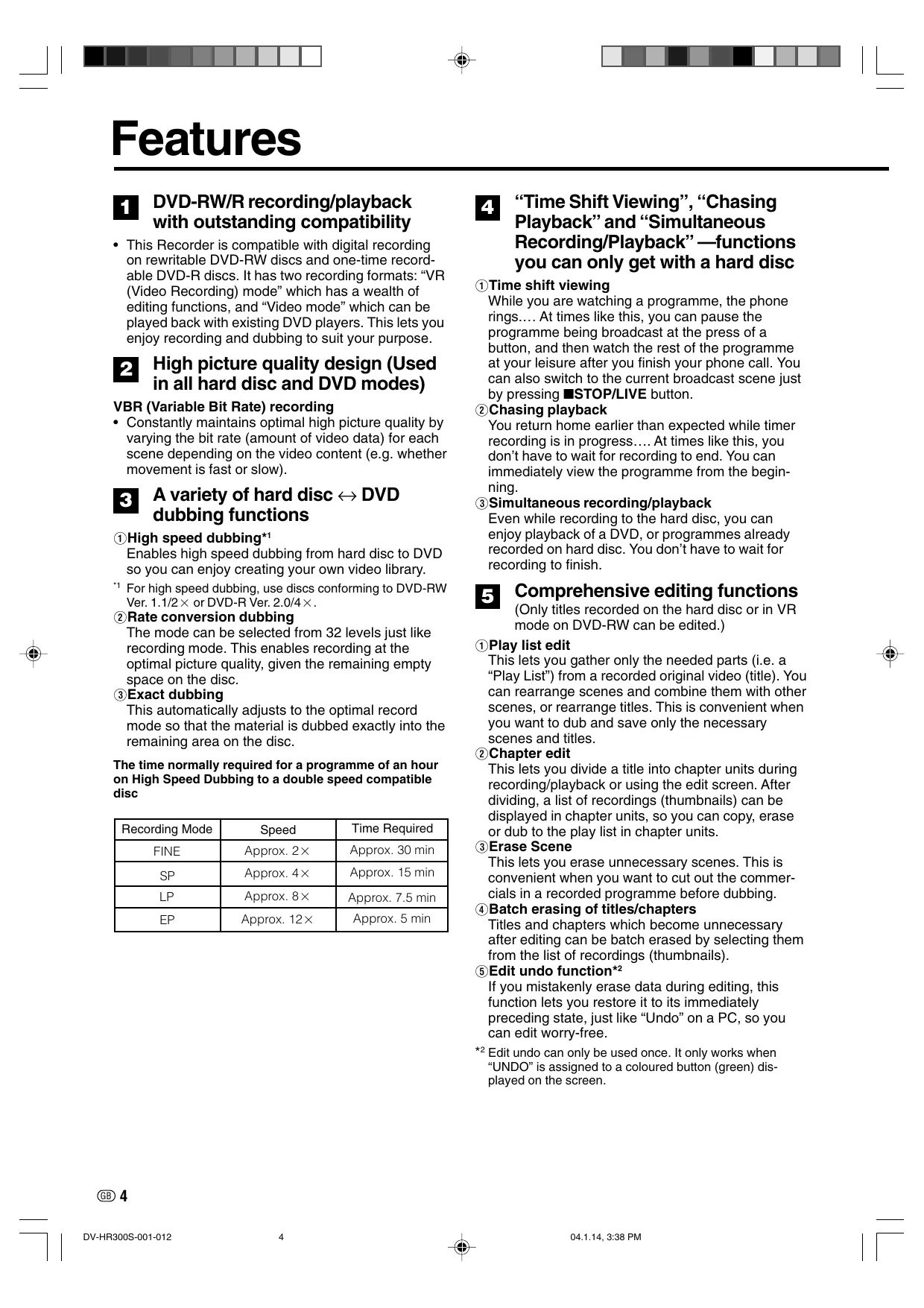
DVD-RW/R recording/playback with outstanding compatibility
- This Recorder is compatible with digital recording on rewritable DVD-RW discs and one-time recordable DVD-R discs. It has two recording formats: "VR (Video Recording) mode" which has a wealth of editing functions, and "Video mode" which can be played back with existing DVD players. This lets you enjoy recording and dubbing to suit your purpose.
2 High picture quality design (Used in all hard disc and DVD modes)
VBR (Variable Bit Rate) recording
- Constantly maintains optimal high picture quality by varying the bit rate (amount of video data) for each scene depending on the video content (e.g. whether movement is fast or slow).
A variety of hard disc ↔ DVD dubbing functions
① High speed dubbing*1
Enables high speed dubbing from hard disc to DVD so you can enjoy creating your own video library.
1 For high speed dubbing, use discs conforming to DVD-RW Ver. 1.1/2× or DVD-R Ver. 2.0/4×.
② Rate conversion dubbing
The mode can be selected from 32 levels just like recording mode. This enables recording at the optimal picture quality, given the remaining empty space on the disc.
③ Exact dubbing
This automatically adjusts to the optimal record mode so that the material is dubbed exactly into the remaining area on the disc.
The time normally required for a programme of an hour on High Speed Dubbing to a double speed compatible disc
| Recording Mode | Speed | Time Required |
| FINE | Approx. 2× | Approx. 30 min |
| SP | Approx. 4× | Approx. 15 min |
| LP | Approx. 8× | Approx. 7.5 min |
| EP | Approx. 12× | Approx. 5 min |
Time Shift Viewing", "Chasing Playback" and "Simultaneous Recording/Playback" functions you can only get with a hard disc
① Time shift viewing
While you are watching a programme, the phone rings.... At times like this, you can pause the programme being broadcast at the press of a button, and then watch the rest of the programme at your leisure after you finish your phone call. You can also switch to the current broadcast scene just by pressing STOP/LIVE button.
② Chasing playback
You return home earlier than expected while timer recording is in progress.... At times like this, you don't have to wait for recording to end. You can immediately view the programme from the beginning.
③ Simultaneous recording/playback
Even while recording to the hard disc, you can enjoy playback of a DVD, or programmes already recorded on hard disc. You don't have to wait for recording to finish.
5 Comprehensive editing functions
(Only titles recorded on the hard disc or in VR mode on DVD-RW can be edited.)
① Play list edit
This lets you gather only the needed parts (i.e. a "Play List") from a recorded original video (title). You can rearrange scenes and combine them with other scenes, or rearrange titles. This is convenient when you want to dub and save only the necessary scenes and titles.
② Chapter edit
This lets you divide a title into chapter units during recording/playback or using the edit screen. After dividing, a list of recordings (thumbnails) can be displayed in chapter units, so you can copy, erase or dub to the play list in chapter units.
③ Erase Scene
This lets you erase unnecessary scenes. This is convenient when you want to cut out the commercials in a recorded programme before dubbing.
④ Batch erasing of titles/chapters
Titles and chapters which become unnecessary after editing can be batch erased by selecting them from the list of recordings (thumbnails).
⑤ Edit undo function*2
If you mistakenly erase data during editing, this function lets you restore it to its immediately preceding state, just like "Undo" on a PC, so you can edit worry-free.
*2 Edit undo can only be used once. It only works when "UNDO" is assigned to a coloured button (green) displayed on the screen.
6 Simple operation and user-friendly design using a new remote control
① START MENU
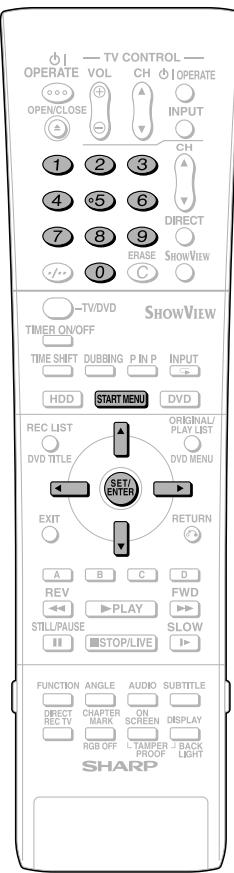
Press START MENU button on the remote control, and display the list of main functions on the screen. After that, you can operate by using the Cursor buttons and SET/ENTER button on the remote control, so this Recorder can be used easily even by a person who is unfamiliar with operation.
② Coloured buttons
The remote control has coloured buttons with four different colours. Functions are displayed in four different colours on the screen, and the Recorder can be operated by directly designating these functions.
③ Luminous buttons
Luminous buttons are used for key control buttons on the remote control so they are easy to see in the dark.
Digital connection (i.LINK) with a digital video/audio source equipment
- The DV IN terminal allows you to capture, edit and store material from a digital camcorder equipped with a DV terminal.
8 MP3 file playback
- This Recorder allows you to playback MP3 files recorded on CD-RW/R.
9 SHOWVIEW*3 system
- The SHOWVIEW system allows you to programme your Recorder for timer recording simply by inputting the SHOWVIEW Programming number. The SHOWVIEW numbers are listed in most newspapers, television guides, and local CATV listings. Simply by inputting this SHOWVIEW number, you can programme your Recorder for timer recording, eliminating the need to input programme start time, stop time, channel, date and other information which is necessary for ordinary timer programming.
*3 SHOWView is a registered trademark of Gemstar Development Corporation. The SHOWView system is manufactured under licence from Gemstar Development Corporation.
Accessories
Remote control unit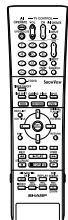
Two R-03 size batteries ("AAA" size, UM/SUM-4) for the remote control unit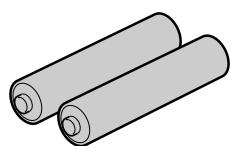
Video/audio cable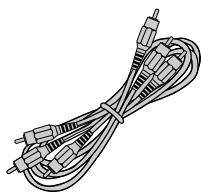
Round coaxial cable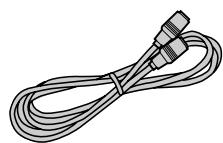
Precautions about Using This Product
Do not use at locations at high temperature.
- If you leave this equipment at a location which rises to an abnormally high temperature (like the inside of a car with the windows shut), this may cause deformation of the cabinet or malfunction. Be very careful not to allow the area around the Recorder or discs to reach a high temperature.
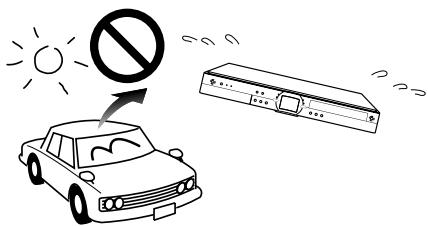
- Do not place the Recorder on any equipment which gets hot.
- Do not place it in direct sunlight or near a heater. Be careful, as doing so will have an adverse effect on the cabinet and components.
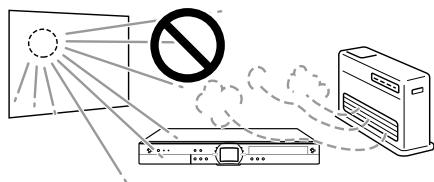
Do not remove the cabinets.
- Do not remove the Recorder cabinets. Touching parts inside the cabinet could result in electric shock and/or damage to the Recorder. For service and adjustment inside the cabinet, please contact the nearest service centre approved by Sharp.
Do not cover the fan or ventilation holes on the back of the Recorder.
- When setting up the Recorder, do not cover the fan or ventilation holes on the rear of the Recorder. This will interfere with the cooling fan and cause malfunction. Be especially careful of this point when housing the Recorder in a TV stand or AV rack.
- Do not use the Recorder on carpets, or on a bed or sofa, or wrap the Recorder in cloth or other material. This will interfere with the cooling fan and cause malfunction.
Avoid dust and smoke.
- Do not place the Recorder at a location which is unstable, subject to heavy vibration, or where there is a lot of dust or tobacco smoke. Doing so may cause malfunction or accidents.
Set up the Recorder so it is horizontal.
- Do not stand the Recorder up vertically or place it upside down. Doing so will cause malfunction.
Do not place objects on the Recorder.
- Do not place any objects, such as vases or lighted candles, on the top of the Recorder.
- Set up at a location where there is adequate space above the Recorder.
- Do not place a TV or other heavy object on the Recorder. Doing so may result in problems like noise appearing on the screen, or deformation of the cabinet.
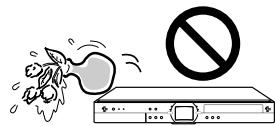
Keep away from magnetic objects.
- Keep the Recorder away from strong magnetic objects.
Handle the Recorder carefully.
- Do not drop the Recorder, or subject it to strong impact or vibration. Doing so will cause malfunction. Be careful when carrying or moving the Recorder.
No fingers or other objects inside
- Do not put any foreign object on the disc tray.
When moving or shipping the Recorder
- Remove the disc before wrapping the Recorder. In case you will not be using the Recorder for a while, remove the disc, and turn off the power.
Dew formation
- Dew may form on the surface of and inside the Recorder if you suddenly carry it from a cold location to a warm location, or use it in a cold room where heating has just been turned on (i.e. on a winter morning). If dew forms, let the Recorder sit with the power off until the dew disappears. Using the Recorder with dew formation present may cause malfunction. (See page 15.)
Upkeep of cabinet
- The cabinet surface employs a lot of plastic. Do not wipe these surfaces with benzene or thinner because this may cause deterioration or paint peeling.

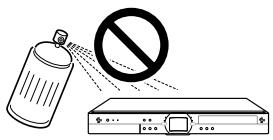
- Do not apply volatile liquids like insecticide to the cabinet. Also, do not allow long-term contact with materials like rubber, vinyl products or synthetic leather. Doing so may cause problems like paint peeling.
- Do not affix stickers or tape to the Recorder. Doing so may cause cabinet discolouration or damage.
- If the cabinet or front panel display gets dirty, gently wipe it off with soft cloth like flannel. If it is extremely dirty, soak a cloth in neutral detergent diluted with water, wring the cloth well, wipe, and then wipe again with a dry cloth. Using powerful cleaners may cause discolouration, deterioration or paint peeling. We recommend testing any cleaners at an inconspicuous location on the Recorder.
Electromagnetic interference
- If you use a mobile phone or other electronic equipment near the Recorder, video may be disturbed or become noisy during playback or recording due to electromagnetic interference.
Antenna
- To avoid the effects of radio interference, set up the antenna at a location away from busy roads, electric wires for train, electric transmission lines and neon signs. This is effective for preventing electric shock accidents in the unlikely event that antenna falls down.
- Do not make the antenna line unnecessarily long, or bundle it. Be careful because doing so will cause the picture to be unstable.
- The antenna is exposed to the weather, so be careful to periodically check and replace it. This will ensure a beautiful picture. Antennas are particularly susceptible to damage at locations with heavy smoke and soot, and locations exposed to sea breeze.
Hard disc (HDD)
- This Recorder records programmes onto a hard disc (HDD). The hard disc is equipped with a safety mechanism to protect data from impact, vibration and dust. However, to prevent loss of recorded data, you should be particularly careful of the following points:
- Do not subject the Recorder to any impact.
- Do not use at a location which is unstable or subject to vibration.
- Do not move the Recorder while the power is on.
- Do not unplug the power cord from the AC outlet during recording or playback. First turn power "OFF", and then unplug the power cord from the AC outlet.
- Do not use at a location with abrupt temperature variation (variation of more than 10°C per hour).
- The Recorder will malfunction if used at a cold location (5°C or less) or an extremely hot location (35°C or higher).
- If you carry the Recorder from a cold location to a warm location, let the Recorder sit for a while before using it.
- In the unlikely event that the hard disc (HDD) malfunctions for some reason, you cannot replace it by yourself. If you disassemble the Recorder you will void the warranty. Please contact the nearest service centre approved by Sharp. We cannot provide compensation for data content if data is lost or not recorded.
Connected equipment
- Read carefully the "Precautions for Use" in the operation manual for any equipment connected to the Recorder.
Power conservation
- When you are finished using the Recorder, conserve power by turning power off. If you go on a trip, or otherwise will not use the Recorder for a long time, unplug the power cord from the AC outlet to ensure safety.
Requests regarding setup
- Do not cover the fan or ventilation holes on the back of the Recorder. Doing so will interfere with heat radiation and cause malfunction.
Notes about use
- The Recorder and cabinet may become a little hot, depending on the use environment when using this Recorder. This is not a malfunction.
- When unplugging the power cord (to move the Recorder, etc.), first turn off power (STANDBY indicator on the front of the Recorder lights up red) to protect the hard disc (HDD).
- When power is turned on, the fan will rotate to cool the Recorder.
- Immediately after plugging the power cord into an AC outlet, or after recovery from a power failure, the unit may fail to operate for more than ten seconds because the Recorder is performing system adjustment.
Notes about this operation manual
- In this operation manual, the terms "the Recorder", "this Recorder" or "your Recorder" refer to the "DV-HR350S/ DV-HR300S DVD Recorder with Hard Disc".
- The screen displays and Recorder illustrations given in this operation manual are for explanatory purposes, and may differ somewhat from the actual screen and Recorder.
About Hard Disc (HDD)
This Recorder has a built-in hard disc (abbreviated "HDD") for recording and playback. Beware of the following points when setting up and using the Recorder. Failure to observe precautions may cause damage to the HDD itself or its content, failure of the disc to operate, or recording of noise.
- Do not subject to any vibration or impact.
- Do not place at a cramped location which might block the cooling fan or ventilation port on the back of the Recorder.
- Do not place at a location with severe temperature variation. If the Recorder is set up at a location with severe temperature variation, dew may form on and inside the Recorder. If the Recorder is used with internal dew formation present, this may cause HDD damage or malfunction. We recommend keeping variation in room temperature within 10°C per hour.
- Do not place at a location with high humidity.
- Place the Recorder horizontally, never at an incline.
- When the power is on, do not unplug the power cord from the AC outlet, turn off the breaker for the area where the Recorder is set up, or move the Recorder. When moving the Recorder, first turn off the power and then unplug the power cord from the AC outlet.
Recording Format
HDD recording is done using the variable bit rate format for more efficient recording. The following phenomena may occur.
With the variable bit rate format, the remaining amount which can be recorded may increase or decrease relative to the display of the remaining amount of HDD space.
- When the display indicates that the remaining amount of HDD space is low, first delete unnecessary programmes, and then record with an extra margin in the amount of remaining space.
- Even if you delete a programme, the remaining amount may not increase by the amount of deleted time. When recording new video, record with an extra margin in the amount of remaining space.
- With this Recorder, part of the HDD capacity is used as a system management area.
Unrecordable Material
- This Recorder is equipped with a copy guard function that prevents recording of video software or broadcast programmes that contain a signal that restricts copying in accordance with copyrights and so forth.
- In the case a copy guard signal is contained in a source video that occurs partway through recording, recording is paused at that point. Recording resumes when the copy guard signal is no longer present, while no recordings will be made for the part where the copy prevention signal is present.
In the unlikely event that there is some problem like loss of recorded video or audio content due to a HDD malfunction, please be aware beforehand that Sharp will bear no responsibility to compensate for the content which could not be recorded or edited, for the loss of recorded or edited video, or for other related direct or indirect damages.
If a power failure occurs
- The content being recorded or timer recorded will be damaged if power failure occurs.
- The content being played back may be damaged.
For important recording
- If the HDD malfunctions, the content recorded on the HDD may be lost. If you wish to save content permanently, we recommend copying or moving the content to DVD-RW or DVD-R.

NOTE
- If a message indicating a HDD error is displayed (such as "CANNOT OPERATE DUE TO HDD ERROR.") and the HDD has malfunctioned, you cannot replace the HDD by yourself. If you disassemble the Recorder, the warranty will become void. Also, recovery of data is impossible. If playback is possible, re-record the recorded content onto a DVD-RW/R disc, and contact your nearest service centre approved by Sharp.
Hard Disc Operation (Recording / Playback / Time Shift Recording)
- If the Recorder is used in a cold location (a location at low temperature), the drive will only allow live viewing after power is turned on until the HDD is ready. During this time, the Recorder will not allow Time Shift Viewing, recording, display of recording lists or playback of recorded programmes. Please wait until the HDD is ready.
Initialization
- Initialization erases all video recorded on the HDD. Be sure to dub important recordings onto DVD-RW/R discs before initializing.
CPRM (Control) Information
- There are 3 types of copy control signals: "Copy Freely", "Copy Once" and "Copy Never".
- "Copy Never" programmes cannot be recorded on HDD. When a "Copy Once" enabled programme is copied from HDD to DVD-RW, the video is not copied — it is moved from the HDD to the DVD-RW (i.e. the content recorded on the HDD is erased).
Types of Discs that Can Be Used with This Recorder
- Since this Recorder is compatible with the PAL format, use discs that contain the letters "PAL" on the disc or package. NTSC and PAL-60 signals cannot be recorded. (A black screen is shown when NTSC or PAL-60 signals are input to the external input.)
- The following discs can be played back and recorded with this Recorder. Do not use an 8 cm (3") adapter (for CDs).
- Use discs that are compatible with standards as indicated by the presence of the following logo marks on the disc label. Playback of discs not complying with these standards is not guaranteed. In addition, image quality or sound quality is not guaranteed even if such discs are able to be played back.
Discs For Recording and Playback
| Disc Type | Recording Format | Contents | Disc Size | |
| DVD-RW DVD RW | •Ver.1.1 •Ver.1.1 (CPRM compatible)*1 •Ver.1.1/2× (CPRM compatible)*1 | VR mode Video mode | Audio + Video (Movie) | 12 cm (5*), single-sided/ double-sided, single layer disc 8 cm (3*), single-sided, single layer disc *2 |
| DVD-R DVD R47 | •Ver.2.0 •Ver.2.0/4×*3 | Video mode | ||
"Copy Once" broadcasts and other programmes that can be recorded only once can be recorded. DVD-RW/R 8 cm (3") single-sided, single-layer discs can only be used for recording in the Video mode. Some discs of this type may not be able to be recorded. 3 Not compatible with 4x high speed dubbing. When high speed dubbing is used, the system will switch to 2x.
Discs for Playback (Playback Only)
| Disc Type | Recording Format | Contents | Disc Size | |
| DVD Video | Region number | Video mode | Audio + Video (Movie) | 12 cm (5")8 cm (3") |
| DVDVIDEO* | ||||
| DVD+RW/DVD+R | Video mode (finalized disc only) | Audio + Video (Movie) | 12 cm (5") | |
| Video CD | Video CD | Audio + Video (Movie) | ||
| AUDIO VIDEO | 12 cm (5")8 cm (3") | |||
| Audio CD *4 | Audio CD (CD-DA) | Audio | ||
| AUDIO AUDIO | ||||
| CD-RW/CD-R | Audio CD (CD-DA) | Audio | ||
| AUDIO AUDIO | ||||
| AUDIO AUDIO | ||||
| Audio CD | Audio + Video (Movie) | |||
*4 This Recorder has been designed on the premise of playing back Audio CDs that comply with CD (Compact Disc) standards. CDs containing a signal for the purpose of protecting copyrights (copy control signal) may not be able to be played back with this Recorder.
DVD video players and discs have region numbers, which dictate the regions in which a disc can be played. The region number for this product is 2. (Discs marked ALL will play in any player.) DVD Video operations and functions may be different from the explanations in this manual and some operations may be prohibited due to disc manufacturer's setting. - If "CANNOT OPERATE THIS FUNCTION." or "THIS OPERATION IS PROHIBITED BY THE DISC." is displayed, either the disc or Recorder is prohibiting the function. Read the disc's manual along with this manual. - If a menu screen or operating instructions are displayed during playback of a disc, follow the operating procedure displayed. - This Recorder conforms to the PAL colour system. Also you can play discs recorded with the NTSC system via a PAL system TV set. - JPEG files cannot be played back.
Discs that Cannot Be Used with This Recorder
The following discs are unable to be played back or are not played back properly on this Recorder. If such a disc is mistakenly played back, the speakers may be damaged due to the large volume. Never attempt to play back such discs.
CDG, Photo CD, CD-ROM, CD-TEXT, CD-EXTRA, SVCD, SACD, PD, CDV, CVD, DVD-ROM, DVD-RAM, DVD-Audio
Discs with unusual shapes cannot be played.
- Discs with unusual shapes (heart-shaped or hexagonal discs, etc.) cannot be used. The use of such discs will cause a fault.
The following DVD video discs cannot be played.
- Discs not containing "2" or "ALL" for the region number (discs sold outside the authorized marketing area). 5 Discs produced illegally.
- Discs recorded for commercial use.
The region number for this product is 2.
The following DVD-RW/R, DVD+RW/R discs cannot be played.
- Discs on which data has not been recorded cannot be played back.
- Discs may not be played back depending on the recorder used for recording.
The following Audio CD discs cannot be played.
- Discs containing a signal for the purpose of protecting copyrights (copy control signal) may not be played back with this Recorder.
- This Recorder has been designed on the premise of playing back Audio CDs that comply with CD (Compact Disc) standards.
The following CD-RW/R discs cannot be played.
- Discs on which data has not been recorded cannot be played back. Non-finalized discs cannot be played back.
- Discs recorded in a format other than a Video CD/ Audio CD and MP3 file format cannot be played back.
- Discs may not be played back depending on their recording status or the status of the disc itself.
- Discs may not be played back depending on their compatibility with this Recorder or the recorder used for recording.
*6 About MP3 file format
MP3 files are audio data compressed in MPEG1 Audio layer 3 file format. "MP3 files" have ".mp3" as extensions. (Some files that have ".mp3" extensions or files that have not been recorded in MP3 format will produce noise or cannot be played.)
- Playing MP3 discs
- The MP3 files are not played in the order they were recorded.
- The maximum number of layers which can be recognized, including files and folders, is 8.
- Some multi-session discs cannot be played.
- It is recommended to record data at a lower speed as data recorded at fast speed can produce noise and may not be able to be played.
- The more folders there are, the longer the reading time. Depending on the folder tree, reading MP3 files can take time.
- Folder or track (file) names are limited to 8 characters. Folder or track (file) names that go over 8 characters will be abbreviated. (Certain letters or symbols in folder names or title name may not be displayed.)
- The playing time may not be correctly displayed during MP3 file playback.
The following files cannot be played on this Recorder.
- Discs that have more than 257 folders or 1,000 files.
- When both Audio CD format and MP3 files format are recorded on a disc. (The disc is recognized to be an Audio CD and only tracks in the Audio CD format are played back.)
Types of Discs for Recording
DVD-RW and DVD-R discs can be recorded with this Recorder. The recording format that can be selected may vary according to the disc version and type of disc. - Make sure to use a disc that has the words "For Video" or "For Recording" on the disc or disc jacket for recording and playback with this Recorder.
| Disc Type | Recording Format | |
| VR mode | Video mode | |
| DVD-RW Ver. 1.1DVD-RW Ver. 1.1(CPRM)DVD-RW Ver. 1.1/2×(CPRM) | × | × |
| DVD-R Ver. 2.0DVD-R Ver. 2.0/4× | — | × |
DVD-RW Discs
DVD-RW discs are available in Ver. 1.1, Ver. 1.1 (CPRM compatible) or Ver. 1.1 / 2x CPRM compatible). - When a disc has been recorded in the VR mode, it can be recorded and erased repeatedly. Erasure also allows the recording time to be increased. - When a disc has been recorded in the Video mode, additional recording is possible until the disc is full. The recording time does not increase even if titles are erased, but if the disc is initialized (see pages 13 and 95) full recording time is possible. *7 Recording time can only be increased when the last title is erased (titles cannot be erased after a disc has been finalized).
DVD-R Discs
DVD-R discs can only be recorded in the Video mode. - Although additional recordings can be made until the disc is full, disc space does not increase even if titles are erased (because erasure here refers only to making the titles not visible). - Although these discs can be played back with other DVD players once they have been finalized, the discs can no longer be recorded or erased after they have been finalized. - Discs can be additionally recorded and edited with this Recorder only until they are finalized.
Recording Formats
There are two recording formats available with this Recorder: the VR mode and the Video mode. - The recording format that can be selected may differ depending on the disc. Refer to the section on Types of Discs for Recording (page 10). - Recording in the VR mode and Video mode cannot be mixed on one disc.
VR (Video Recording) Mode
The VR mode is the basic DVD-RW recording format, and lets you enjoy the various editing functions available with this Recorder.
- When a disc has been recorded in the VR mode, it can be recorded and erased repeatedly. Erasure also allows the recording time to be increased.
- Recorded discs can only be played back with DVD-RW compatible DVD players.
- "Copy Once" programmes can also be recorded.
Although there are some cases in which the disc must be finalized, the disc can be recorded and erased after it has been finalized. DVD-RW compatible DVD players have the following indication.
RW
COMPATIBLE
DVD players with this indication have the function of being able to play back DVD-RW discs recorded in the VR mode with a DVD recorder.
*9 When using a DVD-RW Ver. 1.1 disc (CPRM compatible). Recorded programmes cannot be played back with other DVD players (including DVD-RW players) or DVD recorders not compatible with CPRM.
Video Mode
This recording format is compatible with commercially available DVD players and DVD-ROM drives.
- Discs recorded in the Video mode cannot be recorded repeatedly or their content overwritten.
- When recording in the Video mode, discs can be played back, additionally recorded and edited only with this Recorder until they are finalized. Editing functions are limited.
- Discs recorded in the Video mode can be played back with other DVD players by finalizing them after recording. (However, this does not guarantee that these discs can be played back on all DVD players.)
- Recordings onto DVD-RW/R discs using the Video mode employ a new standard approved by the DVD Forum in 2000, and compatibility with this standard is left to the discretion of the respective DVD player manufacturer. Consequently, there are some models of DVD players and DVD-ROM drives that are unable to play back DVD-RW/R discs.
- "Copy Once" programmes cannot be recorded.
Recording Time
- The recording mode that can be set varies according to the recording format. Refer to the table below for the applicable recording mode.
| Recording Mode | Recordable Time | Description |
| FINE | About 60 minutes | When you want to record high-quality images. |
| SP | About 120 minutes | This is the standard recording mode. |
| LP | About 240 minutes | When you want to record for a long period of time with slightly lower image quality. |
| EP | About 360 minutes | When you want to place priority on recording time. |
- Recordable time is based on the recording time when using a 4.7 GB disc. Since recording capacity varies according to the recorded material, there may be cases where there is much more disc space remaining on the disc when recording is completed.
- Refer to page 37 about the recordable times when you choose "MN" (manual) Recording mode.
- Since recording to DVD is performed using VBR (variable bit rate, refer to the section on VBR Control on page 105) with the exception of some recording modes, recording time varies according to the material to be recorded.
- Recordable time may be shorter than that indicated above in the case of recording material of poor image quality such as broadcasts from televisions with poor reception.
- This does not guarantee the length of recording time. Actual recording time may be shorter than that indicated above depending on image quality and other aspects.
- The total of recording time and remaining time may not always agree with the recordable time of the recording mode.
- Block-like images may become conspicuous during scenes containing rapid movement due to the characteristics of digital image compression technology.
Disc Remaining Time
• VR mode
- Additional recordings can be made as long as there is available space on the disc. (Additional recordings can also be made after the disc is finalized.)
- Erasing unnecessary recordings lets you increase the remaining time on the disc. (The disc can also be erased after it has been finalized.)
- When a Play List (see page 74) is created, disc space will not increase even if portions of titles or titles of Play List are erased.
Video mode
Additional recordings can be made with this Recorder provided there is available space on the disc until the disc is finalized. - In case you record on a DVD-RW disc, recordable time will increase if you erase the last recorded title unless you finalize the DVD-RW disc. - In case you record on a DVD-R disc, recordable time will not increase even if you erase titles (see page 73). (The erase function only hides the title, it does not actually erase it. It does not actually delete the recorded contents.)
Using the Proper Disc
Select the disc and recording format to be used according to the objective of the recording. Select the disc and recording format by referring to the table below.
| Objective | Disc Used | Recording Format |
| ·When you want to play back a recorded disc with a DVD player or DVD Video compatible PC ·When you want to repeatedly record and erase a recorded disc | Recordable DVD-RW disc Ver. 1.1 or Ver. 1.1 (CPRM compatible) | Video mode recording + finalization |
| ·When you want to edit a disc recorded with this Recorder ·When playing back with a DVD-RW compatible player with the following indication RWCompatible ·When you want to repeatedly record and erase a recorded disc | Recordable DVD-RW disc Ver. 1.1 or Ver. 1.1 (CPRM compatible) | VR mode recording + (finalization) |
| ·When you want to record a “Copy Once” satellite broadcast, etc. | Recordable DVD-RW disc Ver. 1.1 (CPRM compatible) | VR mode recording |
| ·When you want to play back a recorded disc with a DVD player or DVD Video compatible PC ·When not re-recording a recorded disc (when making a permanent recording or when you do not want the recording to be erased) | Recordable DVD-R disc DVD R4.2 | Video mode recording + finalization |
Unrecordable Material
This Recorder is equipped with a copy guard function that prevents recording of video software or broadcast programmes that contain a signal that restricts copying in accordance with copyrights and so forth.
Example:
DVD videos - PPV (pay-per-view) broadcasts
The proper image may not be obtained in the case a copy guard signal is contained in the images input from equipment connected to the external input jacks (LINE 1, LINE 2, LINE IN 3 or DV IN) of this Recorder.
Example:
Images not output at proper brightness - Incorrect output of picture size and other data Connect such equipment directly to your TV without going through this Recorder.
- In the case a copy guard signal is contained in a source video that occurs part way through recording, recording is paused at that point. Recording resumes when the copy guard signal is no longer present, while no recordings will be made for the part where the copy prevention signal is present.
Initialization (Formatting)
Initialization is required when using DVD-RW discs in the Video mode. (See page 95 for details about Initialization.)
When an unused DVD-RW disc is placed in the Recorder immediately after the disc has been purchased, the Recorder is set to automatically begin initializing in the VR mode. The settings can also be changed so that discs are initialized in the Video mode (page 95).
When using a DVD-RW disc in the Video mode without changing this setting, initialize the disc in the Video mode after first completing initialization in the VR mode (page 95).
- Initialization causes the entire previously recorded contents of the disc to be erased.
- It takes about 1 minute to 1 minute and 30 seconds for initialization to be completed.
Allowing Discs to Be Played Back with Other DVD Players (Finalization)
Discs must always be finalized in order to play them back with another DVD player after having been recorded in the Video mode. (See page 95 for details about Finalization)
Finalize discs on which all recordings have been completed so that they can be viewed with another DVD player or a DVD Video compatible PC. Discs that are not finalized may not be able to be played back with other DVD players or DVD Video compatible PCs. (However, this does not guarantee that finalized discs can be played back on all DVD players or DVD Video compatible PCs.)
- Finalizing a DVD-R disc prevents all recording and editing of that disc.
- Although DVD-RW discs can be re-recorded by initializing even after they have been recorded in the Video mode and finalized, all previously recorded contents are erased.
- Finalization is required if a disc recorded in the VR mode cannot be played back with a DVD-RW compatible player. (Discs formatted in the VR mode can be recorded and edited even after finalization.)
- Finalization takes from several minutes to about an hour. (Processing takes longer if there is considerable available space on the disc.)
The following operations may cause malfunction.
- Operating discs recorded or edited by this Recorder in a DVD recorder or PC's DVD drive manufactured by other manufacturers.
- Using the discs in above situation again with this Recorder.
- Operating discs recorded or edited by a DVD recorder or PC's DVD drive made by other manufacturers than the one for this Recorder.
About the Contents of the Disc
Title, Chapter and Track
- DVDs are divided into "Titles" and "Chapters". If the disc has more than one movie on it, each movie would be a separate "Title". "Chapters", on the other hand, are subdivisions of titles. (See Example 1.)
- Video CDs and Audio CDs are divided into "Tracks". You can think of a "Track" as one tune on an Audio CD. (See Example 2.)
Recording on a DVD-RW/R disc
- One recording is treated as one title and the chapters will be inserted automatically every 10 minutes. You can choose the chapter interval from the following: 10 minutes, 15 minutes, 30 minutes, or off (page 84). Each title, chapter and track will be numbered in order. Title, chapter and track may not be numbered in some discs.
Recording on a DVD-RW disc in VR mode
- When you pause during recording or erase the scene using edit function, chapter marks will be inserted automatically. You can also insert chapter marks at your favorite scenes (page 71).
Recording in Video mode
- You cannot insert chapter marks at your favorite scenes.
Example 1: DVD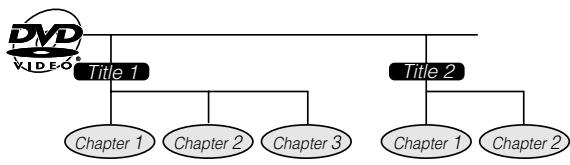
Example 2: Video CD or Audio CD
Icons Used on DVD Video Disc Case
When you buy a DVD Video disc, the back of the disc case usually contains various information about the contents of the disc.
1 2

- English
- Chinese

DOLBY ITAL

- English
- Chinese
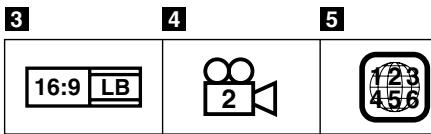
1 Audio tracks and audio formats
DVD discs can contain up to 8 separate tracks with a different language on each. The first in the list is the original track.
This section also details the audio format of each soundtrack—Dolby Digital, DTS, MPEG etc.
Dolby Digital
A sound system developed by Dolby Laboratories Inc. that gives movie theatre ambience to audio output when the Recorder is connected to a Dolby Digital processor or amplifier.
DTS
DTS is a digital sound system developed by Digital Theater Systems for use in cinemas. This system uses 6 audio channels and provides accurate sound field positioning and realistic acoustics. (By connecting a DTS Digital Surround decoder, you can also listen to DTS Digital Surround sound.)
Linear PCM
Linear PCM is a signal recording format used for Audio CDs.
The sound on Audio CDs is recorded at 44.1 kHz with 16 bits. (On DVD discs, sound is recorded at between 48 kHz with 16 bits and 96 kHz with 24 bits.)
MPEG
MPEG Audio gives movie theatre ambience to audio output when the Recorder is connected to an MPEG Audio 5.1 channel processor or amplifier.

NOTE
- This Recorder supports 2-channel (L/R) audio and 5.1ch (Multi-channel) MPEG Audio 1/2 (only when the DIGITAL AUDIO Output COAXIAL jack is used for connection). It does not support 7.1 channel MPEG Audio Version 2.0.
2 Subtitle languages
This indicates the kind of subtitles.
3 Screen aspect ratio
Movies are shot in a variety of screen modes.
4 Camera angle
Recorded onto some DVD discs are scenes which have been simultaneously shot from a number of different angles (the same scene is shot from the front, from the left side, from the right side, etc.).
5 Region code
This indicates the region code (playable region number).
The Icons Used in This Operation Manual
HDD Indicates the functions that can be performed for the hard disc.
DVD VIDEO Indicates the functions that can be performed for DVD Video discs.
DVD-RW DVD-RW VR MODE VIDEO MODE ..Indicates the functions that can be performed for DVD-RW discs.
VR MODE:
- Indicates that the function will operate when recording in VR mode or playing back a disc recorded in VR mode.
VIDEO MODE:
- Indicates that the function will operate when recording in Video mode or playing back a disc recorded in Video mode.
DVD-R Indicates the functions that can be performed for DVD-R discs.
VIDEO CD Indicates the functions that can be performed for Video CDs.
AUDIO CD Indicates the functions that can be performed for Audio CDs.
CD-R Indicates the functions that can be performed for CD-R discs in MP3 format.
CD-RW Indicates the functions that can be performed for CD-RW discs in MP3 format.
Disc Precautions
Be Careful of Scratches and Dust
- DVD-RW and DVD-R discs are sensitive to dust, fingerprints and especially scratches. A scratched disc may not be able to be recorded, or important data recorded may not be able to be played back. Handle discs with care and store them in a safe place.
Proper Disc Storage
| Place the disc in the centre of the disc case and store the case and disc upright. | |
| Avoid storing discs in locations subject to direct sunlight, next to heating appliances or in locations of high humidity. | |
| Do not drop discs or subject them to strong vibrations or impacts. | |
| Avoid storing discs in locations where there are large amounts of dust or locations where mold tends to grow easily. |
Handling Precautions
- If the surface is soiled, wipe gently with a soft, damp (water only) cloth. When wiping discs, always move the cloth from the centre hole toward the outer edge.

- Do not use record cleaning sprays, benzene, thinner, static electricity prevention liquids or any other solvent.
- Do not touch the surface.
- Do not stick paper or adhesive labels to the disc.
- If the playing surface of a disc is soiled or scratched, the Recorder may decide that the disc is incompatible and eject the disc tray, or it may fail to play the disc correctly. Wipe any soiling off the playing surface with a soft cloth.
Cleaning the Pick Up Lens
- Never use commercially available cleaning discs. The use of these discs can damage the lens.
- Request cleaning of the lens to the nearest service centre approved by Sharp.
Warning of Dew Formation
- Dew may form on pick up lens or disc in the following conditions:
- Immediately after a heater has been turned on.
- In a steamy or very humid room.
- When the Recorder is suddenly moved from a cold environment to a warm one.
When dew forms:
It becomes difficult for the Recorder to read the signals on the disc and prevents the Recorder from operating properly.
To remove dew:
Take out the disc and leave the recorder with the power off until the dew disappears. Using the recorder with dew formation may cause malfunction.
Copyright
- Audio-visual material may consist of copyrighted works which must not be recorded without the authority of the owner of the copyright. Please refer to relevant laws in your country.
- This product incorporates copyright protection technology that is protected by method claims of certain U.S. patents and other intellectual property right owned by Macrovision Corporation and other rights owners. Use of this copyright protection technology must be authorized by Macrovision Corporation, and is intended for home and other limited viewing uses only unless otherwise authorized by Macrovision Corporation. Reverse engineering or disassembly is prohibited.
Apparatus Claims of U.S. Patent Nos. 4,631,603, 4,577,216, 4,819,098 and 4,907,093 licensed for limited viewing uses only.
- Manufactured under license from Dolby Laboratories. "Dolby" and the double-D symbol are trademarks of Dolby Laboratories.
- "DTS" and "DTS Digital Out" are trademarks of Digital Theater Systems, Inc.
- Certain audio features of this product manufactured under a license from Desper Products, Inc. Spatializer® N-2-2™ and the circle-in-square device are trademarks owned by Desper Products, Inc.
- The DVD logo is a registered trademark.
- i.LINK refers to the IEEE 1394-1995 industry specification and extensions thereof. The bullet logo is used for products compliant with the i.LINK standard.
DVD is a trademark. - SHOWView is a registered trademark of Gemstar Development Corporation. The SHOWView System is manufactured under license from Gemstar Development Corporation.
Cautions Regarding Recording
Always Make Sure to Test Record First
- Make a test recording with a DVD-RW disc first before making any important recordings to confirm whether or not the recorded material is recorded properly.
Compensation for Recordings
- In the event a recording is unable to be made due to a problem with this Recorder or a disc, or due to an external factor such as a power failure or condensation of moisture and so forth, the manufacturer is not responsible for compensation for unrecorded contents or incidental damages.
Main Unit (Front)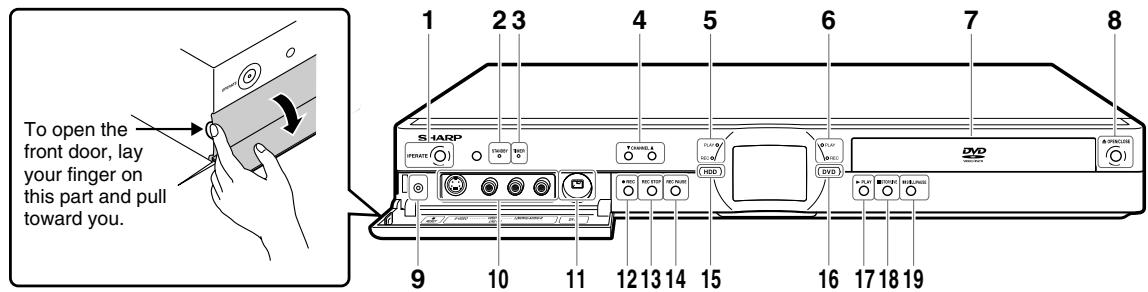
1 OPERATE (p. 22) 2 STANDBY indicator (p. 22) 3 TIMER indicator (p. 40) 4 CHANNEL▼/▲ 5 PLAY/REC indicators (for HDD) (pp. 34, 50) 6 PLAY/REC indicators (for DVD) (pp. 36, 55)
7 Disc tray (p. 35) 8 OPEN/CLOSE (p. 35) 9 RESET (p. 99) 10 LINE IN 3 (p. 83) - AUDIO Input jacks VIDEO Input jack - S-VIDEO Input jack 11 DV IN terminal (p. 81)
12 ● REC (p. 34) 13 REC STOP (p. 34) 14 REC PAUSE (p. 34) 15 HDD (p. 30) 16 DVD (p. 30) 17 ▶ PLAY (p. 50) 18 STOP/LIVE (pp. 32, 50) 19 STILL/PAUSE (pp. 32, 53)
Front Panel Display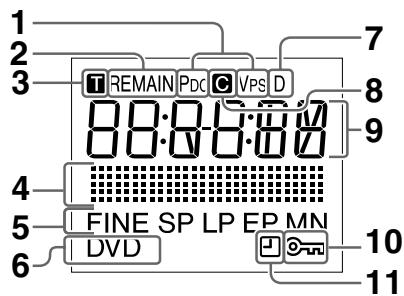
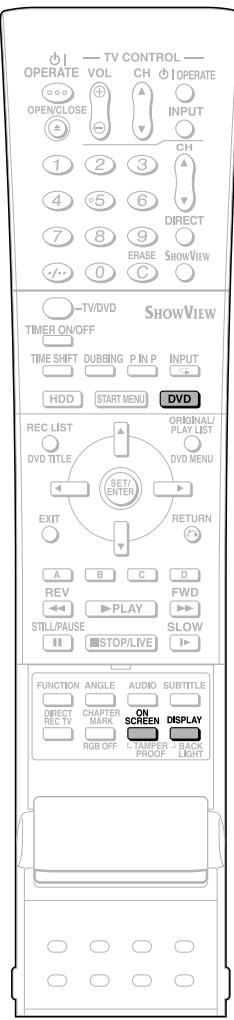
1 PDC/VPS indicator 2 Disc Remaining Time indicator (p. 29) 3 Title indicator (p. 29) 4 Dubbing indicator (p. 47) 5 Recording Mode indicator (p. 34) 6 DVD indicator (p. 20) 7 Decoder indicator 8 Chapter indicator (p. 29) 9 Information Display (p. 29)
10 Tamper Proof indicator (p. 33) 11 Simple Recording Timer indicator (p. 34)
Main Unit (Rear)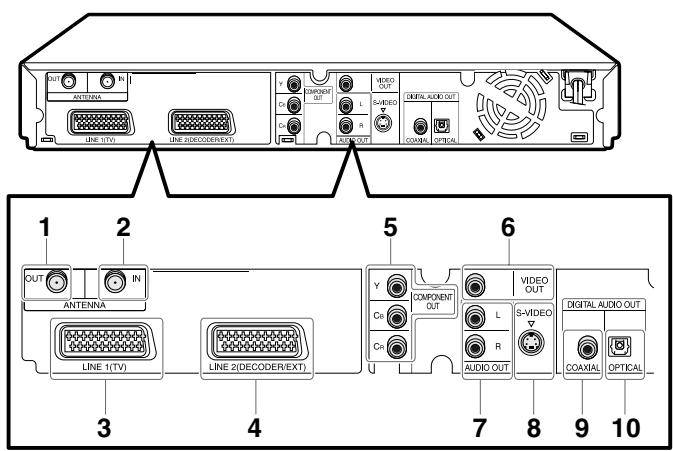
1 ANTENNA OUT jack (p. 20) 2 ANTENNA IN jack (p. 20) 3 21-pin Euro-SCART (LINE 1 (TV)) (p. 20) 4 21-pin Euro-SCART (LINE 2 (DECODER/EXT)) (p. 20) 5 COMPONENT Video Output jacks (p. 21) 6 VIDEO Output jack (p. 21) 7 AUDIO Output jacks (p. 79) 8 S-VIDEO Output jack (p. 21) 9 DIGITAL AUDIO Output COAXIAL jack (p. 79) 10 DIGITAL AUDIO Output OPTICAL terminal (p. 79)
Remote Control Unit
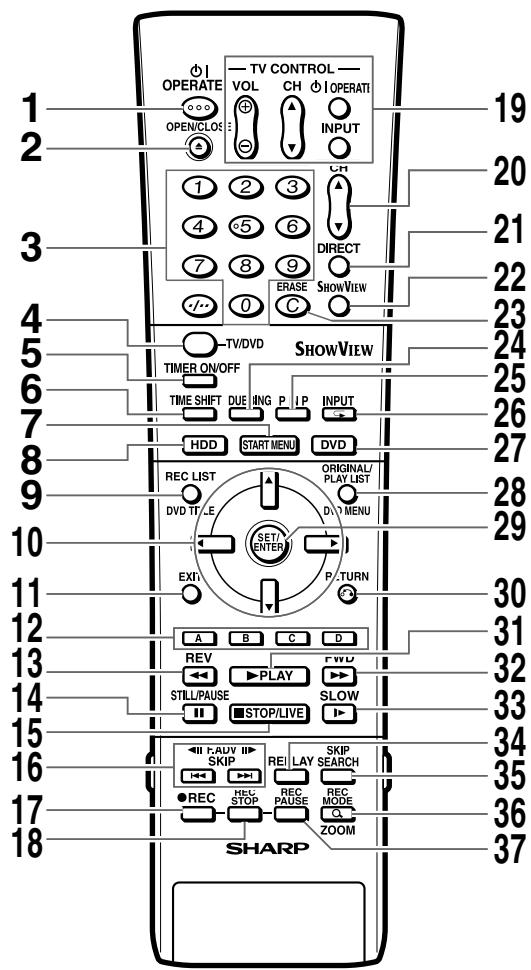
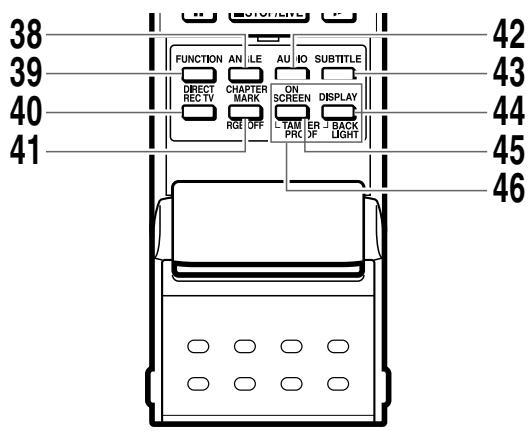

NOTE
- Buttons marked with “★” are made of luminous rubber for easy visibility even in the dark. (The degree of brightness will decrease as time passes.)
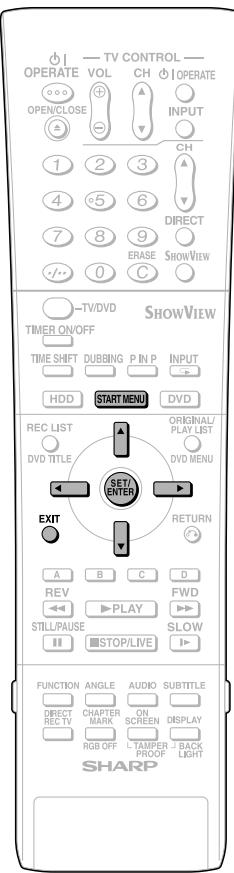
1 OPERATE (p. 22) 2 OPEN/CLOSE (p. 35) 3 Number buttons (pp. 19, 39) 4 TV/DVD (p. 20) 5 TIMER ON/OFF (p. 40) 6 TIME SHIFT (p. 32) 7 START MENU (p. 24) 8* HDD (p. 30) 9 REC LIST/DVD TITLE (pp. 51, 59) 10* Cursor buttons (△/▽/◁) (pp. 22, 24) 11* EXIT (p. 24) 12 Blue (A), Red (B), Green (C), Yellow (D) (p. 51) 13* REV (pp. 32, 53, 57) 14* STILL/PAUSE (pp. 32, 53, 57) 15* STOP/LIVE (pp. 32, 50, 56) 16 F.ADV SKIP (pp. 53, 56, 57) 17 ● REC (pp. 34, 36) 18 REC STOP (pp. 34, 36) 19 TV CONTROL buttons (p. 19) 20 CH▼/▲ 21 DIRECT (p. 52) 22 SHOWVIEW (p. 39) 23 ERASE (pp. 39, 43) 24 DUBBING (p. 46) 25 PIN P (p. 63) 26 INPUT/Repeat (pp. 54, 57, 82) 27* DVD (p. 30) 28 ORIGINAL/PLAY LIST / DVD MENU (pp. 51, 59, 66) 29* SET/ENTER (pp. 22, 24) 30* RETURN (p. 24) 31 ▶ PLAY (pp. 32, 50, 56) 32 ⏩ FWD (pp. 32, 53, 57) 33 ⏪ SLOW (pp. 53, 57) 34 REPLAY (pp. 53, 57) 35 SKIP SEARCH (pp. 53, 57) 36 REC MODE / Q ZOOM (pp. 34, 36, 54, 58) 37 REC PAUSE (pp. 34, 36) 38 ANGLE (p. 58) 39 FUNCTION (p. 61) 40 DIRECT REC TV (p. 38) 41 CHAPTER MARK / RGB OFF (pp. 21, 34, 36, 50, 55) 42 AUDIO (pp. 28, 54, 58) 43 SUBTITLE (p. 58) 44 DISPLAY / BACKLIGHT (p. 29) 45 ON SCREEN (p. 28) 46 TAMPER PROOF (p. 33)
Loading the Batteries
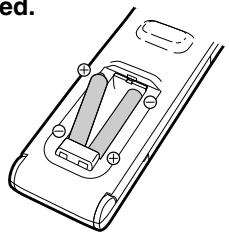
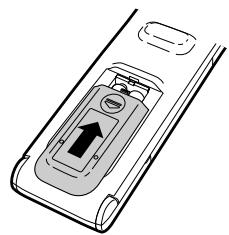
1 While pressing ⇌ down, slide the battery cover in the direction of the arrow.
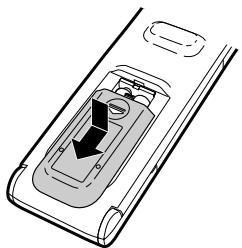
2 Load the batteries. Load the two R-03 size batteries ("AAA" size, UM/SUM-4) supplied with the remote control unit. Make sure that the battery poles ⊕ and ⊖ are positioned as indicated.
3 Slide the battery cover in the direction of the arrow until it clicks.
NOTE
- Do not subject the remote control unit to shock, water or excessive humidity.
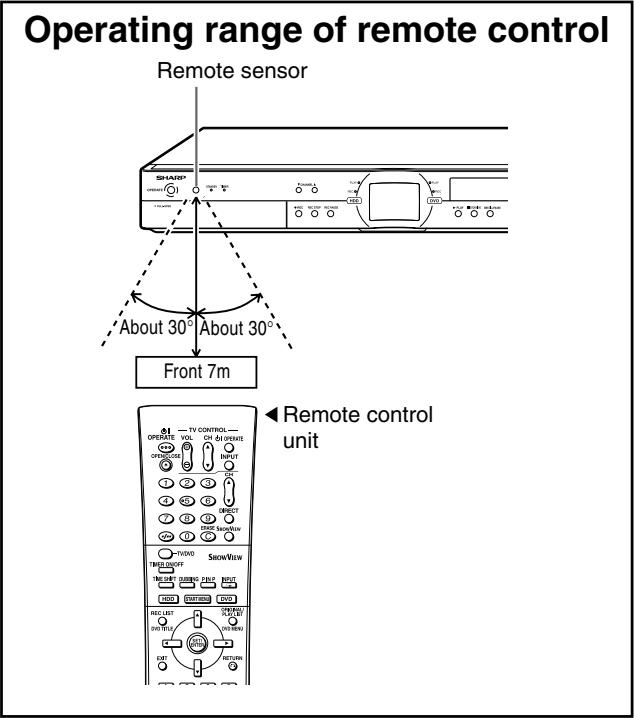
- The remote control unit may not function if the Recorder's remote sensor is in direct sunlight or any other strong light.
- Incorrect use of batteries may cause them to leak or burst. Read the battery warnings and use the batteries properly.
- Do not mix old and new batteries, or mix different brands.
- Remove the batteries if you will not use the remote control unit for an extended period of time.
Operating a TV Using the Remote Control (Universal Remote Control)
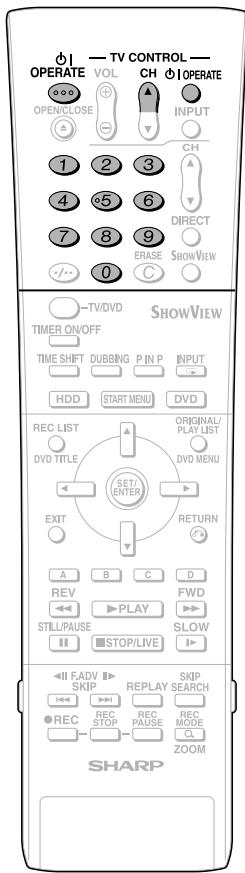
The Universal Remote Control may operate the basic functions of 16 different types of TVs. To enter the Manufacturer's Code for your TV, follow the instructions below.
There is no guarantee that the universal remote control will function with your TV.
Setting the Manufacturer's Code
1 Press OPERATE and CH ▲ of TV CONTROL simultaneously. 2 Enter the 2-digit Manufacturer's Code with the Number buttons (Ex. 02-"0", "2") within 10 seconds after releasing OPERATE and CH ▲ of TV CONTROL. 3 Point the remote control unit towards the TV and then press OPERATE of TV CONTROL.
- If the TV turns on/off, setup was successful. If not, repeat the procedure using another code.
See the list below for the Manufacturer's Code and the buttons which work.
| TV Brand | Manufacturer's Code |
| FERGUSON | 07 |
| GRUNDIG | 06 |
| HITACHI | 13 |
| ITT NOKIA | 08 |
| JVC | 15 |
| MITSUBISHI | 16 |
| PANASONIC 1 | 11 |
| PANASONIC 2 | 12 |
| PHILIPS | 03 |
| SANYO | 14 |
| SHARP 1 | 01 |
| SHARP 2 | 02 |
| SONY | 09 |
| THOMSON 1 | 04 |
| THOMSON 2 | 05 |
| TOSHIBA | 10 |
TV function control
- TV Power: OPERATE
- TV Channel up/down: CH ▲ / ▼ TV Volume up/down: VOL +/-
- TV-AV Selector: INPUT
NOTE
- If the batteries in the remote control unit are changed, the code settings must be re-entered.
- Some brands have more than one code listed above, due to changes in the codes. In such cases, try another code to find the code that operates your TV.
Setting the Remote Control Code
- Two types of remote control codes operate this Recorder: RC-1 and RC-2. If you operate this Recorder by remote control along with another SHARP DVD recorder or DVD player placed next to it simultaneously, switching the remote control code (both the Recorder and remote control) to one of the signals (RC-1 or RC-2) will let you operate only with this Recorder.
- Make sure to set the Recorder and remote control to the same remote code. You cannot operate the Recorder if they are not set to the same code.
Setting the Remote Control Code of the Remote
Example: Setting the code to "RC-2".
1 Press and hold OPERATE and 2 together for more than 5 seconds. 2 Press OPERATE of this Recorder to see if you can turn it on/off.
- If you cannot, go to step 3.
NOTE
- The remote control code of the remote becomes "RC-1" when you change the batteries.
Setting the Remote Control Code of the Recorder
3 Press OPERATE to turn off the Recorder.
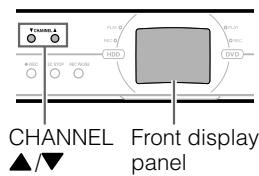
4 Press and hold CHANNEL ∇ and CHANNEL △ on the Recorder together for more than 5 seconds.
Each time this operation is performed, the code of the Recorder toggles between "RC-1" and "RC-2". The front panel display changes as the code changes. - Press OPERATE on the remote control to see if you can turn on/off the Recorder.
If remote control does not work
Press OPERATE on the remote control and check the front panel display (RC-1 or RC-2). Set the remote control code according to the display and press OPERATE to see if you can turn on/off the Recorder.
Connection Using Antenna Cables and SCART Cables
The following connection is the basic connection to watch or record TV programmes.
Important!
- Be sure to turn off and unplug from the AC outlet this Recorder and all equipment before connecting the cables.
- Read through the operation manual for the equipment to be connected.
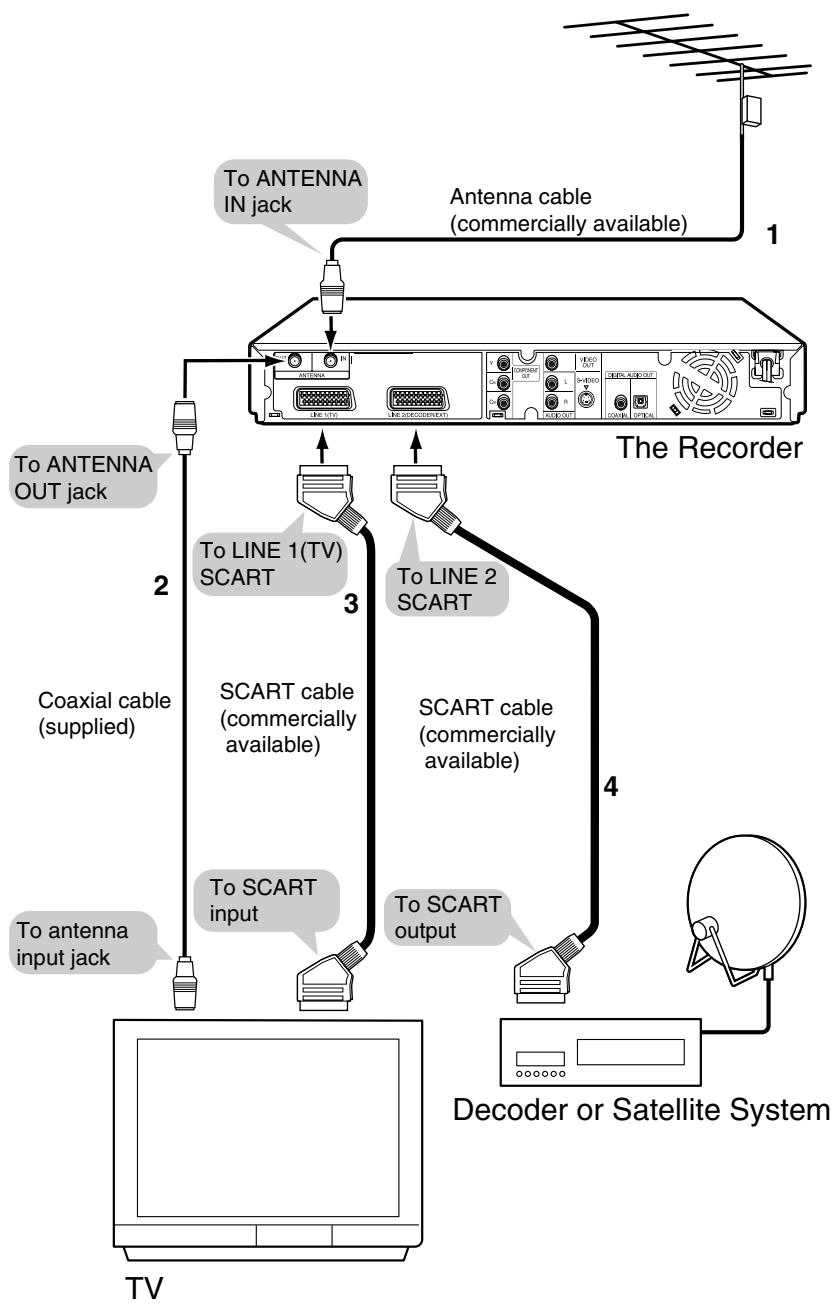
1 Connect the TV antenna cable to the ANTENNA IN jack on the rear of this Recorder. 2 Connect the ANTENNA OUT jack on the rear of this Recorder to the antenna input jack on your TV using the supplied coaxial cable. 3 Connect the LINE 1(TV) jack on the rear of this Recorder to the SCART input jack on your TV using the SCART cable (commercially available).
When connecting with your Satellite receiver or decoder
4 Connect the LINE 2(DECODER/EXT) jack on the rear of this Recorder to the SCART output jack on your Satellite receiver or decoder using the SCART cable (commercially available).
NOTE
- To connect using S-video or component cables, see "Using Other Types of Video Output" on page 21.
Important!
- When connecting to your TV using SCART cable: When playing back HDD/DVD, the recorder side input is selected automatically. When the channel is changed at the TV side under this setting, the selection is normally changed to the reception channel, but it may not be changed for certain TV models. If this happens, press the TV/DVD button on the remote control.
Using Other Types of Video Output
In order to view clearer DVD images, it is recommended that you use a commercially available S-video or component video cable when connecting your TV to the video output.
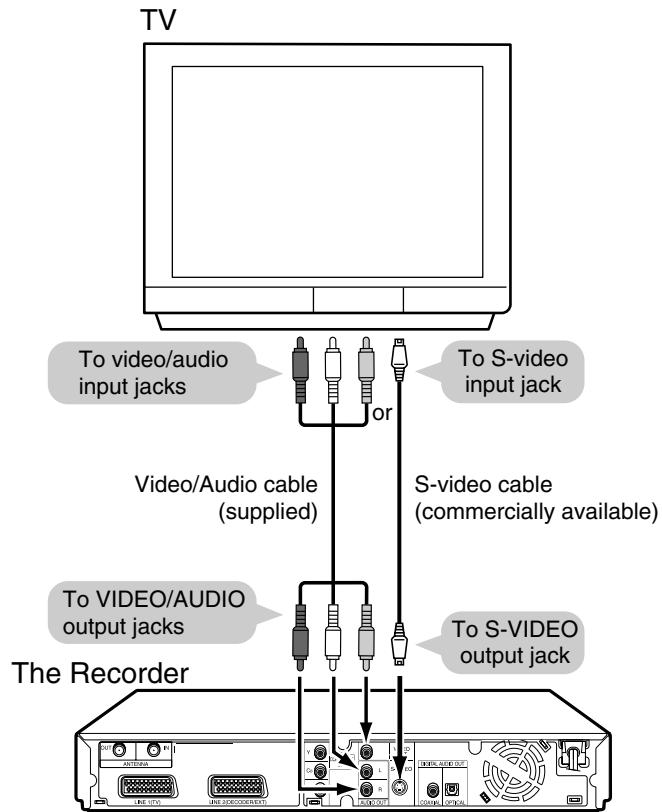
Connecting Using an S-video or Video Cable and Audio Cable
Connect the S-VIDEO or VIDEO Output jack on this Recorder to the S-video or video input jack on your TV using an S-video cable (commercially available) or Video/Audio cable (supplied).
NOTE
- When connecting both S-video cable and Video/Audio cable to the Recorder, the image of S-video cable is displayed.
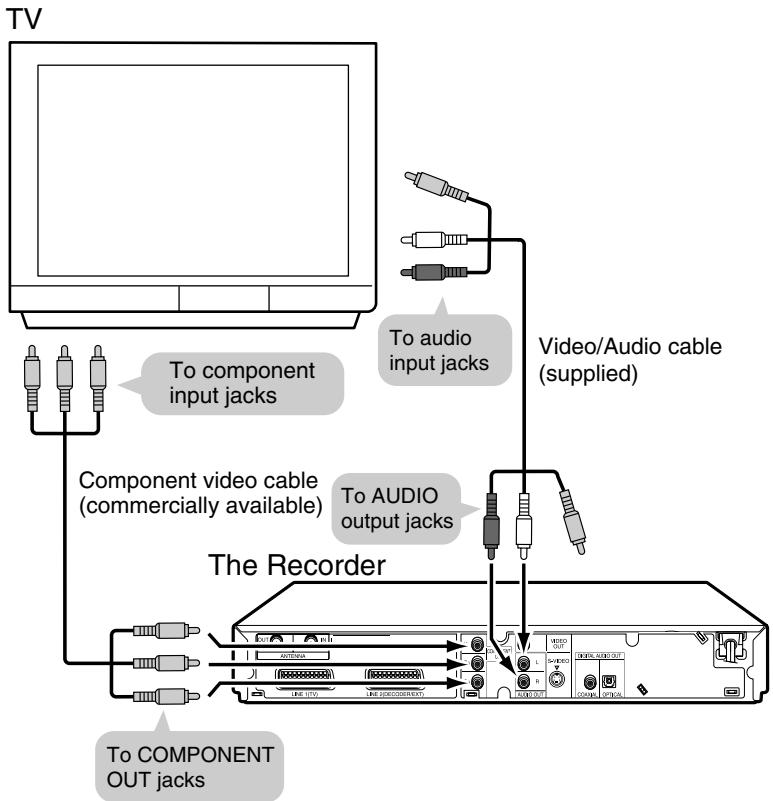
Connecting Using the component Video Cable
Connect the COMPONENT OUT jacks on this Recorder to the component input jacks on your TV using a component video cable (commercially available).
Important!
- When using this connection: If the option under "START MENU" - "OTHER SETTINGS 2" - "MODE SETTING" - "L1 OUT" is changed to RGB, no picture is displayed on the TV. In this case, hold down the RGB OFF button on the remote control (under the cover) for more than 2 seconds.
Turning the Power On
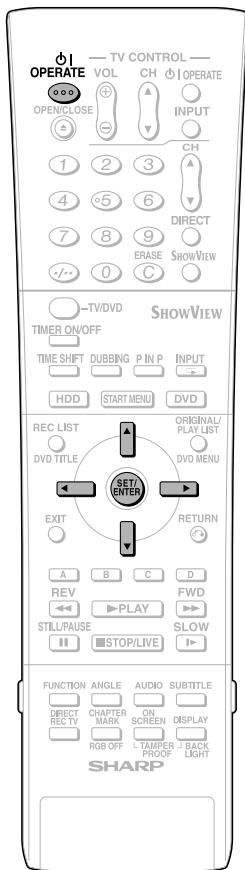
Press OPERATE on the remote control or Recorder to turn on the power of Recorder.
- When you turn on power, the HDD button and DVD button on the front of Recorder will blink. If either the HDD or DVD button is blinking, system processing is in progress, so wait until the button lights up.
- When the Recorder power is turned on for the first time after purchase, the "AUTO INSTALLATION" screen is displayed. Follow the procedure shown on pages 22, 23.
To Turn the Power Off
Press OPERATE on the remote control or Recorder to turn off power.
- The HDD or DVD button on the front of Recorder will go out, and the STANDBY indicator will light up.
- If you press OPERATE again immediately after turning off, the Recorder may not turn on. If this happens, wait a while and then turn on power again.
About the Power Supply
- Do not unplug the power cord immediately after you plug it into the AC outlet (less than about 15 seconds after plugging in). In very rare cases, this may cause the memory to revert to its initial state, and all timer programmes will be erased. If you pull out the power plug while power is on, it will take a while for the hard disc to get ready when you turn on power the next time. During this time you can only view live broadcasts.
- If you turn on power in a low-temperate environment, only live broadcast viewing is possible until the hard disc (HDD) reaches its operating temperature.
Using the AUTO INSTALLATION for initial setting
When the Recorder power is turned on for the first time after purchase, the "AUTO INSTALLATION" screen is displayed. You can use the "AUTO INSTALLATION" function for easy initial settings regarding On-Screen Display language, TV channel, etc. From the second time on, the "AUTO INSTALLATION" screen will not appear.
Preparation
- Turn on the power of TV and switch to the AV input used to connect to the Recorder.
1 Press OPERATE for the first time after purchase.
AUTO INSTALLATION
PRESS ENTER KEY TO START
- The "AUTO INSTALLATION" screen is displayed.
2 Press SET/ENTER to continue with the installation.
LANGUAGE
ENGLISH ESPANOL
DEUTSCH SVENSKA
FRANÇAIS NEDERLANDS
ITALIANO
▶:V
AHLEN
ENTER
ENTER
RETURN
- The "LANGUAGE" screen is displayed.
3 Select the On-Screen Display language you want to display on the screen using the arrow keys, then press SET/ENTER.
NOTE
- If changing the On-Screen Display language, use AUTO INSTALLATION again. See the information under "Important" on page 23 for details on the AUTO INSTALLATION procedure.
COUNTRY
A
B
DK
- The "COUNTRY" screen is displayed.
4 Select the country where you live using the arrow keys, then press SET/ENTER.
PLEASE BE SURE THE AERIAL/SCART CABLE IS CONNECTED. PRESS ENTER TO CONTINUE.
ENTER
ENTER
5 Ensure your Aerial cable or SCART cable is connected to the Recorder, then press SET/ENTER to confirm. 6 All available terrestrial channels will be automatically installed.
■ When connecting with Aerial cable
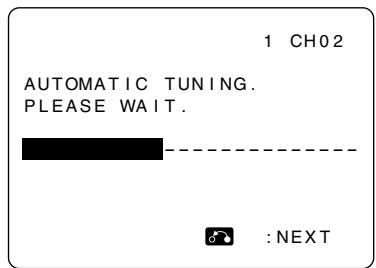
When connecting with SCART cable
PLEASE WAIT. PR 25
NOTE - A maximum of 84 channels can be set. 7 Once Automatic Tuning is complete, the MOVE menu screen will appear showing all the channels the Recorder was able to tune in.
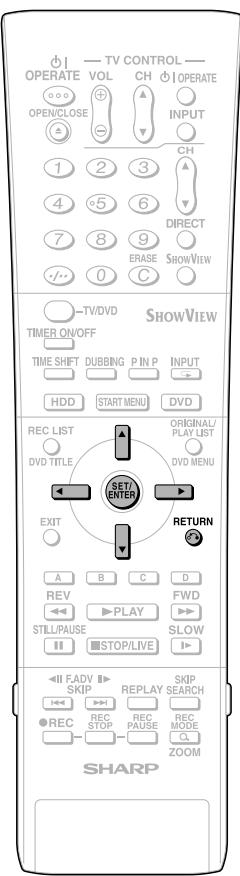
8 If you want to move any channels, press ▲/▼/◀/▶ to highlight the channel to be moved. Then press SET/ENTER to confirm.
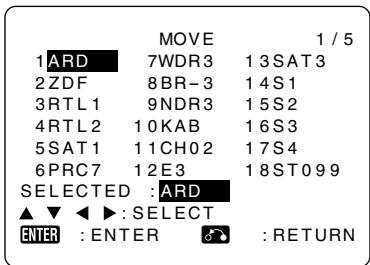
9 Press ▲/▼/◀/▶ to highlight the new position for the channel. Then press SET/ENTER to confirm.
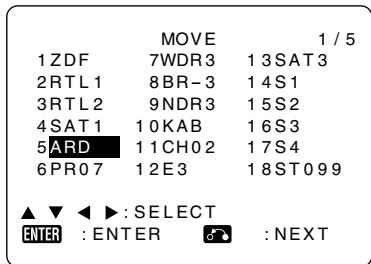
10 If any more channels are to be moved, repeat steps 8 to 9. 11 Press RETURN (NEXT) to display the "CLOCK" setting screen.
- The "CLOCK" screen will appear. Refer to "Clock Setting" on page 25.
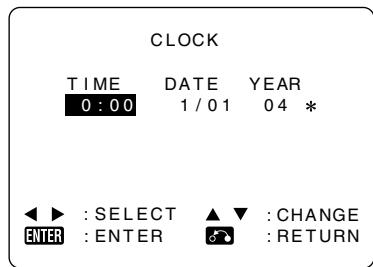
12 After setting the clock, press SET/ENTER to end the AUTO INSTALLATION procedure.
Important!
- You can perform the AUTO INSTALLATION function afterward by holding down CHANNEL ▲ and DVD on the front of the Recorder for more than 2 seconds.
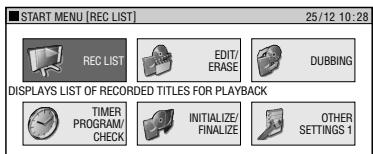
About START MENU
With this Recorder, you can call up functions like Playback, Edit and Other Settings from the "START MENU".
For details on operation procedures, see the page explaining each option.
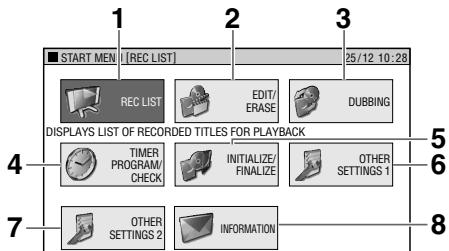
1 REC LIST
Playing back with REC LIST... page 51
Calling up various functions... page 51
2 EDIT/ERASE
Editing with the Original Title List/
Play List... page 67
Erasing all recorded titles... page 73
Erasing selected titles... page 73
Protecting titles from erasure... page 72
3 DUBBING
High speed dubbing... page 46
Rate conversion dubbing... page 46
4 TIMER PROGRAM/CHECK
Timer recording with SHOWVIEW@... page 39
Timer recording by designating date and time... page 41
Checking/Changing timer settings... page 43
5 INITIALIZE/FINALIZE
DVD/HDD initialization... page 95
DVD finalization... page 95
6 OTHER SETTINGS 1
Recording function setting... page 84
Viewing/Play setting... page 86
Adjustment... page 88
7 OTHER SETTINGS 2
Mode setting... page 92
Manual tuning... page 94
Channel sort... page 94
Clock setting... page 94
8 INFORMATION... page 33
Basic START MENU Operation
1 Press START MENU to display the "START MENU" screen.
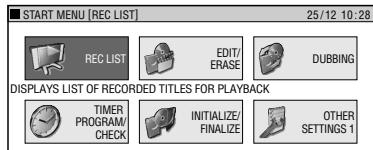
2 Press / / / to select an option.
Example: When "OTHER SETTINGS 1" is selected
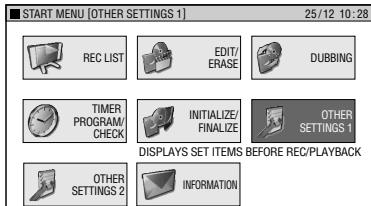
3 Press SET/ENTER to enter the selected option.
- The screen for the selected option will appear.
- Operate using / / / and SET/ENTER.
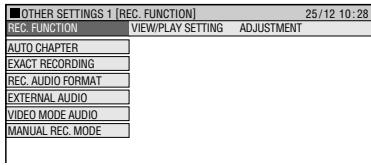
4 Press START MENU or EXIT to quit the START MENU.
- The "START MENU" screen will close, and the screen will return to normal.
NOTE
- This operation will not work at the following times:
- If you perform no operation, the "START MENU" screen will disappear after about 1 minute.
During playback, during Time Shift Viewing, during display of the REC LIST, and at the erase screen.
- If you make a mistake in operation and want to start over, press RETURN to go back to the preceding screen.
Clock Setting
The clock will normally be set using the VPS/PDC information when your Recorder automatically tunes in the broadcast channels. If for any reason the VPS/PDC signals are not present, your Recorder will not be able to set the clock. This procedure will allow you to set the clock.
1 Press START MENU to display the "START MENU" screen.
2 Press ▲/▼/◀ to select "OTHER SETTINGS 2", then press SET/ENTER.
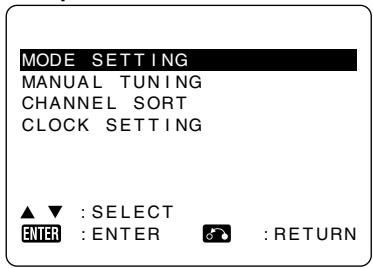
3 Press ▲/▼ to select "CLOCK SETTING", then press SET/ENTER.
4 Enter the time using the Number buttons or ▲/▼.
- If the minutes or hours are less than 10, enter leading 0.
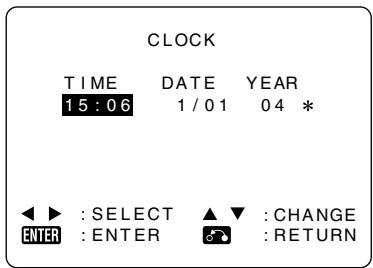
5 Press ◀/▶ to select "DATE", then enter the date using the Number buttons or ◀/▼.
For example, for 1st April press 0104.
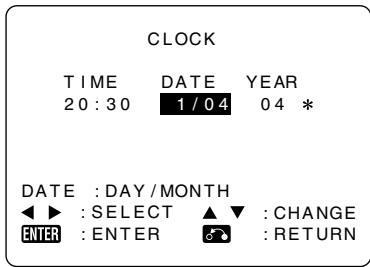
6 Press ◀/▶ to select "YEAR". Enter the last two digits of the year using the Number buttons or ◀/▼.
For example, for 2005 press 05.
7 Auto Clock Setting
Press ◀/▶ to select "AUTO CLOCK". Press ◀/▼ to change between auto clock on/off ("ON" is "ON", "OFF" is "OFF").
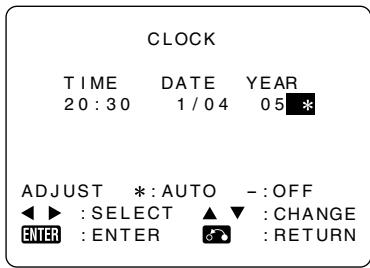
Press SET/ENTER to confirm.
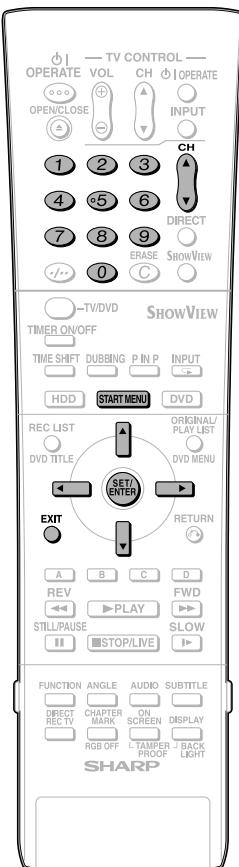
Channel Setting
This Recorder can receive a maximum of 84 channels as shown below by presetting the channels into memory.
(VHF: E2-E12, UHF: E21-E69, CATV: S1-S41)
1 Press START MENU to display the "START MENU" screen. 2 Press ▲/▼/◀/▶ to select "OTHER SETTINGS 2", then press SET/ENTER.
MODE SETTING
MANUAL TUNING
CHANNEL SORT
CLOCK SETTING

:SELECT

:ENTER

:RETURN
3 Press ▲/▼ to select "MANUAL TUNING", then press SET/ENTER. 4 Press ▲/▼ to select "PRESET", then press ▲/▶ to choose the required preset channel.
PRES
CHANNEL
FINE TUNING
DECODER
SKIP
AAP
84
CH25
ON OFF
ON OFF

:SELECT
:ENTER

:CHANGE
:RETURN
Press / to select
"CHANNEL", then press to start tuning in either direction.
- If it is not the desired channel, press / to continue tuning.
6 Press / to select "FINE
TUNING". Then press and hold until the sharpest colour picture is obtained.
7 Press / to select "DE-
CODER". This is preset to "OFF". If you connect a decoder, you must use ◀ / ▶ to turn the decoder function "ON".
Press ▲ / ▼ to select "SKIP", then press ◀ / ▶ to select "ON" or "OFF".
- The SKIP function determines whether the channel can be selected when using the CH ▲/▼ instead of the Number buttons.
9 Press SET/ENTER to store this channel. The Recorder will increment to the next channel up.
- If any more channels are to be tuned in, repeat this procedure.
- Once all the channels have been tuned in. Press START MENU or EXIT to return to the normal screen.
Channel Sort
When your Recorder tunes in broadcast channels automatically, it sorts them into a standard order using internal information. You can change the order of the channel with the following procedure.
1 Press START MENU to display the "START MENU" screen. 2 Press ▲ / ▼ / ◀ / ▶ to select "OTHER SETTINGS 2", then press SET/ENTER. 3 Press ▲ / ▼ to select "CHANNEL SORT", then press SET/ENTER.
CHANNEL SORT
MOVE
CANCEL
NAME
4 Press ▲ / ▼ to select "MOVE", then press SET/ENTER.
| MOVE | 1 / 5 | |
| 1ARD | 7WDR3 | 1 3SAT3 |
| 2ZDF | 8BR-3 | 1 4S1 |
| 3RTL1 | 9NDR3 | 1 5S2 |
| 4RTL2 | 10KAB | 1 6S3 |
5 Press ▲ / ▼ / ◀ to highlight the channel to be moved. Then press SET/ENTER. 6 Press ▲ / ▼ / ◀ / ▶ to highlight the new position for the channel. Then press SET/ENTER.
| MOVE | 1 / 5 | |
| 1 ZDF | 7WDR3 | 1 3SAT3 |
| 2 RTL1 | 8BR-3 | 1 4S1 |
| 3RTL2 | 9NDR3 | 1 5S2 |
| 4 SAT1 | 1 0KAB | 1 6S3 |
| 5ARD | 1 1CH02 | 1 7S4 |
| 6 PRO7 | 1 2E3 | 1 8ST099 |

SELECT

:ENTER

:RETURN
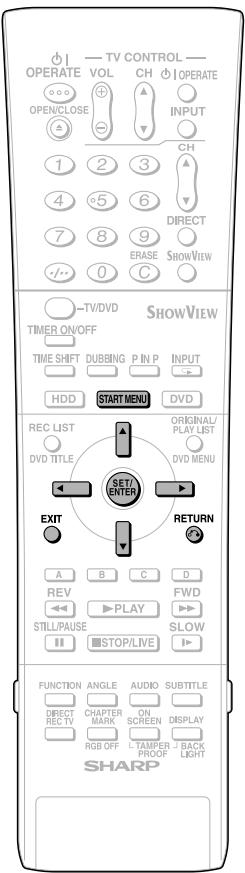
7 If any more channels are to be moved, repeat the procedure from step 5 to 6. 8 When all the channels are in your preferred order, either press RETURN to return to the "CHANNEL SORT" screen or press START MENU or EXIT to return to the normal screen.
Deleting Channels
If there is a channel you want to delete from the Recorder memory, follow the procedure below.
1 Press START MENU to display the "START MENU" screen. 2 Press / / / to select "OTHER SETTINGS 2", then press SET/ENTER. 3 Press / to select "CHANNEL SORT", then press SET/ENTER. 4 Press / to select "CANCEL", then press SET/ENTER. 5 Press / / to highlight the channel to be cancelled.
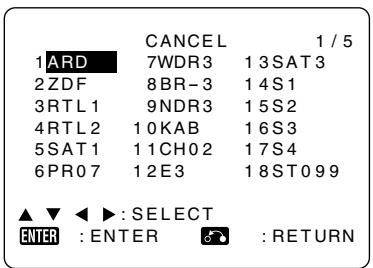
6 Press SET/ENTER twice to cancel the channel.
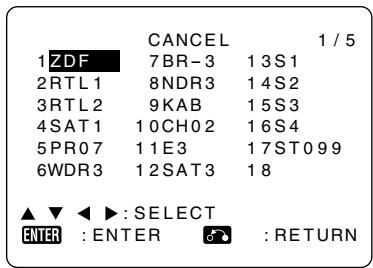
7 When all the channels you wish have been cancelled, either press RETURN to return to the "CHANNEL SORT" screen or press START MENU or EXIT to return to the normal screen.
Re-naming Channels
When your Recorder tunes in broadcast channels automatically, it names them using the VPS/PDC information. You can change the name of the channel with the following procedure.
1 Press START MENU to display the "START MENU" screen. 2 Press / / / to select "OTHER SETTINGS 2", then press SET/ENTER. 3 Press / to select "CHANNEL SORT", then press SET/ENTER. 4 Press / to select "NAME", then press SET/ENTER. 5 Press / / to highlight the channel to be re-named. Then press SET/ENTER.
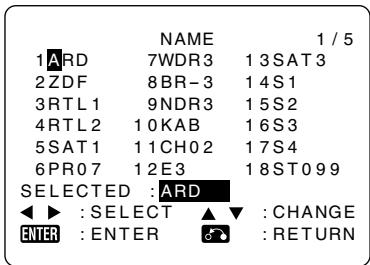
6 To enter a new channel name use / to scroll through the characters and / to move to the next position. Then press SET/ENTER. 7 If any more channels are to be renamed, repeat the procedure from step 5 to 6. 8 When all the channels are named correctly, either press RETURN to return to the "CHANNEL SORT" screen or press START MENU or EXIT to return to the normal screen.
Content of TV Screen Display
When the power is turned on or the channel is switched.
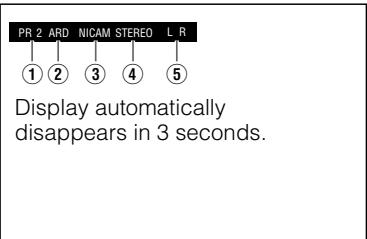
① Preset channel ② Channel name ③ NICAM signal reception ④ Stereo/Bilingual (I/II) signal reception ⑤ Audio output mode display
Monitor Output when Receiving a Stereo or Bilingual Broadcast
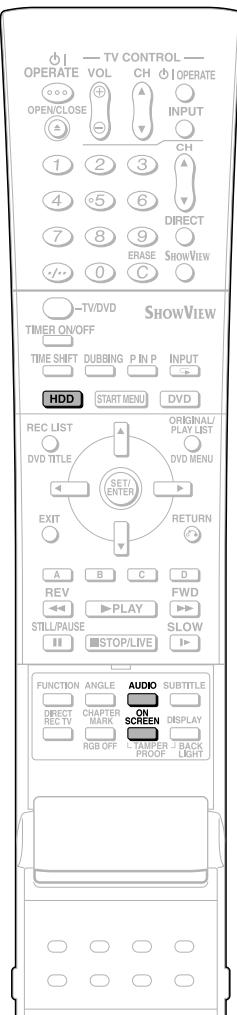
When receiving a stereo or bilingual broadcast, press AUDIO to change the audio output mode to select Monitor Output. See the table on page 93 for details.
NOTE
- When the signal is weak (hard to hear) in a stereo broadcast, press AUDIO to turn off "L R" display on the TV screen and change the audio output mode to MONO.
Checking the Channel, Remaining Time of HDD and Number of Titles
When HDD button on the front of the Recorder is lit (HDD mode)
1 Press ON SCREEN (under the cover) or HDD.
- Channel information is displayed.
PR 2 ARD NICAM STEREOL R
- The channel information display will automatically turn off in 5 seconds.
NOTE
- The channel information cannot be viewed during playback, Time Shift Viewing, Chasing Playback, or Simultaneous Recording.
2 Press ON SCREEN (under the cover) or HDD again.
- The HDD information screen is displayed.
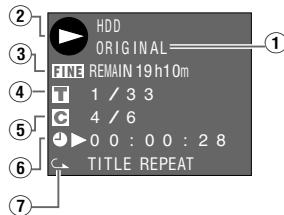
① Original title playback/Play List playback indicator ② Mode display - Playback: ▶ - Recording: ● - Stop: ■ ③ Recording mode and remaining (recordable) time ④ Current title number/Total number of titles ⑤ Current chapter number/Total number of chapters ⑥ Counter ⑦ Repeat Playback indicator
3 Press ON SCREEN (under the cover) or HDD again.
- The screen changes to the counter display.
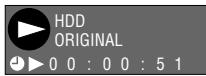
4 Press ON SCREEN (under the cover) or HDD again.
- Display is turned off.
NOTE
- The HDD information screen (step 2) will automatically disappear in 1 minute.
- The counter display (step 3) will not disappear automatically. Press ON SCREEN (under the cover) or HDD to turn it off.
Checking the Channel, Remaining Time of DVD and Number of Titles
When DVD button on the front of the Recorder is lit (DVD mode)
1 Press ON SCREEN (under the cover) or DVD.
- Channel information is displayed.
- The channel information display will automatically turn off in 5 seconds.
2 Press ON SCREEN (under the cover) or DVD again.
- The DVD information screen is displayed.
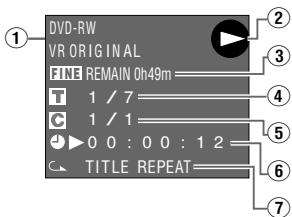
① Disc type, recording format, original title playback/Play List playback indicators
② Mode display
- Playback:
- Recording: ncp
- Stop:
③ Recording mode and remaining (recordable) time
- "FINALIZED" indicator when a finalized disc is played back.
④ Current title number/Total number of titles
- Total number of titles (Stop mode)
- Title number currently played back (Playback mode)
- Title number currently recorded (Recording mode)
⑤ Current chapter number/Total number of chapters
- Total number of chapters (Stop mode)
- Chapter number currently played back (Playback mode)
- Chapter number currently recorded (Recording mode)
(6) Counter ⑦ Repeat Playback indicator
3 Press ON SCREEN (under the cover) or DVD again.
- The screen changes to the counter display.
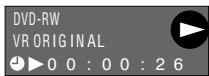
4 Press ON SCREEN (under the cover) or DVD again.
- Display is turned off.
NOTE
- The DVD information screen (step 2) will automatically disappear in 1 minute.
- The counter display (step 3) will not disappear automatically. Press ON SCREEN (under the cover) or DVD to turn it off.
Switching Front Panel Display
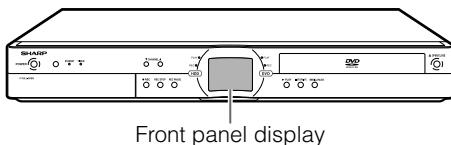
1
Turn the power on.
- Channel display (when watching TV)
- Counter display (during playback/recording)
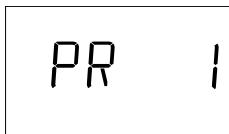
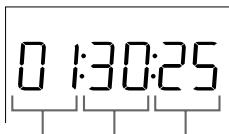
Hour Minute Second
2 Press DISPLAY (under the cover).
- Remaining time display (when watching TV)
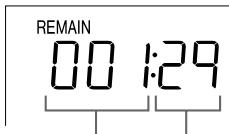
Hour Minute
- Current title number and chapter number (during playback)
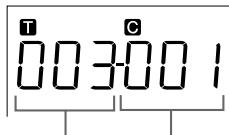
Current title Current chapter
- Channel currently recorded (during recording)
3
Press DISPLAY (under the cover) again.
- The screen returns to the display in step 1.
#
NOTE
- Because of technical reasons the time counter is rounding up or down during the time counting process. Therefore small deviations of the time display are normal.
Preparation to Operate This Recorder

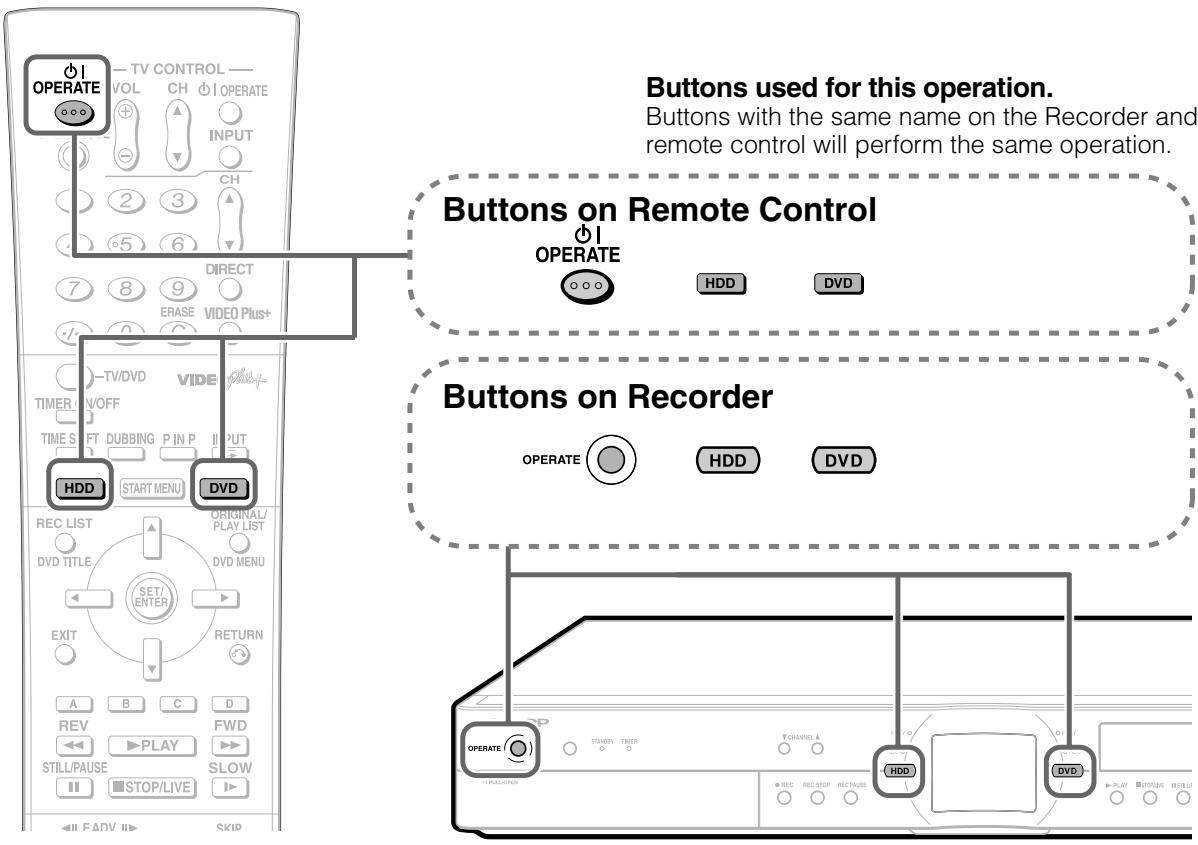
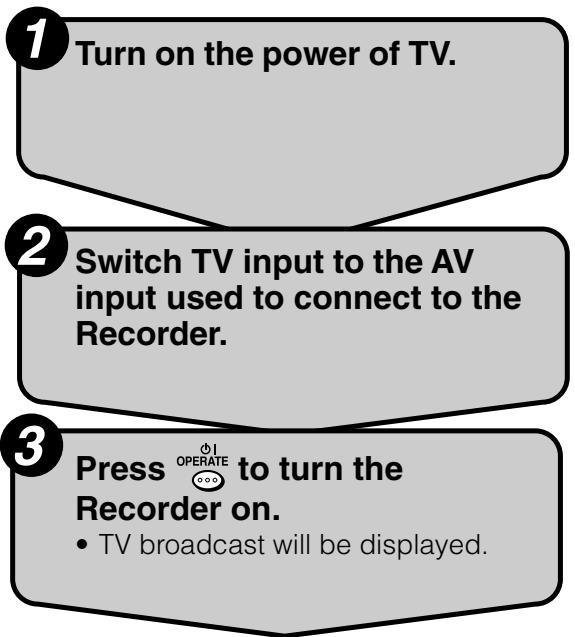
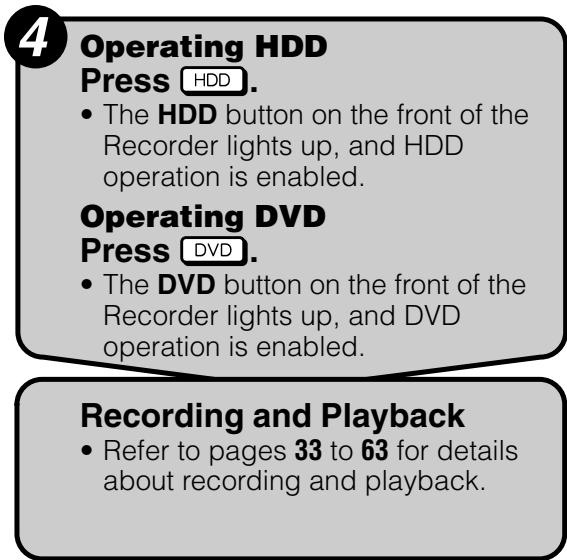

NOTE
- After turning on power, both the HDD and DVD buttons on the front of the Recorder will blink for a moment while the Recorder is getting ready. Perform this operation after the HDD button lights up.
Time Shift Viewing/Chasing Playback
With this Recorder, you can enjoy Time Shift Viewing and Chasing Playback—distinctive features of a HDD.
① Time Shift Viewing
While you are watching a programme, the phone rings.... At times like this, you can pause the programme at the press of a button and watch the rest later.
NOTE
- Some programmes may not allow you to time shift view due to copyright of the programmes.
- Programmes recorded for Time Shift Viewing will be erased automatically if Time Shift Viewing is cancelled.
Time Shift Viewing (Pause)
You can pause during sudden phone call or when you want to take a note. In such cases press TIME SHIFT to pause. Press ▶ PLAY to watch the rest of the programme.
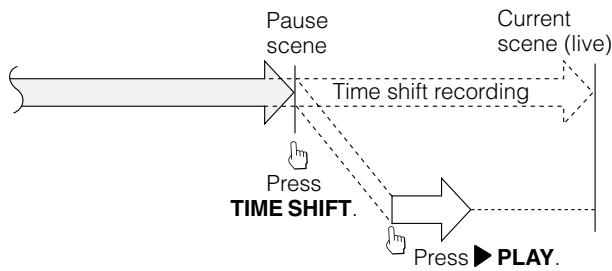
Press STOP/LIVE to return to the current (live) broadcast. (Time shift recording stops at this point. Recorded programmes will be erased automatically.)
NOTE
- When remaining capacity of HDD during Time Shift Viewing is gone, Time Shift Viewing will be cancelled. The current (live) broadcast will be displayed and the programmes recorded for Time Shift Viewing will be erased. You cannot view the recorded part of the programme.
- A message will be displayed 5 minutes before timer recording starts. If you are time shift viewing, it will stop 3 minutes later.
(2) Chasing Playback
You return home earlier than expected while timer recording is in progress.... At times like this, you can watch the programme from the beginning without having to wait for the recording to finish.
Chasing Playback (Pause → Play)
Press PLAY during recording or timer recording to watch the recorded programme from the beginning.
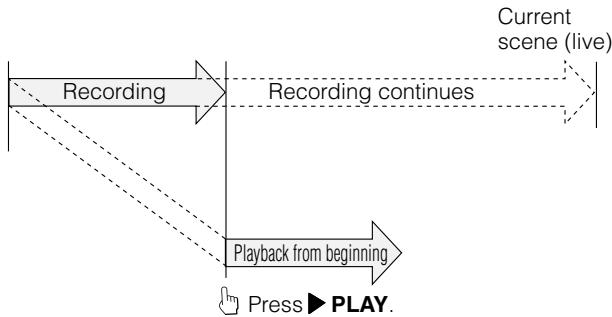
Playback starts from the beginning of the programme. (Recording continues)
Fast Reverse/Forward Playback
If you press REV or FWD during Time Shift Viewing or Chasing Playback, Fast Reverse/Forward Playback starts.
If you press REV (or FWD) again, the speed of Fast Reverse/Forward Playback changes as shown below. (You cannot listen to audio during Fast Reverse/Forward Playback.)

NOTE
- If you perform Fast Forward Playback during Time Shift Viewing or Chasing Playback, the Recorder will automatically switch to the playback screen when Fast Forward Playback reaches about 30 seconds before the live broadcast. The timing that goes automatically back to playback mode will slightly differ depending on the speed of Fast Forward and Recording Mode.
- When the unit automatically goes back to normal playback during [3], you can still view the programme in Fast Forward Playback up to the point of the live broadcast by performing [1] or [2].
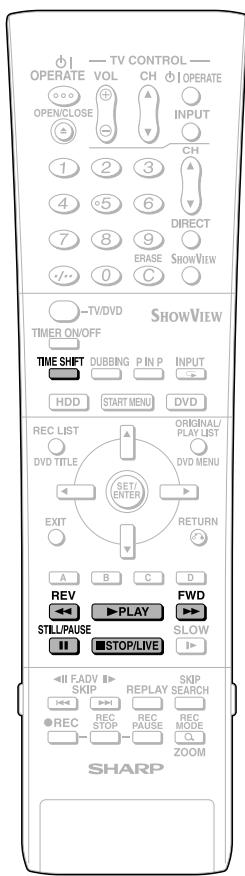
Time Shift Viewing
HDD
1 Press TIME SHIFT while viewing a programme.
- Pause screen will be displayed in a few seconds.
Pause icon
(This will become a square icon during Time Shift Viewing.)
- Press STOP/LIVE to return to current (live) broadcast.
2 Press ▶ PLAY.
- Playback starts from the position you paused.
Play icon
Press STILL/PAUSE to pause playback (Still Playback). To cancel Still Playback, press
STILL/PAUSE or ▶ PLAY.
3 Press REV or FWD during Time Shift Viewing.
Each time you press the buttons, the Fast Reverse/Forward Playback speed changes as shown below.
2
3
Example: When FWD is pressed once
Fast Forward Playback 2X icon
- Press ▶ PLAY to return to the normal playback speed.
4 Press STOP/LIVE to return to the current (live) broadcast.
- Time Shift Viewing will be cancelled, and the automatically recorded content will be erased.
NOTE
- Time shift viewing will stop in the following cases.
- TIME SHIFT or STOP/LIVE is pressed. HDD remaining capacity is gone.
- The broadcast whose recording is prohibited is received.
Chasing Playback
HDD
1 Press ▶ PLAY during recording.
- Playback starts from the beginning of the programme being recorded. (Chasing Playback) Press STILL/PAUSE to pause playback (Still Playback). To cancel Still Playback, press
STILL/PAUSE or ▶ PLAY.
2 Press REV or FWD during Chasing Playback.
Each time you press the buttons, the Fast Reverse/Forward Playback speed changes as shown below.
Example: When FWD is pressed once
Fast Forward Playback 2X icon
- Press ▶ PLAY to return to the normal playback speed.
3 Press STOP/LIVE to return to the live broadcast which is being recorded.
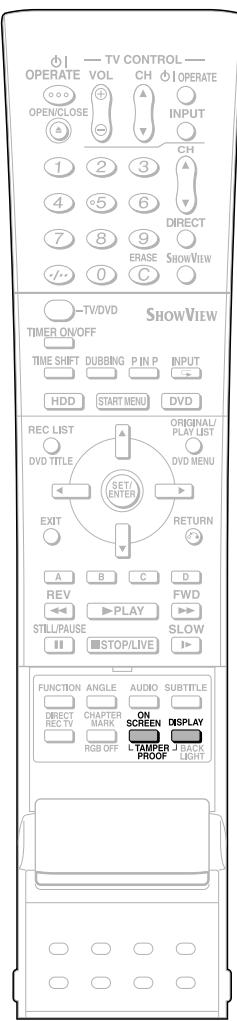
This section explains recording on the hard disc (HDD). (For information on recording to DVD, see page 35.)
Confirming Remaining Time for Recording
To confirm on TV screen
- Press ON SCREEN (under the cover). To confirm on front display panel
- Press DISPLAY (under the cover).
Confirming Remaining Time
This display means that you can record 20 hours more in FINE mode.
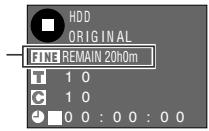
- During live programme viewing or HDD playback, remaining time of recording in the selected recording mode will be displayed.
- During HDD recording, remaining time of recording in the currently selected recording mode will be displayed.
Guide to Recordable Length of Time
Recording Mode
| Recording mode | FINE | SP | LP | EP |
| Recording time (DV-HR350S) | 30 hr | 50 hr | 100 hr | 150 hr |
| Recording time (DV-HR300S) | 20 hr | 33 hr | 67 hr | 100 hr |
- Remaining time for recording differs according to the recording mode.
- Recordable time might be less than above figures depending on the programme to be recorded.
- MN (manual) recording mode setting allows you to select the picture quality from among 32 levels on the "MANUAL REC. MODE" screen (page 37).
Monitoring a Programme Being Recorded while Playing Back a Disc (page 63)
- Picture in picture
This lets you monitor a programme being recorded, while playing back a disc, using the Simultaneous Recording/Playback function.
Dubbing (page 44)
- Titles recorded on HDD can be saved by dubbing them to DVD-RW/R. (You can also dub from DVD-RW/R to HDD.)
- You can batch dub up to 5 programmes.
Recording Programmes to HDD for High Speed Dubbing from HDD to DVD-RW/R in Video Mode
High Speed Dubbing Priority
Normally, recording onto HDD is done using own format, but recording can also be done using a format for high speed dubbing onto DVDs formatted in Video mode.
To perform high speed dubbing onto a DVD in Video mode, set "HI SP DUB
PRIORITY" to "YES" and then record. (See page 45.)
Chasing Playback (page 32)
- This lets you playback and watch a programme from the beginning while it is being recorded on HDD.
Simultaneous Recording/Playback (page 63)
- This lets you playback and watch a programme recorded on HDD, or a DVD or CD, while recording another programme on HDD.
Cutting out Commercials (pages 67, 78)
- After recording is finished, you can cut out commercials and other unnecessary scenes by calling up the Erase Scene function.
(Commercials cannot be cut out automatically during recording.)
Tamper Proof
- You can set Tamper Proof to prevent operations by mistake during recording or timer recording.
① Press and hold TAMPER PROOF (ON SCREEN and DISPLAY together) for more than 2 seconds. ② Each time you perform this operation, the function is activated or deactivated.
- If you try to operate the Recorder while Tamper Proof is set, "①" blinks in the front display panel and tells you that Tamper Proof is set.
Information
- When there is a report message (e.g. when a timer recording was not successfully performed), the Recorder displays an on-screen message telling that there is a report message.
Check the report message by selecting "INFORMATION" on the "START MENU".
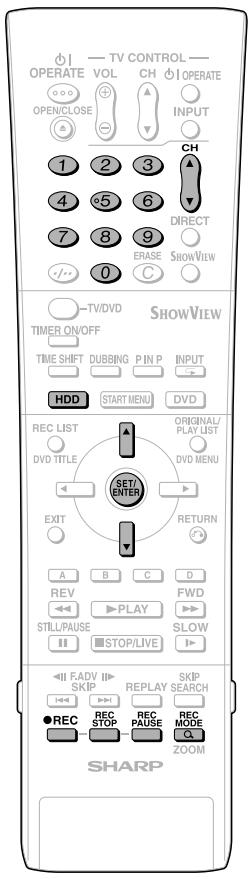
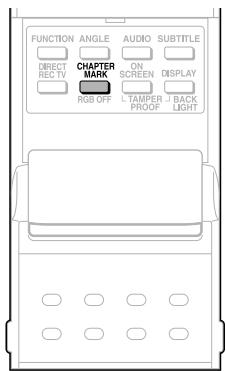
Direct Recording to HDD
HDD
Explained below is the standard procedure for recording the programme being viewed onto HDD.
- A maximum of 12 hours can be recorded onto HDD in one direct recording session.
- A maximum of 199 programmes can be recorded (saved) onto HDD.
NOTE
- The content being recorded will not be recorded if power failure occurs or if power cord is accidentally unplugged.
- Also direct recording to a DVD-RW/R is possible (page 35).
Preparation for Direct Recording
- When you record NICAM broadcast, set "NICAM" setting to "AUTO" (see page 92).
- When recording to the HDD, the recorded data is the same as that recorded to a DVD-RW in VR mode.
1 Press HDD to select HDD mode.
- The HDD button on the front of the Recorder lights up.
- HDD mode is selected automatically when the power is turned on.
2 Press the Number buttons or CH▲/▼ to select the channel to be recorded.
3 Press REC MODE to select the recording mode.
- The recording mode changes as shown below each time the button is pressed.
FINE → SP → LP → EP → MN × X-
- Recording mode set by selecting "MN × X" is the recording mode set on the "MANUAL REC. MODE" Select screen (page 38).
4 Press ● REC during broadcast viewing.
- Recording begins and REC icon displays in TV screen.
- REC indicator (for HDD) on the front of Recorder is lit red during recording.
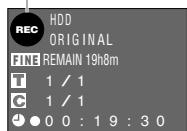
5 Press REC PAUSE to pause recording.
- Record Pause does not work during Chasing Playback.
- During pause, the REC indicator (for HDD) on the front of the Recorder blinks.
REC PAUSE icon

6 Press REC PAUSE to resume recording.
7 Press REC STOP to stop recording.
- "DATA IS BEING RECORDED TO DISC." displays on TV screen and recording stops.

NOTE
- Data is still written to the disc after recording is stopped, and so you may be unable to start the next recording immediately.
- You cannot record programmes whose recording is prohibited.
- Timer recording cannot be performed during direct recording. To perform timer recording, stop direct recording before the preset time for timer recording.
Inserting Chapter Marks Manually during Recording
Press CHAPTER MARK (under the cover).
- "RECORDED CHAPTER MARK." is displayed and chapter mark will be inserted.
- You cannot insert chapter marks during Simultaneous Recording/Playback.
Setting the Record End
Time during Direct
Recording (Simple
Recording Timer)
HDD
1 Press REC on the remote control during recording.
- The "SET STOP TIME" screen is displayed.
2 Press / to set the end time.
- The end time can be set in units of 15 minutes.
- Total recording time cannot exceed 12 hours so the end time has to be set accordingly.
- Press EXIT to stop setting midway through.
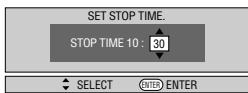
3 Press SET/ENTER.
- The record end time is set, and the Simple Recording Timer indicator (clock mark) lights up on the front display panel.
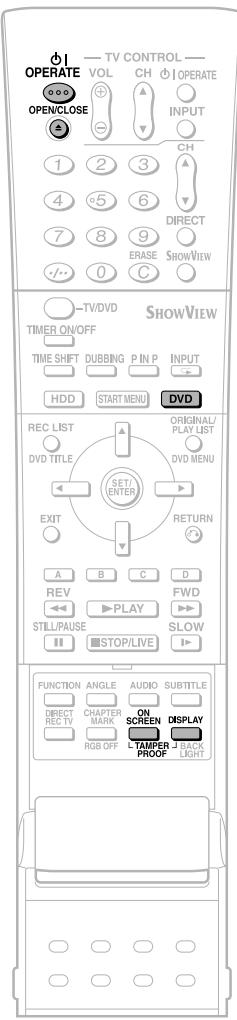
This section explains recording on the DVD (For information on recording to HDD, see page 33.)
Checking Remaining Time and Other Information
Press ON SCREEN (under the cover) during DVD playback or recording.
- Disc capacity and the number of recorded titles, etc. are displayed. It is recommended to confirm before recording.
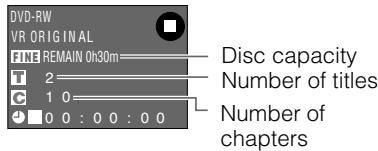
- "REMAIN 0h0m" or nothing will be displayed when an unrecordable disc is set.
NOTE
- Disc remaining time display is an approximate measure of disc capacity. There may be space left in disc capacity after recording. (Remaining time during recording and after recording might not be the same.)
Simultaneous Recording/Playback (page 63)
- HDD playback is possible while recording or timer recording to DVD.
Dubbing (page 44)
- Dubbing titles recorded on DVD to HDD or titles recorded on HDD to DVD-RW/R are possible.
- Exact Dubbing: Automatically selects the appropriate recording mode according to the remaining capacity of DVD when dubbing titles recorded on HDD to DVD.
Not Enough Disc Capacity
- Exact Recording (page 84)
Exact recording functions when the selected recording mode is not appropriate to fit the programme to the disc when you timer record.
Alternate Recording (page 89)
Alternate recording functions when you forget to load a DVD for timer recording. It automatically timer records the programme to HDD.
Cutting TV Commercials (page 67)
- You can cut unwanted scenes like TV commercials by using the ERASE SCENE function after the recording. (Cannot cut TV commercials automatically.)
- You cannot cut scenes when you record programmes by Video mode to DVD-RW or DVD-R.
Tamper Proof
- You can set Tamper Proof to prevent operations by mistake during recording or timer recording.
① Press and hold TAMPER PROOF (ON SCREEN and DISPLAY together) for more than 2 seconds. (2) Each time you perform this operation, the function is activated or deactivated. - If you try to operate the Recorder while Tamper Proof is set, "⑥" blinks in the front display panel and tells you that Tamper Proof is set.
Loading Disc
1 Press OPERATE to turn the power on.
2 Press OPEN/CLOSE on the Recorder to open the disc tray.
OPEN/CLOSE
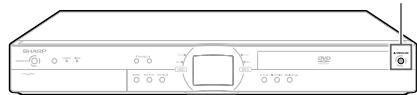
3 Load disc on the disc tray.
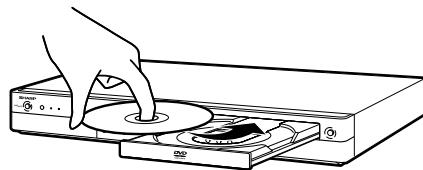
- Insert the disc with the label face up.
- In case of disc recorded on both sides, face the side you want to record down.
4 Press OPEN/CLOSE to close the disc tray.
Direct Recording to DVD
DVD-RW DVD-RW DVD-R VR MODE VIDEO MODE
Explained below is the standard procedure for recording the programme being viewed onto DVD.
- You can create a maximum of 99 original titles.
- Record in VR mode when you want to edit later. Edit functions will be limited when you record in Video mode.
Preparation for Direct Recording
- When you record NICAM broadcast, set "NICAM" setting to "AUTO" (see page 92).
1 Press DVD to select DVD mode.
- The DVD button on the front of the Recorder lights up.
- When the power is turned on, HDD mode is selected automatically.
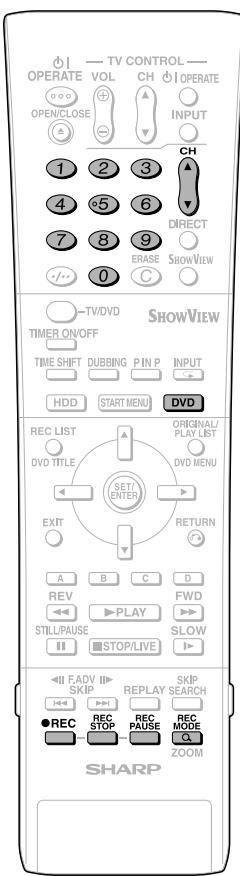
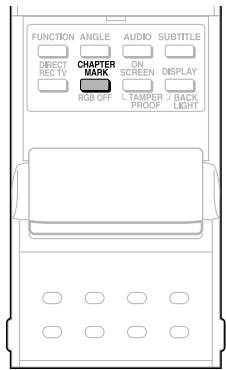
2 Set a DVD-RW or DVD-R disc.
- When a new DVD-RW disc not initialized yet is set, VR mode initializing starts automatically. When initializing is over, you can start recording.
- When you want to re-initialize in Video mode, select "DVD VIDEO MODE INIT." screen (page 95).
- When you want to initialize in Video mode from the beginning, select "AUTO INITIALIZING" screen (page 95).
3 Press Number buttons or CH ▲/▼ to select the channel to record.
4 Press REC MODE to select the desired recording mode.
- The recording mode changes as shown below each time the button is pressed.

- Recording mode set when "MN × X" is selected is the recording mode set on the "MANUAL REC. MODE" screen (page 38).
5 Press ● REC.
- Recording begins and REC icon is displayed.
- The REC indicator (for DVD) on the front of the Recorder is lit red during recording.
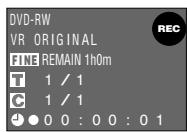
6 Press REC PAUSE to pause recording.
- Pause will not function during timer recording.
- The REC indicator (for DVD) on the front of the Recorder blinks during Recording Pause mode.
7 Press REC PAUSE to resume recording.
8 Press REC STOP to stop recording.
- "DATA IS BEING RECORDED TO DISC." displays on TV screen and recording stops.

- Stop recording first when you take out the disc.
NOTE
- Data is still written to the disc after recording is stopped, and so you may be unable to start the next recording immediately.
- Press ON SCREEN (under the cover) to confirm remaining time of DVD or check the counter display during recording.
- You cannot record programmes which prohibit recording.
- Recording either stops or pauses automatically in the following cases.
Programme which prohibits recording is on air.
—Unable to continue recording for some reason.
- Timer recording cannot be performed during direct recording. To perform timer recording, stop direct recording before the preset time for timer recording.
You may not be able to record on disc edited by other recorder.
- If a disc edited by other DVD recorder has more than 999 chapter marks, it cannot be edited (or recorded) with this Recorder.
- If a disc edited by other DVD recorder has added or erased scenes 51 times or more per title or the disc is protected, it cannot be edited (or recorded) with this Recorder.
About Recording to DVD in Video Mode
- In case you are recording to DVD in Video mode and recording stops due to power failure etc., recorded contents a few minutes before the stop may not be recorded. For details on limitation during recording in Video mode, see page 45 too.
Inserting Chapter Marks Manually during Recording
Press CHAPTER MARK (under the cover).
- "RECORDED CHAPTER MARK." displays and chapter mark is recorded.
- You can only record chapter marks manually when recording to DVD-RW (VR mode).
- You cannot record chapter marks manually when recording to DVD-RW (Video mode) or DVD-R, or during Simultaneous Recording/Playback.
Setting Record End Time during Direct Recording
- You can set record end time during direct recording to DVD. For details see "Setting the Record End Time during Direct Recording (Simple Recording Timer)" on page 34.
Setting Recording Mode (HDD/DVD)
- HDD recording time is approximate measure. DVD recording time is approximate measure using 4.7GB disc. This does not guarantee the length of recording time. Actual recording time may be shorter than that indicated below depending on image quality and other aspects.
HDD Recording Mode and Recording Time
HDD
DV-HR350S
| EP | Recording Mode | Recording Time (approx.) |
| MN1 | 150 Hr | |
| MN2 | 144 Hr | |
| MN3 | 137 Hr | |
| MN4 | 131 Hr | |
| MN5 | 125 Hr | |
| MN6 | 119 Hr | |
| MN7 | 112 Hr | |
| MN8 | 106 Hr |
| LP | MN9 | 100 Hr |
| MN10 | 96 Hr | |
| MN11 | 92 Hr | |
| MN12 | 88 Hr | |
| MN13 | 83 Hr | |
| MN14 | 79 Hr | |
| MN15 | 75 Hr | |
| MN16 | 71 Hr | |
| MN17 | 67 Hr | |
| MN18 | 63 Hr | |
| MN19 | 58 Hr | |
| MN20 | 54 Hr |
| SP | MN21 | 50 Hr |
| MN22 | 48 Hr | |
| MN23 | 46 Hr | |
| MN24 | 44 Hr | |
| MN25 | 42 Hr | |
| MN26 | 40 Hr | |
| MN27 | 38 Hr | |
| MN28 | 35 Hr | |
| MN29 | 34 Hr | |
| MN30 | 33 Hr | |
| MN31 | 32 Hr |
FINE MN32 30 Hr
DV-HR300S
| Recording Mode | Recording Time (approx.) |
| MN1 | 100 Hr |
| MN2 | 96 Hr |
| MN3 | 91 Hr |
| MN4 | 87 Hr |
| MN5 | 83 Hr |
| MN6 | 79 Hr |
| MN7 | 75 Hr |
| MN8 | 71 Hr |
| MN9 | 67 Hr |
| MN10 | 64 Hr |
| MN11 | 61 Hr |
| MN12 | 58 Hr |
| MN13 | 55 Hr |
| MN14 | 53 Hr |
| MN15 | 50 Hr |
| MN16 | 47 Hr |
| MN17 | 44 Hr |
| MN18 | 42 Hr |
| MN19 | 39 Hr |
| MN20 | 36 Hr |
| SP | MN21 | 33 Hr |
| MN22 | 32 Hr | |
| MN23 | 30 Hr | |
| MN24 | 29 Hr | |
| MN25 | 28 Hr | |
| MN26 | 26 Hr | |
| MN27 | 25 Hr | |
| MN28 | 24 Hr | |
| MN29 | 23 Hr | |
| MN30 | 22 Hr | |
| MN31 | 21 Hr |
FINE MN32 20 Hr
DVD-RW/R Recording Mode and Recording Time
DVD-RW
VR MODE
DVD-RW
VIDEO MODE
DVD-R
| Recording Mode | Recording Time (approx.) | Recording Mode | Recording Time (approx.) |
| MN1 | 360 Min | EP | MN1 |
| MN2 | 345 Min | MN2 | |
| MN3 | 330 Min | MN3 | |
| MN4 | 315 Min | MN4 | |
| MN5 | 300 Min | MN5 | |
| MN6 | 285 Min | MN6 | |
| MN7 | 270 Min | MN7 | |
| MN8 | 255 Min | MN8 | |
| MN9 | 240 Min | LP | MN9 |
| MN10 | 230 Min | MN10 | |
| MN11 | 220 Min | MN11 | |
| MN12 | 210 Min | MN12 | |
| MN13 | 200 Min | MN13 | |
| MN14 | 190 Min | MN14 | |
| MN15 | 180 Min | MN15 | |
| MN16 | 170 Min | MN16 | |
| MN17 | 160 Min | MN17 | |
| MN18 | 150 Min | MN18 | |
| MN19 | 140 Min | MN19 | |
| MN20 | 130 Min | MN20 | |
| MN21 | 120 Min | SP | MN21 |
| MN22 | 110 Min | MN22 | |
| MN23 | 105 Min | MN23 | |
| MN24 | 100 Min | MN24 | |
| MN25 | 95 Min | MN25 | |
| MN26 | 90 Min | MN26 | |
| MN27 | 85 Min | MN27 | |
| MN28 | 80 Min | MN28 | |
| MN29 | 75 Min | MN29 | |
| MN30 | 70 Min | MN30 | |
| MN31 | 65 Min | MN31 | |
| MN32 | 60 Min | FINE | MN32 |
NOTE
- Higher recording mode means higher picture quality and lower recording mode means longer recording time.
- Picture quality of recorded content changes distinctively if the recording mode changes from the recording modes right below the bold lines in left chart and recording modes right above the bold lines. The positions of the bold lines differ among HDD, DVD-RW (VR Mode) and DVD-RW/R (Video Mode).
- With MN22-32, VBR recording has a large effect, so the actual recording time will be longer.
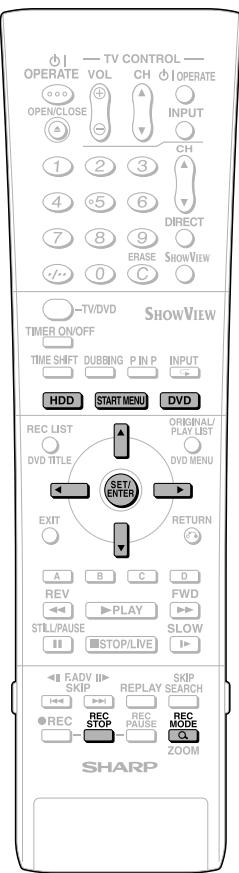
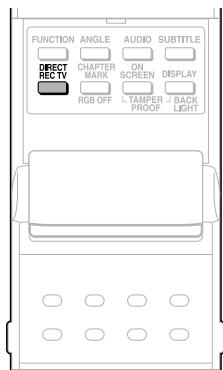
Setting the Manual Recording Mode (MN)
HDD DVD-RW DVD-RW DVD-R VR MODE VIDEO MODE
You can set the manual recording mode which is used when you select "MN XX" with REC MODE.
1 Press START MENU to display the "START MENU" screen. 2 Press / / to select "OTHER SETTINGS 1", then press SET/ENTER. 3 Press / to select "REC. FUNCTION". 4 Press / to select "MANUAL REC. MODE", then press SET/ENTER.
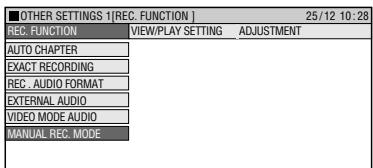
5 Press / to select the desired recording mode, then press SET/ENTER.
Refer to the table on page 37.
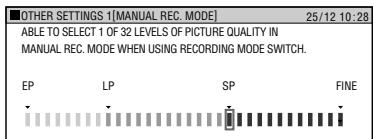
NOTE
When playing back a DVD-RW/R disc (Video Mode) recorded with the recorder using a DVD player.
- When you playback a disc recorded with the manual mode of the recorder using a DVD player, it may not be able to playback depending on the model (some particular modes cannot be played back).
Direct Recording the TV programme you are watching
HDD | DVD-RW | DVD-RW | DVD-R
VR MODE VIDEO MODE
Important!
- This function is available only when connecting to your TV using SCART cable.
You can record the TV programme you are watching with easy operation.
1 Press DVD or HDD to select the recording disc. 2 Press DIRECT REC TV (under the cover) to start recording. 3 Press REC STOP to stop recording.
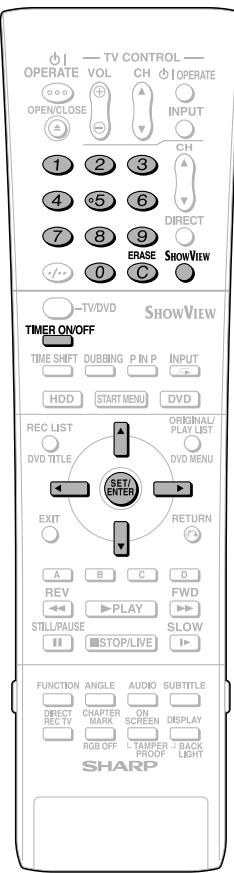
Timer Recording with ShowView® system
HDD DVD-RW DVD-RW DVD-R VR MODE VIDEO MODE
The operation method is the same for both HDD and DVD.
- The SHOWVIEW® system allows you to programme your Recorder for timer recording simply by inputting the SHOWVIEW number.
- The ShowView numbers are listed in most newspapers, television guides, and local CATV listings. Simply by inputting this ShowView number, you can program your Recorder for timer recording, eliminating the need to input programme start time, stop time, channel, date and other information usually necessary for timer recording.
- Up to 16 timer programs can be stored. (This includes Timer Program.)
Preparation to Use SHOWVIEW system
- Check that the clock is displaying the correct time.
- If the TIMER indicator on the front of the Recorder is lit, press TIMER ON/OFF to turn off the TIMER indicator and to set the TIMER STANDBY mode to off.
1 Press ShowView (button) to display the "ShowView" setting screen.
SHOWVIEW SYSTEM
SHOWVIEW NO.

ONCE
WEEKLY DAILY

:SELECT
0~9
:INPUT
ENTER
:ENTER
:RETURN
2 Press Number buttons to enter the SHOWVIEW number.
- Press ERASE if you make a mistake in the SHOWVIEW number. Each time you press the button, one digit will be erased.
3 Press , then use to select "ONCE", "WEEKLY" or "DAILY".
- If you want to make additional recordings at the same time each day or week, select "DAILY" or "WEEKLY" as appropriate.
4 Press SET/ENTER to confirm.
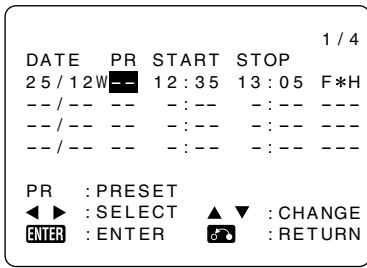
NOTE
- "ERROR" will appear if you have entered a number that is not a correct ShowView number. If this happens, press ERASE to delete the numbers as required and enter the correct ShowView number.
- Check that the menu list agrees with the times shown in the TV listing. If it does not, press ERASE to return to the SHOWVIEW system menu, then enter the correct SHOWVIEW number.
The first time that you use the SHOWVIEW system to make a recording on each channel preset, "PR" may be highlighted on the On-Screen Display.
5 Enter the channel button you want to record using the triangle/nabla or Number buttons.
- For example, to record a programme on channel 8, press 0 8.
6 Press the left arrow to select "START (time)" / "STOP (time)", then use the left arrow or the Number buttons to change the time if necessary.
- When entering less than 10 hours or minutes, add a "0" before the number. For example, for a 12:05 start, press 1 2 0 5.
7 Press the right arrow to select "REC. MODE", then use the left/right arrows to select the recording mode.
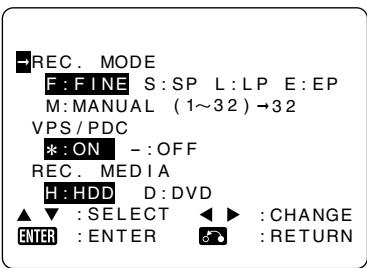
When "M:MANUAL (1~32)" is selected:
- Select the recording mode with the left arrow, then press SET/ENTER. (The recording mode can be selected from 32 levels.)
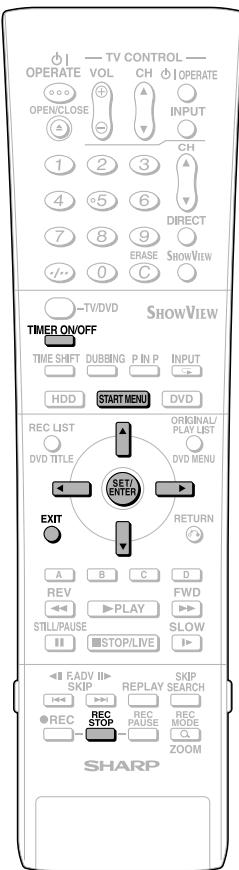
Press the up/down arrows to select "VPS/PDC", then use the left/right arrows to turn the VPS/PDC setting ON("*")/OFF("-"). Press the up/down arrows to select "REC. MEDIA", then use the left/right arrows to select the recording disc ("H:HDD" or "D:DVD"). 10 Press SET/ENTER to confirm.
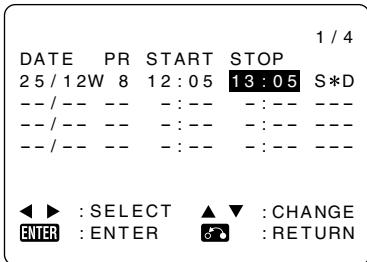
11 Press SET/ENTER.
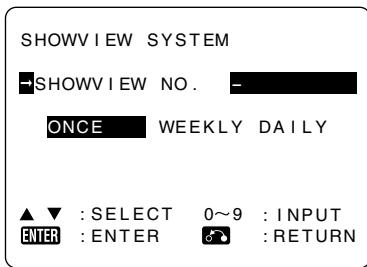
- The SHOWVIEW screen is displayed. If you want to enter further SHOWVIEW system recordings, repeat this procedure.
12 When you have completed entering the timer settings, press START MENU or EXIT to exit from the "SHOWVIEW" screen.
13 (When you select "D:DVD" in step 9, ensure the recordable DVD-RW/R is inserted into the Recorder) Press TIMER ON/OFF to place the Recorder in TIMER STANDBY mode.
- The TIMER indicator on the front of the Recorder lights up.
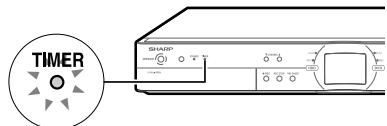
- The channel cannot be changed during TIMER STANDBY mode. To change the channel, set TIMER STANDBY to off.
- You can also access the SHOWVIEW system menu by performing the following procedure: ① Press START MENU. ② Press ▲/▼/◀ to select "TIMER PROGRAM/CHECK", then press SET/ENTER. ③ Press ▲/▼ to select "SHOWVIEW", then press SET/ENTER. ④ Continue from step 1 of this procedure. ⑤ Press START MENU or EXIT to exit from timer recording.
- VPS/PDC is a signal broadcast by some TV stations which adjusts the start and stop time of your Recorder recording. This ensures that if there is a change in broadcast time for your programme, the Recorder will still record the whole programme. It is essential that the start time as it appears in the TV listing is used to programme the Recorder, as this information is used to identify the VPS/PDC signal corresponding to your programme.
- Even if recording by timer programming is completed, since the Recorder is VPS/PDC system compatible, the power may remain on internally (blue background output, LCD backlight off), but it will be turned off around 4 AM the next day or three hours after recording is complete. Data is still written to the disc after first timer recording is stopped, the first part of the next programme may not be recorded.
- During recording, press REC STOP to cancel the recording. If there are further recordings to be made, the Recorder will not return to TIMER STANDBY mode.
- When you set a DVD as recording media, timer recording will not start during disc playback. If "ALTERNATE RECORDING" is set to "YES", the programme will be timer recorded to HDD.
- Timer recording will not start during dubbing.
- Manual recording and editing cannot be performed during timer standby.
Convenient Functions When Recording to DVD
Exact Recording (page 84)
- If you set EXACT RECORDING to "YES", the Recorder will automatically adjust the recording mode of timer recording so the recorded programs will fit on one disc.
Alternate Recording (page 89)
- You can record timer programs to HDD automatically when Exact Recording cannot fit the programmes on one disc.
- Alternate Recording will also function when you forgot to insert the disc for recording.
To check, change or cancel timer settings
See page 43
To stop recording while timer recording is in progress
- If you press REC STOP, "TIMER RECORDING IS IN PROGRESS, IF YOU PRESS THE REC. STOP BUTTON ONCE MORE, TIMER RECORDING CANCELS AND RECORDING STOPS." will appear on the screen. Even that message goes out of the screen, pressing REC STOP one more time will stop the recording.
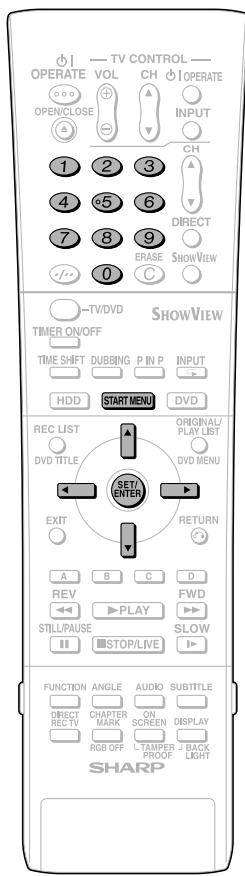
Timer Recording by Specifying Date, Time and Channel

DVD
-RW
DVD-RW
DVD-R
VR MODE VID
EO MODE
The operation method is the same for both HDD and DVD.
- You can timer record up to 16 programmes scheduled within a year, including SHOWVIEW system.
- You can consecutively record up to 12 hours to HDD.
Preparation for Timer Recording
- Check that the clock is displaying the correct time.
- If the TIMER indicator on the front of the Recorder is lit, press TIMER ON/OFF to turn off the TIMER indicator and to set the TIMER STANDBY mode to off.
For Example: Recording a programme on channel 8 from 12:05 to 13:05 on December 25th.
1 Press START MENU to display the "START MENU" screen. 2 Press ▲/▼/◀/▶ to select "TIMER PROGRAM/CHECK", then press SET/ENTER.
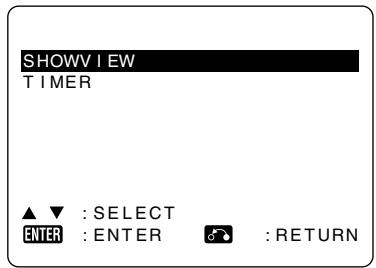
3 Press ▲/▼ to select "TIMER", then press SET/ENTER.
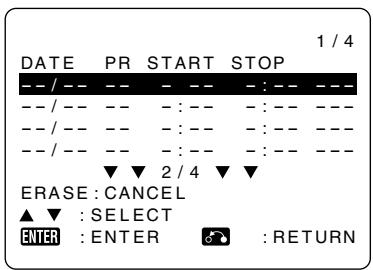
4 Press SET/ENTER to display today's date.
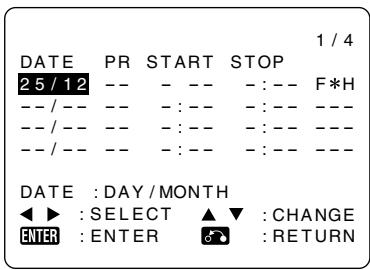
- Press ▲/▼ or Number buttons to change the date if you want.
- If you use the Number buttons, enter two digits for the day, then two for the month. For example for December 25th, press 2 5 (25th), then 1 2 (December).
5 When the correct date for your recording is shown, press ▶ to move to the next setting.
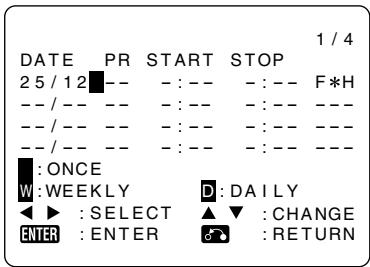
6 If you want to make additional recordings at the same time each day or week, press ▲/▼ to select "D" (DAILY) or "W" (WEEKLY). Then press ▶ to move to the next setting. 7 Press ▲/▼ or the Number buttons to enter the channel number. Then press ▶ to move to the next setting.
- For example, to record a program on channel 8, press 0 8.
Press △ / ▽ or the number buttons to enter the start time, hours first, then minutes, then press.
- When entering less than 10 hours or minutes, add a "0" before the number. For example, for a 12:05 start, press 1 2 0 5.
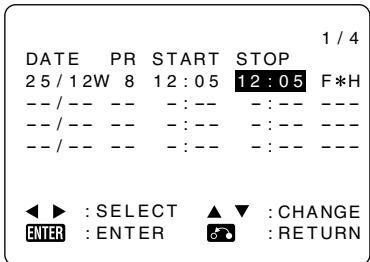
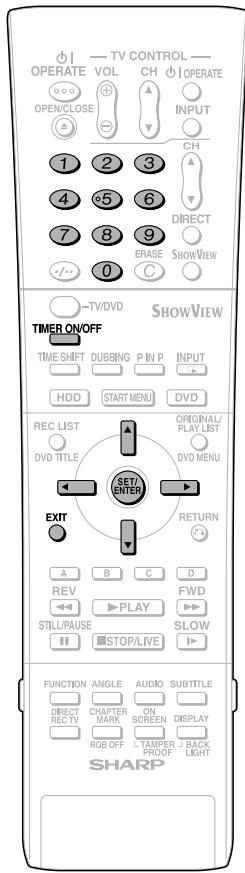
9. Press △ / ▽ or the number buttons to enter the stop time, then press.
For example, for a 13:05 stop, press 1 3 0 5.
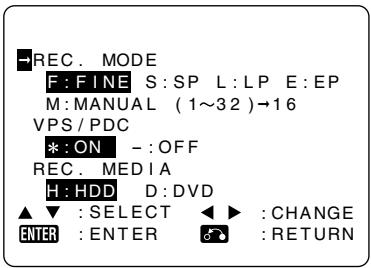
10. Press △ / ▽ to select "REC. MODE", then use ◀ / ▶ to select the recording mode.
When "M:MANUAL (1~32)" is selected:
- Select the recording mode with ◀ / ▶, then press SET/ENTER. (The recording mode can be selected from 32 levels.)
11. Press △ / ▽ to select "VPS/PDC", then use ◀ / ▶ to turn the VPS/PDC setting ON ("*") / OFF ("-").
12. Press △ / ▽ to select "REC. MEDIA", then use ◀ / ▶ to select the recording disc ("H:HDD" or "D:DVD"), then press SET/ENTER.
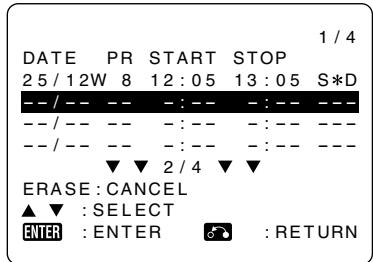
- If any more timer recordings are to be set, repeat steps 4 to 12.
13. When you have completed entering the timer settings, press START MENU or EXIT to exit from the "START MENU" screen.
14. (When you select "D:DVD" in step 12, ensure the recordable DVD-RW/R is inserted into the Recorder.) Press TIMER ON/OFF to place the Recorder in TIMER STANDBY mode.
- The TIMER indicator on the front of the Recorder lights up.
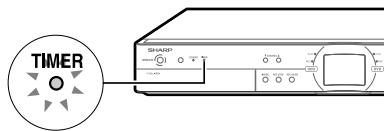
- The channel cannot be changed during TIMER STANDBY mode. To change the channel, set TIMER STANDBY to off.
- VPS/PDC is a signal broadcast by some TV stations which adjusts the start and stop time of your Recorder recording. This ensures that if there is a change in broadcast time for your programme the Recorder will still record the whole programme. It is essential that the start time as it appears in the TV listing is used to programme the Recorder, as this information is used to identify the VPS/PDC signal corresponding to your programme.
- Even if recording by timer programming is completed, since the Recorder is VPS/PDC system compatible, the power may remain on internally (blue background output, LCD backlight off), but it will be turned off around 4 AM the next day or three hours after recording is complete.
- Data is still written to the disc after first timer recording is stopped, the first part of the next programme may not be recorded.
- During recording, press REC STOP to cancel the recording. If there are further recordings to be made, the Recorder will not return to TIMER STANDBY mode.
- When you set a DVD as recording media, timer recording will not start during disc playback. If "ALTERNATE RECORDING" is set to "YES", the programme will be timer recorded to HDD.
- Timer recording will not start during dubbing.
- Manual recording and editing cannot be performed during timer standby.
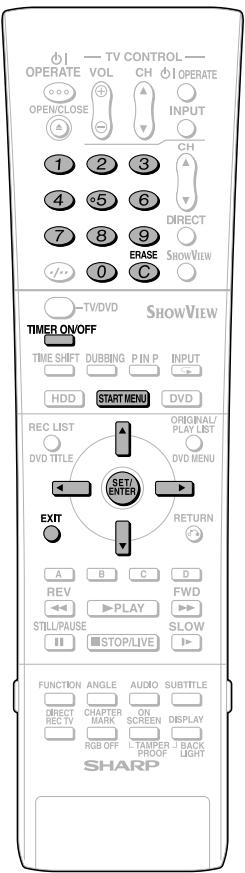
Confirm, Change and Cancel a Timer Programme
HDD DVD-RW DVD-RW DVD-R VR MODE VIDEO MODE
The operation method is the same for both HDD and DVD.
Confirming
You can confirm on the Timer setting screen a list of all timer programmes that are already set.
Preparations for timer confirmation
- If the TIMER indicator on the front of the Recorder is lit, press TIMER ON/OFF to turn off the TIMER indicator and to set the TIMER STANDBY mode to off. 1 Press START MENU to display the "START MENU" screen. 2 Press ▲/▼/◀ to select "TIMER PROGRAM/CHECK", then press SET/ENTER. 3 Press ▲/▼ to select "TIMER". Press SET/ENTER to confirm.
- All the timer recordings in the Recorder's memory will be shown.
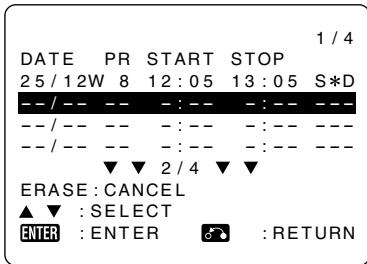
4 If the settings are correct, press START MENU or EXIT to exit.
Changing
1 Follow steps 1 to 3 of "Confirming" described left. 2 Press ▲/▼ to highlight the timer recording you want to change, then press SET/ENTER to select. 3 Press ◀/▶ to highlight the setting to be changed and correct it by using ◀/▼/◀/▶ or the Number buttons.
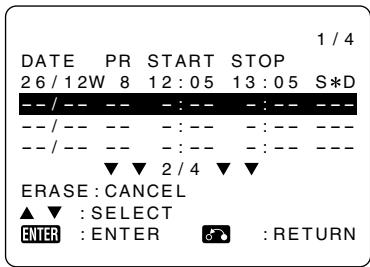
4 When all corrections are complete press SET/ENTER to confirm, then press START MENU or EXIT to exit.
Cancelling
1 Follow steps 1 to 3 of "Confirming" described left. 2 Press ▲/▼ to highlight the timer recording to be cancelled, then press ERASE.
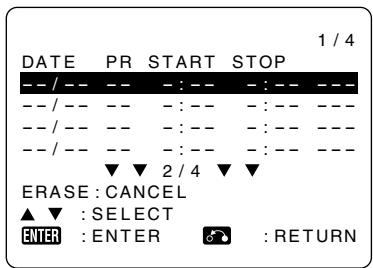
3 Press START MENU or EXIT to exit.
NOTE
- If there are some programmes to be recorded, do not forget to press TIMER ON/OFF to return the Recorder to TIMER STANDBY mode.
Dubbing Method and Dubbing Types
You can dub from HDD to DVD and DVD to HDD. It is recommended to dub important programmes recorded on HDD to DVD for safe keeping.
- You can dub up to five titles (programmes) in one session.
- You cannot dub programmes that are not recorded properly.
High Speed Dubbing
- Copy titles recorded to HDD without any change of image quality and recording length. This Recorder can perform high speed dubbing with no loss of image quality of data so there is no degradation.
- Time to dub varies according to the recording mode of title (programme) to dub or type of disc you use.
- When a blank 2X speed compatible disc is initialized with other DVD recorder, dubbing may be done at 1X speed even if high speed dubbing is selected.
Example: Approximate time it takes to dub when you dub programme 1 hour long
| Required time | Recording Mode of Source Title | |||
| FINE | SP | LP | EP | |
| Using a 2X-speed compatible disc | Approx. 30 min | Approx. 15 min | Approx. 7.5 min | Approx. 5 min |
| Using a 1X-speed compatible disc | Approx. 60 min | Approx. 30 min | Approx. 15 min | Approx. 10 min |
- Even if DVD-R is compatible to 4 × speed dubbing the Recorder will handle as disc compatible to 2 × speed dubbing.
- If you perform high-speed dubbing of a "Copy Once" programme, dubbing will not be done at 2X-speed, even if you use a 2X-speed compatible disc.
Rate Conversion Dubbing (Constant Speed)
- Plays back titles of HDD and dubs to DVD-RW/R or plays back titles of DVD-RW/R and dubs to HDD.
- Selects picture quality (recording mode) for dubbing. You can select among 32 levels of recording modes so it is convenient when you want to fit the programmes into one disc.
- You can select among 32 levels of recording mode by using Manual setting but picture quality will not exceed the quality of original.
- Time to dub is about the same as time required to record the title in the beginning.
NOTE
- You cannot operate other functions while dubbing. Timer programming will not start while dubbing. You cannot record to HDD or playback titles on HDD while dubbing.
Limitation during Dubbing
Stopping Dubbing in the Middle
- When dubbing a "Copy Once" enabled programme from HDD to DVD-RW (CPRM compatible) is stopped in the middle, the part that was dubbed will be erased from HDD. If you restart the dubbing, you can dub the remaining part as a different title but overlap between title dubbed before and after the stop might be off.
Dubbing Titles Including "Copy Once" Enabled Programme
- When dubbing titles including "Copy Once" enabled programme on HDD to DVD-RW, use DVD-RW (VR mode) Ver. 1.1 CPRM compatible disc.
- "Copy Once" enabled programme recorded to HDD will move (recorded programme will be erased after the move) to DVD-RW. (You cannot dub in Video mode even if you use DVD-RW Ver. 1.1 CPRM compatible disc.)
NOTE
- Even if you select "HIGH SPEED DUBBING", you may not be able to increase the speed of dubbing from 1x depending on titles you want to dub and type of disc.
- When title on HDD that includes "Copy Once" enabled title is divided into several chapters, you can add all the chapters to dubbing list by adding one of the chapters to dubbing list.
Dubbing Direction and Dubbing Speed
| Dubbing Speed Direction | Constant Speed (Rate Conversion Dubbing) | High Speed (High Speed Dubbing) |
| HDD→DVD-RW (VR mode) | *1 × | *1 × |
| HDD→DVD-RW/R (Video mode) | × | △ |
| DVD-R/RW→HDD | *2 × | — |
X Can dub. Cannot dub. Can High Speed Dub the recorded title if it is recorded using "HI SP DUB PRIORITY". 1 Can just move the original title if that title is "Copy Once" enabled. 2 Cannot dub "Copy Once" enabled title.
Title Name and Chapter Mark Copied during Dubbing
- Title name and chapter mark are as follows:
| Rate Conversion Dubbing | Title Name | Chapter Mark |
| HDD←DVD (VR mode) | × | × |
| HDD→DVD (Video mode) | × | *1 — |
| DVD (Video mode)→HDD | *2 × | — |
| High Speed Dubbing | Title Name | Chapter Mark |
| HDD→DVD (VR mode) | × | × |
| HDD→DVD (Video mode) | × | *3 × |
X Can dub.
Cannot dub.
1. Chapter marks of the dubbed title will not be copied when you dub from HDD to DVD-RW/R (Video mode) using the rate conversion dubbing function. The chapters will be inserted according to the auto chapter setting (either "10 min", "15 min", or "30 min"). 2. You cannot dub from a finalized DVD-RW/R (Video mode) to HDD. *3. During dubbing from HDD to DVD-RW/R (Video mode), the maximum number of chapter marks that can be dubbed using high speed dubbing is 99 per title. - Thumbnails will not be dubbed.
High Speed Dubbing
Limitations on High Speed Dubbing when Dubbing from HDD to DVD (Video Mode)
- During high speed dubbing, you cannot monitor the programme being dubbed on the TV screen.
- If you stop high speed dubbing in the middle of the process, the recorded title might be erased.
- You cannot high speed dub from a play list.
"HIGH SPEED DUBBING PRIORITY" (page 89)
- This function enables high-speed dubbing in both Video mode and VR mode.
- If a title is recorded with "HI SP DUB PRIORITY" set to "NO", you cannot perform high-speed dubbing in Video mode. Use "RATE CONVERSION DUBBING" (page 46). (This setting is unnecessary when performing high speed dubbing into VR mode.)
- Cancel "HIGH SPEED DUBBING PRIORITY" when you want to edit frames of programmes recorded to HDD using "HIGH SPEED DUBBING PRIORITY". You can edit the frames after the cancellation.
- You cannot set "HIGH SPEED DUBBING PRIORITY" again to the programme that cancelled "HIGH SPEED DUBBING PRIORITY" once.
- You cannot record 16:9 and 4:3 screen size images in one title.
- The Recorder continues to dub the title in the same screen size when it started dubbing even if the screen size of the title changed in the middle.
- When you record a programme with bilingual broadcast with "HI SP DUB PRIORITY" set to "YES", either "L CH" or "R CH" audio is recorded. See page 93 for details.
- When recording 16:9 size image in LP, EP, or MN1-17 recording modes, the image will be recorded as 4:3 (squeezed).
Rate Conversion Dubbing
Limitation of Rate Conversion Dubbing
- "DOLBY VIRTUAL SURROUND" (page 62) will be set to "OFF" when rate conversion dubbing is used.
- "DD OUTPUT LEVEL" (page 88) is set to "NO" when rate conversion dubbing is used.
- The image might look longer vertically when you dub 16:9 image from HDD to DVD-RW/R (Video mode) using rate conversion dubbing. In such case, adjust TV setting to correct the playback image.
- Chapter marks might shift slightly when dubbed using rate conversion dubbing.
Dubbing from HDD to DVD
Limitation when Dubbing from HDD to DVD/R/RW (Video Mode)
You cannot dub from HDD to DVD-RW/R in following cases:
- Total number of titles in DVD-RW/R reached 99 or total number of chapters reached 999. HDD or DVD-RW/R is either recording or playing back.
Dubbing from DVD to HDD
You cannot dub from DVD-RW/R to HDD in following cases:
- Not enough HDD capacity. (When there is not enough capacity in HDD, the Recorder will continue the dubbing until there is no more capacity.)
- Total number of titles in HDD reached 199 or total number of chapters reached 999.
- HDD or DVD-RW/R is either recording or playing back.
- When you try to do this, dubbing will be suspended. When you dub a title that has both "Copy Once" and "Copy Freely" enabled programmes, only the "Copy Freely" enabled programme will be dubbed.
- You cannot dub a "Copy Once" enabled programme recorded on a DVD-RW to the HDD.
Dubbing from DVD to HDD
- You can only dub programmes of DVD-RW/R (VR mode) to HDD. You cannot dub a disc that used another recorder.
- You cannot dub a DVD-RW/R (Video mode) disc recorded with this Recorder after it has been finalized. If you cancel the finalization in DVD-RW (Video mode) disc, you can dub programmes.
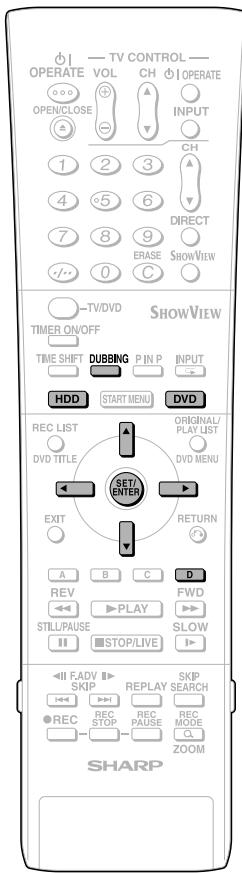
Dubbing (HDD ↔ DVD)/ High Speed Dubbing (HDD → DVD)

DVD-RW
DVD-RW
DVD-R
VR MODE
VIDEO MODE
- You can choose titles and chapters as the unit to dub.
1 When dubbing from HDD to DVD
Load a recordable disc onto the disc tray, then press HDD.
- Load the disc formatted in either VR mode or Video mode.
- The HDD button on the front of the Recorder lights up.
When dubbing from DVD to HDD
Load a disc that recorded the title you want to dub, then press DVD.
- The DVD button on the front of the Recorder lights up.
2 Press DUBBING.
- You can select "DUBBING" in START MENU to dub.
- Screen of step 4 will display when you dub from DVD to HDD.
3 Press ▲/▼ to select "HIGH SPEED DUBBING" or "RATE CONVERSION DUBBING", then press SET/ENTER.
- Screen of step 5 will display when you select "HIGH SPEED DUBBING". Dubbing from HDD to DVD
- When the DVD-RW/R is in Video mode, if a title has been recorded with HI SP DUB PRIORITY setting set to "NO", then select "RATE CONVERSION DUBBING".
4 Press ▲/▼ to select the recording mode (picture quality), then press SET/ENTER.
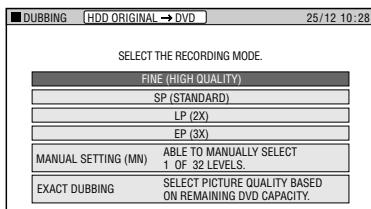
- You cannot select "EXACT DUBBING" when you dub from DVD to HDD.
When "MANUAL SETTING (MN)" is selected:
- Set picture quality with ◀ / ▶, then press SET/ENTER. (Picture quality can be selected from 32 levels.)
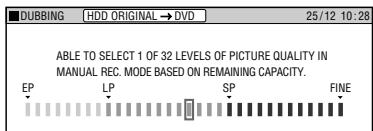
Selecting Exact Dubbing
- Select Exact Dubbing when there are multiple titles (up to 5) you want to dub and you know you cannot fit all into one disc. The Recorder will select the appropriate recording mode and fit all titles into one disc (maximum 6 hours).
- You cannot set recording mode to each title when you select exact dubbing.
- You cannot dub titles in higher quality than the original.
- The Recorder will lower the recording mode when there is not enough capacity in the disc to dub compared to the length of all the titles (programmes). Be aware that original "Copy Once" enabled programme will be erased after dubbing.
5 Press ▲ / ▼ / ◀ to select the title to dub, then press SET/ENTER.
- Setting toggles between "dubbing" and "dubbing cancelled" each time you press SET/ENTER.
- Select more titles when you want to dub multiple titles. (You can dub up to 5 titles at once.)
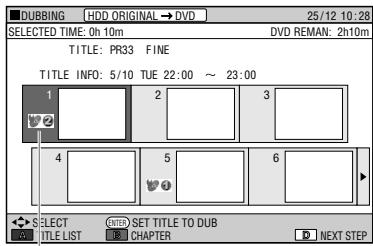
Dubbing mark displays to selected titles. Numbers will be assigned in order of selection and dubbing will start according to the numbers assigned.
6 Press Yellow (D) (NEXT STEP).
7 Press SET/ENTER at the confirmation screen.
- Dubbing start.
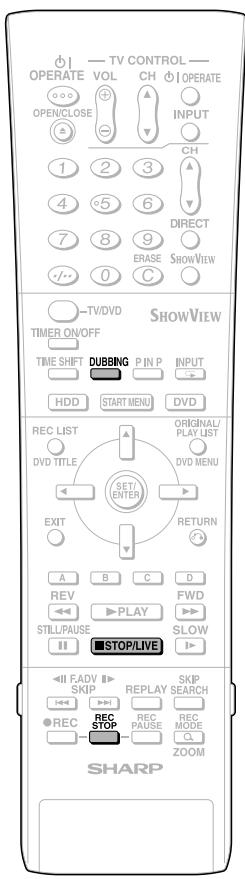
To Stop Dubbing
Press DUBBING.
- You can also stop dubbing by pressing STOP/LIVE or REC STOP.
NOTE
Dubbing Titles Recorded to HDD to Multiple DVDs
- Operate Edit (page 74) to create a Play List and dub the Play List as a unit. (Example: Dubbing programmes more than 6 hours long like a Christmas special in the recording mode you set.) If the original is dubbed as is using a recording mode other than "EXACT DUBBING", the title will be dubbed (moved) until the disc is full. (For a "Copy Once" enabled programme, the dubbed part will be erased automatically from the HDD.) Take out the dubbed disc and load a new one to continue dubbing.
- In case you want to divide and dub a "Copy Once" enabled programme to several discs, stop dubbing manually and reload the disc.
Front Panel Display during Dubbing
- PLAY indicator of the media of the original source and REC indicator of the media to dub light up during dubbing.
- Front display panel shows dubbing movement in orange during dubbing.
Example: Dubbing a programme from HDD to DVD.
Dubbing indicator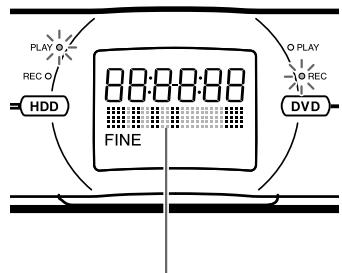
Eliminating problems (Recording, Timer Recording, Dubbing)
When You Cannot Record
| Problem | Suggested Solution |
| • No disc in the Recorder. • Unrecordable disc is loaded. | • Load recordable DVD. |
| • Not enough disc capacity. • Recorder cannot identify the disc. | • Load recordable DVD with enough capacity. |
| • Disc is protected. | • Cancel disc protection or change to new DVD for recording. |
| • Not enough HDD capacity. | • Erase recorded programmes you don’t want from HDD to create necessary capacity to record. |
| • In the middle of dubbing. | • You cannot record during dubbing. Stop dubbing before recording. |
When You Cannot Dub
| Problem | Suggested Solution |
| • Title protection is set to copy once enabled title (programme). | • You cannot dub Copy Once enabled title (programme) that is title protected. |
| • No disc in the Recorder. • Unrecordable disc is loaded. | • Load recordable DVD. |
| • Not enough disc capacity. • Recorder cannot identify the disc. | • Load recordable DVD with enough capacity. |
| • Disc is protected. | • Cancel disc protection or change to new recordable DVD. |
| • Not enough HDD capacity. | • Erase recorded programmes you don’t want from HDD to create necessary capacity to record. |
| • In the middle of recording/playback. | • You cannot dub during recording/playback. |
| • Recorded “Copy Once” enabled title (programme) to DVD. | • “Copy Once” enabled title (programme) or title with signal that prohibits copying recorded to DVD cannot be dubbed to HDD. |
When You Cannot High Speed Dub
| Problem | Suggested Solution |
| • No disc in the Recorder. • Unrecordable disc is loaded. | • Load recordable DVD. |
| • Not enough disc capacity. • Recorder cannot identify the disc. | • Load recordable DVD with enough capacity. |
| • Disc is protected. | • Cancel disc protection or change to new recordable DVD. |
| • Trying to high speed dub from HDD to DVD in Video mode. | • You cannot high speed dub from HDD to DVD in Video mode if “HI SP DUB PRIORITY” was not set to “YES” when the original title was recorded to HDD. |
| • Cannot High Speed Dub although “HIGH SPEED DUBBING” is selected. | • Use 2X-speed compatible disc. • High speed dubbing of “Copy Once” enabled title will take longer than normal high speed dubbing. |
When You Cannot Timer Record
| Problem | Suggested Solution |
| • No disc in the Recorder. | • Load recordable DVD. |
| • Unrecordable disc is loaded. • Not enough disc capacity. • Recorder cannot identify the disc. | • Load recordable DVD with enough capacity. |
| • Disc is protected. | • Cancel disc protection or change to new recordable DVD for recording. |
| • Not enough HDD capacity. | • Erase recorded programmes you don’t want from HDD to create necessary capacity to record. |
| • Number of timer programmes set has reached the limit. | • Erase unnecessary timer programmes. |
| • Dubbing recorded title. | • Timer recording does not work during dubbing. Stop dub-bing before timer recording. |
| • Playing back the DVD. | • Stop playing back the DVD more than 3 minutes before timer recording starts. If you don’t stop playback until timer recording start time, timer recording will not start. |
| • In the middle of direct recording. | • Timer recording does not function during direct recording. Stop direct recording before the preset start time for timer recording. |

NOTE
- If you set multiple timers, and the programmed times overlap, or the end time of the previous timer is the same as the start time of the next timer, timer recording will begin after the preceding timer recording finishes. There will be a delay of up to 1 minute before the next timer recording begins.
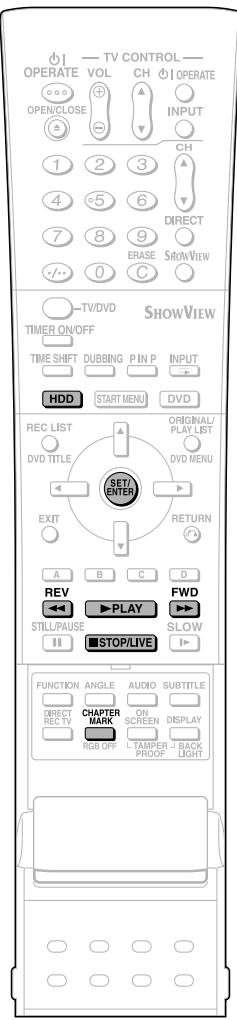
REC LIST: If you select the programme you want to watch from the list of recorded programmes (REC LIST) and press SET/ENTER, playback will begin.
NOTE
To display the counter during playback, press ON SCREEN (page 28).
To playback edited video:
- When playing back video which has been edited (for example, by making a play list), use Seamless Playback for smoother connection between scenes.
- For details on Seamless Playback settings, see page 89.
Playback
HDD
1 Press HDD to select HDD mode.
- The HDD button on the front of the Recorder lights up.
- HDD mode is selected automatically when the power is turned on.
SWITCHED TO HDD MODE
NOTE
- To playback a play list created by editing, press ORIGINAL/PLAY LIST. Each time this button is pressed, the setting will toggle between "ORIGINAL" (original titles) and "PLAY LIST".
2 Press ▶ PLAY.
- PLAY indicator (for HDD) on the front of Recorder is lit green during playback.
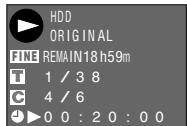
- To fast forward or fast reverse: Press FWD or REV during playback. Each time these buttons are pressed, the speed cycles through the following settings: Press PLAY to return to normal playback.

3 Press STOP/LIVE to stop playback.
NOTE
- The final few seconds may not be played back, depending on how the recording was stopped.
- The end position of the programme played back may be shifted slightly from the position where recording was stopped during recording.
Resume playback function
- If you press ▶ PLAY again, playback will resume from the point where it was previously stopped.
- To playback from the beginning, press STOP/LIVE again and then press PLAY.
Inserting Chapter Marks during Playback
- You can insert chapter marks by pressing CHAPTER MARK (under the cover). Chapter marks are inserted after the message "RECORDED CHAPTER MARK." appears.
- You cannot insert chapter marks during Simultaneous Recording/Playback.
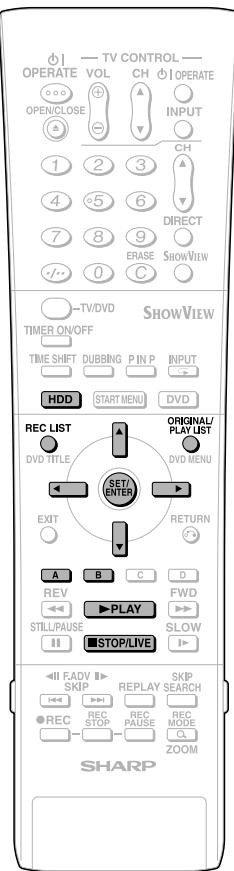
Playback from REC LIST
HDD
1 Press HDD to select HDD mode.
- The HDD button on the front of the Recorder lights up.
- HDD mode is selected automatically when the power is turned on.
2 Press REC LIST to display REC LIST (THUMBNAIL).
- The REC LIST can also be displayed from the START MENU (see page 24).
- To switch between Original Title List and Play List, press ORIGINAL/PLAY LIST. Each time the button is pressed, "ORIGINAL" (original titles) or "PLAY LIST" is selected in turn.
ORIGINAL PLAY LIST
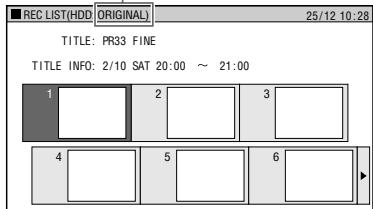
- If you press Blue (A) (TITLE LIST), you can switch to title list.
TITLE LIST
| ■REC LIST(HDD ORIGINAL) 25/12 10:28 | |||
| TITLE: PR33 FINE | |||
| TITLE INFO: 2/10 SAT 20:00 ~ 21:00 | |||
| ▲BACK | TITLE | REC. DATE | START TIME |
| 1 | PR33 FINE | 2/10 SAT 20:00 | 60MIN |
| 2 | PR33 FINE | 9/10 SAT 20:00 | 60MIN |
| 3 | PR33 FINE | 16/10 SAT 20:00 | 60MIN |
| 4 | PR33 FINE | 23/10 SAT 20:00 | 60MIN |
| 5 | PR33 FINE | 30/10 SAT 20:00 | 60MIN |
| 6 | PR33 FINE | 6/11 SAT 20:00 | 60MIN |
| ▼NEXT | FROM NEW | ||
| ← SELECT ENTER → | |||
| XIII THUMNAIL | E SORT | F FUNC. MENU | |
- Press Blue (A) (THUMBNAIL) to switch from title list to thumbnail.
3 Press ▲/▼/◀/▶ to select the programme you want to watch.
Thumbnail screen: Press ▲/▼ to switch pages.
Title Name List screen: Press ▲/▼ to select a title name.
4 Press SET/ENTER or ▸ PLAY.
- Playback begins.
To Stop Playback
Press STOP/LIVE.
About REC LIST
When the REC LIST is displayed, you can use the following functions by pressing Blue (A) or Red (B) on the remote control.
- Switch between Thumbnail screen and Title Name List screen by pressing Blue (A).
- When Thumbnail screen is selected, switch between Title List and Chapter List by pressing Red (B). Chapters in selected title will be displayed in Chapter List.
- Sort the Title List in the "From New", "From Old" or "Title Name (alphabetical)" order.
① Press Red (B).
② Press ◀ / ▸ to select "FROM NEW", "FROM OLD" or "TITLE NAME", then press SET/ENTER.
Icons Displayed in Title Info Field of REC LIST
| NEW | NEW TITLE Displays HDD only. (Will not display in case you playback, edit, or set Title Protection.) |
| ? | TITLE PROTECTION (HDD, DVD-RW [VR mode] only) |
| "Copy Once" enabled Programme (Copy Restricted) (HDD only) | |
| High Speed Dubbing Priority setting (HDD only) |
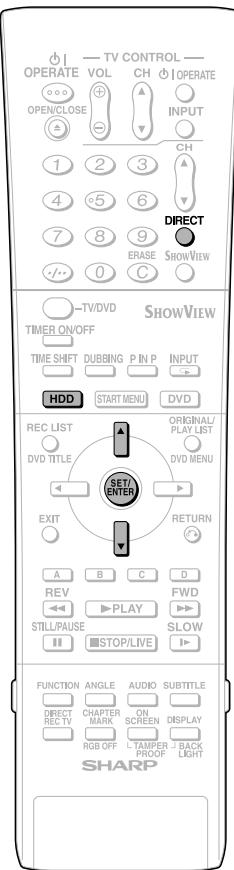
Playback by Selecting Title Number (Direct P
HDD
You can start playback from the title you want to see.
1 Press HDD to select HDD mode.
- The HDD button on the front of the Recorder lights up.
2 Press DIRECT while playback stops or during playback.
3 Press ▲/▼ to select the title number you want to see, then press SET/ENTER.
Title number currently selected
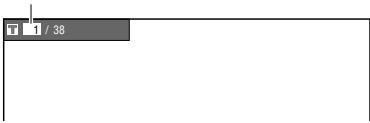
- Playback starts from the beginning of the selected title.
NOTE
- You can select the title number to play back by using Function Control screen (page 61).
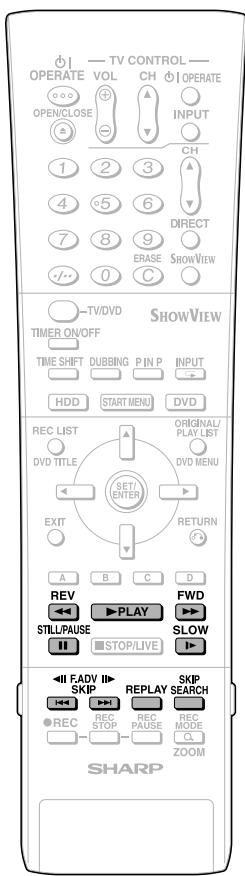
Other Types of Playback
HDD
- This section explains other types of HDD playback operations.
Fast Forward/Reverse (Search)
Use to fast forward/reverse programmes being played.
1 Press FWD or REV during playback. Example: When FWD is pressed
- The search speed will cycle as follows each time you press the button.
2 Press ▶ PLAY to cancel the search.
- Search will be cancelled and playback screen displays.
- You cannot fast forward or fast reverse from one title and continue to another title.
- When you fast forward or fast reverse to the end or beginning of the title, normal playback screen displays automatically.
Skipping to Next Chapter
You can skip the chapter using this function.
Press or during playback.
- Press to go to the start of the next chapter.
- Press once to return to the start of current chapter (track). If you press it again (within about 5 seconds), it will skip to the beginning of the previous chapter (track).
- This function does not work during Time Shift Viewing.
Slow Playback
This lets you playback video at slow speed.
1 Press >SLOW during playback.
- The slow playback speed will cycle as follows each time you press the button.
2 Press ▶ PLAY to return to normal playback.
- You cannot perform slow playback over a boundary between titles. At the end of the title, slow playback will be cancelled and normal playback will be selected automatically.
Still Picture Playback / Frame Advance Playback
This feature enables still playback and frame advance playback.
1 Press II STILL/PAUSE during playback.
- Playback pauses.
- PLAY indicator (for HDD) on the front of Recorder blinks during Still Picture Playback.
2 Press or to advance or reverse playback image frame by frame.
- Press to advance one frame. Press to reverse one frame.
3 Press ▶ PLAY to return to normal playback.
Skip Search
This lets you skip about 30 seconds ahead. This is convenient when you want to skip commercials while viewing.
Press SKIP SEARCH during playback.
- You can skip approximately 30 seconds forward each time you press the button.
- The maximum interval you can skip at one time is 120 seconds (4 button presses).
- Skip Search will not work during Time Shift Viewing.
Replay
This lets you skip about 10 seconds back. This is convenient for replaying a short scene you missed.
Press REPLAY during playback.
- Playback reverses approximately 10 seconds, then starts again. Replay will not work during Time Shift Viewing.
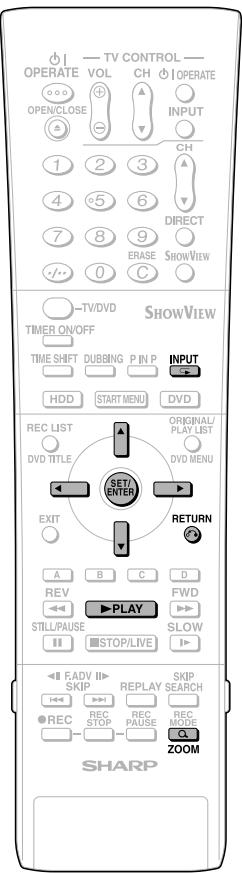
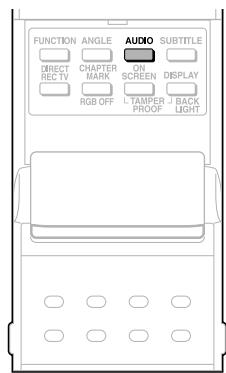
Switching Audio
You can change the audio output channel during HDD playback.
Each time AUDIO is pressed, the audio channels change.
- The way audio channels change differs depending on the sound recorded on HDD. See the table on page 93 for details.
NOTE
- When you play a programme recorded in stereo or monaural, and if you are listening to the BIT STREAM sound via the digital output jack, you cannot select the audio channel. Set "DIGITAL AUDIO OUT" to "PCM" (see page 88), or if you want to change the audio channel, listen via the analogue output jacks.
Zoom
You can magnify your favorite section.
Press Q ZOOM during playback.

Each time you press this button, the zoom setting cycles in the following sequence: ZOOM: 1 (approx. 1.2× ) → ZOOM: 2 approx. 1.5× 3 approx. 2.0× OFF: (No display). - You can move the enlarged part with / / . - Zoom will not work during Time Shift Viewing.
To return to the normal screen, press QZOOM a few times and cancel Zoom mode.
Repeat Playback of a Title or Chapter (Repeat Playback)
1. Play back the title or chapter you want to repeat. 2. Press → (INPUT). 3. Press ◀ / ▶ to select the type of Repeat Playback.
- TITLE: Repeats the title currently playing back.
- CHAPTER: Repeats the chapter currently playing back. A-B: Repeats the specified scene of title or chapter.
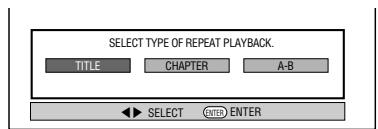
- Press RETURN to cancel without setting the type of Repeat Playback.
4. Press SET/ENTER.
Example: Repeat playback of a title (TITLE)
TITLE REPEAT
5. Press → (INPUT) to return to normal playback.
A-B Repeat Playback (Repeat Playback of a Specified Part)
1. Press → (INPUT) during playback. 2. Press ◀ / ▶ to select "A-B", then press SET/ENTER. 3. Press SET/ENTER when you reach the scene you want to start Repeat Playback.
- The start point of the part (A) will be memorized.
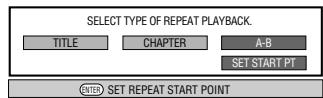
4. Press SET/ENTER when you reach the scene you want to end Repeat Playback.
- The end point of the part (B) will be memorized and the Repeat Playback for the specified part (A-B) starts.
Press → (INPUT) to return to normal playback.
NOTE
- For A-B Repeat Playback, set the start and end points within the same title.
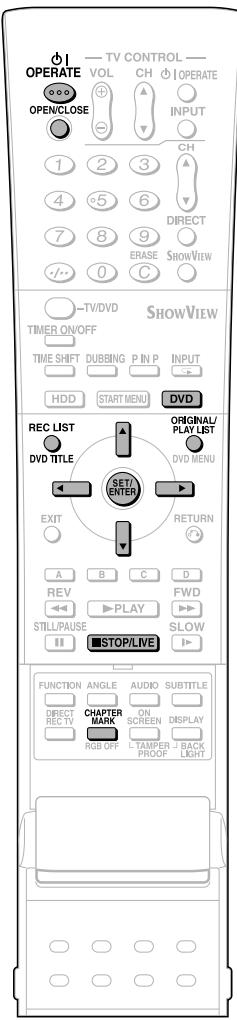
This section explains playback of DVD-RW/R discs recorded with this Recorder, commercially available DVD Video discs (like movies) and CDs.
- To playback a DVD-RW/R recorded with this Recorder, select the title to be played back, and then start playback.
- Display the list of initial images (thumbnails) for each title, and select a title. (REC LIST)
Loading Disc
1 Press OPERATE to turn the power on. 2 Press OPEN/CLOSE to open the disc tray.
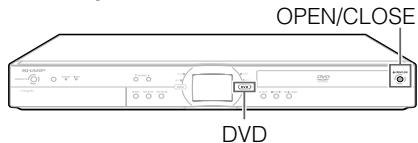
3 Load a disc on the disc tray.
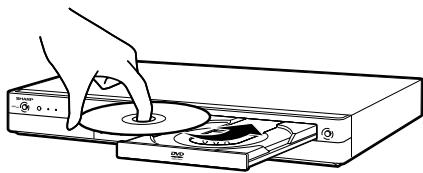
- Insert the disc with the label face up.
- In case of disc recorded on both sides, face the side you want to view down.
4 Press OPEN/CLOSE to close the disc tray.
DVD-RW/R Playback
DVD-RW
VR MODE
DVD-RW
VIDEO MODE
DVD-R
1 Press DVD to select DVD mode.
- The DVD button on the front of the Recorder lights up.
- HDD mode is selected automatically when the power is turned on.
2 Load the disc you want to play back. 3 Press REC LIST to display the REC LIST (thumbnail) screen.
See page 51 for details on how to use the REC LIST. - If the loaded disc has a play list and you press ORIGINAL/PLAY LIST, the screen will switch to the play list (page 66).
4 Press ▲/▼/◀ to select the title (or chapter) you wish to view.
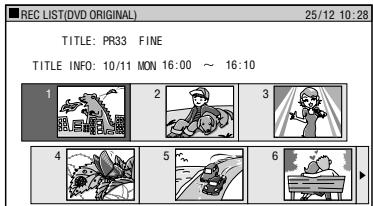
5 Press SET/ENTER or ▶ PLAY.
- Playback will begin from the selected title (chapter).
- PLAY indicator (for DVD) on the front of Recorder is lit green during playback.
6 To stop playback, press STOP/ LIVE.
To Record a Chapter Mark during Playback
Press CHAPTER MARK (under the cover).
- The message "RECORDED CHAPTER MARK." is displayed, and the chapter mark is recorded.
- Chapter marks can be set during playback only with DVD-RW (VR mode).
- Chapter marks cannot be set manually for DVD-RW (Video mode), DVD-R, or during Simultaneous Recording/Playback.
NOTE
- If a title was set with another DVD recorder and contains characters that cannot be displayed with this Recorder, then "*" is displayed (up to 64 characters max.).
- If you play back a play list on a disc recorded with another DVD recorder and one title is 12 hours or more in length, only 12 hours of that title will be played back.
Playback by Selecting Title
- To play back a disc recorded and finalized in Video mode, press DVD TITLE, display the TITLE LIST screen, and select a title to play back.
DVD-RW DVD-R VIDEO MODE
1 Press DVD to select DVD mode.
- The DVD button on the front of the Recorder lights up.
- HDD mode is selected automatically when the power is turned on.
2 Load a disc recorded in Video mode. 3 Press DVD TITLE.
- The TITLE LIST screen is displayed.
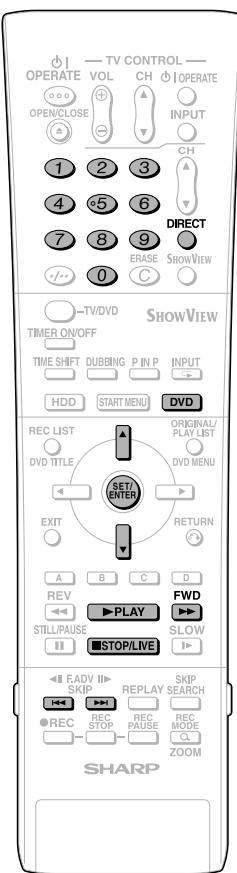
4 Press / to select the title.
5 Press SET/ENTER.
- Playback of the selected title will begin.
6 To stop playback, press STOP/LIVE.
NOTE
- If a disc recorded in Video mode has been finalized (pages 13, 95), a menu screen will be created automatically to enable playback with other DVD players. For that reason, the menu screen is different before and after finalization.
- If a title was set with another DVD recorder, and it contains characters which cannot be displayed with this Recorder, then “****” is displayed (up to 64 characters max.).
If there is a timer programme which is set to record on DVD:
- A message to that effect will be displayed 5 minutes prior to the start of the timer recording. If that happens, stop DVD playback and load the disc for recording.
- The timer recording will be cancelled at the start time of the timer recording if DVD playback is still in progress.
Resume playback function
- If you press ▶ PLAY next, playback will resume from the point where it stopped the previous time. To playback from the beginning, cancel resume mode by pressing ▶ STOP/LIVE then press ▶ PLAY. (Resume playback will be cancelled when you open the disc tray, turn the power off, or switch to HDD.)
- Resume playback function does not work during video CD playback.
DVD Video Playback
DVD VIDEO
1 Press DVD and load a disc.
- The DVD button on the front of the Recorder lights up.
- Playback may begin automatically, depending on the disc.
2 Press ▶ PLAY.
- Playback begins from the first title.
- The menu may be displayed first, depending on the disc. Perform playback operation by following the directions on the screen.
- To stop playback, press STOP/LIVE.
Audio CD/Video CD Playback
VIDEO CD AUDIO CD
Preparation
Press DVD and load a disc.
- The DVD button on the front of the Recorder lights up.
Playback from the beginning
1 Press ▶ PLAY.
- Playback begins from the first track.
2 To stop playback, press STOP/LIVE.
Playback by selecting the track
1 ① Press DIRECT.
② Select the track number to be played back using the Number buttons, then press SET/ENTER.
- Playback starts from the selected track.
Example: To select the 12th song (track), press 1, then 2.
- You can also select the track by pressing / . DIRECT does not work when playing back a video CD with PBC on.
2 To stop playback, press STOP/ LIVE.
Video CD (with PBC)
Playback
- Some video CD discs have Playback Control (PBC) function which guides the playback by the menu displayed.
Video CD (with PBC)
If you press PLAY after you load a disc, the menu displays. The functions of button changes in the following manner during the playback operation using the menu.
becomes the "NEXT" button. - 14 becomes the "PREVIOUS" button. Select the track number to be played back from the menu using the Number buttons and play back the track.
Example: To select the 5th track, press 0, then 5.
(Operation method may differ depending on the disc. Refer to the manual of the video CD.)
Turning off PBC function when playing back a PBC compatible video CD
Playback begins from track 1 when FWD is pressed before the menu is displayed after you load a disc. Playback will follow the track order like an audio CD.
- If you want to turn the PBC to "ON" when playing back the CD with PBC off, press STOP/LIVE twice and then press PLAY to display the menu.
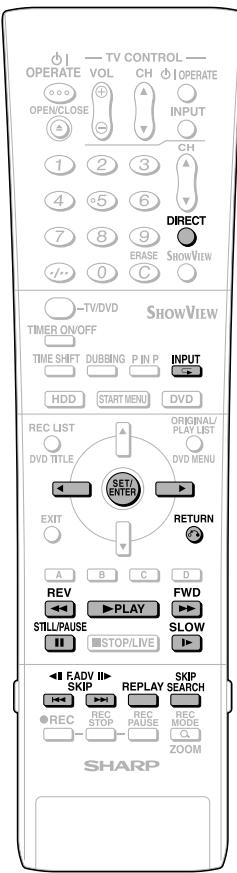
Other Types of Playback
DVD-BW
VR MODE
DVD-RW
VIDEO MODE
DVD-R
DVD VIDE
VIDEO CD
AUDIO CD
- This section explains other types of DVD playback operations.
Fast Forward/Reverse (Search)
Fast Forward/Reverse functions when FWD or REV is pressed during playback.
Example: When ▸▸ FWD is pressed
- The search speed will cycle as follows: each time you press the button. When playing back a DVD

When playing back a video CD or audio CD
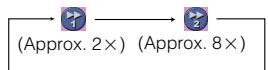
Skipping to the Beginning of a Chapter (Track)
Skipping (to the beginning of a chapter or track) functions when ▸ or ▸ is pressed during playback.
Slow Playback
Slow Playback functions when ▸ SLOW is pressed during playback.

Still Picture Playback/Frame Advance Playback
- Still Picture Playback functions when STILL/PAUSE is pressed during playback. (If you are playing back an audio CD, the CD will pause.)
- Frame Advance/Reverse Playback functions when ▸ or ◂ is pressed during Still Picture Playback.
- Frame Reverse Playback will not work with DVD-RW (Video mode), DVD-R, DVD Video and Video CD discs.
- PLAY indicator (for DVD) on the front of Recorder blinks during Still Picture Playback.
Skip Search
Playback skips 30 seconds ahead when SKIP SEARCH is pressed during playback.
Replay
Playback reverses 10 seconds when REPLAY is pressed during playback.
Playback by Selecting a Title (Track) Number (Direct Playback)
Press DIRECT, then select the title (track) number to play back. See page 52 for details.
Repeat Playback of a Title or Chapter (Repeat Playback)
1. Play back the title or chapter you want to repeat. 2. Press → (INPUT). 3. Press ◀ / ▶ to select the type of Repeat Playback.
- TITLE: Repeats the title currently playing back.
- CHAPTER: Repeats the chapter currently playing back. A-B: Repeats the specified scene of title or chapter.
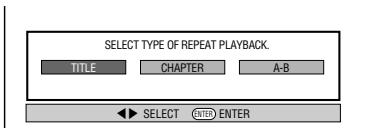
- Press RETURN to cancel without setting the type of Repeat Playback.
4. Press SET/ENTER.
Example: Repeat playback of a title (TITLE)
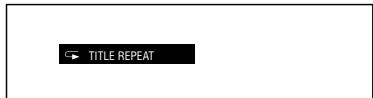
Press → (INPUT) to return to normal playback.
A-B Repeat Playback (Repeat Playback of a Specified Part)
1. Press ⊃ (INPUT) during playback. 2. Press ◀ / ▶ to select "A-B", then press SET/ENTER. 3. Press SET/ENTER when you reach the scene you want to start Repeat Playback.
- The start point of the part (A) will be memorized.
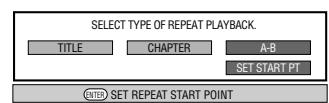
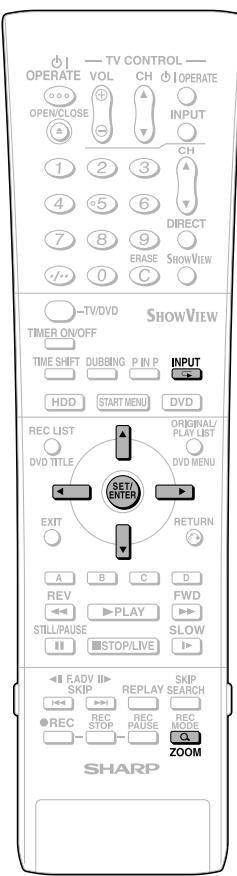
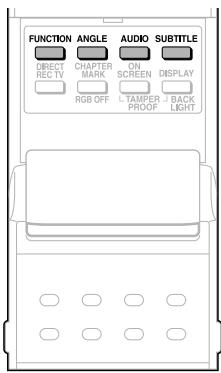
4. Press SET/ENTER when you reach the scene you want to end Repeat Playback.
- The end point of the part (B) will be memorized and the Repeat Playback for the specified part (A-B) starts.
5 Press → (INPUT) to return to normal playback.
Function Control
You can do things like specify a title or chapter, and adjust settings for video and audio if you press FUNCTION (under the cover) during playback. (For details see page 61.)
Switching Audio
You can change the audio output channel using the AUDIO button (under the cover).
Each time AUDIO is pressed, the audio channels change as follows:
AUDIO CD VIDEO CD

DVD VIDEO
The sound number which is currently played back will be displayed.
DVD-RW
DVD-RW
DVD-R
VR MODE VIDEO MODE
—
The sound you can select varies depending on the sound recorded on the disc. (page 93)
- When recording bilingual broadcast or stereo, the way audio channel changes may differ depending on the recorded sound. See the table on page 93 for details.
NOTE
- When you play a programme recorded in stereo or monaural, and if you are listening to the BIT STREAM sound via the digital output jack, you cannot select the audio channel. Set "DIGITAL AUDIO OUTPUT" to "PCM" (see page 88), or if you want to change the audio channel, listen via the analogue output jacks.
Switching Subtitles
DVDVIDEO
If subtitles are provided in multiple languages, you can switch between them.
1 Press SUBTITLE (under the cover) during playback.
- The display indicates the subtitle number currently being played back, and the subtitles appear.
- "XX" is displayed if a disc has no subtitles.
2 Press / to select the subtitles you want to see.
- You can select by pressing SUB-TITLE.
- The display indicates the subtitle number currently being played back, and the subtitles appear.
- To hide the subtitles, press a few times and select "OFF". You can also select "OFF" by pressing SUBTITLE or
Zoom
You can magnify your favorite section by pressing QZOOM during playback.
Each time you press this button, the zoom setting cycles in the following sequence: ZOOM: 1 (approx. 1.2x) -> ZOOM: 2 (approx. 1.5x) -> ZOOM: 3 (approx. 2.0x) -> OFF (No display). You can move the enlarged part with the arrow buttons.
Switching Angle
DVD VIDEO
If multiple angles are recorded, you can switch between them.
Press ANGLE (under the cover) during playback.
- The display indicates the angle number currently being played back. Each time you press this button, the angle switches.
- The angle can also be switched by pressing the arrow buttons.
- "XX" is displayed if a disc is recorded with only one angle.
To return to the previous angle, press ANGLE (under the cover) a few times to select the original angle.
NOTE
- The following operations will not work when playing back an audio CD:
- Slow Playback, Frame Advance/Reverse
Display of functions
- The display for subtitle, angle or audio automatically disappears after 10 seconds. The display can also be hidden by pressing SET/ENTER.
Switching between functions
- You can switch subtitle, angle and audio at the Function Control screen (page 61).
- Operation for each function varies depending on the disc. See the manual for the disc.
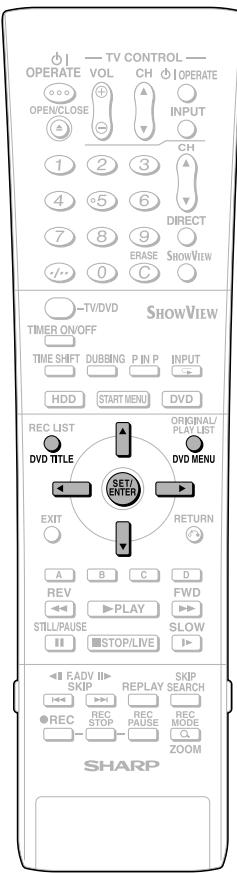
Fast Forward/Reverse
- You cannot perform Fast Forward/Fast Reverse over a boundary between titles. At the end or beginning of the title, Fast Forward/Fast Reverse will be cancelled and normal playback will be selected automatically. Audio is not played back during Fast Forward and Fast Reverse.
- Subtitles are not played back with DVD video discs and video CDs during Fast Forward and Fast Reverse. Depending on the disc and the scene being played back, the Recorder may not operate at the speed listed in this manual when performing Fast Forward.
Slow Playback
- You cannot perform Slow Playback over a boundary between titles. At the end of the title, Slow Playback will be cancelled and normal playback will be selected automatically.
Repeat Playback
- Repeat Playback will not work during PBC playback of a video CD with PBC (Playback Control).
- Repeat Playback may be forbidden depending on the disc.
- A-B Repeat Playback may not work in multi-angle scenes.
- For A-B Repeat Playback, set the start and end points within the same title.
Playback by Selecting with the Menu in the DVD
DVD-RW DVD-R DVD VIDEO VIDEO MODE
- This section explains how to play back a DVD video disc with a top menu or disc menu.
- Titles listed in the title menu, and a disc guide (for options like subtitles and audio languages) are given in the disc menu.
Playback by Selecting a Title from the Title Menu
1 Press DVD TITLE.
- The title menu screen is displayed.
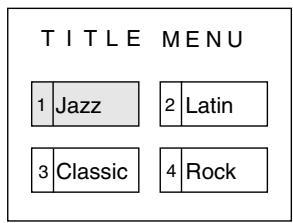
2 Press / / to select the title, then press SET/ENTER.
- The selected title is played back.
NOTE
- The procedure explained on this page is the basic operation procedure. Procedures vary depending on the DVD video disc, so operate by following the instructions in the DVD video disc manual, or the instructions displayed on the screen.
- A title menu is not displayed for a DVD-R/ RW (Video mode) if it has not been finalized.
Title menu
- With some DVD discs, the title menu may be explained using the name "Top Menu". For the button explained as the top menu key, use DVD TITLE on the remote control.
- If no title menu is available, the title menu will not display even if DVD TITLE is pressed.
Using the Disc Menu
Example: Select "SUBTITLE LANGUAGE".
1 Press DVD MENU.
MENU
1 AUDIO LANGUAGE 2 SUBTITLE LANGUAGE 3 AUDIO
- The disc menu screen is displayed.
2 Press / to select "SUBTITLE LANGUAGE".
3 Press SET/ENTER.
- Screen to select subtitle language is displayed.
4 Press / to select the subtitle language.
SUBTITLE LANGUAGE
1 English 2 Espanol 3 Français
5 Press SET/ENTER.
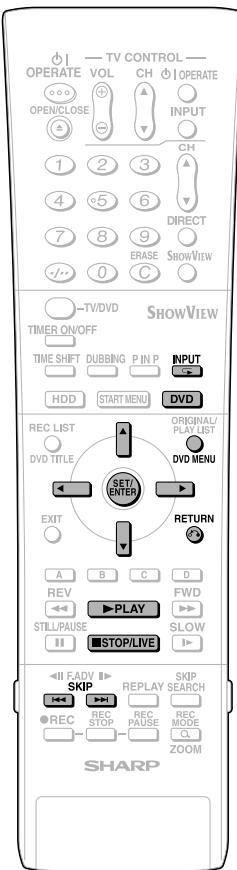
CD-B
CD-RW
MP3
NOTE
- When the DV input is selected, discs cannot be played back if "DV LINK" is set to "ON". You can enjoy other sounds by switching to other channels. See page 10 for details about the MP3 file format.
1 Press DVD to select DVD mode. 2 Load an MP3 recorded CD-R or CD-RW, then press DVD MENU.
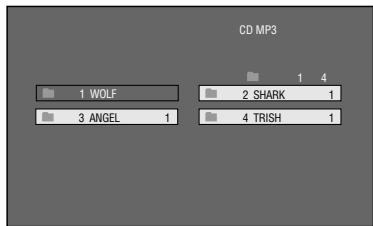
3 Press ▲/▼/◀/▶ to select the folder you want to play, then press SET/ENTER.
- The file (music title) in the folder is displayed on the file selection screen.
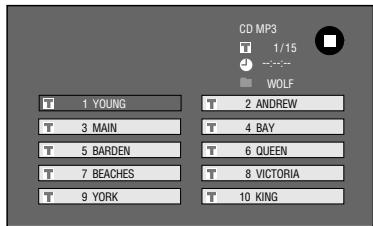
- Press RETURN to return to the folder selection screen.
- If you press ▶ PLAY after selecting the folder, the playback screen is displayed, and the files in that folder will be played from the beginning repeatedly.
4 Press ▲/▼/◀/▶ to select the file (music title) you want to play and then press SET/ENTER.
- Playback will start from the selected file (music title).
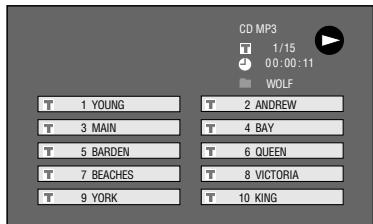
5 Press STOP/LIVE to stop playback.
To Play Another File (music title) during Playback
1 Press STOP/LIVE to stop playback. 2 Press ▲/▼/◀/▶ to select the file (music title) you want to play, then press SET/ENTER.
- The chosen file (music title) will be played.
To Skip the File during Playback
Press SKIP ▶ or ◀ SKIP.
- Press SKIP ▶ to skip forward. Press SKIP ◀ to skip backward.
While the MP3 disc is playing
- Time Search is disabled.
- Programmed Playback is disabled. It is possible to repeat one track by pressing → (INPUT).
- Dolby Virtual Surround does not operate.
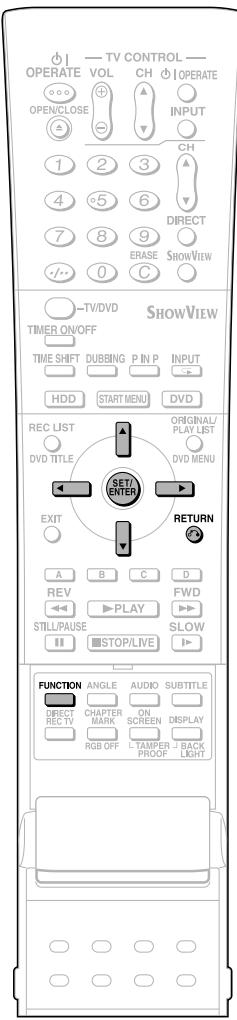
Function Control
HDD DVD-RW DVD-RW DVD-R DVDVIDEO VR MODE VIDEO MODE
This lets you make various settings at once, like subtitle and angle setting, and title selection for Direct Playback.
Depending on your preferences, you can adjust video and enjoy audio with a greater sense of presence. Operation is the same for HDD and DVD.
Function Control screen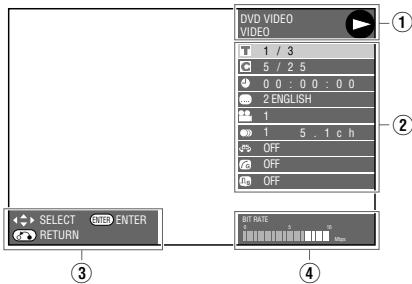
① Playback status display
Shows the operation status and the drive or disc type.
② Setting items
Selects a title or chapter for playback, or performs video/audio settings.
③ Operation guide display
Provides help on how to operate with the remote control buttons.
④ Bit rate display
Displays the data rate of the video appearing on the TV screen.
Function Control Operation Procedure
1. Press FUNCTION (under the cover) during playback.
- The Function Control screen is displayed on the TV.
2. Press / to select setting items, then press SET/ENTER.
- For a description of each setting item, see "Functions which can be set" (page 62).
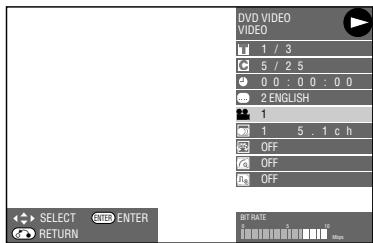
3. Press / / to set, then press SET/ENTER.
- Operation may vary depending on the setting item. Operate by following the operation guide instructions on the screen.
4. Press RETURN or FUNCTION (under the cover) to close the Function Control screen.
NOTE
- If "XX" is displayed for an option like title number or subtitles, the disc has no titles or subtitles which can be selected.
- When you press DIRECT or SUBTITLE, the Function Control screen is closed.
- If you set to the Function Control screen during playback of a DVD video, it may be impossible to operate according to the instructions from the DVD video. In cases like this, operate again after cancelling the Function Control screen.
Functions which can be set
T Title Number (Direct Title Skip)
- Shows the title number being played back. You can skip to the start of the title.
Chapter Number (Direct Chapter Skip)
- Shows the chapter number being played back. You can skip to the start of the chapter.
Playback Elapsed Time (Direct Time Skip)
- Shows the elapsed time from the beginning of the disc to the present. This lets you skip based on time.
- Press ◁ / ▷ to move to the field of Hour, Minute, Second, then press ◁ / ▽ to set the time. Press SET/ENTER to start playback from that set time.
Subtitle Language
- Shows the currently selected subtitle language. If subtitles are provided in other languages, you can switch to your preferred language.
Angle Number
- Shows the currently selected angle number. If the video is recorded with multiple angles, you can switch the angle.
Audio
- Shows the currently selected type of audio. You can select the desired type of audio.
Digital Super Picture
- Emphasizes and enhances definition of details and contours in the video. This reduces noise and makes video easier to see.
- Press △ / ▽ to select "ON" or "OFF", then press ◁ / ▷ to set the level. Then press SET/ENTER.
- There is one setting level on the "soft" side and 3 setting levels on the "sharp" side.
- If you want to enjoy a more defined picture (with detailed pictures), press ▶ while “ON” is displayed for Digital Super Picture. For old movies or videos with a lot of noise, you can reduce noise for an easier to see picture by pressing ▶ while “ON” is displayed for Digital Super Picture.
Digital Gamma
- If a video is dark and hard to see, you can brighten the dark parts for easier viewing by setting Digital Gamma. Set this when watching discs with many dark scenes (i.e. movie and concert discs), and when viewing a disc in a bright room. This lets you see dark parts better and enjoy video with a greater sense of depth.
- Press ▲/▼ to select "ON" or "OFF", then press ◀/▶ to set the level. Then press SET/ENTER.
- Digital Gamma can be set to three different levels.
Dolby Virtual Surround
- Lets you enjoy surround audio via analogue connection with a stereo type (2ch) TV or audio equipment.
- Even if you use a digital connection, Dolby Virtual Surround will work in the following cases.
- When playing back linear PCM audio from a DVD.
- When playing back Dolby Digital audio while DIGITAL AUDIO OUTPUT (page 88) is set to "PCM".
- This Recorder uses a Spatializer System* for Dolby Digital Surround.
- Certain audio features of this product manufactured under a license from Desper Products, Inc. Spatializer® N-2-2™ and the circle-in-square device are trademarks owned by Desper Products, Inc.
- If audio recorded monaurally is played back with Dolby Virtual Surround ON, the audio level may decrease, making it hard to hear. If this happens, turn Dolby Virtual Surround OFF.
- Dolby Virtual Surround will not work in the following cases:
- While watching a TV broadcast or external input.
- Multi-karaoke audio from a karaoke disc, 96 kHz 24-bit linear PCM audio, or DTS audio.
- If you set Dolby Virtual Surround to "ON" and audio sounds funny during playback, set it to "OFF".
- There are no level settings.
NOTE
These functions cannot be used with all discs.
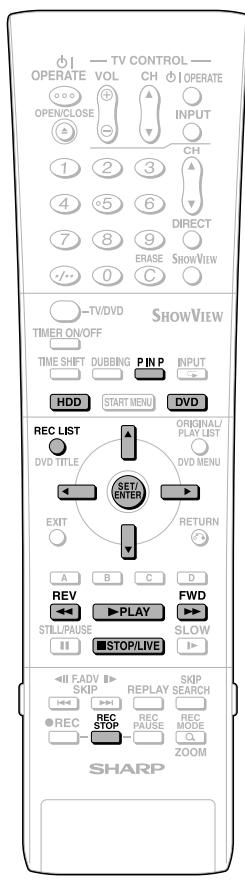
HDD DVD-RW VRDW-R DVD-R DVD VIDEO VR MODE VIDEO MODE
VIDEO CD AUDIO CD
Plays back from HDD, DVD or CD while recording a programme onto HDD.
Viewing the Programme Being Recorded from the Beginning while Recording to HDD (Chasing Playback)
1 Press ▶ PLAY during recording.
- The programme being recorded will play back from the beginning.
2 Press REV or FWD during Chasing Playback.
Each time you press the buttons, the Fast Reverse/Forward Playback speed changes as shown below.
→1 →2 →3 (Approx. 2×) (Approx. 8×) (Approx. 32×)
Example: When FWD is pressed once
Fast Forward Playback 2X icon
- Press ▶ PLAY to return to the normal playback speed.
3 Press STOP/LIVE to return to the live broadcast which is being recorded.
- Press REC STOP to watch normal playback. For details on Chasing Playback, see pages 31, 32.
DVD/CD Playback during HDD Recording (Simultaneous Recording Playback)
1 Press DVD during HDD recording.
- The DVD button on the front of the Recorder lights up.
2 Load a DVD or CD, then press PLAY.
- You can watch/listen to a DVD/CD while continuing recording to HDD.
Playing Back a Title on the HDD during DVD Recording (Simultaneous Recording/Playback)
1 Press HDD during DVD recording.
- The HDD button on the front of the Recorder lights up.
2 Play back the title in the HDD.
Viewing Another Programme Recorded on HDD while Recording to HDD (Simultaneous Recording/Playback)
1 Press REC LIST during recording.
- The REC LIST (list of recorded programmes) is displayed.
2 Press the arrow buttons to select the programme you want to watch, then press SET/ENTER.
- For details on programme list operation, see page 51.
NOTE
- Recording to HDD continues even while playing back another programme on the HDD or a DVD/CD.
- STOP/LIVE is the button for stopping playback. Recording will not stop. To stop recording, press REC STOP.
- You cannot play back a DVD-RW/R while recording to that same DVD-RW/R.
- You cannot start recording during playback from HDD, DVD or CD.
- During Simultaneous Record/Playback, the recording conditions may have an effect on playback, but recording will still be done correctly.
Checking the Programme Being Recorded during Playback Using the Simultaneous Recording/Playback Function (Picture in Picture)
- Press P IN P on the remote control. A small picture is displayed on the playback screen, so you can check the programme being recorded (or the programme which is stopped).
- Picture in Picture will not work during audio CD playback.
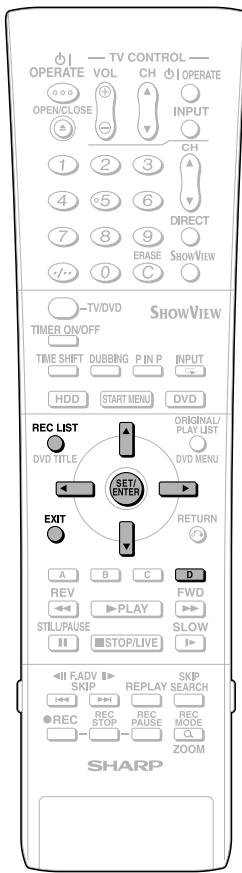
How to Use the FUNCTION MENU
HDD
Allows you to call up "HI SP DUB PRIORITY" from REC LIST and cancel High Speed Dubbing Priority setting.
- The FUNCTION MENU can be called up during HDD playback.
1 Press REC LIST or select REC LIST in "START MENU" screen.
- The "REC LIST" screen is displayed.
2 Press / / to select the title you wish to cancel High Speed Dubbing Priority setting for.
3 Press YELLOW (D).
- The FUNCTION MENU is displayed with the cursor at "HI SP DUB PRIORITY".
4 Press SET/ENTER.
5 Press ◀ / ▶ to select "YES", then press SET/ENTER.
- Select "NO" if you do not wish to cancel High Speed Dubbing Priority setting.
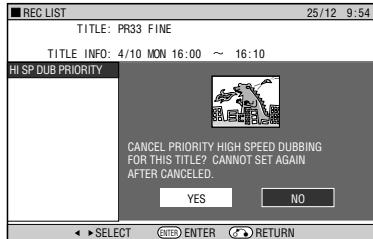
6 Press EXIT to quit FUNCTION MENU.
NOTE
- This feature cancels High Speed Dubbing Priority setting for the title recorded with "HI SP DUB PRIORITY" set to "YES". When this is cancelled, limitations during editing are relaxed, but the original state cannot be restored.
About Editing
Content that can be edited and editing operations vary according to the recording mode.
Recordings on HDD, or on DVD-RW in VR mode
You can do various types of editing with this Recorder alone. For example it is possible to create a compilation of your favorite videos by gathering your favorite scenes from recorded titles, moving scenes within a specified range, or erasing unnecessary scenes. You can edit original videos you have recorded into a Play List without changing the content of the original videos.

NOTE
- If disc protection is set for a DVD-RW, it cannot be edited.
ORIGINAL
- A recorded video (title) in as is form is called an ORIGINAL. A single recording (from record start to stop) forms a single title.
PLAY LIST
- A title created by editing based on originals is called a PLAY LIST. A play list can be remade any number of times.
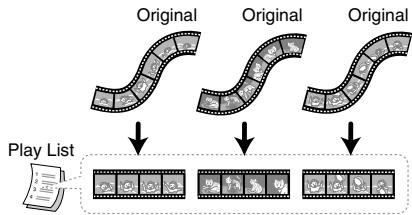

- A Play List is a list which describes the playback sequence of originals, and it does not actually copy the originals. This makes it possible to perform editing while using only a little disc space.
Recordings on DVD-RW/R in Video mode
The following content can be edited.
- Input (change) title name (page 69)
- Erase title (page 73)

- ERASE TITLE for a recording in Video mode will change settings so that the "erased" title cannot be seen in the REC LIST, but this does not mean that the video is actually erased. (Free time on the disc will not increase. With a DVD-RW recorded in Video mode, free time on the disc will increase when the title recorded last is erased.)
- Editing is not possible if the disc has been finalized (page 95). With a DVD-RW, editing is possible again if finalization is cancelled.
- Additional recording and editing can be done using only this Recorder until the disc is finalized.
Editing Procedure
Basic procedure for editing an original title recorded in VR mode
Load a disc.
Select the title to be edited, and edit.
Erasing Unnecessary Scenes from an Original Title (ERASE SCENE) (page 67). - Inputting/Changing Title Name (CHANGE TITLE NAME) (page 69). - Changing Thumbnail (CHANGE THUMBNAIL) (page 70). - Making Sections in a Title (DIVIDE CHAPTER) (page 71). - Combining Chapters Together (COMBINE CHAPTERS) (page 72). - Disabling Title Edit and Erase (TITLE PROTECT) (page 72). Erasing All Titles (page 73). Erasing by Selecting a Title (or Chapter) (page 73).
Basic procedure for editing titles recorded in VR mode after making a Play List
Load a disc.
Create a Play List.
- Creating from Original Titles (page 74).
- Creating from Part of an Original (page 74).

Select and edit the created Play List.
Erasing All Titles (page 73). - Erasing by Selecting a Title (or Chapter) (page 73). - Adding a Scene from an Original to a Play List (ADD SCENE) (page 75). - Changing the Title Sequence (MOVE TITLE) (page 77) Erasing Unnecessary Scenes (ERASE SCENE) (page 78). - Inputting/Changing Title Name (CHANGE TITLE NAME) (page 78). - Changing Thumbnail (CHANGE THUMBNAIL) (page 78). - Making Sections in a Title (DIVIDE CHAPTER) (page 78). - Combining Chapters Together (COMBINE CHAPTERS) (page 78).

NOTE
Editing cannot be done in the following cases.
- Play Lists cannot be created for discs recorded in Video mode.
- Play Lists cannot be created for recordings on DVD-R.
- Finalized DVD-RWs (Video mode) cannot be edited. (Editing can be enabled by cancelling finalization.)
- A Play List cannot be created from original titles/chapters containing a "Copy Once" enabled programme which is recorded on HDD.
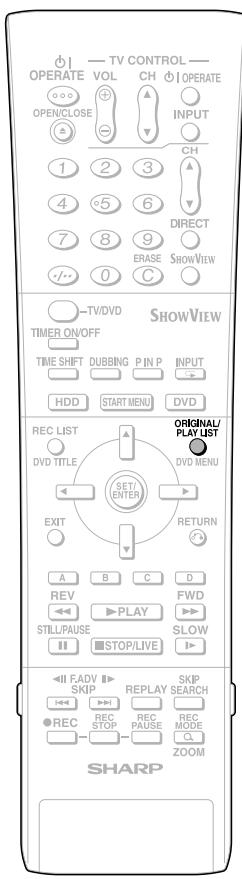
Edit Screen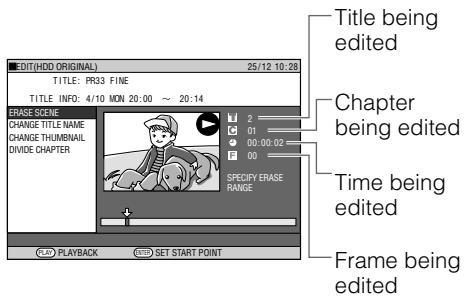
- There is no frame display for titles recorded (dubbed) with high speed dubbing priority, or for titles recorded (dubbed) in Video mode.
SeamlessPlayback
This enables smooth playback at the transitions between edited video scenes. (However, a shift of about one second may arise at the transitions, and part of the scene may not appear.) (Page 89)
- Set this function by selecting: "START MENU" → "OTHER SETTINGS 1" → "ADJUSTMENT" → "OPTION SETTING" → "SEAMLESS PLAYBACK".
High Speed Dubbing Priority
If a title is recorded onto HDD using high speed dubbing priority, editing cannot be done at the frame level. To perform editing at the frame level, set "HI SP DUB PRIORITY" to "NO" (pages 45, 89).
- Set this function by displaying "REC LIST" and then selecting in order of: "FUNCTION MENU" → "HI SP DUB PRIORITY".
- If you have recorded a title with HI SP DUB PRIORITY set to "YES", and you want to edit that title in frame units, cancel HI SP DUB PRIORITY (page 64). You cannot set "HI SP DUB PRIORITY" to the title again once you cancel.
NOTE
- When you perform editing like adding a chapter mark or erasing a scene, a slight discrepancy may arise between the "EDIT" screen and actually edited video.
- If you play back a disc edited at the frame level with another DVD recorder, there may be a shift in the start or end point, or the screen may show a different thumbnail.
Switching between Original and Play List (Play Lists can be created only for HDD or VR mode)
Switching when the Recorder power is on
ORIGINAL/PLAY LIST Press ORIGINAL/PLAY LIST in the stopped state. Each time this button is pressed, the setting will toggle between ORIGINAL and PLAY LIST.
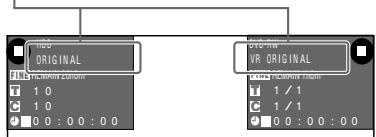
NOTE
- If recording is done while switched to play list, the system will automatically switch back to original.
Switching at the REC LIST
ORIGINAL/PLAY LIST Press ORIGINAL/PLAY LIST at the REC LIST. Each time this button is pressed, the setting will toggle between ORIGINAL and PLAY LIST.
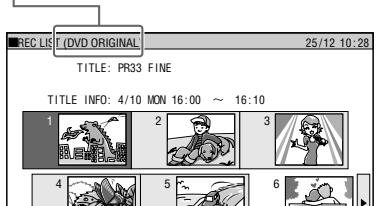
Switching at Edit screen
ORIGINAL/PLAY LIST Press ORIGINAL/PLAY LIST at the "EDIT" screen. Each time this button is pressed, the setting will toggle between ORIGINAL and PLAY LIST.
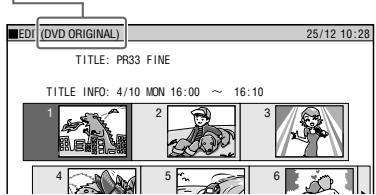
NOTE
- If a Play List has not been created, the "SELECT EDIT OR CREATE PLAYLIST" screen appears.
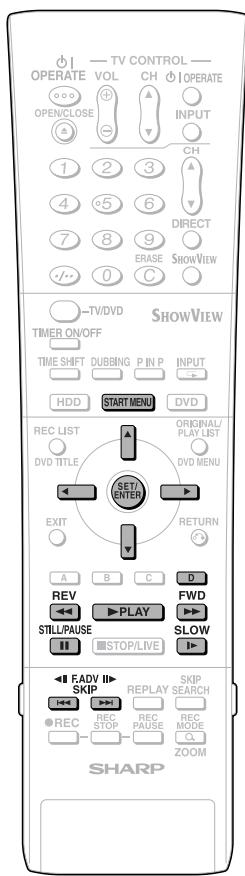
Erasing Unnecessary Scenes from an Original Title (ERASE SCENE)
HDD DVD-RW VR MODE
Selects a scene from an original video and erase it.
To erase all titles, see page 73. To erase by title (or chapter), see page 73.
NOTE
- Scenes cannot be erased on DVD-RW/R (Video mode) discs.
Before Starting Editing
- Switch to the drive (HDD or DVD) to be edited.
1 Press START MENU to display "START MENU" screen.
2 Press △ / ▽ / ◀ / ▶ to select "EDIT/ERASE", then press SET/ENTER.
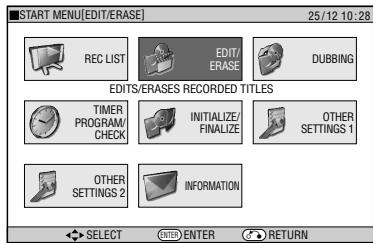
3 Press △ / ▽ to select "EDIT", then press SET/ENTER.
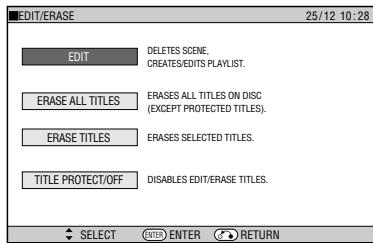
The Original Edit Title List screen appears.
4 Press △ / ▽ / ◀ / ▶ to select the title to edit, then press Yellow (D) (EDIT MENU).
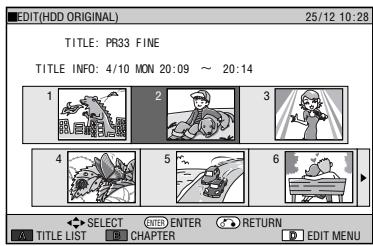
- Edit Menu Screen appears.
5 Press △ / ▽ to select "ERASE SCENE", then press SET/ENTER.
- The selected title is paused.
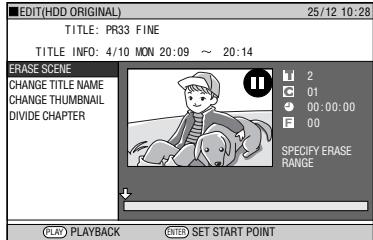
6 Press ▶ PLAY to start playback.
Find the scene to be erased using FWD, REV, STILL/PAUSE, SLOW.
7 Press SET/ENTER when you reach the scene to be erased.
- The erase start point is set. (Title playback continues.)
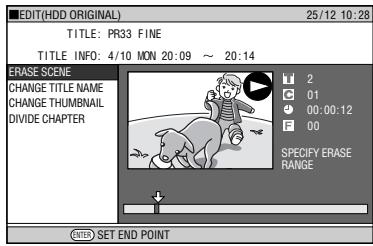
- When the start point is set to near the beginning of a chapter, the beginning of the chapter will be selected as the start point. To make the original designated start point effective, set it again after combining up with the chapter just before. (page 72)
Press SET/ENTER when you reach the end of scene to be erased.
- The erase end point is set. (The title will pause.)
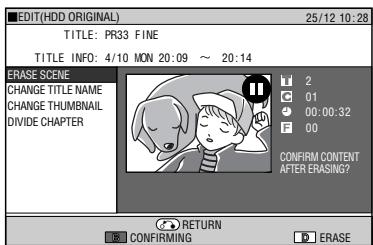
- When the end point is set to near the end of a chapter, the end of the chapter will be selected as the end point. To make the original designated end point effective, set it again after combining up with the chapter just after. (page 72)
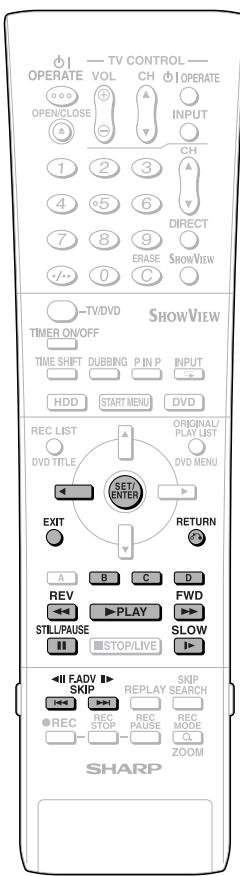
9 Press Red (B) (CONFIRMING) to confirm the contents.
- The title is played back without the scene to be erased.
Press Yellow (D) (ERASE) to erase.
- Go to step 10.
- Press RETURN to cancel scene erase.
10 Press ◀ to select "YES", then press SET/ENTER.
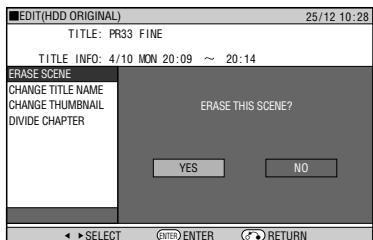
- Erase begins. When erase completes, the screen in step 5 appears.
- If "C (UNDO)" is displayed, you can undo edit by pressing Green (C).
- To quit scene erase, press RETURN. Then the edit screen appears.
11 Press EXIT to exit from Edit mode.
NOTE
Selecting start and end points for scene erase
- You cannot set a range shorter than 3 seconds.
- Once you erase a section of an original, it is completely erased. It cannot be restored, so be very careful and confirm before erasing.
- Scenes can only be added and erased a maximum of 50 times per title.
- If scenes have been added 51 or more times to a disc using another DVD recorder, editing (recording) may not function.
Searching for the Start Point and End Point Scenes
The following playback operations are available when searching for the start point and end point scenes.
Playback
- If you press ▶ PLAY, the currently paused title will be played back.
Skipping to the start of a chapter
- If the scene to be selected is in another title or chapter, first search for the title or chapter using ◀◀ or ▶▶.
Searching for scenes in a chapter
- REV and FWD are convenient for searching for a scene in a chapter.
Pause
- When you reach a scene near the start point or end point, press I STILL/PAUSE to pause. This will make it easier to find the scene. The start and end points may shift slightly.
Frame Advance/Reverse
- If you press ▶▶ after pause, the video will start Frame Advance Playback. If you press ◀◀, it will start Frame Reverse Playback.
Final selection of scene
- To select a scene more accurately, use slow playback starting a little before the scene to be selected. This will keep you from going beyond the scene. If you press ▶ SLOW after pausing, you can select a scene at your leisure during slow playback of the video.
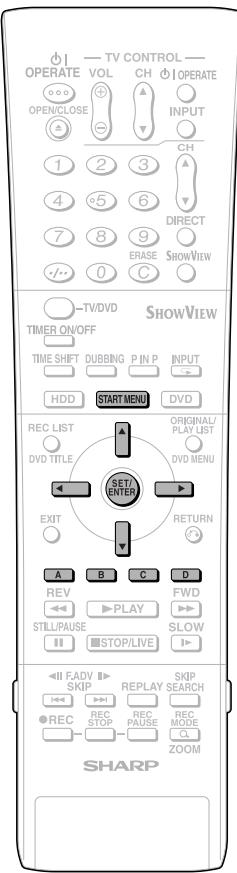
Inputting/Changing Title Name (CHANGE TITLE NAME)

DVD-RW
VR MODE
DVD-RW
VIDEO MODE
DVD-R
- When you record, a title name including the date, time and channel number is automatically created.
You can freely change this title name.
- You can input up to a maximum of 64 characters.
To input, perform the following steps in order: "Select characters to be changed" → "Delete unnecessary characters (characters to be changed)" → "Input new characters".

NOTE
- Title names cannot be changed in finalized Video mode discs.
Before Starting Editing
- Switch to the drive (HDD or DVD) to be edited.
1 Press START MENU. 2 Press △ / ∇ / ◁ / ▷ to select "EDIT/ERASE", then press SET/ENTER.
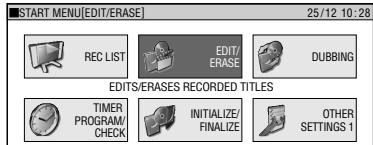
3 Press ▲/▼ to select "EDIT", then press SET/ENTER.
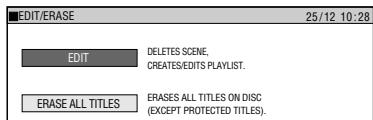

① Press ▲/▼/◀/▶ to select the title to edit.
② Press Yellow (D) (EDIT MENU).
- Edit Menu screen appears.
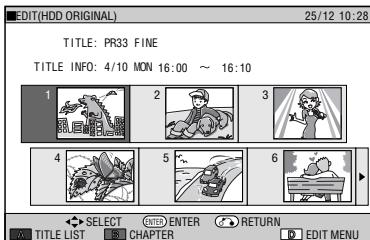

① Press ▲/▼ to select "CHANGE TITLE NAME".
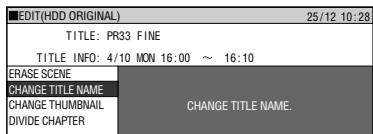

Press SET/ENTER.
- Title Name Change screen appears.

Change Title Name.
Input field (Displays title name. Can input and change title name.)
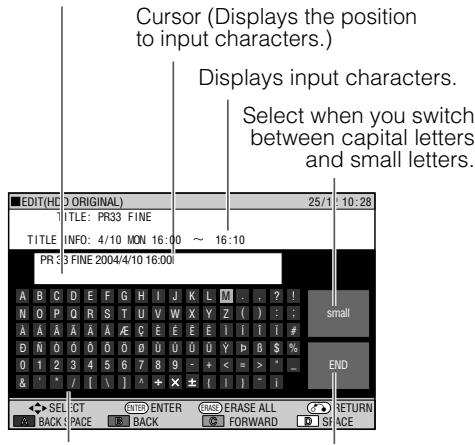
Press ▲/▼/◀/▶ to select the character to be input.
Select when you complete inputting character.
① Press Red (B) or Green (C) to select the character to change. - When you want to insert characters, move the cursor to the position you want to insert by pressing Red (B) or Green (C). ② Press Blue (A) to erase the character to change.
World Rail

Press ▲/▼/◀/▶ to select the character to input, then press SET/ENTER.
- Inputs character in input field.
- To switch between capital and small letters, select "CAPS" or "small", then press SET/ENTER.
8 Input title letters by repeating step 7.
- Press Blue (A) (BACK SPACE) to erase text to the left of the cursor, a character at a time.
- Press Red (B) (BACK) to move the cursor back one space.
- Press Green (C) (FORWARD) to move the cursor forward one space.
- Press Yellow (D) (SPACE) to input a space.
- The maximum number of characters you can input is 64.
9 Press / / to select "END" and then press SET/ENTER After input is finished.
- The new title is set, and the screen in step 5 displays.
Press Green (C) (UNDO) to return to the previously set title.
- The title returns to original name.
- Operate according to the instructions of the screen.
10 Press EXIT to quit editing.
- Edit mode will terminate.
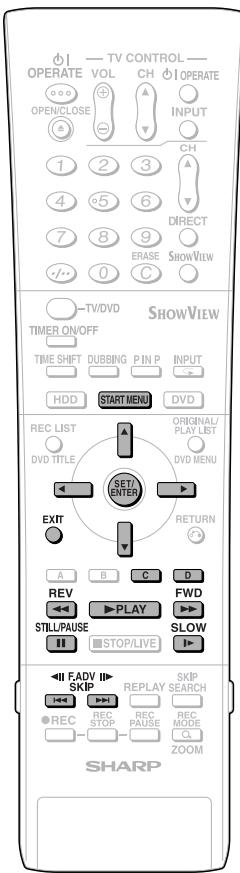
Changing Thumbnail (CHANGE THUMBNAIL)
HDD DVD-RW VR MODE
Changes the still frame picture displayed at the Thumbnail screen of the REC LIST to your favorite scene within the title.
Before Starting Editing
- Switch to the drive (HDD or DVD) to be edited.
1 Press START MENU.
2 Press ▲/▼/◀ to select "EDIT/ERASE", then press SET/ENTER.
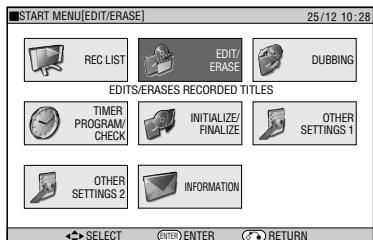
3 Press ▲/▼ to select "EDIT", then press SET/ENTER.
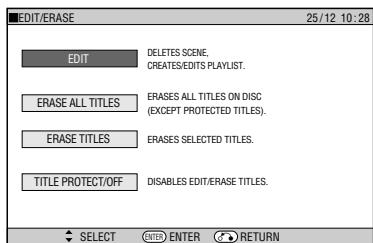
- The Original Edit Title List Screen appears.
4 Press ▲/▼/◀/▶ to select the title to edit, then press Yellow (D) (EDIT MENU).
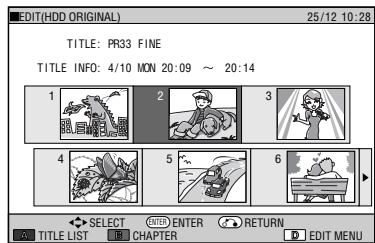
- Edit Menu screen appears.
5 ① Press ▲/▼ to select "CHANGE THUMBNAIL".
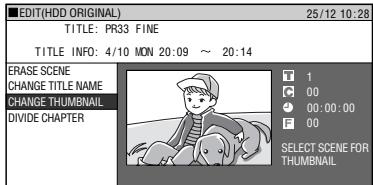
② Press SET/ENTER.
6 Press ▶ PLAY to start playback.
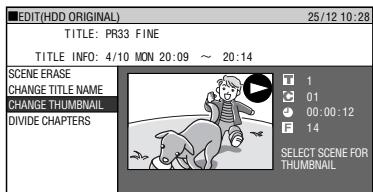
Find the scene you want to use as a thumbnail using FWD, REV, STILL/PAUSE, or SLOW.
7 Press SET/ENTER when you reach the scene you want to use as a thumbnail.
- Playback is paused.
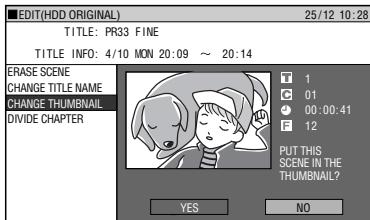
8 ① If this is the screen you want, select “YES” by pressing ◀/▶.
- If you select "NO", you can return to step 5 and select the scene again.
② Press SET/ENTER.
- The new Thumbnail screen is set, and the system returns to the screen in step 5.
Press Green (C) (UNDO) to return to the previously set thumbnail.
- Operate according to the instructions of the screen.
9 Press EXIT to quit, Thumbnail edit.
- Edit mode will terminate.
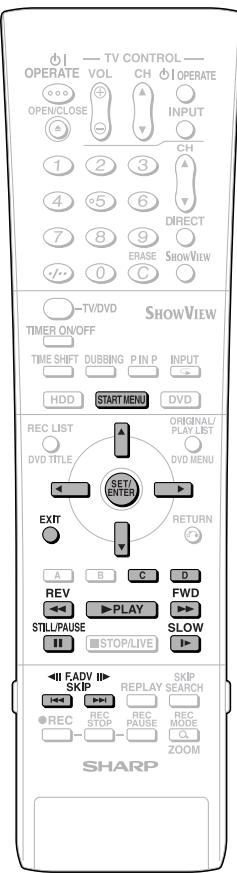
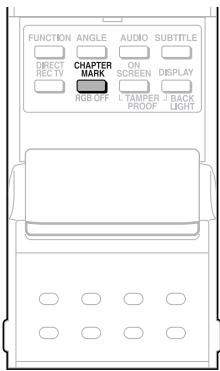
Making Sections in a Title (DIVIDE CHAPTER)
HDD DVD-RW VR MODE
Divides a title into multiple chapters and makes editing and dubbing of chapter as unit easier.
- You can set chapter divisions by pressing CHAPTER MARK (under the cover) during recording or playback.
Before Starting Editing
- Switch to the drive (HDD or DVD) to be edited.
1 Press START MENU. 2 Press ▲/▼/◀/▶ to select "EDIT/ERASE", then press SET/ENTER.
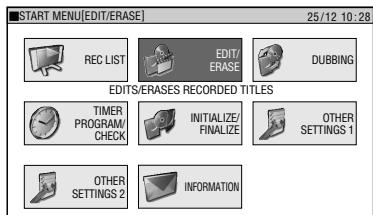
3 Press ▲/▼ to select "EDIT", then press SET/ENTER.
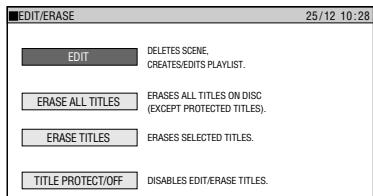
4 Press ▲/▼/◀/▶ to select the title to edit, then press Yellow (D) (EDIT MENU).
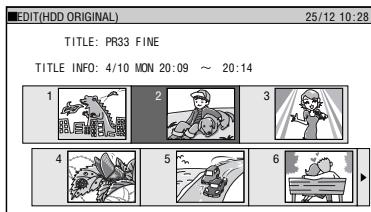
5 Press ▲/▼ to select "DIVIDE CHAPTER", then press SET/ENTER.
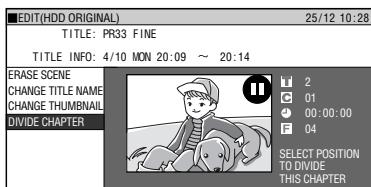
6 Press ▶ PLAY to start playback.
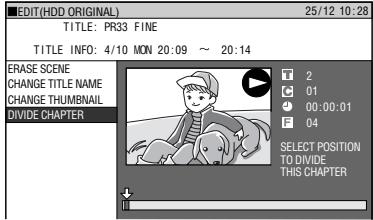
Find the scene to erase using FWD, REV, STILL/PAUSE, , SLOW on the remote control.
7 Press SET/ENTER at the point where you want to divide.
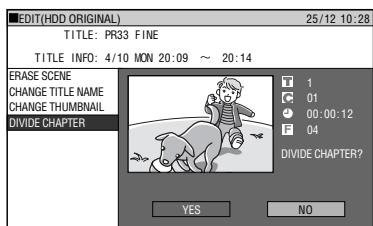
Press ◀ to select "YES", then press SET/ENTER.
To continue dividing, repeat steps 5 to 7.
To cancel a chapter division, press Green (C) (UNDO).
- Operate according to the instructions on the screen.
9 Press EXIT to quit editing.
- Edit mode will terminate.
NOTE
- Divide a chapter to make it 3 or more seconds. You cannot divide a chapter into a section which is less than 3 seconds.
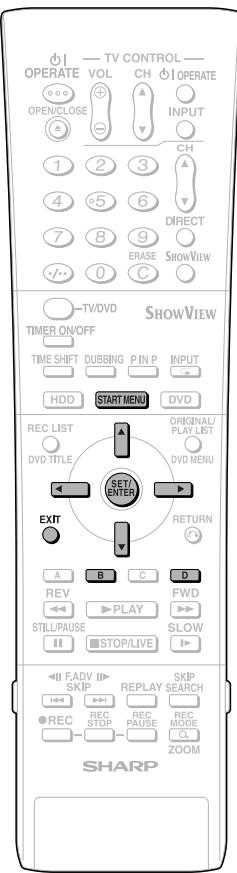
Combining Chapters Together (COMBINE CHAPTERS)
HDD DVD-RW VR MODE
Combines two adjacent chapters into a single chapter.
NOTE
- You cannot combine chapters automatically recorded when a scene was erased.
Before Starting Editing
- Switch to the drive (HDD or DVD) to be edited.
1 Select "EDIT/ERASE" in "START MENU" screen, then press SET/ENTER. 2 Press / to select "EDIT", then press SET/ENTER. 3 Press / / / to select the title you wish to edit. 4 Press Red (B) (CHAPTER) to select Chapter Thumbnail screen. 5 Press / / to select the chapter to combine, then press Yellow (D) (EDIT MENU).
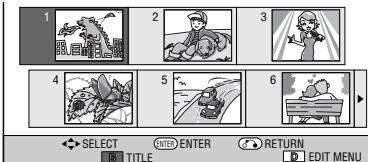
6 Press SET/ENTER.
7 Press / to select combine procedure you prefer, then press SET/ENTER.
- Select from: "COMBINE W/PREV", "COMBINE W/NEXT" or "DON'T COMBINE".
- If you select "COMBINE W/PREV" or "COMBINE W/NEXT", the two chapters will join, and Chapter Thumbnail screen is displayed.
- If you select "DON'T COMBINE", the previous screen displays.
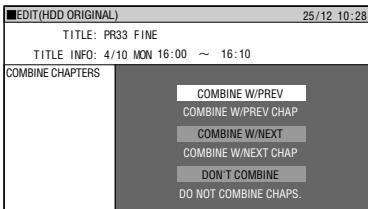
Press EXIT to exit from Edit mode.
Disabling Title Edit and Erase (TITLE PROTECT)
HDD DVD-RW VR MODE
Disables edit and erase so you cannot mistakenly change or erase the content of a title.
Lets you safely save a disc for which editing is in progress.
This operation will not work with Video mode discs. - Titles created with Play List (page 74) cannot be protected.
Before Starting Editing
- Switch to the drive (HDD or DVD) to be edited.
1 Select "EDIT/ERASE" in "START MENU" screen, then press SET/ENTER. 2 Press / to select "TITLE PROTECT/OFF", then press SET/ENTER. 3 Press / / to select the title to protect, then press SET/ENTER.
Each time the button is pressed, the setting toggles between "PROTECT" and "UNPROTECT".
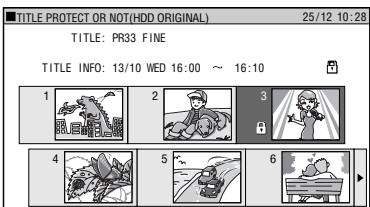
- The protect mark is attached to protected titles. (The protect mark can be confirmed at either the "REC LIST" screen or "EDIT" screen.)
4 Press EXIT to exit from Edit mode.
To Cancel Title Protect
1 Select the title protected in step 3 above, and press SET/ENTER.
- Title protect is cancelled, and the protect mark disappears.
NOTE
- If "DVD DISC PROTECTION" is set for a DVD-RW (VR mode) disc, protection cannot be cancelled for individual titles. Cancel "DVD DISC PROTECTION" (page 90). 2 Press EXIT to exit from Edit mode.
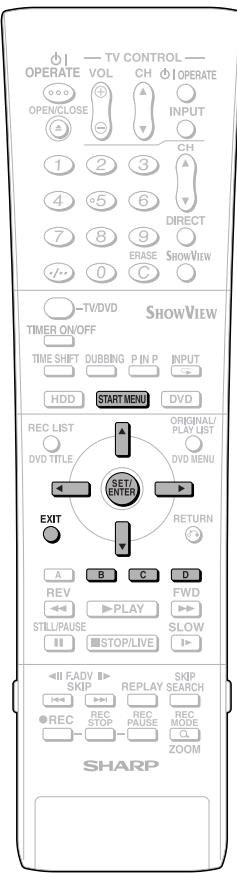
Erasing All Titles
HDD DVD-RW DVD-RW DVD-R VR MODE VIDEO MODE
This erases the entire contents of a HDD or DVD-RW. (Except titles for which title protect has been set.)
You can erase the following:
HDD (ORIGINAL):
Erases all titles recorded on the HDD.
When originals are erased, play lists are also erased.
- HDD (PLAY LIST):
Erases all play lists created on the HDD. Even if play lists are erased, the original titles are not erased.
DVD (ORIGINAL):
Erases all titles recorded on DVD. When originals are erased, play lists are also erased.
DVD (PLAY LIST):
Erases all play lists created on DVD. Even if play lists are erased, the original titles are not erased.
NOTE
- When a Video mode disc is finalized, you can no longer erase all titles.
Before Starting Editing
- Switch to the drive (HDD or DVD) to be edited.
1 Select "EDIT/ERASE" in "START MENU" screen, then press SET/ENTER. 2 Press ▲/▼ to select "ERASE ALL TITLES", then press SET/ENTER. 3 Press ▲/▼ to select what you want to erase, then press SET/ENTER.
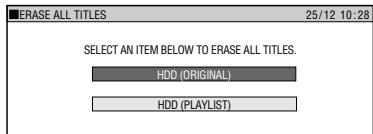
4 Press ◀ to select "YES", then press SET/ENTER.
- Carefully confirm before executing erase.
- If you select "NO" and enter, the screen in step 3 appears.
5 Press SET/ENTER.
- All titles (or play lists) are erased, and the screen in step 3 appears. To restore the erased content, press Green (C) (CNL ERASE). Operate according to the instructions on the screen. (Note: You can only undo once, to the state immediately before the last erase.)
6 Press EXIT to exit from Edit mode.
Erasing by Selecting a Title (or Chapter)
HDD DVD-RW DVD-RW DVD-R
VR MODE VIDEO MODE
DVD-R
-
Allows you to select titles to erase, and erase them in a batch.
- When erasing original titles:
If original titles are erased, those titles will also be erased from play lists.
- When erasing play lists:
Even if play lists are erased, the original titles will not be erased.
NOTE
- Up to a maximum of 20 titles (chapters) can be selected at one time.
- When a Video mode disc is finalized, you can no longer select and erase titles.
- You cannot erase chapters in DVD-RW/R discs (Video mode).
Before Starting Editing
- Switch to the drive (HDD or DVD) to be edited.
1 Select "EDIT/ERASE" in "START MENU" screen, then press SET/ENTER. 2 Press / to select "ERASE TITLES", then press SET/ENTER. 3 Press / / / to select titles to erase.
- If you press Red (B) (CHAPTER), the screen will switch to the chapter thumbnail display so you can select and erase chapters.
4 Press SET/ENTER.
- If there are other titles (chapters) you wish to erase, select with / / / and press SET/ENTER.
5 Press Yellow (D) (ERASE). 6 Press / to select "YES".
- Once a title (chapter) has been erased, it cannot be restored. Carefully confirm before executing erase.
- If you select "NO" and enter, operate from step 4 again.
7 Press SET/ENTER.
- All selected titles (chapters) are erased.
- To cancel erase, press Green (C) (CNL ERASE).
- Operate according to the instructions on the screen.
Press EXIT to exit from Edit mode.
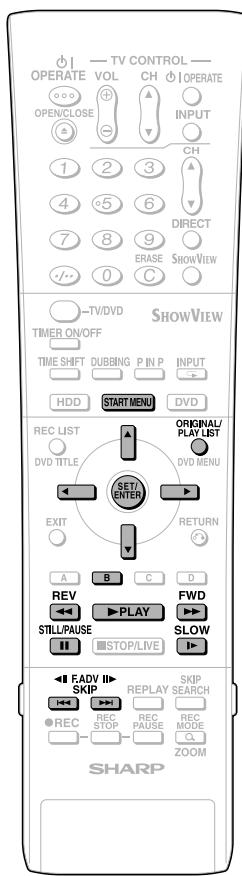
Creating a Play List
HDD DVD-RW VR MODE
You can create a Play List by copying a title or chapter units from an original. Also you can select your favorite scenes from originals, and compile them into a Play List.
NOTE
- Operations like "COPY TITLE/CHAPTER" and "COPY SPECIFIED SCENE" do not actually copy the original titles. These operations merely write the information "make this original title a title in the play list". Therefore, you can edit without decreasing free space in the disc or touching the original titles.
- When creating a play list from original titles, the original title's thumbnail and chapter mark information are not copied.
- You cannot create a play list of "Copy Once" titles (programme) recorded on HDD.
Before Starting Editing
- Switch to the drive (HDD or DVD) to be edited.
Creating from Original Titles
Makes a single original title into a play list title.
1 Select "EDIT/ERASE" in "START MENU" screen, then press SET/ENTER. 2 Press ▲/▼ to select "EDIT", then press SET/ENTER. 3 Press ORIGINAL/PLAY LIST to the "PLAY LIST" screen.
- The screen switches to the Play List Edit Screen.
- There still is no title at this point, so a "NEW" title frame with no image is displayed.
- To create a new Play List later, select the "NEW" title frame.
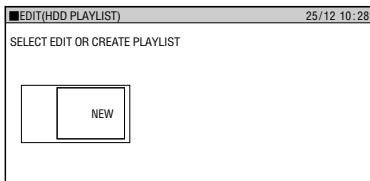
4 Press SET/ENTER.
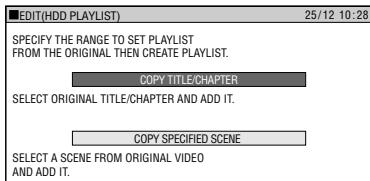
5
① Press ▲/▼ to select "COPY TITLE/CHAPTER". ② Press SET/ENTER.
- "REC LIST" (Thumbnail) screen of the original appears.
6 ① Press ▲/▼/◀/▶ to select title to copy.
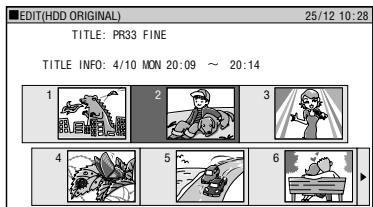
- To select a chapter, press Red (B) (CHAPTER). ② Press SET/ENTER.
- The selected title (chapter) becomes a Play List title.
Creating from Part of an Original
You can select a desired scene from an original title, and make it into a Play List title.
1 Perform steps 1-4 of "Creating from Original Titles" in the left column.
2 ① Press ▲/▼ to select “COPY SPECIFIED SCENE”. ② Press SET/ENTER. 3 Press ▲/▼/◀/▶ to select title to copy, then press SET/ENTER.
- To select from a chapter, press Red (B) (CHAPTER) and select the chapter.
4 Press ▶ PLAY to start playback.
Find the scene to copy using STILL/PAUSE, FWD, REW, SLOW.
5 Press SET/ENTER at the place where you want to start copying.
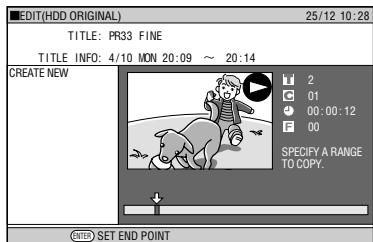
- If you fast reverse to a scene prior to the start point, the start point will be cancelled.
- When the start point is set to near the beginning of a chapter, the beginning of the chapter will be selected as the start point. To make the original designated start point effective, set it again after combining up with the chapter just before. (page 72)
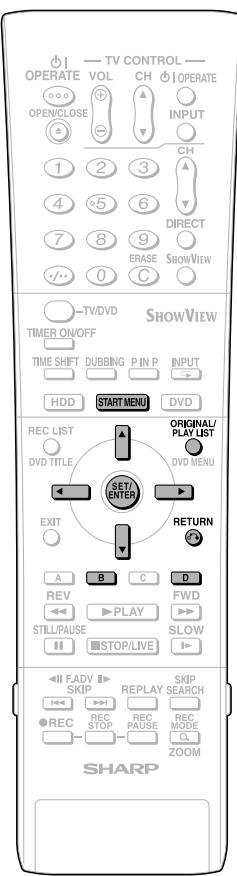
6 Find the place where you want to end copying, then press SET/ENTER.
- If you press RETURN, you can reselect the start point.
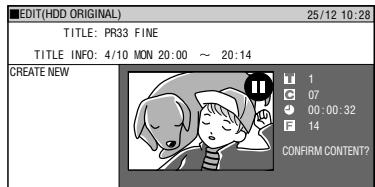
- When the end point is set to near the end of a chapter, the end of the chapter will be selected as the end point. To make the original designated end point effective, set it again after linking up with the chapter just before. (page 72)
7 Press Red (B) (CONFIRMING) to confirm the content. Press Yellow (D) (CREATE) to execute copy. Go to step 8.
- You can reselect the end point by pressing RETURN.
8 ① Press ▼/▲ to select "YES". ② Press SET/ENTER.
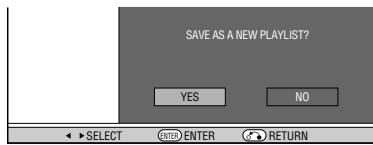
- One play list title is created.
NOTE: Selecting start or end point to add a scene.
- You cannot set a range shorter than 3 seconds.
Adding a Scene from an Original to a Play List (ADD SCENE)
HDD DVD-RW1 VR MODE
Adds video selected from an original to the end of play list titles.
NOTE
- The selected scene cannot be added if adding it will make the title longer than 12 hours.
- Scenes can be added as long as the length of the title after adding is less than the maximum of 12 hours.
Before Starting Editing
- Switch to the drive (HDD or DVD) to be edited.
1 Select "EDIT/ERASE" in "START MENU" screen, then press SET/ENTER.
2 Press ▲/▼ to select "EDIT", then press SET/ENTER.
3 ① Press ORIGINAL/PLAY LIST to switch to "PLAY LIST" screen.
② Press ▲/▼/◀/▶ to select title to edit.
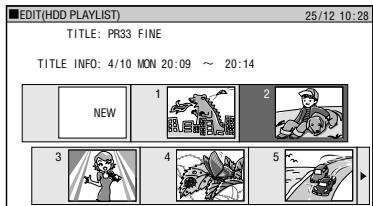
③ Press Yellow (D) (EDIT MENU).
4 Press △/▽ to select "ADD SCENE" then press SET/ENTER.
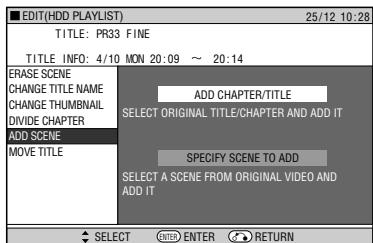
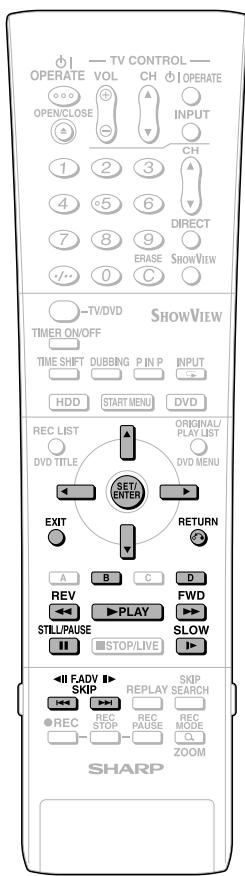
5 Adding a Title or Chapter
① Select "ADD CHAPTER/TITLE", then press SET/ENTER. ② Select a title (chapter) at the title (chapter) list, then press SET/ENTER. Go to step 9. Specifying and Adding a Scene
- Select "SPECIFY SCENE TO ADD", then press SET/ENTER. Go to step 6.
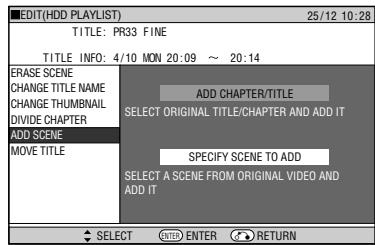
6 Press △/▽/◁ to select title (chapter) to edit, then press SET/ENTER.
- The selected title (chapter) pauses.
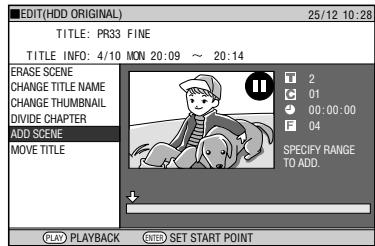
7 ① Press ▶ PLAY to start playback.
Find the scene to add using STILL/PAUSE, FWD, REV, SLOW.
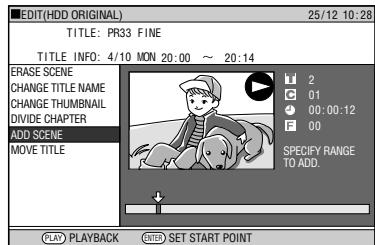
② Press SET/ENTER at the start point of the scene you want to add.
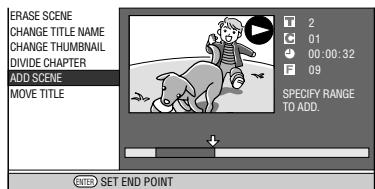
- If you fast reverse to a scene prior to the start point, the start point will be cancelled.
- When the start point is set to near the beginning of a chapter, the beginning of the chapter will be selected as the start point. To make the original designated start point effective, set it again after combining up with the chapter just before. (page 72)
Press SET/ENTER at the end of the scene you want to add.
- Press RETURN to reselect the start point of the scene. You can press RETURN to reselect the end point even after it is already set.
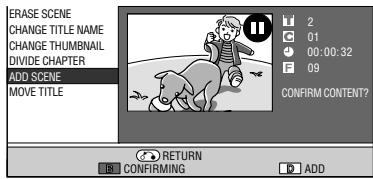
- When the end point is set near the end of a chapter, the end of the chapter will be selected as the end point. To make the original designated end point effective, set it again after combining up with the chapter just before. (page 72)
9 Press Red (B) (CONFIRMING) to confirm the content. Press Yellow (D) (ADD) to add.
- If you press Red (B) (CONFIRMING), you can test play the added scene, from the start point to the end point. It may take about one minute for the confirm screen to appear.
- Press Yellow (D) (ADD) to add.
10 ① Press to select "YES". ② Press SET/ENTER.
- The scene is added after the selected title, and stored as a new title of the play list.
11 Press EXIT to exit from EDIT mode.
- A chapter mark is automatically set at the start point where the scene is added.
NOTE
- When adding a scene, select a scene which continues for at least 3 seconds. Scenes shorter than 3 seconds cannot be added.
- Scenes can only be added and erased a maximum of 50 times per title.
- If you press REV or and reverse beyond the start point after setting a start point, the start point will cancel.
- If scenes have been added or erased 51 or more times to a single title on a disc using another DVD recorder, Editing (Recording) may not function.
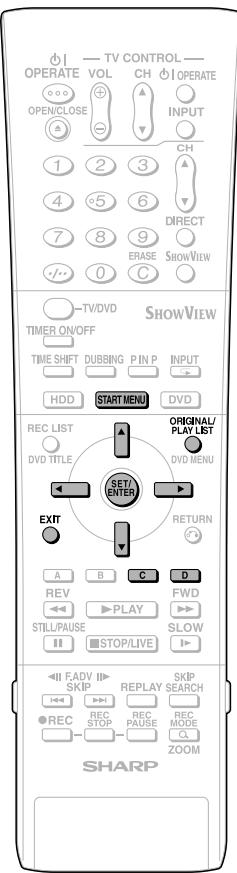
Changing the Title Sequence (MOVE TITLE)
HDD DVD-RW VR MODE
Freely changes the sequence of titles.
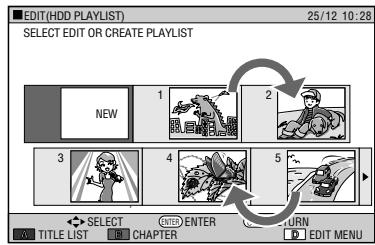
Before Starting Editing
- Switch to the drive (HDD or DVD) to be edited.
1 Select "EDIT/ERASE" in the "START MENU" screen, then press SET/ENTER. 2 Press ▲/▼ to select "EDIT", then press SET/ENTER. 3 ① Press ORIGINAL/PLAY LIST to switch to the "PLAY LIST" screen. ② Press ▲/▼/◁/▷ to select the title to edit.
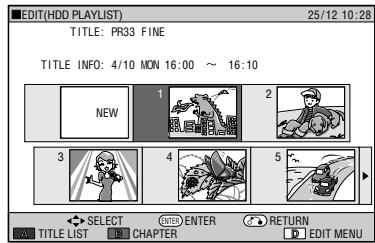
③ Press Yellow (D) (EDIT MENU).
4 Press ▲/▼ to select "MOVE TITLE", then press SET/ENTER.
5 Press ▲/▼/◁/▷ to select the thumbnail to move the title to.
Selected title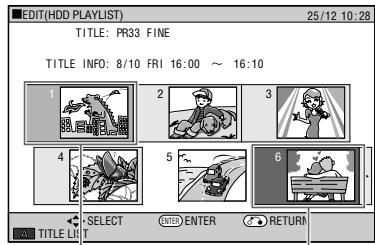
Cursor on the thumbnail to move the selected title to
6 Press SET/ENTER.
- If a point prior to the selected title is selected as the destination, the title will move to the point immediately prior to the selected title.
- Press Green (C) (UNDO) to restore to the state before the movement. Operate according to the instructions on the screen.
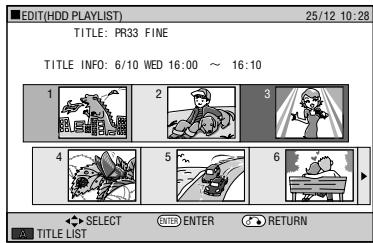

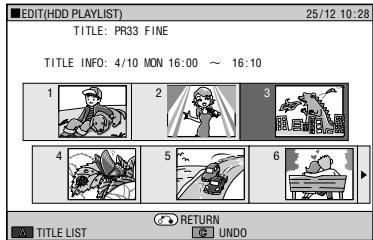
Example: If Title 3 is selected and the destination cursor is set to Title 1, Title 3 is moved to the spot in front of Title 1.
- If a point after the selected title is selected as the destination, the title will move to the point immediately after the selected title.
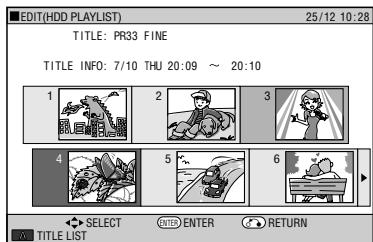

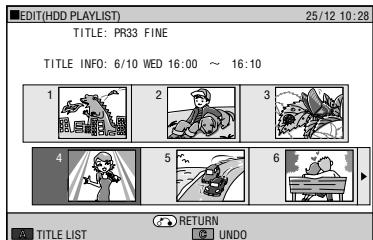
Example: If Title 3 is selected and the destination cursor is set to Title 4, Title 3 is moved to the spot after Title 4.
7 Press EXIT to exit from EDIT mode.
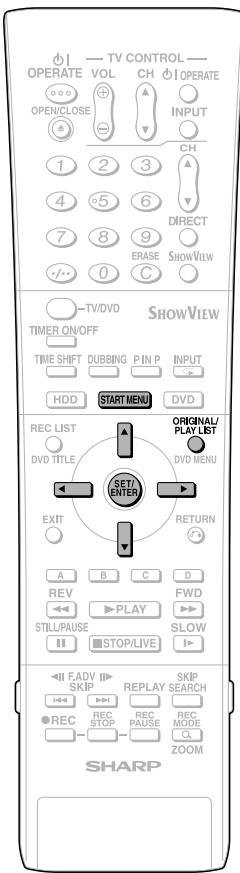
Erasing Unnecessary Scenes (ERASE SCENE)
HDD DVD-RW VR MODE
Selects and erases unnecessary scenes. Even if you erase a scene in a play list, this will not affect the original video.
1 Select "EDIT" at the "EDIT/ERASE" in START MENU, then press SET/ENTER.
- The Thumbnail screen appears.
2 Press ORIGINAL/PLAY LIST to display "PLAY LIST" (Thumbnail) screen. 3 Erase the scene using the same operation used for erasing an original scene (step 4 on page 67 - step 11 on page 68).
Inputting/Changing Title Name (CHANGE TITLE NAME)
HDD DVD-RW1 VR_MODE
You can input up to 64 characters.
1 Select "EDIT" at the "EDIT/ERASE" in START MENU, then press SET/ENTER. - The Thumbnail screen appears. 2 Press ORIGINAL/PLAY LIST to display "PLAY LIST" (Thumbnail) screen. 3 Change or input the title name using the same operation used for changing or inputting an original title (steps 4 - 10 on page 69).
Changing Thumbnail (CHANGE THUMBNAIL)
HDD DVD-RW VR MODE
Changes the image of title displayed in REC LIST to a scene you like in the title.
1 Select "EDIT" at the "EDIT/ERASE" in START MENU, then press SET/ENTER. - The Thumbnail screen appears. 2 Press ORIGINAL/PLAY LIST to display "PLAY LIST" (Thumbnail) screen. 3 Change the thumbnail using the same operation used for changing an original thumbnail (steps 4-9 on page 70).
Making Sections in a Title (DIVIDE CHAPTER)
HDD DVD-RW VR MODE
Divides a title into multiple chapters. This makes editing and dubbing in chapter units more convenient.
1 Select "EDIT" at the "EDIT/ERASE" in START MENU, then press SET/ENTER. - The Thumbnail screen appears. 2 Press ORIGINAL/PLAY LIST to display "PLAY LIST" (Thumbnail) screen. 3 Divide a title into chapters using the same operation used for chapter division of originals (steps 4-9 on page 71).
Combining Chapters Together (COMBINE CHAPTERS)
HDD DVD-RW VR MODE
This lets you combine two adjacent chapters into a single chapter.
1 Select "EDIT" at the "EDIT/ERASE" in START MENU, then press SET/ENTER. - The Thumbnail screen appears. 2 Press ORIGINAL/PLAY LIST to display "PLAY LIST" (Thumbnail) screen. 3 Combine chapters using the same operation used for chapter combination of originals (steps 3-8, left column on page 72).
NOTE
- You cannot combine chapters automatically recorded when a scene was erased, or chapters recorded due to adding (with ADD SCENE).
Playing 2 Channel Audio with an Analogue Connection
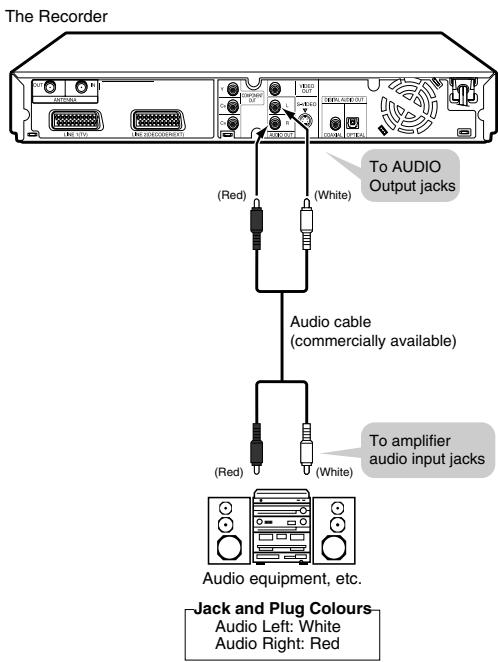

NOTE
- When connecting audio equipment using analogue connection, we recommend that you set "DD OUTPUT LEVEL" to "NO" (see page 88). If you set to "YES", audio may sound abnormal during disc playback.
Playing Dolby Digital, DTS or MPEG Audio with a Digital Connection
- Connecting an amplifier with a Dolby Digital/DTS/MPEG Audio digital surround processor or a Dolby Digital/DTS/MPEG Audio digital surround amplifier to the Recorder's coaxial or optical DIGITAL AUDIO Output jack (terminal) provides richer, more powerful audio play.
- To enjoy DTS Digital Surround audio, select DTS audio at the disc menu during DVD playback, or select DTS audio using the AUDIO button (under the cover) of the remote control.
- Connection to a processor or amplifier with an optical or coaxial digital input jack (terminal)
Dolby Digital/DTS/MPEG Audio processor or amplifier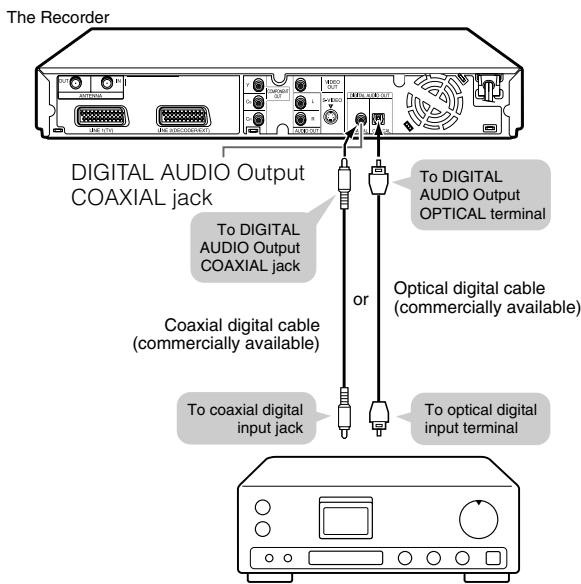

Important!
- When using this connection, set "DIGITAL AUDIO OUTPUT" to "BIT STREAM" (see page 88).

NOTE
- To play a disc recorded with DTS, you need to use DTS processor or amplifier.
- This connection is not possible if the processor or amplifier to which you want to connect does not have an optical or coaxial digital input jack (terminal). Refer to the operation manual for the processor or amplifier for information about connecting to it.
Playing 2 Channel Audio with a Digital Connection
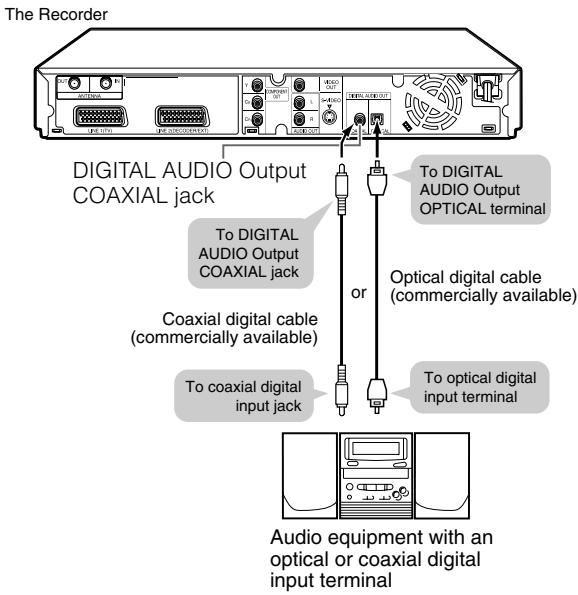
Important!
- When using this connection, set "DIGITAL AUDIO OUTPUT" to "PCM" (see page 88).
Digital Connection to an MD Recorder to Record a CD
- When you are using a digital connection to record the contents of a CD to an MD, the track numbers of the CD may not match the track numbers recorded to the MD.
Digital Connection to an MD Recorder or Other Audio Equipment without a Dolby Digital Decoder
Audio CD or Video CD
- You can enjoy these discs by playing them back by the ordinary playback procedure. (The normal audio output is not played back for discs recorded with DTS.)
DVD Video Disc
- There is no audio signal generated for DVD video discs recorded with DTS. A processor or amplifier equipped with a DTS Surround decoder function is required to enjoy DTS audio.
Recording from a Digital Camcorder Using i.LINK
HDD
DVD-RW
VR MODE
DVD-RW
VIDEO MODE
DVD-R
VIDEO MODE
- When this Recorder is connected with a DV-format camcorder using a DV cable, you can record and edit with minimal deterioration of picture and sound quality using a digital signal.
- You can also display an operation panel for digital camcorder control on the screen, and operate using the buttons on the panel. This allows easy recording onto disc. Record after first performing "DV SETTING" (page 90) at the START MENU.
- i.LINK is a function that lets you control other equipment by input and output of video, audio, data and control signals between equipment having an i.LINK terminal.
- i.LINK refers to the IEEE1394-1995 industry specification and extensions thereof. The logo is used for products compliant with the i.LINK standard.
- i.LINK is a trademark.

NOTE
- The DV IN terminal of this Recorder only enables input of DV-format camcorders (DVC-SD signals). It is not compatible with satellite receivers or Digital VHS video recorders since they employ a different format.
- To connect the Recorder with a digital camcorder, set digital camcorder POWER to "PLAY (Video side)", and connect while in the stopped state. If the DV is connected when POWER is set to "RECORD (Camera side)", or when tape has been played back, the DV link will not work correctly.
- There are some digital camcorders which cannot be operated using the On-Screen Control Panel of this Recorder, even if you set "DV LINK" under "DV SETTING" to "ON". In cases like this, set "DV LINK" to "OFF". (page 90)
- When this Recorder is connected to a camcorder equipped with a DV terminal, the signal may not be input to this Recorder depending on the camcorder. When this happens, use an analogue connection (page 83).
- The DV IN terminal is not compatible with connection to a PC.
- This Recorder cannot be controlled from other equipment connected to the DV IN terminal.
- Only one camcorder can be connected to this Recorder using the DV IN terminal.
- Connect this Recorder and the camcorder directly. The DV signal will not be input if the camcorder is connected to this Recorder through other equipment with a DV IN terminal.
Input of Video, Audio and Data Signals
- Date and time data as well as the contents of cassette memory cannot be recorded with this Recorder. Video and audio signals of protected material or "Copy Once" material cannot be recorded.
- Monaural audio cannot be input through the DV IN terminal.
Audio Mode
Digital camcorders typically have the following two audio modes.
16-bit (48 kHz)
Although this yields high sound quality, only one stereo audio signal can be processed.
12-bit (32 kHz)
Two stereo signals can be processed. In general, overdubbed audio is recorded in Stereo 2.
- This Recorder allows listening or recording of either Stereo 1 or Stereo 2 audio if the input audio is in the 12-bit audio mode.
- This Recorder is unable to process 44.1 kHz input audio signals.
Connecting a Digital Camcorder Using the DV IN Terminal (i.LINK)
Refer to the user's manual provided with the camcorder for information on the procedure for connecting the camcorder with this Recorder.
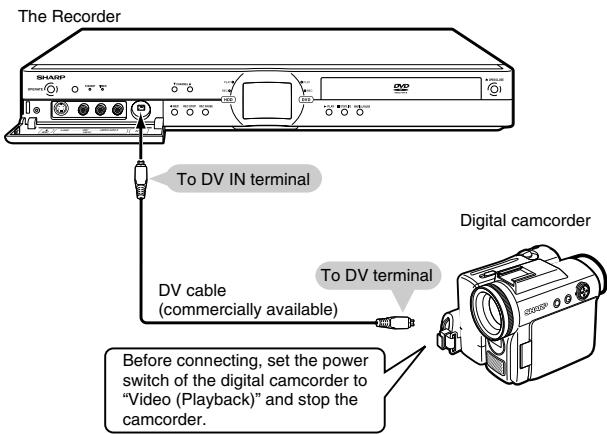
Recording with This Recorder (DV Capture)
1 Press HDD or DVD to select the media to record to. 2 Select audio to be input from the digital camcorder.
- Before starting recording, check setting of "DV AUDIO INPUT" using "DV SETTING" (page 90).
3 Press INPUT to select "DV".
- The setting will cycle as follows each time you press the button.

4 Perform digital camcorder playback.
- Press / / / to select the desired button on the On-screen Control Panel, then press SET/ENTER to operate.
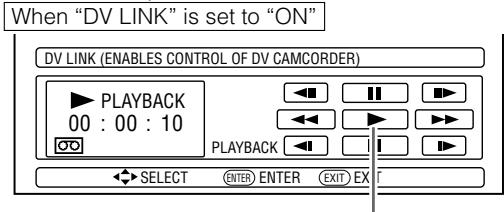
Select on the On-screen Control Panel to start playback, then press SET/ENTER.
- If you press EXIT on the remote control, the On-screen Control Panel will disappear. To display it again, press ON SCREEN (under the cover).
5 Press REC when you reach the scene you want to start recording. - The Recorder will start recording. 6 Press REC PAUSE when you want to pause recording. - Press REC PAUSE again to cancel pause. 7 Press REC STOP when you want to stop (end) recording.
NOTE
- Material protected with a copy guard cannot be recorded.
- Date and time data as well as the contents of cassette memory cannot be recorded.
- There are some digital camcorders which cannot be operated using the On-screen Control Panel, even when "DV LINK" is set to "ON". In such cases, set it to "OFF". (See page 90.)
Important!
Abnormal images may be recorded or the Recorder enters the Pause mode when any of the following occur during DV capture.
- When the connected equipment plays back a portion where nothing is recorded or video containing a copy guard signal.
- When the DV cable is disconnected or the camcorder power is turned off during DV capture.
- When playback from the camcorder is stopped.
Recording from a Camcorder (VCR) Using an Analogue Connection
HDD
DVD-RW
DVD-RW
DVD-R
VR MODE
VIDEO MODE
Material from a camcorder can be recorded with this Recorder using an analog connection. You can capture video by connecting a camcorder or VCR to the LINE IN 1, 2 or 3 jacks of this Recorder.

NOTE
- More vivid images can be viewed by connecting the S-VIDEO input jack on this Recorder with the S-video output jack on the camcorder using an S-video cable.
- Some camcorders may be required to be connected using a special cable.
- Refer to the operation manual provided with the camcorder for further information on the procedure for connecting the camcorder.
- Material protected with a copy guard cannot be recorded. It may be impossible to get the correct video, even if you just view without recording.
- Date and time as well as the contents of cassette memory cannot be recorded with this Recorder.
- If you input video from an external device to this Recorder, there will be a slight difference in image quality between the video viewed from the external device directly on the TV, and video viewed as external input to the Recorder.
Example:
To record by connecting a camcorder to the LINE IN 3 jacks.
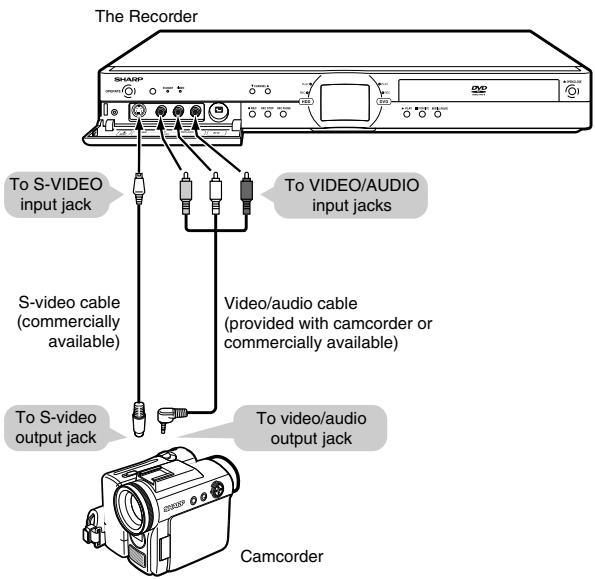
1 Press HDD or DVD to select the media to record to. 2 Select audio to be input from the external device.
To record to HDD
- Switch audio of the external device to the audio you want to capture.
To record to DVD
- Select audio using "EXTERNAL AUDIO" (page 84).
- Select "L CH" or "R CH" with "VIDEO MODE AUDIO" (page 84) to record in Video mode.
3 Press INPUT to set the connection to external input channel (example: L3).
- The setting will cycle as follows each time you press the button.
L 1 (IN 1) → L 2 (IN 2); longrightarrow TVchannels ← DV (DVIN) ← L 3 (IN 3) ←

Play back the camcorder or VCR.

Press REC when you reach the scene you want to start recording.
The Recorder starts recording.

Press RECAUSE when you want to pause recording.
- Press REC PAUSE again to cancel Pause mode.

Press REC STOP when you want to stop (end) recording.
Functions under OTHER SETTINGS 1
This section explains various settings relating to recording and playback which can be used to get more out of the Recorder. - For details about each setting, see the corresponding pages.
REC. FUNCTION → page 84
VIEW/PLAY SETTING → page 86
ADJUSTMENT → page 88
REC. FUNCTION
| AUTO CHAPTER ·This sets the interval of automatic chapter setting during recording. ·Chapter marks set on a DVD-RW/R in Video mode cannot be combined by editing, so select an appropriate interval. | 10 (10 min interval) 15 (15 min interval) 30 (30 min interval) -- (off) |
| EXACT RECORDING ·This function works when timer recording (ShowView/Timer Programme) onto DVD-RW/R. If disc capacity runs low, and the programme cannot be recorded to the end, this function will automatically change the recording mode so the programme will fit. (The recording mode set in above situation will have lower picture quality than the originally set recording mode.) ·If there is very little disc capacity left on the disc, the programme may not fit even if Exact Recording is set. ·When recording in EP or MN1 mode, there is no lower recording mode, so Exact Recording will not work. | YES NO |
| REC.AUDIO FORMAT ·PCM: If you record by setting the recording mode to “FINE” or “MN32”, you can record audio as PCM (uncompressed) audio which can be played back with 2ch audio equipment. * This will not work when recording with the recording mode set to anything other than “FINE” or “MN32”. * Recording is done with a recording mode whose image quality is slightly lower than FINE mode recorded with the “MPEG” setting. ·When making a PCM recording of bilingual sound, only the audio selected in “VIDEO MODE AUDIO” is recorded. ·MPEG: Records audio as MPEG audio. | PCM MPEG |
| EXTERNAL AUDIO ·This selects audio to be input from an external device. * Be sure to always select “BILINGUAL” when recording bilingual sound. If you select “STEREO” when recording, the audio for the left channel (“L CH”) and right channel (“R CH”) will be heard together during playback. * When recording bilingual sound, you can switch between the left channel (“L CH”) and right channel (“R CH”) during playback in VR mode. In Video mode, only the audio set in “VIDEO MODE AUDIO” is recorded. | STEREO BILINGUAL |
| VIDEO MODE AUDIO ·This selects whether to record the left channel (“L CH”) or right channel (“R CH”) when recording (or dubbing) bilingual sound to DVD-RW/R in Video mode. * This does not apply when recording from the DV IN terminal. | L CH R CH |
| MANUAL REC.MODE ·If you set by selecting one of the 32 picture quality levels for “MN”, recording will be done at that picture quality when “MN” is selected using REC MODE on the remote control. For details, see page 37. | 32 levels |
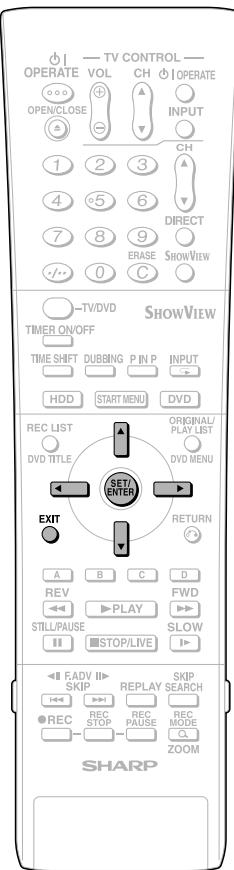
Basic Operation for REC. FUNCTION Setting
This operation is available in both HDD mode and DVD mode.
Example: Setting "EXTERNAL AUDIO" under "REC FUNCTION"
1 ① Press START MENU to display "START MENU" screen. ② Press ▲/▼/◀/▶ to select "OTHER SETTINGS 1", then press SET/ENTER.
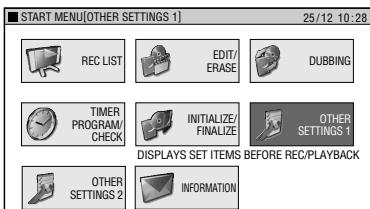
2 Press ◀/▶ to select "REC. FUNCTION".
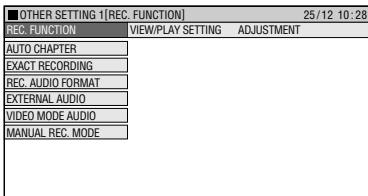
3 Press ▲/▼ to select "EXTERNAL AUDIO", then press SET/ENTER.
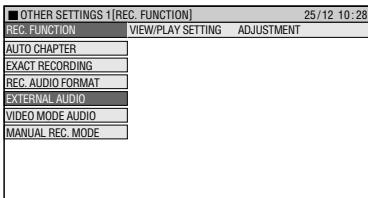
4 Press ◀ to select the option you want to set, then press SET/ENTER.
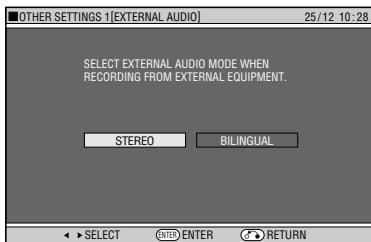
5 Press EXIT to exit from External Audio Setting.
VIEW/PLAY SETTING
| PASSWORD SETTING | PASSWORD • This sets the password for setting or changing Parental Control. | 4 digit number |
| DVD PLAY SETTING | PARENTAL CONTROL • This lets you set Parental Control depending on disc content. • Level 1: For most restricted viewing → Level 8: For adult viewing (The smaller the number, the greater the level of restriction.) • When “PARENTAL CONTROL” is set to “OFF”, DVD discs can be played back regardless of the parental level. • Parental Control cannot be set if a password has not been set. | OFF, LEVEL:1-8 COUNTRY CODE * Refer to the Country Code List below. |
| DISC LANGUAGE • This lets you select the language for subtitle, audio and menu displayed on the screen. | SUBTITLE AUDIO MENU * Refer to the Language Code List below. |
Country Code List
| USA | UK | HOLLAND | HONG KONG | TAIWAN |
| CANADA | ITALY | NORWAY | SINGAPORE | PHILIPPINE |
| JAPAN | SPAIN | DENMARK | THAILAND | AUSTRALIA |
| GERMANY | SWISS | FINLAND | MALAYSIA | RUSSIA |
| FRANCE | SWEDEN | BELGIUM | INDONESIA | CHINA |
Language Code List
| AA | Afar | EU | Basque | KK | Kazakh | OM | Afan (Oromo) | SW | Swahili |
| AB | Abkhazian | FA | Persian | KL | Greenlandic | OR | Oriya | TA | Tamil |
| AF | Afrikaans | FI | Finnish | KM | Cambodian | PA | Panjabi | TE | Telugu |
| AM | Ameharic | FJ | Fiji | KN | Kannada | PL | Polish | TG | Tajik |
| AR | Arabic | FO | Faroese | KO | Korean | PS | Pashto, Pushto | TH | Thai |
| AS | Assamese | FR | French | KS | Kashmiri | PT | Portuguese | TI | Tigrinya |
| AY | Aymara | FY | Frisian | KU | Kurdish | QU | Quechua | TK | Turkmen |
| AZ | Azerbaijani | GA | Irish | KY | Kirghiz | RM | Rhaeto-Romance | TL | Tagalog |
| BA | Bashkir | GD | Scots Gaelic | LA | Latin | RN | Kirundi | TN | Setswana |
| BE | Byelorussian | GL | Galician | LN | Lingala | RO | Romanian | TO | Tonga |
| BG | Bulgarian | GN | Guarani | LO | Laothian | RU | Russian | TR | Turkish |
| BH | Bihari | GU | Gujarati | LT | Lithuanian | RW | Kinyarwanda | TS | Tsonga |
| BI | Bislama | HA | Hausa | LV | Latvian, Lettish | SA | Sanskrit | TT | Tatar |
| BN | Bengali, Bangla | HI | Hindi | MG | Malagasy | SD | Sindhi | TW | Twi |
| BO | Tibetan | HR | Croatian | MI | Maori | SG | Sangho | UK | Ukrainian |
| BR | Breton | HU | Hungarian | MK | Macedonian | SH | Serbo-Croatian | UR | Urdu |
| CA | Catalan | HY | Armenian | ML | Malayalam | SI | Singhalese | UZ | Uzbek |
| CO | Corsican | IA | Interlingua | MN | Mongolian | SK | Slovak | VI | Vietnamese |
| CS | Czech | IE | Interlingue | MO | Moldavian | SL | Slovenian | VO | Volapük |
| CY | Welsh | IK | Inupiak | MR | Marathi | SM | Samoan | WO | Wolof |
| DA | Danish | IN | Indonesian | MS | Malay | SN | Shona | XH | Xhosa |
| DE | German | IS | Icelandic | MT | Maltese | SO | Somali | YO | Yoruba |
| DZ | Bhutani | IT | Italian | MY | Burmese | SQ | Albanian | ZH | Chinese |
| EL | Greek | IW | Hebrew | NA | Nauru | SR | Serbian | ZU | Zulu |
| EN | English | JA | Japanese | NE | Nepali | SS | Siswat | ||
| EO | Esperanto | JI | Yiddish | NL | Dutch | ST | Sesotho | ||
| ES | Spanish | JW | Javanese | NO | Norwegian | SU | Sundanese | ||
| ET | Estonian | KA | Georgian | OC | Occitan | SV | Swedish |
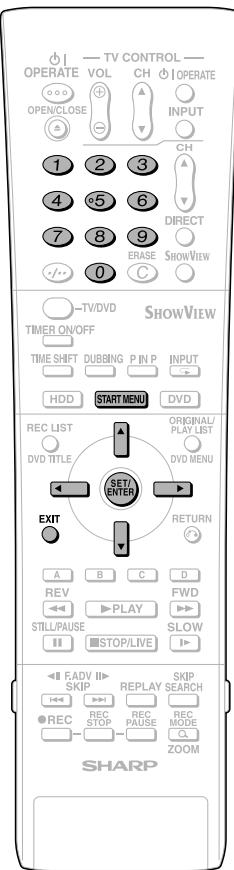
Basic Operation for VIEW/PLAY SETTING
This operation is available in both HDD mode and DVD mode.
Example: Setting "DVD PLAY SETTING" under "VIEW/PLAY SETTING"
1 ① Press START MENU to display "START MENU" screen. ② Press ▲/▼/◀/▶ to select "OTHER SETTINGS 1", then press SET/ENTER.
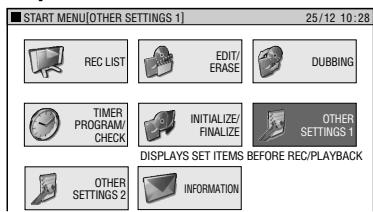
2 Press ◀ to select "VIEW/PLAY SETTING", then press SET/ENTER.
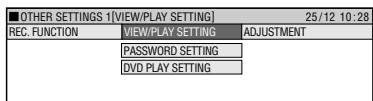
3 Press ▲/▼ to select "DVD PLAY SETTING", then press SET/ENTER.
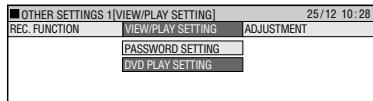
4 Press ▲/▼ to select "PARENTAL CONTROL", then press SET/ENTER.
- The password input screen appears. It changes to the following screen after you input your password and press SET/ENTER.
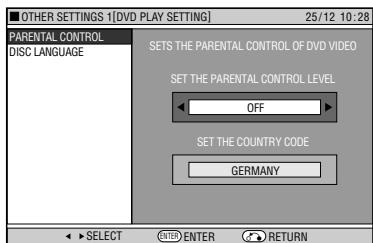
5 Press ◀ to select the desired parental control level, then press SET/ENTER. 6 Press ◀/▶ to select the country code, then press SET/ENTER. 7 Press EXIT to exit from Parental Control Setting screen.
Password Setting
① Select "password setting" in step 3, then press SET/ENTER. ② Press ◀/▶ to select "YES", then press SET/ENTER. ③ Press Number buttons to input 4 digit password, then press SET/ENTER. ④ Press Number buttons to input password for confirmation, then press SET/ENTER. ⑤ Press SET/ENTER at the "OK" screen.
NC
If you forget your password
- If you forget your password, and you wish to return the password to its initial state, press STOP/LIVE 4 times in a row at the Password Setting screen.
Disc Language Setting
- You can set subtitle language, audio language and menu language.
① Select "DISC LANGUAGE" in step 4, then press SET/ENTER. ② Press ◁/▷ to select subtitle language, then press SET/ENTER. ③ Press ◁/▷ to select audio language, then press SET/ENTER. ④ Press ◁/▷ to select menu language, then press SET/ENTER.
| VIDEO/AUDIO SETTING | TV MODE ·If you switch your TV (i.e. because you have bought a new one) and the screen size of the connected TV changes, you will have to change the "TV MODE" setting. ·You can set the screen aspect ratio of the connected TV, and adjust video output. ·Select "TV MODE" from "VIDEO/AUDIO SETTING". WIDE 16:9: Select this when connecting with a TV with a 16:9 screen aspect ratio. NORMAL 4:3: Select this when connecting with a TV with a 4:3 screen aspect ratio. LETTER BOX: If you connect with a TV whose screen aspect ratio is 4:3 and playback a DVD with 16:9 video, the video will be played back with black bands at the top and bottom, while maintaining the 16:9 ratio. PAN SCAN: If you connect with a TV whose screen aspect ratio is 4:3 and playback a DVD with 16:9 video, the video will be played back with the left and right sides of the image cut off to display in 4:3 screen aspect ratio. (This function works if the disc is labeled for 4:3PS.) | WIDE 16:9 NORMAL 4:3 LETTER BOX PAN SCAN |
| DIGITAL AUDIO OUTPUT ·You can set this to enjoy Dolby Digital sound, DTS or MPEG sound when connecting with digital input compatible device using Digital cable. PCM: This setting is for when you digitally connect with 2ch audio device or an MD recorder. This changes Dolby Digital sound, DTS or MPEG sound to PCM (uncompressed) output which can be played back with 2ch audio device. BIT STREAM:This setting is for when you digitally connect with audio device which is compatible with Dolby Digital sound, DTS or MPEG sound. You can also enjoy DTS audio if you connect with an amplifier or other component which is compatible with DTS digital surround. ·When a DTS signal is input, the data is output as a bit stream even if "DIGITAL AUDIO OUTPUT" is set to "PCM". | PCM BIT STREAM | |
| DD OUTPUT LEVEL ·This lets you adjust the range between the loudest and softest sound (dynamic range), and play back at the average volume. Use this when it is hard to hear dialog. NO: This outputs recorded audio as is. YES*: This raises the average volume when playing back Dolby Digital audio so that the volume sounds the same as an audio CD. (If the audio sounds abnormal, set to "NO"). * Lower the volume before setting. If you do not do so, the speaker may emit a loud sound, or excessive input may be applied to the speaker. | NO YES |
ADJUSTMENT
| VIDEO/ AUDIO SETTING | DNR (DIGITAL NOISE REDUCTION)· This lets you reduce noise for an easier to view picture when noise in the played back image is bothering you. It is recommended to set this to “ON” when playing back video recorded in long play modes like LP mode or EP mode, and to “OFF” when playing back discs with little noise (like DVD video). | ON OFF |
| OPTION SETTING | HI SP DUB PRIORITY· To perform high speed dubbing from the HDD to a DVD in Video mode, set this to “YES” before recording to the HDD.· If you wish to edit in frame units, set this to “NO”. For details of “HIGH SPEED DUBBING PRIORITY”, refer to page 45. | YES NO |
| SEAMLESS PLAYBACK· This setting is for smoother playback of the transitions between scenes when you have edited an original title or play list. (The transition point may shift about one second.) | YES NO | |
| ALTERNATE RECORDING· This function is for switching recording to HDD when you originally set to record to DVD-RW/R but could not because of the disc situation. This function works in the following cases.* ① When there is not enough disc capacity left in DVD. ② When a disc which cannot record is loaded. ③ When you forget to load a disc. ④ When a disc is playing within 2 minutes prior to the start of timer recording.* In case ①, when the remaining capacity of HDD is less than that of DVD, the recording will continue on to DVD. | YES NO | |
| ADJUSTMENT | ||
| OPTION SETTING | LCD BACKLIGHT REC. | NO YES |
| ·This sets whether to turn the LCD backlight on or off during timer recording. NO: This sets so that the LCD backlight remains lit, even during timer recording. YES: This lets you turn off the LCD backlight only when the power is off (standby state) and timer recording starts. It is convenient to set this, for example, when the light disturbs your sleep. | ||
| AUTO POWER OFF | YES NO | |
| ·This sets the Recorder so that power is automatically shut off if it is in stopped state for about 3 hours. | ||
| BLUE SCREEN | OFF ON | |
| ·This lets you set so that noise on the TV screen is automatically switched to a blue screen if you select a channel whose broadcast is finished, or a channel with no broadcast. | ||
| DV SETTING | DV LINK OFF ON DV AUDIO INPUT STEREO 1 STEREO 2 STEREO 1 + STEREO 2 | |
| ·This lets you operate the connected digital camcorder from the Recorder when capturing video into the Recorder via a DV connec-tion. You can also select the type of audio to be captured from the camcorder. DV LINK OFF: Select this when you cannot operate the camcorder properly with the On-screen Control Panel. ON: This lets you operate the camcorder using the On-screen Control Panel. DV AUDIO INPUT STEREO 1*: This lets you capture audio you recorded with the camcorder. STEREO 2*: This lets you capture camcorder's audio you recorded using after recording. STEREO 1 + STEREO 2*: This lets you simultaneously capture audio from stereo 1 and audio from stereo 2. * When the connected digital camcorder's audio output is set to 16 bit, this setting will be invalid. | ||
| DVD DISC PROTECTION | NOT PROTECT PROTECT | |
| ·This protects the disc so you do not mistakenly record on it or erase its content. | ||
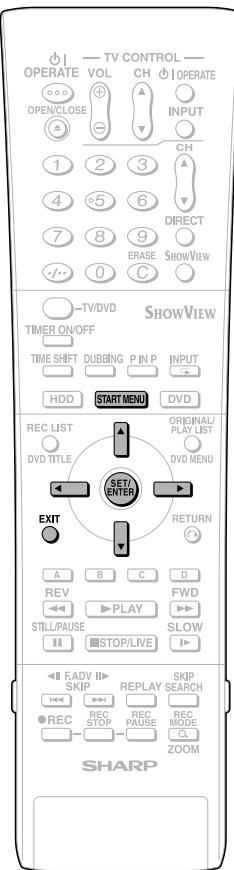
Basic Operation for ADJUSTMENT Setting
Example: Setting "VIDEO/AUDIO SETTING" under "ADJUSTMENT"
1 ① Press START MENU to display START MENU screen. ② Press ▲/▼/◁ to select "OTHER SETTINGS 1", then press SET/ENTER.
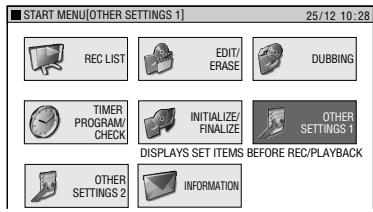
2 Press ◁ to select "ADJUSTMENT".
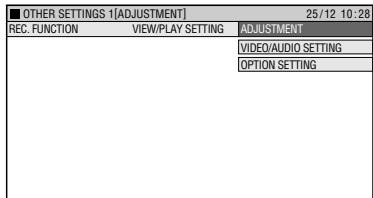
3 Press ▲/▼ to select the setting you want to set, then press SET/ENTER.
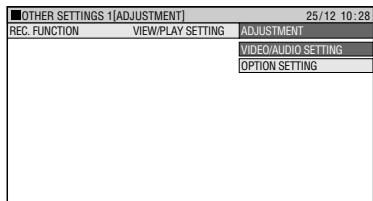
4 ① Press ▲/▼ to select the item you want to select, then press SET/ENTER.
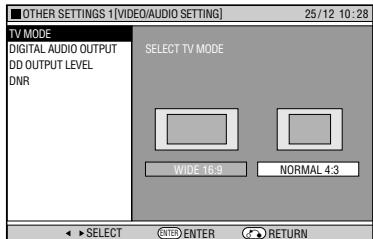
② Press ◁/▷ to select the desired option, then press SET/ENTER.
5 Press EXIT to exit.
Functions under OTHER SETTINGS 2
This section explains various settings relating to input/output of video/audio signal, TV channel preset and clock. - For details about each setting, see the corresponding pages.
MODE SETTING → page 92
MANUAL TUNING → page 94
CHANNEL SORT → page 94
CLOCK SETTING → page 94
MODE SETTING
| NICAM ·This recorder can receive and record NICAM or A2 broadcasts. NICAM broadcasts will be received when “AUTO” is selected in the NICAM setting. Depending on the received programme, some NICAM or A2 broadcasts may not be in stereo. | AUTO OFF |
| L1 OUT ·This sets the type of video signal output from L1 (TV) according to the specification of connected TV. ■NOTE ·To view an RGB output video, press the TV/DVD button on the remote control and switch to DVD mode. | Y/C RGB COMP. |
| L2 IN ·This sets the type of video signal input from L2 (DECODER/EXT). | Y/C COMP. |
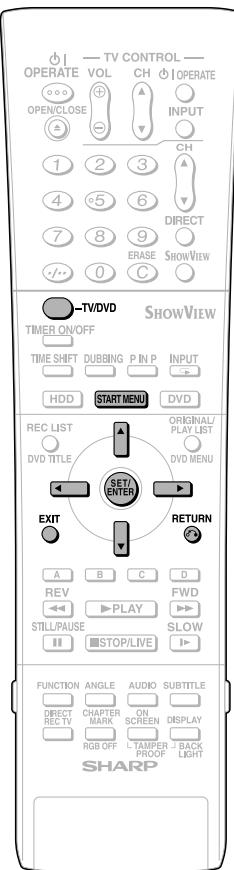
Basic Operation for MODE SETTING
Example: Setting "NICAM" under "MODE SETTING"
1 Press START MENU to display the "START MENU" screen. 2 Press ▲/▼/◀ to select "OTHER SETTINGS 2", then press SET/ENTER. 3 Press ▲/▼ to select "MODE SETTING", then press SET/ENTER to confirm.
- The MODE menu is displayed with NICAM selected.
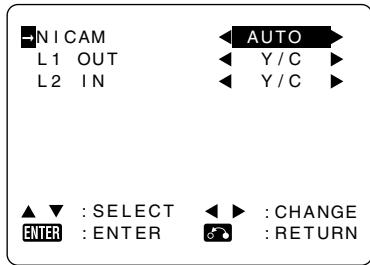
4 Press ◀ to select "OFF". 5 Press SET/ENTER to confirm and return to the menu screen. 6 Press START MENU or EXIT to exit to normal screen.
About NICAM/A2
This recorder can receive and record NICAM or A2 broadcasts. NICAM broadcasts will be received when "AUTO" is selected in the NICAM setting. Depending on the received programme, some NICAM or A2 broadcasts may not be in stereo.
NICAM Broadcast
The monitor output listed in the table shows the audio output mode. The contents of audio recording are different between VR mode and Video mode. See the tables below for details.
About audio recording
| Broadcast | EXTERNAL AUDIO | RECORDING AUDIO | |||
| VIDEO MODE AUDIO | VR MODE | VIDEO MODE | |||
| L | R | L | R | ||
| NICAM/A2 STEREO | STEREO | L | R | L | R |
| BILINGUAL | L | R | L | R | |
| L | |||||
| BILINGUAL | L | R | L | R | |
| R | |||||
| NICAM/A2 BILINGUAL | STEREO | L | R | L | R |
| BILINGUAL | L | R | L | L | |
| L | |||||
| BILINGUAL | L | R | R | R | |
| R | |||||
| NICAM/A2 MONO | STEREO | MONO | MONO | MONO | MONO |
| BILINGUAL | MONO | MONO | MONO | MONO | |
| L | |||||
| BILINGUAL | MONO | MONO | MONO | MONO | |
| R | |||||
- When making a PCM recording of bilingual sound, only the audio selected in "VIDEO MODE AUDIO" is recorded.
- When recording audio in the PCM format with the recording mode set to "FINE" or "MN32", audio is recorded in the same format as recorded to DVD-RW/R disc in Video mode.
- When a disc recorded in monaural audio is played back, monaural audio is played back even though "STEREO" is displayed on the screen.
About audio selection
| Broadcast | Audio Mode* Displayed on screen | Display of Broadcast Received | Display of Audio Received | Audio Output | |
| L | R | ||||
| NICAM STEREO | MONO | NICAM STEREO | - | L+R | L+R |
| L R | NICAM STEREO | L R | L | R | |
| NICAM BILINGUAL | L R | NICAM I/II | L R | L | R |
| L | NICAM I/II | L | L | L | |
| R | NICAM I/II | R | R | R | |
| NICAM MONO | MONO | NICAM | - | MONO | MONO |
| STEREO (Except NICAM) | MONO | STEREO | - | L+R | L+R |
| L R | STEREO | L R | L | R | |
| BILINGUAL (Except NICAM) | L R | I/II | L R | L | R |
| L | I/II | L | L | L | |
| R | I/II | R | R | R | |
| MONO (Except NICAM) | MONO | - | - | MONO | MONO |
- Audio mode is selected with the AUDIO button on the remote control.
MANUAL TUNING*1
| PRESET ·This lets you preset the channels into memory. A maximum of 84 channels can be preset. | 1 - 84 |
| CHANNEL ·For details, see “Channel Setting” on page 26. | CHXX |
| FINE TUNING ·This lets you obtain sharp colour picture. | |
| DECODER ·If there have a separate decoder connected to the L2 terminal of the Recorder, set this function to “ON” in order to record the unscrambled signal and/or watch it on your TV. | ON OFF |
| SKIP ·This determines whether the channel can be selected when using CH ▲/▼ instead of Number buttons. | ON OFF |
*1 For details, see page 26.
CHANNEL SORT*2
| MOVE ·When your Recorder tunes in broadcast channels automatically, it sorts them into a standard order using internal information. The “MOVE” function lets you change the order of the channel. | |
| CANCEL ·This lets you delete a channel from the Recorder memory. | |
| NAME ·When your Recorder tunes in broadcast channels automatically, it names them using the VPS/PDC information. The “NAME” function lets you change the name of the channel. |
*2 For details, see pages 26, 27.
CLOCK SETTING*3
| CLOCK ·The clock will normally be set using the VPS/PDC information when your Recorder automatically tunes in the broadcast channels. If for any reason the VPS/PDC signals are not present, your Recorder will not be able to set the clock. The “CLOCK” function lets you set the clock manually. | TIME:XX:XX(24H) DATE:Day/Month YEAR:XX ADJUST: *:AUTO/:-OFF |
*3 For details, see page 25.
Initialization
Before recording to DVD-RW, initialize the disc in VR mode or Video mode.
You can also initialize the HDD. Initialize the HDD only after dubbing important recordings onto DVD-RW/R disc(s).
Finalization
Finalization is done so that a recorded DVD-RW/R disc can be played back with other recorders.
| INITIALIZE | ||
| INITIALIZE | DVD VR MODE INIT. | YES NO |
| ·When recording with a DVD-RW in VR mode, initialize in VR mode before you start recording. (When you initialize, all of the recorded content of the disc is erased. Before initializing, check the content of the disc so that you do not erase any content you need.) ·You cannot initialize if "DVD DISC PROTECTION" is set to "PROTECT". (page 90) | ||
| DVD VIDEO MODE INIT. | YES NO | |
| ·When recording with a DVD-RW disc in Video mode, initialize in Video mode before you start recording. (When you initialize, all of the recorded content of the disc is erased. Before initializing, check the content of the disc so that you do not erase any content you need.) ·You cannot erase with DVD-R disc. | ||
| AUTO INITIALIZE | VR VIDEO | |
| ·This sets the Recorder so it automatically initializes any unused DVD-RW discs which are loaded into the Recorder. You can initialize in either VR mode or Video mode. | ||
| HDD INITIALIZE | YES NO | |
| ·If an HDD error message is displayed, or if you wish to return the HDD to the state it was in when the Recorder was purchased, initialize the HDD. All recorded video will be erased. (If you use the "ERASE ALL TITLES" function to erase the titles, protected titles will remain, but if you use the HDD initializing function, all titles will be erased.) Dub any important recordings to DVD-RW/R disc(s) before initializing the HDD. | ||
| FINALIZE | ||
| DVD FINALIZE | DVD FINALIZE • Set this when you want to playback a VR mode or Video mode disc using another recorder capable of playback. If you finalize a recording on DVD-R disc, you will not be able to record any more on the disc. • Finalization can take anywhere from a few minutes to one hour. During finalization, all types of operation are disabled (including turning off power and removing the disc). • Do not unplug the power cord during finalization. Doing so may make the disc unusable. | YES NO |
| UNDO DVD FINALIZE • This resets a finalized DVD-RW disc so you can record on it again. | YES NO | |
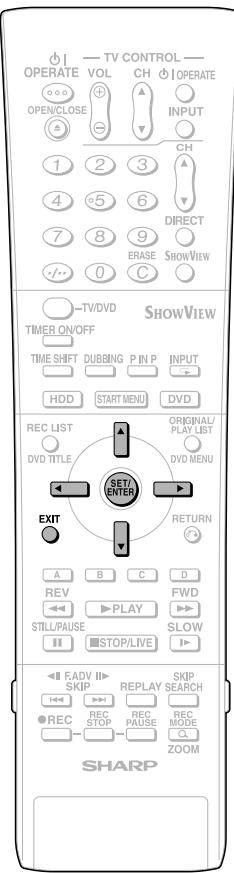
Basic Operation for INITIALIZE/FINALIZE
Example: Setting "DVD VR MODE INIT." (VR mode)
1 ① Press START MENU to display "START MENU" screen.
② Press ▲/▼/◀ to select "INITIALIZE/FINALIZE", then press SET/ENTER.
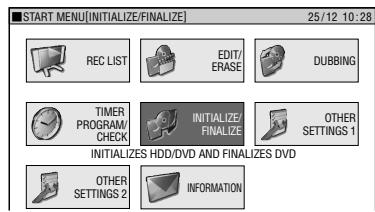
2 Press ▲/▼ to select "INITIALIZE" or "FINALIZE", then press SET/ENTER.
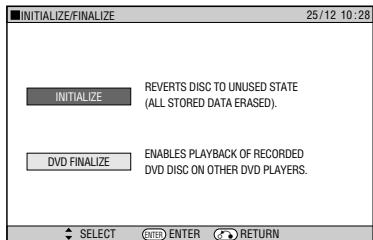
3 Press ▲/▼ to select "DVD VR MODE INIT.", then press SET/ENTER.
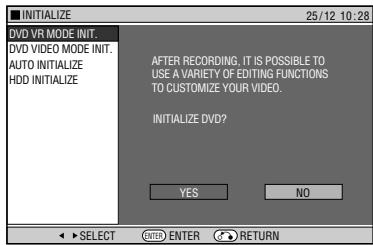
4 ① Press ◀/▶ to select "YES", then press SET/ENTER. Initializing (or finalizing) will be executed.
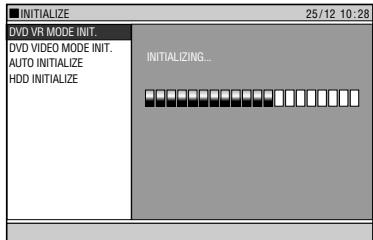

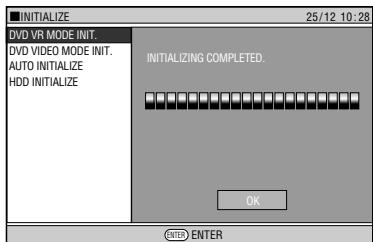
- Initializing (or finalizing) will be completed. ② Press SET/ENTER.
- Screen in step 2 appears.
5 Press EXIT to exit from "INITIALIZE/FINALIZE" screen.
NOTE
- Finalization processing will take anywhere from a few minutes to about an hour. (Processing will take time if there is a lot of empty space or if there are many titles on the DVD disc.)
The following problems do not always suggest a defect or malfunction of this Recorder. Perform the checks listed below before calling service.
| Problem | Suggested Solution |
| The Recorder power does not turn on. | • Is the power cord firmly plugged into the AC outlet? • If the power cord is plugged into the outlet, unplug it once, wait about one minute, and then plug it in again. Then turn power on. |
| The Recorder sounds like it is operating, even when power is turned off. | • This is the sound the Recorder makes during operation like timer recording. |
| The disc is automatically ejected after closing the disc tray. | • Make sure that the disc is loaded properly (aligned in disc tray and label-side up). • Take out the disc and clean it. • Make sure that region number on the disc match the region number in this Recorder. • Make sure that the disc is playable. |
| No picture. | • Make sure that the cables are connected correctly. • Make sure that the connected TV or the AV amplifier is set to the correct input. • Take out the disc and clean it. • Make sure that region number on the disc match the region number in this Recorder. |
| The Recorder does not play a disc. | • Take out the disc and clean it. • Make sure that the disc is loaded properly (aligned in disc tray and label-side up). • Make sure that region number on the disc match the region number in this Recorder. • Remove the dew in the Recorder. • Check that the disc is recorded in PAL format. • The Recorder cannot playback video which was not recorded normally. • Proper playback may be impossible due to the state of the disc recording, a scratched, warped or dirty disc, the state of the pick-up, or compatibility issues between this Recorder and the disc being used. |
| Settings have disappeared. | • If, while its power is on, the Recorder is unplugged (or there is a power failure) for more than about 1 hour, the settings will be lost. Make sure that you turn off the Recorder before unplugging the power cord. |
| Screen freezes and operation buttons do not work. | • Press STOP/LIVE and restart playback. • Turn off the power and turn on the power again. • If power does not go off, press the RESET button inside the front door of the Recorder.(Page 99) |
| The remote control does not work. | • Is the Tamper Proof function active?(Page 33) • Set the remote control and the Recorder to the same remote control code.(Page 19) • Use the remote control within its operating range. • Replace the batteries. |
| No sound or sound is distorted. | • If the volume of TV or amplifier is set to minimum, turn the volume up. • There is no sound during still mode, slow motion playback, fast forward and fast reverse. • DVD audio recorded in DTS is only output from the DIGITAL AUDIO Output terminals. Connect a DTS-compatible digital amplifier or decoder to the DIGITAL AUDIO Output OPTICAL or COAXIAL terminal on this Recorder. • Check that the audio cable is connected correctly. • Check that the cable plugs are clean. • Take out the disc and clean it. • Audio may not be output depending on the audio recording status, such as when audio other than an audio signal or non-standard audio is recorded for the audio content of the disc. |
| The picture from external input is distorted. | • If the signal is copy-protected, you cannot connect via this Recorder. Connect the external equipment directly to your TV. |
| The screen is stretched vertically or horizontally. | • Set the TV mode according to the TV you are connecting.(Page 88) • If the above operation does not set the TV mode, set it using the functions of the connected TV. |
| A disc recorded using this Recorder cannot be played back on another DVD player. | • Check that the disc is finalized when the disc is in video mode. • Some players will not play even a finalized disc. • If the disc was recorded in VR mode, it can only be played back with an RW compatible player. (In some cases, the disc must be finalized.) |
| The playback screen will be disturbed if DVD video is recorded to a VCR, or played back through a VCR. | This Recorder is compatible with the copy guard of analogue copy protect system. Some discs contain a copy prohibiting signal. If you try to playback such a disc through a VCR, or record to a VCR and playback, copy guard will prevent normal playback. |
| TV operates incorrectly. | Some TVs with wireless remote control capability may operate incorrectly when using the remote control of this Recorder. Use such TV away from this Recorder. |
| Recording stops. | Recording may stop temporarily at parts where recording is impossible (due to scratches or disc fouling, etc.). When recording starts again, the starting part will be recorded as another title. If the disc is in a condition where recording is impossible, it is ejected. When the recording is interrupted, you might lose a few minutes of the recorded content immediately before the interrupted point. |
| You recorded, but nothing was recorded on disc. | If you record a channel with no broadcast (i.e. where the broadcast has ended), recording will be done with no video. Likewise, if you record a channel with poor reception, recording may be done with no video. Clean the disc. |
| Cannot record, or recording stops while in progress. | Check whether there is enough empty space on the disc being recorded to. Check whether the disc is protected. Check whether the number of original titles is 199 (for the HDD) or 99 (for a DVD-RW/R). Check whether you are trying to record video whose recording is prohibited. Check whether there was a power failure while waiting for (or during) timer recording. Clean the disc. Proper playback may be impossible due to a scratched, warped or dirty disc, the state of the pick-up, or compatibility issues between this Recorder and the disc being used. |
| When a digital camcorder is connected to the DV IN terminal, video from the camcorder does not appear, or there is no sound, or the system operates incorrectly. | Check connections. Turn off the power of both the Recorder and camcorder once, and then turn it on again. Reconnect DV cable. Try setting "DV LINK" to "OFF" using "DV SETTING" screen.(Page 90) Switch input audio using "DV SETTING" screen.(Page 90) |
| Cannot operate the digital camcorder connected to the DV IN terminal. | Set "DV LINK" to "ON" using "DV SETTING" screen. You can operate using the On-screen Control Panel. Operation may be impossible, depending on the connected camcorder. |
| There is no video and no audio. | Is the power cord unplugged from the AC outlet? Is power in the "OFF" state? Does the broadcast have no video or audio? Has the Recorder been switched to external input? |
| There is just audio with no video. | Is the connection cable for video output connected properly? |
| Horizontally wide video appears vertically tall, or black bands appear at the top and bottom of the screen. | Is "TV MODE" set to match the connected TV? (Page 88) If you are using a wide TV, is the "TV MODE" set to "WIDE"? (Page 88) |
| Square noise (mosaic) appears on the screen. | Pictures in blocks may be conspicuous in scenes with rapid movement due to the characteristics of digital image compression technology. |
| Video stops. | Has the Recorder been subjected to shock or impact? Are you using it at an unstable location? The Recorder will stop if it senses shock or vibration. The picture may be disturbed in very rare cases due to the characteristics of the HDD. This is not a malfunction. |
| Left and right channels of audio are reversed, or sound comes out of only one side. | Are left and right audio cables connected to the opposite terminal, or is one side disconnected? |
| DVD disc does not play back automatically. | Has HDD been selected instead of DVD? Playback will start automatically by switching to DVD. Have you set a DVD video disc that has an automatic playback function? |
| Timer recording was set, but not executed. | Was there a power failure while standing by for timer recording? Is the HDD or DVD full? Erase unnecessary titles from the list. Were you performing dubbing? If you use the Recorder at a location with low temperature, the HDD may enter the preparation state. Set and leave power "ON" for a while before timer recording is performed. Is the power cord unplugged from the AC outlet? |
| The timer recorded content stops in the middle of recording. | Was the power plug unplugged, or was there a power failure, during timer recording? Is the HDD or DVD full? Erase unnecessary titles from the list. Recording will stop if a programme whose recording is forbidden begins in the middle of recording. Clean the disc. If there is a power failure or other power problem during recording to DVD-RW/R, recording will stop in the middle. If there is a power failure or other power problem during recording to HDD, that program will be lost. |
| The REC LIST (THUMBMAIL or TITLE LIST) is not displayed. | The REC LIST cannot be displayed during Time Shift Viewing or ChasingPlayback. Press the STOP/LIVE button, and return to live viewing. If you use the Recorder at a location with low temperature, the HDD may enter the preparation state. Please wait a while. There may be a problem with the HDD. Contact the nearest service centre approved by Sharp. |
| When a CD is recorded to MD using digital connection, the CD and MD do not have the same track numbers. | If the interval between CD tracks is short, the track numbers on the recorded MD may differ from the CD. |
| The Recorder makes a sound even when there is no operation. | If you do not operate the Recorder for a certain time while power is ON, you will hear the sound of the HDD operating. This is not a malfunction. |
| The Recorder heats up during use. | When using this Recorder, the console cabinet may heat up, depending on the use environment. This is not a malfunction. |
| The Recorder makes a snapping sound when starting recording, playback or loading a disc. | The Recorder may sometimes make a snapping sound when starting recording or playback if you have not operated it for a while or when loading a disc. This is the sound of the Recorder operating, and is not a malfunction. |
| A blinking "... appears on the front display panel. | The clock has not been set. Set the clock. |
- If this Recorder receives strong interference from strong external noise such as excessive static electricity, malfunction of power supply voltage caused by lightning during Recorder use or a wrong operation is sent to the Recorder, errors like the Recorder not accepting an operation may occur.
- Press RESET with a toothpick or other narrow rod-like object (nonmetal) when the Recorder does not operate properly even after the power has been turned off and then back on again.
- Since the clock, channel, timer recording programmes and other data in memory are also reset when RESET has been pressed, they must be set again.
- When the problem persists even after pressing RESET, unplug the power cord and plug it again. If this does not solve the problem, contact the nearest service centre approved by Sharp. RESET button
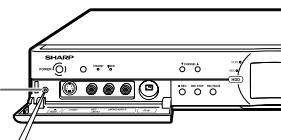
On-screen Error Messages
Messages Relating to DVD Discs and the HDD
- The following messages appear on the TV screen in case the disc you tried to playback is not appropriate or the operation is not correct.
| Error message | Possible Error | Suggested Solution |
| CANNOT PLAY BACK THIS DISC. | ·The disc cannot be played back with this Recorder. | ·Check the disc, and load it correctly. |
| THIS IS A NON-STANDARD DISC. | ·If you load a disc which cannot be played with this Recorder (i.e. a scratched disc), or if you load a disc upside down, this message will appear, and the disc tray will automatically pop out. | |
| REGION CODE OF DISC IS WRONG. | ·Occurs if you load a DVD disc whose region number is not "ALL" or whose region number does not contain "2". | |
| DISC IS NOT INSERTED. | ·Occurs if no disc is loaded in the disc tray. | |
| CANNOT OPERATE THIS FUNCTION. | ·Occurs if operation is incorrect. | —— |
| DISC IS PROTECTED. | ·Occurs if you attempt to record or edit a disc for which disc protection is set. ·Occurs if you attempt DV input of video which cannot be recorded, and attempt to record to a DVD. | ·Cancel disc protection, or reload a recordable disc. |
| COULD NOT REPAIR THE DISC. | ·If there is a power failure during DVD recording, the system automatically tries to recover data after power is restored. This error occurs if such recovery is impossible. | —— |
| COULD NOT FINALIZE. | ·Occurs if the disc is scratched or dirty, etc. | ·Check the disc, and load it correctly. |
| THIS VIDEO IS COPY PROTECTED. RECORDING IS NOT POSSIBLE. | ·Occurs if video with a copy guard signal is input. | ·Cannot record. |
| CANNOT RECORD MORE. | ·Occurs if a title or chapter mark exceeds the recordable upper limit. ·Number of titles: HDD 199/DVD 99. Number of chapters: HDD 999/DVD 999 | ·Erase unnecessary titles. ·Either erase unnecessary chapters, or combine chapters. |
| CANNOT RECORD ON THIS DISC. | ·Occurs if you load a disc which cannot be recorded to with this Recorder, or a disc which is scratched or dirty. | ·Reload an appropriate recording disc. |
| NO TAPE INSERTED IN DV CAMCORDER. | ·Occurs if you attempt operation when a tape has not been loaded in the digital camcorder linked via DV connection. | ·Load a tape into the digital camcorder. |
| CONNECTING TO DV CAMCORDER. | ·Occurs if the digital camcorder power goes off or the cable is pulled out while connecting to DV. | ·Check the power of digital camcorder or cable connection. |
| ·Occurs if connection with the digital camcorder is broken. | ·System is performing reconnection processing. Wait about 30 seconds. | |
| COULD NOT INITIALIZE. | ·Occurs if the disc is scratched or dirty, etc. | ·Check the disc, and load it correctly. |
| DISC IS FULL. CANNOT RECORD OR STORE. | ·Occurs if there is no empty space in the disc. | ·Load a disc with empty space. ·Erase unnecessary titles. |
| THIS VIDEO CANNOT BE RECORDED TO THIS DISC. | ·Occurs if you try to record a "Copy Once" broadcast onto a disc which is not compatible with CPRM. | ·Load a CPRM compatible disc (DVD-RW Ver. 1.1 or higher) initialized in VR mode. |
| CANT DETECT CAMCORDER. | ·Occurs if you set to DV input without connecting a digital camcorder. ·Occurs if multiple digital camcorders are connected. | ·Connect a digital camcorder, and reset again to DV input. |
| SET THE DATE AND TIME. | ·Occurs if timer programming is done when the Recorder clock has not been set. | ·Set the clock and perform timer programming again. |
| RECORDING WAS STOPPED DUE TO FULL DISC. | ·Occurs when empty space in the disc runs out. | —— |
| REPAIRING THE DISC. | ·Occurs when recording stops before disc information has been correctly written onto a DVD, due to a problem like a power failure. | ·Wait until DVD disc recovery is finished. |
| THIS IS A NON-STANDARD DISC. REMOVE IT. | ·Occurs if the loaded disc cannot be recorded to or played because it is a non-standard or scratched, etc. | ·Remove the disc. |
| THIS VIDEO CANNOT BE RECORDED TO THIS DISC. TIMER RECORDING COULD NOT START. | ·Occurs if you try to record “Copy Once” video onto DVD-R or non-CPRM compatible DVD-RW. | ·Record on CPRM compatible DVD-RW disc in VR mode. |
| LIVE BROADCAST RECORDING PROHIBITED. RECORDING STOPPED. | ·Occurs if a programme begins during recording, and recording of the broadcast itself is forbidden due to copyright protection. | —— |
| THIS VIDEO IS COPY PROTECTED. RECORDING IS NOT POSSIBLE. | ·Occurs if you attempt to record a programme, and recording of the broadcast itself is forbidden due to copyright protection. | —— |
| CANNOT OPERATE DUE TO HDD ERROR. CAN VIEW LIVE BROADCASTS ONLY. CONTACT THE NEAREST SERVICE CENTRE APPROVED BY SHARP. | ·Occurs when there is a problem with the HDD, and when you perform an operation which requires HDD operation, like special playback or recording. | ·Initialize the HDD once. If initializa-tion does not solve the problem, please contact the nearest service centre approved by Sharp as soon as possible. |
| SYSTEM ERROR. POWER IS OFF. | ·If a problem occurs with the HDD while power is “ON”, power is shut off automatically. | —— |
| CHECKING HARD DISC. CAN ONLY VIEW LIVE BROADCAST UNTIL CONFIRMATION IS OVER. | ·Occurs if there is a power failure, or the power cord is unplugged and plugged in again while power is “ON”. | ·It may take 1-2 minutes to check the HDD. During this time, you can only watch live broadcasts. Wait a while until the check is over. |
| THIS PROGRAM COPY IS PRO-TECTED. CANNOT VIEW TIME SHIFT. | ·Occurs if time shift viewing is impossible because recording of the broadcast itself is forbidden by copyright protection. | ·You can only view live broadcasts. |
Messages during Special Playback
| Error message | Possible Error | Suggested Solution |
| CANNOT OPERATE DUE TO THE CONDITION OF HARD DISC. | • Occurs if you perform operation like special playback when there is problem with the HDD. | • The HDD must be repaired, so contact the nearest service centre approved by Sharp as soon as possible. |
| HARD DISC IS NOT READY YET. CANNOT OPERATE. | • Occurs if you perform operation requiring operation of the HDD (like special playback or recording) during HDD preparation. | • You can only view live broadcasts until preparation is finished. Wait a while until operation is enabled. (If you use the Recorder at a cold location and the HDD temperature is low, HDD preparation may take some time.) |
Messages during Dubbing
| Error message | Possible Error | Suggested Solution |
| CANNOT SELECT MORE. | • Occurs if you attempt to select 6 titles (chapters) at the screen for selecting titles or chapters to be dubbed. | • Dub 5 titles (or chapters) at a time. |
Messages during Dubbing
| Error message | Possible Error | Suggested Solution |
| CANNOT HIGH SPEED DUB THIS TITLE. | •Occurs if you attempt high-speed dubbing onto DVD in Video mode of a title for which “High Speed Dubbing Priority” has not been set, or if you attempt high speed dubbing of a title edited in frame units on the HDD. | •Perform “Rate Conversion Dub-bing”. |
| TITLE PROTECTION IS SET.CANCEL TITLE PROTECTION BEFORE DUBBING. | •Occurs when you attempt to dub a title containing a “Copy Once” part for which title protection has been set. | •If a title contains a “Copy Once” part, you can only move the original. If title protection is set for a title, you cannot move it, so perform dubbing (movement) after cancel-ling title protection. |
| CANNOT DUB TO DISC DUE TO COPY PROTECTED PROGRAM. | •Occurs if you attempt to dub a title containing a “Copy Once” part to DVD-R or a non-CPRM compatible DVD-RW. | •Dub in VR mode to a CPRM-compatible DVD-RW. |
| CANNOT DUB TO THE DISC. | •Occurs if an unrecordable disc is loaded (i.e. when the maximum number of titles or chapters is exceeded, when the disc is protected, when the disc is scratched or dirty, or when the disc is a ROM disc). | •Replace with a recordable disc. |
| CANNOT DUB FROM THE DISC. | •Occurs when a disc other than a DVD-RW/R is loaded. | •Dub from a DVD-RW/R disc. |
| COPY PROTECTED PROGRAM WILL BE MOVED. | •Occurs if you attempt to dub a title containing a “Copy Once” part. | •Be careful because the dubbing source video is erased after dubbing. |
Messages during Editing
| Error message | Possible Error | Suggested Solution |
| CANNOT SELECT MORE. | • Occurs if you attempt to select more than 20 titles (chapters) when you perform Erase Selected Title. | • Erase a maximum of 20 titles (chapters) at a time. |
| CANNOT SET THIS POSITION. | • Occurs if you attempt to designate a range shorter than 3 seconds and edit. | • Designate a range of 3 seconds or more. (If you designate a range of 3 seconds or more, you can designate in frame units.) |
| CHAPTER IS FULL. CANNOT OPERATE THIS FUNCTION. | • Occurs if the editing result exceeds the upper limit of total number of chapters (999). | • Edit after erasing unnecessary chapter marks by combining chapters. |
| CANNOT COMBINE THESE CHAP-TERS. | • Occurs if you attempt to combine chapters which cannot be com-bined. (Chapters created when you erase a scene or chapter in a single title cannot be erased). | —— |
| Alternate Recording | If you set to Exact Recording but the timer recording programme will not fit into a single DVD-RW/R, the Recorder will automatically perform Alternate Recording to HDD. The Recorder will also perform Alternate Recording to HDD if you forget to load a DVD-RW/R. |
| Angle | Recorded onto some DVD discs are scenes which have been simultaneously shot from a number of different angles (the same scene is shot from the front, from the left side, from the right side, etc.). With such discs, you can select the angle on Function Control Screen to view the scene from different angles. |
| Chapter Number | These numbers are recorded on DVD discs. A title is subdivided into many sections, each of which is numbered, and specific parts of video presentations can be searched quickly using these numbers. |
| Chasing Play-back | This function lets you playback and view a programme while it is being recorded onto HDD. |
| Copy Guard | This function prevents copying. You cannot record software or broadcast programmes marked by the copyright holder with a signal which limits copying. |
| Digital Gamma | Corrects for gradations in dark areas of images to make images clearer. |
| Digital Super Picture | Enhances the fine detail of the image and outlines of the objects it contains. |
| Disc Menu | This lets you select things like the subtitle language or overdub audio using a menu stored on the DVD video disc. |
| Dolby Digital | A sound system developed by Dolby Laboratories Inc. that gives movie theatre ambience to audio output when the product is connected to a Dolby Digital processor or amplifier. |
| Dolby Digital Output Level | Setting that increases the average volume of Dolby Digital audio when playing a DVD. |
| Dolby Virtual Surround | This lets you enjoy Surround audio via analogue connection with a stereo (2ch) TV or audio equipment. |
| DTS | This is a digital sound system developed by Digital Theater Systems for use in cinemas. This system uses 6 audio channels and provides accurate sound field positioning and realistic acoustics. (By connecting a DTS Digital Surround decoder, you can also listen to DTS Digital Surround sound.) |
| Exact Dubbing | This function is used when dubbing from HDD to DVD. It automatically selects the recording mode according to the recording time of the title so that the recording will fit into a single disc. |
| Exact Recording | This function automatically changes the recording mode to prevent recordings from running out before they are finished due to a lack of available DVD disc space by comparing the available disc space and the time required for the timer recording. |
| Finalization | This is done to enable playback of discs (Video mode) recorded with this Recorder using other DVD-RW and DVD-R compatible DVD players. (We do not guarantee that playback will be possible with all DVD players.) The DVD players which can play back VR mode discs are those with an “RW” indication. |
| High Speed Dubbing Priority | This function lets you perform high speed dubbing to a DVD even in Video mode after recording, by setting High Speed Dubbing Priority to “YES” when recording to HDD. |
| Initialization | This allows you to use the HDD or a DVD-RW disc in this Recorder. If you initialize a disc, all of the programmes recorded on it are erased. |
| Letter Box 4:3 18 | Screen size that cuts off the top and bottom of the image to allow playing of wide-screen (16:9) software on a connected 4:3 TV. |
| Linear PCM Sound | Linear PCM is a signal recording format used for Audio CDs. The sound on Audio CDs is recorded at 44.1 kHz with 16 bits. (On DVD discs, sound is recorded at between 48 kHz with 16 bits and 96 kHz with 24 bits.) |
| MP3 | One type of audio compression that uses MPEG1. This format compresses sound to about 1/10, without impairing the original sound quality. |
| Multi Angle | This is a feature of DVD video discs. In some discs, the same picture is shot from different angles, and these are stored in a single disc so you can enjoy playback from different angles. (This function can be enjoyed if the disc is recorded with multiple angles.) |
| Multi Audio | This is a feature of DVD video discs. This function makes it possible to record multiple different audio tracks for the same video, so you can enhance your enjoyment by switching audio. (You can enjoy this function with discs recorded with multiple audio tracks.) |
| Original Pan Scan 4:3 PS | A video (title) recorded from a TV broadcast or external input is called an “Original”. Screen size that cuts off the sides of the image to allow playing of wide-screen (16:9) software on a connected 4:3 TV. |
| Parental Control | In some digital broadcasts and DVD video discs, a control level for disc viewing is set depending on the age of the viewer. With this Recorder, you can set the control level for viewing such broadcasts and discs. |
| Play List | A set of titles created by copying just the needed scenes from original titles is called a “Play List”. (The original titles remain as are.) |
| Playback Control (PBC) | This information is recorded on video CDs (version 2.0). This allows you to actively select the sections to be viewed or listened to, using a menu displayed on the TV. |
| Rate Conversion Dubbing | This function is used to select the picture quality of dubbed titles at the time of dubbing. |
| REC LIST | This is a list screen which lets you check the recorded programmes (titles) in list form. You can select either Thumbnail or Title List as the REC LIST. |
| Region Number | Number identifying a geographic region of compatibility for a DVD. |
| Remote Control Code | This is the type of the remote control signal for operating the recorder. There are two types of remote control signal: “Remote Control No. 1” (RC-1) and “Remote Control No. 2” (RC-2). |
| Resume Playback | If you stop playback while it is in progress, the Recorder stores the stop position in memory, and this function lets you playback from that stopping point. |
| Simultaneous Recording/Playback | This function lets you play back and view already recorded programmes while you are recording. (However, you cannot play back from a DVD while recording to the DVD.) |
| Skip | This returns to the start of the chapter (or track) being played, or skips to the next chapter.(or track) |
| Subtitles | These are the printed lines appearing at the bottom of the screen which translate or transcribe the dialog. They are recorded on DVD discs. |
| Time Number | This indicates the play time which has elapsed from the start of a disc or a title. It can be used to find a specific scene quickly. (It may not work with some discs.) |
| Time Shift | This Recorder is designed so you can automatically record the programme being viewed to the HDD by pressing the TIME SHIFT button. The automatically recorded programme can be viewed using other types of playback. |
| Title Menu | In a DVD video disc, this is the menu for selecting things like the chapter to be played back and the subtitle language. In some DVD video discs, the title menu may be called the “Top Menu”. |
| Title Number | These numbers are recorded on DVD discs. When a disc contains two or more movies, these movies are numbered as title 1, title 2, etc. |
| Track Number | These numbers are assigned to the tracks which are recorded on video CDs and Audio CDs. They enable specific tracks to be located quickly. |
| VBR Control | VBR is the abbreviation for Variable Bit Rate control. This feature performs control by varying the bit rate (the amount of code transferred in a fixed period of time) by assigning a larger amount of code to complex video images such as sections containing rapid movement or sections containing sudden changes in colour, and assigning a smaller amount of code in the opposite cases. |
| Video Mode | This is a recording format for making DVD-RW/R discs playable with other commercially available DVD players. (We do not guarantee that playback will be possible with all DVD players.) |
| VR Mode | This recording format is the basic DVD-RW recording format, and lets you enjoy the various editing functions available with this Recorder. |
General
HDD capacity: 120 GB (DV-HR350S),
80 GB (DV-HR300S)
Power supply: AC 220-240 V, 50 Hz
Power consumption
(Normal): 36 W
Power consumption
(Standby): 1 W (While the Front Panel
Display is off)
Dimensions: Approx. 430 mm x 59 mm x 323
mm (W x H x D)
Weight: Approx. 5.1 kg
Operating temperature: 5°C to 35°C
Storage temperature: -20°C to 55°C
Operating humidity: 10% to 80% (no condensation)
TV systems: PAL system, 625 lines, 50 fields
Recording
Recordable disc media: DVD-RW, DVD-R
Recording system (HDD): Video: MPEG
Audio: MPEG (2ch)/Linear PCM
(FINE/MN32 mode only)
Recording system (DVD-RW/R): Video: DVD-Video Recording
(VR mode)
DVD-VIDEO (Video mode)
Audio: MPEG (2ch)/Linear PCM
(FINE/MN32 mode only)
Recording time (Hard disc): FINE (High picture quality):
Approx. 30 hours (DV-HR350S)
Approx. 20 hours (DV-HR300S)
SP (Standard):
Approx. 50 hours (DV-HR350S)
Approx. 33 hours (DV-HR300S)
LP (2X):
Approx. 100 hours (DV-HR350S)
Approx. 67 hours (DV-HR300S)
EP (3X):
Approx. 150 hours (DV-HR350S)
Approx. 100 hours (DV-HR300S)
MN (Manual): 32 levels between
FINE and EP
(However, the maximum
continuous recording time is 12
hours.)
Recording time
(With 4.7GB DVD-RW/R): .FINE (High picture quality):
Approx. 1 hour
SP (Standard): Approx. 2 hours
LP (2X): Approx. 4 hours
EP (3X): Approx. 6 hours
MN (Manual): 32 levels between
FINE and EP
Playback
Playable discs: DVD Video, DVD-RW/R,
DVD+RW/R, Audio CD (CD-DA),
Video CD, CD-RW/R (CD-DA,
Video CD format, MP3 file
format)
Tuner
Channel coverage: VHF E2-E12
UHF E21-E69
CATV S1-S41
Timer
Programmes: 16 programmes/1 year
Clock: Quartz lock
(24-hour digital display)
Memory backup: Approx. 1 hour
Input/Output
VHF/UHF antenna input/
output terminal: 75Ω (F-shape connector)
Video input: LINE 1, LINE 2 (rear), 3 (front)
Input level: 1 Vp-p (75Ω)
SCARTs: 21 pin
Jack: RCA-pin jack
Video output:
Output level: 1 Vp-p (75Ω)
SCARTs: 21 pin
Jack: RCA-pin jack
S-Video input: LINE 1, LINE 2 (rear), 3 (front)
Y-Input level: 1 Vp-p (75Ω)
C-Input level: 0.3 Vp-p (75Ω)
SCARTs: 21 pin
SCART (only LINE 1): 21 pin
Input level: 2 V rms (Input impedance: more
than 22 kΩ
Jacks: RCA jack
Audio output: L/R
Output level: 2 V rms (Output impedance:
less than 1.5 kΩ
Jacks: RCA jack
Digital audio optical output:
Terminal: Square Optical terminal
Digital audio coaxial output:
Jack: RCA jack
DV input:
Terminal: 4 pin (i.LINK/IEEE 1394
standard)
LASER Specification
Wavelength: DVD: 658 nm
CD: 784 nm
Laser power: DVD: 100 mW
CD: 225 mW
Specifications are subject to change without notice.
SHARP®
SHARP CORPORATION
- CAUTION
- WARNING
- LASER DIODE PROPERTIES
- POWER CORD PROTECTION
- SAFETY INFORMATION
- FEATURES
- ACCESSORIES
- PRECAUTIONS ABOUT USING THIS PRODUCT
- ABOUT HARD DISC (HDD)
- ABOUT DVD
- INITIALIZATION AND FINALIZATION
- ABOUT THE CONTENTS OF THE DISC
- IMPORTANT INFORMATION
- MAJOR COMPONENTS
- BASIC CONNECTION
- AUTO INSTALLATION
- ABOUT START MENU
- CLOCK SETTING
- CHANNEL SETTING
- DISPLAY INFORMATION
- PREPARATION TO OPERATE THIS RECORDER
- TIME SHIFT VIEWING/CHASING PLAYBACK
- RECORDING TO HDD
- RECORDING TO DVD
- SETTING RECORDING MODE (HDD/DVD)
- TIMER RECORDING
- DUBBING (HDD/DVD)
- ELIMINATING PROBLEMS (RECORDING, TIMER RECORDING, DUBBING)
- HDD PLAYBACK
- DVD/CD PLAYBACK
- MP3 FILE PLAYBACK
- SETTINGS DURING PLAYBACK
- SIMULTANEOUS RECORDING/PLAYBACK FUNCTION
- FUNCTION MENU
- EDITING (HDD/DVD)
- EDITING AN ORIGINAL TITLE (HDD/DVD)
- EDITING A PLAY LIST (HDD/DVD)
- ENJOYING HIGH QUALITY SOUNDS
- RECORDING FROM EXTERNAL EQUIPMENT
- FUNCTION SETTING
- TROUBLESHOOTING
- ON-SCREEN ERROR MESSAGES
- GLOSSARY
- SPECIFICATIONS
- DVD-RW/R RECORDING/PLAYBACK WITH OUTSTANDING COMPATIBILITY
- HIGH PICTURE QUALITY DESIGN (USED IN ALL HARD DISC AND DVD MODES)
- VBR (VARIABLE BIT RATE) RECORDING
- A VARIETY OF HARD DISC ↔ DVD DUBBING FUNCTIONS
- ① HIGH SPEED DUBBING
- ② RATE CONVERSION DUBBING
- ③ EXACT DUBBING
- TIME SHIFT VIEWING", "CHASING PLAYBACK" AND "SIMULTANEOUS RECORDING/PLAYBACK" FUNCTIONS YOU CAN ONLY GET WITH A HARD DISC
- ① TIME SHIFT VIEWING
- ② CHASING PLAYBACK
- ③ SIMULTANEOUS RECORDING/PLAYBACK
- COMPREHENSIVE EDITING FUNCTIONS
- ① PLAY LIST EDIT
- ② CHAPTER EDIT
- ③ ERASE SCENE
- ④ BATCH ERASING OF TITLES/CHAPTERS
- ⑤ EDIT UNDO FUNCTION
- SIMPLE OPERATION AND USER-FRIENDLY DESIGN USING A NEW REMOTE CONTROL
- ① START MENU
- ② COLOURED BUTTONS
- ③ LUMINOUS BUTTONS
- DIGITAL CONNECTION (I.LINK) WITH A DIGITAL VIDEO/AUDIO SOURCE EQUIPMENT
- SHOWVIEW*3 SYSTEM
- DO NOT USE AT LOCATIONS AT HIGH TEMPERATURE
- DO NOT REMOVE THE CABINETS
- DO NOT COVER THE FAN OR VENTILATION HOLES ON THE BACK OF THE RECORDER
- AVOID DUST AND SMOKE
- SET UP THE RECORDER SO IT IS HORIZONTAL
- DO NOT PLACE OBJECTS ON THE RECORDER
- KEEP AWAY FROM MAGNETIC OBJECTS
- HANDLE THE RECORDER CAREFULLY
- NO FINGERS OR OTHER OBJECTS INSIDE
- WHEN MOVING OR SHIPPING THE RECORDER
- DEW FORMATION
- UPKEEP OF CABINET
- ELECTROMAGNETIC INTERFERENCE
- ANTENNA
- HARD DISC (HDD)
- CONNECTED EQUIPMENT
- POWER CONSERVATION
- REQUESTS REGARDING SETUP
- NOTES ABOUT USE
- NOTES ABOUT THIS OPERATION MANUAL
- RECORDING FORMAT
- HDD RECORDING IS DONE USING THE VARIABLE BIT RATE FORMAT FOR MORE EFFICIENT RECORDING. THE FOLLOWING PHENOMENA MAY OCCUR
- UNRECORDABLE MATERIAL
- IF A POWER FAILURE OCCURS
- FOR IMPORTANT RECORDING
- NOTE
- HARD DISC OPERATION (RECORDING / PLAYBACK / TIME SHIFT RECORDING)
- INITIALIZATION
- CPRM (CONTROL) INFORMATION
- TYPES OF DISCS THAT CAN BE USED WITH THIS RECORDER
- DISCS THAT CANNOT BE USED WITH THIS RECORDER
- DISCS WITH UNUSUAL SHAPES CANNOT BE PLAYED
- THE FOLLOWING DVD VIDEO DISCS CANNOT BE PLAYED
- THE FOLLOWING DVD-RW/R, DVD+RW/R DISCS CANNOT BE PLAYED
- THE FOLLOWING AUDIO CD DISCS CANNOT BE PLAYED
- THE FOLLOWING CD-RW/R DISCS CANNOT BE PLAYED
- ABOUT MP3 FILE FORMAT
- PLAYING MP3 DISCS
- THE FOLLOWING FILES CANNOT BE PLAYED ON THIS RECORDER
- TYPES OF DISCS FOR RECORDING
- DVD-RW DISCS
- DVD-R DISCS
- RECORDING FORMATS
- VR (VIDEO RECORDING) MODE
- THE VR MODE IS THE BASIC DVD-RW RECORDING FORMAT, AND LETS YOU ENJOY THE VARIOUS EDITING FUNCTIONS AVAILABLE WITH THIS RECORDER
- RW
- COMPATIBLE
- VIDEO MODE
- THIS RECORDING FORMAT IS COMPATIBLE WITH COMMERCIALLY AVAILABLE DVD PLAYERS AND DVD-ROM DRIVES
- RECORDING TIME
- DISC REMAINING TIME
- VR MODE
- USING THE PROPER DISC
- INITIALIZATION (FORMATTING)
- ALLOWING DISCS TO BE PLAYED BACK WITH OTHER DVD PLAYERS (FINALIZATION)
- TITLE, CHAPTER AND TRACK
- RECORDING ON A DVD-RW/R DISC
- RECORDING ON A DVD-RW DISC IN VR MODE
- RECORDING IN VIDEO MODE
- ICONS USED ON DVD VIDEO DISC CASE
- AUDIO TRACKS AND AUDIO FORMATS
- DOLBY DIGITAL
- DTS
- LINEAR PCM
- MPEG
- SUBTITLE LANGUAGES
- SCREEN ASPECT RATIO
- CAMERA ANGLE
- REGION CODE
- THE ICONS USED IN THIS OPERATION MANUAL
- DISC PRECAUTIONS
- BE CAREFUL OF SCRATCHES AND DUST
- PROPER DISC STORAGE
- HANDLING PRECAUTIONS
- CLEANING THE PICK UP LENS
- WARNING OF DEW FORMATION
- COPYRIGHT
- CAUTIONS REGARDING RECORDING
- ALWAYS MAKE SURE TO TEST RECORD FIRST
- COMPENSATION FOR RECORDINGS
- REMOTE CONTROL UNIT
- LOADING THE BATTERIES
- OPERATING A TV USING THE REMOTE CONTROL (UNIVERSAL REMOTE CONTROL)
- SETTING THE MANUFACTURER'S CODE
- TV FUNCTION CONTROL
- SETTING THE REMOTE CONTROL CODE
- SETTING THE REMOTE CONTROL CODE OF THE REMOTE
- SETTING THE REMOTE CONTROL CODE OF THE RECORDER
- PRESS OPERATE TO TURN OFF THE RECORDER
- IF REMOTE CONTROL DOES NOT WORK
- CONNECTION USING ANTENNA CABLES AND SCART CABLES
- IMPORTANT
- WHEN CONNECTING WITH YOUR SATELLITE RECEIVER OR DECODER
- USING OTHER TYPES OF VIDEO OUTPUT
- CONNECTING USING AN S-VIDEO OR VIDEO CABLE AND AUDIO CABLE
- CONNECTING USING THE COMPONENT VIDEO CABLE
- TURNING THE POWER ON
- PRESS OPERATE ON THE REMOTE CONTROL OR RECORDER TO TURN ON THE POWER OF RECORDER
- TO TURN THE POWER OFF
- PRESS OPERATE ON THE REMOTE CONTROL OR RECORDER TO TURN OFF POWER
- ABOUT THE POWER SUPPLY
- USING THE AUTO INSTALLATION FOR INITIAL SETTING
- PREPARATION
- PRESS OPERATE FOR THE FIRST TIME AFTER PURCHASE
- PRESS SET/ENTER TO CONTINUE WITH THE INSTALLATION
- SELECT THE ON-SCREEN DISPLAY LANGUAGE YOU WANT TO DISPLAY ON THE SCREEN USING THE ARROW KEYS, THEN PRESS SET/ENTER
- REC LIST
- EDIT/ERASE
- DUBBING
- TIMER PROGRAM/CHECK
- INITIALIZE/FINALIZE
- OTHER SETTINGS
- BASIC START MENU OPERATION
- PRESS START MENU TO DISPLAY THE "START MENU" SCREEN
- PRESS / / / TO SELECT AN OPTION
- PRESS SET/ENTER TO ENTER THE SELECTED OPTION
- PRESS START MENU OR EXIT TO QUIT THE START MENU
- THIS OPERATION WILL NOT WORK AT THE FOLLOWING TIMES
- PRESS ▲/▼/◀ TO SELECT "OTHER SETTINGS 2", THEN PRESS SET/ENTER
- PRESS ▲/▼ TO SELECT "CLOCK SETTING", THEN PRESS SET/ENTER
- ENTER THE TIME USING THE NUMBER BUTTONS OR ▲/▼
- PRESS ◀/▶ TO SELECT "DATE", THEN ENTER THE DATE USING THE NUMBER BUTTONS OR ◀/▼
- PRESS ◀/▶ TO SELECT "YEAR". ENTER THE LAST TWO DIGITS OF THE YEAR USING THE NUMBER BUTTONS OR ◀/▼
- AUTO CLOCK SETTING
- PRESS SET/ENTER TO CONFIRM
- MODE SETTING
- CHANNEL SORT
- DELETING CHANNELS
- RE-NAMING CHANNELS
- CONTENT OF TV SCREEN DISPLAY
- MONITOR OUTPUT WHEN RECEIVING A STEREO OR BILINGUAL BROADCAST
- CHECKING THE CHANNEL, REMAINING TIME OF HDD AND NUMBER OF TITLES
- PRESS ON SCREEN (UNDER THE COVER) OR HDD
- PRESS ON SCREEN (UNDER THE COVER) OR HDD AGAIN
- CHECKING THE CHANNEL, REMAINING TIME OF DVD AND NUMBER OF TITLES
- WHEN DVD BUTTON ON THE FRONT OF THE RECORDER IS LIT (DVD MODE)
- PRESS ON SCREEN (UNDER THE COVER) OR DVD
- PRESS ON SCREEN (UNDER THE COVER) OR DVD AGAIN
- SWITCHING FRONT PANEL DISPLAY
- TURN THE POWER ON
- PRESS DISPLAY (UNDER THE COVER)
- PRESS DISPLAY (UNDER THE COVER) AGAIN
- TIME SHIFT VIEWING (PAUSE)
- CHASING PLAYBACK
- CHASING PLAYBACK (PAUSE → PLAY)
- FAST REVERSE/FORWARD PLAYBACK
- TIME SHIFT VIEWING
- PRESS TIME SHIFT WHILE VIEWING A PROGRAMME
- PRESS ▶ PLAY
- PRESS REV OR FWD DURING TIME SHIFT VIEWING
- PRESS STOP/LIVE TO RETURN TO THE CURRENT (LIVE) BROADCAST
- PRESS ▶ PLAY DURING RECORDING
- PRESS REV OR FWD DURING CHASING PLAYBACK
- PRESS STOP/LIVE TO RETURN TO THE LIVE BROADCAST WHICH IS BEING RECORDED
- CONFIRMING REMAINING TIME FOR RECORDING
- TO CONFIRM ON TV SCREEN
- CONFIRMING REMAINING TIME
- GUIDE TO RECORDABLE LENGTH OF TIME
- MONITORING A PROGRAMME BEING RECORDED WHILE PLAYING BACK A DISC (PAGE 63)
- PICTURE IN PICTURE
- DUBBING (PAGE 44)
- RECORDING PROGRAMMES TO HDD FOR HIGH SPEED DUBBING FROM HDD TO DVD-RW/R IN VIDEO MODE
- HIGH SPEED DUBBING PRIORITY
- CHASING PLAYBACK (PAGE 32)
- SIMULTANEOUS RECORDING/PLAYBACK (PAGE 63)
- CUTTING OUT COMMERCIALS (PAGES 67, 78)
- TAMPER PROOF
- INFORMATION
- DIRECT RECORDING TO HDD
- PREPARATION FOR DIRECT RECORDING
- PRESS HDD TO SELECT HDD MODE
- PRESS THE NUMBER BUTTONS OR CH▲/▼ TO SELECT THE CHANNEL TO BE RECORDED
- PRESS REC MODE TO SELECT THE RECORDING MODE
- PRESS ● REC DURING BROADCAST VIEWING
- PRESS REC PAUSE TO PAUSE RECORDING
- PRESS REC PAUSE TO RESUME RECORDING
- PRESS REC STOP TO STOP RECORDING
- INSERTING CHAPTER MARKS MANUALLY DURING RECORDING
- SETTING THE RECORD END
- TIME DURING DIRECT
- RECORDING (SIMPLE
- RECORDING TIMER)
- PRESS REC ON THE REMOTE CONTROL DURING RECORDING
- PRESS / TO SET THE END TIME
- PRESS SET/ENTER
- CHECKING REMAINING TIME AND OTHER INFORMATION
- NOT ENOUGH DISC CAPACITY
- EXACT RECORDING (PAGE 84)
- ALTERNATE RECORDING (PAGE 89)
- CUTTING TV COMMERCIALS (PAGE 67)
- LOADING DISC
- PRESS OPERATE TO TURN THE POWER ON
- PRESS OPEN/CLOSE ON THE RECORDER TO OPEN THE DISC TRAY
- LOAD DISC ON THE DISC TRAY
- PRESS OPEN/CLOSE TO CLOSE THE DISC TRAY
- DIRECT RECORDING TO DVD
- PRESS DVD TO SELECT DVD MODE
- SET A DVD-RW OR DVD-R DISC
- PRESS NUMBER BUTTONS OR CH ▲/▼ TO SELECT THE CHANNEL TO RECORD
- PRESS REC MODE TO SELECT THE DESIRED RECORDING MODE
- PRESS ● REC
- YOU MAY NOT BE ABLE TO RECORD ON DISC EDITED BY OTHER RECORDER
- ABOUT RECORDING TO DVD IN VIDEO MODE
- SETTING RECORD END TIME DURING DIRECT RECORDING
- HDD RECORDING MODE AND RECORDING TIME
- DVD-RW/R RECORDING MODE AND RECORDING TIME
- SETTING THE MANUAL RECORDING MODE (MN)
- DIRECT RECORDING THE TV PROGRAMME YOU ARE WATCHING
- TIMER RECORDING WITH SHOWVIEW® SYSTEM
- THE OPERATION METHOD IS THE SAME FOR BOTH HDD AND DVD
- PREPARATION TO USE SHOWVIEW SYSTEM
- PRESS SHOWVIEW (BUTTON) TO DISPLAY THE "SHOWVIEW" SETTING SCREEN
- PRESS NUMBER BUTTONS TO ENTER THE SHOWVIEW NUMBER
- PRESS , THEN USE TO SELECT "ONCE", "WEEKLY" OR "DAILY
- ENTER THE CHANNEL BUTTON YOU WANT TO RECORD USING THE TRIANGLE/NABLA OR NUMBER BUTTONS
- PRESS THE LEFT ARROW TO SELECT "START (TIME)" / "STOP (TIME)", THEN USE THE LEFT ARROW OR THE NUMBER BUTTONS TO CHANGE THE TIME IF NECESSARY
- PRESS THE RIGHT ARROW TO SELECT "REC. MODE", THEN USE THE LEFT/RIGHT ARROWS TO SELECT THE RECORDING MODE
- WHEN "M:MANUAL (1~32)" IS SELECTED
- CONVENIENT FUNCTIONS WHEN RECORDING TO DVD
- TO CHECK, CHANGE OR CANCEL TIMER SETTINGS
- TO STOP RECORDING WHILE TIMER RECORDING IS IN PROGRESS
- TIMER RECORDING BY SPECIFYING DATE, TIME AND CHANNEL
- PREPARATION FOR TIMER RECORDING
- PRESS SET/ENTER TO DISPLAY TODAY'S DATE
- WHEN THE CORRECT DATE FOR YOUR RECORDING IS SHOWN, PRESS ▶ TO MOVE TO THE NEXT SETTING
- PRESS △ / ▽ OR THE NUMBER BUTTONS TO ENTER THE START TIME, HOURS FIRST, THEN MINUTES, THEN PRESS
- PRESS △ / ▽ OR THE NUMBER BUTTONS TO ENTER THE STOP TIME, THEN PRESS
- PRESS △ / ▽ TO SELECT "REC. MODE", THEN USE ◀ / ▶ TO SELECT THE RECORDING MODE
- PRESS △ / ▽ TO SELECT "VPS/PDC", THEN USE ◀ / ▶ TO TURN THE VPS/PDC SETTING ON ("*") / OFF ("-")
- PRESS △ / ▽ TO SELECT "REC. MEDIA", THEN USE ◀ / ▶ TO SELECT THE RECORDING DISC ("H:HDD" OR "D:DVD"), THEN PRESS SET/ENTER
- WHEN YOU HAVE COMPLETED ENTERING THE TIMER SETTINGS, PRESS START MENU OR EXIT TO EXIT FROM THE "START MENU" SCREEN
- (WHEN YOU SELECT "D:DVD" IN STEP 12, ENSURE THE RECORDABLE DVD-RW/R IS INSERTED INTO THE RECORDER.) PRESS TIMER ON/OFF TO PLACE THE RECORDER IN TIMER STANDBY MODE
- CONFIRM, CHANGE AND CANCEL A TIMER PROGRAMME
- CONFIRMING
- PREPARATIONS FOR TIMER CONFIRMATION
- CHANGING
- CANCELLING
- DUBBING METHOD AND DUBBING TYPES
- HIGH SPEED DUBBING
- RATE CONVERSION DUBBING (CONSTANT SPEED)
- LIMITATION DURING DUBBING
- STOPPING DUBBING IN THE MIDDLE
- DUBBING TITLES INCLUDING "COPY ONCE" ENABLED PROGRAMME
- DUBBING DIRECTION AND DUBBING SPEED
- TITLE NAME AND CHAPTER MARK COPIED DURING DUBBING
- LIMITATIONS ON HIGH SPEED DUBBING WHEN DUBBING FROM HDD TO DVD (VIDEO MODE)
- HIGH SPEED DUBBING PRIORITY" (PAGE 89)
- RATE CONVERSION DUBBING
- LIMITATION OF RATE CONVERSION DUBBING
- DUBBING FROM HDD TO DVD
- LIMITATION WHEN DUBBING FROM HDD TO DVD/R/RW (VIDEO MODE)
- DUBBING FROM DVD TO HDD
- YOU CANNOT DUB FROM DVD-RW/R TO HDD IN FOLLOWING CASES
- DUBBING (HDD ↔ DVD)/ HIGH SPEED DUBBING (HDD → DVD)
- WHEN DUBBING FROM HDD TO DVD
- LOAD A RECORDABLE DISC ONTO THE DISC TRAY, THEN PRESS HDD
- WHEN DUBBING FROM DVD TO HDD
- LOAD A DISC THAT RECORDED THE TITLE YOU WANT TO DUB, THEN PRESS DVD
- PRESS DUBBING
- PRESS ▲/▼ TO SELECT "HIGH SPEED DUBBING" OR "RATE CONVERSION DUBBING", THEN PRESS SET/ENTER
- PRESS ▲/▼ TO SELECT THE RECORDING MODE (PICTURE QUALITY), THEN PRESS SET/ENTER
- WHEN "MANUAL SETTING (MN)" IS SELECTED
- SELECTING EXACT DUBBING
- PRESS ▲ / ▼ / ◀ TO SELECT THE TITLE TO DUB, THEN PRESS SET/ENTER
- PRESS YELLOW (D) (NEXT STEP)
- PRESS SET/ENTER AT THE CONFIRMATION SCREEN
- TO STOP DUBBING
- DUBBING TITLES RECORDED TO HDD TO MULTIPLE DVDS
- FRONT PANEL DISPLAY DURING DUBBING
- TO PLAYBACK EDITED VIDEO
- PLAYBACK
- PRESS STOP/LIVE TO STOP PLAYBACK
- RESUME PLAYBACK FUNCTION
- INSERTING CHAPTER MARKS DURING PLAYBACK
- PLAYBACK FROM REC LIST
- PRESS REC LIST TO DISPLAY REC LIST (THUMBNAIL)
- PRESS ▲/▼/◀/▶ TO SELECT THE PROGRAMME YOU WANT TO WATCH
- PRESS SET/ENTER OR ▸ PLAY
- TO STOP PLAYBACK
- ABOUT REC LIST
- ICONS DISPLAYED IN TITLE INFO FIELD OF REC LIST
- PLAYBACK BY SELECTING TITLE NUMBER (DIRECT P
- PRESS DIRECT WHILE PLAYBACK STOPS OR DURING PLAYBACK
- PRESS ▲/▼ TO SELECT THE TITLE NUMBER YOU WANT TO SEE, THEN PRESS SET/ENTER
- OTHER TYPES OF PLAYBACK
- FAST FORWARD/REVERSE (SEARCH)
- PRESS FWD OR REV DURING PLAYBACK. EXAMPLE: WHEN FWD IS PRESSED
- PRESS ▶ PLAY TO CANCEL THE SEARCH
- SKIPPING TO NEXT CHAPTER
- PRESS OR DURING PLAYBACK
- SLOW PLAYBACK
- PRESS >SLOW DURING PLAYBACK
- PRESS ▶ PLAY TO RETURN TO NORMAL PLAYBACK
- STILL PICTURE PLAYBACK / FRAME ADVANCE PLAYBACK
- PRESS II STILL/PAUSE DURING PLAYBACK
- PRESS OR TO ADVANCE OR REVERSE PLAYBACK IMAGE FRAME BY FRAME
- SKIP SEARCH
- PRESS SKIP SEARCH DURING PLAYBACK
- REPLAY
- PRESS REPLAY DURING PLAYBACK
- SWITCHING AUDIO
- EACH TIME AUDIO IS PRESSED, THE AUDIO CHANNELS CHANGE
- ZOOM
- PRESS Q ZOOM DURING PLAYBACK
- REPEAT PLAYBACK OF A TITLE OR CHAPTER (REPEAT PLAYBACK)
- PRESS → (INPUT) TO RETURN TO NORMAL PLAYBACK
- A-B REPEAT PLAYBACK (REPEAT PLAYBACK OF A SPECIFIED PART)
- DVD-RW/R PLAYBACK
- TO RECORD A CHAPTER MARK DURING PLAYBACK
- PLAYBACK BY SELECTING TITLE
- PRESS / TO SELECT THE TITLE
- TO STOP PLAYBACK, PRESS STOP/LIVE
- IF THERE IS A TIMER PROGRAMME WHICH IS SET TO RECORD ON DVD
- DVD VIDEO PLAYBACK
- DVD VIDEO
- PRESS DVD AND LOAD A DISC
- AUDIO CD/VIDEO CD PLAYBACK
- PLAYBACK FROM THE BEGINNING
- PLAYBACK BY SELECTING THE TRACK
- ① PRESS DIRECT
- TO STOP PLAYBACK, PRESS STOP/ LIVE
- VIDEO CD (WITH PBC)
- TURNING OFF PBC FUNCTION WHEN PLAYING BACK A PBC COMPATIBLE VIDEO CD
- WHEN PLAYING BACK A VIDEO CD OR AUDIO CD
- SKIPPING TO THE BEGINNING OF A CHAPTER (TRACK)
- STILL PICTURE PLAYBACK/FRAME ADVANCE PLAYBACK
- PLAYBACK BY SELECTING A TITLE (TRACK) NUMBER (DIRECT PLAYBACK)
- PRESS SET/ENTER WHEN YOU REACH THE SCENE YOU WANT TO END REPEAT PLAYBACK
- FUNCTION CONTROL
- EACH TIME AUDIO IS PRESSED, THE AUDIO CHANNELS CHANGE AS FOLLOWS
- SWITCHING SUBTITLES
- PRESS SUBTITLE (UNDER THE COVER) DURING PLAYBACK
- PRESS / TO SELECT THE SUBTITLES YOU WANT TO SEE
- SWITCHING ANGLE
- PRESS ANGLE (UNDER THE COVER) DURING PLAYBACK
- DISPLAY OF FUNCTIONS
- SWITCHING BETWEEN FUNCTIONS
- FAST FORWARD/REVERSE
- REPEAT PLAYBACK
- PLAYBACK BY SELECTING WITH THE MENU IN THE DVD
- PLAYBACK BY SELECTING A TITLE FROM THE TITLE MENU
- PRESS DVD TITLE
- PRESS / / TO SELECT THE TITLE, THEN PRESS SET/ENTER
- TITLE MENU
- USING THE DISC MENU
- PRESS DVD MENU
- MENU
- PRESS / TO SELECT "SUBTITLE LANGUAGE
- PRESS / TO SELECT THE SUBTITLE LANGUAGE
- SUBTITLE LANGUAGE
- TO PLAY ANOTHER FILE (MUSIC TITLE) DURING PLAYBACK
- TO SKIP THE FILE DURING PLAYBACK
- WHILE THE MP3 DISC IS PLAYING
- ① PLAYBACK STATUS DISPLAY
- ② SETTING ITEMS
- ③ OPERATION GUIDE DISPLAY
- ④ BIT RATE DISPLAY
- FUNCTION CONTROL OPERATION PROCEDURE
- PRESS FUNCTION (UNDER THE COVER) DURING PLAYBACK
- PRESS / TO SELECT SETTING ITEMS, THEN PRESS SET/ENTER
- PRESS / / TO SET, THEN PRESS SET/ENTER
- PRESS RETURN OR FUNCTION (UNDER THE COVER) TO CLOSE THE FUNCTION CONTROL SCREEN
- FUNCTIONS WHICH CAN BE SET
- T TITLE NUMBER (DIRECT TITLE SKIP)
- CHAPTER NUMBER (DIRECT CHAPTER SKIP)
- PLAYBACK ELAPSED TIME (DIRECT TIME SKIP)
- ANGLE NUMBER
- AUDIO
- DIGITAL SUPER PICTURE
- DIGITAL GAMMA
- DOLBY VIRTUAL SURROUND
- VIEWING THE PROGRAMME BEING RECORDED FROM THE BEGINNING WHILE RECORDING TO HDD (CHASING PLAYBACK)
- DVD/CD PLAYBACK DURING HDD RECORDING (SIMULTANEOUS RECORDING PLAYBACK)
- PRESS DVD DURING HDD RECORDING
- LOAD A DVD OR CD, THEN PRESS PLAY
- PLAYING BACK A TITLE ON THE HDD DURING DVD RECORDING (SIMULTANEOUS RECORDING/PLAYBACK)
- PRESS HDD DURING DVD RECORDING
- PLAY BACK THE TITLE IN THE HDD
- VIEWING ANOTHER PROGRAMME RECORDED ON HDD WHILE RECORDING TO HDD (SIMULTANEOUS RECORDING/PLAYBACK)
- PRESS REC LIST DURING RECORDING
- PRESS THE ARROW BUTTONS TO SELECT THE PROGRAMME YOU WANT TO WATCH, THEN PRESS SET/ENTER
- CHECKING THE PROGRAMME BEING RECORDED DURING PLAYBACK USING THE SIMULTANEOUS RECORDING/PLAYBACK FUNCTION (PICTURE IN PICTURE)
- HOW TO USE THE FUNCTION MENU
- HDD
- PRESS REC LIST OR SELECT REC LIST IN "START MENU" SCREEN
- PRESS / / TO SELECT THE TITLE YOU WISH TO CANCEL HIGH SPEED DUBBING PRIORITY SETTING FOR
- PRESS YELLOW (D)
- PRESS ◀ / ▶ TO SELECT "YES", THEN PRESS SET/ENTER
- PRESS EXIT TO QUIT FUNCTION MENU
- ABOUT EDITING
- RECORDINGS ON HDD, OR ON DVD-RW IN VR MODE
- ORIGINAL
- PLAY LIST
- RECORDINGS ON DVD-RW/R IN VIDEO MODE
- EDITING PROCEDURE
- SELECT THE TITLE TO BE EDITED, AND EDIT
- BASIC PROCEDURE FOR EDITING TITLES RECORDED IN VR MODE AFTER MAKING A PLAY LIST
- CREATE A PLAY LIST
- SELECT AND EDIT THE CREATED PLAY LIST
- SEAMLESSPLAYBACK
- SWITCHING BETWEEN ORIGINAL AND PLAY LIST (PLAY LISTS CAN BE CREATED ONLY FOR HDD OR VR MODE)
- SWITCHING WHEN THE RECORDER POWER IS ON
- SWITCHING AT THE REC LIST
- SWITCHING AT EDIT SCREEN
- ERASING UNNECESSARY SCENES FROM AN ORIGINAL TITLE (ERASE SCENE)
- BEFORE STARTING EDITING
- PRESS START MENU TO DISPLAY "START MENU" SCREEN
- PRESS △ / ▽ / ◀ / ▶ TO SELECT "EDIT/ERASE", THEN PRESS SET/ENTER
- PRESS △ / ▽ TO SELECT "EDIT", THEN PRESS SET/ENTER
- PRESS △ / ▽ / ◀ / ▶ TO SELECT THE TITLE TO EDIT, THEN PRESS YELLOW (D) (EDIT MENU)
- PRESS △ / ▽ TO SELECT "ERASE SCENE", THEN PRESS SET/ENTER
- PRESS ▶ PLAY TO START PLAYBACK
- PRESS SET/ENTER WHEN YOU REACH THE SCENE TO BE ERASED
- PRESS SET/ENTER WHEN YOU REACH THE END OF SCENE TO BE ERASED
- PRESS RED (B) (CONFIRMING) TO CONFIRM THE CONTENTS
- PRESS YELLOW (D) (ERASE) TO ERASE
- PRESS ◀ TO SELECT "YES", THEN PRESS SET/ENTER
- PRESS EXIT TO EXIT FROM EDIT MODE
- SELECTING START AND END POINTS FOR SCENE ERASE
- SEARCHING FOR THE START POINT AND END POINT SCENES
- SKIPPING TO THE START OF A CHAPTER
- SEARCHING FOR SCENES IN A CHAPTER
- PAUSE
- FRAME ADVANCE/REVERSE
- FINAL SELECTION OF SCENE
- INPUTTING/CHANGING TITLE NAME (CHANGE TITLE NAME)
- CHANGE TITLE NAME
- CHANGING THUMBNAIL (CHANGE THUMBNAIL)
- PRESS START MENU
- PRESS ▲/▼/◀ TO SELECT "EDIT/ERASE", THEN PRESS SET/ENTER
- PRESS ▲/▼ TO SELECT "EDIT", THEN PRESS SET/ENTER
- PRESS ▲/▼/◀/▶ TO SELECT THE TITLE TO EDIT, THEN PRESS YELLOW (D) (EDIT MENU)
- ① PRESS ▲/▼ TO SELECT "CHANGE THUMBNAIL
- ② PRESS SET/ENTER
- PRESS SET/ENTER WHEN YOU REACH THE SCENE YOU WANT TO USE AS A THUMBNAIL
- ① IF THIS IS THE SCREEN YOU WANT, SELECT “YES” BY PRESSING ◀
- PRESS GREEN (C) (UNDO) TO RETURN TO THE PREVIOUSLY SET THUMBNAIL
- PRESS EXIT TO QUIT, THUMBNAIL EDIT
- MAKING SECTIONS IN A TITLE (DIVIDE CHAPTER)
- COMBINING CHAPTERS TOGETHER (COMBINE CHAPTERS)
- DISABLING TITLE EDIT AND ERASE (TITLE PROTECT)
- TO CANCEL TITLE PROTECT
- ERASING ALL TITLES
- HDD (ORIGINAL)
- HDD (PLAY LIST)
- DVD (ORIGINAL)
- DVD (PLAY LIST)
- ERASING BY SELECTING A TITLE (OR CHAPTER)
- WHEN ERASING ORIGINAL TITLES
- WHEN ERASING PLAY LISTS
- CREATING A PLAY LIST
- CREATING FROM ORIGINAL TITLES
- CREATING FROM PART OF AN ORIGINAL
- FIND THE PLACE WHERE YOU WANT TO END COPYING, THEN PRESS SET/ENTER
- PRESS RED (B) (CONFIRMING) TO CONFIRM THE CONTENT. PRESS YELLOW (D) (CREATE) TO EXECUTE COPY. GO TO STEP
- ① PRESS ▼/▲ TO SELECT "YES". ② PRESS SET/ENTER
- NOTE: SELECTING START OR END POINT TO ADD A SCENE
- ADDING A SCENE FROM AN ORIGINAL TO A PLAY LIST (ADD SCENE)
- SELECT "EDIT/ERASE" IN "START MENU" SCREEN, THEN PRESS SET/ENTER
- ① PRESS ORIGINAL/PLAY LIST TO SWITCH TO "PLAY LIST" SCREEN
- PRESS △/▽ TO SELECT "ADD SCENE" THEN PRESS SET/ENTER
- ADDING A TITLE OR CHAPTER
- PRESS △/▽/◁ TO SELECT TITLE (CHAPTER) TO EDIT, THEN PRESS SET/ENTER
- ① PRESS ▶ PLAY TO START PLAYBACK
- ② PRESS SET/ENTER AT THE START POINT OF THE SCENE YOU WANT TO ADD
- PRESS SET/ENTER AT THE END OF THE SCENE YOU WANT TO ADD
- PRESS RED (B) (CONFIRMING) TO CONFIRM THE CONTENT. PRESS YELLOW (D) (ADD) TO ADD
- ① PRESS TO SELECT "YES". ② PRESS SET/ENTER
- CHANGING THE TITLE SEQUENCE (MOVE TITLE)
- ERASING UNNECESSARY SCENES (ERASE SCENE)
- PLAYING 2 CHANNEL AUDIO WITH AN ANALOGUE CONNECTION
- PLAYING DOLBY DIGITAL, DTS OR MPEG AUDIO WITH A DIGITAL CONNECTION
- CONNECTION TO A PROCESSOR OR AMPLIFIER WITH AN OPTICAL OR COAXIAL DIGITAL INPUT JACK (TERMINAL)
- PLAYING 2 CHANNEL AUDIO WITH A DIGITAL CONNECTION
- DIGITAL CONNECTION TO AN MD RECORDER TO RECORD A CD
- DIGITAL CONNECTION TO AN MD RECORDER OR OTHER AUDIO EQUIPMENT WITHOUT A DOLBY DIGITAL DECODER
- AUDIO CD OR VIDEO CD
- DVD VIDEO DISC
- RECORDING FROM A DIGITAL CAMCORDER USING I.LINK
- INPUT OF VIDEO, AUDIO AND DATA SIGNALS
- AUDIO MODE
- BIT (48 KHZ)
- BIT (32 KHZ)
- CONNECTING A DIGITAL CAMCORDER USING THE DV IN TERMINAL (I.LINK)
- RECORDING WITH THIS RECORDER (DV CAPTURE)
- RECORDING FROM A CAMCORDER (VCR) USING AN ANALOGUE CONNECTION
- EXAMPLE
- FUNCTIONS UNDER OTHER SETTINGS
- REC. FUNCTION
- BASIC OPERATION FOR REC. FUNCTION SETTING
- BASIC OPERATION FOR VIEW/PLAY SETTING
- PASSWORD SETTING
- NC
- IF YOU FORGET YOUR PASSWORD
- DISC LANGUAGE SETTING
- BASIC OPERATION FOR ADJUSTMENT SETTING
- BASIC OPERATION FOR MODE SETTING
- ABOUT NICAM/A
- NICAM BROADCAST
- FINALIZATION
- BASIC OPERATION FOR INITIALIZE/FINALIZE
- MESSAGES RELATING TO DVD DISCS AND THE HDD
- GENERAL
- RECORDING
- TUNER
- TIMER
- INPUT/OUTPUT
- LASER SPECIFICATION
- SHARP®
- SHARP CORPORATION
Brand : SHARP
Model : DV-HR300S
Category : DVD player