ZE-NC4110 (Hyundai Santa Fe) - Browser ZENEC - Free user manual and instructions
Find the device manual for free ZE-NC4110 (Hyundai Santa Fe) ZENEC in PDF.


User questions about ZE-NC4110 (Hyundai Santa Fe) ZENEC
0 question about this device. Answer the ones you know or ask your own.
Ask a new question about this device
Download the instructions for your Browser in PDF format for free! Find your manual ZE-NC4110 (Hyundai Santa Fe) - ZENEC and take your electronic device back in hand. On this page are published all the documents necessary for the use of your device. ZE-NC4110 (Hyundai Santa Fe) by ZENEC.
USER MANUAL ZE-NC4110 (Hyundai Santa Fe) ZENEC
ABOUT THIS INSTRUCTION MANUAL
The instruction manual contains important information and warnings about the operation of this unit. Please store it inside your vehicle to have access to it any time.
NOTE:
■ Text passages with this symbol indicate particular information, which is very important for correct operation.
CONTENTS
SAFETY INSTRUCTIONS....3
FRONT PANEL BUTTONS 4-5
REMOTE CONTROL BUTTONS 6-9
BASIC OPERATION....10-11
SETUP MENU AND SETTINGS....12-19
RADIO MODE 20-22
CD/DVD MODE 23
CD/MP3/WMA MODE 24
SD/USB MODE 25
IPOD MODE....26
BLUETOOTH MODE....27-33
NAVIGATION MODE....34
EXTERNAL PLAYING SOURCES 35
GENERAL INFORMATION ....36
TROUBLESHOOTING 37-38
SPECIFICATIONS....39
WARRANTY 78-79
SAFETY INSTRUCTIONS
- This unit is designed to be used in a vehicle with a 12V battery and negative ground.
- Do not operate the unit in any other way than described in this manual. Failure to follow the instructions within this manual will void your warranty.
- Do not disassemble or alter the unit in any way, because that will also void your warranty. Do not attempt to repair or to service the unit yourself, but contact an authorized ZENEC dealer instead.
- Use only original accessories which are designed and manufactured for the unit, otherwise you will risk to damage it. Install the unit according to the mounting manual and use only the supplied mounting accessories. The forces of acceleration for accidents are sometimes huge. Incorrect mounted units are a big risk for the driver and the passengers of the car, during an accident.
- Protect the unit from water and other liquids, which can enter the casing. A short circuit or even fi re could be the result.
- Before you replace a defective fuse, try to find the cause for the short circuit. Please pay attention to the cables of the power supply! If the short circuit doesn't result from a failure of the power supply or wiring, you can replace the defective fuse with a new one (same values). If the short-circuit is still existing, please contact an authorized ZENEC dealer.
- Be careful not to drain the car battery while using the unit when the car engine is turned off. Because the unit uses a considerable amount of energy and the battery will be charged only while the engine is running, it might happen that the battery will discharge to a point where it's not longer possible to start the engine.
- According to the law in different European countries, driving with monitors which are showing movies in the viewing range of the driver is not allowed, because the driver might be distracted from the traffic. Please respect the traffic regulations of your country, or you might face penalties in case of an accident or even loose your insurance cover. Please pay attention to the volume inside your vehicle, because you are obliged to notice exterior sounds like a police siren.
- Don't expose the unit to hard impacts. A mechanical or electrical malfunction of the unit could be the result.
FRONT PANEL BUTTONS
MAIN UNIT
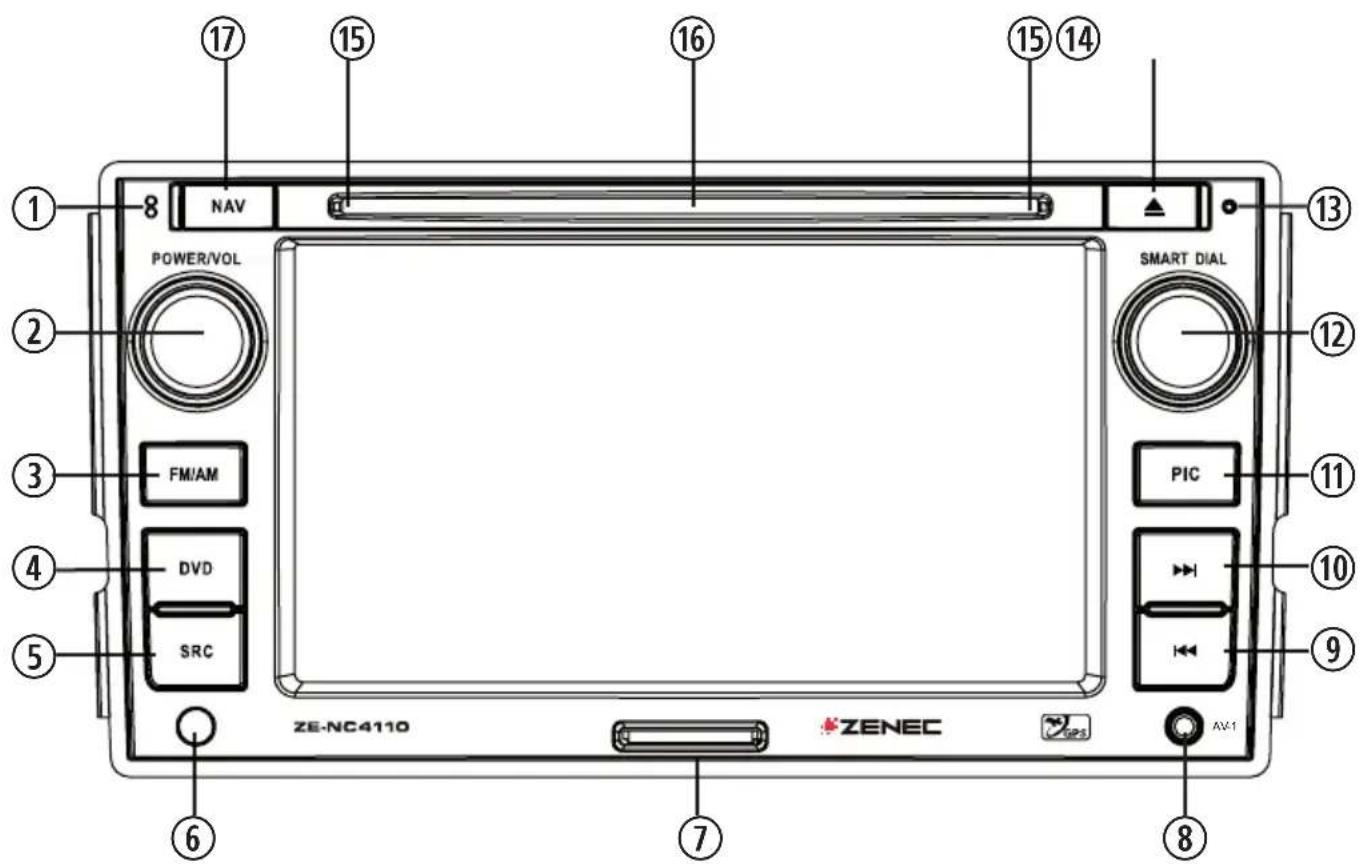
text_image
17 15 16 15 14 8 NAV POWER/VOL FM/AM DVD SRC SMART DIAL PIC AZENEC AV-1 13 12 11 10 9 7 6 5 4 3 2 11. Internal microphone for handsfree
2. PWR/VOL
■ Press the PWR/VOL-rotary knob to turn on the unit.
■ Press and hold the PWR/VOL-rotary knob to turn off the unit.
■ Use the PWR/VOL-rotary knob to adjust the volume.
■ Press the PWR/VOL-rotary knob to mute the audio output and press the button again, to go back to the last volume level.
3. FM/AM
■ Press the FM/AM-Button to enter radio mode.
■ Press the FM/AM-Button in radio mode to choose between the following radio bands: FM-1, FM-2, FM-3, AM-1, AM-2. Press and hold to de-/activate TA.
4. DVD
■ Press the DVD-Button to enter the DVD/CD mode.
5. SRC
■ Press and hold the SRC-Button to enter the main menu.
■ Press the SRC-Button to change between the following playing modes:
RADIO → Disc → NAVI → AV IN → DVBT → SD CARD → iPod → USB → CAMERA
The selected playing mode will be displayed on-screen.
6. Receiver for IR-Remote Control
7. SD-card slot
8. AV-IN
■ Press the RESET-Button to perform a hardware reset.
9. PREVIOUS
■ Press the PREVIOUS-button to choose the previous track/chapter.
■ Press the PREVIOUS-button in radio mode to auto search down.
10. NEXT
■ Press the NEXT-button to choose the next track/chapter.
■ Press the NEXT-button in radio mode to auto search up.
11. PIC
■ Press the PIC-Button to enter the video setup. Keep it pressed to adjust brightness
12. SMART DIAL
■ Turn the SMART DIAL rotary knob to choose a preset station or a track etc., which is stored on a media. Press the SMART DIAL rotary knob to confirm your selection.
■ Press the SMART DIAL rotary knob in DVD mode to pause the playback and press it again to restart the playback.
■ Press and hold the SMART DIAL rotary knob to enter the audio control menu.
13. RESET
■ Press the RESET-Button to perform a hardware reset.
14. EJECT
■ Press the EJECT-Button to draw-in or eject a disc.
15. Disc indicator
■ Disc inside: blue.
■ No disc inside: white.
■ During updating: Flashes intermittently white/blue
16. DVD/CD slot
- Insert a disc, with label on the top side, into the DVD/CD slot until it will be drawn-in automatically.
17. NAVI
■ Press the NAV-Button to enter the navigation mode. The audio output of the last playing mode will be played back.
■ Press the NAV-Button in navigation mode to change between the navigation mode and the last playing mode.
REMOTE CONTROL BUTTONS
FRONT REMOTE CONTROL
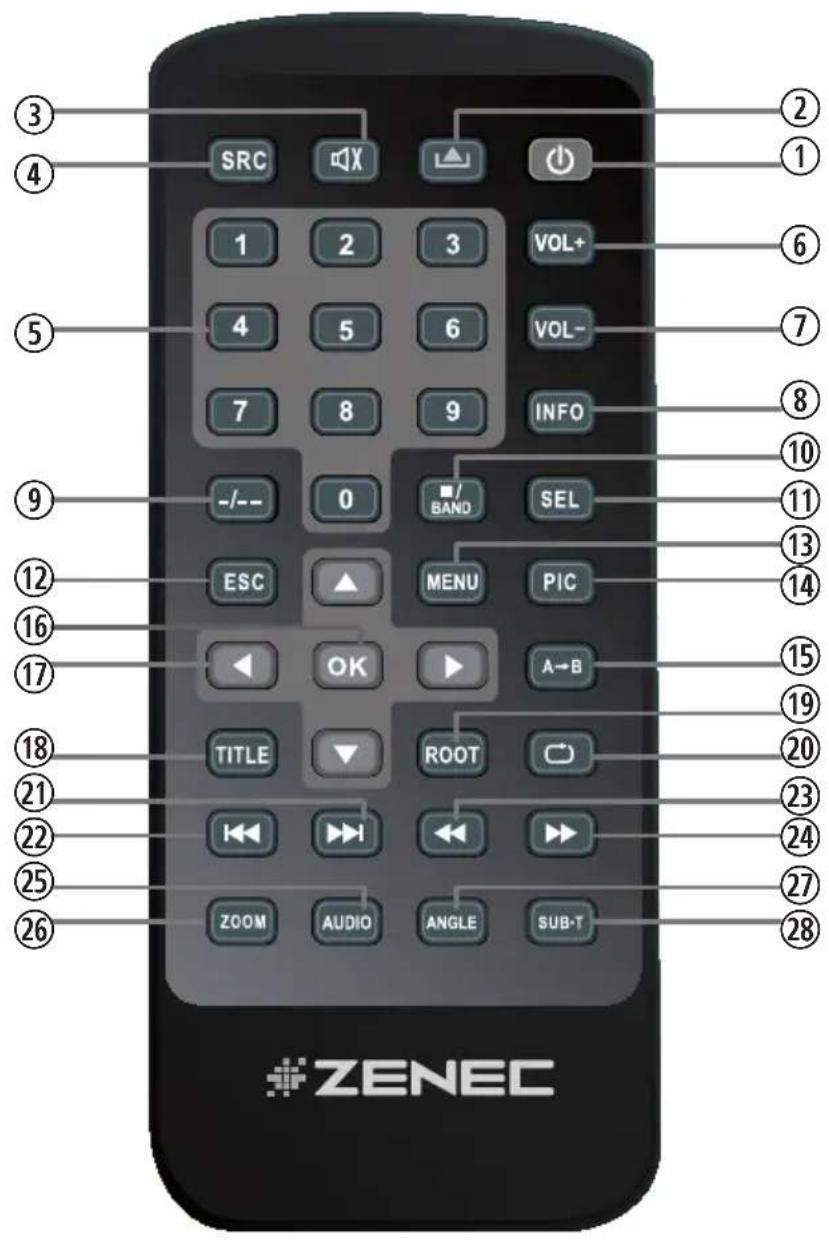
text_image
SRC 1 2 3 VOL+ 4 5 6 VOL- 7 8 9 INFO -/- - 0 BAND SEL ESC ▲ MENU PIC OK A→B TITLE ROOT ZOOM AUDIO ANGLE SUB-T ② ① ⑥ ⑦ ⑧ ⑩ ⑪ ⑬ ⑭ ⑬ ⑭ ⑮ ⑯ ⑰ ⑱ ⑲ ⑳ ⑮ ⑯ ⑰ ⑱ ㉑ ㉒ ㉓ ㉔ ㉕ ㉖ ㉗ ㉘ ㉙ ㉚ ㉛ ㉜ ㉝ ㉞ ㉟ ㉟ ㉟ ㉟ ㉟ ㉟ ㉟ ㉟ ㉟ ㉟ ㉟ ㉟ ㉟ ㉟ ㉟ ㉟ ㉟ ㉟ ㉟ ㉟ ㉟ ㉟ ㉟ ㉟ ㉟ ㉟ ㉟ ㉟1. POWER
■ Press the POWER/MUTE-Button to turn on the unit.
2. EJECT
■ Press the EJECT-Button to insert or eject a disc.
3. MUTE
■ Press the MUTE-Button to mute the audio output.
4. SRC
■ Press the SRC-Button to change between the following playing modes: RADIO → Disc → NAVI → AV IN → DVBT → SD CARD → iPod → USB → CAMERA
The selected playing mode will be displayed onscreen.
5. NUMERIC KEYPAD
■ Directly access to track/chapter or preset station.
6. VOL UP
■ Increase the volume.
7. VOL DOWN
■ Decrease the volume.
8. INFO
■ Display the available disc information.
9. GOTO SEARCH
■ Position search function for CD/DVD mode.
10. STOP/BAND
■ Change in radio mode between the following radio bands: FM-1, FM-2, FM-3, AM-1, AM-2
■ Stop playback in other playing modes.
11. SELECT
■ Enter the equalizer menu.
12. ESC
Leave menus and input dialogs.
13. MAIN MENU
■ Enter the main menu.
14. PIC
Brightness adjustment
15. REPEAT A-->B
■ Set start point A and end point B to repeat continually.
16. OK
■ Start or pause the playback.
■ Confirm the selected adjustment.
17. DIRECTION BUTTONS
■ Up/Down/Left/Right to select an item to adjust.
18. TITLE
■ Enter the title menu of the DVD.
19. ROOT
■ Enter the main menu of the DVD.
■ Turn on PBC while playing VCD.
20. REPEAT
■ Press the REPEAT-Button to repeat the track/folder/chapter/disc playback.
21. NEXT
■ Press the NEXT-Button to choose the next track/chapter.
■ Press the NEXT-Button in radio mode to auto search up.
22. PREVIOUS
■ Press the PREVIOUS-Button to choose the previous track/chapter.
■ Press the PREVIOUS-Button in radio mode to auto search down.
23. FAST REVERSE
■ Fast reverse the disc content ("2X", "4X", "8X", "16X"). Radio: Decrease frequency stepwise.
24. FAST FORWARD
■ Fast forward the disc content (2X", "4X", "8X", "16X"). Radio: Increase frequency stepwise.
25. AUDIO
■ Change the audio language for DVD playback (if available).
26. ZOOM
■ Zooming in/out an image ("+1", "+2", "+3", "OFF")
27. ANGLE
■ Change between different angles for a scene (if available).
28. SUB-T
■ Language selection for DVD subtitle (if available).
REMOTE CONTROL BUTTONS
REAR REMOTE CONTROL (AFFECTS M-ZONE EXCLUSIVELY)
text_image
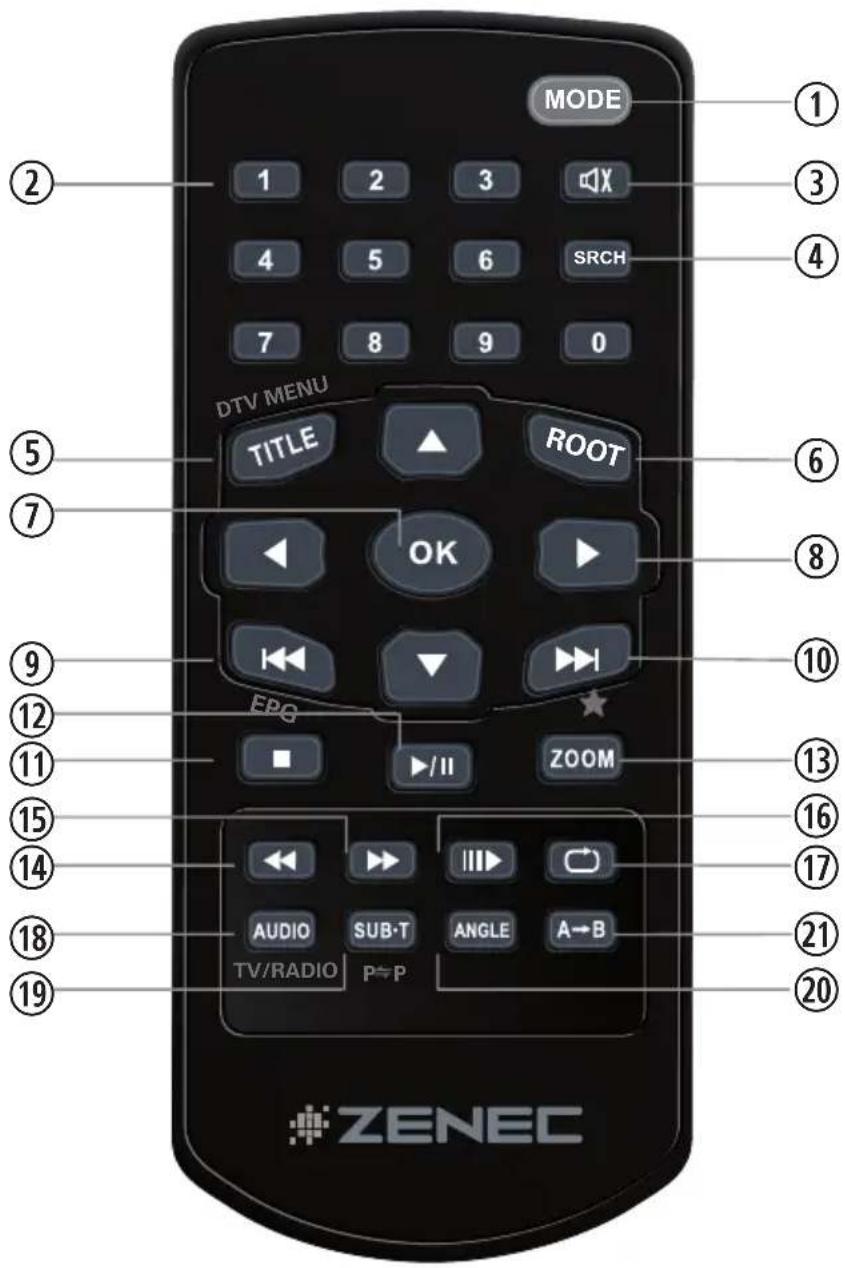
MODE 1 2 3 4 5 6 SRCH 7 8 9 0 DTV MENU TITLE ROOT OK EPQ ZOOM TV/RADIO P=P AUDIO SUB-T ANGLE A→B ① ③ ④ ⑤ ⑦ ⑧ ⑨ ⑩ ⑫ ⑬ ⑭ ⑮ ⑯ ⑰ ⑱ ⑲ ⑳ ㉑ ㉒ ㉓ ㉔ ㉕ ㉖ ㉗ ㉘ ㉙ ㉚ ㉛ ㉜ ㉝ ㉟ ㉳ ㉟ ㉟C ZENEC1. MODE
■ After you have activated M-Zone in the main menu, press the MODE button to choose the playing mode for the rear zone.
2. NUMERIC KEYPAD
■ Search function. Use Onscreen-Keyboard to specify target.
3. MUTE
■ Press the MUTE-Button to mute the audio output.
4. GOTO SEARCH
■ Position search function for CD/DVD mode.
5. TITLE
■ Enter the title menu of the DVD.
■ Scan function for CD mode. Each track will be played back for 10 seconds.
6. ROOT
■ Enter the main menu of the DVD.
■ Turn on PBC while playing VCD.
7. OK
■ Start or pause the playback.
■ Confir rm the selected adjustment.
8. DIRECTION BUTTONS
■ Up/Down/Left/Right to select an item to adjust.
9. PREVIOUS
■ Press the PREVIOUS-Button to choose the previous track/chapter.
10. NEXT
■ Press the NEXT-Button to choose the next track/chapter.
11. STOP
■ Stop playback.
12. PLAY/PAUSE
■ Start or pause the playback.
13. ZOOM
■ Zooming in/out an image ("+1", "+2", "+3", "OFF").
14. FAST REVERSE
■ Fast reverse the disc content ("2X", "4X", "8X", "16X").
15. FAST FORWARD
■ Fast forward the disc content ("2X", "4X", "8X", "16X").
16. SLOWER PLAY
■ Activate the slow-motion function.
17. REPEAT
■ Press the REPEAT-Button to repeat the track/folder/chapter/disc playback. Press PLAY to deactivate.
18. AUDIO
■ Change the audio language for DVD playback (if available).
19. SUB-T
■ Language selection for DVD subtitle (if available).
20. ANGLE
■ Change between different angles for a scene (if available).
21. REPEAT A -> B
■ Set start point A and end point B to repeat continually.
BASIC OPERATION
POWER ON/OFF
■ Press the PWR/VOL rotary knob on the front panel to turn on the unit. Press and hold the rotary knob for 2 seconds to turn it off.
It's also possible to power the unit together with the ignition, but this depends on the last state, before the unit was turned off.
SELECT A PLAYING SOURCE
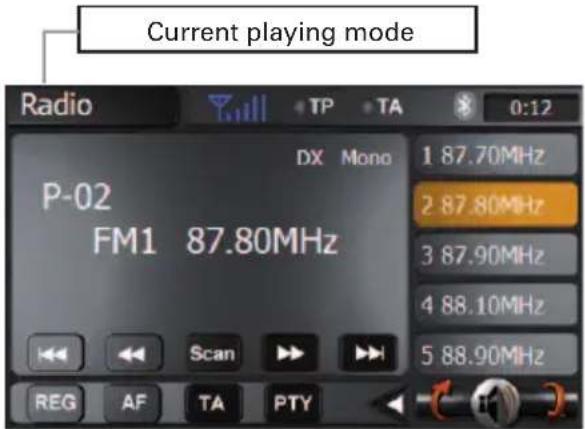
■ After you have turned on the unit, touch the icon with the current playing mode in the upper left corner of the screen to go back to the main menu.
■ After entering the main menu, you have access to each playing mode and setting.
■ Touch the arrow to choose between the two pages of the main menu.
text_image
Current playing mode Radio DX Mono P-02 FM1 87.80MHz 1 87.70MHz 2 87.80MHz 3 87.90MHz 4 88.10MHz 5 88.90MHz Scan REG AF TA PTY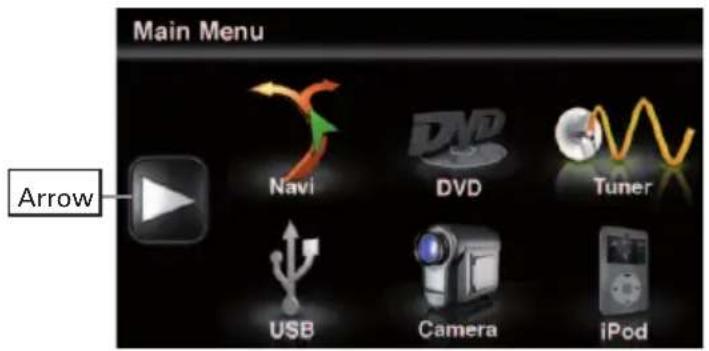
text_image
Main Menu Arrow Navi DVD Tuner USB Camera iPod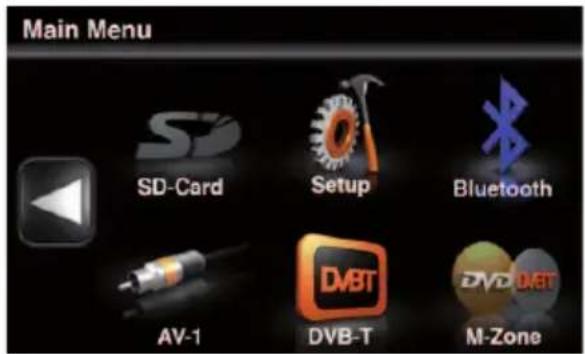
text_image
Main Menu SD-Card Setup Bluetooth AV-1 DVB-T M-ZoneNOTE:
If a medium is not inserted or the external unit is not connected, the respective icon is greyed out.
REAR VIEW CAMERA
The rear view camera mode will be activated automatically, if a camera is connected to the camera input, the reverse cable is properly connected (according to mounting manual) and you shift into reverse gear.
M-ZONE
If you have installed monitors for example to the headrests of your car and they are connected to the M-Zone A/V outputs of the unit, the passenger can operate the unit with the rear remote control. To choose a playing mode directly (only DVB-T and DVD) at the unit, touch the M-Zone icon in the main menu. The playing mode DVD is not available, if you have selected the playing mode SD card or USB for the front zone. The volume of the M-Zone components can only be altered using the volume adjustment of an external unit (e.g. IR headphones).
MUTE FUNCTION
■ Manually: Press the PWR/VOL rotary knob on the front panel to mute the audio output. Press the knob again to deactivate the mute function.
■ Automatically: During a phone call, the audio output will be muted.
AUDIO CONTROL MENU
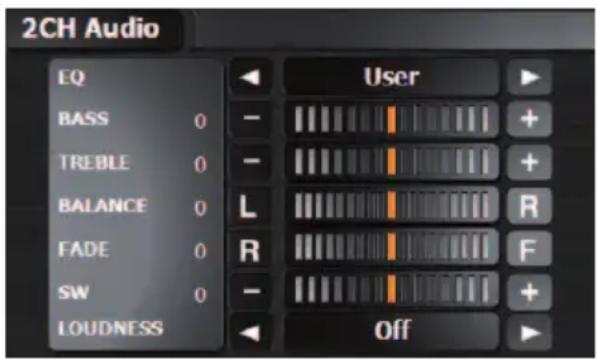
The audio control menu allows you to adjust your audio system to meet your requirements and the acoustical characteristics of the vehicle. The menu item "SW" is only relevant, if you have a subwoofer connected to the respective sub pre-out of the unit.
■ Press and hold the SMART DIAL rotary knob to enter the audio control menu.
■ Touch the icon with the current playing mode in the upper left corner of the screen to leave the menu.
■ After 15 seconds of idling, the audio menu returns to the current audio source.
text_image
2CH Audio EQ BASS 0 TREBLE 0 BALANCE 0 FADE 0 SW 0 LOUDNESS User + + R F + OffNOTE:
■ Bass and treble settings are only adjustable in "User"-mode.
VIDEO PLAYBACK DISABLED
■ The video playback on the display of the unit is disabled, when the car is in motion due to safety reasons. It's necessary to engage the handbrake to enable the video playback and the parking wire has to be connected according to the mounting manual.
■ The rear camera mode and the M-Zone remain unaffected.
SYSTEM RESET
If the unit does not work correctly, you should first try to reset it by pressing the RESET-Button on the bottom-right corner of the front panel. The last adjustments will always be saved.
SETUP MENU AND SETTINGS
SETUP MENU
text_image
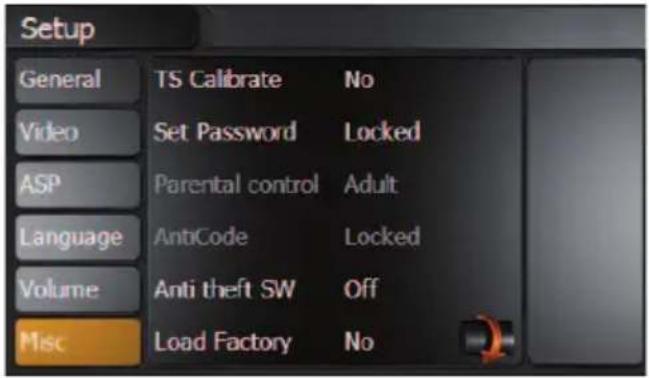
Setup General TS Calibrate No Video Set Password Locked ASP Parental control Adult Language AntiCode Locked Volume Anti theft SW Off Misc Load Factory No■ Touch the [icon in the main menu to enter the setup menu.
■ Touch the desired menu item directly on the display to open the submenu and to change the selected adjustment.
■ The icons [ ] and [ ] indicate that there are more options available on the next page of the setup menu.
■ Touch the "SETUP" icon in the upper right corner to exit the setup menu.
■ After 15 seconds of idling, the audio menu returns you automatically to the current audio source.
GENERAL
| SettingsOptionsFunction | ||
| Clock (HH:MM) | Adjusts the clock appearing in the top right corner of the TFT screen. | |
| AM/PM | AM | Choose AM or PM mode (only for 12 Hr mode). |
| PM | ||
| Clock Mode | 12Hr Clock displays 12 hour time using AM and PM. | |
| 24Hr Clock displays 24 hour time up to 23:59. | ||
| Beep | On | Select to activate/deactivate the beeper function. |
| Off | ||
| Camera Switch | Off | Deactivate or activate the camera input |
| Camera | ||
| Camera Image | Normal The output of camera image is in normal mode. | |
| Mirror The output of camera image is in inverted mode. | ||
| Bluetooth | On | Select to activate/deactivate the Bluetooth function. |
| Off | ||
| Radio Field | USA | Choose your country or region for best radio reception. |
| LATIN | ||
| EUROPE | ||
| AV-1 | Rear Activates the rear A/V-input. | |
| Front Activates the front A/V-input. | ||
| Version Current software version. | ||
| DivX Registration Displays the DivX registration code. | ||
VIDEO
| Settings Options Function | ||
| TV Shape | cinema Widescreen picture scaling (16:9). | |
| normal Normal picture scaling (4:3). | ||
| Video IN | Auto | The video output is switched automatically based on the current disc. |
| PAL Video output in standard PAL format. | ||
| NTSC Video output in NTSC format. | ||
| Brightness -10 to +10 Adjusts the brightness of the screen. | ||
| Monitor Off Turns the monitor off | ||
ASP (AUDIO SIGNAL PROCESSING) SETUP MENU
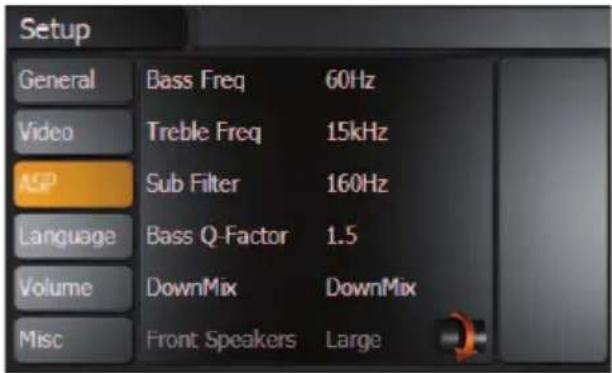
■ The ASP configuration menu allows you to make some fi ner audio adjustments.
text_image
Setup General Bass Freq 60Hz Video Treble Freq 15kHz ASP Sub Filter 160Hz Language Bass Q-Factor 1.5 Volume DownMix DownMix Misc Front Speakers Large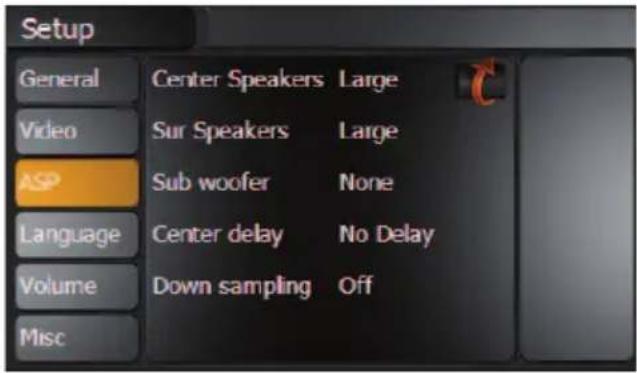
text_image
Setup General Center Speakers Large Video Sur Speakers Large ASP Sub woofer None Language Center delay No Delay Volume Down sampling Off Misc| Settings Options Function | ||
| Bass Freq | 60 Hz | Select the bass center frequency to achieve the best bass effect. |
| 80 Hz | ||
| 100 Hz | ||
| 200 Hz | ||
| Treble Freq | 10 kHz | Select the treble center frequency to achieve the best treble effect. |
| 12.5 kHz | ||
| 15 kHz | ||
| 17.5 kHz | ||
| Sub Filter | 80 Hz | Selecting a crossover frequency sets a cut-off frequency of the subwoofer's LPF (low-pass fi Iter) and the speaker's HPF (high-pass fi Iter). |
| 120 Hz | ||
| 160 Hz | ||
| Bass Q-Factor | 1.0 | When the bass center frequency is selected, adjusting the bass Q-factor alters the perceived "weight" of the bass output. |
| 1.25 | ||
| 1.5 | ||
| 2.0 | ||
| Down Mix | Down Mix 2-channel stereo mode. | |
| Full 6 CH 6-channel mode. | ||
| Front Speakers | Large Recommended for speakers >5.25". | |
| Small Recommended for speakers <5.25". | ||
| Center Speakers | Large Recommended for speakers >5.25". | |
| Small Recommended for speakers <5.25". | ||
| None No speaker present. | ||
| Surr Speakers | Large Recommended for speakers >5.25". | |
| Small Recommended for speakers <5.25". | ||
| None No speaker present. | ||
| Sub Woofer | None No speaker present. | |
| Present Existing and connected. | ||
| Center Delay | No Delay Deactivates time alignment. | |
| 0.3 m | Delay of the center speaker to the front speakers is 0.3 m. | |
| 0.6 m | Delay of the center speaker to the front speakers is 0.6 m. | |
| 1.0 m | Delay of the center speaker to the front speakers is 1 m. | |
| Down Sampling | Off Normal audio playback. | |
| On Audio playback in 48 kHz. | ||
| Surr Delay | No Delay Deactivate time alignment. | |
| 1 m | Delay of the surround speaker to the front speakers is 1 m. | |
| 2 m | Delay of the surround speaker to the front speakers is 2 m. | |
| 3 m | Delay of the surround speaker to the front speakers is 3 m. | |
| 4 m | Delay of the surround speaker to the front speakers is 4 m. | |
| 5.1 m | Delay of the surround speaker to the front speakers is 5.1 m. | |
| Playing mode (iPod, radio, etc.) | -7 to +7 | Loudness adjustment for the different playing modes. |
NOTES:
- Choose "Large", if you want to use your speaker system in full range mode.
- Choose "Small", if you want to use your speaker system in high pass mode. The high pass mode is activated automatically, if you select "Small". The high pass frequency is identical with the subwoofer's low pass frequency.
LANGUAGES
| SettingsFunction | |
| DVD Menu Select language for the DVD menu. | |
| Subtitle Select language for the subtitle. | |
| Audio Select language for the soundtrack. | |
| OSD Select language for the OSD menu. | |
VOLUME
| SettingsOptionsFunction | ||
| Start Volume | Adjusts | The unit starts with the volume, which was adjusted with the menu item"start vol adjust". |
| Last | The unit starts with the volume, which was adjusted before it was turned off. | |
| Start Vol Adjust 0 to 10 | Adjusts the start volume, when the start volume is enabled. | |
| TA Volume 0 to 10 | Adjust the volume of the TA function (traffic announcement). | |
| Volume Bar | Off | Displays the volume bar while adjusting the volume. |
| On | ||
| OE Sound System | No | Set to "YES" if OE Sound System is present. Avoids distortions due to excessive input levels. |
| Yes | ||
MISC SETUP MENU
text_image
Setup General TS Calibrate No Video Set Password Locked ASP Parental control Adult Language AntiCode Locked Volume Anti theft SW Off Misc Load Factory No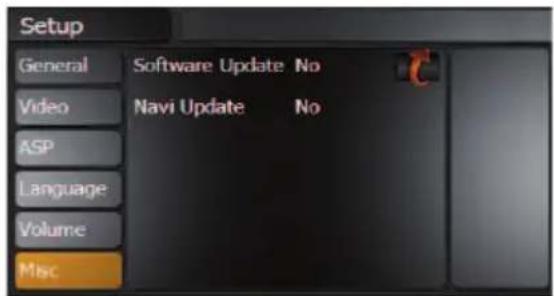
text_image
Setup General Video ASP Language Volume Mac Software Update No Navi Update No| Settings Options Function | ||
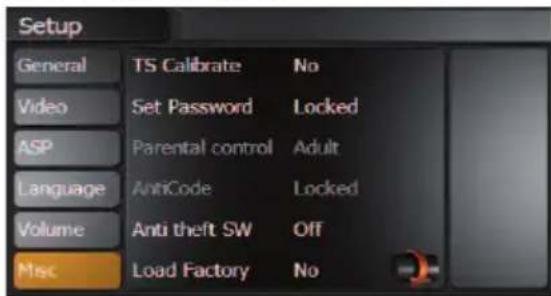
| TS Calibrate | No | Touch "Yes" to enter the touch screen calibration mode. Then follow instructions on the screen. |
| Yes | ||
| Set Password Locked Enter your password to unlock the parental lock. | ||
| Parental control | 1. Kid Safe | Kid safe: A movie rating that is appropriate for children. |
| 2. G | G: A movie rating that allows admission to persons of all ages. | |
| 3. PG | PG: A movie rating that allows admission of persons of all ages but suggests parental guidance in the case of children. | |
| 4. PG-13 | PG-13: A movie rating that allows admission of persons of all ages but suggests parental guidance in the case of children under the age of 13. | |
| 5. PG-R P | G-R: PG-related. | |
| 6. R | R: A movie rating that allows admission only to persons of a certain age, usually 17, unless accompanied by a parent or guardian. | |
| 7. NC-17 | NC-17: A movie rating that allows admission to no one under the age of 17. | |
| 8. ADULT | Adult: A movie rating that is appropriate for adults only. | |
| Anti CODE Locked Enter the code for the anti-theft function. | ||
| Anti Theft SW | On | Deactivate or activate the anti-theft function. |
| Off | ||
| Load Factory | No | Restore the factory default settings. |
| Yes | ||
| Software Update | No | Touch "Yes" to update the operating software. |
| Yes | ||
| Navi Update | No | Touch "Yes" to update the navigation software. |
| Yes | ||
NOTE:
The DVD system has a built-in parental lock feature to prevent unauthorized persons from viewing restricted disc content. By default, the parental control system is unlocked. Once setup, the parental lock is released only by entering the correct password. Once the password is entered, parental control is available.
ANTI-THEFT CODE
text_image
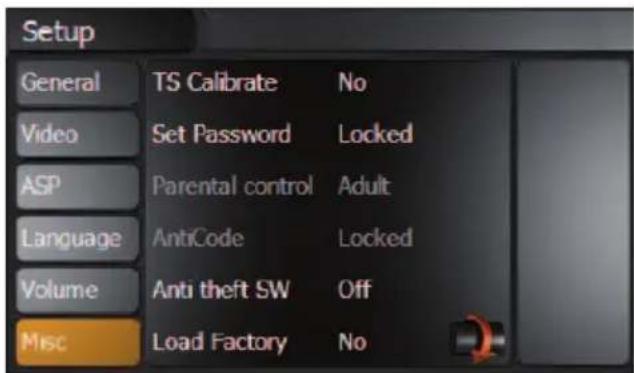
Setup General TS Calibrate No Video Set Password Locked ASP Parental control Adult Language AntiCode Locked Volume Anti theft SW Off Misc Load Factory NoTo secure the unit from theft and later use, it's possible to enter a four-digit anti-theft code. If the anti-theft code is activated and the unit will be disconnected from the power supply and reconnected again, it's necessary to enter the anti-theft code to start up the unit. Otherwise it's not possible to restart it.
NOTE:
The delivery status for the input of the anti-theft code is deactivated, so it's not necessary to enter the anti-theft code, when the unit was disconnected from the power supply.
- Touch the anti-theft icon and activate the anti-theft function.
text_image
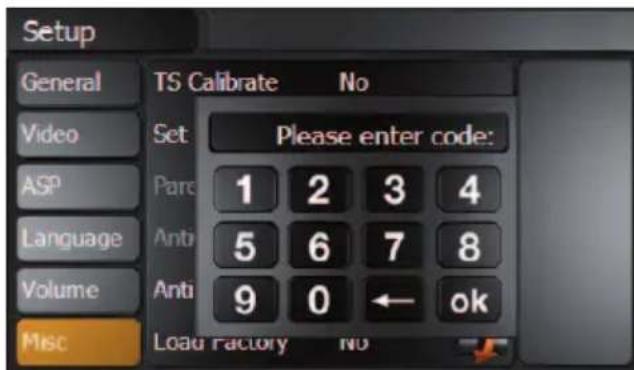
Setup General Video ASP Language Volume Misc TS Calibrate No Set Please enter code: 1 2 3 4 5 6 7 8 9 0 ← ok Load Factory NO- Touch the anti-theft code icon and use the keypad, which appears on-screen, to enter the four-digit anti-theft code and confirm your input by entering the same code a second time.
NOTE:
■ The delivery status of the anti-theft code, with the freshly unpacked unit is deactivated and you must activate it manually.
Please write down the anti-theft code and keep it stored in a safe place. If the anti-theft code is falsely entered three times, it's necessary to enter the super code to unlock the unit again. To unlock the unit with the super code, it's inevitable to send it back to an authorized ZENEC-dealer. This service is not free of charge.
If you want to change or deactivate the anti-theft code, you must enter a valid code first.
■ Default code ex works is 0000.
INSTALLATION OF SOFTWARE UPDATES
text_image
Update Software write file... MCU MPG CancelNOTE:
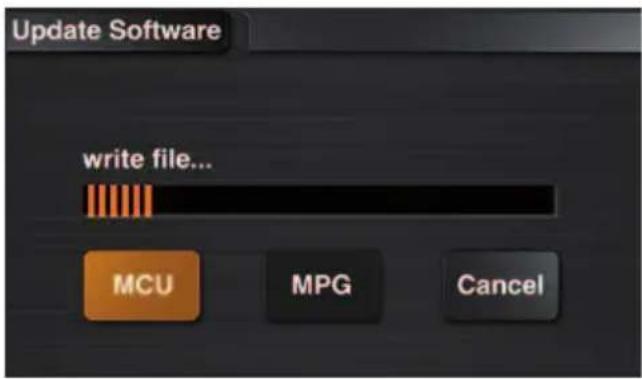
We recommend, you occasionally check for updates on www.zenec.com. We will provide you with downloads at irregular intervals. Always proceed according to the accompanying update guide.
RADIO MODE
text_image
Radio TP TA 0:12 DX Mono 1 87.70MHz P-02 FM1 87.80MHz 2 87.80MHz 3 87.90MHz 4 88.10MHz 5 88.90MHz Scan REG AF TA PTY ①②③④ ⑤ ⑥ ⑦ ⑧ ⑲ ⑳ ⑴ ⑫ ⑬ ⑭ ⑮ ⑯ ⑰ ⑱ ⑲ ⑳ ㉑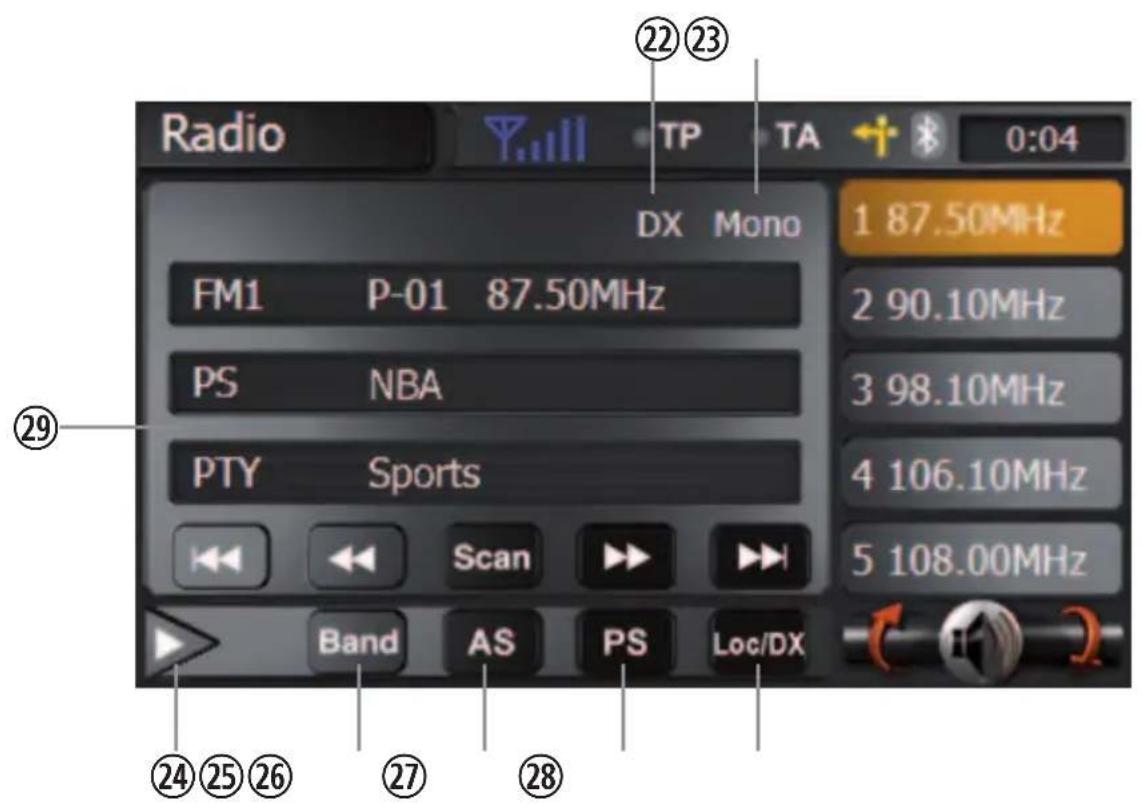
text_image
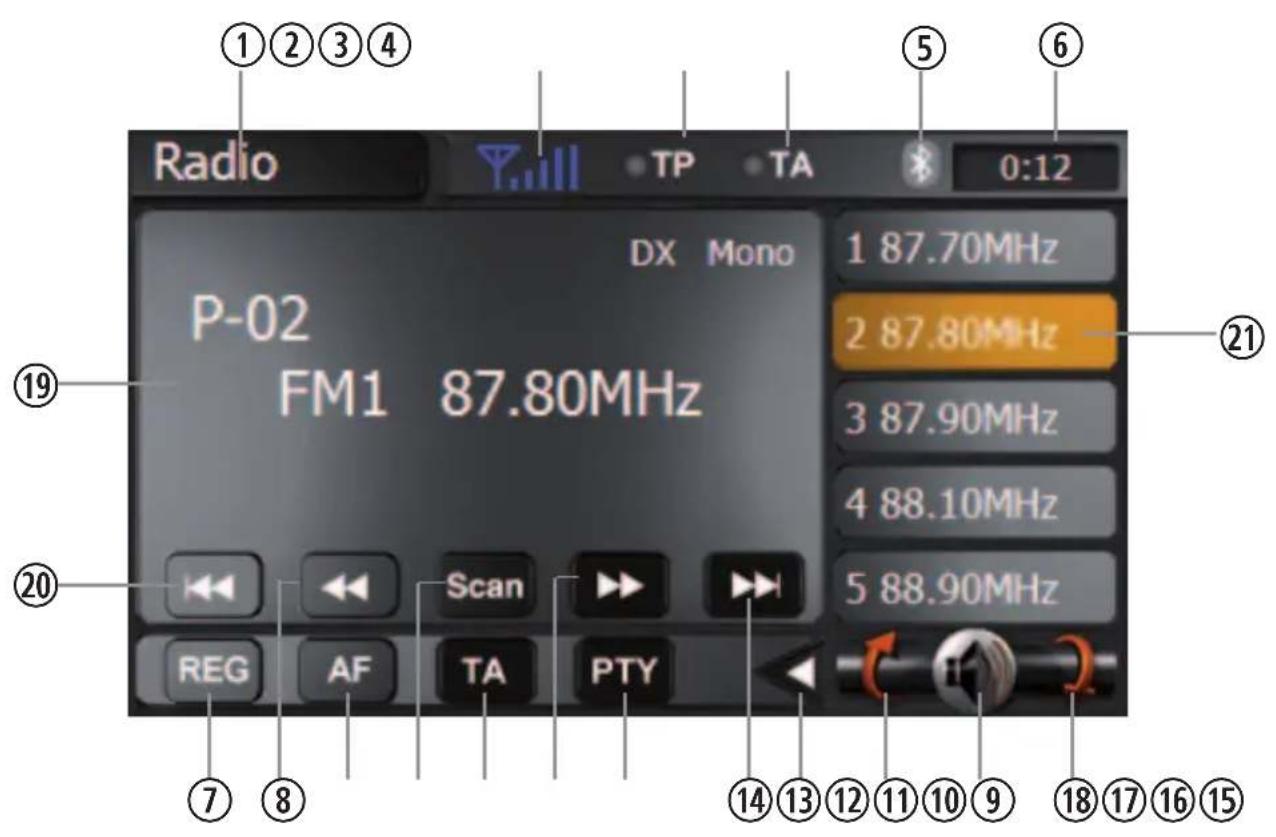
Radio TP TA 0:04 DX Mono 1 87.50MHz FM1 P-01 87.50MHz PS NBA PTY Sports Scan Band AS PS Loc/DX 29 22 23 2 90.10MHz 3 98.10MHz 4 106.10MHz 5 108.00MHz 24 25 26 27 28- Current mode of unit. Touch to open the main menu.
- Displays the signal strength.
- The TP button lights up orange when the radio station provides traffic announcements.
- The TA button lights up orange when a traffic announcement is transmitted.
- Bluetooth indicator.
- Current time indicator.
- When AF and Region are activated, auto tuning to those stations within the region is assigned. When AF is activated and region is deactivated, auto tuning attempts to find stations without any region boundary.
- Touch to tune backwards one step.
- Touch to activate/deactivate the AF function. When AF is activated and a radio signal is too weak, the tuner automatically switches to the best available frequency.
- Touch on the screen to automatically scan all stations of the current band to preview stations. Press any button to stop scanning and listen to the selected station.
- Touch to activate/deactivate the AF function. When TA is activated, the unit will auto seek an available TP or TA station. When TA is activated and a traffic announcement is received, the current playing source is overridden by the traffic announcement automatically, if the tuner was last set to the FM band but not, if it was last set to the AM band. When traffic announcement is over, the current playing source will be resumed.
- Touch to tune forward one step.
-
Touch to enter the PTY menu, then touch to select a choice in the PTY menu. The unit will auto seek the next available PTY by increasing tuning frequency until the program type matches the PTY, if no match is found, the tuner will return to original radio and "None" is displayed.
-
Touch to seek forward.
- Touch to switch between the two submenus.
- Touch to turn to previous page.
- Touch to mute.
- Touch to turn to next page.
- Current radio band, preset station playing back and radio frequency indicator.
- Touch to seek backwards.
- Preset radio stations: Touch to recall preset stations or touch and hold to store a station, (total 6 stations for each band).
- Displays whether LOC or DX mode is active.
- Displays whether mono or stereo sound is playing. The unit automatically switches between mono and stereo, depending on the reception quality of the radio station.
- Touch to switch between the two submenus.
- Touch to change among the following bands: FM-1, FM-2, FM-3, AM-1, AM-2.
- Touch to automatically scan and store the strongest six stations of the selected radio band. Stations names will automatically be displayed if AF is activated.
- Scan the six preset channels of the current band.
- Switch to choose between LOC and DX tuner searching mode.
- Current radio band, preset station playing back and radio frequency indicator.
NOTE:
This product features a tuner with RDS function. RDS (Radio Data System) is a system that transmits broadcast station information together with FM programs. RDS service is not available in AM broadcasting. RDS service availability depends on the FM broadcasting provider.
■ To use the RDS features, the AF function needs to be enabled. Please make sure to activate the AF function if you want to use RDS.
CD/DVD MODE
text_image
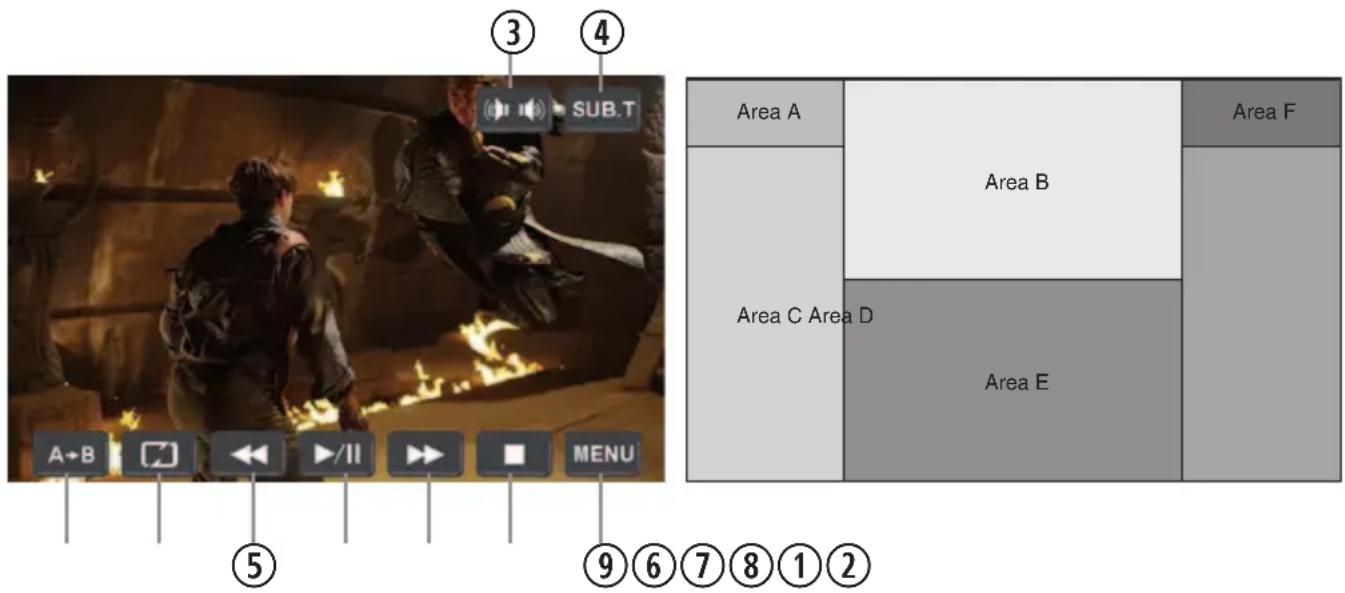
③ ④ SUB.T Area A Area B Area C Area D Area E Area F A+B Menu ⑤ ⑨⑥⑦⑧①②■ Touch the lower section of the screen to display these icons. If no operation has been entered for 10 seconds, these icons will be automatically hidden.
1. Touch to repeat from A to B. Select the repeat point A whenever you want to start and the point B whenever you want to end. The playback will now be looped from A to B.
2. Touch to repeat playback of title/folder/chapter/disc.
3. Touch to choose a language, if the disc is recorded in multiple languages.
4. Touch to display subtitle.
5. Touch to fast reverse. Keep touching and releasing the button to increase the rate from "2X" to "4X", "8X", and "16X".
6. Touch to play/pause.
7. Touch to fast forward. Keep touching and releasing the button to increase the rate from "2X" to "4X", "8X", and "16X".
8. Touch to stop playback.
9. Touch to return to DVD main menu.
■ Use the touch key areas outlined below.
Area A: ■ Touch to return to main menu.
Area B: ■ Touch to display playing information.
Area C: ■ Touch to select the previous chapter.
Area D: ■ Touch to select the next chapter.
Area E: ■ Touch to display the on-screen controls. Different mode displays different menus.
Area F: ■ Touch to display the GOTO search menu directly on screen.
NOTES:
If the parental lock is activated, you need to enter the code to playback the DVD disc.
■ The DVD video cannot be displayed on the screen, if the parking brake is not engaged.
CD/MP3/WMA MODE
text_image
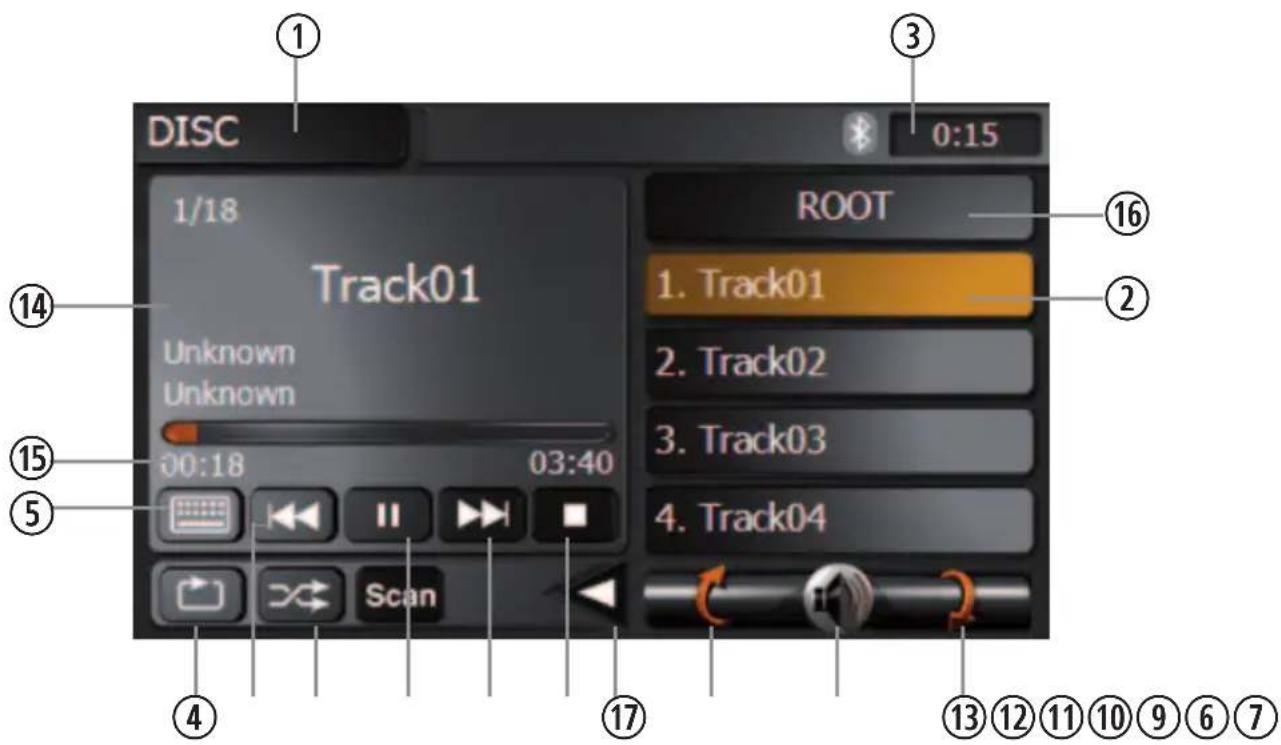
DISC 1/18 Track01 Unknown Unknown 00:18 03:40 SCAN ROOT 1. Track01 2. Track02 3. Track03 4. Track04 ① ② ③ ④ ⑤ ⑥ ⑦ ⑧ ⑨ ⑩ ⑪ ⑫ ⑬- Current mode indicator. Touch to open the main menu.
- Display of disc folders and titles.
- Current time indicator.
- Touch to repeat track/folder/disc.
- Touch to display the numeric keypad on the screen. Use the numeric keypad to directly access a track.
- Touch to activate/deactivate the random mode.
- Touch to play previous track.
- Touch to play/pause.
- Touch to play next track.
- Touch to stop playback.
- Touch to return to the previous page.
- Touch to mute.
- Touch to turn to the next page.
- Display track title.
- Elapsed playing time and total time of the track.
- Touch to navigate through the directories/folders.
- Open/close submenu.
SD-CARD MODE
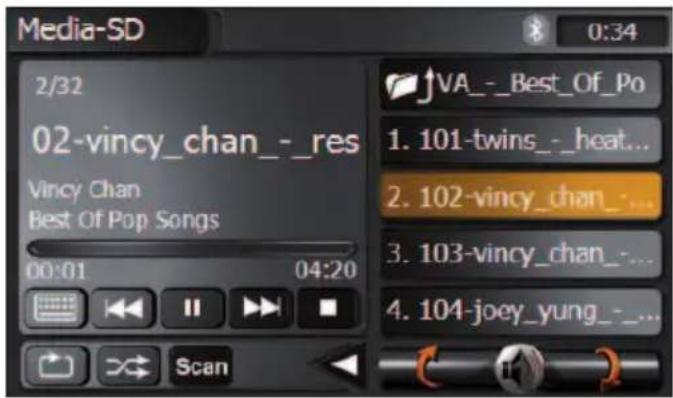
■ Insert the SD or SDHC card (up to 8 GB) into the SD-card slot and enter the SD card mode.
text_image
Media-SD 2/32 02-vincy_chan_-_res Vincy Chan Best Of Pop Songs 00:01 04:20 Scan VA_-_Best_Of_Po 1. 101-twins_-_heat... 2. 102-vincy_chan_... 3. 103-vincy_chan_... 4. 104-joey_yung_...NOTE:
■ The interface and the operation of SD card mode is similar to CD/MP3/WMA mode.
■ Depending on the folder structure and the content, the number of available folders is limited.
■ Please note that the speed of the operation depends on the memory size and speed of the SD or SDHC card as well as on the amount of the stored data.
USB MODE
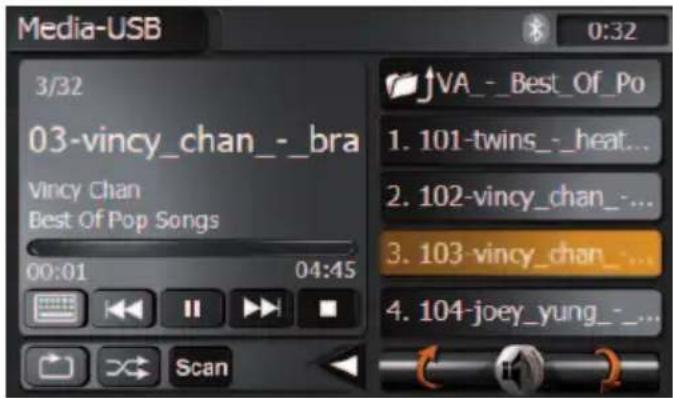
■ Insert the USB stick into the USB slot and enter USB mode.
text_image
Media-USB 3/32 03-vincy_chan_-_bra Vincy Chan Best Of Pop Songs 00:01 04:45 Scan VA_-_Best_Of_Po 1. 101-twins_-_heat... 2. 102-vincy_chan._ 3. 103-vincy_chan._ 4. 104-joey_yung_-_...NOTE:
■ The interface and the operation of USB mode is similar to the CD/MP3/WMA mode.
■ Depending on the folder structure and the content, the number of the available folders is limited.
■ Please pay attention that the operation is depending on the memory of the USB device and stored data volume.
■ The USB device must be compatible with FAT32 and the max. current for the connected USB device must stay below 400 mA. Otherwise it's not supported or might even damage the unit.
iPOD MODE
text_image
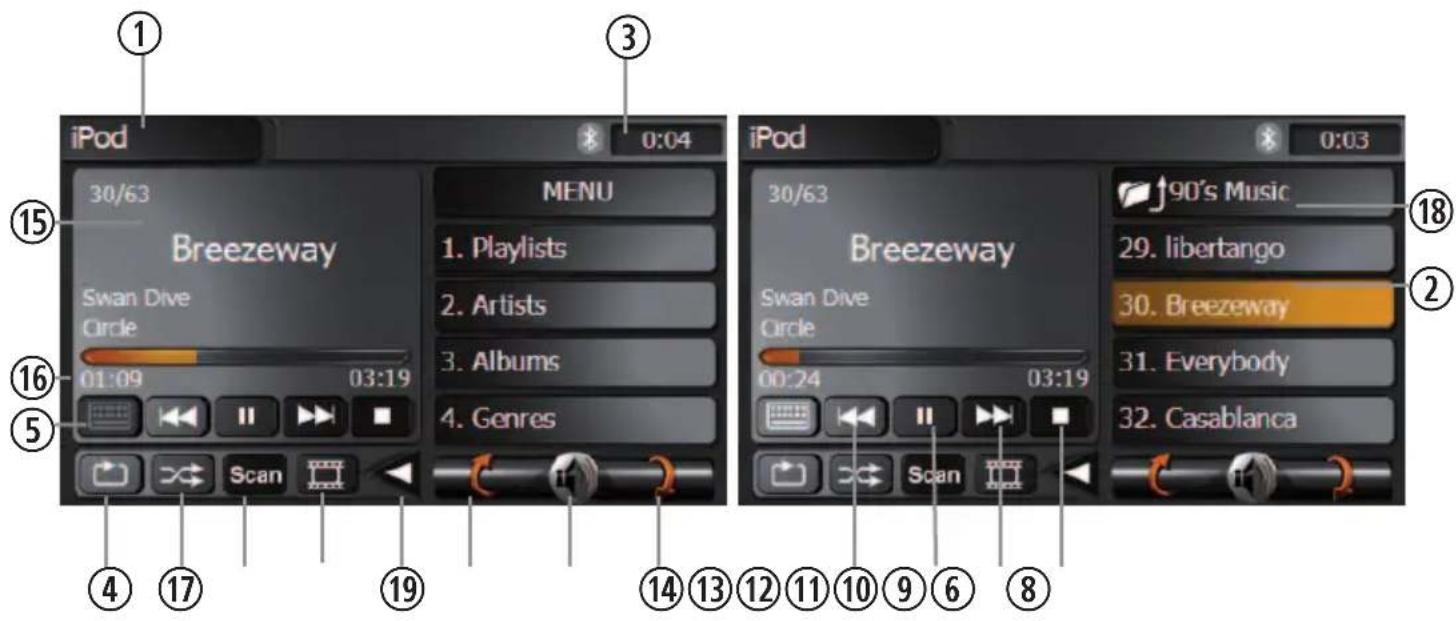
iPod 30/63 Breezeway Swan Dive Circle 01:09 03:19 MENU 1. Playlists 2. Artists 3. Albums 4. Genres Scan iPod 30/63 Breezeway Swan Dive Circle 00:24 03:19 Scan 90's Music 29. libertango 30. Breezeway 31. Everybody 32. Casablanca■ Connect the iPod with the optional iPod cable ZE-NC-IPS to the USB port and choose the iPod playback mode. The iPod displays a message that the device is connected and you may safely disconnect. You may as well safely continue.
- Current mode indicator. Touch to open the main menu.
- Display of iPod folders and title.
- Current time indicator.
- Touch to repeat track/folder.
- Touch to display the numeric keypad on the screen. Use the numeric keypad to access a track directly.
- Touch to scan each file in the current folder for 10 seconds.
- Touch to play previous track.
- Touch to show the available video folder of the iPod. Touch it again to show the music folder.
- Touch to play/pause.
- Touch to play next track.
- Touch to stop disc playback.
- Touch to return to the previous page.
- Touch to mute the volume.
- Touch to turn to the next page.
- Display track title.
- Elapsed playing time and total time of the track.
- Touch to activate/deactivate the random mode.
- Touch to navigate through the directories/folders.
- Open/close submenu.

NOTE:
■ Please visit www.zenec.com for the latest iPod software updates and compatibility lists.
BLUETOOTH MODE
BLUETOOTH OPERATION
text_image
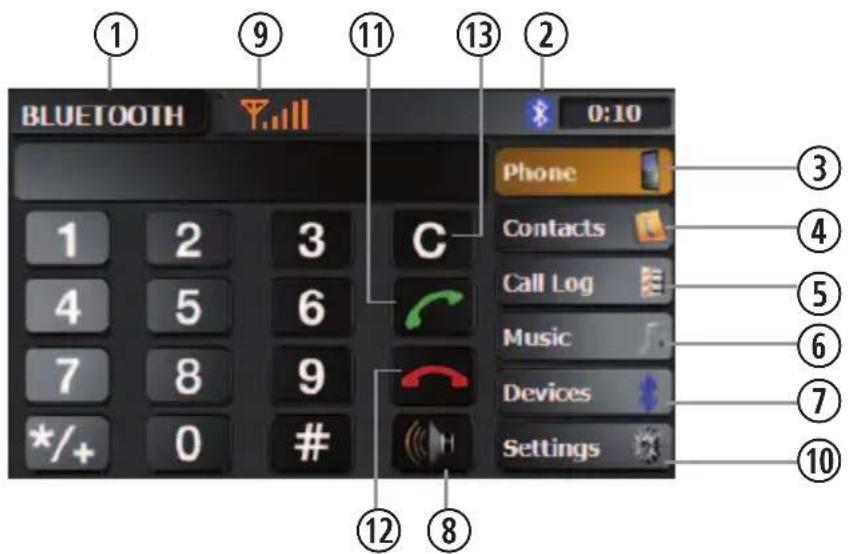
① ⑨ ⑪ ⑬ ⑬ BLUETOOTH 0:10 Phone Contacts Call Log Music Devices Settings ③ ④ ⑤ ⑥ ⑦ ⑩ 1 2 3 C 4 5 6 7 8 9 */+ 0 # ⑫ ⑧- Current playing source: Bluetooth. Touch to go back to the main menu.
- Bluetooth icon.
- Open the dialling function.
- Open phone book.
- Open call log.
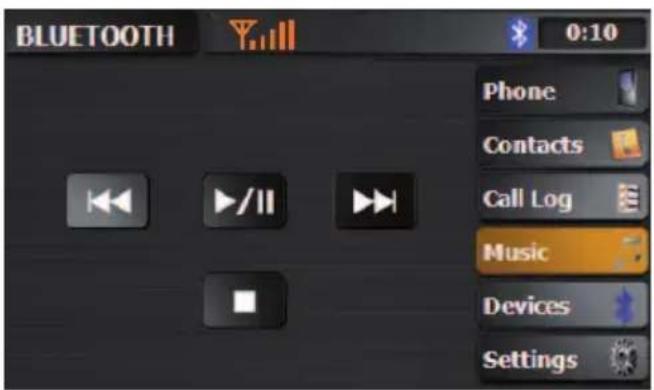
- Open the A2DP mode.
- Open the pairing function.
- Voice transfer back from the unit to the mobile phone.
- Display the signal strength of the paired mobile phone.
- Open Bluetooth setup.
- Accept resp. start a phone call.
- Hang up/ Stop a phone call.
- Delete your number input.
NOTE:
It's possible to independently set the volume of the Bluetooth mode with the PWR/VOL rotary knob during a call. The adjusted volume will be saved.
THE BLUETOOTH ICON
■ If Bluetooth is activated in the setup, there is a Bluetooth icon on top of the screen

■ The Bluetooth icon is gray, if Bluetooth is activated, but no mobile phone is connected.
■ The Bluetooth icon is blue, if Bluetooth is activated and a mobile phone is connected.
NOTE:
If no Bluetooth icon is visible, the Bluetooth function is deactivated in the setup menu.
PHONE BOOK
text_image
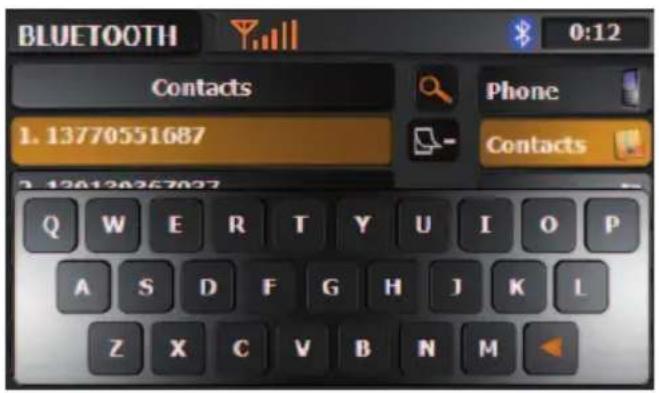
BLUETOOTH 0:12 Contacts Phone 1. 13770551687 Contacts Q W E R T Y U I O P A S D F G H J K L Z X C V B N M■ After the mobile phone is paired with the unit, the synchronisation of the phone book will start automatically. All entries will be transferred from the mobile phone to the unit. Set "Auto Connect" at the unit and your mobile phone to "On".
SEARCH FUNCTION FOR PHONE BOOK ENTRIES
text_image
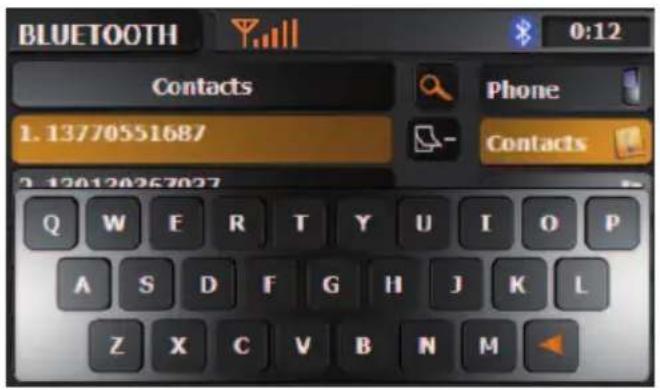
BLUETOOTH Contacts 1. 13770551687 Phone Contacts Q W E R T Y U I O P A S D F G H J K L Z X C V B N M■ Touch the [icon] - icon to open the keypad. Enter one (or up to 15) letter(s) to search for the initials of the family name. The entries with the respective initial letters will be displayed.
NOTE:
The function and the sorting of the entries depend on the mobile phone. A list of compatible mobile phones and their supported functions is available at www.zenec.com.
CALL LOG
text_image
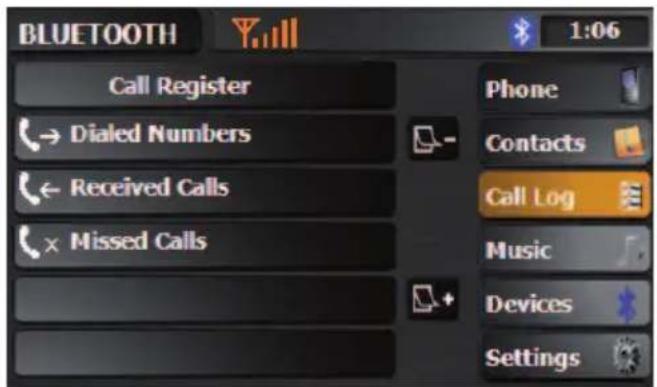
BLUETOOTH Call Register → Dialed Numbers ← Received Calls × Missed Calls Phone Contacts Call Log Music Devices Settings■ Display the dialled, received and missed calls.
A2DP FUNCTION
text_image
BLUETOOTH 0:10 Phone Contacts Call Log Music Devices Settings■ Start the playback on the unit. The music player of the mobile phone will be automatically activated and you may operate and control the music player of your mobile phone with the unit.
PAIRING
text_image
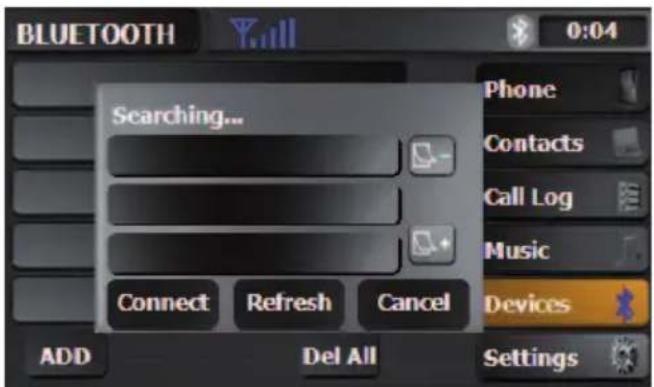
BLUETOOTH 0:04 Searching... Phone Contacts Call Log Music Connect Refresh Cancel Devices ADD Del All Settings■ You have two possibilities to pair a mobile phone with the unit. Please pay attention that the Bluetooth mode of the unit must be activated in the setup menu.
- Searching for nearby phones.
- Pairing of your mobile phone.
1. Searching for nearby phones
text_image
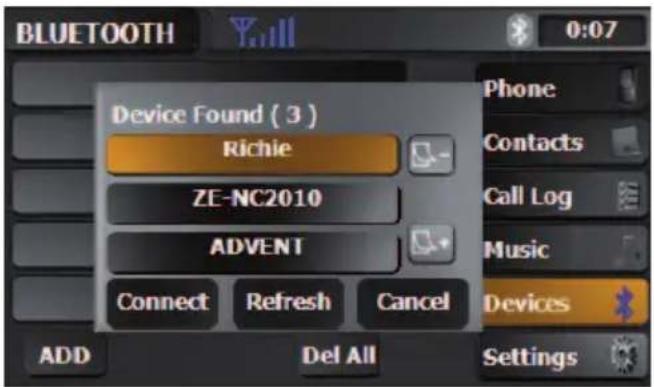
BLUETOOTH Device Found ( 3 ) Richie ZE-NC2010 ADVENT Connect Refresh Cancel ADD Del All Settings Phone Contacts Call Log Music Devices- Activate the Bluetooth mode on the mobile phone und check, if it allows to be detected by other devices resp. if the function to search for Bluetooth devices is activated.
- Touch the Add icon to open the search menu and to start the search run.
- After a mobile phone has been found, the name of the mobile phone appears on-screen.
- Choose the mobile phone on the unit, touch the connect icon and enter the PIN code, which is (delivery status) 1234.
Depending on the mobile phone and the settings, it's also required to enter the PIN code on the mobile phone a second time. - After pairing between the unit and the mobile phone has been established, it might be necessary, depending on the mobile phone, to acknowledge it to complete the procedure.
2. Pairing from your mobile phone
- Activate the Bluetooth mode on the mobile phone.
- Open the Bluetooth mode of the unit.
- Start the search for Bluetooth units on the mobile phone.
- After the unit is found by the mobile phone and a Bluetooth connection was established, the unit will appear with the description ZE-NC4110 on the mobile phone.
- Choose ZE-NC4110 on the mobile phone and enter the PIN code, which defaults to 1234.
- After pairing between the unit and the mobile phone has been established, it might be necessary depending on the mobile phone, to acknowledge it to complete the procedure.
SETUP
text_image
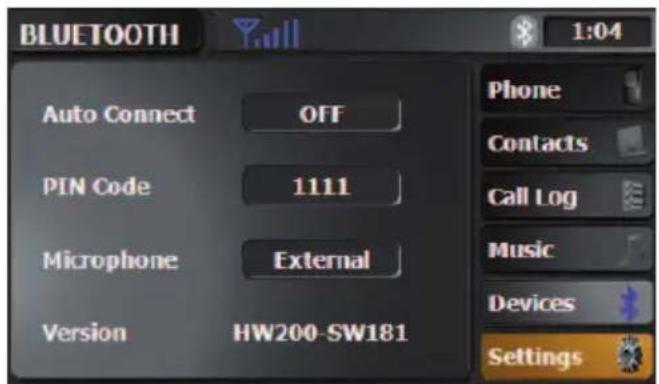
BLUETOOTH Auto Connect OFF PIN Code 1111 Microphone External Version HW200-SW181 Phone Contacts Call Log Music Devices SettingsAUTO CONNECT
■ Automatically connect to a paired mobile phone.
PIN CODE
■ Change the pairing code (default setting is 1234).
MICROPHONE
- Choose between internal or external microphone.
MIC-GAIN
■ Adjustment of microphone sensitivity.
VERSION
■ Display the current Bluetooth software version of the unit.
NOTE:
There will be new Bluetooth software updates available at irregular intervals on www.zenec.com. Please follow the instruction manual of the software update to install it.
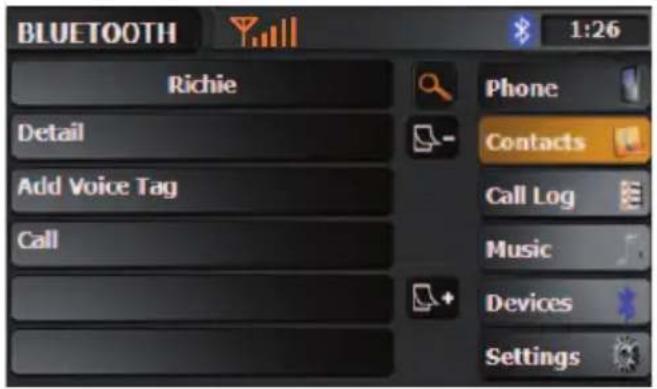
ENTER A VOICE TAG
■ The user can record voice tags for up to 200 phone numbers, i.e. it's possible to start a phone call with a pre-recorded voice tag.
- Choose an entry from the phone book.
text_image
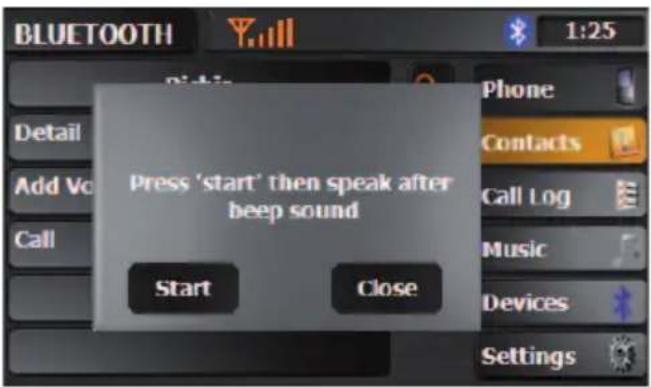
BLUETOOTH 1:26 Richie Phone Details Add Voice Tag Call Log Music Devices Settings- Start to record a voice tag and follow the on-screen instructions to finish the procedure. Entries with voice tags are indicated with a [voice tag]-icon. If the voice recording does not meet your requirements: Choose the entry and delete the voice tag.
text_image
BLUETOOTH 1:25 Detail Add Vo Call Press 'start' then speak after beep sound Start Close Phone Contacts Call Log Music Devices Settings- To start a call using a voice tag: Touch the [icon] -icon two times and wait with the speech input until an acoustic beep signal is audible. If the speech input meets the recorded voice tag, the unit starts to dial the phone number of the entry.
NOTES:
■ Bluetooth connection works within a range of 8m. Obstacles in the way may shorten the distance.
It cannot be guaranteed, that all mobile phones can be paired and that all functions will work.
The synchronisation, the transferring, the sorting as well as the display of the phone book entries depend on the mobile phones brand and model. If the synchronisation doesn't work properly, disconnect the phone and repeat the pairing process.
A list with compatible mobile phones and functions is available at www.zenec.com.
It's possible to pair up to fi ve mobile phones with the unit.
It's possible to synchronise and handle up to a thousand phone book entries.
If automatic phone book synchronisation does not work, consult the manual of your mobile phone. Some phones require explizit activation of this function.
We will provide you, at irregular intervalls, with software updates on www.zenec.com.
NAVIGATION MODE
- Read the separate navigation software manual for more detailed instructions.
■ You will be able to playback an audio source even when you navigate. The volume of your audio source will be automatically lowered for the navigational voice output.
It's possible to adjust the volume of the navigation voice with the PWR/VOL rotary knob during output. The adjusted volume will be saved.
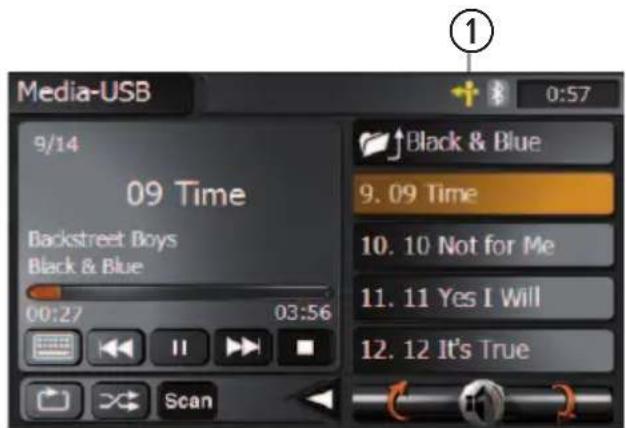
■ The unit has a splitscreen mode, which can be used in the following playing modes: Tuner, USB (audio), iPod (audio) and SD card (audio).
text_image
Media-USB 9/14 09 Time Backstreet Boys Black & Blue 00:27 03:56 Black & Blue 9.09 Time 10.10 Not for Me 11.11 Yes I Will 12.12 It's True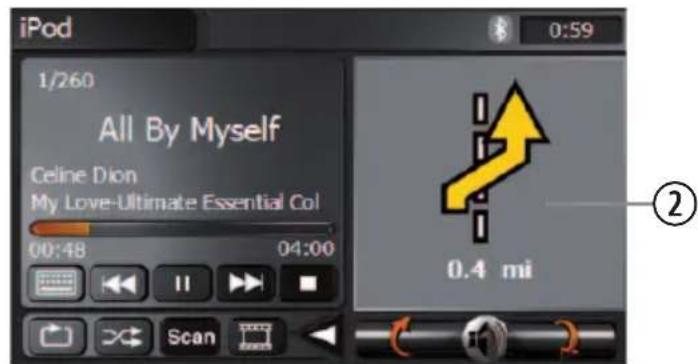
text_image
iPod 1/260 All By Myself Celine Dion My Love-Ultimate Essential Col 00:48 04:00 0.4 mi ②- Once you have started a route guidance in the navigation mode you can change to an audio source that is supported by the splitscreen mode, by touching the [ + ]-icon to activate it.
- Touch the fi eld with the arrow display to exit this mode.
EXTERNAL PLAYING SOURCES
DVB-T MODE
For operation of the optional DVB-T tuner touch the respective DVB-T icon on the main menu screen. For further instructions read the separate DVB-T tuner manual.
NOTE:
If you are using a compatible ZENEC DVB-T tuner, you may operate it using the touchscreen of the unit. Please visit www.zenec.com for compatible DVB-T tuner model(s).
AV MODE
If you have connected an external device to the unit and want to use it, touch the AV-IN icon in the main menu. Please read the manual of the external device.
You can set the source via setup and choose between front and rear input.
CAMERA MODE
- If you have connected a rear view camera to the unit and want to use it, touch the CAMERA icon in the main menu.
- Please read the manual of the rear view camera.
GENERAL INFORMATION
ABOUT DIVX
ABOUT DIVX VIDEO: DivX® is a digital video format created by DivX, Inc. This is an official DivX certifi ed device that plays DivX video. Visit www.divx.com for more information and software tools to convert your fi les into DivX video. ABOUT DIVX VIDEO-ON-DEMAND: This DivX Certifi ed® device must be registered in order to play DivX Video-on-Demand (VOD) content. To generate the registration code, locate the DivX VOD section in the device setup menu. Go to www.vod.divx.com with this code to complete the registration process and learn more about DivX VOD.
BASIC KNOCKLEDGE OF DISC
Region Code:
According to DVD sale region, the whole world is divided into six regions. A DVD disc can be played back only when the DVD region number is the same with the DVD disc.
Region 1: USA, Canada, East Pacific Ocean Islands
Region 2: Japan, West Europe, North Europe, Egypt, South Africa, Middle East
Region 3: Taiwan of China, Hong Kong of China, South Korea, Indonesia, South East Asia
Region 4: Australia, New Zealand, Mid & South America, South Pacific, Thailand, Ocean Islands/Oceania
Region 5: Russia, Mongolia, India, Middle Asia, East Europe, North Korea, North Africa, North West Asia
Region 6: China (Mainland)
Caution of disc using:
- Do not use irregular shaped discs.
- Use a dry, soft cloth to wipe the disc from center to edge. Only neutral detergents can be used.
- New discs may have some rough spots around the inner and outer edges. If such a disc is used, remove these rough spots with a pencil or ball-point pen.
MP3 COMPATIBILITY (MAX. 1500 MEDIA FILES, MAX. 200 FOLDERS)
Following formats are all compatible:
■ ISO 9660 – Level fi le name: 12 characters, fi le extension: 3 characters
■ ISO 9660 – Level fi le name: 31 characters, fi le extension: 3 characters
■ Joliet – 64 characters
ID3 tag 2.3
This item incorporates copy protection technology that is protected by U.S. patents and other intellectual party rights of Rovi corporation. Reverse engineering and disassembly are prohibited.
This unit is manufactured under license from Dolby Laboratories. "Dolby" and the double-D symbol are trademarks of Dolby Laboratories.
TROUBLESHOOTING
| Problem Cause Solution | ||
| GENEREL | ||
| Unit will not power on. | Radio fuse blown. Install new fuse with correct rating. | |
| Car battery fuse blown. Install new fuse with correct rating. | ||
| Illegal operation. Press the RESET button. | ||
| No/low audio output. | Improper audio output connection. Check wiring and correct. | |
| Volume set too low. Increase volume level. | ||
| Speakers damaged. Replace speakers. | ||
| Only one channel is playing. | Check the balance and fader adjustments. | |
| Speaker wiring is in contact with metal part of car. | Insulate all speaker wiring connections or replace the speaker cable. | |
| Mute is activated. Turn off the Mute function. | ||
| Poor sound quality or distortion. | Unauthorized disc is in use. Use original disc. | |
| Speaker power rating not compatible with unit. | Connect proper speakers. | |
| Speaker is shorted. Check speaker connections. | ||
| TFT MONITOR | ||
| No image. | The parking brake is not engaged. | Stop vehicle in a safe place and apply parking brake. |
| The parking wire was wrong or not connected. | Please connect the parking wire correctly. | |
| The "Monitor off"-function is activated. | Touch the monitor to activate the display. | |
| Prolonged image or improper height/width ratio. | Improper aspect ratio setup. Use correct aspect ratio setting. | |
| TUNER | |||
| Weak station searching. | Auto antenna not properly connected. | Connect the auto antenna cable properly. | |
| REG function is activated. Turn REG function off. | |||
| The AF function is not activated. Activate the AF function. | |||
| DVD-PLAYER | |||
| Issue | Error message | Cause Remedy | |
| Disc does not play back. | [Bad Disc] Disc is warped or scratched. Use disc in good condition. | ||
| [Bad Disc] Disc is dirty or wet. Clean disc with soft cloth. | |||
| [Unknown Disc] | Incompatible disc is used. Use compatible disc. | ||
| [Unknown Disc] | Disc rating exceeds parental lock rating limit. | Change parental lock settings to lower restriction. | |
| [Region Error] | Disc region code is not compatible with unit. | Use disc with proper region code. | |
| [Bad Disc] Disc is inserted upside down. Insert disc with label side up. | |||
| Cannot insert disc. Disc already inside unit. | Eject current disc and insert new one. | ||
| MP3 | |||
| The ID3 tags are shown incorrectly | Message is longer than LCD can display or ID3 tag is not compatible. | Use proper ID3 tag information. | |
SPECIFICATIONS
Main Amplifi er
Power Output: 20 watts x 4 channels into 4-ohms @ < 10% THD+N
Signal to Noise Ratio: 70dBA below reference. (Reference: 1 watt, 4-ohms)
MAX Power: 50 X 4 watts into 4-ohms, all channels driven
Frequency Response: 20Hz to 20 kHz, -3dB. Aux input used as source reference
Reference Supply Voltage: 14.4VDC
DVD Player
Compatible formats: CD, CD-R/RW, MP3, WMA, DVD, DVD-R/RW, DVD+R/RW, DVD-MP3, AVI, DivX6, JPEG and Picture CD
Signal to Noise Ratio: 85dBa
Dynamic Range: >95dB
Frequency Response: 20Hz to 20 kHz, -3dB
Channel Separation: > 60dB @ 1kHz
D/A Converter(s): 6-channel high performance 24-bit, 192 kHz, multi-bit Sigma Delta modulation.
DAC supports sample rates from 8\~192 kHz.
Region code: 2
FM Tuner Section
Tuning Range: 87.5MHz - 108MHz
Mono Sensitivity (-30dB): 10dBu
Signal to Noise Ratio @ 1kHz: 58dB
Image Rejection: 60dB
Stereo Separation @ 1kHz: 30dB
Frequency Response: 30Hz - 15kHz, -3dB
AM Tuner Section
Tuning Range: 522kHz - 1629kHz
Sensitivity (-20dB): 20dBu
Signal to Noise Ratio @ 1kHz: 50dB
Image Rejection: 60dB
Frequency Response: 50Hz - 2kHz, -3dB
Monitor Section
Screen Size: 16,5 cm/6,5 inches (measured diagonally).
Screen Type: TFT Liquid Crystal Display (LCD)
Response Time: 30 ms
Resolution, CD/Composite Video in: 280'800 sub pixels,
1200 (W) × 234 (H)
Viewing angle:
• 45\~60 degrees left or right
• 20\~30 degrees up
• 40\~60 degrees down
General
Auxiliary Input impedance: 10k
Power Supply: 10.5 to 16V DC, negative ground
DIN chassis dimensions: 178mm x 153mm x 100mm

NOTE: SPECIFICATIONS AND DESIGNS OF THIS MODEL ARE NECESSARILY SUBJECT TO CHANGES WITHOUT ANY NOTICE.
ÜBER DIESES HANDBUCH
text_image
Setup General TS Calibrate No Video Set Password Locked ASP Parental control Adult Language AntiCode Locked Volume Anti theft SW Off Misc Load Factory Notext_image
Setup General Bass Freq 60Hz Video Treble Freq 15kHz ASP Sub Filter 160Hz Language Bass Q-Factor 1.5 Volume DownMix DownMix Misc Front Speakers Large
text_image
Setup General Center Speakers Large Video Sur Speakers Large ASP Sub woofer None Language Center delay No Delay Volume Down sampling Off Misctext_image
Setup General TS Calibrate No Video Set Password Locked ASP Parental control Adult Language AntiCode Locked Volume Anti theft SW Off Mac Load Factory No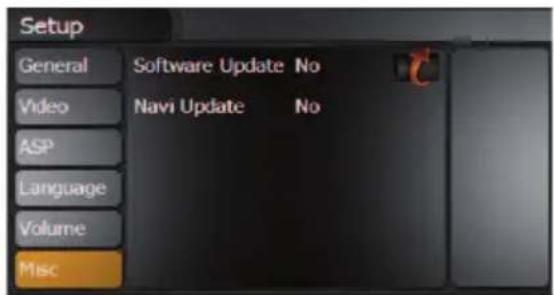
text_image
Setup General Video ASP Language Volume Misc Software Update No Navi Update Notext_image
Setup General TS Calibrate No Video Set Password Locked ASP Parental control Adult Language AntiCode Locked Volume Anti theft SW Off Misc Load Factory Notext_image
Setup General Video ASP Language Volume Misc TS Calibrate No Set Please enter code: 1 2 3 4 5 6 7 8 9 0 ← ok Load factory Notext_image
Update Software write file... MCU MPG CancelHINWEIS:
text_image
③ ④ SUB.T Area A Area B Area C Area D Area E Area F A+B Menu ⑤ ①② ⑨⑥ ⑦ ⑧text_image
BLUETOOTH Contacts L 13770551687 Phone Contacts Q W E R T Y U I O P A S D F G H J K L Z X C V B N Mtext_image
BLUETOOTH Contacts 1.13770551687 Phone Contacts Q W E R T Y U I O P A S D F G H J K L Z X C V B N Mtext_image
BLUETOOTH Call Register → Dialed Numbers ← Received Calls × Missed Calls Phone Contacts Call Log Music Devices Settingstext_image
BLUETOOTH 0:10 Phone Contacts Call Log Music Devices Settingstext_image
BLUETOOTH 0:04 Searching... Phone Contacts Call Log Music Connect Refresh Cancel Devices ADD Del All Settingstext_image
BLUETOOTH Device Found ( 3 ) Richie ZE-NC2010 ADVENT Connect Refresh Cancel Devices ADD Del All Settingstext_image
BLUETOOTH Auto Connect OFF PIN Code 1111 Microphone External Version HW200-SW181 Phone Contacts Call Log Music Devices SettingsAUTO VERBINDEN
text_image
BLUETOOTH 1:26 Richie Phone Details Add Voice Tag Call Log Music Devices Settingstext_image
BLUETOOTH Detail Add Vo Call Press 'start' then speak after beep sound Start Close Phone Contacts Call Log Music Devices Settingstext_image
Media-USB 9/14 09 Time Backstreet Boys Black & Blue 00:27 03:56 Black & Blue 9.09 Time 10.10 Not for Me 11.11 Yes I Will 12.12 It's True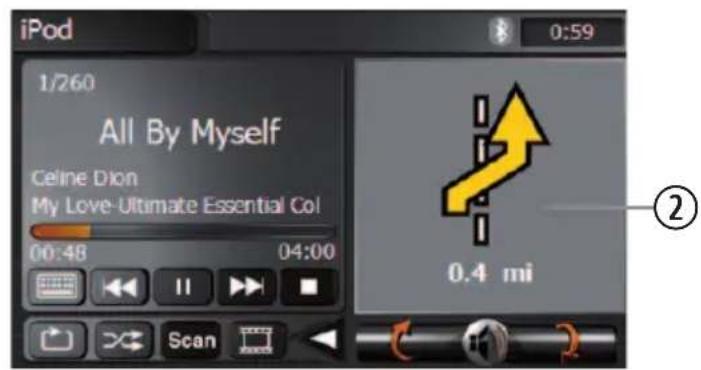
text_image
iPod 1/260 All By Myself Celine Dion My Love-Ultimate Essential Col 00:48 04:00 Scan 0.4 mi ②This item incorporates copy protection technology that is protected by U.S. patents and other intellectual party rights of Rovi corporation. Reverse engineering and disassembly are prohibited.
This unit is manufactured under license from Dolby Laboratories. "Dolby" and the double-D symbol are trademarks of Dolby Laboratories.
FEHLERSUCHE
Thank you for purchasing this ZENEC product. It is advisable to keep the original packaging material for any future transporting of the product. Should your ZENEC product require warranty service, please return it to the retailer from whom it was purchased or the distributor in your country. This ZENEC product is warranted against defective materials or workmanship for a period of TWO years from date of purchase at retail.
WARRANTY LIMITATIONS
This warranty does not cover any damage due to:
- Improper installation, incorrect audio or mains connection(s).
- Exposure to excessive humidity, fluids, heat sun rays or excessive dirt or dust.
- Accidents or abuse, unauthorized repair attempts and modifications not explicitly authorized by the manufacturer.
This warranty is limited to the repair or the replacement of the defective product at the manufacturer's option and does not include any other form of damage, whether incidental, consequential or otherwise. The warranty does not cover any transport costs or damages caused by transport or shipment of the product. Warranty work will not be carried out unless this warranty certifi cate is presented fully completed with model, serial number, purchaser's address, purchasing date and dealer stamp together with the original sales slip!
2 JAHRE GARANTIE
State: ZIP or postal code:
Country: ....
Dealer's address & stamp