O-pen XXL P 2001 - Tablet Pentagram - Free user manual and instructions
Find the device manual for free O-pen XXL P 2001 Pentagram in PDF.


| Product Type | Tablet |
| Brand | Pentagram |
| Model | O-pen XXL P 2001 |
| Display Size | 10.1 inches |
| Display Resolution | 1280 x 800 pixels |
| Operating System | Android 10 (typical) |
| Processor | Quad-core 1.5 GHz |
| RAM | 2 GB |
| Internal Storage | 32 GB |
| Battery Capacity | 6000 mAh |
| Weight | 520 g |
| Dimensions (W x D x H) | 240 x 170 x 9 mm |
| Wi-Fi | 802.11 b/g/n |
| Bluetooth | 4.2 |
| Stylus Support | Yes (O-pen active stylus) |
| Cameras | Rear 5 MP, Front 2 MP |
| Charging Port | Micro USB |
| Headphone Jack | 3.5 mm |
| Memory Card Slot | microSD up to 128 GB |
| Sensors | Accelerometer, Gyroscope |
| Languages Supported | English, German, Polish, and more |
Frequently Asked Questions - O-pen XXL P 2001 Pentagram
User questions about O-pen XXL P 2001 Pentagram
0 question about this device. Answer the ones you know or ask your own.
Ask a new question about this device
Download the instructions for your Tablet in PDF format for free! Find your manual O-pen XXL P 2001 - Pentagram and take your electronic device back in hand. On this page are published all the documents necessary for the use of your device. O-pen XXL P 2001 by Pentagram.
USER MANUAL O-pen XXL P 2001 Pentagram
NOTE! Any information and technical data are subject to change without prior notification and/or indication in this manual.
© 2005 PENTAGRAM
All rights reserved; copying and reproduction is strictly forbidden.

Installation and Operation Manual
EN
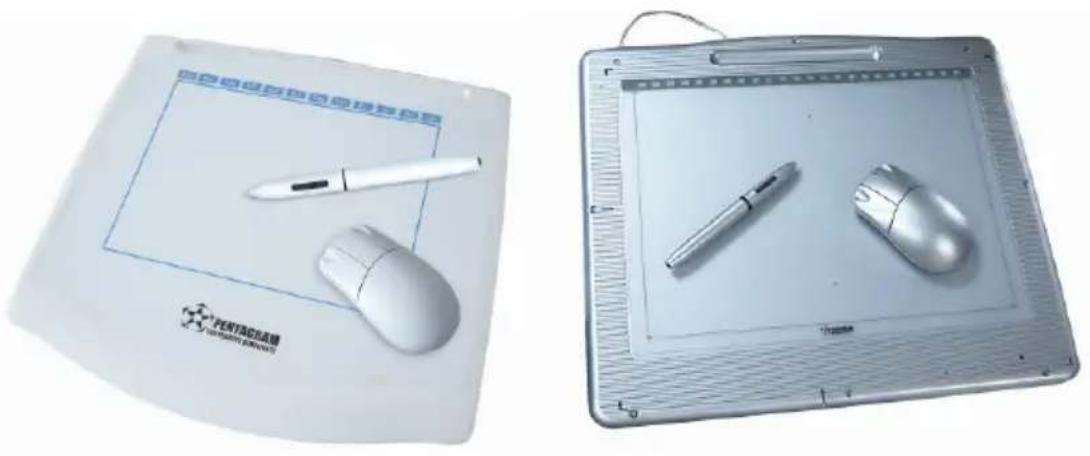
PENTAGRAM Graphic Tablets
O'Pen XL USB
O'Pen XXL USB
Introduction
Thank you for purchasing the PENTAGRAM O'Pen tablet, a graphics add-on for your PC. O'Pen gives you the freedom to do much more than using a mouse. Originally, the tablet was designed for professional graphics artists and CAD/CAM designers, but the affordable and powerful PENTAGRAM products are also ideal for consumer use.
Tablet components
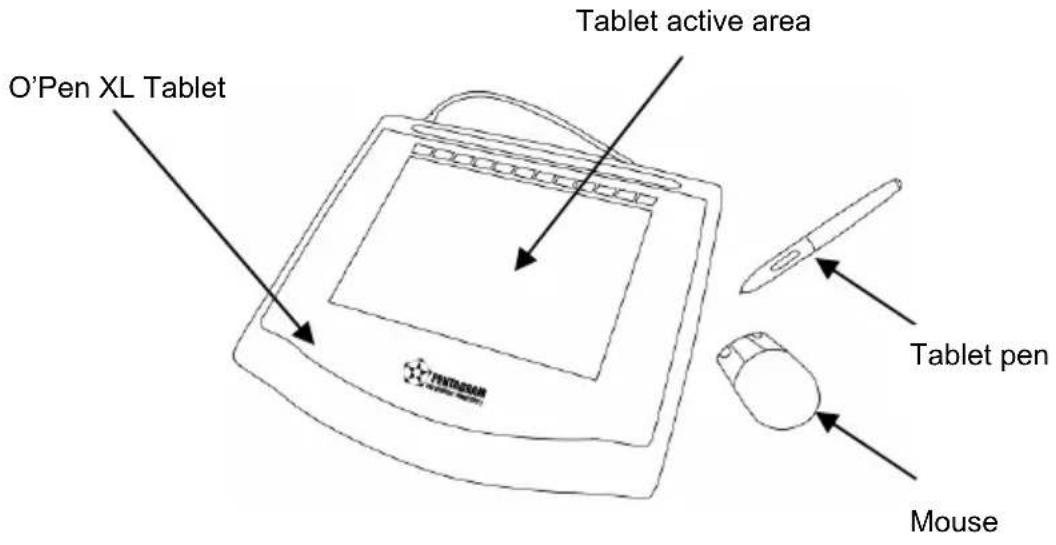
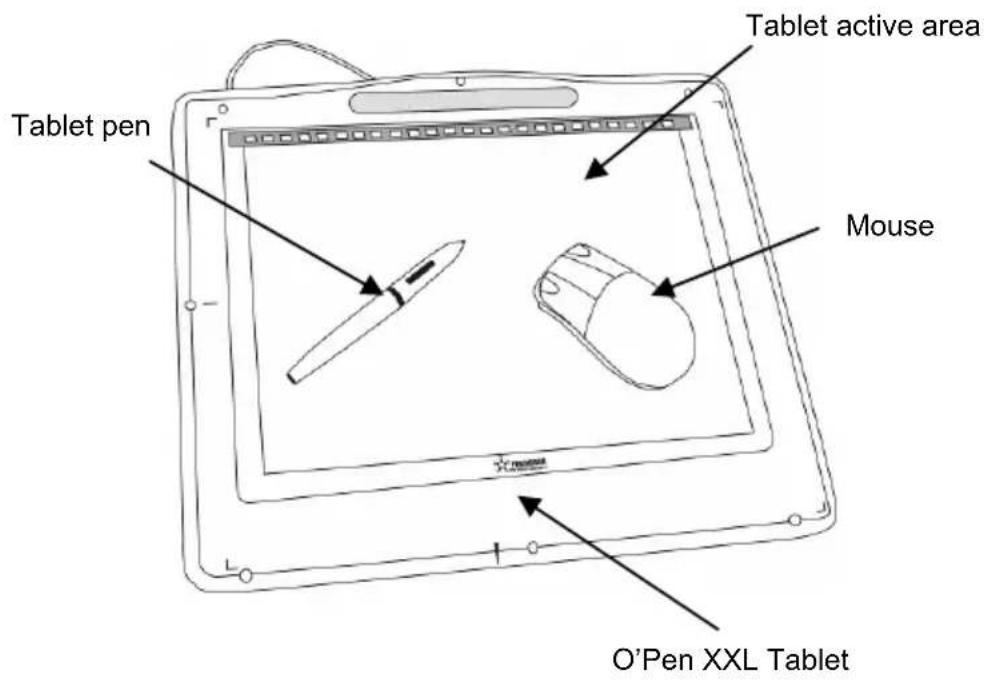
Setting up the tablet
Power supply
The tablet requires power for the mouse and pen in order to operate correctly. Two 1.5V AAA batteries are used. Insert one battery in the battery compartment at the bottom of the mouse. Insert the other in the tablet pen after prior unscrewing the back of the pen (as when replacing a pen cartridge).
Connecting the tablet to the PC
The tablet is connected to an available USB connector, which is located on the PC's back panel. The tablet is powered using the USB port. The entire set is connected using a single cable.
Installing the tablet
Windows 98/Me users
- Do not connect the tablet to the PC.
- Launch Windows and place the software CD in the CD-ROM drive.
- The setup wizard will be launched automatically. If the CD-ROM autorun feature is disabled, run Setup.exe in the CD's root directory.
- Click O'Pen XL or O'Pen XXL.
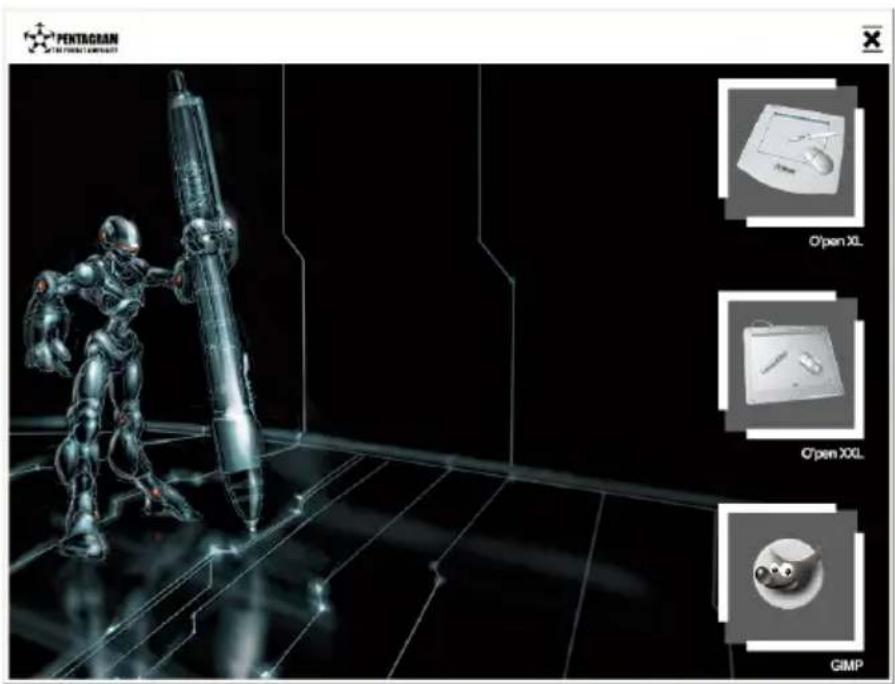
5. Click Next.
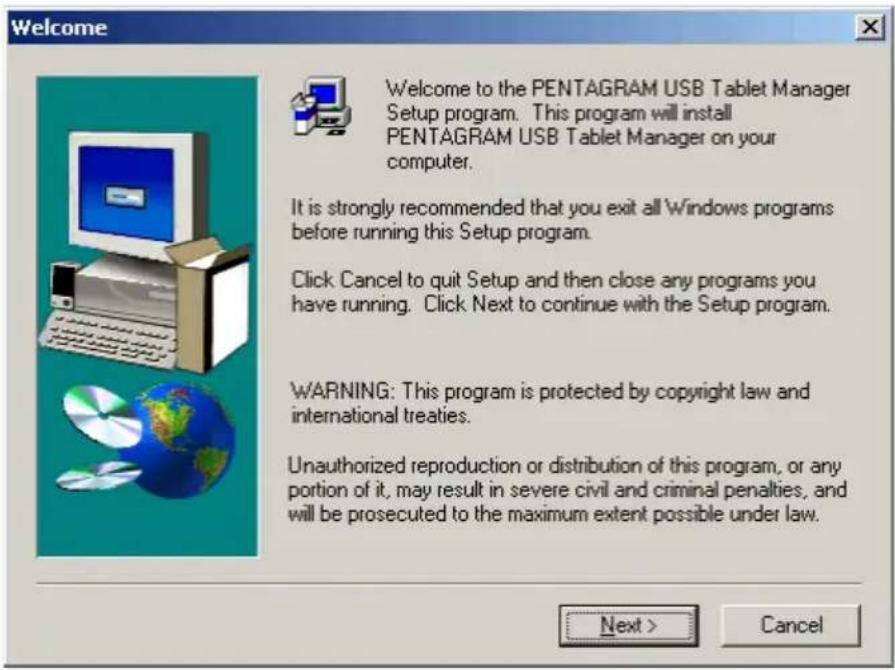
- When the message below appears, connect the tablet to an available USB port on the PC.
PENTAGRAM USB Tablet Manager

If your PENTAGRAM USB Tablet Manager is not connected with your system, please plug it in now.
- After the tablet is connected, drivers will be installed automatically, and the tablet icon will appear in the system tray on the taskbar to indicate that the device is available in the system. The tablet is now ready for operation.
(If a dialog appears saying that unknown hardware has been detected, ignore it by clicking Cancel.)
Note: If the tablet does not operate correctly after installation, please restart the system.
Windows 2000 users
- Do not connect the tablet to the PC.
- Launch Windows and place the software CD in the CD-ROM drive.
- The setup wizard will be launched automatically. If the CD-ROM autorun feature is disabled, run Setup.exe in the CD's root directory.
- Click O'Pen XL or O'Pen XXL.
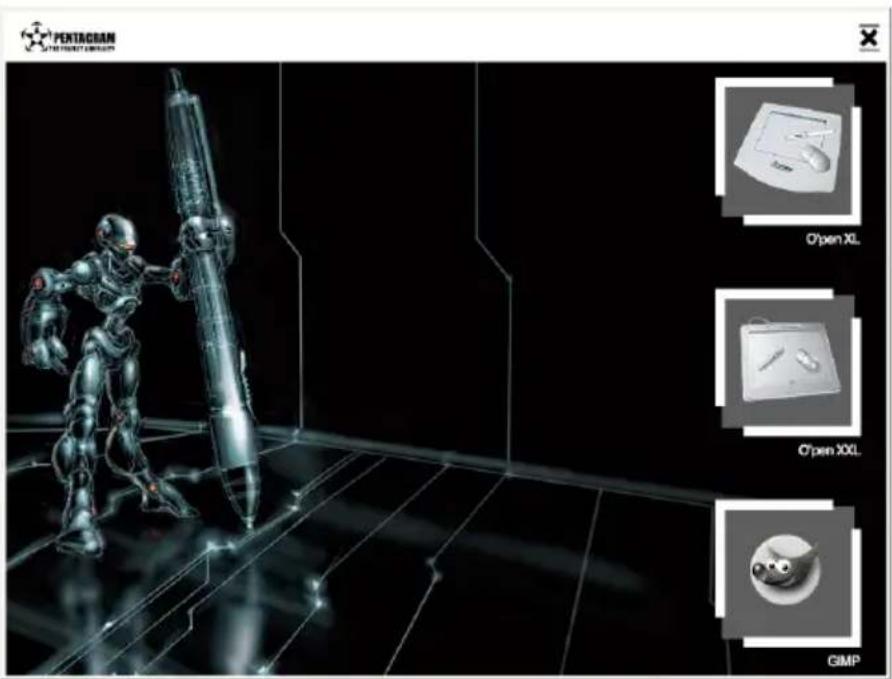
5. Click Next.
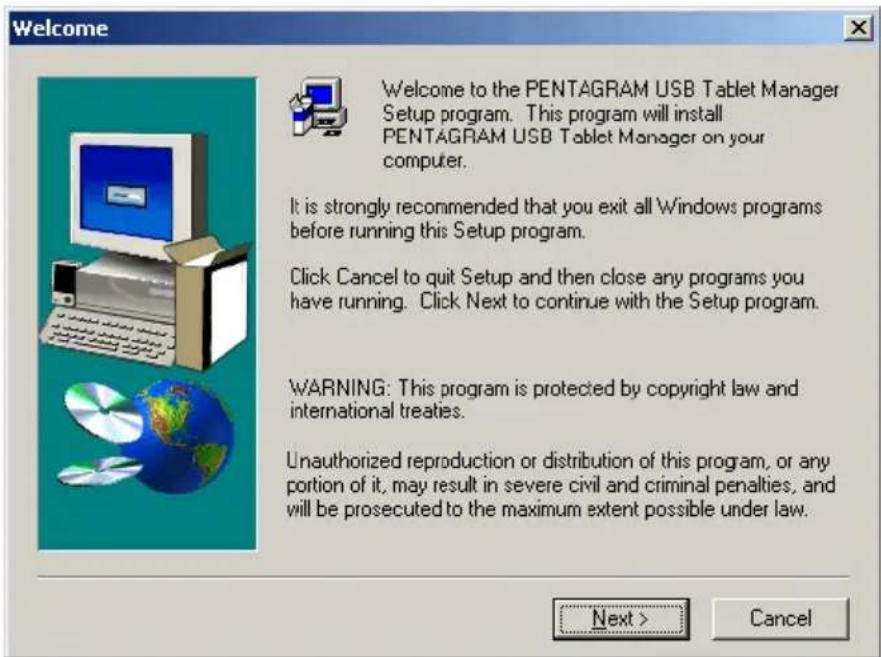
- Click Finish. The tablet setup is now complete.
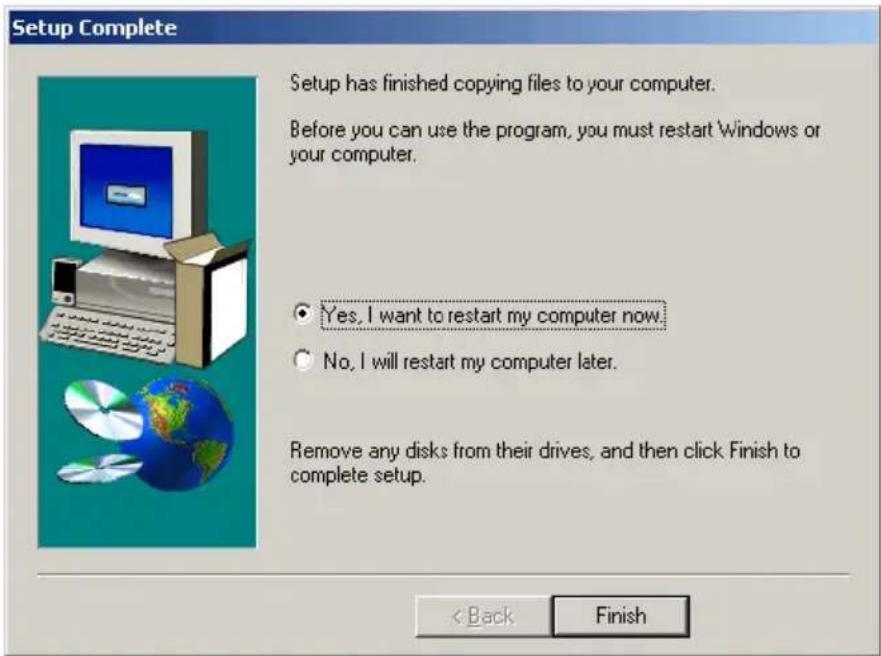
- Connect the tablet to an available USB port on the PC.
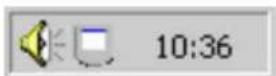
- Drivers will be installed automatically, and the tablet icon will appear in the system tray on the taskbar.
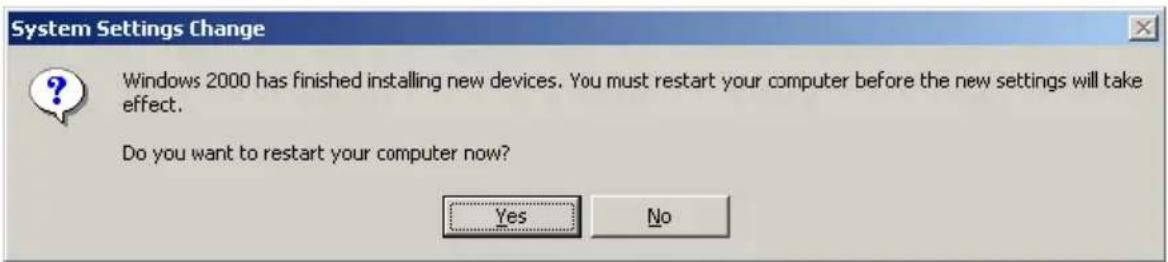
- A window will be displayed, prompting you to restart the system. Click Yes.
Windows XP users
- Do not connect the tablet to the PC.
- Launch Windows and place the software CD in the CD-ROM drive.
- The setup wizard will be launched automatically. If the CD-ROM autorun feature is disabled, run Setup.exe in the CD's root directory.
- Click O'Pen XL or O'Pen XXL.
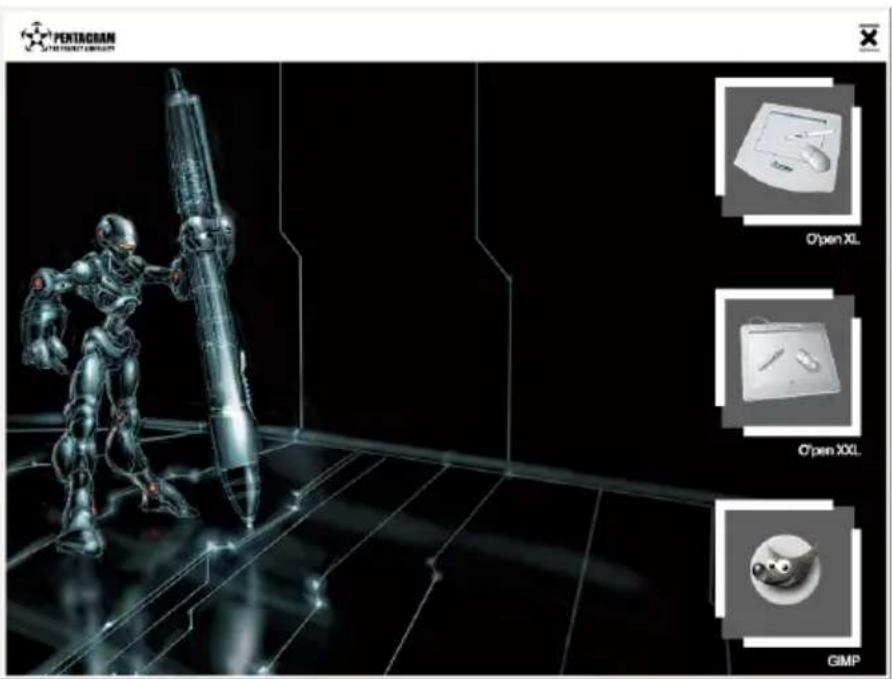
5. Click Next.
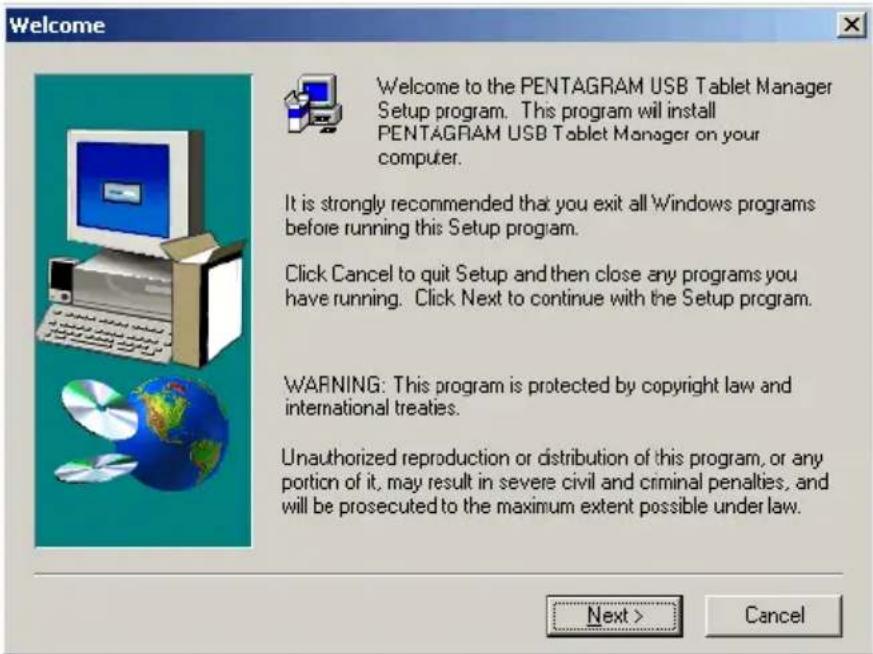
- Click Finish. The tablet setup is now complete.
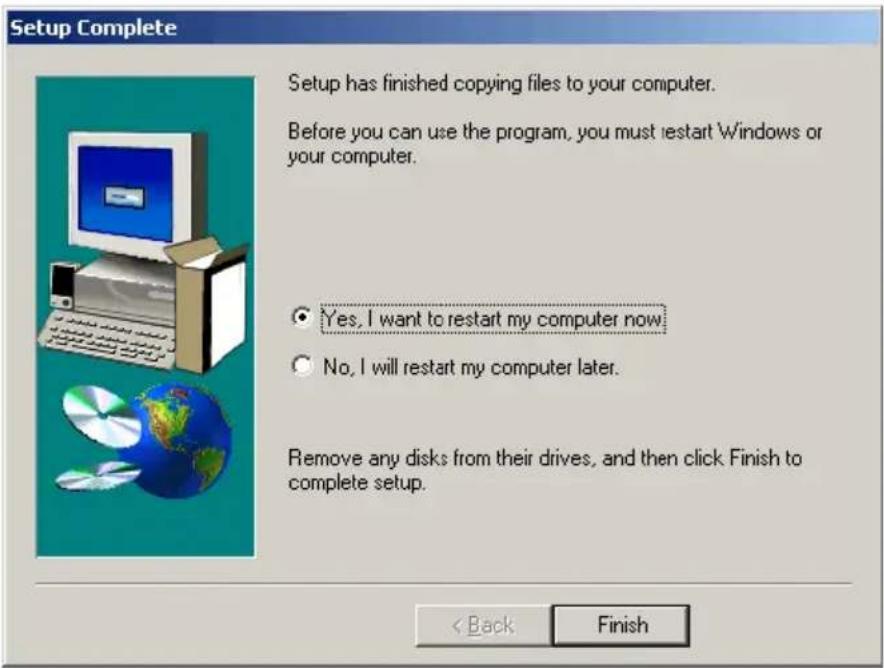
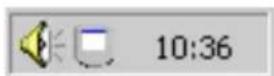
- Connect the tablet to an available USB port on the PC. Drivers will be installed automatically, and the tablet icon will appear in the system tray on the taskbar.
Configuring the tablet
Tablet configuration can be accessed using the Windows Control Panel icon or the system tray icon. Double click either of these icons to display the dialog below.
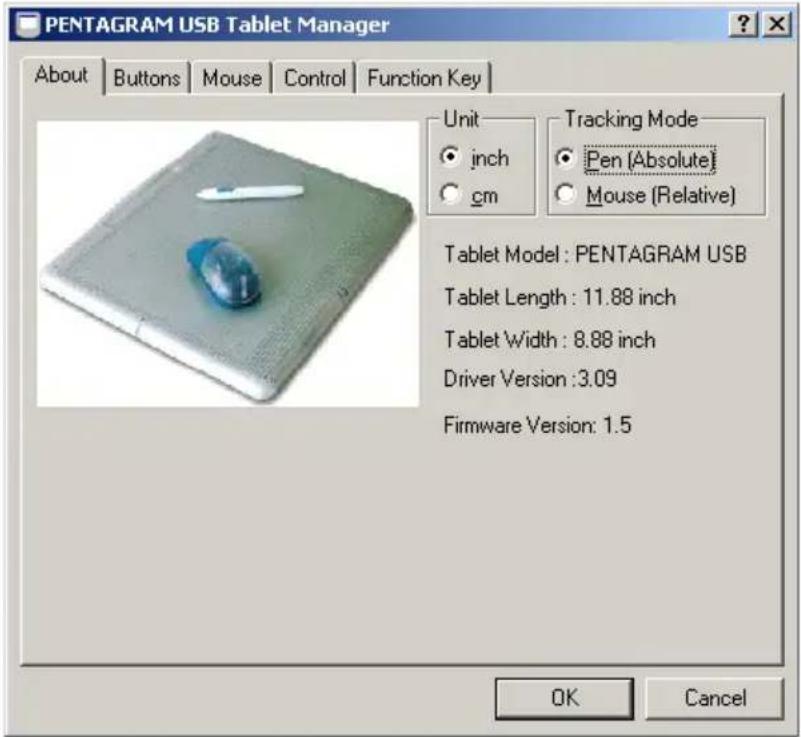
About tab
This tab contains tablet information: model, length, width, driver version and firmware version.
Unit
Select centimeters (cm) or inches (inch).
Tracking Mode
Pen (Absolute): The tablet's active area matches the screen area. Mouse (Relative): The tablet pen operates as a mouse.
Buttons tab
Side Button 2: Select the function assigned to the top button on the side of the pen. Side Button 1: Select the function assigned to the bottom button on the side of the pen. Default: Restore default settings. Click Pressure: Set the tablet's sensitivity to pressure. Test: Click this button to open a window and test the new pen sensitivity settings.
Click the bottom button on the side of the pen to clear the test area. Click the top button on the side of the pen to close the window.
Mouse tab
The mouse only works in the tablet's active area.
Pointer speed: Select the speed at which the cursor moves (Fast, Slow).
Button configuration: Select the mouse settings (Right-handed, Left-handed).
Use the drop-down list at the bottom to assign a function to the middle mouse button.
Control tab
Full Area: The tablet's entire work area is active.
Screen Ratio: Matches the Dimension settings to the screen ratio.
Offset: Select the screen offset (Left, Bottom).
Dimension: Define the working area (Length [X], Width [Y]).
Click the black box with the left mouse button to set the new working area size.
Function Key tab
Use this tab to assign functions to the fields at the top of the tablet's active area.
User-defined functions are assigned to the tablet's active fields. Instead of pressing a key on the keyboard, simply touch the desired field on the tablet and click it with the tip of the pen.
Additional Information
Tablet specification
| Dimensions | O'Pen XLO'Pen XXL | 310 x 285 x 9 mm (12.2 x 11.2 x 0.35 in)400 x 350 x 12 mm (15.7 x 13.8 x 0.5 in) |
| Active area | O'Pen XLO'Pen XXL | 203 x 152 mm (8 x 6 in)304 x 228 mm (12 x 9 in) |
| Maximum readout clearance 8 mm | (0,3 in) | |
| Pressure levels 512 | ||
| Accuracy 0.42 mm (0.0165 in) | ||
| Connection | USB port | |
| Resolution 3048 lpi (120 lpmm) | ||
| Drivers Windows 98/Me/2000/XP, Mac OS 8.5/8.6/9.0 | ||
PC requirements:
- Pentium CPU or higher
• Windows 98/Me/2000/XP - USB port
MAC requirements:
- iMac, PowerMac or PowerBook
• MacOS 8.5/8.6/9.0 - USB port
Compatible software
O'Pen is compatible with any software running on Windows 98/Me/2000/XP.
natural_image
Exterior view of a modern office building (no signage)Grafiktablett PENTAGRAM
O'Pen XL USB
O'Pen XXL USB
Einleitung
If your PENTAGRAM USB Tablet Manager is not connected with your system, please plug it in now.
- Installation and Operation Manual
- PENTAGRAM Graphic Tablets
- Introduction
- Setting up the tablet
- Power supply
- Connecting the tablet to the PC
- Installing the tablet
- Windows 98/Me users
- Click Next.
- PENTAGRAM USB Tablet Manager
- Windows 2000 users
- Windows XP users
- Configuring the tablet
- About tab
- Unit
- Tracking Mode
- Buttons tab
- Mouse tab
- Control tab
- Function Key tab
- Additional Information
- PC requirements:
- MAC requirements:
- Compatible software
- Grafiktablett PENTAGRAM
- Einleitung
Brand : Pentagram
Model : O-pen XXL P 2001
Category : Tablet