
MediaNetwork 2.0 - Media player LOEWE - Free user manual and instructions
Find the device manual for free MediaNetwork 2.0 LOEWE in PDF.


User questions about MediaNetwork 2.0 LOEWE
0 question about this device. Answer the ones you know or ask your own.
Ask a new question about this device
Download the instructions for your Media player in PDF format for free! Find your manual MediaNetwork 2.0 - LOEWE and take your electronic device back in hand. On this page are published all the documents necessary for the use of your device. MediaNetwork 2.0 by LOEWE.
USER MANUAL MediaNetwork 2.0 LOEWE
natural_image
Modern flat-screen TV with black and white panels, no visible text or symbolsOperating instructions
TV
- MediaNetwork 2.0
LOEWE.
Contents
Remote control – MediaNetwork functions ...... 3
Welcome....4
Important....4
About MediaNetwork 4
Help for problems with home network 4
MediaNetwork and Internet 4
Access to MediaNetwork and Internet Radio 4
Selection of menu items 4
Exit MediaNetwork 4
Initial installation 5
Example of wired connection 5
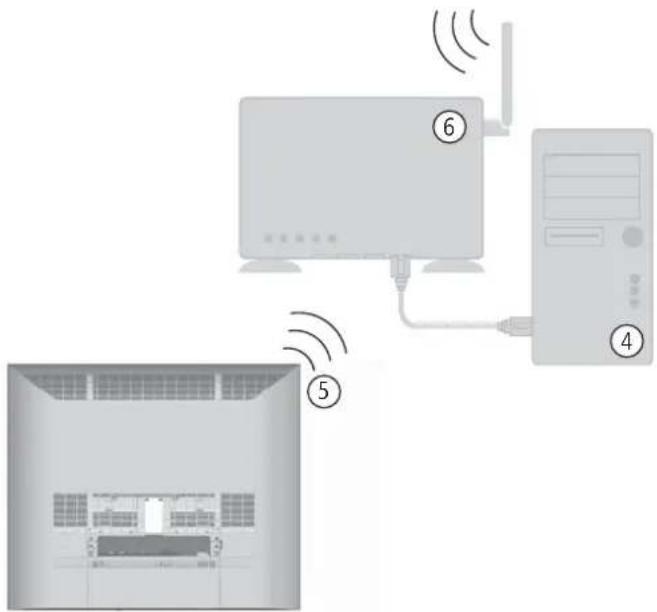
Example of wireless connection ....5
Connecting TV set and home network 5
Initial installation ....6
Select network interface 6
Select wireless router 6
Enter WLAN password 6
Select IP Address Assignment Method....7
Network setting 7
Select Server....7
Operating convenience 8
Welcome page....8
Select media server or Internet function 8
Internet functions....8
Sub-items in media server operation 8
MediaNetwork-Menu 8
Exit MediaNetwork 8
Function of buttons in the media selection 8
MediaNetwork-Menu 9
Explanation of setting options in the MediaNetwork-Menu 9
Software update 9
Start software update 9
Local network 10
Photo operation....10
Full screen mode....11
Slide show 11
Video operation 12
Notes on high definition films.... 12
Play back video files....12
Wind....13
Jumping 13
Video status bar 13
Explanation of status bar symbols 13
Select language/sound 13
Music operation....14
Playback of music files....15
Function of coloured buttons during music playback 15
Explanation of the symbols in the playback window 15
Internet 16
Internet Radio via vTuner 16
Playing internet radio stations.... 17
Favourites 17
Maintenance of Favourites via Loewe website.... 17
AUPEO! Internet Radio 18
Personal radio....18
Mood radio....18
Artist radio 19
Favourite artists....19
Loved tracks station 19
AUPEO! stations....19
AUPEO! PREMIUM 19
Internet Video 20
Notes on high definition films....20
Playback 20
Wind 20
Jumping 21
Video status bar 21
Explanation of status bar symbols 21
YouTube 22
Notes on high definition films.... 22
Playback 22
Wind 22
Jumping 23
Video status bar 23
Explanation of status bar symbols 23
Search video 23
My personal Youtube 24
Device Information 25
Explanation of display items 25
Troubleshooting 26
Other 28
Technical specifications 28
File formats supported 28
Ethernet (wired network) 28
WLAN (wireless network) 28
Supported home network standard 28
Media server software....28
Legal notices....28
Masthead 28
Glossary....29
Index 31
Notes 32
Remote control – MediaNetwork functions
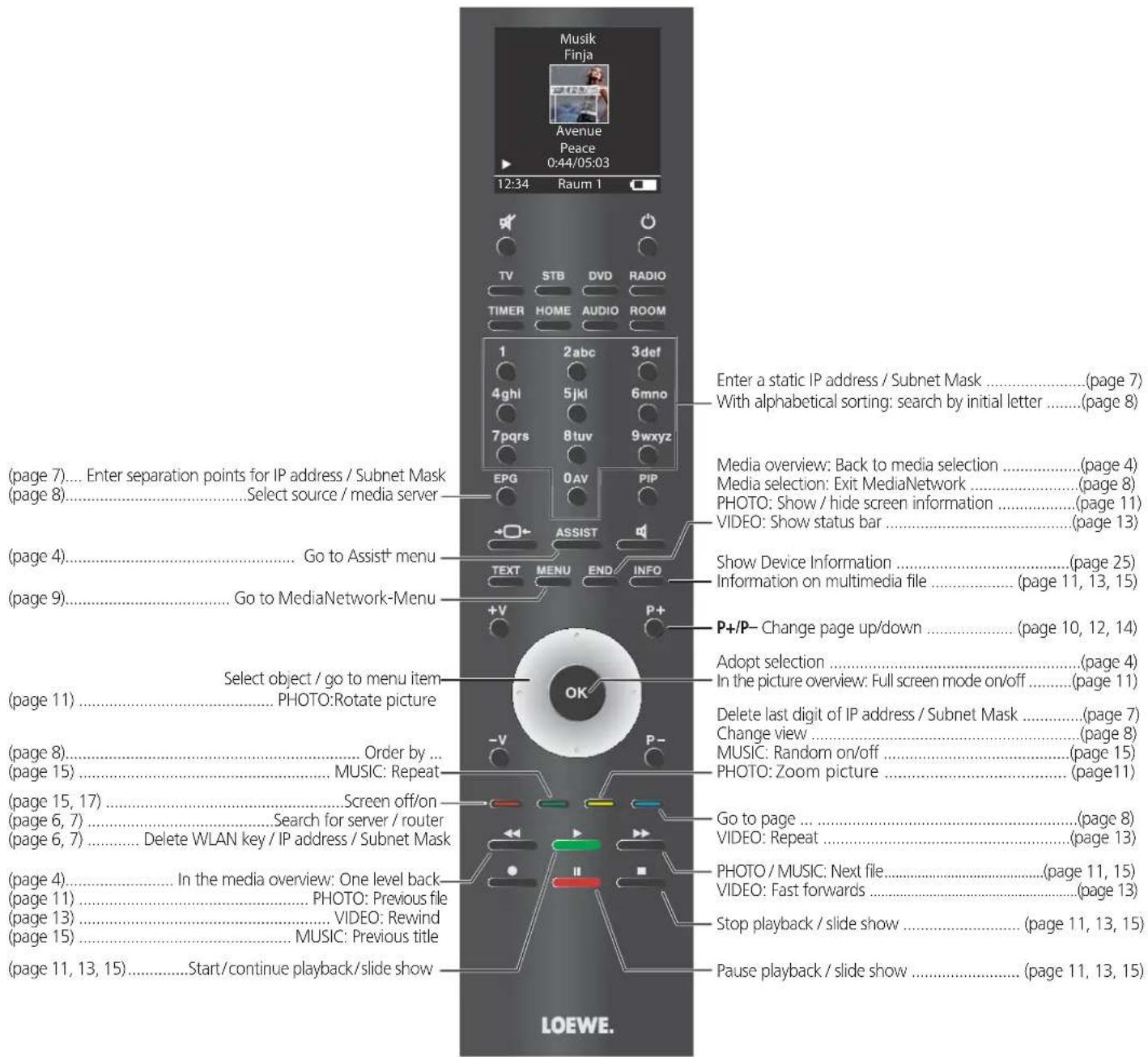
text_image
Musik Finja Avenue Peace 0:44/05:03 12:34 Raum 1 TV STB DVD RADIO TIMER HOME AUDIO ROOM 1 2abc 3def 4ghl 5jkl 6mno 7pqrs 8tuv 9wxyz EPG 0AV PIP ASSIST TEXT MENU END INFO +V P+ P+/P- Change page up/down (page 10, 12, 14) (page 7).... Enter separation points for IP address / Subnet Mask (page 8)....Select source / media server (page 4).... Go to Assist+ menu (page 9).... Go to MediaNetwork-Menu Select object / go to menu item (page 11).... PHOTO:Rotate picture (page 8).... Order by ... (page 15).... MUSIC: Repeat (page 15, 17).... Screen off/on (page 6, 7).... Search for server / router (page 6, 7).... Delete WLAN key / IP address / Subnet Mask (page 4).... In the media overview: One level back (page 11).... PHOTO: Previous file (page 13).... VIDEO: Rewind (page 15).... MUSIC: Previous title (page 11, 13, 15)....Start/continue playback/slide show LOEWE. Enter a static IP address / Subnet Mask ....(page 7) With alphabetical sorting: search by initial letter ....(page 8) Media overview: Back to media selection ....(page 4) Media selection: Exit MediaNetwork ....(page 8) PHOTO: Show / hide screen information ....(page 11) VIDEO: Show status bar ....(page 13) Show Device Information ....(page 25) Information on multimedia file ....(page 11, 13, 15) Adopt selection ....(page 4) In the picture overview: Full screen mode on/off ....(page 11) Delete last digit of IP address / Subnet Mask ....(page 7) Change view ....(page 8) MUSIC: Random on/off ....(page 15) PHOTO: Zoom picture ....(page11) Go to page ....(page 8) VIDEO: Repeat ....(page 13) PHOTO / MUSIC: Next file ....(page 11, 15) VIDEO: Fast forwards ....(page 13) Stop playback / slide show ....(page 11, 13, 15) Pause playback / slide show ....(page 11, 13, 15)Welcome
Important
Your Loewe TV set is equipped with MediaNetwork. This enables you to play multimedia contents (photos, music files, videos), which are provided by a media server in your home network (see also page 28). MediaNetwork can play data from different types of memory media (e.g. PCs, Network Attached Storages (NAS), Internet Radio), depending on the type of media server used.
When the internet connection is correctly set up, it is also possible to receive Internet Radio directly via the TV set (without media server) (see from page 16).
You can connect your TV set either wired (Ethernet, PowerLine) or also via a wireless radio connection (WLAN) to your home network. The TV set has wireless connections via an internal WLAN antenna. You will find connection examples on page 5 on the right.
MediaNetwork supports UPnP AV standard.
You will find more detailed information in the technical data on page 28 and in the glossary from page 29.
All photos, albums and album graphics shown in these operating instructions are just examples.
Help for problems with home network
Because of the wide variety of configurations of home networks, Loewe cannot provide support for PC hardware and software or network components.
For support with configuration of and maintaining network connections, storage media and network devices, such as routers (positions ③, ④ and ⑥ in the connection examples on page 5) please contact the administrator of your network and/or the specialist retailer.
MediaNetwork and Internet
For the options Internet Radio, Internet Video, YouTube and AUPEO!, your TV set must have an active internet connection with gateway connection and DNS server (see page 7 and Glossary page 29). For these options, we recommend registering your TV set at our website at
http://www.loewe-uk.com (under Support → Register now). Simply follow the steps in the registration process.
To register, you will need to have the MAC address of your TV set to hand. You can find this in your TV's index under Integrated features – MediaNetwork MAC address.
Access to MediaNetwork and Internet Radio
Start the MediaNetwork using the Assist+ menu.

Go to Assist+ menu.

☐ Mark MediaNetwork or Internet radio (see page 16), OK call.
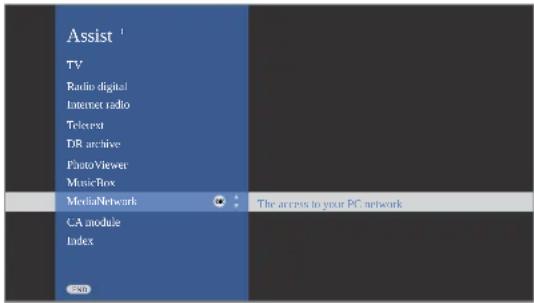
text_image
Assist TV Radio digital Internet radio Telecast DR archive PhotoViewer MusicFlow MediaNetwork CA module Index ©ND The access to your PC networkSelection of menu items

Use the arrow buttons ☐☐☐☐ to move the marker on the user interface.
Use the OK button to select or adopt the object you have currently marked.

Use the 📄button to go back up a level respectively.

With the END button you return from any item in the menu overview to the media selection (page 8).

This screen symbol shows you that the required operating function is currently not available.
Exit MediaNetwork

Go to Assist+ menu and select another function (see above).
Or:

Press TV button to change to the corresponding type of operation.
Or:

Press END button in the media selection (page 8) to change to the last previously active type of operation (TV, radio).
Initial installation
Connecting TV set and home network
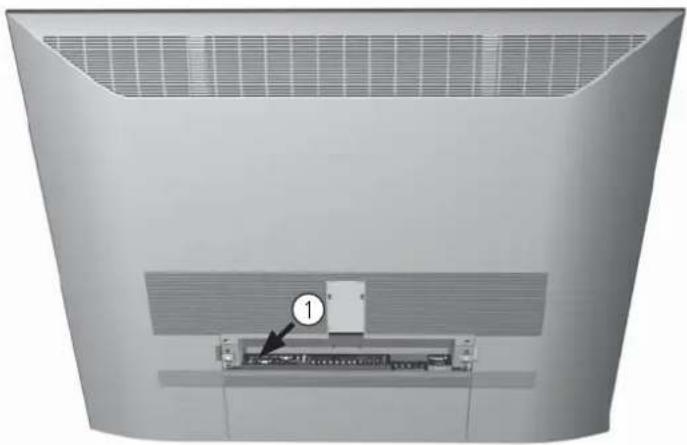
natural_image
Top-down view of a computer monitor with ventilation grilles and a labeled component (no text or symbols visible)Network socket on Loewe TV set
② Wired connection between TV set and home network with a network cable (available from specialist retailers)
LAN switch / router
Home4 server (e.g. PC)
WLAIS antenna inside device
WLA16 router
Example of wired connection
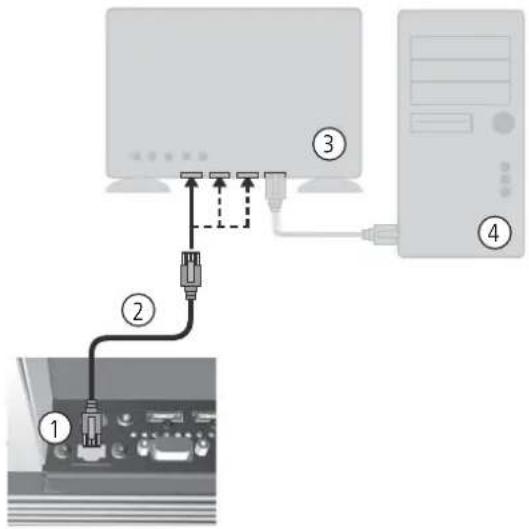
text_image
Diagram showing connection between a computer monitor and a server with labeled pins and cable routingExample of wireless connection
text_image
Diagram showing wireless network connection between a computer and a server, with labeled components 4, 5, and 6.Initial installation
Initial installation
The first time MediaNetwork is called up, initial installation is started.
Select network interface
Here you enter whether you want to connect your TV set Wired via cable or Wireless (with wireless router) to your home network.
You will find connection examples on page 5.
□□□ Select network interface.
OK Activate.
Select network interface
Wireless (with wireless router)
CK Actively
OK
END
If you select Wired then initial installation is continued with the menu item Select IP Address Assignment Method (page 7).
Select wireless router
If you have selected Wireless (with wireless router), then the TV set starts to search for wireless routers.
Select a wireless router
WLAN-Router_1
WLAN-Router_2
OK Active
Search
SSID input
rk
IND
□□□ Select required WLAN router.
OK Activate.
As soon as □ is displayed, you can go back one installation step by pressing this button.
If your router is not found the first time, then you can press the red button to Rescan for routers. If there are any problems making a wireless connection, it can help to install the additional antenna on the TV set (see page 5, illustration above left). Please also refer to the information on wireless connections on page 27.
If your router is not recognised or the SSID of your home network is concealed, you can enter the SSID manually after pressing the yellow button. A screen keyboard appears to enter the SSID.
Please enter SSID
DES
Δ503
Select
(四) 10
Delute SSID
Delete last position
END
Mark characters.
Function of coloured buttons:
Blue: Select character.
Yellow: Delete last position.
Red: Delete complete SSID from the input line.
Green: Switch from small to capital letters and vice versa.
OK Adopt SSID.
Enter WLAN password
If your network has an encryption then it is necessary to enter the password that allows access to the network. A screen keyboard will appear to enter the password (see above).
OK Adopt Password.
Umlauts (German characters ä, ö, ü) are generally not supported.
If you do not know the WLAN key, contact your network administrator.
→ Supported encryption types see page 28.
Initial installation
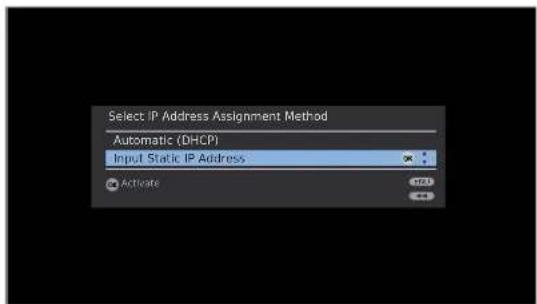
Select IP Address Assignment Method

▲▼ Select IP Address Assignment Method. OK Activate.
text_image
Select IP Address Assignment Method Automatic (DHCP) Input Static IP Address ActivateAutomatic (DHCP): IP addresses are automatically issued by a DHCP server on your home network.
A DHCP server has to be set up on a device on the network (e.g. WLAN router).
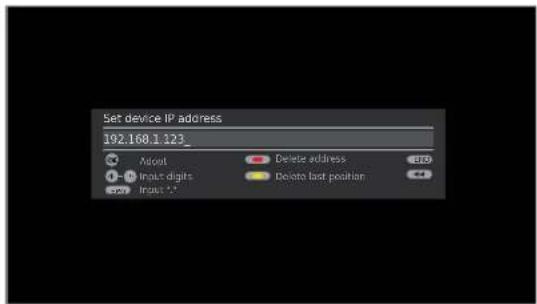
Input Static IP Address: IP addresses are entered manually.
text_image
Set device IP address 192.168.1.123_ Adout Delete address Add Delete last position Input digits Input **Digit buttons: Input digits of IP address.
EPG: Enter dots.

Function of coloured buttons:
Yellow: Delete last position.
Red: Delete address.

OK: Adopt IP address.
Proceed similarly with the subsequent entry of the further IP addresses of Subnet Mask, Gateway and DNS server.
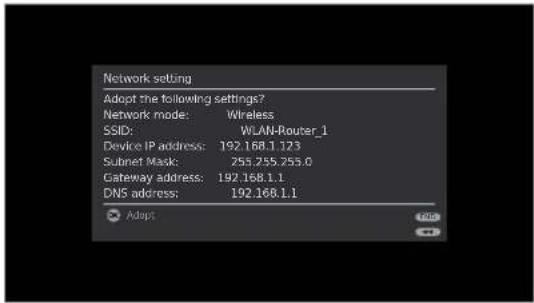
Network setting
Afterwards you will see a summary of the settings.
OK Adopt settings.
Backwards step by step for changes.
text_image
Network setting Adopt the following settings? Network mode: Wireless SSID: WLAN-Router_1 Device IP address: 192.168.1.123 Subnet Mask: 255.255.255.0 Gateway address: 192.168.1.1 DNS address: 192.168.1.1 AdoptSelect Server
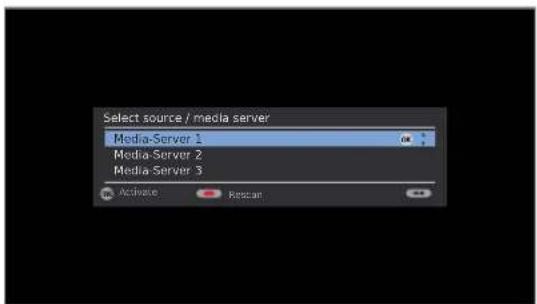
Lastly, select the media server from which you want to draw the data.
text_image
Select source / media server Media-Server 1 Media-Server 2 Media-Server 3 Activate Restart
▲▼ Select media server. OK Activate.
If your required media server should not be found the first time, then you can press the red button to Rescan for media servers.
Operating convenience
Welcome page
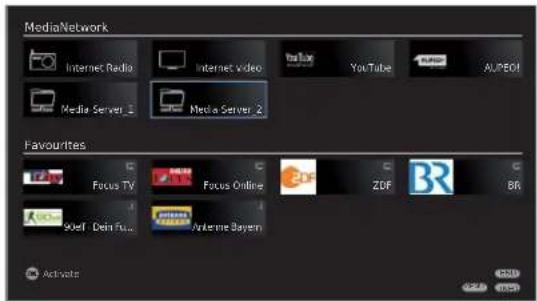
First you see the welcome page. Select a media server.
Select media server or Internet function
text_image
MediaNetwork Internet Radio Internet video YouTube YouTube ALIPEOL Media Server_1 Media Server_2 Favourites Focus TV Focus Online ZDF BR ARX Deli Fos Arxeme Bayern Activate
EPG
◀ ▶ ▲ ▼ Select media server or internet function, OK activate.
EPG: Update list of sources / media servers.
Internet functions
Sub-items in media server operation
| Photo operation: | see | page | 10. |
| Video operation: | see | page | 12. |
| Music operation: | see | page | 14. |
MediaNetwork-Menu

MENU: Open MediaNetwork-Menu (see page 9).
Exit MediaNetwork

END: Exit MediaNetwork for last previously active mode (TV, Radio).
Function of buttons in the media selection
Green button: Order by ...
Change order objects displayed (folders and files).
The sorting options available depend on the media server that you are using.
With alphabetical sorting, the search can be carried out with the number buttons of the remote control by initial letter (depending on the media server).
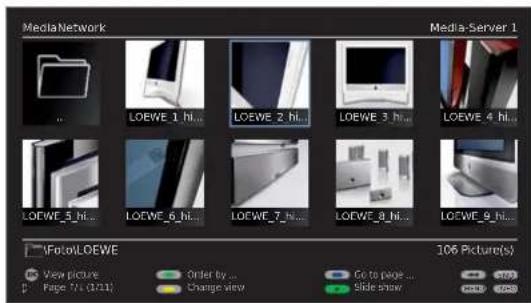
Yellow button: Change view
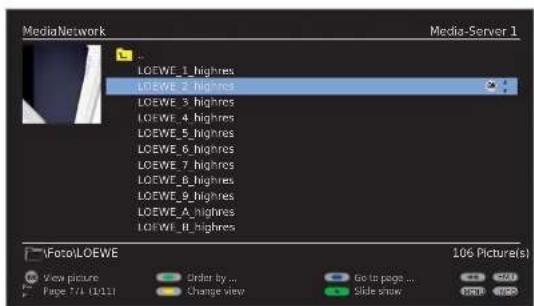
Switches between preview and list view:
text_image
MediaNetwork Media-Server 1 LOEWE_1_hi... LOEWE_2_hi... LOEWE_3_hi... LOEWE_4_hi... LOEWE_5_hi... LOEWE_6_hi... LOEWE_7_hi... LOEWE_8_hi... LOEWE_9_hi... iFoto/LOEWE 106 Picture(s) View picture Page 7/1 (3/11) Order by ... Change view Go to page ... Slide snowExample: Photo operation, preview
text_image
MediaNetwork LOEWE_1_Nighres LOEWE_2_Nighres LOEWE_3_Nighres LOEWE_4_Nighres LOEWE_5_Nighres LOEWE_6_Nighres LOEWE_7_Nighres LOEWE_8_Nighres LOEWE_9_Nighres LOEWE_A_Nighres LOEWE_II_Nighres Media-Server 1 iFoto/LOEWE 106 Picture(s) View picture Page 7/4 (2011) Order by ... Change view Go to page ... Slide show ADD ADDExample: Photo operation, list view
Blue button: Go to page ...
Alternatively to going through pages you can also go directly to the individual pages on the overview. On the Go to page ... overview the first title on each page respectively is shown.
→ Only available when there are more items than can be displayed on one screen page.
The number of pages depends on the view selected (preview or list). You can see the number at the bottom on the left.
©
Local network
Photo operation

A media server has been selected (page 8).
◀ ▶ ▲ ▼ Select folder with photos, OK open folder.
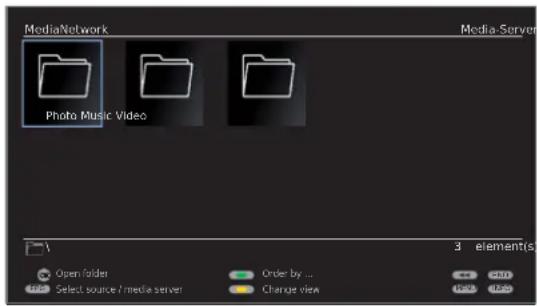
text_image
MediaNetwork Photo Music Video Media Server Open Folder Select source / media server Order by ... Change view 3 element(s) ← Ctrl ← Add OK CancelThe name of the folder depends on your media server setting (in example picture: Photo).

▲▼◄► Select required sub-folder, OK open folder. If required, repeat.
P+/P- Page up / down.
Only available when there are more items in the current folder than can be displayed on one screen page.
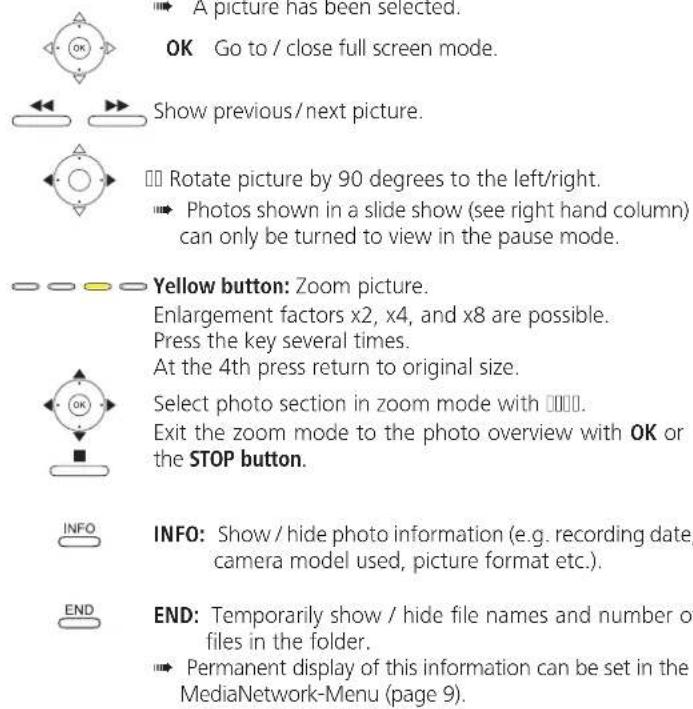
◀ ▶ ▲ ▼ Select picture,
OK view marked picture in full screen mode (see page 11).
Green button: Order by ...
Change order of objects displayed (folders or files).
The sorting options available depend on the media server that you are using.
With alphabetical sorting, the search can be carried out with the number buttons of the remote control by initial letter (depending on the media server).
Yellow button: Change view
Switches between preview and list view.
Blue button: Go to page ...
Alternatively to going through pages you can also go directly to the individual pages on the overview. On the Go to page ... overview, the first title on each page respectively is shown.
→ Only available when there are more items than can be displayed on one screen page.
The number of pages depends on the view selected (preview or list). You can see the number at the bottom on the left.
Local network
Full screen mode
text_image
A picture has been selected. OK Go to / close full screen mode. Show previous/next picture. Rotate picture by 90 degrees to the left/right. Photos shown in a slide show (see right hand column) can only be turned to view in the pause mode. Yellow button: Zoom picture. Enlargement factors x2, x4, and x8 are possible. Press the key several times. At the 4th press return to original size. Select photo section in zoom mode with Exit the zoom mode to the photo overview with OK or the STOP button. INFO Show / hide photo information (e.g. recording date, camera model used, picture format etc.). END Temporarily show / hide file names and number of files in the folder. Permanent display of this information can be set in the MediaNetwork-Menu (page 9).Slide show

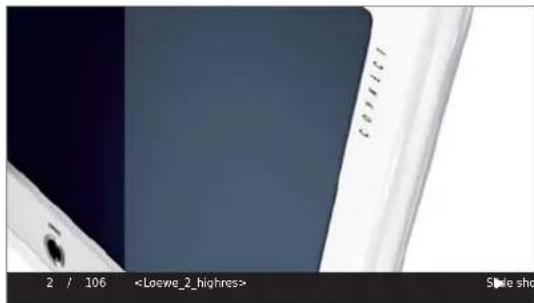
PLAY button: Start slide show.
→ from photo overview: Start slide show with marked picture.
in full screen mode: Start slide show with displayed picture.
natural_image
Close-up of a white aircraft fuselage with blue sky background, no visible text or symbols
PAUSE button: Pause slide show.
PLAY button: Continue slide show.
STOP button: Stop slide show and return to overview.
Local network
Video operation

A media server has been selected (page 8).
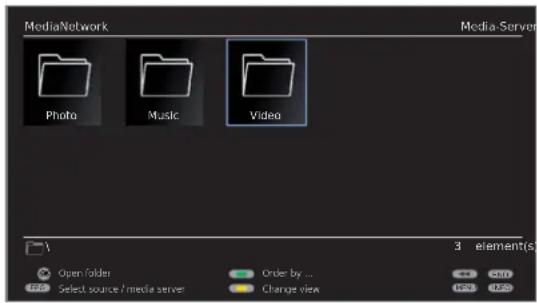
◀ ▶ ▲ ▼ Select folder with videos, OK open folder.
text_image
MediaNetwork Photo Music Video Media-Server 3 element(s) Open Folder Select source / media server Order by ... Change viewThe name of the folder depends on your media server setting (in example picture: Video).

▲▼◄► Select required sub-folder, OK open folder. If required, repeat.
P+/P− Page up / down.
Only available when there are more items in the current folder than can be displayed on one screen page.
◀ ▶ ▲ ▼ Select video, OK play marked video (see right hand column).
Notes on high definition films
High definition film material (HD films) from format 720p upwards (resolution 1280 x 720 or higher) should be played back via a wired connection. If there is a wireless connection, then technical limitations (e.g. fault liability, bandwidth limitations) can cause disruptions in the playback right up to a complete breakdown of the playback.
Green button: Order by ...
Change order objects displayed (folders or files).
The sorting options available depend on the media server that you are using.
With alphabetical sorting, the search can be carried out with the number buttons of the remote control by initial letter (depending on the media server).
Yellow button: Change view
Switches between preview and list view.
Blue button: Go to page ...
Alternatively to going through pages you can also go directly to the individual pages on the overview. On the Go to page ... overview the first title on each page respectively is shown.
→ Only available when there are more items than can be displayed on one screen page.
The number of pages depends on the view selected (preview or list). You can see the number at the bottom on the left.
Play back video files

OK Play marked file.
Green button: Change size of video window.
You can choose between small or full image window settings.
Small image settings shows the video close to its original resolution. The video status bar is permanently shown below the window.
The setting full image enlarges the window the fit the entire screen. The status bar can be set to visible or hidden (see page 13).
Yellow button: Jump to another point in the video (see page 13).
Blue button: Repeat title/Repeat all/Repeat off.
A message on the corresponding playback mode is shown briefly at the bottom edge of the picture.
INFO: Display information on video played.
PAUSE button: Pause current playback.
PLAY button: Continue playback.
STOP button: Stop current playback and return to overview.
Local network
Wind
You can fast-forward/rewind videos to search for desired scenes.
Rewind at double speed.
Press again for four times speed.
Fast-forward at double speed.
Press again for four times speed.
OK Continue playing at the marked position.
END: Abort search and continue playing at the starting point of the winding process.
Jumping
You can jump to any point in the video via time input.

Yellow button: Open Jump to... dialogue.

text_image
Jump to... Play time: 00:08:77 [hh:mm:ss] Jump Time inEnter the desired time with the numeric buttons.
OK Jump.
END: Cancel jump.
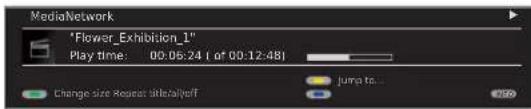
Video status bar
The video status bar provides you with further information about the current playback.

For full image window setting:
END: Show video status bar.
text_image
MediaNetwork "Flower_Exhibition_1" Play time: 00:05:24 (of 00:12:48) Change size Reacer title/eff Jump to...Explanation of status bar symbols
The symbols (in the status bar top right) show you information about the current playback.
▶ Playback active
II Stop playback (pause)
◀ Rewind (double or four times speed)
▶ Fast-forward (double or four times speed)
Repeat title
Repeat all
The bar behind the play time shows you how far the video has been played.
Select language/sound
VOB video files can contain several audio tracks. Select your desired audio stream at the beginning of the video.

text_image
Select audio stream Audio #1 (AC3, 7 Kanal, 48000 Hz) Audio #2 (AC3, 5 Kanal, 48000 Hz) Audio #3 (AC3, 7 Kanal, 48000 Hz) ○ Activate
▲▼ Highlight the desired sound or language and OK activate audio stream.
If no selection has been made after a few seconds, the first available audio track will be selected automatically and the video played.
Local network
Music operation

A media server has been selected (page 8).
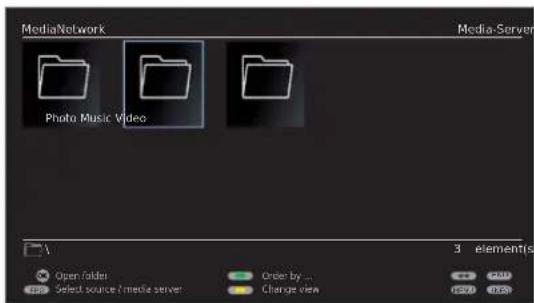
◀ ▶ ▲ ▼ Select folder with music files, OK open folder.
text_image
MediaNetwork Photo Music Video Media-Server Open Folder Select source / media server Order by ... Change view 3 element(s)The name of the folder depends on your media server setting (in example picture: Music).

▲▼◄► Select required sub-folder, OK open folder. If required, repeat.
P+/P- Page up / down.
Only available when there are more items in the current folder than can be displayed on one screen page.
◀ ▶ ▲ ▼ Select track, OK play marked track (see page 15).
Green button: Order by ...
Change order objects displayed (folders or files).
The sorting options available depend on the media server that you are using.
With alphabetical sorting, the search can be carried out with the number buttons of the remote control by initial letter (depending on the media server).
Yellow button: Change view
Switches between preview and list view.
Blue button: Go to page ...
Alternatively to going through pages you can also go directly to the individual pages on the overview. On the Go to page ... overview the first title on each page respectively is shown.
→ Only available when there are more items than can be displayed on one screen page.
The number of pages depends on the view selected (preview or list). You can see the number at the bottom on the left.
Local network
Playback of music files
OK or
PLAY button: Play marked file.
text_image
MediaNetwork "Dark Diamond" Artist: Elton John Album: Songs From The West Coast Play time: 00:02:13 ( of 00:04:26 ) Music is Screen on/off Repeat Liberaloff Random on/off GOLD HOLD OPENMusic playback with album cover

PAUSE button: Pause current playback.
PLAY button: Continue paused playback.
short: Playback previous/next title. long: Rewind/fast forward.
STOP button: End playback and return to overview.
INFO button: Show information on marked/played music file (metadata).
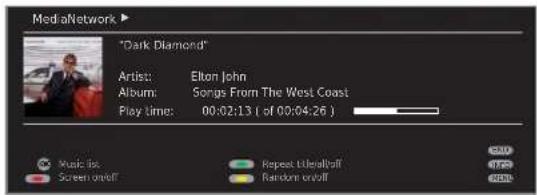
A cover can be saved under the additional information (media data) of a music file. If there are such graphics available for the piece currently being played, then this connection is shown in the picture.
Function of coloured buttons during music playback

Red: Switch
Screen off/on.
Green: Repeat individual title/all titles/Repeat off.
Yellow: Random play of files in currently selected folder on/off.
→ Random and title repeat cannot be activated at the same time.
Explanation of the symbols in the playback window
The symbols at the top right show you information about the current playback.
▶ Playback
II Pause
Repeat title
Repeat all
Random play activated
The bar behind the play time shows you how far the music file has been played.
Internet
Internet Radio via vTuner
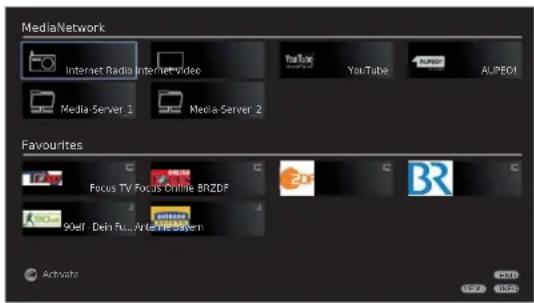
Your TV set can also receive internet radio via the vTuner, even without a media server.

→ Welcome page is shown (page 8).
◀ ▶ ▲ ▼ Select Internet Radio, OK activate.
Internet radio can also be accessed via the Assist menu (see page 4).
text_image
MediaNetwork Internet Radio Internet video YouTube YouTube ALIPEO! Media Server 1 Media Server 2 Favourites Focus TV Focus Online BRZDF 90eff - Dein Fuc, Anteine Sadien Activate ©2010 ©2010
▲▼◄► Select required sub-folder, OK open folder. If required, repeat.
For favourites see page 17.
P+/P− Page up / down.
→ Only available when there are more items in the current folder than can be displayed on one screen page.
◀ ▶ ▲ ▼ Select internet radio station,
OK play marked internet radio station (see page 17).
Yellow button: Change view
Switches between preview and list view.
Blue button: Go to page ...
Alternatively to going through pages you can also go directly to the individual pages on the overview. On the Go to page ... overview the first title on each page respectively is shown.
→ Only available when there are more items than can be displayed on one screen page.
The number of pages depends on the view selected (preview or list). You can see the number at the bottom on the left.
Internet
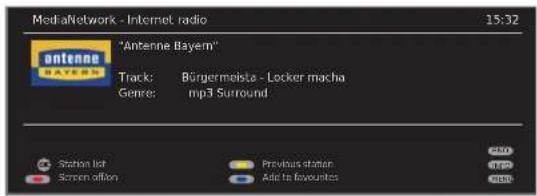
Playing internet radio stations

OK Access marked internet radio station.
text_image
MediaNetwork - Internet radio 15:32 "Antenne Bayern" Track: Bürgermeiste - Locker macha Genre: mp3 Surround Station list Previous station Add to Bouteches Screen action
Red button:
Switch
Screen off/on.
Yellow button: Switch to last accessed internet radio station.
Blue button: Add internet radio station to favourites (see right column).
INFO button: Show details on current programme and station.
P+/P- Select next/previous internet radio station.
OK Return to station list.
Favourites
Here are all the radio stations you added to your favourites while listening (see page left hand column).

Yellow button: Change view
Switches between preview and list view.

▲▼ Select favourites folder (see page 16).
OK Open folder.
▲▼ Select radio station.
OK Listen to radio station.

Blue button: while the station is playing:
Remove radio station from favourites.
Maintenance of Favourites via Loewe website
You can manage your radio favourites on the internet. After successful login in onto Support on the Loewe website and successful registration of your TV set, you will find the sub-item Internet radio. By clicking on Manage internet radio a new window will open in your internet browser. Here you can search for radio stations according to station location, country, language or category and add them to your favourites. You can also organise your favourites in folders and erase added favourites. The favourites you have added will be shown in the subfolder Favourites in MediaNetwork's Internet Radio mode.
Internet
AUPEO! Internet Radio
What is AUPEO! ?
AUPEO! allows you to create a personal music programme, enjoy channels programmed by music experts according to genre and receive channel recommendations fitting to your mood.
AUPEO! technology is based on an algorithm from the Frauenhofer Institute, creators of the MP3. It analyses the "DNA" of the songs, e.g. breaks them up into segments and places them in a coordinate system according to specific characteristics. The more similar the songs are to each other, the closer they are to each other in the system – they become "neighbours". As soon as an artist or genre is selected, AUPEO! creates a playlist, adding the neighbouring songs.
AUPEO! offers this service in Basic and Premium. The basic programme is available any time, free of charge. The exclusive premium package can be had for a monthly fee starting from 4.95 USD (as of November 2009). It includes all components of the basic package as well as many benefits such as higher streaming quality, it is ad-free and gives you access to genre-specific channels that are programmed by music experts, so-called AUPEO! stations. The premium programme can be conveniently booked on Loewe website's Support portal.

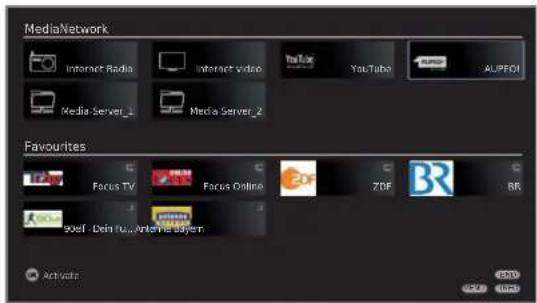
→ Welcome page is shown (page 8).
◀ ▶ ▲ ▼ Select AUPEO!, OK activate.
text_image
MediaNetwork Internet Radio Internet video YouTube YouTube ALIPEDI Media Server_1 Media Server_2 Favourites Focus TV Focus Online ZDF BR 900f - Dein Wu, Anteine Systen Activate ©© ©© ©© ©© ©© ©© ©© ©© ©© ©© ©© ©© ©© ©© ©© ©© ©© ©© ©© ©© ©© ©© ©© ©© ©© ©© ©© ©© ©© ©© ©© ©© ©© ©© ©© ©© ©© ©© ©© ©© ©© ©© ©© ©© ©© ©© ©© ©© ©© ©© ©© ®© ©© ©© ©© ©© ©© ©© ©© ©© ©© ©© ©© ©© ©© ©© ©© ©© ©© ©© ©© ©© ©© ©© ©© ©© ©© ©© ©© ©© ©© ©© ©© ©© ©© ©© ©© ©© ©© ©© ©© ©© ©© ©© ©© ©© ©© ©© ©© ©© ©© 800f ©© ©© ©© ©© ©© ©© ©© ©© ©© ©© ©© ©© ©© ©© ©© ©© ©© ©© ©© ©© ©© ©© ©© ©© ©© ©© ©© ©© ©© ©© ©© ©© ©© ©© ©© ©© ©© ©© ©© ©© ©© ©€¦€¦€¦€¦€¦€¦€¦€¦€¦€¦€¦€¦€¦€¦€¦€¦€¦€¦€¦€¦€¦€¦€¦€¦€¦€¦€¦€¦€¦€¦€¦€¦€¦€¦€¦€¦€¦€¦€¦€¦€¦€¦€¦€¦€¦€¦€¦€¦€¦€¦€¹ €² €³ €⁴ €⁵ €⁶ €⁷ €⁸ €⁹ €¹⁰ €¹¹ €¹² €¹³ €¹⁴ €¹⁵ €¹⁶ €¹⁷ €¹⁸ €¹⁹ €²⁰ €²¹ €²² €²³ €²⁴ €²⁵ €²⁶ €²⁷ €²⁸ €²⁹ €³⁰ €³¹ €³² €³³ €³⁴ €³⁵ €3⁶ €3⁷ €3⁸ €3⁹ €4⁰ €4¹ €4² €4³ €4⁴ €4⁵ €4⁶ €4⁷ €4⁸ €4⁹ €5⁰ €5¹ €5² €5³ €5⁴ €5⁵ €5⁶ €5⁷ €5⁸ €5⁹ €6⁰ €6¹ €6² €6³ €6⁴ €6⁵ €6⁶ €6⁷ €6⁸ €6⁹ €7⁰ €7¹ €7² €7³ €7⁴ €7⁵ €7⁶ €7⁷ €7⁸ €7⁹ €8⁰ €8¹ €8² €8³ €8⁴ €8⁵ €8⁶ €8⁷ €8⁸ €8⁹ €9⁰ €9¹ €9² €9³ €9⁴ €9⁵ €9⁶ €9⁷ €9⁸ €9⁹ €10⁰
▲▼ Select a rubric.
OK Open folder (repeat if necessary) or start AUPEO!.
P+/P− Page up / down.
Only available when there are more items in the current folder than can be displayed on one screen page.
Personal radio
This radio plays your personal music programme. By rating the songs like it or don't like it, AUPEO! saves and uses this information to eventually create a new music profile. According to this profile, songs are suggested in the future that could fit your taste.
Red button: Switch Screen off/on.
Green button: You Like the title.
The system marks it accordingly and saves it in your Loved tracks station (see page 19).
Yellow button: You Don't like the title.
The song is erased from your personal radio. It will not be played in future.
Blue button: Add current artist to favourite artists.
The artist will be added to your list of Favourite artists (see page 19).

▶▶ Play next track without rating this one.
OK Select another radio/station.
Mood radio
Whether you are happy, sad or melancholy, the mood radio gives you the right music on call. Simply select a mood and press OK. The tracks can also be saved under a certain music type if selected.

▲▼ Select desired mood, OK proceed.
▲▼ Select desired music genre, OK Start AUPEO! playback.
For track rating and further options, see Personal radio.

TEXT button: Change mood/genre.
Internet
Artist radio
Your AUPEO! Artist radio not only gives you all the music from a certain artist, but also songs from similar artists. This is one opportunity for your to find your new favourite artists.

To enter a search term, press a numeric button (from 1 to 9) as often as necessary until the desired character appears (like using a mobile phone). The available letters are printed on each button of the remote control. Space can be found on key 1.
Green button: Switch from small to capital letters and vice versa.
Yellow button: Delete one character ←
The character in front of the cursor is erased.

OK Start search.
In case the artist was not found:
Blue button: Search for other artists in New search. The input box is cleared.

In case the artist was found:
▲▼ Select artist from the result list.
OK Listen to track by selected artist.
For track rating and further options, see Personal radio.

TEXT button: Search for another artist.
Favourite artists
Here you will find a list of artists that you have saved to favourites (see page 18). Start search in corresponding artist radio by clicking on the artist's name.
Red button: Clear total list.
Green button: Delete this artist from the list.

▲▼ Select artist from the list.
OK Listen to track by selected artist.
For track rating and further options, see Personal radio.

TEXT button: Select another favourite artist.
Loved tracks station
▶ Only available with Premium package (see below).
This station plays all of the songs that you have marked with Like title – all of your favourite tracks. AUPEO! completes your music selection by adding the newest trends. This allows you to not only enjoy your favourite songs, but discover new music daily - often before others do.

▲▼ Select track from the list.
OK Listen to track.
For track rating and further options, see Personal radio.
AUPEO! stations
AUPEO! stations offer you the finest of genre radio, compiled by the AUPEO! music experts. Whether rock, pop or hip hop, this is where you find the best of all music types.

▲▼ Select a station.
OK Listen to AUPEO! station..
→ Stations highlighted in grey are AUPEO! PREMIUM pay stations (see below).
For track rating and further options, see Personal radio.

TEXT button: Select other AUPEO! station.
AUPEO! PREMIUM
AUPEO! offers its services in basic and premium packages. The basic package is available any time, free of charge. The exclusive, premium package can be ordered for a monthly fee of 4.95 USD or an annual fee of 49.95 USD (as of: November 2009). It includes all components of the basic package as well as many benefits such as higher streaming quality, it is ad-free and gives you unlimited access to AUPEO! stations (genre-specific music stations programmed by music experts).
Order premium service under Support on our website
http://www.loewe-uk.com (also see page 4).
Internet
Internet Video
Under Internet Video you will find video podcasts, video clips and web TV clips.

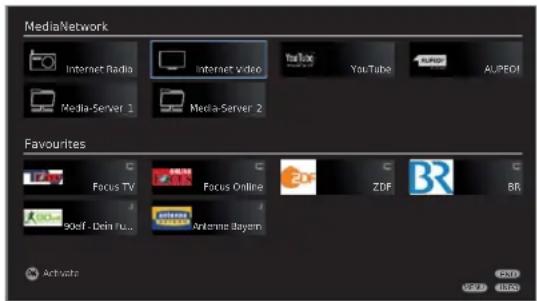
→ Welcome page is shown (page 8).
▶ Select Internet Video.
OK activate.
text_image
MediaNetwork Internet Radio Internet video YouTube YouTube ALPEDI Media-Server 1 Media-Server 2 Favourites Focus TV Focus Online ZDF BR 906f - Dein Fu... Antenna Bayern Activate ©2017 ©2017 ©2017
▲▼ Select subfolder.
OK Open folder. Repeat if necessary.
P+/P− Page up / down.
Only available when there are more items in the current folder than can be displayed on one screen page.
▲▼◄► Select video.
OK play marked video (see right hand column).
Notes on high definition films
High definition film material (HD films) from format 720p upwards (resolution 1280 x 720 or higher) should be played back via a wired connection. If there is a wireless connection, then technical limitations (e.g. fault liability, bandwidth limitations) can cause disruptions in the playback right up to a complete breakdown of the playback.


Yellow button: Change view
Switches between preview and list view.
Playback

OK Play marked file.


You can choose between small or full image window settings.
Small image settings shows the video close to its original resolution. The video status bar is permanently shown below the window.
The setting full image enlarges the window the fit the entire screen. The status bar can be set to visible or hidden (see page 21).


INFO: Show data for played video.

PAUSE button: Pause current playback.

PLAY button: Continue playback.

STOP button: Stop current playback and return to overview.
Wind
You can fast-forward/rewind videos to search for desired scenes.
Rewinding/fast-forwarding internet videos is not always possible. Depending on the size of data, size of video and speed of the internet connection, rewinding and fast-forwarding can cause flawed playback.
Rewind at double speed.
Press again for four times speed.
Fast-forward at double speed.
Press again for four times speed.

OK Continue playing at the marked position.

END: Abort search and continue playing at the starting point of the winding process.
Internet
Jumping
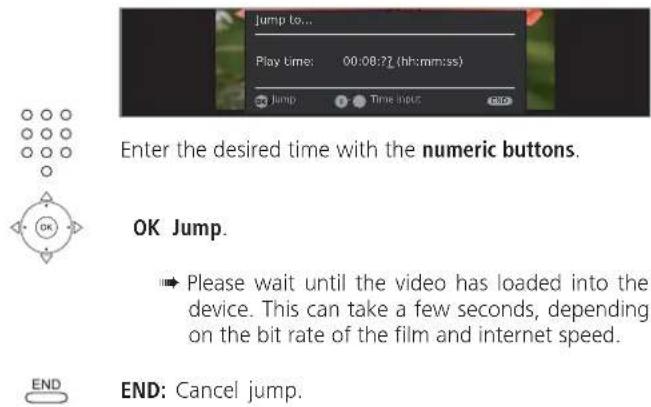
You can jump to any point in the video via time input.
Yellow button: Open Jump to... dialogue.
text_image
Jump to... Play time: 00:08:72 (hh:mm:ss) Jump Time input Enter the desired time with the numeric buttons. OK Jump. → Please wait until the video has loaded into the device. This can take a few seconds, depending on the bit rate of the film and internet speed. END: Cancel jump.Video status bar
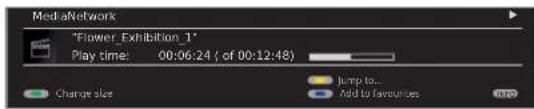
The video status bar provides you with further information about the current playback.

For full image window setting:
END: Show video status bar.
text_image
MediaNetwork "Flower Exhibition 1" Play time: 00:06:24 ( of 00:12:48 ) Change size Jump to... Add to favouritesExplanation of status bar symbols
The symbols (in the status bar top right) show you information about the current playback.
▶ Playback active
II Stop playback (pause)
◀ Rewind (double or four times speed)
▶ Fast-forward (double or four times speed)
The bar behind the play time shows you how far the video has been played.
Favourites
Here are all the videos you added to your favourites while watching (see page 20).
Yellow button: Change view Switches between preview and list view.
▶ Select favourites folder (see page 16). OK Open folder. ▶ Select video station. OK View video.
Blue button: while the video is playing: Remove video from favourites.
Internet
YouTube
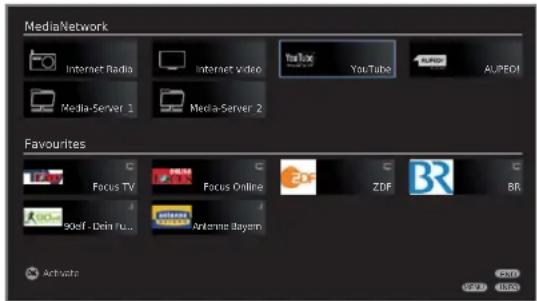
MediaNetwork offers you access to the content of the internet video portal YouTube.

→ Welcome page is shown (page 8).
◀ ▶ ▲ ▼ Select YouTube,
OK activate.
text_image
MediaNetwork Internet Radio Internet video YouTube YouTube AUPEDI Media-Server 1 Media-Server 2 Favourites Focus TV Focus Online ZDF BR 906f - Dein Tu... Antenna Bayern Activate
▲▼ Select subfolder,
OK Open folder (repeat if necessary)
or Search video (see page 23).
P+/P− Page up / down.
Only available when there are more items in the current folder than can be displayed on one screen page.
▲▼◄► Select video.
OK Play selected video (see right hand column).
Notes on high definition films
High definition film material (HD films) from format 720p upwards (resolution 1280 x 720 or higher) should be played back via a wired connection. If there is a wireless connection, then technical limitations (e.g. fault liability, bandwidth limitations) can cause disruptions in the playback right up to a complete breakdown of the playback.


Yellow button: Change view
Switches between preview and list view.
Playback

OK Play marked file.


You can choose between small or full image window settings.
Small image settings shows the video close to its original resolution. The video status bar is permanently shown below the window.
The setting full image enlarges the window the fit the entire screen. The status bar can be set to visible or hidden (see page 21).


Wind
You can fast-forward/rewind videos to search for desired scenes.
Rewinding/fast-forwarding internet videos is not always possible. Depending on the size of data, size of video and speed of the internet connection, rewinding and fast-forwarding can cause flawed playback.
Rewind at double speed.
Press again for four times speed.
Fast-forward at double speed.
Press again for four times speed.


Internet
Jumping
You can jump to any point in the video via time input.
Yellow button: Open Jump to... dialogue.
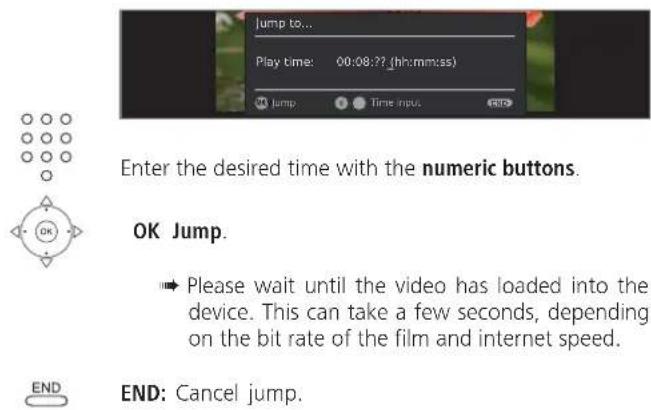
Enter the desired time with the numeric buttons.
OK Jump.
Please wait until the video has loaded into the device. This can take a few seconds, depending on the bit rate of the film and internet speed.
END: Cancel jump.
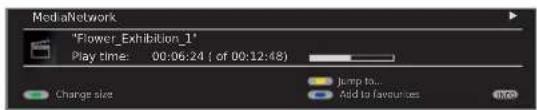
Video status bar
The video status bar provides you with further information about the current playback.

For full image window setting:
END: Show video status bar.
text_image
MediaNetwork "Flower_Exhibition_1" Play time: 00:06:24 ( of 00:12:48 ) Change size Jump to... Add to favouritesExplanation of status bar symbols
The symbols (in the status bar top right) show you information about the current playback.
▶ Playback active
II Stop playback (pause)
◀ Rewind (double or four times speed)
▶ Fast-forward (double or four times speed)
The bar behind the play time shows you how far the video has been played.
Search video
To search for videos, you can enter keywords in YouTube.
Under MediaNetwork-Menu (page 9) you can set your video search to world wide or local.

To enter a search term, press a numeric button (from 1 to 9) as often as necessary until the desired character appears (like using a mobile phone). The available letters are printed on each button of the remote control. Space can be found on key 1.
Green button: Switch from small to capital letters and vice versa.
Yellow button: Delete one character ←
The character in front of the cursor is erased.

OK Start search.
If you are not satisfied with the search results:
Blue button: Try a new search under a new key word. The input box is cleared.

If you are satisfied with the search results:
▲▼ Select video from the list.
OK View video.
Internet
My personal Youtube
This folder is for your favourite videos, history and your recent search words.
Favourites
Here are all the videos you added to your favourites while watching (see page 22).

Function of coloured buttons
Red button:
Delete video / entire favourites list (see right hand column, Delete entries).
Green button: Order by ...
Organise videos by Time (newest favourites first) or Name (in alphabetical order).
Yellow button: Change view
Switches between preview and list view.
History
Here you will see videos you have watched.

Function of coloured buttons
Red button:
Delete video / entire history list (see right hand column, Delete entries).
Green button: Order by ...
Organise videos by Time (last viewed favourites first) or Name (in alphabetical order).
Yellow button: Change view (see above).
Blue button: Add video to your favourites (for favourites, see above).
Recent search words
This is where your recent search words are collected in a list.

▲▼ Select search word. OK List videos found under this search term.
Function of coloured buttons
Red button:
Delete search word / entire search word list (see right hand column, Delete entries).
Green button: Order by ...
Organise search words by Time (newest favourites first) or Name (in alphabetical order).
Yellow button: Change view (see left hand column).
Blue button: Search for another word (see page 23). The input box is cleared.
Delete entries
You can delete entries from Favourites, History and Recent search words from the list or delete the entire list completely.
Function of coloured buttons
Red button: Call Delete-dialogue.
Red button: Clear total list.
Or: Green button: Delete an entry from the list.
Red or green button: Cancel delete.

OK Confirm delete.
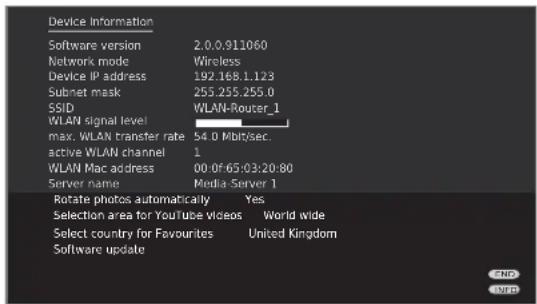
Device Information
MENU
INFO
Open MediaNetwork-Menu (see page 9).
Open Device Information
text_image
Device Information Software version 2.0.0.911060 Network mode Wireless Device IP address 192.168.1.123 Subnet mask 255.255.255.0 SSID WLAN-Router_1 WLAN signal level max. WLAN transfer rate 54.0 Mb/s/sec. active WLAN channel 1 WLAN Mac address 00:0f:65:03:20:80 Server name Media Server 1 Rotate photos automatically Yes Selection area for YouTube videos World wide Select country for Favourites United Kingdom Software update FND MFDThis window provides you all information about your network connection that is currently active.
Explanation of display items
Software version The currently installed MediaNetwork software version.
Network mode Shows the type of connection (wired or wireless).
Device IP Your current IP address. address
Subnet mask Your current subnet mask.
SSID (only appears with wireless connection) The name of your network.
WLAN signal (only appears with wireless connection) level Display of current reception strength: The more solid the bar, the better the reception.
max. WLAN (only appears with wireless connection) transfer rate Shows you the maximum amount of data can be transmitted wirelessly per second.
active WLAN (only appears with wireless connection) channel Shows you which of the total of 13 WLAN channels is being used for radio transmission between TV set and router.
WLAN Mac (only appears with wireless connection) address Provides the MAC address of the WLAN component of your TV set that is secured in the hardware.
Server name The name of the currently selected media server.
Troubleshooting
| Problem Possible cause Remedy | ||
| The TV set is not getting any connection to the server. On the main screenConnectis shown and the Connectivity display does not light up. | a) No connection to the media server.b) On your PC with Windows XP several media servers runat the sametime, e.g.Windows Media Player (WMP) 11andTwonkyMedia (also see page 28). | a1) Check whether the media server is switched on.a2) PressOKto make a new attempt at connecting.a3) Check the connection using the PING command. To do this, in the entry request on your PC, enter the command ping.exe, followed by the IP address of your TV set. You will find the current IP address in theDevice Information(see page 25). Example:ping.exe 192.168.1.123If the data packages are not transferred, then there is a problem with the network:a4) With awiredconnection:Check the arrangement of the cables.a5) With awirelessconnection:Check your wireless router.a6) Select another media server with theEPGbutton.b) If there are several media servers, they can impede each other. For example, when working withTwonkyMediaclose file release byWMP11. |
| Your TV set does not have an IP address assigned to it despite required type of IP assignmentAutomatic (DHCP). | a) No DHCP server is working on your network.b) With anencryptedwirelessconnection, you have entered the key incorrectly. | a) Set up a DHCP server.Assign a fixed IP address for the TV set.b) SelectChange networkin theMediaNetwork-Menu. Rescan for routers using the red coloured buttons. Then correctly enter the WLAN key for your router. |
| Despite video or music file being played back, no sound can be heard. | a) The TV set is set to mute or the volume has been turned down too far.b) An audio device that does not exist or that is not connected is registered in theTVmenu underConnections→Sound components(e.g.HiFi/AV amplifier). | a) Increase the volume by pressing theV+buttonon the remote control for longer. This will also cancel any mute setting.b) Connect up the audio device and switch it on. In theSound components wizardchange back toTVspeakers. |
Troubleshooting
| Problem Possible cause Remedy | ||
| Although the file is visible on the media server, it is not shown in MediaNetwork. | The file is not being made available by your media server. | Change your media server. Read up about this in the section Media server software on page 28. |
| A media file that is displayed can not be played back. | The format of the file is not supported (see also limitations in section File formats supported on page 28). | No remedy. |
| Characters contained in the WLAN key are not shown on the input screen (page 6). | The device only supports the characters shown (ASCII standard). | Change the WLAN key of the router. |
| When searching for wireless routers, no device is found. | The router is not ready for wireless communication. | Check your wireless router.Try to make the connection again a few minutes later. |
| A Windows DRM-protected music file (see page 28) cannot be played. | a) The licence to play purchased with the music file is missing.b) You are using the wrong media server. | a) Try to play the music file on the PC using the Windows Media Player 11. If this does not work either, there is a problem with the licence.b) Use the Windows Media Player 11 as a media server. |
If with wireless operation there should be any interference such as disruptions during playback or slow reactions by devices to commands, you could try the following:
- Keep at least three metres distance from microwave ovens, bluetooth devices, mobile telephones and Wi-Fi compatible devices such as printers and PDAs.
- Change the active channel on the WLAN router.
Other
Technical specifications
File formats supported
Pictures: JPG, PNG, BMP, GIF
Picture files may not exceed a size of 10 MB.
Photos in Bitmap format (BMP) are supported if not compressed in 8 bit and 24 bit (not RLE) and only in Windows format.
Music: MP3, WAV (without ADPCM), WMA 9/10 (compressed), LPCM, flac Video: AVI (DivX, Xvid, MPEG4), MPEG 1/2/4, WMV 9/HD, DivX® Video, Xvid, VOB, AVCHD, H.264 (with AAC-LC sound)
This device can play Windows DRM (WDRM)-protected contents under the following conditions:
The Windows Media Player 11 is used as a media server. The WDRM-protected music file and a valid licence must be on the same PC as the Windows Media Player 11.
Alternative formats such as Apple FairPlay are not supported.
In individual cases it is possible that media files can not be played back due to the numerous available technical design and editing options.
Ethernet (wired network)
Standards supported: 10 Mbit/sec Ethernet (10Base-T), 100 Mbit/sec Fast Ethernet (100Base-T)
WLAN (wireless network)
Standards supported:
IEEE 802.11b and 802.11g
Frequency range used:
2400-2483.5 MHz
Types of encoding that are supported:
WEP 64 and 128 Bit (ASCII and HEX), WPA PSK and TKIP, WPA2 AES
Supported home network standard
Universal Plug and Play Audio / Video (UPnP AV)
Media server software
To play multimedia contents from devices in your home network, you require media server software which makes the relevant files available to you. Handling of individual files depends on the technical properties and also on the media server software used.
On our homepage at www.loewe-int.de you can download a test version of the TwonkyMedia Media server. With your TV set you have simultaneously acquired the option if obtaining a free license for this media server. Alternatively to that, you can also use other media software such as the Windows Media Player (WMP) as of version 11.
For communication with your PC, certain port addresses of the network connection are required. They may not be blocked by a firewall if there is one, otherwise this could cause serious connection errors.
Windows Media Player 11 requires the port addresses 1900 and the block of 10280 up to and including 10284 (all for UDP) as well as 2869 and 10243 (both for TCP). For TwonkyMedia the port addresses 1030, 1900 and 9080 (all for UDP) and 9000 (for TCP) must be available.
Other ports to be kept free depend on the operating system you are using. Contact your network administrator about configuring the firewall.
Legal notices
The screen font "LoeweL2700" is based on the "Tavmjong Bah Arev (tavmjong.free.fr)" font, which in turn is based on "Bitstream Vera". Bitstream Vera is a trademark of Bitstream Inc.
This set contains a software which is based partly on the work of the Independent JPEG Group.
DivX and the corresponding DivX logos are registered trademarks of DivX, Inc
Masthead
Loewe Opta GmbH Printed in Germany
Industriestraße 11 Date of issue 11/09-3.0 FP/TB
D-96317 Kronach © Loewe Opta GmbH, Kronach
www.loewe.de ID: 2.0.0.911060
All rights including translation, technical modifications and errors reserved.
This equipment is in compliance with the essential requirements and other relevant provisions
of Directive 1999/5/EU. It may be operated in all countries in the EU and also in Iceland, Norway and Switzerland.
In France and Italy it may only be used indoors.
C€ 0682
Glossary
A
Administrator: Person who administers the network, i.e. takes care of setting up and maintaining all components belonging to the network.
AVI: Abbreviation for Audio Video Interleave, a video container file format developed by Microsoft. A single AVI video file can contain several audio, video and text data streams (thus the name container format).
B
BMP: Abbreviation for Bitmap, a grid graphics format designed for Microsoft Windows and OS/2 that is wide spread and therefore supported by almost every popular graphics software package without any problems.
C
Channel (WLAN): The channel is a certain part of the WLAN frequency band. Devices that want to communicate with each other have to use the same WLAN channel. In Europe the WLAN frequency band is currently divided into 13 channels.
Client: Also referred to as network client; describes an end device such as your TV set that is connected to the network and gets data from a (media) server to make it accessible to the user.
D
DHCP: Abbreviation for Dynamic Host Configuration Protocol. DHCP allows automatic assignment of IP addresses with the aid of a DHCP server.
DHCP server: Network service which takes care of automatic assignment of IP addresses to clients.
DivX: Video Codec which allows even large files to be relatively highly compressed in their file size without having to tolerate important quality losses.
DNS: Abbreviation of Domain Name System. Readable names (e.g. www.loewe-int.de) are assigned to numerical IP addresses. DNS servers are responsible for the resolution of readable addresses into the corresponding IP addresses.
DRM: Digital Rights Management. Processes to control copyright protected data. To be used correctly, DRM protected contents require not only a DRM capable device but also the possession of a license issued by the provider (to be paid for).
E
Ethernet: Cable linked data net technology for local networks (LANs). Also covers standards for e.g. plug connectors and transfer speeds.
G
Gateway: Transfer into another network; in this case connection from home network to internet.
The network device is usually used as the standard gateway which produces this connection. The DSL router generally also represents the internet gateway.
H
Host: Computer that the server services are provided from, i.e. that makes data available. Refer also to media server.
|
ID3 tags: Additional information on MP3 files. Here you can save information on the artist, title, album and album cover. This data is then processed by the PC using an ID3 tag editor.
IP address: IP addresses (Internet Protocol Addresses) are used to identify devices in an Internet Protocol (IP) network. IP addresses are made up of four groups of numbers of three digits each.
J
JPEG/JPG: Joint Photographic Experts Group. A body that has developed a standardised process for compressing digital images. This process JPEG (abbreviated to JPG) that was named after the body is a wide spread graphics format for photos.
L
LAN: Abbreviation for Local Area Network. Mainly used as a name for networks with cabling (Ethernet).
M
MAC address: Hardware address of a network adapter, e.g. the network card in the PC. It is permanently assigned by the manufacturer and is used to uniquely identify devices in networks.
Mbit/sec: Information about the transfer rate in networks in megabits, i.e. millions of characters per second. With WLAN, the maximum speed is 11 (IEEE 802.11b) or respectively 54 (IEEE 802.11g) Mbit/sec, in wired nets 10 Mbit/sec or 100 Mbit/sec (Fast Ethernet).
Media server: Stands for the device which multimedia contents are stored on, but is also the name for the service provided by the device that makes this data available to the network.
MP3: Data format for compressed audio data.
Multimedia contents: Videos, music files and photos are grouped together under this term.
N
NAS: Abbreviation for Network Attached Storage. The term describes a hard disk which is independently linked to the network (i.e. without a PC).
Glossary
P
PNG: Abbreviation for Portable Network Graphics, a freely available grid graphics format for loss-free compression.
Port: A port is part of a network address (or also IP address). It allows assignment of data packages to various services which are running on one device under the same network address.
PSK: Stands in connection with WLAN encoding for Pre-Shared Key. Clients, who want to connect up to a wireless network secured with PSK have to know this key.
R
Router: Device for connecting up several networks, e.g. home network and internet.
S
Switch: Device for connecting several computers to a network.
U
UPnP AV: Abbreviation for Universal Plug and Play Audio / Video. Is used to control network devices from all manufacturers. Has become a wide spread standard for home networking.
W
WEP: Abbreviation for Wired Equivalent Privacy. Former standard process in the WLAN encryption, now outdated.
Wired network: see LAN.
Wireless network: see WLAN.
WLAN: Abbreviation for Wireless Local Area Network. Also abbreviated as wireless network.
WMA: Abbreviation for Windows Media Audio, Microsoft own audio data format. As with MP3 files, the content is compressed here as well.
WMV: Abbreviation for Windows Media Video, Microsoft own video data format.
WPA: Abbreviation for Wi-Fi Protected Access. Replaced WEP as standard encryption for wireless networks.
Index
A
AUPEO! Internet Radio 18
Artist radio 19
AUPEO! PREMIUM 19
AUPEO! stations 19
Favourite artists 19
Loved tracks station 19
Mood radio 18
Personal radio 18
C
Coloured buttons 8
D
Device Information 25
Active WLAN channel 25
Device IP address 25
Max. WLAN transfer rate 25
Network mode 25
Server Name 25
Software version 25
SSID 25
Subnet mask 25
WLAN MAC address 25
WLAN signal level 25
DNS 7
E
Enter WLAN password 6
G
Gateway 7
|
Initial installation 5
Internal WLAN antenna 4, 5
Internet Radio 16
Favourites 17
Internet Video 20
Favourites 21
Jump 21
Playback 20
Wind
20
IP address 7
M
MediaNetwork 4
Access 4
Exit 4
Selection of menu items 4
MediaNetwork-Menu 9
Background play 9
Change network 9
MediaNetwork LED 9
Photo Info 9
Picture transitions 9
Rotate photos automatically 9
Select country for Favourites 9
Selection area for YouTube videos 9
Select source/media server 9
Slide Show interval 9
Multimedia contents 4
Music operation 14
N
NAS 4
Network connection
Wired 4, 5
Wireless 4,5
Network setting 7
P
PC 4
Photo operation 10
Full screen mode 11
Rotate picture 11
Slide show 11
Zoom picture 11
R
Remote control 3
S
Select IP Address Assignment Method 7
Select network interface 6
Select server 7
Select wireless router 6
Subnet Mask 7
U
UPnP 4
V
Video operation 12
Jumping 13
Select language/sound 13
Wind 13
Y
YouTube 22
Jumping 23
My personal YouTube 24
Playback 22
Search video 23
Wind 22