
DVD9212 - Portable DVD Player Reflexion - Free user manual and instructions
Find the device manual for free DVD9212 Reflexion in PDF.


| Product Type | Portable DVD Player |
| Brand | Reflexion |
| Model | DVD9212 |
| Display | 9-inch TFT LCD |
| Disc Formats | DVD, DVD±R/RW, CD, CD-R/RW |
| Video Output | Composite, component |
| Audio Output | Stereo headphone jack, built-in speakers |
| Power Supply | AC adapter (100-240V) or rechargeable battery |
| Battery | Built-in rechargeable lithium-ion, approx. 3-5 hours playback |
| Dimensions | Approx. 250 x 180 x 40 mm |
| Weight | Approx. 1.2 kg |
| Remote Control | Included |
| Additional Features | USB and SD card playback support |
| Maintenance | Clean with a soft, dry cloth; avoid liquids and abrasive cleaners |
| Safety | Do not expose to moisture or extreme temperatures; keep away from heat sources |
| Spare Parts | Available through manufacturer or authorized service centers |
| Repairability | Consult a professional for any repairs; do not disassemble |
| General Information | Portable design for on-the-go entertainment; includes user manual |
Frequently Asked Questions - DVD9212 Reflexion
User questions about DVD9212 Reflexion
0 question about this device. Answer the ones you know or ask your own.
Ask a new question about this device
Download the instructions for your Portable DVD Player in PDF format for free! Find your manual DVD9212 - Reflexion and take your electronic device back in hand. On this page are published all the documents necessary for the use of your device. DVD9212 by Reflexion.
USER MANUAL DVD9212 Reflexion
Identification of Controls
Remote control unit
9. SOURCE
DVD/CARD/USB.
10. TITLE
DVD : Return to DVD title menu.
DVB :Switch to TV or Radio program.
11.DVD/DVB
Switch to DVD or DVB mode.
12.0-9 NUMBER BUTTON
Selects numbered items in a menu.
13. ENTER
Confirms menu selection.
14. VOL +
Adjust VOLUME.
15.DISPLAY
To display the playtime and status information.
16.AUDIO
DVD DVB Press AUDIO repeatedly during playback to hear a different audio language or audio track, if available.
VCDO Press AUDIO repeatedly during playback to hear a different audio channel (Stereo, Left, or Right).
17.SUBTITLE
Press SUBTITLE repeatedly during playback to hear a different subtitle languages.
18.ANGLE/EPG
Press ANGLE will change the view angle, on DVDs that support this feature.
DVB show EPG information.
19. SETUP
Accesses or removes setup menu.
20.10+ BUTTON
In order to select a track 10 or greater, first press 10+, For example; select track 12, first press 10+, and then press number 2 button.
21.RETURN
Return to upper menu or close menu.
22. ◀ BUTTON
DVD Press ◀ BUTTON allow skipping back at 5-level speed (X2->X4->X8->X20), press ENTER button return to normal
playback.
DVB YELLOW Key in Teletext.
23. ▶ BUTTON
DVD Press ➤ BUTTON allow skipping ahead at 5-level speed (X2->X4->X8->X20), press ENTER button return to normal playback.
DVB BLUE key in Teletext.
24. SLOW
Slow play.
25.MENU
Accesses menu on a DVD disc.
26.SEARCH
Goto time point, title or chapter you want in DVD Mode.
27. MUTE
Disable Audio output.
SETUP Menu Setting
System Setup Page
Press SETUP button to get the setup menu. Use direction buttons
▲▼◀▶ to select the preferred item. After finishing settings, press SETUP again to normal display.
System Setup
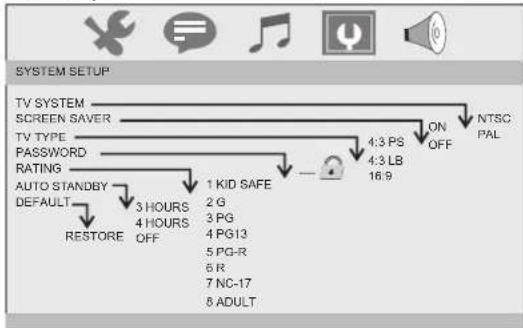
flowchart
graph TD
    A["TV SYSTEM SCREEN SAVER"] --> B["TV TYPE PASSWORD RATING"]
    B --> C["AUTO STANDBY DEFAULT"]
    C --> D["RESTORE"]
    D --> E["3 HOURS OFF"]
    E --> F["1 KID SAFE"]
    F --> G["2 G"]
    G --> H["3 PG"]
    H --> I["4 PG13"]
    I --> J["5 PG-R"]
    J --> K["6 R"]
    K --> L["7 NC-17"]
    L --> M["8 ADULT"]
    B --> N["4:3 PS 4:3 LB 16.9"]
    N --> O["ON OFF"]
    O --> P["NTSC PAL"]
TV System
Selecting the color system that corresponds to your TV when AV output. This DVD Player is compatible with both NTSC and PAL. PAL - Select this if the connected TV is PAL system. It will change the video signal of a NTSC disc and output in PAL format. NTSC - Select this if the connected TV is NTSC system. It will change the video signal of a PAL disc and output in NTSC format. Auto: Chang the video signal output automatic according to the playing disk format.
Screen Saver
This function is used to turn the screen saver on or off.
TV Type
Selects the aspect ratio of the playback picture. 4:3 PS: if you have a normal TV and want both sides of the picture to be trimmed or formatted to fit your TV screen.
4:3 LB: if you have a normal TV. In this case, a wide picture with black bands on the upper and lower portions of the TV screen will be displayed.
16:9: wide screen display.
Password
Input user password. Default password is 0000.
Rating
After input correct password, you can change parental level.
AUTO STANDBY
This function is used to select auto standby settings after 3 or 4 hours.
3 HOURS: the unit will turn to standby mode after 3 hours if there is no interaction from user within this period of time.
4 HOURS: the unit will turn to standby mode after 4 hours if there is no interaction from user within this period of time.
OFF: the auto standby function is disabled, and unit will stay in "on" mode even if no interaction from user.
Default
Restore the factory setting of setup menu.
Language Setup Page
Language setup
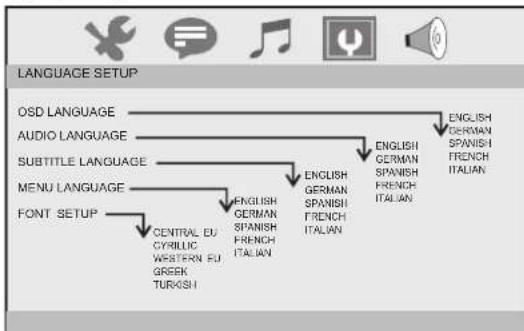
flowchart
graph TD
    A["OSD LANGUAGE"] --> B["AUDIO LANGUAGE"]
    B --> C["SUBTITLE LANGUAGE"]
    C --> D["MENU LANGUAGE"]
    D --> E["FONT. SETUP"]
    E --> F["Central EU CYRILIC WESTERN EU GREEK TURKISH"]
    F --> G["ENGLISH GERMAN SPANISH ITALIAN"]
    G --> H["ENGLISH GERMAN SPANISH ITALIAN"]
    H --> I["ENGLISH GERMAN SPANISH ITALIAN"]
- You can select OSD language, and select audio/subtitle/menu language of DVD discs if available. Also you can select font type for mpeg4 subtitle.
SETUP Menu Setting
Audio Setup Page
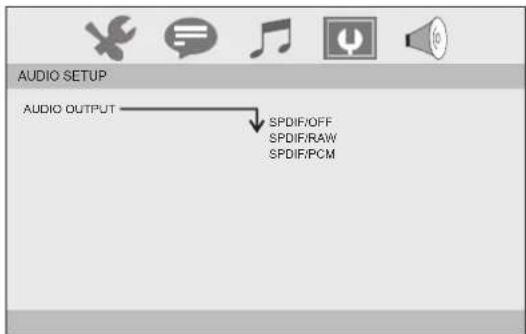
The function is used to select the SPDIF output: SPDIF off, SPDIF/RAW, SPDIF/PCM.
Video Setup Page
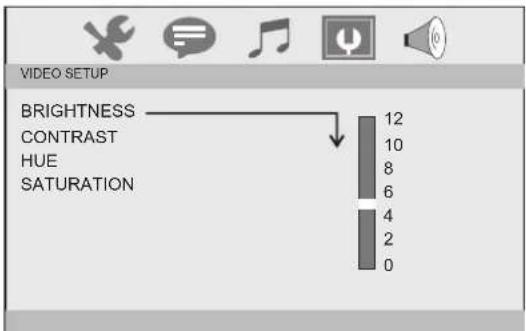
You can change the video setting: brightness, contrast, hue, saturation.
Speaker Setup
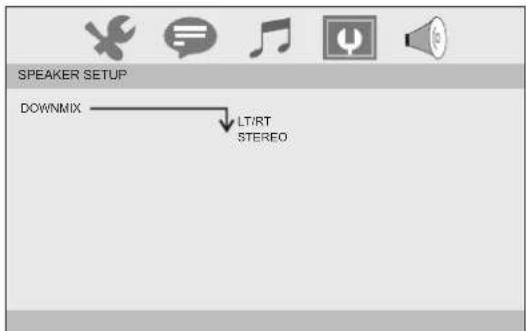
Downmix: LT/RT: When playing a 5.1ch DVD disc, the LS/RS/Center channel audio will output through both L and R channel. STEREO: When playing a 5.1ch DVD disc, the LS channel audio will output only through L channel, RS channel audio will output only through R channel, Center channel audio will output through both L and R channel.
Channel Guide
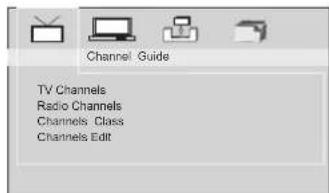
TV Channels: Enter TV channels list. In TV channels list, press DISPLAY key can sort programs. Radio Channels: Enter radio channels list. In radio channels list, press DISPLAY key can sort programs. Channels Class: Set channels class: Favor, Movie, News, Show. Channels Edit: Edit channels: rename, move, delete.
SETUP Menu Introduction
DVB SETUP MENU
System Config
System Config
TV Setting
Video Setting
Audio Setting
Language
Parent Control
Time Setting
Stand Setting
System Info
TV Setting: Selects TV system and TV type.
Video Setting: Change the video setting: brightness, contrast, hue, saturation.
Audio Setting: Selects coaxial digital out mode: OFF, RAW, PCM.
Language: Selects OSD language.
Parent Control: Change password and set channel lock. Default password is 0000.
Time Setting: Set time zone.
Standby Setting: This function is used to select auto standby settings after 3 or 4 hours.
3 HOURS: the unit will turn to standby mode after 3 hours if there is no interaction from user within this period of time.
4 HOURS: the unit will turn to standby mode after 4 hours if there is no interaction from user within this period of time.
OFF: the auto standby function is disabled, and unit will stay in "ON" mode even if no interaction from user.
System Info: Informations about the update data, tuner, F/W version and model version.
Installation
Installation
Auto Scan
Manual scan
Default Setup
Auto Scan: Auto search all available channels.
Manual Scan: Manual search channels.
Default Setup: Reset DVB factory setting.
Game
Game
BoxMan
Burning Tetris
Hit Ratt
There are three games:BoxMan,Burning Tetris and Hit Rat.Select "ENTER" to play.
EPG (Electronic Program Guide)
The DVB-T player provides you an Electronic Program Guide to take a fast preview of live broadcasts from each TV channel in advance of watching it in full screen.
1 Press EPG
An Electronic Program Guide Menu appears on the screen, with a TV channel menu to the left and corresponding live broadcast of the selected program to the right.
2 Press " " button to more digital teletext provided by the selected channel.
Press " " button to return to program list.
3 Press " " button / " " button to toggle through each TV channel and to see its live broadcast.
*To exit from this page
---Press "EPG" button.
Digital Teletext
If the program you are watching broadcasts digital teletext, the DVB-T player can display teletext. The content of digital teletext varies according to the program provider. It could be pictures and sound for the program, pages of information on the programs, the weather, the news or other options.
Press TTX button, the teletext window appear on the screen.
Press ↑↓ button, turn over the teletext information.
*To exit from teletext
---Press TTX button to exit from teletext.
Battery Parameters
Battery Specifications:
Output: 7.4V
Charge / Discharge Time:
Standard charge time: 3h \~ 4h
Storage and work circumstances:
| 1. Storage circumstances | Temperature | Humidity |
| 6 months | -20°C~+45°C | 65±20% |
| 1 week | -20°C~+65°C | 65±20% |
- Work circumstances Temperature Humidity
Standard charge 0℃\~ +45℃ 65±20%
Standard discharge -20 ℃\~ +65 ℃ 65±20%
Parameters and specifications
Electronical parameters
| Item | Standard requirement | |
| Power requirements | : AC 100-240 V, 50/60 Hz | |
| Power consumption | : <12W | |
| Operating humidity | : 5 % to 90 % | |
| Output | VIDEO OUT | :1 Vp-p (75Ω) |
| AUDIO OUT | :1.4 Vrms (1 KHz, 0 dB) | |
System
| Laser | : Semiconductor laser, wavelength 650 nm |
| Signal system | : NTSC. / PAL. |
| Frequency response | : 20Hz to 20 kHz(1dB) |
| Signal-to-noise ratio | : More than 80 dB (ANALOG OUT connectors only) |
| Dynamic range | : More than 85 dB (DVD/CD) |

Note:
Design and specifications are subject to change prior notice.

www.ultramedia.de

vironment protection
Instructions on en

Electric and electronic equipment and included batteries contains materials, components and substances that can be hazardous to your health and the environment, if the waste material (discarded electric and electronic equipment and batteries) is not handled correctly.
Electric and electronic equipment and batteries is marked with the crossed out trash can symbol, seen below. This symbol signifies that electric and electronic equipment and batteries should not be disposed of with other household waste, but should be disposed of separately.
As the end user it is important that you submit your used batteries to the appropriate and designated facility. In this manner you make sure that the batteries are recycled in accordance with legislature and will not harm the environment.
All cities have established collection points, where electric and electronic equipment and batteries can either be submitted free of charge at recycling stations and other collection sites, or be collected from the households. Additional information is available at the technical department of your city.
Please fill the blank with the model number of this player for future reference
- Identification of Controls
- Remote control unit
- SOURCE
- TITLE
- 11.DVD/DVB
- 12.0-9 NUMBER BUTTON
- ENTER
- VOL +
- 15.DISPLAY
- 16.AUDIO
- 17.SUBTITLE
- 18.ANGLE/EPG
- SETUP
- 20.10+ BUTTON
- 21.RETURN
- ◀ BUTTON
- ▶ BUTTON
- SLOW
- 25.MENU
- 26.SEARCH
- MUTE
- SETUP Menu Setting
- System Setup Page
- System Setup
- TV System
- Screen Saver
- TV Type
- Password
- Rating
- AUTO STANDBY
- Default
- Language Setup Page
- Language setup
- SETUP Menu Introduction
- DVB SETUP MENU
- System Config
- Installation
- Game
- EPG (Electronic Program Guide)
- Digital Teletext
- Battery Parameters
- Parameters and specifications
- Electronical parameters
Brand : Reflexion
Model : DVD9212
Category : Portable DVD Player