AR 773 DVD TFT - Car stereo CLATRONIC - Free user manual and instructions
Find the device manual for free AR 773 DVD TFT CLATRONIC in PDF.


| Product Type | Car Stereo with DVD & TFT Monitor |
| Brand | Clatronic |
| Model | AR 773 DVD TFT |
| Dimensions (W x H x D) | 178 mm x 50 mm x 165 mm |
| Weight | Approx. 1.5 kg (estimated) |
| Supply Voltage | DC 13.8 V |
| Power Consumption | 10 A max |
| Maximum Power Output | 4 x 60 W PMPO |
| Display | 4.3" (10.9 cm) TFT, 480 x 3 (RGB) x 272 pixels |
| FM Frequency Range | 87.5 – 108.0 MHz |
| AM Frequency Range | 522 – 1620 kHz |
| Bluetooth Version | V1.2 (Class II), range ~3 m |
| Supported Discs | CD, CD-R, CD-RW, MP3, DVD, VCD (12 cm only) |
| Regional Code | 2 (Europe, Greenland, South Africa, Egypt, Middle East, Japan) |
| Signal-to-Noise Ratio (CD) | 90 dB (JIS) |
| Audio Output | 2 CH & 4 CH (Line-Out), 1.0 V (P-P) 75 Ohm |
| Equalizer Settings | Presets: LUD, SWF, POP, DSP, CLK, etc. |
| Safety Features | Handbrake lock for DVD playback, reset button, ventilation fan |
| Cleaning | Clean disc with soft cloth from center out; avoid solvents |
| Warranty | 24 months from purchase date |
Frequently Asked Questions - AR 773 DVD TFT CLATRONIC
User questions about AR 773 DVD TFT CLATRONIC
0 question about this device. Answer the ones you know or ask your own.
Ask a new question about this device
Download the instructions for your Car stereo in PDF format for free! Find your manual AR 773 DVD TFT - CLATRONIC and take your electronic device back in hand. On this page are published all the documents necessary for the use of your device. AR 773 DVD TFT by CLATRONIC.
USER MANUAL AR 773 DVD TFT CLATRONIC
Stereo Car Radio with DVD & TFT Monitor
AR 773 DVD/TFT
DEUTSCH
Inhalt
Overview of the Components ...... Page 3
Instruction Manual Page 26
Use of the Touch Screen...... Page 35
Telephoning via Bluetooth Page 38
About the DVD Player ...... Page 39
Technical Data...... Page 43
Troubleshooting......Page 44
Guarantee Page 45
Index......Page 46
Menu overview Page 47
Overview of the Components
natural_image
Line drawing of a hand holding a small object with an arrow indicating direction (no text or symbols)i HINWEIS:
natural_image
Simple line drawing of a folded paper or sheet with a circular arrow symbol (no text or labels)natural_image
Line drawing of a hand holding a rectangular object (no text or symbols)natural_image
Simple line drawing of a hand holding a circular object (no text or symbols)D-47906 Kempen/Germany
Installationstipps....5
INTRO (3INT) 12
L
LO/DX Taste 13
M
MOD Taste 11
Figure 1: Remote Control
1 ▶ II PLAY/PAUSE:
a) Radio Mode:
PTY selection of the program type.
b) CD/MP3/DVD mode:
Starting playback, stopping picture/track.
2 ■ STOP: Stop play.
3 ANGLE: To select the viewing angle.
4 MO/ST/:
a) Radio Mode:
Stereo/Mono switching.
b) CD/DVD Mode:
To change the Audio settings (depending on the DVD).
5 EQ/LOUD:
Radio Mode:
- Press briefly:
Selecting equaliser settings.
- Press longer:
Switching the LOUDNESS function on and off.
6 CLK:
- Press briefly:
Showing/hiding the time. - Press longer:
Setting the time.
7 ▶▶▶I: To jump to the next chapter or song.
8 ENTER: Confirming the input.
9 Cursor buttons:
a) Radio Mode:
- Press briefl y:
Manual station search.
- Press longer:
Automatic station search.
b) MP3/DVD mode: Navigation in screen menu / For selecting the folders or MP3 tacks.
10 ◀◀◀: To return to the previous chapter or song.
11 Numerical buttons:
a) Radio Mode:
- Press briefly (0-6): Station selection.
- Press longer (0-6): Station storage.
b) CD/MP3/DVD mode:
For direct selection of chapter or song number.
c) Bluetooth Mode: Entering the Telephone Number.
12 9/AF:
Press longer:
Switching on and off an alternative frequency.
O/TA:
Press longer:
Turning pre-switching for traffic announcements on and off.
13 +10: for selecting the chapters/tracks above 9.
Pressing again increases by a further 10.
14 GOTO: For direct accessing of a section on the CD/DVD.
15 SETUP: To start the setup menu.
26
16 SEL:
Radio Mode:
- Press briefly:
Select sound/picture mode.
Press longer:
REG, PI, AF function selection.
17 VOL +/-: To increase/reduce the volume.
18 A/PS:
Radio Mode:
- Press briefly:
Scan function of the stored radio stations.
- Press longer:
Automatic station storage.
TITLE/PBC:
a) To show the title menu of the DVD
(depending on the DVD).
) To show the Playback-Control for VCD.
19 ◀◀: Fast reverse.
20 BAND/OSD:
a) Radio Mode:
Switching the 3 FM and 2 MW levels.
b) CD/MP3/DVD mode:
Alternating the time displays.
21 LO/DXL:
a) Radio Mode:
LOCAL/DX function.
b) DVD Mode:
To show/hide subtitles (depending on the DVD).
22 ▶▶: Fast forward.
23 MENU/9W
Press briefl y:
To display the main menu of the DVD/VCD.
Press longer:
Switching the subwoofer on and off.
24 PAIR/
Bluetooth Mode:
- Press briefly:
Re-establishing a connection and dialling a telephone number that you have entered.
- Press longer:
Registering devices with one another and calling up the Bluetooth menu.
25 REDAIL/
Bluetooth Mode:
Press briefl y: Rejecting a Call.
- Press longer: Redialling.
26 ◆: Changing the viewing angle of the operating unit.
27 ⏻/MODE:
- Press briefly: Operating mode selection (CD/DVD, AUX IN, Radio etc.).
- Press longer: To activate standby mode.
28 📋 MUTE: To switch of the sound.
Figure 2: Control Panel - see Operation.

Safety Information
Read the operating instructions carefully before putting the appliance into operation and keep the instructions including the warranty, the receipt and, if possible, the box with the internal packing. If you give this device to other people, please also pass on the operating instructions.
- Use the device only for the intended purpose.
- The device should be installed in such a way that existing ventilation holes are not covered.
- Never open the housing of the device. Incorrect repairs can constitute a considerable risk for the user. If the device is damaged it should not be used, but repaired by a specialist.
These symbols may be found on the machine and are intended to indicate the following:

The symbol with an exclamation mark should advise the user of important operation or maintenance instructions in the accompanying documentation.

Devices bearing this symbol work with a „class 1 laser“ for tracing the CD/DVD. The built-in safety switches should prevent the user being exposed to dangerous laser light, which is invisible to the human eye, when the CD compartment is opened
Under no circumstances should these safety switches be bypassed or manipulated, as this could result in a danger of exposure to the laser light.
Children and Frail Individuals
- In order to ensure your children's safety, please keep all packaging (plastic bags, boxes, polystyrene etc.) out of their reach.
Caution! Do not allow small children to play with the foil as there is a danger of suffocation!
Symbols in these Instructions for Use
Important information for your safety is specially marked. It is essential to comply with these instructions in order to avoid accidents and prevent damage to the machine:

WARNING:
This warns you of dangers to your health and indicates possible injury risks.

CAUTION:
This refers to possible hazards to the machine or other objects.

NOTE: This highlights tips and information.
Road Safety
- Road safety is of paramount importance. You should therefore use your car radio at all times in such a way that you are able to cope with the current traffic situation.
- Please remember that at a speed of 30 mph (50 kph) you travel 15 yards (14 metres) in one second.
• We advise you not to operate the radio in critical situations. - It must be possible to hear the sirens of police and fire brigade vehicles etc. from inside the vehicle in good time.
- When driving you should therefore not turn the radio volume up excessively.
- For safety reasons a lock connected to the handbrake of the vehicle prevents certain functions of the device from operating when the vehicle is moving. In order to be able to use these functions please stop in a safe place and put on the handbrake.
- Please note that it is not permitted to operate the DVD player when the vehicle is moving or if the engine is running!
- In order to prevent road accidents you should install the device in such a way that it does not cause an obstruction when you turn the steering wheel or move the gear lever etc.
- Similarly, safety equipment such as airbags and the driver's view of the road must not be obstructed.
- Under no circumstances should any additional monitor that is connected be installed in such a way that it can be seen by the driver when the vehicle is moving!
When installing and connecting the radio please note the following safety information.
- First disconnect the minus pole and then the plus pole of the battery. (connection in the reverse order.)
Please note: Once the battery has been disconnected the information is lost from all volatile memory. Please note the safety information provided by the vehicle manufacturer. - The main fuse must be installed as closely as possible (not more than 30 cm away) to the plus pole of the battery so that the car is protected from any cable fire caused, for example, by an accident. If the above is not complied with the insurance protection no longer applies.
- The cross-section of the plus and minus cable must not exceed 1.5 mm^2 .
- When drilling holes please ensure that none of the vehicle components are damaged.
Installation Tips:
- Cable protection sleeves protect cables against fraying on sharp body parts.
- The insulation of the cables must not be damaged during installation.
- It is essential to use the correct tools when installing car hi-fi.
Depending on the model, your vehicle may deviate from the above description. We do not accept any liability for damage caused by installation or connection errors or for consequential damage.
Installation
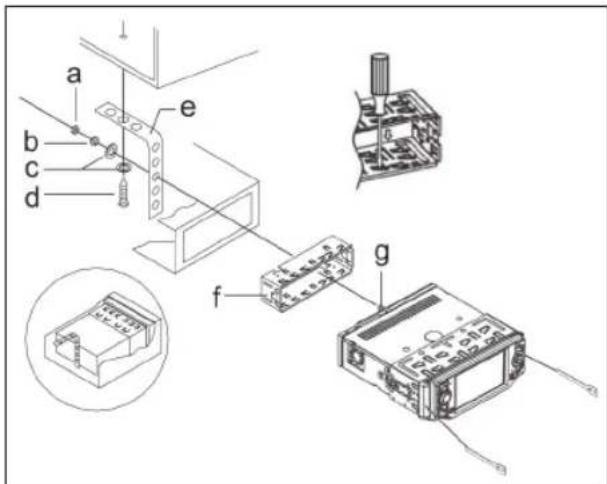
Please install the car radio as shown below.
ENGLISH
natural_image
Technical line drawing of a computer drive chassis with labeled ports and mounting bracket (no text or symbols present)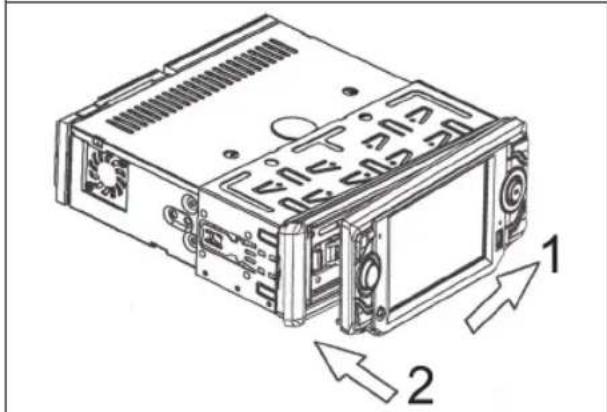
a Nut
b Spring washer
c Plain washer
d Screw
e Mounting bracket
f Slide-in housing
g Threaded bolt
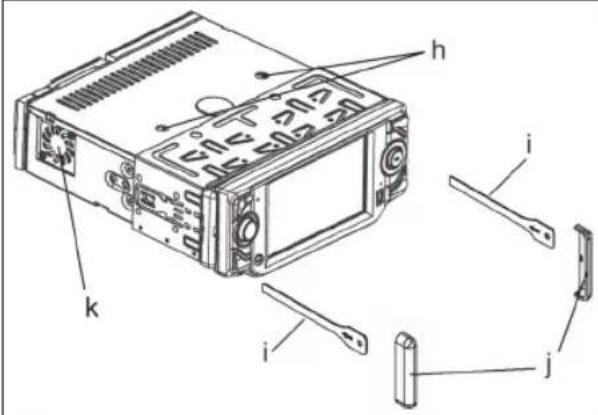
NOTE: Coution! Retaining screws during transport (please remove before installation)
i Extraction tool (spanner for dismantling)
j Screen cover
k Fan
△ CAUTION: Do not cover the fan!
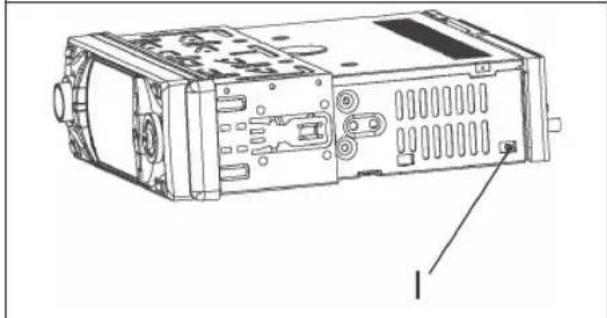
I USA/EURO switch (radio frequency switch for selecting between the USA and EUROPE frequency band)
First place the operating panel in position on the right-hand side and then lock it into place on the left.
Connection
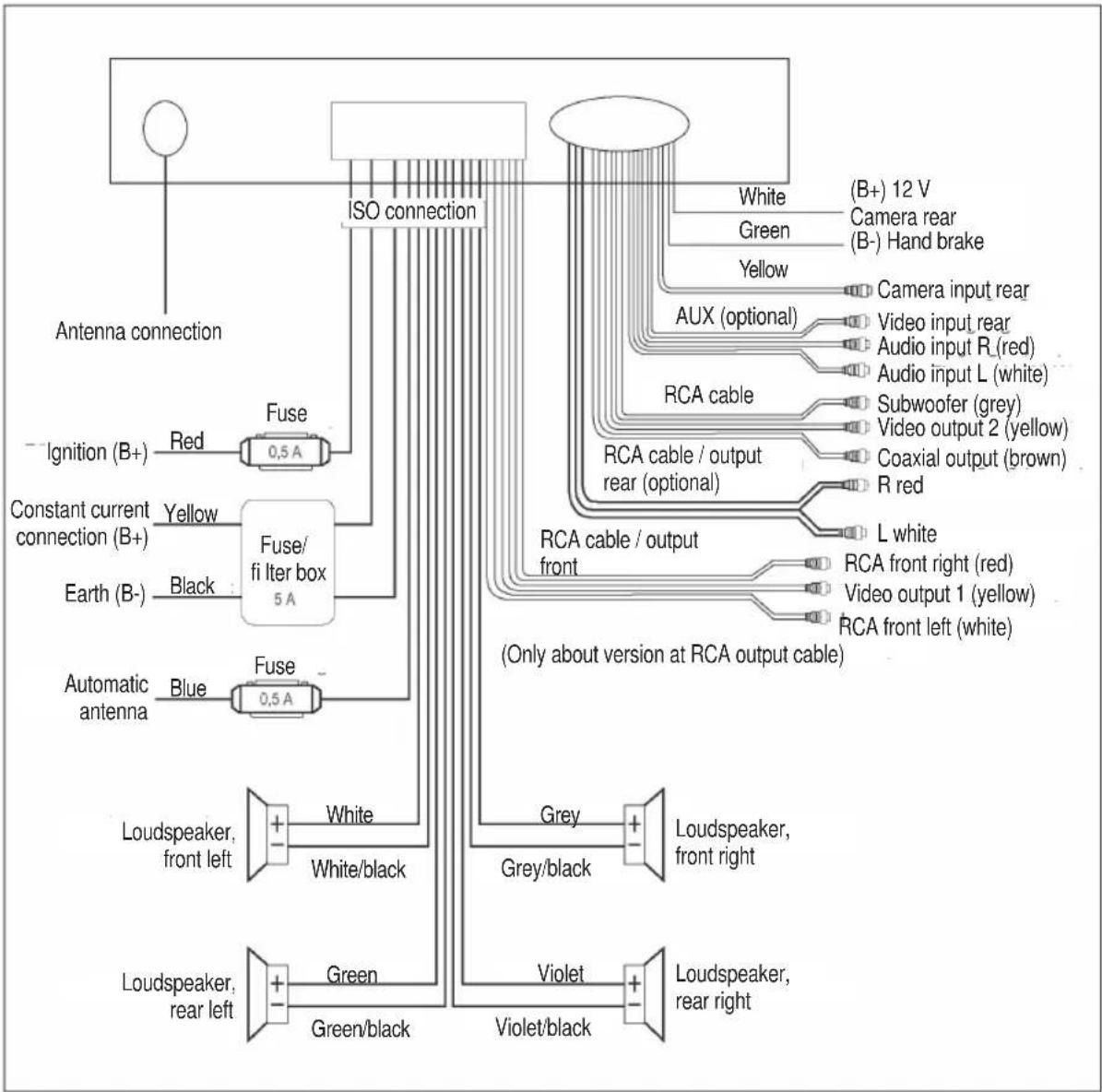
Connect the device as shown in the diagram.
flowchart
graph TD
    A["Antenna connection"] --> B["Fuse 0.5A"]
    B --> C["ISO connection"]
    C --> D["White (B+) 12 V"]
    C --> E["Green (B-) Hand brake"]
    C --> F["Yellow"]
    C --> G["AUX (optional)"]
    G --> H["Video input rear"]
    G --> I["Audio input R(red)"]
    G --> J["Audio input L (white)"]
    C --> K["RCA cable"]
    K --> L["Subwoofer (grey)"]
    K --> M["Video output 2 (yellow)"]
    K --> N["Coaxial output (brown)"]
    K --> O["R red"]
    C --> P["RCA cable / output rear (optional)"]
    P --> Q["L white"]
    C --> R["(Only about version at RCA output cable)"]
    C --> S["(Only about version at RCA output cable)"]
    T["Ignition (B+)"] --> U["Fuse 0.5A"]
    U --> V["Fuse/ fi Iter box 5A"]
    W["Igition (B+)"] --> X["Fuse 0.5A"]
    Y["Constant current connection (B+)"] --> Z["Fuse/ fi Iter box 5A"]
    AA["Earth (B-)"] --> AB["Fuse 0.5A"]
    AC["Automatic antenna"] --> AD["Fuse 0.5A"]
    AE["Loudspeaker, front left"] --> AF["White"]
    AE --> AG["White/black"]
    AH["Loudspeaker, rear left"] --> AI["Green"]
    AH --> AJ["Green/black"]
    AK["Violet"] --> AL["Loudspeaker, rear right"]
    AM["Grey"] --> AN["Loudspeaker, front right"]
    AO["Grey/black"] --> AP["Loudspeaker, front right"]
Note:
- The device should only be switched on after all cables have been connected.
- Please use loudspeakers with an impedance of 4 ohm.
• The loudspeaker cables must be unearthed. - If a subwoofer is connected, an amplifier is required.
- The earth connection cable (handbrake B-) must be connected in order for DVD pictures to be played back to the monitor. If the cable has not been correctly connected, the message „PARKING BRAKE“ appears on the monitor.
- It is possible to use the integrated TFT screen as a monitor for an optional reversing camera (not supplied). Connect the „(B+) 12V camera on rear" connection to the reversing light of your vehicle and connect the camera to "camera input on rear (yellow)". After the vehicle is put into reverse gear the camera image appears on the monitor. For more detailed information please see the operating instructions for your reversing camera.
i NOTE:
If there is no 12V supply to the „(B+) 12V camera rear" connection the picture from the camera is not displayed on the monitor.
Important Information for installing your carradio!
- The screws (h) of the transport locking device should be removed before installation, as otherwise the CD cannot be inserted.
- The device is designed for the minus pole of the battery, which must be connected to the body of the vehicle. Please check this before installation.
- When installing/connecting your device please note that not every vehicle is equipped with an "ISO connection". In this case we recommend the use of an ISO adapter specifically designed for your vehicle.
Adapters are available from car accessory shops and/or from your vehicle workshop.
- Depending on the specific car type, different wiring connection of the "Duration +" wire (Constant current connection) are available. (However, this is necessary for storing the radio stations).
In order to guarantee all functions, installation in line with these instructions is essential. In cases of doubt please contact an authorised car workshop.
Due to the large number of vehicle types and manufacturers the correct configuration of the ISO plug cannot be guaranteed, even if the ISO plug connections fi t together mechanically. It may therefore be necessary to change the electricity connection or use adapters made specifically for motor vehicles.
i NOTE:
When connected correctly, the radio can be switched on and off by means of the ignition. If the stored stations are lost the radio does not receive any „Permanent +“ required for station storage.
CAUTION:
If the connection is made to „Permanent +“ without ignition the car radio may be subjected to a load even with the ignition switched off. In the worst case this may result in the car battery becoming completely discharged.
In the case of car radios with Bluetooth it is essential that the connection is made properly via the ignition. Otherwise there will be no correct separation of the radio connection between the car radio and the mobile telephone.
5. The angle of inclination when a car radio is installed must not exceed 20^ , as in the case of greater angles of inclination the function of the car radio (CD/DVD Player) can no longer be guaranteed.
6. Depending on the specific car type, interferences can be possibly arise during radio/CD/DVD operation. These interferences can avoid easily with an additional Interferences filter. Your car radio is originally prepared with an Interference Filter already.
In these case, please contact your authorized car dealer.
- When installing your radio please ensure that there is enough space at the rear of the radio to ensure sufficient cooling.
- For the antenna connection there are two different norms. The first of these is the old (50 ohm) version with a long protruding round contact on the vehicle and a round socket on the radio end. The second is the ISO-standardised antenna plug (150 ohm). Adapters for both formats are available from accessory manufacturers and/or your car workshop.
Important information for VW/Audi vehicles: The active antenna requires voltage on the shielding of the antenna coaxial cable, without which reception is unsatisfactory. An antenna adapter with phantom power supply will solve this problem.
Operating Instructions
- If the front control panel is removed while the radio or CD is on, the device is automatically switched off.
- Any errors (ERROR) occurring during operation can be corrected by pressing the RESET button. Use a piece of wire or similar item to press the RESET button (4) in order to return the electronics to its original state.
- If the interior of the vehicle becomes very hot, for example after standing in direct sunlight for a prolonged period, do not switch on the player until the inside of the vehicle has cooled down a little after you have been driving for a few minutes.
- In order to keep the removable control panel in a safe place you should always use the protective case provided.
- Playback of CDs/DVDs produced by the user cannot be guaranteed due to the large variety of software and CD/DVD media available.
- Some keys are to be found both on the device itself and on the remote control. Keys with the same designation have the same function.
- Flashing LED (not shown)
When the front control panel is removed this display fl ashes.
Starting up
Remote control battery installation
WARNING:
Leaking out battery acid can damage your health. Remove the battery from the battery compartment as soon as it is exhausted or if the remote control is not going to be used for a longer period of time. Wipe up leaked out battery acid with a cloth. In case of skin contact immediately wash the affected area. Seek medical advice if battery acid has been swallowed. In case of contact with your eyes wash out the eyes and seek medical advice.

CAUTION:
When disposing of old batteries you should strictly comply with the legal and environmental regulations applicable in your country. Do not throw batteries into fire!

NOTE:
The lifetime of the enclosed battery may be shortened because of storage.
natural_image
Hand holding a small object with a downward arrow indicating motion (no text or symbols)
NOTE:
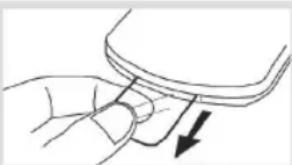
The lithium cell in the battery compartment of the remote control has been secured for transport with a foil. Before initial use please remove this foil so that the remote control is ready for operation.
The battery of the remote control is a long-life lithium cell. If the range of the remote control is reduced during use, please proceed as follows:
- Open the battery compartment on the back of the remote control.
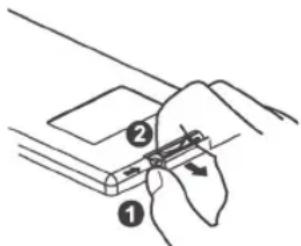
- Replace the cell by a battery of the same type. Ensure correct polarity.
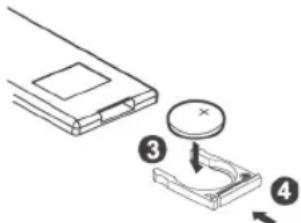
- Then close the battery lid.
If the remote control is not used for a prolonged period, remove the batteries in order to prevent battery acid leaking.

CAUTION:
Batteries are not to be disposed of together with domestic wastes. Dispose of the used batteries at the relevant collection bin or at your dealer's.

WARNING:
Do not expose the batteries to high temperatures or direct sunlight. Never throw batteries into the fire. There is a danger of explosion!

NOTE:
The signals from the remote control are transmitted to the device by infrared light. You should therefore ensure that the device is not in direct sunlight. This might make transmission of the signals from the remote control to the device impossible.
Effective range of the remote control
Point the remote control at the remote control sensor on the right next to the display on the front of the device. The distance between remote control and sensor should not exceed 5m. The angle of the remote control to the remote control sensor to right, left, top and bottom should not exceed 30°.
Operation (Illustration 2: Control Panel)

NOTE:
Some keys are to be found both on the device itself and on the remote control. Keys with the same designation have the same function.
1. BAND/

button
In radio mode:
Press the BAND/AN in brief y to switch between the 3 FM bands and the 2 MW (medium wave) bands. The designation of the corresponding level - FM1, FM2, FM3, MW1, MW2 - is shown in the TFT.
In Bluetooth Mode:
Press the button to end the telephone call or reject an incoming telephone call.
2. REL Button
Press the REL button to remove the front operating panel.
3. VOL Multifunction Button (Volume)
In the standard playback mode the multifunction button is used for adjusting the volume. If the SEL button is pressed beforehand, changes can be made in the menus, e.g. sound mode.
4. RESET Button
Due to voltage fluctuations in your vehicle electrical system it is possible that the control processor of your radio has „hung up“. This is not a fault in the device! Press this button with a pointed object to restart it (reset).
5. TFT Display (liquid crystal display)
6.12. A Buttons
a) In radio mode:
Move the SEL button in the direction of ,A or ,B in order to set a radio station manually. Keep the SEL Taste pressed down in the A or ,B direction in order to start the search for a radio station.
b) In CD/DVD, USB mode:
If you wish to jump forwards or backwards press the SEL button briefly in the “or” direction. To wind through the tracks keep the SEL button pressed in the “/or” direction for approximately 2 seconds. ▶X2 appears in the display. Operating the SEL button again in the “/or” direction for approximately 2 seconds increases the winding speed. Speeds of ▶X2, ▶X4, ▶X8 and ▶X16 are available. Press the ▶II/CH 1-6 button (13) to return to normal playback.
- IR (Infrared)
Sensor for the remote control
- TA / AF Button
a) TA Traffi c Annonouncement (Priority for Traffi c Information
The TA function is activated by pressing the TA/AF button briefy. The TA symbol appears in the display. During radio operation in one FM frequency band the search for a traffic announcement station is started automatically (TA SEEK).
If an FM station is being received which transmits the latest traffic announcements from time to time, the TP display lights up.
When the TA function is switched on, the FM traffic announcements automatically interrupt CD operation (The word TRAFFIC appears in the display). The volume level is increased to the minimum value for the transmission of traffic announcements.
After the traffic announcement has finished, the programme that was previously running is resumed.
Interruption of the TA Function:
If you would like to interrupt the current traffic announcement, press the TA/AF button briefly. This does switch off the TA mode.
b) AF (Alternative Frequencies)
See point 14.
- MU/PTY Button (Mute)
a) Press the MU/PTY button to switch off the loudspeakers for a short period. The word MUTE fl ashes in the display. Press this button again to cancel the mute function. This function can also be cancelled by pressing the VOL multifunction button.
b) Radio Operation:
PTY Selection of the Programme Type
Besides the station name, some FM stations also transmit information on the type of programme. This information can be displayed by your car radio.
Examples of such types of programme are:
SPORT
NEWS
POP
CLASSICS
With the PTY function you can specifically select stations transmitting a particular type of programme. Keep the MU/PTY button pressed down for approx. 2 seconds to access the PTY menu. The message „PTY SEEK“
then appears briefly in the display.
When PTY has been selected the radio starts searching for corresponding PTY information and stops when the PTY information has been found. If the programme type being searched for is not found, „NO PTY“ appears in the display. If the PTY information being searched for no longer exists, the PTY function automatically switches to normal mode.
- ▲ Button
Press this button to insert and eject the CD/DVD. The operating unit swings downwards. Insert the CD/DVD with the labelled side facing upwards gently into the CD slot until the device draws in the CD/DVD automatically. The operating unit automatically swings back to the normal position.

WARNING:
Do not place your fingers behind the operating unit. There is a danger of injury when the operating unit returns to the normal position.

NOTE:
If you do not insert a CD/DVD the operating unit only returns to the normal position after a certain time, or you can press the ▲ button again.

CAUTION:
With this device it is possible to play back only 12 cm discs!
- SEL Button (Select)
a) Press the SEL button brief y to access the sound/picture mode selection menu. „BUZZER“ appears in the display to set the confirmation tone. By repeatedly pressing the SEL button you can now select the individual menu items such as BUZZER (confirmation tone), BLUETOOTH, BASS, TREBLE, BALANCE and FADE, BG COLOUR (background colour), COLOUR*, BRIGHT* (brightness), CONTRAST* and VOLUME. The settings of the individual menu items are changed by turning the multifunction button VOL (3). (*only in DVD mode)
b) Press the SEL button for a longer time to access the selection menu:
- REG ON / REG OFF
• PI MUTE / PI SOUND - AF OFF / AF ON
Repeatedly pressing of the SEL button now brings up the individual menu items. The settings of the individual menu items are changed by turning the multifunction button VOL.
- REG Function
At certain times some stations divide up their programmes into regional programmes with varying content.
REG ON: The message „REG ON“ appears in the display for a few seconds.
i NOTE:
- The display capacity is limited. It is possible that in the double display mode some segments of the display are deleted.
- The function REG ON prevents the radio from switching to alternative frequencies which have a different regional programme content.
REG OFF: The programme identification (PI) of the regional programme is ignored during the search for an alternative frequency (AF) or a programme identification (PI).
- PI MUTE/PI SOUND (only for radio operation) If you are in an area where two programme identifi cations (PI) overlap, you can select the option PI SOUND and PI MUTE for playback of the sound. Alternate switching of the programme identifi cation should be avoided.
PI SOUND: If switching nevertheless occurs the sound of another station is heard for less than one second.
PI MUTE: The sound of another station is suppressed.
- AF (Alternative Frequencies) AF is a function that works with the help of RDS (Radio Data System) and can only be used with FM stations. The radio searches in the background for the best frequency reception of the station that has been tuned into.
AF ON: If the AF function has been switched on, the radio continuously tests the signal strength of the AF frequency. The test interval for each AF frequency depends on the signal strength of the current station and varies from a few minutes in the case of a strong signal to a few seconds in the case of weak signals. Whenever the new AF frequency is stronger than the station that is currently tuned in, the radio switches to this frequency for a short time and the message „NEW FREQUENCY“ is displayed for one to two seconds. As the mute time during the frequency change and the test time is very short, this is almost inaudible during the normal programme.
i NOTE:
The AF function can also be activated by keeping the TA/AF button (8) pressed down.
The status of the AF function is shown by an AF symbol in the display.
- If the AF symbol appears in the display, the AF function is switched on and RDS transmission data is being received.
- If the AF symbol flashes in the display, the AF function is selected but no RDS signal can be received at the moment.
AF OFF: The function is switched off. The AF symbol in the display goes off.
12. Button
See section 6./12.
13. ▶II-/CH 1-6 Button
Radio Mode:
Press repeatedly to select the 6 preset radio stations of the current FM or MW band.
CD/DVD/USB Operation:
Press the ▶II-/CH 1-6 button to interrupt playback of the CD (pause function). Press this button again to cancel this function.
14. MOD button (on/off button / operating mode)
a) Press this button to switch the device on. WELCOME appears in the display. Keep this button pressed to switch the device off. SEE YOU appears in the display.
b) Press this button to select the CD/DVD player, AUX IN, BT MUSIC, radio mode etc.
15. APS/DISP Button (Autostore - Automatic Station Storage)
In radio mode:
a) Memory function:
Move the SEL button in the direction of APS for approximately 2 seconds to activate automatic station storage.
The device searches within the current frequency band for the greatest signal strength until the search cycle is complete. The six strongest stations are then allocated to the corresponding storage locations. Then the station of the first storage location (FM1) is set.
b) Scan Function: If the SEL button is moved briefly in the direction of APS, the radio briefly plays all the preset stations of the frequency band.
i NOTE:
The scan function ends automatically at the first storage location of frequency band FM1.
In DVD mode:
Move the SEL button a short distance in the APS/DISP direction in order to turn the TFT monitor on the device off and on again.
16. USB Connexion
This device has been developed in accordance with the latest technical developments in the USB fi eld. Unfortunately the large number of different types of USB storage media on offer today makes it impossible to guarantee full compatibility with all USB storage media. For this reason there may be problems in rare cases with playing back from USB storage media. This is not a malfunction of the device.
If you would like to play back data contained on a USB stick, please insert the stick into the opening provided. You can use the supplied adapter cable for this. To play back the data on the stick, select the USB stick with the help of the MOD(E) button. The data is played back automatically.
i NOTE:
If you have problems with operation using the USB connexion, please use an appropriate adapter cable and proceed as described under AUX IN.
17. MIC (Microphone)
18. AUX IN socket
To connect analogue replay devices. Use this jack to replay sound of other replay equipment such as DVD players, computers, etc. via the loudspeakers.
- Please connect the external device with a 3.5 mm stereo jack plug to the AUX IN socket.
- Press the MOD(E) button (11) to select the AUX IN connection.
- You now hear the sound from the external device played back through the loudspeakers.
- With the VOL multifunction button (3) you can change the volume.
- For the remaining procedure please see the operating instructions of the external sound source.
i NOTE:
- Adjust the volume of the external device to an appropriate level.
19. ◆ Button (Operating unit angle)
You can change the viewing angle of the operating unit. Press the button up to four times in order to select the desired position.
WARNING:
Do not place your fingers behind the operating unit. There is a danger of injury if the operating unit returns to the normal position.
20. PAIR
In Bluetooth mode:
- Press this button to accept an incoming telephone call.
- Keep the button pressed down to call up the Bluetooth menu.
- Keep the button pressed down to make the connection between the devices (BLUETOOTH PAIRING appears in the TFT display).
- Press the button briefly after the connection between the devices has been interrupted (e.g. after leaving the reception
area) in order to re-establish the connection (BLUETOOTH CONNECTING appears in the TFT display).
i NOTE:
Press this button during a call in order to transfer it back to your mobile telephone. If you press the button again the call is transferred back to the car radio.
Setting the Time
6. CLK Button (Time) (on the remote control)
a) Press the CLK button in order to bring up or hide the clock.
b) To set the time keep the CLK button pressed down for approx. 3 seconds. The hours fl ash in the display. Carry out the settings with the help of the VOL multifunction button (3). Press the CLK button again. The minutes now fl ash. Carry out the settings with the help of the VOL multifunction button (3). Press the CLK button again to store.
i NOTE:
If RDS data is received the time is set automatically.
Using the Number Buttons
Numerical buttons (11 on the remote control) as Station buttons (1–6) of preselected stations and as 1TOP-, 3 INT-, 4 RDM buttons during CD operation
a) Radio Operation
Pressing these buttons briefly directly selects a preset radio station. If these buttons are pressed for more than one second, the station currently being listened to is stored under the selected station button.
b) CD Operation
Pressing briefly directly selects the corresponding CD/MP3 track. Keep the corresponding button (1TOP, 3INT, 4RDM) pressed for approximately 3 seconds in order to switch the following functions on and off:
- Press the 1TOP button to jump to the first track of the CD/MP3.
i NOTE: No function during DVD operation.
- Press the 2RPT button. The track currently being played is repeated. Press this button again to cancel this function. In the case of DVDs you can repeat the chapter, title or the entire DVD.
- Press the 3INT button. Each track on the CD is played for 6 seconds. Press this button again to stop searching. The currently selected track is played.
During DVD operation a menu appears. Here you can use the ◀, ▶, ▲, ▼ buttons (9 on the remote control) of the remote control to choose between 4 options. Confirm your selection with the ENTER button (8 on the remote control).
i NOTE: No function during MP3 operation.
- Press the 4RDM button. The DVD, MP3/CD tracks are Radio Mode
played at random. Press this button again to cancel this function.
LO/DX/.... Button (21 on the remote control)
LOCAL/DX (EON) (only available during radio operation)
Your radio can receive RDS EON data. The term „EON“ signifi es the transmission of additional station information within a station chain, e.g. WDR. If a traffic c announcement (TA) is made within a station chain, the radio switches from a station which does not transmit traffic c announcements to one that does within the same station chain.
Reception of this station data is shown in the display by the EON symbol. You can choose between the LOC(AL) and DX (DISTANCE) mode for local or long-distance traffic news.
LOC(AL):
This function prevents switching to an EON station whose signal is too weak. The radio does not switch to this station and the listener does not hear any interference.
DX (DISTANCE) Mode:
In this mode the EONTA circuitry tries to receive the EONTA information from any available transmitter and thus improve reception quality.
DVD Operation:
Press the button several times if you would like to activate or deactivate the subtitle function or if you want to choose a different subtitle language. The available subtitle languages depend on the DVD.
Using the Touch Screen
In addition to operating the device by the buttons, the device itself and with the remote control, it is also possible to use the touch screen. Touch the TFT screen of the device lightly with one of your fingers. The respective main menu of the individual modes is displayed. Touch the buttons shown lightly in order to perform the functions. A brief overview is to be found in the following section:
i NOTE:
If no selection is made within approximately 10 seconds the touch screen menu disappears again.
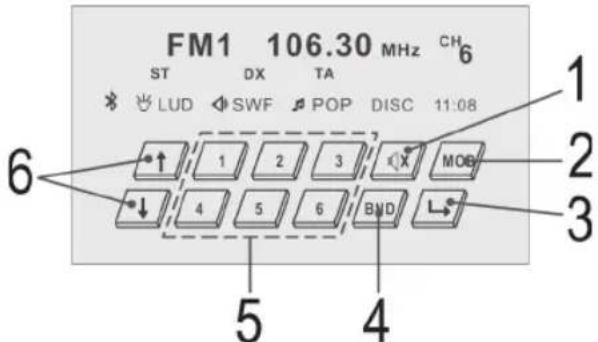
ENSOLIDH
1 To switch of the sound.
2 Operating mode selection (CD/DVD, AUX IN, Radio etc.).
3 Next Menu.
4 Switching the 3 FM and 2 MW levels.
5 Press briefl y: Station selection.
Press longer: Station storage.
6 Press briefy: Setting the Radio Frequency. Press longer: Station Search for the Next Station.
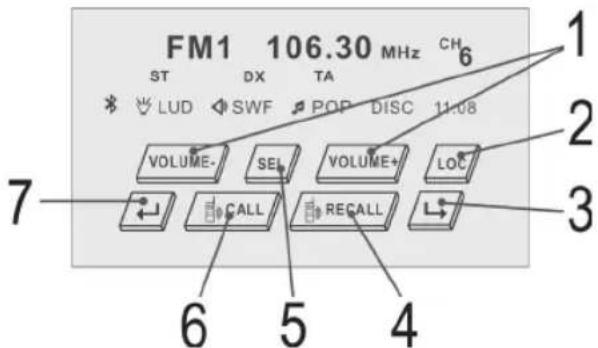
1 To increase/reduce the volume.
2 LOCAL/DX function.
3 Next Menu.
4 Redialling.
5 Press briefy: Selecting the Sound Mode. Press longer: REG, PI, AF function selection.
6 Calling up the Bluetooth Menu.
7 Previous Menu.
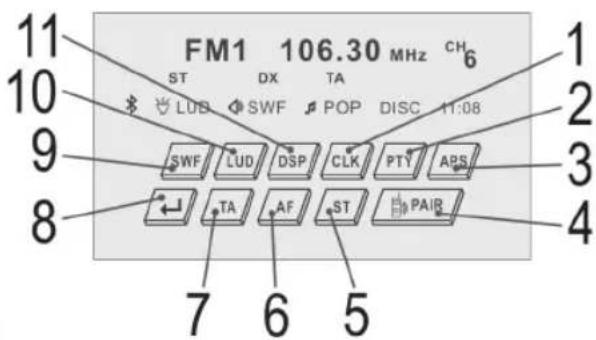
1 Press briefl y: Showing/hiding the time.
Press longer: Setting the time.
2 PTY selection of the program type.
3 Press briefy: Scan function of the stored radio stations.
Press longer: Automatic station storage.
4 Registering Devices with One Another.
5 Stereo/Mono switching.
6 Switching on and off an alternative frequency.
7 Turning pre-switching for traffic announcements on and off.
8 Previous Menu.
9 Switching the subwoofer on and off.
10 Switching the LOUDNESS function on and off.
11 Selecting equaliser settings.
AUX IN Mode
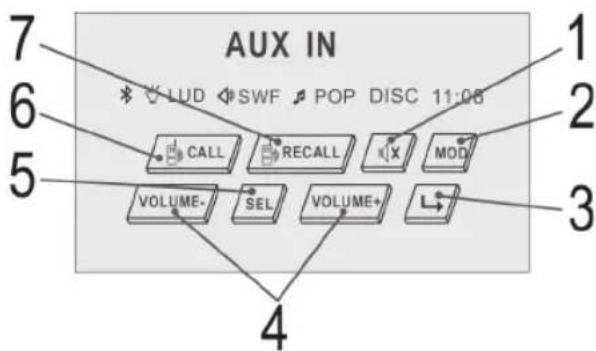
flowchart
graph TD
    A["AUX IN"] --> B["LUD"]
    A --> C["SWF"]
    A --> D["POP"]
    A --> E["DISC 11:08"]
    A --> F["CALL"]
    A --> G["RECALL"]
    A --> H["MOD"]
    A --> I["VOLUME-"]
    A --> J["SEL"]
    A --> K["VOLUME+"]
    A --> L["L"]
1 To switch of the sound.
2 Operating mode selection (CD/DVD, AUX IN, Radio etc.).
3 Next Menu.
4 To increase/reduce the volume.
5 Press brief y: Selecting the Sound Mode. Press longer: REG, PI, AF function selection.
6 Calling up the Bluetooth Menu.
7 Redialling.
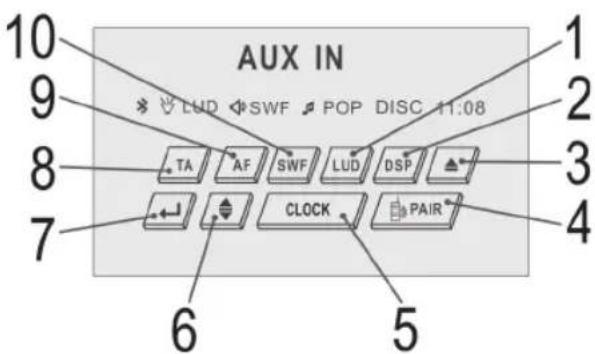
1 Switching the LOUDNESS function on and off.
2 Selecting equaliser settings.
3 Loading and Ejecting the CD/DVD.
4 Registering Devices with One Another.
5 Press brief y: Showing/hiding the time. Press longer: Setting the time.
6 Changing the viewing angle of the operating unit.
7 Previous Menu.
8 Turning pre-switching for traffic announcements on and off.
9 Switching on and off an alternative frequency.
10 Switching the subwoofer on and off.
BT MUSIC Mode (A2DP)
In this mode it is possible to play back the music from a device that is Bluetooth-compatible and operate the connected device.
i HINWEIS:
In order to be able to use this mode the connected device must support the A2DP profile.
- A2DP (Advanced Audio Distribution Profile) A Bluetooth profi le that is required in order to transfer stereo music and audio fi les between playback devices and receiving devices without wires.
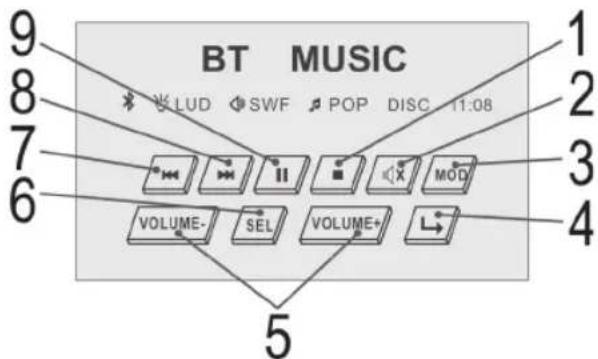
1 Stop play.
2 To switch of the sound.
3 Operating mode selection (CD/DVD, AUX IN, Radio etc.).
4 Next Menu.
5 To increase/reduce the volume.
6 Press briefy: Selecting the Sound Mode. Press longer: REG, PI, AF function selection.
7 Jump to the previous song.
8 Jump to the next song.
9 Start playback, stop the song.
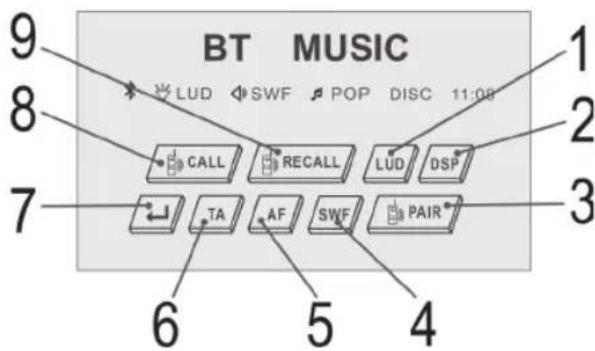
1 Switching the LOUDNESS function on and off.
2 Selecting equaliser settings.
3 Registering Devices with One Another.
4 Switching the subwoofer on and off.
5 Switching on and off an alternative frequency.
6 Turning pre-switching for traffic announcements on and off.
7 Previous Menu.
8 Calling up the Bluetooth Menu.
9 Redialling.
CD/DVD Mode
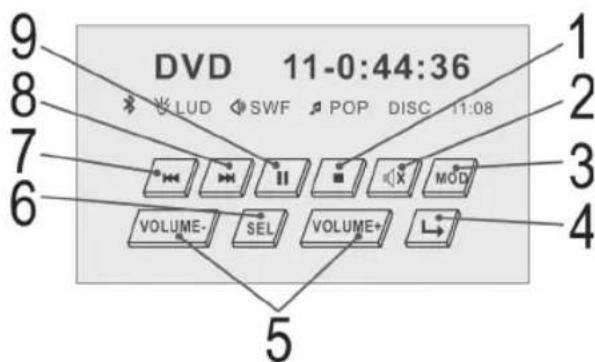
1 Stop play.
2 To switch of the sound.
3 Operating mode selection (CD/DVD, AUX IN, Radio etc.).
4 Next Menu.
5 To increase/reduce the volume.
6 Press briefl y: Selecting the Sound Mode. Press longer: REG, PI, AF function selection.
7 Jump to the previous chapter.
8 Jump to the next chapter.
9 Start playback, stop the picture.
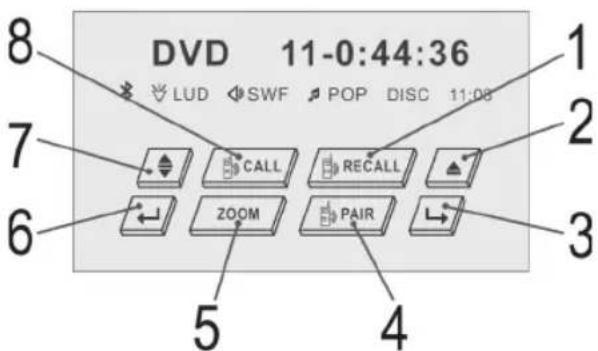
1 Redialling.
2 Loading and Ejecting the CD/DVD.
3 Next Menu.
4 Registering Devices with One Another.
5 Zoom in and out.
6 Previous Menu.
7 Changing the viewing angle of the operating unit.
8 Calling up the Bluetooth Menu.
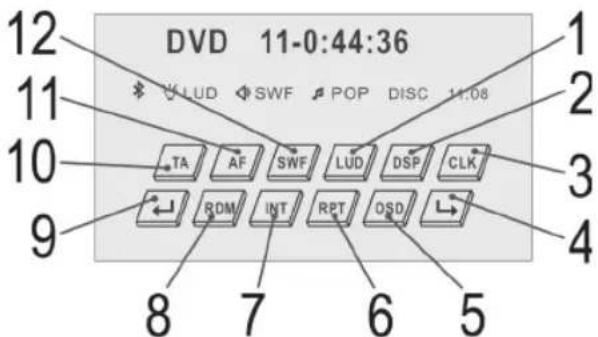
1 Switching the LOUDNESS function on and off.
2 Selecting equaliser settings.
3 Press briefl y: Showing/hiding the time. Press longer: Setting the time.
4 Next Menu.
5 Alternating the time displays.
6 Repeat title, chapter etc.
7 Scan function.
8 Random playback.
9 Previous Menu.
10 Turning pre-switching for traffic announcements on and off.
11 Switching on and off an alternative frequency.
12 Switching the subwoofer on and off.
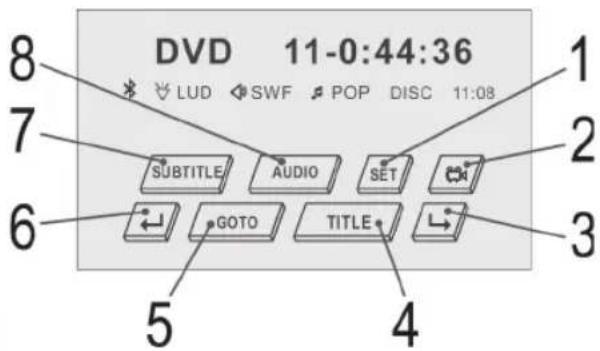
1 Press brief y: Selecting the Sound Mode. Press longer: REG, PI, AF function selection.
2 To select the viewing angle.
3 Next menu (for the MP3 menu).
4 a) To show the title menu of the DVD (depending on the DVD).
b) To show the Playback-Control for VCD.
5 For direct accessing of a section on the CD/DVD.
6 Previous Menu.
7 To show/hide subtitles (depending on the DVD).
8 To change the Audio settings (depending on the DVD).
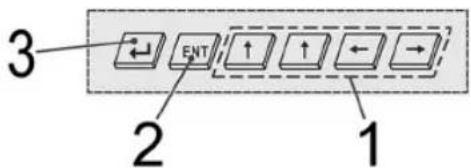
1 In MP3 mode to select the folder or tracks.
2 Access selected folder/play track.
3 Previous Menu.
Bluetooth Mode
Depending on the mode you are currently using, call up the menu with the "button" and press it in order to call up the Bluetooth menu.
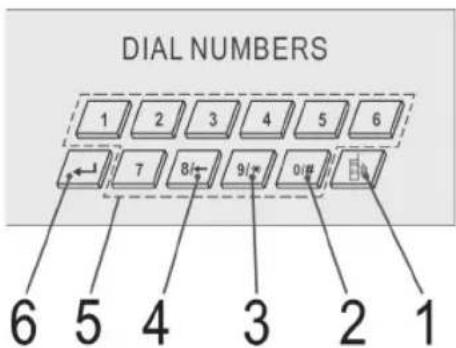
1 Selecting the telephone number entered.
2 Hold down to enter the hash.
3 Hold down to enter the asterisk.
4 Hold down to delete a telephone number that you have entered incorrectly.
5 For entering the telephone number.
6 Previous Menu.
flowchart
graph TD
    A["DIAL NUMBERS"] --> B["ACCEPT"]
    A --> C["REJECT"]
    A --> D["VOLUME-"]
    A --> E["VOLUME+"]
    A --> F["X"]
    A --> G["L"]
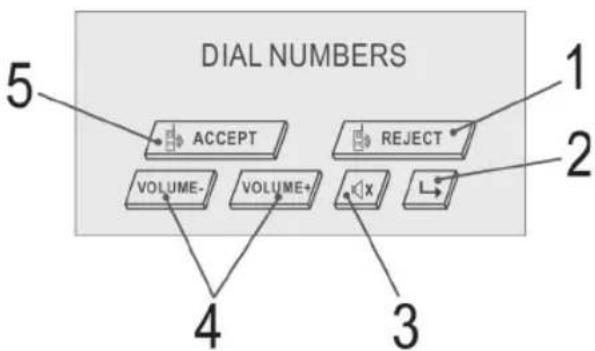
1 Terminate or reject a telephone call.
2 Next Menu.
3 To switch of the sound.
4 To increase/reduce the volume.
5 a) Receiving a telephone call.
b) Transfer the call to the mobile telephone or back to the car radio (only possible during a call).
Telephoning via Bluetooth
Bluetooth technology is a wireless radio connection between devices over a short distance. Currently Bluetooth technology is mainly used for the hands-free operation of mobile telephones. This enables the driver to conduct a conversation via his or her mobile telephone while driving without having to hold the telephone to his or her ear.
This device provides you with the opportunity to use a Bluetooth-capable mobile telephone. The working radius is restricted to approximately 3 metres.
For Optimum Sound Quality during a Telephone Call
Do not set the volume too high. Otherwise there may be feedback (a whistling noise) from the loudspeakers.
i NOTE:
The setting of the volume depends on the installation positions of the loudspeakers relative to the microphone and cannot therefore be specified in detail.
Registering Devices
Before you can telephone via the car radio the devices have to be registered with one another.
- Unless you have already done so, activate the Bluetooth function in the SEL menu (BLUETOOTH ON).
- Hold the PAIR/ Button (20) down (the "symbol fl ashes and BLUETOOTH PAIRING appears in the display).
- Register the car radio in your mobile telephone as described in the operating instructions for your mobile telephone. The device designation „BC-HF-V01“ appears as a choice in your mobile telephone.
- Now enter the password „8888“ in your mobile telephone. The car radio is now registered in your mobile telephone.
- Once the registration has been successfully performed, "appears in the display of the car radio together with the name of the mobile telephone.
i NOTE:
- If registration was not successful, "appears in the display of the car radio.
- Depending on the mobile telephone manufacturer, it is necessary to carry out the registration (PAIRING) again in order to register your mobile telephone in the car radio.
- Bluetooth compatibility cannot be guaranteed for mobile telephones that come onto the market in the future.
- In order to guarantee an optimum connection, please ensure that the battery of your mobile telephone is fully charged.
- Some makes of mobile telephone have an energy-saving mode. Please deactivate the energy-saving mode, as you may otherwise have problems when telephoning via Bluetooth.
- In order to be able to conduct an incoming or outgoing telephone call Bluetooth has to remain activated in your mobile telephone. Please consult the operating instructions for your mobile telephone.
- Please ensure that you speak in the direction of the built-in microphone. The connection of an external microphone is not possible.
Outgoing Calls
- Keep the PAIR/ button (20/24) held down to call up the Bluetooth menu.
- In order to enter the desired telephone number please use either the touch screen or the number buttons on the remote control.
i NOTE:
If you have entered one or more figures incorrectly you can delete them by repeatedly holding down the "button or the "cursor button on the remote control.
-
To call up the desired number, press the "button in the touch screen menu. The words „DIALING OUT“ appear in the display together with the telephone number.
-
To terminate the call please press the BAND/ button (1).
i NOTE:
- In order to call the telephone number you have entered you can also press the PAIR/button (20).
- In order to end a call you can also press the "button on the touch screen or the REDIAL button (25) on the remote control.
Redialling
The device stores the last number you have dialled. In order to dial this number again you can either keep the BAND button (1) on the device pressed down or the REDIAL button (25) on the remote control.
i NOTE:
If you would like to redial the last number you can also press the „*button on the touch screen.
To end the call press either the „REJECT“ button on the touch screen, the REDIAL button (25) on the remote control or the BAND button (1) on the device.
Incoming Calls
In the case of incoming calls a ringing tone is heard from the loudspeakers, and if the caller has a CLIP „Calling Line Identification Presentation“-capable telephone, the caller's number appears in the display of the car radio. Otherwise „CALL INCOMING“ appears in the display.
- To accept an incoming call, press the PAIR/ button (20) to confirm. You will now hear the caller through the loudspeakers of your car.
- To terminate the call please press the BAND/ button (1).
i NOTE:
- You can transfer the call back to your mobile telephone. In order to do so, keep the PAIR/bouton (20) pressed. If this button is held down again, the call is transferred back to the car radio.
- In order to reject an incoming call press the BAND/ button (1).
About the DVD-Player
With this DVD-Player you can play a vast variety of DVD-formats "Technical data".
However, you must be aware that in many cases DVDs are encrypted with a so-called "Regional Code". This specifies for which region in the world the DVD is intended. As an example, the DVDs marked with regional code "1" are intended for the USA and Canada. DVDs with regional code "2" are for use in Europe.
i NOTE:
With your DVD-Player you can only play DVDs with regional code "2". There are both lots of burning and compressing methods as well as high quality differences in (burned) CDs/DVDs. Moreover, the music industry has not yet agreed on a fixed standard for copy protection. This may, in very isolated cases, result in problems when relaying CDs, DVDs and MP3 CDs. This is no malfunction of the player.
Furthermore, there may be isolated problems when playing CDs or DVDs which were created on a PC (e.g. holiday photographs). In case of problems check the settings of the DVD writing program on your computer. You should in particular make sure that the DVD has been finalized. For further information on this matter please refer to the operating manual of your recorder.
Input Not Possible

If a function or input selected by you is not possible, the adjacent symbol is shown on the screen.
Changing the default settings
A large number of default settings can be comfortably changed via the screen menu.
Press the SETUP-button (Fig. 1/15) on the remote control to start the menu for changing the default settings (only in DVD mode).
i NOTE:
- Many of these default settings can be changed via both the remote control and the menu. The difference is: If you change the default settings via the remote control, these changes will only be valid until the DVD-Player is switched off or the DVD is changed.
• However, any changes made in the menu are permanent.
Understanding the menu structure
The Setup menu has two menu levels:
- Main menu: The main level is represented by graphical symbols.
- Sub-menu: The corresponding sub-menu options can be found under each of the main menu options.
Using the menu
Navigation and selection
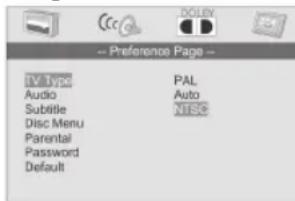
- Use the Cursor Buttons (Fig. 19) on the remote control to browse through the main menu.
- In contrast to this, you must use the Cursor Buttons ( ▲, ▼) to move in the sub-menu.
- Select a menu option with the ENTER-button (Fig. 1/8).
- Use the ENTER-button also to select an option (e.g. "PAL" in the illustration on the top). The selected option (in the example „NTSC”) is now highlighted.
Slide control
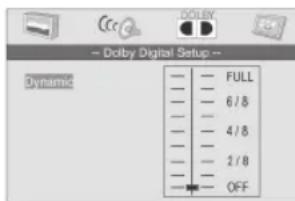
In some menus you will find slide controls. The slide control is used as follows:
- Select with the ENTER-button.
- Move the control with the Cursor Buttons (▲, ▼).
- Confirm the entry with the ENTER-button.
Overview of the main menu
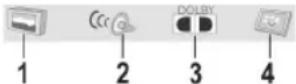
- General Settings (1)
- Speaker settings (2)
- Digital settings (3)
- Preferred Settings (4)
i NOTE:
Some of the menu settings can only be selected in stop mode (depending on the DVD).
General Settings
TV Display
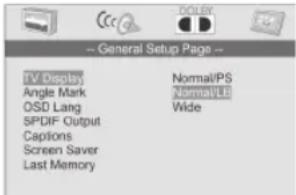
Here you can adapt the output of the DVD-Player to the TV-aspect.
Concerning the background: If you do not have a wide screen TV the TV-aspect will be 4:3. However, most feature fi lms have an aspect of 16:9, the image is therefore too wide for the TV-screen.
Here you can specify how the replay of the film is to be adapted to the replay device:
- Norm/PS: You will only see the middle section of the film. The borders will be cut off („Pan-Scan“).
- Norm/LB: You will see the complete width of the film. The film is thus reduced in size, whereby black bars appear below and above the film ("Letter-Box").
- Wide: Select this option if you use a wide screen TV for replay. Please note that fi lms, that have been recorded with TV-aspect 4:3 can still be replayed using aspect 4:3. This means, that replaying this fi lm will not require the complete wide screen area of the television.
i NOTE:
The setting „Norm/PS“ is not supported by all DVDs.
Angle Mark (Camera Angle)
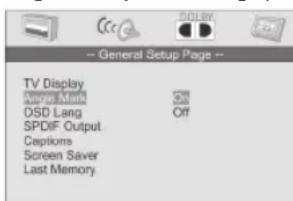
If the DVD contains sequences recorded from different camera angles you can use the ANGLE button (Fig. 1/3) to select the various camera angles. This function is only available if the DVD contains scenes with various camera angles.
Before you can use this function it has to be activated.
- On: The angle symbol is shown on the screen.
- Off: No angle symbol is shown on the screen.
OSD language
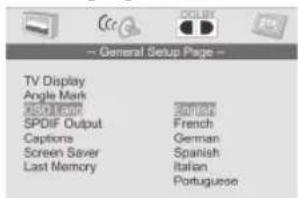
Here you can select the language of the on-screen displays.
Audio output
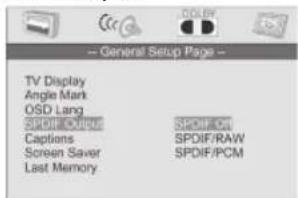
Here you specify the settings for the digital Audio output.
- SPDIF OFF: Output of an analogue Audio signal, but no digital signal.
- SPDIF/RAW: Output of a digital Audio signal. Use this setting if your amplifi er is notwo-channel stereo amplifi er.
- SPDIF/PCM: Output of a digital Audio signal that is converted to a 2-channel signal. Use this setting if your amplifier is a two-channel stereo amplifier.
i NOTE:
If there is no Audio output, even though you connected the DVD-Player to an amplifier, you will most likely have chosen an incorrect setting for the Audio output.
Captions
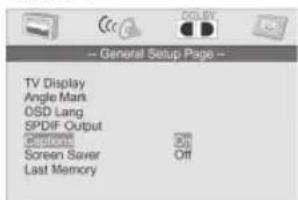
Some DVDs contain commentaries that accompany the film, e.g. subtitles for the hard of hearing.
• On: The commentary is displayed.
- Off: No commentaries are displayed.
Screen saver
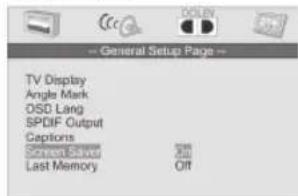
The player is able to display a still image for any time on the screen. This can cause damage to the screen. It is therefore recommended to activate the screen saver.
The following options are available:
- On: The screen saver is activated (default setting).
- Off: The screen saver is deactivated.
Last Memory
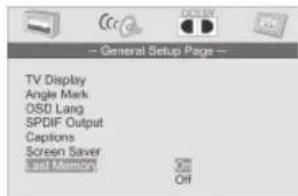
Here you can define how the DVD player should behave if the user presses the STOP button (Fig. 1/2) during playback.
- On: If the playback of a DVD, CD or VCD is stopped and then restarted, playback begins from the previous position.
- Off: If the playback of a DVD, CD or VCD is stopped and then restarted, playback begins from the beginning of the medium.
Speaker setup
Downmix
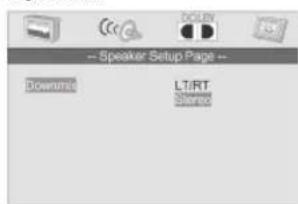
Change the characteristics of the speaker output:
- LT/RT: Choose this setting if you want to play the DVD with the Pro Logic Dolby stereo effect. This produces a almost real 2-channel replay effect.
- Stereo: Choose this setting if you want to play a DVD, that has been produced in the 5.1-Audio format, as 2-channel stereo sound.
Digital setup
Dynamic Range
Subtitle language
ENGLISH
The term „Dynamic Range“ describes the ratio of quietest and loudest sound. If the dynamic range is very large, you will experience very quiet and very loud sounds.
This may cause replay problems. Let us assume that you are watching a DVD in a relatively loud environment. You can now increase the volume to be able to hear also the very quiet passages, however with the disadvantage that loud passages will be unacceptably loud. In this case it would make sense to compress the dynamic range (i.e. reduce) and increase the output volume at the same time.
- FULL -2/8: The dynamic range is compressed slightly (2/8) to full (FULL).
- OFF: The dynamic range is not compressed at all (default).
TV Type
Here you can select the preferred language for the subtitles accompanying the film.
Menu language
Here you can select the preferred language for the DVD menus.
Parental (Child protection)
Match the output of the DVD-Player to the colour transfer system of your replay device. The following options are available:
• PAL: A system commonly used in Europe.
- AUTO: Select this setting if your replay device is a multi-system unit.
• NTSC: A system primarily used in North America.
Audio language
Some DVD contain information concerning the target group. This method is comparable with the rating of cinema films („Suitable only for persons of 12 years and over“ e.g.).
If you have the child protection option activated a probably existing corresponding information is read from the DVD and compared with the value pre-set by you. If a DVD is intended for an older age group than the one pre-set by you, the DVD cannot be played.
The following child protection options are available:
- Kid Saf: Suitable for children.
• G: Suitable for all age groups. - PG: The presence of parents is recommended. Some scenes may be unsuitable for children.
- PG 13: The presence of parents is strictly recommended. Some scenes may be unsuitable for children under the age of 13.
- PGR: The presence of parents is strictly necessary.
- R: Young persons under the age of 17 may only view this film in the presence of an adult.
- NC17: Children and juveniles under the age of 17 are not allowed to watch this film.
- Adults: The film must only be watched by adults.
- Off: The child lock is deactivated.
Here you can select the preferred language for the audio output.
Password
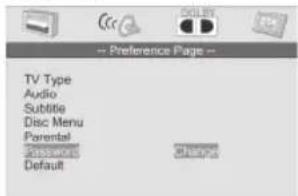
If you want to operate the DVD-Player with a child protection system, you must first enter a password. This password safeguards the settings for the child protection system, so that it can only be changed by yourself.
In order to change the password, you must first enter the current password. The master password is „1379“.
i NOTE:
If you forgot your password, you can deactivate the child protection system with this password.
Proceed as follows to change the password:
- Enter the present password in the "Old Password" line with the Numeral buttons (Fig. 1/11) of the remote control. To prevent the password from being read by unauthorized persons only the characters "XXXX" will appear on the screen.
- Enter the new password in the „New Password“ line with the Numeral buttons of the remote control.
- Confi rm the new password by entering it again in the „Confi rm“ line. Confi rm your entry with the ENTER button (Fig. 1/8).
Default
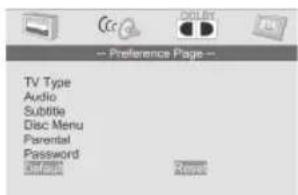
Select the command „Default/Reset“ if you want to reset the player to the factory implemented default settings.
Any settings you have made will be lost.
Technical data
General
Supply voltage ....DC 13,8 V
Power consumption 10 A max.
Power....4 x 60 W PMPO
Monitor 4,3" / 10,9 cm TFT
Number of pixels 480 x 3 (RGB) x 272
FM band
Frequency range....87,5 MHz to 108,0 MHz
Effective sensitivity ....15 dBμ.
I.F. frequency 10,7 MHz
AM band
Frequency range....522 kHz to 1620 kHz
Effective sensitivity ....40 dB
I.F. frequency 450 kHz
(Line-Out)
Output 2 CH & 4 CH
Signal format ....PAL/NTSC
Video output 1,0 V (P-P) 75 Ohm
CD player
System ...... MP3 Audio System
Suitable CDs .... CD/CD-R/CD-RW/MP3/DVD/VCD Disks (12 cm discs)
Playable bit rates ....32 - 320 kBit/s
Number of quantising bits .... 1 bit.
Frequency characteristics 20 Hz - 20 kHz
Signal-to-noise ratio 90 dB (JIS)
Number of channels ....2 stereo channels
Housing dimensions 178 W x 50 H x 165 D
Regionalcode ....2 (= Europe, Greenland, South Africa, Egypt and Middle East, Japan)
Bluetooth
Standard V1.2 (Class II)
Frequency band 2.4 GHz spectrum
Range ....approx. 3 metres (unobstructed)
This device has been tested according to all relevant current CE guidelines, such as electromagnetic compatibility and low voltage directives, and has been constructed in accordance with the latest safety regulations.
Subject to technical changes without prior notice!
Troubleshooting
Before going through the checklist please make all the connections fi rst. If you still have questions after going through the checklist, please consult your local customer service representative.
| Fault Symptoms Cause Solution | ||
| CDs are drawn only half way into the CD tray. | The transport screws have not been removed. | Remove the transport screws. |
| „NO DISC“ is shown in the display. | The CD is inserted the wrong way round. | Insert the CD right way round. |
| CD cannot be selected using the MOD(E) button. | There is no CD inserted. | Insert a CD. |
| A USB storage medium is connected to the USB port. | Remove the USB storage medium. | |
| The CD does not play back after being inserted into the device. | The volume control is set too low. | Turn up the volume. |
| The device has not been correctly connected. | Check the +12V and earth connection. | |
| CD works intermittently (dropouts). | The surface of the road is uneven. | Wait until the road becomes smoother before playing the CD. |
| The device is not firmly installed. | Install the device firmly. Ensure that the rear attachment is used if the vehicle does not have any suitable retainer for the rear section of the device. | |
| The CD is damaged. Try another CD. If this works correctly, the first CD is probably damaged. | ||
| The CD is dirty. Clean the CD. | ||
| The device may have been installed in the vehicle at the wrong angle. | Please note that a maximum inclination of 20° degrees should not be exceeded! | |
| No function. The ignition | is switched off. | Turn the ignition key to „ON“ or „ACC“. |
| One or more fuses have blown. | Replace the fuse by another 5 A /0.5 A fuse. | |
| Device cannot be switched on or off via the ignition. | Incorrect connection (each car manufacturer wires the ISO connection in the vehicle differently). | Please contact your car workshop or a vehicle specialist for connection adapters may specifically for your model. |
| Fault Symptoms Cause Solution | ||
| The device does not work correctly (EJECT, LOAD, PLAY). | The microcomputer has been interfered with by electromagnetic fi elds. | Remove the CD and reinsert it. |
| Switch the device off and on again. | ||
| The device cannot be operated, but „hangs up“. | The control processor of the device may have been blocked by overvoltage or under-voltage in the vehicle electrical system. | Press the RESET button. |
| No radio reception. The | antenna cable is not connected. | Insert the antenna cable fi rmly into the antenna socket of the device. |
| Poor radio reception. It is possible that your vehicle has a special antenna (phantom-powered antenna.) | Please contact your car workshop or a vehicle specialist. (For other manufacturers there are specifi c phantom power supply adapters and voltage adapters available.) | |
| In automatic search mode the radio does not stop at a transmitting station. | The transmission signals are too weak. | Tune in to a radio station manually. |
Handling a CD
Cleaning the CD
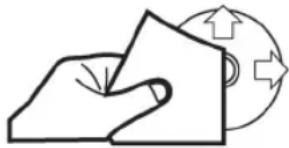
natural_image
Simple line drawing of a folded paper or sheet with a circular arrow symbol (no text or labels)Before playing a CD, wipe it off with a clean, dust-free cleaning cloth. Pull out the CD in the direction of the arrow.
CAUTION:
Do not use any solvents such as petrol or thinning agents. Commercially available cleaning substances or antistatic sprays will damage the device.
Inserting the CD
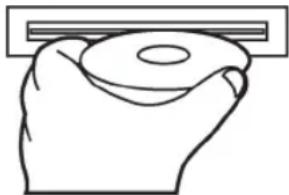
natural_image
Line drawing of a hand holding a rectangular object (no text or symbols)If the CD is inserted with the printed side facing downwards, the device may be damaged.
Always insert the CD with the label facing upwards.
CAUTION:
If there is already a CD in the CD slit, do not try to insert a second CD. This may damage the device.
Touching the CD
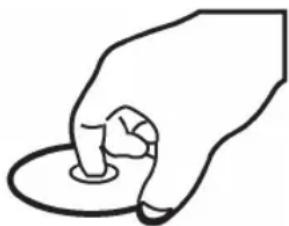
natural_image
Simple line drawing of a hand holding a circular object (no text or symbols)Always hold CDs by the edge. In order to keep the CD clean do not touch the surface.
CAUTION:
- Do not attach any stickers or adhesive tape to the CD.
- Do not expose the CD to direct sunlight or sources of heat such as heating pipes. Do not leave CDs in the car if it is parked in direct sunlight as this will lead to a considerable rise in the temperature inside the car.
- Check all CDs for cracks, scratches and warping before you play them. It is possible that CDs that are damaged in this way cannot be played back correctly. Such CDs should not be used.
- Use only standard commercially available circular CDs with a 12 cm diameter! CDs with an 8 cm diameter or CDs with contours, e.g. of a butterfly or heart, are not suitable. It is possible that such CDs may not only be destroyed themselves, but may also destroy the drive of the CD player. We cannot accept liability for damage caused by the use of unsuitable CDs.
Guarantee
The device supplied by our Company is covered by a 24 month guarantee starting on the date of purchase (receipt).
During the life of the guarantee any fault of the device or its accessories ascribable to material or manufacturing defects will be eliminated free of charge by repairing or, at our discretion, by replacing it. The guarantee services do not entail an extension of the life of the guarantee nor do they give rise to any right to a new guarantee!
Proof of the guarantee is provided by the proof of purchase. Without proof of purchase no free replacement or repair will be carried out.
If you wish to make a claim under the guarantee please return the entire machine in the original packaging to your dealer together with the receipt.
Defects to consumables or parts subject to wearing as well as cleaning, maintenance or the replacement of said parts are not covered by the guarantee and hence are to be paid!
The guarantee lapses in case of unauthorized tampering.
After the expiry of the guarantee
After the expiry of the guarantee repairs can be carried by the competent dealer or repair service against the payment of the ensuing costs.
Index
A
AF 32
APS button 33
AUX IN 34
B
BAND button 31
Bluetooth 38
Buttons on the Remote Control ....3
C
Changing the Angle of the Control Panel 34
CLK button 34
Connection....29
D
DISP button 33
DVD Player 39
E
Ejecting the CD 32
G
Guarantee 45
H
Handling a CD 45
|
Important Additional Installation Information ....30
Installation 28
Installation (Safety Information) 30
Installation Tips 27
INTRO (3INT) 34
L
LO/DX button 35
M
MOD button 33
MU button (Mute) 32
0
Operating instructions 30
Operation....31
P
PAIR button 34
PI (Programme Information) 33
Play / Pause (▶ II)....33
PTY button 32
PWR button 33
R
RANDOM (4RDM) 34
REG (Regional) 33
REL button 31
Remote control battery installation 30
REPEAT (2RPT) (Repeat) 34
RESET button 31
Road Safety 27
S
SEL button....32
Safety Information 27
Switching off 33
Switching on 33
Switching to Mono 3
Switching to Stereo 3
Mute (see MU button) 32
T
TA (Traffic Announcements)....32
Technical Data 43
Telephoning....38
Time (see CLK) 34
Touch Screen 35
Traffi c Announcements (see TA) 3
Troubleshooting....44
U
USB Connection 34
Menu overview
| General Setup Page | |
| TV Display Norm/PS | Norm/LBWide |
| Angle Mark On | Off |
| OSD Lang English | FrenchGermanSpanishItalianPortuguese |
| SPDIF-Output SPDIF Off | SPDIF/RAWSPDIF/PCM |
| Subtitle On | Off |
| Screen Saver On | Off |
| Last Memory On | Off |
| Speaker Setup Page | |
| Downmix LT/RT | Stereo |
| Dolby Digital Setup | |
| Dynamic |
| Preference Page | |
| TV Type PAL | AutoNTSC |
| Audio | EnglishFrenchSpanishGermanItalianPortuguese |
| Subtitle English | FrenchSpanishGermanItalianPortugueseOff |
| Disc Menu English | FrenchSpanishGermanItalianPortuguese |
| Parental KID SAV | 2 G3 PG4 PG135 PGR6 R7 NC-178 ADULTOff |
| Password Change | |
| Default Reset |