
Supersonic - Headphones Tracer - Free user manual and instructions
Find the device manual for free Supersonic Tracer in PDF.


| Product Type | Gaming Headset |
| Model | Supersonic 7.1 |
| Connectivity | USB (Hi-Fi) |
| Driver Size | 50 mm (estimated) |
| Impedance | 32 Ω (typical) |
| Frequency Response | 20 Hz – 20 kHz (estimated) |
| Microphone | Built-in on left earmuff |
| Microphone Features | Volume control, mute switch, echo and magic sound effects |
| LED Lighting | Decorative LEDs on earmuffs (default red, can be turned on/off) |
| Weight | Approx. 300 g (estimated) |
| Cable Length | 2.0 m (estimated) |
| Software | Xear Audio Center with equalizer, 7.1 virtual surround, environment effects |
| System Requirements | Windows XP/Vista/7/8/10 |
| Power Source | USB bus-powered |
| Operating Temperature | 0°C – 40°C |
| Operating Humidity | 85% RH or less |
| Storage Temperature | -15°C – 60°C |
| Storage Humidity | 85% RH or less |
| Safety | Avoid high volume to prevent hearing damage |
| WEEE Compliance | Yes |
| Warranty | Refer to manufacturer documentation |
Frequently Asked Questions - Supersonic Tracer
User questions about Supersonic Tracer
0 question about this device. Answer the ones you know or ask your own.
Ask a new question about this device
Download the instructions for your Headphones in PDF format for free! Find your manual Supersonic - Tracer and take your electronic device back in hand. On this page are published all the documents necessary for the use of your device. Supersonic by Tracer.
USER MANUAL Supersonic Tracer
SUPERSONIC 71 CAMING HEADSET
EN Instructions for use
CS Návod k obsluze
SK Návod na obsluhu
natural_image
Black hard hat with attached cable and red connector (no visible text or symbols)
(WEEE - ang. Waste Electrical and Electronic Equipment)
The headphones provide the best performance and sound effects when surround sound environment is installed and configured.
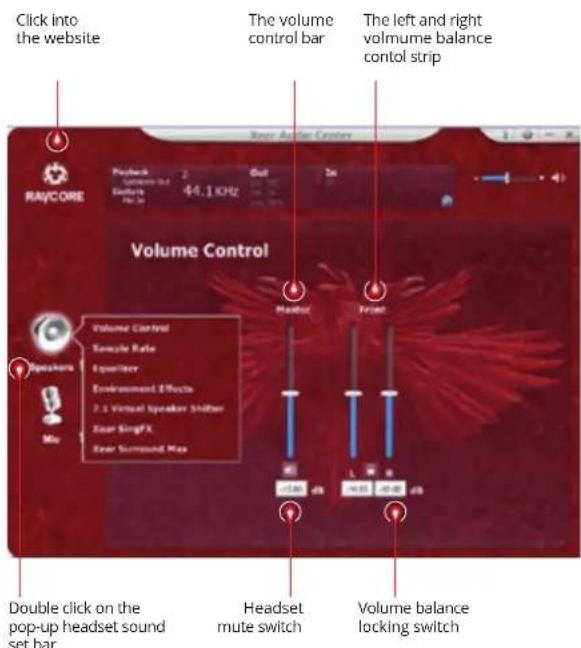
MAIN SETTINGS:
- The alignment of the lower right corner of the red label, double-click pop-up.

2. Headset volume control
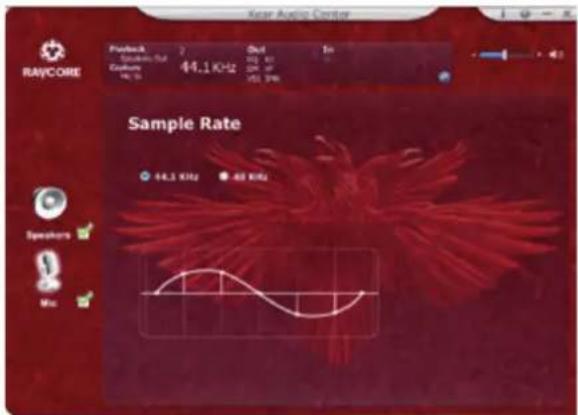
- Music sampling frequency
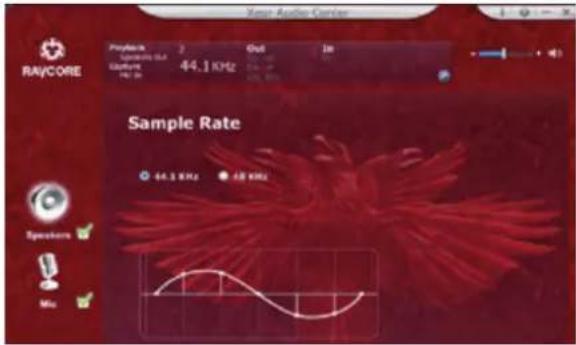
NOTE: The selection rate of sampling frequency and sampling the same music, batteer quality of music.

4. Equalizer
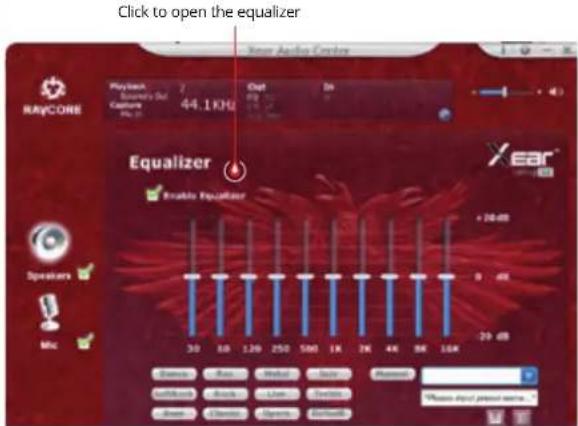
The equalizer has:
- O band equalizer adjustment
- Preset made dance ceremony
- Preset made rock Lyricak bass
- Preset made
- Preset moda rap music scena
- Preset made
- Preset made Rock
- Preset paltem of classical
- Preset mode of vocal music
- Preset made of metal
- Preset made Jazz
- Preset made soprana
- Preset default
- Mode equalizer using definition switch
- Select the custom model
- Custom name typa
- Add a new custom model
- Delete existing custom made
5. The music soud environment simulation
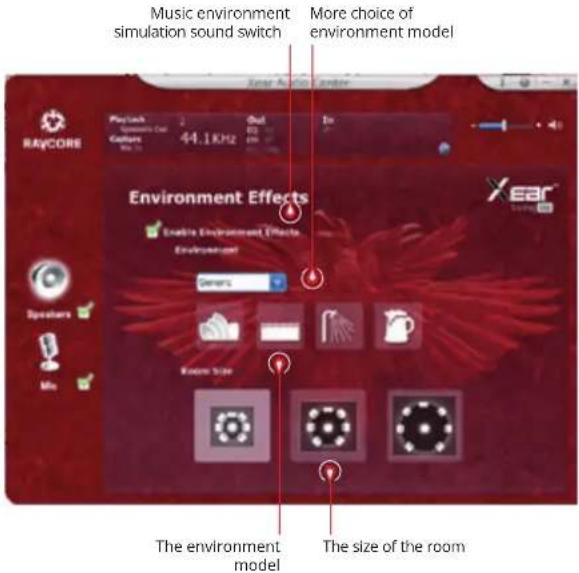
| Environmental audio The size the room | |
| 1. muic hall2. underwater3. bathroom4. music bar5. more options:environmental model | 6. small7. medium8. large |

6.7.1 Virtual sound control
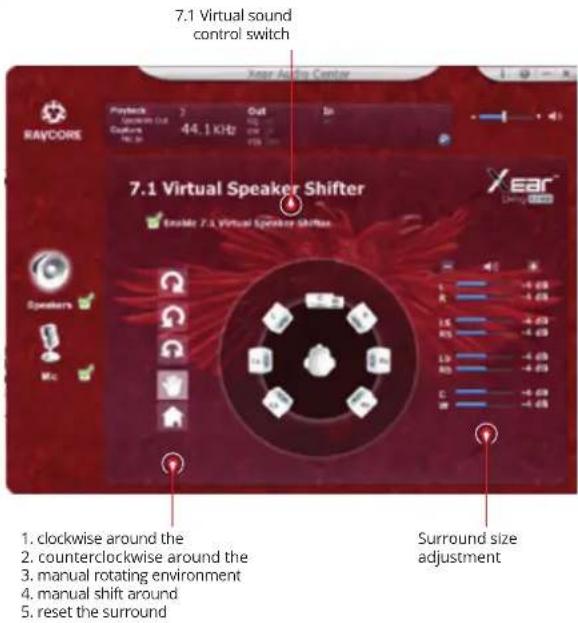
7. The tone setting
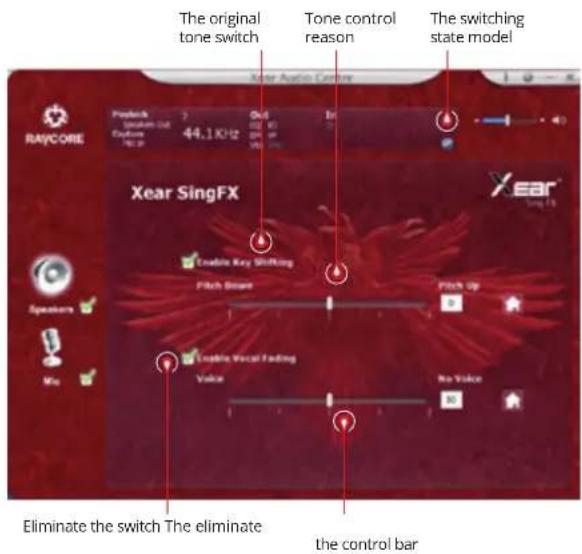


8. Xear sourround sound
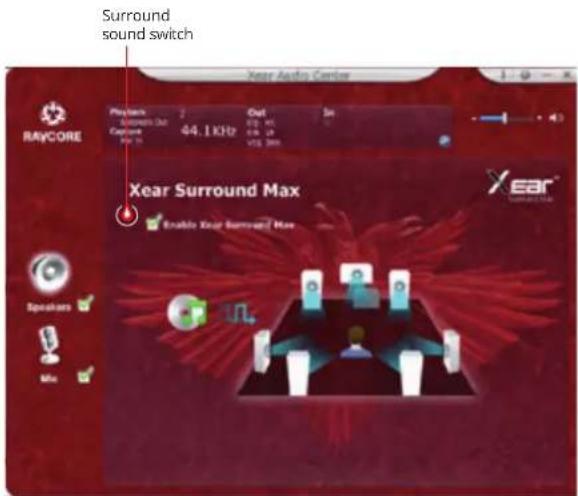
THE MICROPHONE SETTINGS
1. The microphone volume control
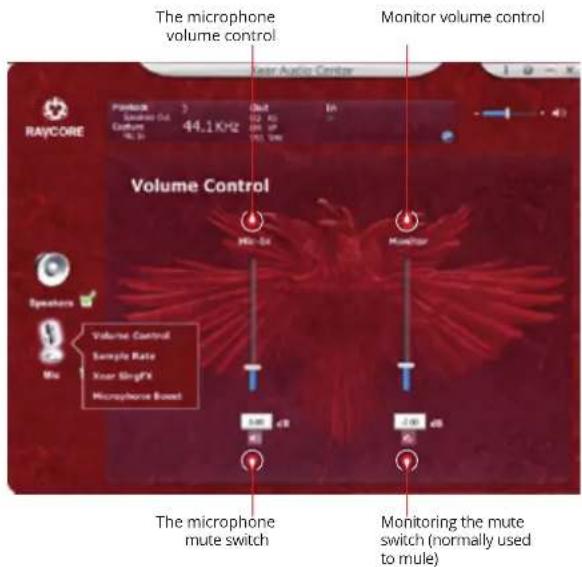


- The sampling frequency set microphone 3. Xear SingFX Magic Sound selection
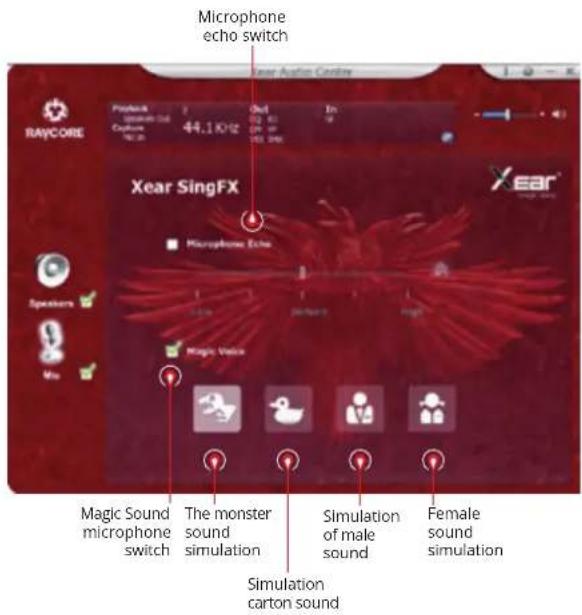


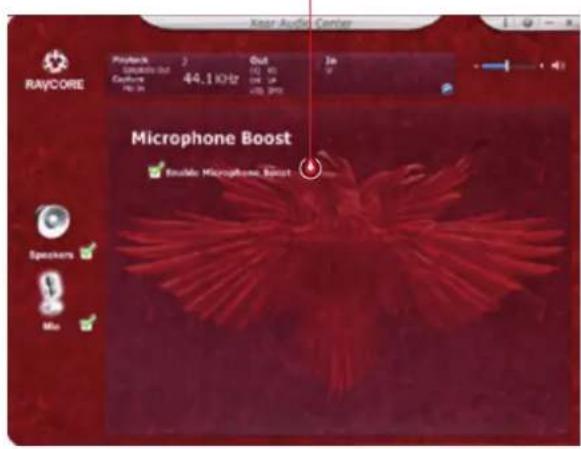
4. The microphone volume strengthen settings
The microphone volume strengthen switch
5. The driver version information
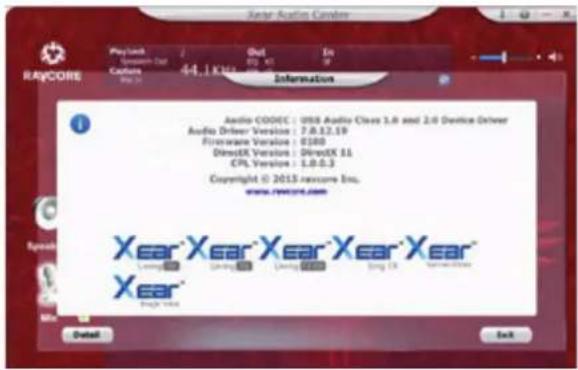
6. Basic settings
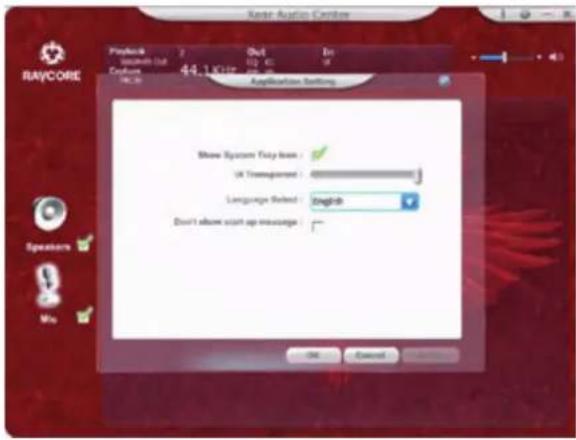


- Basic functions: this product is USB hi-fi headphone for games/videos/music.
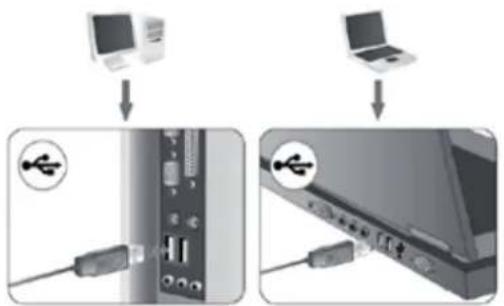
- Connect the headset to your USB interface as follows:
- You will find the decorative LED's on the two sides of earmuff (default color is red).
- Controller – please kindly see below operations to: adjust the volume, turn on LED's, microphone on/off.
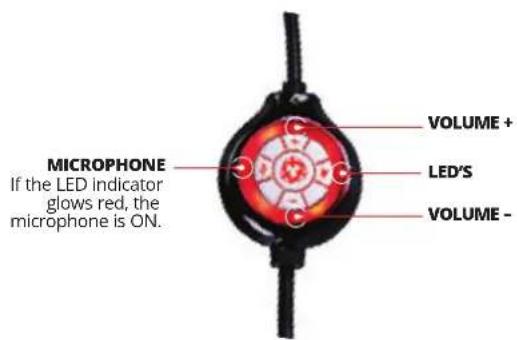
Switch for volume up/down and LED's color on/off. Press +/- and you will get to volume up or down.
Pressing the button will turn off LED's.
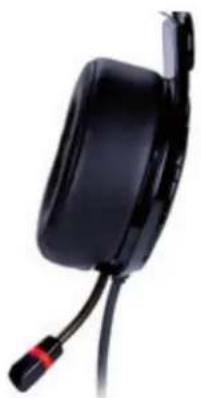
- Microphone: For outlook feature and ergonomic design, the microphone is placed on the left earmuff.
natural_image
Black hard hat with red connector and cable, no visible text or symbols
The product is designed to use it with PC driver.
SOFTWARE SYSTEM REQUIREMENTS
Windows XP/Vista®/7/8/10
- Run setup from downloaded drivers.
- Follow the on-screen instructions. Complete the installation by rebooting your computer.
- After rebooting, the symbol 📋 will appear on the right corner of the Taskbar. Double click it to access the sound menu.
SAFETY INSTRUCTIONS
- Operation of the device (the devices) may be affected by strong static, electrical or high-frequency fields (radio installations, mobile telephones, microwave discharges). If this occurs, try increasing the distance between the devices that are causing interference.
- High volume levels may cause damage to hearing. Avoid listening to audio at too high a volume, especially for extended periods, and check the volume level that has been set on the volume control each time before the product is used.
Temperature: 0°C to 40°C Humidity: 85% RH or less
STORAGE TEMPERATURE AND HUMIDITY
Temperature: -15°C to 60°C
Humidity: 85% RH or less




natural_image
Black hard-shell electronic device with attached cable and connector (no visible text or symbols)


natural_image
Close-up of a black hard drive head with attached cable and red connector (no visible text or symbols)
natural_image
Black handheld electronic device with attached cable and connector (no visible text or symbols)
natural_image
Black hard hat with attached cable and red connector (no visible text or symbols)
natural_image
Black handheld device with attached cable and red connector (no visible text or symbols)
natural_image
Medical scan image showing a cross-sectional view of a human skull (no text or labels visible)Producent:

- SUPERSONIC 71 CAMING HEADSET
- MAIN SETTINGS:
- Equalizer
- The equalizer has:
- The music soud environment simulation
- Virtual sound control
- The tone setting
- Xear sourround sound
- THE MICROPHONE SETTINGS
- The microphone volume control
- The microphone volume strengthen settings
- The driver version information
- Basic settings
- SOFTWARE SYSTEM REQUIREMENTS
- SAFETY INSTRUCTIONS
- STORAGE TEMPERATURE AND HUMIDITY
Brand : Tracer
Model : Supersonic
Category : Headphones