
TB-135 - Keyboard Deltaco - Free user manual and instructions
Find the device manual for free TB-135 Deltaco in PDF.


| Product Type | Wired Keyboard |
| Brand | Deltaco |
| Model | TB-135 |
| Interface | USB Type-A |
| Number of Keys | 104 (Full-size layout) |
| Key Switch Type | Membrane (quiet operation) |
| Dimensions (L x W x H) | 445 x 140 x 25 mm (estimated) |
| Weight | 550 g (estimated) |
| Cable Length | 1.5 m (estimated) |
| Operating Systems Supported | Windows, macOS, Linux, Chrome OS |
| Power Supply | USB bus powered (5V DC) |
| Multimedia Keys | Yes (dedicated keys for volume, media) |
| Spill-Resistant | Yes (drain holes protect internal components) |
| Maintenance | Clean with soft, slightly damp cloth; unplug first |
| Safety Features | Low voltage device; no user-serviceable parts inside |
| Replaceable Parts | None (sealed construction) |
| Repairability | Not designed for user repair; contact support for issues |
| Warranty | 2 years limited manufacturer warranty |
| Package Contents | Keyboard, user manual (PDF) |
Frequently Asked Questions - TB-135 Deltaco
User questions about TB-135 Deltaco
0 question about this device. Answer the ones you know or ask your own.
Ask a new question about this device
Download the instructions for your Keyboard in PDF format for free! Find your manual TB-135 - Deltaco and take your electronic device back in hand. On this page are published all the documents necessary for the use of your device. TB-135 by Deltaco.
USER MANUAL TB-135 Deltaco
Foldable Bluetooth keyboard pocket
EN User Manual
natural_image
Tablet with keyboard and tablet device, no visible text or symbols on the main objectsFunction keys used in combination with the FN key:

| +KEY | Android | IOS | Win |
| HOME | HOME | ESC | |
| SEARCH | SEARCH | F1 | |
| SELECT ALL | SELECT ALL | F2 | |
| COPY | COPY | F3 | |
| PASTE | PASTE | F4 | |
| CUT | CUT | F5 | |
| PREVIOUS TRACK | PREVIOUS TRACK | F6 |
| +KEY | Android | iOS | Win |
| PLAY/PAUSE | PLAY/PAUSE | F7 | |
| NEXT TRACK | NEXT TRACK | F8 | |
| VOLUME = | VOLUME = | F9 | |
| VOLUME + | VOLUME + | F10 | |
| NONE | NONE | F11 | |
| NONE | NONE | F12 |
How to fold the keyboard case to a smartphone/tablet stand.
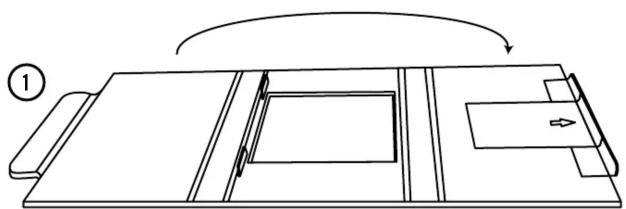
natural_image
Line drawing of a mechanical assembly with no text or symbols
natural_image
Line drawing of a folding paper or sheet with a rotating arrow indicating rotation (no text or symbols)
EN – User Manual

The keyboard is automatically powered on when unfolded, and powered off when folded.
Charging the battery
The battery needs to be recharged when the RED LED is lit.
- Connect the supplied charging cable to the CHARGE INPUT and a USB port on your computer or USB charger.
The RED LED is lit during charging.
When the battery is fully charged, the RED LED is turned off.
An empty battery is fully charged in approximately 2 hours.
Pairing the keyboard with a Bluetooth device
• Power the keyboard on.
Wait until the GREEN LED is turned off.
- Press and hold the FN key and then press the C key.
The BLUE LED starts blinking.
The keyboard is now detectable by other Bluetooth devices.
- On you tablet, search for Bluetooth devices.
Refer to your tablet user manual if needed.
- On you tablet, select the Bluetooth device called "Bluetooth 3.0 Keyboard".
- Type in the numeric code that appears on the screen
of your tablet.
The BLUE LED stops blinking, indicating successful pairing.
Selecting operating system
- Press and hold the FN-key and then press the iOS,
Android or Windows key.
Sleep mode
The keyboard will go into sleep mode after 10-15 minutes.
Press any key to wake from sleep.
Support
Please contact us if you have any problems with the use or installation of your product.
We appreciate you being prepared to provide us with some basic information such as your operating system and the item number so that we may better help you.
Contact us by e-mail: help@deltaco.eu.
More product and support information can be found at
www.deltaco.eu
"Bluetooth 3.0 Keyboard"
Brand : Deltaco
Model : TB-135
Category : Keyboard