
WM524 - Mouse DELL - Free user manual and instructions
Find the device manual for free WM524 DELL in PDF.


| Product Type | Wireless Bluetooth Mouse |
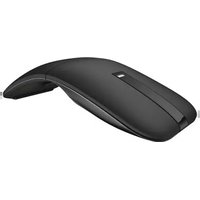
| Model | Dell Travel Mouse WM524 |
| Manufacturer | Logitech Inc. |
| Connection Type | Bluetooth 3.0 |
| Supported Operating Systems | Windows 7, Windows 8, Windows RT |
| Dimensions (H x W x L) | 35.0 mm x 56.0 mm x 99.0 mm |
| Weight (without batteries) | 60 g |
| Power Source | 2 x AA alkaline batteries |
| Operating Voltage | 1.0 V to 1.6 V |
| Battery Life | Approximately 6 months |
| Operating Temperature | 0 °C to 40 °C |
| Storage Temperature | -40 °C to 65 °C |
| Operating Humidity | 90% maximum RH, non-condensing |
| Storage Humidity | 95% maximum RH, non-condensing |
| Wireless Range | Up to 10 meters |
| Buttons | Left, Right, Tilt Wheel (scroll/pan), two Side buttons |
| Shortcut Gestures | Charms, App switch, Scroll/Pan, Zoom, Back, Forward |
| Battery Status Indicator | Blue LED on power button |
| Power Saving Modes | Sleep (5s), Deep sleep (5 min), Cut-off (5 min face up, 4 hours idle) |
| Regulatory Compliance | FCC, CE, IC, etc. (see manual for full list) |
| Warranty | 1-year limited hardware warranty |
| Maintenance | Clean with a soft dry cloth; avoid liquids |
| Spare Parts | Batteries (AA) replaceable |
Frequently Asked Questions - WM524 DELL
User questions about WM524 DELL
0 question about this device. Answer the ones you know or ask your own.
Ask a new question about this device
Download the instructions for your Mouse in PDF format for free! Find your manual WM524 - DELL and take your electronic device back in hand. On this page are published all the documents necessary for the use of your device. WM524 by DELL.
USER MANUAL WM524 DELL
Information in this document is subject to change without notice.
© 2012 Dell Inc. All rights reserved.
Reproduction of these materials in any manner whatsoever without the written permission of Dell Inc. is strictly forbidden. Trademarks used in this text: Dell™ and the DELL logo are trademarks of Dell Inc. Microsoft® and Windows® are either trademarks or registered trademarks of Microsoft Corporation in the United States and/or other countries.
Other trademarks and trade names may be used in this document to refer to either the entities claiming the marks and names or their products. Dell Inc. disclaims any proprietary interest in trademarks and trade names other than its own.
2013 - 03 Rev. A00
Restrictions and Disclaimers
The information contained in this document, including all instructions, cautions, and regulatory approvals and certifications, is provided by the supplier and has not been independently verified or tested by Dell. Dell cannot be responsible for damage caused as a result of either following or failing to follow these instructions.
All statements or claims regarding the properties, capabilities, speeds or qualifications of the part referenced in this document are made by the supplier and not by Dell. Dell specifically disclaims knowledge of the accuracy, completeness or substantiation for any such statements. All questions or comments relating to such statements or claims should be directed to the supplier.
Export Regulations
Customer acknowledges that these Products, which may include technology and software, are subject to the customs and export control laws and regulations of the United States ("U.S.") and may also be subject to the customs and export laws and regulations of the country in which the Products are manufactured and/or received. Customer agrees to abide by those laws and regulations. Further, under U.S. law, the Products may not be sold, leased or otherwise transferred to restricted end-users or to restricted countries. In addition, the Products may not be sold, leased or otherwise transferred to, or utilized by an end-user engaged in activities related to weapons of mass destruction, including without limitation, activities related to the design, development, production or use of nuclear weapons, materials, or facilities, missiles or the support of missile projects, and chemical or biological weapons.
Content
Setup
Mouse
Features
Troubleshooting
Specifications
Statutory Information
Warranty
Regulatory
Certifications
Setup
System Requirements
• Microsoft Windows 7
- Microsoft Windows 8
• Microsoft Windows RT
Contents of the Box
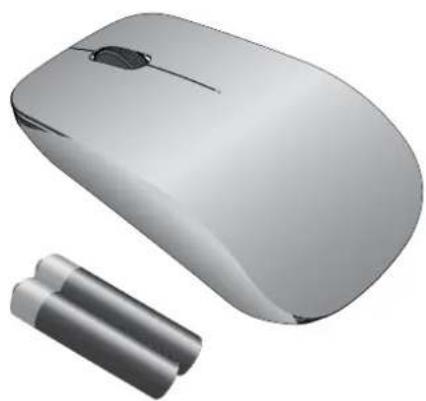
natural_image
Modern computer mouse with two cylindrical batteries beside it (no text or symbols visible)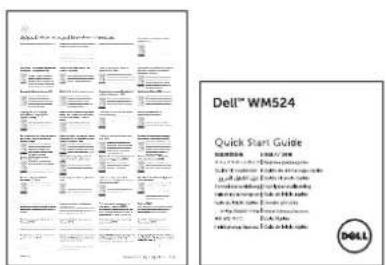
Note: The documents that shipped with your mouse may vary based on your region.
Setting up your Dell Travel Mouse WM524
Install the batteries into your mouse.
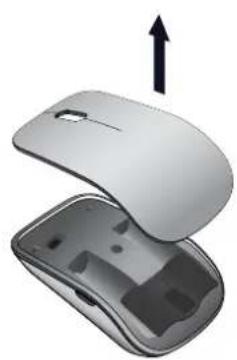
natural_image
Computer mouse with open case showing internal components and an upward arrow indicating motion (no text or symbols)①
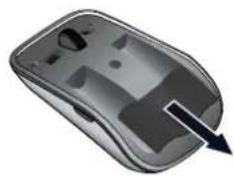
natural_image
Close-up of a metallic computer mouse with a black arrow pointing to the interior (no text or symbols visible)②
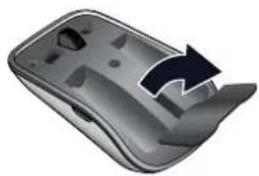
natural_image
3D rendered image of a mobile phone casing with a black arrow pointing to the side panel (no text or symbols)③
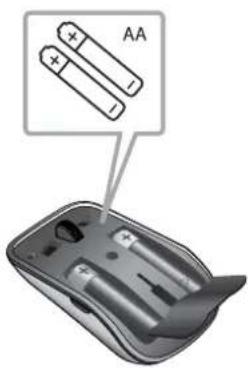
④
Connecting your Dell Travel Mouse WM524 in Windows 7
Ensure the Bluetooth wireless feature is enabled on your computer.
- Click Start and select Control Panel.
- In Category view, locate Hardware and Sound and select Add a device.
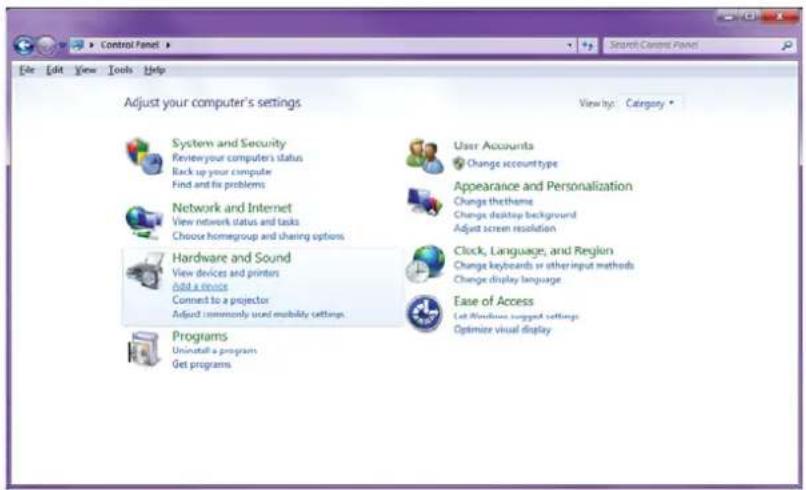
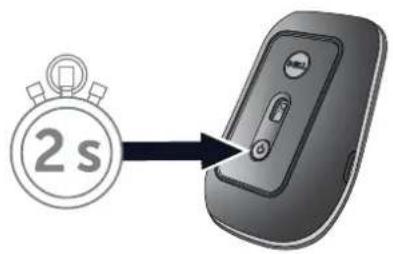
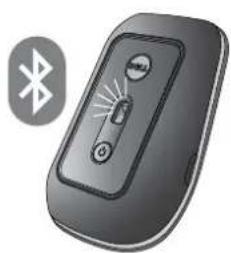
- On the mouse, press and hold the Power Button for two seconds. The blue LED will blink to indicate that the device is discoverable within 180 seconds.
①
natural_image
Illustration of a black remote control device with Bluetooth symbol (no text or labels)②
Connecting your Dell Travel Mouse WM524 in Windows 7 Connecting your Dell Travel Mouse WM524 in Windows 8
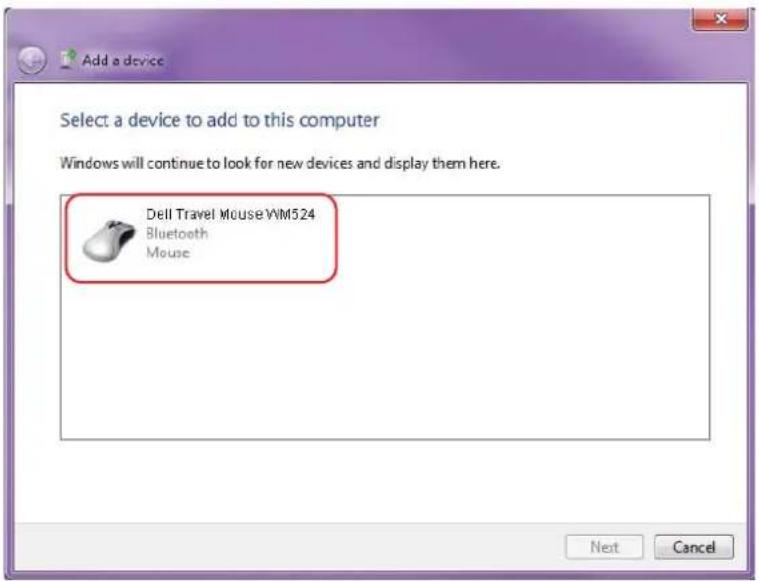
- On the computer, select Dell Travel Mouse WM 524 and wait while the connection is established.
Connecting your Dell Travel Mouse WM524 in Windows 8
Ensure Bluetooth wireless feature is enabled on your computer.
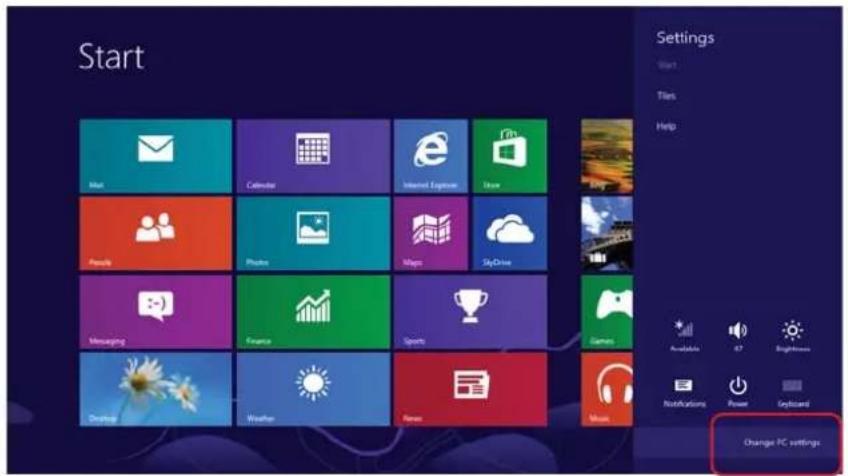
- On the computer, access Windows charms, locate Settings and select Change PC Settings.
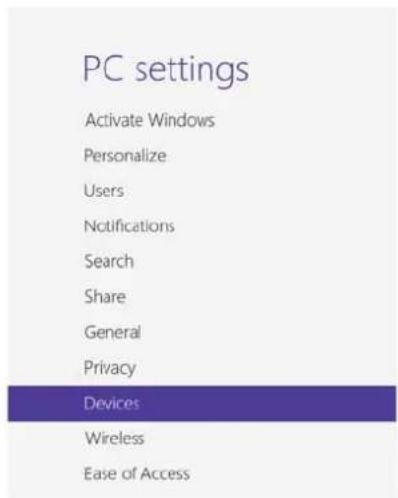
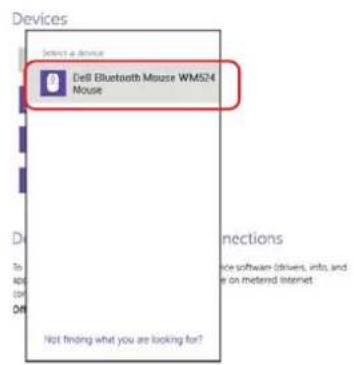
- Locate Devices tab and select Add a device.
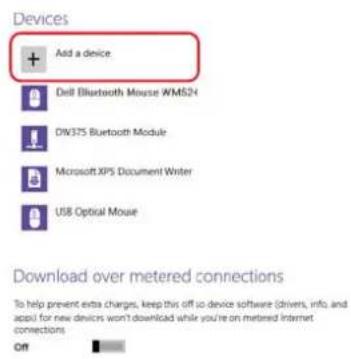
Connecting your Dell Travel Mouse WM524 in Windows 7 Connecting your Dell Travel Mouse WM524 in Windows 8
- On the device, press and hold the Power button for two seconds. The blue LED will blink to indicate that the device is discoverable within 180 seconds.
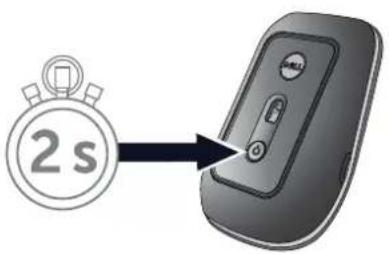
①
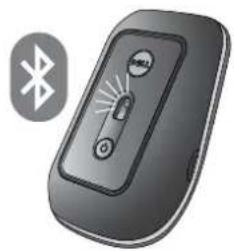
natural_image
Close-up of a black USB flash drive with a Bluetooth symbol nearby (no text or labels)②
- On the computer, select Dell Travel Mouse WM524 and wait while the connection is established.
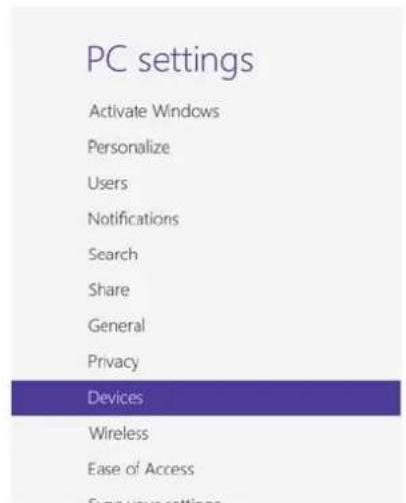
Features: Dell Travel Mouse WM524
Front View
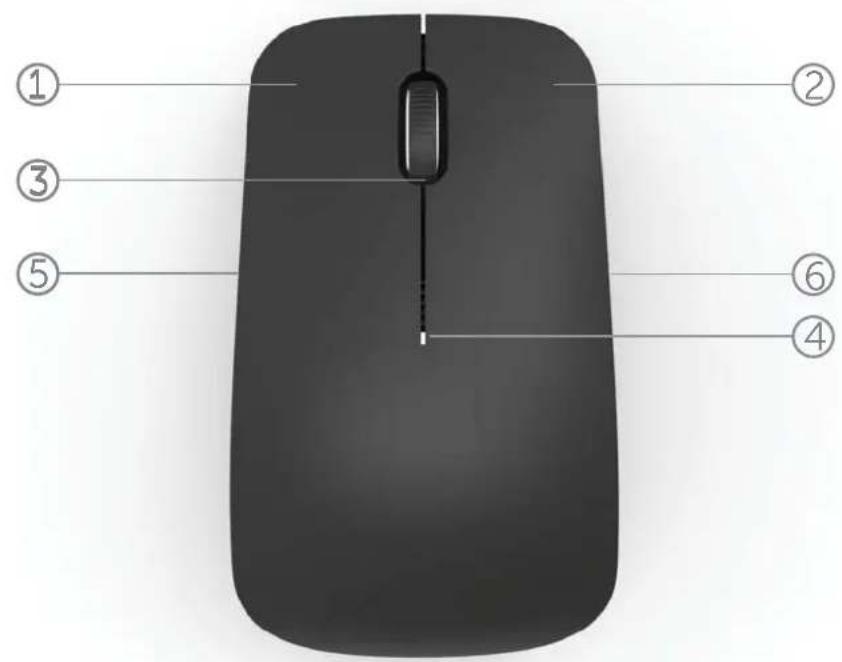
- Left Mouse button
- Right Mouse button
- Tilt Wheel
- Battery status light
- Side button
- Side button
Features | Shortcut Gestures | Increasing the Battery Life of your Mouse Troubleshooting | Specifications
Back View
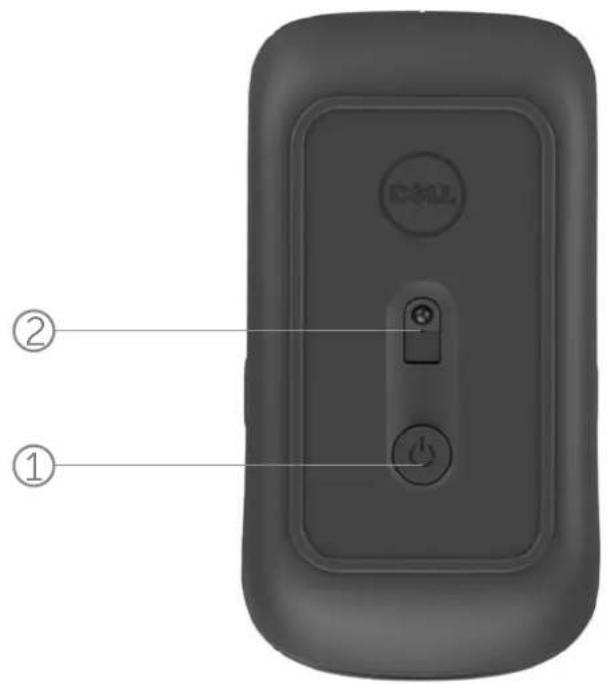
-
Power button
-
Sensor
Features | Shortcut Gestures | Increasing the Battery Life of your Mouse Troubleshooting | Specifications
Shortcut Gestures
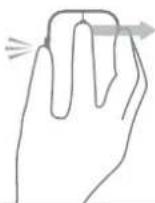
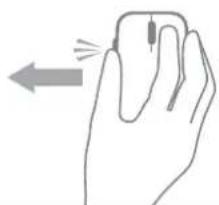 | Windows charmsPress and hold side button, and swipe the mouse left- wards.(Windows 8) | |
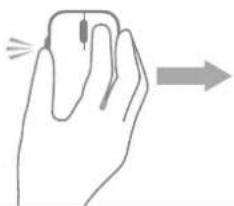 | App switchPress and hold side button, and swipe the mouse right- wards.(Windows 8) | |
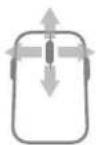 | Scroll and pan4-way scroll(Windows 7 and 8) | |
 | Zoom in/outPress and hold side button, and scroll wheel up or down.(Windows 7 and 8) | |
 | BackPress and hold side button, and tilt wheel leftwards.(Windows 7 and 8) | |
 | ForwardPress and hold side button, and tilt wheel rightwards.(Windows 7 and 8) |
Features | Shortcut Gestures | Increasing the Battery Life of your Mouse Troubleshooting | Specifications
Increasing the Battery Life of your Mouse
The mouse has four operating modes built in to conserve battery power:
-
Sleep mode When the mouse has been inactive for 5 seconds.
To wake the mouse: Move, click or scroll wheel. -
Deep sleep mode When the mouse has been inactive for 5 minutes.
To wake the mouse: Move or click.
- Cut-off mode When the mouse has been carried around or left facing upwards for 5 minutes.
To wake the mouse: Push the power button.
- Cut-off mode When the mouse has been inactive for 4 hours.
To wake the mouse: Push the power button.
Troubleshooting: Dell Travel Mouse WM524
If you have problems with your mouse:
- Check if the batteries are inserted in the correct orientation.
- Check if the mouse's power button light is on.
- Remove and reinstall the batteries. Check to see if the power button light turns on (solid white).
- If you experience connection issues, ensure your Bluetooth wireless feature has been enabled on your computer. Complete steps 1 to 4 in Connecting your Dell Travel Mouse WM524 in Windows 7 or Connecting your Dell Travel Mouse WM524 in Windows 8 to set up your mouse again.
Troubleshooting: Dell Travel Mouse WM524
- If mouse fails to reconnect after being idle, please check the power saving settings below:
Windows 7
-
Click the Start button and type Device Manager.
-
Click on Device Manager in the Results window.
-
In Device Manager, expand Bluetooth and select the Bluetooth radio.
-
Right click on the Bluetooth radio and select Properties.
-
On the Advanced tab, the Manufacturer Id will be 15 if your radio is Broadcom-based.
-
On the Power Management tab, uncheck the checkbox for Allow the computer to turn off this device to save power.
Troubleshooting: Dell Travel Mouse WM524
Windows 8
- Select the Search charm and type Device Manager.
- Select Settings. Device Manager should be listed in the results. Click on Device Manager.
- In Device Manager, expand Bluetooth and select the Bluetooth radio.
- Right click on the Bluetooth radio and select Properties.
- On the Advanced tab, the Manufacturer Id will be 15 if your radio is Broadcom-based.
- On the Power Management tab, uncheck the checkbox for Allow the computer to turn off this device to save power.
Specifications: Dell Travel Mouse WM524
General
| Manufacturer | Logitech | Inc. | ||
| Model | number | WM524 | ||
| Connection type | Bluetooth 3.0 wireless technology | |||
| Supported Operating Systems | Microsoft Windows 8 | |||
| Microsoft | Windows | 7 | ||
| Microsoft | Windows | RT | ||
Electrical
| Operating Voltage 1.0 V to 1.6 V | ||||
| Battery | life | Approximately | 6 months | |
| Battery | required | 2*AA | Alkaline | |
Physical Characteristic
| Height | 35.0 | mm | ||
| Width | 56.0 | mm | ||
| Length | 99.0 | mm | ||
| Weight | 60 | g, | without | batteries |
Environmental
Operating temperature 0 °C to 40 °C Storage temperature -40 °C to 65 °C Operating humidity 90% maximum Relative Humidity, non condensing Storage humidity 95% maximum Relative Humidity, non condensing
Bluetooth 3.0 Wireless
| Radio transmission | Bi-directional communication | ||
| Range | Up | to | 10 meters |
Warranty: Dell Travel Mouse WM524
Limited Warranty and Return Policies
Dell-branded products carry a 1-year limited hardware warranty.
If purchased together with Dell system, it will follow the system warranty.
For U.S. customers
This purchase and your use of this product are subject to Dell's end user agreement, which you can find at www.dell.com/terms. This document contains a binding arbitration clause.
For European, Middle Eastern and African customers
Dell- branded products that are sold and used are subject to applicable national \consumer legal rights, the terms of any retailer sale agreement that you have entered into (which will apply between you and the retailer) and Dell's end user contract terms. Dell may also provide an additional hardware warranty – full details of the Dell end user contract and warranty terms can be found by going to www.dell.com, selecting your country from the list at the bottom of the "home" page and then clicking the "terms and conditions" link for the end user terms or the "support" link for the warranty terms.
For non-U.S. customers
Dell- branded products that are sold and used are subject to applicable national consumer legal rights, the terms of any retailer sale agreement that you have entered into (which will apply between you and the retailer) and Dell's warranty terms. Dell may also provide an additional hardware warranty – full details of Dell's warranty terms can be found by going to www.dell.com, selecting your country from the list at the bottom of the "home" page and then clicking the "terms and conditions" link or the "support" link for the warranty terms.
Regulatory: Dell Travel Mouse WM524
Mouse Regulatory Model: WM-524
Regulatory Information
These devices comply with Part 15 of the FCC Rules. Operation of the devices is subject to the following two conditions: (1) The devices may not cause harmful interference, and (2) The devices must accept any interference that may cause undesired operation.
This equipment has been tested and found to comply with the limits for a Class B digital device, pursuant to Part 15 of the FCC Rules. These limits are designed to provide reasonable protection against harmful interference in a residential installation. This equipment generates, uses, and can radiate radio frequency energy. If the equipment is not installed and used in accordance with the instructions, the equipment may cause harmful interference to radio communications. There is no guarantee, however, that such interference will not occur in a particular installation.
If this equipment does cause harmful interference to radio or television reception (which can be determined by turning the equipment off and on), the user is encouraged to try to correct the interference by taking one or more of the following measures:
- Relocate this device.
- Increase the separation between the device and the receiver.
- Connect the device into an outlet on a circuit different from that of other electronics.
- Consult the dealer or an experienced radio technician for help.
Agency Approval
ACMA, CB, CE, FCC, UL, Argentina CNC, Brazil ANATEL, Canada IC, Chile SUBTEL, China SRRC, Germany TUV, India WPC, Indonesia SDPPI, Israel MOC, Japan MIC, Kuwait MOC, Malaysia SIRIM, Mexico COFETEL & NYCE, Morocco ANRT, Nigeria NCC, Philippines NTC, Russia GOST, Saudi Arabia CITC & SASO/KSA ICCP, Singapore IDA, South Africa ICASA, South Korea KCC, Taiwan BSMI & NCC, Thailand NTC, United Arab Emirates TRA.
Certifications: Dell Travel Mouse WM524
Microsoft WHQL Logo
The Dell™ WM524 Wireless Mouse has passed WHQL logo testing by Microsoft Windows Hardware Quality Labs.
WHQL Logo is a certification scheme operated by Microsoft Windows Hardware Quality Labs. In this case it ensures that hardware is compatible with Microsoft Operating Systems. The keyboard and mouse are qualified through the use of WHQL test kits and has been included in the Microsoft Hardware Compatibility List.

- Restrictions and Disclaimers
- Export Regulations
- Content
- Setup
- Mouse
- Statutory Information
- System Requirements
- Contents of the Box
- Setting up your Dell Travel Mouse WM524
- Connecting your Dell Travel Mouse WM524 in Windows 7
- Connecting your Dell Travel Mouse WM524 in Windows 8
- Features: Dell Travel Mouse WM524
- Front View
- Increasing the Battery Life of your Mouse
- Troubleshooting: Dell Travel Mouse WM524
- Windows 7
- Windows 8
- Specifications: Dell Travel Mouse WM524
- Environmental
- Warranty: Dell Travel Mouse WM524
- Limited Warranty and Return Policies
- For U.S. customers
- For European, Middle Eastern and African customers
- For non-U.S. customers
- Regulatory: Dell Travel Mouse WM524
- Regulatory Information
- Agency Approval
- Certifications: Dell Travel Mouse WM524
- Microsoft WHQL Logo
Brand : DELL
Model : WM524
Category : Mouse