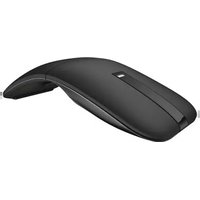
WM615 - Mouse DELL - Free user manual and instructions
Find the device manual for free WM615 DELL in PDF.


| Product Type | Bluetooth Mouse |
| Model | Dell WM615 |
| Connection Type | Bluetooth 4.0 |
| System Requirements | Windows 7/8/8.1/10 |
| Dimensions (ON mode) | 116.5 x 57.4 x 29.6 mm |
| Dimensions (OFF mode) | 124.5 x 57.4 x 21.1 mm |
| Weight (with batteries) | 76 g |
| Weight (without batteries) | 52 g |
| Power Source | 2 x AAA alkaline batteries |
| Battery Life | Approximately 6 months |
| Operating Voltage | 3 V |
| Bluetooth Range | Up to 10 m |
| Scroll Control | Touch-strip with gesture support |
| Buttons | Left, Right, key plate, Bluetooth pairing button |
| LED Indicators | Power/Battery LED (white/amber), Bluetooth pairing LED |
| Ergonomic Design | Yes, comfort for prolonged use |
| Sleep Mode | After 5 minutes of inactivity |
| Package Contents | Mouse, 2 AAA batteries, documents |
| Warranty | 1-year limited hardware warranty |
| Operating Temperature | 0°C to 50°C |
| Storage Temperature | -40°C to 65°C |
| Humidity | 90% max, non-condensing |
Frequently Asked Questions - WM615 DELL
User questions about WM615 DELL
0 question about this device. Answer the ones you know or ask your own.
Ask a new question about this device
Download the instructions for your Mouse in PDF format for free! Find your manual WM615 - DELL and take your electronic device back in hand. On this page are published all the documents necessary for the use of your device. WM615 by DELL.
USER MANUAL WM615 DELL
Dell Bluetooth Mouse WM615
User's Guide
Notes, Cautions, and Warnings
NOTE: A NOTE indicates important information that helps you make better use of your Dell Bluetooth mouse.
△ CAUTION: A CAUTION indicates potential damage to hardware or loss of data if instructions are not followed.
⚠ WARNING: A WARNING indicates a potential for property damage, personal injury, or death.
Restrictions and Disclaimers
The information contained in this document, including all instructions, cautions, and regulatory approvals and certifications, is provided by the supplier and has not been independently verified or tested by Dell. Dell cannot be responsible for damage caused as a result of either following or failing to follow these instructions.
All statements or claims regarding the properties, capabilities, speeds or qualifications of the part referenced in this document are made by the supplier and not by Dell. Dell specifically disclaims knowledge of the accuracy, completeness or substantiation for any such statements. All questions or comments relating to such statements or claims should be directed to the supplier.
Export Regulations
Customer acknowledges that these products, which may include technology and software, are subject to the customs and export control laws and regulations of the United States ("U.S.") and may also be subject to the customs and export laws and regulations of the country in which the products are manufactured and/or received. Customer agrees to abide by those laws and regulations. Further, under U.S. law, the products may not be sold, leased or otherwise transferred to restricted end-users or to restricted countries. In addition, the products may not be sold, leased or otherwise transferred to, or utilized by an end-user engaged in activities related to weapons of mass destruction, including without limitation, activities related to the Dell - Critical Handling - Confidential 3 design, development, production or use of nuclear weapons, materials, or facilities, missiles or the support of missile projects, and chemical or biological weapons.
Copyright © 2015 Dell Inc. All rights reserved. This product is protected by U.S. and international copyright and intellectual property laws.
Dell™ and the Dell logo are trademarks of Dell Inc. in the United States and/or other jurisdictions. All other marks and names mentioned herein may be trademarks of their respective companies.
Contents
About Your Bluetooth Mouse .... 5
Product Features 5
Package Contents 6
Identifying Parts and Controls .... 7
Top View 7
Bottom View 8
Setting Up Your Bluetooth Mouse....9
Pairing multiple computers with your Bluetooth mouse....16
Shortcut Gestures .... 18
Scroll 18
Trigger a Directional Panel 18
Increasing the Battery Life of Your Mouse ..... 19
Troubleshooting 20
Common Symptoms 20
Frequently Asked Questions 26
Specifications 29
General 29
Electrical 29
Physical Characteristics 29
Environmental. 29
Bluetooth 4.0 29
Statutory Information....30
Warranty 30
Limited Warranty and Return Policies 30
For U.S. customers: 30
For European, Middle Eastern and African customers: ..... 30
For non-U.S. customers: 30
About Your Bluetooth Mouse
Product Features
The features of the Dell Bluetooth Mouse WM615 include:
Easy and Fast Setup
Easy to set up through Bluetooth 4.0, allowing you to simply pair with your computer and get started right away, with no software required.
Ergonomic Design
Designed for comfort to allow users to work or play for longer periods without the usual stress on the wrists or hands.
Compatibility
Compatible with most Windows 7/8/8.1/10 platform portable devices with Bluetooth 4.0 support.
Built-in Feature to Enhance Battery Life
Has a special operating mode built in to conserve battery power. If the mouse is inactive for 5 minutes it will go in to Sleep Mode. Move the mouse or click the left or right button to wake the mouse.
Package Contents
Your Bluetooth mouse is shipped with the components shown below.
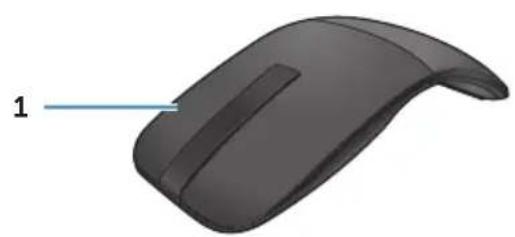
natural_image
3D model of a computer mouse with a labeled point '1' pointing to the interior (no text or symbols on the object itself)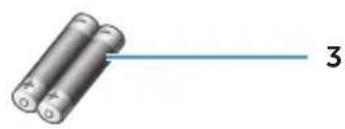
natural_image
Illustration of two cylindrical batteries with a blue line extending from one to the other, labeled '3' (no text or symbols on the battery itself)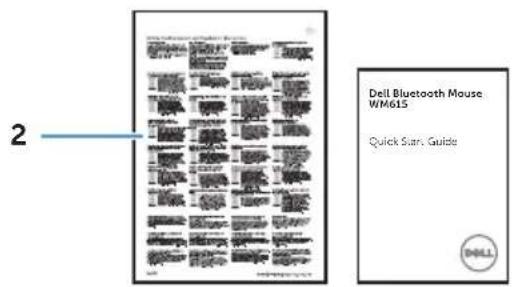
1 Bluetooth mouse 3 AAA-type batteries (2)
2 Documents
Identifying Parts and Controls
Top View
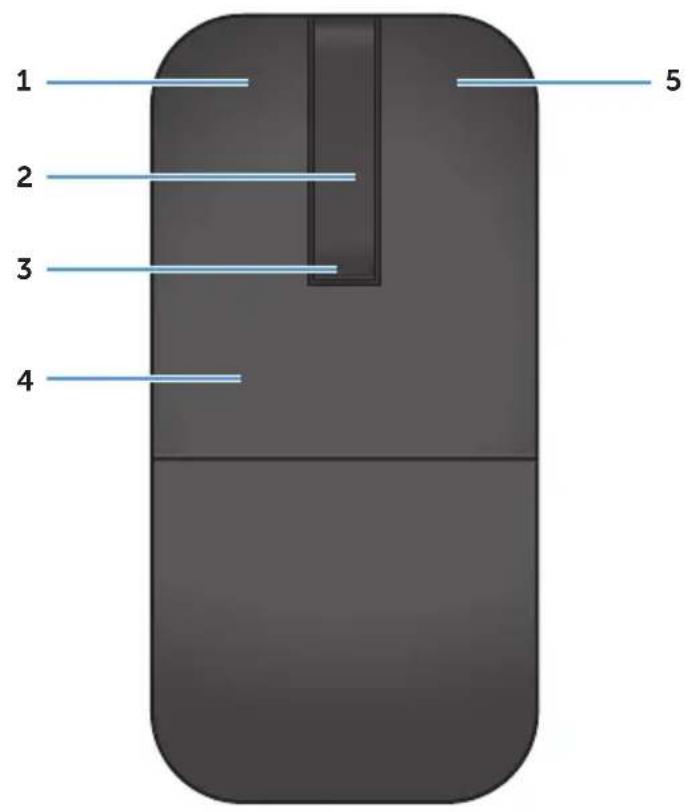
1 Left button 4 Key plate
2 Scroll touch-strip 5 Right button
3 Power / Battery LED (white / amber)

NOTE: When the Power/Battery LED lights white for 3 seconds, this indicates the mouse is in ON mode or has recovered from a deep-sleep mode.

NOTE: When the Power/Battery LED blinks amber for 30 seconds, this indicates the low battery status.
Bottom View
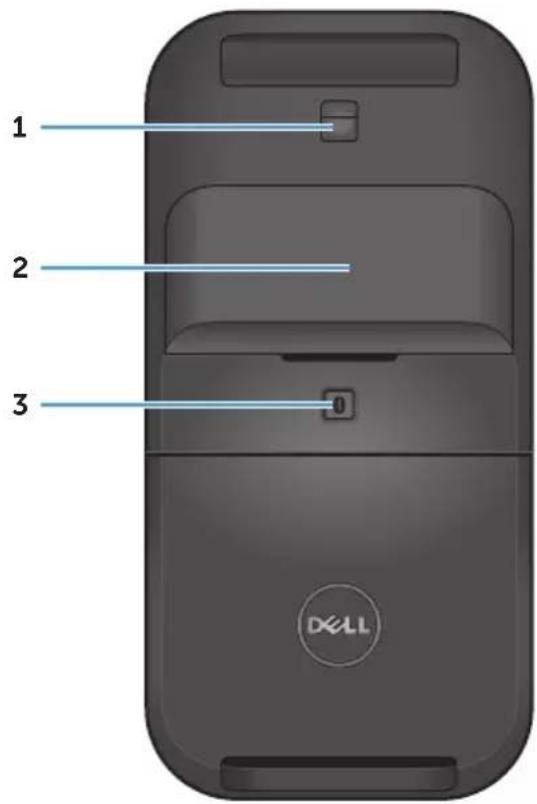
1 IR sensor
2 Battery compartment cover (magnetic)
3 Bluetooth pairing button
Setting Up Your Bluetooth Mouse
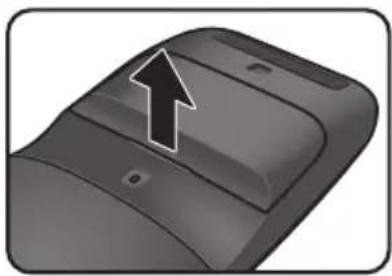
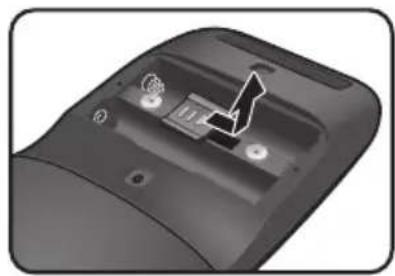
- Install the two AAA batteries in your mouse.
natural_image
Close-up of a 3D-printed object with a black arrow pointing to a section, no visible text or symbols.a) Remove the battery cover.
natural_image
Close-up of a black electronic device's rear panel showing a button and indicator lights (no text or symbols visible)b) Unlock the battery compartment latch.
natural_image
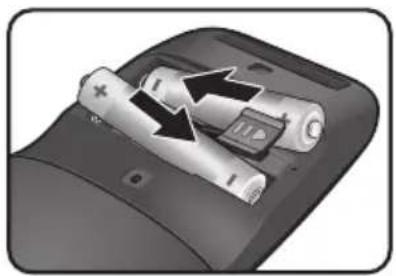
Close-up of a battery pack with two batteries and one partially open, showing internal structure (no text or symbols visible)c) Install the batteries into the battery compartment.
natural_image
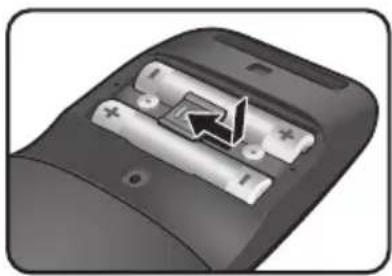
Close-up of a battery casing with two batteries and one partially open, showing internal components (no text or symbols visible)d) Lock the battery compartment latch.
natural_image
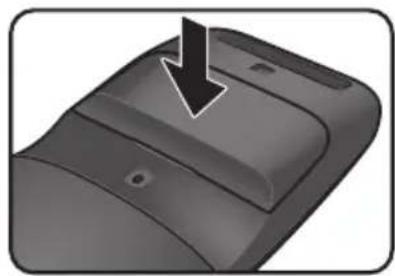
Close-up of a mechanical component with a black arrow pointing to a feature (no text or symbols visible)f) Replace the battery cover.
- Rotate the rear key plate clockwise to turn on the mouse.
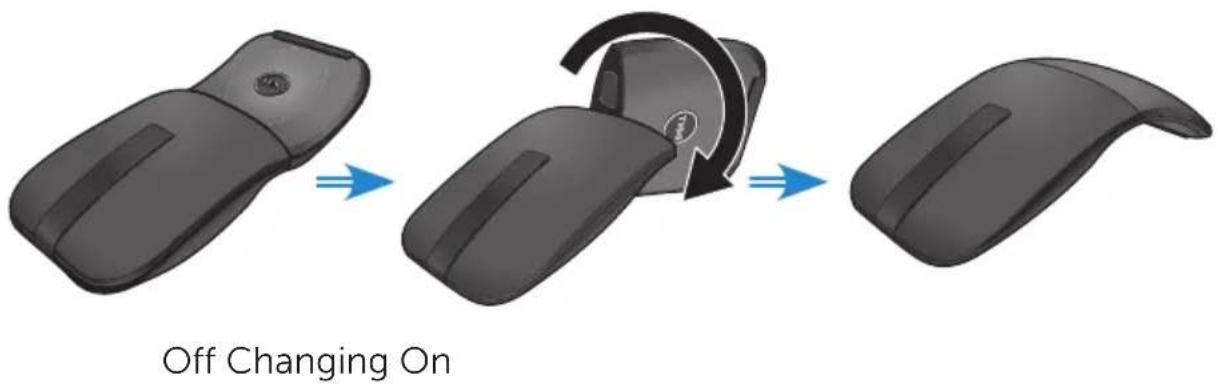

NOTE: The power LED turns white for 3 seconds when the mouse is on.
- Pair the mouse with your Bluetooth enabled computer.

NOTE: Make sure the distance between your computer and mouse is within the Bluetooth reception range.
Windows 7
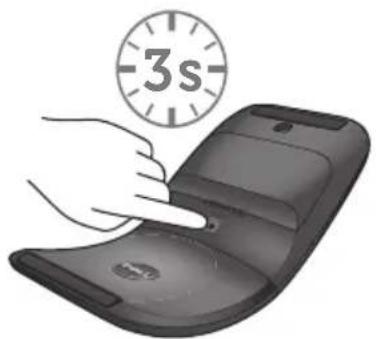
a) Press the Bluetooth pairing button for 3 seconds.
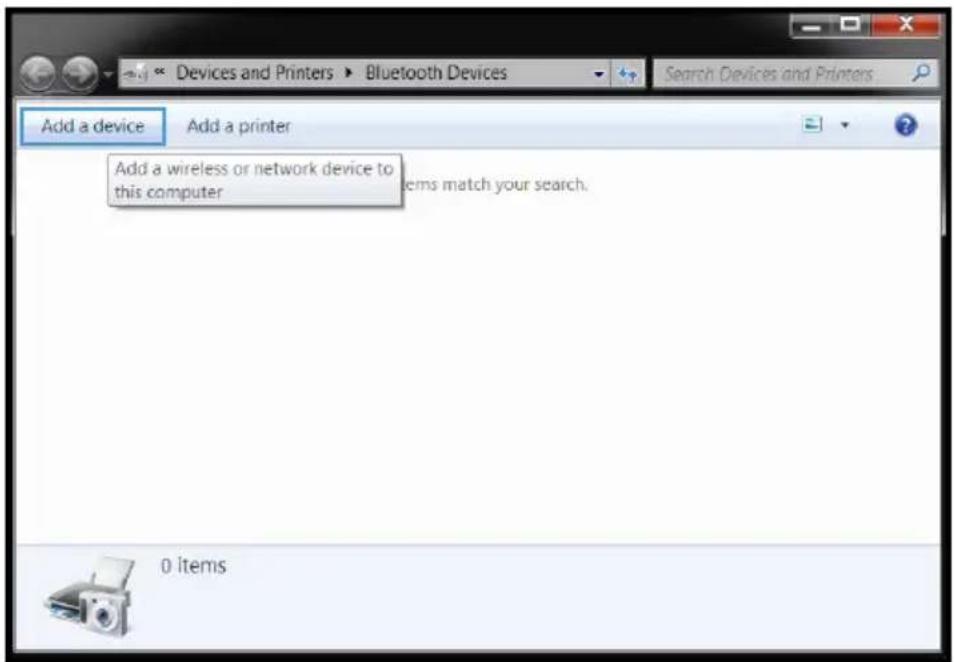
b) Double-click the Bluetooth icon (✗) on the system tray and select Add a Device.
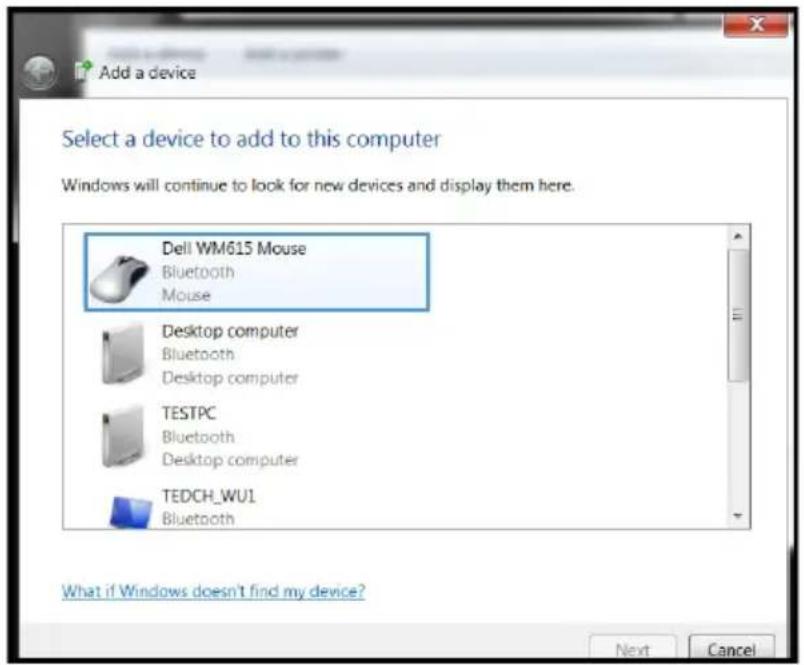
c) The detected devices appear on the screen. Click Dell WM615 Mouse and click Next to continue.
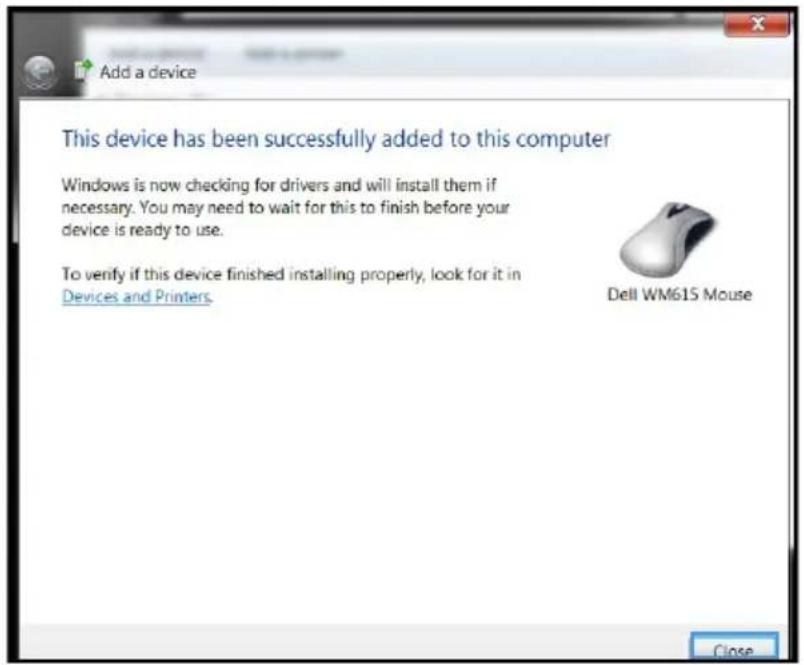
d) Click Close to complete the pairing.
Windows 8
a) Press the Bluetooth pairing button for 3 seconds.
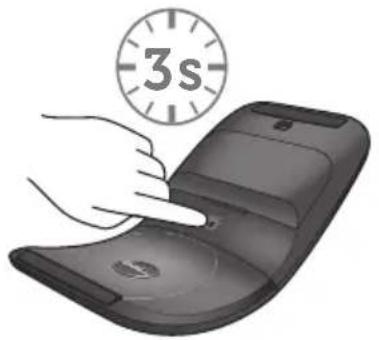
b) On the charms sidebar, click Settings ⚙️ > Change PC Settings > PC and devices > Bluetooth.
c) Click the name of the mouse.
d) Click Pair to complete the Bluetooth pairing in your computer.
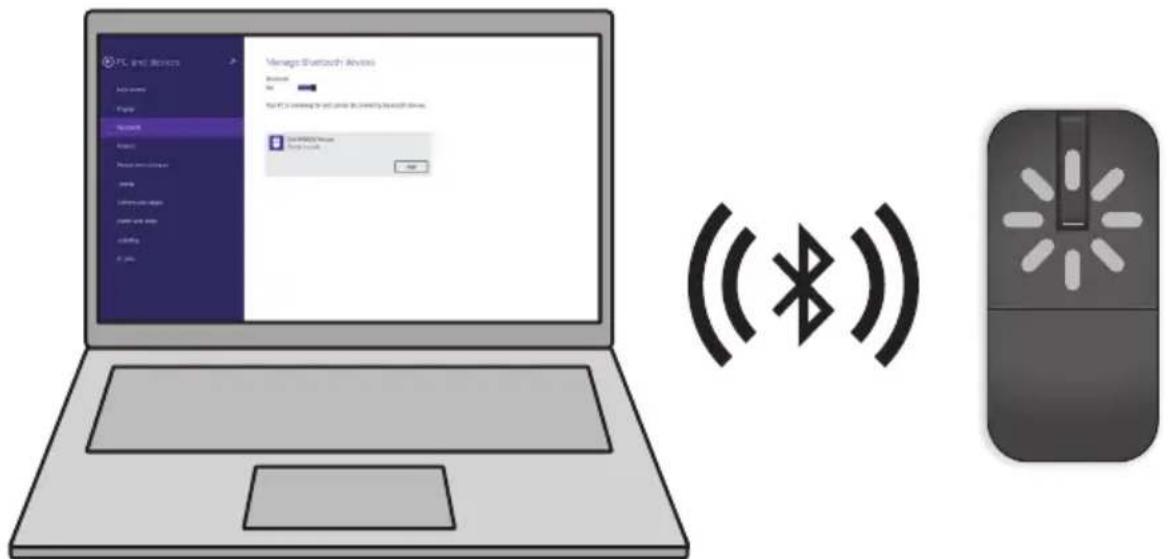

NOTE: Bluetooth pairing LED blinks white within 2 minutes, indicating the Bluetooth pairing is initiated.
Windows 10
a) Press the Bluetooth pairing button for 3 seconds.
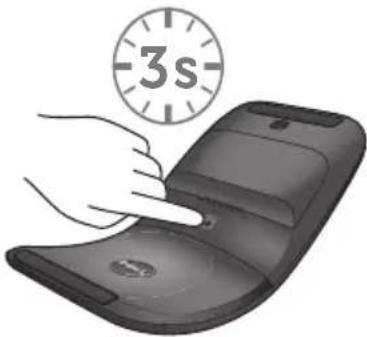
b) Click Start > Settings > Devices.
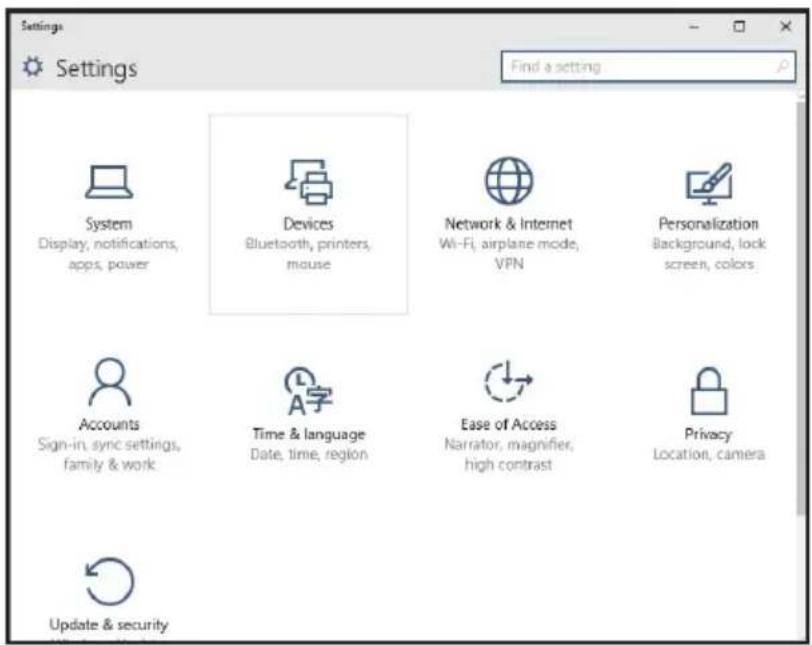
c) Click Bluetooth.
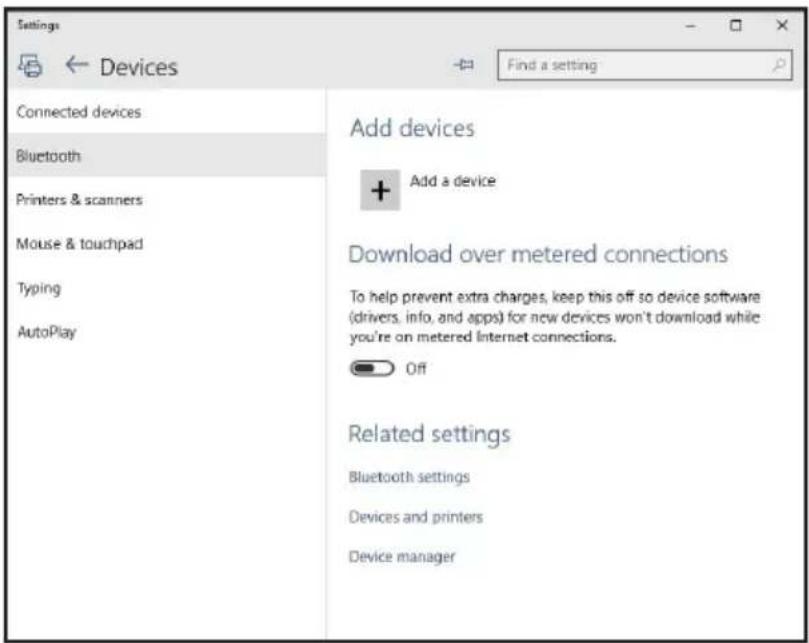
d) Under Manage Bluetooth devices, make sure the Bluetooth is turned on.
A list of nearby Bluetooth devices is displayed on the screen.
e) Select the Bluetooth radio for the Dell WM615 mouse.
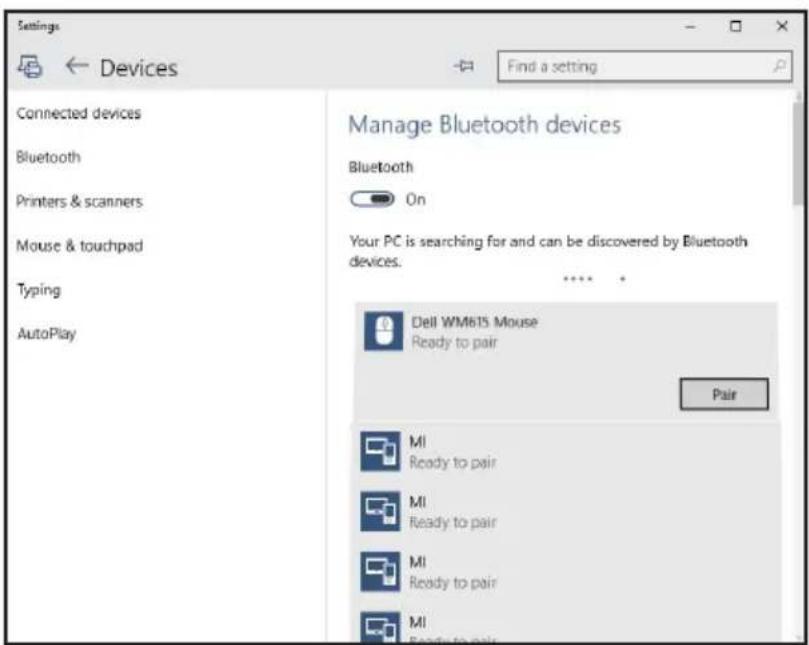
e) Click Pair to complete the Bluetooth pairing in your computer.

NOTE: Bluetooth pairing LED blinks white within 2 minutes, indicating the Bluetooth pairing is initiated.
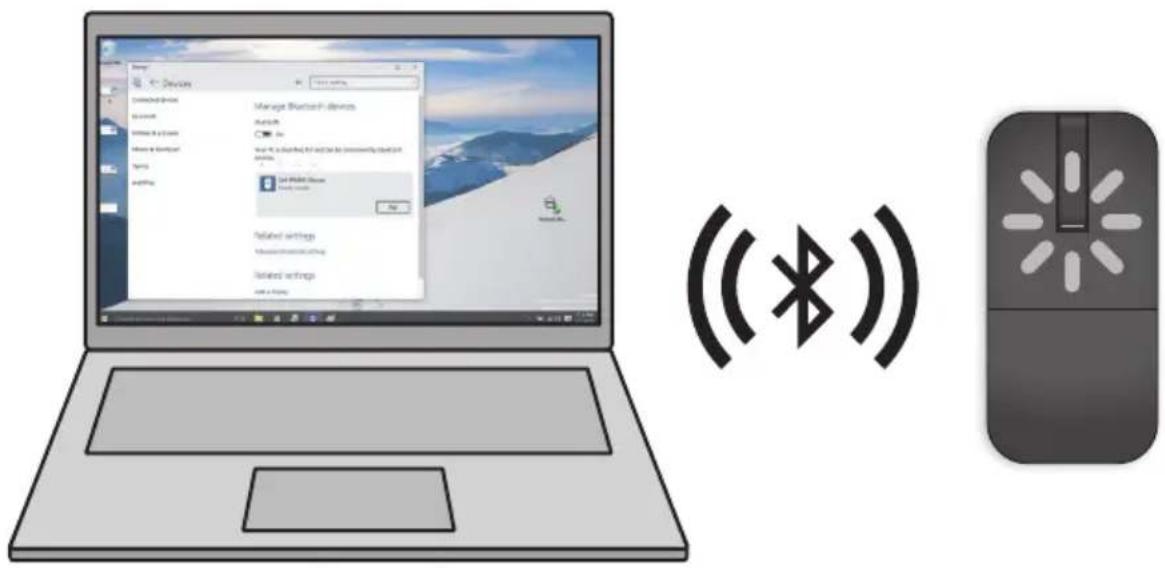
If you are unable to pair or use the mouse, see the Troubleshooting section.
Pairing multiple computers with your Bluetooth mouse
Pair the mouse with a Bluetooth enabled computer (Identity A)
- Press the Bluetooth button on the mouse for 3 seconds. The Bluetooth pairing LED blinks white for 1-2 minutes, indicating that the mouse is in Bluetooth broadcast mode.
- The detected devices appear on the screen. Click Dell WM615 Mouse and tap Pair to complete the Bluetooth pairing in your device. This is the first pairing (Identity A).
Reconnect the mouse with a paired computer (Identity A)
- Press the Bluetooth button on the mouse for 3 seconds. The Bluetooth pairing LED blinks white for 1-2 minutes, indicating that the mouse is in Bluetooth broadcast mode.
- The Bluetooth mouse will connect to the computer and stop broadcasting.
Pair the mouse with second Bluetooth enabled computer (Identity B)
- Turn off the computer (Identity A) paired with your mouse.
- Press the Bluetooth button on the mouse for 3 seconds. The Bluetooth pairing LED blinks white for 1-2 minutes, indicating that the mouse is in Bluetooth broadcast mode.
- The detected devices appear on the screen of your second computer. Click Dell WM615 Mouse and tap Pair to complete the Bluetooth pairing in your device. This is the second pairing (Identity B). Your Bluetooth mouse could save a maximum of two pairings.
Pair the mouse with third Bluetooth enabled computer (Identity C)
- Turn off the first (Identity A) and second (Identity B) computer paired with your mouse.
- Press the Bluetooth button on the mouse for 3 seconds. The Bluetooth pairing LED blinks white for 1-2 minutes, indicating that the mouse is in Bluetooth broadcast mode.
- The detected devices appear on the screen of your third computer. Click Dell WM615 Mouse and tap Pair to complete the Bluetooth pairing in your device. This is the third pairing (Identity C). Your Bluetooth mouse could save a maximum of two pairings. If you make a third pairing, the oldest pairing (Identity 1) will be automatically deleted.
Switching between paired computers (Identity A and Identity B)
- Turn off the computer (Identity A) first paired with your mouse. The mouse will reconnect to your second computer (Identity B).
- Turn off your second computer (Identity B). The mouse will reconnect to your first computer (Identity A).
Shortcut Gestures
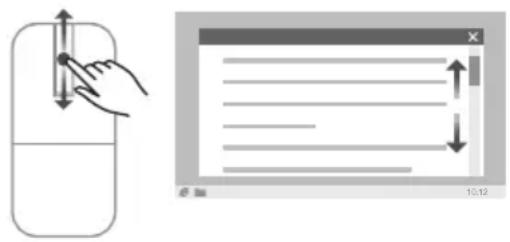
Scroll
Slide your finger up or down to scroll the page.
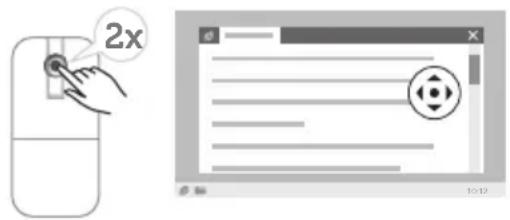
Trigger a Directional Panel
Double-tap on the scroll touch-strip to trigger a directional panel for moving direction.
Increasing the Battery Life of Your Mouse
The mouse has a special operating mode built in to conserve battery power:
Sleep mode: When the mouse has been inactive for 5 minutes.
To wake the mouse: Move the mouse or click the left or right button.
Troubleshooting
Common Symptoms
The following table contains information about common issues you might encounter and the possible solutions.
| Common Symptoms | What You Experience | Possible Solutions |
| Unable to use the mouse | No lighted Power LED (white) on scroll touch-strip when mouse is rotated to on position | 1. Check if the batteries are inserted in the correct orientation.Batteries “+” and “-” ends should follow those indicated on the battery compartment label.2. Check the battery level.If the mouse uses a rechargeable battery, make sure the batteries are fully charged.If the mouse uses replaceable batteries, replace them with new batteries.3. Turn the mouse off then on.Rotate the mouse to off position, then rotate the mouse to on position.Check that the power LED (white) on scroll touch-strip blinks once. |
| Mouse pointer does not move | The mouse pointer freezes | 1. Check the battery level.If the mouse uses a rechargeable battery, make sure the batteries are fully charged.If the mouse uses replaceable batteries, replace them with new batteries.Turn the mouse off then on.Rotate the mouse to off position, then rotate the mouse to on position.Check that the power LED (white) on scroll touch-strip blinks once.On your computer, turn the Bluetooth off and on.Restart your computer.Check for interference that may affect Bluetooth connectivity (e.g nearby Wifi, USB 3.0 Devices).Check for any wireless devices that are in close proximity such as wireless networking devices (Bluetooth printer, USB 3.0 dongle, etc), wireless pointing devices, and microwave ovens.Move away from these devices. |
| Left/right buttons don't work | No response when the left or right mouse button is pressed | 1. Check the battery level.If the mouse uses a rechargeable battery, make sure the batteries are fully charged.If the mouse uses replaceable batteries, replace them with new batteries.Turn the mouse off then on.Rotate the mouse to off position, then rotate the mouse to on position.Check that the power LED (white) on scroll touch-strip blinks onceOn your computer, turn the Bluetooth off and on.Restart your computer.Check for interference that may affect Bluetooth connectivity (e.g nearby Wifi, USB 3.0 Devices).Check for any wireless devices that are in close proximity such as wireless networking devices (Bluetooth printer, USB 3.0 dongle, etc), wireless pointing devices, and microwave ovens.Move away from these devices. |
| Bluetooth pairing button doesn’t work | No blinking white LED on the touch scroll-strip when the Bluetooth pairing button is pressed for 3 seconds | 1. Check if the batteries are inserted in the correct orientation.• Batteries “+” and “-” ends should follow those indicated on the battery compartment label.2. Check the battery level.• If the mouse uses a rechargeable battery, make sure the batteries are fully charged.• If the mouse uses replaceable batteries, replace them with new batteries.3. Turn the mouse off then on.• Rotate the mouse to off position, then rotate the mouse to on position.4. The power LED (White) on the scroll touch strip should blink once. |
| Unable to pair the mouse with the computer | Bluetooth pairing error message is received while pairing the mouse with the computer | 1. Check the battery level.If the mouse uses a rechargeable battery, make sure the batteries are fully charged.If the mouse uses replaceable batteries, replace them with new batteries.Turn the mouse off then on.Rotate the mouse to off position, then rotate the mouse to on position.On your computer, turn the Bluetooth off and on.Restart your computer.Check if you have the latest Bluetooth driver installed on your computer.Go to http://www.dell.com/support and update the correct Bluetooth driver.Check for interference that may affect Bluetooth connectivity (e.g nearby Wifi, USB 3.0 Devices).Check for any wireless devices that are in close proximity such as wireless networking devices (Bluetooth printer, USB 3.0 dongle, etc), wireless pointing devices, and microwave ovens.Move away from these devices.7. Check if your computer is included in the list of select Dell computers compatible with the mouse.See www.dell.com/support for more information. |
| Bluetooth connection is lost | Previously paired mouse no longer works on the computer | 1. Check the battery level.If the mouse uses a rechargeable battery, make sure the batteries are fully charged.If the mouse uses replaceable batteries, replace them with new batteries.2. Turn the mouse off then on.Rotate the mouse to off position, then rotate the mouse to on position.3. On your computer, turn the Bluetooth off and on.4. Restart your computer.5. Check for interference that may affect Bluetooth connectivity (e.g nearby Wifi, USB 3.0 Devices).Check for any wireless devices that are in close proximity such as wireless networking devices (Bluetooth printer, USB 3.0 dongle, etc), wireless pointing devices, and microwave ovens.Move away from these devices.6. Refer to chapter Pairing multiple computers with your Bluetooth mouse for more information. |
Frequently Asked Questions
Question 1:
My Bluetooth mouse doesn't connect to my computer after being idle. How do I reconnect my mouse?
Answer:
Windows 7 and Windows 8 have a known issue with selective power management of attached devices which could make your mouse appear locked. Reboot the system or turn your Bluetooth radio off and back on to reconnect your mouse.
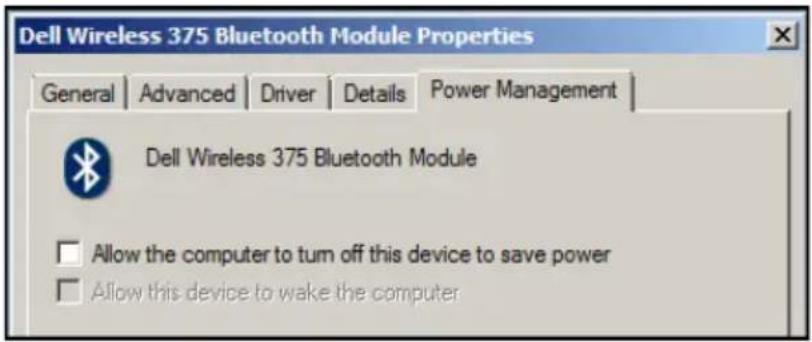
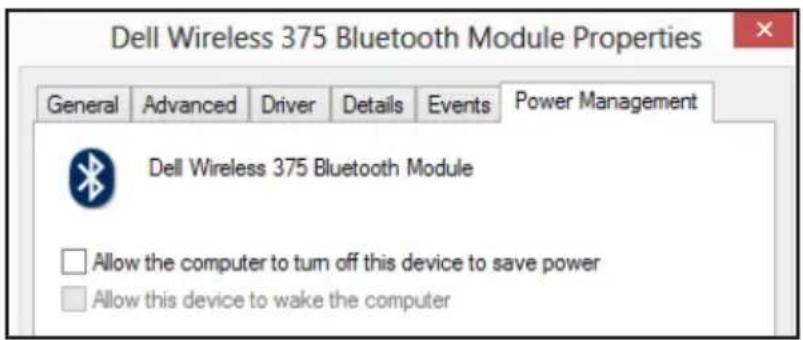
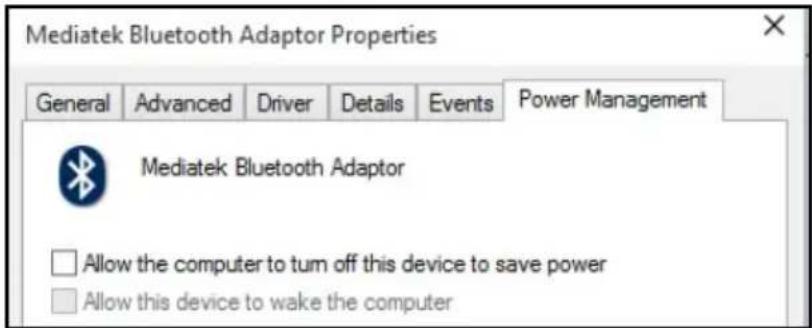
If the Bluetooth radio on your computer is set to Allow the computer to turn off this device to save power, this could also cause your mouse to not reconnect after being idle. To solve this, disable the Allow the computer to turn off this device to save power option in the Bluetooth radio properties of your computer.
- For Windows 7:
-
Click the Start button and type Device Manager.
-
Click on Device Manager in the Results window.
-
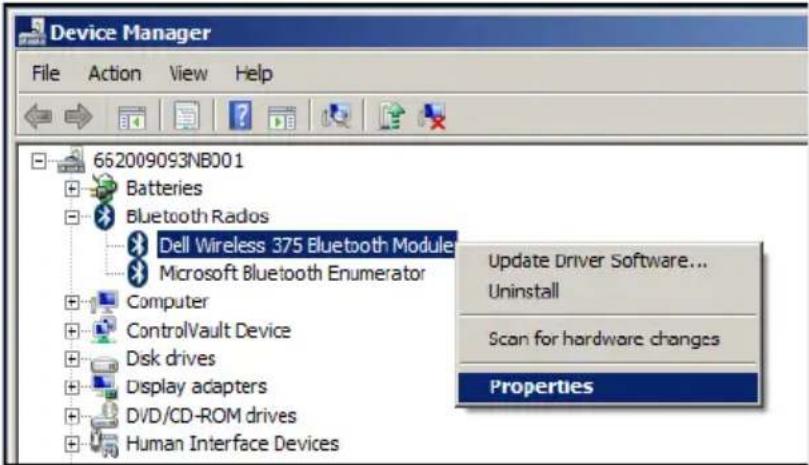
In Device Manager, expand Bluetooth Radios.
-
Right click on the Bluetooth radio device and select Properties.
-
On the Advanced tab, the Manufacturer Id will be 15 if your radio is Broadcom-based. On the Power Management tab, uncheck the option Allow the computer to turn off this device to save power.
-
Click OK.
• For Windows 8:
- Select Search and type Device Manager.
- Select Settings.
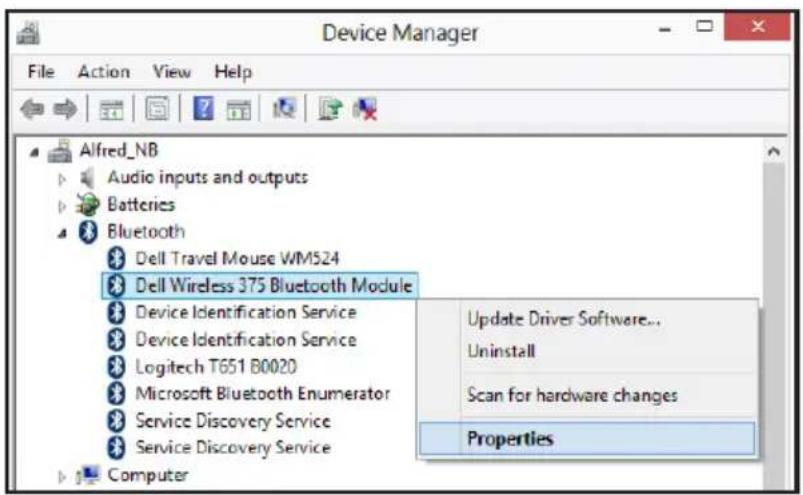
3 In Device Manager, expand Bluetooth and select the Bluetooth radio for the Dell WM615 mouse. - In Device Manager, expand Bluetooth and select the Bluetooth radio for the Dell WM615 mouse.
- Right click on the Bluetooth radio and select Properties.
- On the Power Management tab, uncheck the option Allow the computer to turn off this device to save power.
- Click OK.
- For Windows 10:
- Type Device Manager in Search the web and Windows field (next to the Start button) and press Enter.
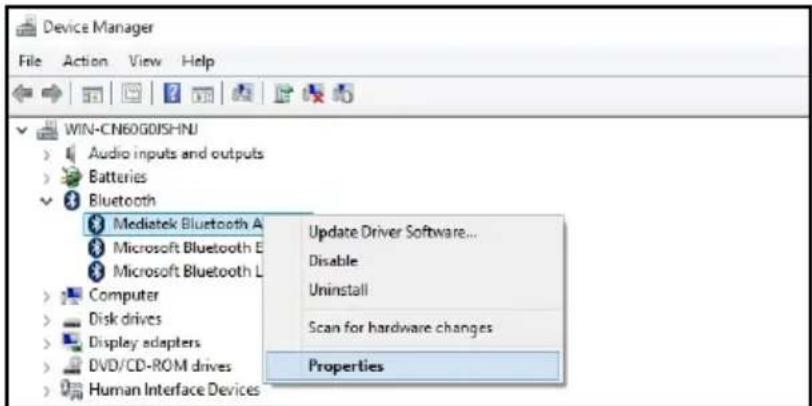
- In Device Manager, expand Bluetooth and select the Bluetooth radio for the Dell WM615 mouse.
- Right click on the Bluetooth radio and select Properties
- On the Power Management tab, uncheck the option Allow the computer to turn off this device to save power.
- Click OK.
Question 2:
Why is my Bluetooth mouse slow when reconnecting to my computer, when compared to my mouse using a USB 2.0 Nano dongle?
Answer:
A wireless mouse using a USB2.0 Nano dongle utilizes a dedicated 2.4G connection between the computer and mouse, making the reconnection almost instantaneous.
Using a Bluetooth connection, the Dell WM615 Bluetooth mouse shares the same 2.4G bandwidth with the Wireless subsystem of the computer making reconnection slower in comparison to a wireless mouse using a 2.0 USB Nano dongle. During this reconnection process, mouse cursor movement could be seen as erratic until the reconnection link is fully established.
Specifications
General
Model number WM615
Connection type Bluetooth 4.0
System requirement Windows Operating System 7/8/8.1/10
Windows 7 support Compatible with select Dell computers.
See http://www.dell.com/support.
Electrical
Operating voltage 3 V
Battery life Approximately 6 months
Battery type AAA Alkaline
Physical Characteristics
Weight (with batteries) 76 g (0.17 lb)
Weight (without batteries) 52 g (0.11 lb)
ON mode
Length: 116.5 mm (4.59 in)
Width: 57.4 mm (2.26 in)
Height: 29.6 mm (1.17 in)
OFF mode
Length: 124.5 mm (4.90 in)
Width: 57.4 mm (2.26 in)
Height: 21.1 mm (0.83 in)
Environmental
Temperature
Operating: 0^ C to 50^ C ( 32^ F to 122^ F)
Storage: -40^ to 65^ ( -40^ to 149^ )
Humidity 90% maximum relative humidity;
non-condensing
Bluetooth 4.0
Radio transmission The baseband transmit data is GFSK
Modulated in the 2.4 GHz ISM band
Range Up to 10 m radio range.
No performance degradation up to maximum radio range (10 m).
Warranty
Limited Warranty and Return Policies
Dell-branded products carry a 1-year limited hardware warranty.
For U.S. customers:
This purchase and your use of this product are subject to Dell's end user agreement, which you can find at http://www.dell.com/terms. This document contains a binding arbitration clause.
For European, Middle Eastern and African customers:
Dell-branded products that are sold and used are subject to applicable national consumer legal rights, the terms of any retailer sale agreement that you have entered into (which will apply between you and the retailer) and Dell's end user contract terms.
Dell may also provide an additional hardware warranty – full details of the Dell end user contract and warranty terms can be found by going to http://www.dell.com, selecting your country from the list at the bottom of the "home" page and then clicking the "terms and conditions" link for the end user terms or the "support" link for the warranty terms.
For non-U.S. customers:
Dell-branded products that are sold and used are subject to applicable national consumer legal rights, the terms of any retailer sale agreement that you have entered into (which will apply between you and the retailer) and Dell's warranty terms. Dell may also provide an additional hardware warranty – full details of Dell's warranty terms can be found by going to http://www.dell.com, selecting your country from the list at the bottom of the "home" page and then clicking the "terms and conditions" link or the "support" link for the warranty terms.


- Dell Bluetooth Mouse WM615
- User's Guide
- Notes, Cautions, and Warnings
- Restrictions and Disclaimers
- Export Regulations
- Contents
- About Your Bluetooth Mouse .... 5
- Package Contents 6
- Identifying Parts and Controls .... 7
- Setting Up Your Bluetooth Mouse....9
- Pairing multiple computers with your Bluetooth mouse....16
- Shortcut Gestures .... 18
- Increasing the Battery Life of Your Mouse ..... 19
- Troubleshooting 20
- Specifications 29
- Statutory Information....30
- About Your Bluetooth Mouse
- Product Features
- Easy and Fast Setup
- Ergonomic Design
- Compatibility
- Built-in Feature to Enhance Battery Life
- Package Contents
- Identifying Parts and Controls
- Top View
- Bottom View
- Setting Up Your Bluetooth Mouse
- Windows 7
- Windows 8
- Windows 10
- c) Click Bluetooth.
- Pairing multiple computers with your Bluetooth mouse
- Pair the mouse with a Bluetooth enabled computer (Identity A)
- Reconnect the mouse with a paired computer (Identity A)
- Pair the mouse with second Bluetooth enabled computer (Identity B)
- Pair the mouse with third Bluetooth enabled computer (Identity C)
- Switching between paired computers (Identity A and Identity B)
- Shortcut Gestures
- Scroll
- Trigger a Directional Panel
- Increasing the Battery Life of Your Mouse
- Troubleshooting
- Common Symptoms
- Frequently Asked Questions
- Question 1:
- Answer:
- - For Windows 7:
- • For Windows 8:
- - For Windows 10:
- Question 2:
- Specifications
- General
- Electrical
- Physical Characteristics
- Environmental
- Bluetooth 4.0
- Warranty
- For U.S. customers:
- For European, Middle Eastern and African customers:
- For non-U.S. customers:
Brand : DELL
Model : WM615
Category : Mouse