
Xonar U5 SI - Soundcard ASUS - Free user manual and instructions
Find the device manual for free Xonar U5 SI ASUS in PDF.


| Type | External USB sound card |
| Brand | Asus |
| Model | Xonar U5 SI |
| Dimensions | Approximately 130 x 80 x 30 mm (estimated) |
| Weight | Approximately 150 g (estimated) |
| Power supply | USB bus powered |
| Supported audio formats | Stereo, 4.0, 5.1, 7.1 |
| Sample rate | Up to 192 kHz / 24-bit |
| Audio processing | Sonic Studio with equalizer, bass boost, voice clarity, compressor, virtual surround, upmix, reverb, noise gate, perfect voice |
| Inputs | MIC in, Line in, Aux in |
| Outputs | Analog speakers, headphones, Line out, S/PDIF |
| Special features | Sonic Radar Pro (sound visualization), Strix RAID Mode (external control box support) |
| Driver support | Windows 7 (32/64-bit), Windows 8 (32/64-bit), Windows 8.1 (32/64-bit) |
| Maintenance | Keep dry, clean with a soft cloth, avoid dust |
| Safety | Use only with USB ports, avoid liquids, do not disassemble |
| Spare parts and reparability | No user-serviceable parts; contact ASUS support for repairs |
| Accessories | USB cable, driver CD, user manual |
Frequently Asked Questions - Xonar U5 SI ASUS
User questions about Xonar U5 SI ASUS
0 question about this device. Answer the ones you know or ask your own.
Ask a new question about this device
Download the instructions for your Soundcard in PDF format for free! Find your manual Xonar U5 SI - ASUS and take your electronic device back in hand. On this page are published all the documents necessary for the use of your device. Xonar U5 SI by ASUS.
USER MANUAL Xonar U5 SI ASUS
Sonic Studio Strix Series
User Guide
DE158
First Edition
June 2015
Copyright © 2015 ASUSTeK COMPUTER INC. All Rights Reserved.
No part of this manual, including the products and software described in it, may be reproduced, transmitted, transcribed, stored in a retrieval system, or translated into any language in any form or by any means, except documentation kept by the purchaser for backup purposes, without the express written permission of ASUSTeK COMPUTER INC. ("ASUS").
Product warranty or service will not be extended if: (1) the product is repaired, modified or altered, unless such repair, modification of alteration is authorized in writing by ASUS; or (2) the serial number of the product is defaced or missing.
ASUS PROVIDES THIS MANUAL "AS IS" WITHOUT WARRANTY OF ANY KIND, EITHER EXPRESS OR IMPLIED, INCLUDING BUT NOT LIMITED TO THE IMPLIED WARRANTIES OR CONDITIONS OF MERCHANTABILITY OR FITNESS FOR A PARTICULAR PURPOSE. IN NO EVENT SHALL ASUS, ITS DIRECTORS, OFFICERS, EMPLOYEES OR AGENTS BE LIABLE FOR ANY INDIRECT, SPECIAL, INCIDENTAL, OR CONSEQUENTIAL DAMAGES (INCLUDING DAMAGES FOR LOSS OF PROFITS, LOSS OF BUSINESS, LOSS OF USE OR DATA, INTERRUPTION OF BUSINESS AND THE LIKE), EVEN IF ASUS HAS BEEN ADVISED OF THE POSSIBILITY OF SUCH DAMAGES ARISING FROM ANY DEFECT OR ERROR IN THIS MANUAL OR PRODUCT.
SPECIFICATIONS AND INFORMATION CONTAINED IN THIS MANUAL ARE FURNISHED FOR INFORMATIONAL USE ONLY, AND ARE SUBJECT TO CHANGE AT ANY TIME WITHOUT NOTICE, AND SHOULD NOT BE CONSTRUED AS A COMMITMENT BY ASUS. ASUS ASSUMES NO RESPONSIBILITY OR LIABILITY FOR ANY ERRORS OR INACCURACIES THAT MAY APPEAR IN THIS MANUAL, INCLUDING THE PRODUCTS AND SOFTWARE DESCRIBED IN IT.
Products and corporate names appearing in this manual may or may not be registered trademarks or copyrights of their respective companies, and are used only for identification or explanation and to the owners' benefit, without intent to infringe.
Contents
1. Sonic Studio .... 4
1.1 Launching Sonic Studio....4 1.2 Sonic Studio overview 5
1.2.1 Device selection....9
Output device....9
Input device.... 10
1.2.2 Signal meters.... 11 1.2.3 Main settings area....12
Playback volume control....12
Playback volume mute....13
Playback channel mixer....14
Record volume control....16
Record volume mute....17
Record volume channel mixer 18
Listen to Device 19
Audio Config 20
Audio format....21
Profiles 22
1.2.4 Audio enhancement area....23
Equalizer 23
Bass Boost....24
Voice Clarity....25
Compressor 26
1.2.5 Tuning area....27
Virtual Surround 27
Upmix....28
Reverb 29
1.2.6 Mic area 30
Noise Gate 30
Perfect Voice....31
1.2.7 Advanced Plug-in 32
Raid Mode (Strix RAID DLX/ Strix RAID PRO only) ...... 32
Sonic Radar Pro 33
1.3 Exiting Sonic Studio....61
2. Frequently Asked Questions (FAQs) 62
General 62
Audio effects 63
Device management 64
1. Sonic Studio
1.1 Launching Sonic Studio
After finishing the driver installation for your audio device and rebooting your computer, you will find the Sonic Studio icon on Windows® desktop, Windows® notification area or the metro interface. Double-click the Sonic Studio icon to launch Sonic Studio.

1.2 Sonic Studio overview
Sonic Studio comes with advanced sound algorithms and virtual surround effects to enhance the listening experience whether you are watching a movie, listening to music, playing a video game or communicating with your friends.


Screenshots are for reference only and subject to change and updates.
| No. | Item Description | |
| 1 | Signal meters See section 1.2.2 | Signal meters for details. |
| 2 | Device selection See section 1.2.1 | Device selection for details. |
| 3 | Main settings area | See section 1.2.3 Main settings area for details. |
| 4 | Audio enhancement area | See section 1.2.4 Audio enhancement area for details. |
| 5 | Tuning area See section 1.2.5 | Tuning area for details. |
| 6 | Mic area See section 1.2.6 Mic area for details. | |
| 7 | Advanced Plug-in See section 1.2.7 Advanced Plug-in for details. |

| No. | Item Description | |
| 1 | Display | Displays signal meters. |
| 2 | Output Device Select | Click to select an output source: analog speakers, headphones, Line out or S/PDIF device.Right-click an output source to set as the default device. |
| 3 | Playback Volume Control | Drag this slider to increase or decrease playback volume. |
| 4 | Playback Channel | Click to select appropriate playback channels. |
| 5 | Sample Rate | Click to select sample rate and bit rate. |
| 6 | Input Device Select | Click to select an input source: MIC in, Line in or Aux in.Right-click an input source to set as the default device. |
| 7 | Recording Volume Control | Drag this slider to increase or decrease record volume. |
| 8 | Playback Volume Mute | Click to mute/unmute volume playback. |
| 9 | Playback Setting | Click to open the mixer and adjust the volume for each channel. |
| 10 | Listen to Device | Click to hear the current input device in the output audio device. |
| 11 | Recording Volume Setting | Click to open mixer and adjust input device settings. |
| 12 | Recording Volume Mute | Click to mute/unmute recording volume. |

| No. | Item Description | |
| 13 | Preset | The preset manager allows users to customize settings based on preference. You can create, save, and delete presets. |
| 14 | Information | Click to view driver information. |
| 15 | EQ | Drag this slider to adjust gains for each different frequency band. |
| 16 | EQ Presets | Click to turn on/off EQ setting.Click to select an EQ preset. |
| 17 | Bass Boost | Click to turn on/off Bass Boost.Drag the slider to adjust low frequency harmonics to produce a deeper and warmer bass.Drag the slider to adjust the gain of the Bass Boost effect. |
| 18 | Voice Clarity | Click to turn on/off Voice Clarity.Drag the slider to increase speech recognition by boosting the range of human voice frequencies. |
| 19 | Compressor | Click to turn on/off Compressor.Drag the slider to tighten audio according to a set threshold. |

| No. | Item Description | |
| 20 | Virtual Surround / Upmix | When the Playback Channel is set to Stereo, Virtual Surround is available.Click to enable Virtual Surround.Click to select a Virtual Surround preset.When the Playback Channel is set to 4, 5.1, or 7.1, Upmix is available.Click to enable Upmix.Click to select an Upmix. |
| 21 | Reverb Gain | Click to turn on/off reverb.Click to select a reverb preset. |
| 22 | On/Off Reverb Gain | Drag the slider to adjust Reverb Gain to values between -6 to +6 dB. |
| 23 | Noise Gate | Click to enable Noise Gate.Drag the slider to remove the noise between words and sentences during voice communication. |
| 24 | Perfect Voice | Click to enable noise reduction.Drag the slider to reduce remaining noise during voice communication. |
| 25 | Speaker Test | Click this button to test sound direction of the speaker. |
| 26 | Advanced Plug-in | Sonic Radar Pro: Click to enable or disable Sonic Radar Pro, an audio visualization program of sound directions.Strix Raid Mode: Click to select the desired feature to assign to Control Box (Strix Raid DLX/ Strix Raid Pro only). |
1.2.1 Device selection
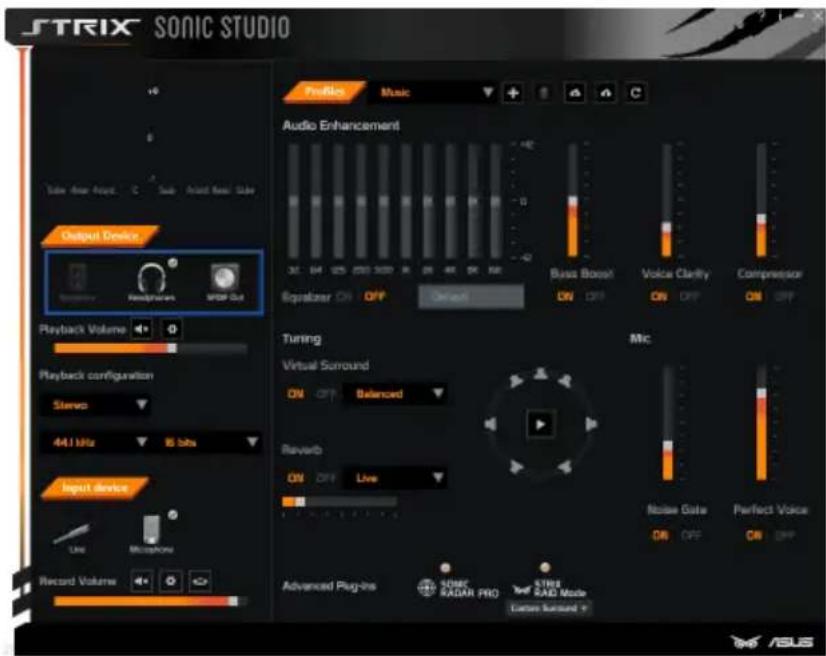
Output device
Description:
This area displays all the available output devices and allows you to:
- Click to select an output source: analog speakers, headphones, Line out or S/PDIF device.
- Right-click an output source to set as the default device.
- Change the impedances of the selected device to Low (default), Medium or High. This will cause a greater volume of the selected device.
How it works:
This feature is available depending on the devices connected to the audio card. It is not available for all devices. For example, it is only available for speakers, not for headphones.
Input device

Description:
This area displays all the available input devices and allows you to:
- Click to select an input source: MIC in, Line in or Aux in.
- Right-click an input source to set as the default device.
Note: Input & Output devices support may vary with models.
1.2.2 Signal meters
This area displays signal meters.

Description:
This is a visualizing feature allowing you to easily view the number of audio channels used by the currently played audio file, the sound level, the power of each channel, etc.
How it works:
This feature contains 8 vertical sliders which are representing the 8 existing audio channels and each slider will display in real time the content of the currently played audio file.
This feature varies depending on the input audio channels. This way, you will be able to see precisely what you must have in your output device.
1.2.3 Main settings area
Playback volume control

Drag the slider to increase or decrease playback volume.
Description:
This feature allows you to fine tune the global output audio volume.
Playback volume mute
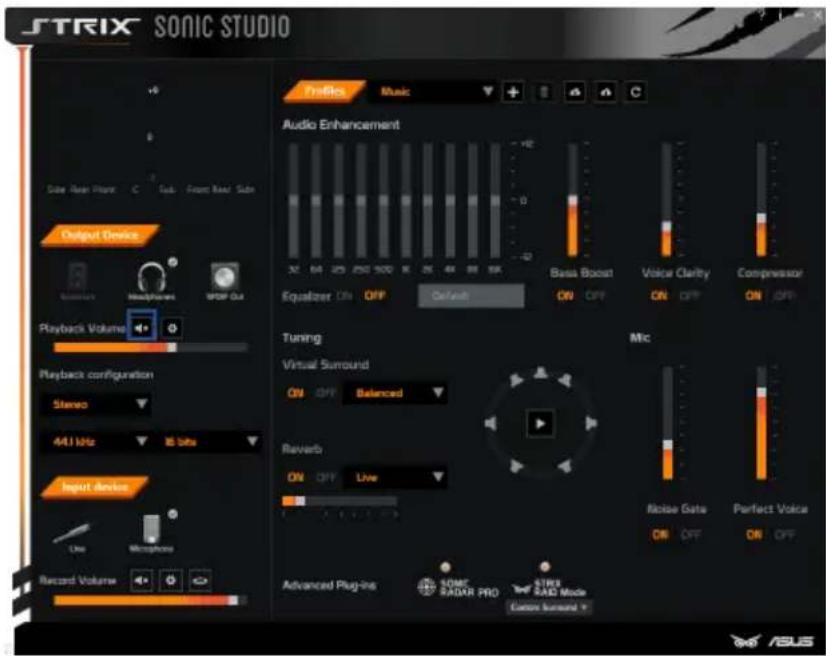
Click to mute/unmute volume playback.
Description:
This button allows you to mute/unmute the playback volume by a single click.
Playback channel mixer
The Channel Mixer function is an independent window that can be launched by clicking the Channel Mixer button on the main settings area.


Click to open the mixer and adjust the volume for each channel.
Description:
This feature allows you to fine tune the audio settings for each channel of the currently played audio file. Applying a positive gain on a channel will reinforce the presence of this channel compared to the others. This way, you can define precisely which channel you prefer to hear most and fine tune the multi-channel system to your personal preferences.
How it works:
The channel mixer window contains 8 vertical sliders allowing you to fine tune each audio channel by applying a gain between +18 dB and -36 dB. It allows you to apply a gain on a specific audio channel, not to change its volume. This way, even if you apply a maximum negative gain on a channel (-36 dB), you can still hear some sound if you are using high volume.
This feature is modifying input channels. This means that on this window, you can only impact the original files' channels, regardless of the output format you chose.
For example:
- if you are playing a 7.1-channel file in stereo mode, the channel mixer will allow you to apply a gain on each 8 channels of the original file, even if the output is only stereo;
- if you are playing a stereo file in 7.1-channel mode, the channel mixer will only impact the 2 original stereo channels.
Notes:
- The Channel Mixer does not allow applying gains on encoded files using Dolby or DTS formats. We do not decode Dolby or DTS format files and hence when undecoded we do not apply gains on it via the channel mixer.
This means that the gains will not be usable when:
- the files are played in a player that doesn't decode Dolby or DTS formats (WMP for example),
- the output device is SPDIF (because SPDIF has only stereo inputs).
- If the player is able to decode the file (Power DVD can do it), channel mixer will be usable, regardless of the input format (SPDIF or other). This way, if you are playing a multi-channel file with Power DVD, set up Power DVD in multi-channel and use the channel mixer. It will work for all the channels.
- If you are playing a multi-channel file with Windows Media Player, it will not work, because WMP is not able to decode DTS or Dolby files.
- You must use a non-encoded file to test (MP3, WAV, etc).
- Difference between gain and volume: a gain is a positive or negative boost that you apply on a specific channel. The volume is a global info which will impact all the channels of the file.
Record volume control

Drag the slider to increase or decrease record volume.
Description:
This feature allows you to fine tune the global record volume.
How it works:
This application bases its volume settings on Windows volume.
This way, the Record Volume slider allows you to fine tune the global Windows volume of the input devices.
Record volume mute

Click to mute/unmute recording volume.
Description:
This button allows you to mute/unmute the record volume by a single click.
Record volume channel mixer
The Channel Mixer function is an independent window that can be launched by clicking the Channel Mixer button on the main settings area.

Click to open mixer and adjust input device settings.
Description:
This feature allows you to fine tune the input settings for each channel of the currently played audio file. Applying a positive gain on a channel will reinforce the presence of this channel compared to the others. This way, you can define precisely which channel you prefer to hear most and fine tune the system to your personal preferences.
How it works:
The channel mixer window contains multiple vertical sliders allowing you to fine tune each input device by applying a gain between +18 dB and -36 dB. It allows you to apply a gain on a specific input device, not to change its volume. This way, even if you apply a maximum negative gain on a channel (-36 dB), you can still hear some sound if you are using high volume.
Listen to Device
The Listen to Device button allows you to hear the current input device in the output audio device.
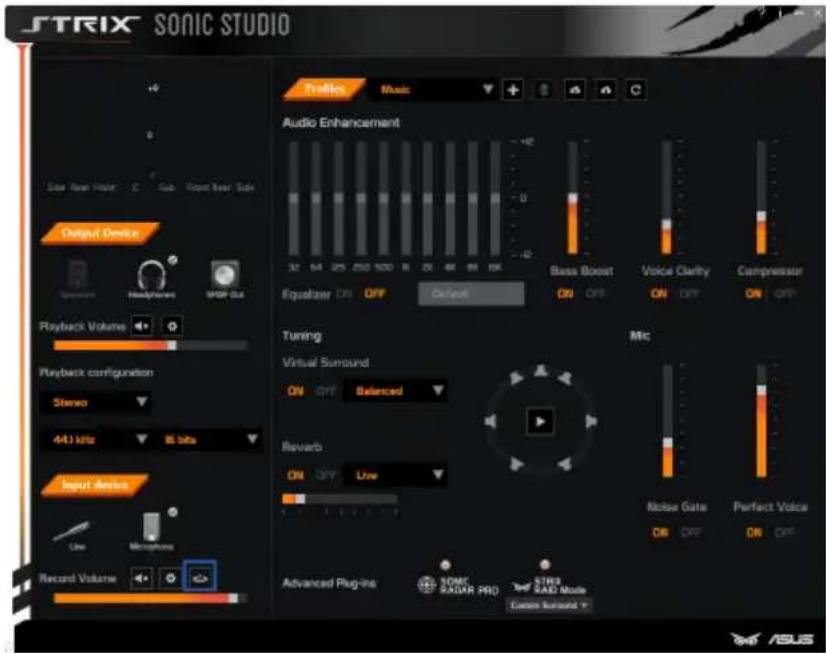
Click to hear the current input device in the output audio device.
Description:
This feature allows you to have a hearable feedback of the current input device.
Audio Config
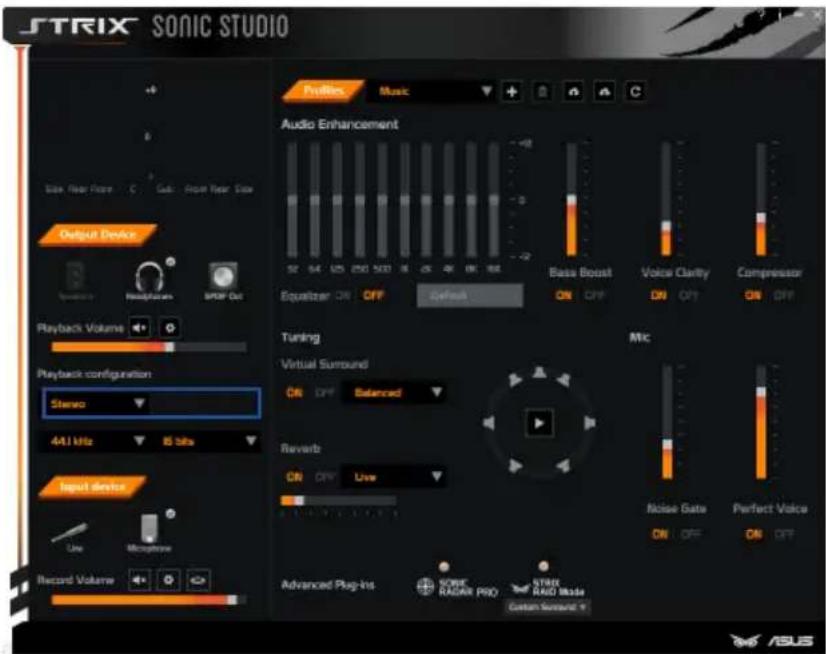
Click to select appropriate playback channels.
Description:
The Audio Config area allows you to select the output format of your audio system: Stereo, 4.0, 5.1 and 7.1.
How it works:
This feature is an automatic feature.
This application will detect and display the available formats that are supported by the current sound card and the plugged device.
For example, if a headset is plugged, only Stereo format is available. If a 7.1-channel system on a 7.1-channel sound card is plugged, all the audio formats will be available: Stereo, 4.0, 5.1 and 7.1.
Audio format

Click to select sample rate and bit rate.
Description:
The Audio Format feature allows you to choose the sampling frequency and the bit rate for the audio stream.
How it works:
This feature is an automatic feature.
This application will detect and display the available sampling and bit rates that are supported by the current sound card.
Profiles

Description:
The preset manager allows you to customize settings based on preference. You can create, save, and delete presets. The preloaded (not user-defined) profiles cannot be modified and deleted.
The music profile applies for any kind of mono or stereo music. The gaming profile applies for any kind of stereo or multichannel video games engine. The movie profile applies for any kind of stereo or multichannel video contents, etc.
1.2.4 Audio enhancement area
Equalizer

Drag the slider to adjust gains for each different frequency band.
Description:
This feature allows you to fine tune each frequency range of your audio experience from bass to high frequencies. This will let you define exactly what you prefer, and increase the presence of some frequency ranges.
Bass Boost

- Click to turn on/off Bass Boost.
- Drag the slider to adjust low frequency harmonics to produce a deeper and warmer bass.
- Drag the slider to adjust the gain of the Bass Boost effect.
Description:
Increases the energy in low frequencies up to +12 dB on a frequency range optimized for the audio rendering device in use.
Voice Clarity
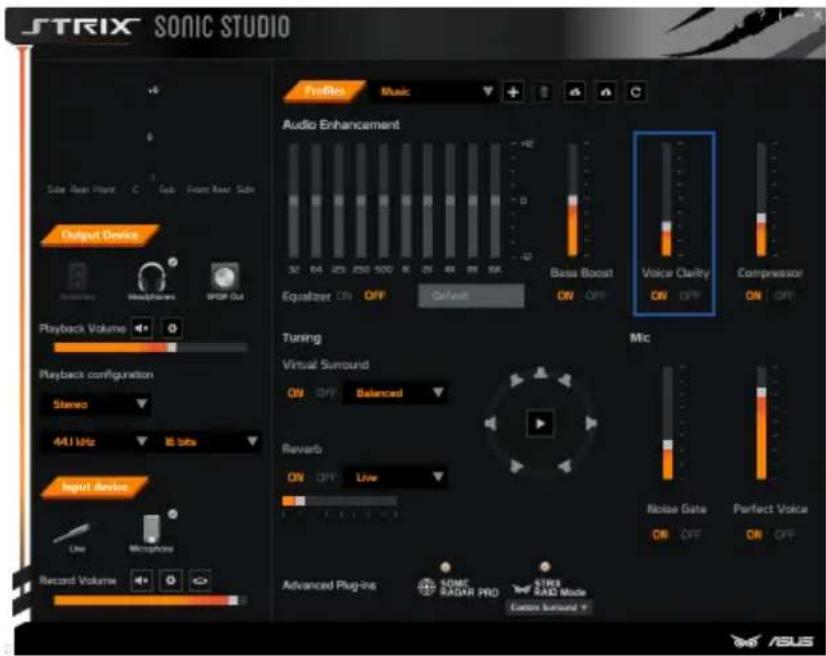
- Click to turn on/off Voice Clarity.
- Drag the slider to increase speech recognition by boosting the range of human voice frequencies.
Description:
Boosts the speech in movies, video games and incoming communication from 0% to 100%.
Compressor

- Click to turn on/off Compressor.
- Drag the slider to tighten audio according to a set threshold.
Description:
Levels the energy of sub bass, bass, medium and treble to a given threshold in order to maintain a constant level of each type of frequencies. The frequency leveler rate can be adjusted from 0 to 100%.
1.2.5 Tuning area
Virtual Surround

- Click to enable Virtual Surround.
- Click to select a Virtual Surround preset.
Description:
• Gaming and Movie use: Virtualizes the multichannel audio stream from the game engine or the movie soundtrack and downmixes it in order to retrieve a multichannel listening experience over your stereo headphones or speakers.
• Music use: Expands the stereo for a wider sound stage.
Upmix

- Click to enable Upmix.
- Click to select an Upmix preset.
Description:
Upmix the stereo audio content to multi-channel content and play it on your multi-channel audio system. You will fully utilize your 4, 5.1, and 7.1 channel speakers and have multi-channel listening experience.
Reverb

- Click to turn on/off reverb.
- Click to select a reverb preset.
Description:
Increases the feeling of spaciousness by applying different types of reverbs corresponding to different room sizes. The reverb effect can be adjusted from 0% to 100%.
1.2.6 Mic area
Noise Gate

- Click to enable Noise Gate.
- Drag the slider to remove the noise between words and sentences during voice communication.
Description:
Removes the background and the digital noise between words and sentences during your voice communication. The Noise Gate can be adjusted with a threshold (dB). The Noise Gate threshold needs to be adjusted in accordance with the type of microphone in use.
Perfect Voice

- Click to enable noise reduction.
- Drag the slider to reduce remaining noise during voice communication.
Description:
Contrarily to the Noise Gate, the Perfect Voice removes the remaining sound that the Noise Gate has left on top of your words and sentences. The Perfect Voice level can be adjusted with a 0 to 100% slider.
1.2.7 Advanced Plug-in
The Advanced Plugin contains exclusive features such as Sonic Radar Pro and Raid Mode.
Raid Mode (Strix RAID DLX/ Strix RAID PRO only)

Description:
The Raid Mode is a special feature on the control box that allows you to customize and lock a special effect from the Sonic Studio so that you can control and adjust effects spontaneously in game.
On the Control Box, press On to enter Custom Mode or press Off to exit Custom Mode. The LED turns orange to indicate the Custom Mode is active.
On Sonic Studio, go to Advanced Plug-in > Strix Raid Mode and select an effect on the drop-down box to lock this feature to the control box.
Now you can use the turn knob on control box to turn on/off effects, as well as adjust the intensity level of the effect.
Sonic Radar Pro Application name
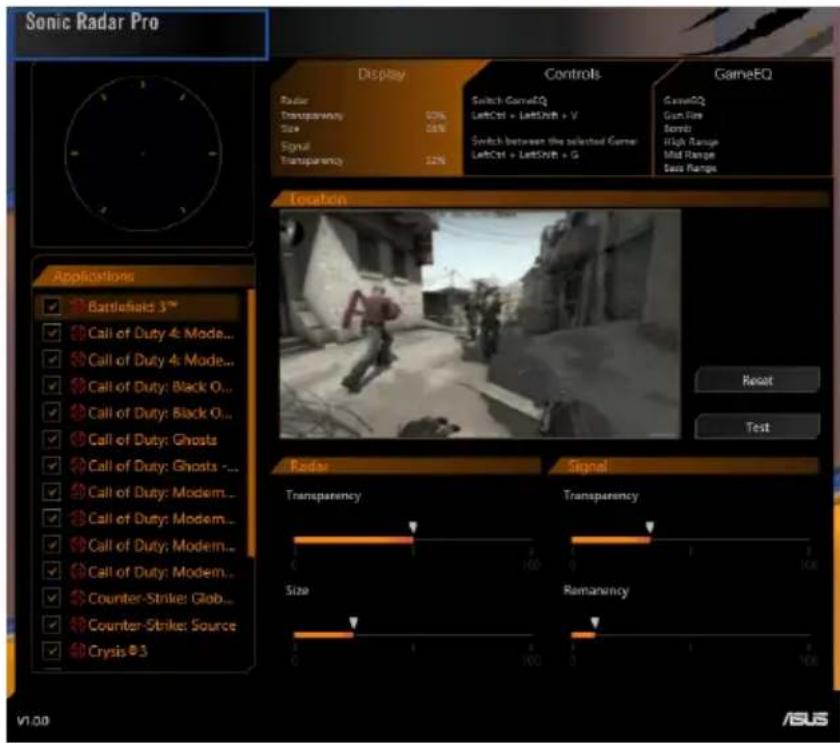
Description:
The application name area is a specific area that you can ever find on the left top corner of the Sonic Radar screen.
Display tab

Description:
This tab allows you to set up Sonic Radar's presets for each application.
For a currently played game, this tab allows you to set up:
• Whether to display Sonic Radar. - If so, where to display Sonic Radar on the game screen. - The transparency of the radar and signals, as well as the remnant of the radar signals.
When another tab is open, the Display tab will display a global summary of the current game settings.
Display tab - Sonic Radar display

Description:
The Sonic Radar display area shows precisely the direction of the currently played sound. It also allows you to fine-tune and preview your settings such as Location, Transparency, and others.
The sound visualization feature works with all kinds of files (from stereo to 7.1) and even with virtualized music.
Display tab - Application list

Description:
This area lists the games detected by Sonic Radar.
When a game is detected by Sonic Radar, it will be added to this list. You can fine-tune Sonic Radar's settings for this game.
To fine-tune these settings, you will need to select the game for which you want to fine-tune the Sonic Radar's display. The Display area (marked in blue) will be updated to fit your game settings.
Sonic Radar also provides some certified games which we ensure that Sonic Radar is optimized for. These games are highlighted with the Sonic Radar icon (marked in green) in front of the game name.
Sonic Radar can be enabled or disabled by using the checkbox located in front of each game name. When the checkbox (marked in yellow) is checked, Sonic Radar is enabled for this game. When the checkbox is unchecked, Sonic Radar is disabled.
Display tab - Location area

Description:
This area contains a game screenshot and visualized Sonic Radar.
It allows you to choose where to display Sonic Radar on the game screen and view your settings including:
• The Radar Transparency, - The Radar Size, • The Signal Transparency, • The Signal Remnant.
You can click on the game screenshot to adjust Sonic Radar's position and modify the settings without having to switch between the game screen and Sonic Radar screen.
Display tab - Reset

Description:
The reset button allows you to restore the selected game's default settings.
Display tab - Test

Description:
When you click the test button, it will play a sound and show Sonic Radar's behavior in real time on the Sonic Radar display area.
Display tab - Radar transparency
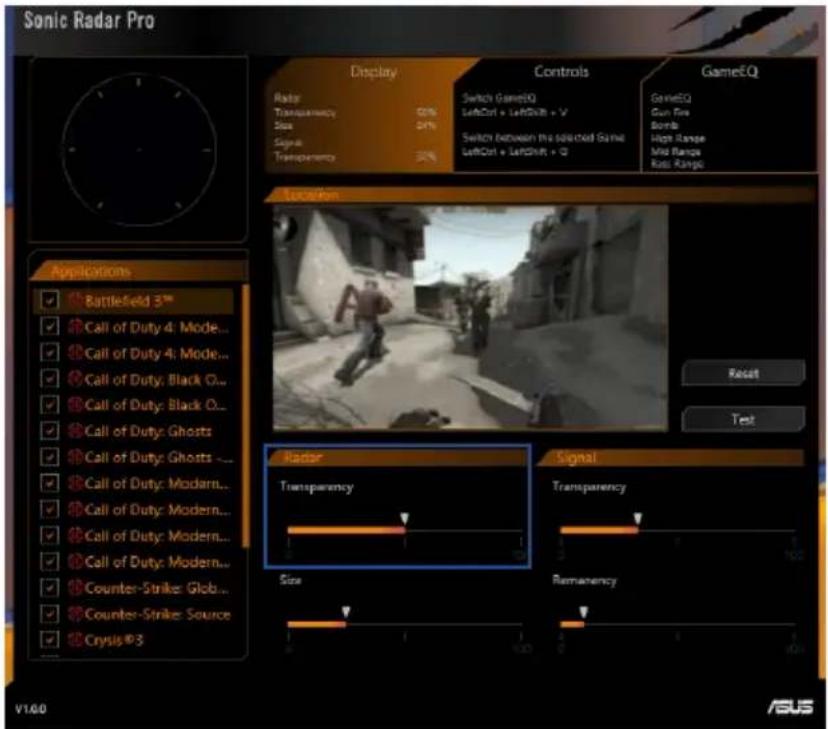
Description:
The Radar Transparency slider allows you to set up the transparency for Sonic Radar to display on the selected game screen.
Display tab - Radar size

Description:
The Radar Size slider allows you to set up the size for Sonic Radar to display on the selected game screen.
Display tab - Signal transparency

Description:
The Signal Transparency slider allows you to set up the transparency for Sonic Radar's bars to display on the selected game screen.
Display tab - Signal Remanency

Description:
The signal remnant shows how adaptive/responsive the radar signal is.
When the value is set as high, the radar signal will adapt slowly and show remnant signals. This is particularly useful when you want to sniff out a trail of path of your enemy as you can see the visual signals of which direction they were at.
When the value is set low, the signal is highly adaptive and responsive.
Controls tab

Description:
The Controls tab allows you to set up all the available shortcuts.
These shortcuts are set up per applications and can be specifically defined for each selected game.
When another tab is open, the Controls tab will display a global overview of the shortcuts defined for the selected game.
With these shortcuts, you do not need to exit the game to change Sonic Radar's settings.
Controls tab – Hide/Unhide shortcut
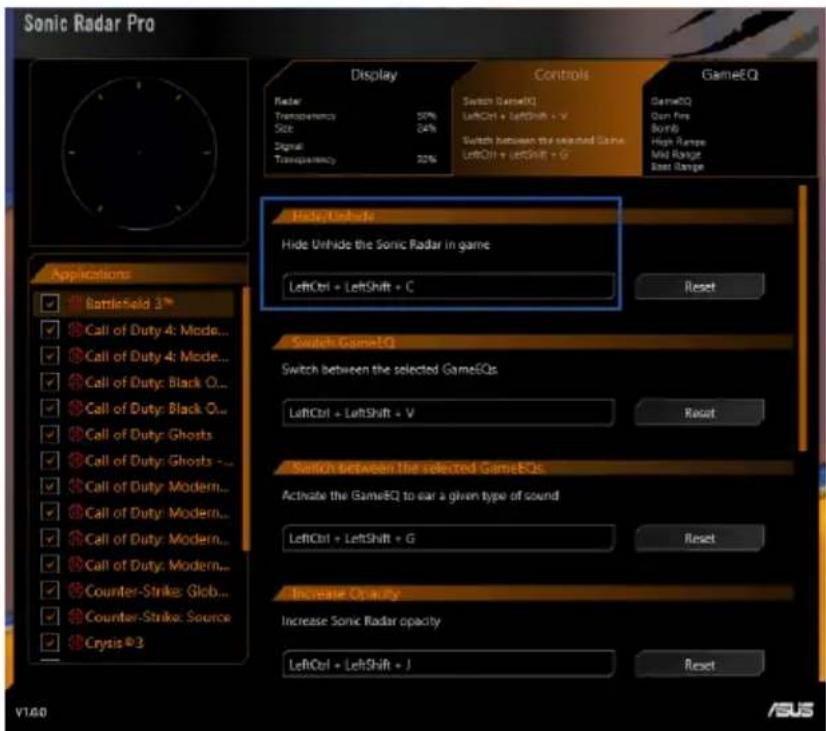
Description:
The Hide/Unhide shortcut allows you to hide or show Sonic Radar by pressing shortcut keys in a game.
Default value: LeftCtrl + LeftShift + C
Controls tab – Switch GameEQ shortcut

Description:
The Switch GameEQ shortcut allows you to quickly switch to the EQ you want to use. Go to the GameEQ tab to see the available EQs.
Default value: LeftCtrl + LeftShift + V
Controls tab – Switch between the selected GameEQs shortcut

Description:
The Switch between the selected GameEQs shortcut allows you to quickly switch ON or OFF the current EQ.
Default value: LeftCtrl + LeftShift + G
Controls tab – Increase Opacity shortcut

Description:
The Increase Opacity shortcut allows you to easily increase Sonic Radar's opacity from the game.
Default value: LeftCtrl + LeftShift + J
Controls tab – Decrease Opacity shortcut

Description:
The Decrease Opacity shortcut allows you to easily decrease Sonic Radar's opacity from the game.
Default value: LeftCtrl + LeftShift + H
Controls tab – Radar Position shortcut

Description:
The Radar Position shortcut allows you to easily switch between the available Sonic Radar's positions from the game. This way, you can easily modify the Sonic Radar position from:
| Vertical position | Horizontal position |
| Top | Left |
| Center | Center |
| Bottom | Right |
Default value: LeftCtrl + LeftShift + Q
Controls tab – Radar Size shortcut

Description:
The Radar Size shortcut allows you to easily switch between the available Sonic Radar's sizes from the game.
Default value: LeftCtrl + LeftShift + S
Controls tab – Shortcut selection

Description:
You can change the default shortcuts and define a new one. To change a shortcut, you can do either of the following:
- Click the shortcut field to select a shortcut;
- Press the shortcut keys you want to use on your keyboard.
Controls tab - Shortcut reset button

Description:
The shortcut reset button allows you to reset the shortcut to the default value.
GameEQ tab

Description:
The GameEQ tab allows you to select and activate the EQ you want to use in the selected game.
The GameEQ tab will display a summary of the Game EQ that are enabled for the selected game.
GameEQ tab – Gun Fire
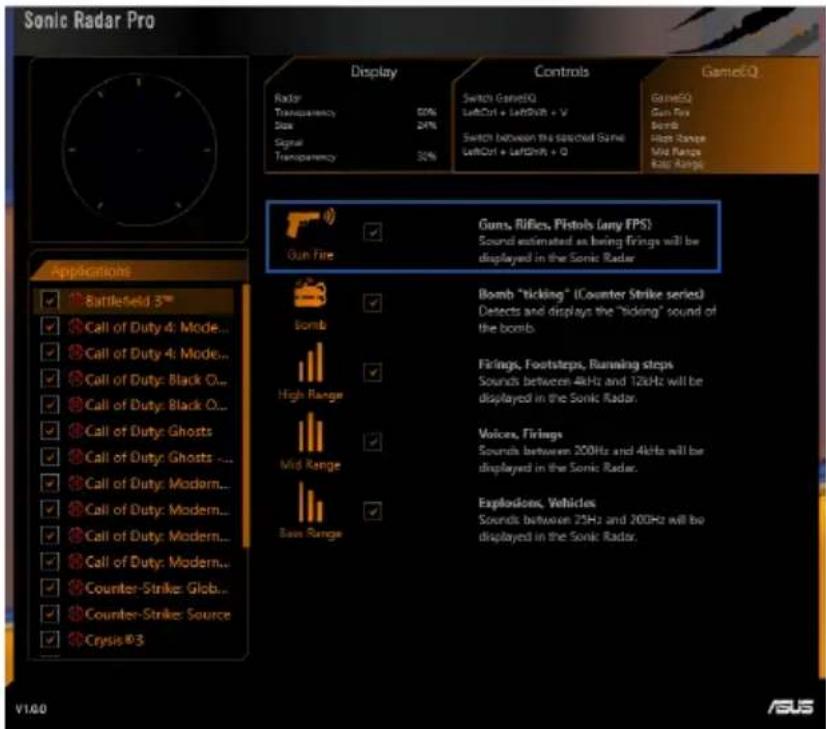
Description:
The Gun Fire EQ allows you to hear much more clearly the gun shots and visualize them in Sonic Radar.
GameEQ tab - Bomb

Description:
The Bomb EQ allows you to hear much more clearly the "ticking" of the bomb and visualize it in Sonic Radar.
GameEQ tab – High range

Description:
The High Range EQ increases the sound intensity which are corresponding to Firings, Footsteps, Running steps, etc. It will also display these specific sounds on Sonic Radar and this will let you know if there are enemies around you.
GameEQ tab – Mid range

Description:
The Mid Range EQ increases the sound intensity which are corresponding to Firings, Voices, etc. It will also display these specific sounds on Sonic Radar and this will let you know if there are enemies or partners around you.
GameEQ tab – Bass range

Description:
The Bass Range EQ increases the sound intensity which corresponds to Explosions, Vehicle, etc. It will also display these specific sounds on Sonic Radar.
GameEQ tab – Enabling/Disabling GameEQ

Description:
The checkbox beside an EQ allows you to switch enable or disable a GameEQ. Tick a checkbox to enable an EQ or untick a checkbox to disable an EQ.
1.3 Exiting Sonic Studio
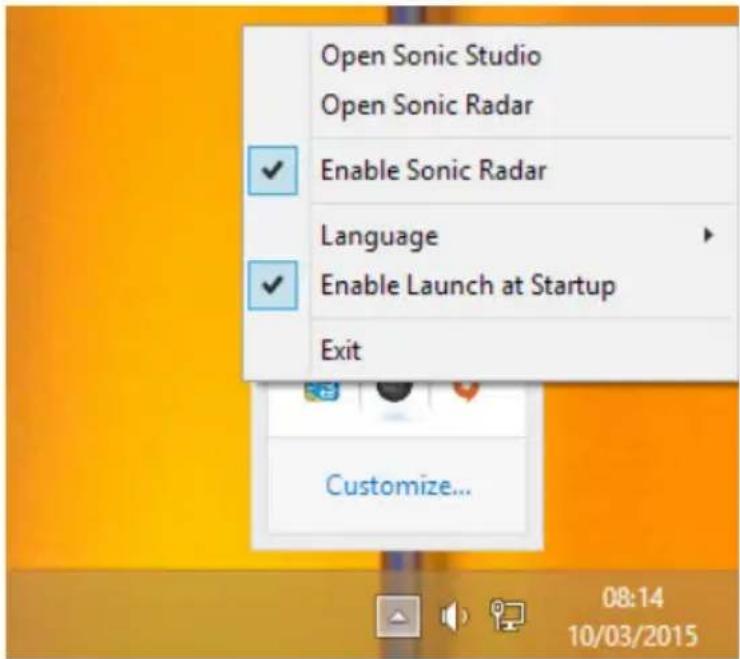
To exit Sonic Studio, right-click the Sonic Studio icon on the Windows notification area then click Exit.
2. Frequently Asked Questions (FAQs)
General
1) Can I install Sonic Studio on other OS than Windows® 8?
Yes, but Sonic Studio is optimized for Windows® 7 (32-bit/64-bit), Windows® 8 (32-bit/64-bit) and Windows® 8.1 (32-bit/64-bit). We cannot ensure that you will get the best user experience on other OS.
2) After Sonic Studio is uninstalled, how do I install it again?
You can reinstall Sonic Studio from the drivers CD bundled with your device, or download and reinstall it from ASUS official website.
3) I do not want Sonic Studio to launch automatically at my computer startup. What should I do?
To prevent Sonic Studio from launching at your computer startup:
- Right-click the Windows® taskbar then click Task Manager.
- Click the Startup tab from the Task Manager screen.
- Right-click Sonic Studio then select Disable.
If you want Sonic Studio to launch at your computer start, select Enable in step 3.
4) What is the Advanced Plug-in area?
This area contains the controls for special Strix features including:
- Sonic Radar
- STRIX RAID Mode
5) What is Sonic Radar?
Sonic Radar is a software designed to provide a visual overlay in games to let the gamer visualize the sounds directions.
6) How can I turn ON Sonic Radar?
To turn on Sonic Radar, double click the Sonic Radar icon from Windows notification area, Windows® desktop or the metro interface.
7) What is STRIX RAID Mode?
When you plug a Strix external control box to your sound card, if you enable STRIX RAID Mode, you will be able to change some UI settings directly from your external control box.
Audio effects
1) Can I activate Sonic Studio's audio effects with other audio effects (like Dolby's for example)?
Concerning devices where Sonic Studio audio processing is available, it is not appropriate to have Sonic Studio's effects and other effects from a different audio processing simultaneously. For example, you can have Dolby's effects, or Sonic Studio effects, but not both at the same time.
2) How does Virtual Surround work?
The Virtual Surround effect is designed to reproduce a 3D audio experience from multichannel audio files to stereo devices. It's still important to note that if you play a stereo audio file on a stereo device, our Virtual Surround will help offer you a better sound spatialization, and a better audio experience.
Here are some examples to understand it better:
- Multichannel audio file on a stereo device: the Virtual Surround is fully adapted to this configuration, you will enjoy a multichannel audio experience in your stereo device (i.e., speakers or headphones).
- Stereo audio file on a stereo device: enhancement of the audio experience with a better spatialization.
- Multichannel audio file on a multichannel device: Virtual Surround does not apply for this configuration.
- Stereo audio file on a multichannel: Virtual Surround does not implement upmix for this scenario.
3) I turned Voice Clarity ON, but when I talk to my microphone, I cannot hear a difference. Why?
Voice Clarity is an audio effect. It's designed to enhance and improve speech recognition for the voices on the audio files you're listening to. It's not designed to improve clarity with your own voice when used with microphone. If you want to enhance microphone clarity, please change the Microphone settings: Noise Gate and Noise Reduction.
4) What is supposed to happen if I change the Music profile settings, click the Gaming profile, and be back to the Music profile settings again?
You will see your changes to the Music profiles have been saved.
Device management
1) What is a default device?
It is the device (playback and/or recording device) selected by default in the Windows® Device Manager. This will be the predominant device you use to hear sound.
2) What is Windows® Device Manager and how do I access it?
Windows® Device Manager is the control window which shows a complete list of playback and recording devices on your computer. This window also allows you to enable/disable/set as default your playback and recording devices. To access Windows® Device Manager:
- On your Windows® taskbar, right-click on the volume icon.
- Click Playback devices or Recording devices. Playback devices are for audio devices, like speakers or headphones. Recording devices are for capture devices, like microphones.
3) How do I set a device as default?
In the Windows® Device Manager, select the Playback or Recording tab. Then, click the device you want to set as default, and click the Set Default button.
4) My device does not appear in the Windows® Device Manager. How to show it?
First, ensure that your device is plugged properly into your computer.
Your device might be disabled and hidden from the Windows® Device Manager. To show it in your device list, right-click a blank area on the Playback or Recording tab then select Show Disabled Devices.
5) What is the option "Show Disconnected Device" in the Windows® Device Manager for?
This option displays all the devices your hardware can support.
6) I plugged a USB headset, but Sonic Studio does not seem to support it. Why?
Sonic Studio only supports jack devices. USB headsets have their own drivers, and the audio processing is completely independent of Sonic Studio.
7) I plugged an external sound card, but Sonic Studio does not seem to support it. Why?
Sonic Studio only supports jack devices. External sound cards have their own drivers, and the audio processing is completely independent of Sonic Studio.


- SONIC STUDIO STRIX SERIES
- USER GUIDE
- COPYRIGHT © 2015 ASUSTEK COMPUTER INC. ALL RIGHTS RESERVED
- CONTENTS
- SONIC STUDIO
- FREQUENTLY ASKED QUESTIONS (FAQS)
- LAUNCHING SONIC STUDIO
- SONIC STUDIO OVERVIEW
- DEVICE SELECTION
- OUTPUT DEVICE
- DESCRIPTION
- HOW IT WORKS
- INPUT DEVICE
- SIGNAL METERS
- MAIN SETTINGS AREA
- PLAYBACK VOLUME CONTROL
- PLAYBACK VOLUME MUTE
- PLAYBACK CHANNEL MIXER
- FOR EXAMPLE
- NOTES
- RECORD VOLUME CONTROL
- RECORD VOLUME MUTE
- RECORD VOLUME CHANNEL MIXER
- LISTEN TO DEVICE
- AUDIO CONFIG
- AUDIO FORMAT
- PROFILES
- AUDIO ENHANCEMENT AREA
- EQUALIZER
- BASS BOOST
- VOICE CLARITY
- COMPRESSOR
- TUNING AREA
- VIRTUAL SURROUND
- UPMIX
- REVERB
- MIC AREA
- NOISE GATE
- PERFECT VOICE
- ADVANCED PLUG-IN
- RAID MODE (STRIX RAID DLX/ STRIX RAID PRO ONLY)
- SONIC RADAR PRO APPLICATION NAME
- DISPLAY TAB
- DISPLAY TAB - SONIC RADAR DISPLAY
- DISPLAY TAB - APPLICATION LIST
- DISPLAY TAB - LOCATION AREA
- DISPLAY TAB - RESET
- DISPLAY TAB - TEST
- DISPLAY TAB - RADAR TRANSPARENCY
- DISPLAY TAB - RADAR SIZE
- DISPLAY TAB - SIGNAL TRANSPARENCY
- DISPLAY TAB - SIGNAL REMANENCY
- CONTROLS TAB
- CONTROLS TAB – HIDE/UNHIDE SHORTCUT
- CONTROLS TAB – SWITCH GAMEEQ SHORTCUT
- CONTROLS TAB – SWITCH BETWEEN THE SELECTED GAMEEQS SHORTCUT
- CONTROLS TAB – INCREASE OPACITY SHORTCUT
- CONTROLS TAB – DECREASE OPACITY SHORTCUT
- CONTROLS TAB – RADAR POSITION SHORTCUT
- CONTROLS TAB – RADAR SIZE SHORTCUT
- CONTROLS TAB – SHORTCUT SELECTION
- CONTROLS TAB - SHORTCUT RESET BUTTON
- GAMEEQ TAB
- GAMEEQ TAB – GUN FIRE
- GAMEEQ TAB - BOMB
- GAMEEQ TAB – HIGH RANGE
- GAMEEQ TAB – MID RANGE
- GAMEEQ TAB – BASS RANGE
- GAMEEQ TAB – ENABLING/DISABLING GAMEEQ
- EXITING SONIC STUDIO
- GENERAL
- AUDIO EFFECTS
- CAN I ACTIVATE SONIC STUDIO'S AUDIO EFFECTS WITH OTHER AUDIO EFFECTS (LIKE DOLBY'S FOR EXAMPLE)
- HOW DOES VIRTUAL SURROUND WORK
- I TURNED VOICE CLARITY ON, BUT WHEN I TALK TO MY MICROPHONE, I CANNOT HEAR A DIFFERENCE. WHY
- WHAT IS SUPPOSED TO HAPPEN IF I CHANGE THE MUSIC PROFILE SETTINGS, CLICK THE GAMING PROFILE, AND BE BACK TO THE MUSIC PROFILE SETTINGS AGAIN
- DEVICE MANAGEMENT
- WHAT IS A DEFAULT DEVICE
- WHAT IS WINDOWS® DEVICE MANAGER AND HOW DO I ACCESS IT
- HOW DO I SET A DEVICE AS DEFAULT
- MY DEVICE DOES NOT APPEAR IN THE WINDOWS® DEVICE MANAGER. HOW TO SHOW IT
- WHAT IS THE OPTION "SHOW DISCONNECTED DEVICE" IN THE WINDOWS® DEVICE MANAGER FOR
- I PLUGGED A USB HEADSET, BUT SONIC STUDIO DOES NOT SEEM TO SUPPORT IT. WHY
- I PLUGGED AN EXTERNAL SOUND CARD, BUT SONIC STUDIO DOES NOT SEEM TO SUPPORT IT. WHY
Brand : ASUS
Model : Xonar U5 SI
Category : Soundcard