
DVR-440H-AV (RCS-404H) - DVD Burner PIONEER - Free user manual and instructions
Find the device manual for free DVR-440H-AV (RCS-404H) PIONEER in PDF.


| Product type | DVD recorder with hard disk (80 GB) and 5.1 home cinema amplifier/tuner |
| Reference | DVR-440H-AV (RCS-404H) |
| Dimensions (W x H x D) | 420 mm x 69 mm x 318 mm |
| Weight | 4.3 kg (recorder only) |
| Power supply | 220 V – 240 V, 50/60 Hz |
| Power consumption | 39 W (standby: 0.61 W) |
| Hard disk capacity | 80 GB (up to 170 h in SEP mode) |
| Compatible disc formats | DVD-Video, DVD-R/-RW, DVD+R/+RW, DVD-RAM, Video CD, CD, CD-R/-RW (MP3, WMA, JPEG) |
| Recording formats | DVD-R/-RW: VR and Video modes; DVD+R/+RW: +VR mode; DVD-RAM: VR mode |
| Recording modes | XP, SP, LP, EP, SLP, SEP, Manual (MN) |
| TV tuner | PAL/SECAM, B/G, I, D/K, L; VHF, UHF, Hyper channels |
| Video outputs | Composite (RCA), S-Video, YUV (component), RGB (SCART) |
| Audio outputs | Analog stereo (RCA), coaxial digital, HDMI not available |
| Inputs | RF antenna, SCART (AV1/AV2), Composite video (front), S-Video (front), Analog audio (front) |
| Main functions | Recording on hard disk and DVD, DVD/CD playback, programming (32 events), TV GUIDE Plus+ guide, direct copy, music jukebox, MCACC audio setup |
| Included accessories | Audio/video cable, G-LINK cable, RF cable, power cable, remote control, batteries, AM/FM antenna, MCACC microphone |
| Maintenance and cleaning | Clean the cabinet with a soft dry cloth. For discs, wipe from the center to the edge with a soft cloth. Do not use chemical products. |
| Safety | Class 1 laser product; do not open the cabinet. Ventilation: leave at least 10 cm of free space around the recorder. Do not expose to humidity. |
| Spare parts and repairability | No user-serviceable parts. Contact an authorized Pioneer service center for repairs. |
| General information | For household use only. Operating temperature: +5°C to +35°C, humidity < 85%. |
Frequently Asked Questions - DVR-440H-AV (RCS-404H) PIONEER
User questions about DVR-440H-AV (RCS-404H) PIONEER
0 question about this device. Answer the ones you know or ask your own.
Ask a new question about this device
Download the instructions for your DVD Burner in PDF format for free! Find your manual DVR-440H-AV (RCS-404H) - PIONEER and take your electronic device back in hand. On this page are published all the documents necessary for the use of your device. DVR-440H-AV (RCS-404H) by PIONEER.
USER MANUAL DVR-440H-AV (RCS-404H) PIONEER
Audio Multi-channel Receiver Subwoofer
Speaker System
DVD Recorder
RCS-505H
SX-SW404
S-ST404
DVR-640H-AV
Audio Multi-channel Receiver Subwoofer
Speaker System
DVD Recorder
RCS-404H
SX-SW404
S-ST404
DVR-440H-AV
Audio Multi-channel Receiver Subwoofer
Speaker System
DVD Recorder
Discover the benefits of registering your product online at www.pioneer.co.uk (www.pioneer-eur.com)
Thank you for buying this Pioneer product.
Please read through these operating instructions so that you will know how to operate your model properly. After you have finished reading the instructions, put them in a safe place for future reference.
IMPORTANT

The lightning flash with arrowhead symbol, within an equilateral triangle, is intended to alert the user to the presence of uninsulated "dangerous voltage" within the product's enclosure that may be of sufficient magnitude to constitute a risk of electric shock to persons.
CAUTION
RISK OF ELECTRIC SHOCK DO NOT OPEN
CAUTION:
TO PREVENT THE RISK OF ELECTRIC SHOCK, DO NOT REMOVE COVER (OR BACK). NO USER-SERVICEABLE PARTS INSIDE. REFER SERVICING TO QUALIFIED SERVICE PERSONNEL.

The exclamation point within an equilateral triangle is intended to alert the user to the presence of important operating and maintenance (servicing) instructions in the literature accompanying the appliance.
D3-4-2-1-1_En-A
WARNING
This equipment is not waterproof. To prevent a fire or shock hazard, do not place any container filed with liquid near this equipment (such as a vase or flower pot) or expose it to dripping, splashing, rain or moisture. D3-4-2-1-3_A_En
Operating Environment
Operating environment temperature and humidity: +5 °C to +35 °C (+41 °F to +95 °F); less than 85 %RH (cooling vents not blocked)
Do not install this unit in a poorly ventilated area, or in locations exposed to high humidity or direct sunlight (or strong artificial light) D3-4-2-1-7c_A_En
This product complies with the Low Voltage Directive (73/23/EEC, amended by 93/68/EEC), EMC Directives (89/336/EEC, amended by 92/31/EEC and 93/68/EEC). D3-4-2-1-9a_En
WARNING
Before plugging in for the first time, read the following section carefully.
The voltage of the available power supply differs according to country or region. Be sure that the power supply voltage of the area where this unit will be used meets the required voltage (e.g., 230V or 120V) written on the rear panel. D3-4-2-1-4_A_En
WARNING
To prevent a fire hazard, do not place any naked flame sources (such as a lighted candle) on the equipment. D3-4-2-1-7a_A_En
CAUTION
This product is a class 1 laser product, but this product contains a laser diode higher than Class 1. To ensure continued safety, do not remove any covers or attempt to gain access to the inside of the product. Refer all servicing to qualified personnel. The following caution label appears on your unit. Location: top of the unit
CLASS 1 LASER PRODUCT
CAUTION
CLASS 3B VISIBLE AND INVISIBLE LASER RADIATION WHEN OPEN, AVOID EXPOSURE TO THE BEAM.
VRW2262 - A
ATTENTION
RADIATIONS LASER VISIBLES ET INVISIBLES DE CLASSE 3B QUAND OUVERT. ..VITEZ TOUT EXPOSITION AU FAISCEAU.
ADVARSEL
KLASSE 3B SYNLIG OG USYNLIG LASERSTR=LING VED =BNING. UNDG=UDS△TTELSE FOR STR=LING.
WARNING
KLASS 3B SYNLIG OCH OSYNLIG LASERSTR=LNING NfR DENNA DEL fR ÷PPNAD. UNDVIK ATT UTSfTTA DIG F÷R STR=LEN.
VORSICHT
If the AC plug of this unit does not match the AC outlet you want to use, the plug must be removed and appropriate one fitted. Replacement and mounting of an AC plug on the power supply cord of this unit should be performed only by qualified service personnel. If connected to an AC outlet, the cut-off plug can cause severe electrical shock. Make sure it is properly disposed of after removal. The equipment should be disconnected by removing the mains plug from the wall socket when left unused for a long period of time (for example, when on vacation). D3-4-2-2-1a_A_En
CAUTION
The Ⓧ STANDBY/ON switch on this unit will not completely shut off all power from the AC outlet. Since the power cord serves as the main disconnect device for the unit, you will need to unplug it from the AC outlet to shut down all power. Therefore, make sure the unit has been installed so that the power cord can be easily unplugged from the AC outlet in case of an accident. To avoid fire hazard, the power cord should also be unplugged from the AC outlet when left unused for a long period of time (for example, when on vacation).
POWER-CORD CAUTION
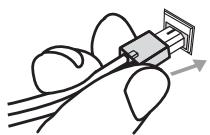
Handle the power cord by the plug. Do not pull out the plug by tugging the cord and never touch the power cord when your hands are wet as this could cause a short circuit or electric shock. Do not place the unit, a piece of furniture, etc., on the power cord, or pinch the cord. Never make a knot in the cord or tie it with other cords. The power cords should be routed such that they are not likely to be stepped on. A damaged power cord can cause a fire or give you an electrical shock. Check the power cord once in a while. When you find it damaged, ask your nearest PIONEER authorized service center or your dealer for a replacement. S002_En
VENTILATION CAUTION (Receiver subwoofer) When installing this unit, make sure to leave space around the unit for ventilation to improve heat radiation (at least 5 cm at top, 5 cm at rear, and 5 cm at each side).
VENTILATION CAUTION (DVD Recorder)
When installing this unit, make sure to leave space around the unit for ventilation to improve heat radiation (at least 10 cm at top, 10 cm at rear, and 10 cm at each side).
WARNING
Slots and openings in the cabinet are provided for ventilation to ensure reliable operation of the product, and to protect it from overheating. To prevent fire hazard, the openings should never be blocked or covered with items (such as newspapers, table-cloths, curtains) or by operating the equipment on thick carpet or a bed. D3-4-2-1-7b_A_En
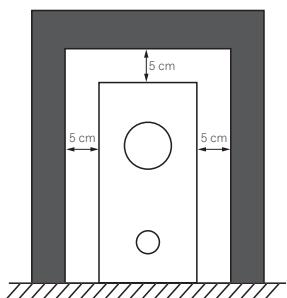
Receiver subwoofer
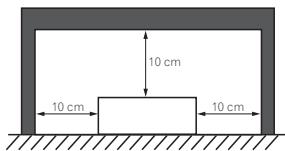
DVD Recorder
This product is for general household purposes. Any failure due to use for other than household purposes (such as long-term use for business purposes in a restaurant or use in a car or ship) and which requires repair will be charged for even during the warranty period. K041_En

If you want to dispose this product, do not mix it with general household waste. There is a separate collection system for used electronic products in accordance with legislation that requires proper treatment, recovery and recycling.
Private households in the 25 member states of the EU, in Switzerland and Norway may return their used electronic products free of charge to designated collection facilities or to a retailer (if you purchase a similar new one).
For countries not mentioned above, please contact your local authorities for the correct method of disposal.
By doing so you will ensure that your disposed product undergoes the necessary treatment, recovery and recycling and thus prevent potential negative effects on the environment and human health. K05
K058_En
Chapter 1 Contents
Section One
01 Contents...... 4
What's in the box 4
02 Speaker Setup Guide .... 5
Safety precautions when setting up ....5
Home theater sound setup (RCS-606H)....5
Home theater sound setup (RCS-404H/RCS-505H) 6
Standard surround setup....6
Front surround setup 7
Wall mounting the center speaker ....8
Wall mounting the speakers (RCS-404H/RCS-505H) 8
Before mounting 8
Additional notes on speaker placement .....8
03 Connecting up 10
Basic connections 10
Using this system for TV audio 14
04 Remote control.... 15
Using the remote control 17
Putting the batteries in the remote control ..... 17
05 Before you start 18
Switching on 18
Setting up....18
Basic operation 19
Watching a DVD 19
Listening to a CD 19
Watching a title recorded on the HDD ..... 19
Listening to the radio 19
Section Two
Operating instructions for the Audio Multi-channel Receiver Subwoofer and Speaker System 20
Section Three
Operating instructions for the DVD Recorder 42
What's in the box
Please confirm that the following items are all supplied.
Receiver subwoofer (SX-SW606/SX-SW404) box:
- Remote control (page 15)
- AA/R6 dry cell batteries (to confirm operation) x2 (page 17)
- Display unit (page 22)
• Power cord (page 12)
• AM loop antenna (page 10)
• FM wire antenna (page 10)
• Control cable (page 10)
• Display cable (page 10) - Coaxial cable (page 10)
- Microphone (for Auto MCACC setup) (page 23)
• These operating instructions - Warranty card
DVD recorder (DVR-640H-AV/DVR-440H-AV) box:
• Audio/video cable (red/white/yellow) (page 13)
• G-LINK™ cable (page 53)
• RF antenna cable (page 12)
• Power cord (page 12)
Speakers (S–ST404) box:
- Speakers (front x2, surround x2, center x1) (page 12)
- Speaker cables x5 (page 11)
• Non-skid pads (large) x4 (page 6, 7)
• Non-skid pads (small) x20 (page 6, 7)
- Speaker stands x2 (page 7)
- Screws (for speaker stands) x2 (page 7)
Speakers (S–ST606) box:
- Speakers (front x2, surround x2, center x1) (page 12)
- Speaker cables x5 (page 11)
• Non-skid pads (large) x4 (page 5)
• Non-skid pads (large) x16 (page 5)
• Non-skid pads (small) x4 (page 5) - Speaker stand bases x 4 (page 5)
- Screws (for bases) x 12 (page 5)
Chapter 2
Speaker Setup Guide
Safety precautions when setting up
When assembling the speakers, lay them down flat on their side to avoid accidents or injury. Make sure to use a stable surface when assembling, setting up, and placing the speakers.
Home theater sound setup (RCS-606H)
- This is a standard multichannel surround sound speaker setup for optimal 5.1 channel home theater sound.
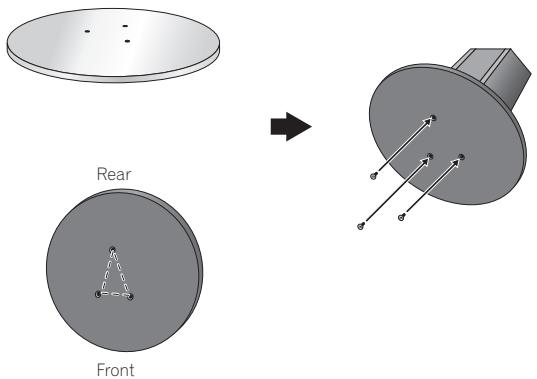
1 Attach the speaker stand bases to the stems using the screws provided.
Once you have aligned the stem and base, secure with the small screws at the points shown below. Note that the speaker should face in the direction of the base of the isosceles triangle (outlined below).
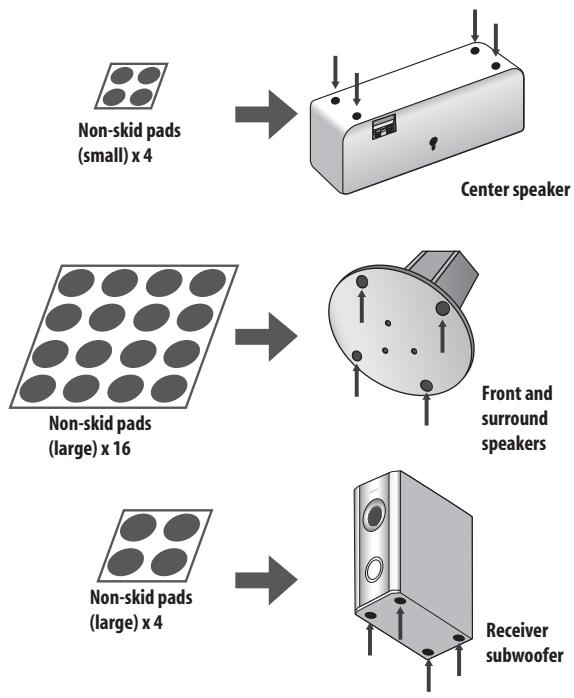
2 Attach the smaller non-skid pads to the base of the center speaker. The large non-skid pads are for the front and surround speakers, and the receiver subwoofer (as shown).
Use the adhesive side of the pads to attach them to the base (flat surface) of each speaker.
flowchart
graph TD
    A["Non-skid pads (small) x 4"] --> B["Center speaker"]
    C["Non-skid pads (large) x 16"] --> D["Front and surround speakers"]
    E["Non-skid pads (large) x 4"] --> F["Receiver subwoofer"]
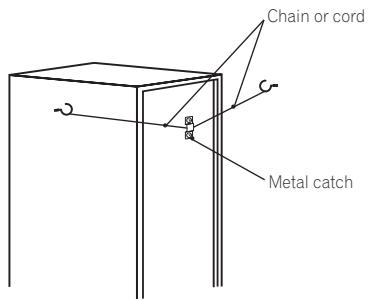
3 Secure each of the front and surround speakers using the metal catch provided.
Screw two picture hooks or similar into the wall behind the speaker. Pass a chain or cord around the hooks and through the metal catch so that the speaker is stabilized (make sure to test that it supports the weight of the speaker).
After installing, make sure the speaker is securely fixed.

Caution
- The metal catch is not a mounting fixture, and the speaker should not be hung directly from the wall using this catch. Always use a chain or cord when stabilizing the speaker.
- Pioneer disclaims all responsibility for any losses or damage resulting from improper assembly, installation, insufficient strength of the installation materials, misuse, or natural disasters.
4 Connect the speaker system.
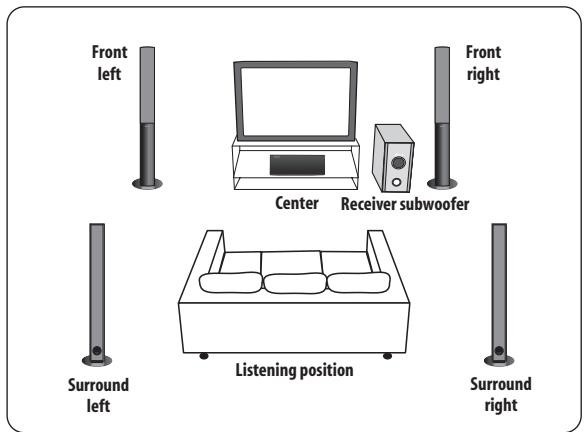
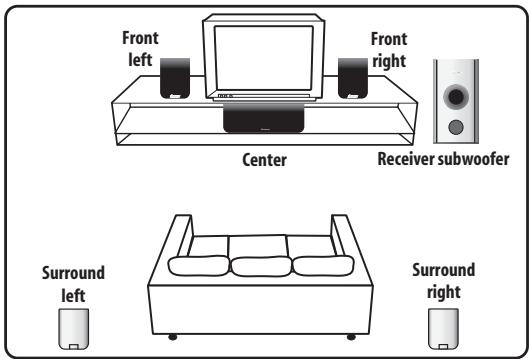
Refer to Connecting up to connect the speakers properly. After connecting everything, place the speakers as shown in the diagram above for optimal surround sound.
natural_image
Diagram showing a device with a circular panel and a close-up of its internal components (no text or symbols)After placing the speakers, run the Auto MCACC setup (page 23) to complete your surround sound setup.
Home theater sound setup (RCS-404H/RCS-505H)
Depending on the size and characteristics of your room, you can place your speakers in one of two ways using this system.
Standard surround setup
This is a standard multichannel surround sound speaker setup for optimal 5.1 channel home theater sound.
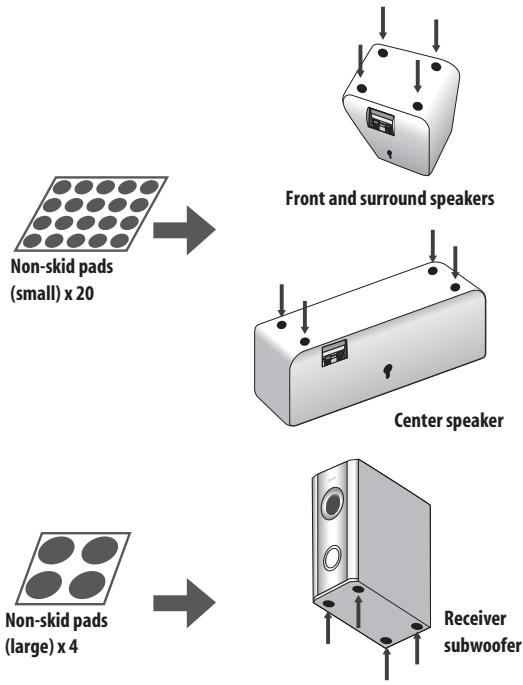
1 Attach the smaller non-skid pads to the base of each of the front, surround and center speakers. The four large non-skid pads are for the receiver subwoofer (as shown).
Use the adhesive side of the pads to attach them to the base (flat surface) of each speaker.
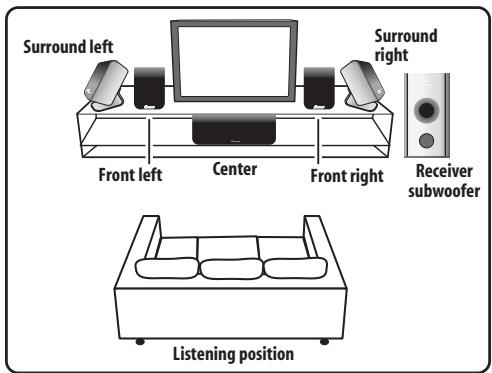
2 Connect the speaker system.
Refer to Connecting up to connect the speakers properly. After connecting everything, place the speakers as shown in the diagram (left) for optimal surround sound. After placing the speakers, run the Auto MCACC setup (page 23) to complete your surround sound setup.
3 Make sure the Front Surround mode is switched off.
See the operating instructions for more on using Front Surround.
Front surround setup
This setup is ideal when rear surround speaker placement isn't possible or you want to avoid running long speaker cables in your listening area. Use this setup together with the Front Surround modes in page 26 to take advantage of wall and ceiling reflections for a very realistic surround effect.
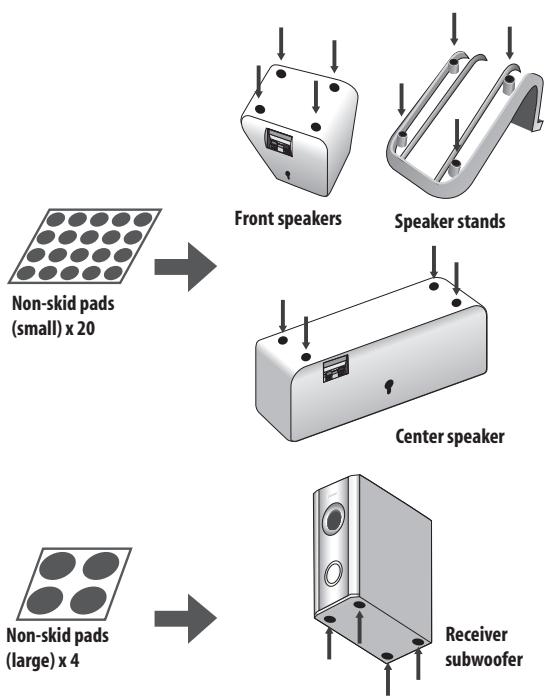
1 Attach the smaller non-skid pads to the base of the front and center speakers and to the speaker stands. The four large non-skid pads are for the receiver subwoofer (as shown).
Use the adhesive side of the pads to attach them to the base (flat surface) of each speaker or stand.
flowchart
graph TD
    A["Non-skid pads (small) x 20"] --> B["Front speakers"]
    B --> C["Speaker stands"]
    C --> D["Center speaker"]
    D --> E["Receiver subwoofer"]
    F["Non-skid pads (large) x 4"] --> G["Receiver subwoofer"]
2 Attach the surround speakers to the speaker stands.
For each speaker, line up the spurs on the stand with the holes on the back of the speaker and insert, then secure the speaker to the stand with the screw provided.

natural_image
Diagram showing a device with a lock and connector, connected to a separate panel (no text or symbols present)3 Connect the speaker system.
Refer to Connecting up to connect the speakers properly. After connecting everything, place the speakers as shown in the diagram (left) for optimal surround sound (the surround speakers are next to the front speakers).
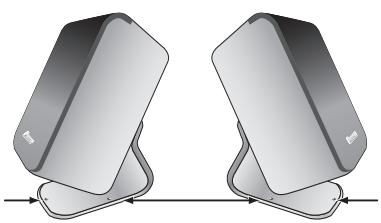
4 Turn the speakers as shown, following the guide marks for optimal Front Surround.
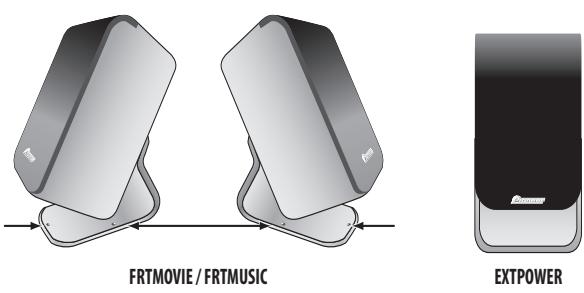
If you have selected FRTMOVIE (Front Surround Movie) or FRTMUSIC (Front Surround Music), turn each surround speaker so that the guide markers on the stand base are lined up horizontally in the direction the listening position (see below). With EXTPOWER (Extra Power), the surround speakers should point in the same direction as the front speakers (see below).
See Using Front Surround on page 26 for more information.
natural_image
Two identical 3D-rendered objects with curved surfaces and directional arrows, no text or symbols present.FRTMOVIE / FRTMUSIC

EXTPOWER
After placing the speakers, run the Auto MCACC setup (page 23) to complete your surround sound setup.

Caution
- Please don't attach the surround speakers to the wall for Front surround setup.
Wall mounting the center speaker
The center speaker has a mounting hole which can be used to mount the speaker on the wall.
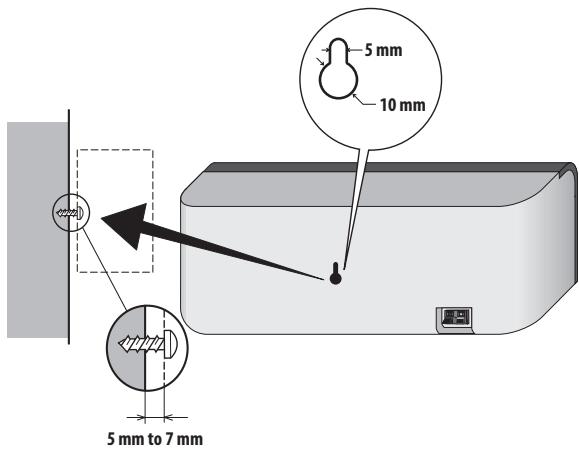
Wall mounting the speakers (RCS-404H/RCS-505H)
In addition to the center speaker, the front and surround speakers also have holes for wall mounting. However, if you are using the Front Surround setup described on the previous page, do not wall mount the surround speakers.
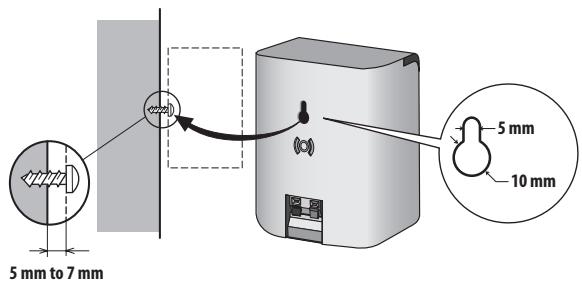
Before mounting
- Remember that the speaker system is heavy and that its weight could cause the screws to work loose, or the wall material to fail to support it, resulting in the speaker falling. Make sure that the wall you intend to mount the speakers on is strong enough to support them. Do not mount on plywood or soft surface walls.
- Mounting screws are not supplied. Use screws suitable for the wall material and support the weight of the speaker.

Caution
- If you are unsure of the qualities and strength of the wall, consult a professional for advice.
- Pioneer is not responsible for any accidents or damage that result from improper installation.
Additional notes on speaker placement
- Install the main front left and right speakers at an equal distance from the TV.
- RCS-404H/505H only: For optimum effect, install the surround speakers slightly above ear level.
- Install the center speaker above or below the TV so that the sound of the center channel is localized at the TV screen.
Precautions:
- When installing the center speaker on top of the TV, be sure to secure it with tape or some other suitable means. Otherwise, the speaker may fall from the TV due to external shocks such as earthquakes, endangering those nearby or damaging the speaker.
- The front (L/R), center and surround (L/R) speakers supplied with this system are magnetically shielded. However, depending on the installation location, color distortion may occur if the speaker is installed extremely close to the screen of a television set. If this happens, turn the power switch of the television set OFF, and turn it ON after 15 min to 30 min. If the problem persists, place the speaker system away from the television set.
- The receiver subwoofer is not magnetically shielded and so should not be placed near a TV or monitor. Magnetic storage media (such as floppy discs and tape or video cassettes) should also not be kept close to the receiver subwoofer.
- RCS-606H only: Do not attach the front, surround speakers and receiver subwoofer to the wall or ceiling. They may fall off and cause injury.
- RCS-404H/505H only: Do not attach the receiver subwoofer to the wall or ceiling. They may fall off and cause injury.
- For safety, make sure that there is no exposed bare speaker wire outside of the speaker terminals.
- Do not connect any speakers other than those supplied to this system.
- Do not connect the supplied speakers with any other amplifier. This may result in malfunction or fire.
Chapter 3
Connecting up
Basic connections

Important
- When connecting this system or changing connections, be sure to switch power off and disconnect the power cord from the wall socket.
After completing all connections, connect the power cords to the wall socket.
Receiver subwoofer (SX-SW606/SX-SW404)
Display cable
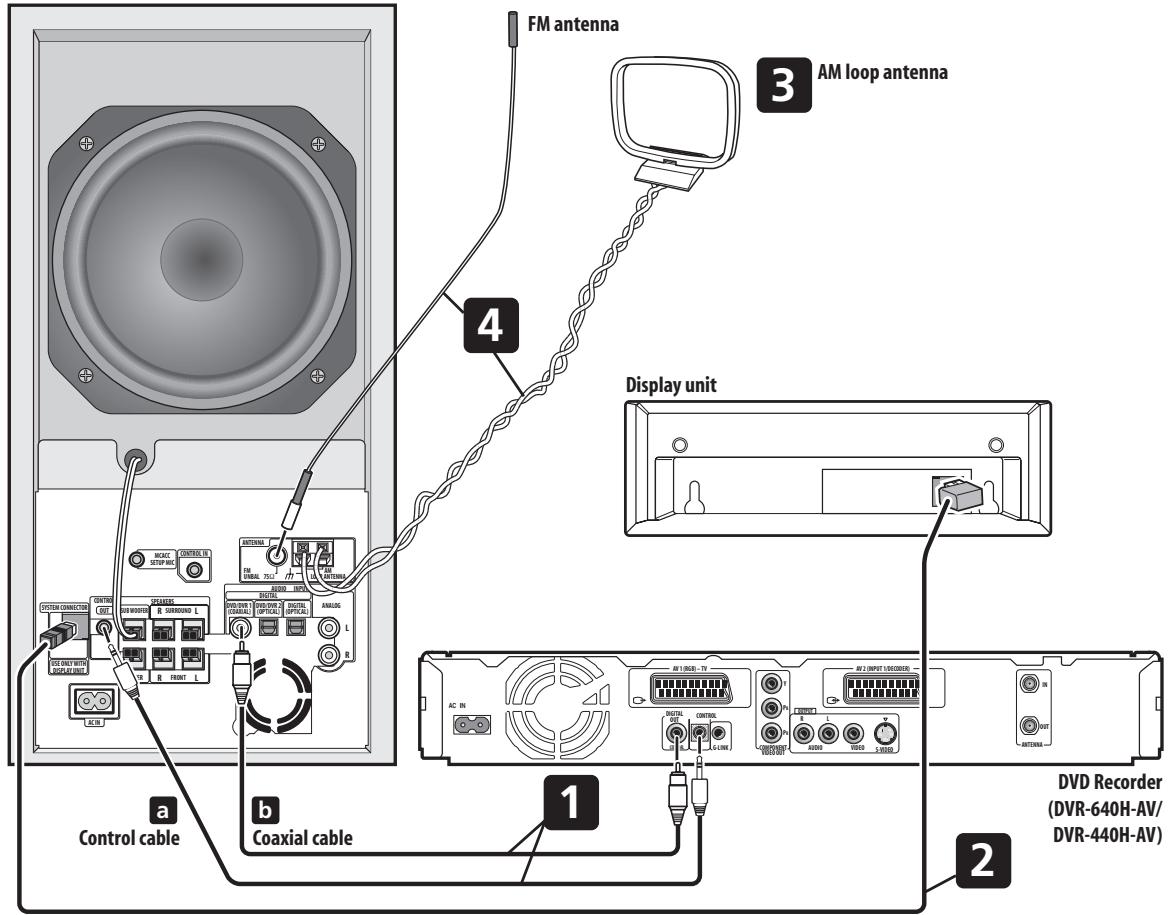
1 Connect the DVD recorder to the receiver subwoofer.
a. Plug the control cable into the CONTROL OUT jack on the rear of the receiver subwoofer.
Plug the other end of the cable into the CONTROL IN jack on the rear of the DVD recorder.
b. Plug the coaxial cable into the DIGITAL AUDIO INPUT (DVD/DVR 1) jack on the rear of the receiver subwoofer.
Plug the other end of the cable into the COAXIAL DIGITAL OUT jack on the rear of the DVD recorder.
Note that unless the control cable is connected, you can't use the remote control with the DVD recorder.
2 Connect the display unit to the receiver subwoofer.
- Plug the L-shaped end of the display cable into the connector on the rear of the display unit.
Plug the other end of the display cable into SYSTEM CONNECTOR jack on the receiver subwoofer.
3 Assemble the AM loop antenna.
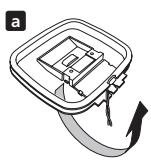
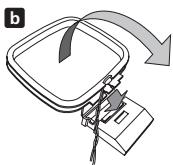
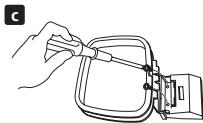
a. Bend the stand in the direction indicated by the arrow.
b. Clip the loop onto the stand.
c. If you want to fix to a wall or other surface, perform step b after first securing the stand with screws.
It is recommended that you determine the reception strength before securing the stand with the screws.
4 Connect the AM and FM antennas ^1 .
a. Connect one wire of the AM loop antenna to each AM antenna terminal ^2 .
For each terminal, press down on the tab to open; insert the wire, then release to secure.

b. Push the FM antenna ^3 plug onto the center pin of the FM antenna socket.
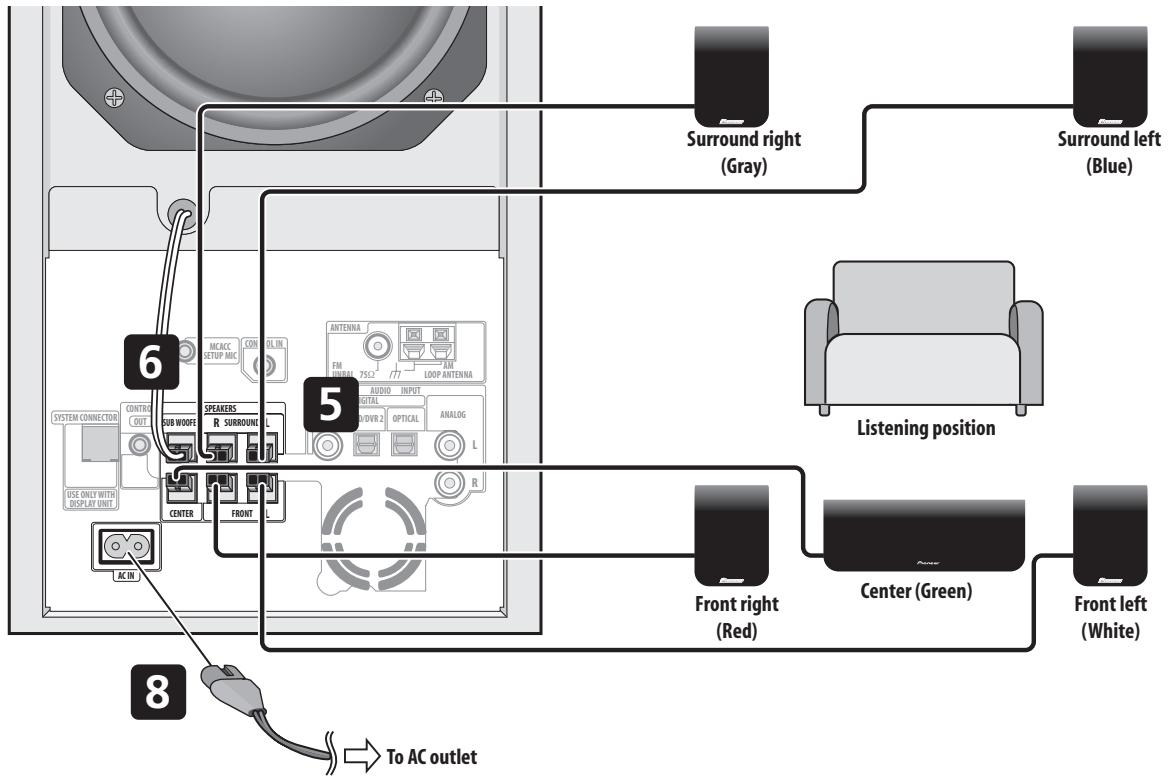
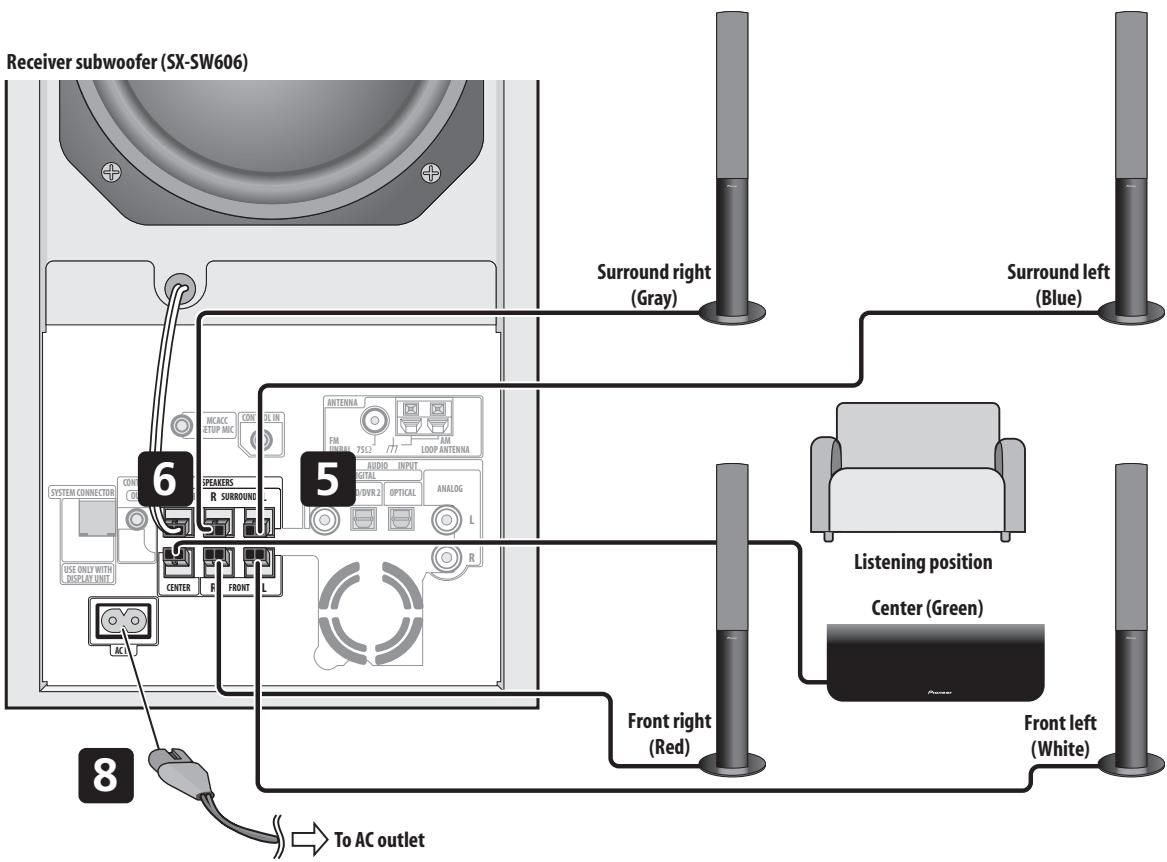
5 Connect each speaker.
- Each speaker cable has a color-coded connector at one end and two wires at the other end.
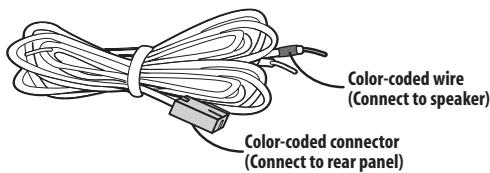
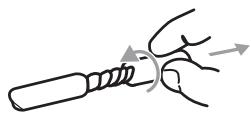
- Twist and pull off the protective shields on each wire.
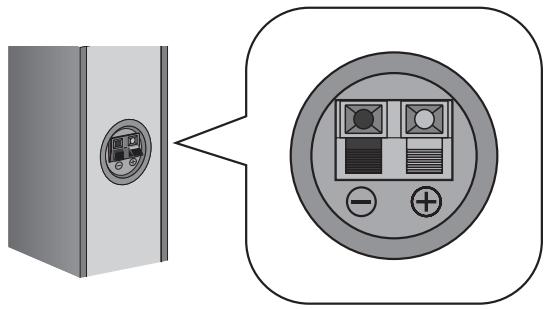
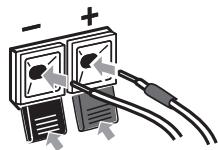
- Connect the wires to the speaker. Match the colored wired with the color-coded label (model label), then insert the colored wire into the red (+) side and the other wire into the black (−) side.
Note
1 • Keep antenna cables away from other cables, the display unit, receiver subwoofer and DVD recorder.
- If reception with the supplied antenna is poor, see Improving poor FM reception and Improving poor AM sound on page 29 or Connecting external antennas on page 34.
2 • Don't let it come into contact with metal objects and avoid placing near computers, television sets or other electrical appliances.
- The signal earth () is designed to reduce noise that occurs when an antenna is connected. It is not an electrical safety earth.
- If radio reception is poor, you may be able to improve it by re-inserting each antenna wire into the opposite terminal.
- For best reception, do not untwist the AM loop antenna wires or wrap them around the loop antenna.
3 • To ensure optimum reception, make sure the FM antenna is fully extended and not coiled or hanging at the rear of the unit.
Receiver subwoofer (SX-SW404)
flowchart
graph TD
    A["Speaker"] -->|6| B["AC IN"]
    A -->|5| C["Central"]
    A -->|5| D["Front"]
    A -->|5| E["Front right (Red)"]
    A -->|5| F["Center (Green)"]
    A -->|5| G["Front left (White)"]
    H["Listener position"] --> I["Surround right (Gray)"]
    H --> J["Surround left (Blue)"]
    K["To AC outlet"] --> L["Switch to AC outlet"]
    style A fill:#f9f,stroke:#333
    style H fill:#ccf,stroke:#333
    style K fill:#cfc,stroke:#333
flowchart
graph TD
    A["Receiver subwoofer (SX-SW606)"] --> B["Switch"]
    B --> C["RSURROUND"]
    C --> D["Antenna FM 25c2 77"]
    C --> E["AVIO INPUT METAL"]
    C --> F["OPTICAL ANALOG"]
    C --> G["R SURROUND"]
    G --> H["Central R"]
    H --> I["Front right (Red)"]
    I --> J["Front left (White)"]
    J --> K["Central Green"]
    L["Switch"] --> M["RSURROUND"]
    N["RSURROUND"] --> O["Antenna FM 25c2 77"]
    P["Antenna FM 25c2 77"] --> Q["AVIO INPUT METAL"]
    R["Antenna FM 25c2 77"] --> S["OPTICAL ANALOG"]
    T["Antenna FM 25c2 77"] --> T["AVIO INPUT METAL"]
    U["Antenna FM 25c2 77"] --> V["OPTICAL ANALOG"]
    W["Antenna FM 25c2 77"] --> X["AVIO INPUT METAL"]
    Y["Antenna FM 25c2 77"] --> Z["AVIO INPUT METAL"]
    AA["Antenna FM 25c2 77"] --> AB["AVIO INPUT METAL"]
    AC["Antenna FM 25c2 77"] --> AD["AVIO INPUT METAL"]
    AE["Antenna FM 25c2 77"] --> AF["AVIO INPUT METAL"]
    AG["Antenna FM 25c2 77"] --> AH["AVIO INPUT METAL"]
    AI["Antenna FM 25c2 77"] --> AJ["AVIO INPUT METAL"]
    AK["Antenna FM 25c2 77"] --> AL["AVIO INPUT METAL"]
    AM["Antenna FM 25c2 77"] --> AN["AVIO INPUT METAL"]
    AO["Antenna FM 25c2 77"] --> AP["AVIO INPUT METAL"]
    AQ["Antenna FM 25c2 77"] --> AR["AVIO INPUT METAL"]
    AS["Antenna FM 25c2 77"] --> AT["AVIO INPUT METAL"]
    AU["Antenna FM 25c2 77"] --> AV["AVIO INPUT METAL"]
    AW["Antenna FM 25c2 77"] --> AX["AVIO INPUT METAL"]
    AY["Antenna FM 25c2 77"] --> AZ["AVIO INPUT METAL"]
    BA["Antenna FM 25c2 77"] --> BB["AVIO INPUT METAL"]
    BC["Antenna FM 25c2 77"] --> BD["AVIO INPUT METAL"]
    BE["Antenna FM 25c2 77"] --> BF["AVIO INPUT METAL"]
    BG["Antenna FM 25c2 77"] --> BH["AVIO INPUT METAL"]
    BI["Antenna FM 25c2 77"] --> BJ["AVIO INPUT METAL"]
    BK["Antenna FM 25c2 77"] --> BL["AVIO INPUT METAL"]
    BM["Antenna FM 25c2 77"] --> BN["AVIO INPUT METAL"]
    BO["Antenna FM 25c2 77"] --> BP["AVIO INPUT METAL"]
    BQ["Antenna FM 25c2 77"] --> BQ
    CA["Antenna FM 25c2 77"] --> CB
    CC["Antenna FM 25c2 77"] --> CD
    CE["Antenna FM 25c2 77"] --> CE
    CF["Antenna FM 25c2 77"] --> CG
    CH["Antenna FM 25c2 77"] --> CI
    CJ["Antenna FM 25c2 77"] --> CJ
    CK["Antenna FM 25c2 77"] --> CR
    CS["Antenna FM 25c2 77"] --> CS
    CT["Antenna FM 25c2 77"] --> CU
    CV["Antenna FM 25c2 77"] --> DD
    DJ["Antenna FM 25c2 77"] --> DE
    DF["Antenna FM 25c2 77"] --> DF
    DG["Antenna FM 25c2 77"] --> DH
    DI["Antenna FM 25c2 77"] --> DJ
    DK["Antenna FM 25c2 77"] --> DL
    DM["Antenna FM 25c2 77"] --> DE
    EQ["Antenna FM 25c2 77"] --> DE
    FQ["Antenna FM 25c2 77"] --> FR
    SG["Antenna FM 25c2 77"] --> SG
    SC["Antenna FM 25c2 77"] --> SD
    TH["Antenna FM 25c2 77"] --> DS
    TE["Antenna FM 25c2 77"] --> TE
    UQ["Antenna FM 25c2 77"] --> UQ
    VQ["Antenna FM 25c2 77"] --> VQ
    WQ["Antenna FM 25c2 77"] --> WQ
    XQ["Antenna FM 25c2 77"] --> XQ
    YQ["Antenna FM 25c2 77"] --> YQ
    ZQ["Antenna FM 25c2 77"] --> ZQ
    AAQ["Antenna FM 25c2 77"] --> AB
    ACQ["Antenna FM 25c2 77"] --> ACQ
    ADQ["Antenna FM 25c2 77"] --> ADQ
    AEQ["Antenna FM 25c2 77"] --> AEQ
    AFQ["Antenna FM 25c2 77"] --> AFQ
    AGQ["Antenna FM 25c2 77"] --> AGQ
    AHQ["Antenna FM 25c2 77"] --> AHQ
    AIQ["Antenna FM 25c2 77"] --> AIQ
    AJQ["Antenna FM 25c2 77"] --> AJQ
    AKQ["Antenna FM 25c2 77"] --> AKQ
    ALQ["Antenna FM 25c2 77"] --> ALQ
    AMQ["Antenna FM 25c2 77"] --> AMQ
    ANQ["Antenna FM 25c2 77"] --> ANQ
    AOQ["Antenna FM 25c2 77"] --> AOQ
    APQ["Antenna FM 25c2 77"] --> APQ
    AQX["Antenna FM 25c2 77"] --> AQX
    ARX["Antenna FM 25c2 77"] --> ARX
    ASX["Antenna FM 25c2 77"] --> ASX
    ATX["Antenna FM 25c2 77"] --> ATX
    AUX["Antenna FM 25c2 77"] --> AUX
    AVX["Antenna FM 25c2 77"] --> AVX
    AWX["Antenna FM 25c2 77"] --> AWX
    AXX["XEELA/ACI"] --> AXX
    AY["XEELA/ACI"] --> AY
    AZ["XEELA/ACI"] --> AZ
    BA["XEELA/ACI"] --> BA
    BB["XEELA/ACI"] --> BB
    BC["XEELA/ACI"] --> BC
    BD["XEELA/ACI"] --> BD
    BE["XEELA/ACI"] --> BE
    BF["XEELA/ACI"] --> BF
    BG["XEELA/ACI"] --> BG
    BH["XEELA/ACI"] --> BH
    BI["XEELA/ACI"] --> BI
    BJ["XEELA/ACI"] --> BJ
    BK["XEELA/ACI"] --> BK
    BL["XEELA/ACI"] --> BL
    BM["XEELA/ACI"] --> BM
    BN["XEELA/ACI"] --> BN
    BOX["XEELA/ACI"] --> BOX
    BX["XEELA/ACI"] --> BYX
    BYX["XEELA/ACI"] --> BYX
    CAX["XEELA/ACI"] --> CAX
    DBX["XEELA/ACI"] --> DBX
    BEZ["XEELA/ACI"] --> BEZ
- Connect the other end to the color-coded speaker terminals on the rear of the receiver subwoofer. Make sure to insert completely.
The small lug at the wire-end of the speaker plug should face up or down depending on whether it's being plugged into one of the upper or lower speaker terminals. Please make sure to connect correctly.
Upper terminal
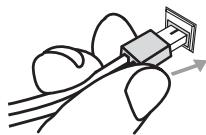
Lower terminal
6 Connect the subwoofer cable.
- Just below the subwoofer speaker, to the left of center, you should see the subwoofer connecting cable. Plug this into the SUBWOOFER SPEAKER terminal.

Caution
- These speaker terminals carry HAZARDOUS LIVE voltage. To prevent the risk of electric shock when connecting or disconnecting the speaker cables, disconnect the power cord before touching any uninsulated parts.
- Do not connect any speakers other than those supplied to this system.
- Do not connect the supplied speakers to any amplifier other than the one supplied with this system. Connection to any other amplifier may result in malfunction or fire.
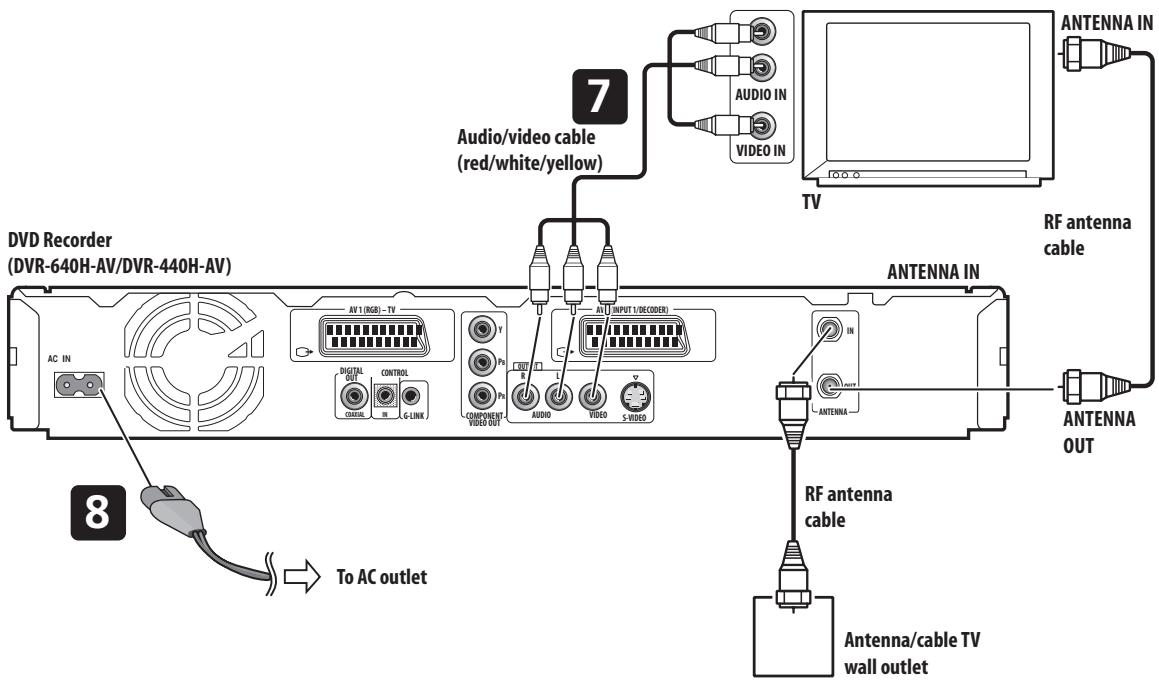
7 Connect the DVD recorder to your TV. ^1
- Connect the VIDEO OUTPUT jack to a video input on your TV.
Use the yellow jack of the supplied audio/video cable for the video connection.
- Connect the AUDIO OUTPUT jacks to the corresponding audio inputs on your TV.
Use the red and white jacks of the supplied audio/video cable for the audio connection. Make sure you match the left and right outputs with their corresponding inputs for correct stereo sound.
8 Connect the power cord. ^2
- Connect the power cords to AC inlets on the receiver subwoofer and DVD recorder.
Connect the power cords to a wall socket.
Note
1 Other types of video connection are possible. See page 51-page 54 for more information.
2 • Do not use any power cord other than the one supplied with this system.
- Do not use the supplied power cord for any purpose other than connecting to this system.
Using this system for TV audio
If your TV has a stereo audio output you can connect it to this system and enjoy surround TV sound.
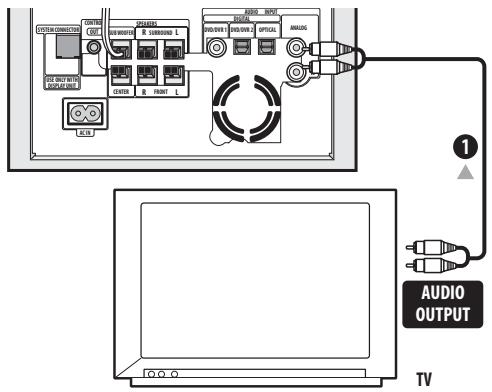
1 Connect the AUDIO OUTPUT jacks on your TV to the ANALOG AUDIO INPUT jacks on the receiver subwoofer.
Use the red/white stereo audio cable (not supplied) for this connection. Make sure you match the left and right outputs with their corresponding inputs for correct stereo sound.
- You can use the ANALOG AUDIO INPUT jacks for any analog source you want, such as a tape deck, etc.
Chapter 4 Remote control

Important
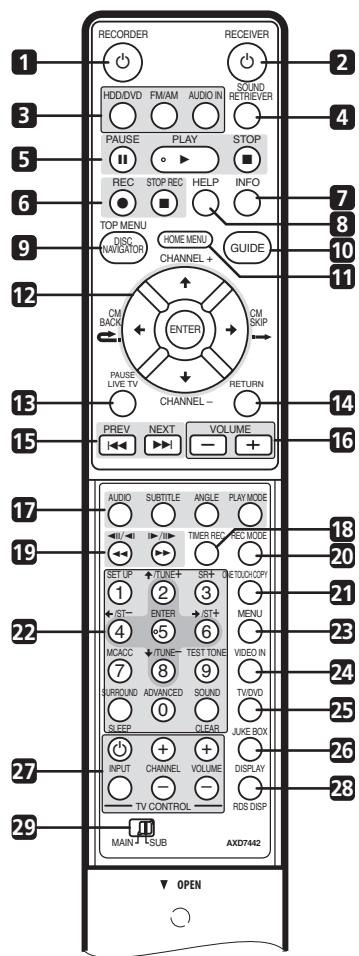
- Functions printed in green on the remote control are accessed by switching the MAIN/SUB switch to SUB.
1 RECORDER
Press to switch the recorder on or into standby.
2 ⏻ RECEIVER
Press to switch the receiver subwoofer on or into standby.
3 Input select buttons
HDD/DVD (page 78)
Press to select the hard disk (HDD) or DVD for recording or playback. The receiver subwoofer's audio input is also switched to DVD/DVR1. ^1
FM/AM (page 29)
Press to select the built-in radio tuner.
AUDIO IN (page 34)
Press repeatedly to select one of the receiver subwoofer's audio inputs (DVD/DVR1, DVD/DVR2, DIGITAL or ANALOG).
4 SOUND RETRIEVER
Press to restore CD quality sound to compressed audio sources (page 27).
5 Playback controls (page 86)
II PAUSE
Press to pause playback or recording.
▶ PLAY
Press to start playback.
■ STOP
Press to stop playback.
6 Recording controls (page 78)
● REC
Press to start recording. Press repeatedly to set the recording time in blocks of 30 mins.
When the red action button is visible in a GUIDE Plus+™ screen, use for One-Button-Record.
■ STOP REC
Press to stop recording.
7 INFO
Press to see additional information for the highlighted item in GUIDE Plus+™.
8 HELP
Press for help on how to use the current GUI screen.
9 DISC NAVIGATOR (page 89, 96) / TOP MENU (page 87)
Press to display the Disc Navigator screen, or the top menu if a DVD-Video or finalized DVD-R/RW (Video) disc is loaded.

1 If the recorder is set to remote mode 2 or 3, the receiver subwoofer's audio input will not be switched. See also Remote Control Mode on page 134.
10 GUIDE
Press to display the GUIDE Plus+™ screen; press again to exit.
11 HOME MENU
Press to display the Home Menu, from which you can navigate many the functions of the system.
12 ↑/↓/←/→ (cursor buttons) and ENTER
Use to navigate all DVD recorder on-screen displays. Press ENTER to select the currently highlighted option.
CHANNEL +/- (page 77)
Press to change the channel of the built-in TV tuner.
CM BACK (commercial back)
Press repeatedly to skip progressively backward through the audio or video playing.
CM SKIP (commercial skip)
Press repeatedly to skip progressively forward through the audio or video playing.
13 PAUSE LIVE TV (page 79)
Press to start recording the current TV channel, but with playback paused, effectively pausing the broadcast.
14 RETURN
Press to go back one level in the on-screen menu or display.
15 |◀◀ PREV / NEXT ▶▶
Press to skip to the previous or next title/chapter/track/folder; or to display the previous or next menu page. When GUIDE Plus+™ is displayed, use to display the previous/next page.
16 VOLUME +/-
Use to adjust the volume.
17 GUIDE Plus+™ Action buttons and DVD playback function buttons
When in the GUIDE Plus+™ system, these buttons act as the Red, Green, Yellow and Blue Action buttons (the functions of these buttons change according to the GUIDE Plus+™ Area). (page 64)
AUDIO (page 77, 94)
Press to change the audio language or channel. (When the recorder is stopped, press to change the tuner audio.)
SUBTITLE (page 93)
Press to display/change the subtitles included in multilingual DVD-Video discs.
ANGLE (page 94)
Press to switch camera angles on discs with multi-angle scenes.
PLAY MODE (page 91)
Press to change the play mode (search, repeat, program play, etc.)
18 TIMER REC (page 65)
Press to set a timer recording from the GUIDE Plus+ ^™ system.
19 ◀◀ / ▶▶ (page 91)
Press to start reverse or forward scanning. Press again to change the speed.
◀/◀, ▶/▶ (page 91)
While paused, press and hold to start slow-motion playback. Press repeatedly to change the playback speed.
While paused, press to advance a single frame in either direction.
When GUIDE Plus+ ^™ is displayed, use to display the previous/next day.
20 REC MODE (page 77)
Press repeatedly to change the recording mode (picture quality).
21 ONE TOUCH COPY (page 106)
Press to start One Touch Copy of the currently playing title to DVD or the HDD.
22 Number buttons
Use the number buttons for track/chapter/title selection; channel selection, and so on.
↑/↓/←/→ (cursor buttons) and ENTER
Use to control receiver functions.
SETUP
Use to access the menu system for surround sound setup, tuner settings and so on (page 23, 29, 30, 31, 37).
SR+
Use to setup the SR+ features and to select the SR+ mode (page 36).
MCACC
Starts the Auto MCACC setup (page 23).
TEST TONE
Use to output the test tone (for speaker setup) (page 32).
SURROUND
Use to select a Surround mode (page 25).
SLEEP
Press to set the sleep timer (page 37).
ADVANCED
Use to select a Pioneer original surround mode (page 26).
SOUND (page 27)
Press to access the sound menu, from which you can adjust bass and treble, etc.
CLEAR
Press to clear an entry and start again.
23 MENU (page 87)
Press to display the disc menu if a DVD-Video, finalized DVD-R/-RW or finalized DVD+R/+RW disc is loaded.
When in the GUIDE Plus+ ^™ system, use to jump directly to the Menu bar.
24 VIDEO IN (page 82)
Press to change the DVD recorder input for recording and playback.
25 TV/DVD
Press to switch between 'TV mode', in which you get the picture and sound from the TV's tuner, and 'DVD mode', in which you get picture and sound from the system's tuner (or an external input).
26 JUKEBOX (page 113)
Press to display the Jukebox screen of the DVD recorder, from where you can copy music to the HDD for playback.
27 TV CONTROL (page 136)
After setting up, use these controls to control your TV.
28 DISPLAY (page 95)
Displays/changes the on-screen information displays.
RDS DISP
Changes RDS displays (page 30).
29 MAIN/SUB
Change from MAIN to SUB to access the green functions/commands on the remote.
Using the remote control
Please keep in mind the following when using the remote control:
- Make sure that there are no obstacles between the remote and the remote sensor on the unit.
- Remote operation may become unreliable if strong sunlight or fluorescent light is shining on the unit's remote sensor.
- Remote controllers for different devices can interfere with each other. Avoid using remotes for other equipment located close to this unit.
- Replace the batteries when you notice a fall off in the operating range of the remote.
- When the batteries run down or you change the batteries, the remote control mode is reset to Recorder 1. See Remote Control Mode on page 134.
- Use within the operating range in front of the remote control sensor on the display unit, as shown.
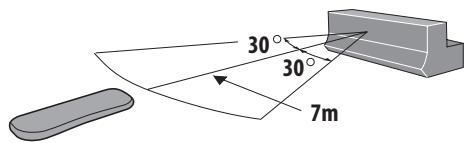
Putting the batteries in the remote control
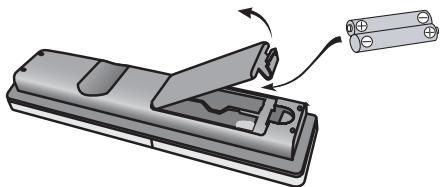
1 Open the battery compartment cover on the back of the remote control.
2 Insert two AA/R6 batteries into the battery compartment following the indications ( , ) inside the compartment.
natural_image
Diagram of a battery pack being inserted into a housing, showing internal components and battery casing (no text or symbols)3 Close the cover.

Caution
Incorrect use of batteries can result in hazards such as leakage and bursting. Please observe the following:
- Don't mix new and old batteries together.
- Don't use different kinds of battery together—although they may look similar, different batteries may have different voltages.
- Make sure that the plus and minus ends of each battery match the indications in the battery compartment.
- Remove batteries from equipment that isn't going to be used for a month or more.
- When disposing of used batteries, please comply with governmental regulations or environmental public instruction's rules that apply in your country or area.

WARNING
- Do not use or store batteries in direct sunlight or other excessively hot place, such as inside a car or near a heater. This can cause batteries to leak, overheat, explode or catch fire. It can also reduce the life or performance of batteries.
Chapter 5
Before you start
Switching on
The DVD recorder and receiver subwoofer have separate power switches. The power switch for the receiver subwoofer is located on the display unit.
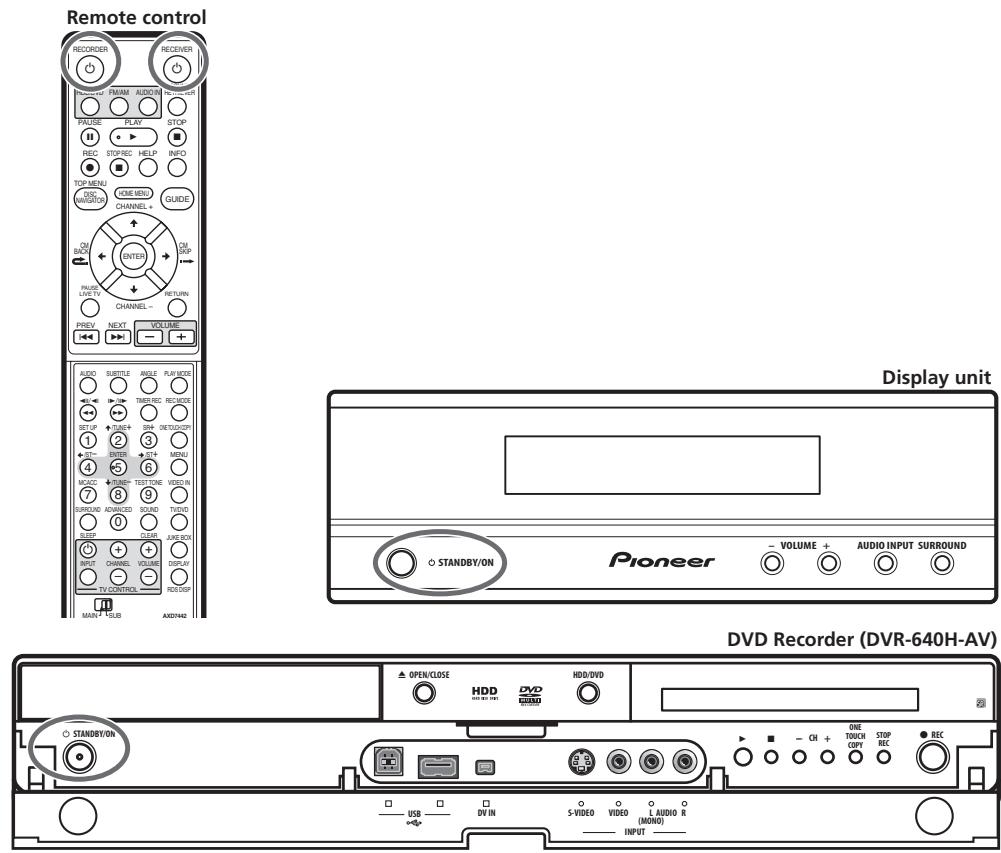
The table below shows what needs to be switched on for various system functions:
| Function | Display unit | DVD recorder |
| DVD playback | On | On |
| CD playback | On | On |
| HDD playback | On | On |
| Radio | On | Off |
| Timer recording | Off | On |
Setting up
After connecting and installing the DVD recorder and receiver subwoofer, complete the steps below to set the system up for use.
DVD recorder
- Set the date and time, TV channel tuning and the type of TV in the Setup Navigator (page 59).
Receiver subwoofer
- Switch off the display demo mode (page 23).
- Complete the Auto MCACC setup to optimize the surround sound (page 23).
Basic operation
This manual is split into to parts, one covering using the receiver subwoofer, the other using the DVD recorder. Below are some common operations and where to find them explained in this manual.
Watching a DVD
Remember that when using the remote to control the DVD recorder, you should point the remote towards the display unit, not the recorder itself.
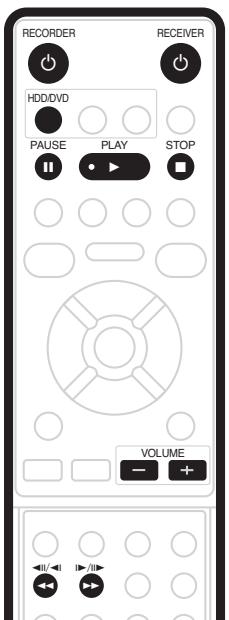
1 Switch on the display unit (receiver subwoofer).
2 Switch on the DVD recorder.
3 Switch on your TV.
Turn on your TV and make sure that it is set to the correct video input.
4 Press HDD/DVD.
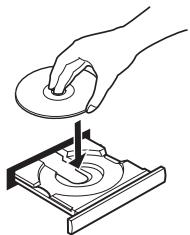
5 Press ▲ OPEN/CLOSE on the DVD recorder to open the disc tray.
6 Load a disc.
Load a disc with the label side facing up, using the disc tray guide to align the disc (if you're loading a double-sided DVD disc, load it with the side you want to play face-down).
natural_image
Illustration of a hand pressing down on a circular component with a downward arrow (no text or symbols)7 Press ▶ (play) to start playback.
Press to stop playback. You can resume playback from the same point by pressing ▶. (Press ■ again to cancel the resume function.)
■ Pauses playback, or restarts playback when paused.
Press to start scanning. Press repeatedly to increase the scanning speed.
See Basic playback on page 86 for more on playing discs.
8 Adjust the volume.
9 Adjust the sound using the surround effects
See Listening to your system on page 25 for details.
Listening to a CD
1 Switch on the display unit (receiver subwoofer).
2 Switch on the DVD recorder.
3 Press HDD/DVD.
4 Load a CD and start playback (page 88).
5 Adjust the volume.
6 Adjust the sound using the surround effects (page 25).
Watching a title recorded on the HDD
1 Switch on the display unit (receiver subwoofer).
2 Switch on the DVD recorder.
3 Switch on your TV.
4 Press HDD/DVD.
5 Start playback of the HDD title (page 87).
6 Adjust the volume.
7 Adjust the sound using the surround effects (page 25).
Listening to the radio
1 Switch on the display unit (receiver subwoofer).
2 Tune to a station (page 29).
3 Adjust the volume.
4 Adjust the sound using the surround effects (page 25).
AUDIO MULTI-CHANNEL RECEIVER SUBWOOFER
SX-SW606 SX-SW404
SPEAKER SYSTEM
S-ST606 S-ST404
Contents
01 Controls and displays
Display unit 22 Display 22
02 Getting started
System demo setting....23 Using the Auto MCACC setup for optimal surround sound....23
03 Listening to your system
Auto listening mode ..... 25 Listening in surround sound ..... 25 Dolby Pro Logic II Music settings ..... 25 Using Front Surround ..... 26 Using Advanced Surround..... 26 Listening in stereo ..... 26 Using the Sound Retriever..... 27 Listening with Acoustic Calibration EQ ..... 27 Enhancing dialogue..... 27 Using Quiet and Midnight listening modes ..... 27 Adjusting the bass and treble ..... 27 Boosting the bass level ..... 28
04 Listening to the radio
Listening to the radio....29 Improving poor FM reception....29 Improving poor AM sound....29 Changing the noise cut mode....29 Memorizing stations....30 Listening to station presets....30 Using RDS....30 Displaying RDS information....30 Searching for RDS programs....30
05 Surround sound settings
Using the Setup menu.... 31
Channel level setting.... 31
Speaker distance setting.... 31
Dynamic Range Control.... 32
Dual mono setting.... 32
Adjusting the channel levels using the test tone ... 32
06 Other connections
Connecting auxiliary components .... 34
Connecting an analog audio component.... 34
Listening to an external audio source .... 34
Connecting external antennas.... 34
Using this unit with a Pioneer plasma display .... 35
SR+ Setup for Pioneer plasma displays .... 35
Using the SR+ mode with a Pioneer plasma display.... 36
07 Additional information
Dimming the display....37
DTS CD setting....37
Setting the sleep timer....37
Resetting the system....37
Installation and maintenance....38
Hints on installation....38
Troubleshooting....38
General....38
Tuner....39
Error Messages....39
Glossary....40
Specifications....40
Chapter 1
Controls and displays
Display unit
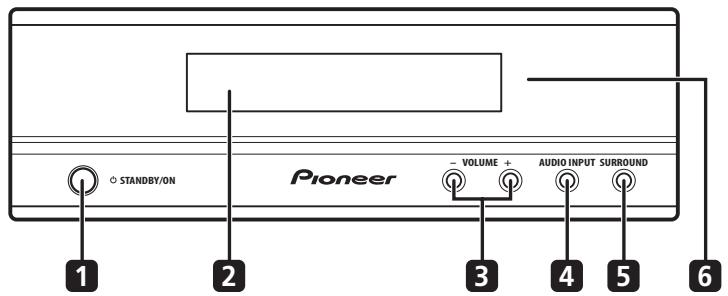
1 ⏻ STANDBY/ON
Press to switch the system on/into standby.
2 Front panel display
See below for details.
3 VOLUME buttons
Use to adjust the volume.
4 AUDIO INPUT (page 34)
Press repeatedly to select one of the external audio inputs (DVD/DVR1, DVD/DVR2, DIGITAL or ANALOG).
5 SURROUND
Use to select a Surround mode (page 25).
6 IR remote sensor (page 17)
Display
flowchart
graph TD
    A["1"] --> B["2"]
    B --> C["3"]
    C --> D["SOUND"]
    D --> E["6"]
    E --> F["kHz MHz"]
    F --> G["4"]
    E --> H["5"]
    H --> I["6"]
    I --> J["6"]
    E --> K["6"]
    K --> L["6"]
    E --> M["6"]
    M --> N["6"]
    E --> O["6"]
    O --> P["6"]
    E --> Q["6"]
    Q --> R["6"]
    E --> S["6"]
    S --> T["6"]
    E --> U["6"]
    U --> V["6"]
    E --> W["6"]
    W --> X["6"]
    E --> Y["6"]
    Y --> Z["6"]
    E --> AA["6"]
    AA --> AB["6"]
    E --> AC["6"]
    AC --> AD["6"]
    E --> AE["6"]
    AE --> AF["6"]
    E --> AG["6"]
    AG --> AH["6"]
    E --> AI["6"]
    AI --> AJ["6"]
    E --> AK["6"]
    AK --> AL["6"]
    E --> AM["6"]
    AM --> AN["6"]
    E --> AO["6"]
    AO --> AP["6"]
    E --> AQ["6"]
    AQ --> AR["6"]
    E --> AS["6"]
    AS --> AT["6"]
    E --> AU["6"]
    AU --> AV["6"]
    E --> AW["6"]
    AW --> AX["6"]
    E --> AY["6"]
    AY --> AZ["6"]
    E --> BA["6"]
    BA --> BB["6"]
    E --> BC["6"]
    BC --> BD["6"]
    E --> BE["6"]
    BE --> BF["6"]
    E --> BG["6"]
    BG --> BH["6"]
    E --> BI["6"]
    BI --> BJ["6"]
    E --> BK["6"]
    BK --> BL["6"]
    E --> BM["6"]
    BM --> BN["6"]
    E --> BO["6"]
    BO --> BP["6"]
    E --> BQ["6"]
    BQ --> BR["6"]
    E --> BS["6"]
    BS --> BT["6"]
    E --> BU["6"]
    BU --> BV["6"]
    E --> BW["6"]
    BW --> BX["6"]
    E --> BY["6"]
    BY --> BZ["6"]
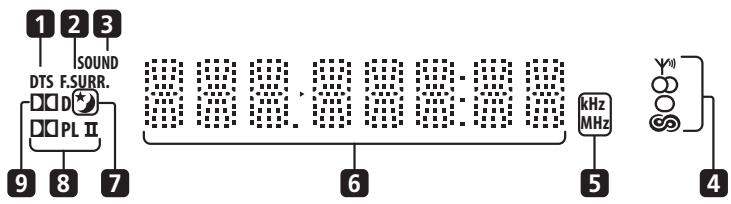
1 DTS
Lights during playback of a DTS source (page 25).
2 F.SURR. (RCS-404H/505H only)
Lights when one of the Front Surround listening modes is selected (page 26).
SURR.
Lights when one of the Advanced Surround listening modes is selected (page 26).
3 SOUND
Lights when Sound Retriever is active (page 27).
4 Tuner indicators
^(1) – Lights when a broadcast is being received.
OD – Lights when a stereo FM broadcast is being received in auto stereo mode.
- Lights when FM mono reception is selected.
- Lights when in one of the RDS display or search modes.
5 kHz / MHz
Indicates the frequency unit shown in the character display (kHz for AM, MHz for FM).
6 Character display
7 ★
Lights when sleep timer is active (page 37).
8 ☐☐ PL II
Lights during Dolby Pro Logic II decoding (page 25).
9 D D
Lights during playback of a Dolby Digital source (page 25).
Chapter 2
Getting started

Important
- To access green functions on the remote, move the slider switch from MAIN to SUB.
System demo setting
Switches the automatic demo feature on or off (this starts when you plug in for the first time).
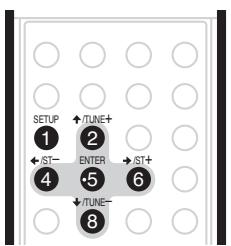
1 Switch the system into standby.
2 Press SETUP.
3 Use the / buttons to select DEMO from the menu, then press ENTER.
4 Use the ↑/↓ buttons to select a setting, then press ENTER.
Select from:
- DEMO ON – Switches the demo display on.
- DEMO OFF – Switches the demo display off and the system into standby.
Using the Auto MCACC setup for optimal surround sound
The Multichannel Acoustic Calibration (MCACC) system measures the acoustic characteristics of your listening area, taking into account ambient noise, and testing for channel delay and channel level. After you have set up the microphone provided, the system uses the information from a series of test tones to optimize the speaker settings and equalization (Acoustic Calibration EQ) for your particular room. ^1

Important
- The test tones used for Auto MCACC setup are loud; however, do not turn the volume down during setup as this may result in a sub-optimal setup.
- Make sure the microphone and speakers are not moved during the MCACC setup.
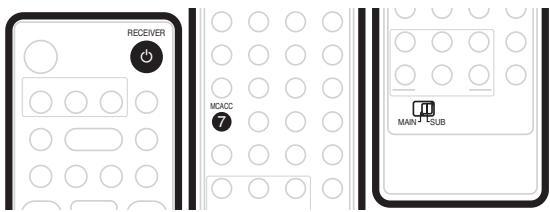
1 Connect the microphone to the MCACC SETUP MIC jack on the rear panel.
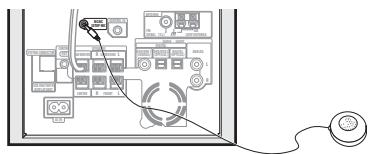
2 Place the microphone at your normal listening position.
Place the mic horizontally about ear level at your normal listening position using a table or chair.
Make sure there are no obstacles between the speakers and the microphone.

Note
1 You only need to use the Auto MCACC setup once (unless you change the placement of your speakers or your room layout).
3 If the receiver subwoofer is off, press
○ RECEIVER to turn the power on.
4 Press MCACC.
Try to be as quiet as possible after pressing MCACC. The volume increases automatically and the system outputs a series of test tones.
- To cancel Auto MCACC setup before it has finished, press MCACC. The unit will continue to use the previous settings.
- If the ambient noise level is too high, NOISY blinks in the display for five seconds. To exit and check the noise levels ^1 , press MCACC, or to try again, press ENTER when RETRY shows in the display.
- If you see an ERR MIC or ERR SP message in the display, there may be a problem with your mic or the speaker connections. To try again, press ENTER when you see RETRY ^2
When the MCACC setup is complete, the volume level returns to normal, COMPLETE ^3 shows in the display, and Acoustic Calibration EQ is activated. ^4

Note
1 • If the room environment is not optimal for the Auto MCACC setup (too much ambient noise, echo off the walls, obstacles blocking the speakers from the microphone) the final settings may be incorrect. Check for household appliances (air conditioner, fridge, fan, etc.), that may be affecting the environment and switch them off if necessary.
- Some older TVs may interfere with the operation of the mic. If this seems to be happening, switch off the TV during Auto MCACC setup.
2 If this doesn't work, press MCACC, turn off the power, and check the problem indicated by the ERR message, then try the Auto MCACC setup again.
3 If COMPLETE doesn't appear, it is likely an error occurred during the setup. Please check all connections and try again.
4 See Listening with Acoustic Calibration EQ on page 27 to switch on/off Acoustic Calibration EQ.
Chapter 3
Listening to your system

Important
- To access green functions on the remote, move the slider switch from MAIN to SUB.
Auto listening mode
The Auto listening mode is the simplest way to listen to any source as it was mastered: the output from the speakers mirrors the channels in the source material. RCS-404H/RCS-505H only: If you set up the system for Front surround (page 7), the Front Surround modes will give the best results (see Using Front Surround on page 26).
- Press SURROUND to select the AUTO listening mode.
If the source is Dolby Digital or DTS, the front panel ☐☐ D or DTS indicator lights.
- You can also use the SURROUND button on the display unit to change the listening mode.
Listening in surround sound
You can listen to stereo or multichannel sources in surround sound. Surround sound is generated from stereo sources using one of the Dolby Pro Logic decoding modes.
RCS-404H/RCS-505H only: If you set up the system for Front surround (page 7), the Front Surround modes will give the best results (see Using Front Surround on page 26).
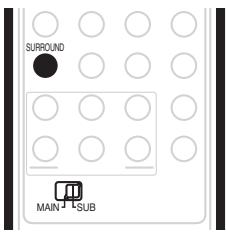
- Press SURROUND repeatedly to select a listening mode.
- You can also use the SURROUND button on the display unit to change the listening mode.
The choices that appear in the display will vary according to the type of source that's playing.
If the source is Dolby Digital or DTS, the front panel ☐☐ D or DTS indicator lights.
- AUTO – Auto listening mode (see above)
- DOLBY PL (Dolby Pro Logic) – 4.1 channel surround sound for use with any two-channel source
- MOVIE (Dolby Pro Logic II Movie) – 5.1 channel surround sound, especially suited to movie sources, for use with any two-channel source
- MUSIC (Dolby Pro Logic II Music) – 5.1 channel surround sound, especially suited to music sources, for use with any two-channel source; see Dolby Pro Logic II Music settings below
• STEREO – See Listening in stereo on page 26
Dolby Pro Logic II Music settings
When listening in Dolby Pro Logic II Music mode (see above), there are three settings you can adjust: Center Width, Dimension, and Panorama.
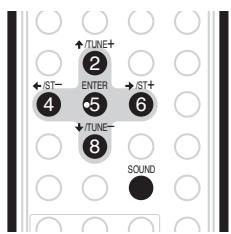
1 With Dolby Pro Logic II Music mode active, press SOUND.
2 Use / to select C WIDTH, DIMEN. or PANORAMA then press ENTER.
- C WIDTH (Center Width): Provides a better blend of the front speakers by spreading the center channel between the front right and left speakers, making it sound wider (higher settings) or narrower (lower settings)
- DIMEN. (Dimension): Adjusts the depth of the surround sound balance from front to back, making the sound more distant (minus settings), or more forward (positive settings)
- PANORAMA: Extends the front stereo image to include the surround speakers for a ‘wraparound’ effect.
3 Use ↑/↓ to adjust the setting then press ENTER to confirm.
Using Front Surround
RCS-404H/RCS-505H only
The Front Surround modes are effective when you are using the Front surround speaker setup as described on page 7. The surround speakers should be placed beside the front speakers and oriented either towards the walls, or straight ahead, depending on which mode you are using (see below).
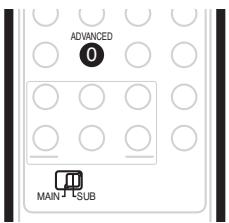
- Press ADVANCED to select a Front Surround mode.
Press repeatedly to select FRTMOVIE, FRTMUSIC or EXTPOWER.
- If you have selected FRTMOVIE (Front Surround Movie) or FRTMUSIC (Front Surround Music), turn each surround speaker so that the guide markers on the stand base are lined up horizontally in the direction the listening position (see below). With EXTPOWER (Extra Power), the surround speakers should point in the same direction as the front speakers (see below).
Using Advanced Surround
The Advanced Surround effects can be used with any multichannel or stereo source for a variety of additional surround sound effects.
RCS-404H/RCS-505H only: If you set up the system for Front surround (page 7), the Front Surround modes will give the best results (see Using Front Surround above).
- Press ADVANCED to select an Advanced Surround mode.
Press repeatedly to select:
- ADVMOVIE – Suitable for movies
• ADVMUSIC – Suitable for music - EXPANDED – Wide sound field
- TV SURR. – Surround sound for mono or stereo TV broadcasts
- SPORTS – Suitable for sports programming
• GAME – Suitable for TV game units - VIRTUAL – A virtual surround effect using just the subwoofer and front speakers.
- 5 STEREO – Powerful surround sound for stereo music sources
Listening in stereo
You can listen to any source—stereo or multichannel—in stereo. When playing a multichannel source, all channels are downmixed to the front left/right speakers and the subwoofer.
- Press SURROUND repeatedly until STEREO shows in the display.
- You can also use the SURROUND button on the display unit to change the listening mode.
Using the Sound Retriever
When audio data is removed during the MP3 or WMA compression process, sound quality often suffers from an uneven sound image. The Sound Retriever feature employs new DSP technology that helps bring CD quality sound back to compressed 2-channel audio by restoring sound pressure and smoothing jagged artifacts left over after compression.

Tip
- This feature is effective when used together with the Jukebox function of the DVD recorder.
- While listening to a stereo source, press SOUND RETRIEVER.
Press repeatedly to switch between:
- RTRV ON — Switches the Sound Retriever on.
- RTRV OFF — Switches the Sound Retriever off.
Listening with Acoustic Calibration EQ
You can listen to sources using the Acoustic Calibration EQ set in Using the Auto MCACC setup for optimal surround sound on page 23.
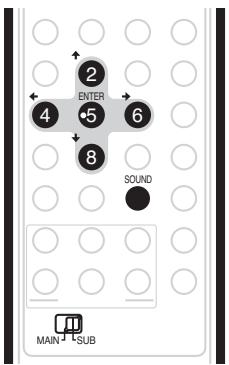
1 Press SOUND.
2 Use the / buttons to select MCACC EQ then press ENTER.
3 Use the ↑/↓ buttons to switch EQ ON or EQ OFF then press ENTER to confirm.
- On the EQ OFF setting, equalization is set to off and speaker settings (channel delay and channel level) remains as it is set.
- Acoustic Calibration EQ is set to on automatically after Auto MCACC setup is used.
Enhancing dialogue
The Dialogue Enhancement feature is designed to make the dialogue stand out from other background sounds in a TV or movie sound track.
1 Press SOUND.
2 Use the / buttons to select DIALOGUE then press ENTER.
3 Use the ↑/↓ buttons to select the amount dialogue enhancement then press ENTER to confirm. Select between OFF, MID or MAX.
Using Quiet and Midnight listening modes
The Quiet listening feature reduces excessive bass or treble in a sound source.
The Midnight listening feature allows you to hear effective surround sound of movies at low volume levels.
1 Press SOUND.
2 Use the / buttons to select TONE then press ENTER.
3 Use the ↑/↓ buttons to select QUIET or MIDNIGHT then press ENTER to confirm.
- To cancel the Quiet or Midnight listening modes, select BASS/TRE.
Adjusting the bass and treble
Use the bass and treble controls to adjust the overall tone.
1 Press SOUND.
2 Use the / buttons to select TONE then press ENTER.
3 Use the ↑/↓ buttons to select BASS/TRE then press ENTER.
- Selecting BASS/TRE cancels the Quiet and Midnight listening modes. These modes cannot be used at the same time.
4 Use the / buttons to select BASS or TREBLE; use the / buttons to adjust the sound then press ENTER to confirm.
Boosting the bass level
There are two bass modes you can use to enhance the bass in a source.
1 Press SOUND.
2 Use the / buttons to select BASSMODE then press ENTER.
3 Use the ↑/↓ buttons to select the sound then press ENTER to confirm.
Select between OFF, MUSIC or CINEMA.
Chapter 4
Listening to the radio

Important
- To access green functions on the remote, move the slider switch from MAIN to SUB.
Listening to the radio
The tuner can receive both FM and AM broadcasts, and lets you memorize your favorite stations so you don't have to manually tune in every time you want to listen.
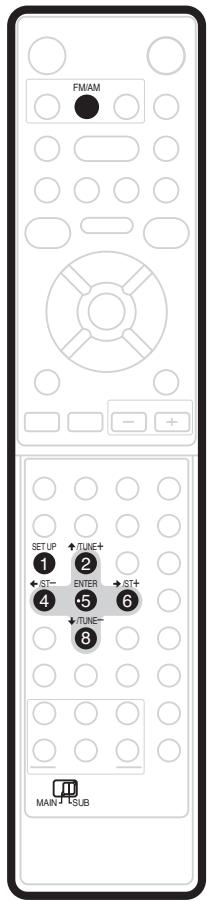
1 Press FM/AM to switch to the tuner, then press repeatedly to select the FM or AM band.
The display shows the band and frequency.
2 Tune to a frequency.
There are three tuning modes—manual, auto, and high-speed:
- Manual tuning: Press TUNE +/- repeatedly to change the displayed frequency.
- Auto tuning: Press and hold TUNE +/- until the frequency display starts to move, then release. The tuner will stop on the next station it finds. Repeat to keep searching.
- High-speed tuning: Press and hold TUNE +/- until the frequency display starts to move rapidly. Keep the button held down until you reach the frequency you want. If necessary, fine tune the frequency using the manual tuning method.
Improving poor FM reception
If you're listening to an FM station in stereo but the reception is weak, you can improve the sound quality by switching to mono.
1 Tune to an FM radio station then press SETUP.
2 Use the / buttons to choose FM MODE then press ENTER.
3 Use the ↑/↓ buttons to select FM MONO then press ENTER.
The mono indicator (○) lights when the tuner is in mono reception mode.
Select FM AUTO above to switch back to auto-stereo mode (the stereo indicator (○) lights when receiving a stereo broadcast).
Improving poor AM sound
The simplest way to improve the sound quality of AM radio is to make sure that the TV in the room is switched off. Also try changing the position and direction of the AM loop antenna.
Changing the noise cut mode
If you find that the sound quality is bad even after trying the above, you may be able to improve it using a different noise cut mode. Just choose the one that sounds best.
1 Tune to an AM radio station then press SETUP.
2 Use the / buttons to choose NOISECUT then press ENTER.
3 Use the ↑/↓ buttons to select a Noise cut mode (1, 2 or 3) then press ENTER.
Memorizing stations
You can save up to 30 station presets so that you always have easy access to your favorite stations without having to tune in manually each time.
1 Tune to an AM or FM radio station.
For the FM band, select mono or auto-stereo reception as necessary. This setting is saved along with the preset.
2 Press SETUP.
3 Use the / buttons to choose ST.MEM. then press ENTER.
4 Use the ↑/↓ buttons to select the station preset you want then press ENTER.
Listening to station presets
1 Make sure the tuner function is selected.
2 Use the ST +/- buttons to select a station preset.
Using RDS
Radio Data System (RDS) is a system used by most FM radio stations to provide listeners with various kinds of information—the name of the station and the kind of show they're broadcasting, for example.
One feature of RDS is that you can search by type of program. For example, you can search for a station that's broadcasting a show with the program type, JAZZ.
You can search the following program types: ^1
NEWS – News
AFFAIRS – Current Affairs
INFO – General Information
SPORT – Sport
EDUCATE – Educational
DRAMA – Radio plays, etc.
CULTURE – National or regional culture, theater, etc.
SCIENCE – Science and technology
VARIED – Usually talk-based material, such as quiz shows or interviews.
POP M – Pop music
ROCK M – Rock music
EASY M – Easy listening
LIGHT M – 'Light' classical music
CLASSICS – ‘Serious’ classical music
OTHER M – Music not fitting above categories
WEATHER – Weather reports
FINANCE – Stock market reports, commerce, trading, etc.
CHILDREN – Programs for children
SOCIAL – Social affairs
RELIGION – Programs concerning religion
PHONE IN – Public expressing their views by phone
TRAVEL – Holiday-type travel rather than traffic announcements
LEISURE – Leisure interests and hobbies
JAZZ – Jazz
COUNTRY – Country music
NATION M – Popular music in a language other than English
OLDIES – Popular music from the '50s and '60s
FOLK M – Folk music
DOCUMENT – Documentary
Displaying RDS information
You can display the different types of RDS information available. ^2
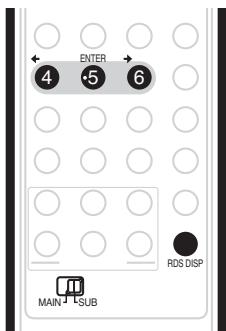
- Press RDS DISP for RDS information.
Each press changes the display as follows:
- Radio Text (RT) – Messages sent by the radio station. For example, a talk radio station may provide a phone number as RT.
- Program Service Name (PS) – The name of the radio station.
- Program Type (PTY) – This indicates the kind of program currently being broadcast.
- SEARCH – PTY search (see below)
- Current tuner frequency
Searching for RDS programs
You can search for a program type listed above.
1 Press the FM/AM button for the FM band. ^3
2 Press RDS DISP repeatedly until SEARCH appears in the display.
3 Use the / buttons to select the program type you want to hear.
4 Press ENTER to start the search.
The system searches the station presets for a match. If it finds one, searching stops for 5 sec.
5 If you want to keep listening to the station, press ENTER within the 5 seconds.
If you don't press ENTER, searching resumes.

Note
1 In addition, there are three other program types, TEST, ALARM, and NO TYPE. ALARM and TEST are used for emergency announcements. You can't search for these, but the tuner will switch automatically to this RDS broadcast signal. NO TYPE appears when a program type cannot be found.
2 • If any noise is picked up while displaying the RT scroll, some characters may be displayed incorrectly.
- If you see NO DATA in the RT display, it means no RT data is sent from the broadcast station. The display will automatically switch to the PS data display (if no PS data, the frequency is displayed).
- In the PTY display, NO DATA or NO TYPE may be shown. In this case, the PS display is shown after a few seconds.
3 RDS is only possible in the FM band.
Chapter 5
Surround sound settings

Important
- To access green functions on the remote, move the slider switch from MAIN to SUB.
Using the Setup menu
From the Setup menu you can access all the surround sound settings of the system ^1 , including channel levels, speaker distances, dynamic range adjustment and dual mono audio playback.
Use the following buttons to use the Setup menu.
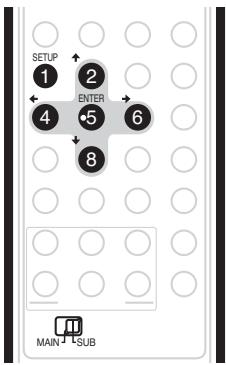
Channel level setting
The Auto MCACC feature (see page 23) should give you the best surround sound setup. However you may find that by further adjustment of the channel levels you can improve the surround sound in your listening room.
This method of setting the channel levels allows you to listen to a source and adjust the levels of each playback channel. Note that the channel level settings for stereo playback are independent of the settings for surround sound playback.
A further method of setting the channel levels is to use the test tone method. See Adjusting the channel levels using the test tone on page 32 for more on this.
1 Select stereo or multichannel playback for a source.
2 Press SETUP.
3 Use the / buttons to select CH LEVEL, then press ENTER.
4 Use / to select a channel; / to adjust the level of that channel.
- You can adjust the level of each channel by ± 10 dB.
- If the system is in Stereo or Virtual mode, or a stereo source is playing in Auto mode, you will not be able to adjust the center or surround channels.
5 Press ENTER when you're finished.
- If you use the Auto MCACC feature again, it will overwrite the settings you have made here.
Speaker distance setting
The Auto MCACC feature (see page 23) should give you the best surround sound setup. However you may find that by further adjustment of the speaker distance settings you can improve the surround sound in your listening room.
Set the distance of each speaker from your normal listening position.
1 Press SETUP.
2 Use the / buttons to select DISTANCE, then press ENTER.
3 Use / to select a speaker; / to adjust the distance.
Adjust the following speakers:
- L – Front left speaker
- C – Center speaker
- R – Front right speaker
- SR – Surround right speaker
- SL – Surround left speaker
- SW – Subwoofer
Each speaker can be adjusted from 0.3 m to 9.0 m.
4 Press ENTER when you're finished.
- If you use the Auto MCACC feature again, it will overwrite the settings you have made here.

1 There are other settings you can adjust from the Setup menu; these are explained in Listening to the radio on page 29 and Additional information on page 37.
Dynamic Range Control ^1
When watching Dolby Digital or DTS material at low volume, low level sounds—including some of the dialog—can be difficult to hear properly. Using one of the Dynamic Range Control (DRC) settings can help by bringing up the low level sounds, while controlling high level peaks.
Dynamic Range Control works only with Dolby Digital soundtracks and some DTS soundtracks.
1 Press SETUP.
2 Use the / buttons to select DRC, then press ENTER.
3 Use ↑/↓ to select a setting.
Select one of the following:
- DRC OFF (default) – No dynamic range adjustment (use when listening at higher volume)
- DRC MID – Mid setting
- DRC HIGH – Dynamic range is reduced (loud sounds are reduced in volume while quieter sounds are increased)
4 Press ENTER to exit.
Dual mono setting ^2
Specifies how dual mono encoded Dolby Digital or DTS soundtracks should be played. You can also use this setting to switch the audio channel on DVD-RW discs recorded with bilingual audio.
1 Press SETUP.
2 Use the / buttons to select DUALMONO, then press ENTER.
3 Use ↑/↓ to select a setting.
Select one of the following:
- CH1 MONO (default) – Only channel 1 is played
- CH2 MONO – Only channel 2 is played
- CH1/CH2 – Both channels are played through the front speakers
4 Press ENTER to exit.
Adjusting the channel levels using the test tone
If you prefer, you can set the channel levels using a test tone as a reference, rather than playing a source (see Channel level setting on page 31). A test tone is played through each speaker in turn, allowing you to adjust the level as it plays.
Note that the channel level settings for stereo sources are independent of the settings for surround sound sources.
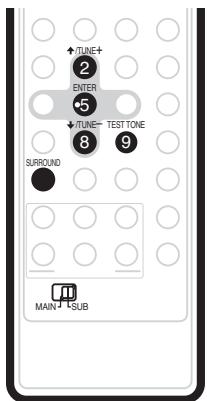
1 Press SURROUND to select the Auto listening mode.
- If you want to set the channel levels for stereo (two channel) playback, select the STEREO listening mode.
2 Press TEST TONE.
The test tone is output from each speaker in turn.
3 While a test tone is playing, use the ↑/↓ buttons to adjust that channel level.
The aim is to adjust the levels so that you hear the test tone at the same volume from each speaker. You can adjust the level of each channel by ± 10 dB.
- You can adjust the overall volume of test tone output using the VOLUME +/- buttons (this does not affect the channel level settings).
- If the system is in Stereo or Virtual mode, you will not be able to adjust the center or surround channels.
- Because of the ultra low frequencies the subwoofer produces, it may sound quieter than it really is. We suggest adjusting the subwoofer level while listening to a source. See the method described in Channel level setting on page 31.

Note
1 This setting is effective for the speaker output. A similar adjustment feature is available on the DVD recorder—see Audio DRC on page 131.
2 This setting is effective for the speaker output. A similar adjustment feature is available on the DVD recorder—see Switching audio channels on page 94.
4 When you're done, press ENTER to exit test tone setup.
- If you use the Auto MCACC feature again, it will overwrite the settings you have made here.
Chapter 6
Other connections

Important
- When connecting this system or changing connections, be sure to switch power off and disconnect the power cord from the wall socket. After completing all connections, connect the power cord to the wall socket.
Connecting auxiliary components
This system has optical-type digital inputs. Use these to connect external components, such as your MD or CD recorder.
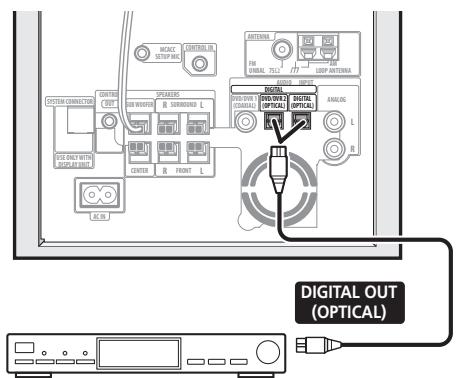
CD recorder, etc.
- Connect the DVD/DVR2 (OPTICAL) or DIGITAL (OPTICAL) jack on the rear panel to the optical output of an external playback component.
These include digital components such as an MD player, digital satellite, or a game system.
Connecting an analog audio component
You can use the ANALOG input jacks to connect an analog audio component, such as a tape player. See Using this system for TV audio on page 14 for connection details (this explains connecting the audio output from your TV, but any analog audio component can be connected).
Listening to an external audio source
You can connect both analog and digital external audio sources to this system. Digital audio sources include digital satellite receivers, CD recorders, etc. Analog sources include your TV. See also Connecting auxiliary components above.
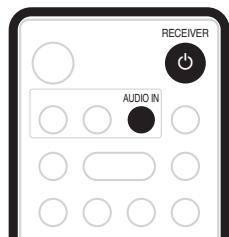
1 If the system isn't already on, press ⏻ RECEIVER to switch on.
Also make sure that the external source (TV, satellite receiver, etc.) is switched on.
2 Use the AUDIO IN button to select an audio input source.
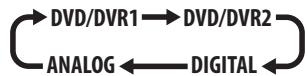
3 If necessary, start playback of the external source.
Connecting external antennas
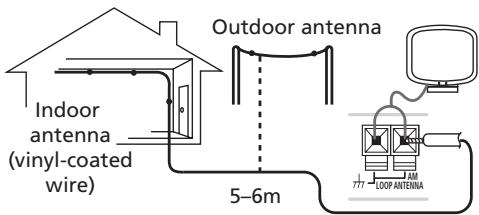
For an external AM antenna, use 5–6 meters of vinyl-insulated wire and set up either indoors or outdoors. Leave the loop antenna connected.
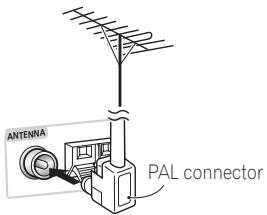
For an external FM antenna, Use a PAL connector to hook up an external FM antenna.
Using this unit with a Pioneer plasma display
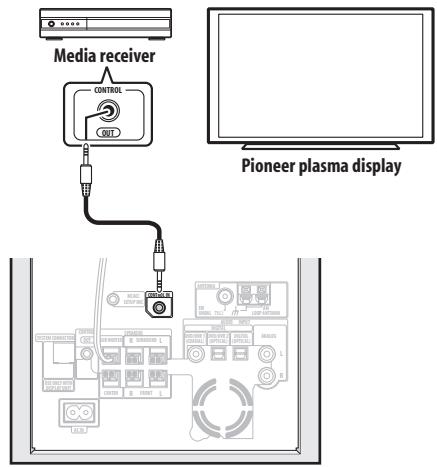
If you have a Pioneer plasma display ^1 , you can use an SR+ cable ^2 to connect it to this unit and take advantage of various convenient features, such as controlling this unit via the plasma display's remote sensor, automatic video input switching of the plasma display, display unit messages appearing on the plasma display screen, and automatic volume muting on the plasma display.

Important
- With an SR+ cable connected, the remote must now be pointed towards your plasma display rather than the display unit of the receiver subwoofer in order to control the receiver subwoofer.
- Use a 3-ringed miniplug SR+ cable to connect the CONTROL IN jack of this unit (through a media receiver, if applicable) to the CONTROL OUT jack of your plasma display. ^3
Before you can use the extra SR+ features, you need to make a few settings in the unit—see SR+ Setup for Pioneer plasma displays below.
SR+ Setup for Pioneer plasma displays
Make the following settings if you have connected a Pioneer plasma display to this unit using an SR+ cable.
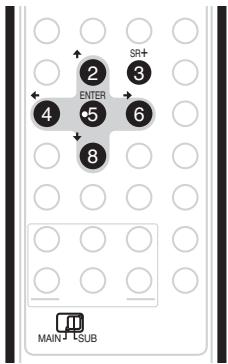
1 Press SR+.
2 Use the / buttons to choose SETUP, then press ENTER.
3 Use the / buttons to choose the setting you want to adjust.
The current setting is shown for each option as you cycle through the display. See below for a full list and description of each.
4 Use the ↑/↓ buttons to adjust the setting.
5 Repeat steps 3 and 4 to make other settings.
6 When you're done, press ENTER to leave the SR+ setup menu.
Note
1 This system is compatible with all Pioneer plasma displays from 2003 onward.
2 The 3-ringed SR+ cable from Pioneer is commercially available under the part number ADE7095. Contact the Pioneer Customer Support division for more information on obtaining an SR+ cable.
3 You won't be able to use the remote sensor of this unit with the CONTROL IN jack of this unit connected to the CONTROL OUT jack of your plasma display. You can use the remote sensor of the plasma display (even in standby) as long as the power isn't switched off.
Automatic plasma display volume muting
When Volume Control is switched on, the volume of the plasma display is automatically muted when the receiver subwoofer is switched on, or the receiver subwoofer function is changed to one that you would want to hear the sound from the receiver subwoofer rather than the plasma display (DVD, for example).
- VOL.C ON – When this unit is switched on, or the input function is changed, the volume on the plasma display is muted so only sound from this unit is heard.
- VOL.C OFF – This unit does not control the volume of the plasma display
Automatic plasma display input switching
In order that the plasma display can switch automatically to the correct input when you switch the input function of the receiver subwoofer, you need to tell it how your system is connected.
For example, if you connected your DVD recorder to the DV1 input on the receiver subwoofer, and to input 2 on your plasma display, select the DV1 PDP2 setting here so that when you switch the input function of the receiver subwoofer to DV1 to watch your DVD recorder, the plasma display will automatically switch to input 2.
For each receiver subwoofer input function (DV1 (DVD/DVR1), DV2 (DVD/DVR2), DIG (DIGITAL), ANA (ANALOG)) you can select:
- NONE – does not switch the plasma display input
- PDP1 to PDP5 – switches the plasma display input to one of the numbered inputs (1 to 5)
- TVTN – switches the plasma display to its built-in TV tuner

Note
- The number of video inputs available will depend on the plasma display you've connected.
- The PDP5 input may be called 'PC Input' (or similar) on your plasma display.
- The SR+ setting remains in effect even in standby.
- The SR+ setting does not affect the FM/AM tuner function.
Using the SR+ mode with a Pioneer plasma display
1 Press SR+ on the remote.
2 Use ←/→ to select SR+ ON then press ENTER.
- The SR+ setting is maintained even after switching the receiver subwoofer into standby then back on. Automatic muting and automatic input switching will be effective when the receiver subwoofer is switched on.
- If you disconnect the SR+ cable or switch the plasma display off while SR+ is on, the SR+ ON setting remains.
- To switch to SR+ OFF, follow steps 1 and 2, selecting SR+ OFF.

Note
- You can control this unit with the plasma display's remote sensor even in standby, but you can't control this unit with either this unit's remote sensor or the plasma display's remote sensor when the plasma display is switched off (AC off) and the SR+ cable is connected to the CONTROL IN jack of this unit.
Chapter 7
Additional information

Important
- To access green functions on the remote, move the slider switch from MAIN to SUB.
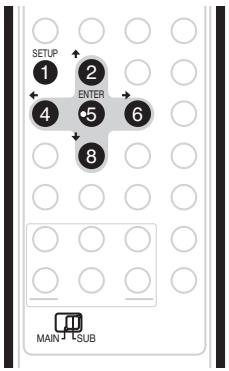
Dimming the display
You can choose to dim the display if you find it too bright. ^1
1 Press SETUP.
2 Use the / buttons to select DIMMER then press ENTER.
3 Use the ↑/↓ buttons to select LIGHT or DARK then press ENTER.
DTS CD setting
If you play a DTS-encoded CD, you will need to change this setting to hear the decoded signal.
1 Switch the system into standby.
2 Press SETUP.
3 Use the / buttons to select CD TYPE from the menu, then press ENTER.
4 Use the ↑/↓ buttons to select a setting, then press ENTER.
Select from:
- NORMAL – Use for playback of regular audio CDs. Some DTS-encoded CDs will output noise when played.
- DTS-CD – Use for playback of DTS-encoded CDs, but note that the beginning of regular CD tracks may be skipped.
Setting the sleep timer
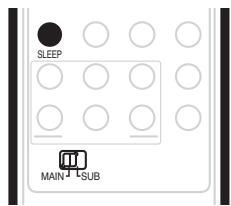
The sleep timer switches off the receiver subwoofer after a specified time so you can fall asleep without worrying about it. ^2
1 Press the SLEEP button to select an option. Choose between the following options:
- SLP ON – Switches off after about an hour
- SLP OFF – Cancels the sleep timer
After selecting SLP ON, you can press SLEEP again to check how much time is left. Each line indicates approximately 12 minutes (remaining):

Resetting the system
Use this procedure to reset all system settings to the factory default.
1 Switch the system on.
2 Press and hold SURROUND then press the ⏻ STANDBY/ON button on the display unit.
The next time you switch on, all the system settings should be reset.

1 The display dims when the sleep timer is set, regardless of this setting.
2 The display dims when the sleep timer is set. The DVD recorder does not automatically switch off with the sleep timer.
Installation and maintenance
Hints on installation
We want you to enjoy using this system for years to come, so please bear in mind the following points when choosing a location:
Do...
√ Use in a well-ventilated room.
√ Place on a solid, flat, level surface, such as a table, shelf or stereo rack.
Don't...
✗ Use in a place exposed to high temperatures or humidity, including near radiators and other heat-generating appliances.
✗ Place on a window sill or other place where the system will be exposed to direct sunlight.
✗ Use in an excessively dusty or damp environment.
✗ Place directly on top of an amplifier, or other component in your stereo system that becomes hot in use.
✗ Use near a television or monitor as you may experience interference—especially if the television uses an indoor antenna.
✗ Use in a kitchen or other room where the system may be exposed to smoke or steam.
✗ Use on a thick rug or carpet, or cover with cloth—this may prevent proper cooling of the system unit.
✗ Place on an unstable surface, or one that is not large enough to support all four of the system unit's feet.
Troubleshooting
Incorrect operations are often mistaken for trouble and malfunctions. If you think that there is something wrong with this component, check the points below. Sometimes the trouble may lie in another component. Investigate the other components and electrical appliances being used. If the trouble cannot be rectified even after exercising the checks listed below, ask your nearest Pioneer authorized service center or your dealer to carry out repair work.
- If the system does not operate normally due to external effects such as static electricity disconnect the plug from the outlet and insert again to return to normal operating conditions.
- If there is no sound or no multichannel sound from the DVR-640H-AV/DVR-440H-AV DVD recorder, try setting the recorder's audio-related settings back to their defaults—see The Initial Setup menu on page 128.
General
| Problem | Remedy |
| The power does not turn on, or switches off suddenly (an error message may be displayed at startup). | Leave the unit plugged in, wait for one minute, then switch back on.Make sure there are no loose strands of wire touching the unit. This could cause the system to shut off automatically.Check that the speakers are connected correctly.Make sure there is enough space for ventilation around the receiver subwoofer.Make sure the voltage of the mains power source is correct for the model.Try reducing the volume level.If the problem persists, take it to your nearest Pioneer authorized service center or your dealer for servicing. |
| No sound is output when a function is selected. | If you're playing from the DVD recorder, make sure that the digital coaxial cable is connected properly. Also make sure that the DVD recorder's Digital Out and DTS Out settings are set toOn, and that the MPEG Out setting is set toMPEG → PCM.If you're using the line input, make sure the component is connected correctly (see Connecting auxiliary components on page 34).Turn up the volume. |
| No sound from surround or center speakers. | Refer toChannel level settingon page 31 to check the speaker levels.Check that you haven't selected theAUTO, STEREO, orVIRTUALmode (see Listening in surround sound on page 25).Connect the speakers properly (refer to Connecting up).If you're playing from the DVD recorder, check that the Dolby Digital Out setting is set toDolby Digital.If the source is 96 kHz, this will be played in stereo. If you want to play it in surround sound, set the DVD recorder's 96 kHz PCM Out setting to96 kHz → 48 kHz. |
| Can’t operate using the remote control. | Replace the batteries (Putting the batteries in the remote control on page 17).Operate within 7 m, 30° of the remote sensor (Using the remote control on page 17).Remove any obstacles or operate from another position.Avoid exposing the remote sensor on the front panel to direct light.For operating the DVD recorder, make sure that the control cable and coaxial cable are connected. (page 10)If the receiver subwoofer is connected to a Pioneer plasma display with an SR+ cable, check that the plasma display is switched on. Point the remote control at the plasma display in order to operate the receiver subwoofer.Check that nothing is mistakenly plugged into theCONTROL INjack. |
Tuner
| Problem | Remedy |
| Considerable noise in radio broadcasts. | Connect the AM antenna (refer to the Connecting up) and adjust the direction and position for best reception. You may also connect an additional internal or external AM antenna (refer to Connecting external antennas on page 34).Fully extend the FM wire antenna, position for best reception, and secure to a wall. You may also connect an outdoor FM antenna (see Connecting external antennas on page 34).Turn off other equipment that may be causing the noise or move it further away. |
| Auto tuning does not pick up some stations. | The radio signal is weak. Auto tuning will only detect radio stations with a good signal. For more sensitive tuning, connect an outdoor antenna. |
Error Messages
| Message | Description |
| 2CH ONLY | • An operation is prohibited because it is only applicable to 2 channel sources, while the current source is a multichannel source. |
| 96K | • An operation is prohibited because the source is 96 kHz digital. |
| EXIT | • Appears when a menu is automatically exited after a set period of inactivity. |
| NOISY | • Background noise is too high to complete MCACC setup successfully. |
| ERR MIC | • An error occurred during MCACC setup because the microphone is not connected or is not connected properly. |
| ERR SP | • An error occurred during MCACC setup because the speakers are not connected or are not connected properly. |
| EEP ERROR | • Contact your Pioneer authorized service center or your dealer for servicing. |
| NO SPTYP | • Try switching the unit off then on again. If the error still appears, please contact a Pioneer authorized service center or your dealer. |
Glossary
| Dolby DigitalDOLBY DIGITAL PROLOGIC II | A multi-channel audio encoding system developed by Dolby Laboratories that enables far more audio to be stored on a disc than PCM encoding. |
| Dolby Pro Logic II | A matrix decoding technology developed by Dolby Laboratories that expands any two-channel source audio, such as CDs and TV broadcasts, to a five-channel playback (left/center/right/left surround/right surround), resulting in a surround experience. |
| DTSDIGITAL SURROUND | A multi-channel audio encoding system developed by Digital Theater Systems that enables far more audio to be stored on a disc than PCM encoding. |
Manufactured under license from Dolby Laboratories. "Dolby", "Pro Logic" and the double-D symbol are trademarks of Dolby Laboratories.
“DTS” and “DTS Digital Surround” are registered trademarks of Digital Theater Systems, Inc.
Specifications
SX-SW606 / SX-SW404
- Amplifier section
RMS Power Output: Front, Center, Surround.....100 W per channel (1 kHz, 10 % T.H.D., 4 Ω) Subwoofer.....100 W (100 Hz, 10 % T.H.D., 4 Ω)
• FM tuner section
Frequency range 87.5 MHz to 108 MHz Antenna 75 Ω, unbalanced
• AM tuner section
Frequency range .....531 kHz to 1 602 kHz Antenna ..... Loop antenna
- Subwoofer section
Enclosure.... Bass-reflex floor type System.... 16 cm 1-way system Speaker.... 16 cm cone type Nominal impedance.... 4 Ω Frequency range.... 25 Hz to 1.0 kHz Maximum Input Power.... 100 W
- Miscellaneous
Power requirements ..... AC 220 V to 240 V, 50 Hz/60 Hz Power consumption ..... 50 W Power consumption in standby ..... 0.3 W Dimensions ..... 200 mm (W) x 375 mm (H) x 437 mm (D) Weight ..... 9.0 kg
- Accessories
Remote control .... 1 Display unit .... 1 AA/R6 dry cell batteries (to confirm operation) .... 2 Coaxial cable .... 1 Control cable .... 1 Display cable .... 1 AM loop antenna.... 1 FM wire antenna .... 1 Microphone (for Auto MCACC setup) .... 1 Power cord.... 1 Warranty card .... 1 These operating instructions
S-ST606 Speaker system
(Front speakers x2, surround speakers x2, center speaker x1)
Front/surround speakers
Enclosure.... Closed-box floorstanding type (magnetically shielded)
System 2-way system
Speakers: Woofer 7.7 cm cone type x 2
Tweeter 2.6 cm semi-dome type
Nominal impedance.... 4 Ω
Frequency range 70 Hz to 20 kHz
Maximum input power....100 W
Dimensions . . . 260 mm (W) x 1095 mm (H) x 260 mm (D)
Weight 4.2 kg
Center speaker
Enclosure.... Closed-box bookshelf type (magnetically shielded)
System....7.7 cm 1-way system
Speakers 7.7 cm cone type
Nominal impedance.... 4 Ω
Frequency range 75 Hz to 20 kHz
Maximum input power 100 W
Dimensions ..... 270 mm (W) x 96 mm (H) x 90 mm (D)
Weight 0.78 kg
Accessories
Speaker cables 5
Non-skid pads (small).... 4
Non-skid pads (large) 4
Non-skid pads (large) 16
Speaker stand bases 4
Screws (for bases) 12
S-ST404 Speaker system
(Front speakers x2, surround speakers x2, center speaker x1)
Front/surround speakers
Enclosure.... Closed-box bookshelf type (magnetically shielded)
System....7.7 cm 1-way system
Speakers 7.7 cm cone type
Nominal impedance.... 4 Ω
Frequency range 80 Hz to 20 kHz
Maximum input power....100 W
Dimensions ..... 100 mm (W) x 136 mm (H) x 80 mm (D)
Weight 0.55 kg
Center speaker
Enclosure.... Closed-box bookshelf type (magnetically shielded)
System....7.7 cm 1-way system
Speakers 7.7 cm cone type
Nominal impedance.... 4 Ω
Frequency range 75 Hz to 20 kHz
Maximum input power....100 W
Dimensions ..... 270 mm (W) x 96 mm (H) x 90 mm (D)
Weight 0.78 kg
- Accessories
Speaker cables....5
Non-skid pads (small) 20
Non-skid pads (large) 4
Speaker stands (for surround speakers)....2
Screws (for stands) 2

Note
- Specifications and design subject to possible modification without notice, due to improvements.
DVD RECORDER
DVR-640H-AV DVR-440H-AV
Contents
01 Before you start
Disc / content format playback compatibility ..... 45
About the internal hard disk drive 48
Symbols used in this manual....49
02 Connecting up
Rear panel connections....50
Front panel connections 50
Easy connections....51
Using other types of audio/video output....52
Connecting to a cable box, satellite receiver or digital terrestrial receiver....52
Connecting an external decoder box (1)....53
Connecting an external decoder box (2)....54
Connecting other AV sources 55
Connecting a USB device 55
Plugging in 56
03 Controls and displays
Front panel 57
Display....58
04 Getting started
Switching on and setting up 59
Setting up the GUIDE Plus+ ^™ system....61
05 Using the GUIDE Plus+™ electronic program guide
The GUIDE Plus+™ system 64
Using the GUIDE Plus+™ system 64
Areas....66
GUIDE Plus+™ FAQ and troubleshooting .....73
06 Recording
About DVD recording....75
About HDD recording 76
Recorded audio 76
Restrictions on video recording 76
Using the built-in TV tuner....77
Setting the picture quality/recording time .....77
Basic recording from the TV 78
Pause Live TV....79
Setting a timer recording....79
Timer recording FAQ 82
Simultaneous recording and playback (Chase Play) . 82
Recording from an external component....82
Recording from a DV camcorder 83
Playing your recordings on other DVD players.....84
Initializing recordable DVD discs....85
07 Playback
Introduction....86
Basic playback....86
Using the Disc Navigator to browse the
contents of a disc 89
Scanning discs 91
Playing in slow motion....91
Frame advance/frame reverse 91
The Play Mode menu 91
Displaying and switching subtitles 93
Switching DVD and DivX soundtracks 94
Switching audio channels 94
Switching camera angles 94
Displaying disc information on-screen....95
08 Editing
Editing options 96
The Disc Navigator screen....97
09 Copying and backup
Introduction....106
One Touch Copy 106
Using Copy Lists 107
Using disc backup....111
10 Using the Jukebox
Copying music to the HDD 113
Copying files from a USB device to the HDD ..... 113
Playing music from the Jukebox 113
Editing Jukebox albums....114
11 The PhotoViewer (DVR-640H-AV)
Locating JPEG picture files 115
Playing a slideshow....115
Importing files to the HDD....116
Importing files from a USB device 117
Copying selected files to a DVD-R/-RW ..... 118
Editing files on the HDD 118
Printing files 120
12 The PhotoViewer (DVR-440H-AV)
Locating JPEG picture files 121
Playing a slideshow....121
13 The Disc Setup menu
Basic settings....123
Initialize settings....123
Finalize settings 124
Optimize HDD 124
Initialize HDD....124
14 The Video Adjust menu
Setting the picture quality for TV and external inputs....125
Setting the picture quality for disc playback .....126
15 The Initial Setup menu
Using the Initial Setup menu .....128
Selecting other languages for language options....135
16 Additional information
Setting up the remote to control your TV. . . . . . . . . . . . . . . . . 136
TV Preset code list 137
Minimum copying times....138
Manual recording modes....139
Troubleshooting 140
On-screen displays and recorder displays.....143
About DV 145
Screen sizes and disc formats .....145
Language code list....146
Country/Area code list 146
Handling discs....147
Cleaning the pickup lens 147
Condensation....147
Hints on installation....147
Moving the recorder....148
Resetting the recorder .....148
Specifications....148
Chapter 1
Before you start
Disc / content format playback compatibility
Compatible media
- DVD-RW ver. 1.1/1 x / 1 x to 2 x, ver. 1.2 / 2 x to 4 x / 2 x to 6 x
- DVD-R ver. 2.0 /1 x / 1 x to 4 x /
1 x to 8 x / 1 x to 16 x, ver. 2.1 / 1 x to 8 x / 1 x to 16 x
• DVD+RW 1 x to 2.4 x / 1 x to 4 x / 3.3 x to 8 x
• DVD+R 1 x to 2.4 x / 1 x to 4 x / 1 x to 8 x / 1 x to 16 x - DVD-RAM ver. 2.0 / 2 x, ver. 2.1 / 2 x / 2 x to 3 x / 2 x to 5 x, ver. 2.2 / 2 x / 2 x to 3 x / 2 x to 5 x
• DVD-R DL ver. 3.0 / 2 x to 4 x
• DVD+R DL 2.4 x / 2.4 x to 8 x
Note that older models of DVD recorders and DVD writers may reject DVD-RW ver. 1.2 discs and/or corrupt the data on the disc. If you want to share DVD-RW discs between this recorder and an older recorder/writer, we recommend using ver. 1.1 discs.
The following table shows older Pioneer DVD recorders' limited compatibility with DVD-RW ver. 1.2 discs.
| Model | Playable | Recordable |
| DVR-7000 | Yes^1,2,3 | No |
| DVR-3100 / DVR-5100H | Yes^1 | No |
^1 Discs should be finalized in this recorder before playing. Unfinalized VR mode and Video mode discs may not play.
^2 Cannot read the CPRM information will show in the display when you load a disc. However, this will not affect playback.
^3 Copy-once protected disc titles will not play.
DVD/HDD Recording and playback compatibility
This recorder can play and record all the currently popular DVD disc types, as well as providing HDD functionality. The table below shows some specific compatibility differences between the different disc types.
| HDD | DVD-R | DVD-RW | DVD+R | DVD+RW | DVD-RAM | |||
| Marks used in this manual | HDD | DVD (VR)*1 | DVD (Video) | DVD (VR)*1 | DVD (Video)*2 | DVD+R | DVD+RW | DVD-RAM*13, 16 |
| Logos | HDDHARD DISK DRIVE | DVR | DVRW | DVRWRW2 | RDWDVD+R | RDWDVD-ReWritable | RDDRAM | |
| Re-recordable / Erasable | ● | *3 | *3 | ● | ● | *3 | ● *14 | ● |
| Editing of recorded programs | ● | ● | ● *4 | ● | ● *4 | ● *4 | ● *4 | ● |
| Recording of Copy-once protected material | ● | ● *12 | ● *12 | ● *12 | ||||
| Playback in other players/recorders | n/a | *5 | ● *6 | *7 | ● *6 | ●*6, 15 | ● *8 | ● *9 |
| Chase play | ● | |||||||
| 16:9 and 4:3 program recording | ● | ● | ● | ● | ||||
| Bilingual broadcast recording of both audio channels | ●*10, 11 | ● *11 | ● *11 | ● *11 | ||||
Notes to table
*1 Must be initialized for VR mode recording (page 123)
*2 Must be initialized for Video mode recording (page 123)
*3 Erasable, but free space does not increase
*4 Cannot erase sections, edit chapters or use playlist editing
*5 Must be compatible with DVD-R(VR) playback
*6 Finalize using this recorder (may not playback in some units) (page 84)
*7 Must be compatible with DVD-RW(VR) playback
*8 Must be compatible with DVD+RW playback
*9 Must be compatible with DVD-RAM playback
*10 Only when HDD Recording Format is set to Video Mode Off (page 133)
*11 Only when the recording mode is not set to LPCM
*12 CPRM-compatible discs only
*13 Take the disc out of the cartridge before use. Only Matsushita and Maxell discs have been tested to work reliably with this recorder. Discs from other makers may become unusable when recorded or edited.
*14 Erasing a title does not increase the available recording time, nor increase the number of recordable titles left.
*15 Must be compatible with DVD+R playback
*16 Depending on the disc, it may have to be initialized before it can be recorded (page 123). In this case, initialization will take about 1 hour.
DVD is a trademark of DVD Format/Logo Licensing Corporation.
Using DVD-R DL/DVD+R DL discs
DVD-R DL (dual-layer) and DVD+R DL (double-layer) discs contain two recordable layers on a single side, giving about 1.8 times the recording capacity of a conventional single-layer disc. This unit can record to both DVD-R DL and DVD+R DL discs.
- If you intend to play DVD-R DL (Video mode) or DVD+R DL discs recorded on this unit on other DVD recorders/players, you must finalize them. (Note that some DVD recorders/players may not play even finalized DL discs.)
- Please read the information provided on the disc packaging carefully before purchasing DVD-R DL/DVD+R DL discs:
- Confirm the disc version: Use ver. 3.0 / 2 x to 4 x DVD-R discs.
- Confirm the recording speed: DVD-R should be compatible with 2 x or 4 x recording; DVD+R with 2.4 x to 8 x recording.
- This logo indicates that the disc is a DVD-R DL or DVD+R DL disc:


- Correct operation has been confirmed for DVD-R DL discs (ver. 3.0 / 2 x, 4 x) produced by the following manufacturers: Mitsubishi Kagaku Media, Verbatim (as of March 2005).
About DualDisc playback
A DualDisc is a new two-sided disc, one side of which contains DVD content –video, audio, etc. –while the other side contains non-DVD content such as digital audio material.
The non-DVD, audio side of the disc is not compliant with the CD Audio specification and therefore may not play. It is possible that when loading or ejecting a DualDisc, the opposite side to that being played will be scratched. Scratched discs may not be playable.
The DVD side of a DualDisc plays in this product. DVD-Audio content will not play.
For more detailed information on the DualDisc specification, please refer to the disc manufacturer or disc retailer.
Other disc compatibility
In addition to DVD, this recorder is compatible with a wide range of disc types (media) and formats. Playable discs will generally feature one of the following logos on the disc and/or disc packaging. Note however that some disc types, such as recordable CD (and DVD), may be in an unplayable format—see below for further compatibility information.
Audio CD

CD-R

CD-RW

Video CD

Super Video CD (Super VCD)


CD-R/RW compatibility
This recorder cannot record CD-R or CD-RW discs.
- Readable formats: CD-Audio, Video CD/Super VCD, ISO 9660 CD-ROM* containing MP3, WMA, JPEG or DivX files.
* ISO 9660 Level 1 or 2 compliant. CD physical format: Mode1, Mode2 XA Form1. Romeo and Joliet file systems are both compatible with this recorder.
- Multi-session playback: Yes (except CD-Audio and Video CD/Super VCD)
• Unfinalized disc playback: CD-Audio only
Compressed audio compatibility
- Compatible media: CD-ROM, CD-R, CD-RW, DVR-640H-AV only: USB
- Compatible formats: MPEG-1 Audio Layer 3 (MP3), Windows Media Audio (WMA)
- Sampling rates: 32 kHz, 44.1 kHz or 48 kHz
- Bit-rates: Any (128 Kbps or higher recommended)
• Variable bit-rate (VBR) MP3 playback: Yes
• VBR WMA playback: No
- WMA encoder compatibility: Windows Media Codec 8 (files encoded using Windows Media Codec 9 may be playable but some parts of the specification are not supported; specifically, Pro, Lossless, Voice and VBR)
- DRM (Digital Rights Management) ^1 file playback: No
- File extensions: .mp3, .wma (these must be used for the recorder to recognize MP3 and WMA files – do not use for other file types)
- File structure: Up to 99 folders / 999 files (if these limits are exceeded, only files and folders up to these limits are playable)
WMA (Windows Media Audio) compatibility

The Windows Media ^® logo printed on the box indicates that this recorder can playback Windows Media Audio content.
WMA is an acronym for Windows Media Audio and refers to an audio compression technology developed by Microsoft Corporation. WMA content can be encoded by using Windows Media ^® Player for Windows ^® XP, Windows Media ^® Player 9 or Windows Media ^® Player 10 series.
Microsoft, Windows Media, and the Windows logo are trademarks, or registered trademarks of Microsoft Corporation in the United States and/or other countries.
DivX video compatibility

DivX is a compressed digital video format created by the DivX ^® video codec from DivX, Inc. This recorder can play DivX video files burned on CD-R/RW/ROM discs. Keeping the same terminology as DVD-Video, individual DivX video files are called "Titles." When naming files/titles on a CD-R/RW disc prior to burning, keep in mind that by default they will be played in alphabetical order.
• Official DivX® Certified product.
- Plays all versions of DivX ^ video (including DivX ^ 6) with standard playback of DivX ^ media files.
- File extensions: .avi and .divx (these must be used for the recorder to recognize DivX video files). Note that all files with the .avi extension are recognized as MPEG4, but not all of these are necessarily DivX video files and therefore may not be playable on this recorder.
- File structure: Up to 99 folders or 999 files.
DivX, DivX Certified, and associated logos are trademarks of DivX, Inc. and are used under license.
DivX® VOD content
DivX
In order to play DivX VOD (video on demand) content on this recorder, you first need to register the recorder with your DivX VOD content provider. You do this by generating a DivX VOD registration code, which you submit to your provider.
Some DivX VOD content may only be playable a fixed number of times. When you load a disc containing this type of DivX VOD content, the remaining number of plays is shown on-screen and you then have the option of playing the disc (thereby using up one of the remaining plays), or stopping. If you load a disc that contains expired DivX VOD content (for example, content that has zero remaining plays), the message Rental Expired is displayed.
If your DivX VOD content allows an unlimited number of plays, then you may load the disc into your recorder and play the content as often as you like, and no message will be displayed.

Important
- DivX VOD content is protected by a DRM (Digital Rights Management) system. This restricts playback of content to specific, registered devices.
- If you load a disc that contains DivX VOD content not authorized for this recorder, the message Authorization Error is displayed and the content will not play.
- Resetting the recorder (as described in Resetting the recorder on page 148) will not cause you to lose your registration code.
Note
JPEG file compatibility
- Compatible formats: Baseline JPEG and EXIF 2.2* still image files
*File format used by digital still cameras
• Sampling ratio: 4:4:4, 4:2:2, 4:2:0
• Horizontal resolution: 160 to 5120 pixels
• Vertical resolution: 120 to 3840 pixels
- Progressive JPEG compatible: No
- File extensions: .jpg, .jpeg, .jpe, .jif, .jfif (must be used for the recorder to recognize JPEG files – do not use for other file types)
- File structure: The recorder can load up to 99 folders / 999 files at one time (if there are more files/folders that this on the disc then more can be reloaded)
PC-created disc compatibility
Discs recorded using a personal computer may not be playable in this unit due to the setting of the application software used to create the disc. In these particular instances, check with the software publisher for more detailed information.
Discs recorded in packet write mode (UDF format) are not compatible with this recorder.
Check the DVD-R/RW or CD-R/RW software disc boxes for additional compatibility information.
Dolby Digital

Manufactured under license from Dolby Laboratories.
"Dolby" and the double-D symbol are trademarks of Dolby Laboratories.
DTS

"DTS" and "DTS Digital Out" are registered trademarks of Digital Theater Systems, Inc.
About the internal hard disk drive
The internal hard disk drive (HDD) is a fragile piece of equipment. Depending on the conditions under which it is used, or through careless use, it is possible that the recorded contents will be damaged or lost completely, or that normal playback and recording will not be possible. Please understand that in the event of repair or replacement of the HDD or related components, all your HDD recordings will be lost.
Please use the recorder following the guidelines below to protect against possible HDD failure.
The HDD should not be regarded as a place to store recordings permanently. We recommend that you back up your important recordings onto DVD discs in order to protect against accidental loss.
Pioneer cannot under any circumstances accept responsibility for any direct or indirect loss arising from any inconvenience or loss of recorded material resulting from HDD failure.
- Do not move the recorder while it is on (this includes during EPG download when the display shows EPG).
• Install and use the recorder on a stable, level surface. - Do not block the rear vent/cooling fan.
- Do not use the recorder in excessively hot or humid places, or in places that may be subject to sudden changes in temperature. Sudden changes in temperature can cause condensation to form inside the recorder. This can be a cause of HDD failure.
- While the recorder is switched on (including during EPG download when the display shows EPG), do not unplug from the wall socket or switch the electricity off from the breaker switch.
- Do not move the recorder immediately after switching it off. If you need to move the recorder, please follow the steps below:
1 After the message POWER OFF is shown in the display, wait at least two minutes.
2 Unplug from the wall socket.
3 Move the recorder.
- If there's a power failure while the recorder is on there is a chance that some data on the HDD will be lost.
- The HDD is very delicate. If used improperly or in an unsuitable environment, it is possible that the HDD will fail after a few years of use. Signs of problems include playback unexpectedly freezing and noticeable block noise (mosaic) in the picture. However, sometimes there will be no warning signs of HDD failure. If the HDD fails, no playback of recorded material will be possible. In this case it will be necessary to replace the HDD unit.
Optimizing HDD performance
As you record and edit material on the HDD, the data on the disk becomes fragmented, eventually affecting the recorder's performance. Before this happens, the recorder will warn you that it is time to optimize the HDD (which you can do from the Disc Setup menu; see Optimize HDD on page 124).
Symbols used in this manual
The following icons are provided to help you quickly identify which instructions you need for which kind of disc.
HDD HDD
DVD Any type of DVD disc (recordable or playback only), finalized or not.
DVD-Video Commercially produced DVD, finalized Video mode DVD-R/-RW.
DVD (Video) Video mode DVD-R/-RW (unfinalized)
DVD (VR) VR mode DVD-R/-RW
DVD+R DVD+R
DVD+RW DVD+RW
DVD-RAM DVD-RAM
CD Audio CD
Video CD Video CD
Super VCD Super VCD
WMA/MP3 WMA or MP3 files
DivX DivX files
ALL All of the above
Chapter 2
Connecting up
Rear panel connections
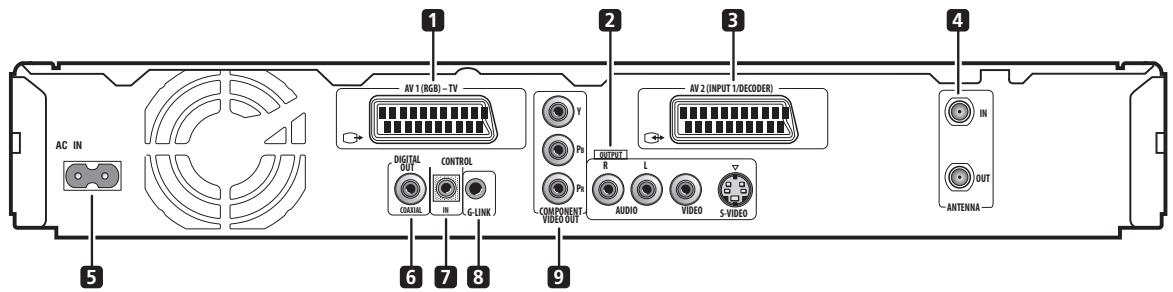
1 AV1(RGB)-TV AV connector
Audio/video output SCART-type AV connector for connecting to a TV or other equipment with a SCART connector. The video output is switchable between video, S-video and RGB. See page AV1 Out on page 129 for how to set this up.
2 OUTPUT
Stereo analog audio, video and S-video outputs for connection to a TV or AV amplifier/receiver.
3 AV2(INPUT 1/DECODER) AV connector
Audio/video input/output SCART-type AV connector for connecting to a VCR, or other equipment with a SCART connector. The input accepts video, S-video and RGB. See AV2/L1 In on page 130 for how to set this up.
4 ANTENNA IN (RF IN)/OUT
Connect your TV antenna to the ANTENNA IN (RF IN) jack. The signal is passed through to the ANTENNA OUT jack for connection to your TV.
5 AC IN – Power inlet
6 DIGITAL AUDIO OUT
Connect to the DVD/DVR1 coaxial jack on the receiver subwoofer.
7 CONTROL IN
Connect to the CONTROL OUT terminal of the receiver subwoofer.
8 G-LINK™
Use to connect the supplied G-LINK ^™ cable to enable GUIDE Plus+ ^™ to control an external satellite receiver, etc.
9 COMPONENT VIDEO OUT
A high-quality video output for connecting to a TV or monitor with a component video input.
Front panel connections
On the front panel a flip-down cover hides more connections.
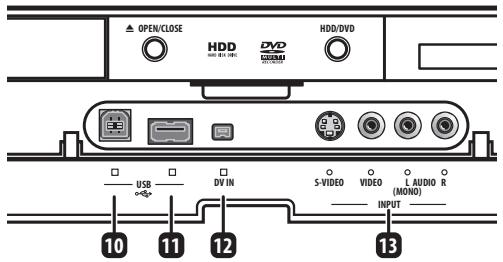
10 USB port (type B) (DVR-640H-AV only)
USB port for connecting a PictBridge-compatible printer.
11 USB port (type A) (DVR-640H-AV only)
USB port for connecting a digital camera, USB memory or other USB device.
12 DV IN (DVR-640H-AV only)
A DV input i.LINK connector, suitable for connecting a DV camcorder.
13 INPUT 2
Audio/video input (stereo analog audio; composite and S-video video), especially suitable for camcorders, game consoles, portable audio, etc.
Easy connections
The setup described below is a basic setup that allows you to watch and record TV programs, and play discs. Other types of connections are explained starting on the following page.

Important
- These connections use SCART cables (not supplied). If your TV (or VCR) does not have a SCART connection, see the following page for connecting up using the supplied audio/video cable.
- The AV1(RGB)-TV AV connector can output ordinary (composite), S-video or RGB video, plus stereo analog audio. The AV2(INPUT 1/DECODER) connector accepts ordinary, S-video and RGB video input, as well as stereo analog audio. See AV1 Out on page 129 and AV2/L1 In on page 130 for how to set them up.
- Before making or changing any rear panel connections, make sure that all components are switched off and unplugged from the wall outlet.
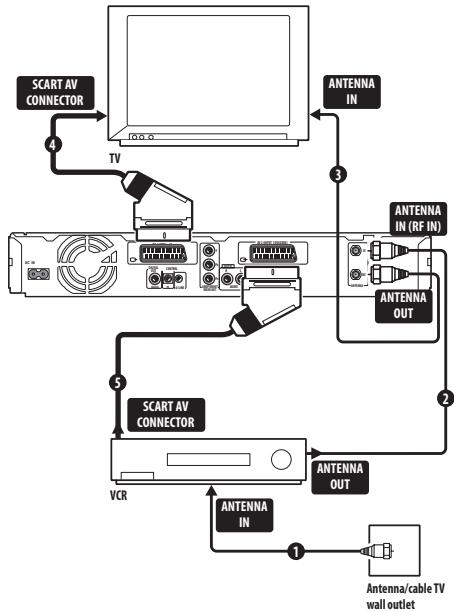
flowchart
graph TD
    A["SCART AV CONNECTOR"] -->|4| B["TV"]
    B --> C["Antenna IN"]
    C --> D["Antenna IN (RF IN)"]
    D --> E["Antenna OUT"]
    E --> F["Antenna OUT"]
    F --> G["Antenna IN"]
    G --> H["VCR"]
    H --> I["SCART AV CONNECTOR"]
    I --> J["Antenna IN"]
    J --> K["Antenna/cable TV wall outlet"]
1 Connect the cable from the antenna/cable TV outlet to the antenna input on your VCR.
- If you are not connecting a VCR in the chain, connect it to the ANTENNA IN (RF IN) jack on this recorder and skip the next step.
2 Use an RF antenna cable (one is supplied) to connect the antenna output of your VCR to the ANTENNA IN (RF IN) of this recorder.
3 Use another RF antenna cable to connect the ANTENNA OUT of this recorder to the antenna input on your TV.
4 Use a SCART cable (not supplied) to connect the AV1(RGB)-TV AV connector on this recorder to the SCART AV connector on your TV.
5 Use another SCART cable to connect the AV2(INPUT 1/DECODER) AV connector to a SCART AV connector on your VCR.

Tip
- This recorder has a ‘through’ function which allows you to record a TV program from the built-in TV tuner in this recorder while watching a video playing on your VCR. (To use this feature when the recorder is in standby, Power Save must be set to Off—see Power Save on page 128).
Using other types of audio/video output
If you can't use the SCART AV connector to connect your TV to this recorder, there are standard audio/video output jacks, as well as an S-video and component video output.
Using the S-video or component video output
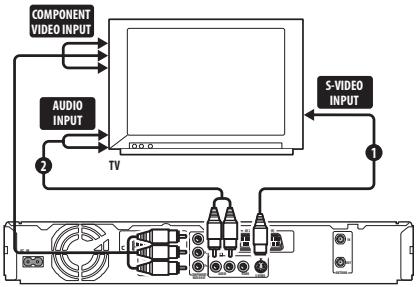
flowchart
graph TD
    A["COMPONENT VIDEO INPUT"] --> B["TV"]
    C["AUDIO INPUT"] --> B
    D["S-VIDEO INPUT"] --> B
    B --> E["Output"]
    B --> F["Component Video Input"]
    B --> G["Component Video Output"]
1 Connect the S-video or component video output to a similar input on your TV.
For an S-video connection, use an S-video cable (not supplied) to connect the S-VIDEO OUTPUT jack to an S-video input on your TV.
For a component video connection, use a component video cable (not supplied) to connect the COMPONENT VIDEO OUT jacks to a component video input on your TV.
See also Component Video Out on page 129 for how to set up the component video output for use with a progressive scan-compatible TV.
2 Connect the AUDIO OUTPUT jacks to the corresponding audio inputs on your TV.
You can use the supplied audio/video cable, leaving the yellow video plug disconnected. Make sure you match up the left and right outputs with their corresponding inputs for correct stereo sound.
Connecting to a cable box, satellite receiver or digital terrestrial receiver
If you have a cable, satellite or digital terrestrial receiver with a built-in decoder, connect it to this recorder and your TV as shown on the following page. ^1 If you are using a separate decoder box for your cable/satellite TV, set up following the instructions on the next page.
Using the setup on this page you can:
- Record any channel by selecting it on the cable box, satellite receiver or digital terrestrial receiver.
- Change channels and set timer recordings on the external receiver using the GUIDE Plus+™ system (via the G-LINK™ cable, and after setting up).

Important
- Do not connect this recorder to your TV ‘through’ your VCR, satellite receiver or other component. Always connect each component directly to your TV or AV amplifier/receiver.
- When using the GUIDE Plus+ system to make a timer recording from an external receiver, make sure that the external receiver is switched on.
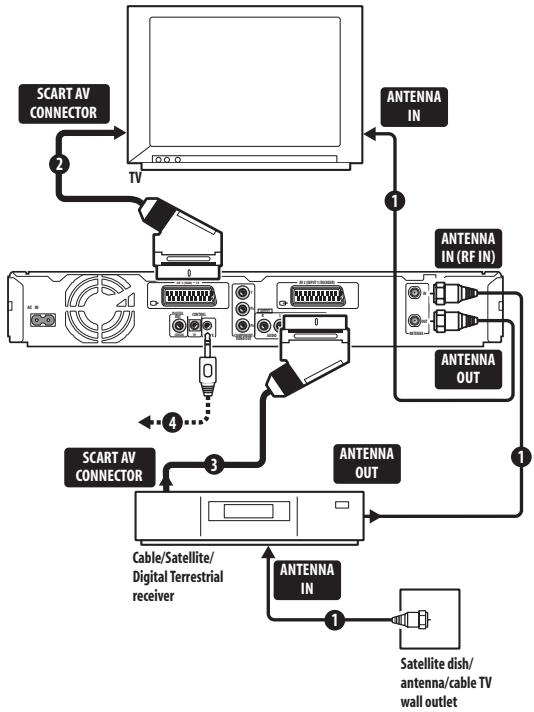
flowchart
graph TD
    A["SCART AV CONNECTOR"] -->|2| B["TV"]
    B --> C["Antenna IN"]
    B --> D["Antenna IN (RF IN)"]
    B --> E["Antenna OUT"]
    B --> F["SCART AV CONNECTOR"]
    F --> G["Cable/Satellite/Digital Terrestrial receiver"]
    G --> H["Antenna IN"]
    G --> I["Satellite dish/antenna/cable TV wall outlet"]
    C --> J["Antenna IN (RF IN)"]
    D --> K["Antenna IN (RF IN)"]
    E --> L["Antenna IN (RF IN)"]
    F --> M["Antenna IN (RF IN)"]
    G --> N["Antenna IN (RF IN)"]
    H --> O["Antenna IN (RF IN)"]

Note
1 The diagram shows SCART video connections, but you can alternatively use any of the other audio/video connections.
1 Connect RF antenna cables as shown.
This enables you to watch and record TV channels.
2 Use a SCART cable (not supplied) to connect the AV1(RGB)-TV AV connector to a SCART AV connector on your TV.
This enables you to watch discs.
3 Use another SCART cable to connect the AV2(INPUT 1/DECODER) AV connector to a SCART AV connector on your cable box/satellite/digital terrestrial receiver.
This enables you to record scrambled TV channels.
4 Plug the supplied G-LINK™ cable to the G-LINK™ jack.
This enables you to control the tuner in the external receiver using the GUIDE Plus+ ^™ system.
Position the IR transmitter end of the G-LINK ^™ cable so that the IR receiver on your cable/satellite/digital terrestrial receiver will pick up the control signals (see diagram).
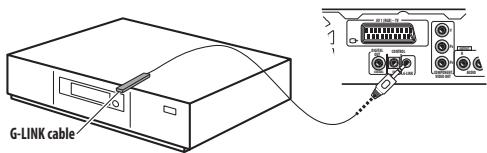
See the manual that came with your cable/satellite/digital terrestrial receiver if you're not sure where the IR receiver is on the front panel. Alternatively, experiment with the remote control, operating it from very close range until you find the place where the receiver responds.

Tip
- This recorder has a ‘through’ function which allows you to record a TV program from the built-in TV tuner in this recorder while watching a video playing on your VCR. (To use this feature when the recorder is in standby, Power Save must be set to Off—see Power Save on page 128).
Connecting an external decoder box (1)
If you have an external, dedicated decoder box for your satellite or cable TV system, use the setup described on this page. See the previous page for how to connect the G-LINK™ cable.

Important
- Do not connect your decoder box directly to this recorder.
- Information from the decoder (for example, relating to pay TV services), is only viewable when this recorder is off (in standby).
- For timer recording to work properly on this recorder, the VCR/satellite receiver/cable box must also be switched on during recording.
- It is not possible to watch one TV program and record another using this setup.
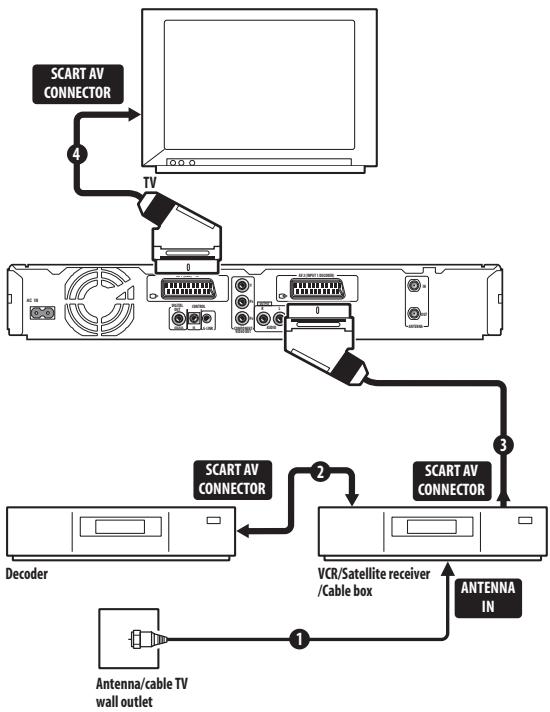
flowchart
graph TD
    A["Computer"] -->|4| B["TV"]
    B --> C["Decoder"]
    B --> D["Antenna/instrument"]
    D -->|1| E["VCR/Satellite receiver /Cable box"]
    D -->|2| F["SCART AV CONNECTOR"]
    F --> G["SCART AV CONNECTOR"]
    G --> H["Antenna/instrument"]
    H --> I["Antenna/cable TV wall outlet"]
1 Connect the cable from the antenna/cable TV outlet to the antenna input on your VCR/satellite receiver/cable box.
2 Use a SCART cable (not supplied) to connect your decoder to your VCR/satellite receiver/cable box. See the manual for your decoder box for more detailed instructions.
3 Use a SCART cable to connect your VCR/satellite receiver/cable box to the AV2(INPUT 1/DECODER) AV connector on this recorder.
4 Use a SCART cable to connect the AV1(RGB)-TV AV connector to your TV.
Connecting an external decoder box (2)
If you only have a decoder, connect it to this recorder and your TV as shown on this page. ^1
Using the setup on this page you can:
- Record scrambled channels received using the recorder's built-in TV tuner.

Important
- Do not connect this recorder ‘through’ your VCR, satellite receiver or cable box. Always connect each component directly to your TV or AV amplifier/receiver.
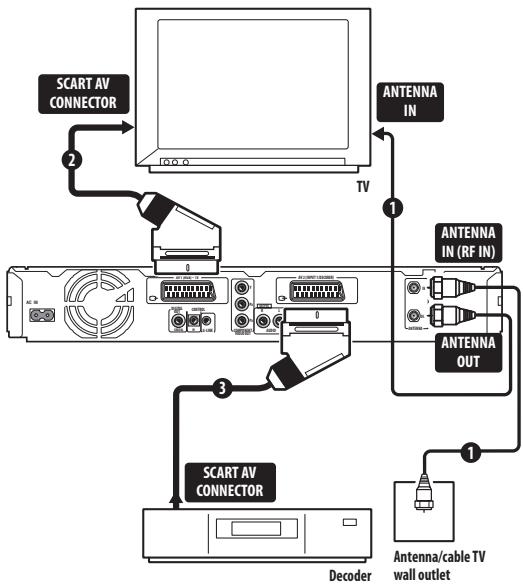
flowchart
graph TD
    A["TV"] --> B["Antenna IN"]
    A --> C["Antenna IN (RF IN)"]
    A --> D["Antenna OUT"]
    A --> E["SCART AV CONNECTOR"]
    E --> F["Decoder"]
    F --> G["Antenna/cable TV wall outlet"]
1 Connect RF antenna cables as shown.
This enables you to watch and record TV channels.
2 Use a SCART cable (not supplied) to connect the AV1(RGB)-TV AV connector to a SCART AV connector on your TV.
This enables you to watch discs.
3 Use another SCART cable to connect the AV2(INPUT 1/DECODER) AV connector to a SCART AV connector on your decoder box.
This enables you to record scrambled TV channels.

Note
1 In order to use this setup, you will need to make the following settings from the Initial Setup menu:
- Set the AV2/L1 In setting to Decoder from the Initial Setup menu (see AV2/L1 In on page 130).
- From the Manual CH Setting screen, set the Decoder setting for the scrambled channels to On (see Manual CH Setting on page 129).
Connecting other AV sources
Connecting a VCR or analog camcorder
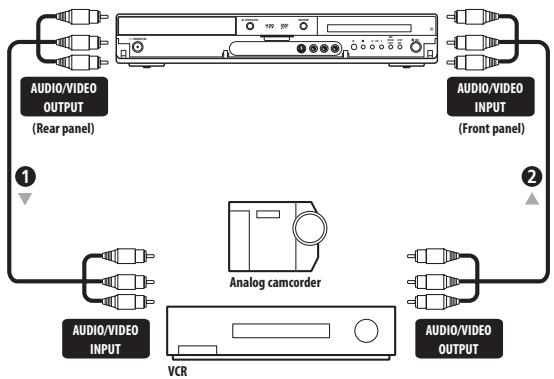
flowchart
graph TD
    A["Antenna"] --> B["Audio/Video OUTPUT (Rear panel)"]
    A --> C["Audio/Video INPUT (Front panel)"]
    A --> D["Analog camcorder"]
    D --> E["Audio/Video INPUT"]
    D --> F["Audio/Video OUTPUT"]
    D --> G["VCR"]
1 Connect a set of audio and video inputs of your VCR or camcorder to a set of outputs on this recorder.
This enables you to record from this recorder to your VCR or camcorder.
- You can use standard video or S-video cables for the video connection.
- Alternatively, you can use the AV2(INPUT 1/DECODER) SCART connector for audio/video input and output with just one SCART cable.
2 Connect a set of audio and video outputs of your VCR or camcorder to a set of inputs on this recorder.
This enables you to record tapes from your VCR or camcorder.
- You can use standard video or S-video cables for the video connection.
- The front panel connections make convenient connections for a camcorder input.
Connecting a DV camcorder
DVR-640H-AV only
Using the front panel DV IN jack, it is possible to connect a DV camcorder or video deck, or DVD-R/RW recorder and digitally transfer DV tapes or DVD-R/RW discs to DVD-R/RW.

Important
- This jack is for connection to DV equipment only. It is not compatible with digital satellite receivers or D-VHS video decks.
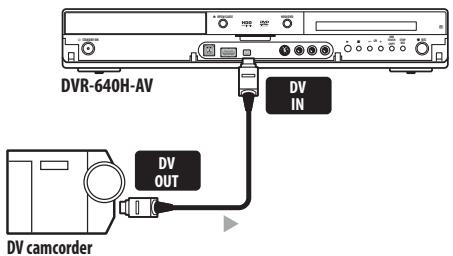
1 Use a DV cable (not supplied) to connect the DV jack of your DV camcorder/video deck to the front panel DV IN jack of this recorder.
Connecting a USB device
DVR-640H-AV only
Using the USB ports on the front of the recorder you can connect USB devices such as digital cameras and printers. Please also see the instructions that came with the device you want to connect before using.
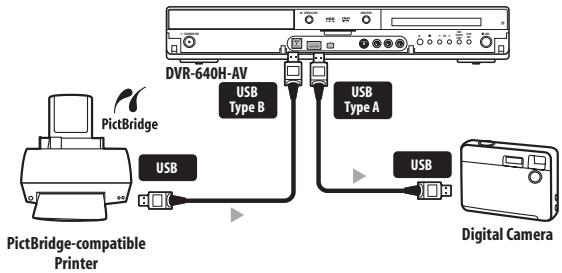
flowchart
graph TD
    A["PictBridge"] -->|USB| B["Microcontroller"]
    C["DVR-640H-AV"] -->|USB Type A| B
    D["PictBridge-compatible Printer"] -->|USB| B
    B --> E["Digital Camera"]

Important
- Devices may not work reliably if connected to this recorder via a USB hub.
JPEG file storage devices
- Digital still camera
• Memory card reader (any type of memory card) - USB memory
The Mass Storage Class (MSC) device should be FAT-compatible. Note that if the device is partitioned, this recorder may not recognize it.
The Picture Transfer Protocol (PTP) can be used to transfer up to about 4000 files.
WMA/MP3 file storage devices
• Memory card reader (any type of memory card)
- USB memory
The Mass Storage Class (MSC) device should be FAT-compatible. Note that if the device is partitioned, this recorder may not recognize it.
Note that although multi-slot card readers can be used, the recorder will only recognize the first card inserted. To read another card, remove all the cards and insert the card to be read again.
Using a USB printer
- Use a PictBridge-compatible printer.
Plugging in
After checking all the connections, plug in the recorder.
1 Use the supplied power cable to connect this recorder to a power outlet.
Chapter 3
Controls and displays
Front panel
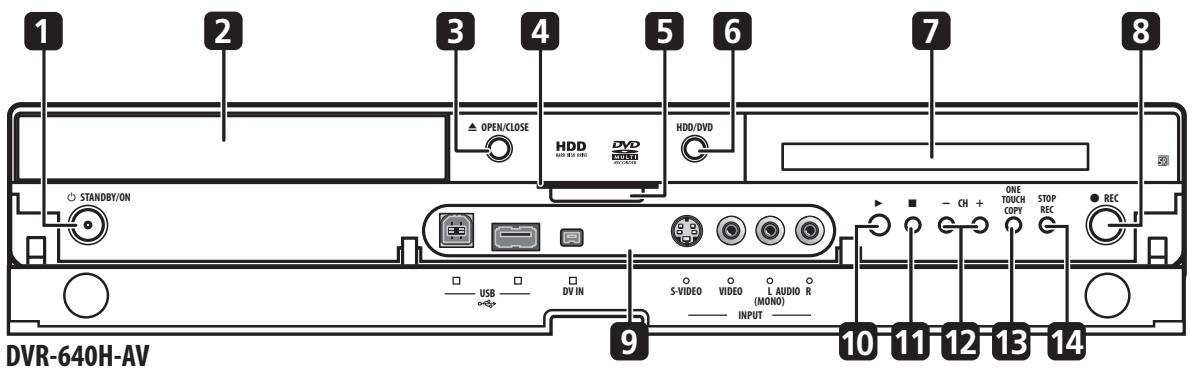
1 ⏻ STANDBY/ON
Press to switch the recorder on/into standby.
2 Disc tray
3 ▲ OPEN/CLOSE
Press to open/close the disc tray.
4 HDD / DVD indicators
Indicator lights blue when the hard disk (HDD) is selected; orange when the DVD drive is selected.
5 PAUSE LIVE TV (page 79)
Press to start recording the current TV channel, but with playback paused, effectively pausing the broadcast.
6 HDD/DVD
Press to switch between HDD and DVD for recording and playback.
7 Front panel display
See Display on page 58 for details.
8 ● REC
Press to start recording. Press repeatedly to set the recording time in 30 minute blocks.
9 Front panel inputs
See Front panel connections on page 50 for more information on these.
10 ▶
Press to start or restart playback.
11
Press to stop playback.
12 CH +/-
Use to change channels, skip chapters/tracks, etc.
13 ONE TOUCH COPY (page 106)
Press to start One Touch Copy of the currently playing title to DVD or the HDD.
14 STOP REC
Press to stop recording.
Display
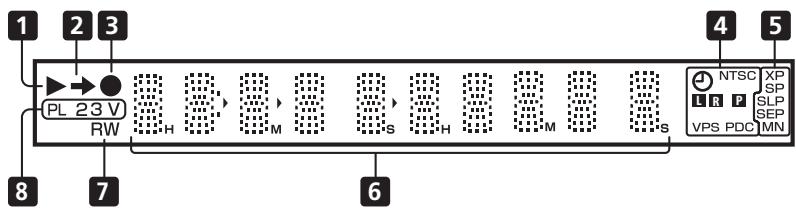
flowchart
graph LR
    1 --> 2["PL 23 V"]
    2 --> 3["RW"]
    3 --> 4["NTSC XP"]
    3 --> 5["SP"]
    3 --> 6["SLP"]
    3 --> 7["SEP"]
    3 --> 8["VPS PDC MN"]
1 ▶
Lights during playback; blinks when playback is paused.
2 →
Lights when copying.
3 ●
Lights during recording; blinks when recording is paused.
4 ⏻ (page 79)
Lights when a timer recording has been set. (Indicator blinks if the timer has been set to DVD but there isn't a recordable disc loaded, or the timer has been set to HDD but the HDD is not recordable.)
NTSC
Lights when the video output signal format is NTSC.
LR (page 130)
Indicates which channels of a bilingual broadcast are recorded.
P (page 129)
Lights when the component video output is set to progressive scan.
VPS / PDC (page 79)
Lights when receiving a VPS/PDC broadcast during a VPS/PDC-enabled timer recording.
5 Recording quality indicators (page 77)
XP
Lights when the recording mode is set to XP (best quality).
SP
Lights when the recording mode is set to SP (standard play).
LP / SLP
Lights when the recording mode is set to LP (long play) or SLP (super-long play).
EP / SEP
Lights when the recording mode is set to EP (extended play) or SEP (super-extended play).
MN
Lights when the recording mode is set to MN (manual recording level) mode.
6 Character display
7 R / RW
Lights when a recordable DVD-R or DVD-RW disc is loaded.
8 PL (page 97)
Lights when a VR mode disc is loaded and the recorder is in Play List mode.
23 (page 134)
Shows the remote control mode (if nothing is displayed, the remote control mode is 1).
V
Lights when an unfinalized Video mode disc is loaded.
Chapter 4
Getting started
Switching on and setting up
When you switch the recorder on for the first time, you can make several basic settings using the Setup Navigator feature. This takes you through setting the clock, the internal TV tuner and the video output.
If you're using the recorder for the first time, we strongly recommend you use the Setup Navigator before starting to use the recorder.
1 Switch on your TV and set the video input to this recorder.
RECORDER

Switch on the recorder.
When you switch on for the first time, your TV should display the Setup Navigator screen (If the Setup Navigator doesn't appear, you can also access it from the Initial Setup menu; see page 128).
- If this recorder is connected to a compatible TV using a fully-wired 21-pin SCART cable, the recorder will take a few seconds to download country, TV screen size and language information. (Check the manual that came with your TV for compatibility information.)
3

Choose a language (then press ENTER).
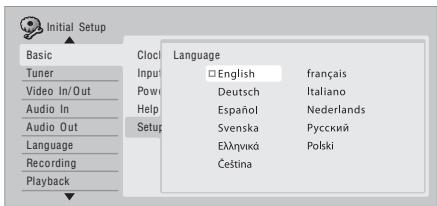
4

Start the Setup Navigator.
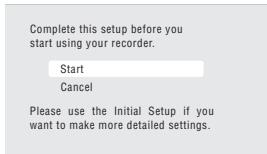
- If you don't want to use the Setup Navigator, press ↓ to select Cancel, then press ENTER to exit the Setup Navigator.

Select the Auto Channel Setting ('Auto download from TV'), or 'Do not set'.
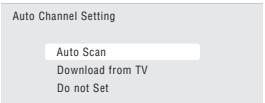
- Select Do not set if you want to skip channel setup (because they have already been set up, for example).
- You can only use the Download from TV feature if this recorder is connected to your TV using a fully-wired 21-pin SCART cable via the AV1(RGB)-TV connector, and if your TV supports this function (check your TV's instruction manual for more details).

Select your country.
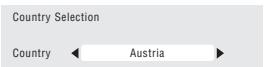
• Auto-tuning channels
The Auto Scan option automatically scans and sets the channel presets.
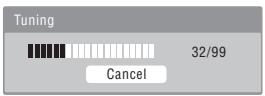
• Downloading channels from your TV
Use the Download from TV option to download all the channels that your TV is tuned to.
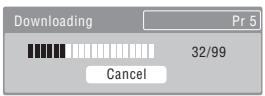

Select 'Auto' for automatic time setting, ' to set the clock manually.
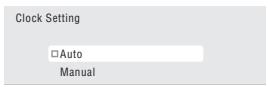
• Auto clock setting
Some TV channels broadcast time signals together with the program. This recorder can use these signals to set the clock automatically.
Set 'Clock Set CH' to the channel preset number that broadcasts a time signal, then move the cursor down to 'Start' and press ENTER.
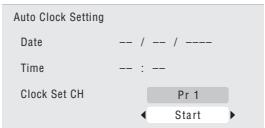
The recorder takes a short while to set the time. After you see that it's set, select Next to proceed.
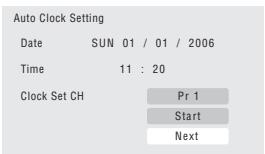
If the time could not be set automatically, press
RETURN to go back to the previous screen and select Manual.
- Manual clock setting
If no stations in your area are broadcasting time signals, you can set the clock manually.
Use the ←/→ buttons to set your time zone.
You can set this by selecting a city or a time relative to GMT.
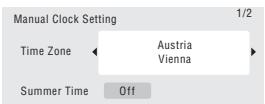
Press ↓ then use the ←/→ buttons to select 'On' or 'Off' for summer time, then press ENTER.
Select On if you are currently using summer time.
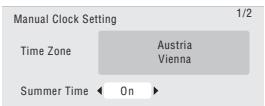
Set the date (day/month/year) and time, then press ENTER to make all the settings.
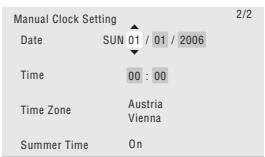
Use the ↑/↓ buttons to change the value in the highlighted field.
Use the / buttons to move from one field to another.
- You can go back to the previous screen at anytime in the Setup Navigator by pressing RETURN.

7 Select the TV screen type, 'Wide (16:9)' or 'Standard (4:3)'.
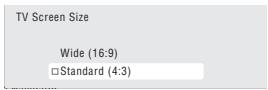

8 Select whether or not your TV is compatible with progressive scan video.
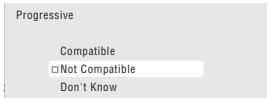
- Note that progressive scan video is only output through the AV1(RGB)-TV connector and the component video outputs.
9 ENTER Press to continue after reading the HDD caution.
In the event of HDD failure, recordings may be lost or normal playback/recording may not be possible.
As recordings might be lost in case of a HDD failure, we recommend to use the HDD only as temporary storage media.
Please copy recordings you want to keep to recordable DVD.
Press ENTER to continue.

10 Select 'Finish Setup' to exit the Setup Navigator, or 'Go Back' if you want to start again.
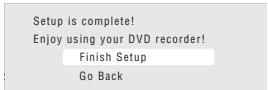
That completes basic setup using the Setup Navigator.
- If there are blank channels with no station, you can set these to skip using the manual channel setting. See Manual CH Setting on page 129.
Setting up the GUIDE Plus+™ system
The GUIDE Plus+™ system is a free, interactive on-screen television programming guide. The system offers program listings for all major channels, one-touch recording, search by genre, recommendations according to your profile and more.
For the GUIDE Plus+ system to function correctly, it is important that you set the language and country correctly in the Setup Navigator, and that you have performed a scan for available channels, as these are all used by the GUIDE Plus+ system. If any of these things are not yet set, please run the Setup Navigator first (see Switching on and setting up on page 59).
TV listings information is received via 'host channels'. In order to receive the correct TV listings information for your country or region you need to set up the GUIDE Plus+ system and 'download' the TV listings information. The initial download can take up to 24 hours, but once this is done, all future updates are automatic.
1 GUIDE Display the GUIDE Plus+ setup menu.
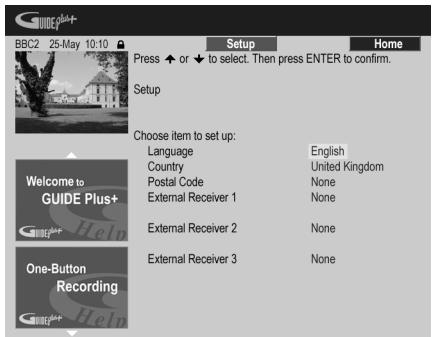
The language and country settings are already set to whatever you selected in the Setup Navigator.
2 Highlight 'Postal Code'.

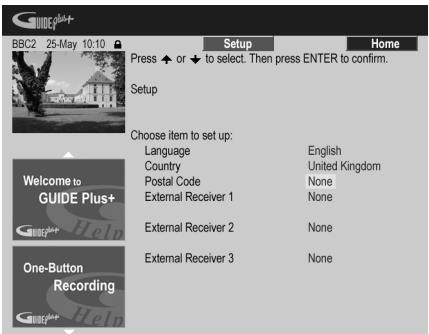


Enter your postal code.
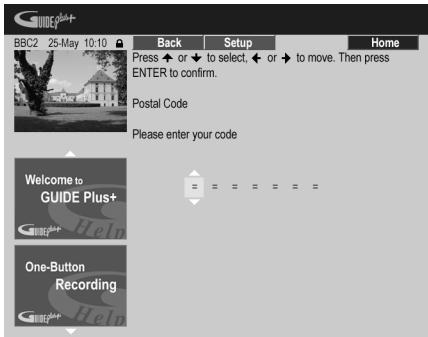
3
The system uses your postal code to identify which TV listings data is correct for the area in which you live, so it is important that you enter it correctly.
4 If you are using an external receiver (such as a satellite receiver) with the supplied G-LINK cable, complete this step, otherwise jump to step 5 below.
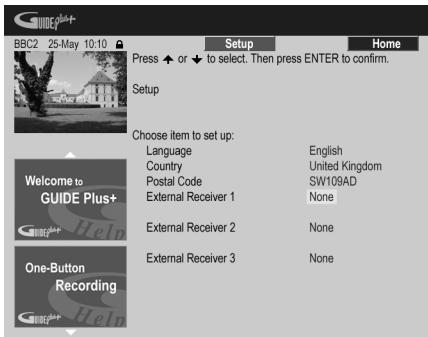
- See Connecting to a cable box, satellite receiver or digital terrestrial receiver on page 52 for more on using the supplied G-LINK cable.
- Select External Receiver 1, 2 or 3, then press ENTER. (If you have just one external receiver, use External Receiver 1. You can add further receivers in 2 and 3 if you need to.)
After pressing ENTER:
- Select your reception method (Terrestrial, Cable or Satellite).
- Select your provider (if applicable).
- Select the brand of your external receiver.
- Identify which input your external receiver is connected to.
After completing these steps the recorder will try and communicate with your external receiver and change the channel via the G-LINK cable. If the channel was successfully changed, select Yes to confirm.
If the channel did not change, select No. The GUIDE Plus+ system will try other codes assigned to your external receiver. If none of the codes changes the channel successfully, tune your external receiver to the host channel for your country (refer to step 5 below) and leave it on overnight. The recorder needs to be in standby; it will wake up automatically and download new codes from the host channel. The next day, try this setup process again:
- Press GUIDE to display the GUIDE Plus+ setup menu.
- Press ↑ to highlight the Menu bar, then use → to reach the Setup area and select Setup.
- Continue setting up from the start of this step again.
If your external receiver still doesn't respond to the G-LINK controller, please call customer support and report the brand and model of your external receiver.
See also GUIDE Plus + FAQ and troubleshooting on page 73.
5 Identify the host channel for your country.
The TV listings information available in the GUIDE Plus+ system is distributed throughout Europe by selected broadcasters called host channels. It is important that the host channel for your country is correctly identified in order to receive listings information (EPG download).
Follow A, B or C below depending on your setup:
A If you are not using an external receiver, this recorder will automatically scan all channels for the host channel:
- Leave the recorder in standby overnight (do not leave it switched on).
B If you are using an external receiver, you need to identify the host channel from the table below:
| Country/Region | Host channels | Comments |
| Austria | Eurosport | |
| Belgium | RTL-TVI Music Factory (TMF) | TMF will be switched off in the near future. |
| France | Canal+ | Analog only |
| Germany | Eurosport | |
| Italy | Sport Italia | Analog only |
| Netherlands | Music Factory (TMF), Eurosport | TMF will be switched off in the near future. |
| Spain | Tele 5 | Analog only |
| Switzerland | Eurosport | |
| UK | ITV, Eurosport | ITV is analog only. Use Eurosport if you are a SKY subscriber and you no longer have a terrestrial antenna. |
- Tune your external receiver to the appropriate host channel and leave the receiver on and the recorder in standby overnight.
C If you use both an external receiver and this recorder as sources, follow the instructions above for setting up without an external receiver. Only if this is unsuccessful try the external receiver method.
About EPG download
- EPG data can only be received when the recorder is in standby. (When not using the recorder, therefore, please switch it into standby.) If you're using an external receiver, leave this on when EPG data is downloading.
- If you cannot receive any of the host channels (see the above table) then you won't be able to use the GUIDE Plus+ system. In this case do not set the postal code (or set Country to Other) in the GUIDE Plus+ setup screen. (When GUIDE Plus+ service starts in your area, set the postal code again.)
- Even if you can't use the EPG functions where you live, you can still set ShowView timer recordings and manual recordings — see Setting a timer recording on page 79.
- The front panel display shows EPG when receiving data. If you power on the recorder during an EPG download, the download is canceled.
- EPG data may be received several times a day. All updates are automatic.
- When downloading EPG data, the recorder may sound as though it is on. This is normal.
Checking the downloaded data the following day
1 GUIDE Display the GUIDE Plus+ screen.
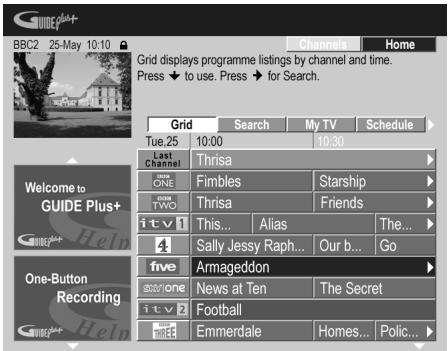
You should see a grid filled with channel logos and TV listings information. Use the ↑/↓ buttons to review the list. If you notice that there are channels missing, or that there are channels in the list that you don't get, go to the Editor screen:
- Press ↑ repeatedly until the Menu bar is highlighted.
- Press until Editor is highlighted. The main area of the screen now shows a list of channels. Those that are turned ON are displayed in the grid; those that are OFF are hidden. Use the /// buttons to move down the list and turn channels ON or OFF as necessary.
- For any channel that you turn ON, the GUIDE Plus+ system will need to know how it is received (the source) and on which program number. The source may be the built-in tuner of this recorder, or an external receiver. The program number is the number on which the channel can be found on its receiving device/source. The entry in the Editor screen must match this number for correct recording of that channel.
- The above is especially important for the ‘host channel’. Please make sure that the host channel is always switched ON.
Change the program numbers as you
like.
Changing the program numbers allows you to decide the order in which the channels change when stepping through them sequentially. You can do this to group certain channels together, for example.
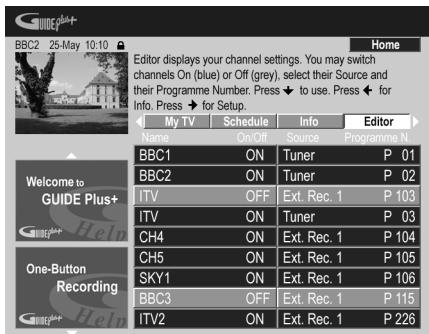
3 When you're done, press the BLUE Action button (Home) to get back to the GUIDE Plus+ home screen.
- You can find detailed information on using the GUIDE Plus+ system in the following chapter.
Chapter 5
Using the GUIDE Plus+™ electronic program guide
The GUIDE Plus+ system
The GUIDE Plus+ ^™ system* is a free, interactive on-screen television programming guide. ^1 The system provides program listings for all major channels, one-touch recording, searching by genre, recommendations according to your profile and more. The GUIDE Plus+ system is a convenient way to find out what's on right now or during the coming week, by channel or by genre. The GUIDE Plus+ system also allows you to automatically set your viewing and recording selections quickly and easily.
In order to receive the correct TV listings information for your country or region you need to set up the GUIDE Plus+ system and 'download' the TV listings information. If you haven't already done this, please turn to Setting up the GUIDE Plus+™ system on page 61 before proceeding.
* GUIDE Plus+, SHOWVIEW, VIDEO Plus+, G-LINK are (1) registered trademarks or trademarks of, (2) manufactured under license from and (3) subject of various international patents and patent applications owned by, or licensed to, Gemstar-TV Guide International, Inc. and/or its related affiliates.
Legal Notice
GEMSTAR-TV GUIDE INTERNATIONAL, INC. AND/OR ITS RELATED AFFILIATES ARE NOT IN ANY WAY LIABLE FOR THE ACCURACY OF THE PROGRAM SCHEDULE INFORMATION PROVIDED BY THE GUIDE PLUS+ SYSTEM. IN NO EVENT SHALL GEMSTAR-TV GUIDE INTERNATIONAL, INC. AND/OR ITS RELATED AFFILIATES BE LIABLE FOR ANY AMOUNTS REPRESENTING LOSS OF PROFITS, LOSS OF BUSINESS, OR INDIRECT, SPECIAL, OR CONSEQUENTIAL DAMAGES IN CONNECTION WITH THE PROVISION OR USE OF ANY INFORMATION, EQUIPMENT, OR SERVICES RELATING TO THE GUIDE PLUS+ SYSTEM.
Using the GUIDE Plus+ system
All the various features and areas are colour-coded for ease of navigation. All screens (with the exception of some setup screens) have the following common elements:
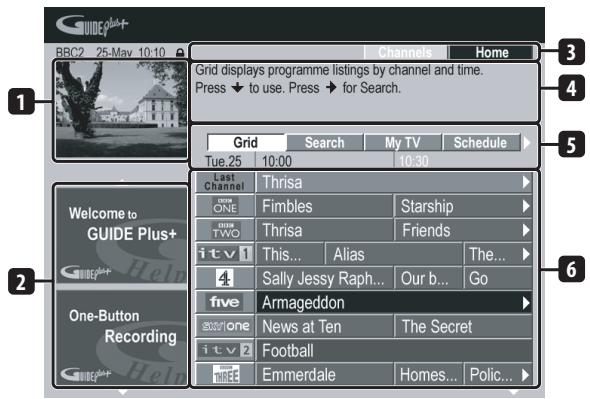
1 Video window – Allows you to continue watching the current program while using the GUIDE Plus+ system.
2 Information panels – Display program promotions or instructions on the GUIDE Plus+ system.
3 Action bar – colour-coded Action buttons change function depending on the area.
4 Information box – Shows short program descriptions or help menus.
5 Menu bar – Gives access to the various areas of the GUIDE Plus+ system.
6 Grid – Shows TV listings information for the next seven days by channel and time.

Note
1 The GUIDE Plus+ system can't be used when the Input Line System is set to 525 System (see also Input Line System on page 128).
GUIDE Plus+ navigation
The table below shows a summary of the remote buttons you'll use to navigate the GUIDE Plus+ system.
| Key | What it does |
| ● REC | Press to set or cancel One Button Recording. |
| GUIDE | Press to display the GUIDE Plus+ screen (also use to exit). |
| ↑/↓/←/→ | Use to navigate screens (highlight an item). |
| RED, GREEN, YELLOW, BLUE | Action buttons that change functionality depending on the Area. |
| MENU | Press to jump directly to the Menu bar. |
| TIMER REC | Press to go directly to the Schedule area. |
| INFO | Press to display extended information for the current program. |
| ENTER | Press to confirm a selection or to leave the GUIDE Plus+ screen. |
| Number buttons | Use for numeric entry. |
| |◀◀ / ▶▶| | Press to select the previous/next page of information (in the grid, for example). |
| ◀◀ / ▶▶ | Press to select the previous/next day. |
One-Button-Record
The RED Action button (Record) is visible anytime you can highlight a program title, including from the Grid, after a search, or in your recommendations in the My TV area.
The program name, date, channel, recording start and end times are all set automatically when you set a timer recording using One-Button-Record.
If you need to, you can edit the settings at any time before the recording is due to start (see Editing a scheduled recording on page 69).
1

Highlight a program title.
![BBC2 25-May 10:10 Record Channels Home Friends: The one with the Male Nanny: A jealous Ross mocks Rachel's choice of an over sensitive male nanny for Emma while Phoebe must choose between two unexpected... BBC2 [P02] 10:30 (60Min) Grid Search My TV Schedule Tue.25 10:00 10:30 Last Channel Thrisa Welcome to GUIDE Plus+ the ONE Fimbles Starship from TWO Thrisa Friends itv1 This... Alias The... 4 Sally Jessy Raph... Our b... Go One-Button Recording five Armageddon Entire Home News at Ten The Secret itv2 Football Hind Emmerdale Homes... Polic...](/content/2025/01/76099/images/eb6568c2db62190bd86bacd9a4e69a0a3d062f033687b15a01459896995f2021.jpg)
2 Press the RED Action button (Record).
The program is now set for recording. When the program is due to start, the recorder will switch to the correct channel and start recording ^1 .
- You can also use the ● REC button to set the recording.
- You can review the shows you have set to record in the Schedule Area (see also The Schedule Area on page 68).
Lock / Unlock video window
When you enter the GUIDE Plus+ system, the channel you were watching remains visible in the video window. The date stamp above the window lets you know the channel, date and time.
The default setting for this window is 'locked', as indicated by a closed padlock icon above the video window. When locked, the video window always shows the channel you were previously watching as you move up and down through the listings grid.
If you prefer, you can unlock the video window so that as you highlight different channels in the listings grid, that channel is shown in the video window.
1

Highlight a channel logo.
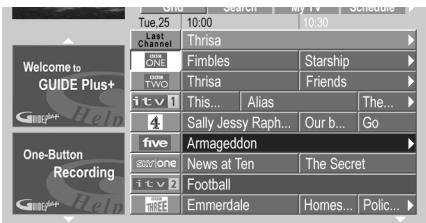
Note
1 Recording times set using the GUIDE Plus+ system do not automatically change to reflect any changes that may occur in the program broadcast schedules.
Channel logos are displayed to the left of program titles.
2 Press the RED Action button (Unlock).
The padlock icon above the video window becomes unlocked. It remains unlocked for the remainder of your current TV viewing session.
If you want to lock the video window again, follow the same procedure. The RED Action button will now act as Lock.
Channel mosaic screen
You can switch the display style of channels in the Grid Area, Schedule Area or My TV Area from a list to a mosaic of channel icons by pressing the YELLOW Action button. Select the channel icon you want using the cursor buttons, then press ENTER to return to the previous screen on that channel.
Areas
The GUIDE Plus+ ^™ system consists of seven Areas. All Areas can be accessed from the Menu bar.
- Grid – The GUIDE Plus+ system Home Area. Displays TV listings information for the next seven days by time and channel.
- Search – Search for TV programs by category (e.g., Sport), subcategory (e.g., Football) or keyword.
- My TV – Set up a profile and receive recommendations according to your preferences.
- Schedule – Show all scheduled recordings.
- Info – Area for additional information, such as weather (not available in all regions).
- Editor – Change channel settings.
- Setup – Setup the GUIDE Plus+™ system.
The Grid Area
The Grid is the main TV listings screen of the GUIDE Plus+ system and is the first screen that you see when you press GUIDE. You can see TV listings for the next seven days, starting with the current day.
When you highlight a program in the Grid, you can see information about it in the Information Box, including title, synopsis, channel, source, time and length. If there is an i symbol in the Information Box, it means that there is an extended synopsis available. Press the INFO button to see it.
In some countries, you can also see a rating for a particular program (mostly movies). These ratings are provided by local partners, such as TV magazines.
From the Grid Area you can:
• View and scroll through program listings
- Read program synopsis
- Tune to a program that's currently showing ^1
- Set a program to record
- Lock or unlock the video window.
- Access Information panels.
Browsing the Grid
Use the following remote buttons to browse the grid:
↑/↓/←/→ (cursor buttons) – Navigate the Grid
◀◀/▶▶I – Previous / next page
◀◀/▶▶ – Previous / next day
BLUE Action button – Return to the current time/date in the Grid.
ENTER – Press on the current selection to exit the GUIDE Plus+ system and start watching the program
The Search Area
From the Search Area you can:
- Search by category
- Search by subcategory
- Search by keyword
- Read program synopsis
- Tune to a program that's currently showing
- Set a program to record
- Access Information panels.

Note
1 If you're using an external tuner (satellite tuner, for example), there will be a short delay of a couple of seconds while it tunes to the channel. This is normal.
Searching
You can search for programs by category, subcategory or by keyword (My Choice). Categories for searching include Movies (purple), Sport (green), Children (blue) and Others (teal). In some countries there is a further subcategory available called 'Tip of the Day'. These are programs recommended by a local partner, such as a TV magazine.
1

Select 'Search' from the Menu bar.
2

Select a category and a subcategory.
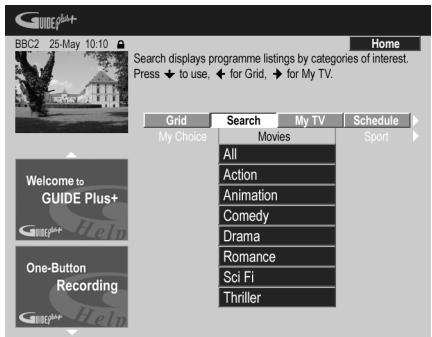
- If you choose All as the subcategory, all programs in the category you selected will show up in the search results.
3

Start the search.
The search results are shown sorted by time and date.
- If no search results are displayed, it means there are no programs for the current day that match your search criteria.
Using My Choice keywords for a search
In addition to the standard categories, you can also set your own keywords.
1

Access My Choice.
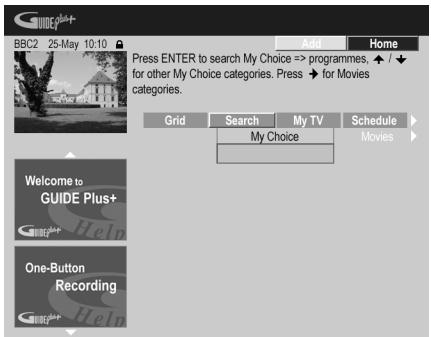
2 Press the YELLOW Action button to add a keyword.
3

Enter a keyword to appear in the menu.
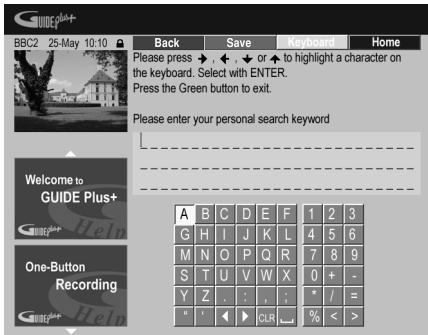
When you're finished, press the GREEN Action button to exit and continue.
4

Start the keyword search.
- You can delete or edit keywords using the RED and GREEN Action buttons.
- When you have set more than two keywords, an All subcategory automatically appears which allows you to search for all your keywords.
My TV Area
The My TV Area allows you to set up a personal profile. You can define a profile by channels, themes and/or keywords. As soon as a personal profile has been set, the GUIDE Plus+ system continuously scans the TV listings for the next seven days. Whenever you access the My TV Area, a list of programs matching your profile appears.
From the My TV Area you can:
- Set up a profile by channel, theme and/or keyword.
- Edit and delete profiles.
- Read program synopsis
- Tune to a program that's currently showing
- Set a program to record
- Access Information panels.
Setting up a profile
You can set up a profile with any combination of up to 16 channels, four categories and 16 keywords.
1 Select 'My TV' from the Menu bar.
2 Press the YELLOW Action button to set a profile.
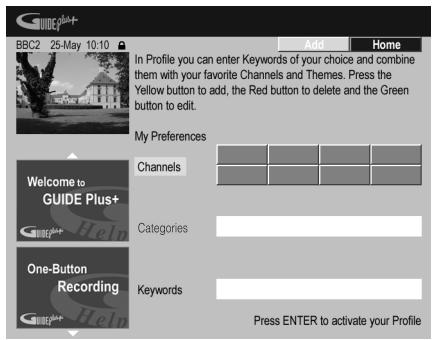
Channels is now highlighted.
3 To add a channel to your profile, press the YELLOW Action button.
![BBC2 25-May 10:10 Cancel Home Please select a channel and press ENTER to confirm. BBC1 [P 01] Select your Channel Welcome to GUIDE Plus+ One-Button Recording](/content/2025/01/76099/images/07fc20afee90147c354d10b9a645365b07236db932f67fc5172b7c54ab79b699.jpg)
Select a channel from the mosaic of channel icons and press ENTER. Repeat this step to add up to 16 channels.
4 To add a theme to your profile, highlight 'Themes' and press the YELLOW Action button.
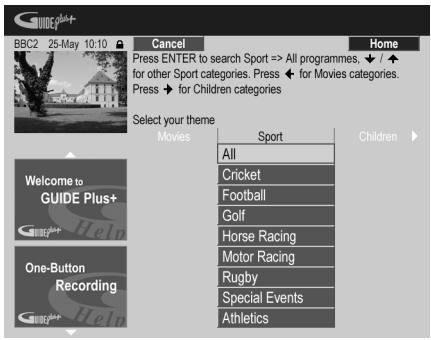
Select a theme from the Search Area categories and press ENTER. Repeat this step to add up to four categories.
5 To add a keyword to your profile, highlight 'Keywords' and press the YELLOW Action button.
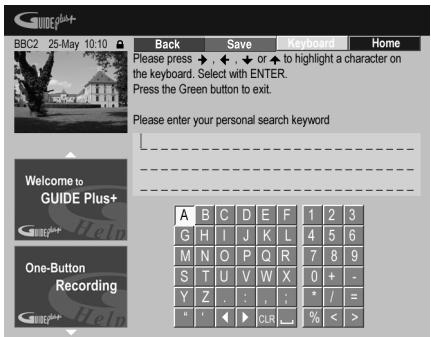
Use the ↑/↓/←/→ buttons followed by ENTER to select characters from the on-screen keyboard. When you're finished, press the GREEN Action button to exit and continue.
6 Press ENTER to activate your profile.
- You can add up to 16 keywords by repeating step 5.
- You can edit or delete your profile using the RED and GREEN Action buttons.
The Schedule Area
The Schedule Area is where you can set, see, edit and delete scheduled (timer) recordings. (See also Setting a timer recording on page 79 for further timer recording features.)
From the Schedule Area you can:
- Edit or delete a One-Button-Recording.
- Set, edit or delete a ShowView recording.
- Set, edit or delete a manual recording.
Editing a scheduled recording
You can edit any parameter in a scheduled recording, or delete it if you no longer require it.
1 Highlight the left tile of a scheduled recording.
![BBC2 25-May 10:10 Delete Edit Home Friends: The one with the Male Nanny: A jealous Ross mocks Rachel's choice of an over sensitive male nanny for Emma while Phoebe must choose between two unexpected... BBC2 [P02] 10:30 (60Min) Grid Search My TV Schedule Recording Schedule Qual. Freq. Dest. 25-May Friends SP Once HDD Welcome to GUIDE Plus+ One-Button Recording HDD Remain 30h 33m (SP) DVD Remain 2h 00m (SP)](/content/2025/01/76099/images/e5a4bfa65737e7d5fa079e41ba3dfd51e975e26eb8c60196ef25966e1ab41a4f.jpg)
- If you only want to edit the recording quality, frequency, destination, timing or genre settings, skip to step 6 below.
2 Press the GREEN Action button (Edit).
3 Use the cursor and number buttons to edit the recording date, start time, end time and channel.
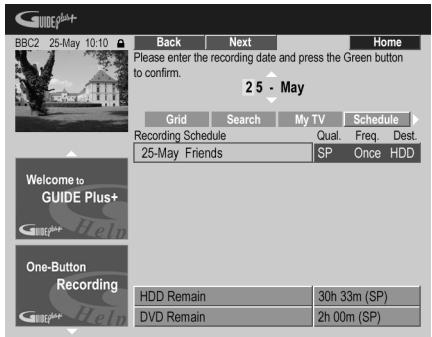
Use the ↑/↓ (cursor up/down) buttons or the number buttons to edit.
Press the GREEN Action button to go to continue, or the RED Action button to go back.
4 Enter a name for the scheduled recording.
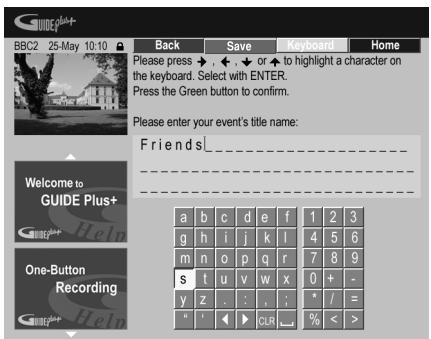
Use the ↑/↓/←/→ buttons followed by ENTER to select characters from the on-screen keyboard.
After entering the whole name, press the GREEN Action button to continue.
5 Highlight the right recording tile.
6 Press the RED Action button (Quality) to change the recording quality.
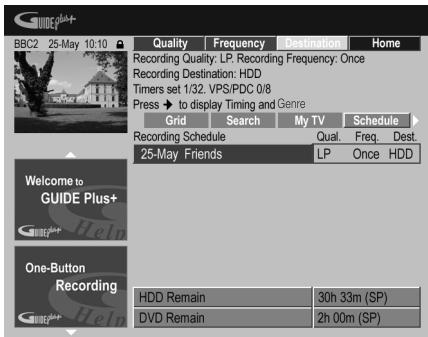
Select from AUTO ^1 , XP, SP, LP, EP, SLP, SEP or MN (if manual recording is set to On.)
7 Press the GREEN Action button (Frequency) to change the recording frequency.
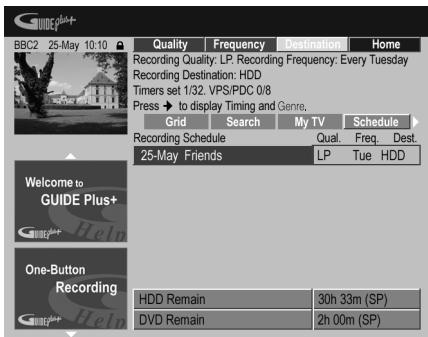
Select from the various options for one-time, daily and weekly recordings.
8 Press YELLOW Action button (Destination) to select the recording destination.
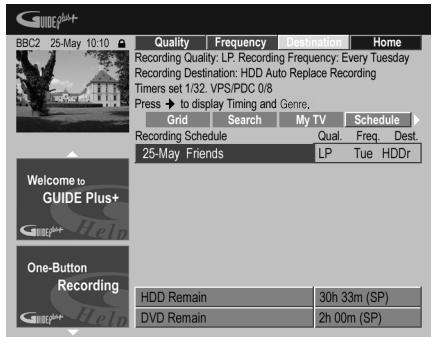
Select from DVD, HDD or HDDr (Auto Replace Recording) ^1 .
- Auto Replace Recording is only available as an option with regular daily or weekly recordings.
9 Press (cursor right) to access the extended recording options:
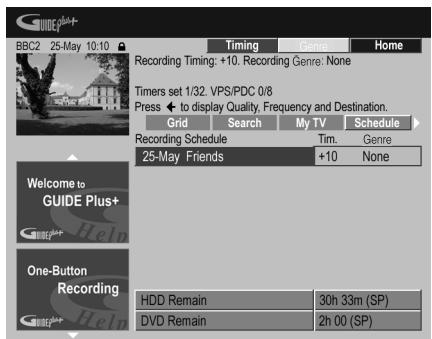
- If you want to record to a particular HDD genre, use the YELLOW Action button (Genre) to select one.
- Use the GREEN Action button (Timing) to add extra time to the end of the recording (+0, +10, +20, +30 or VPS/PDC ^2 (V-P)).
- Press ← (cursor left) to display the standard recording options again.
Deleting a scheduled recording
1 Highlight the left tile of a scheduled recording.
![BBC2 25-May 10:10 Delete Edit Home Friends: The one with the Male Nanny: A jealous Ross mocks Rachel's choice of an over sensitive male nanny for Emma while Phoebe must choose between two unexpected... BBC2 [P02] 10:30 (60Min) Grid Search My TV Schedule Recording Schedule Qual. Freq. Dest. 25-May Friends LP Tue HDDr Welcome to GUIDE Plus+ One-Button Recording HDD Remain 30h 33m (SP) DVD Remain 2h 00m (SP)](/content/2025/01/76099/images/f036938efaf36108d28a88355a7b545f9f61318a15c56ebb72b1e0887c506b5f.jpg)
2 Press the RED Action button (Delete). The scheduled event is deleted.
Setting a ShowView™ recording
1 Select 'Schedule' from the Menu bar.
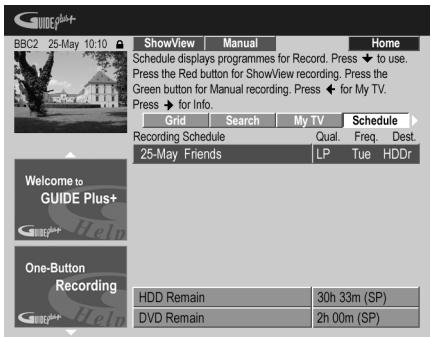
Note
1 • For a DVD timer recording, if Optimized Rec (see Optimized Rec on page 132) is set to On (and VPS/PDC is off), the recorder will adjust the recording quality to try and fit the recording on the disc. If the recording will not fit onto the disc even on MN1 recording quality then the Recovery Recording feature will automatically make the recording to the HDD instead.
- If there is very little free space left on the HDD, an Auto Replace Recording may not complete successfully.
- If the HDD is being used for playback or high-speed copying when an Auto Replace Recording is due to start, the new timer recording will not replace the old one. However, the next time the timer recording starts, both of the older two programs will be erased.
2 • If you set the timer recording to use VPS/PDC, you must switch the recorder into standby before the timer recording is due to start for it to work correctly. For non-VPS/PDC timer recordings there is no need to switch the recorder into standby.
- Optimized Recording will not work if VPS/PDC is on.
- Up to 8 timer recordings can be set with VPS/PDC.
- VPS/PDC cannot be set for recordings made from an external input, or when the recording mode is set to AUTO.
2 Press the RED Action button (ShowView).
3 Use the number buttons to enter a ShowView programming number.
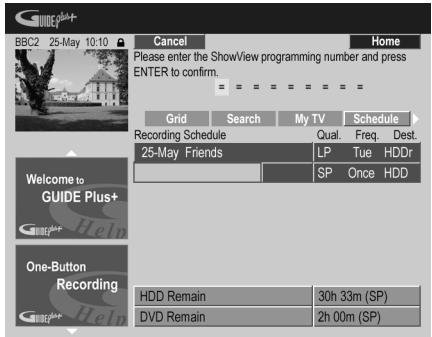
- If you live in an area not yet covered by the GUIDE Plus+ system you may also have to input a channel number. Follow the on-screen display to do this.
4 Press ENTER to confirm.
Setting a manual recording
1 Select 'Schedule' from the Menu bar.
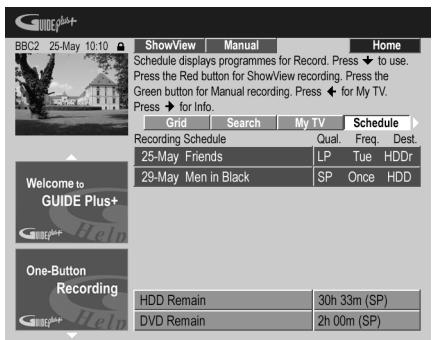
2 Press the GREEN Action button (Manual).
3 Use the number and ↑/↓/←/→ buttons to enter the recording date, then press the GREEN Action button (Next).
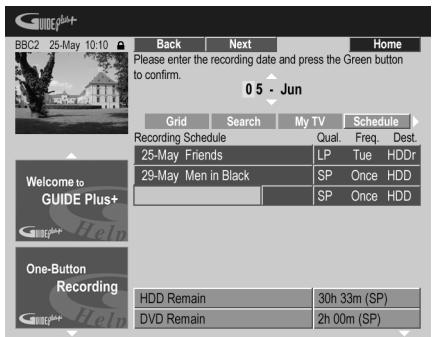
4 In the same way, enter the recording start time, followed by the GREEN Action button (Next) to confirm.
5 Enter the recording end time in the same way, followed by the GREEN Action button (Next) to confirm.
6 Use the number buttons to enter a channel number, then press the GREEN Action button (Next) to confirm.
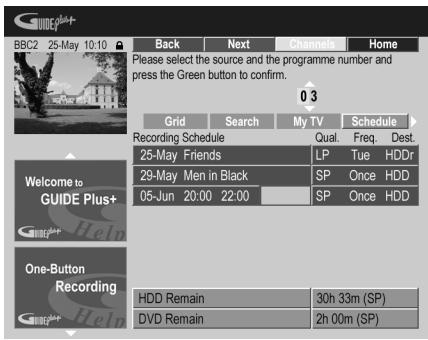
Alternatively, you can press the YELLOW Action button (Mosaic) and use the ↑/↓/←/→ buttons to select a channel from the mosaic, followed by ENTER.
The Info Area
This area is reserved for additional information such as news, weather reports, stock quotes, and so on, and varies by region. (Note that this feature is not available in all countries/regions.)
The Editor Area
The Editor Area is the central location for you to manage your channels. Any changes you make here will affect what is displayed in the Grid Area. The Editor Area is mainly used when setting up the GUIDE Plus+ system to make any manual changes as necessary.
You can also use the Editor Area if new channels become available in your area, or if you change from cable to satellite, say, or move house.
From the Editor Area you can:
- Display/hide channels in the grid (switch the channel on/off).
- Select a channel source (Tuner, Ext. Rec. 1, Ext. Rec. 2, etc.).
- Enter a channel program number.
Switching a channel on/off
You can choose whether or not to display a channel in the Grid Area by switching the channel on or off in the Editor Area.
1 Select 'Editor' from the Menu bar.
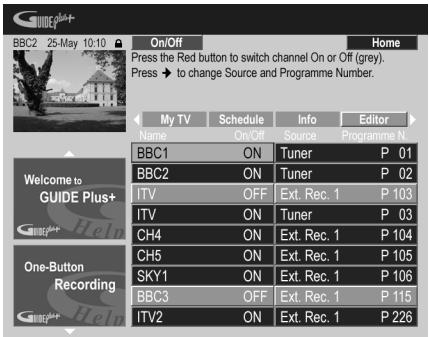
2 Highlight the left channel tile of the channel you want to switch on or off.
3 Press the RED Action button to switch the channel on or off.
Changing the source and program number
1 Select 'Editor' from the Menu bar.
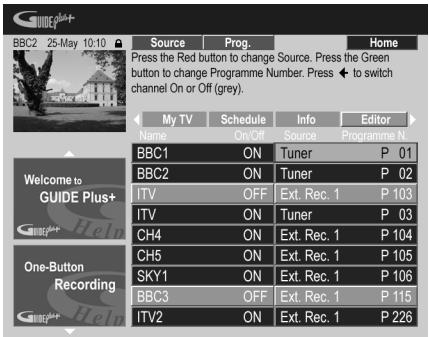
2 Highlight the right channel tile of the channel you want to make a change to.
3 Press the RED Action button to change the channel source, or the GREEN Action button to enter a program number.
Each press of the RED Action button changes the channel source (Tuner, Ext. Rec. 1, etc.). To set a program number, use the number buttons to enter a program number then press ENTER. (When set to Tuner, make sure that the program number matches the preset number of this recorder for what you want to record).
The Setup Area
The Setup Area is where you can set up the GUIDE Plus+ system for your particular region, TV reception conditions, and so on.
Making changes to your GUIDE Plus+ setup
1 Select 'Setup' from the Menu bar.
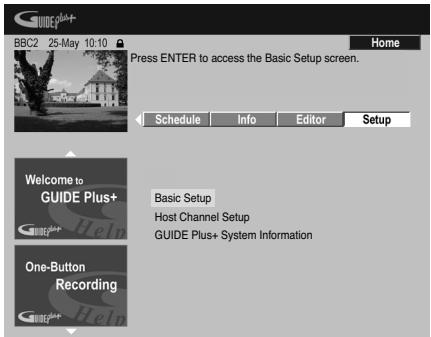
2 Highlight the part you want to change.
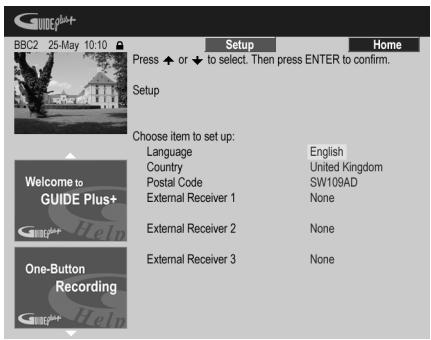
You can change the Language, Country, Postal Code ^1 and the External Receiver settings.
3 Press ENTER to confirm.

Note
1 Making changes to the Country or Postal Code settings may require a new download of TV listings information. This can take up to 24 hours.
Manual Host Channel setup
The GUIDE Plus+ system will automatically identify your Host Channel as soon as the recorder is put into standby for the first time. See the table on page 62 for a list of all the European Host Channels.
If you know your Host Channel details (source and program number) or if the automatic identification did not provide the expected result, you can identify your Host Channel manually. Select Host Channel Setup in the Setup area and follow the instructions on the TV. Select the correct source (e.g., internal tuner or external receiver) and enter the respective program number (e.g., if you have to press 9 on the remote to watch your Host Channel, enter 9 as the program number). When you next switch the recorder into standby the GUIDE Plus+ system will complete the Host Channel setup.
You can reset the Host Channel settings at any time back to the default setting of automatic. Please be aware that resetting the Host Channel will erase all TV listings data.
GUIDE Plus+ FAQ and troubleshooting
This FAQ covers only a few questions. For a complete list please consult the GUIDE Plus+ website at: www.europe.guideplus.com

FAQ
- When I tried setting up my external receiver I could not get any of the attempts to work, what should I do?
A: There could be several reasons why your external receiver could not be controlled.
– The connections could be wrong. Make sure that the G-LINK cable is connected to the G-LINK connector on the recorder and the IR blaster is in front of the external receiver, pointing towards the IR receiver of your external receiver. See Connecting to a cable box, satellite receiver or digital terrestrial receiver on page 52.
– The code that is listed under your brand could be wrong. Please try other codes for your brand under satellite, cable or terrestrial. Go to the Setup Area and choose one of the three options (cable, satellite or terrestrial) that you have not already tried. Follow the on-screen prompts to make sure that the GUIDE Plus+ system can change channels on your external receiver. If it does not work, repeat the process, choosing different reception and external receiver combinations until you have tried all the codes for your brand of receiver that are already in the GUIDE Plus+ system. If it still does not work, see below on how to receive new codes overnight.
– The unit has not yet received new codes. The nightly data downloads frequently include new codes for controlling external receivers. Please tune your external receiver to your local host channel and leave it on overnight. Switch this recorder into standby. The next morning, please perform the GUIDE Plus+ setup again to see if your external receiver can now be controlled.
– The external receiver that you use is currently not supported. If, after leaving your external receiver on overnight, and doing the Reception and External Receiver Setup again, it still does not respond, please call Customer Support to report your brand and model.
- My external receiver was successfully setup. However I have found that when the GUIDE Plus+ system has to change to a channel with a 3-digit program number in the external receiver's preset, it does not work. It looks like the GUIDE Plus+ system can only send two digits.
With the number of channels increasing, the number of digits has increased as well. While older boxes use only 2 digits, newer boxes require up to 4. It is possible that you selected an older code for your brand during set-up. Please access the Setup Area, select External Receiver and repeat the setup for your brand (Note: Every time you see the on-screen question about whether the receiver has changed to a certain channel, the GUIDE Plus+ system has sent a different code). Try all the different codes until your GUIDE Plus+ system can control your external receiver correctly. If you have no success, try to receive new codes overnight.
- I used to receive data through my terrestrial antenna or analog cable without a set-top box. Now, I have "upgraded" to a satellite system or to digital cable with external receiver. What should I do to receive data for the GUIDE Plus+ system?
You can try to receive your host channel through your new reception method. If you have problems to receive data we recommend that you keep your analog terrestrial or cable connection only to receive data this way. It is important that you identify your host channel correctly in the Editor Area.
- After I performed the initial set-up I found that the line-up for all the channels received via the external set top box is incorrect. How do I correct this?
You can change the line-up in the editor according to your preferences. Access the Editor Area. Select the channels that you would like to change. Change the source and preset number according to your preferences.
- I performed the set-up but after many hours I still have a blank EPG what is going wrong?
There are several possibilities:
- Connections are wrong. See Connecting up on page 50 to double check everything.
– The initial setup of GUIDE Plus+ was completed incorrectly. Try setting it up again (see Setting up the GUIDE Plus+ ^™ system on page 61). - Your cabling and setup is OK, but the recorder has not been connected for enough time to receive the TV listings data. Leave the recorder in standby overnight.
- For external receiver users only: The connections and setup are OK, but the external receiver was not tuned to the correct host channel. Check the list of host channels (see step 5 of Setting up the GUIDE Plus+™ system on page 61) and leave the recorder in standby and the external receiver on overnight tuned to the correct host channel.
- You live in a country/region where the GUIDE Plus+ system is not yet available. Check the list of countries to see if you are in a region that is supported.
- I used the One-Button-Record feature (red Action button) to set a recording, but I recorded the wrong channel.
If the channel to be recorded is received via the external receiver first make sure that the external receiver was left switched on. Next, in the Editor Area, make sure that the channel to be recorded is correctly set: Access the Editor Area. Check the source and program number of the channel that you wanted to record. Change the source and preset numbers if incorrect.
If you are recording from the recorder's internal tuner (the Tuner setting), make sure that the program number is the same as the preset number set on this recorder. If they are different, go to the Editor Area and change the program number to match the recorder's preset number.
- The TV listings information doesn't update.
The latest TV listings information is automatically downloaded by the recorder overnight. This only happens if the recorder is in standby; if the recorder is left on, it will not download. When not using the recorder, please switch it into standby.
Data downloads can take several hours. The front panel display shows EPG when downloading. If you switch the recorder on while EPG is displayed, the download will be canceled.
- The GUIDE Plus+ system is not supported in my area, but when I switch the recorder into standby, after a while the front panel display shows EPG. Can I stop this from happening?
If the GUIDE Plus+ system is not supported in your area, please do not set the postal code in the GUIDE Plus+ setup (see Setting up the GUIDE Plus+ ^™ system on page 61). When the GUIDE Plus+ service starts in your area, please set the postal code again.
- The automatic Host Channel search failed or the GUIDE Plus + system identified the wrong Host Channel for my region.
You can identify your Host Channel manually. See Manual Host Channel setup on page 73 for how to do this.
Chapter 6 Recording
About DVD recording
This recorder can record to DVD-R, DVD-RW, DVD+R, DVD+RW, DVD-RAM, DVD-R DL and DVD+R DL media.
DVD-R and DVD-RW discs can be initialized for Video mode or VR mode recording. Each has its advantages, and it depends on what you want to do with the recording which mode you choose.
If you want to edit your recordings in any significant way, VR mode offers greater possibilities for cutting, copying, and changing the way the video is presented.
Video mode is less flexible when it comes to editing, but it has the advantage that it is compatible with standard DVD players (many of which won't play VR mode discs ^1 ).
Once a disc is initialized for a particular mode, all recording on that disc will be in that mode.
DVD+RW discs can be initialized for +VR mode recording.
DVD-RAM discs can be initialized for VR mode recording.
DVD+R discs do not require initializing.

Important
The table below shows the maximum number of titles recordable per disc and the maximum number of chapters per title:
| Disc type/rec. format | Max. titles (per disc) | Max. chapters (per title) |
| DVD-R/-RW | 99 | 99 |
| Video mode | ||
| DVD-R/-RW/RAM | 99 | 999^*1 |
| VR mode | ||
| DVD+R/+RW | 49 | 99^*2 |
^*1 A maximum of 999 chapters are recordable per disc.
*2 A maximum of 254 chapters are recordable per disc.
- This recorder cannot play or record unfinalized Video mode and DVD+R discs recorded on another recorder. DVD+RW discs recorded on another recorder are playable on this recorder but are not recordable.
- The maximum continuous recording time for one title is eight hours when using a DVD+R/+RW disc.
- If you delete a title from a DVD+R/+RW disc, the total number of recordable titles remaining may not increase.
- Although this recorder can record PAL, SECAM, NTSC and PAL-60, you can't mix multiple TV line systems on one disc. A disc can contain PAL and SECAM recordings, or NTSC and PAL-60. See also Additional information about the TV system settings on page 134.
- Fingerprints, dirt and small scratches on a disc can affect playback and/or recording performance. Please take proper care of your discs.
- Pioneer takes no responsibility for recording failure due to power cuts, defective discs, or damage to the recorder.
- See also Disc / content format playback compatibility on page 45 for detailed disc compatibility information.
Recording to DVD-R DL/DVD+R DL discs
Recording to DVD-R DL/DVD+R DL discs is generally the same as recording to regular single-layer discs; however, please note the following points:
- When the recorder switches from the first layer to the second during recording a DVD-R DL (Video mode) disc, a new title is automatically started on the new layer.
- Up to 99 titles can be recorded on a DVD-R DL (Video mode) disc. If the 99th title is being recorded when the layer is switched, recording will stop.
- Up to 49 titles can be recorded on a DVD+R DL disc.
- You cannot play, record additional material to, edit or finalize a DVD-R DL or DVD+R DL disc that has been recorded on but not yet finalized on another DVD recorder.

- Some DVD players, such as some Pioneer models, are compatible with VR mode discs. Check the operating instructions for your player for VR mode compatibility information.
About HDD recording
Recording to the internal hard disk drive (HDD) is very flexible; you have the full choice of recording quality options, including manual mode, and of course you can record, erase and re-record as many times as you like.
The capacity of the hard disk drive means that you can store many hours of video on it, even using the higher quality recording modes.

Important
- The maximum number of titles/chapters per title that can be recorded on the HDD is 999 and 99 respectively. No more recording is possible on the HDD after the maximum number of titles has been reached.
- The maximum continuous recording time for one title is 12 hours.
- It is possible to record both PAL and NTSC titles on the HDD. Before recording, you need to make sure that the Input Line System setting (page 134) matches the TV line system of the source you're recording.
HDD Video mode compatibility
When recording to the HDD you can choose to record in one of two formats. Set the format from the HDD Recording Format item in the Initial Setup menu (see page 133).
When set to Video Mode On, high-speed copying from HDD to Video mode DVD-R/-RW or DVD+R/+RW is possible. When recording a bilingual broadcast, set which channel you want to record from the Initial Setup menu (see Bilingual Recording on page 130).
When HDD Recording Format is set to Video Mode Off, high-speed copying isn't possible. However, both channels of bilingual broadcasts are recorded and you can switch the audio on playback.
Recorded audio
In all except the LPCM mode, sound is recorded in two channel Dolby Digital format (only Dolby Digital 2.0 can be recorded; Dolby Digital 5.1 recording is not possible). When set to LPCM, sound is recorded in high quality, uncompressed Linear PCM format.
If the broadcast audio is bilingual and you are recording to Video mode DVD-R/-RW, DVD+R/+RW, or to the HDD with the HDD Recording Format set to Video Mode On, or on the LPCM setting, use the Bilingual Recording setting
(page 130) to select the A/L or B/R audio channel to record before recording starts. In other cases, both channels of a bilingual broadcast will be recorded and you can switch on playback.
Restrictions on video recording
You cannot record copy-protected video using this recorder. Copy-protected video includes DVD-Video discs and some satellite broadcasts. If copy-protected material is encountered during a recording, recording will pause automatically and an error message will be displayed on-screen.
Video that is ‘copy-once only’ can only be recorded to HDD, CPRM-compatible VR mode DVD-R/RW (see below), or DVD-RAM.
When recording a TV broadcast or through an external input, you can display copy control information on screen. (see Displaying disc information on-screen on page 95).
CPRM
CPRM is a copy protection/scrambling system developed for the recording of 'copy once' broadcast programs. CPRM stands for Content Protection for Recordable Media.
This recorder is CPRM compatible, which means that you can record copy-once broadcast programs, but you cannot then make a copy of those recordings. CPRM recordings can only be made on CPRM-compatible DVD-R (ver. 2.0 / 8 x or higher) or DVD-RW (ver. 1.1 or higher) discs formatted in VR mode, DVD-RAM discs or on the HDD.
DVD CPRM recordings can only be played on players that are specifically compatible with CPRM.
Recording equipment and copyright
Recording equipment should be used only for lawful copying and you are advised to check carefully what is lawful copying in the country in which you are making a copy. Copying of copyright material such as films or music is unlawful unless permitted by a legal exception or consented to by the rightowners.
This product incorporates copyright protection technology that is protected by method claims of certain U.S. patents and other intellectual property rights owned by Macrovision Corporation and other rights owners. Use of this copyright protection technology must be authorized by Macrovision Corporation, and is intended for home and other limited viewing uses only unless otherwise authorized by Macrovision Corporation. Reverse engineering or disassembly is prohibited.
Using the built-in TV tuner
There are three different ways to select TV channels. Note that you can't change the TV channel during playback, recording or during recording standby.
For example, to select channel 4, press 4 then ENTER; for channel 34, press 3, 4, ENTER. ^1
- CH +/- buttons on the front panel
Changing audio channels
You can change the audio channel of the broadcast or external input signal.
• MAIN SUB + AUDIO Press to change the audio type.
The current audio channel is displayed on-screen.
- If the NICAM audio setting (see NICAM Select on page 130) is set to NICAM and you are watching a NICAM broadcast, you can switch between NICAM and Regular (non-NICAM) audio.

- If the NICAM broadcast is bilingual, you can also select the language.
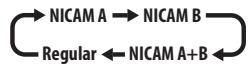
- You can also select the language for a non-NICAM bilingual broadcast.

- When watching a recording made from an external input with Bilingual recording selected (see External Audio on page 130), you can switch the audio channel between left (L), right (R) or both (L+R).


Note
- When recording to the HDD with HDD Recording Format set to Video Mode On, to DVD in Video mode, or on the LPCM setting, only one channel of a bilingual broadcast is recorded. In this case, decide which language you want to record before recording by setting the Bilingual Recording setting (see Bilingual Recording on page 130).
Switching between TV and DVD
When the recorder is stopped or recording you can choose whether to have the audio/video from the built-in TV tuner (or external input) play on your TV ('DVD mode'), or watch the channel that the TV is currently set to ('TV mode').
During playback or when a menu is being displayed on-screen, the sound and video is always routed to your TV and is unaffected by the TV/DVD mode setting.
Note that the recorder must be connected to your TV using a SCART cable to be able to use this feature.
TV/DVD
- Switch between TV mode and DVD mode.
Setting the picture quality/recording time
DVD (VR) DVD (Video) DVD+R DVD+RW DVD-RAM HDD
Before starting a recording, you will usually want to set the picture quality/recording time. There are six standard settings available, which allow you to choose a balance between picture quality and recording time.
When Manual Recording is set to On (see Manual Recording on page 132), a further option will be available (MN1 to MN32 or LPCM, depending on what you set).
When recording to DVD+R/+RW, SLP is the longest recording time available. If you select SEP or MN1 to MN3, the recording mode will automatically revert to SLP.
- REC MODE Press repeatedly to select the recording quality.
- XP – High quality setting, gives about one hour of recording time on a DVD disc.
- SP (Standard Play) – Default quality, used for most applications, gives about two hours of recording time on a DVD.
-
LP (Long Play) – Lower video quality than SP, but doubles the recording time on a DVD to about four hours.
-
EP (Extended Play) – Lower quality than LP, but gives about six hours of recording time on a DVD disc.
- SLP (Super Long Play) – Lower quality than EP, but gives about eight hours of recording time on a DVD disc.
- SEP (Super Extended Play) – Lowest video quality but gives about ten hours of recording time on a DVD disc.
- MN1 to MN32 / LPCM ^1 – Manual / Linear PCM (available only when manual recording is on)
The setting is indicated in the front panel display, and shown on-screen together with the recording time for a blank recordable disc. If a recordable disc is loaded, the approximate remaining recording time for that disc is also shown. (Note that if the On Screen Display setting (see On Screen Display on page 133) is Off then this information is not displayed.)
Basic recording from the TV
DVD (VR) DVD (Video) DVD+R DVD+RW DVD-RAM HDD
Basic recording from the TV involves just setting the channel to record, choosing whether to record to the HDD or a DVD and selecting the recording quality.
HDD/DVD
1 Select the HDD or DVD for recording.
- If you're recording to DVD, load a recordable disc (if you load a new blank DVD-RW or DVD+RW disc, the recorder takes a short while to initialize the disc).
- If you want to record a VR mode DVD-R or a Video mode DVD-RW, you must initialize it before proceeding (see Initializing recordable DVD discs on page 85).

2 Select a TV channel to record.
The front panel display shows the channel number:
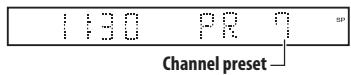
- While the recorder is stopped, you can also use the number buttons on the remote to select the channel. (For channel 24, press 2, 4 then ENTER)
- If the recorder is stopped, you can also use the CH +/- buttons on the front panel to select the channel number.
3 REC MODE Set the picture quality/recording time.
- See Setting the picture quality/recording time above for detailed instructions.
4 MAIN SUB + AUDIO Select the audio channel to record.
See Changing audio channels on page 77 for more on this.
- When recording in VR mode, if a broadcast is bilingual, both audio channels are recorded, allowing you to switch the audio channel on playback. The only exception to this is when the picture quality is set to LPCM, in which case you do need to select the audio channel before recording.
REC

Start recording.
If you want to set a recording end time, press the ● REC button repeatedly. The recording time increases in 30 minute increments, up to a maximum of six hours. The time the recording will end is shown on-screen and in the front panel display. When the recording ends, the recorder automatically switches into standby if no other operation is being performed.
- To cancel the set recording time, press ● REC.
- If you want to pause recording at any time, press II PAUSE. Press again to restart the recording. (If recording to the HDD, DVD-RAM or in VR mode, a new chapter is started after recording restarts)
STOP REC

Press to stop recording.
- If you set the recording time in the previous step, you can still stop the recording anytime by pressing STOP REC.
- Recording will stop automatically when there is no more space on the HDD/DVD, or after 12 hours of HDD recording (whichever is sooner).
If VPS/PDC is active for two timer programs that are programmed to start at the same time, then the program that actually starts first takes priority.

Tip
- During recording you can turn on/off the SCART loop through function. During recording, press the front panel CH + button to switch to SCART THRU (loop through on), or CH – to switch to SCART NORM (loop though off). Loop through is automatically reset to off after recording has finished. Note that you can't switch loop through on if recording from the AV2/(INPUT 1/DECODER) or AV1(RGB)-TV connectors.

Note
- Audio is recorded in 16-bit Linear PCM format, video is recorded at XP quality. When recording a bilingual broadcast, select which audio channel to record (see Bilingual Recording on page 130).
Pause Live TV
HDD
The Pause Live TV feature lets you effectively pause a TV program you're watching. When you're ready to resume watching, just press the Play button.
To use this feature the recorder must be connected to your TV using a SCART cable, and the AV Link setting (page 134) should be set to This Recorder Only.
Not all TVs support this feature. Check the instructions that came with your TV if you're not sure.

Important
- Pause Live TV will not work as expected when watching TV via an external component such as a VCR or digital tuner. It only works with the channel selected on the TV.
1 LIVE TV Start recording the current TV channel.
Recording continues with playback paused.
- Note that it may take up to 10 seconds for recording to start.
2 ▶ Press to start playback.
You can also use the scan buttons (◀◀/▶▶), pause (■ PAUSE) and stop (■ STOP)—all without affecting the recording.
STOP REC
3 ■ Press to stop the recording.

Tip
- You can press PAUSE LIVE TV while the recorder is in standby to switch on and immediately start recording. After pressing PAUSE LIVE TV, it will take at least 10 seconds for the picture to change (during this time, all controls except the power button are inoperative).
- Please note that you can't record from another component (VCR, etc.) that is connected by a SCART cable to the AV2/(INPUT 1/DECODER) connector using the Pause Live TV feature.
Setting a timer recording
ALL
Using the timer recording features you can program up to 32 timer recordings up to a month in advance. Timer recording programs can be set to record just once, every day, or every week.
There are two ways to program a timer recording; using the GUIDE Plus+ system (see The Schedule Area on page 68) or using the Easy Timer Recording feature (see Easy Timer Recording below).
You can set the recording quality for your timer recording in the same way as for a regular recording, but with the added option of an AUTO mode, which maximizes the recording quality for the space available on the disc (if recording to DVD), or to fit on to a blank DVD disc (if recording to HDD).
You can set timer recordings to record to a recordable DVD or to the hard disk drive. For regular (daily or weekly) HDD timer recordings that you don't need to keep, you can use the Auto Replace Recording feature to automatically replace the previous timer recording with the new one. Note that when you use this feature, the previous recording made on that timer program will be replaced by the next one, regardless of whether you have watched it yet or not.
You can also set the recorder so that it will adjust the recording quality to try and fit the recording on to the disc if it would not otherwise fit at the recording quality you set (see Optimized Rec on page 132 for more on this).
Finally, if you set a timer recording to record to DVD but there isn't a recordable DVD loaded at the time of the recording, the Recovery Recording feature will automatically record the program to the HDD for you.
This recorder is compatible with VPS (Video Programming System) and PDC (Program Delivery Control) systems used by many TV stations to ensure that a timer recording catches the whole program even when the program is not running to schedule. Up to eight timer programs can be set with VPS/PDC on.

Important
- A timer recording can't be set if there are already 32 timer programs waiting to be recorded.
- Timer recording will not start if:
– The recorder is already recording.
– A disc is being initialized, finalized or unfinalized. -
Timer recording will start when the operation preventing timer recording has finished.
-
The timer indicator ( ) lights in the front panel display when the timer is active. If the indicator is blinking it means that (for a DVD timer recording) there is no disc loaded, or the disc loaded is not recordable (for an HDD timer recording it means that the HDD is not recordable).
- Approximately two minutes before a timer recording is set to start, the recorder will go into timer recording standby. In timer recording standby you cannot use some functions.
- The maximum length for timer recordings made to the HDD is 24 hours. However, because one title (HDD) is limited to 12 hours, recordings over 12 hours will be spread over two titles. Note that there will be a break in the recording of a few seconds between titles.
- VPS/PDC may not work with all broadcast stations in your country/area. Check with the stations for compatibility.
- The hours between 3:00 and 5:00 in the morning are used by the GUIDE Plus+ system to download program information. During these times, VPS/PDC may not work reliably; leave VPS/PDC off if you set a timer recording for these times.
Easy Timer Recording
As the name suggests, Easy Timer Recording makes setting up a timer recording as simple as possible. ^1
1 HOME MENU Select 'Easy Timer' from the Home Menu.
2 PREV NEXT Set the TV channel to record.
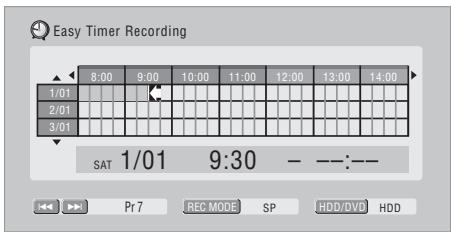
3 REC MODE Set the recording quality.
- DVD recording: The AUTO option automatically sets the best recording quality for the space available on the disc loaded at the time of recording.
- HDD recording: The AUTO option automatically sets the best recording quality that would fit on to a blank DVD disc.
4 Select the HDD or DVD for recording.
5 Move the cursor to the recording start date and time on the grid.
- You can move the cursor forward or back an hour at a time using the ◀◀ and ▶▶ buttons.
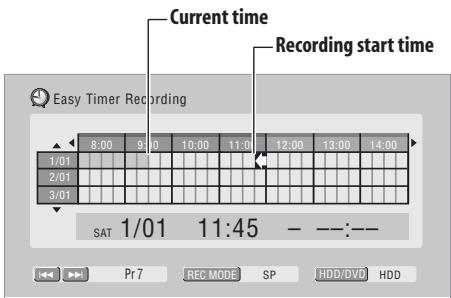
Each row of the grid is one day (you can set the timer recording for up to a month in advance). Each column is a 15 minute interval.
The darker area represents time that has already passed and can't therefore be selected. The lighter area is time that's available.

Note
- You can't use VPS/PDC with Easy Timer Recording. Set a scheduled recording using the GUIDE Plus+ system if you want to use VPS/PDC.
6 ENTER Set the start time.
The start date and time is displayed in the middle of the screen.
- You can go back and reset the start time if you need to by pressing RETURN.

7 Move the cursor to the recording end time on the grid.
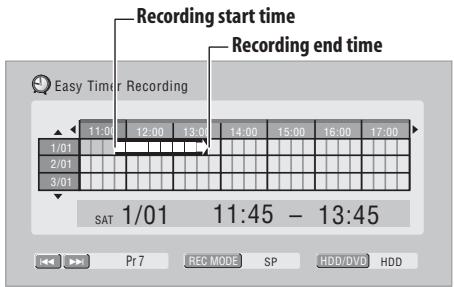
As you move the cursor around the grid, an arrow stretches from the start time to the current cursor position, representing the length of the recording. A recording of up to six hours can be set.
8 ENTER Set the end time.

9 Select 'Yes' to set the timer recording and exit, or 'No' to go back to the Easy Timer Recording screen.
- You can check the timer recording details you just set from the Schedule Area in the GUIDE Plus system; see The Schedule Area on page 68.
Extending a timer recording in progress
You can extend a timer recording beyond the programmed end time. This can be useful if a broadcast program overruns, for example.
Canceling or extending the timer
REC
1 ● Press and hold for three seconds during a timer recording.
Recording continues, but the timer indicator disappears from the front panel display indicating that the timer has been canceled.
REC
2 ● Press repeatedly to extend recording in 30 minute blocks.
Stopping a timer recording
STOP REC
1 ■ Press during a timer recording.


2 Select 'Yes' to confirm.
Preventing use of the recorder before a timer recording (child lock)
You can make all the front panel and remote control buttons inoperative using the child lock feature. This is useful when you set a timer recording and want to make sure that the timer settings are not changed before recording has finished.
RECORDER
1 ☐ If the recorder is on, switch it into standby.

2 [Front panel] Press and hold for three seconds to lock the controls.
The front panel display briefly shows LOCK. If any buttons are pressed on the remote or front panel, LOCK is briefly displayed again.
- To unlock the recorder, press and hold ■ STOP on the front panel (while the recorder is stopped) for three seconds until the display shows UNLOCK.
Timer recording FAQ

Frequently Asked Questions
- Even though the timer is set, the recorder doesn't start recording!
Check that the disc loaded or HDD is recordable, not locked (see Lock Disc on page 123), and that there are fewer than 99/999 titles already on the DVD/HDD.
- The recorder won't let me enter a timer program! Why not?
You can't enter a timer program if the clock isn't set.
- What happens when two or more timer programs overlap?
Basically, the program with the earlier recording start time has priority. However, the recorder will start recording the program with the later start time after the earlier program is finished. If two programs have the same times (but different channels, for example), the program set most recently takes priority.
If VPS/PDC is active for two timer programs that are programmed to start at the same time, then the program that actually starts first takes priority.
Simultaneous recording and playback (Chase Play)
HDD
Chase Play allows you to watch a recording that is still in progress from the start, without having to wait until the recording has finished (i.e., playback is 'chasing' the recording).
In fact, you're not just limited to watching the recording in progress. You can watch anything else already on the HDD (or on a DVD if you're recording to the HDD) by selecting it from the Disc Navigator screen (see Using the Disc Navigator with recordable discs and the HDD on page 89).
DVR-640H-AV only: Chase Play is not possible when DV is the recording input.
• PLAY Press during recording to start playback from the beginning of the current recording ^1 .
• DISC NAVIGATOR Press during recording to select another title to play.
You can use all the usual playback controls, such as pause, slow-motion play, scan and skip.
- To stop playback, press ■ STOP (recording will continue).
- To stop recording, press STOP REC (playback will continue).
- During recording or in timer recording standby, you can't play an HDD title, DVD or Video CD/Super VCD disc if the Input Line System setting doesn't match the TV line system of the disc/HDD title (see also Additional information about the TV system settings on page 134). Also, during simultaneous recording and playback, if the TV line system of the playback track/title changes then playback will automatically stop.
Recording from an external component
DVD (VR) DVD (Video) DVD+R DVD+RW DVD-RAM HDD
You can record from an external component, such as a camcorder or VCR, connected to one of the recorder's external inputs.
1 Make sure that the component you want to record from is connected properly to the DVD recorder.
See Chapter 2 (Connecting up) for connection options.
2 ☐ Press repeatedly to select one of the external inputs to record from.
The current input is shown on-screen and in the front panel display:
- AV2/L1 – Input 1^2
- L2 – Input 2 (front panel)
DVR-640H-AV only:
- DV – DV input (front panel)
Check that the Audio In settings for DV Input, External Audio and Bilingual Recording are as you want them (see Audio In on page 130).

Note
-
You can't start playback immediately after recording starts. Simultaneous playback and recording doesn't work while copying or backing up.
-
This cannot be selected if AV2/L1 In is set to Decoder (see AV2/L1 In on page 130).
- If the aspect ratio is distorted (squashed or stretched), adjust on the source component or your TV before recording.
3 REC MODE Set the recording quality.
- See Setting the picture quality/recording time on page 77 for detailed information.
HDD/DVD
4 Select the HDD or DVD for recording.
REC
5 Press to start recording.
- The recorder will only start recording from the DV IN jack if there is a valid signal. Recording will also pause if the signal is interrupted during recording.
- If your source is copy-protected using Copy Guard, you will not be able to record it. See Restrictions on video recording on page 76 for more details.
Recording from a DV camcorder
DVR-640H-AV only
You can record from a DV camcorder connected to the DV IN jack on the front panel of this recorder. Using the recorder's remote, you can control both the camcorder and this recorder.
Before recording, make sure that the audio input for the DV IN jack is setup (see DV Input on page 130).

Important
- The source signal must be DVC-SD format
- Some camcorders cannot be controlled using this recorder's remote.
- If you connect a second recorder using a DV cable, you cannot control the second unit from this one.
- You can't control this unit remotely from a component connected to the DV IN jack.
- You can't record date and time information from DV cassette.
- During DV recording, if a part of the tape is blank, or has copy-protected material on it, this recorder will pause recording. Recording will restart automatically when there is a recordable signal. However, if there is more than 10 seconds of blank tape, this recorder will stop recording and the camcorder should stop (depending on the camcorder).
- For best results when recording from a DV camcorder to this recorder, we recommend cueing the camcorder to the place you want to start recording from and setting the camcorder to play-pause.
1 Make sure your digital camcorder is connected to the front panel DV IN jack.
Also, set the camcorder to VTR mode.
2 REC MODE Set the recording quality.
- See Setting the picture quality/recording time on page 77 for detailed information.
3 From the Initial Settings menu, check that the DV audio input is setup as you require.
See DV Input on page 130 for more on this.
- Check also that the Audio In settings for External Audio and Bilingual Recording are as you want them (see Audio In on page 130).
4 HOME MENU Select 'Copy', then 'DV Record' from the Home Menu.
- DV recording only works when the digital camcorder is in VTR mode with a tape loaded.

5 Select 'Record to Hard Disk Drive' or 'Record to DVD'.
6 Find the place on the camcorder tape that you want to start recording from.
For best results, pause playback at the point from which you want to record.
- Depending on your camcorder, you can use this recorder's remote to control the camcorder using the ■ , ▶ , || , ◀◀, ▶▶, ◀||/◀| and ▶▶/||▶ buttons.
7 Select 'Start Rec'.
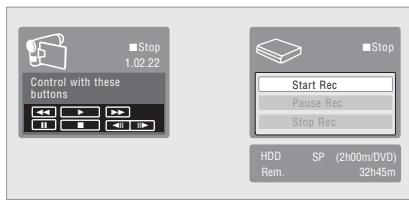
- You can pause or stop the recording by selecting Pause Rec or Stop Rec from the on-screen display. You cannot control the camcorder from this remote control during recording.
-
If you restart recording after stopping the camcorder, the first few seconds of the camcorder tape will not be recorded. Use the pause button on your camcorder instead and recording will start immediately.
-
HDD, DVD (VR Mode) and DVD-RAM only: A chapter marker is inserted every time there is a break in the timecode on the DV tape. This happens when the recording is stopped or paused then restarted, for example.
- While recording, you cannot exit the DV recording screen using the HOME MENU or RETURN button.

Frequently Asked Questions
- I can't get my DV camcorder to work with the recorder! Check that the DV cable is properly connected. Also make sure that what you're trying to record is not copy-protected.
If it still doesn't work, try switching off the camcorder then switch back on.
- There's a picture, but no sound!
Try switching the DV Input setting (see DV Input on page 130) between Stereo 1 and Stereo 2. ^1
Playing your recordings on other DVD players
DVD (VR) DVD (Video) DVD+R DVD+RW
Most regular DVD players can play finalized discs recorded in Video mode and DVD+R discs. A number of players (including many Pioneer models) can also play DVD-RW discs recorded in VR mode, finalized or not. Most players will not play VR mode DVD-R discs, although some DVD-ROM drives and DVD recorders may be able to (finalization might be necessary). Check the manual that came with the player to check what kinds of discs it will play.
When you finalize a Video mode or DVD+R disc, a title menu is created from which you can select titles when you play the disc. There are a number of different styles of title menu to choose from to suit the content of the disc.
All the title menus are navigated in the usual way, pressing MENU or TOP MENU to display the menu, then using the ↑/↓/←/→ followed by ENTER to select titles and start playback.
Finalizing a disc
DVD (VR) DVD (Video) DVD+R DVD+RW
Finalizing ‘fixes’ the recordings on the disc so that it can be played on a regular DVD player or computer equipped with a suitable DVD-ROM drive. ^2
Note that the disc name will appear in the title menu after you finalize a disc. Make sure the disc name is as you want it before you finalize the disc as it can't be changed afterwards. If you want to rename the disc, see Input Disc Name on page 123 before starting the steps below.
DVD+RW discs don't generally need finalizing. However, if you want a title menu to appear when you play the disc, then you will need to finalize. When using a DVD+RW, you can still record and edit even after finalizing. although the title menu will disappear if you do so. Finalize the disc again to generate a new title menu.

Important
- Once you've finalized a Video mode or DVD+R disc, you can't edit or record anything else on that disc. However, the finalization on a DVD-RW disc maybe 'undone'; see Undo Finalize on page 124 for how to do this.
- A VR mode DVD-R/-RW (excluding DVD-R DL) disc can still be recorded and edited on this recorder even after finalizing.
- Video mode DVD-R DL discs and DVD+R DL discs must be finalized in order to play in other recorders/players. Note however that some recorders/players will not play even finalized dual-layer discs.
1 Load the disc you want to finalize.
Make sure that the recorder is stopped before proceeding.
2 HOME MENU Select 'Disc Setup' from the Home Menu.

Select 'Finalize' > 'Finalize' > 'Next
Screen'.
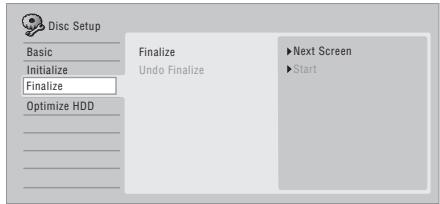

Note
- If the audio subcode on the DV tape cannot be read correctly, the audio type will not switch automatically. You can switch the audio manually from the External Audio setting (page 130).
- If the TV line system of the disc is different to the current setting of the recorder, you will not be able to finalize the disc. See Additional information about the TV system settings on page 134 for how to change the recorder's setting.
4 For Video mode and DVD+R/+RW discs only, select a title menu style, then select 'Yes' to start finalization or 'No' to cancel.
The menu you select will be the one that appears when the 'top menu' (or 'menu' for a DVD+R/+RW) is selected on any DVD player.
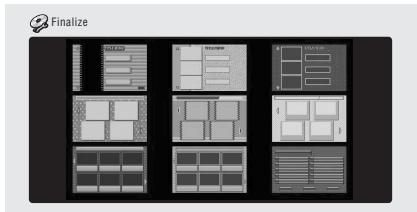
- Discs recorded partially or fully on the Pioneer DVR-7000 DVD recorder do not support this feature. These discs will have only a text title menu when finalized on this recorder.
5 The recorder will now start finalizing the disc.
During finalization:
- If the finalization process of a DVD-RW or DVD+R/+RW disc is going to take more than around four minutes, you can press ENTER to cancel. Around four minutes before completion, the option to cancel disappears.
- You can't cancel the finalization of a VR mode DVD-R disc.
- How long finalization takes depends on the type of disc, how much is recorded on the disc and the number of titles on the disc. A disc recorded in VR mode can take up to one hour to finalize. Video mode DVD-R/-RW and DVD+R/+RW discs can take up to 20 minutes.
Initializing recordable DVD discs
DVD-R DVD-RW DVD+RW DVD-RAM
DVD-R/-RW discs can be initialized for either Video mode recording or VR mode recording. ^1
When you first load a blank DVD-RW or DVD+RW disc, the recorder initializes it for recording automatically. By default, blank DVD-RW discs are initialized for VR mode recording. See DVD-RW Auto Init. on page 132 if you want to change the default to Video mode.
DVD-R discs are ready for Video mode recordings out of the box; if you want to use a DVD-R for VR mode recording, you must initialize it before recording anything on the disc.
DVD+RW and DVD-RAM discs can also be initialized in order to erase the contents of the disc.
Important
- Initializing a DVD-RW, DVD+RW or DVD-RAM disc will erase everything recorded on it. Make sure there is nothing on the disc that you want to keep!
- You may not be able to re-initialize a DVD-RW disc in a different format if it was originally initialized on an older DVD recorder.
- Once initialized for VR mode recording, you can't re-initialize a DVD-R back to Video mode.
1 HOME MENU Select 'Disc Setup' from the Home Menu.

2 Select 'Initialize' > 'Video Mode', 'VR Mode' or 'Initialize DVD+RW'.
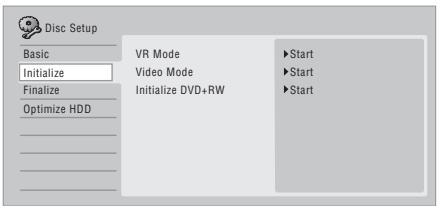
3 Select 'Start'.
It takes about 30 seconds to initialize the disc (except DVD-RAM discs, which can take up to 1 hour).
Chapter 7 Playback
Introduction
Most of the features described in this chapter make use of on-screen displays. Navigate these using the cursor buttons and ENTER. To go back one level from any screen, use the RETURN button.
Remember also that the button guide at the bottom of every screen shows which buttons do what.
Many of the functions covered in this chapter apply to the HDD, DVD discs, Video CDs, Super VCDs, WMA/MP3/DivX discs and CDs, although the exact operation of some varies slightly with the kind of disc loaded.
- Many functions are not available when a Video CD is playing in PBC mode. Stop playback, then press ▶▶▶ for non-PBC playback.
- For discs that contain JPEG picture files, see The PhotoViewer (DVR-640H-AV) on page 115.
Basic playback
ALL
This section shows you how to use your recorder for playback of discs (DVD, CD, etc.), and for playback of video from the HDD.

Important
- Throughout this manual, the term 'DVD' means any kind of playable or recordable DVD. If a function is specific to a particular kind of DVD disc, it is specified.
- Some DVD-Video, DVD+R and DVD+RW discs don't allow certain playback controls to operate at certain points in the disc. This is not a malfunction.
HDD/DVD
1 Select the HDD or DVD for playback.
If playing video from the HDD, skip to step 5 below.
Select DVD for any kind of disc playback.
▲ OPEN/CLOSE
2 Load a disc.
Load a disc with the label side facing up, using the disc tray guide to align the disc (if you're loading a double-sided DVD-Video disc, load it with the side you want to play face down).
- If you want to play a DTS audio CD, please first read the note on page 88.
Start playback.
- If you're playing a DVD-Video or Video CD, a disc menu may appear when you start playback. Use the ↑/↓/←/→ buttons and ENTER to navigate DVD disc menus, and the number buttons and ENTER for Video CD menus.
- When playing video from the HDD, playback will automatically stop after the end of a title is reached.
- There may be a slight pause when playback switches from the first to the second layer of a dual-layer disc.
- See the following sections for more details on playing specific kinds of discs.
STOP
4 ■ Press to stop playback.
5 When you've finished using the recorder, eject the disc and switch the recorder back into standby.
Playing DVD discs
The table below shows the basic playback controls for DVD-Video, and recordable DVD discs.
| PLAY | Press to start playback.IfRESUMEis displayed on-screen, playback starts from the place last stopped. |
| STOP | Press to stop playback.You can resume playback from the same point by pressing▶ PLAY.(Press ■ STOP again to cancel the resume function.) |
| PAUSE | Pauses playback, or restarts playback when paused. |
| Press to start scanning. Press repeatedly to increase the scanning speed. | |
| PREV | Press to skip to previous/next chapter/title.(During playback you can also use the front panelCH+/-buttons.)DVD+R/DVD+RW only:◀◀ PREVmay not always skip to the previous title. |
| Except VR mode: During playback, enter a chapter number then pressENTERto skip directly to that chapter within the currently playing title.On some discs, you can also use the number buttons to select numbered items in the disc menu.VR mode only: During playback, enter a title number then pressENTER.All: PressCLEARto clear a number entry and start again. | |
| DVD-R/-RW, DVD-RAM only: (Commercial back/skip) Each press skips backward/forward progressively up to a maximum of ten minutes forward or three minutes back. | |
| While paused, press and hold to start slow-motion playback. Press repeatedly to change the playback speed.While paused, press to advance a single frame in either direction. | |
| TOP MENSUNAVIGATOR | Press to display the menu of a DVD-Video disc. (DVD+R/+RW discs finalized on this recorder will display the Disc Navigator. PressMENUto display the disc menu.) |
| Use the cursor buttons to navigate DVD-Video disc menus; pressENTERto select items. | |
| Press to return to the previous level of a DVD-Video disc menu. |
Playing from the HDD
The table below shows the basic playback controls when playing video recorded on the hard disk (HDD).

Press to start playback.
If RESUME is displayed on-screen, playback starts from the place last stopped. Playback automatically stops after the end of a title is reached.

Press to stop playback.
You can resume playback from the same point by pressing ▶ PLAY. (Press ■ STOP again to cancel the resume function.)

Pauses playback, or restarts playback when paused.

Press to start scanning. Press repeatedly to increase the scanning speed.

Press to skip to previous/next chapter/title. (During playback you can also use the front panel CH +/- buttons.)
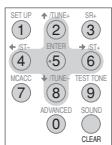
During playback, enter a title number then press ENTER to skip directly to that title. Press CLEAR to clear a number entry and start again.


(Commercial back/skip) Each press skips backward/forward progressively up to a maximum of ten minutes forward or three minutes back.
While paused, press and hold to start slow-motion playback. Press repeatedly to change the playback speed. While paused, press to advance a single frame in either direction.
Playing CDs and WMA/MP3 discs
The table below shows the basic playback controls for audio CDs ^1 , and WMA/MP3 files.
Press to start playback.

Press to stop playback.

Pauses playback, or restarts playback when paused.

Except WMA: Press to start scanning. Press again to increase the scanning speed. (There are two scan speeds; the current scan speed is shown on-screen.)

Press to skip to previous/next track (or folder for WMA/MP3 disc). (During playback you can also use the front panel CH +/- buttons.)
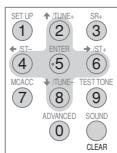
During playback, enter a track number then press ENTER to skip directly to that track. Press CLEAR to clear a number entry and start again.

Playing Video CD/Super VCDs
The table below shows the basic playback controls for Video CD/Super VCDs.
Some discs feature Playback Control (PBC for short) menus. These discs show PBC in the display when you load them and display a menu on-screen from where you can select what to watch. ^2
Press to start playback.
Video CD only: If RESUME is displayed on-screen, playback starts from the place last stopped.

Press to stop playback.
Video CD only: You can resume playback from the same point by pressing ▶ PLAY. (Press ■ STOP again to cancel the resume function.)

Pauses playback, or restarts playback when paused.

Press to start scanning. Press repeatedly to increase the scanning speed.

Press to skip to previous/next track.
When a PBC menu is displayed, press to display the previous/next page. (During playback you can also use the front panel CH +/- buttons.)
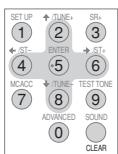
During playback, enter a track number then press ENTER to skip directly to that track.

Press CLEAR to clear a number entry and start again.
While a PBC menu screen is displayed, use to select numbered menu items.
Video CD only: Each press skips backward/forward progressively up to a maximum of ten minutes forward or three minutes back. Note that this function doesn't work when playing in PBC mode.

While paused, press and hold to start slow-motion playback. Press repeatedly to change the playback speed (forward only). While paused, press to advance a single frame (forward only).

Press to display the disc menu of a Video CD/Super VCD playing in PBC mode.
Note
1 If you want to play a DTS audio CD, make sure the recorder is connected to a DTS-compatible amp/receiver with a digital connection. Noise will be output through the analog outputs. Also make sure that Stereo is selected using the AUDIO button (see Switching audio channels on page 94).
2 When playing in PBC mode, some playback features, such as search, repeat and program play are not available. You can play a PBC Video CD/Super VCD in non-PBC mode by pressing ▶▶▶ to start playback instead of ▶ PLAY.
Playing DivX video files
The table below shows the basic playback controls for DivX video files.
 | Press to start playback.IfRESUMEis displayed on-screen, playback starts from the place last stopped. Playback of titles (DivX files) proceeds in alphabetical order. |
| [SC26] | Press to stop playback.You can resume playback from the same point by pressing ►PLAY. (Press ■ STOP again to cancel the resume function.) |
 | Pauses playback, or restarts playback when paused. |
 | Press to start scanning. Press repeatedly to increase the scanning speed. |
 | Press to skip to previous/next title. (During playback you can also use the front panel CH+/- buttons.) |
| [cast] | While paused, press to advance one frame. Press and hold to start slow motion playback (press repeatedly to change the slow motion play speed). |
| [Manual] | Press to display the playback audio type; press repeatedly to change the playback audio type. |
| [=82] | Press to display subtitle information; press repeatedly to change subtitles. |
Using the Disc Navigator to browse the contents of a disc
Use the Disc Navigator to browse the contents of a disc and start playback.
Using the Disc Navigator with recordable discs and the HDD
DVD-R DVD-RW DVD+R DVD+RW DVD-RAM HDD
You can use the Disc Navigator to browse and edit video on recordable DVDs and the HDD, and to view information on titles.
See also Editing on page 96 for more on editing recordable discs.
HDD/DVD
1 Select the hard disk drive or DVD.
2 DISC NAVIGATOR Open the Disc Navigator.
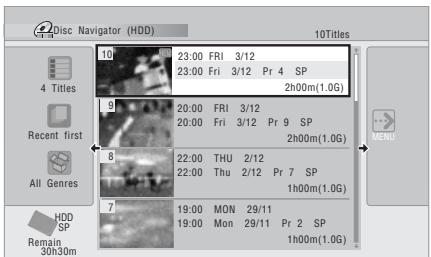
- You can also access the Disc Navigator from the Home Menu.

3 Browse the list of titles.
- Use the ◀◀◀/▶▶▶I buttons to display the previous/next page of titles.
- To change the thumbnail picture displayed for a title see Set Thumbnail on page 100.
- For HDD recordings, you should be able to see a thumbnail title digest. If it doesn't display, set Set Preview to Normal. See Set Preview on page 134.
4 ENTER Play the highlighted title.
- You can also select Play from the command menu options.
Changing the display style of the Disc Navigator
You can choose to display titles in the Disc Navigator in various different ways, sorted alphabetically, by recording date, by genre, and so on. You can also choose whether to display four or eight titles on the screen at the same time.
1 Display the View Options panel.
The View Options panel
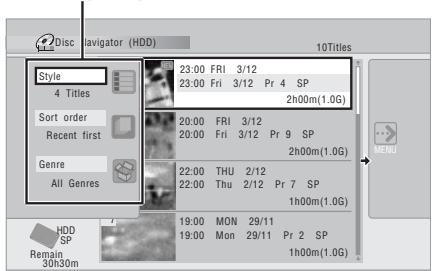
2 Choose 'Style', 'Sort order' or 'Genre', then press ENTER to see the available view options.
- Style – Select four or eight titles per screen view
- Sort order – Sort by date (most recent first), unwatched first, title name or recording date (oldest first)
- Genre – Display all genres or just a selected genre
3 Choose a view option, then press ENTER.
The title list display is updated according to the new display preferences.
Using the Disc Navigator with playback-only discs
DVD-Video
CD
Video CD
Super VCD
WMA/MP3
DivX
1 HOME MENU Display the Home Menu.
2 Select 'Disc Navigator'.
Alternatively, for a CD, Video CD, Super VCD or WMA/MP3/DivX disc, you can press DISC NAVIGATOR, which takes you straight to the Disc Navigator screen.

Select what you want to play.
Depending on the type of disc you have loaded, the Disc Navigator looks slightly different, but they are all navigated in the same way.
The screen below shows a WMA/MP3/DivX disc. Navigate to the folder, or the track/title within a folder that you want to play.
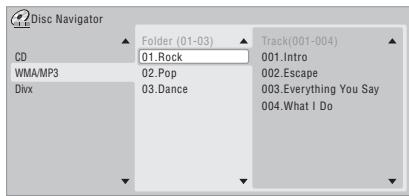
Playback starts after you press ENTER.
- For discs that contain CD-Audio tracks and WMA/MP3 tracks or DivX titles, you can switch the playback area between CD, WMA/MP3 and DivX. This can only be done while the disc is stopped.


Scanning discs
ALL (except WMA)
You can scan discs at various speeds, forwards or backward. ^1
1 During playback, start reverse or forward scanning.
- The scanning speed is shown on-screen.
2 Press repeatedly to change the scanning speed.
There are four scanning speeds available when playing HDD video, a DVD or a DivX title. Reverse playback is also possible with HDD and DVD video. ^2
There are two scanning speeds for other types of disc.
Resume normal playback.
Playing in slow motion
DVD HDD Video CD Super VCD DivX
You can play video at various slow motion speeds. DVDs and video on the HDD can be played in slow motion in either direction, while Video CDs/Super VCDs and DivX titles can only be played forwards in slow motion.
There is no sound when playing in slow motion.
PAUSE
1 II Pause playback.
2 Press and hold to start slow motion reverse or forward play.
3 Press repeatedly to change the slow motion speed.
The current playback speed is indicated on-screen.
Resume normal playback.
Frame advance/frame reverse
DVD HDD Video CD Super VCD DivX
You can advance or back up video on a DVD disc ^3 or the HDD frame-by-frame.
With Video CDs/Super VCDs and DivX titles, you can only use frame advance.
PAUSE
1 II Pause playback.
2 Back up or advance one frame with each press.
3 PLAY Resume normal playback.
The Play Mode menu
ALL
The Play Mode menu gives you access to search functions, repeat and program play functions.
Press MAIN SUB + PLAY MODE to display the Play Mode menu.
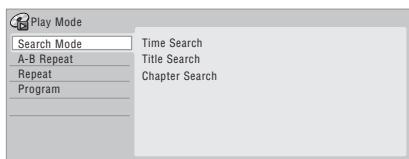
- You can also access the Play Mode menu from the Home Menu (press HOME MENU).
- To exit the Play Mode menu, press HOME MENU or PLAY MODE.
Note
- Only analog audio is output when scanning audio CDs.
- No subtitles are displayed when scanning DVDs and DivX titles.
- Analog and digital sound is output when scanning DVDs and DivX titles with Dolby Digital or Linear PCM sound on forward SCAN 1 (Linear PCM is output from the optical digital output, Except during chase playback and simultaneous recording/playback). No sound is output when using other scan speeds.
- No sound is output when scanning from the HDD, except on forward SCAN 1. (Linear PCM is output from the optical digital output during forward SCAN 1).
- Depending on the disc, normal playback may automatically resume when a new chapter is reached on a DVD disc.
2 Reverse playback may not be smooth.
3 Depending on the disc, normal playback may automatically resume when a new chapter is reached.
Search Mode
ALL
The Search Mode feature lets you start playback from a specified point in a disc by time ^1 or by title/chapter/folder/track number.
1 Select 'Search mode' from the Play Mode menu, then choose a search option.
The available search options depend on the type of disc.

2 ADNANCED Enter a title/chapter/folder/track number or a search time.
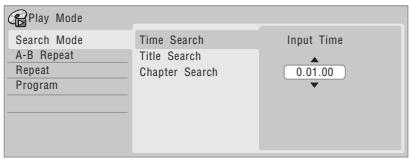
Time Search (HDD, DVD): For example, for 25 minutes into the current title, press 2, 5, 0, 0. For 1 hour and 15 minutes and 20 seconds into the title, press 1, 1, 5, 2, 0. Time Search (Video CD): For example, for 2 minutes and 30 seconds into the current track, press 2, 3, 0.
Title/Chapter/Folder/Track Search: For example, for track 6, press 6.
3 ENTER Start playback.
A-B Repeat
DVD HDD CD Video CD DivX
The A-B Repeat function allows you to specify two points (A and B) within a track or title that form a loop which is played over and over. ^2
1 During playback, select 'A-B Repeat' from the Play Mode menu.
2 ENTER With 'A (Loop Start)' highlighted, press at the point you want the loop to start.
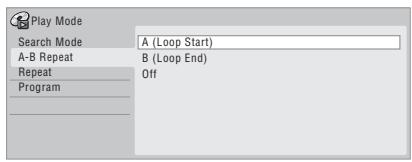
3 ENTER With 'B (Loop End)' highlighted, press at the point you want the loop to end.
Playback immediately jumps back to the start point and plays the loop round and round.
- When playing a DVD-Video/Video mode DVD, or from the HDD, the start and end points of the loop must be in the same title.
- To resume normal playback, select Off from the A-B Repeat menu, or press CLEAR if no menu OSD (such as the Play Mode menu) is displayed.
Repeat play
ALL
There are various repeat play options, depending on the kind of disc loaded, or if you're using the HDD for playback. It's also possible to use repeat play together with program play to repeat the tracks/chapters in the program list (see Program play below). ^3
1 Select 'Repeat' from the Play Mode menu, then choose a repeat play mode.
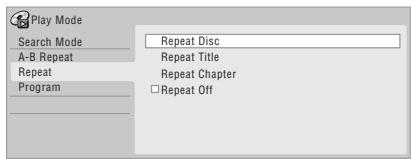
- To resume normal playback, select Repeat Off from the Repeat Play menu, or press CLEAR if no menu OSD (such as the Play Mode menu) is displayed.

Note
1 When using time search, playback may occasionally start slightly before or after the time you input.
2 If you switch camera angles on a DVD during A-B repeat play, A-B repeat is canceled.
3 If you switch the camera angle during repeat play of a DVD-Video disc, repeat play is canceled.
Program play
HDD DVD-Video CD Video CD Super VCD WMA/MP3
This feature lets you program the play order of titles/chapters ^1 /folders/tracks on a disc or the HDD.
1 Select 'Program' from the Play Mode menu, then 'Input/Edit Program'.
The Input/Edit Program screen varies according to the disc type. Below is the DVD input screen.
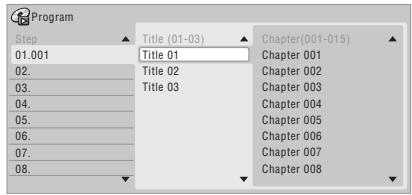
2 Select a title, chapter, folder or track for the current step in the program list.

After pressing ENTER to add the title/chapter/folder/track, the step number automatically moves down one.
- To insert a step into the program list, highlight the step number where you want to insert another step, then select a chapter/title/folder/track as usual. After pressing ENTER, all the subsequent steps move down one.
- To delete a step from the program list, highlight the step you want to delete, then press CLEAR.
3 Repeat step 2 to build up a program list.
A program list can contain up to 24 titles/chapters/folders/tracks.
4 Play the program list.
Program play remains active until you cancel program play, erase the program list, eject the disc or switch off the recorder.

Tip
- To save your program list and exit the program edit screen without starting playback, press HOME MENU or PLAY MODE.
-
During program play, press ▶▶▶ to skip to the next program step.
-
To repeat play the program list, select Program Repeat from the Repeat Play Mode menu (see Repeat play on page 92).
- Press CLEAR during playback to switch off program play (if no menu OSD, such as the Disc Navigator, is displayed). Press while stopped to erase the program list.
- From the Program menu you can also: Start Program Play – Starts playback of a saved program list Cancel Program Play – Turns off program play, but does not erase the program list Erase Program List – Erases the program list and turns off program play
Displaying and switching subtitles
DVD-Video DivX
Some DVD and DivX discs have subtitles in one or more languages; the disc box will usually tell you which subtitle languages are available. You can switch subtitle language during playback. ^2
Check the disc packaging for details of the subtitle options.
• MAIN + SUBTITLE Select/change the subtitle language.
The current subtitle language is shown on-screen and in the front panel display.
- To switch off subtitles, press SUBTITLE then CLEAR.
Note
1 When playing a program list of DVD-Video chapters, chapters not included in the program list may be sometimes be played, depending on the disc.
2 • Some discs only allow you to change subtitle language from the disc menu. Press MENU or TOP MENU to access.
- To set subtitle preferences, see Subtitle Language on page 131.
Switching DVD and DivX soundtracks
DVD-Video DivX
When playing a DVD disc or DivX title recorded with two or more soundtracks (often in different languages), you can switch the soundtrack during playback. ^1
Check the disc packaging for details of the soundtrack options.
• MAIN SUB + AUDIO Change the audio soundtrack.
The current audio language is shown on-screen and in the front panel display.
- The sound may drop out for a few seconds when switching soundtracks.
- Some discs feature both Dolby Digital and DTS soundtracks. There is no analog audio output when DTS is selected. To listen to the DTS soundtrack, connect this recorder to a DTS decoder or AV amp/receiver with built-in DTS decoder via the digital output.
Switching audio channels
DVD (VR) DVD-RAM HDD CD Video CD Super VCD WMA/MP3
For HDD ^2 and VR mode content recorded with bilingual audio, you can switch between left (L) channel, right (R) channel, or both (L+R). ^3
When playing Video CDs and audio CDs you can switch between stereo, just the left channel or just the right channel.
Some Super VCDs have two soundtracks. With these discs you can switch between the two soundtracks as well as individual channels in each.
- MAIN SUB + AUDIO Press repeatedly to display/switch the audio channel.
The audio channel(s) currently playing are indicated on-screen.
HDD DVD (VR) DVD-RAM
L+R – Both channels (default)
L – Left channel only
R – Right channel only
CD Video CD WMA/MP3
Stereo – Stereo (default)
1/L – Left channel only
2/R – Right channel only
Super VCD
1 Stereo – Soundtrack 1 / Stereo (default)
1 L – Soundtrack 1 / Left channel
1 R – Soundtrack 1 / Right channel
2 Stereo – Soundtrack 2 / Stereo
2 L – Soundtrack 2 / Left channel
2 R – Soundtrack 2 / Right channel
Switching camera angles
DVD-Video
Some DVD-Video discs feature scenes shot from two or more angles—check the disc box for details: it should be marked with a 📋 icon if it contains multi-angle scenes. When a multi-angle scene is playing, the same icon appears on screen to let you know that other angles are available (this can be switched off if you prefer—see Angle Indicator on page 133).
• MAIN SUB + ANGLE Switch the camera angle.
- The angle number is displayed on-screen.
- If the disc was paused, playback starts again with the new angle.
Note
1 • Some discs only allow you to change audio language from the disc menu. Press MENU or TOP MENU to access.
- To set audio language preferences, see Audio Language on page 131.
2 Only when HDD Recording Format is set to Video Mode Off (HDD Recording Format on page 133).
3 • When playing a Bilingual recording on a VR mode disc, if you are listening to the Dolby Digital soundtrack via the digital output, you cannot switch the audio channel. Set Dolby Digital Out to Dolby Digital → PCM (see Dolby Digital Out on page 131) or listen via the analog outputs if you need to switch the audio channel.
- When playing a Dolby Digital source, you can also switch channels from the Dual Mono menu of the receiver subwoofer—see Dual mono setting on page 32.
Displaying disc information on-screen
You can display various on-screen information about the disc loaded or the HDD.
DISPLAY
• Display/change the on-screen information.
- Press once to show the HDD and removable disc (DVD, etc.) activity together. Press again to show the status of just the currently selected playback/ recording device (HDD or removable disc).
- To hide the information display, press DISPLAY repeatedly until it disappears.
HDD and removable disc activity display
Press DISPLAY once to see the HDD and removable disc (DVD, etc.) activity. Use the HDD/DVD button to switch between the two kinds of display.
The example displays below show high-speed copying from HDD to DVD, and HDD chase playback.
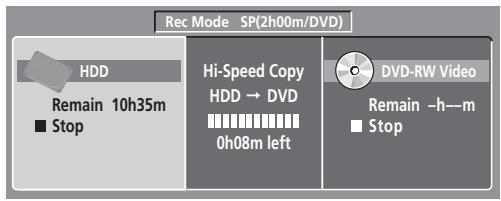
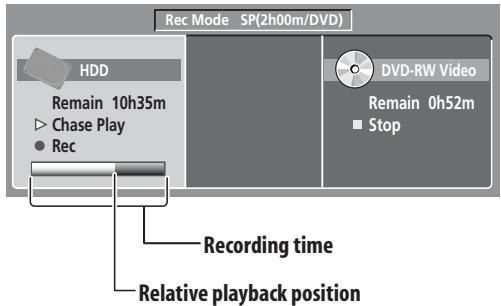
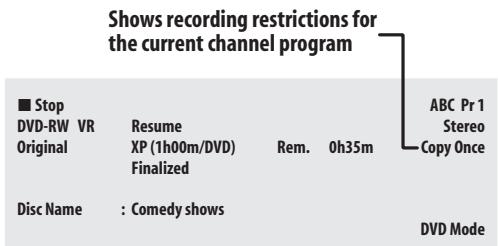
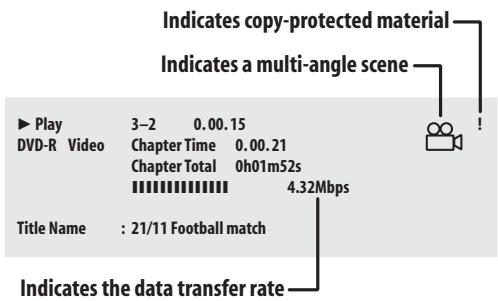

Tip
- See Switching camera angles on page 94 for more on multi-angle scene switching.
- When using the simultaneous play and record feature, the display shows information for playback only.
- During real-time copy, the copy source playback information is displayed.
- The Video mode disc displays become the same as a DVD-Video disc once the disc is finalized.
- The total recording time figure shown in parenthesis is calculated based on a 12 cm / 4.7 GB disc at the displayed record setting.
- Recording and playback times for TV recordings are approximately 0.1% shorter than the actual time. This is because of the slightly different frame rates of TV broadcasts versus DVD.
- The frame number is shown next to the elapsed time display when the disc is paused.
- Copy Once or Can't Record messages may appear in the stop or recording displays. These indicate that the broadcast TV program contains copy control information.
Chapter 8
Editing
Editing options
The table below shows which commands you can use with the HDD and different disc types.
| HDD | DVD-R/-RW(Video mode), DVD+R/+RW | DVD-R/-RW, DVD-RAM(VR mode) | ||
| Original | Play List | |||
| Create(page 98) | ● | |||
| Play(page 98) | ● | ● | ● | ● |
| Erase(page 98) | ● | ● | ● | ● |
| Edit > Title Name(page 99) | ● | ● | ● | ● |
| Edit > Set Thumbnail(page 100) | ● | ● | ● | ● |
| Edit > Erase Section(page 100) | ● | ● | ● | |
| Edit > Divide(page 101) | ● | ● | ||
| Edit > Chapter Edit(page 101) | ● | ● | ● | |
| Edit > Set Genre(page 102) | ● | |||
| Edit > Lock(page 103) | ● | ● | ● | |
| Edit > Move(page 103) | ● | |||
| Edit > Combine(page 104) | ● | |||
| Genre Name(page 104) | ● | |||
| Multi-Mode(page 105) | ● | |||
| Undo(page 105) | ● | ●*1 | ●*1 | |
*1 DVD-R/-RW only
The Disc Navigator screen
The Disc Navigator screen is where you can edit video content on unfinalized Video mode and VR mode DVD-R/-RW discs, DVD+R/+RW and DVD-RAM, as well as video content on the internal hard disk drive.

Important
- Titles that have been recorded with a Input Line System setting different to the current setting of the recorder are shown in the Disc Navigator with a blank thumbnail image. See also Additional information about the TV system settings on page 134.
- During recording, if you display the Disc Navigator for the HDD, some of the titles may appear with a ⚠ mark. These titles were recorded with a Input Line System setting different to the current setting of the recorder. During recording, these titles cannot be played.
HDD/DVD
1 Select the HDD or DVD.
2 DISC NAVIGATOR Display the Disc Navigator screen.
Playback will automatically stop when you do this.
- The Disc Navigator is also accessible from the Home Menu.
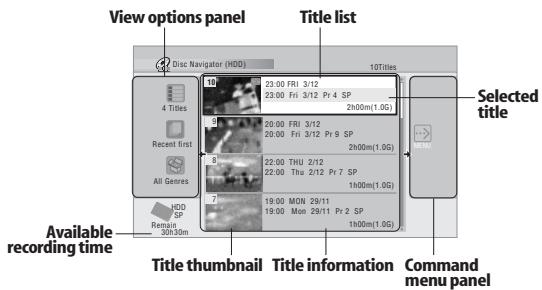

Press to display the command menu panel.
Use the ↑/↓ and ENTER buttons to navigate the menus.
- PREV NEXT When in the title list, press to display the previous/next page if there are more titles than can be displayed.
DISPLAY
- Press to change the title information displayed in the title list.
HDD/DVD
- Press to switch between the HDD and DVD Disc Navigator screens.
- If you are editing a VR mode DVD-R/-RW or DVD-RAM disc you can display the Play List by selecting Play List from the view options panel (press ←, then select Play List from the view options, then Play List).
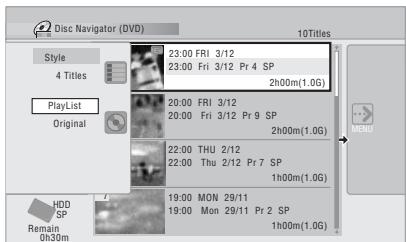
- Titles on the HDD marked with a NEW icon are recently recorded titles that haven't yet been played.
3 DISC NAVIGATOR Press to exit the Disc Navigator.
Editing accuracy
Some editing commands ask you whether you want to keep Video mode compatibility or frame accuracy (Video Mode Compatible Editing or Frame Accurate Editing).
Frame accurate editing is very precise. The edit point is accurate to the exact frame you choose. However, this accuracy is not preserved in any copy you make if you use the high-speed copy function to make a Video mode DVD.
Video mode compatible editing is less precise. The edit point you choose will only be accurate to within 0.5 to 1 second. On the other hand, these edit points will be preserved if you use high-speed copy to make a Video mode DVD or DVD+R/+RW.
HDD genres
The large capacity of the HDD means that there may be many hours of video in the recorder. To help you organize your HDD video content you can assign different genres to titles. There are 14 genres in total, including ten user-definable ones that you can name as you like.
Create
DVD (VR) DVD-RAM Play List only
Use this function to create a Play List and add titles to it. Before you can use this command, make sure that the Play List is switched on in the view options panel on the left.
1 Select 'Create' from the command menu panel.

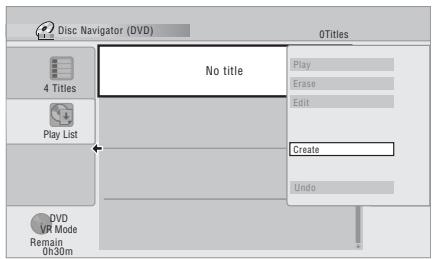
2 Select an original title to add to the Play List.
Repeat these two steps to add as many titles as necessary to the Play List.
Play
DVD (Video) DVD (VR) DVD+R DVD+RW DVD-RAM HDD
Use this function to start playback of a title.
1 Highlight the title you want to play.
2 Select 'Play' from the command menu panel.
Playback of the title you selected starts.
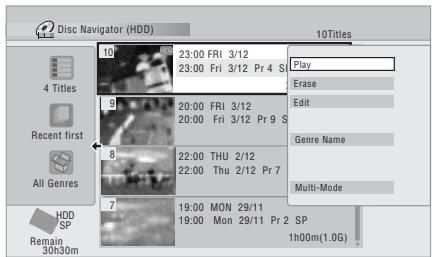
Erase
DVD (Video) DVD (VR) DVD+R DVD+RW DVD-RAM HDD
Use this function to erase unwanted titles.
When you erase titles from the HDD or Original titles from a VR mode DVD-RW, the available recording space increases accordingly. Erasing a title from a Video mode DVD-RW or DVD+RW disc increases the available recording time only if it is the last title on the disc. ^1
Erasing Play List titles, or titles from a DVD-R (VR mode or Video mode) or DVD+R, will not result in any more free space on the disc.

1 Highlight the title you want to erase.

2 Select 'Erase' from the command menu panel.

3 Select 'Yes' to confirm or 'No' to cancel.

Tip
- You can erase a title quickly by pressing CLEAR when the title is highlighted. Confirm the edit by pressing ENTER.

Note
1 There may be cases where erasing a title from a DVD+R/+RW disc will result in incontiguous title numbers.
Title Name
DVD (Video) DVD (VR) DVD+R DVD+RW DVD-RAM HDD
You can give titles new names of up to 64 characters long for VR mode, DVD-RAM and HDD recordings, and up to 40 characters for Video mode recordings and DVD+R/+RW discs.

1 Highlight the title you want to name (or rename).

2 Select 'Edit' > 'Title Name' from the command menu panel.
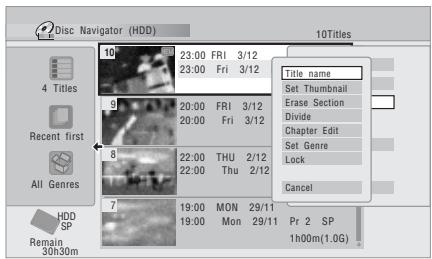
3 Input a name for the selected title.
![Input Title Name 23:00 Fri 3/12 Pr 4 SP CAPS small A B C D E F G H I J K L M . , ? ! N O P Q R S T U V W X Y Z ( ) : ; Ä A A A A A € Ü E E E I T I Y # B ñ ñ Ø ñ Ø ß Û Ú Û Ù Ý B $ % 0 1 2 3 4 5 6 7 8 9 < = " _ & x + - @ [ ¥ ] ^ + x ± { | } ~ i € £ | | ; § * @ a « ¬ - @ * ^ 3 * | | | | * . * | # » % ½% ¿ . OK Clear Space](/content/2025/01/76099/images/bcbcf17bbb16c224c4f64cff7821ea239b34e2b4be8ee31a8a1de89c3cced5f1.jpg)
- A name generated automatically by the recorder will already be in the name input section of the screen. Use the ◀◀/▶▶ buttons to change the cursor position.
- Select CAPS or small to change to upper or lower-case, or use the CASE SELECTION buttons (◄◄/►►1).
- You can also use the CLEAR button to delete characters directly (press and hold for two seconds to delete the whole name).
- For discs formatted on a different DVD recorder, you will see only a limited character set.

4 Select 'OK' to enter the name and return to the main Disc Navigator screen.
- To return to the main Disc Navigator screen without saving changes to the title name, press RETURN.
Set Thumbnail
HDD DVD (Video) DVD (VR) DVD+R DVD+RW DVD-RAM
You can change the thumbnail picture that appears in the Disc Navigator for a title to any frame that appears in that title.

1 Highlight the title you want to change the thumbnail picture for.
2 Select 'Edit' > 'Set Thumbnail' from the command menu panel.
The thumbnail setting screen appears from which you can find the frame you want.
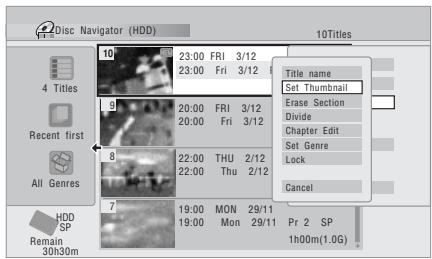
3 Use the playback controls (▶, II, ◀◀, ▶▶, etc.) to find a suitable frame, then press ENTER to set.
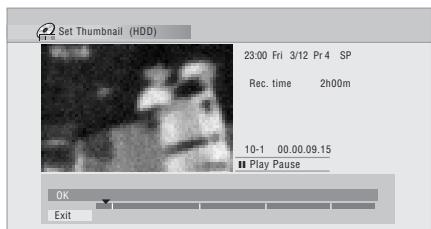
You can also use the chapter and time search features (press PLAY MODE), and the CM SKIP buttons.
4 Select 'Exit' to return to the Edit screen.
Erase Section
HDD DVD (VR) DVD-RAM
Using this command you can delete a part of a title, ideal for cutting out the commercial breaks in a recording made from the TV.

1 Highlight the title containing the section you want to erase.

2 Select 'Edit' > 'Erase Section' from the command menu panel.

3 HDD only: Select the type of edit.
- For more information about these options, see Editing accuracy on page 97.
4 Highlight 'From' then use the playback controls (▶, II, ◀◀, ▶▶, etc.) to find the start of the section to erase, then press ENTER.
The bar at the bottom of the screen indicates the current play position in the title. After pressing ENTER, a marker shows the start of the section.
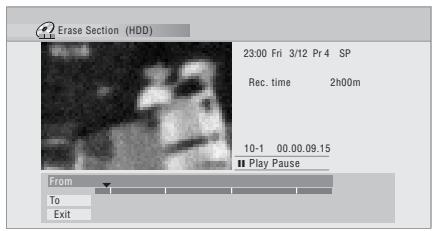

5 Highlight 'To' then, in the same way, find the end of the section to erase, then press ENTER.
After pressing ENTER, another marker indicates the end of the section, with the section itself marked in red.
6

Select 'Yes' to confirm, or 'No' to cancel,.
In the thumbnail viewer you can see a few seconds of video either side of the marked section to see how the edit will look.
- When editing VR mode Original content, you may not be able to erase very short sections (less than five seconds).
Divide
HDD DVD (VR) DVD-RAM Play List only
Use this command to divide a title into two. Note that once divided, the two new HDD titles cannot be recombined into one again.
1

Highlight the title you want to divide.
2

Select 'Edit' > 'Divide' from the command el.
3
HDD only: Select the type of edit.
- For more information about these options, see Editing accuracy on page 97.
4 Use the playback controls (▶, II, ◀◀, ▶▶, etc.) to find the place you want to divide the title.
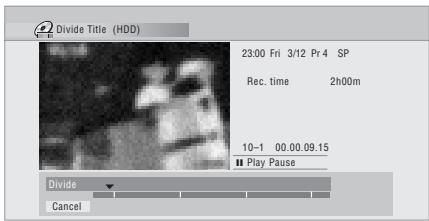
5 ENTER Press to divide the title at the current playback position.

Select 'Yes' to confirm or 'No' to cancel.
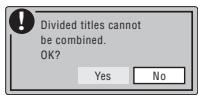
Chapter Edit
DVD (VR) DVD-RAM HDD
When editing a VR mode DVD or video on the HDD you can edit individual chapters within a title, with commands for erasing, combining and dividing.
1 Highlight the title that contains the chapters you want to edit.

2 Select 'Edit' > 'Chapter Edit' from the command menu panel.
3

HDD only: Select the type of edit.
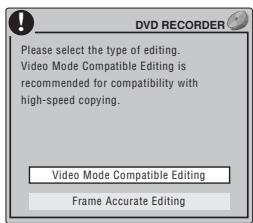
- For more information about these options, see Editing accuracy on page 97.
4 Select the command you want:
- Divide – Divide a chapter into two or more parts: Use the playback controls (▶, ▪, ◀◀, ▶▶, etc.) to find the point at which you want to divide the chapter, then press ENTER.
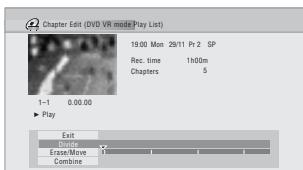
You can keep dividing the chapter as many times as you wish (up to 999 chapters per DVD-R/-RW/-RAM disc or 99 chapters per HDD title).
- Erase ^1 /Move ^2 – Erase or move chapters: Select the chapter you want to erase/move and press ENTER. Select whether you want to erase or move the chapter.
Move command only: Select the destination for the chapter, and press ENTER.
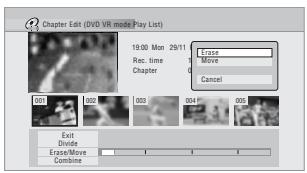
- Combine^3 – Combine two adjacent chapters into one: Highlight the bar divider between two adjacent chapters and press ENTER.
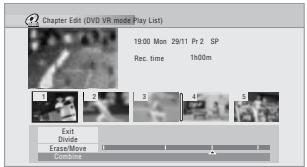
5 Select 'Exit' to get back to the main Disc Navigator screen.
Set Genre
HDD
Use this command to assign a genre to a title.
Highlight the title you want to assign a
genre to.

2 Select 'Edit' > 'Set Genre' from the command menu panel.
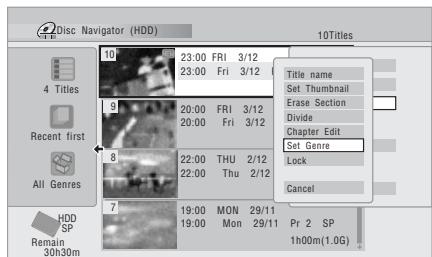
3

Select a genre for the title.
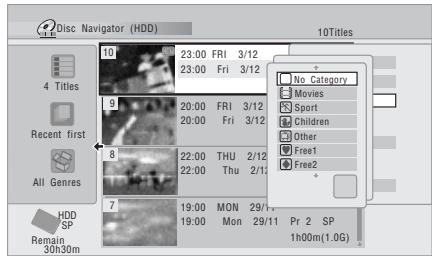

Note
1 When editing VR mode Original content, it may not be possible to erase chapters less than five seconds long.
2 VR mode Play List only.
3 It may not always be possible to combine two chapters, even though they are adjacent. If a chapter has been divided into three, then the middle chapter erased, it is not possible to combine the two remaining chapters into one.
Lock
HDD DVD (Video) DVD (VR) DVD+R DVD+RW DVD-RAM
Original only
You can lock a title so that it can't be edited or erased accidentally. If you do need to edit it, you can always unlock it later.

Important
- You can't undo any edits made before changing the lock status. You also can't undo a lock/unlock command using the Undo option from the Disc Navigator menu.
1 Highlight the title you want to lock (or unlock).

Select 'Edit' > 'Lock' from the command el.
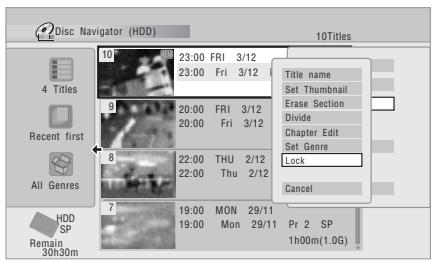
An unlocked title will become locked; a locked title will be unlocked. Locked titles are shown in the Disc Navigator with a padlock icon.
Move
DVD (VR) DVD-RAM Play List only
Use this function to re-arrange the playing order of Play List titles.

Highlight the title you want to move.
1 Highlight the title you want to move.

2 Select 'Edit' > 'Move' from the command menu panel.
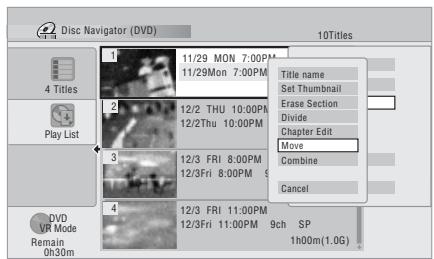
3 Select a new position for the title.

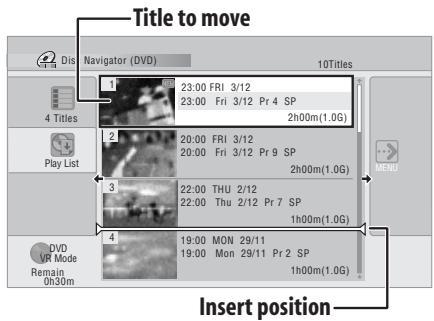
After pressing ENTER, the new, updated Play List is displayed.
Combine
DVD (VR) DVD-RAM Play List only
Use this function to combine two Play List titles into one.
1 Highlight the title you want to combine.
This title will remain in the same place after combining with another title.
2 Select 'Edit' > 'Combine' from the command menu panel.

Select 'Edit' > 'Combine' from the and menu panel.
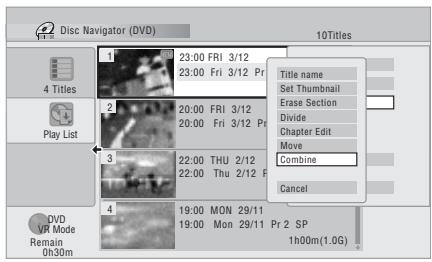
3 Select another title to combine with the first.
This title will be appended to the first title selected.
The screen below shows title 3 selected to be appended to title 1:
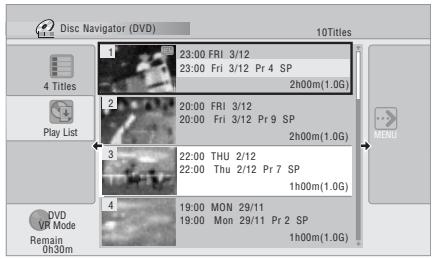
4 Select 'Yes' to confirm or 'No' to cancel.
Genre Name
HDD
Use this command to rename one of the ten user-definable genres (Free 1 to Free 10).

Select 'Genre Name' from the command el.
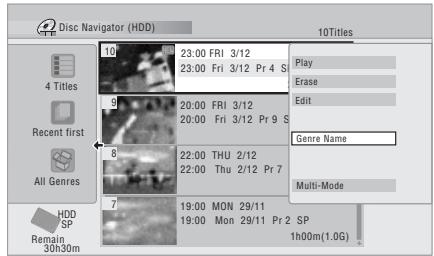

Select one of the user-definable genre
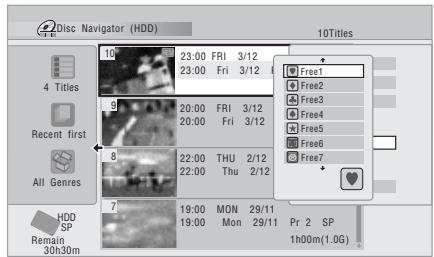

Input a name for the genre.
- The name can be up to 12 characters long.
![Input Genre Name Free 1 CAPS small ABC D E F G H I J K L M . , ? ! NOP Q R S T U V W X Y Z ( ) : ; AAAAA A A E E E E I T I Y # DÑO O O O O O Û Ú Ú Ù Ù B S % 0 1 2 3 4 5 6 7 8 9 < = > " _ & x + - / @ [ ¥ ] ^ x ± { | } ~ i € £ | | : $ ^ @ a « ¬ - - - * - ^ 3 · μ ¶ · , ^ # » % % % & . OK Clear Space](/content/2025/01/76099/images/370890c408e2bf8b8db7232c83a24769ac7379edf14901560c9956a35435f28d.jpg)
4 Select 'OK' to enter the name and exit.
Multi-Mode
HDD
Multi-Mode allows you to select several titles, then select a command that will be applied to all of them. In this way you can select multiple titles and then erase them all at once, for example.

Select 'Multi-Mode' from the command del.
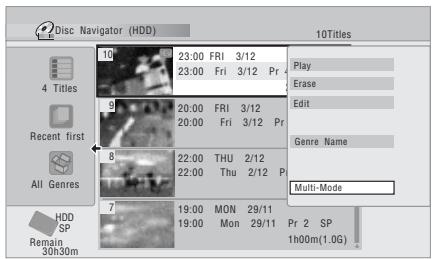
2 Select titles from the title list.
Selected titles are marked with a ☑.

Select the command that you want all the marked titles.
For example, select Erase to erase all the marked titles.
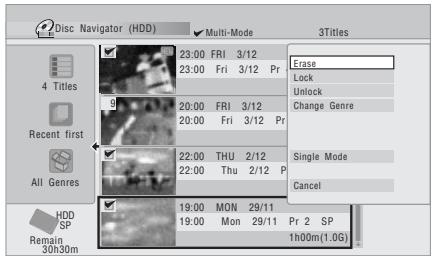
Once the command is completed, Multi-Mode is automatically exited.
Undo
DVD (Video) DVD (VR) DVD+R DVD+RW
If you make a mistake while editing, you can generally undo it. There is one level of undo (in other words, you can only undo the last edit you made) ^1 .

Select 'Undo' from the command menu
- You can't undo anything after exiting the Disc Navigator screen.
Frequently asked questions
- Why doesn't the available recording time increase when I erase titles from a VR mode DVD-R? When you erase titles from a DVD-R (or DVD+R), the titles are no longer displayed, but the content remains on the disc. DVD-R/+R are write-once media; they can't be erased or rewritten.
- I can't edit my disc! You may find that as the available recording time is reduced on a VR mode DVD-R disc, editing is no longer possible. This is because information about your edits requires a certain amount of disc space. As you edit, this information builds up, eventually preventing you from editing further.
Chapter 9
Copying and backup
Introduction
Use the copying features of this recorder to:
- Back up important recordings stored on the HDD to a DVD.
- Make a DVD copy of a recording on the HDD to play in another player.
- Transfer video from a DVD to the HDD for editing.
- Transfer edited video from the HDD to DVD.
The simplest way to copy a title is to use the One Touch Copy feature. This copies the currently playing HDD title to DVD, or DVD title to the HDD. See One Touch Copy on page 106 for detailed instructions.
For more sophisticated copying tasks you can build a Copy List of titles to copy, and edit titles so that you only copy the bits you want. See Using Copy Lists on page 107 for detailed instructions.
Where possible, the recorder will copy your recordings at high-speed. Depending on the recording mode, the kind of disc loaded and various other factors, copying can be as fast as one minute per hour of video. See Minimum copying times on page 138 for more on copying times.
If you want to save disc space you can copy video at a lower recording quality (for example, an XP recording on the HDD copied to SP on a DVD). Copying in this way is always done in real-time.
When real-time copying from the HDD to a Video mode DVD-R/-RW or DVD+R/+RW, the chapter markers in the original material are not copied. Chapter markers are put into the copy at intervals, according to the Auto Chapter settings (see also Auto Chapter (Video) and Auto Chapter (DVD+R/+RW) on page 132).
Restrictions on copying
Commercial DVD-Video discs are protected using Copy Guard. These discs cannot be copied to the HDD.
Some video material is copy-once protected. This means that it can be recorded to HDD, but it can't then be freely copied again. If you want to transfer copy-once protected material from HDD to DVD, you'll need to a CPRM ver. 1.1 or higher VR mode DVD-RW, ver. 2.0 or 2.1 VR mode DVD-R, or CPRM-compatible DVD-RAM disc (see CPRM on page 76 for more on this). Only one instance of a copy-once protected title can be added to the Copy List, and after it's been copied, the title is erased from the HDD (it is therefore not possible to copy a locked title that is copy-once protected).
You can identify copy-once protected material during playback by displaying disc information on-screen. If the current title is copy-once protected, an exclamation mark (!) is shown.
Copyright
Recording equipment should be used only for lawful copying and you are advised to check carefully what is lawful copying in the country in which you are making a copy. Copying of copyright material such as films or music is unlawful unless permitted by a legal exception or consented to by the rightowners.
One Touch Copy
* See also Copyright above.
The One Touch Copy feature copies the currently playing or selected (in the Disc Navigator) HDD title to DVD, or DVD title to HDD. The whole title is copied, regardless of where in the title you start the copy.
HDD to DVD copies are made in the same recording mode. When copying DVD to HDD, the copy is made in whatever recording mode is currently set.
Make sure that a recordable DVD disc is loaded when trying to copy from the HDD.
1 REC MODE If you're copying from DVD to the HDD, select a recording mode.
Note that selecting a recording mode higher than the title playing will not result in a better quality recording.
2 ONE TOUCH COPY Press during playback to copy the current title.
The front panel display indicates that the title is being copied.
- High-speed copying is used when copying from the HDD to DVD. Playback continues while copying.
• Real-time copying is used when copying from DVD to the HDD. Playback restarts from the beginning of the title.
Canceling One Touch Copy
You can cancel a One Touch Copy once it's started.
• ONE TOUCH COPY Press and hold for more than a second.
Copying is canceled and the video already copied is erased.
- If you cancel a HDD to DVD-R/+R copy, the space available for recording does not return to the pre-copy figure.
Notes on copying using One Touch Copy
Copying to DVD
- Title name, chapter markers, as well as thumbnail picture markers for the Disc Navigator, are also copied. However, if you copy to a Video mode DVD-R/-RW or DVD+R/+RW, only the first 40 characters of a name are copied.
- The chapter markers in the copy may not be in exactly the same positions as the original when recording on to a Video mode DVD-R/-RW or DVD+R/+RW.
- You can't use the One Touch Copy function to copy a title if any part of the title is copy-once protected.
- A title that contains mixed aspect ratios can't be copied to a Video mode disc. Use a VR mode DVD-R/-RW or DVD-RAM disc for this type of material.
- Low resolution (SEP through LP modes ^1 ) widescreen material can't be copied to a Video mode disc. Use a VR mode DVD-R/-RW or DVD-RAM disc for this type of material.
- When HDD Recording Format is set to Video Mode Off, titles recorded in LP/MN9 to MN15 modes cannot be high-speed copied to a Video mode disc. Please use a VR mode DVD-R/-RW or DVD-RAM.
- Recordings of bilingual broadcasts cannot be high-speed copied to a Video mode DVD. Please use a VR mode DVD-R/-RW or DVD-RAM.
- Titles over 8 hours cannot be copied to single-layer DVD+R/+RW discs using One Touch Copy. Use DVD+R DL discs for titles over 8 hours.
- Titles recorded in MN1 to MN6, SEP, SLP or EP mode cannot be copied to DVD+R/+RW using One Touch Copy.
Copying to the HDD
- The maximum title length for copying is 12 hours.
- Title name and chapter markers are also copied, except when copying from a finalized Video mode disc.
- Thumbnail picture markers and chapter markers for the Disc Navigator are copied, but their position in the copy may be slightly changed from the original.
- If some part of the title being copied is copy-protected, copying will start, but the copy-protected portions will not be copied.
Using Copy Lists
* See also Copyright on page 106.
At its simplest, a Copy List is just a list of HDD or DVD titles that you want to copy. When copying HDD titles to DVD, you can, however, edit the titles in your copy list, erasing chapters you don't need, or re-naming titles, for example. Edits you make to titles in the Copy List do not affect the actual video content; only the 'virtual' content of the Copy List. So you can freely erase and modify anything in your Copy List safe in the knowledge that the actual content is not being altered.
Copying from HDD to DVD

Important
- The recorder can only store one Copy List at a time.
- The Copy List is erased if the Input Line System setting is changed (see Additional information about the TV system settings on page 134).
- Resetting the recorder to its factory settings (see Resetting the recorder on page 148) will erase the Copy List.
1 Load a recordable DVD.
- It is possible to complete the following steps without having a recordable DVD loaded (or having an uninitialized DVD loaded); however, the steps are slightly different.
- If you want to use a DVD-RW (VR mode) disc for the copy, make sure it is initialized before you start.
2 HOME MENU Select 'Copy' from the Home Menu.

Select 'HDD → DVD'.
If this is the first time to create a Copy List, skip to step 5 below.
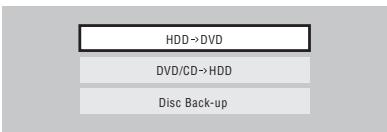
4 If there is already a Copy List stored in the recorder, choose whether to 'Create New Copy List' or 'Continue Using Previous Copy List'.
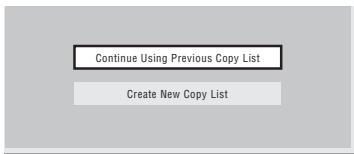
- If you select Continue Using Previous Copy List, skip to step 10 below.
- Selecting Create New Copy List will erase any Copy List already stored in the recorder.
5 Add titles to the Copy List (highlight a title and press ENTER to add).

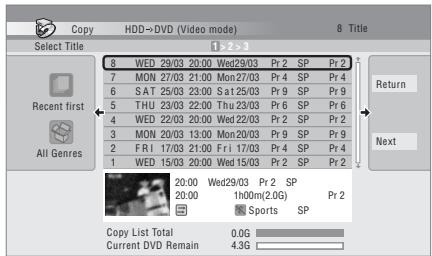
Titles you've added to the Copy List are highlighted in pink.
There are some restrictions on titles that can be added to the Copy List if you are copying to a Video mode DVD or DVD+R/+RW:
- When adding titles that contain copy-once protected material, the copy-once parts will not be added.
- When adding titles that contain material of more than one aspect ratio (screen size), each part with a different aspect ratio will be added as a separate title if high-speed copying is possible.
Depending on the title ^1 , high-speed copying may not be possible to a Video mode disc.
6 Press to display the command menu panel.
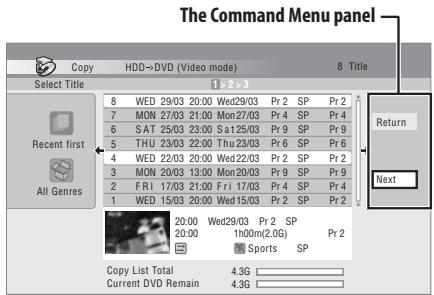
7 Select 'Next' to move on to the Title Edit screen.
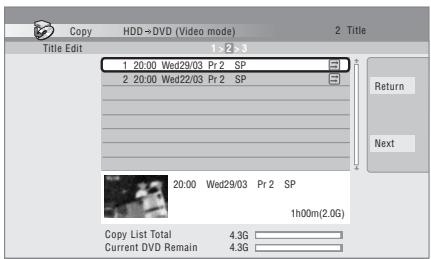
8 To edit a title, highlight it using the ↑/↓ buttons, then press ENTER.
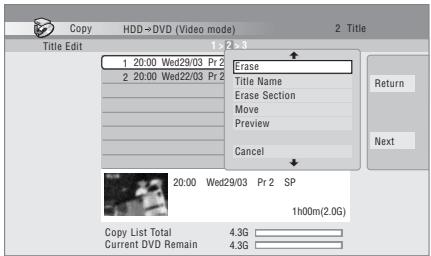
A menu of editing commands appears:
- Erase – Erase individual titles from the Copy List (see Erase on page 98).
- Title Name – Name or rename a title in the Copy List (see Title Name on page 99).
- Erase Section – Erase part of a title (see Erase Section on page 100).

Note
1 • Widescreen titles recorded at low resolution (SEP through LP/MN1 to MN15 (Video Mode Off) or MN1 to MN8 (Video Mode On).
- LP/MN9 to MN15 recordings when HDD Recording Format is set to Video Mode Off.
- Bilingual recordings.
- Combined titles that were originally recorded using different recording modes.
- Move – Change the order of titles in the Copy List (see Move on page 103).
- Preview – Check the content of a title in the Copy List.
- Divide – Divide a title in the Copy List into two (see Divide on page 101).
- Combine – Combine two titles in the Copy List into one (see Combine on page 104).
-
Chapter Edit – Edit chapters within a Copy List title (see Chapter Edit on page 101):
-
Divide – Divide a chapter into two.
- Erase/Move – Erase a chapter/Change the chapter order.
-
Combine – Combine two chapters into one.
-
Set Thumbnail – Set the thumbnail frame for a title (see Set Thumbnail on page 100).
- Recording Mode – Set the picture quality of the copy (see Recording Mode on page 110).
- Bilingual – Set how bilingual audio should be copied when copying from HDD to Video mode DVD (see Bilingual on page 110).
- Cancel – Exit the menu.
Repeat this step for as many titles you have that need editing.
9

Display the command menu panel.
10

Select 'Next' to proceed.
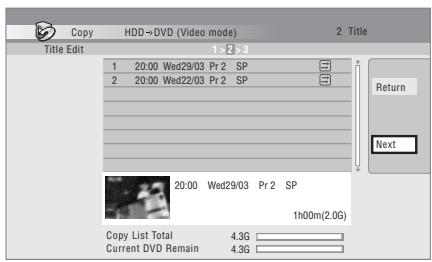
There are several options available from the next screen:
- Select Recording Mode if you want to change the recording quality (see Recording Mode on page 110). ^1
- Select Input Disc Name if you want to change the disc name. Input a name of up to 64 characters for a VR mode disc or 40 characters for a Video mode disc or DVD+R/+RW. (The input method is similar to that of naming titles; see Title Name on page 99.)
- Select Finalize if you want to automatically finalize a Video mode DVD or DVD+R after copying. ^2 Select a title menu style from the following screen.

Select 'Start Copy' to start copying.
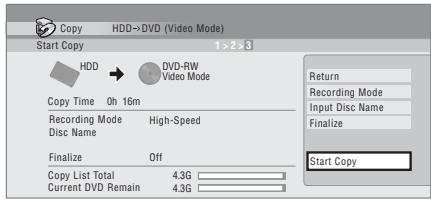
- If you're using a DVD-R DL or DVD+R DL disc and the copy will span both layers, the Copy List Total bar will be purple.
- The Current DVD Remain bar will be half-length if the first layer of a DVD-R DL or DVD+R DL disc is already full.
Copying from DVD to HDD

Important
- The DVD to HDD Copy screen isn't accessible when a finalized Video mode disc or a DVD-Video is loaded. As long as the disc is not Copy Guard protected, you can still use the One Touch Copy function, however (See One Touch Copy on page 106).
- The recorder can only store one Copy List at a time.
- The Copy List will be erased if:
- any of the titles on the DVD disc are erased or edited.
– the disc tray is opened.
– playback is switched between Play List and Original.
– the DVD disc is re-initialized or finalized.
– the recorder is reset to its factory settings (see Resetting the recorder on page 148).
- It may not be possible to copy from a DVD disc that was recorded on a different DVD recorder or a PC.

Note
1 Titles recorded in MN1 to MN6, SEP, SLP or EP mode cannot be copied to DVD+R/+RW using high-speed copy.
2 If a timer recording is scheduled to start during copying, the disc will not be finalized.
1 HOME MENU Select 'Copy' from the Home Menu.
2 Select 'DVD/CD → HDD'.
3 Select a Copy List type.
- Selecting Create New Copy List will erase any Copy List already stored in the recorder.
- Selecting Create New Copy List will erase any Copy List already stored in the recorder.
4 Add titles to the Copy List (highlight a title and press ENTER to add).
Titles you've added to the Copy List are highlighted in pink.
5 Select 'Next' from the command menu panel to proceed to the title edit screen.
6 Select a title to edit.
A menu appears of Copy List editing commands:
6 Select a title to edit. A menu appears of Copy List editing commands:
- Erase – Erase individual titles from the Copy List (see Erase on page 98).
- Move – Change the order of titles in the Copy List (see Move on page 103).
- Preview – Check the content of a title in the Copy List.
- Cancel – Exit the menu.
Repeat this step for as many titles you have that need editing.
7 Select 'Next' from the command menu panel to proceed to the copy options screen.
- Select Recording Mode if you want to change the recording quality (see Recording Mode on page 110).
8 Select 'Start Copy' to start copying.
Recording Mode

1 Select 'Recording Mode' from the command menu panel.

2 Select a recording mode for the copy.
- High-Speed Copy ^1 – The Copy List is copied at the same recording quality as the original.
- XP, SP, LP, EP, SLP, SEP, MN ^2 – The Copy List is copied at the specified recording quality in real-time. (Note that if you copy at a higher quality setting than the original, the copy will not be better quality than the original.)
If you select MN above, you can also change the level setting (MN1 to MN32 ^4 or LPCM) from the Recording Quality box that appears.
- Optimized ^2,4 – The recording quality is automatically adjusted so that the Copy List fits on to the space available on the disc. Copying is carried out in real-time.
When you change the recording mode setting, you can see how much disc space it will require. If this is more than is available, it shows up in red and you won't be able to start copying. In this case, either change the recording quality, or press RETURN to go back to the Copy List screen and erase one or more titles from the Copy List.
Bilingual

1 Select the title containing the audio you want to change.

2 Select 'Bilingual' from the command menu panel.

3 Select a bilingual audio option.
Note
1 When copying to a Video mode DVD or DVD+R/+RW, the chapter markers in the copy may not be in exactly the same position as the original.
2 When the copy mode is set to something other than High-Speed Copy for copying to a Video mode DVD or DVD+R/+RW, the chapter markers of the original are not copied. Chapter markers are put into the copy at regular intervals, according to the Auto Chapter setting (see also Auto Chapter (Video)) and Auto Chapter (DVD+R/+RW) on page 132.
3 When copying to a DVD+R/+RW, MN1 to MN3 and SEP modes are not available.
4 Optimized mode only available when copying to DVD.
Using disc backup
* See also Copyright on page 106.
This feature offers a simple way to make a backup copy of a finalized Video mode disc or DVD+R/+RW. The data is copied first to the hard disk drive ^1 , then on to another recordable DVD disc.
1 HOME MENU Select 'Copy', then 'Disc backup' from the Home Menu.
2 Select a backup option.

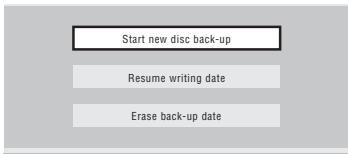
There are three backup options:
- Start new disc backup – Start making a backup of a disc.
- Resume writing data – Record the backup data already on the HDD to a recordable DVD.
- Erase backup data – Erase the backup data on the HDD.
3 Load the disc you want to make a backup of.
You can only make backup copies of finalized Video mode discs, finalized DVD+R or DVD+RW discs (excluding DVD-R DL/DVD+R DL discs).
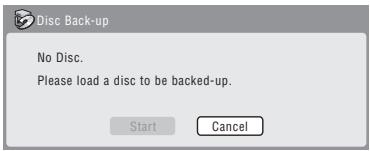
4

Select 'Start'.
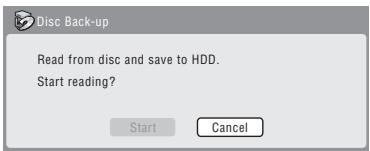
- To see the progress of the backup, press DISPLAY.
- You can cancel the backup process by pressing ONE TOUCH COPY for more than one second.
5 When the data has been copied, take out the disc and load a blank\* recordable DVD.
* If you're using a DVD-RW or DVD+RW, the disc doesn't have to be blank, although the previous contents of the disc will be erased in the backup process.
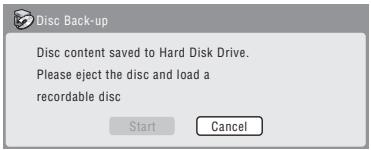
You can use a DVD-R ver. 2.0 or 2.1 disc, or DVD-RW ver. 1.1 or ver. 1.2 disc for the backup.
- If you backup a DVD-R disc to DVD-RW, you cannot undo the finalization later.
- Actual recordable capacity of discs vary so there may be cases where the contents of the disc you're backing-up will not fit on to a particular blank disc. If this happens, please try another brand of disc.
- DVD-R/-RW discs can only be backed up to DVD-R/-RW discs; DVD+R/+RW discs can only be backed up to DVD+R/+RW discs.
6 Select 'Start' to start writing the backed-up data to the blank disc.
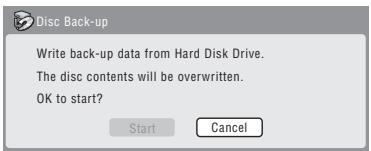
- To see the progress of the backup, press DISPLAY.
- You can cancel the backup process by pressing ONE TOUCH COPY for more than one second. However, this will make the disc unusable (although if you are using a DVD-RW or DVD+RW disc you can re-initialize it in order to make it usable again—see Initializing recordable DVD discs on page 85.)
7 After the recorder has finished recording the backup disc, you can select whether to make another backup of the same data or exit.
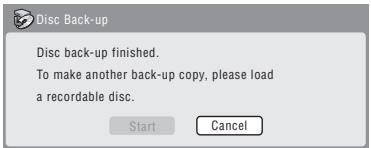
- Select Start to make another backup copy or Cancel to finish. If you want to make another backup copy, return to step 6 above.
8 If you don't need to keep the backup data on the HDD, you can delete it now.
Select Yes to delete the data from the HDD; select No to keep it (you can delete it later if you want to).
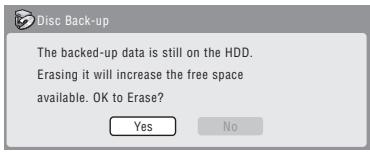
- If you decide to leave the backup data on the HDD, you can make backup copies to recordable DVD discs anytime from the Disc Back-up menu.
Chapter 10
Using the Jukebox
The Jukebox feature allows you to use the recorder's HDD to store and playback music from up to 999 of your CDs. You can also transfer WMA/MP3 files stored on CD-R/-RW/-ROM or a USB device. Once on the HDD, you can name albums, assign them a genre, and set tracks that you don't want to play to Jump.
Copying music to the HDD
The first step is to copy some music to the HDD. CD audio is copied in real-time, while WMA and MP3 files are copied at high speed. All tracks are copied from each CD ^1 as an album.
WMA/MP3 album and track names are copied along with the audio. CD album and track names are not copied, but you can add these later (see Editing Jukebox albums on page 114).
Usually, the tracks are copied to the HDD in the order they appear on the CD. When copying CD audio, you can copy them in some other order using the program play mode. See Program play on page 93 for how to do this.
Note that once copied to the HDD, audio tracks cannot be copied to a recordable DVD disc.

Important
- While copying CD audio, no other recorder operation is possible.
- When copying CD audio, scheduled timer recordings will not start until copying is complete.
- Copy protected CDs may not copy successfully.
1 Load the CD you want to copy to the HDD.
2 HOME MENU Select 'Copy' from the Home Menu.

Select 'DVD/CD to HDD'.
On pressing ENTER all tracks (or files) on the CD are copied to the HDD.
- You can also start copying by starting playback of the CD (including program play) and then pressing ONE TOUCH COPY.
- To cancel copying an audio CD, press and hold ONE TOUCH COPY for more than one second.
- To cancel copying a WMA/MP3 disc, press ENTER.
- If the CD loaded contains both CD audio tracks and WMA/MP3 files, the part currently selected will play.
Copying files from a USB device to the HDD
DVR-640H-AV only
You can copy WMA or MP3 files from a connected USB device, such as a USB drive, to the HDD.
1 Connect the USB device.
2 HOME MENU Select 'Jukebox' from the Home Menu.

3 Select 'Listen to Music from USB Device'.

4 Select 'Copy Album' from the command menu panel.

5 Select 'Yes' to confirm or 'No' to cancel.
The selected folder on the USB device will be copied to the HDD.
- Up to 99 folders/999 files on the USB device are copyable/displayable.
Playing music from the Jukebox
You can select albums or individual tracks from the Jukebox to play. ^2
1 HOME MENU Select 'Jukebox' from the Home Menu.
2 Select a Jukebox option.
- Listen to Music/Edit – Listen to CDs that have been copied to the HDD.
- Listen to Music (WMA/MP3)/Edit – Listen to WMA or MP3 files that have been stored on the HDD.
- Listen to Music from USB Device – Listen to music from an external USB device.
3

Select what you want to play.
The screen below shows CD albums stored on the HDD:
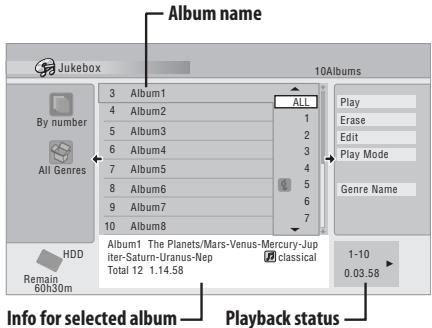
- If you select a whole album to play, all tracks that are not set to Jump will play.
- If you want to start playback from a selected track in an album, or play a track that is set to Jump, press → to enter the track list then select a track to play.
- Press SUBTITLE or ANGLE to change the page.
Changing the album view
1 From the album list, display the view options menu panel.
2

From the album list, display the view menu panel.

Select a view option.
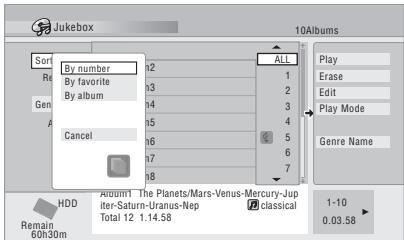
- Sort order
By number – Albums are listed by the album number.
By favorite – Most often listened to music appears at the top of the list.
By album – Albums are listed alphabetically.
- Genre
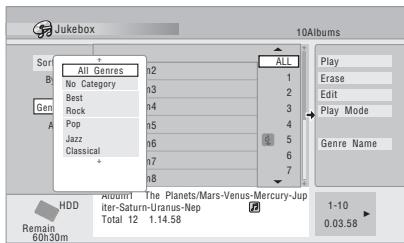
All Genres – All albums are displayed.
Genre – Only albums in the selected genre are displayed.
Editing Jukebox albums
A number of commands are available for editing and changing the playback behaviour of albums.
1
HOME MENU
Select 'Jukebox' from the Home Menu.
2

Select 'Listen to Music/Edit' or 'Listen to IA/MP3)/Edit'.
3

Select what you want to edit.
4

Select an edit function from the menu panel.
- Erase – Erase the selected track (if all tracks in an album are selected, the whole album is erased).
- Edit > Edit Title – Enter a name of up to 64 characters for the album. See page Title Name on page 99 for how to enter names.
- Edit > Set Genre – Set or change the genre for the album.
- Edit > Jump Set ^1 – Set a track to jump so that it doesn't play (choose this command again to cancel the Jump setting).
- Play Mode – Change the playback order for albums and tracks.
- Genre Name – Enter a name of up to 12 characters for a genre. See page Title Name on page 99 for how to enter names.

Note
1 Tracks set to Jump will be skipped during consecutive track playback.
Chapter 11
The PhotoViewer (DVR-640H-AV)
From the Photo Viewer you can view JPEG photos and picture files stored on the HDD, recordable DVD or CD-ROM/R/RW, or on a USB-equipped digital camera. ^1 You can also import files and save them to the recorder's HDD or a DVD-R/RW disc.
Locating JPEG picture files
1 HOME MENU Select 'Photo Viewer' from the Home Menu.
2 Select the location of the files you want to view or edit.
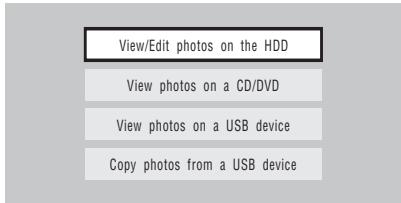
- View/Edit photos on the HDD – View or edit photos already stored on the recorder's HDD.
- View photos on a CD/DVD – View photos on a Fujicolor CD, CD-ROM, CD-R/RW, or DVD-R/RW.
- View photos on a USB device – View photos on a digital camera (or other USB device) connected to the USB port.
- Copy photos from a USB device – Copy all photos on a connected USB device to the HDD.

3 Select the folder containing the files you want to view, copy or edit.
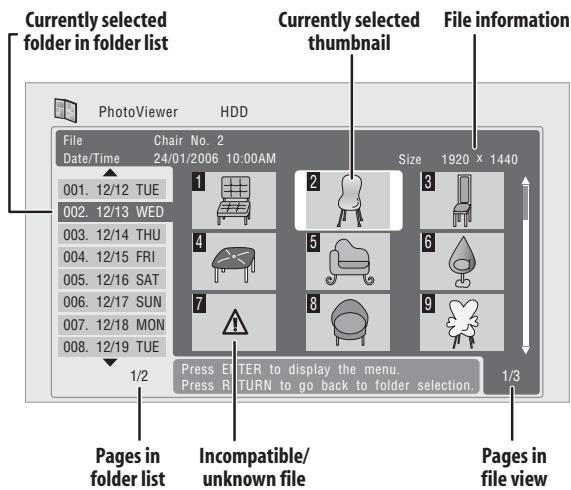
- If you encounter a disc that will not play, check that the disc and file formats are compatible with this recorder (see JPEG file compatibility and PC-created disc compatibility on page 48).
Playing a slideshow

1 Select a folder from the folder list.
The first nine images from the selected folder are displayed as thumbnails in the main part of the screen.
- The larger the file size, the longer it takes the recorder to load the file.
- To start the slideshow from the first file in the folder, skip to step 4 after pressing ENTER.

2 Select 'File Selection' from the menu.
The first thumbnail image is highlighted.
- You can also select a folder, then press to get to the thumbnail view area.
Note
1 Up to 999 files or 99 folders are viewable, but if there are more files/folders than this on the disc or connected USB camera it is still possible to view them all using the Reload function (see the following page).
- To get back to the folder list, press RETURN (or ← when the leftmost thumbnail is highlighted).
3 Select a thumbnail.
- Use the ◀◀◀ and ▶▶◀I buttons to display the previous/next page of thumbnails.


4 Select 'Start Slideshow' from the menu.
- You can also select a file or folder then press ▶ PLAY to start playing the slideshow.
- Use I◀◀ PREV / NEXT ▶▶I to display the previous/ next picture, or II PAUSE to pause the slideshow.
- Depending on the aspect ratio, some pictures may be displayed with black bars top and bottom, or left and right.
- Large picture files may take a few seconds to display. This is normal.
- During playback of the slideshow you can listen to WMA/MP3 files in the Slideshow genre (see Editing Jukebox albums on page 114)
STOP
5 ■ Press to return to the thumbnail view area.
- You can also use the RETURN button.
6 ○ Press to return to the folder view area.

- With the leftmost thumbnail highlighted, you can use the button.
- To exit the Photo Viewer, press HOME MENU.
Reloading files from a disc or USB device
If you have a disc with more than 1000 files and/or 100 folders, you can still view all the images using the reload function.
1 Navigate to the last entry in the folder list ('Read next: ...').
2 ENTER Load the next batch of up to 999 files/99 folders from the disc or connected USB device.
It will take a moment (at most a few minutes) to load in the images. ^1
Zooming an image
During a slideshow you can zoom in to enlarge a portion of the picture by a factor of two or four. You can also move the area of the picture displayed.
1 ENTER Press during the slideshow to zoom the picture.
Repeated presses cycle between zoom off, 2 x zoom and 4 x zoom. The zoom factor is displayed on- screen.

2 Use to move the zoomed area.
Rotating an image
You can rotate the displayed picture during a slideshow so you can always view pictures the right way up, whichever way they were taken.
• MAIN SUB + ANGLE Press during the slideshow to rotate the displayed picture clockwise by 90°.
Press repeatedly to continue rotating the picture in increments of 90^ .
Importing files to the HDD
You can import files and save them on to the HDD ^2 from a CD, DVD or a connected USB camera. Once on the HDD you can edit and organize your pictures and print them out if you've connected a PictBridge-compatible printer.

1 Select the location of folders/files you want to import.
To import a whole folder, press ENTER here and skip to step 4 below.
- To import multiple folders, use the Multi-Mode; see Selecting multiple files or folders on page 117.

2 Select 'File Selection' from the menu.
3 Select a file to import, then press ENTER.
- To import multiple folders, use the Multi-Mode; see Selecting multiple files or folders below.

Note
1 You can press HOME MENU to exit the Photo Viewer screen while the recorder is reloading images. (If you enter the Photo Viewer again, it will resume reloading if from a CD or DVD.)
2 For files you want to keep permanently, we recommend backing up to DVD-R/RW.
4

Select 'Copy to HDD' from the menu.
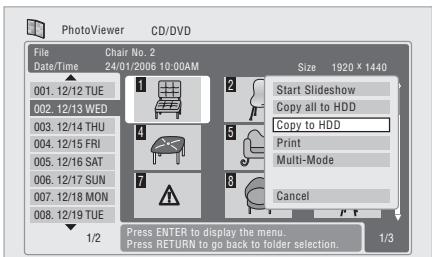
5 Select 'Yes' to confirm and copy the folder(s)/file(s), or 'No' to cancel.

- The files will be copied to the HDD with the same folder structure as the original.
- Importing to the HDD will not work if there is insufficient space on the HDD, or if there are already the maximum number of files and/or folders on the HDD (999 folders/999 files per folder).
Selecting multiple files or folders
The Multi-Mode allows you to select multiple folders/files at once for importing or editing.
1 Select the folder containing the files you want to import.

2

Select 'Multi-Mode' from the menu.
![PhotoViewer HDD Folder 12/13 WED 001. 12/12 TUE 002. 12/13 WED 003. 12/14 THU 004. 12/15 FRI 005. 12/16 SAT 006. 12/17 SUN 007. 12/18 MON 008. 12/19 TUE 1/2 File selection Start Slideshow New Folder Folder Options Copy to DVD Multi-Mode Cancel Use [↑][↓] to select, then press [→] to select file. Press ENTER to display menu. 1/3](/content/2025/01/76099/images/38ce11055bb74cafa4cd50f3d73ac258f45e9a64aa10b80cb225e100d2cf332a.jpg)
3 To add a file/folder to the list, select it, then choose 'Select' from the menu.
A checkbox mark (☑) is shown by the item you selected.
- You can also select a file or folder and press ■ STOP to add it to the list.
- To remove a file/folder from the list, select Cancel Selection from the menu.
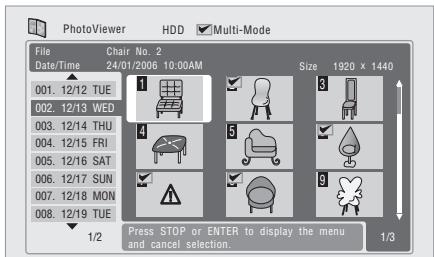
4 ENTER Display the command menu.

5 Select the command you want to apply to all the selected items.
Importing files from a USB device
Use this feature to copy all the files on a connected USB device to this recorder's HDD.

Important
- After backing up the pictures on your USB device to HDD, we recommend verifying that they have been recorded properly before deleting anything from the camera.

1 Select 'Copy photos from a USB device' from the main Photo Viewer menu.
2 Select 'Yes' to confirm or 'No' to cancel.
- While the files are being imported, any timer programs set to start will not begin, and no other operation is possible.

Copying selected files to a DVD-R/-RW
This feature allows you just to copy some of the files stored on HDD to a DVD.
A slideshow of the files is also recorded on the disc as a Video mode title, making it possible to view the photos on other DVD players/recorders that may not be compatible with JPEG file playback. Note however that you may need to finalize the disc before it will play on another DVD player (copying selected files doesn't automatically finalize the disc).

Important
- A maximum of 99 titles can be recorded.
- Slideshows can contain up to 99 files. If there are more files than this in the slideshow, multiple slideshows are created on the disc.
- If you erase a slideshow title from a DVD the slideshow will become unplayable but the free space will not increase.
1 Load a blank (or unfinalized Video mode) DVD-R or DVD-RW disc.

Select 'View/Edit Photos on the HDD' menu.
2

3
Select the file(s) or folder(s) you want to
- Copying a folder will copy all the files contained in it.
- To copy multiple folders, use the Multi-Mode; see Selecting multiple files or folders on page 117.
4

Select 'Copy to DVD' from the menu.
5

Select 'Yes' to confirm or 'No' to cancel.
- Folder names on the disc will be number PIONR. File names will be PHOT number.
- Note that during copying, any timer programs set to start will not begin, and no other operation is possible.
- While 'Cancel' is displayed, you can press ENTER to cancel.
Editing files on the HDD
There are a number of commands you can use to edit and organize your pictures stored on the HDD.
Creating a new folder
1

From the folder list, display the menu.

Select 'New Folder'.
The folder appears at the bottom of the folder list with the name F_number.
![PhotoViewer HDD Folder 12/13 WED 001. 12/12 TUE 002. 12/13 WED 003. 12/14 THU 004. 12/15 FRI 005. 12/16 SAT 006. 12/17 SUN 007. 12/18 MON 008. 12/19 TUE 1/2 File selection Start Slideshow New Folder Folder Options Copy to DVD Multi-Mode Cancel Use [↑][↓] to select, then press [→] to select file. Press ENTER to display menu. 1/3](/content/2025/01/76099/images/7400e1b20b0502cb91227072830096ebc50a99ea093d2352bcc649588f4d6869.jpg)
• There can be up to 999 folders on the HDD.
Erasing a file or folder
1

Select the file(s) or folder(s) you want to
erase.
- To erase multiple folders, use the Multi-Mode; see Selecting multiple files or folders on page 117.
- Erasing a folder will erase all the files contained in it. Please be careful!
- You can't erase files that have been locked.
- Folders containing locked files can't be erased. Unlocked files in the folder, however, will be erased.
2

Select 'File Options' or 'Folder Options'.
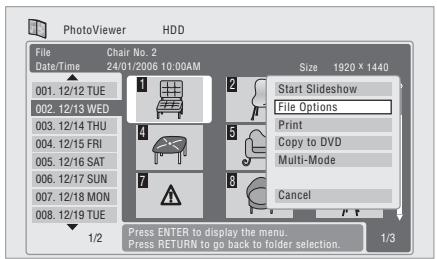
3

Select 'Erase' or 'Erase Folder'.
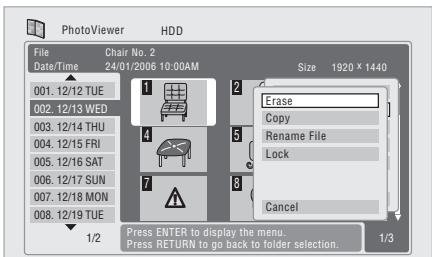
4

Select 'Yes' to confirm, or 'No' to cancel.
- You can also erase a file or folder by pressing CLEAR when the file or folder is highlighted. Press ENTER to confirm.
Copying files
1

Select the file(s) or folder(s) you want to
copy.
- Copying a folder will copy all the files contained in it.
- To copy multiple folders, use the Multi-Mode; see Selecting multiple files or folders on page 117.
2

Select 'File Options' or 'Folder Options'.
3

Select 'Copy' or 'Copy Folder Contents'.
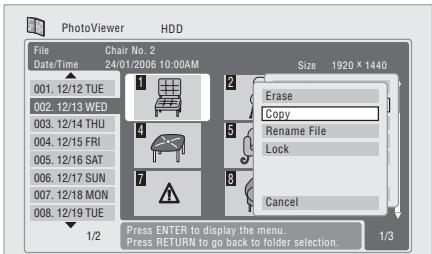

Select a folder to copy the folder(s)/file(s)
4

Select 'Yes' to confirm, or 'No' to cancel.
- Copying to the HDD will not work if there is insufficient space on the HDD; if there are already the maximum number of files and/or folders on the HDD.
Naming files and folders
1 Select the file or folder you want to rename. You can't rename files that have been locked.
2 Select 'File Options' or 'Folder Options'.
3 Select 'Rename File' or 'Rename Folder'.
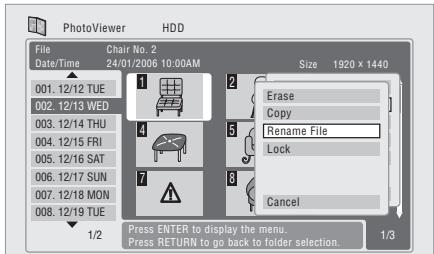
4 Enter a new name for the file/folder.
Filenames or Foldernames can be up to 64 characters long.
Locking/Unlocking files
Locking files will protect them from accidental erasure and prevent them from being renamed.
Use the same process to both lock and unlock files. Locked files are displayed in the Photo Viewer with a padlock icon.

Select the file(s) you want to lock (or
unlock).
- To lock/unlock multiple folders, use the Multi-Mode; see Selecting multiple files or folders on page 117.
2

Select 'File Options' or 'Folder Options'.
3

Select 'Lock' or 'Lock Folder Contents'.
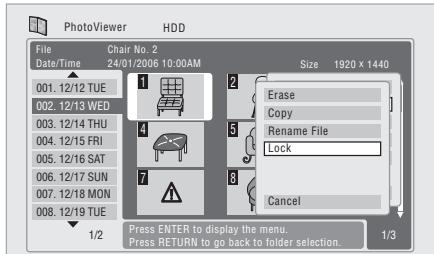
Locked files are shown with a padlock icon next to them.
Printing files
Connecting a PictBridge-compatible printer to the USB port will enable you to print out picture files ^1 stored on the HDD, or directly from a digital camera.
Make sure that the printer (and your digital camera if you are using that as a source) is connected to the recorder before starting.
1

Select the file(s) you want to print.
- To print multiple folders, use the Multi-Mode; see Selecting multiple files or folders on page 117.
2

Select 'Print' from the menu.
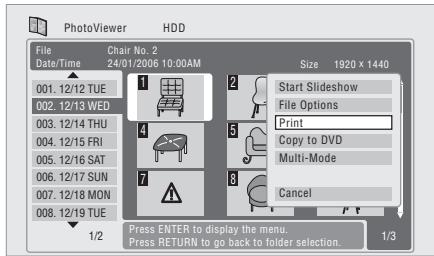
It takes a moment for the recorder to communicate with the printer. During this time you can press ENTER to cancel the print.
3

Select 'Start' to confirm, or 'Cancel' to
- Once printing has started, you can cancel by pressing ENTER.

Tip
- Paper size and layout can be set; the options available depend on your printer—check the printer manual for details.

Note
1 Picture files should be standard DCF format. Non-standard files may not print properly.
Chapter 12
The PhotoViewer (DVR-440H-AV)
From the PhotoViewer you can view JPEG photos and picture files stored on a CD-ROM/R/RW. ^1
Locating JPEG picture files
1 HOME MENU Select 'PhotoViewer' from the Home Menu.

2 Select the folder containing the files you want to view.
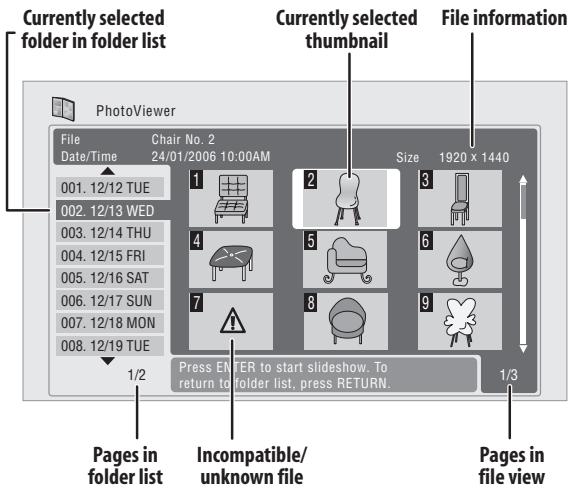
- If you encounter a disc that will not play, check that the disc and file formats are compatible with this recorder (see JPEG file compatibility on page 48 and PC-created disc compatibility on page 48).
Playing a slideshow

Select a folder from the folder list.
The first nine images from the selected folder are displayed as thumbnails in the main part of the screen.
- The larger the file size, the longer it takes the recorder to load the file.
The first thumbnail image is highlighted.
- You can also select a folder, then press to get to the thumbnail view area.
- To get back to the folder list, press RETURN (or ← when the leftmost thumbnail is highlighted).

Select a thumbnail from which to start
the sideshow.
- Use the ◀◀◀ and ▶▶◀I buttons to display the previous/next page of thumbnails.
- You can also select a file or folder then press ▶ PLAY to start playing the slideshow.
- Use I◀◀ PREV / NEXT ▶▶I to display the previous/ next picture, or II PAUSE to pause the slideshow.
- Depending on the aspect ratio, some pictures may be displayed with black bars top and bottom, or left and right.
- Large picture files may take a few seconds to display. This is normal.
STOP

Press to return to the thumbnail view area.
- You can also use the RETURN button.
RETURN

Press to return to the folder view area.
- With the leftmost thumbnail highlighted, you can use the button.
- To exit the PhotoViewer, press HOME MENU.
Zooming an image
During a slideshow you can zoom in to enlarge a portion of the picture by a factor of two or four. You can also move the area of the picture displayed.
1 ENTER Press during the slideshow to zoom the picture.
Repeated presses cycle between zoom off, 2 x zoom and 4 x zoom. The zoom factor is displayed on-screen.
2 Use to move the zoomed area.
Rotating an image
You can rotate the displayed picture during a slideshow so you can always view pictures the right way up, whichever way they were taken.
- MAIN + SUB + ANGLE Press during the slideshow to rotate the displayed picture clockwise by 90°.
Press repeatedly to continue rotating the picture in increments of 90^ .
Chapter 13
The Disc Setup menu
From the Disc Setup menu you can name discs, lock the contents to prevent accidental recording and erasure, initialize and finalize discs. The Disc Setup menu is accessed from the Home menu:
Basic settings
Input Disc Name
DVD (VR) DVD (Video) DVD+R DVD+RW DVD-RAM
When you initialize a disc for recording, the recorder automatically assigns a name for the disc ranging from DISC 1 to DISC 99. You can use the Input Disc Name function to change the default disc name to something more descriptive. This name appears when you load the disc and when you display disc information on-screen.
1 HOME MENU Select 'Disc Setup' from the Home Menu.

2 Select 'Basic' > 'Input Disc Name' > 'Next Screen'.
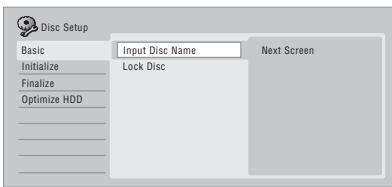
3 Input a name for the disc.
The disc name can be up to 64 characters long for a VR mode disc, or 40 for a Video mode discs and DVD+R/+RW.
• See Title Name on page 99 for more on navigating the input screen.
Lock Disc
DVD (VR) DVD-RAM
- Default setting: Off
Locking the disc will prevent accidental recording, editing or erasing of the disc.

Important
- A locked disc can still be initialized (which will completely erase the disc).
1 HOME MENU Select 'Disc Setup' from the Home Menu.

2 Select 'Basic' > 'Lock disc' then 'On' or 'Off'.
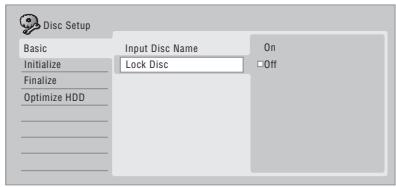
Set to On to prevent accidental recording, editing or erasing of the disc loaded. If you need to unlock the disc to make edits, select Off.
Initialize settings
DVD-R DVD-RW DVD+RW DVD-RAM
You can initialize a recordable DVD-R/-RW disc for either VR mode or Video mode recording.
The first time you load a new DVD-RW disc, it will be automatically initialized for recording according to the DVD-RW Auto Init. setting in the Initial Setup menu (see page 132).
New DVD-R discs are ready for Video mode recording when you load them, but it is also possible to initialize them for VR mode recording. ^1
DVD+RW and DVD-RAM discs can also be initialized as a way of erasing the entire disc. When initializing a DVD-RAM disc, select VR mode.
Note
1 Once initialized for VR mode recording it is not possible to re-initialize the disc for Video mode recording. Also, once recorded in Video mode, the disc cannot be re-initialized for VR mode recording.
See Initializing recordable DVD discs on page 85 for detailed instructions.
Finalize settings
Finalize
DVD-R DVD-RW DVD+R DVD+RW
Finalizing ‘fixes’ the recordings in place so that the disc can be played on a regular DVD player or computer equipped with a suitable DVD-ROM drive.
It is also possible to finalize DVD+RW discs. This is only necessary if you want to a player to display a title menu for the disc.
See Recording from a DV camcorder on page 83 for detailed instructions.
Undo Finalize
DVD-RW
You can undo the finalization on DVD-RW discs recorded on this recorder in Video mode. You need to do this if you want to record more material or edit material already on the disc.
You can also undo the finalization of VR mode discs which have been finalized on other DVD recorders. If when you load a disc the message This disc cannot be recorded. Undo the finalization is displayed, use this command to be able to record on the disc using this recorder.
1 HOME MENU Select 'Disc Setup' from the Home Menu.
Select 'Finalize' > 'Undo Finalize' then
'Start'.
Optimize HDD
HDD
As you record, erase and edit recordings, the HDD file system gradually becomes fragmented. Periodically, the HDD will need optimizing to 'clean up' all the fragmented files.
When the HDD needs optimizing the recorder will automatically display a message recommending optimization.

Important
- Optimizing the HDD can take as long as eight hours. During optimization, playback and recording are not possible.
- Canceling optimization mid-way does not undo the optimization already done, so the HDD will be partly optimized.
1 HOME MENU Select 'Disc Setup' from the Home Menu.

Select 'Optimize HDD' then 'Start'.
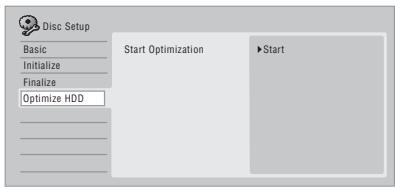
A progress bar indicates how long there is left to go.
Initialize HDD
HDD
When your DVD recorder is working without a problem this option is not visible in the Disc Setup menu. However, if the HDD file system becomes corrupted for some reason, you can initialize the HDD to fix the problem. Note that initializing the HDD will erase all the data on it.
1 HOME MENU Select 'Disc Setup' from the Home Menu.

Select 'Initialize HDD' then 'Start'.
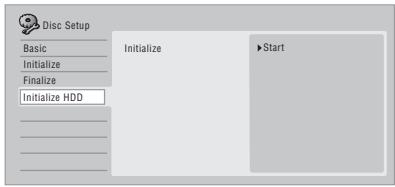
Chapter 14
The Video Adjust menu
Using the Video Adjust menu you can set up the picture quality for the built-in tuner and external inputs, for disc playback, and for recording.
Setting the picture quality for TV and external inputs
Picture Creation lets you choose a set of picture quality settings for the built-in TV tuner and for each external input. There are several preset settings that suit various sources, or you can create up to three of your own sets.
Choosing a preset
1 HOME MENU With the recorder stopped, press to display the Home Menu.
2 Select 'Video Adjust'.
3 Select a preset.

- Use the VIDEO IN button to switch between the built-in TV tuner and the external inputs.
- Use the ◀◀◀/▶▶▶I buttons to change the channel of the built-in TV tuner.
There are six presets available:
- Tuner – suitable for general TV broadcasts
• VCR – suitable for video cassettes - DTV/LDP – suitable for digital broadcasts and Laserdiscs
- Memory1 – user preset 1
- Memory2 – user preset 2
- Memory3 – user preset 3
You can press DISPLAY to see the individual settings for the current preset (Tuner, VCR or DTV/LDP).
Creating your own set
There are three user presets in which you can save your own set of picture quality settings.
1 Follow Choosing a preset above and select one of the user presets (Memory 1, 2 or 3).
2 Select 'Detailed Settings'.

3 Select the setting you want to adjust.
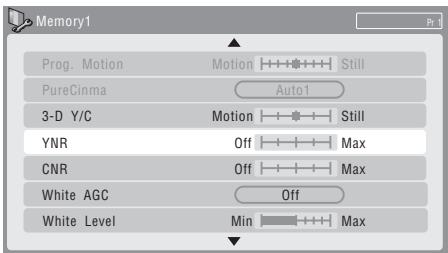
You can adjust the following settings:
- Prog. Motion – Adjusts the motion and still picture quality when video output is set to progressive.
- PureCinema – This setting optimizes the picture for film material when the video output is set to progressive. Usually this is best left set to Auto; try switching to Off if the picture appears unnatural.
- 3-D Y/C – Adjusts the brightness / colour separation (NTSC video input only).
- YNR – Adjusts the amount of noise reduction (NR) applied to the Y (brightness) component.
- CNR – Adjusts the amount of noise reduction (NR) applied to the C (colour) component.
- White AGC – Turn on for automatic white level adjustment. ^1
- White Level – Adjusts the intensity of white.
- Black Level – Adjusts the intensity of black.
-
Black Setup – Corrects the standard reference black level (NTSC video input only).
-
Hue – Adjusts overall balance between red and green.
- Chroma Level – Adjusts how rich the colours appear.

4 Adjust the currently selected setting.
5 HOME MENU Press to exit.
You can now use the preset for any other input or the built-in TV tuner.

Tip
- To see more of the picture as you adjust different settings, press ENTER after selecting the setting you want to adjust.
Setting the picture quality for disc playback
This setting determines how the picture will look when playing discs.
Choosing a preset
1 HOME MENU With a disc playing (or paused), press to display the Home Menu.
2 Select 'Video Adjust'.
3 Select a setting.


There are six presets available:
- TV – suitable for LCD and cathode-ray tube TVs
- PDP – suitable for plasma display screens
- Professional – suitable for professional monitors
- Memory1 – user preset 1
- Memory2 – user preset 2
- Memory3 – user preset 3
You can press DISPLAY to see the individual settings for the current preset (TV, PDP or Professional).
Creating your own set
There are three user presets in which you can save your own set of picture quality settings for disc playback.
1 Follow Choosing a preset above and select one of the user presets (Memory 1, 2 or 3).
2 Move the cursor down and select 'Detailed Settings'.
3 Select the picture quality setting you want to adjust.
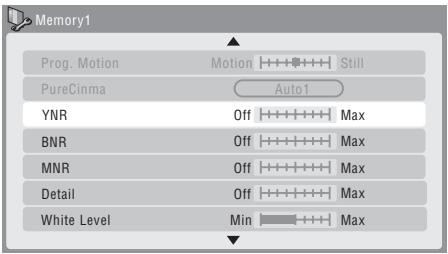
You can adjust the following settings:
- Prog. Motion – Adjusts the motion and still picture quality when video output is set to progressive.
- PureCinema – This setting optimizes the picture for film material when the video output is set to progressive. Usually this is best left set to Auto 1; try switching to Auto 2, On or Off if the picture appears unnatural.
- YNR – Adjusts the amount of noise reduction (NR) applied to the Y (brightness) component.
- BNR – Adjusts the amount of noise reduction (NR) applied to the block noise (artefacts visible in areas of flat colour, caused by MPEG compression).
- MNR – Adjusts the amount of noise reduction (NR) applied to the mosquito noise (artefacts visible around the edges of an image, caused by MPEG compression).
- Detail – Adjusts how sharp edges appear.
- White Level – Adjusts the intensity of white.
- Black Level – Adjusts the intensity of black.
- Black Setup – Corrects the standard reference black level (NTSC video playback only).
- Gamma Correction – Adjusts the brightness of darker images.
- Hue – Adjusts overall balance between red and green.
- Chroma Level – Adjusts how rich the colours appear.
4 Use the / buttons to adjust the currently selected picture quality setting.
5 When you have all the settings as you want them, press HOME MENU to exit.

Tip
- To see more of the picture as you adjust different settings, press ENTER after selecting the setting you want to adjust.
Chapter 15
The Initial Setup menu
Using the Initial Setup menu
The Initial Setup menu is where you can set various recorder options for sound, picture, language and so on.
Some settings can only be changed when the recorder is stopped. During playback and recording these settings are grayed out in the Initial Setup menu.
Except for the Setup Navigator, menu screens are exited automatically after 20 minutes of inactivity.
- Press HOME MENU and select 'Initial Setup'.
In the table below, the default option is marked with a •.
When the Input Line System is set to 525 System, RGB cannot be selected.
Even when set to RGB. depending on the connected device, the input signal may be composite video.
| Setting | Options | Explanation |
| Basic | ||
| Clock Setting | Auto | Set the channel that broadcasts a clock signal and the clock will be set automatically. |
| Manual • | If there is no channel that broadcasts a clock signal in your area, you can set the time and date manually. | |
| The clock must be set in order to use timer recording. | ||
| Input Line System | 525 System | Use for NTSC or PAL-60 recording from an external input. |
| 625 System • | Use for standard PAL or SECAM recording. | |
| See also About the input line system on page 134 for more information on this setting. | ||
| Power Save | Mode 1 | Only signals arriving at the antenna input are passed through to the antenna output when the recorder is in standby. |
| Mode 2 | No input signals are passed through to the outputs when the recorder is in standby. | |
| Off • | When the recorder is in standby, all signals arriving at the SCART and antenna inputs are passed along to the outputs. | |
| HELP Setting | On • | Switches on the automatic Help screens for GUI displays. |
| Off | Switches off the automatic Help screens for GUI displays. (Press HELP on the remote to manually display the Help screen.) | |
| Setup Navigator | Start | Select to start the Setup Navigator. See also Switching on and setting up on page 59. |
| Tuner | ||
| Auto Channel Setting | Auto Scan | Select your country and then wait for the recorder to auto tune into channels in your area. After auto scan has finished, the channel mapping screen appears showing which channels have been assigned to which program numbers. You can skip unwanted channels using the Manual CH Setting option below.PressHOME MENUto exit the channel mapping screen. |
| Download from TV | If your TV supports this feature you can download all the channels that your TV is tuned to via the SCART input. Select your country and then wait for the down- load to complete. After the download is complete, the channel mapping screen appears, as above.See also the operating instructions that came with your TV for more information. | |
| Manual CH Setting | Next Screen | Proceed to the next screen if you need to adjust any of the settings made by auto tuning. Select your country, then proceed to the manual channel setting screen:Change channel presets using the ◄◄◄/►►1 buttons.To skip the displayed channel (because there is no station assigned to that channel), change theSkipsetting toOn.Set theCH SYSTEMsetting to match the channel system of your country or region.Set theCHANNELsetting to the channel you want to assign to the current channel preset.To manually fine tune the channel, change theAFTsetting toOffthen adjust theLevelsetting.Set theSound Systemsetting to match the sound system of your region.TheNamefield allows you to input a name of up to five characters for the current channel preset.If the currently selected channel is scrambled requiring a decoder connected to theAV2(INPUT 1/DECODER), set theDecodersetting toOn. |
| Channel Swapping | Next Screen | Proceed to the next screen to swap channel assignments of different presets so that you can group together presets that naturally go together. Select two presets to swap then pressENTER. |
| Video In/Out | ||
| Input Colour System | Next Screen | Proceed to the next screen to set the input colour system for the external input and the built-in TV tuner. Use theCH+/-buttons to change the preset. On the defaultAutosetting the recorder can generally correctly detect whether the input signal is PAL, SECAM, 3.58 NTSC or PAL-60, but in some cases you may have to set it manually if the picture is displayed incorrectly. |
| See also About the input colour system on page 135 for more information on this setting. | ||
| Component Video Out | Interlace • | Select if your monitor/TV is not compatible with progressive-scan video. |
| Progressive | Select if your monitor/TV is progressive-scan compatible. Check the operating instructions that came with your monitor/TV if you're not sure. | |
| For Component Video Out to be effective, the AV1 Out setting (see AV1 Out below) must be set to something other than RGB. | ||
| AV1 Out | Video • | Sets theAV1(RGB)-TV SCART output to standard composite video (compatible with all TVs). |
| S-Video | Sets theAV1(RGB)-TV SCART output to S-video. Recommended if you are using a long SCART cable. | |
| RGB | Sets theAV1(RGB)-TV SCART output to RGB. Good quality but check your TV for compatibility. Note that on this setting signals from the built-in tuner and from external inputs is not output when the recorder is in TV mode. | |
| If you choose a setting that is incompatible with your TV you may not be able to see any picture at all. In this case either switch off and reconnect using the supplied video cable, or reset the recorder (see Resetting the recorder on page 148).The Component Video Out setting (See Component Video Out above) has no effect when AV1 Out is set to RGB. | ||
| AV2/L1 In | Video • | Sets the AV2 (INPUT 1/DECODER) SCART input to standard composite video. |
| S-Video | Sets the AV2 (INPUT 1/DECODER) SCART input to S-video. | |
| RGB | Sets the AV2 (INPUT 1/DECODER) SCART input to RGB. | |
| Decoder | Use this setting if you connected a decoder to the AV2 (INPUT 1/DECODER) SCART connector. For scrambled channels, make sure that the channel Decoder setting is set to On. (See Manual CH Setting page 129.) | |
| NTSC on PAL TV | On • | NTSC discs will play correctly on PAL-only TVs. |
| Off | Use if your TV is already NTSC-compatible. |
Many recent PAL TVs are compatible with NTSC input and so this setting can be switched off. Check the operating instructions that came with your TV. See also About NTSC on PAL TV on page 134 for related information.
| Audio In | ||
| NICAM Select | NICAM • | Record the NICAM audio in a NICAM broadcast. |
| Regular Audio | Record the non-NICAM audio in a NICAM broadcast. (You can still switch the audio to record using theAUDIObutton before recording.) | |
| Tuner Level | Normal • | Standard setting. |
| Compression | Use if the audio level from the built-in tuner is excessive, causing distortion. | |
| External Audio | Stereo • | Select if the audio from the currently selected external input is standard stereo. |
| Bilingual | Select if each channel carries a separate soundtrack. | |
When the external audio is from the DV input, an audio subcode channel within the DV audio tells the recorder whether the audio is stereo or bilingual. This has priority over the setting you make here.
| Bilingual Recording | A/L • | Record the left (A) channel of a bilingual source when recording to HDD with HDD Recording Format set to Video Mode On, to DVD in Video mode or in LPCM mode, from an external source. |
| B/R | As above, but for right (B) channel recording. |
When recording bilingual audio to DVD in VR mode (except in LPCM mode), or to HDD with HDD Recording Format set to Video Mode Off (except in LPCM mode), both audio channels are recorded and you can switch to the one you want on playback.
| DV Input | Stereo 1 • | Select to use the ‘live’ audio track (recorded during the video shoot) from a cam-corder that supports two stereo audio tracks. |
| Stereo 2 | Select to use the overdubbed audio track from a camcorder that supports two stereo audio tracks. | |
| Mix | Select one of the three settings to use a mix of the two stereo audio tracks. |
| Audio Out | ||
| Digital Out | On • | Activates the digital audio output. |
| Off | Deactivates the digital audio output. | |
When set to Off, all the following Audio Out settings are grayed out.
| Setting | Options | Explanation |
| Dolby Digital Out | Dolby Digital • | Output a Dolby Digital signal when a Dolby Digital source is being played. |
| Dolby Digital → PCM | Convert Dolby Digital sources to Linear PCM output. Use if your connected equipment doesn't have a Dolby Digital decoder. | |
| DTS Out | On • | Output a DTS signal when a DTS source is being played. |
| Off | Switch off the digital output when a DTS source is being played. Use when your connected equipment doesn't have a DTS decoder. In this case, use the analog audio outputs. | |
| 96 kHz PCM Out | 96 kHz → 48 kHz • | Convert 96 kHz digital audio sources to 48 kHz output. Use if your connected equipment doesn't support 96 kHz sampling rate. |
| 96 kHz | Output 96 kHz digital audio when a 96 kHz source is being played. | |
| MPEG Out | MPEG | Output an MPEG audio signal when a source using MPEG audio is being played. |
| MPEG → PCM • | Convert sources with MPEG audio to Linear PCM output. Use if your connected equipment doesn't have an MPEG audio decoder. | |
| Audio DRC | On | Switches on Audio DRC (Dynamic Range Control). Use when listening to Dolby Digital material at low volume. |
| Off • | Switches off Audio DRC. |
Audio DRC is not effective when listening via the digital output when the Dolby Digital Out setting is set to Dolby Digital. In this case adjust the dynamic range from the receiver subwoofer—see Dynamic Range Control on page 32.
| Language | ||
| OSD Language | English • | Sets the language of the on-screen displays to English. |
| available languages | Choose from the languages displayed for the on-screen displays. | |
| Audio Language | English • | Sets the default audio language for DVD-Video playback to English. |
| available languages | Choose from the languages displayed to set the default audio language for DVD-Video playback. | |
| Other | Select to set the default audio language to something other than the ones listed.See Selecting other languages for language options on page 135. | |
| Discs do not necessarily have audio in your selected language. Also, some discs override the Audio Language preference. | ||
| Subtitle Language | English • | Sets the default subtitle language for DVD-Video playback to English. |
| available languages | Choose from the languages displayed to set the default subtitle language for DVD-Video playback. | |
| Other | Select to set the default subtitle language to something other than the ones listed. See Selecting other languages for language options on page 135. | |
| Discs do not necessarily have subtitles in your selected menu language. Also, some discs override the Subtitle Language preference. | ||
| Auto Language | On • | On this setting:• DVD-Video discs whose main audio track is in your default language will play using that language, without subtitles.• Discs whose main audio track is not in your default language but that have a subtitle track in your default language will play the original audio track with subtitles. |
| Off | Select to play DVD-Video discs according to your audio and subtitle language preferences. | |
For Auto Language to be effective, the Audio Language and Subtitle Language options must be set to the same language.
| Setting | Options | Explanation |
| DVD Menu Language | w/SubtitleLanguage • | Sets the language of DVD-Video menus to the same as that set for the subtitle language. |
| English | Sets the language of DVD-Video menus to English. | |
| available languages | Choose from the displayed languages to set the default language for DVD-Video menus. | |
| Other | Select to set the DVD menu language to something other than the ones listed.See Selecting other languages for language options on page 135. | |
| Discs do not necessarily have menus in your selected menu language. | ||
| Subtitle Display | On • | Select to have discs display subtitles according to your Subtitle Language and Auto Language preferences. |
| Off | Select to switch off subtitle display. | |
| Assist Subtitle | Select to display special additional assistive subtitles, where available. | |
| Some discs may override these settings. | ||
| Recording | ||
| Manual Recording | On (go to setup) | All the standard recording modes, plusMN1 to MN32and LPCMmodes can be set. |
| Off • | Just the standard recording modes (XP, SP, LP, EP, SLPandSEP) can be set. | |
| See also Manual recording modes on page 139 for detailed information on manual recording levels. | ||
| Optimized Rec | On | The recording quality of timer recordings is automatically adjusted to fit on to the selected media if it will not fit at the selected quality setting. If the recording will not fit even atMN1(MN4for DVD+R/+RW), then the recording will start atMN1and stop when all the available space is used up. |
| Off • | When a timer recording is set that won't fit on to the selected media, the recording starts but is cut off when no more recording is possible. | |
| Optimized Rec will only compensate for the next scheduled timer recording if more than one is set. It cannot be used together with VPS/PDC. | ||
| Set Thumbnail | 0 seconds • | Sets the default thumbnail picture in the Disc Navigator to the first frame of the title. |
| 30 seconds | Sets the default thumbnail picture to 30 seconds into the title. | |
| 3 minutes | Sets the default thumbnail picture to 3 minutes into the title. | |
| Auto Chapter (Video) | No Separation | Automatic chapter marking is switched off. |
| 10 minutes • | When recording in Video mode, chapter markers are inserted every 10 minutes. | |
| 15 minutes | Chapter markers are inserted every 15 minutes. | |
| This settings applies to recording or real-time copying to Video mode DVD-R/-RW discs. | ||
| Auto Chapter (DVD+R/+RW) | No Separation | Automatic chapter marking is switched off. |
| 10 minutes • | When recording in Video mode, chapter markers are inserted every 10 minutes. | |
| 15 minutes | Chapter markers are inserted every 15 minutes. | |
| DVD-RW Auto Init. | VR Mode • | Blank DVD-RW discs are initialized for VR mode recording when loaded into the recorder for the first time. |
| Video Mode | Blank DVD-RW discs are initialized for Video mode recording. | |
| HDD Recording Format | Video Mode Off | Recordings made to the HDD are made in VR mode. Use this setting if you don't need to transfer the recording later to a Video mode DVD. |
| Video Mode On • | Recordings made to the HDD are compatible with Video mode recordings. This setting is convenient if you want to transfer the recording to a Video mode DVD as high-speed copy can be used. | |
When Video Mode On is used, you must select the audio channel you want to record when recording a bilingual broadcast. On the Video Mode Off setting, both channels will be recorded and you can switch between them on playback. See also Bilingual Recording on page 130.
| Playback | ||
| TV Screen Size | 4:3 (Letter Box) • | Select if you have a standard 4:3 TV and prefer the letter box format presentation for widescreen material. |
| 4:3 (Pan & Scan) | Select if you have a standard 4:3 TV and prefer the pan and scan presentation for widescreen material. | |
| 16:9 | Select if you have a widescreen 16:9 TV. Your TV settings determine how 4:3 material will look. | |
Selecting 4:3 (Letter Box) or 4:3 (Pan & Scan) does not guarantee that all video material will be presented in that format as some discs override this setting.
| Still Picture | Field | Produces a stable, generally shake-free image. |
| Frame | Produces sharp image, but may be prone to shake. | |
| Auto • | Generates a generally less sharp but more stable still image. | |
| Seamless Playback | On | Playback is smooth, but with a trade-off against the accuracy of the edit points. |
| Off • | You may notice momentary interruption at edited points during playback of a VR mode Play List. |
This setting applies to HDD, DVD-R/-RW (VR) and DVD-RAM playback.
| Parental Lock | Set Password | In order to change the parental lock level or change the country/area code, set the password using this option. From the following screen, enter a four-digit number that will be your password. |
| Change Password | In order to change the password, first enter your existing password and then a new one from the following screen. | |
| Change Level | From the following screen, first enter your password and then set a parental lock level. | |
| Country Code | From the following screen, first enter your password and then set a country/area code. |
Only certain discs have parental lock and country/area code features. Check the disc packaging to see what features the disc has. If you forget your password you can reset it by resetting the recorder to its factory settings. See Resetting the recorder on page 148.
| Angle Indicator | On • | A camera icon appears on-screen during multi-angle scenes on a DVD-Video disc. |
| Off | Nothing is indicated on-screen when a multi-angle scene is showing. |
| Options | ||
| On Screen Display | On • | The recorder displays operation displays (Stop, Play, etc.) on-screen. |
| Off | Switches off the on-screen operation displays. | |
| Setting | Options | Explanation |
| Front Panel Display | On • | The time is shown in the front panel display when the recorder is in standby. |
| Off | The front panel display is switched off in standby (although it still lights dimly when setting a timer recording). | |
| Remote Control Mode | Recorder 1–3 (default: Recorder 1) | If you are using more than one recorder in the same room, set them to different IDs. This setting sets the recorder ID; to change the remote controller ID, press and hold RETURN then press 1, 2 or 3 to set. The remote will only control a recorder with the same ID. |
| AV. Link | This Recorder Only • | Signals received through the AV input when the recorder is in standby are not passed through to the AV output. |
| Pass Through | Signals received when in standby are passed though to the output for connected devices. (Note that during EPG data download, the EPG data is not passed through.) | |
| When set to Pass Through, make sure to set Power Save (page 128) to Off. | ||
| DivX VOD | Registration Code | Use to display the recorder's DivX registration code. See DivX video compatibility on page 47 and DivX® VOD content on page 47. |
| Set Preview (HDD only) | Quick Preview • | When in the Disc Navigator, the thumbnail video plays short excerpts from throughout the selected title. (Note that edited titles that will play normally from the beginning.) |
| Normal | The thumbnail video plays from the beginning of the title. | |
Additional information about the TV system settings
About the input line system
This recorder is compatible with PAL, SECAM, 3.58 NTSC and PAL-60 TV systems. The Input Line System and Input Colour System settings determine how the recorder treats incoming video signals from an external input or the built-in TV tuner.
Please note the following points when changing the input line system:
- When the current input is a built-in tuner channel preset, changing the input line system will usually also affect the input line system of the AV2 (INPUT 1/DECODER) input. However if the AV2/L1 In setting is set to Decoder, then the L2 input is affected instead.
- If, when the Input Line System setting is changed, the screen goes blank (due to incompatibility with your TV), you can switch back by pressing and holding the front panel ■ STOP button then pressing ▲ OPEN/CLOSE (also front panel) while the recorder is stopped.
-
When you switch the Input Line System setting the Copy List is erased. If you switch the setting using the ■ STOP button and ▲ OPEN/CLOSE buttons as described above, there is no confirmation, so please use with care.
-
You can't mix recordings of different TV line systems on the same disc.
- When you change this setting, the Input Colour System setting also changes (see below).
About NTSC on PAL TV
Depending on the Input Line System setting and the NTSC on PAL TV setting, the signal format output when the recorder is stopped varies as shown in the table below.
| Input Line System | NTSC on PAL TV | Output when stopped |
| 625 System | Off | PAL |
| On | PAL | |
| 525 System | Off | NTSC |
| On | PAL-60 |
About the input colour system
The available options of the Input Colour System setting depend on the Input Line System setting. The table below shows the different options available.
| Input Line System | Built-in tuner | External input |
| 625 System | Auto | Auto |
| PAL | PAL | |
| SECAM | SECAM | |
| 525 System | n/a | Auto |
| 3.58 NTSC | ||
| PAL-60 |
Additional information about component video output
If you switch the Component Video Out setting to Progressive when using a TV that is not compatible with progressive-scan video, you will not be able to see anything displayed on your TV. If this happens, press and hold the ■ STOP button on the front panel, then press ▶ PLAY. This will set the recorder's video output back to Interlace.
Selecting other languages for language options

1 Select 'Other' from the language list.
This option appears in the settings for DVD Menu Language, Audio Language, and Subtitle Language.

2 Select the language you want.

- Select by language name: Use the / buttons to change the language.
- Select by code number: Press ↓ then use the number buttons to enter the four-digit language code.
See Language code list on page 146 for a list of available languages and corresponding codes.
Chapter 16 Additional information
Setting up the remote to control your TV
You can use the supplied remote to control your TV. To be able to use this feature you first have to program the remote with a maker code from the table on the following page.
1 Switch on your TV.
2 Press and hold down the CLEAR button, then enter the maker code for your TV.
See the table on the next page for the list of maker codes. If there is more than one code given for your make, input the first one in the list.
- If the maker's name of your TV doesn't appear in the table, you will not be able to use this remote to control your TV.
3 Point the remote towards your TV and press ⏻ TV to check that the remote works with your TV.
If the remote is set up correctly, the TV should switch off. If it doesn't and there is another code given for your maker, repeat step 1 with a new code.
Using the TV remote control buttons
The table below shows how to use this remote control with your TV.
| Button | What it does |
| TV | Press to switch the TV on/off (standby) |
| INPUT | Press to change the TV's video input |
| TV VOLUME | Use to adjust the TV volume |
| TV CHANNEL | Use to change TV channels |
TV Preset code list
Please note that there are cases where only certain functions may be controllable after assigning the proper preset code, or the codes for the manufacturer in the list will not work for the model that you are using.
ACURA 644
ADMIRAL 631
AIWA 660
AKAI 632, 635, 642
AKURA 641
ALBA 607, 639, 641, 644
AMSTRAD 642, 644, 647
ANITECH 644
ASA 645
ASUKA 641
AUDIOGONIC 607, 636
BASIC LINE 641, 644
BAUR 631, 607, 642
BEKO 638
BEON 607
BLAUPUNKT 631
BLUE SKY 641
BLUE STAR 618
BPL 618
BRANDT 636
BTC 641
BUSH 607, 641, 642, 644, 647,
656
CASCADE 644
CATHAY 607
CENTURION 607
CGB 642
CIMLINE 644
CLARIVOX 607
CLATRONIC 638
CONDOR 638
CONTEC 644
CROSLEY 632
CROWN 638, 644
CRYSTAL 642
CYBERTRON 641
DAEWOO 607, 644, 656
DAINICHI 641
DANSAI 607
DAYTON 644
DECCA 607, 648
DIXI 607, 644
DUMONT 653
ELIN 607
ELITE 641
ELTA 644
EMERSON 642
ERRES 607
FERGUSON 607, 636, 651
FINLANDIA 635, 643, 655
FINLUX 632, 607, 645, 648,
653, 654, 655
FIRSTLINE 640, 644
FISHER 632, 635, 638, 645
FORMENTI 632, 607, 642
FRONTECH 631, 642, 646
FRONTECH/PROTECH 632
FUJITSU 648, 629
FUNAI 640, 646, 658
GBC 632, 642
GE 601, 608, 607, 610, 617, 602, 628, 618
GEC 607, 634, 648
GELOSO 632, 644
GENEXXA 631, 641
GOLDSTAR 610, 623, 621, 602, 607, 650
GOODMANS 607, 639, 647, 648, 656
GORENJE 638
GPM 641
GRAETZ 631, 642
GRANADA 607, 635, 642, 643, 648
GRADIENTE 630, 657
GRANDIN 618
GRUNDIG 631, 653
HANSEATIC 607, 642
HCM 618, 644
HINARI 607, 641, 644
HISAWA 618
HITACHI 631, 633, 634, 636, 642, 643, 654,
606, 610, 624, 625, 618
HUANYU 656
HYPSON 607, 618, 646
ICE 646, 647
IMPERIAL 638, 642
INDIANA 607
INGELEN 631
INTERFUNK 631, 632, 607, 642
INTERVISION 646, 649
ISUKAI 641
ITC 642
ITT 631, 632, 642
JEC 605
JVC 613, 623
KAISUI 618, 641, 644
KAPSCH 63
KENDO 642
KENNEDY 632, 642
KORPEL 607
KOYODA 644
LEYCO 607, 640, 646, 648
LIESENK&TTER 607
LOEWE 607
LUXOR 632, 642, 643
M-ELECTRONIC 631, 644, 645, 654, 655,
656, 607, 636, 651
MAGNADYNE 632, 649
MAGNAFON 649
MAGNAVOX 607, 610, 603, 612, 629
MANESTH 639, 646
MARANTZ 607
MARK 607
MATSUI 607, 639, 640, 642, 644, 647, 648
MEDIATOR 607
MEMOREX 644
METZ 631
MINERVA 631, 653
MITSUBISHI 609, 610, 602, 621, 631
MULTITECH 644, 649
NEC 659
NECKERMANN 631, 607
NEI 607, 642
NIKKAI 605, 607, 641, 646, 648
NOBLIKO 649
NOKIA 632, 642, 652
NORDMENDE 632, 636, 651, 652
OCEANIC 631, 632, 642
ORION 632, 607, 639, 640
OSAKI 641, 646, 648
OSO 641
OSUME 648
OTTO VERSAND 631, 632, 607, 642
PALLADIUM 638
PANAMA 646
PANASONIC 631, 607, 608, 642, 622
PATHO CINEMA 642
PAUSA 644
PHILCO 632, 642
PHILIPS 631, 607, 634, 656
PHOENIX 632
PHONOLA 607
PROFEX 642, 644
PROTECH 607, 642, 644, 646, 649
QUELLE 631, 632, 607, 642, 645, 653
R-LINE 607
RADIOLA 607
RADIOSHACK 610, 623, 621, 602
RBM 653
RCA 601, 610, 615, 616, 617, 618, 661, 662,
609
REDIFFUSION 632, 642
REX 631, 646
ROADSTAR 641, 644, 646
SABA 631, 636, 642, 651
SAISHO 639, 644, 646
SALORA 631, 632, 642, 643
SAMBERS 649
Minimum copying times
The table below shows the minimum HDD to DVD copying time for one hour of video.
Please note that not all discs are compatible with high-speed copying. ^1 Check with the disc manufacturer for compatibility.
| Rec mode | DVD disc type | ||||||
| DVD-R / 1 x DVD-RW / 1 x | DVD-RW / 2 x DVD-R DL DVD-RAM / 2 x | DVD+R / 2.4 x DVD+RW / 2.4 x DVD+R DL | DVD-RAM / 3 x DVD-RAM / 5 x | DVD-R / 4 x DVD-RW / 4 x DVD+R / 4 x DVD+RW / 4 x | DVD-R / 8 x / 16 x DVD-RW / 6 x DVD+R / 8 x / 16 x DVD+RW / 8 x | ||
| 1 x | 2 x | 2.4 x | 3 x | 4 x | 6 x | ||
| SEP | 10 h | 6 mins. | 3 mins. | *1 | 2 mins. | 1.5 mins.*1 | 1.25 mins.*1 |
| SLP | 8 h | 7.5 mins. | 4 mins. | *1 | 2.5 mins. | 2 mins.*1 | 1.6 mins.*1 |
| EP | 6 h | 10 mins. | 5 mins. | *1 | 3.5 mins. | 2.5 mins.*1 | 2.2 mins.*1 |
| LP | 4 h | 15 mins. | 7.5 mins. | 6.3 mins. | 5 mins. | 4 mins. | 3 mins. |
| SP | 2 h | 30 mins. | 15 mins. | 12.5 mins. | 10 mins. | 7.5 mins. | 5.5 mins. |
| XP | 1 h | 60 mins. | 30 mins. | 25 mins. | 20 mins. | 15 mins. | 11 mins. |
Note that all times in the above table are approximate. Also that actual copy speed varies with the part of the disc being recorded.
*1 Titles recorded on DVD+R/+RW in SEP, SLP or EP modes cannot be high-speed copied.

Note
1 Depending on the disc, the copy speed may be reduced (for example, although a 6 x disc is used, the copy may be made at 2 x speed).
Manual recording modes
The table below shows the approximate recording times for the HDD and the different DVD types in each manual recording mode, as well as the standard recording mode equivalents.
| Video mode Off (HDD)VR mode (DVD) | Video mode On (HDD)Video mode (DVD), DVD+R/+RW | |||||
| Resolution*1 | Level | Rec. time | Level | Rec. time | Resolution*1 | |
| 352 x 240 /352 x 288 | MN 1 | 802 mins. | MN 1 *2,3 | 802 mins. | ||
| MN 2 | 720 mins. | MN 2 *2,3 | 720 mins. | |||
| MN 3 | 600 mins. | SEP | MN 3 *2,3 | 600 mins. | 352 x 240 /352 x 288 | |
| MN 4 | 480 mins. | SLP | MN 4 *3 | 480 mins. | ||
| MN 5 | 420 mins. | MN 5 *3 | 420 mins. | |||
| MN 6 | 360 mins. | EP | MN 6 *3 | 360 mins. | ||
| 352 x 480 /352 x 576 | MN 7 | 300 mins. | MN 7 | 300 mins. | 352 x 480 /352 x 576 | |
| MN 8 | 270 mins. | MN 8 | 270 mins. | |||
| 480 x 480 /480 x 576 | MN 9 | 240 mins. | LP | MN 9 | 240 mins. | |
| MN 10 | 230 mins. | MN 10 | 230 mins. | |||
| MN 11 | 220 mins. | MN 11 | 220 mins. | |||
| 544 x 480 /544 x 576 | MN 12 | 210 mins. | MN 12 | 210 mins. | ||
| MN 13 | 200 mins. | MN 13 | 200 mins. | |||
| MN 14 | 190 mins. | MN 14 | 190 mins. | |||
| MN 15 | 180 mins. | MN 15 | 180 mins. | |||
| 720 x 480 /720 x 576 | MN 16 | 170 mins. | MN 16 | 170 mins. | ||
| MN 17 | 160 mins. | MN 17 | 160 mins. | |||
| MN 18 | 150 mins. | MN 18 | 150 mins. | |||
| MN 19 | 140 mins. | MN 19 | 140 mins. | 720 x 480 /720 x 576 | ||
| MN 20 | 130 mins. | MN 20 | 130 mins. | |||
| MN 21 | 120 mins. | SP | MN 21 | 120 mins. | ||
| MN 22 | 110 mins. | MN 22 | 110 mins. | |||
| MN 23 | 105 mins. | MN 23 | 105 mins. | |||
| MN 24 | 100 mins. | MN 24 | 100 mins. | |||
| MN 25 | 95 mins. | MN 25 | 95 mins. | |||
| MN 26 | 90 mins. | MN 26 | 90 mins. | |||
| MN 27 | 85 mins. | MN 27 | 85 mins. | |||
| MN 28 | 80 mins. | MN 28 | 80 mins. | |||
| MN 29 | 75 mins. | MN 29 | 75 mins. | |||
| MN 30 | 70 mins. | MN 30 | 70 mins. | |||
| MN 31 | 65 mins. | MN 31 | 65 mins. | |||
| MN 32 | 61 mins. | XP | MN 32 | 61 mins. | ||
| LPCM | 61 mins. | LPCM | 61 mins. | |||
^*1 The first figure refers to when the Input Line System is set to 525 System; the second when set to 625 System.
*2 Modes MN1 to MN3 not available when using DVD+R/+RW.
*3 Titles recorded at MN6 or lower cannot be high-speed copied to DVD+R/+RW.
- Levels separated by a bold line show where there is a noticeable change in picture quality.
• Audio recording in all manual recording modes is in Dolby Digital 2 ch format, except for LPCM mode, which is in Linear PCM format.
- When recording to the HDD, recording for the times given will use approximately 4.7 GB of HDD space (equivalent to one recordable DVD).
• See also Recording on page 75.
Troubleshooting
Incorrect operation is often mistaken for trouble and malfunction. If you think there is something wrong with this component, please check the points below. Sometimes the trouble may lie in another component. Investigate the other components and electrical appliances being used. If the trouble cannot be rectified even after checking the points below, ask your nearest Pioneer authorized service center or your dealer to carry out repair work.
If the unit does not operate normally due to external effects such as static electricity, disconnect the power plug from the outlet and insert again to return to normal operating conditions.
General
| Problem | Remedy |
| The disc is automatically ejected after closing the disc tray | Check that the disc is not an incompatible format disc (page 45).Check that the disc is loaded properly (aligned in disc tray and label-side up).Take out the disc and clean it (page 147).Check that the disc has a region code compatible with the recorder. |
| Can't play a disc | Check that the disc is a compatible format disc (page 45).Take out the disc and clean it (page 147).Check that the disc is loaded properly (aligned in disc tray and label-side up).There may be condensation in the recorder. Leave the recorder for an hour or so for the condensation to evaporate.During HDD recording, you can't play discs that are recorded with a Line System different to the current recorder setting.DVD+R/+RW discs recorded using another recorder with copy-once protected recordings will not play in this recorder. |
| Can't record a disc | Check that the disc is not an incompatible format disc (page 45).Some DVD-RAM discs are not recordable until they have been initialized (page 85). This can take up to 1 hour. |
| No picture | Check that everything is connected properly (page 50).Check that the connected TV and/or the AV amp/receiver is set to the correct input.The recorder may be set to progressive scan with an incompatible TV. Reset to interlace by pressing and holding the front panel ■ STOP button then pressing ► PLAY. |
| All settings are reset | If the recorder is unplugged (or there is a power failure) while the recorder is on, all the settings will be lost.Make sure that you switch the recorder into standby before unplugging the power cord. |
| Remote control does not work | If you connected this recorder to the receiver subwoofer using the CONTROL IN jack, point the remote control at the display unit of the receiver subwoofer to use (page 17).Set the remote control to the same ID number as the recorder (page 134). (When the batteries run down, the remote mode is automatically reset to Recorder1.)Use the remote within its operating range (page 17).Replace the batteries (page 17). |
| No sound or sound is distorted | Make sure that the receiver subwoofer or TV is set to the correct input and the volume turned up.There is no sound when the picture is paused, or during scanning or slow motion play. Press ► PLAY to resume regular playback.DTS audio can only be played back if the recorder's digital output is connected to the receiver subwoofer. If connected to your TV, your TV must have a DTS decoder for you to be able to enjoy DTS sound.Some 96 kHz discs do not output audio through the digital jack.Check the audio cable connections (page 50).If the sound is distorted, try cleaning the cable plugs. |
| Cannot switch a bilingual program | During real-time copying it is not possible to switch audio channels. The main and sub channels are both output. |
| The picture from the external input is distorted | If the video signal from the external component is copy-protected, you cannot connect via this recorder. Connect the component directly to your TV. |
| The picture is distorted | Change the Input Line System setting (page 134). (You can also change it by pressing the ■ STOP button and ▲ OPEN/CLOSE on the front panel simultaneously with the recorder stopped.) |
| Screen is stretched vertically or horizontally | Make sure that the TV Screen Size setting (page 133) is correct for the kind of TV you have (see also page 139).If you have a widescreen TV, check its aspect ratio settings.This recorder's input switches into wide mode automatically according to the input signal. When the unit connected is not compatible with VIDEO ID-1 (widescreen signalling), set the connected component to output 4:3 aspect ratio (standard) video. |
| Can't play a disc recorded using this recorder on another player | If the disc was recorded in Video mode, make sure that it's finalized (page 84).Some players will not play recordable DVD discs, even when recorded in Video mode and finalized.If the disc was recorded in VR mode, the other player must be specifically RW compatible in order to play it (page 45).Discs recorded with copy-once material cannot be played on non-CPRM compatible players (page 76).DVD+RW discs containing only a small amount of recorded material may not play on other players. Finalize the disc and try again. |
| During playback the picture is dark or distorted | When a copy-protected disc is played via a VCR, the picture will not display correctly. Connect the recorder directly to your TV. |
| Can't record or does not record successfully | Check that there is some remaining blank space on the DVD/HDD.For a Video mode disc or DVD+R, check that the disc isn't already finalized.Check the limits on the number of titles and chapters on a disc:- HDD: 999 titles- VR mode: 99 titles, 999 chapters per disc- Video mode disc: 99 titles per disc, 99 chapters per title-DVD+R/+RW: 49 titles per disc, 99 chapters per title (max 254 chapters per disc)Check that the source you are trying to record is not copy protected.For a VR formatted disc, check that the disc isn't locked (page 123).Check that you are recording with the same TV system (PAL, NTSC, etc.) as the disc has already been recorded in. All recordings on a disc must be in the same TV system. When recording to the HDD, it is also necessary to set the Input Line System setting to match what you want to record (page 134).The power may have failed during recording. |
| Timer program doesn't record successfully | When setting the recording channel, make sure you set the recorder's built-in TV tuner, not the TV's built-in tuner.When recording to a Video mode disc, programs that are copy-once protected cannot be recorded. Use a VR mode formatted disc for copy-once material (page 76).Two timer programs may have overlapped, in which case only the earlier one will record completely.The power may have failed during recording. |
| After briefly unplugging or after a power failure the front panel display shows '-:--' | A backup battery inside the recorder keeps the clock and other settings from being reset when there is no power to the recorder. After unplugging or a power failure, the battery keeps all settings for a period of several minutes. Reset the clock and other recorder settings to use the recorder again. |
| Front panel display shows 'LOCK' when a button is pressed | The Child Lock is on; turn off in order to use the recorder (page 81). |
| Can't use One Touch Copy (HDD to DVD) | Make sure that there is a recordable DVD-R/-RW loaded with some free space for recording and fewer than 99 titles already on the disc. Also make sure that for a Video mode disc or a DVD+R, the disc isn't finalized.Make sure there is a recordable DVD+R/+RW loaded with some free space for recording and fewer than 49 titles already on the disc.If you delete a title from a DVD+R/+RW disc, the number of remaining recordable titles may not decrease.Further recording is not possible on a finalized DVD+R. Check that there isn't a disc menu on the disc you're trying to use.If the title currently playing contains material that is copy-once protected, One Touch Copy will not work.One Touch Copy can't be used for titles over 8 hours long when copying to DVD+R/+RW (though you can use a DVD+R DL).One Touch Copy can't be used forMN1to MN6, SEP, SLPor EPtitles when copying to DVD+R/+RW.One Touch Copy doesn't work if the recorder is already recording to DVD. |
| Can't use One Touch Copy (DVD to HDD) | Make sure that there is space available on the HDD and that there are fewer than 999 titles on the HDD.One Touch Copy doesn't work if the recorder is already recording to the HDD. |
| The picture freezes and the front panel and remote control buttons stop working | Press ■ STOPthen try restarting playback.Press the front panel Ⓧ STANDBY/ONbutton to switch the power off, then switch back on and restart playback. If the power fails to switch off, press and hold Ⓧ STANDBY/ONfor 5 seconds until the power switches off. |
| A device connected via USB does to function. | Check that it is a device that may be connected to this unit (digital camera, USB memory, memory card reader or printer).Use a USB cable less than 5 m in length.Check that the USB cable is inserted fully.Check that the USB device is powered on.Only the first digital camera, USB memory or memory card reader connected is readable by this unit. Unplug multiple devices and connect the device you want to use first. |
On-screen displays and recorder displays
The table below shows a list of error messages that you may encounter when using the recorder and an explanation of their meaning.
| Message | Explanation/Action |
| ·Initializing disc. Please wait a moment. | When you load a blank DVD-RW or DVD+RW disc, the recorder automatically initializes it. |
| · Incompatible region number. | The disc loaded has an incompatible region number for the recorder and so will not play. |
| · Cannot record any more titles.· No more space for file management data. | The disc control data limit has been reached, or the maximum number of chapters and/or titles has been reached. Erase titles/chapters or combine chapters. |
| · This disc cannot be recorded. Undo the finalization. | The disc was finalized on a non-Pioneer DVD recorder. Undo the finalization in order to recording/editing. |
| · Cannot play this disc.· This disc cannot be recorded.· Cannot read the CPRM information.· Could not record the information to the disc.· Cannot edit.· Could not initialize disc.· Could not complete finalization successfully.· Could not undo finalization successfully.· Could not successfully unlock the disc. | The disc may be dirty or damaged. Take out the disc, clean it and retry. If the error persists, use a new disc. If the error appears even with a new disc, please consult a Pioneer Service Center. |
| · Incompatible or unreadable disc. | The disc loaded is a playback-only disc type. This display may also appear if the disc is dirty or damaged. |
| · Cannot record to a disc that is not CPRM compatible.· Cannot record this content using Video mode recording.· This video cannot be recorded to DVD+R/+RW. | The video source is copy-once protected. Use a VR mode DVD-R/-RW disc with CPRM for recording. |
| · This content is copy protected. | The video source is copy-protected and cannot be recorded. |
| · Incorrect CPRM information. | The recorder could not read the CPRM information. The recorder may be damaged—please consult a Pioneer Service Center. |
| · Repairing disc.· Repairing the HDD. | During recording, the power was cut. This display appears when the power is restored. |
| · Could not repair the disc. | The recorder was unable to repair the disc after a power cut. The contents of the recording will be lost. |
| · Overheating has stopped operation. Press DISPLAY to clear message. | The internal temperature of the recorder has exceeded the operating limit. If this message reappears, please contact a Pioneer authorized service center. |
| · There is no DV input or the input signal is unrecordable. | No signal was detected at the DV IN jack. This may appear if a blank section of DV tape is playing in the connected camcorder. |
| · HDD optimization is recommended. This can be done using Disc Setup. | The HDD should be optimized (basically, HDD housekeeping) to maintain playback and recording performance. |
| ·Please perform HDD optimization. This can be done using Disc Setup. | The HDD is in more urgent need of optimization in order to maintain performance. |
| ·The HDD has not been sufficiently optimized. Please optimize again. | If this message appears repeatedly after optimizing the HDD it is likely that there is not enough free space on the HDD for optimization to complete properly. Please erase some titles from the HDD and optimize again. |
| ·This channel's TV system is different from the recorder's setting. | The TV system (PAL, NTSC, etc.) of the current channel is different from the TV system settings of this recorder. |
| ·Recording failed due to a TV system mismatch. Press DISPLAY to clear message. | The timer recording failed because the TV system of the channel set for recording was different from the setting of the recorder. |
| ·Playback has stopped because the TV system is different than the recording. | During recording or timer recording standby, the TV System (PAL, NTSC, etc.) of the playback video changed, causing playback to stop automatically. |
| No DV camcorder connected. | The camcorder is not connected properly, or the camcorder is switched off. |
| You cannot connect more than one DV camcorder at a time. | This recorder's DV jack supports connection to just one camcorder. |
| Cannot operate the DV camcorder. | This recorder cannot operate the DV camcorder. Try switching off the camcorder then turn it back on again. |
| Could not operate the DV camcorder. | This recorder was not able to operate the DV camcorder. |
| The DV camcorder is not set for playback. Please select playback mode on the DV camcorder. | The camcorder is in camera mode. Switch it to playback mode. |
| Searching for printer. Please wait a moment. | This message is displayed when the recorder is scanning for a connected printer, or when the printer is not yet ready for printing. If there is no printer connected, please connect one. |
| The printer is not ready or there is no printer connected. Please check the printer status. | This message is displayed when communication could not be established with the printer. See the Troubleshooting section if you do not know the cause. |
| Printing has stopped because ... | This message is displayed when there is a printer error during printing. After checking the printer for the cause of the error, select "Yes" to resume printing. Select "No" to cancel the print job. See also the operating instructions that came with your printer for possible causes of print errors. |
| The print job has been canceled because ... | This message is displayed when there is a printer error during printing. After checking the printer for the cause of the error, reconnect the printer and start the printing job again. See also the operating instructions that came with your printer for possible causes of print errors. |
About DV
DVR-640H-AV only:
Using DV, also known as i.LINK or IEEE 1394-1995, you can connect a DV camcorder to this recorder using a DV cable for input of audio, video, data and control signals.
“i.LINK” and the “i.LINK” logo are trademarks.
- This recorder is only compatible with DV-format (DVC-SD) camcorders. Digital satellite receivers and Digital VHS video recorders are not compatible.
- You cannot connect more than one DV camcorder at a time to this recorder.
-
You cannot control this recorder from external equipment connected via the DV IN jack.
-
It may not always be possible to control the connected camcorder via the DV IN jack.
- Digital camcorders can usually record audio as stereo 16-bit / 48 kHz, or twin stereo tracks of 12-bit / 32 kHz. This recorder can only record one stereo audio track. Set the DV Input setting as required (see DV Input on page 130).
- Audio input to the DV IN jack should be 32 kHz or 48 kHz (not 44.1 kHz).
- Picture disturbance in the recording may occur if the source component pauses playback or plays an unrecorded section of tape, or if the power fails in the source component, or the DV cable is disconnected.
- The DV IN jack is an input only. There is no output functionality.
Screen sizes and disc formats
| When viewing on a standard TV or monitor | ||
| Screen format of disc | Setting | Appearance |
16:9 | 4:3 (Letter Box) | The program is shown in widescreen with black bars at the top and bottom of the screen. |
4:3 (Pan & Scan) | The sides of the program are cropped so that the picture fills the whole screen. | |
4:3 | 4:3 (Letter Box)4:3 (Pan & Scan) | The program is presented correctly on either setting. |
| When viewing on a widescreen TV or monitor | ||
| Screen format of disc | Setting | Appearance |
16:9 | 16:9 | The program is presented in widescreen. |
4:3 | 16:9  | Your TV will determine how the picture is presented—check the manual that came with the TV for details. |
Language code list
Language (Language code letter), Language code
Japanese (ja), 1001
English (en), 0514
French (fr), 0618
German (de), 0405
Italian (it), 0920
Spanish (es), 0519
Chinese (zh), 2608
Dutch (nl), 1412
Portuguese (pt), 1620
Swedish (sv), 1922
Russian (ru), 1821
Korean (ko), 1115
Greek (el), 0512
Afar (aa), 0101
Abkhazian (ab), 0102
Hungarian (hu), 0821
Armenian (hy), 0825
Interlingua (ia), 0901
Interlingue (ie), 0905
Inupiak (ik), 0911
Indonesian (in), 0914
Icelandic (is), 0919
Hebrew (iw), 0923
Yiddish (ji), 1009
Javanese (jw), 1023
Georgian (ka), 1101
Kazakh (kk), 1111
Greenlandic (kl), 1112
Cambodian (km), 1113
Kannada (kn), 1114
Kashmiri (ks), 1119
Kurdish (ku), 1121
Kirghiz (ky), 1125
Latin (la), 1201
Lingala (In), 1214
Laotian (lo), 1215
Lithuanian (lt), 1220
Latvian (lv), 1222
Malagasy (mg), 1307
Maori (mi), 1309
Macedonian (mk), 1311
Malayalam (ml), 1312
Mongolian (mn), 1314
Moldavian (mo), 1315
Marathi (mr), 1318
Malay (ms), 1319
Maltese (mt), 1320
Burmese (my), 1325
Nauru (na), 1401
Nepali (ne), 1405
Norwegian (no), 1415
Occitan (oc), 1503
Oromo (om), 1513
Oriya (or), 1518
Panjabi (pa), 1601
Polish (pl), 1612
Pashto, Pushto (ps), 1619
Quechua (qu), 1721
Rhaeto-Romance (rm), 1813
Kirundi (rn), 1814
Romanian (ro), 1815
Kinyarwanda (rw), 1823
Sanskrit (sa), 1901
Sindhi (sd), 1904
Sangho (sg), 1907
Serbo-Croatian (sh), 1908
Sinhalese (si), 1909
Slovak (sk), 1911
Slovenian (sl), 1912
Samoan (sm), 1913
Shona (sn), 1914
Somali (so), 1915
Albanian (sq), 1917
Serbian (sr), 1918
Siswati (ss), 1919
Sesotho (st), 1920
Vietnamese (vi), 2209
Volapük (vo), 2215
Wolof (wo), 2315
Xhosa (xh), 2408
Yoruba (yo), 2515
Zulu (zu), 2621
Country/Area code list
Country/Area, Country/Area code, Code letter
Argentina, 0118, ar
Australia, 0121, au
Austria, 0120, at
Belgium, 0205, be
Brazil, 0218, br
Canada, 0301, ca
Chile, 0312, cl
China, 0314, cn
Denmark, 0411, dk
Finland, 0609, fi
France, 0618, fr
Germany, 0405, de
Hong Kong, 0811, hk
India, 0914, in
Indonesia, 0904, id
Italy, 0920, it
Japan, 1016, jp
Korea, Republic of, 1118, kr
Malaysia, 1325, my
Mexico, 1324, mx
Netherlands, 1412, nl
New Zealand, 1426, nz
Norway, 1415, no
Pakistan, 1611, pk
Philippines, 1608, ph
Portugal, 1620, pt
Russian Federation, 1821, ru
Singapore, 1907, sg
Spain, 0519, es
Sweden, 1905, se
Switzerland, 0308, ch
Taiwan, 2023,
Thailand, 2008, th
United Kingdom, 0702, gb
USA, 2119, us
Handling discs
When holding discs of any type, take care not to leave fingerprints, dirt or scratches on the disc surface. Hold the disc by its edge or by the center hole and edge.
Damaged or dirty discs can affect playback and recording performance. Take care also not to scratch the label side of the disc. Although not as fragile as the recorded side, scratches can still result in a disc becoming unusable.
Should a disc become marked with fingerprints, dust, etc., clean using a soft, dry cloth, wiping the disc lightly from the center to the outside edge. Do not wipe with a circular motion.

If necessary, use a cloth soaked in alcohol, or a commercially available CD/DVD cleaning kit to clean a disc more thoroughly. Never use benzine, thinner or other cleaning agents, including products designed for cleaning vinyl records.
Storing discs
Although CDs and DVD discs are more durable than vinyl records, you should still take care to handle and store discs correctly. When you're not using a disc, return it to its case and store upright. Avoid leaving discs in excessively cold, humid, or hot environments (including under direct sunlight).
Don't glue paper or put stickers onto the disc, or use a pencil, ball-point pen or other sharp-tipped writing instrument. These could all damage the disc.

For more detailed care information see the instructions that come with discs.
Do not load more than one disc into the recorder.
Damaged discs
Discs spin at high speed inside the recorder. If you can see that a disc is cracked, chipped, warped, or otherwise damaged, don't risk using it; you could end up damaging the recorder.
This recorder is designed for use with conventional, fully circular discs only. Use of shaped discs is not recommended for this product. Pioneer disclaims all liability arising in connection with the use of shaped discs.
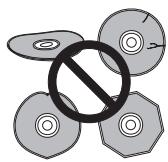
Cleaning the pickup lens
The DVD recorder's lens should not become dirty in normal use, but if for some reason it should malfunction due to dust or dirt, consult your nearest Pioneer-authorized service center. Although lens cleaners are commercially available, we do not recommend using them since some may damage the lens.
Condensation
Condensation may form inside the recorder if it is brought into a warm room from outside, or if the temperature of the room rises quickly. Although the condensation won't damage the recorder, it may temporarily impair its performance. For this reason you should leave it to adjust to the warmer temperature for about an hour before switching on and using.
Hints on installation
We want you to enjoy using this unit for years to come, so please bear in mind the following points when choosing a suitable location for it:
Do...
√ Use in a well-ventilated room.
√ Place on a solid, flat, level surface, such as a table, shelf or stereo rack.
Don't...
✗ Use in a place exposed to high temperatures or humidity, including near radiators and other heat-generating appliances.
✗ Place on a window sill or other place where the recorder will be exposed to direct sunlight.
✗ Use in a dusty or damp environment or in a room where it will be exposed to excessive cigarette smoke.
✗ Place directly on top of an amplifier, or other component in your stereo system that becomes hot in use.
✗ Use near a television or monitor as you may experience interference—especially if the television uses an indoor antenna.
✗ Use in a kitchen or other room where the recorder may be exposed to smoke or steam.
✗ Use on a thick rug or carpet, or cover with cloth—this may prevent proper cooling of the unit.
✗ Place on an unstable surface, or one that is not large enough to support all four of the unit's feet.
Moving the recorder
If you need to move the recorder, first remove the disc, if loaded, and close the disc tray. Next, press Ⓧ STANDBY/ON to switch the power to standby, checking that the POWER OFF indication in the display goes off. Wait at least two minutes. Lastly, disconnect the power cord. Never lift or move the unit during playback or recording—discs rotate at a high speed and may be damaged.
Resetting the recorder
If you need to, you can reset the recorder to all its factory settings.
1 Make sure that the recorder is on.
2 Using the front panel controls, press and hold ■ STOP and press ⏻ STANDBY/ON.
The recorder turns off with all settings reset.
Specifications
General
| Power requirements | 220 V to 240 V, 50 Hz / 60 Hz |
| Power consumption | |
| DVR-640H-AV | .43 W |
| DVR-440H-AV | .39 W |
| Power consumption in standby mode | 0.61 W |
| (Front panel display: off) | |
| Weight | |
| DVR-640H-AV | 4.4 kg |
| DVR-440H-AV | 4.3 kg |
| Dimensions |
| DVR-640H-AV . . . . . . . . . . . . . . . . . . . . . . . . . . . . . . . . . . . . . . . . . . . . . . . . . . . . . . . . . . . . . . . . . . . . . . . . . . . . . . . . . . . . . . . . . . . . . . . . . . . . 420 mm (W) x 69 mm (H) x 318 mm (D) |
| DVR-440H-AV . . . . . . . . . . . . . . . . . . . . . . . . . . . . . . . . . . . . . . . . . . . . . . . . . . . . . . . . . . . . . . . . . . . . . . . . . . . . . . . . . . . . . . . . . . . . . . 420 mm(W) x 69 mm (H) x 318 mm (D) |
| Operating temperature | +5 °C to +35 °C |
| Operating humidity | 5 % to 85 %(no condensation) |
| TV system | PAL/SECAM/NTSC (external input only) |
Readable discs
DVD-Video, DVD-RW, DVD-R, DVD+R, DVD+RW, DVD-RAM, Video CD, Super VCD, CD, CD-R/-RW (WMA, MP3, JPEG, CD-DA)
Recording discs and formats
DVD-R/RW: VR mode and Video mode DVD+R/+RW: +VR mode DVD-RAM: VR mode DVD-R DL: VR mode and Video mode DVD+R DL: +VR mode
Video recording format
| Sampling frequency | 13.5 MHz |
| Compression format | MPEG |
Audio recording format
| Sampling frequency | 48 kHz |
| Compression format | Dolby Digital or Linear PCM (uncompressed) |
Recording time
HDD
DVR-640H-AV (160 GB)
| Fine (XP) | Approx. 34 h |
| Standard Play (SP) | Approx. 68 h |
| Long Play (LP) | Approx. 136 h |
| Extended Play (EP) | Approx. 204 h |
| Super Long Play (SLP) | Approx. 272 h |
| Super Extended Play (SEP) | Approx. 340 h |
| Manual Mode (MN) | Approx. 34 to 455 h |
DVR-440H-AV (80 GB)
| Fine (XP) | Approx. 17 h |
| Standard Play (SP) | Approx. 34 h |
| Long Play (LP) | Approx. 68 h |
| Extended Play (EP) | Approx. 102 h |
| Super Long Play (SLP) | Approx. 136 h |
| Super Extended Play (SEP) | Approx. 170 h |
| Manual Mode (MN) | Approx. 17 h to 227 h |
DVD-R/-RW, DVD+R/+RW, DVD-RAM
| Fine (XP) | Approx. 1 h |
| Standard Play (SP) | Approx. 2 h |
| Long Play (LP) | Approx. 4 h |
| Extended Play (EP) | Approx. 6 h |
| Super Long Play (SLP) | Approx. 8 h |
| Super Extended Play (SEP) | Approx. 10 h |
| (DVD-R/-RW, DVD-RAM only) | |
| Manual Mode (MN) | |
| DVD-R/-RW/-RAM | Approx. 1 h to 13 h |
| DVD+R/+RW | Approx. 1 h to 8 h |
DVD-R DL/DVD+R DL
| Fine (XP) | Approx. 1 h 51 m |
| Standard Play (SP) | Approx. 3 h 35 m |
| Long Play (LP) | Approx. 7 h 11 m |
| Extended Play (EP) | Approx. 10 h 46 m |
| Super Long Play (SLP) | Approx. 14 h 21 m |
| Super Extended Play (SEP) | Approx. 17 h 57 m(DVD-R DL only) |
| Manual Mode (MN) | |
| DVD-R DL | Approx. 1 h 51 m to 24 h |
| DVD+R DL | Approx. 1 h 51 m to 14 h 21 m |
Timer
Programs .... 1 month/32 programs Clock .... Quartz lock (24-hour digital display)
Tuner
Receivable channels
| SECAM B/GPAL B/G | PAL I | |||
| Frequency | Channel | Frequency | Channel | |
| VHF (low) | 47 MHz to 89 MHz | E2 to E4X to Z | 44 MHz to 89 MHz | A to CX to Z |
| VHF (high) | 104 MHz to 300 MHz | E5 to E12S1 to S20M1 to M10U1 to U10 | 104 MHz to 300 MHz | D to J11, 13S1 to S20 |
| Hyper | 302 MHz to 470 MHz | S21 to S41 | 302 MHz to 470 MHz | S21 to S41 |
| UHF | 470 MHz to 862 MHz | E21 to E69 | 470 MHz to 862 MHz | E21 to E69 |
| SECAM L | SECAM D/KPAL D/K | |||
| Frequency | Channel | Frequency | Channel | |
| VHF (low) | 49 MHz to 65 MHz | FB, FC1, FC | 49 MHz to 94 MHz | R1 to R5 |
| VHF (high) | 104 MHz to 300 MHz | F1 to F6B to Q | 104 MHz to 300 MHz | R6 to R12S1 to S20 |
| Hyper | 300 MHz to 470 MHz | S21 to S41 | 302 MHz to 470 MHz | S21 to S41 |
| UHF | 470 MHz to 862 MHz | 21 to 69 | 470 MHz to 862 MHz | E21 to E69 |
Input/Output
| VHF/UHF antenna input/output terminal | |
| .VHF/UHF set 75 Ω (IEC connector) | |
| Video input | Input 2 (front) |
| Input level | 1 Vp-p (75 Ω) |
| Jacks | AV connector 2 (Input 1),RCA jack (Input 2) |
| Video output | .AV1, Output |
| Output level | 1 Vp-p (75 Ω) |
| Jacks | AV connector (AV1)RCA jack (Output) |
| S-Video input | Input 2 (front) |
| Y (luminance) - Input level | 1 Vp-p (75 Ω) |
| C (colour) - Input level | 300 mVp-p (75 Ω) |
| Jacks | AV connector 2 (Input 1),4 pin mini DIN (Input 2) |
| S-Video output | .AV1, Output |
| Y (luminance) - Output level | 1 Vp-p (75 Ω) |
| C (colour) - Output level | 300 mVp-p (75 Ω) |
| Jacks | AV connector 1 (AV1),4 pin mini DIN (Output) |
| Component video output | |
| Output level | .Y: 1.0 Vp-p (75 Ω)PB, PR: 0.7 Vp-p (75 Ω) |
| Jacks | RCA jacks |
| RGB input | |
| Input level | .0.7 Vp-p (75 Ω) |
| Jacks | AV connector 2 (Input 1) |
| RGB output | |
| Output level | .0.7 Vp-p (75 Ω) |
| Jacks | AV connector 1 (AV1) |
| Audio input | Input 2 (front) L/R |
| Input level | |
| During audio input | .2 V rms(Input impedance: more than 22 kΩ) |
| Jacks | AV connector 2 (Input 1),RCA jacks (Input 2) |
| Audio output | .AV1, Output |
| During audio output | .2 V rms(Output impedance: less than 1.5 kΩ) |
| Jacks | AV connector 1 (AV1),RCA jacks (Output) |
| Control input | Mini jack |
| Digital audio output | Coaxial |
| DV input (DVR-640H-AV only) | 4 pin (front)(i.LINK/IEEE 1394 standard) |
| G-LINKTM | Mini jack |
| USB (DVR-640H-AV only) | Type A (front), Type B (front) |
AV Connectors (21-pin connector assignment)
AV connector input/output ..... 21-pin connector This connector provides the video and audio signals for connection to a compatible colour TV or monitor.
20 18 16 14 12 10 8 6 4 2
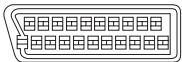
21 19 17 15 13 11 9 7 5 3 1
| PIN no. | AV1(RGB)-TV / AV2(INPUT 1) |
| 1 | Audio 2/R out / Audio 2/R out |
| 2 | – / Audio 2/R in |
| 11 | G out / G in |
| 3 | Audio 1/L out / Audio 1/L out |
| 6 | – / Audio 1/L in |
| 15 | R or C out / R or C in |
| 4 | GND |
| 17 | GND |
| 7 | B out / B in |
| 19 | Video out or Y out / Video out |
| 20 | – / Video in or Y in |
| 8 | Status |
| 21 | GND |
Supplied accessories
| Audio / Video cable (red/white/yellow) | 1 |
| G-LINKTM cable | 1 |
| RF antenna cable | 1 |
| Power cable | 1 |
Note: The specifications and design of this product are subject to change without notice, due to improvement.
This product incorporates copyright protection technology that is protected by method claims of certain U.S. patents and other intellectual property rights owned by Macrovision Corporation and other rights owners. Use of this copyright protection technology must be authorized by Macrovision Corporation, and is intended for home and other limited viewing uses only unless otherwise authorized by Macrovision Corporation. Reverse engineering or disassembly is prohibited.
This product includes FontAvenue ^® fonts licenced by NEC corporation. FontAvenue is a registered trademark of NEC Corporation.
Published by Pioneer Corporation. Copyright © 2006 Pioneer Corporation. All rights reserved.


Published by Pioneer Corporation. Copyright © 2006 Pioneer Corporation.
All rights reserved.
PIONEER CORPORATION
4-1, Meguro 1-Chome, Meguro-ku, Tokyo 153-8654, Japan
PIONEER ELECTRONICS (USA) INC.
P.O. BOX 1540, Long Beach, California 90810-1540, U.S.A. TEL: (800) 421-1404
PIONEER ELECTRONICS OF CANADA, INC.
300 Allstate Parkway, Markham, Ontario L3R OP2, Canada TEL: 1-877-283-5901
PIONEER EUROPE NV
Haven 1087, Keetberglaan 1, B-9120 Melsele, Belgium TEL: 03/570.05.11
PIONEER ELECTRONICS ASIACENTRE PTE. LTD.
253 Alexandra Road, #04-01, Singapore 159936 TEL: 65-6472-7555
PIONEER ELECTRONICS AUSTRALIA PTY. LTD.
178-184 Boundary Road, Braeside, Victoria 3195, Australia, TEL: (03) 9586-6300
PIONEER ELECTRONICS DE MEXICO S.A. DE C.V.
Blvd.Manuel Avila Camacho 138 10 piso Col.Lomas de Chapultepec, Mexico,D.F. 11000 TEL:55-9178-4270
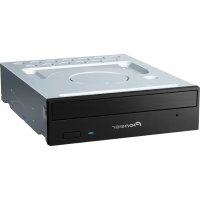
- RCS-505H
- RCS-404H
- IMPORTANT
- CAUTION
- RISK OF ELECTRIC SHOCK DO NOT OPEN
- CAUTION:
- WARNING
- Operating Environment
- CLASS 1 LASER PRODUCT
- POWER-CORD CAUTION
- VENTILATION CAUTION (DVD Recorder)
- Chapter 1 Contents
- Section One
- Section Two
- Operating instructions for the Audio Multi-channel Receiver Subwoofer and Speaker System 20
- Section Three
- Operating instructions for the DVD Recorder 42
- What's in the box
- Chapter 2
- Speaker Setup Guide
- Safety precautions when setting up
- Home theater sound setup (RCS-606H)
- Attach the speaker stand bases to the stems using the screws provided.
- Attach the smaller non-skid pads to the base of the center speaker. The large non-skid pads are for the front and surround speakers, and the receiver subwoofer (as shown).
- Secure each of the front and surround speakers using the metal catch provided.
- Connect the speaker system.
- Home theater sound setup (RCS-404H/RCS-505H)
- Standard surround setup
- Attach the smaller non-skid pads to the base of each of the front, surround and center speakers. The four large non-skid pads are for the receiver subwoofer (as shown).
- Connect the speaker system.
- Make sure the Front Surround mode is switched off.
- Front surround setup
- Attach the smaller non-skid pads to the base of the front and center speakers and to the speaker stands. The four large non-skid pads are for the receiver subwoofer (as shown).
- Attach the surround speakers to the speaker stands.
- Connect the speaker system.
- Turn the speakers as shown, following the guide marks for optimal Front Surround.
- Wall mounting the center speaker
- Wall mounting the speakers (RCS-404H/RCS-505H)
- Before mounting
- Additional notes on speaker placement
- Precautions:
- Chapter 3
- Connecting up
- Basic connections
- Connect the DVD recorder to the receiver subwoofer.
- Connect the display unit to the receiver subwoofer.
- Assemble the AM loop antenna.
- Connect the AM and FM antennas 1 .
- Connect each speaker.
- Note
- Connect the subwoofer cable.
- Connect the DVD recorder to your TV. 1
- Connect the power cord. 2
- Using this system for TV audio
- Connect the AUDIO OUTPUT jacks on your TV to the ANALOG AUDIO INPUT jacks on the receiver subwoofer.
- Chapter 4 Remote control
- RECORDER
- ⏻ RECEIVER
- Input select buttons
- SOUND RETRIEVER
- Playback controls (page 86)
- II PAUSE
- Recording controls (page 78)
- INFO
- HELP
- DISC NAVIGATOR (page 89, 96) / TOP MENU (page 87)
- GUIDE
- HOME MENU
- ↑/↓/←/→ (cursor buttons) and ENTER
- CM BACK (commercial back)
- CM SKIP (commercial skip)
- PAUSE LIVE TV (page 79)
- RETURN
- |◀◀ PREV / NEXT ▶▶
- VOLUME +/-
- GUIDE Plus+™ Action buttons and DVD playback function buttons
- TIMER REC (page 65)
- ◀◀ / ▶▶ (page 91)
- REC MODE (page 77)
- ONE TOUCH COPY (page 106)
- Number buttons
- SETUP
- SR+
- MCACC
- TEST TONE
- SURROUND
- SLEEP
- ADVANCED
- CLEAR
- MENU (page 87)
- VIDEO IN (page 82)
- TV/DVD
- JUKEBOX (page 113)
- TV CONTROL (page 136)
- DISPLAY (page 95)
- RDS DISP
- MAIN/SUB
- Using the remote control
- Putting the batteries in the remote control
- Close the cover.
- Chapter 5
- Before you start
- Switching on
- Setting up
- DVD recorder
- Receiver subwoofer
- Basic operation
- Watching a DVD
- Listening to a CD
- Watching a title recorded on the HDD
- Listening to the radio
- AUDIO MULTI-CHANNEL RECEIVER SUBWOOFER
- SX-SW606 SX-SW404
- SPEAKER SYSTEM
- S-ST606 S-ST404
- Contents
- Controls and displays
- Getting started
- Listening to your system
- Listening to the radio
- Surround sound settings
- Other connections
- Additional information
- Chapter 1
- Controls and displays
- Display unit
- Display
- Getting started
- System demo setting
- Using the Auto MCACC setup for optimal surround sound
- If the receiver subwoofer is off, press
- ○ RECEIVER to turn the power on.
- Press MCACC.
- Listening to your system
- Auto listening mode
- Listening in surround sound
- Dolby Pro Logic II Music settings
- Use ↑/↓ to adjust the setting then press ENTER to confirm.
- Using Front Surround
- - Press ADVANCED to select a Front Surround mode.
- Using Advanced Surround
- - Press ADVANCED to select an Advanced Surround mode.
- Listening in stereo
- - Press SURROUND repeatedly until STEREO shows in the display.
- Using the Sound Retriever
- Tip
- Listening with Acoustic Calibration EQ
- Enhancing dialogue
- Using Quiet and Midnight listening modes
- Adjusting the bass and treble
- Boosting the bass level
- Chapter 4
- Improving poor FM reception
- Improving poor AM sound
- Changing the noise cut mode
- Memorizing stations
- Tune to an AM or FM radio station.
- Press SETUP.
- Use the ↔/→ buttons to choose ST.MEM. then press ENTER.
- Use the ↑/↓ buttons to select the station preset you want then press ENTER.
- Listening to station presets
- Using RDS
- Displaying RDS information
- - Press RDS DISP for RDS information.
- Searching for RDS programs
- Surround sound settings
- Using the Setup menu
- Channel level setting
- Speaker distance setting
- Dynamic Range Control 1
- Press SETUP.
- Use the ↔/→ buttons to select DRC, then press ENTER.
- Use ↑/↓ to select a setting.
- Press ENTER to exit.
- Dual mono setting 2
- Use the ↔/→ buttons to select DUALMONO, then press ENTER.
- Adjusting the channel levels using the test tone
- Press SURROUND to select the Auto listening mode.
- Press TEST TONE.
- While a test tone is playing, use the ↑/↓ buttons to adjust that channel level.
- When you're done, press ENTER to exit test tone setup.
- Chapter 6
- Other connections
- Connecting auxiliary components
- - Connect the DVD/DVR2 (OPTICAL) or DIGITAL (OPTICAL) jack on the rear panel to the optical output of an external playback component.
- Connecting an analog audio component
- Listening to an external audio source
- If the system isn't already on, press ⏻ RECEIVER to switch on.
- Use the AUDIO IN button to select an audio input source.
- If necessary, start playback of the external source.
- Connecting external antennas
- Using this unit with a Pioneer plasma display
- SR+ Setup for Pioneer plasma displays
- Automatic plasma display volume muting
- Automatic plasma display input switching
- Using the SR+ mode with a Pioneer plasma display
- Press SR+ on the remote.
- Use ←/→ to select SR+ ON then press ENTER.
- Chapter 7
- Additional information
- Dimming the display
- DTS CD setting
- Setting the sleep timer
- Resetting the system
- Installation and maintenance
- Hints on installation
- Do...
- Don't...
- Troubleshooting
- Specifications
- SX-SW606 / SX-SW404
- - Amplifier section
- • FM tuner section
- • AM tuner section
- - Subwoofer section
- - Miscellaneous
- - Accessories
- S-ST606 Speaker system
- Front/surround speakers
- Center speaker
- Accessories
- S-ST404 Speaker system
- DVR-640H-AV DVR-440H-AV
- Before you start
- Connecting up
- Controls and displays
- Getting started
- Using the GUIDE Plus+™ electronic program guide
- Recording
- Playback
- Editing
- Copying and backup
- Using the Jukebox
- The PhotoViewer (DVR-640H-AV)
- The PhotoViewer (DVR-440H-AV)
- The Disc Setup menu
- The Video Adjust menu
- The Initial Setup menu
- Additional information
- Disc / content format playback compatibility
- Compatible media
- DVD/HDD Recording and playback compatibility
- Notes to table
- Using DVD-R DL/DVD+R DL discs
- About DualDisc playback
- Other disc compatibility
- CD-R/RW compatibility
- Compressed audio compatibility
- WMA (Windows Media Audio) compatibility
- DivX video compatibility
- DivX® VOD content
- JPEG file compatibility
- PC-created disc compatibility
- Dolby Digital
- DTS
- About the internal hard disk drive
- Optimizing HDD performance
- Symbols used in this manual
- AV1(RGB)-TV AV connector
- OUTPUT
- AV2(INPUT 1/DECODER) AV connector
- ANTENNA IN (RF IN)/OUT
- AC IN – Power inlet
- DIGITAL AUDIO OUT
- CONTROL IN
- G-LINK™
- COMPONENT VIDEO OUT
- Front panel connections
- USB port (type B) (DVR-640H-AV only)
- USB port (type A) (DVR-640H-AV only)
- DV IN (DVR-640H-AV only)
- INPUT 2
- Easy connections
- Using other types of audio/video output
- Using the S-video or component video output
- Connect the S-video or component video output to a similar input on your TV.
- Connect the AUDIO OUTPUT jacks to the corresponding audio inputs on your TV.
- Connecting to a cable box, satellite receiver or digital terrestrial receiver
- Connect RF antenna cables as shown.
- Use a SCART cable (not supplied) to connect the AV1(RGB)-TV AV connector to a SCART AV connector on your TV.
- Use another SCART cable to connect the AV2(INPUT 1/DECODER) AV connector to a SCART AV connector on your cable box/satellite/digital terrestrial receiver.
- Plug the supplied G-LINK™ cable to the G-LINK™ jack.
- Connecting an external decoder box (1)
- Connecting an external decoder box (2)
- Connecting other AV sources
- Connect a set of audio and video inputs of your VCR or camcorder to a set of outputs on this recorder.
- Connect a set of audio and video outputs of your VCR or camcorder to a set of inputs on this recorder.
- Connecting a DV camcorder
- Use a DV cable (not supplied) to connect the DV jack of your DV camcorder/video deck to the front panel DV IN jack of this recorder.
- Connecting a USB device
- JPEG file storage devices
- WMA/MP3 file storage devices
- Using a USB printer
- Plugging in
- ⏻ STANDBY/ON
- Disc tray
- ▲ OPEN/CLOSE
- HDD / DVD indicators
- PAUSE LIVE TV (page 79)
- HDD/DVD
- Front panel display
- ● REC
- Front panel inputs
- ▶
- 11
- CH +/-
- ONE TOUCH COPY (page 106)
- STOP REC
- NTSC
- XP
- SP
- LP / SLP
- EP / SEP
- MN
- Character display
- R / RW
- V
- Switching on and setting up
- Switch on your TV and set the video input to this recorder.
- Switch on the recorder.
- 3
- Choose a language (then press ENTER).
- 4
- Start the Setup Navigator.
- Select the Auto Channel Setting ('Auto download from TV'), or 'Do not set'.
- Select your country.
- • Auto-tuning channels
- • Downloading channels from your TV
- Select 'Auto' for automatic time setting, ' to set the clock manually.
- • Auto clock setting
- - Manual clock setting
- Setting up the GUIDE Plus+™ system
- GUIDE Display the GUIDE Plus+ setup menu.
- Highlight 'Postal Code'.
- If you are using an external receiver (such as a satellite receiver) with the supplied G-LINK cable, complete this step, otherwise jump to step 5 below.
- After pressing ENTER:
- Identify the host channel for your country.
- About EPG download
- Checking the downloaded data the following day
- GUIDE Display the GUIDE Plus+ screen.
- Change the program numbers as you
- like.
- When you're done, press the BLUE Action button (Home) to get back to the GUIDE Plus+ home screen.
- Using the GUIDE Plus+™ electronic program guide
- The GUIDE Plus+ system
- Legal Notice
- Using the GUIDE Plus+ system
- GUIDE Plus+ navigation
- One-Button-Record
- 1
- Press the RED Action button (Record).
- Lock / Unlock video window
- Press the RED Action button (Unlock).
- Channel mosaic screen
- Areas
- The Grid Area
- Browsing the Grid
- The Search Area
- Searching
- 2
- Start the search.
- Using My Choice keywords for a search
- Start the keyword search.
- My TV Area
- Setting up a profile
- The Schedule Area
- Editing a scheduled recording
- Highlight the left tile of a scheduled recording.
- Press the GREEN Action button (Edit).
- Use the cursor and number buttons to edit the recording date, start time, end time and channel.
- Enter a name for the scheduled recording.
- Highlight the right recording tile.
- Press the RED Action button (Quality) to change the recording quality.
- Press the GREEN Action button (Frequency) to change the recording frequency.
- Press YELLOW Action button (Destination) to select the recording destination.
- Press → (cursor right) to access the extended recording options:
- Deleting a scheduled recording
- Setting a ShowView™ recording
- Select 'Schedule' from the Menu bar.
- Setting a manual recording
- The Info Area
- The Editor Area
- Switching a channel on/off
- Select 'Editor' from the Menu bar.
- Changing the source and program number
- The Setup Area
- Making changes to your GUIDE Plus+ setup
- Select 'Setup' from the Menu bar.
- Highlight the part you want to change.
- Press ENTER to confirm.
- Manual Host Channel setup
- GUIDE Plus+ FAQ and troubleshooting
- FAQ
- Chapter 6 Recording
- About DVD recording
- Recording to DVD-R DL/DVD+R DL discs
- About HDD recording
- HDD Video mode compatibility
- Recorded audio
- Restrictions on video recording
- CPRM
- Recording equipment and copyright
- Using the built-in TV tuner
- Changing audio channels
- Switching between TV and DVD
- Setting the picture quality/recording time
- Basic recording from the TV
- Select the HDD or DVD for recording.
- Select a TV channel to record.
- REC MODE Set the picture quality/recording time.
- MAIN SUB + AUDIO Select the audio channel to record.
- Start recording.
- Press to stop recording.
- Pause Live TV
- HDD
- LIVE TV Start recording the current TV channel.
- ▶ Press to start playback.
- STOP REC
- ■ Press to stop the recording.
- Setting a timer recording
- ALL
- Easy Timer Recording
- ENTER Set the start time.
- Move the cursor to the recording end time on the grid.
- ENTER Set the end time.
- Select 'Yes' to set the timer recording and exit, or 'No' to go back to the Easy Timer Recording screen.
- Extending a timer recording in progress
- Canceling or extending the timer
- REC
- ● Press and hold for three seconds during a timer recording.
- ● Press repeatedly to extend recording in 30 minute blocks.
- Stopping a timer recording
- ■ Press during a timer recording.
- Select 'Yes' to confirm.
- Preventing use of the recorder before a timer recording (child lock)
- ☐ If the recorder is on, switch it into standby.
- [Front panel] Press and hold for three seconds to lock the controls.
- Timer recording FAQ
- Frequently Asked Questions
- Simultaneous recording and playback (Chase Play)
- Recording from an external component
- REC MODE Set the recording quality.
- Select the HDD or DVD for recording.
- Press to start recording.
- Recording from a DV camcorder
- Make sure your digital camcorder is connected to the front panel DV IN jack.
- REC MODE Set the recording quality.
- From the Initial Settings menu, check that the DV audio input is setup as you require.
- HOME MENU Select 'Copy', then 'DV Record' from the Home Menu.
- Select 'Record to Hard Disk Drive' or 'Record to DVD'.
- Find the place on the camcorder tape that you want to start recording from.
- Select 'Start Rec'.
- Playing your recordings on other DVD players
- Finalizing a disc
- Load the disc you want to finalize.
- For Video mode and DVD+R/+RW discs only, select a title menu style, then select 'Yes' to start finalization or 'No' to cancel.
- The recorder will now start finalizing the disc.
- Initializing recordable DVD discs
- HOME MENU Select 'Disc Setup' from the Home Menu.
- Select 'Initialize' > 'Video Mode', 'VR Mode' or 'Initialize DVD+RW'.
- Select 'Start'.
- Chapter 7 Playback
- Introduction
- Basic playback
- Select the HDD or DVD for playback.
- Load a disc.
- Start playback.
- ■ Press to stop playback.
- Playing DVD discs
- Playing from the HDD
- Playing CDs and WMA/MP3 discs
- Playing Video CD/Super VCDs
- Playing DivX video files
- Using the Disc Navigator to browse the contents of a disc
- Using the Disc Navigator with recordable discs and the HDD
- Changing the display style of the Disc Navigator
- Display the View Options panel.
- Choose 'Style', 'Sort order' or 'Genre', then press ENTER to see the available view options.
- Choose a view option, then press ENTER.
- Using the Disc Navigator with playback-only discs
- HOME MENU Display the Home Menu.
- Select 'Disc Navigator'.
- Select what you want to play.
- Playback starts after you press ENTER.
- Scanning discs
- During playback, start reverse or forward scanning.
- Press repeatedly to change the scanning speed.
- Playing in slow motion
- Press and hold to start slow motion reverse or forward play.
- Press repeatedly to change the slow motion speed.
- Frame advance/frame reverse
- The Play Mode menu
- Search Mode
- Select 'Search mode' from the Play Mode menu, then choose a search option.
- ADNANCED Enter a title/chapter/folder/track number or a search time.
- ENTER Start playback.
- A-B Repeat
- During playback, select 'A-B Repeat' from the Play Mode menu.
- ENTER With 'A (Loop Start)' highlighted, press at the point you want the loop to start.
- ENTER With 'B (Loop End)' highlighted, press at the point you want the loop to end.
- Repeat play
- Select 'Repeat' from the Play Mode menu, then choose a repeat play mode.
- Program play
- Select 'Program' from the Play Mode menu, then 'Input/Edit Program'.
- Select a title, chapter, folder or track for the current step in the program list.
- Repeat step 2 to build up a program list.
- Play the program list.
- Displaying and switching subtitles
- Switching DVD and DivX soundtracks
- DVD-Video DivX
- • MAIN SUB + AUDIO Change the audio soundtrack.
- Switching audio channels
- DVD (VR) DVD-RAM HDD CD Video CD Super VCD WMA/MP3
- - MAIN SUB + AUDIO Press repeatedly to display/switch the audio channel.
- HDD DVD (VR) DVD-RAM
- CD Video CD WMA/MP3
- Super VCD
- Switching camera angles
- DVD-Video
- • MAIN SUB + ANGLE Switch the camera angle.
- Displaying disc information on-screen
- HDD and removable disc activity display
- Chapter 8
- Editing
- Editing options
- The Disc Navigator screen
- Select the HDD or DVD.
- DISC NAVIGATOR Display the Disc Navigator screen.
- DISC NAVIGATOR Press to exit the Disc Navigator.
- Editing accuracy
- HDD genres
- Create
- Play
- Erase
- Title Name
- Set Thumbnail
- Erase Section
- 6
- Select 'Yes' to confirm, or 'No' to cancel,.
- Divide
- Chapter Edit
- Set Genre
- Lock
- Highlight the title you want to lock (or unlock).
- Move
- Combine
- Highlight the title you want to combine.
- Select 'Edit' > 'Combine' from the command menu panel.
- Select another title to combine with the first.
- Select 'Yes' to confirm or 'No' to cancel.
- Genre Name
- Select 'OK' to enter the name and exit.
- Multi-Mode
- Select titles from the title list.
- Select the command that you want all the marked titles.
- Undo
- Chapter 9
- Copying and backup
- Restrictions on copying
- Copyright
- One Touch Copy
- REC MODE If you're copying from DVD to the HDD, select a recording mode.
- ONE TOUCH COPY Press during playback to copy the current title.
- Canceling One Touch Copy
- • ONE TOUCH COPY Press and hold for more than a second.
- Notes on copying using One Touch Copy
- Copying to DVD
- Copying to the HDD
- Using Copy Lists
- Copying from HDD to DVD
- Load a recordable DVD.
- HOME MENU Select 'Copy' from the Home Menu.
- Select 'HDD → DVD'.
- If there is already a Copy List stored in the recorder, choose whether to 'Create New Copy List' or 'Continue Using Previous Copy List'.
- Add titles to the Copy List (highlight a title and press ENTER to add).
- Press → to display the command menu panel.
- Select 'Next' to move on to the Title Edit screen.
- To edit a title, highlight it using the ↑/↓ buttons, then press ENTER.
- Display the command menu panel.
- Select 'Next' to proceed.
- Select 'Start Copy' to start copying.
- Copying from DVD to HDD
- Recording Mode
- Bilingual
- Using disc backup
- HOME MENU Select 'Copy', then 'Disc backup' from the Home Menu.
- Select a backup option.
- Load the disc you want to make a backup of.
- Select 'Start'.
- When the data has been copied, take out the disc and load a blank\* recordable DVD.
- Select 'Start' to start writing the backed-up data to the blank disc.
- After the recorder has finished recording the backup disc, you can select whether to make another backup of the same data or exit.
- If you don't need to keep the backup data on the HDD, you can delete it now.
- Chapter 10
- Using the Jukebox
- Copying music to the HDD
- Load the CD you want to copy to the HDD.
- Select 'DVD/CD to HDD'.
- Copying files from a USB device to the HDD
- Playing music from the Jukebox
- HOME MENU Select 'Jukebox' from the Home Menu.
- Select a Jukebox option.
- Changing the album view
- - Sort order
- - Genre
- Editing Jukebox albums
- Chapter 11
- The PhotoViewer (DVR-640H-AV)
- Locating JPEG picture files
- Playing a slideshow
- Select a folder from the folder list.
- Select 'File Selection' from the menu.
- Select a thumbnail.
- Select 'Start Slideshow' from the menu.
- ■ Press to return to the thumbnail view area.
- ○ Press to return to the folder view area.
- Reloading files from a disc or USB device
- Navigate to the last entry in the folder list ('Read next: ...').
- ENTER Load the next batch of up to 999 files/99 folders from the disc or connected USB device.
- Zooming an image
- ENTER Press during the slideshow to zoom the picture.
- Use to move the zoomed area.
- Rotating an image
- • MAIN SUB + ANGLE Press during the slideshow to rotate the displayed picture clockwise by 90°.
- Importing files to the HDD
- Select the location of folders/files you want to import.
- Select a file to import, then press ENTER.
- Select 'Yes' to confirm and copy the folder(s)/file(s), or 'No' to cancel.
- Selecting multiple files or folders
- Select the folder containing the files you want to import.
- To add a file/folder to the list, select it, then choose 'Select' from the menu.
- ENTER Display the command menu.
- Select the command you want to apply to all the selected items.
- Importing files from a USB device
- Select 'Copy photos from a USB device' from the main Photo Viewer menu.
- Select 'Yes' to confirm or 'No' to cancel.
- Copying selected files to a DVD-R/-RW
- Editing files on the HDD
- Creating a new folder
- Erasing a file or folder
- erase.
- Copying files
- copy.
- Naming files and folders
- Enter a new name for the file/folder.
- Locking/Unlocking files
- unlock).
- Printing files
- Chapter 12
- The PhotoViewer (DVR-440H-AV)
- Select a folder from the folder list.
- Select a thumbnail from which to start
- the sideshow.
- Press to return to the thumbnail view area.
- Press to return to the folder view area.
- - MAIN + SUB + ANGLE Press during the slideshow to rotate the displayed picture clockwise by 90°.
- Chapter 13
- The Disc Setup menu
- Basic settings
- Input Disc Name
- Input a name for the disc.
- Lock Disc
- Initialize settings
- Finalize settings
- Finalize
- Undo Finalize
- Optimize HDD
- Initialize HDD
- Chapter 14
- The Video Adjust menu
- Setting the picture quality for TV and external inputs
- Choosing a preset
- Creating your own set
- Adjust the currently selected setting.
- HOME MENU Press to exit.
- Setting the picture quality for disc playback
- HOME MENU With a disc playing (or paused), press to display the Home Menu.
- Select 'Video Adjust'.
- Select a setting.
- Follow Choosing a preset above and select one of the user presets (Memory 1, 2 or 3).
- Move the cursor down and select 'Detailed Settings'.
- Select the picture quality setting you want to adjust.
- Chapter 15
- The Initial Setup menu
- Using the Initial Setup menu
- - Press HOME MENU and select 'Initial Setup'.
- Additional information about the TV system settings
- About the input line system
- About NTSC on PAL TV
- About the input colour system
- Additional information about component video output
- Selecting other languages for language options
- Select 'Other' from the language list.
- Select the language you want.
- Chapter 16 Additional information
- Setting up the remote to control your TV
- Switch on your TV.
- Press and hold down the CLEAR button, then enter the maker code for your TV.
- Point the remote towards your TV and press ⏻ TV to check that the remote works with your TV.
- Using the TV remote control buttons
- TV Preset code list
- Minimum copying times
- Manual recording modes
- On-screen displays and recorder displays
- About DV
- Language code list
- Country/Area code list
- Handling discs
- Storing discs
- Damaged discs
- Cleaning the pickup lens
- Condensation
- Moving the recorder
- Resetting the recorder
- Readable discs
- Recording discs and formats
- Video recording format
- Audio recording format
- Recording time
- DVR-640H-AV (160 GB)
- DVR-440H-AV (80 GB)
- Timer
- Tuner
- Input/Output
- AV Connectors (21-pin connector assignment)
- Supplied accessories
- PIONEER CORPORATION
Brand : PIONEER
Model : DVR-440H-AV (RCS-404H)
Category : DVD Burner