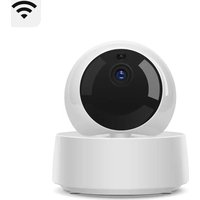
GK-200MP2-B - Surveillance Camera Sonoff - Free user manual and instructions
Find the device manual for free GK-200MP2-B Sonoff in PDF.


| Product Type | Wireless IP Surveillance Camera |
| Brand | Sonoff |
| Model | GK-200MP2-B |
| Video Resolution | 1080P (Full HD) |
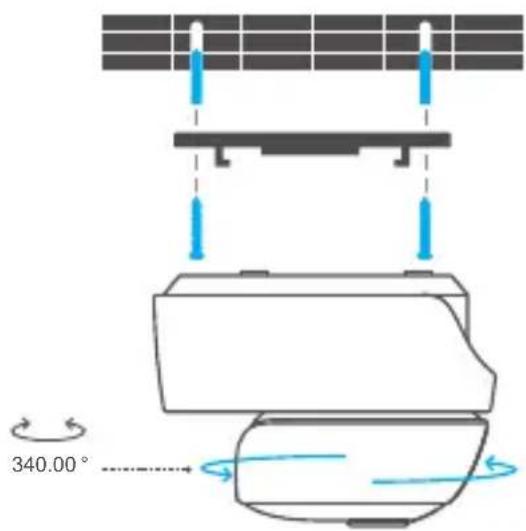
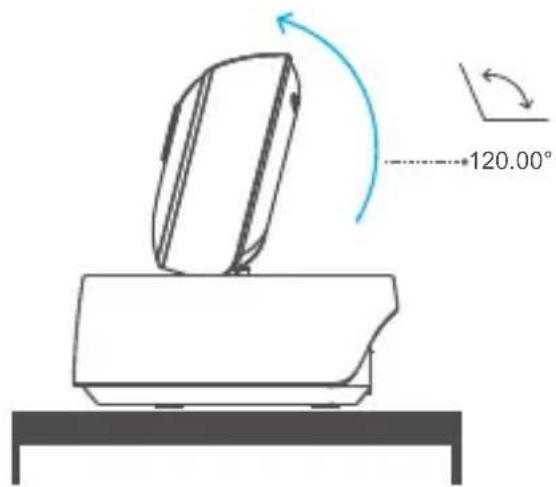
| Rotation Angle | Horizontal 340°, Vertical 120° |
| Night Vision | Infrared with 2 LEDs, range up to 15 m |
| Audio | Two-way (built-in microphone and speaker) |
| Wi-Fi Connectivity | IEEE 802.11 b/g/n, 2.4 GHz band |
| Ethernet Connectivity | Yes, RJ45 port for stable wired connection |
| Storage | TF card (microSD) up to 128 GB, Class 10 recommended |
| Power Supply | DC 5V, 1.2A (power adapter included) |
| Housing Material | ABS |
| Dimensions (folded) | 109 x 109 x 80 mm |
| Dimensions (unfolded) | 109 x 109 x 120 mm |
| Operating Temperature | 0 °C to 55 °C |
| Video Compression | H.264 |
| Lens Aperture | F1.2 |
| Mobile App | eWeLink (compatible with Android 4.1+ and iOS 9.0+) |
| Motion Detection | Yes, with push notification and automatic recording |
| Sound Alarm | Yes, can be activated via the app |
| Shared Control | Yes, possibility to share access with family |
| RTSP Protocol | Supported for third-party video streams |
| Maintenance and Cleaning | Wipe the lens with an alcohol-dampened cloth to keep it clean |
| Safety | Do not expose to prolonged sunlight; avoid activating the sound alarm for too long |
Frequently Asked Questions - GK-200MP2-B Sonoff
User questions about GK-200MP2-B Sonoff
0 question about this device. Answer the ones you know or ask your own.
Ask a new question about this device
Download the instructions for your Surveillance Camera in PDF format for free! Find your manual GK-200MP2-B - Sonoff and take your electronic device back in hand. On this page are published all the documents necessary for the use of your device. GK-200MP2-B by Sonoff.
USER MANUAL GK-200MP2-B Sonoff
natural_image
Simple line drawing of a camera with lens and base mount (no text or symbols)Wi-Fi Wireless IP Security Camera
· 中文 1-6
• Deutsch ---- 13-18
natural_image
Simple line drawing of a computer monitor with a cable, no text or symbols presentnatural_image
Simple line drawing of a smartphone with a blue plus button at the bottom (no text or symbols)flowchart
graph LR
    A["OFF"] --> B["Add came ras"]
    B --> C["SON OFF Camera"]
    C --> D["OK OK"]
恢复出厂设置
Operating Instruction
1. Download APP

Android™ & iOS
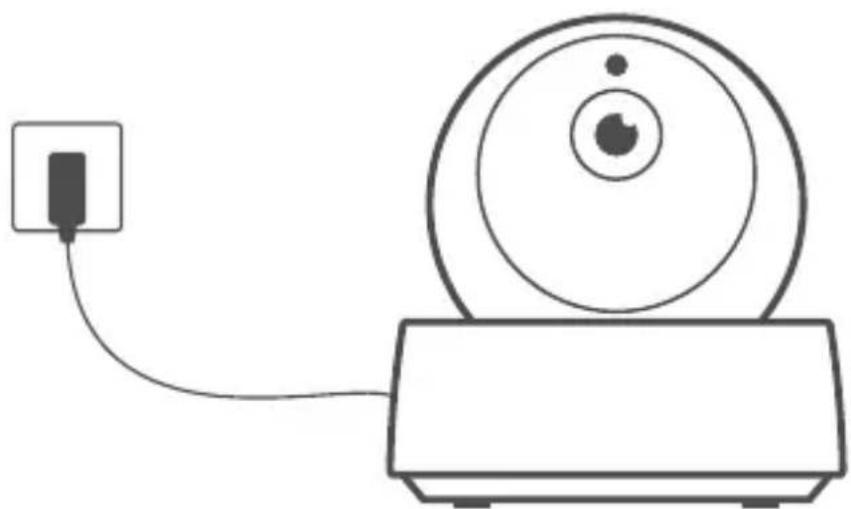
2. Power on
natural_image
Simple line drawing of a computer monitor connected to a power outlet (no text or symbols)After powering on, the camera defaults to factory reset during the first use. A voice prompt indicates that it turns on successfully.
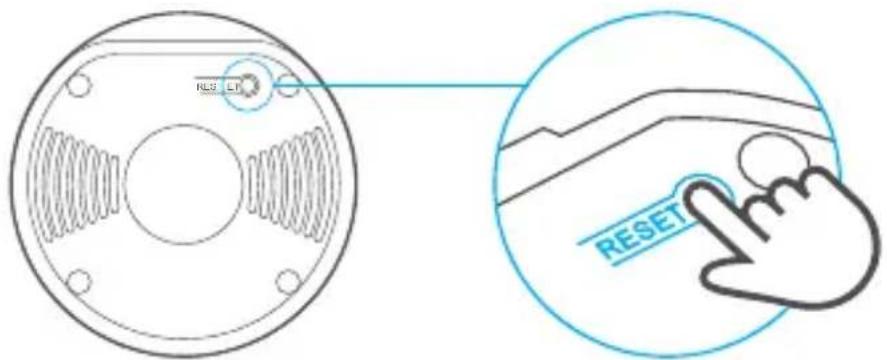
If change users, please long press "RESET" button for 3s on the bottom of the camera until you hear "Reset success", then operate the next step following the voice prompt after successful reboot.
3. Add camera
natural_image
Simple line drawing of a smartphone with a blue plus button at the bottom (no text or symbols)Tap "+" on the APP to add the camera after you hear "please use mobile phone for Wi-Fi configuration" as shown below:
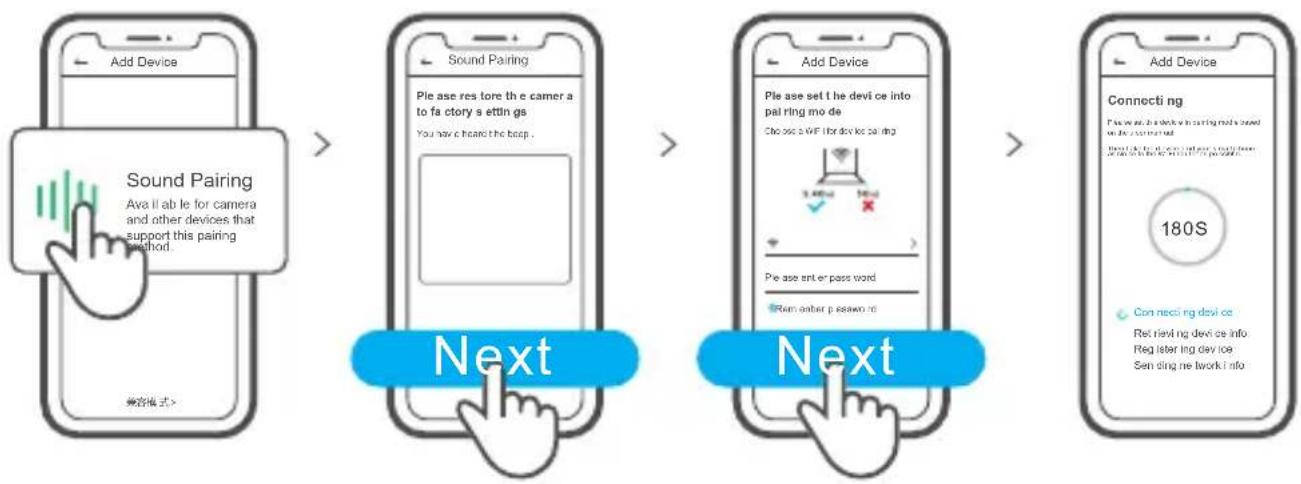
flowchart
graph LR
    A["Add Device"] --> B["Sound Pairing\nAva if able for camera and other devices that support this pairing method."]
    B --> C["Sound Pairing\nPlease use res tore the e camera to fa c tory s ettin gs\nYou have e heard the beep."]
    C --> D["Add Device\nPle ase set t he devi ce into pal ring mo de\nChoose a WF for dev ice pal ring\n3.40s 180S\nPlease set ent or pass word\nRem other p seaw or nd"]
    D --> E["Add Device\nConnecting\nIf we use a device to setting model based on the user's status\n180S\nConnecting devi ce\nRet raveling dev ice info\nRegister ing dev ice\nSent ding network i info"]
Specifications
| Model | GK-200MP2-B | DC input | 5V ---1.2A |
| Aperture | F1.2 | Rotating angle | 340°horizontal/120°vertical |
| Resolution | 1080P | Working temp. | 0°C - 55°C |
| Video compression standard | H.264 | Storage location | TF card (Max.128GB) |
| Wi-Fi | IEEE 802.11 b/g/n 2.4GHz | Material | ABS |
| Operating systems | (Android 4.1 & iOS 9.0)or higher | ||
| Dimension | Fold: 109x109x80mm Unfold:109x109x120mm | ||
Product Introduction
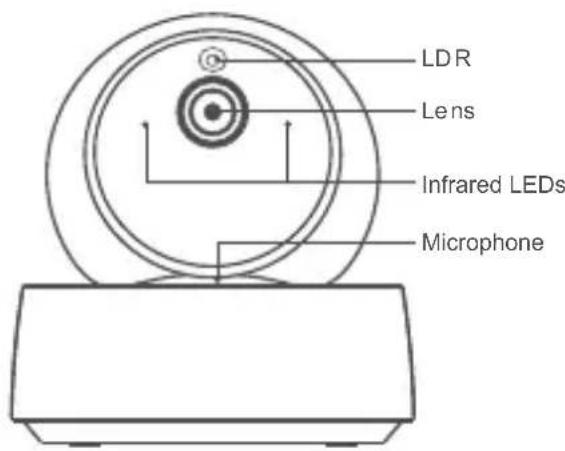
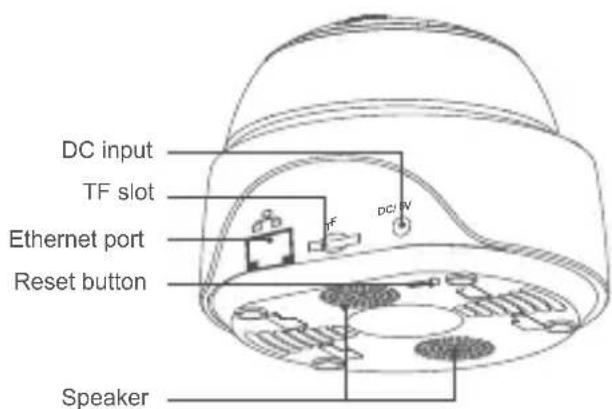
The camera can connect Ethernet cable to ensure stable video monitoring, avoiding causing video monitoring interruptions because of unstable Wi-Fi network.
Local network connection method for camera
Plug into the Ethernet cable and select "Scan QR code", then scan the QR code on the back of the camera and select the same ID in the "Devices on LAN" list with the current device. Tap "Confirm" to add the camera.
Make sure that your mobile phone and the Ethernet cable access the same network.
Before connecting the ethernet network, if you have connected the device via Wi-Fi network, to ensure normal use of ethernet network, please delete the connected device in eWeLink app.
Features
GK-200MP2-B is a Wi-Fi wireless IP security camera that can be used for real-time monitoring. You can control the monitoring images, adjust images resolution, pan and tilt angle, set "activity alert" notification to push an alarm message to your smartphone. It allows you to shoot, record, remotely talk, and you can share the camera to your family to control together.

1080P HD images

IR night vision

Two-way audio

Motion detection

360° viewing angle

Activity alert

Share control

RTSP protocol

Push notification

TF card storage
If the TF card has been inserted, the camera will alarm and push a notification to eWeLink APP and automatically records a 40s video and stores in the TF card when motion detection is triggered.
The TF card is required with a transmission speed of at least class10.
Infrared night vision
Built-in 2 infrared night vision LEDs which ensure the night vision distance of 15m. The infrared LEDs will be automatically activated in a low-light condition to provide a clear monitoring image.
Bind camera
You can add it on the APP control page of SONOFF devices, like BASIC, S26, TX and more after the camera is connected with the eWeLink APP.
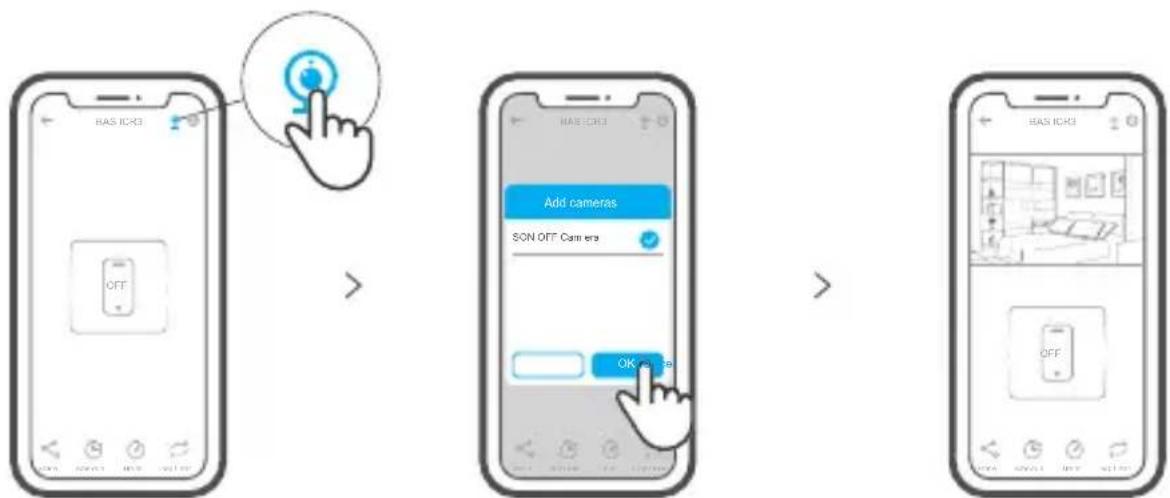
flowchart
graph LR
    A["Hand icon pointing at camera"] --> B["Add cameras"]
    B --> C["SON OFF Camera"]
    C --> D["OK Camera"]
Factory Reset
Long press "RESET" button on the bottom of the camera for 3s until you hear "Reset success" and release, then a sound prompt indicates that it restarts successfully. The camera is reset successfully and enters quick pairing mode.
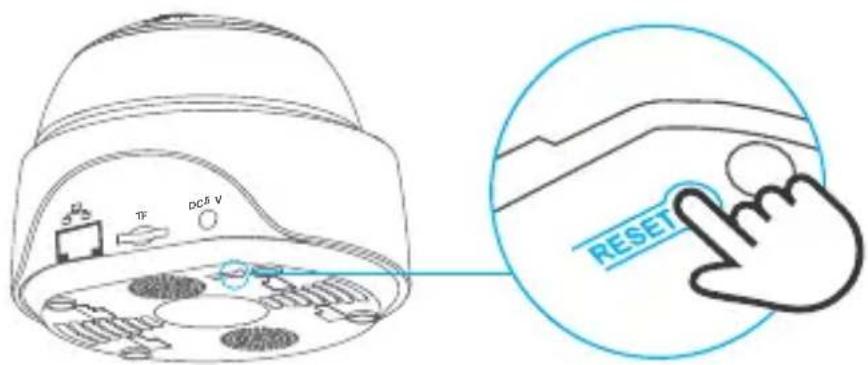
Please reset the camera to factory defaults if you want to use other Wi-Fi networks, then reconnect the network.
Install camera
The camera can be placed to desktop, mounted on the wall or ceiling to monitor.
Cautions
- Don't expose the camera to sun for very long.
- Don't get the camera wet or leave it where it can get wet.
- If videos gets blurred, please wipe the lens using a cloth with alcohol to keep clean.
- To avoid to disturb neighbors and ensure the speaker a long lifetime, please don't get motion detection alert on for very long.
Common Problems
Q: Fail to connect Wi-Fi and pair?
A: Please check the following problems and re-add the device when you connect Wi-Fi
① Make sure correct Wi-Fi password and do not connect the Ethernet cable;
② Only support 2.4GHz Wi-Fi network. Please disable 5GHz Wi-Fi network if you use dual band router;
③ Keep the camera closer to your router;
④ Please pair and connect the camera in an environment without interference.
Q: Is it normal for the speaker to make squealing sound?
A: Your smartphone and the camera maybe cause mutual interference and lead to the squealing sound from speaker when you use "Talk". Please keep your smartphone away form the camera to eliminate interference.
Q: Why there is no sound when I communicate with the camera on my smartphone?
A: Make sure that you enable "Talk" function on your smartphone. If it doesn't receive the sound from the camera, please check if the microphone is muted.
Q: How to play back video recordings? Can the videos of TF card be played on my computer?
A: Power off the camera and insert the TF card on your computer to play back videos.
Q: How to enable "Activity detection reminder" on the eWeLink APP?
A: Tap “ ⚙” on the upper right corner on the camera page, access setting page and enable “Activity detection reminder”, then select the right one from “high, medium and low sensitivity” and turn on “Sound Alert”. The camera will alarm once any motion is detected.
Q: Why videos get stuck when playing?
A: To ensure videos are playing fluently, please connect broadband network. We recommend to use the uplink broadband of 2Mbps for the camera and the downlink broadband of 2Mbps for the smartphone. The videos may get stuck if the camera is connected to a Wi-Fi network that many users connected, please plug the Ethernet cable and try.
Q: How to avoid triggering false alarms?
A: The motion detection is used to monitor object movement rather than human movement, so ray of light, shadow of trees, flying animal can trigger activity detection reminder. To prevent triggering false alarms, please set the motion detection sensitivity the "low level".
Betriebsanweisung
natural_image
Simple line drawing of a computer monitor with a cable, no text or symbols presentnatural_image
Front view of a blank smartphone with a small blue plus button at the bottom (no text or symbols)natural_image
Simple line drawing of a computer monitor with a cable, no text or symbols presentnatural_image
Front view of a blank smartphone with a small blue plus button at the bottom (no text or symbols)flowchart
graph LR
    A["Add Device"] --> B["Sound Pairing\nAvailable for camera and other devices that support this pairing device"]
    B --> C["Sound Pairing\nPlease see res tore the camera to fa story's ettin gs\nYou have heard the loop."]
    C --> D["Add Device\nPlease see set the devi ce into pairing mode\nChoose a WiFi for device pairing\n3.4GHz 180S\n+/-\nPlease enter or pass word\nRem other p season rd"]
    D --> E["Add Device\nConne ct in g\nFire we use the device in pairing mode based on the user's mask\n180S\nConnecting device\nRet ranging device info\nRegistering device\nSending me work info"]
Especificaciones
natural_image
Simple line drawing of a computer monitor connected to a power outlet (no text or symbols)natural_image
Front view of a blank smartphone with a small blue plus button at the bottom (no text or symbols)flowchart
graph LR
    A["Add Device"] --> B["Sound Pairing\nAva II ab le f or c camera and other devices that support this pairing method."]
    B --> C["Sound Pairing\nPle ase res tore th e camer a to fa ctory s ettin gs\nYou have o heard the beep."]
    C --> D["Add Device\nPle ase set t he devi ce into pair ring mo de\nChoose a WIF for device pair ring\n3.480x 160x\n+/-\nPlease enter or pass word\nRem either p seawr rd"]
    D --> E["Add Device\nConnecting\nFire we use the device in calling mode a based on the user's mask\n180S\nConnecting device\nRet rient ng devi ce info\nRegister ling dev ice\nSen ding me tvork i info"]
flowchart
graph LR
    A["Hand icon pointing at camera"] --> B["Add cameras"]
    B --> C["SON OFF Camera"]
    C --> D["OK status"]
natural_image
Simple line drawing of a computer monitor with a cable, no text or symbols presentnatural_image
Simple line drawing of a smartphone with a blue plus button at the bottom (no text or symbols)flowchart
graph LR
    A["Add Device"] --> B["Sound Pairing\nAvailable for camera and other devices that support this pairing method."]
    B --> C["Sound Pairing\nPlease set res to the camera to fa ctory s ettin gs\nYou have he heard it be loop."]
    C --> D["Add Device\nPlease set the device into pair ring mo de\nChoose a WiFi for device so ring\n2.5GHz 10GHz\nPlease set or pass word\nRemember password"]
    D --> E["Add Device\nConnecting\nPlease set the device into pair ring mode with a device to send to a device using a network 180S"]
    E --> F["Next"]
Specifiche
flowchart
graph LR
    A["Hand icon pointing at camera"] --> B["Add cameras"]
    B --> C["SON OFF Camera"]
    C --> D["OK status"]
natural_image
Simple line drawing of a computer monitor with a cable, no text or symbols present3. Добавить камеру
natural_image
Simple line drawing of a smartphone with a blue plus button at the bottom (no text or symbols)flowchart
graph LR
    A["Add Device"] --> B["Sound Pairing\nAvailable for camera and other devices that support this pairing method"]
    B --> C["Sound Pairing\nPlease see res tore the camera to fa cistry a set in ge\nYou have heard the beep."]
    C --> D["Add Device\nPlease set t he devi ce into pairing mode\nChoose a WiFi for device pairing\n2.4Gm 1Gm\nPlease enter or pass word\nRemember p password"]
    D --> E["Add Device\nConnecting device\nRet revling device info\nRegistering device\nSending ne work info\n180S"]
flowchart
graph LR
    A["Hand icon pointing at camera"] --> B["Add cameras"]
    B --> C["SON OFF Camera"]
    C --> D["OK OK"]
natural_image
Simple line drawing of a computer monitor with a cable, no text or symbols presentnatural_image
Simple line drawing of a smartphone with a blue plus button at the bottom (no text or symbols)flowchart
graph LR
    A["Hand icon pointing at camera"] --> B["Add cameras"]
    B --> C["SON OFF Camera"]
    C --> D["OK Camera"]
Changes or modifications not expressly approved by the party responsible for compliance could avoid the user's authority to operate the equipment.
This device complies with part 15 of the FCC Rules. Operation is subject to the following two conditions: (1) This device may not cause harmful interference, and (2) this device must accept any interference received, including interference that may cause undesired operation.
FCC Radiation Exposure Statement:
This equipment complies with FCC radiation exposure limits set forth for an uncontrolled environment. This equipment should be installed and operated with minimum distance20cm between the radiator & your body. This transmitter must not be co-located or operating in conjunction with any other antenna or transmitter.
Note:
This equipment has been tested and found to comply with the limits for a Class B digital device, pursuant to part 15 of the FCC Rules. These limits are designed to provide reasonable protection against harmful interference in a residential installation. This equipment generates, uses and can radiate radio frequency energy and, if not installed and used in accordance with the instructions, may cause harmful interference to radio communications. However, there is no guarantee that interference will not occur in a particular installation. If this equipment does cause harmful interference to radio or television reception, which can be determined by turning the equipment off and on, the user is encouraged to try to correct the interference by one or more of the following measures:
— Reorient or relocate the receiving antenna.
— Increase the separation between the equipment and receiver.
— Connect the equipment into an outlet on a circuit different from that to which the receiver is connected.
— Consult the dealer or an experienced radio/TV technician for help.
Hereby, Shenzhen Sonoff Technologies Co., Ltd. declares that the radio equipment type GK-200MP2-B is in compliance with Directive 2014/53/EU. The full text of the EU declaration of conformity is available at the following internet address:
https://sonoff.tech/usermanuals
TX Frequency:
WiFi: 2412-2472MHz
RX Frequency:
WiFi: 2412-2472MHz
Output Power:
13.22dBm(802.11b), 11.3dBm(802.11g), 11.06dBm(802.11n20), 11.42dBm(802.11n40)

Shenzhen Sonoff Technologies Co., Ltd.
1001, BLDG8, Lianhua Industrial Park, shenzhen, GD, China ZIP code: 518000 Website: sonoff.tech
- Wi-Fi Wireless IP Security Camera
- 恢复出厂设置
- Operating Instruction
- Download APP
- Power on
- Add camera
- Product Introduction
- Local network connection method for camera
- Features
- Infrared night vision
- Bind camera
- Factory Reset
- Install camera
- Cautions
- Common Problems
- Betriebsanweisung
- Добавить камеру
- FCC Radiation Exposure Statement:
- Note:
- Shenzhen Sonoff Technologies Co., Ltd.
Brand : Sonoff
Model : GK-200MP2-B
Category : Surveillance Camera