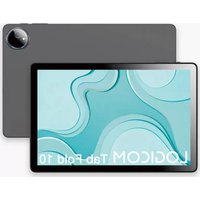
Tab Fold 10 - Tablet LOGICOM - Free user manual and instructions
Find the device manual for free Tab Fold 10 LOGICOM in PDF.


User questions about Tab Fold 10 LOGICOM
0 question about this device. Answer the ones you know or ask your own.
Ask a new question about this device
Download the instructions for your Tablet in PDF format for free! Find your manual Tab Fold 10 - LOGICOM and take your electronic device back in hand. On this page are published all the documents necessary for the use of your device. Tab Fold 10 by LOGICOM.
USER MANUAL Tab Fold 10 LOGICOM
natural_image
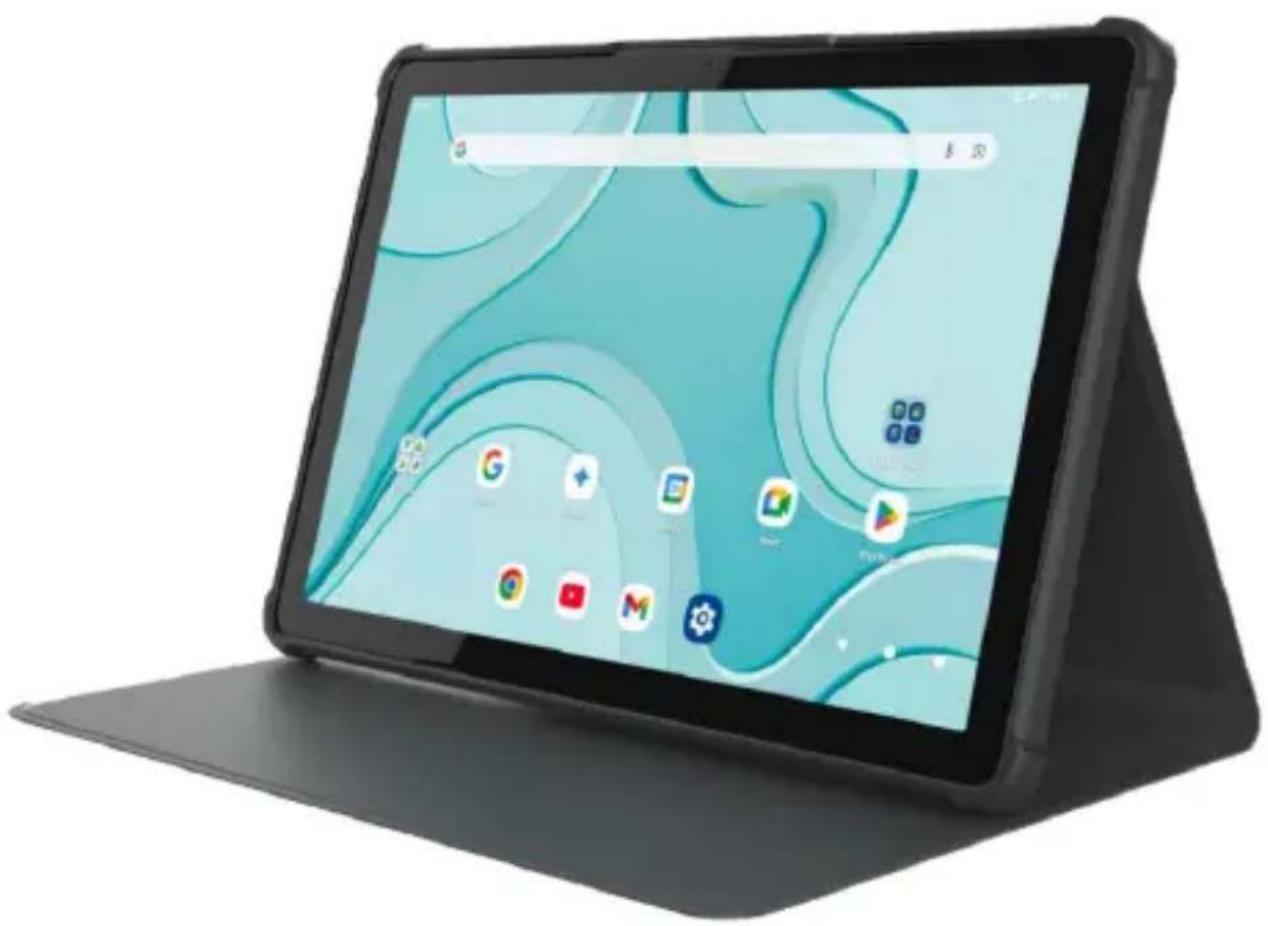
Black tablet device with a stylized map-themed display on its screen, placed on a stand (no visible text or symbols)natural_image
Diagram of a device rear panel with a highlighted square component and a circular annotation (no text or symbols)ATTENTION
natural_image
Simple line drawing of a trash bin with crossed lines indicating no waste or discharge (no text or symbols)natural_image
Symbol of a trash bin crossed with two diagonal lines, no text or numbers presentnatural_image
Simple line drawing of a house with chimney (no text or symbols)natural_image
Simple line drawing of a curved line intersecting a wavy base (no text or symbols)natural_image
Black tablet device with a stylized map-themed display on its screen, placed on a stand (no visible text or symbols)User Manual
TAB FOLD 10 - WIFI/BT touchscreen multimedia tablet
Non-contractual visuals - Original notice
Trademarks
Bluetooth ^® is a registered trademark of Bluetooth SIG, Inc.
Facebook, the Facebook logo, Instagram, and the F logo are trademarks or registered trademarks of Meta, Inc.
SD, SDHC, SDXC, microSD and the microSDHC and microSDXC logos are trademarks of SD-3C, LLC.
LinkedIn, the LinkedIn logo, the IN logo, and InMail are registered trademarks or tradema of LinkedIn Corporation and its subsidiaries in the U.S. and/or other countries.
All other system, product, and service names are trademarks or registered trademarks of their respective owners. The symbols ((TM)) or (R) are not used in this manual.
Package Contents
1 x TAB FOLD 10 Tablet
1 x Folio
1 x USB-C Cable
1 x Multilingual Quick Start Guide
WARNING
Not all packaging materials, such as adhesives, plastic sheets, twine, and labels are part this product.
CAREFUL
For your safety, be careful not to remove the screen protector film that is under the antistatic film (with tab). It protects your screen from light scratches and in the event of fall it ensures optimal protection.
Logicom declines all responsibility in the event of bodily injury resulting from the removal of the protective film by the consumer. It should be noted that this protective film does not reinforce the solidity of the product. For any replacement of this protective film, please contact specialized smartphone dealers.
Installation Guide
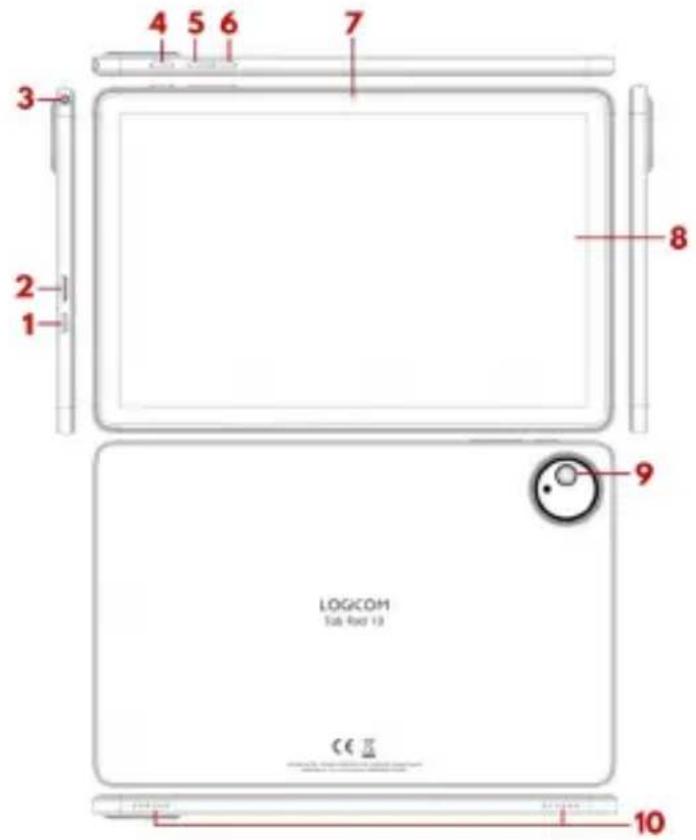
Description of the tablet
text_image
4 5 6 7 3 2 1 8 9 LOGICOM Tab Rod 13 CE 101 - USB-C port
2 - MicroSD slot
3 - 3.5 mm jack port
4 - On/off button
5 - Volume + button
6 - Volume Button -
7 - Front camera
8 - Touch screen
9 - Rear Camera
10 - Speakers
Inserting a microSD card
It is possible to increase the internal memory of the device with a microSD card (not included - microSDXC card of 256GB maximum).
To insert the microSD card:
- Turn off the tablet
- Insert the memory card (not included) into the slot provided.

natural_image
Diagram of a device rear panel with a highlighted square component and two buttons, no text or symbols presentCAREFUL
Inserting or removing a microSD card requires the tablet to be turned off completely.
Getting started
Turn your Tablet on / Off
To turn on the Tablet, press and hold the Power on/Off button on the edge of the tablet seconds.
If the tablet is turned on, short press the button to turn it into sleep mode. Press again to exit sleep mode.
To turn off the tablet, press the Power on/Off button for 3 seconds As soon as a menu appears, then click the Power Off button to confirm.
Screen Lock/Unlock
To unlock the screen:
Press the Power on/Off button on your tablet.
Tap the unlock icon and swipe up to unlock the device.
You can set up the screen lock by adding a password or pattern to reproduce when unlocking your Tablet.
CAREFUL
Forgetting or losing your password, PIN or screen lock pattern permanently locks your tablet
In the event of forgetfulness or loss, the product warranty will not take effect. Indeed, even "reset" cannot solve this problem. As a precaution, write down your password or pattern.
PASSWORD: ....
Turn Wi-Fi On/Off
NOTE
To limit your exposure to electromagnetic fields, we recommend turning off Wi-Fi when n in use.
Turn on Wi-Fi in Settings. The device automatically scans for available Wi-Fi networks.
Click on the network of your choice to activate it and connect.
You can also enable this feature from the notifications pane.
The corresponding icon is displayed on the system tray when you are connected to a wireless internet network or when wireless internet networks are detected by the device.
CAREFUL
Most Wi-Fi networks are locked by a password (WEP key or WPA2 PSK). To connect to a locked Wi-Fi network, click on it and enter your network password in the dialog box that appears on the screen.
The WEP or WPA2 PSK key of a Wi-Fi network is usually mentioned on a label located o back of your internet modem (or box).
NOTE
Please restart your Tablet if necessary.
Once Wi-Fi is turned on, the Wi-Fi icon will appear in your notification bar.
Turn Bluetooth On/Off
NOTE
To limit your exposure to electromagnetic fields, we recommend that you turn off Bluetooth when not in use.
You can enable Bluetooth through the basic setting shortcuts in the notification bar or in Tablet settings, in the Bluetooth settings, tap to turn on Bluetooth.
USB connection
You can connect your tablet to your computer to transfer your data via the USB port.
NOTE
Do not unplug the USB cable from the computer when the device is transferring or accessing data. You may lose data or damage the device.
Take a screenshot
You can take a screenshot by pressing the Power on/Off button and the button at the same time to reduce the sound volume for 2 or 3 seconds.
Internet
The "Chrome" application allows you to access and browse the internet.
To access a specific web page, select the address input field at the top of the page and using the alphanumeric keypad, enter the address corresponding to the website.
Note
To zoom in or out, rest your two fingers together on the screen and spread them apart (them together to zoom out).
Tab Options:
- Close the displayed tab.
- Open a new tab.
- Add to Favorites.
- Search or enter a website address
- Access favorites, history, saved pages, and additional browser options
Rebooting the system
When the device becomes unresponsive, one can perform a system reset, press and hold the Power on/Off button for 15 seconds when the tablet is turned on OR press the "reset" button next to the tablet. Then when the tablet turns off, hold the Power on/Off button for 5 seconds to turn it back on.
Reset
If you want to reset your Tablet, you can perform a data reset from the Android ^™ operati system.
PRECAUTION
A data reset will erase ALL your personal data, all the contacts stored on your tablet as as the apps you had installed. That's why we recommend that you take a backup of you data before starting the reset process. On the other hand, the information stored on the external memory card will not be erased.
To perform a data reset, you have two options:
Resetting the tablet through the settings menu:
In Settings, click "System" and then "Reset Options."
Click "Clear All Data" and then "Clear All Data" to confirm. A new confirmation is request tap "Erase All Data" The tablet will turn off. Upon reboot, the system will be reset.
Resetting the device in "recovery" mode:
First of all, to access the "recovery" mode, your device must be turned off! Then, hold the Power on/Off button and press the Volume "+" button. Once the robot is displayed, you release these buttons. This menu is not touch-enabled! To move, you need to use the Volume button to move. To validate an action, you must use the "Power on/off" button.
Select and confirm "wipe data/factory reset", then select and confirm "Yes", the tablet will be reset. Select "reboot system now" to restart the tablet.
NOTE
If you experience any issues with your device, please perform a system reset first before returning it to Service if the problems persist.
Download apps from Google Play
Google Play is a platform that allows you to access thousands of other apps. Google Play brings together all the services you love and helps you explore them in a new way, anytime anywhere. We've brought the magic of Google to music, movies, TV, books, magazines, apps, and games, so you get the most out of your content every day.
NOTE
The availability of access to the store and Google Play depends on the country you are i Access to this online store requires the creation of an account.
CAREFUL
LOGICOM is in no way responsible for the content available on these online stores. The product warranty will not take effect in the event of a malfunction due to an application from the online shops.
Accessibility and practicality
Accessibility features
You can set a shortcut that opens a large on-screen menu with common accessibility features to control your device.
From this menu, you can lock your screen, adjust the volume and brightness, take screenshots, and much more.
How to use?
Go to Settings > Accessibility > Accessibility Menu and activate "Shortcut to Accessibility Menu"
For more information on accessibility features, please refer to this link: https://support.google.com/accessibility/android/answer/6006564?hl=fr
Battery charging
Battery Model: 30105125/3.8V/6000mah
To charge the battery, plug the USB-C plug into the device and the other end of the USB cable into a USB port to the PC or power adapter.
The battery charging icon lights up while charging and indicates the charging status.
When the battery is fully charged, you can unplug the USB cable from the device and then on the other side of the cable.
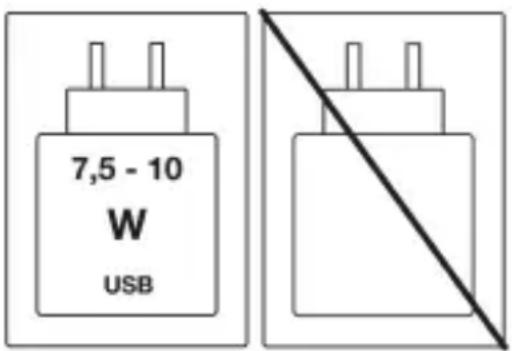
The device has a built-in battery that can be recharged using a compatible PC or power adapter that complies with the following standards:
- USB charging adapter
- 5V DC 2A output
IMPORTANT
Before using the device, charge the battery.
The Tablet is charged via the USB Type C port.
The battery should be charged for at least 5-8 hours on the first charge.
After an extended period of storage, it may be necessary to charge and discharge the battery several times in order to achieve maximum performance.
To extend the life of the device, use it the first two times until the battery is depleted, by charging it again.
NOTE
You can use the device while it is charging. It is then possible that the battery will take longer to fully charge. When the device is not in use, be sure to turn it off to preserve life.
To recharge the battery, use only the USB Type C cable that came with your device. Do use any other power supply or electrical device.
The USB-C socket to which the device is plugged should be installed near the equipment and should always be easily accessible.
Always wait at least 5 seconds after turning off the device before restarting it. Turning the appliance off and on immediately may damage the electrical circuitry.
Do not disassemble, open or shred the battery cells. Do not dispose of the battery in fir water. Do not charge the battery if the ambient temperature exceeds 45^ C. Keep the ba in a clean, dry place. Avoid leaving the battery under sunlight.
Do not short circuit the battery, Do not store the battery in a place where it can be shot by other metal objects. Do not shock the battery.
Do not leave the battery within reach of children, if any element is swallowed, seek immediate medical attention. If the battery leaks, be careful not to let the liquid come in contact with the skin or eyes, if it does, wash thoroughly with water and consult a doctor. For any repair or replacement of the battery, contact a qualified technician.
Battery life largely depends on how you use it. Do not expose the battery to temperature below 0^ C or above 60^ C. Its functioning could be altered. Do not leave the battery on extended charge when not in use.
Severe electromagnetic interference or electrostatic discharge can cause malfunction or data loss. If the device is not working properly, reset the Smartphone or unplug the USB Type C cable from the device and then plug it back in.
Do not dispose of the battery with household waste, for further information about battery recycling, contact your municipality, local waste disposal centre or the point of sale when you purchased this product.
text_image
7,5 - 10 W USBThe power supplied by the charger must be between a minimum of 7.5 Watts required the radio equipment and a maximum of 10 Watts to reach the maximum charging speed
Precautions for use and safety instructions
Read these instructions carefully.
Keep these instructions.
Follow all instructions.
Heed the warnings.
Clean your product only with a soft cloth (dry or slightly damp).
Do not attempt to disassemble the device, it will no longer be covered by the warranty.
Do not put sharp objects in direct contact with the surface and do not spray cleaning product directly on the screen.
Do not put strong pressure on the screen or place objects on it. This could damage the screen.
Use replacement parts specified by the manufacturer.
After any overhaul or repair performed on this product, ask the technician to perform a safety check.
Use only the spare parts/accessories specified by the manufacturer.
Refer to qualified personnel for any repairs. Repair will be required if the appliance is damaged in any way, if the power cable or plug is damaged, if liquid has spilled or obje have fallen into the appliance, if the appliance has been exposed to rain or moisture, or has been dropped.
Do not expose the appliance to direct sunlight or any other extreme source of heat or cold Use your Tablet in a way that respects the privacy of others
Keep the device away from any metal objects (coins, keys, etc.).
Do not leave it near magnetic fields that could cause data loss or damage to the device. Do not drop the device.
Do not expose it to shocks, friction and impacts.
In order to avoid data loss, remember to make a backup (computer or paper) of the information stored in the device.
To avoid interference, do not use the device next to other electronic devices, a pacemaker or near medical equipment.
Operating temperature: 0-40°C.
Keep out of reach of children and young children, this product may contain small parts, which represents a choking hazard to be avoided.
CAREFUL
This product is not a toy. Use only under adult supervision. This product is not suitable for children under 36 months of age (Risk of small element ingestion).
WARNING
To reduce the risk of fire or electric shock:
Do not expose this appliance to rain or moisture.
Do not expose the product to water drops or splashes and do not place any liquid-filled objects, such as vases, on the appliance.
Do not use the product near flammable or explosive sources.
The power socket is used as a disconnection system and must always be easily accessible
In order to completely disconnect the device from a power source, the power cable mus disconnected from any electrical outlet.
Unplug this appliance during thunderstorms or when it is not in use for a long time.
Turn off the device in hazardous areas and when traveling by air.
The power cable must be set in place so that it is not stepped on or crushed, especially where it is plugged in, and where it comes out of the appliance.
Do not overload the electrical outlet. Use only the power source as directed.
Do not install this appliance near heat sources such as electric hobs, stoves, or the like (even amplifiers).
Listening Security
Before using the pedestrian kit (not included), check that the volume is not at its maximum and thus avoid causing hearing problems.
High sound levels are intended for individuals with diminished hearing abilities and not fc people with normal hearing faculties.
Do not use the pedestrian kit while driving.
Adjust the volume so that you can hear the sounds of your surroundings.
Listening at high power can damage the user's ear and lead to hearing problems (deafne buzzing, tinnitus and hyperacusis).
In order to prevent these risks, it is recommended not to use the device at full volume, duration of use should not exceed one hour per day.
This product complies with the EN62368-1:2020 standard in accorda with the decree of 25 July 2013 implementing Article L. 5232-1 of the Public Health Code relating to music players.
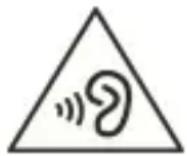
Do not use pre-amplified or amplified headphones or earbuds (i.e. with their own volume control and/or self-powered by a battery or batteries), as they do not guarantee compliant with the maximum sound power.
To avoid possible hearing damage, do not listen at a loud volume for a long time.
Epilepsy Warning
Read this before using a video game by yourself or your child.
Some people are likely to have epileptic seizures or lose consciousness at the sight of certain types of flashing lights or elements that are common in our daily environment. These people expose themselves to seizures when they watch certain television images of when they play certain video games. These phenomena can appear even when the subject has no medical history or has never had an epileptic seizure. If you or a family member ever experienced symptoms related to epilepsy (seizure or loss of consciousness) in the presence of "light" stimulation, please consult your doctor before use. We advise parents be mindful of their children when playing with video games. If you or your child experience the following symptoms: dizziness, blurred vision, twitching of the eyes or muscles, loss of consciousness, trouble orienting, involuntary movement or seizure, please stop playing immediately and seek medical attention.
Precautions to be taken in all cases for the use of a video game:
Don't stand too close to the screen.
Preferably use video games on a small screen. Avoid gambling if you are tired or sleep deprived.
Make sure you're playing in a well-lit room.
During use, take ten to fifteen minute breaks every hour.
Warning on the phone while driving
In France, in accordance with Article R412-6-1 of the Highway Code, the use of a phone in the hand by the driver of a vehicle in circulation is prohibited.
The penalties for non-compliance with this article are a fine and a deduction of points from the driving licence.
It is also forbidden to wear any system such as headphones, pedestrian kits, earphones, headphones, likely to limit both the attention and hearing of drivers.
CAREFUL
This regulation applies only in France. When travelling abroad, please check the regulations in your destination country in advance.
Recycling
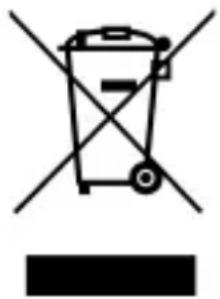
The symbol shown here and on the appliance means that the appliance is classified as electrical or electronic equipment and should not be disposed of with other end-of-life household or commercial waste.
The WEEE Directive 2012/19/EU (Waste Electrical and Electronic Equipment Directive) was introduced to recycle appliances using the most efficient recovery and recycling techniques, in order to mini environmental impacts, treat hazardous substances and avoid increasing landfills.
natural_image
Symbol of a trash bin crossed with two crossed lines and a solid black rectangle below (no text or labels)Device disposal guidelines for home users:
When you are no longer using the appliance, remove the battery and dispose of it and tl appliance in accordance with local recycling processes. For more information, contact yo local authorities or your device's dealer.
Device disposal guidelines for business users:
Business users should contact their suppliers, check the terms and conditions of the purchase contract, and ensure that this device is not mixed with other commercial waste when discarded.
Electromagnetic Wave (SAR) Precautions
Your tablet is designed not to exceed the radio wave limits recommended by the European authorities. These limits include safety margins to ensure the protection of all people regardless of their age or health status.
The SAR (Specific Absorption Rate) of the tablets quantifies the maximum level of exposure of the user to electromagnetic waves, for use close to the body. French regulations require that the SAR must not exceed 2 W/kg averaged.
The SAR value is determined based on the highest level of radio frequencies emitted in laboratory tests.
The actual SAR value when using the tablet is below this level.
The SAR value of the tablet may vary depending on the following factors: proximity/distance from a cell tower, use of accessories, and others.
Please find below the SAR values measured for your product:
| SAR value Trunk | DAS Member Value |
| 1.8 W/kg at 0 mm | 3.6 W/kg at 0 mm |
CAREFUL
The SAR index can vary depending on national disclosure and testing requirements, and depending on the frequency band of the network.
CAREFUL
Do not use your tablet in certain places such as airplanes, hospitals, gas stations and professional garages as well as while driving a vehicle. The electromagnetic waves of the tablet can disrupt the proper functioning of the electronic devices used in these different places.
We advise you to stop or put your phone in airplane mode in these different places to a any disruption.
If you are using an electronic implant (pacemakers, insulin pumps,
neurostimulator...). Please keep a distance of 15 cm between the tablet and your electro implant.
Advice for use to reduce the level of radiation exposure:
In order to limit exposure to radiation, we recommend the use of a pedestrian kit. As with any electric radio product, we advise you to use your device wisely, especially by children and teenagers. You can do this by avoiding night-time communications and/or by limiting the frequency and duration of calls.
Technical information
| Technologies | Frequency range | Max transmit power |
| Bluetooth | 2402 MHz ~ 2480 MHz | BR+EDR: 7.26 mW EIRR (e.i.r.p.) 8.61 dBmBLE: 5.77 mW EIRP (e.i.r.p.) 7.61 dBm |
| 2.4 GHz WIFI | 2412 MHz ~ 2472 MHz | 2.4 GHz Wifi: 16.90mW EIRP (e.i.r.p.) 12.28d |
Signage

text_image
C€Compliance with European Directives (EC)
natural_image
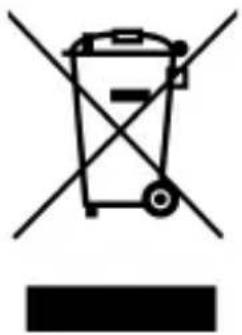
Symbol of a trash bin with crossed lines indicating no waste or discharge, and a solid black rectangle below (no text or labels)Compliance with the WEEE Directive 2012/19/EU (Waste Electrical and Electronic Equipment Directive). Indicates that the product should not be thrown in the trash and should be recycled according to local regulations.

natural_image
Simple line drawing of a house with chimney (no text or symbols)Product compliant with IEC 60417 - 5957; Indoor use only

text_image
C€We, LOGICOM SA – 55 rue de Lisbonne – 75008 PARIS, declare that the radio equipment the WIFI/LV touch tablet type
Commercial reference: TAB FOLD 10
Brand: LOGICOM
is in line with Directive 2014/53/EU.
The full text of the EU Declaration of Conformity is available at the following internet address: https://www.logicom-europe.com/ce-doc
In Paris, 22/09/2025
Paul AMETTE
Quality, Development & After-Sales Manager
natural_image
Simple line drawing of a curved line intersecting a shaded region (no text or symbols)If you have any questions, please contact us at:
contact-um@logicom-europe.com
Scope of the warranty
In case of problems:
A contact form and a complete FAQ are available in the support section of our website: www.logicom-europe.com
If none of these platforms have solved your problem, please contact your reseller.
For safety reasons, only our technical station is authorized to work on our products, with this in mind we do not supply any spare parts.
The LOGICOM supplier warranty is valid for normal use of the product as defined in the manual for a period of 2 years on the product.
The LOGICOM Supplier Warranty is valid for normal use of the product as defined in the user manual.
Damage due to a cause unrelated to the device is excluded from this warranty.
In particular, the warranty does not apply if the device has been damaged as a result of shock or fall, a wrong operation, a connection not in accordance with the instructions mentioned in the instructions, the lightning effect, a power surge, insufficient protection against heat, humidity or frost.
The guarantee only extends to Metropolitan France.
The warranty does not cover user manuals, applications, settings, content or data of any kind.
The warranty does not cover normal wear and tear of the product. (Displays, Batteries & Camera)
The warranty does not cover any deterioration of the product due to misuse, including but not limited to those caused by objects, pressure, drops.
The warranty does not cover any use of the product not in accordance with the precaution for use stipulated in the user manual.
The warranty does not cover defects caused to the product by another product connect to or used with, an accessory or software not supplied by Logicom.
The warranty does not cover any damage to the battery.
The warranty does not cover the product or its accessories if it has been disassembled (modified in any way.
The warranty does not cover any product not identifiable by its serial number or IMEI number(s). If its elements have been removed, erased, altered or rendered illegible, the warranty does not apply.
The warranty does not cover damage to the product due to exposure to moisture, extreme heat or cold, corrosion, oxidation, or any liquid.
The warranty does not cover any damage to the SIM reader(s) or microSD reader(s).
In any case, the legal warranty for latent defects will apply in accordance with articles 1 et seq. of the Civil Code and L.211-1 et seq. of the Consumer Code.
Made in the PRC
© 2025 Logicom SA.
LOGICOM
natural_image
Black tablet device with a stylized map-themed display on its screen, placed on a stand (no visible text or symbols)Manual de usuario
natural_image
Diagram of a device with a labeled component (no text or symbols present)CUIDADOSO
natural_image
Symbol of a trash bin crossed with two crossed lines and a solid black rectangle below (no text or labels)natural_image
Symbol of a trash bin crossed with two diagonal lines, no text or labels presentnatural_image
Simple line drawing of a house with chimney (no text or symbols)natural_image
Simple line drawing of a curved line with a sharp peak and a wavy base (no text or symbols)natural_image
Black tablet device with a stylized map-themed display on its screen, placed on a stand (no visible text or symbols)Manual do Utilizador
TAB FOLD 10 - Tablet multimédia com ecrã tátil WIFI/BT