
HL-4000CN - Color laser printer BROTHER - Free user manual and instructions
Find the device manual for free HL-4000CN BROTHER in PDF.


| Product Type | Color Laser Printer |
| Brand | Brother |
| Model | HL-4000CN |
| Print Resolution | Up to 2400 x 600 dpi |
| Print Speed (Mono) | 21 pages per minute |
| Print Speed (Color) | 16 pages per minute |
| Maximum Paper Size | A4, Letter, Legal |
| Input Tray Capacity | 250 sheets |
| Duplex Printing | Manual |
| Connectivity | Ethernet 10/100 Base-TX, USB 2.0 |
| Memory | 64 MB (expandable to 576 MB) |
| Power Supply | AC 220-240 V, 50/60 Hz |
| Power Consumption (Average) | Standby: 90 W, Printing: 450 W |
| Dimensions (W x D x H) | 430 x 500 x 400 mm |
| Weight | Approx. 30 kg |
| Noise Level | 52 dB (printing) |
| Maintenance and Cleaning | Regular cleaning of the drum and rollers |
| Spare Parts and Repairability | Drum, fuser, rollers available |
| Safety | Auto shut-off, CE certification |
| Menu Languages | French, English, etc. |
Frequently Asked Questions - HL-4000CN BROTHER
User questions about HL-4000CN BROTHER
0 question about this device. Answer the ones you know or ask your own.
Ask a new question about this device
Download the instructions for your Color laser printer in PDF format for free! Find your manual HL-4000CN - BROTHER and take your electronic device back in hand. On this page are published all the documents necessary for the use of your device. HL-4000CN by BROTHER.
USER MANUAL HL-4000CN BROTHER
Brother Color Laser Printer
HL-4000CN
USER'S GUIDE
Please read this manual thoroughly before using the printer. You can print or view this manual from the CD-ROM at any time. Please keep the CD-ROM in a convenient place for quick and easy reference at all times.
The Brother Solutions Center (http://solutions.brother.com) is your one stop resource for all your printer needs. Download the latest drivers and utilities for your printers, read the FAQs and troubleshooting tips or learn about special printing solutions in the 'Solutions' and 'Customer Education' sections.
Brother Laser Printer
HL-4000CN Series
User's Guide
(For USA & CANADA Only)
IMPORTANT INFORMATION: For technical and operational assistance, you must call the country where you purchased the printer. Calls must be made from within that country.
In USA: 1-800-276-7746
In Canada: 1-800-853-6660
514-685-6464 (In Montreal)
If you have comments or suggestions, please write us at:
In USA: Printer Customer Support
Brother International Corporation
15 Musick
Irvine, CA 92618
In Canada: Brother International Corporation (Canada), Ltd.
- Marketing Dept.
Brother Customer Service has installed an easy to use fax-back system so you can get instant answers to common technical questions and product information for all Brother products. This is available 24 hours a day, 7 days a week. You can use the system to send the information to any fax machine, not just the one from which you are calling.
Call and follow the voice prompts to receive faxed instructions on how to use the system and your index of fax-back subjects.
In USA: 1-800-521-2846
In Canada: 1-800-685-5381
1-514-685-5381 (In Montreal)
DEALER SERVICE CENTERS (USA Only)
For the name of an authorized dealer or service center, call 1-800-284-4357.
SERVICE CENTERS (Canada Only)
For service center addresses in Canada, call 1-800-853-6660
INTERNET ADDRESSES
Brother Global Web Site: http://www.brother.com
For Frequently Asked Questions (FAQs), Product Support and Technical Questions, and Driver Updates:
http://solutions.brother.com
(USA Only) For Brother Accessories & Supplies: http://www.brothermall.com
Trademarks
Brother is a registered trademark of Brother Industries, Ltd.
Apple and LaserWriter are registered trademarks, and TrueType is a trademark of Apple Computer, Inc.
Centronics is a trademark of Genicom Corporation.
Hewlett-Packard, HP, PCL 5e, PCL 6 and PCL are registered trademarks of Hewlett-Packard Company.
PostScript is a registered trademark of Adobe Systems Incorporated.
This printer contains UFST and Micro Type from Agfa Division.
PANTONE Colors generated by the HL-4000CN are four- and /or three-color process simulations and may not match PANTONE-identified solid color standards. Use current PANTONE Color Reference Manuals for accurate color.
PANTONE Color simulations are only obtainable on this product when driven by qualified Pantone-licensed software packages. Contact Pantone Inc. for a current list of qualified licensees.
Trademarks noted herein are the property of Brother Industries, Ltd. PANTONE® and other Pantone, Inc. trademarks are the property of Pantone, Inc. ©Pantone, Inc., 1988
ENERGY STAR is a U.S. registered mark.
All other brand and product names mentioned in this user's guide are registered trademarks or trademarks of respective companies.
Compilation and Publication
Under the supervision of Brother Industries Ltd., this manual has been compiled and published, covering the latest product descriptions and specifications.
The contents of this manual and the specifications of this product are subject to change without notice.
Brother reserves the right to make changes without notice in the specifications and materials contained herein and shall not be responsible for any damages (including consequential) caused by reliance on the materials presented, including but not limited to typographical and other errors relating to the publication.
©2002 Brother Industries Ltd.
Shipment of the Printer
If for any reason you must ship your Printer, carefully package the Printer to avoid any damage during transit. It is recommended that you save and use the original packaging. The Printer should also be adequately insured with the carrier.
Electronic Emission Notices
Federal Communications Commission (FCC) Declaration of Conformity (For U.S.A. Only)
Responsible Party: Brother International Corporation
100 Somerset Corporate Boulevard
Bridgewater, NJ 08807-0911, USA
TEL: (908) 704-1700
declares, that the products
Product Name: Brother Laser Printer HL-4000CN
Model Number: HL-4000CN
Product Options: ALL
complies with Part 15 of the FCC Rules. Operation is subject to the following two conditions: (1) This device may not cause harmful interference, and (2) this device must accept any interference received, including interference that may cause undesired operation.
This equipment has been tested and found to comply with the limits for a Class B digital device, pursuant to Part 15 of the FCC Rules. These limits are designed to provide reasonable protection against harmful interference in a residential installation. This equipment generates, uses, and can radiate radio frequency energy and, if not installed and used in accordance with the instructions, may cause harmful interference to radio communications. However, there is no guarantee that interference will not occur in a particular installation. If this equipment does cause harmful interference to radio or television reception, which can be determined by turning the equipment off and on, the user is encouraged to try to correct the interference by one or more of the following measures:
- Adjust relocate the receiving antenna.
- Increase the distance between the equipment and the receiver.
- Connect the equipment to a socket on a circuit different from that which the receiver is already connected.
- Consult the dealer or an experienced radio/TV technician for help.
Important
A shielded interface cable should be used in order to ensure compliance with the limits for a Class B digital device.
Changes or modifications not expressly approved by Brother Industries, Ltd. could void the user's authority to operate the equipment.
Industry Canada Compliance Statement (For Canada Only)
This Class B digital apparatus complies with Canadian ICES-003.
"EC" Declaration of Conformity
Manufacturer
Brother Industries Ltd.,
15-1, Naeshiro-cho, Mizuho-ku,
Nagoya 467-8561, Japan
Herewith declare that:
Products description
: Laser Printer
Product Name
:HL-4000CN
is in conformity with provisions of the Directives applied : Low Voltage Directive 73/23/EEC (as amended by 93/68/EEC) and the Electromagnetic Compatibility Directive 89/336/EEC ( as amended by 91/263/EEC and 92/31/EEC and 93/68/EEC).
Standards applied :
Harmonized :
Safety : EN60950:1992 + A1:1993 + A2:1993 + A3:1995 + A4:1997 + A11:1997
EMC : EN55022:1998 Class B
EN55024:1998
EN61000-3-2:1995 + A1:1998 + A2:1998
EN61000-3-3:1995
Year in which CE marking was First affixed : 2001
Issued by
:Brother Industries,Ltd.
Date
: 19 November, 2001
Place
: Nagoya, Japan
Signature
Kazuhiro Dejima
Manager
Quality Audit Group
Quality Management Dept.
Information & Document Company
International ENERGY STAR® Compliance Statement
ENERGY STAR® is a U.S. registered mark.
The purpose of the International ENERGY STAR® Program is to promote the development and popularization of energy-efficient office equipments.
As an ENERGY STAR® Partner, Brother Industries, Ltd. has determined that this product meets the ENERGY STAR® guidelines for energy efficiency.

Laser Notices
Laser Safety (120 V Model Only)
This printer is certified as a Class I laser product under the U.S. Department of Health and Human Services (DHHS) Radiation Performance Standard according to the Radiation Control for Health and Safety Act of 1968. This means that the printer does not produce hazardous laser radiation.
Since radiation emitted inside the printer is completely confined within protective housings and external covers, the laser beam cannot escape from the machine during any phase of user operation. However, the machine contains 5-milliwat, 700-800 nanometer wavelength, GaAlAs laser diodes. Direct (or indirect reflected) eye contact with the laser beam might cause serious eye damage. Safety precautions and interlock mechanisms have been designed to prevent any possible laser beam exposure to the operator.
FDA Regulations (120 V Model Only)
U.S. Food and Drug Administration (FDA) has implemented regulations for laser products manufactured on and after August 2, 1976. Compliance is mandatory for products marketed in the United States. The label shown on the back of the printer indicates compliance with the FDA regulations and must be attached to laser products marketed in the United States.
MANUFACTURED:
BROTHER INDUSTRIES, LTD.
15-1 Naeshiro-cho, Mizuho-ku, Nagoya, 467-8561 Japan
This product complies with FDA radiation performance standards, 21 CFR
Subchapter J.
Caution: Use of controls, adjustments or the performance of procedures other than those specified in this manual may result in hazardous radiation exposure.
IEC 60825 Specification (220 - 240 V Model Only)
This printer is a Class 1 laser product as defined in IEC 60825 specifications. The label shown below is attached in countries where required.
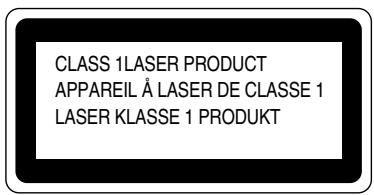
This printer has a Class 3B Laser Diode that emits invisible laser radiation in the Scanner Unit. The Scanner Unit should not be opened under any circumstances.
Caution: Use of controls, adjustments or the performance of procedures other than those specified in this manual may result in hazardous radiation exposure.
For Finland and Sweden LUOKAN 1 LASERLAITE KCLASS 1 LASER APPARAT
Internal laser radiation
Max. Radiation Power
Wave Length
Laser Class
10 mW
770 nm-808 nm
Class IIIb (Accordance with 21 CFR Part 1040.10)
Class 3B (Accordance with IEC60825)
Safety Information
IMPORTANT - For Your Safety
To ensure safe operation the three-pin plug supplied must be inserted only into a standard three-pin power point socket which is properly earthed earthed through the normal household wiring.
Extension cords should not be used with the equipment. If it is essential that an extension cord has to be used, it must be a three-pin plug type and correctly wired to provided proper earthing. Incorrectly wired extension cords may cause personal injury and equipment damage.
The fact that the equipment operates satisfactorily does not imply that the power is earthed and that the installation is completely safe. For your safety, if in any doubt about the effective earthing of the power, consult a qualified electrician.
Caution
Use of controls or adjustment or performance of procedures other than those specified in this manual might result in hazardous radiation exposure.
Disconnect device
This printer must be installed near a power socket that is easily accessible. In case of emergencies, you must disconnect the power cord from the power socket to shut off the power completely.
Caution for batteries
Do not replace the battery. There is a danger of explosion if the battery is incorrectly replaced. Do not disassemble, recharge or dispose of in a fire. Used batteries should be disposed of according to local regulations.
Opmerking / Oplaadbare Batterij Recycle Informatie (For Netherlands Only)
Gerauschemission / Acoustic Noise Emission (For Germany Only)
Lpa < 70 dB (A) DIN 45635-19-01-KL2
IT power system (For Norway Only)
This product is also designed for IT power system with Phase to phase voltage 230V.
LAN Connection
Caution: Connect this production to a LAN connection which is not subjected to overvoltages.
Wiring Information (For U.K. only)
Important
If the mains plug supplied with this printer is not suitable for your socket outlet, remove the plug from the mains cord and fit an appropriate three pin plug. If the replacement plug is intended to take a fuse then fit the same rating fuse as the original.
If a moulded plug is severed from the mains cord then it should be destroyed because a plug with cut wires is dangerous if engaged in a live socket outlet. Do not leave it where a child might find it!
In the event of replacing the plug fuse, fit a fuse approved by ASTA to BS1362 with the same rating as the original fuse.
Always replace the fuse cover. Never use a plug with the cover removed.
WARNING - THIS PRINTER MUST BE PROPERLY EARTHED.
The wires in the mains cord are colored in accordance with the following code:
Green and yellow:
Earth
Blue:
Neutral
Brown:
Live
The colors of the wires in the main lead of this printer may not correspond with the colored markings identifying the terminals in your plug.
If you need to fit a different plug, proceed as follows.
Remove a length of the cord outer sheath, taking care not to damage the colored insulation of the wires inside.
Cut each of the three wires to the appropriate length. If the construction of the plug permits, leave the green and yellow wire longer than the others so that, in the event that the cord is pulled out of the plug, the green and yellow wire will be the last to disconnect.
Remove a short section of the colored insulation to expose the wires.
The wire which is colored green and yellow must be connected to the terminal in the plug which is marked with the letter “E” or by the safety earth symbol ± or colored green or green and yellow.
The wire which is colored blue must be connected to the terminal which is marked with the letter "N" or colored black or blue.
The wire which is colored brown must be connected to the terminal which is marked with the letter "L" or colored red or brown.
The outer sheath of the cord must be secured inside the plug. The colored wires should not hang out of the plug.
Thank you for purchasing the HL-4000CN. This guide contains important information about the printer operation and precautions to be followed. To help you use it efficiently, please read this guide before using your new printer.
Furthermore, after you read the guide, store it in a safe place. It will be useful in case you forget how to perform operations or if a problem occurs with the printer.
This guide is written for users who are familiar with the personal computers, operating systems, and software compatible with this printer. For operational procedures and information regarding these items, refer to the documentation provided with the various hardware and software that you are using.
Brother Industries Ltd.
Table of Contents
REGULATIONS. iv
Introduction. xi
Table of Contents xii
How to Use This Guide. xvii
Conventions .xvii
Glossary . xvii
Symbol . xviii
Safety Precautions xix
CHAPTER 1 PRINTER SYSTEM SETTINGS 1-1
1.1 Adjusting Color Registration 1-1
Printing the Color Registration Chart. 1-1
Determining values 1-2
Entering Values 1-2
1.2 Configuring the Printer on a Network 1-4
1.2.1 Setting an IP Address.. 1-4
Set the IP address acquisition method to 'Panel'. 1-4
Setting the IP Address 1-6
Setting the Subnet Mask. 1-7
Setting the Gateway Address 1-8
1.2.2 Setting Protocols 1-9
Changing Protocol Settings 1-10
1.2.3 Confirming Settings. 1-12
CHAPTER 2 INSTALLING THE PRINTER DRIVER 2-1
2.1 Installing the Printer Driver (Windows) 2-1
2.1.1 Installing the Printer Driver 2-1
2.1.2 Upgrading the Printer Driver 2-1
2.2 Installing the Printer Driver (Macintosh) 2-3
2.2.1 Installing the Printer Driver 2-3
2.2.2 Upgrading the Printer Driver 2-3
3.1 Printer Part Names and Functions 3-1
Front View 3-1
Rear View 3-2
Internal View 3-3
3.2 Turning the Printer On and Off 3-4
3.2.1 Turn the Printer On 3-4
3.2.2 Turn the Printer Off 3-5
3.3 Printing from a Computer 3-6
3.3.1 In Windows 3-6
Printing from a program 3-6
Changing default printing functions 3-7
3.3.2 With a Macintosh Computer 3-9
3.4 Using Help 3-10
3.4.1 Referring to Windows Help.. 3-11
To refer to Help, open the Properties dialog box and select the tab that contains the item in question. 3-11
3.4.2 Referring to Balloon Help on Macintosh 3-12
3.5 Cancel Printing 3-13
3.5.1 Cancel Printing on the Computer 3-13
In Windows 3-13
On a Macintosh Computer 3-14
3.5.2 Cancel Printing from the Control Panel 3-15
3.6 Changing the Configuration for Options 3-16
3.6.1 In Windows 3-17
3.6.2 On a Macintosh computer 3-18
3.7 Printing on Envelopes, Transparency Sheets, and Custom-size (Long) Paper 3-19
3.7.1 Printing on Envelopes 3-19
Printer Driver Settings (for envelopes) 3-20
3.7.2 Printing on Transparency Sheets 3-22
Printer Driver Settings (for transparency sheets) 3-23
3.7.3 Printing Custom-size Paper 3-24
Setting a User Defined Size 3-24
How to Print 3-25
Printer Driver Settings (for Custom-size (Long) Paper) 3-26
3.8 Duplex Printing 3-27
Types of Duplex Printing 3-27
3.8.1 Duplex Printing 3-28
Printer Driver Settings (for duplex printing on plain paper) 3-28
Printer Driver Settings (for printing the back side of specialty paper) 3-29
CHAPTER 4 LOADING PAPER AND UsABLE PAPER TYPES. 4-1
4.1 Suitable and Unsuitable Paper Types 4-1
4.1.1 Suitable Paper Types 4-1
Suitable Basis Weight 4-1
Recommended Paper. 4-2
Special paper 4-2
Paper Trays, Types, and Sizes 4-4
Duplex Printing Paper Types and Sizes 4-5
4.1.2 Unsuitable Paper Types 4-6
4.1.3 Storing Paper 4-7
4.2 Loading Paper 4-8
4.2.1 Load Paper in the Paper Tray 4-8
4.2.2 Load A5 Paper in the Paper Tray/Changing the Paper Size from A5 4-12
Loading A5 Paper 4-12
Changing the Paper Size from A5. 4-15
4.2.3 Load Paper into the Multi-purpose Tray 4-19
CHAPTER 5 CONTROL PANEL 5-1
5.1 Control Panel Functionality 5-1
5.1.1 LED Indicators 5-2
5.1.2 Display 5-3
Print screen. 5-3
Menu screen 5-3
5.1.3 Buttons 5-4
5.2 Basic Menu Operation 5-5
5.2.1 Menu Structure and Basic Operations 5-5
Resetting the printer settings 5-5
5.2.2 What to do if you make a Mistake? 5-6
5.3 List of Menu Items 5-7
5.3.1 System Settings 5-7
Power Save Time 5-7
Error Alarm. 5-8
Job Timeout 5-9
Panel Language 5-9
Auto Log Print 5-9
ID Print. 5-9
Text Print 5-10
5.3.2 Maintenance Mode 5-10
Init NVM. 5-10
Security 5-11
Basis Weight 5-11
ColorRegiCorrect 5-11
5.3.3 Parallel 5-12
ECP 5-12
5.3.4 Report/List. 5-12
Printer Settings 5-12
Panel Settings 5-12
PCL6 Font List. 5-12
Log Print 5-13
5.3.5 Network 5-13
Ethernet 5-13
TCP/IP. 5-13
IPX Frame Type 5-14
Protocol 5-15
IP Filter 5-16
Init NVM. 5-16
5.3.6 USB 5-17
Adobe Protocol 5-17
CHAPTER 6 DEALING WITH PROBLEMS 6-1
6.1 Troubleshooting 6-1
6.2 Power Problems 6-2
6.3 Printing Problems 6-3
6.3.1 Indicators are on, flashing, or off 6-3
6.3.2 Cannot Print in Windows 6-5
6.3.3 Cannot Print from a Macintosh Computer 6-6
6.4 Print Quality Problems 6-7
6.4.1 Blank or Completely Black Pages are Output 6-7
6.4.2 Faded or Dirty Printouts, White Areas (drop-outs), Creases, Blurs 6-8
6.4.3 Unsatisfactory Printing 6-12
6.5 Paper Feed Problems 6-13
6.6 Others Problems 6-15
6.6.1 Network Problems 6-15
6.6.2 Other Problems 6-16
6.7 What to Do When an Error Message Appears 6-17
6.8 The Alarm Indicator is On or Flashing 6-22
6.8.1 The Alarm Lamp is On 6-22
6.8.2 The Alarm Lamp is Flashing 6-22
6.9 Forcing the Printer to Print Remaining Data (When Printing is Halted) 6-23
6.10 Cleaning the Density Sensor 6-24
CHAPTER 7 PAPER JAMS. 7-1
7.1 Clearing Paper Jams 7-1
7.2 Paper Jams in the Multi-purpose Tray 7-3
7.3 Paper Jams in the Paper Tray 7-4
7.4 Paper Jams Between the Print Head Cartridge and the Fuser Cartridge 7-6
Paper jams around the print head cartridge: 7-6
Paper jams around the fuser cartridge: 7-8
Paper longer than 355.6 ~mm (14 in.) jams 7-9
7.5 Paper Jams in the Paper Rotator 7-10
7.6 Paper Jams in the 2 Tray Module 7-11
CHAPTER 8 ROUTINE MAINTENANCE AND CONSUMABLE REPLACEMENT......8-1
8.1 Replacing the Toner Cartridges 8-1
8.1.1 Toner Cartridge Handling Precautions 8-1
Handling Precautions 8-1
Storage Precautions 8-2
8.1.2 Replacing the Toner Cartridges 8-2
8.2 Replacing the Print Head Cartridge 8-5
8.2.1 Print Head Cartridge Handling Precautions 8-5
Handling Precautions 8-5
Storage Precautions 8-6
8.2.2 Replacing the Print Head Cartridge 8-6
8.3 Replacing the Transfer Roll Cartridge 8-11
8.3.1 Transfer Roll Cartridge Handling Precautions 8-12
Handling Precautions 8-12
8.3.2 Replacing the Transfer Roll Cartridge 8-13
8.4 Printing Reports and Lists 8-15
8.4.1 Confirming Printer Configuration and Network Settings 8-16
8.4.2 Checking the Print Log 8-17
8.5 Confirming Printer Status from Your Computer 8-18
8.5.1 Checking Status and Remaining Amounts of Consumables using a Web Browser 8-18
8.6 Cleaning the Printer 8-19
Cleaning Precautions 8-19
Cleaning the outside of the printer 8-19
8.7 Transporting the Printer 8-20
8.8 Storing the Printer 8-25
APPENDIXES A-1
A.1 Introduction to the Optional and Consumable Items .A-1
A.1.1 Options A-1
Hard Disk. A-1
2 Tray Module. A-1
Memory Expansion Card . A-1
A.1.2 Consumable Items A-2
Toner Cartridges A-2
Print Head Cartridge A-2
Transfer Roll Cartridge A-2
A.2 Getting Product Support Information.. A-3
A.3 General Specifications.. A-4
A.3.1 Printer Specifications.. A-4
A.3.2 Network Specifications.. A-7
Common Specifications A-7
TCP/IP Specifications A-7
NetBIOS Specifications .A-7
NetWare Specifications.. A-7
AppleTalk Specifications A-7
A.3.3 Printable Area A-8
A.4 Life Span of Consumable Items.. A-9
Life span of consumables (in printable pages) A-9
A.5 Adding the Expansion Memory....................................A-10
INDEX I-1
Conventions
The following terms and symbols are used in the present guide:
Glossary
Look
Alerts you to an important operating procedure that should be performed with care.
Make sure that you read these items.
Note
Notes provide you with useful information.
See
References indicate related information that may be useful.
"Indicates that the reference is in this guide.
" Indicates that the reference is in another guide.
| Symbol | Meaning |
| Key | Indicates a key on the keyboard of your computer. Example:Press the Enter key |
| [ ] | Indicates a window, dialog box, or tab element or button displayed on the computer screen. Also indicates a menu or value displayed on the control panel. Example:Click [OK] in the [Properties] dialog box. Set [Enabled] on the control panel. |
| “ ” | Indicates a message displayed on the printer's control panel. This may also emphasize a part name or important information to be entered. Example:“Ready to Print” appears. Enter “0.0.0.0” |
| < > | Indicates a control panel button. Example:Press the <▲> button. |
| + | Indicates that you need to press 2 keys or control panel buttons at the same time. Example:Press the <▲> + <▼> buttons. |
To ensure the safe operation of your printer, make sure that you read this section thoroughly before use.
This section describes the conventions used in the guide.
WARNING "Warning" alerts you to situations that could result in serious injury or death.
CAUTION "Caution" alerts you to situations that could cause injury or material damage.
This symbol alerts you to procedures that require close attention. Make sure that you read and follow the instructions carefully.

High temperature

Flammable
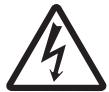
Electrical shock

Finger injury
This symbol alerts you to prohibited procedures. Make sure that you read the instructions carefully.

Prohibited

No naked flame

Do not dismantle

Do not touch
This symbol alerts you to procedures that need to be performed. Make sure that you perform the procedure after reading the instructions carefully.

Hint

Remove the plug

Ground the earth
Installing and Relocating your Printer
CAUTION

Do not place the printer in a hot, humid, dusty, or poorly ventilated environment. Prolonged exposure to such adverse conditions can cause fire or electric shocks.

Do not place the printer near heaters or volatile, flammable, or combustible materials, such as curtains.

Place the printer on a level, sturdy surface that can withstand the printer's weight. Failure to do so could cause the printer to fall, resulting in injuries.

To prevent injuries, this printer should be lifted by at least two people.

To lift the printer, face the front of the printer and grip the recessed areas at the bottom left and right with both hands. Never try to lift the printer by gripping any other areas. Lifting the printer by gripping other areas can cause the printer to fall, resulting in injuries.
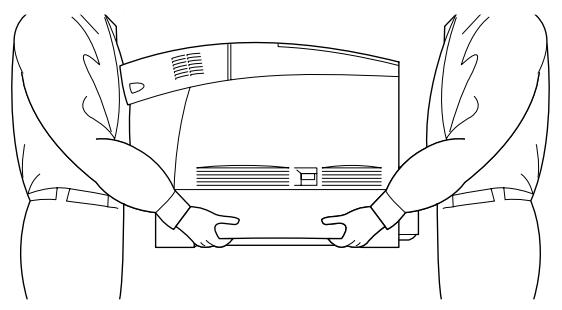
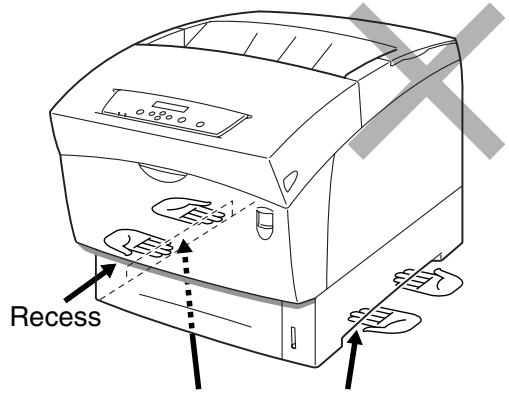
If you hold the printer by the front cover, left or right sides, there is a danger of the printer falling.

When lifting the printer, get a firm footing and bend your knees to avoid possible injuries to your back.
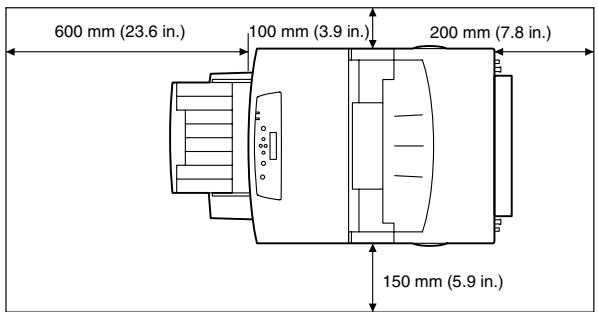

The printer has ventilation grills on the side and at the rear. Ensure that the printer is installed no less than 150~mm (5.9 in.) from the wall on the right, 100~mm (3.9 in.) from the wall on the left, and 200~mm (7.8 in.) from the wall at the back. A poorly ventilated printer can cause excessive internal heat to build up and result in fire.
The diagram below shows the minimum clearances required for normal operation, consumables replacement, and maintenance ensuring that your printer operates at peak performance.

When moving the printer, be sure to unplug the power cord from the socket. Moving the printer with the power cord connected can damage the power cord, which could result in a fire or electric shocks.

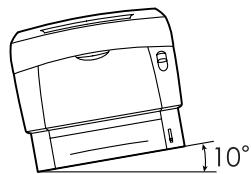
When moving the printer, do not tilt it at more than the angles shown in the diagram below.
If tilted excessively, the printer may fall, resulting in injuries.
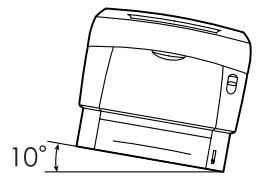
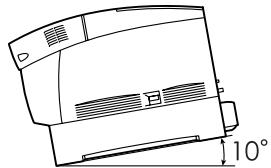
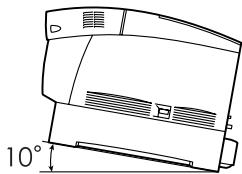

After installing the optional tray module, lock down the brakes of the casters at the front of the tray module. Failure to lock down the brakes can cause the printer to move unexpectedly, resulting in injuries.
Operating Environment
- Use the printer in a place that meets the following requirements:
Ambient temperature range of 10 to 32^ (50.0 to 89.6^ ), relative humidity of 15 to 85% (no condensation)
When using the printer at an ambient temperature of 32^ (89.6^) , the relative humidity should not exceed 65% . When the relative humidity reaches 85% , the ambient temperature should not exceed 28^ (82.4^) .
Note
Do not place the printer in a room where there are sudden fluctuations in temperature and do not move the printer from a cold place to a warm humid place. If you do, condensation may occur inside the printer and deteriorate print quality.
- Do not place the printer in direct sunlight, as this may damage the printer.
- When moving the printer, remove the toner cartridges. Do not reuse toner cartridges once you have removed them from the printer. Loose toner can spill inside the printer and deteriorate print quality.
- Do not place the printer directly next to an air conditioner or heater, as this affects the temperature inside the printer and can cause damage.
- Do not use the printer when it is tilted at an angle of more than 5 degrees, as this may result in damage.
Precautions for Power and Ground (earthed) Connections
WARNING

Use the printer within the specified power range.
AC power: 100-127 VAC ± 10% (90V-140V) or 220-240 VAC ± 10% (198V-264V)
Frequency: 50 ± 3 ~Hz / 60 ± 3 ~Hz

Ensure that the power cord connector and power socket are free of dust. In a damp environment, a contaminated connector can, over time, draw non-negligible amounts of current that can generate heat and eventually cause fire.

Do not attempt to modify, pull, bend, chafe, or otherwise damage the power cord. Do not place objects on the power cord. A damaged power cord can cause fire or electric shocks.

Never touch a power cord with wet hands. This constitutes an electric shock hazard.

In the following situations, stop using the printer immediately, turn it off, and disconnect the power cord from the socket. After that, contact your dealer or authorized Brother service representative immediately. Continued use of the printer in such situations could result in fire.
- There is smoke emanating from the printer or the outside of the printer is excessively hot.
- Unusual noises are coming from the printer.
There is water inside the printer.

To prevent fire or electric shocks, connect the green earth wire bundled with the power cord to one of the following:
- The earth terminal of the power outlet
- A piece of copper buried in the earth 650 ~mm or deeper
Make sure that the earth wire on the power cord is connected before you use the printer. If it is not possible to make an earth connection, consult your dealer or Brother authorized service representative.
Never connect the earth wire to any of the following:
Gas pipes that could ignite and explode
- Telephone line earth wires or lightning rods, which can draw an excessive electric current if hit by lightning
- Water faucets or pipes whose electrical conductivity is broken by a non-metallic part

If the power cord is broken or insulated wires are exposed, ask your dealer or authorized Brother service representative. Using a damaged cord can cause fire or electric shocks.
CAUTION

Do not plug or unplug the printer when it is on. Unplugging a live connector can deform the plug and cause fire.

When unplugging the printer, grasp the plug instead of the power cord. Forcibly pulling the power cord can damage it and cause a fire or electric shocks.

Be sure to turn off and unplug the printer before accessing the interior of the printer for cleaning, maintenance, or troubleshooting. Accessing the interior of a live printer can result in electric shocks.

Once a month, turn off the printer and check the power cord for the following. If you notice any unusual conditions, contact your dealer for assistance.
- The power cord is plugged firmly into the power outlet.
- The plug is not excessively heated, rusted, or bent.
- The plug and outlet are dust free.
The cord is not cracked or frayed.

When the printer is not used over an extended period of time, switch it off and unplug it. When an unused printer is left connected to a power source for a long period, degraded insulation can cause electric shocks, current to leak, or fire.

Switch off the printer before connecting the interface cable or options. Connecting the interface cable or options to a live printer can cause electric shocks.
Other
- Radio interference
This printer may interfere with radio or television reception, causing flickering or distortion. This can be determined by turning the printer off and on. To correct interference, perform one or a combination of the following procedures:
- Move the printer away from TV and/or radio.
- Reposition the printer, TV and/or radio.
- If the printer, TV and/or radio are plugged to the same socket, unplug them, then plug them into different sockets.
- Reposition the TV and/or radio antennas and cables until the interference stops. For external antennas, consult your local electrician.
- Use coaxial cables with radio and television antennas.
Operating Precautions
WARNING

Do not place any liquid containers such as vases or coffee cups on the printer. Liquids spilt on the printer can cause a fire or electric shock.

Do not place any metal parts such as staples or clips on the printer. If metal or flammable materials get into the printer, they can short circuit internal components and cause a fire or electric shocks.

If debris (metal or liquid) gets into the printer, turn off and unplug the printer. After that, contact your dealer or authorized Brother service representative immediately. Operating a debris-contaminated printer can cause a fire or electric shocks.

Never open or remove printer covers that are secured with screws unless specifically instructed to do so in the this guide. High-voltage components can cause electric shocks.

Do not try to alter the printer's structure or modify any parts. Unauthorized modifications can cause fire.

This printer complies with the IEC60825 (Class 1) international laser standard. This means that the printer does not present any risk of injury to individuals from laser radiation. Various covers confine the laser radiation to the inside of the printer; hence, users cannot incur injury from the laser under normal operating conditions. Removing covers, unless instructed to do so in this guide, can cause injury from laser radiation.
CAUTION

Never touch an area indicated by a high-temperature warning label (on or near the fuser unit). Touching these areas may result in burns.
If a sheet of paper is wrapped around the fuser or rollers, do not use excessive force to remove it so to avoid injuries or burns. Turn off the printer immediately and contact your dealer or authorized Brother service representative.

Do not place any heavy objects on the printer. An off-balance printer can fall over or the heavy object can fall, resulting in injuries.

Do not use highly flammable sprays or solvents in or around the printer, as this can result in fire.

When removing paper jams, make sure that no pieces of paper are left inside the printer, as this can cause fire.
If the paper is wrapped around the fuser or roller, or you cannot see the jam that you are trying to clear, do not attempt to remove the paper by yourself, as this may result in injuries or burns. Turn off the printer immediately and contact your dealer or authorized Brother service representative.

Do not place magnetic objects near the safety switch of the printer. Magnets can activate the printer accidentally, resulting in injuries.
Others
Refer to this guide for procedures on clearing paper jams and how to resolve any other problems that may occur.
Notes on Handling Consumables
WARNING

Never put a toner cartridge into an open flame. It can explode, resulting in injuries.

Never put a transfer roll cartridge into an open flame. It can explode, resulting in injuries.

Never put a print head cartridge into an open flame. It can explode, resulting in injuries.
Others
- Do not open consumables until you are ready to use them. Do not store consumables in the following conditions:
Hot or humid areas
Near a naked flame
- Exposed to direct sunlight
- Dusty areas
- Before using consumables, read the instructions and precautions provided with the consumables.
- Administer emergency first aid as follows:
If you get toner in your eyes, rinse them abundantly in clean water and consult your physician, if necessary.
If you get toner on your skin, wash it with soap and water. Rinse well.
If you inhale toner, leave the contaminated area immediately and gargle with water.
If you swallow toner, induce vomiting and consult your physician immediately.
- When you remove the transfer roll cartridge from the printer because the waste toner collection box is full, do not attempt to empty the waste toner box and reuse the cartridge, as toner may spill inside the printer and cause damage. Loose toner can spill inside the printer and deteriorate print quality.
- Do not tilt or shake the print head cartridges or transfer roll cartridges when removing them temporarily. Loose toner can spill inside the printer and deteriorate print quality.
1.1 Adjusting Color Registration
Follow the procedure below to adjust the color registration when you first install the printer or after moving it to a new location.

See
Refer to 5.2 "Basic Menu Operation" for information about the operation of the control panel.

Printing the Color Registration Chart
Use the control panel to print the color registration chart.
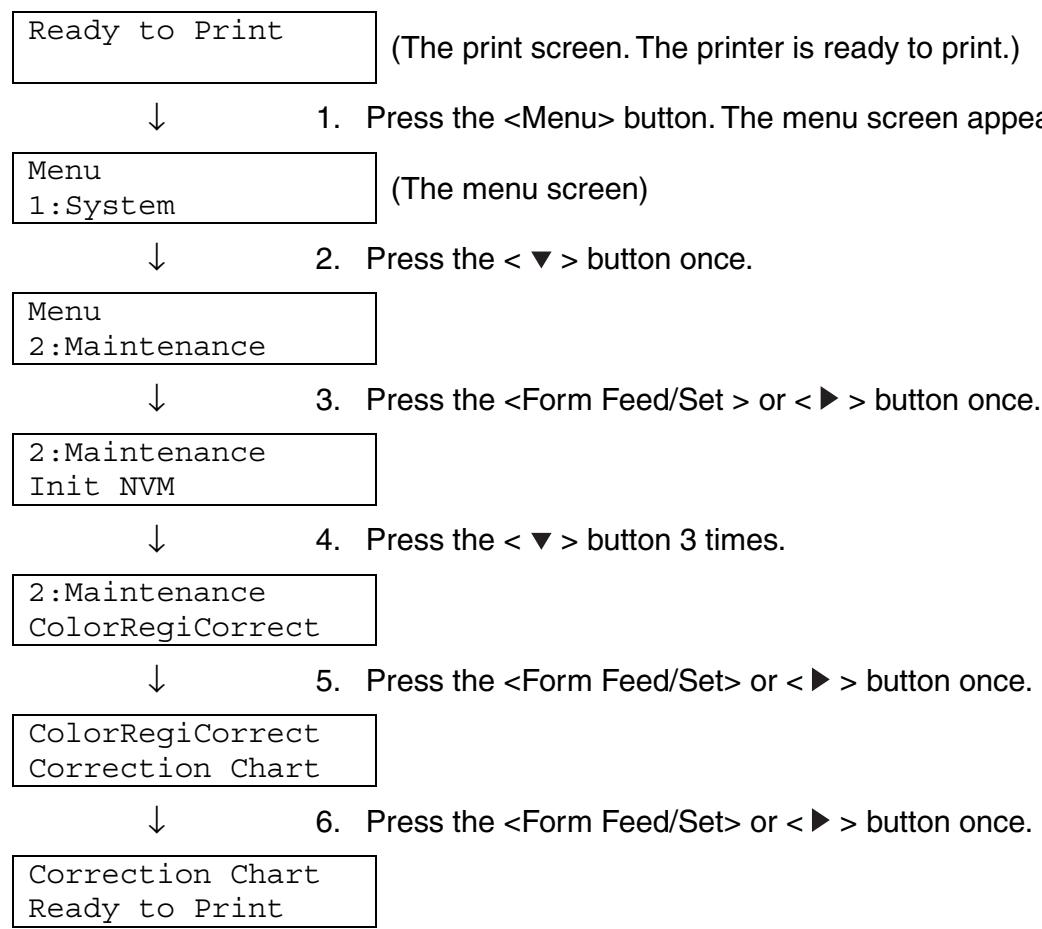
- Press the
Determining values
From the lines to the right of the Y (yellow), M (magenta), and C (cyan) pattern, find the values of the straightest lines.
Note
You can also use the densest colors of the grid to find the straightest lines. The colors printed at the highest density are those next to the straightest lines. When '0' is the value nearest the straightest line, you do not need to adjust the color registration. When the value is not '0', follow the procedure outlined in "Entering Values".
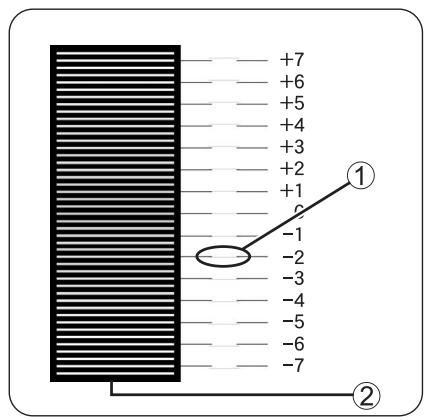
- Straightest line
- Lattice pattern
Entering Values
Using the control panel, enter the values that you found in the color registration chart to make adjustments.
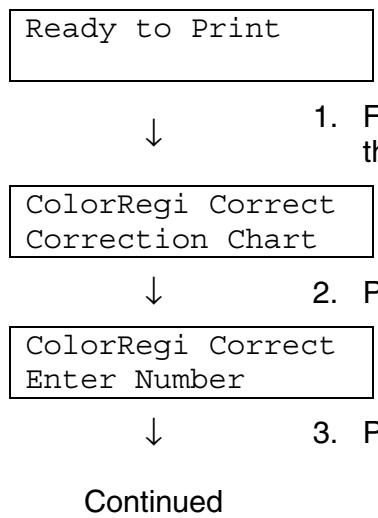
- Follow steps 1 through 5 on the previous page to display the color registration chart settings menu.
-
Press the < > button once.
-
Press the
Continued from the previous page.

Enter Number Y = 0 M = 0 C = 0

- Using the < > or < > buttons, press the buttons until you reach the value (for example, +3) displayed on the chart.
Enter Number Y = +3M = 0C = 0

- Press the < > button once and move the cursor to
Enter Number Y = +3 M= 0 C= 0

- Repeat steps 4 and 5 to continue setting the color registration.
Enter Number Y = +3 M=+1 C=+2

- Press the
Correction Chart Ready to Print
- Press the
- Color registration adjustment is complete when the straightest Y (yellow), M (magenta), and C (Cyan) lines are next to the ‘0’ line.
Note
After printing the color registration chart, do not turn off the printer until the printer motor has stopped running.
1.2 Configuring the Printer on a Network
This section describes configuring the printer for a network connection.
1.2.1 Setting an IP Address
This section describes the procedure for setting the IP address, subnet mask, and gateway address from the control panel of the printer.
Follow the steps below.

Look
IP addresses are managed throughout the system as a whole. Specifying the wrong IP address can affect the entire network. Before setting an IP address, consult your system administrator.

See
Refer to 5.2 "Basic Menu Operation" for further information about the operation of the control panel.

Set the IP address acquisition method to 'Panel'.
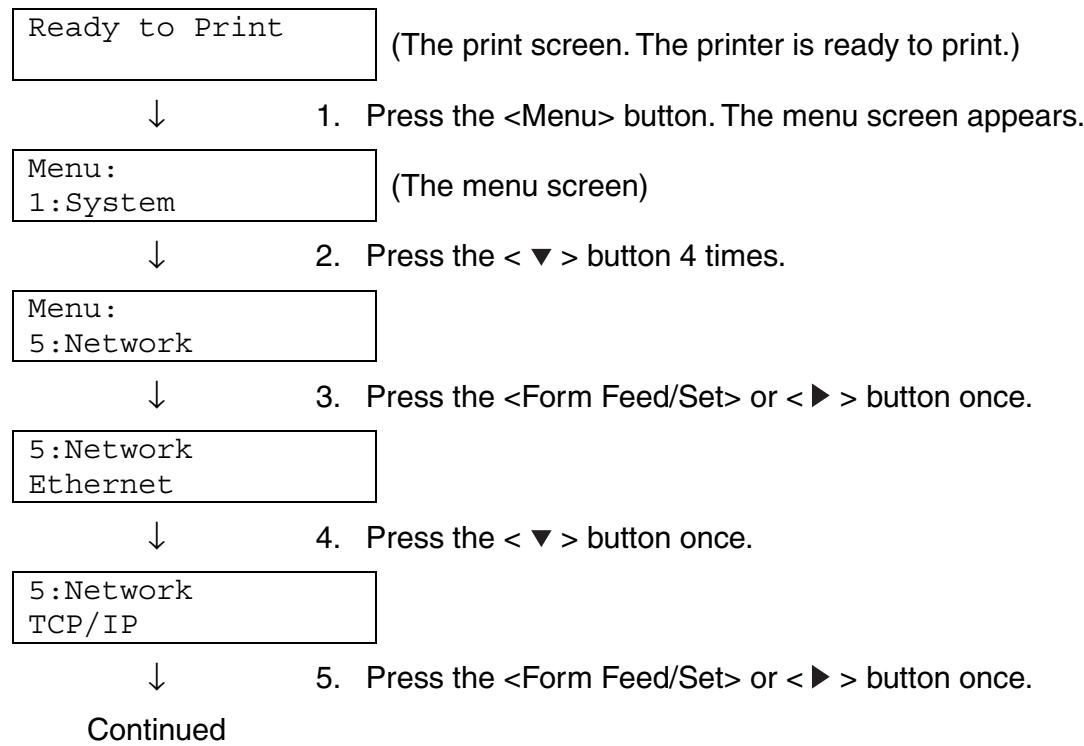
Continued from the previous page.
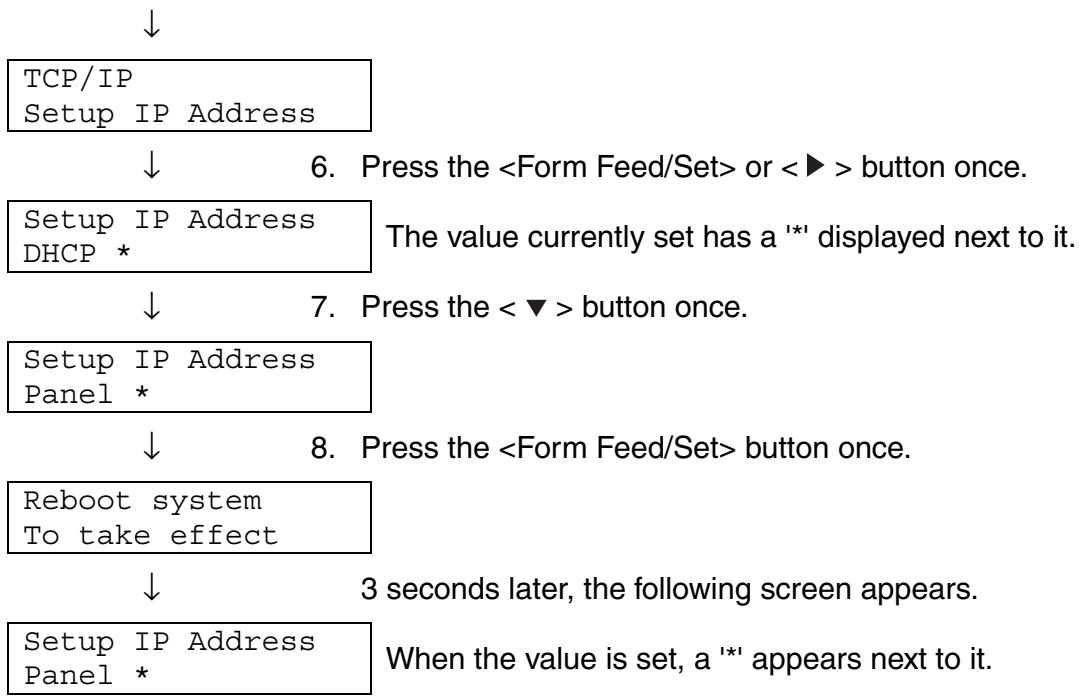
- Press the
or <▲> button once. The lower line of the screen returns to the 'Setup IP Address'.
↓ Look
Only restart the printer after setting the gateway address at the last step. Continue to the next step without restarting the printer.
Note
The IP address consists of four separate values (base 10) separated by decimal points. The 4 values can be set anywhere between 0 and 255.
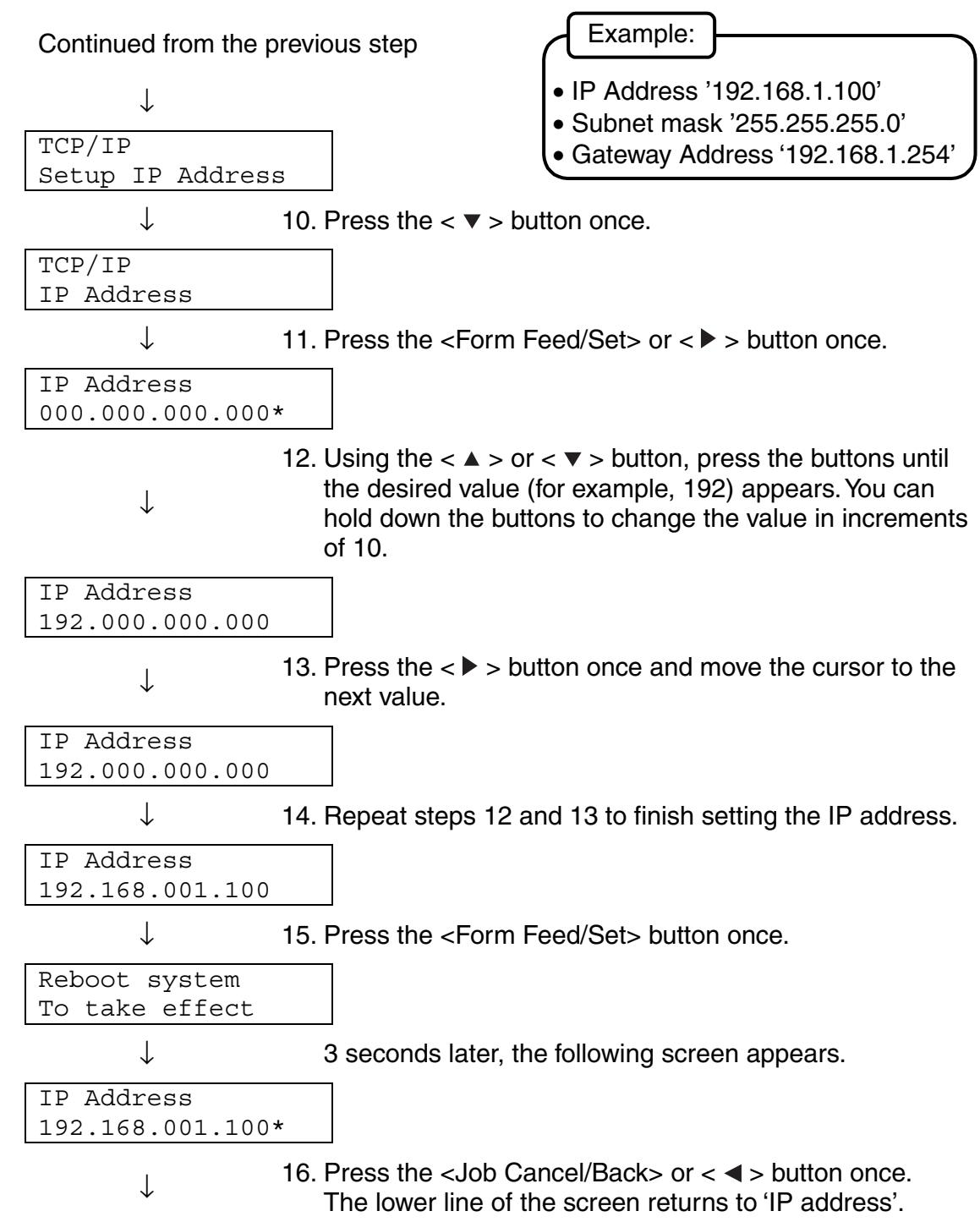

Setting the Subnet Mask
Continued from the previous step
↓
TCP/IP
IP Address
↓
- Press the < > button once.
TCP/IP Subnet Mask
↓
- Press the
Subnet Mask 000.000.000.000\*
↓
- Set the subnet mask in the same way as the IP address. To set values with the < > or < > buttons, you can hold down the button to change the value sequentially.
Subnet Mask 255.255.255.000\*
↓
- Press the
or << button once. The lower line of the screen returns to 'Subnet Mask'.

Setting the Gateway Address
Continued from the previous step
↓
TCP/IP
Subnet Mask
↓
- Press the < > button once.
TCP/IP
Gateway Address
↓
- Press the
Gateway Address
000.000.000.000*
- Set the gateway address in the same way as the IP address. To set values with the <> or <> buttons, you can hold down the button to change the value sequentially.
Gateway Address
192.168.001.254*
- At this point, restart the printer.
1.2.2 Setting Protocols

Look
When the printer is shipped from the factory, all protocols except FTP' are active by default. Normally you do not need to perform the operations described in this section when you connect a new printer to a network for the first time. If you need to change any of the default Protocol settings, follow the steps outlined in this section. This concludes the printer settings. Move on to 1.2.3 "Confirming Settings".
Supported Protocols
- For TCP/IP(LPD) [LPD] protocol
For port 9100 [Port9100] protocol - For IPP [IPP] protocol
- For NetBIOS (transport protocol: TCP/IP) [NetBIOS TCP/IP] protocol
- For NetBIOS (transport protocol: NetBEUI) [NetBIOS NetBEUI] protocol
For NetWare [NetWare] protocol
ForAppleTalk [AppleTalk]protocol

See
Refer to 5.2 "Basic Menu Operation" for information about the operation of the control panel.

Changing Protocol Settings
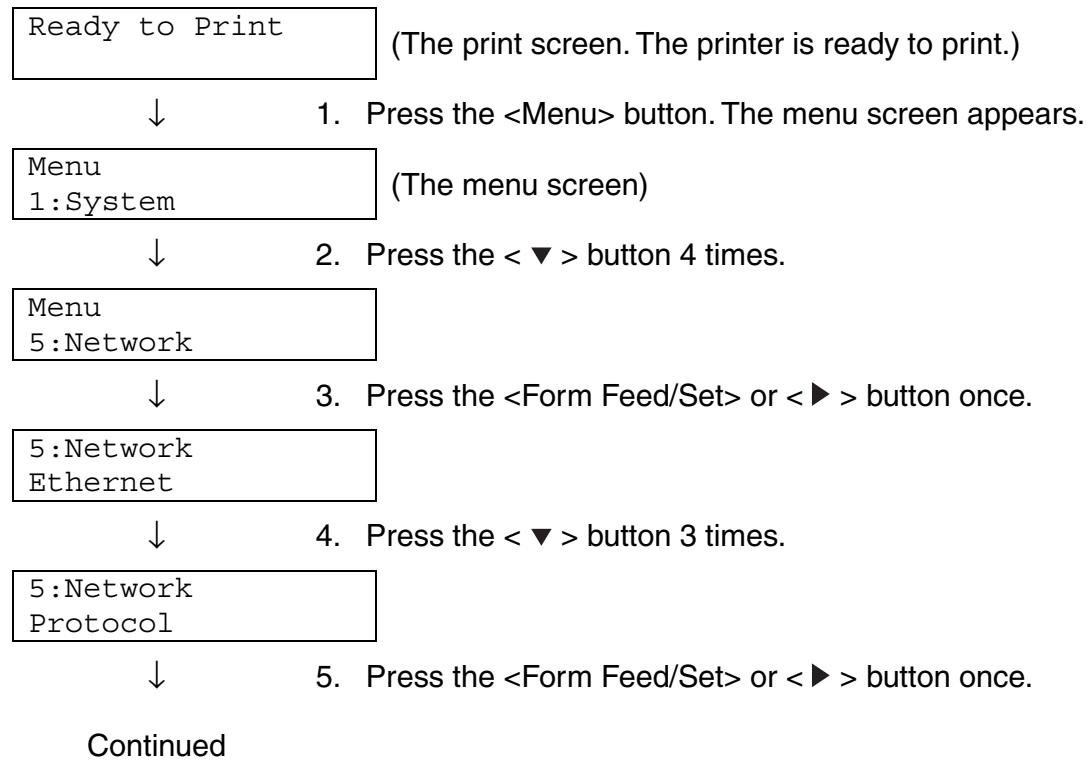
Continued from the previous step

Starting protocols
Protocol LPD
6. Press the < > button once.
Protocol Port9100
7. Press the < > button once.
Protocol IPP
8. Press the < > button once.
Protocol NetBIOS TCP/IP
9. Press the < > button once.
Protocol NetBEUI
10. Press the < > button once.
Protocol NetWare
11. Press the < > button once.
Protocol AppleTalk
- Press the
XXX Disabled *
- Press the < > button once.
XXX Enabled
- Press the
XXX Enabled *
- To start other protocols, press
or the < > button once and continue to the next step.
To finish the setting procedure, go to step 12.

- Restart the printer.
1.2.3 Confirming Settings
Print the settings list to check the content of printer settings.
The printer settings list also contains information that is required when configuring computers for printing. Use the list to confirm that settings on the printer and the computer match.

See
For details about printing the settings list, refer to 8.4.1 "Confirming Printer Configuration and Network Settings".
2.1 Installing the Printer Driver (Windows)
The printer driver is software that converts print and command data into forms usable by the printer. When using the printer locally, install the printer driver on the computer connected to it. To share a printer through a network, install the printer driver on every computer connected to the network.
2.1.1 Installing the Printer Driver
To Install the Windows printer driver, see the Setup Guide.
2.1.2 Upgrading the Printer Driver
Printer driver upgrades are available on the Brother Solutions Center. To use the software, download it.
Any connection charges incurred while downloading the software are entirely the customer's responsibility.
Follow the procedure below to install the Windows printer driver upgrade
- On the Start menu, point to Settings and click Printers. The Printers window opens.
- Click the appropriate printer and on the File menu, click Properties. The Properties dialog box opens.
- Click Paper/Output tab.
4. Click Brother Solutions Center.
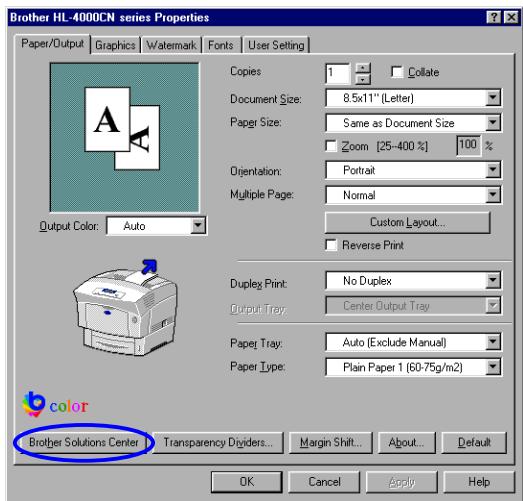
The browser starts and accesses the Brother Solutions Center.
5. Follow the instructions on the screen to download the appropriate printer driver.
6. To close the properties dialog box, click OK.
Note
- You can also use the CD-ROM provided to access the Brother Solutions Center and download the printer driver.
- The address of the Brother Solutions Center is: http://solutions.brother.com
- Any connection charges incurred while downloading the software are entirely the customer's responsibility.
2.2 Installing the Printer Driver (Macintosh)
Printer drivers for both USB and AppleTalk network connections are provided with your Brother printer.
You can install the printer driver on Macintosh computers that meet the following conditions:
- The printer is connected with a USB cable and the computer runs Mac OS 8.6 to X with a standard USB interface. (However, we cannot guarantee the normal operation of all USB-compatible equipment.)
- The printer is connected to a network and computers are running Mac OS 8.1 to X.
- The machine is configured as an AppleTalk client.

See
For details about how to set up an AppleTalk client, refer to the literature accompanying your Macintosh computer.

Look
It is not possible to use Apple QuickDraw GX on the system when using the printer.
2.2.1 Installing the Printer Driver
To install the Macintosh printer driver, see the Setup Guide.
2.2.2 Upgrading the Printer Driver
Printer driver upgrades are available on the Brother Solutions Center. To use the software, download it.
Any connection charges incurred while downloading the software are entirely the customer's responsibility.
The address of the Brother Solutions Center is:
http://solutions.brother.com
3.1 Printer Part Names and Functions
The names and functions of the various parts of the printer are as follows:
Front View
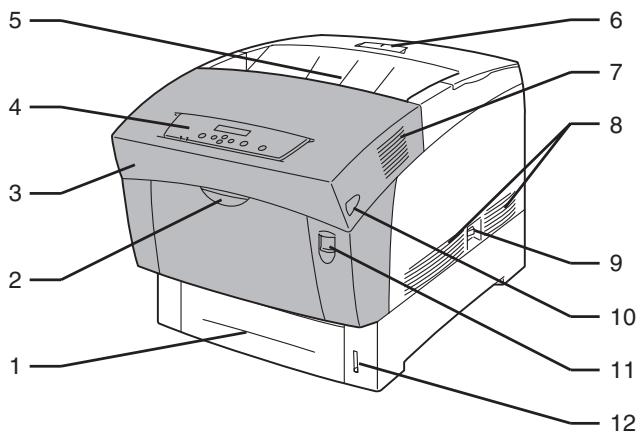
| No. | Name | Description |
| 1 | Paper Tray | Load paper here. |
| 2 | Multi-purpose Tray (MP Tray) | Use this tray to load items such as cards and envelopes manually. |
| 3 | Front Cover | The shaded part of the illustration above. Open to clear paper jams, replace the print head cartridge, or transfer roll cartridge. |
| 4 | Control panel | Use the buttons and display to control the printer. |
| 5 | Face Down Tray | Printed documents are output here, printed side facedown. |
| 6 | Paper Stopper | Lift to prevent paper from falling when it is printed. |
| 7 | Exhaust Grille | Allows internal heat to dissipate. Make sure that the exhaust grilles are never obstructed. |
| 8 | Ventilation Intake Grille | Allows air to enter the printer to prevent it from overheating. Make sure that the ventilation intake grilles are never obstructed. |
| 9 | Power Switch | The printer's power switch. Press [I] to turn on the printer and [O] to turn it off. |
| 10 | Button B | Use button B to open the upper part of the front cover. |
| 11 | Button A | Use button A to open the whole front cover. |
| 12 | Paper Meter | Use the meter as a guide to refill the paper tray. |
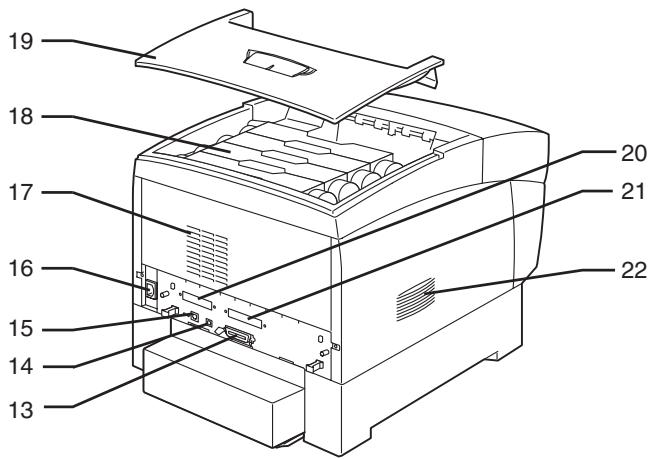
| No. | Name | Description |
| 13 | Parallel Interface Connector | To use the printer locally, connect the parallel cable here. |
| 14 | USB Interface Connector | To use the printer locally, connect the USB cable here. |
| 15 | Ethernet Interface Connector | To use the printer through a network, connect the Ethernet cable here. |
| 16 | Power Cord Connector | Connect the power cord here. |
| 17 | Exhaust Grille | Allows internal heat to dissipate. Make sure that the exhaust grilles are never obstructed. |
| 18 | Toner Cartridges | Insert the black, yellow, magenta, and cyan toner cartridges here. |
| 19 | Top Cover (face down tray) | This is the printer's top cover. Remove it to change the toner cartridges. It acts as the top cover and the face down tray of the printer. Printed documents are output here, printed side facedown. Do not use the printer without the top cover. |
| 20 | Slot for the network expansion card | Network expansion card is installed here. |
| 21 | Option Slot (for the optional hard disk) | Install the optional hard disk here. |
| 22 | Ventilation Intake Grille | Allows air to enter the printer to prevent it from overheating. Make sure that the ventilation intake grilles are never obstructed. |

Internal View
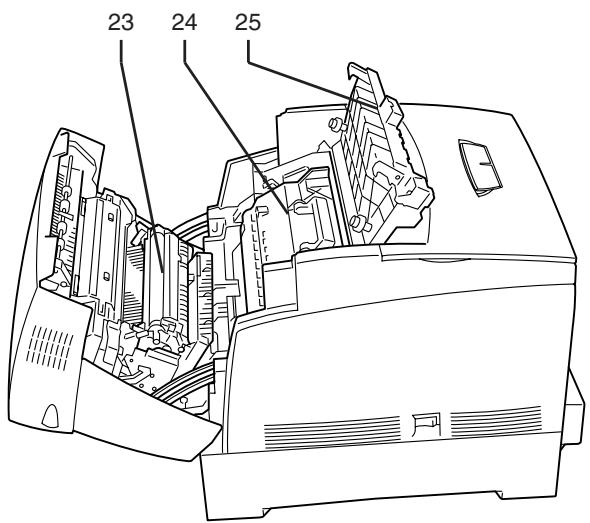
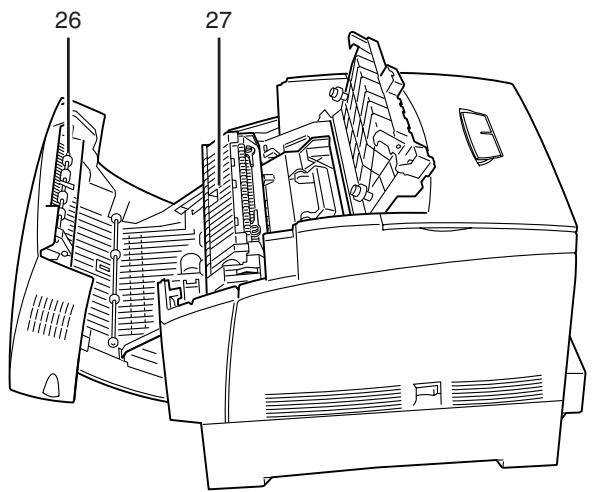
| No. | Name | Description |
| 23 | Transfer roll cartridge | Transfers the image created on the print head surface to the paper and collects used toner. |
| 24 | Print Head Cartridge | Consists of a light-sensitive print head, developer, and a transfer roller. Images are initially created as an electrical charge on the surface of this drum. |
| 25 | Paper outlet cover | Open to replace the print head cartridge and fuser unit. |
| 26 | Paper rotator | With duplex printing, it turns the paper over after the front side has been printed. |
| 27 | Fuser Cartridge | Uses heat to fuse the toner to the paper. The fuser unit gets very hot during printing. Do not touch. Touching the fuser cartridge can cause burns. |
3.2 Turning the Printer On and Off
3.2.1 Turn the Printer On
To turn on the printer, follow the procedure below.
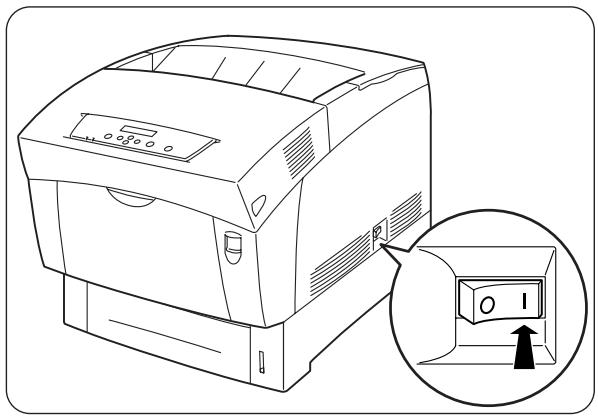
- On the printer's right side, press the side of the power switch marked [I] to turn on the printer. The printer starts.
Note
The printer motors warm up for 1 or 2 minutes when you turn on the printer.
- "Testing" appears on the control panel. When the display changes from "Please Wait..." to Ready to Print, check that the print Ready lamp is lit.
Note
When “Please Wait...” is displayed, the printer is preparing to print. Printing is not possible while this message is displayed.
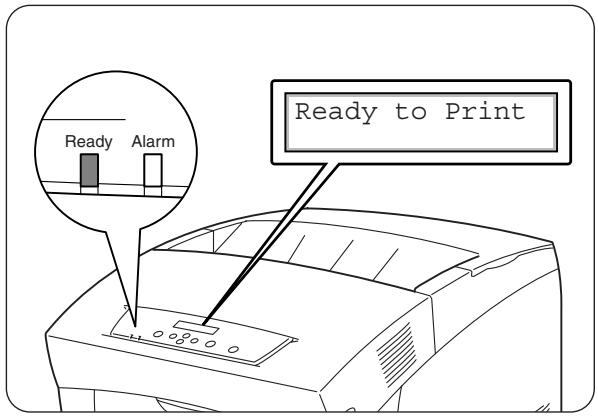
Look
If an error message appears on the display, refer to 6.7 "What to Do When an Error Message Appears" and rectify the error as instructed.
3.2.2 Turn the Printer Off
To turn off the printer, follow the procedure below.
- Confirm that "Ready to Print" is displayed on the control panel.

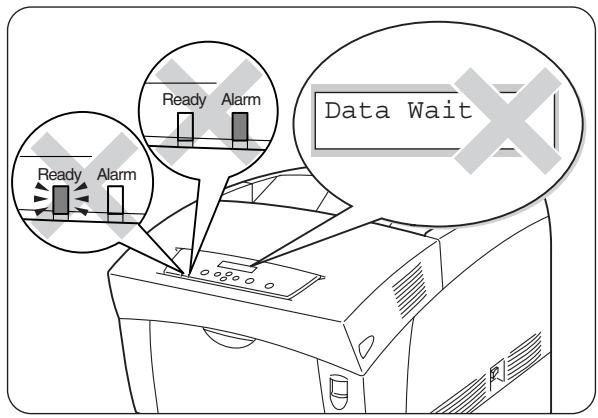
Look
Do not turn off the printer in the following situations:
Data Wait is displayed on the control panel.
- The Ready lamp is blinking.
The Alarm lamp is on.
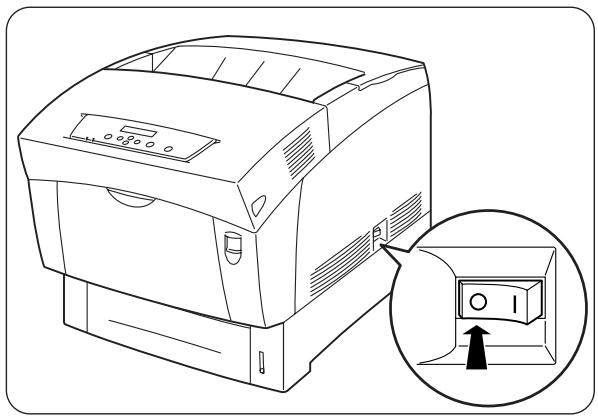
- On the printer's right side, press the side of the power switch marked [O] to turn off the printer. The printer is now off.
3.3 Printing from a Computer
This section describes the procedures to print from computers depending on the type of operating system used.
Look
When you install new printer options, you must reconfigure the printer driver to use the options. To confirm or make the settings, refer to 3.6 "Changing Configuration for Options".
3.3.1 In Windows
Printing from a program
You can output jobs to the printer from most Windows programs with their print command.
The following is a description of printing from Microsoft Word 97 in Windows 98.
Note
How to access dialog boxes and their contents vary depending on the operating system and programs you are using. For details, refer to the literature provided with the program you are using.
- On the File menu, click Print.
The Print dialog box appears. - Select this printer in the Printers box and click Properties.
- On the various tabs, make settings for each item as required.
See
For details about the tabs, refer to Help. For details about how to use Help, refer to 3.4 "Using Help".
- When you finish making settings, click OK in the Properties dialog box. The Properties dialog box closes.
- In the Print dialog box, select the desired interval in [Page range] and click OK. The data is sent to the printer.

See
To cancel printing, refer to 3.5 "Cancel Printing".

Changing default printing functions
Default printing functions are preset functions in the printer driver properties dialog box accessed from the Print dialog box. Setting default printing functions in advance saves you time, because it reduces the number of settings you need to make every time you print.
Follow the procedure below to change the default printing functions. The following example is for Windows 98.

Note
How to access dialog boxes and their contents vary depending on the operating system and programs you are using.
- On the Start menu, point to Settings and click Printers. The Printers window opens.
- Click the appropriate printer and on the File menu, click Properties. The Properties dialog box opens.

Note
- In Windows 95 and Windows Me, you can open the Properties dialog box the same way as in Windows 98.
- In Windows NT 4.0, click [Document Defaults...] on the File menu and make the settings in the dialog box that appears.
-
In Windows 2000/XP, click [Printing Preference...] on the File menu and make the settings in the dialog box that appears.
-
On the various tabs, make settings for each item as required.

See
For details about the various tabs, refer to Help. For details about how to use Help, refer to 3.4 "Using Help".
- When you finish making settings, click OK in the Properties dialog box. The default printer functions in the printer driver are now changed.
3.3.2 With a Macintosh Computer
The following is a description of printing from Microsoft Word 98.
Note
How to access dialog boxes and their contents vary depending on the operating system and programs you are using. For details, refer to the literature provided with the program you are using.
- On the File menu, click Paper Settings.
The Paper Settings dialog box appears
- Use the buttons next to Paper Settings to select the settings that you want to make.
Configure the items in each dialog box as necessary and click OK.
- On the File menu, click Print.
The General Settings dialog box appears.
- Use the buttons next to General Settings to select the settings that you want to make.
Configure the items in each dialog box as necessary.
See
- For details about the dialog box elements, refer to Balloon Help. For details about how to use Balloon Help, refer to 3.4 "Using Help".
-
Use the General settings dialog box to adjust the image and colors to suit your needs.
-
When you finish making your settings, click Print.
The data is sent to the printer.
See
To cancel printing, refer to 3.5 "Cancel Printing".
3.4 Using Help
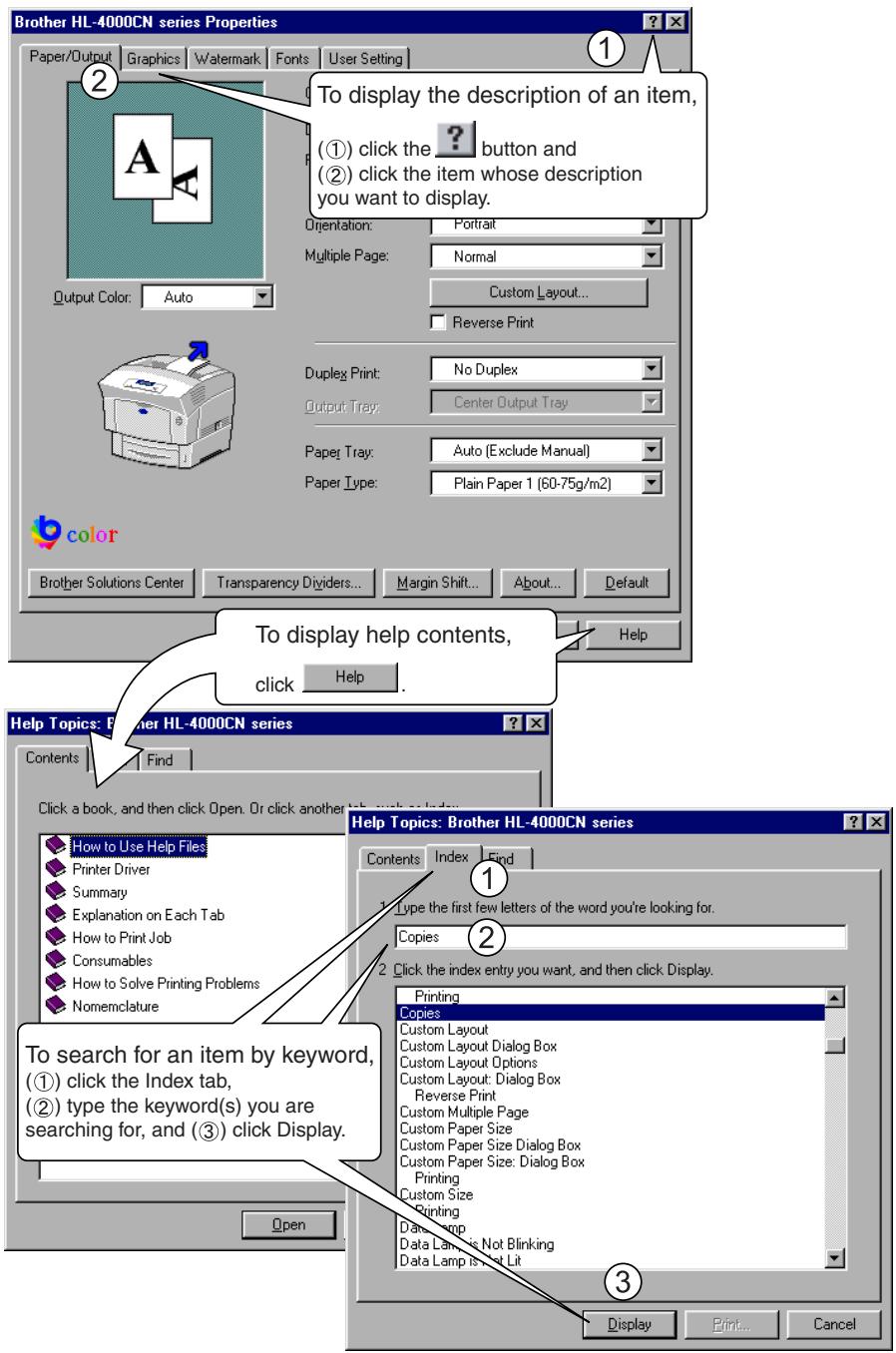
Help for the printer is provided with the printer driver. Refer to Help when you need to know about printer driver items and settings, or need to check different printing methods when problems occur.
3.4.1 Referring to Windows Help.
To refer to Help, open the Properties dialog box and select the tab that contains the item in question.
The example below is for the Paper/Output tab in Windows 98.

See
For details about how to display the Properties dialog box, refer to 3.3 "Printing from a Computer".
3.4.2 Referring to Balloon Help on Macintosh.
Balloon Help is provided with the Macintosh printer driver.
Use Balloon Help to find out the functions of individual items.
To refer to Balloon Help, display the dialog box that contains the item in question.
The example given is for the General Settings dialog box.

See
For details about how to display the Properties dialog box, refer to 3.3 "Printing from a Computer".
- Click [Show Balloons] on the Help menu of the Menu bar.
- Move the mouse to the item in question. A description of the item appears.
Note
To hide Balloon Help, click [Hide Balloons] on the Help menu on the Menu bar.
3.5 Cancel Printing
To cancel printing, first cancel the computer print command. Next, use the control panel to cancel printing from the printer.
3.5.1 Cancel Printing on the Computer
The procedure to cancel printing differs depending on the type of operating system you are using.
In Windows
Follow the procedure below.
- On the Start menu, point to Settings and click Printers. The Printers window opens.
- Double-click the appropriate printer. The printer window appears.
- Click the document that you want to cancel and press the Delete key on the keyboard.
Continue to 3.5.2 "Cancel Printing from the Control Panel".
On a Macintosh Computer
- Double-click the printer icon on the Desktop.
- Select the document that you want to cancel and click (
Continue to 3.5.2 "Cancel Printing from the Control Panel".
3.5.2 Cancel Printing from the Control Panel
Perform this operation to cancel the print data from the printer after canceling the print command on the computer. Note that the printer finishes printing the current page.

See
For details about control panel operations, refer to 5.2 "Basic Menu Operations".
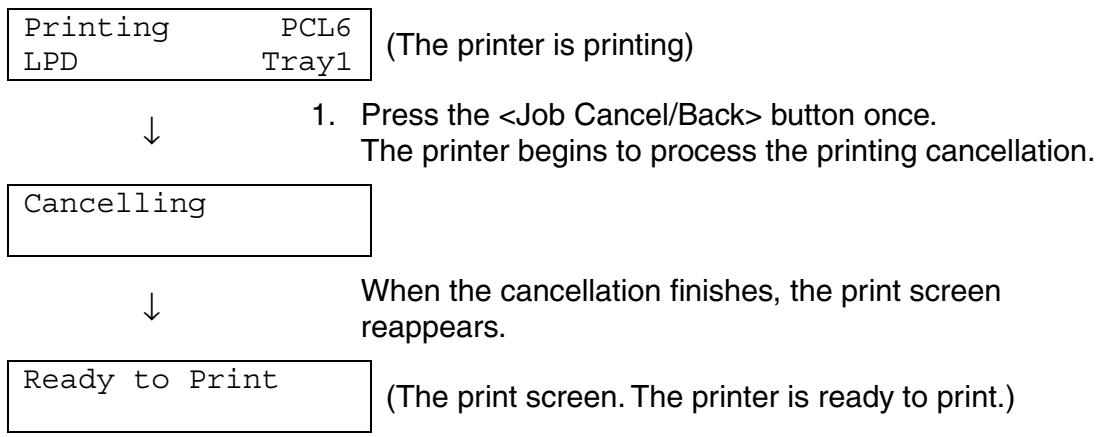
3.6 Changing the Configuration for Options
Once you make the initial configuration of the printer, you must reconfigure the printer driver when you install the following options.
- 2 Tray Module
- Hard disk
- Memory expansion
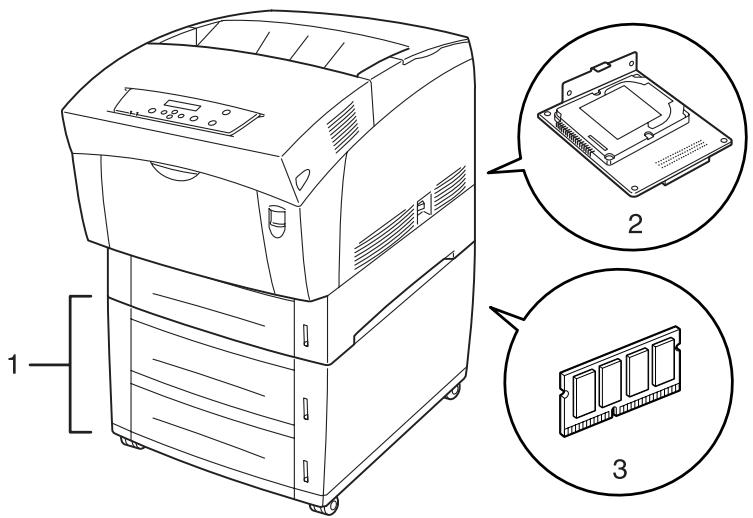

See
For details about how to install options, refer to the literature provided with the options. In the following section, it is assumed that the options are already installed.
Memory expansion
In general, DIMM must have the following specifications:
Type: 144pin and 64bit output
CAS Latency: 100MHz or more
Capacity: 64Mbyte-256Mbyte
Dram Type: SDRAM 2 Bank
The following DIMM size can be installed:
64 MB TECHWORKS VN133-64M
128 MB TECHWORKS VN133-128M
256 MB TECHWORKS VN133-256M
64 MB Buffalo Technology VN133-64M
128 MB Buffalo Technology VN133-128M
256 MB Buffalo Technology VN133-256M
3.6.1 In Windows
Follow the procedure below. The following example is for Windows 98.
- On the Start menu, point to Settings and click Printers. The Printers window opens.
- Click the appropriate printer and on the File menu, click Properties. The Properties dialog box opens.
- Click the Printer Configuration tab.
- Select the options added to the printer and click OK.
3.6.2 On a Macintosh computer
Follow the procedure below.
- On the Apple menu, select Selector. The Selector window appears.
- Click the printer that you want to use in the upper right of the Selector window.
Click 'LaserWriter8' and follow the instructions.
- Select the printer that you want to set from the list under Connect to, then click Setup.
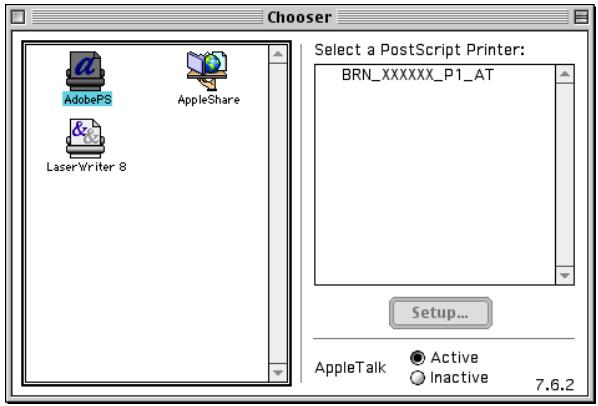
- In the Connect to dialog box, select the options that you want to add and click OK.
- Close the Selector window.
3.7 Printing on Envelopes, Transparency Sheets, and Custom-size (Long) Paper
Take care when setting cards and envelopes, because setting them incorrectly may result in printed side or text direction errors.
When printing on transparency sheets or specialty paper, make sure that you set the type of paper and image quality before sending the print command.
Note
When frequently printing specialty paper in Windows, we recommend that you register the necessary settings in the User Settings tab.
Registering the settings saves you time, because you do not need to configure the driver each time you print. For details about the User Settings tab, refer to Help.
3.7.1 Printing on Envelopes
Use the multi-purpose tray to print envelopes.
Look
- Do not use envelopes with tape seals. Printing some types of preglued envelopes may not be possible, depending on the condition of the adhesive. We recommend using envelopes designed for laser printers.
- Do not use envelopes larger than 88.9 ~mm (3.5 in.) wide and 139.7 ~mm (5.5 in.) long.
- Using poor-quality envelopes can cause creasing and deteriorate print quality.
The following is an example of how to print the address on an envelope. Example
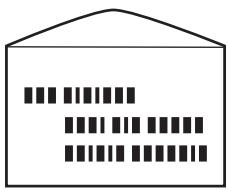
printed like this.
- Adjust the paper guide to the mark corresponding to the size of envelope you are about to use.
- Make sure the flap is closed, load the envelope with the side to be printed facing down, and the flap facing right.
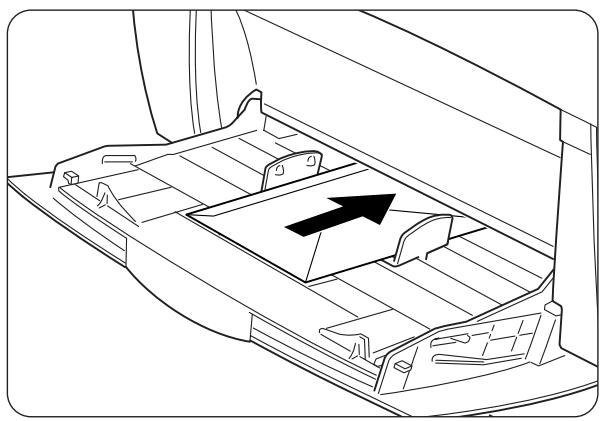
- Launch printing from your program after setting the envelope in the printer. Now set the items in "Printer Driver Settings (for envelopes)" as shown below:
Printer Driver Settings (for envelopes)
Windows settings
| Tab | Item | Setting |
| Paper/Output | Paper Size | Com-10 Monarch C5 DL Same as Document Size (When the documentation size is Com-10, Monarch, C5 or DL) |
| Reverse Print | Turn on if necessary. | |
| Duplex Print | OFF | |
| Paper Tray | MP Tray | |
| Paper Type | Envelope |
Macintosh settings
| Dialog Box | Item | Setting |
| Paper Settings | Paper Size | Com-10 Monarch C5 DL Same as Document Size (When the documentation size is Com-10, Monarch, C5 or DL) |
| Reverse Print | Turn on if necessary. | |
| Paper Tray | Envelope | |
| Duplex Print | OFF | |
| Printer Settings | Paper Type | MP Tray |
For details about individual printer driver items, refer to Help. For details about how to use Help, refer to 3.4 "Using Help".
3.7.2 Printing on Transparency Sheets
Use the multi-purpose tray to print transparency sheets.
Look
Use only the recommended type of transparency sheets (3M CG3300). Do not use any other types, such as color transparency sheets (bordered with a white frame). Using unsuitable transparency sheets may damage the printer.
Do not use transparency sheets bordered with a white frame.
Look
Remove each transparency sheet from the face down tray as soon as it is output. When transparency sheets are allowed to accumulate in the face down tray, static electricity can build up and cause jams.
Follow the procedure below to print transparency sheets.
- Adjust the paper guide to the mark corresponding to the size you are about to use.
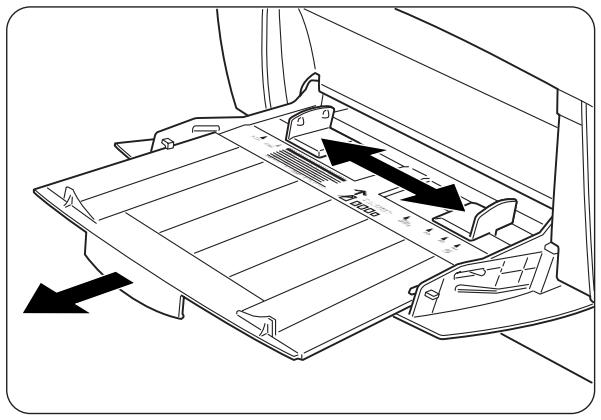
- Fan a few transparency sheets at a time.
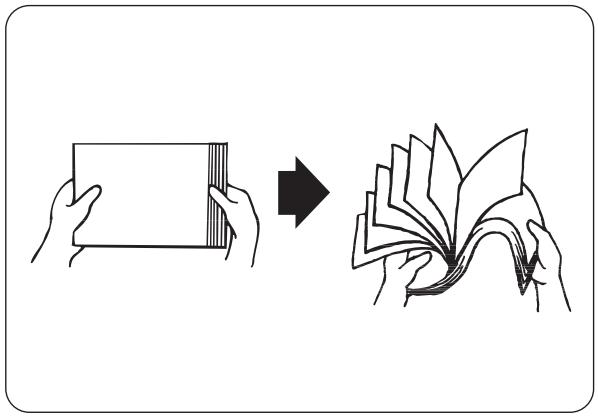
- Insert the transparency sheets into the multi-purpose tray until they lightly touch the feeding slot.
Look
Do not use full color transparency sheets. They can jam in the printer and damage the fuser unit.
- Launch printing from your program after loading the transparency sheets in the printer.
Now set the items for "Printer Driver Settings (for transparency sheets)" as shown below:
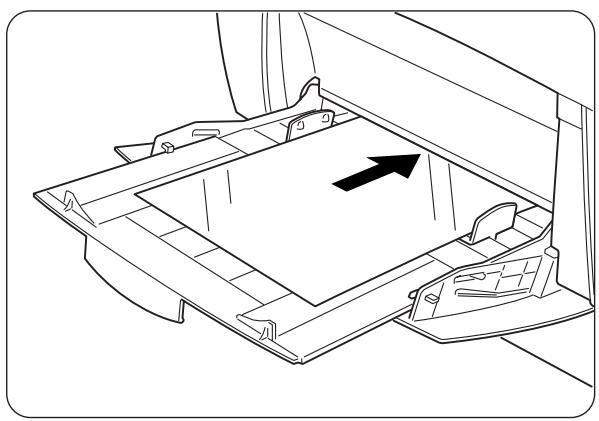
Printer Driver Settings (for transparency sheets)
Windows settings
| Tab | Item | Setting |
| Paper/Output | Paper Size | A4 or Same as Document Size (When the document size is A4) |
| Duplex | OFF | |
| Paper Tray | MP Tray | |
| Paper Type | Transparency |
Macintosh settings
| Dialog Box | Item | Setting |
| Paper Settings | Paper Size | A4 or no change (When paper size is A4) |
| Paper Type | Transparency | |
| General Settings | Document Type | Transparencies |
| Printer Settings | Duplex | OFF |
| Paper Tray | MP Tray |
Note
You can also print transparency sheets with paper inserted between the sheets. For details about the way to set paper between the sheets and the functions of individual printer driver items, refer to Help. For details about how to use Help, refer to 3.4 "Using Help".
3.7.3 Printing Custom-size Paper
Using the multi-purpose tray enables you to print custom-size paper or 'long' paper, longer than legal portrait (355.6 mm (14 in.).
The paper sizes suitable for use with this printer are as follows:
- Single-sided printing: Width 90-216 mm (3.5 - 8.5 in.); Length 139.7-355.6 mm (5.5 - 14 in.)
- Duplex printing: Width 90-216 mm (3.5 - 8.5 in.); Length 139.7-355.6 mm (5.5 - 14 in.)
Look
Feeding custom-size paper sidewise is not possible. Always feed this type of paper lengthwise.
To print on custom-size paper, you must set the paper size as a user defined size first.
Setting a User Defined Size
With a Macintosh computer, you need to set the user defined size while executing a printing command from a program. Continue to "How to Print".
In Windows, you need to set the user defined size before launching the printing command from a program, using the following procedure: The following example is for Windows 98.
- On the Start menu, point to Settings and click Printers.
The Printers window opens. - Click the appropriate printer and on the File menu, click Properties.
The Properties dialog box opens. - Click the Default Settings tab.
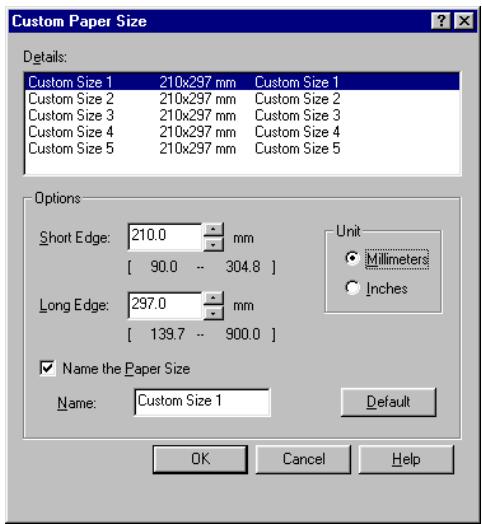
- Click Custom Paper Size.
The Custom Paper Size dialog box appears.
5. Select one of the five paper sizes.

See
For details of the Custom Paper Size dialog box settings, refer to Help. For details about how to use Help, refer to 3.4 "Using Help".
- When you finish making the settings, click OK in the Custom Paper Size dialog box.
- In the Properties dialog box, click OK. The user defined size is now set.

How to Print
Follow the steps below to print on custom-size (long) paper.
- Adjust the paper guide to the width of the paper that you are about to use.
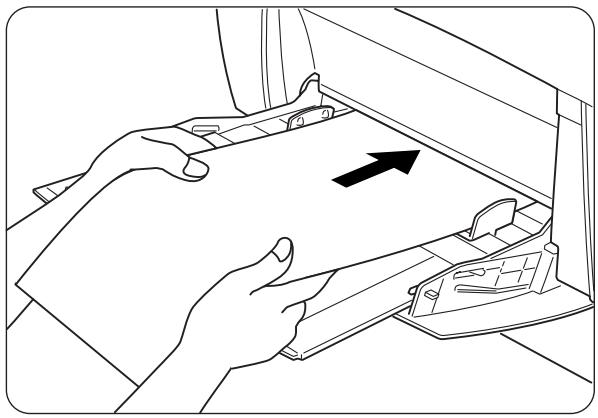
- With the printed side facing down, set the paper into the multi-purpose tray so that it lightly touches the feeding slot.
- Launch printing from your program after setting the paper. Set the items for "Printer Driver Settings (for Custom-size (Long) Paper)" as shown.

Look
When printing on long paper, after giving the print command, support the paper with your hands while it feeds into the printer.

Printer Driver Settings (for Custom-size (Long) Paper)
Windows settings
| Tab | Item | Setting |
| Paper/Output | Paper Size | A paper size selected from Custom Size 1 -Custom Size 5 in the Default Settings tab in the printer driver dialog box. |
| Paper Tray | MP Tray |
Macintosh settings
| Dialog Box | Item | Setting |
| Paper Settings | Paper/Output | Set the paper size in the Custom Paper Size dialog box in [Page Sizes]. |
| Custom Paper Size | long, short | Set the paper size that you want to use. |
| Printer Settings | Paper Tray | MP Tray |
Note
For details about individual printer driver items, refer to Help.
For details about how to use Help, refer to 3.4 "Using Help".
3.8 Duplex Printing
You can perform duplex printing with the printer, using one of the following procedures.
- For plain paper, whether fed from a paper tray or the multi-purpose tray, duplex printing is carried out automatically if you set this in the printer driver upon executing the print command.
- For specialty paper such as cards or cardboard, you can print on the back surface of the paper from the multi-purpose tray as long as the front surface of the paper was printed using this printer.

See
For details about the types of paper suitable for duplex printing, refer to 4.1.1 "Suitable Paper Types".

Note
When performing duplex printing frequently in Windows, we recommend that you register the necessary settings in the User Settings tab. Registering the settings saves you time, because you do not need to configure the driver each time you print. For details about the User Settings tab, refer to Help.

Types of Duplex Printing
There are two types of duplex printing: "long binding" and "short binding". The results of printing with the two types are shown below:
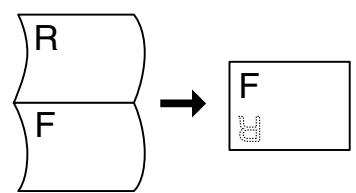
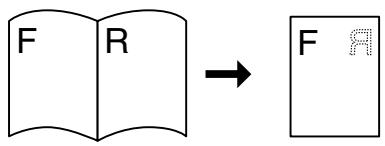
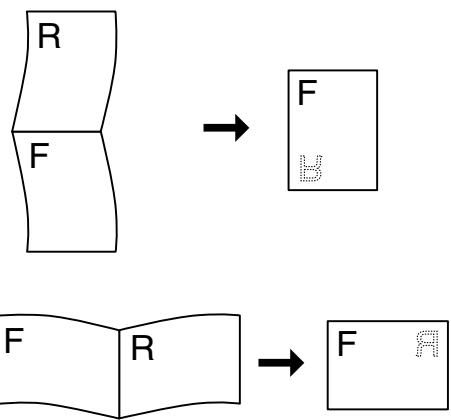
3.8.1 Duplex Printing
To print on both sides of plain paper, set the paper into the paper tray or multi-purpose tray.
Follow the procedure below to print on both sides of plain paper.
- Set the paper lengthwise into the paper tray or multi-purpose tray.
Look
When printing on both sides of custom-size plain paper (width: 90-216 mm (3.5-8.5 in.); length: 139.7-355.6 mm (5.5-14 in.), print each sheet from the multi-purpose tray one at a time.
- Launch printing from your program after setting the paper.
Now set the items for "Printer Driver Settings (for duplex printing on plain paper)" as shown below:
Printer Driver Settings (for duplex printing on plain paper)
Windows settings
| Tab | Item | Setting |
| Paper/Output | Duplex Print | Long Edge Binding or Short Edge Binding |
| Paper Type | Plain Paper 1 or Plain Paper 2 |
Macintosh settings
| Dialog Box | Item | Setting |
| Paper Settings | Paper Type | Plain Paper 1 or Plain Paper 2 |
| Printer Settings | Duplex Print | Long Edge Binding or Short Edge Binding |
Note
With custom sizes, it is necessary to configure other items to suit the paper size. Refer to the previous section or the printer driver Help for details about these settings. For details about how to use Help, refer to 3.4 "Using Help".
When printing on the back of specialty paper, make sure that you configure the items below in the printer driver when giving the print command from the program.

Printer Driver Settings (for printing the back side of specialty paper)
Windows settings
| Tab | Item | Setting |
| Paper/Output | Paper Tray | MP Tray |
| Paper Type | Thick Paper 1, Thick Paper 2 or Glossy Paper |
Macintosh settings
| Dialog Box | Item | Setting |
| Paper Settings | Paper Type | Thick Paper 1, Thick Paper 2 or Glossy Paper |
| Printer Settings | Paper Tray | MP Tray |
Note
With custom sizes, it is necessary to configure other items to suit the paper size. Refer to the previous section or the printer driver Help for details about these settings. For details about how to use Help, refer to 3.4 "Using Help".
4.1 Suitable and Unsuitable Paper Types
Using paper that is unsuitable for printing can cause paper jams and deteriorate print quality. We recommend that you use the types of paper listed below for the best results from your printer.
4.1.1 Suitable Paper Types
Suitable Basis Weight
When using stationary supplier paper, make sure that it complies with the following specifications. However, we recommend that you use standard domestic paper.
| Feeding Method | Specifications |
| Multi-purpose Tray (MP Tray) | Basis weight: 60 to 216 g/m²(16.0 to 57.5 lb) |
| Standard Paper Tray (tray1)Trays 2, 3 (optional tray module) | Basis weight: 60 to 99 g/m²(16.0 to 26.3 lb) |
Note
"Basis weight" refers to the weight of one square meter of paper.
Recommended Paper
Recommended paper for this printer is defined as follows:
| Paper Type | Europe | USA |
| Plain paper | Xerox Premier 80 g/m2(21.3 lb) | Xerox 4200DP 20 lb |
| Xerox Business 80 g/m2(21.3 lb) | Champion Paper One 20 lb | |
| Modo DATACOPY 80 g/m2(21.3 lb) | Hammermill Laser Paper 24 lb | |
| IGEPA X-Press 80 g/m2(21.3 lb) | ||
| Recycled paper | Steinbis Recycling Copy 80 g/m2 | — |
| Transparency | 3M CG3300 | 3M CG 3300 |
| Label | Avery laser label L7163 | Avery laser label #5160 |
Special paper
You can print the following types of paper from the multi-purpose tray. They are referred to as 'specialty paper'.
| Paper Type | Important |
| Transparency sheets | Do not use full color transparency sheets (bordered by a white frame). |
| Label sheets | Use label sheets that are uncut with labels covering the whole sheet. |
| Envelopes • Com-10 • Monarch • C5 • DL | Do not use envelopes that have tape seals. Printing some types of preglued envelopes may not be possible, depending on the condition of the adhesive. We recommend using envelopes designed for laser printers. |
| Cardboard Basis weight: 100 to 216 g/m² (26.6 to 57.5 lb) | When printing on rigid cardboard, the image position may shift. |
| Coated paper | When printing on coated paper, feed the sheets one by one. Moisture can cause the sheets to stick together, causing more than one sheet go through at one time, which can result in malfunction or damage. |
PANTONE® Calibrated
There are many variables in the process for reproducing color generated by the HL-4000CN, any one of which may affect the quality of the PANTONE Color simulation including type of paper used, type of toner used, effective final resolution and dot structure/halftones. For optimal results, we recommend that the NEUSIEDLER Color Copy 90g / m^2 (24.0 lb) and genuine Brother toner cartridge and Pantone Mode setting (only for PostScript driver.)

Paper Trays, Types, and Sizes
The paper types, sizes, and the maximum number of sheets that you can load in the different trays are shown in the table below. Load all paper into the printer in the portrait orientation (lengthwise).
| Feeding Method | Paper Type | Maximum number of sheets | Paper Sizes |
| Multi-purpose Tray | Plain paper 1(60 to 75 g/m2/ 16.0 to 20.0 lb))Plain paper 2(76 to 99 g/m2/ 20.2 to 26.3 lb)envelopes, label sheets, Transparency film (monochrome), Cardboard 1(100 to 159 g/m2/ 26.6 to 42.3 lb), Cardboard 2(160 to 216gm2/ 20.2 to 26.3 lb) | Up to 150 sheets or a 10-mm (0.4 in.) stack | A5B5A48.5 x 11" (Letter)8.5 x 14" (Legal)Envelopes(Com-10, Monarch, C5, DL)User-defined size(width: 88.9 to 215.9 mm (3.5 to 8.5 in.),length: 139.7 to 355.6 mm (5.5 to 14 in.)Important\~ LookUsing low-quality paper can cause creasing and deteriorate print quality. |
| Coated paperPaper longer than 355.6 mm (14 in.) | 1 sheet | ||
| Standard Paper Tray (tray1) | Plain paper 1(60 to 75 g/m2)Plain paper 2(76 to 99 g/m2) | Up to 500 sheets or a 56-mm (2.2 in.) stack\~ LookFor A5 portrait, you can use up to 350 sheets or a 40-mm (1.6 in.) stack. | A5,B5,A4,8.5 x 11" (Letter),8.5 x 14" (Legal) |
| Trays 2, 3Tray module(2 shelves)(Trays 2 and 3) |

Look
The number of sheets that you can load varies according to paper thickness.
The illustrations below provide a description of 'width' and 'length' mentioned in the table above.
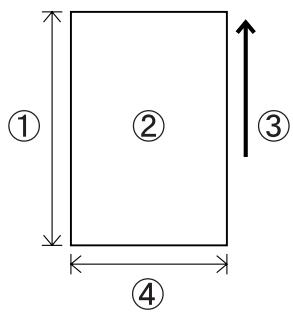
- Length
- Portrait orientation
- Feed direction
- Width
Duplex Printing Paper Types and Sizes
You can print on both sides a sheet of paper with the printer.
Automatic Duplex Printing
For automatic duplex printing, select Duplex in the printer properties after executing the print command.
You can use the following paper types and sizes for duplex printing:
| Paper Type | Paper Sizes |
| Plain Paper (Basis weight: 64 to 99 g/m² (17.0 to 26.3 lb)) | A5 B5 A4 8.5 × 11" (Letter) 8.5 × 14" (Legal) |
Manual Duplex Printing with the Multi-purpose Tray
To print on both sides of the following types of specialty paper, print the front face first, then load the sheets into the multi-purpose tray to print the back face.
Look
Do not print the back face of sheets whose front face was printed using a printer other than this printer.
| Paper Type |
| Cardboard (Basis weight: 100 to 216 g/m² (26.6 to 57.5 lb)) Envelopes Coated paper |
4.1.2 Unsuitable Paper Types
Avoid using the following paper types as they can cause paper jams or damage the printer.
- Transparency sheets other than those recommended.
- Inkjet paper
- Paper that is too thick or too thin
- Paper with a face preprinted with another printer or copier, or paper preprinted with ink
- Folded, creased, or torn paper
- Damp or wet paper
- Curled or warped paper
Sheets affected by static electricity - Layered or adhesive paper
- Specially coated paper
- Colored paper with a treated surface
- Paper printed with ink that cannot withstand temperatures of 155^ C (311^ F) .
- Heat-sensitive paper
- Carbon paper
- Paper with a rough surface such as textured or fiber form paper
- Acidic paper that can cause the characters to fade over time. Use neutral paper.
- Envelopes with a rough surface or clips attached
- Paper with staples, paper clips, tape, or ribbons attached
- Envelopes with sticky adhesive
- Label sheets where the backing is visible or is precut.
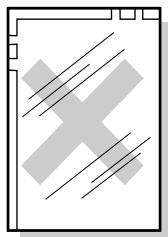
Full color transparency sheets

Inkjet paper

Curled paper
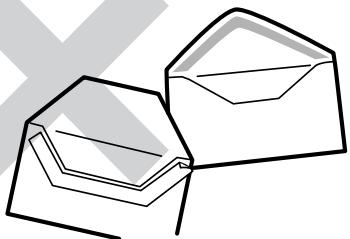
Paper with tape attached
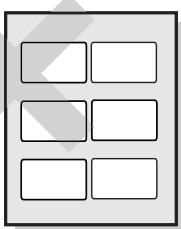
Shiny backing paper visible
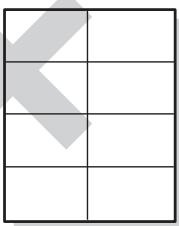
Precut label sheets
T-shirt transfer paper (Heat press use)
- Transfer paper (cold water use)
Digital coated glossy paper
Label film (transparent, colorless)
Perforated paper
4.1.3 Storing Paper
Failure to properly store paper can cause paper jams, deteriorate print quality, or damage the printer. Store paper under the following conditions:
- Between 10^ C and 30^ C (50 to 86^ F )
- Between 30% and 65% relative humidity
In a dry place - After opening the package, wrap unused sheets in their original package and store in a cabinet or other dry place.
- Store paper on a flat surface. Do not lean paper against other objects or place it in an upright position.
- Avoid storing paper in a way that may cause creasing, folding, or curling.
- Store paper away from direct sunlight.
Refer to the appropriate section below to load or change paper.

See
For more information about suitable paper types, refer to 4.1 "Suitable and Unsuitable Paper Types".
4.2.1 Load Paper in the Paper Tray
Follow the procedure below to load paper into the paper tray.

Note
Load paper into the optional 2 Tray Module the same way.
To load A5 paper or change to a paper size other than A5, you need to install or remove the A5 spacer. To install or remove the A5 spacer, refer to 4.2.2 "Load A5 Paper in the Paper Tray/Changing the Paper Size from A5".
- Gently pull out the paper tray until it stops.
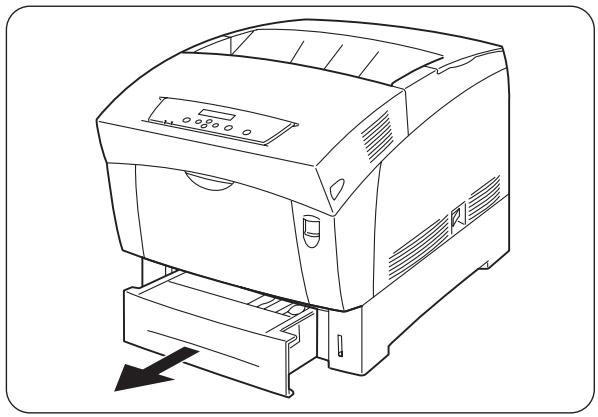
- Hold the tray with both hands, lift the front slightly and pull it completely out of the printer.

Note
Place the tray on a flat surface.
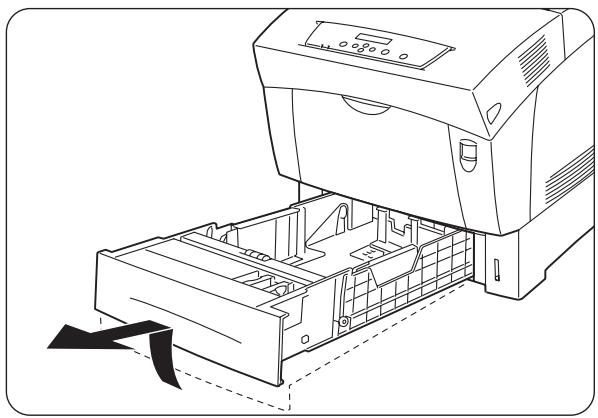
- Move the side paper guides to their outermost positions.
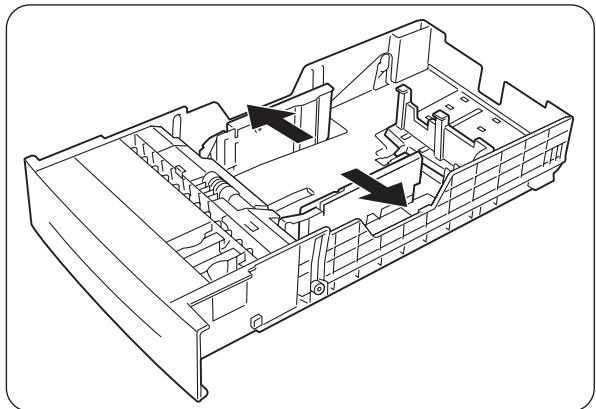
- Gently lift the end paper guide to move it, and insert the pins at the bottom of the guide in the holes (indicated by the mark) corresponding to the paper size that you want to load. Make sure that the end guide is properly inserted into the appropriate holes for the paper size.
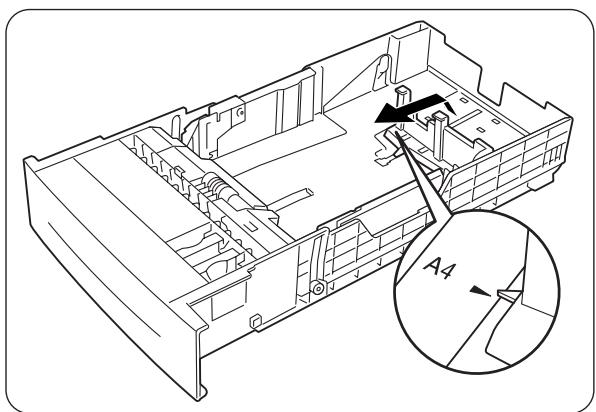
Look
Only a small amount of movement of the end paper guide can make automatic paper size detection impossible. If this occurs, move the end paper guide all the way to its outermost position again, then realign it with the appropriate paper size mark.
- Align the four corners of the paper stack and insert the paper (print side up) under the tab.
Look
- Do not use paper that is folded, creased, or heavily warped.
- Make sure that all the paper is under the tab.
-
Do not overload the paper tray.
-
Tab
- MAX loading limit
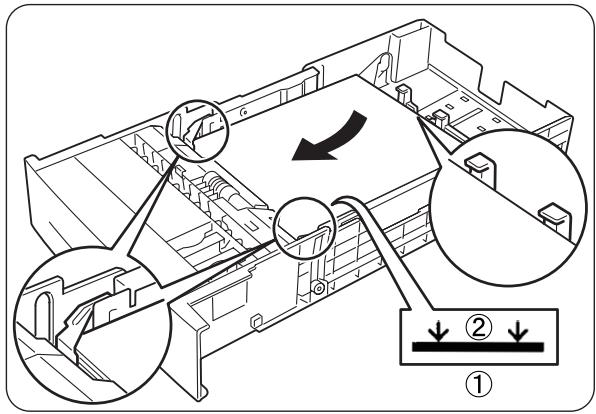
- Align the side guides with the edges of the paper.
Look
Pushing the paper guides too hard against the edges of the paper stack can cause a paper jam. However, if the paper guides are too loose, the paper may twist as it feeds through the printer.
- Hold the paper tray with both hands, align it with the opening in the printer and gently insert it.
- Push the paper tray completely back into the printer.
Look
Do use excessive force on the paper tray. Doing so could damage the paper tray or the inside of the printer.
Note
There is an indicator next to the paper tray that tells you how much paper remains in the tray. Use this meter as a guide to refill the paper tray.
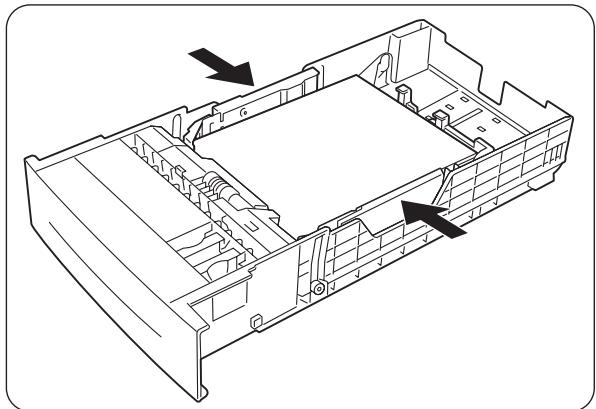
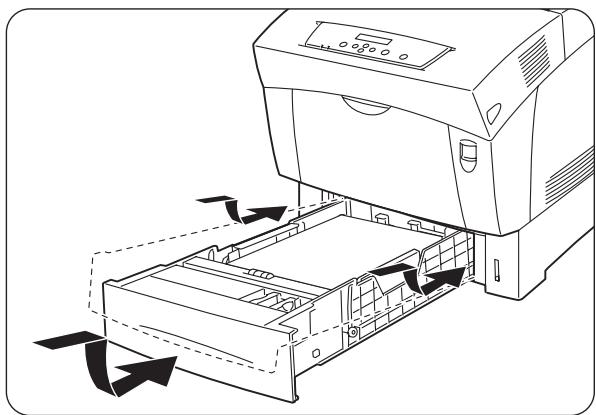
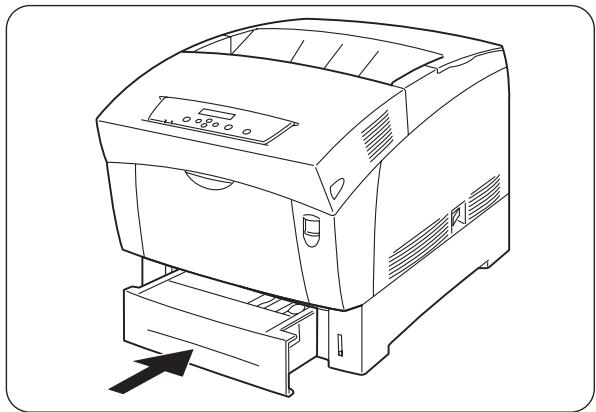
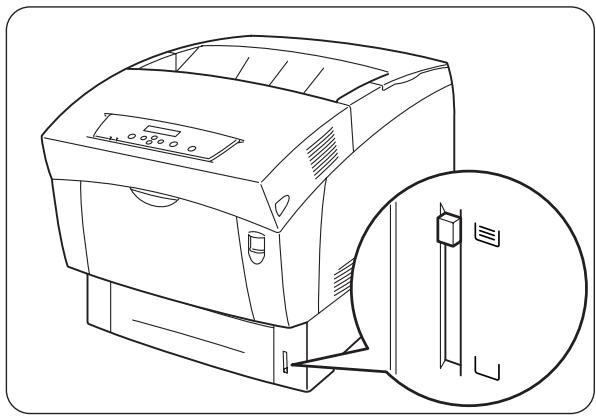
- When printing A4 or Letter size paper, lift the stopper on the top cover.
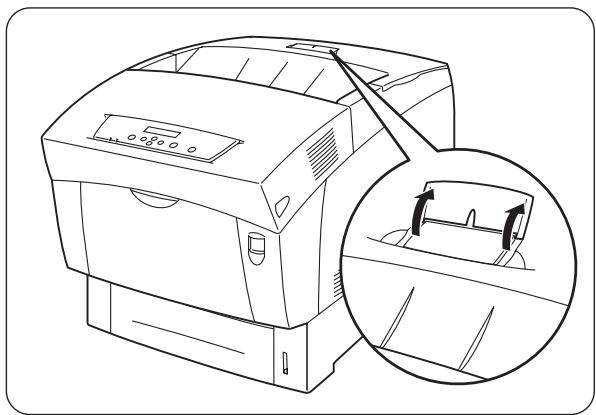
4.2.2 Load A5 Paper in the Paper Tray/Changing the Paper Size from A5
Loading A5 Paper
Follow the procedure below to load A5 paper into the paper tray.
Note
Load paper into the optional 2 Tray Module the same way.
- Gently pull out the paper tray until it stops.
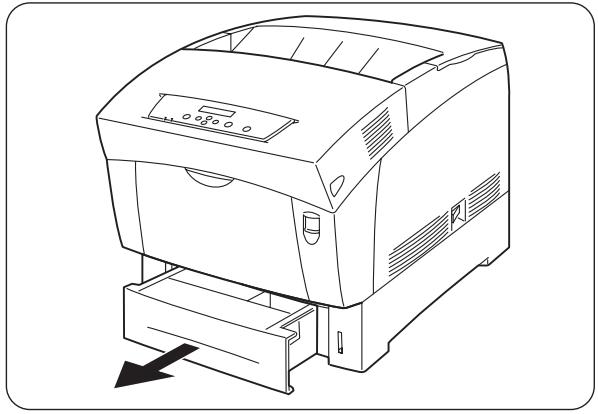
- Hold the tray with both hands, lift the front slightly and pull it completely out of the printer.
Note
Place the tray on a flat surface.
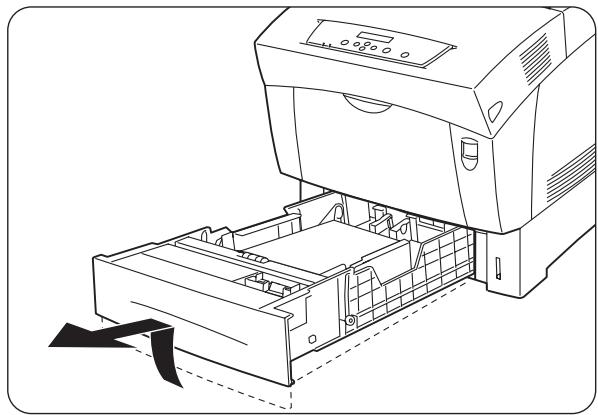
- Move the side paper guides to their outermost positions.
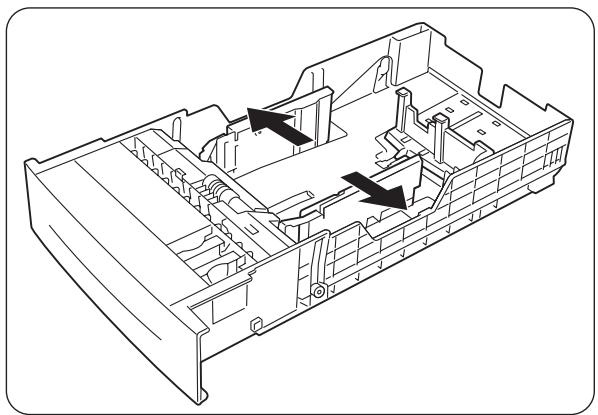
- Gently lift the end paper guide to move it, and insert the pins at the bottom of the guide in the holes (indicated by the mark) corresponding to the paper size that you want to load. Make sure that the end guide is properly inserted into the appropriate holes for the paper size.
Look
Only a small amount of movement of the end paper guide can make automatic paper size detection impossible. If this occurs, move the end paper guide all the way to its outermost position again, then realign it with the appropriate paper size mark.
- Grip the A5 spacer, gently lift it up while pulling it forward and remove it from the tray.
- Align the A5 spacer with the paper guide slot and push it down until it clicks.
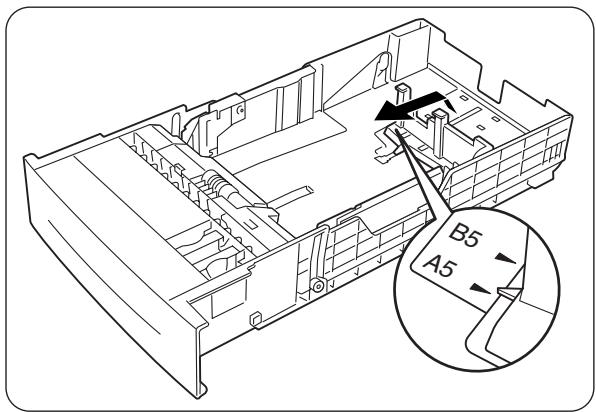
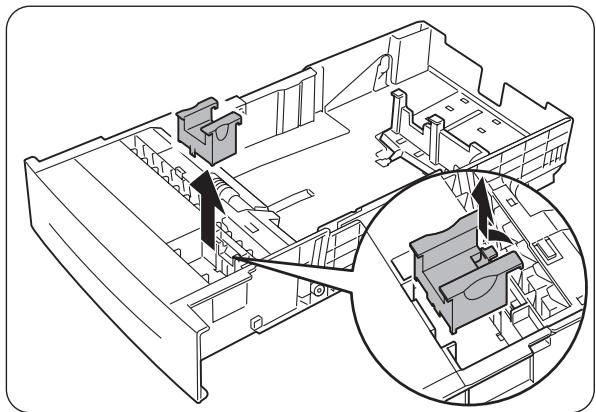
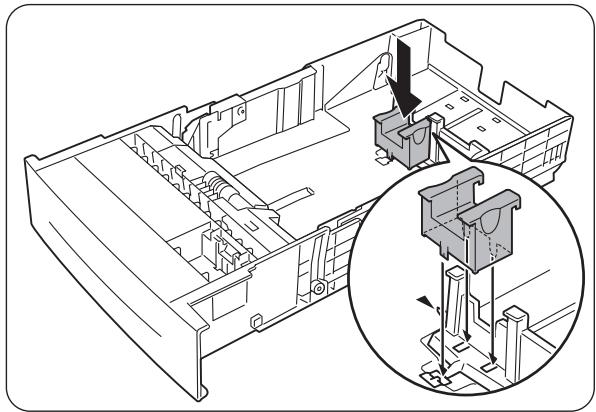
- Align the four corners of the paper stack and insert the paper (print side up) under the tab.
Look
- Do not use paper that is folded, creased, or heavily warped.
Make sure that all the paper is under the tab. -
Do not overload the paper tray.
-
Align the side guides with the edges of the paper.
Look
Pushing the paper guides too hard against the edges of the paper stack can cause a paper jam. However, if the paper guides are too loose, the paper may twist as it feeds through the printer.
- Hold the paper tray with both hands, align it with the opening in the printer and gently insert it.
- Push the paper tray completely back into the printer.
Look
Do NOT use excessive force on the paper tray. Doing so could damage the paper tray or the inside of the printer.
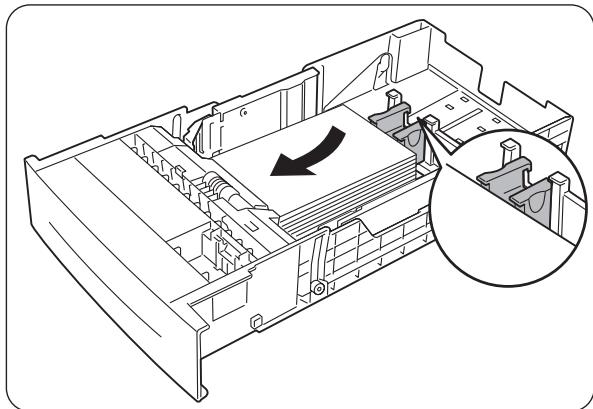
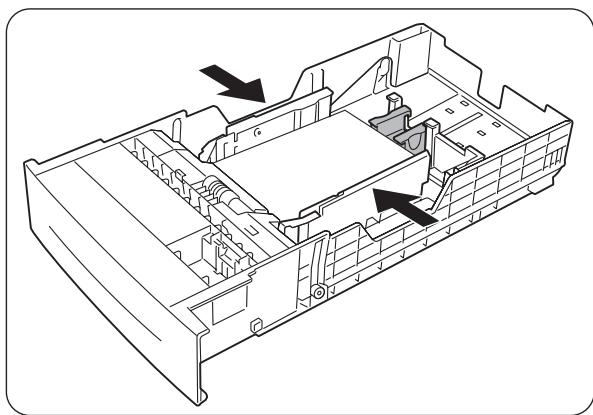
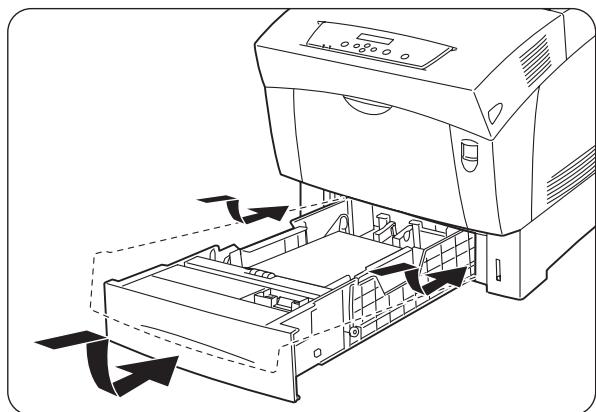
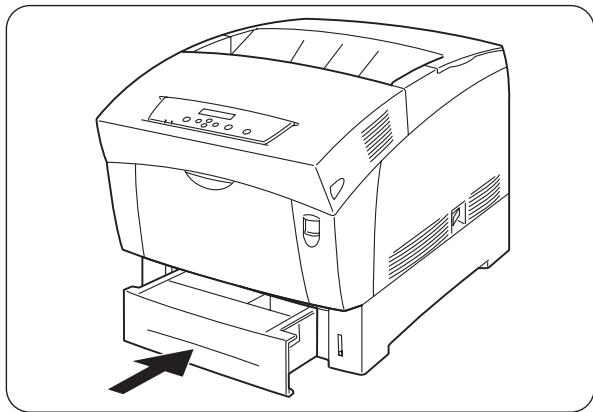
Note
An indicator next to the paper tray tells you how much paper remains in the tray. Use this meter as a guide to refill the paper tray.
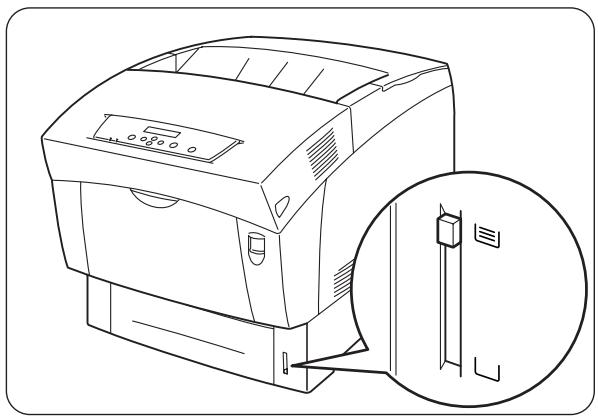
Changing the Paper Size from A5
Follow the procedure below to remove the A5 spacer and load a different paper size into the paper tray.
Note
Load paper into the optional 2 Tray Module the same way.
- Gently pull out the paper tray until it stops.
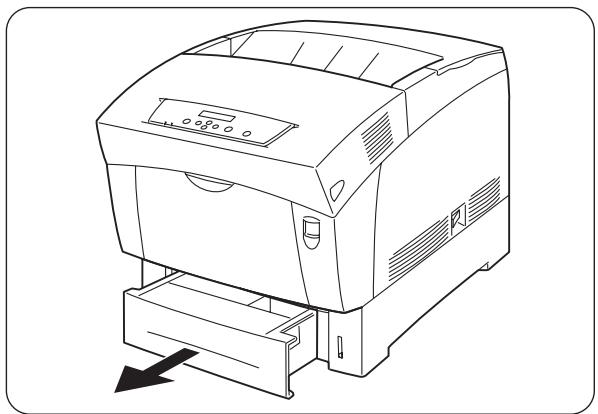
- Hold the tray with both hands, lift the front slightly and pull it completely out of the printer.
Note
Place the tray on a flat surface.
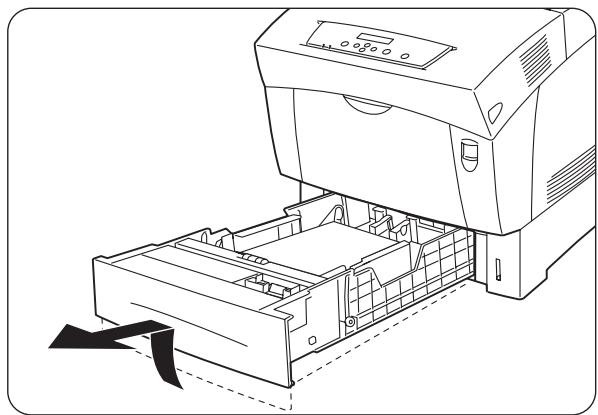
- Move the side guides to their outermost positions and remove the paper from the tray.
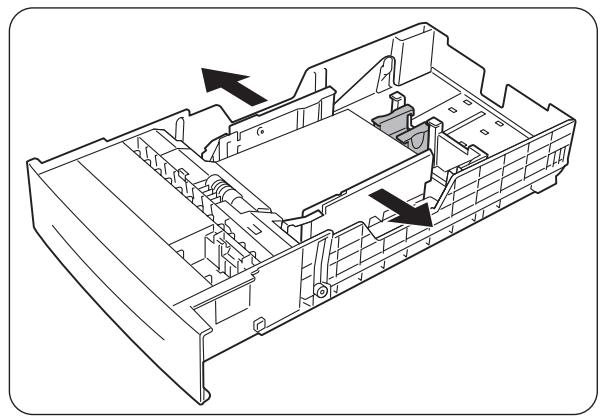
- Grip the A5 spacer, gently lift it up while pulling it forward and remove it from its position next to the paper guide.
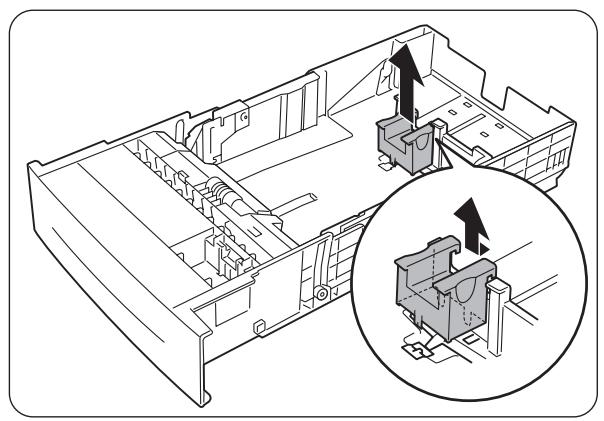
- Insert the A5 spacer into its storage slot in the paper tray.
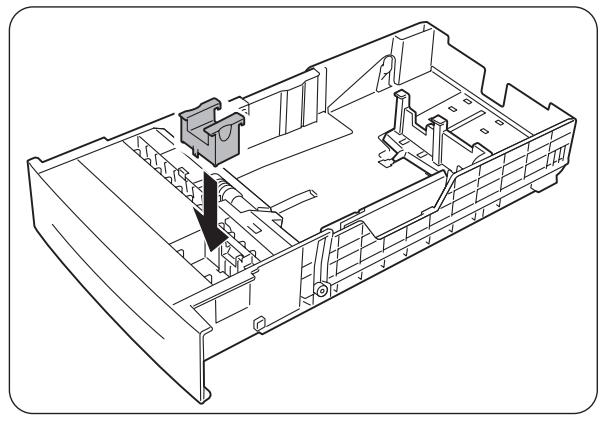
- Gently lift the end paper guide to move it, and insert the pins at the bottom of the guide in the holes (indicated by the mark) corresponding to the paper size that you want to load. Make sure that the end guide is properly inserted into the holes for the paper size.
Look
Only a small amount of movement of the end paper guide can make automatic paper size detection impossible. If this occurs, move the end paper guide all the way to its outermost position again, then realign it with the appropriate paper size mark.
- Align the four corners of the paper stack and insert the paper (print side up) under the tab.
Look
- Do not use paper that is folded, creased, or heavily warped.
Make sure that all the paper is under the tab. -
Do not overload the paper tray.
-
Align the side guides with the edges of the paper.
Look
Pushing the paper guides too hard against the edges of the paper stack can cause a paper jam. However, if the paper guides are too loose, the paper may twist as it feeds through the printer.
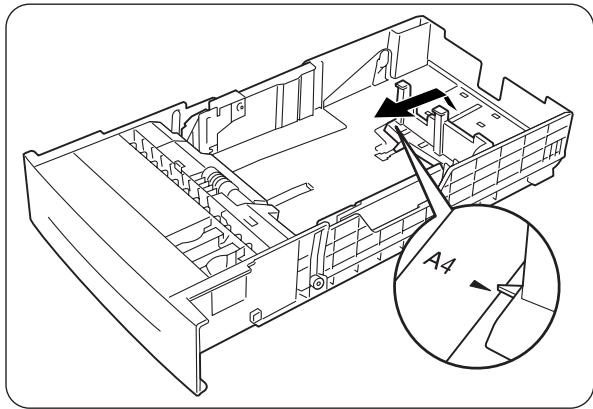
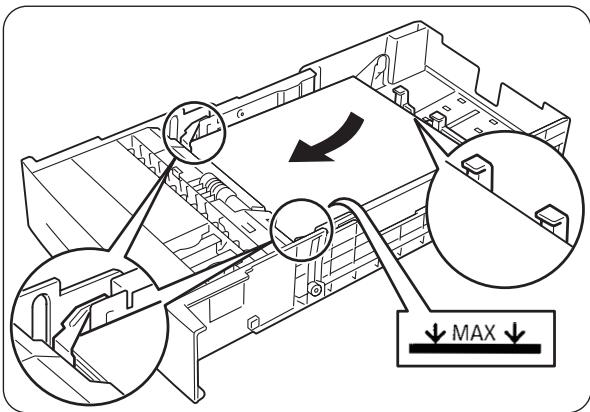
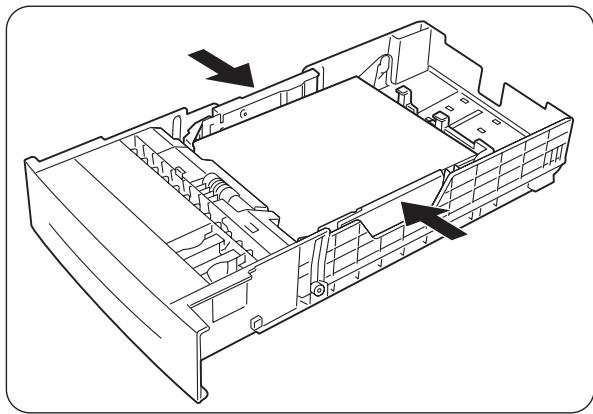
- Hold the paper tray with both hands, align it with the opening in the printer and gently insert it.
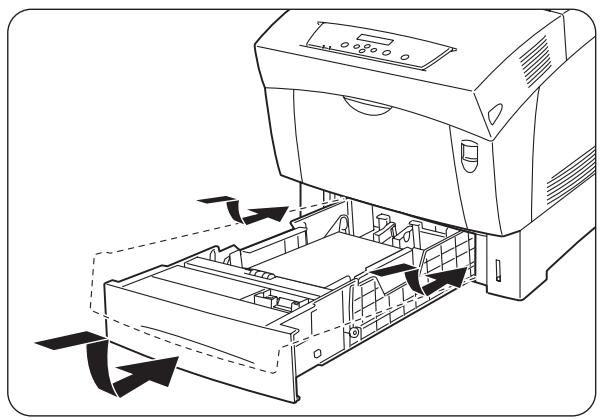
- Push the paper tray completely back into the printer.

Look
Do use excessive force on the paper tray. Doing so could damage the paper tray or the inside of the printer.
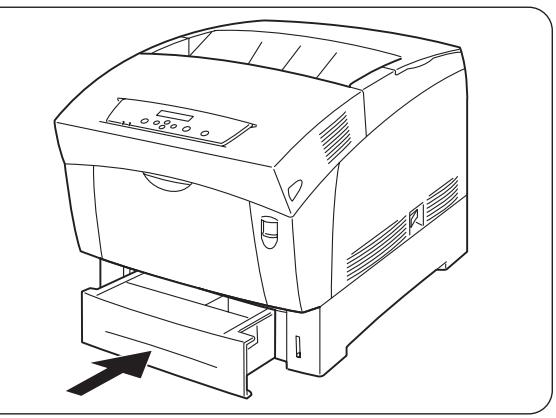

Note
There is an indicator next to the paper tray that tells you how much paper remains in the tray. Use this meter as a guide to refill the paper tray.
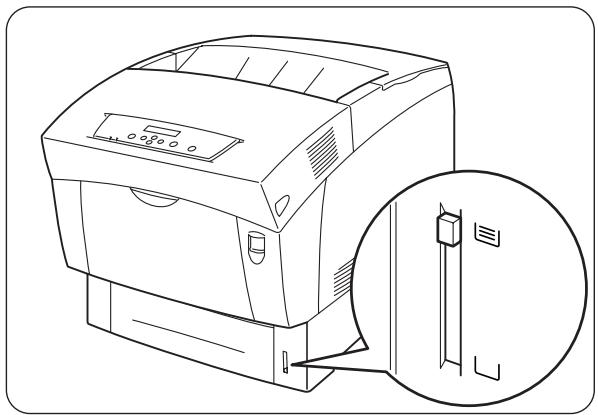
- When printing A4 or Letter size paper, lift the stopper on the top cover.
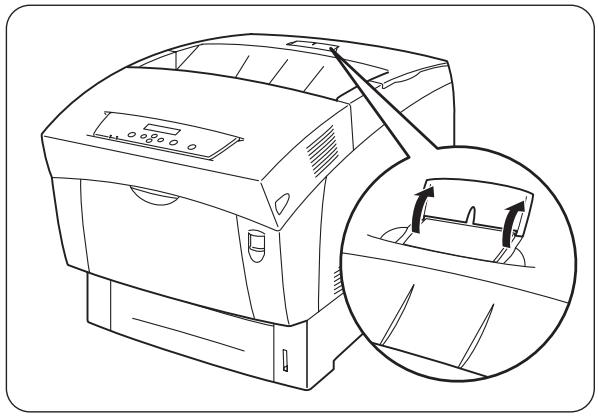
4.2.3 Load Paper into the Multi-purpose Tray
Follow the procedure below to load paper into the multi-purpose tray.
Look
To avoid paper jams, do not load paper of different sizes into the tray at the same time and do not refill the multi-purpose tray before it is empty.
- If retracted, open the tray.
Look
To avoid damage to the tray, do not use excessive force or place heavy objects on the tray.
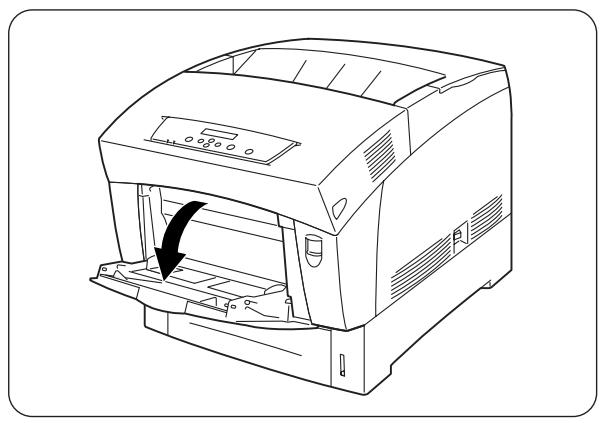
- Adjust the paper guide to the mark corresponding to the size that you are about to use.
Look
When printing on long paper, pull out the tray extension. Printing long paper with the tray extension retracted can cause the paper to fall or make feeding impossible.
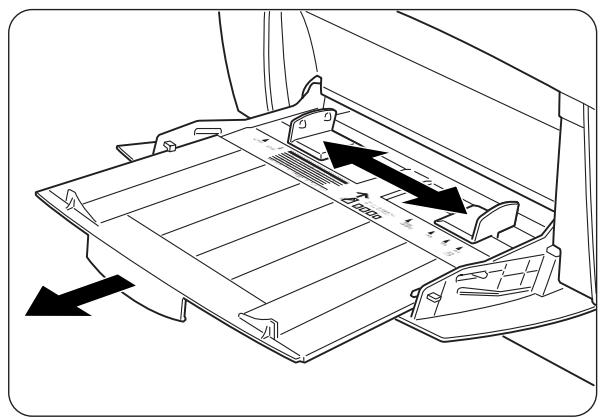
- When using media such as transparency sheets, label sheets, or envelopes, fan the stack before loading so that there is air between the sheets.
Note
Fanning the stack helps prevent paper jams.
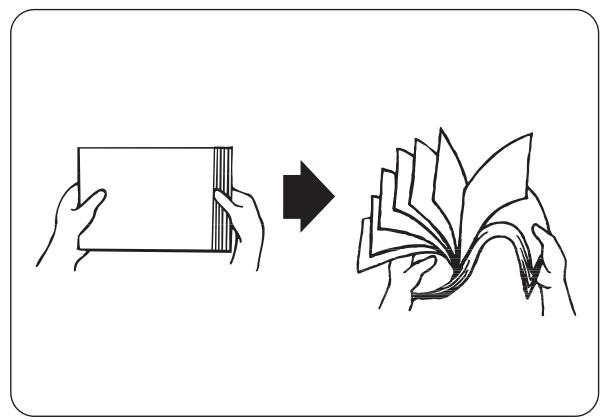

Look
- Do not fan plain paper before loading.
-
When paper is poorly cut and the edges are not clean, remove any unsuitable sheets before loading the paper.
-
Align the four corners of the paper stack and insert it (print side down) until it lightly touches the feeding slot.

Look
- Do not use paper that is folded, creased, or heavily warped.
- Do not overload the paper tray.
-
When printing on sheets longer than Legal paper (355.6 mm (14 in.)), load the sheets one by one. Moisture can cause the sheets to stick together, causing more than one sheet go through at one time, which can result in malfunction or damage. When feeding long paper, support the sheet with your hands to ensure proper feeding.
-
When loading paper, carefully align the paper guides with the edges of the paper so that there is a small gap between the paper stack and the guides. Pushing the paper guides too hard against the edge of the paper stack can warp the paper and cause paper jams.
Load the paper so that it is straight in the tray.

Look
If the paper is not loaded correctly, the printing position may shift and cause incorrect printing.
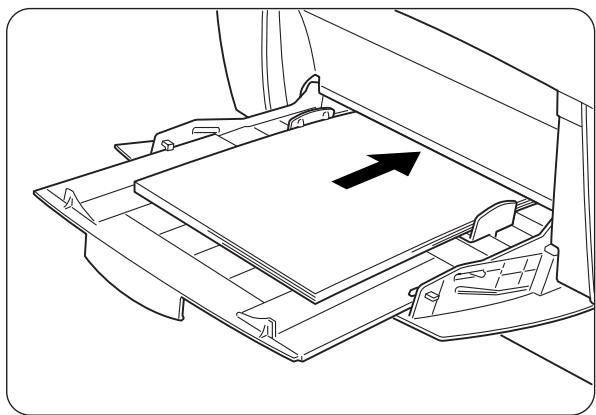
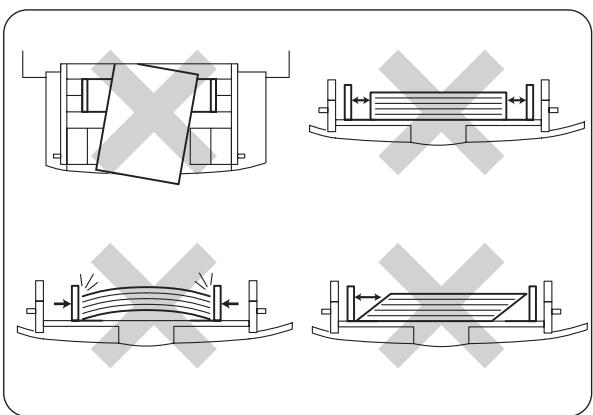
5.1 Control Panel Functionality
The control panel consists of LED indicators, a display and several buttons. This section describes the names and functions of the control panel.
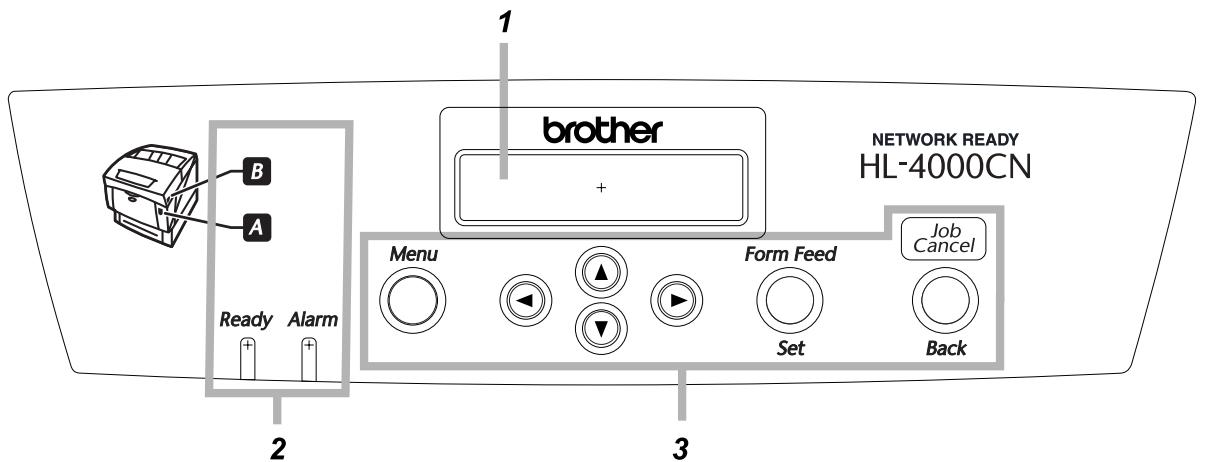
- Display
- LED indicators
- Buttons
5.1.1 LED Indicators
Refer to the following table to establish the printer status.
| Name | Description |
| Ready indicator | Green. Indicates printing status. ■On : Indicates that the printer is not receiving data or that it is ready to print. Flashing : The printer is receiving print data. Off : Printing is not possible. |
| Alarm indicator | Red. Indicates an error. ■On : Indicates a paper jam or some other problem that the user can rectify. Flashing : There is a problem that the user cannot rectify. Contact your dealer or Brother authorized service representative. Off : The printer is functioning normally. |
| Cover Open indicator | Indicates what buttons to press to open the front cover to clear paper jams. ■On : Press the button indicated and open the front cover. Off : The printer is functioning normally. |
5.1.2 Display
Displays printer status ("print screen") and menus for configuring the printer ("menu screen").
Note
The items displayed differ depending on printer settings and installed options.
Print screen
When the printer is waiting for data or printing, this screen is displayed. The contents of the print screen are as follow.
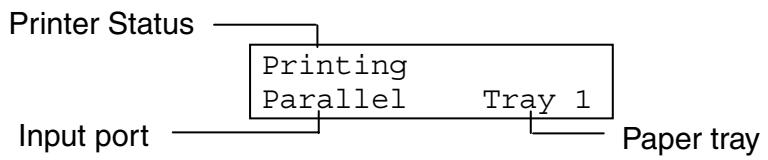
| Name | Description |
| Printer status | Shows the printer status. Example: “Please Wait...”, “Printing”, “Ready to Print”. |
| Input port | Shows the port through which the printer is receiving data. Example: “Parallel”, “USB”, “LPD”, “NetWare”, “AppleTalk”. |
| Paper tray | Shows the paper tray in use. Example: “Tray 1”, “Tray 2”, “Tray 3”, “MP Tray”. |
Menu screen
Use this screen to configure the printer.
The menu screen appears when you press the Menu button. The first screen displayed contains the following:
Menu
1:System
See
For details about the menu screen, refer to 5.2 "Basic Menu Operation".
5.1.3 Buttons
There are 7 buttons on the control panel.
The functions depend on the screen displayed. Their functions are as follows:
| Name | Print screen | Menu screen |
| Menu button | Switches to the menu screen. | Closes the menu screen and switches to the print screen. |
| <▲><▼> Buttons | - | Allows you to scroll through menus and menu items. |
| <▲><▼> Buttons | - | Switches to different menu levels and move the cursor between parameters.Pressing the <▶> button once in a menu moves the menu one level down. Pressing the <▶> button moves the menu one level up. |
| <Form Feed/Set> button | Forces the remaining print data to be output. For details about this function, refer to 6.9 “Forcing the Printer to Print Remaining Data (When Printing is Halted)” | Selects menus and menu items. Moves the menu one level down when a menu is selected. Sets a parameter when one is displayed. |
| <Job Cancel/Back> button | Cancel printsing. For details about this function, refer to 3.5 “Cancel Printing”. | Moves the displayed menu one level up. |
This section describes how to use the menu screen to set the energy save mode, job timeout, network settings and printer configuration.
5.2.1 Menu Structure and Basic Operations
The menu screen contains the following 5 main menus.

See
For details about individual menu screens, refer to 5.3 "List of Menu Items".
| Menu | Contents |
| 1:System | Use this menu to configure the energy save mode, job log settings, and basic printer operation. |
| 2:Maintenance | Use this menu to reset NV memory to its defaults, adjust paper quality to plain paper, and set access restrictions to certain menus. |
| 3:Parallel | Use this menu to configure the parallel interface. |
| 4:Report/List | Use this menu to print the printer configuration list, panel settings list, PCL6 font list, and print log. |
| 5:Network | Use this menu to change network settings. |
| 6:USB | Use this menu to change the Adobe Protocol settings. |
Please note that each menu has several levels. Configure the printer by selecting the different levels and setting the items therein.

Resetting the printer settings
Example: Reset the Job Timeout setting to the default
Press the < > and < > buttons simultaneously.
Job Timeout sec.

- Press the < > and < > buttons simultaneously. The following screen appears.
Setting reset to defaults

When processing finishes, the default settings appear.
Job Timeout 30sec.

- Press the
Job Timeout 30sec.*
5.2.2 What to do if you make a Mistake?
Perform the appropriate operation below if you accidentally press a wrong button while using the control panel.
You accidentally pressed the