
HL-3450CN - Color laser printer BROTHER - Free user manual and instructions
Find the device manual for free HL-3450CN BROTHER in PDF.

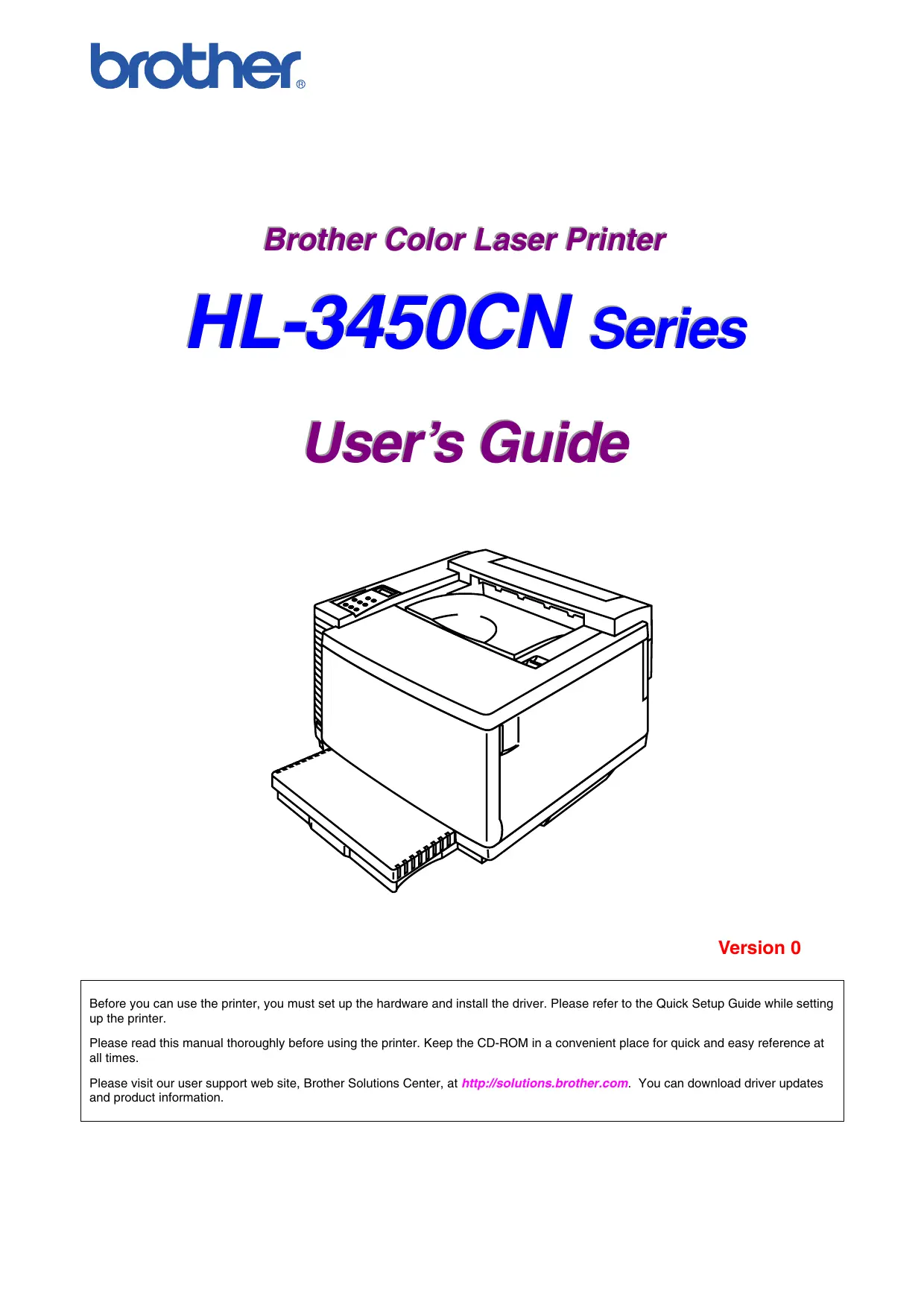

| Product type | Color laser printer |
| Brand | Brother |
| Model | HL-3450CN |
| Print resolution | Up to 2400 x 600 dpi |
| Print speed | Up to 24 ppm color and black |
| Paper size | A4, A5, A6, B5, Letter, Legal |
| Paper tray capacity | 250 sheets (main tray), 50 sheets (multipurpose tray) |
| Automatic duplex printing | Yes |
| Connectivity | USB 2.0, Ethernet 10/100 Base-TX |
| Dimensions (W x D x H) | 400 x 450 x 320 mm |
| Weight | Approximately 18 kg |
| Power supply | 220-240 V AC, 50/60 Hz |
| Power consumption | Standby: 70 W, Deep sleep: 6 W |
| Noise level | Operating: 52 dB(A) |
| Media types | Plain paper, envelopes, labels, transparencies |
| Maintenance and cleaning | Use a soft, dry cloth. Do not use solvents or aerosols. |
| Safety | Unplug before maintenance. Do not expose to moisture. |
| Spare parts | Toner (TN-317C/M/Y/K), drum (DR-317C), fuser unit |
| Repairability | Repairability index of 7.4/10 according to French legislation |
| Warranty | 1 year parts and labor |
Frequently Asked Questions - HL-3450CN BROTHER
User questions about HL-3450CN BROTHER
0 question about this device. Answer the ones you know or ask your own.
Ask a new question about this device
Download the instructions for your Color laser printer in PDF format for free! Find your manual HL-3450CN - BROTHER and take your electronic device back in hand. On this page are published all the documents necessary for the use of your device. HL-3450CN by BROTHER.
USER MANUAL HL-3450CN BROTHER
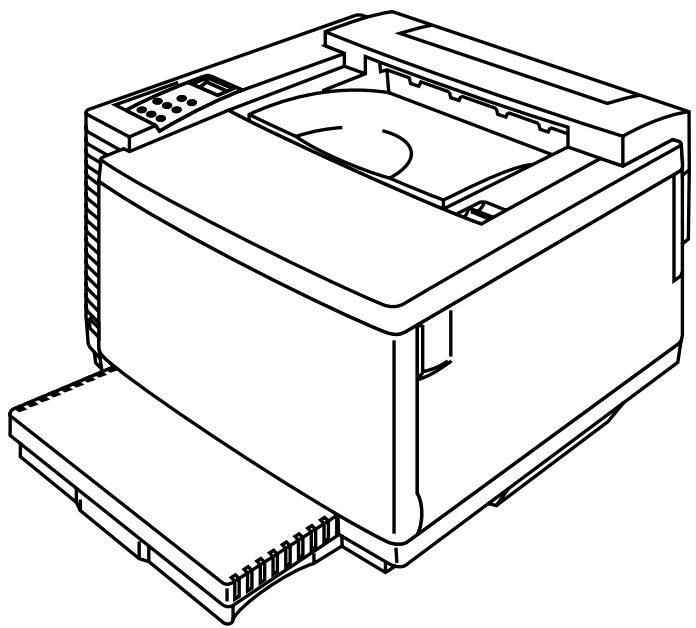
Brother Color Laser Printer
HL-3450CN Series
User's Guide
natural_image
Line drawing of a mechanical device with a base and top component (no text or symbols)Version 0
Before you can use the printer, you must set up the hardware and install the driver. Please refer to the Quick Setup Guide while setting up the printer.
Please read this manual thoroughly before using the printer. Keep the CD-ROM in a convenient place for quick and easy reference at all times.
Please visit our user support web site, Brother Solutions Center, at http://solutions.brother.com. You can download driver updates and product information.
Trademarks
Brother is a registered trademark of Brother Industries, Ltd.
Apple and LaserWriter are registered trademarks, and TrueType is a trademark of Apple Computer, Inc.
Centronics is a trademark of Genicom Corporation.
EPSON is a registered trademark, and FX-850 and FX-80 are trademarks of Seiko Epson Corporation.
Hewlett-Packard, HP, PCL5C, PCL 5e, PCL 6 and PCL are registered trademarks, and HP LaserJet 5,
HP LaserJet 4+, HP LaserJet Plus, HP LaserJet II, HP LaserJet IID, HP LaserJet IIID, HP-GL, HP-
GL/2, and Bi-Tronics are trademarks of Hewlett-Packard Company.
IBM, Proprinter XL, Proprinter, and IBM/PC are registered trademarks of International Business Machines Corporation.
Intellifont is a registered trademark of AGFA Corporation, a division of Miles, Inc.
Microsoft and MS-DOS are registered trademarks of Microsoft Corporation.
Windows is a registered trademark of Microsoft Corporation in the United States and other countries.
PostScript is a registered trademark of Adobe Systems Incorporated.
This printer contains UFST and Micro Type from Agfa Division.
PANTONE Colors generated by the HL-3450CN are four- and /or three-color process simulations and may not match PANTONE-identified solid color standards. Use current PANTONE Color Reference Manuals for accurate color.
PANTONE Color simulations are only obtainable on this product when driven by qualified Pantone-licensed software packages. Contact Pantone Inc. for a current list of qualified licensees.
All trademarks noted herein are either the property of Brother Industries, Ltd., PANTONE® and other Pantone, Inc. trademarks are the property of Pantone, Inc. ©Pantone, Inc., 1988
ENERGY STAR is a U.S. registered mark.
All other terms and brand and product names mentioned in this User's Guide are registered trademarks or trademarks of their respective companies.
Compilation and Publication
Under the supervision of Brother Industries Ltd., this manual has been compiled and published, covering the latest product descriptions and specifications.
The contents of this manual and the specifications of this product are subject to change without notice.
Brother reserves the right to make changes without notice in the specifications and materials contained herein and shall not be responsible for any damages (including consequential) caused by reliance on the materials presented, including but not limited to typographical and other errors relating to the publication.
©2001 Brother Industries Ltd.
Shipment of the Printer
If for any reason you must ship your Printer, carefully package the Printer to avoid any damage during transit. It is recommended that you save and use the original packaging. The Printer should be adequately insured with the carrier.
WARNING
When shipping the Printer, the TONER CARTRIDGES and ALL CONSUMABLES must be removed from the Printer. Failure to remove the CONSUMABLE ITEMS during shipping will cause severe damage to the Printer and will VOID THE WARRANTY.
(For USA & CANADA Only)
IMPORTANT INFORMATION: For technical and operational assistance, you must call the country where you purchased the printer. Calls must be made from within that country.
In USA: 1-800-276-7746
In Canada: 1-800-853-6660 514-685-6464 (In Montreal)
If you have comments or suggestions, please write us at:
In USA: Printer Customer Support Brother International Corporation 15 Musick Irvine, CA 92618
In Canada: Brother International Corporation (Canada), Ltd. - Marketing Dept. 1, rue Hôtel de Ville Dollard-des-Ormeaux, PQ, Canada H9B 3H6
FAX-BACK SYSTEM
Brother Customer Service has installed an easy to use Fax-Back System so you can get instant answers to common technical questions and product information for all Brother products. This is available 24 hours a day, 7 days a week. You can use the system to send the information to any fax machine, not just the one from which you are calling.
Call and follow the voice prompts to receive faxed instructions on how to use the system and your index of fax-back subjects.
In USA: 1-800-521-2846
In Canada: 1-800-685-5381 1-514-685-5381 (In Montreal)
DEALERS/SERVICE CENTERS (USA Only)
For the name of a Brother authorized dealer or service center, call 1-800-284-4357.
SERVICE CENTERS (Canada Only)
For service center addresses in Canada, call 1-800-853-6660
INTERNET ADDRESSES
Brother Global Web Site: http://www.brother.com For Frequently Asked Questions (FAQs), Product Support and Technical Questions, and Driver Updates and Utilities: http://solutions.brother.com (USA Only) For Brother Accessories & Supplies: http://www.brothermall.com
DEFINITIONS OF WARNINGS, CAUTIONS, AND NOTES
The following conventions are used in this User's Guide:
! Warning
Indicates warnings that must be observed to prevent possible personal injury.
! Caution
Indicates cautions that must be observed to use the printer properly or prevent damage to the printer.
Note
Indicates notes and useful tips to remember when using the printer.
TO USE THE PRINTER SAFELY
! Warning
This printer is heavy and weighs approximately 56kg (124 lbs). When you move or lift this printer, be sure at least two people lift it together.
! Warning
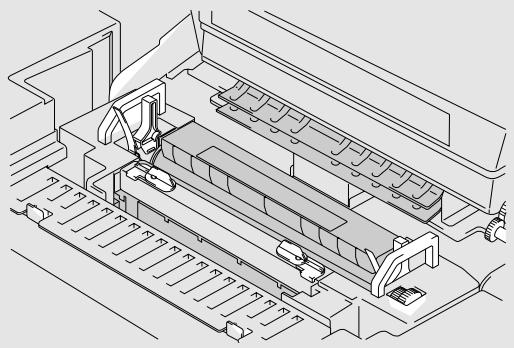
The Fusing Unit becomes extremely HOT (approx. 150°C) during operation. Wait until it has cooled down sufficiently (about 20 minutes) before replacing consumable items.
natural_image
Technical line drawing of a mechanical assembly with rollers and mounting brackets (no text or symbols)! Warning
HARMFUL OZONE GAS
Inhalation of an excessive amount of ozone can adversely affect your respiratory system.
An Ozone Filter is included to reduce ozone exhaust. This filter must be replaced periodically in accordance with the instructions found in your User's Guide.
! Warning
If the printer becomes hot, blows smoke, or generates obscure odor, turn the printer off immediately and unplug the printer. Contact your dealer.
! Warning
If metal objects, water or other liquids get inside the printer, turn the printer off immediately and unplug the printer. Contact your dealer.
! Warning
Do not put consumable items such as the Toner Cartridges and the Waste Toner Pack into a fire. Some consumables can be flammable under certain conditions.
! Warning
Do not look directly at the laser beam light. It might cause damage to your eyesight. Do not remove or break open the printer's safety interlocks.
! Warning
Do not run the printer with the Top Cover, Front Cover and Rear Access Covers open and the interlocks removed.
! Warning
Turn off the printer before replacing consumable items.
! Warning
Do not place any items on the printer.
! Warning
In case of a fuser oil spill, you must clean it up immediately.
! Warning
Do not put any pressure on the Feeder Cassette or the Front Cover when it is open. If you do, you injured because the printer fall on you.
PRINTER DO'S AND DON'TS FOR OPTIMUM PRINT QUALITY
! Caution
Before you move or lift the printer, remove the Toner Cartridges, Waste Toner Pack, Oil Bottle and Fusing Unit to avoid spills. Be sure to keep the printer as level as possible. Damage caused by failure to remove the supplies will void your warranty.
! Caution
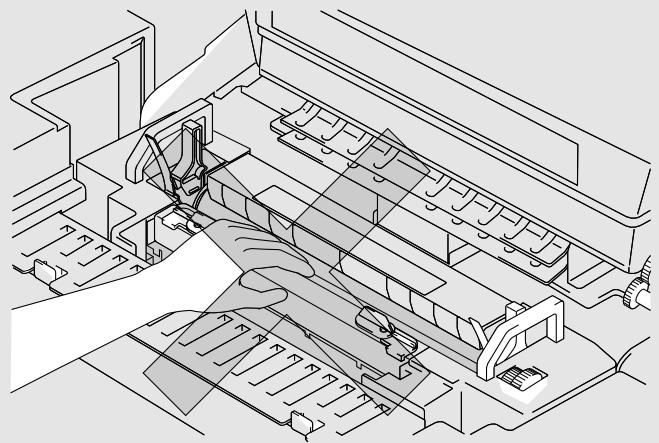
Do not touch the rollers of the Fusing Unit. This can degrade print quality.
natural_image
Technical line drawing of a printer internal structure with no visible text or symbolsTABLE OF CONTENTS
CHAPTER 1 INTRODUCTION
ABOUT THIS USER'S GUIDE 1-1
ABOUT THIS PRINTER 1-3
Checking the Components 1-3
General View 1-5
Features 1-6
Options 1-12
Compact Flash Card 1-13
RAM 1-13
Operating and Storage Environment 1-13
CHAPTER 2 DRIVER AND SOFTWARE
PRINTER DRIVER 2-1
Features in the PCL Printer Driver (Windows ^® 95/98/Me Users Only) 2-2
Features in the PS printer driver (Windows ^® 95/98/Me users only) 2-10
Software for networks 2-15
Software for Windows Computers 2-17
Software for Macintosh Computer 2-18
PRINTER SETTINGS 2-21
Factory Settings 2-21
CHAPTER 3 BEFORE WORKING WITH THE PRINTER
AUTOMATIC EMULATION SELECTION 3-1
AUTOMATIC INTERFACE SELECTION 3-3
PAPER HANDLING 3-5
Print Media 3-5
Cassette Feed 3-15
Manual Feed 3-16
Toner Cartridges 5-5
Oil Bottle 5-9
Fuser Cleaner 5-13
Waste Toner Pack 5-16
OPC Belt Cartridge 5-18
Ozone Filter 5-21
Fusing Unit 5-22
120K Kit 5-27
240K Kit 5-30
CLEANING THE PRINTER 5-36
Cleaning the Printer Exterior 5-36
Periodic Printer Cleaning 5-37
REPACKING AND RELOCATING THE PRINTER 5-38
How to Repack the Printer 5-39
CHAPTER 6 OPTIONS
LOWER TRAY UNIT (LT-34CL) 6-1
Loading Paper in the Lower Paper Cassette 6-1
How to Install the Lower Tray Unit 6-1
How to Clear Paper Jams in the Lower Tray Unit 6-6
DUPLEX UNIT (DX-3400) 6-7
COMPACTFLASH CARD / HARD DISK DRIVE (HD-6G/HD-EX) 6-11
CompactFlash Card 6-11
Hard Disk Drive (HD-6G / HD-EX) 6-12
Selecting the Optional Fonts 6-12
Installing a CompactFlash Card 6-15
Installing a HDD (Hard Disk Drive) 6-16
RAM EXPANSION 6-18
Installing DIMMs 6-19
CHAPTER 7 TROUBLE SHOOTING
TROUBLESHOOTING 7-1
Error Messages 7-1
Maintenance Messages 7-4
Call Service Messages 7-5
Paper Jams 7-8
Q & A 7-20
Setting Up the Printer Hardware 7-20
Setting Up the Printer 7-21
Paper Handling 7-22
Printing 7-23
Print Quality 7-24
APPENDIX
PRINTER SPECIFICATIONS A-1
Printing A-1
Functions A-2
Electrical and Mechanical A-3
PAPER SPECIFICATIONS A-4
Paper A-6
Envelopes A-7
Labels and Overhead Transparencies A-8
SYMBOL/CHARACTER SETS A-9
OCR Symbol Sets A-9
HP PCL Mode A-10
EPSON Mode A-12
IBM Mode A-13
HP-GL Mode A-14
Symbol Sets Supported by the Printer's
Intellifont Compatible Typefaces A-15
Symbol Sets Supported by the Printer's TrueType™ and
Type 1 Font Compatible, and Original Typefaces A-17
INDEX
IMPORTANT INFORMATION: REGULATIONS
ELECTRONIC EMISSION NOTICES
Federal Communications Commission (FCC) Compliance Notice (For U.S.A. Only)
Responsible Party: Brother International Corporation
100 Somerset Corporate Boulevard
Bridgewater, NJ 08807-0911, USA
TEL: (908) 704-1700
declares, that the products
Product Name: Brother Laser Printer HL-3450CN
Model Number: HL-3450CN
Product Options: ALL
complies with Part 15 of the FCC Rules. Operation is subject to the following two conditions: (1) This device may not cause harmful interference, and (2) this device must accept any interference received, including interference that may cause undesired operation.
This equipment has been tested and found to comply with the limits for a Class B digital device, pursuant to Part 15 of the FCC Rules. These limits are designed to provide reasonable protection against harmful interference a residential installation. This equipment generates, uses, and can radiate radio frequency energy and, if not installed and used in accordance with the instructions, may cause harmful interference to radio communications. However, there is no guarantee that interference will not occur in a particular installation. If this equipment does cause harmful interference to radio or television reception, which can be determined by turning the equipment off and on, the user is encouraged to try to correct the interference by one or more of the following measures:
- Reorient or relocate the receiving antenna.
- Increase the separation between the equipment and receiver.
- Connect the equipment into an outlet on a circuit different from that to which the receiver is connected.
- Consult the dealer or an experienced radio/TV technician for help.
Important
A shielded interface cable should be used to ensure compliance with the limits for a Class B digital device. Changes or modifications not expressly approved by Brother Industries, Ltd. could void the user's authority to operate the equipment.
Industry Canada Compliance Statement (For Canada Only)
This Class B digital apparatus complies with Canadian ICES-003.
Declaration of Conformity (For Europe)
We, Brother Industries, Ltd.,
15-1, Naeshiro-cho, Mizuho-ku, Nagoya 467-8561, Japan
declare that this product is in conformity with the following normative documents.
Safety: EN 60950, EN 60825
EMC: EN 55022 Class B, EN 55024
EN 61000-3-2, EN 61000-3-3
following the provisions of the Low Voltage Directive 73/23/EEC and the Electromagnetic Compatibility Directive 89/336/EEC (as amended by 91/263/EEC and 92/31/EEC).
Issued by: Brother Industries, Ltd.
Information & Document Company
Radio Interference (220-240 V Model Only)
This printer complies with EN55022(CISPR Publication 22)/Class B.
Before this product is used, ensure that you use a double-shielded interface cable with twisted-pair conductors and that is marked “IEEE 1284 compliant,” The cable must not exceed 1.8 meters in length.
International ENERGY STAR® Compliance Statement
ENERGY STAR ^® is a U.S. registered mark.
The purpose of the International ENERGY STAR ^® Program is to promote the development and popularization of energy-efficient office equipments.
As an ENERGY STAR ^® Partner, Brother Industries, Ltd. has determined that this product meets the ENERGY STAR ^® guidelines for energy efficiency.

text_image
energyLaser Notices
Laser Safety (120 V Model Only)
This printer is certified as a Class I laser product under the U.S. Department of Health and Human Services (DHHS) Radiation Performance Standard according to the Radiation Control for Health and Safety Act of 1968. This means that the printer does not produce hazardous laser radiation.
Since radiation emitted inside the printer is completely confined within protective housings and external covers, the laser beam cannot escape from the machine during any phase of user operation. However, the machine contains 5-milliwat, 700-800 nanometer wavelength, GaAIAs laser diodes. Direct (or indirect reflected) eye contact with the laser beam might cause serious eye damage. Safety precautions and interlock mechanisms have been designed to prevent any possible laser beam exposure to the operator.
FDA Regulations (For 120 V Model Only)
U.S. Food and Drug Administration (FDA) has implemented regulations for laser products manufactured on and after August 2, 1976. Compliance is mandatory for products marketed in the United States. The label shown on the back of the printer indicates compliance with the FDA regulations and must be attached to laser products marketed in the United States.
MANUFACTURED:
BROTHER INDUSTRIES, LTD.
15-1 Naeshiro-cho, Mizuho-ku, Nagoya, 467-8561 Japan
This product complies with FDA radiation performance standards, 21 CFR Subchapter J.
Caution: Use of controls, adjustments or the performance of procedures other than those specified in this manual may result in hazardous radiation exposure.
IEC 60825 Specification (220 - 240 V Model Only)
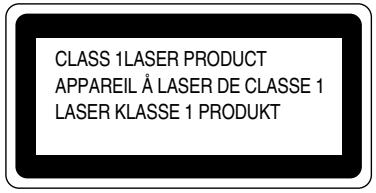
This printer is a Class 1 laser product as defined in IEC 60825 specifications. The label shown below is attached in countries where required.
text_image
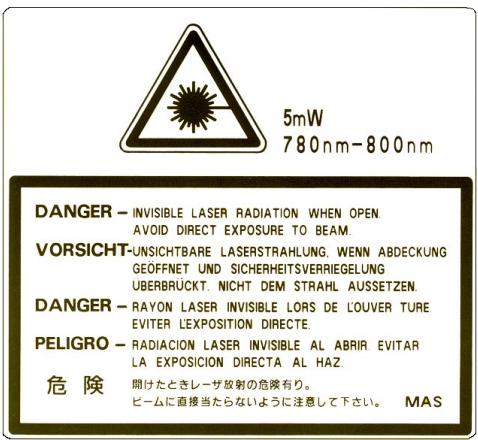
CLASS 1 LASER PRODUCT APPAREIL À LASER DE CLASSE 1 LASER KLASSE 1 PRODUKTThis printer has a Class 3B Laser Diode that emits invisible laser radiation in the Scanner Unit. The Scanner Unit should not be opened under any circumstances.
Caution: Use of controls, adjustments or the performance of procedures other than those specified in this manual may result in hazardous radiation exposure.
The following caution label is attached to the cover of the scanner unit.
For Finland and Sweden
LUOKAN 1 LASERLAITE
KLASS 1 LASER APPARAT
IMPORTANT - For Your Safety
To ensure safe operation the supplied three-pin plug must be inserted only into a standard three-pin power outlet that is properly grounded through the normal household wiring.
Extension cords should not be used with the equipment. If it is essential that an extension cord has to be used, it must be a three-pin plug type and correctly wired to provide proper grounding. Incorrectly wired extension cords may cause personal injury and equipment damage.
The fact that the equipment operates satisfactorily does not imply that the power is grounded and that the installation is completely safe. For your safety, if in any doubt about the effective grounding of the power, consult a qualified electrician.
Caution
Use of controls or adjustment or performance of procedures other than those specified in this manual might result in hazardous radiation exposure.
Disconnect device
This printer must be installed near a power outlet that is easily accessible. In case of emergencies, you must disconnect the power cord from the power outlet to shut off the power completely.
Caution for batteries
Do not replace the battery. There is a danger of explosion if the battery is incorrectly replaced. Do not disassemble, recharge or dispose of by fire. Used batteries should be disposed of according to local regulations.
Caution for LAN connection
Connect this product to the LAN connection which is not subjected to overvoltages.
IT power system (For Norway only)
This product is also designed for IT power system with phase to phase voltage 230V.
Opmerking / Oplaadbare Batterij Recycle Informatie (For Netherlands Only)
Geräuschemission / Acoustic Noise Emission (For Germany Only)
Lpa < 70 dB (A) DIN 45635-19-01-KL2
Wiring Information (For U.K. only)
Important
If the mains plug supplied with this printer is not suitable for your socket outlet, remove the plug from the mains cord and fit an appropriate three pin plug. If the replacement plug is intended to take a fuse then fit the same rating fuse as the original.
If a moulded plug is severed from the mains cord then it should be destroyed because a plug with cut wires is dangerous if engaged in a live socket outlet. Do not leave it where a child might find it!
In the event of replacing the plug fuse, fit a fuse approved by ASTA to BS1362 with the same rating as the original fuse.
Always replace the fuse cover. Never use a plug with the cover omitted.
WARNING - THIS PRINTER MUST BE PROPERLY EARTHED.
The wires in the mains cord are colored in accordance with the following code:
| Green and yellow: | Earth |
| Blue: | Neutral |
| Brown: | Live |
The colors of the wires in the main lead of this printer may not correspond with the colored markings identifying the terminals in your plug.
If you need to fit a different plug, proceed as follows.
Remove a length of the cord outer sheath, taking care not to damage the colored insulation of the wires inside.
Cut each of the three wires to the appropriate length. If the construction of the plug permits, leave the green and yellow wire longer than the others so that, in the event that the cord is pulled out of the plug, the green and yellow wire will be the last to disconnect.
Remove a short section of the colored insulation to expose the wires.
The wire which is colored green and yellow must be connected to the terminal in the plug which is marked with the letter “E” or by the safety earth symbol ± or colored green or green and yellow.
The wire which is colored blue must be connected to the terminal which is marked with the letter “N” or colored black or blue.
The wire which is colored brown must be connected to the terminal which is marked with the letter “L” or colored red or brown.
The outer sheath of the cord must be secured inside the plug. The colored wires should not hang out of the plug.
CHAPTER 1 INTRODUCTION
This manual acts as your guide for the setup and operation of your printer and covers the following topics:
CHAPTER 1 INTRODUCTION provides an overview of the printer. Read this chapter first to become familiar with the printer.
CHAPTER 2 DRIVER AND SOFTWARE gives you general information about the printer driver and the software. Be sure to read this chapter before you use the printer.
CHAPTER 3 BEFORE WORKING WITH THE PRINTER provides detailed information for setting up the printer to work with your computer and software. Be sure to read this chapter before you work with the printer.
CHAPTER 4 CONTROL PANEL OPERATION details the functions of the panel buttons and LEDs.
CHAPTER 5 MAINTENANCE provides guidance on how to maintain your printer.
CHAPTER 6 OPTIONS provides guidance on how to install optional units.
CHAPTER 7 TROUBLESHOOTING helps you troubleshoot any printer problems.
APPENDIX contains printer specifications and paper specifications.
INDEX provides an alphabetical list of the contents of this User's Guide.
Note
When you read this User's Guide, note the following:
- This User's Guide contains instructions or steps to teach you the various operations of the printer. Please remember that the instructions always assume that you started with the factory settings, particularly those in Chapter 2 and Chapter 3. If you change the settings, particularly the emulation mode, the display messages will change accordingly.
- The paper size has been factory set to either letter or A4, depending upon the final destination of the printer. Some display messages will vary according to this setting.
! Warning
This printer is heavy and weighs approximately 56kg (124 lbs). To avoid injury when moving or lifting this printer, be sure to use at least two people.
CHECKING THE COMPONENTS
After unpacking the printer, check to see that you have all of the following parts:
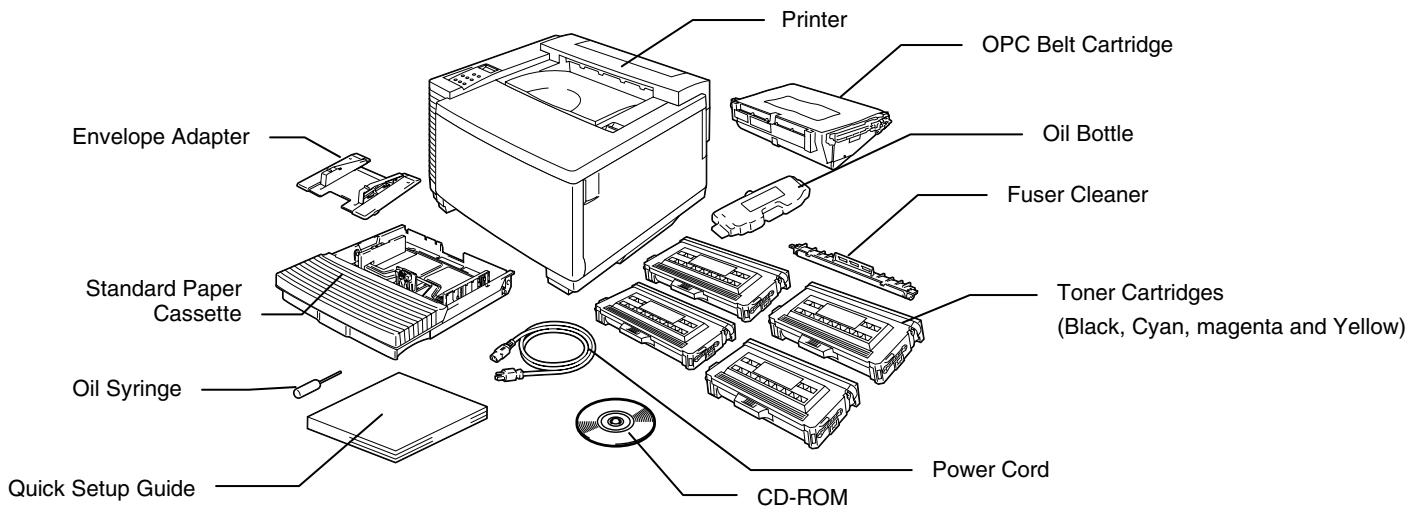
text_image
Printer OPC Belt Cartridge Oil Bottle Fuser Cleaner Envelope Adapter Standard Paper Cassette Toner Cartridges (Black, Cyan, magenta and Yellow) Oil Syringe Quick Setup Guide CD-ROM Power CordFig. 1-1
! Caution, Warning
The Toner Cartridges, OPC Belt cartridge, Oil Bottle and Fuser Cleaner are packed inside a separate carton as a starter kit. Do not open them now. Only open them when you are ready to install them. The OPC Belt Cartridge must not be exposed to light for any length of time or it will be damaged.
Note
An interface cable is not a standard accessory. Please purchase the appropriate cable for the interface you intend to use. Parallel cables should be IEEE 1284 compliant and should not exceed 1.8 metres (6 feet) in length. The power cord may differ slightly from this diagram, depending on the country where you purchased the printer.
Note
Depending on the country where you purchased and will use the HL-3450CN series model, you may have additional parts not listed above.
Note
We recommend keeping spares of the following consumable items at all times. When these are exhausted, the printer will cease printing.
- Toner Cartridges (TN-02BK, TN-02C, TN-02M, TN-02Y)
- Waste Toner Pack (WT-2CL)
- Oil Bottle (FO-2CL)
- Fuser Cleaner (CR-2CL)
• OPC Belt Cartridges (OP-2CL)
GENERAL VIEW
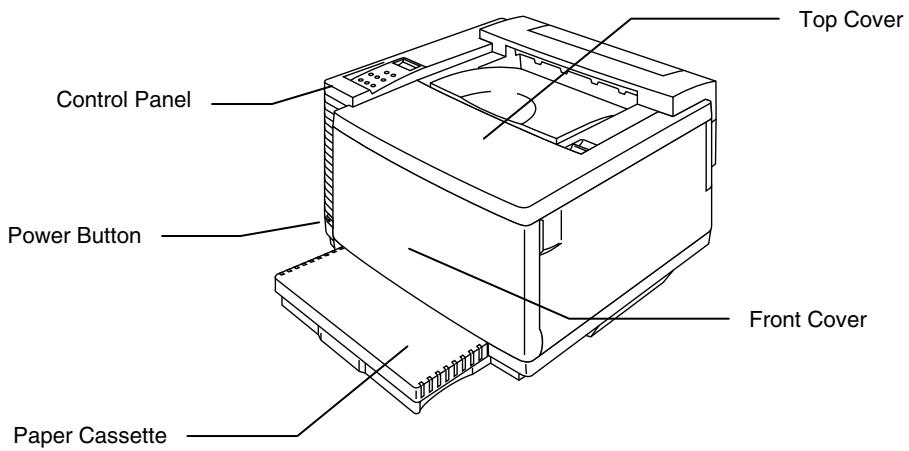
text_image
Top Cover Control Panel Power Button Front Cover Paper CassetteFig. 1-2
text_image
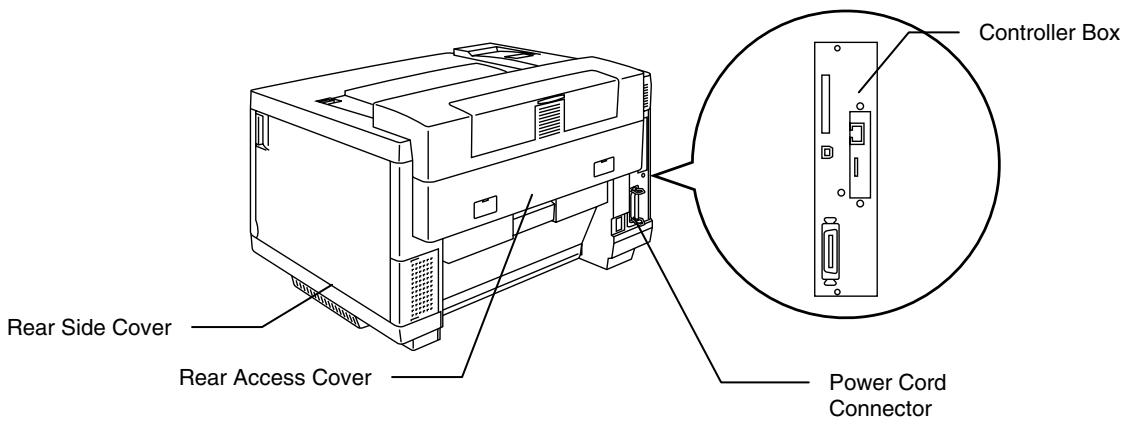
Rear Side Cover Rear Access Cover Controller Box Power Cord ConnectorFig. 1-3
FEATURES
This printer has the following standard features.
2400 DPI Class Resolution
This printer prints at a default resolution of 600 dots per inch (dpi). You can achieve a higher print quality equivalent to 2400x600 dpi class resolution, by utilizing these Brother technologies: High Resolution Control (HRC) and Color Advanced Photoscale Technology (CAPT).
High Speed and Color Laser Printing
You can print crisp images in brilliant 24-bit color.
This printer can print at a speed up to 24 pages per minute (ppm) in monochrome mode and up to 6 pages per minute (ppm) in full color mode on A4/ Letter size paper. The controller utilizes a high speed 64-bit RISC microprocessor and special hardware chips, so the process speed is very fast.
Color Advanced Photoscale Technology (CAPT)
This printer can print graphics in 256 shades for each color in HP® color printer PCL5C™ emulation and BR-Script level 3, producing nearly photographic quality. CAPT mode is most effective when you print photographic images.
High Resolution Control (HRC)
The High Resolution Control (HRC) technology provides clear and crisp printouts and improves even the 600-dpi resolution. This mode is most effective when printing text.
Maintenance-Free and Economical Toner Cartridge
The toner cartridge can print up to 14,000 (Black) and up to 8,500 (Cyan, Magenta and Yellow) single-sided A4 / Letter pages at 5% coverage. This printer uses one piece, easy-to-replace toner cartridges.
Universal Paper Cassette
This printer loads paper automatically from the paper cassette. Since the paper cassette is a universal type, a number of different paper sizes can be used. Even envelopes can be loaded from the paper cassette. For detailed paper specifications, see ‘Paper Handling’ in Chapter 3.
Three Interfaces
This printer has three interfaces: high speed bi-directional parallel, USB and Ethernet 10/100Base TX. If your application software supports the bi-directional parallel interface, you can monitor the printer status. It is fully compatible with the industry-standard bi-directional parallel interface.
The Brother network board (NC-4100h) is factory installed in the HL-3450CN, this enables you to use this printer in the TCP/IP, IPS/SPX, Apple Talk, DLC/LLC, Banyan VINES, DEC LAT and NetBEUI environments. The CD-ROM supplied with the HL-3450CN printer includes many useful utilities, such as BRAdmin Professional for the administrator and Brother network printing software. For setup, see the Network User's Guide.
Automatic Interface Selection
This printer can automatically select the bi-directional parallel, USB or Ethernet 10/100Base TX interface, depending on the interface port through which it receives data. With this feature, the printer can be connected to more than one computer.
Five Emulation Modes
This printer can emulate the Hewlett-Packard ^® Color PCL ^® 5C language (PCL6 ^® in monochrome printing) printers, PostScript ^® 3 language emulation (Brother BR-Script3) printers, the industry-standard HP-GL ^™ plotter as well as EPSON ^® FX-850 ^™ and IBM ^® Proprinter XL ^® printers (for monochrome printing only). You can print with all application programs that support one of these printers.
Automatic Emulation Selection
This printer can automatically select the printer emulation mode depending on the print commands it receives from the computer software. With this feature, many users can share the printer on a network.
Data Compression Technology
This printer can internally compress the received graphics and font data in its memory so it can print larger graphics and more fonts without the need for additional memory.
Various Fonts
This printer has 66 scalable and 12 bitmapped fonts. The fonts that can be used will vary according to the selected emulation mode.
In PCL mode, you can print 13 kinds of bar codes that are listed on the next page. In BR-Script mode, the printer has 165 scalable fonts.
Bar Code Printing
This printer can print the following 13 types of bar codes:
- Code 39
- Interleaved 2 of 5
EAN-8
EAN-13
EAN-128 - Code 128
- UPC-A
- UPC-E
- Codabar
• FIM (US-PostNet)
• PostNet (US-PostNet)
• ISBN (EAN) - ISBN (UPC-E)
CCITT G3/G4
Since this printer supports the CCITT G3/G4 format in addition to HP-compatible formats, it can quickly receive and print data compressed in this format.
Panel Lock Function
If the panel button settings have been changed, the printer may not work as you expect. If you are an administrator of this printer, you can lock your settings to prevent changes from being made. See “LOCK PANEL” in the “SETUP” menu in Chapter 4.
Power Save Mode
This printer has a power save mode. Since laser printers consume power to keep the fixing assembly at a high temperature, this feature can save electricity when the printer is on but not being used. The factory setting of the Power Save mode is ON so that it complies with the new EPA Energy Star specification.
Toner Save Mode
This printer has an economical Toner Save Mode. By using this feature, you can substantially reduce printer operating costs and extend the life expectancy of the toner cartridges.
Reprint Function
You can reprint the last print job with a touch of a panel button, which allows reprinting of multiple copies of the job without sending the data again from the computer.
If you have not installed an HDD or CompactFlash card, you can still reprint from RAM. See "REPRINT BUTTON" in Chapter 4 for more information.
When there is not enough memory to print the last job, you can reprint the last page.
PANTONE® Calibrated
There are many variables in process reproduction of colors generated by the HL-3450CN, any one of which may affect the quality of the PANTONE Color simulation, including:
- Type of paper used
- Type of toner used
• Effective final resolution - Dot structure/halftones
For optimal results, we recommend that the following materials and settings be used:
- NEUSIEDLER Color copy 90g
- Brother Toner Cartridges TN-02 BK/C/M/Y
- Pantone Mode (600 dpi x 600 dpi)
Network
Ethernet 10/100BaseTX enables you to use the printer in the following environments.
(TCP/IP, IPX/SPX, AppleTalk, DLC/LLC, VINES, LAT, NetBEUI) Also, many useful utilities, such as BRAmin Professional and Brother Network Printing software for the Network administrator, are included. For details about the utilities, see the documentation included on the CD-ROM.
OPTIONS
The following options are available for this printer:
Paper Handling
LOWER TRAY UNIT (LT-34CL)
Two lower tray units expand the paper source capacity. You can load extra paper or different sizes of paper. You can load Ledger, A3, B4, Legal, A4, Letter, or B5 (JIS and ISO) paper into this cassette at any one time.
A4/ LETTER CASSETTE (LC-34A)
You can load A4, B5 (JIS and ISO), Executive or Letter paper, or Com 10, or DL envelopes from the A4/Letter Cassette at any one time.
DUPLEX UNIT (DX-3400)
By installing the Duplex Unit DX-3400, you can perform duplex printing.
With the Duplex Unit installed, you can print on 330 x 483 (13"x19"), A3, A4, B4, B5 (JIS and ISO), Executive, Ledger, Legal or Letter size paper.
Hard Disk Drive (HD-6G/HD-EX)
By installing the Hard Disk Drive, HD-6G/HD-EX, you can save macros, print log and fonts on it, and also select your print job and re-print it through the network.
COMPACT FLASH CARD
This printer has a slot for an optional CompactFlash card, which is a memory card.
If you install an optional CompactFlash memory card, you can save macros, print log and fonts on it, and also select the re-print functions via the network.
RAM
RAM Expansion
By installing commercial memory modules you can expand the memory capacity up to 384 Mbytes. 384 Mbytes would require removing the original 64 Mbytes DIMM and filling all 3 slots with the optional 128 Mbytes DIMMS.
Note
Installation instructions for each option are provided in the manual included with the option.
OPERATING AND STORAGE ENVIRONMENT
Please take note of the following before using the printer.
Power Supply
Use the printer within the specified power range:
AC power: ±10% of the rated power voltage
Frequency: 50/60 Hz (120V or 220-240 V)
The power cord, including extensions, should not exceed 5 meters (16.5 feet).
Do not share the same power circuit with other high-power appliances, particularly an air conditioner, copier, shredder, etc. If you must use the printer with these appliances, we recommend that you use a voltage transformer or a high-frequency noise filter.
Use a voltage regulator if the power source is not stable.
Environment
Use the printer only within the following ranges of temperature and humidity.
Ambient temperature: 10^ C to 32.5^ C ( 50^ F to 90.5^ F)
Ambient humidity: 20% to 80% (without condensation)
Do not block the air exit on top of the printer. Do not place objects on top of the printer, especially on the air exit.
Ensure that the printer Ozone Filter is installed at all times.
Ventilate the room where you use the printer.
Do not place the printer where it will be exposed to direct sunlight. Use blinds to protect the printer from direct sunlight if set up near a window is unavoidable.
Do not install the printer near devices that contain magnets or generate magnetic fields.
Do not subject the printer to strong physical shocks or vibrations. Do not expose the printer to open flames or salty or corrosive gasses.
Place the printer on a flat, horizontal surface.
Keep the printer clean. Do not install the printer in a dusty place.
Do not install the printer near an air conditioner.
Do not install the printer in a room with a humidifier.
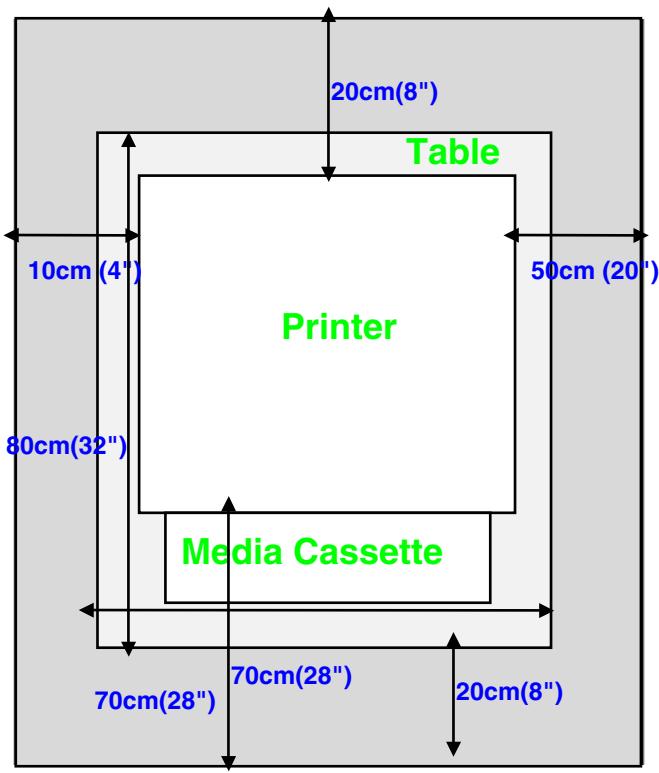
The following figure details the recommended area around the printer for proper ventilation, operation and maintenance.
Rear
text_image
20cm(8") Table 10cm (4") Printer 50cm (20") 80cm(32") Media Cassette 70cm(28") 70cm(28") 20cm(8")Front
Fig. 1-4
Note
- Ensure that there is enough space behind the printer so you can easily access the rear cover or Duplex unit if a paper jam occurs.
- Make sure that the Paper Cassette does not extend past the edge of the table where the printer is installed.
CHAPTER 2
DRIVER AND SOFTWARE
A Printer Driver is software that translates data from the format used by a computer into the format required by a particular printer. Typically, this format is a printer command language or page description language.
The printer drivers for the following operating systems are on the supplied CD-ROM. Printer driver updates can be downloaded from the Brother Solutions Center at http://solutions.brother.com.
For Windows ^® 95/98/Me, Windows ^® NT 4.0 and Windows ^® 2000/XP
• PCL (Hewlett-Packard laser printer-LaserJet) driver
- BR-Script (PostScript3 language emulation) driver
For Macintosh®
- BR-Script (PostScript3 language emulation) driver (For more information, see the Network User's Guide on the CD-ROM.)
| PCL driver | PS driver | |
| Windows® 95/98/Me | √ | √ |
| Windows® 2000/XP | √ | √ |
| Windows® NT4.0 | √ | √ |
| Macintosh® (via Network) | √ | |
| Macintosh® (via USB) | √ |
Note
- For more information about emulations, see Chapter 3.
- The screen shot may vary depending on the OS you are using.
FEATURES IN THE PCL PRINTER DRIVER (WINDOWS®USERS ONLY)
For more information, please see the on-line Help in the printer driver.
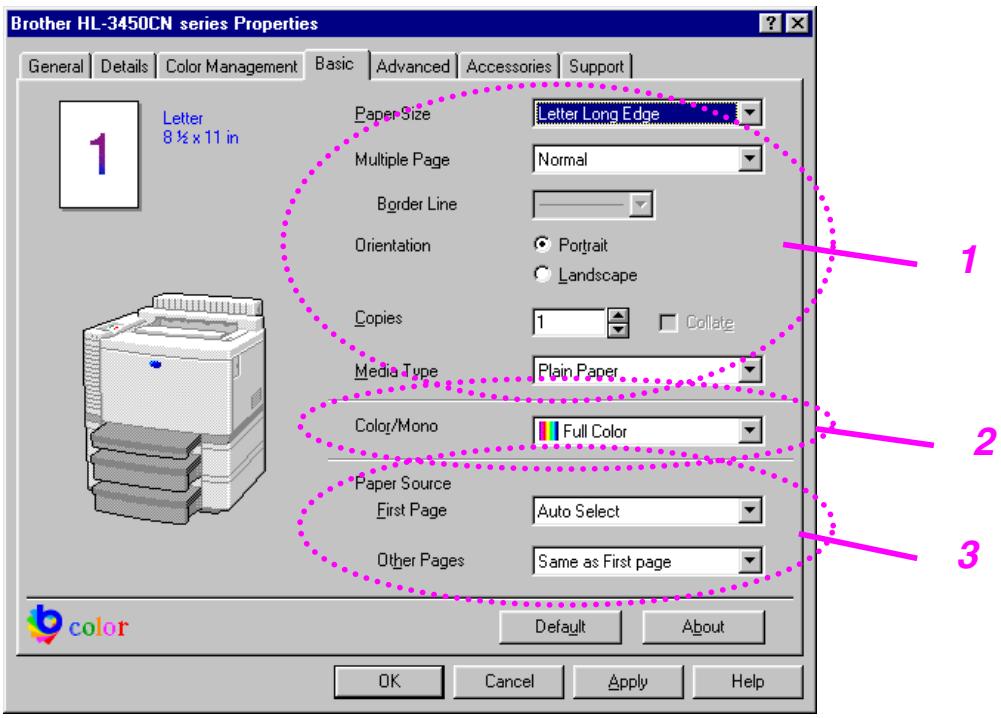
You can change settings by clicking the illustration on the left side of the tab.
Basic Tab
Note
The screen shown below is from Windows ^® 98.
If you are using Windows ^® NT/2000/XP, you can access the Basic tab by clicking “Printing Preferences…” in the “General” tab of the
"Brother HL-3450CN series Properties" screen.
text_image
Brother HL-3450CN series Properties General Details Color Management Basic Advanced Accessories Support Letter 8 ½ x 11 in Paper Size Letter Long Edge Multiple Page Normal Border Line Orientation Portrait Landscape Copies 1 Collate Media Type Plain Paper Color/Mono Full Color Paper Source First Page Auto Select Other Pages Same as First page default About OK Cancel Apply Help- Select the Paper size, Multiple page and Orientation.
- Select the Color Mode.
- Select the Paper Source.
Advanced Tab
Note
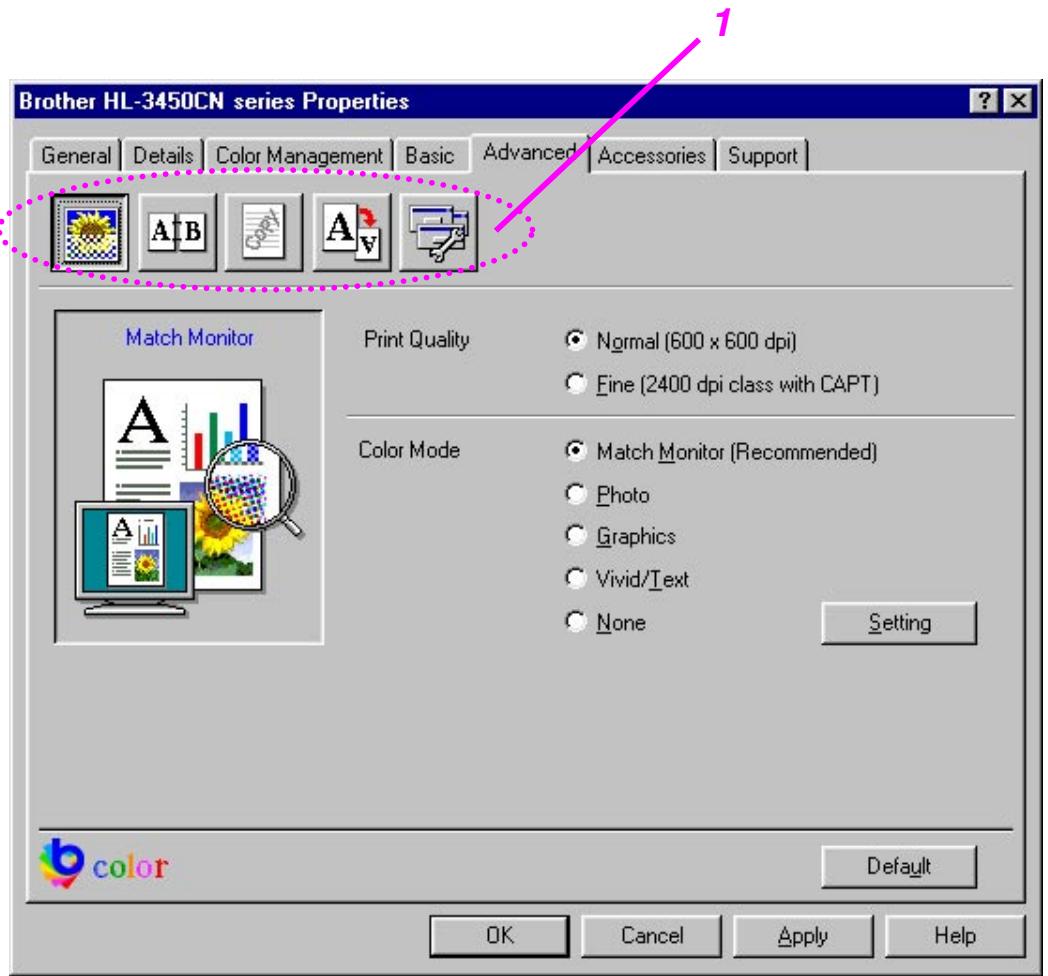
The screen shown below is from Windows ^® 98. If you are using Windows ^® NT/2000/XP, you can access the Advanced tab by clicking “Printing Preferences...” in the “General” tab of the “Brother HL-3450CN series Properties” screen.
text_image
Brother HL-3450CN series Properties General Details Color Management Basic Advanced Accessories Support Match Monitor Print Quality Normal (600 x 600 dpi) Fine (2400 dpi class with CAPT) Color Mode Match Monitor (Recommended) Photo Graphics Vivid/Text None Setting OK Cancel Apply Help b color Default- Change the tab settings by clicking the following icons:
Print Quality
Duplex
Watermark
Page Setting
Device Options
PRINT QUALITY
Select the Quality, Color matching mode, and Calibration.
• You can change the Quality as follows:
Normal 600 dpi
Fine 2400 dpi class with CAPT*
*CAPT (Color Advanced PhotoScale Technology)
= The finest print mode. Use this mode to print precise images such as photographs. Since the print data is much larger than in normal mode, processing time / data transfer time and print time will be longer.
- You can change the Color Matching mode as follows:
Match Monitor
Photo
Graphics
Vivid / Text
None
DUPLEX
To use duplex printing, you will need to install the optional Duplex unit onto your printer. If you select the duplex button, the dialogue box for duplex settings will appear. Six types of duplex binding directions are available for each orientation.
WATERMARK
You can place a watermarked logo or text in your documents.
When you use a bitmap file as a watermark, you can change the size of the watermark and place it anywhere you like on the page.
When you use text as a watermark, you can change the font, darkness and angle settings.
PAGE SETUP
Change the print image scaling, and then select Mirror / Reverse print options.
DEVICE OPTIONS
text_image
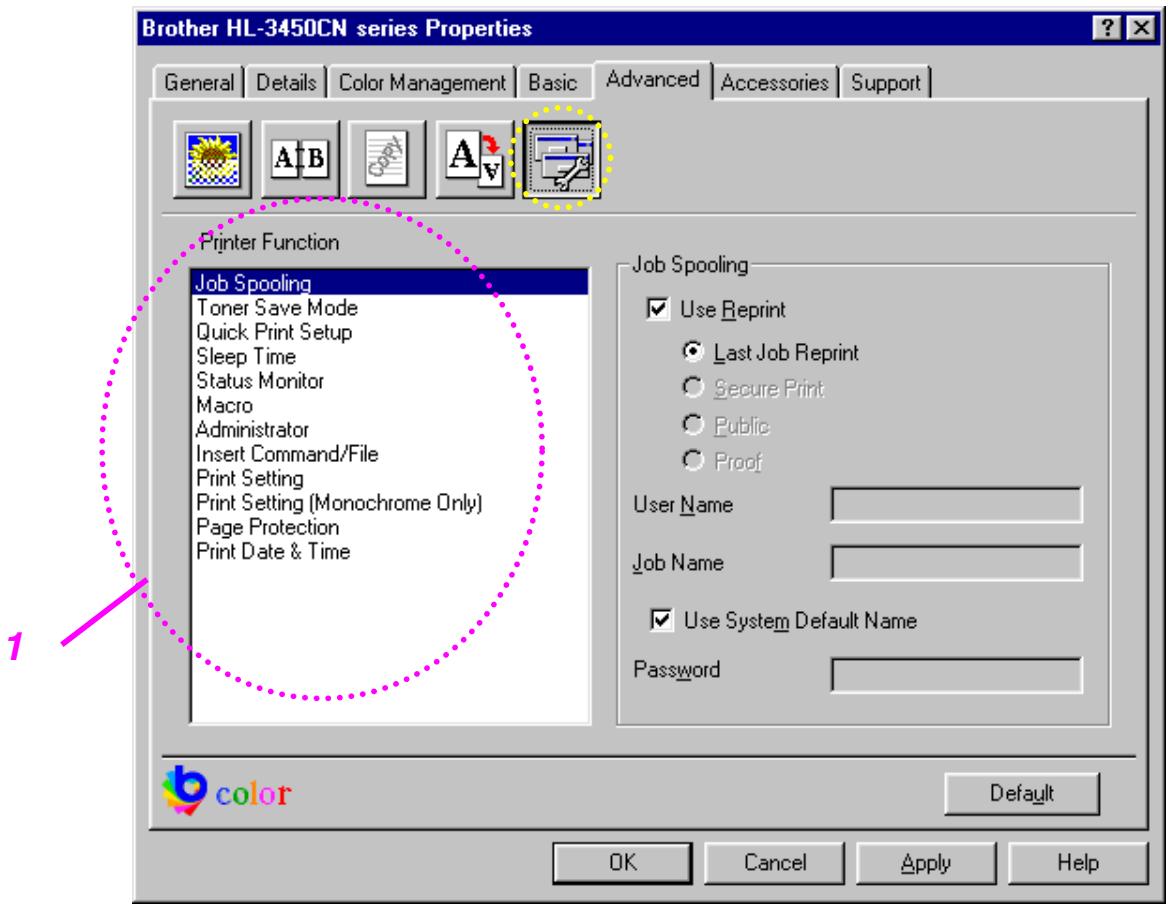
Brother HL-3450CN series Properties General Details Color Management Basic Advanced Accessories Support Printer Function Job Spooling Toner Save Mode Quick Print Setup Sleep Time Status Monitor Macro Administrator Insert Command/File Print Setting Print Setting (Monochrome Only) Page Protection Print Date & Time Job Spooling Use Reprint Last Job Reprint Secure Print Public Proof User Name Job Name Use System Default Name Password 1 color Default OK Cancel Apply Help- Set the following print function modes in this tab:
Job Spooling
Toner Save Mode
Quick Print Setup
Sleep Time
Status Monitor
Macro
Administrator
Insert Command/File
Print Setting
Print Setting (For monochrome only)
Page Protection
Print Date & Time
Job Spooling
Because the printer will save data that you specify for reprinting, you can print a document without resending the data from your PC or sending the password again (except Secure printing).
- Last job reprint : Reprint the last job
- Secure Print : Print the data with a password
• Public : Save the data without a password
• Proof : Save the data and print it
For more information about the Reprint function, see “REPRINT BUTTON” in Chapter 4.
Note
If you want to prevent other people from using the Reprint function to print your data, remove the “Use Reprint” check mark in the Job Spooling settings.
Accessories Tab
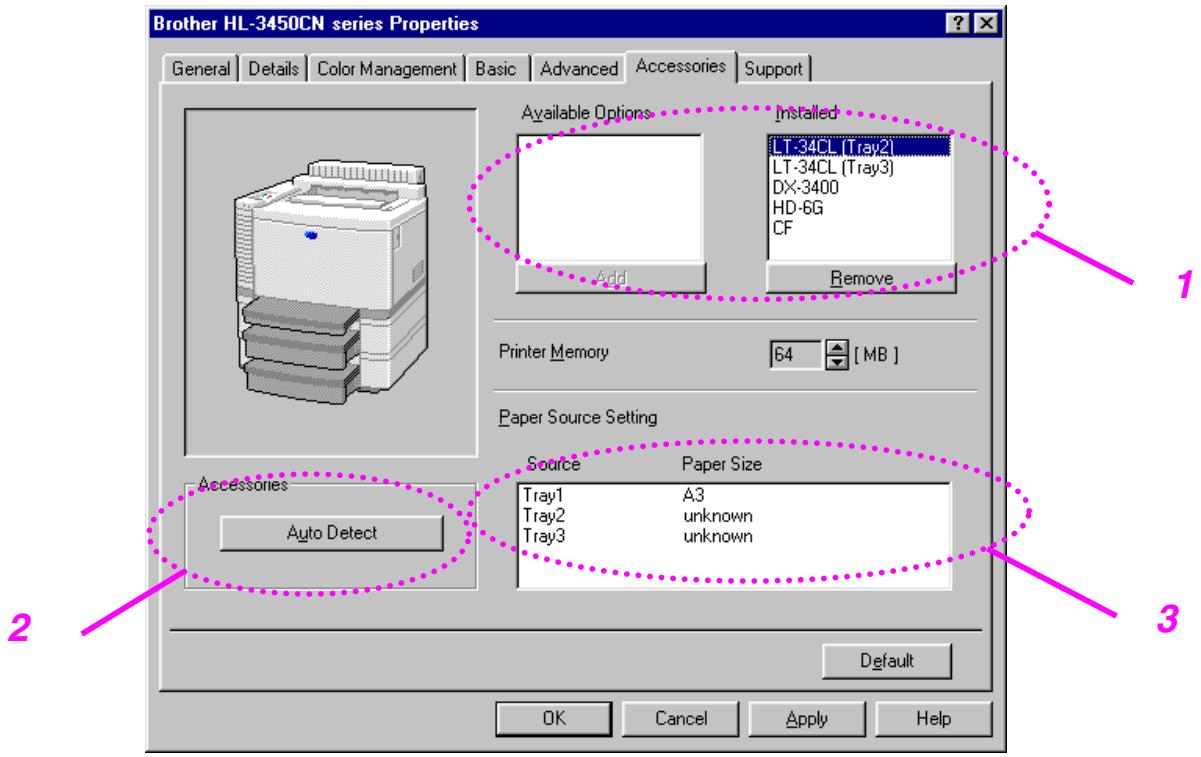
After you install options, add those options and choose the settings for them in the Accessories tab as follows.
text_image
Brother HL-3450CN series Properties General Details Color Management Basic Advanced Accessories Support Available Options Add Installed LT-34CL [Tray2] LT-34CL (Tray3) DX-3400 HD-6G CF Remove Printer Memory 64 [ MB ] Paper Source Setting Source Paper Size Tray1 A3 Tray2 unknown Tray3 unknown Auto Detect Default OK Cancel Apply Help- You can manually add or remove any of the printer's optional components. The paper tray settings will match the installed options.
- Automatic Detection of Printer Options
This function detects the installed optional unit devices automatically and the available functions will be reflected in the printer driver.
When you press "Auto Detect," options that are installed on the printer will be listed. You can manually add or delete options.
- Paper Source Setting
This feature recognizes the size of paper in each paper tray automatically.
Support Tab
Note
The screen shown below is from Windows ^® 98.
If you are using Windows® NT/2000/XP, you can access the Support tab by clicking “Printing Preferences...” in the “General” tab of the
"Brother HL-3450CN series Properties" screen.
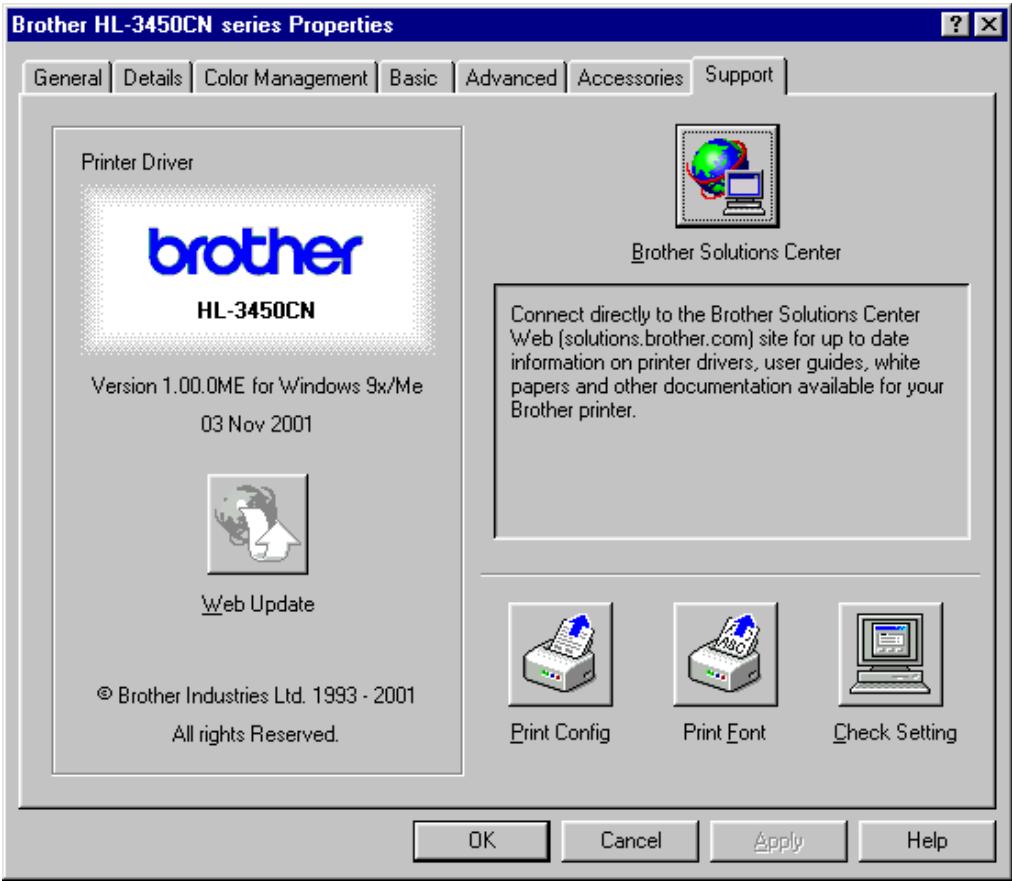
- You can download the latest driver by accessing the Brother Solutions Center.
- You can see the printer driver version.
- You can check the current driver settings.
- You can print the Configuration page and Font page(s).
text_image
Brother HL-3450CN series Properties General Details Color Management Basic Advanced Accessories Support Printer Driver brother HL-3450CN Version 1.00.0ME for Windows 9x/Me 03 Nov 2001 Web Update © Brother Industries Ltd. 1993 - 2001 All rights Reserved. Brother Solutions Center Connect directly to the Brother Solutions Center Web (solutions.brother.com) site for up to date information on printer drivers, user guides, white papers and other documentation available for your Brother printer. Print Config Print Font Check Setting OK Cancel Apply HelpFEATURES IN THE PS PRINTER DRIVER (WINDOWS® 95/98/ME USERS ONLY)
For more information, please see the on-line Help in the printer driver.
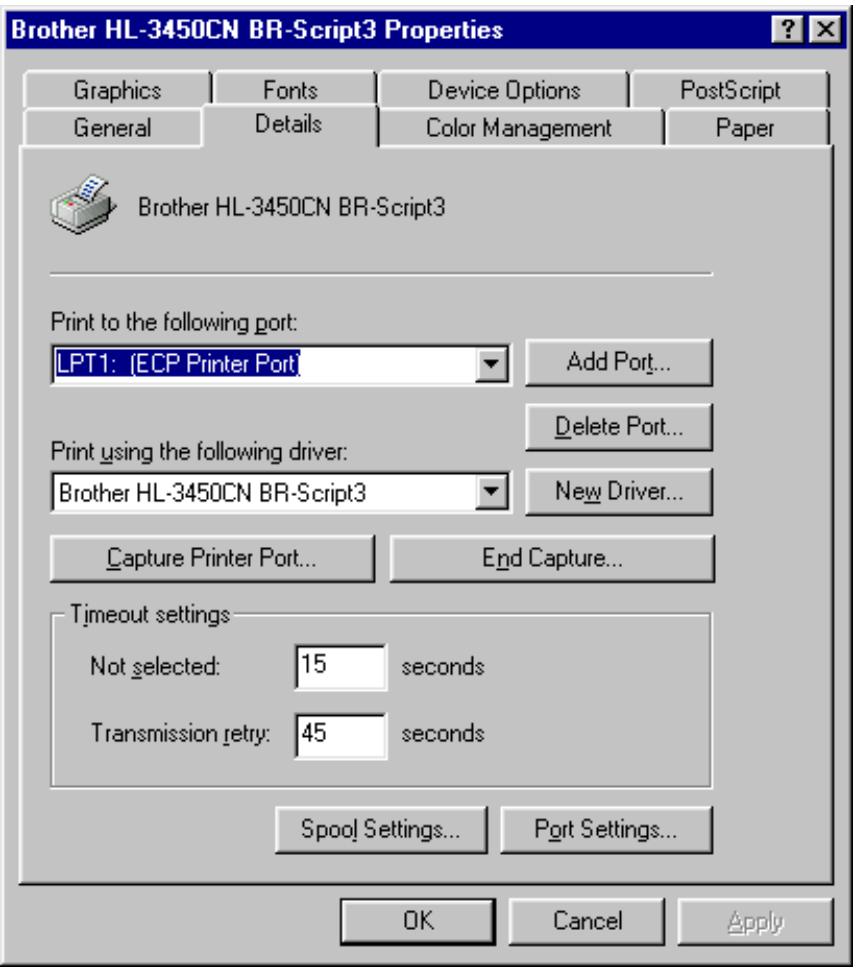
Details Tab
Select the port where your printer is connected or the path to the network printer you are using.
Select the printer driver that you installed.
text_image
Brother HL-3450CN BR-Script3 Properties Graphics Fonts Device Options PostScript General Details Color Management Paper Brother HL-3450CN BR-Script3 Print to the following port: LPT1: (ECP Printer Port) Add Port... Print using the following driver: Brother HL-3450CN BR-Script3 New Driver... Capture Printer Port... End Capture... Timeout settings Not selected: 15 seconds Transmission retry: 45 seconds Spool Settings... Port Settings... OK Cancel ApplyPaper Tab
text_image
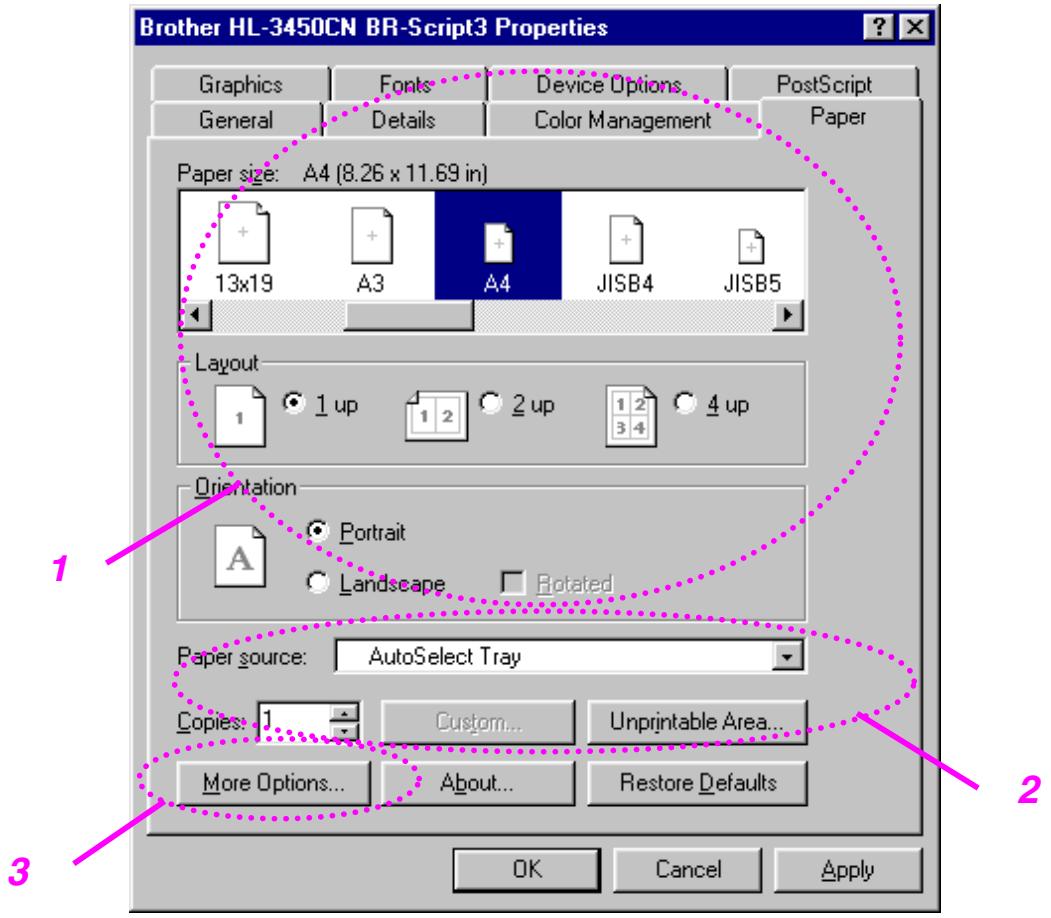
Brother HL-3450CN BR-Script3 Properties Graphics Fonts Device Options PostScript General Details Color Management Paper Paper size: A4 (8.26 x 11.69 in) 13x19 A3 A4 JISB4 JISB5 Layout 1 1 up 1 2 2 up 1 2 4 up Orientation A Portrait Landscape Rotated Paper source: AutoSelect Tray Copies: 1 Custom... Unprintable Area... More Options... About... Restore Defaults OK Cancel Apply- Select the Paper size, Layout and Orientation.
- Select the Paper Source.
- When the Duplex unit is installed onto the printer, you will need to add the duplex unit as one of the installed options first (see Device Options Tab – Installable Options). Click on the More Options button to choose between Flip on Short edge, Flip on Long edge or None for Duplex printing.
Graphics Tab
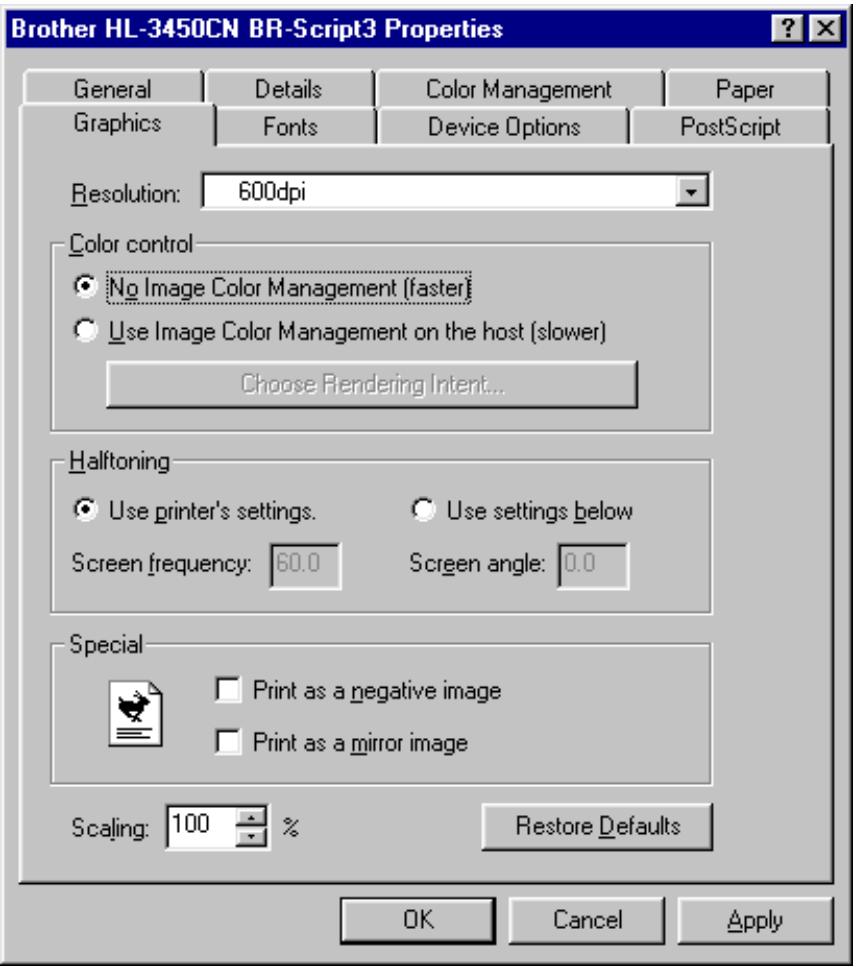
1. Set the print quality.
text_image
Brother HL-3450CN BR-Script3 Properties General Details Color Management Paper Graphics Fonts Device Options PostScript Resolution: 600dpi Color control ● No Image Color Management (faster) ○ Use Image Color Management on the host (slower) Choose Rendering Intent... Halftoning ● Use printer's settings. ○ Use settings below Screen frequency: 60.0 Screen angle: 0.0 Special □ Print as a negative image □ Print as a mirror image Scaling: 100 % Restore Defaults OK Cancel ApplyDevice Options Tab
text_image
Brother HL-3450CN BR-Script3 Properties General Details Color Management Paper Graphics Fonts Device Options PostScript Available printer memory (in KB): 1700 Printer features Toner Save Off Power Save [Min.] Printer Default Media Type Printer Default Change setting for: Toner Save Off Off On Installable options Number of Input Trays 3 Duplex Unit Installed Printer Hard Disk Installed Change setting for: Duplex Unit Installed Restore Defaults OK Cancel Apply Brother HL-3450CN BR-Script3 Properties General Details Color Management Paper Graphics Fonts Device Options PostScript Available printer memory (in KB): 1700 Printer features Toner Save Off Power Save [Min.] Printer Default Media Type Printer Default Change setting for: Toner Save Off Installable options Number of Input Trays 3 Duplex Unit Installed Printer Hard Disk Installed Change setting for: Duplex Unit Installed Installed Not Installed Restore Defaults OK Cancel Apply2
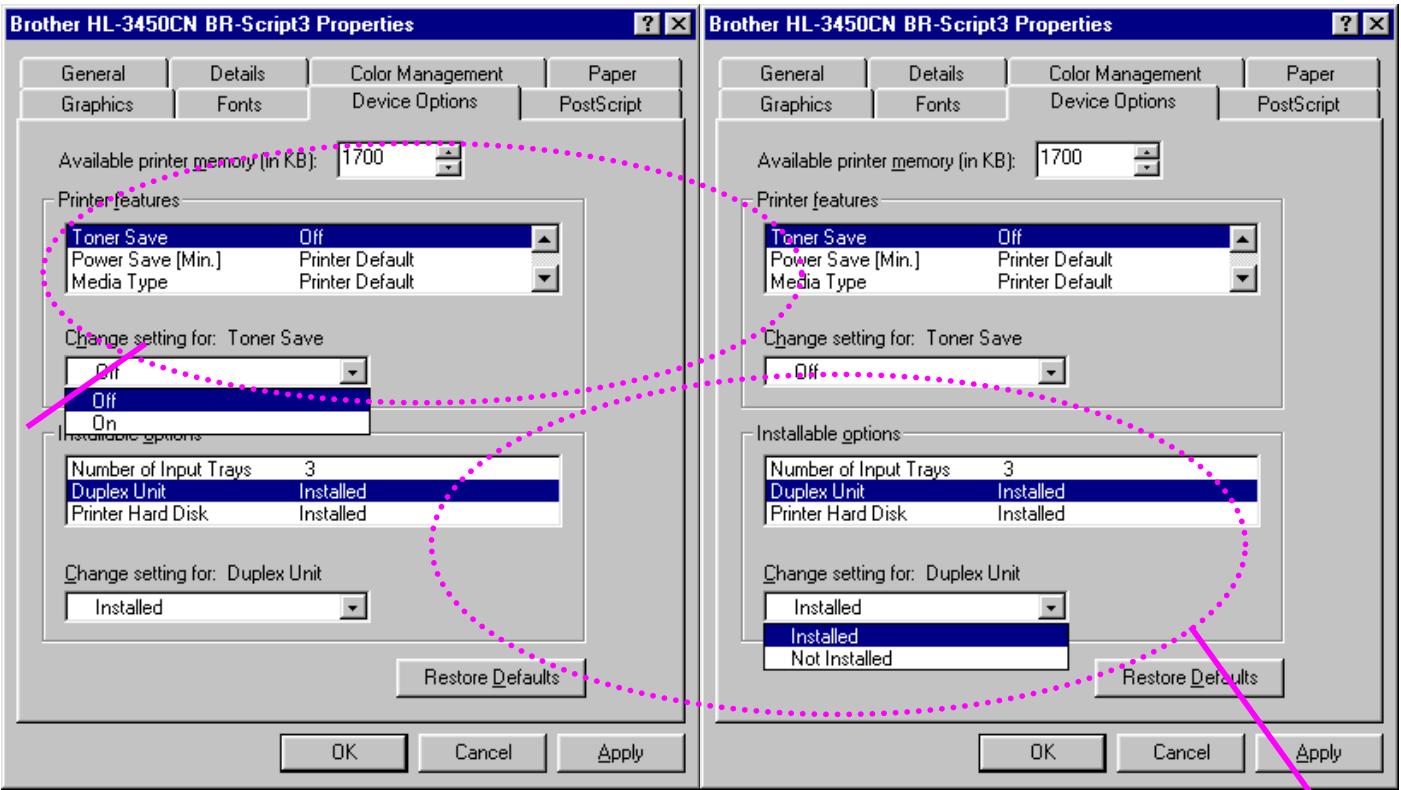
- You can change settings by clicking on a setting in the Printer features list box, and then selecting a new value for that setting from the Change Setting for: xxxx list box.
Toner Save Mode
Sleep Mode
Media Type
HRC setting
Collate (Only when an HDD or CompactFlash card is installed)
Job spooling
Pass Word
Quality
Color / Mono
Color Matching
Halftone Screen Lock
User Name
Job Name
2. Select the installed options from the list.
You can change settings by clicking on a setting in the Installable options list box, and then select a new value for that setting from the Change Settings for: xxxx list box.
JOB SPOOLING
Because the printer will save data that you specify for reprinting, you can print a document without resending the data from your PC or sending the password again (except Secure printing).
- Secure Print: Print the data with a password
• Public: Save the data without a password
• Proof: Save the data and print it
SOFTWARE FOR NETWORKS
BRAdmin Professional
BRAdmin professional is a utility for managing your Brother network enabled printers that are running under Windows® 95/98/Me, Windows® 2000 and Windows® NT 4.0. It allows you to easily configure and check the status of your network-enabled printer.
Storage Manager
Brother Storage Manager software can manipulate the printer forms that you may have stored in a CompactFlash or 2.5" HDD.
You can print a fixed form document at any time from the control panel.
To make a fixed document, you must write Fonts, Macros, or fixed forms to the Storage Device of your printer.
Analysis Tool Software
By adding an HDD or CompactFlash Card to the printer, you can obtain print logs by enabling the Log function with the embedded web management. Then you can gain cost analysis capability by loading these print logs into the Analysis Tool Software.
Analysis Tool Software is a 32-bit Windows ^® application designed to manage important information about a print job, such as the username, job name and number of printed pages. Using this software, you can easily associate printing costs with users or groups of users.
Driver Deployment Wizard
Save time and effort by using the Brother Driver Deployment Wizard software to automate the installation and configuration of Brother networked printers in a TCP/IP environment.
Use the Wizard to configure the printer TCP/IP settings and to specify the Printer driver to be used. The Wizard can then create an Executable file that can be e-mailed to other network users. When run, the Executable file installs the appropriate printer driver and network print software directly on the remote PC.
To access the Driver Deployment Wizard, insert the CD-ROM supplied with the printer into your CD-ROM drive, click the Install Software icon, and then select the Driver Deployment Wizard.
SOFTWARE FOR WINDOWS® COMPUTERS
You can install the Software from the supplied CD-ROM as follows:
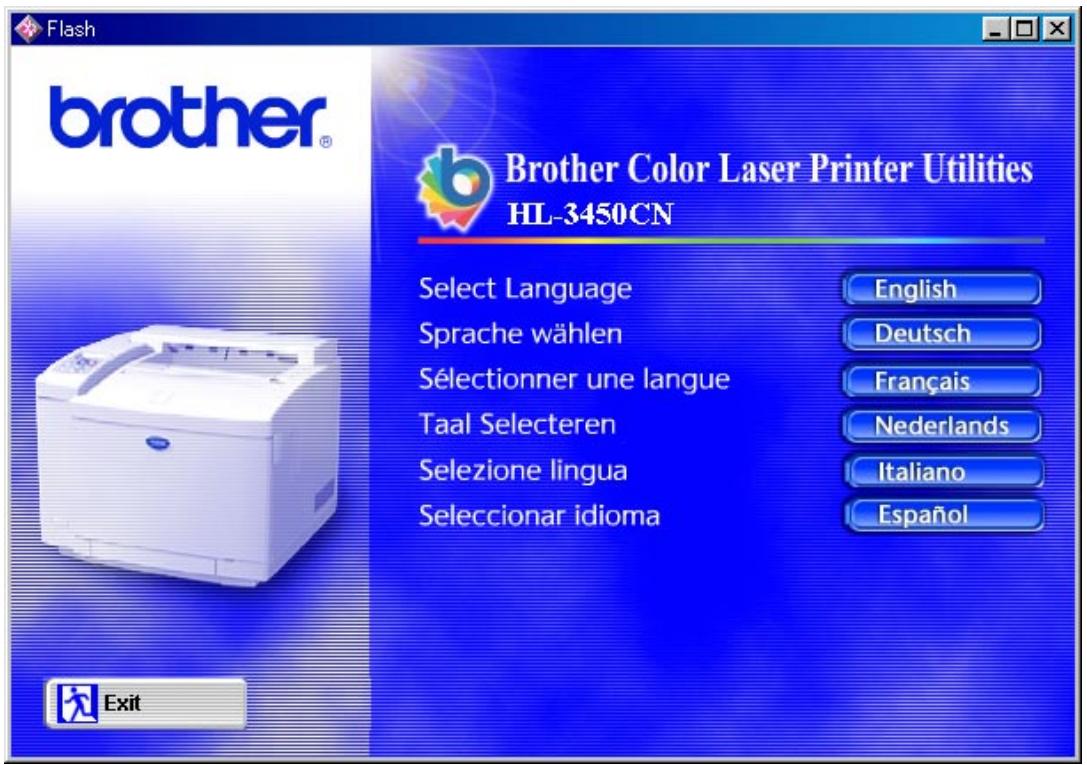
- Insert the CD-ROM into the CD-ROM drive. The opening screen appears automatically.
- Click the Install Software icon on the Menu screen.
- Click "Printer Driver," and then follow the on screen instructions. The printer driver will complete the installation.
text_image
brother Brother Color Laser Printer Utilities HL-3450CN Select Language Sprache wählen Sélectionner une langue Taal Selecteren Selezione lingua Seleccionar idioma English Deutsch Français Nederlands Italiano Español ExitSOFTWARE FOR MACINTOSH® COMPUTER
This printer supports Mac ^® OS versions 8.6, 9.0, 9.04, 9.1, 9.2 and X.
Apple LaserWriter 8 Driver
The Apple LaserWriter Driver may have been installed with your system. It is also available at http://www.apple.com.
LaserWriter 8 version 8.6.5 and 8.7 have been tested for use with the Brother HL-3450CN.
PostScript Printer Description Files (PPDs)
PPDs, in combination with the Apple LaserWriter 8 Driver, access the printer features and allow the computer to communicate with the printer.
An installation program for the PPDs (“BR-Script PPD Installer”) is provided on the CD-ROM.
Installing the Printer Driver for Macintosh®
FOR NETWORK USERS
For Mac ^® OS 8.6 to 9.2 Users
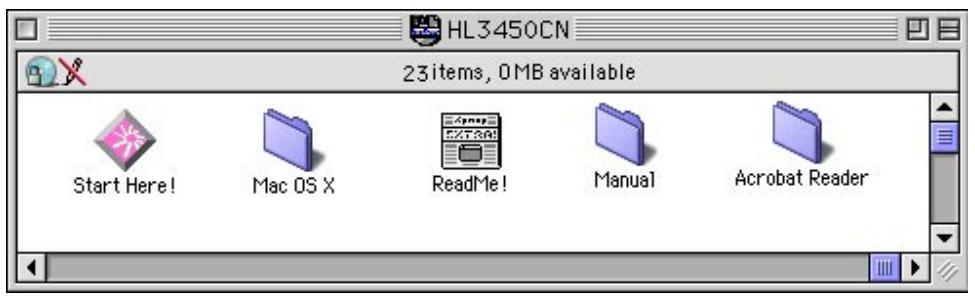
- Turn on your Macintosh® computer. Insert the CD-ROM into your CD-ROM drive. The following window will appear automatically.
text_image
HL3450CN 23items, 0MB available Start Here! Mac OS X ReadMe! Manual Acrobat Reader- To install the BR-Script PPD file, click the Install Software icon on the Menu screen.
- To set up the LaserWriter driver, refer to the Network User's Guide.
For Mac® OS X Users
(It is not possible to install the BR-Script PPD file from the Install Software icon, please follow the instructions below.)
- Turn ON your Macintosh ^® computer.
-
Turn OFF your printer.
-
Connect one end of the network cable to your printer and the other end to a free port on your hub.
-
Turn ON your printer.
- Insert the CD-ROM into your CD-ROM drive. Open the Mac® OS X folder.
- Open your language folder.
- Double-click the install icon. Follow the instructions on the screen.
- Open the Macintosh ^® HD icon.
- Open the Applications folder. Open the Utilities folder.
- Open the Print Center icon.
- Click the Add Printer button.
- Select BRN_xxxxxx_P1_AT and then click the Add button. (xxxxxx is the last six digits of the Ethernet address. For more information, see Chapter 7 of the Network User's Guide.)
- Select Quit Print Center from the Print Center menu.
- The Setup is now complete.
* For USB users, please see the “Driver Installation Guide” for installing the printer driver.
FACTORY SETTINGS
The printer settings have been set at the factory before shipment. They are called “Factory settings.” Although you can operate the printer with these factory settings unchanged, you can tailor the printer with user settings. Please see “List of Factory Settings” in Chapter 4.
Note
Changing the user settings does not affect the factory settings. You cannot modify the preset factory settings.
The changed user settings can be restored to the default factory settings with the RESET MENU mode. For more information, see Chapter 4.
CHAPTER 3
BEFORE WORKING WITH THE
PRINTER
AUTOMATIC EMULATION SELECTION
This printer has an automatic emulation selection function. When the printer receives data from the computer, it automatically selects the emulation mode. This function has been factory set to ON.
The printer can select the emulation among the following combinations:
| EPSON/IBM Priority | EPSON (default) | IBM |
| Auto Selection Mode | HP PCL 5C | HP PCL 5C |
| BR-Script 3 | BR-Script 3 | |
| HP-GL | HP-GL | |
| EPSON FX-850 | IBM Proprinter XL |
To get the best possible color output, we recommend that you use the Brother BR-Script 3 emulation.
The printer is set to the HP color printer emulation (PCL5C) mode automatically. Since PCL5C mode takes the highest priority in the automatic emulation selection, in most cases you can start using the printer as it is with the factory settings.
Note
Emulation modes other than PCL5C and BR-Script 3 are monochrome emulation modes.
You can select the emulation mode manually by using the control panel to access the EMULATION menu in SETUP mode. For more information, see Chapter 4.
Note
When you use automatic emulation selection, note the following:
- The EPSON or IBM emulation mode priority must be selected, because the printer cannot distinguish between them. Since the factory setting is EPSON emulation mode, you might need to select the IBM emulation mode by using the control panel to access the EMULATION menu in SETUP mode.
- Try Automatic emulation selection with your application software or network server. If it does not work properly, select the emulation mode manually by using either the printer control panel or the emulation selection commands in your software.
AUTOMATIC INTERFACE SELECTION
This printer has an automatic interface selection function. When the printer receives data from the computer, it automatically selects the IEEE 1284 Parallel or USB interface, whichever is appropriate.
When you use the parallel interface, you can turn the high-speed and bi-directional parallel communications on or off by using the control panel to access the PARALLEL menu in INTERFACE mode. For more information, see Chapter 4. Since the automatic interface selection mode has been factory set to ON, simply connect the interface cable to the printer. (Note: Always turn off both your computer and printer when connecting or disconnecting the cable).
When necessary, select the interface or the serial communications parameters manually by using the control panel to access the INTERFACE mode. For more information, see Chapter 4. For the settings on your computer, please refer to your user's manual for your computer or application software.
Note
When you use automatic interface selection, note the following:
- This function takes a few seconds to work. If you want to speed up printing, select the required interface manually by using the control panel to access the SELECT menu in INTERFACE mode.
If you typically use only one interface, we recommend that you select that interface in the INTERFACE mode. If only one interface is selected, the printer will allocate the entire input buffer to that interface.
PRINT MEDIA
Paper Size
THE STANDARD PAPER CASSETTE
Since the Paper Cassette is a universal type, you can use any of the paper sizes listed below. The cassette can hold up to 250 sheets of paper (75 g/m ^2 or 20 lbs.) or up to 15 envelopes (paper should be loaded only up to the top line on the sliding guide).
- Plain paper from 210 mm x 176 mm (8.2" x 6.9") to 330 mm x483 mm (13" x 19") [Weight = 60 to 160 g/m² (16 to 43 lbs)]
• Overhead projector (OHP) films (up to 50 sheets can be loaded) - Envelopes of COM10, DL size (using the Envelope Adapter)
THE OPTIONAL LOWER CASSETTE (LT-34CL)
The cassette can hold up to 500 sheets of paper (75 g/m ^2 or 20 lbs.).
- Plain paper from 216 mm x 176 mm (8.5" x 6.9") to 297 mm x 432 mm (11.7" x 17.0") [Weight = 60 to 160 g/m² (16 to 43 lbs)]
THE OPTIONAL A4/LETTER CASSETTE
The optional A4/Letter cassette can hold up to 250 sheets of paper (75 g/m ^2 or 20 lbs) or up to 15 envelopes. Load paper only up to the top line on the sliding guide.
- Plain paper from 210 mm x 176 mm (8.2" x 6.9") to 297 mm x 297 mm (11.7" x 11.7") [Weight = 60 to 160 g/m² (16 to 43 lbs)]
• Overhead projector (OHP) films (up to 50 sheets can be loaded) - Envelopes of COM10, DL size (using the Envelope Adapter)
THE OPTIONAL DUPLEX UNIT (DX-3400)
- Plain paper from 210 mm x 176 mm (8.2" x 6.9") to 330 mm x483 mm (13" x 19") [Weight = 60 to 105 g/m² (16 to 28 lbs)]
The following are the specifications of paper suitable for this printer.
| Item | Recommended Paper Specification | Xerox 4024 | Hammermill Laserprint |
| Basis Weight (g/m2) | 82±5 | 75 | 90 |
| Thickness (μm) | 95±6 | 102 | 105 |
| Smoothness (Bekk) | 90±20 | 120 | 120 |
| Stiffness (Clark) | 100±15 | 90 | 90 |
| Surface Resistance X109(Ω) | 1010-1011 | 10-100 | 10-100 |
| CIE LAB L* | —— | 94 | 94 |
| CIE LAB a* | —— | -0.5 | -0.5 |
| CIE LAB b* | —— | 2.2 | 2.2 |
| Brightness (%) | 85±2 | 77 | 85 |
| Grain Direction | Long | Long | Long |
* Back of paper
| Paper Source | Available Sizes | Capacity |
| Standard Media Cassette | Cut sheet: Ledger, Letter,A4, A3, B5(ISO),B5(JIS), B4,Executive, Legal,330x483mm(13"x19")Envelopes: COM 10, DLOHP film: A4, letterOther sizes: Width 210-330mm(8.2" -13.0")length 176-483mm(6.9" -19.0") | 2501550Up to approx. 250 sheets of 75g/m^2 (20 lbs) paper |
| Optional Lower Cassette | Cut sheet: Ledger, Legal, Letter,A4, A3, B4, (B5 JIS / ISO | 500Up to approx. 500 sheets of 75g/m^2 (20 lbs) paper |
| Optional A4/Letter Cassette | Cut sheet: Letter, A4, B5 (JIS / ISO), ExecutiveEnvelopes: COM 10, DLOHP film: A4, letterOther sizes: width 210-297mm(8.2"-11.7")length 176-297mm(6.9"-11.7") | 2501550Up to approx. 250 sheets of 75g/m^2 (20 lbs) paper |
| Optional Duplex Unit (DX-3400) | Cut sheet: 330x483mm (13"x 19"),Letter, A4, B5 (JIS / ISO), B4,Executive, A3, Ledger, Legal |
RECOMMENDED PAPER
The recommended paper type for this printer is:
Xerox 4024, Hammermill Laserprint, NEUSIEDLER Color Copy 90g or equivalent
Note
- To get the best output quality and to avoid any damage, use smooth white paper.
- We recommend that you test paper, especially special sizes and types of paper, on this printer before purchasing large quantities.
- Print quality will vary depending on the paper being used.
Note
Do not load envelopes in to the Paper cassette of the Optional Lower Tray Unit as they may cause paper jams.
Printable Area
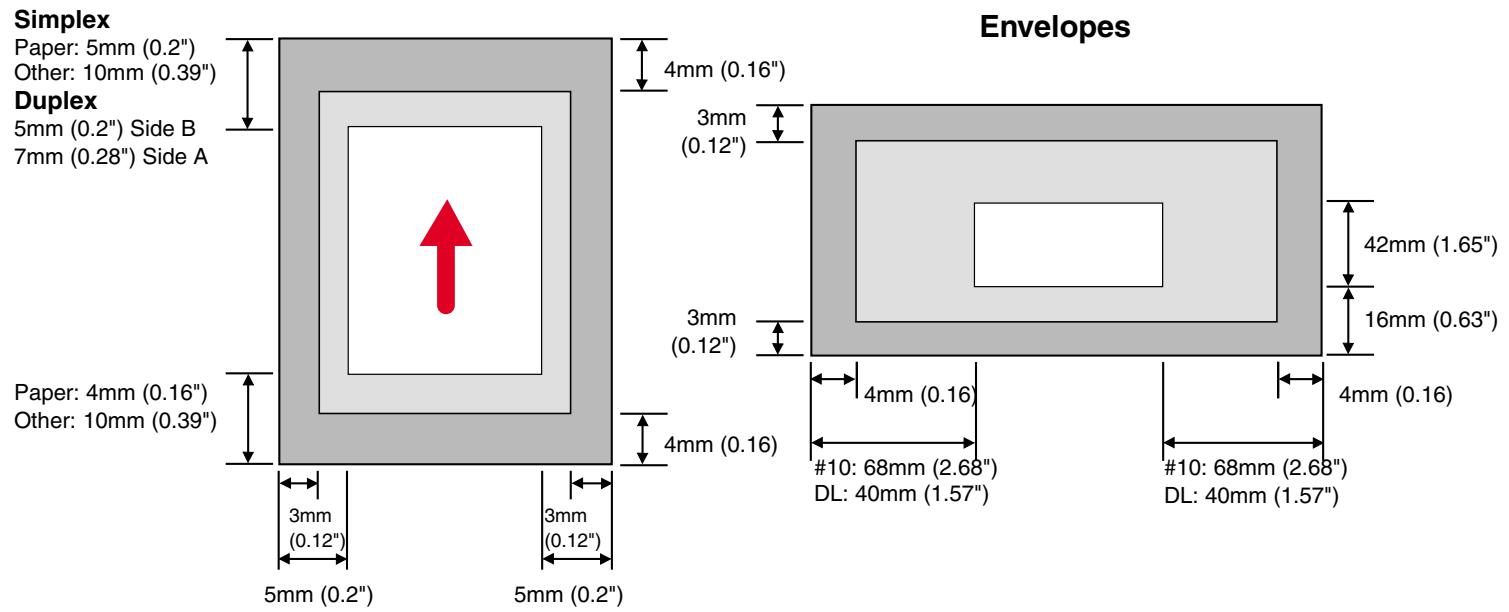
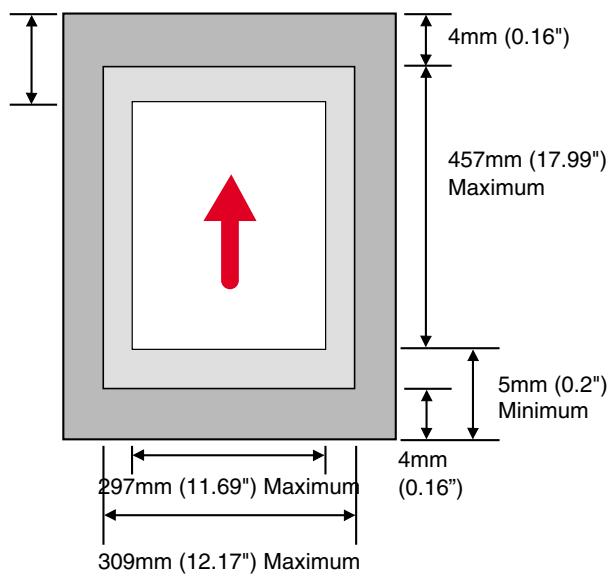
The Printable Area depends on the settings in your application. The figure below shows the printable and non-printable areas of various paper types with this printer.
Plain Paper
text_image
Simplex Paper: 5mm (0.2") Other: 10mm (0.39") Duplex 5mm (0.2") Side B 7mm (0.28") Side A Paper: 4mm (0.16") Other: 10mm (0.39") 5mm (0.2") 5mm (0.2") 3mm (0.12") 3mm (0.12") 4mm (0.16) 4mm (0.16) #10: 68mm (2.68") DL: 40mm (1.57") 42mm (1.65") 16mm (0.63") 4mm (0.16) #10: 68mm (2.68") DL: 40mm (1.57) EnvelopesSimplex
Paper: 5mm (0.2")
Other: 10mm (0.39")
Duplex
5mm (0.2") Side B
7mm (0.28") Side A
text_image
4mm (0.16") 457mm (17.99") Maximum 5mm (0.2") Minimum 297mm (11.69") Maximum 309mm (12.17") Maximum 4mm (0.16")
Non-printable Area

Non-guaranteed Print Area
Fig. 3-1
Note
If you use paper that does not meet the specifications listed in this User's Guide the life of the various consumables and parts may be reduced.
! Caution
When you feed thin paper in the Long Edge Feed direction, paper jams may occur. If a paper jam occurs, feed the paper in the Short Edge Feed Direction.
Using Transparencies
When you print on transparencies that have a line tape on the edge, be sure to remove the tape before loading.
If you do not remove the tape, the transparency may skew.
Using Envelopes
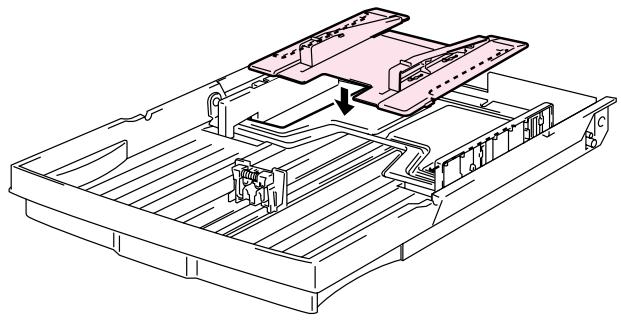
You will need to attach the Envelope Adapter when you want to print envelopes.
- Pull out the Media Cassette and remove the Media Cassette Cover.
- Attach the Envelope Adapter to the Media Cassette. Secure the hooks of the Envelope Adapter into the Media Cassette.
natural_image
Technical line drawing of a mechanical assembly with internal components and a highlighted section (no text or symbols)Fig. 3-2
- Adjust the Envelope Guide to the size of the envelopes you want to load.
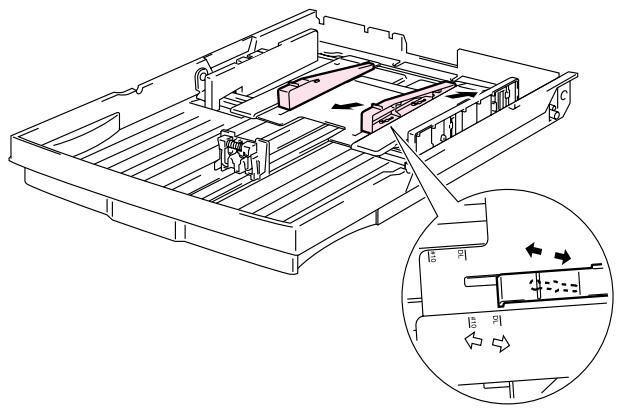
text_image
Technical diagram of a mechanical device with labeled internal components and directional arrows indicating flow or movement.Fig. 3-3
- Adjust the Paper Guide to the Envelope Adapter size.
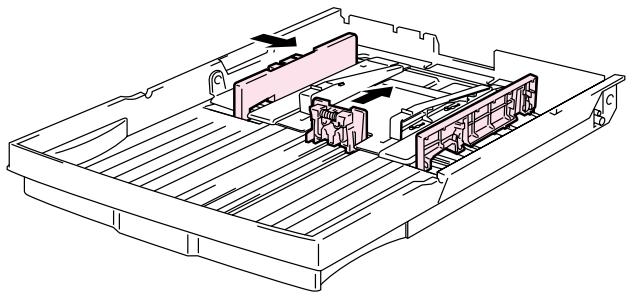
natural_image
Technical line drawing of a mechanical assembly with internal components and directional arrows (no text or symbols)Fig. 3-4
- Fit the Media Cassette Cover and reinstall the Media Cassette into the printer.
Note
Be sure to adjust the Paper Guide of the Media Cassette to the Envelope Adapter size.
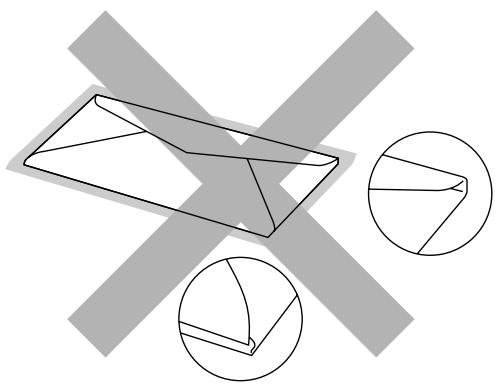
Avoid using envelopes with the following characteristics:
- Glossy or shiny surfaces
- Protection cover on the envelopes' adhesive parts
• Sealing flaps that have not been folded at purchase
• Sealing flaps as shown below
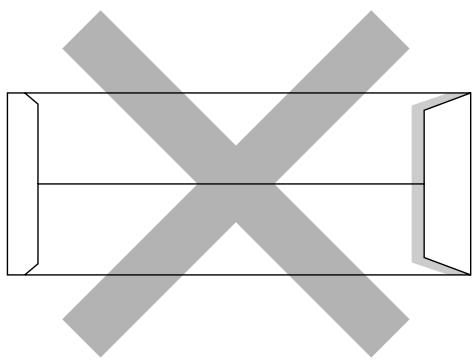
natural_image
Pure geometric diagram with intersecting X and Y axes, no text or symbols present- Three or more layers of paper in the marked area
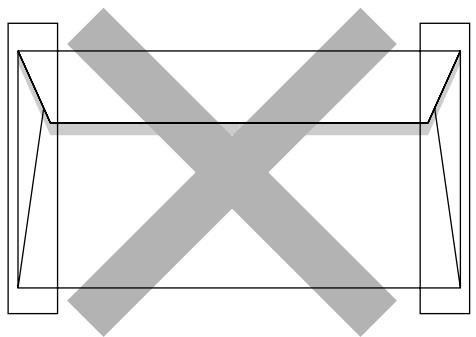
natural_image
Pure geometric diagram with intersecting lines and shaded regions, no text or symbols present• Each side folded as shown below
natural_image
Geometric diagram showing a 3D envelope with two circular insets highlighting different shapes (no text or symbols)Fig. 3-5
Before loading envelopes in the cassette, check the following:
- Envelopes should have a lengthwise sealing flap.
- The sealing flaps should be folded crisply and correctly (irregularly cut or folded envelopes may cause paper jams).
- Envelopes should consist of two layers of paper in the following marked area.
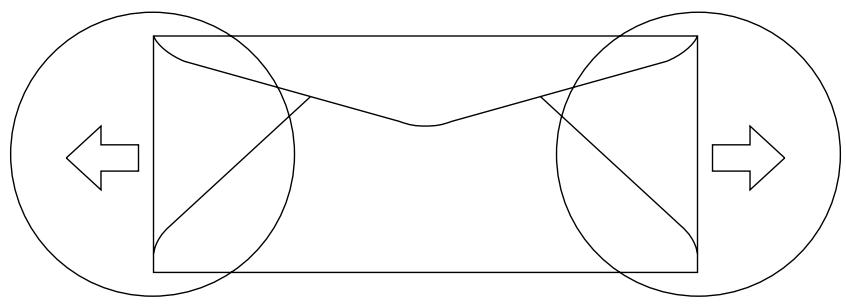
flowchart
graph TD
    A[" "] --> B[" "]
    B --> C[" "]
    C --> D[" "]
    D --> E[" "]
    E --> F[" "]
    F --> G[" "]
    G --> H[" "]
    H --> I[" "]
    I --> J[" "]
    J --> K[" "]
    K --> L[" "]
    L --> M[" "]
    M --> N[" "]
    N --> O[" "]
    O --> P[" "]
    P --> Q[" "]
    Q --> R[" "]
    R --> S[" "]
    S --> T[" "]
    T --> U[" "]
    U --> V[" "]
    V --> W[" "]
    W --> X[" "]
    X --> Y[" "]
    Y --> Z[" "]
Fig. 3-6
- Envelope joints that are sealed by the manufacturer should be secure.
- All sides should be properly folded without any wrinkles or creases.
- Print quality may vary between different style envelopes. It is a good idea to test the envelopes you wish to use prior to purchasing large quantities.
CASSETTE FEED
The printer can feed paper from the Paper Cassette, Optional Lower Paper Cassette or Optional A4/Letter Cassette.
Note
When you load paper into the Paper Cassette, note the following:
- If your application software supports paper size selection on the print menu, you can select it through the software. If your application software does not support it, you can set the paper size in the printer driver or from the control panel.
- The paper size has been factory set to letter for 120V models or A4 for 220/240V models. If you want to use other size of paper or envelopes, change the paper size in the PAPER menu of the PRINT MENU using the control panel. For paper size selection, see “PRINT MENU” in Chapter 4.
- If you use pre-printed paper in the cassettes, please note that the paper should be loaded with the printed side face up and the top edge of the paper at the back of the cassette.
The printer automatically detects the paper size you have loaded into the Paper Cassette. If you load a different size of paper into the paper cassette from the size that was selected from the control panel or in your application software, the printer will prompt you to load the correct size of paper as follows:
SIZE MISMATCH
Paper mismatch between the Printer and the Printer Driver setting. Load Paper
MANUAL FEED
Since this printer does not have a manual feed or multi-purpose tray, you cannot manually feed irregular sized paper. However, this printer has a special “Manual Feed” mode using Tray 1 (upper tray) to accommodate non-standard paper sizes. You can select this mode with the printer driver or the control panel.
See “PAPER” in Chapter 4 for more information on selecting this setting using the printer Control Panel.
- When the manual feed command is selected, the printer waits until you load the paper in Tray 1.
MANUAL FEED =on
-
Pull out Tray 1 and load the paper you are going to use. If the size of paper you wish to print on is different to the size of paper in the paper tray it will be necessary to remove the paper stack first.
-
Re-install Tray 1 and press Go. The printer then starts printing.
Note
Print quality may be affected by the type of paper you use and the print image.
CHAPTER 4
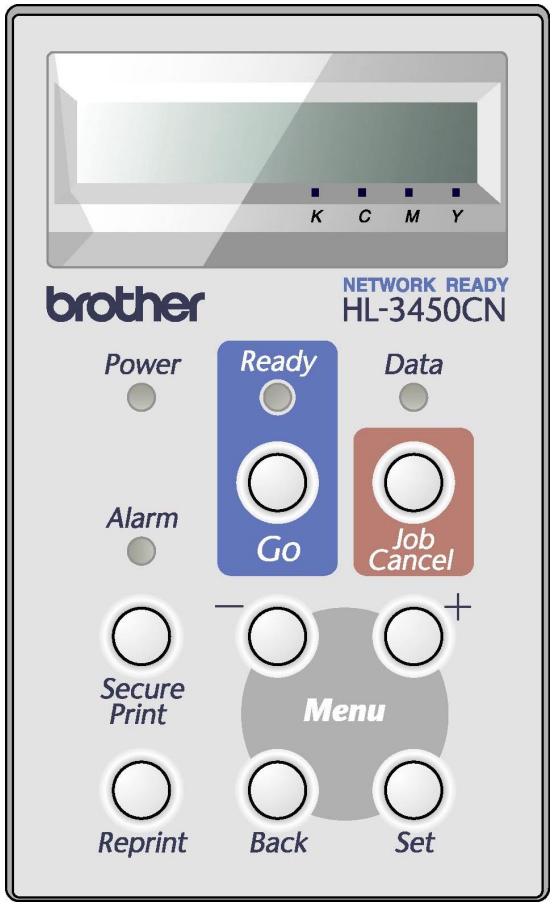
This printer has one liquid crystal display (LCD), eight buttons and four LEDs on the control panel. The display can show various messages with up to 16 characters in two rows. The LEDs light to indicate the current printer status.
text_image
brother NETWORK READY HL-3450CN Power Ready Go Data Alarm Job Cancel Secure Print Menu Reprint Back SetFig. 4-1
You can control the basic printer operations and change various printer settings with the 8 buttons (Go, Job Cancel, Secure Print, Reprint, +, -, Set, Back).
| Key | Function | |
| Go | Exit from the control panel menu, Reprint settings, and Error messages.Pause/Continue printing. | |
| Job Cancel | Stop and cancel the printer operation in progress. | |
| Secure Print | Print secure documents. | |
| Reprint | Select the Reprint menu. (1-999) | |
| Menu | + | Move forward through menus.Move forward through selectable options. |
| - | Move backward through menus.Move backward through selectable options. | |
| Set | Select the control panel menu.Set the selected menus and settings. | |
| Back | Go back one level in the menu structure. | |
GO BUTTON
Panel indications can be changed from their current status(MENU, ERROR and REPRINT settings) by pressing Go once. For ERROR indications, the panel changes only after the error is cleared.
You can PAUSE printing by pressing Go. Pressing Go again will restart the print job and clear the PAUSE. During PAUSE, the printer is in the off-line state.
Notes
When the printer is in PAUSE, you can choose not to print the remaining data by pressing Job Cancel. Press Go to clear the PAUSE and return the printer to the “READY” state.
JOB CANCEL BUTTON
You can cancel the processing or printing of data with Job Cancel button. The display shows “JOB CANCELING” until canceling is completed. After canceling the job, the printer returns to the “READY” state.
When the printer is in any state except receiving data or printing, the display shows “NO DATA ! ! !” and you cannot cancel the job.
SECURE PRINT BUTTON
This function makes it possible to submit a print job to the printer and access that job print only by using the control panel or a web browser. You can print secure data only while you are at the printer.
You can use the Secure Print function when the printer is “READY” or in the menu state.
- Press Secure Print.
- Select the user name, job, password, and print copy quantity.
- To start printing, press Set or Secure Print.
Notes
- The Secure Print function does not support off-line or paused printing.
- When there is no secure data and you press Secure Print, the LCD briefly shows "NO DATA STORED."
When you want to use the Secure Print function, refer to “Operations for Printing SECURE Data” in this chapter.
REPRINT BUTTON
If you want to reprint a document that has just been printed, you can reprint it by pressing Reprint. Also, if you have created a document that you wish to share with colleagues, simply spool the document to a non-secure area of the printer. This document can then be re-printed by anyone who is on the network or at the printer control panel.
You can use the Reprint function when the printer is “READY” or in the MENU state.
When you want to print PROOF, PUBLIC or SECURE data, we recommend installing the optional HDD or CompactFlash card.
If you do not install an HDD or CompactFlash card, you can reprint from RAM. (See “COMPACTFLASH CARD/ HARD DISK DRIVE” in Chapter 6.) The reprint data in RAM will be deleted when the printer is turned off.
When you use RAM to reprint:
- Press Set on the control panel to exit from the READY state, and then select RAMDISK SIZE in the SETUP mode.
- The default RAM is 0MB. Press + to increase the reprint RAM size in increments of 1MB.
Notes
- When you increase the RAM size for secure printing, the work area of the printer is decreased and the printer performance is reduced. Ensure that you reset the RAMDISK SIZE to 0MB when you have finished using Secure Printing.
- When you store data in RAM, the data will be deleted when the printer power is turned off.
We also recommend adding additional RAM if you want to be able to print a large quantity of secured data. (See “RAM Expansion” in Chapter 6)
Reprinting the Last JOB
You can reprint the last print job data without sending it from the computer again.
Notes
- When REPRINT is turned off on the panel and you press the Reprint key, the LCD briefly shows “NO DATA STORED.”
- If you want to cancel Reprinting, press the Job Cancel key.
- If the printer does not have enough memory to spool the print job data, it will print only the last page of the data. We recommend that you expand the memory when you want to reprint a large amount of data. For more information on memory expansion, see “RAM EXPANSION” of Chapter 6.
- Pressing – or + decreases or increases the number of reprint copies. You can select between COPIES= 1 and COPIES=999.
- For more information about the settings in the printer driver, see “Job Spooling” in Chapter 2.
Reprint the last JOB 3 times
- Use the control panel to turn the REPRINT function ON in SETUP mode.
Notes
If you are using the driver supplied with the printer, the settings for spooling jobs in the printer driver will take priority over the settings made using the control panel. For more information about the settings in the printer driver, see "Job Spooling" in Chapter 2.
- Press Reprint.
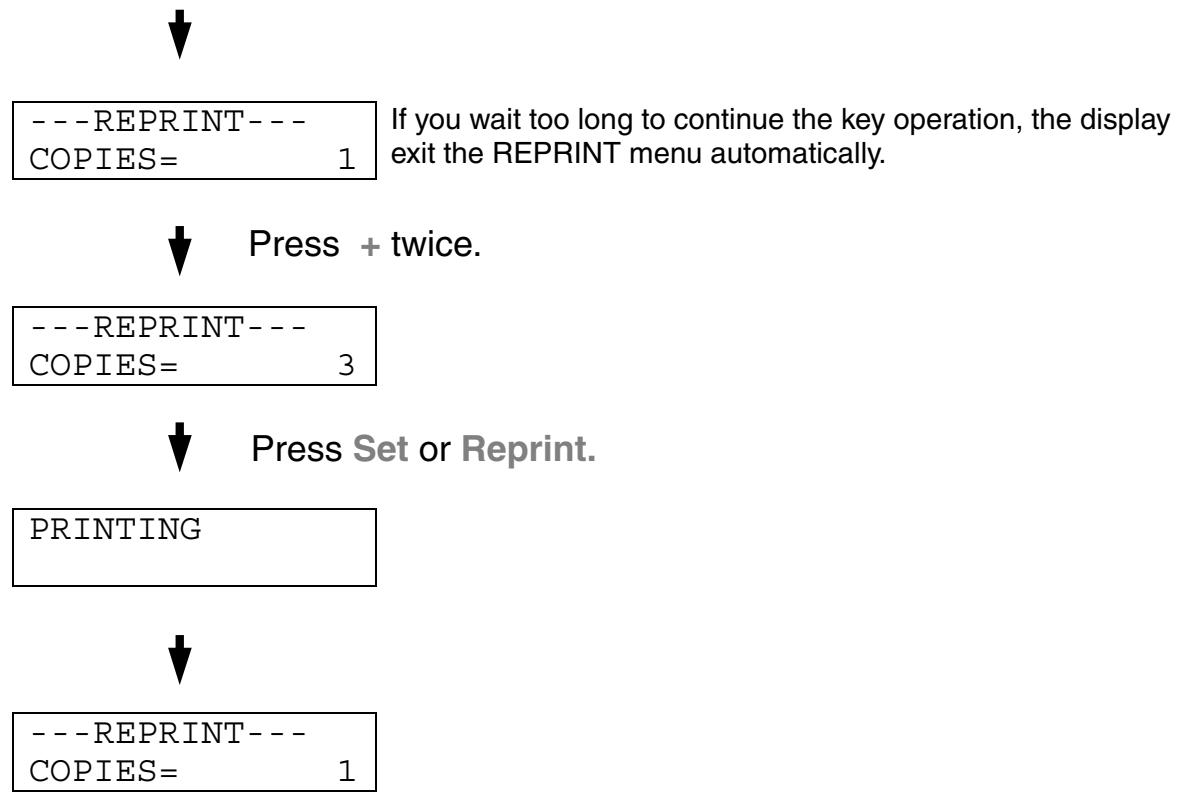
flowchart
graph TD
    A["---REPRINT --- COPIES= 1"] --> B["Press + twice."]
    B --> C["---REPRINT --- COPIES= 3"]
    C --> D["Press Set or Reprint."]
    D --> E["PRINTING"]
    E --> F["---REPRINT --- COPIES= 1"]
Notes
- If you press Go, the printer will exit from the Reprint menu.
- If you want to reprint the data and have pressed Go, the display will show "PRESS SET TO PRINT." Press Set to start reprinting, or press Go to cancel the reprint job.
Printing PROOF Data
You can use this function to reprint PROOF data that has just been printed if it has no security settings. Documents that are placed in the PROOF area are available to anyone. This function can also be used for a document that will be moved to a public folder at a later date.
When the area to spool data becomes full, the earliest data will be automatically deleted first. The order of deleting data is not connected to the order of reprinting.
When you reprint PROOF data, refer also to “Operations for printing SECURE data” in this chapter.
Notes
- If you have not installed the optional HDD or CompactFlash, the reprint data will be deleted when the printer is turned off.
- If there is data in the job information that cannot be displayed on the LCD, the display shows “?”.
- For more information about the settings in the printer driver, see “Job Spooling” in Chapter 2.
Printing PUBLIC Data
You can use this function to reprint documents stored in a PUBLIC area of the printer memory. Documents here will not be password protected and anyone can access them using the control panel or a web browser. The printer will not print a PUBLIC document when you send it to the printer. You must print using the control panel of the printer or connect to the printer through a web browser.
Public data can be deleted using the control panel of the printer or from the web-based management software.
When you reprint PUBLIC data, refer also to “Operations for Printing SECURE Data” in this chapter.
Notes
- If there is data in the job information that cannot be displayed on the LCD, the display shows “?”.
- For more information about the settings in the printer driver, see “Job Spooling” in Chapter 2.
Printing SECURE Data
Secure documents are password protected and only those people that know the password will be able to print the document. The printer will not print the document when you send it for printing; to print the document you must enter the password using the control panel or using a web browser.
If you want to delete the spooled data, you can carry out this operation using the control panel or the web-based management software.
Notes
- If there is data in the job information that cannot be displayed on the LCD, the display shows “?”.
- For more information about the settings in the printer driver, see “Job Spooling” in Chapter 2.
Operations for Printing SECURE Data
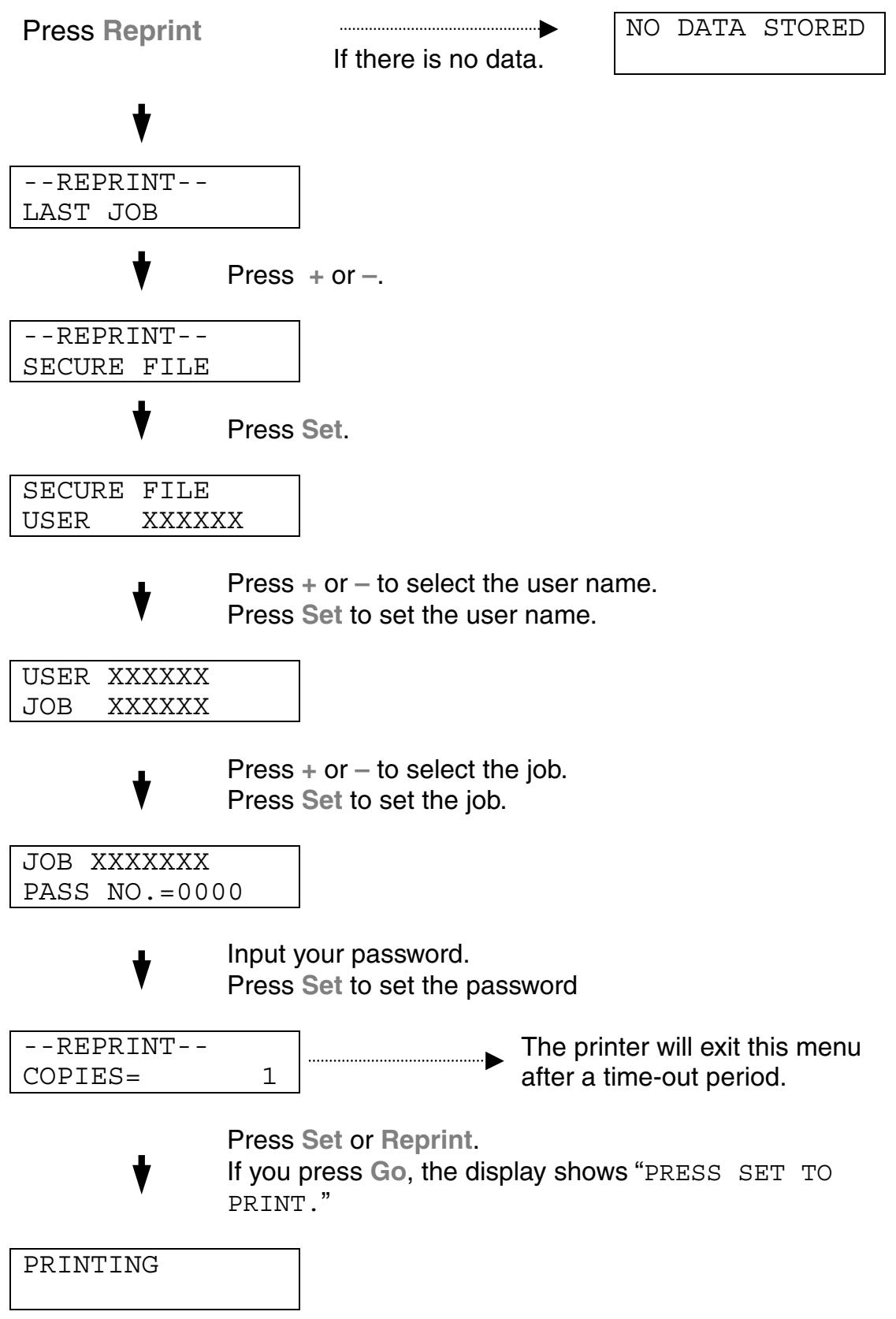
flowchart
graph TD
    A["Press Reprint"] --> B{If there is no data.}
    B -->|No DATA STORED| C["--REPRINT-- LAST JOB"]
    B -->|Press + or -.| D{--REPRINT-- SECURE FILE}
    D -->|Press Set.| E["SECURE FILE USER XXXXXX"]
    D -->|Press + or - to select the user name. Press Set to set the user name.| F["USER XXXXXX JOB XXXXXX"]
    D -->|Press + or - to select the job. Press Set to set the job.| G["JOB XXXXXX PASS NO.=0000"]
    G --> H["Input your password. Press Set to set the password"]
    H --> I{--REPRINT-- COPIES= 1}
    I -->|The printer will exit this menu after a time-out period.| J["Press Set or Reprint. If you press Go, the display shows "PRESS SET TO PRINT.""]
    I --> K["PRINTING"]
When there is no reprint data in memory
If the printer does not have reprint data in the buffer memory and you press Reprint, the LCD shows “NO DATA STORED.”
To delete the job
Using the control panel, select the 'DELETE STORAGE' submenu under the SETUP menu. Select the user name and the job to delete (you will need to input the password to delete secure data).
To cancel the reprint job
Pressing Job Cancel allows you to cancel the current reprint job. Job Cancel also allows you to cancel a paused reprint job.
+, - BUTTONS
If you press + or – when the printer is in the on-line state (READY), it goes off-line and the LCD displays the menu.
To display menus in the current mode
If you press + or – when the printer is in the on-line state, it goes off-line and the LCD displays the current mode.
You can enter other menus in the current mode by pressing + or -. Pressing + or - allows you to scroll forward or backward through the menus and settings on the display. Press repeatedly until you access the desired item.
To set numbers
There are two ways to input numbers. You can press + or – to scroll up or down one number at a time, or you can hold down + or – to scroll faster. When you see the number you want, press Set.
SET BUTTON
If you press Set when the printer is in the on-line state, it goes off-line and the LCD goes to the menu.
Pressing Set allows you to set the selected menu or number. After changing the menu or number, an asterisk appears briefly on the right hand side of the message.
BACK BUTTON
If you press Back when the printer is in the on-line state, it goes off-line and the LCD goes to the menu.
Pressing Back allows you to return to the previous level from the current menu level.
Pressing Back also allows you to select the previous digit while inputting numbers.
When the leftmost digit is selected, Back allows you to go up one level in the menu.
When a menu or number without an asterisk (Set was not pressed) is selected, Back allows you to return to the previous menu level with the original setting unchanged.
Notes
When you press Set to select a setting, an asterisk appears briefly at the end of the display. Since the asterisk indicates your selection, you can easily find the current settings as you scroll through the display.
The lamplights or blinks to indicate the current printer status.
READY LED
| LED indication | Meaning |
| On | Ready to printPrinting |
| Blinking | Warming up |
| Off | Off-line |
POWER LED
| LED indication | Meaning |
| On | The printer power is on. |
| Off | The printer power is off. |
ALARM LED
| LED indication | Meaning |
| On | An error has occurred in the printer. |
DATA LED
| LED indication | Meaning |
| On | Data remains in the printer buffer. |
| Blinking | Receiving or processing data |
| Off | No remaining data |
LCD DISPLAY
The display shows the current printer status. When you use the control panel, the display will change.
If you take the printer off-line, the display changes to show the selected emulation.
If any problems occur, the display shows the corresponding error message, maintenance message, or call service message to prompt you to take an action. For more information about these messages, see
"TROUBLESHOOTING," Chapter 7.
LCD MESSAGES
The message on the LCD display shows the current printer status during normal operation as shown below.
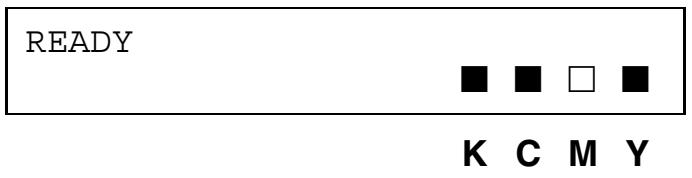
text_image
READY ■ ■ □ ■ K C M YThe ■ mark indicates the status of the toner in the Toner Cartridges (K: Black, C: Cyan, M: Magenta, Y: Yellow). When the ■ indicator blinks (□), the indicated color toner is nearly empty. When toner becomes empty, the ■ indicator disappears completely.
When an error has occurred, the type of error is displayed on the first line of the LCD message as shown below.
The message on the second line shows information for clearing the error as shown below.
COVER OPEN Close the Top Cover
PRINTER STATUS MESSAGES
The following table shows the printer status messages that are displayed during normal operation:
| Printer Status Message | Meaning |
| READY | Ready to print |
| PROCESSING | Busy processing data |
| SLEEP | In sleep status |
| PRINTING | Printing |
| PROGRAMING-WAIT | Accessing CompactFlash card or HDD |
| SELF TEST | Performing self-diagnostics |
| PAUSE | The printer has suspended feeding forms. Pressing Go resumes form feed. |
| NOW INITIALIZING | The printer is setting up. |
| WARMING UP | The printer is warming up. |
| RAM SIZE=xxMB | This printer has XX MB memory. |
| JOB CANCELLING | Cancelling the job |
| RESOLUTION ADAPT | Printing with reduced resolution |
| PRESS SET TO PRINT | Press Set to start printing. |
| RESET TO FACTORY SETTING | The printer setting returns to the factory setting. |
HOW TO USE THE CONTROL PANEL
When you operate the Menu buttons (+, -, Set or Back), remember the following basic steps:
- If no control panel operations are performed for 30 seconds, the LCD automatically returns to READY.
- When you press Set to select a setting, an asterisk appears briefly at the end of the display. After that, the display returns to the previous menu level.
- After changing the status or a setting, pressing Back before you press Set will cause the display to return to the previous menu level with the original settings unchanged.
- There are two ways to input numbers. You can press + or – to scroll up or down one number at a time, or you can hold down + or – to scroll faster. The blinking digit is the changeable digit.
For example: When you want to change the “SOURCE” setting to “TRAY1” Choose this setting to load paper always from Tray 1.
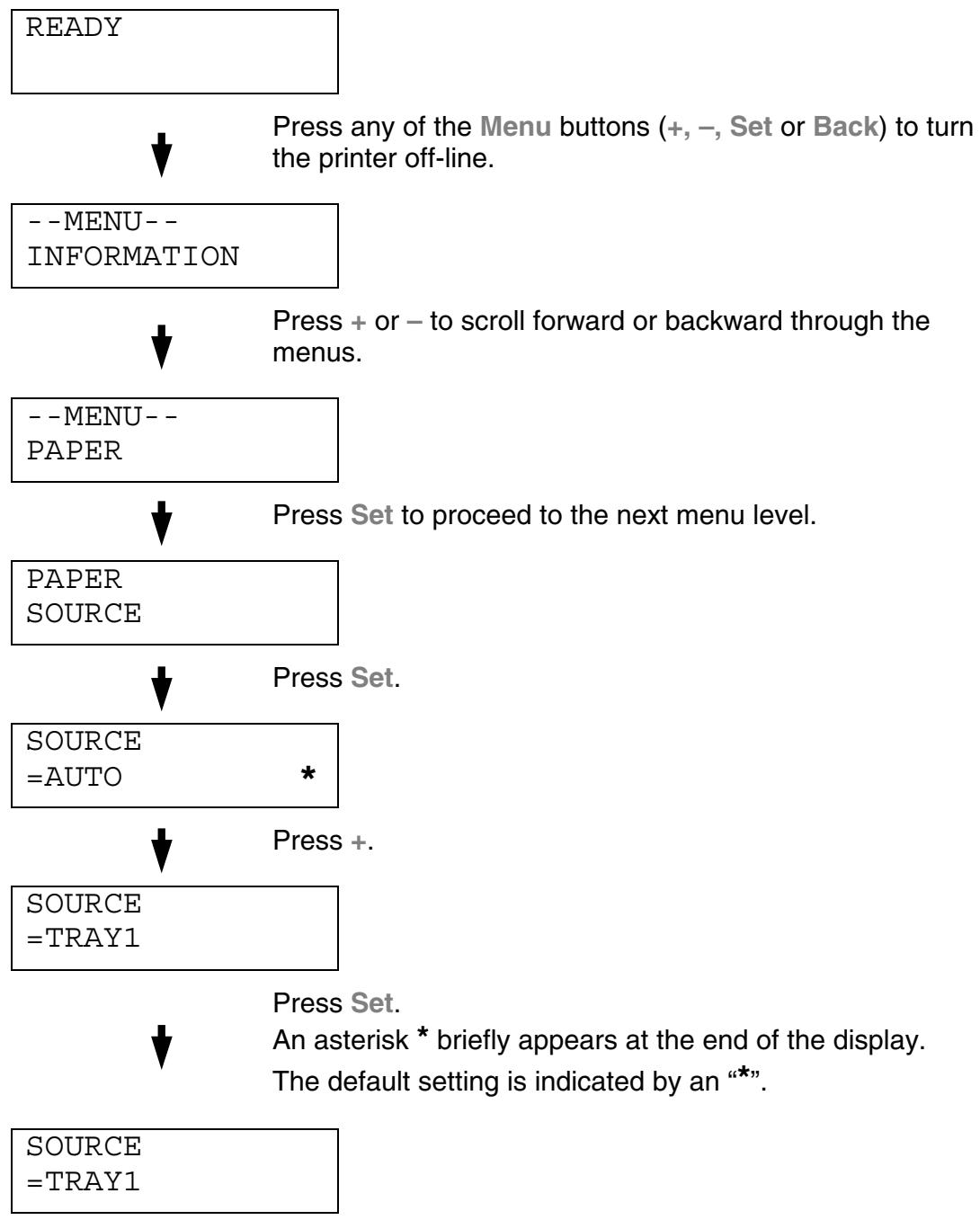
flowchart
graph TD
    A["READY"] --> B["Press any of the Menu buttons (+, -, Set or Back) to turn the printer off-line."]
    B --> C["--MENU-- INFORMATION"]
    C --> D["Press + or - to scroll forward or backward through the menus."]
    D --> E["--MENU-- PAPER"]
    E --> F["Press Set to proceed to the next menu level."]
    F --> G["PAPER SOURCE"]
    G --> H["Press Set."]
    H --> I["SOURCE =AUTO *"]
    I --> J["Press +."]
    J --> K["SOURCE =TRAY1"]
    K --> L["Press Set. An asterisk * briefly appears at the end of the display. The default setting is indicated by an “*”."]
    L --> M["SOURCE =TRAY1"]
Notes
The LCD panel descriptions for the paper trays are as follows.
• Upper paper tray: Tray 1
• Optional lower tray: Tray 2 / 3
- Optional duplex unit: DX
There are 8 modes. For more information about the selections available for each mode, refer to the pages listed below.
INFORMATION
For more information, see page 4-22
PAPER
For more information, see page 4-23
QUALITY
For more information, see page 4-23
SETUP
For more information, see page 4-24
PRINT MENU
For more information, see page 4-26
NETWORK
For more information, see page 4-31
INTERFACE
For more information, see page 4-32
RESET MENU
For more information, see page 4-33
INFORMATION
| Display Shows | Description | ||
| PRINT SETTINGS | Print the Configuration page. | ||
| PRINT TEST | Print a test page. | ||
| PRINT DEMO | Print the demonstration page. | ||
| PRINT FILE LIST | Print the card list. | ||
| PRINT FONTS | Print the fonts list and samples. | ||
| VERSION | Submenu | Description | |
| SER.NO=####### | Printer serial number. | ||
| ROM VER=##### | ROM firmware version | ||
| ROM DATE YY/MM/DD | ROM date | ||
| NET VER=##### | Network firmware version (Network users only) | ||
| NET DATE YY/MM/DD | Network Build date (Network users only) | ||
| ENGINE VER=##### | Engine Firmware version | ||
| RAM SIZE=#####MB | The size of memory in this printer | ||
| MAINTENANCE | PAGE COUNTER | =####### | The current total printed pages |
| IMAGE COUNTERS | C=#######, M=#####, Y=#####, K=#####, TOTAL=##### | The amount of images produced by an individual color and the combined Total of all 4 colors | |
| REMAIN FC ROLLER | =####### | This is the remaining life for the FC roller, OPC Belt, Fuser, 120K Kit, Transfer drum, 240K Kit, PF Kit1, PF Kit2, PF Kit3 and Oil pad. | |
| REMAIN OPC BELT | =####### | ||
| REMAIN FUSER | =##### | ||
| REMAIN 120K KIT | =##### | ||
| REMAIN TRF DRUM | =##### | ||
| REMAIN 240K KIT | =##### | ||
| REMAIN PF KIT1 | =##### | ||
| REMAIN PF KIT2 | =##### | ||
| REMAIN PF KIT3 | =##### | ||
| REMAIN OIL PAD | =##### | ||
PAPER
| Display Shows | Description |
| SOURCE | =AUTO/TRAY 1/TRAY 2/TRAY 3 |
| MANUAL FEED | =OFF/ON |
| TRAY1 SMALL SIZE | =B5/JIS B5/COM-10/DL/EXECUTIVE |
| TRAY2 SMALL SIZE | =B5/JISB5 |
| TRAY3 SMALL SIZE | =B5/JISB5 |
| DUPLEX | =OFF/ON (LONG BIND) /ON (SHORT BIND) |
QUALITY
| Display Shows | Description |
| HRC | =MEDIUM/DARK/OFF/LIGHTHRC: High Resolution Control offers improved print quality of characters and graphics that conventional laser printers cannot attain. |
| TONER SAVE | =OFF/ON |
SETUP
| Display Shows | Description | |
| LANGUAGE | = ENGLISH/FRANÇAIS /... | |
| POWER SAVE | =ON/OFF | |
| POWER SAVE TIME | =1 MIN:99 MIN | |
| AUTO CONTINUE | =OFF/ON | |
| LOCK PANEL | =OFF/ONTurn the lock panel function ON/OFF. | |
| PASS NO.=### | ||
| REPRINT | =ON/OFF | |
| PAGE PROTECTION | =AUTO/OFF/LETTER/LEGAL/A4 | |
| EMULATION | =AUTO(EPSON)/AUTO(IBM)/HP LASER JET/.... | |
| KEEP PCL | =OFF/ON | |
| RAMDISK SIZE | =0/1/2/...MB | RESTART? |
| DELETE STORAGE | Delete the data on the CompactFlash card or HDD. | |
| Submenu | Description | |
| SECURE FILE | Select the User name, Job name and password. | |
| PUBLIC FILE | Select the User name and Job name. | |
| PROOF FILE | Select the User name and Job name. | |
| DATA ID (HD) | =##### | |
| DATA ID (CF) | =##### | |
| MACRO ID (HD) | =##### | |
| MACRO ID (CF) | =##### | |
| FONT ID (HD) | =##### | |
| FONT ID (CF) | =##### | |
| FORMAT ID (HD) | OK? | |
| FORMAT ID (CF) | OK? | |
| TIME STYLE | =YY/MM/DD hh:mm* | |
| DATE & TIME | DISPLAY | YYYY/MM/DD hh:mm |
| YEAR | =YYYY | |
| MONTH | =MM | |
| DAY | =DD | |
| HOUR | =hh | |
| MINUTE | =mm | |
PRINT MENU
| Display Shows | Description | |
| MEDIA TYPE | =PLAIN PAPER/THICK PAPER/TRANSPARENCIES | |
| COLOR PRINT | =ON/OFF | |
| PAPER | Set cut sheet paper size to LEDGER, A3, B4, LEGAL, A4, LETTER, EXECUTIVE, B5 (JIS / ISO), 13x19, COM10 or DL. | |
| COPIES | You can check the total number of printed pages. | |
| Shows the number of printed pages (1:999) | ||
| ORIENTATION | This printer can print pages in portrait or landscape orientation. | |
| PORTRAIT or LANDSCAPE | ||
| PRINT POSITION | This printer can be adjusted to align the page format. | |
| Submenu | Description | |
| X OFFSET=0 | =-500:+500Move the print start position (at the upper left corner of pages) horizontally up to -500 (left) to +500 (right) dots in 300 dpi. | |
| Y OFFSET=0 | =-500:+500Move the print start position (at the upper left corner of pages) vertically up to -500 (up) to +500 (down) dots in 300 dpi. | |
| AUTO FF TIME | =OFF/1:99 (sec)Print the remaining data without pressing Go, after the selected time has elapsed. | |
| FF SUPPRESS | =OFF/ONTurns the form feed suppress function ON/OFF. | |
| HP LASERJET | FONT NO. | =I0000:###### |
| FONT PITCH | =###.## | |
| SYMBOL SET | PC-8/...Set the symbol set or the character set. | |
| TABLE PRINT | Print code table. | |
| AUTO LF | =OFF/ONON: CR→CR+LF, OFF: CR→CR | |
| HP LASERJET | AUTO CR | =OFF/ONON: LF→LF+CR, FF+CR, or VT→VT+CROFF: LF→LF, FF→FF, or VT→VT |
| AUTO WRAP | =OFF/ONLine feed and carriage return occur when the printer reaches the right margin. | |
| AUTO SKIP | =ON/OFFLine feed and carriage return occur when the printer position reaches the bottom margin. | |
| LEFT MARGIN | =#####Set the left margin at column 0 to 126 columns at 10 cpi. | |
| RIGHT MARGIN | =#####Set the right margin at column 10 to 136 columns at 10 cpi. | |
| TOP MARGIN | =#####Set the top margin at a distance from the top edge of the paper: 0, 0.33, 0.5, 1.0, 1.5 or 2.0"Factory setting=0.5 | |
| BOTTOM MARGIN | =#####Set the bottom margin at a distance from the bottom edge of the paper: 0, 0.33, 0.5, 1.0, 1.5 or 2.0"Factory setting: 0.33(None-HP), 0.5(HP) | |
| LINES | =#####Set the number of lines per page from 5 to 128 lines. | |
| EPSON FX-850 | FONT NO. | =I0000:###### |
| FONT PITCH | =###.## | |
| CHARACTER SET | PC-8/...Set the symbol set or the character set. | |
| TABLE PRINT | Print code table. | |
| AUTO LF | =OFF/ONON: CR→CR+LFOFF: CR→CR | |
| AUTO MASK | =OFF/ON | |
| LEFT MARGIN | Set the left margin at column 0 to 126 columns at 10 cpi. | |
| RIGHT MARGIN | Set the right margin at column 10 to 136 columns at 10 cpi. | |
| TOP MARGIN | Set the top margin at a distance from the top edge of the paper: 0, 0.33, 0.5, 1.0, 1.5 or 2.0” Factory setting=0.33 | |
| BOTTOM MARGIN | Set the bottom margin at a distance from the bottom edge of the paper: 0, 0.33, 0.5, 1.0, 1.5 or 2.0” Factory setting=0.33 | |
| LINES | Set the number of lines per page from 5 to 128 lines. | |
| IBM PROPRINTER | FONT NO. | =I0000: ##### |
| FONT PITCH | =###.## | |
| CHARACTER SET | PC-8/...Set the symbol set and the character set. | |
| TABLE PRINT | Print code table. | |
| AUTO LF | =OFF/ONON: CR→CR+LF,OFF: CR→CR | |
| AUTO CR | =OFF/ON | |
| AUTO MASK | =OFF/ON | |
| LEFT MARGIN | Set the left margin at column 0 to 126 columns at 10 cpi. | |
| RIGHT MARGIN | Set the right margin at column 10 to 136 columns at 10 cpi. | |
| TOP MARGIN | Set the top margin at a distance from the top edge of the paper: 0, 0.33, 0.5, 1.0, 1.5 or 2.0” Factory setting=0.33 | |
| BOTTOM MARGIN | Set the bottom margin at a distance from the bottom edge of the paper: 0, 0.33, 0.5, 1.0, 1.5 or 2.0”Factory setting: 0.33 | |
| LINES | Set the number of lines per page from 5 to 128 lines. | |
| HP - GL | CHAR SET (STD) | =##### |
| CHAR SET (ALT) | =##### | |
| PEN # SIZE | PEN 1 to 6(Set size and gray percentage for the selected pen.) | |
| PEN # GRAY | PEN 1 to 615, 30, 45, 75, 90 or 100 %(# is the selected pen number) | |
| BR - SCRIPT | ERROR PRINT | =OFF/ON |
| CAPT | =OFF/ONCAPT: Color Advanced Photoscale Technology offers photographic fine grayscale on graphics. CAPT setting is available only at 600 dpi. | |
NETWORK (Network Users Only)
| Display Shows | Description | |
| TCP/IP | Submenu | Description |
| TCP/IP ENABLE | =ON/OFF | |
| IP ADDRESS= | ###.###.###.### | |
| SUBNET MASK= | ###.###.###.### | |
| GATEWAY= | ###.###.###.### | |
| IP BOOT TRIES | =# | |
| IP METHOD | =AUTO/STATIC/RARP/BOOTP/DHCP | |
| NETWARE | NETWARE ENABLE | =ON/OFF |
| NET FRAME | =AUTO/8023/ENET/8022/SNAP | |
| APPLETALK | =ON/OFF | |
| NETBEUI | =ON/OFF | |
| DLC/LLC | =ON/OFF | |
| BANYAN | =ON/OFF | |
| LAT | =ON/OFF | |
| NETBIOS/IP | =ON/OFF | |
| ENET | =AUTO/100B-FD/100B-HD/10B-FD/10B-HD | |
INTERFACE
| Display Shows | Description | |
| SELECT | =AUTO/USB/PARALLEL/NETWORK | |
| AUTO IF TIME | = 1:99 (sec)You need to set the time out period for the auto interface selection. | |
| INPUT BUFFER | = Level1:15Increase or decrease the input buffer capacity. | RESTART PRINTER? |
| PARALLEL | When using the parallel interface | |
| Submenu | Description | |
| HIGH SPEED | =ON/OFFTurns high-speed parallel communications ON/OFF. | |
| BI-DIR | =ON/OFFTurns bi-directional parallel communications ON/OFF. | |
RESET MENU
| Display Shows | Description | |
| RESET PRINTER | Resets the printer and restores all printer settings – including command settings – to the settings you have previously made using the control panel. | |
| FACTORY RESET | Resets the printer and restores all printer default settings – including command settings. See “List of Factory Settings”. | |
| PARTS LIFE | Submenu | Description |
| FC ROLLER | Resets the Fuser Cleaner parts life. | |
| OPC BELT | Resets the OPC Belt parts life. | |
| FUSER UNIT | Resets the Fixing Unit parts life. | |
| 120K KIT | Resets the 120K Kit parts life. | |
| TRF DRUM | Resets the Transfer Drum parts life. | |
| 240K KIT | Resets the 240K Kit parts life. | |
| PF KIT1 | Resets the PF Kit1 parts life. | |
| PF KIT2 | Resets the PF Kit2 parts life. | |
| PF KIT3 | Resets the PF Kit3 parts life. | |
| OIL PAD | Resets the Oil Pad parts life. | |
Set Date and time
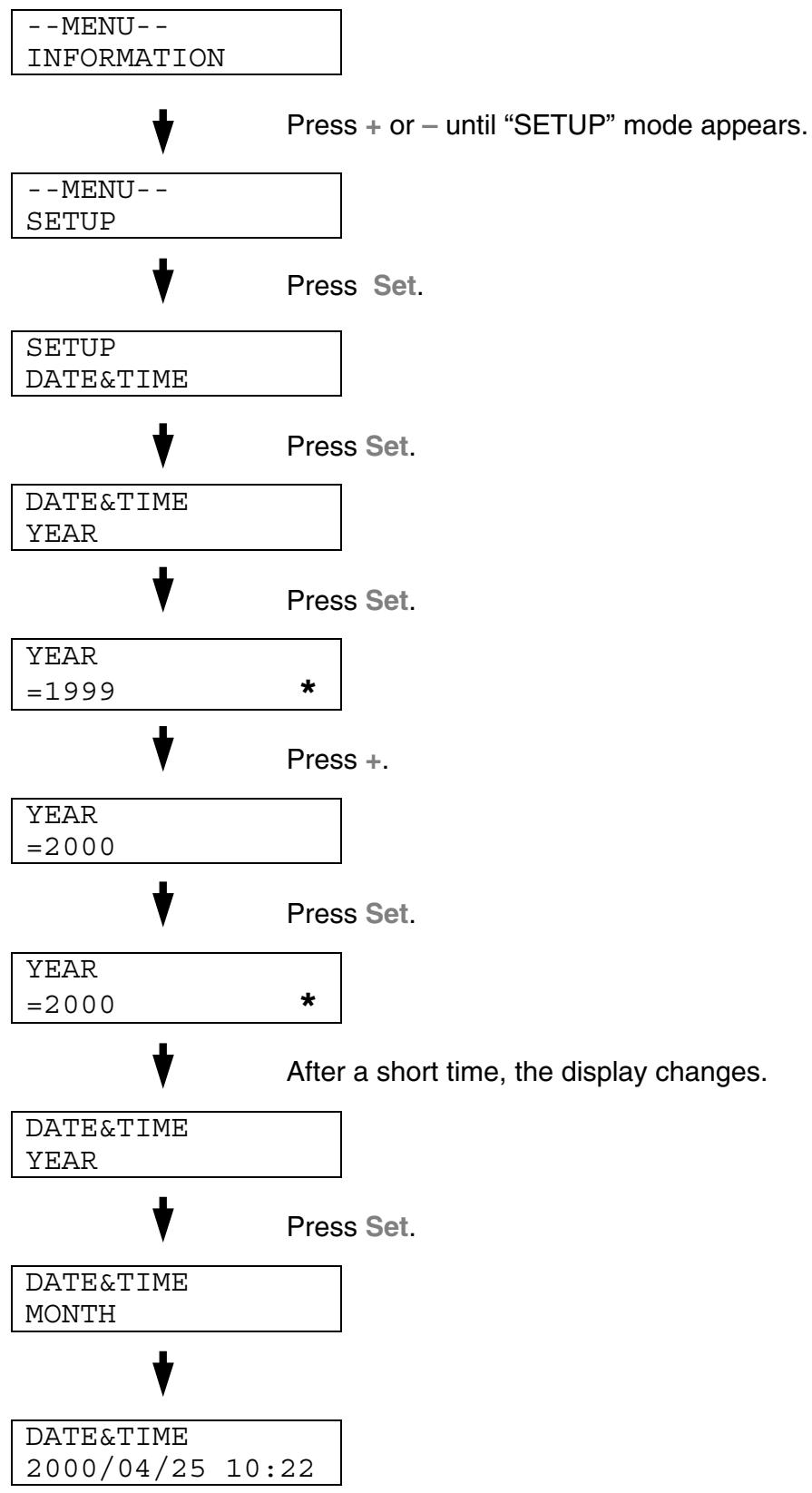
flowchart
graph TD
    A["--MENU-- INFORMATION"] --> B["--MENU-- SETUP"]
    B --> C["SETUP DATE&TIME"]
    C --> D["DATE&TIME YEAR"]
    D --> E["YEAR =1999"]
    E --> F["YEAR =2000"]
    F --> G["YEAR =2000"]
    G --> H["DATE&TIME YEAR"]
    H --> I["DATE&TIME MONTH"]
    I --> J["DATE&TIME 2000/04/25 10:22"]
    B --> K["Press Set."]
    C --> L["Press Set."]
    D --> M["Press Set."]
    E --> N["*"]
    F --> O["Press +."]
    G --> P["*"]
    H --> Q["Press Set."]
    I --> R["Press Set."]
    J --> S["After a short time, the display changes."]
Set IP Address
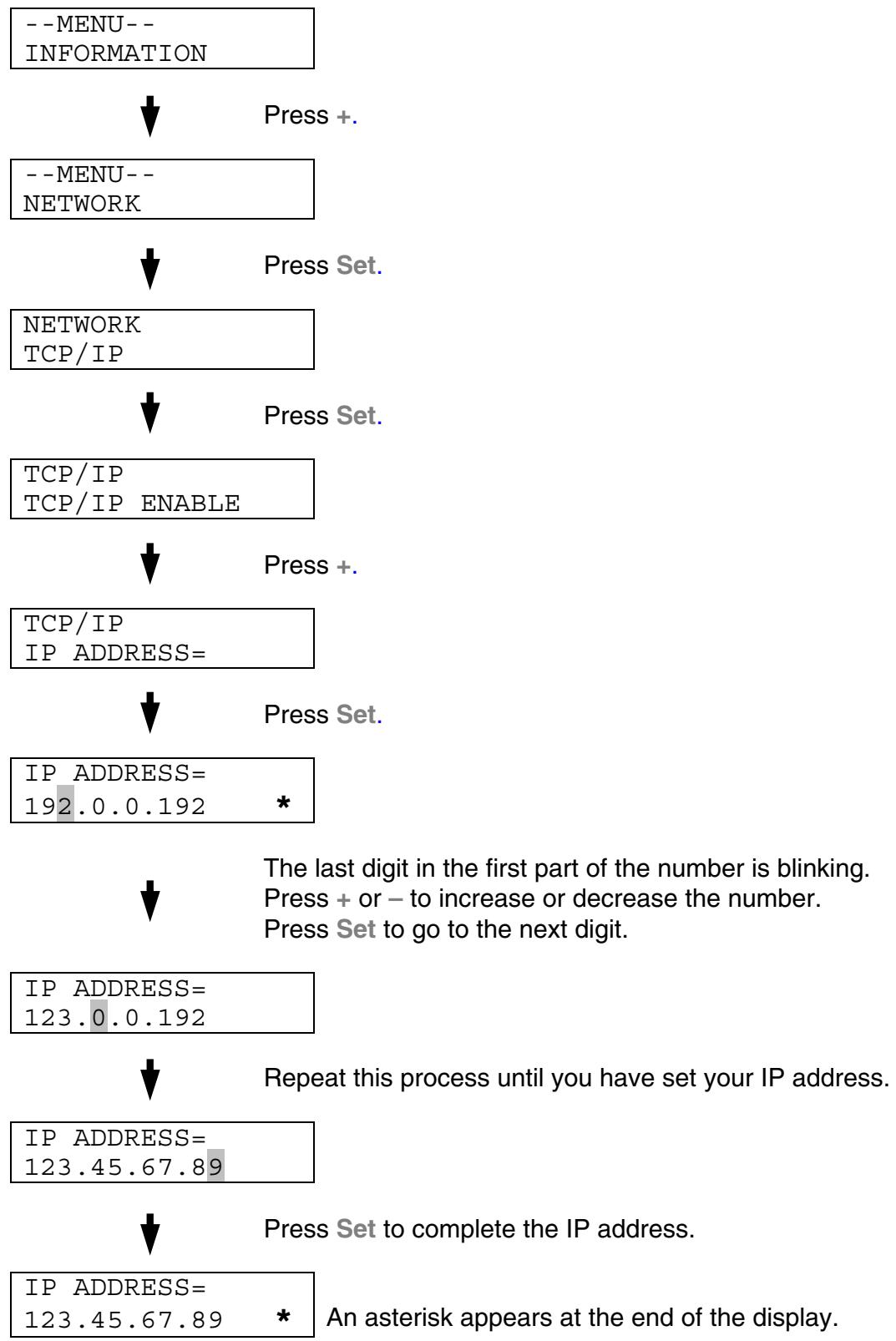
flowchart
graph TD
    A["--MENU-- INFORMATION"] --> B["--MENU-- NETWORK"]
    B --> C["NETWORK TCP/IP"]
    C --> D["TCP/IP TCP/IP ENABLE"]
    D --> E["TCP/IP IP ADDRESS="]
    E --> F["IP ADDRESS= 192.0.0.192 *"]
    F --> G["IP ADDRESS= 123.0.0.192"]
    G --> H["IP ADDRESS= 123.45.67.89"]
    H --> I["IP ADDRESS= 123.45.67.89 * An asterisk appears at the end of the display."]
About Emulation Modes
This printer has the following emulation modes:
HP LaserJet Mode
The HP LaserJet mode (or HP mode) is the emulation mode in which this printer emulates the Hewlett-Packard LaserJet laser printer. Many software applications support this type of laser printer. Using this mode will allow your printer to operate at its optimum performance with those applications.
BR-Script3 Mode
BR-Script is an original Brother page description language and a PostScript® language emulation interpreter. This printer supports level 3. The BR-Script interpreter of this printer enables full and satisfactory control of text and graphics on pages.
For technical information about PostScript commands, see the following commercial manuals:
- Adobe Systems Incorporated. PostScript Language Reference Manual, 3rd Edition. Menlo Park: Addison-Wesley Publishing Company, Inc., 1999.
- Adobe Systems Incorporated. PostScript Language Program Design. Menlo Park: Addison-Wesley Publishing Company, Inc., 1988.
- Adobe Systems Incorporated. PostScript Language Reference Manual. Menlo Park: Addison-Wesley Publishing Company, Inc., 1985.
- Adobe Systems Incorporated. PostScript Language Tutorial and Cookbook. Menlo Park: Addison-Wesley Publishing Company, Inc., 1985.
- Adobe Systems Incorporated. PostScript Language Reference Manual, third Edition. Addison-Wesley Longman, Inc., 1999.
HP-GL Mode
The HP-GL mode is the emulation mode in which this printer emulates the Hewlett-Packard plotter model HP-7475A. Many graphics and CAD applications support this type of plotter. Use this mode for optimum performance when printing from those types of applications.
EPSON FX-850 and IBM Proprinter XL Mode
The EPSON FX-850 and IBM Proprinter XL modes are the emulation modes that this printer emulates to meet the industry-standard for dot matrix printers of their respective manufacturers. Some applications support these dot matrix printer emulations. Use these emulation modes for optimum performance when printing from those types of applications.
List of Factory Settings
The following table shows the initial factory default settings.
Notes
- The settings are subject to the emulation mode. Effective modes are indicated in parentheses in the following table.
- The following settings cannot be restored to the factory settings with the RESET menu in the FACTORY SETTINGS mode: INTERFACE MODE, HRC SETTING, PAGE PROTECTION, SCALABLE FONT, LOCK PANEL, PAGE COUNTER and local language for display messages.
- The COPY setting is always restored to the factory setting when the printer is turned off and on again.
- It is not possible to reset the NETWORK settings using the control panel. If you want to reset the print server to its default factory settings (resetting all information such as the password and IP address information), hold down the Network Test button on the Network board (NC-4100h) for more than 5 seconds.
| MODE | MENU | Factory Setting |
| PAPER | SOURCE | =AUTO |
| MANUAL FEED | =OFF | |
| DUPLEX | =OFF | |
| QUALITY | HRC | =MEDIUM |
| TONER SAVE | =OFF | |
| SETUP | LANGUAGE | =ENGLISH |
| POWER SAVE TIME | =30MIN | |
| AUTO CONTINUE | =OFF | |
| LOCK PANEL | =OFF | |
| REPRINT | =ON | |
| PAGE PROTECTION | =AUTO | |
| EMULATION | =AUTO(EPSON) | |
| KEEP PCL | =OFF | |
| RAMDISK SIZE | =#MB | |
| TIME STYLE | =YY/MM/DD hh:mm | |
| PRINT MENU | MEDIA TYPE | =PLAIN PAPER |
| PAPER | =A4/LETTER | |
| COPIES | =1 | |
| ORIENTATION | =PORTRAIT | |
| PRINT POSITION | X OFFSET=0Y OFFSET=0 | |
| AUTO FF TIME | =5 | |
| FF SUPPRESS | =OFF | |
| PRINT MENU(Continued) | HP LASERJET | FONT NO.=59 |
| FONT PITCH/POINT=10.00/12.00 | ||
| SYMBOL/CHARACTER SET=PC8 | ||
| AUTO LF=OFF | ||
| AUTO CR=OFF | ||
| AUTO WRAP=OFF | ||
| AUTO SKIP=ON | ||
| LEFT MARGIN=##### | ||
| RIGHT MARGIN=##### | ||
| TOP MARGIN=##### | ||
| BOTTOM MARGIN=##### | ||
| LINES=##### | ||
| EPSON FX-850 | FONT NO.=59 | |
| FONT PITCH/POINT=10.00/12.00 | ||
| SYMBOL/CHARACTER SET=US ASCIF | ||
| AUTO LF=OFF | ||
| AUTO MASK=OFF | ||
| LEFT MARGIN=##### | ||
| RIGHT MARGIN=##### | ||
| TOP MARGIN=##### | ||
| BOTTOM MARGIN=##### | ||
| LINES=##### | ||
| PRINT MENU (Continued) | IBM PROPRINTER | FONT NO.=59 |
| FONT PITCH/POINT=10.00/12.00 | ||
| SYMBOL/CHARACTER SET=PC8 | ||
| AUTO LF=OFF | ||
| AUTO CR=OFF | ||
| LEFT MARGIN=##### | ||
| RIGHT MARGIN=##### | ||
| TOP MARGIN=##### | ||
| BOTTOM MARGIN=##### | ||
| LINES=##### | ||
| HP - GL | CHAR SET(STD)=##### | |
| CHAR SET(ALT)=##### | ||
| PEN # SIZE | ||
| PEN # GRAY | ||
| BR -SCRIPT | ERROR PRINT=OFF | |
| CAPT=OFF | ||
| NETWORK | TCP/IP | TCP/IP ENABLE=ON |
| IP METHOD=AUTO | ||
| IP ADDRESS=192.0.0.192 | ||
| SUBNET MASK=0.0.0.0 | ||
| GATEWAY=0.0.0.0 | ||
| IP BOOT TRIES=3 | ||
| IP METHOD=AUTO | ||
| NETWORK(Continued) | NETWARE | NETWARE ENABLE=ON |
| NET FRAME=AUTO | ||
| APPLETALK | =ON | |
| NETBEUI | =ON | |
| DLC/LLC | =ON | |
| BANYAN | =ON | |
| LAT | =ON | |
| NETBIOS/IP | =ON | |
| ENET | =AUTO | |
| INTERFACE | SELECT | =AUTO |
| AUTO IF TIME | =5 | |
| INPUT BUFFER | =LEVEL 3 | |
| PARALLEL | HIGH SPEED=ON | |
| BI-DIR=ON |
CHAPTER 5 MAINTENANCE
REPLACING THE CONSUMABLES
You will need to replace the following consumables periodically. When the time comes to replace consumables, the following messages will appear on the LCD panel.
The printer will stop printing when the following Operator Call Messages are displayed:
| LCD Operator Call Message | Consumable to Replace | Approximate Life | How to Replace | Order No. |
| TONER EMPTY XReplace the X toner cartridge | Toner CartridgeC = Cyan,M = Magenta,Y = Yellow,K = Black | 14,000 pages (Black)8,500 pages (Cyan, Magenta, Yellow) *1 | See 5-6 | TN-02BKTN-02CTN-02MTN-02Y |
| WASTE TONERReplace the waste toner pack | Waste Toner Pack | 18,000 images*1 *4 | See 5-16 | WT-2CL |
| OIL EMPTYReplace the oil bottle | Oil Bottle | 12,000 pages | See 5-11 | FO-2CL |
| CHANGE FCRReplace the cleaning roller | Fuser Cleaner | 20,000 pages*1 | See 5-14 | CR-2CL |
The following are Maintenance Messages that appear on the LCD in the READY state. These messages provide advance warnings to replace the consumable items before they run out. To avoid any inconvenience, you may want to purchase spare consumable items before the printer stops printing.
| LCD Operator Call message | Consumable to Replace | Approximate Life | How to Replace | Order No. |
| READY□ ■ ■ ■K C M Y | Toner Cartridge, Black | 14,000 pages *1 *2 | See 5-6 | TN-02BK |
| READY■ □ □ □K C M Y | Toner Cartridge, Cyan / Magenta / Yellow | 8,500 pages *1 *2 | See 5-6 | TN-02CTN-02MTN-02Y |
The following are Maintenance Messages that appear alternatively with the “READY” message on the upper row of the LCD when the printer is in the READY state. These messages advise you that you will need to replace each of the consumables as soon as possible, since the consumable end of life has been reached. The printer will continue printing when any of these messages are displayed:
| LCD Operator Call Message | Consumable to Replace | Approximate Life | How to Replace | Order No. |
| REPLACE FCR ↔ READY | Fuser Cleaner | 20,000 pages *1 | See 5-13 | CR-2CL |
| REPLACE OPC BELT ↔ READY | OPC Belt Cartridge | 120,000 images (Continuously printed) *4 | See 5-18 | OP-2CL |
| REPLACE FUSER ↔ READY | Fusing unit | 70,000 pages *1 | See 5-22 | |
| REPLACE 240K KIT ↔ READY | Drum Cleaner and Transfer Roller | 240,000 pages | See 5-30 | |
| REPLACE 120K KIT ↔ READY | Paper Discharger | 120,000 pages | See 5-27 | |
| REPLACE TRF DRUM ↔ READY | Transfer Drum | 600,000 images | *3 | |
| REPLACE PF KIT1/2/3 ↔ READY | Paper Feeding Roller and Separator Pad | 120,000 pages | *3 | |
| NEAR WASTE TONER ↔ READY | Waste Toner Pack | 18,000 images | See 5-16 | |
| FUSER OIL LOW ↔ READY | Oil Bottle | 12,000 pages | See 5-11 | FO-2CL |
| REPLACE OIL PAD ↔ READY | Oil Pad | 35,000 pages | *3 |
Note
The Ozone Filter does not have an LCD message indicator. However, you will need to replace it once a year.
*1 - at 5 % coverage print (A4-Letter size).
Note
The toner cartridges shipped with the printer are starter cartridges. Each starter cartridge will produce approximately 7,000 pages (Black) and 4,250 A4 pages (Cyan, Magenta and Yellow).
*2 - For example, if the Cyan and Magenta toner cartridges are almost empty, the indication will be “■ □ □ ■” (□ = blinking ■)
K CM Y
If the Cyan and Magenta toner cartridges are empty, the ■ indicator will have disappeared.
*3 - To replace the Paper Feeding Roller, the Separator Pad, the Transfer Drum and the Oil Pad, consult your local dealer/retailer or Service provider.
*4 - Definition of pages: actual output page number. Definition of images: If the image on a page contains only one color of either Cyan, Magenta, Yellow or Black =>1 image, two colors =>2 images, three colors =>3 images, four colors =>4 images.
Note
- Discard the used consumables according to local regulations. If you are not sure of them, consult your local dealer/retailer. Be sure to re-seal the consumables tightly so the material inside does not spill. Do not discard used consumables together with domestic waste.
- When removing toner cartridges, we recommend placing them on a piece of paper to prevent accidentally spilling or scattering toner on your work surface.
Note
- If you use paper that is not within the paper specifications, consumable and part life may be reduced.
- The Projected Life for each of the items listed are based on an average of 5% coverage of the printable area using any color toner cartridge. Frequency of replacement will vary depending on the complexity of printed pages, percent coverage and media type used.
TONER CARTRIDGES
! Caution
We strongly recommend using genuine Brother toner cartridges. Using generic or refilled toner cartridges may void the warranty for this printer.
Toner Nearly Empty Message
Check printed pages, page counter, and display messages periodically. If the ■ indicator starts blinking (□), the printer has nearly run out of toner or the toner is not evenly distributed inside the cartridge.

natural_image
Simple diagram with four black squares arranged horizontally inside a rectangular border (no text or symbols)KCMY
*K stands for Black, C stands for Cyan, M stands for Magenta and Y stands for Yellow.
Although you can print approximately 300 (Black) and 500 (Cyan, Magenta and Yellow) additional pages (at 5% coverage) after the toner low message first appears, be sure to replace the toner cartridge with a new one before it becomes completely empty. When this occurs, the ■ indicator on the LCD panel will disappear.
Toner Empty Message
When the following messages appear on the LCD panel and the printer stops printing, you need to replace the Toner Cartridge(s):
TONER EMPTY
Replacing the Toner Cartridges
! Caution
When replacing the Toner Cartridges, handle them carefully so that toner does not spill.
Note
To ensure optimum print quality, use genuine Brother toner cartridges. Third party toner cartridges may not work in your printer.
To obtain genuine Brother supplies, consult the dealer where you purchased the printer.
To replace the toner cartridge(s), follow these steps:
- Open the Front Cover of the printer.
- Remove the Toner Cartridge(s) that has run out of toner. Pull the Toner Cartridge out slightly with one hand, then hold the Toner Cartridge with both hands and pull it out of the printer.
- After rocking each new Toner Cartridge 3 to 4 times from side to side, remove the tape labeled ‘REMOVE’ and the orange protective cover from the new Toner Cartridge.
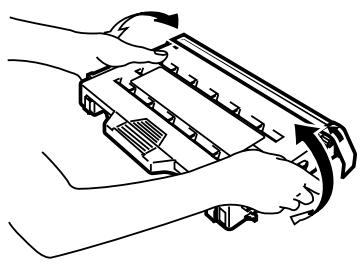
natural_image
Line drawing of hands holding a device with arrows indicating motion (no text or symbols)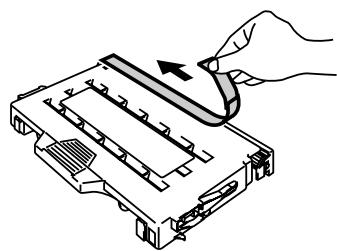
natural_image
Illustration of a hand inserting a cable into a device housing (no text or symbols)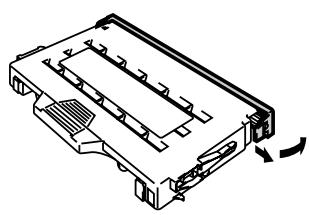
natural_image
Technical line drawing of a computer drive chassis with ports and scroll arrows indicating motion (no text or symbols)Fig. 5-1
- Insert the new Toner Cartridge(s) by positioning it in the correct guide(s). Slide it gently into the printer. Do not try to lock or push it in; it should rest loosely in the guide rails. Note that each color cartridge is individually keyed to prevent improper installation. Match each cartridge color label to the corresponding label on the printer.
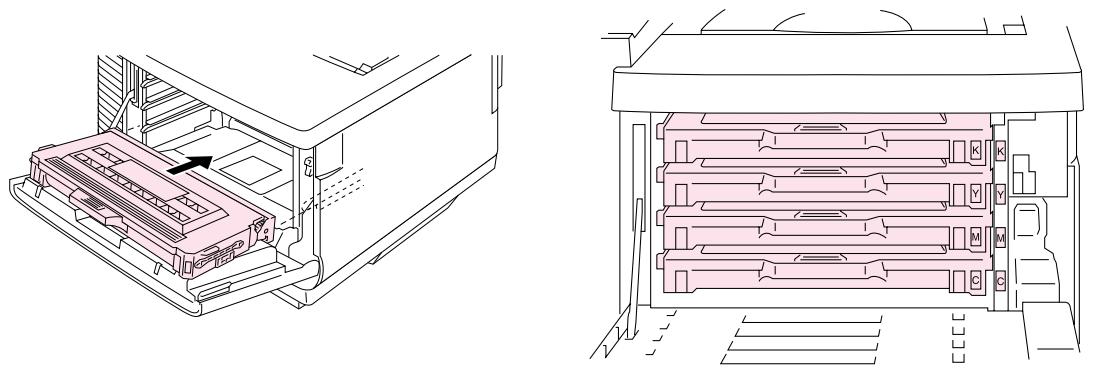
natural_image
Technical line drawing of a printer internal structure showing internal components and assembly (no text or symbols)Fig. 5-2
- Close the Front Cover.
! Caution
- Insert the toner cartridges gently into the printer. Do not try to lock them into place by pushing them. Toner cartridges should rest loosely in the guide rails; they will be correctly positioned when the front cover is closed.
- The printer may be damaged or may not work correctly if you install consumables other than genuine Brother supplies or if you use refilled toner cartridges. This could void your warranty.
- Do not stand the toner cartridge on its end or turn it upside down.
- Install the toner cartridges immediately after you remove the protective cover. Do not touch the shaded area shown below:
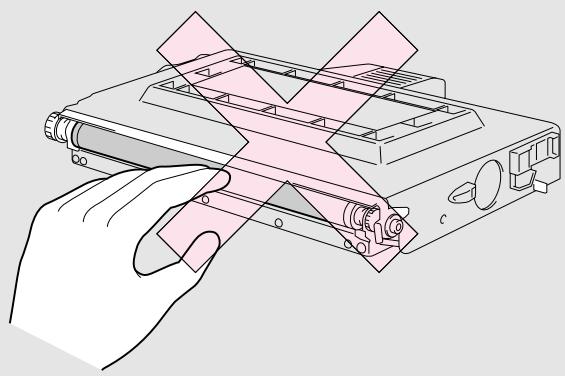
natural_image
Illustration of a hand holding a device with a pink panel overlay, no text or symbols presentFig. 5-3
OIL BOTTLE
Oil Bottle Low Message
When the Oil has almost run out, the following message appears on the LCD panel. Obtain a new Oil Bottle to replace the nearly empty bottle. After this message appears, you can print approximately 30 pages:
FUSER OIL LOW ←→ READY
Oil Bottle Empty Message
When the Oil completely runs out, the following message appears on the LCD panel and the printer stops printing. When you see this message, you must replace the Oil Bottle with a new one:
OIL EMPTY
Replace the oil bottle
! Warning
The Fusing Unit and the parts around it are HOT! Be sure to wait until the Fusing Unit has cooled sufficiently before replacing the Oil Bottle.
If you touch the HOT parts, you might get injured.
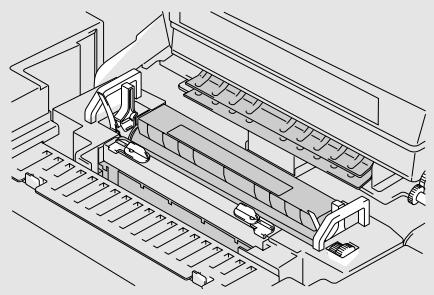
natural_image
Technical line drawing of a mechanical assembly with no visible text or symbols! Caution
Be careful not to spill oil inside the printer. I may cause considerable damage and void your warranty. If you spill some oil, consult your dealer or Brother authorized service representative.
Replacing the Oil Bottle
- Press the Power button to turn off the printer and wait until it has cooled down sufficiently.
- Open the Top Cover.
- Release the Oil Bottle Lock Levers as shown:
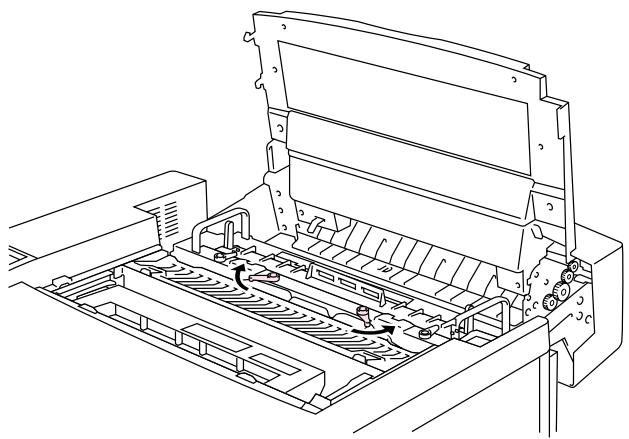
natural_image
Technical line drawing of a printer internal structure with no visible text or symbolsFig. 5-4
- Remove the empty Oil Bottle from the Fusing Unit. Hold a sheet of paper under the Oil Bottle and lift it out of the Fusing Unit. Move the bottle away from the printer to the right so the oil will not spill into it. Be careful not to spill oil inside the printer. It could cause considerable damage to the printer.
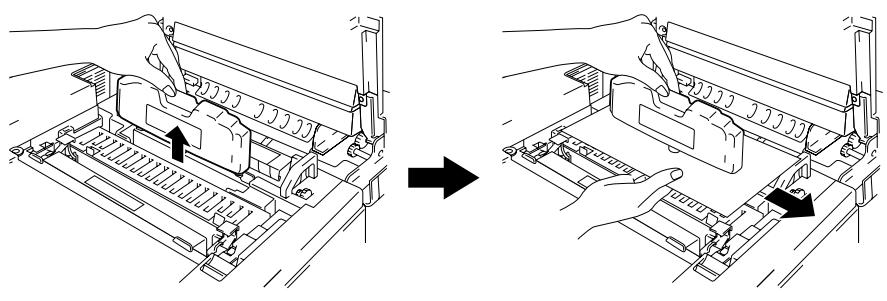
natural_image
Diagram showing two steps of a printer or printer assembly process, with no visible text or symbols.Fig. 5-5
- Install the new Oil Bottle into the Fusing Unit with the label facing you. The Oil Bottle is keyed to prevent incorrect installation.
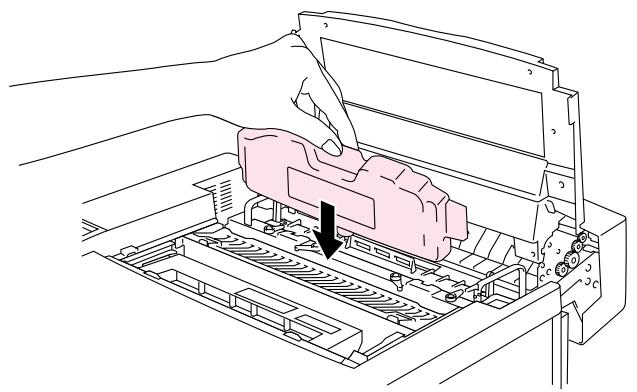
natural_image
Line drawing of a printer's internal structure with a hand operating the component (no text or symbols)Fig. 5-6
- Lock the Oil Bottle Lock Levers securely.
- Close the Top Cover.
- Press the Power button to turn the printer On.
FUSER CLEANER
Fuser Cleaner Message
When the following message appears on the LCD panel, the printer will stop printing and the Fuser Cleaner will need to be replaced:
REPLACE FCR ←→ READY
Fuser Cleaner Change Message
When the following message appears on the LCD panel and the printer stops printing, you must replace the Fuser Cleaner:
CHANGE FCR
Replace the cleaning roller
Replacing the Fuser Cleaner
! Warning
The Fusing unit and the parts around it are HOT! Be sure to wait until the Fusing Unit has cooled sufficiently before replacing the Fuser Cleaner.
If you touch the HOT parts, you might get injured.
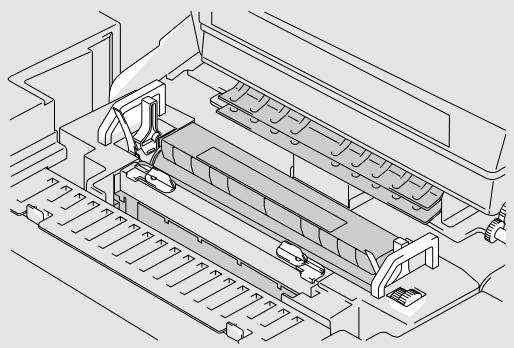
natural_image
Technical line drawing of a mechanical assembly with no visible text or symbols- Press the Power button to turn the printer off and wait until it has cooled down sufficiently.
- Open the Top Cover.
- Release the Fuser Cleaner Lock Levers on both sides as shown:
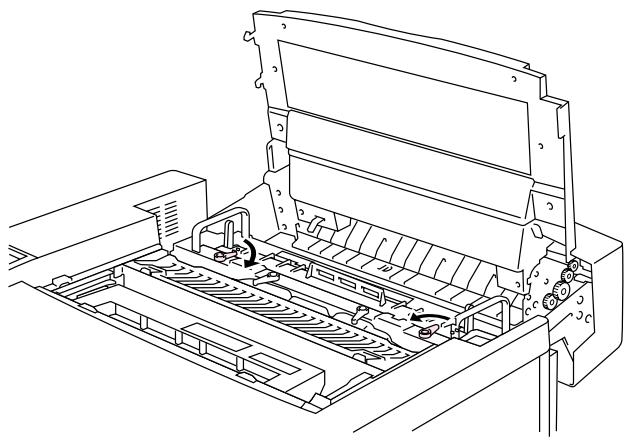
natural_image
Technical line drawing of a printer internal structure with no visible text or symbolsFig. 5-7
- Take the Fuser Cleaner out of the Fusing Unit by holding the handle of the Fuser Cleaner as shown below.
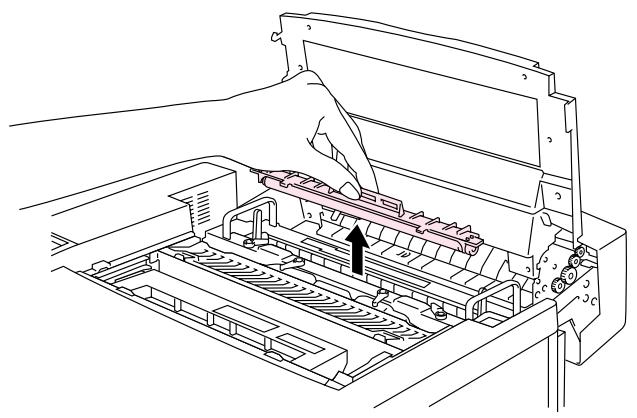
natural_image
Technical line drawing of a printer internal structure with no visible text or symbolsFig. 5-8
- Install the new Fuser Cleaner into the guide with the roller side facing you.
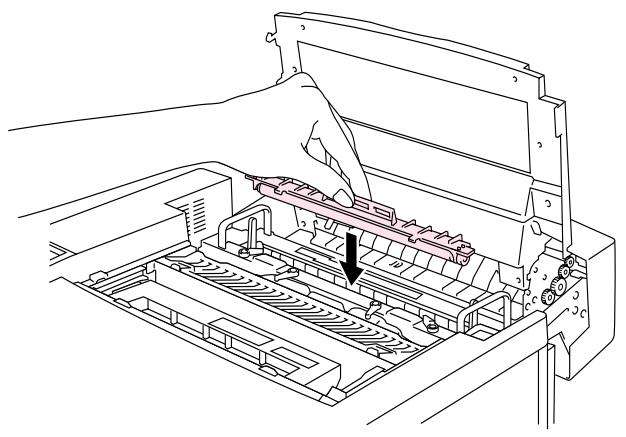
natural_image
Line drawing of a printer internal structure with a paperclip inserted, showing no text or symbolsFig. 5-9
- Lock the Fuser Cleaner with the Fuser Cleaner Lock Levers.
- Close the Top Cover.
- Press the Power button to turn the printer On.
- Press any of the Menu buttons (+, -, Set or Back) to take the printer Off Line.
- Press + or - until "RESET MENU" appears.
- Press Set to proceed to the next menu level, and then press + or – until "PARTS LIFE" appears.
- Press Set, and then press +. "FC ROLLER" appears.
- Press Set, and then press Go. The printer is now in the READY state.
WASTE TONER PACK
After approximately every 18,000 A4 or letter size images have been printed at 5% coverage, you must change the Waste Toner Pack.
When the Waste Toner Pack is full, the following message appears on the LCD panel and the printer will stop printing. When you see this message, you must replace the Waste Toner Pack:
WASTE TONER
Replace the waste toner pack
! Warning
Do not re-use the Waste Toner Pack.
Replacing the Waste Toner Pack
! Warning
- Do not put the Waste Toner Pack into a fire. It could explode.
- Be careful not to spill the toner. Do not inhale or allow it to get into your eyes.
! Caution
Be careful when you handle the Waste Toner Pack so that toner will not spill on your hands or clothes.
- Open the Front Cover.
- Remove the Waste Toner Pack from the holder located at the lower right side of the printer. Be careful not to spill the toner.
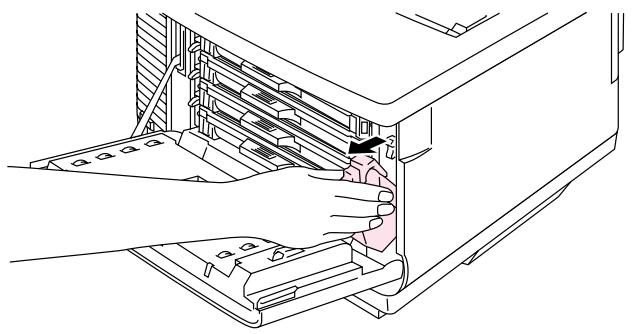
natural_image
Line drawing of a printer internal structure showing hands inserting or removing components (no text or symbols)Fig. 5-10
- Peel off the sealing sticker on the right side of the Waste Toner Pack. Seal the opening with the sealing sticker. See Fig. 5-11 for the correct placement of the sticker. When you dispose of the used Waste Toner Pack, place it in the plastic bag included with the replacement Waste Toner Pack. Please dispose of the Waste Toner Pack in accordance with local regulations.
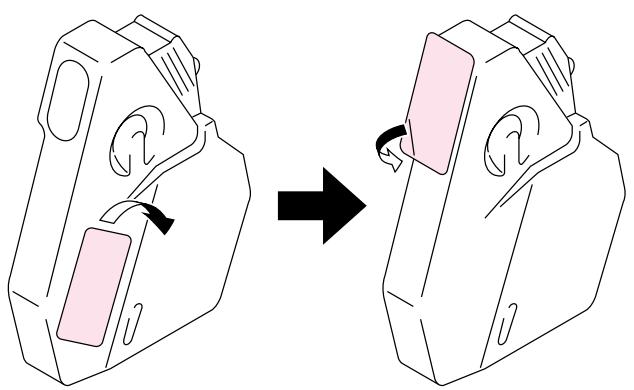
natural_image
Diagram showing a device being processed with a pink component, no text or symbols presentFig. 5-11
- Insert the new Waste Toner Pack into the Waste Toner Pack Holder.
- Close the Front Cover.
OPC BELT CARTRIDGE
OPC Belt Cartridge Message
When the OPC Belt Cartridge runs out, the following message appears on the LCD panel. When you see this message, you must replace the OPC Belt Cartridge:
REPLACE OPC BELT ←→ READY
! Caution
- Do not touch the surface of the OPC Belt Cartridge. If you touch it, it could degrade print quality.
- Do not expose the OPC Belt Cartridge to light (more than 800 lux) for more than 2 minutes. This could degrade print quality. Be sure to open the printer Front Cover BEFORE you open the Top Cover to handle the OPC Belt Cartridge.
- Damage caused by improper handling of the OPC Belt Cartridge may void your warranty.
Replacing the OPC Belt Cartridge
- Press the Power button to turn the printer off.
- Open the Front Cover, and then open the Top Cover.
- Pull the green Belt Cartridge Lock Levers on both sides toward you to release the lock.
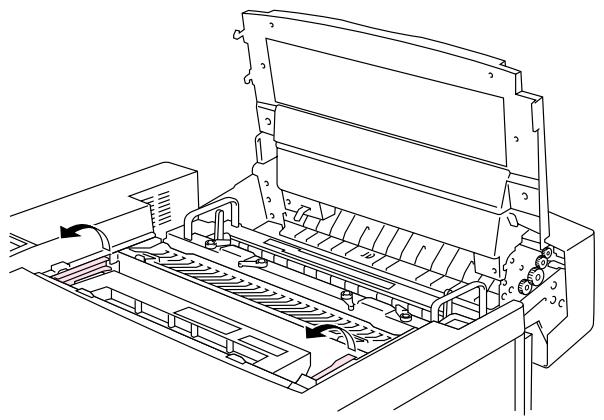
natural_image
Technical line drawing of a printer internal structure with no visible text or symbolsFig. 5-12
- Remove the OPC Belt Cartridge from the printer.
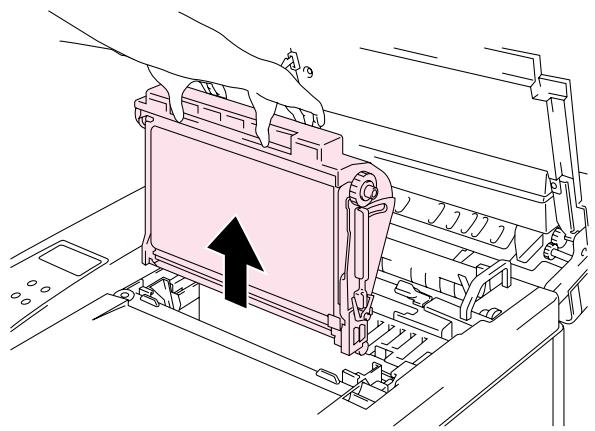
natural_image
Technical line drawing of a mechanical assembly with a highlighted component (no text or symbols)Fig. 5-13
- Remove the Tension Release Pins from both sides of the new OPC Belt Cartridge.
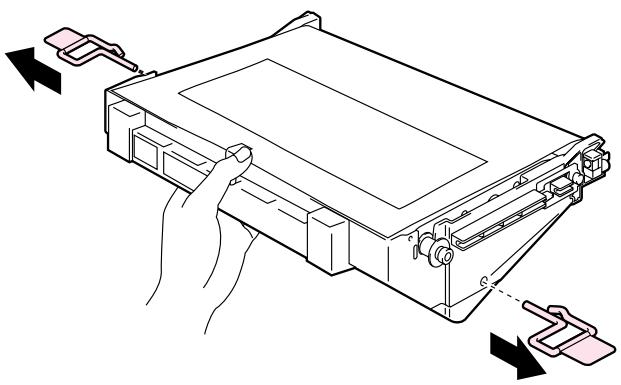
natural_image
Line drawing of a computer case with hands holding a component, showing internal components and directional arrows (no text or symbols)Fig. 5-14
- Remove the protective sheet from the new OPC Belt Cartridge. Do not touch the green part of the OPC Belt Cartridge.
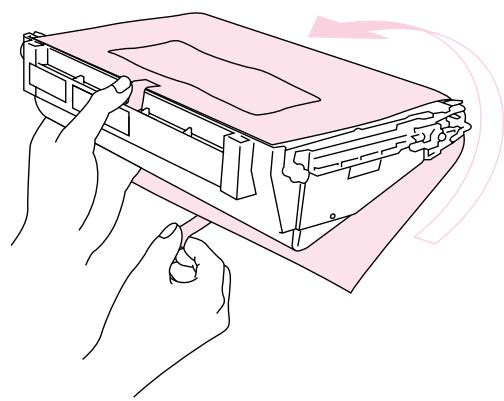
natural_image
Illustration of hands assembling a device into a flat case (no text or symbols)Fig. 5-15
- Insert the new Belt Cartridge into the printer guides with the flat side facing you.
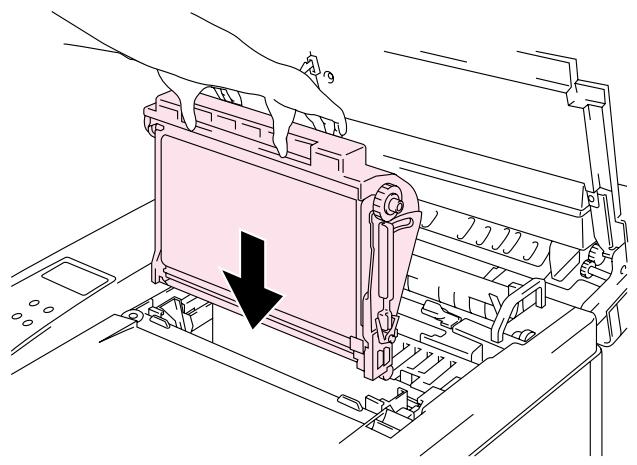
natural_image
Technical line drawing of a printer or printer assembly with a hand operating it, showing no text or symbols.Fig. 5-16
- Press the Belt Cartridge Lock Levers on both sides of the OPC Belt Cartridge to the rear to lock the cartridge into the printer.
- Close the Front Cover and the Top Cover.
- Press the Power button to turn the printer On.
- Press any of the Menu buttons (+, -, Set or Back) to take the printer Off Line.
- Press + or – until “RESET MENU” appears.
- Press Set to proceed to the next menu level, and then press + or – until "PARTS LIFE" appears.
- Press Set, and then press + until "OPC BELT" appears.
- Press Set, and then press Go. Then printer is now in the READY state.
OZONE FILTER
Ozone Filter
You will need to replace the Ozone Filter once a year to prevent ozone from coming out of the printer.
! Caution
You must replace the Ozone Filter once a year. If you do not, it might cause a noticeable smell of Ozone.
Replacing the Ozone Filter
- Slide and remove the Rear Side Cover.
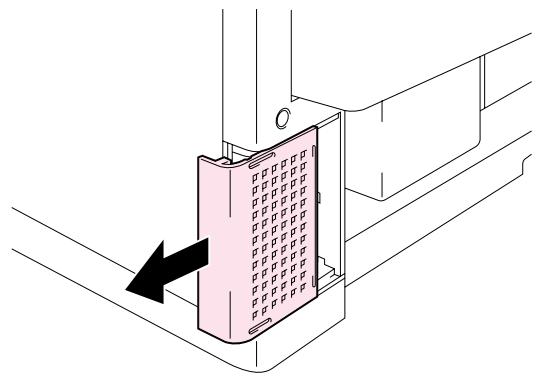
natural_image
Diagram of a device with a pink panel and black arrow indicating direction (no text or symbols)Fig. 5-17
- Remove the Ozone Filter Case from the Rear Side Cover.
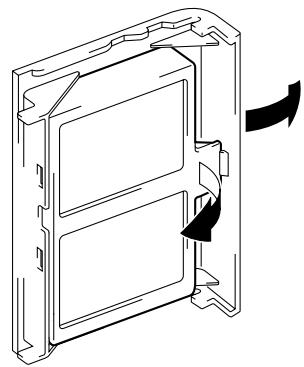
natural_image
Technical line drawing of a mechanical component with directional arrows indicating movement (no text or symbols)Fig. 5-18
- Insert the new Ozone Filter Case into the Rear Side Cover.
- Reinstall the Rear Side Cover by sliding it into place.
FUSING UNIT
Fusing Unit
When the following message appears on the LCD panel, you must replace the Fusing Unit:
REPLACE FUSER ←→ READY
! Warning
The Fusing Unit and the parts around it are HOT! Be sure to wait until the Fusing Unit has cooled down sufficiently before replacing the Fusing Unit.
If you touch the HOT parts, you might get injured.
! Warning
After replacing the Fusing Unit, wait for approximately 30 minutes before printing to allow the fusing oil to circulate.
Replacing the Fusing Unit
- Press the Power button to turn off the printer. Unplug the printer. To avoid injury, wait until the printer has cooled down sufficiently before replacing the Fusing Unit.
- Open the Top Cover.
- Unscrew the two long screws as shown to release the Fusing unit from the printer.
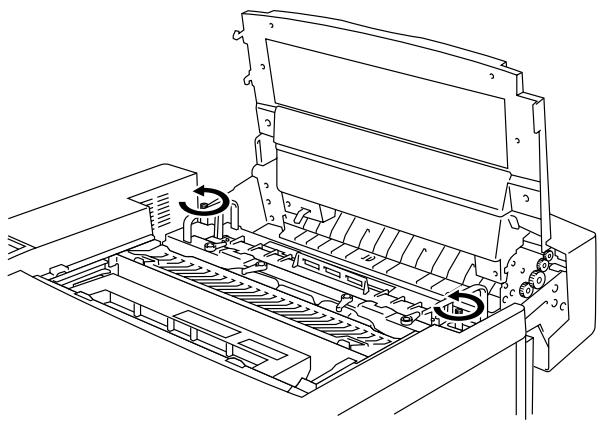
natural_image
Technical line drawing of a printer internal structure with no visible text or symbolsFig. 5-19
Note
Please wait for 30 minutes after installing a new Fusing Unit to allow the oil to circulate completely through to the Heat Roller. If you begin using a new Fusing Unit immediately, poor print quality may result.
- Remove the Fusing Unit from the printer by holding the handles on both sides.
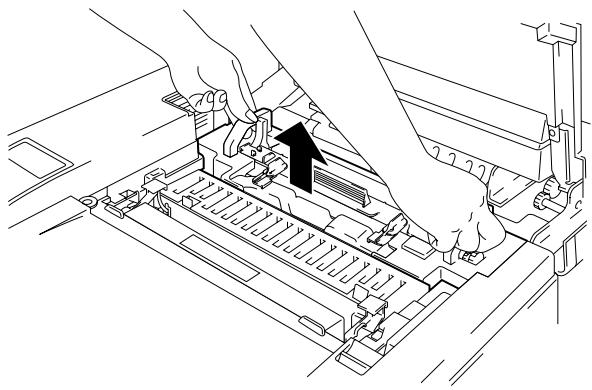
natural_image
Line drawing of hands operating a mechanical device with a black arrow indicating the component (no text or symbols present)Fig. 5-20
! Caution
When removing the Fusing Unit from the printer, be sure to keep the Fusing Unit flat, so oil will not spill. Damage can occur if oil is spilled inside the printer.
- Remove the Oil Bottle and the Fuser Cleaner from the Fusing Unit.
- Install the new Fusing Unit into the printer. Be sure to insert the Fusing Unit completely into the printer.
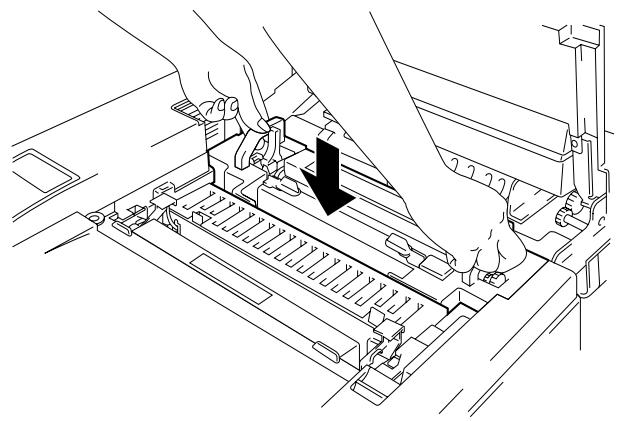
natural_image
Technical line drawing of a mechanical assembly with hands operating a component (no text or symbols visible)Fig. 5-21
- Secure the Fusing Unit with the two long screws.
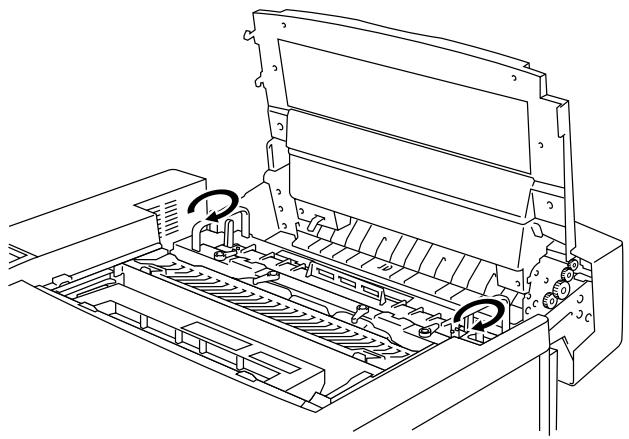
natural_image
Technical line drawing of a printer internal structure with no visible text or symbolsFig. 5-22
- Move the Fusing Unit Pressure Release Levers to the SET position.
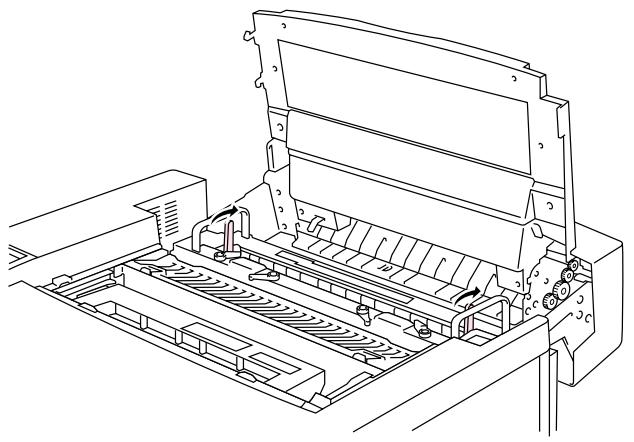
natural_image
Technical line drawing of a printer holder assembly (no text or symbols)Fig. 5-23
- Install the Fuser Cleaner and the Oil Bottle into the new Fusing Unit and lock the Oil Bottle Lock Levers and the Fuser Cleaner Lock Levers. Be careful not to spill oil inside the printer. This could damage the printer.
Note
If the condition of the Fuser Cleaner is poor, we recommend that you replace the Fuser Cleaner at the same time as the Fusing Unit. The life counter for the Fuser Cleaner will need to be reset. Please refer to page 5-15 for instructions.
Partially used Oil Bottles can be reused with a new Fusing Unit.
Please wait for 30 minutes after installing a new Fusing Unit to allow the oil to circulate completely through the Heat Roller.
- Close the Top Cover, and then plug the printer into the AC outlet.
- Press the Power button to turn the printer On.
- Press any of the Menu buttons (+, -, Set or Back) to take the printer Off Line.
- Press + or – until “RESET MENU” appears.
- Press Set to proceed to the next menu level, and then press + or – until “PARTS LIFE” appears.
-
Press Set, and then press + until "FUSER UNIT" appears.
-
Press Set, and then press Go. The printer is now in the READY state.
! Caution
Please be careful when replacing the Fusing Unit. Do not place pressure on the Fusing Unit; it should fit in easily. If it does not, make sure the Fusing Unit connector is free to move.
Do not apply force! It could damage both the Fusing Unit and the printer.
120K Kit
120K Kit
When you see the following message on the LCD panel, you must replace the items supplied in the 120K Kit, which includes the Paper Discharger.
Note
- User replacement of some of the following 120K Kit parts is not recommended.
- We recommend that you contact your local Brother authorized dealer or service center for replacing the Paper Feeding Roller, Separator Pad and Transfer Drum.
- We recommend you contact your Service provider when you see the following message on the LCD panel:
REPLACE 120K KIT ←→ READY
Paper Discharger
! Caution
Do NOT touch the charging wire!
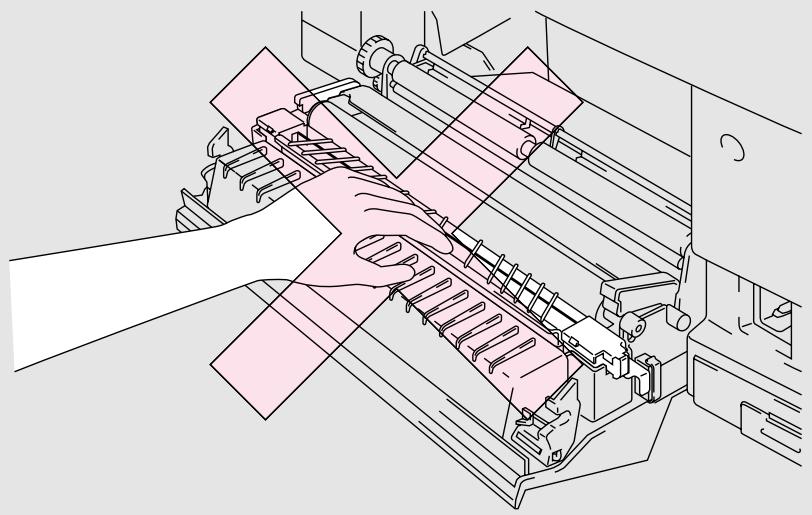
natural_image
Line drawing of a printer's internal structure with hands operating it (no text or symbols)Fig. 5-24
Replacing the Paper Discharger
- Press the Power button to turn the printer Off, and then unplug the printer.
- Open the Rear Access Cover.
- Remove the Paper Discharger from the Transfer Unit by lightly pressing it down and then sliding it to the right to release it from the catches. Hold the right hand side of the Discharging Unit and lift it up to remove it.
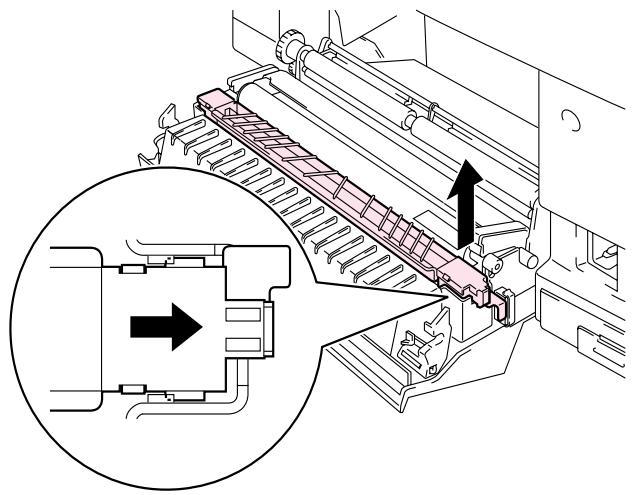
natural_image
Technical diagram of a mechanical assembly with an inset showing internal components (no text or labels)Fig. 5-25
- Install the new Paper Discharger into the Transfer Unit in the reverse order that you removed it.
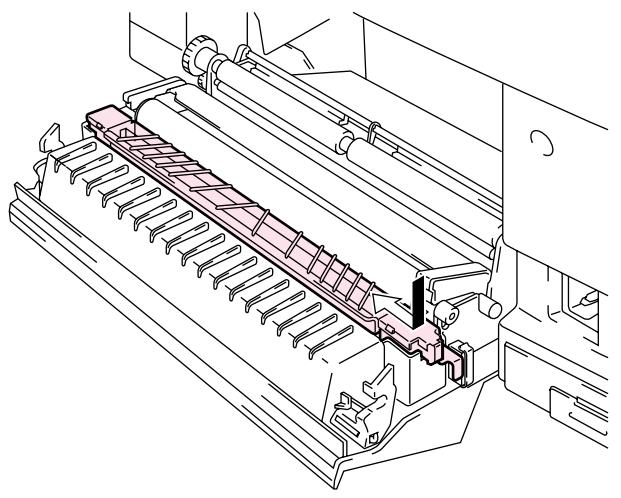
natural_image
Technical line drawing of a mechanical device with no visible text or symbolsFig. 5-26
- Plug the power cord into the power outlet and press the Power button to turn on the printer.
Note
- User replacement of some of these parts is not recommended.
- For replacement of the Paper Feeding Roller, Separator Pad and the Transfer Drum, consult your local dealer/retailer.
-
Actions 6 to 9 should only be carried out by your dealer or Brother authorized service center when they have replaced the Paper Feeding Roller, Separator Pad and the Transfer Drum.
-
Press any of the Menu buttons (+, -, Set or Back) to take the printer Off Line.
-
Press + or – until “RESET MENU” appears.
-
Press Set to proceed to the next menu level, and then press + or – until “PARTS LIFE” appears.
-
Press Set, and then press + until "120K KIT" appears.
-
Press Set, and then press Go. The printer is now in the READY state.
240K Kit
240K Kit
When you see the following message on the LCD control panel, you must replace the items located in the 240K Kit, which includes the Drum Cleaner and the Transfer Roller.
Note
- User replacement of some of the following 240K Kit parts is not recommended.
- For user replacement of the Drum Cleaner and Transfer Roller please refer to the instructions below.
- We recommend that you contact your local Brother authorized dealer or service center for replacing the Paper Feeding Roller, Separator Pad and Transfer Drum.
- We recommend that you contact your Service provider when you see the following message on the LCD panel:
REPLACE 240K KIT ←→ READY
Replacing the Drum Cleaner
! Caution
Both ends of the Drum Cleaner roller consist of metal bearings that connect the bias element to the power supply. When you install the Drum Cleaner, the metal bearings must be connected correctly. Be sure to check how they are connected by referring to the old Drum Cleaner before you begin replacement.
- Press the Power button to turn the printer Off, and then unplug the printer.
- Open the Top Cover.
- Remove the Drum Cleaner Cover.
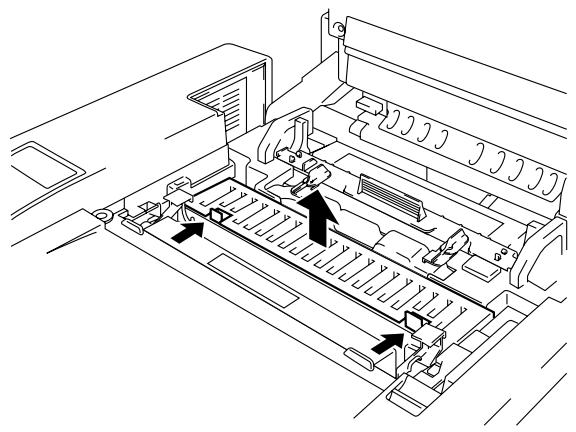
natural_image
Technical line drawing of a printer internal structure with arrows indicating movement or assembly (no text or symbols)Fig. 5-27
- Remove the Drum Cleaner by lifting it up and out of the printer with both hands.
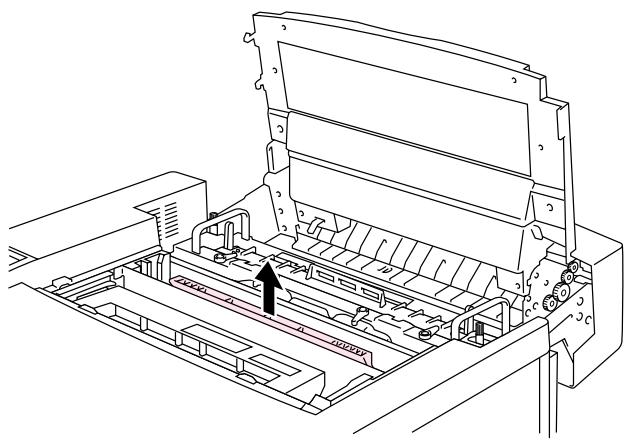
natural_image
Technical line drawing of a printer internal structure with no visible text or symbolsFig. 5-28
- Install the new Drum Cleaner into the printer by gently placing the brass bearings into the guides, and then pushing the handle down until the bearings click into place. Ensure that the Drum Cleaner is free to move slightly upward (rotating slightly around the bearings) in the housing after you have installed it.
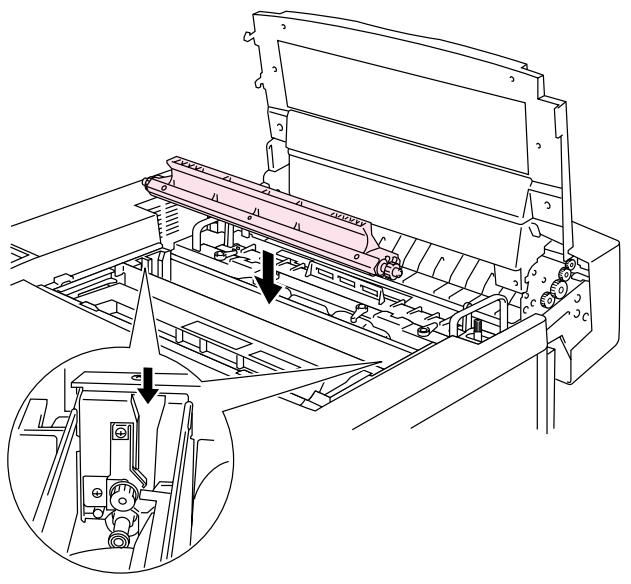
natural_image
Technical line drawing of a mechanical assembly with an inset showing a close-up of a component (no text or symbols present)Fig. 5-29
- Re-install the Drum Cover, and then close the Top Cover.
- Press any of the Menu buttons (+, -, Set or Back) to turn the printer Off line.
- Press + or – until “RESET MENU” appears.
- Press Set to proceed to the next menu level, and then press + or – until "PARTS LIFE" appears.
- Press Set, and then press + until "240K KIT" appears.
- Press Set, and then press Go. The printer is now in the READY state.
Replacing the Transfer Roller
- Release the Transfer Roller Lock Levers by lifting them up.
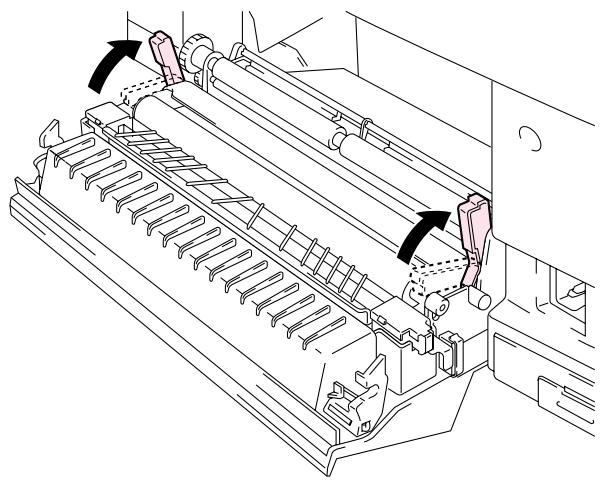
natural_image
Technical line drawing of a mechanical device with directional arrows indicating movement or assembly (no text or symbols present)Fig. 5-30
- Hold the Transfer Roller Lock Levers to lift the used Transfer Roller up and out.
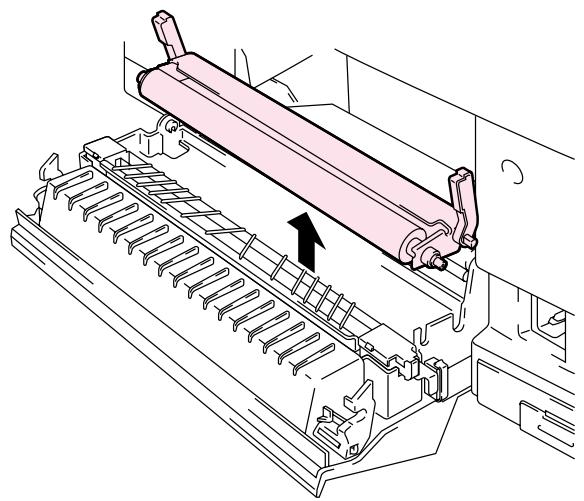
natural_image
Technical line drawing of a mechanical device with a highlighted component and arrow indicating motion (no text or symbols)Fig. 5-31
- Install the new Transfer Roller by holding the Lock Levers of the Transfer Roller and adjusting the angle of the Transfer Roller Lever shafts (both sides) to match the Transfer Unit groove. Set the Transfer Roller onto the shafts and place the Roller onto the springs as shown below:
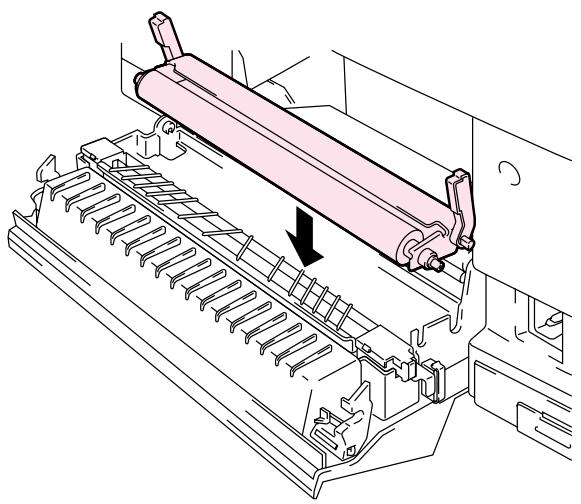
natural_image
Technical line drawing of a mechanical assembly with a highlighted component and arrow indicating direction (no text or symbols)Fig. 5-32
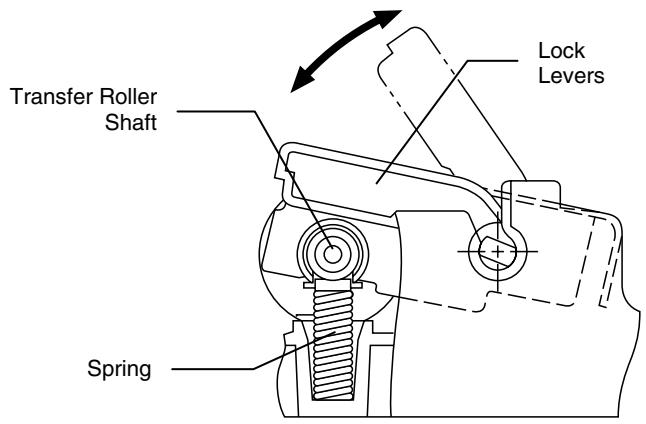
text_image
Transfer Roller Shaft Spring Lock LeversFig. 5-33
natural_image
Pure mechanical assembly diagram without any text, numbers, or symbolsFig. 5-34
- Lock the new Transfer Roller into place with the Transfer Roller Lock Levers.
- Close the Rear Access Cover.
- Plug the power cord into the power outlet, and then press the Power button to turn on the printer.
- Press any of the Menu buttons (+, -, Set or Back) to turn the printer Off line.
- Press + or - until "RESET MENU" appears.
-
Press Set to proceed to the next menu level, and then press + or – until “PARTS LIFE” appears.
-
Press Set, and then press + until "240K KIT" appears.
- Press Set, and then press Go. The printer is now in the READY state.
Note
- User replacement of some of these parts is not recommended.
- For replacement of the Paper Feeding Roller, Separator Pad and the Transfer Drum, consult your local dealer/retailer.
- Actions 7 to 11 should only be carried out by your dealer or Brother authorized service center when they replace the Paper Feeding Roller, Separator Pad and the Transfer Drum.
- Replacement of only the Transfer Roller is not a full 240K service so the counter should not be reset until these additional parts are replaced.
CLEANING THE PRINTER
Clean the printer exterior and interior periodically with a dry soft cloth. If the printed page gets stained with toner, clean the printer interior with a dry soft cloth.
CLEANING THE PRINTER EXTERIOR
Clean the printer exterior as follows:
- Turn off the printer and unplug the power cord.
- Remove the Media Cassette from the printer.
- Wipe the printer body with a soft cloth to remove dust. Dip the cloth in water and wring it out thoroughly for cleaning.
Note
Use water for cleaning. Cleaning with volatile liquids, such as thinner or benzine, will damage the surface of the printer.
Do not use cleaning materials that contain ammonia. They could damage the printer, particularly the toner cartridges.

natural_image
Line drawing of a hand operating a printer with a lid and base, no text or symbols presentFig. 5-35
PERIODIC PRINTER CLEANING
After every 20,000 pages printed or every 12 months, we recommend cleaning the following parts with a dry cloth.
Clean the Paper Guide and Registration Roller to prevent paper jams.
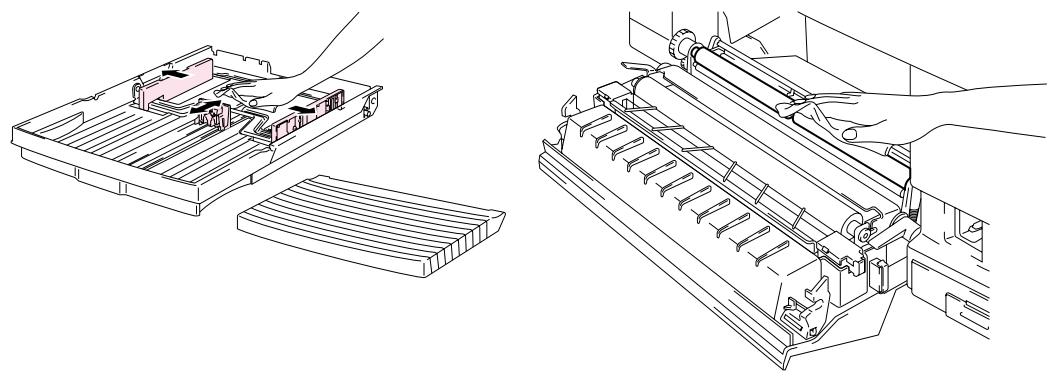
natural_image
Technical line drawing of a mechanical assembly with hands operating a tray and a printer (no text or symbols present)Fig. 5-36
Clean the Exit Roller after opening the Top Cover slightly. This will help to prevent paper jams at the paper exit or dirt from appearing on your print output.
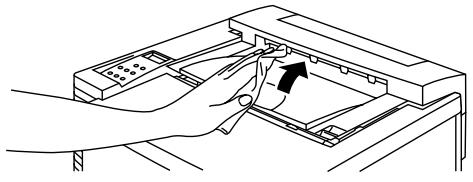
natural_image
Line drawing of a hand inserting a device into a rack (no text or symbols)Fig. 5-37
REPACKING AND RELOCATING THE PRINTER
! Caution, Warning
- Whenever you transport the printer ALWAYS use the packing materials that were provided with your printer. Follow the steps detailed below to re-pack the printer or the printer may be damaged. This will void the printer's warranty.
- Before you ship or move the printer, be sure to take out the following items and place them in separate bags (do not place them in the printer carton box):
* Fusing Unit
* Waste Toner Pack
* Toner Cartridges
* OPC Belt Cartridge
- Remove the Oil Bottle, and then use the syringe supplied with the printer to remove Oil from the Fusing Unit tray. Using a cloth, wipe up any remaining oil that cannot be removed with the syringe.
• Discard the oil according to local regulations.
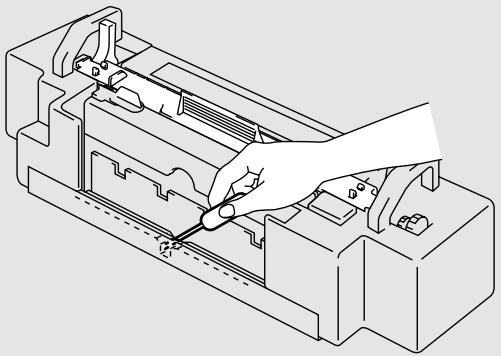
natural_image
Technical line drawing of a hand using a tool to adjust or install a mechanical component (no text or symbols visible)Fig. 5-38
HOW TO REPACK THE PRINTER
- Press the Power button to turn off the printer, and then unplug the printer.
- Remove the Waste Toner Pack, the Toner Cartridges, the Fusing Unit and the OPC Belt Cartridge from the printer. Place them in their original packaging. Do not pack them together with the printer in the printer carton.
- Place the printer in its original packing material and in the original carton.
- Close the carton and tape it securely.
CHAPTER 6 OPTIONS
LOADING PAPER IN THE LOWER PAPER CASSETTE
The lower tray functions as a second paper source. It can hold a maximum of 500 sheets of paper (75 g/m ^2 or 20 lbs). To purchase the optional lower tray unit, please consult the dealer where you purchased the printer.
With the lower tray unit installed, load paper in the lower paper cassette in the same way as you do the upper media cassette.
HOW TO INSTALL THE LOWER TRAY UNIT
! Warning
- This printer is heavy and weighs approximately 56kg (124 lbs). To avoid injury when moving or lifting this printer, be sure to use at least two people.
- Be sure to lift the printer using the handholds located at the bottom four corners of the printer.
! Caution
When moving or lifting this printer, be sure to keep the printer flat. Also, you must first remove the Toner Cartridges, Waste Toner Pack, Oil Bottle and Fusing Unit to avoid spills.
- Remove the Paper Cassette from the printer.
- Place the Lower Tray Unit on a flat surface.
- Adjust the Anchor Feet, located at the rear and right hand side at the bottom of the Lower Tray Unit, to level the tray unit. The Anchor Foot moves up and down as it is turned. Adjustment is completed when the Anchor Foot touches the surface of the work surface and the tray unit is level. Turn the lock screw to secure the Anchor Foot.
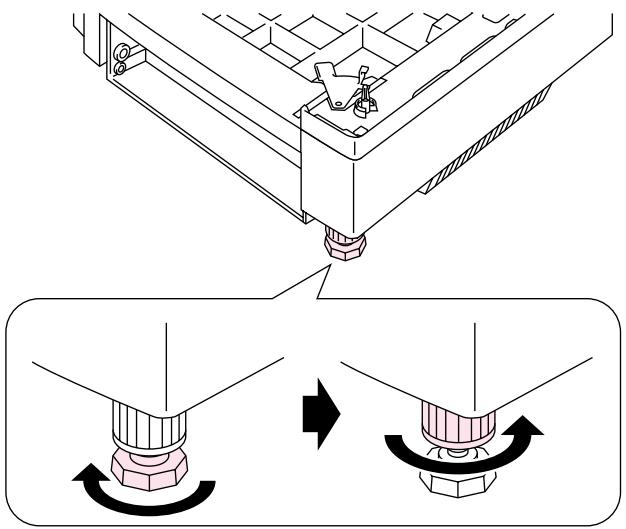
natural_image
Technical diagram showing a mechanical assembly with two rotating components and directional arrows indicating motion (no text or symbols)Fig. 6-1
- Remove both side covers from the Lower Tray Unit.
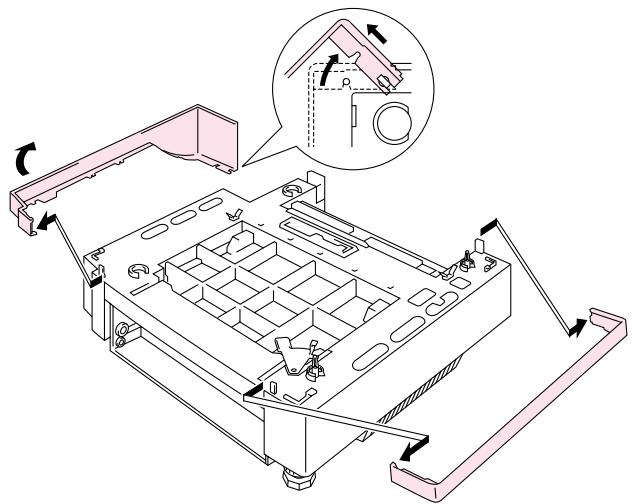
natural_image
Technical line drawing of a mechanical assembly with a magnified inset showing a close-up of a component (no text or symbols present)Fig. 6-2
- Make sure that the Metal Lock Plate at the front of the tray unit is in the Release position.
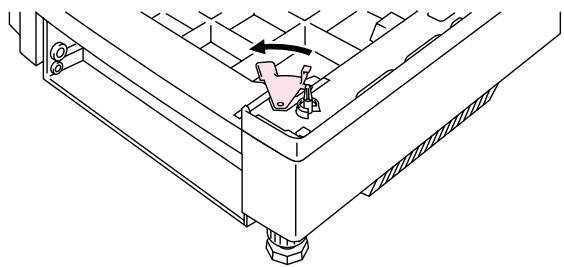
natural_image
Technical line drawing of a mechanical assembly with a highlighted component and directional arrow (no text or symbols)Fig. 6-3
- Check the two alignment pins on the Lower Tray Unit. Use two people to lift the printer and place it onto the Lower Tray Unit. Be sure to use the handholds located at the bottom four corners of the printer. Check to ensure that the pins align correctly into the printer.

natural_image
Technical line drawing of a mechanical device with an arrow indicating a component (no text or symbols present)Fig. 6-4
- Remove the Connection Cable cover.
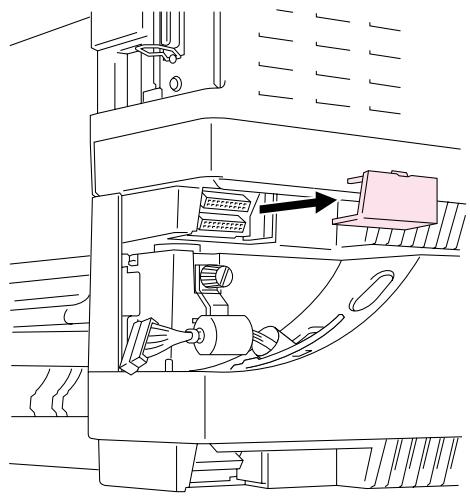
natural_image
Technical line drawing of a mechanical assembly with no visible text or symbolsFig. 6-5
- Securely connect the printer and the Tray Unit at the rear with the metal lock plate and the screw. Undo the screw a little to release the lock plate, hook the metal tip into the printer, and then retighten the screw.
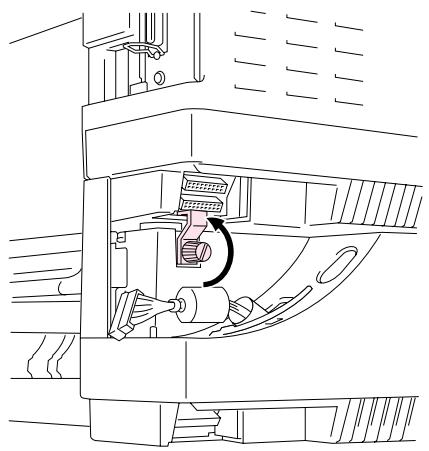
natural_image
Technical line drawing of a mechanical assembly with internal components and a rotation arrow (no text or symbols)Fig. 6-6
- Insert the connection cable into the printer's connector.
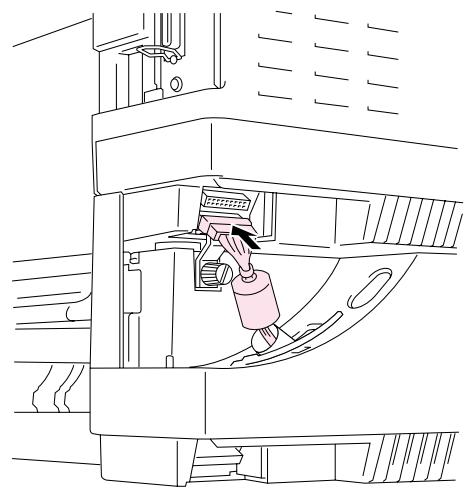
natural_image
Line drawing of a person working inside a vehicle chassis (no text or symbols)Fig. 6-7
- Lock the printer and the Tray unit at the front by turning the Metal Plate Lock as shown below.
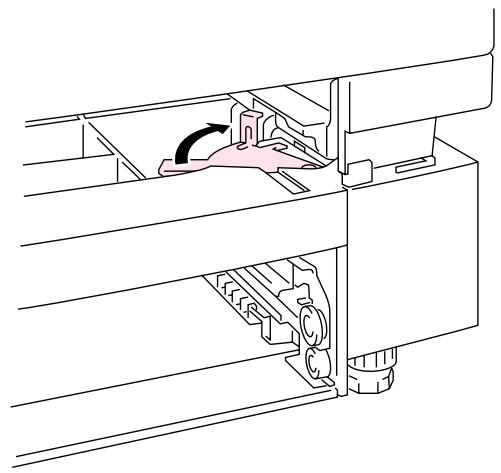
natural_image
Technical line drawing of a mechanical assembly with no visible text or symbolsFig. 6-8
- Install the covers on both sides of the Lower Tray Unit. Install the covers by fitting them first to the rear of the printer and then fit the cover into the front of the printer.
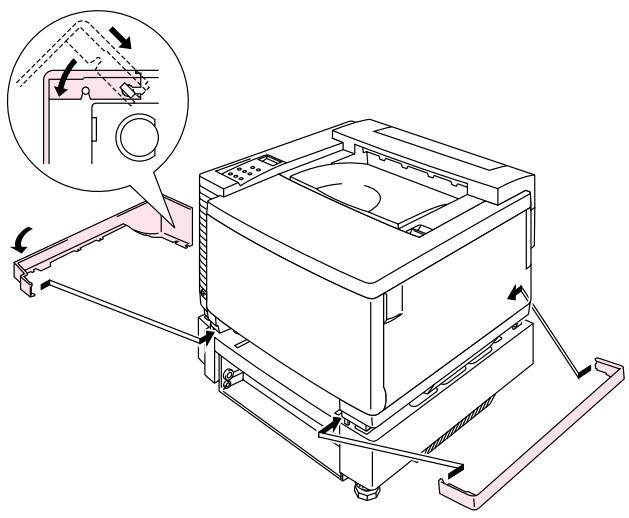
natural_image
Technical line drawing of a mechanical device with an inset showing a close-up of the component (no text or symbols present)Fig. 6-9
- Install the Paper Cassette into the Lower Tray Unit.
- Install the Paper Cassette into the printer.
HOW TO CLEAR PAPER JAMS IN THE LOWER TRAY UNIT
Paper Jam in the Cassette
- When a Paper Jam has occurred in the Paper Cassette, remove the Paper Cassette from the printer. Pull the Cassette out half way, slightly lift it, and then pull the cassette from the printer.
- Remove the jammed paper and reinstall the cassette into the printer.
Paper Jam at the Rear of the Lower Tray Unit
- When a Paper Jam has occurred at the rear of the Lower Tray Unit, open the Rear Cover of the Lower Tray Unit.
- Remove the jammed paper, and then close the Rear Cover of the Lower Tray Unit.
The following paper sizes can be used for the Duplex Unit.
330 x 483 mm (13 x 19"), A3, A4, B4, B5
Executive, Ledger, Legal, Letter
Note
- The Lower Tray Unit must be connected before you install the Duplex Unit.
- When you perform maintenance on the printer, open the Duplex Top Cover Assembly first.
-
When you want to open the Rear Access Cover of the printer, open the Duplex Lower Cover and the inside unit.
-
Turn the printer off, and then unplug the power cord from the AC outlet.
-
Remove the Fuser Cover that is located at the rear top of the printer. Remove the Rear Caps (2 pieces) from the fuser unit. We recommend you remove those caps with a coin or a screwdriver.
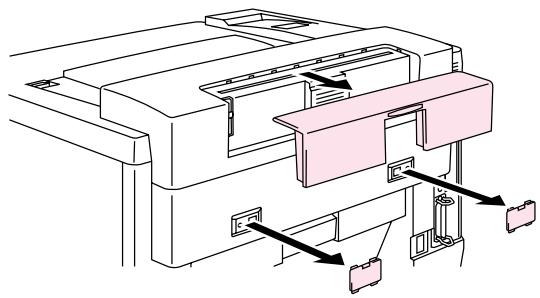
natural_image
Technical line drawing of a printer or printer assembly with internal components and directional arrows indicating flow (no text or symbols present)Fig. 6-10
- Remove the left hand side cover of the Lower Tray Unit.
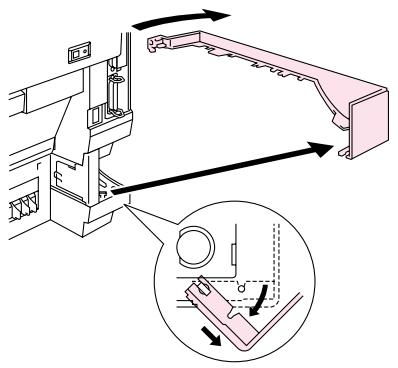
natural_image
Technical diagram of a mechanical assembly with directional arrows and an inset showing a component detail (no text or symbols)Fig. 6-11
- Remove the Back caps (2 pieces) of the Lower Tray Unit. Push down lightly on the caps and slide them to the rear of the printer to remove them.
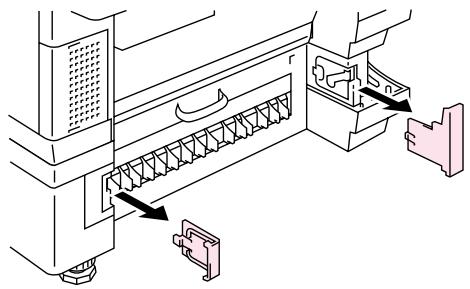
natural_image
Technical diagram of a mechanical assembly with internal components and directional arrows (no text or symbols)Fig. 6-12
- Use the handholds of the Duplex Unit to lift the Duplex Unit up.
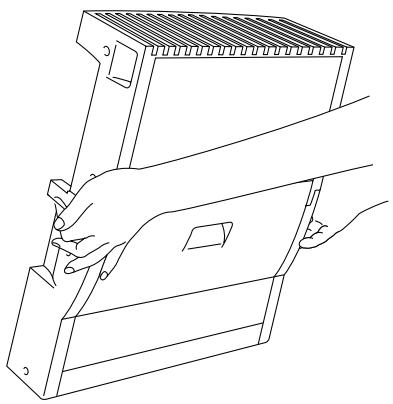
natural_image
Line drawing of hands holding a mechanical device with a handle (no text or symbols)Fig. 6-13
Note
Ensure that the Duplex Cover Top Assembly is aligned and latched straight with the lower part of the duplex unit.
- Insert the fixing pins at the sides of the Duplex Unit into the installation grooves in the Lower Tray Unit.
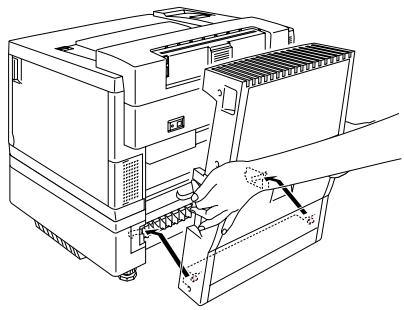
natural_image
Line drawing of a computer tower with a hand inserting a cable into the base panel (no text or symbols)Fig. 6-14
Note
Make sure that the Rear Cover of the Lower Tray Unit is closed.
- Secure the pawls of the Duplex Unit into the rectangular holes in the back of the printer.
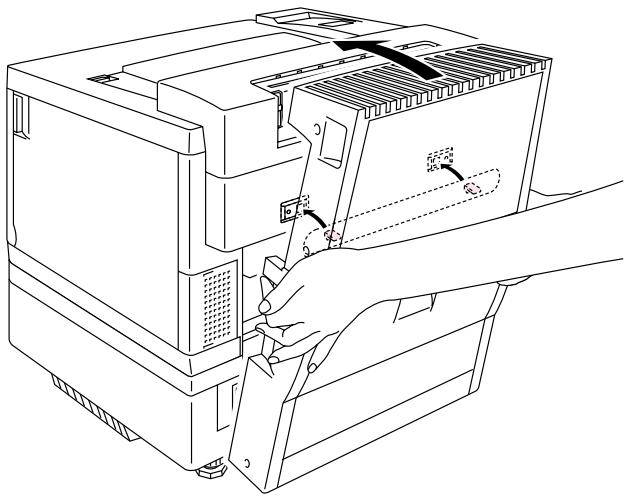
natural_image
Line drawing of a computer tower with a hand inserting a cable into the case (no text or symbols present)Fig. 6-15
- Open the Duplex Cover Top Assembly.
- Securely connect the Duplex Unit and the Printer with the thumb screws (2 pieces).
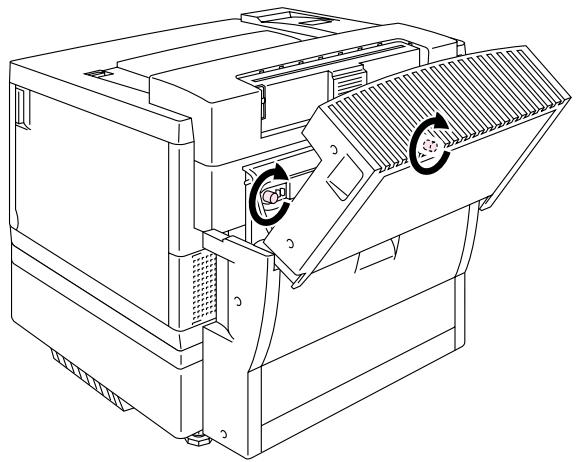
natural_image
Technical line drawing of a mechanical device with no visible text or symbolsFig. 6-16
-
Close the Duplex Cover Top Assembly.
-
Connect the connector cable to the upper connector on the printer.
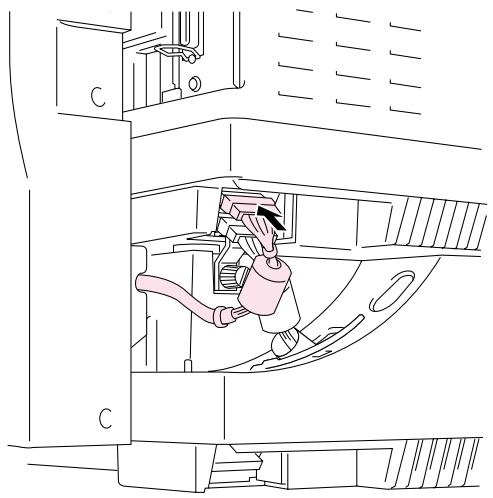
natural_image
Technical line drawing of a mechanical assembly with labeled components (no text or symbols)Fig. 6-17
- Fit the left hand side cover of the Lower Tray Unit to the Lower Tray Unit.
- Plug the power cord into the AC outlet, and then turn the printer on.
COMPACTFLASH CARD / HARD DISK DRIVE (HD-6G/HD-EX)
COMPACTFLASH CARD
This printer has a slot for an optional CompactFlash card, which is a memory card.
If you install an optional CompactFlash memory card, you can save macros, print log and fonts on it, and also select the re-print functions via the network.
The following types of CompactFlash memory cards can be installed:
Type I
| 16MB | SDCFB-16-505 |
| 32MB | SDCFB-32-505 |
| 48MB | SDCFB-48-505 |
| 64MB | SDCFB-64-505 |
| 80MB | SDCFB-80-505 |
| 96MB | SDCFB-96-505 |
| 128MB | SDCFB-128-505 |
| 160MB | SDCFB-160-505 |
| 196MB | SDCFB-196-505 |
Type II
| 256MB | SDCFB-256-668 |
| 300MB | SDCFB-300-668 |
Note
- Do not install or remove cards with the power on, or you may lose all data from the card and may seriously damage the card.
- For more information about these cards, consult the dealer where you purchased the printer.
• For the latest information: http://solutions.brother.com
HARD DISK DRIVE (HD-6G / HD-EX)
If you install an optional HDD, you can save macros, print log and fonts on it, and also select your print job and re-print it through the network.
Confirm that the box contains the following items.
- Hard disk
- Hard disk cables (2)
- Shoulder screws (4)
- Screws (4)
- Setup guide
Note
The supplied longer cable is for other printers, do not use it for this printer model.
SELECTING THE OPTIONAL FONTS
After you have installed the optional font card, you can select optional fonts using any of the following methods:
- Through your application software
- With a font selection command
- With the Control Panel menu functions.
When you select fonts through your application software, follow the instructions specific to your software. Refer to your software manual if you need assistance. When you select fonts with a font selection command, embed the font selection command in your program. See the Technical Reference Manual, which is optionally available for this printer.
Note
When you select the fonts through your software or with a command, note the following:
- You do not need to be concerned about the Font control panel setting. The software or command setting overrides the printer setting.
- Be sure to install the font card that has your desired fonts. The printer automatically selects the font that has exactly the same or similar characteristics as those you set through the software or with a command. If the installed font card happens to have a font of similar characteristics, the printer will print in an unexpected font.
To select fonts with the Control Panel setting menu, follow these basic steps:
- Press any of the Menu buttons (+, -, Set or Back) to take the printer Off Line.
- Press + or - until "INFORMATION" appears on the LCD display.
- Press Set to proceed to the next menu level, and then press + or - until "PRINT FONTS" appears.
- Press Set to print the list of optional fonts (Fig. 6-18).
- Find the Font Number on the list.
Font Number
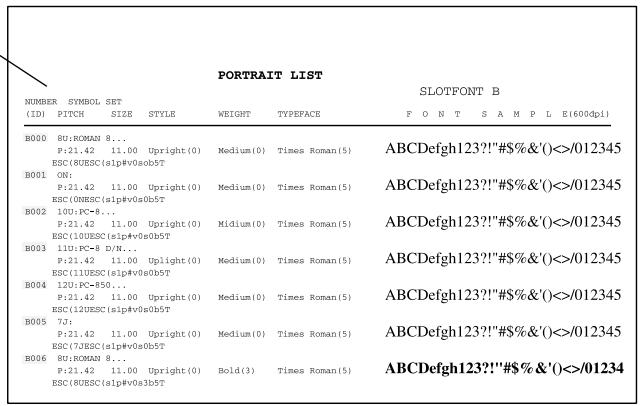
text_image
PORTRAIT LIST SLOTFONT B NUMBER SYMBOL SET (ID) PITCH SIZE STYLE WEIGHT TYPEFACE F O N T S A M P L E(600dpi) B000 BU:ROMAN 8... P:21.42 11.00 Upright(0) Medium(0) Times Roman(5) ABCDefgh123?!"#$%&'()<>/012345 ESC(8UESC(s1p#v0s0b5T) B01 ON: P:21.42 11.00 Upright(0) Medium(0) Times Roman(5) ABCDefgh123?!"#$%&'()<>/012345 ESC(ONESC(s1p#v0s0b5T) B002 10U:PC=8... P:21.42 11.00 Upright(0) Midium(0) Times Roman(5) ABCDefgh123?!"#$%&'()<>/012345 ESC(10UESC(s1p#v0s0b5T) B003 11U:PC=8 D/N... P:21.42 11.00 Uplight(0) Medium(0) Times Roman(5) ABCDefgh123?!"#$%&'()<>/012345 ESC(11UESC(s1p#v0s0b5T) B004 12U:PC=850... P:21.42 11.00 Upright(0) Medium(0) Times Roman(5) ABCDefgh123?!"#$%&'()<>/012345 ESC(12UESC(s1p#v0s0b5T) B005 7: P:21.42 11.00 Upright(0) Medium(0) Times Roman(5) ABCDefgh123?!"#$%&'()<>/012345 ESC(7UESC(s1p#v0s0b5T) B006 BU:ROMAN 8... P:21.42 11.00 Upright(0) Bold(3) Times Roman(5) ABCDefgh123?!"#$%&'()<>/01234Fig. 6-18
- Use + or – on the Control Panel to select "PRINT MENU."
- Press Set to proceed to the next menu level, and then press + or - to select: "HP LASERJET," "EPSON FX-850", or "IBM PROPRINTER."
- Press the Set key to select the Emulation for the fonts you want to select; "HP LASERJET," "EPSON FX-850," or "IBM PROPRINTER."
- Use + or - key to select "FONT NO," and then select the Font Number of the font you want.
INSTALLING A COMPACTFLASH CARD
- Turn off the printer, and then unplug the power cord from the AC outlet. Disconnect the interface cable from the printer.
- Insert a CompactFlash card into the slot with the label facing you. Make sure it is inserted correctly.
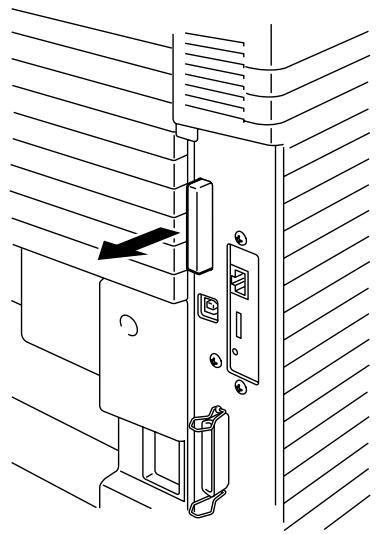
natural_image
Technical line drawing of a door lock assembly with a black arrow indicating direction (no text or symbols)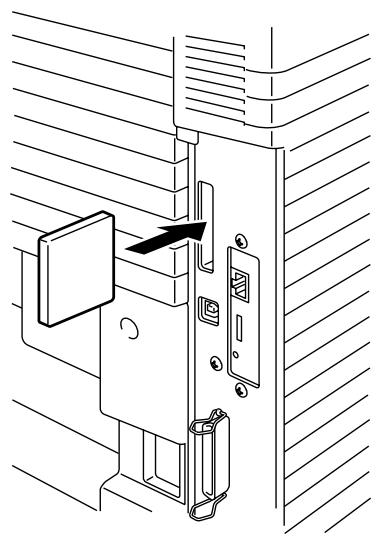
natural_image
Technical line drawing of a door lock assembly with a handle and mounting bracket (no text or symbols)Fig. 6-19
- To remove the card, power the printer off, and then pull the card out of the slot.
INSTALLING A HDD (HARD DISK DRIVE)
- Turn off the printer, and then unplug the power cord from the AC outlet. Disconnect the interface cable from the printer.
- Unscrew the two screws securing the rear plate of the main controller board, and then pull out the main controller board.
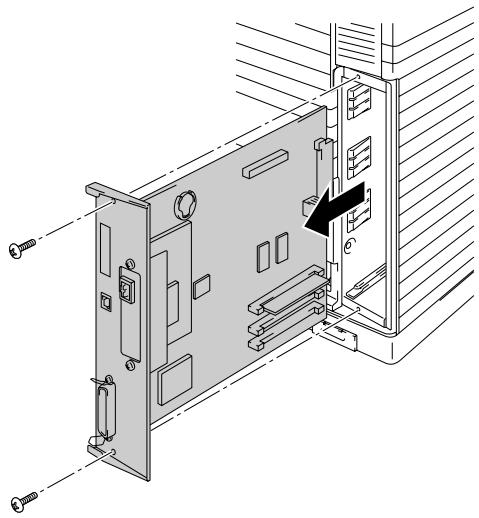
natural_image
Technical line drawing of a computer monitor internal panel with screw and mounting hardware (no text or symbols)Fig. 6-20
- Insert the 4 shoulder screws supplied with the HD-6G/HD-EX unit into the bottom of the HD-6G/HD-EX.
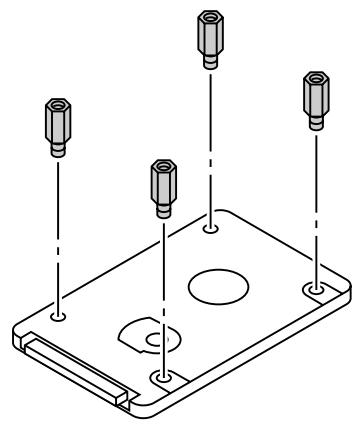
natural_image
Isometric line drawing of a mechanical component with four cylindrical pins and a central circular feature (no text or symbols)Fig. 6-21
- Connect the shorter Hard disk cable to the HD-6G/HD-EX with the keyed side upwards, ensuring that it is correctly aligned.
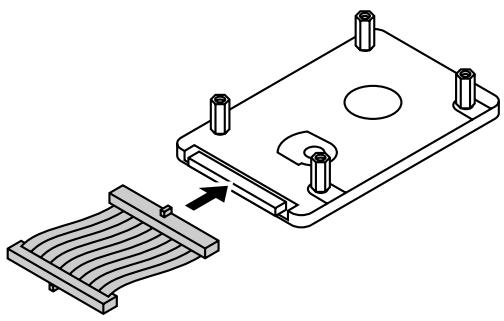
natural_image
Technical line drawing of a mechanical component with a spring-loaded base and mounting holes (no text or symbols)Fig. 6-22
- Fit the 4 HD-6G/HD-EX shoulder screws into the 4 holes of the main controller board, and then secure the shoulder screws with the screws provided from the rear of the PCB.
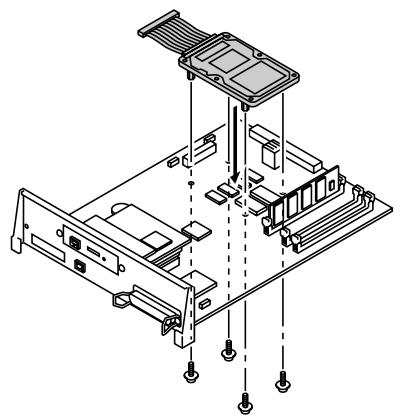
natural_image
Isometric technical diagram of a mechanical assembly with no visible text or symbolsFig. 6-23
- Connect the flat cable to the main controller board.
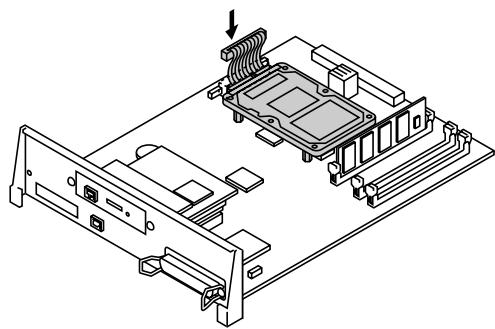
natural_image
Isometric technical diagram of a computer motherboard with an internal CPU socket and connectors (no text or labels)Fig. 6-24
- Install the main controller board into the printer by sliding it into the guide rails.
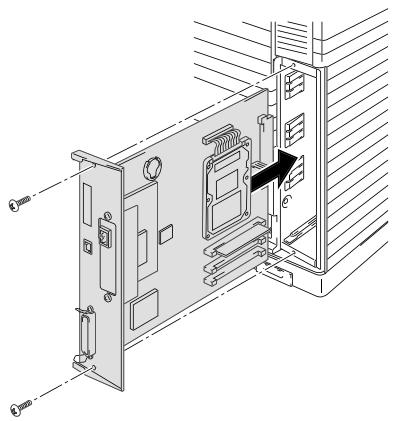
natural_image
Technical line drawing of an internal device with labeled ports and a black arrow indicating a component (no text or symbols present)Fig. 6-25
- Secure the main controller board with the 2 screws.
- Reconnect the interface cable to the printer. Plug the power cord into the AC outlet, and then turn on the printer.
- Format the HD-6G/HD-EX from the control panel. See Chapter 4 for details.
This printer has 64 Mbytes of memory standard memory. The memory can be expanded up to 384 Mbytes. When you want to upgrade to more than 320 Mbytes, you will need to remove the already installed 64 Mbytes DIMM and replace it with a higher capacity DIMM. (The standard installed memory can vary depending on the printer model and country.)
The following capacity of DIMM can be installed:
• 16 Mbyte BUFFALO TECHNOLOGY 12323-0001
• 32 Mbyte BUFFALO TECHNOLOGY 12324-0001
• 64 Mbyte BUFFALO TECHNOLOGY 12325-0001
• 128 Mbyte BUFFALO TECHNOLOGY 12326-0001
• 16 Mbyte TECHWORKS 12456-0001
• 32 Mbyte TECHWORKS 12457-0001
• 64 Mbyte TECHWORKS 12458-0001
• 128 Mbyte TECHWORKS 12459-0001
In general, the DIMM must have the following specifications:
Type: 100 pin and 32 bit output
CAS Latency: 2
Clock Frequency: 66MHz or more
Capacity: 16,32, 64 or 128 Mbyte
Height: 46mm (1.8 inches) or less
Parity: NONE
Dram Type: 64M bit SDRAM 4 Bank SDRAM can be used.
Note
- There might be some DIMMs that will not work with this printer.
- For more information consult the dealer where you purchased the printer.
• For the latest information: http://solutions.brother.com
INSTALLING DIMMS
- Turn off the printer, and then unplug the power cord from the AC outlet.
Note
Be sure to turn off the power to the printer before installing or removing the DIMMs.
- Unscrew the two screws that secure the rear plate of the main controller board, and then pull out the main controller board.
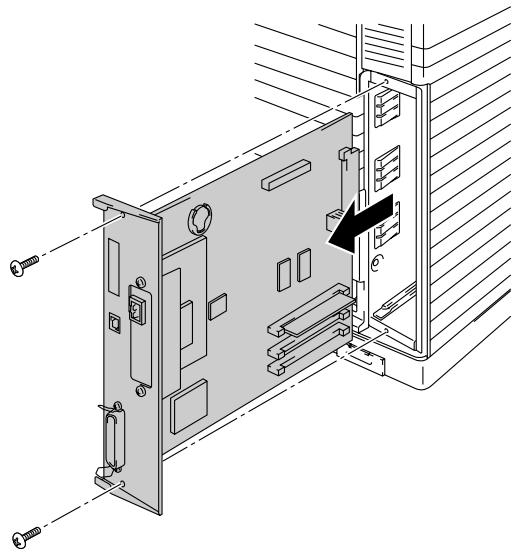
natural_image
Technical diagram of a computer monitor rear panel with mounting hardware and a black arrow indicating a component (no text or symbols present)Fig. 6-26
- Unpack the DIMM and hold it by its edges.
! Caution
Do not touch the memory chips and the surface of the main controller board. If static electricity collects, it may damage these electrical parts.
- Hold the DIMM with your fingers on the side edges and thumb against the back edge. Align the notches on the DIMM with the DIMM slot. (Check that the locks on each side of the DIMM slot are open, or outward).
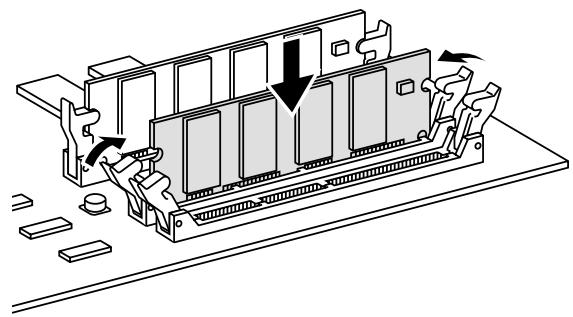
natural_image
Diagram of a computer RAM module with arrows indicating internal components and a downward arrow highlighting a specific area (no text or symbols present)Fig. 6-27
- Press the DIMM straight into the slot (press firmly). Make sure the locks on each side of the DIMM snap inward into place. (To remove a DIMM, the locks must be released.)
- Reinstall the main controller board into the printer by sliding it into the guide rails.
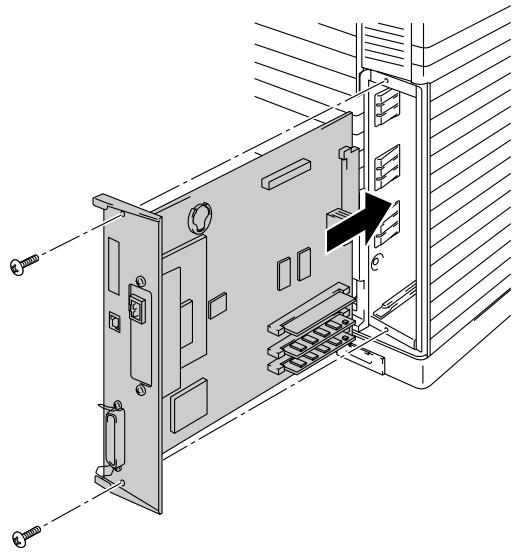
natural_image
Technical line drawing of an internal electronic device with labeled ports and connectors (no text or symbols present)Fig. 6-28
- Secure the main controller board with the two screws.
- Reconnect the printer cable from your computer. Plug the power cord into the AC outlet, and turn on the printer.
- To check whether the DIMM has been installed correctly, you may perform a Test Print "Print Configuration" that will print the current memory size.
CHAPTER 7 TROUBLE SHOOTING
If any problems occur, the printer automatically stops printing, diagnoses the problem, and then displays the resulting message to alert you. Take the appropriate action, referring to the following tables. If you cannot clear the problem, consult the dealer where you purchased the printer. Inform the dealer of the message number for quick troubleshooting.
ERROR MESSAGES
When any one of the following messages appear, the printer will stop operating.
| Error Message | Remarks |
| TONER EMPTY XReplace the X toner cartridge | X = C, M, Y, K, |
| NO TONER XInstall the X toner cartridge | X = C, M, Y, K, |
| COVER OPENClose the Front Cover | |
| COVER OPENClose the Top Cover | |
| COVER OPENClose the Rear Access Cover | |
| COVER OPENClose the Lower Feeder Unit Cover | |
| COVER OPENClose the Duplex Unit Cover | |
| JAM XRefer to the diagram, and then check the location. Remove the jammed paper. | X = A1, A2, A3, B, C, D,E1, or E2 |
| NO PAPER T1/2/3Load paper into Tray 1/2/3. | |
| WASTE TONERReplace the waste toner pack. | |
| OIL EMPTYReplace the oil bottle. | |
| CHANGE FCRReplace the cleaning roller. | |
| NO OPC BELTInstall the OPC belt. | |
| NO FC ROLLERInstall the cleaning roller. | |
| NO LFUInstall the lower tray unit. | When the Duplex Unit is installed. |
| NO TR ROLLERInstall the transfer roller. | |
| ILLEGAL TONERUse only Brother genuine toner cartridge. | |
| NO TRAY 1/2/3The indicated paper tray was not detected. Install it, or ensure that it is inserted correctly. | |
| SIZE ERROR T1/2/3Specify the correct paper size for the indicated tray. | |
| SIZE ERROR DXThe duplex unit can print only in the sizes specified. Specify the correct paper size. | |
| STACKER FULLRemove the paper from the output tray. | |
| MEDIA MISMATCHMedia mismatch between the Printer and the Printer Driver setting. Load XX into Tray <1/2/3>. | XX = Plain Paper,Transparencies, Thick Paper |
| SIZE MISMATCHPaper mismatch between the Printer and the Printer Driver setting. Load Papersize into Tray <1/2/3> | |
| MANUAL FEEDLoad paperinto Tray1, and then press GO. | |
| MEDIATYPE ERRORSpecify the correct media type: XXXX=T1, T2, T3, or DX | XX = T1, T2, T3 or DX |
| NO FUSING UNITA fusing unit was not detected. Please install one. | |
| CARD ERRORAn error occurred while accessing the Flash card.Check that the driver is formatted and not in Write Protect mode. | |
| HDD ERRORAn error occurred while accessing the HDD. Power cycle the printer and check that it is formatted. | |
| DIMM ERROREnsure that the DIMM is installed correctly. | |
| CARD REMOVALThe Flash card was removed while the printer was powered on. Power cycle the printer. | |
| BUFFER ERRORCheck the cable connection between the computer and the printer. | |
| STORAGE FULLThere is not enough space on the Hard Disk. | |
| STORAGE FULLThe RAMDISK SIZE is set to 0MB or there is no more space to store jobs. | |
| STORAGE FULLThere is no space in the CompactFlash. | |
| DOWNLOAD FULLThe download buffer of the printer is full. Add more memory to the printer. | |
| MEMORY FULLThe printer memory is full and the printer is unable to print the page. Add more memory. | |
| PRINT OVERRUNSelect a lower resolution or set the page protection option in the driver to the correct size. | |
| MEMORY SHORTAGEAdd memory. | Install additional DIMM memory so that the total memory size is 64MB or more. |
MAINTENANCE MESSAGES
| Error Message | Meaning | Action |
| (K CM Y) | When the indicator blinks (☐), the indicated color toner is nearly empty. K: Black, C: Cyan, M: Magenta, Y: Yellow. When the toner becomes empty, the indicator disappears completely. | Be ready to replace the Toner Cartridge(s) when the toner is nearly empty. Replace it when the toner becomes empty. |
| FUSER OIL LOW | The Oil in the Oil Bottle is almost empty. | Replace the Oil Bottle. |
| REPLACE FCR | It is time to replace the Cleaning Roller. | Replace the Cleaning Roller. |
| REPLACE OPC BELT | It is time to replace the OPC Belt Cartridge. | Replace the OPC Belt Cartridge. |
| REPLACE FUSER | It is time to replace the Fusing Unit. | Replace the Fusing Unit. |
| REPLACE 120K KIT | It is time to replace the Drum Cleaner, Paper Discharger, Transfer Roller, Separator Pad, Paper Pick-up Roller and Transfer Drum. | Replace the Drum Cleaner, Paper Discharger, Transfer Roller, Separator Pad, Paper Pick-up Roller and Transfer Drum. |
| REPLACE 240K KIT | It is time to replace the Drum Cleaner and the Transfer Roller. | Replace the Drum Cleaner and the Transfer Roller. |
| REPLACE TRF DRUM | It is time to replace the Transfer Drum. | Replace the Transfer Drum. |
| REPLACE PF KIT1 | It is time to replace the Paper Feeding Kit 1. | Consult your dealer for a replacement of the Paper Feeding Kit 1. |
| REPLACE PF KIT2 | It is time to replace the Paper Feeding Kit 2. | Consult your dealer for a replacement of the Paper Feeding Kit 2. |
| REPLACE PF KIT3 | It is time to replace the Paper Feeding Kit 3. | Consult your dealer for a replacement of the Paper Feeding Kit 3. |
| NEAR WASTE TONER | The Waste Toner Pack is almost full. | Replace the Waste Toner Pack. |
| REPLACE OIL PAD | It is time to replace the Oil Pad. | Consult your dealer for a replacement of the Oil Pad. |
CALL SERVICE MESSAGES
When any of the following messages appear on the LCD, turn off the printer. Wait a few seconds, and then turn the printer on again. If this does not clear the problem, consult your dealer or Brother Authorized Service Representative.
| Call Service Message | Meaning | Action |
| ERROR EC3 WARNING | NVRAM ERROR | Turn off the printer. Wait a few seconds, and then turn it on again. |
| ERROR EC4 WARNING | Engine controller hardware error. | Turn off the printer. Wait a few seconds, and then turn it on again. |
| ERROR EC7 WARNING | Process timing clock error | Turn off the printer. Wait a few seconds, and then turn it on again. |
| ERROR ED1 WARNING | Yellow switching clutch error | Turn off the printer. Wait a few seconds, and then turn it on again. |
| ERROR ED2 WARNING | Magenta switching clutch error | Turn off the printer. Wait a few seconds, and then turn it on again. |
| ERROR ED3 WARNING | Cyan switching clutch error | Turn off the printer. Wait a few seconds, and then turn it on again. |
| ERROR ED4 WARNING | Black switching clutch error | Turn off the printer. Wait a few seconds, and then turn it on again. |
| ERROR ED5 WARNING | YK switching solenoid error | Turn off the printer. Wait a few seconds, and then turn it on again. |
| ERROR ED6 WARNING | MC switching solenoid error | Turn off the printer. Wait a few seconds, and then turn it on again. |
| ERROR EE1 WARNING | Developing motor error | Turn off the printer. Wait a few seconds, and then turn it on again. |
| ERROR EE2 WARNING | Main motor error | Turn off the printer. Wait a few seconds, and then turn it on again. |
| ERROR EE3 WARNING | Drum error | Turn off the printer. Wait a few seconds, and then turn it on again. |
| Service Call Message | Meaning | Action |
| ERROR EE4 WARNING | Toner empty sensor error | Turn off the printer. Wait a few seconds, and then turn it on again. |
| ERROR EE5 WARNING | Transfer roller solenoid error | Turn off the printer. Wait a few seconds, and then turn it on again. |
| ERROR EE6 WARNING | Drum cleaning solenoid error | Turn off the printer. Wait a few seconds, and then turn it on again. |
| ERROR EE7 WARNING | Drum cleaning clutch error | Turn off the printer. Wait a few seconds, and then turn it on again. |
| ERROR EE8 WARNING | Fuser unit clutch error | Turn off the printer. Wait a few seconds, and then turn it on again. |
| ERROR EE9 WARNING | Belt marker sensor error | Turn off the printer. Wait a few seconds, and then turn it on again. |
| ERROR EEL WARNING | Erase LED error | Turn off the printer. Wait a few seconds, and then turn it on again. |
| ERROR EF0 WARNING | Cooling fan error | Turn off the printer. Wait a few seconds, and then turn it on again. |
| ERROR EF2 WARNING | Ozone fan error | Turn off the printer. Wait a few seconds, and then turn it on again. |
| ERROR EF4 WARNING | Fuser fan error | Turn off the printer. Wait a few seconds, and then turn it on again. |
| ERROR EF5 WARNING | Charger HV unit error | Turn off the printer. Wait a few seconds, and then turn it on again. |
| ERROR EH0 WARNING | Fuser thermistor error | Turn off the printer. Wait 15 minutes, and then turn it on again. |
| ERROR EH2 WARNING | Fuser temperature 2 error | Turn off the printer. Wait 15 minutes, and then turn it on again. |
| ERROR EH3 WARNING | Fuser temperature 3 error | Turn off the printer. Wait 15 minutes, and then turn it on again. |
| ERROR EH4 WARNING | Fuser temperature 4 error | Turn off the printer. Wait 15 minutes, and then turn it on again. |
| ERROR EL1 WARNING | Beam detector error | Turn off the printer. Wait a few seconds, and then turn it on again. |
| ERROR EL2 WARNING | Scanner motor error | Turn off the printer. Wait a few seconds, and then turn it on again. |
| ERROR ELL WARNING | Laser power error | Turn off the printer. Wait a few seconds, and then turn it on again. |
| ERROR EP1 WARNING | Duplex controller hardware error | Turn off the printer. Wait a few seconds, and then turn it on again. |
| ERROR EP3 WARNING | Feeder pass select solenoid error | Turn off the printer. Wait a few seconds, and then turn it on again. |
| ERROR EP4 WARNING | Duplex motor error | Turn off the printer. Wait a few seconds, and then turn it on again. |
| ERROR EP5 WARNING | Outer pass select solenoid error | Turn off the printer. Wait a few seconds, and then turn it on again. |
| ERROR EP6 WARNING | Optional fan error | Turn off the printer. Wait a few seconds, and then turn it on again. |
PAPER JAMS
This printer has been designed to be trouble free. However, if a problem should occur, note the display message and take the appropriate action. This section describes the actions to be taken to avoid paper jams and unsatisfactory printouts.
Paper Jam
If paper jams inside the printer, it will stop printing and display the following message.
JAM X\*
Refer to the diagram in the printer and check the location. Remove the jammed paper.
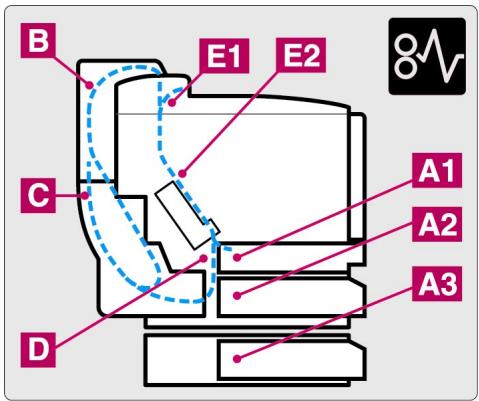
text_image
B E1 E2 C D A1 A2 A3 8V| X (Display) | Meaning |
| JAM A1 | Paper jam occurred inside of the printer. |
| JAM A2 | |
| JAM A3 | |
| JAM B | Paper jam occurred in the Upper Assembly of the Duplex Unit. |
| JAM C | Paper jam occurred in the Lower Assembly of the Duplex Unit. |
| JAM D | Paper jam occurred at the Fusing Roller. |
| JAM E1 | Paper jam occurred at the paper exit. |
| JAM E2 | Paper jam occurred at the Fusing Roller. |
If more than two places appear in the LCD, clear them one at a time by following the steps in ‘How to Clear a Paper Jam in the Printer’.
Note
Do not use the following paper:
- Bent paper
- Moist paper
• Paper that does not meet specifications
Paper may jam in the Paper Cassette, inside the printer, at the Rear Access Cover or at the paper exit. Locate the jam, and then follow the instructions below to remove the jammed paper.
After you have followed the instructions, the printer will resume printing automatically. However, the Data LED may come on and the following message may appear on the display:
PAUSE
After a paper jam has occurred, data usually remains in the printer memory. The message prompts you to execute a form feed and print the remaining data. Press Go to continue.
How to Clear a Paper Jam in the Printer
PAPER JAM AT PAPER EXIT
JAM E1
If paper has passed behind the Rear Access Cover and a paper jam has occurred at the paper exit, follow the steps below:
- Open the Top Cover, and then release the Fusing unit Pressure Release Levers.
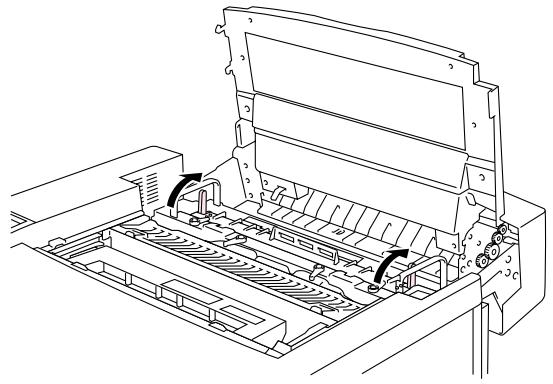
natural_image
Technical line drawing of a printer internal structure with no visible text or symbolsFig. 7-1
- Open the Rear Access Cover, and then remove the jammed paper by pulling it out slowly.
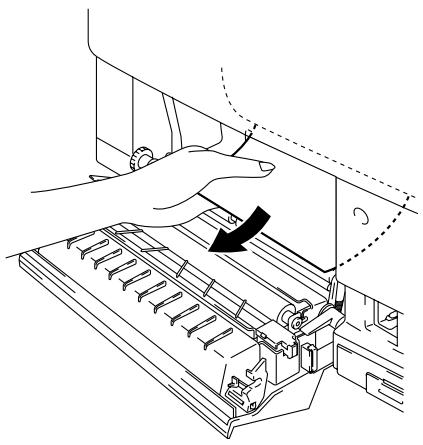
natural_image
Line drawing of a hand operating a mechanical device with a curved arrow indicating rotation (no text or symbols present)Fig. 7-2
- Lock the Fusing Unit Pressure Release Levers, close the Top Cover, and then close the Rear Access Cover.
Note
If the number of paper jams at the Rear Access Cover increases, replace the Paper Discharger.
If a paper jam occurs at the Fusing Roller, follow the same steps to remove the jammed paper as listed for ‘Paper Jam at Paper Exit’. Otherwise, follow the steps below:
! Warning
The Fusing Roller is extremely HOT during operation. Remove the paper carefully.
- Open the Rear Access Cover.
- Remove the jammed paper by holding it with both hands and pulling it slowly toward you.
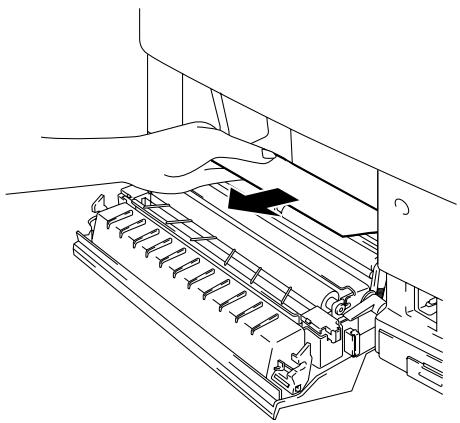
natural_image
Line drawing of a hand pressing down on a mechanical device component (no text or symbols)Fig. 7-3
- Close the Rear Access Cover.
! Caution
- Do not touch the toner surface of the jammed paper. It might stain your hands or clothes.
- If you remove the jammed paper and the next printed page is stained with toner, print several test pages before restarting your print job.
- Remove the jammed paper carefully to prevent spreading toner.
- Take care not to stain your hands and clothes. Wash toner stains immediately with cold water.
• Never touch the transfer roller. - If the paper in the paper cassette is creased at the edges, paper jams can occur. To avoid this, please turn the paper over.
PAPER JAM IN THE PAPER CASSETTE
JAM A1
Or
JAM A2
Or
JAM A3
If a paper jam occurs inside the Paper Cassette, follow these steps:
- Pull out the Paper Cassette.
- Remove the jammed paper.
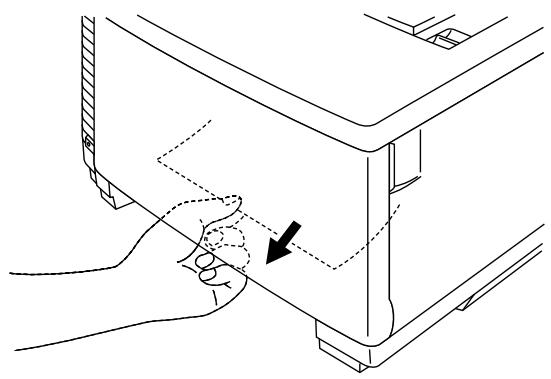
natural_image
Line drawing of a hand pressing down on a mechanical component with an arrow indicating force direction (no text or symbols)Fig. 7-4
- Re-install the Paper Cassette.
- Open the Rear Access Cover and check that there is no more jammed paper inside.
! Caution
Do not remove the upper Paper Cassette while printing from the optional lower Paper Cassette. This will cause a paper jam.
How to Clear a Paper Jam in the Duplex Unit
PAPER JAM IN THE DUPLEX COVER TOP ASSEMBLY
JAM B
If a paper jam occurs in the Duplex Cover Top Assembly, follow these steps:
-
Open the Duplex Cover Top Assembly.
-
If you see a jammed piece of paper through the viewing window, push the paper down and then remove the jammed paper.
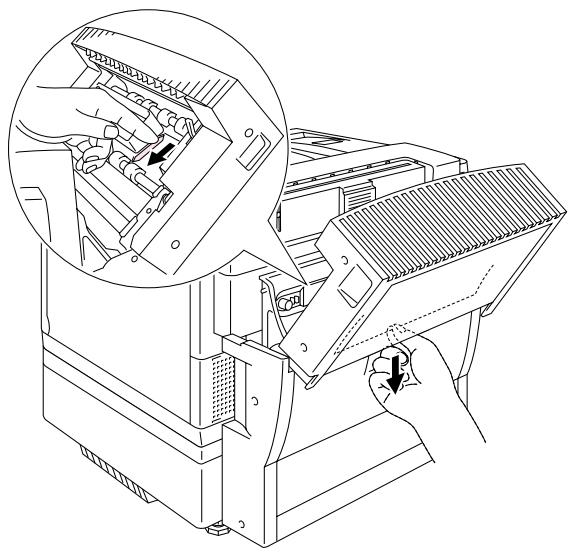
natural_image
Technical illustration of a computer monitor with an inset showing internal components (no text or symbols)Fig. 7-5
PAPER JAM IN THE LOWER ASSEMBLY OF THE DUPLEX UNIT
JAM C
If a paper jam occurs in the Lower Assembly, follow these steps:
- Open the Duplex Lower Cover. If you find a jammed piece of paper, remove it.
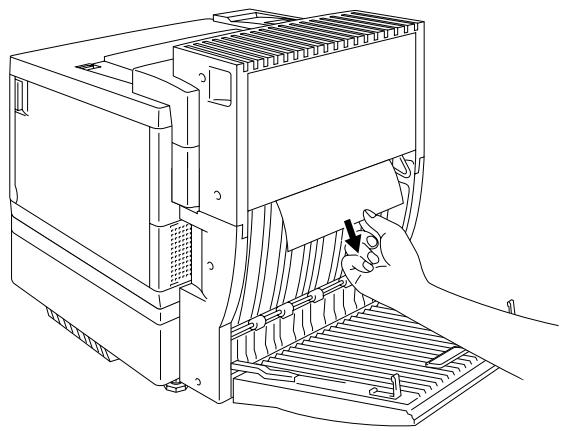
natural_image
Line drawing of a computer tower with a hand inserting a cable into the base panel (no text or symbols)Fig. 7-6
- If you cannot find the jammed paper, open the Inside Unit by holding the handles and pulling it toward the rear. If you find a jammed piece of paper, remove it.
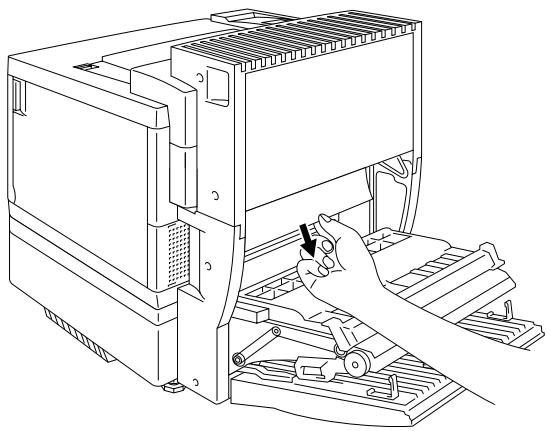
natural_image
Line drawing of a hand operating a computer motherboard with tools and components (no text or symbols)Fig. 7-7
- If you cannot still find the jammed paper, open the cover of the Inside Unit and remove the jammed paper.
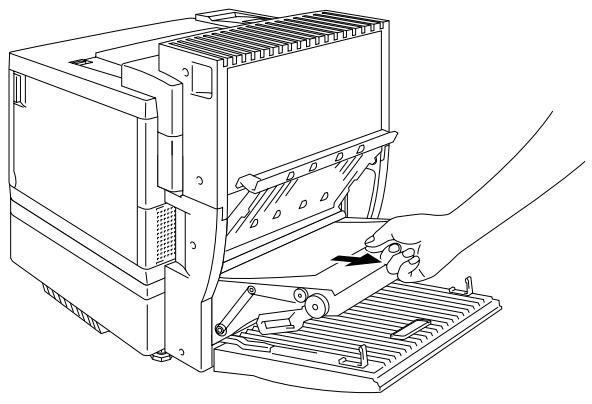
natural_image
Line drawing of a computer tower with a hand operating the base panel (no text or symbols present)Fig. 7-8
- Close the Cover of the Inside Unit, the Inside Unit and the Duplex Lower Cover.
PAPER JAM IN THE FUSING UNIT WITH THE DUPLEX UNIT INSTALLED
When the following message appears on the LCD with the Duplex Unit installed, follow the steps below to remove the jammed paper.
JAM E1
Or
JAM E2
- Open the Duplex Lower Cover.
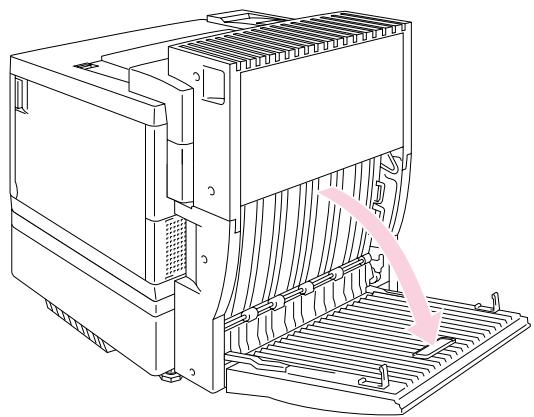
natural_image
Technical line drawing of an electronic device with cooling fins and a curved pink arrow indicating a component (no text or symbols present)Fig. 7-9
- Open the Inside Unit of the Duplex Unit.
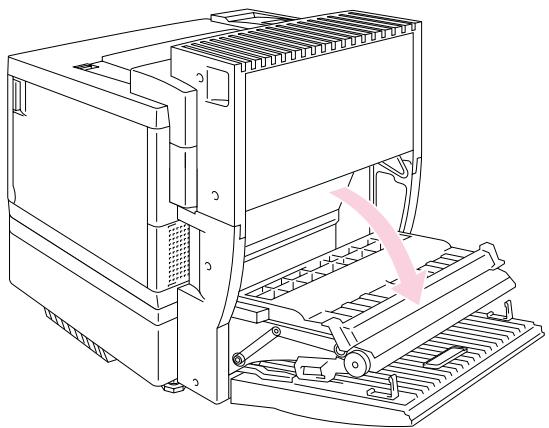
natural_image
Line drawing of a computer motherboard showing internal components and a highlighted movement arrow (no text or symbols)Fig. 7-10
- Open the Rear Access Cover of the printer.
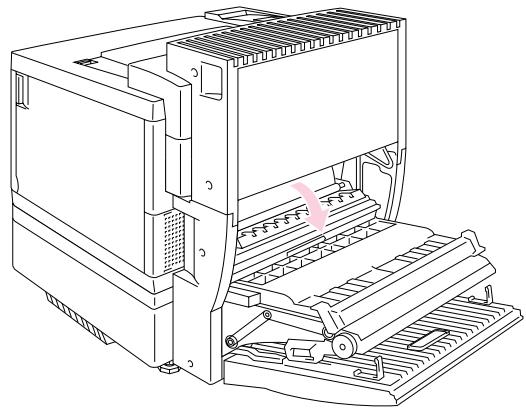
natural_image
Line drawing of an electronic device with internal components and a pink arrow indicating a specific part (no text or symbols present)Fig. 7-11
- Open the Duplex Cover Top Assembly.
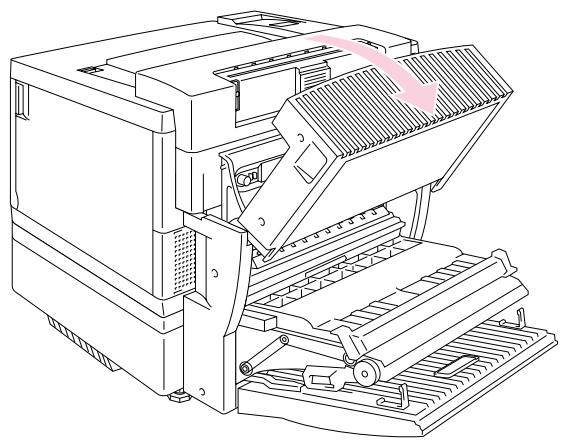
natural_image
Technical line drawing of a mechanical device with a highlighted component (no text or symbols)Fig. 7-12
- Open the Top Cover of the printer, and then set the Pressure Release Levers of the Fusing Unit to the OPEN position.
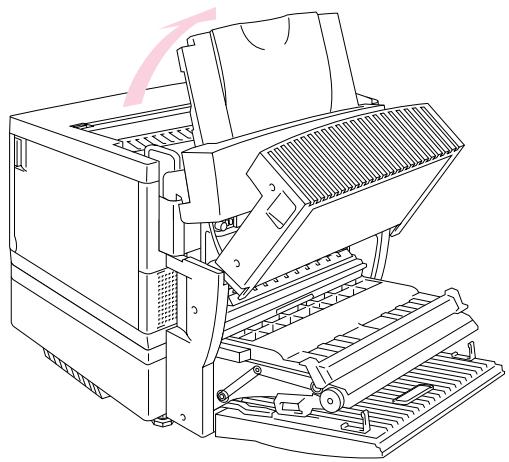
natural_image
Line drawing of a mechanical device with no visible text or symbols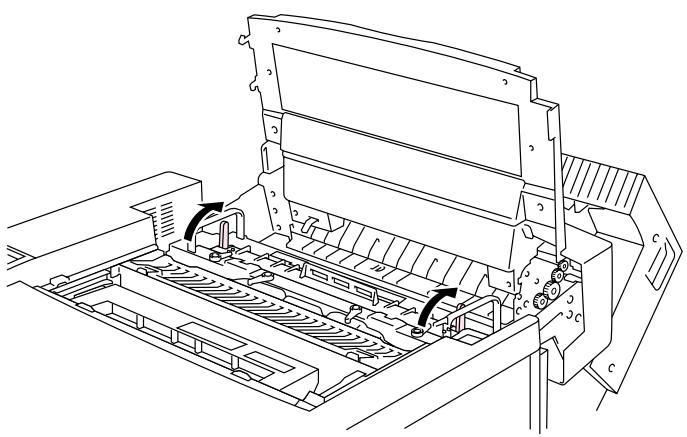
natural_image
Technical line drawing of a mechanical assembly with no visible text or symbolsFig. 7-13
- With all the covers and units open, remove the jammed paper. Access and remove the jammed paper from the Rear Access Cover.
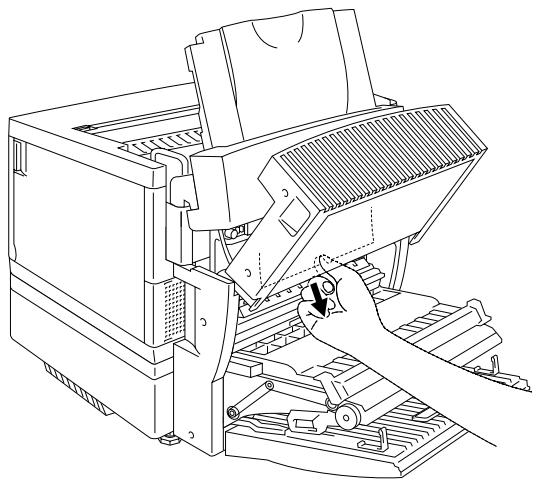
natural_image
Technical line drawing of a mechanical device with a hand operating the lever (no text or symbols present)Fig. 7-14
- Set the Pressure Release Levers of the Fusing Unit to the SET position, and then close the Top Cover.
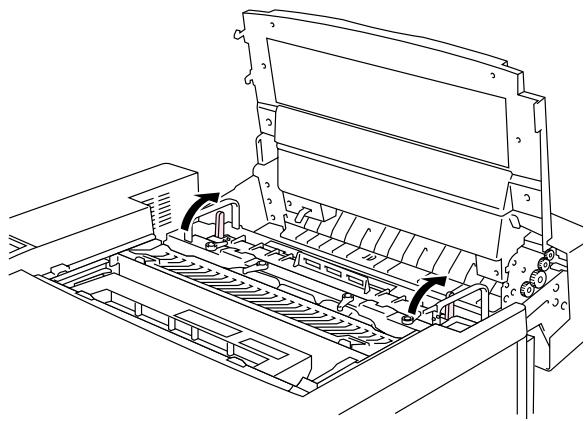
natural_image
Technical line drawing of a mechanical assembly with no visible text or symbolsFig. 7-15
- Close the Duplex Cover Top Assembly.
- Close the Rear Access Cover of the printer.
- Close the Inside Unit and the Duplex Lower Cover of the Duplex Unit.
Occasionally you may encounter a difficulty with your HL-3450CN printer. This section contains frequently asked questions and the answers. Find your question below, and then follow the recommended steps. You can correct most problems yourself.
SETTING UP THE PRINTER HARDWARE
| Question | Recommendation |
| The printer does not come on. | Check to verify the following;The printer is securely plugged into the AC outlet.The power source is active.The power button is on. |
| The printer does not print. | Check the following:The printer is turned On.The printer is Online.All of the protective parts have been removed.All the covers of the printer are closed.The toner cartridges are installed correctly.The ‘toner empty’ message is not displayed on the LCD. If one or more toner empty indicators are on, replace the toner cartridges.The interface cable is securely connected between the printer and computer.The Alarm LED is blinking. If the LED is blinking, refer to the Error Messages section of this manual.The HL-3450CN printer is selected in the printer settings in your application.The host is configured correctly: check printer port, print manager, etc. (clear stored job or ‘use print manager’ is turned off).There is no jammed paper inside the printer.Paper is loaded in the Paper Cassette.An Error message is not displayed. |
SETTING UP THE PRINTER
| Question | Recommendation |
| I cannot print from my application software. | Make sure that the supplied Windows printer driver is installed correctly and selected in your application software. |
| I cannot print the entire page. | Check that the size of paper in the feeder is the same as the paper size you selected in your application or in the printer driver.Check that the interface cable is connected to the printer and computer securely. |
| Computer indicates a device time-out. | If the Alarm LED is blinking, clear it referring to the ‘Alarm Indications at a Glance’ section in this chapter, and then try to print again.If the Alarm LED is off, wait a short while and then click the Retry button in the PC screen dialog box.Check that the printer is On Line. |
| Computer indicates Paper Empty. | Paper is empty. Load paper in the Feeder, and then pressGo to recover from the error status. |
| Computer indicates Off Line | Press Go to put the printer in the Ready state. |
| Computer indicates Power Off | Check that the printer is securely plugged into the AC outlet and that thePower button is On. |
| Computer indicates an error message other than above. | Check to verify the following;The computer can work in bi-directional mode.The printer port is correct.Selection of the printer is correct.Recommended interface cable is being used. (IEEE 1284 compliant)Or, select the ‘Control’ tag in the driver and set the ‘Status Monitor’ to off. |
If you install the printer driver for your HL-3450CN using the Plug & Play installation, the installation may fail sometimes and display the error dialog box as shown: | Please reinstall the printer driver by clicking the ‘Add Printer’ icon in the Settings-Printer dialog box. |
PAPER HANDLING
| Question | Recommendation |
| The printer does not load paper. | Check to see if the Alarm LED is on. If so, the Paper Cassette may be out of paper or not properly installed. If it is empty, load a new stack of paper into the Paper Cassette.If there is paper in the Paper Cassette, make sure that it is straight. If the paper is curled, you should straighten it before printing. Sometimes it is helpful to remove the paper, turn the stack over, and then reload it in the paper tray.Reduce the stack of paper in the Paper Cassette, and then try again. |
| How can I load envelopes? | You can load envelopes from the Paper Cassette (Tray 1). Make sure you adjust the paper guide. Your application software also must be set up correctly to print on the envelope size you are using. This is usually done in the page setup or document setup menu of your software. Refer to your applications manual for more information. |
| Which paper can I use? | See ‘Paper Handling’ in Chapter 3 for detailed paper specifications. |
| How can I clear paper jams? | See the “Paper Jams” section in this chapter. |
| The printer feeds more than one sheet at a time. | Check to verify the following:The paper loaded is all the same type.Paper that meets the specifications is loaded.Paper stack was fanned before loading.The stack of paper is not too high.The side guide is not set too tight. |
| Paper skews while feeding. | Check to verify the following:The side guide is adjusted correctly.The amount of paper you loaded is correct. Refer to the ‘PAPER SPECIFICATIONS’ section in APPENDIX. |
| Sometimes mis-picking of paper from the paper tray or mis-feeding of paper from the paper exit occurs. | Clean the Paper Guide, the Registration Roller and the Exit Roller referring to ‘Periodical Printer Cleaning’ in Chapter 5. |
PRINTING
| Question | Recommendation |
| The printer prints unexpectedly or it prints incorrect characters. | Cancel the print job from your computer. Then, turn the printer off and on, or reset the printer and try your print job again.Make sure your application software is correctly set up to use this printer. Check the printer driver settings or printer settings in your application software. |
| The computer hangs up when the printer starts printing, or an application error occurs. | Check to see that the system resources are enough (PC memory, etc). When you have many applications open, the system resources of your PC will not be enough and will cause your PC to hang up. Close applications you are not using and try again. |
| The headers or footers appear when I view my document on the screen but do not show up when I print them. | Most laser printers have a restricted area that cannot be printed. Adjust the top and bottom margins in your document to allow for this. |
| Printing takes too long. | Color graphic images contain a large amount of data and the printer will take a relatively long time to complete printing.When you print in Super Fine mode, the printer will take a relatively long time to finish printing.When the Data LED is blinking, the printer is getting ready to print. Print speed depends on memory size or performance of your PC and memory size of the printer. |
| The printer doesn’t print in color | The printer may be set to monochrome mode.Check that the color toner(s) have not run out. |
PRINT QUALITY
Note
When the LCD indicates the ‘toner low’ or ‘toner empty’ message, you can resolve a print quality problem by replacing a toner cartridge with a new one.
| Question | Recommendation |
White horizontal lines or bands or rubbing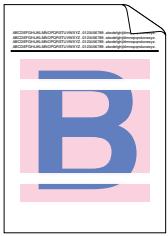 | 1) Check that the printer is installed on a solid level surface.2) Check that the rear access cover is closed correctly.3) Check that the toner cartridges are installed correctly.4) Shake the toner cartridges gently. |
Colors are light or unclear on the whole page | 1) Check that the specified paper was used.2) Change the paper to freshly unpacked paper, and then check that the problem is solved.3) Check that the rear access cover is closed correctly.4) Shake the toner cartridges gently. |
White vertical streaks or bands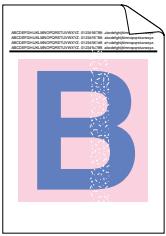 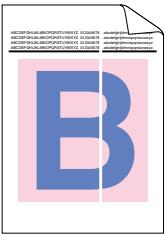 | Identify the missing color, and then replace that toner cartridge.*The toner has probably reached the end of its life. However, when you see a white vertical line on the toner roller, try the following procedure:1. Cut a sheet approx. 50mm x 50mm out of a transparency film.2. Insert the film about 10mm into the gap between the toner roller and the blade.3. Slide the film and pull it out as shown below.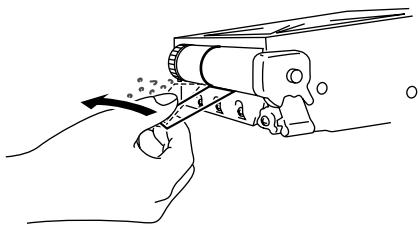 |
Black vertical streaks or bands 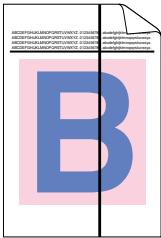 | 1) Identify the missing color and replace that toner cartridge.2) Replace the OPC belt cartridge. |
Black (colored) horizontal lines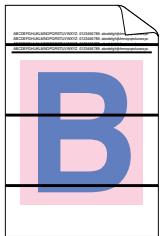 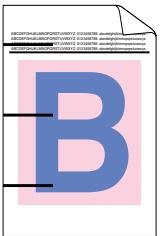 | Identify the missing color and replace that toner cartridge. |
White spots or hollow print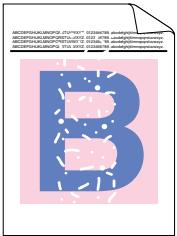 | 1) Change the paper to freshly unpacked paper, and then check that the problem was solved.2) Check that the specified paper was used.3) Check that the room temperature is higher than 10°C (50°F) |
Completely blank or some colors are missing  | 1) Identify the missing color and that the toner cartridge is installed correctly.2) Replace the toner cartridge.3) Replace the OPC belt cartridge. |
Black (colored) spots or Toner stain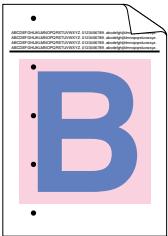 | Contact your dealer or Brother Authorized Service Representative. |
Toner is scattered or Toner stains appear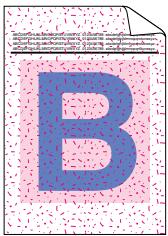 | 1) Identify the color causing the problem and replace that toner cartridge.2) Replace the OPC belt cartridge. |
| The color of your printouts is not what you expected | 1) Initiate a test print from the control panel.2) Check that the toner cartridges are installed correctly.3) Check that the toner cartridges are not empty.4) Adjust the color by using the custom setting in the driver. Colors the printer can display and colors you see on a monitor are different. The printer may not be able to reproduce the colors on your monitor.5) Check to ensure the specified paper was used. |
| All one color | Replace the OPC belt cartridge. |
Dirt on back of paper  | 1) Replace the Oil Bottle.2) Replace the Fuser Cleaning Roller. |
| Shade on the transparency | 1) Change to the recommended type of transparency, and then check that the problem is solved.2) Check that the media type mode is selected correctly. |
Color misregistration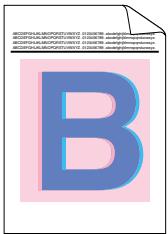 | 1) Check that the OPC Belt Cartridge is installed correctly.2) Replace the OPC Belt Cartridge. |
Uneven density appears periodically in the horizontal direction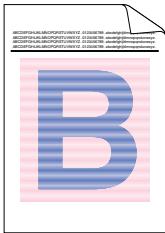 | 1) Check that the toner cartridges are installed correctly.2) Check that the OPC Belt Cartridge is installed correctly. |
Missing image at edges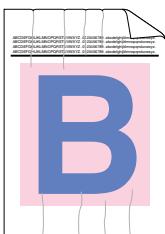 | 1) Replace the toner cartridge.2) Replace the OPC Belt Cartridge. |
Wrinkle | 1) Change to a recommended type of paper, and then check that the problem is solved.2) Check that the rear access cover is closed correctly.3) Check that the paper discharger is installed correctly. |
Mixed color image | 1) Check that the front cover is closed correctly.2) Check that the toner cartridges are installed correctly.3) Replace the toner cartridges. |
| Insufficient Gloss | 1) Check that the oil is not empty.2) Replace the Fuser Cleaning Roller.3) Check that the specified paper is being used. |
Off set image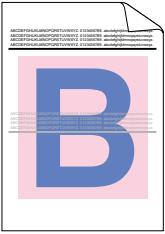 | 1) Check that the specified paper is being used.2) Check that the oil is not empty.3) Replace the Fuser Cleaning Roller |
Poor fixing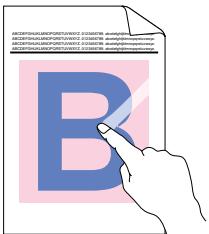 | 1) Check that the specified paper is used.2) Check that the media type mode is selected correctly. |
| Poor fixing | Wait 15 to 30 minutes and try again. |
| Poor fixing when printed on thick paper | Set the printer to thick paper mode through the control panel or the printer driver. |
Blurred vertical band and spots of color.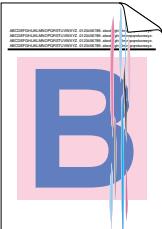 | Clean the Charging Wire. For more information about the cleaning procedure, see “Periodic Printer Cleaning” in Chapter 5. |
Dirt on the printed pages | Clean the Paper Guide, the Registration Roller and the Exit Roller referring to ‘Periodic Printer Cleaning’ in Chapter 5. |
If the same problem re-occurs, contact your dealer or Brother Authorized Service Representative.
! Caution
Operation of the printer outside the specifications shall be deemed abuse and all repairs thereafter shall be the sole liability of the end user/purchaser.
APPENDIX
PRINTING
| Print Method | Electrophotography by semiconductor laser beam scanning |
| Laser | Wavelength: 780 nmOutput: 5mW max. |
| Resolution | 600x600 dots per inch (Normal)2400 dots per using CAPT and HRC (The resolution can be enhanced to 2400 dpi class by using Brother exclusive HRC (High Resolution Control) and CAPT (Color Advanced Photoscale Technology) |
| Print Speed | 24 pages per minute (A4/Letter size in monochrome)6 pages per minute (A4/Letter size in full color)12 pages per minute (A3/Ledger size in monochrome)3 pages per minute (A3/Ledger size in full color) |
| Warm Up | Max. 3 minutes at 20°C (68°F) |
| First Print | Monochrome: 19 seconds or lessFull Color: 34 seconds or less(A4/Letter size by face down print delivery from standard upper cassette feed) |
| Consumable Items | Toner in a single color single-component cartridgeLife Expectancy: 14,000 (Black): 8,500 (Cyan, Magenta and Yellow) single-sided pages/cartridge (A4 or letter size paper with approx. 5% coverage) |
| Resident Printer Fonts | 66 scalable fonts, 12 bitmapped fonts,13 barcode fonts (PCL)Agfa 165 fonts (BRScript3) |
FUNCTIONS
CPU Toshiba TMPR4955 (266MHz)
Emulation Automatic emulation selection
- HP Color Printer (PCL5C) including HP LaserJet 4+ (PCL 5e) and HP LaserJet 5 (PCL 6) monochrome mode
- BR-Script3 (Adobe Postscript®3 compatible)
- HP-GL
- EPSON FX-850
- IBM Proprinter XL
Interface Automatic interface selection among IEEE 1284 Parallel, 10/100BaseTX Ethernet, USB1.1
RAM 64 Mbyte
(Expandable to 384 Mbytes with DIMMs: 384 Mbytes would require removing the original 64 Mbytes DIMM and filling all 3 slots with the optional 128 Mbytes DIMMS)
The standard installed memory can vary depending on the printer model and country.
Storage Devices (Option) Hard Disk Drive (2.5 inch IDE HDD; HD-6G/HD-EX) CompactFlash Type II
Control Panel 8 switches, 4 lamps and 16-column by 2-lines liquid crystal display
Diagnostics Self-diagnostic program
ELECTRICAL AND MECHANICAL
| Power Source | U.S.A. and Canada: | AC 120 V, 50/60 Hz |
| Europe and Australia: | AC 220 to 240 V, 50/60 Hz | |
| Power Consumption | Printing (Average): | 600 W or less |
| Stand-by: | 200W or less | |
| Stand-by in sleep mode: | 30 W or less | |
| Noise | Printing: 55 dB A or less | |
| Stand-by: 48 dB A or less | ||
| Temperature | Operating: | 10 to 32.5°C (50°F to 90.5°F) |
| Non operational: | 5 to 35°C (41°F to 95°F) | |
| Storage: | 0 to 35°C (38°F to 95°F) | |
| Humidity | Operating: | 20 to 80% (without condensation) |
| Storage: | 20 to 80% (without condensation) | |
| Dimensions (W x H x D) | 615 x 420 x 540 mm (24 x 16.4 x 21.1 inches) | |
| Weight | Approx. 54 kg (119 lbs.) | |
| Approx. 76kg (167.5 lbs.) with 2 optional lower tray units and toner cartridges installed | ||
Paper Input Media Trays:
• Standard upper tray (Tray 1)
• Optional lower tray (Tray 2, Tray 3)
- Paper sizes:
Standard: Letter, Ledger, Legal, A4, A3, ISO B5, JIS B5, B4, Executive, 330x483mm(13"x19"), and COM10, DL with the Envelope Adapter installed
Optional lower tray: Letter, Ledger, A4, A3, B4, Legal, B5 (JIS / ISO)
Optional A4/Letter Cassette: Letter, A4, ISO B5, JIS B5, Executive, and COM10, DL with the Envelope Adapter installed
- Max. stacking height in the cassette: 27 mm (1.06") for the Standard Cassette and A4/Letter cassette; 52 mm (2.05") for the Optional Lower Tray
- Max. paper cassette capacity = Approx. 250 sheets of 75g / m^2 (20 lbs) for Standard media cassette and the optional A4/Letter cassette. Approx. 500 sheets of 75g / m^2 (20 lbs) for the optional lower tray.
Printed Output Face down print delivery
Paper Type Standard upper tray (Tray 1):
- Plain paper of Letter, Ledger, Legal, A4, A3, ISO B5, JIS B5, B4, 330 x 384mm(13"x19") and Executive sizes 176 x 210 mm to 330 x 483 mm (6.9 x 8.2" to 13.0 x 19.0") [60 to 160 g/m² (16 to 43 lbs)]
- Envelopes of COM10 and DL sizes with the Envelope Adapter installed
- Transparencies
- Labels
Optional lower tray (Tray 2, Tray 3):
- Plain paper of Letter, Ledger, Legal, A4, A3, B4 and B5 (JIS / ISO) sizes
Optional A4/Letter tray (Tray 1):
- Plain paper of Letter, A4, ISO B5, JIS B5, and Executive sizes
176 x 210 mm to 297 x 297 mm
(6.9 x 8.2" to 11.7 x 11.7")
[60 to 160 g/m² (16 to 43 lbs)] - Envelopes of COM10 and DL sizes with the Envelope Adapter installed
- Transparencies
- Labels
Optional Duplex Unit:
- Plain paper of Letter, Ledger, Legal, A4, A3, ISO B5, JIS B5, B4, 330 x 384mm(13"x19") and Executive sizes
Test printing on paper, especially envelopes, is recommended before making a large purchase.
The following types of envelopes are not recommended for use:
• Envelopes with thick and/or crooked edges
- Damaged, curled, wrinkled, or irregularly shaped envelopes
• Extremely shiny or highly textured envelopes
• Envelopes with clasps
• Envelopes of baggy construction
• Envelopes not sharply creased
- Embossed envelopes
• Envelopes already printed with a laser printer
- Envelopes that cannot be arranged uniformly when placed in a pile
Note
- An area 15mm (0.6") from the edges of the envelope will not be printed.
- Avoid feeding labels with the carrier sheet exposed because your printer will be damaged.
- When feeding Transparencies, the use of a recommended type for laser printers will ensure optimum printing. For detailed information on the specification or purchase, please contact your nearest Brother authorized sales representative or the place of purchase.
PAPER
The printer is designed to work well with most types of xerographic and bond paper. However, some paper variables may have an effect on print quality or handling reliability. Always test samples of paper before purchasing large quantities to ensure that it provides the desired performance. Some important guidelines when selecting paper are:
- The Supplier should be informed that the paper or envelopes will be used in a laser printer.
- Preprinted paper must use inks that can withstand the temperature of the printer's fusing process. (200 degrees centigrade)
- If you have selected a cotton bond paper, paper having a rough surface such as cockle or laid finished paper, or paper that is wrinkled or puckered, be aware that these types of paper may exhibit degraded performance.
Note
The manufacturer does not warrant the use of any particular paper. The operator is responsible for the quality of paper used with the printer.
Paper Types to Avoid
Some types of paper might not perform well or may cause damage to your printer.
Types of paper to avoid are:
- Highly textured paper
- Smooth or shiny paper
- Paper that is coated or has a chemical finish
- Damaged, wrinkled or pre-folded paper
- Paper exceeding the recommend weight specification specified in the manual
- Paper with tabs and staples
- Letterheads using low temperature dyes or thermography
- Multi-part or carbonless paper
DAMAGE OR OTHER DEFECTS CAUSED BY THE USE OF PAPER LISTED UNDER “PAPER TYPES TO AVOID” WILL NOT BE COVERED UNDER ANY WARRANTY OR SERVICE AGREEMENTS.
ENVELOPES
Most envelopes will perform acceptably on your printer. However, some envelopes will have feeding and print quality problems because of their construction. A suitable envelope should have edges with straight, well creased folds and should not have more than two thickness of paper along the leading edge. The envelope should lie flat and not be of baggy or flimsy construction. Purchase quality envelopes from a supplier who understands that the envelopes will be used in a laser printer. All envelopes should be tested prior to use to ensure desirable print results.
Envelope Types to Avoid
- Envelopes constructed with paper that exceeds the paper weight specifications for the printer
- Poorly manufactured envelopes with edges that are not straight or consistently square
- Envelopes of "baggy" construction or with folds that are not sharply creased
- Envelopes with transparent windows, holes, cutouts or perforations
- Envelopes with clasps, snaps or tie strings
- Envelopes made with smooth or shiny paper
- Envelopes that are rough, highly textured, or deeply embossed
- Envelopes that do not lie flat or that are curled, wrinkled, or irregularly shaped
- Envelopes having an open flap with an adhesive that seals the envelope
USE OF ANY OF THE ENVELOPES LISTED ABOVE MAY CAUSE DAMAGE TO YOUR PRINTER. SUCH DAMAGE IS NOT COVERED UNDER ANY WARRANTY OR SERVICE AGREEMENT.
Note
The manufacturer neither warrants nor recommends the use of a particular envelope because envelope properties are subject to change by the envelope manufacturer. The entire responsibility for the quality and performance of envelopes lies with the customer.
LABELS AND OVERHEAD TRANSPARENCIES
The printer will print on most types of labels and transparencies designed for use with a laser printer. Labels should have an adhesive that is acrylic-based since such material is more stable at the high temperatures of the fusing unit. Adhesives should not touch any part of the printer because the label stock may stick to the drum or rollers, which would cause jams and print quality problems. No adhesive should be exposed between the labels. Labels should be arranged so that they cover the entire page with the only exposed spaces being lengthwise down the sheet. Using labels with spaces may result in labels peeling off and causing serious jam or print problems.
All labels and transparencies used in this printer must be able to withstand a temperature of 200 degrees centigrade (392 degrees Fahrenheit) for a period of 0.1 seconds.
Label and transparency sheets should not exceed the paper-weight specifications described in the User's Guide. Labels and transparencies exceeding this specification may not feed or print properly and can cause damage to your printer.
The entire responsibility for the quality and performance of labels and transparencies lies with the customer.
DAMAGE CAUSED BY THE USE OF UNSATISFACTORY LABELS OR TRANSPARENCIES IS NOT COVERED UNDER ANY WARRANTY OR SERVICE AGREEMENTS.
SYMBOL/CHARACTER SETS
You can select the symbol and character sets in the HP LaserJet, EPSON FX-850, IBM Proprinter XL emulation modes, and the standard or alternate character set in the HP-GL emulation mode with the PRINT MENU by using the Control Panel. See “PRINT MENU” in Chapter 4.
OCR SYMBOL SETS
OCR-A
OCR-B
HP PCL MODE
Roman 8 (8U)
ISO Latin1 (0N)
ISO Latin2 (2N)
ISO Latin5 (5N)
PC-8 (10U)
PC-8 D/N (11U)
PC-850 (12U)
PC-852 (17U)
PC-8 Turkish (9T)
Windows Latin1 (19U)
Windows Latin2 (9E)
Windows Latin5 (5T)
Legal (1U)
Ventura Math (6M)
Ventura Intl (13J)
Ventura US (14J)
PS Math (5M)
PS Text (10J)
Math-8 (8M)
Pi Font (15U)
MS Publishing (6J)
Windows 3.0 (9U)
Desktop (7J)
MC Text (12J)
Symbol (19M)
Wingdings (579L)
ISO 2 IRV
ISO 4 UK
ISO 6 ASCII
ISO10 SWE/FIN
ISO11 Swedish
ISO14 JISASCII
ISO15 Italian
ISO16 POR
ISO17 Spanish
ISO21 German
ISO25 French
ISO57 Chinese
ISO60 NOR v1
ISO61 NOR v2
ISO69 French
ISO84 POR
ISO85 Spanish
HP German
HP Spanish
EPSON MODE
US ASCII
German
UK ASCII I
French I
Danish I
Italy
Spanish
Swedish
Japanese
Norwegian
Danish II
UK ASCII II
French II
Dutch
South African
PC-8
PC-8 D/N
PC-850
PC-852
PC-860
PC-863
PC-865
PC-8 Turkish
IBM MODE
PC-8
PC-8 D/N
PC-850
PC-852
PC-860
PC-863
PC-865
PC-8 Turkish
HP-GL MODE
ANSI ASCII
9825 CHR. SET
FRENCH/GERMAN
SCANDINAVIAN
SPANISH/LATIN
JIS ASCII
ROMAN8 EXT.
ISO IRV
ISO SWEDISH
ISO SWEDISH:N
ISO NORWAY 1
ISO GERMAN
ISO FRENCH
ISO U.K.
ISO ITALIAN
ISO SPANISH
ISO PORTUGUESE
ISO NORWAY 2
SYMBOL SETS SUPPORTED BY THE PRINTER'S INTELLIFONT COMPATIBLE TYPEFACES
*These symbol sets are variations of the Roman-8 symbol set.
*These symbol sets are variations of the Roman-8 symbol set.
**LetterGothic 16.66 is a bitmapped font.
SYMBOL SETS SUPPORTED BY THE PRINTER'S TRUETYPE™ AND TYPE 1 FONT COMPATIBLE, AND ORIGINAL TYPEFACES
| PCL Symbol Set | TypefaceAtlantaBR SymbolCopenhagenCalgaryHelsinkiPortugalTennes-seeW Dingbats | |||||||
| Set ID8U | Symbol SetRoman-8 | • | • | • | • | |||
| 0N | ISO 8859-1 Latin1 | • | • | • | • | • | • | |
| 2N | ISO 8859-2 Latin2 | • | • | |||||
| 5N | ISO 8859-9 Latin5 | • | • | |||||
| 6N | ISO 8859-10 Latin6 | • | • | |||||
| 10U | PC-8 | • | • | • | • | • | • | |
| 11U | PC-8 D/N | • | • | • | • | • | • | |
| 12U | PC-850 | • | • | • | • | • | • | |
| 17U | PC-852 | • | • | |||||
| 26U | PC-775 | • | • | |||||
| 9T | PC-Turk | • | • | |||||
| 19U | Windows 3.1 Latin1 | • | • | • | • | • | • | |
| 9E | Windows 3.1 Latin2 | • | • | |||||
| 5T | Windows 3.1 Latin5 | • | • | |||||
| 7J | DeskTop | • | • | • | • | • | • | |
| 9J | PC-1004 (OS/2) | • | • | |||||
| 10J | PS Text | • | • | • | • | • | • | |
| 13J | Ventura International | • | • | • | • | • | • | |
| 14J | Ventura US | • | • | • | • | • | • | |
| 6J | Microsoft Publishing | • | • | • | • | • | • | |
| 8M | Math-8 | • | • | |||||
| 5M | PS Math | • | • | |||||
| 6M | Ventura Math | • | • | |||||
| 15U | PI Font | • | • | |||||
| 1U | Legal | • | • | • | • | • | • | |
| 1E | ISO 4: United Kingdom* | • | • | • | • | • | • | |
| 0U | ISO 6: ASCII* | • | • | • | • | • | • | |
| 2U | ISO 2: IRV* | • | • | • | • | • | • | |
| 0S | ISO 11: Swedish: names* | • | • | • | • | • | • | |
| 0I | ISO 15: Italian* | • | • | • | • | • | • | |
| 1S | HP Spanish* | • | • | • | • | • | • | |
| 2S | ISO 17: Spanish* | • | • | • | • | • | • | |
| 3S | ISO 10: Swedish* | • | • | • | • | • | • | |
| 4S | ISO 16: Portuguese* | • | • | • | • | • | • | |
| 5S | ISO 84: Portuguese* | • | • | • | • | • | • | |
| 6S | ISO 85: Spanish* | • | • | • | • | • | • | |
| 0G | HP German* | • | • | • | • | • | • | |
| 1G | ISO 21: German* | • | • | • | • | • | • | |
| 0D | ISO 60: Norwegian 1* | • | • | • | • | • | • | |
| 1D | ISO 61: Norwegian 2* | • | • | • | • | • | • | |
| 0F | ISO 25: French* | • | • | • | • | • | • | |
| 1F | ISO 69: French* | • | • | • | • | • | • | |
| 0K | ISO 14: JIS ASCII* | • | • | • | • | • | • | |
| 2K | ISO 57: Chinese* | • | • | • | • | • | • | |
| 9U | Windows 3.0 Latin1 | • | • | • | • | • | • | |
| 12J | MC Text | • | • | • | • | • | • | |
| 19M | Symbol | • | ||||||
| 19L | Windows Baltic | • | • | |||||
| 579L | Wingdings | • | ||||||
*These symbol sets are variations of the Roman-8 symbol set.
| PCL Symbol Set | TypefaceBermuda Script | Germany | San Diego | US Roman | |
| Set ID | Symbol Set | ||||
| 8U | Roman-8 | • | • | • | • |
| 0N | ISO 8859-1 Latin1 | • | • | • | • |
| 2N | ISO 8859-2 Latin2 | ||||
| 5N | ISO 8859-9 Latin5 | ||||
| 6N | ISO 8859-10 Latin6 | ||||
| 10U | PC-8 | • | • | • | • |
| 11U | PC-8 D/N | • | • | • | • |
| 12U | PC-850 | • | • | • | • |
| 17U | PC-852 | ||||
| 26U | PC-775 | ||||
| 9T | PC-Turk | ||||
| 19U | Windows 3.1 Latin1 | • | • | • | • |
| 9E | Windows 3.1 Latin2 | ||||
| 5T | Windows 3.1 Latin5 | ||||
| 7J | DeskTop | • | • | • | • |
| 9J | PC-1004 (OS/2) | ||||
| 10J | PS Text | • | • | • | • |
| 13J | Ventura International | • | • | • | • |
| 14J | Ventura US | • | • | • | • |
| 6J | Microsoft Publishing | • | • | • | • |
| 8M | Math-8 | ||||
| 5M | PS Math | ||||
| 6M | Ventura Math | ||||
| 15U | PI Font | ||||
| 1U | Legal | • | • | • | • |
| 1E | ISO 4: United Kingdom* | • | • | • | • |
| 0U | ISO 6: ASCII* | • | • | • | • |
| 2U | ISO 2: IRV* | • | • | • | • |
| 0S | ISO 11: Swedish: names* | • | • | • | • |
| 0I | ISO 15: Italian* | • | • | • | • |
| 1S | HP Spanish* | • | • | • | • |
| 2S | ISO 17: Spanish* | • | • | • | • |
| 3S | ISO 10: Swedish* | • | • | • | • |
| 4S | ISO 16: Portuguese* | • | • | • | • |
| 5S | ISO 84: Portuguese* | • | • | • | • |
| 6S | ISO 85: Spanish* | • | • | • | • |
| 0G | HP German* | • | • | • | • |
| 1G | ISO 21: German* | • | • | • | • |
| 0D | ISO 60: Norwegian 1* | • | • | • | • |
| 1D | ISO 61: Norwegian 2* | • | • | • | • |
| 0F | ISO 25: French* | • | • | • | • |
| 1F | ISO 69: French* | • | • | • | • |
| 0K | ISO 14: JIS ASCII* | • | • | • | • |
| 2K | ISO 57: Chinese* | • | • | • | • |
| 9U | Windows 3.0 Latin1 | • | • | • | • |
| 12J | MC Text | • | • | • | • |
| 19M | Symbol | ||||
| 19L | Windows Baltic | ||||
| 579L | Wingdings | ||||
*These symbol sets are variations of the Roman-8 symbol set.
INDEX
1
120K Kit 5-27
2
240K Kit 5-30
A
| accessory | 2-8 |
| Analysis Tool Software | 2-15 |
| Apple LaserWriter | 2-18 |
| automatic emulation selection | 1-8, 3-1 |
| automatic interface selection | 1-7, 3-3 |
B
| Back switch | 4-2, 4-14 |
| Belt Cartridge Lock Lever | 5-19 |
| BRAdmin professional | 2-15 |
| BR-SCRIPT | 4-30 |
| BR-Script 3 mode | 4-36 |
C
| Cassette Feed | 3-15 |
| charging wire | 5-28 |
| Color Advanced Photoscale Technology | 1-6 |
| communications parameters | 3-3 |
| consumable | 5-1 |
D
| Data Compression | 1-8 |
| date and time setting | 4-34 |
| delete storage | 4-25, 4-33 |
| Device | 2-6 |
| DIMM | 6-19 |
| Drum Cleaner | 5-31 |
| Drum Cover | 5-31 |
| duplex | 2-5 |
| Duplex Unit | 6-7 |
E
| emulation mode | 1-8, 4-36 |
| Envelopes | 3-11 |
| EPSON FX-850 mode | 4-37 |
F
| factory setting | 2-21, 4-38 |
| Fuser Cleaner | 5-13 |
| Fuser Cleaner Lock Levers | 5-14 |
| Fusing Unit | 5-22 |
G
Go switch 4-2
H
| High Resolution Control | 1-6 |
| HP LaserJet mode | 4-36 |
| HP-GL mode | 4-37 |
I
| IBM Proprinter XL mode | 4-37 |
| information mode | 4-22 |
| interface | 4-42 |
| interface mode | 4-32 |
| IP address | 4-35 |
J
Job Cancel switch 4-2
L
| LCD | 4-1, 4-16 |
| LCD message | 4-17 |
| LED | 4-15 |
| Legal Cassette | 1-12 |
| Lower Media Cassette | 6-1 |
| Lower Tray Unit | 1-12, 6-1 |
M
| Macintosh | 2-18 |
| Maintenance Message | 5-2, 5-3, 7-4 |
| Manual Feed | 3-16 |
| MIO interface | 3-3 |
N
| network | 2-15, 4-41 |
| network mode | 4-31 |
| non guaranteed print area | 3-9 |
0
| Oil Bottle | 5-9 |
| Oil Bottle Lock Lever | 5-11 |
| Operator Call Message | 5-1, 7-1 |
| Option | 1-12, 2-6 |
| Optional Cassette | 3-7 |
| Optional Fonts | 6-12 |
| Optional Legal Cassette | 3-5 |
| Ozone Filter | 5-21 |
P
| panel setting | 4-21 |
| paper | 4-39 |
| Paper Discharger | 5-28 |
| Paper Jam | 7-8 |
| paper mode | 4-23 |
| Paper Size | 3-5 |
| parallel interface | 3-3 |
| PCL5C mode | 3-1 |
| PCL6 | 2-1 |
| Power Save Mode | 1-9 |
| PPD | 2-18, 2-19 |
| print menu | 4-40 |
| print menu mode | 4-26 |
| print quality | 2-4 |
| printer driver | 2-1, 2-2, 2-10 |
| printer status message | 4-18 |
| proof data | 4-8 |
| protective sheet | 5-20 |
| public data | 4-9 |
Q
| quality mode | 4-23 |
R
| RAM | 6-18 |
| RAM Expansion | 1-13 |
| Rear Side Cover | 5-21 |
| reprint | 2-7, 2-14 |
| Reprint switch | 4-2 |
| reset menu mode | 4-33 |
S
| secure data | 4-10 |
| serial interface | 3-3 |
| Service Call Messages | 7-5 |
| Set switch | 4-2, 4-13 |
| setup | 4-39 |
| setup mode | 4-24 |
| Standard Media Cassette | 3-5, 3-6, 3-7 |
| Storage Manager | 2-15 |
T
| TCP/IP | 4-31 |
| Tension Release Pin | 5-19 |
| Toner Cartridges | 5-5 |
| Toner Save Mode | 1-10 |
| Transfer Roller | 5-33 |
| Transfer Roller Lock Lever | 5-33 |
W
| Waste Toner Pack | 5-16 |
| Waste Toner Pack Holder | 5-17 |
| watermark | 2-5 |
| Windows | 7-21 |