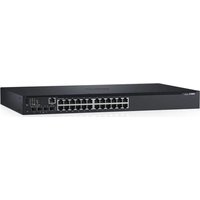
N1524P - Switch DELL - Free user manual and instructions
Find the device manual for free N1524P DELL in PDF.


| Product Type | Managed Layer 2/3 Network Switch |
| Model | Dell N1524P |
| Number of Ports | 24 ports 10/100/1000BASE-T PoE+ |
| Uplink Ports | 4 SFP+ 10 Gigabit ports (compatible with 1G SFP) |
| PoE Power | PoE+ (25.5 W per port) with total budget of 450 W |
| Power Supply | Internal 600 W power supply, 100-240 VAC, 50-60 Hz |
| Dimensions (W x D x H) | 440 x 387 x 43.5 mm (1U rack-mountable) |
| Weight | Approximately 5.5 kg |
| Operating Temperature | 0 °C to 45 °C |
| Operating Humidity | 8% to 85% (non-condensing) |
| Stacking | Up to 4 switches in ring topology via SFP+ ports |
| Console Port | RJ-45 RS-232 (cable included) |
| USB Port | USB 2.0 Type A (FAT-32 flash drive) |
| Reset Button | Recessed hole, accessible with a paperclip |
| Remote Management | Telnet, SSH, HTTP/HTTPS, SNMP |
| Maximum Power Consumption | 110 V: ~5.24 A / 220 V: ~2.63 A |
| Package Contents | Switch, RJ45-DB9 cable, rack mount kit, rubber feet |
| Maintenance and Cleaning | Disconnect before cleaning; use a dry cloth; do not block vents |
| Safety | Read safety instructions; disconnect power before servicing; use a grounded outlet |
| Spare Parts and Repairability | No user-serviceable parts; contact Dell support |
Frequently Asked Questions - N1524P DELL
User questions about N1524P DELL
0 question about this device. Answer the ones you know or ask your own.
Ask a new question about this device
Download the instructions for your Switch in PDF format for free! Find your manual N1524P - DELL and take your electronic device back in hand. On this page are published all the documents necessary for the use of your device. N1524P by DELL.
USER MANUAL N1524P DELL
Notes, Cautions, and Warnings

NOTE: A NOTE indicates important information that helps you make better use of your switch.

CAUTION: A CAUTION indicates either potential damage to hardware or loss of data and tells you how to avoid the problem.

WARNING: A WARNING indicates a potential for property damage, personal injury, or death.
Contents
1 Introduction....7
2 Dell Networking N1500 Series Overview . . . 7
3 Hardware Overview....8
Dell Networking N1500 Series Front Panel ..... 8
Switch Ports 10
Console Port 11
USB Port 11
Reset Button 11
Port and System LEDs 12
Stack Master LED and Stack Number Display. . . 12
Dell Networking N1500 Series Back Panel. . . . . . 13
Power Supplies....13
Ventilation System 14
Dell Networking N1500 Series Model Summary . . . . 14
4 Dell Networking N1500 Series Installation 15
Site Preparation 15
Unpacking the N1500 Series Switch 16
Package Contents. 16
Unpacking Steps 16
Rack Mounting the N1500 Series Switch ..... 17
Installing in a Rack 17
Installing as a Free-standing Switch ..... 18
Stacking Multiple Switches....19
Creating a Switch Stack 19
5 Starting and Configuring the Dell Networking N1500 Series Switch .... 22
Connecting a N1500 Series Switch to a Terminal. . . . 23
Connecting a Switch to a Power Source ..... 25
AC and DC Power Connection 25
Booting the Switch. 26
Performing the Initial Configuration. 27
Enabling Remote Management. 27
Initial Configuration Procedure. 28
Example Session 29
Dell Easy Setup Wizard Console Example ..... 30
Next Steps 33
6 NOM Information (Mexico Only) ..... 34
Introduction
This document provides basic information about the Dell Networking N1500 Series switches, including how to install a switch and perform the initial configuration. For information about how to configure and monitor switch features, see the User's Configuration Guide, which is available on the Dell Support website at dell.com/support for the latest updates on documentation and firmware.
This document contains the following sections:
• Dell Networking N1500 Series Overview
- Hardware Overview
- Dell Networking N1500 Series Installation
- Starting and Configuring the Dell Networking N1500 Series Switch
• NOM Information (Mexico Only)

NOTE: Switch administrators are strongly advised to maintain Dell Networking switches on the latest version of the Dell Networking Operating System. Dell Networking continually improves the features and functions of Dell OS based on feedback from you, the customer. For critical infrastructure, prestaging of the new release into a noncritical portion of the network is recommended to verify network configuration and operation with the new Dell OS version.
Dell Networking N1500 Series Overview
The Dell Networking N1500 Series switches are stackable Layer 2/3 1-Gigabit stackable Ethernet switches and include the following models:
• Dell Networking N1524
- Dell Networking N1524P
• Dell Networking N1548
• Dell Networking N1548P
Hardware Overview
This section contains information about device characteristics and modular hardware configurations for the Dell Networking N1500 Series switches.
All Dell Networking N1500 non-PoE models are 1U, rack-mountable switches with the following physical dimensions:
- 440.0 × 257.0 × 43.5 ~mm (W × D × H) .
- 17.3 x 10.1 x 1.7 inches (W x D x H).
All Dell Networking N1500 PoE models are 1U, rack-mountable switches with the following physical dimensions:
- 440.0 x 387.0 x 43.5 mm (W x D x II).
- 17.3 x 15.2 x 1.7 inches (W x D x H).
Dell Networking N1500 Series Front Panel
The following images show the front panels of the four switch models in the Dell Networking N1500 Series.
Figure 1-1. Dell Networking N1548 with 48 10/100/1000BASE-T Ports (Front Panel)
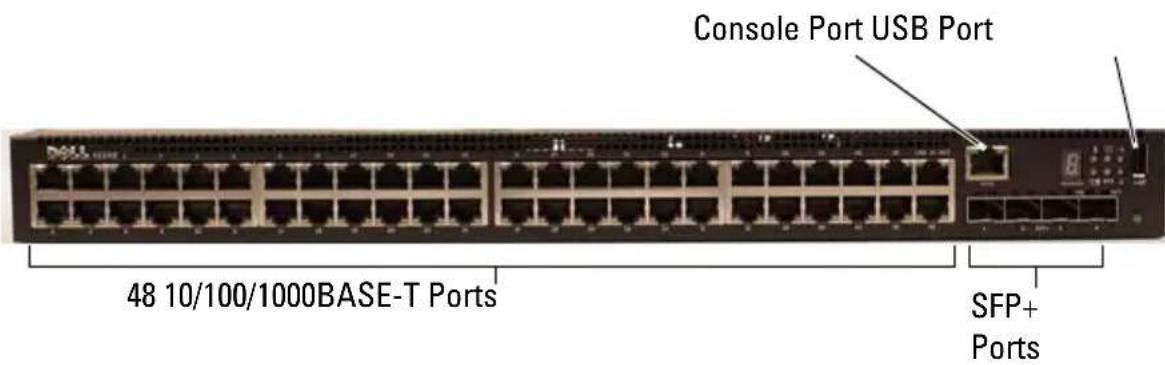
In addition to the switch ports, the front panel of each model in the Dell Networking N1500 Series includes the following ports:
- Console port
• U S B p o r t
Figure 1-2. Dell Networking N1524 Close-up
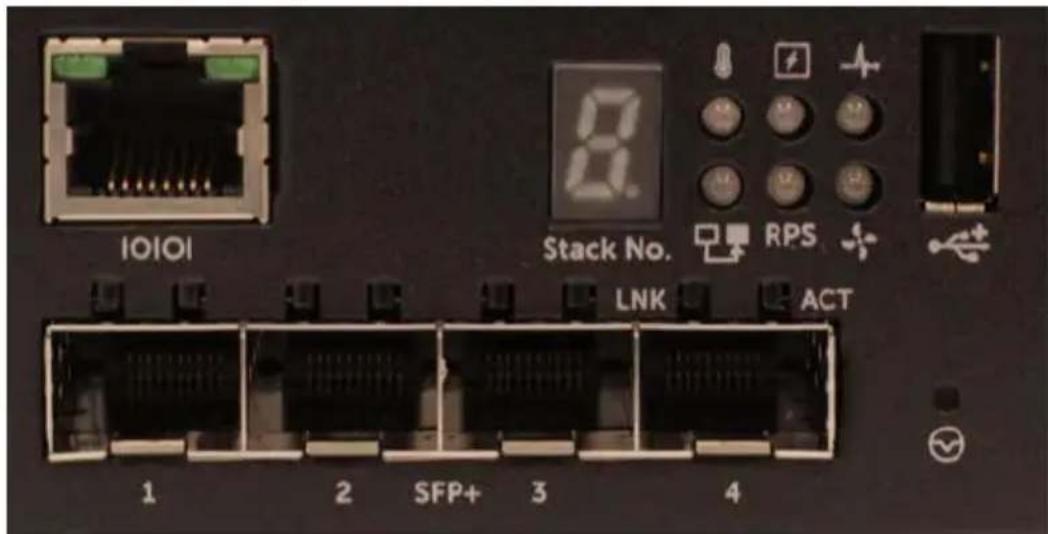
The Dell Networking N1500 Series switch front panel, shown in Figure 1-2, has status LEDs for over-temperature alarm, internal power, and system health status on the top row. The bottom row of status LEDs displays the stack master, redundant power supply (RPS 720) status and fan alarm status.
Figure 1-3. Dell Networking N1524P Close-up
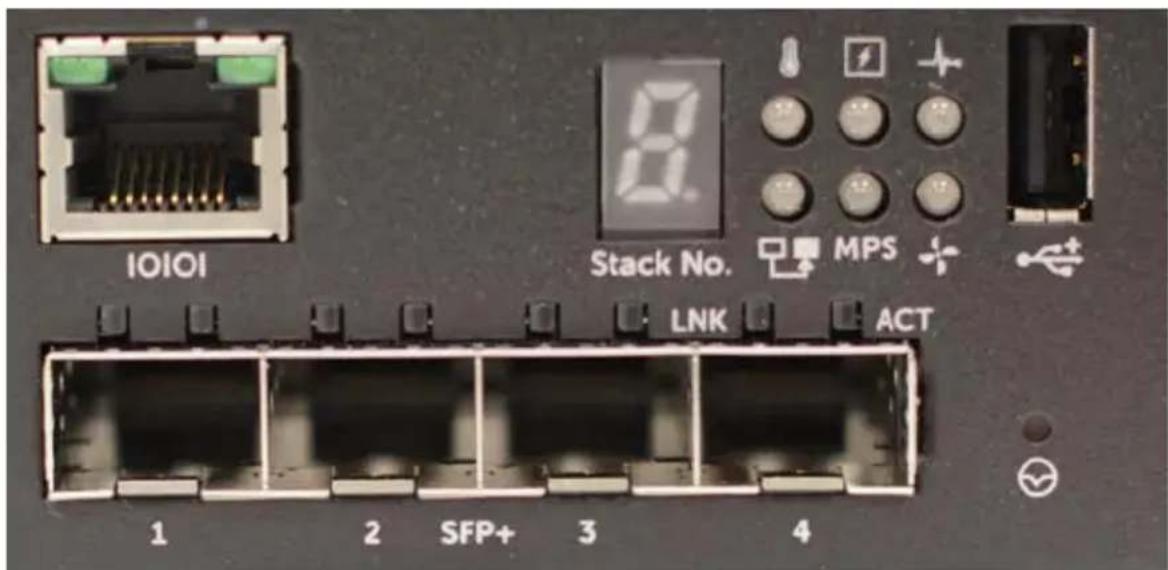
The Dell Networking N1500P Series front panel, shown in Figure 1-3, has status LEDs for over-temperature alarm, internal power and system health status on the top row. The bottom row of status LEDs displays the stack master, modular power supply (MPS 1000) status and fan alarm status.
Switch Ports
The Dell Networking N1524/N1524P front panel provides 24 Gigabit Ethernet (10BASE-T, 100BASE-TX, 1000BASE-T) RJ-45 ports that support auto-negotiation for speed, flow control, and duplex. The Dell Networking N1500 Series models support four SFP+ 10G ports. Dell-qualified SFP+ transceivers are sold separately.
The Dell Networking N1548/N1548P front panel provides 48 Gigabit Ethernet (10BASE-T, 100BASE-TX, 1000BASE-T) RJ-45 ports that support auto-negotiation for speed, flow control, and duplex. The N1548/N1548P support four SFP+ 10G ports. Dell-qualified SFP+ transceivers are sold separately.
The front-panel switch ports have the following characteristics:
- The switch automatically detects the difference between crossed and straight-through cables on RJ-45 ports and automatically chooses the MDI or MDIX configuration to match the other end.
- RJ-45 ports support full-duplex and half-duplex mode 10/100/1000 Mbps speeds on standard Category 5 UTP cable, using 10BASE-T, 100BASE-TX and 1000BASE-T technologies. 1000BASE-T operation requires auto-negotiation to be enabled.
- The four SFP+ ports support SFP+ (SR, LR) transceivers and SFP+ copper twin-ax (CR) transceivers plus SFP transceivers operating at 1G. SFP+ ports operate in full-duplex mode only.
- The N1524P/N1548P front panel ports support PoE (15.4W) and PoE+ (25.5W).
Console Port
The Dell Networking console port is located on the right side of the front panel and is labeled with a symbol. The console port provides serial communication capabilities, which allows communication using RS-232 protocol. The serial port provides a direct connection to the switch and allows access to the CLI from a console terminal connected to the port through the provided serial cable (with RJ45 YOST to female DB-9 connectors).
The console port is separately configurable and can be run as an asynchronous link from 1200 baud to 115,200 baud.
The Dell CLI only supports changing the speed. The defaults are 9600 baud rate, 8 data bits, No Parity, 1 Stop Bit, No Flow Control.
USB Port
The Dell Networking USB port is located on the right side of the front panel and is labeled with a symbol. The Type-A, female USB port supports a USB 2.0-compliant flash memory drive. The Dell Networking switch can read or write to a flash drive formatted as FAT-32. Use a USB flash drive to copy switch configuration files and images between the USB flash drive and the switch. The USB flash drive may also be used to move and copy configuration files and images from one switch to other switches in the network.
The USB port does not support any other type of USB device.
Reset Button
The Dell Networking reset button is located on the right side of the front panel and is labeled with a symbol. The reset button is accessed through the pinhole and allows you to perform a hard reset on the switch. To use the reset button, insert an unbent paper clip or similar tool into the pinhole. When the switch completes the boot process after the reset, it resumes operation with the most recently saved configuration. Any changes made to the running configuration that were not saved to the startup configuration prior to the reset are lost.
Port and System LEDs
The front panel contains light emitting diodes (LEDs) that indicate the status of port links, power supplies, fans, stacking, and the overall system status.
For further information about the status that the LEDs indicate, see the User's Configuration Guide.
Stack Master LED and Stack Number Display
The Dell Networking Stack Master LED is located on the right side of the front panel and is labeled with a symbol. The Stack Master LED indicates whether the switch is operating as the master unit or a stack member.
Table 1-1. Stack Master LED Indicator
| LED | Status | Description |
| Stack Master Green solid Stack master or standalone switch | ||
| Off Stack member | ||
The Stack No. panel displays the unit number for the stack member. If a switch is not part of a stack (in other words, it is a stack of one switch), the Stack Master LED is illuminated, and the unit number is displayed.
Dell Networking N1500 Series Back Panel
The following images show the back panels of the Dell Networking N1500 and N1500P Series switches.
Figure 1-4. N1500 Series Back Panel

Figure 1-5. N1524P/N1548P Back Panel

Power Supplies

CAUTION: Remove the power cable from the power supplies prior to removing the power supply module itself. Power must not be connected prior to insertion in the chassis.

NOTE: The internal power supply unit and fans on the N1500 Series switches are not removable.
Dell Networking N1524 and N1548
The N1524 switch has an internal 40-watt power supply. The N1548 has an internal 100W power supply. For redundant power requirements, connect a Dell Networking RPS720 (not included) to the RPS DC IN 14-pin connector on the back of the switch.
Dell Networking N1524P and N1548P
Dell Networking N1524P and N1548P switches have an internal 600-watt power supply feeding up to 17 powered devices at full PoE+ power (450W). For additional PoE+ ports, connect a Dell Networking MPS1000 (not included) to the MPS DC IN 16-pin connector on the back of the switch.

NOTE: PoE power is dynamically allocated. Not all ports will require the full PoE+ power.
Ventilation System
Two fixed internal fans cool the N1500 Series switches.
Dell Networking N1500 Series Model Summary
Table 1-2. N1500 Series Model Summary
| Marketing Model Name | Description Power | Supply Unit | Regulatory Model Number | Regulatory Type Number |
| Dell Networking N1524 | 24x1G/4x10GSFP+ Ports | 40W E15W E15W001 | ||
| Dell Networking N1524P | 24x1G PoE+/4x10GSFP+ Ports | 600W E16W E16W001 | ||
| Dell Networking N1548 | 48x1G/4x10GSFP+ Ports | 100W E15W E15W002 | ||
| Dell Networking N1548P | 48x1G PoE+/4x10GSFP+ Ports | 600W E16W E16W002 | ||
Dell Networking N1500 Series Installation
Site Preparation
N1500 Series switches can be mounted in a standard 48.26 cm (19-inch) rack or placed on a flat surface.
Make sure that the chosen installation location meets the following site requirements:
- Power — The switch is installed near an easily accessible 100–240 VAC, 50–60 Hz outlet.
- Clearance — There is adequate front and rear clearance for operator access. Allow clearance for cabling, power connections, and ventilation.
- Cabling — The cabling is routed to avoid sources of electrical noise such as radio transmitters, broadcast amplifiers, power lines, and fluorescent lighting fixtures.
- Ambient Temperature — The ambient switch operating temperature range is 0 to 45°C (32 to 113°F) at a relative humidity of up to 95 percent, non-condensing.

NOTE: Decrease the maximum temperature by 1^ C ( 1.8^ F) per 300 m (985 ft.) above 900m (2955 ft.).
- Relative Humidity — The operating relative humidity is 8% to 85% (noncondensing) with a maximum humidity gradation of 10% per hour.
Unpacking the N1500 Series Switch
Package Contents
When unpacking each switch, make sure that the following items are included:
• One Dell Networking switch
• One RJ-45 to DB-9 female cable
- One rack-mount kit: two mounting brackets, bolts, and cage nuts
- One set of self-adhesive rubber pads for a free-standing configuration (four pads are included)
Unpacking Steps

NOTE: Before unpacking the switch, inspect the container and immediately report any evidence of damage.
1 Place the container on a clean, flat surface and cut all straps securing the container.
2 Open the container or remove the container top.
3 Carefully remove the switch from the container and place it on a secure and clean surface.
4 Remove all packing material.
5 Inspect the product and accessories for damage.
Rack Mounting the N1500 Series Switch

WARNING: Read the safety information in the Safety and Regulatory Information as well as the safety information for other switches that connect to or support the switch.
The AC power connector is on the back panel of the switch.
Installing in a Rack

WARNING: Do not use rack mounting kits to suspend the switch from under a table or desk, or attach it to a wall.

CAUTION: Disconnect all cables from the switch before continuing. Remove all self-adhesive pads from the underside of the switch, if they have been attached.

CAUTION: When mounting multiple switches into a rack, mount the switches from the bottom up.
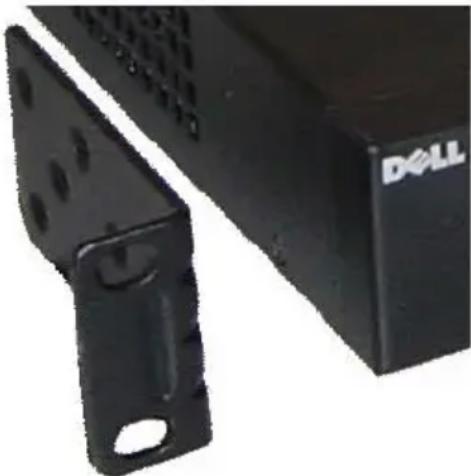
1 Place the supplied rack-mounting bracket on one side of the switch, ensuring that the mounting holes on the switch line up to the mounting holes in the rack-mounting bracket. Figure 1-6 illustrates where to mount the brackets.
Figure 1-6. Attaching the Brackets
natural_image
Close-up of a black Dell computer drive with mounting bracket and metal bracket (no visible text or symbols)2 Insert the supplied bolts into the rack-mounting holes and tighten with a screwdriver.
3 Repeat the process for the rack-mounting bracket on the other side of the switch.
4 Insert the switch into the 48.26 cm (19 inch) rack, ensuring that the rack-mounting holes on the switch line up to the mounting holes in the rack.
5 Secure the switch to the rack with either the rack bolts or cage nuts and cage-nut bolts with washers (depending on the kind of rack you have). Fasten the bolts on bottom before fastening the bolts on top.

CAUTION: Make sure that the supplied rack bolts fit the pre-threaded holes in the rack.

NOTE: Make sure that the ventilation holes are not obstructed.
Installing as a Free-standing Switch

NOTE: We strongly recommend mounting the switch in a rack.
Install the switch on a flat surface if you are not installing it in a rack. The surface must be able to support the weight of the switch and the switch cables. The switch is supplied with four self-adhesive rubber pads.
1 Attach the self-adhesive rubber pads on each location marked on the bottom of the switch.
2 Set the switch on a flat surface, and make sure that it has proper ventilation by leaving 5 cm (2 inches) on each side and 13 cm (5 inches) at the back.
Stacking Multiple Switches
It is possible to stack up to four N1500 Series switches using the SFP+ ports.

NOTE: N1500 Series switches support stacking only with other N15xx series switches. Do not stack N1500 Series switches with N2000, N3000, or N4000 series switches.
When multiple switches are connected using the stack ports, they operate as a single unit with up to 192 RJ-45 front panel ports. The stack operates and is managed as a single entity.

NOTE: If installing a stack of switches, assemble and cable the stack before powering up and configuring it. When a stack is powered up for the first time, the switches elect a Master Switch, which may occupy any location in the stack. The Master LED on the front panel is illuminated on the master unit.
Creating a Switch Stack
Create a stack by configuring pairs of SFP+ ports as stacking. This step must be completed on each switch to be stacked prior to connecting adjacent units using the SFP+ stacking ports on the front panel of the switch.

NOTE: Stack ports must be configured in pairs. Either Te1/0/1 may be configured with Te1/0/2, or Te1/0/3 may be configured with Te1/0/4. No other combinations are permitted.
Figure 1-7 on page 20 shows the switches connected in a ring topology, which is the recommended topology for a stack.
1 Connect an SR, LR, or CR transceiver and cable into either of the SFP+ stacking ports of the top switch and to the switch directly below it.
2 Repeat this process until all of the devices are connected.
3 Use additional transceivers and a cable to connect the two remaining SFP+ stacking ports together so that a ring topology is assembled.
4 Power on one switch and allow it to fully boot (1-2 minutes) before proceeding further. Then power on each of the connected switches in sequence, beginning with the switch directly connected to the most recently powered on switch, and allow each switch to fully come up before powering on the next switch. As each switch is powered up, the stack master may download new code to the newly powered-on switch and reload it. Wait until this process completes before powering on the adjacent switch.
Figure 1-7.
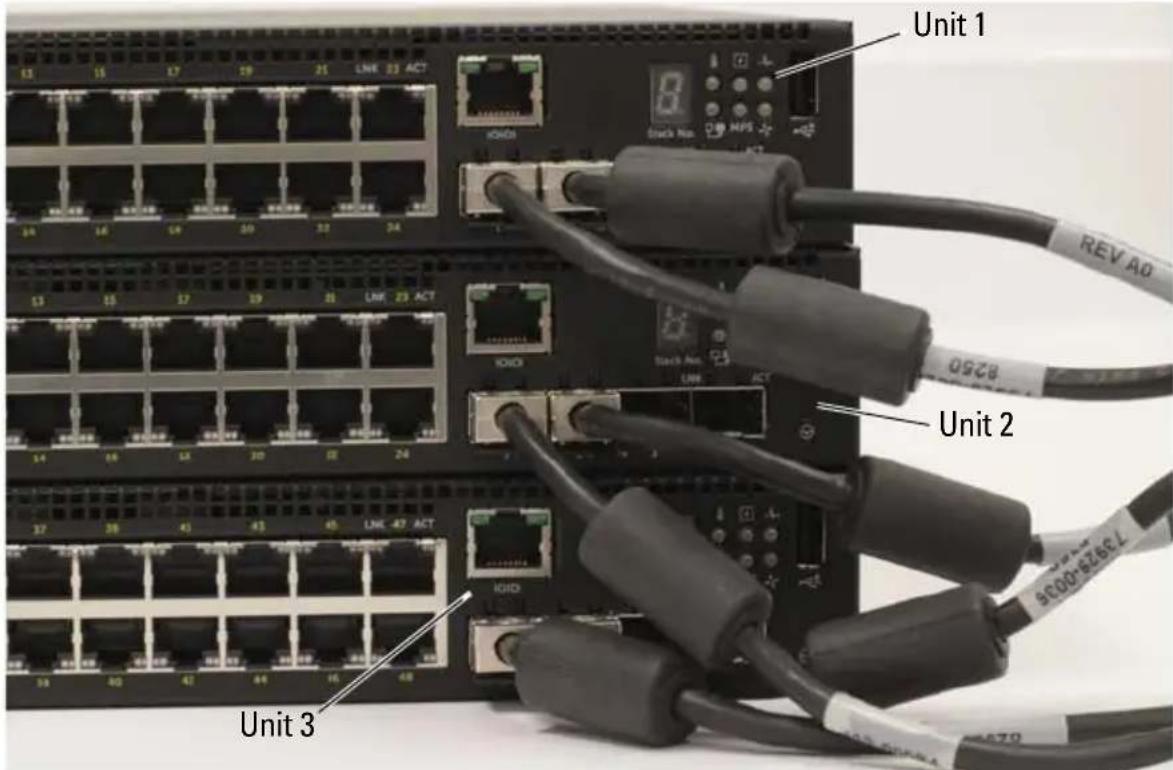
The stack in Figure 1-7 is connected in a ring topology and has the following physical connections between the switches:
- The left SFP+ port Te1/0/1 on Unit 1 (top) is connected to the right SFP+ port Te2/0/2 on Unit 2.
- The left SFP+ port Te2/0/1 on Unit 2 (middle) is connected to the right SFP+ port Te3/0/2 on Unit 3.
- The left SFP+ port Te3/0/1 on Unit 3 (bottom) is connected to the right SFP+ port Te1/0/2 on Unit 1.
Stacking Standby
The stacking feature supports a Standby or backup unit that assumes the Master unit role if the Master unit in the stack fails. As soon as a Master failure is detected in the stack, the Standby unit enables the control plane on the new Master unit and synchronizes all other stack units with the current configuration. The Standby unit maintains a synchronized copy of the running configuration for the stack. The Standby unit is automatically selected in the stack; however, you can use the CLI to select a different stack member as Standby. See the User's Configuration Guide or the CLI Reference Guide for more information.
Starting and Configuring the Dell Networking N1500 Series Switch
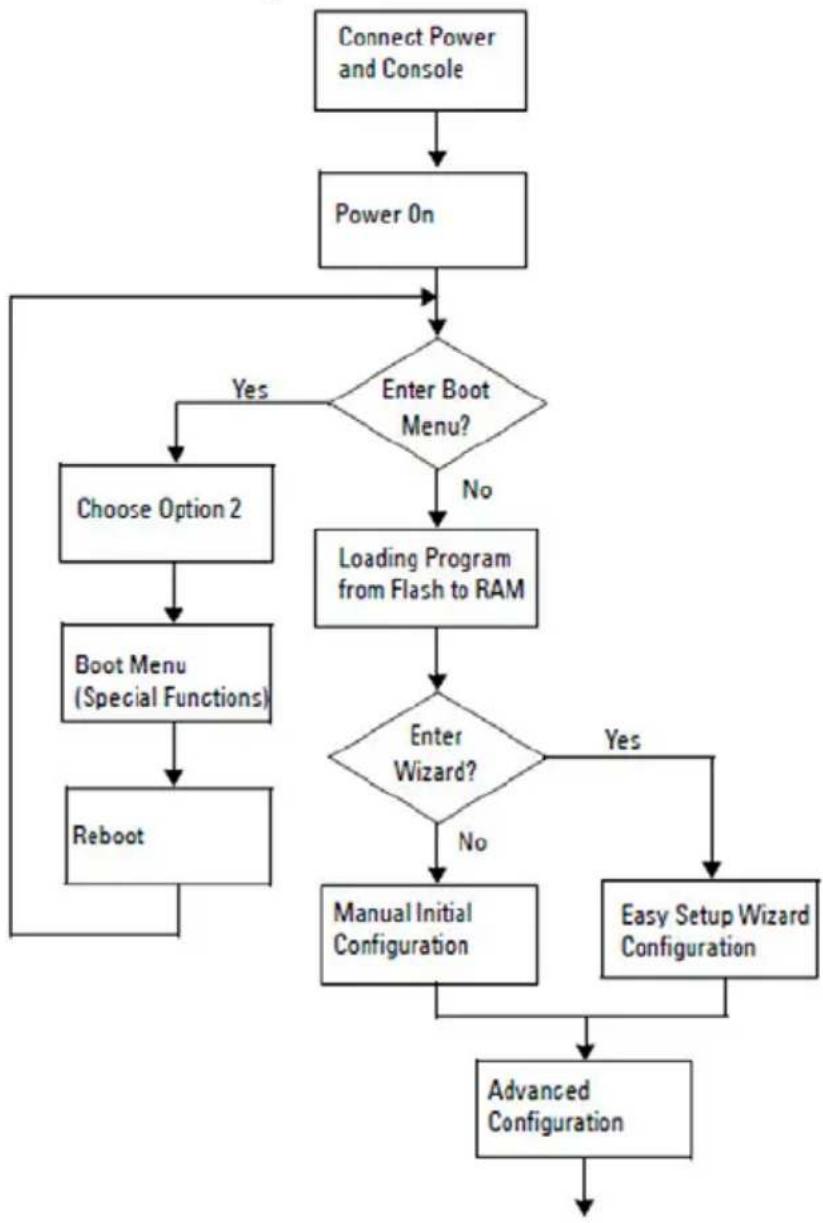
The following flow chart provides an overview of the steps you use to perform the initial configuration after the switch is unpacked and mounted.
Figure 1-8. Installation and Configuration Flow Chart
flowchart
graph TD
    A["Connect Power and Console"] --> B["Power On"]
    B --> C{Enter Boot Menu?}
    C -->|Yes| D["Choose Option 2"]
    C -->|No| E["Loading Program from Flash to RAM"]
    D --> F["Boot Menu (Special Functions)"]
    F --> G["Reboot"]
    E --> H{Enter Wizard?}
    H -->|Yes| I["Manual Initial Configuration"]
    H -->|No| J["Easy Setup Wizard Configuration"]
    I --> K["Advanced Configuration"]
    J --> K
Connecting a N1500 Series Switch to a Terminal
After completing all external connections, connect a serial terminal to a switch to configure the switch.

NOTE: Read the Release Notes for this product before proceeding. You can download the Release Notes from the Dell Support website at dell.com/support.

NOTE: We recommend that you obtain the most recent version of the user documentation from the Dell Support website at dell.com/support.
To monitor and configure the switch via serial console, use the console port on the front panel of the switch (see Figure 1-1 on page 8) to connect it to a VT100 terminal or to a computer running VT100 terminal emulation software. The console port is implemented as a data terminal equipment (DTE) connector.
The following equipment is required to use the console port:
- VT100-compatible terminal or a computer with a serial port running VT100 terminal emulation software, such as Microsoft HyperTerminal.
- A serial cable (provided) with an RJ-45 connector for the console port and DB-9 connector for the terminal.
Perform the following tasks to connect a terminal to the switch console port:
1 Connect the DB-9 connector on the serial cable to the terminal or computer running VT100 terminal emulation software.
2 Configure the terminal emulation software as follows:
a Select the appropriate serial port (for example, COM 1) to connect to the console.
b Set the data rate to 9600 baud.
c Set the data format to 8 data bits, 1 stop bit, and no parity.
d Set the flow control to none.
e Set the terminal emulation mode to VT100.
f Select Terminal keys for Function, Arrow, and Ctrl keys. Make sure that the setting is for Terminal keys (not Microsoft Windows keys).
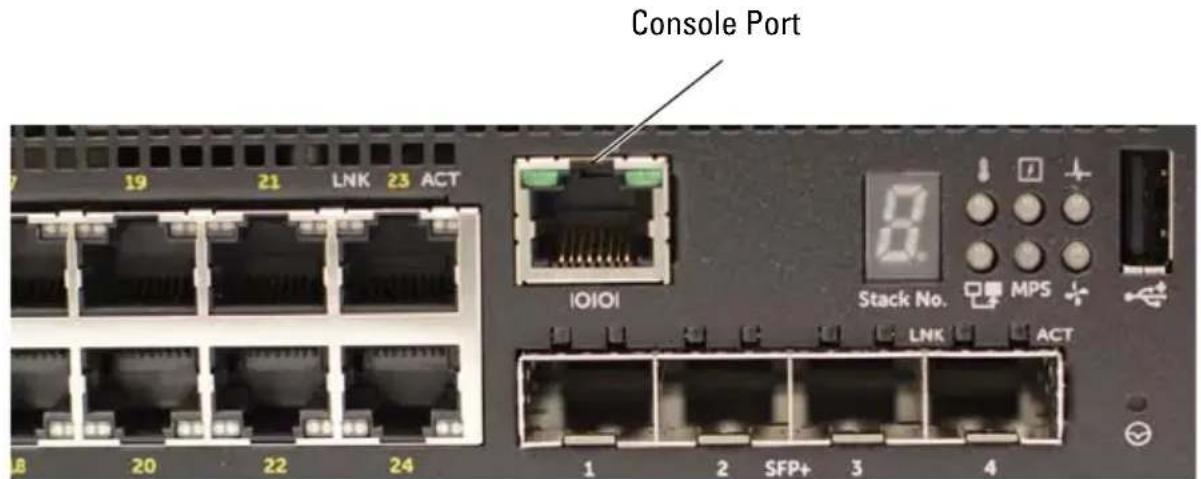
3 Connect the RJ-45 connector on the cable directly to the switch console port. The Dell Networking console port is located on the right side of the front panel and is labeled with a |O|O| symbol, as shown in Figure 1-9 on page 24.

NOTE: Serial console access to the stack manager is available from any serial port via the local CLI. Only one serial console session at a time is supported.
Figure 1-9. N1524P Front Panel with Console Port
Connecting a Switch to a Power Source

CAUTION: Read the safety information in the Safety and Regulatory Information manual as well as the safety information for other switches that connect to or support the switch.
All N1500 Series switch models have one internal power supply. The power receptacles are on the back panel.
AC and DC Power Connection
1 Make sure that the switch console port is connected to a VT100 terminal or VT100 terminal emulator via the RJ-45 to DB-9 female cable.
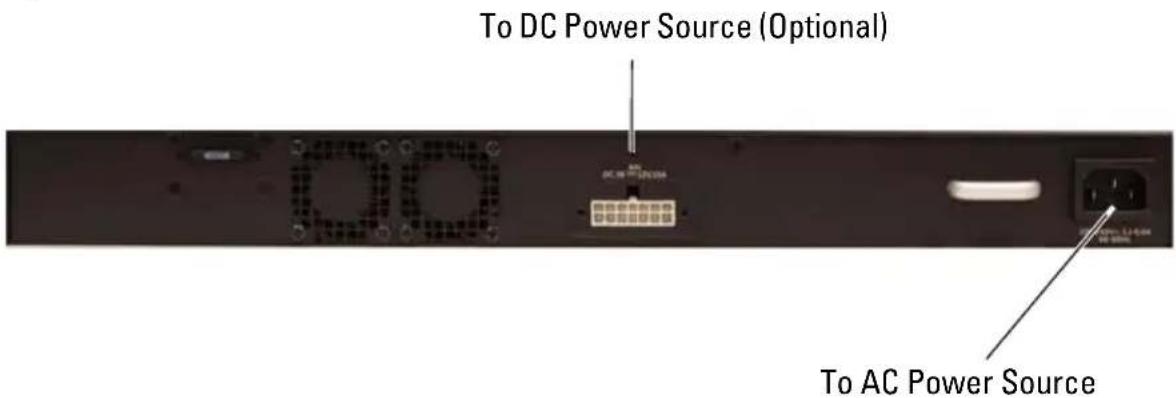
2 Using a 5-foot (1.5 m) standard power cable with safety ground connected, connect the power cable to the AC main receptacle located on the back panel (see Figure 1-10 on page 26). The Dell Networking N1500P Series models require a notched C15 to NEMA 5-15P power cable (available separately).
3 Connect the power cable to a grounded AC outlet.
4 If you are using a redundant or modular DC power supply, such as the Dell Networking RPS720 for non-PoE switches or the Dell Networking MPS1000 for PoE switches, connect the DC power cable to the DC receptacle located on the back panel. In Figure 1-10 on page 26, the redundant power supply feed is in the middle and is labeled RPS on N1524 and N1548 switches. The modular power supply feed is labeled MPS on N1524P and N1548P switches.
Figure 1-10. AC and DC Power Connection to an N1548 Switch
Booting the Switch
When the power is turned on with the local terminal already connected, the switch goes through a power-on self-test (POST). POST runs every time the switch is initialized and checks hardware components to determine if the switch is operational before completely booting. If POST detects a critical problem, the program flow stops. If POST passes successfully, valid firmware is loaded into RAM. POST messages are displayed on the terminal and indicate test success or failure. The boot process runs for approximately 60 seconds.
The Boot menu is automatically invoked after the first part of the POST is completed. To enter the Boot menu, select 2 from the menu when prompted. From the Boot menu, you can perform configuration tasks such as resetting the system to factory defaults, activating the backup image, or recovering a password. For more information about the Boot menu functions, see the CLI Reference Guide.
Performing the Initial Configuration
The initial configuration procedure is based on the following assumptions:
- The Dell Networking switch does not have a saved configuration.
- The Dell Networking switch booted successfully.
- The console connection is established, and the Dell Easy Setup Wizard prompt appears on the screen of a VT100 terminal or terminal equivalent.
The initial switch configuration is performed through the console port.
After the initial configuration, you can manage the switch from the already-connected console port or remotely through an interface defined during the initial configuration.

NOTE: The switch is not configured with a default user name, password, or IP address.
Before setting up the initial configuration of the switch, obtain the following information from your network administrator:
- The IP address to be assigned to the management interface.
- The IP subnet mask for the network.
- The IP address of the management interface default gateway.
Alternatively, the switch can be configured to boot using DHCP and will obtain an IP address and subnet mask automatically. These settings are necessary to allow the remote management of the switch through Telnet (Telnet client) or HTTP (Web browser).
Enabling Remote Management
On the Dell Networking N1500 Series switches, use any of the switch ports on the front panel for in-band management. By default, all switch ports are members of VLAN 1.
The Dell Easy Setup Wizard includes prompts to configure network information for the VLAN 1 interface on the N1500 Series switch. One can assign a static IP address and subnet mask or enable DHCP and allow a network DHCP server to assign the information.
See the CLI Reference Guide for information about the CLI commands you use to configure network information.
Initial Configuration Procedure
Perform the initial configuration by using the Dell Easy Setup Wizard or by using the CLI. The wizard automatically starts when the switch configuration file is empty. It is possible to exit the wizard at any point by entering [ctrl + z] , but all configuration settings specified will be discarded, and the switch will use the default values.

NOTE: If you do not run the Dell Easy Setup Wizard or do not respond to the initial Easy Setup Wizard prompt within 60 seconds, the switch enters CLI mode. Reset the switch with an empty startup configuration in order to rerun the Dell Easy Setup Wizard.
For more information about performing the initial configuration by using the CLI, see the CLI Reference Guide. This Getting Started Guide shows how to use the Dell Easy Setup Wizard for initial switch configuration. The wizard sets up the following configuration on the switch:
- Establishes the initial privileged user account with a valid password. The wizard configures one privileged user account during the setup.
- Enables CLI login and HTTP access to use the local authentication setting only.
- Sets up the IP address for the VLAN 1 routing interface, of which all in-band ports are members.
- Sets up the SNMP community string to be used by the SNMP manager at a given IP address. You may choose to skip this step if SNMP management is not used for this switch.
- Specifies the network management system IP address or permit management access from all IP addresses.
- Configures the default gateway IP address for the VLAN 1 interface.
Example Session
This section describes a Dell Easy Setup Wizard session. The following values are used by the example session:
- The SNMP community string to be used is public.
- The network management system (NMS) IP address is 10.1.2.100.
- The user name is admin, and the password is admin123.
- The IP address for the VLAN 1 routing interface is 10.1.1.200 with a subnet mask of 255.255.255.0.
• The default gateway is 10.1.1.1
The setup wizard configures the initial values as defined above. After completing the wizard, the switch is configured as follows:
- SNMPv2 is enabled and the community string is set up as defined above. SNMPv3 is disabled by default.
- The admin user account is set up as defined.
- A network management system is configured. From the management station, you can access the SNMP, HTTP, and CLI interfaces. You may also choose to allow all IP addresses to access these management interfaces by choosing the (0.0.0.0) IP address.
- An IP address is configured for the VLAN 1 routing interface.
- A default gateway address is configured.

NOTE: In the example below, the possible user options or default values are enclosed in []. If you press
Dell Easy Setup Wizard Console Example
The following example contains the sequence of prompts and responses associated with running an example Dell Easy Setup Wizard session, using the input values listed above.
After the switch completes the POST and is booted, the following dialog appears:
Unit 1 - Waiting to select management unit) >
Applying Global configuration, please wait...
Welcome to Dell Easy Setup Wizard
The Setup Wizard guides you through the initial switch configuration, and gets you up and running as quickly as possible. You can skip the setup wizard, and enter CLI mode to manually configure the switch. You must respond to the next question to run the setup wizard within 60 seconds, otherwise the system will continue with normal operation using the default system configuration. Note: You can exit the setup wizard at any point by entering [ctrl+z].
Would you like to run the setup wizard (you must answer this question within 60 seconds)? [Y/N] y
Step 1:
The system is not set up for SNMP management by default. To manage the switch using SNMP (required for Dell Network Manager) you can
. Set up the initial SNMP version 2 account now.
. Return later and set up other SNMP accounts. (For more information on setting up an SNMP version 1 or 3 account, see the user documentation).
Would you like to set up the SNMP management interface now? [Y/N] y
To set up the SNMP management account you must specify the management system IP address and the "community string" or password that the particular management system uses to access the switch. The wizard
automatically assigns the highest access level [Privilege Level 15] to this account. You can use Dell Network Manager or other management interfaces to change this setting, and to add additional management system information later. For more information on adding management systems, see the user documentation.
To add a management station:
Please enter the SNMP community string to be used.

NOTE: If it is configured, the default access level is set to the highest available access for the SNMP management interface. Initially only SNMPv2 will be activated. SNMPv3 is disabled until you return to configure security access for SNMPv3 (e.g. engine ID, view, etc.).
Please enter the IP address of the Management System (A.B.C.D) or wildcard (0.0.0.0) to manage from any Management Station. [0.0.0.0]: 10.1.2.100
Step 2:
Now we need to set up your initial privilege (Level 15) user account. This account is used to login to the CLI and Web interface. You may set up other accounts and change privilege levels later. For more information on setting up user accounts and changing privilege levels, see the user documentation.
To set up a user account:
Please enter the user name. [root]:admin
Please enter the user password: *****
Please reenter the user password: *****
Step 3:
Next, an IP address is set up on the VLAN 1 routing interface.
You can use the IP address to access the CLI, Web interface, or SNMP interface of the switch.
To access the switch through any Management Interface you can
. Set up the IP address for the Management Interface. . Set up the default gateway if IP address is manually configured on the routing interface.
Step 4:
Would you like to set up the VLAN1 routing interface now? [Y/N] y
Please enter the IP address of the device (A.B.C.D) or enter "DHCP" (without the quotes) to automatically request an IP address from the network DHCP server: 10.1.1.200
Please enter the IP subnet mask (A.B.C.D or /nn): 255.255.255.0
Step 5:
Finally, set up the default gateway. Please enter the IP address of the gateway from which this network is reachable. [0.0.0.0]: 10.1.1.1
This is the configuration information that has been collected:
SNMP Interface = "public"@10.1.2.100 User Account setup = admin Password = ***** VLAN1 Router Interface IP = 10.1.1.200 255.255.255.0 Default Gateway = 10.1.1.1
Step 6:
If the information is correct, please enter (Y) to save the configuration and copy the settings to the start-up configuration file. If the information is incorrect, enter (N) to discard the configuration and restart the wizard: [Y/N] y
Thank you for using the Dell Easy Setup Wizard. You will now enter CLI mode.
Applying Interface configuration, please wait...
Next Steps
After completing the initial configuration described in this section, connect any of the front-panel switch ports to your production network for in-band remote management.
If DHCP was configured for the VLAN 1 management interface IP address, the interface will acquire its IP address from a DHCP server on the network. To discover the dynamically-assigned IP address, use the console port connection to issue the following command:
- For the VLAN 1 routing interface, enter show ip interface vlan 1.
To access the Dell OpenManage Switch Administrator interface, enter the VLAN 1 management interface IP address into the address field of a Web browser. For remote management access to the CLI, enter the VLAN 1 management interface IP address into a Telnet or SSH client. Alternatively, you can continue to use the console port for local CLI access to the switch.
The N1500 Series switch supports basic switching features such as VLANs and spanning tree protocol. Use the Web-based management interface or the CLI to configure the features your network requires. For information about how to configure the switch features, see the User's Configuration Guide or CLI Reference Guide available on the support site: dell.com/support.
NOM Information (Mexico Only)
The following information is provided on the device(s) described in this document in compliance with the requirements of the official Mexican standards (NOM):
Table 1-3. NOM Information
| Required Information Details | |
| Exporter: Dell Inc. | |
| One Dell WayRound Rock, TX 78682 | |
| Importer: Dell Computer de México, S.A. de C.V. | |
| Paseo de la Reforma 2620 - 11o PisoCol. Lomas Altas11950 México, D.F. | |
| Ship to: Dell Computer de México, S.A. de C.V. | |
| al Cuidado de Kuchnc & Nagel de México S. de R.L.Avenida Soles No. 55Col. Peñon de los Baños15520 México, D.F. | |
| Supply Voltage: Dell Networking N1524, N1524P, N1548, N1548P:100V–240 VAC | |
| Frequency: Dell Networking N1524, N1524P, N1548, N1548P:50–60 Hz | |
| Maximum steady state current consumption: | N1524:• 1 1 0 V circuit: ~ 0 . 4 8 A• 2 2 0 V circuit: ~ 0 . 3 7 AN1524P:• 1 1 0 V circuit: ~ 5 . 2 4 A• 2 2 0 V circuit: ~ 2 . 6 3 AN1548:• 110V circuit: 0.42A• 220V circuit: 0.4AN1548P:• 110V circuit: ~5.23A• 220V circuit: ~2.76ANOTE:The current values shown here are for single power supply consumption. |
Dell Networking
- Dell Networking N1524
- Dell Networking N1524P
- Dell Networking N1548
- Dell Networking N1548P
natural_image
Close-up of a black plastic electronic device with a metal bracket and a DOLL logo on the right (no readable text or symbols beyond branding)Unit 1 - Waiting to select management unit) >
Applying Global configuration, please wait...
Welcome to Dell Easy Setup Wizard
The Setup Wizard guides you through the initial switch configuration, and gets you up and running as quickly as possible. You can skip the setup wizard, and enter CLI mode to manually configure the switch. You must respond to the next question to run the setup wizard within 60 seconds, otherwise the system will continue with normal operation using the default system configuration. Note: You can exit the setup wizard at any point by entering [ctrl+z].
Would you like to run the setup wizard (you must answer this question within 60 seconds)? [Y/N] y
Step 1:
The system is not set up for SNMP management by default. To manage the switch using SNMP (required for Dell Network Manager) you can
. Set up the initial SNMP version 2 account now.
. Return later and set up other SNMP accounts. (For more information on setting up an SNMP version 1 or 3 account, see the user documentation).
Would you like to set up the SNMP management interface now? [Y/N] y
To set up the SNMP management account you must specify the management system IP address and the "community string" or password that the particular management system uses to access the switch. The wizard
automatically assigns the highest access level [Privilege Level 15] to this account. You can use Dell Network Manager or other management interfaces to change this setting, and to add additional management system information later. For more information on adding management systems, see the user documentation.
To add a management station:
Please enter the SNMP community string to be used.

Please enter the IP address of the Management System (A.B.C.D) or wildcard (0.0.0.0) to manage from any Management Station. [0.0.0.0]: 10.1.2.100
Step 2:
Now we need to set up your initial privilege (Level 15) user account. This account is used to login to the CLI and Web interface. You may set up other accounts and change privilege levels later. For more information on setting up user accounts and changing privilege levels, see the user documentation.
To set up a user account:
Please enter the user name. [root]:admin
Please enter the user password: *********
Please reenter the user password: *****
Step 3:
Next, an IP address is set up on the VLAN 1 routing interface.
You can use the IP address to access the CLI, Web interface, or SNMP interface of the switch.
To access the switch through any Management Interface you can
. Set up the IP address for the Management Interface. . Set up the default gateway if IP address is manually configured on the routing interface.
Step 4:
Would you like to set up the VLAN1 routing interface now? [Y/N] y
Please enter the IP address of the device (A.B.C.D) or enter "DHCP" (without the quotes) to automatically request an IP address from the network DHCP server:
10.1.1.200
Please enter the IP subnet mask (A.B.C.D or /nn):
255.255.255.0
Step 5:
Finally, set up the default gateway. Please enter the IP address of the gateway from which this network is reachable. [0.0.0.0]: 10.1.1.1
This is the configuration information that has been collected:
SNMP Interface = "public"@10.1.2.100
User Account setup = admin
Password = *****
VLAN1 Router Interface IP = 10.1.1.200 255.255.255.0
Default Gateway = 10.1.1.1
Step 6:
If the information is correct, please enter (Y) to save the configuration and copy the settings to the start-up configuration file. If the information is incorrect, enter (N) to discard the configuration and restart the wizard: [Y/N] y
Thank you for using the Dell Easy Setup Wizard. You will now enter CLI mode.
Applying Interface configuration, please wait...
Étapes suivantes
Painel traseiro do Dell Networking N1500 Series
natural_image
Close-up of a black Dell-branded electronic device with mounting bracket and perforated panel (no visible text or symbols)Unit 1 - Waiting to select management unit) >
Applying Global configuration, please wait...
Welcome to Dell Easy Setup Wizard
The Setup Wizard guides you through the initial switch configuration, and gets you up and running as quickly as possible. You can skip the setup wizard, and enter CLI mode to manually configure the switch. You must respond to the next question to run the setup wizard within 60 seconds, otherwise the system will continue with normal operation using the default system configuration. Note: You can exit the setup wizard at any point by entering [ctrl+z].
Would you like to run the setup wizard (you must answer this question within 60 seconds)? [Y/N] y
Step 1:
The system is not set up for SNMP management by default. To manage the switch using SNMP (required for Dell Network Manager) you can
. Set up the initial SNMP version 2 account now.
. Return later and set up other SNMP accounts. (For more information on setting up an SNMP version 1 or 3 account, see the user documentation).
Would you like to set up the SNMP management interface now? [Y/N] y
To set up the SNMP management account you must specify the management system IP address and the "community string" or password that the particular management system uses to access the switch. The wizard
automatically assigns the highest access level [Privilege Level 15] to this account. You can use Dell Network Manager or other management interfaces to change this setting, and to add additional management system information later. For more information on adding management systems, see the user documentation.
To add a management station:
Please enter the SNMP community string to be used.

Please enter the IP address of the Management System (A.B.C.D) or wildcard (0.0.0.0) to manage from any Management Station. [0.0.0.0]: 10.1.2.100
Step 2:
Now we need to set up your initial privilege (Level 15) user account. This account is used to login to the CLI and Web interface. You may set up other accounts and change privilege levels later. For more information on setting up user accounts and changing privilege levels, see the user documentation.
To set up a user account:
Please enter the user name. [root]:admin Please enter the user password: ***** Please reenter the user password: *****
Step 3:
Next, an IP address is set up on the VLAN 1 routing interface.
You can use the IP address to access the CLI, Web interface, or SNMP interface of the switch.
To access the switch through any Management Interface you can
. Set up the IP address for the Management Interface.
. Set up the default gateway if IP address is manually configured on the routing interface.
Step 4:
Would you like to set up the VLAN1 routing interface now? [Y/N] y
Please enter the IP address of the device (A.B.C.D) or enter "DHCP" (without the quotes) to automatically request an IP address from the network DHCP server: 10.1.1.200
Please enter the IP subnet mask (A.B.C.D or /nn): 255.255.255.0
Step 5:
Finally, set up the default gateway. Please enter the IP address of the gateway from which this network is reachable. [0.0.0.0]: 10.1.1.1
This is the configuration information that has been collected:
SNMP Interface = "public"@10.1.2.100
User Account setup = admin
Password = *****
VLAN1 Router Interface IP = 10.1.1.200 255.255.255.0
Default Gateway = 10.1.1.1
Step 6:
If the information is correct, please enter (Y) to save the configuration and copy the settings to the start-up configuration file. If the information is incorrect, enter (N) to discard the configuration and restart the wizard: [Y/N] y
Thank you for using the Dell Easy Setup Wizard. You will now enter CLI mode.
Applying Interface configuration, please wait...
Próximos passos
natural_image
Close-up of a black DOLL-branded electronic device with mounting bracket and mounting holes (no visible text or symbols)Unit 1 - Waiting to select management unit) >
Applying Global configuration, please wait...
Welcome to Dell Easy Setup Wizard
The Setup Wizard guides you through the initial switch configuration, and gets you up and running as quickly as possible. You can skip the setup wizard, and enter CLI mode to manually configure the switch. You must respond to the next question to run the setup wizard within 60 seconds, otherwise the system will continue with normal operation using the default system configuration. Note: You can exit the setup wizard at any point by entering [ctrl+z].
Would you like to run the setup wizard (you must answer this question within 60 seconds)? [Y/N] y
Step 1:
The system is not set up for SNMP management by default. To manage the switch using SNMP (required for Dell Network Manager) you can
. Set up the initial SNMP version 2 account now.
. Return later and set up other SNMP accounts. (For more information on setting up an SNMP version 1 or 3 account, see the user documentation).
Would you like to set up the SNMP management interface now? [Y/N] y
To set up the SNMP management account you must specify the management system IP address and the "community string" or password that the particular management system uses to access the switch. The wizard
automatically assigns the highest access level [Privilege Level 15] to this account. You can use Dell Network Manager or other management interfaces to change this setting, and to add additional management system information later. For more information on adding management systems, see the user documentation.
To add a management station:
Please enter the SNMP community string to be used.

Please enter the IP address of the Management System (A.B.C.D) or wildcard (0.0.0.0) to manage from any Management Station. [0.0.0.0]: 10.1.2.100
Step 2:
Now we need to set up your initial privilege (Level 15) user account. This account is used to login to the CLI and Web interface. You may set up other accounts and change privilege levels later. For more information on setting up user accounts and changing privilege levels, see the user documentation.
To set up a user account:
Please enter the user name. [root]:admin
Please enter the user password: *****
Please reenter the user password: *****
Step 3:
Next, an IP address is set up on the VLAN 1 routing interface.
You can use the IP address to access the CLI, Web interface, or SNMP interface of the switch.
To access the switch through any Management Interface you can
. Set up the IP address for the Management Interface. . Set up the default gateway if IP address is manually configured on the routing interface.
Step 4:
Would you like to set up the VLAN1 routing interface now? [Y/N] y
Please enter the IP address of the device (A.B.C.D) or enter "DHCP" (without the quotes) to automatically request an IP address from the network DHCP server:
10.1.1.200
Please enter the IP subnet mask (A.B.C.D or /nn):
255.255.255.0
Step 5:
Finally, set up the default gateway. Please enter the IP address of the gateway from which this network is reachable. [0.0.0.0]: 10.1.1.1
This is the configuration information that has been collected:
SNMP Interface = "public"@10.1.2.100
User Account setup = admin
Password = *****
VLAN1 Router Interface IP = 10.1.1.200 255.255.255.0
Default Gateway = 10.1.1.1
Step 6:
If the information is correct, please enter (Y) to save the configuration and copy the settings to the start-up configuration file. If the information is incorrect, enter (N) to discard the configuration and restart the wizard: [Y/N] y
Thank you for using the Dell Easy Setup Wizard. You will now enter CLI mode.
Applying Interface configuration, please wait...
Próximos pasos:
Printed in the U.S.A.
Imprimé aux U.S.A.
Impresso nos EUA
www.dell.com | dell.com/support

OM25TNA00

- Notes, Cautions, and Warnings
- Contents
- Dell Networking N1500 Series Installation 15
- Starting and Configuring the Dell Networking N1500 Series Switch .... 22
- NOM Information (Mexico Only) ..... 34
- Introduction
- Dell Networking N1500 Series Overview
- Hardware Overview
- Dell Networking N1500 Series Front Panel
- Switch Ports
- Console Port
- USB Port
- Reset Button
- Port and System LEDs
- Stack Master LED and Stack Number Display
- Dell Networking N1500 Series Back Panel
- Power Supplies
- Dell Networking N1524 and N1548
- Dell Networking N1524P and N1548P
- Ventilation System
- Dell Networking N1500 Series Model Summary
- Dell Networking N1500 Series Installation
- Site Preparation
- Unpacking the N1500 Series Switch
- Package Contents
- Unpacking Steps
- Rack Mounting the N1500 Series Switch
- Installing in a Rack
- Installing as a Free-standing Switch
- Stacking Multiple Switches
- Creating a Switch Stack
- Stacking Standby
- Starting and Configuring the Dell Networking N1500 Series Switch
- Connecting a N1500 Series Switch to a Terminal
- Connecting a Switch to a Power Source
- AC and DC Power Connection
- Booting the Switch
- Performing the Initial Configuration
- Enabling Remote Management
- Initial Configuration Procedure
- Example Session
- Dell Easy Setup Wizard Console Example
- Next Steps
- NOM Information (Mexico Only)
- Dell Networking
- Étapes suivantes
- Painel traseiro do Dell Networking N1500 Series
- Próximos passos
- Step 4:
- Step 5:
- Step 6:
- Próximos pasos:
Brand : DELL
Model : N1524P
Category : Switch