UE55D6100SP - TV SAMSUNG - Free user manual and instructions
Find the device manual for free UE55D6100SP SAMSUNG in PDF.


User questions about UE55D6100SP SAMSUNG
0 question about this device. Answer the ones you know or ask your own.
Ask a new question about this device
Download the instructions for your TV in PDF format for free! Find your manual UE55D6100SP - SAMSUNG and take your electronic device back in hand. On this page are published all the documents necessary for the use of your device. UE55D6100SP by SAMSUNG.
USER MANUAL UE55D6100SP SAMSUNG
If you have any questions or comments relating to Samsung products, please contact the SAMSUNG customer care centre.
| Country | Customer Care Centre | Web Site |
| AUSTRALIA 0610 - SAMSUNG (7267864, € 0.07/min) www.samsung.com.tr! | ||
| BELGIUM 02-201-24-18 www.samsung.com.brice (Dulich) | ||
| www.samsung.com/te_fr (French) | ||
| CZECH 600 - SAMSUNG (800-7267868) www.samsung.com.cn/cz | ||
| Samsung Zrt., teksk organizacni siozka, Casie Fiorenc, Sokolsk394/17, 180 00, Praha 8 | ||
| DENMARK 70 70 19 70 www.samsung.com.dk | ||
| FINLAND 030 - 6227 515 www.samsung.com.tr | ||
| FRANCE | 01 48 63 00 00 | www.samsung.com.tr |
| GERMANY | 01805 - SAMSUNG (726-7864 € 0,14/Min) | www.samsung.de |
| HUNGARY 06-80-SAMSUNG (726-7864) www.samsung.com.hu | ||
| ITALlA | 800-SAMSUNG (726-7864) | www.samsung.com.tr |
| LUXEMBURG | 261 03 710 | www.samsung.com.trl |
| NETHERLANDS | 0900-SAMSUNG (0900-7267864) (€ 0,10/Min) | www.samsung.com.trl |
| NORWAY | 815-56 480 | www.samsung.com/no |
| POLAND | 0 801 1SAMSUNG (172678) | www.samsung.com.trl |
| 022-807-93-33 | ||
| PORTUGAL | 80820-SAMSUNG (726-7864) | www.samsung.com.tr |
| SLOVAKIA | 0800-SAMSUNG (726-7864) | www.samsung.com.trsk |
| SPAIN | 902 - 1 - SAMSUNG (902 172 678) | www.samsung.com.es |
| SWEDEN | 0771 726 7864 (SAMSUNG) | www.samsung.com.trse |
| TURKEY | 444 77 11 | www.samsung.com.trr |
| U.K. | 0845 SAMSUNG (7267864) | www.samsung.com.truk |
| EIRE | 0818 717100 | www.samsung.com.trle |
| SWITZERLAND | 0848 - SAMSUNG (7267864, CHF 0.08/min) | www.samsung.com.trch |
| www.samsung.com.trch.ft(French) | ||
| LITHUANIA | 8-830-77777 | www.samsung.com.trt |
| LATvia | 8000-7267 | www.samsung.com.trv |
| ESTONIA | 800-7267 | www.samsung.com.tree |
SAMSUNG

LED TVuser manual
imagine the possibilities
Thank you for purchasing this Samsung product. To receive more complete service, please register your product at
www.samsung.com/register
Model Serial No.

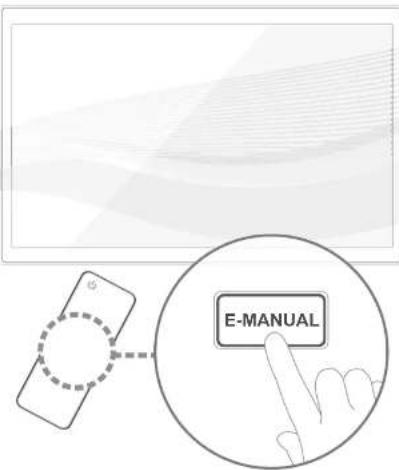
For more information on how to use e-Manual (p. 14)
Figures and illustrations in this User Manual are provided for reference only and may differ from actual product appearance. Product design and specifications may be changed without notice.
Digital TV notice
- Functionalities related to Digital TV (DVB) are only available in countries/areas where DVB-T (MPEG2 and MPEG4 AVC) digital terrestrial signals are broadcasted or where you are able to access to a compatible DVB-C (MPEG2 and MPEG4 AAC) cable-TV service. Please check with your local dealer the possibility to receive DVB-T or DVB-C signal.
- DVB-T is the DVB European consortium standard for the broadcast transmission of digital terrestrial television and DVB-C is that for the broadcast transmission of digital TV over cable. However, some differentiated features like EPG (Electric Programme Guide), VOD (Video On Demand) and so on, are not included in this specification. So, they cannot be workable at this moment.
- Although this TV set meets the latest DVB-T and DVB-C standards, as of [August, 2008], the compatibility with future DVB-T digital terrestrial and DVB-C digital cable broadcasts cannot be guaranteed.
- Depending on the countries/areas where this TV set is used some cable-TV providers may charge an additional fee for such a service and you may be required to agree to terms and conditions of their business.
- Some Digital TV functions might be unavailable in some countries or regions and DVB-C might not work correctly with some cable service providers.
- For more information, please contact your local Samsung customer care centre.
The reception quality of TV may be affected due to differences in broadcasting method between the countries. Please check the TV performance in the local SAMSUNG Authorized Dealer, or the Samsung Call Centre whether it can be improved by reconfiguring TV setting or not.
Still image warning
Avoid displaying still images (likejpeg picture files) or still image element (like TV programme logo, panorama or 4:3 image format, stock or news bar at screen bottom etc.) on the screen. Constant displaying of still picture can cause ghosting of LED screen, which will affect image quality. To reduce risk of this effect, please follow below recommendations:
- Avoid displaying the same TV channel for long periods.
Always try do display any image on full screen, use TV set picture format menu for best possible match. - Reduce brightness and contrast values to minimum required to achieve desired picture quality, exceeded values may speed up the burnout process.
Frequently use all TV features designed to reduce image retention and screen burnout, refer to e-Manual for details.
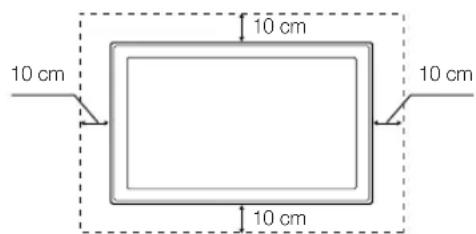
Securing the Installation Space
Keep the required distances between the product and other objects (e.g. walls) to ensure proper ventilation.
Failing to do so may result in fire or a problem with the product due to an increase in the internal temperature of the product.
When using a stand or wall-mount, use parts provided by Samsung Electronics only.
If you use parts provided by another manufacturer, it may result in a problem with the product or an injury due to the product falling.
The appearance may differ depending on the product.
- Be careful when you contact the TV because some parts can be somewhat hot.
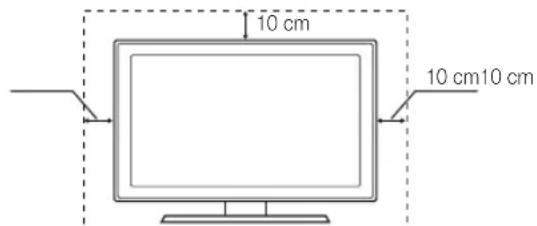
Installation with a stand. Installation with a wall-mount.
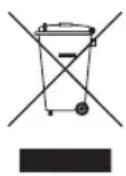
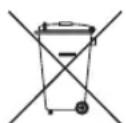
Correct Disposal of This Product (Waste Electrical & Electronic Equipment)
(Applicable in the European Union and other European countries with separate collection systems)
This marking on the product, accessories or literature indicates that the product and its electronic accessories (e.g. charger, headset, USB cable) should not be disposed of with other household waste at the end of their working life. To prevent possible harm to the environment or human health from uncontrolled waste disposal, please separate these items from other types of waste and recycle them responsibly to promote the sustainable reuse of material resources. Household users should contact either the retailer where they purchased this product, or their local government office, for details of where and how they can take these items for environmentally safe recycling. Business users should contact their supplier and check the terms and conditions of the purchase contract. This product and its electronic accessories should not be mixed with other commercial wastes for disposal.
Correct disposal of batteries in this product
(Applicable in the European Union and other European countries with separate battery return systems)
This marking on the battery, manual or packaging indicates that the batteries in this product should not be disposed of with other household waste at the end of their working life. Where marked, the chemical symbols Hg, Cd or Pb indicate that the battery contains mercury, cadmium or lead above the reference levels in EC Directive 2006/66. If batteries are not properly disposed of, these substances can cause harm to human health or the environment. To protect natural resources and to promote material reuse, please separate batteries from other types of waste and recycle them through your local, free battery return system.
Accessories
Please make sure the following items are included with your TV. If any items are missing, contact your dealer.
The items' colours and shapes may vary depending on the models.
Cables not included in the package contents can be purchased separately.
Check that there is no accessory hidden behind packing materials when you open the box.
CAUTION: INSERT SECURELY LEST SHOULD BE DETACHED IN SET
- Remote Control & Batteries (AAA x 2)
- Owner's Instructions
Warranty Card (Not available in some locations) / Safety Guide
- Cleaning-Cloth
Power cord


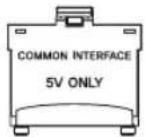
Holder Ring (4 EA) Holder-Wire Stand Cl Card Adapter
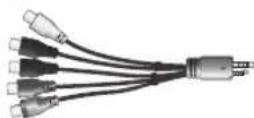
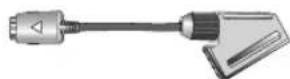
AV / Component Adapter Scart Adapter
An administration fee may be charged if either
- (a) an engineer is called out at your request and there is no defect in the product
(i.e. where you have failed to read this user manual) - (b) you bring the unit to a repair centre and there is no defect in the product
(i.e. where you have failed to read this user manual).
The amount of such administration charge will be advised to you before any work or home visit is carried out.
Assembling the Holder-Wire stand
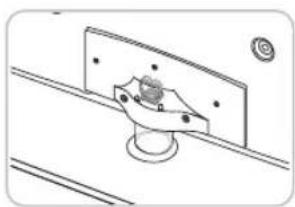
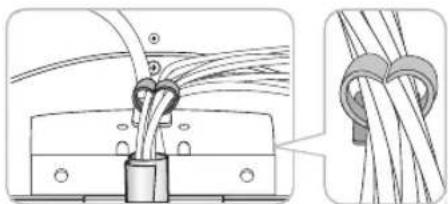
Viewing the Control Panel
The product colour and shape may vary depending on the model.
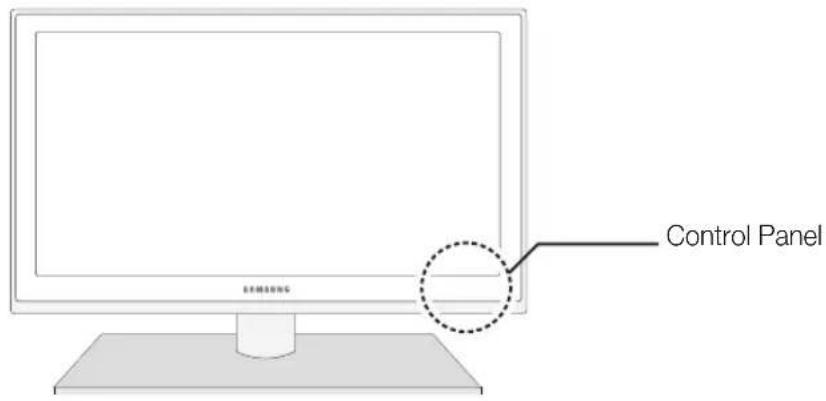
Remote control sensor Aim the remote control towards this spot on the TV.
Power Indicator Blinks and turns off when the power is on and lights up in standby mode.
SOURCE
Toggles between all the available input sources. In the on-screen menu, use this button as you would use the ENTER button on the remote control.
MENUs Displays an on-screen menu, the OSD (on screen display) of your TV's features.
-4+
Adjusts the volume. In the OSD, use the + buttons as you would use the and buttons on the remote control.
CH
Changes the channels. In the OSD, use the CH buttons as you would use the and buttons on the remote control.
(Power)
Turns the TV on or off.
Standby mode
Do not leave your TV in standby mode for long periods of time (when you are away on a holiday, for example). A small amount of electric power is still consumed even when the power button is turned off. It is best to unplug the power cord.
Viewing the Remote Control
This is a special remote control for the visually impaired persons and has Braille points on the Power, Channel and Volume buttons.
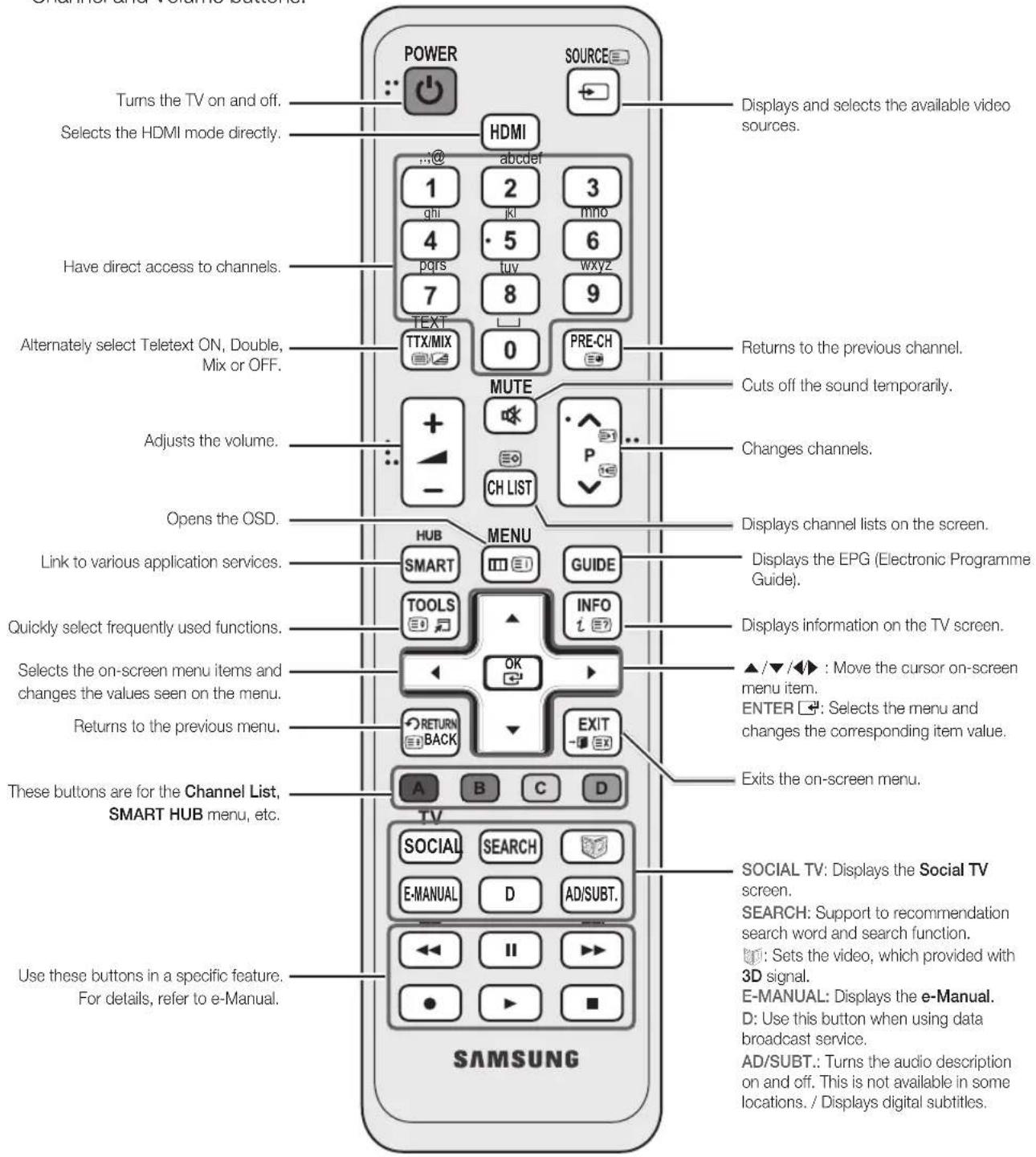
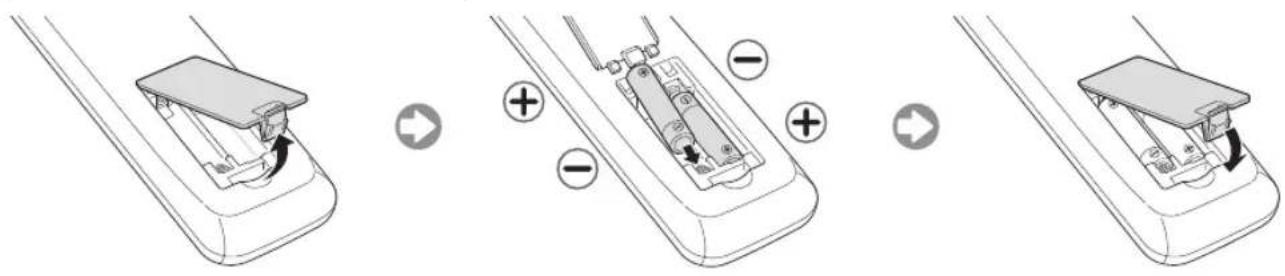
Installing batteries (Battery size: AAA)
Changing the Input Source
Source
Use to select TV or an external input sources such as a DVD / Blu-ray player / cable box / STB satellite receiver.
TV/Ext./PC/AV/Component/HDMI1/DVI/HDMI2/HDMI3/HDMI4/USB/AllShare
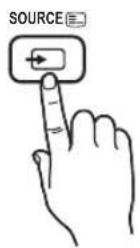
In the Source, connected inputs will be highlighted.
Ext. and PC always stay activated.
If the connected external devices are not highlighted, press the red button. The TV will search for connected devices.
Edit Name
In the Source, press the TOOLS button, and then you can set an external input sources name you want.
VCR/DVD/Cable STB/Satellite STB/PVR STB/AV Receiver/Game/Camcorder/PC /DVI PC/DVI Devices/TV/IPTV/Blu-ray /HD DVD/DMA:Name the device connected to the input jacks to make your input source selection easier.
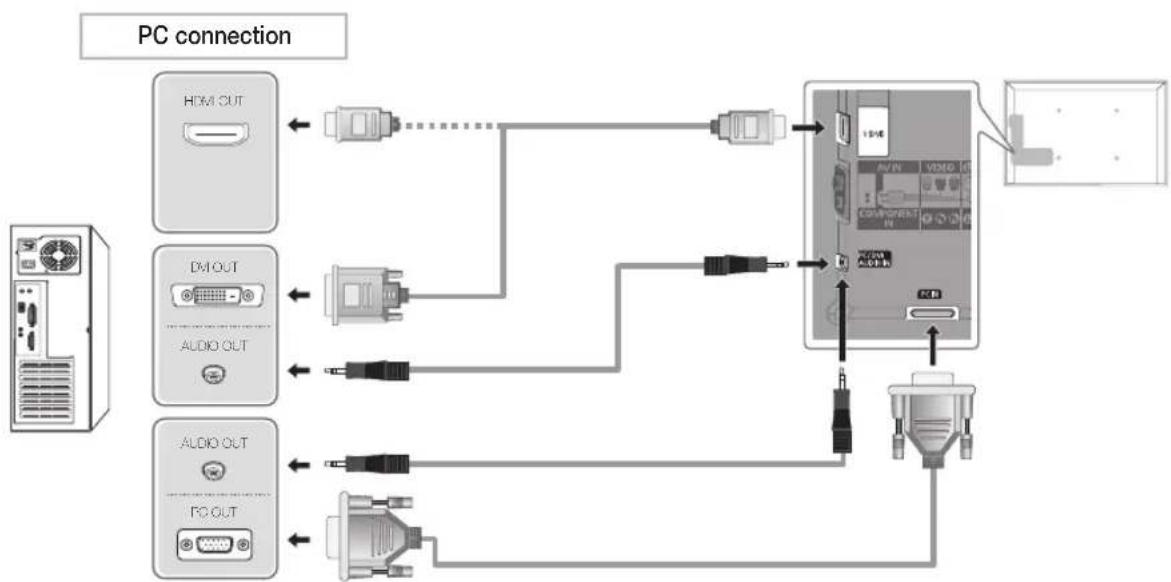
When connecting a PC to the HDMI IN 1(DVI) port with HDMI cable, you should set the TV to PC mode under Edit Name.
When connecting a PC to the HDMI IN 1(DVI) port with HDMI to DVI cable, you should set the TV to DVI PC mode under Edit Name.
When connecting an AV devices to the HDMI IN 1(DVI) port with HDMI to DVI cable, you should set the TV to DVI Devices mode under Edit Name.
Edit Favourites
In the Source, press the TOOLS button to select Edit Favourites. You can set an external input source to Favorites.
Information
You can see detailed information about the selected external device.
Refresh
In the Source, If the external devices are not displayed, press the TOOLS button to select Refresh. Search for connected devices.
Best cable connection to this product, be sure to use cables with a maximum thickness as below:
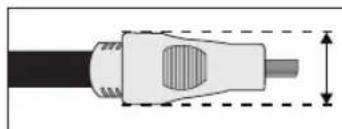
Maximum thickness - 0.55 inches (14mm)
Connecting to an Antenna
When the TV is initially powered on, basic settings proceed automatically.
Preset: Connecting the mains and antenna.
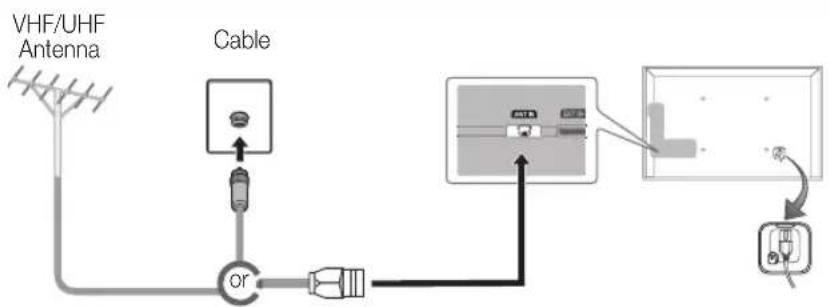
Plug & Play (Initial Setup)
When the TV is initially powered on, a sequence of on-screen prompts will assist in configuring basic settings. Press the POWER button. Plug & Play is available only when the Input source is set to TV.
Before turning on the TV, make sure the antenna cable is connected (p. 6).
The option may differ depending on country.
| 1 | Selecting the OSD Language | Press the ▲ or ▼ button, then press the ENTER□ button. Select the desired OSD (On Screen Display) language. |
| 2 | Setting up the Network | Set up your network connection. Press the ENTER□ button to start. If you do not know your network set up information or want to set to it later, select Skip. We suggest you skip network connection setup now and refer to "Network menu" in the e-Manual for set up requirements and instructions, and the Network Connection section of this manual (Page 13). You can set up the network connection later using the Network menu. |
| 3 | Software upgrade When | network connection settings are complete, Software Upgrade is available. Select Next to upgrade TV software. Your TV will automatically upgrade, if your TV need a software upgrade. If you want to upgrade later, select the Skip. For more information, refer to "Software Upgrade" (Preference → Support) in the e-Manual. This may take some time, depending on network status. |
| 4 | Selecting the usage mode | Press the ▲ or ▼ button to select Home Use, and then press the ENTER□ button twice. Select the Home Use mode. Store Demo mode is for retail environments. |
| 5 | Selecting a country | Press the ▲ or ▼ button, then press the ENTER□ button. Select the appropriate country. After selecting the country in the Country menu, some models may proceed with an additional option to setup the pin number. When you input the PIN number, "0-0-0-0" is not available. The option may differ depending on country. |
| 6 | Setting the Clock Mode | Set the Clock Mode automatically or manually. |
| 7 | Selecting search options for auto tuning | Press the ▲ or ▼ button, then press the ENTER□ button. Select the channel source to memorise. When setting the antenna source to Cable, a step appears allowing you to assign numerical values (channel frequencies) to the channels. For more information, refer to Channel - Memorising Channels - Auto Tuning. Press the ENTER□ button at any time to interrupt the memorisation process. |
| 8 | Enjoy your TV. | If you want to watch a broadcast program, select Close. If you want to enjoy the Smart Hub, select the Smart Hub. The Smart Hub will start. For more detailed information, refer to "Smart Hub" in the e-Manual. |
If You Want to Reset This Feature...
Select System - Plug & Play (Initial Setup). Enter your 4 digit PIN number. The default PIN number is "0-0-0-0." If you want to change the PIN number, use the Change PIN function.
You should do Plug & Play (MENU System) again at home although you did in shop.
If you forget the PIN code, press the remote control buttons in the following sequence in Standby mode, which resets the PIN to "0-0-0-0": MUTE 8 2 4 POWER (on).
Available devices: DVD, Blu-ray player, HD cable box, HD STB (Set-Top-Box) satellite receiver, VCR
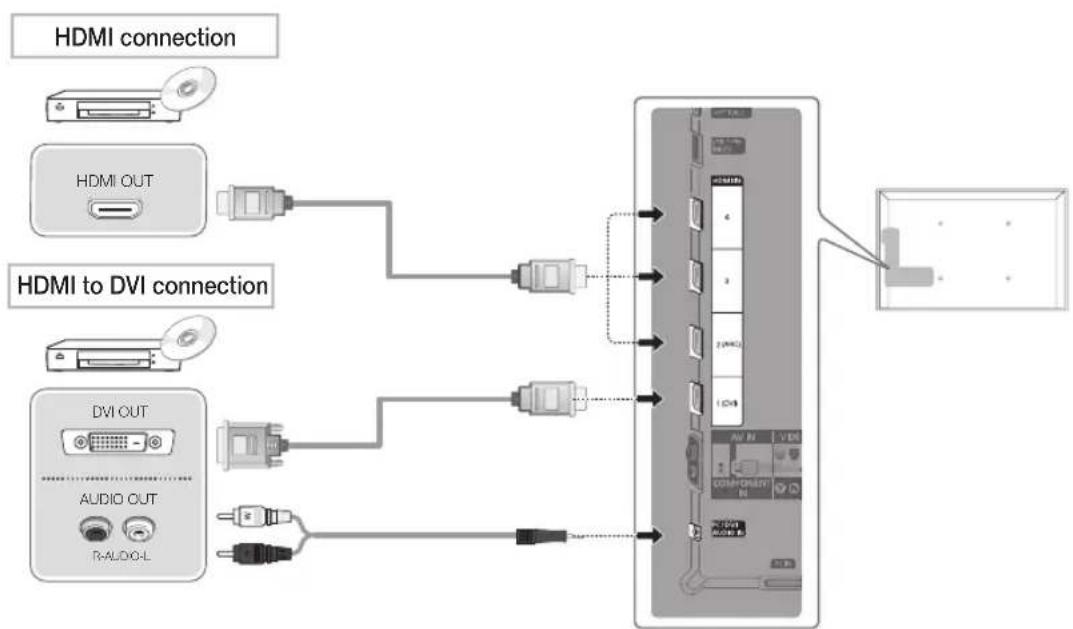
Using an HDMI or an HDMI to DVI cable (up to 1080p)
HDMI IN 1(DVI), 2(ARC), 3, 4 / PC/DVI AUDIO IN
For better picture and audio quality, connect to a digital device using an HDMI cable.
An HDMI cable supports digital video and audio signals, and does not require an audio cable.
- To connect the TV to a digital device that does not support HDMI output, use an HDMI/DVI and audio cables.
The picture may not display normally (if at all) or the audio may not work if an external device that uses an older version of HDMI mode is connected to the TV. If such a problem occurs, ask the manufacturer of the external device about the HDMI version and, if out of date, request an upgrade.
Be sure to use an HDMI cable with a thickness of 14mm or less.
Be sure to purchase a certified HDMI cable. Otherwise, the picture may not display or a connection error may occur.
A basic high-speed HDMI cable or one with ethernet is recommended. This product does not support the ethernet function via HDMI.
This product supports the 3D and ARC (Audio Return Channel) functions via an HDMI cable. Note that the ARC function is supported by the HDMI IN 2(ARC) port only.
The ARC function allows digital audio to output via the HDMI IN 2(ARC) port. It can be enabled only when the TV is connected with an audio receiver that supports the ARC function.
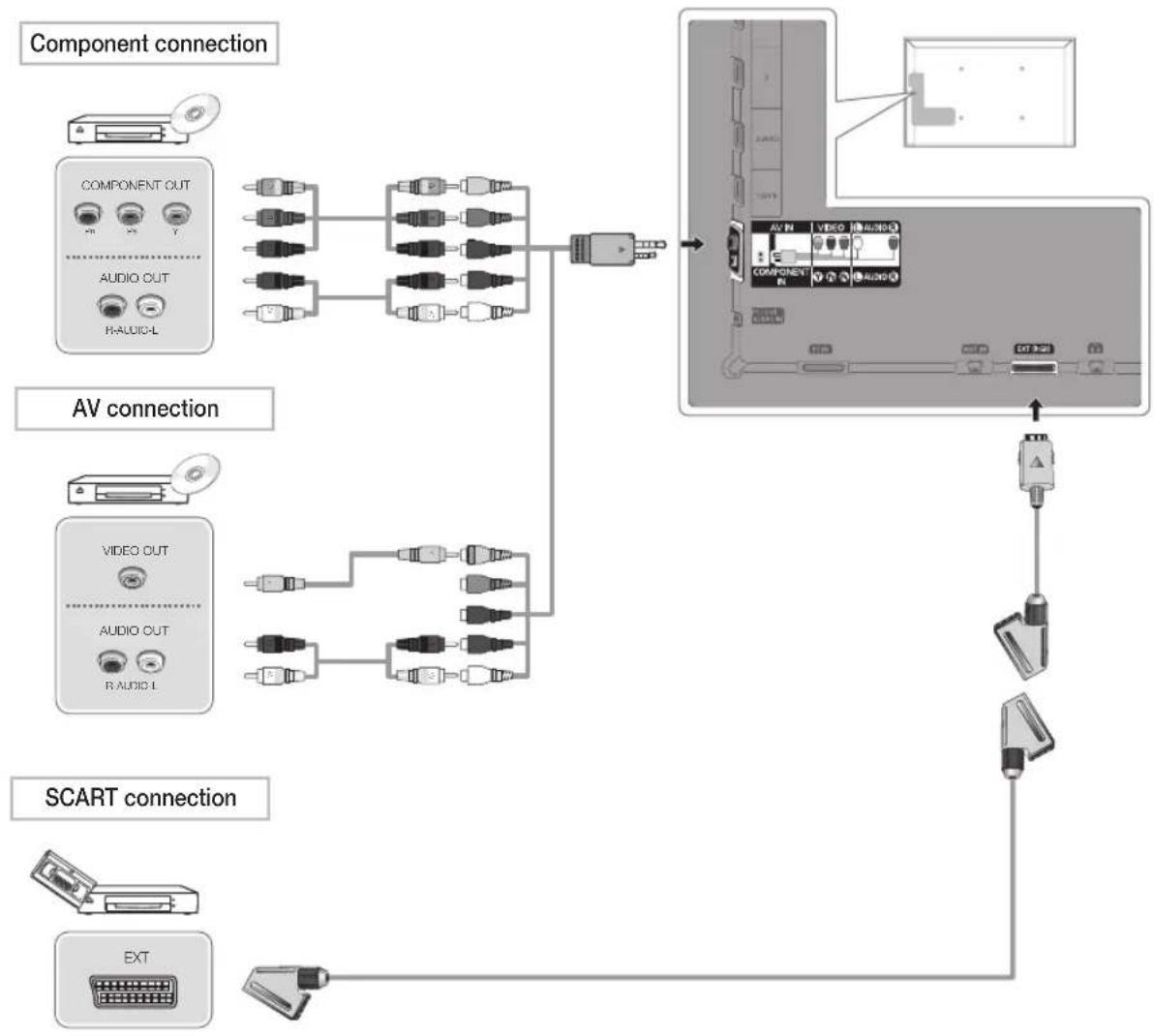
Using a Component (up to 1080p) or an Audio/Video (480i only) and a Scart Cable
In Ext. mode, DTV Out supports MPEG SD Video and Audio only.
When connecting to AV IN, the colour of the AV IN [VIDEO] jack (green) will not match the video cable (yellow).
To obtain the best picture quality, the Component connection is recommended over the AV connection.
Using an HDMI cable or an HDMI to DVI cable or a D-sub cable
Connecting through the HDMI cable may not be supported depending on the PC.
Display Modes (D-Sub and an HDMI to DVI Input)
Optimal resolution is 1920 X 1080 @ 60 Hz.
| Mode Resolution Horizontal Frequency (KHz) Vertical Frequency (Hz) Pixel Clock Frequency (MHz) Sync Polarity (H / V) | |||||
| IBM | 640 x 350 | 31.469 | 70.086 | 25.175 | +/- |
| 720 x 400 | 31.469 | 70.087 | 28.322 | -/+ | |
| MAC | 640 x 480 | 35.000 | 66.667 | 30.240 | -/- |
| 832 x 624 | 49.726 | 74.551 | 57.284 | -/- | |
| 1152 x 870 | 68.681 | 75.062 | 100.000 | -/- | |
| VESA DMT | 640 x 480 | 31.469 | 59.940 | 25.175 | -/- |
| 640 x 480 | 37.861 | 72.809 | 31.500 | -/- | |
| 640 x 480 | 37.500 | 75.000 | 31.500 | -/- | |
| 800 x 600 | 37.879 | 60.317 | 40.000 | +/+ | |
| 800 x 600 | 48.077 | 72.188 | 50.000 | +/+ | |
| 800 x 600 | 46.875 | 75.000 | 49.500 | +/+ | |
| 1024 x 768 | 48.363 | 60.004 | 65.000 | -/- | |
| 1024 x 768 | 56.476 | 70.069 | 75.000 | -/- | |
| 1024 x 768 | 60.023 | 75.029 | 78.750 | +/+ | |
| 1152 x 864 | 67.500 | 75.000 | 108.000 | +/+ | |
| 1280 x 1024 | 63.981 | 60.020 | 108.000 | +/+ | |
| 1280 x 1024 | 79.976 | 75.025 | 135.000 | +/+ | |
| 1280 x 800 | 49.702 | 59.810 | 83.500 | -/+ | |
| 1280 x 800 | 62.795 | 74.934 | 106.500 | -/+ | |
| 1280 x 960 | 60.000 | 60.000 | 108.000 | +/+ | |
| 1360 x 768 | 47.712 | 60.015 | 85.500 | +/+ | |
| 1440 x 900 | 55.935 | 59.887 | 106.500 | -/+ | |
| 1440 x 900 | 70.635 | 74.984 | 136.750 | -/+ | |
| 1680 x 1050 | 65.290 | 59.954 | 146.250 | -/+ | |
| VESA DMT / DTV CEA | 1920 x 1080p 67.500 60.000 148.500 +/- | ||||
NOTE
For HDMI/DVI cable connection, you must use the HDMI IN 1(DVI) jack.
The interlace mode is not supported.
The set might operate abnormally if a non-standard video format is selected.
Separate and Composite modes are supported. SOG(Sync On Green) is not supported.
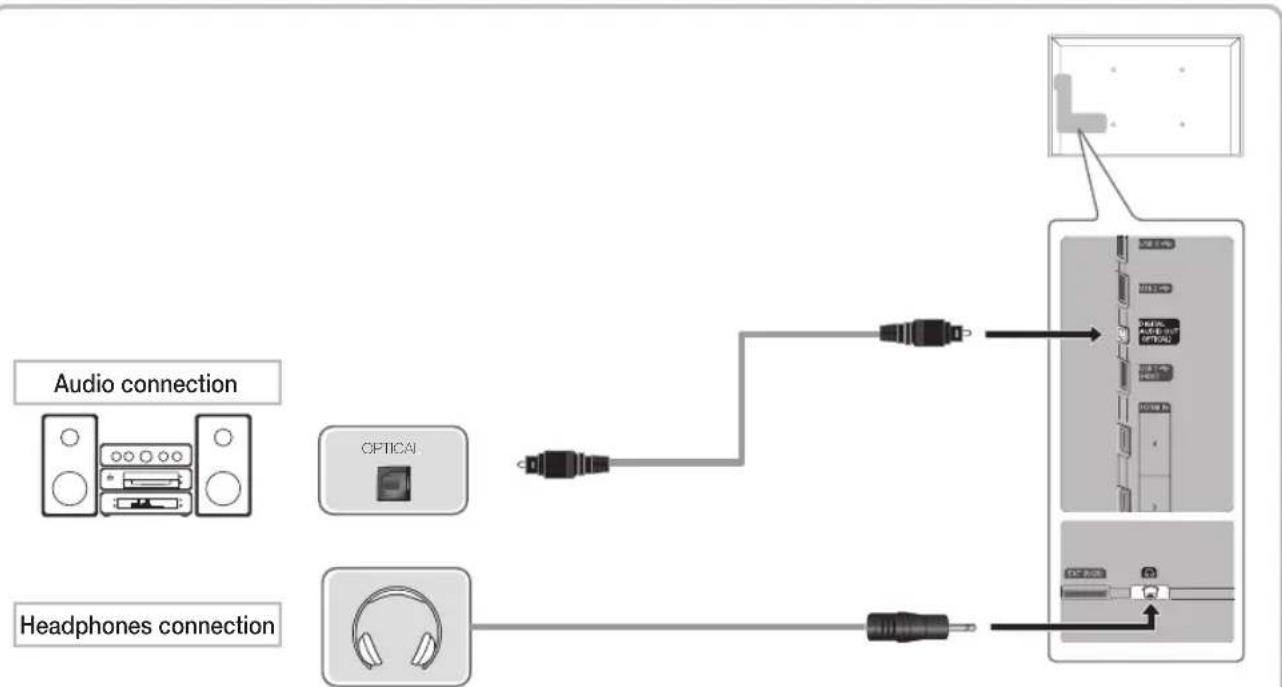
Using an Optical (Digital) or a Headphone Connection
DIGITAL AUDIO OUT (OPTICAL)
When a digital audio system is connected to the DIGITAL AUDIO OUT (OPTICAL) jack, decrease the volume of both the TV and the system.
5.1 CH (channel) audio is available when the TV is connected to an external device supporting 5.1 CH.
When the receiver (home theatre) is set to on, you can hear sound output from the TV's optical jack. When the TV is receiving a DTV signal, the TV will send 5.1 CH sound to the home theatre receiver. When the source is a digital component such as a DVD / Blu-ray player / cable box / STB (Set-Top-Box) satellite receiver and is connected to the TV via HDMI, only 2 CH audio will be heard from the home theatre receiver. If you want to hear 5.1 CH audio, connect the digital audio out jack from your DVD / Blu-ray player / cable box / STB satellite receiver directly to an amplifier or home theatre.
Headphones: You can connect your headphones to the headphones output on your set. While the headphones are connected, the sound from the built-in speakers will be disabled.
Sound function may be restricted when connecting headphones to the TV.
Headphone volume and TV volume are adjusted separately.
Connecting to a COMMON INTERFACE slot
Attaching the CI Card Adapter
Attach the adapter as shown below.
To connect the CI CARD Adapter, follow these steps.
We recommend attaching the adapter before installing the wall mount, or inserting the "CI or CI+ CARD."
- Insert the CI CARD Adapter into the two holes on the product 1.
Please find a two holes on the rear of the TV. A two holes is beside the COMMON INTERFACE port.
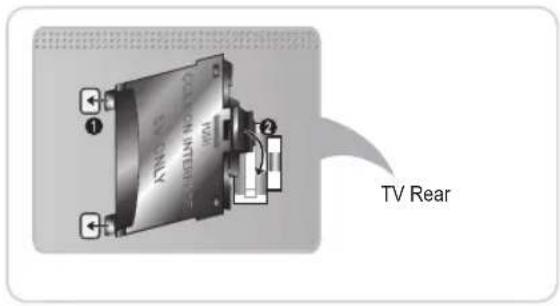
-
Connect the CI CARD Adapter into the COMMON INTERFACE port on the product 2.
-
Insert the "CI or CI+ CARD".

We recommend that you insert the CI card before you mount the TV on a wall.
It may be difficult to insert after the mounting.
Insert the card after attaching the CI CARD Adapter, on TV.
It is difficult to attach the module if you insert the card before attaching.
Using the "CI or Cl+ CARD"
To watch paid channels, the "CI or CI+ CARD" must be inserted.
- If you don't insert the "CI or CI+ CARD," some channels will display the message "Scrambled Signal".
- The pairing information containing a telephone number, the "CI or CI+ CARD" ID the Host ID and other information will be displayed in about 2~3 minutes. If an error message is displayed, please contact your service provider.
- When the configuration of channel information has finished, the message "Updating Completed" is displayed, indicating the channel list is updated.
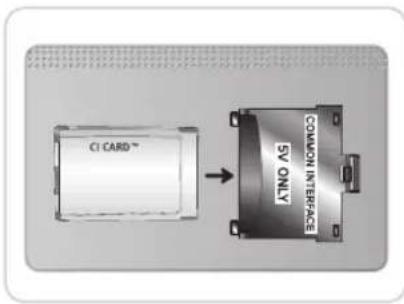
NOTE
- You must obtain a "CI or CI+ CARD" from a local cable service provider.
When removing the "CI or CI+ CARD", carefully pull it out with your hands since dropping the "CI or CI+ CARD" may cause damage to it.
Insert the "CI or CI+ CARD" in the direction marked on the card.
The location of the COMMON INTERFACE slot may be different depending on the model.
"CI or Cl+ CARD" is not supported in some countries and regions; check with your authorized dealer.
If you have any problems, please contact a service provider.
Insert the "CI or CI+ CARD" that supports the current antenna settings. The screen will be distorted or will not be seen.
Network Connection
You can connect your TV to your LAN through a standard wireless router or modem. You can use a wireless network to use the Samsung Wireless LAN Adapter where is built-in the TV.
Network Connection - Wireless
You can connect your TV to your LAN through a standard wireless router or modem. To connect wirelessly, you must first attach a "Samsung Wireless LAN Adapter" (WIS09ABGN, WIS09ABGN2, WIS10ABGN - sold separately) to either the USB 1 (HDD), USB 2 or USB 3 on the back of your TV. See the illustration below.
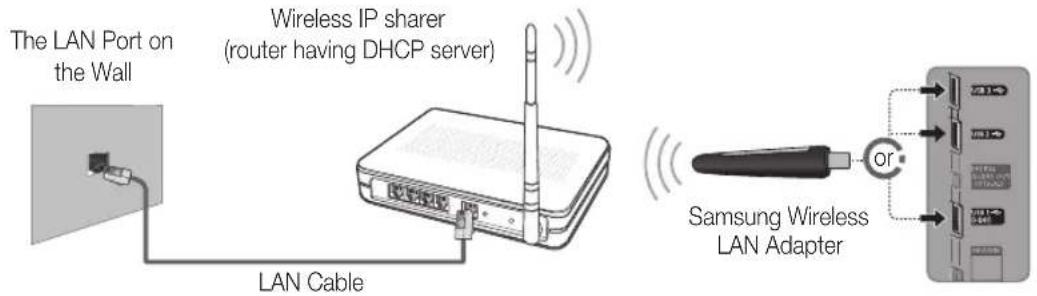
Samsung's Wireless LAN adapter supports the IEEE 802.11a/b/g and n communication protocols. Samsung recommends using IEEE 802.11n. When you play the video over a IEEE 802.11b/g connection, the video may not play smoothly.
Most wireless network systems incorporate a security system that requires devices that access the network through an access point or AP (typically a wireless IP Sharer) to transmit an encrypted security code called an access key.
If Pure High-throughput (Greenfield) 802.11n mode is selected and the Encryption type is set to WEP, TKIP or TKIP AES (WPS2Mixed) for your AP, Samsung TVs will not support a connection in compliance with new Wi-Fi certification specifications.
Network Connection - Wired
There are two main ways to connect your TV to your network using cable, depending on your network setup. They are illustrated below:
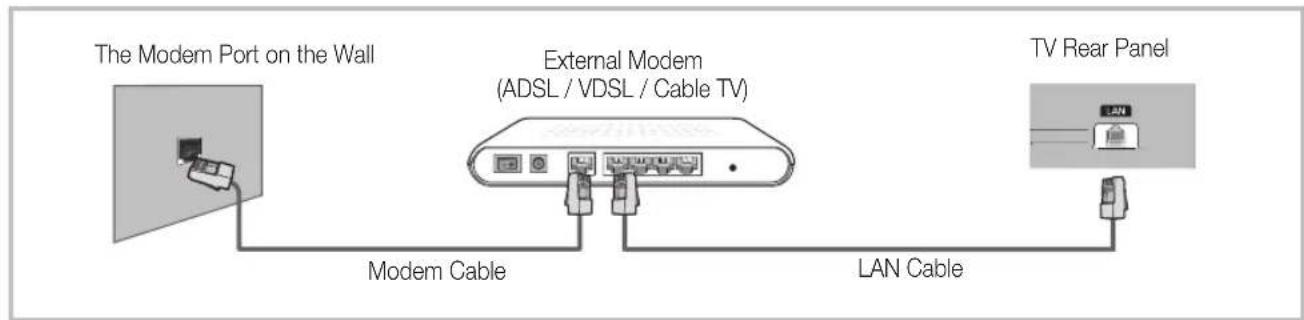
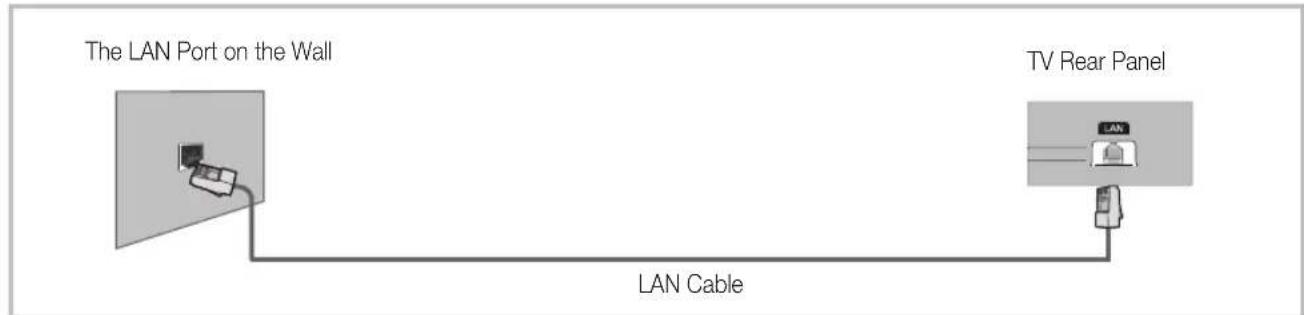
not supported when the network speed is under 10 Mbps.
How to view the e-Manual
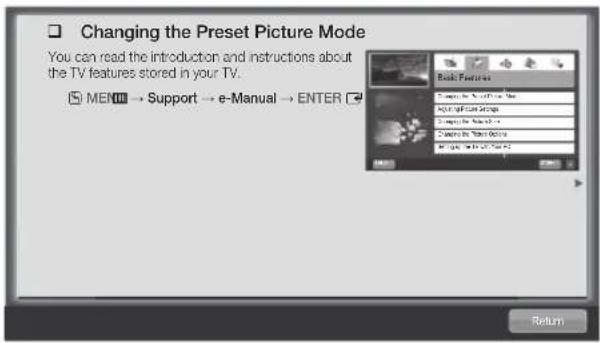
You can read the introduction and instructions about the TV features stored in your TV.
MENU Support e-Manual ENTER
If you want to return to e-Manual, press E-MANUAL button on remote.
You can't use the Try Now function, if the menu is not activated.
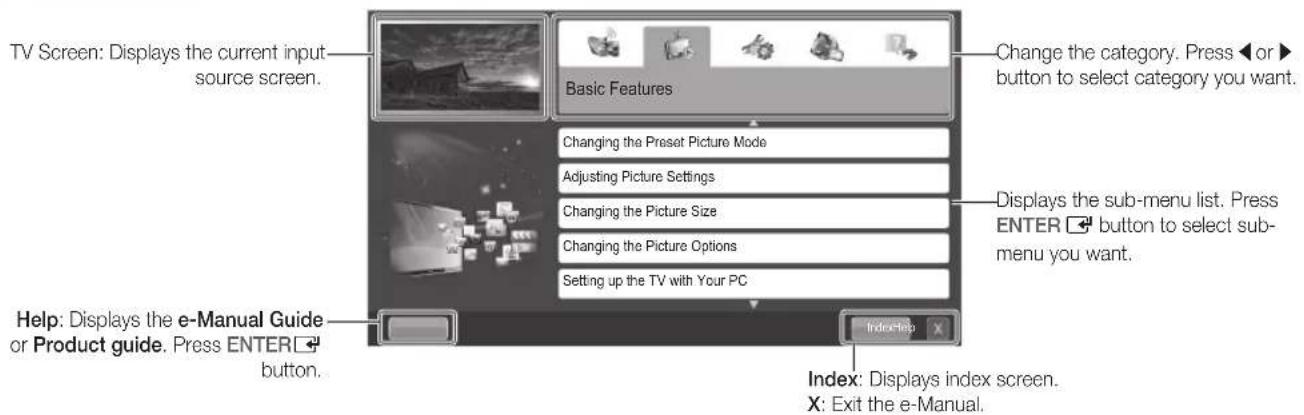
Screen Display
Using the Help
Display the e-Manual Guide & the Product Guide by pressing Help.
The e-Manual guide appears as above.
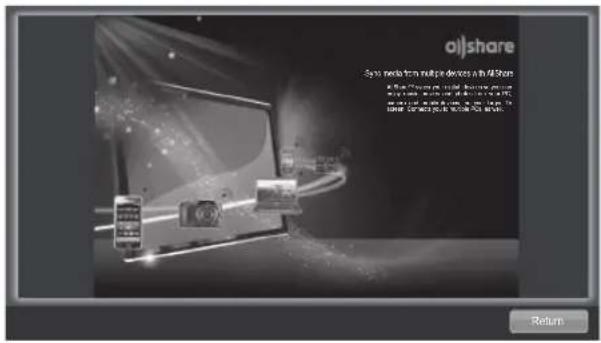
The product guide appears as above.
How to toggle between the e-Manual and the corresponding menu(s).
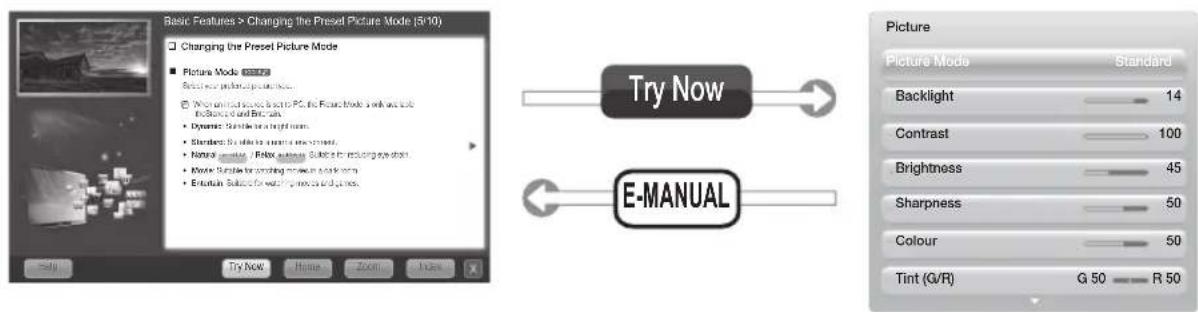
This function is not enabled in some menus.
Method 1 Method 2
- During watching the e-Manual, move the cursor to select Try Now, when you want to execute the corresponding menu(s).
-
To return to the e-Manual screen, press the E-MANUAL button.
-
Press the ENTER button when selecting Contents Area. The "Are you sure?" is displayed. Select Yes and then press the ENTER button. The OSD window will be displayed.
- To return to the e-Manual screen, press the E-MANUAL button.
Viewing the Contents
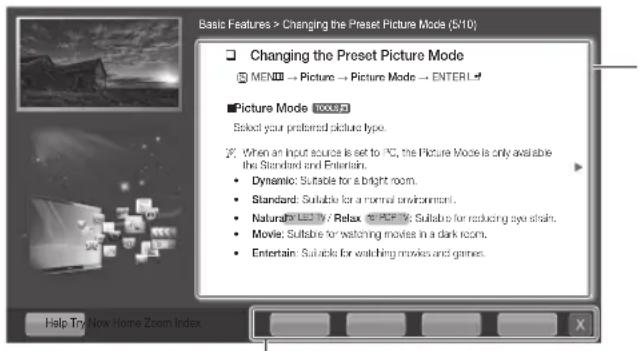
Contents Area: You can view the corresponding contents, if you selected a sub-menu. To move previous or next page, press the or button.
Try Now: Displays the corresponding menu(s).
Home: Moves to the e-Manual home screen.
Zoom: Magnifies a screen.
Index: Displays index screen.
Viewing the Contents
When you view the e-Manual instruction, select the Zoom to magnify the screen. You can scroll through the magnified screen by using the or buttons.
To return to the previous screen, press the RETURN button.
Changing the Preset Picture Mode
MENU→Picture→PictureMode→ENTER
Picture Mode 100LS
Select your preferred picture type.
When an input source is set to PC, the Picture Mode is only available the Standard and Entertain.
Dynamic:Suitable for a bright room.
Standard:Suitable for a normal environment.
Natural for LED TV / Relax for FPC TV: Suitable for reducing eye strain.
Movie:Suitable for watching movies in a dark room.
Entertain: Suitable for watching movies and games.
Return
How to search a keyword by using index page
This function may not supported depending on the language.
- If you want to search a keyword, select Index.
- Press the or button to select a character order you want, and then press the ENTER button.
- Press the or button to select a keyword you want to see, and then press the ENTER button.
- You can view the corresponding e-Manual instruction screen.
To close the Index screen, press the RETURN button.
Installing the Wall Mount Kit
The wall mount kit (sold separately) allows you to mount the TV on the wall.
For detailed information on installing the wall mount, see the instructions provided with the wall mount. Contact a technician for assistance when installing the wall mount bracket.
Samsung Electronics is not responsible for any damage to the product or injury to yourself or others if you elect to install the TV on your own.
Preparing before installing Wall-Mount
Case A. Installing the SAMSUNG Wall-Mount Case B. Installing another company's Wall-Mount

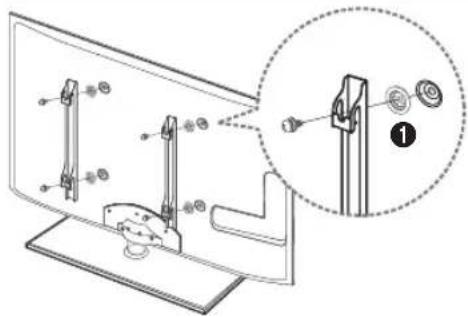
To install a wall-mount, use the Holder-Ring 1.
Install your wall mount on a solid wall perpendicular to the floor. When attaching to other building materials, please contact your nearest dealer. If installed on a ceiling or slanted wall, it may fall and result in severe personal injury.
NOTE
Standard dimensions for wall mount kits are shown in the table below.
When purchasing our wall mount kit, a detailed installation manual and all parts necessary for assembly are provided.
Do not use screws that do not comply with the VESA standard screw specifications.
Do not use screws that are longer than the standard dimension or do not comply with the VESA standard screw specifications. Screws that are too long may cause damage to the inside of the TV set.
For wall mounts that do not comply with the VESA standard screw specifications, the length of the screws may differ depending on the wall mount specifications.
Do not fasten the screws that are too strongly; this may damage the product or cause the product to fall, leading to personal injury. Samsung is not liable for these kinds of accidents.
Samsung is not liable for product damage or personal injury when a non-VESA or non-specified wall mount is used or the consumer fails to follow the product installation instructions.
Our 55" model do not comply with VESA Specifications. Therefore, you should use our dedicated wall mount kit for this model.
Do not mount the TV at more than a 15 degree tilt.
| Product Family inches VESA $pec. (A * B) Standard Screw Quantity | ||
| LED-TV | 19~22 75 X 75 | M4 |
| 23~27 200 X 100 | ||
| 32~40 200 X 200 | M846~55 400 X 400 | |
| 60~65 600 X 400 | ||
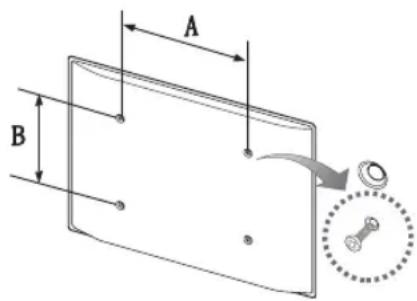

Do not install your Wall Mount Kit while your TV is turned on. It may result in personal injury due to electric shock.
Troubleshooting
If you have any questions about the TV, first refer to this list. If none of these troubleshooting tips apply, please visit "www.samsung.com", then click on Support, or contact the call centre listed on the back-cover of this manual.
| Issues Solutions and Explanations | |
| The TV won't turn on. | Make sure the AC power cord is securely plugged in to the wall outlet and the TV. Make sure the wall outlet is working. Try pressing the POWER button on the TV to make sure the problem is not the remote. If the TV turns on, refer to "Remote control does not work" below. |
| There is no picture/video. | Check cable connections (remove and reconnect all cables connected to the TV and external devices). Set your external device's (Cable/Sat Box, DVD, Blu-ray etc) video outputs to match the connections to the TV input. For example, if an external device's output is HDMI, it should be connected to an HDMI input on the TV. Make sure your connected devices are powered on. Be sure to select the TV's correct source by pressing the SOURCE button on the remote control. Reboot the connected device by reconnecting the device's power cable. |
| The remote control does not work. | Replace the remote control batteries with the poles (+/-) in the right direction. Clean the sensor's transmission window on the remote. Try pointing the remote directly at the TV from 5-6 feet away. |
| The cable/set top box remote control doesn't turn the TV on or off, or adjust the volume. | Programme the Cable/Set remote control to operate the TV. Refer to the Cable/Set user manual for the SAMSUNG TV code. |
This TFT LED panel uses a panel consisting of sub pixels which require sophisticated technology to produce. However, there may be a few bright or dark pixels on the screen. These pixels will have no impact on the performance of the product.
You can keep your TV as optimum condition to upgrade the latest firmware on web site (samsung.com Support Downloads) by USB.
Licence




List of Features
Excellent Digital Interface & Networking: With a built-in HD digital tuner, nonsubscription HD broadcasts can be viewed without a cable box / STB (Set-Top-Box) satellite receiver.
3D
This exciting new feature enables you to view 3D content.
SMART HUB
The Gateway to all content integrated in one place
- It's all integrated to guide you to easier and diverse entertainment choices.
Control your entertainment life with easy and simple user friendly UI. - Access to diverse Apps that are adding up every day.
- Customize your TV, by App grouping & sorting to your taste.
AllShareTM
AllShare™ connects your TV and compatible Samsung mobile phones/devices through a network.
Anynet+ (HDMI-CEC)
Allows you to control all connected Samsung devices that support anynet+ with your Samsung TV's remote.
Storage and Maintenance
If you attached some stickers on the TV screen, it remains some debris after removing the sticker. Please clean it to watch TV.
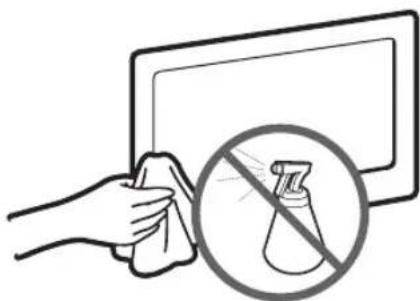
Do not spray water or a cleaning agent directly onto the product. Any liquid that goes into the product may cause a failure, fire, or electric shock.
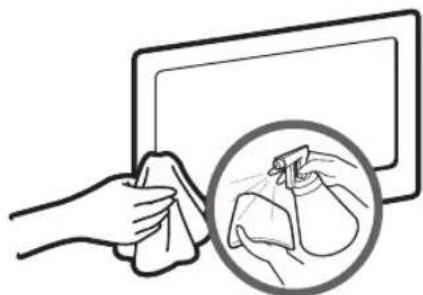
Clean the product with a soft cloth dapped in a small amount of water.
Securing the TV to the wall

Caution: Pulling, pushing, or climbing onto the TV may cause the TV to fall. In particular, ensure that your children do not hang over or destabilize the TV; doing so may cause the TV to tip over, resulting in serious injuries or death. Follow all safety precautions provided in the included Safety Flyer. For added stability and safety, install the anti-fall device as follows.
To Avoid the TV from Falling
- Put the screws into the clamps and firmly fasten them onto the wall. Confirm that the screws have been firmly installed onto the wall.
You may need additional material such as an anchor depending on the type of wall.
Since the necessary clamps, screws, and string are not supplied, please purchase these additionally.
- Remove the screws from the back centre of the TV, put the screws into the clamps, and then fasten the screws onto the TV again.
Screws may not be supplied with the product. In this case, please purchase the screws of the following specifications.
Screw Specifications
For a 19~27 inch: M4
For a 32~65 inch: M8
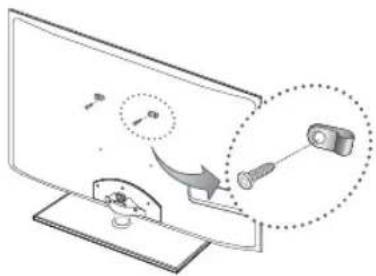
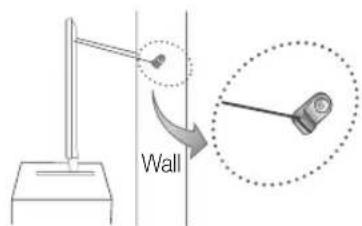
- Connect the clamps fixed onto the TV and the clamps fixed onto the wall with a strong cable and then tie the string tightly.
NOTE
Install the TV near to the wall so that it does not fall backwards.
It is safe to connect the string so that the clamps fixed on the wall are equal to or lower than the clamps fixed on the TV.
Unite the string before moving the TV.
- Verify all connections are properly secured. Periodically check connections for any sign of fatigue for failure. If you have any doubt about the security of your connections, contact a professional installer.
| Specifications | |||
| Display Resolution 1920 x 1080 | |||
| Environmental Considerations | |||
| Operating Temperature | 10°C to 40°C (50°F to 104°F) | ||
| Operating Humidity | 10% to 80%, non-condensing | ||
| Storage Temperature | -20°C to 45°C (-4°F to 113°F) | ||
| Storage Humidity | 5% to 95%, non-condensing | ||
| TV System Analogue: B/G, D/K, L, I (Depending on your country selection) | |||
| Digital: DVB-T/DVB-C | |||
| Colour/Video System Analogue: PAL, SECAM, NTSC-4.43, NTSC-3.58, PAL60 Digital: MPEG-2 MP@ML, MPEG-4, H.264/AVC MP@L3, MP@L4.0, HP@L4.0 | |||
| Sound System BG, DK, L, NICAM, MPEG1, DD, DD+, HEAAC. | |||
| HDMI IN Video: 1080 24p, 1080p, 1080i, 720p, 576p, 576i, 480p, 480i Audio: 2Ch Linear PCM 32/44.1/48kHz, 16/20/24bits. | |||
| Stand Swivel (Left / Right) -20° - 20° | |||
| Model Name UE32D6100 / UE32D6120 UE37D6100 / UE37D6120 UE40D6100 / UE40D6120 | |||
| Screen Size 32 inches 37 inches 40 inches | |||
| Sound (Output) 10 W X 2 | |||
| Dimensions (WxDxH) | |||
| Body | 745.8 X 29.9 X 443.4 mm | 867.7 X 29.9 X 512.3 mm | 933.0 X 29.9 X 548.8 mm |
| With stand | 745.8 X 240.0 X 503.8 mm | 867.7 X 255.0 X 571.6 mm | 933.0 X 255.0 X 608.2 mm |
| Weight | |||
| Without Stand | 7.1 kg | 9.1 kg | 10.0 kg |
| With Stand | 8.8 kg | 11.7 kg | 12.5 kg |
| Model Name UE46D6100 / UE46D6120 UE55D6100 / UE55D6120 | |||
| Screen Size | 46 inches | 55 inches | |
| Sound (Output) | 10 W X 2 | 15 W X 2 | |
| Dimensions (WxDxH) | |||
| Body | 1068.4 X 29.9 X 625.2 mm | 1258.8 X 29.9 X 731.7 mm | |
| With stand | 1068.4 X 275.0 X 683.6 mm | 1258.8 X 275.0 X 791.4 mm | |
| Weight | |||
| Without Stand | 12.7 kg | 17.3 kg | |
| With Stand | 16.9 kg | 22.0 kg | |
Design and specifications are subject to change without prior notice.
For information about power supply, and more about power consumption, refer to the label attached to the product.
Hereby, Samsung, declares that this LED TV is in compliance with the essential requirements and other relevant provisions of Directive 1999/5/EC.
ELECTRONICS
Declaration of Conformity
For the following
Product : LED TV
Model(s): UE32D6100 UE32D6120 UE37D6100 UE37D6120 UE40D6100 UE40D6120 UE46D6100
UE46D6120 UE55D6100 UE55D6120
Year of Affixing CE Marking : 2011
Manufactured at:
F1: Samsung Electronics Co., Ltd.
416, Maetan 3-Dong, Yeongtong-Gu, Suwon-Si, Gyeonggi-Do, 443-742 Korea
F2: Samsung Electronics Slovakia s.r.o
Hviezdoslavova 807 924 27 Galanta, Slovak Republic
F3: Samsung Electronics Hungarian Co., Ltd.
H-5126 Jaszfenyszaru, Samsung ter 1
(Factories name and address)

We hereby declare under our sole responsibility that the electrical product above is in compliance with the essential requirements of R&TTE Directive (1995/5/EC), the Low Voltage Directive (2006/95/EC) and Electromagnetic Compatibility Directive (2004/108/EC) by application of
EN 60065:2002+A1:2006+A11:2008
EN61000-3-3:1995+A1:2001+A2:2005
EN55022: 2006+A1:2007
EN55024:1998+A1:2001+A2:2003
EN61000-3-2:2006
EN55013:2001+A1:2003+A2:2006
EN 300 328-1 v1.7.1
EN55020:2007
EN 301 489-17 v1.3.2:2008
EN 301 489-1 v1.8.1 :2008
and the Eco-Design Directive (2009/125/EC) implemented by Regulation (EC) No 642/2009 for televisions.
The Technical documentation is kept at the below Manufacturer's address.
Manufacturer
Samsung Electronics Co., Ltd.
416 Maetan-dong, Young-Tong gu,
Suwon, Korea 442-742
05 Jan 2011
(Place and date of issue)
Representative in the EU :
Samsung Electronics Euro QA Lab.
Blackbushe Business Park
Saxony Way, Yateley, Hampshire
GU46 6GG, UK
06 Jan 2011
(Place and date of issue)
Chang Seub Eum / Manager
(Name and signature of authorized person)

Joong Hoon Choi / Lab. Manager
(Name and signature of authorized person)
Note : It is not the address of Samsung Service Centre. For the address or the phone number of Samsung Service Centre, see the warranty card or contact the retailer where you purchased your product.
This page is intentionally left blank.
When connecting a PC to the HDMI IN 1(DVI) port with HDMI cable, you should set the TV to PC mode under Edit Name.
When connecting a PC to the HDMI IN 1(DVI) port with HDMI to DVI cable, you should set the TV to DVI PC mode under Edit Name.
DIGITAL AUDIO OUT (OPTICAL)
DIGITAL AUDIO OUT (OPTICAL)
Installation du support mural
U1: Samsung Electronics Co., Ltd
416, Maetan 3-Dong, Yeongtong-Gu, Suwon-Si, Gyeonggi-Do, 443-742, Corée
U2: Samsung Electronics Slovaquie s.r.o
Hviezdoslavova 807 924 27 Galanta, République slovaque
U3: Samsung Electronics Co. hongrois
H-5126 Jaszfenyszaru
416 Maetan-dong, Young-Tong gu,
Suwon, Korea 442-742
26 Janv 2011
Blackbushe Business Park
Saxony Way, Yateley, Hampshire
GU46 6GG, UK
28 Janv 2011