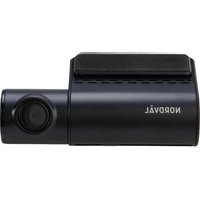
DC101-2K - Dash cam Nordväl - Free user manual and instructions
Find the device manual for free DC101-2K Nordväl in PDF.


User questions about DC101-2K Nordväl
0 question about this device. Answer the ones you know or ask your own.
Ask a new question about this device
Download the instructions for your Dash cam in PDF format for free! Find your manual DC101-2K - Nordväl and take your electronic device back in hand. On this page are published all the documents necessary for the use of your device. DC101-2K by Nordväl.
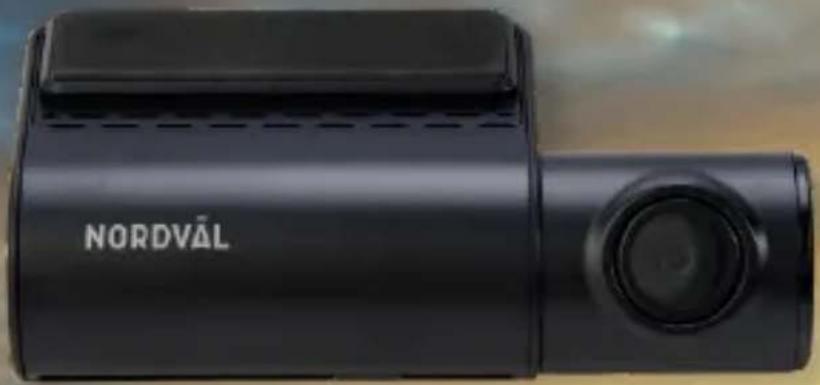
USER MANUAL DC101-2K Nordväl
natural_image
Black Nordvál car with lens and camera module (no visible text or symbols beyond brand name)Quick start guide
English 03
Nederlands 21
Deutsch 39
Français 57

NORDVÄL
NORDVÄL®
Your smart technology friends.
text_image
NORDVÁLHELLO,
Thank you for purchasing the DC101-2K dashcam. Let's get started!
TABLE OF CONTENTS
Declaration of conformity 04
What's in the box 05
DC101-2K Details 05
DC101-2K Buttons & functions 06
DC101-2K Display 06
Installing your dashcam 07
Installing with the Nordväl Power Kit USB-C (PMPC03) optional 08
Connecting to the app 10
App options 11
General 11
Show GPS location during recordings in the app 12
Settings 13
Setting the parking mode 15
Playback recordings in PC 16
Voice control & guidance 17
Frequently asked questions 18
Product specifications 20
DECLARATION OF CONFORMITY
Product information
For the following
Product: Dashcam
Type:
DC101-2K
Declaration and applicable standards
Hereby, TJM Supplies B.V. declares that the type of dashcam DC101-2K series conforms to: Directive EMC 2014/53/EU and the RoHS directive (2011/65/EU) and its amendment directives 2015/863/EU on the restriction of the use of certain hazardous substances in electronic equipment.
The full text of the EU declaration of conformity can be found at the following internet address: www.nordval.eu/declaration-of-conformity/
Importer
Company: TJM Supplies B.V.
Address:
Zompstraat 8
8102 HX Raalte
The Netherlands
Email:
info@tjmsupplies.nl
Phone number: +31 85-0402973
Chamber of Commerce number: 72016981
VAT number: NL858946439B01
Nordväl® is the registered trademark of TJM Zwerink Holding B.V. Specifications are subject to change without notice. Copyright© 2025 TJM Supplies B.V. All rights reserved.
Manufactured in China.
WHAT'S IN THE BOX
Please check the box for each of the following items before installing your dashcam:
Nordväl DC101-2K front camera
▶ USB-C power cable (3.5m) + USB car charger
▶ 2x Electrostatic films
5x Cable clips + pry tool
▶ Extra adhesive tape
▶ User manual
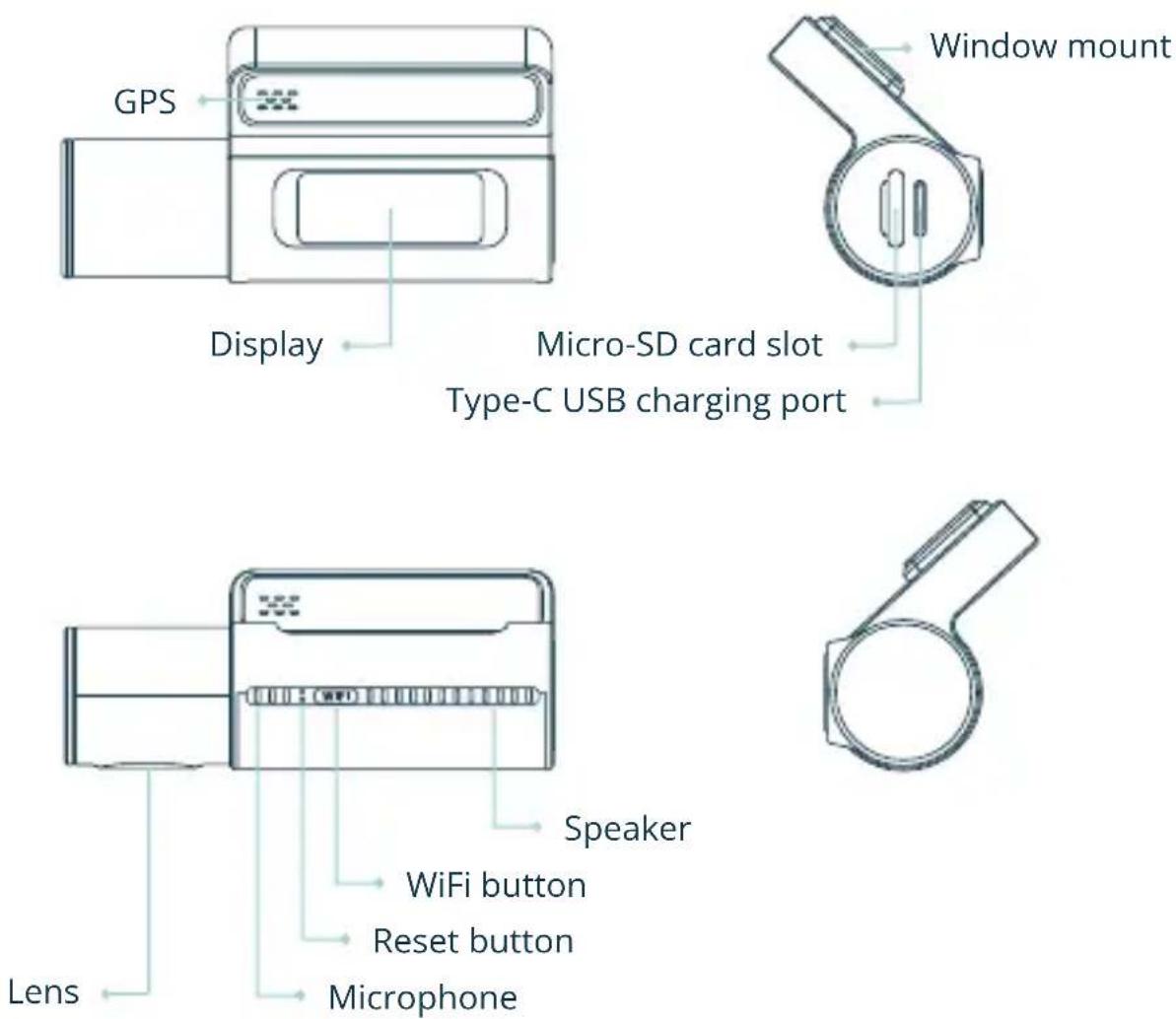
DC101-2K Details
text_image
GPS Display Micro-SD card slot Type-C USB charging port Window mount Lens Speaker WiFi button Reset button MicrophoneDC101-2K Buttons & functions
| Button Instructions Function | |
| WiFi button | Short press Turn on/off WiFi |
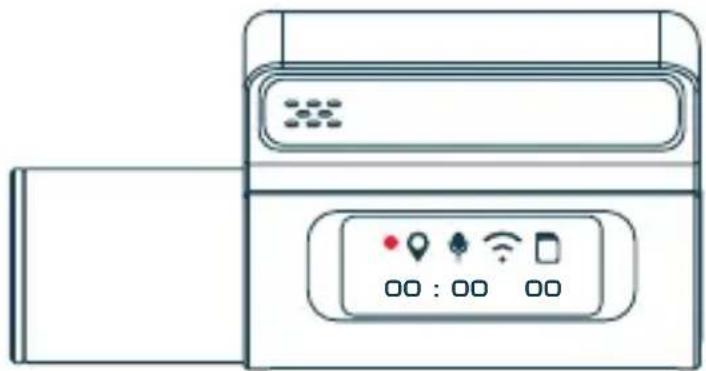
DC101-2K Display
natural_image
Line drawing of a portable air conditioner unit with control panel and indicator lights (no text or symbols)| Icon Meaning | |
| [08D2] | Blinking: Normal video recording |
 | Blinking: Event recording |
 | GPS |
 | Audio recording |
 | WiFi |
 | SD card |
| 00 : 00 00 | Recording time [3C02] |

Note
The recording duration is displayed on the screen while recording.
INSTALLING YOUR DASHCAM

Caution
- Do not install the product in a location where it may obstruct the driver's field of vision.
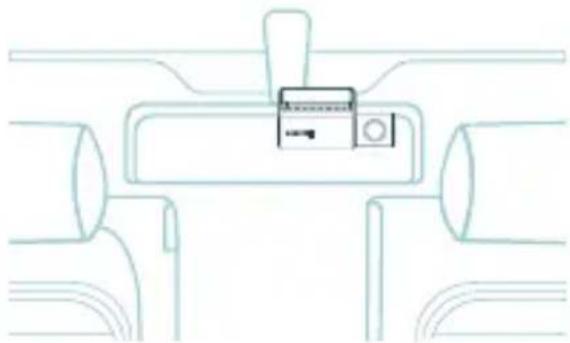
- Attach the camera to the windshield, behind the rear-view mirror. Clean and dry the windshield before installation.
natural_image
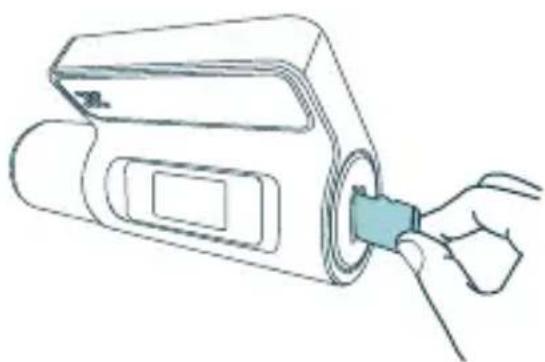
Line drawing of a hand inserting a small component into a device (no text or symbols)1 Turn off the engine. Carefully insert the micro SD card into the micro SD card slot until it clicks.
natural_image
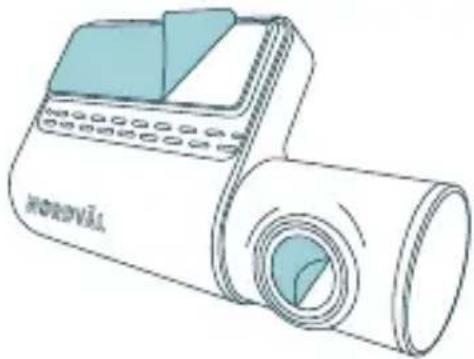
Line drawing of a handheld digital camera with lens and screen (no text or symbols)2 Remove the plastic film from the camera. Remove the protective film from the adhesive tape.
natural_image
Top-down line drawing of a car interior showing dashboard, seats, and camera (no text or symbols)3 Attach the camera to the windshield, behind the rear-view mirror. If desired, stick the electrostatic film between the windshield and the dashcam.
natural_image
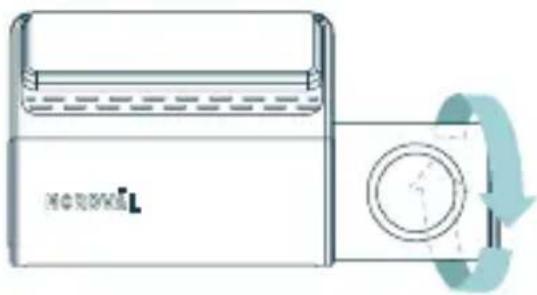
Diagram of a device with a circular button and directional arrow, no readable text or symbols present.4 Rotate the lens about 10^ downward to ensure a good aspect ratio. Aim for 2/3 road and 1/3 horizon in the recording.
natural_image
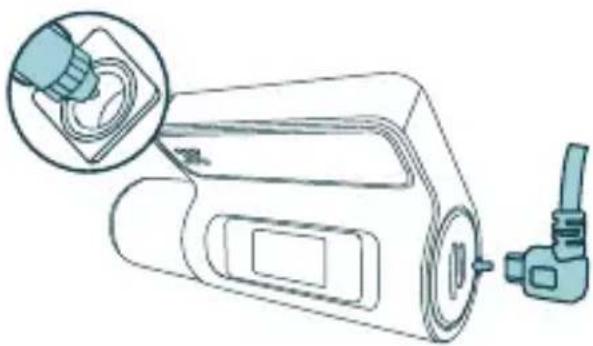
Illustration of a medical device with a magnified inset showing a connector or insertion (no text or symbols present)5 Plug the 12V power cable into the car's cigarette lighter and plug the cable into the dashcam.
Note
Start the engine. The dashcam powers up and starts recording. Video files are stored on the micro SD card. When the micro SD card is full, the newest video files will replace the oldest video files (loop recording). This means that the SD card always contains the most recent recordings.
INSTALLING WITH NORDVÄL POWER KIT USB-C (PMPC03) Optional

Caution
- Read this manual carefully before installation and, if in doubt, consult an authorized installer.
- Nordväl is not responsible for any damage caused by incorrect connection or by not following the instructions in this manual.
- The Nordväl Power Kit USB-C (PMPC03) is not included in this package and is available separately at Nordval.eu.
1 Stop the engine and remove the fuse box lid.
Refer to your car owner's manual to locate the fuse box and remove the lid. The location and layout of the fuse box and the type of the fuse box depends on the brand and type of vehicle.
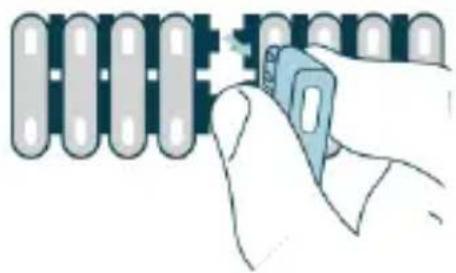
2 Connect the red ACC(+) fuse to the fuse box (switched power).
Find a spare switched fuse or remove a switched fuse from the fuse box. Then place the red ACC(+) fuse in the referred place.
natural_image
Illustration of a hand holding a blue tool near a row of electronic components (no text or symbols visible)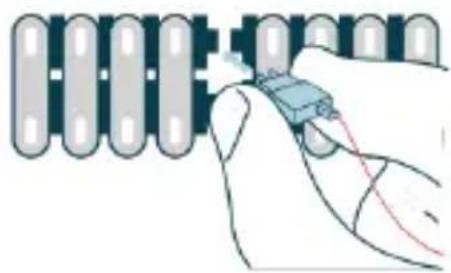
natural_image
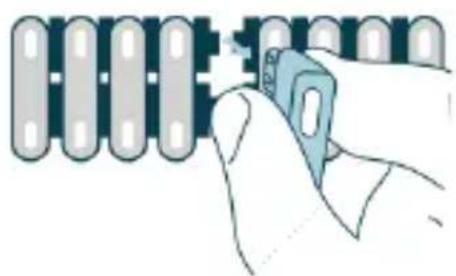
Illustration of a hand holding a small electronic component with wiring, next to a row of cylindrical components (no text or symbols visible)3 Connect the yellow BAT fuse to the fuse box (constant power).
Find a spare constant fuse, or remove one from the fuse box. Then place the yellow BAT fuse in the referred place.
natural_image
Illustration of a hand holding a blue tool near a grid of circular components (no text or symbols)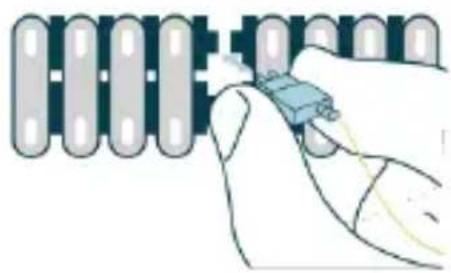
natural_image
Illustration of a hand holding a small electronic component next to a row of circuit-like components (no text or symbols visible)4 Connect the black GND wire to a ground point.
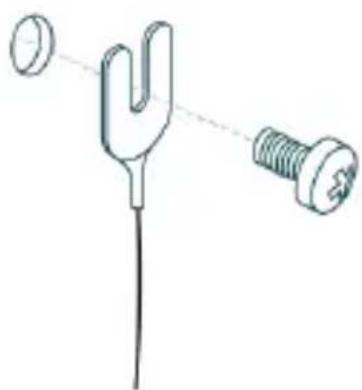
Attach the GND wire to a grounding point, such as a bolt located directly on a metal part of the vehicle frame.
Connect the USB-C cable to the Nordväl dashcam and start the engine. Check if the dashcam turns on and keeps recording when you turn off the engine.
natural_image
Diagram of a fork and screw assembly with a circular component, no text or symbols present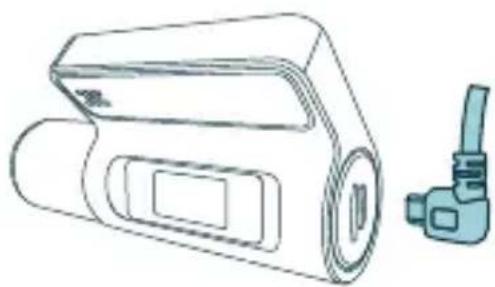
natural_image
Line drawing of a portable air conditioner unit with a side-view inset showing the same device (no text or symbols)CONNECTING TO THE APP
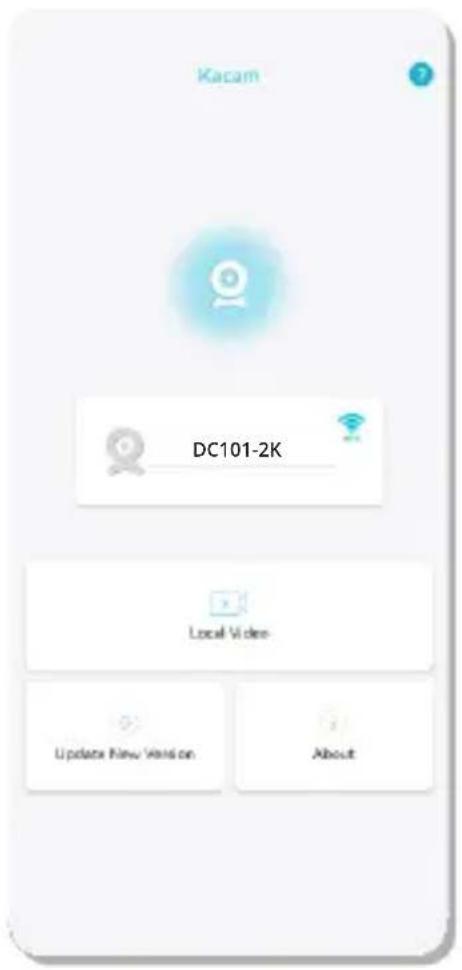
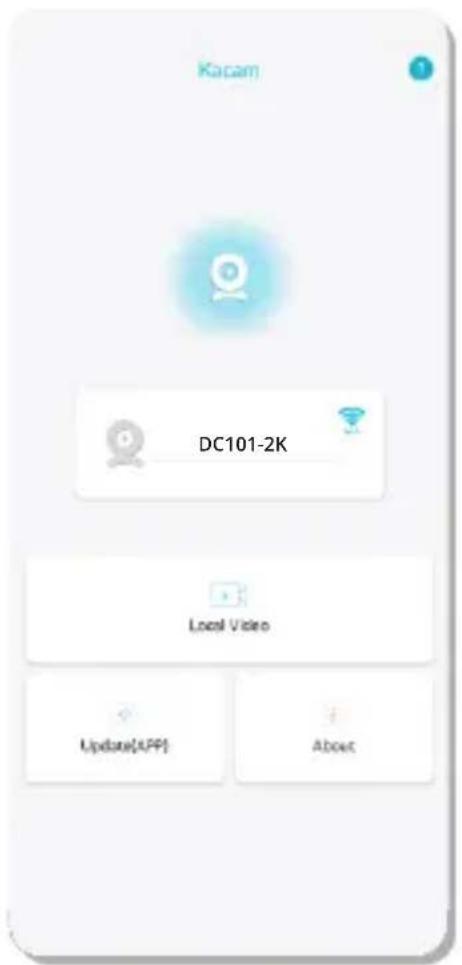
1 Download the "Kacam" app by scanning the QR code provided on this page, or by searching for it in the App Store or Google Play Store.
2 Enable Bluetooth and GPS location, then open the WiFi settings on your smartphone and select the network: "DC101-2K". Use the default password: "12345678" to connect.
3 Once connected, open the app to see live video, change the camera settings, or download recorded videos and photos.
text_image
Kacam DC101-2K Local Video Update New Version About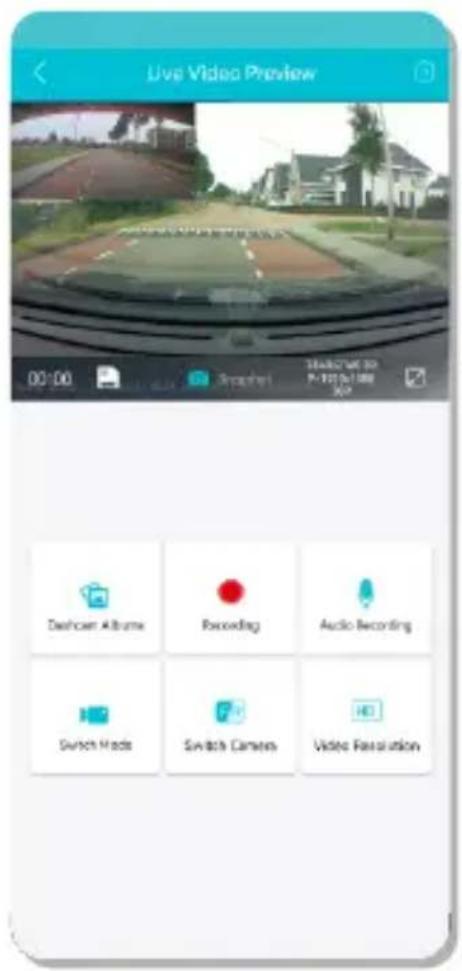
text_image
Live Video Preview 00:00 Danceer Albums Recording Audio Recording Switch Media Switch Camera Video Resolution
text_image
QR code image containing encoded data, no visible human-readable textApp Store
text_image
QR code image containing encoded data, no visible human-readable textGoogle Play Store

Note

When you connect your smartphone to the dashcam for the first time, it will ask you whether you want to keep or disconnect the WiFi connection. Select to keep the WiFi connection.

For the app to work properly, it is important that your location settings are enabled on your smartphone.
APP OPTIONS
General
text_image
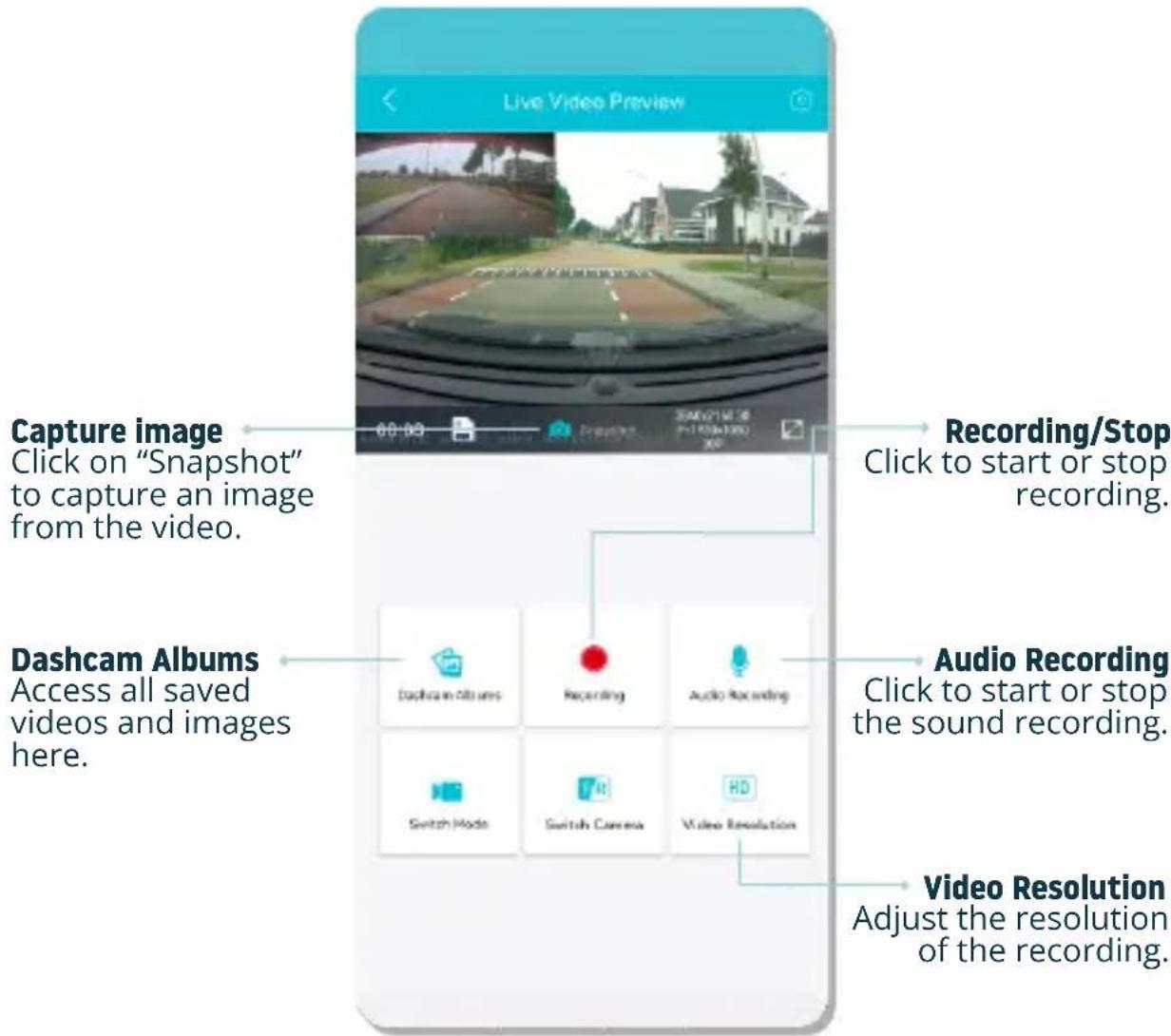
Live Video Preview Capture image Click on "Snapshot" to capture an image from the video. Recording/Stop Click to start or stop recording. Dashcam Albums Access all saved videos and images here. Audio Recording Click to start or stop the sound recording. Switch Mode Switch Camera Video Resolution Video Resolution Adjust the resolution of the recording.Show GPS location during recordings in the app
text_image
Live Video Preview 00:00 Sustent RACKERS STOCKER OFFICE Sounder Picture Recording Audio Recording Subm Probe Switch Camera Video Resolution1
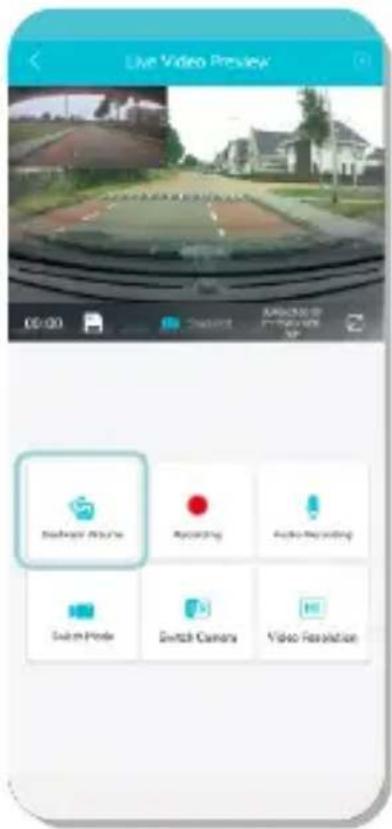
From the "Live Video Preview" go to "Dashcam Albums".
text_image
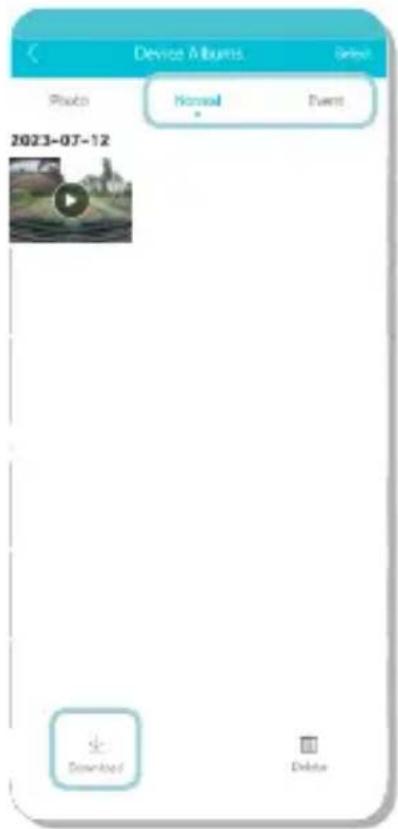
Device Albums Photo Normal Event 2023-07-12 Download Delete2
Select "Normal" or "Event" recordings and click on "Download" at the bottom of the screen. Select the files you want to download and click on "Download" again.
text_image
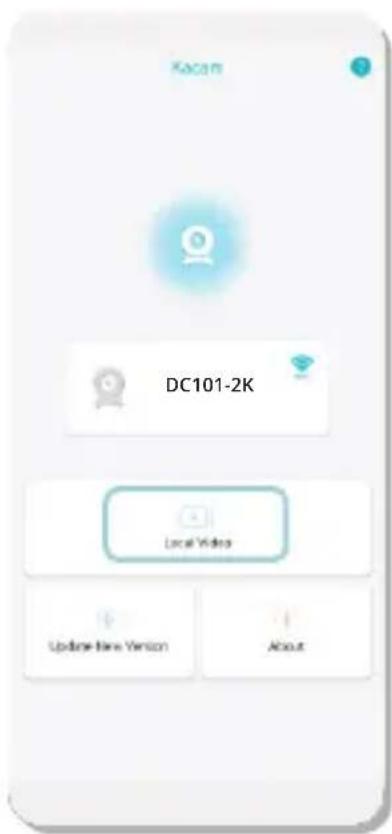
Kecam DC101-2K Local Video Update-New Version About3
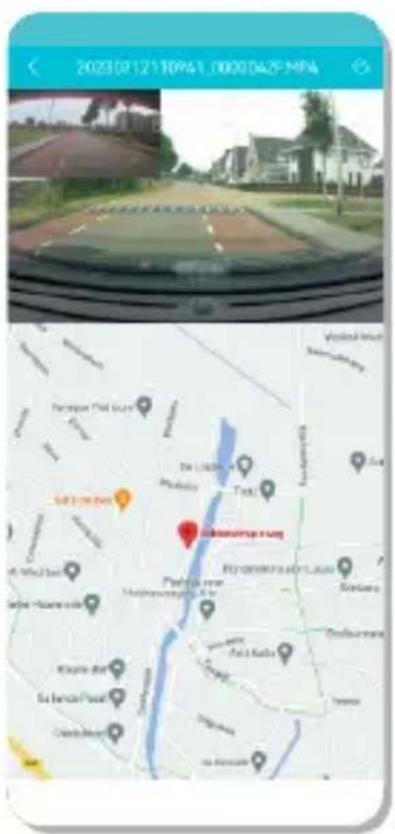
Your files are now downloaded to your device. In the main screen you will find the folder "Local Video". Here you will find the downloaded recordings that you can view including location data.
4
You can now view your recordings with GPS location.
text_image
Screenshot of a mobile app interface showing a road scene with location markers and a map of Singapore, including a red marker labeled 'Sri Lanka Road'.Settings
| Settings | |
| General Settings | |
| Video Resolution | > |
| Loop Recording | > |
| Audio Recording | |
| Date & Time | |
| G-sensor | > |
| PIP | > |
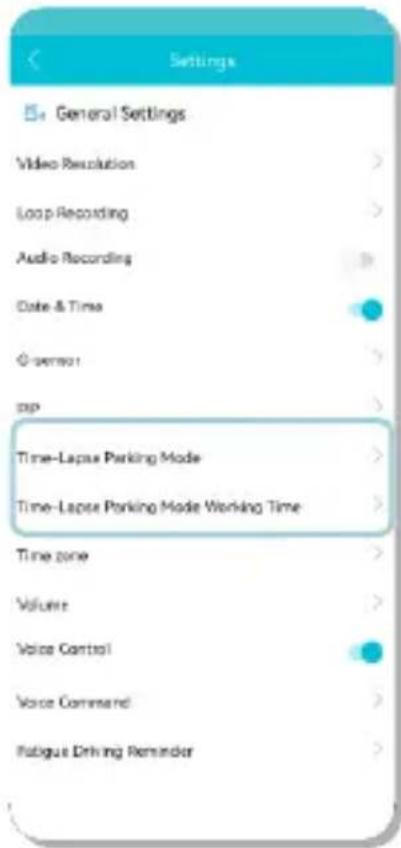
| Time-Lapse Parking Mode | > |
| Time-Lapse Parking Mode Working Time | > |
| Time zone | > |
| Volume | > |
| Voice Control | |
| Voice Command | > |
| Fatigue Driving Reminder | > |
Video Resolution
Set the video resolution.
Loop Recording
Recording time per file.
Audio Recording
Turns audio recording on/off.
Date & Time
Displays the date & time in the video.
G-sensor
Set the impact sensitivity of the G-sensor for Event recordings.
Parking Mode
Read more about the Parking Mode settings on page 15.
Time zone
Configure your actual timezone.
Volume
Adjust speaker volume.
Voice Control
Turns voice control on/off.
Voice Command
See which voice commands you can use.
Fatigue Driving Reminder
Set whether you want to enable a fatigue reminder.
| Settings | |
| Frequency | > |
| Date/Time Format | > |
| Speed Unit | > |
| Boot Ringtone | |
| GPS Information | > |
| Format Reminding | > |
| Rear Mirror | |
| Rear Rotate | |
| Settings | |
| Synchronize time | > |
| SD Card Information : | 12.54G/29.1G |
| Format SD Card | > |
| WiFi | > |
| Default Setting | > |
| Firmware Version | > |
Frequency
Adjust the frequency: 50Hz / 60Hz. Use 50Hz if you drive in Europe.
Date/Time Format
Set how you want the time and date to be displayed.
Speed Unit
Set to kilometers per hour or miles per hour.
Boot Ringtone
Turns the tone on/off that is played when the camera is powered on/off.
GPS Information
Displays GPS satellite information.
Format Reminding
Set whether you want to enable the SD card format reminder.
Synchronize time
Click this if you want to synchronize the time.
SD Card Information
The used storage and max. storage.
Format SD card
Click here if you want to format the SD card.
WiFi
Change the WiFi SSID and password if needed.
Default Setting
Restores factory settings.
Firmware Version
Check which firmware version you have.
SETTING THE PARKING MODE

Caution
- The parking mode option is only available after connecting the Nordväl Power Kit USB-C (see page 8).
text_image
Settings General Settings Video Resolution Loop Recording Audio Recording Date & Time Observer app Time-Lapse Parking Mode Time-Lapse Parking Mode Working Time Time zone Volume Voice Control Voice Command Fatigue Driving Reminder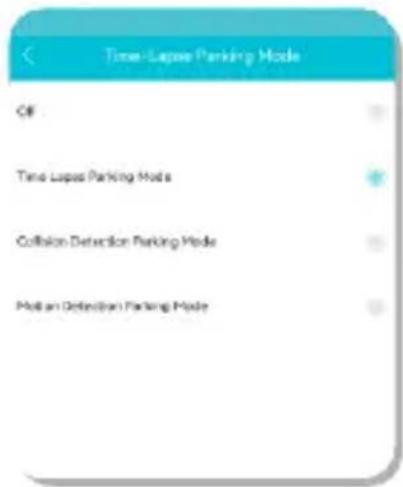
text_image
Time Locus Parking Mode Off Time Locus Parking Mode Collision Detection Parking Mode Post an Deflection Parking ModeOpen the app and go to "DC101-2K". Stop recording first and then click on 🔗 "settings" in the upper right corner. Scroll down to "Time-Lapse Parking Mode" to set the parking mode. You have the following options:
Time Lapse Parking Mode
In time lapse mode, the dashcam will continuously record with 1 frame per second, combined with the event recording mode.
Collision Detection Parking Mode
In collision detection mode, the dashcam will start recording when an impact is detected. The video will be locked, so it will not be overwritten by the loop cycle function.
Motion Detection Parking Mode
In motion detection mode, the dashcam will start recording when movement is detected, combined with the event recording mode.
Off
Parking mode is disabled, your dashcam will turn off when you turn off your engine.
Note
Collision and motion detection recordings are saved in the 'event' folder on your SD card. They're easy to find and won't be overwritten by other recordings.
1 Download the GPS video player software from the following link: www.nordval.eu/downloads/dashcams/
2 Copy the downloaded file to a computer and install it.
3 Open the installed GPS video player software.
4 Remove the micro SD card from the dashcam.
5 Connect the micro SD card to the computer using an SD card adapter.
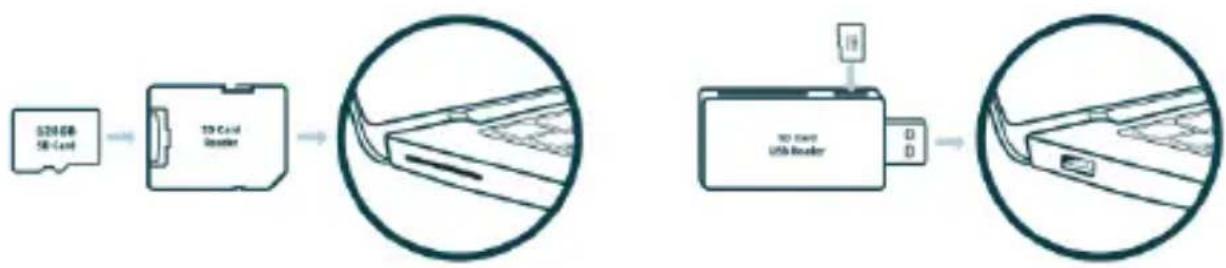
flowchart
graph LR
    A["528GB SSD Card"] --> B["100 Microcontroller"]
    B --> C["USB Router with USB port"]
    C --> D["Device with USB port"]
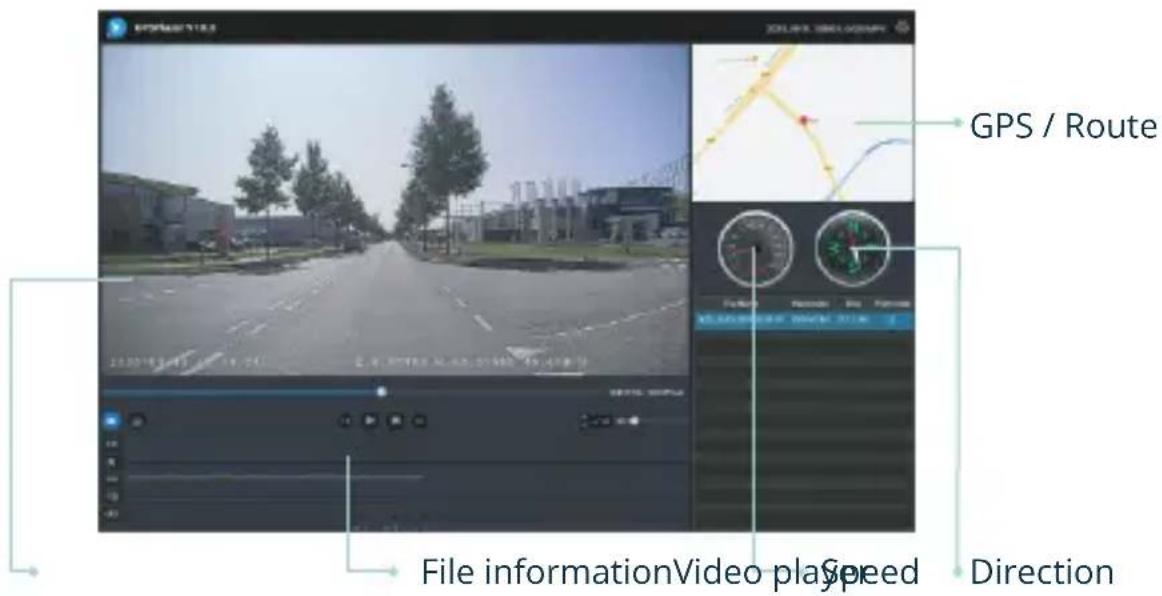
6 Click on "File". Choose the file you want to play and open it. The GPS video player will now start playing the video.
text_image
GPS / Route File informationVideo playSpeed DirectionThe DC101-2K dashcam supports voice control ( ) and features voice guidance ( ) to keep you informed when important events occur.
 | Command What it does | |
| Turn on WiFi To turn on WiFi | ||
| To turn off WiFiTurn off WiFi | ||
| To take a pictureTake picture | ||
| To lock the current video filesLock the video | ||
| To start recordingOpen recording | ||
| To stop recordingTurn off recording | ||
| To open screenOpen screen | ||
| To turn off displayTurn off display |
 | Voice prompt Description |
| Emergency video Activates when G-Sensor is triggered | |
| Wrong / bad / fake memory cardMemory card err | |
| Recording has startedRecording started | |
| Recording has stoppedRecording stopped | |
| Picture is taken“Click”-sound | |
| Format successfully | |
| Memory card is successfully formatted | |
| Format failed | |
| Memory card failed formatting | |
| Parking mode is on | |
| Parking mode is turned on | |
| Parking mode is off |
Note
Both voice control and voice guidance are only available in English.
FREQUENTLY ASKED QUESTIONS
The dashcam does not record or suddenly stops recording.
Check the power supply and/or format the SD card in the camera or a computer.
How do I format the SD card and reset the camera?
To format the SD card, open the app and connect the dascham (if
necessary). Go to "DC101-2K" Stop recording first and then click on

"settings" in the upper right corner. Then click on "Format" to format the SD card.
To reset the camera, press and hold the WiFi button for 8 seconds to set the dashcam to default settings.
I cannot find the dashcam in my WiFi settings.
When your dashcam is connected to your car, start your engine. The dashcam will now also turn on. Make sure that you have WiFi, GPS and Bluetooth enabled on your phone.
The WiFi disconnects automatically.
When you are connected to the dashcam via WiFi, it will automatically turn off after a few minutes (when there is no app activity).
There are horizontal stripes in the recording.
Open the app and go to “settings” in the upper right corner and adjust the frequency based on the power supply (60Hz or 50Hz).
My dashcam does not record in parking mode.
Check whether the parking mode is set correctly, or let an authorized installer check the physical installation. For more information about the installation and software settings, see pages 8, 9 and 15.
How can I change the WiFi password?
Open the app and go to “settings” in the upper right. In the menu, choose “WiFi”. Here you can view and/or change the WiFi data.
I forgot the WiFi password.
If you forgot your WiFi password, you can format the dashcam and reset it to factory settings (see page 6). The password will then reset to the default password: "12345678".
Important: Save important recordings before formatting the SD card.
My recordings are blurry.
Remove the protective lens film and clean the lens with (preferably) a lens cloth. Also, make sure the windshield is clean and clear of grease and dirt.
My recordings have no sound.
Open the app and go to “settings” in the upper right corner and ensure that the “Record Audio” setting is turned on or use the WiFi button on the dashcam by double pressing it. Please note that the Time-Lapse videos recorded in parking mode do not include audio.
My camera automatically turns on and off.
Make sure that the output current can reach 5V / 1A and use the included car charger.
My camera gets hot.
Due to the camera continuously recording at high speed, the dashcam may be hot during use. The camera has an overheating protection at 70^ Celsius.
Video files cannot be played on my computer.
The video files from the dashcam are in MP4 format and may not be compatible with your PC if suitable playback software is not installed. Make sure you have installed the right codecs and software.
My dashcam keeps saying "Memory card error".
Using unqualified SD or third-party cards can affect the dashcam's performance and in some cases, force the dashcam to reboot randomly during recording. Use the official SD card and/or try formatting it in the app.
Is your question not answered?
The FAQs and associated solutions and tips are covered above. Is you question not listed, or the possible solution did not help? Then go to: www.nordval.eu/products-faq/ for more tips, or get in touch with us.
PRODUCT SPECIFICATIONS
| Product name DC101-2K | |
| Color / Size / Weight Black / 10,8 x 3,1 x 6,1cm / 81g | |
| SD card Micro SD, class 10 or higher, up to 128GB | |
| Recording modes | Normal, Time Lapse*, Collision Detection*, Motion Detection* *These are parking modes and require the optional Nordväl Power Kit USB-C to be used. |
| Video resolution | 2560x1440 @ 30FPS 1920x1080 @ 30FPS |
| Viewing angle 140° wide angle lens | |
| Video codec H.264 | |
| Video file format MP4 | |
| Photo file format JPG | |
| GPS Built-in, playback in app or PC with GPS video player | |
| WiFi Built-in, 2,4Ghz | |
| Microphone / speaker Yes / yes (voice control & guidance in English) | |
| USB-C port Built-in | |
| Time & date setting Yes | |
| Loop recording Yes, 1 minute, 3 minutes or 5 minutes | |
| Input 12V-24V cigarette charger / 12V-24V Power Kit USB-C | |
| Power consumption 5V 1A | |
| Battery Built-in super capacitor | |
| Operating temperature | -20°C to 70°C |
| Length USB-C cable | 3.5 meters |
| Warranty | 2 years |
HALLO,
www.nordval.eu/declaration-of-conformity/
Importeur
Email: info@tjmsupplies.nl
Telefoon: +31 85-0402973
KVK nummer: 72016981
BTW nummer: NL858946439B01
natural_image
Line drawing of a portable air conditioner unit with control panel and indicator lights (no text or symbols)INSTALLATIE VAN JE DASHCAM

Waarschuwing
natural_image
Line drawing of a hand inserting a small component into a device (no text or symbols)natural_image
Line drawing of a handheld digital camera with lens and screen (no text or symbols)natural_image
Top-down line drawing of a car interior with seats and dashboard (no text or symbols)natural_image
Illustration of a horizontal air conditioner unit with a circular dial indicator and a rotating arrow (no text or symbols)natural_image
Line drawing of a device with a magnified inset showing a blue component inserted into a square button (no text or symbols)5 Plug de 12V voedingskabel in de sigarettenaansteker van de auto en plug de kabel in de dashcam.
Notitie
natural_image
Illustration of a hand holding a blue tool next to a row of metallic cylindrical components (no text or symbols visible)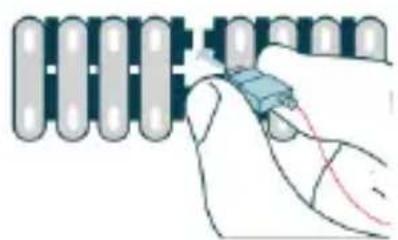
natural_image
Illustration of a hand holding a small electronic component with red wiring, next to a row of cylindrical components (no text or symbols visible)natural_image
Illustration of a hand holding a blue tool next to a row of electronic components (no text or symbols visible)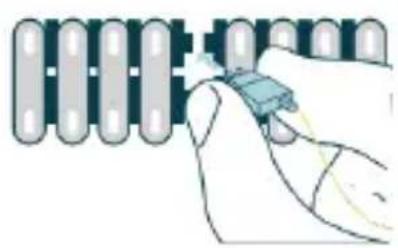
natural_image
Illustration of a hand holding a small electronic component next to a row of cylindrical components (no text or symbols visible)natural_image
Technical line drawing of a fork and screw assembly (no text or symbols)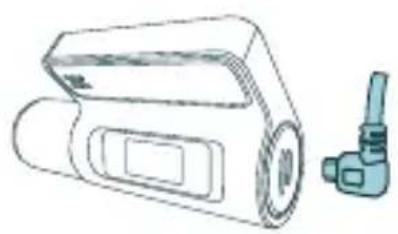
natural_image
Line drawing of a portable air conditioner unit with a side-mounted sensor (no text or symbols)VERBINDEN MET DE APP
text_image
QR code image containing encoded data, no visible human-readable textApp Store
text_image
QR code image containing encoded data, no visible human-readable textGoogle Play Store

Notitie

text_image
Live held Open area 100 Open area Global resolution Options mode Preview Video resolutions1
text_image
Appraisal oportes Options Foto Normal Event 2023-07-12 Download2
text_image
Koos DC101-2K Local Video Update-New Version About3
text_image
Screenshot of a car navigation system interface showing street view and map with location markers4
text_image
Park name: Lapa Ut Time: Lapa park name Despotans park name Reserve agalacta park nameflowchart
graph LR
    A["528GB 5B Card"] --> B["10C card heater"]
    B --> C["70C card heater with port D"]
    C --> D["70C card heater with port D"]
natural_image
Line drawing of a portable air conditioner unit with control panel and indicator lights (no text or symbols)natural_image
Line drawing of a hand inserting a small component into a device (no text or symbols)natural_image
Line drawing of a digital camera with lens and screen (no text or symbols)natural_image
Top-down line drawing of a car interior showing seats and dashboard (no text or symbols)natural_image
Diagram of a device with a circular button and a rotating arrow, no text or symbols present.natural_image
Line drawing of a handheld device with a magnified inset showing a small component (no text or symbols)natural_image
Illustration of a hand holding a blue tool near a grid of rectangular blocks (no text or symbols visible)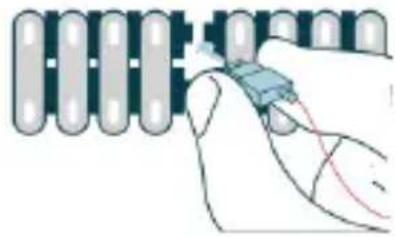
natural_image
Illustration of a hand holding a small electronic component with a blue connector (no text or symbols visible)natural_image
Illustration of a hand holding a tool interacting with a grid of circular components (no text or symbols visible)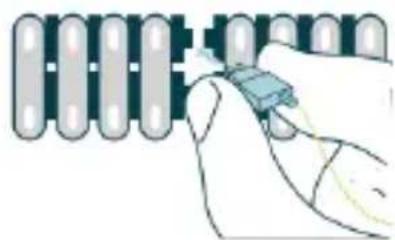
natural_image
Illustration of a hand holding a small electronic component next to a row of cylindrical components (no text or symbols visible)natural_image
Technical line drawing of a mechanical component with a fork and screw (no text or symbols)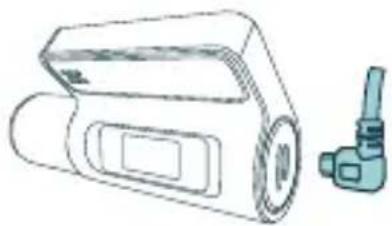
natural_image
Line drawing of a portable air conditioner unit with a side-mounted hose (no text or symbols)VERBINDEN MIT DER APP
text_image
QR code image containing encoded data, no visible human-readable textApp Store
text_image
QR code image containing encoded data, no visible human-readable textGoogle Play Store

Hinweis

text_image
Screenshot of a car dashboard navigation interface showing street view and map with location markers4
Collision Detection Parking Mode
Motion Detection Parking Mode
Voice control & guidance 71
DÉCLARATION DE CONFORMITÉ
Information produit
Pour la suite
Produit: Dashcam
Type:
DC101-2K
www.nordval.eu/declaration-of-conformity/
Importateur
Entreprise: TJM Supplies B.V.
Adresse:
Zompstraat 8
8102
HX
Raalte
les
Pays-Bas
Email:
info@tjmsupplies.nl
QU'Y A-T-IL DANS LA BOITE
natural_image
Line drawing of a portable air conditioner unit with control panel and indicator lights (no text or symbols)natural_image
Line drawing of a hand inserting a small component into a device (no text or symbols)natural_image
Line drawing of a digital camera with lens and screen (no text or symbols)natural_image
Top-down line drawing of a car interior showing dashboard and seat compartments (no text or symbols)natural_image
Diagram of a horizontal device with a circular button and a rotating arrow, no text or symbols present.natural_image
Illustration of a medical device with a magnified inset showing a connector detail (no text or symbols)natural_image
Illustration of a hand holding a blue tool next to a row of metallic components (no text or symbols visible)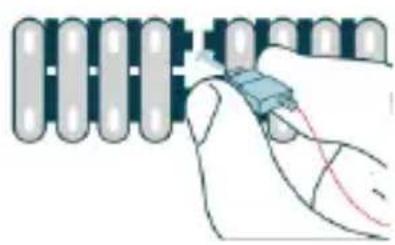
natural_image
Illustration of a hand holding a small electronic component with wires, next to a row of cylindrical components (no text or symbols visible)natural_image
Illustration of a hand holding a tool interacting with a grid of rectangular blocks (no text or symbols visible)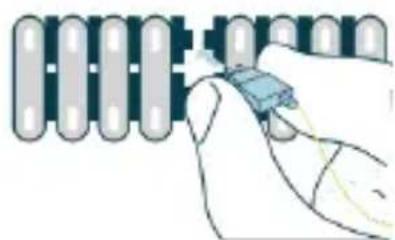
natural_image
Illustration of a hand inserting a component into a grid-like structure (no text or symbols)natural_image
Technical line drawing of a mechanical component with a fork, screw, and circular features (no text or symbols)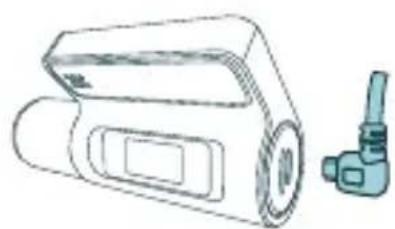
natural_image
Line drawing of a portable air conditioner unit with a side-mounted handle (no text or symbols)CONNEXION À L'APPLICATION
text_image
QR code image containing encoded data, no visible human-readable textl'App Store
text_image
QR code image containing encoded data, no visible human-readable textGoogle Play Store
text_image
Karam DC101-2K Local Video Update(APP) About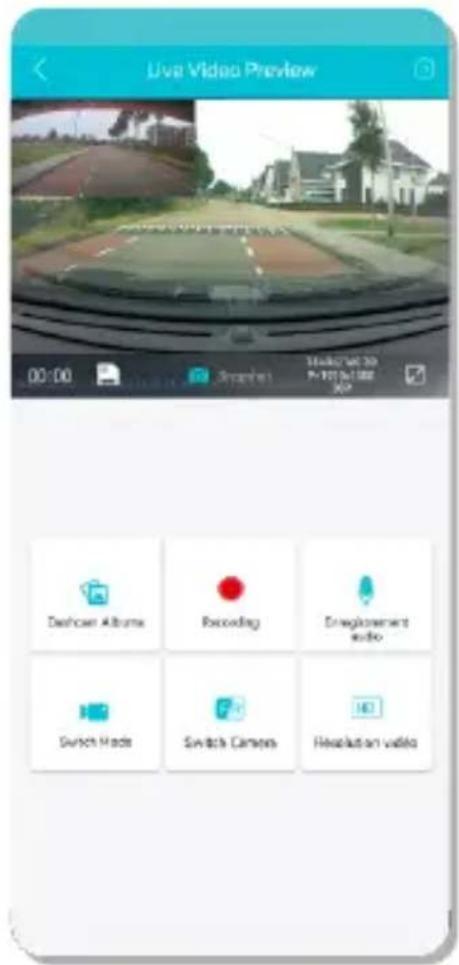
text_image
Live Video Preview 00:00 Shareup Market at 30 Price at $1.00 Dashboard Albums Recording Enrollment Audio Switch Hads Switch Camera Translation video
Noter

OPTIONS DE L'APPLICATION
Général
Capturer une image
text_image
Live Video Preview Diaphora in 600 ums Receiving Emegobromont out is Switch Mode Switch Camera Resolution videoRecording/Stop
text_image
Live Video Preview 00:00 Shukh Make Shukh Make Shukh Camera Reticulation Dishwasher Albums Reputing Unregulated shukh Make Shukh Camera Reticulation1
text_image
Device Album Photo Normal Diver 2023-07-12 Download Deleter2
text_image
Koscam DC101-2K Local Video Update APP About3
text_image
Screenshot of a car navigation system showing street view, location markers, and map with red location pin4
Set the impact sensitivity of the G-sensor for Event recordings.
Collision Detection Parking Mode
Motion Detection Parking Mode
SPÉCIFICATIONS DU PRODUIT
Your smart technology friends.
text_image
NORDVÁLNORDVÄL
Smart technology