
KH1490 - Laser Engraver Vevor - Free user manual and instructions
Find the device manual for free KH1490 Vevor in PDF.
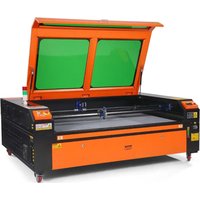


| Product Type | CO2 Laser Engraver |
| Brand | Vevor |
| Model | KH1490 |
| Laser Power | 130 W |
| Total Power | 900 W |
| Input Voltage | 120 V AC / 230 V AC |
| Working Area | 1400 x 900 mm |
| Laser Type | CO2 (glass tube) |
| Cutting Speed | 0 – 400 mm/s |
| Engraving Speed | 0 – 500 mm/s |
| Compatible Materials | Wood, acrylic, glass, leather, plastics (except PVC), stone, textile, rubber, cardboard |
| Cooling System | Water cooling (integrated pump) |
| Extraction System | Exhaust fan (hose provided) |
| Connectivity | USB, Ethernet, USB flash drive |
| Control Panel | LCD screen, directional keys, pulse button |
| Safety | Emergency stop, lid lock, water cutoff, grounding |
| Included Accessories | Power cables, USB, Ethernet, USB flash drive with software, exhaust hose, cleaning tools, Allen keys |
| Maintenance | Daily cleaning of lens and mirrors, rail lubrication every 2 weeks, drain and refill distilled water |
Frequently Asked Questions - KH1490 Vevor
User questions about KH1490 Vevor
0 question about this device. Answer the ones you know or ask your own.
Ask a new question about this device
Download the instructions for your Laser Engraver in PDF format for free! Find your manual KH1490 - Vevor and take your electronic device back in hand. On this page are published all the documents necessary for the use of your device. KH1490 by Vevor.
USER MANUAL KH1490 Vevor
Technical Support and E-Warranty Certificate www.vevor.com/support
LASER ENGRAVING MACHINE
INSTRUCTION MANUAL
MODEL: KH5030/KH6040/KH7050/KH906/KH1490
KH-5030/KH-6040/KH-7050/KH-906/KH-1490
We continue to be committed to provide you tools with competitive price. "Save Half", "Half Price" or any other similar expressions used by us only represent estimate of savings you might benefit from buying certain tools with us compared top brands and does not necessarily mean to cover all categories of tools offered are kindly reminded to verify carefully when you are placing an order with us actually saving half in comparison with the top major brands.
VEVOR®
TOUGH TOOLS, HALF PRICE
LASER ENGRAVING MACHINE
MODEL: KH5030/KH6040/KH7050/KH9060/KH1490
KH-5030/KH-6040/KH-7050/KH-906/KH-1490
NEED HELP? CONTACT US!
Have product questions? Need technical support? Please feel fr contact us:
Technical Support and E-Warranty Certificate www.vevor.com/support
This is the original instruction, please read all manual instruction carefully before operating. VEVOR reserves a clear interpretation user manual. The appearance of the product shall be subject to product you received. Please forgive us that we won't inform you there are any technology or software updates on our product.
 | Warning-To reduce the risk of injury, user must read instructions manual carefully. |
 | This device complies with Part 15 of the FCC Rules. is subject to the following two conditions:(1)This device not cause harmful interference, and (2)this device must any interference received, including interference that may cause undesired operation. |
 | This product is subject to the provision of European D 2012/19/EC. The symbol showing a wheelie bin crossed through indicates that the product requires separate refu collection in the European Union. This applies to the p and all accessories marked with this symbol. Products as such may not be discarded with normal domestic w must be taken to a collection point for recycling electri electronic devices |
IMPORTANT NOTES
CO2 laser engraver is suitable for both personal and professional When used in accordance with these instructions, it includes a Class laser system, but some components are still very dangerous. Never disable pre-in-stalled safety equipment and always use the laser safely responsibly.
Before operating the equipment, the user must carefully read the operation manual and strictly abide by it. This manual is applicable to multiple models of products.
●This equipment uses international standard four types of lasers (stror laser radiation). Laser radiation may cause the following events:
- ignite surrounding combustibles.
- During the laser processing, due to different processed objects, or radiation and other toxics may be generated Harmful gas.
- Direct laser radiation may cause personal injury. Therefore, the equipment must be equipped with fire-fighting equipment. It is strict forbidden to stack flammable and explosive materials on the workbench and around the equipment. At the same time, ensure ventilation. Non-professional operators are not allowed to approach the equipment.
●Laser processing objects and emissions should comply with local law and regulations.
●Laser processing may have high risks, so you should carefully consider whether the object is suitable for laser processing.
- The internal laser equipment has high voltage and other dangers, e> for equipment operators, it is strictly prohibited to disassemble.
- When the equipment is turned on, someone must be guarded, unauthorized leaving is forbidden, and all power must be cut off bef personnel leave.
●It is forbidden to open any door when the equipment is working.
- Before starting operation, this equipment and other equipment must be safely and effectively grounded.
- Do not place any irrelevant total reflection or diffuse reflection ob-
jects in the equipment to prevent the laser from being reflected on human body or flammable objects.
●During the operation of the equipment, the operator must always observe the operation of the equipment. If an abnormal situation occurs please immediately.
●The equipment should be in a dry, pollution-free, vibration-free and s electromagnetic interference environment, with a working temperature 5-40 degrees Celsius and a humidity of 5-95%(non condensing water environment).
●The equipment should always be far away from electrical equipment sensitive to electromagnetic interference, otherwise it may cause electromagnetic interference.
●The working voltage of the device is: European AC220V or North American AC120V (please confirm the working voltage of the device before use).
- The most important carbon dioxide glass laser in the equipment is a consumable and a vulnerable item. Please take care of it during us carbon dioxide glass laser needs pure cold water to cool down Ple pay attention to the water temperature not to exceed 30 degrees C during use, otherwise the laser will be damaged. When the am-bien temperature is about to drop below 0 degrees Celsius, please re-play with an antifreeze liquid to avoid damage to the carbon dioxide gla laser.
- It is forbidden to turn on the equipment when the grid voltage is up or mismatched. The manufacturer and seller are not responsible for loss caused by incorrect use or non-compliance with the above regulations.
BASIC INFORMATION
This manual is a designated user guide engraver for cabinet laser installation, setup, safe operation, and maintenance. Covers general information, safety instructions, installation steps, operating instructions, maintenance procedures, and contact information.
All personnel involved in the installation, setup, operation, maintenance and repair of this machine should read and understand this manual, especially its safety instructions. Some components have extremely high voltages and/or generate powerful laser radiation. Substandard performance and longevity, property damage, and personal injury can result from not understanding and following these instructions.
Your laser engraver works by emitting a powerful laser beam from a glass tube filled with insulating carbon dioxide (CO2), reflecting that beam off three mirrors and reflecting it through a focusing lens, and using focused light to etch the design onto certain substrates. The first mirror is fixed near the end of the laser tube, the second mirror travels along Y-axis of the machine, and the third mirror is attached to the laser traveling along the X-axis. Since some of the dust from the engraving process settles on the mirror, it needs to be cleaned frequently. Since move during operation, they also need to be readjusted periodically with the set screws to which they are attached to maintain the correct laser path. A water-cooled system (usually a pump or cooler) must be used with this engraver to dissipate the heat generated by the laser tube. Similarly, exhaust system (usually an external vent or a dedicated air purifier) must be used to remove the dust and gases generated during the engraving process.
Running your laser consistently above 70% of its maximum power rating will significantly shorten its lifespan. It is recommended to set at 10-70% of the maximum rated power for optimal performance and longevity
Please note that this is a high-voltage device and for safety reasons, it is recommended to only touch its components with one hand at a time during use.
Note that active lasers are invisible to the human eye. This applies
should not be used with any lid open to avoid potential permanent air. It should also be noted that both the cooling water system and the system are absolutely necessary for the safe use of this equipment. I operate the engraving machine without these two systems functioning properly. The water should always be clean and kept around room temperature, and the exhaust system should always comply with all la and regulations applicable to the workplace and ambient air quality.
SYMBOL GUIDELINES
The following symbols are used on the label of this machine or in manual:

●These items carry a risk of serious property damage or personal inj
●These projects solve similar serious problems related to laser beams
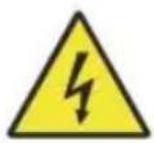
●These projects solved similar serious problems with electrical components.

●Anyone around the unit should wear protective glasses during operat
INTENDED PURPOSE
●The machine is suitable for engraving logos and other consumer products on applicable substrates. This laser can process a variety of materials, including wood and cork, paper and cardboard, most plastic glass, cloth and leather, and stone. It can also be used with some specially coated metals. Use of this system for purposes or material other than those for which it is specified is not permitted.
●The system must be operated, maintained, and repaired by a person is familiar with the field of use and hazards of the machine and e materials, including its reflectivity, electrical conductivity, potential for i production of harmful or combustible fumes, etc.
●Laser beams are dangerous. The manufacturer and/or seller shall no liable for any improper use of this device or for any damage or in resulting from use. It is the operator's obligation to use this cabinet engraver only in ac-cordance with its intended use, other instructions the manual, and all applicable local and national laws and regula-tic
SPECIFICATIONS
| Model | KH5030 | KH6040 | KH7050 | KH9060 | KH1490 |
| KH-5030 | KH-6040 | KH-7050 | KH-9060 | KH-1490 | |
| Input voltage | AC 120V | AC 120V | AC 120V | AC 120V | AC 120V |
| AC 230V | AC 230V | AC 230V | AC 230V | AC 230V | |
| Total power | 420W | 560W | 680W | 830W | 900W |
| Laser power | 50W | 60W | 80W | 100W | 130W |
| Working area | 500*300mm | 600*400mm | 700*500mm | 900*600mm | 1400*900mm |
| temperature | 5-50 °C | ||||
| humidity | 5%-95% non-condensate | ||||
| Laser type | CO2 glass lasers | ||||
| Laser model | KH-LT50 | KH-LT60 | R3 | R5 | R7 |
| Material | Stone, wood, ceramic, metal, cloth, paper, etc | ||||
| Workbench | Cellular platform | ||||
| Cutting speed | 0-400mm/s | ||||
| Engraving speed | 0-500mm/s | ||||
MAIN COMPONENTS AND DESCRIPTIONS
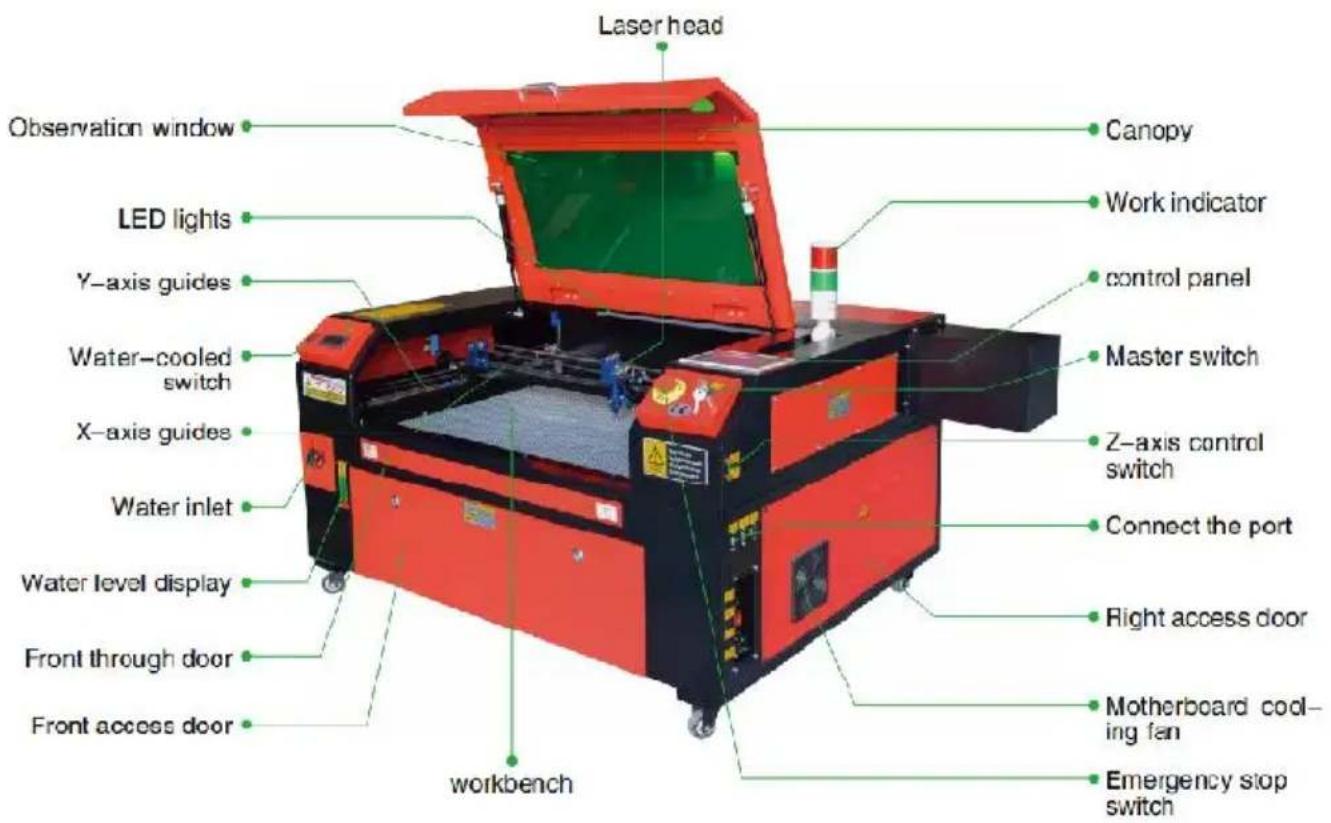
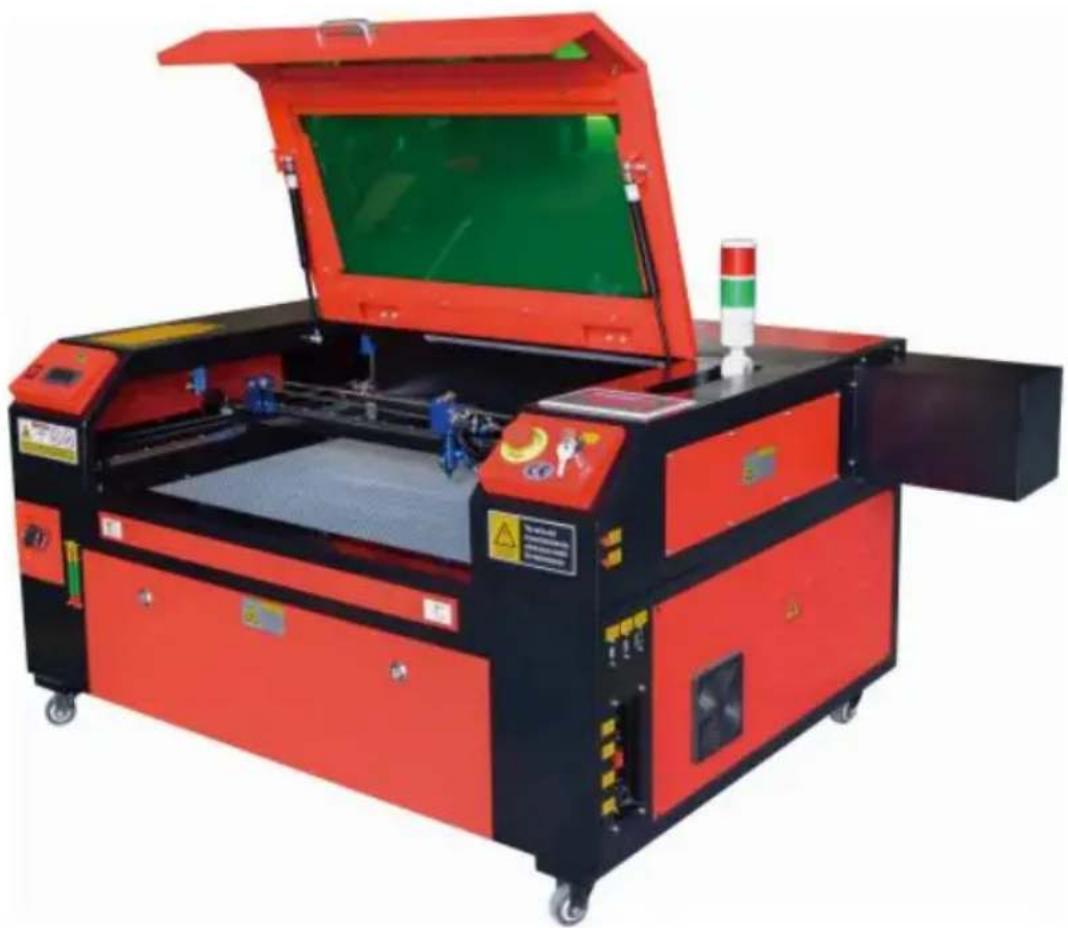
- Schematic diagram of the part.
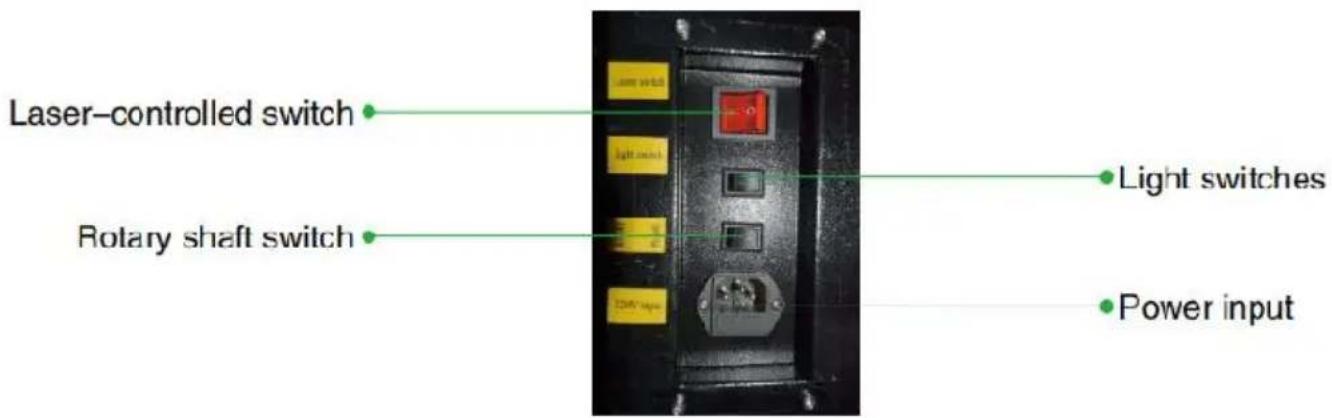
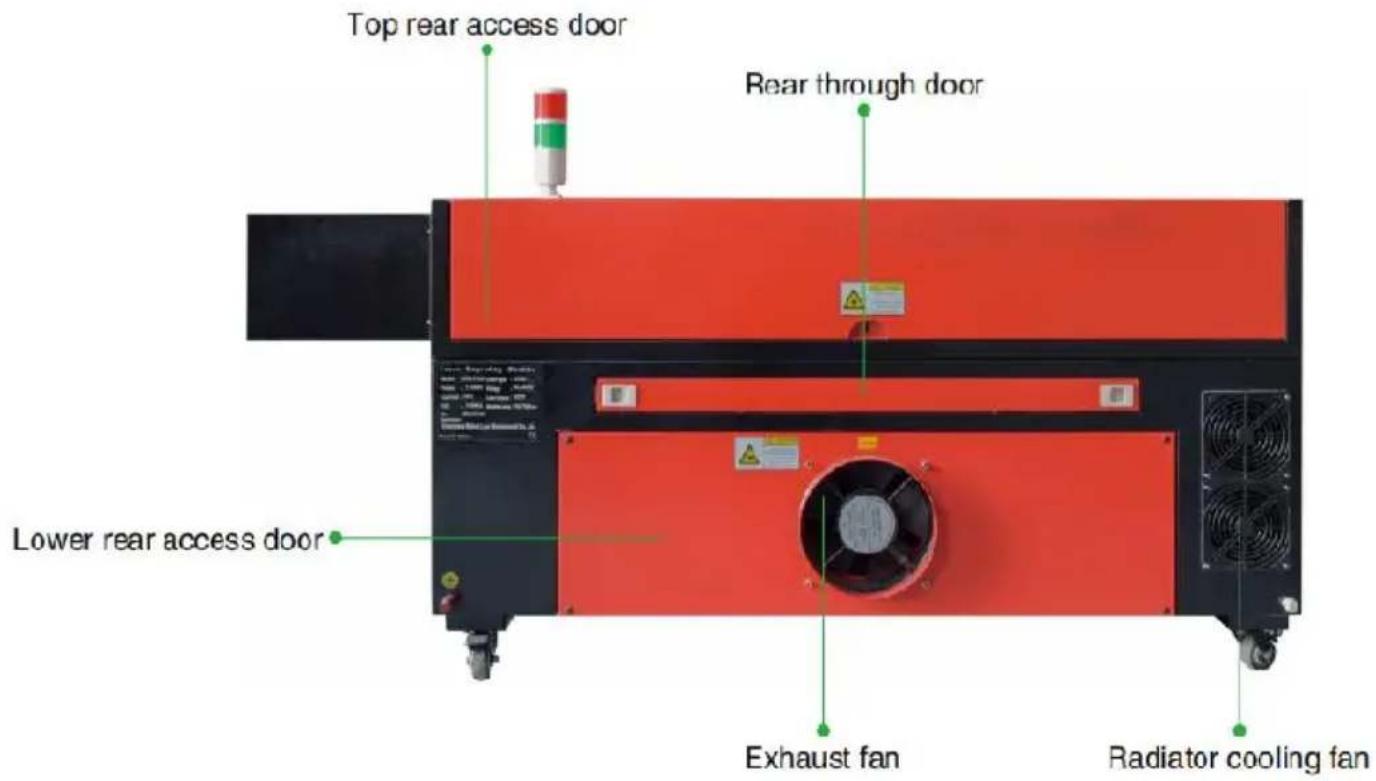
- Part Description.
- Viewing window: This tan acrylic window allows you to monitor the engraving process, but only partially absorbs the high infrared laser has no other protection. Always wear glasses when using the Prote Observation Active Laser and never stare at it for long periods of
●LED Light: This light green light illuminates the workbench for a cle view of the material engraving before, during, and after work.
●Y-axis guides: Y-axis guides allow X-axis guides to move back and on the table.
●Water cooling switch: After the switch is activated, the built-in water cooling starts, and the real-time temperature display lights up.
●X-Axis Rail: The X-axis rail holds the second mirror and supports the laser head to move left and right.
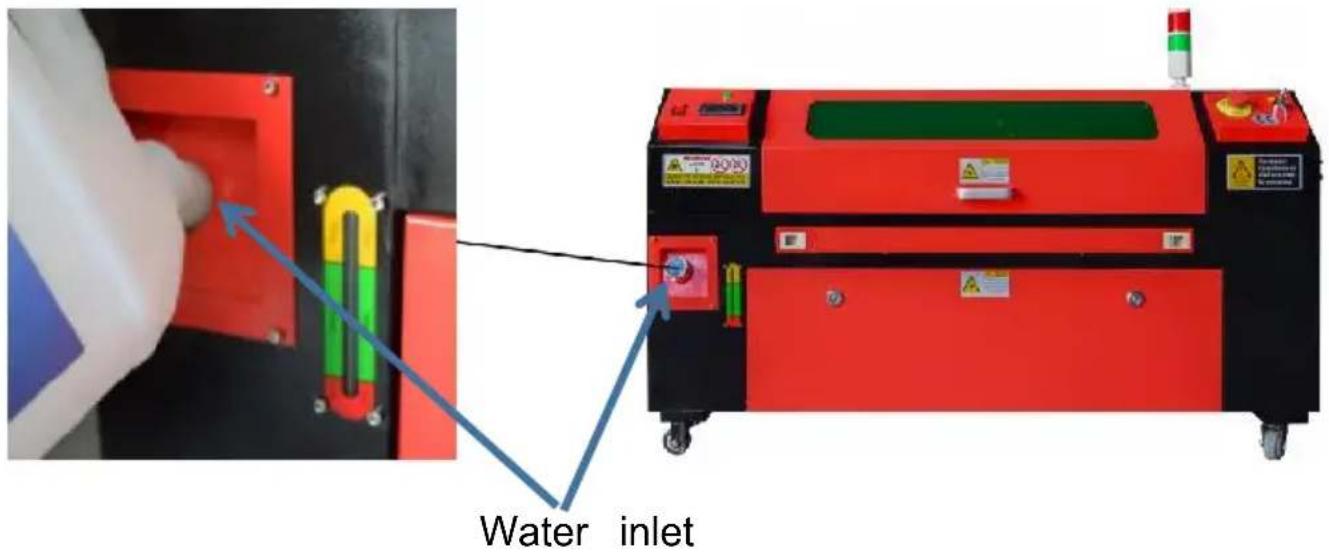
●Water inlet: This is used to unscrew the lid counterclockwise when the built-in circulating water tank.
●Water level display: This observation port can be used to observe water level of the water tank in the fuselage. (yellow: too high / g suitable / red: too little).
●Front Straight Door: This door opens to allow larger materials to pa through the work bed. Extreme care must be taken to avoid seeing
suffering from the laser beam and its reflections. This is also where accessory bag was when the engraver first arrived.
●Front Access Door: This door provides access to the area below the bench for easy cleaning.
- Canopy: The lid provides access to the main bracket for placing an retrieving materials, as well as fixing laser path alignment and other maintenance. When the lid is opened, the power of the laser is automatically cut off.
●Working indicator: It can help the operator to better observe the las emission status, red light: laser working, green light: laser idle.
●Control Panel: The control panel provides manual control of the engraving process, including the movement of the manual laser head and the emission of the laser.
●Main switch: control the total power switch of the whole machine.
●Z-Axis Control Switches: These buttons move the table up or down help you quickly adapt and focus on the various thicknesses of the
- Connection Ports: These ports connect the main board of the engrav machine to the control computer and its engrav-ing software via a or Ethernet cable.
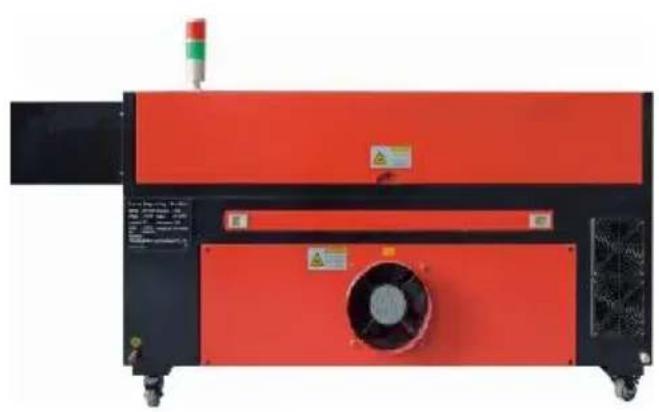
●Right Access Door: This door provides access to the motherboard, r drivers, and power supply. The vents prevent the components from overheating during use and should not be obstructed.
- Motherboard cooling fan: This fan is used for heat dissipation of co appliances such as built-in motherboards and laser power supplies.
●Emergency Stop Switch: In case of emergency, this button will immediately cut off all power to the laser tube.
●Laser Head: The laser head holds the 3rd mirror, focusing lens, rec guidance, and air assist outlet.
●Table: Table height can be adjusted to accommodate thinner and th materials, as well as between aluminum and cellular platforms.
●Laser Control Switch: This switch must be turned on when using a
●Light switch: Turn on the light on the workbench.
●Rotary axis switch: This switch must be turned on when using the axis (off when the rotary axis is not in use), if the Y axis is not
check if this switch is off.
●Power Input: This power connector must be connected before using machine.
●Top Rear Access Door: This door leads to the laser bay where the tube and its connections are secured.
●Rear Door: This door is the equivalent of a front door and requires care during use.
●Lower Rear Access Door: This door provides access to the air assi pump and Z-axis belt.
●Exhaust fan: This fan extracts gas and debris from the air from the workbench and sends the air out after being purified by an eco-friend filter.
●Water Tank Cooling Fan: This fan is used to cool the circulating w
- Laser path description.
A. Laser tube: This glass tube filled with carbon dioxide is mounted bracket and cannot be moved. The connection voltage between it the laser power supply is extremely high and extremely dangerous. B. First reflector — This adjustable angle mirror is held in place to transfer the engraving laser from the tube to the second mirror.
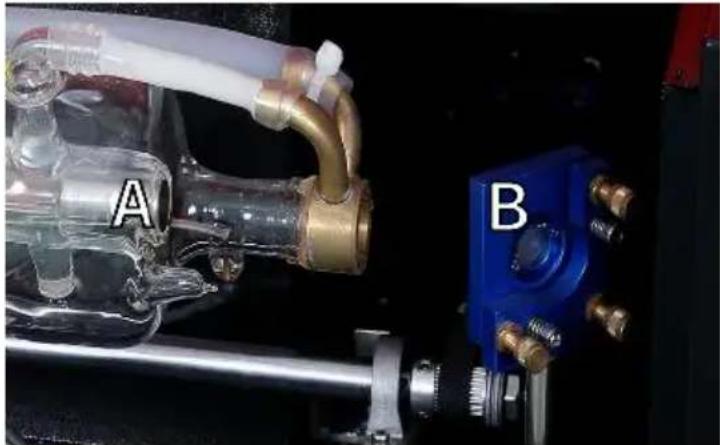
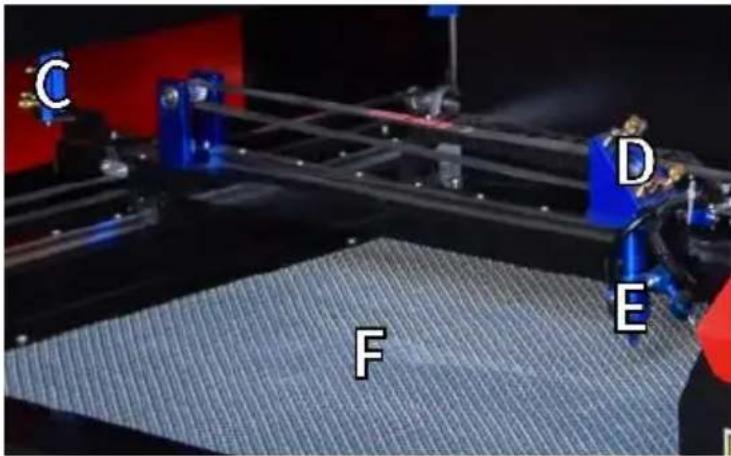
C. Second mirror: This adjustable angle mirror moves along the X-axis guide to allow the laser beam to travel along the Y-axis.
D. Third mirror: This angle-adjustable mirror moves with the laser head allowing the laser beam to travel along the X-axis.
E. Focusing Lens: This lens directs and focuses the laser light onto material.
F. Workbench:The height of the exposed workbench can be adjusted
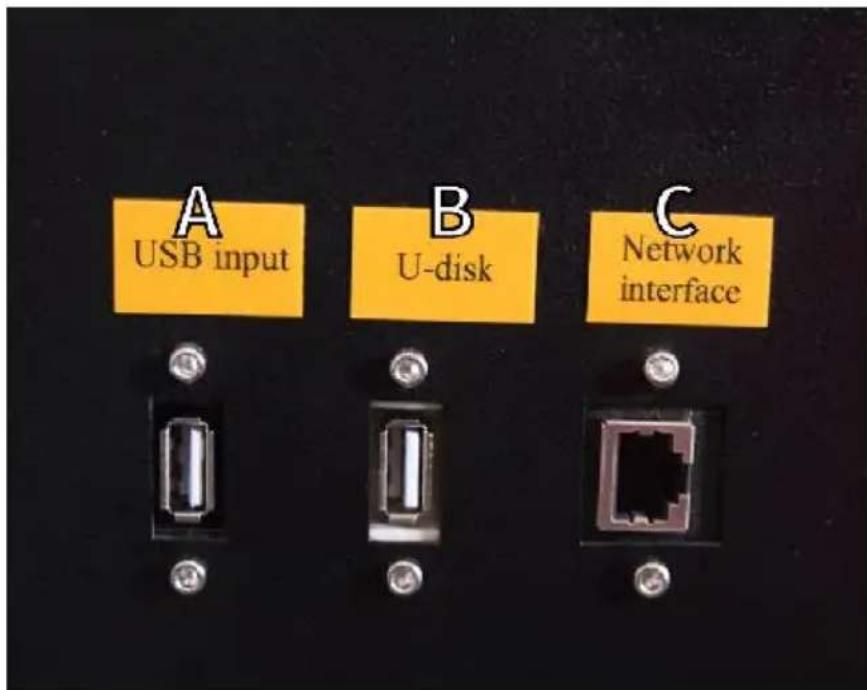
- Connect the inputs.
A. USB Line Port: This port uses any of its USB ports to connect control computer and its engraving software.
B. USB Port: This port allows you to load and save designs and parameters directly to the engraver.
C. Ethernet port: This port connects directly or via the Internet to the control computer and its software.
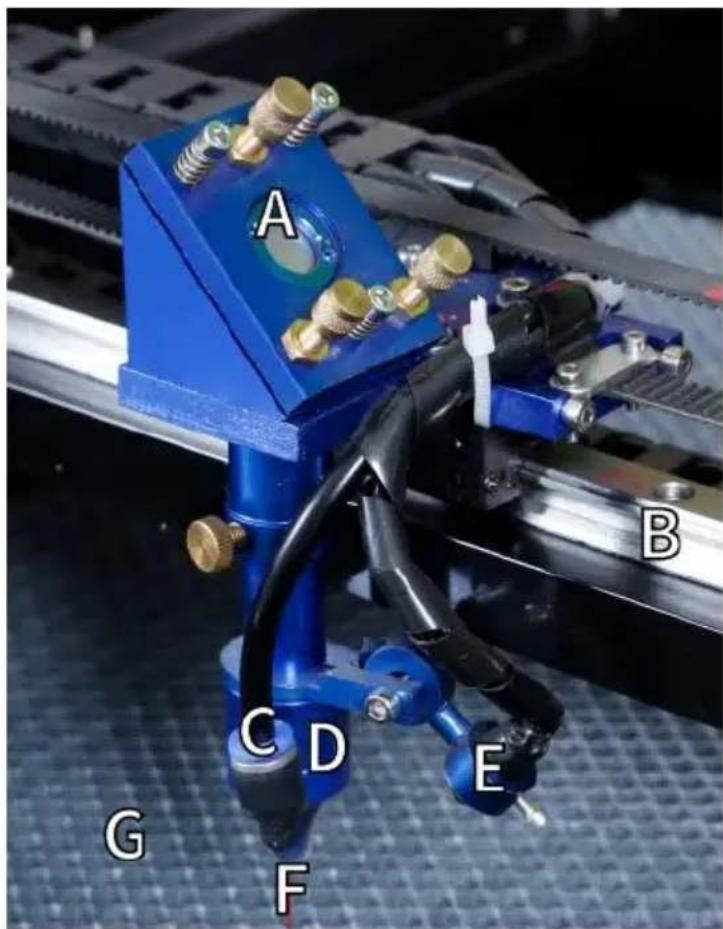
- Laser head assembly.
A. Laser Head Third Mirror: This angle-adjustable mirror transmits light from the second mirror to the focusing lens.
B. X-axis guide: This guide moves along the Y-axis, and its movement controlled by a limit switch.
C. Air Assist: This device blows pressurized air to kill sparks and away gases and debris while engraving.
D. Focusing Lens: This lens directs and focuses the laser beam to point of contact with the engraving material.
E. Red Dot Pointer: This device helps you see the exact location of invisible engraving laser.
F. Laser: The engraving laser itself is invisible, but very dangerous. A direct contact with skin or eyes.
G. Workbench: Use the acrylic tools provided to achieve the perfect focus for any thickness of material.
6.Right access door.
A. Motherboard: This board controls the engraving process and responds to com-mands from the engraving software or the machine's control panel.
B.X-axis driver: This device moves the laser head along the X-rail.
C.Y-axis drive: This device moves the X-rail along the Y-rail.
D. Laser Power: This device converts standard electricity into the extremely high voltage charge required for a laser tube.
E. Power Supply—This device powers the machine's motherboard and drives.
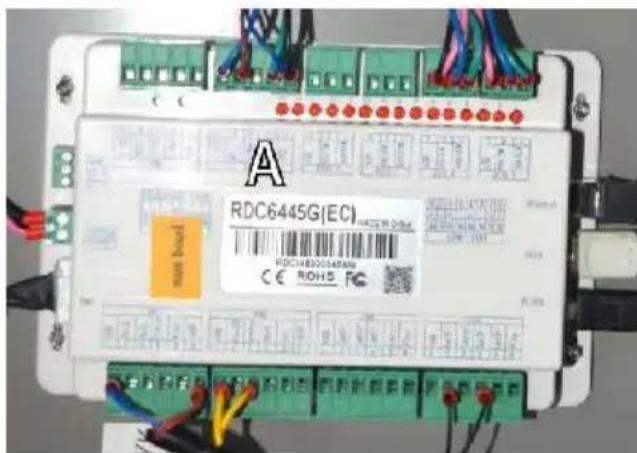
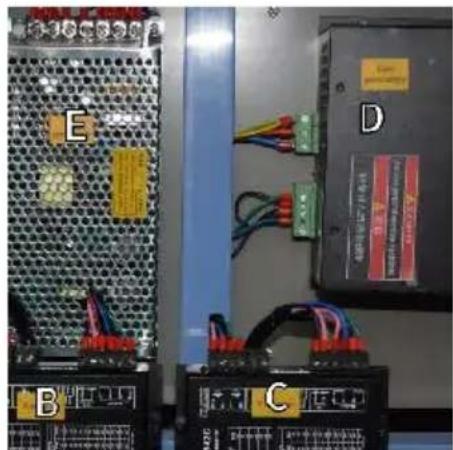
- Laser power supply.
A. High-voltage wire: This wire is connected to the anode or positive of the laser tube and provides high-voltage current to power the
B. Mounting Holes: These standard slots allow for simple installation removal.
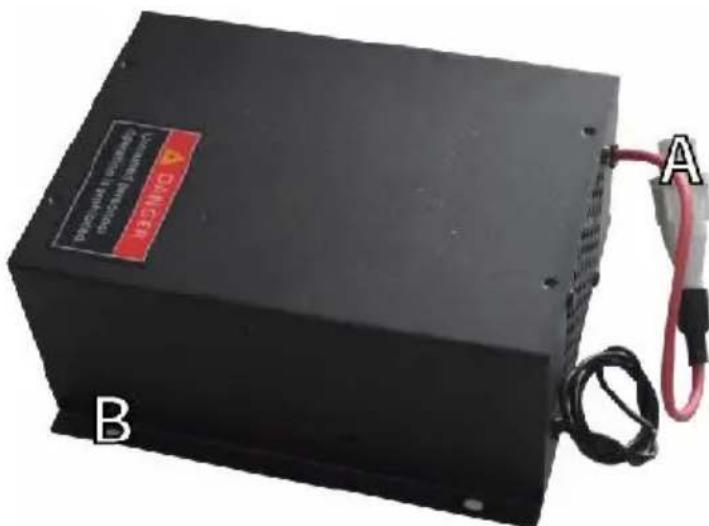
8. Control the display.
- Button description
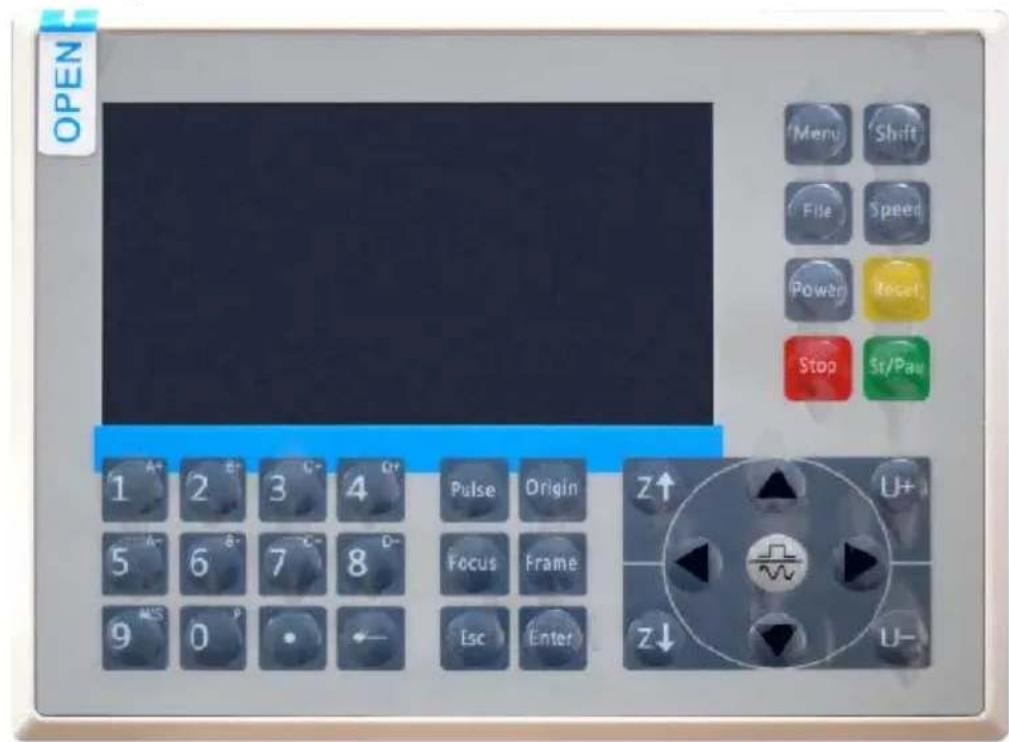

Reset button: System reset

Stop button: Stop machining or motor shaft movement

Delete key: This parameter is used to delete the parameter

Anchor key: Set the anchor point

Point Shot Button: The laser tube is pointed at the light

OK key: Used for user confirmation

Autofocus key: Automatically finds the locus point

Speed key: Sets the current machining speed value


Z-axis key: Used to move the Z-axis


U-axis key: Used to move the U-axis

Start/Pause key: Start work or pause/restart work

Decimal Point: Used to set parameters with decimals

Power button: Set the current maximum and minimum power values

Jog/Continuous Key: Jog motion and continuous motion switching

Toggle keys: Combine with number keys to form key combinations, or toggle special functions

Exit key: Used to return to the previous menu cancel parameter settings, etc

Menu keys: user parameters, manufacturer parameters language settings, etc

Border Key: Performs a boundary traversal operation on the file being processed

File Keys: Memory file and USB flash drive file management

D-pad: Used to move options when setting parameters in the menu
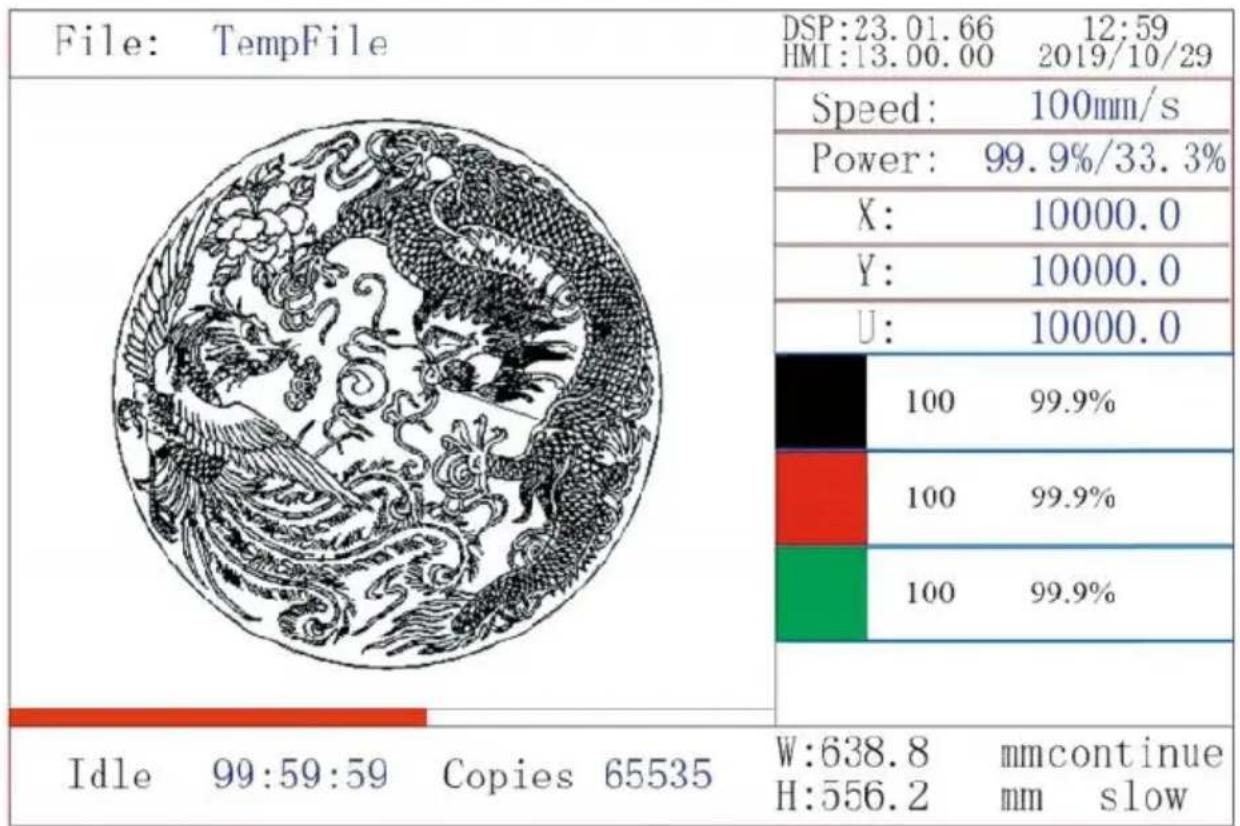
- Display description
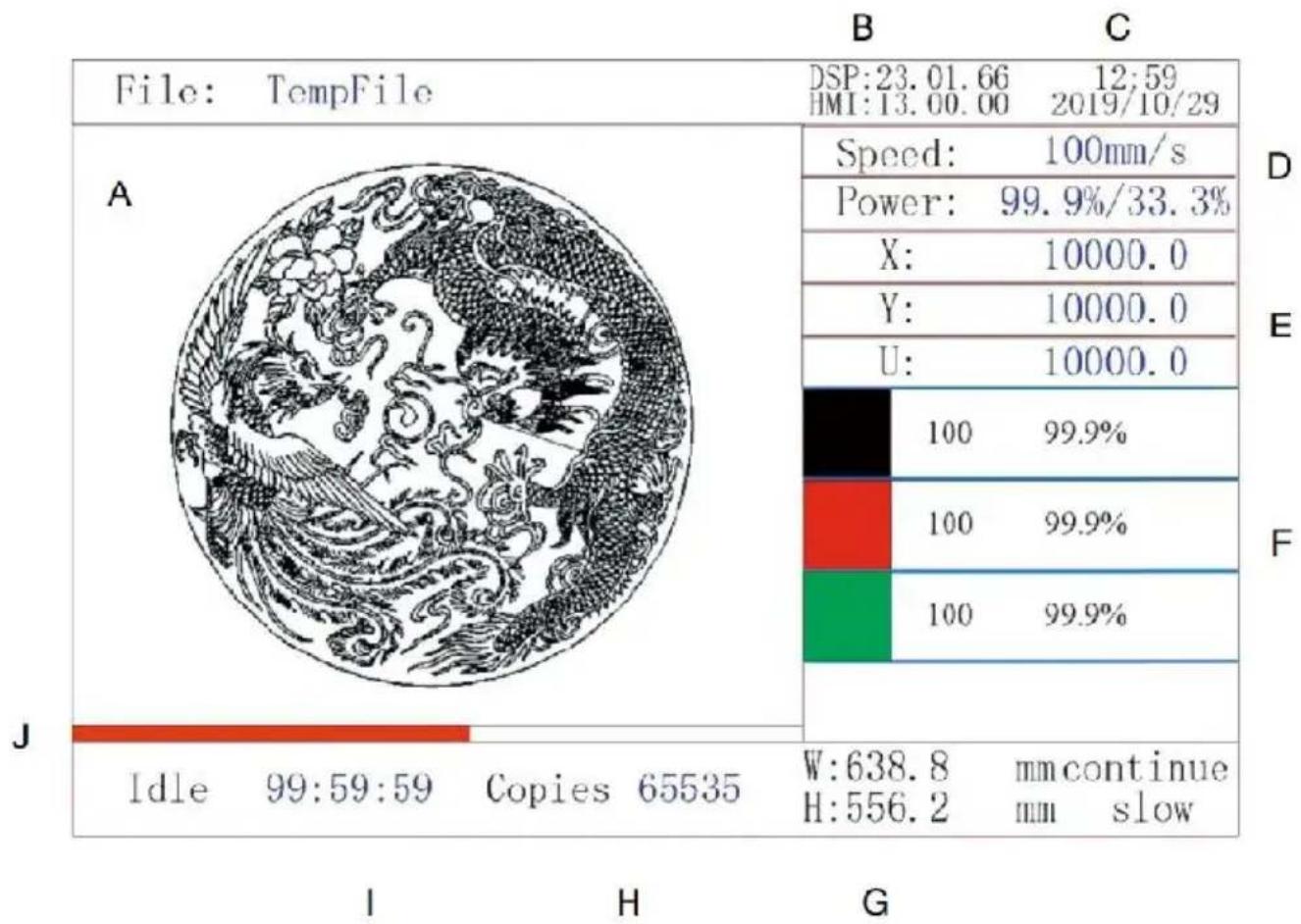
A. Graphical display area: Displays the track and running track of the entire file.
B. Version Number: Displays the version number of the panel and motherboard.
C. System Time: Displays the current system time.
D. Parameter display area: display the file number, speed, maximum power, etc. of the running file.
E. Coordinate Display Area: Displays the current coordinates of the la head.
F. Layer Display Area: Displays the layer parameters of the current display preview file. The parameters from left to right are the number of layers, color, speed, and maximum power.
G. Frame Size Processed: Displays the dimensions of the current file.
H. Number of Pieces: Displays the count of completed runs for the file.
I. System Status: Displays the current status of the machine: idle, run paused, or completed. The processing time is shown on the right. J. Processing Progress Bar: Displays the progress of the current file.
Note: When the system is idle or when the work is complete, all but are used. Users can work on files, set parameters, preview files, and Some buttons will not work when the work is running or paused (for example, origin and frame).
SAFETY INFORMATION
1. DISCLAIMER OF WARRANTIES
Your engraver may be slightly different from the one shown in this manual due to options, updates, etc. If your engraving machine comes an outdated manual or you have any other questions, please contact
2.GENERAL SECURITY NOTICE
Your device should have an instruction label attached in the following locations:
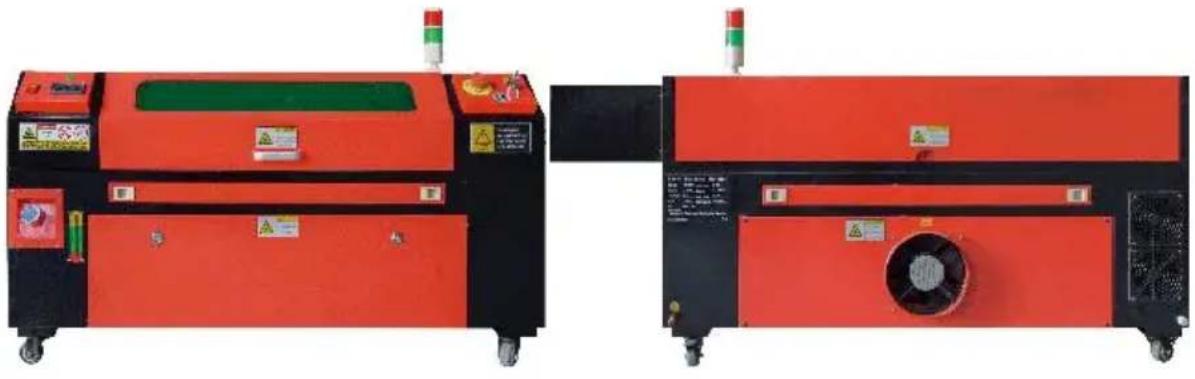
- If any of these tags are missing, illegible, or damaged, they must be replaced.

- Use this laser engraving device only in accordance with all applicable local and national laws and regulations.
- Use this appliance only in accordance with this instruction manual. Others who have read and understood this manual are allowed to operate, maintain, repair, etc. If this device has been given away to a third party, make sure this manual is included with this device
- Do not run continuously for more than 3 and a half hours. Stop for 30 minutes between uses.
- Do not leave this device unattended during operation. Observe the equipment throughout the operation, if there is any abnormal operation cut off all power to the machine immediately, and contact our customer service or your specialized repair service. Again, make sure the appliance is completely turned off after each use (including via the emergency stop switch).
- Do not allow minors, untrained personnel, or persons with physical or mental disabilities that would interfere with their ability to follow this manual and software manuals to install, operate, maintain, or repair equipment.
●Any untrained personnel who may be in close proximity to the equipment while operating must be informed that the equipment is dangerous as given adequate instructions on how to avoid injury during use.
●Always place fire extinguishers, water pipes, or other flame retardant systems nearby to prevent accidents. Make sure the phone number the local fire department is clearly displayed nearby. In the event of cut off the power supply before extinguishing the flames. Before use familiarize yourself with the correct range of the fire extinguisher. Be careful not to use the fire extinguisher too close to the flame, as pressure can create a backlash.
3. LASER SAFETY INSTRUCTIONS.
When used as directed, the machine includes a Class 1 laser system that is safe for both users and bystanders. However, invisible lasers, tubes, and their electrical connections are still very dangerous. They cause serious property damage and personal injury if not used or mo
with care, including but not limited to the following:
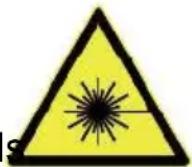
● Lasers can easily burn nearby combustible materials
●Some working materials may produce radiation or harmful gases during Processing.
- Direct contact with the laser can cause bodily harm, including severe burns and-irreparable eye damage.
- Do not modify or disable the security features provided by this device, not modify or disassemble the laser, and do not use the laser if it is been modified or disassembled by anyone other than a trained and skilled professional. Dangerous radiation exposure and other injuries can result from the use of adapted, modified, or otherwise incompatible equipment.
- Never keep any part of the cabinet open during operation unless (required) through doors. Never interfere with the laser beam, do not place any part of the body on any part of the laser path during the operation, and never attempt to observe the laser directly. When us pass-through door or otherwise risking exposure to a laser beam, take steps to protect yourself from potentially reflected laser beams, include the use of personal protective equipment, such as specially designed protective eyewear, to filter engravers with an optical density (OD) of for specific wavelengths of lasers.
●During operation, do not stare or allow others to stare at the laser continuously, even if the lid is closed and/or protective glasses are
- Use this engraving machine only when its auto-shut-off function is working properly. When you first get this engraver, if you subsequent notice any issues, test it before doing any other work (see below).
closure does not occur, do not continue to use it. Turn off the de- contact customer service or repair service. Never disable these clos
- If the water cooling system is not working properly, do not use this engraver under any circumstances. Always activate the water cooling system and visually confirm that the water is flowing through the end system before turning on the laser tube. Do not use ice water or with temperatures higher than 100°F (38 °C). For best results, k between 60–70°F (15–21°C).
- Do not use generic coolant or antifreeze in the cooling water, as the leave a corrosive residue and solidify inside the hose and pipes, w can lead to failure or even explosion. Use custom laser-safe formula or use and store your engraver in a climate-controlled area.
- Do not leave potentially flammable, flammable, explosive, or corrosive materials nearby to avoid exposing them to direct or reflected laser beams.
- Do not use or place sensitive EMI equipment nearby. Make sure that area around the laser is free of strong electromagnetic interference during any use.
- Use this machine only for the processing of materials described in 1 Material Safety section of this manual. The laser setup and engraving process must be appropriately adjusted for the specific material.
- Ensure that the area is free of other air pollutants as these may p similar risk of reflection, combustion, etc.
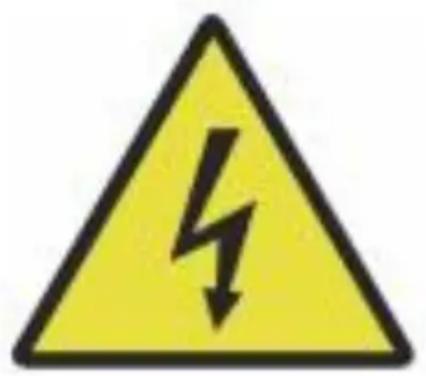
4.ELECTRICAL SAFETY INSTRUCTIONS.
- Use this device only with a compatible and stable power supply with voltage fluctuation of less than 10%.
- Do not connect other devices to the same fuse as the laser system requires its full amperage. Do not use with standard extension cords power strips. Only surge protective devices with a rating of more than 2000 J are used.
●Power this device on only if this device is well grounded, either by connection to a 3-pin socket or by a dedicated grounding cable that securely connected to the correct slot on the cabinet. Do not use ungrounded 3 to 2-pin adapter. The grounding of the equipment should be checked regularly for any damage or loose connections. - Therefore, the area around this laser engraving device should be kept dry, well ventilated, and environmentally controlled to keep the ambient temperature between 40–95°F (5–35°C). For best results, keep the ambient temperature at 75°F (25°C) or lower. The ambient humidity should exceed 70%.
- When the pump is connected to its power source, do not handle the pump or the water it is submerged in. Put it in the water before connecting it to a power source and disconnect it from the power before taking it out.
- Adjustments, maintenance, and repairs of the electrical components of this equipment must be done only by trained and skilled professional avoid fire and other failures, including potential radiation exposure due to damage to laser components. Since testing the electrical components this marking system requires specialized techniques, it is recommended that such testing should only be carried out by manufacturers, seller repair service organizations.
●Unless otherwise noted, adjust, maintain, and repair the appliance or when it is turned off, disconnected from power, and completely cool
5. MATERIAL SAFETY INSTRUCTIONS.
- It is the responsibility of the user of this laser engraving machine to confirm that the material to be processed is able to withstand the laser and does not produce any emissions or by-products that harmful to nearby people or that violate local or national laws or regulations. In particular, do not use this equipment to process poly-chloride (PVC), Teflon, or other halogen-containing materials under an circumstances.
- It is the responsibility of the user of this laser engraving machine to ensure that everyone present during operation has adequate personal protective equipment to avoid injuries caused by emissions and by-products of the material being processed. In addition to the laser protective glasses mentioned above, this may require goggles, masks, respirators, gloves, and other protective outerwear.
- If the exhaust system is not working properly, do not use this laser engraving machine under any circumstances. Always ensure that the exhaust fan is able to remove dust and gases from the engraving process in accordance with all applicable local and national laws an regulations. If the exhaust fan or exhaust pipe fails, stop using it immediately.
- Users must be especially careful when working with conductive materials, as the build-up of dust and environmental particles may damage electrical components, cause short circuits, or have other effects, including reflected laser radiation.
●This machine is safe to use with the following materials:
- plastics.
• Acrylonitrile butadiene styrene (ABS)
- Nylon (polyamide, PA, etc.)
- polyethylene
- High-density polyethylene (high-density polyethylene, polyethylene, etc.)
- Biaxially oriented polyethylene terephthalate (BoPET, polyester, polyester, etc.)
• Polyethylene terephthalate (PETG, PET-G, etc.)
• Polyimide (PI, Kapton, etc.)
- Polymethyl methacrylate (PMMA, acrylic, plexiglass, fluorite, etc.)
• Polyoxymethylene (POM, acetal, DL, etc.)
• Polypropylene (PP, etc.)
- styrene
2.other.
- cardboard
- Ceramics, including cutlery, tiles, etc.
- glass
- leather
- Paper and cardboard
- rubber
- Stone, including marble, granite, etc.
- Textiles, including cotton, suede, felt, hemp, etc.
- Timber, including cork, MDF, plywood, balsa wood, birch, cherry, poplar, etc.
Note: See for the recommended parameters for the most commonly un engraving materials.
●This unit cannot be used with the following materials or any material containing them:
- Artificial leather containing hexavalent chromium (Cr[VI]) due to it toxic fumes
- Astatine due to its toxic fumes
- Beryllium oxide, due to its toxic fumes
• Bromine, due to its toxic fumes
- Chlorine, including polyvinyl butyral (PVB) and polyvinyl chloride (P
vinyl, Sintra, etc.), due to its toxic fumes
- Fluorine, including Teflon (Teflon, Teflon, etc.), due to its toxic fur
- lodine, due to its toxic fumes
- Metals, due to their electrical conductivity and reflectivity
- Phenolic resins, including various forms of epoxy resins, as they produce toxic fumes
- Polycarbonate (PC, Lexan, etc.) due to its toxic fumes
Note: For all other materials, if you are unsure about the safety or laserability of this device, look for its Material Safety Data Sheet (MSDS). Particular attention is paid to information about safety, toxicity, corrosivity, reflectivity, and reaction to high temperatures. Alternatively, please contact our support department for further guidance
INSTALLATION
1. INSTALLATION OVERVIEW.
●A complete working system includes the laser engraving cabinet, its vents, all applicable connection cables, as well as the laser and ac
key. The cabinet can use the design provided by the included engr software by connecting directly with your computer or the internet; I also engrave designs that are loaded directly from flash drives. Use can configure other additional accessories, such as rotary axes, to their needs.
- Use only the hardware, cabling, and power supplies that come with compatible with this device. Installing equipment that is not suitable use may result in poor performance, Reduced service time, increased maintenance costs, property damage, and personal injury.
- Please pay attention to the specific requirements for system installation. Every customer must be aware of these considerations prior to installation in order to perform the correct setup and achieve safe performance. If you have any installation issues or problems, please contact our technicians and customer support team.
●Any auxiliary equipment must be adjusted to the main unit. If in dc please contact the dealer or manufacturer of such equipment directly
2. Installation site selection
●Before installing the enggraver, choose the appropriate location for us
- Make sure it meets all the requirements discussed in the above safe information. The location should be stable, level, dry, and climate-controlled to ensure an ambient temperature of 40–95°F (5–35°C) and ambient humidity below 70%. In particular, temperature and humidity together should not approach the dew point. It is also advisable to use windowless rooms or to use blinds and/or curtains avoid exposure to the potential additional heat of direct sunlight. The location should be free of dust and other air contaminants and well ventilated enough to handle any fumes generated during the engravi process in accordance with all applicable laws and regulations.
Depending on the material to be processed, this may require the construction of a dedicated ventilation system. It should be kept away from children; flammable, flammable, explosive or corrosive materials; and sensitive EMI equipment. The power cord should be plugged into a compatible and stable power source through a ground
3-pin outlet. There should be no other items drawing current from the same fuse. Fire equipment should be available nearby, and the photo number of the local fire department should be clearly displayed.
- It is highly recommended to place an additional bench near the machine to avoid placing objects on or directly near the machine, which could become a fire or laser hazard.
3.WIRE GROUNDING.
- The device uses a powerful laser. As mentioned in the safety inform above, it has extremely high voltages and potential hazards, so the must ground it firmly to avoid static build-up. Using a standard 3-pin socket will provide adequate grounding. If you don't have access to 3-pin outlet, you must use a grounding cable and make sure it's connected. The distal end of the cable should be securely attached metal rod at least 8 feet (2.5 meters) deep, or to two separate m that have been driven into the soil at least 5 feet (1.5 meters) from machine.
●Poor grounding can lead to equipment failure and create a serious electric shock. The manufacturer and/or seller shall not be liable for damage, accident or injury caused by a poor grounding connection.
4. UNPACK THE ENGRAVING MACHINE.
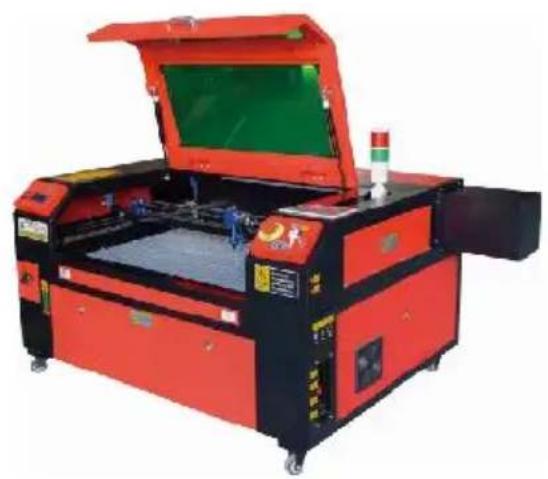
- Your engraver comes in a wooden case with its accessories (include this manual) packed in the area behind the front through door. You should place the crate in a generous, flat area for unpacking, and you plan to operate the machine permanently.
- Step 1: If you haven't already done so, finish removing the crate from around the engraver. Then roll the machine into place.
- Step 2: Hold the brake pads in place by pressing the brake pads front wheels.
- Step 3: Retrieve the access key from the main bay at the front of machine. Remove the accessory bag from the area behind the front through door. Check that you have received all of the following item power cord, ground cable, USB and Ethernet cables, USB flash drive with engraving software, exhaust pipe with hose clamp, set of hex wrench, acrylic focusing tool, keys, and this manual.
- Step 4 : Carefully inspect the assembly of the laser tube, the view window and the rest of the machine. The laser tube is a highly free object and should be handled with care and as few bumps as pos
- Step 5: Inside the main bracket, remove from the X-axis and the honeycomb table.
- Step 6: You can keep the packaging for future returns, but if you of it or any accessories, be sure to follow the applicable waste regulations.
5.MAIN POWER CONNECTION.
- Confirm that the label next to the connected outlet on the machine matches your power supply. Connect one end of the main cable to connection socket and the other end to a grounding socket. Under circumstances should you turn on the device if the voltage does no
correspond.
●Fluctuations along the line should be less than 10%. If this value is exceeded, the fuse will blow. They are located in the connecting so and are externally accessible. Again, do not connect this device to standard extension cord or power strip. Connect it directly to a group outlet or use a surge protective device rated over 2000J.
6.WATER-COOLED INSTALLATION.
●The supplied water pump is critical to the performance and service the engraving machine. When such a laser works without a properly maintained cooling system, its glass tube can explode due to overheating.
●Never touch or adjust the water supply of the engraving machine with the pump is plugged in.
- To use the water pump, fill a dedicated tank with at least 2 gallon liters) of distilled or purified water. This will gradually reduce the quality of the engraving machine and may even lead to dangerous mineral accumulation. Cooling system. For the same reason, never use all-purpose antifreeze. Use custom laser-safe formulations or storage Engraving machines in climate-controlled areas.
Note: Distilled water or purified water must be added, not tap water or sewage, otherwise it will reduce the service life of the product.
- Please rotate to remove the dust cover of the water inlet, and then purified water or distilled water to the water inlet for the engraving machine. The green range of the water level line is the safe water and then you can fill the water nozzle dust cover, and then turn o
main power supply and water circulation switch of the machine.
Note: The water level should not be too full, so as not to overflow water cooler.
- Before starting the laser, be sure to obtain visual confirmation that it is flowing through the laser tube.
- Never let the water in the tank become too hot to cool the laser. heat alarm or check the water temperature regularly during extended use. If the water starts to reach 100° F (38 °C), replace it with water. During this process, either the laser is replaced in phases o laser is turned off: never allow the laser to operate without a con flow of cooling water.
7.INITIAL TESTING.
●EMERGENCY SHUTDOWN.
Due to the risk of fire and other hazards during the engraving process, engraving machine includes a large, easy-to-reach emergency stop butt
near the control panel. Press it to stop the laser tube immediately.
When your engraver arrives, its emergency stop has been pressed and must be rotated to the right and bounce upwards for the laser to work. Before using the machine for any other work, you should test if it is properly. Start the water cooling system, place a piece of laserable s on the work bed, close the lid, and press PULSE to fire the laser. the emergency stop button and observe if the laser stops immediately the laser continues to fire, the emergency stop does not work and re replaced before using the engcher. Turn off the machine and contact customer service.
●LID CLOSURE (INTERLOCK).
Due to the risk of blindness, burns, and other injuries from direct ex| to the invisible engraving beam, the device
also automatically shuts off the laser when the protective cover is raised during operation.
After making sure that the emergency stop button is working properly, should also test that the cover closure is working properly before doing other work on the machine. Start the water cooling system, place a laserable scrap on the work bed, close the lid, and press PULSE to laser. Release the button. Be careful not to expose yourself to or be any possible reflected lasers, open the lid as little as possible and trith the laser again.
Note: If the laser is emitted, the automatic shut-off does not work and be repaired before using the engraver. Turn off the machine and contact customer service.
●WATER CUT-OFF.
Due to the dangers posed by uncooled laser tubes, the engraver also automatically shuts down the laser when the water cooling system fails. After making sure that both the emergency stop button and the lid protect
are working properly, you should also test that the water cut-off is working properly before doing any other work on the machine. Start the water co system, place a piece of laserable scrap on the work bed, close the lid, press PULSE to fire the laser. Release the button. Cut off the flow of w curling or tying two hoses. Be careful not to damage the hose itself duri process. Try firing the laser again. If the laser is emitted, the automatic does not work and must be repaired before using the engraver. Turn off machine and contact customer service. If the laser does not emit, the automatic shut-off works fine; Simply loosen both hoses to start circulating water again and continue setting up the engraver.
●LASER PATH CALIBRATION.
While our factory calibrates your entire system during assembly, the laser focusing lens, and/or one or more mirrors may be pushed out of alignment during shipping. Therefore, it is recommended that you perform an optical alignment-test when setting up your machine. For step-by-step guidance, set the maintenance section below.
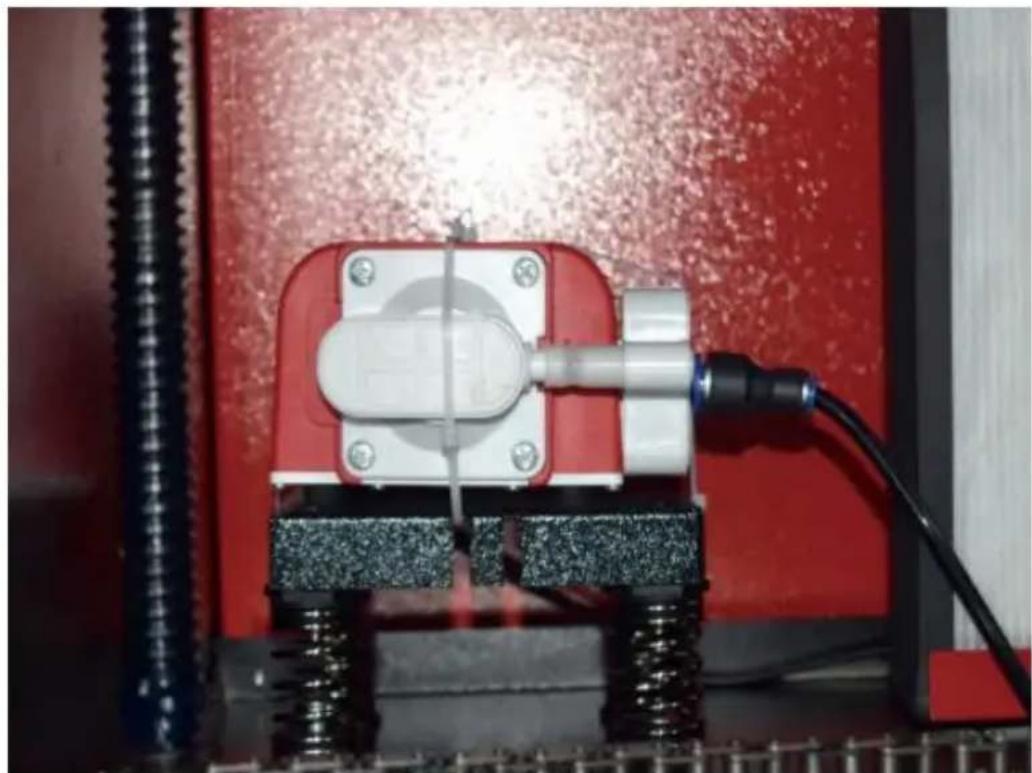
●AIR ASSISTED.
Your air auxiliary equipment should be pre-installed and properly wired. Ju check if it is properly configured and connected as shown in the image. pipes or wiring need to be reconnected, turn off all power to the machin
(including pressing the emergency stop) before adjusting any equipment.
8.SECURITY.
For your own safety and the safety of passers-by, this engraving machine can be locked with the key provided. It is recommended that you use it to lock your computer between sessions to prevent any unauthorized actions on your computer.
OPERATION
●Operate this laser engraver only by following all the instructions provided in this
manual. Failure to follow the appropriate guidelines detailed herein may result in property damage and personal injury.
●This section will describe only some of the options and features offered by the operating software. Before you start using the machine, make sure you have read the entire manual (especially the safety information above), as well as any and all warnings provided by the machine itself.
2.GENERAL OPERATING INSTRUCTIONS.
- Step 1. Create the design you want to engrave. You can do this directly in the engraving software, or you can use any
- Step 2. Please connect the companion equipment and tools to the product and connect the power supply. You can refer to the video on CD/USB. Fill the water inlet with purified or distilled water for the built-in water circulation. The water level must be added to the green water level safety line. Note: (The water level should not be too full, so as not to overflow).
- Step 3. Please remove the smoke pipe. One end of the smoke pipe is connected to the smoke exhaust port of the equipment, and the other end is connected to an outdoor or auxiliary smoke extraction device. Note: (Please use a tube clamp to secure the connection to prevent it from falling off.)
- Step 4. Pull up the emergency stop button and use the buttons on the front the cabinet to open the control panel of the engraving machine. Load the design of your choice directly from a USB flash drive or via a computer's connection to the engraver.
- Step 5. Open the engraver cover, check that the air assist is working properly, and adjust the table if necessary. Cellular beds are recommended for most applications. The bed can be raised or lowered using the Z-axis control on the front of the cabinet to accommodate a variety of materials of different thicknesses.
- Step 6. Place the material sample on the bench. The standard position is located in the upper left corner of the table. This can be changed by moving the location of your design or engraver's origin using the control panel or engraving software. To handle larger materials, you can open the front or rear through door, or both, at the same time. When the laser is active, do not insert anything into the work surface through a pass-through door other than the material. Pay special attention to fumes and dust that may be released through these doors. Make sure your ventilation system is robust enough to absorb all by-products or wear the necessary PPE to ensure the health of users and passers-by.
- Step 7. Focus the laser by placing the acrylic focusing tool on top of the material and carefully lifting the table. The laser head should barely touch the top of the acrylic tool without applying any pressure, ensuring that the engraving distance is correct. (Again, never try to be on the bench without material.) In any way, the laser is focused. Close the lid.
- Step 8. Customize the contrast and engraving depth of your design by adjusting parameters in the engraving software or directly from the control panel. If your engraving instructions detail the power setting in milliamps, use the following conversion chart to find the appropriate power setting:
| right | 20% | 30% | 40% | 50% | 70% | 80% | 90% | 99% |
| current | 4ma | 4ma | 7ma | 9ma | 14ma | 16ma | 18ma | 19ma |
The minimum threshold is 10%. The laser will not be emitted at any setting lower than this setting. It is not recommended to use the laser tube at full load, especially for long periods of time. The recommended maximum power is set at 70%, as
prolonged use of more than this amount will shorten the lifetime of the laser. To increase the engraving depth, increase the energy per unit area by increasing the laser's power or number of rings or slowing down the speed parameter. However, engraving too deep can degrade the image quality, especially for the coating material.
When working with new materials, keep in mind that you should always start at the low end of your possible settings. If the effect is not strong enough, it can always be more than once Rerun the design loop, or rerun it with more powerful settings until you create the desired effect.
The resolution should generally be set to 500 dots per inch. In some cases, lowering the image resolution may help, reducing burn and Increase the energy of the pulses and thus improve the quality of the images produced in certain materials, such as certain plastics.
- Step 9. Open the laser tube by inserting and turning the laser key. To reduce the risk of electric shock, try touching the engraver with only one hand at a time once the laser tube is opened.
- Step 10. Press run to pause to engrave your design. Similarly, even if you are wearing protective glasses, do not stare at the active laser continuously. However, be aware of possible issues such as sparks or fires, and be prepared to ex-tinguish fires quickly if necessary.
- Step 11. Once the laser stops, check the quality of the first run and adjust the last parameters in the control panel or software as needed to produce the desired effect. During repeated engraving and cutting, check the pump's tank regularly to keep the water temperature below 100° F ( 38° C). If this temperature is reached, stop working and allow the engraver to cool down before further use.
- Step 12. When you are done engraving, close the engraving software and turn off the machine in the following order: laser power, control panel, any ventilation, water cooling system, and emergency power button. Remove the laser key from
the control panel.
- Step 13. Clean the bench completely, emptying the lower bracket of any debris.
3.SPECIFIC MATERIAL DESCRIPTIONS.
The following instructions are recommendations that can help expedite safe work with a variety of materials. Users should research the safety and engraving requirements for their specific materials to avoid the risk of potential problems such as fire, hazardous dust, corrosive and toxic fumes. Once you know that the product safe or with the proper protective equipment in place, it can be helpful to engrave test matrix of small boxes produced at various speeds and power settings to discover the ideal settings for your design. Or start with low power consumption and fast setup, re-run the design as many times as needed, using progressively increasing laser intensity.
●CERAMICS.
When engraving on ceramics, medium to high power is generally used. Using more circuits instead of higher power and lower speed can help avoid material breakage during the working process. Be aware of the health risks posed by dust from cerami engraving, especially for repetitive industrial applications. Depending on the material and workload, a fan or even a complete ventilation system may be required to resolve the issue. Similarly, operators and others in the work area may need to use respiratory PPE, such as masks and respirators.
●STONE.
When carving all kinds of stones, medium power and medium to fast speeds are generally used. As with ceramics and glass, be aware of the dust generated (especially for repetitive industrial applications) and take similar measures to ensure the safety of users and others in the work area.
- TEXTILES.
When it comes to carving textiles such as cloth and wool, low power and high spee are often used. As with leather, special attention should be paid to the possibility of
fire and dust.
●GLASS.
When engraving glass, high power and low speed are generally used. As with cerami it would be helpful to run more cycles on a lower setting to avoid cracks. Care must be taken when engraving glass and carbon fibers to avoid combining settings that produce laser intensity sufficient to disrupt the structural integrity of the fibers of their components, resulting in blurred markings. Personal protective equipment should be worn to avoid exposure of eyes, nose, mouth, and skin to dust from the use of any kind of material, especially for repetitive industrial applications. Clothes worn when working with fiberglass should be washed separately afterwards.
●LEATHER.
When engraving glass, high power and low speed are generally used. As with cerami it would be helpful to run more cycles on a lower setting to avoid cracks. Care must be taken when engraving glass and carbon fibers to avoid combining settings that produce laser intensity sufficient to disrupt the structural integrity of the fibers of their components, resulting in blurred markings. Personal protective equipment should be worn to avoid exposure of eyes, nose, mouth, and skin to dust from the use of any kind of material, especially for repetitive industrial applications. Clothes worn when working with fiberglass should be washed separately afterwards.
METAL.
CO2 laser engraving machines should not be used to mark, engrave, or cut metal. They are best suited for working coatings applied to metal substrates, and care must be taken not to attempt to work on the underlying metal itself. A variety of coating are available specifically for CO2 engraving, and users should follow the instructions provided as the parameters vary depending on the product and the metal. In general the work of the aluminum coating should be done faster at a lower power, while the work of the steel coating can be done more slowly at a higher power.
● PLASTICS.
The plastic used for engraving comes in many different colors and thicknesses and has many different coatings and finishes. Most of the plastics available can be
engraved and cut well with lasers. Plastics with microporous surfaces seem to provide the best results because less surface material needs to be removed. When engraving plastics, low-power, high-speed settings are generally used. Marking and engraving with too much power or too low a speed can concentrate too much energy at the point of contact, causing the plastic to melt. Among other problems, this can produce poor carving quality, toxic fumes, and even fires. High-resolution engraving can cause the same problem, so low- to medium-resolution designs should be preferred for most plastics.
●RUBBER.
The various compositions and densities of the rubber result in slightly different engraving depths. It is highly recommended to test samples of specific rubber for best results. When engraving rubber, a consistent high-power setting is often used, and the effect is created by varying the speed of the laser. Microcellular rubber materials require much higher speeds than standard rubber. Engraving any type of rubber produces a lot of dust and gases. Depending on the workload, breathing PPE and/or a complete ventilation system may be required to resolve the issue.
●PAPER AND CARDBOARD.
When engraving a variety of paper products, low to medium power and fast speed are generally used. Test samples per batch, as only small parameter differences can distinguish the effect of being too light from the effect of burning through the substrate. As with leather, special attention is paid to the possibility of fire, as well dust generated during repeated applications.
●TIMBER.
As with rubber, there are many different types of wood, and testing your specific material is essential to get the best results. In general, wood carvings with consistent
grain and color are more uniform. Knotted wood creates an uneven effect, while resin wood creates greater edge contrast. Some softwoods, such as balsa, cork, and pine, carve well (albeit with low contrast) at low or medium power settings and at high speeds. Other fibers like fir can be affected by uneven fibers and will often produce poor results no matter what you do. Hardwoods such as cherry and oak carve well at high power settings and low speeds. Artificial wood products can vary from brand to brand, mainly based on their glue composition and abundance. MDF works well but creates dark edges when cut.
In addition to the fire risk of any wood product, extra care must be taken with smo from glue used in plywood and other artificial wood. Some are too dangerous to use at all, while others require careful ventilation and repetitive industrial applications using breathable PPE. Wood toxicity should also be checked, as dust from some natural woods, including oleander and yew, can also cause enough nausea and heart problems.
●Refer to Usage Data.
IT IS RECOMMENDED TO SET THE POWER TO 80
| materi al | thickne ss | 50W | 60W | 80W | 100W | 130W | 150W | ||||||
| Faste st speed | Optim al speed | Faste st speed | Optim al speed | Faste st speed | Optim al speed | Faste st speed | Optim al speed | Fastes t speed | Optim al speed | Fastes t speed | Optim al speed | ||
| acrylic acid | 3mm | 15/S | 10S | 20S | 15S | 25/S | 20/S | 30S | 25S | 35/S | 30S | 40/S | 35S |
| 5mm | 8S | 5S | 10S | 7/S | 12/S | 8S | 15/S | 10S | 17/S | 12/S | 21/S | 15/S | |
| 8mm | 4S | 2S | 5S | 3/S | 9/S | 5S | 10S | 6S | 12/S | 8S | 15S | 10S | |
| 10mm | 4S | 2/S | 6/S | 3S | 7/S | 4S | 8/S | 5S | 11/S | 7S | |||
| 15mm | 3/S | 1S | 4S | 2S | 5/S | 3S | 7/S | 4S | |||||
| 20mm | 3/S | 1/S | 4S | 1.5/S | |||||||||
| 25mm | |||||||||||||
| 30mm | |||||||||||||
| Laser power 90%: Acrylic cutting should pay attention to air flow control, the surface of the material blowing should be small or side-blowing, which can ensure the smoothness of acrylic, and the acrylic surface should have air circulation to prevent fire | |||||||||||||
| Acrylic | 3mm | 9/S | 7/S | 15/S | 12S | 20/S | 15S | 23S | 18/S | 25/S | 20S | 30S | 25/S |
| 5mm | 5/S | 3S | 10S | 8/S | 13/S | 10S | 15S | 13/5 | 18/S | 15/S | 21/S | 18/S | |
| 10mm | 5/S | 3S | 7/S | 5S | 9S | 6S | 12S | 9/S | |||||
| 15mm | 4S | 3/S | 7/S | 5/S | |||||||||
| Laser power 90: Wood cutting mainly controls the airflow, the larger the airflow, the faster the cutting sp | |||||||||||||
| PVC | 2mm | 35/S | 32/S | 50S | 45S | 60/S | 58/S | 70S | 68/S | 80/S | 78/S | 90S | 88/S |
| 3mm | 30/S | 27S | 40/S | 38S | 50/S | 48/S | 60S | 58/S | O/S | 68/S | 80S | 7a/S | |
| 4mm | 25/S | 20S | 35/S | 30S | 45/S | 40S | 55S | 50/S | 65/S | 63/S | 75S | 7/S | |
| cloth | a bed | 40/S | 38/S | 60/S | 58S | 100/ S | 98/S | 200S | 195S | 300/S | 295/ S | 400S | 395S |
| leather | a bed | 15/S | 12/S | 20/S | 17/S | 25/S | 20/S | 30S | 25/S | 40/S | 35/S | 45S | 40/S |
| It is recommended to use a focusing lens with a focal length of 50.8,with a laser tube of 60W-100W and a sma amount of air compressor,it is recommended to cut at 50%-70%power. | |||||||||||||
| Paper | moncta yer | 80/S | 40S | 120S | 40S | 150/ S | 40/S | 250S | 40/S | 350/S | 40/S | 450S | 40/S |
| BI-color or stab | 2mm | 15/S | 13S | 25S | 20S | 36/S | 30S | 40S | 35/S | 45S | 40S | 55S | 50/S |
| BI-color plate and PVC cutting parameters,paper-cutting should pay attention to laser power adjustment,the higher the laser tube power,the smaller the percentage of laser power adjustment | |||||||||||||
4. CONSOLE DESCRIPTION.
●OVERVIEW.
You can control the engraver directly from the built-in control panel, connected to a computer, or via the Internet. For more information or operating the engraving software, please refer to its separate manual. built-in control panel allows the laser to be operated manually, or the design can be engraved onto flash drives and external hard drives connected to the USB port on the right side of the cabinet.
For manual operation, the arrow keys can be used to move the laser along the X and Y axis guides, and the PULSE button can be used the laser. Each time the arrow button is pressed, the laser head can to jam within a set distance by tapping MENU and adjusting the parameters under "Manual Settings+". The laser can be set to emit for fixed period of time by pressing MENU and adjusting the parameters "Laser Settings+". All buttons and menus should be marked in English not, press MENU and go to the top button in the right column to change the console's language settings.
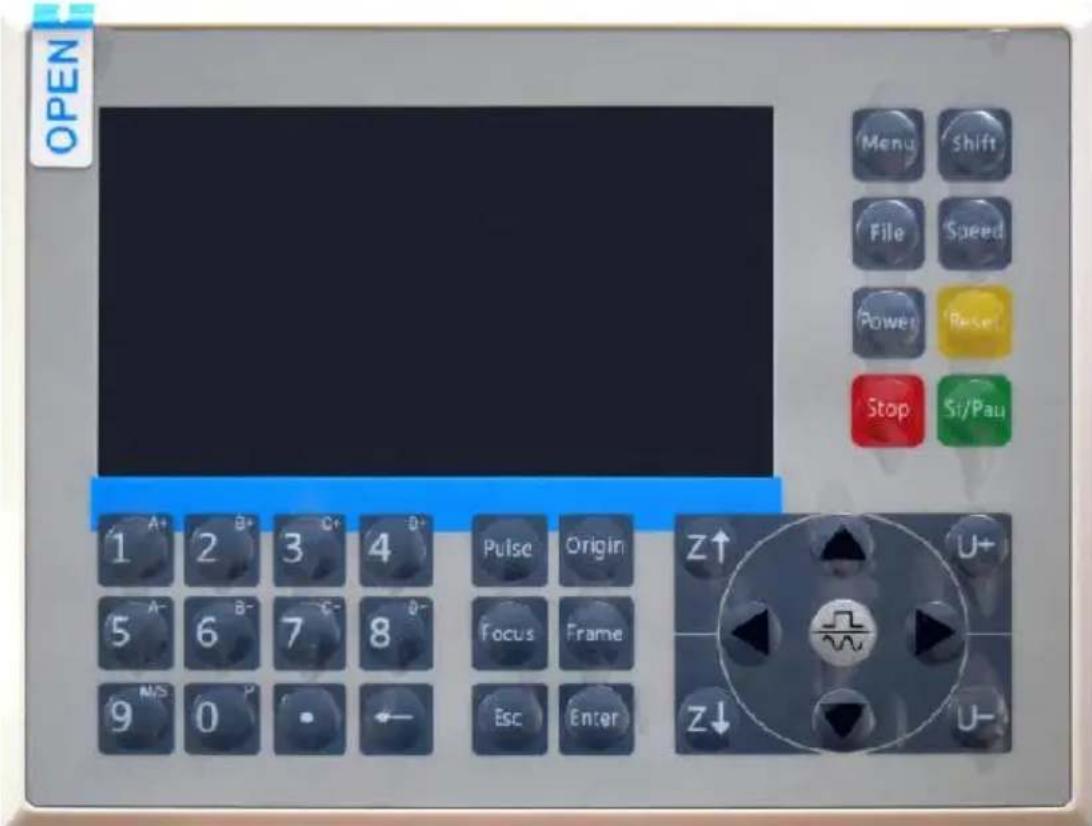
To load a design from a FAT16 or FAT32 formatted flash drive or e hard drive, press MENU, select "File", then "Udisk+", and then "Copy
Memory". Select the design in the File menu, and then select Run. \ parameters can be adjusted using the console's menus and submenus including setting multiple origins to engrave a design on a material fo times in a single session.
When running the design from the console, this will be the main display. The design should be displayed in the upper left corner, and its name along with the current speed and power settings, should be displayed the upper right corner. The position of the laser head relative to the shown as X (horizontal) and Y (vertical) coordinates. The Z-coordinate shows the elevation of the workbench itself. The U-coordinate can be configured to control the axis of rotation or automatic feeding, if insta. Below them are layers that contain instructions about their individual s (in mm/s) and maximum power as a percentage of the machine's rate power. The number of batches in the lower left corner records the n of times the current design has been engraved in a single session.
Just like the button says, press Run/Pause to start engraving the load pattern and pause the engraving when needed.
In the event of an emergency such as fire, do not use the control pause or stop engraving. Press the emergency stop button immediately
- SET THE LASER POWER.
When you press ENT in the main interface, the cursor box initially set the "Speed" parameter.
| Speed | 100mm/s |
| Power: | 99.9%/33.3% |
| X: | 10000.0 |
| Y: | 10000.0 |
| U: | 10000.0 |
Press the ▲ and ▼ keys to switch between parameters. Select the Power parameter.
| Speed: | 100mm/s |
| Power | 99.9%/33.3% |
| X: | 10000.0 |
| Y: | 10000.0 |
| U: | 10000.0 |
Press ENT when the red cursor is over Power. Press the ▲ and ▼ to change the parameter value.
MaxPower: 99.9 %
MinPower: 33.3 %
Press ENT to save your changes.
Press ESC to invalidate the changes and go back to the main inte
- SET THE LASER SPEED
When you press ENT in the main interface, the cursor box initially selects the "Speed" parameter.
| Speed | 100mm/s |
| Power: | 99.9%/33.3% |
| X: | 10000.0 |
| Y: | 10000.0 |
| U: | 10000.0 |
Press the ENT key again to bring up this interface.
Press the ▲ and ▼ keys to change the parameter value.
Press ENT to save your changes.
Press ESC to invalidate the changes and go back to the main interface
Speed: 100 mm/s
●FUNCTION MENU.
Press the menu on the main interface to enter the menu interface:
Press the ▲ and ▼ keys to select the item, and then press ENT the corresponding submenu.
| Para setting | Language |
| Laser set | Diagnoses |
| Manual set | System info |
| Axes reset | Set default para |
| Origin set | Restore default |
| Screen ref set | Controller set |
| Panel lock | Permission |
●ADJUST THE Z-AXIS.
When Z Move is selected, press ◀ or ▶ to control the movement (Z axis while the sensor kit is installed.
●ADJUST THE U-AXIS.
When U Move is selected, press ◀ or ▶ to control the movement U axis. This can be used to control the rotational position of the axi rotation or the linearity of the automatic feed (positions are sold separately if both Installation.
- RESET THE AXIS.
When Shaft Reset+ is selected, press ENT, and the left display will show:Push ▲ or ▼ to select an item.
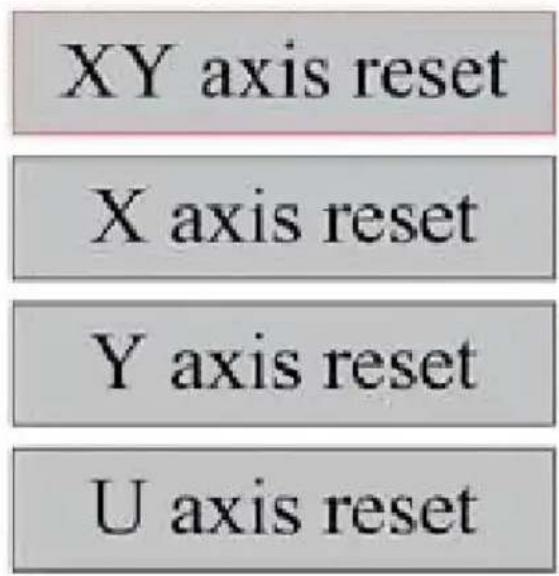
Press ENT to start resetting the selected axis and the message "Res progress" will appear on the screen.
When it is done, the message will disappear automatically and the sy will return to the main interface.
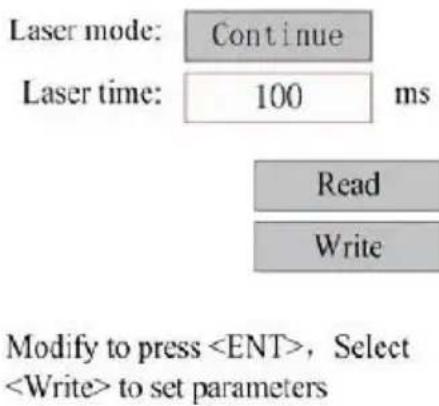
●ADJUST THE LASER SETTINGS.
After selecting the laser settings and pressing ENT, the left display w show:The operation method is the same as the previous setting. Whe select Continue, press PULSE to fire the laser, and then release the complete the firing. When you're done making adjustments, save them selecting the ENT key to write or press-ing the ESC key to leave w saving the changes. Reading can load saved parameters.
●ADJUST THE LASER MOVEMENT MODE.
When you select Manual Settings, press ENT, and the left side will I displayed: When the movement mode is "Continuous", the manual jog parameter does not work. When used to manually move the laser head the arrow keys move it continuously until released. When the movement mode is "Jog", each time the arrow keys are pressed, the laser head move precisely the distance saved in this parameter. Use the Direction ENT keys to adjust up or down. When you're done making adjustment save them by selecting the ENT key to write or pressing the ESC k leave without saving the changes. Reading can load saved parameters

- SET THE ORIGIN.
When the box is pressed on the origin set, press ENT, and the left box will pop up:
![graph TD A["Start origin:"] --> B["Muti-Origin enable"] B --> C["Origin enable1"] C --> D["Setting"] C --> E["Origin enable2"] E --> F["Setting"] C --> G["Origin enable3"] G --> H["Setting"] C --> I["Origin enable4"] I --> J["Setting"] style A fill:#ff0000,stroke:#333 style B fill:#ff0000,stroke:#33…](/content/2026/04/735859/images/7e82f45366cf3219430d5c4d4dbbe9b40056e07c7a91127e7e288588f654d19f.jpg)
Press FN to select an item. After selecting Multi-Source Enable, press to enable or disable the item. When enabled, the small box will be when disabled, the small box will be gray. When you select Set Orig Next Origin, press◀ or ▶ to select a value. When changing the Set Origin parameter, remember to press ENT to verify the change. When close the interface, the parameters are automatically saved.
The details of each item are as follows:
- Set Origin 1/2/3/4: After enabling the multi-origin setting, place the cover setting to Origin 1/2/3/4. Press ENTER on your keyboard key, the system takes the coordinates as the corresponding coordinate the origin 1/2/3/4.
- Source Enable 1/2/3/4: When the multi-source setting is enabled, four sources can also be disabled and enabled individually.
When multi-origin logic is selected, if the number of the next origin is four origins are enabled, the work will be used every time it is started the save file function is started (via keyboard or PC) or when a profile is uploaded to a PC and the file is selected "Take origin as orig
Different origins. The order of rotation of the origin is 1 → 2 → 3 → 4 → 1 → 2 ...
If you upload a processing file to your PC and you select Current C
the file, the system will always use the current origin.
- SET DEFAULT PARAMETERS.
When the facts are set. Select the paragraph and the machine's current parameters will be stored as their default values. They can then be retrieved using the Restore Default Parameters command. It is recommended that you save the actual factory default settings of your machine so that it can be easily restored if needed.
If the password is enabled, push ◀ or ▶ and ▲ or ▼ to select password, and then press ENT to save the password.
- RESTORE THE DEFAULT PARAMETER.
When defining facts. Once a parameter is selected, the system replac current parameters with the saved default factory parameters. The operation method is the same as setting the default parameters.
- SET THE INTERFACE LANGUAGE.
When selecting a language, press ENT and the left display will show
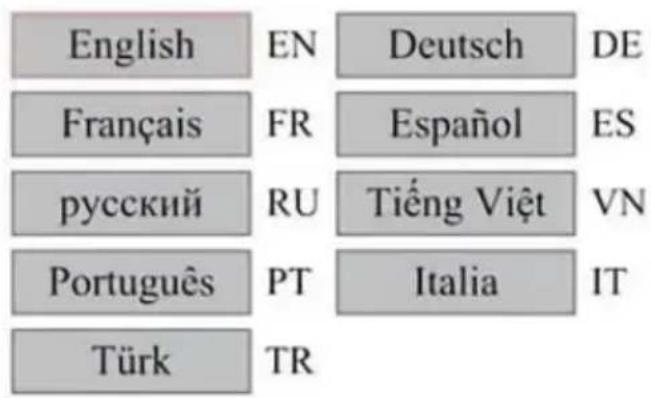
The operation method is the same as above. Press ENT after select desired language and return to the main interface.
- SET THE IP ADDRESS OF THE MACHINE.
Once you have selected your IP settings, press ENT and the left dis will show:
IP address:

Write
Push ◀ or ▶ and ▲ or ▼ and ENT to change the parameters.
default address for the engraver is 192.168.1.100. If this feature is all being used on your local network, use 192.168.1 for the first three s and choose a unique value for the last part. In general, any value b 2-252 should be fine except for 47, but avoid values that are already by other networked devices.
Connecting the machine directly to the public internet carries the risk unauthorized use and is not recommended. If you still wish to provide you'll need to register and use a unique public TCP/IP address. When you're done making adjustments, save them by selecting the ENT key write or pressing the ESC key to leave without saving the changes. Reading can load saved parameters.
●DIAGNOSTIC TOOLS.
After selecting Diagnostics, the left dialog box will pop up:
INPUT:
LmtX-
LmtU+
WP
LmtY-
LmtU-
In1
Ex-Run
Intlock
In2
OUTPUT:
OUT1
OUT2
Status
Aux.Air
This interface displays the system's hardware I/O port information:
Input: Read the hardware information of the system. When a hardware signal is triggered, the small box to the left of the corresponding ent be shown in red. Other-wise, it will be grayed out.
Output: Use the cursor to select the output. Press ENT to toggle the state, and ESC to return to the main menu without making any char
- SETTING THE SCREEN REFERENCE.
After selecting the Screen Origin, the left dialog box will pop up:
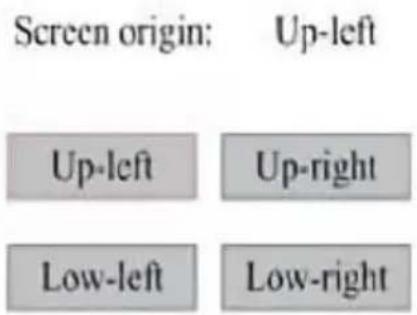
This interface displays the location of the origin. Different origin positions can produce different reflections of the graph on the X/Y axis. The operation method is the same as above.
●ADJUSTING THE SCULPT LAYER.
When the system is idle or the work is complete, press ENT to enter layer parameters section.
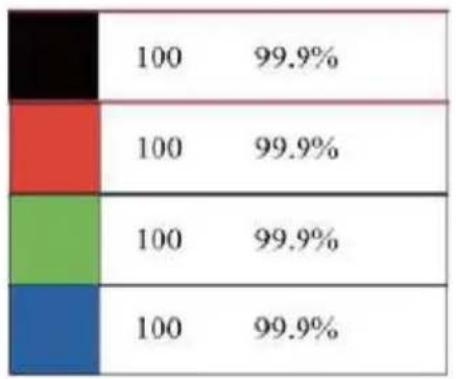
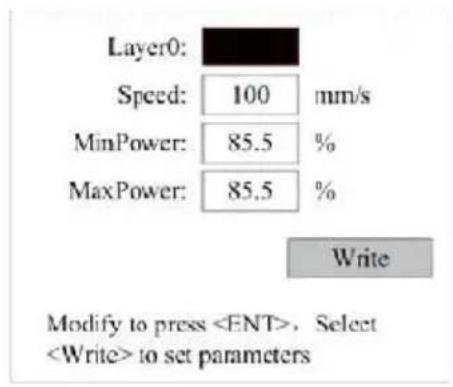
Press ▲ or ▼ to select the desired layer.
Press ENT to check the parameters of the selected layer, as shown image:By default, the red cursor will be over Layers.
Press the ◀ and ▶ keys to select the desired layer.
Move the cursor to Write and press ENT to save the parameter cha press ESC to exit without saving.
The method of operation is the same as the maximum/minimum power setting.
●ADJUST MOVEMENT PARAMETERS.
In the Parameter Settings submenu, select Move Parameters to display left interface:Select and adjust parameters by pressing the arrows.
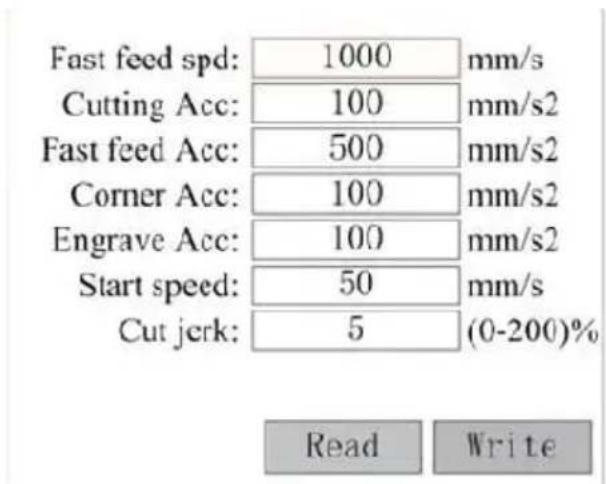
When you're done adjusting, move the cursor to Write and press EN
save the parameter changes, or press ESC to exit without saving. Reading can load saved parameters.
- SET FRAME PARAMETERS.
In the Para Settings submenu, select Frame Settings to display the interface:Select and adjust parameters by pressing the arrows. When you're done adjusting, move the cursor to Write and press ENT to save parameter changes, or press ESC to exit without saving. Reading can save parameters. Start Cutting Frame will cut the frame according to current parameters.
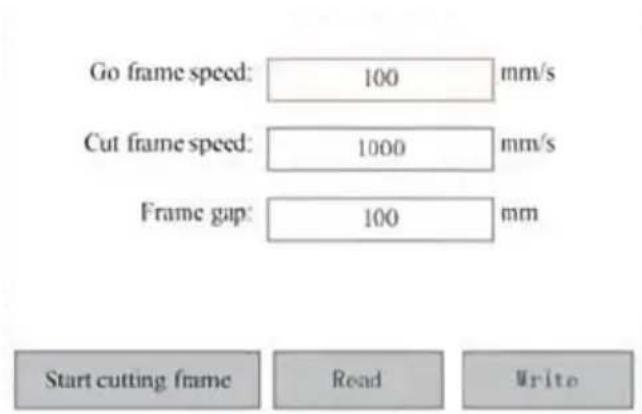
- SET BLOWING PARAMETERS.
In the Paragraph Settings submenu, select Blow Settings to display the interface:Select and adjust parameters by pressing the arrows. When you're done adjusting, move the cursor to Write and press ENT to s parameter changes, or press ESC to exit without saving. Reading can saved parameters.
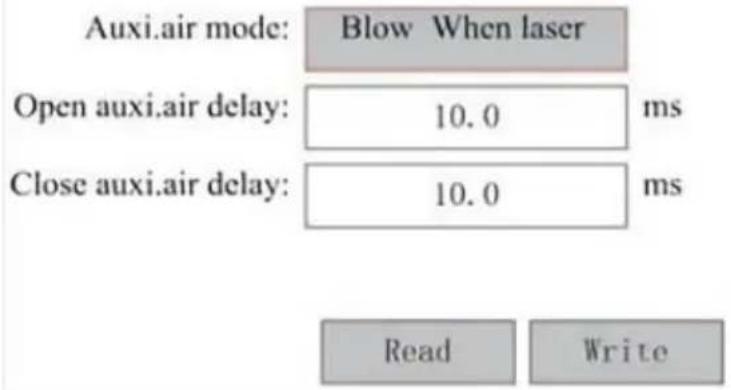
●ADJUST THE RESET SPEED.
In the "Parameter Settings" submenu, select "Speed Settings" to display the left inter-face:
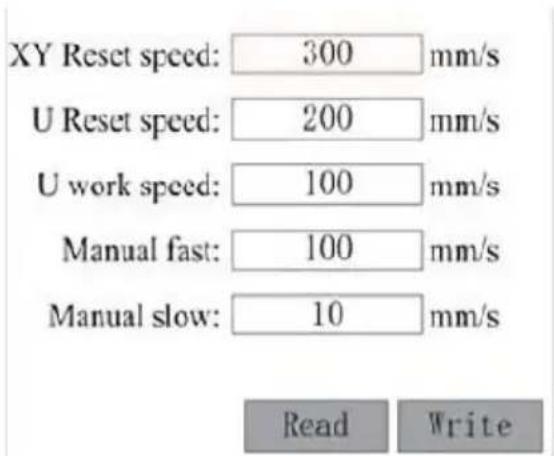
Select and adjust parameters by pressing the arrows. When you're do adjusting, move the cursor to Write and press ENT to save the para changes, or press ESC to exit without saving. Reading can load save parameters.
●ADJUST THE MACHINE CONFIGURATION.
In the Parameter Settings submenu, select Computer Configuration to display the left interface:
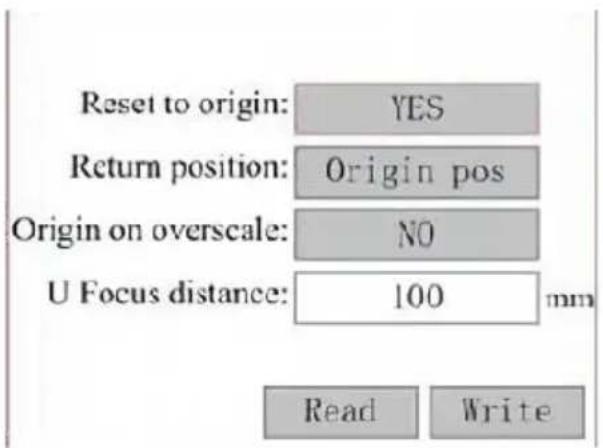
Select and adjust parameters by pressing the arrows. When you're do adjusting, move the cursor to Write and press ENT to save the para changes, or press ESC to exit without saving. Reading can load save parameters.
●ADJUST THE PARAMETERS OF THE AXIS OF ROTATION.
In the Parameter Settings submenu, select Rotation Function Settings display the left interface:
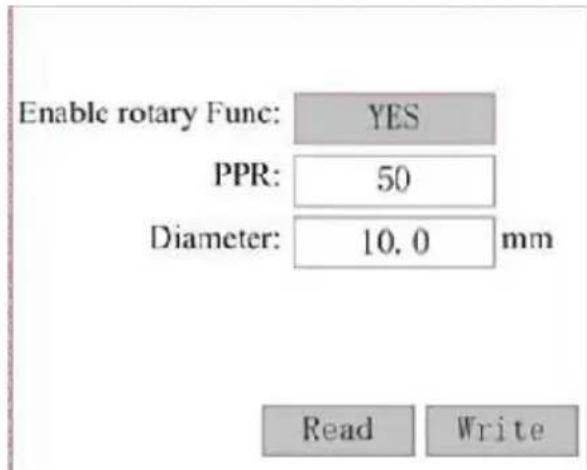
Select and adjust parameters by pressing the arrows. When you're do adjusting, move the cursor to Write and press ENT to save the para changes, or press ESC to exit without saving. Reading can load save parameters.
- SET THE INTERFACE PASSWORD.
When the cursor is on the panel lock, press ENT, and the left dialo pop up:
Password Set
Keyboard locked
Press the ▲ and ▼ keys to select the item. When the blue cursor is over the target item, press ENT to enter the corresponding interface.
●BACKUP AND RESTORE PARAMETERS.
In the main menu, select Controller Settings to display the left scre
Backup to U disk
Back up to USB flash drive: Save the current parameters to a USB drive.
Recover Parameters from USB Flash Drive: Recover saved parameters from a flash drive.
Upgrade from USB flash drive: Upgrade the controller software from a flash drive.
- SET THE DATE AND TIME OF THE MACHINE.
In the Controller Settings submenu, select Time Settings+ to display tl
left interface:
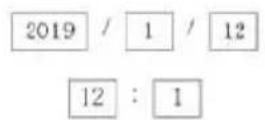

Modify to press
Select and adjust parameters by pressing the arrows. When you're do adjusting, move the cursor to Write and press ENT to save the para changes, or press ESC to exit without saving. Reading can load save parameters.
● AUTHORIZATION MANAGEMENT AND KEYBOARD LAYOUT.
Your engraver should already be authorized and ready to go. If you purchased your engraver through a rental program and have not yet received a license code, please contact Customer Service. Enter it by going to the main menu and selecting Permissions. The left interface pop up.
Permission not activated!

Change permission code
Press ENT once to select the first field, and then press ENT again up the left keyboard.
Use the arrow keys and ENT to select the right characters. If there errors, press ESC and then ENT to re-enter the field. Use the arrow move to a different input field and enter its contents in the same wall all the fields have been entered correctly, select Change Permission (C) and press ENT to leave this screen and return to the main menu.
MAINTENANCE
1. MAINTENANCE OVERVIEW.
Use of procedures other than those specified herein may result in dangerous exposure to laser radiation. Always turn off the appliance a disconnect it from the power supply before performing any cleaning or maintenance work. Always keep the system clean, as flammable debris the work and exhaust areas poses a fire hazard. Only trained and professional are permitted to modify or disassemble this equipment.
- Clean and cool water must be supplied to the system at all tin
• The workbench must be cleaned and the bin emptied every day - The third mirror and focusing lens must be inspected daily and cleaned if needed.
- Other mirrors and exhaust systems must be inspected weekly and cleaned if needed.
- Beam alignment should be checked weekly.
- The wiring should be checked weekly for loose connections, especially for the laser tube power supply.
• The rails should be cleaned and lubricated at least twice a mo
• Air assistance must be inspected once a month and cleaned if needed.
- The entire laser machine, including other components such as tl water cooling system, must be inspected once a month and clear needed.
2. Water Cooling System.
- Never touch or adjust the engraver's water supply while the pump is connected to power.
●The laser tube needs to be cooled with clean distilled water to avoid overheating. Room temperature or slightly lower warm water is ideal. Laser tubes require at least 2 gallons (7.5 liters) of cooled clean water or other laser-safe coolant to avoid overheating. If the water
temperature is close to 100° F ( 38° C), stop working until it could down or find a way to lower its temperature without interrupting the tube's water supply. The water should also not get too cold, which also cause the glass laser tube to shatter during use. In the winter months or if using ice to cool hot water, make sure the temperature never drops below 50° F ( 10° C).
- More water should be added every few days to ensure that evaporation does not cause the pump to be exposed during use.
3.CLEANING
●CLEAN THE MAIN COMPARTMENT AND ENGRAVING MACHINE.
Check at least once a day for dust accumulation in the main engrav chamber. If so, you have to remove it. The exact cleaning intervals are requirements are highly dependent on the material being processed and the operating time of the equipment. Clean machines ensure optimal performance and reduce service costs, as well as reduce the
risk of fire or injury.
Clean the viewing window with a mild detergent and lenses or a cot cloth. Do not use paper towels as they can scratch the acrylic and the lid's ability to protect you from laser radiation. Clean the interior main cabin thoroughly to remove any debris, particles, or sediment. Pastowels and window cleaners are recommended. If necessary, clean the of the laser tube after it has cooled completely. Allow any liquid user cleaning to dry completely before using the engaver further.
●CLEAN THE FOCUSING LENS.
The lens has a durable coating that will not be damaged by proper careful cleaning.
You should check the lens and Mirror the third day and clean them if are any debris or haze on the surface. Your laser efficiency will be and heat build-up on the oil or dust itself can damage the lens.
-
Move the engraving table to a distance of about 4 inches (10 cm) below the lens mount.
-
Move the laser head to the center of the table and place a clock the lens mount so that the lens will not be damaged if it accident off the mount.
-
Unscrew the lens mount and rotate it to the left.
-
Remove the pressurized air hose and laser rail connection.
-
After placing the lens on clean lens cleaning paper, carefully turn lens holder so that the lens and its O-ring fall onto the cleaning of remove the lens from the lens mount.
-
Check the o-ring and, if necessary, clean it with a cotton swab lens cleaning paper towel or cloth.
-
Blow air onto the surface of the lens to remove as much coars as possible.
-
Inspect the lens surface and clean the lens with lens cleaning s and lens paper or cloth if necessary.
-
Hold the edge of the lens assembly with a lens cleaning tissue use lens cleaning solution. Hold the lens at an angle and rinse bo
surfaces to wash away the dirt.
-
Place the lenses on a clean lens cleaning tissue and apply so lens cleaning solution to one side of the lens. Allow the liquid to the effect for about a minute, then gently wipe with lens cleaning paper dipped in lens cleaning solution. Dry this side of the lens with a clean/cloth.
-
Repeat the same cleaning process on the other side of the ler. Never use cleaning paper towels twice. Dust that accumulates in cleaning paper towels may scratch the surface of the lens.
-
Check the lens. If it is still dirty, repeat the cleaning process until the lens is clean. Do not touch the surface of the lens after
-
Carefully insert the lens into the lens mount, making sure its convex side is facing up. Place the o-ring on top of the lens.
-
Carefully reassemble the lens and laser head attachment in rev order.
●CLEAN THE MIRROR.
If there is any debris or haze on the surface of the mirror, the mirr be cleaned as well to improve performance and avoid permanent dam. The first shot is located behind the left side of the machine, beyond end of the Y-axis. The second lens is on the Y axis at the left end axis. The third lens is located on top of the laser head on the X-axis largest accumulation of debris is on the 3rd mirror and should be ch daily with the focusing lens. The first and second lenses can be ch daily if needed, but if they are only checked once a week, they are usually fine.
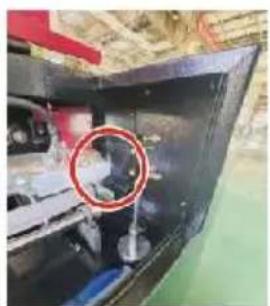
1st mirror
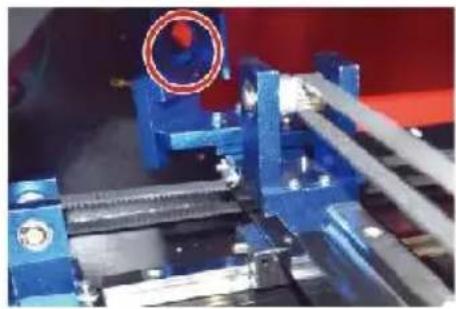
2nd mirror
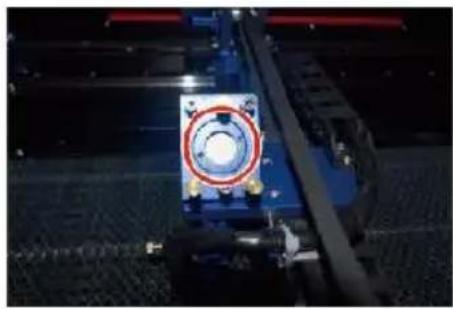
3rd mirror
Mirrors can be cleaned in place using lens cleaning tissues or cloths, they can be removed by rotating them counterclockwise. Be careful not touch the surface of the mirror directly. Avoid pressing too hard to g debris and cause scratches. If the mirrors are removed for cleaning, reinstall them by rotating them clockwise into place while being careful avoid any scratches.
4. LASER PATH ALIGNMENT.
Proper beam alignment is very important for the overall efficiency and quality of work of the machine. This machine is fully beam aligned by shipment. However, when the engraver first arrives, approximately once week during normal operation, the user is advised to confirm that the alignment is still at an acceptable level and that the mirror and focus lens are not moving due to the movement of the machine.
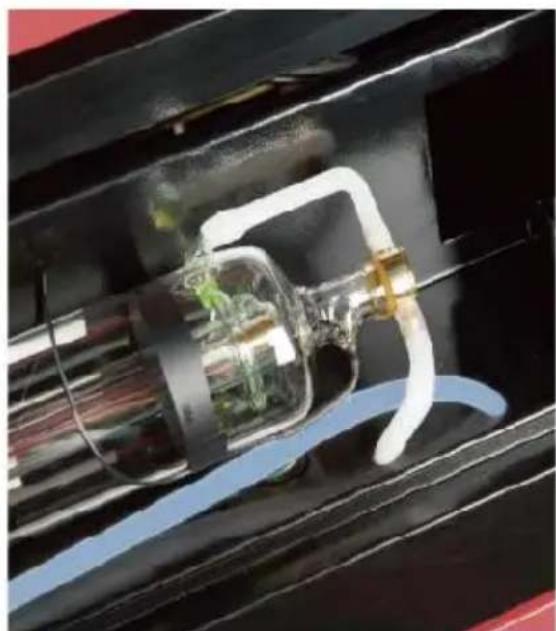
You'll need to place a piece of tape at each stage of the laser path. It to confirm that the platform remains properly aligned. If not, you will use the bracket of the laser tube or the screws on the back of the misalignment to correct the problem. Once the supplied tapes run out, we recommend using masked tapes as it is easy to manage and use.
If beam alignment is performed carelessly, the operator may be exposed a small amount of radiation. Follow these procedures correctly and always be careful when performing beam alignment.
Perform beam alignment at low power levels: 15% or less. Any higher percentage will cause the laser to ignite the test strip instead of mar Make sure to set the maximum power (not the minimum) to 15%.
●LASER TUBE ALIGNMENT.
To test the alignment of the laser tube with the first mirror, cut a s and place it on the frame of the mirror.
Do not place the tape directly on the mirror. Turn on the machine at the power level to 15% or lower.
Press PULSE to manually fire the laser. You should be able to see mark on the tape. If it doesn't notice, press PULSE again.
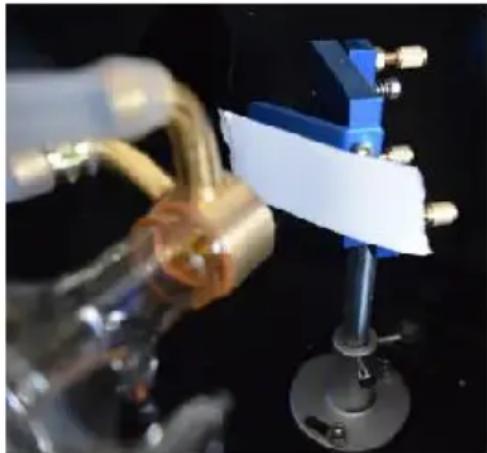
Press the pulse to activate the laser. Always make sure that the pat between the laser and its target is unobstructed. Never allow foreign objects to enter between the laser and its target. When pressing the
PULSE button, be careful not to leave any part of your body in the path.
The laser mark should be close to the center of the hole. If the last centered on the first mirror, cut off the power of the laser and caref adjust the laser tube in its holder. This may require loosening the bol its bracket. Be careful not to over-loosen the bolts and not over-tighted bolts. Only one stand can be adjusted at a time.
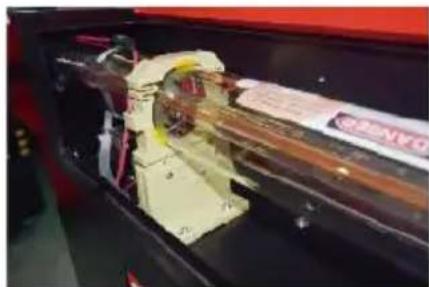
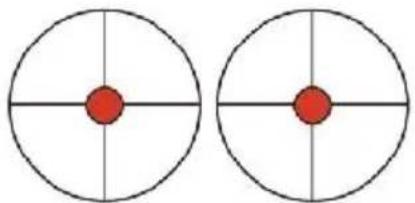
These m arks are OK
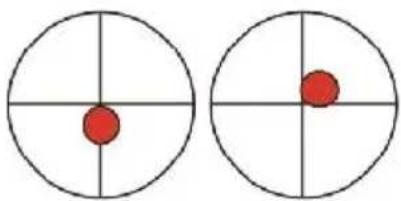
These m arks require ad justm ent
●FIRST MIRROR ALIGNMENT.
After ensuring that the laser light is properly aligned between the laser and the first mirror, check the alignment between the first mirror and second mirror. First, use the directional arrows on the control panel to the second mirror to the back of the bed along the Y axis.
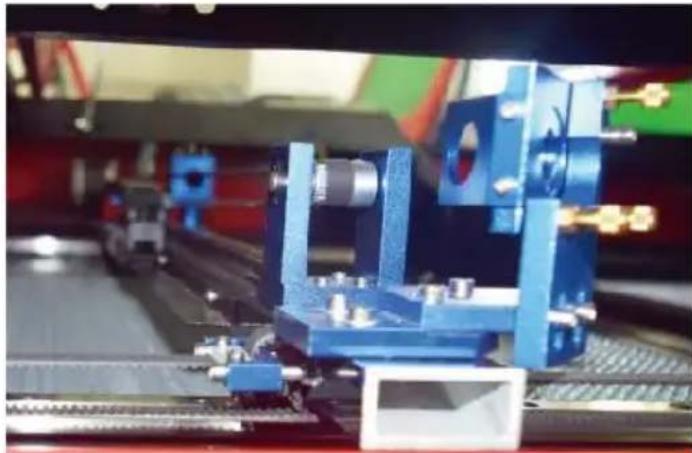
Once set, place a piece of tape on the frame of the second mirror. placeTape directly to the mirror. Repeat the previous step. If the lase centered on the second mirror, the set screws of the first mirror nee adjusted therefore.
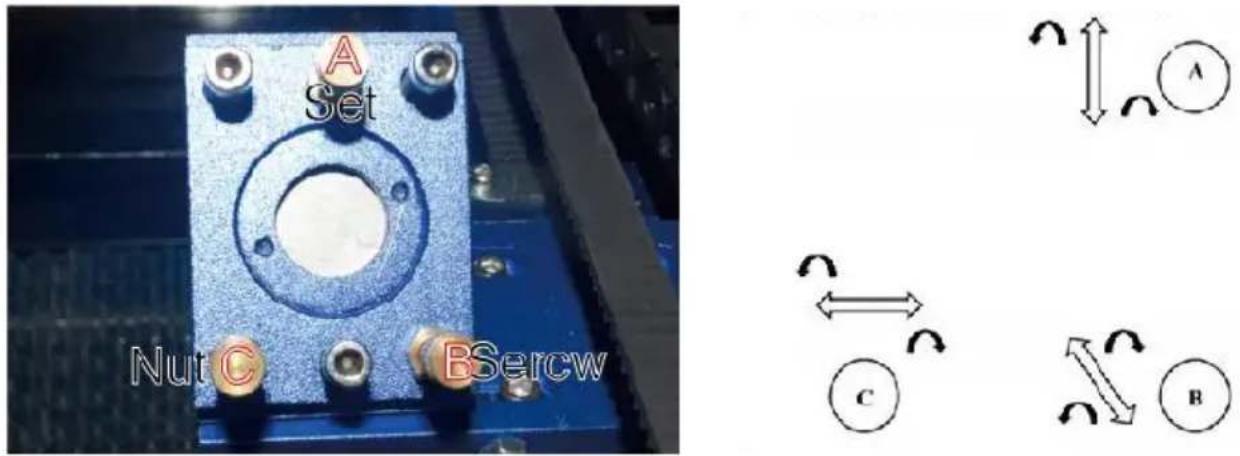
To adjust the mirror, loosen the nut on the screw and gently turn the clockwise or counterclockwise. Each screw adjusts a different position angle. Keep track of the screws you are adjusting and the direction adjustment. Do not turn the screw more than 1/4 turn at a time, esp test the position of the laser after each adjustment so that you can effect of each replacement. Test until the beams are properly aligned, retighten the nuts on the screws when all adjustments have been ma Next, use the directional arrows on the control panel to send the sec mirror to the front of the bed along the Y axis.
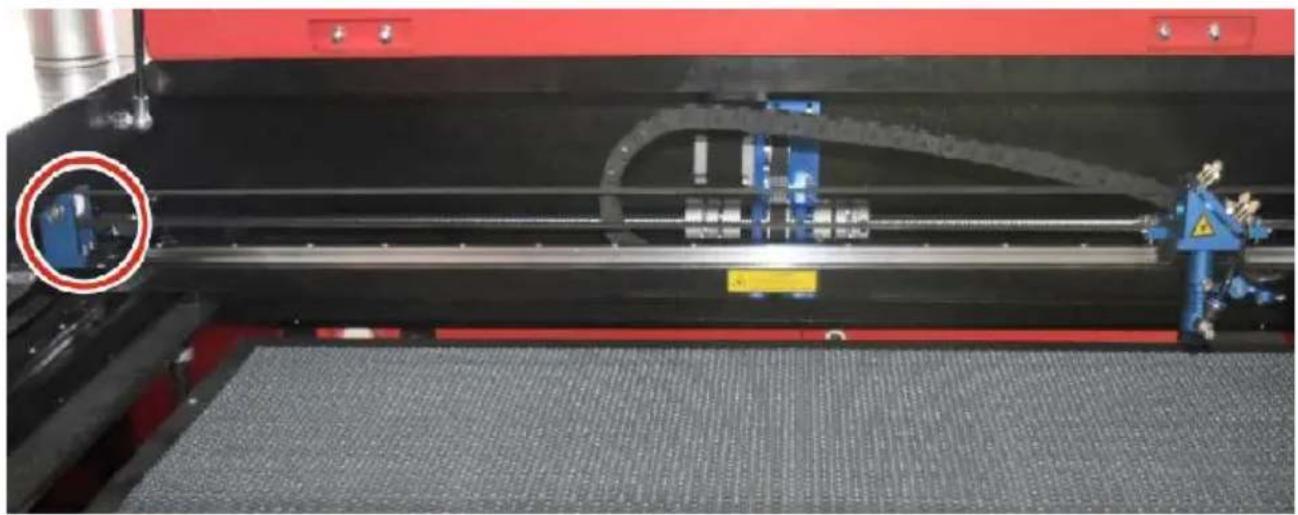
Once set, place another strip of tape on the frame of the second m not place the tape directly on the mirror. Repeat the steps in 5.4.1 necessary, adjust the set screws on the first mirror. Test again until beams are properly aligned, then retighten the nuts on the screws.
- SECOND MIRROR ALIGNMENT.
The laser mark should be close to the center of the hole. If the last centered on the first mirror, cut off the power of the laser and caref adjust the laser tube in its holder. This may require loosening the box its bracket. Be careful not to over-loosen the bolts and not over-tighted bolts. Only one stand can be adjusted at a time.
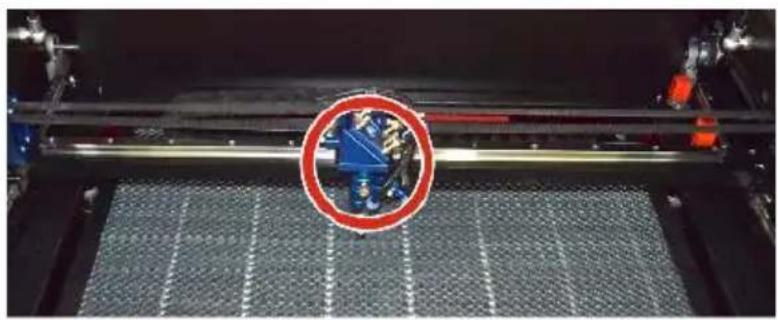
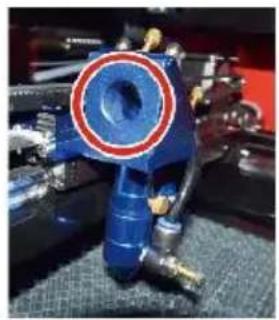
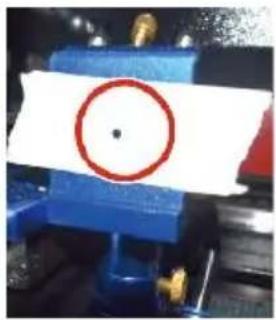
●THIRD MIRROR ALIGNMENT.
After ensuring that the laser is properly aligned between the 2nd and mirrors, check the alignment between the 3rd mirror and the table. Fi remove the air assist hose from the laser head. Then, place a piece on the bottom of the laser head and press it firmly against the nozz will leave a ring mark that can help you check the accuracy. Repeat steps in 5.4.1. If the laser is not centered through the laser head, a set screw of the third mirror accordingly as shown in 5.4.2. Test aga the beams are properly aligned, then retighten the nuts on the screw
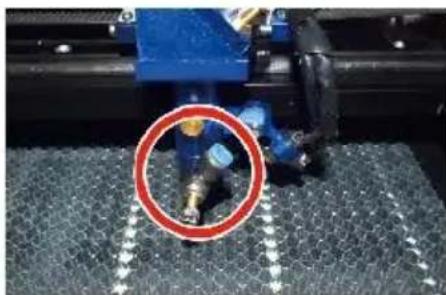
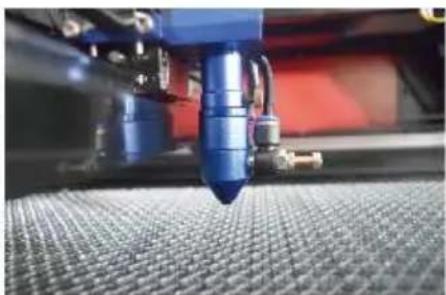
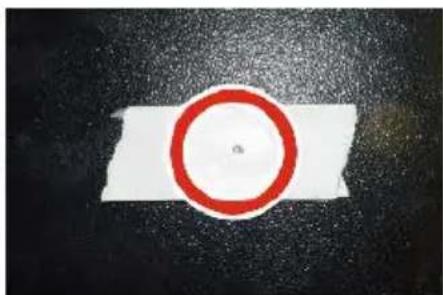
●INSTALL THE LASER TUBE.
Schematic diagram of laser tube installation:
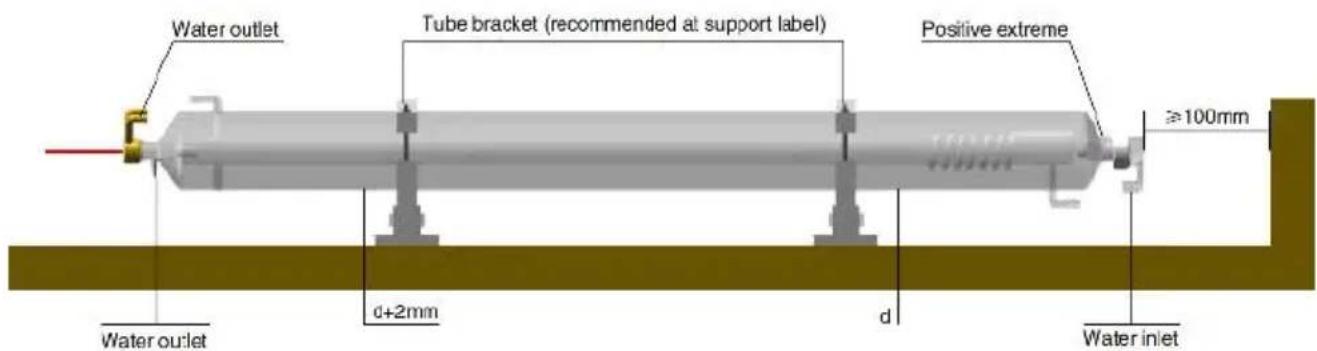
-
Please install it according to the logo on the laser, and correctly the cathode and anode connection wires, water inlet pipe and water outlet pipe of the laser.
-
Turn on the chiller and adjust the laser angle to ensure that the full of the laser and there is no clogging.
-
Remove the optical aperture mark, and then turn on the laser power supply for optical path debugging.
●PROBLEMS AND TROUBLESHOOTING.
Problem 1: The laser is always output at maximum power, or the is not adjustable.
①The laser is equipped with a power control terminal that is incorr connected; Please check the terminal connec- tion carefully.
②The laser is equipped with a power failure; Please try replacing the power supply.
③Failure of the control board of the laser machine; Please contact customer service.
Problem 2: The laser does not emit light.
①The laser is equipped with a power control terminal that is incorrect connected, or the control connection line is broken; Please check carefully whether the terminals and connecting wires are misconnected or do not turn on.
②The chiller water protection fails, and the chiller coolant is insufficient. Replace the water protector or add coolant.
③Lasers are equipped with power failures, or power supply problem. Try replacing the power cord with a power supply, or a mains pow
cord.
④Failure of the control board of the laser machine; Please contact customer service.
⑤laser failure; Please contact customer service.
Problem 3: Discharge ignition.
①The connection line between the laser and the laser equipped po supply is damaged or broken; Try replacing the cable.
②laser failure; Please contact customer service.
Problem 4: Requirements for the environment.
①The laser is equipped with a power supply and needs to operate well-ventilated environment.
②The workspace needs to meet local safety standards for the open of laser equipment.
Note: Environmental Requirements.
Operating temperature: 10°C\~38°C
Storage temperature: -10°C\~35°C Storage humidity:
20%RH\~80%RH
5.LUBRICATION INSTRUCTIONS.
For best results, clean and lubricate the rails of the engraving machine every two weeks.
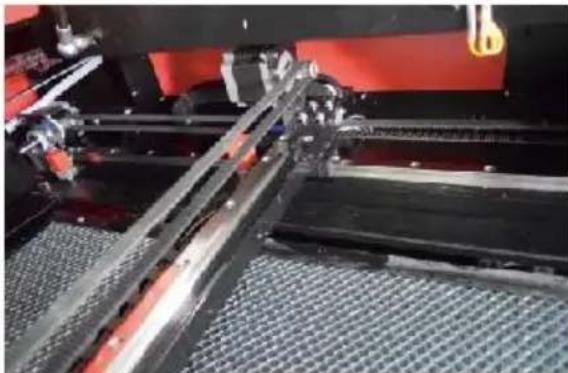
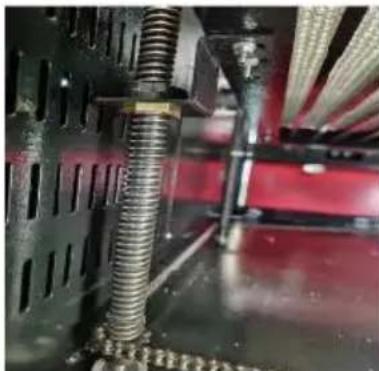
●Turn off the laser engraving machine.
●Gently move the laser head out of the way.
●Wipe all dust and debris off the X- and Y-axis rails with a dry cot until they are shiny and clean.
- Do the same for the Z-axis screws.
●Lubricate the rails and screws with grease.
●Gently move the laser head and X-axis so that the lubricant is eve distributed along the two rails, and raise and lower the bed to eve distribute the lubricant along the screws.
DAILY TROUBLESHOOTING TABLE
| ISSUE | CAUSE OF THE PROBLEM | SOLUTION |
| The panel indicates that he machine is protected | The door is not dosed | Close the door |
| The cover protection switch is damaged | Replace with a new one | |
| The panel indicates that the machine has a defe in water ingress protectic | The water pipes are clogged ar there a no water circulation | Clean the water pipe |
| The pump doesn’t come out,the pump breaks | Replace with a new one | |
| Impaired water resistance | Replace with a new one | |
| The panel prompts the working hyper inter face | The cutting paper size is too la | Resize the image |
| The machine anchor point is incorrect | Retargeting | |
| Laser cutting is impermeable | The light path of the laser is r correct | Adjust the optical pat |
| Mirrors and lenses are dirty | Wash with alcohol | |
| Does not emit lasers | Problems with laser tubes | Replace with a new one |
| Lager power issues | Replace with a new one | |
| The Y-axis does not Move | The rotary switch is not turned | Tum off the rotary switch |
| Poor relay connection | Reposition the relay replace it with a new one | |
| The scan panel indicate hat the buffer distance i insufficient | The X-axis laser head is too fa away from one aide | Reposition the X-axis laser head so that it is50 mm away fro the origin |
| The reset switch on the machine is not turned o function | The limit switch is damaged or limit line is damaged,and the sv in the e-chain@is disconnected | Replace with a new red limit switch |
ACCESSORIES LIST
- Instructions *1
- Smoke exhaust pipes *1
- Double-sided tape *1
- Clamps *1
- Screwdriver *1
- Allen key *1SET
- Grounding wire *1
- Power cord *1
- Data cable *1
- Crystal network cable *1
- Document bag *1
- flash drive *1
Address: Shuangchenglu 803nong11hao1602A-1609shi, baoshanqu, shanghai 200000 CN.
Imported to AUS: SIHAO PTY LTD, 1 ROKEVA STREETEASTWOOD NS 2122 Australia
Imported to USA: Sanven Technology Ltd., Suite 250, 9166 Anaheim Pla Rancho Cucamonga, CA 91730
| EC | REP |
E-CrossStu GmbH
Mainzer Landstr.69, 60329 Frankfurt am Ma
| UK | REP |
YH CONSULTING LIMITED.
C/O YH Consulting Limited Office 147, Centurion H
London Road, Staines-upon-Thames, Surrey, TW18 4
VEVOR®
TOUGH TOOLS, HALF PRICE
Technical Support and E-Warranty Certificate www.vevor.com/support
VEVOR®
TOUGH TOOLS, HALF PRICE
MANUEL D'INSTRUCTIONS
MODÈLE : KH5030/KH6040/KH7050/KH906/KH1490 KH-5030/KH-6040/KH-7050/KH-906/KH-1490
We continue to be committed to provide you tools with competitive price. "Save Half", "Half Price" or any other similar expressions used by us only represent of savings you might benefit from buying certain tools with us compared top brands and does not necessarily mean to cover all categories of tools offered are kindly reminded to verify carefully when you are placing an order with us actually saving half in comparison with the top major brands.
VEVOR®
TOUGH TOOLS, HALF PRICE
LASER ENGRAVING MACHINE
MODÈLE : KH5030/KH6040/KH7050/KH9060/KH1490
KH-5030/KH-6040/KH-7050/KH-906/KH-1490
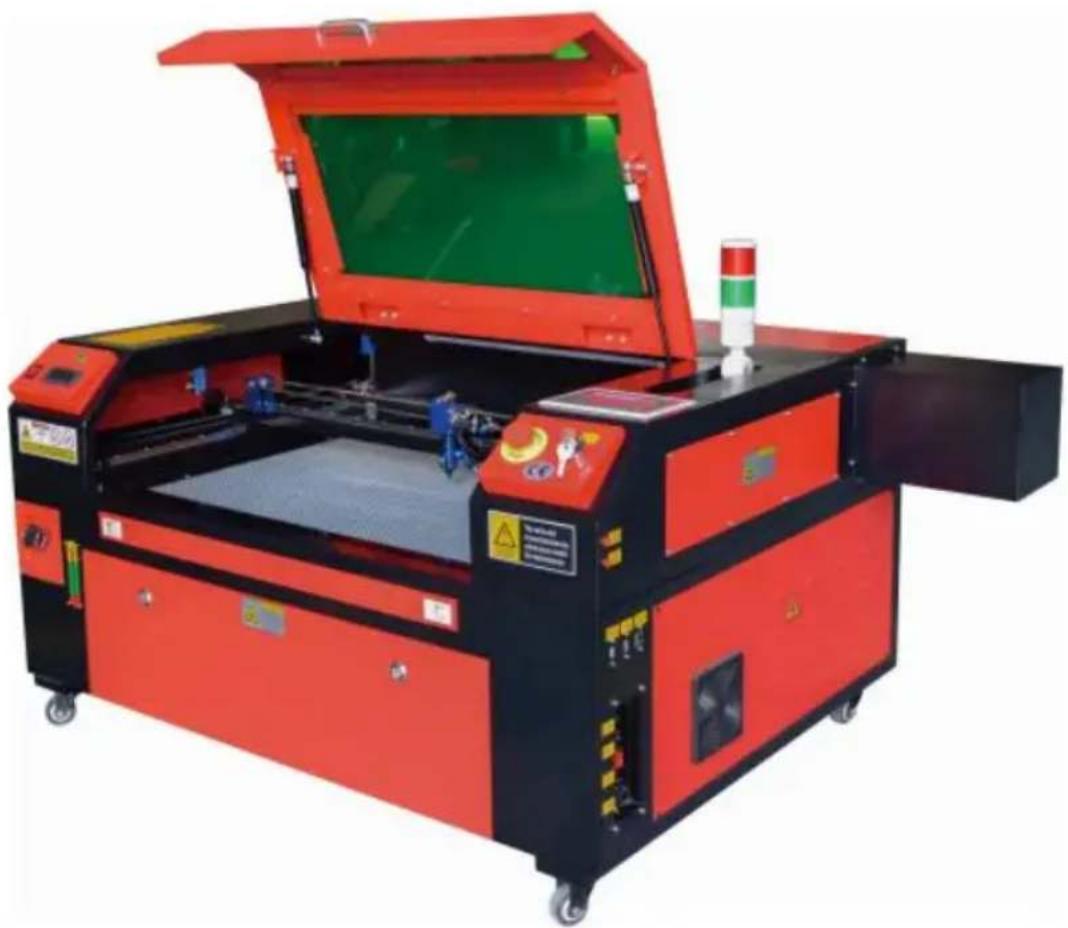
NEED HELP? CONTACT US!
Have product questions? Need technical support? Please feel fr contact us:
Technical Support and E-Warranty Certificate www.vevor.com/support
This is the original instruction, please read all manual instruction carefully before operating. VEVOR reserves a clear interpretation user manual. The appearance of the product shall be subject to product you received. Please forgive us that we won't inform you there are any technology or software updates on our product.
MAIN COMPONENTS AND DESCRIPTIONS
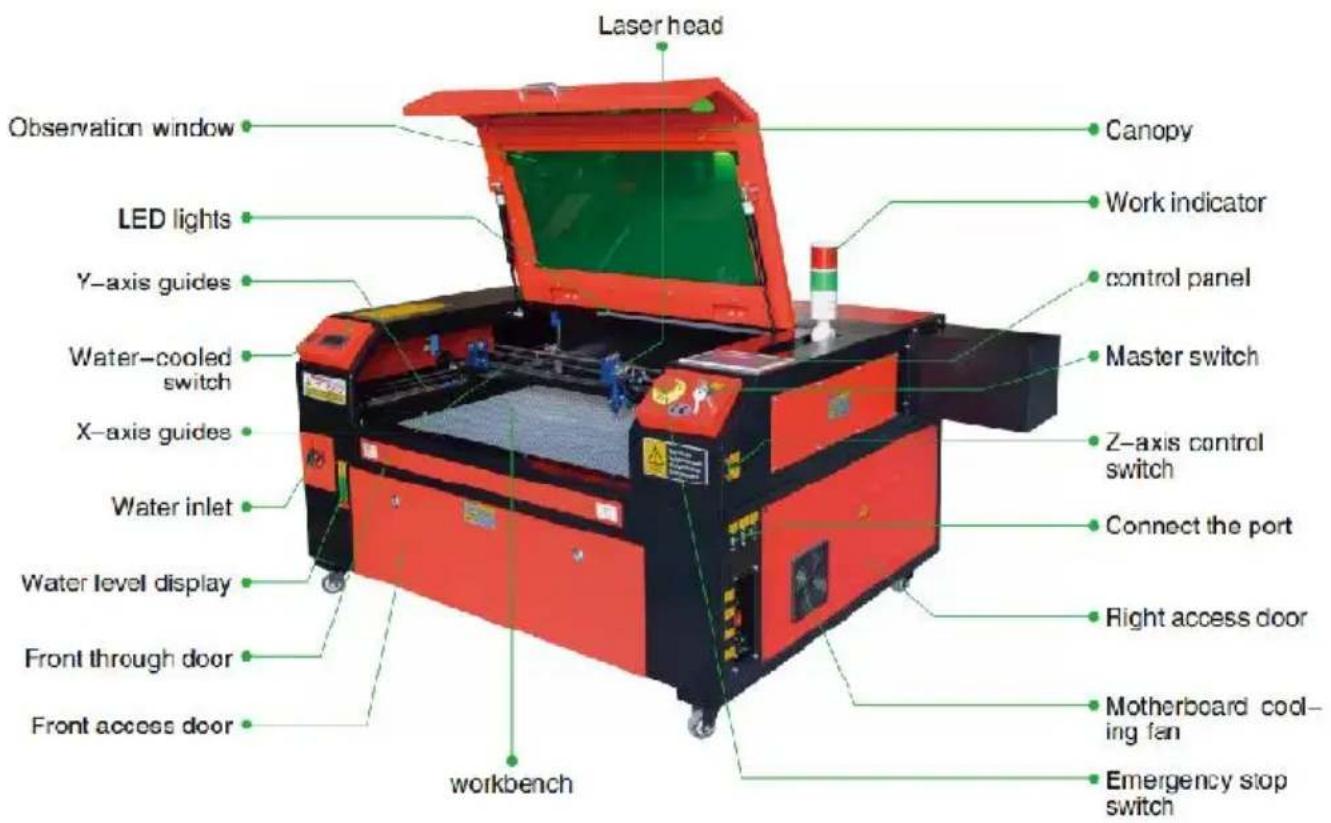
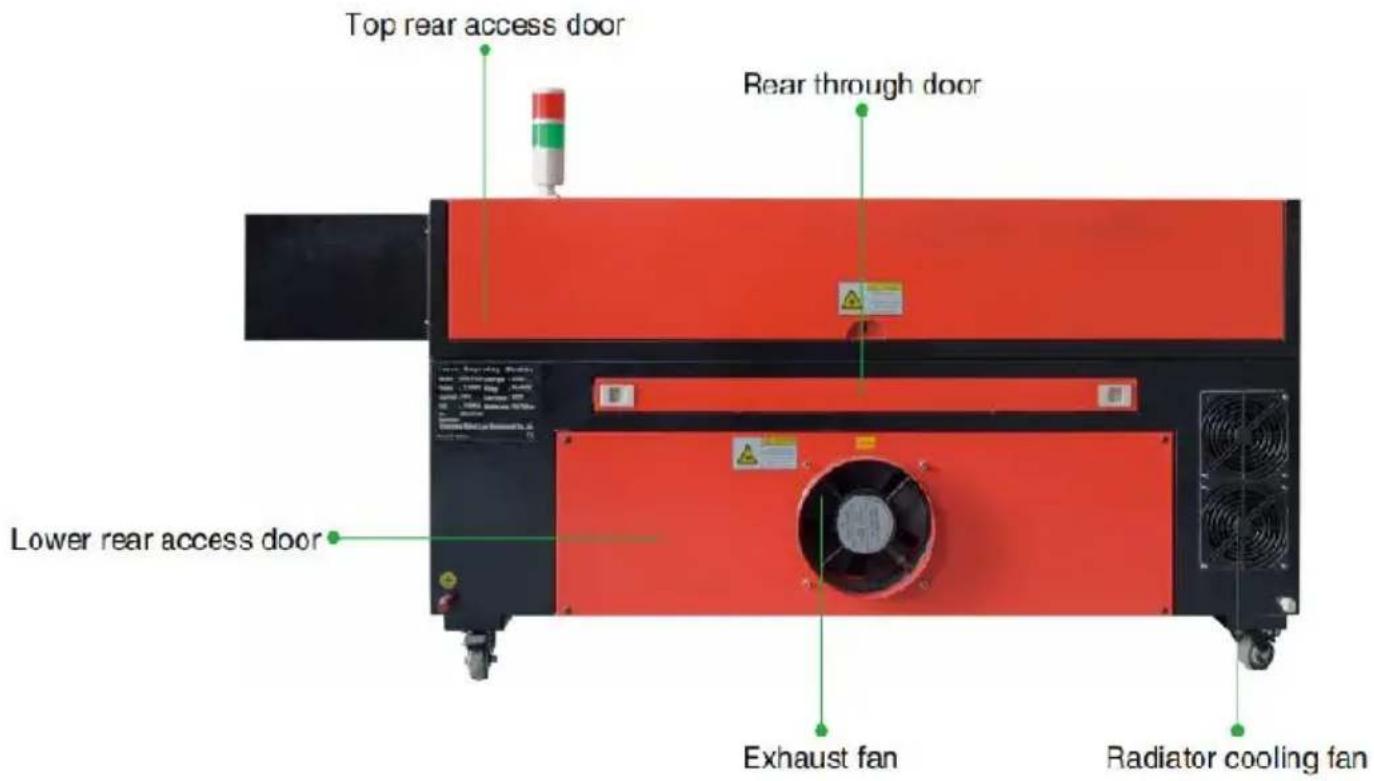
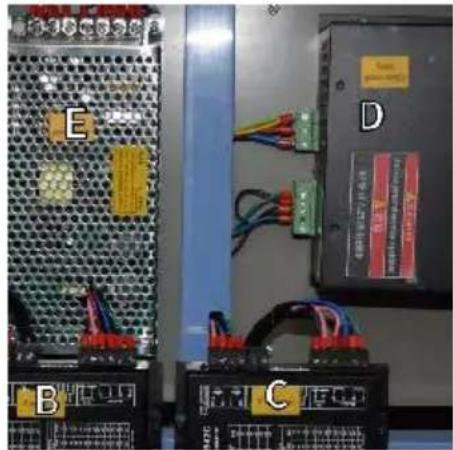
- Alimentation laser .
Point Shot Button: The laser tube is pointed at the light

OK key: Used for user confirmation

Autofocus key: Automatically finds the locus point

Speed key: Sets the current machining speed value


Z-axis key: Used to move the Z-axis


U-axis key: Used to move the U-axis

Start/Pause key: Start work or pause/restart work

Decimal Point: Used to set parameters with decimals

Power button: Set the current maximum and minimum power values

Jog/Continuous Key: Jog motion and continuous motion switching

Toggle keys: Combine with number keys to form key combinations, or toggle special functions

Exit key: Used to return to the previous menu cancel parameter settings, etc

Menu keys: user parameters, manufacturer parameters language settings, etc

Border Key: Performs a boundary traversal operation on the file being processed

File Keys: Memory file and USB flash drive file management

D-pad: Used to move options when setting parameters in the menu
Numeric keys 0-9: used to set parameters, the keys with characters in the upper right corner can be combined with the toggle keys
4. CONSIGNES DE SÉCURITÉ ÉLECTRIQUE.
- Nylon (polyamide, PA, etc.)
- polyéthylène
5. CONNEXION À L'ALIMENTATION PRINCIPALE.
8. SÉCURITÉ .
●RÉGLER LE MODE DE MOUVEMENT LASER.
●DÉFINIR L'ORIGINE .
●RÉGLER LES PARAMÈTRES DE SOUFFLAGE.
●RÉGLER LA VITESSE DE RÉINITIALISATION.
Permission not activated!

Change permission code
1st mirror
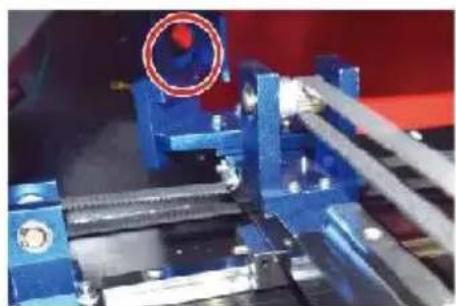
2nd mirror
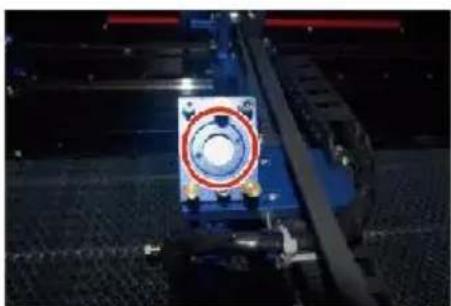
3rd mirror
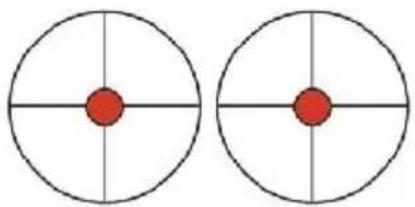
These m arks are OK
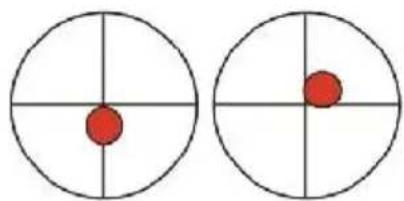
These m arks require ad justm ent
●PREMIER ALIGNEMENT DU MIROIR .
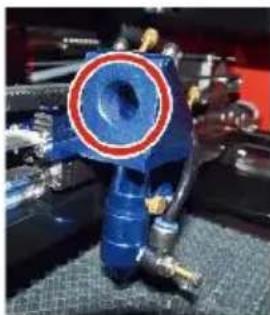
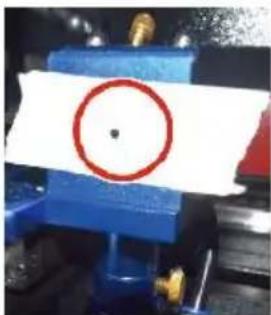
●TROISIÈME ALIGNEMENT DU MIROIR.
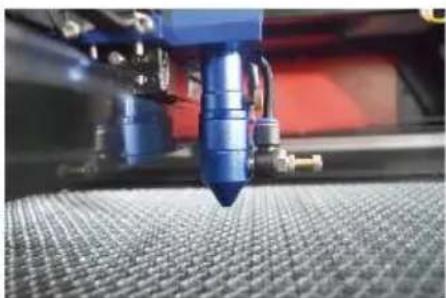
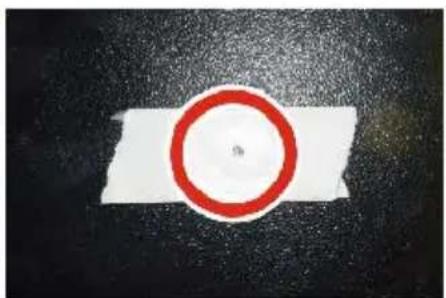
●INSTALLER LE TUBE LASER.
contacter le service client.
DAILY TROUBLESHOOTING TABLE
C/O YH Consulting Limited Office 147, Centurion H London Road, Staines-upon-Thames, Surrey, TW18 4
VEVOR®
TOUGH TOOLS, HALF PRICE
We continue to be committed to provide you tools with competitive price. "Save Half", "Half Price" or any other similar expressions used by us only represent estimate of savings you might benefit from buying certain tools with us compared top brands and does not necessarily mean to cover all categories of tools offered are kindly reminded to verify carefully when you are placing an order with us actually saving half in comparison with the top major brands.
VEVOR®
TOUGH TOOLS, HALF PRICE
LASER ENGRAVING MACHINE
MODELL: KH5030/KH6040/KH7050/KH9060/KH1490
KH-5030/KH-6040/KH-7050/KH-906/KH-1490
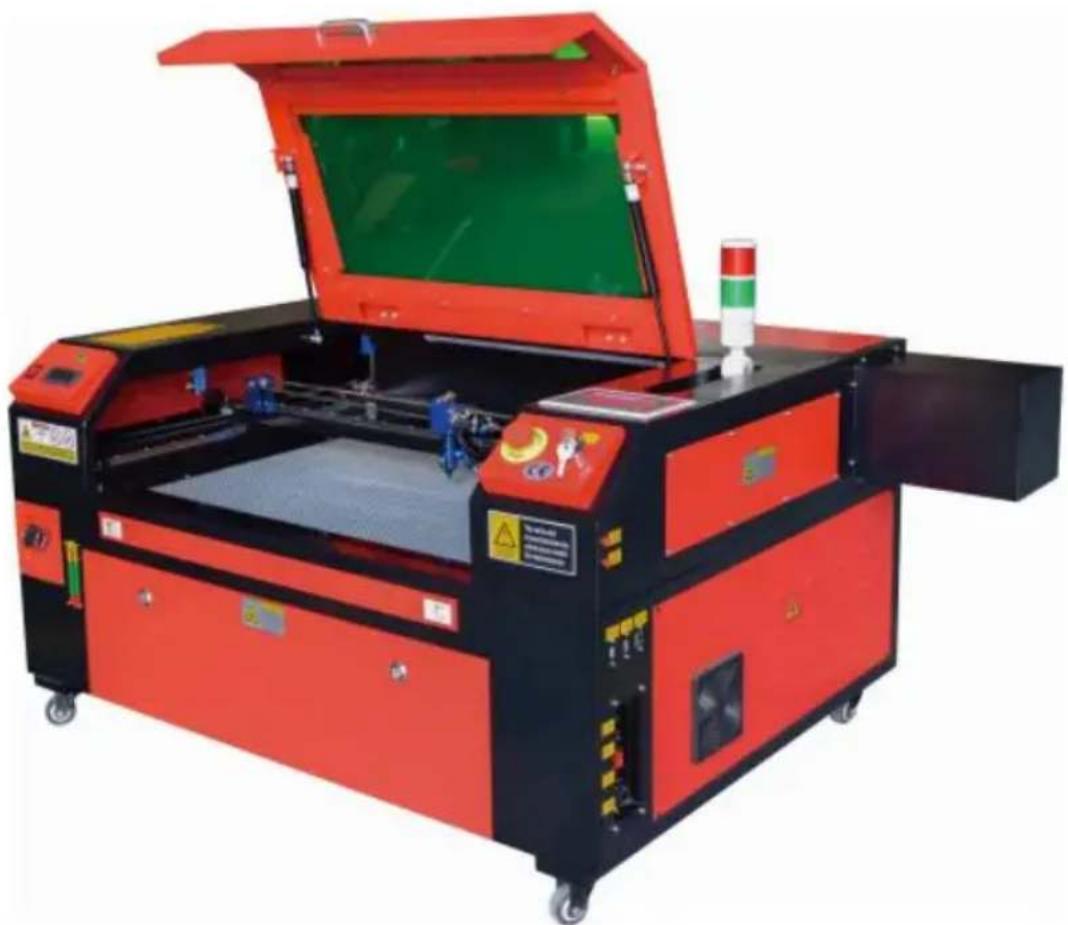
NEED HELP? CONTACT US!
Have product questions? Need technical support? Please feel fr contact us:
Technical Support and E-Warranty Certificate www.vevor.com/support
This is the original instruction, please read all manual instruction carefully before operating. VEVOR reserves a clear interpretation user manual. The appearance of the product shall be subject to product you received. Please forgive us that we won't inform you there are any technology or software updates on our product.
MAIN COMPONENTS AND DESCRIPTIONS
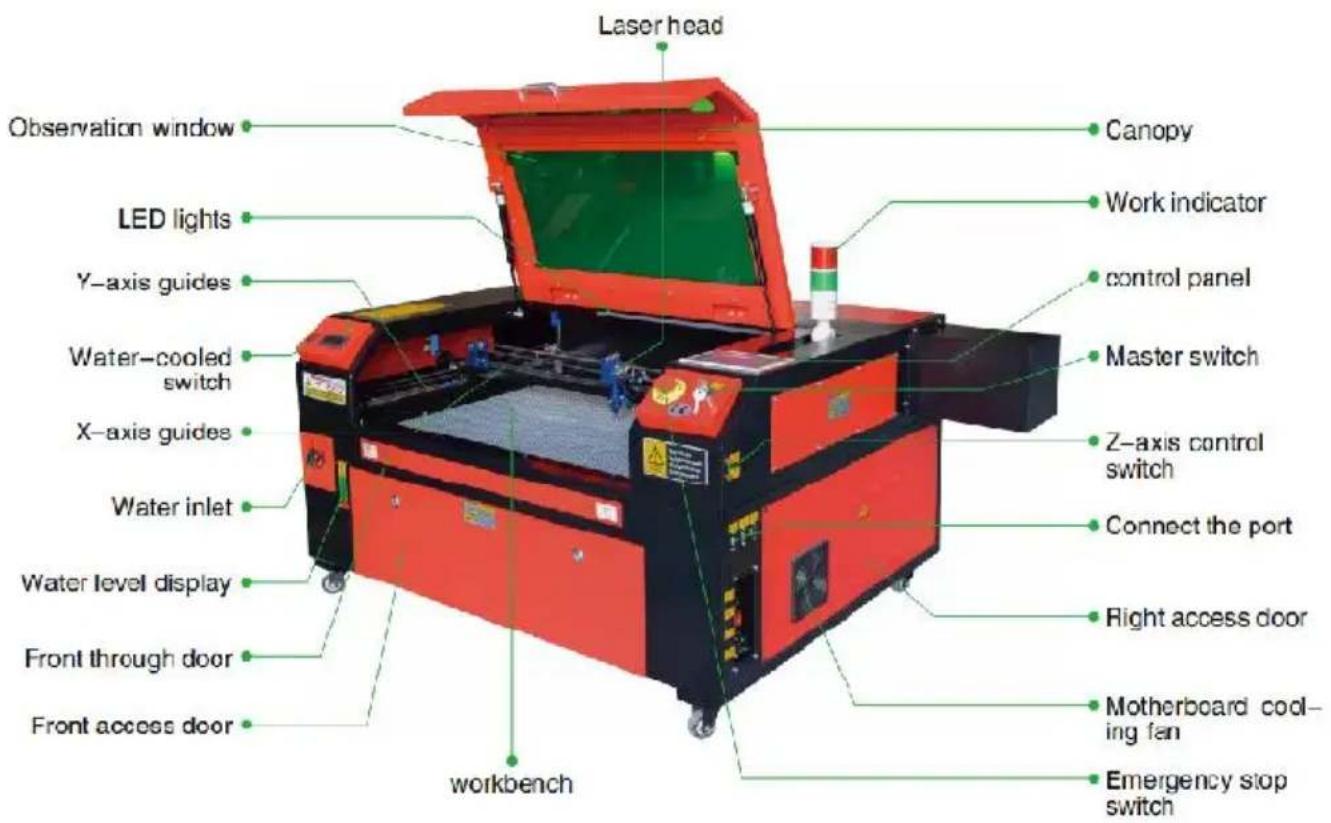
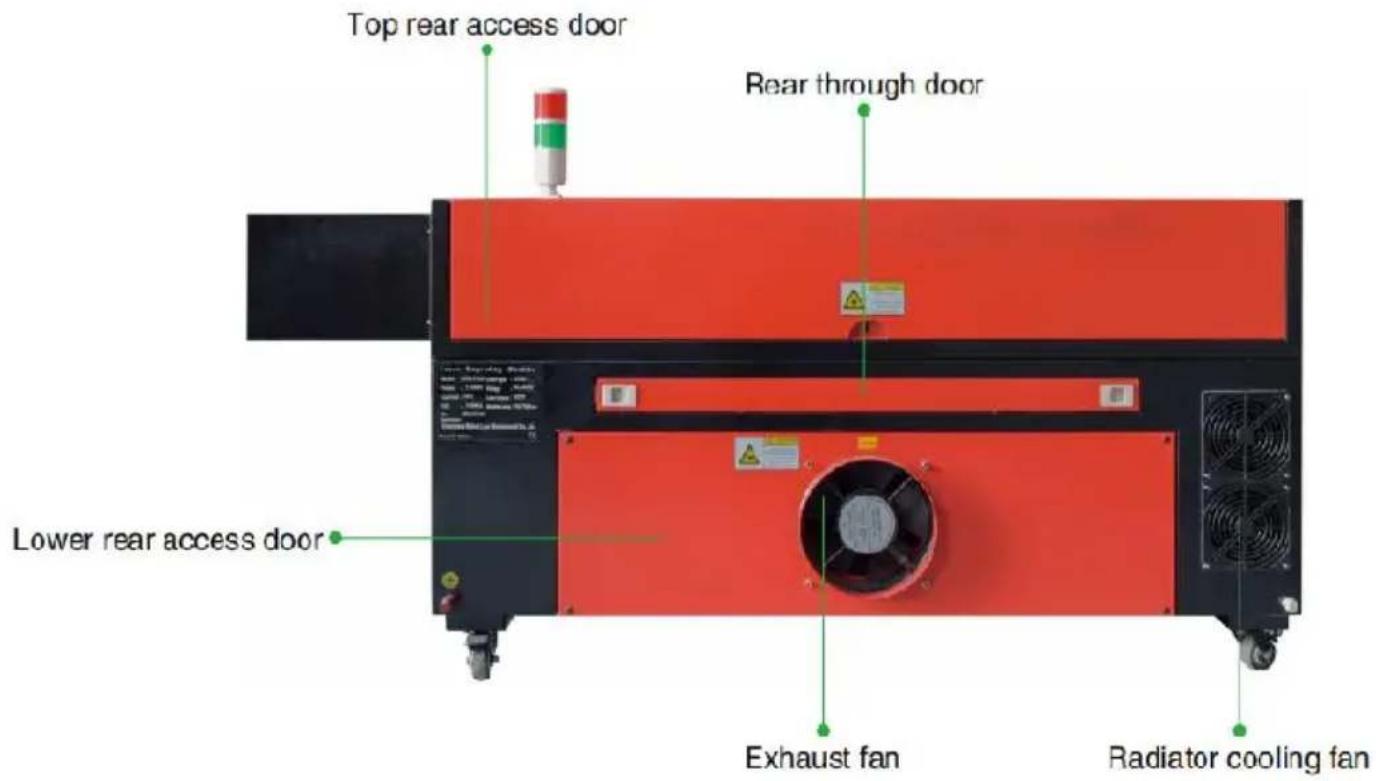
- Teilebeschreibung.
- Rechte Zugangstür.
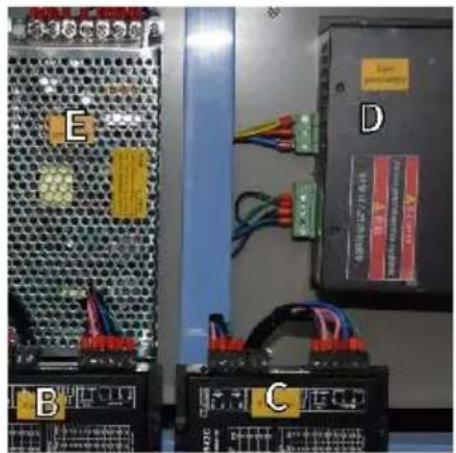
Point Shot Button: The laser tube is pointed at the light

OK key: Used for user confirmation

Autofocus key: Automatically finds the locus point

Start/Pause key: Start work or pause/restart work

Decimal Point: Used to set parameters with decimals

Power button: Set the current maximum and minimum power values

Jog/Continuous Koy: Jog motion and continuous motion switching

Toggle keys: Combine with number keys to form key combinations, or toggle special functions

Exit key: Used to return to the previous menu cancel parameter settings, etc

Menu keys: user parameters, manufacturer parameters language settings, etc

Speed key: Sets the current machining speed value

Border Key: Performs a boundary traversal operation on the file being processed


Z-axis key: Used to move the Z-axis

File Keys: Memory file and USB flash drive file management


U-axis key: Used to move the U-axis

D-pad: Used to move options when setting parameters in the menu
Numeric keys 0-9: used to set parameters, the keys with characters in the upper right corner can be combined with the toggle keys
8. SICHERHEIT.
●PASSEN SIE DEN LASERBEWEGUNGSMODUS AN .
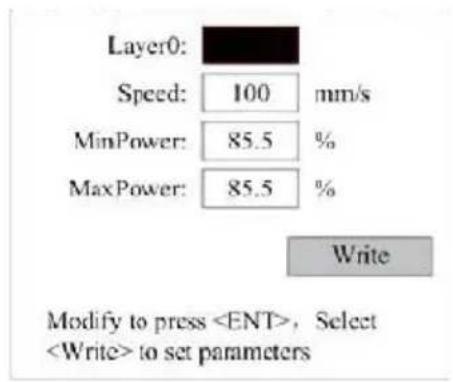
- BLASPARAMETER EINSTELLEN .
Permission not activated!

Change permission code
1st mirror
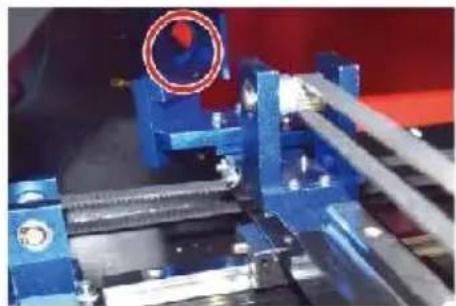
2nd mirror
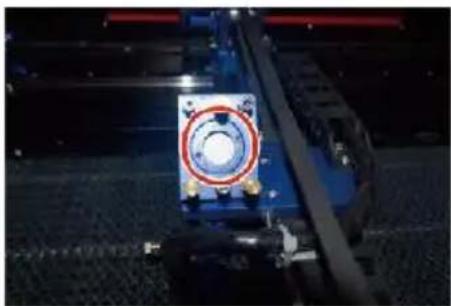
3rd mirror
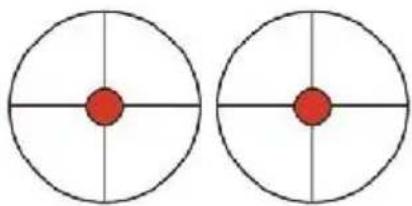
These m arks are OK
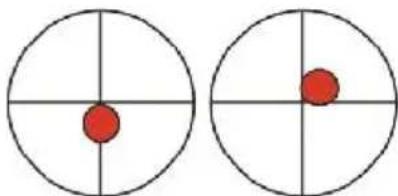
These m arks require ad justm ent
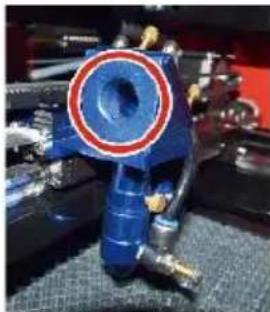
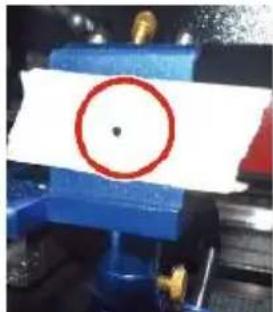
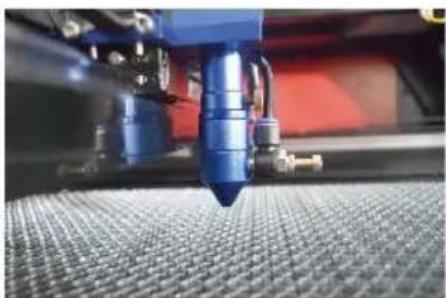
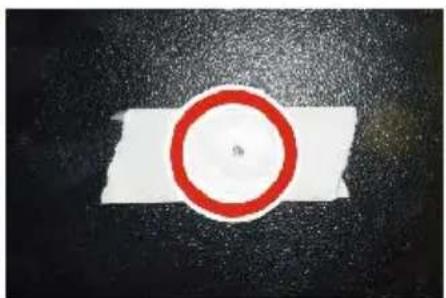
●INSTALLIEREN SIE DIE LASERROHR .
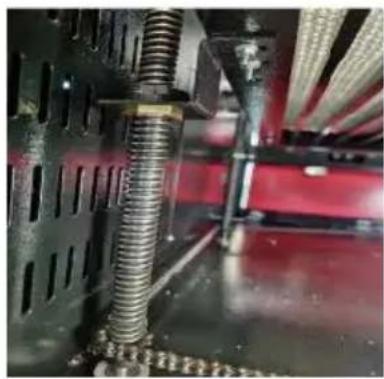
DAILY TROUBLESHOOTING TABLE
C/O YH Consulting Limited Office 147, Centurion H, London Road, Staines-upon-Thames, Surrey, TW18 4
VEVOR®
TOUGH TOOLS, HALF PRICE
We continue to be committed to provide you tools with competitive price. "Save Half", "Half Price" or any other similar expressions used by us only represent of savings you might benefit from buying certain tools with us compared top brands and does not necessarily mean to cover all categories of tools offered are kindly reminded to verify carefully when you are placing an order with us actually saving half in comparison with the top major brands.
VEVOR®
TOUGH TOOLS, HALF PRICE
LASER ENGRAVING MACHINE
MODELLO: KH5030/KH6040/KH7050/KH9060/KH1490
KH-5030/KH-6040/KH-7050/KH-906/KH-1490

NEED HELP? CONTACT US!
Have product questions? Need technical support? Please feel fr contact us:
Technical Support and E-Warranty Certificate www.vevor.com/support
This is the original instruction, please read all manual instruction carefully before operating. VEVOR reserves a clear interpretation user manual. The appearance of the product shall be subject to product you received. Please forgive us that we won't inform you there are any technology or software updates on our product.
- Schema del componente.
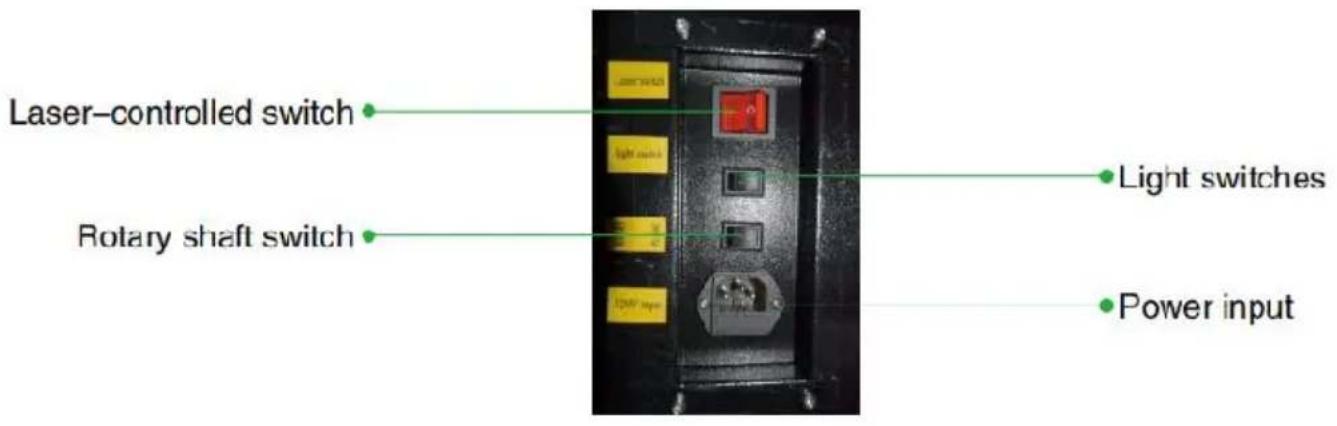
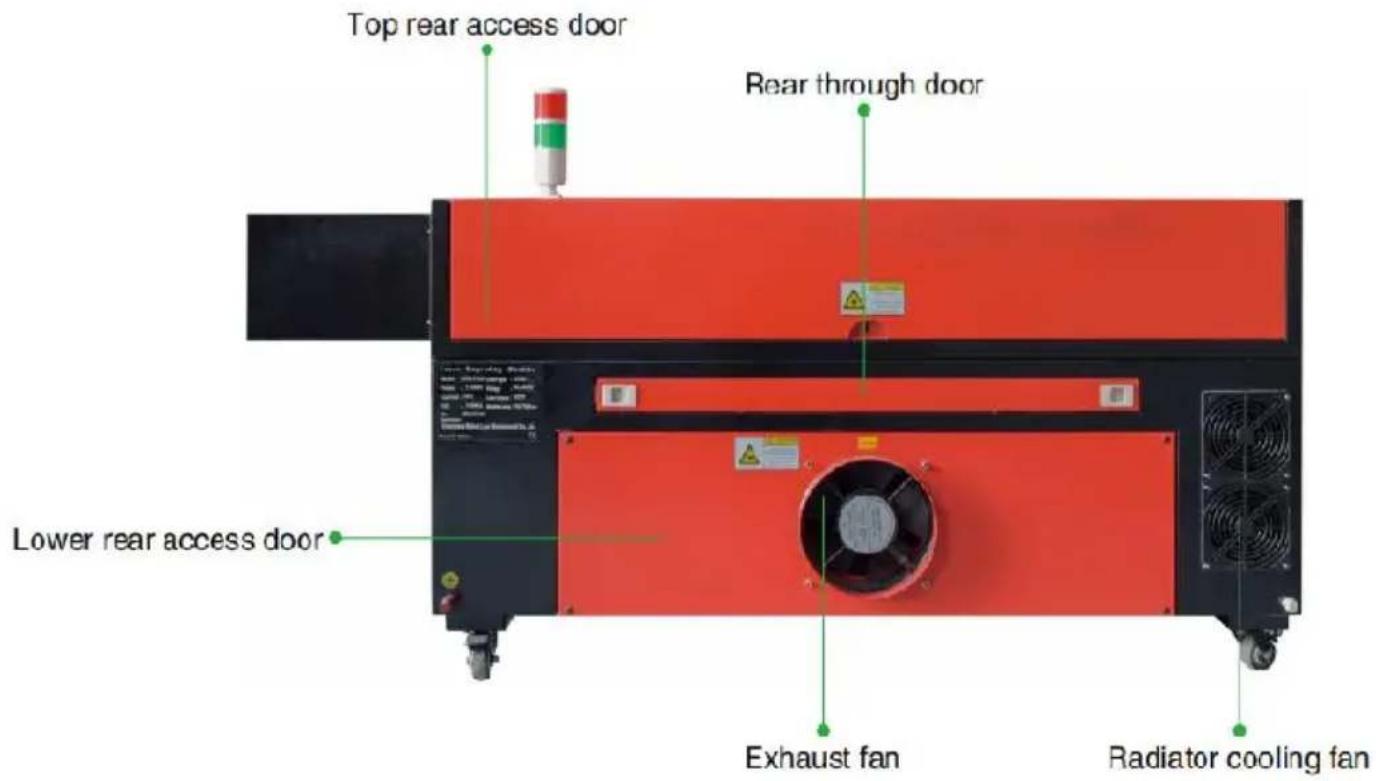
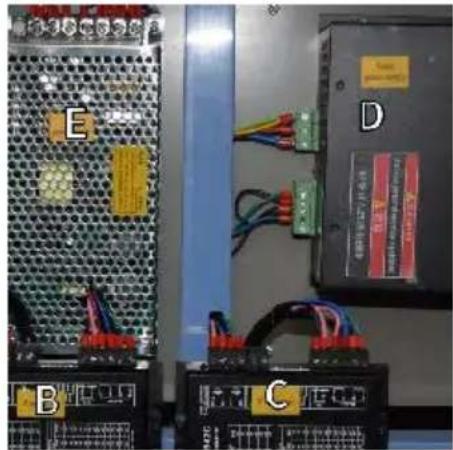
Point Shot Button: The laser tube is pointed at the light

OK key: Used for user confirmation

Autofocus key: Automatically finds the locus point

Speed key: Sets the current machining speed value


Z-axis key: Used to move the Z-axis


U-axis key: Used to move the U-axis

Start/Pause key: Start work or pause/restart work

Decimal Point: Used to set parameters with decimals

Power button: Set the current maximum and minimum power values

Jog/Continuous Key: Jog motion and continuous motion switching

Toggle keys: Combine with number keys to form key combinations, or toggle special functions

Exit key: Used to return to the previous menu cancel parameter settings, etc

Menu keys: user parameters, manufacturer parameters language settings, etc

Border Key: Performs a boundary traversal operation on the file being processed

File Keys: Memory file and USB flash drive file management

D-pad: Used to move options when setting parameters in the menu
Numeric keys 0-9: used to set parameters, the keys with characters in the upper right corner can be combined with the toggle keys
4. ISTRUZIONI DI SICUREZZA ELETTRICA.
8. SICUREZZA .
- REGOLARE LA MODALITÀ DI MOVIMENTO DEL LASER .
●IMPOSTA L'ORIGINE .
●IMPOSTARE I PARAMETRI DI SOFFIAGGIO.
- REGOLARE LA VELOCITÀ DI RESET .
Permission not activated!

Change permission code
1st mirror
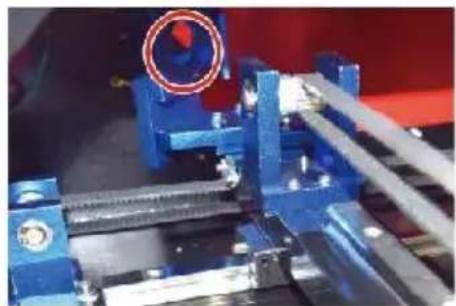
2nd mirror
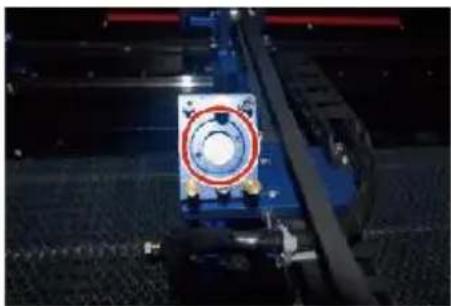
3rd mirror
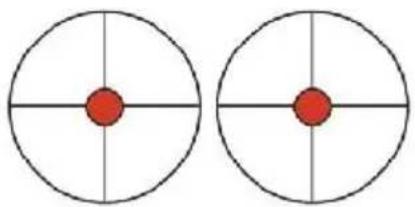
These m arks are OK
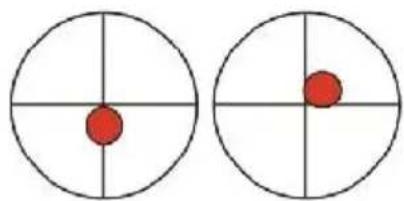
These m arks require ad justm ent
●PRIMO ALLINEAMENTO DELLO SPECCHIO .
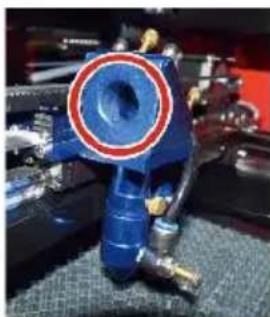
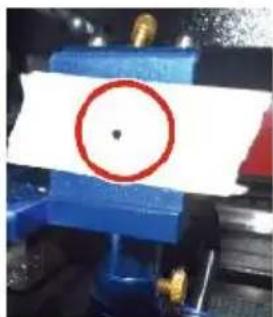
●ALLINEAMENTO DEL TERZO SPECCHIO .
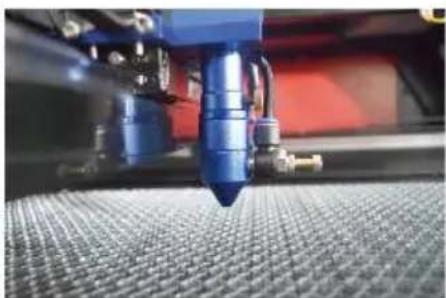
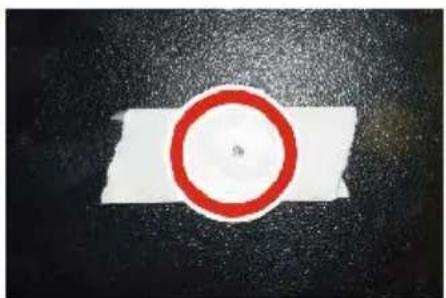
●INSTALLARE IL TUBO LASER.
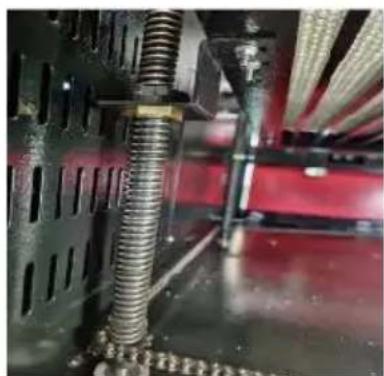
DAILY TROUBLESHOOTING TABLE
Importato in AUS: SIHAO PTY LTD, 1 ROKEVA STREETEASTWOOD NS 2122 Australia
Importato negli USA: Sanven Technology Ltd., Suite 250, 9166 Anaheim Place, Rancho Cucamonga, CA 91730
| EC | REP |
E-CrossStu GmbH
Mainzer Landstr.69, 60329 Frankfurt am Ma
| UK | REP |
YH CONSULTING LIMITED.
C/O YH Consulting Limited Office 147, Centurion H, London Road, Staines-upon-Thames, Surrey, TW18 4
VEVOR®
TOUGH TOOLS, HALF PRICE
We continue to be committed to provide you tools with competitive price. "Save Half", "Half Price" or any other similar expressions used by us only represent estimate of savings you might benefit from buying certain tools with us compared top brands and does not necessarily mean to cover all categories of tools offered are kindly reminded to verify carefully when you are placing an order with us actually saving half in comparison with the top major brands.
VEVOR®
TOUGH TOOLS, HALF PRICE
LASER ENGRAVING MACHINE
MODELO: KH5030/KH6040/KH7050/KH9060/KH1490
KH-5030/KH-6040/KH-7050/KH-906/KH-1490
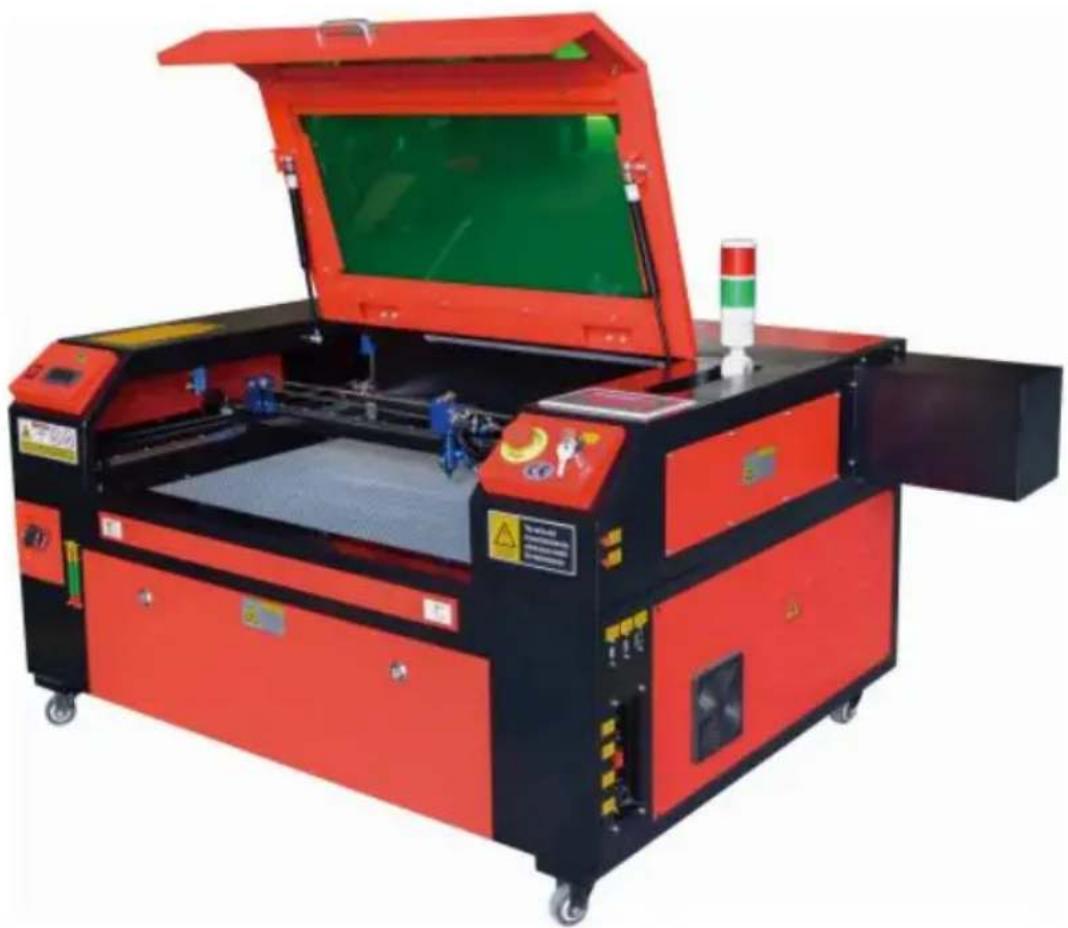
NEED HELP? CONTACT US!
Have product questions? Need technical support? Please feel fr contact us:
Technical Support and E-Warranty Certificate www.vevor.com/support
This is the original instruction, please read all manual instruction carefully before operating. VEVOR reserves a clear interpretation user manual. The appearance of the product shall be subject to product you received. Please forgive us that we won't inform you there are any technology or software updates on our product.
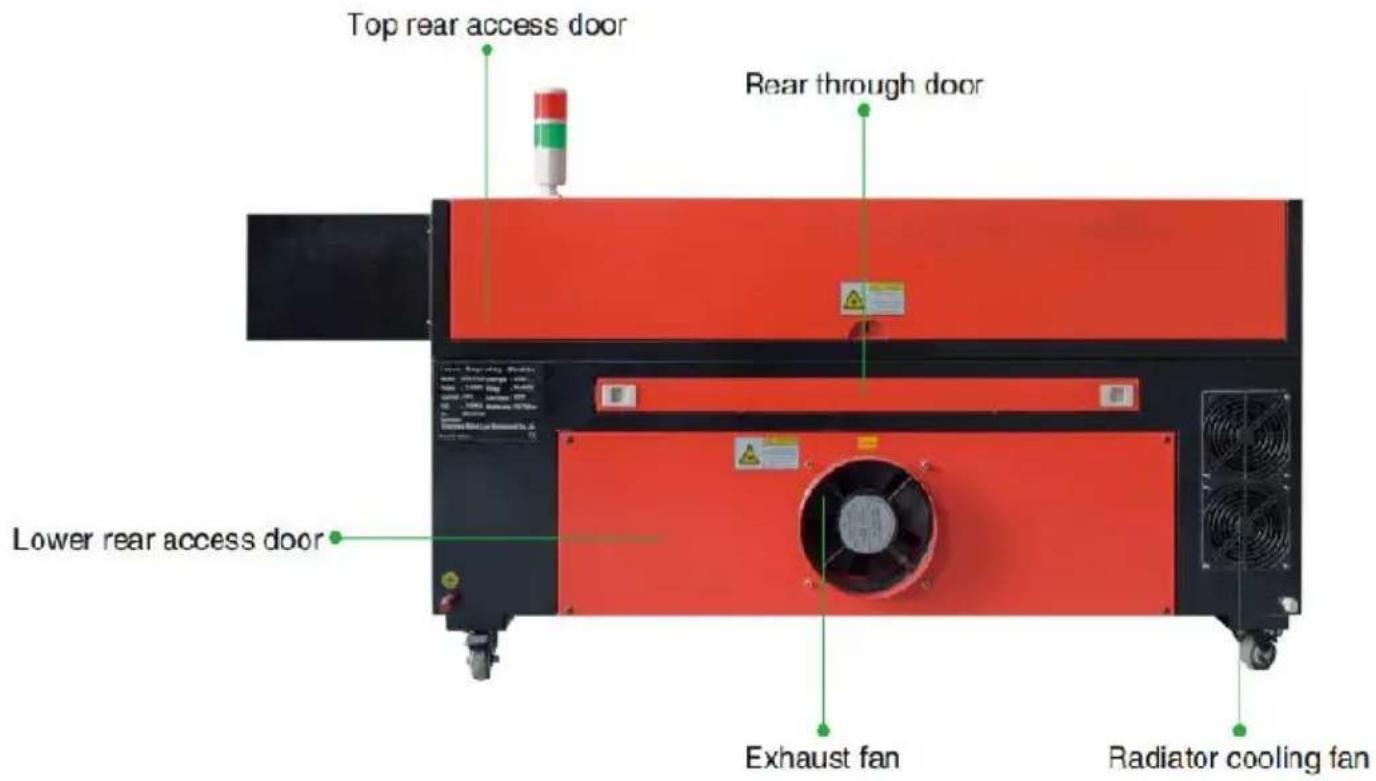
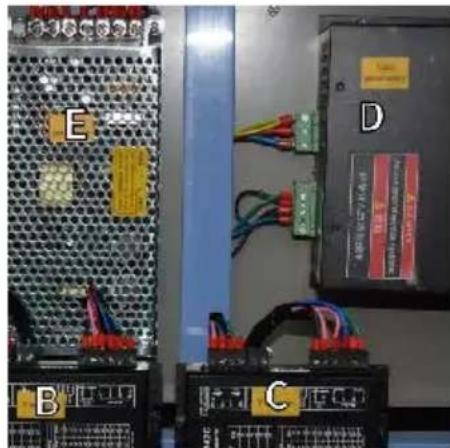
Point Shot Button: The laser tube is pointed at the light

OK key: Used for user confirmation

Autofocus key: Automatically finds the locus point

Start/Pause key: Start work or pause/restart work

Decimal Point: Used to set parameters with decimals

Power button: Set the current maximum and minimum power values

Jog/Continuous Key: Jog motion and continuous motion switching

Toggle keys: Combine with number keys to form key combinations, or toggle special functions

Exit key: Used to return to the previous menu cancel parameter settings, etc

Menu keys: user parameters, manufacturer parameters language settings, etc

Speed key: Sets the current machining speed value

Border Key: Performs a boundary traversal operation on the file being processed


Z-axis key: Used to move the Z-axis

File Keys: Memory file and USB flash drive file management


U-axis key: Used to move the U-axis

D-pad: Used to move options when setting parameters in the menu
Numeric keys 0-9: used to set parameters, the keys with characters in the upper right corner can be combined with the toggle keys
|
H
G
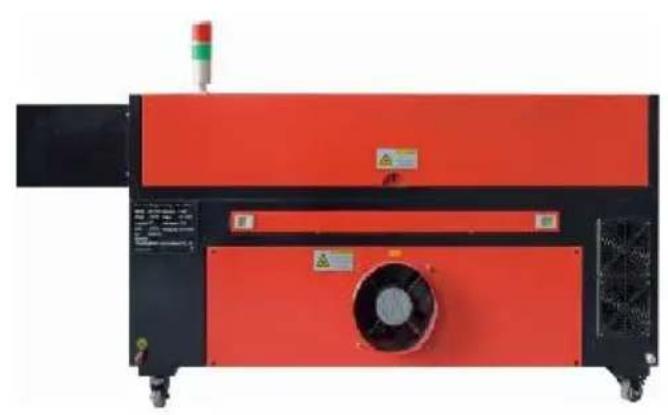
Entrada de agua
●AJUSTAR EL MODO DE MOVIMIENTO DEL LÁSER.
●ESTABLECER EL ORIGEN.
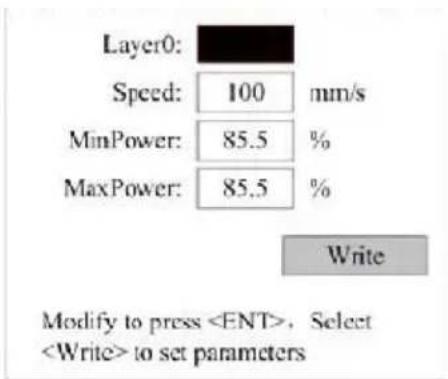
- ESTABLECER PARÁMETROS DE SOPLO.
Permission not activated!

Change permission code
1st mirror
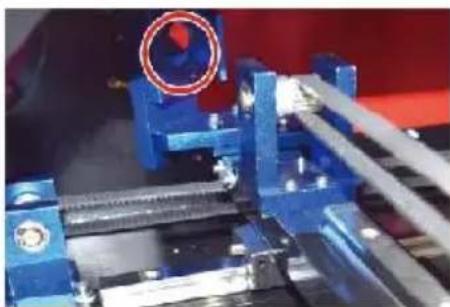
2nd mirror
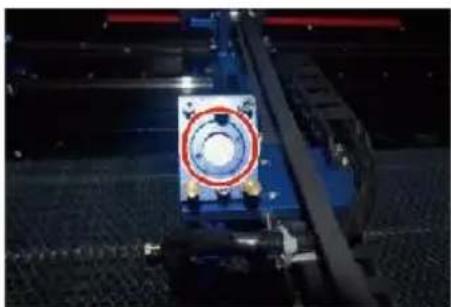
3rd mirror
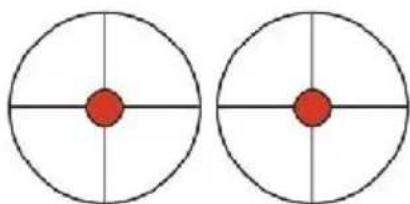
These m arks are OK
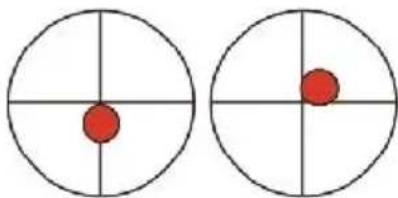
These m arks require ad justm ent
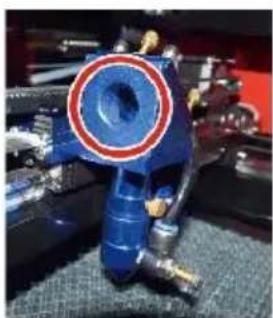
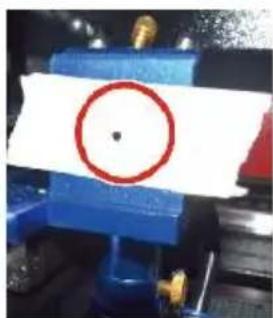
●INSTALE EL TUBO LÁSER.
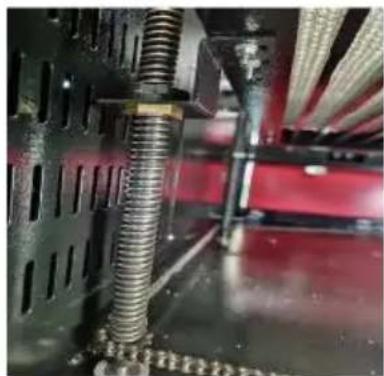
DAILY TROUBLESHOOTING TABLE
C/O YH Consulting Limited Office 147, Centurion H
London Road, Staines-upon-Thames, Surrey, TW18 4
VEVOR®
TOUGH TOOLS, HALF PRICE
We continue to be committed to provide you tools with competitive price. "Save Half", "Half Price" or any other similar expressions used by us only represent estimate of savings you might benefit from buying certain tools with us compared top brands and does not necessarily mean to cover all categories of tools offered are kindly reminded to verify carefully when you are placing an order with us actually saving half in comparison with the top major brands.
VEVOR®
TOUGH TOOLS, HALF PRICE
LASER ENGRAVING MACHINE
MODELE: KH5030/KH6040/KH7050/KH9060/KH1490
KH-5030/KH-6040/KH-7050/KH-906/KH-1490
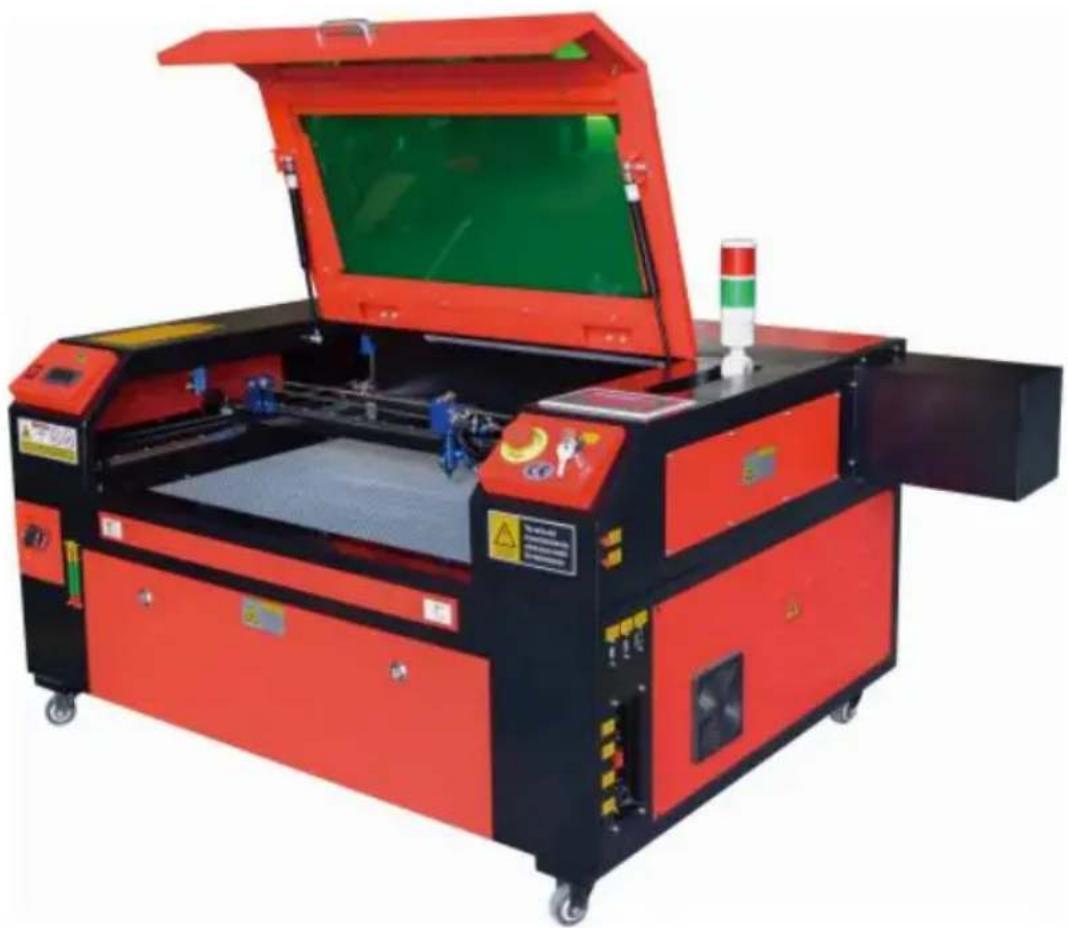
NEED HELP? CONTACT US!
Have product questions? Need technical support? Please feel fr contact us:
Technical Support and E-Warranty Certificate www.vevor.com/support
This is the original instruction, please read all manual instruction carefully before operating. VEVOR reserves a clear interpretation user manual. The appearance of the product shall be subject to product you received. Please forgive us that we won't inform you there are any technology or software updates on our product.
MAIN COMPONENTS AND DESCRIPTIONS
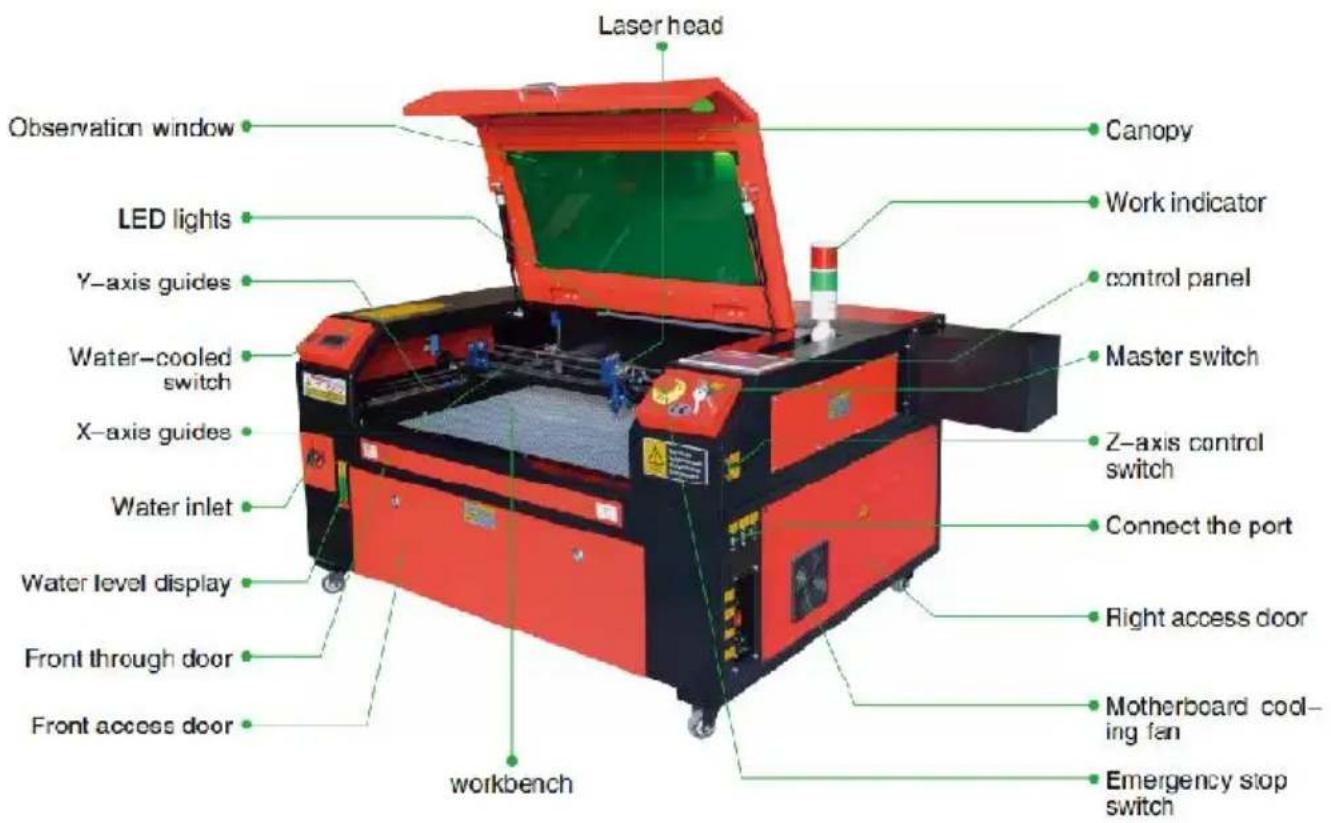
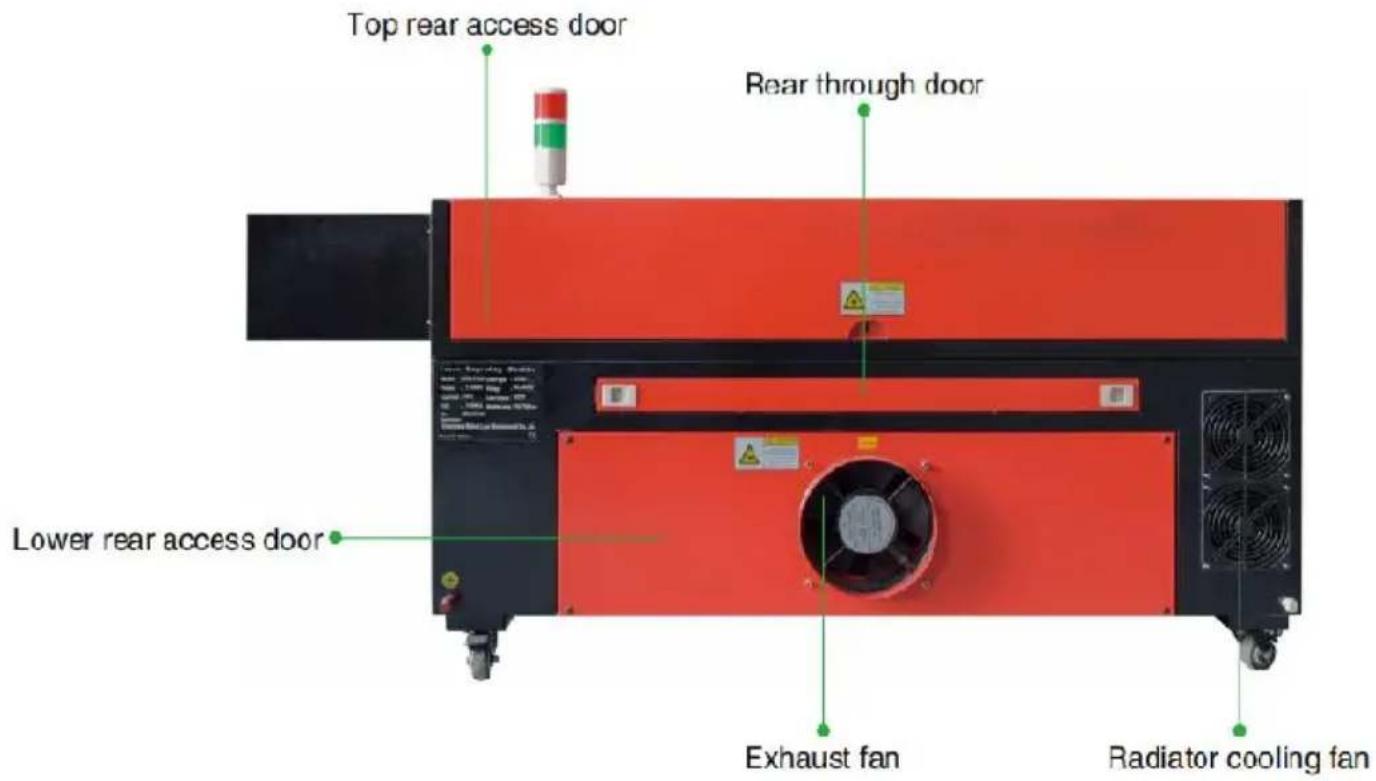
- Opis części.
- Zasilanie lasera .
Point Shot Button: The laser tube is pointed at the light

OK key: Used for user confirmation

Autofocus key: Automatically finds the locus point

Start/Pause key: Start work or pause/restart work

Decimal Point: Used to set parameters with decimals

Power button: Set the current maximum and minimum power values

Jog/Continuous Key: Jog motion and continuous motion switching

Toggle keys: Combine with number keys to form key combinations, or toggle special functions

Exit key: Used to return to the previous menu cancel parameter settings, etc

Menu keys: user parameters, manufacturer parameters language settings, etc

Speed key: Sets the current machining speed value


Z-axis key: Used to move the Z-axis


U-axis key: Used to move the U-axis

Border Key: Performs a boundary traversal operation on the file being processed

File Keys: Memory file and USB flash drive file management

D-pad: Used to move options when setting parameters in the menu
Numeric keys 0-9: used to set parameters, the keys with characters in the upper right corner can be combined with the toggle keys
●Wyświetl opis
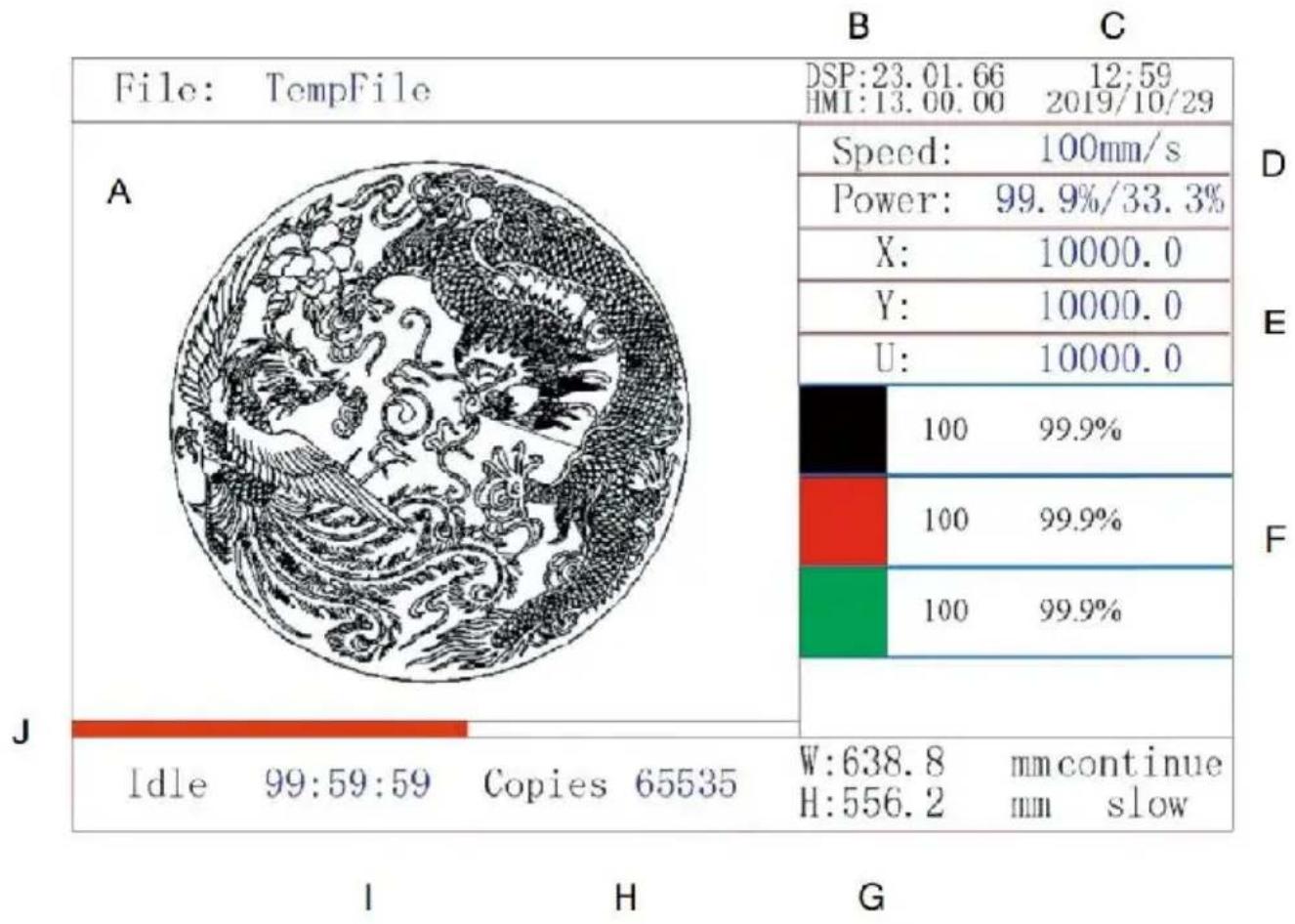
- INSTRUKCJE BEZPIECZEŃSTWA ELEKTRYCZNEGO.
5.GŁÓWNE PODŁĄCZENIE ZASILANIA.
●ODCIĘCIE DOPŁYWU WODY.
8. BEZPIECZEŃSTWO .
●DOSTOSUJ TRYB RUCHU LASERA .
●Ustaw pochodzenie.
●USTAWIENIE PARAMETRY DMUCHANIA.
●DOSTOSUJ PRĘDKOŚĆ RESETOWANIA.
Permission not activated!


1st mirror
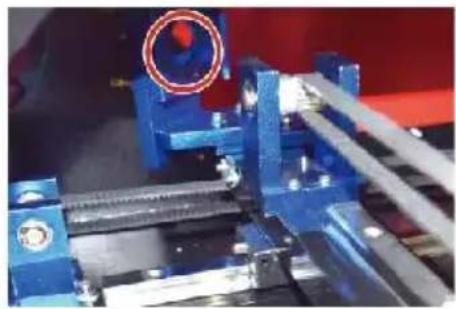
2nd mirror
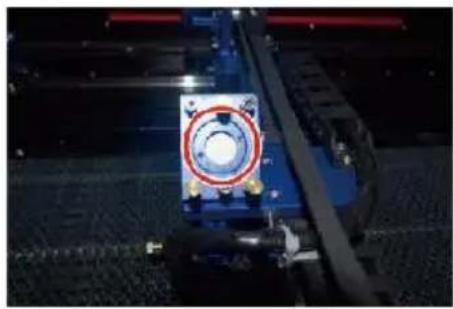
3rd mirror
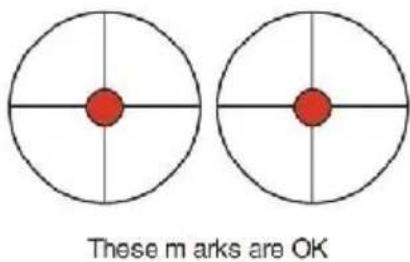
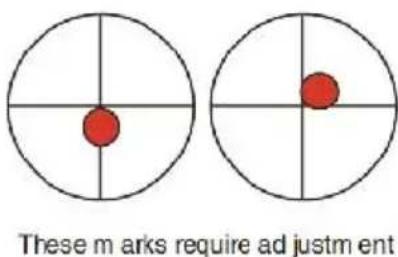
●PIERWSZE USTAWIENIE LUSTRA .
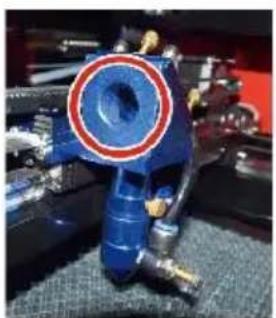
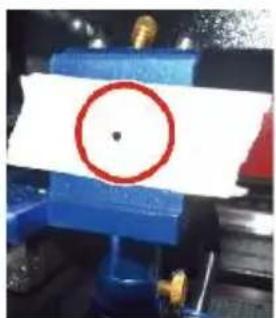
●TRZECIE USTAWIENIE LUSTRA .
●ZAMONTUJ TUBE LASEROWA.
●PROBLEMY I ROZWIAZYWANIE PROBLEMÓW .
DAILY TROUBLESHOOTING TABLE
Importowane do AUS: SIHAO PTY LTD, 1 ROKEVA STREETEASTWOOD NSW 2122 Australia
Importowane do USA: Sanven Technology Ltd., Suite 250, 9166 Anaheim
Place, Rancho Cucamonga, CA 91730
| EC | REP |
E-CrossStu GmbH
Mainzer Landstr.69, 60329 Frankfurt am Ma
| UK | REP |
YH CONSULTING LIMITED.
C/O YH Consulting Limited Office 147, Centurion H
London Road, Staines-upon-Thames, Surrey, TW18 4
VEVOR®
TOUGH TOOLS, HALF PRICE
We continue to be committed to provide you tools with competitive price. "Save Half", "Half Price" or any other similar expressions used by us only represent estimate of savings you might benefit from buying certain tools with us compared top brands and does not necessarily mean to cover all categories of tools offered are kindly reminded to verify carefully when you are placing an order with us actually saving half in comparison with the top major brands.
VEVOR®
TOUGH TOOLS, HALF PRICE
LASER ENGRAVING MACHINE
MODEL: KH5030/KH6040/KH7050/KH9060/KH1490
KH-5030/KH-6040/KH-7050/KH-906/KH-1490
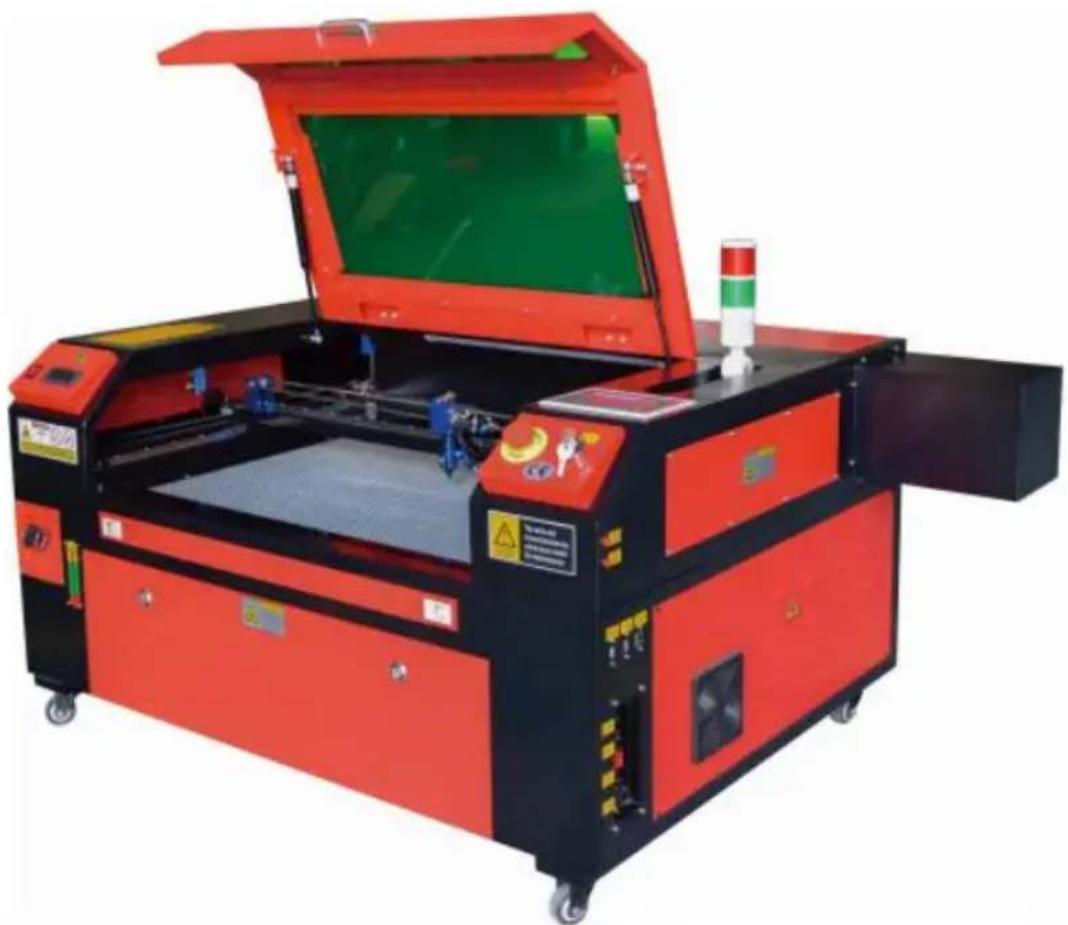
NEED HELP? CONTACT US!
Have product questions? Need technical support? Please feel fr contact us:
Technical Support and E-Warranty Certificate www.vevor.com/support
This is the original instruction, please read all manual instruction carefully before operating. VEVOR reserves a clear interpretation user manual. The appearance of the product shall be subject to product you received. Please forgive us that we won't inform you there are any technology or software updates on our product.
MAIN COMPONENTS AND DESCRIPTIONS
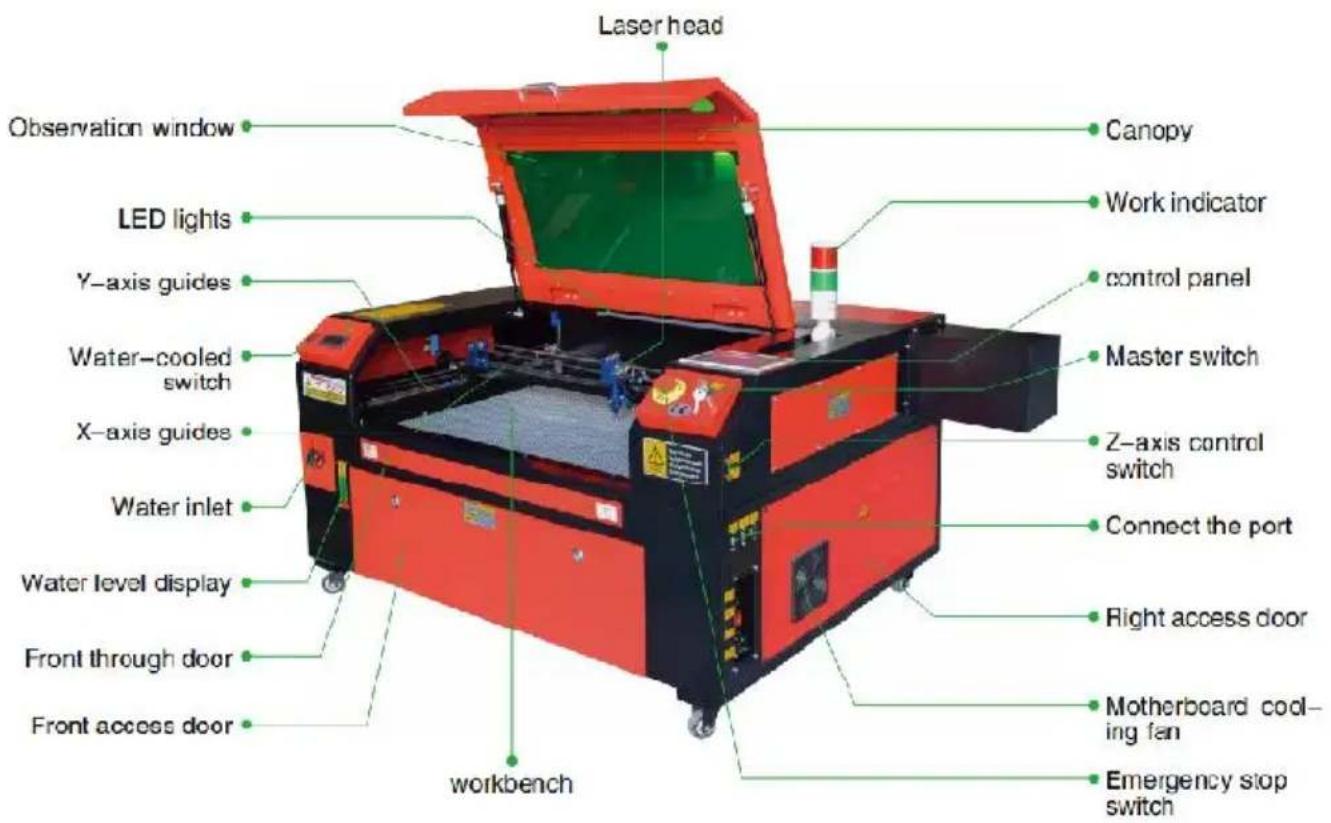
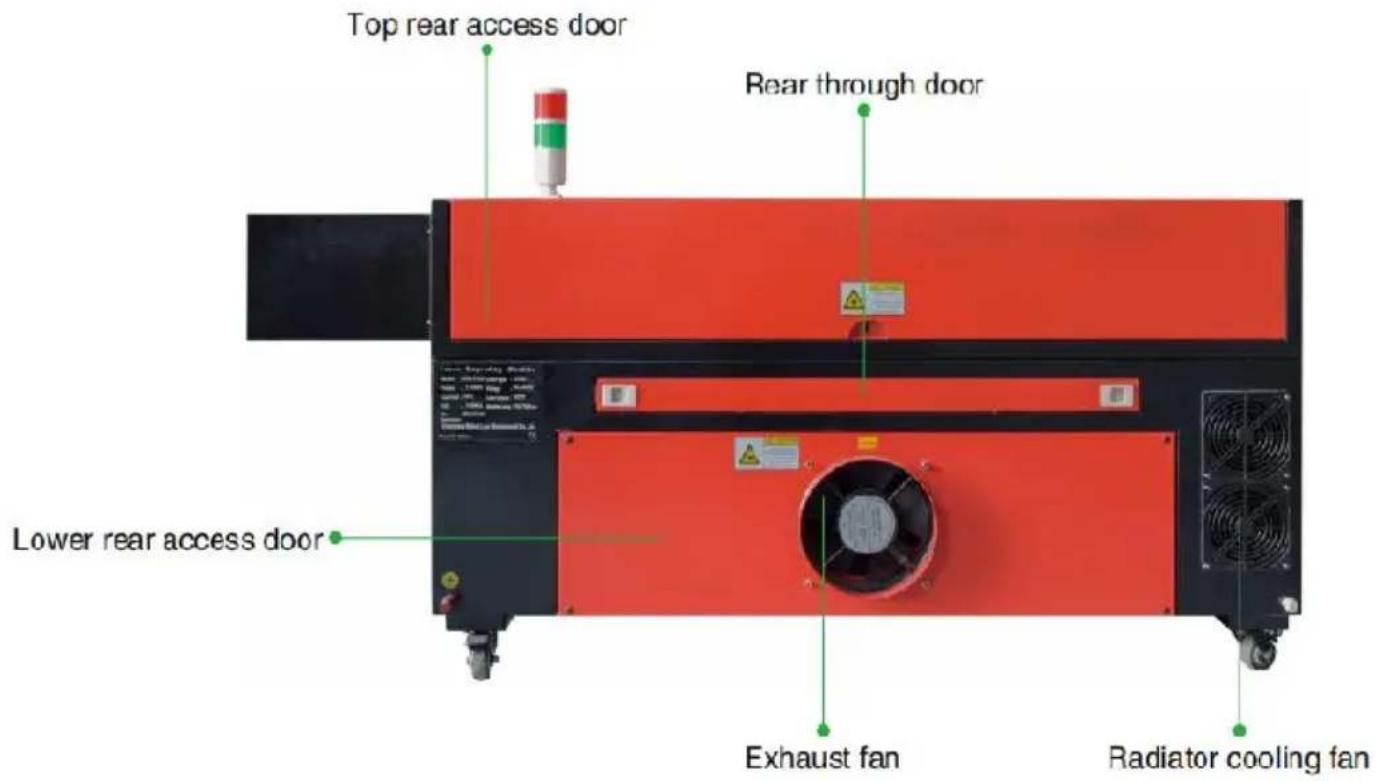
- Rechter toegangsdeur.
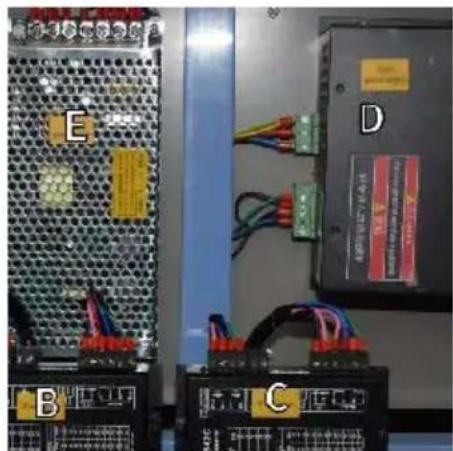
- Laservoeding .

Reset button: System reset

Stop button: Stop machining or motor shaft movement

Delete key: This parameter is used to delete the parameter

Anchor key: Set the anchor point

Point Shot Button: The laser tube is pointed at the light

OK key: Used for user confirmation

Autofocus key: Automatically finds the focus point

Speed key: Sets the current machining speed value


Z-axis key: Used to move the Z-axis


U-axis key: Used to move the U-axis

Start/Pause key: Start work or pause/restart work

Decimal Point: Used to set parameters with decimals

Power button: Set the current maximum and minimum power values

Jog/Continuous Key: Jog motion and continuous motion switching

Toggle keys: Combine with number keys to form key combinations, or toggle special functions

Exit key: Used to return to the previous menu cancel parameter settings, etc

Menu keys: user parameters, manufacturer parameters language settings, etc

Border Key: Performs a boundary traversal operation on the file being processed

File Keys: Memory file and USB flash drive file management

D-pad: Used to move options when setting parameters in the menu
Numeric keys 0-9: used to set parameters, the keys with characters in the upper right corner can be combined with the toggle keys
4.ELEKTRISCHE VEILIGHEIDSINSTRUCTIES.
5. HOOFDSTROOMAANSLUITING.
6. WATERGEKOELDE INSTALLATIE.
- VEILIGHEID .
●PAS DE LASERBEWEGINGSMODUS AAN.
●BEPAAL DE OORSPRONG .
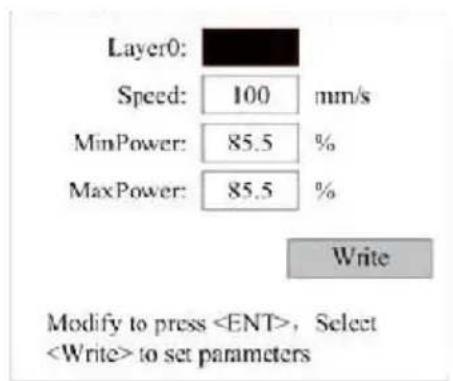
●STEL BLAASPARAMETERS IN .
●PAS DE RESETSNELHEID AAN.
Permission not activated!

Change permission code
1st mirror
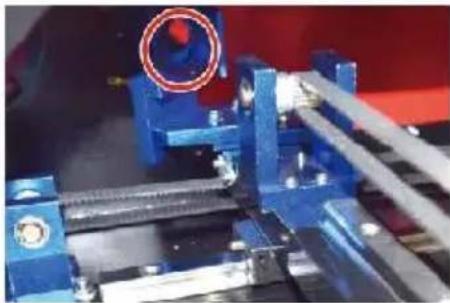
2nd mirror
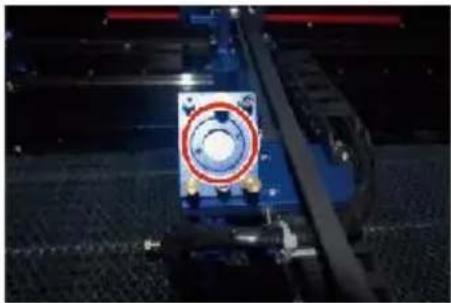
3rd mirror
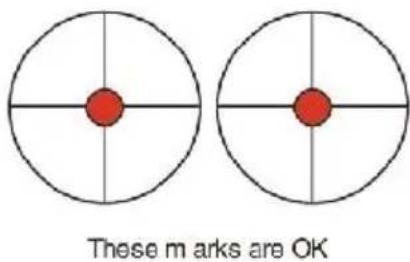
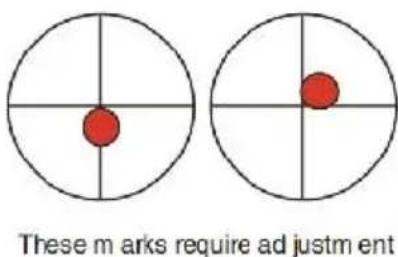
●INSTALLEER DE LASERBUIS .
DAILY TROUBLESHOOTING TABLE
Anaheim Place, Rancho Cucamonga, CA 91730
| EC | REP |
E-CrossStu GmbH
Mainzer Landstr.69, 60329 Frankfurt am Ma
| UK | REP |
YH CONSULTING LIMITED.
C/O YH Consulting Limited Office 147, Centurion H
London Road, Staines-upon-Thames, Surrey, TW18 4
VEVOR®
TOUGH TOOLS, HALF PRICE
Technisch Ondersteuning en E-garantiecertificaat www.vevor.com/support
VEVOR®
TOUGH TOOLS, HALF PRICE
MASKIN FÖR LASERGRAVER
BRUKSANVISNING
MODELL: KH5030/KH6040/KH7050/KH906/KH1490 KH-5030/KH-6040/KH-7050/KH-906/KH-1490
We continue to be committed to provide you tools with competitive price. "Save Half", "Half Price" or any other similar expressions used by us only represent estimate of savings you might benefit from buying certain tools with us compared top brands and does not necessarily mean to cover all categories of tools offered are kindly reminded to verify carefully when you are placing an order with us actually saving half in comparison with the top major brands.
VEVOR®
TOUGH TOOLS, HALF PRICE
LASER ENGRAVING MACHINE
MODELL: KH5030/KH6040/KH7050/KH9060/KH1490
KH-5030/KH-6040/KH-7050/KH-906/KH-1490
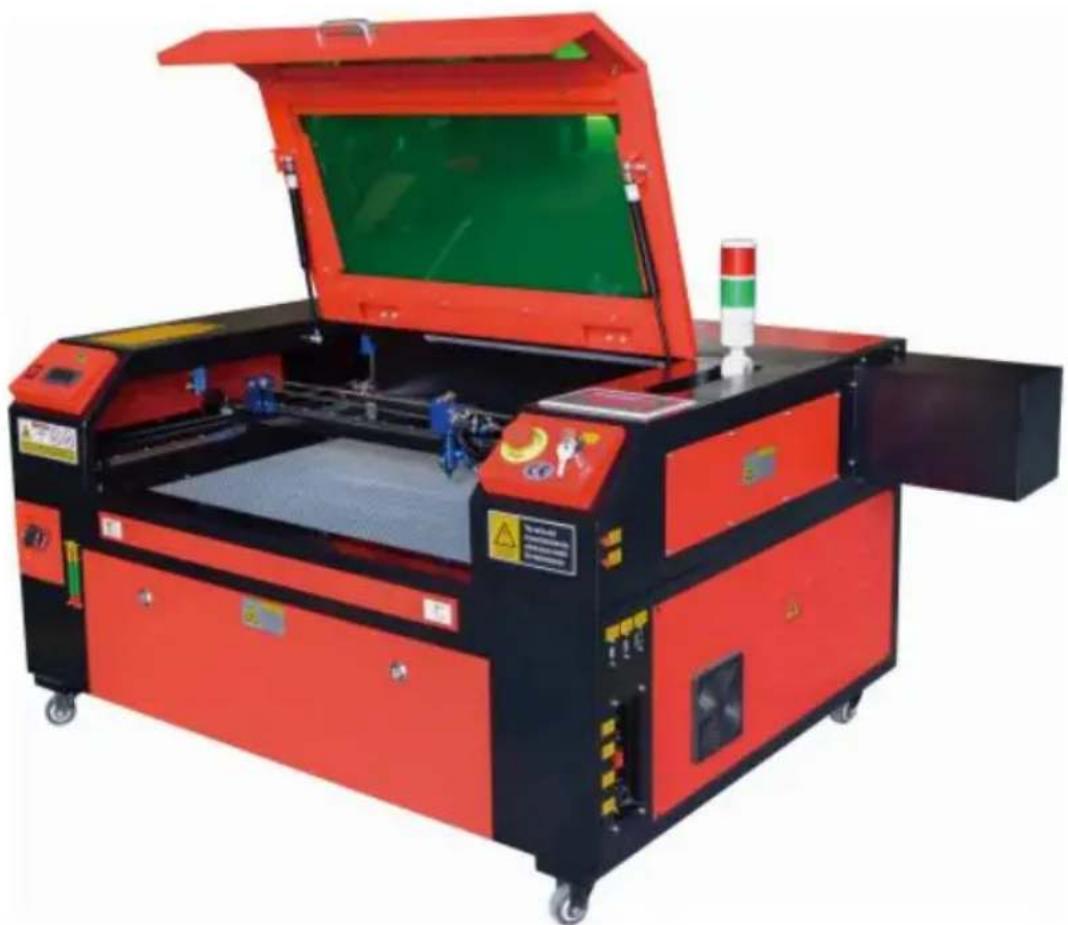
NEED HELP? CONTACT US!
Have product questions? Need technical support? Please feel fr contact us:
Technical Support and E-Warranty Certificate www.vevor.com/support
This is the original instruction, please read all manual instruction carefully before operating. VEVOR reserves a clear interpretation user manual. The appearance of the product shall be subject to product you received. Please forgive us that we won't inform you there are any technology or software updates on our product.
MAIN COMPONENTS AND DESCRIPTIONS
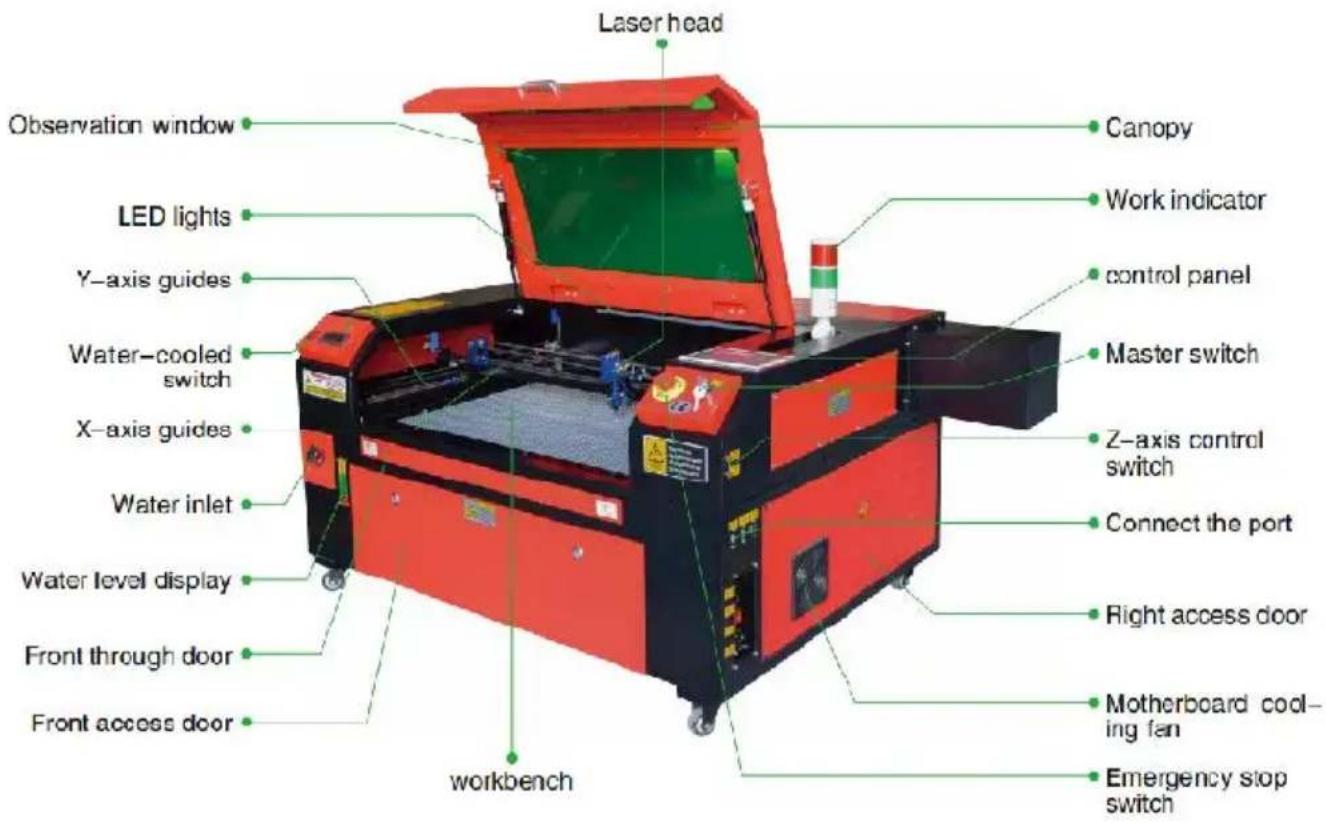
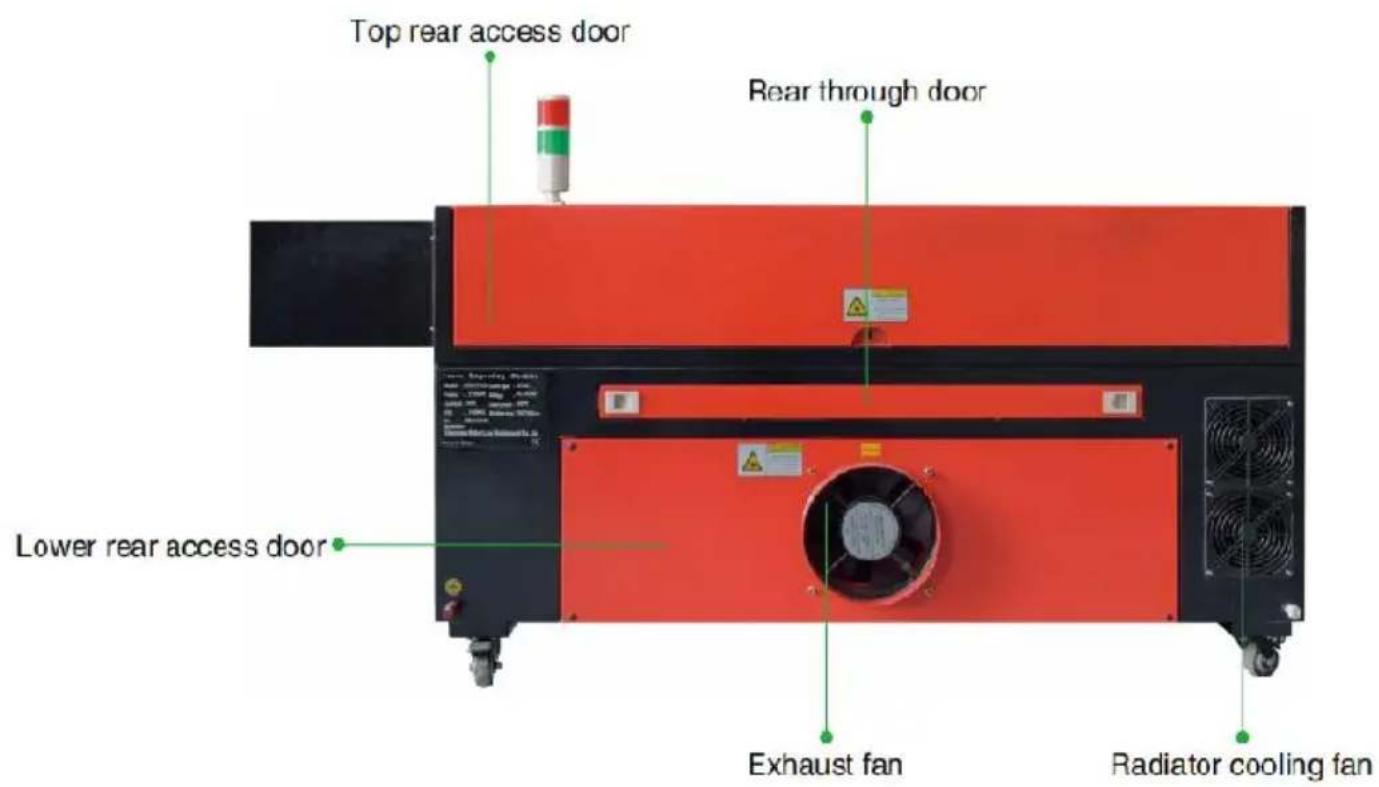
2. Delbeskrivning.
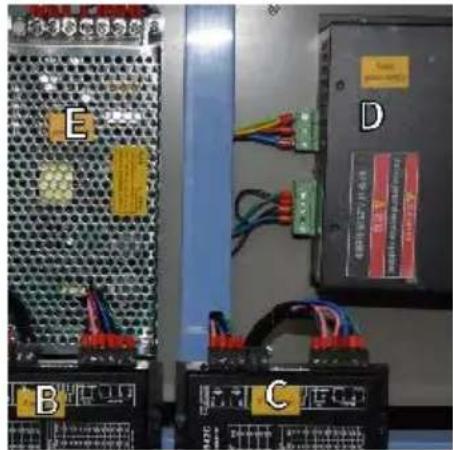
Point Shot Button: The laser tube is pointed at the light

OK key: Used for user confirmation

Autofocus key: Automatically finds the locus point

Speed key: Sets the current machining speed value


Z-axis key: Used to move the Z-axis


U-axis key: Used to move the U-axis

Start/Pause key: Start work or pause/restart work

Decimal Point: Used to set parameters with decimals

Power button: Set the current maximum and minimum power values

Jog/Continuous Key: Jog motion and continuous motion switching

Toggle keys: Combine with number keys to form key combinations, or toggle special functions

Exit key: Used to return to the previous menu cancel parameter settings, etc

Menu keys: user parameters, manufacturer parameters language settings, etc

Border Key: Performs a boundary traversal operation on the file being processed

File Keys: Memory file and USB flash drive file management

D-pad: Used to move options when setting parameters in the menu
Numeric keys 0-9: used to set parameters, the keys with characters in the upper right corner can be combined with the toggle keys
- Visa beskrivning
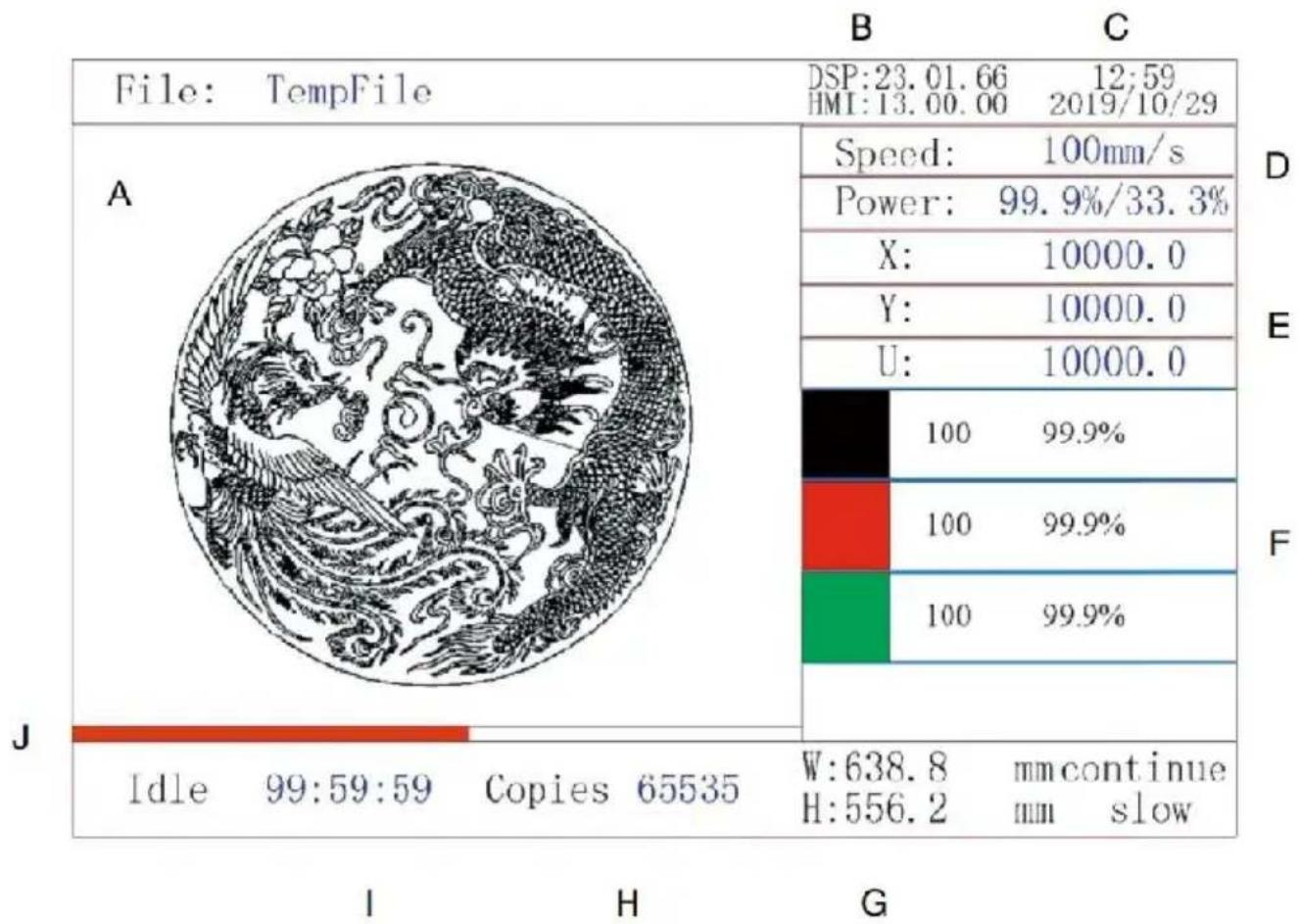
4. ELSÄKERHETSINSTRUKTIONER.
- Textiler, inklusive bomull, mocka, filt, hampa, etc.
- Timmer, inklusive kork, MDF, plywood, balsaträ, björk, körsbär, ek, poppel, etc.
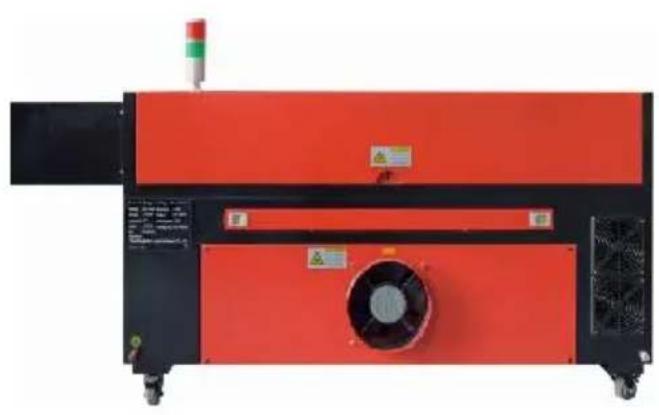
5. HUVUDSTRÖMANSLUTNING.
8. SÄKERHET .
- JUSTERA LASER RÖRELSELÄGET .
●STÄLL IN URSPRUNG.
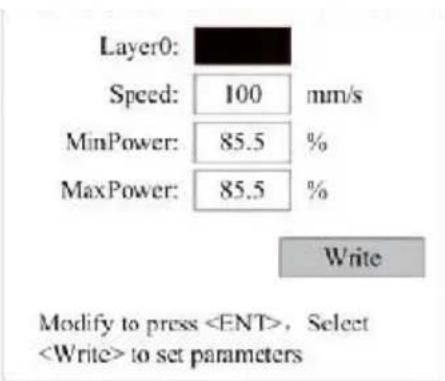
●STÄLL IN BLÅSPARAMETRAR .
- JUSTERA ÅTERSTÄLLNINGSHASTIGHETEN .
Permission not activated!

Change permission code
1st mirror
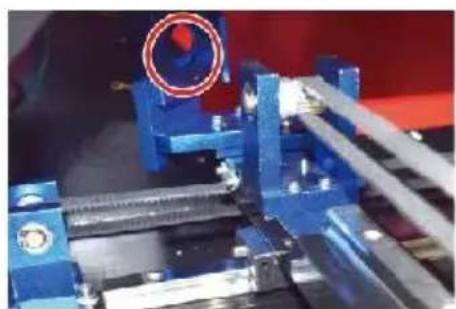
2nd mirror
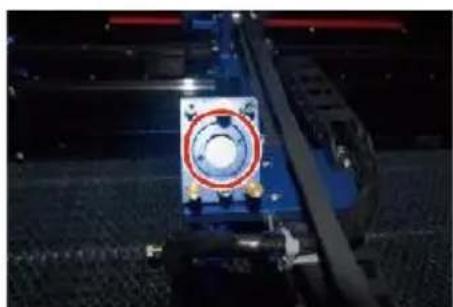
3rd mirror
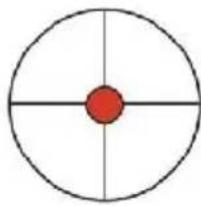
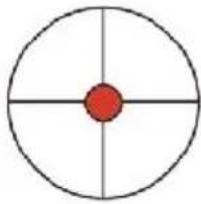
These m arks are OK
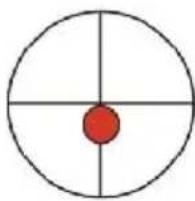
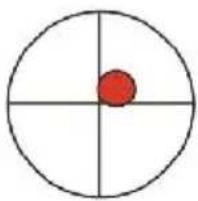
These m arks require ad justm ent
●FÖRSTA SPEGELJUSTERING .
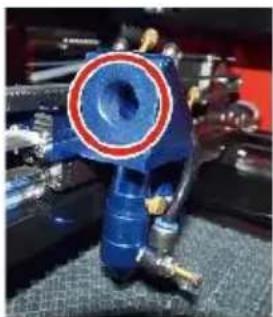
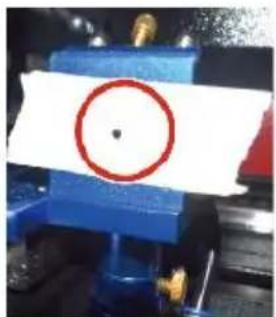
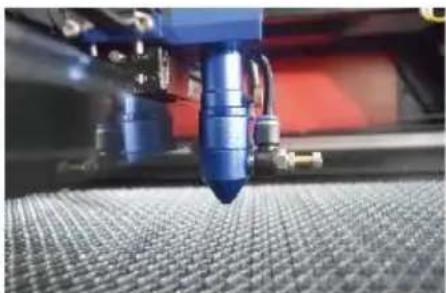
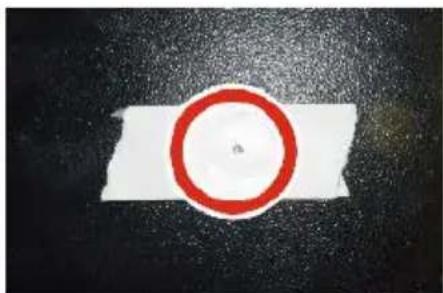
●INSTALLERA LASERSÖRET .
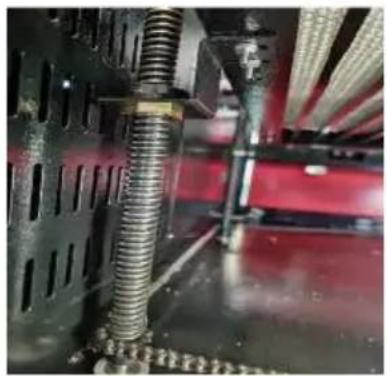
DAILY TROUBLESHOOTING TABLE
C/O YH Consulting Limited Office 147, Centurion H
London Road, Staines-upon-Thames, Surrey, TW18 4
VEVOR®
TOUGH TOOLS, HALF PRICE
www.vevor.com/support
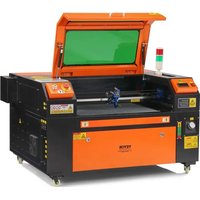
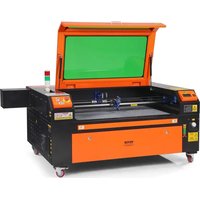
- LASER ENGRAVING MACHINE
- INSTRUCTION MANUAL
- VEVOR®
- NEED HELP? CONTACT US
- TECHNICAL SUPPORT AND E-WARRANTY CERTIFICATE WWW.VEVOR.COM/SUPPORT
- IMPORTANT NOTES
- BASIC INFORMATION
- SYMBOL GUIDELINES
- INTENDED PURPOSE
- MAIN COMPONENTS AND DESCRIPTIONS
- CONTROL THE DISPLAY
- BUTTON DESCRIPTION
- SAFETY INFORMATION
- DISCLAIMER OF WARRANTIES
- GENERAL SECURITY NOTICE
- LASER SAFETY INSTRUCTIONS
- ELECTRICAL SAFETY INSTRUCTIONS
- MATERIAL SAFETY INSTRUCTIONS
- INSTALLATION
- INSTALLATION OVERVIEW
- INSTALLATION SITE SELECTION
- WIRE GROUNDING
- UNPACK THE ENGRAVING MACHINE
- MAIN POWER CONNECTION
- WATER-COOLED INSTALLATION
- INITIAL TESTING
- ●LID CLOSURE (INTERLOCK)
- ●WATER CUT-OFF
- ●LASER PATH CALIBRATION
- ●AIR ASSISTED
- SECURITY
- OPERATION
- GENERAL OPERATING INSTRUCTIONS
- SPECIFIC MATERIAL DESCRIPTIONS
- ●CERAMICS
- ●STONE
- TEXTILES
- ●GLASS
- ●LEATHER
- METAL
- ● PLASTICS
- ●RUBBER
- ●PAPER AND CARDBOARD
- ●TIMBER
- CONSOLE DESCRIPTION
- SET THE LASER SPEED
- SET FRAME PARAMETERS
- SET BLOWING PARAMETERS
- PASSWORD SET
- KEYBOARD LOCKED
- MAINTENANCE
- MAINTENANCE OVERVIEW
- WATER COOLING SYSTEM
- CLEANING
- ●CLEAN THE MIRROR
- LASER PATH ALIGNMENT
- ●LASER TUBE ALIGNMENT
- ●FIRST MIRROR ALIGNMENT
- ●THIRD MIRROR ALIGNMENT
- ●INSTALL THE LASER TUBE
- LUBRICATION INSTRUCTIONS
- ACCESSORIES LIST
- TOUGH TOOLS, HALF PRICE
- MANUEL D'INSTRUCTIONS
- MODÈLE : KH5030/KH6040/KH7050/KH906/KH1490 KH-5030/KH-6040/KH-7050/KH-906/KH
- CONSIGNES DE SÉCURITÉ ÉLECTRIQUE
- CONNEXION À L'ALIMENTATION PRINCIPALE
- SÉCURITÉ
- ●PREMIER ALIGNEMENT DU MIROIR
- ●TROISIÈME ALIGNEMENT DU MIROIR
- SICHERHEIT
- BLASPARAMETER EINSTELLEN
- DAILY TROUBLESHOOTING TABLE
- ISTRUZIONI DI SICUREZZA ELETTRICA
- SICUREZZA
- ●IMPOSTARE I PARAMETRI DI SOFFIAGGIO
- REGOLARE LA VELOCITÀ DI RESET
- ●PRIMO ALLINEAMENTO DELLO SPECCHIO
- ●ALLINEAMENTO DEL TERZO SPECCHIO
- ESTABLECER PARÁMETROS DE SOPLO
- ●INSTALE EL TUBO LÁSER
- GŁÓWNE PODŁĄCZENIE ZASILANIA
- BEZPIECZEŃSTWO
- ●TRZECIE USTAWIENIE LUSTRA
- ●ZAMONTUJ TUBE LASEROWA
- HOOFDSTROOMAANSLUITING
- WATERGEKOELDE INSTALLATIE
- ●PAS DE LASERBEWEGINGSMODUS AAN
- ●BEPAAL DE OORSPRONG
- ●STEL BLAASPARAMETERS IN
- ●PAS DE RESETSNELHEID AAN
- ●INSTALLEER DE LASERBUIS
- MASKIN FÖR LASERGRAVER
- BRUKSANVISNING
- MODELL: KH5030/KH6040/KH7050/KH906/KH1490 KH-5030/KH-6040/KH-7050/KH-906/KH
- DELBESKRIVNING
- ELSÄKERHETSINSTRUKTIONER
- HUVUDSTRÖMANSLUTNING
- SÄKERHET
- JUSTERA LASER RÖRELSELÄGET
- ●STÄLL IN URSPRUNG
- ●STÄLL IN BLÅSPARAMETRAR
- JUSTERA ÅTERSTÄLLNINGSHASTIGHETEN
- ●FÖRSTA SPEGELJUSTERING
- ●INSTALLERA LASERSÖRET
Brand : Vevor
Model : KH1490
Category : Laser Engraver