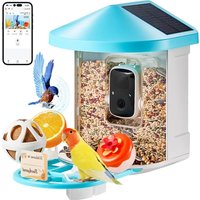
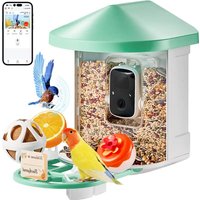
Vevor FB-A01 - Bird feeder

FB-A01 - Bird feeder Vevor - Free user manual and instructions

Find the device manual for free FB-A01 Vevor in PDF.
📄 527 pages English EN Download 💬 AI Question
Notice Vevor FB-A01 - page 1
Pick your language and provide your email: we'll send you a specifically translated version.

User questions about FB-A01 Vevor

0 question about this device. Answer the ones you know or ask your own.

Ask a new question about this device

The email remains private: it is only used to notify you if someone responds to your question.

No questions yet. Be the first to ask one.

Download the instructions for your Bird feeder in PDF format for free! Find your manual FB-A01 - Vevor and take your electronic device back in hand. On this page are published all the documents necessary for the use of your device. FB-A01 by Vevor.

USER MANUAL FB-A01 Vevor

Technical Support and E-Warranty Certificate

www.vevor.com/support

SMART BIRD FEEDER

(with Q8 model Camera

We continue to be committed to provide you tools with competitive "Save Half", "Half Price" or any other similar expressions used by represents an estimate of savings you might benefit from buying certain with us compared to the major top brands and does not necessarily cover all categories of tools offered by us. You are kindly reminded carefully when you are placing an order with us if you are actually in comparison with the top major brands.

VEVOR®

TOUGH TOOLS, HALF PRICE

SMART BIRD FEEDER

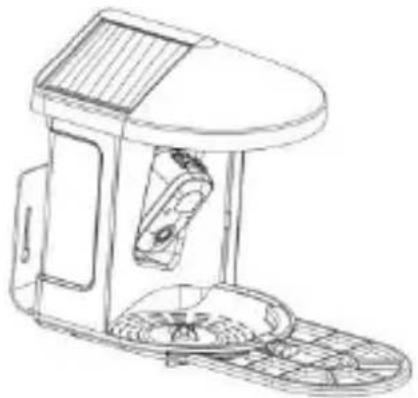
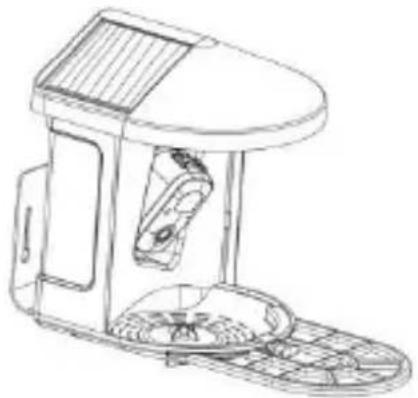
natural_image Line drawing of a portable electronic device with solar panel and control panel (no text or symbols)

NEED HELP? CONTACT US!

Have product questions? Need technical support? Please 1 free to contact us:

Technical Support and E-Warranty Certificate www.vevor.com/support

This is the original instruction, please read all manual ins carefully before operating. VEVOR reserves a clear interpr of our user manual. The appearance of the product shall to the product you received. Please forgive us that we w you again if there are any technology or software update product.

IMPORTANT SAFEGUARDS

Vevor FB-A01 - IMPORTANT SAFEGUARDS - 1

WARNING: To reduce the risk of serious in when using your electric countertop composted and accessories, please follow these safety precautions, including the following.

Read all instructions before using the appliance.

1) The bird feeder is equipped with a camera model Q8, which can be connected to a wireless network, using a mobile phone to observe and record the birds eating process.
2) The accessories including suet ball, Mini Hummingbird Feeder, Fruit Holder, Jelly Feeder and Welcome Card, Ideal for Bird Lover. Wider Extension Perch to DIY.

PRODUCT PARAMETER

ModelFB-A01FB-A02
ColorGreenBlue
Solar panel3W (DC 5±5%) 172*120*5mm
Camera modeQ8
Camera lensField of view: H145° V85° D1
Image resolutionMax.1920x1080
Video bit rateAdaptive
Storage mediaCloud Storage, Micro SD Car
Battery capacity5200mAh
Adapter requirementDC 5V±5%/1.5A
Feeder capacity2L
Product size335*220*275mm (with Platform)220*220*275mm (no Platform)

Note: The SD card is not included, and it is not necessary (Supports up to 128GB SD card).

PRODUCT PARAMETER

ModelFB-A03FB-A04
ColorGreenBlue
Solar panel2W (DC 5V+-5%) 95*95*2.5mm
Camera modeQ8
Camera lensField of view: H145° V85° D185
Image resolutionMax.1920x1080
Video bit rateAdaptive
Storage mediaCloud Storage, Micro SD Card
Battery capacity5200mAh
Adapter requirementDC 5 ± 5%/1.5A
Feeder capacity2L
Product size335*220*275mm (with Platform)220*220*275mm (no Platform)

Note: The SD card is not included, and it is not necessary (Supports up to 128GB SD card).

PRODUCT PARAMETER

ModelFB-A05FB-A06
ColorGreenBlue
Solar panel3W (DC 51/5%) 172*120*5mm2W (DC 51/5%) 95*95*2.5mm
Camera modeQ8
Camera lensField of view: H145° V85° D185
Image resolutionMax.1920x1080
Video bit rateAdaptive
Storage mediaCloud Storage, Micro SD Card
Battery capacity5200mAh
Adapter requirementDC 5V±5%/1.5A
Feeder capacity2L
Product size335*220*275mm (with Platform)220*220*275mm (no Platform)

Note: The SD card is not included, and it is not necessary (Supports up to 128GB SD card).

PACKAGE CONTENTS

Common parts

NO.NamePictureQuantity
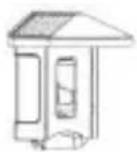
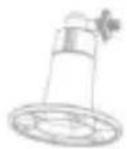
1FeederVevor FB-A01 - PACKAGE CONTENTS - 11 pc
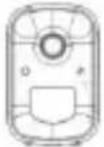
2CameraVevor FB-A01 - PACKAGE CONTENTS - 21 pc
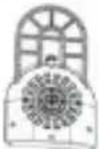
3Material TrayVevor FB-A01 - PACKAGE CONTENTS - 31 pc
4External Antenna[TXK0]1 pc
5Bird feeder bracket[SHHZ]1 pc
6Drilling Template Sticker[CY03]1 pc
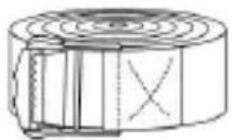
7Velcro strapsVevor FB-A01 - PACKAGE CONTENTS - 41 pc
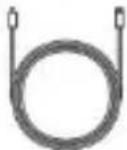
8Type-C Power CableVevor FB-A01 - PACKAGE CONTENTS - 51 pc
9Bracket ScrewsM3.5*16mm3 pcs
10Bracket ScrewsM4*50mm2 pcs
11Anchors2 pcs
12Thumb Screws1 pc
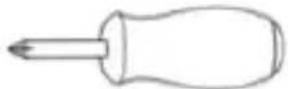
13ScrewdriverVevor FB-A01 - PACKAGE CONTENTS - 61 pc
14Suet Ball1 pc
15Hummingbird Feeder1 pc
16Fruit HolderVevor FB-A01 - PACKAGE CONTENTS - 72 pcs
17Jelly FeederVevor FB-A01 - PACKAGE CONTENTS - 81 pcs
18Cardboard (*1pc)Stickers (*4pcs)Vevor FB-A01 - PACKAGE CONTENTS - 91 set
19User ManualVevor FB-A01 - PACKAGE CONTENTS - 101 pc

Optional parts (Except FB-A03 & FB-A04)

NO.NamePictureQuantity
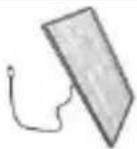
1External Solar PanelVevor FB-A01 - PACKAGE CONTENTS - 111 pc
2Fixed BracketVevor FB-A01 - PACKAGE CONTENTS - 121 pc
3Bracket Screws M3.5*25mmVevor FB-A01 - PACKAGE CONTENTS - 134 pcs
4AnchorsVevor FB-A01 - PACKAGE CONTENTS - 144 pcs
5Ejector PinVevor FB-A01 - PACKAGE CONTENTS - 151 pc

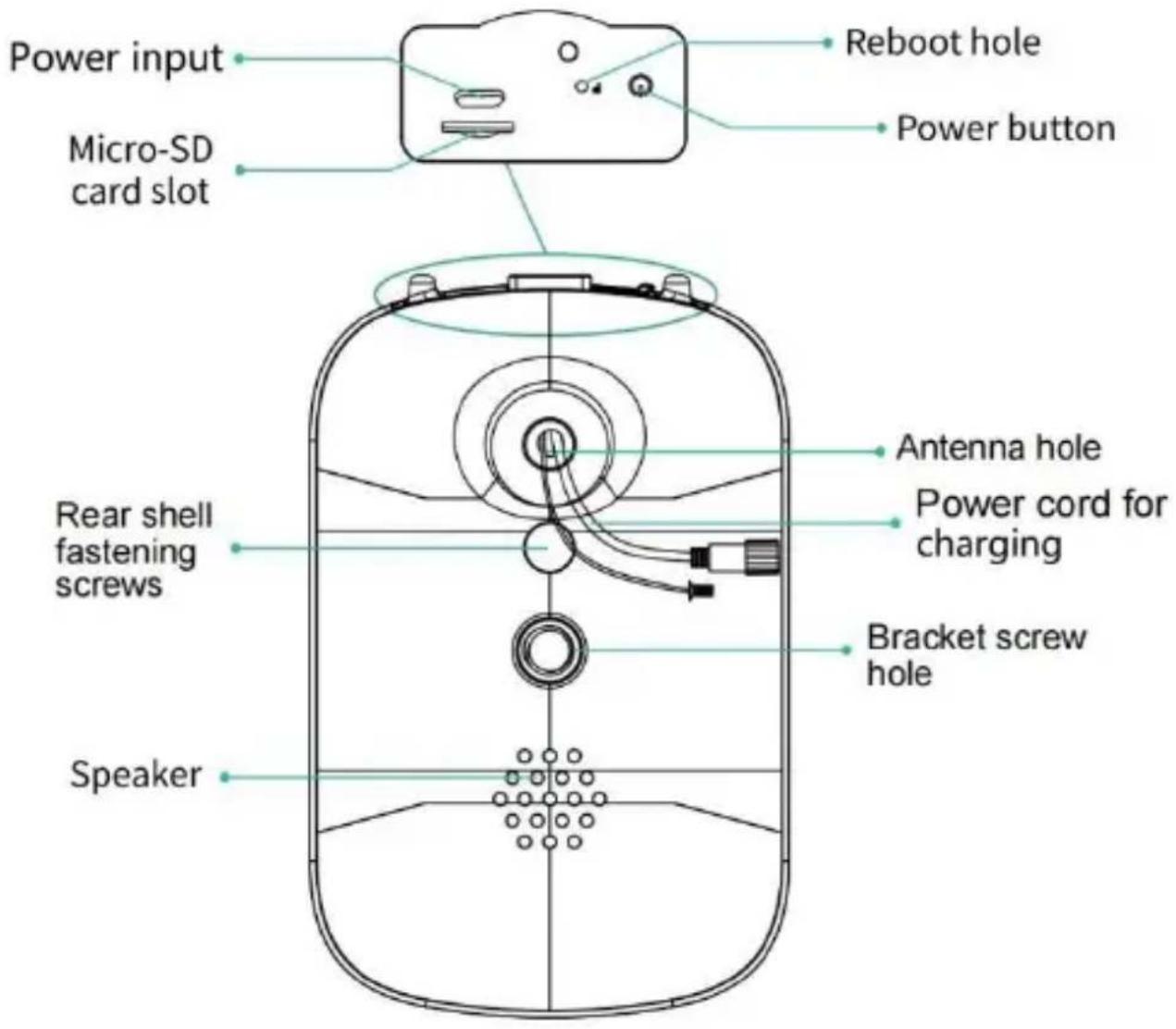
BIRD CAMERA APPEARANCE

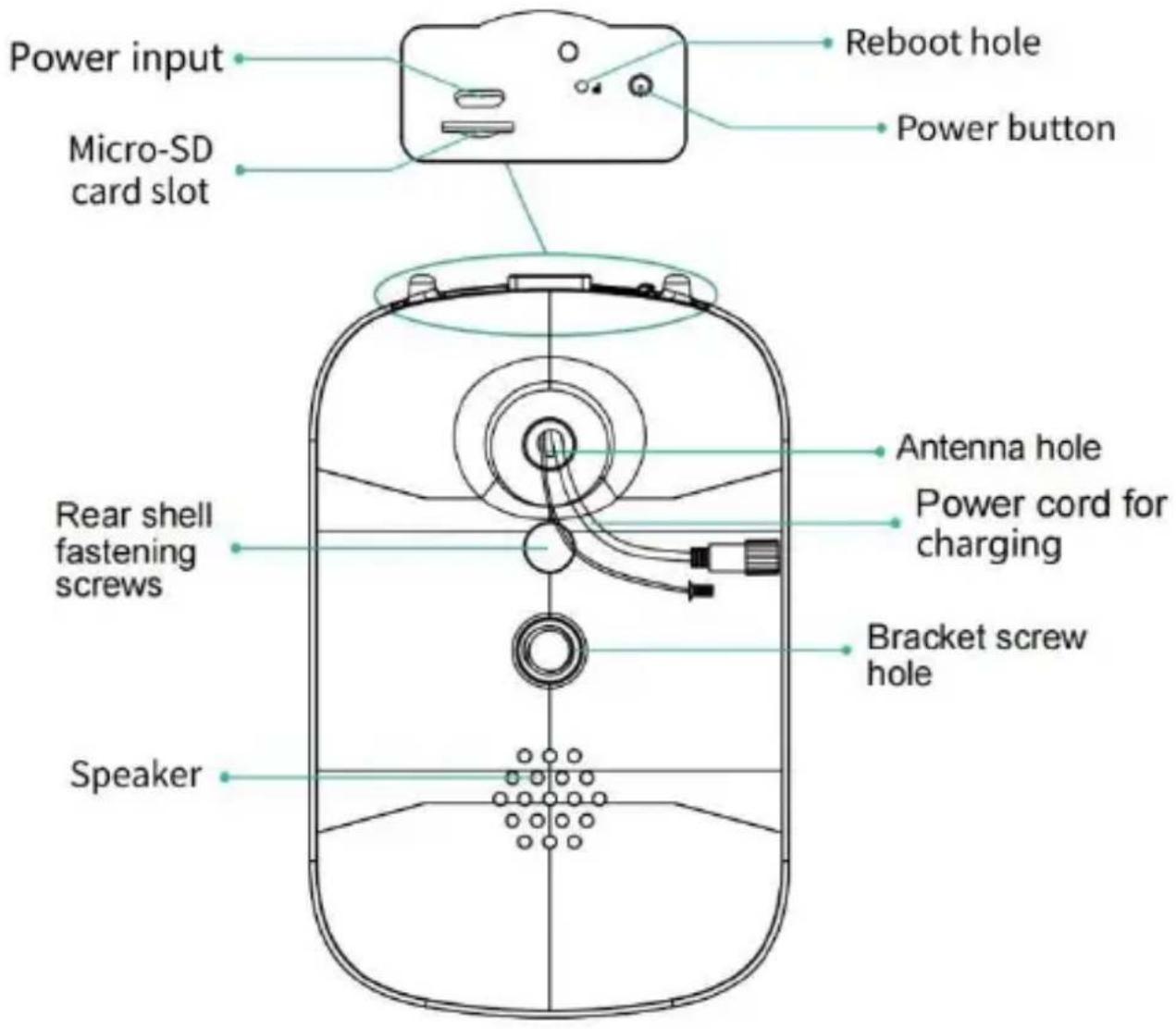
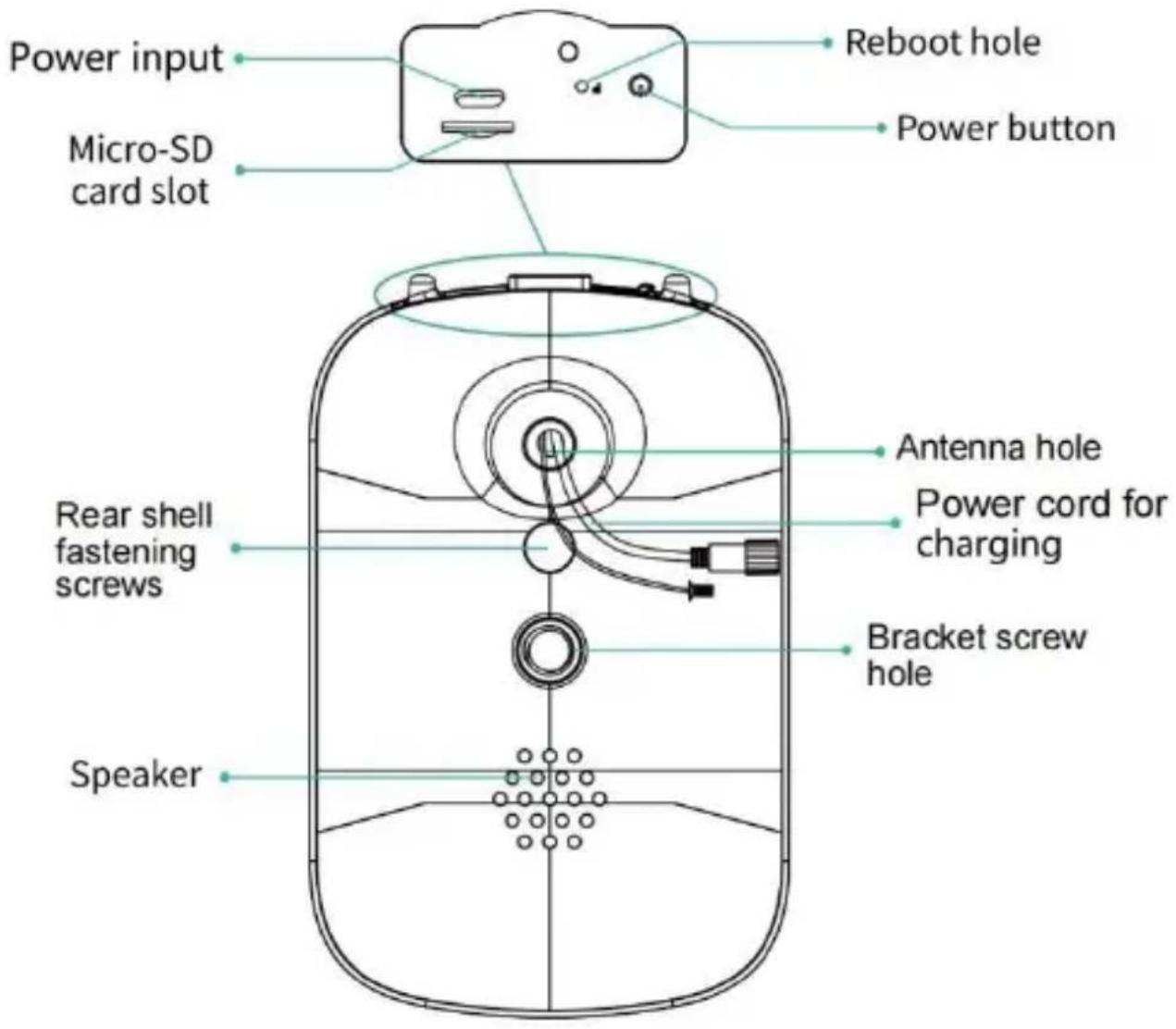
The bird feeder is equipped with a camera model Q8, which is FCC-ID certified.
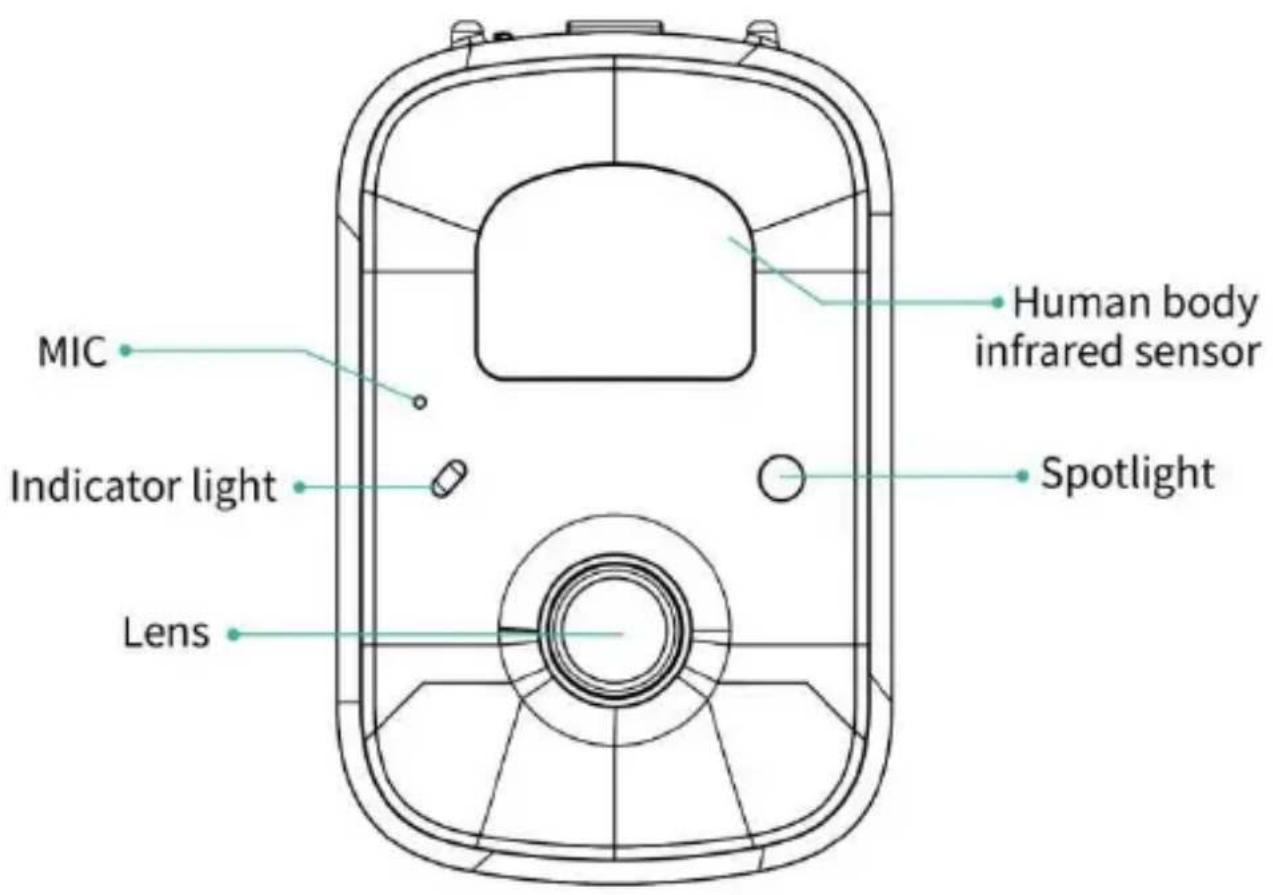
Vevor FB-A01 - BIRD CAMERA APPEARANCE - 1

text_image MIC Indicator light Lens Human body infrared sensor Spotlight

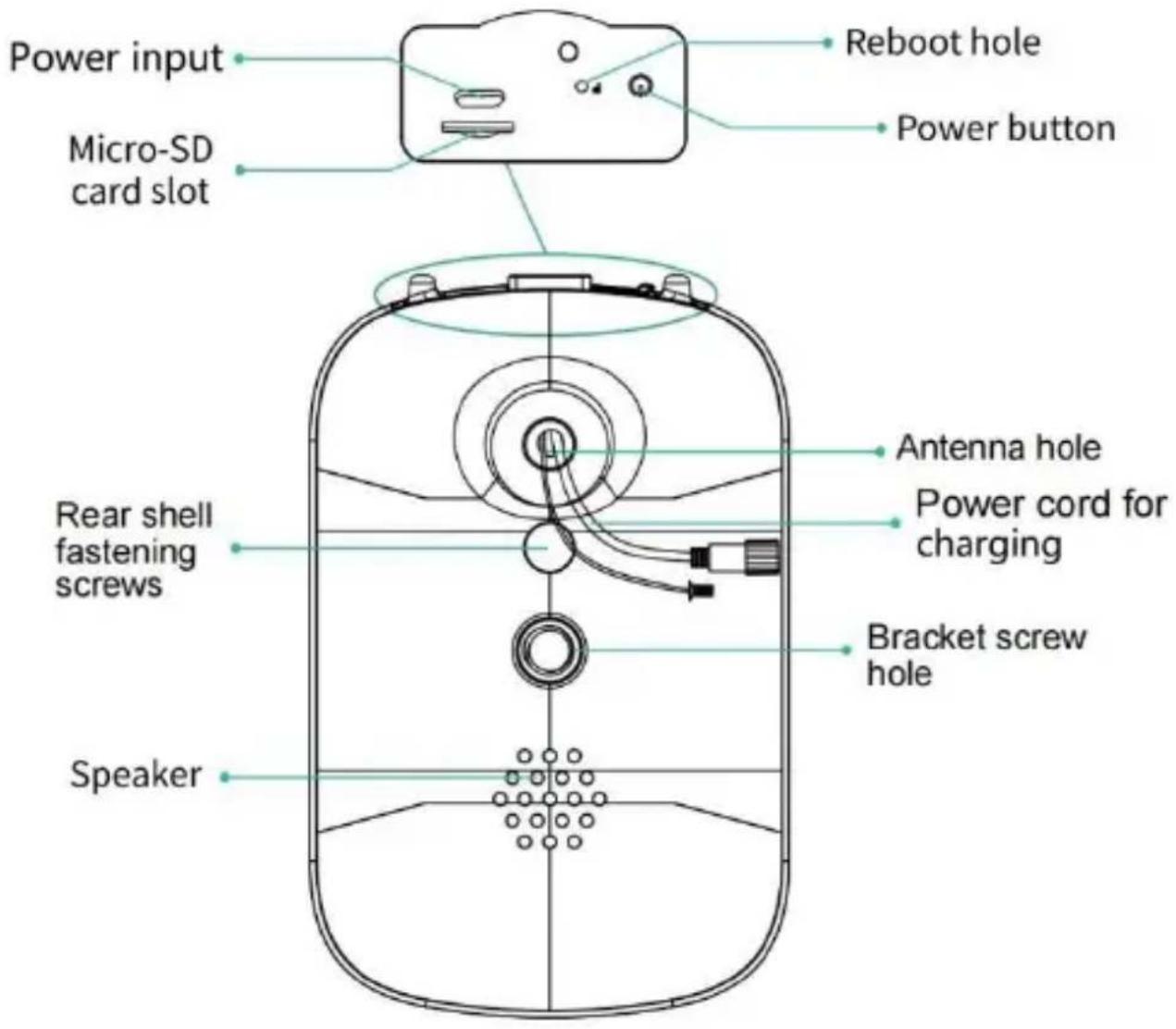
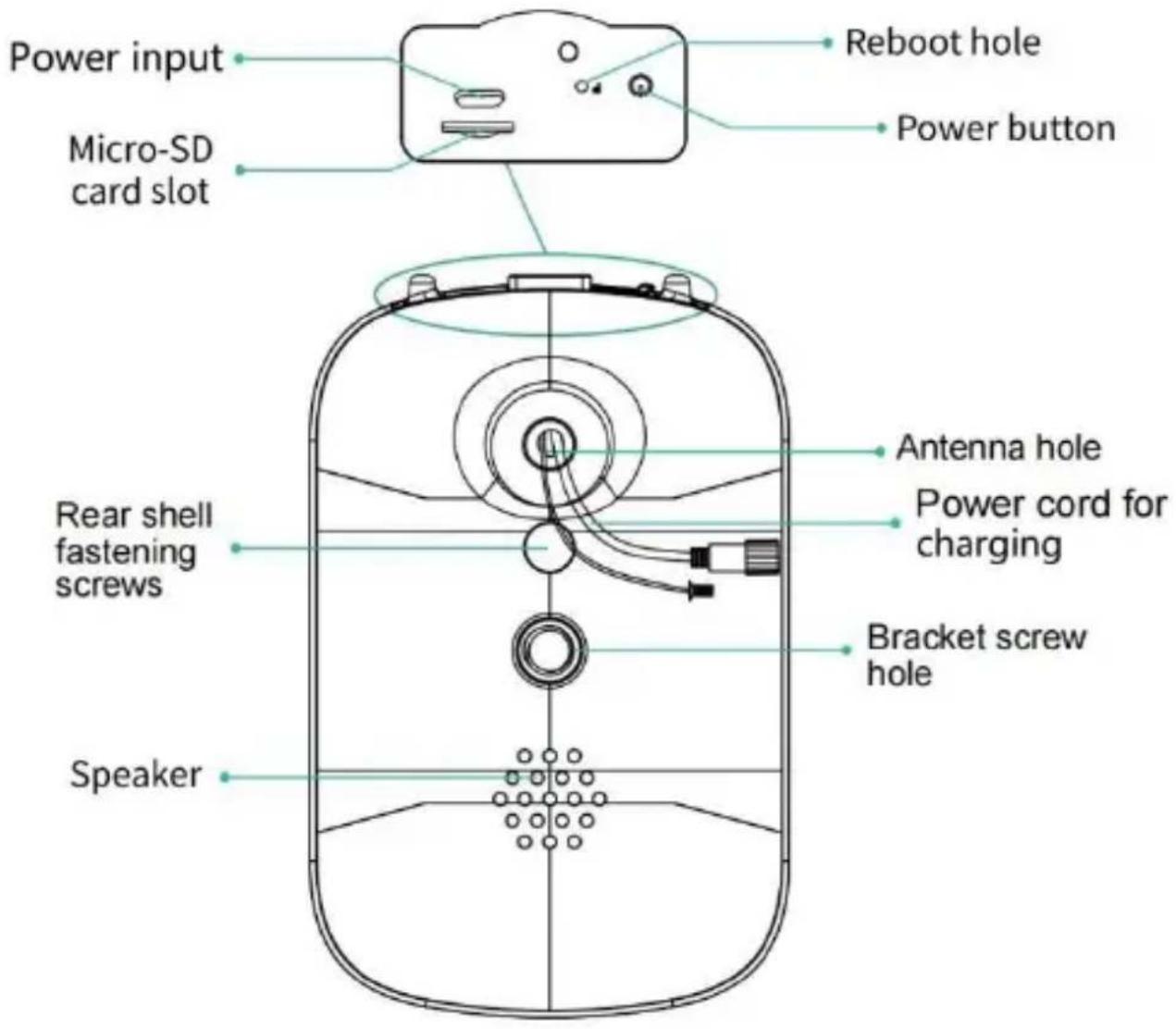
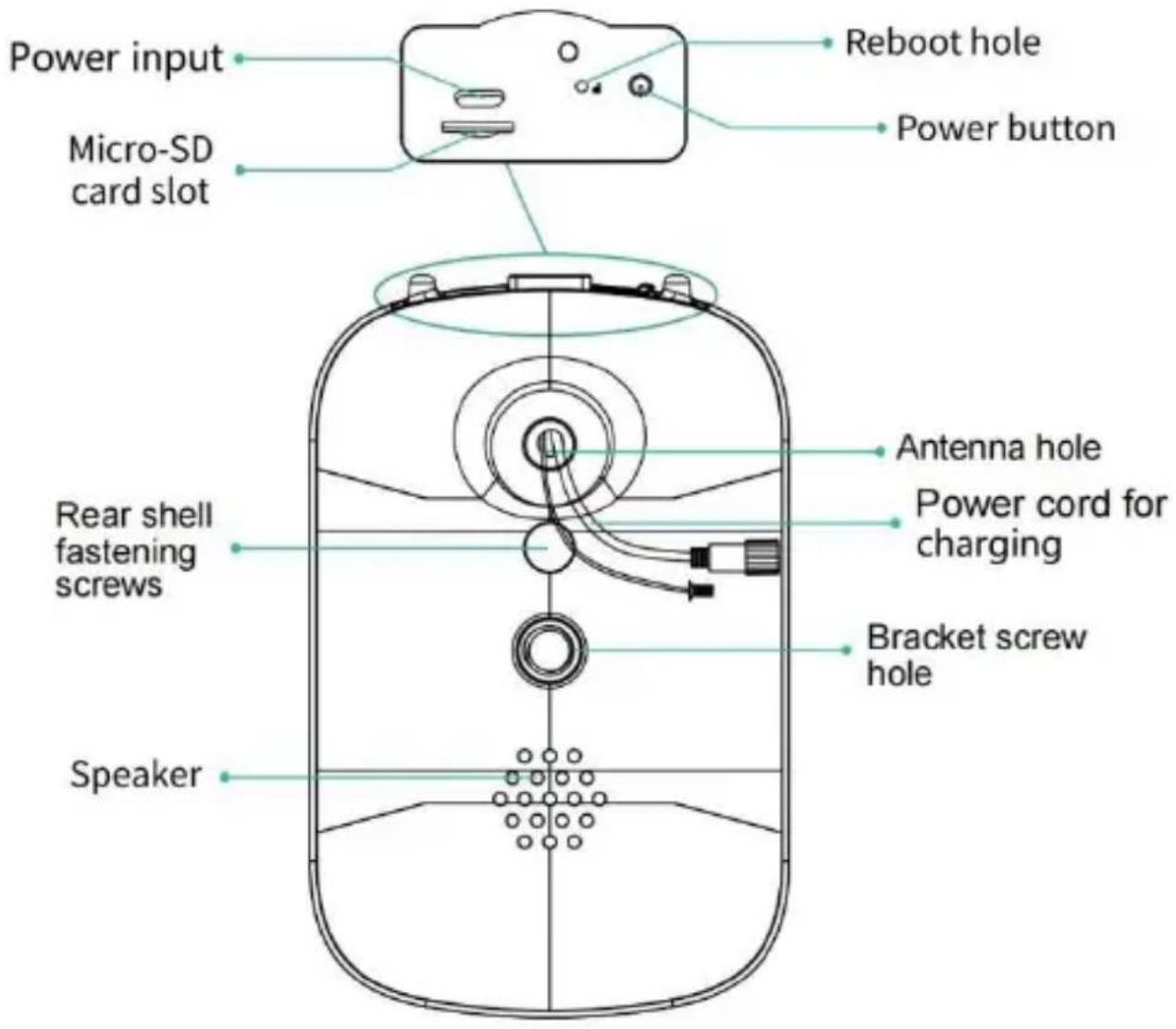
Vevor FB-A01 - BIRD CAMERA APPEARANCE - 2

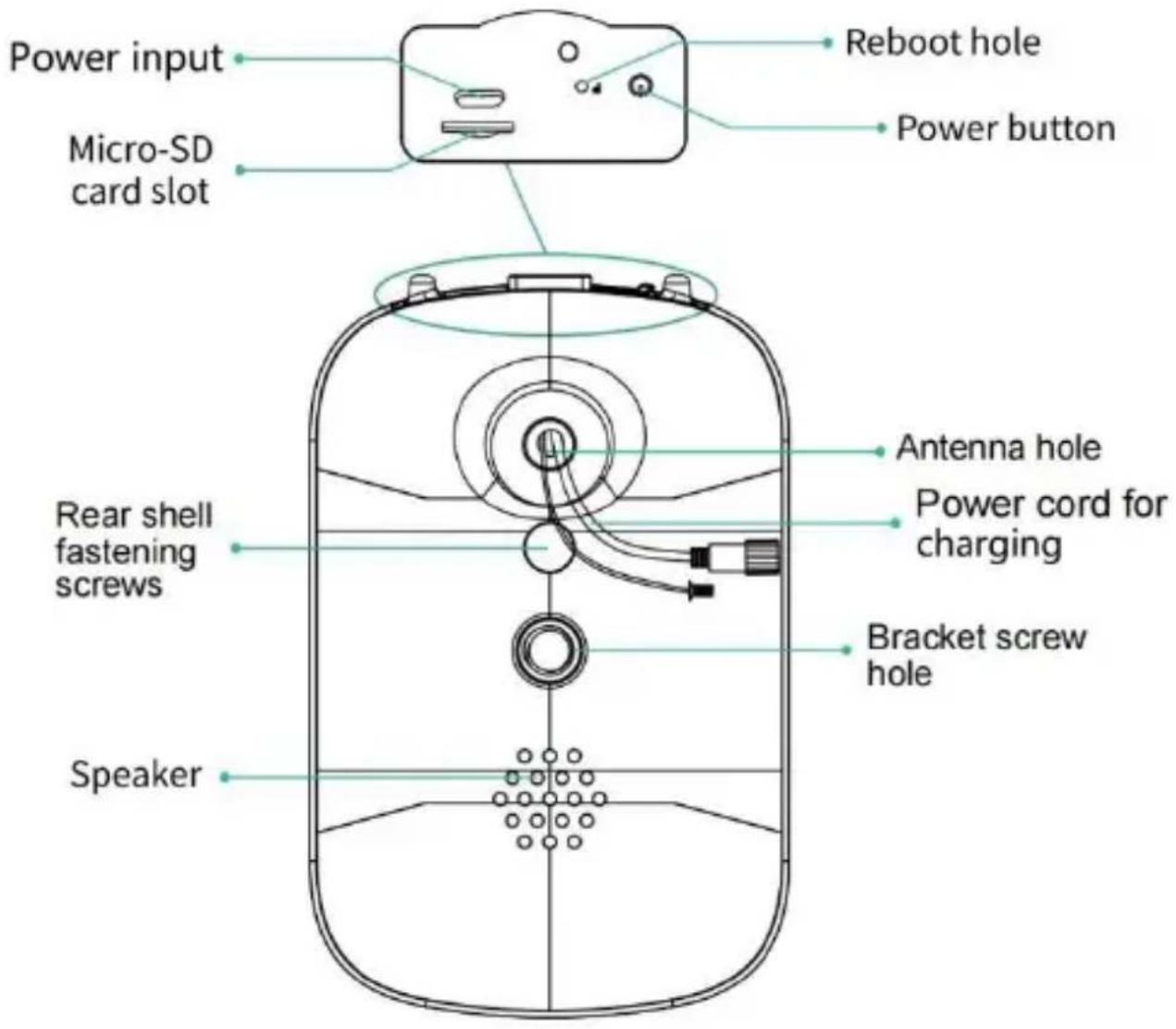
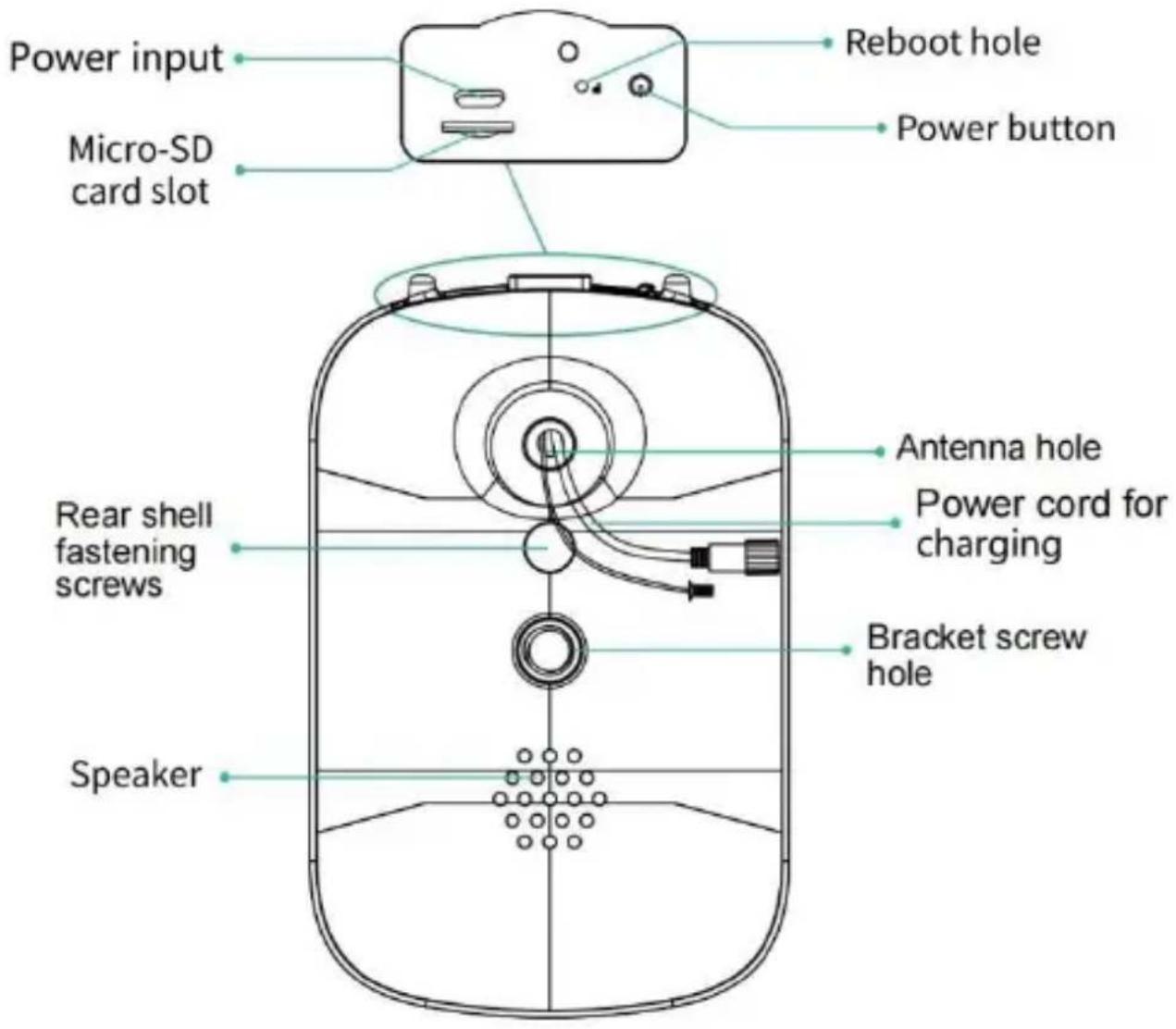
text_image Power input Micro-SD card slot Reboot hole Power button Rear shell fastening screws Speaker Antenna hole Power cord for charging Bracket screw hole

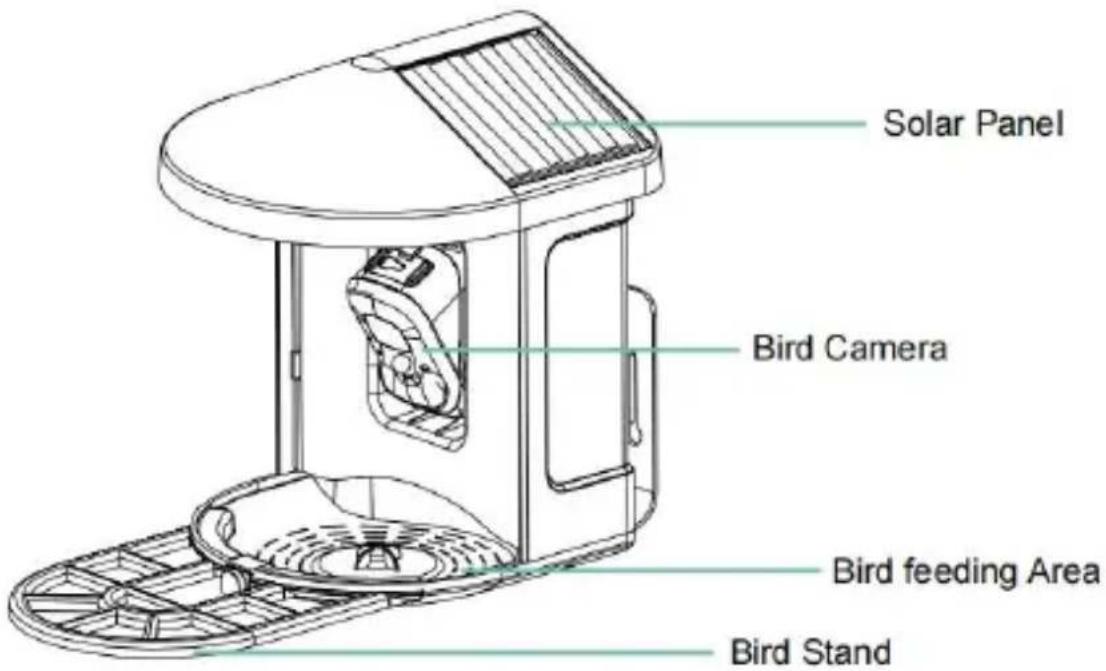
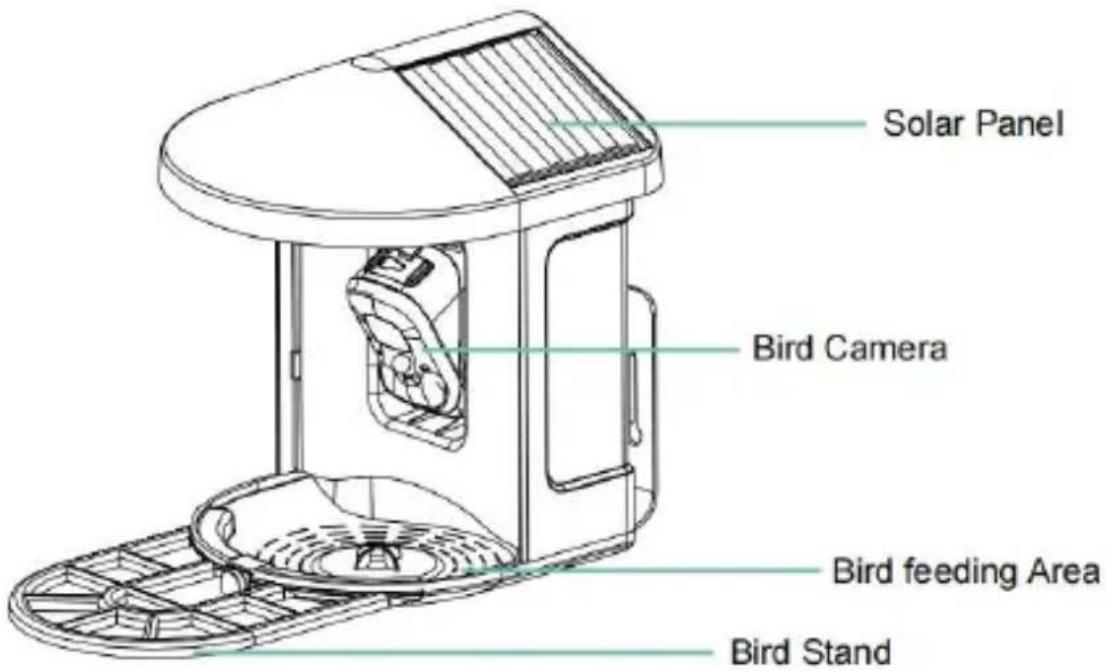
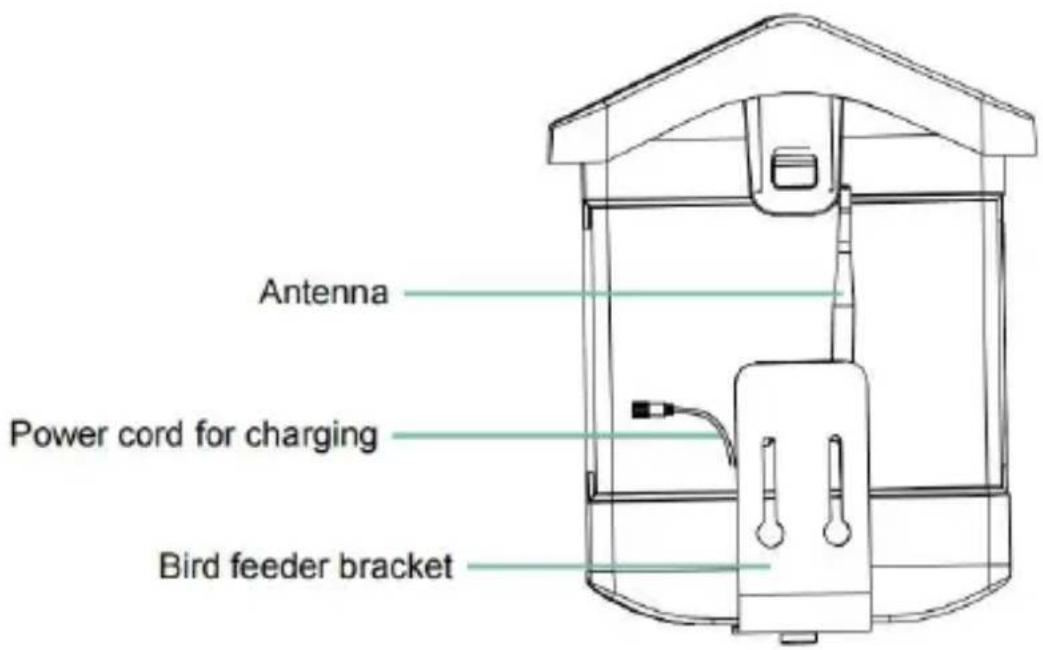
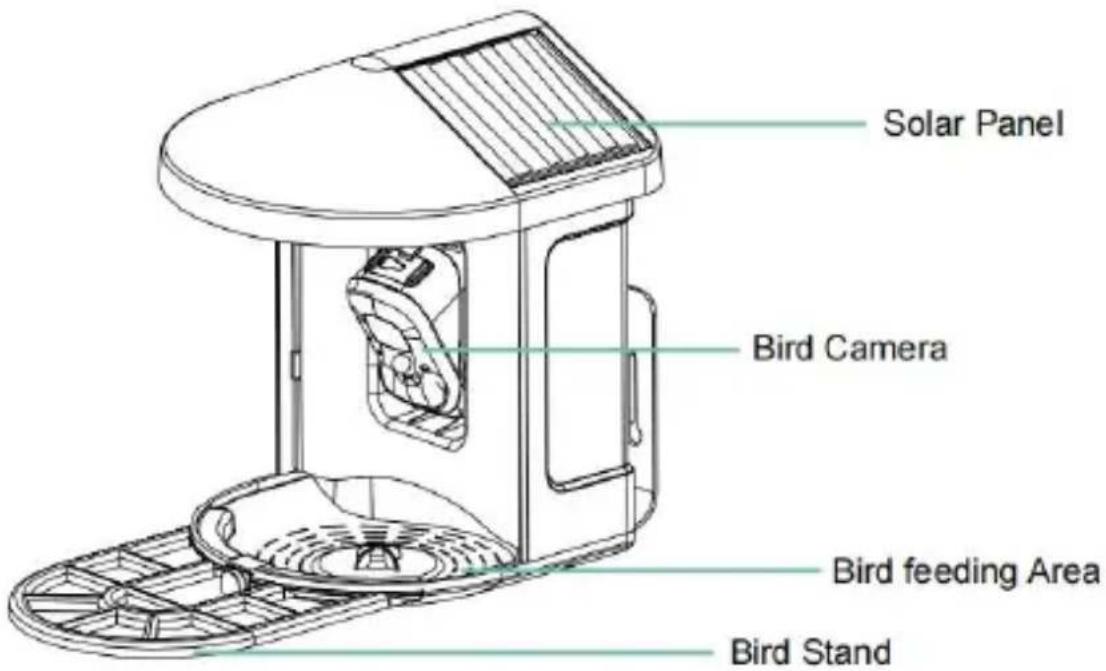
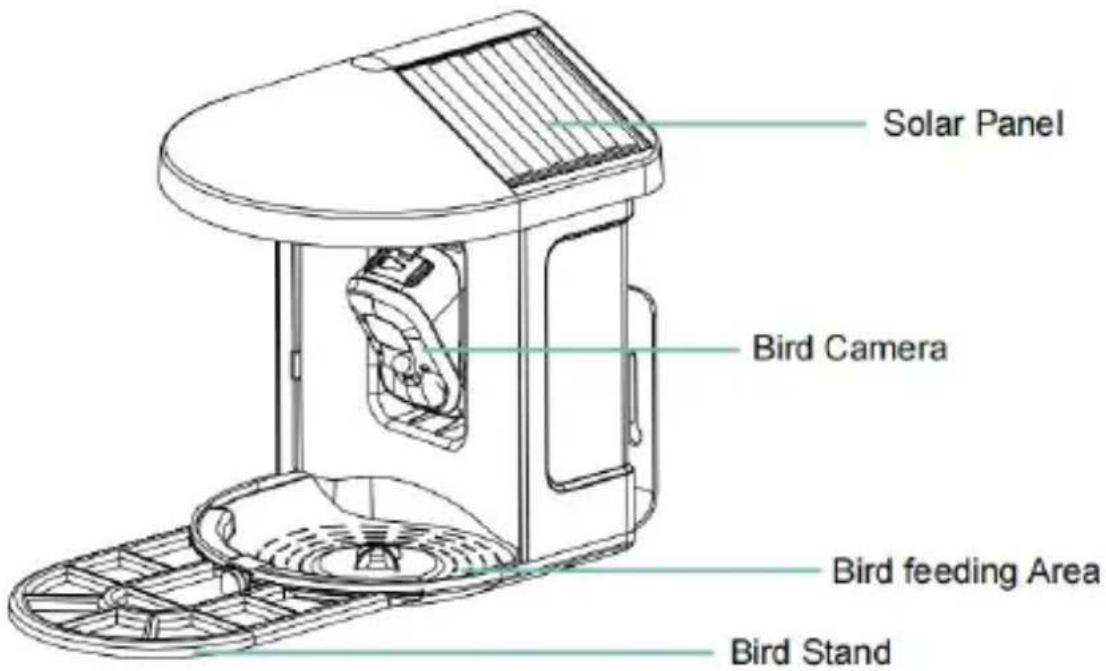
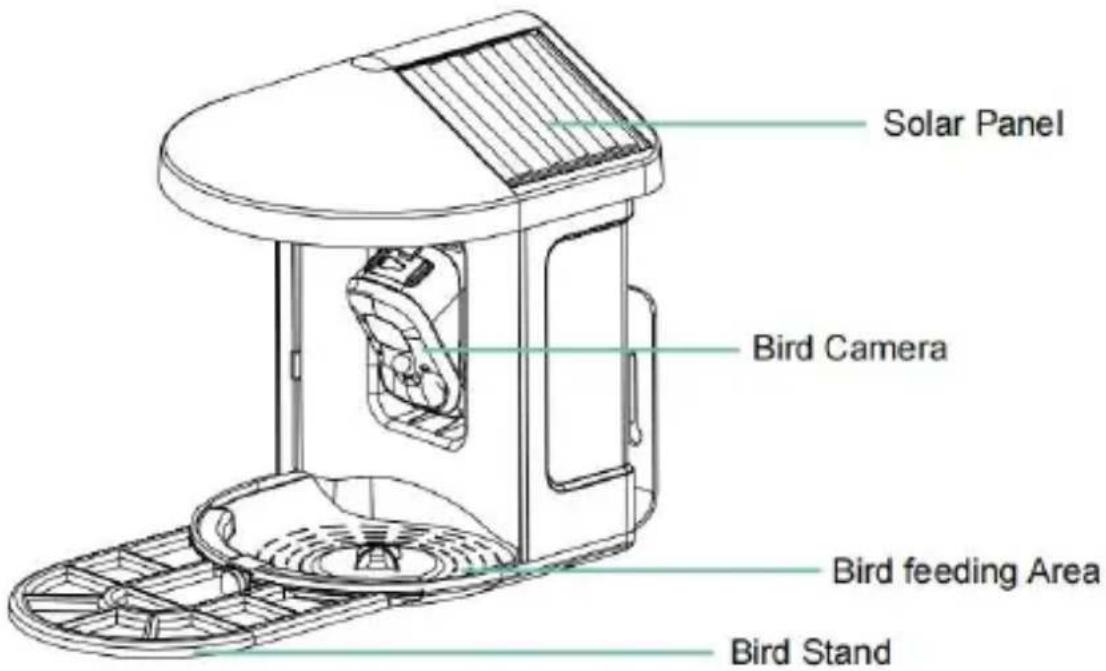
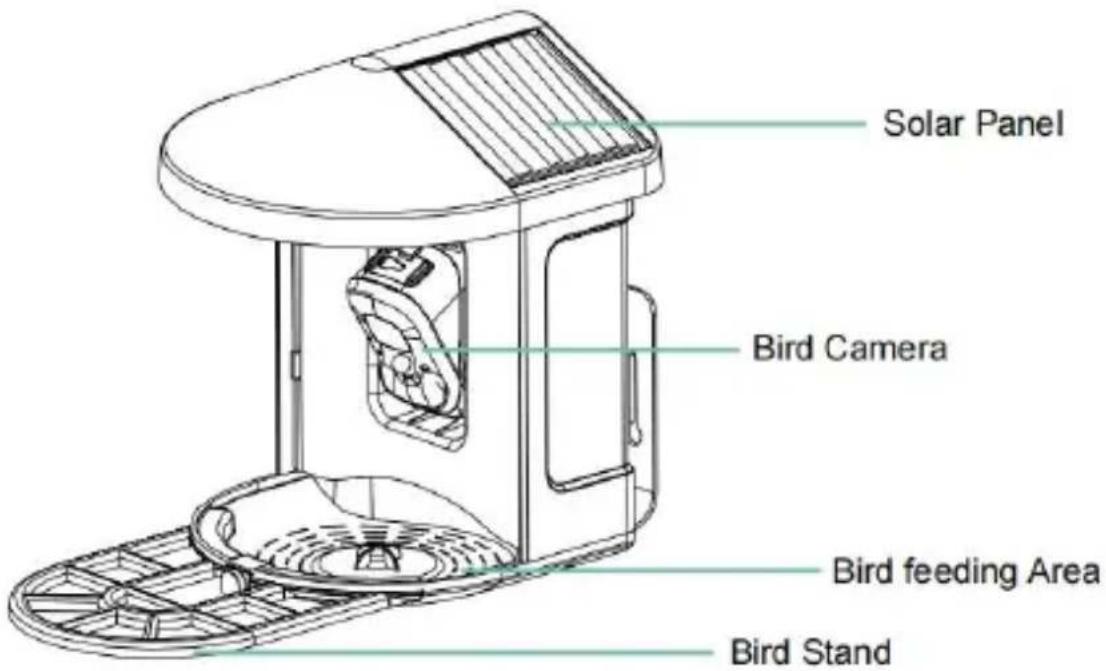
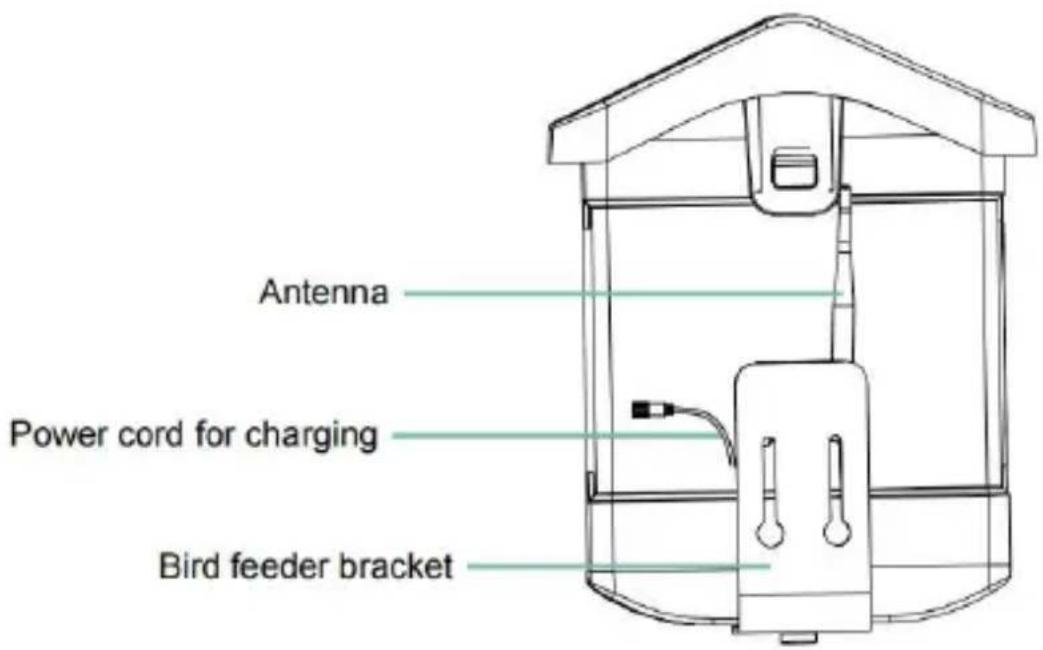
BIRD FEEDER PARTS NAME
Vevor FB-A01 - BIRD CAMERA APPEARANCE - 3

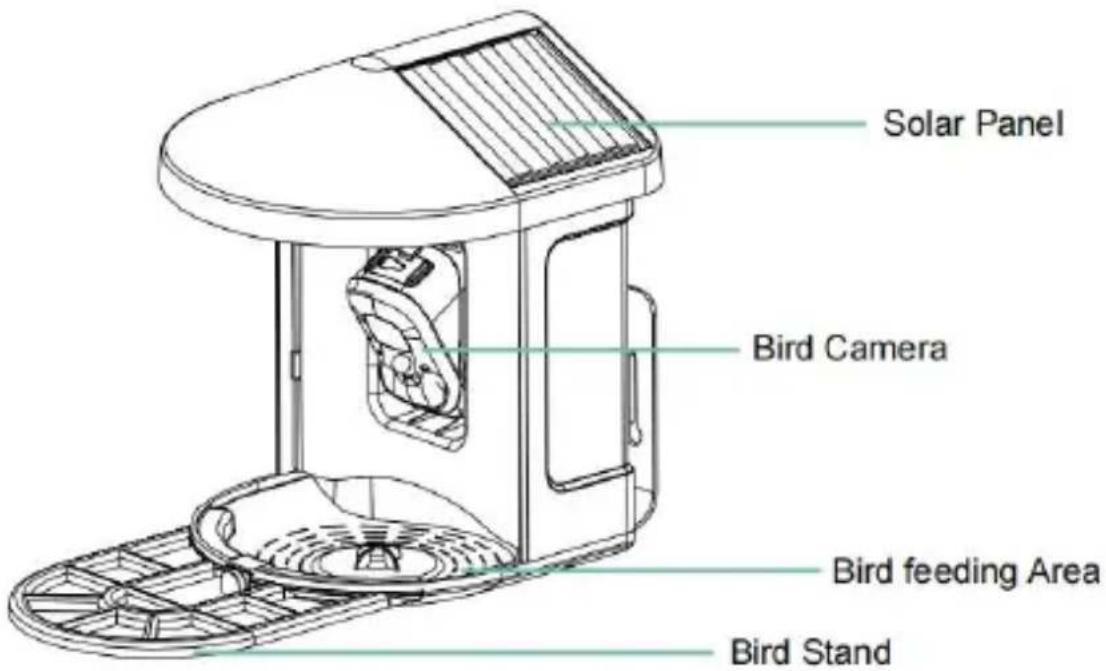
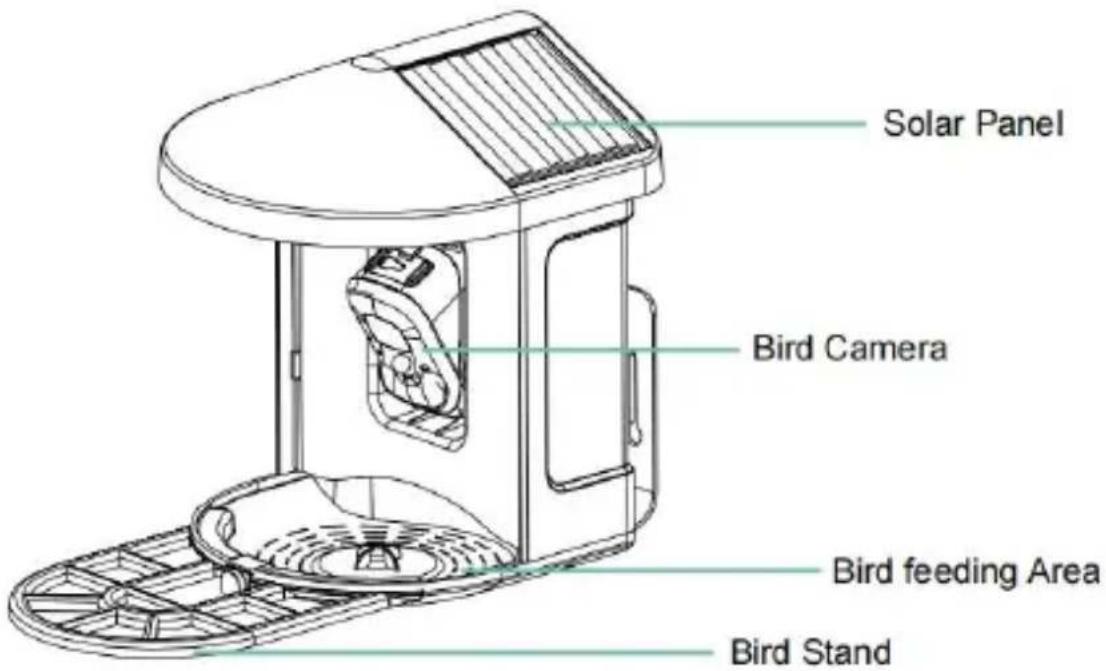
text_image Solar Panel Bird Camera Bird feeding Area Bird Stand

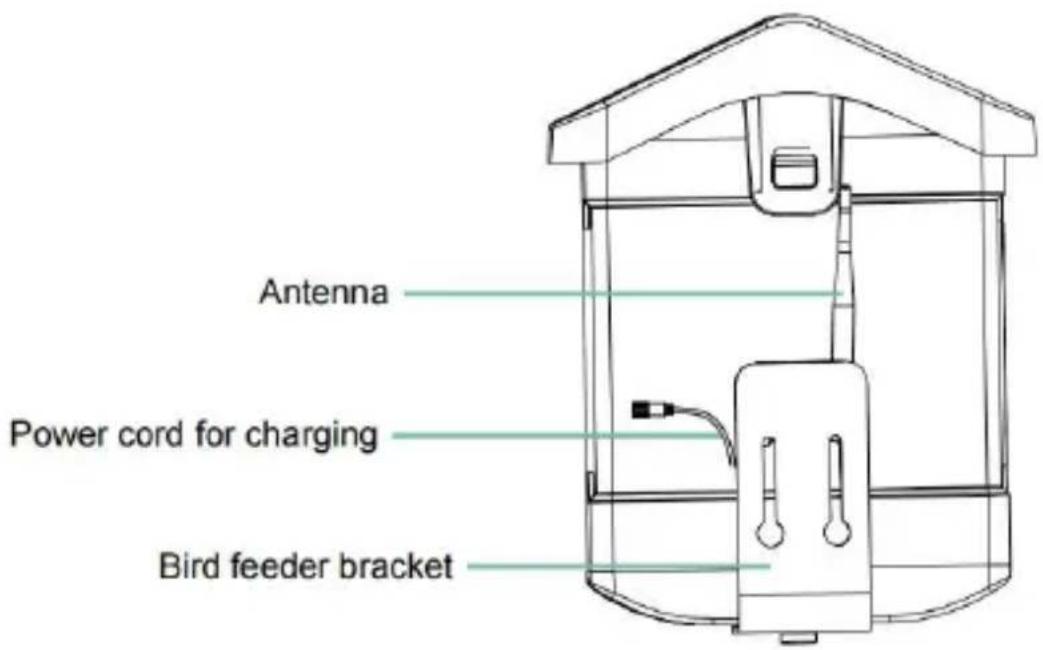
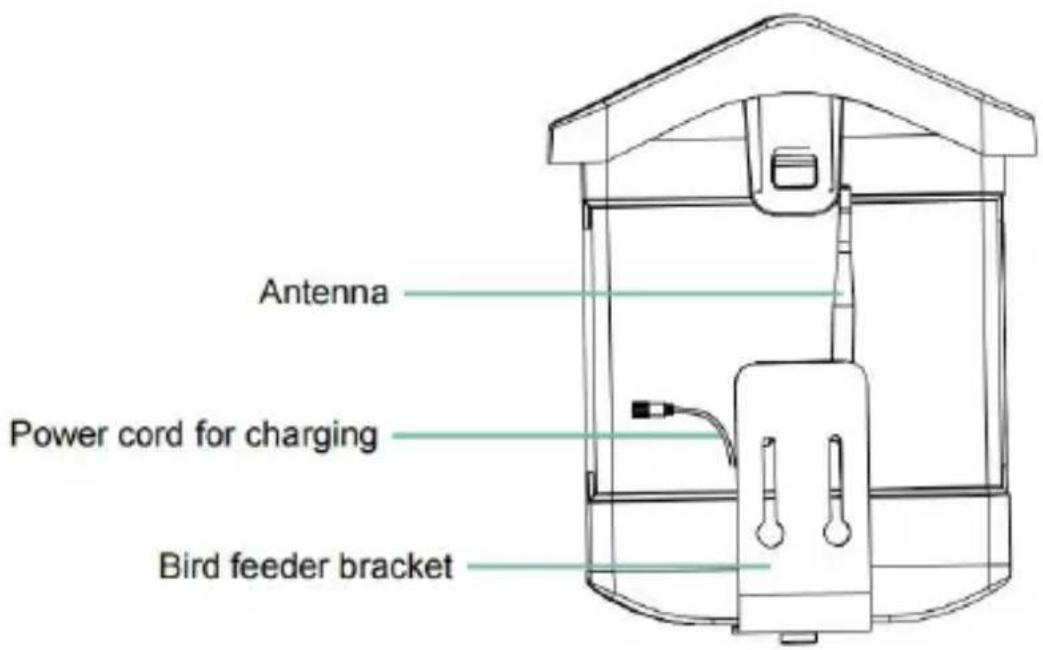
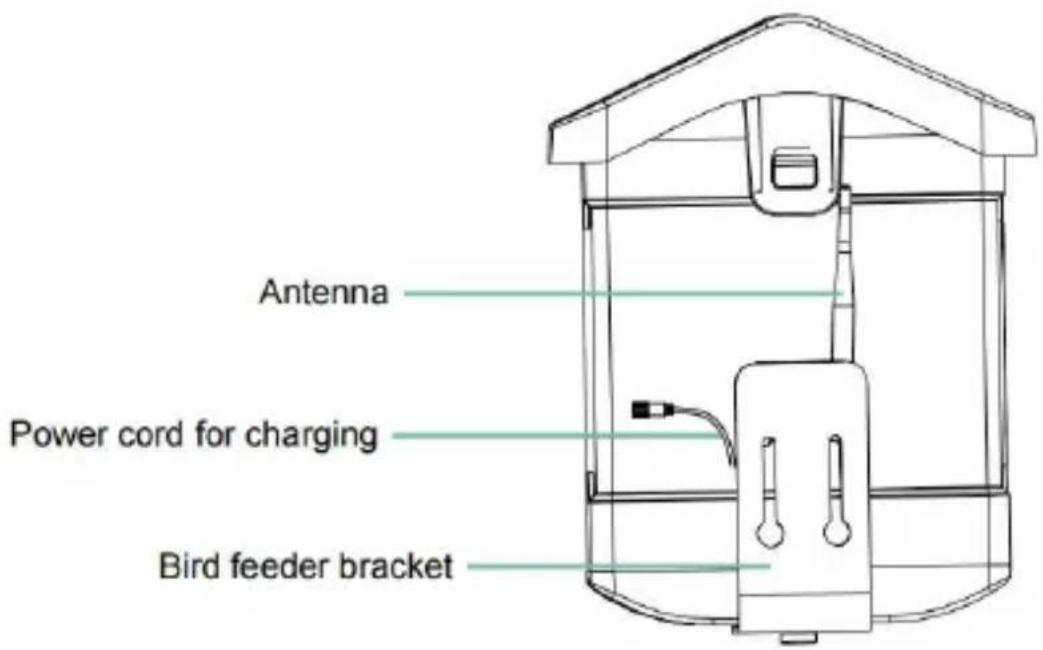
Vevor FB-A01 - BIRD CAMERA APPEARANCE - 4

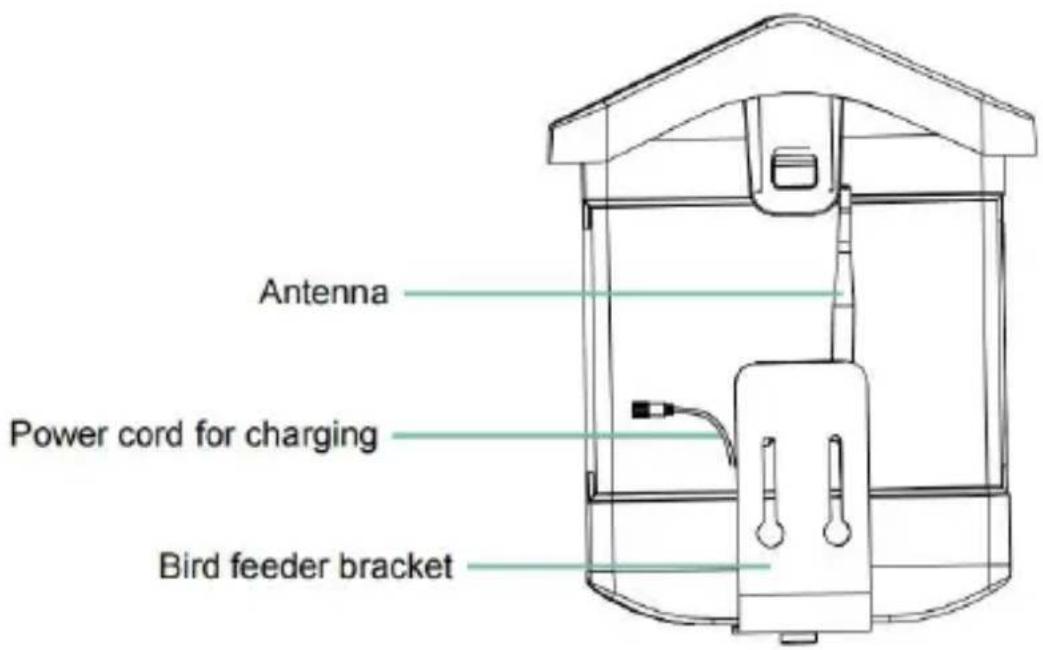
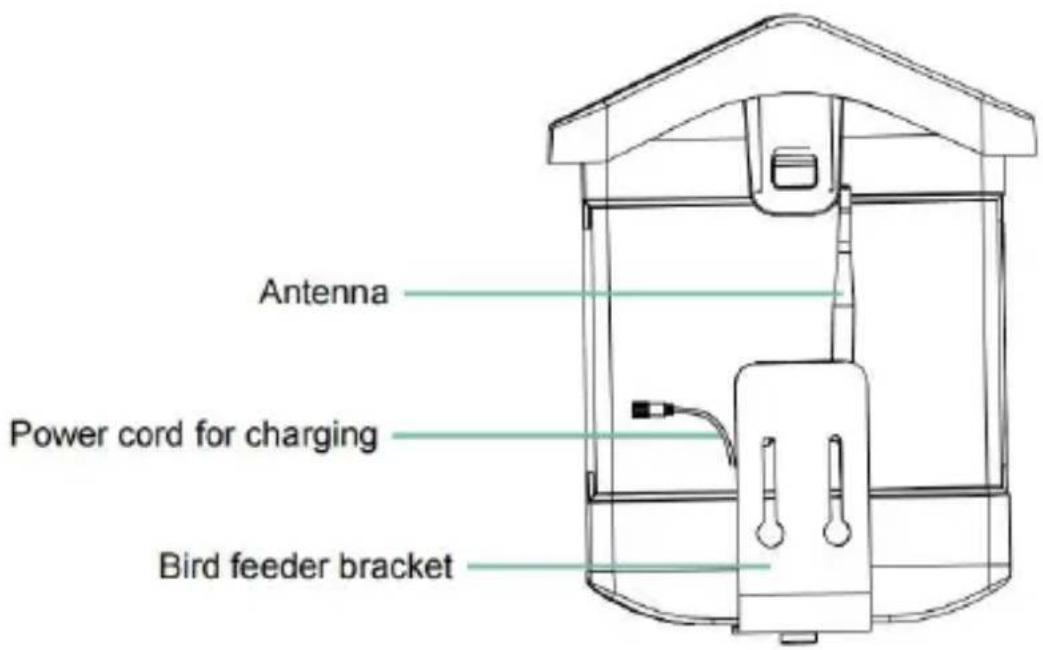
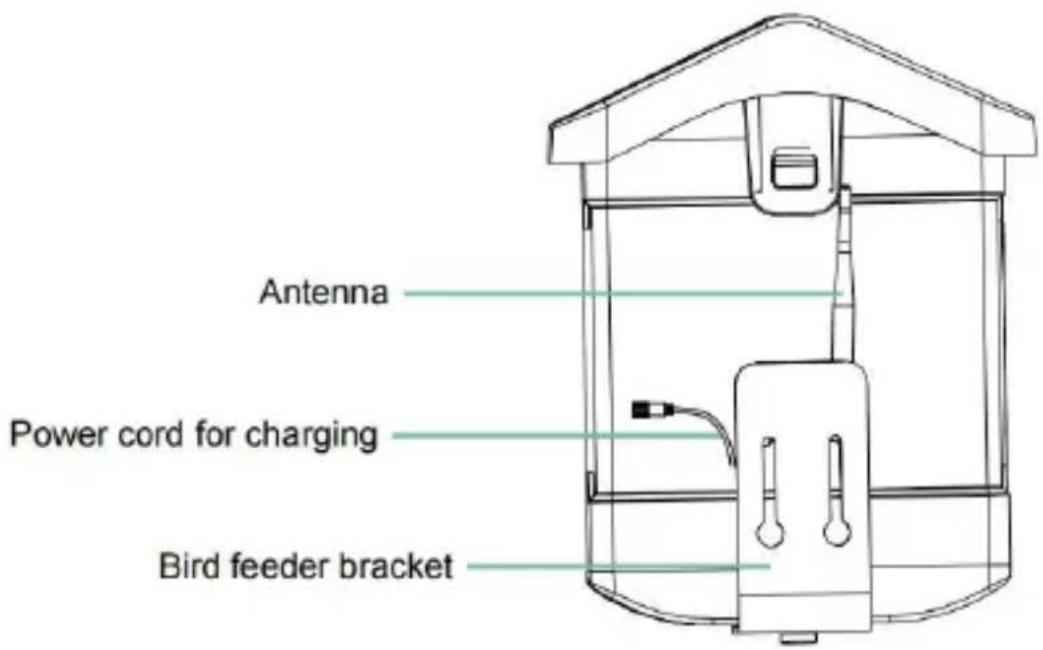
text_image Antenna Power cord for charging Bird feeder bracket

STEPS OF ASSEMBLY

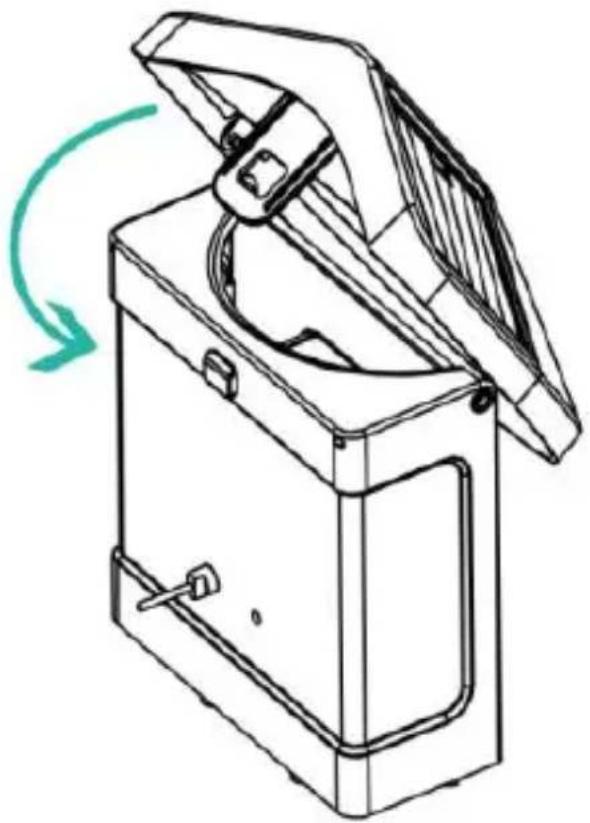
Step1: Assemble the upper cover

Turn the upper cover down so that it fastens onto the middle sh

Vevor FB-A01 - Step1: Assemble the upper cover - 1

natural_image Line drawing of a mechanical device with a green arrow indicating rotation (no text or symbols)

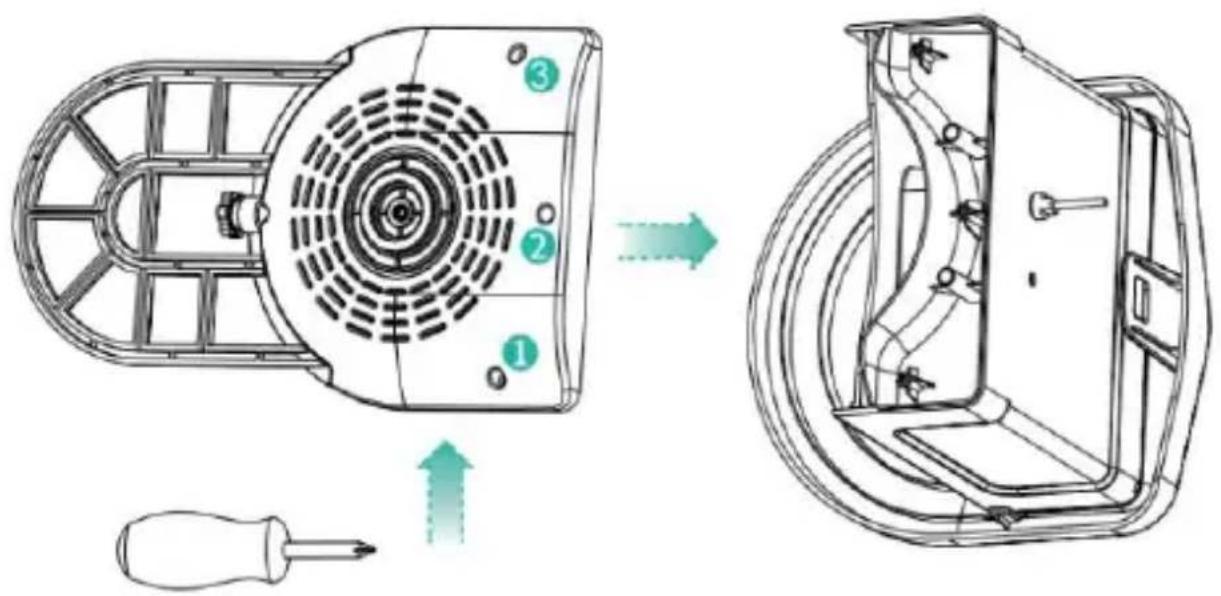
Step2: Install the tray

Clamp the material tray to the bottom of the main body of the equipment, put in 3 screws and tighten it with a cross screwdrive

Vevor FB-A01 - Step2: Install the tray - 1

text_image Technical diagram showing the assembly of a fan-shaped device with numbered components and directional arrows indicating motion.

Step3: Install an external antenna

Position the external antenna at the back antenna hole of the bir feeder and tighten the rotating antenna.
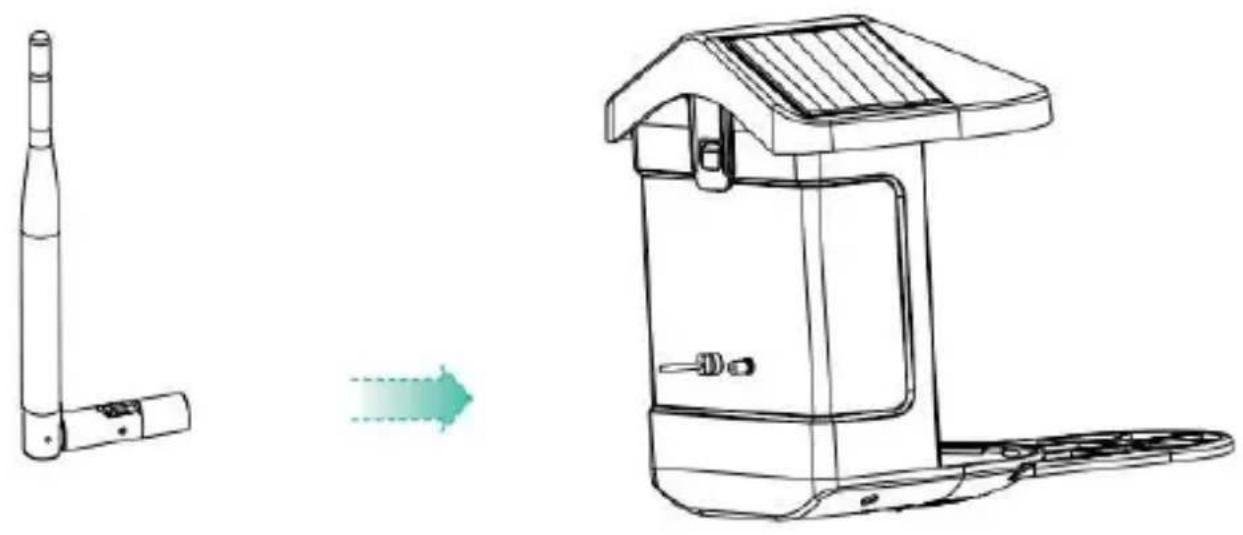
Vevor FB-A01 - Step3: Install an external antenna - 1

natural_image Line drawing of a portable electronic device with a left-side component and a right-side view showing a change (no text or symbols)

DOWNLOAD & INSTALL APP

The wireless smart battery camera supports Android and iOS App.

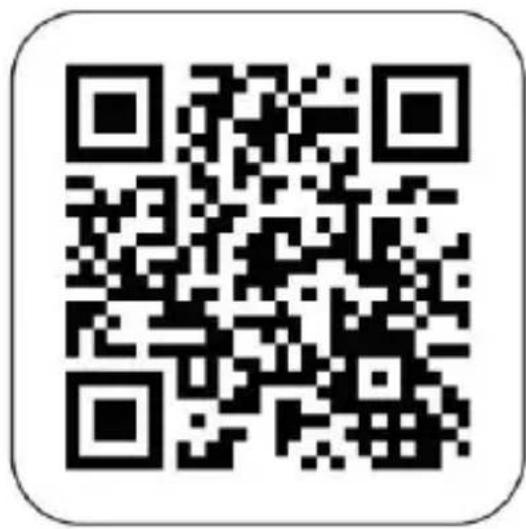
For your best experience, please scan the QR code below or search "VicoHome" on APP Store or Google Play Store to download and install the app. Install the app, and follow the instruction to complete the user registration.
Vevor FB-A01 - DOWNLOAD & INSTALL APP - 1

text_image QR code image with rounded corners, no visible text or symbols beyond the matrix pattern

Vevor FB-A01 - DOWNLOAD & INSTALL APP - 2

text_image Android Download

Vevor FB-A01 - DOWNLOAD & INSTALL APP - 3

text_image App Store Download

Download App

Note: Scan QR code or go to the link to download and install the App: https://www.vicohome.io/download/

NOTE: Please turn on both of the following permissions.

  1. Allow App to access mobile cellular data and wireless LAN, otherwise it will fail to connect the camera.
  2. Allow App to receive pushed messages, otherwise, the phone will not receive alarms when motion is detected.

ACCOUNT REGISTRATION

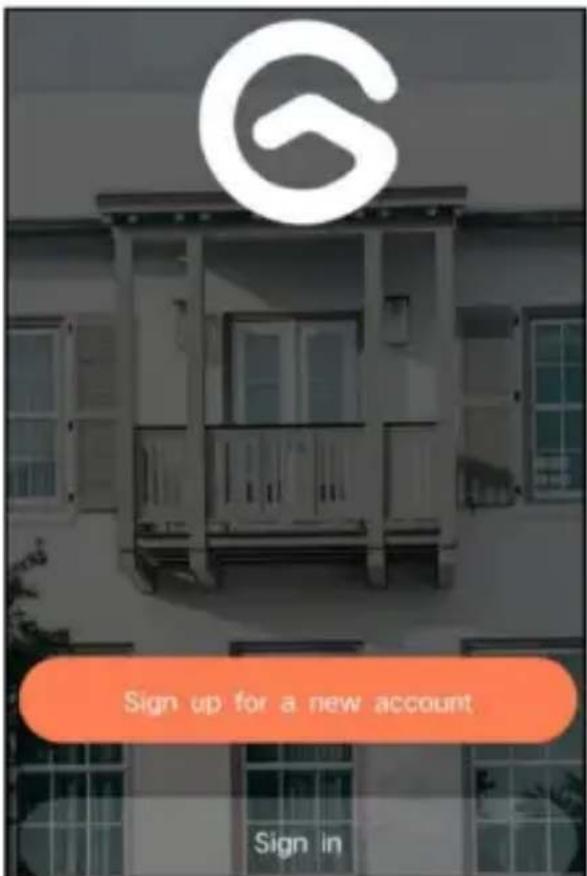
New users need to sign up by Email ID or Phone numbe Step1: Open the app and click 'Sign up for a New Account' and follow the steps to complete the registration.
Vevor FB-A01 - ACCOUNT REGISTRATION - 1

text_image G Sign up for a new account Sign in

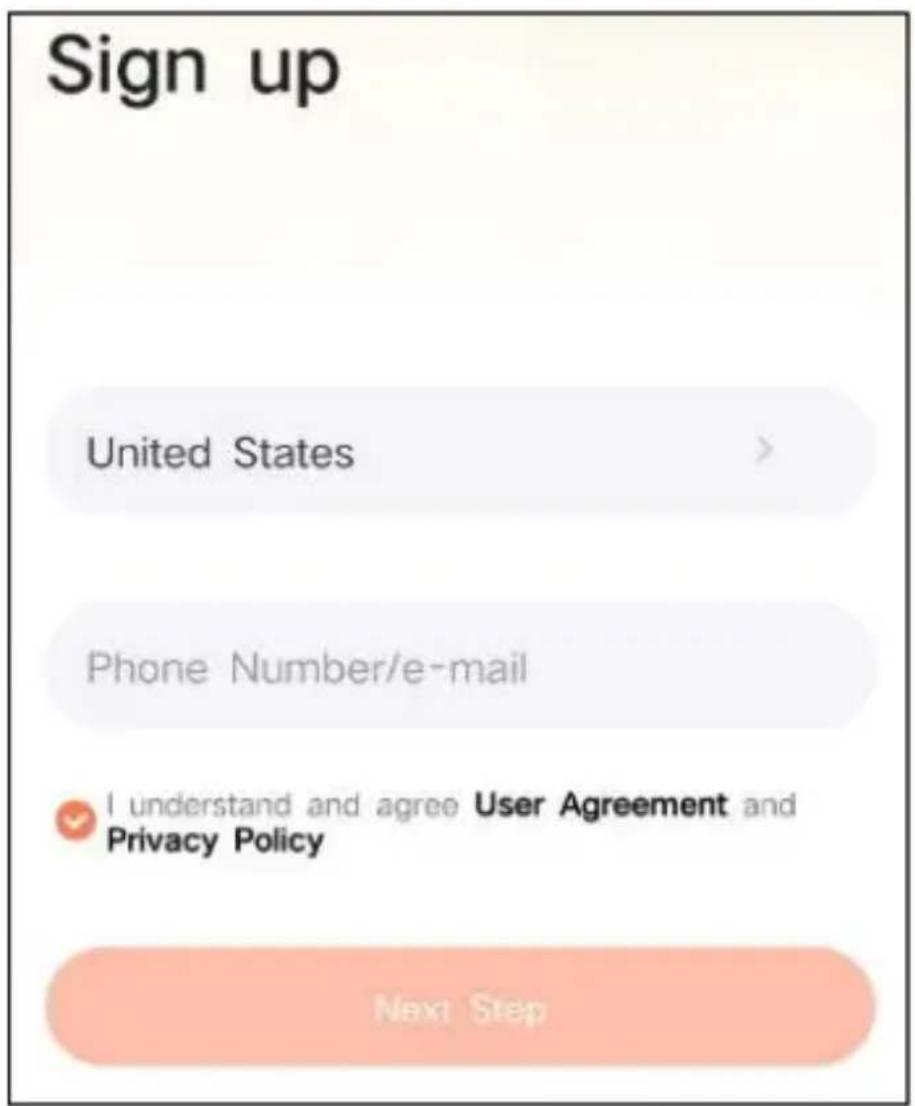
Step2: Input your username, country, email address. Check and agree to the User Agreement, then click 'Next Step'. (For a better experience, allow all permissions to avoid missing any notifications.)
Vevor FB-A01 - ACCOUNT REGISTRATION - 2

text_image Sign up United States > Phone Number/e-mail I understand and agree User Agreement and Privacy Policy Next Step

Step3: You will get an email with a verification code for account confirmation. Enter the code and click 'Next Step'.
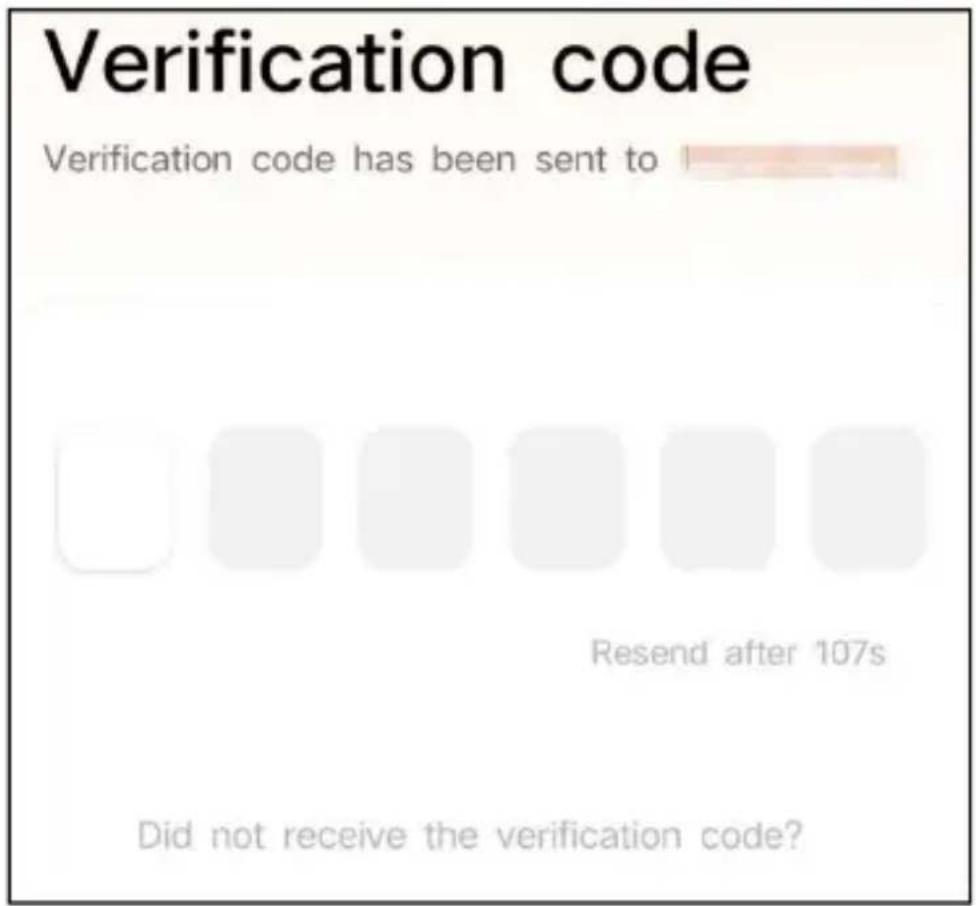
Vevor FB-A01 - ACCOUNT REGISTRATION - 3

text_image Verification code Verification code has been sent to Resend after 107s Did not receive the verification code?

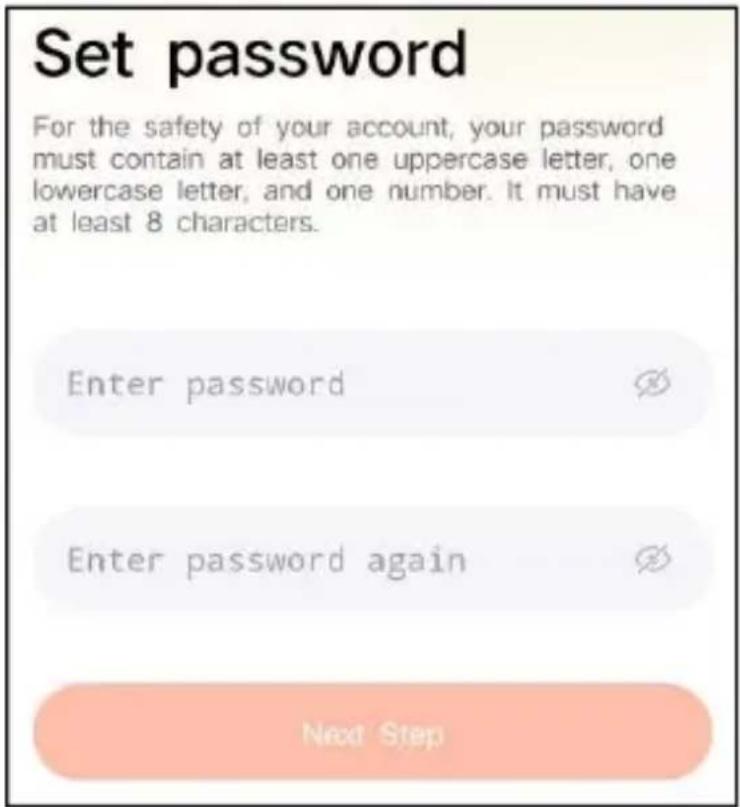
Step4: Set the login password and reenter it to confirm. Click 'Next Step'. (For account safety, the password needs to be a combination of at least 8 characters of uppercase and lower-case letters.)

Vevor FB-A01 - ACCOUNT REGISTRATION - 4

text_image Set password For the safety of your account, your password must contain at least one uppercase letter, one lowercase letter, and one number. It must have at least 8 characters. Enter password Enter password again Next Step

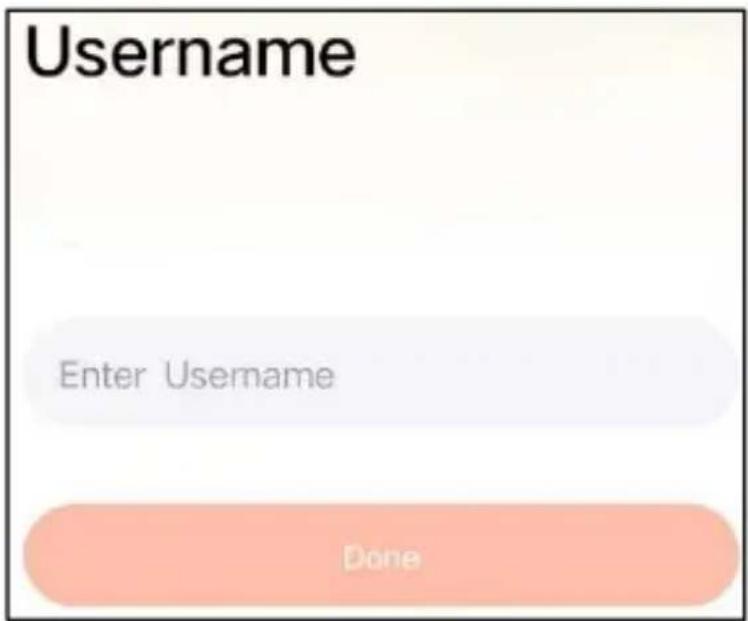
Step5: Enter your username and click 'done' for finish.

Vevor FB-A01 - ACCOUNT REGISTRATION - 5

text_image Username Enter Username Done

HOW TO SET UP THE CAMERA

1) How To Turn On & Off the Camera

OperationStatus
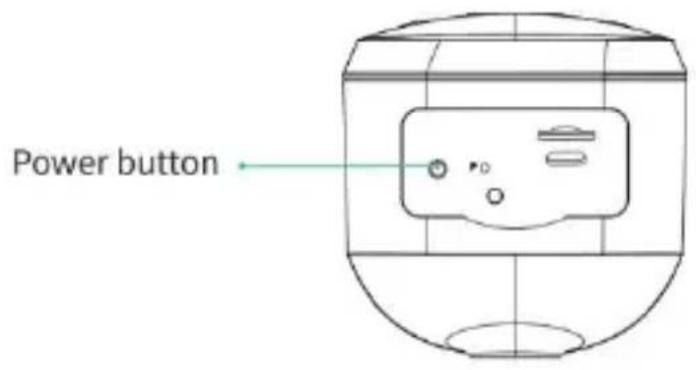
Turn On the CameraLong press the power button for 3sStartup soundLight: Solid Blue
Turn Off the CameraLong press the power button for 3sShutdown soundLight: Off
Enter the Network Configuration ModeDouble click the power buttonSound: Ding DongDing DongLight: Solid Blue

Note: The reboot hole is used to restart the camera without changing the settings. You can insert the included ejector pin into the reboot hole, then press and hold to reboot.

2) indicator Light Status

ModeStatus
Working modeBlue
Sleep modeOff
Charging modeYellow
Fully charged modeGreen

PREPARATION FOR CONNECTION

1). Insert Micro SD Card into Camera

Note: The SD card is not included, and it is not necessary. You can use the feeder without it.

Note: Camera comes with a built-in card slot that supports up to 128GB MicroSD card. Insert the card into the camera before you assemble the whole unit.

Note: We also provide 3 days cycle record for free (2 years limited time), the camera can work without SD Card.

Step 1: Gently rotate the camera down to the bottom.

step 2: Open the top silicone plug. Insert the MicroSD card.

Make sure to insert it in the right direction.

Step 3: Finally, cover the silicone plug.
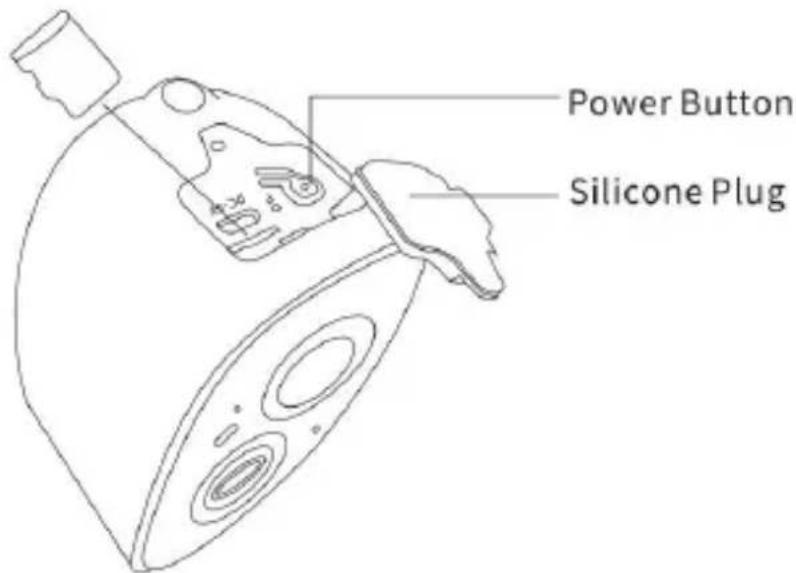
Vevor FB-A01 - 1). Insert Micro SD Card into Camera - 1

text_image Power Button Silicone Plug
  1. The camera only works with 2.4GHz Wi-Fi, not support 5G.
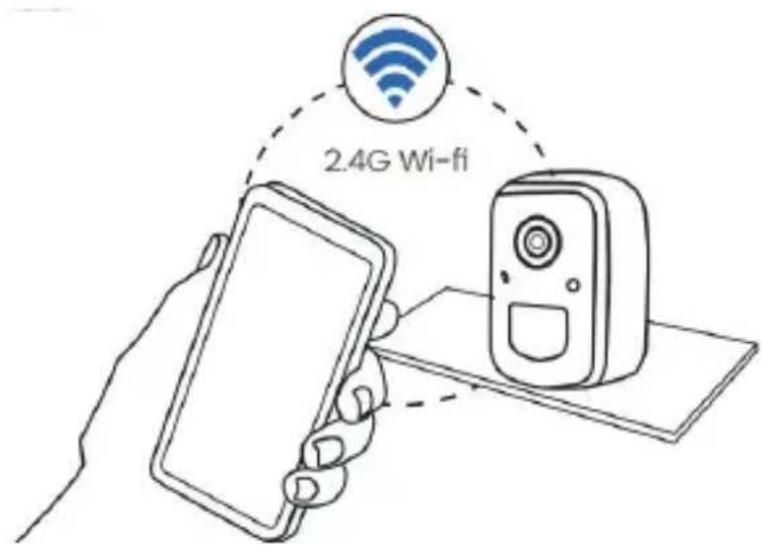
Vevor FB-A01 - 1). Insert Micro SD Card into Camera - 2

text_image 2.4G Wi-fi
  1. Take the camera close to the router while connecting.

  2. Keep pressing the power button for 2-4s to power on/o the camera.

ADD THE CAMERA—FOR ANDROID

Note: The most up-to-date information can be found through the app.

Step1: Click "Add a new device now" on the VicoHome App.
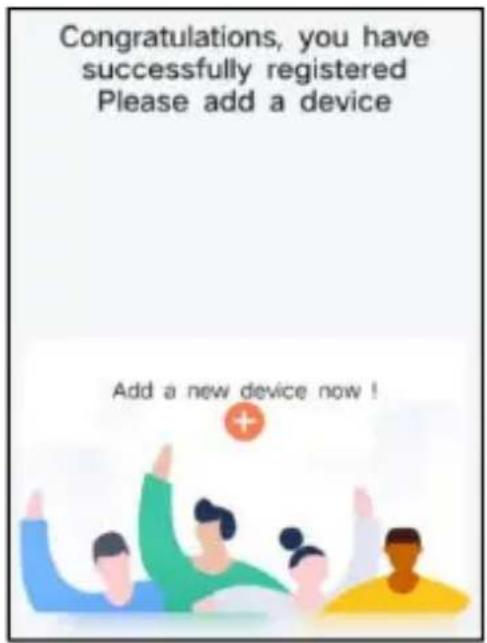
Vevor FB-A01 - ADD THE CAMERA—FOR ANDROID - 1

text_image Congratulations, you have successfully registered Please add a device Add a new device now!

Step2: Follow the instructions on the app to turn on the camera: Long press the power button of the camera for 3 to turn on the camera. Then the indicator light in the front of the camera will be solid blue. Double click the power button to enter network configuration mode after the prompt tone.
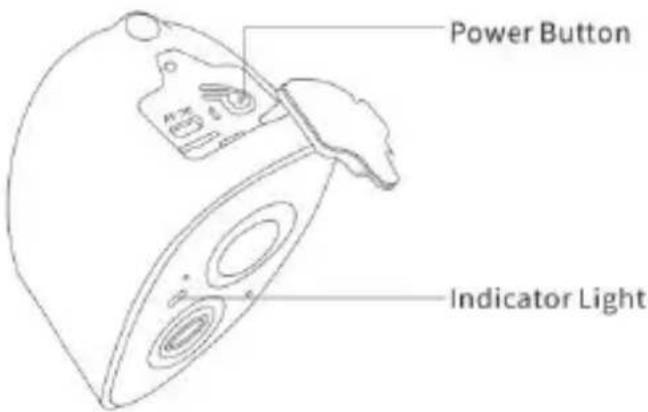
Vevor FB-A01 - ADD THE CAMERA—FOR ANDROID - 2

text_image Power Button Indicator Light

Step3: Listen for the 'ding dong ding dong' sound. After hearing the sound, click 'I heard the sound or saw the lig on' in the app. Then, click 'Next Step'.
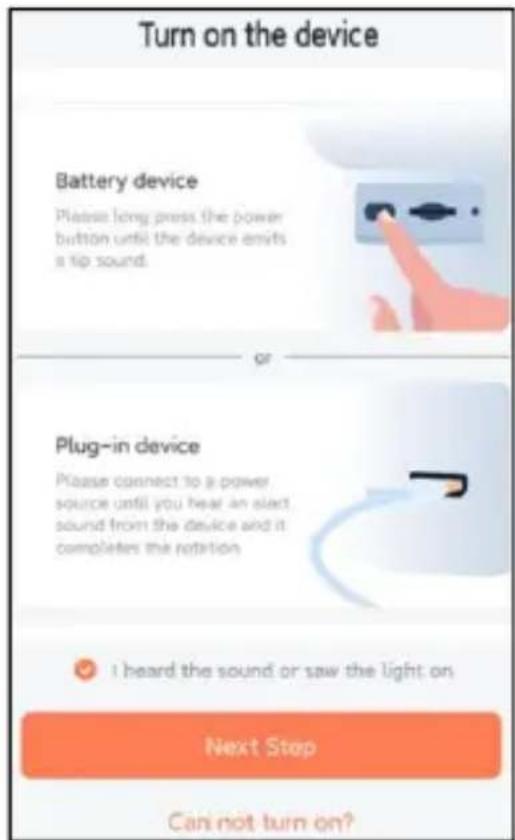
Vevor FB-A01 - ADD THE CAMERA—FOR ANDROID - 3

text_image Turn on the device Battery device Please long press the power button until the device emits a tip sound. or Plug-in device Please connect to a power source until you hear an elect sound from the device and it completes the rotation. I heard the sound or saw the light on Next Stop Can not turn on?

Step4: Confirm the device connection method, choose Wi-Fi connection (suitable for installation environment with Wi-Fi), click 'Go'.
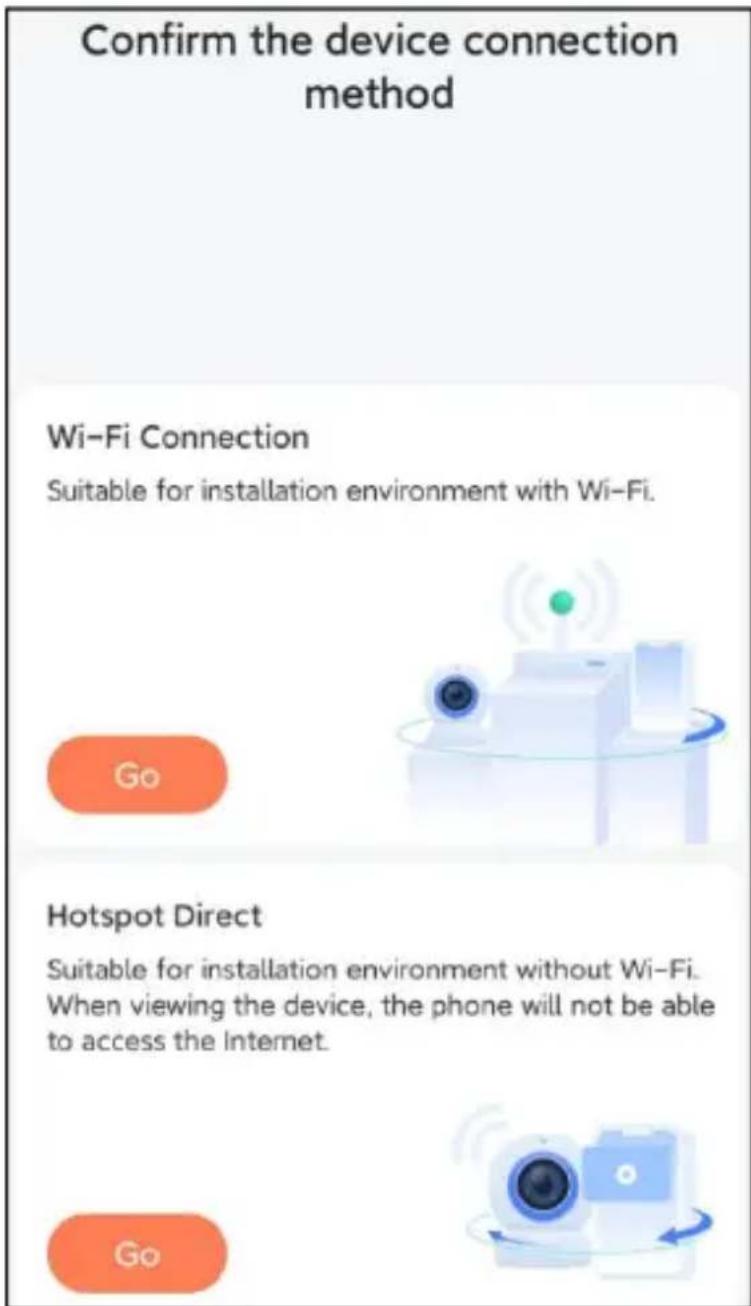
Vevor FB-A01 - ADD THE CAMERA—FOR ANDROID - 4

text_image Confirm the device connection method Wi-Fi Connection Suitable for installation environment with Wi-Fi. Go Hotspot Direct Suitable for installation environment without Wi-Fi. When viewing the device, the phone will not be able to access the Internet. Go

Step5: Enter the Wi-Fi name and Wi-Fi password you want to connect to, check 'Remember the Wi-Fi name and password after successful connection', and click 'Next Step'.

Note: The smart bird feeder only supports 2.4GHz Wi-Fi networks with strong wall penetration capability.
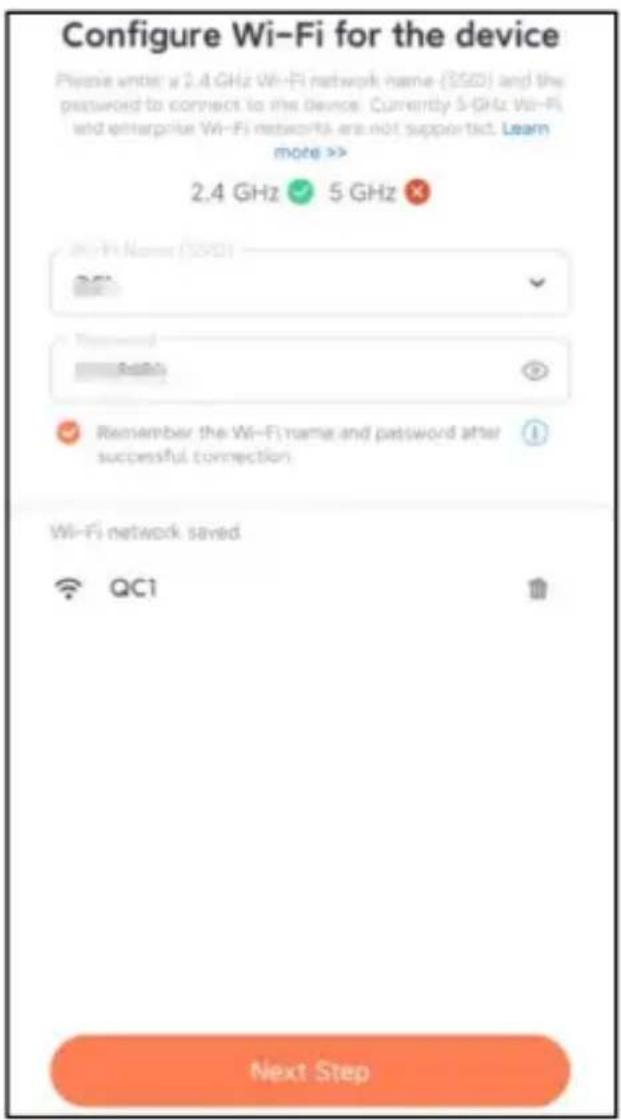
Vevor FB-A01 - ADD THE CAMERA—FOR ANDROID - 5

text_image Configure Wi-Fi for the device Please write: a 2.4 GHz Wi-Fi network name (SSD) and the password to connect to the device. Currently 5-GHz Wi-Fi and enterprise Wi-Fi networks are not supported. Learn more >> 2.4 GHz ✓ 5 GHz ✗ Wi-Fi Name (SSD) Remember the Wi-Fi name and password after successful connection. Hi-Fi network saved QC1 Next Step

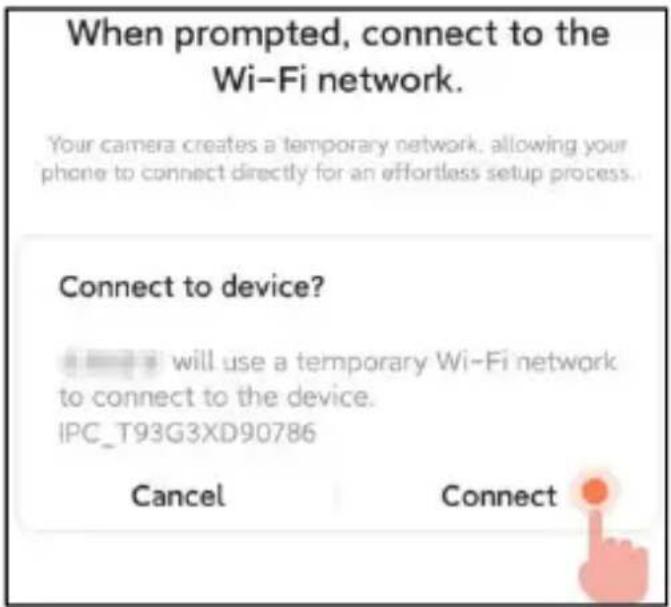
Step6: Click 'Next Step'.

Vevor FB-A01 - Step6: Click 'Next Step'. - 1

text_image When prompted, connect to the Wi-Fi network. Your camera creates a temporary network, allowing your phone to connect directly for an effortless setup process. Connect to device? • will use a temporary Wi-Fi network to connect to the device. IPC_T93G3XD90786 Cancel Connect

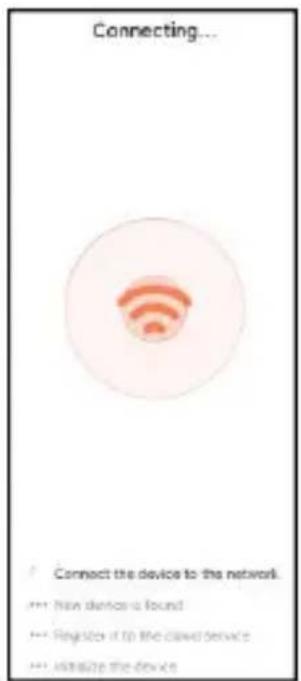
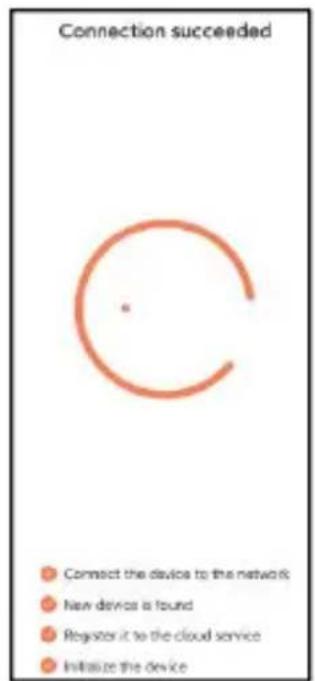
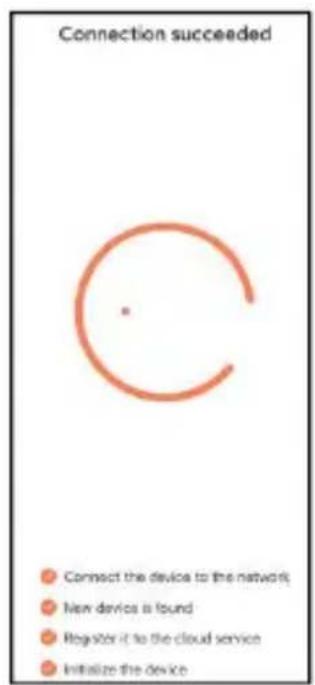
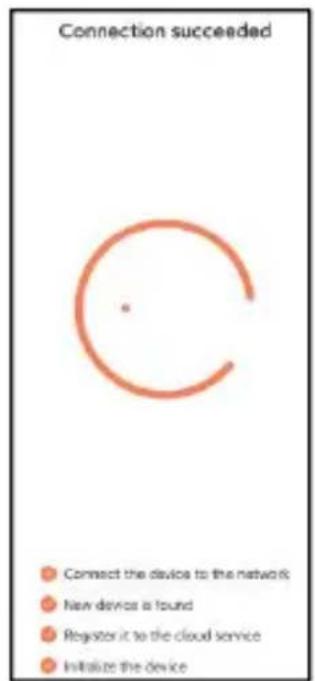
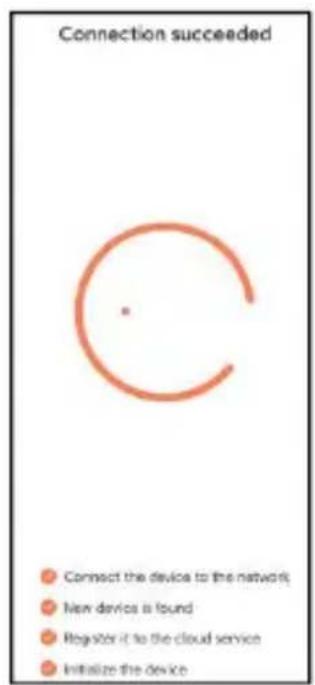
Step7: When connecting, please wait patiently for 15 seconds, then you will hear a sound Wi-Fi Connected'.

Vevor FB-A01 - Step7: When connecting, please wait patiently for 15 seconds, then you will hear a sound Wi-Fi Connected'. - 1

text_image Connecting... Connect the device to the network. !!! New devices is found

Register it to the cloud service

!!! Initialize the device

Vevor FB-A01 - Register it to the cloud service - 1

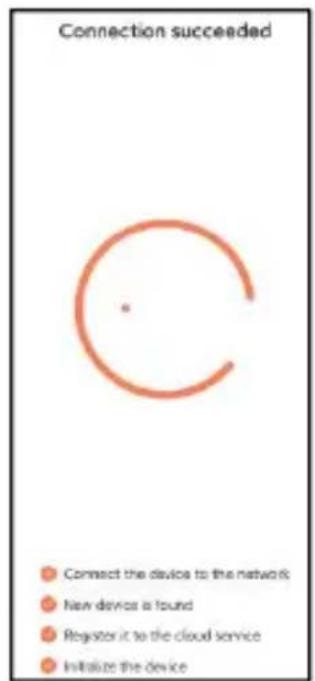
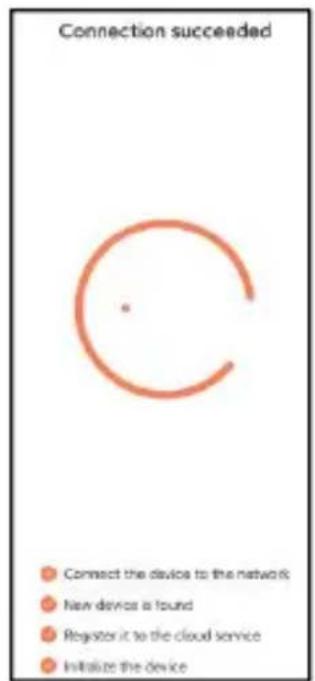
text_image Connection succeeded Connect the device to the network New devices is found Register it to the cloud service Initialize the device

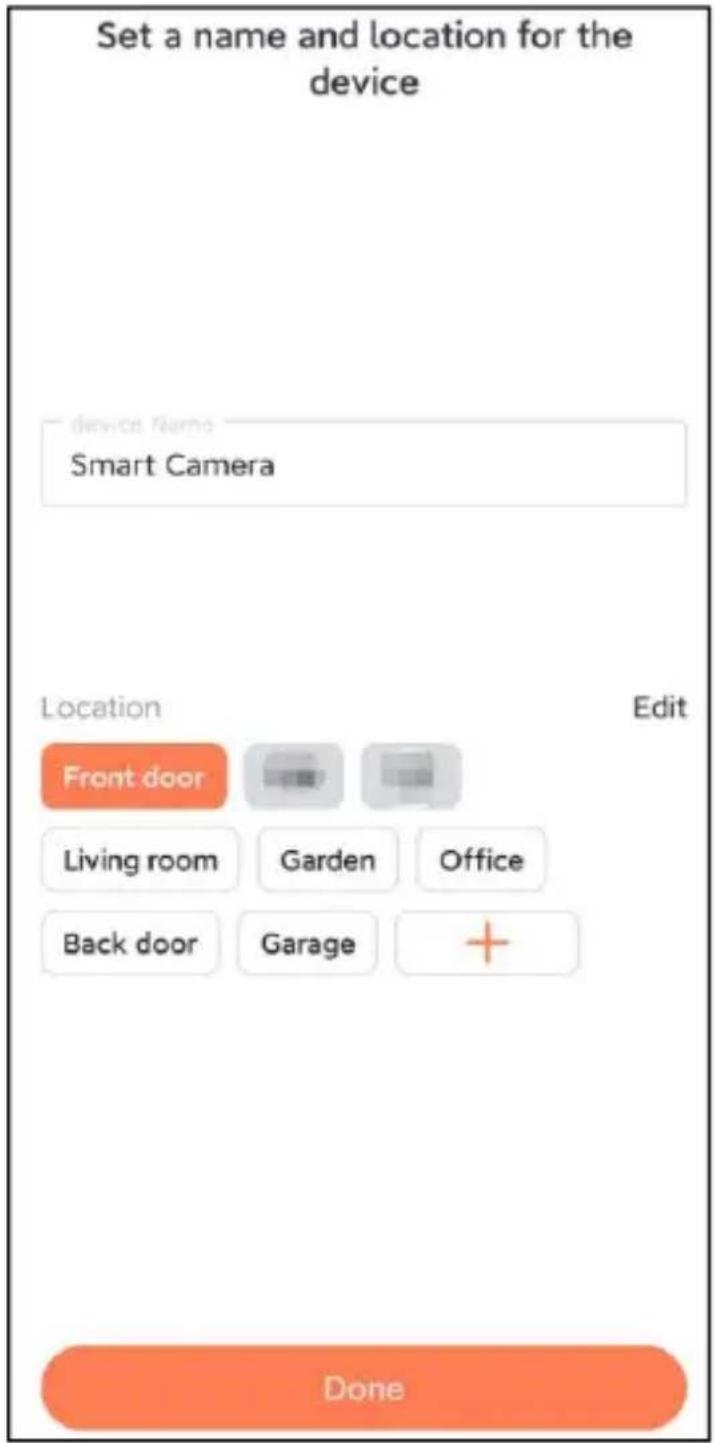
Step8: Set a name and location for smart bird feeder, and then click 'Done'.
Vevor FB-A01 - Register it to the cloud service - 2

text_image Set a name and location for the device device Name Smart Camera Location Edit Front door Living room Garden Office Back door Garage + Done

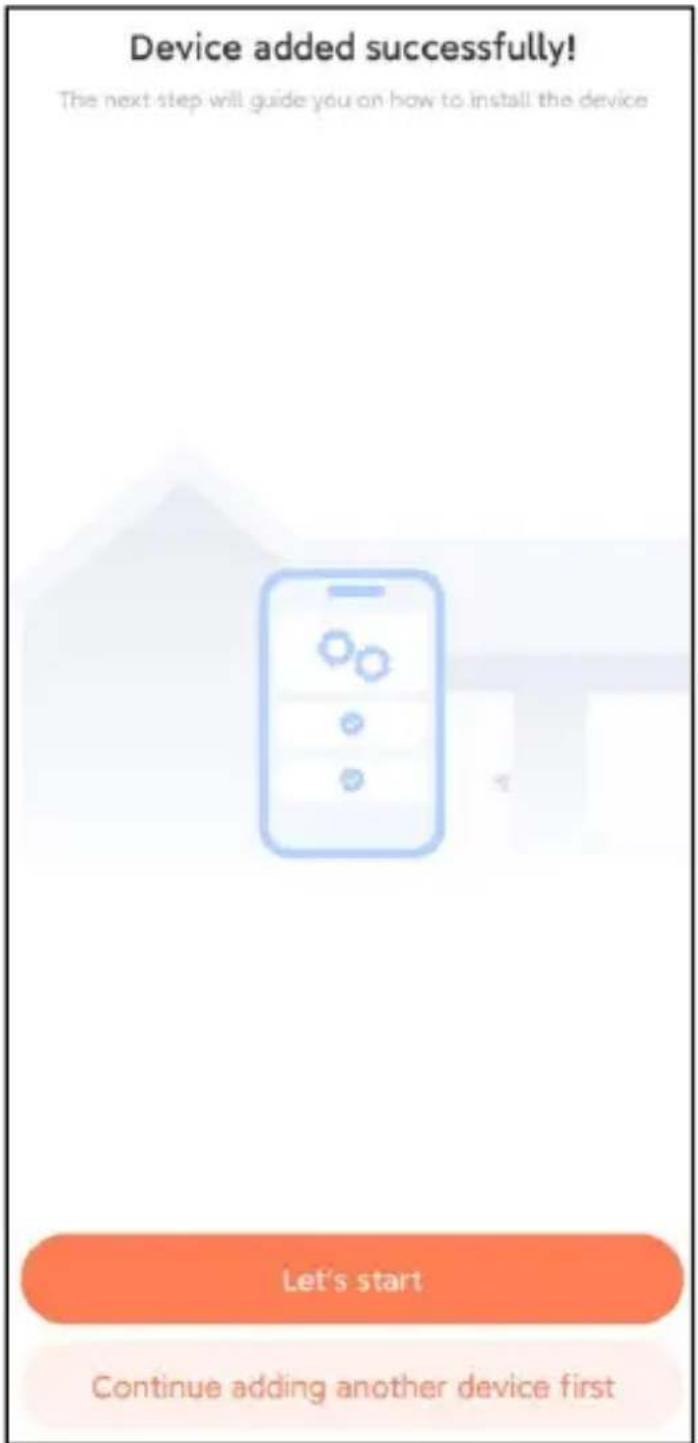
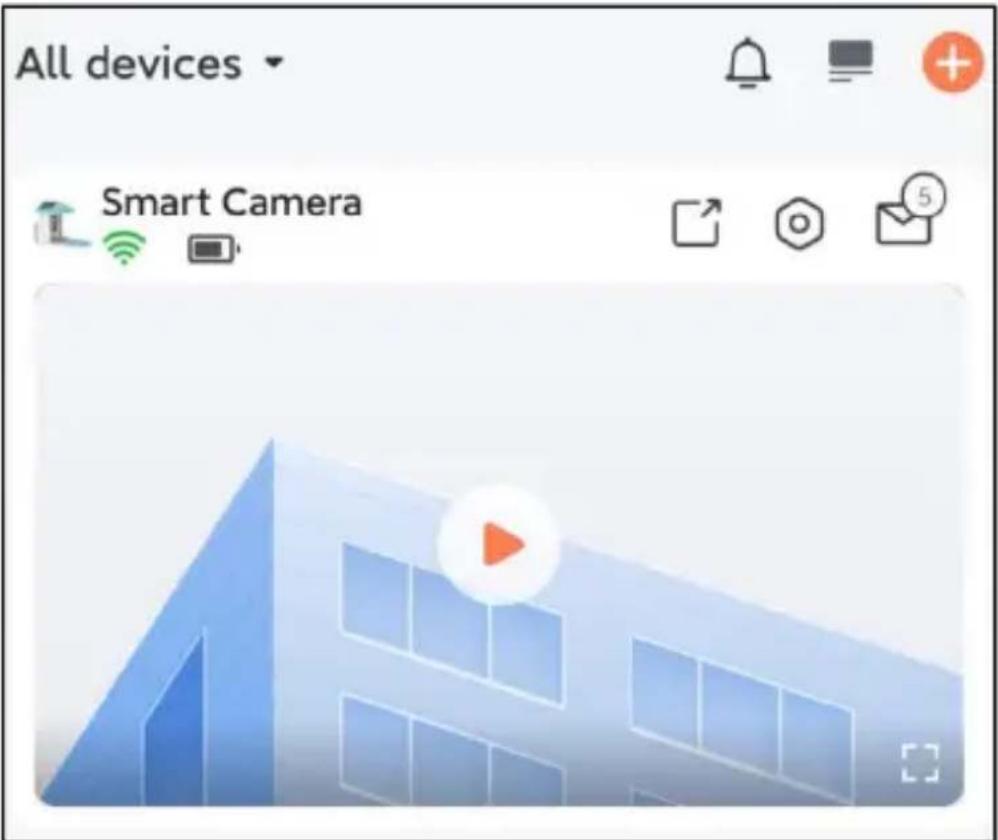
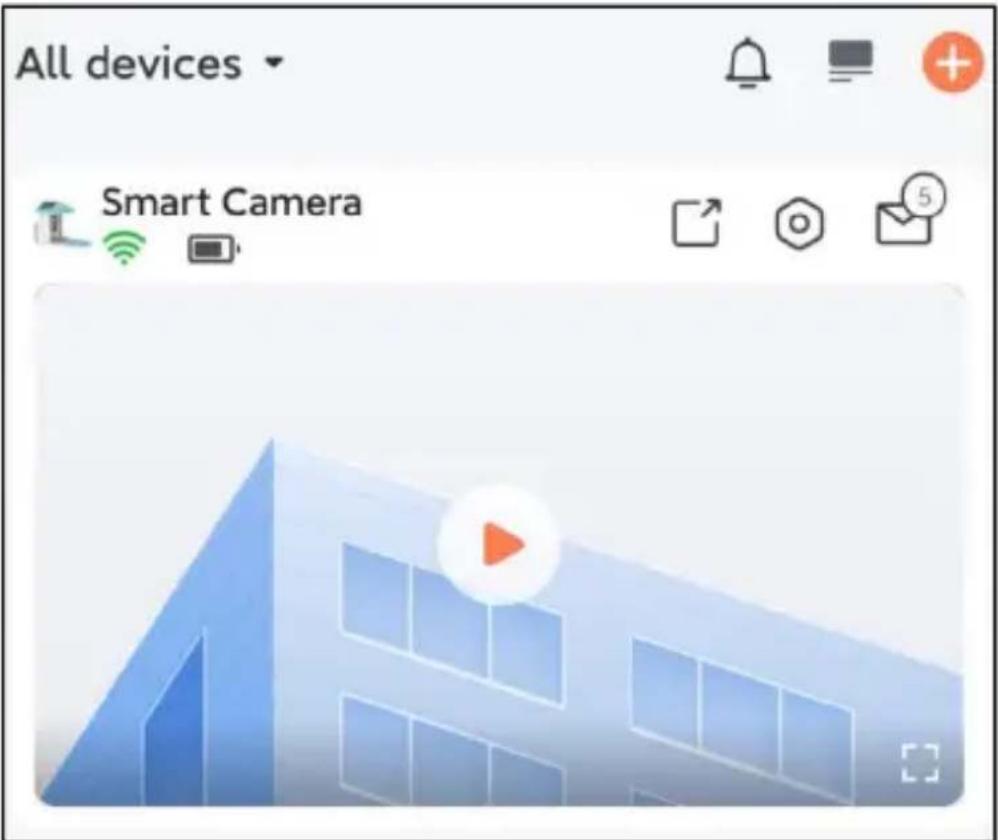
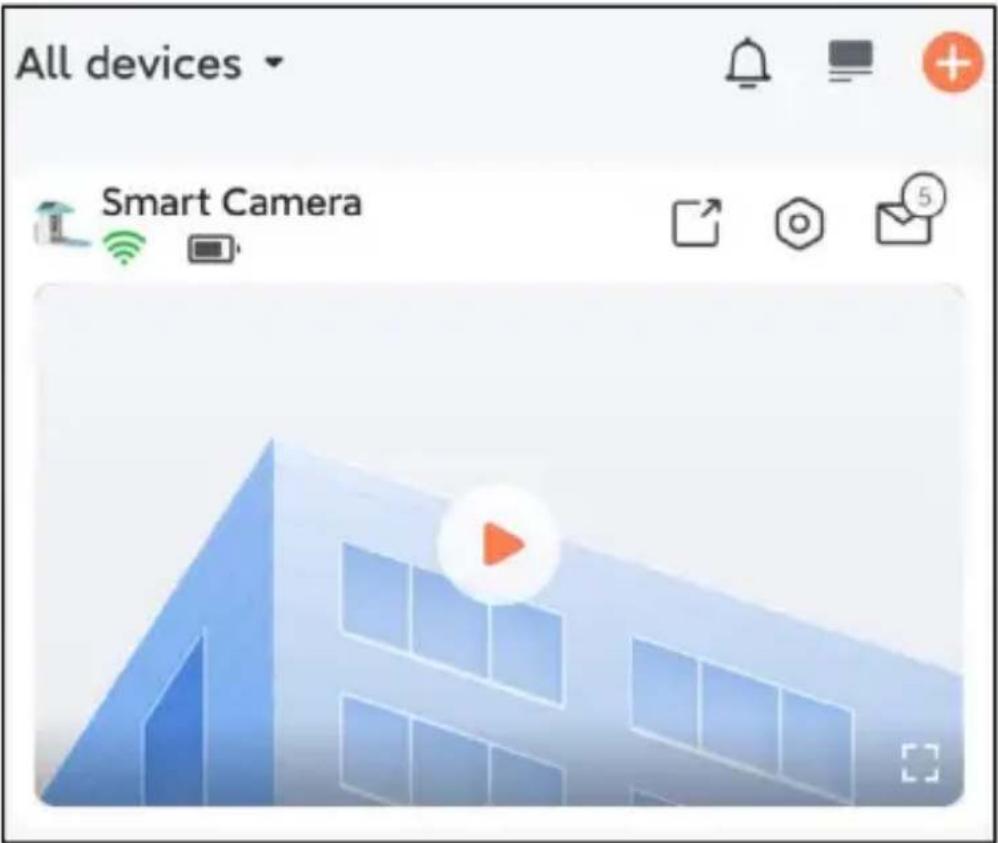
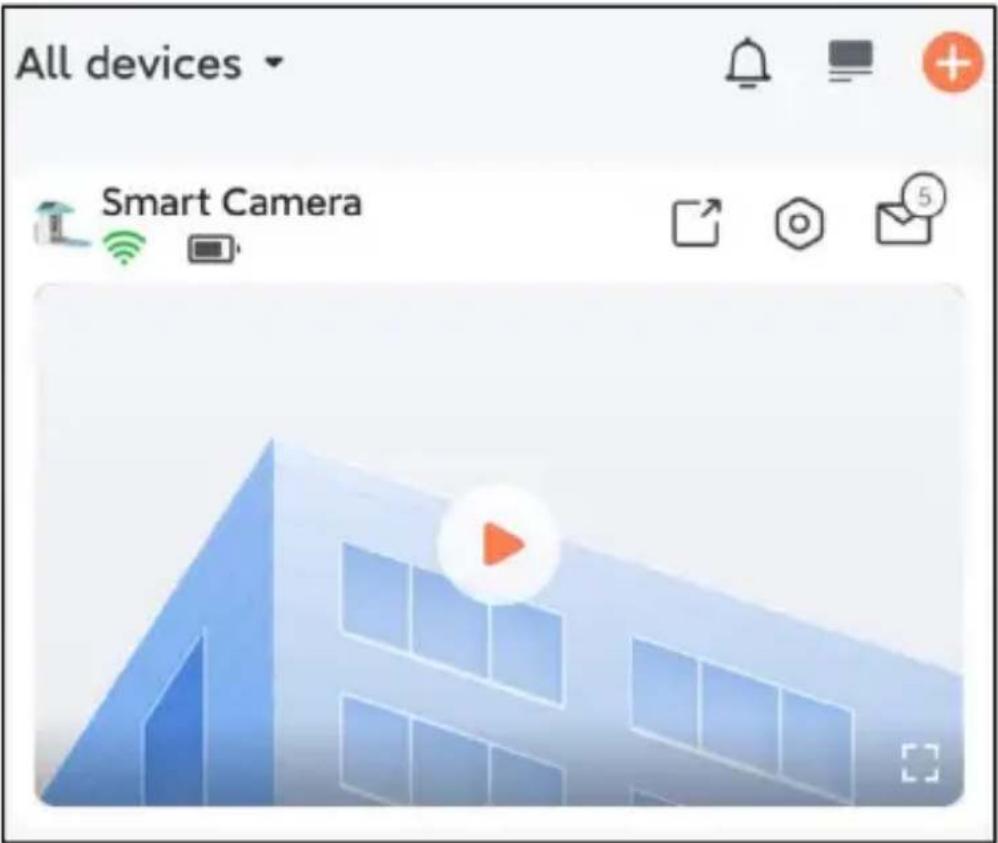
Step9: Finally, your device added successfully and then click 'Let's start'.

Vevor FB-A01 - Register it to the cloud service - 3

text_image Device added successfully! The next step will guide you on how to install the device Let's start Continue adding another device first

Vevor FB-A01 - Register it to the cloud service - 4

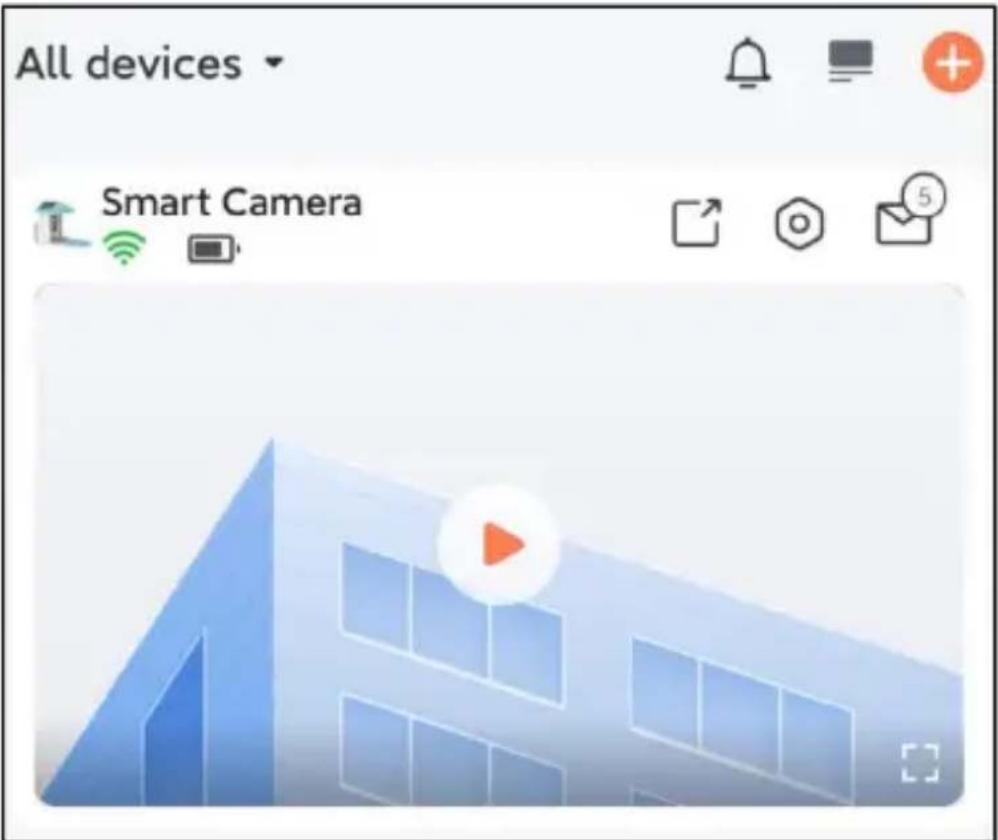
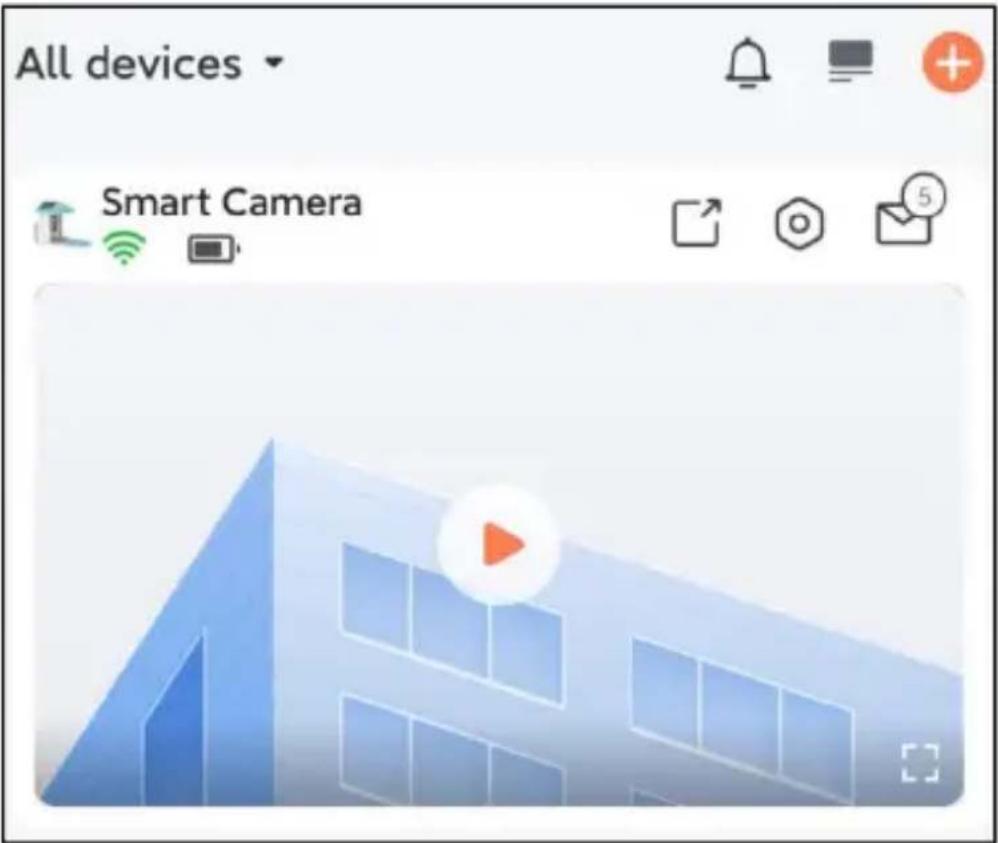
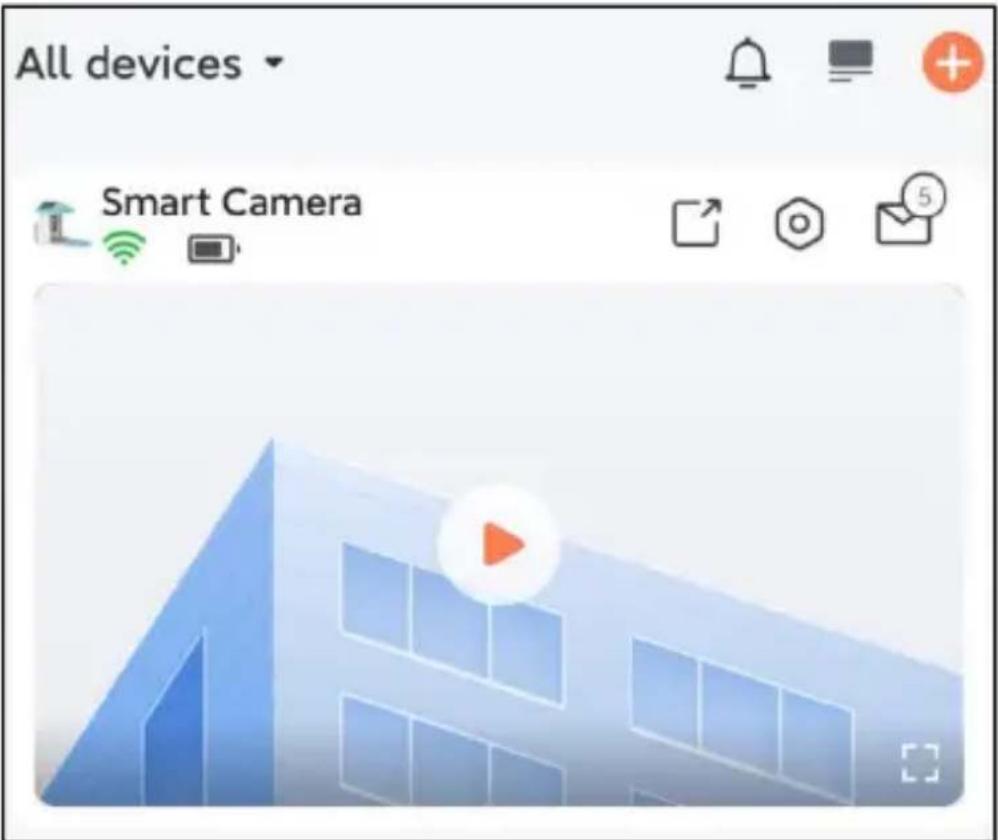
text_image All devices Smart Camera

Note: When you finish connecting, a message will appear about getting free cloud storage for 30 days. After 30 day you can subscribe to a cloud storage package that suits you.

ADD THE CAMERA—FOR iOS

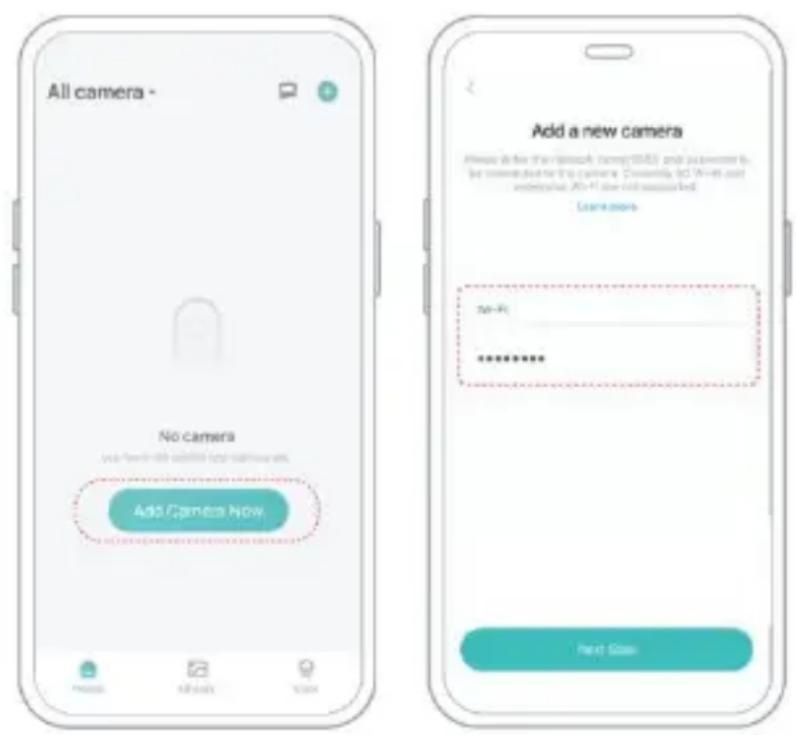
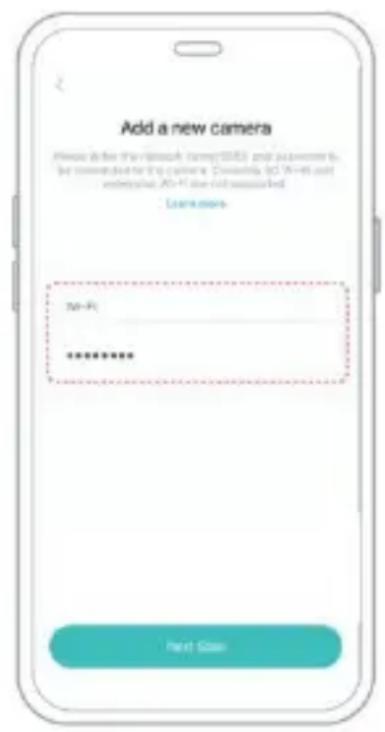
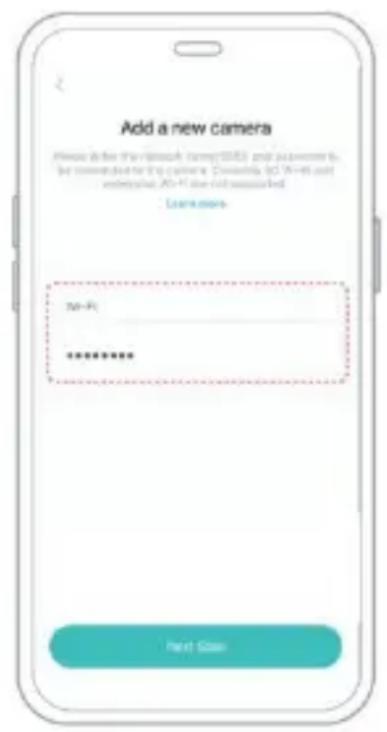
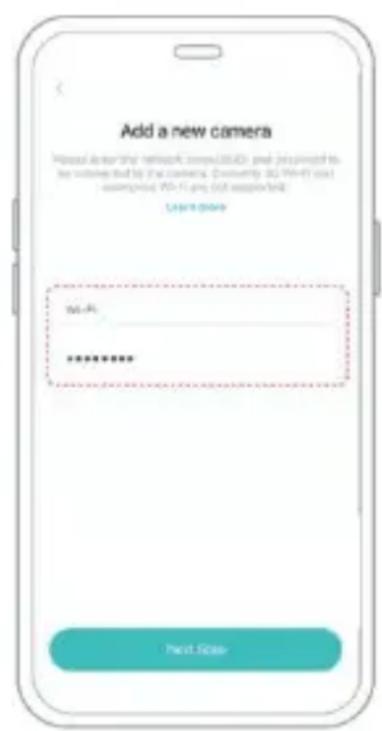
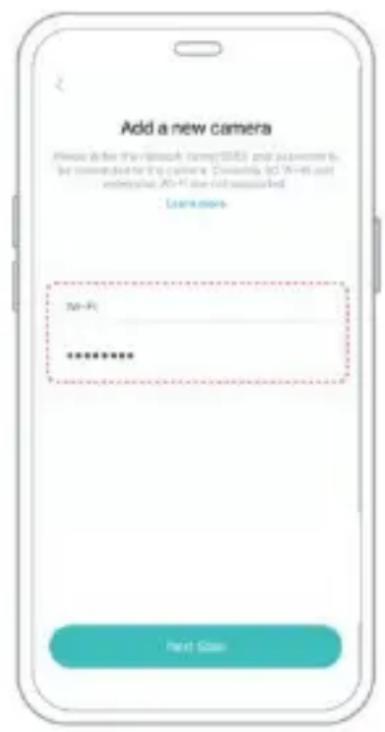
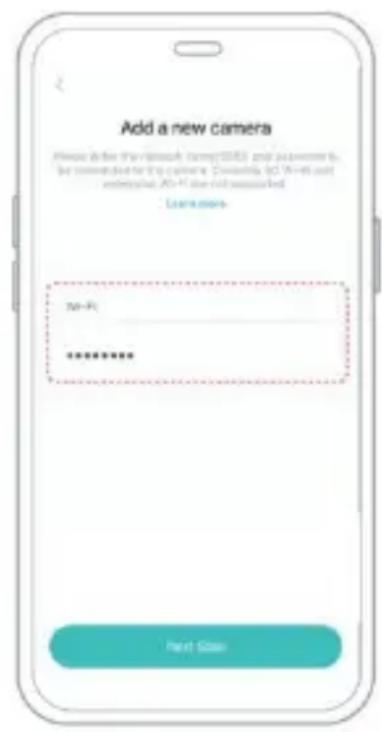
Step1: Click the "Add Camera Now" in the App and enter the Wi-Fi network name and password that you want the camera to connect.

Vevor FB-A01 - ADD THE CAMERA—FOR iOS - 1

text_image All camera - No camera Add Camera Now Add a new camera Please define the network (com/SMR) and parameters for complete or the camera. Currently, to NOT add a new camera. Add a new camera No-Fi **********

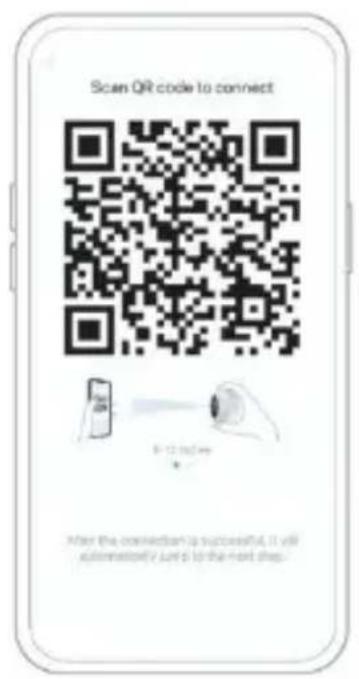
Step2: To ensure a longer distance connection, the camera only supports the 2.4Ghz Wi-Fi with stronger wall penetration capability and does not support Wi-Fi for enterprise-level authentication currently. Please ensure that the entered Wi-Fi meets the requirements. After

completion, click "Continue to generate the QR code for pairing the camera.
Vevor FB-A01 - ADD THE CAMERA—FOR iOS - 2

text_image Scan QR code to connect 5-12:00:00 Now the connection is successful, it will automatically just go to the next step.

Step3: After pressing the camera switch for 3 seconds, the camera will turn on. The camera will emit the scanning sound "Ding Dong Ding Dong" after it is turned on (if you do not hear it, please double click the power button).

Vevor FB-A01 - ADD THE CAMERA—FOR iOS - 3

text_image Power button

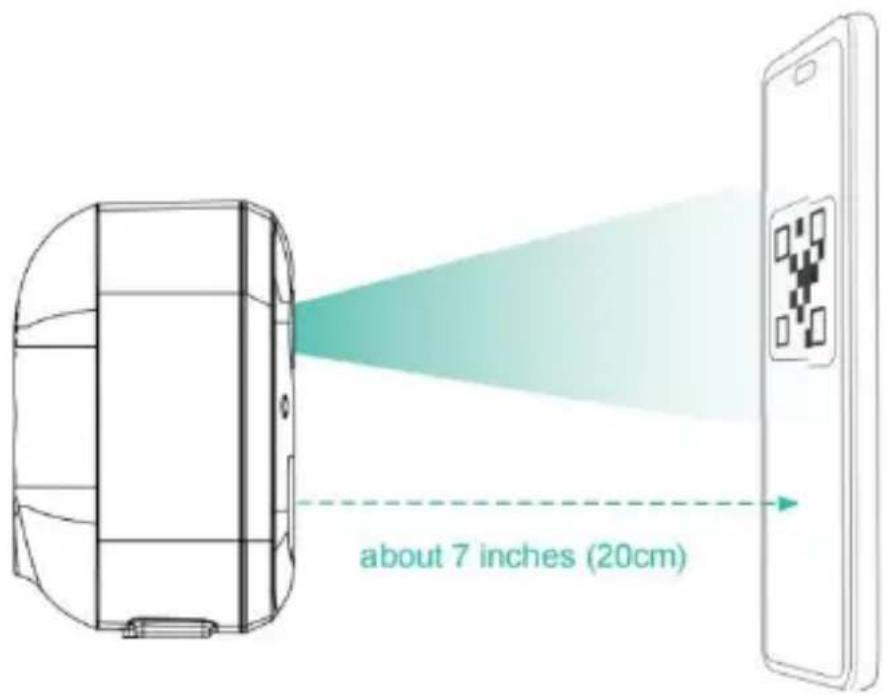
Step4: Take the lens of the camera facing the QR code generated on Home about 20 cm (7 inches) until you hear a "Ding" sound.
Vevor FB-A01 - ADD THE CAMERA—FOR iOS - 4

text_image about 7 inches (20cm)

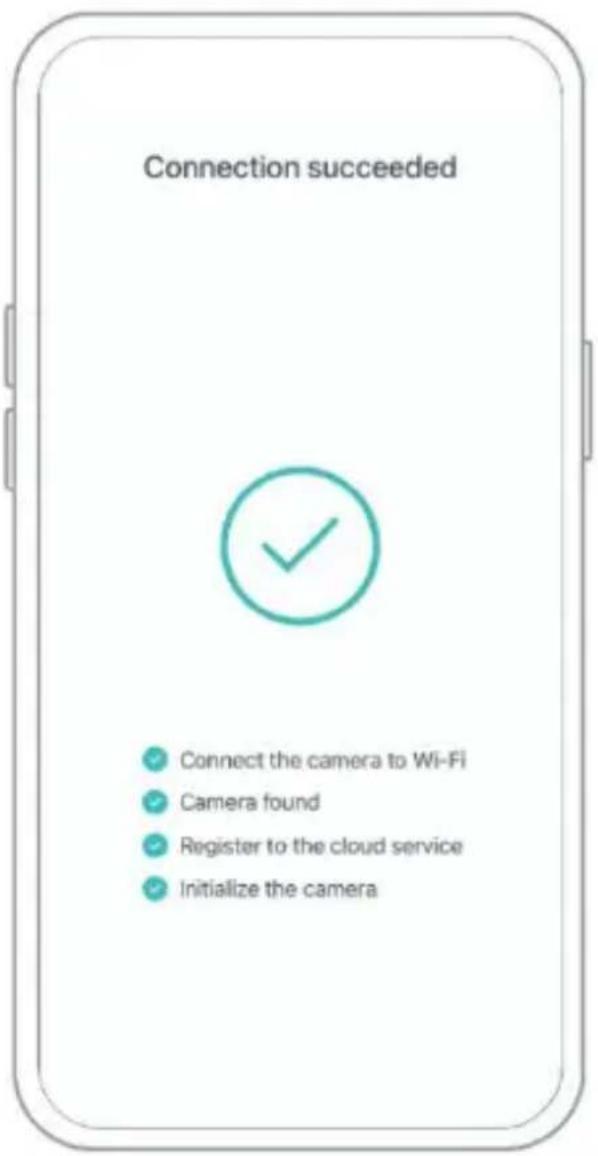
Step5: After a while, the camera will give out a prompt sound of a successful connection. At this moment, please set the name for the device on the App and select the location you want to place the device. Click "Continue" to complete the pairing.
Vevor FB-A01 - ADD THE CAMERA—FOR iOS - 5

text_image Connection succeeded Connect the camera to Wi-Fi Camera found Register to the cloud service Initialize the camera

SHARE THE CAMERA

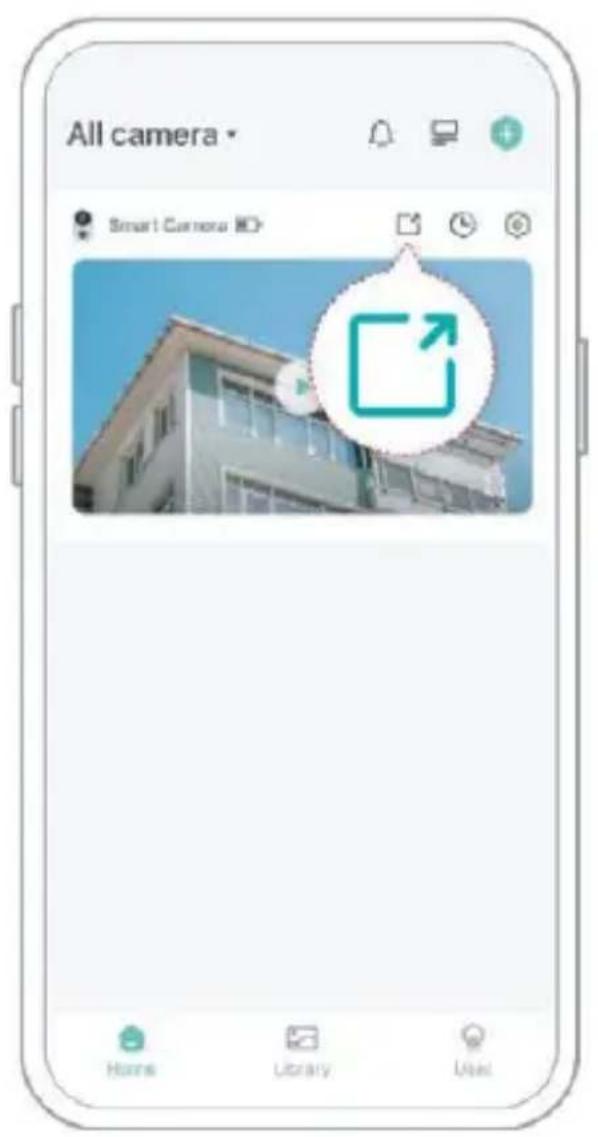
When you need to view the camera with other family members or friends, you can use this function. Only the administrator whose account is bound with the camera for

the first time can share and set the device. Other members scan only views the live or playbacks of the device.

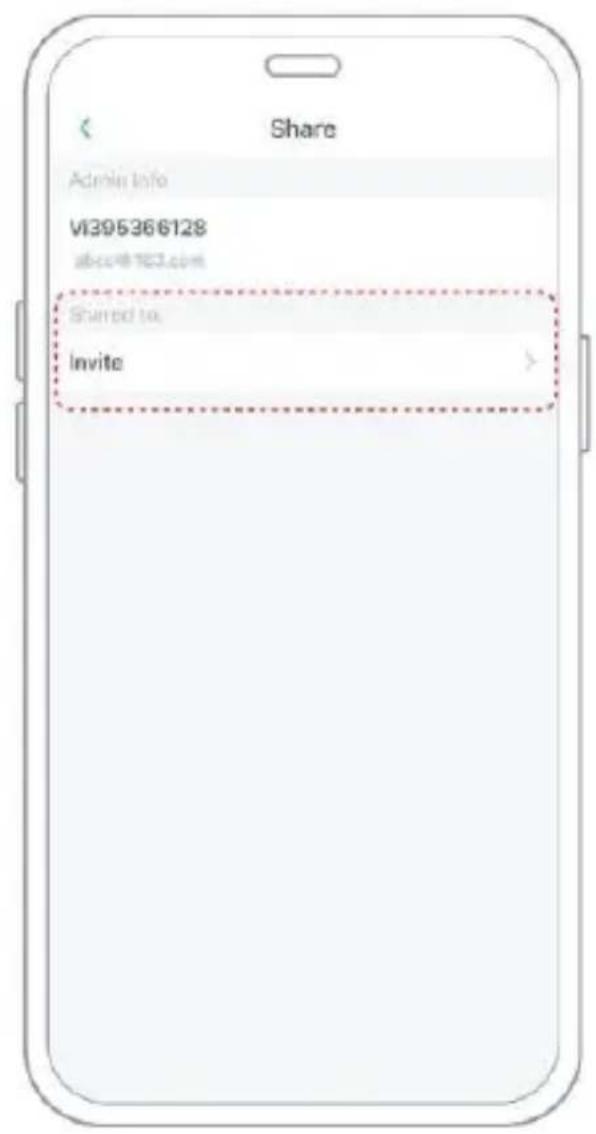
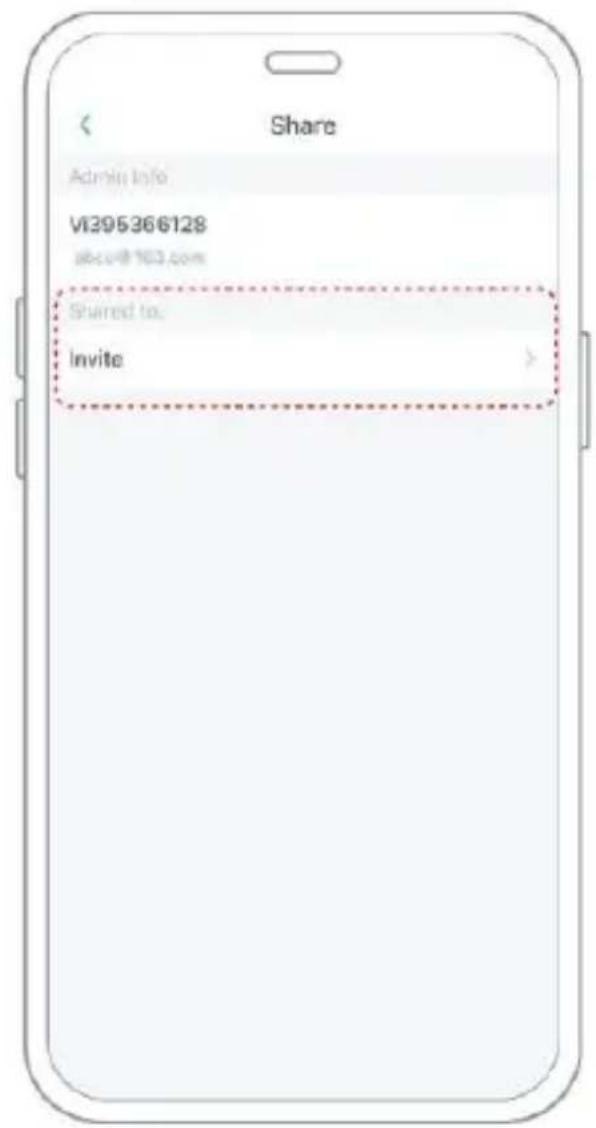
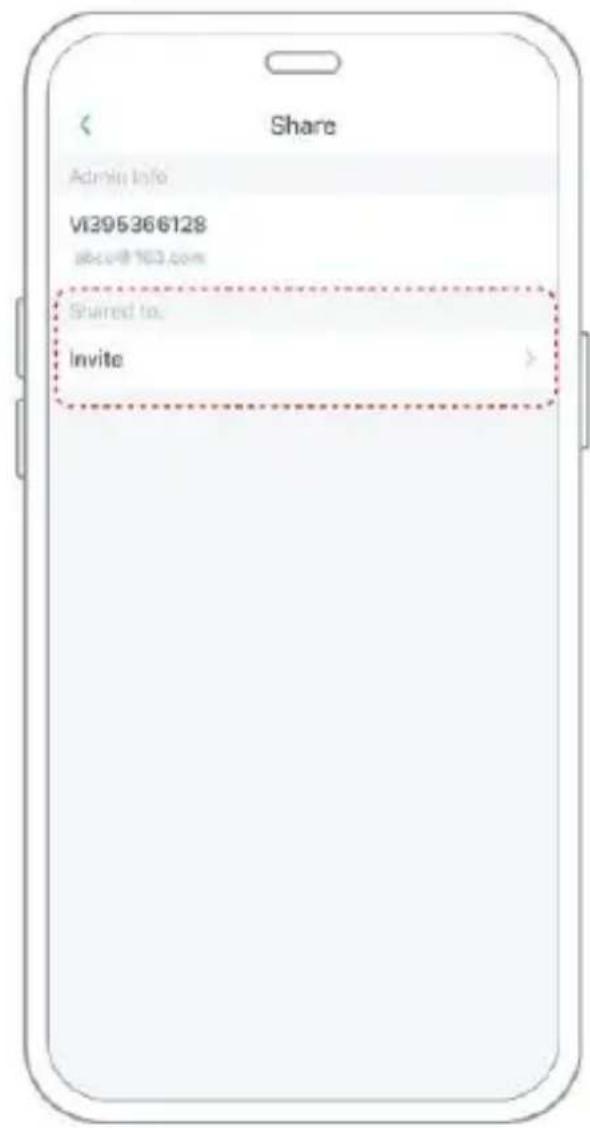
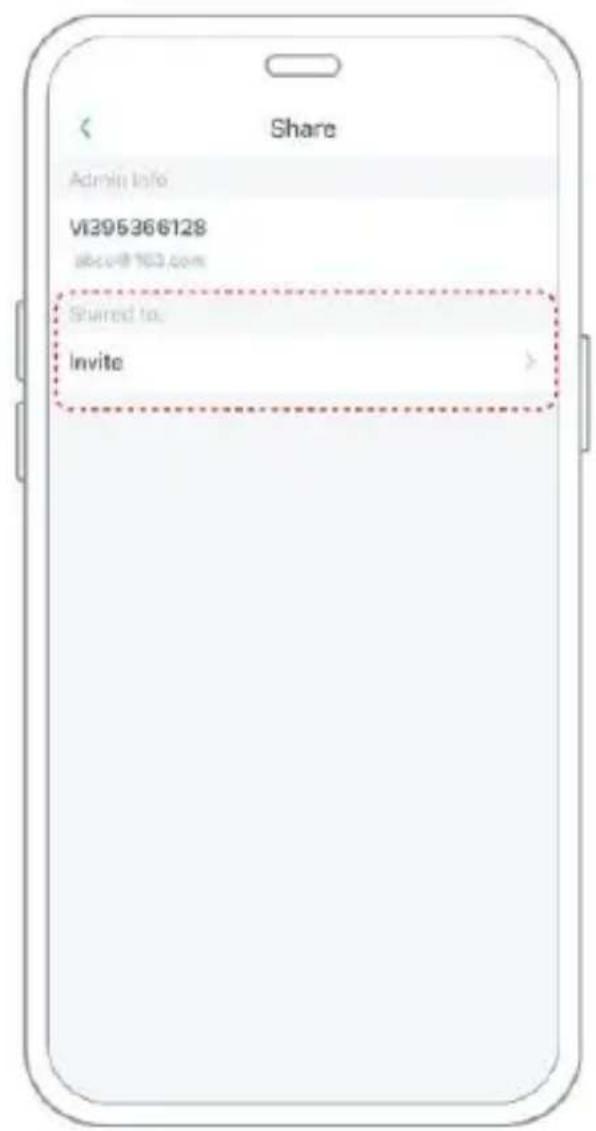
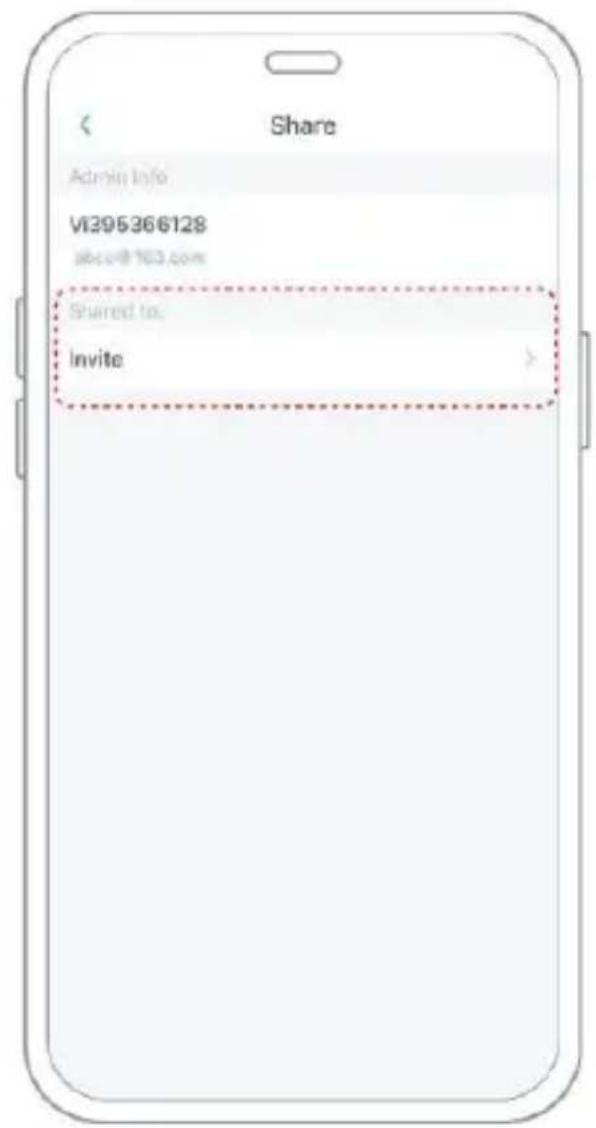
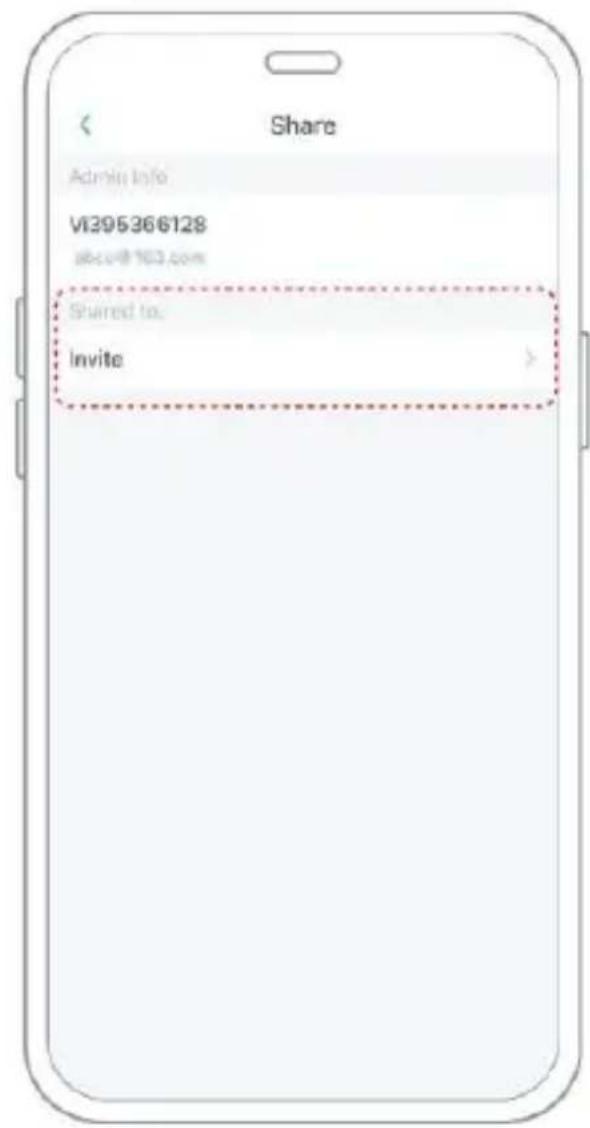
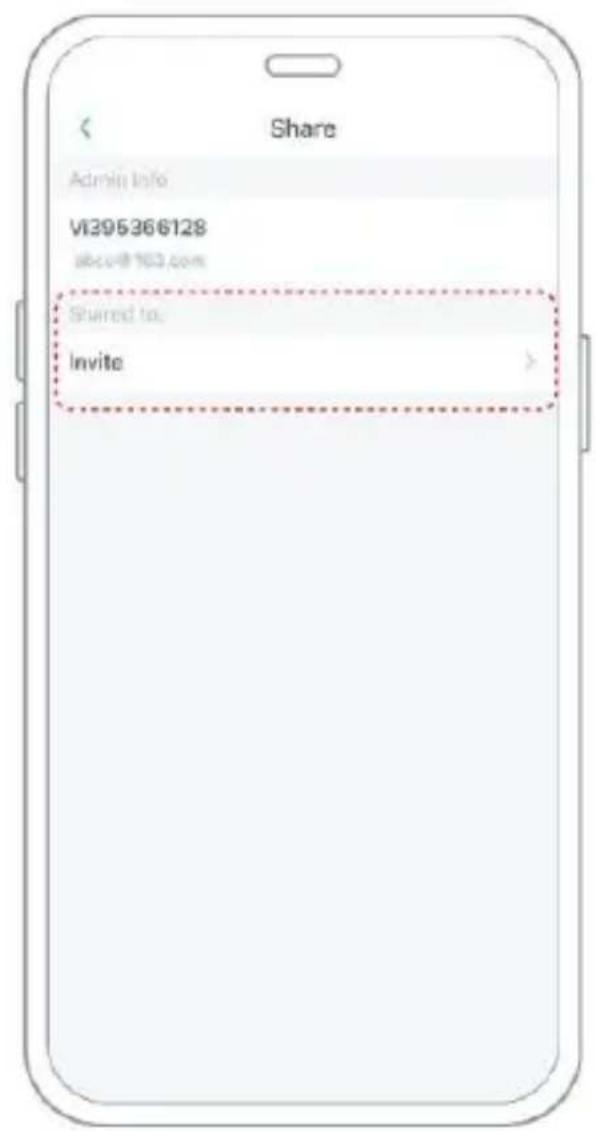
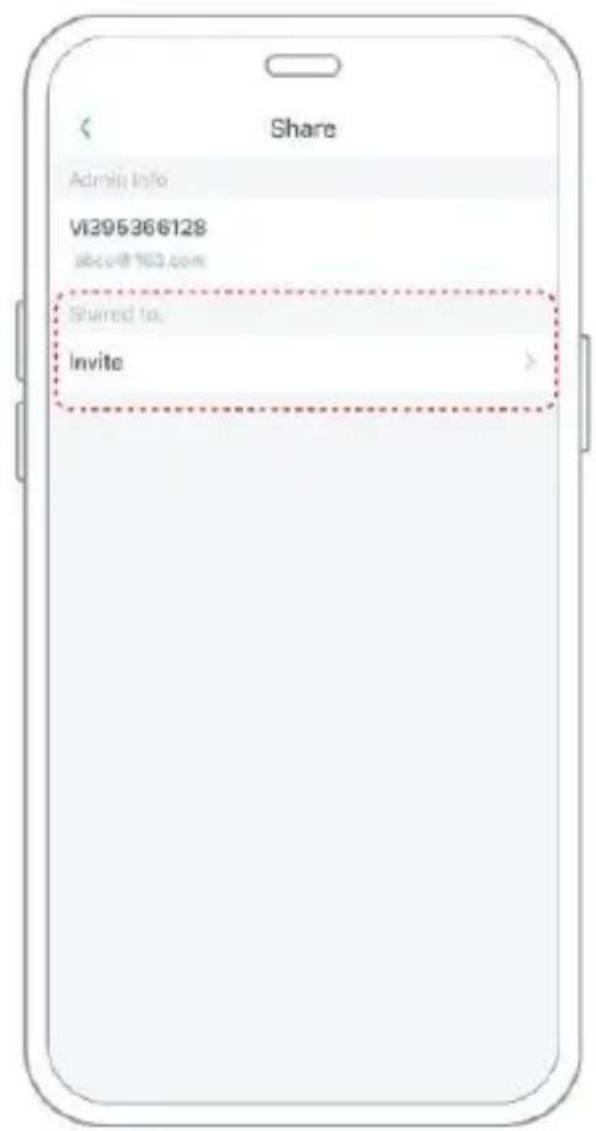
Step1: Find the camera you want to share on the App home page or camera setting page. Click the share button and enter the sharing page.
Vevor FB-A01 - SHARE THE CAMERA - 1

text_image All camera Smart Camera Home Library User

Vevor FB-A01 - SHARE THE CAMERA - 2

text_image Share Admin Info VI395366128 @sc-TE3.com Shared to. Invite

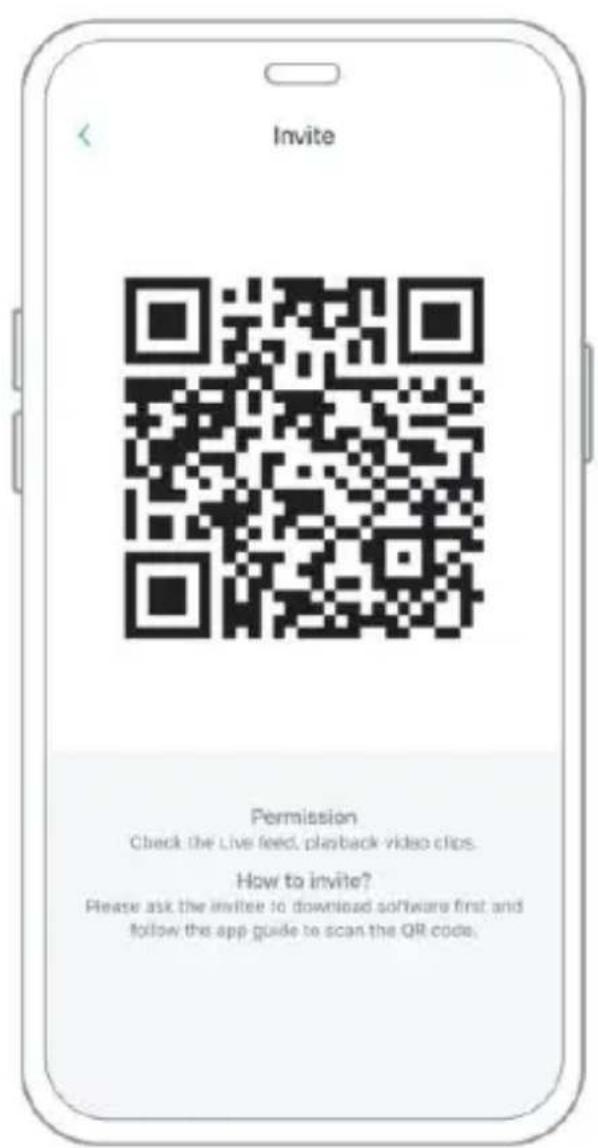
Step2: Click "Invite", and a QR code will be generated for sharing.

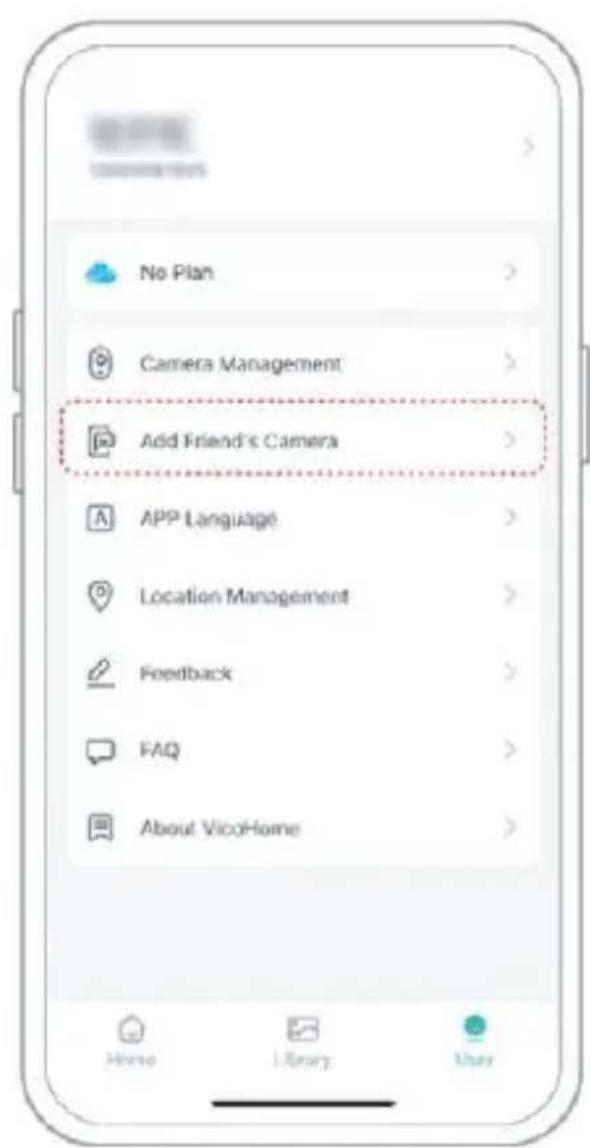
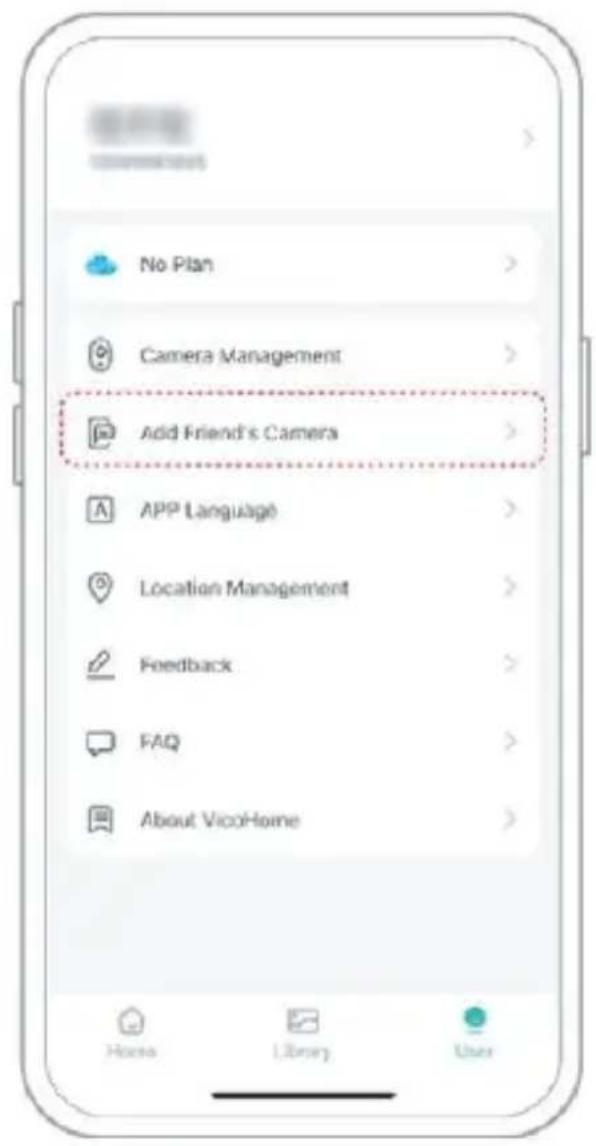
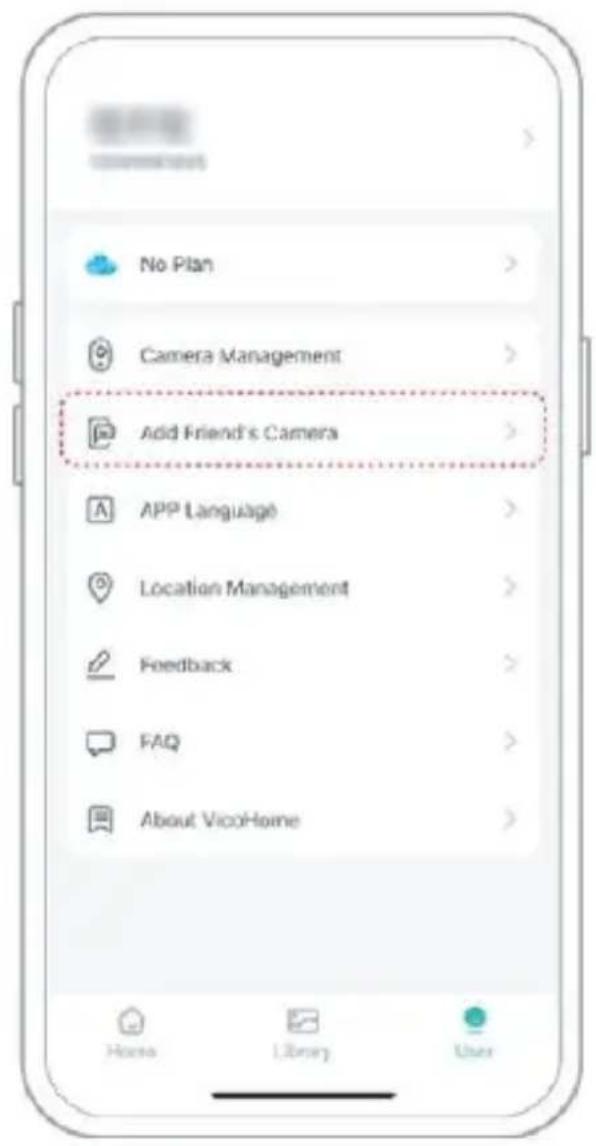
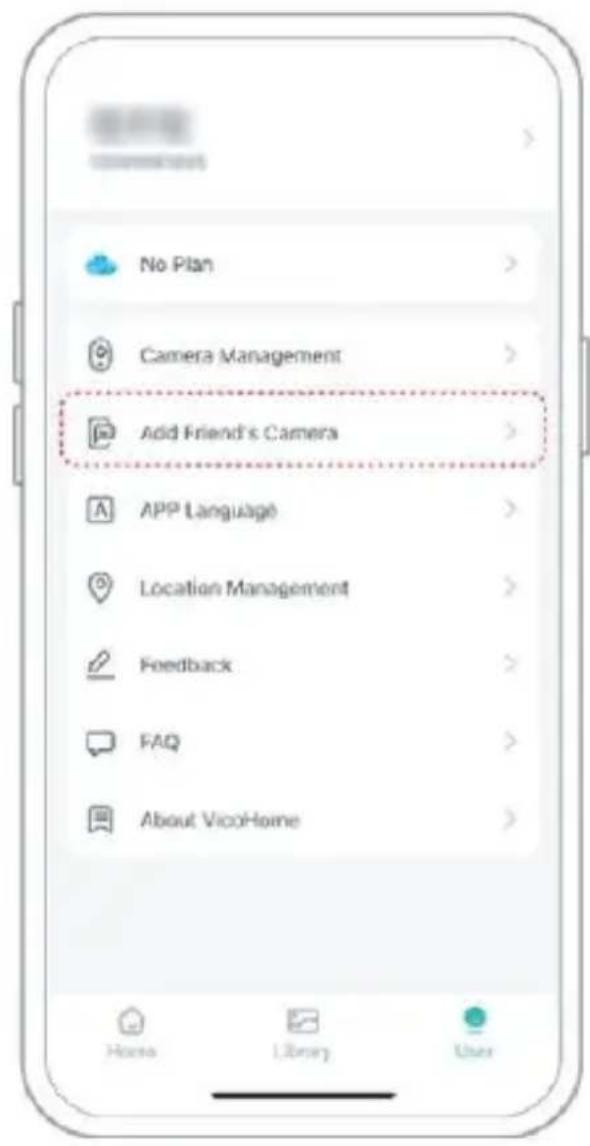
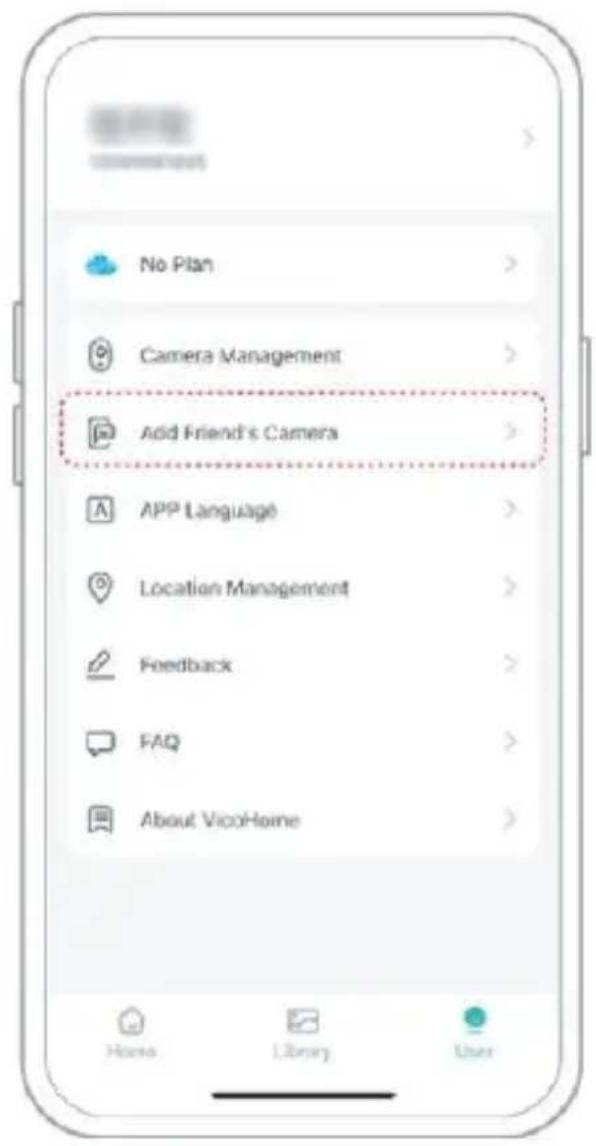
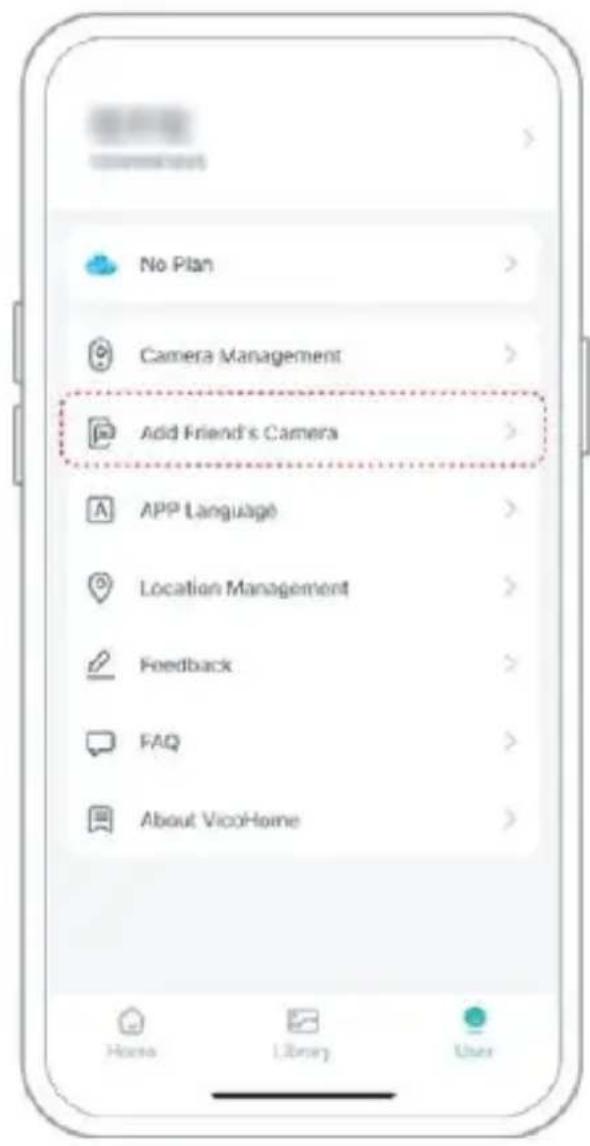
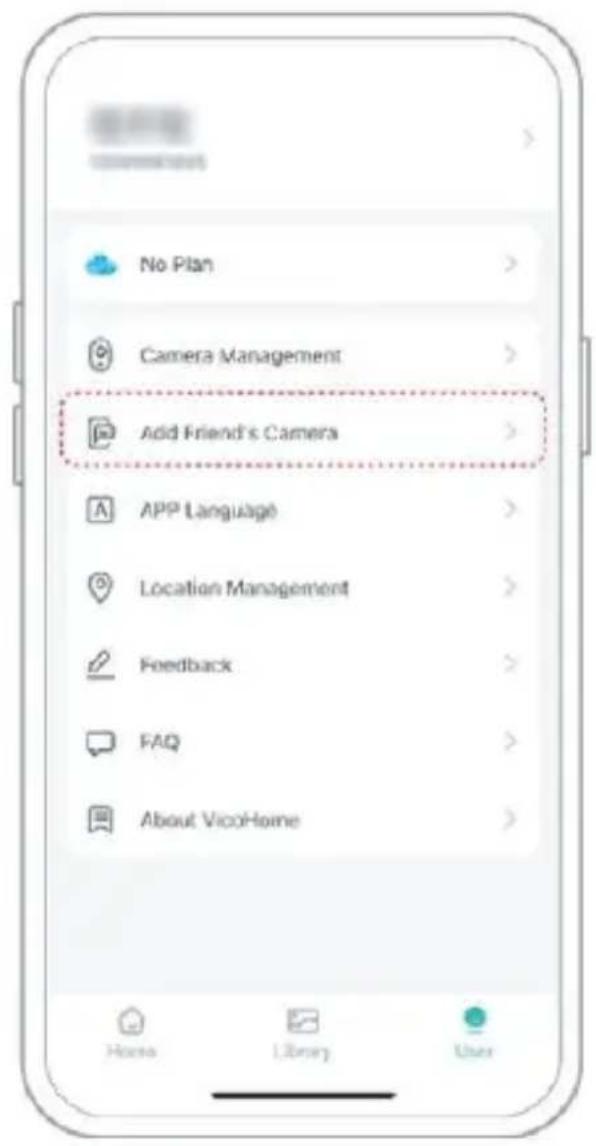
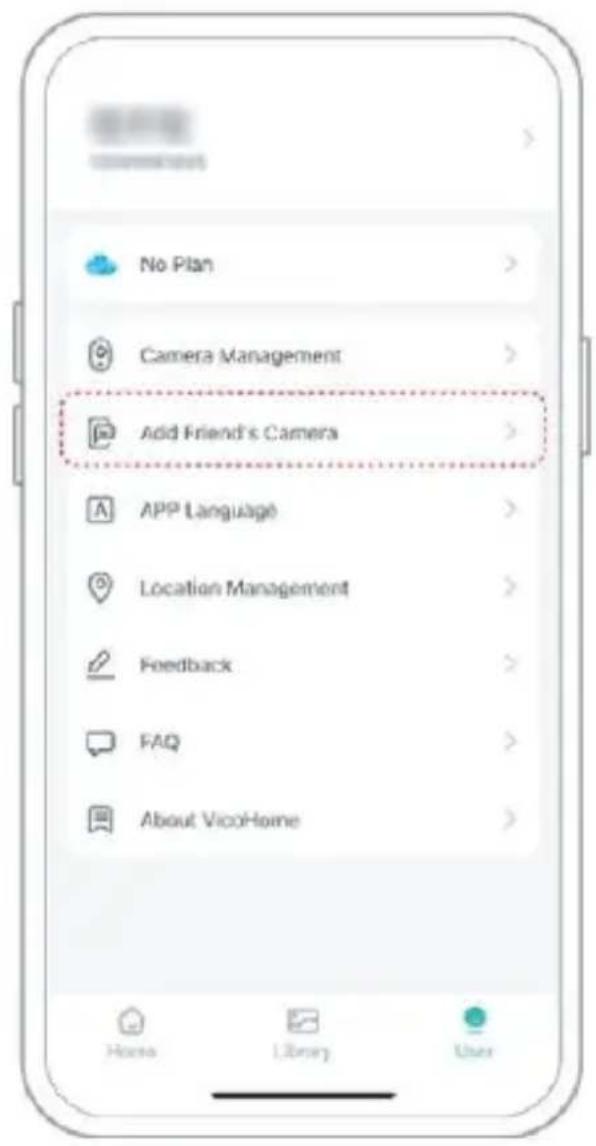
Step3: For the members you need to share, find "Add Friend's Camera" on the "User" page to enter the scanning page.
Vevor FB-A01 - SHARE THE CAMERA - 3

text_image Invite Permission Check the Live feed, playback video clips. How to invite? Please ask the invitee to download software first and follow the app guide to scan the QR code.

Vevor FB-A01 - SHARE THE CAMERA - 4

text_image No Plan Camera Management Add Friend's Camera APP Language Location Management Feedback FAQ About VicoHome Horse Library User

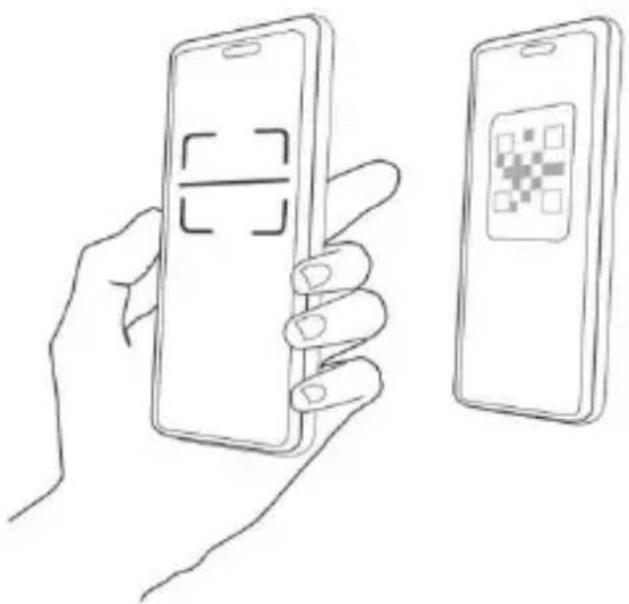
Step4: Scan the QR code generated on your mobile phone, and you will receive the confirmation notification after success. The sharing will be completed after you agree.
Vevor FB-A01 - SHARE THE CAMERA - 5

natural_image Line drawing of a hand holding a smartphone displaying a QR code, next to a smartphone with a QR code (no text or symbols present)

CHARGE THE CAMERA

1) Check Battery Level

After setting up the camera, please check the battery level of the camera to make sure it is fully charged before installing it in the yard. The app will also remind you to charge your smart bird feeder when the battery is low.

2) Charge the smart bird feeder

There are two ways to charge it.

① Indoor Charging: If you need to charge after

installation, please don't move the camera and the base, just remove the birdseed container. The charging port is in the middle of the back side of the bird seed container.

Please use the Type-C cable to plug into the 5V/1.5A charging adapter to charge the smart bird feeder.

② Outdoor charging: You can directly use the equipped

solar panel to connect to the charging port in the middle the back side of the bird seed container.

Note: During charging, the camera's indicator light is solid yellow, and when the camera is fully charged, the indicator light will turn solid green. It will take ten hours to fully charge the camera.

HOW TO DO BIRD AI RECOGNITION

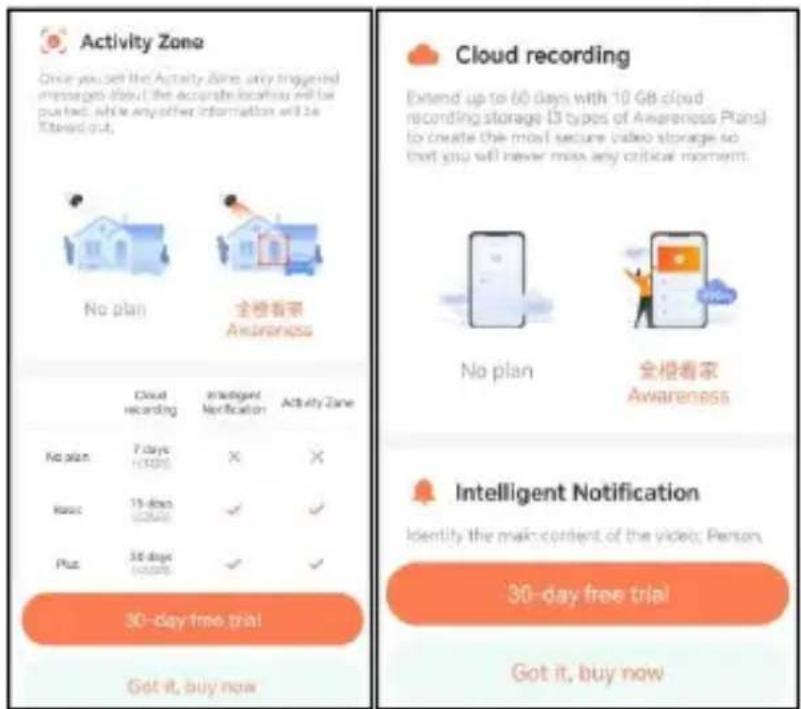
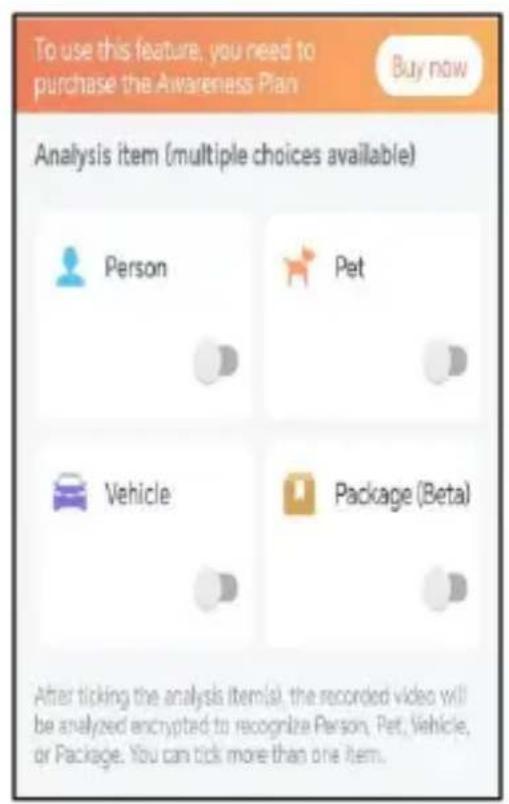
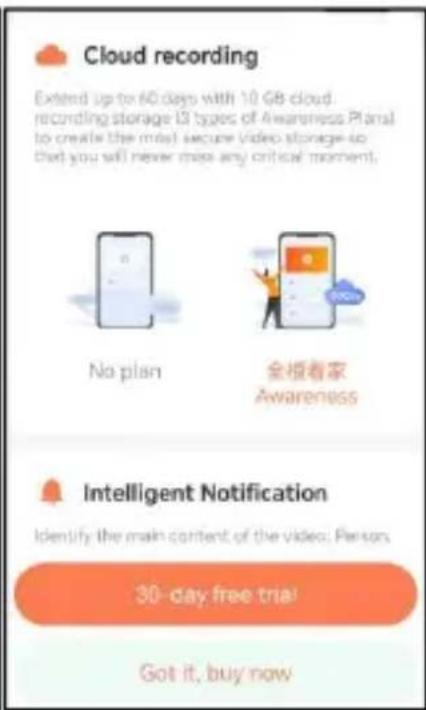
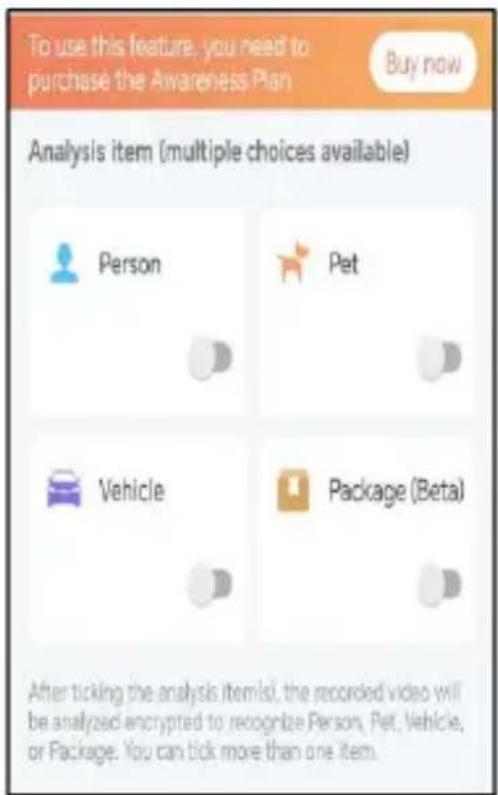
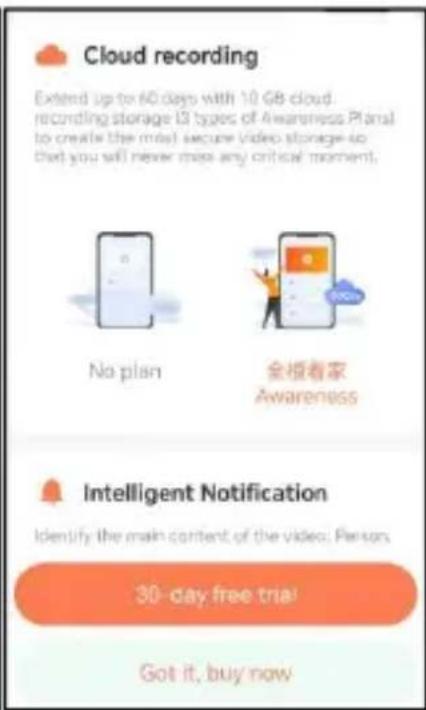
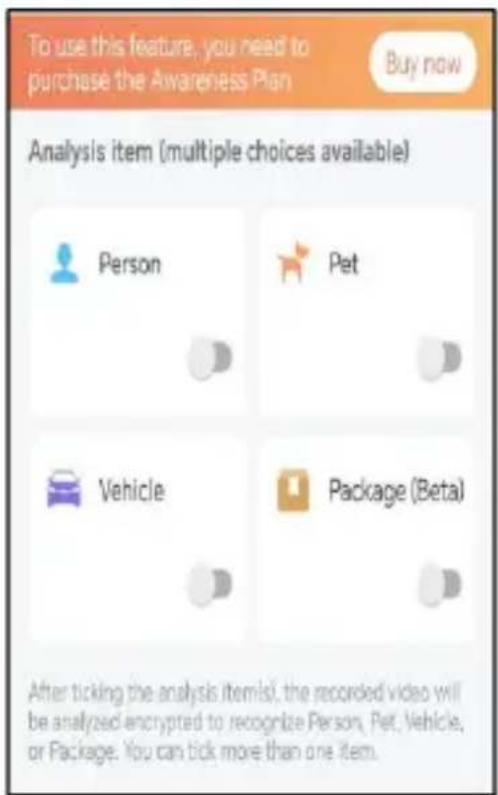
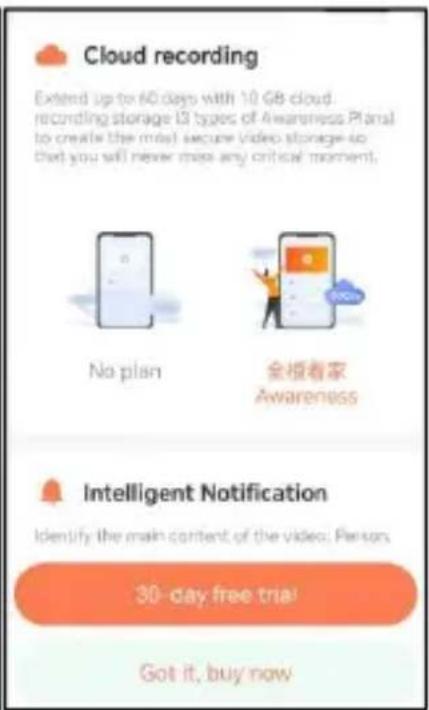
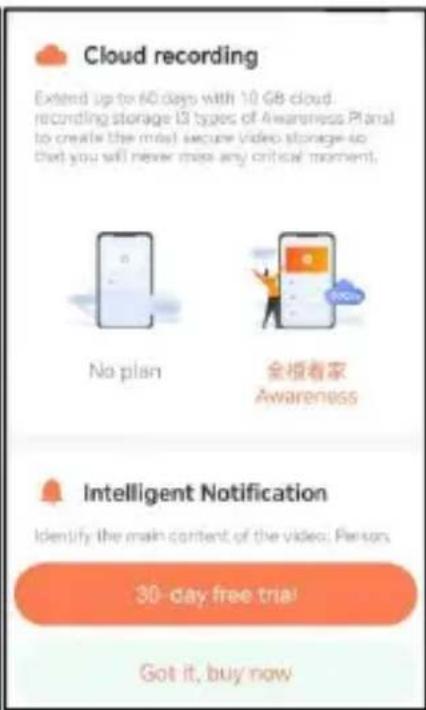
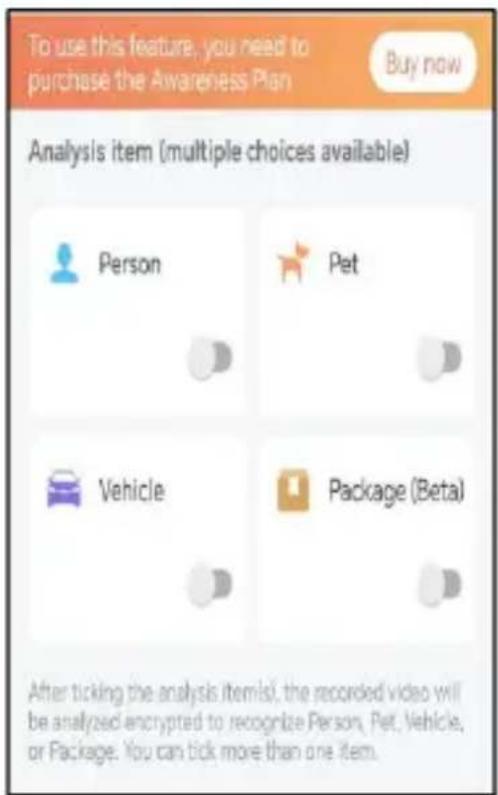
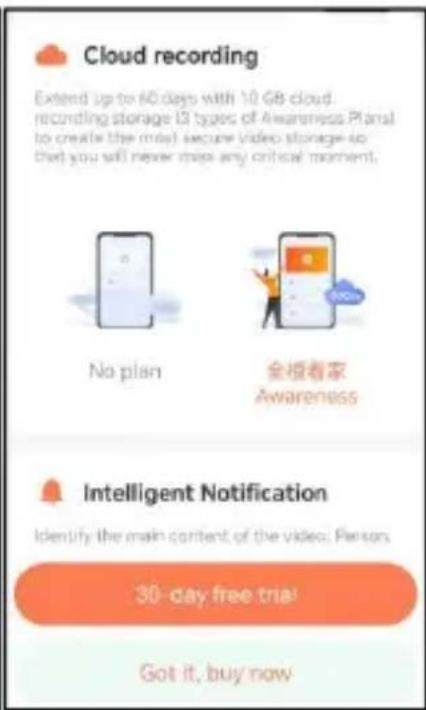
Step1: Click 'User' in the lower right corner of the app, a then click 'VicoHome' Awareness Plus to get 'VicoHome' Awareness Plus 30day free trial', You will receive one month of free premium membership and access to the 'Bird Fans Plan', then you will be able to identify 10,000+ birds with the bird fans plan.

Note: The most up-to-date information can be found through the app. Monthly subscription is required after the 30-day free trail.

Vevor FB-A01 - HOW TO DO BIRD AI RECOGNITION - 1

text_image Activity Zone Once you sell the Activity Zone, only triggered messages about the accurate location will be pushed, while any other information will be stored out. No plan 全橙看家 Awareness Cloud recording Intelligent Notification Activity Zone No plan 7 days (12.5) X X Read 15 days (24.5) ✓ ✓ Plus 30 days (40.5) ✓ ✓ 30-day free trial! Got it, buy now Cloud recording Extend up to 60 days with 10 GB cloud recording storage (3 types of Awareness Plans) to create the most secure video storage so that you will never miss any critical moment. No plan 全橙看家 Awareness Intelligent Notification Identify the main content of the video; Person 30-day free trial! Got it, buy now

Vevor FB-A01 - HOW TO DO BIRD AI RECOGNITION - 2

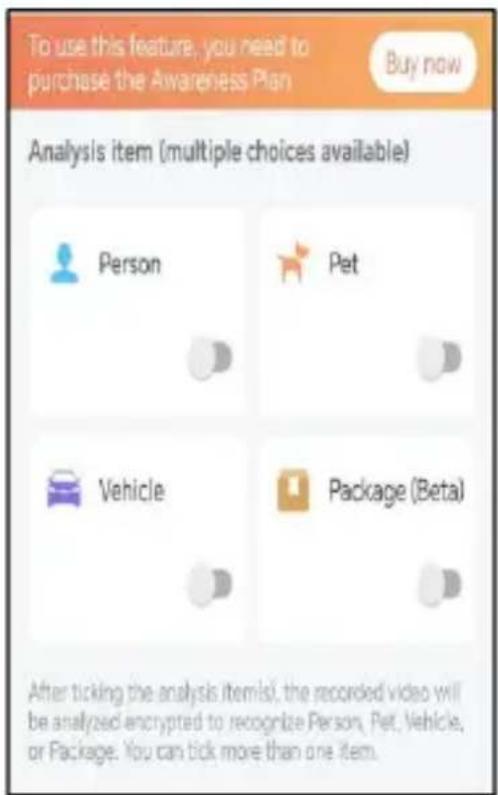
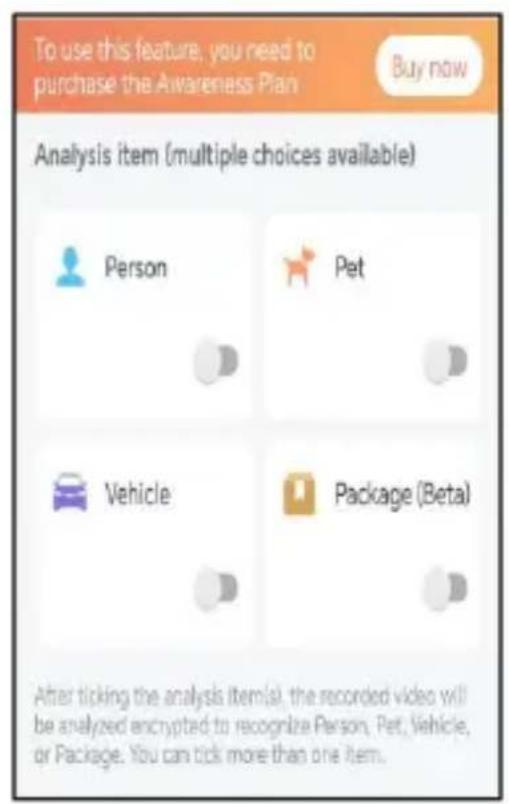
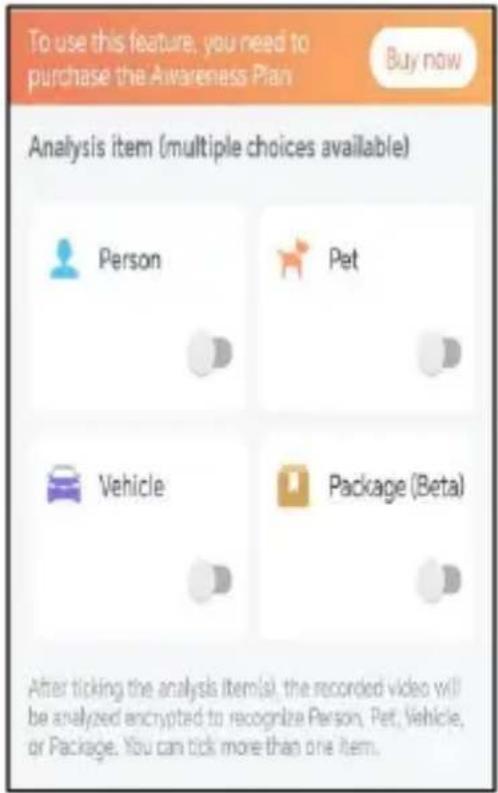
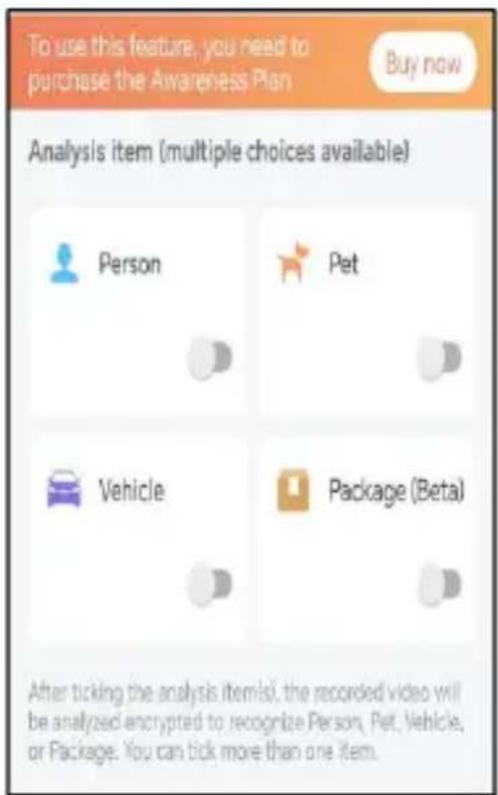
text_image To use this feature, you need to purchase the Awareness Plan Buy now Analysis item (multiple choices available) Person Pet Vehicle Package (Beta) After ticking the analysis item(s), the recorded video will be analyzed encrypted to recognize Person, Pet, Vehicle, or Package. You can tick more than one item.

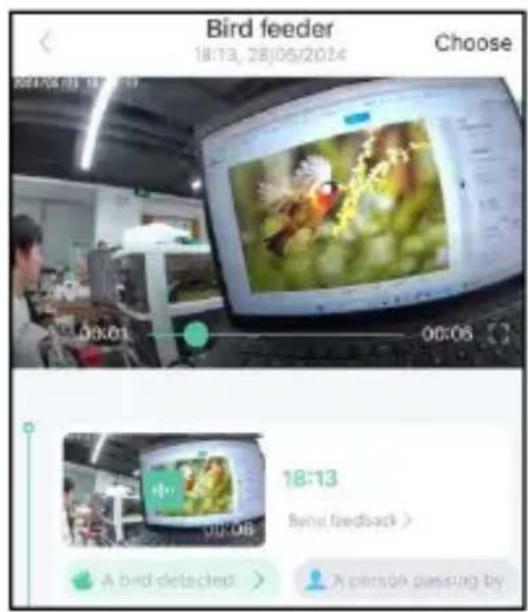
Step2: When the camera detects a bird, it will notify you that a bird has been detected.
Vevor FB-A01 - HOW TO DO BIRD AI RECOGNITION - 3

text_image Bird feeder 18:13, 28:05/2024 Choose 00:01 00:06 18:13 Send feedback > A bird detected > A person passing by

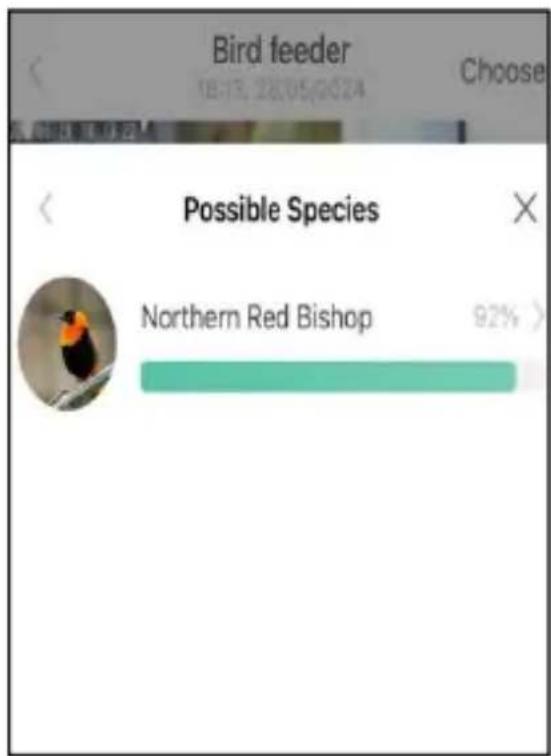
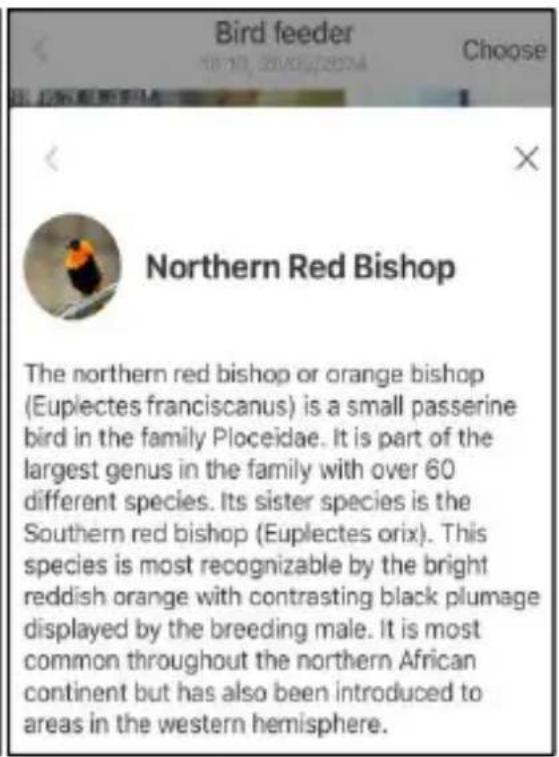
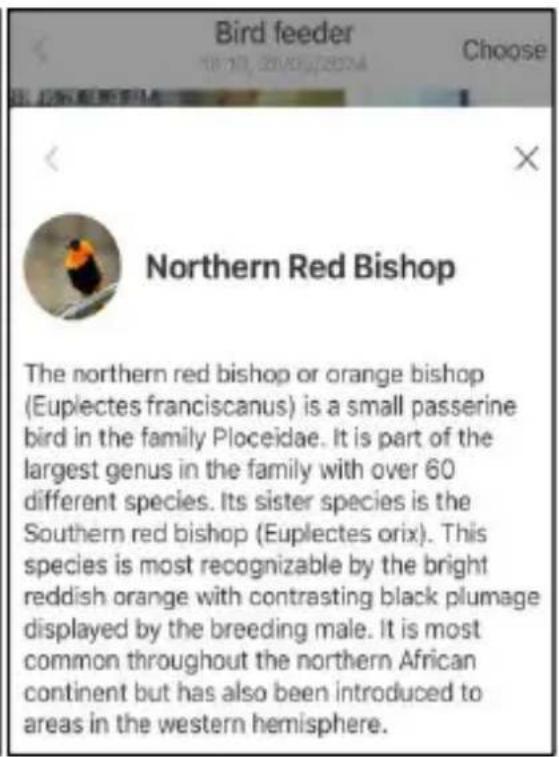
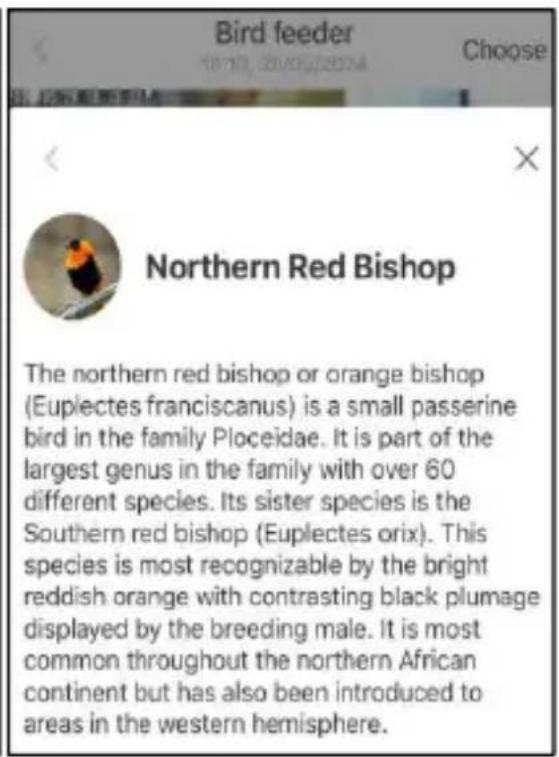
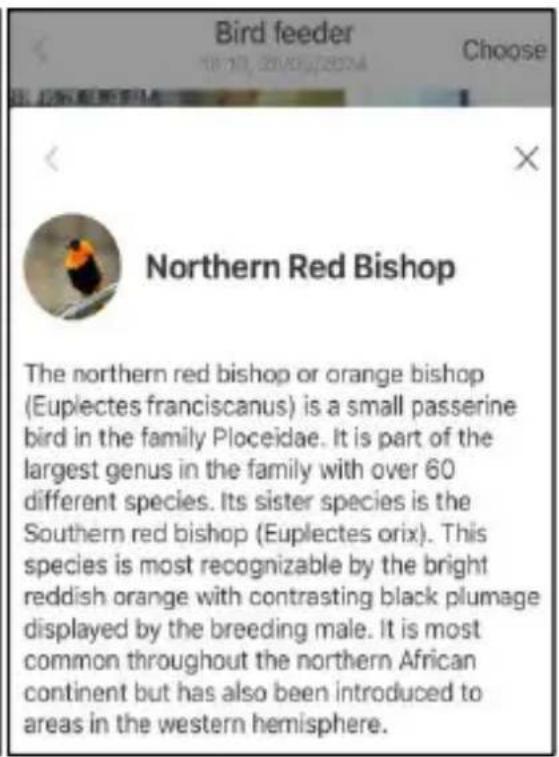
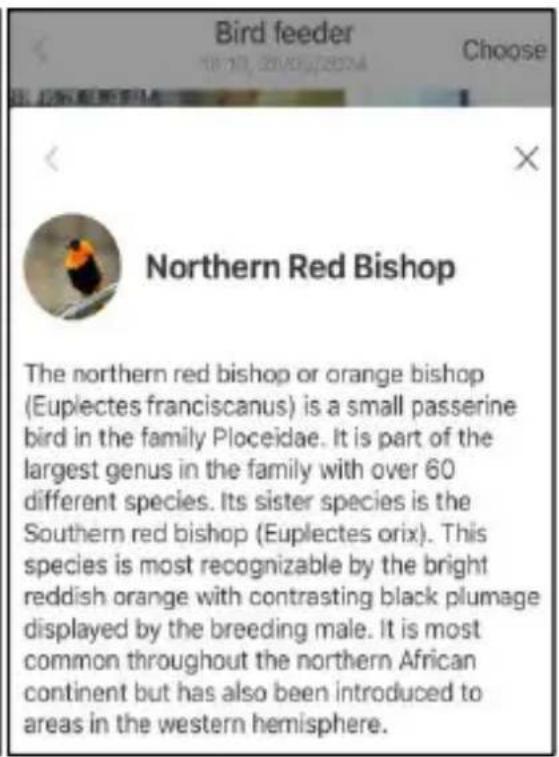
Step3: Click on 'A bird detected' to identify the bird breed
Vevor FB-A01 - HOW TO DO BIRD AI RECOGNITION - 4

text_image Bird feeder 18:13, 26:05/024 Choose Possible Species Northern Red Bishop 92% >

Vevor FB-A01 - HOW TO DO BIRD AI RECOGNITION - 5

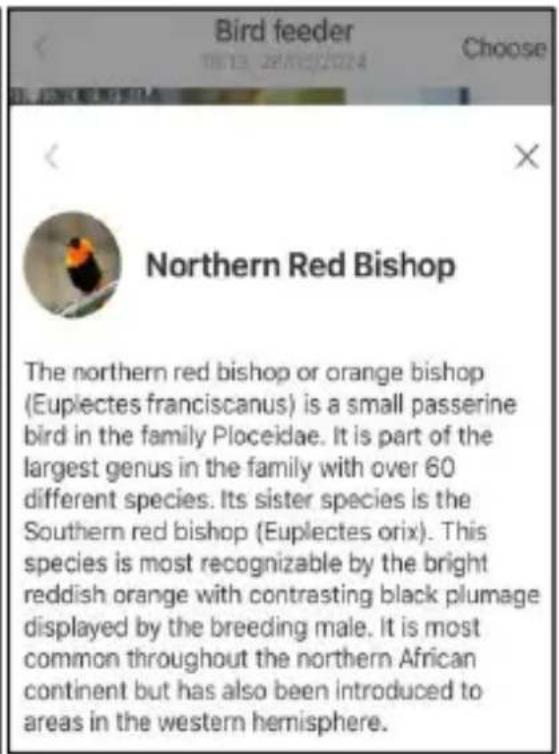
text_image Bird feeder Choose Northern Red Bishop The northern red bishop or orange bishop (Euplectes franciscanus) is a small passerine bird in the family Ploceidae. It is part of the largest genus in the family with over 60 different species. Its sister species is the Southern red bishop (Euplectes orix). This species is most recognizable by the bright reddish orange with contrasting black plumage displayed by the breeding male. It is most common throughout the northern African continent but has also been introduced to areas in the western hemisphere.

Vevor FB-A01 - HOW TO DO BIRD AI RECOGNITION - 6

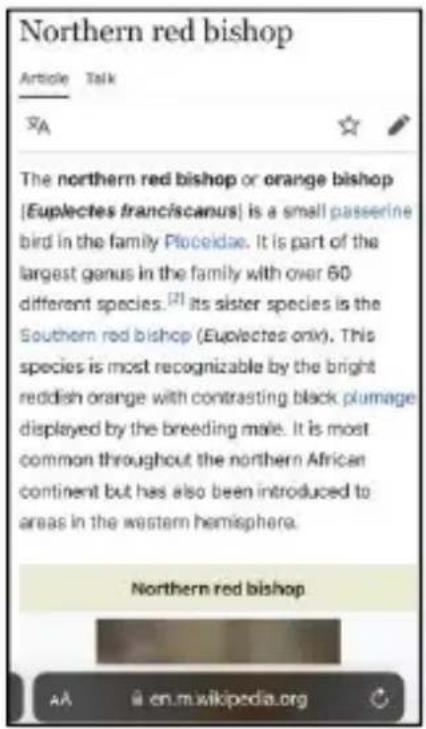
text_image Northern red bishop Article Talk A The northern red bishop or orange bishop (Euplectes franciscanus) is a small passerine bird in the family Ploceidae. It is part of the largest genus in the family with over 60 different species. [2] Its sister species is the Southern red bishop (Euplectes orix). This species is most recognizable by the bright reddish orange with contrasting black plumage displayed by the breeding male. It is most common throughout the northern African continent but has also been introduced to areas in the western hemisphere. Northern red bishop AA @ en.m.wikipedia.org

NOTIFICATION SETTING

  1. When the notification setting is turned on, a message will be pushed to your phone interface when a bird is detected.
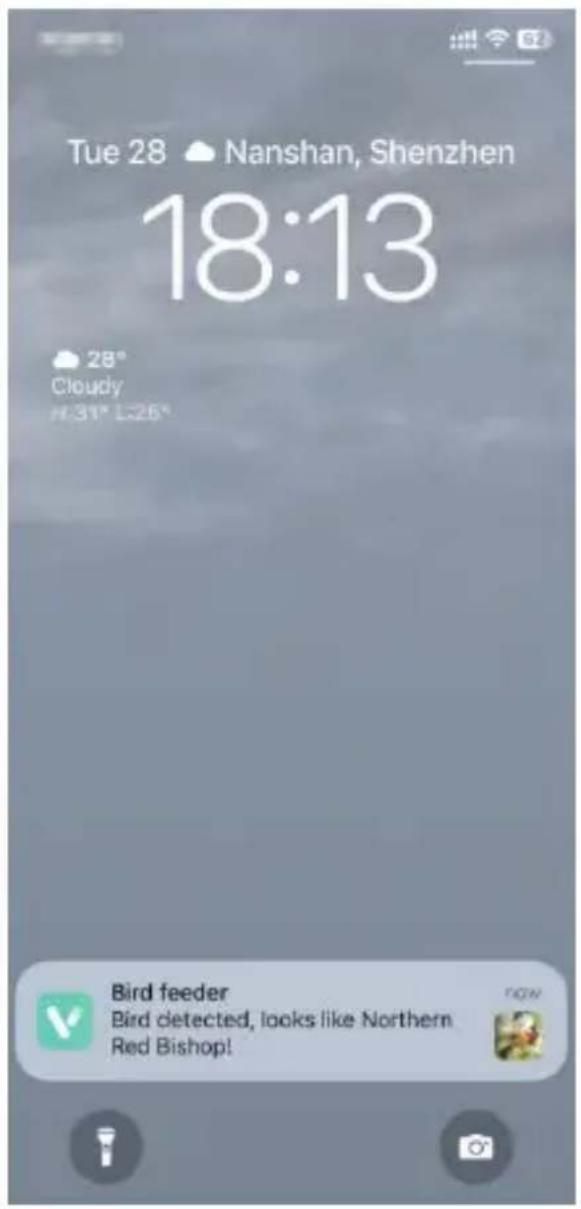
Vevor FB-A01 - NOTIFICATION SETTING - 1

text_image Tue 28 Nanshan, Shenzhen 18:13 28° Cloudy H:31" L:26" Bird feeder Bird detected, looks like Northern Red Bishop!
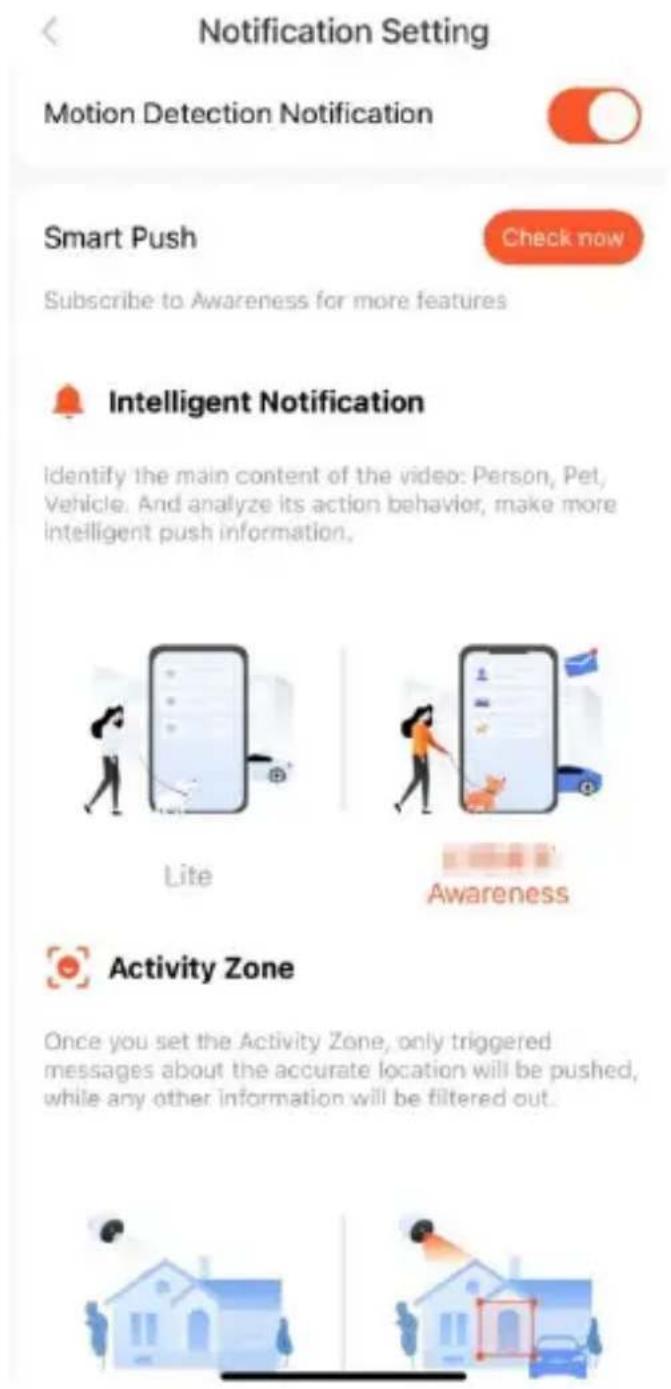
  1. If you feel that the messages are noted frequently, you can cancel the notification function in the notification setting interface on the ‘VicoHome’ App.

Vevor FB-A01 - NOTIFICATION SETTING - 2

Notification Setting

Motion Detection Notification

Smart Push

Check now

Subscribe to Awareness for more features

Intelligent Notification

Identify the main content of the video: Person, Pet, Vehicle. And analyze its action behavior, make more intelligent push information.

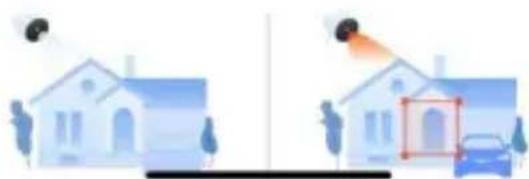
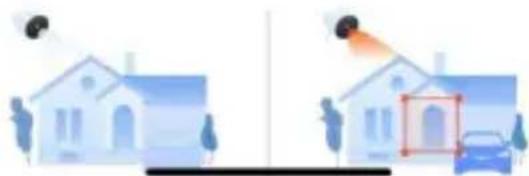
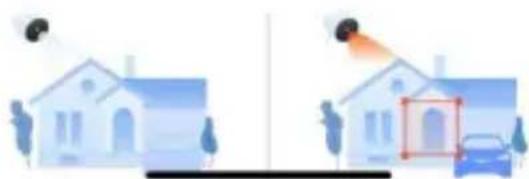
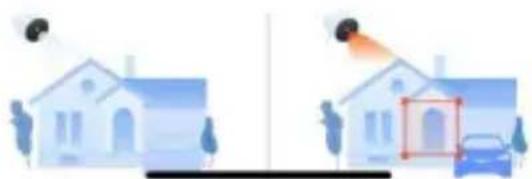
Activity Zone

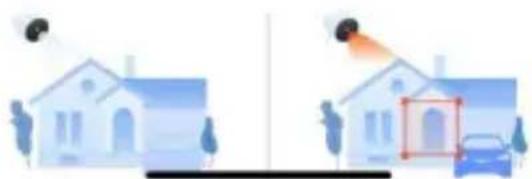
Once you set the Activity Zone, only triggered messages about the accurate location will be pushed, while any other information will be filtered out.

BIRDFEEDER INSTALLATION

(1) Install the bracket

Step1: Screw fixing

Use a drill tool to drill holes in the wall according to the spacing the brackets. It is recommended to mark the holes on the wall with a pencil before drilling. Screw the expansion nut into the holes on the wall, and then connect the bracket to the expansion nut with screws to complete the fixing.
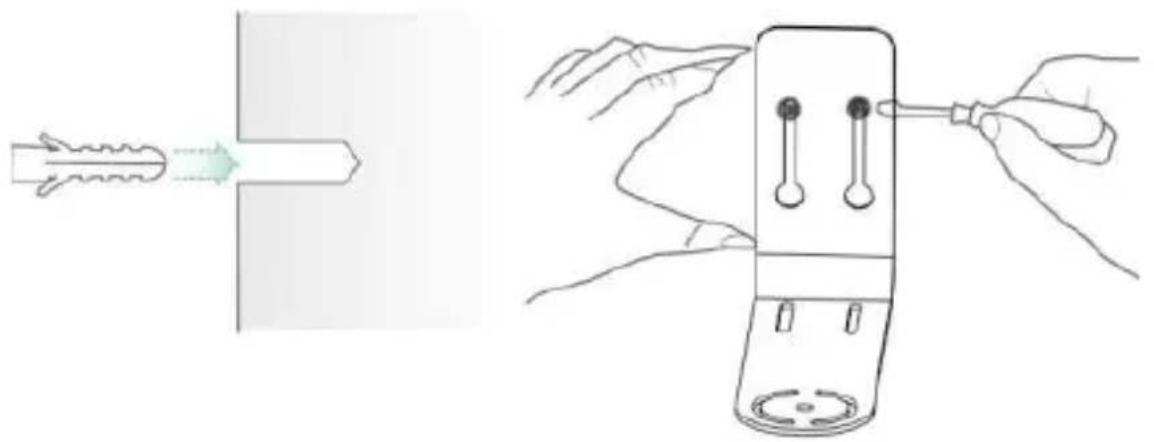
Vevor FB-A01 - Step1: Screw fixing - 1

natural_image Illustration showing a hand holding a medical device with three sensors, before and after the device's tip (no text or symbols present)

Step2: Installation of bracket and Bird Feeder

Tighten the hand screw with the screw hole at the bottom of the bird feeder through the iron bracket.
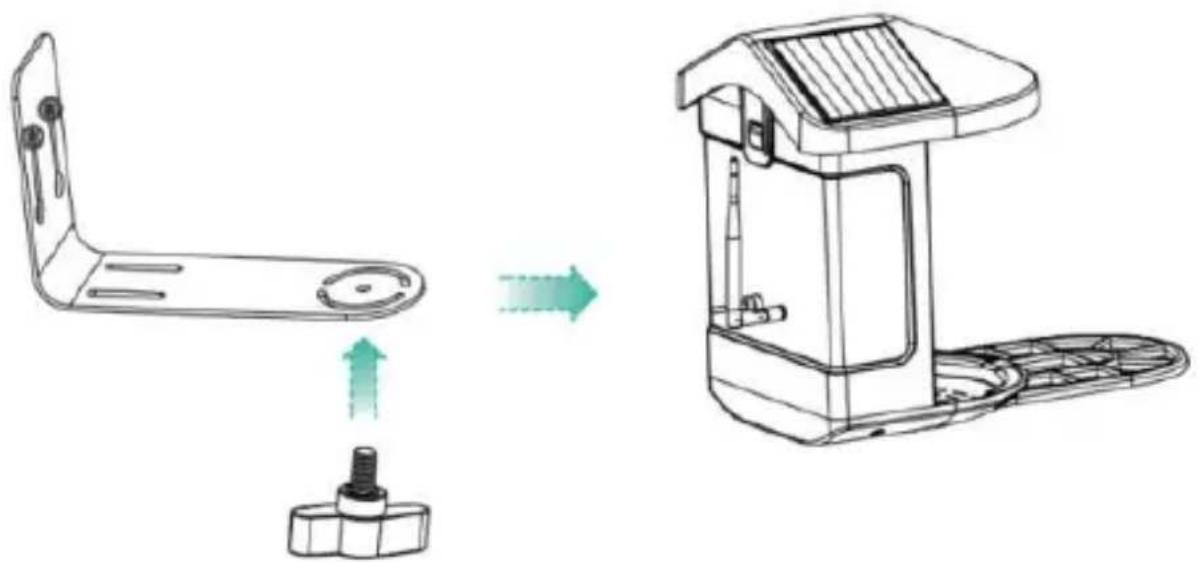
Vevor FB-A01 - Step2: Installation of bracket and Bird Feeder - 1

natural_image Technical line drawing of a mechanical device showing assembly and component alignment (no text or symbols)

(2) Select a good spot for your bird feeder

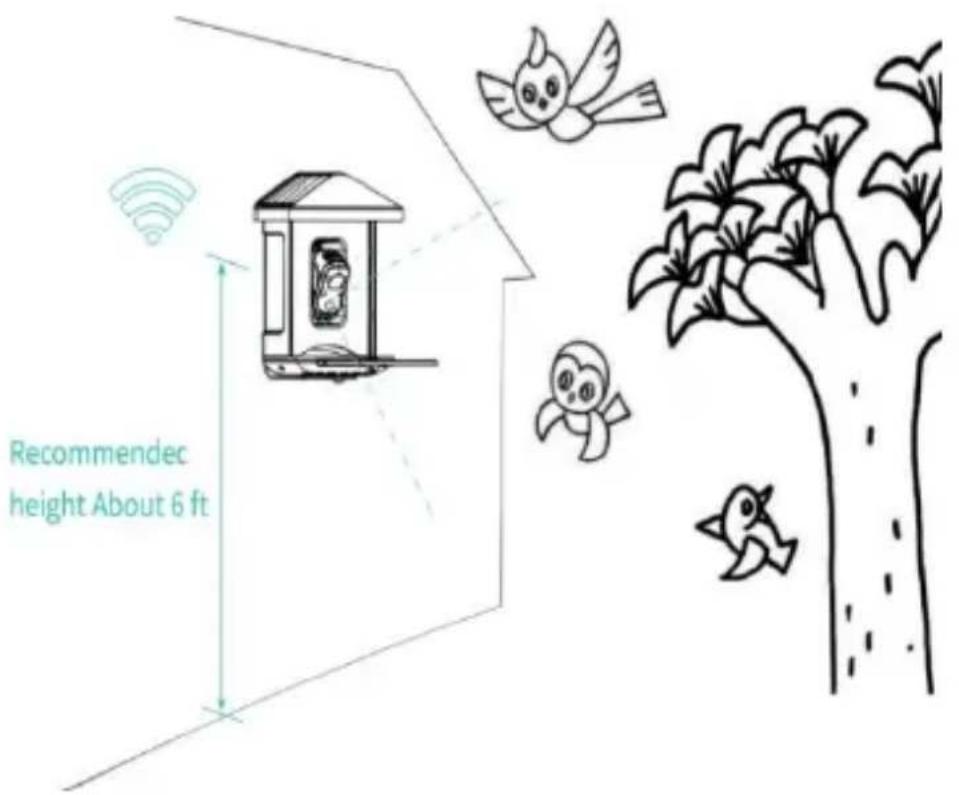
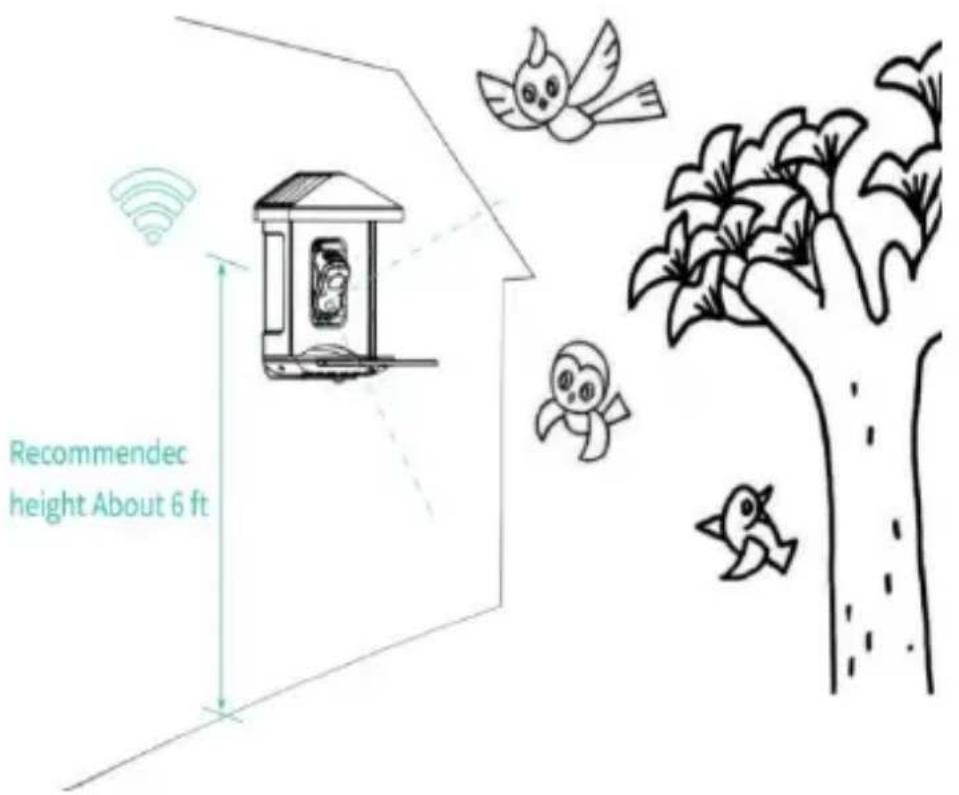
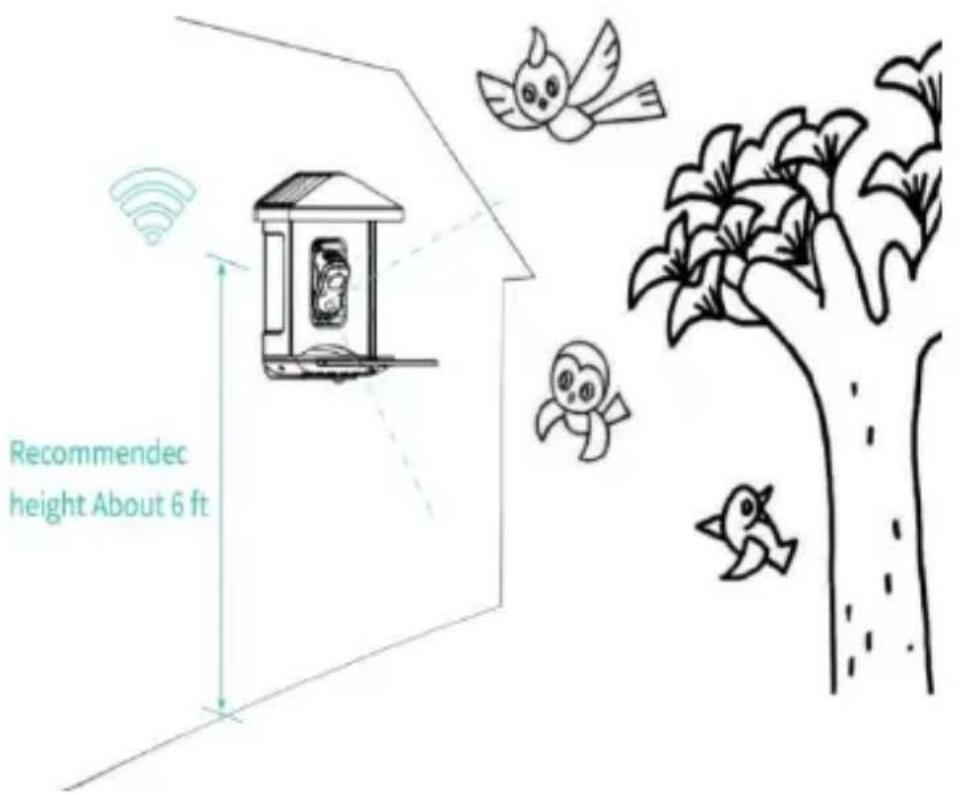
You can install the bird feeder on the wall for use, or you can install it on a tree for use.

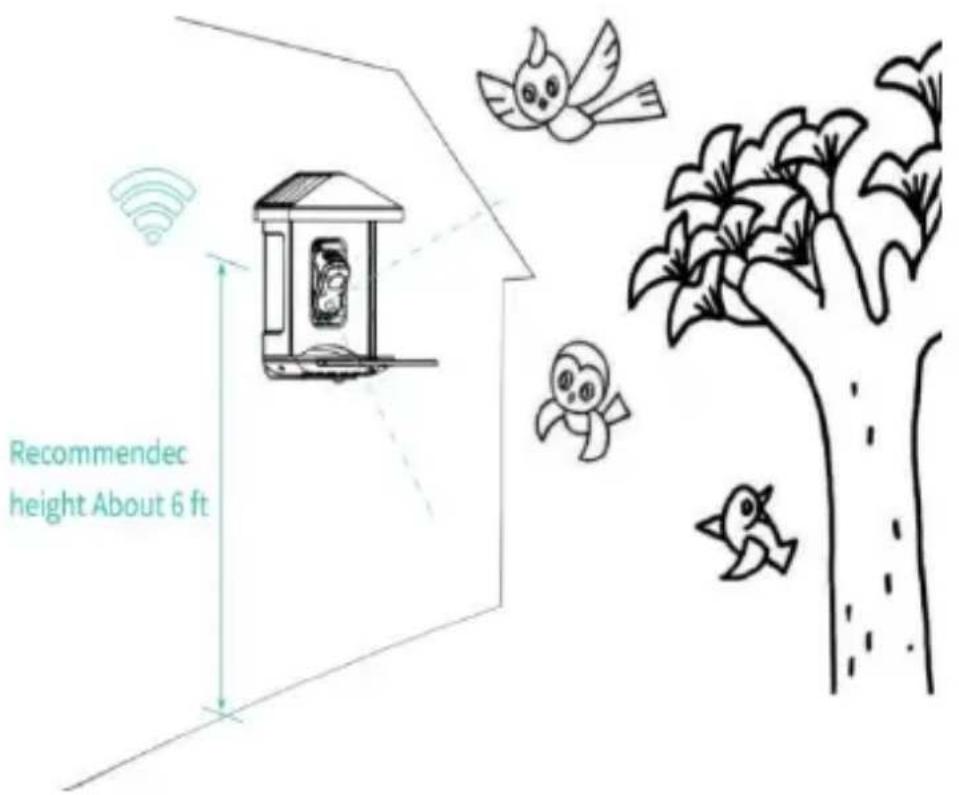
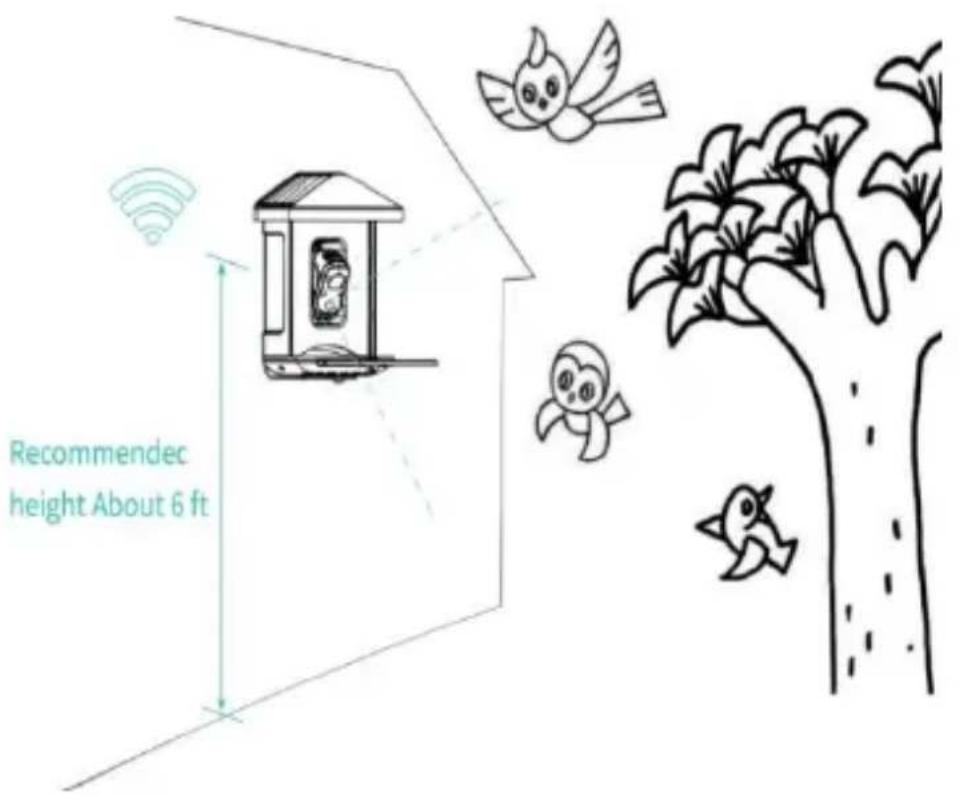
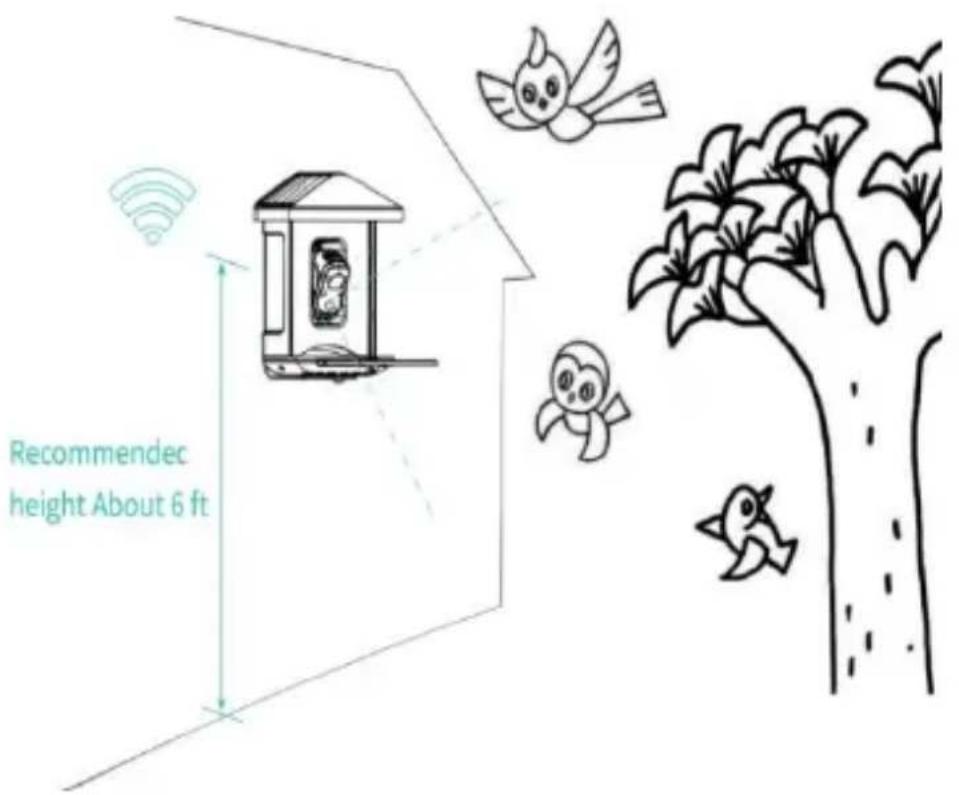
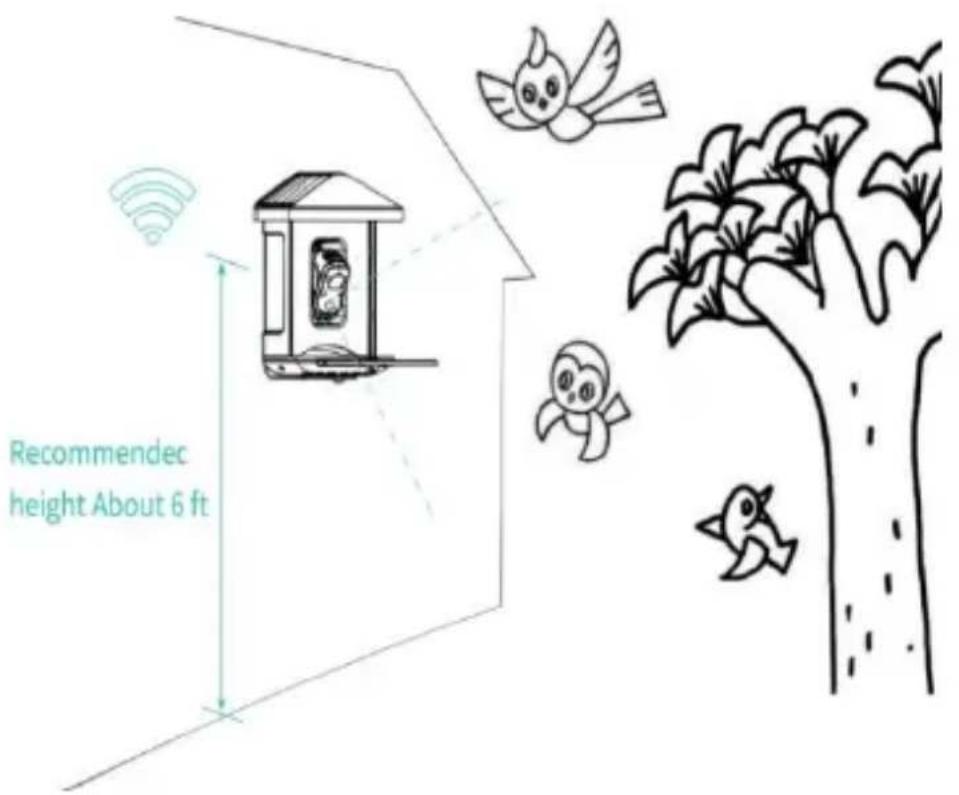
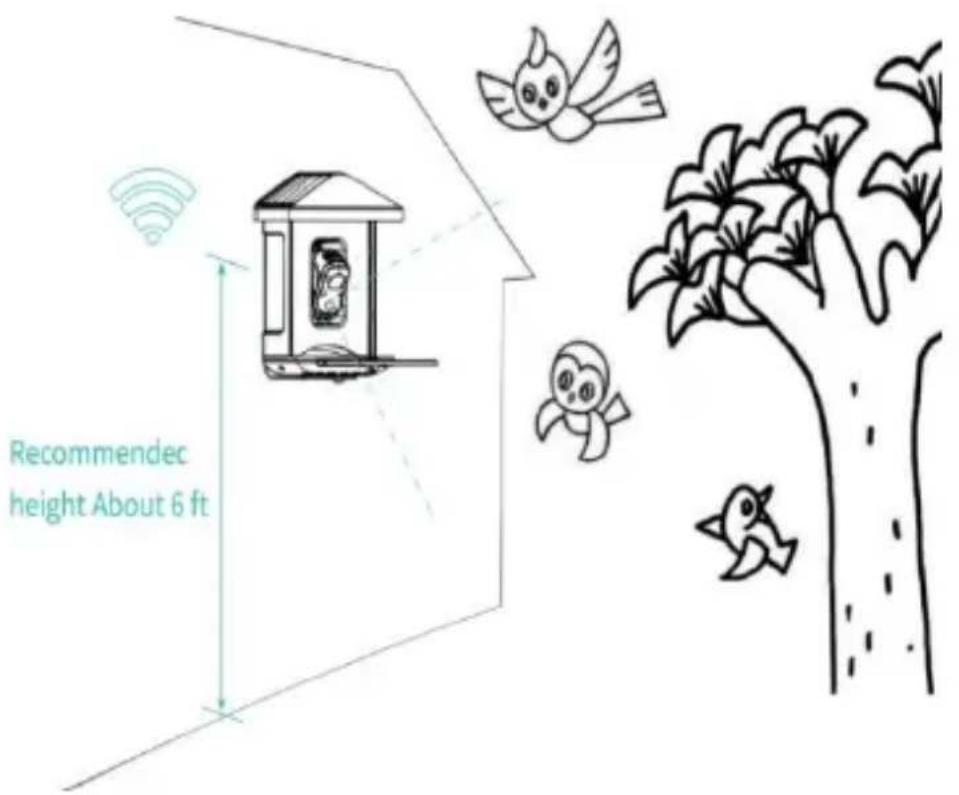
Please choose a Wi-Fi strength is strong signal place for your bird feeder. It is best to be an active place with birds, but you need to ensure the coverage of the Wi-Fi network. Adjust the angle of the camera to cover as much of the bird-watching stand as possible.
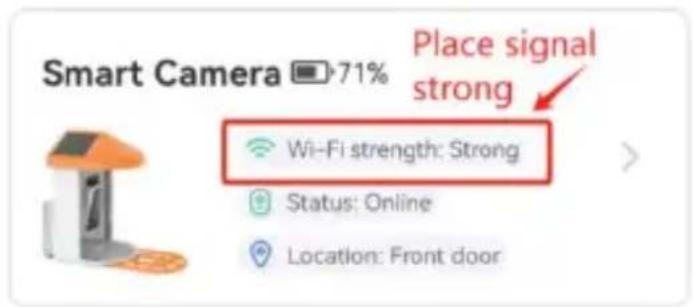
Vevor FB-A01 - Select a good spot for your bird feeder - 1

text_image Smart Camera 71% Place signal strong Wi-Fi strength: Strong Status: Online Location: Front door

Vevor FB-A01 - Select a good spot for your bird feeder - 2

text_image Medium Motion Detection

Vevor FB-A01 - Select a good spot for your bird feeder - 3

text_image Notification Settings

Vevor FB-A01 - Select a good spot for your bird feeder - 4

text_image Alarm Settings

Vevor FB-A01 - Select a good spot for your bird feeder - 5

text_image Video Settings

Vevor FB-A01 - Select a good spot for your bird feeder - 6

text_image Recommended height About 6 ft

(3) Install solar panels

Step1: Fix the bracket on the wall.
Step2: Install the solar panel on the bracket and lock it with a
Step3: Adjust the angle of the solar panel so that it can receive the most sunlight.
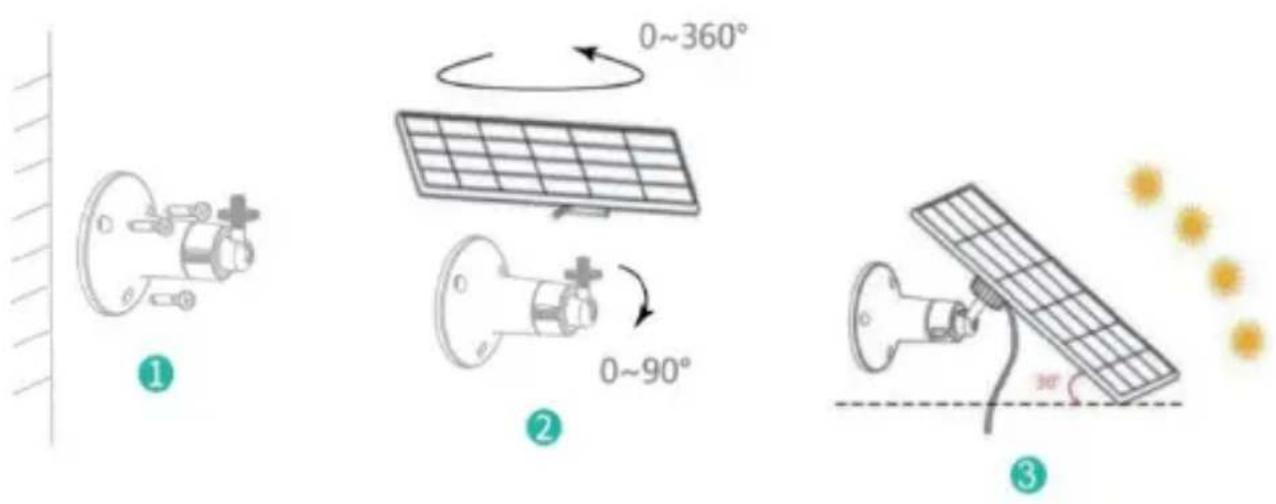
Vevor FB-A01 - Install solar panels - 1

text_image 0~360° 1 2 0~90° 3

FIRMWARE UPGRADE

When you connect your camera through the App, it will prompt you if the latest firmware is available. You can also manually check the firmware version in the settings of the App.

Note: Please make sure that your camera is fully charged or connected to the power adapter before upgrading the

firmware, please do not cut off the power supply during the upgrading.

FAQ

1.Q: Camera permission management: How to invite family and friends to use my camera together?

A: Open the App and select your camera on the home page. Click the share button on the home page or the "Share" in the camera settings to enter the sharing page, and then click "Invite" to generate a QR code. Your friends can now get some of the access rights by scanning the QR code in your phone.

2.Q: Why doesn't the Wi-Fi name appear when I connect to Wi-Fi?

A: On Apple devices with iOS13 and above, you need to turn on the "location permission for the app in the system settings and change it to "allow when using.

3.Q: Will the camera show red lights when night vision is activated?

A: The built-in infrared lamp beads make the camera only

show some dim red lights when night vision is activated, but the image quality is still clear under no light environment.

4.Q: What are the requirements for Wi-Fi?

A: Please use a 2.4GHz wireless network. The device does not support the 5GHz wireless network. Meanwhile, please set the Wi-Fi authentication method to WPA2-PSK or other lower level of security method. A password is required.

5.Q: How far should the camera be placed from the router?

A: After testing, the Wi-Fi connection distance can normally reach up to 220 meters in the open area. However, the actual situation depends on the strength of Wi-Fi and its surrounding environment (thick walls, electromagnetic devices, large metal objects will all cause interference to the Wi-Fi signals). If the camera connection signal is weak or unstable, please place the camera as close to the router as possible.

6.Q: What is the maximum length of recording time?

A: If you set the duration as "Auto", when someone occurs in the view of the camera, it will start recording a video up to 3 minutes.

7.Q: How to quickly view videos by category?

A: Click the icon in the upper left corner of the "Library" page to start filtering videos by category. Select the category you want to see and then click "Save" to view the video playbacks.

8.Q: What should I do when the device is in malfunction?

A: Long press the power bottom for 3 seconds to restart If there is no response, you can remove the rubber plug the button of the camera. Press the reboot hole with a pointed object to restart the camera.

POSSIBLE PROBLEMS WITH BINDING

1) When you hear the "Wi-Fi Password Error", please check whether the Wi-Fi password you entered in the App is correct.
2) When you hear the "Authentication error", please

ensure that your Wi-Fi network is not an enterprise-level network, and the device supports only the network with the security level below WPA-2.

3) When you hear the "Wi-Fi not found", please check whether you select or enter the correct Wi-Fi name, and place the device near the Wi-Fi router and ensure that the router is powered on. Please note that 5Ghz Wi-Fi cannot be searched by the device.

4) When you hear the "Retrieving IP timeout", it indicates that the number of devices connected to the router in your home is too many to connect more devices. Please remove some of the connected devices that are not commonly used or restart the router to clear the unconnected devices. You may need to contact the router administrator.

5) When you hear the "Cloud service connection fail" please check whether your router is connected properly to the external network. When you hear this error prompt, it is common on the condition of network disconnection or that the selected router in your home is a local area

network server. Please ensure that the network connection is normal, and try to temporarily turnoff the firewall to connect again.

FIRMWARE UPGRADE

When you connect your camera through the App, it will prompt you if the latest firmware is available. You can also manually check the firmware version in the settings of the App.

Note: Please make sure that your camera is fully charged or connected to the power adapter before upgrading the firmware, please do not cut off the power supply during the upgrading.

FCC INFORMATION

WARNING: Changes or modifications not expressly approved by the party responsible for compliance could void the user's authority to operate the equipment.

NOTE: This equipment has been tested and found to comply with the limits for a Class B digital device,

pursuant to Part 15 of the FCC Rules. These limits are designed to provide reasonable protection against harmful interference in a residential installation. This unit generates, uses, and can radiate radio frequency energy and if not installed and used in accordance with the instructions, may cause harmful interference to radio communications. However, there is no guarantee that interference will not occur in a particular installation. If this equipment does cause harmful interference to radio or television reception, which can be one or more of the following measures:

  • Reorient or relocate the receiving antenna.
  • Increase the separation between the equipment and receiver.
  • Connect the equipment to an outlet on a circuit different from that to which the receiver is connected.
  • Consult the dealer or an experienced radio/TV technician for help.

This device complies with Part 15 of the FCC Rules. Operation is subject to the following two conditions:

  1. This device may not cause harmful interference.

  2. This device must accept any interference received including interference that may cause undesired operation.

FCC ID: 2AXBN-Q5

DISPOSAL INSTRUCTIONS

Vevor FB-A01 - DISPOSAL INSTRUCTIONS - 1

CORRECT DISPOSAL

This product is subject to the provision of Europe Directive 2012/19/EU. The symbol showing a whee bin crossed through indicates that the product req separate refuse collection in the European Union. applies to the product and all accessories marked this symbol. Products marked as such may not be discarded with normal domestic waste, but must be taken to a collection point for recycling electrical electronic devices.

Manufacturer: Shanghaimuxinmuyeyouxiangongsi

Address: Shuangchenglu 803nong11hao1602A-1609shi,

baoshanqu, shanghai 200000 CN.

EC REP: E-CrossStu GmbH.

Mainzer Landstr.69, 60329 Frankfurt am Main.

UK REP: YH CONSULTING LIMITED.

C/O YH Consulting Limited Office 147, Centurion House,

London Road, Staines-upon-Thames, Surrey, TW18 4AX

Imported to AUS: SIHAO PTY LTD.

1 ROKEVA STREETEASTWOOD NSW 2122 Australia

Imported to USA: Sanven Technology Ltd.

Suite 250, 9166 Anaheim Place, Rancho Cucamonga, CA

91730

VEVOR®

TOUGH TOOLS, HALF PRICE

Technical Support and E-Warranty Certificate

www.vevor.com/support

VEVOR®

TOUGH TOOLS, HALF PRICE

www.vevor.com/support

MANGIATOIA PER UCCELLI INTELLIGENTE ( CON fotocamera modello QB)

MODELLO: FB-A01, FB-A02, FB-A03, FB-A04, FB-A05, FB-A06

We continue to be committed to provide you tools with competitive "Save Half", "Half Price" or any other similar expressions used by represents an estimate of savings you might benefit from buying certain with us compared to the major top brands and does not necessarily cover all categories of tools offered by us. You are kindly reminded carefully when you are placing an order with us if you are actually in comparison with the top major brands.

VEVOR®

TOUGH TOOLS, HALF PRICE

SMART BIRD FEEDER

Modello: FB-A01, FB-A02, FB-A03, FB-A04, FB-A05, FB-A06

Vevor FB-A01 - SMART BIRD FEEDER - 1

natural_image Line drawing of a portable electronic device with a lid and control panel (no text or symbols)

NEED HELP? CONTACT US!

Have product questions? Need technical support? Please 1 free to contact us:

Technical Support and E-Warranty Certificate www.vevor.com/support

This is the original instruction, please read all manual ins carefully before operating. VEVOR reserves a clear interpr of our user manual. The appearance of the product shall to the product you received. Please forgive us that we w you again if there are any technology or software update product.

IMPORTANT SAFEGUARDS

Vevor FB-A01 - IMPORTANT SAFEGUARDS - 1

text_image MIC Indicator light Lens Human body infrared sensor Spotlight

Vevor FB-A01 - IMPORTANT SAFEGUARDS - 2

text_image Power input Micro-SD card slot Reboot hole Power button Rear shell fastening screws Speaker Antenna hole Power cord for charging Bracket screw hole

BIRD FEEDER PARTS NAME
Vevor FB-A01 - IMPORTANT SAFEGUARDS - 3

text_image Solar Panel Bird Camera Bird feeding Area Bird Stand

Vevor FB-A01 - IMPORTANT SAFEGUARDS - 4

text_image Antenna Power cord for charging Bird feeder bracket

STEPS OF ASSEMBLY

natural_image Line drawing of a mechanical device with a green arrow indicating rotation (no text or symbols)
text_image Technical diagram showing the assembly of a fan-shaped device with numbered components and directional arrows indicating motion.
natural_image Line drawing of a portable electronic device with a left-side component and a right-side view showing a change (no text or symbols)

DOWNLOAD & INSTALL APP

text_image QR code image with rounded corners, no visible text or symbols beyond the matrix pattern

Vevor FB-A01 - DOWNLOAD & INSTALL APP - 1

text_image Android Download

Vevor FB-A01 - DOWNLOAD & INSTALL APP - 2

text_image App Store Download

Download App

text_image G Sign up for a new account Sign in

I understand and agree User Agreement and Privacy Policy

Next Step

text_image Verification code Verification code has been sent to Resend after 107s Did not receive the verification code?
text_image Set password For the safety of your account, your password must contain at least one uppercase letter, one lowercase letter, and one number. It must have at least 8 characters. Enter password Enter password again Next Step
text_image Username Enter Username Done

HOW TO SET UP THE CAMERA

text_image Power Button Silicone Plug
text_image 2.4G Wi-fi
text_image Congratulations, you have successfully registered Please add a device Add a new device now!
text_image Power Button Indicator Light
text_image Turn on the device Battery device Please long press the power button until the device emits a tip sound. Plug-in device Please connect to a power source until you hear an alert sound from the device and it completes the rotation. I heard the sound or saw the light on. Next Step Can not turn on?
text_image Confirm the device connection method Wi-Fi Connection Suitable for installation environment with Wi-Fi. Go Hotspot Direct Suitable for installation environment without Wi-Fi. When viewing the device, the phone will not be able to access the Internet. Go
text_image Configure Wi-Fi for the device Please enter a 2.4 GHz Wi-Fi network name (5500) and the password to connect to the device. Currently 5 GHz Wi-Fi and enterprise Wi-Fi networks are not supported. Learn more >> 2.4 GHz ✓ 5 GHz ✗ Wi-Fi Name (5500) Received: Remember the Wi-Fi name and password after successful connection. Wi-Fi network saved QC1 Next Step
text_image When prompted, connect to the Wi-Fi network. Your camera creates a temporary network. allowing your phone to connect directly for an effortless setup process. Connect to device? • will use a temporary Wi-Fi network to connect to the device. IPC_T93G3XD90786 Cancel Connect
text_image Connecting... Connect the device to the network. !!! Now devices is found !!! Registers it to the cloud service !!! Initialize the device

Vevor FB-A01 - HOW TO SET UP THE CAMERA - 1

text_image Connection succeeded Connect the device to the network New devices is found Register it to the cloud service Initialize the device
text_image Set a name and location for the device device Name Smart Camera Location Edit Front door Living room Garden Office Back door Garage + Done

Device added successfully!

The next step will guide you on how to install the device

Vevor FB-A01 - Device added successfully! - 1

natural_image Simple icon of a smartphone with three dots and a horizontal bar (no text or symbols)

Let's start

Continue adding another device first

Vevor FB-A01 - Device added successfully! - 2

text_image All devices Smart Camera
text_image All camera - No camera Add Camera Now

Vevor FB-A01 - Device added successfully! - 3

text_image Add a new camera Please order the network complex (50Hz) and please refer to be returned to the camera. Currently 3G Wi-Fi test as amended. Wi-Fi may not applicable. START CARD 50-Fi ****** Next Call
text_image Scan QR code to connect RQ code After the connection is successful, it will automatically suit it to the next site.
text_image about 7 inches (20cm)
text_image Connection succeeded Connect the camera to Wi-Fi Camera found Register to the cloud service Initialize the camera

SHARE THE CAMERA

text_image All camera Smart Camera Home Library User

Vevor FB-A01 - Device added successfully! - 4

text_image Share Admin Info VI395366128 abcc@163.com Shared to. Invite
text_image Invite Permission Check the Live feed, playback video clips. How to invite? Please ask the invitee to download software first and follow the app guide to scan the QR code.

Vevor FB-A01 - Device added successfully! - 5

text_image No Plan Camera Management Add Friend's Camera APP Language Location Management Feedback FAQ About VicoHome Home Library User
natural_image Line drawing of a hand holding a smartphone displaying a QR code, next to a smartphone with a QR code (no text or symbols on the devices)

CHARGE THE CAMERA

text_image Activity Zone Once you set the activity zone, only triggered stresses about the appropriate location will be pushed, while any other information will be steemed out. No plan 全德看菜 Awareness Cloud recording Instagram Notification Activity Zone No plan 7 days (11) × × Katz 15 days (20) ✓ ✓ Plus 30 days (30) ✓ ✓ 30-day tree trial Got it, buy now

Vevor FB-A01 - CHARGE THE CAMERA - 1

text_image Cloud recording Extend up to 60 days with 10 GB cloud recording storage (3 types of Awareness Plans) to create the mail secure video storage so that you will never miss any critical moment. No plan 全橙看家 Awareness Intelligent Notification Identify the main content of the video; Persons 30-day free trial! Got it, buy now

Vevor FB-A01 - CHARGE THE CAMERA - 2

text_image To use this feature, you need to purchase the Awareness Plan Buy now Analysis item (multiple choices available) Person Pet Vehicle Package (Beta) After ticking the analysis item(s), the recorded video will be analyzed encrypted to recognize Person, Pet, Vehicle, or Package. You can tick more than one item.
text_image Bird feeder 18:13, 28/05/2024 Choose 06:01 00:06 18:13 Send feedback > A bird defected > A person passing by
text_image Bird feeder 18:13, 26/05/2024 Choose Possible Species Northern Red Bishop 92% >

Vevor FB-A01 - CHARGE THE CAMERA - 3

text_image Bird feeder Choose Northern Red Bishop The northern red bishop or orange bishop (Euplectes franciscanus) is a small passerine bird in the family Ploceidae. It is part of the largest genus in the family with over 60 different species. Its sister species is the Southern red bishop (Euplectes orix). This species is most recognizable by the bright reddish orange with contrasting black plumage displayed by the breeding male. It is most common throughout the northern African continent but has also been introduced to areas in the western hemisphere.

Vevor FB-A01 - CHARGE THE CAMERA - 4

text_image Northern red bishop Article Talk YA The northern red bishop or orange bishop (Euplectes franciscanus) is a small passerine bird in the family Placeidae. It is part of the largest genus in the family with over 60 different species.[2] Its sister species is the Southern red bishop (Euplectes only). This species is most recognizable by the bright reddish orange with contrasting black plumage displayed by the breeding male. It is most common throughout the northern African continent but has also been introduced to areas in the western hemisphere. Northern red bishop AA en.m.wikipedia.org

NOTIFICATION SETTING

text_image Tue 28 Nanshan, Shenzhen 18:13 28° Cloudy H:31" L:25" Bird feeder Bird detected, looks like Northern Red Bishop!

Notification Setting

Motion Detection Notification

Vevor FB-A01 - Notification Setting - 1

Smart Push

Check now

Subscribe to Awareness for more features

Vevor FB-A01 - Smart Push - 1

Intelligent Notification

Identify the main content of the video: Person, Pet, Vehicle. And analyze its action behavior, make more intelligent push information.

Vevor FB-A01 - Intelligent Notification - 1

natural_image Silhouette of a person walking next to a large smartphone (no text or symbols visible)

Lite

Vevor FB-A01 - Intelligent Notification - 2

natural_image Illustration of a person walking next to a smartphone displaying app icons (no text or symbols on the device)

Awareness

Vevor FB-A01 - Intelligent Notification - 3

Activity Zone

Once you set the Activity Zone, only triggered messages about the accurate location will be pushed, while any other information will be filtered out.

Vevor FB-A01 - Activity Zone - 1

natural_image Illustration of two houses with a car and a red box, no text or symbols present

BIRDFEEDER INSTALLATION

( 1 ) Installare la staffa

natural_image Illustration showing a hand holding a screwdriver next to a device with three probes, alongside a close-up of the tool tip (no text or symbols present)
natural_image Technical line drawing of a mechanical device showing assembly steps (no text or symbols)
text_image Smart Camera 71% Place signal strong Wi-Fi strength: Strong Status: Online Location: Front door

Vevor FB-A01 - ( 1 ) Installare la staffa - 1

text_image Medium Motion Detection

Vevor FB-A01 - ( 1 ) Installare la staffa - 2

text_image Notification Settings

Vevor FB-A01 - ( 1 ) Installare la staffa - 3

text_image Alarm Settings

Vevor FB-A01 - ( 1 ) Installare la staffa - 4

text_image Video Settings

Vevor FB-A01 - ( 1 ) Installare la staffa - 5

text_image Recommended height About 6 ft

( 3 ) Installa pannelli solari

POSSIBLE PROBLEMS WITH BINDING

C/O YH Consulting Limited Office 147, Centurion House, London Road, Staines-upon-Thames, Surrey, TW18 4AX Importato in AUS: SIHAO PTY LTD.

Suite 250, 9166 Anaheim Place, Rancho Cucamonga, CA 9173 0

VEVOR®

TOUGH TOOLS, HALF PRICE

www.vevor.com/support

VEVOR®

TOUGH TOOLS, HALF PRICE

www.vevor.com/support

INTELIGENTNY KARMNIK DLA PTAKÓW ( Z kamerą modelu QB

We continue to be committed to provide you tools with competitive "Save Half", "Half Price" or any other similar expressions used by represents an estimate of savings you might benefit from buying certain with us compared to the major top brands and does not necessarily cover all categories of tools offered by us. You are kindly reminded carefully when you are placing an order with us if you are actually in comparison with the top major brands.

VEVOR®

TOUGH TOOLS, HALF PRICE

SMART BIRD FEEDER

Model: FB-A01, FB-A02, FB-A03, FB-A04, FB-A05, FB-A06
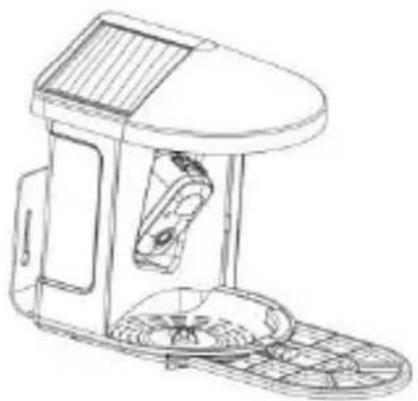
Vevor FB-A01 - SMART BIRD FEEDER - 1

natural_image Line drawing of a portable electronic device with solar panel and control panel (no text or symbols)

NEED HELP? CONTACT US!

Have product questions? Need technical support? Please 1 free to contact us:

Technical Support and E-Warranty Certificate www.vevor.com/support

This is the original instruction, please read all manual ins carefully before operating. VEVOR reserves a clear interpr of our user manual. The appearance of the product shall to the product you received. Please forgive us that we w you again if there are any technology or software update product.

IMPORTANT SAFEGUARDS

Vevor FB-A01 - IMPORTANT SAFEGUARDS - 1

text_image MIC Indicator light Lens Human body infrared sensor Spotlight

Vevor FB-A01 - IMPORTANT SAFEGUARDS - 2

text_image Power input Micro-SD card slot Reboot hole Power button Rear shell fastening screws Speaker Antenna hole Power cord for charging Bracket screw hole

BIRD FEEDER PARTS NAME
Vevor FB-A01 - IMPORTANT SAFEGUARDS - 3

text_image Solar Panel Bird Camera Bird feeding Area Bird Stand

Vevor FB-A01 - IMPORTANT SAFEGUARDS - 4

text_image Antenna Power cord for charging Bird feeder bracket

STEPS OF ASSEMBLY

natural_image Line drawing of a mechanical device with a green arrow indicating rotation (no text or symbols)

Krok 2: Zainstaluj tace

text_image Technical diagram showing the assembly of a fan-shaped device with numbered components and directional arrows indicating motion.
natural_image Line drawing of a portable electronic device with a left-side component and a right-side view showing a change (no text or symbols)

DOWNLOAD & INSTALL APP

text_image QR code image with rounded corners, no visible text or symbols beyond the matrix pattern

Vevor FB-A01 - DOWNLOAD & INSTALL APP - 1

text_image Android Download

Vevor FB-A01 - DOWNLOAD & INSTALL APP - 2

text_image App Store Download

Download App

text_image G Sign up for a new account Sign in

I understand and agree User Agreement and Privacy Policy

Next Step

text_image Verification code Verification code has been sent to Resend after 107s Did not receive the verification code?
text_image Set password For the safety of your account, your password must contain at least one uppercase letter, one lowercase letter, and one number. It must have at least 8 characters. Enter password Enter password again Next Step
text_image Power Button Silicone Plug
text_image 2.4G Wi-fi
text_image Congratulations, you have successfully registered Please add a device Add a new device now!
text_image Power Button Indicator Light
text_image Turn on the device Battery device Please long press the power button until the device emits a tip sound. Plug-in device Please connect to a power source until you hear an alert sound from the device and it completes the rotation. I heard the sound or saw the light on. Next Step Can not turn on?
text_image Confirm the device connection method Wi-Fi Connection Suitable for installation environment with Wi-Fi. Go Hotspot Direct Suitable for installation environment without Wi-Fi. When viewing the device, the phone will not be able to access the Internet. Go
text_image Configure Wi-Fi for the device Please enter a 2.4 GHz Wi-Fi network name (SSRD) and the password to connect to the device. Currently 5 GHz Wi-Fi and enterprise Wi-Fi networks are not supported. Learn more >> 2.4 GHz ✓ 5 GHz ✗ Wi-Fi Name (SSRD) Password Remember the Wi-Fi name and password after successful connection. Wi-Fi network saved QC1 Next Step
text_image When prompted, connect to the Wi-Fi network. Your camera creates a temporary network, allowing your phone to connect directly for an effortless setup process. Connect to device? • will use a temporary Wi-Fi network to connect to the device. IPC_T93G3XD90786 Cancel Connect
text_image Connecting... Connect the device to the network *** New devices is found. *** Registers it to the cloud service. *** Instalize the device

Vevor FB-A01 - Download App - 1

text_image Connection succeeded Connect the device to the network New devices is found Register it to the cloud service Initialize the device
text_image Set a name and location for the device device Name Smart Camera Location Edit Front door Living room Garden Office Back door Garage + Done
text_image Device added successfully! The next step will guide you on how to install the device Let's start Continue adding another device first
Vevor FB-A01 - Download App - 2

text_image All devices Smart Camera
text_image All camera - No camera Add Camera Now

Vevor FB-A01 - Download App - 3

text_image Add a new camera Also do the network (www.800) and user to be connected to the camera. Currently, led ARs and wireless ARs are not associated. User code: 50+ Fi *********
text_image Scan QR code to connect R-12 buttons After the connection is successful, it will automatically jump to the next step.
text_image about 7 inches (20cm)
text_image Connection succeeded Connect the camera to Wi-Fi Camera found Register to the cloud service Initialize the camera

SHARE THE CAMERA

text_image All camera Smart Camera Home Library User

Vevor FB-A01 - SHARE THE CAMERA - 1

text_image Share Admin Info VI395366128 @scu-163.com Shared to. Invite
text_image Invite Permission Check the Live feed, playback video clips. How to invite? Please ask the invitee to download software first and follow the app guide to scan the QR code.

Vevor FB-A01 - SHARE THE CAMERA - 2

text_image No Plan Camera Management Add Friend's Camera APP Language Location Management Feedback FAQ About VicoHome Home Library User
natural_image Line drawing of a hand holding a smartphone displaying a QR code, next to a smartphone with a QR code (no text or symbols on the devices)

CHARGE THE CAMERA

text_image Activity Zone Once you set the activity zone, only triggered stresses about the appropriate location will be pushed, while any other information will be steemed out. No plan 全德看菜 Awareness Cloud recording Instagram Notification Activity Zone No plan 7 days (11) × × Katz 15 days (20) ✓ ✓ Plus 30 days (30) ✓ ✓ 30-day tree trial Got it, buy now

Vevor FB-A01 - CHARGE THE CAMERA - 1

text_image Cloud recording Extend up to 60 days with 10 GB cloud recording storage (3 types of Awareness Plans) to create the mail secure video storage so that you will never miss any critical moment. No plan 全橙看家 Awareness Intelligent Notification Identify the main content of the video; Persons 30-day free trial! Got it, buy now

Vevor FB-A01 - CHARGE THE CAMERA - 2

text_image To use this feature, you need to purchase the Awareness Plan Buy now Analysis item (multiple choices available) Person Pet Vehicle Package (Beta) After ticking the analysis item(s), the recorded video will be analyzed encrypted to recognize Person, Pet, Vehicle, or Package. You can tick more than one item.
text_image Bird feeder 18:13, 28/05/2024 Choose 06:01 00:06 18:13 Send feedback > A bird defected > A person passing by
text_image Bird feeder 18:13, 26/05/2024 Choose Possible Species Northern Red Bishop 92% >

Vevor FB-A01 - CHARGE THE CAMERA - 3

text_image Bird feeder Choose Northern Red Bishop The northern red bishop or orange bishop (Euplectes franciscanus) is a small passerine bird in the family Ploceidae. It is part of the largest genus in the family with over 60 different species. Its sister species is the Southern red bishop (Euplectes orix). This species is most recognizable by the bright reddish orange with contrasting black plumage displayed by the breeding male. It is most common throughout the northern African continent but has also been introduced to areas in the western hemisphere.

Vevor FB-A01 - CHARGE THE CAMERA - 4

text_image Northern red bishop Article Talk YA The northern red bishop or orange bishop (Euplectes franciscanus) is a small passerine bird in the family Placeidae. It is part of the largest genus in the family with over 60 different species.[2] Its sister species is the Southern red bishop (Euplectes only). This species is most recognizable by the bright reddish orange with contrasting black plumage displayed by the breeding male. It is most common throughout the northern African continent but has also been introduced to areas in the western hemisphere. Northern red bishop AA en.m.wikipedia.org

NOTIFICATION SETTING

text_image Tue 28 Nanshan, Shenzhen 18:13 28° Cloudy H:31° L:26° Bird feeder Bird detected, looks like Northern Red Bishop!

Notification Setting

Motion Detection Notification

Vevor FB-A01 - Notification Setting - 1

Smart Push

Check now

Subscribe to Awareness for more features

Vevor FB-A01 - Smart Push - 1

Intelligent Notification

Identify the main content of the video: Person, Pet, Vehicle. And analyze its action behavior, make more intelligent push information.

Vevor FB-A01 - Intelligent Notification - 1

natural_image Silhouette of a person walking next to a blank rectangular sign (no text or symbols visible)

Lite

Vevor FB-A01 - Intelligent Notification - 2

natural_image Illustration of a person walking next to a smartphone displaying app icons (no text or symbols on the device)

Awareness

Vevor FB-A01 - Intelligent Notification - 3

Activity Zone

Once you set the Activity Zone, only triggered messages about the accurate location will be pushed, while any other information will be filtered out.

Vevor FB-A01 - Activity Zone - 1

natural_image Illustration of two houses with a car and a red box, no text or symbols present

BIRDFEEDER INSTALLATION

natural_image Illustration showing a hand holding a screwdriver next to a device with three probes, alongside a close-up of the tool tip (no text or symbols present)
natural_image Technical line drawing of a device assembly showing a left-hand panel, a connector, and a final assembled unit (no text or symbols)
text_image Smart Camera 71% Place signal strong Wi-Fi strength: Strong Status: Online Location: Front door

Vevor FB-A01 - BIRDFEEDER INSTALLATION - 1

text_image Medium Motion Detection

Vevor FB-A01 - BIRDFEEDER INSTALLATION - 2

text_image Notification Settings

Vevor FB-A01 - BIRDFEEDER INSTALLATION - 3

text_image Alarm Settings

Vevor FB-A01 - BIRDFEEDER INSTALLATION - 4

text_image Video Settings

Vevor FB-A01 - BIRDFEEDER INSTALLATION - 5

text_image Recommended height About 6 ft

POSSIBLE PROBLEMS WITH BINDING

C/O YH Consulting Limited Office 147, Centurion House, London Road, Staines-upon-Thames, Surrey, TW18 4AX Import do AUS: SIHAO PTY LTD.

1 ROKEVA STREETEASTWOOD NSW 2122 Australia Import do USA: Sanven Technology Ltd.

Suite 250, 9166 Anaheim Place, Rancho Cucamonga, Kalifornia 9173 0

VEVOR®

TOUGH TOOLS, HALF PRICE

www.vevor.com/support

VEVOR®

TOUGH TOOLS, HALF PRICE

www.vevor.com/support

INTELLIGENTER VOGELFUTTERSPENDER

We continue to be committed to provide you tools with competitive "Save Half", "Half Price" or any other similar expressions used by represents an estimate of savings you might benefit from buying certain with us compared to the major top brands and does not necessarily cover all categories of tools offered by us. You are kindly reminded carefully when you are placing an order with us if you are actually in comparison with the top major brands.

VEVOR®

TOUGH TOOLS, HALF PRICE

SMART BIRD FEEDER

Modell: FB-A01, FB-A02, FB-A03, FB-A04, FB-A05, FB-A06

Vevor FB-A01 - SMART BIRD FEEDER - 1

natural_image Line drawing of a portable electronic device with solar panel and control panel (no text or symbols)

NEED HELP? CONTACT US!

Have product questions? Need technical support? Please 1 free to contact us:

Technical Support and E-Warranty Certificate www.vevor.com/support

This is the original instruction, please read all manual ins carefully before operating. VEVOR reserves a clear interpr of our user manual. The appearance of the product shall to the product you received. Please forgive us that we w you again if there are any technology or software update product.

IMPORTANT SAFEGUARDS

Vevor FB-A01 - IMPORTANT SAFEGUARDS - 1

WARNUNG: Um das Risiko schwerer

text_image MIC Indicator light Lens Human body infrared sensor Spotlight

Vevor FB-A01 - IMPORTANT SAFEGUARDS - 2

text_image Power input Micro-SD card slot Reboot hole Power button Rear shell fastening screws Speaker Antenna hole Power cord for charging Bracket screw hole

BIRD FEEDER PARTS NAME
Vevor FB-A01 - IMPORTANT SAFEGUARDS - 3

text_image Solar Panel Bird Camera Bird feeding Area Bird Stand

Vevor FB-A01 - IMPORTANT SAFEGUARDS - 4

text_image Antenna Power cord for charging Bird feeder bracket

STEPS OF ASSEMBLY

natural_image Line drawing of a mechanical device with a green arrow indicating rotation (no text or symbols)
text_image Technical diagram showing the assembly of a fan-shaped device with numbered components and directional arrows indicating motion.
natural_image Line drawing of a mobile phone device with a side-view and front-view assembly (no text or symbols)

DOWNLOAD & INSTALL APP

text_image QR code image with rounded corners, no visible text or symbols beyond the matrix pattern

Download App

Vevor FB-A01 - DOWNLOAD & INSTALL APP - 1

text_image Android Download

Vevor FB-A01 - DOWNLOAD & INSTALL APP - 2

text_image App Store Download
text_image G Sign up for a new account Sign in

I understand and agree User Agreement and Privacy Policy

Next Step

text_image Verification code Verification code has been sent to Resend after 107s Did not receive the verification code?
text_image Set password For the safety of your account, your password must contain at least one uppercase letter, one lowercase letter, and one number. It must have at least 8 characters. Enter password Enter password again Next Step
text_image Username Enter Username Done

HOW TO SET UP THE CAMERA

text_image Power Button Silicone Plug
text_image 2.4G Wi-fi
text_image Congratulations, you have successfully registered Please add a device Add a new device now!
text_image Power Button Indicator Light
text_image Turn on the device Battery device Please long press the power button until the device emits a tip sound. Plug-in device Please connect to a power source until you hear an alert sound from the device and it completes the rotation. I heard the sound or saw the light on. Next Step Can not turn on?
text_image Confirm the device connection method Wi-Fi Connection Suitable for installation environment with Wi-Fi. Go Hotspot Direct Suitable for installation environment without Wi-Fi. When viewing the device, the phone will not be able to access the Internet. Go
text_image Configure Wi-Fi for the device Please enter a 2.4 GHz Wi-Fi network name (5500) and the password to connect to the device. Currently 5 GHz Wi-Fi and enterprise Wi-Fi networks are not supported. Learn more >> 2.4 GHz ✓ 5 GHz ✗ Wi-Fi Name (5500) Received: Remember the Wi-Fi name and password after successful connection. Wi-Fi network saved QC1 Next Step
text_image When prompted, connect to the Wi-Fi network. Your camera creates a temporary network, allowing your phone to connect directly for an effortless setup process. Connect to device? • will use a temporary Wi-Fi network to connect to the device. IPC_T93G3XD90786 Cancel Connect
text_image Connecting... Connect the device to the network *** New devices is found. *** Registers it to the cloud service. *** Instalize the device

Vevor FB-A01 - HOW TO SET UP THE CAMERA - 1

text_image Connection succeeded Connect the device to the network New devices is found Register it to the cloud service Initialize the device
text_image Set a name and location for the device device Name Smart Camera Location Edit Front door Living room Garden Office Back door Garage + Done

Device added successfully!

The next step will guide you on how to install the device

Vevor FB-A01 - Device added successfully! - 1

natural_image Simple icon of a smartphone with three dots and a horizontal bar (no text or symbols)

Let's start

Continue adding another device first

Vevor FB-A01 - Device added successfully! - 2

text_image All devices Smart Camera
text_image All camera - No camera Add Camera Now

Vevor FB-A01 - Device added successfully! - 3

text_image Add a new camera Please do for the network (www.800) and submit to. by commutant for the camera. Currently, all Wi-Fi will endurance. All Wi-Fi is not associated. Last class No-Fi ****** Next Class
text_image Scan QR code to connect After the connection is successful, it will automatically upgrade to the next step.
text_image about 7 inches (20cm)
text_image Connection succeeded Connect the camera to Wi-Fi Camera found Register to the cloud service Initialize the camera

SHARE THE CAMERA

text_image All camera Smart Camera Home Library User

Vevor FB-A01 - Device added successfully! - 4

text_image Share Admin info VI395366128 @bsv@163.com Shared to. Invite
text_image Invite Permission Check the Live feed, playback video clips. How to invite? Please ask the invitee to download software first and follow the app guide to scan the QR code.

Vevor FB-A01 - Device added successfully! - 5

text_image No Plan Camera Management Add Friend's Camera APP Language Location Management Feedback FAQ About VicoHome
natural_image Line drawing of a hand holding a smartphone displaying a QR code, next to a smartphone with a QR code (no text or symbols on the devices)

CHARGE THE CAMERA

text_image Activity Zone Once you set the activity zone, only triggered stresses about the appropriate location will be pushed, while any other information will be steemed out. No plan 全德看菜 Awareness Cloud recording Instagram Notification Activity Zone No plan 7 days (11) × × Katz 15 days (20) ✓ ✓ Plus 30 days (30) ✓ ✓ 30-day tree trial Got it, buy now

Vevor FB-A01 - CHARGE THE CAMERA - 1

text_image Cloud recording Extend up to 60 days with 10 GB cloud recording storage 13 types of Awareness Plans to create the mail secure video storage so that you will never miss any critical moment. No plan 全橙看家 Awareness Intelligent Notification Identify the main content of the video: Person 30-day free trial! Got it, buy now

Vevor FB-A01 - CHARGE THE CAMERA - 2

text_image To use this feature, you need to purchase the Awareness Plan Buy now Analysis item (multiple choices available) Person Pet Vehicle Package (Beta) After ticking the analysis items), the recorded video will be analyzed encrypted to recognize Person, Pet, Vehicle, or Package. You can tick more than one item.
text_image Bird feeder 18:13, 28/05/2024 Choose 06:01 00:06 18:13 Send feedback > A bird defected > A person passing by
text_image Bird feeder 18:13, 26/05/2024 Choose Possible Species Northern Red Bishop 92% >

Vevor FB-A01 - CHARGE THE CAMERA - 3

text_image Bird feeder Choose Northern Red Bishop The northern red bishop or orange bishop (Euplectes franciscanus) is a small passerine bird in the family Ploceidae. It is part of the largest genus in the family with over 60 different species. Its sister species is the Southern red bishop (Euplectes orix). This species is most recognizable by the bright reddish orange with contrasting black plumage displayed by the breeding male. It is most common throughout the northern African continent but has also been introduced to areas in the western hemisphere.

Vevor FB-A01 - CHARGE THE CAMERA - 4

text_image Northern red bishop Article Talk YA The northern red bishop or orange bishop (Euplectes franciscanus) is a small passerine bird in the family Placeidae. It is part of the largest genus in the family with over 60 different species.[2] Its sister species is the Southern red bishop (Euplectes only). This species is most recognizable by the bright reddish orange with contrasting black plumage displayed by the breeding male. It is most common throughout the northern African continent but has also been introduced to areas in the western hemisphere. Northern red bishop AA en.m.wikipedia.org

NOTIFICATION SETTING

text_image Tue 28 Nanshan, Shenzhen 18:13 28° Cloudy H:31" L:26" Bird feeder Bird detected, looks like Northern Red Bishop!

Notification Setting

Motion Detection Notification

Vevor FB-A01 - Notification Setting - 1

Smart Push

Check now

Subscribe to Awareness for more features

Vevor FB-A01 - Smart Push - 1

Intelligent Notification

Identify the main content of the video: Person, Pet, Vehicle. And analyze its action behavior, make more intelligent push information.

Vevor FB-A01 - Intelligent Notification - 1

natural_image Silhouette of a person walking next to a blank rectangular sign (no text or symbols visible)

Lite

Vevor FB-A01 - Intelligent Notification - 2

natural_image Illustration of a person walking next to a smartphone displaying app icons (no text or symbols on the device)

Awareness

Vevor FB-A01 - Intelligent Notification - 3

Activity Zone

Once you set the Activity Zone, only triggered messages about the accurate location will be pushed, while any other information will be filtered out.

Vevor FB-A01 - Activity Zone - 1

natural_image Illustration of two houses with a car and a red box, no text or symbols present

BIRDFEEDER INSTALLATION

natural_image Illustration showing a hand holding a screwdriver next to a device with three probes, alongside a close-up of the tool interacting with a tool (no text or symbols present)
natural_image Technical line drawing showing a mechanical assembly before and after transformation, with no visible text or symbols.
text_image Smart Camera 71% Place signal strong Wi-Fi strength: Strong Status: Online Location: Front door

Vevor FB-A01 - BIRDFEEDER INSTALLATION - 1

text_image Medium Motion Detection

Vevor FB-A01 - BIRDFEEDER INSTALLATION - 2

text_image Notification Settings

Vevor FB-A01 - BIRDFEEDER INSTALLATION - 3

text_image Alarm Settings

Vevor FB-A01 - BIRDFEEDER INSTALLATION - 4

text_image Video Settings

Vevor FB-A01 - BIRDFEEDER INSTALLATION - 5

text_image Recommended height About 6 ft

POSSIBLE PROBLEMS WITH BINDING

C/O YH Consulting Limited Office 147, Centurion House,

London Road, Staines-upon-Thames, Surrey, TW18 4AX

Suite 250, 9166 Anaheim Place, Rancho Cucamonga, CA

9173 0

VEVOR®

TOUGH TOOLS, HALF PRICE

www.vevor.com/support

VEVOR®

TOUGH TOOLS, HALF PRICE

www.vevor.com/support

MANGEOIRE À OISEAUX INTELLIGENTE

We continue to be committed to provide you tools with competitive "Save Half", "Half Price" or any other similar expressions used by represents an estimate of savings you might benefit from buying certain with us compared to the major top brands and does not necessarily cover all categories of tools offered by us. You are kindly reminded carefully when you are placing an order with us if you are actually in comparison with the top major brands.

VEVOR®

TOUGH TOOLS, HALF PRICE

SMART BIRD FEEDER

natural_image Line drawing of a portable electronic device with a lid and control panel (no text or symbols)

NEED HELP? CONTACT US!

Have product questions? Need technical support? Please 1 free to contact us:

Technical Support and E-Warranty Certificate www.vevor.com/support

This is the original instruction, please read all manual ins carefully before operating. VEVOR reserves a clear interpr of our user manual. The appearance of the product shall to the product you received. Please forgive us that we w you again if there are any technology or software update product.

IMPORTANT SAFEGUARDS

Vevor FB-A01 - IMPORTANT SAFEGUARDS - 1

text_image MIC Indicator light Lens Human body infrared sensor Spotlight

Vevor FB-A01 - IMPORTANT SAFEGUARDS - 2

text_image Power input Micro-SD card slot Reboot hole Power button Rear shell fastening screws Speaker Antenna hole Power cord for charging Bracket screw hole

BIRD FEEDER PARTS NAME
Vevor FB-A01 - IMPORTANT SAFEGUARDS - 3

text_image Solar Panel Bird Camera Bird feeding Area Bird Stand

Vevor FB-A01 - IMPORTANT SAFEGUARDS - 4

text_image Antenna Power cord for charging Bird feeder bracket

STEPS OF ASSEMBLY

natural_image Line drawing of a mechanical device with a green arrow indicating rotation (no text or symbols)
text_image Technical diagram showing the assembly of a fan-shaped device with numbered components and directional arrows indicating motion.
natural_image Line drawing of a portable electronic device with a left-side component and a right-side view showing a change (no text or symbols)

DOWNLOAD & INSTALL APP

text_image QR code image with rounded corners, no visible text or symbols beyond the matrix pattern

Vevor FB-A01 - DOWNLOAD & INSTALL APP - 1

text_image Android Download

Vevor FB-A01 - DOWNLOAD & INSTALL APP - 2

text_image App Store Download

Download App

text_image G Sign up for a new account Sign in

I understand and agree User Agreement and Privacy Policy

Next Step

text_image Verification code Verification code has been sent to Resend after 107s Did not receive the verification code?
text_image Set password For the safety of your account, your password must contain at least one uppercase letter, one lowercase letter, and one number. It must have at least 8 characters. Enter password Enter password again Next Step
text_image Username Enter Username Done

HOW TO SET UP THE CAMERA

text_image Power Button Silicone Plug
text_image 2.4G Wi-fi
text_image Congratulations, you have successfully registered Please add a device Add a new device now!
text_image Power Button Indicator Light
text_image Turn on the device Battery device Please long press the power button until the device emits a tip sound. Plug-in device Please connect to a power source until you hear an alert sound from the device and it completes the rotation. I heard the sound or saw the light on. Next Step Can not turn on?
text_image Confirm the device connection method Wi-Fi Connection Suitable for installation environment with Wi-Fi. Go Hotspot Direct Suitable for installation environment without Wi-Fi. When viewing the device, the phone will not be able to access the Internet. Go
text_image Configure Wi-Fi for the device Please enter a 2.4 GHz Wi-Fi network name (5500) and the password to connect to the device. Currently 5 GHz Wi-Fi and enterprise Wi-Fi networks are not supported. Learn more >> 2.4 GHz ✓ 5 GHz ✗ Wi-Fi Name (5500) Received: Remember the Wi-Fi name and password after successful connection. Wi-Fi network saved QC1 Next Step
text_image When prompted, connect to the Wi-Fi network. Your camera creates a temporary network. allowing your phone to connect directly for an effortless setup process. Connect to device? • will use a temporary Wi-Fi network to connect to the device. IPC_T93G3XD90786 Cancel Connect
text_image Connecting... Connect the device to the network. !!! Now devices is found !!! Registers it to the cloud service !!! Initialize the device

Vevor FB-A01 - HOW TO SET UP THE CAMERA - 1

text_image Connection succeeded Connect the device to the network New devices is found Register it to the cloud service Initialize the device
text_image Set a name and location for the device device Name Smart Camera Location Edit Front door Living room Garden Office Back door Garage + Done

Device added successfully!

The next step will guide you on how to install the device

Vevor FB-A01 - Device added successfully! - 1

natural_image Simple icon of a smartphone with three dots and a horizontal bar (no text or symbols)

Let's start

Continue adding another device first

Vevor FB-A01 - Device added successfully! - 2

text_image All devices Smart Camera
text_image All camera - No camera Add Camera Now

Vevor FB-A01 - Device added successfully! - 3

text_image Add a new camera Please order the network complex (50Hz) and please refer to be returned to the camera. Currently 3G Wi-Fi test as amended. Wi-Fi may not applicable. START CARD 50-Fi ****** Next Call
text_image Scan QR code to connect 6.15 inches After the connection is successful, it will automatically just be to the next day
text_image about 7 inches (20cm)
text_image Connection succeeded Connect the camera to Wi-Fi Camera found Register to the cloud service Initialize the camera

SHARE THE CAMERA

text_image All camera Smart Camera Home Library User

Vevor FB-A01 - SHARE THE CAMERA - 1

text_image Share Admin Info VI395366128 abcc@163.com Shared to. Invite
text_image Invite Permission Check the Live feed, playback video clips. How to invite? Please ask the invitee to download software first and follow the app guide to scan the QR code.

Vevor FB-A01 - SHARE THE CAMERA - 2

text_image No Plan Camera Management Add Friend's Camera APP Language Location Management Feedback FAQ About VicoHome Home Library User
natural_image Line drawing of a hand holding a smartphone displaying a QR code, next to a smartphone with a QR code (no text or symbols on the devices)

CHARGE THE CAMERA

text_image Activity Zone Once you set the activity zone, only triggered stresses about the appropriate location will be pushed, while any other information will be steemed out. No plan 全德看菜 Awareness Cloud recording Instagram Notification Activity Zone No plan 7 days (11) × × Katz 15 days (20) ✓ ✓ Plus 30 days (30) ✓ ✓ 30-day tree trial Got it, buy now

Vevor FB-A01 - CHARGE THE CAMERA - 1

text_image Cloud recording Extend up to 60 days with 10 GB cloud recording storage (3 types of Awareness Plans) to create the mail secure video storage so that you will never miss any critical moment. No plan 全橙看家 Awareness Intelligent Notification Identify the main content of the video; Persons 30-day free trial! Got it, buy now

Vevor FB-A01 - CHARGE THE CAMERA - 2

text_image To use this feature, you need to purchase the Awareness Plan Buy now Analysis item (multiple choices available) Person Pet Vehicle Package (Beta) After ticking the analysis items, the recorded video will be analyzed encrypted to recognize Person, Pet, Vehicle, or Package. You can tick more than one item.
text_image Bird feeder 18:13, 28/05/2024 Choose 09:01 00:06 18:13 Send feedback > A bird defected > A poison passing by.
text_image Bird feeder 18:13, 26/05/2024 Choose Possible Species Northern Red Bishop 92% >

Vevor FB-A01 - CHARGE THE CAMERA - 3

text_image Bird feeder Choose Northern Red Bishop The northern red bishop or orange bishop (Euplectes franciscanus) is a small passerine bird in the family Ploceidae. It is part of the largest genus in the family with over 60 different species. Its sister species is the Southern red bishop (Euplectes orix). This species is most recognizable by the bright reddish orange with contrasting black plumage displayed by the breeding male. It is most common throughout the northern African continent but has also been introduced to areas in the western hemisphere.

Vevor FB-A01 - CHARGE THE CAMERA - 4

text_image Northern red bishop Article Talk YA The northern red bishop or orange bishop (Euplectes franciscanus) is a small passerine bird in the family Placeidae. It is part of the largest genus in the family with over 60 different species.[2] Its sister species is the Southern red bishop (Euplectes only). This species is most recognizable by the bright reddish orange with contrasting black plumage displayed by the breeding male. It is most common throughout the northern African continent but has also been introduced to areas in the western hemisphere. Northern red bishop AA en.m.wikipedia.org

NOTIFICATION SETTING

text_image Tue 28 Nanshan, Shenzhen 18:13 28° Cloudy H:31" L:25" Bird feeder Bird detected, looks like Northern Red Bishop!

Notification Setting

Motion Detection Notification

Vevor FB-A01 - Notification Setting - 1

Smart Push

Check now

Subscribe to Awareness for more features

Vevor FB-A01 - Smart Push - 1

Intelligent Notification

Identify the main content of the video: Person, Pet, Vehicle. And analyze its action behavior, make more intelligent push information.

Vevor FB-A01 - Intelligent Notification - 1

natural_image Silhouette of a person walking next to a blank rectangular sign (no text or symbols visible)

Lite

Vevor FB-A01 - Intelligent Notification - 2

natural_image Illustration of a person walking next to a smartphone displaying app icons (no text or symbols on the device)

Awareness

Vevor FB-A01 - Intelligent Notification - 3

Activity Zone

Once you set the Activity Zone, only triggered messages about the accurate location will be pushed, while any other information will be filtered out.

Vevor FB-A01 - Activity Zone - 1

natural_image Illustration of two houses with a car and a red box, no text or symbols present

BIRDFEEDER INSTALLATION

( 1 ) Installer le support

natural_image Illustration showing a hand holding a screwdriver next to a device with three probes, alongside a close-up of the tool interacting with a tool (no text or symbols present)
natural_image Technical line drawing showing a mechanical assembly before and after transformation, with no visible text or symbols.
text_image Smart Camera 71% Place signal strong Wi-Fi strength: Strong Status: Online Location: Front door

Vevor FB-A01 - ( 1 ) Installer le support - 1

text_image Medium Motion Detection

Vevor FB-A01 - ( 1 ) Installer le support - 2

text_image Notification Settings

Vevor FB-A01 - ( 1 ) Installer le support - 3

text_image Alarm Settings

Vevor FB-A01 - ( 1 ) Installer le support - 4

text_image Video Settings

Vevor FB-A01 - ( 1 ) Installer le support - 5

text_image Recommended height About 6 ft

POSSIBLE PROBLEMS WITH BINDING

C/O YH Consulting Limited Bureau 147, Centurion House,

London Road, Staines-upon-Thames, Surrey, TW18 4AX

Importé en Australie : SIHAO PTY LTD.

1 ROKEVA STREETASTWOOD NSW 2122 Australie

Bureau 250, 9166 Anaheim Place, Rancho Cucamonga,

CA 9173 0

VEVOR®

TOUGH TOOLS, HALF PRICE

www.vevor.com/support

VEVOR®

TOUGH TOOLS, HALF PRICE

www.vevor.com/support

SLIMME VOGELVOEDER

We continue to be committed to provide you tools with competitive "Save Half", "Half Price" or any other similar expressions used by represents an estimate of savings you might benefit from buying certain with us compared to the major top brands and does not necessarily cover all categories of tools offered by us. You are kindly reminded carefully when you are placing an order with us if you are actually in comparison with the top major brands.

VEVOR®

TOUGH TOOLS, HALF PRICE

SMART BIRD FEEDER

Model: FB-A01, FB-A02, FB-A03, FB-A04, FB-A05, FB-A06

Vevor FB-A01 - SMART BIRD FEEDER - 1

natural_image Line drawing of a portable electronic device with solar panel and control panel (no text or symbols)

NEED HELP? CONTACT US!

Have product questions? Need technical support? Please 1 free to contact us:

Technical Support and E-Warranty Certificate www.vevor.com/support

This is the original instruction, please read all manual ins carefully before operating. VEVOR reserves a clear interpr of our user manual. The appearance of the product shall to the product you received. Please forgive us that we w you again if there are any technology or software update product.

IMPORTANT SAFEGUARDS

Vevor FB-A01 - IMPORTANT SAFEGUARDS - 1

text_image MIC Indicator light Lens Human body infrared sensor Spotlight

Vevor FB-A01 - IMPORTANT SAFEGUARDS - 2

text_image Power input Micro-SD card slot Reboot hole Power button Rear shell fastening screws Speaker Antenna hole Power cord for charging Bracket screw hole

BIRD FEEDER PARTS NAME
Vevor FB-A01 - IMPORTANT SAFEGUARDS - 3

text_image Solar Panel Bird Camera Bird feeding Area Bird Stand

Vevor FB-A01 - IMPORTANT SAFEGUARDS - 4

text_image Antenna Power cord for charging Bird feeder bracket

STEPS OF ASSEMBLY

Stap 1: Monteer de bovenste afdekking

natural_image Line drawing of a mechanical device with a green arrow indicating rotation (no text or symbols)

Stap 2: Installeer de lade

text_image Technical diagram showing the assembly of a fan-shaped device with numbered components and directional arrows indicating motion.
natural_image Line drawing of a portable electronic device with a left-side component and a right-side view showing a change (no text or symbols)

DOWNLOAD & INSTALL APP

De draadloze slimme batterijcamera ondersteunt Android-en iOS-apps.

text_image QR code image with rounded corners, no visible text or symbols beyond the matrix pattern

Vevor FB-A01 - DOWNLOAD & INSTALL APP - 1

text_image Android Download

Vevor FB-A01 - DOWNLOAD & INSTALL APP - 2

text_image App Store Download

Download App

text_image G Sign up for a new account Sign in

I understand and agree User Agreement and Privacy Policy

Next Step

text_image Verification code Verification code has been sent to Resend after 107s Did not receive the verification code?
text_image Set password For the safety of your account, your password must contain at least one uppercase letter, one lowercase letter, and one number. It must have at least 8 characters. Enter password Enter password again Next Step
text_image Username Enter Username Done

HOW TO SET UP THE CAMERA

text_image Power Button Silicone Plug
text_image 2.4G Wi-fi
text_image Congratulations, you have successfully registered Please add a device Add a new device now!
text_image Power Button Indicator Light
text_image Turn on the device Battery device Please long press the power button until the device emits a tip sound. Plug-in device Please connect to a power source until you hear an alert sound from the device and it completes the rotation. I heard the sound or saw the light on. Next Step Can not turn on?
text_image Confirm the device connection method Wi-Fi Connection Suitable for installation environment with Wi-Fi. Go Hotspot Direct Suitable for installation environment without Wi-Fi. When viewing the device, the phone will not be able to access the Internet. Go
text_image Configure Wi-Fi for the device Please enter a 2.4 GHz Wi-Fi network name (5500) and the password to connect to the device. Currently 5 GHz Wi-Fi and enterprise Wi-Fi networks are not supported. Learn more >> 2.4 GHz ✓ 5 GHz ✗ Wi-Fi Name (5500) Received: Remember the Wi-Fi name and password after successful connection. Wi-Fi network saved QC1 Next Step
text_image When prompted, connect to the Wi-Fi network. Your camera creates a temporary network, allowing your phone to connect directly for an effortless setup process. Connect to device? • will use a temporary Wi-Fi network to connect to the device. IPC_T93G3XD90786 Cancel Connect
text_image Connecting... Connect the device to the network *** New devices is found. *** Registers it to the cloud service. *** Instalize the device

Vevor FB-A01 - HOW TO SET UP THE CAMERA - 1

text_image Connection succeeded Connect the device to the network New devices is found Register it to the cloud service Initialize the device
text_image Set a name and location for the device device Name Smart Camera Location Edit Front door Living room Garden Office Back door Garage + Done
text_image Device added successfully! The next step will guide you on how to install the device Let's start Continue adding another device first
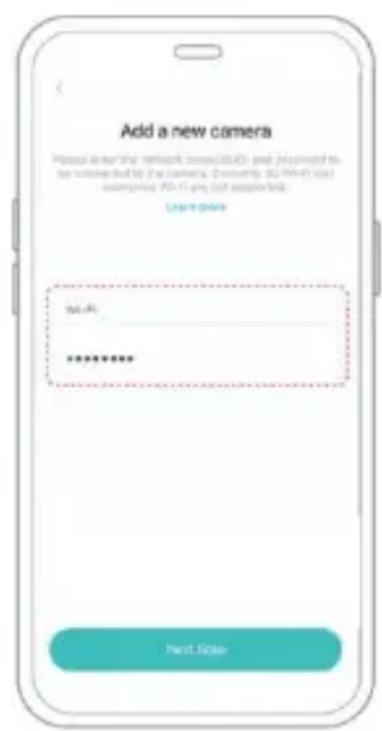
Vevor FB-A01 - HOW TO SET UP THE CAMERA - 2

text_image All devices Smart Camera
text_image All camera - No camera Add Camera Now

Vevor FB-A01 - HOW TO SET UP THE CAMERA - 3

text_image Add a new camera Also do the network (www.800) and user to be connected to the camera. Currently, led ARs and wireless ARs are not associated. User code: 50+ Fi *********
text_image Scan QR code to connect R-12 buttons After the connection is successful, it will automatically jump to the next step.
text_image about 7 inches (20cm)
text_image Connection succeeded Connect the camera to Wi-Fi Camera found Register to the cloud service Initialize the camera

SHARE THE CAMERA

text_image All camera Smart Camera Home Library User

Vevor FB-A01 - HOW TO SET UP THE CAMERA - 4

text_image Share Admin Info VI395366128 @scu-163.com Shared to. Invite
text_image Invite Permission Check the Live feed, playback video clips. How to invite? Please ask the invitee to download software first and follow the app guide to scan the QR code.

Vevor FB-A01 - HOW TO SET UP THE CAMERA - 5

text_image No Plan Camera Management Add Friend's Camera APP Language Location Management Feedback FAQ About VicoHome
natural_image Line drawing of a hand holding a smartphone displaying a QR code, next to a smartphone with a QR code (no text or symbols on the devices)

CHARGE THE CAMERA

text_image Activity Zone Once you set the Activity Zone only suggested intelligent about the accurate location will be pushed, while any other information will be checkout. No plan 全框看家 Awareness Cloud recording Intelligent Notification Activity Zone No plan 7 days 0-1000 × × Kaze 15 days 0-2000 ✓ ✓ Plus 30 days 0-4000 ✓ ✓ 30-day free trial Get it, buy now Cloud recording Extend up to 60 days with 10 GB cloud recording storage ISI types of Awareness Plan(s) to create the most secure video storage so that you will never miss any critical moment. No plan 全框看家 Awareness Intelligent Notification Identify the main content of the video: Person 30-day free trial Got it, buy now

Vevor FB-A01 - CHARGE THE CAMERA - 1

text_image To use this feature, you need to purchase the Awareness Plan Buy now Analysis item (multiple choices available) Person Pet Vehicle Package (Beta) After ticking the analysis item(s), the recorded video will be analyzed encrypted to recognize Person, Pet, Vehicle, or Package. You can tick more than one item.
text_image Bird feeder 18:13, 28:05/2024 Choose 00:01 00:06 18:13 Send feedback > A bird detected > A person passing by
text_image Bird feeder 18/13, 28/05/2024 Choose Possible Species Northern Red Bishop 92% Bird feeder 18/13, 28/05/2024 Choose Northern Red Bishop The northern red bishop or orange bishop (Euplectes franciscanus) is a small passerine bird in the family Ploceidae. It is part of the largest genus in the family with over 60 different species. Its sister species is the Southern red bishop (Euplectes orix). This species is most recognizable by the bright reddish orange with contrasting black plumage displayed by the breeding male. It is most common throughout the northern African continent but has also been introduced to areas in the western hemisphere.

Vevor FB-A01 - CHARGE THE CAMERA - 2

text_image Northern red bishop Article Talk A The northern red bishop or orange bishop (Euplectes franciscanus) is a small passerine bird in the family Ploceidae. It is part of the largest genus in the family with over 60 different species.[2] its sister species is the Southern red bishop (Euplectes onix). This species is most recognizable by the bright reddish orange with contrasting black plumage displayed by the breeding male. It is most common throughout the northern African continent but has also been introduced to areas in the western hemisphere. Northern red bishop AA en.m.wikipedia.org

NOTIFICATION SETTING

text_image Tue 28 Nanshan, Shenzhen 18:13 28° Cloudy H:31" L:26" Bird feeder Bird detected, looks like Northern Red Bishop!

Notification Setting

Motion Detection Notification

Vevor FB-A01 - Notification Setting - 1

Smart Push

Check now

Subscribe to Awareness for more features

Vevor FB-A01 - Smart Push - 1

Intelligent Notification

Identify the main content of the video: Person, Pet, Vehicle. And analyze its action behavior, make more intelligent push information.
Vevor FB-A01 - Intelligent Notification - 1

natural_image Silhouette of a person walking next to a large smartphone (no text or symbols visible)

Lite

Vevor FB-A01 - Intelligent Notification - 2

natural_image Illustration of a person walking next to a smartphone displaying app icons (no text or symbols on the device)

Awareness

Vevor FB-A01 - Intelligent Notification - 3

Activity Zone

Once you set the Activity Zone, only triggered messages about the accurate location will be pushed, while any other information will be filtered out.
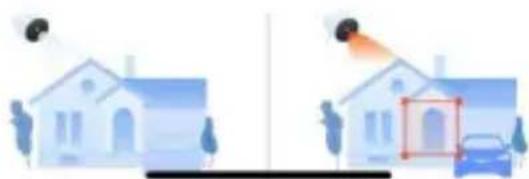
Vevor FB-A01 - Activity Zone - 1

natural_image Illustration of two houses with a car and a red box, no text or symbols present

BIRDFEEDER INSTALLATION

( 1 ) Installeer de beugel

Stap 1: Schroefbevestiging

natural_image Illustration showing a hand holding a screwdriver next to a device with three probes, alongside a close-up of the tool interacting with a tool (no text or symbols present)
natural_image Technical line drawing showing a mechanical assembly before and after transformation, with no visible text or symbols.
text_image Smart Camera 71% Place signal strong Wi-Fi strength: Strong Status: Online Location: Front door

Vevor FB-A01 - Stap 1: Schroefbevestiging - 1

text_image Medium Motion Detection

Vevor FB-A01 - Stap 1: Schroefbevestiging - 2

text_image Notification Settings

Vevor FB-A01 - Stap 1: Schroefbevestiging - 3

text_image Alarm Settings

Vevor FB-A01 - Stap 1: Schroefbevestiging - 4

text_image Video Settings

Vevor FB-A01 - Stap 1: Schroefbevestiging - 5

text_image Recommended height About 6 ft

( 3 ) Installeer zonnepanelen

POSSIBLE PROBLEMS WITH BINDING

C/O YH Consulting Limited Office 147, Centurion House,

London Road, Staines-upon-Thames, Surrey, TW18 4AX

Suite 250, 9166 Anaheim Place, Rancho Cucamonga, CA

9173 0

VEVOR®

TOUGH TOOLS, HALF PRICE

www.vevor.com/support

VEVOR®

TOUGH TOOLS, HALF PRICE

www.vevor.com/support

SMART FÅGELMATARE

We continue to be committed to provide you tools with competitive "Save Half", "Half Price" or any other similar expressions used by represents an estimate of savings you might benefit from buying certain with us compared to the major top brands and does not necessarily cover all categories of tools offered by us. You are kindly reminded carefully when you are placing an order with us if you are actually in comparison with the top major brands.

VEVOR®

TOUGH TOOLS, HALF PRICE

SMART BIRD FEEDER

natural_image Line drawing of a portable electronic device with a solar panel and control panel (no text or symbols)

NEED HELP? CONTACT US!

Have product questions? Need technical support? Please 1

free to contact us:

Technical Support and E-Warranty Certificate www.vevor.com/support

This is the original instruction, please read all manual ins carefully before operating. VEVOR reserves a clear interpr of our user manual. The appearance of the product shall to the product you received. Please forgive us that we w you again if there are any technology or software update product.

IMPORTANT SAFEGUARDS

Vevor FB-A01 - IMPORTANT SAFEGUARDS - 1

text_image MIC Indicator light Lens Human body infrared sensor Spotlight

Vevor FB-A01 - IMPORTANT SAFEGUARDS - 2

text_image Power input Micro-SD card slot Reboot hole Power button Rear shell fastening screws Speaker Antenna hole Power cord for charging Bracket screw hole

BIRD FEEDER PARTS NAME
Vevor FB-A01 - IMPORTANT SAFEGUARDS - 3

text_image Solar Panel Bird Camera Bird feeding Area Bird Stand

Vevor FB-A01 - IMPORTANT SAFEGUARDS - 4

text_image Antenna Power cord for charging Bird feeder bracket

STEPS OF ASSEMBLY

natural_image Line drawing of a mechanical device with a green arrow indicating rotation (no text or symbols)

Steg 2: Installera brickan

text_image Technical diagram showing the assembly of a fan-shaped device with numbered components and directional arrows indicating motion.

Steg 3: Installera en extern antenn

natural_image Line drawing of a portable electronic device with a left-side component and a right-side view showing a change (no text or symbols)

DOWNLOAD & INSTALL APP

text_image QR code image with rounded corners, no visible text or symbols beyond the matrix pattern

Vevor FB-A01 - DOWNLOAD & INSTALL APP - 1

text_image Android Download

Vevor FB-A01 - DOWNLOAD & INSTALL APP - 2

text_image App Store Download

Download App

text_image G Sign up for a new account Sign in

I understand and agree User Agreement and Privacy Policy

Next Step
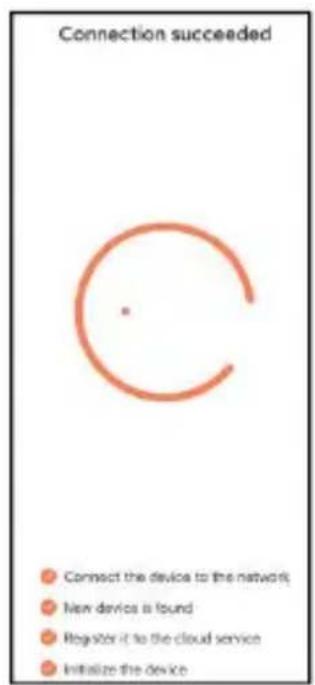
text_image Verification code Verification code has been sent to Resend after 107s Did not receive the verification code?
text_image Set password For the safety of your account, your password must contain at least one uppercase letter, one lowercase letter, and one number. It must have at least 8 characters. Enter password Enter password again Next Step
text_image Username Enter Username Done

HOW TO SET UP THE CAMERA

text_image Power Button Silicone Plug
text_image 2.4G Wi-fi
text_image Congratulations, you have successfully registered Please add a device Add a new device now!
text_image Power Button Indicator Light
text_image Turn on the device Battery device Please long press the power button until the device emits a tip sound. or Plug-in device Please connect to a power source until you hear an elect sound from the device and it completes the rotation. I heard the sound or saw the light on Next Stop Can not turn on?
text_image Confirm the device connection method Wi-Fi Connection Suitable for installation environment with Wi-Fi. Go Hotspot Direct Suitable for installation environment without Wi-Fi. When viewing the device, the phone will not be able to access the Internet. Go
text_image Configure Wi-Fi for the device Please enter a 2.4 GHz Wi-Fi network name (SSDI) and the password to connect to this device. Currently 3 GHz Wi-Fi and enterprise Wi-Fi networks are not supported. Learn more >> 2.4 GHz ✓ 5 GHz ✗ Wi-Fi name (SSDI) Password: 2nd Remember the Wi-Fi name and password after successful connection. Wi-Fi network saved QC1 Next Step
text_image When prompted, connect to the Wi-Fi network. Your camera creates a temporary network, allowing your phone to connect directly for an effortless setup process. Connect to device? • will use a temporary Wi-Fi network to connect to the device. IPC_T93G3XD90786 Cancel Connect
text_image Connecting... Connect the device to the network New device is found Register it to the cloud service Initialize the device Connection succeeded Connect the device to the network New device is found Register it to the cloud service Initialize the device
text_image Set a name and location for the device device Name Smart Camera Location Edit Front door Living room Garden Office Back door Garage + Done
text_image Device added successfully! The next step will guide you on how to install the device Let's start Continue adding another device first

Vevor FB-A01 - HOW TO SET UP THE CAMERA - 1

text_image All devices Smart Camera
text_image All camera - No camera Add Camera Now Add a new camera Please define the network (com/SMR) and parameters for complete or the camera. Currently, to NOT add a new camera. Add a new camera No-Fi **********
text_image Scan QR code to connect R-12 buttons After the connection is successful, it will automatically jump to the next step.
text_image about 7 inches (20cm)
text_image Connection succeeded Connect the camera to Wi-Fi Camera found Register to the cloud service Initialize the camera

SHARE THE CAMERA

text_image All camera Smart Camera Home Library User

Vevor FB-A01 - SHARE THE CAMERA - 1

text_image Share Admin info VI395366128 @bsv@163.com Shared to. Invite
text_image Invite Permission Check the Live feed, playback video clips. How to invite? Please ask the invitee to download software first and follow the app guide to scan the QR code.

Vevor FB-A01 - SHARE THE CAMERA - 2

text_image No Plan Camera Management Add Friend's Camera APP Language Location Management Feedback FAQ About VicoHome Home Library User
natural_image Line drawing of a hand holding a smartphone displaying a QR code, next to a smartphone with a QR code (no text or symbols on the devices)

CHARGE THE CAMERA

text_image Activity Zone Once you set the Activity Zone, only triggered stages about: The activity location will be putated, while any other information will be filtered out. No plan 全橙看来 Awareness Cloud recording Intelligent Notification Activity Zone No plan 7 days (1/2) × × Desk 15 days (2/2) ✓ ✓ Plug 30 days (3/2) ✓ ✓ 30-day free trial Got it, buy now Cloud recording Extend up to 60 days with 10 GB cloud recording storage (D types of Awareness Plans) to create the most secure video storage so that you will never miss any critical moment. No plan 全橙看来 Awareness Intelligent Notification Identify the main content of the video: Person, 30-day free trial Got it, buy now

Vevor FB-A01 - CHARGE THE CAMERA - 1

text_image To use this feature, you need to purchase the Awareness Plan Buy now Analysis item (multiple choices available) Person Pet Vehicle Package (Beta) After ticking the analysis item(s), the recorded video will be analyzed encrypted to recognize Person, Pet, Vehicle, or Package. You can tick more than one item.
text_image Bird feeder 18:13, 28:05/2024 Choose 08:01 00:06 18:13 Send feedback > A bird detached > A person passing by
text_image Bird feeder 18/13, 28/05/2024 Choose Possible Species Northern Red Bishop 92% Bird feeder 18/13, 28/05/2024 Choose Northern Red Bishop The northern red bishop or orange bishop (Euplectes franciscanus) is a small passerine bird in the family Ploceidae. It is part of the largest genus in the family with over 60 different species. Its sister species is the Southern red bishop (Euplectes orix). This species is most recognizable by the bright reddish orange with contrasting black plumage displayed by the breeding male. It is most common throughout the northern African continent but has also been introduced to areas in the western hemisphere.

Vevor FB-A01 - CHARGE THE CAMERA - 2

text_image Northern red bishop Article Talk A The northern red bishop or orange bishop (Euplectes franciscanus) is a small passerine bird in the family Ploceidae. It is part of the largest genus in the family with over 60 different species.[2] its sister species is the Southern red bishop (Euplectes onix). This species is most recognizable by the bright reddish orange with contrasting black plumage displayed by the breeding male. It is most common throughout the northern African continent but has also been introduced to areas in the western hemisphere. Northern red bishop AA en.m.wikipedia.org

NOTIFICATION SETTING

text_image Tue 28 Nanshan, Shenzhen 18:13 28° Cloudy H:31° L:26° Bird feeder Bird detected, looks like Northern Red Bishop!

Notification Setting

Motion Detection Notification

Vevor FB-A01 - Notification Setting - 1

Smart Push

Check now

Subscribe to Awareness for more features

Vevor FB-A01 - Smart Push - 1

Intelligent Notification

Identify the main content of the video: Person, Pet, Vehicle. And analyze its action behavior, make more intelligent push information.

Vevor FB-A01 - Intelligent Notification - 1

natural_image Silhouette of a person walking next to a large smartphone (no text or symbols visible)

Lite

Vevor FB-A01 - Intelligent Notification - 2

natural_image Illustration of a person walking next to a smartphone displaying app icons (no text or symbols on the device)

Awareness

Vevor FB-A01 - Intelligent Notification - 3

Activity Zone

Once you set the Activity Zone, only triggered messages about the accurate location will be pushed, while any other information will be filtered out.

Vevor FB-A01 - Activity Zone - 1

natural_image Illustration of two houses with a car and a red box, no text or symbols present

BIRDFEEDER INSTALLATION

natural_image Illustration showing a hand holding a medical device with three sensors, before and after the device's tip (no text or symbols present)
natural_image Technical line drawing of a mechanical device showing assembly and disassembly (no text or symbols)
text_image Smart Camera 71% Place signal strong Wi-Fi strength: Strong Status: Online Location: Front door

Vevor FB-A01 - BIRDFEEDER INSTALLATION - 1

text_image Medium Motion Detection

Vevor FB-A01 - BIRDFEEDER INSTALLATION - 2

text_image Notification Settings

Vevor FB-A01 - BIRDFEEDER INSTALLATION - 3

text_image Alarm Settings

Vevor FB-A01 - BIRDFEEDER INSTALLATION - 4

text_image Video Settings

Vevor FB-A01 - BIRDFEEDER INSTALLATION - 5

text_image Recommended height About 6 ft

( 3 ) Installera solpaneler

POSSIBLE PROBLEMS WITH BINDING

UK REP: YH CONSULTING LIMITED.

C/O YH Consulting Limited Office 147, Centurion House,

London Road, Staines-upon-Thames, Surrey, TW18 4AX

Importerad till AUS: SIHAO PTY LTD.

1 ROKEVA STREETEASTWOOD NSW 2122 Australien

Importerad till USA: Sanven Technology Ltd.

Suite 250, 9166 Anaheim Place, Rancho Cucamonga, CA

9173 0

VEVOR®

TOUGH TOOLS, HALF PRICE

www.vevor.com/support

VEVOR®

TOUGH TOOLS, HALF PRICE

www.vevor.com/support

COMEDERO INTELIGENTE PARA PÁJAROS ( CONcámara modelo QB

MODELO: FB-A01 , FB-A0 2, FB-A0 3, FB-A0 4, FB-A0 5, FB-A0 6

We continue to be committed to provide you tools with competitive "Save Half", "Half Price" or any other similar expressions used by represents an estimate of savings you might benefit from buying certain with us compared to the major top brands and does not necessarily cover all categories of tools offered by us. You are kindly reminded carefully when you are placing an order with us if you are actually in comparison with the top major brands.

VEVOR®

TOUGH TOOLS, HALF PRICE

SMART BIRD FEEDER

natural_image Line drawing of a portable electronic device with a solar panel and control panel (no text or symbols)

NEED HELP? CONTACT US!

Have product questions? Need technical support? Please 1

free to contact us:

Technical Support and E-Warranty Certificate www.vevor.com/support

This is the original instruction, please read all manual ins carefully before operating. VEVOR reserves a clear interpr of our user manual. The appearance of the product shall to the product you received. Please forgive us that we w you again if there are any technology or software update product.

IMPORTANT SAFEGUARDS

Vevor FB-A01 - IMPORTANT SAFEGUARDS - 1

text_image MIC Indicator light Lens Human body infrared sensor Spotlight

Vevor FB-A01 - IMPORTANT SAFEGUARDS - 2

text_image Power input Micro-SD card slot Reboot hole Power button Rear shell fastening screws Speaker Antenna hole Power cord for charging Bracket screw hole

BIRD FEEDER PARTS NAME
Vevor FB-A01 - IMPORTANT SAFEGUARDS - 3

text_image Solar Panel Bird Camera Bird feeding Area Bird Stand

Vevor FB-A01 - IMPORTANT SAFEGUARDS - 4

text_image Antenna Power cord for charging Bird feeder bracket

STEPS OF ASSEMBLY

natural_image Line drawing of a mechanical device with a green arrow indicating rotation (no text or symbols)

Paso 2: instale la bandeja

text_image Technical diagram showing the assembly of a fan-shaped device with numbered components and directional arrows indicating motion.

Paso 3: instale una antena externa

natural_image Line drawing of a portable electronic device with a left-side component and a right-side view showing a change (no text or symbols)

DOWNLOAD & INSTALL APP

text_image QR code image with rounded corners, no visible text or symbols beyond the matrix pattern

Vevor FB-A01 - DOWNLOAD & INSTALL APP - 1

text_image Android Download

Vevor FB-A01 - DOWNLOAD & INSTALL APP - 2

text_image App Store Download

Download App

text_image G Sign up for a new account Sign in

I understand and agree User Agreement and Privacy Policy

Next Step
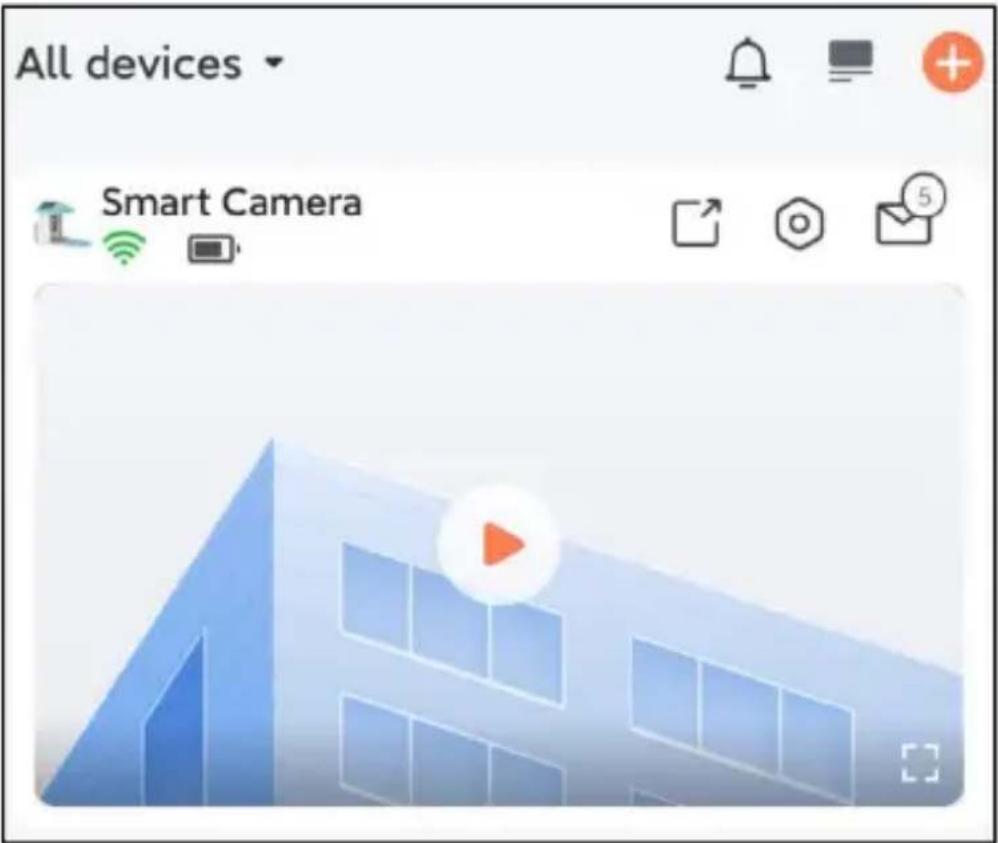
text_image Verification code Verification code has been sent to Resend after 107s Did not receive the verification code?
text_image Set password For the safety of your account, your password must contain at least one uppercase letter, one lowercase letter, and one number. It must have at least 8 characters. Enter password Enter password again Next Step
text_image Username Enter Username Done

HOW TO SET UP THE CAMERA

text_image Power Button Silicone Plug
text_image 2.4G Wi-fi
text_image Congratulations, you have successfully registered Please add a device Add a new device now !
text_image Power Button Indicator Light
text_image Turn on the device Battery device Please long press the power button until the device emits a tip sound. Plug-in device Please connect to a power source until you hear an alert sound from the device and it completes the rotation. I heard the sound or saw the light on. Next Step Can not turn on?
text_image Confirm the device connection method Wi-Fi Connection Suitable for installation environment with Wi-Fi. Go Hotspot Direct Suitable for installation environment without Wi-Fi. When viewing the device, the phone will not be able to access the Internet. Go
text_image Configure Wi-Fi for the device Please enter a 2.4 GHz Wi-Fi network name (5500) and the password to connect to the device. Currently 5 GHz Wi-Fi and enterprise Wi-Fi networks are not supported. Learn more >> 2.4 GHz ✓ 5 GHz ✗ Wi-Fi Name (5500) Received: Remember the Wi-Fi name and password after successful connection. Wi-Fi network saved QC1 Next Step
text_image When prompted, connect to the Wi-Fi network. Your camera creates a temporary network. allowing your phone to connect directly for an effortless setup process. Connect to device? • will use a temporary Wi-Fi network to connect to the device. IPC_T93G3XD90786 Cancel Connect
text_image Connecting... Connect the device to the network. !!! Now devices is found !!! Registers it to the cloud service !!! Initialize the device

Vevor FB-A01 - HOW TO SET UP THE CAMERA - 1

text_image Connection succeeded Connect the device to the network New devices is found Register it to the cloud service Initialize the device
text_image Set a name and location for the device device Name Smart Camera Location Edit Front door Living room Garden Office Back door Garage + Done

Device added successfully!

The next step will guide you on how to install the device

Vevor FB-A01 - Device added successfully! - 1

natural_image Simple icon of a smartphone with three dots and a horizontal bar (no text or symbols)

Let's start

Continue adding another device first

Vevor FB-A01 - Device added successfully! - 2

text_image All devices Smart Camera
text_image All camera - No camera Add Camera Now

Vevor FB-A01 - Device added successfully! - 3

text_image Add a new camera Please do for the Network (NOR) and account to by comma add to the camera. Currently, led Windows and enhanced, Auto-Fi does not missuaded. User.mono Auto-Fi ****** Next Call
text_image Scan QR code to connect RQ code After the connection is successful, it will automatically suit it to the next site.
text_image about 7 inches (20cm)
text_image Connection succeeded Connect the camera to Wi-Fi Camera found Register to the cloud service Initialize the camera

SHARE THE CAMERA

text_image All camera Smart Camera Home Library User

Vevor FB-A01 - SHARE THE CAMERA - 1

text_image Share Admin info VI395366128 absc@163.com Shared to. Invite
text_image Invite Permission Check the Live feed, playback video clips. How to invite? Please ask the invitee to download software first and follow the app guide to scan the QR code.

Vevor FB-A01 - SHARE THE CAMERA - 2

text_image No Plan Camera Management Add Friend's Camera APP Language Location Management Feedback FAQ About VicoHome Home Library User
natural_image Line drawing of a hand holding a smartphone displaying a QR code, next to a smartphone with a QR code (no text or symbols on the devices)

CHARGE THE CAMERA

text_image Activity Zone Once you set the activity zone, only triggered stresses about the appropriate location will be pushed, while any other information will be steemed out. No plan 全德看菜 Awareness Cloud recording Instagram Notification Activity Zone No plan 7 days (18) × × Katz 15 days (20) ✓ ✓ Plus 30 days (30) ✓ ✓ 30-day tree trial Got it, buy now

Vevor FB-A01 - CHARGE THE CAMERA - 1

text_image Cloud recording Extend up to 60 days with 10 GB cloud recording storage (3 types of Awareness Plans) to create the mail secure video storage so that you will never miss any critical moment. No plan 全橙看家 Awareness Intelligent Notification Identify the main content of the video; Persons 30-day free trial! Got it, buy now

Vevor FB-A01 - CHARGE THE CAMERA - 2

text_image To use this feature, you need to purchase the Awareness Plan Buy now Analysis item (multiple choices available) Person Pet Vehicle Package (Beta) After ticking the analysis items, the recorded video will be analyzed encrypted to recognize Person, Pet, Vehicle, or Package. You can tick more than one item.
text_image Bird feeder 18:13, 28/05/2024 Choose 06:01 00:06 18:13 Send feedback > A bird defected > A person passing by
text_image Bird feeder 18:13, 26/05/2024 Choose Possible Species Northern Red Bishop 92% >

Vevor FB-A01 - CHARGE THE CAMERA - 3

text_image Bird feeder Choose Northern Red Bishop The northern red bishop or orange bishop (Euplectes franciscanus) is a small passerine bird in the family Ploceidae. It is part of the largest genus in the family with over 60 different species. Its sister species is the Southern red bishop (Euplectes orix). This species is most recognizable by the bright reddish orange with contrasting black plumage displayed by the breeding male. It is most common throughout the northern African continent but has also been introduced to areas in the western hemisphere.

Vevor FB-A01 - CHARGE THE CAMERA - 4

text_image Northern red bishop Article Talk YA The northern red bishop or orange bishop (Euplectes franciscanus) is a small passerine bird in the family Placeidae. It is part of the largest genus in the family with over 60 different species.[2] Its sister species is the Southern red bishop (Euplectes only). This species is most recognizable by the bright reddish orange with contrasting black plumage displayed by the breeding male. It is most common throughout the northern African continent but has also been introduced to areas in the western hemisphere. Northern red bishop AA en.m.wikipedia.org

NOTIFICATION SETTING

text_image Tue 28 Nanshan, Shenzhen 18:13 28° Cloudy H:31" L:26" Bird feeder Bird detected, looks like Northern Red Bishop!

Notification Setting

Motion Detection Notification

Vevor FB-A01 - Notification Setting - 1

Smart Push

Check now

Subscribe to Awareness for more features

Vevor FB-A01 - Smart Push - 1

Intelligent Notification

Identify the main content of the video: Person, Pet, Vehicle. And analyze its action behavior, make more intelligent push information.
Vevor FB-A01 - Intelligent Notification - 1

natural_image Silhouette of a person walking next to a large smartphone (no text or symbols visible)

Lite

Vevor FB-A01 - Intelligent Notification - 2

natural_image Illustration of a person walking next to a smartphone displaying app icons (no text or symbols on the device)

Awareness

Vevor FB-A01 - Intelligent Notification - 3

Activity Zone

Once you set the Activity Zone, only triggered messages about the accurate location will be pushed, while any other information will be filtered out.
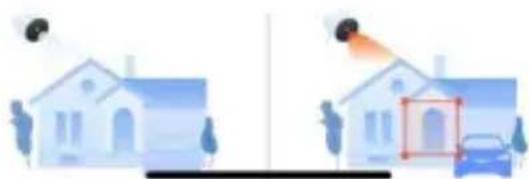
Vevor FB-A01 - Activity Zone - 1

natural_image Illustration of two houses with a car and a red box, no text or symbols present

BIRDFEEDER INSTALLATION

( 1 ) Instale el soporte

natural_image Illustration showing a tool interacting with a device and its corresponding outline (no text or symbols present)
natural_image Technical line drawing of a mechanical device showing assembly steps (no text or symbols)
text_image Smart Camera 71% Place signal strong Wi-Fi strength: Strong Status: Online Location: Front door

Vevor FB-A01 - ( 1 ) Instale el soporte - 1

text_image Medium Motion Detection

Vevor FB-A01 - ( 1 ) Instale el soporte - 2

text_image Notification Settings

Vevor FB-A01 - ( 1 ) Instale el soporte - 3

text_image Alarm Settings

Vevor FB-A01 - ( 1 ) Instale el soporte - 4

text_image Video Settings

Vevor FB-A01 - ( 1 ) Instale el soporte - 5

text_image Recommended height About 6 ft

( 3 ) instalar paneles solares

POSSIBLE PROBLEMS WITH BINDING

C/O YH Consulting Limited Oficina 147, Centurion House, London Road, Staines-upon-Thames, Surrey, TW18 4AX Importado a AUS: SIHAO PTY LTD.

1 ROKEVA STREET ASTWOOD NSW 2122 Australia Importado a EE. UU.: Sanven Technology Ltd.

Suite 250, 9166 Anaheim Place, Rancho Cucamonga, CA 9173 0

VEVOR®

TOUGH TOOLS, HALF PRICE

www.vevor.com/support
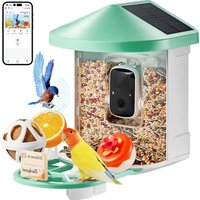
Table of contents Click a title to access it
Manual assistant
Powered by Anthropic
Waiting for your message
Product information

Brand : Vevor

Model : FB-A01

Category : Bird feeder