
FB-A03 - Bird feeder Vevor - Free user manual and instructions
Find the device manual for free FB-A03 Vevor in PDF.
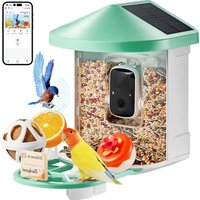


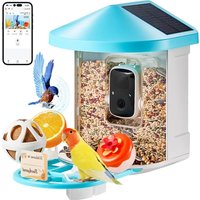
| Product Type | Smart bird feeder with built-in camera |
| Brand | Vevor |
| Model | FB-A03 |
| Color | Green |
| Dimensions with platform | 335 x 220 x 275 mm |
| Dimensions without platform | 220 x 220 x 275 mm |
| Seed reservoir capacity | 2 L |
| Power supply | Rechargeable battery 5200 mAh, 2 W solar panel (DC 5 V ±5 %), 5 V / 1.5 A power adapter (Type C) |
| Camera | Q8 camera: 1920x1080 resolution, field of view H145° V85°, infrared night vision |
| Connectivity | Wi-Fi 2.4 GHz (does not support 5 GHz) |
| Storage | Cloud (30-day free trial) and micro SD card up to 128 GB (not included) |
| App | VicoHome (iOS and Android) |
| Smart functions | Motion detection, push alerts, AI bird recognition (subscription after 30 days) |
| Included accessories | Feeder, camera, material tray, external antenna, wall mount, Velcro straps, Type C cable, screws, screwdriver, suet ball, hummingbird feeder, fruit holder, jelly feeder, welcome card, manual |
| Installation | Wall or tree mounting, adjustable camera orientation |
| Maintenance | Clean the reservoir and camera regularly with a soft cloth; avoid water exposure |
| Safety | Use only the specified adapter; do not expose to extreme temperatures; keep camera dry |
| Repairability | Built-in non-removable battery; replaceable SD card; technical support via electronic warranty |
| Certification | FCC ID: 2AXBN-Q5, CE |
Frequently Asked Questions - FB-A03 Vevor
User questions about FB-A03 Vevor
0 question about this device. Answer the ones you know or ask your own.
Ask a new question about this device
Download the instructions for your Bird feeder in PDF format for free! Find your manual FB-A03 - Vevor and take your electronic device back in hand. On this page are published all the documents necessary for the use of your device. FB-A03 by Vevor.
USER MANUAL FB-A03 Vevor
Technical Support and E-Warranty Certificate
www.vevor.com/support
SMART BIRD FEEDER
(with Q8 model Camera)
We continue to be committed to providing you with tools at competitive prices. "Save Half", "Half Price", or any other similar expressions used represent an estimate of savings you might benefit from buying certain products with us compared to the major top brands and do not necessarily cover all categories of tools offered by us. You are kindly reminded to carefully consider when placing an order with us if you are actually comparing with the top major brands.
VEVOR®
TOUGH TOOLS, HALF PRICE
SMART BIRD FEEDER
NEED HELP? CONTACT US!
Have product questions? Need technical support? Please feel free to contact us:
Technical Support and E-Warranty Certificate www.vevor.com/support
This is the original instruction. Please read all manual instructions carefully before operating. VEVOR reserves the right to provide a clear interpretation of our user manual. The appearance of the product shall be subject to the product you received. Please forgive us if we do not notify you again if there are any technology or software updates to the product.
IMPORTANT SAFEGUARDS

WARNING: To reduce the risk of serious injury when using your electric countertop composter and accessories, please follow these safety precautions, including the following.
Read all instructions before using the appliance.
1) The bird feeder is equipped with a camera model Q8, which can be connected to a wireless network, allowing you to observe and record birds eating using a mobile phone. 2) The accessories include a suet ball, Mini Hummingbird Feeder, Fruit Holder, Jelly Feeder, and Welcome Card, ideal for bird lovers. Wider extension perch for DIY.
PRODUCT PARAMETER
| Model | FB-A01 | FB-A02 |
| Color | Green | Blue |
| Solar panel | 3W (DC 5±5%) 172*120*5mm | |
| Camera mode | Q8 | |
| Camera lens | Field of view: H145° V85° D1 | |
| Image resolution | Max.1920x1080 | |
| Video bit rate | Adaptive | |
| Storage media | Cloud Storage, Micro SD Car | |
| Battery capacity | 5200mAh | |
| Adapter requirement | DC 5V±5%/1.5A | |
| Feeder capacity | 2L | |
| Product size | 335*220*275mm (with Platform)220*220*275mm (no Platform) | |
Note: The SD card is not included, and it is not necessary (supports up to 128GB SD card).
PRODUCT PARAMETER
| Model | FB-A03 | FB-A04 |
| Color | Green | Blue |
| Solar panel | 2W (DC 5V+-5%) 95*95*2.5mm | |
| Camera mode | Q8 | |
| Camera lens | Field of view: H145° V85° D185 | |
| Image resolution | Max.1920x1080 | |
| Video bit rate | Adaptive | |
| Storage media | Cloud Storage, Micro SD Card | |
| Battery capacity | 5200mAh | |
| Adapter requirement | DC 5 ± 5%/1.5A | |
| Feeder capacity | 2L | |
| Product size | 335*220*275mm (with Platform)220*220*275mm (no Platform) | |
Note: The SD card is not included, and it is not necessary (supports up to 128GB SD card).
PRODUCT PARAMETER
| Model | FB-A05 | FB-A06 |
| Color | Green | Blue |
| Solar panel | 3W (DC 51/5%) 172*120*5mm2W (DC 51/5%) 95*95*2.5mm | |
| Camera mode | Q8 | |
| Camera lens | Field of view: H145° V85° D185 | |
| Image resolution | Max.1920x1080 | |
| Video bit rate | Adaptive | |
| Storage media | Cloud Storage, Micro SD Card | |
| Battery capacity | 5200mAh | |
| Adapter requirement | DC 5V±5%/1.5A | |
| Feeder capacity | 2L | |
| Product size | 335*220*275mm (with Platform)220*220*275mm (no Platform) | |
Note: The SD card is not included, and it is not necessary (supports up to 128GB SD card).
PACKAGE CONTENTS
Common parts
| NO. | Name | Picture | Quantity |
| 1 | Feeder | 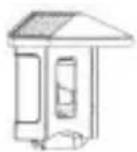 | 1 pc |
| 2 | Camera | 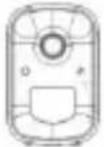 | 1 pc |
| 3 | Material Tray | 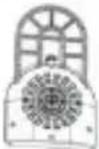 | 1 pc |
| 4 | External Antenna | 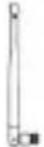 | 1 pc |
| 5 | Bird feeder bracket | 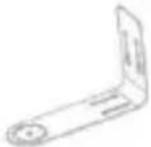 | 1 pc |
| 6 | Drilling Template Sticker | [67AO] | 1 pc |
| 7 | Velcro straps | 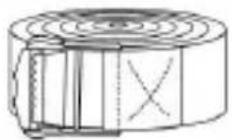 | 1 pc |
| 8 | Type-C Power Cable | 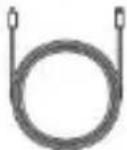 | 1 pc |
| 9 | Bracket ScrewsM3.5*16mm | 3 pcs | |
| 10 | Bracket ScrewsM4*50mm | 2 pcs | |
| 11 | Anchors | 2 pcs | |
| 12 | Thumb Screws | 1 pc | |
| 13 | Screwdriver | 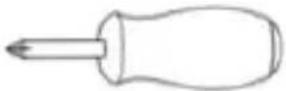 | 1 pc |
| 14 | Suet Ball | 1 pc | |
| 15 | Hummingbird Feeder | 1 pc | |
| 16 | Fruit Holder |  | 2 pcs |
| 17 | Jelly Feeder |  | 1 pcs |
| 18 | Cardboard (*1pc)Stickers (*4pcs) |  | 1 set |
| 19 | User Manual |  | 1 pc |
Optional parts (except FB-A03 & FB-A04)
| NO. | Name | Picture | Quantity |
| 1 | External Solar Panel | 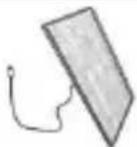 | 1 pc |
| 2 | Fixed Bracket | 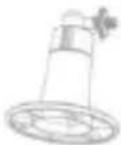 | 1 pc |
| 3 | Bracket Screws M3.5*25mm | 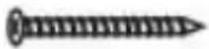 | 4 pcs |
| 4 | Anchors | 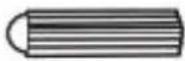 | 4 pcs |
| 5 | Ejector Pin |  | 1 pc |
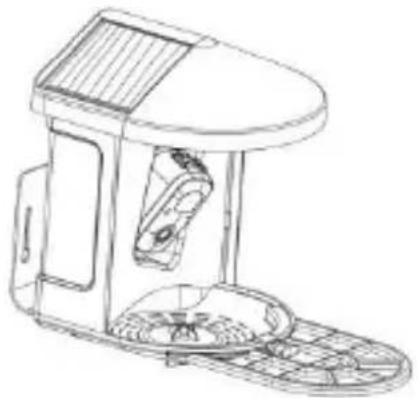
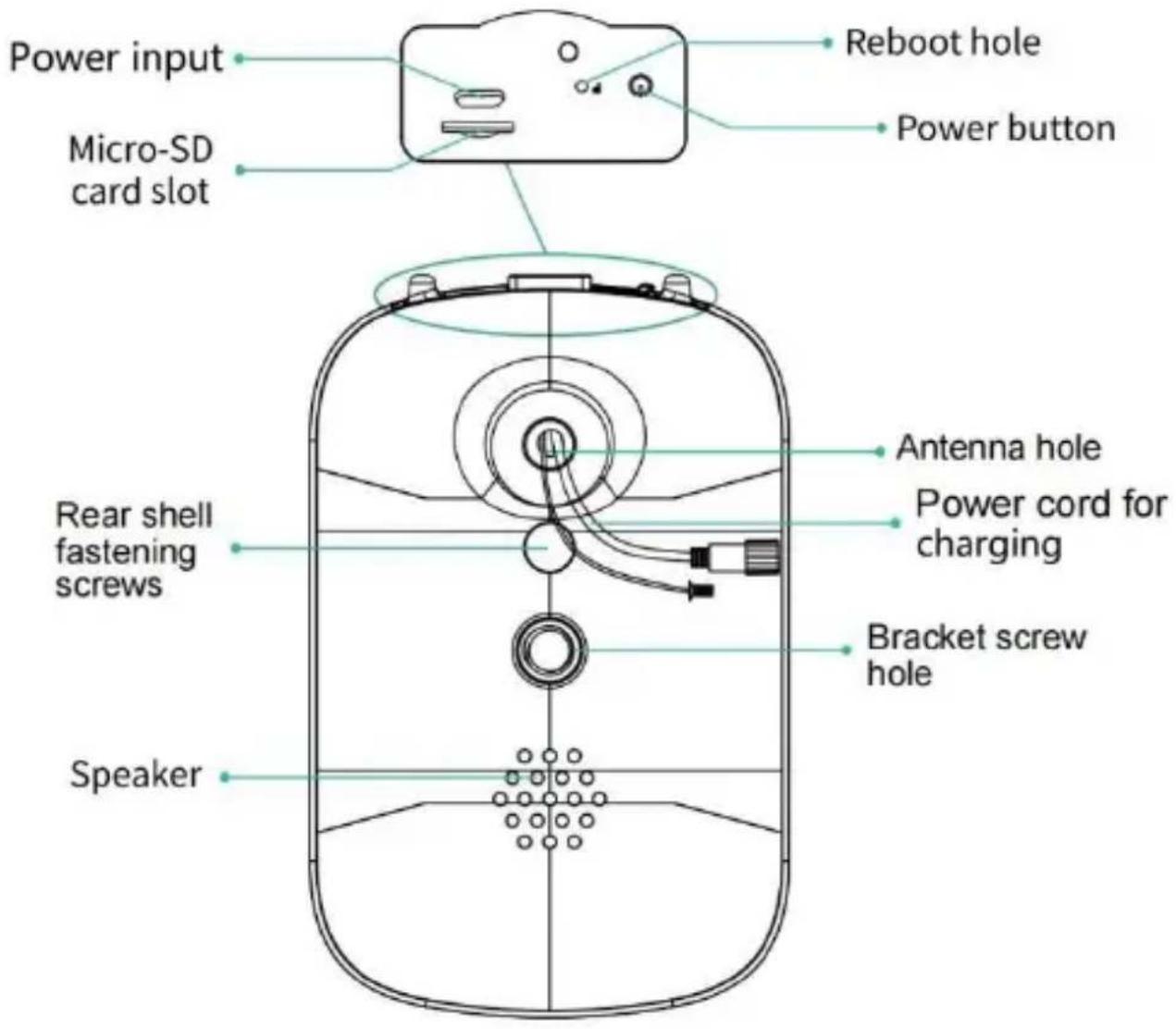
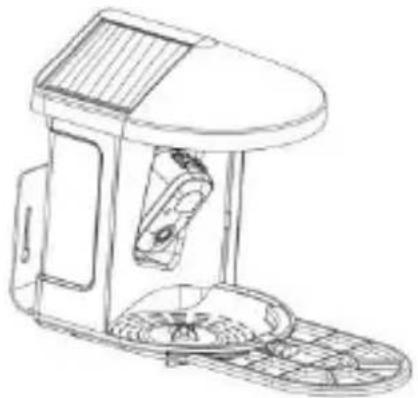
BIRD CAMERA APPEARANCE
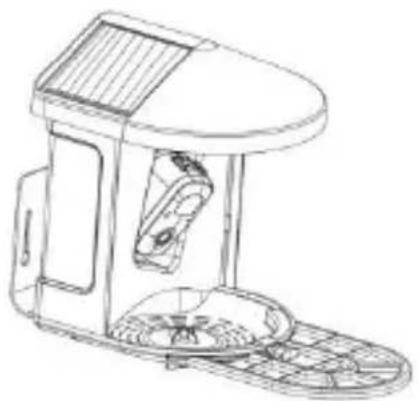
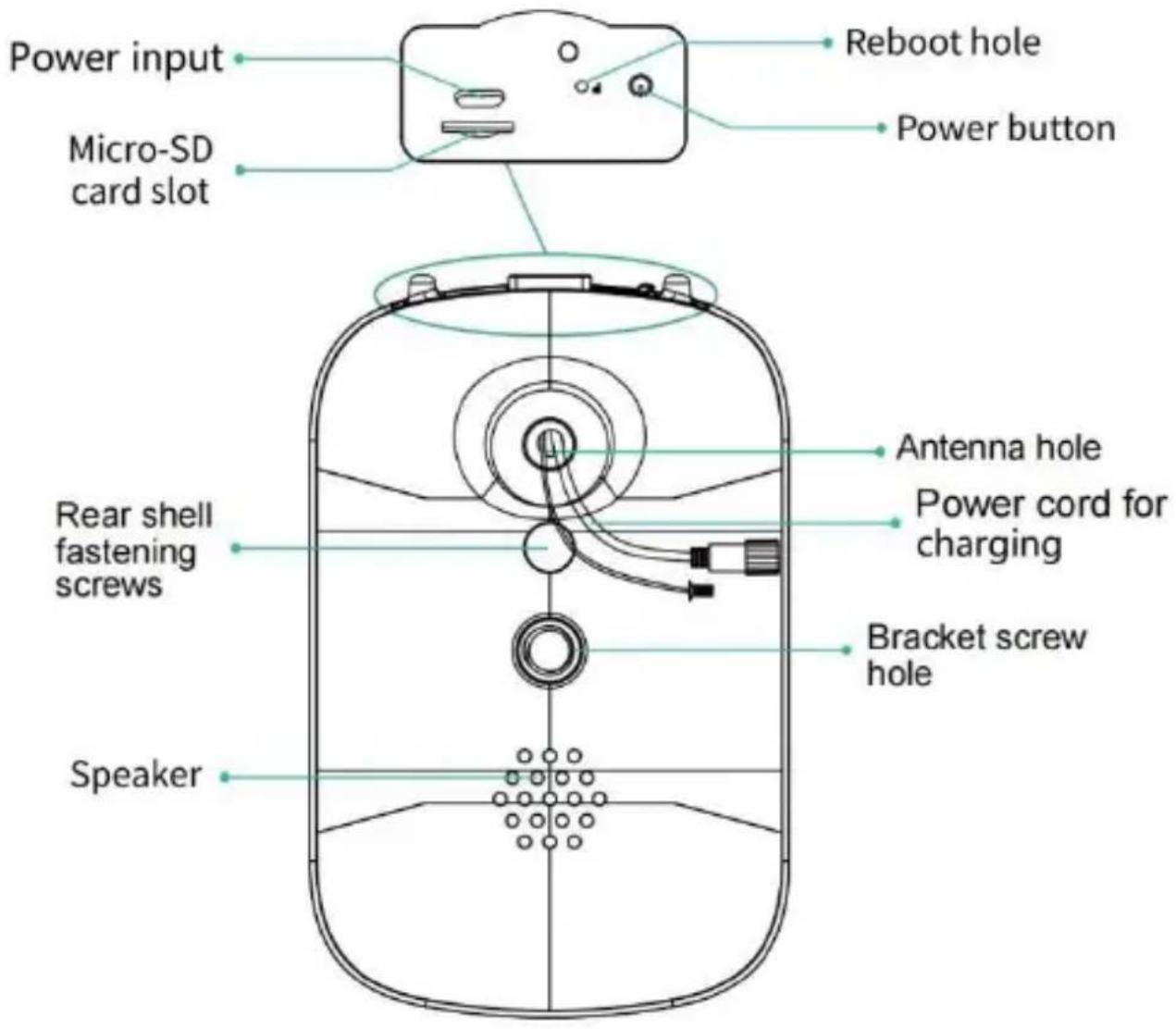
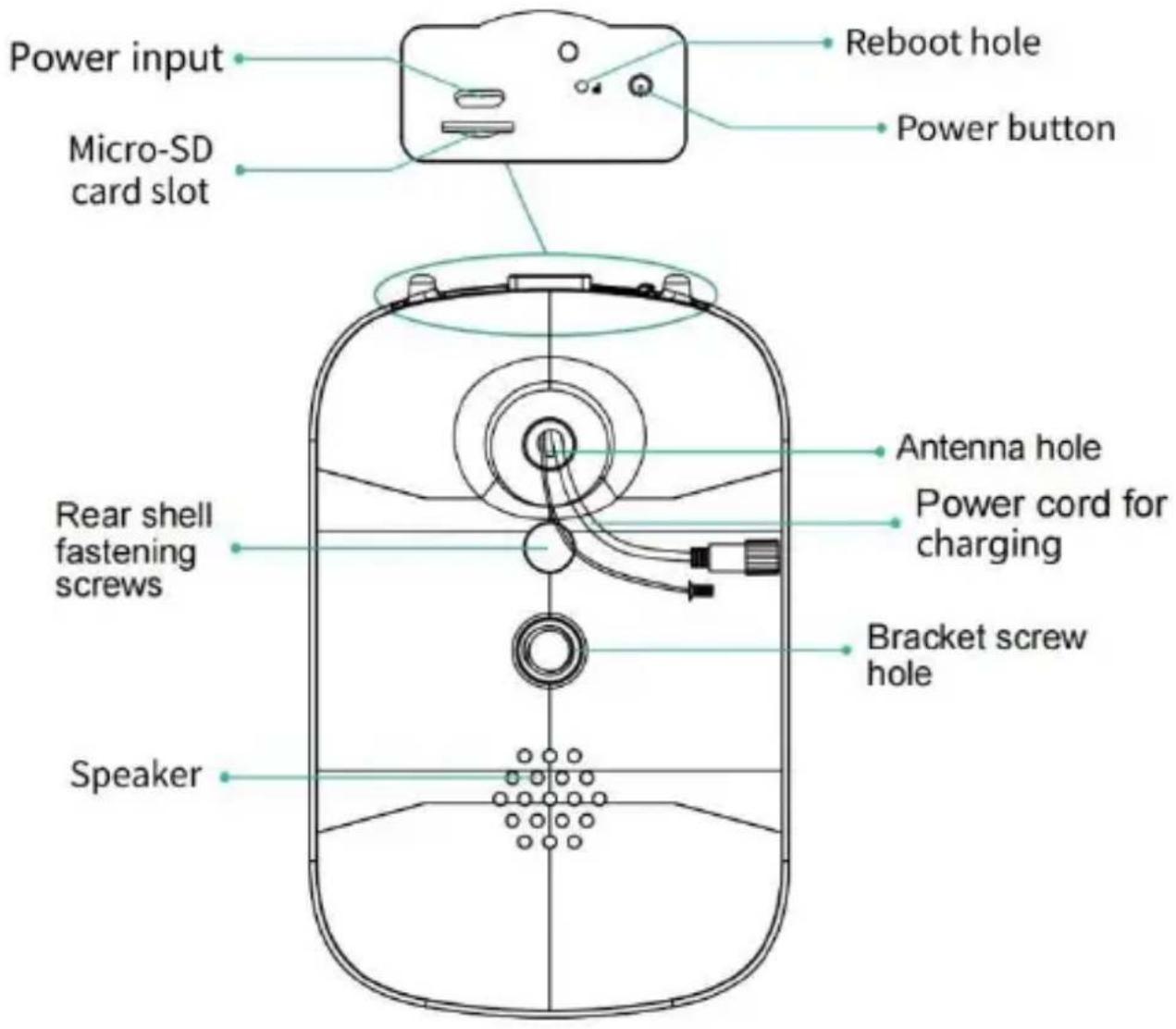
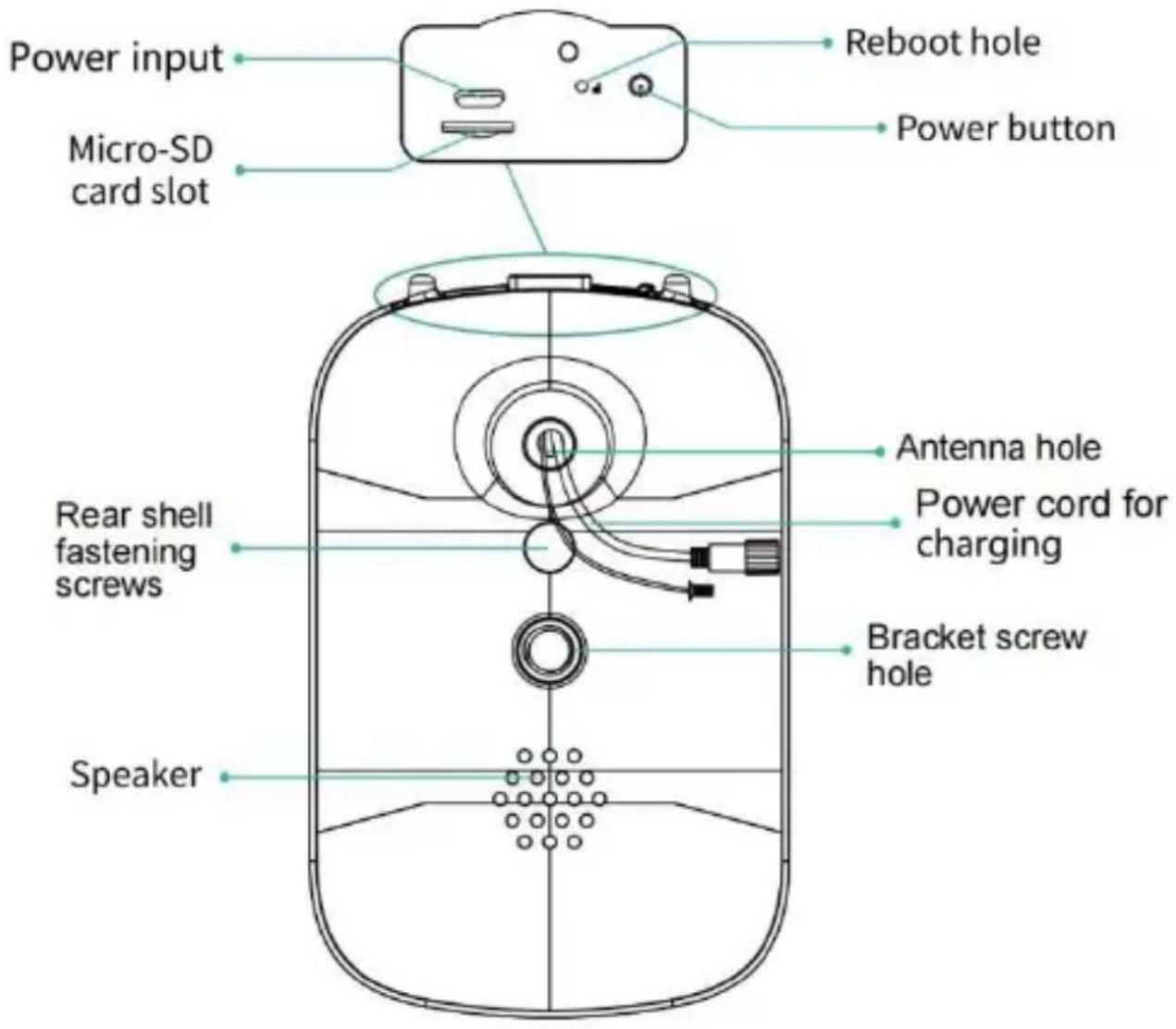
The bird feeder is equipped with a camera model Q8, which is FCC-ID certified.
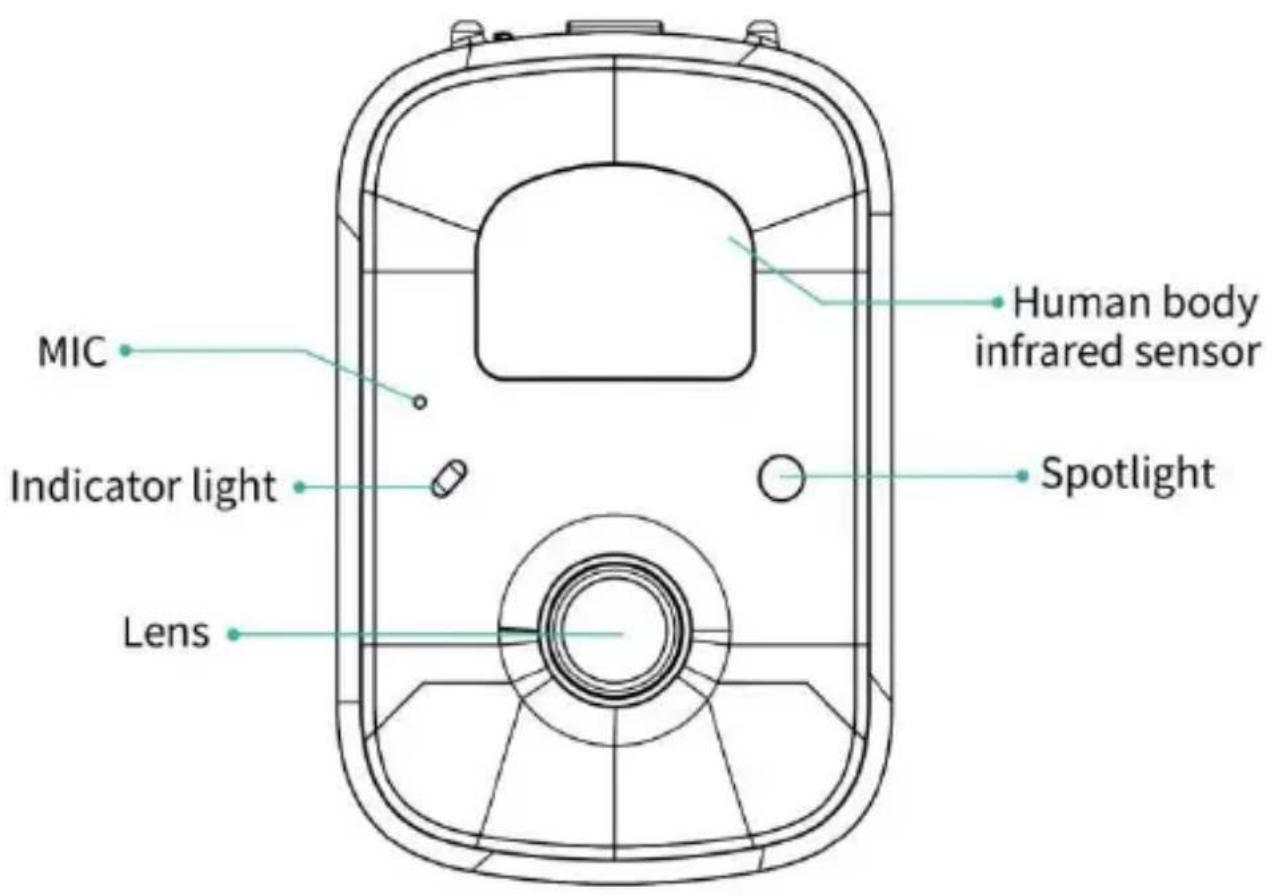
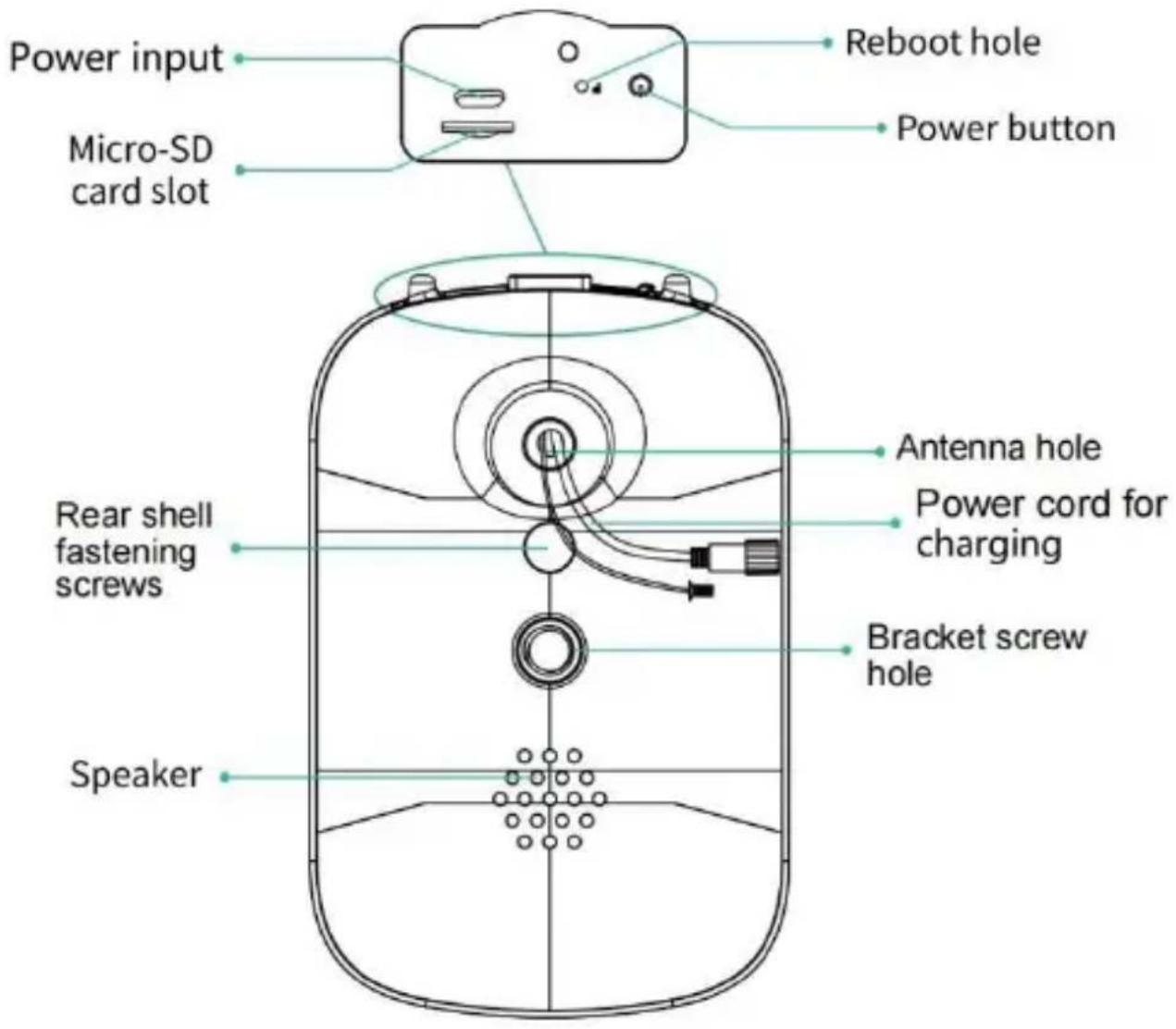
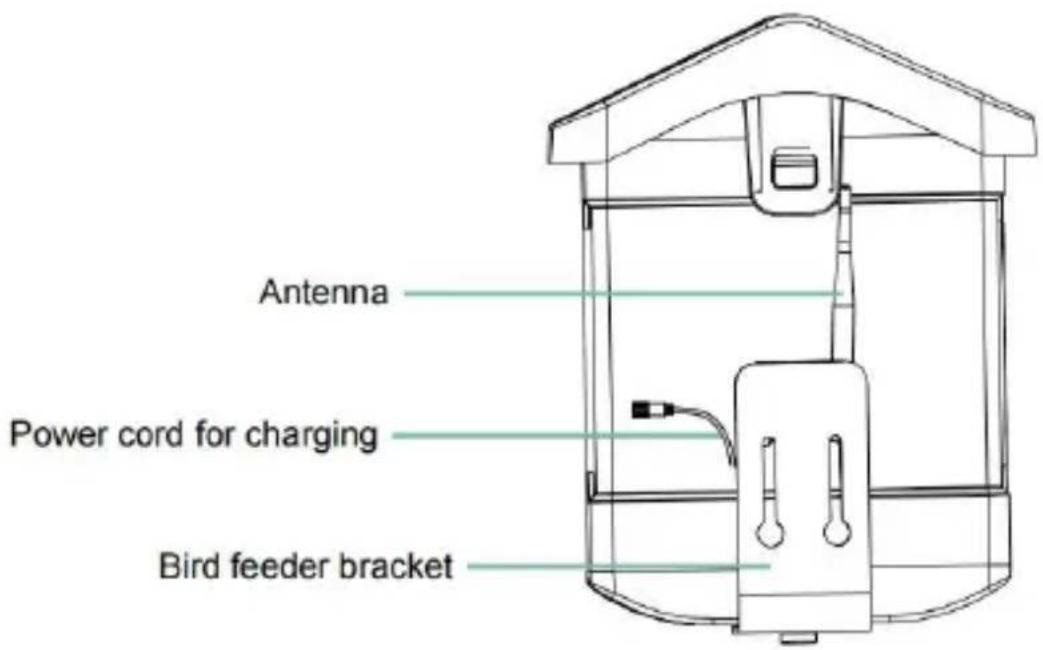
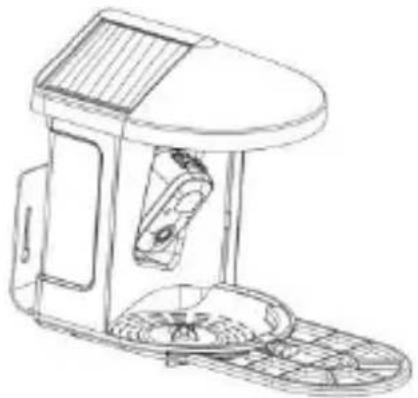
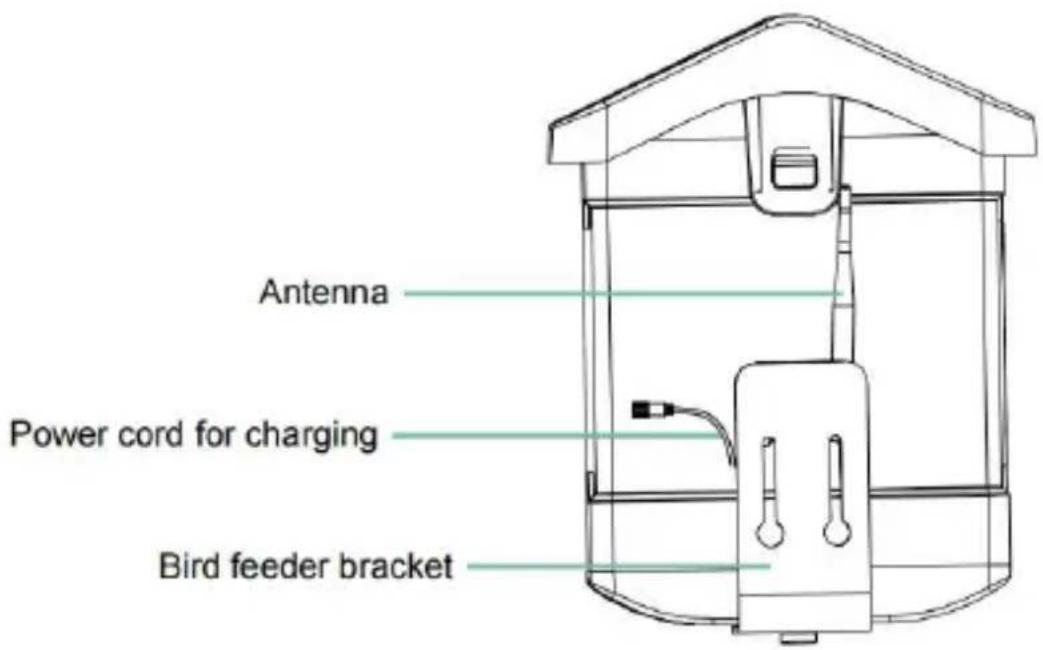
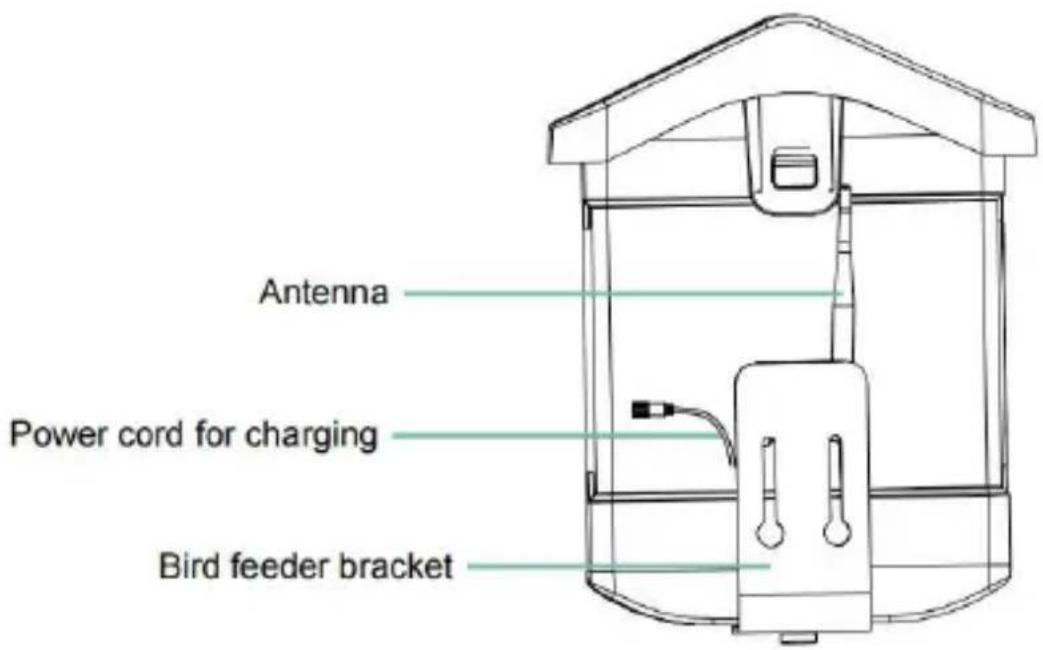
BIRD FEEDER PARTS NAME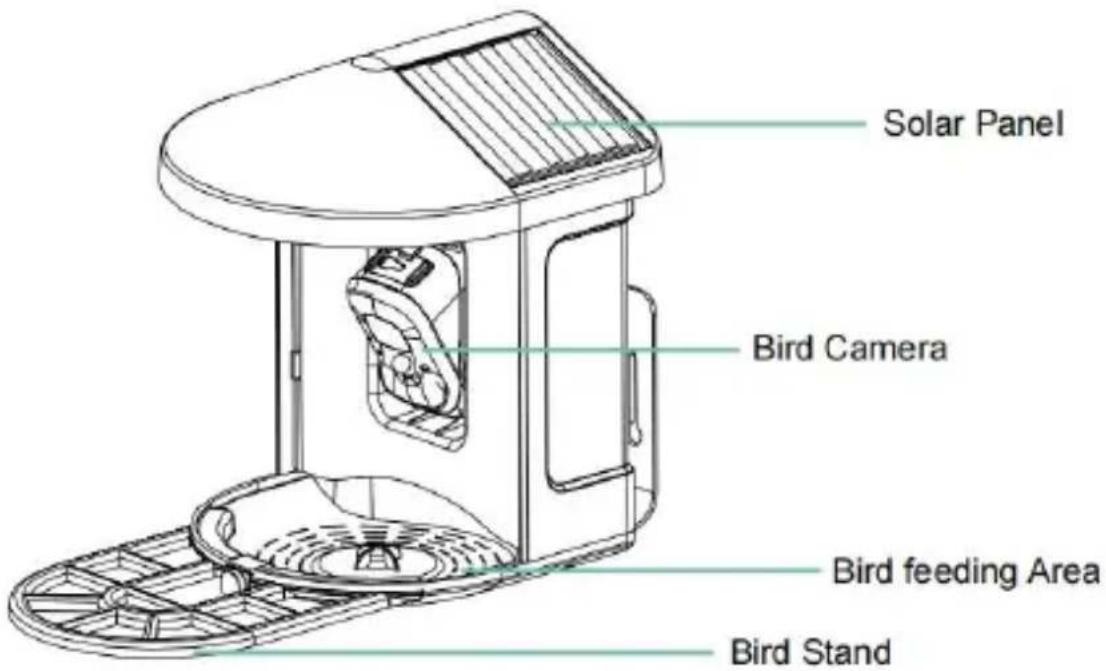
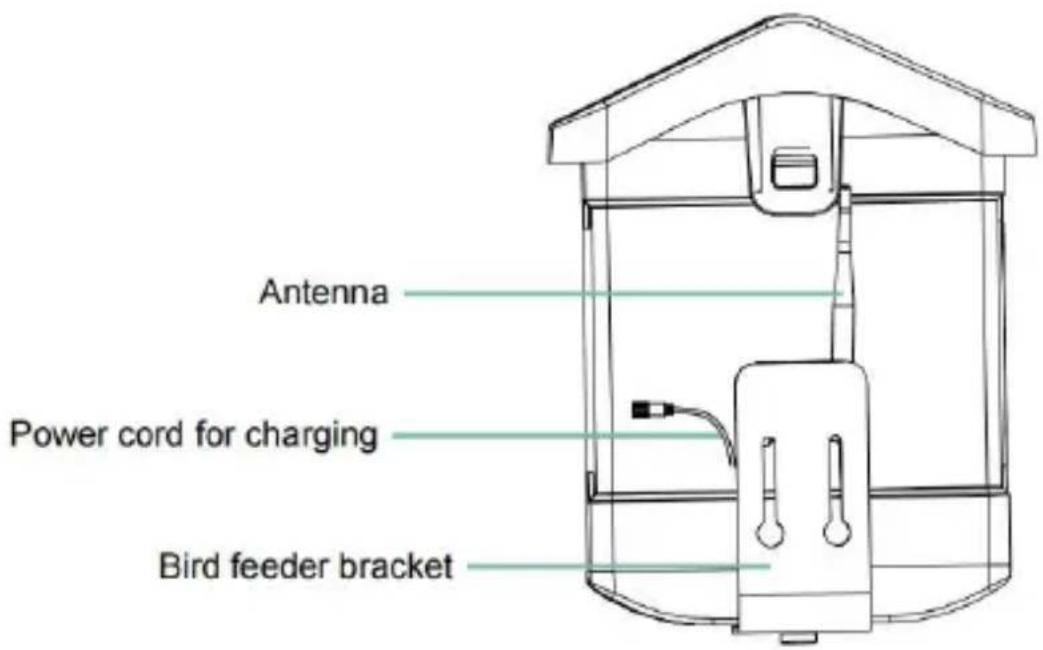
STEPS OF ASSEMBLY
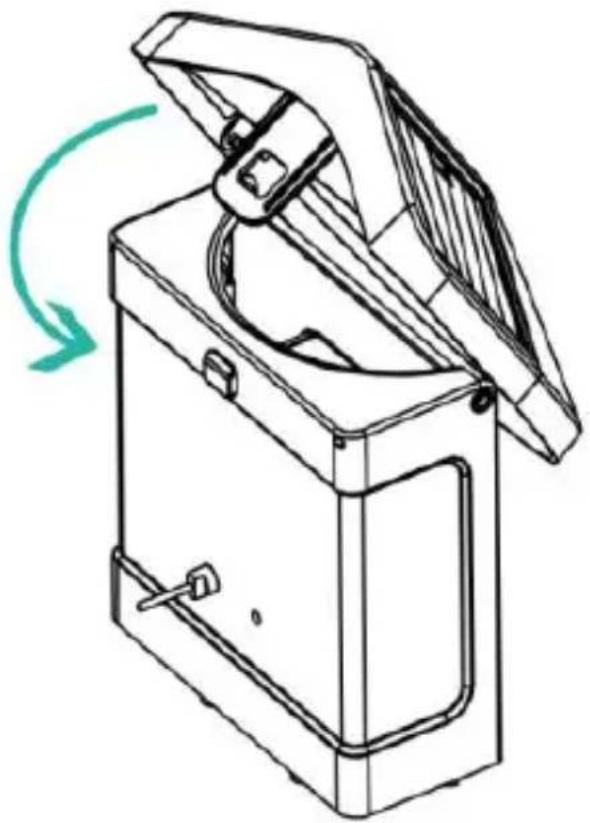
Step 1: Assemble the upper cover
Turn the upper cover down so that it fastens onto the middle shell.
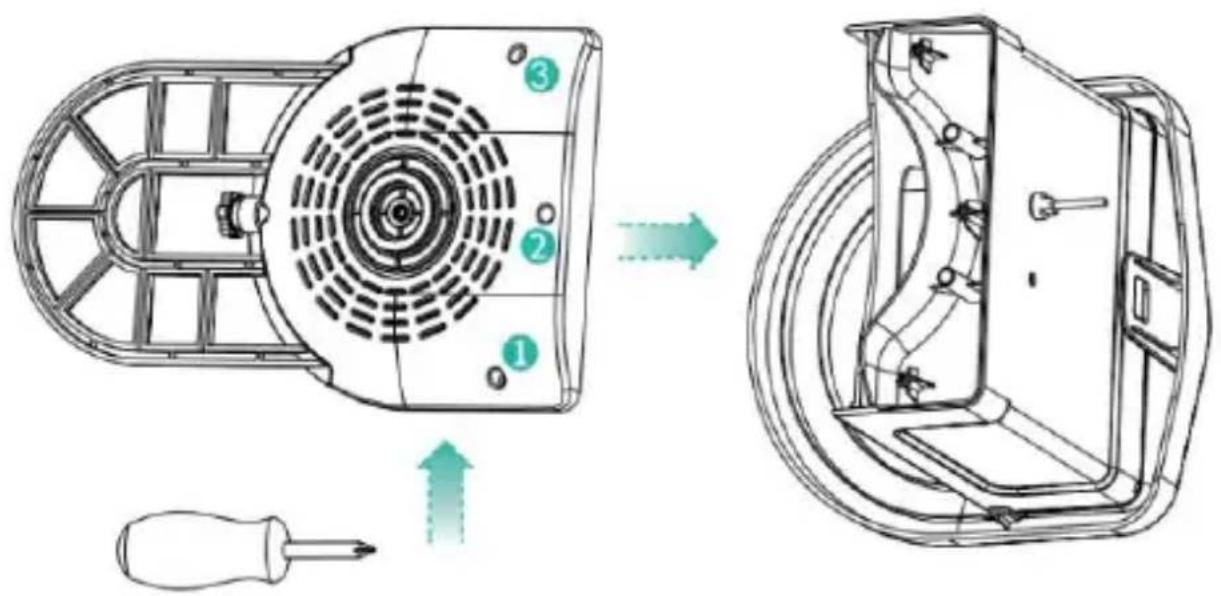
Step 2: Install the tray
Clamp the material tray to the bottom of the main body of the equipment, put in 3 screws and tighten them with a cross screwdriver.
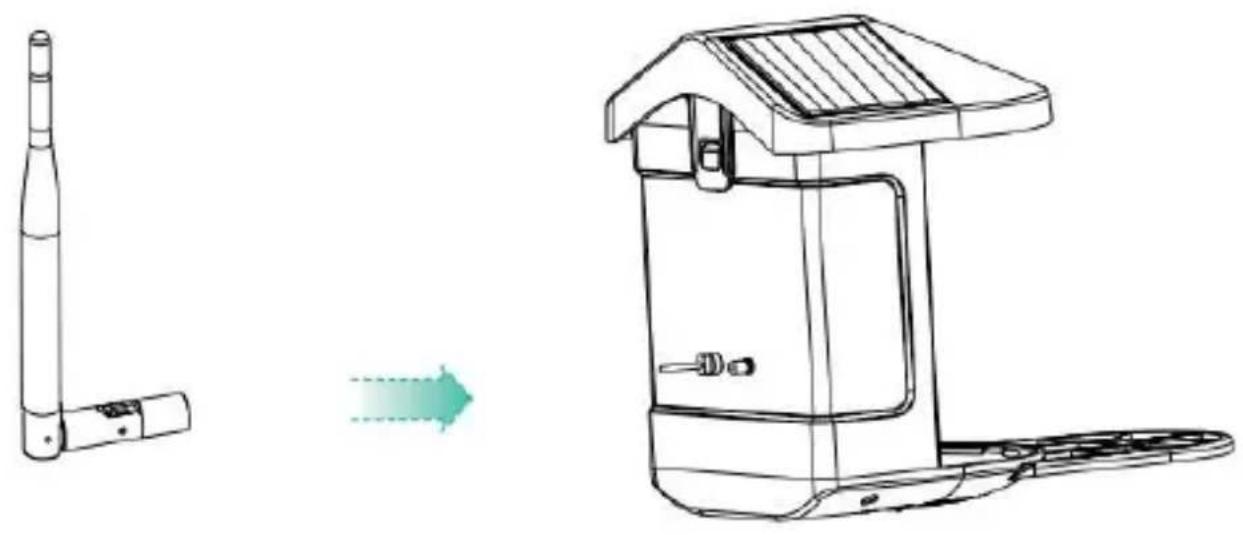
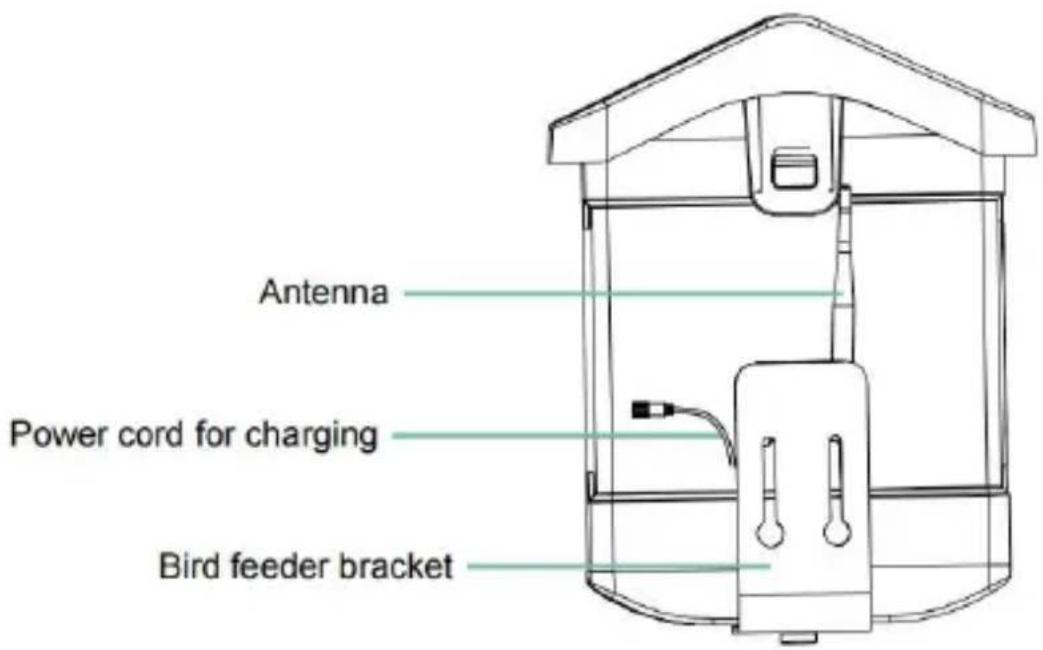
Step 3: Install an external antenna
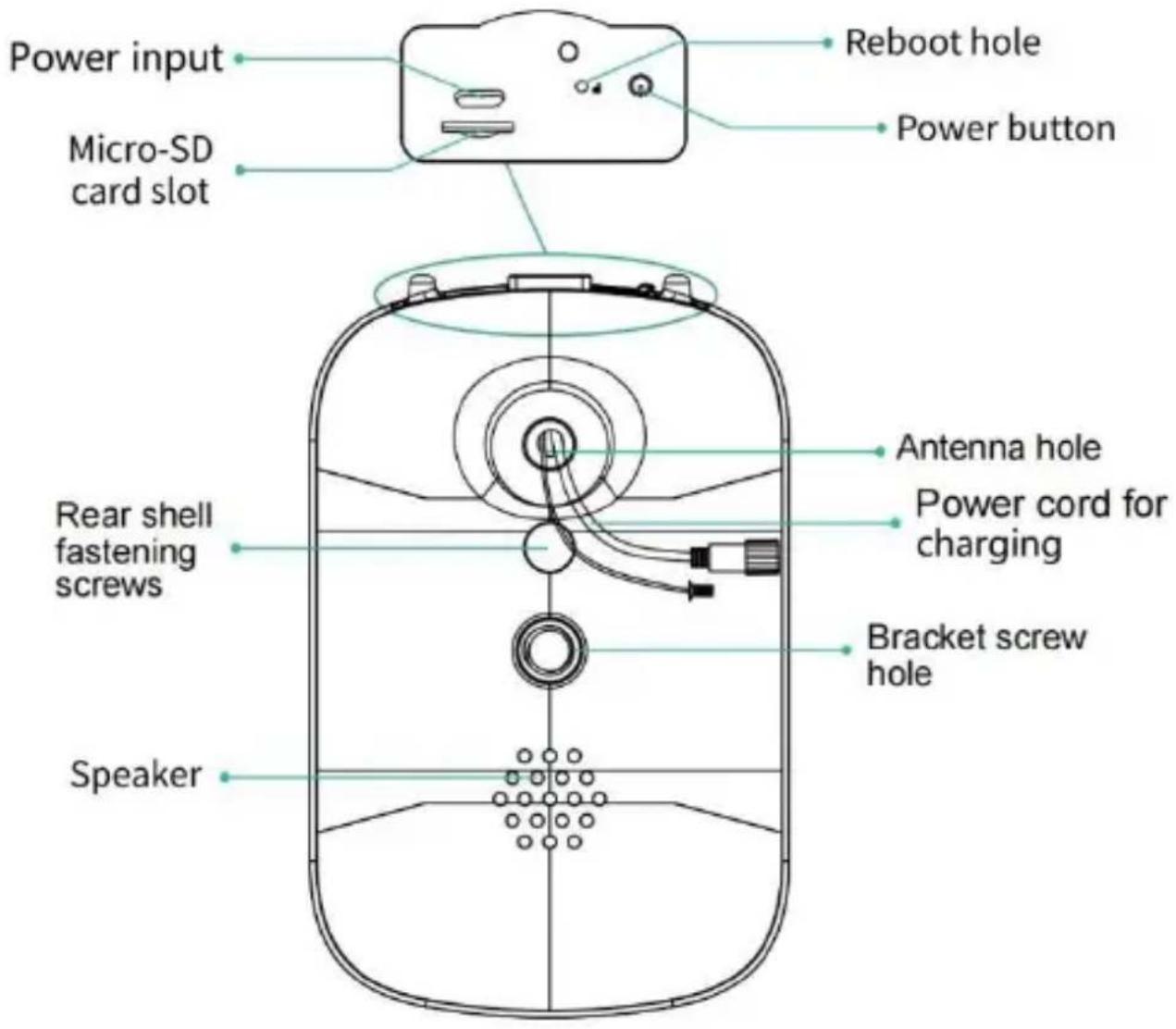
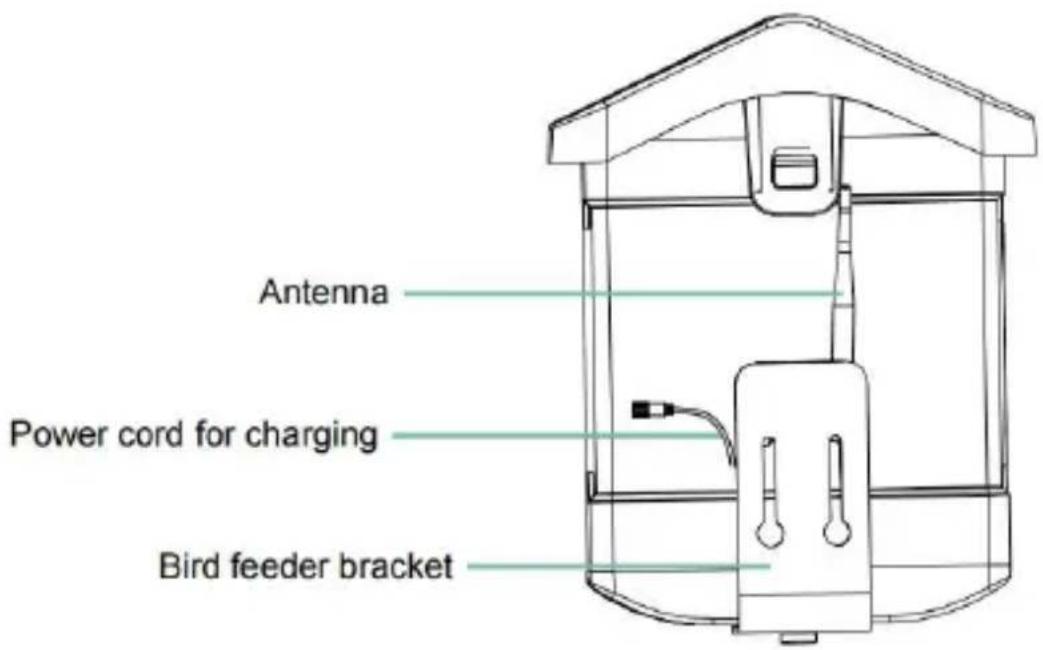
Position the external antenna at the back antenna hole of the bird feeder and tighten the rotating antenna.
DOWNLOAD & INSTALL APP
The wireless smart battery camera supports Android and iOS App.
For your best experience, please scan the QR code below or search "VicoHome" on APP Store or Google Play Store to download and install the app. Install the app, and follow the instructions to complete the user registration.


Download App
Note: Scan QR code or go to the link to download and install the App: https://www.vicohome.io/download/
NOTE: Please turn on both of the following permissions.
- Allow App to access mobile cellular data and wireless LAN, otherwise it will fail to connect the camera.
- Allow App to receive pushed messages, otherwise, the phone will not receive alarms when motion is detected.
ACCOUNT REGISTRATION
New users need to sign up by Email ID or Phone number. Step 1: Open the app and click 'Sign up for a New Account' and follow the steps to complete the registration.
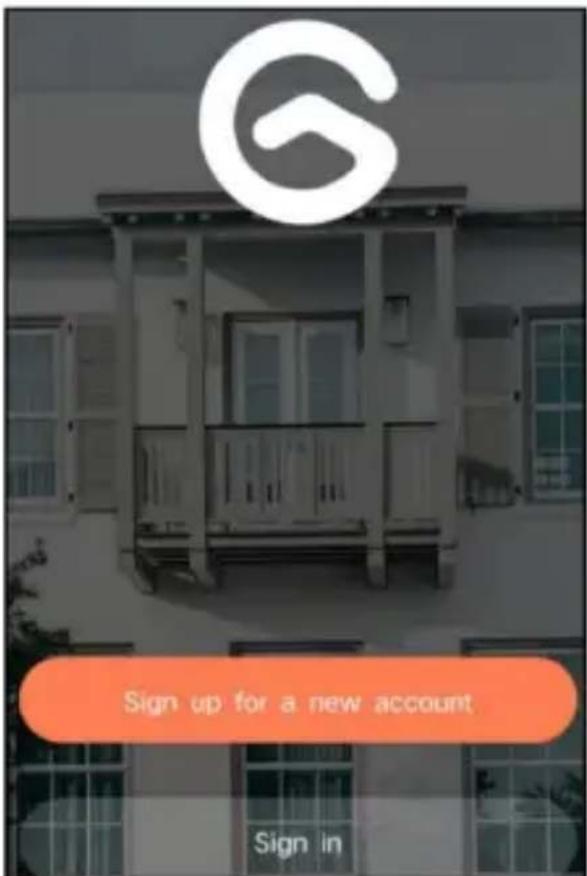
Step 2: Enter your username, country, and email address. Check and agree to the User Agreement, then click 'Next Step'. (For a better experience, allow all permissions to avoid missing any notifications.)
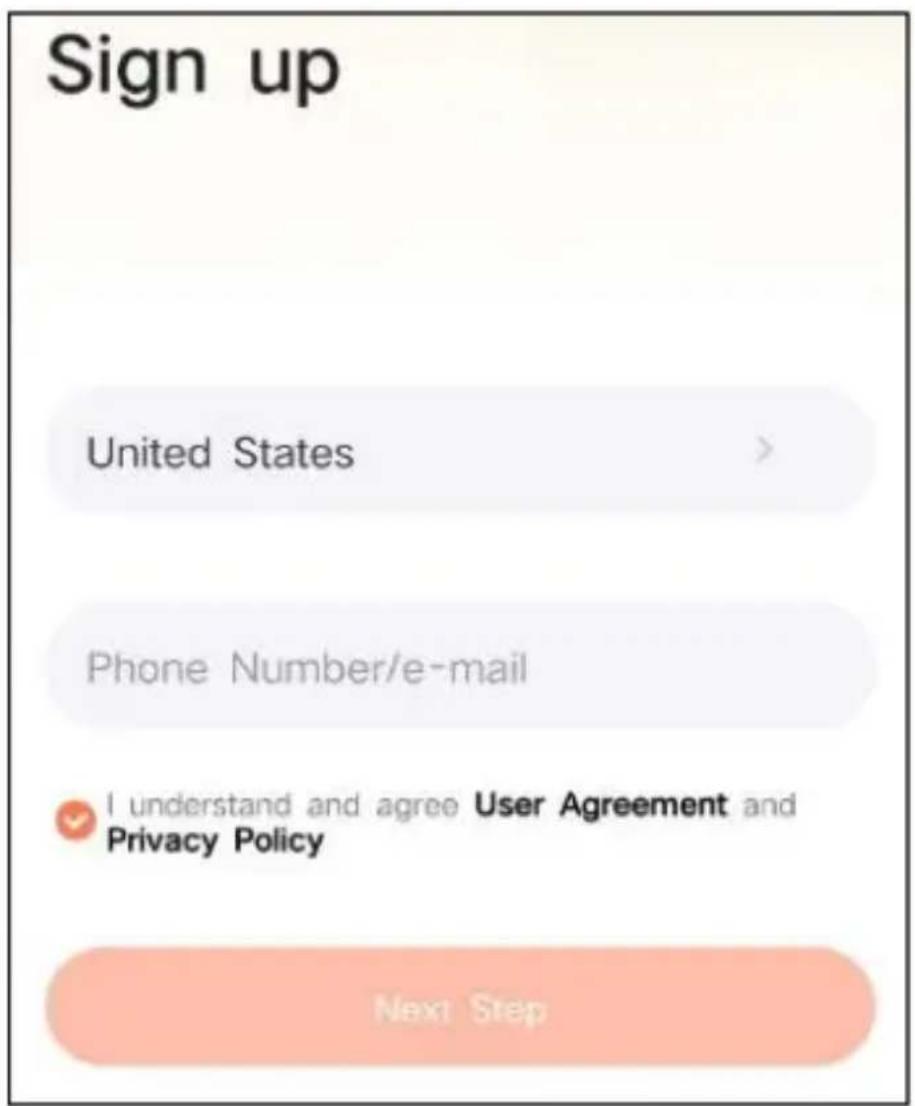
Step 3: You will receive an email with a verification code for account confirmation. Enter the code and click 'Next Step'.
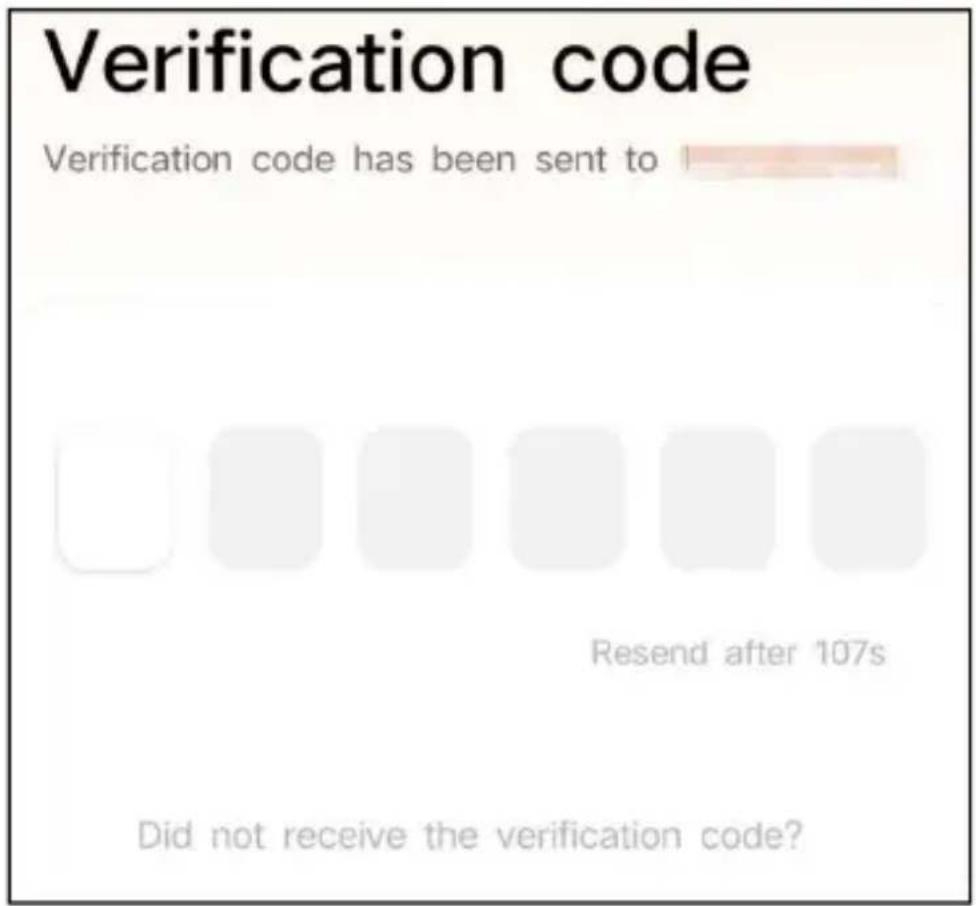
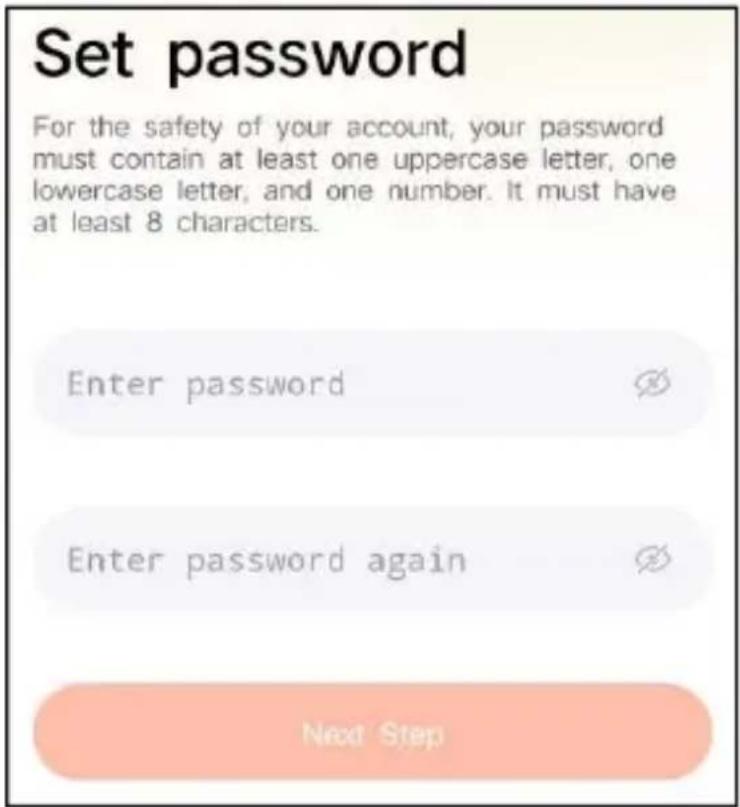
Step 4: Set the login password and re-enter it to confirm. Click 'Next Step'. (For account safety, the password must be a combination of at least 8 characters, including uppercase and lowercase letters.)
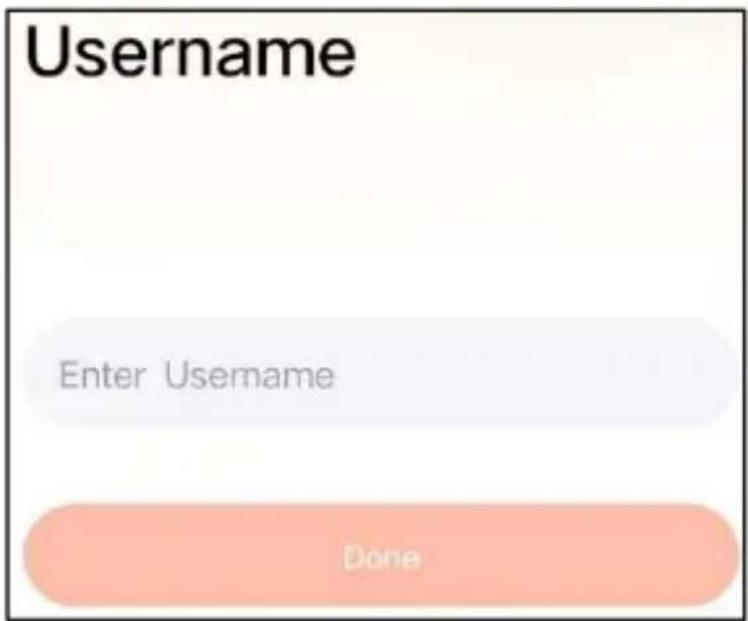
Step 5: Enter your username and click 'Done' to finish.
HOW TO SET UP THE CAMERA
1) How to Turn On & Off the Camera
| Operation | Status | |
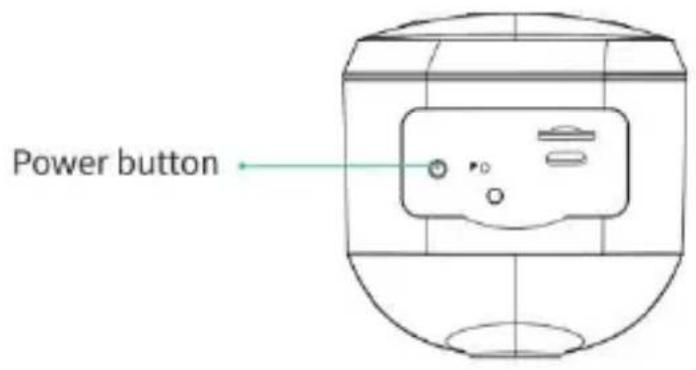
| Turn On the Camera | Long press the power button for 3s | Startup soundLight: Solid Blue |
| Turn Off the Camera | Long press the power button for 3s | Shutdown soundLight: Off |
| Enter the Network Configuration Mode | Double click the power button | Sound: Ding DongDing DongLight: Solid Blue |
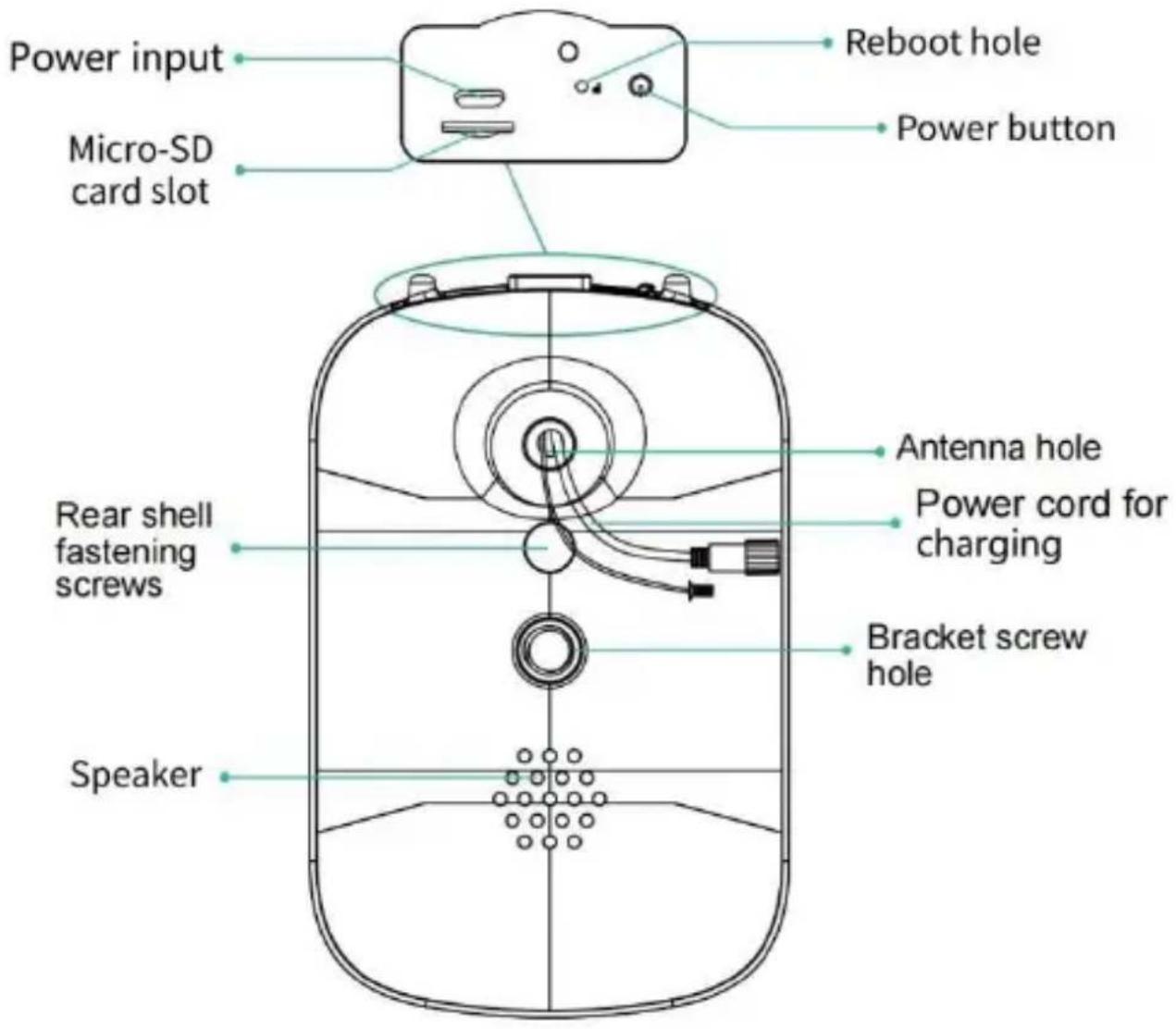
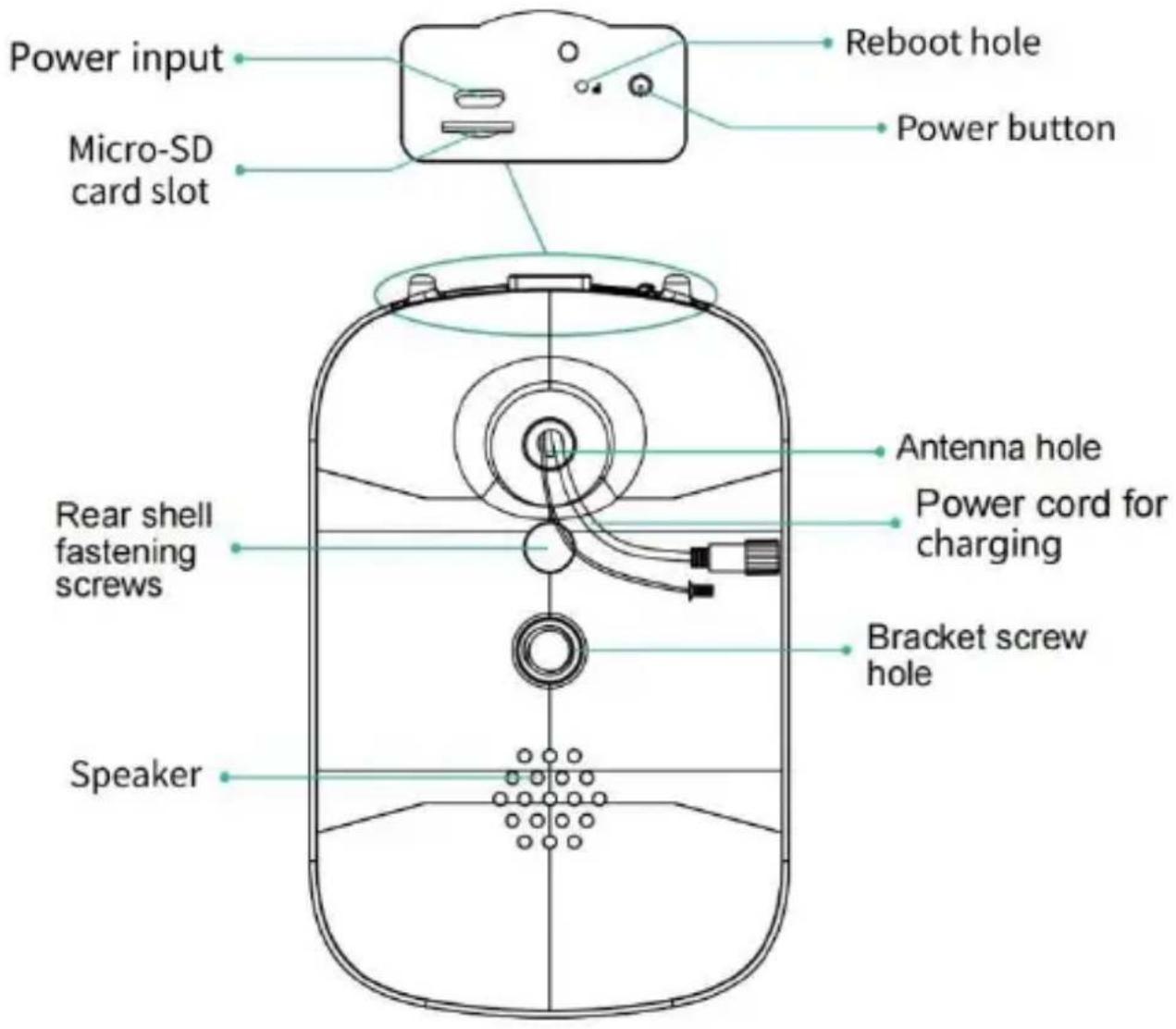
Note: The reboot hole is used to restart the camera without changing the settings. You can insert the included ejector pin into the reboot hole, then press and hold to reboot.
2) Indicator Light Status
| Mode | Status |
| Working mode | Blue |
| Sleep mode | Off |
| Charging mode | Yellow |
| Fully charged mode | Green |
PREPARATION FOR CONNECTION
1) Insert Micro SD Card into Camera
Note: The SD card is not included and is not necessary. You can use the feeder without it.
Note: The camera comes with a built-in card slot that supports up to 128GB MicroSD card. Insert the card into the camera before you assemble the whole unit.
Note: We also provide 3 days cycle record for free (2 years limited time), the camera can work without an SD card.
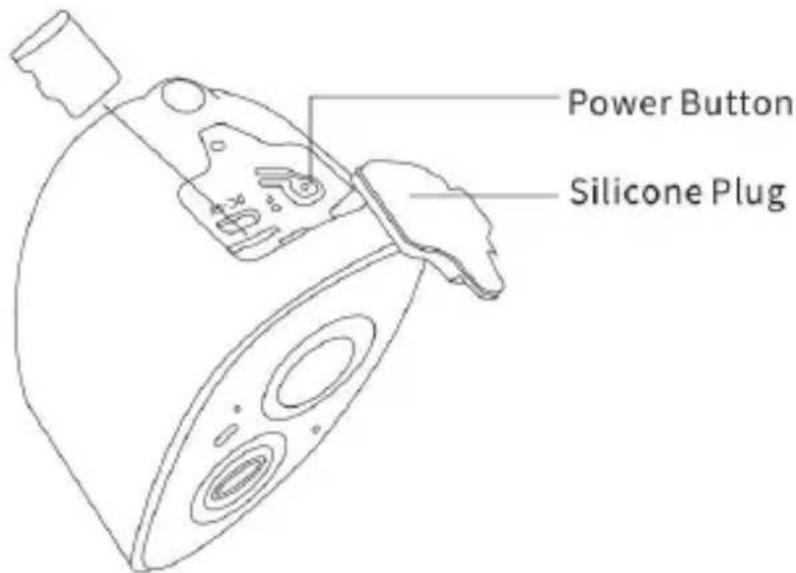
Step 1: Gently rotate the camera down to the bottom.
Step 2: Open the top silicone plug. Insert the MicroSD card.
Make sure to insert it in the right direction.
Step 3: Finally, cover the silicone plug.
- The camera only works with 2.4GHz Wi-Fi, not support 5G.
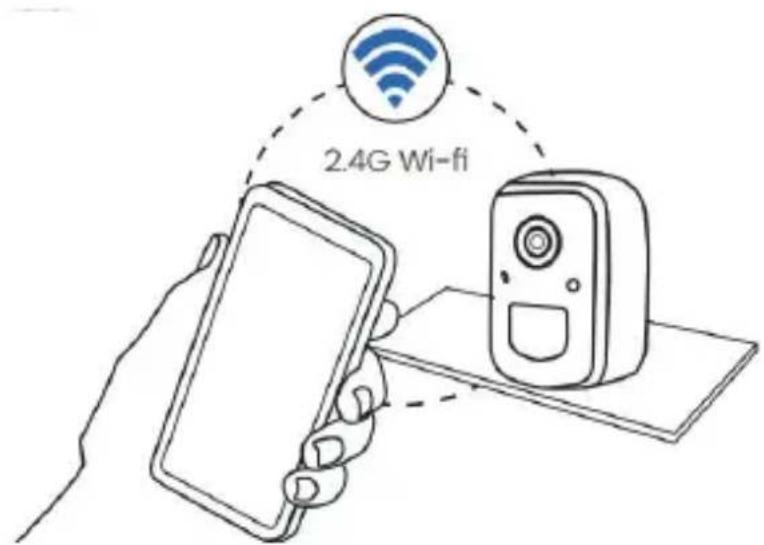
- Take the camera close to the router while connecting.
- Keep pressing the power button for 2-4s to power on/off the camera.
ADD THE CAMERA—FOR ANDROID
Note: The most up-to-date information can be found through the app.
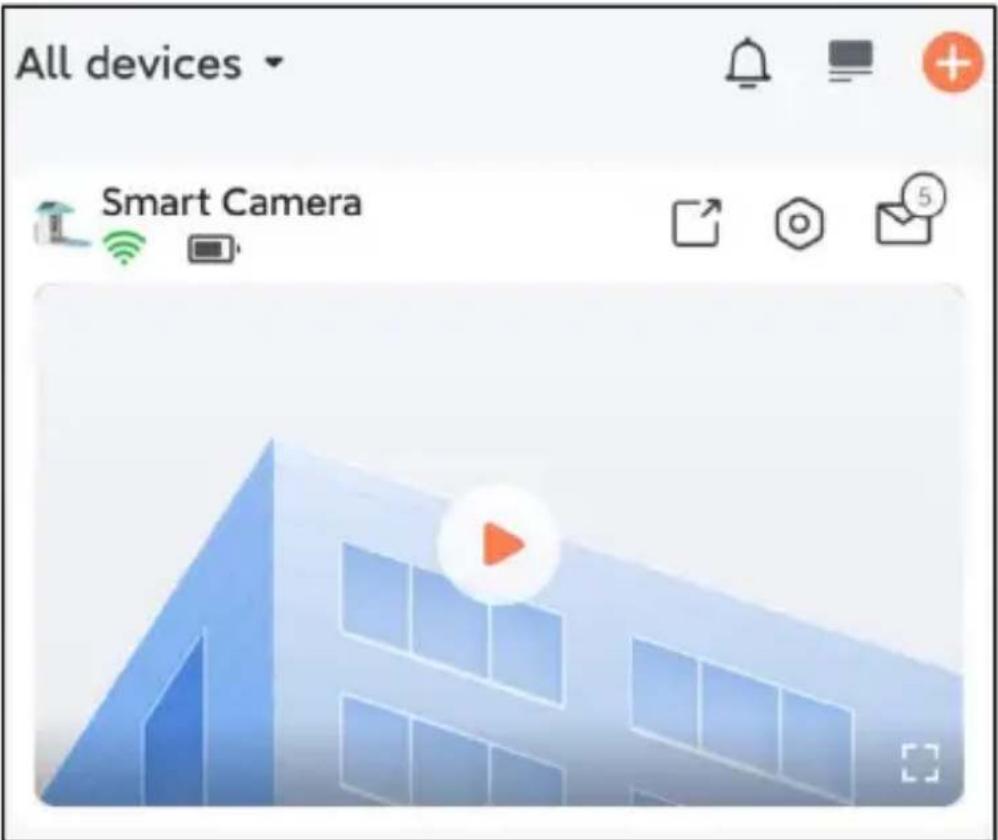
Step 1: Click "Add a new device now" on the VicoHome App.
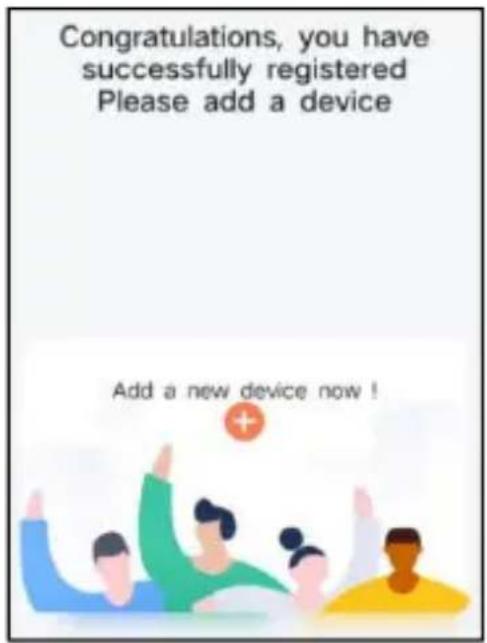
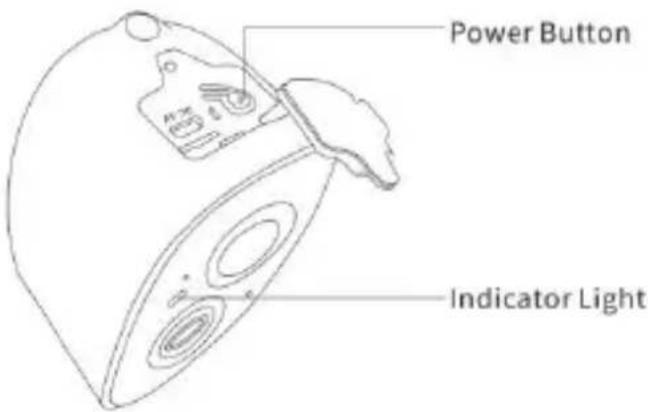
Step 2: Follow the instructions on the app to turn on the camera: Long press the power button of the camera for 3 seconds to turn on the camera. Then the indicator light in the front of the camera will be solid blue. Double click the power button to enter network configuration mode after the prompt tone.
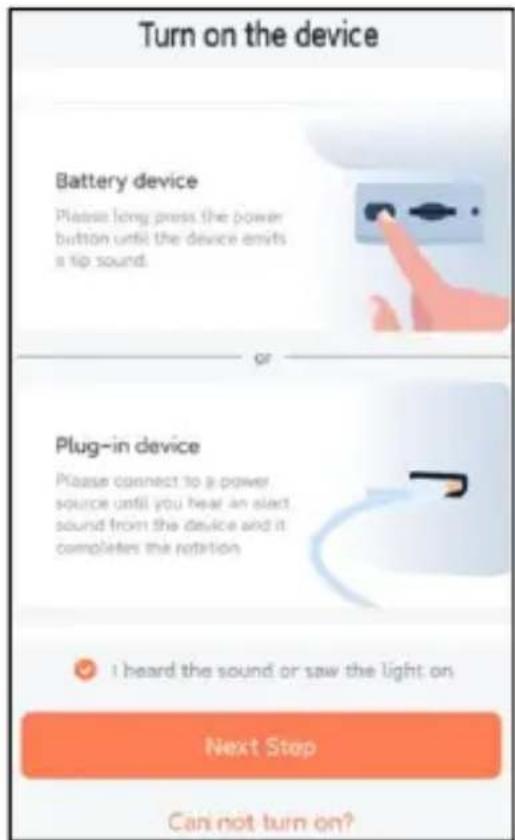
Step 3: Listen for the 'ding dong ding dong' sound. After hearing the sound, click 'I heard the sound or saw the light on' in the app. Then, click 'Next Step'.
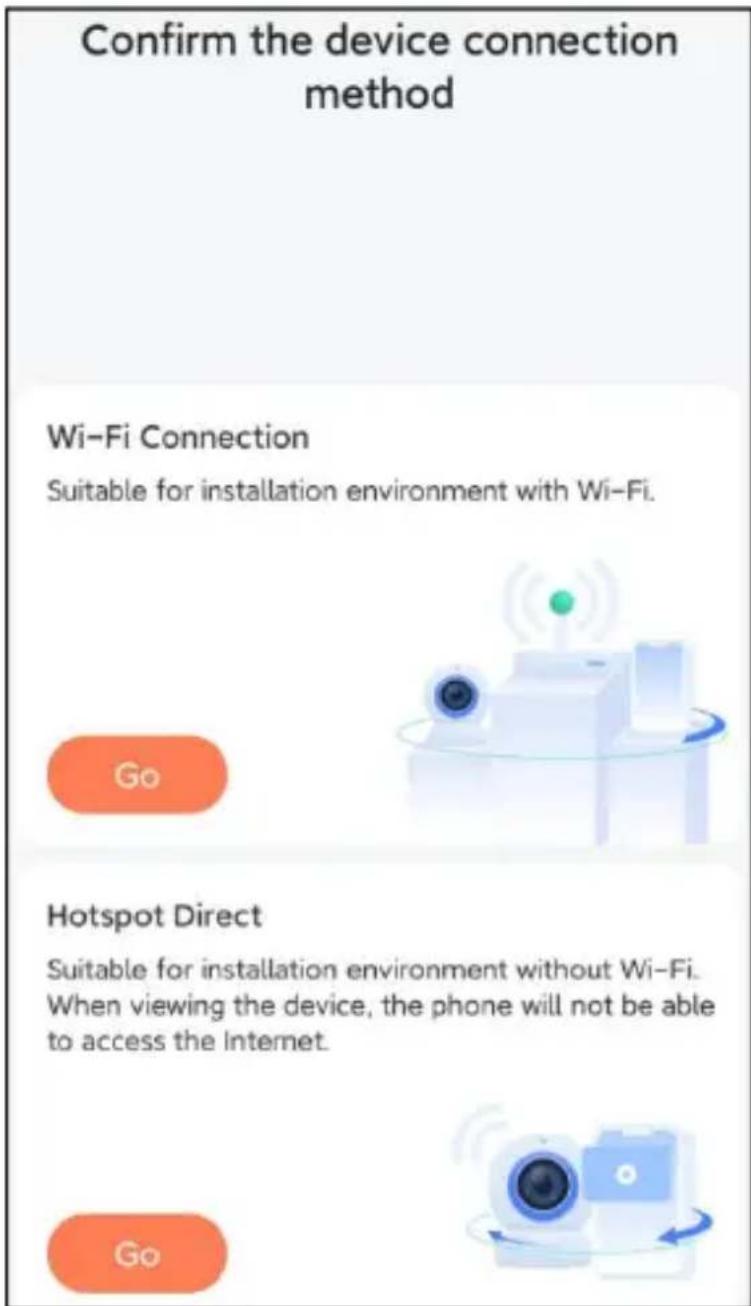
Step 4: Confirm the device connection method, choose Wi-Fi connection (suitable for installation environment with Wi-Fi), click 'Go'.
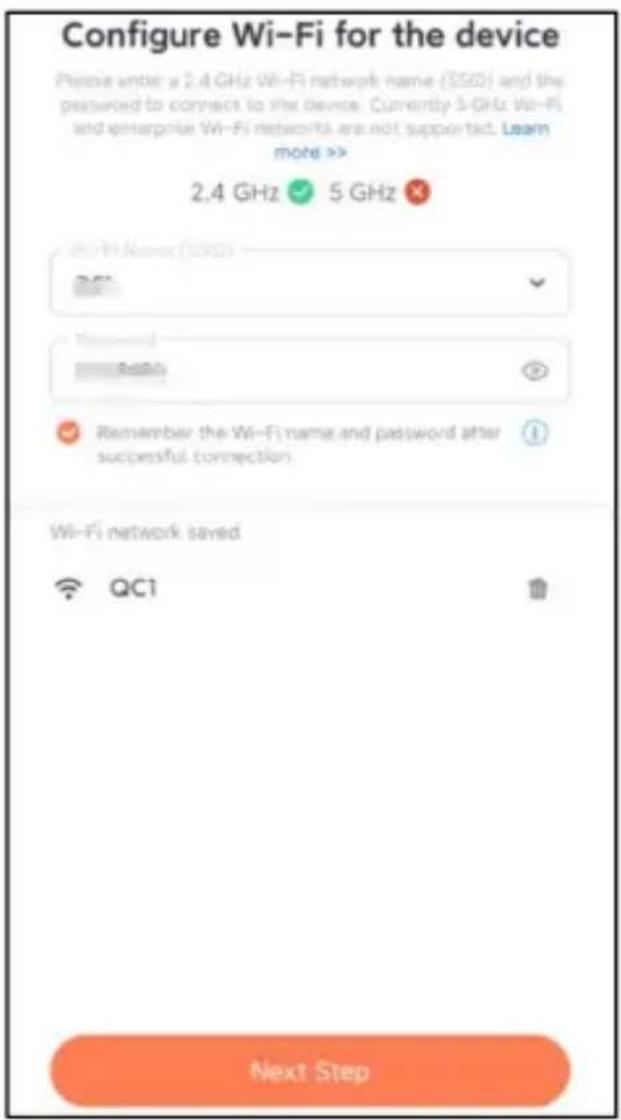
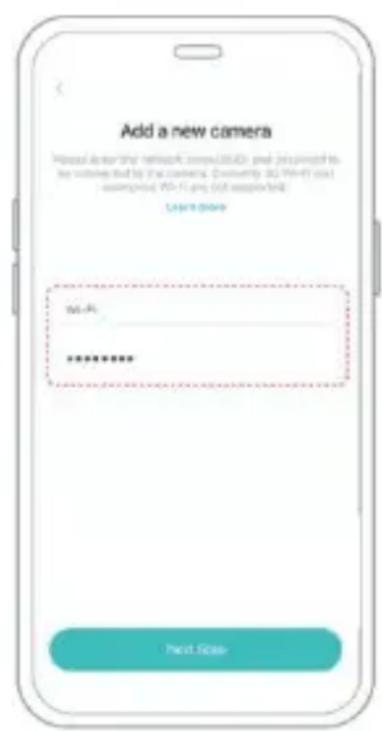
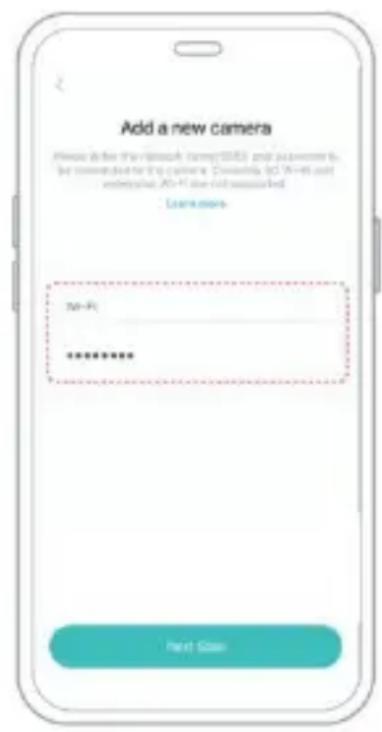
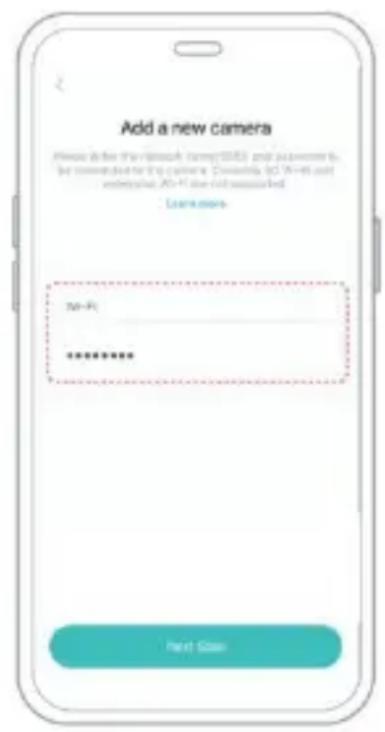
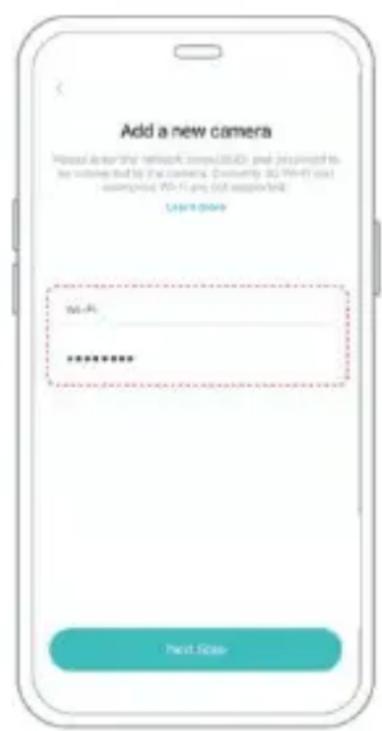
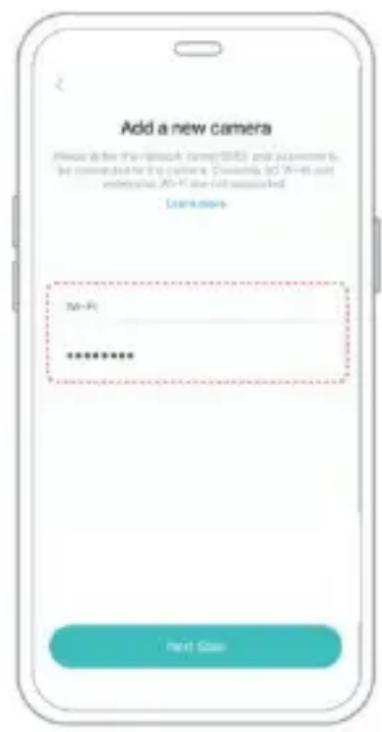
Step 5: Enter the Wi-Fi name and Wi-Fi password you want to connect to, check 'Remember the Wi-Fi name and password after successful connection', and click 'Next Step'.
Note: The smart bird feeder only supports 2.4GHz Wi-Fi networks with strong wall penetration capability.
Step 6: Click 'Next Step'.
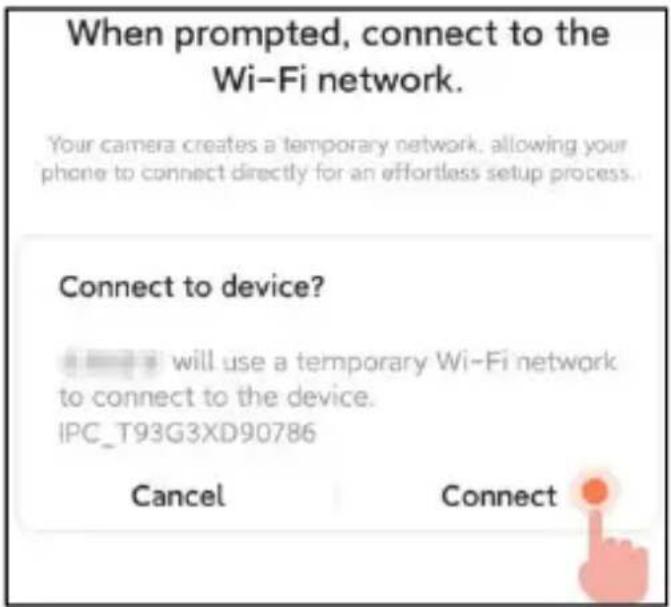
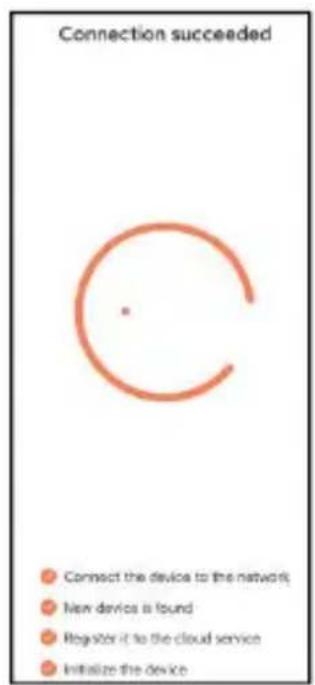
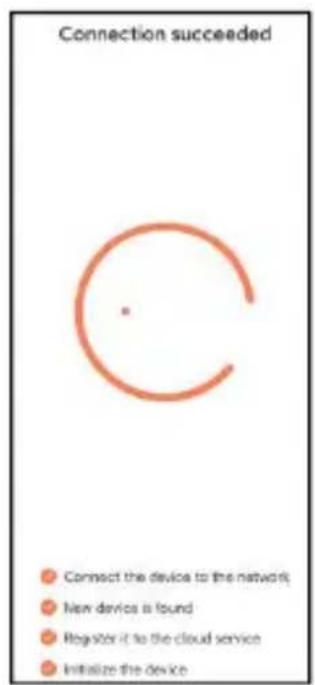
Step 7: When connecting, please wait patiently for 15 seconds, then you will hear a sound 'Wi-Fi Connected'.
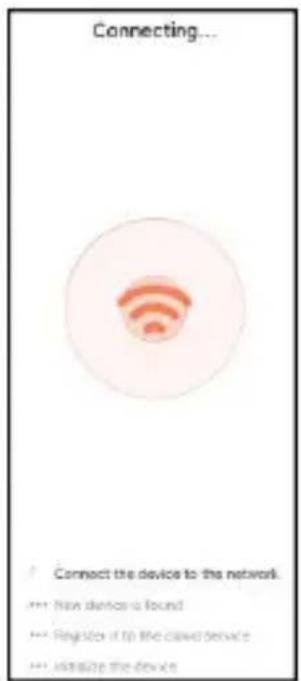
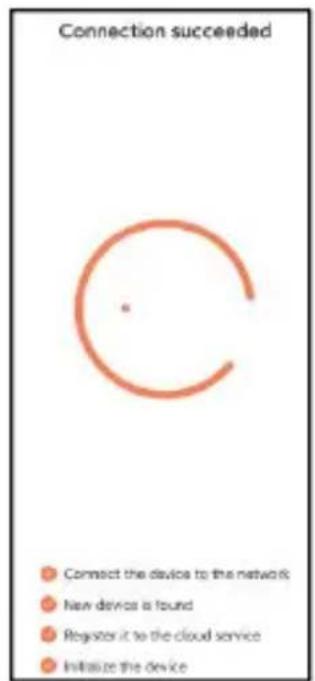
Step 8: Set a name and location for the smart bird feeder, and then click 'Done'.
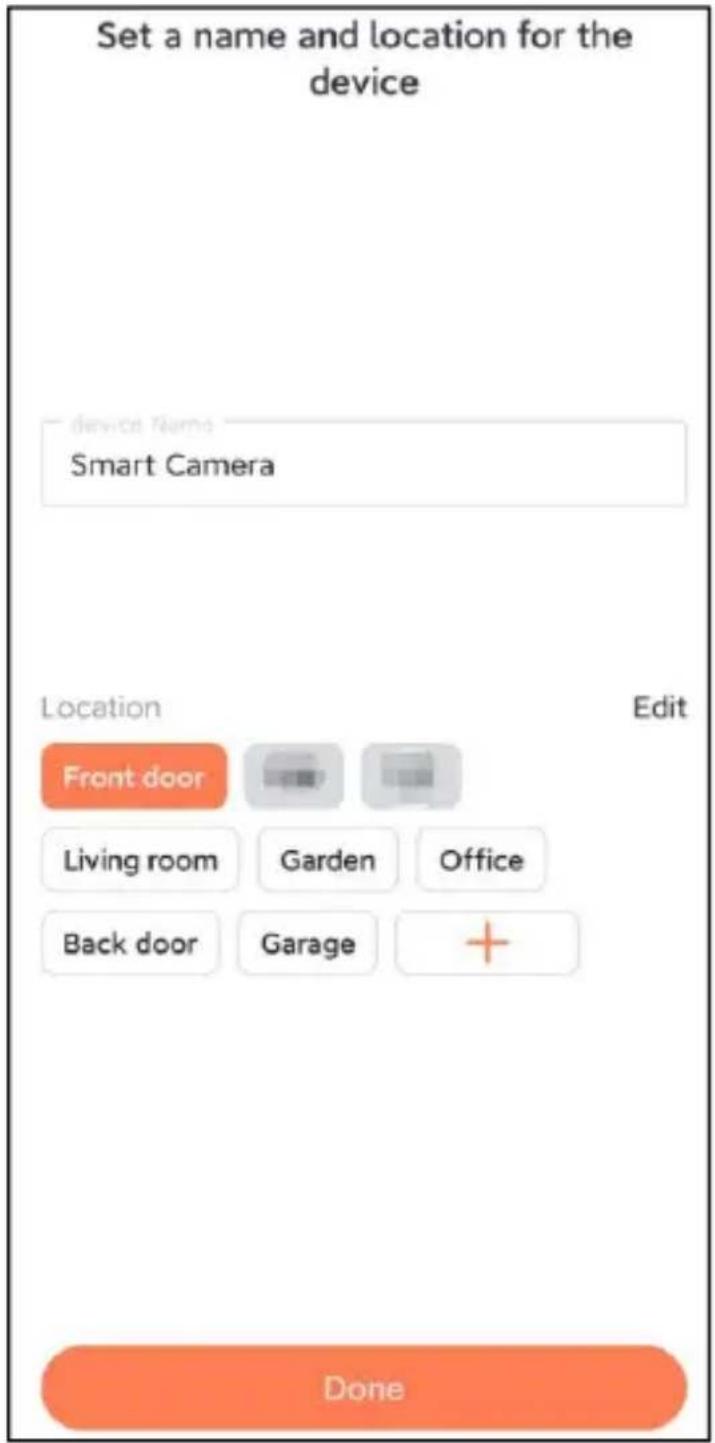
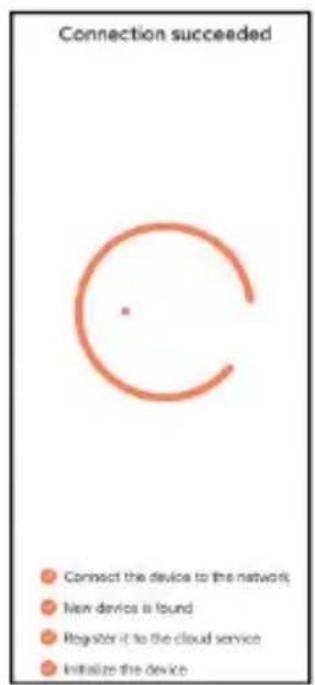
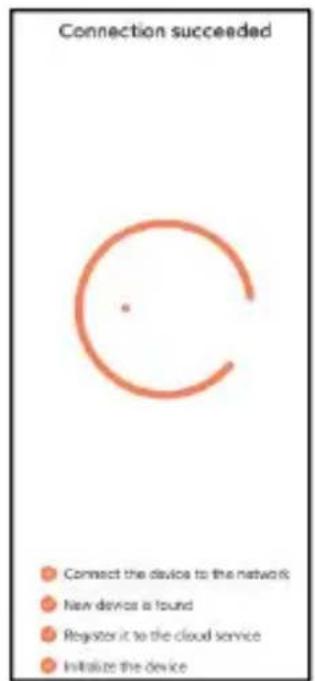
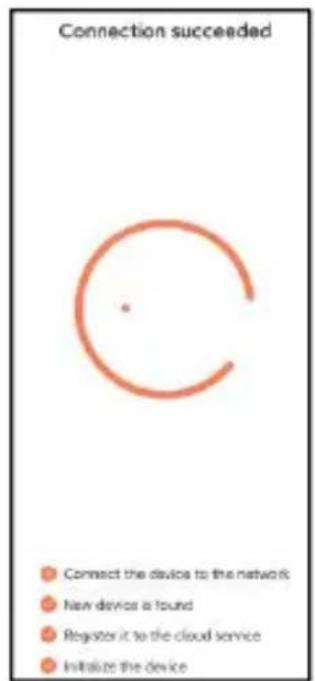
Step 9: Finally, your device is added successfully, and then click 'Let's start'.
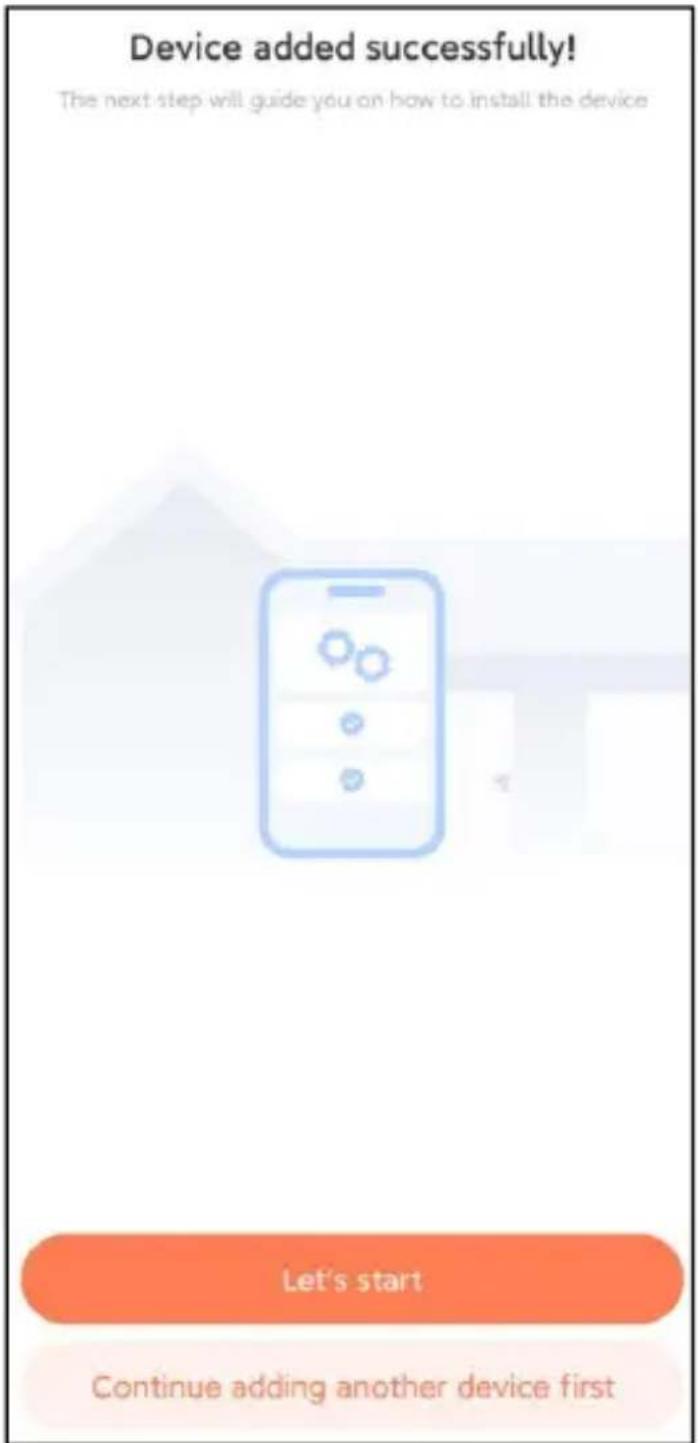
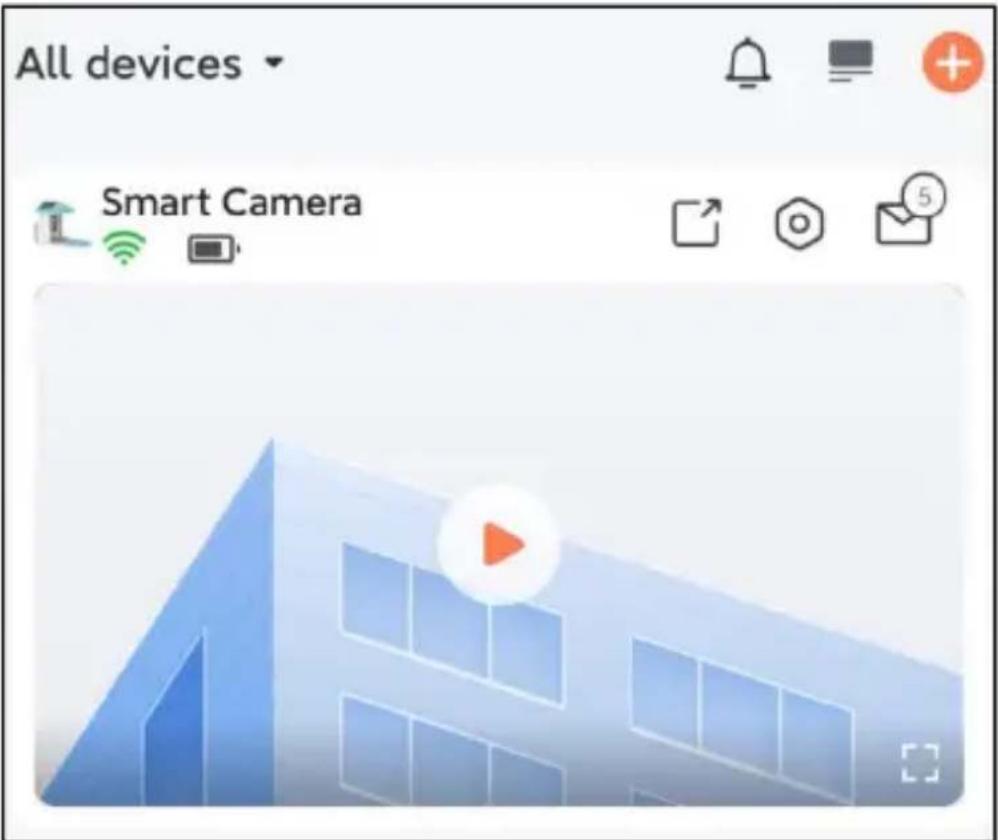
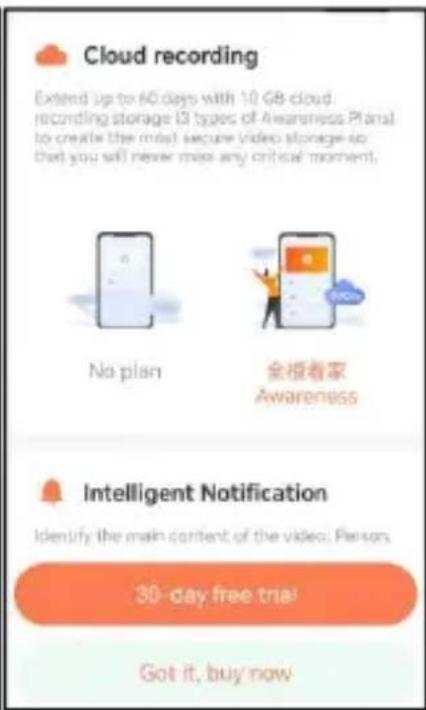
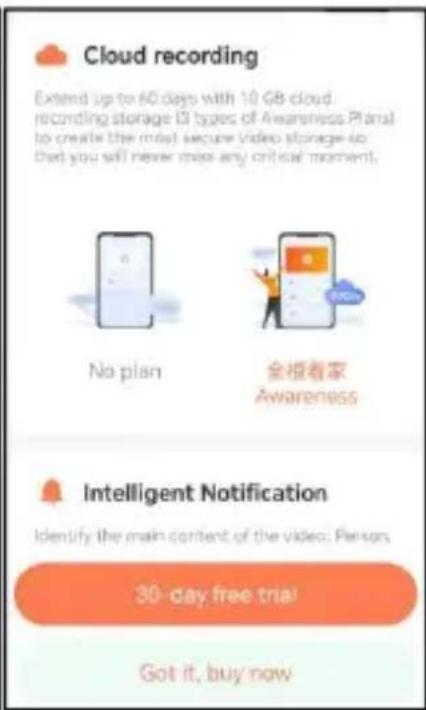
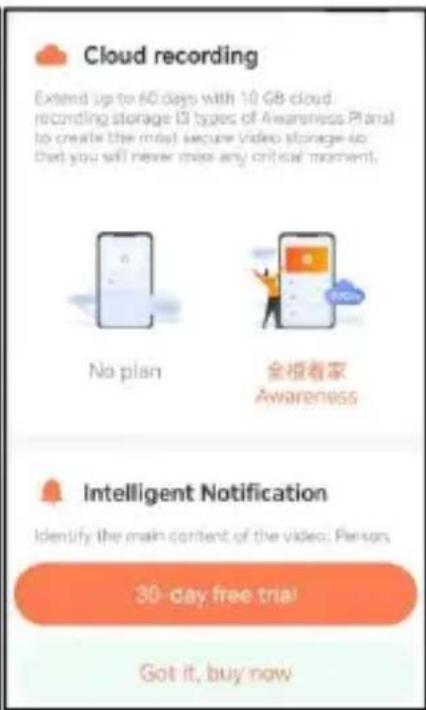
Note: When you finish connecting, a message will appear about getting free cloud storage for 30 days. After 30 days, you can subscribe to a cloud storage package that suits you.
ADD THE CAMERA—FOR iOS
Step 1: Click "Add Camera Now" in the App and enter the Wi-Fi network name and password that you want the camera to connect to.
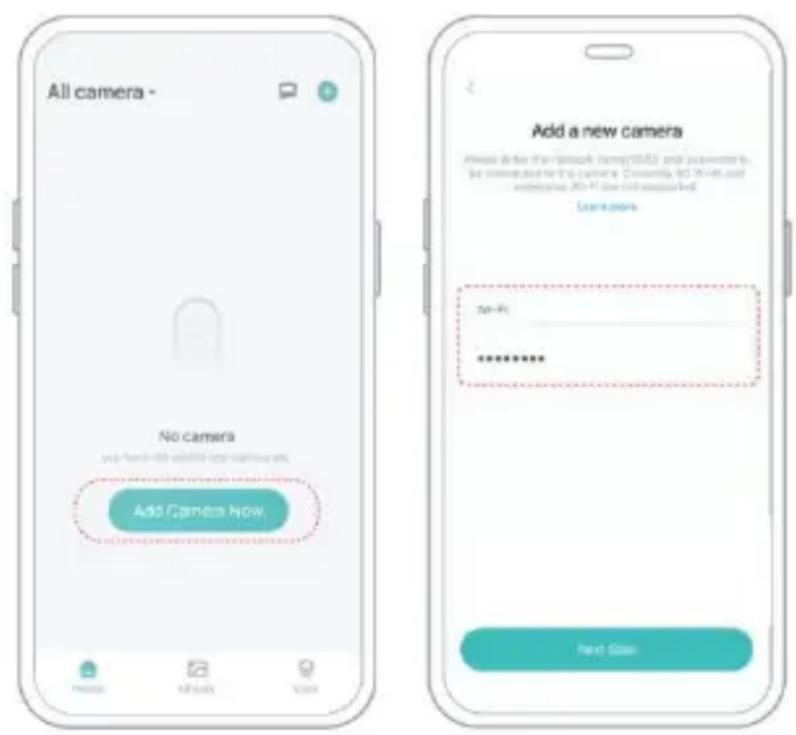
Step 2: To ensure a longer distance connection, the camera only supports 2.4GHz Wi-Fi with stronger wall penetration capability and does not support Wi-Fi for enterprise-level authentication currently. Please ensure that the entered Wi-Fi meets the requirements. After
completion, click "Continue" to generate the QR code for pairing the camera.
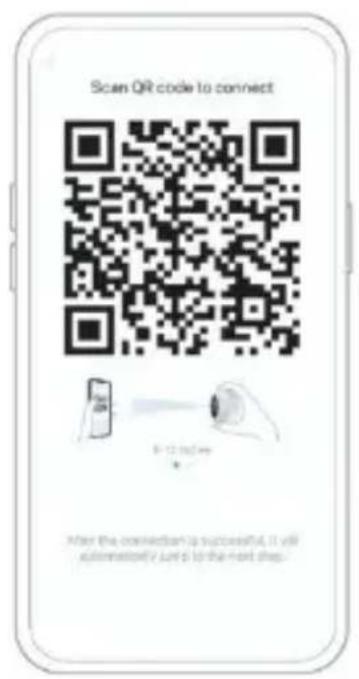
Step 3: After pressing the camera switch for 3 seconds, the camera will turn on. The camera will emit the scanning sound "Ding Dong Ding Dong" after it is turned on (if you do not hear it, please double-click the power button).
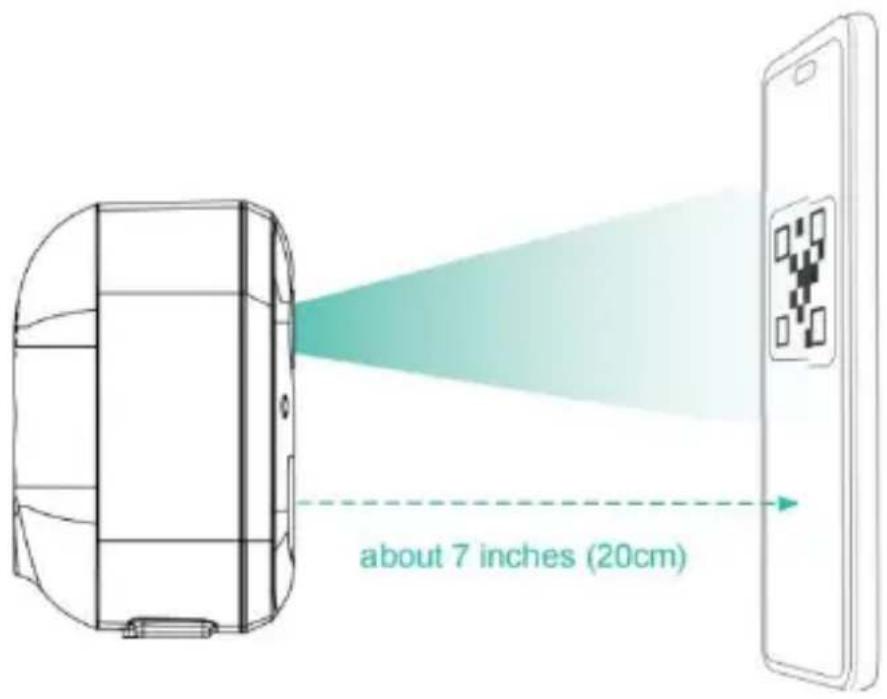
Step 4: Take the lens of the camera facing the QR code generated on Home about 20 cm (7 inches) until you hear a "Ding" sound.
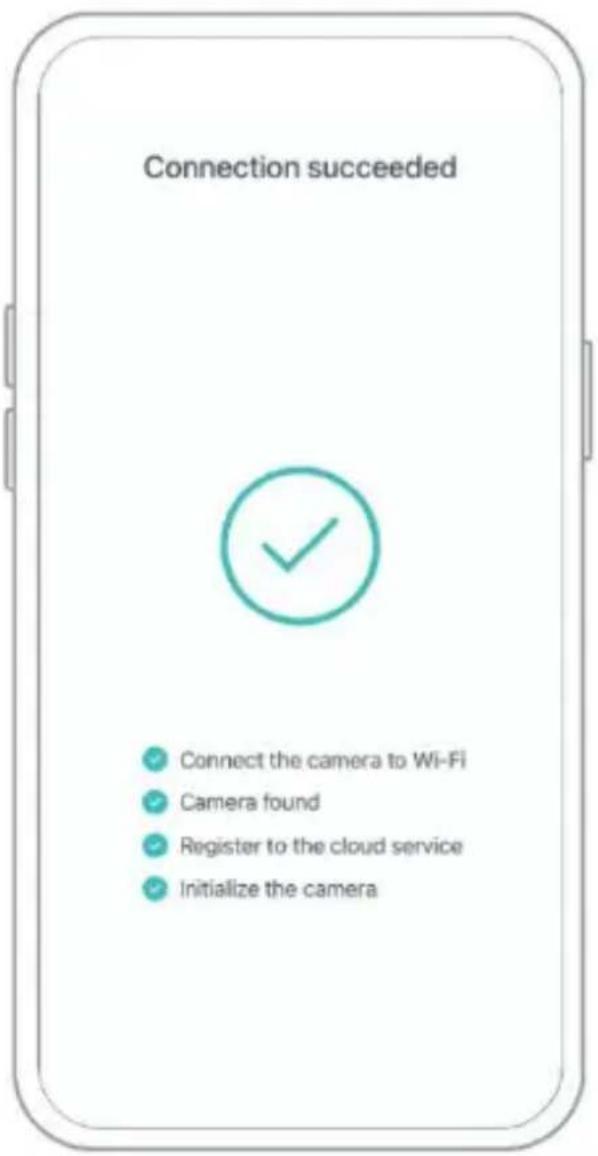
Step 5: After a while, the camera will give out a prompt sound of a successful connection. At this moment, please set the name for the device on the App and select the location you want to place the device. Click "Continue" to complete the pairing.
SHARE THE CAMERA
When you need to view the camera with other family members or friends, you can use this function. Only the administrator whose account is bound with the camera for
The first time, one person can share and set up the device. Other members can only view the live or playback of the device.
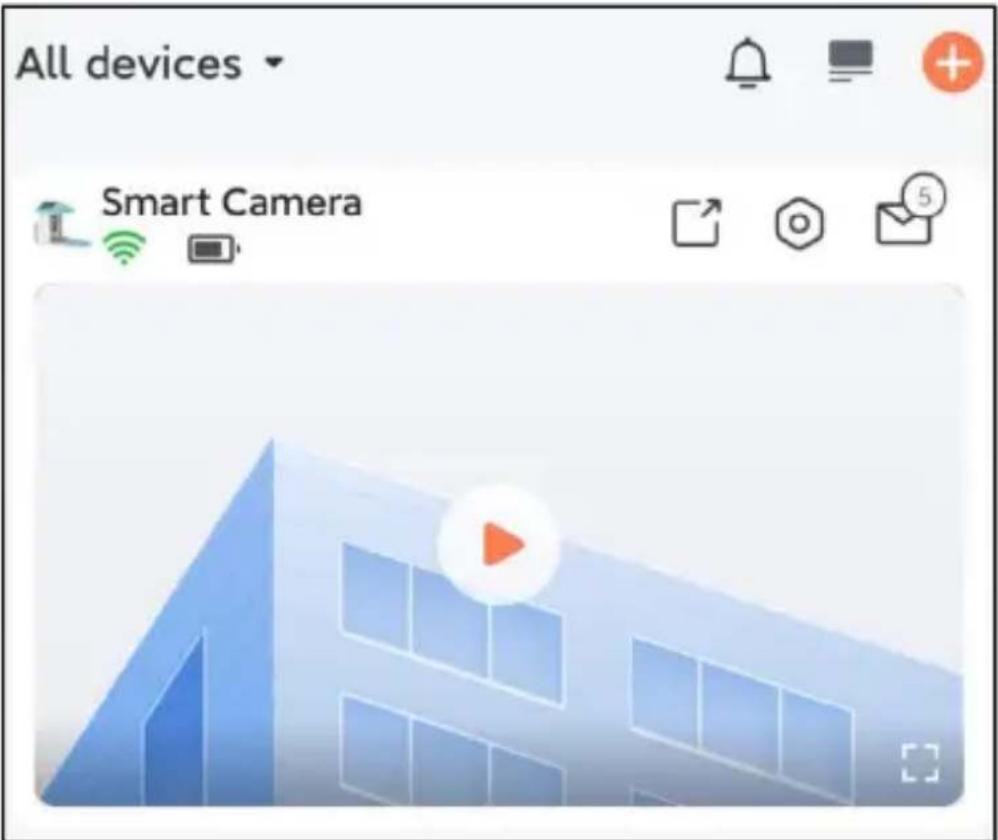
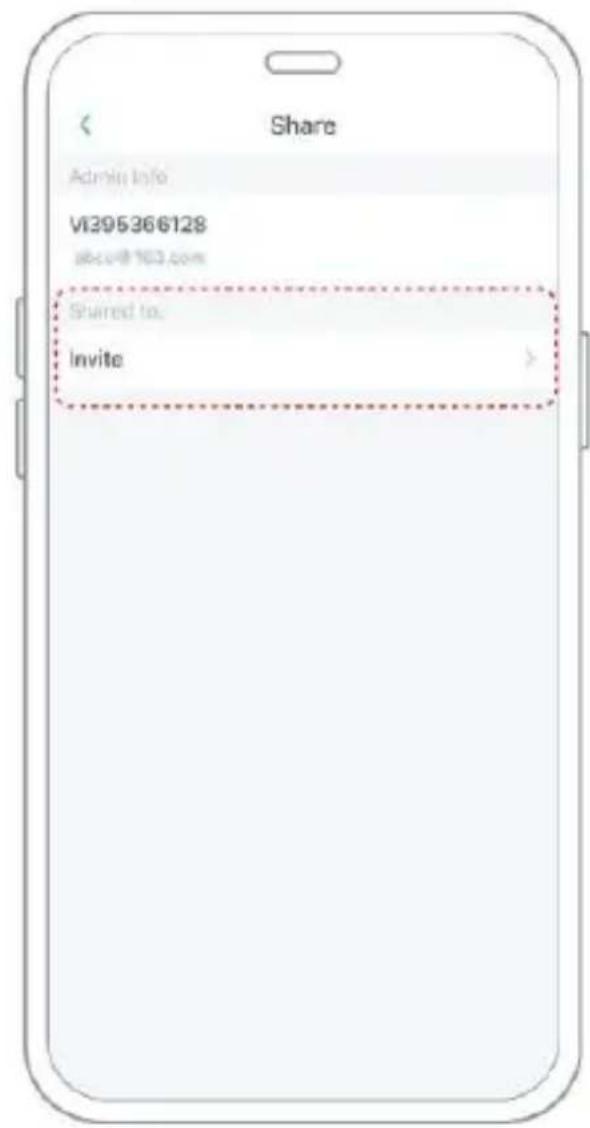
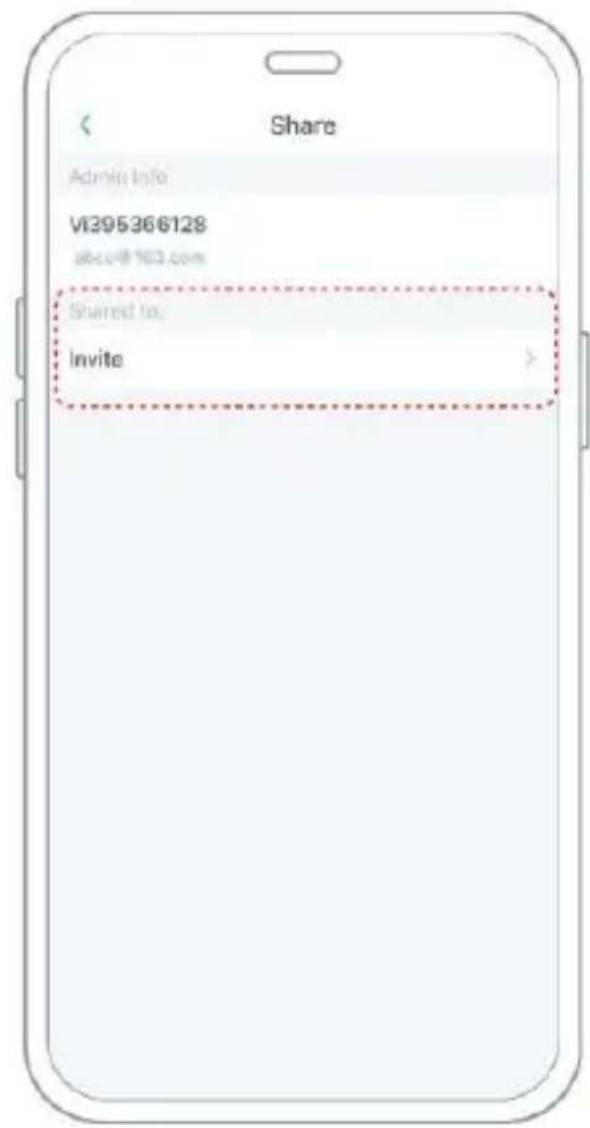
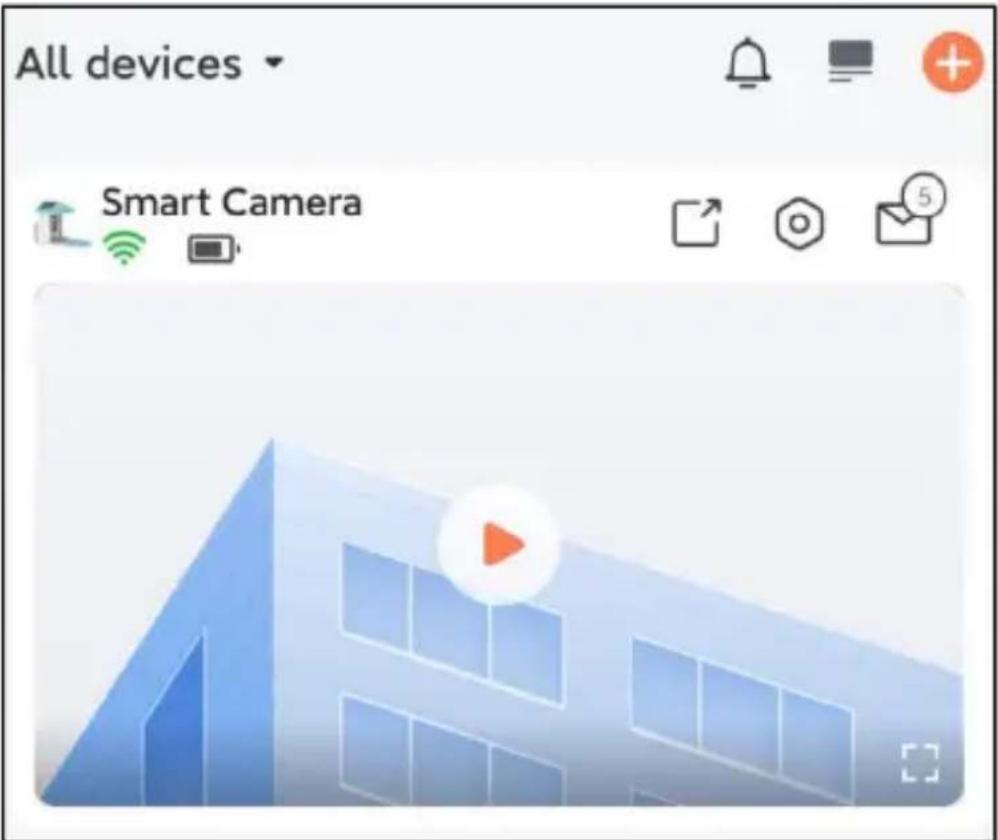
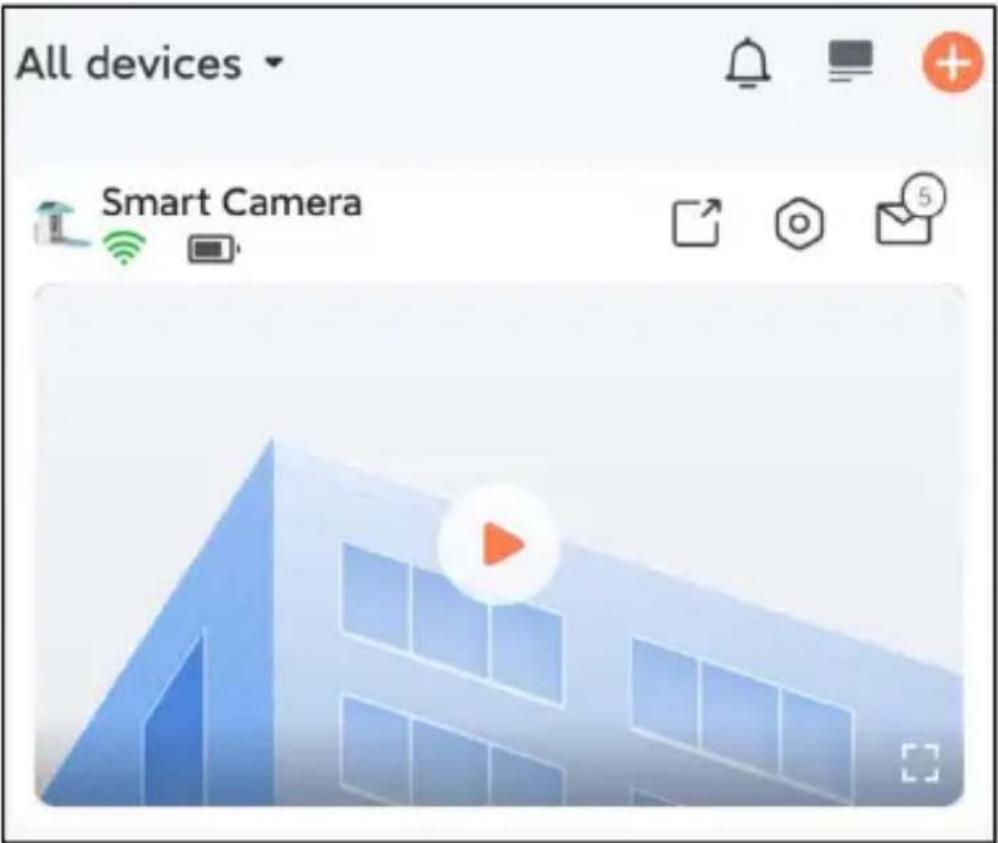
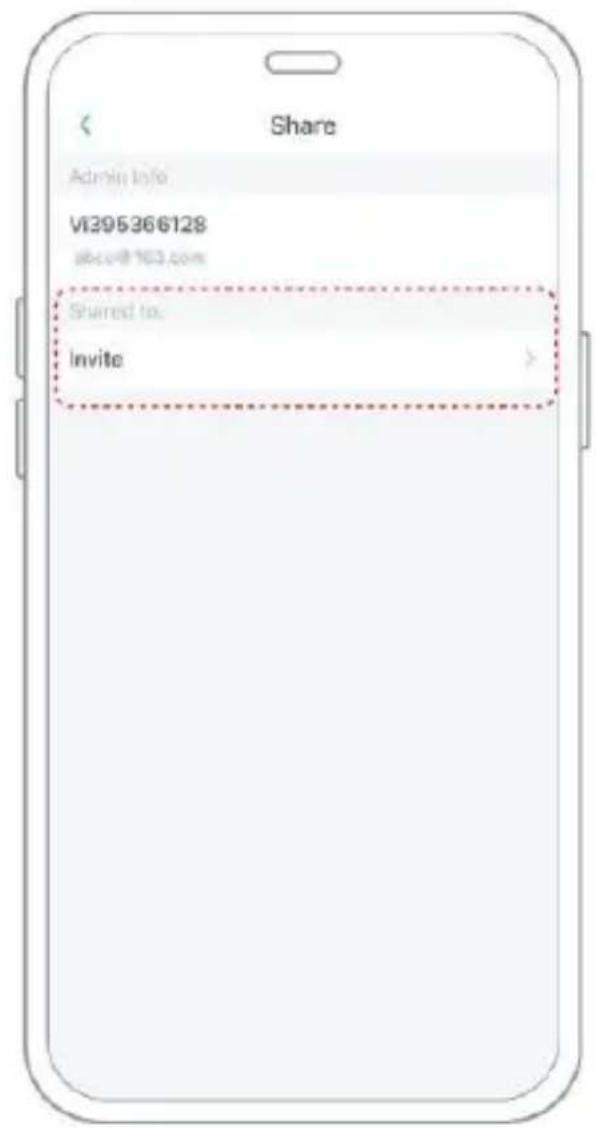
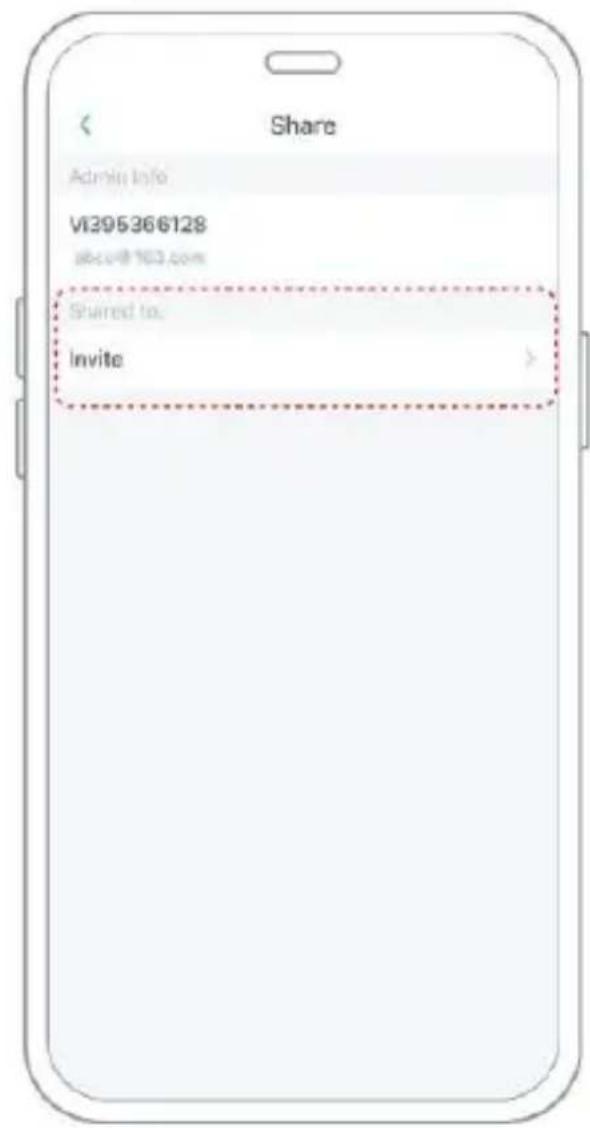
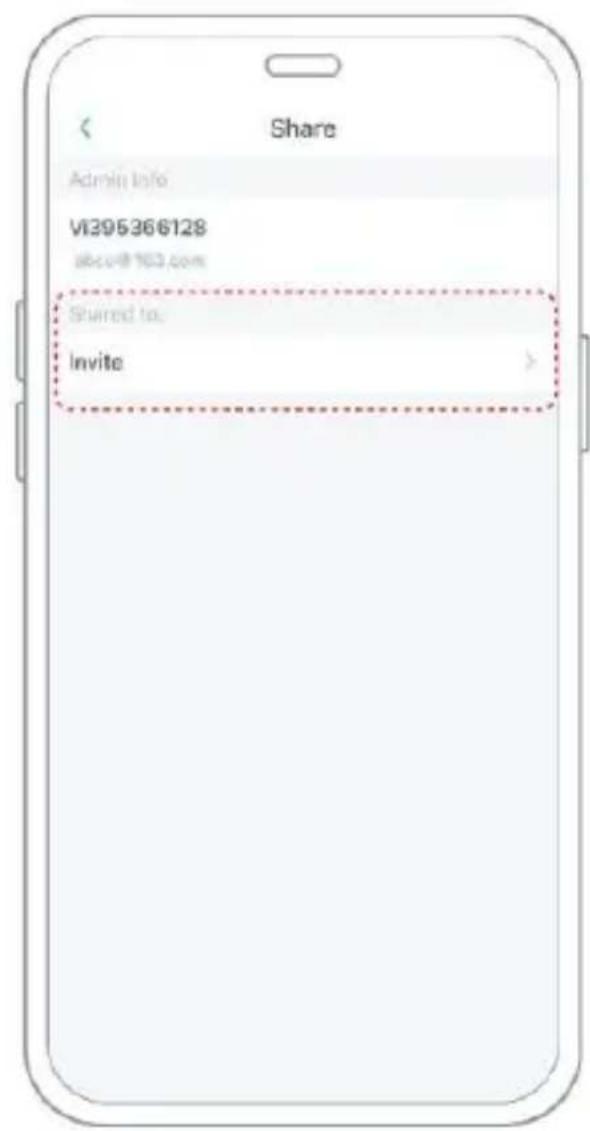
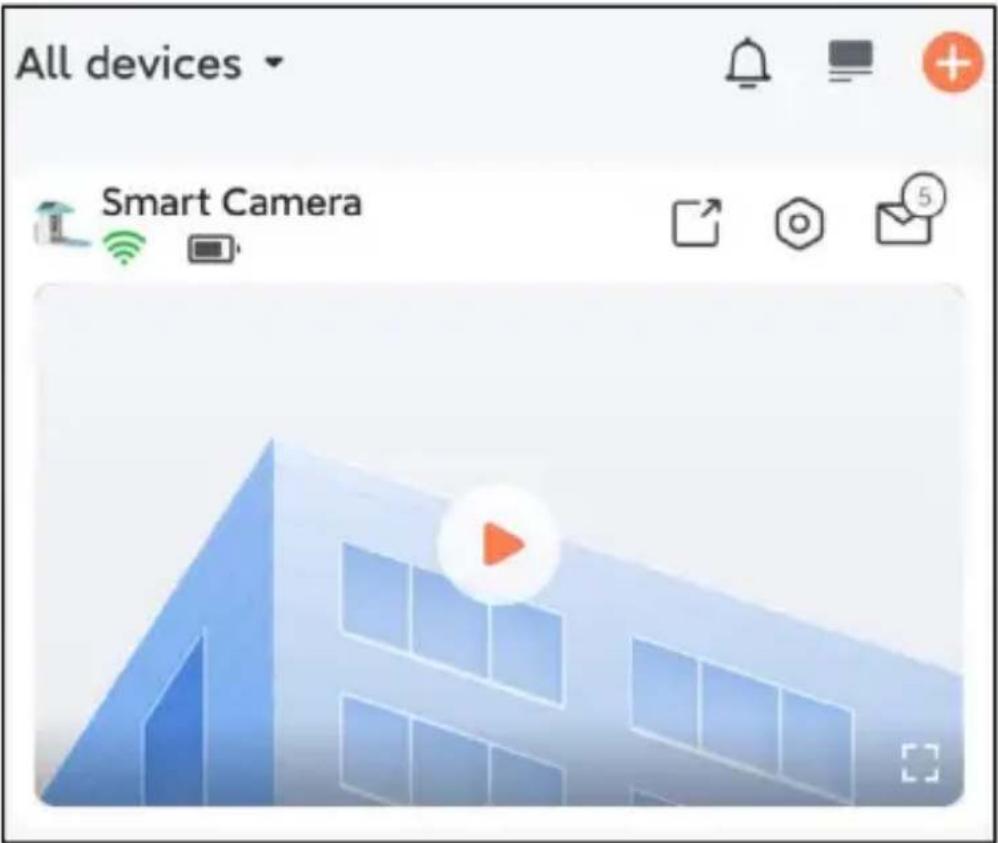
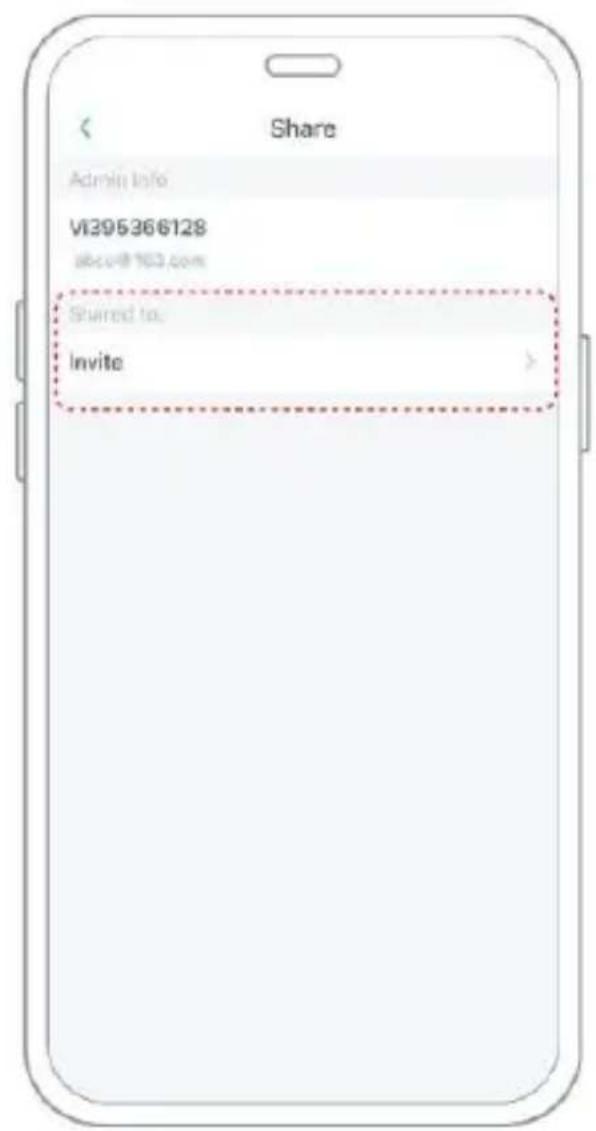
Step 1: Find the camera you want to share on the App home page or camera settings page. Click the share button and enter the sharing page.
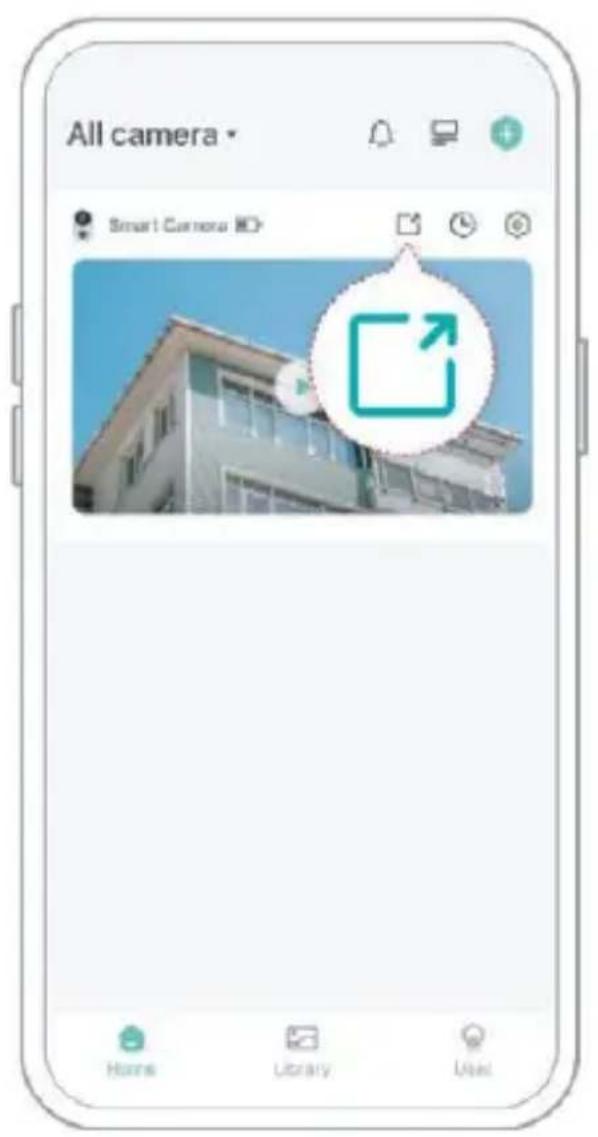
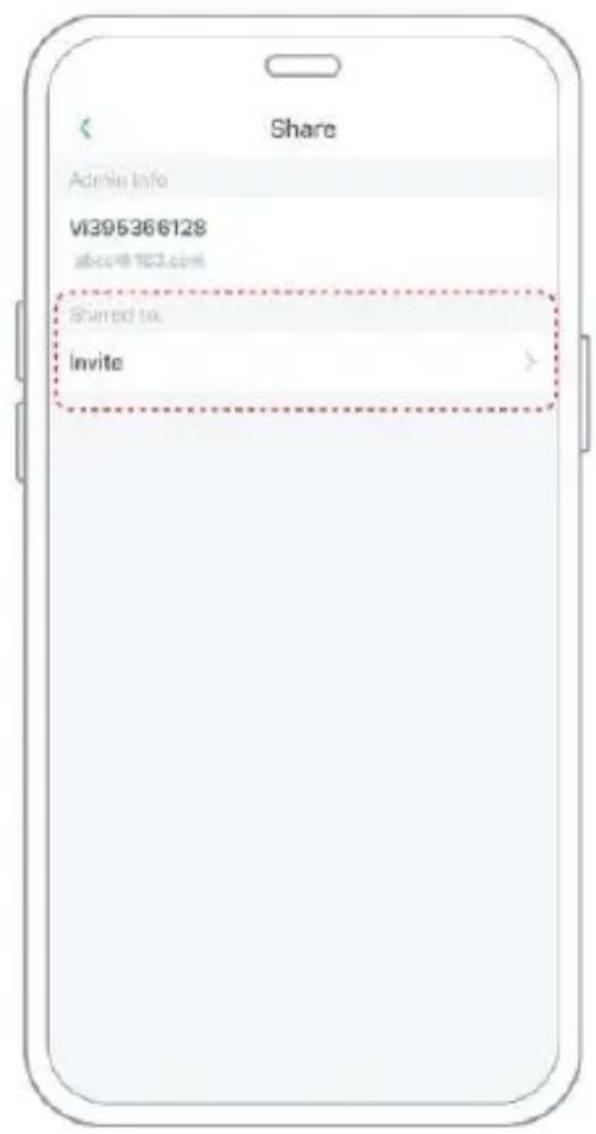
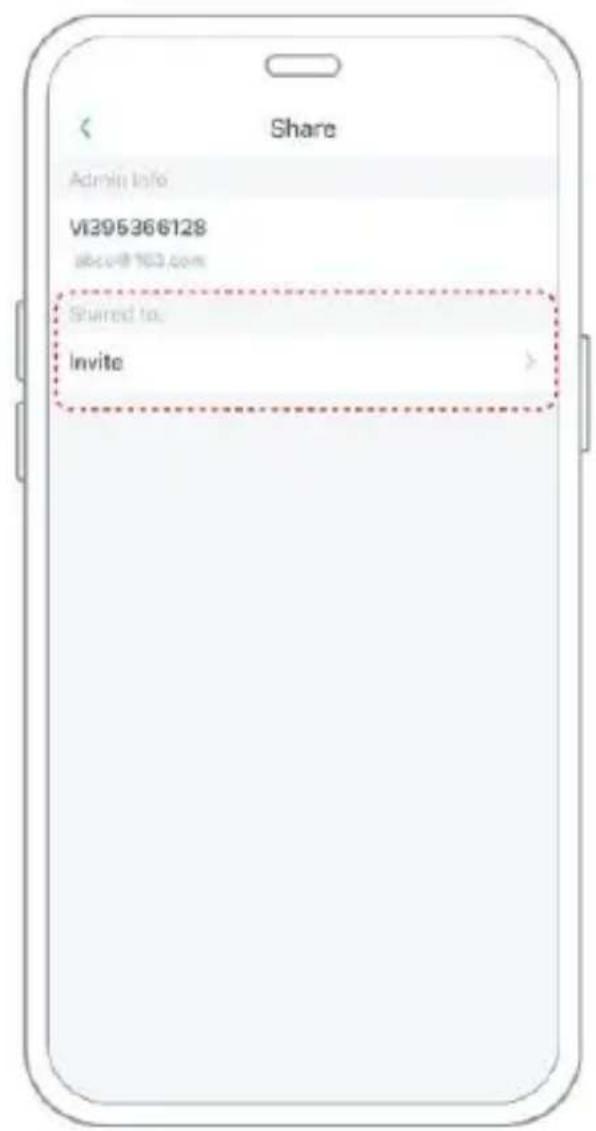
Step 2: Click "Invite", and a QR code will be generated for sharing.
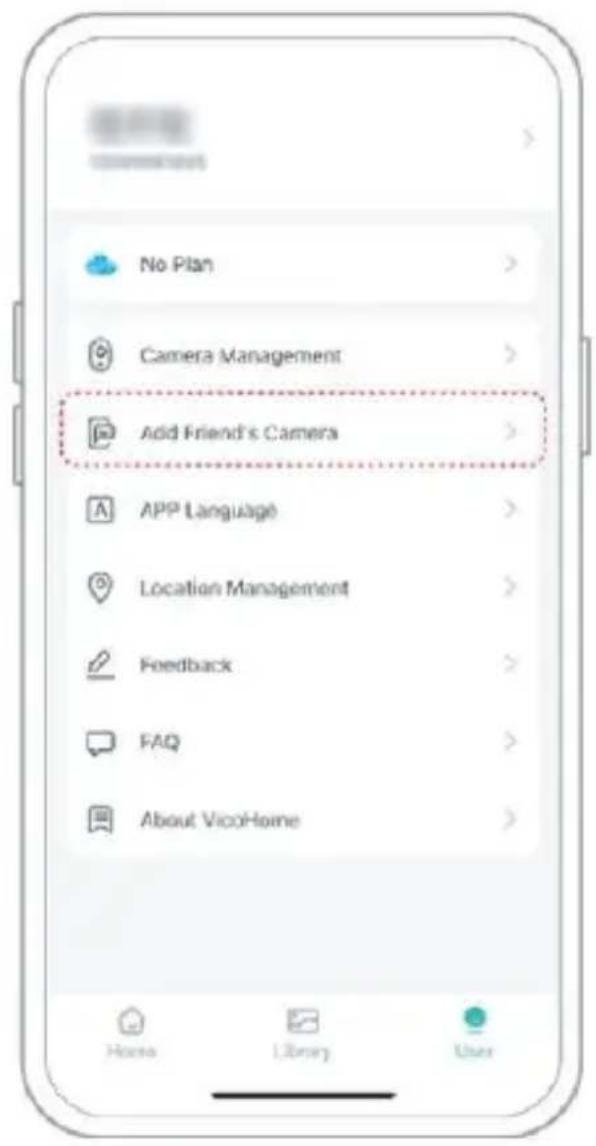
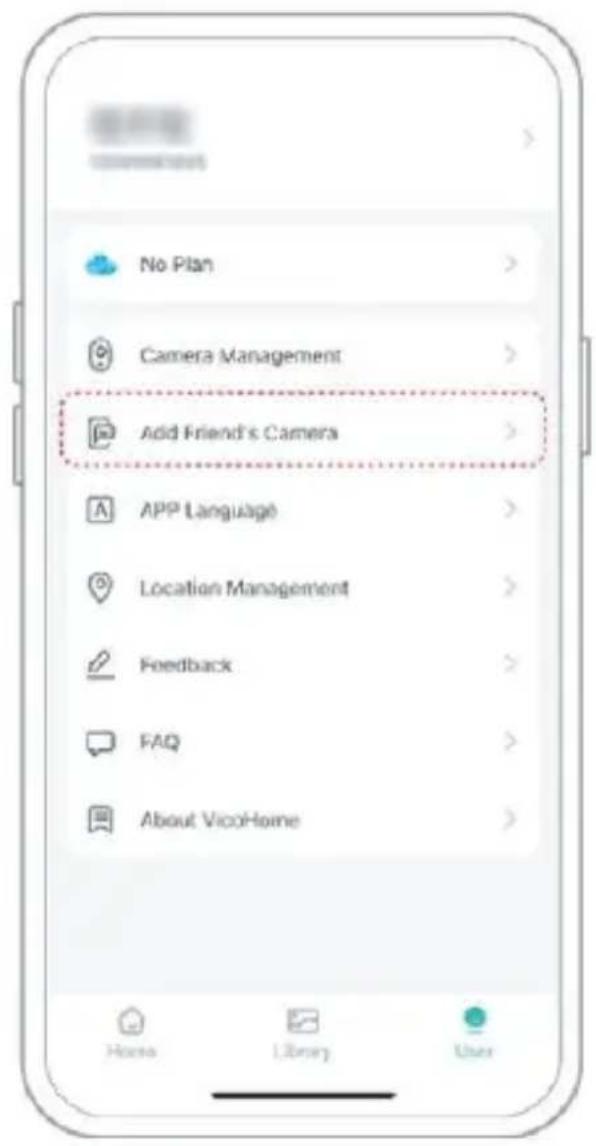
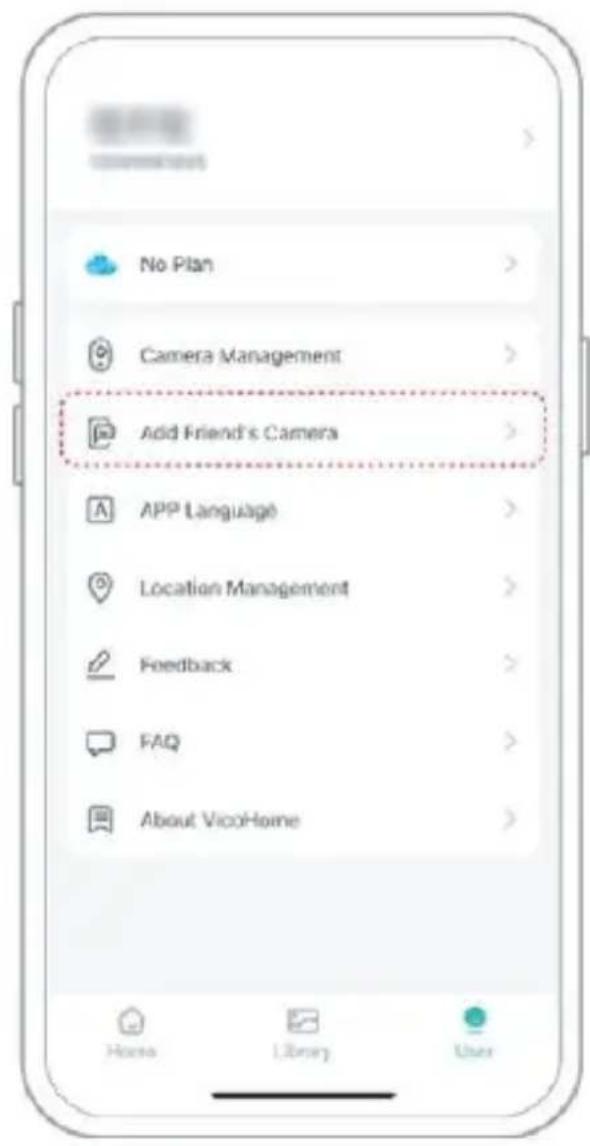
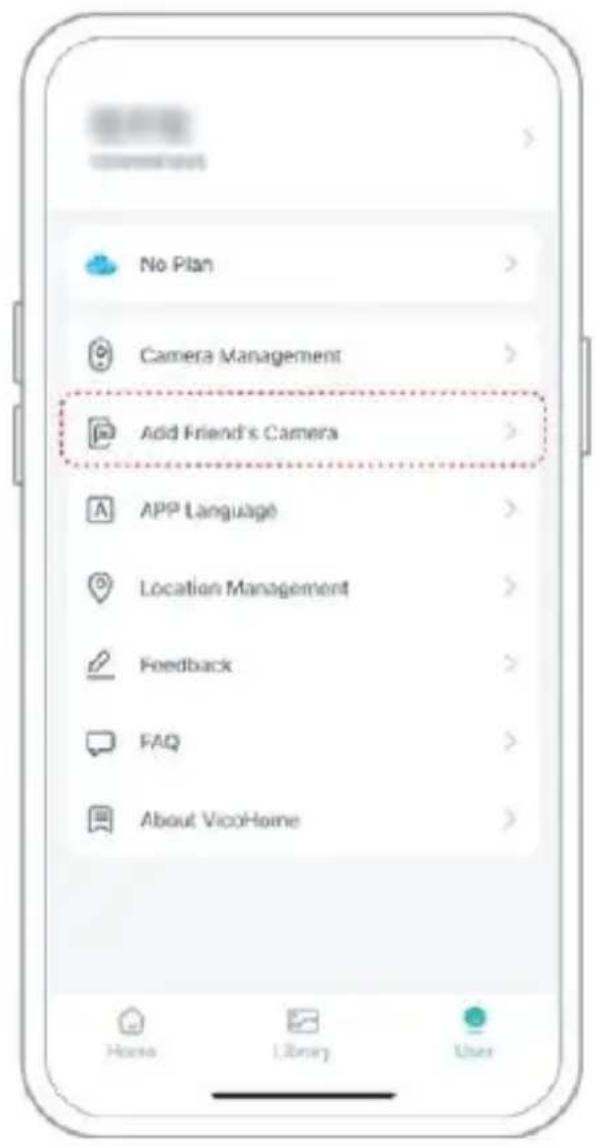
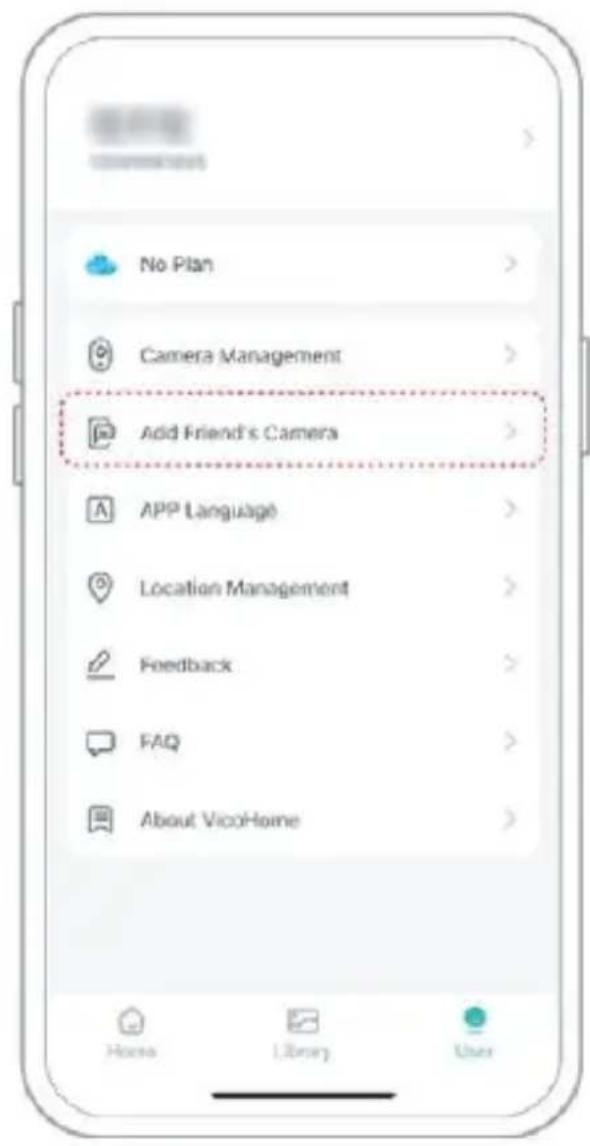
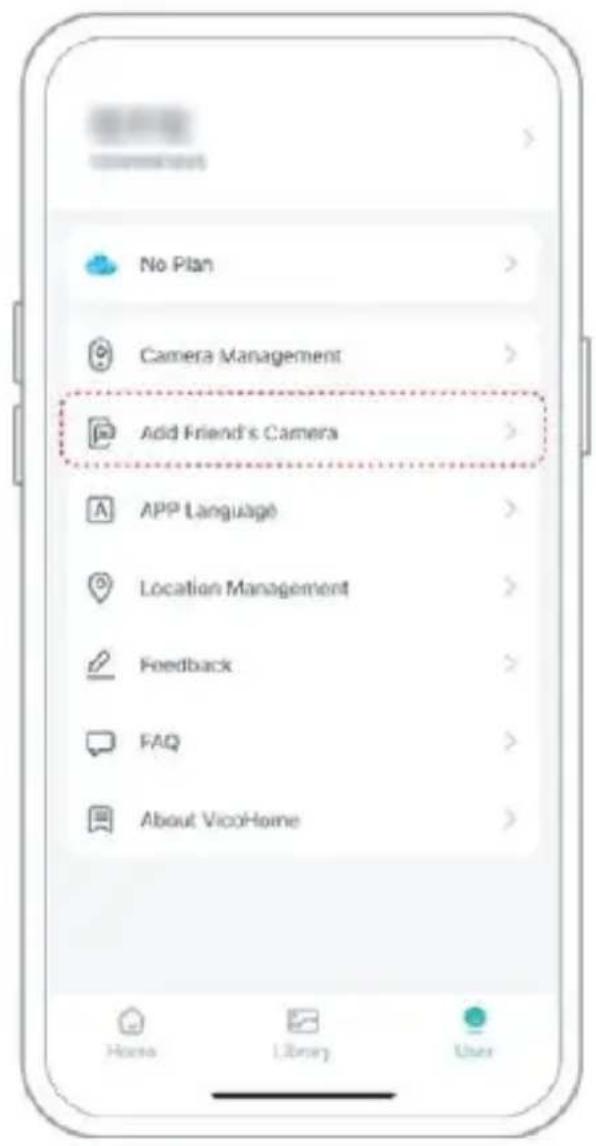
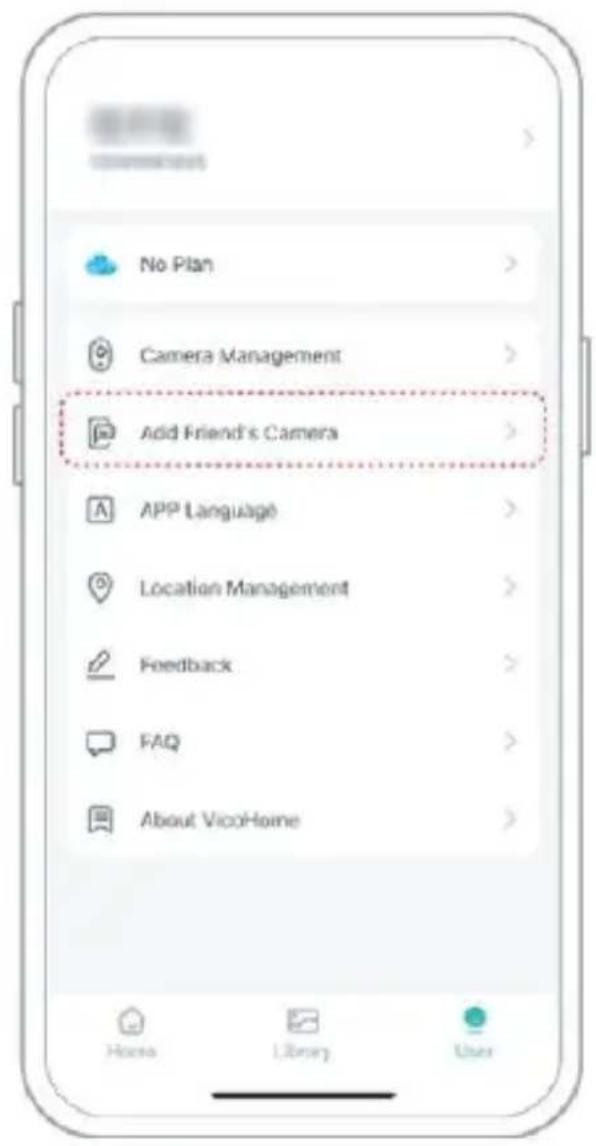
Step 3: For the members you need to share, find "Add Friend's Camera" on the "User" page to enter the scanning page.
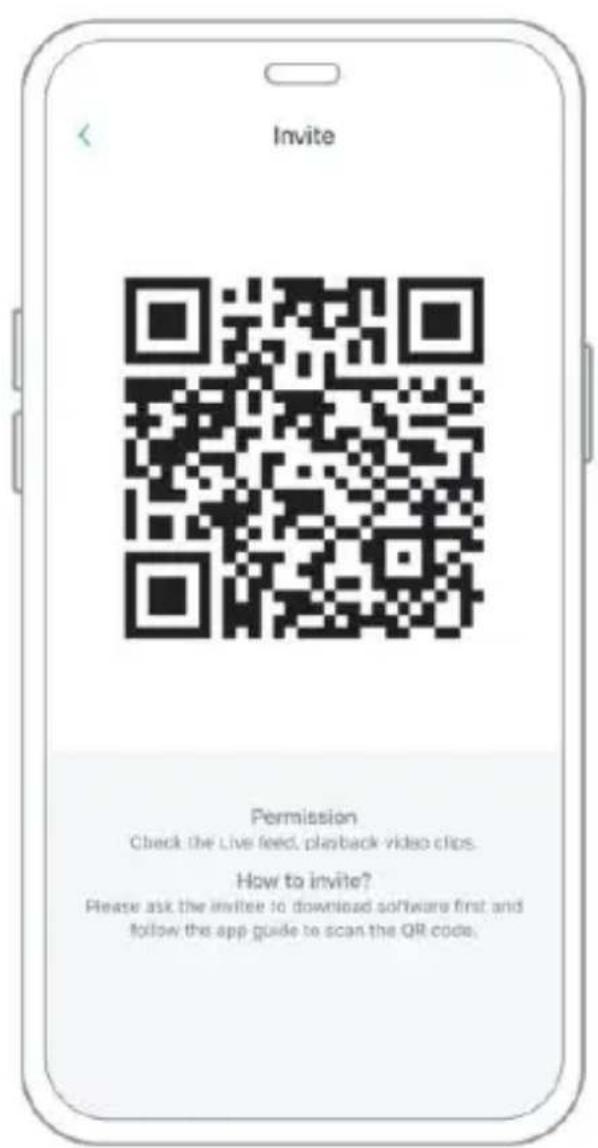
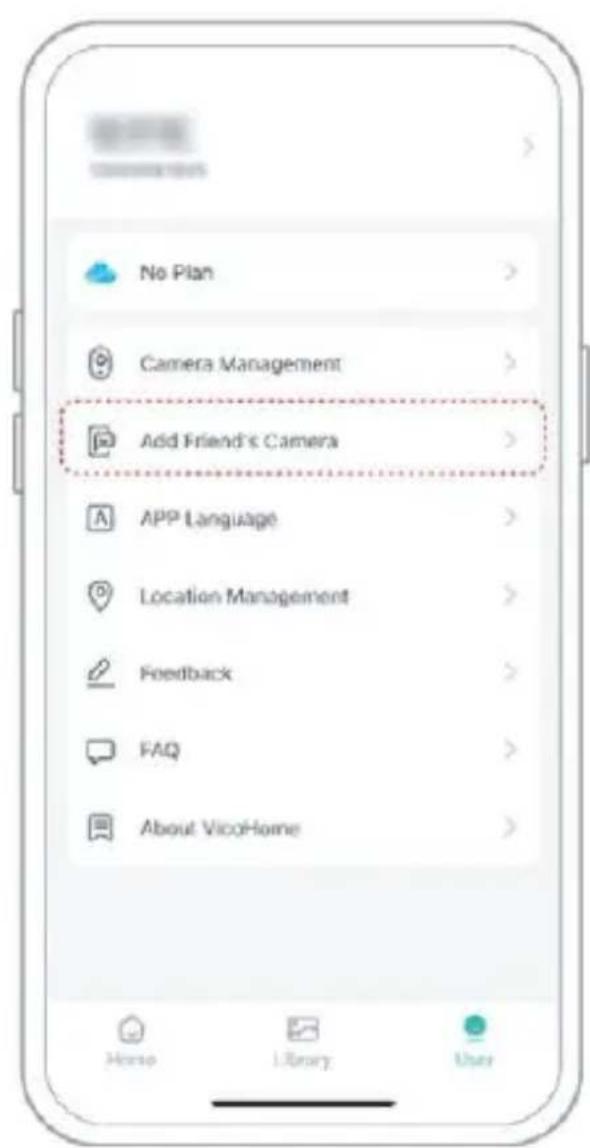
Step 4: Scan the QR code generated on your mobile phone, and you will receive a confirmation notification after success. The sharing will be completed after you agree.
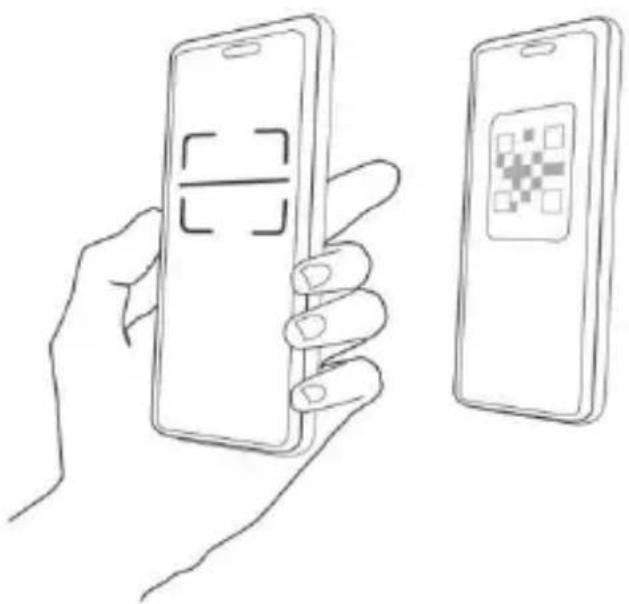
CHARGE THE CAMERA
1) Check Battery Level
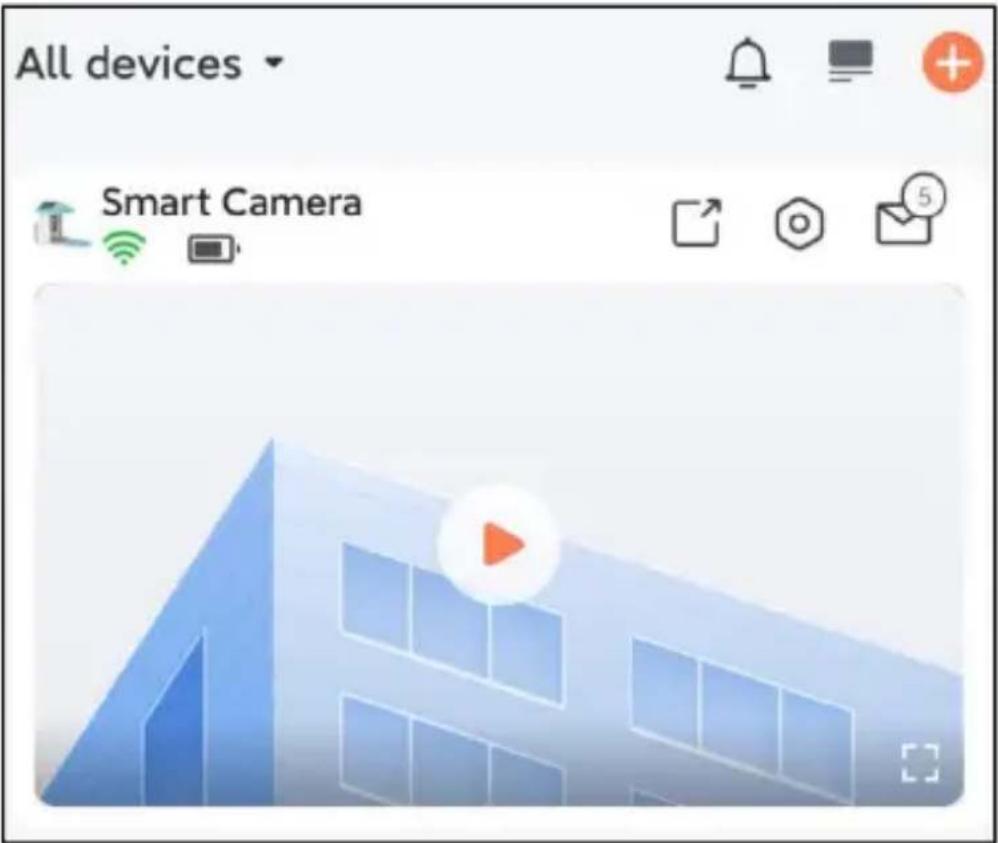
After setting up the camera, please check the battery level of the camera to make sure it is fully charged before installing it in the yard. The app will also remind you to charge your smart bird feeder when the battery is low.
2) Charge the smart bird feeder
There are two ways to charge it.
① Indoor Charging: If you need to charge after
installation, please don't move the camera and the base, just remove the birdseed container. The charging port is in the middle of the back side of the bird seed container.
Please use the Type-C cable to plug into the 5V/1.5A charging adapter to charge the smart bird feeder.
② Outdoor charging: You can directly use the equipped solar panel to connect to the charging port in the middle of the back side of the bird seed container.
Note: During charging, the camera's indicator light is solid yellow, and when the camera is fully charged, the indicator light will turn solid green. It will take ten hours to fully charge the camera.
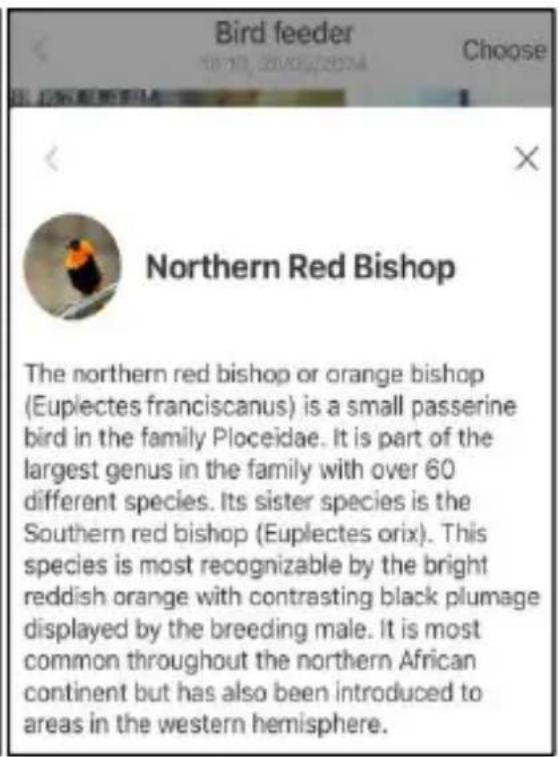
HOW TO DO BIRD AI RECOGNITION
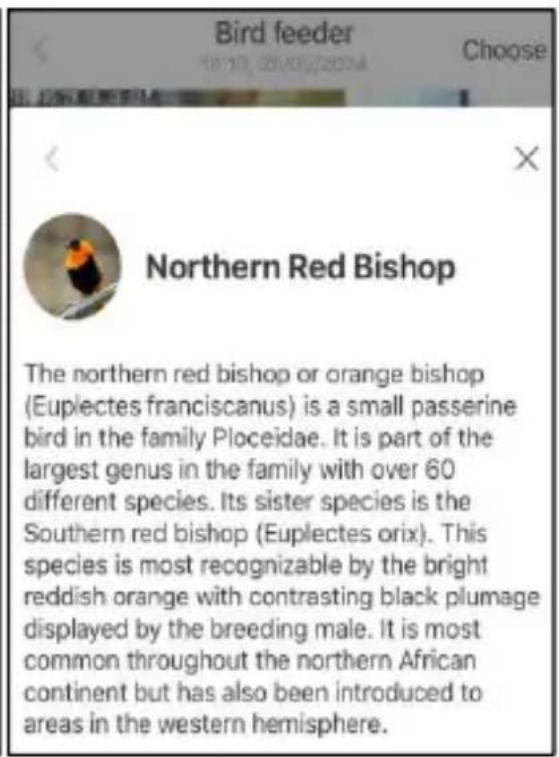
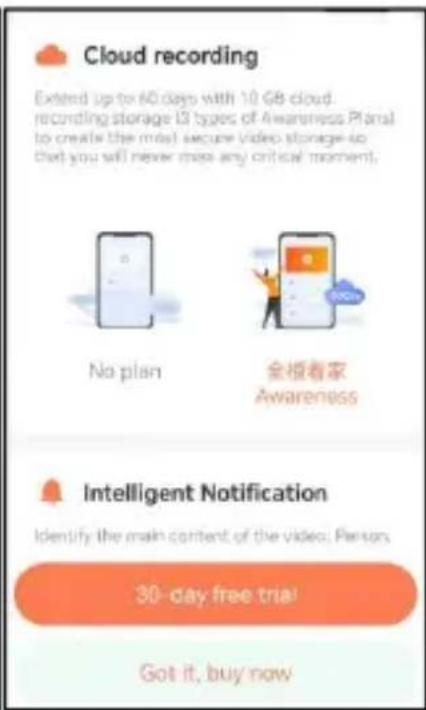
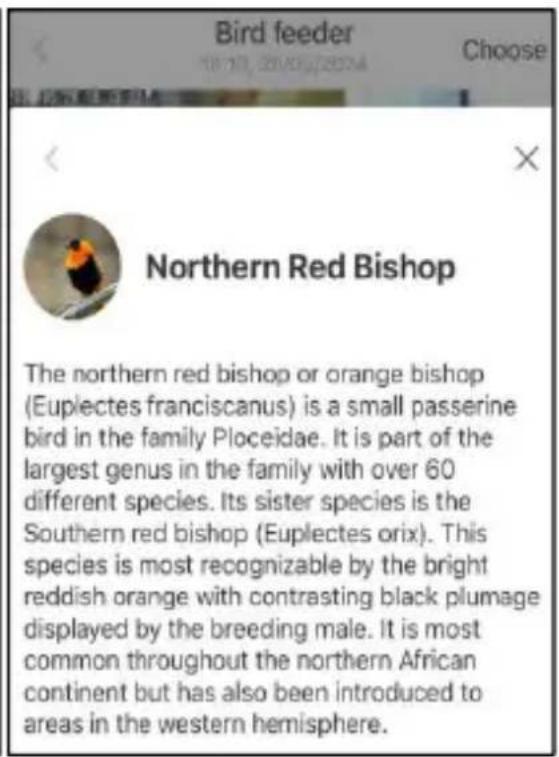
Step 1: Click 'User' in the lower right corner of the app, then click 'VicoHome' Awareness Plus to get 'VicoHome' Awareness Plus 30-day free trial. You will receive one month of free premium membership and access to the 'Bird Fans Plan', then you will be able to identify 10,000+ birds with the Bird Fans Plan.
Note: The most up-to-date information can be found through the app. Monthly subscription is required after the 30-day free trial.
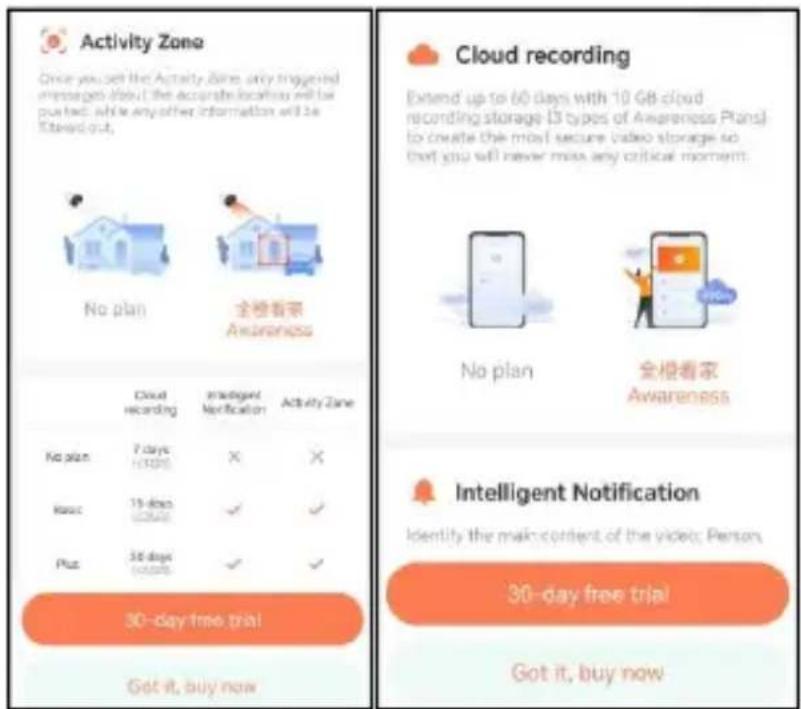
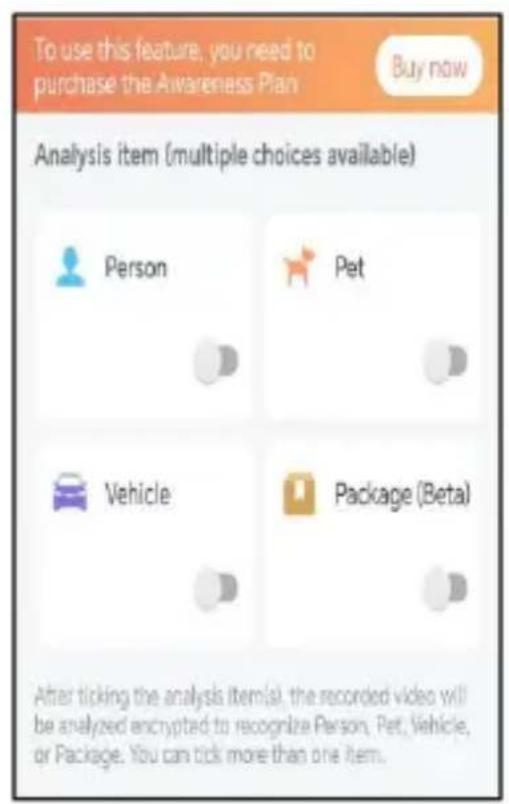
Step 2: When the camera detects a bird, it will notify you that a bird has been detected.
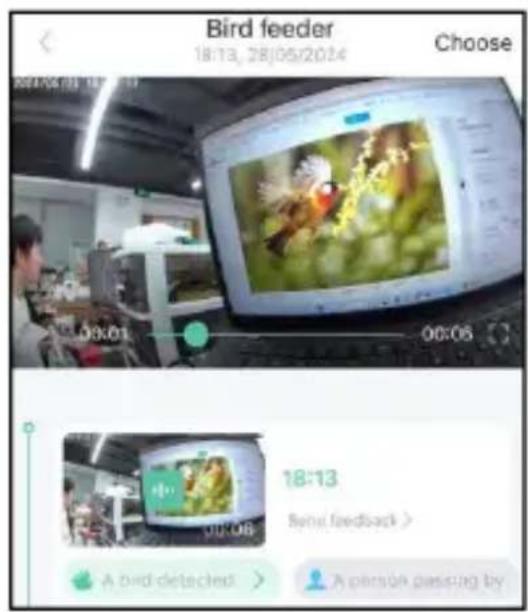
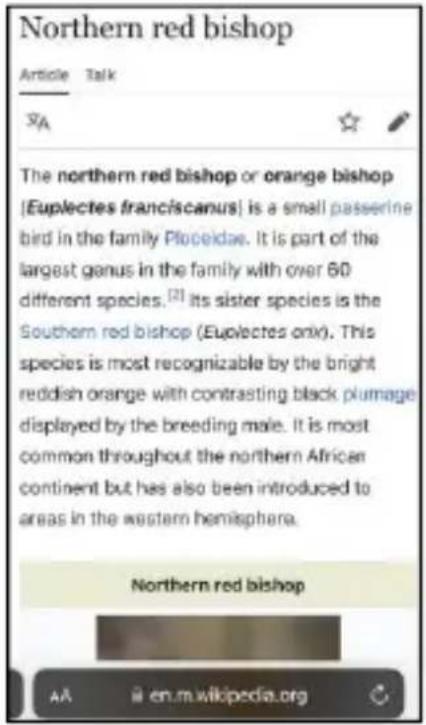
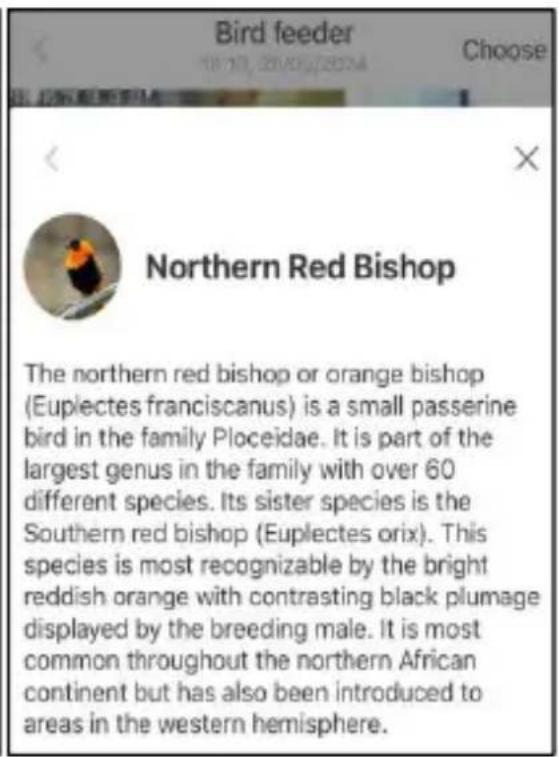
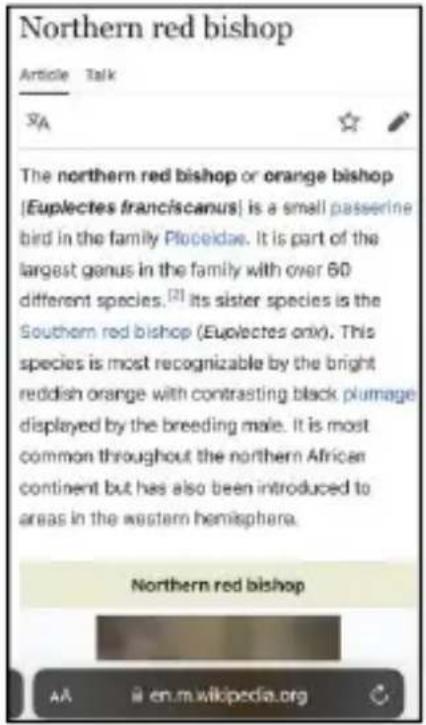
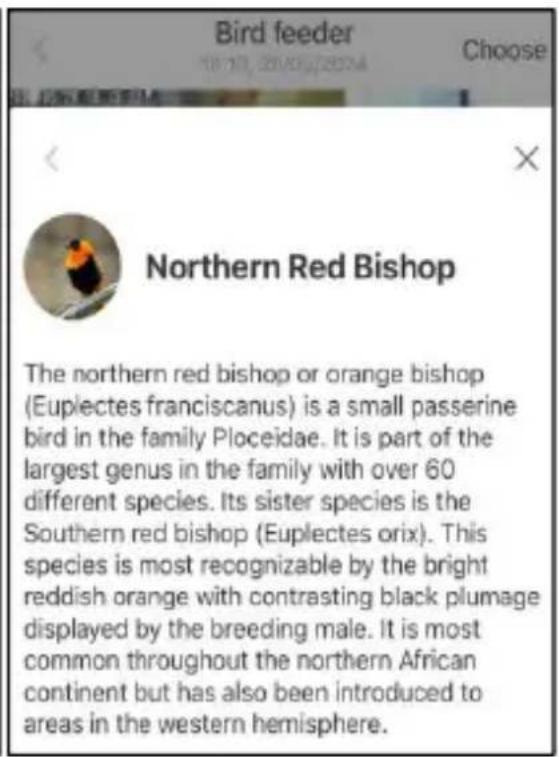
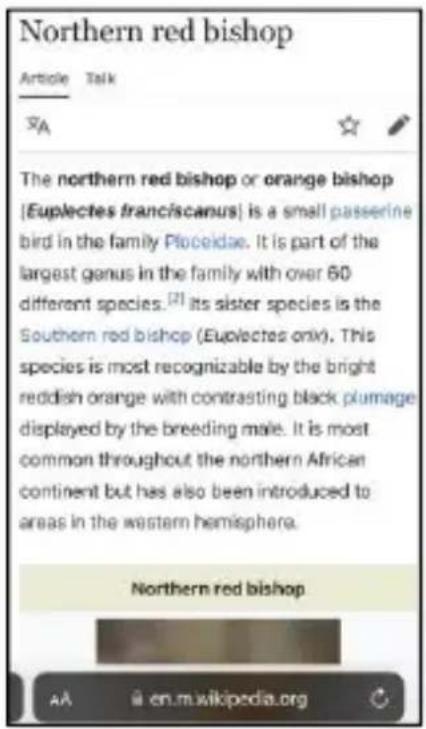
Step 3: Click on 'A bird detected' to identify the bird breed.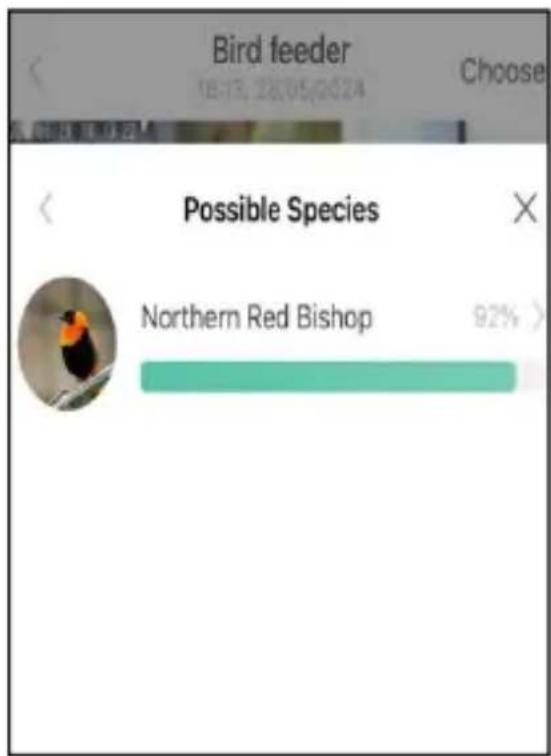
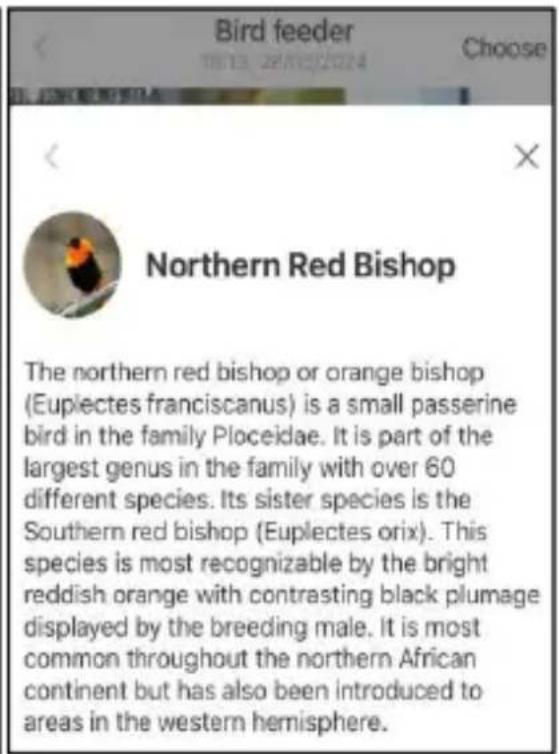
![Northern red bishop Article Talk A The northern red bishop or orange bishop (Euplectes franciscanus) is a small passerine bird in the family Ploceidae. It is part of the largest genus in the family with over 60 different species. [2] Its sister species is the Southern red bishop (Euplectes orix). Th…](/content/2026/04/735350/images/fd6d51d976c091453fc65d79096580c31fbc8bdf220dbe01573e65469037a67b.jpg)
NOTIFICATION SETTING
- When the notification setting is turned on, a message will be pushed to your phone interface when a bird is detected.
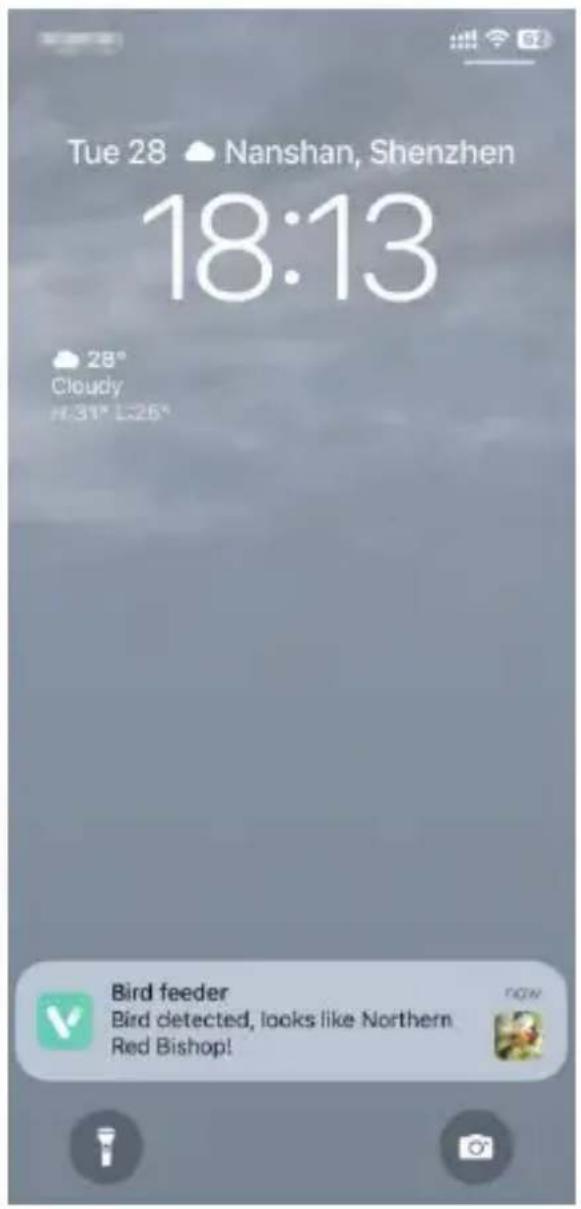
- If you feel that the messages are noted frequently, you can cancel the notification function in the notification setting interface on the 'VicoHome' App.
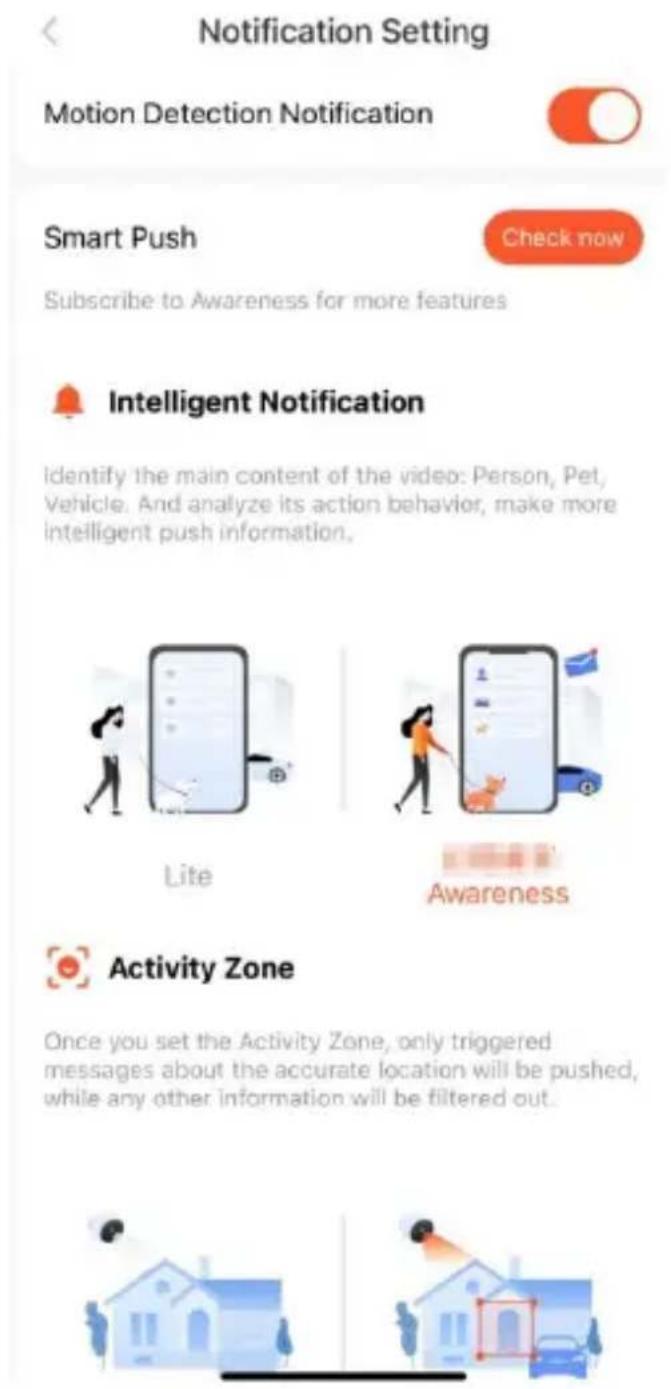
Notification Setting
Motion Detection Notification
Smart Push
Check now
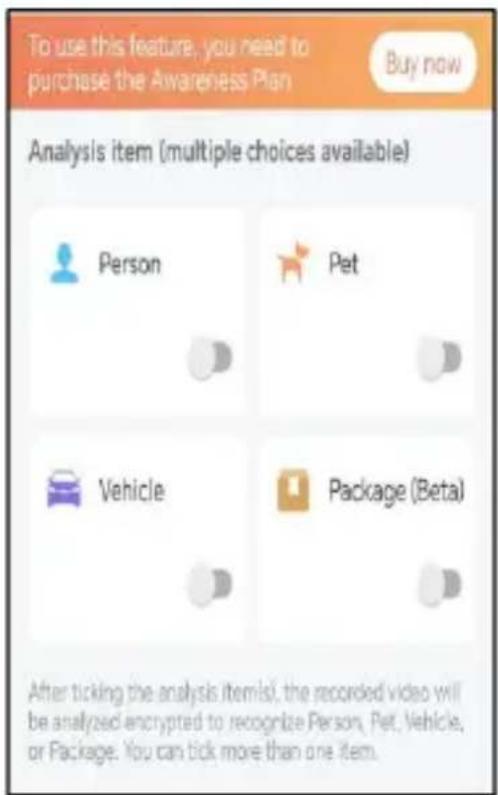
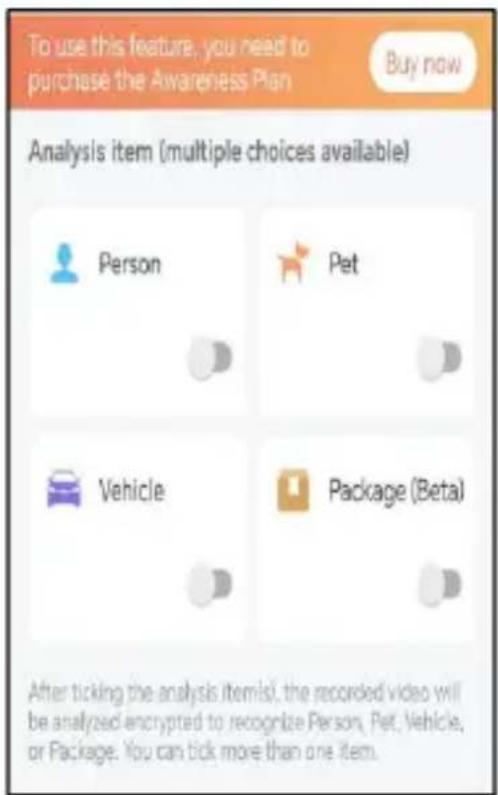
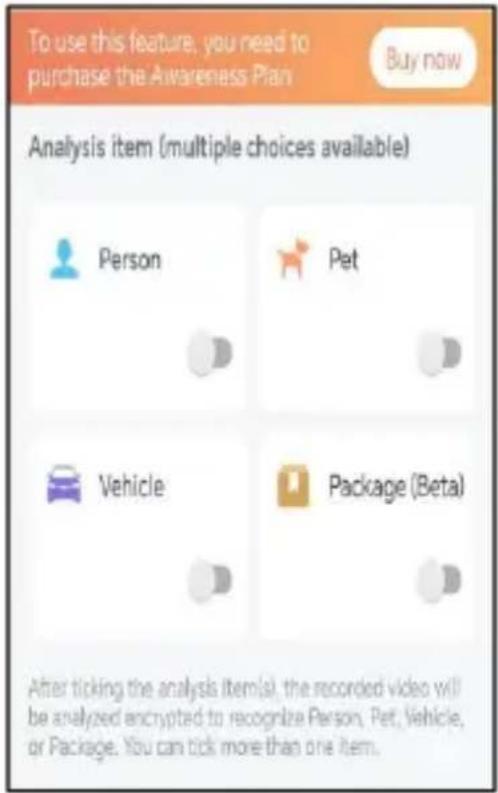
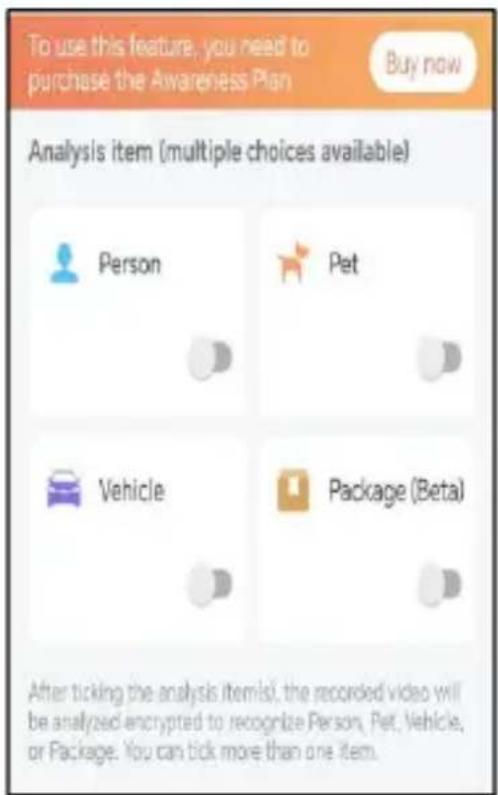
Subscribe to Awareness for more features
Intelligent Notification
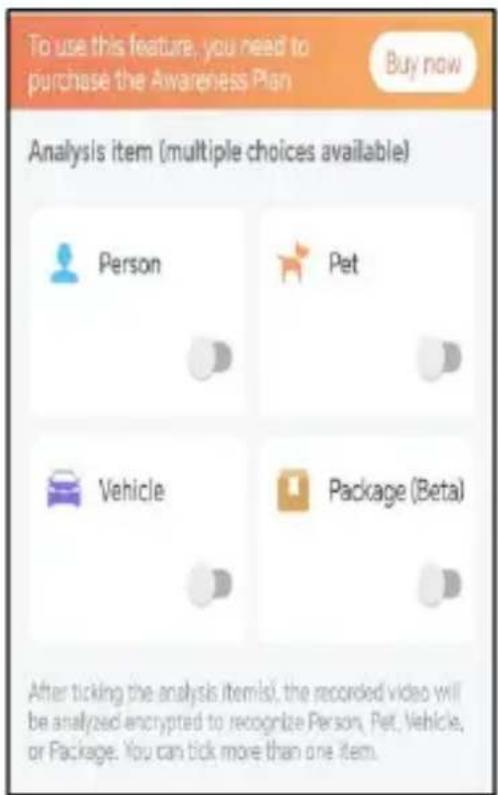
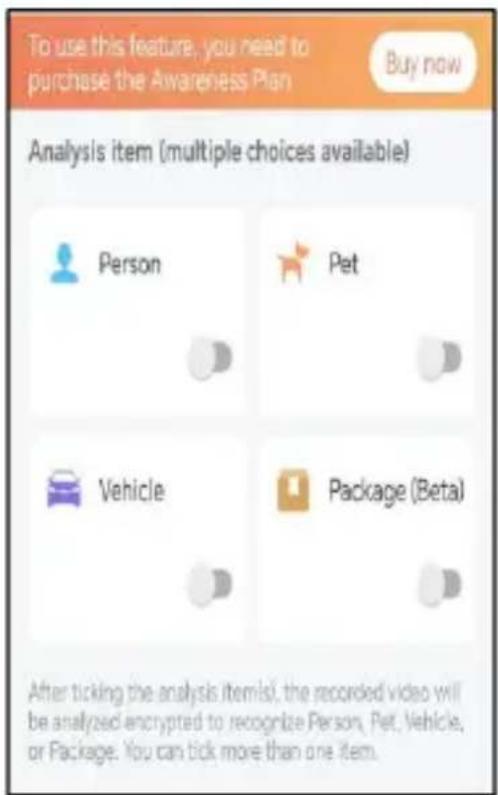
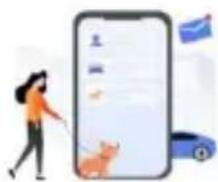
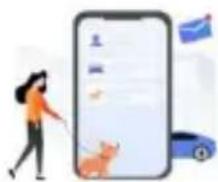
Identify the main content of the video: Person, Pet, Vehicle. And analyze its action behavior, make more intelligent push information.
Activity Zone
Once you set the Activity Zone, only triggered messages about the accurate location will be pushed, while any other information will be filtered out.
BIRDFEEDER INSTALLATION
(1) Install the bracket
Step1: Screw fixing
Use a drill tool to drill holes in the wall according to the spacing of the brackets. It is recommended to mark the holes on the wall with a pencil before drilling. Screw the expansion nut into the holes on the wall, and then connect the bracket to the expansion nut with screws to complete the fixing.
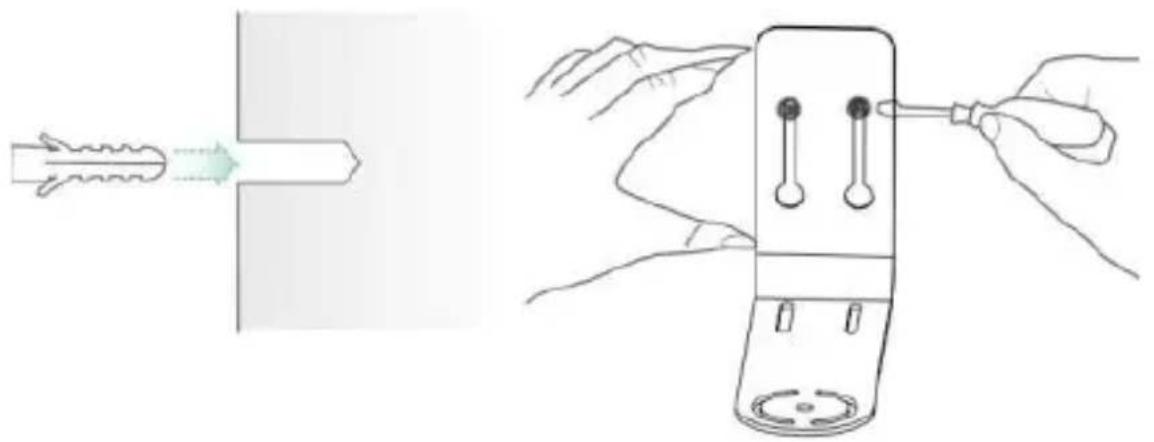
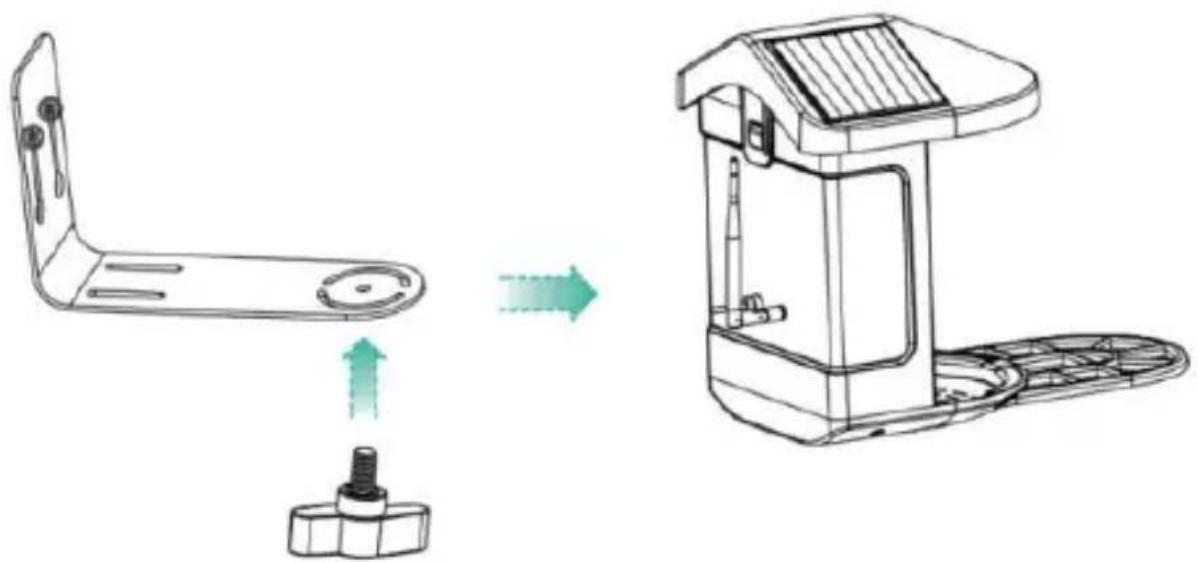
Step2: Installation of bracket and Bird Feeder
Tighten the hand screw with the screw hole at the bottom of the bird feeder through the iron bracket.
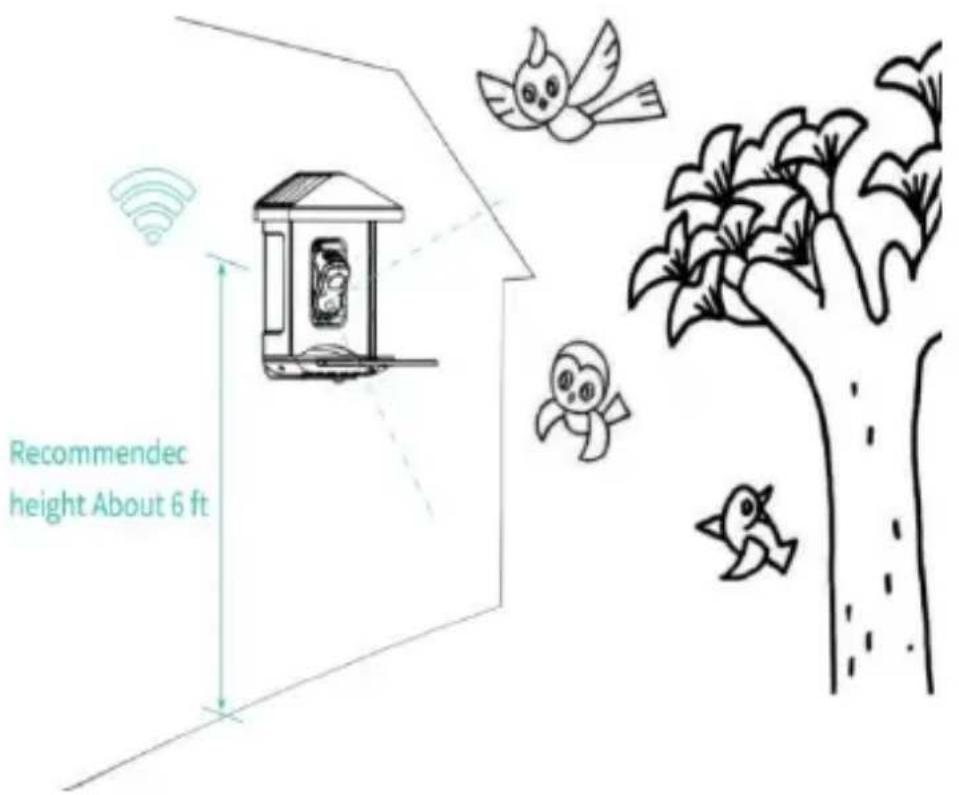
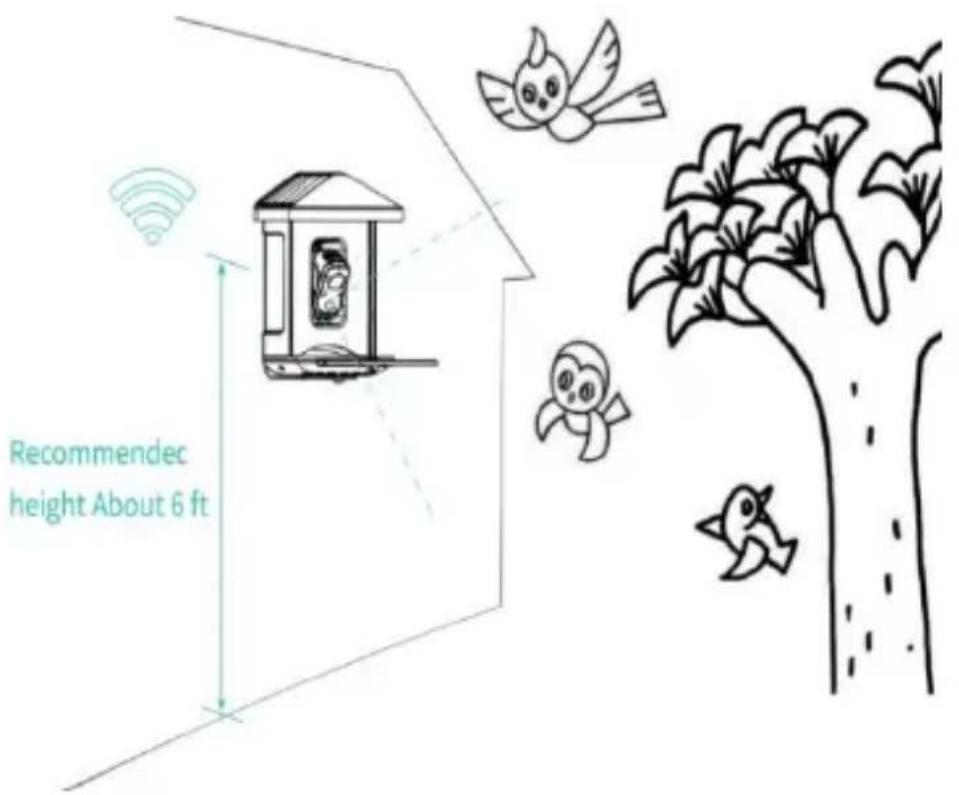
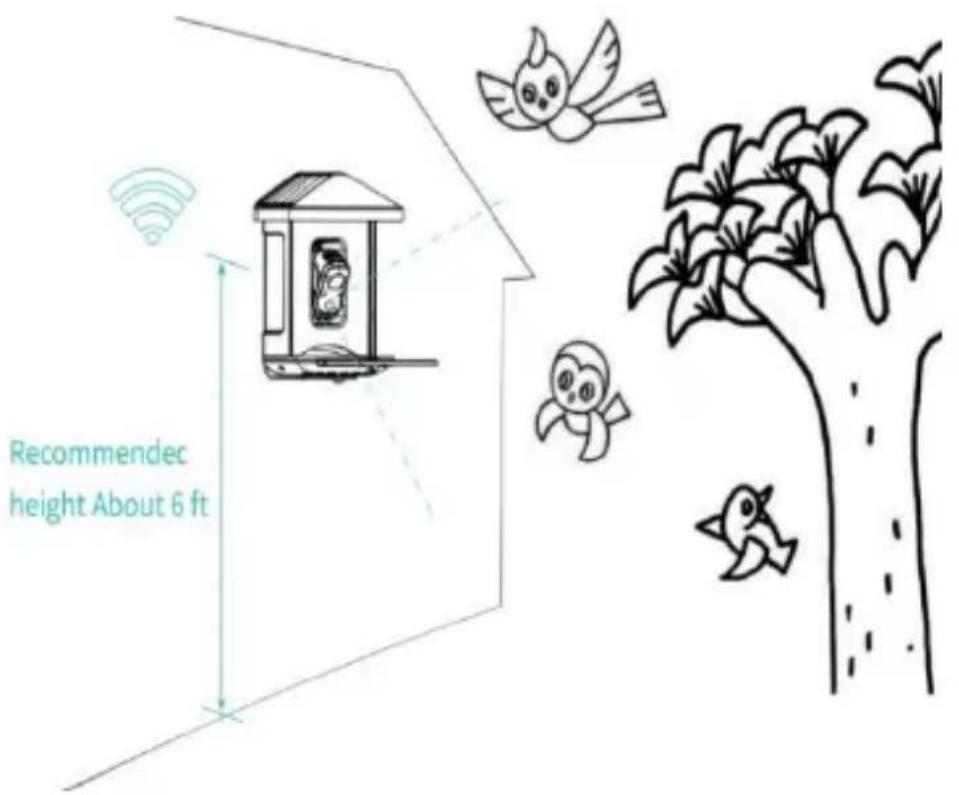
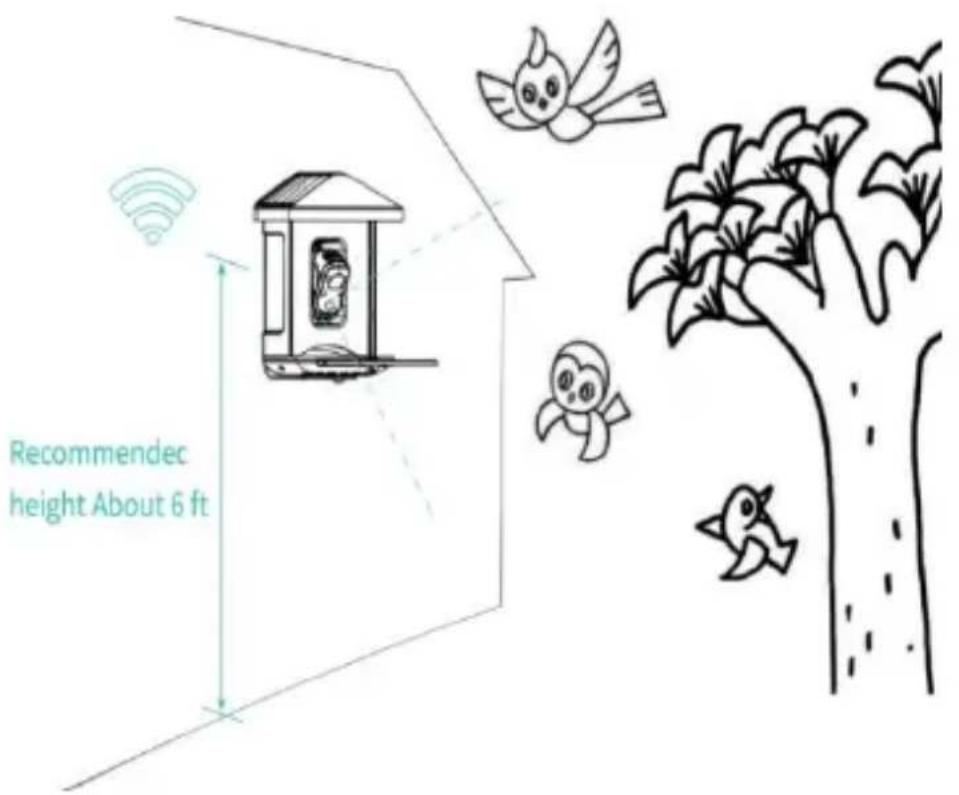
(2) Select a good spot for your bird feeder
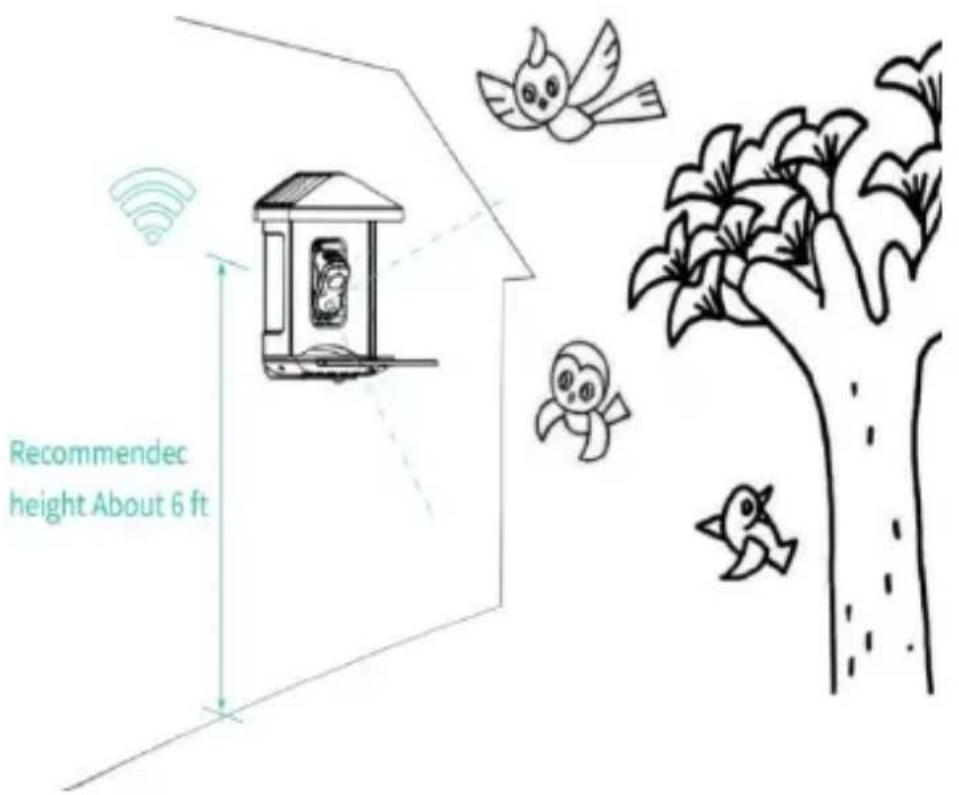
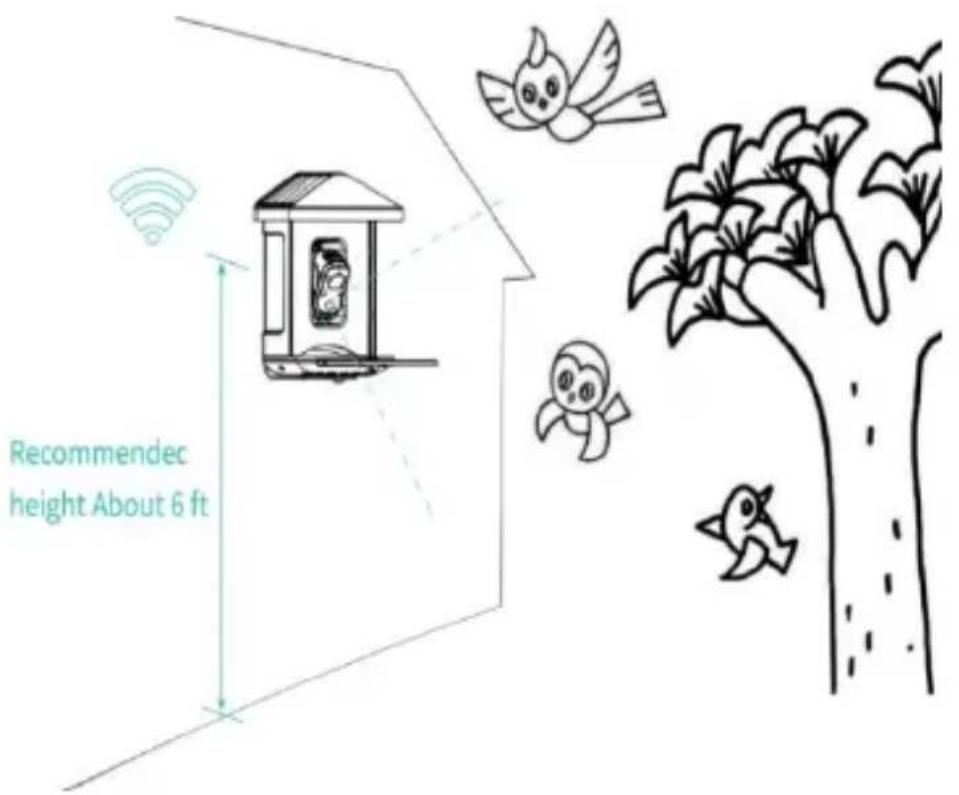
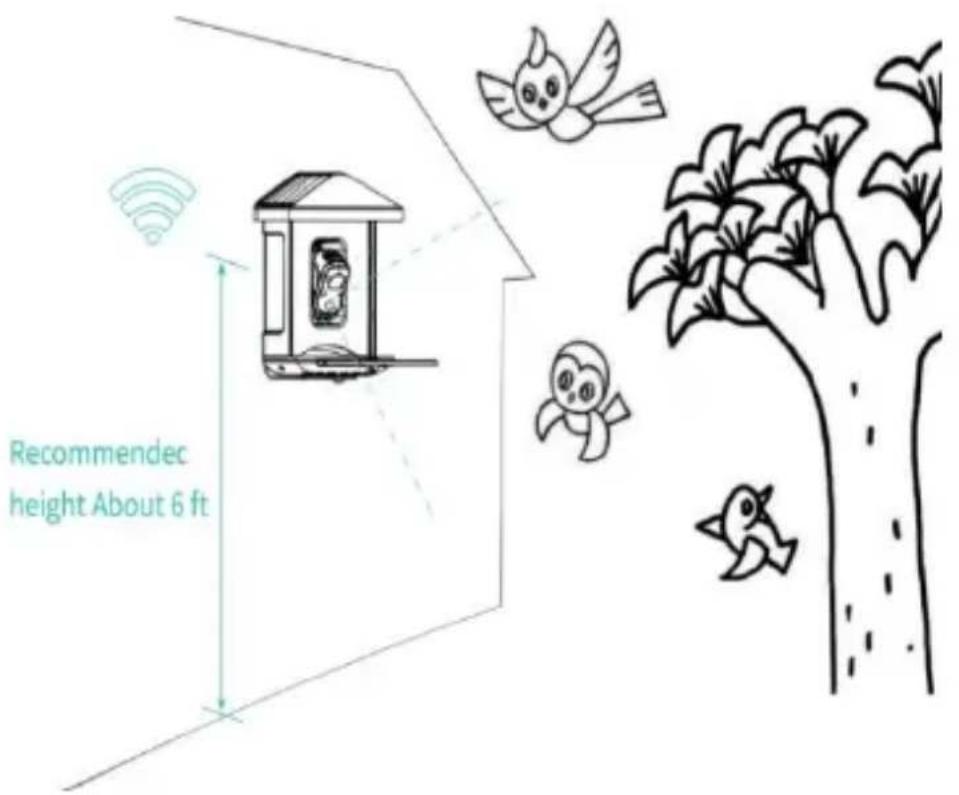
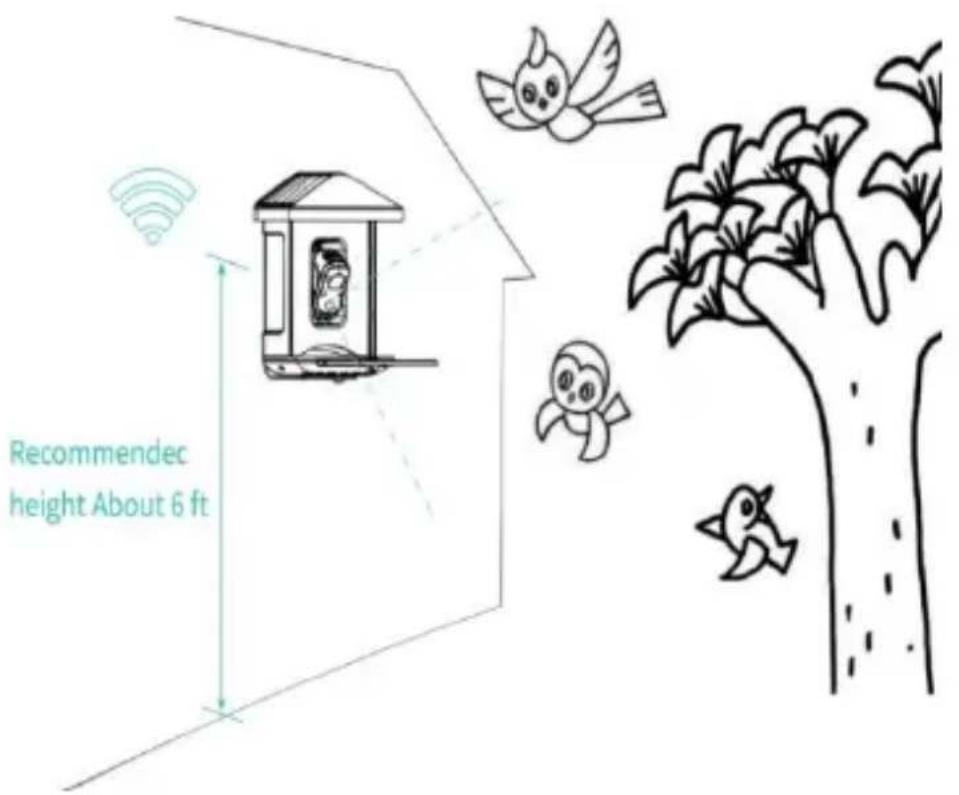
You can install the bird feeder on the wall for use, or you can install it on a tree for use.
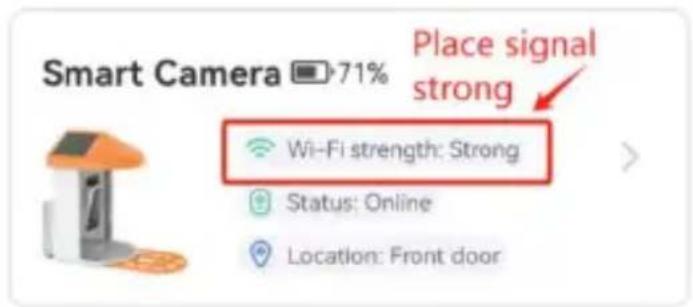
Please choose a place with a strong Wi-Fi signal for your bird feeder. It is best to be an active place with birds, but you need to ensure the coverage of the Wi-Fi network. Adjust the angle of the camera to cover as much of the bird-watching stand as possible.
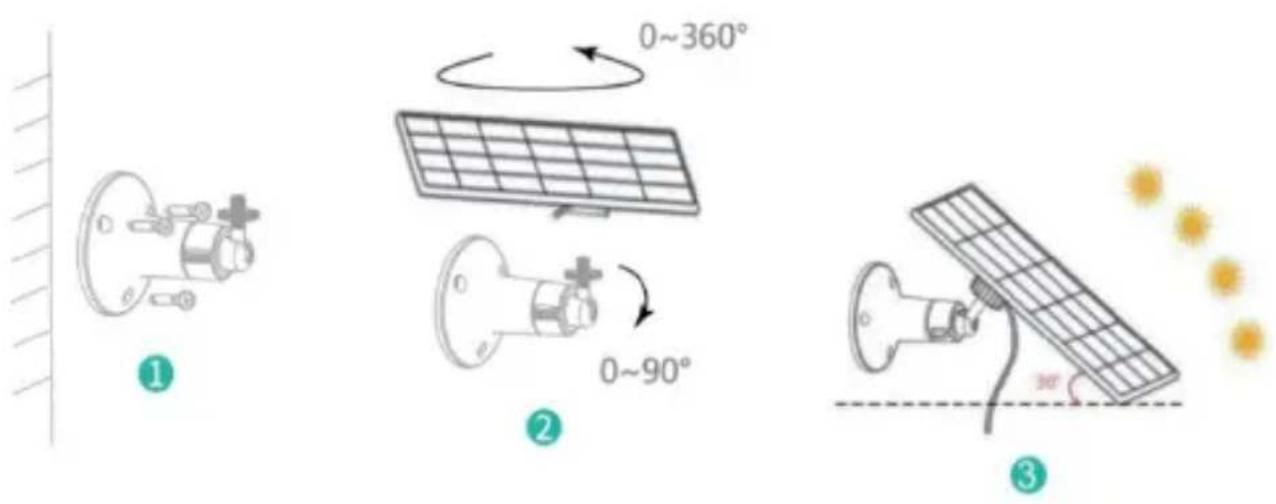
(3) Install solar panels
Step1: Fix the bracket on the wall. Step2: Install the solar panel on the bracket and lock it with a screw. Step3: Adjust the angle of the solar panel so that it can receive the most sunlight.
FIRMWARE UPGRADE
When you connect your camera through the App, it will prompt you if the latest firmware is available. You can also manually check the firmware version in the settings of the App.
Note: Please make sure that your camera is fully charged or connected to the power adapter before upgrading the
firmware, and do not cut off the power supply during the upgrade.
FAQ
1. Q: Camera permission management: How do I invite family and friends to use my camera together?
A: Open the App and select your camera on the home page. Click the share button on the home page or the "Share" in the camera settings to enter the sharing page, then click "Invite" to generate a QR code. Your friends can now get some access rights by scanning the QR code on your phone.
2. Q: Why doesn't the Wi-Fi name appear when I connect to Wi-Fi?
A: On Apple devices with iOS 13 and above, you need to turn on the location permission for the app in the system settings and change it to "Allow While Using".
3. Q: Will the camera show red lights when night vision is activated?
A: The built-in infrared lamp beads make the camera only
A: If you set the duration as "Auto", when someone appears in the camera's view, it will start recording a video of up to 3 minutes.
7. Q: How do I quickly view videos by category?
A: Click the icon in the upper left corner of the "Library" page to start filtering videos by category. Select the category you want to see and then click "Save" to view the video playbacks.
8. Q: What should I do when the device malfunctions?
A: Long press the power button for 3 seconds to restart. If there is no response, remove the rubber plug covering the button of the camera. Press the reboot hole with a pointed object to restart the camera.
POSSIBLE PROBLEMS WITH BINDING
1) When you hear the "Wi-Fi Password Error", please check whether the Wi-Fi password you entered in the App is correct. 2) When you hear the "Authentication error", please
ensure that your Wi-Fi network is not an enterprise-level network, and the device supports only the network with the security level below WPA-2.
3) When you hear the "Wi-Fi not found", please check whether you select or enter the correct Wi-Fi name, and place the device near the Wi-Fi router and ensure that the router is powered on. Please note that 5Ghz Wi-Fi cannot be searched by the device.
4) When you hear the "Retrieving IP timeout", it indicates that the number of devices connected to the router in your home is too many to connect more devices. Please remove some of the connected devices that are not commonly used or restart the router to clear the unconnected devices. You may need to contact the router administrator.
5) When you hear the "Cloud service connection fail" please check whether your router is connected properly to the external network. When you hear this error prompt, it is common on the condition of network disconnection or that the selected router in your home is a local area
network server. Please ensure that the network connection is normal, and try to temporarily turnoff the firewall to connect again.
FIRMWARE UPGRADE
When you connect your camera through the App, it will prompt you if the latest firmware is available. You can also manually check the firmware version in the settings of the App.
Note: Please make sure that your camera is fully charged or connected to the power adapter before upgrading the firmware, please do not cut off the power supply during the upgrading.
FCC INFORMATION
WARNING: Changes or modifications not expressly approved by the party responsible for compliance could void the user's authority to operate the equipment.
NOTE: This equipment has been tested and found to comply with the limits for a Class B digital device,
pursuant to Part 15 of the FCC Rules. These limits are designed to provide reasonable protection against harmful interference in a residential installation. This unit generates, uses, and can radiate radio frequency energy and if not installed and used in accordance with the instructions, may cause harmful interference to radio communications. However, there is no guarantee that interference will not occur in a particular installation. If this equipment does cause harmful interference to radio or television reception, which can be one or more of the following measures:
- Reorient or relocate the receiving antenna.
- Increase the separation between the equipment and receiver.
- Connect the equipment to an outlet on a circuit different from that to which the receiver is connected.
- Consult the dealer or an experienced radio/TV technician for help.
This device complies with Part 15 of the FCC Rules. Operation is subject to the following two conditions:
- This device may not cause harmful interference.
- This device must accept any interference received, including interference that may cause undesired operation.
FCC ID: 2AXBN-Q5
DISPOSAL INSTRUCTIONS
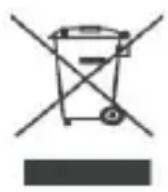
CORRECT DISPOSAL
This product is subject to the provisions of European Directive 2012/19/EU. The symbol showing a wheelie bin crossed through indicates that the product requires separate refuse collection in the European Union. This applies to the product and all accessories marked with this symbol. Products marked as such may not be discarded with normal domestic waste, but must be taken to a collection point for recycling electrical and electronic devices.
Manufacturer: Shanghai Muxin Muye Youxian Gongsi
Address: Shuangcheng Road 803, Lane 11, Room 1602A-1609,
Baoshan District, Shanghai 200000, CN.
EC REP: E-CrossStu GmbH.
Mainzer Landstr.69, 60329 Frankfurt am Main.
UK REP: YH CONSULTING LIMITED.
C/O YH Consulting Limited Office 147, Centurion House,
London Road, Staines-upon-Thames, Surrey, TW18 4AX
Imported to AUS: SIHAO PTY LTD.
1 ROKEVA STREETEASTWOOD NSW 2122 Australia
Imported to USA: Sanven Technology Ltd.
Suite 250, 9166 Anaheim Place, Rancho Cucamonga, CA
91730
VEVOR®
TOUGH TOOLS, HALF PRICE
Technical Support and E-Warranty Certificate
www.vevor.com/support
VEVOR®
TOUGH TOOLS, HALF PRICE
www.vevor.com/support
SMART BIRD FEEDER (with camera model QB)
MODEL: FB-A01, FB-A02, FB-A03, FB-A04, FB-A05, FB-A06
We continue to be committed to providing you with tools at competitive prices. The expressions "Save Half", "Half Price", or any other similar expressions used represent an estimate of savings you might benefit from buying certain products with us compared to the major top brands and do not necessarily cover all categories of tools offered by us. You are kindly reminded to carefully consider when placing an order with us if you are actually comparing with the top major brands.
VEVOR®
TOUGH TOOLS, HALF PRICE
SMART BIRD FEEDER
Model: FB-A01, FB-A02, FB-A03, FB-A04, FB-A05, FB-A06
NEED HELP? CONTACT US!
Have product questions? Need technical support? Please feel free to contact us:
Technical Support and E-Warranty Certificate www.vevor.com/support
This is the original instruction. Please read all manual instructions carefully before operating. VEVOR reserves a clear interpretation of our user manual. The appearance of the product shall be subject to the product you received. Please forgive us if we do not notify you again if there are any technology or software updates to the product.
IMPORTANT SAFEGUARDS

BIRD FEEDER PARTS NAME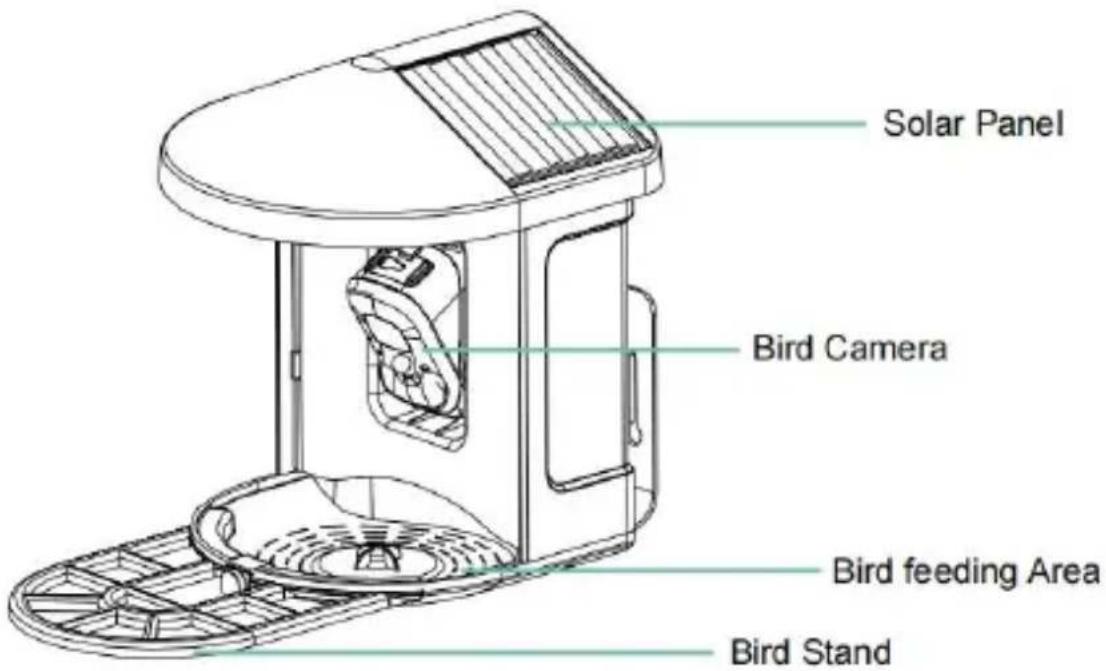
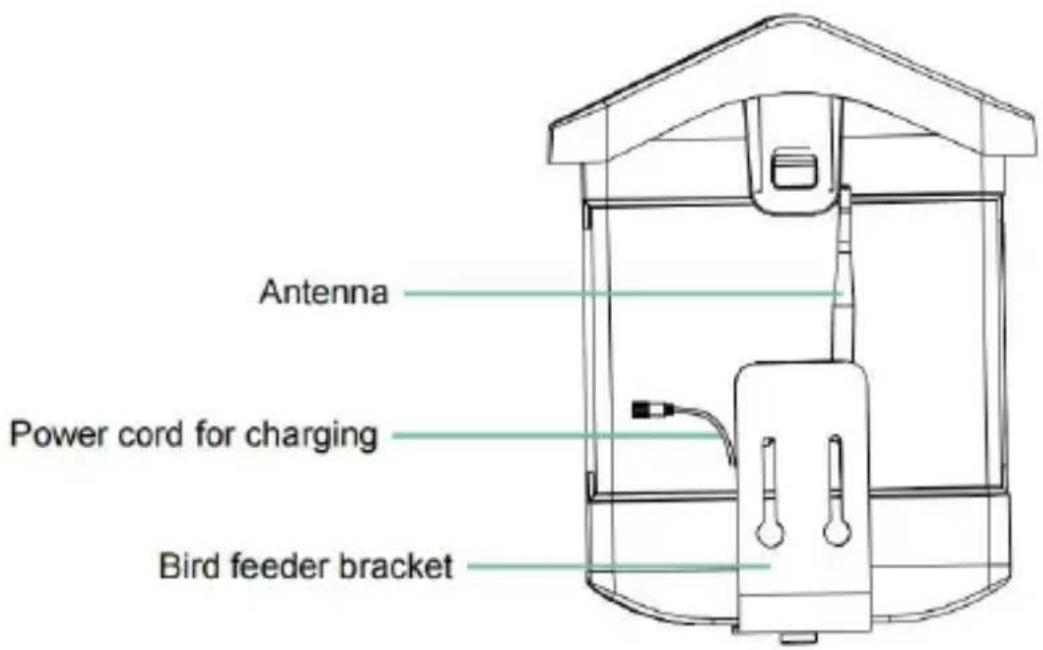
STEPS OF ASSEMBLY
DOWNLOAD & INSTALL APP

Download App
I understand and agree User Agreement and Privacy Policy
Next Step
HOW TO SET UP THE CAMERA
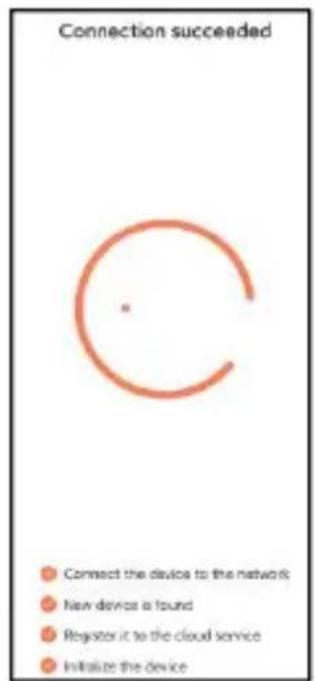
Device added successfully!
The next step will guide you on how to install the device
Let's start
Continue adding another device first
SHARE THE CAMERA
CHARGE THE CAMERA

NOTIFICATION SETTING
Notification Setting
Motion Detection Notification

Smart Push
Check now
Subscribe to Awareness for more features

Intelligent Notification
Identify the main content of the video: Person, Pet, Vehicle. And analyze its action behavior, make more intelligent push information.
Lite
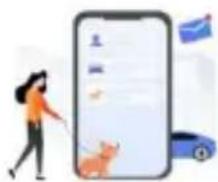
Awareness

Activity Zone
Once you set the Activity Zone, only triggered messages about the accurate location will be pushed, while any other information will be filtered out.

BIRDFEEDER INSTALLATION
( 1 ) Install the bracket
( 3 ) Install solar panels
POSSIBLE PROBLEMS WITH BINDING
C/O YH Consulting Limited Office 147, Centurion House, London Road, Staines-upon-Thames, Surrey, TW18 4AX Imported in AUS: SIHAO PTY LTD.
Suite 250, 9166 Anaheim Place, Rancho Cucamonga, CA 91730
VEVOR®
TOUGH TOOLS, HALF PRICE
www.vevor.com/support
VEVOR®
TOUGH TOOLS, HALF PRICE
www.vevor.com/support
SMART BIRD FEEDER (with camera model QB)
We continue to be committed to providing you with tools at competitive prices. "Save Half", "Half Price", or any other similar expressions used by us represent an estimate of savings you might benefit from buying certain tools with us compared to the major top brands, and do not necessarily cover all categories of tools offered by us. You are kindly reminded to carefully consider when placing an order with us if you are actually comparing with the top major brands.
VEVOR®
TOUGH TOOLS, HALF PRICE
SMART BIRD FEEDER
Model: FB-A01, FB-A02, FB-A03, FB-A04, FB-A05, FB-A06
NEED HELP? CONTACT US!
Have product questions? Need technical support? Please feel free to contact us:
Technical Support and E-Warranty Certificate www.vevor.com/support
This is the original instruction. Please read all manual instructions carefully before operating. VEVOR reserves a clear interpretation of our user manual. The appearance of the product shall be subject to the product you received. Please forgive us if we do not notify you again if there are any technology or software updates to the product.
IMPORTANT SAFEGUARDS

BIRD FEEDER PARTS NAME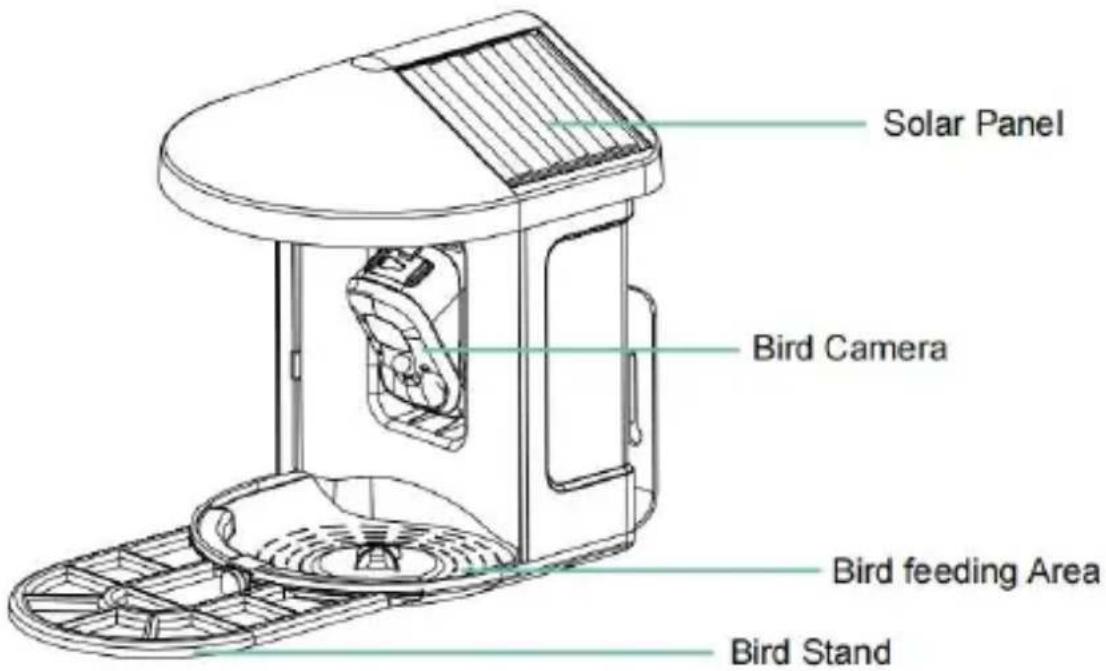

STEPS OF ASSEMBLY
Step 2: Install the tray
DOWNLOAD & INSTALL APP


Download App
I understand and agree to the User Agreement and Privacy Policy
Next Step
SHARE THE CAMERA
CHARGE THE CAMERA
![Northern red bishop Article Talk YA The northern red bishop or orange bishop (Euplectes franciscanus) is a small passerine bird in the family Ploceidae. It is part of the largest genus in the family with over 60 different species.[2] Its sister species is the Southern red bishop (Euplectes orix). Th…](/content/2026/04/735350/images/cfd030addb634d89ecad6ab1c8c79bacf0a0c97ddcae6f72deaa89c4ce2ec926.jpg)
NOTIFICATION SETTING
Notification Setting
Motion Detection Notification

Smart Push
Check now
Subscribe to Awareness for more features

Intelligent Notification
Identify the main content of the video: Person, Pet, Vehicle. And analyze its action behavior, make more intelligent push information.
Lite
Awareness

Activity Zone
Once you set the Activity Zone, only triggered messages about the accurate location will be pushed, while any other information will be filtered out.

BIRDFEEDER INSTALLATION
POSSIBLE PROBLEMS WITH BINDING
C/O YH Consulting Limited Office 147, Centurion House, London Road, Staines-upon-Thames, Surrey, TW18 4AX Import do AUS: SIHAO PTY LTD.
1 ROKEVA STREETEASTWOOD NSW 2122 Australia Import do USA: Sanven Technology Ltd.
Suite 250, 9166 Anaheim Place, Rancho Cucamonga, Kalifornia 9173 0
VEVOR®
TOUGH TOOLS, HALF PRICE
www.vevor.com/support
VEVOR®
TOUGH TOOLS, HALF PRICE
www.vevor.com/support
SMART BIRD FEEDER
We continue to be committed to provide you tools with competitive prices. "Save Half", "Half Price" or any other similar expressions used by us represent an estimate of savings you might benefit from buying certain tools with us compared to the major top brands and does not necessarily cover all categories of tools offered by us. You are kindly reminded to compare carefully when you are placing an order with us if you are actually in comparison with the top major brands.
VEVOR®
TOUGH TOOLS, HALF PRICE
SMART BIRD FEEDER
Model: FB-A01, FB-A02, FB-A03, FB-A04, FB-A05, FB-A06
NEED HELP? CONTACT US!
Have product questions? Need technical support? Please feel free to contact us:
Technical Support and E-Warranty Certificate www.vevor.com/support
This is the original instruction. Please read all manual instructions carefully before operating. VEVOR reserves a clear interpretation of our user manual. The appearance of the product shall be subject to the product you received. Please forgive us that we will not notify you again if there are any technology or software updates for the product.
IMPORTANT SAFEGUARDS

WARNING: To reduce the risk of serious
BIRD FEEDER PARTS NAME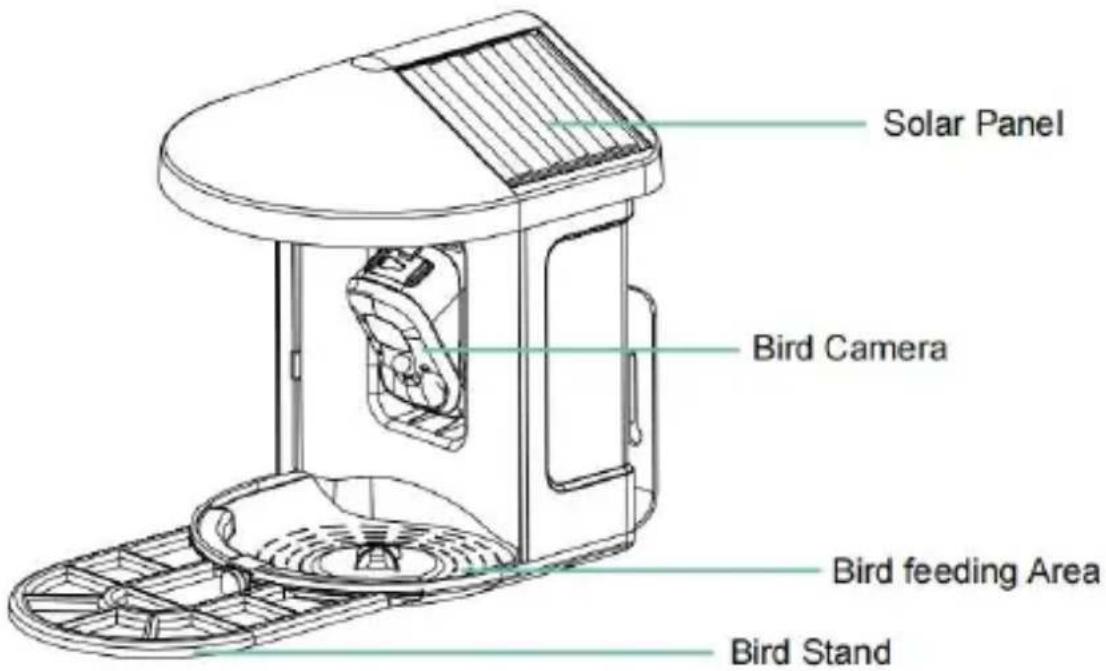
STEPS OF ASSEMBLY
DOWNLOAD & INSTALL APP
Download App

I understand and agree User Agreement and Privacy Policy
Next Step
HOW TO SET UP THE CAMERA
Device added successfully!
The next step will guide you on how to install the device
Let's start
Continue adding another device first
SHARE THE CAMERA
CHARGE THE CAMERA
NOTIFICATION SETTING
Notification Setting
Motion Detection Notification

Smart Push
Check now
Subscribe to Awareness for more features

Intelligent Notification
Identify the main content of the video: Person, Pet, Vehicle. And analyze its action behavior, make more intelligent push information.
Lite
Awareness

Activity Zone
Once you set the Activity Zone, only triggered messages about the accurate location will be pushed, while any other information will be filtered out.

BIRDFEEDER INSTALLATION
POSSIBLE PROBLEMS WITH BINDING
C/O YH Consulting Limited Office 147, Centurion House,
London Road, Staines-upon-Thames, Surrey, TW18 4AX
Suite 250, 9166 Anaheim Place, Rancho Cucamonga, CA
91730
VEVOR®
TOUGH TOOLS, HALF PRICE
www.vevor.com/support
VEVOR®
TOUGH TOOLS, HALF PRICE
www.vevor.com/support
SMART BIRD FEEDER
We continue to be committed to providing you with tools at competitive prices. "Save Half", "Half Price", or any other similar expressions used represent an estimate of savings you might benefit from when buying certain products with us compared to the major top brands, and do not necessarily cover all categories of tools offered by us. You are kindly reminded to carefully consider when placing an order with us whether you are actually comparing with the top major brands.
VEVOR®
TOUGH TOOLS, HALF PRICE
SMART BIRD FEEDER
NEED HELP? CONTACT US!
Have product questions? Need technical support? Please feel free to contact us:
Technical Support and E-Warranty Certificate www.vevor.com/support
This is the original instruction. Please read all manual instructions carefully before operating. VEVOR reserves a clear interpretation of our user manual. The appearance of the product shall be subject to the product you received. Please forgive us if we inform you again in case of any technology or software updates to the product.
IMPORTANT SAFEGUARDS

BIRD FEEDER PARTS NAME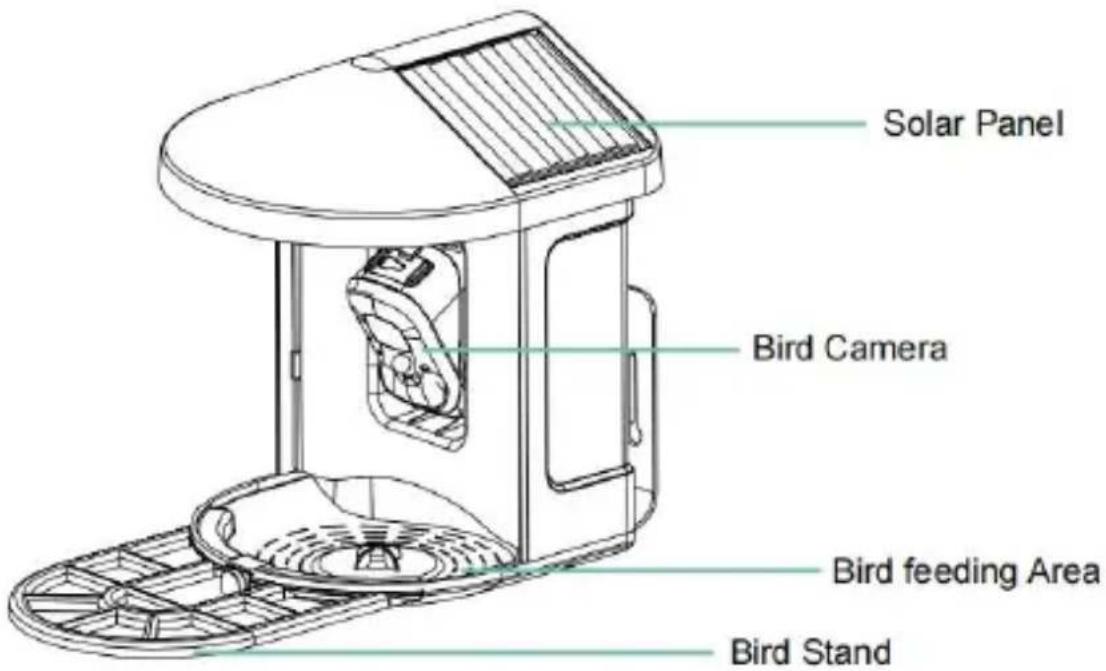
STEPS OF ASSEMBLY
DOWNLOAD & INSTALL APP

Download App
I understand and agree to the User Agreement and Privacy Policy
Next Step
HOW TO SET UP THE CAMERA
Device added successfully!
The next step will guide you on how to install the device
Let's start
Continue adding another device first
SHARE THE CAMERA
CHARGE THE CAMERA
![Northern red bishop Article Talk YA The northern red bishop or orange bishop (Euplectes franciscanus) is a small passerine bird in the family Ploceidae. It is part of the largest genus in the family with over 60 different species.[2] Its sister species is the Southern red bishop (Euplectes orix). Th…](/content/2026/04/735350/images/2f638f283bdddc996d4561d8c3401f8c7d4694155fcd51c91cbd04c707c9125c.jpg)
NOTIFICATION SETTING
Notification Setting
Motion Detection Notification

Smart Push
Check now
Subscribe to Awareness for more features

Intelligent Notification
Identify the main content of the video: Person, Pet, Vehicle. And analyze its action behavior, make more intelligent push information.
Lite
Awareness

Activity Zone
Once you set the Activity Zone, only triggered messages about the accurate location will be pushed, while any other information will be filtered out.

BIRDFEEDER INSTALLATION
(1) Install the bracket
Possible problems with binding
C/O YH Consulting Limited, Bureau 147, Centurion House,
London Road, Staines-upon-Thames, Surrey, TW18 4AX
Imported in Australia: SIHAO PTY LTD.
1 Rokeva Street, Astwood NSW 2122, Australia
Bureau 250, 9166 Anaheim Place, Rancho Cucamonga,
CA 91730
VEVOR®
Tough tools, half price
www.vevor.com/support
VEVOR®
Tough tools, half price
www.vevor.com/support
We continue to be committed to provide you tools with competitive prices. "Save Half", "Half Price" or any other similar expressions used by us represent an estimate of savings you might benefit from buying certain tools with us compared to the major top brands and does not necessarily cover all categories of tools offered by us. You are kindly reminded to compare carefully when you are placing an order with us if you are actually in comparison with the top major brands.
VEVOR®
TOUGH TOOLS, HALF PRICE
SMART BIRD FEEDER
Model: FB-A01, FB-A02, FB-A03, FB-A04, FB-A05, FB-A06
NEED HELP? CONTACT US!
Have product questions? Need technical support? Please feel free to contact us:
Technical Support and E-Warranty Certificate www.vevor.com/support
This is the original instruction. Please read all manual instructions carefully before operating. VEVOR reserves a clear interpretation of our user manual. The appearance of the product shall be subject to the product you received. Please forgive us that we will not notify you again if there are any technology or software updates to the product.
IMPORTANT SAFEGUARDS

BIRD FEEDER PARTS NAME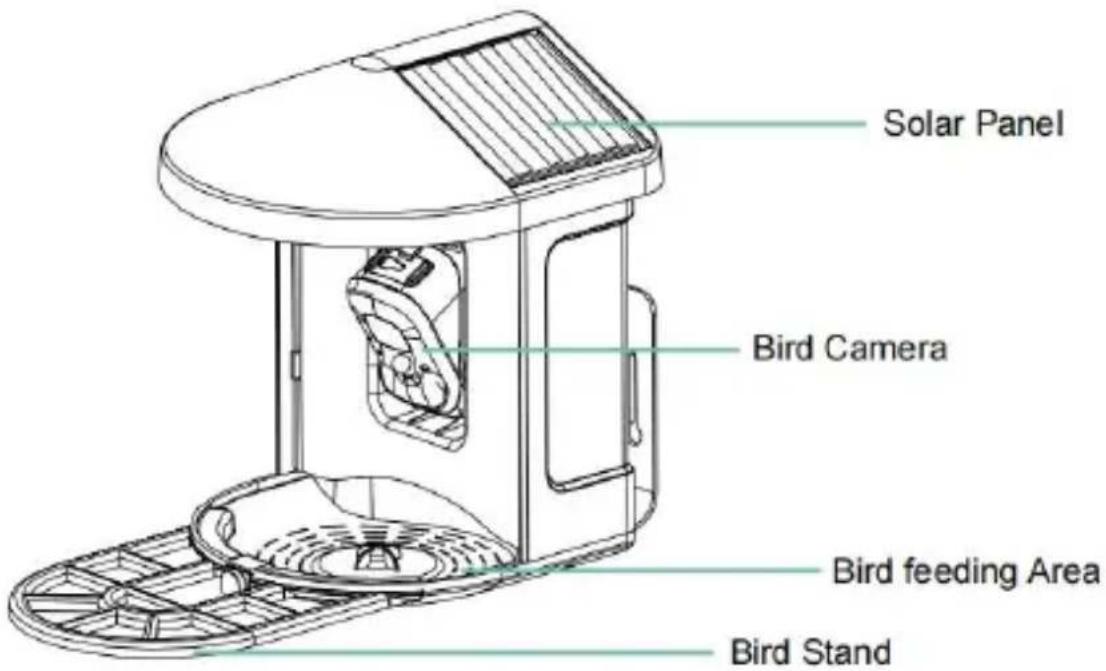
STEPS OF ASSEMBLY
Step 1: Assemble the top cover
Step 2: Install the tray
DOWNLOAD & INSTALL APP
The wireless smart battery camera supports Android and iOS apps.


Download App
I understand and agree to the User Agreement and Privacy Policy
Next Step
HOW TO SET UP THE CAMERA

SHARE THE CAMERA
CHARGE THE CAMERA

![Northern red bishop. Article Talk. A. The northern red bishop or orange bishop (Euplectes franciscanus) is a small passerine bird in the family Ploceidae. It is part of the largest genus in the family with over 60 different species.[2] Its sister species is the Southern red bishop (Euplectes orix).…](/content/2026/04/735350/images/38a2f80f79bd8efe9b02a0b4529eaf72decf3a89ebfd37dd206141ed60a7a12a.jpg)
NOTIFICATION SETTING
Notification Setting
Motion Detection Notification

Smart Push
Check now
Subscribe to Awareness for more features

Intelligent Notification
Identify the main content of the video: Person, Pet, Vehicle. And analyze its action behavior, make more intelligent push information.
Lite
Awareness

Activity Zone
Once you set the Activity Zone, only triggered messages about the accurate location will be pushed, while any other information will be filtered out.

BIRDFEEDER INSTALLATION
(1) Install the bracket
Step 1: Screw attachment

(3) Install solar panels
POSSIBLE PROBLEMS WITH BINDING
C/O YH Consulting Limited Office 147, Centurion House,
London Road, Staines-upon-Thames, Surrey, TW18 4AX
Suite 250, 9166 Anaheim Place, Rancho Cucamonga, CA
91730
VEVOR®
TOUGH TOOLS, HALF PRICE
www.vevor.com/support
VEVOR®
TOUGH TOOLS, HALF PRICE
www.vevor.com/support
SMART BIRD FEEDER
We continue to be committed to providing you with tools that offer competitive prices. Expressions like "Save Half", "Half Price", or any other similar expressions used by us represent an estimate of savings you might benefit from buying certain tools with us compared to the major top brands, and do not necessarily cover all categories of tools offered by us. You are kindly reminded to carefully consider when placing an order with us whether you are actually comparing with the top major brands.
VEVOR®
TOUGH TOOLS, HALF PRICE
SMART BIRD FEEDER
NEED HELP? CONTACT US!
Have product questions? Need technical support? Please feel free to contact us:
free to contact us:
Technical Support and E-Warranty Certificate www.vevor.com/support
This is the original instruction. Please read all manual instructions carefully before operating. VEVOR reserves a clear interpretation of our user manual. The appearance of the product shall be subject to the product you received. Please forgive us if we do not notify you again if there are any technology or software updates to the product.
IMPORTANT SAFEGUARDS

BIRD FEEDER PARTS NAME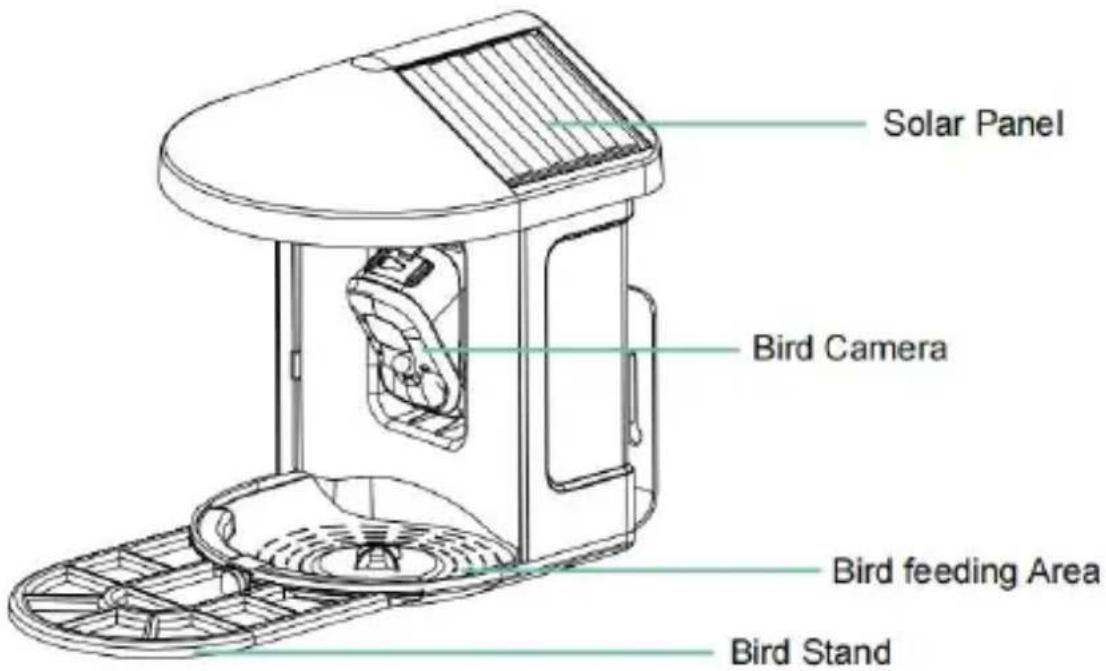
STEPS OF ASSEMBLY
Step 2: Install the bracket
Step 3: Install an external antenna
DOWNLOAD & INSTALL APP


Download App
I understand and agree User Agreement and Privacy Policy
Next Step
HOW TO SET UP THE CAMERA
SHARE THE CAMERA
CHARGE THE CAMERA
NOTIFICATION SETTING
Notification Setting
Motion Detection Notification

Smart Push
Check now
Subscribe to Awareness for more features

Intelligent Notification
Identify the main content of the video: Person, Pet, Vehicle. And analyze its action behavior, make more intelligent push information.
Lite
Awareness

Activity Zone
Once you set the Activity Zone, only triggered messages about the accurate location will be pushed, while any other information will be filtered out.

BIRDFEEDER INSTALLATION

(3) Install the solar panels
POSSIBLE PROBLEMS WITH BINDING
UK REP: YH CONSULTING LIMITED.
C/O YH Consulting Limited Office 147, Centurion House,
London Road, Staines-upon-Thames, Surrey, TW18 4AX
Imported to AUS: SIHAO PTY LTD.
1 ROKEVA STREET EASTWOOD NSW 2122 Australia
Imported to USA: Sanven Technology Ltd.
Suite 250, 9166 Anaheim Place, Rancho Cucamonga, CA
91730
VEVOR®
TOUGH TOOLS, HALF PRICE
www.vevor.com/support
VEVOR®
TOUGH TOOLS, HALF PRICE
www.vevor.com/support
SMART BIRD FEEDER (WITH CAMERA MODEL QB)
MODEL: FB-A01, FB-A02, FB-A03, FB-A04, FB-A05, FB-A06
We continue to be committed to provide you tools with competitive prices. "Save Half", "Half Price" or any other similar expressions used by us represent an estimate of savings you might benefit from buying certain tools with us compared to the major top brands and does not necessarily cover all categories of tools offered by us. You are kindly reminded to carefully verify when you are placing an order with us if you are actually in comparison with the top major brands.
VEVOR®
TOUGH TOOLS, HALF PRICE
SMART BIRD FEEDER
NEED HELP? CONTACT US!
Have product questions? Need technical support? Please feel
free to contact us:
Technical Support and E-Warranty Certificate www.vevor.com/support
This is the original instruction, please read all manual instructions carefully before operating. VEVOR reserves a clear interpretation of our user manual. The appearance of the product shall be subject to the product you received. Please forgive us that we will not notify you again if there are any technology or software updates to the product.
IMPORTANT SAFEGUARDS

BIRD FEEDER PARTS NAME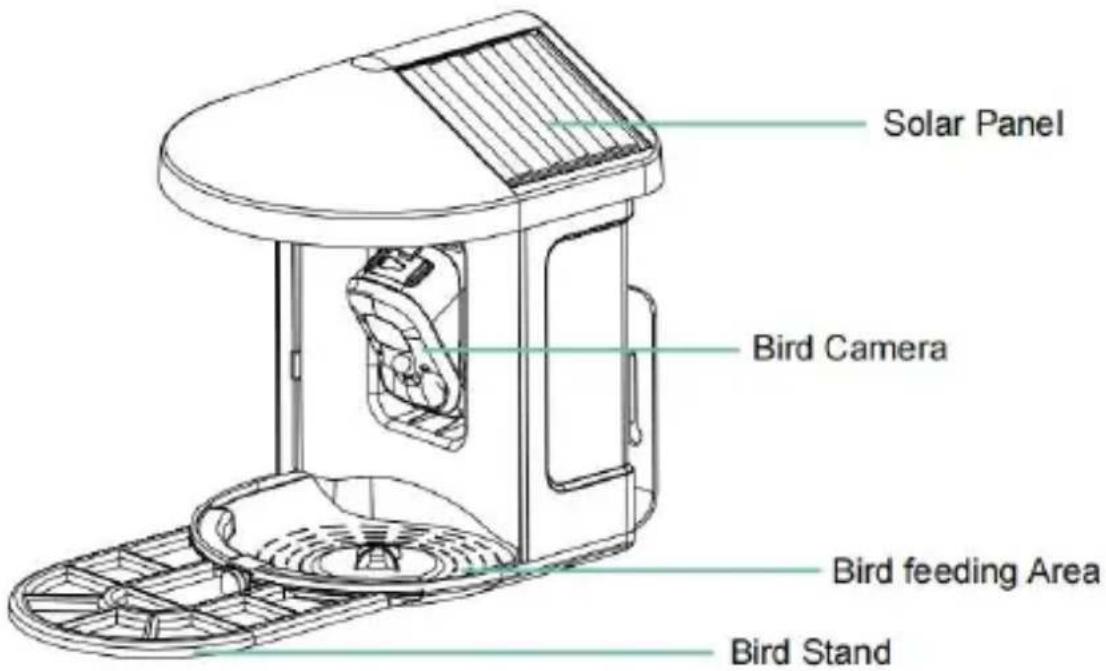
STEPS OF ASSEMBLY
Step 2: Install the tray
Step 3: Install an external antenna
DOWNLOAD & INSTALL APP


Download App
I understand and agree to the User Agreement and Privacy Policy
Next Step
HOW TO SET UP THE CAMERA
Device added successfully!
The next step will guide you on how to install the device.
Let's start.
Continue adding another device first.
SHARE THE CAMERA
CHARGE THE CAMERA
![Northern red bishop Article Talk YA The northern red bishop or orange bishop (Euplectes franciscanus) is a small passerine bird in the family Placeidae. It is part of the largest genus in the family with over 60 different species.[2] Its sister species is the Southern red bishop (Euplectes only). Th…](/content/2026/04/735350/images/5430a29f5669173e988d84a535613955b0c415839a3e7509e0d7360ae0582076.jpg)
NOTIFICATION SETTING
Notification Setting
Motion Detection Notification

Smart Push
Check now
Subscribe to Awareness for more features

Intelligent Notification
Identify the main content of the video: Person, Pet, Vehicle. And analyze its action behavior, make more intelligent push information.
Lite
Awareness

Activity Zone
Once you set the Activity Zone, only triggered messages about the accurate location will be pushed, while any other information will be filtered out.

BIRDFEEDER INSTALLATION
(1) Install the bracket
(3) Install solar panels
POSSIBLE PROBLEMS WITH BINDING
C/O YH Consulting Limited Oficina 147, Centurion House, London Road, Staines-upon-Thames, Surrey, TW18 4AX Imported to AUS: SIHAO PTY LTD.
1 ROKEVA STREET ASTWOOD NSW 2122 Australia Imported to USA: Sanven Technology Ltd.
Suite 250, 9166 Anaheim Place, Rancho Cucamonga, CA 91730
VEVOR®
TOUGH TOOLS, HALF PRICE
www.vevor.com/support
- SMART BIRD FEEDER
- VEVOR®
- NEED HELP? CONTACT US
- IMPORTANT SAFEGUARDS
- PACKAGE CONTENTS
- BIRD CAMERA APPEARANCE
- STEPS OF ASSEMBLY
- STEP 1: ASSEMBLE THE UPPER COVER
- STEP 2: INSTALL THE TRAY
- STEP 3: INSTALL AN EXTERNAL ANTENNA
- DOWNLOAD & INSTALL APP
- ACCOUNT REGISTRATION
- HOW TO SET UP THE CAMERA
- PREPARATION FOR CONNECTION
- INSERT MICRO SD CARD INTO CAMERA
- ADD THE CAMERA—FOR ANDROID
- STEP 6: CLICK 'NEXT STEP
- STEP 7: WHEN CONNECTING, PLEASE WAIT PATIENTLY FOR 15 SECONDS, THEN YOU WILL HEAR A SOUND 'WI-FI CONNECTED
- ADD THE CAMERA—FOR IOS
- SHARE THE CAMERA
- CHARGE THE CAMERA
- CHECK BATTERY LEVEL
- CHARGE THE SMART BIRD FEEDER
- HOW TO DO BIRD AI RECOGNITION
- NOTIFICATION SETTING
- INTELLIGENT NOTIFICATION
- ACTIVITY ZONE
- BIRDFEEDER INSTALLATION
- INSTALL THE BRACKET
- STEP1: SCREW FIXING
- STEP2: INSTALLATION OF BRACKET AND BIRD FEEDER
- SELECT A GOOD SPOT FOR YOUR BIRD FEEDER
- INSTALL SOLAR PANELS
- FIRMWARE UPGRADE
- FAQ
- Q: HOW DO I QUICKLY VIEW VIDEOS BY CATEGORY
- Q: WHAT SHOULD I DO WHEN THE DEVICE MALFUNCTIONS
- POSSIBLE PROBLEMS WITH BINDING
- FCC INFORMATION
- DISPOSAL INSTRUCTIONS
- CORRECT DISPOSAL
- SMART BIRD FEEDER (WITH CAMERA MODEL QB)
- DEVICE ADDED SUCCESSFULLY
- SMART PUSH
- DOWNLOAD APP
- TOUGH TOOLS, HALF PRICE
- STEP 1: ASSEMBLE THE TOP COVER
- STEP 1: SCREW ATTACHMENT
- STEP 2: INSTALL THE BRACKET
- INSTALL THE SOLAR PANELS
Brand : Vevor
Model : FB-A03
Category : Bird feeder