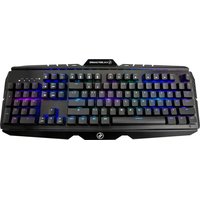
HVER PRO X GKB730-BN - Keyboard IOGEAR - Free user manual and instructions
Find the device manual for free HVER PRO X GKB730-BN IOGEAR in PDF.


| Product Type | Optical Mechanical RGB Gaming Keyboard |
| Brand | IOGEAR (Kaliber Gaming) |
| Model | HVER PRO X GKB730-BN |
| Backlight | RGB multizone, 8 built-in modes + 3 DIY modes, 47 combinations |
| Number of Keys | 104 keys (standard), with 9 multimedia shortcut keys |
| Macro Keys | Programmable up to 65 keys via software |
| User Profiles | 3 programmable slots |
| Anti-ghosting / NKRO | Full NKRO (100% simultaneous key detection) |
| Windows Key Lock | Yes (Fn + Windows key) |
| Connectivity | USB 2.0 (fixed cable) |
| System Compatibility | Windows 7, 8, 8.1, 10 |
| Foldable Feet | Yes, to adjust typing angle |
| Keycap Puller | Included |
| Power | Via USB port (bus-powered) |
| Cable Length | Approximately 1.8 m (estimated) |
| Dimensions (L x W x H) | Approximately 440 x 130 x 35 mm (estimated) |
| Weight | Approximately 900 g (estimated) |
| Warranty | 2 years (limited warranty) |
| Certifications | FCC Class B, CE |
| Cleaning | Remove keycaps with included tool, clean with a soft cloth |
| Software | Free download at iogear.com |
Frequently Asked Questions - HVER PRO X GKB730-BN IOGEAR
User questions about HVER PRO X GKB730-BN IOGEAR
0 question about this device. Answer the ones you know or ask your own.
Ask a new question about this device
Download the instructions for your Keyboard in PDF format for free! Find your manual HVER PRO X GKB730-BN - IOGEAR and take your electronic device back in hand. On this page are published all the documents necessary for the use of your device. HVER PRO X GKB730-BN by IOGEAR.
USER MANUAL HVER PRO X GKB730-BN IOGEAR
RGB Optical Mechanical Keyboard
Welcome to Kaliber Gaming
Congratulations! You are now officially a new owner of Kaliber Gaming's HVER™ PRO X RGB Optical Mechanical Keyboard. Designed for gamers, HVER PRO X offers an array of functions that will increase your gaming skills. You can customize your HVER PRO by choosing from the an assortment of pre-programmed color patterns, or download the HVER PRO X user interface software and fine-tune the multi-zone RGB backlighting to match your PC, mouse and other devices. The HVER PRO X software also allows you to create custom macros and change the bindings of up to 65 different keys, then store them along with your favorite RGB backlight setting to one of three programmable user profile slots. Make sure to read through the full list of features, and take your time following through the operational guidelines in order to get the maximum enjoyment out of your new HVER PRO X!
Package Contents
1 x HVER ^TM PRO X
1 x Quick Start Guide
1 x Warranty Card
Requirements
- Windows® 7, Windows® 8, Windows® 8.1, Windows® 10
- USB 2.0 port
Hardware Installation
Simply connect the USB plug of HVER PRO X to an available USB port on your computer. Your operating system will automatically install the device.
natural_image
Line drawing of a desktop computer tower with monitor, tower, and tower stack (no text or labels)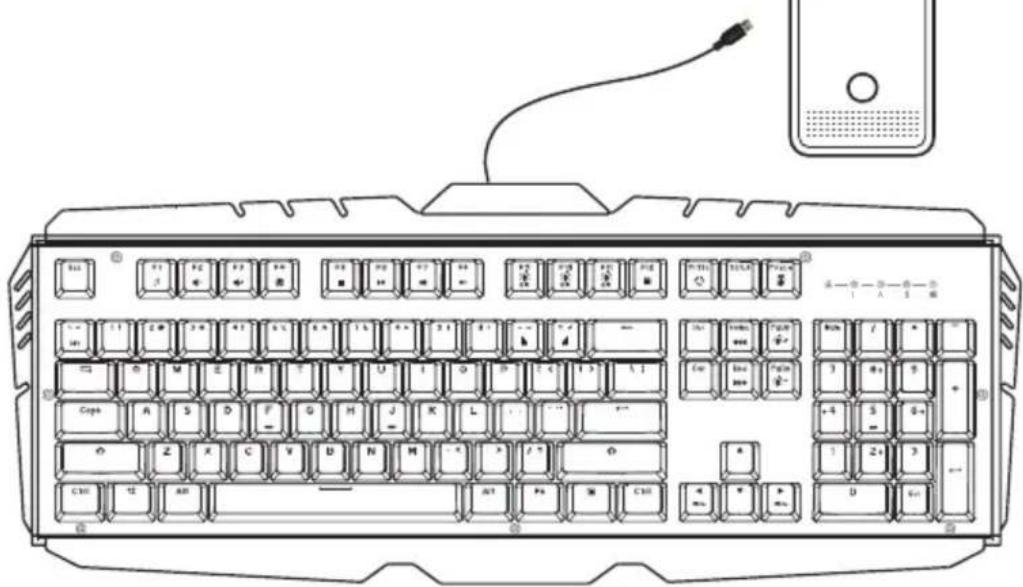
Software Installation
2
The HVER PRO X user interface software allows creating custom macro functions and specialized hotkeys, as well as fine-tuning the RGB backlighting. The HVER PRO X user interface software is a free download available on the IOGEAR website location below: https://www.iogear.com/product/GKB730-BN/
Operation
Keyboard - Front View
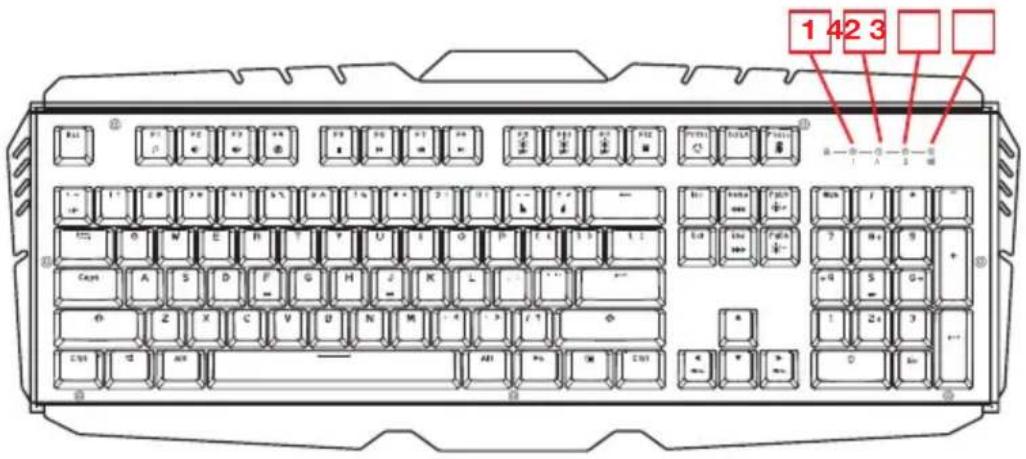
- Num Lock LED – turns on when Num Lock key is pressed
- Caps Lock LED – turns on when Caps Lock key is pressed
- Scroll Lock LED – turns on when Scroll Lock key is pressed
- Windows Lock LED - turns on when Fn + is pressed to indicate the Windows key is disabled
Windows Key Lockout
The Windows key lockout prevents the Windows menu from popping up and interfering with your game if accidentally pressed while gaming. Press Fn + ■ key to lockout the Windows menu function. The Windows Lock LED will light up to confirm the Windows key is locked out Press Fn + ■ again to unlock the Windows key.
Anti-Ghosting / NKRO
As gaming has exploded in popularity, the term Anti-Ghosting has evolved from its original meaning to now describe a non-mechanical keyboard's ability to accurately detect individual keystrokes when certain combinations of buttons are pressed. Mechanical keyboards do not suffer this problem, and may instead have a limit to the total number buttons that can be pressed simultaneously. This limit is expressed as N-Key Rollover (NKRO) where N equals the number of keys that can be pressed simultaneously. HVER PRO has no limit and features full NKRO, meaning every keystroke will be detected no matter how many keys are simultaneously pressed. Now you can play with confidence knowing your keyboard won't hold you back!
LED Backlight Functions
The HVER PRO X has 8 built-in backlight modes with 47 different color/pattern combinations, plus 3 DYI per-key user programmable lighting modes. The backlighting can be further customized issuing the downloadable HVER PRO X user software. Press Fn + PrtSc to cycle through the 8 different color modes: Sparkle, Monochrome, Fixed Single-Color, Breathing, Follow, Rainbow Ripple, Explode and Wave.
Backlight Color Adjustments
Press Fn + Home or Fn + End to cycle up or down through the 9 color options available within each backlighting mode: Rainbow, White, Purple, Blue, Cyan, Green, Yellow, Orange and Red. Note: Sparkle and Monochrome backlight modes do not have color options available.
Backlight Pattern Adjustments
Press Fn + PgUp to increase brightness Press Fn + PgDn to decrease brightness Press Fn + ◀ to shift light flow direction left Press Fn + ▶ to shift light flow direction right Press Fn + + to increase light speed Press Fn + - to decrease light speed
DIY Custom Lighting
The HVER PRO X has three DIY lighting modes that can be programmed without using the HVER PRO X user software.
To set the DIY lighting mode:
- Press Fn + F9, Fn + F10 or Fn + F11 to select a DIY backlighting mode.
- Press Fn + Pause to start DIY programming. The 4 status LEDs will begin flashing.
- Press the keys you want to light. Each press will cycle the key color as follows: Off, Red, Green, Blue, Yellow, Purple, Cyan, White.
- Press Fn + Pause to exit and save the setting. The 4 status LEDS will stop flashing.
Note: Change the FN key color last. When changing the Fn key color, cycle to the color you want but do not release the key. Continue holding down the key and press Pause to save, then you can release the key.
Hotkeys
There are 9 hotkeys offering quick access to the most commonly used functions. Press the F key to activate the desired function.
Windows Hotkeys Function
| Fn + F1 | Media Player |
| Fn + F2 | Volume Down |
| Fn + F3 | Volume up |
| Fn + F4 | Mute |
| Fn + F5 | Stop |
| Fn + F6 | Previous Track |
| Fn + F7 | PlayPause |
| Fn + F8 | NextTrack |
| Fn + F12 | Calculator |
HVER PRO X User Software
The following features require installation of the HVER PRO X user interface software, available as a free download the from the IOGEAR website.
Macro Keys
The HVER PRO X keys can be programmed to execute a series of keystrokes with only a single press. These are great gaming tools for casting spells, etc. but they can also be used to simplify your life outside of gaming. You can use programmable buttons for simple text shortcuts like entering passwords or email addresses, accessing special menus and executing multi-key commands when using powerful programs like Photoshop and Solidworks. To create and store Macro Key functions you will need to download the HVER PRO X user interface software from the IOGEAR website.
User Profiles
The HVER PRO X can store up to three custom user profiles, each with differently programmed macro keys and LED backlighting. To create and store custom user profiles you will need to download the HVER PRO X user interface software from the IOGEAR website.
Keyboard - Rear View
Foldout Leg (see Foldout Leg Keycap Removal Tool)
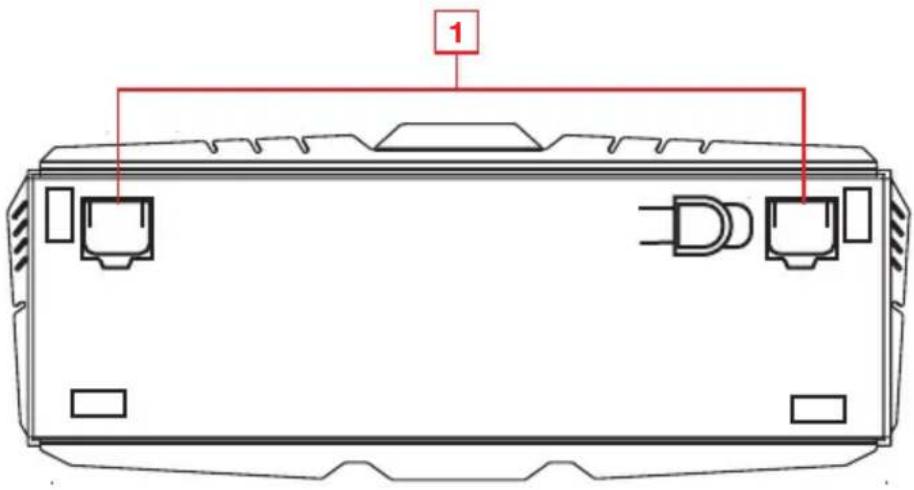
Foldout Legs
For greater comfort during long gaming sessions, you can adjust the typing angle of your HVER PRO X by folding the legs in or out on the back of the keyboard.
Keycap Removal Tool
The HVER PRO X includes a tool that assists in removing the keycaps for cleaning, or when exchanging them for a custom set. To remove a keycap, center the tool over the keycap and press downward until it snaps over the cap. Lift up with even pressure until the keycap is removed.
Compliance Information
FCC Statement
B digital device, pursuant to Part 15 of the FCC Rules. These limits are designed to provide reasonable protection against harmful interference in a residential setting. This product generates, uses, and can radiate radio frequency energy and, if not installed and used as directed, it may cause harmful interference to radio communications.
CE Compliance
This device has been tested and found to comply with the following European Union directives: Electromagnetic Capability (2004/108/EC), Low Voltage (2006/95/EC) and R&TTED (1999/5/EC).
Limited Warranty
WE'RE HERE TO HELP YOU! NEED ASSISTANCE SETTING UP THIS PRODUCT?
Make sure you:
- Visit www.iogear.com for more product information
- Visit www.iogear.com/support for live help and product support
Warranty Information
This product carries a 2 Year Limited Warranty. For the terms and conditions of this warranty, please go to https://www.iogear.com/support/warranty
Register online at https://www.iogear.com/register
Important Product Information
Product Model ____
Serial Number ____
Contact
IOGEAR
https://iogear.custhelp.com
support@iogear.com
www.iogear.com
https://www.iogear.com/register
https://iogear.custhelp.com
support@iogear.com
www.iogear.com
natural_image
Line drawing of a desktop computer tower with monitor, tower panel, and tower base (no text or symbols)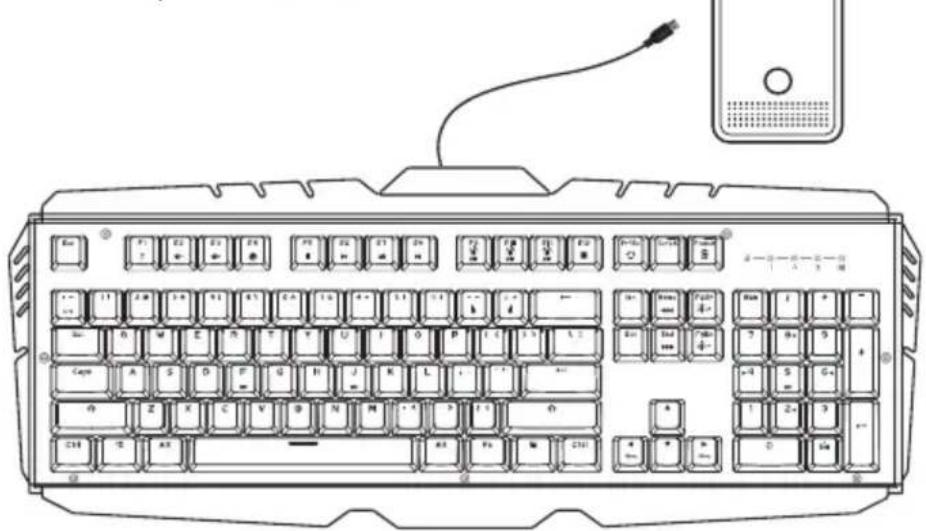
https://www.iogear.com/support/warranty
https://iogear.custhelp.com
support@iogear.com
www.iogear.com

- Welcome to Kaliber Gaming
- Package Contents
- Requirements
- Hardware Installation
- Software Installation
- Operation
- Keyboard - Front View
- Windows Key Lockout
- Anti-Ghosting / NKRO
- LED Backlight Functions
- Backlight Color Adjustments
- Backlight Pattern Adjustments
- DIY Custom Lighting
- To set the DIY lighting mode:
- Hotkeys
- HVER PRO X User Software
- Macro Keys
- User Profiles
- Keyboard - Rear View
- Foldout Legs
- Keycap Removal Tool
- Compliance Information
- FCC Statement
- CE Compliance
- Limited Warranty
- WE'RE HERE TO HELP YOU! NEED ASSISTANCE SETTING UP THIS PRODUCT?
- Contact
- IOGEAR
Brand : IOGEAR
Model : HVER PRO X GKB730-BN
Category : Keyboard